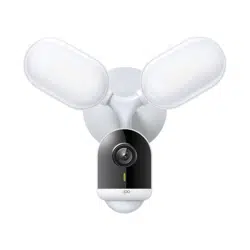
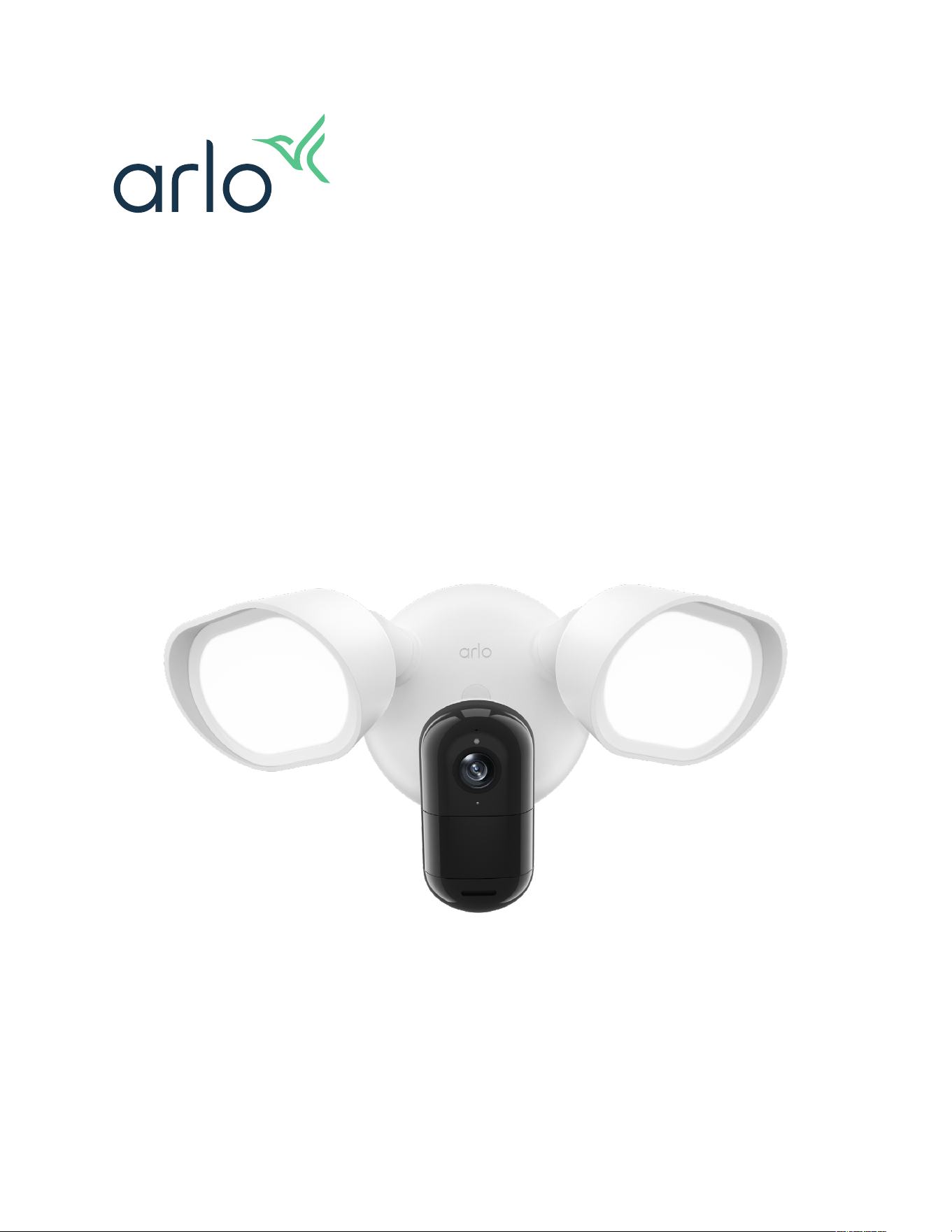
Wired Floodlight Camera
FLW2001 / FLW2001B
User Manual

2 User ManualContents
Contents
1. Get to know your Wired Floodlight Camera 4
Get the Arlo Secure App ..................................................................................................................... 4
Meet your Wired Floodlight Camera ................................................................................................ 5
2. Get started 7
Before you begin .................................................................................................................................. 7
What you need for mounting your Wired Floodlight Camera ..................................................... 9
Wall-mount your Wired Floodlight Camera ................................................................................... 9
Ceiling-mount your Wired Floodlight Camera ............................................................................. 11
Onboard your Wired Floodlight Camera with the Arlo Secure App ......................................... 13
3. Wi-Fi setup and connections 14
Find your 2.4 GHz Wi-Fi network name and password .............................................................. 15
Change your Wired Floodlight Camera’s Wi-Fi network ............................................................ 15
4. Use your Wired Floodlight Camera 16
Turn Floodlight on and o ............................................................................................................... 19
2-Way Audio ........................................................................................................................................ 20
Emergency Response ....................................................................................................................... 20
View recordings and snapshots
5 .................................................................................................................................................................................21
Download recordings........................................................................................................................ 23
5. Modes, Automations, and Alerts 26
Modes ................................................................................................................................................... 26
Arm your Wired Floodlight Camera................................................................................................ 27
Use a routine to activate the Wired Floodlight Camera Siren ................................................... 30
Manage alerts ..................................................................................................................................... 31
6. Change your Settings 33
Device settings ................................................................................................................................... 33
Video settings ..................................................................................................................................... 35
Use Night Vision ................................................................................................................................. 37
Floodlight settings ............................................................................................................................. 38
Audio settings ..................................................................................................................................... 39

Wired Floodlight Camera
3Contents User Manual
Default mode settings ....................................................................................................................... 40
Prole settings .................................................................................................................................... 43
Device access settings ...................................................................................................................... 45
Device location and plans settings ................................................................................................ 45
7. Troubleshooting 48
Arlo doesn’t discover your oodlight during setup .................................................................... 48
Can’t see video streams in a browser ............................................................................................ 48
Wi-Fi signal interference ................................................................................................................... 49
4
Get to Know Your Wired Floodlight Camera User Manual
1. Get to know your Wired Floodlight
Camera
Brighten your security with 2000 lumens and 2K HDR video. Protect your home with powerful
light and view live or recorded clips
1
from your phone. Capture clear video in low light with
Color Night Vision, see more with a wide 160° Field of View, and trigger the Integrated Siren
from the app. Easy, hardwired DIY installation gives you continuous power, protection, and
zero charging. An Arlo Secure plan trial is included. Aer trial, a paid plan is required to keep
premium features like 30-day video cloud storage, People, Package, Vehicle Detection, 24/7
Emergency Response
2
, and more.
Get the Arlo Secure App
The Arlo Secure App lets you create an Arlo account in the cloud and set up and manage all
your Arlo devices. Search for it in your phone’s app store, or go to www.arlo.com/arlosecure, to
download or update your Arlo Secure App.
1. This Arlo Secure service may require a paid subscription aer the trial period, and some Arlo Secure services
may be unavailable in certain regions. For current information on features that need a paid subscription, visit
www.arlo.com/arlosecure.
2. Emergency Response feature available for U.S. subscribers only.
5Get to Know Your Wired Floodlight Camera
Wired Floodlight Camera
User Manual
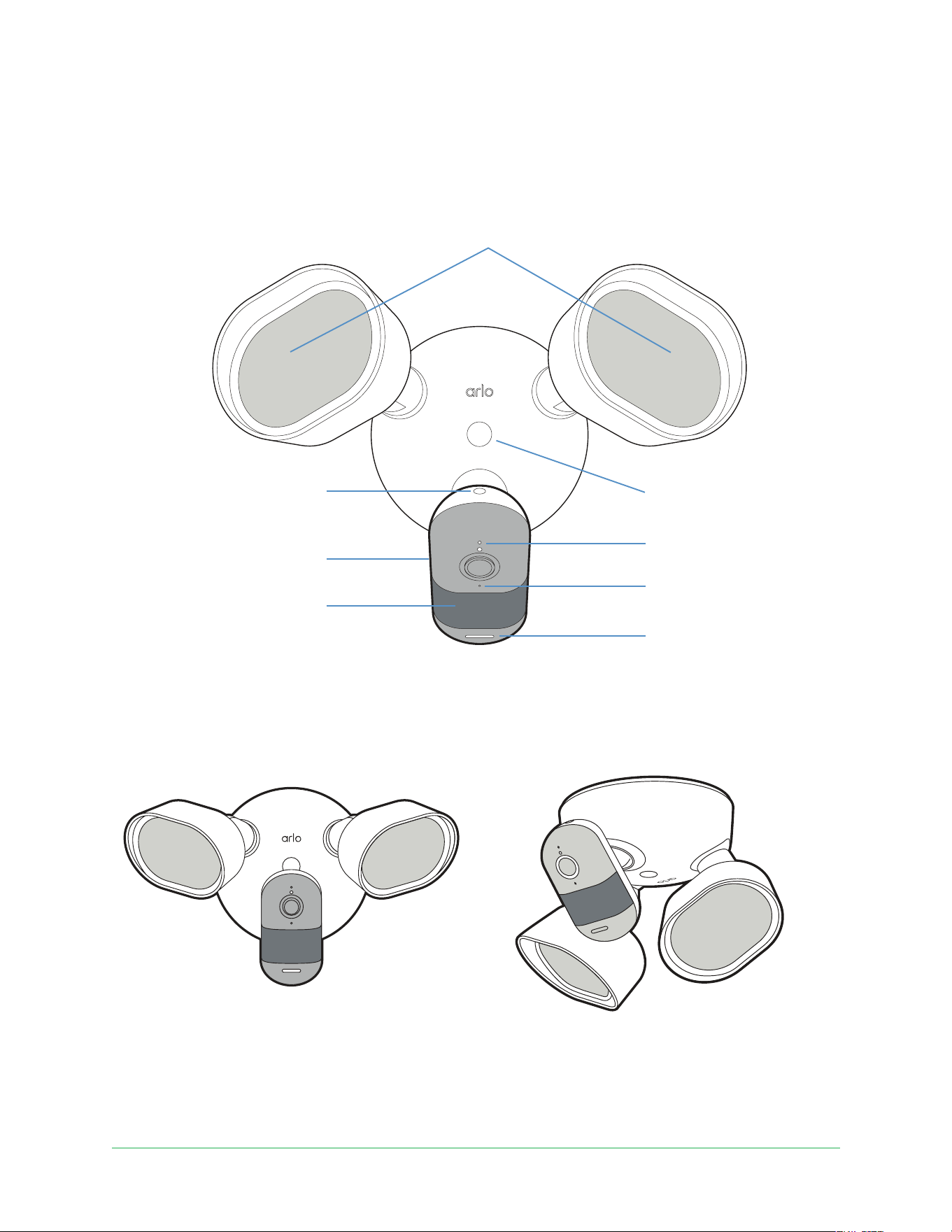
Meet your Wired Floodlight Camera
Mounting options
Camera Mounting
Screw Hole
Camera Status LED
Speaker
Pairing Button
Adjustable Camera
Motion Sensor
(Avoid touching or pressing)
Adjustable Floodlights
Microphone
Ceiling MountWall Mount

6Get to Know Your Wired Floodlight Camera
Wired Floodlight Camera
User Manual
Features
• 2K HDR Video: See more with higher resolution than 1080p HD cameras and get better
contrast with HDR.
• Field of View: See the bigger picture and keep an eye on more of what matters with a 160°
Field of View.
• 2000 Lumen Floodlight: Never be le in the dark and illuminate your property to improve
safety and visibility.
• 2-Way Audio: Hear and speak to visitors with crystal-clear, noise-canceling audio.
• Color Night Vision: Capture important details like car color in low light.
• Weather Resistant: Designed to withstand heat, cold, rain, or sun.
• Integrated Siren: Trigger your siren automatically or manually from the Arlo Secure App.
• Foresight
3
: Capture video prior to every motion triggered video recording.
• Phone Notications: Get alerts on your phone and watch live or recorded video when
your camera detects motion.
• Direct to Wi-Fi: Connect directly to Wi-Fi for hassle-free setup, faster video loading, and
less buering.
• Articulating Lights: Easily adjust direction of each oodlight to illuminate specic areas.
• Object Detection: Get alerts when your camera spots people, vehicles, animals, or
packages.
• Zero Charging: Easily hardwire to existing electrical for continuous power and protection.
• Arlo Secure plan trial included: Aer trial, a paid plan is required to keep premium
features like 30-day video cloud storage, People, Package, Vehicle Detection, 24/7
Emergency Response, and more.
3. This Arlo Secure service may require a paid subscription aer the trial period, and some Arlo Secure services
may be unavailable in certain regions. For current information on features that need a paid subscription, visit
www.arlo.com/arlosecure.
7
Get started User Manual
2. Get started
Download the free Arlo Secure App for step-by-step instructions and informative tips to
support your installation and setup.
1. Open the Arlo Secure App and connect to your Wi-Fi network. If you don’t have the app,
you can download it and create your Arlo account.
2. Once you set up your Arlo account, you can access it from the Arlo Secure App on a
smartphone or tablet, or from a computer using a web browser. If you’re using a computer,
enter https:// my.arlo.com in the address bar of the browser.
Before you begin
• Always follow local building codes, standards, and regulations.
• Install on 4” round UL listed weatherproof electrical junction box. The junction box and
existing electrical wires are required for Fixture installation.
• If you do not have a junction box then please retain a licensed electrician to install one.
• Disconnect power at the fuse or circuit breaker powering the Fixture before installing. Failure
to disconnect power might result in serious injury.
• Verify supply voltage is correct. Connect Fixture to a 100 VAC~240 VAC 50/60 Hz power source.
• Properly ground Fixture.
• Do not connect the Fixture to a dimmer switch or timer.
WARNING: Risk of electrical shock and fire. Do not install wired floodlight camera
(“Fixture”) near combustible or flammable surfaces. If you are not comfortable or are
inexperienced with the installation of equipment requiring electrical connections,
please hire a licensed electrician to install.
The Arlo Secure App guides you through the installation process for your Wired Floodlight
Camera. For the best experience, we recommend that you wait until the Arlo Secure App
tells you to mount your Wired Floodlight Camera before you begin the mounting process.

8Get started User Manual
Wired Floodlight Camera
Find a good location for your Wired Floodlight
Camera
Each home system setup is unique, so use these guidelines as general best practices.
Select a location with a clear vantage point, and an existing junction box and wiring, to fully
optimize the wide eld of view and continuous-charging capability of your oodlight. For the
best experience, choose a location with a strong Wi-Fi signal.
To monitor motion closer to the oodlight, Arlo recommends mounting your device 8.2 feet
(2.5 meters) o the ground, angled towards the ground so that visitors appear in the lower
two-thirds of the image. This angle works well to provide a clear vantage point to inform you
of arriving packages, vehicles, animals, or any other individual.
To monitor motion further from the oodlight, we recommend aiming your device higher
to frame the area within the lower two-thirds of the image. Make sure side-to-side traic
crosses the oodlight eld of view. The camera motion sensor is more sensitive to side-to-
side movement across its eld of view than to movement directly toward or away from the
camera. Also, though the oodlight can detect motion up to 32 feet (10 meters) away, the best
area for motion detection is 5 to 20 feet (1.5 to 6 meters) from its position.
When mounting your Wired Floodlight Camera
• Choose a location for your Wired Floodlight Camera with a pre-existing junction box and
wiring. Or a location where the pre-requisite junction box and wiring can be installed.
• Due to the brilliance of the oodlight, make sure that the Wired Floodlight Camera’s eld
of view is clear of nearby walls and other obstructions. A nearby wall can cause a bright
reection from the oodlight, limiting your camera’s visibility.
9Get started User Manual
Wired Floodlight Camera
What you need for mounting your Wired
Floodlight Camera
Your Wired Floodlight Camera arrives equipped with accessories designed for wall or ceiling
mounting.
What you need to mount your Wired Floodlight Camera:
• A Phillips-head screwdriver
• A ladder
• The mounting bracket, screws, screw cap, wire nuts, and s-hook that came in the package
with your oodlight
WARNING: Mount your Wired Floodlight Camera onto a at, supportive surface.
When mounting your oodlight, select a mounting surface that can support the weight of your
device. Mounting your oodlight in an unstable location might create a hazardous situation or
damage your product, which might not be covered by Arlo’s warranty.
Wall-mount your Wired Floodlight Camera
1. Before starting, turn o power to the junction box at the breaker. Failure to do so may
result in serious injury.
2. Make sure there is no power to the existing xture. Then, remove the existing xture and
mounting hardware from the junction box.
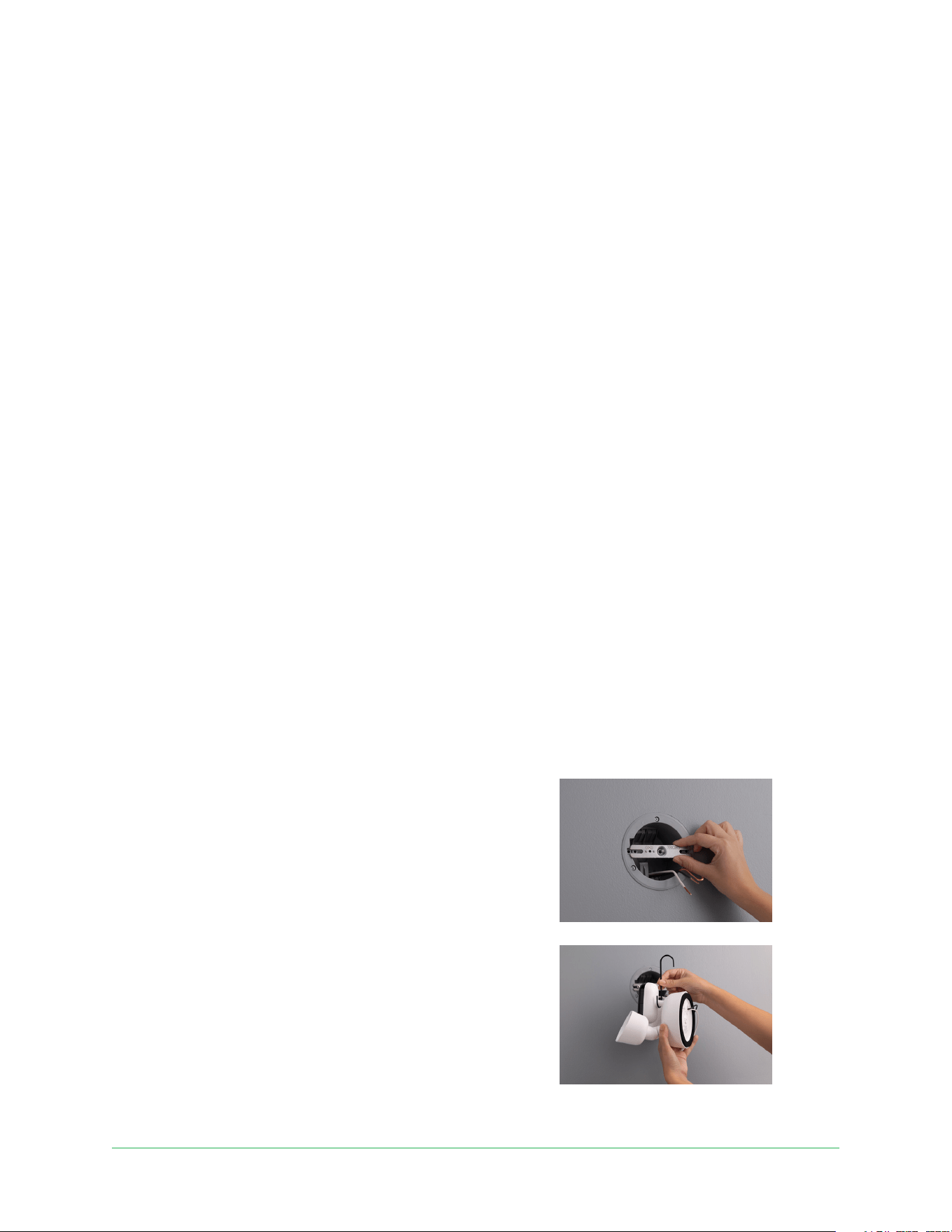
3. Three bags of Mounting Bracket Screws are provided. Choose the pair of screws from
either Bag A1, A2, or A3 that t your 4” round weather resistant UL junction box.
4. Position included Mounting Bracket on the
junction box with the word FRONT facing
towards you and secure it with the two Bracket
Screws.
5. Attach S-Hook to Camera for support during
installation. Camera and Floodlights should
be upside down and back of Floodlight base
should face the wall to avoid damaging Camera
surface.
6. Attach the other end of S-Hook to Mounting
Bracket.
10Get started User Manual
Wired Floodlight Camera
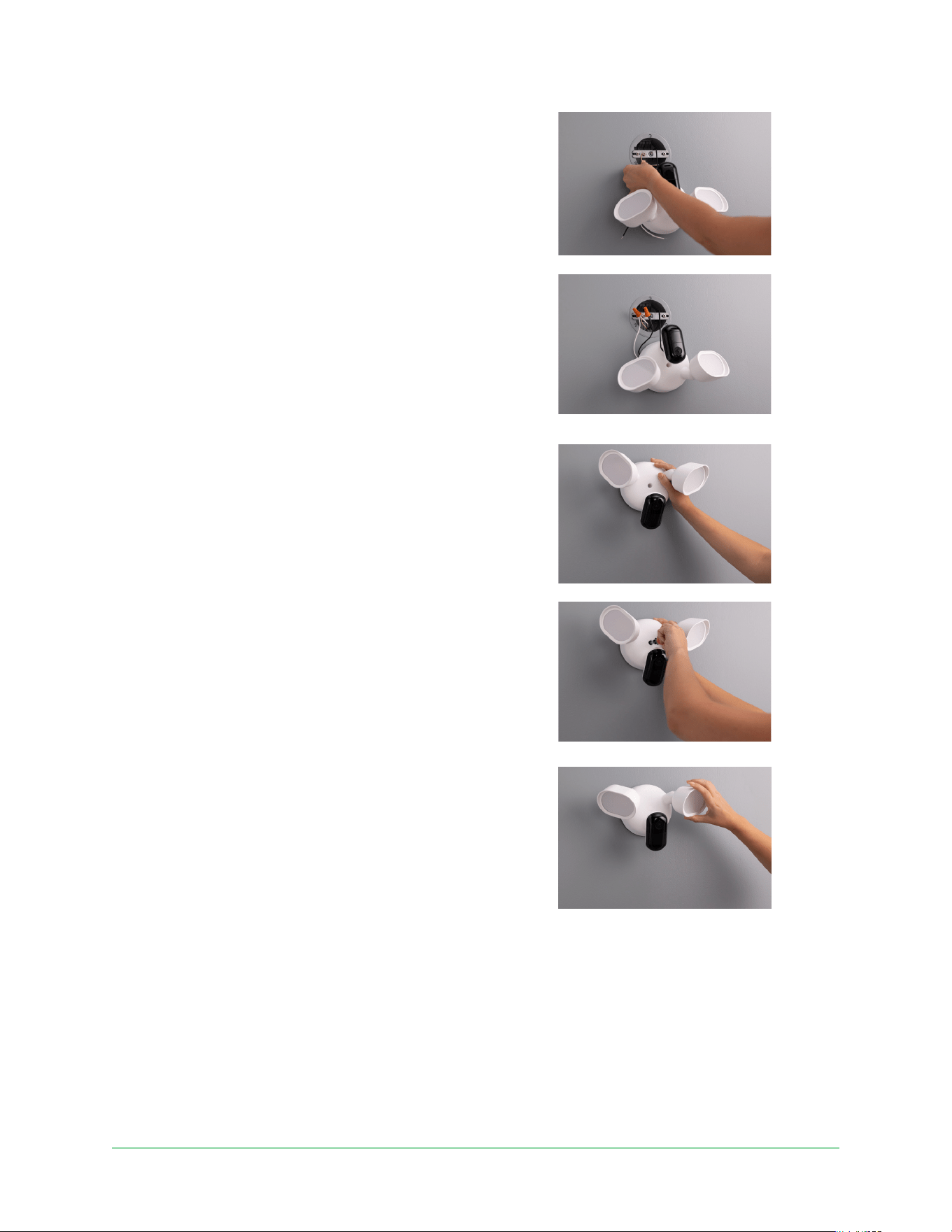
7. Partially insert ground screw from Bag B into
the hole marked GND. Hook GREEN (ground)
wire from junction box around screw and
tighten screw to clamp down GREEN wire
8. Twist WHITE wire (neutral) from Camera and
WHITE wire from the junction box together
clockwise using a wire nut from Bag C.
9. Twist BLACK wire (hot) from Camera and
BLACK wire from junction box together
clockwise using wire nut from Bag C.
10. Tuck all the wires into the junction box,
ensuring wires do not overlap Mounting
Bracket, and remove S-Hook.
11. Rotate Floodlight so lights are at the top and
align the Floodlight Mounting Screw Hole with
the center hole of Mounting Bracket.
12. Secure Floodlight to Mounting Bracket by
inserting and tightening Floodlight Mounting
Screw from Bag D.
13. Place Floodlight Mounting Screw Cap from Bag
E over the Mounting Screw to keep water out of
the enclosure.
14. Hold the mount while rmly grasping and
rotating the Camera and Floodlights to achieve
the desired angle.
15. Turn power back on at the breaker.
You’ll know your Wired Floodlight Camera is
receiving power when the LED on the front of the Camera is solid blue.
If power is controlled by a switch, make sure it’s always on. Your Wired Floodlight Camera
must have constant power to stay connected.
11Get started User Manual
Wired Floodlight Camera
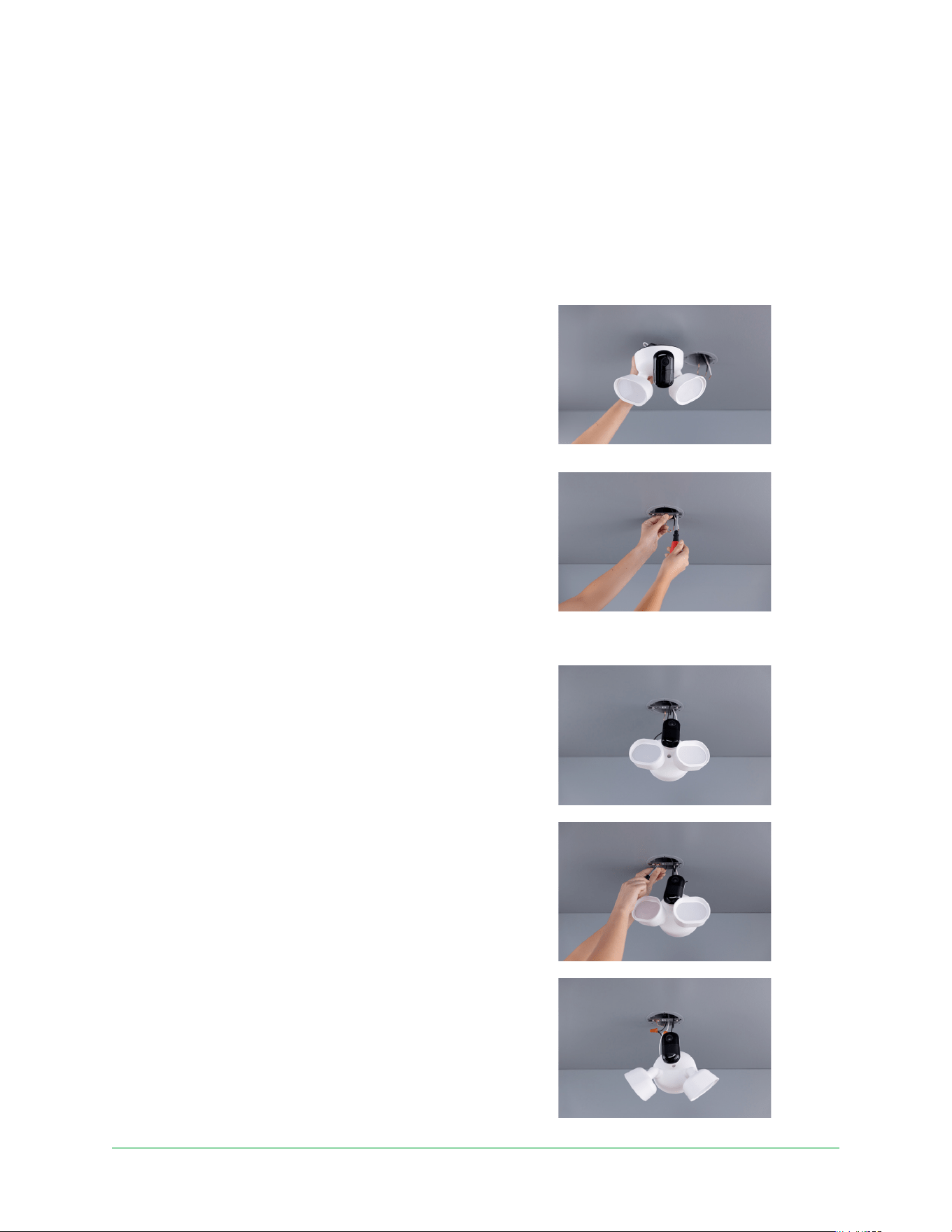
Ceiling-mount your Wired Floodlight Camera
1. Before starting, turn o power to the junction box at the breaker. Failure to do so may
result in serious injury.
2. Make sure there is no power to the existing xture. Then, remove the existing xture and
mounting hardware from the junction box.
3. Turn the right Floodlight clockwise 180° and tilt
it towards the Camera.
4. Turn the le Floodlight counterclockwise 180°
and tilt it towards the Camera.
5. Turn the Camera clockwise 180°.
6. Three bags of Mounting Bracket Screws are
provided. Choose the pair of screws from
either Bag A1, A2, or A3 that t your 4” round
weather resistant UL junction box.
7. Position included Mounting Bracket on the
junction box with the word FRONT facing
towards you and secure it with the two Bracket Screws.
8. Attach S-Hook to Camera for support during
installation. Camera and Floodlights should be
upside down.
9. Attach the other end of S-Hook to Mounting
Bracket.
10. Partially insert ground screw from Bag B into
the hole marked GND. Hook GREEN (ground)
wire from junction box around screw and
tighten screw to clamp down GREEN wire.
11. Twist WHITE wire (neutral) from Camera and
WHITE wire from the junction box together
clockwise using a wire nut from Bag C.
12. Twist BLACK wire (hot) from Camera and
BLACK wire from junction box together
clockwise using wire nut from Bag C.
12Get started User Manual
Wired Floodlight Camera
13. Tuck all the wires into the junction box,
ensuring wires do not overlap Mounting
Bracket, and remove S-Hook.
14. Rotate Floodlight so lights are at the top and
align the Floodlight Mounting Screw Hole with
the center hole of Mounting Bracket.
15. Secure Floodlight to Mounting Bracket by
inserting and tightening Floodlight Mounting
Screw from Bag D.
16. Place Floodlight Mounting Screw Cap from Bag
E over the Mounting Screw to keep water out of
the enclosure.
17. Hold the mount while rmly grasping and
rotating the Camera and Floodlights to achieve
the desired angle.
18. Turn power back on at the breaker.
You’ll know your Wired Floodlight Camera is
receiving power when the LED on the front of
the Camera is solid blue.
If power is controlled by a switch, make sure
it’s always on. Your Wired Floodlight Camera
must have constant power to stay connected.

13Get started User Manual
Wired Floodlight Camera
Onboard your Wired Floodlight Camera with the
Arlo Secure App
1. Make sure your phone is connected to your Wi-Fi network and ensure Bluetooth is on.
2. Open the Arlo Secure App.
3. Navigate to Devices.
4. Tap the Plus icon .
5. Tap Lights
6. Select Wired Floodlight Camera.
7. Review What’s in the Box, then tap Continue.
8. Review Tools, then tap Continue.
9. Tap Allow Bluetooth, then choose Allow to conrm.
10. Select How your Wired Floodlight Camera will be mounted.
11. Follow the in-app installation process for step-by-step instructions.
12. Aer you have installed your Wired Floodlight Camera, turn on power at the breaker and
ensure that the LED on the front of the Wired Floodlight Camera is solid blue.
If power to your Wired Floodlight Camera is controlled by a switch, check that it is on.
13. Press the pairing button of your Wired Floodlight Camera for 3 seconds, then release.
When your Wired Floodlight Camera is ready to connect, the LED will ash blue. If your
device behaves dierently, see Arlo doesn’t discover your floodlight during setup on page
48.
14. Choose a 2.4GHz Wi-Fi network.
15. Enter the Wi-Fi password and wait for it to be veried.
19. Enter a name for your Wired Floodlight Camera and select Continue.
Your Wired Floodlight Camera will automatically check for rmware updates.
20. Your Wired Floodlight Camera is now onboarded.

14
Wi-Fi setup and connections User Manual
3. Wi-Fi setup and connections
When you install and set up your Wired Floodlight Camera, the Arlo Secure App guides you
through the process of connecting to your router’s 2.4 GHz Wi-Fi network.
Tips for optimal Wi-Fi performance
The distance between Wi-Fi devices can aect the Wi-Fi signal:
• Maximum recommended distance. We recommend that you place your oodlight within
300 feet (90 meters) of your Wi-Fi router. The maximum line-of-sight range of 300 feet is
reduced by each wall, ceiling, or other major obstruction between the oodlight and the
router.
• Minimum recommended distance. To reduce Wi-Fi interference, allow at least 6½ feet (2
meters) between your oodlight and any other Arlo cameras that you install.
These materials can reduce Wi-Fi signal strength if they are located between Wi-Fi devices:
• Unusually thick walls and ceilings
• Brick
• Concrete
• Stone
• Ceramic
• Glass, especially mirrors
• Metal
• Large quantities of water, such as the water in a sh tank or water heater

15Wi-Fi setup and connections User Manual
Wired Floodlight Camera
Find your 2.4 GHz Wi-Fi network name and
password
If you’re not sure about how to nd the 2.4 GHz Wi-Fi network:
• Look on your Wi-Fi router label.
Many routers have a label that shows the Wi-Fi network name, which is also called an
SSID. Your 2.4 GHz network name might have a 2, 2.4, or 2G at the end. Your 5 GHz network
name might have a 5 or 5G at the end. If you changed your Wi-Fi settings, then check the
place where you saved your custom settings.
• If your Wi-Fi network name or SSID doesn’t indicate whether it’s 2.4 GHz or 5 GHz, ask your
Internet service provider (ISP) or the person who set up your Wi-Fi router.
• If you have a mesh Wi-Fi network, it uses only one Wi-Fi network name for both Wi-Fi
bands. Connect your phone to the mesh network to enable the oodlight to nd and
connect to the 2.4 GHz Wi-Fi band.
Change your Wired Floodlight Camera’s Wi-Fi
network
1. Make sure Bluetooth is enabled.
2. Make sure your mobile device is connected to the Internet.
3. Navigate to Devices.
4. Tap Menu .
5. Tap Device Settings next to your Wired Floodlight Camera.
6. Tap Wi-Fi Network.
7. Select Change Network.
Follow the onscreen directions to change your Wired Floodlight Camera’s Wi-Fi
connection.
16
Use your Wired Floodlight Camera User Manual
4. Use your Wired Floodlight Camera
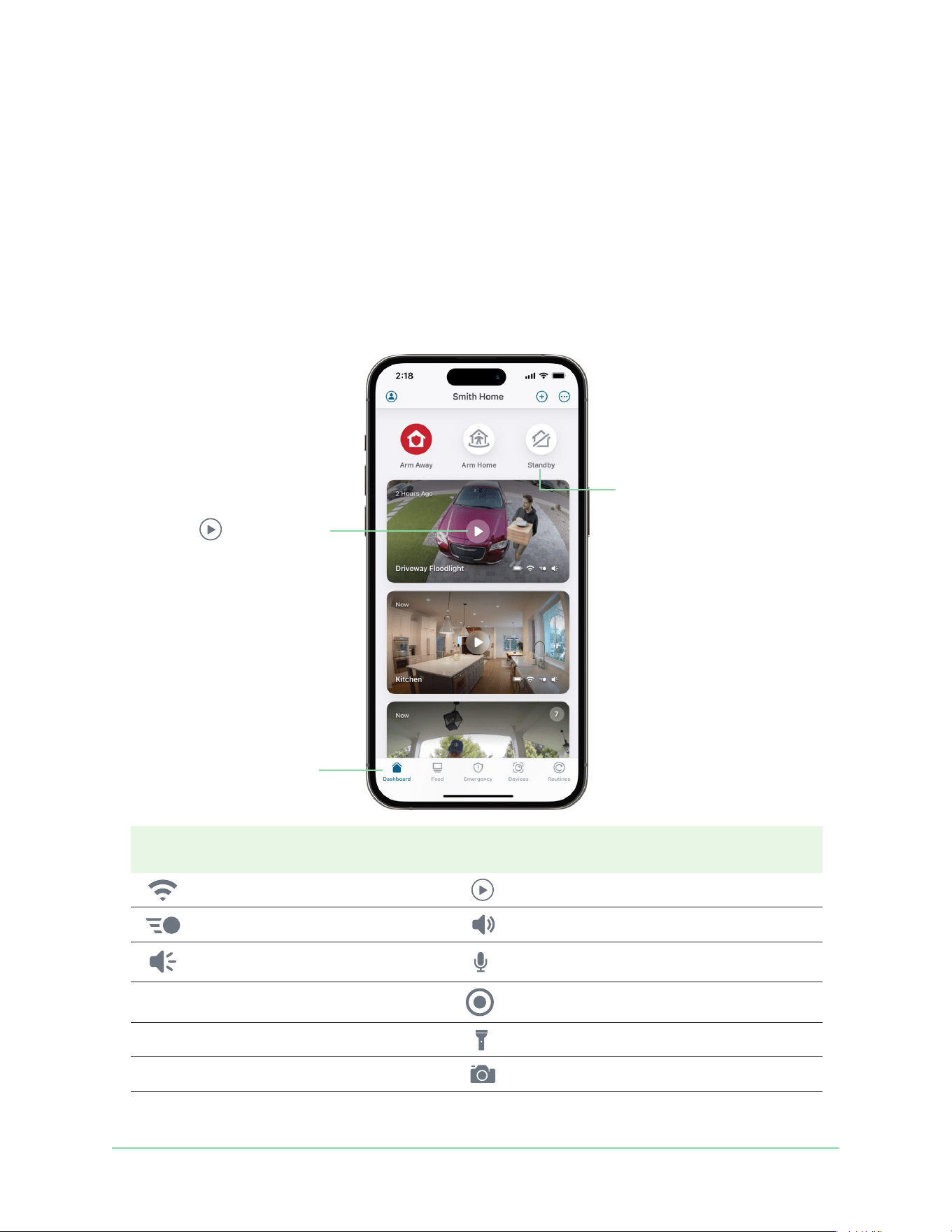
When you open the Arlo Secure App, you are presented with your dashboard.
Camera
icon
Located below each camera
feed
Camera
feed icon
Tap the camera feed to display
these icons
Wi-Fi signal from your Wi-Fi router
Play/Stop
Motion detection is on
Mute the audio
Audio detection is on
Two-way talk
Record video manually
Turn Floodlight on and o.
Take a snapshot.
Tap a navigation icon to go to
Dashboard, Feed, Emergency,
Devices, or Routines
Tap Play to stream the
camera feed
Arm Away, Arm Home, and
Standby modes to protect
your home

17Use your Wired Floodlight Camera User Manual
Wired Floodlight Camera
View your camera feeds
1. Open the Arlo Secure App.
2. Navigate to Devices.
3. Tap Play on your Wired Floodlight Camera feed.
The camera feed updates and camera feed icons display.
4. To stop viewing and listening to the live feed, tap Stop .
Pan and zoom your video feed
1. Open the Arlo Secure App.
2. Navigate to Devices.
3. Tap Play on your Wired Floodlight Camera feed.
4. Use the pinch gesture to zoom in and out of your feed.
Aer zooming in, the image stops and buers for about ve seconds to improve the quality
of video. When the buering stops, your zoomed-in video renders in high quality.
5. Touch-and-drag to move around the zoomed-in frame.
Record clips from live video
1. Open the Arlo Secure App.
2. Navigate to Devices.
3. Tap Play on your Wired Floodlight Camera feed.
4. Tap Record to start/ stop recording.
The recording is saved in Feed.
Take a snapshot from live video
1. Open the Arlo Secure App.
2. Navigate to Devices.
3. Tap Play on your Wired Floodlight Camera feed.
4. Tap Snapshot .
The snapshot is saved in your Feed.

18Use your Wired Floodlight Camera User Manual
Wired Floodlight Camera
Change the camera order
If you use multiple cameras, you can change the order in which their feeds display on the
Devices page.
1. Open the Arlo Secure App.
2. Navigate to Devices.
3. Tap Menu .
4. Tap and drag devices to reorder.
5. Tap Done.
Add an activity zone
4
1. Open the Arlo Secure App.
2. Navigate to Devices.
3. Tap Menu .
4. Tap Device Settings next to your Wired Floodlight Camera.
5. Tap Activity Zones.
6. Tap the Plus icon .
An activity zone box displays in the Wired Floodlight Camera feed image.
7. To resize the Activity Zone, tap and hold each anchor point and then drag the points of the
zone to the desired size and shape.
8. To reposition the zone, tap and hold inside the Activity Zone and then drag the zone to
reposition it.
9. Tap Edit to customize the zone name.
10. Enter a name, and tap Rename.
11. Tap Save.
4. This Arlo Secure service may require a paid subscription aer the trial period, and some Arlo Secure services
may be unavailable in certain regions. For current information on features that need a paid subscription, visit
www.arlo.com/arlosecure.

19Use your Wired Floodlight Camera User Manual
Wired Floodlight Camera
Change an activity zone
1. Open the Arlo Secure App.
2. Navigate to Devices.
3. Tap Menu .
4. Tap Device Settings next to your Wired Floodlight Camera.
5. Tap Activity Zones.
6. Tap the name of a zone to select it.
Perform the desired changes, then tap Save.
Delete an activity zone
1. Open the Arlo Secure App.
2. Navigate to Devices.
3. Tap Menu .
4. Tap Device Settings next to your Wired Floodlight Camera.
5. Tap Activity Zones.
6. Tap the name of a zone to select it.
7. Slide the selected activity zone to the le, tap Delete.
8. Tap Delete again to conrm.
Turn Floodlight on and o
1. Open the Arlo Secure App.
2. Navigate to Devices .
3. Tap Play on your Wired Floodlight Camera feed.
4. To turn the oodlight on and o, tap Floodlight .
5. For more information about manual oodlight activation, see How do I manually turn on
my Arlo Floodlight Camera?

20Use your Wired Floodlight Camera User Manual
Wired Floodlight Camera
2-Way Audio
Your Wired Floodlight Camera includes a microphone that supports 2-Way Audio.
1. Open the Arlo Secure App.
2. Navigate to Devices.
3. Tap Play on your Wired Floodlight Camera feed.
4. Tap Microphone to activate 2-Way Audio.
The rst time you use 2-Way Audio, allow Arlo to use your phone’s microphone.
5. Toggle Tap to mute/ Tap to unmute below the camera feed to turn the microphone on
and o.
6. Tap the x on the upper-le corner of the page to exit 2-Way Audio.
Emergency Response
Activate siren
1. Open the Arlo Secure App.
2. Navigate to Emergency.
3. Tap Activate Siren.
If you have multiple devices, you are prompted to select which to activate.
4. Slide Swipe to activate siren to the right.
The siren turns on.
5. Navigate to Devices and tap the slider at the top of the page to turn o the siren.

21Use your Wired Floodlight Camera User Manual
Wired Floodlight Camera
Call a Friend
5
1. Open the Arlo Secure App.
2. Navigate to Emergency.
3. Tap Call a Friend. If you have multiple friends, select who to contact.
4. Tap Call to conrm.
Contact First Responders
5
1. Open the Arlo Secure App.
2. Navigate to Emergency.
3. Tap the Emergency Responder to contact.
4. Slide Swipe to Conrm to the right.
Note: Emergency Response feature available for U.S. subscribers only.
View recordings and snapshots
5
Your Wired Floodlight Camera stores recordings and snapshots in Feed. You can use the lter
and the calender to nd and view specic recordings.
Access cloud recordings
5
Your Wired Floodlight Camera records when it is in an armed mode and detects motion or
sound. Your Arlo recordings are sent to your Arlo account in the cloud and stored in Feed.
Recordings are encrypted with your user name and password.
You can access your recordings from the Arlo Secure App on your mobile device or by using a
web browser to visit https://my.arlo.com. You can download recordings from Feed and save
them.
5. This Arlo Secure service may require a paid subscription aer the trial period, and some Arlo Secure services
may be unavailable in certain regions. For current information on features that need a paid subscription, visit
www.arlo.com/arlosecure.

22Use your Wired Floodlight Camera User Manual
Wired Floodlight Camera
Find recordings based on date
1. Open the Arlo Secure App.
2. Navigate to Feed.
3. Tap Calendar.
4. Tap the specic date you want to view.
Turn on/ o lter
Use the lter to nd and view recordings based on criteria that you select.
1. Open the Arlo Secure App.
2. Navigate to Feed.
3. Tap Menu .
4. Tap Feed Settings.
5. Tap Devices and make sure your Wired Floodlight Camera is selected.
6. Tap to go back to the previous screen.
7. Tap Event Types.
8. Choose Select or Deselect for the individual Filter Types, or Deselect/Select All.
9. Tap to go back to the previous screen.
10. Tap Save.
Adjust thumbnail size
Increase video clip thumbnail sizes by 15% in the feed for higher visibility.
1. Open the Arlo Secure App.
2. Navigate to Feed.
3. Tap Menu .
4. Tap Feed Settings.
5. Tap Thumbnail size, and select a size.
6. Tap Save.

23Use your Wired Floodlight Camera User Manual
Wired Floodlight Camera
Revert feed settings
1. Open the Arlo Secure App.
2. Navigate to Feed.
3. Tap Menu .
4. Tap Feed Settings.
5. Tap Restore Default Settings.
6. Tap Save.
Download recordings
1. Open the Arlo Secure App.
2. Navigate to Feed.
3. Tap a recording.
4. Tap Menu .
5. Tap Download.
Make a recording a favorite
1. Open the Arlo Secure App.
2. Navigate to Feed.
3. Tap a recording.
4. Tap Menu .
5. Tap Favorite.

24Use your Wired Floodlight Camera User Manual
Wired Floodlight Camera
Share recordings
1. Open the Arlo Secure App.
2. Navigate to Feed.
3. Tap a recording.
4. Tap Menu .
5. Tap Share.
6. Choose where to share the le.
Delete recordings
1. Open the Arlo Secure App.
2. Navigate to Feed.
3. Tap a recording.
4. Tap Menu .
5. Tap Delete.
6. Tap Delete again to conrm.
Donate recordings
Donating recordings gives Arlo permission to use and view the content for research and
development.
1. Open the Arlo Secure App.
2. Navigate to Feed.
3. Tap a recording.
4. Tap Menu .
5. Tap Donate.
6. Tap Donate again to conrm.

25Use your Wired Floodlight Camera User Manual
Wired Floodlight Camera
Manage events
1. Open the Arlo Secure App.
2. Navigate to Feed.
3. Tap Manage events.
4. Select which events to simultaneously perform an action on.
5. Tap Download, Favorite, or Delete.

26Modes, Automations, and Alerts User Manual
5. Modes, Automations, and Alerts
Modes
Control how your Wired Floodlight Camera responds to motion or sound. Design unique
responses to perfectly meet your security needs and customize which devices are active
during specic modes.
Arm away. Protect your home inside and out when you’re away.
Arm Home. Stay protected when at home by keeping certain devices armed.
Standby. Disarm certain devices, while keeping specic ones armed.
For more information on Modes, Automations, and Alerts, see About Arlo Routines, Modes,
Rules, and Automations.
Select a mode
1. Open the Arlo Secure App.
2. Navigate to Dashboard.
3. Tap Arm Away, Arm Home, or Standby.
That mode is now active.

27Modes, Automations, and Alerts User Manual
Wired Floodlight Camera
Arm your Wired Floodlight Camera
You can set a schedule to arm and disarm devices automatically. Schedules reoccur weekly,
allowing you to create a custom schedule for managing your devices.
Add a schedule
To schedule when your Wired Floodlight Camera is armed:
1. Open the Arlo Secure App.
2. Navigate to Routines.
3. Tap the Plus icon .
4. Tap Add Schedule.
5. Specify days and times.
6. Tap Add Action.
7. Choose an action under CONTROL A DEVICE, and tap Next.
You will be able to add multiple actions later.
8. Select your Wired Floodlight Camera and tap Save.
9. To add multiple actions to a schedule, tap Add an Action again. Repeat steps 6-8 until all
desired actions have been added to a schedule.
10. Tap Always Enabled and select Arm Away, Arm Home, Standby, or all three. Then tap
Back to return to the previous page.
11. Tap Save.
To customize your oodlight's motion and audio sensitivity, see Adjust motion sensitivity
on page 40, and Change audio detection sensitivity on page 41

28Modes, Automations, and Alerts User Manual
Wired Floodlight Camera
Activate your oodlight from dusk to dawn
Allow your oodlight to automatically activate from sunset to sunrise:
1. Open the Arlo Secure App.
2. Navigate to Routines.
3. Tap the Plus icon .
4. Tap Add Schedule.
5. Specify which days.
6. Tap Sunset.
7. Tap Add Action.
8. Tap Turn on a Light.
9. Tap Next.
10. Select your Wired Floodlight Camera and tap Save.
11. Tap Always Enabled.
12. Determine which Modes to enable, then tap Back to return to the previous page.
13. Tap Save.
Repeat this process for the option Sunrise, ensuring that the schedule has a denitive
start and end.
To customize your oodlight's ambient light sensitivity see Adjust ambient light sensitivity
on page 42.
Edit a schedule
1. Open the Arlo Secure App.
2. Navigate to Routines.
3. Tap Automations.
4. Tap the schedule to modify.

29Modes, Automations, and Alerts User Manual
Wired Floodlight Camera
Delete a schedule
1. Open the Arlo Secure App.
2. Navigate to Routines.
3. Tap Automations.
4. Slide the schedule to the le, then tap Delete.
Add an arrive/leave
1. Open the Arlo Secure App.
2. Navigate to Routines.
3. Tap the Plus icon .
4. Tap Add/Leave.
5. Tap Add an Action.
6. Choose an action that will run when the Wired Floodlight Camera is triggered.
7. Tap Next.
8. Select your Wired Floodlight Camera and tap Save.
9. Tap Save again to conrm.
Edit an arrive/leave
1. Open the Arlo Secure App.
2. Navigate to Routines.
3. Tap Automations.
4. Tap the Arrive/Leave to modify.
Delete an arrive/leave
1. Open the Arlo Secure App.
2. Navigate to Routines.
3. Tap Automations.
4. Slide the arrive/leave to the le, tap Delete.

30Modes, Automations, and Alerts User Manual
Wired Floodlight Camera
Edit Geofence
1. Open the Arlo Secure App.
2. Navigate to Routines.
3. Tap Automations.
4. Tap an Arrive/Leave to modify.
5. Tap Edit Geofence. and choose a Radius.
6. Tap Save.
7. Tap Save again to conrm.
Use a routine to activate the Wired Floodlight
Camera Siren
1. Open the Arlo Secure App.
2. Navigate to Routines.
3. Select the Mode you would like to have a siren trigger.
4. Tap Add Device Rules.
5. Select the devices you want to add for the rule.
6. Tap Save.
7. Select your Wired Floodlight Camera.
8. Tap Activate Siren switch.

31Modes, Automations, and Alerts User Manual
Wired Floodlight Camera
Manage alerts
Mute Notifications temporarily silences push notications to your mobile device, while
videos continue to be recorded. Mute notications within the Arlo Secure App, or directly from
your mobile device’s push notication settings. For more information about receiving push
notications, see Not receiving push notifications on page 49.
1. Open the Arlo Secure App.
2. Navigate to Profile .
3. Tap Notications.
4. Tap Mute Notications.
5. Select the length of time to mute notications.
The Mute Notification status shows the amount of remaining time until notications
resume.
Note: If you log out of the Arlo Secure App on your smartphone or mobile device, you will
stop receiving push notications.
Extend mute notications
1. Open the Arlo Secure App.
2. Navigate to Profile .
3. Tap Notications.
4. Tap Mute Notications.
5. Tap Add 15 Minutes.
Unmute notications
1. Open the Arlo Secure App.
2. Navigate to Profile .
3. Tap Notications.
4. Tap Mute Notications.
5. Tap Unmute.
The Mute Notifications status changes to O.

32Modes, Automations, and Alerts User Manual
Wired Floodlight Camera
Change notication tone
1. Open the Arlo Secure App.
2. Navigate to Profile .
3. Tap Notications.
4. Tap Notication Tone.
5. Select from the Notication Tones options.
Tap Play to test a tone before selecting it.
Allow critical alerts
1. Open the Arlo Secure App.
2. Navigate to Profile .
3. Tap Notications.
4. Toggle Critical Alerts to turn Critical Alerts on and o.

33Change your Settings User Manual
6. Change your Settings
Use the Arlo Secure App to view and change the settings for your Arlo devices. You can view
the product type, rmware version, hardware version, serial number, and the regulatory
information of your device.
Device settings
View device information
1. Open the Arlo Secure App.
2. Navigate to Devices.
3. Tap Menu .
4. Tap Device Settings next to your Wired Floodlight Camera.
5. In Device Settings select the device.
Tap the info you're looking for.
Turn o a device
1. Open the Arlo Secure App.
2. Navigate to Devices.
3. Tap Menu .
4. Tap Device Settings next to your Wired Floodlight Camera.
5. Toggle Device on turn the device on and o.

34Change your Settings
Wired Floodlight Camera
User Manual
Change the device name
1. Open the Arlo Secure App.
2. Navigate to Devices.
3. Tap Menu .
4. Tap Device Settings next to your Wired Floodlight Camera.
5. In Device Settings select the device.
6. Tap Edit next to the Device Name.
Device names are limited to 32 characters. Arlo recommends using a name that reminds
you of the camera’s location, such as Garage or Front Door.
7. Tap Save.
Activate/ Deativate the Indicator LED
1. Open the Arlo Secure App.
2. Navigate to Devices.
3. Tap Menu .
4. Tap Device Settings next to your Wired Floodlight Camera.
5. In Device Settings select the device.
6. Tap Indicator LED.
7. Toggle Status LED turn the Indicator LED on and o.
Change device location
1. Open the Arlo Secure App.
2. Navigate to Devices.
3. Tap Menu .
4. Tap Device Settings next to your Wired Floodlight Camera.
5. In Device Settings select the device.
6. Tap Location and select the correct device location.

35Change your Settings
Wired Floodlight Camera
User Manual
Restart the camera from the Arlo Secure App
1. Open the Arlo Secure App.
2. Navigate to Devices.
3. Tap Menu .
4. Tap Device Settings next to your Wired Floodlight Camera.
5. In Device Settings select the device.
6. Select Restart.
7. Tap Yes to conrm.
Remove a device from your account
1. Open the Arlo Secure App.
2. Navigate to Devices.
3. Tap Menu .
4. Tap Device Settings next to your Wired Floodlight Camera.
5. In Device Settings select the device.
6. Select Remove Device.
7. Tap Yes to conrm.
Video settings
Change camera eld of view
1. Open the Arlo Secure App.
2. Navigate to Devices.
3. Tap Menu .
4. Tap Device Settings next to your Wired Floodlight Camera.
5. Tap Video Settings.
6. Select from the Field of View options.

36Change your Settings
Wired Floodlight Camera
User Manual
Rotate camera feed
1. Open the Arlo Secure App.
2. Navigate to Devices.
3. Tap Menu .
4. Tap Device Settings next to your Wired Floodlight Camera.
5. Tap Video Settings.
6. Toggle Rotate Image 180° to rotate the orientation of the camera feed.
Activate Auto HDR
1. Open the Arlo Secure App.
2. Navigate to Devices.
3. Tap Menu .
4. Tap Device Settings next to your Wired Floodlight Camera.
5. Tap Video Settings.
6. Toggle Auto HDR to turn Auto HDR on and o.
Adjust video brightness
1. Open the Arlo Secure App.
2. Navigate to Devices.
3. Tap Menu .
4. Tap Device Settings next to your Wired Floodlight Camera.
5. Tap Video Settings.
6. Move the Video Brightness slider to adjust the video’s brightness.

37Change your Settings
Wired Floodlight Camera
User Manual
Change Flicker Adjustment
The combination of certain articial light sources and the camera shutter speed might cause
ickering in the recorded video. The default setting is Auto, but you can change the icker
adjustment.
1. Open the Arlo Secure App.
2. Navigate to Devices.
3. Tap Menu .
4. Tap Device Settings next to your Wired Floodlight Camera.
5. Tap Video Settings.
6. Select from the Flicker Adjustment options.
Use Night Vision
When night vision is enabled, your Wired Floodlight Camera automatically turns on infrared
LEDs to record in low light conditions. Disable night vision if your Wired Floodlight Camera is
facing reective surfaces, such as windows.
Activate Night Vision
1. Open the Arlo Secure App.
2. Navigate to Devices.
3. Tap Menu .
4. Tap Device Settings next to your Wired Floodlight Camera.
5. Toggle Night Vision turn Night Vision on and o.
6. Select either Black & White or Color.

38Change your Settings
Wired Floodlight Camera
User Manual
Floodlight settings
Dene your oodlight's brightness, duration, sensitivity, and behavior upon activation of your
Wired Floodlight Camera. For more information on your oodlight's light settings, see How do
I adjust the light settings on my Arlo Wired Floodlight Camera?
Customize oodlight brightness
1. Open the Arlo Secure App.
2. Navigate to Devices.
3. Tap Menu .
4. Tap Device Settings next to your Wired Floodlight Camera.
5. Tap Light Settings.
6. Move the Brightness slider to adjust the oodlight’s brightness.
Edit oodlight duration
1. Open the Arlo Secure App.
2. Navigate to Devices.
3. Tap Menu .
4. Tap Device Settings next to your Wired Floodlight Camera.
5. Tap Light Settings.
6. Move the Duration slider to adjust the length of the oodlight’s duration.
To revert light duration to its original length, tap Reset to default settings.

39Change your Settings
Wired Floodlight Camera
User Manual
Determine oodlight behavior
1. Open the Arlo Secure App.
2. Navigate to Devices.
3. Tap Menu .
4. Tap Device Settings next to your Wired Floodlight Camera.
5. Tap Light Settings.
6. Select from the Behavior options.
Audio settings
You can adjust the settings to reduce wind noise, turn the microphone o and on, and adjust
the speaker.
Customize audio settings
1. Open the Arlo Secure App.
2. Navigate to Devices.
3. Tap Menu .
4. Tap Device Settings next to your Wired Floodlight Camera.
5. Tap Audio Settings.
6. Adjust the settings:
• Microphone toggle turns the microphone o and on.
• Speaker toggle and volume. To turn the speaker o and on, tap Speaker.
• Move the Volume slider to adjust the speaker volume.

40Change your Settings
Wired Floodlight Camera
User Manual
Default mode settings
Determine the default mode settings your Wired Floodlight Camera automatically responds
with upon activation.
Adjust motion sensitivity
1. Open the Arlo Secure App.
2. Navigate to Devices.
3. Tap Menu .
4. Tap Device Settings next to your Wired Floodlight Camera.
5. Select Default Mode Settings.
6. Move the Motion Detection slider to adjust the camera’s sensitivity level for motion
detection.
Calibrate motion detection
1. Open the Arlo Secure App.
2. Navigate to Devices.
3. Tap Menu .
4. Tap Device Settings next to your Wired Floodlight Camera.
5. Select Default Mode Settings.
6. Tap Motion Detection Test.
7. Follow the onscreen instructions to test your Wired Floodlight Camera’s visual detection
sensitivity.

41Change your Settings
Wired Floodlight Camera
User Manual
Change audio detection sensitivity
1. Open the Arlo Secure App.
2. Navigate to Devices.
3. Tap Menu .
4. Tap Device Settings next to your Wired Floodlight Camera.
5. Select Default Mode Settings.
6. Move the Audio Detection slider to adjust the Wired Floodlight Camera’s sensitivity level
for audio detection.
Adjust recording length
1. Open the Arlo Secure App.
2. Navigate to Devices.
3. Tap Menu .
4. Tap Device Settings next to your Wired Floodlight Camera.
5. Select Default Mode Settings.
6. Under RECORDING LENGTH:
• Select Record until activity stops to allow your Wired Floodlight Camera to record up
to 5 minutes, or until an activity stops.
• Select Record for a xed length to set your Wired Floodlight Camera to record from 10
seconds to 2 minutes.

42Change your Settings
Wired Floodlight Camera
User Manual
Adjust ambient light sensitivity
Adjust ambient light sensitivity to determine at what light level your oodlight will activate.
1. Open the Arlo Secure App.
2. Navigate to Devices.
3. Tap Menu .
4. Tap Device Settings next to your Wired Floodlight Camera.
5. Tap Default Mode Settings.
6. Move the Ambient Light Sensitivity slider to adjust your Wired Floodlight Camera’s
sensitivity level for low-light detection.
Tap Check Current Level to see your Wired Floodlight Camera’s current ambient light
sensitivity.
For more information about ambient light sensitivity, see What is the Ambient Light
Sensitivity setting and how does it work for my Arlo device?
Customize siren
1. Open the Arlo Secure App.
2. Navigate to Devices.
3. Tap Menu .
4. Tap Device Settings next to your Wired Floodlight Camera.
5. Select Default Mode Settings.
6. Under BUILT-IN SIREN:
• Move the Siren Sounding Length slider to adjust the duration of your siren.
• Move the Siren Volume slider to adjust the volume of your siren.

43Change your Settings
Wired Floodlight Camera
User Manual
Prole settings
Change prole name or email
1. Open the Arlo Secure App.
2. Navigate to Profile .
3. Tap Account Prole and Security.
4. Tap Name, Email.
5. Input the account name/ email address information.
6. Tap Save.
Update password
1. Open the Arlo Secure App.
2. Navigate to Profile .
3. Tap Account Prole and Security.
4. Tap Change Password.
5. Input the current account password.
6. Input the new account password, then input the new password again to conrm.
7. Tap Save.
Edit two-step verication
1. Open the Arlo Secure App.
2. Navigate to Profile .
3. Tap Account Prole and Security.
4. Tap Two-Step Verication.
5. Edit two-step verication:
• Tap the Plus icon and follow the onscreen instructions to add another two-step
verication method.
• Tap the preferred method of two-step verication to change where Two-Step
Verication occurs.

44Change your Settings
Wired Floodlight Camera
User Manual
Set up assistant PIN
Use voice controls to arm or disarm your Arlo security system. Setting up a 4 digit PIN is
mandatory for disarming Arlo devices controlled by a voice assistant.
1. Open the Arlo Secure App.
2. Navigate to Profile .
3. Tap Account Prole and Security.
4. Tap Assistant Pin.
5. Input the new assistant PIN, then tap Continue.
6. Re-enter the PIN to conrm, then tap Finish.
Log out of prole
1. Open the Arlo Secure App.
2. Navigate to Profile .
3. Tap Account Prole and Security.
4. Tap Log out.
5. Tap OK to conrm.

45Change your Settings
Wired Floodlight Camera
User Manual
Device access settings
Add people to your Arlo account
1. Open the Arlo Secure App.
2. Navigate to Profile .
3. Tap People.
4. Tap the Plus icon .
5. Input the prole name/ email address information.
6. Select which DEVICES this person can access.
7. Select which Access Rights this person can use.
8. Choose if this person can Access Arlo Emergency Response for Home.
9. Tap Send Invite.
Device location and plans settings
Add a location
1. Open the Arlo Secure App.
2. Navigate to Profile .
3. Tap the Plus icon next to LOCATIONS AND PLANS.
4. Follow the onscreen instructions to create a new location.
Change a location name
1. Open the Arlo Secure App.
2. Navigate to Profile .
3. Under LOCATIONS AND PLANS, select a location.
4. Tap Location Name.
5. Input the new location name.
6. Tap Save.

46Change your Settings
Wired Floodlight Camera
User Manual
Change the device address
1. Open the Arlo Secure App.
2. Navigate to Profile .
3. Under LOCATIONS AND PLANS, select a location.
4. Tap Address.
5. Input the device address information.
6. Tap Save.
Edit temperature units
1. Open the Arlo Secure App.
2. Navigate to Profile .
3. Under LOCATIONS AND PLANS, select a location.
4. Tap Location Settings.
5. Select a Temperature Unit.
Delete a saved Wi-Fi network
1. Open the Arlo Secure App.
2. Navigate to Profile .
3. Under LOCATIONS AND PLANS, select a location.
4. Tap Saved Wi-Fi Networks.
5. Tap the Wi-Fi network to delete.

47Change your Settings
Wired Floodlight Camera
User Manual
Call a Friend
6
1. Open the Arlo Secure App.
2. Navigate to Profile .
3. Under LOCATIONS AND PLANS, select a location.
4. Tap Call a Friend.
5. Input the friend's name and contact information. Or tap Choose from Contacts.
Enable ARLO INTELLIGENCE
6
1. Open the Arlo Secure App.
2. Navigate to Profile .
3. Under LOCATIONS AND PLANS, select a location.
4. Under ARLO INTELLIGENCE, select a Detection/ Recognition.
5. Follow the onscreen directions to activate ARLO INTELLIGENCE.
6. This Arlo Secure service may require a paid subscription aer the trial period, and some Arlo Secure services
may be unavailable in certain regions. For current information on features that need a paid subscription, visit
www.arlo.com/arlosecure.

48Troubleshooting User Manual
7. Troubleshooting
Arlo doesn’t discover your oodlight during
setup
If you’re trying to set up and connect your Arlo oodlight directly to your Wi-Fi router and Arlo
doesn’t discover your oodlight, here are some things to check to identify and correct the
problem.
When you’re using the Arlo Secure App to add your oodlight, check the following:
• Make sure that you select the correct oodlight model when adding a device in the Arlo
Secure App. The Arlo Secure App only tries to discover the Arlo device that you select.
To nd your oodlight model number, check the box that your oodlight came in.
• Your Arlo oodlight and mobile device are connecting to the same 2.4 GHz Wi-Fi
network. Your oodlight can only connect to a 2.4 GHz band, not a 5 GHz band. For more
information, see Tips for optimal Wi-Fi performance on page 14.
• You’re entering the correct Wi-Fi network SSID (network name) and password. The
network SSID and password are case-sensitive and must be exactly correct. You can tap
the password eye icon to view your password before submitting.
• Check the oodlight camera LED. When you press the pairing button during setup, the LED
blinks blue for two minutes while the oodlight is being discovered and then blinks blue
fast when it connects to your Wi-Fi network. If the oodlight doesn’t connect to your Wi-Fi
network within two minutes, it times out and the LED stops blinking. If the oodlight times
out, press the pairing button again. Make sure that the LED blinks blue during the entire
connection process.
Can’t see video streams in a browser
Your router might be blocking the ports to which Arlo sends data. To make sure that Arlo can
stay connected, you must keep ports 443 and 80 open on your router.

49Troubleshooting
Wired Floodlight Camera
User Manual
Wi-Fi signal interference
Environments with multiple Wi-Fi networks, Wi-Fi devices, or frequencies can cause signal
interference. If possible, minimize the number of networks, Wi-Fi devices, and transmitted
frequencies in the area where you place your oodlight. For help with adjusting Wi-Fi settings
such as the channel for your router, check the instructions that came with your router or
contact your internet service provider (ISP) if they installed your router.
Out of range
Make sure that your oodlight is close enough to receive a strong Wi-Fi signal. The range of
your router’s Wi-Fi signal can vary depending on the router model and conditions in your local
environment.
Make sure that your oodlight displays three or four bars of signal strength in the area where
you intend to install it. The oodlight can work when signal strength is at one or two bars, but
might go out of range intermittently due to uctuations in the environment.
Not receiving push notications
You must be logged in to the Arlo Secure App to receive Arlo alerts on your smartphone or
mobile device. Arlo registers your device for push notication when you log in. If you used the
logout option instead of simply exiting the app, you must log back in to the app. You receive
Arlo alerts even if your device is sleeping.
Check the Arlo Secure App notication settings on an iOS device
Make sure that you allow the Arlo Secure App to receive push notications. The Arlo Secure
App push notications can be disabled on iOS.
1. Tap the Settings icon for your iOS device.
2. Navigate to Notications.
3. Tap Arlo Secure.
4. Make sure Allow Notication is selected.

50Troubleshooting
Wired Floodlight Camera
User Manual
HEVC 2K playback-supported devices
High Eiciency Video Coding (HEVC) is a video compression standard that enables you to
download and stream 2K videos with ease. To use HEVC on the Arlo Secure App, you must use
a supported device and meet the minimum requirements. Your device must:
• Run iOS 9.0 or higher (Apple devices)
• Run Android 5.0 or higher (Android devices)
• Have the latest version of the Arlo Secure App (for mobile)
• Use a web browser that supports HEVC
Note: To check if your web browser supports HEVC, visit https://caniuse.com/#feat=hevc.
HEVC is supported on:
• iPhone 7/7 Plus or newer
• iPad Pro or newer
• Samsung Galaxy S7/S7 Plus or newer
• Galaxy Note 8 or newer
• Google Pixel/Pixel XL or newer
• Huawei P9 or newer
• Xiaomi Mi 5 or newe
• LG G5 or newer
• HTC U10 or newer
• Sony Xperia X or newer
• Moto Z or newer
• OnePlus 3 or newer

51Support
Wired Floodlight Camera
User Manual
Support
For product updates and web support, visit http://www.arlo.com/en-us/support/.
Arlo Technologies, Inc.
5770 Fleet St. Suite 200
Carlsbad, CA 92008 USA
Document publication date: October 2024
PN 202-50059-01
Trademarks
© Arlo Technologies, Inc. Arlo, Arlo logo, and Every Angle Covered are trademarks of Arlo
Technologies, Inc. Apple is a trademark of Apple Inc., registered in the US and other countries.
App Store is a service mark of Apple Inc. Google Play and the Google Play logo are trademarks
of Google LLC. Any other trademarks are for reference purposes.
Environmental Information
The minimum to maximum operational temp -20C to +45C. There is IP65 water intrusion
protection.
Compliance
For additional regulatory compliance information including EU Declaration of Conformity,
visit, www.arlo.com/about/regulatory/.
Some Arlo products have a regulatory e-label that you can access in the Arlo app or web
portal. This is because a printed regulatory label does not t all of the regulatory information
on the Arlo product label.
To nd the regulatory e-label for your Arlo product:
1. Launch the Arlo app.
2. Navigate to Devices.
3. Tap Menu .
4. Tap Device Settings next to the device you want to modify.
5. In Device Settings select the device.
6. Tap Regulatory.

52Support
Wired Floodlight Camera
User Manual
FCC ID: 2APLE18300426 IC: 23815-18300426 CAN ICES-003 (B)/NMB-003 (B)
Note: If the Arlo Secure App does not show a Regulatory sub-menu for your Arlo product, then
the product does not have a regulatory e-label, and you can nd all regulatory information on
the physical label located on the oodlight base.
For additional compliance information on Arlo products, visit https://www.arlo.com/en-us/
about/regulatory/.
この装置は、クラスB機器です。この装置は、住宅環境で使用することを目的
としていますが、この装置がラジオやテレビジョン受信機に近接して使用され
ると、受信障害を引き起こすことがあります。
取扱説明書に従って正しい取り扱いをして下さい。 VCCI ーB
取得審驗證明之低功率射頻器材,非經核准,公司、商號或使用者均不得擅自變更頻率、加大
功率或變更原設計之特性及功能。低功率射頻器材之使用不得影響飛航安全及干擾合法通
信;經發現有干擾現象時,應立即停用,並改善至無干擾時方得繼續使用。前述合法通信,指
依電信管理法規定作業之無線電通信。低功率射頻器材須忍受合法通信或工業、科學及醫療
用電波輻射性電機設備之干擾。
為避免本器材影像畫面遭偷窺或擷取,本器材使用者應先修改預設密碼,並定期更新密碼
Federal Communication Commission Interference Statement:
This equipment has been tested and found to comply with the limits for a Class B digital
device, pursuant to part 15 of the FCC Rules. These limits are designed to provide reasonable
protection against harmful interference in a residential installation. This equipment
generates, uses, and can radiate radio frequency energy and, if not installed and used in
accordance with the instructions, may cause harmful interference to radio communications.
However, there is no guarantee that interference will not occur in a particular installation. If
this equipment does cause harmful interference to radio or television reception, which can be
determined by turning the equipment o and on, the user is encouraged to try to correct the
interference by one or more of the following measures:
• Reorient or relocate the receiving antenna.
• Increase the separation between the equipment and receiver.
• Connect the equipment into an outlet on a circuit dierent from that to which the receiver
is connected.
• Consult the dealer or an experienced radio/TV technician for help.
This device complies with part 15 of the FCC Rules. Operation is subject to the following
two conditions: (1) This device may not cause harmful interference, and (2) this device must
accept any interference received, including interference that may cause undesired operation.
Any changes or modications not expressly approved by the party responsible for compliance
could void your authority to operate the equipment.

53Support
Wired Floodlight Camera
User Manual
RF exposure statements
This Transmitter must not be colocated or operating in conjunction with any other antenna or
transmitter.
This equipment complies with FCC RF radiation exposure limits set forth for an uncontrolled
environment. This equipment should be installed and operated with a minimum distance of
20 centimeters between the radiator and your body or nearby persons.
Déclaration d’exposition aux radiations:
Cet équipement est conforme aux limites d’exposition aux rayonnements IC établies pour un
environnement non contrôlé. Cet équipement doit être installé et utilisé avec un minimum de
20 cm de distance entre la source de rayonnement et votre corps.
Industry Canada statement:
This device complies with Industry Canada license-exempt RSSs. Operation is subject to the
following two conditions:
1) This device may not cause interference, and
2) This device must accept any interference, including interference that may cause undesired
operation of the device.
Le présent appareil est conforme aux CNR d’Industrie Canada applicables aux appareils radio
exempts de licence. L’exploitation est autorisée aux deux conditions suivantes :
1) l’appareil ne doit pas produire de brouillage;
2) l’utilisateur de l’appareil doit accepter tout brouillage radioélectrique subi, meme si le
brouillage est susceptible d’en compromettre le fonctionnement.
Innovation, Science and Economic Development Canada Statement:
This digital apparatus complies with CAN ICES-003(B).
Énoncé d’Innovation, Sciences et Développement économique Canada
Ce périphérique numérique est conforme à la norme CAN ICES-003(B)/NMB-003 (B).