Version: 2.0
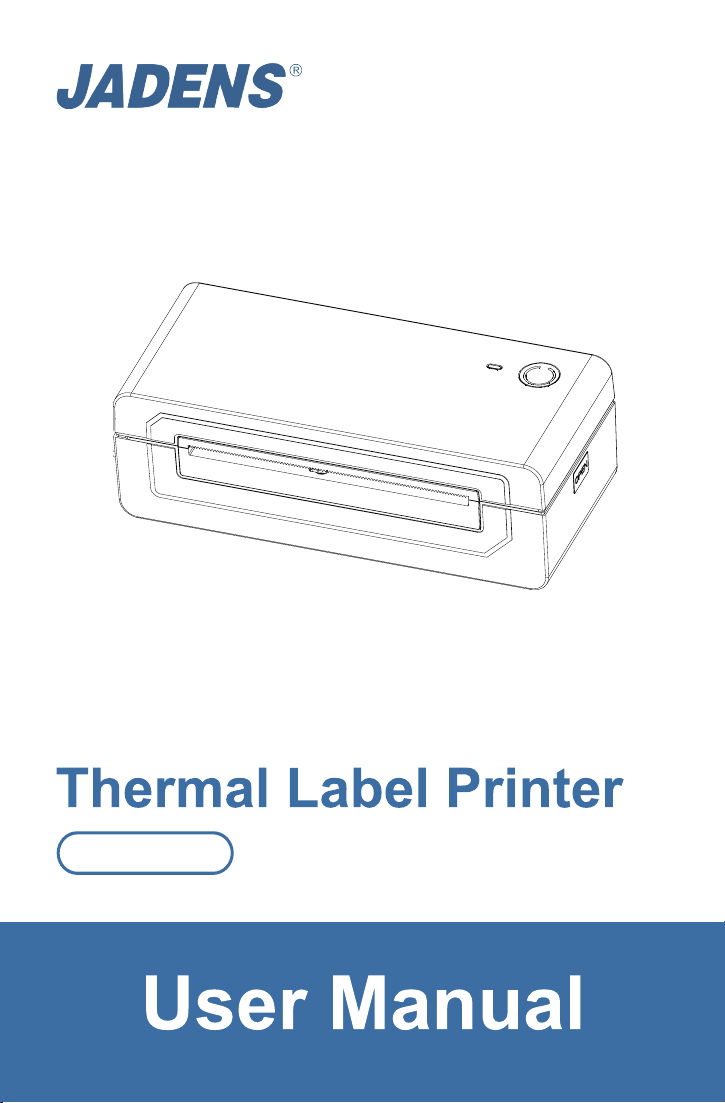
JD-668BT
How can we help you today?
Enter your questions here
1-833-470-2950
support.jadens.com
Scan or upload this QR code
using the WhatsApp camera
to add us
Available Time:
Mon -Fri: EST 10am-10pm
Sat -Sun: EST 1pm-9pm
Scan the below QR code to talk with us.
1. This warranty only applies to hardware components of the product that are not subject to accident,
misuse, neglect, fire or damage from other external causes, al teration, repair or commercial use.
Defects that are the result of normal wear and tear will not be conside red manufacturing defects
under this warranty.
2. This warranty does not cover damage resulting from any unaut horized attempts to repair or from
any use not in accordance with the instruction manual.
4. Please read the Instruction Manual carefully before setting up or using this product. If you believe
this product to be suffering from a manufacturing fault, or if you have inquiries about this product,
please contact Customer Support:
ATTN: Customer Support
Email: [email protected]
Model:
Jadens
Date of purchase:
Purchased from:
Order Number:
3. This warranty applies only to the original purchaser of this product from the original date of
purchase. This warranty applies only if the unit is purchased new from an authorized retailer and is
non-transferable from the original purchaser of the item. Any warranties accompanied with this
product is only valid in the country of purchase.
Warranty Information

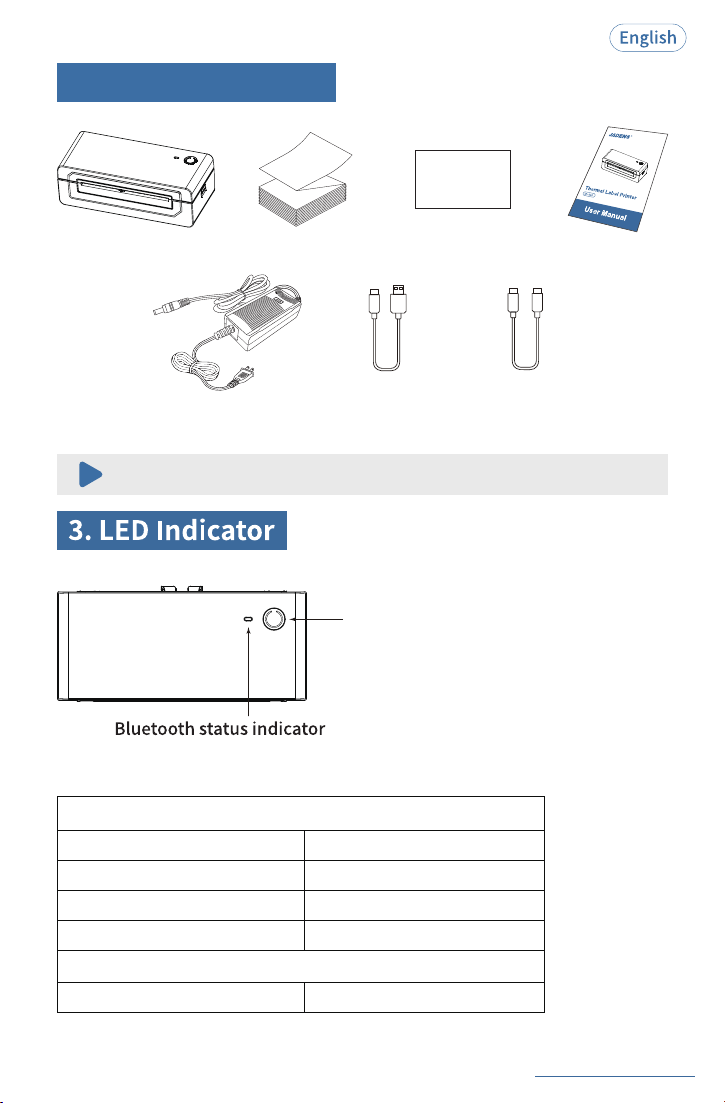
1.Product Sketch
2.What’s in the Box
3.LED Indicator
4.Compatible Label Size
5.Printer Startup
6.How to Feed Label
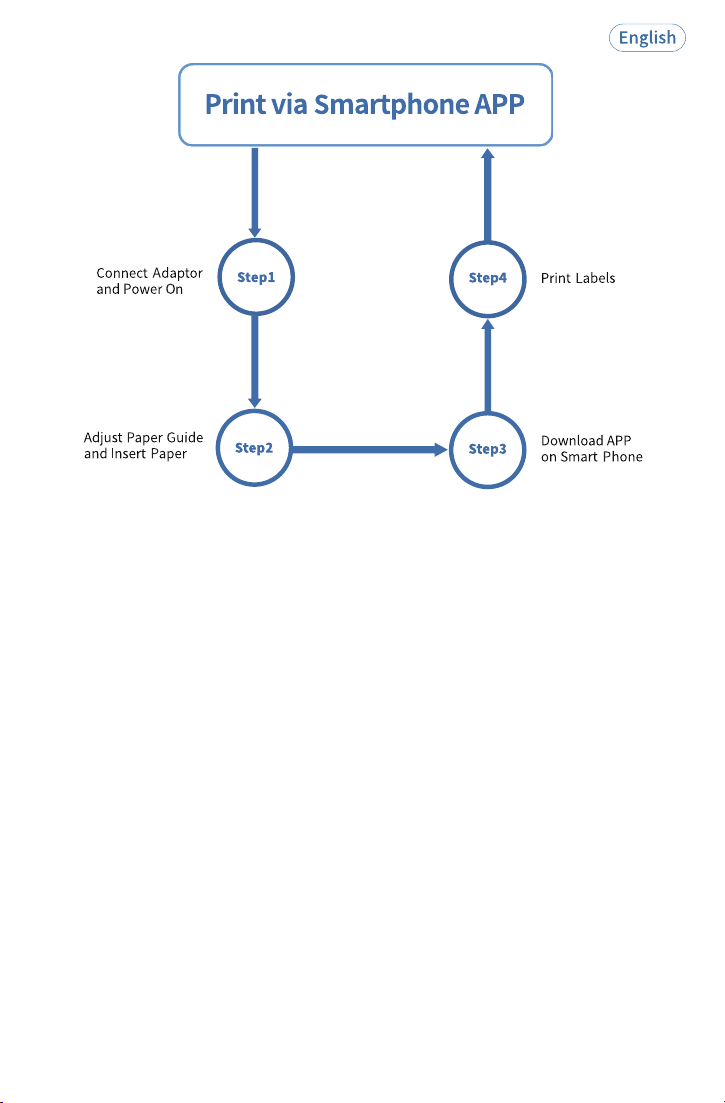
7.Smartphone APP Printing
8.Driver Installation and Printer Setting for Windows System
9.Driver Installation and Printer Setting for MacOS System
10.Extension Installation and Printer Setting for ChromeOS System
11.Important Tips: How to Print Label of Multiple Size
Using "Take a Snapshot"
12.Frequently Asked Question
13.Trouble Shooting
14.Printer Driver Deletion
15.Maintenance
16.Safety Tips
17.Specifications
1
2
2
4
4
5
6
6
11
17
21
23
24
24
25
26
26
---------------------------------------------------------------
------------------------------------------------------------
-----------------------------------------------------------------
-------------------------------------------------------
----------------------------------------------------------------
-----------------------------------------------------------
---------------------------------------------------
---------------
-----------------
-------
---------------------------------------------------
------------------------------------------------
------------------------------------------------------------
------------------------------------------------------
----------------------------------------------------------------
------------------------------------------------------------------
---------------------------------------------------------------
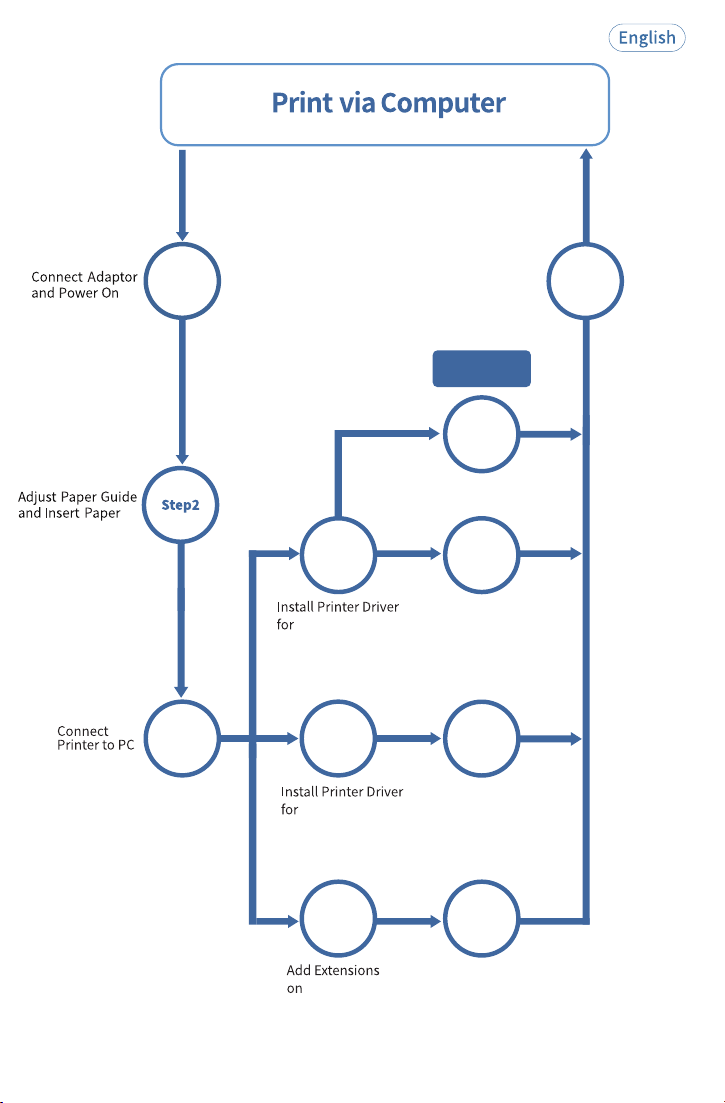
Chromebook
Step
4.1.2
Step
4.1.1
Step5
Step1
Step
4.2.1
Step4.2Step3
Step4.1
Step
4.3.1
Step4.3
Windows
Macbook
Wireless Connection
by Bluetooth
Print Labels
Wired Connection
by USB Cable
Wired Connection
by USB Cable
Wired Connection
by USB Cable
Different
Connection
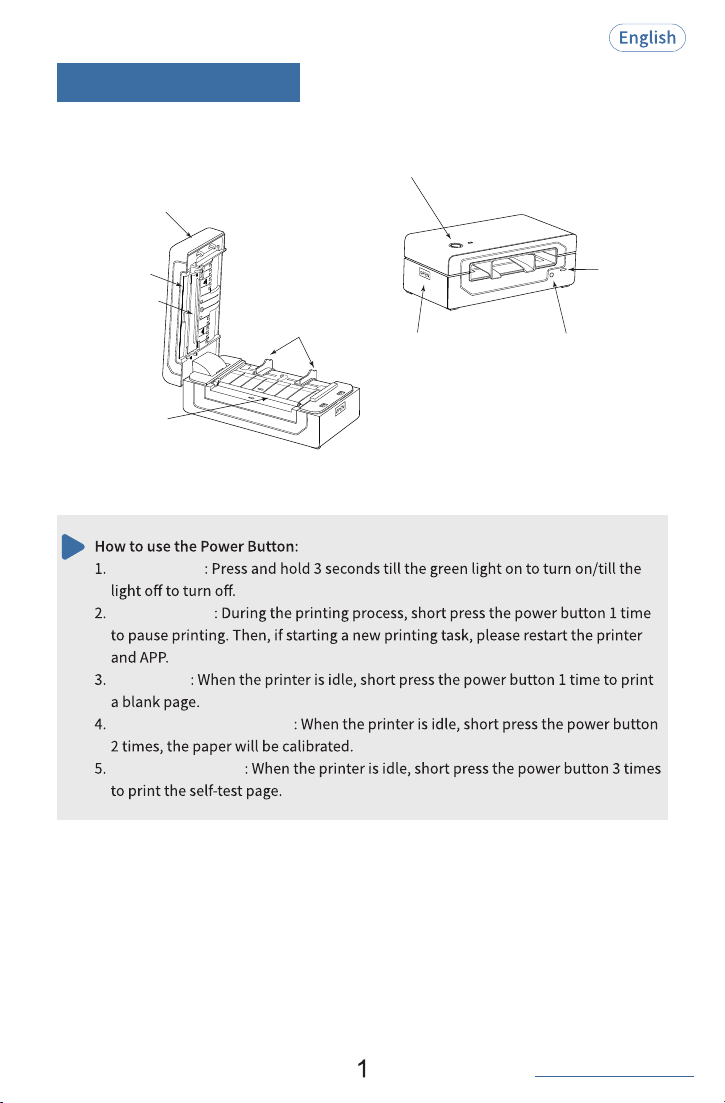
1.Product Sketch
See FAQ at support.jadens.com
Power button/Feed button
Release button
USB port
Power port
Power on/off
Pause printing
Feed paper
Automatic paper learning
Print self-test page
Print head
Paper cutter
Rubber roller
Paper guide
Upper cover
Long press for 2s
Idle Status:
Power on/off
To detect label gapQuickly press 1 time
Quickly press 2 times
Automatic paper learning
Print self-test pageQuickly press 3 times
In Print:
Quickly press 1 time
Printing paused
Instruction for Power Button
Printer status indicator
2
See FAQ at support.jadens.com
Printer
Power Adapter
Fan-fold LabelUser Manual
2. What’ s in the Box
Cable
USB-A to USB-C
for WIN
USB-C to USB-C
Cable
for MAC
APP Guide Card
APP Guide Card
If any accessories are missing, please contact us for support.
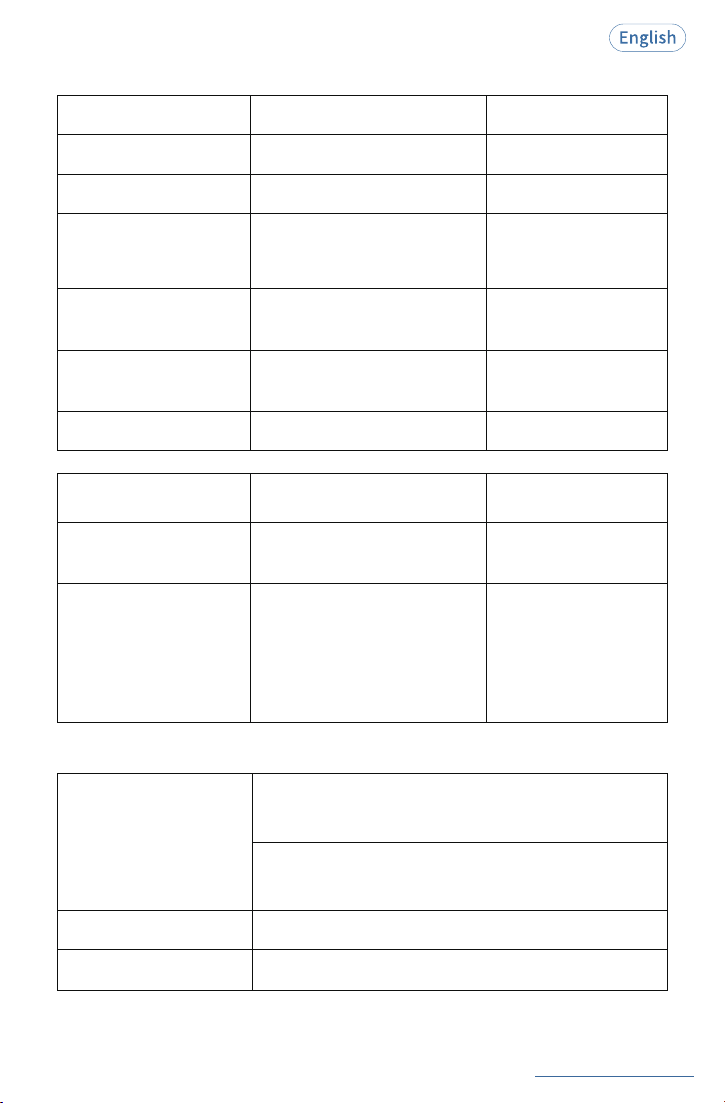
Printer Status Indicater
Printer Status
Printer Status Indicater
Troubleshoot
Power on
Green light on/
Power off
Light off
Over-heat
Orange light flash slowly
Wait for printer cooling
down, and it will continue
working automatically.
Printing paused
Green light flash slowly
Press feed button once to
resume printing.
Cover opened
Red light flash slowly
Check that cover is closed
completely.
Cover closed
Green light on
Normal
Green light on
No paper detected
Red light flash quickly
① Open the cover and clear
any jammed paper. lf rubber
roller is dirty, use alcohol pad
to clean and wait 2-5 minutes
before printer power on.
② Make sure the printer loads
the paper correctly.
/
/
/
Consumable Status
Printer Status Indicater
Troubleshoot
Bluetooth disconnected
Bluetooth connected
For Smartphone wireless printing:
Blue light on
For Windows wireless printing:
Blue light turns on a few seconds then goes off.
Blue light flash slowly
Blue light flash quickly
Bluetooth abnormal
Bluetooth Status Indicator
See FAQ at support.jadens.com
3
See FAQ at support.jadens.com
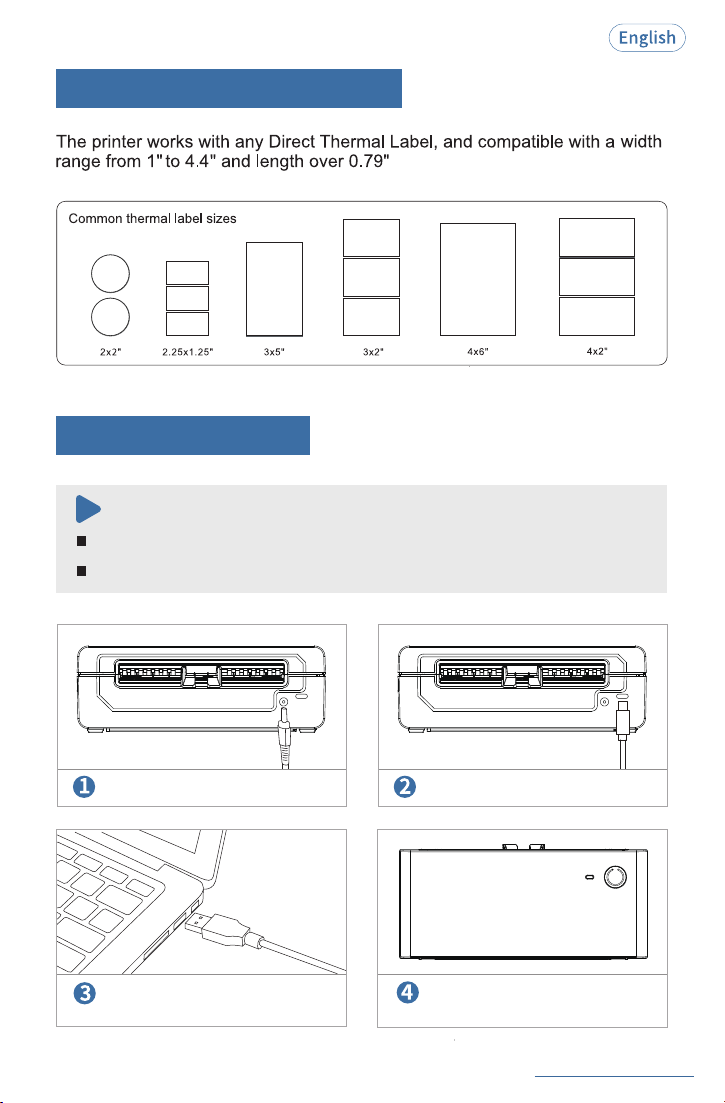
4. Compatible Label Size
4
5. Printer Startup
Use only the original power adapter to avoid harm or injury.
Unplug if not in use for a long time.
Note:
Connect the power cable.
Long press 3 seconds till the green
light on to turn on printer.
Connect the USB cable.
Connect the printer and computer.
See FAQ at support.jadens.com
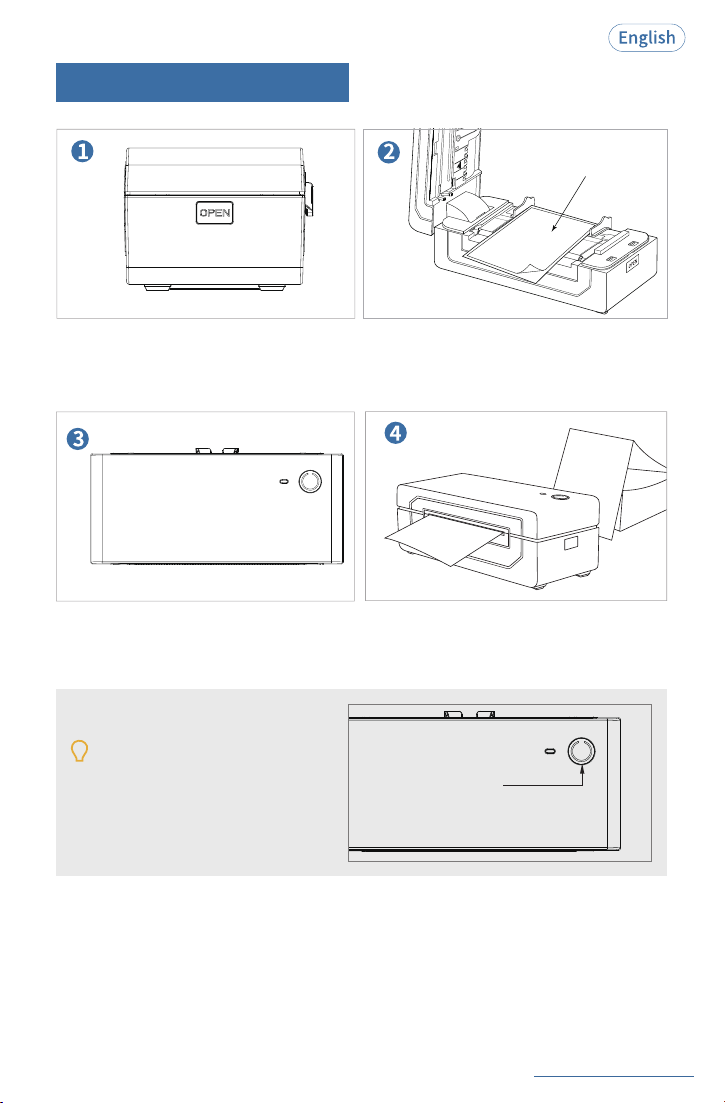
6. How to Feed Label
Tips:
Power button
Press the release button to open the top cover.
Load the label and adjust the paper guide to fit
the width of paper.
Printing side should be face up.
Carefully close the cover.
Printer is ready to print.
Label will be automatically positioned at the gap.
Anytime you change your label, run the
automatic label identification: short press
the power button 2 times, the paper will
be calibrated.
OPEN
5
Printing side
See FAQ at support.jadens.com
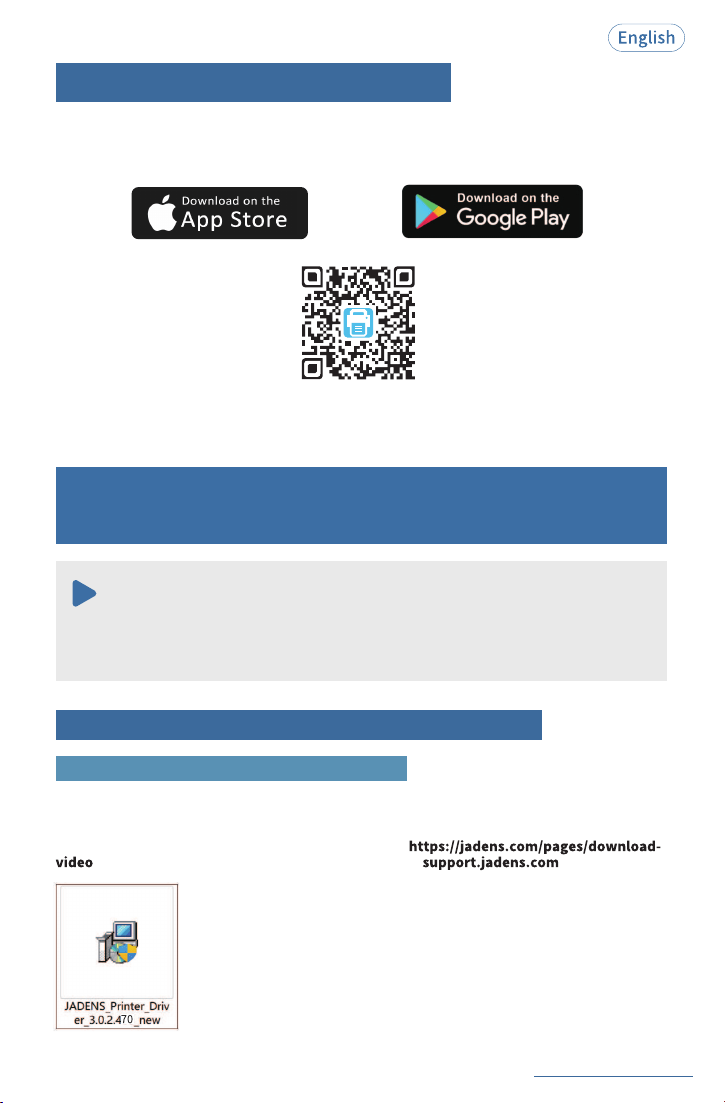
7. Smartphone APP Printing
APP download:Search for [Jadens Printer] on Google Play or App Store and download the app
for free. Please refer to the“APP Printing Quick Start Guide”for specific operating
instructions.
APP Store is a trademark of Apple Inc., registered in the U.S. and other countries.
Google Play and Google Play logo are trademarks of Google LLC.
8. Driver Installation and Printer Setting for
Windows System
It is recommended to close security software before installation to prevent any issues,
and you can reopen it after the installation is complete.
Note:
Option 1: Wireless Connection by Bluetooth
Step1: Install Printer Driver(Bluetooth or USB Cable)
1. Connect the power cable and turn on the printer(It is not necessary to connect USB cable).
2. Download the driver:
Download the driver (JADENS_Printer_Driver.exe) from
. Driver version may be updated. See the latest info at .
6
See FAQ at support.jadens.com
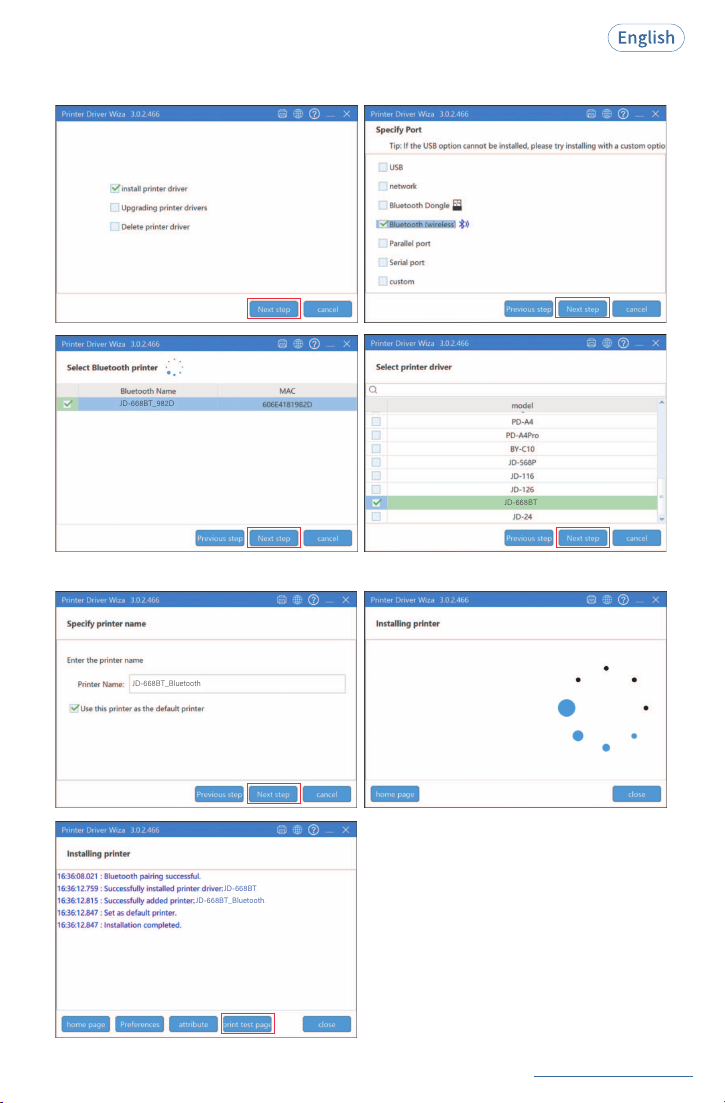
3. Install the driver:
Copy the printer driver to your computer desktop, double click to open and install it as below:
The search process will take about 40 seconds. Please kindly wait.
_
7
_
.
_.
1. Connect the power cable and turn on the printer (Please skip this step if you have already done it).
2. Connect the USB cable to your computer (Please skip this step if you have already done it).
3. Download the driver:
Download the driver (JADENS_Printer_Driver.exe) from
. Driver version may be updated. See the latest info at
.
See FAQ at support.jadens.com
If you can't print successfully, please restart your computer and printer, then install driver again.
Repeat installation will create duplicate copies of the printer in your operating system such as
“JD-668BT(copy 1, 2...)”.
Note:
4. Print test page:
After successfully installing the printer driver, please click“print test page”to ensure the printer is
working correctly.
Option 2: Wired Connection by USB Cable
8
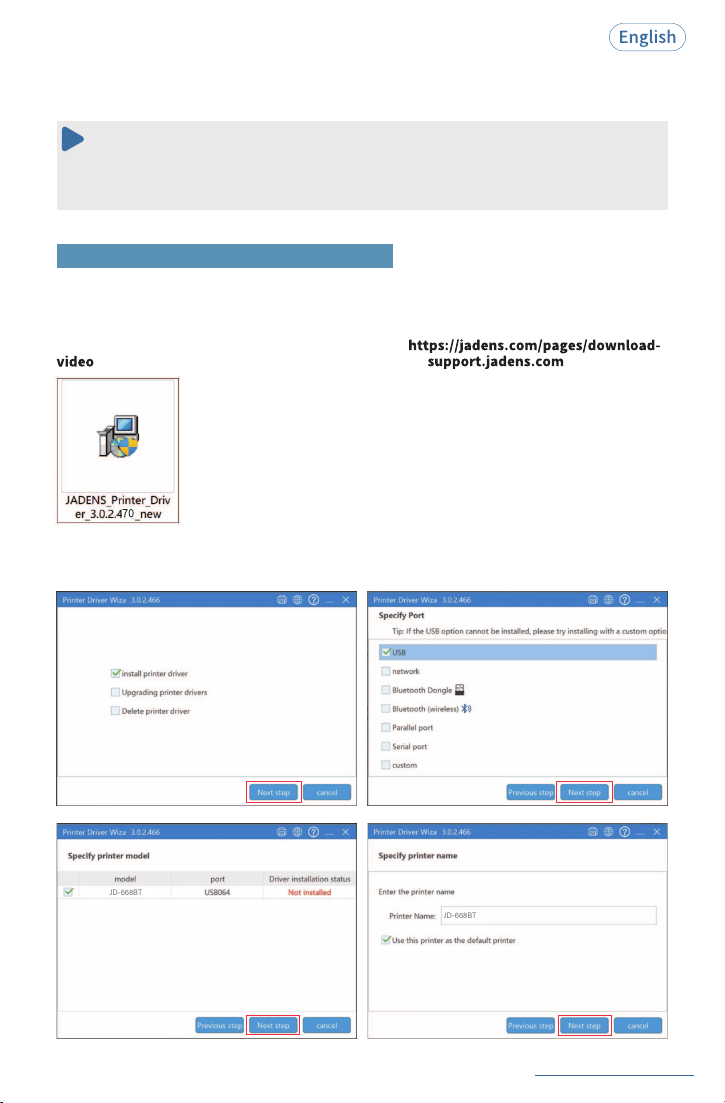
4. Install the driver:
Copy the printer driver to your computer desktop, double click to open and install it as below:
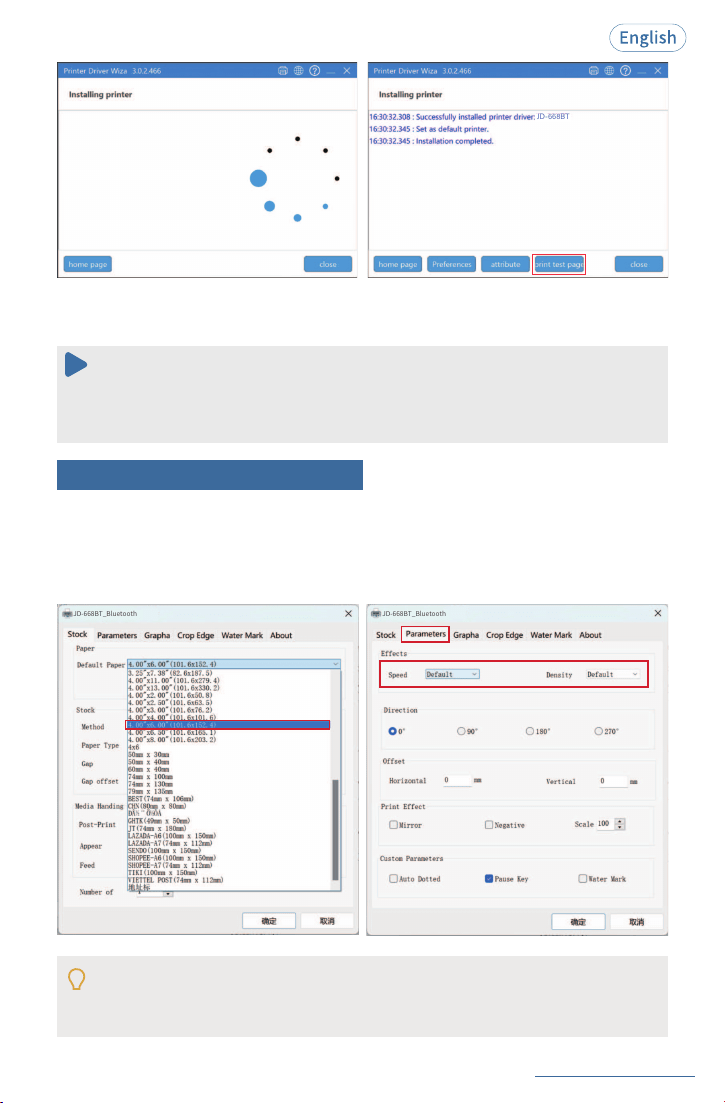
If you can't print successfully, please restart your computer and printer, then install driver again.
Repeat installation will create duplicate copies of the printer in your operating system such as
“JD-668BT(copy 1, 2...)”.
Note:
5.Print test page:
After successfully installing the printer driver, please click“print test page”to ensure the printer is
working correctly.
See FAQ at support.jadens.com
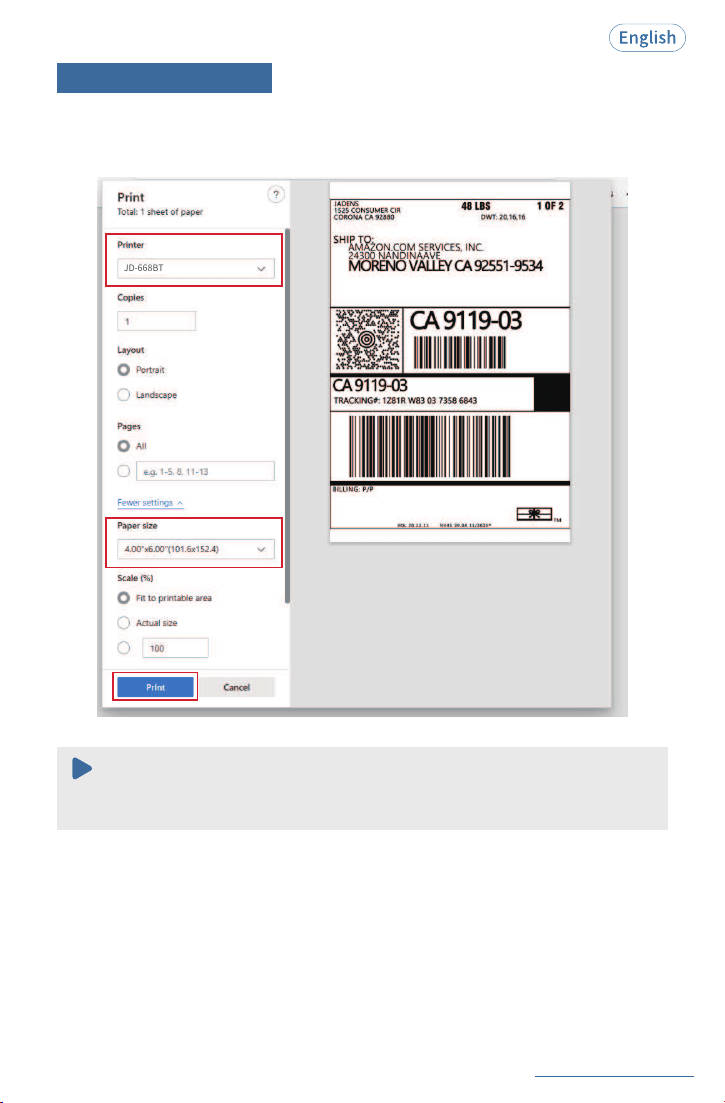
Go to the "Setting"> click "Device”> click "Printer &Scanners"> find the printer "JD-668BT/
JD-668BT_Bluetooth” > click "Manage” > click "Printer Preference". Then set default page
size, printing speed and printing density.
ln this part, you can set the default print page size, print speed and density.
Especially for density, if the labels print out light or not clear, you can change the density.
For Windows system please set the density at 8-12.
For Mac system please set the density at 8-12.
JD-668BT_Bluetooth
JD-668BT_Bluetooth
Step2: Printer Preference Setting
1
2
9
See FAQ at support.jadens.com
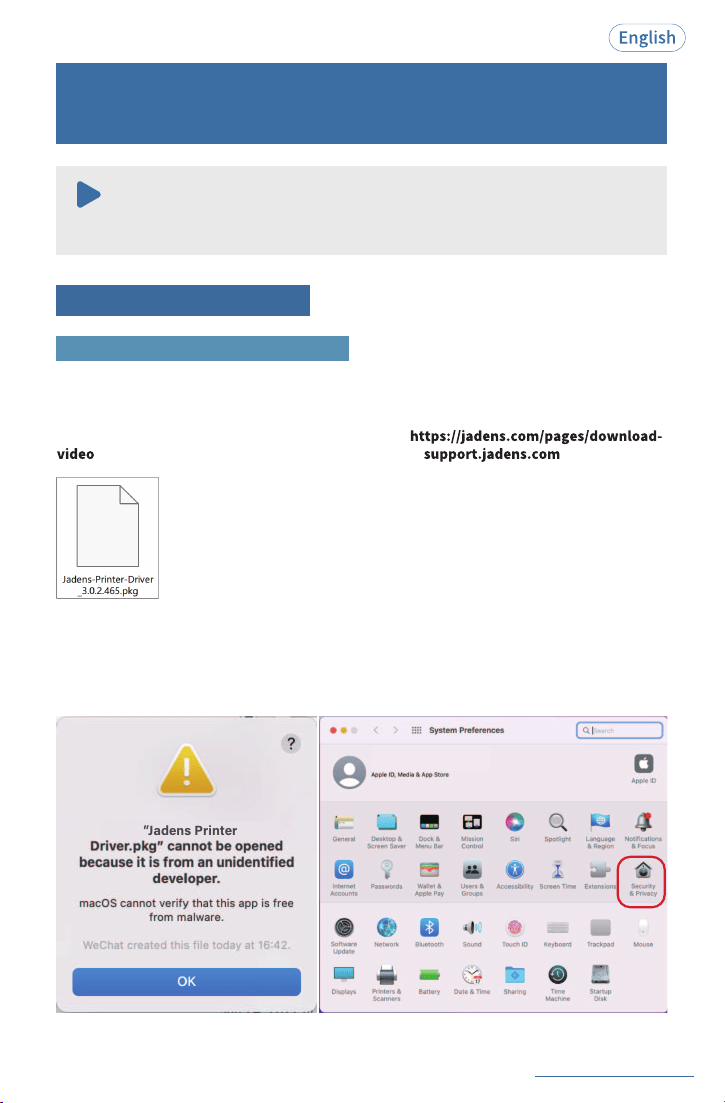
Step3: Printing a Label
(Take 4x6 inch shipping label as an example)
1.Open the Label File, and Click ‘Print’ icon.
2.Choose the right printer and paper size> Click ‘Print’.
Before printing, please make sure the size of thermal labels you load, and the size settings
on devices are same.
Note:
10
JD-668BT
See FAQ at support.jadens.com
11
It is recommended to close security software before installation to prevent any issues,
and you can reopen it after the installation is complete.
Note:
9. Driver Installation and Printer Setting for
MacOS System
Step1: Install Printer Driver
1. Connect the power cable and turn on the printer (Please skip this step if you have already done it).
Wired Connection by USB Cable
2. Connect the USB cable to your computer (Please skip this step if you have already done it).
3. Download the driver:
Download the driver (JADENS_Printer_Driver.exe) from
. Driver version may be updated. See the latest info at
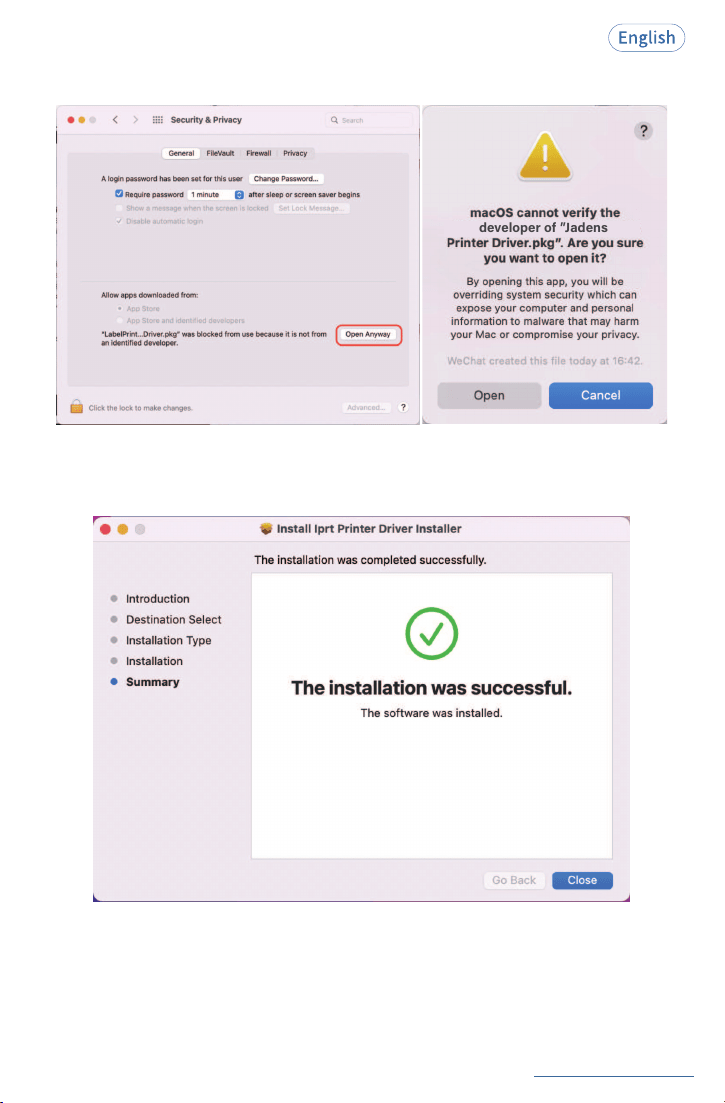
4. Install the driver:
Copy the printer driver to your computer desktop, double click to open and install it as below:
5. Click“OK”and open“System Preferences”, and click on“Security & Privacy”. (If you don't
see the warning, you can skip this step)
See FAQ at support.jadens.com
12
6. Click on“Open Anyway”button. Click on“open” and continue to install the printer.
7. Follow the installation steps until you see“The installation was successful”window.
See FAQ at support.jadens.com
13
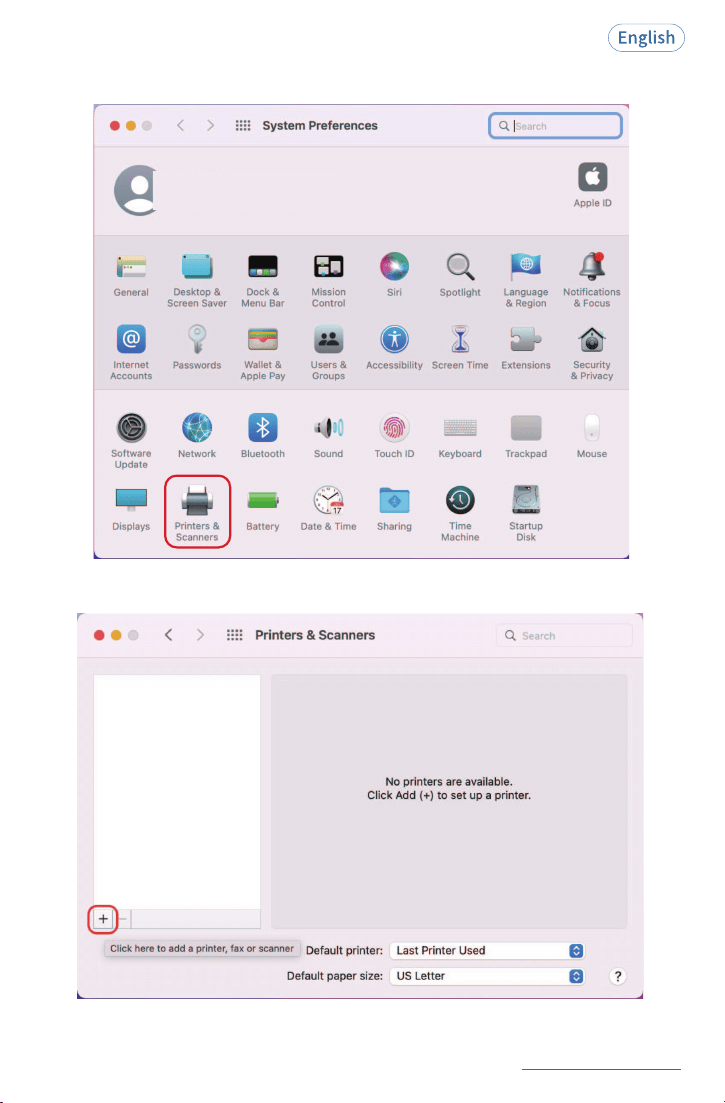
8. Open“System Preferences”> click“Printer and Scanners”.
9. Click“+”to add a new printer.
See FAQ at support.jadens.com
14
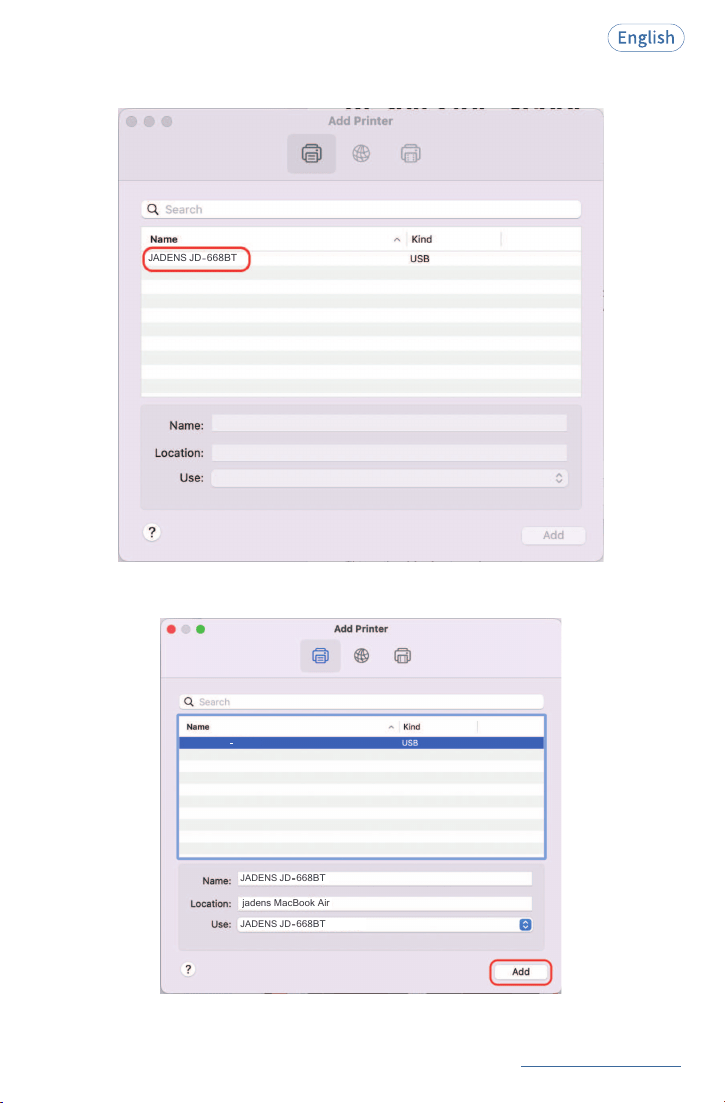
JADENS JD
668BT
10. Click“JADENS JD-668BT”.
11. Click“Add” , now the printer has been installed in your Mac Book successfully.
Air
MacBook
jadens
668BT
JADENS JD
668BT
JADENS JD
JADENS JD
668BT
15
See FAQ at support.jadens.com
(Take 4x6 inch shipping labels as example)
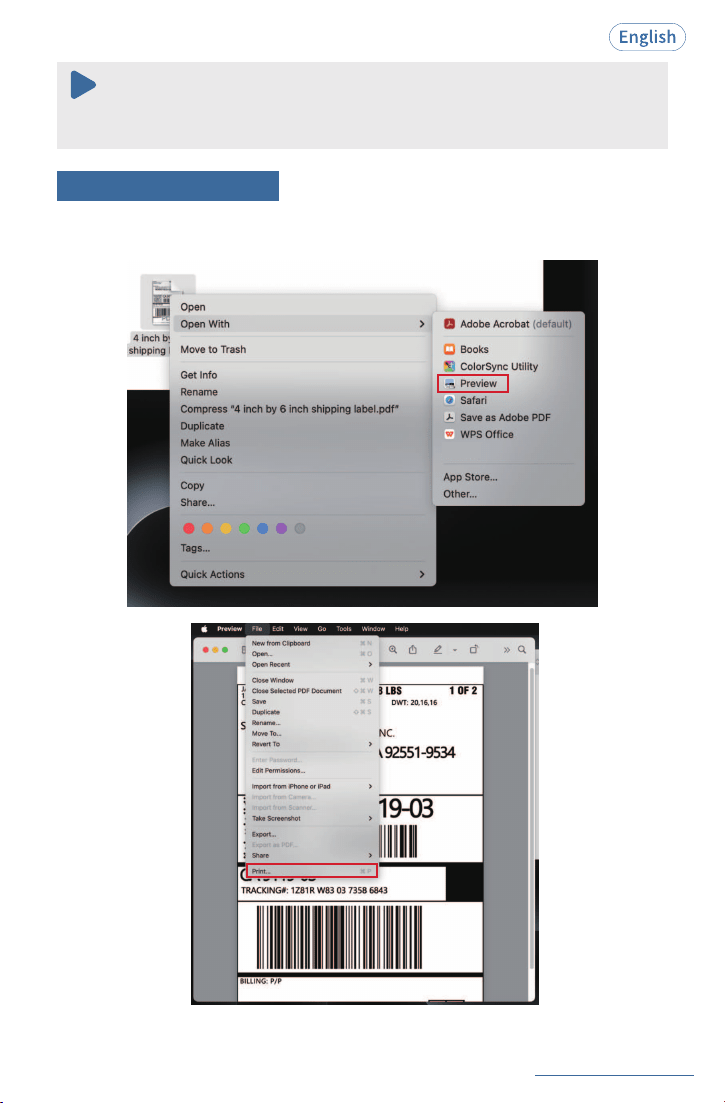
1.Open Label file with ‘Preview’> Click ‘File’ > Click ‘Print’.
Note:
Now you can print directly, If you can't print successfully, please restart your computer
and install driver again.
Step2: Printing a Label
See FAQ at support.jadens.com
16
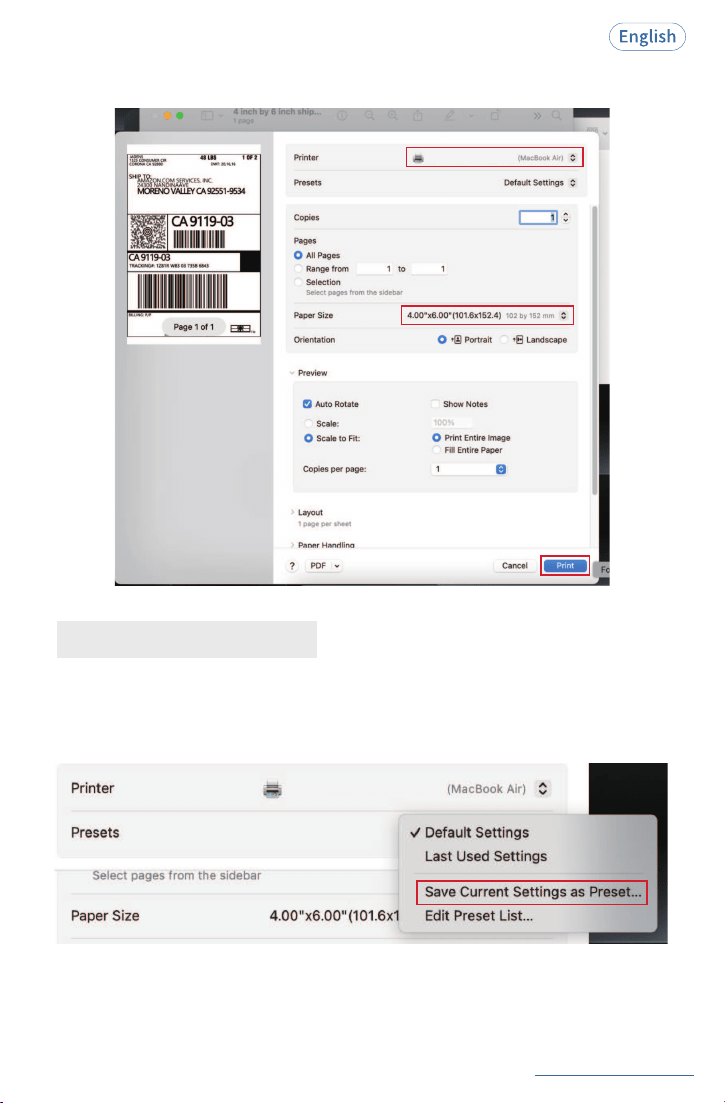
2.Choose the right printer and printing label size > Click ‘Print’.
JADENS JD-668BT
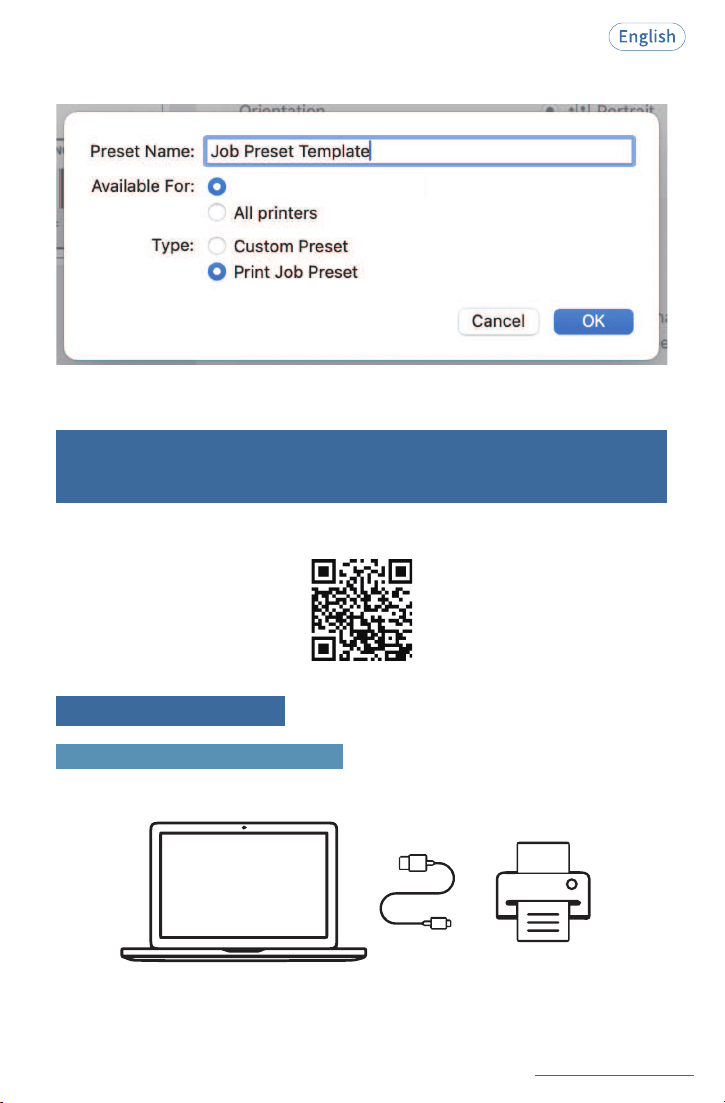
1.Choose the commonly used paper size, density and speed in Printer Setting.
Pro Tips for Preset Setting:
2.Click ‘Default Settings’> ‘Set Current Settings as Preset�’.
JADENS JD-668BT
See FAQ at support.jadens.com
17
3.Input preset name and choose preset application range.
JADENS JD-668BT
Scan the QR code below to view the guide video.
10. Extension Installation and Printer Setting for
ChromeOS System
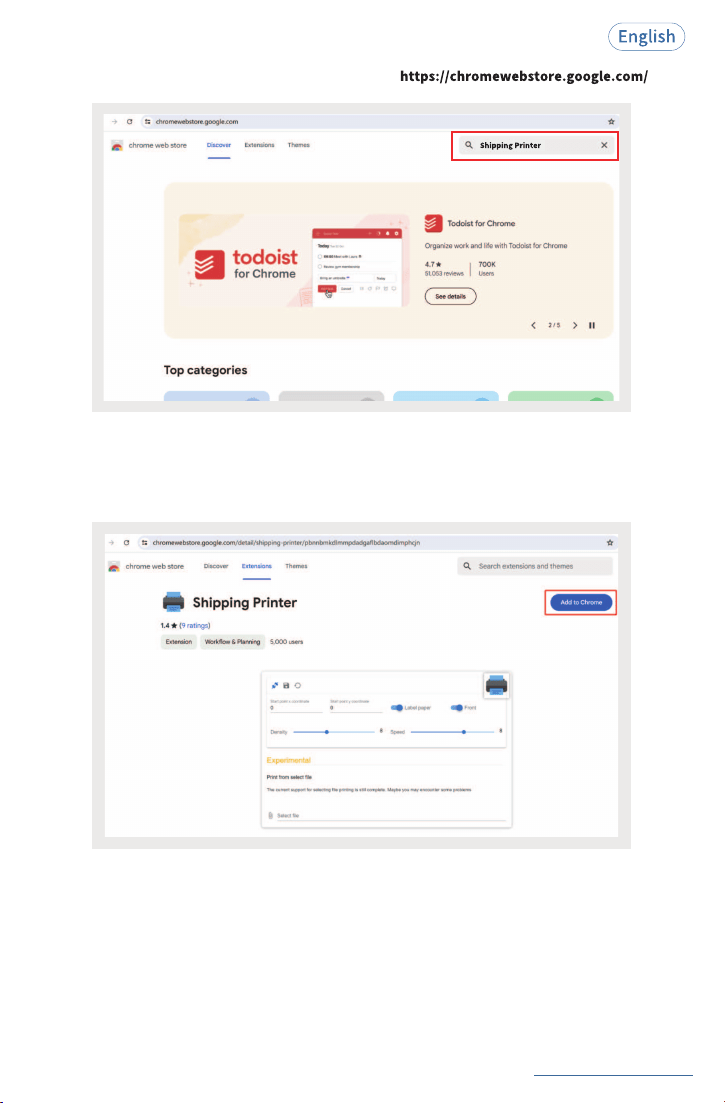
Step1: Install Extensions
①
Connect the printer with your Chromebook with provided USB cable and turn on the printer.
Wired Connection by USB Cable
Next time you can directly select“Default Setting”to switch and supply the preset settings!
See FAQ at support.jadens.com
18
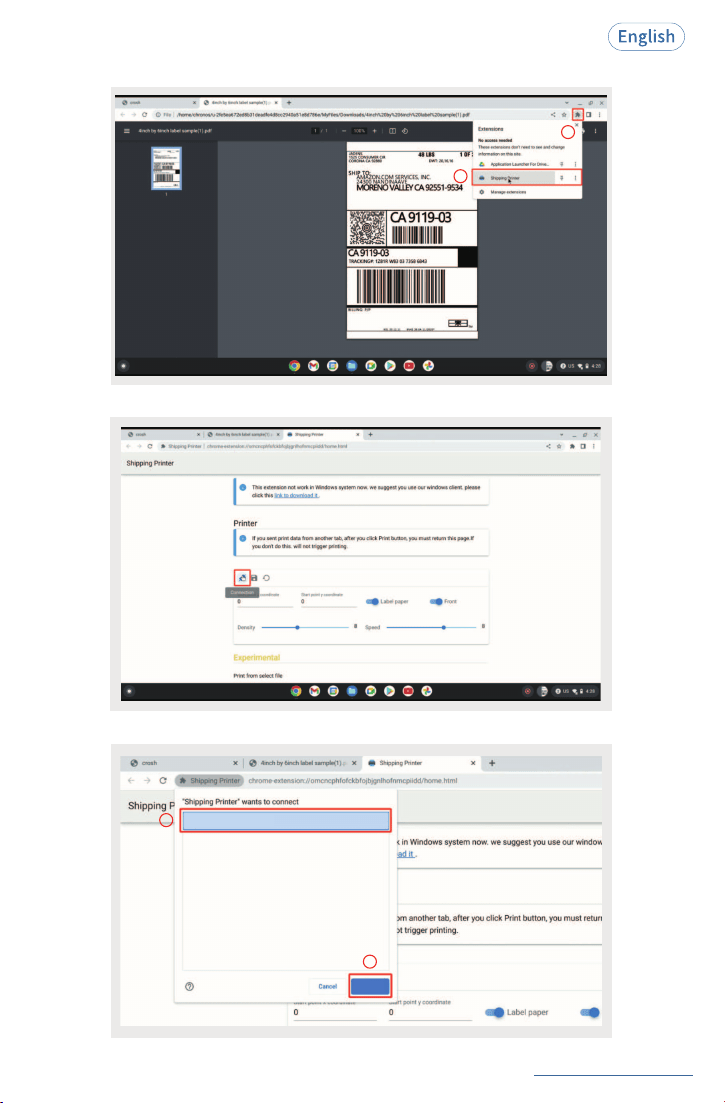
Search“Shipping Printer”on Chrome Web Store: .
③
②
Download“Shipping Printer”extension to your Chrome.
See FAQ at support.jadens.com
19
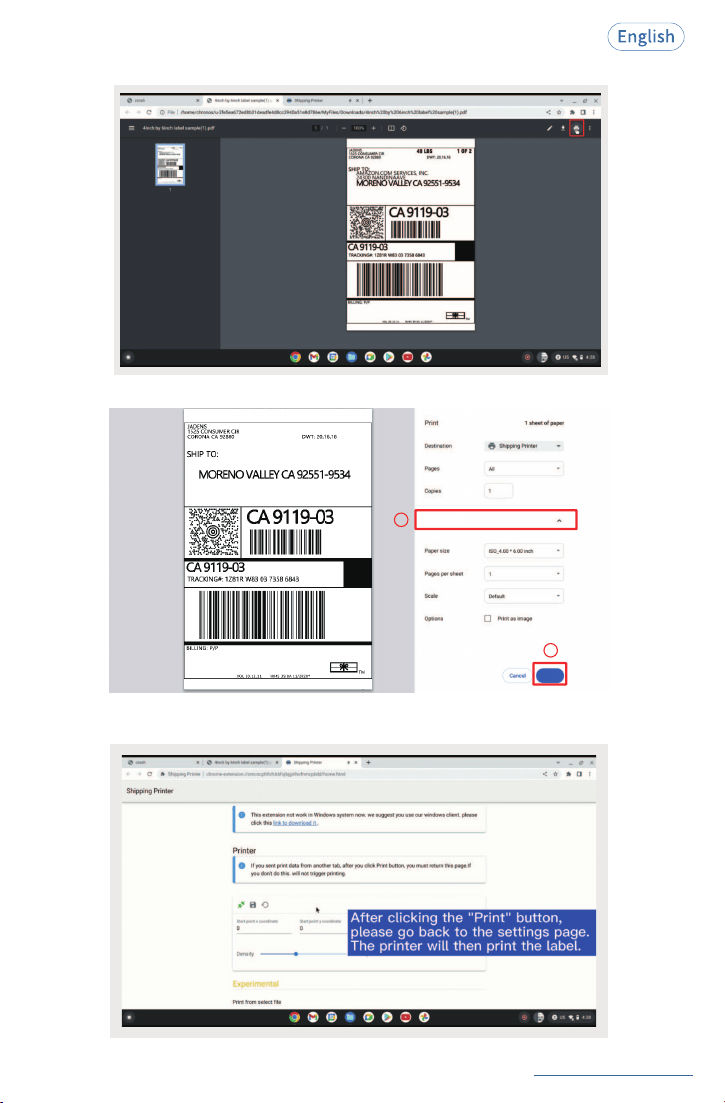
Click extension icon to select“Shipping Printer”.
2
1
④
Click“connection”icon.
⑥
⑤
Choose your printer to connect.
1
2
Printer-Paired
Connect
See FAQ at support.jadens.com
20
Open the file you need to print and click the the print icon.
⑦
1
2
More settings
Print
Turn back to the“Shipping label”extension setting page.
The printer will then print the label.
Click“More settings”to select the paper size and copies as you need, then click“Print”.
⑧
⑨
See FAQ at support.jadens.com
11. Important Tips: How to Print Label of
Multiple Size Using"Take a Snapshot"
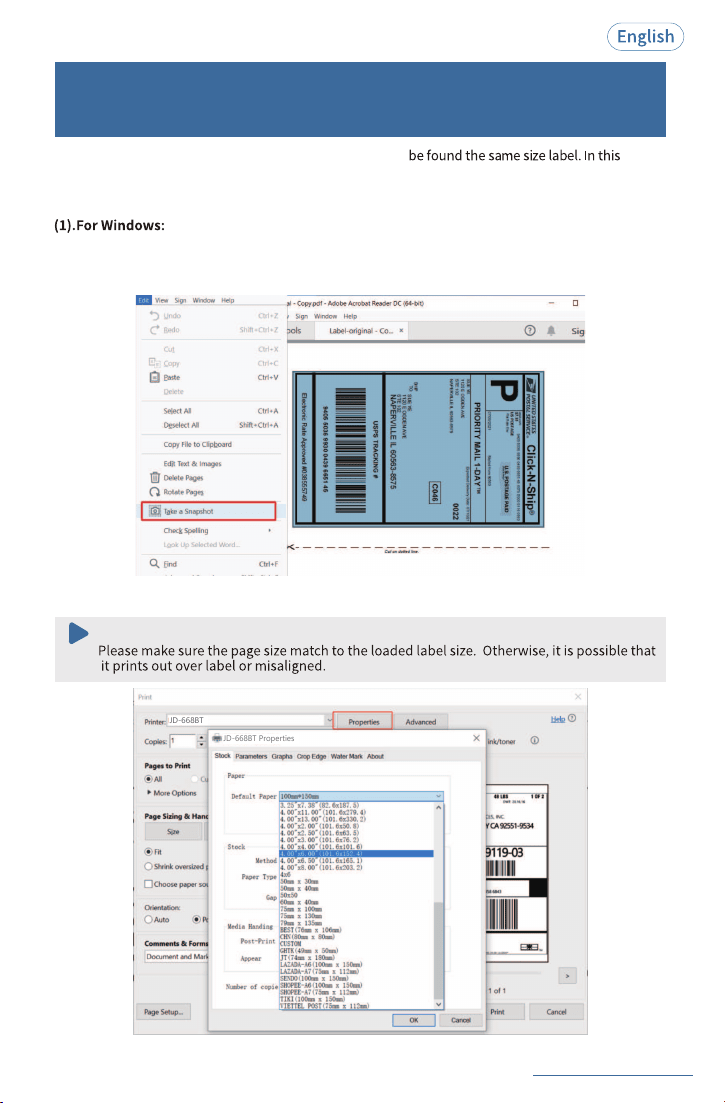
If the printed PDF/file is unusual size such as A4 which can't
situations, you have to use the function of"take a snapshot"to print.
Here are the steps to operate.
b. From the top panel, select“Edit”>“Take a Snapshot”. choose the area you want to print.
a. Open the PDF in Adobe Reader.
c. Click“Print”, set up the page size same as the labels you load, then print.
Note:
JD-668BT
JD-668BT Properties
21
See FAQ at support.jadens.com
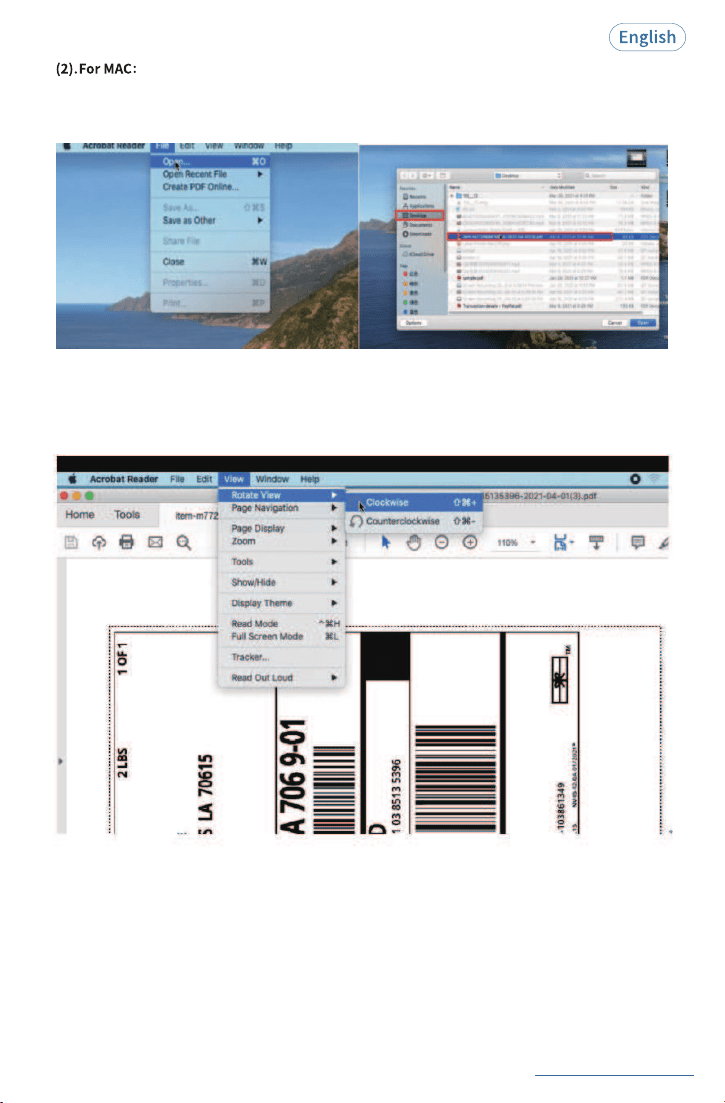
a. Find the“File”in the top left corner of you desktop > Click“Open”>Click“Desktop”>Choose
PDF file (or you can open the file with Adobe)
22
b. From the top panel, select“View”>“Rotate View”>“Clockwise”so that the labels are side by
side.(If the labels has laid vertically, please skip this step)
12.Frequently Asked Question
Scan QR Code to support.jadens.com to see FAQ
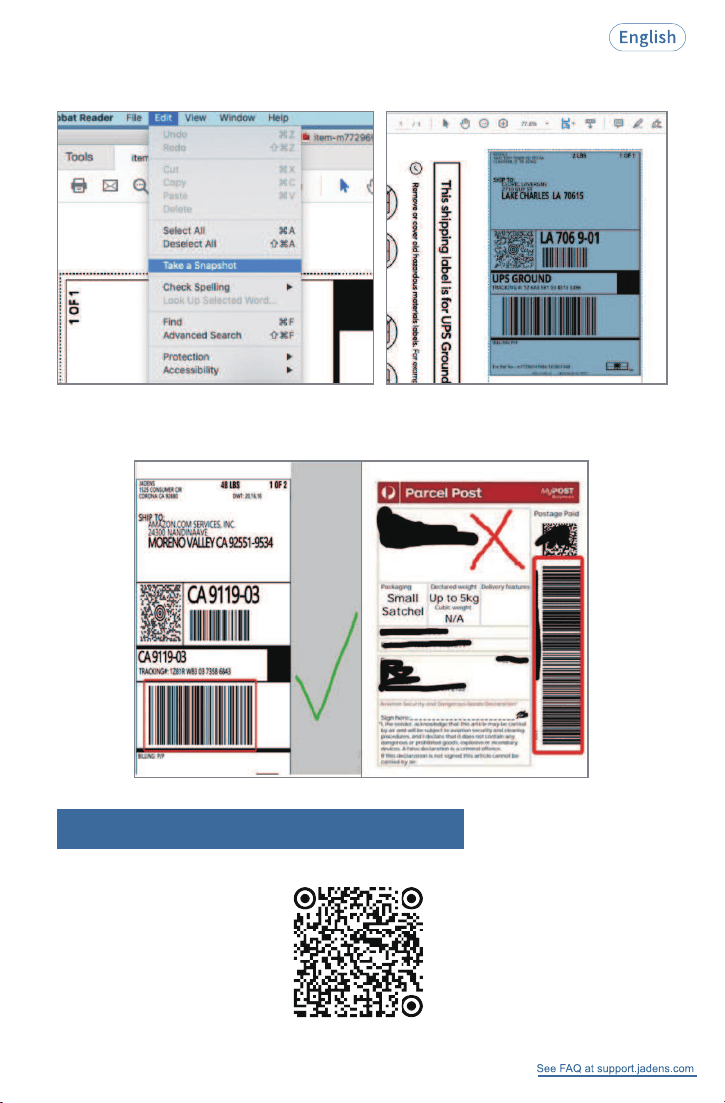
C. Next, from the top panel, select 'Edit' > 'Take a Snapshot'. Then click and drag over one of the
labels that you need, so that you can print a specific range of label.
If you want to print the label that include barcode, please make sure print out the barcode
vertically in case the high temperature lead to the barcode print out blocks and can't be scanned.
23
14. Printer Driver Deletion
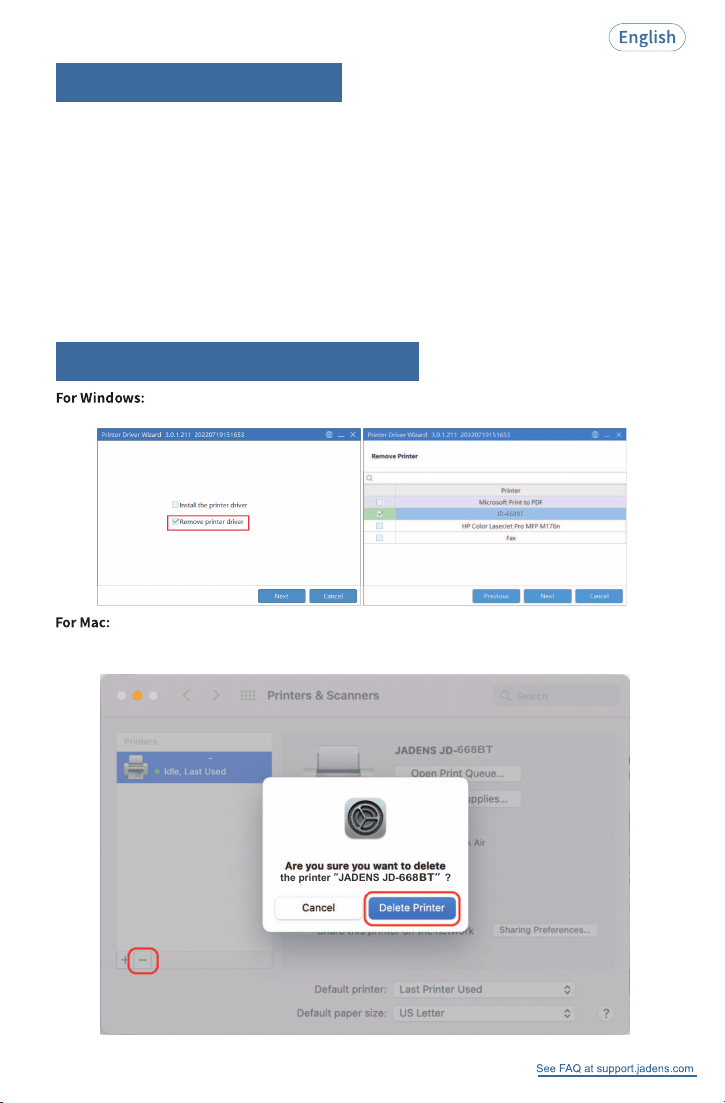
Open the driver again and follow below steps to uninstall the driver.
Click“System Preferences”>“Printer & Scanners”, click“JADENS JD-668BT”>“-”
>“Delete Pinter”.
668BT
JD
the printer “JADENS JD-
668BT”
?
668BT
668BT
JADENS JD
If paper is jammed, turn off the printer, and allow the printer head to cool down. Open the cover
and clear any jammed paper. lf rubber roller is dirty, use alcohol pad to clean. Allow the area to dry
off before turning the printer on.
1. How to deal with paper jammed?
Anytime you change your label, run the automatic label identification to ensure print centrally;
short press the power button 2 times, the paper will be calibrated.
2. Printer is not printing centrally.
(1) Dust or adhesive on the printer head.Please try to clean the printer head with a clean cloth with
alcohol. Details please refer to 15. Maintenance .
(2) The printhead and roller needs to be cleaned after a period of use as part of routine maintenance.
3. Printer prints not clear/ blurry.
13.Trouble Shooting
24
See FAQ at support.jadens.com
15. Maintenance
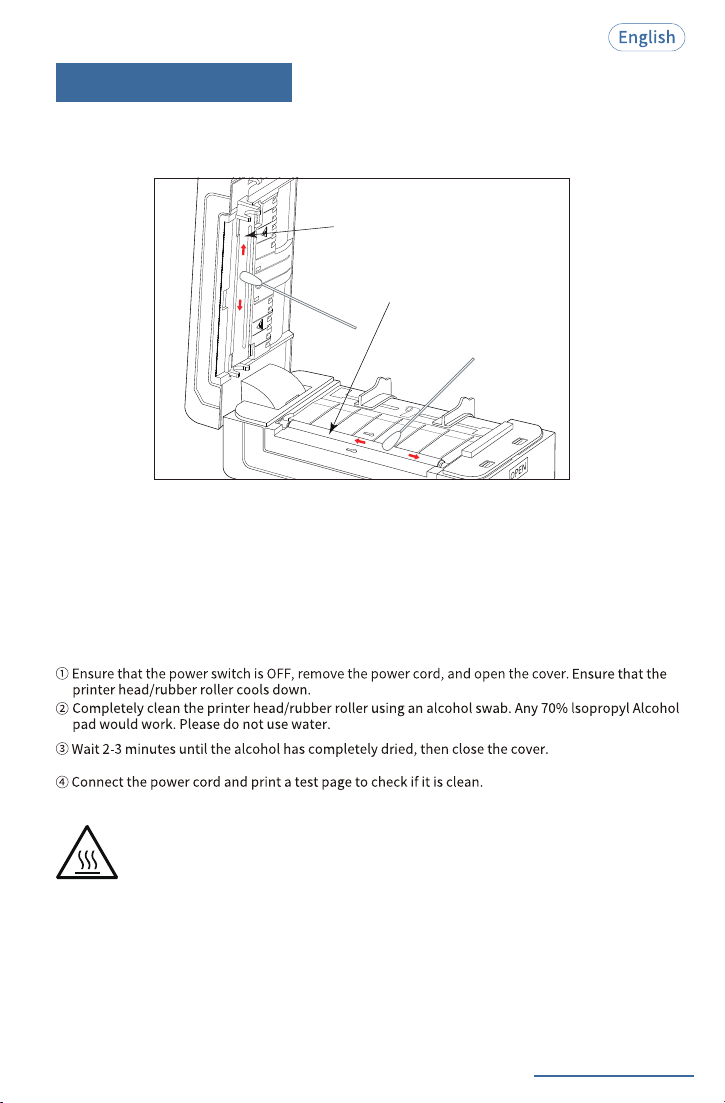
The print head is a sensitive part of the printer and can be found on the upper part of the printer
when open.
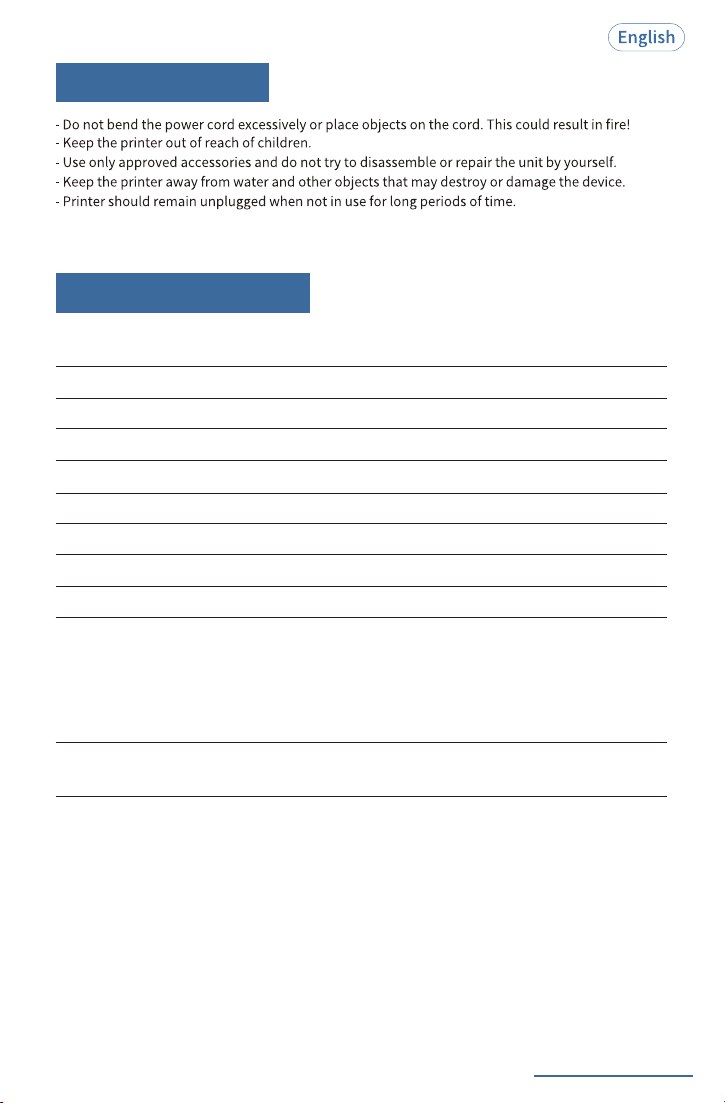
Caution: Print Head Can be Hot When Printer is Running!
Burrned fingers when handling the print head.
Wait 2-5 minutes to cool it down after switching off before handling print head.
1. Avoid using poor quality thermal label as they will affect the life
of print head.
Print head
Rubber roller
25
Rubber roller helps move paper smoothly through the printing mechanism. Over time, printer
rollers can accumulate dust and residue from the paper.
2. CLEANING THE PRINT HEAD/RUBBER ROLLER
See FAQ at support.jadens.com
17. Specifications
16. Safety Tips
26
Printing MethodThermal
Resolution203DPI
Max Printing Speed100mm/s
Label Width1"- 4.4"(25.4-112mm)
Label Thickness0.08-0.2mm
Connection USB + Bluetooth
Input Voltage100-240V
Power Adapter24V / 1.5A
Supported PaperDirect Thermal Labels
Suppoted Operating Systemsr
Printing Life
4"x6": ~328,000 labels
2"x1": ~1,968,000 labels
Label Minimum Length
Wireless Connection by Bluetooth:
iOS, iPadOs, Android, Windows 7
or later
Wired Connection by USB Cable:
MacOS V10.9 or later, ChromeOS,
Windows 7 or later
0.79"(20mm)

FCC Caution:
FCC Radiation Exposure Statement:
Any Changes or modifications not expressly approved by the party responsible
for compliance could void the user's authority to operate the equipment.
This device complies with part 15 of the FCC Rules. Operation is subject to the
following two conditions: (1) This device may not cause harmful interference,
and (2) this device must accept any interference received, including interference
that may cause undesired operation.
IMPORTANT NOTE:
Note: This equipment has been tested and found to comply with the limits for a
Class B digital device, pursuant to part 15 of the FCC Rules. These limits are
designed to provide reasonable protection against harmful interference in a
residential installation. This equipment generates, uses and can radiate radio
frequency energy and, if not installed and used in accordance with the instructions,
may cause harmful interference to radio communications. However, there is no
guarantee that interference will not occur in a particular installation. If this
equipment does cause harmful interference to radio or television reception, which
can be determined by turning the equipment off and on, the user is encouraged to
try to correct the interference by one or more of the following measures:
—Reorient or relocate the receiving antenna.
—Increase the separation between the equipment and receiver.
—Connect the equipment into an outlet on a circuit different from that to which the
receiver is connected.
—Consult the dealer or an experienced radio/TV technician for help.
This equipment complies with FCC radiation exposure limits set forth for an
uncontrolled environment. This equipment should be installed and operated with
minimum distance 20cm between the radiator& your body.
ISED Warning
This device complies with Inovation, Science,and Economic Development
Canada licence-exempt RSS standard(s). Operation is subject to the following
two conditions:
(1) this device may not cause interference, and
(2) this device must accept any interference, including interference that may
cause undesired operation of the device.
Le présent appareil est conforme aux CNR d' Imnovation, Sciences et
Développement économique Canada applicables aux appareils radio exempts
de licence. L'exploitation est autorisée aux deux conditions suivantes:
(1)l'appareil nedoit pas produire de brouillage, et
(2)l'utilisateur de l'appareil doit accepter tout brouillage radioélectrique subi,
méme si le brouillage est susceptible d'en compromettre le fonctionnement.
The device is compliance with RF exposure guidelines, users can obtain Canadian
information on RF exposure and compliance.The minimum distance from body
to use the device is 20cm.
Le présent appareil est conforme Après examen de ce matériel aux conformité
ou aux limites d'intensité de champ RF, les utilisateurs peuvent sur l'exposition
aux radiofréquences et la conformité and compliance d'acquérir les informations
correspondantes. La distance minimale du corps à utiliser le dispositif est de 20cm.
FCC ID: 2BK5Y-JD-668BT
IC: 33056-JD668BT
The crossed-out wheeled bin symbol indicates that the item should be
disposed of separately from household waste. This product complies with
the 3R principles of the EU WEEE Directive (recyclable, reused, recycled),
The item should be handed in for recycling in accordance with local environmental
regulations for waste disposal. By separating a marked item from household
waste, you will help reduce the volume of waste sent to incinerators or land-fill
and minimize any potential negative impact on human health and the environment.
For more information, please contact us.
1-833-470-2950
support.jadens.com
Scan or upload this QR code
using the WhatsApp camera
to add us
Can we help?
For further assistance please contact.
Scan the below QR code to talk with us.
Available Time:
Mon -Fri: EST 10am-10pm
Sat -Sun: EST 1pm-9pm