
IAP2301Av2
QSG
Introduction
This Quick Start Guide is designed to guide you through the installation of Access Point, model
IAP2301Av2 , including hardware mounting and configuration.
Ceiling Mount Access Point
Model
:
IAP2301Av2
Wi-Fi 7 technology for high-performance Wi-Fi in high-density, multi-device environments.
Supercharged speeds up to 2,832 Mbps (5 GHz), and up to 688 Mbps (2.4 GHz).
2.5GbE Ethernet realizes greater throughput and supports 802.3at and 30W PoE injector input
for flexible installation over 100 meters (328 feet).
Content Quick Links
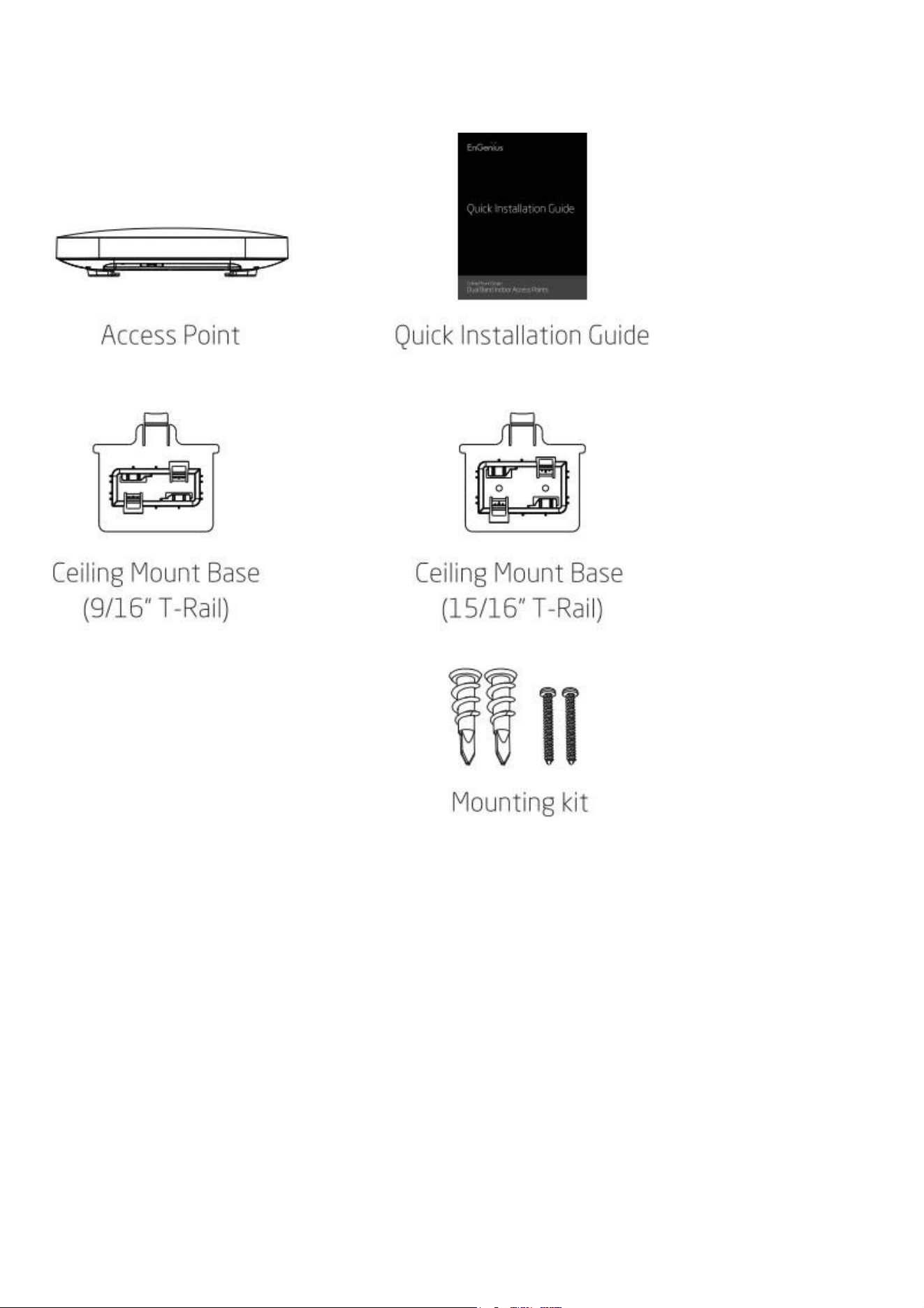
Package Contents

System Requirements
The Senao Cloud is primarily accessible with a web browser or mobile app. Before signing up for the
Senao Cloud Service or logging on to the Senao Cloud Platform to manage your network, ensure that
downloaded the right app and use the supported browser.
Mobile
App:
Senao Clo
u
d To
-
Go
(iOS/ Android
supported)
⬇ Download the Cloud To-Go mobile app here
Web
Browser:
Google Chrome (57.0.2987.110 and later)
Microsoft Edge (80.0.361.103 and later)
Mozilla Firefox (52.0 and later)
Net
w
ork
Requirements
Before you get started, please make sure your network environment is DHCP-enabled. Senao Access
Points (IAP series) are default assigned an IP address dynamically by the DHCP server.
If you encounter issues with IP address assignment, you may want to change your IP assignment from "DHCP
mode" to "Static IP". Please check the "User Manual: Login to Local Access Page" for more details.
Hardware Overview
Ports
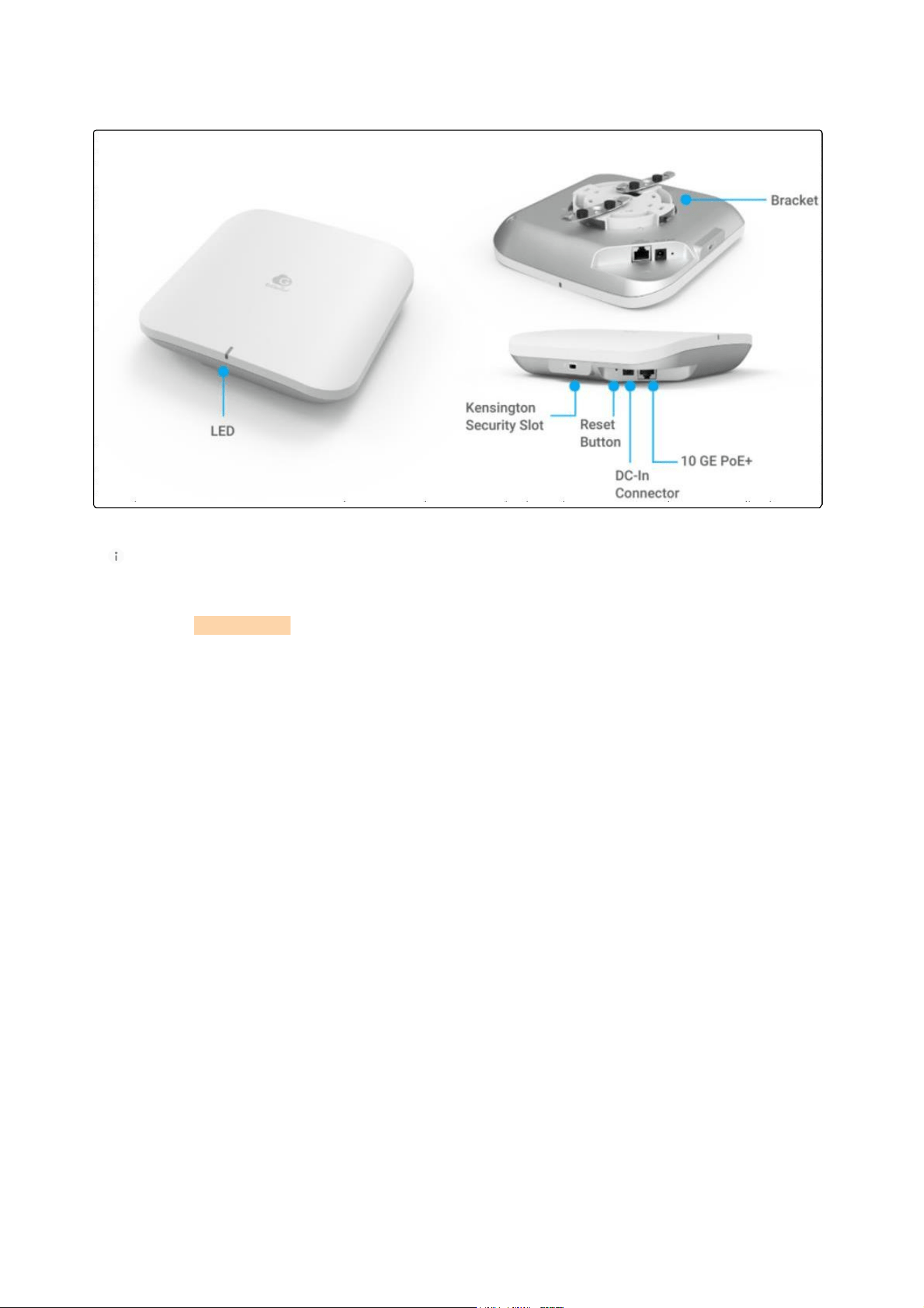
Reset
Button:
Reset to default: Press and hold the reset button for over 10 seconds, and the LED(PWR) will
start Fast Flashing (0.2 sec). Then, the device will be reset to factory default settings.
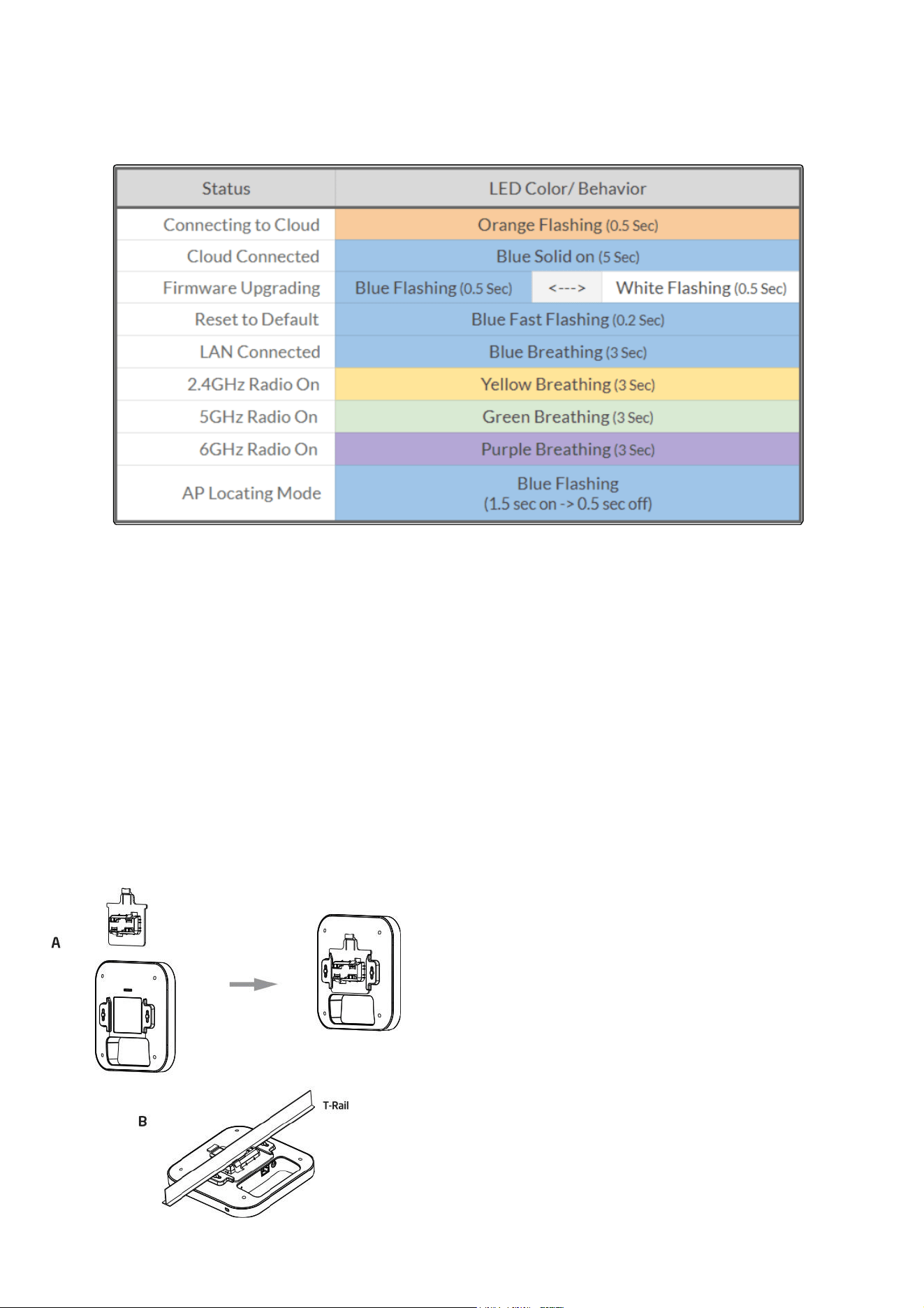
LEDs
Hardware Mounting
The access point can be mounted on the Ceiling and Wall. Please perform the steps for the appropriate
installation:
Ceiling Mount
A) Slide the ceiling mount base into the slot of the Access Point.
B) Hold the Access Point with one hand to reach the other hand over the T-Rail sides of the bracket.
Then Gook the stationary end of the ceiling mount bracket onto the T-Rail.
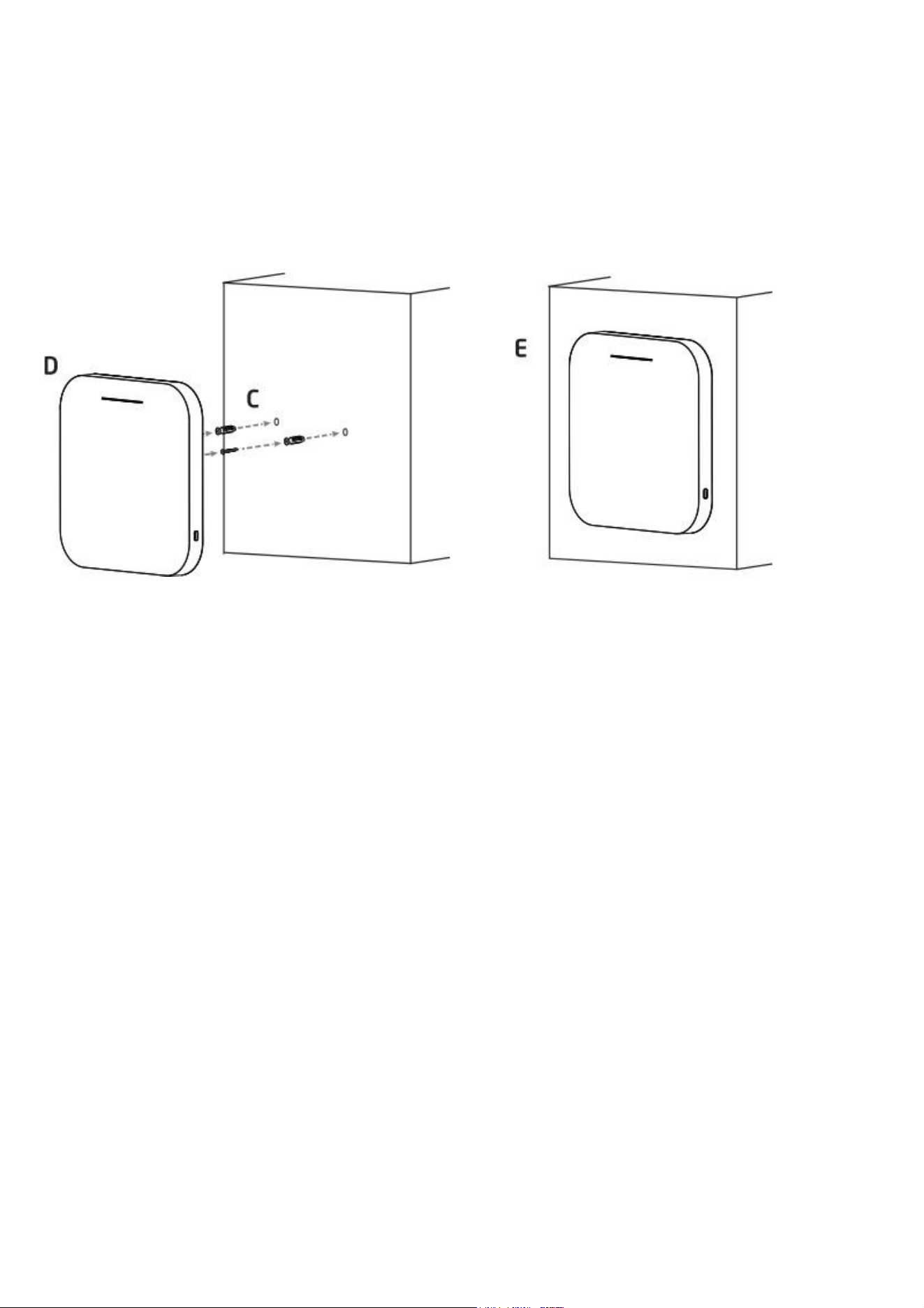
Wall Mount
C) Continued from A, determine where the Access Point to be placed and mark location on the
surface for the two mounting holes. Use the appropriate drill bit to drill two 8.1mm diafram and
26mm depth holes in the markings and hammer the bolts into the openings.
D) Screw the anchors unto the holes untril they are flush with the wall; screw the included screws into
the anchors.
E) Place the Accee Point against wall with the mounting screw heads.
Configure
with
Senao
Cloud
Step
1:
Register De
v
ice and Assign to Net
w
ork
You can register the device either by the
Clo
u
d To
-
Go mobile app
or the
Senao Clo
u
d platform
.
Cloud To-Go Mobile App
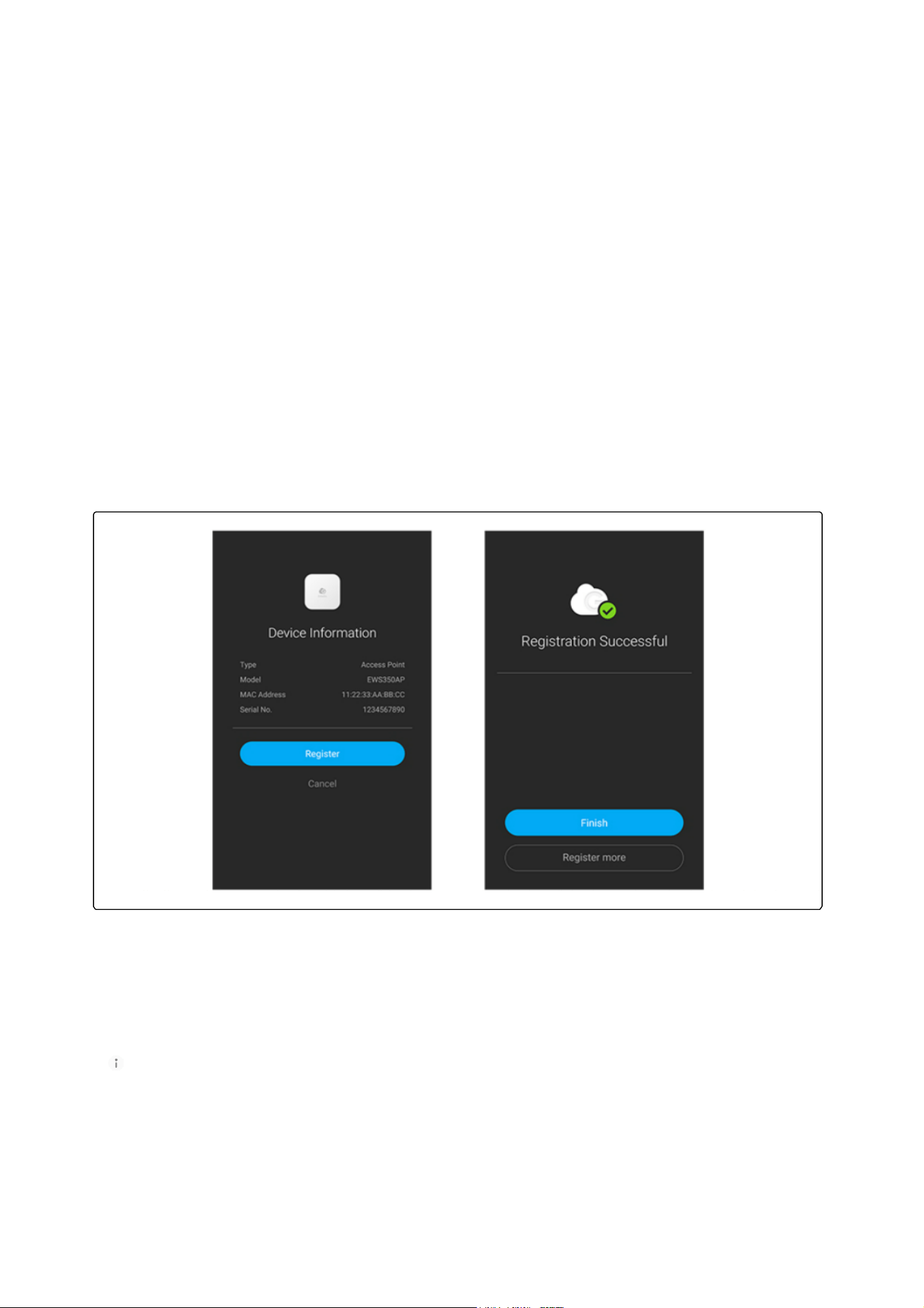
Open and log in to the Senao Cloud To-Go mobile app.
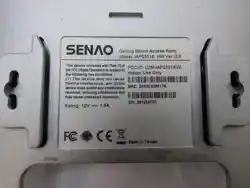
Scan the QR code on the back of the device via the app.
If the camera successfully scans a QR code, the app will
display the device Information. You can tap "Register" to
complete the Registration.
Device registration
1.
Registered devices will be shown on the Inventory&License page. Slide left the device and click "Add
to Network". Add the device to your personalized Network.
Network: Management domain shared same configurations within Senao Cloud.
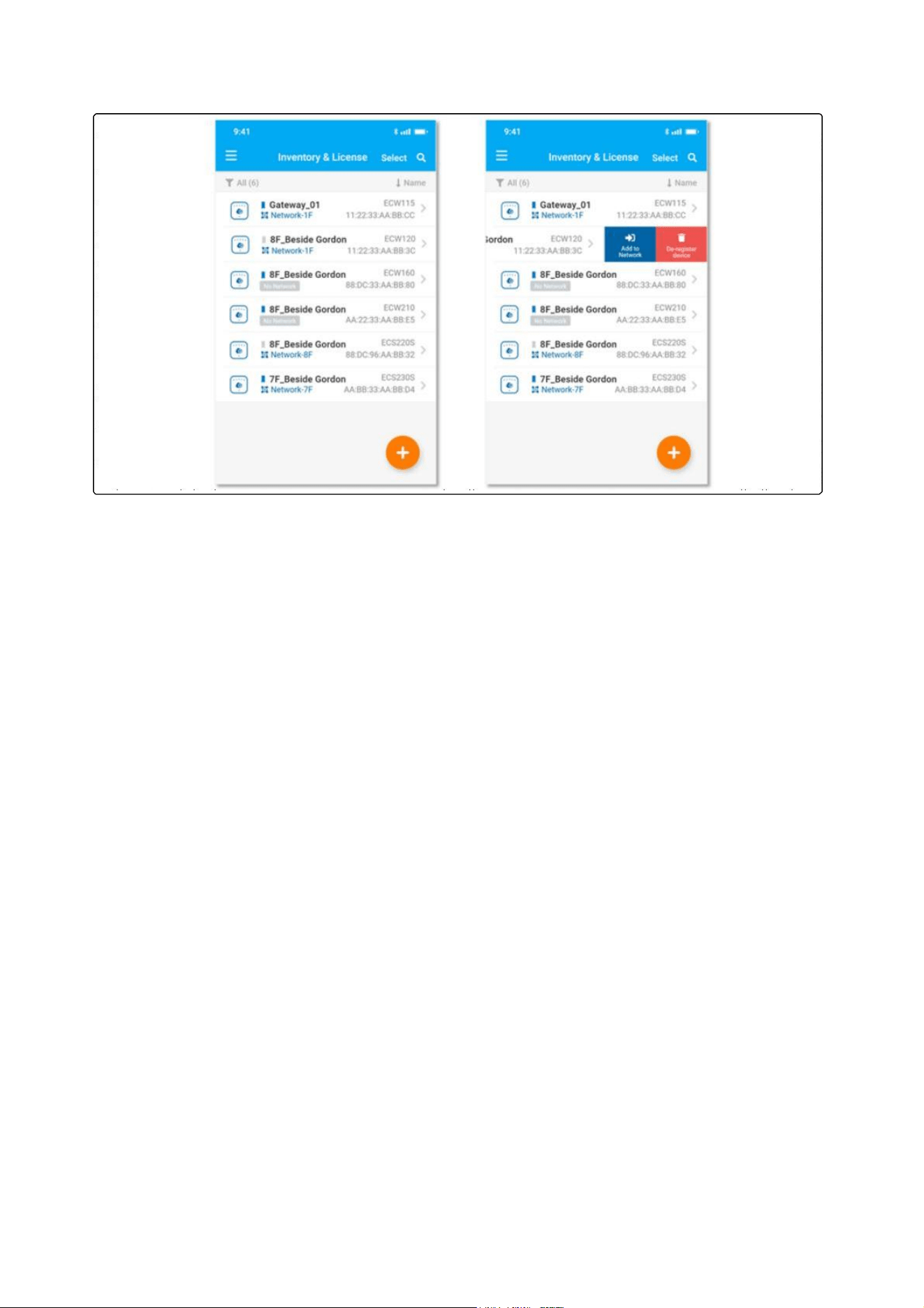
Assign device to a managed Network
Senao Clo
u
d Platform
Log
in
to
the
Senao Clo
u
d Platform
:
https://cloud.Senao.ai/.
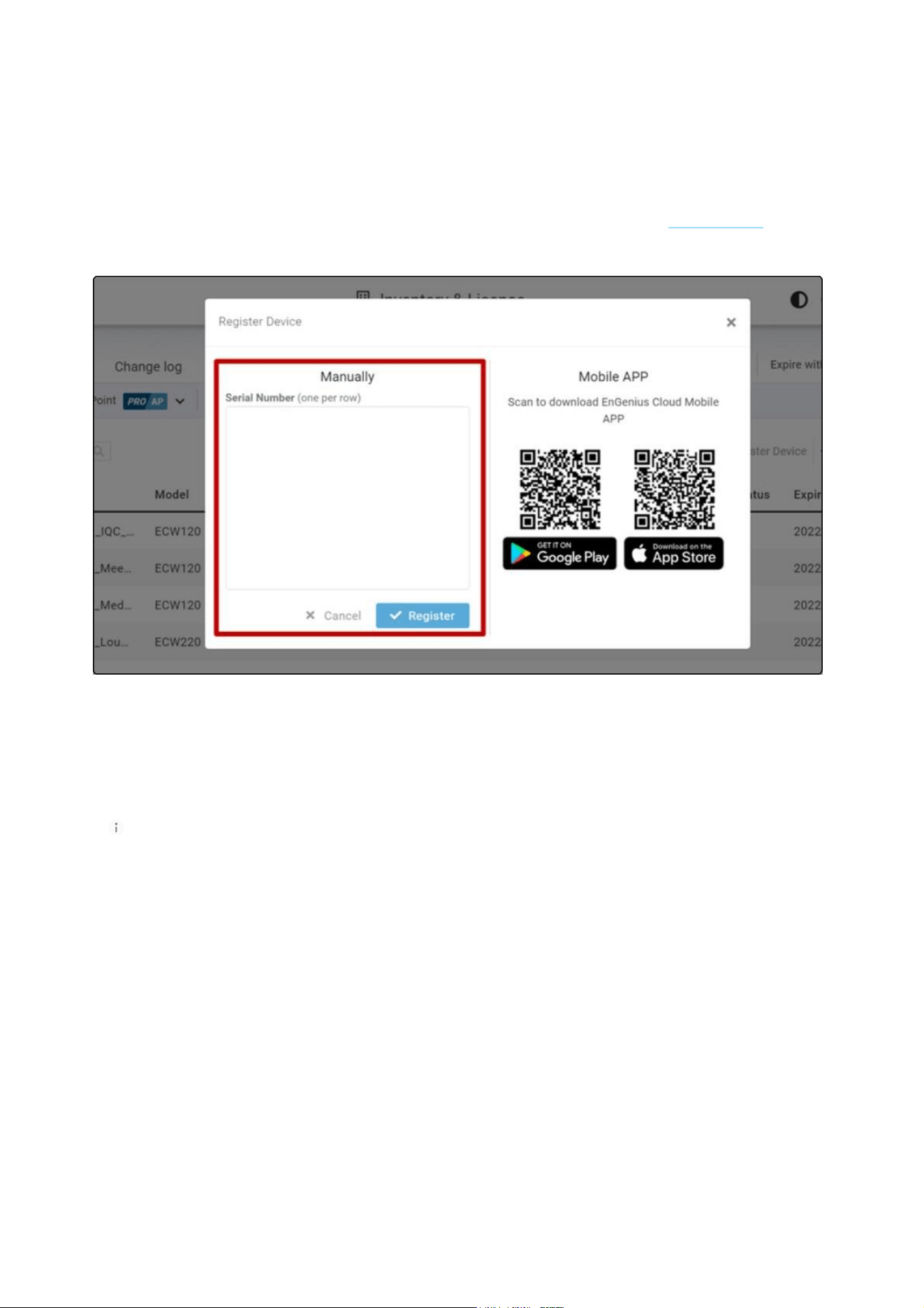
Go to the home > Inventory&License page and click "Register Device".
Enter the Serial Number of the device(s) for device registration. Please refer to "User Manual-
Registering Devices to Organization".
Register device(s) with device's Serial Number
4. Select the registered device and click "Assign to Network" to add the device to your personalized
Network.
Network: Management domain shared same configurations within Senao Cloud.
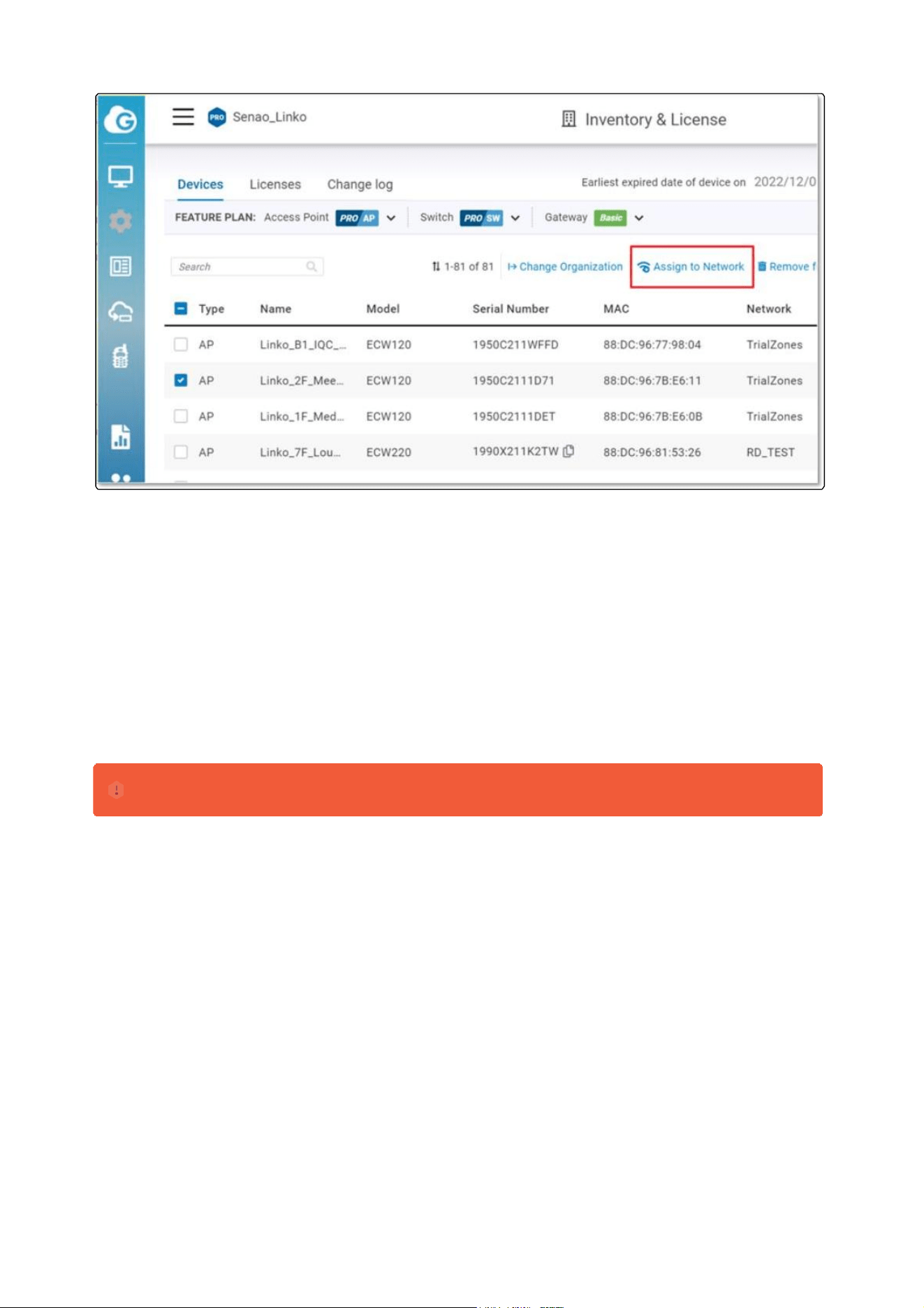
Assign selected device(s) to a managed Network
Step
2:
Po
w
er On
De
v
ice
The Senao Cloud AP devices can be powered by any of the following:
Senao Cloud PoE Switch or 802.3af/ 802.3at PoE+ compliant Switch Senao PoE
adaptor (EPA5006GP/EPA5006GAT)
Power Adapter (DC 12V/2A power input)
Connecting to a PoE S
w
itch
Connect the Ethernet cable from the Senao Cloud AP directly to the PoE port of the PoE switch.
Do not use both power sources at the same time.
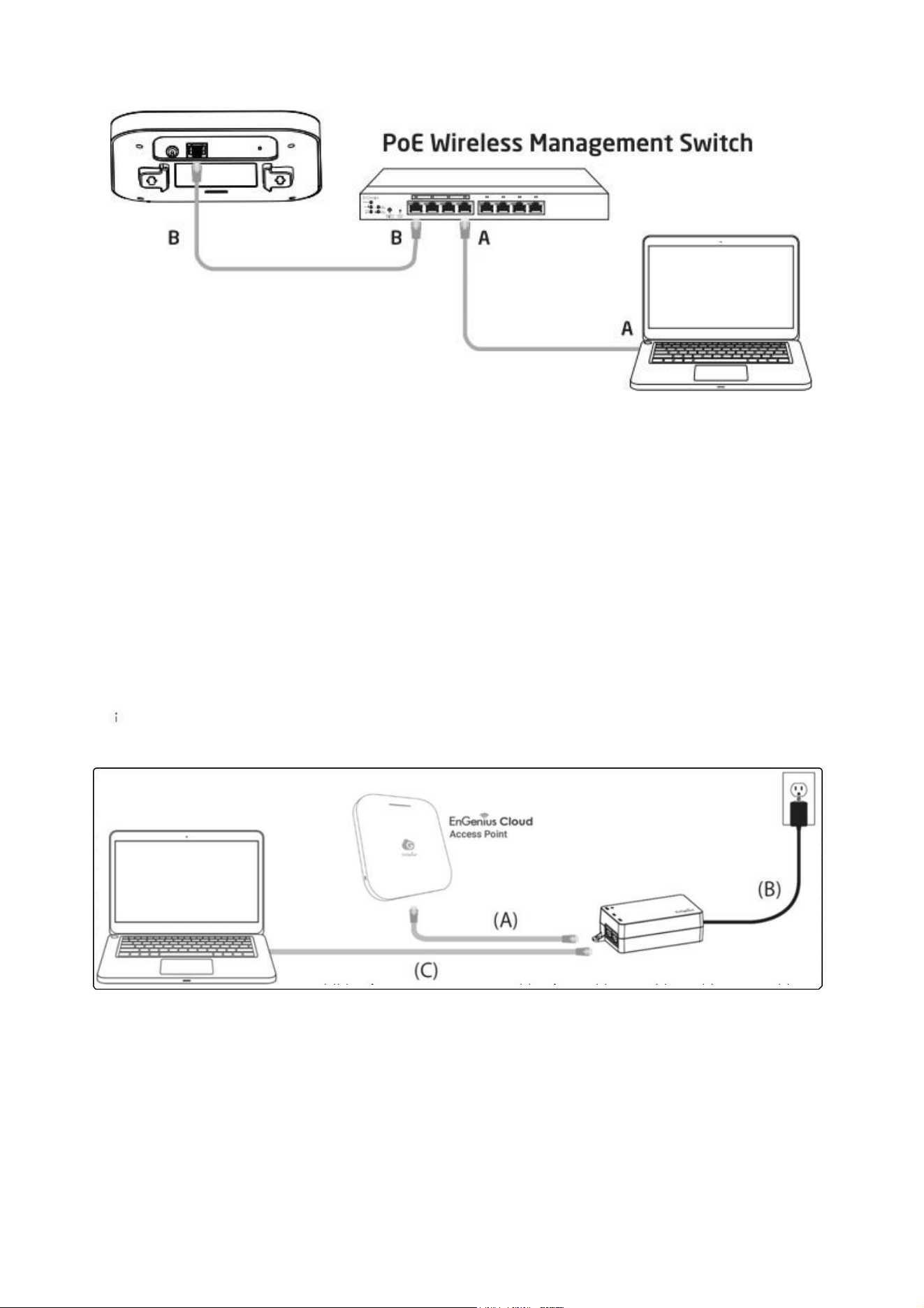
AP is powered by a PoE Switch
Po
w
ered
w
ith a PoE Adapter
(A)
Connect one end of the Ethernet cable into the LAN (PoE) port of Senao Cloud AP and the other
end to the PoE port on the PoE Adapter.
(B)
Connect the power cord with the PoE Adapter and plug the other end into an electrical outlet. (C)
Connect the second Ethernet cable into the LAN port of the PoE Adapter and the other end to the
Ethernet port on the computer.
Please ensure to use cat5/cat5e UTP/STP RJ45 Ethernet cables.
Po
w
ered
w
ith a Po
w
er Adapter
Connect the Power Cord to the adapter, and then plug the Power Cord into the power outlet.

AP is powered with a power adapter
Step3: Connect to the Senao Cloud
Once the device is powered on and ready to connect to the Internet, the LED indicator will stay Solid On,
which means the device is now connected to the Senao Cloud Platform. It will automatically download
the default configuration settings from Senao Cloud for automated provisioning.
Step
4:
Manage
w
ith
the
Senao
Clo
u
d
Log in to the Senao Cloud platform to configure detailed settings. For more information, please refer to
User Manual.
When the Access Point is connected to the Senao Cloud Platform for the first time, it will automatically check
the latest firmware version available. If the firmware upgrade is required, it might take 8 10 minutes to
complete. The LED indicator will be Flashing (0.5 sec) untill the process is finished.
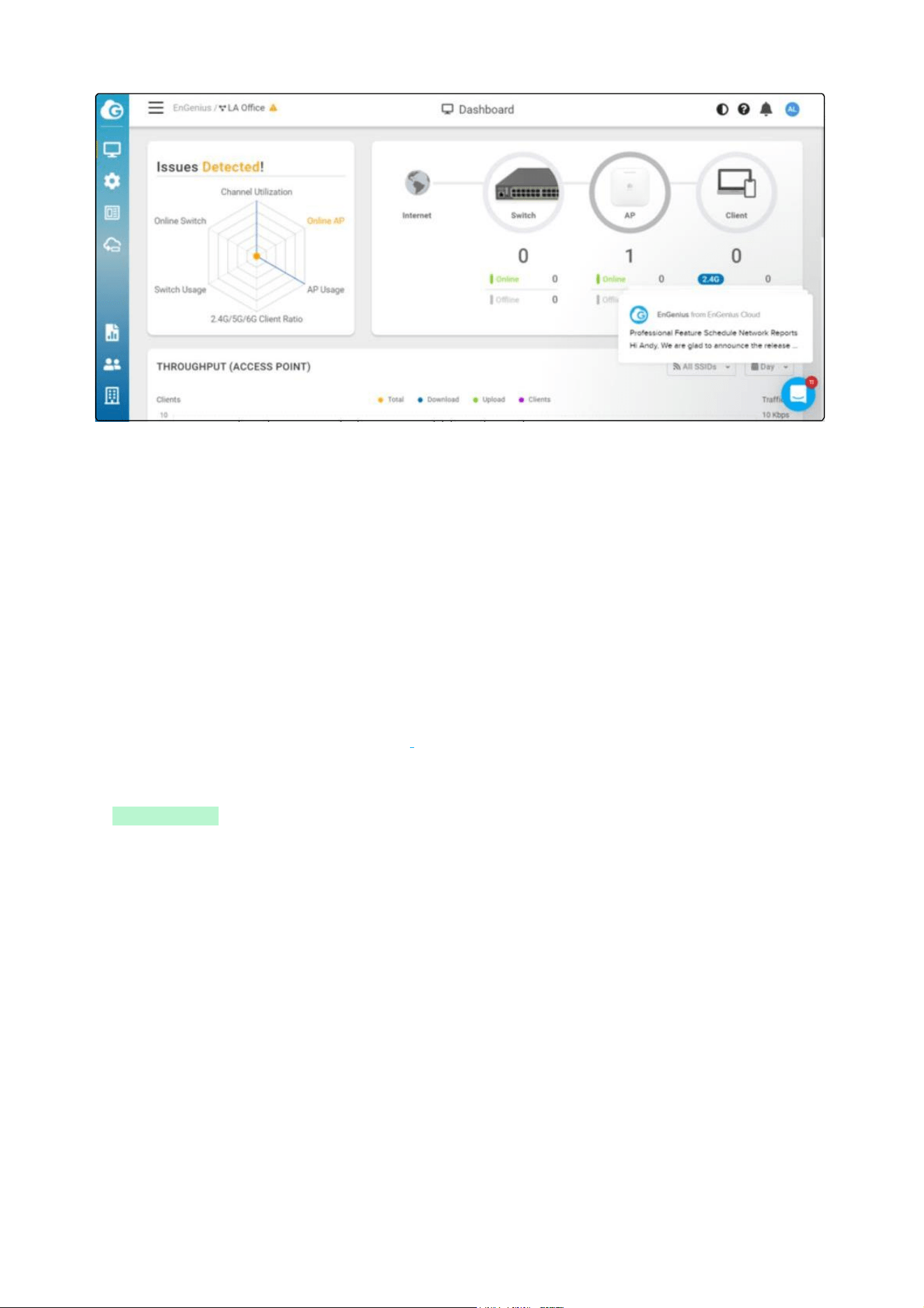
Senao Cloud Dashboard
Troubleshooting
If the Senao Cloud Platform cannot manage your AP, there might be a problem with connecting to Senao
Cloud.
To troubleshoot the connection issue, you may log in to the Device Local Access page:
Use your client device (e.g., a laptop, mobile device, or tablet) to find the SSID: "EnMGMTxxxx" (xxxx
is the last four digits of MAC MAC would be found on the back of the device) and connect to it.
Under your web browser, enter the URL http ://Senao.local or http://192.168.1.1 to access the
device's user interface.
You can review the device status after logging into the AP with the default admin account/password
(admin/admin).
Check the information on Network Connectivity and take action if necessary.

IAP Local Access Page
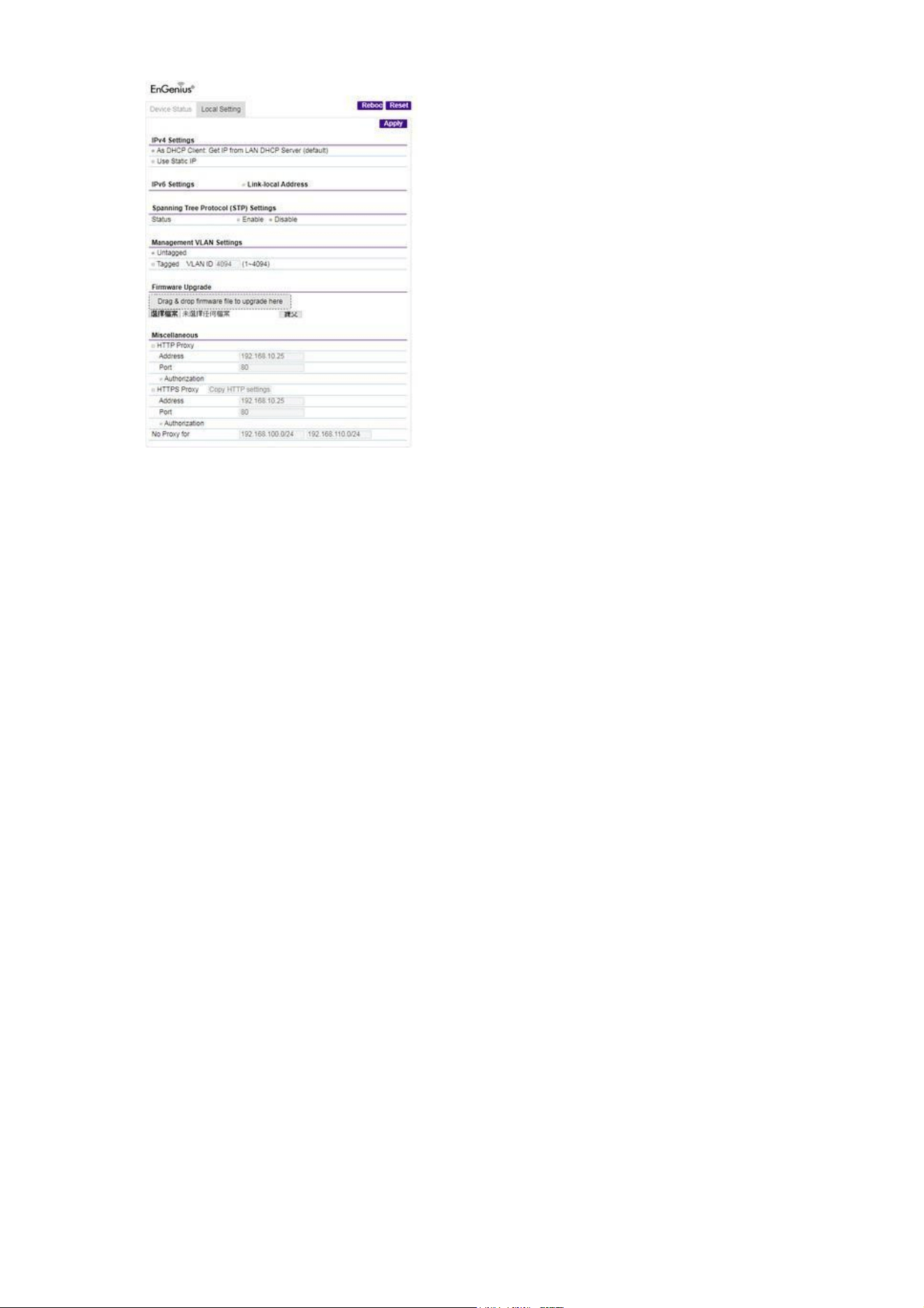
Change IP Assignment Settings
By default, the Senao Cloud Access Point (ECW series) is assigned an IP address dynamically by the DHCP
server. If you encounter issues with IP address assignment, please double-check the IP setting, including IP
address, subnet mask, gateway, proxy, and management VLAN. If the issue still exists, you may change your
IP assignment from "DHCP mode" to "Static IP" via the following procedure.
Go to the
Local Setting
section.
Change IPv4 settings to "Use Static IP".
Configure the IP address, gateway, subnet mask, and proxy settings.
Reconnect this device to the LAN network and try again.

Compliance
FCC
This device complies with Part 15 of the FCC Rules. Operation is subject to the following two conditions:
(1) This device may not cause harmful interference, and (2) this device must accept any interference
received, including interference that may cause undesired operation.
This equipment has been tested and found to comply with the limits for a Class B digital device,
pursuant to Part 15 of the FCC Rules. These limits are designed to provide reasonable protection against
harmful interference in a residential installation. This equipment generates uses and can radiate radio
frequency energy and, if not installed and used in accordance with the instructions, may cause harmful
interference to radio communications. However, there is no guarantee that interference will not occur in
a particular installation. If this equipment does cause harmful interference to radio or television
reception, which can be determined by turning the equipment, the user is encouraged to try to correct
the interference by one of the following measures:
Reorient or relocate the receiving antenna.
Increase the separation between the equipment and receiver.
Connect the equipment into an outlet on a circuit di erent from that to which the receiver is
connected.
Consult the dealer or an experienced radio/TV technician for help.
FCC Caution:
Any changes or modifications not expressly approved by the party responsible for compliance could
void the user's authority to operate this equipment.
This transmitter must not be co-located or operating in conjunction with any other antenna or
transmitter.
Operations of this device is indoor use only; the 5.150 - 5.250GHz band are restricted to indoor usage
only. This device meets all the other requirements specified in Part 15E, Section 15.407 of the FCC Rules.
Radiation
E
x
pos
u
re Statement
:
This equipment complies with FCC radiation exposure limits set forth for an uncontrolled environment.
This equipment should be installed and operated with a minimum distance of 20 cm between the
radiator & your body.

CE
The device complies with Directive 2014/53/EU issued by the Commission of the European Community.
Standards:
ETSI EN 300 328 V2.2.2 (2019 07)
ETSI EN 301 893 V2.1.1 (2017 05) Final Draft
ETSI EN 303 687 V0.0.20 (2022 03)
EN 55032:2015+A1:2020 EN 55035:2017/A11:2020 ETSI
EN 301489 1 V2.2.3 (2019 11)
ETSI EN 301 489 17 V3.2.4 (2020 09)
EN 62368 1:2014+A11: 2017
EN 62311: 2020
UKCA
The device is in conformity with the relevant legislation of United Kingdom: 2017 (S.I. 2017/1206)/
Regulations 2016 (S.I. 2016/1091)/ Regulations 2016 (S.I. 2016/1101).
Standards:
EN 300 328 V2.2.2 (2019 07)
EN 301 893 V2.1.1 (2017 05) Final Draft
EN 303 687 V0.0.20 (2022 03)
EN 55032:2015+A1:2020
EN
55035:2017/A11:2020
EN 301489 1 V2.2.3 (2019 11)
EN 301 489 17 V3.2.4 (2020 09)
EN 62368 1:2014+A11: 2017
EN
62311:
2020
IR
2030
systèmes de satellites mobiles utilisant les mêmes canaux

Declaration of Conformit
y
Hereby, Senao Networks declare that this product is in compliance with:
Directive 2014/53/EU
Regulations 2017 (S.I. 2017/1206)/ Regulations 2016 (S.I. 2016/1091)/ Regulations 2016 (S.I.
2016/1101)
RoHS 2015/863
WEEE 2022
REACH
Regulation

Disclaimer
/
Note
Maximum data rates are based on the IEEE standards. Actual throughput and range may vary
depending on many factors including environmental conditions, the distance between devices, radio
interference in the operating environment, and the mix of devices in the network.
Features and specifications are subject to change without notice.
This device complies with Part 15 of the FCC Rules.
Operation is subject to the following two conditions: (1) this device may not cause harmful
interference, and (2) this device must accept any interference received, including interference that
may cause undesired operation.
Trademarks and registered trademarks are the property of their respective owners. For the United
States of America: Copyright © 2026 Senao Technologies, Inc. All rights reserved.