
4. Quick Voice Commands
5. Basic Functions
1.Photo Capture: Take a photo by single-clicking
the right button on the glasses.
2.Video Recording: Start video recording by
double-clicking the right button.
3.Audio Recording: Start voice recording by
triple-clicking the right button.
4.Music Playback: Supports playing music from
the smartphone.
3. Indicator Light Instructions
Safety Warnings
1.Do not charge the glasses in wet or humid
environments.
2.Ensure that the charging port of the glasses and the
charger surface are clean and making full contact.
3.When not in use, store the glasses in a dry and
ventilated place, away from direct sunlight. Use a
glasses case or protective pouch to prevent collisions,
squeezing, or scratches and to reduce the risk of
damage.
4.Use the original charger to charge the glasses.
Avoid using inferior chargers to prevent safety issues
such as overheating or fire caused by improper
charging. Avoid overcharging and over-discharging.
Charge the device promptly when the battery level is
below 20%, and unplug the charger once fully
charged. Periodically perform a full charge and
discharge to maintain battery performance.
5.Keep the glasses away from strong magnetic fields
and high-temperature environments, as they may
interfere with the electronic components, affect
normal operation, or damage the battery and internal
parts. Avoid such environments during use and
storage.
6.Regularly check and update the software and
firmware of the smart glasses to obtain new features,
improve performance, and fix vulnerabilities. Ensure
sufficient battery level and a stable network during
updates to avoid interruptions that may cause device
malfunction.
2. Button Definitions
Single Click
Wake AI Voice Assistant (when
powered on)
Single Click
(during AI playback): Interrupt and
exit
Long Press
10s
Hard reset
Single Click
Take photo / Stop video / Stop
recording / Answer call / Hang up
Double Click
Start video / Reject call
Triple Click
Start audio recording
Long Press 3s
Power On/Off
Single Tap
Play/Pause music
Double Tap
Next track
Triple Tap
Previous track
Swipe forward
Volume +
Swipe
backward
Volume –
Both Buttons (Left + Right) Long Press 6s
Restore factory settings
Left Button
Right Button
Right Touch Area
-Slider
No.
Product Button Instructions
1
Right Button
2
Right Touch Area - Slider
3
Right Speaker
4
Charging Port
5
Indicator Light
6
Left Button
7
Right Speaker
Flash 2 times
Power off
Flash 5 times
Low battery
Continuous
flashing:
Charging / Factory reset
Flash 2 times:
Power on
Quick flash 3
times
Connecting
Always on
F
ully charged / Firmware upgrade
i
n progress
Flash 1 time
Photo taken
Flash every 5
seconds
Video recording
Red Light
Blue Light
Fill Light:
3.Voice Notifications: The glasses support voice
prompts such as memory alerts, low battery
warnings, and other system notifications.
4.AI Voice Assistant: Wake the AI voice assistant
by briefly pressing the left button and interact
with the AI model through conversation.
5.Smart Navigation: Supports starting navigation
by sending a destination through AI voice
commands, or by setting an address in the app.
7. Special Features
1. Meeting Assistant: Instantly captures,
organizes, and saves speech and text
information during meetings or events.
2. Simultaneous Interpretation: Converts the
speaker’s language into the target language in
real time and plays it back.
3. One-Click Translation: Quickly converts text
or voice content into different languages,
enabling easy communication across language
barriers.
4. Face-to-Face Translation: Provides real-time
translation for conversations.
5. Bluetooth Network Sharing: After connecting
to a shared Bluetooth network, the device can
independently access and interact with the AI
model.
Precautions
1. Avoid using this product in high-temperature,
humid, or strong magnetic environments to
prevent performance issues or reduced lifespan.
2. This product is a precision electronic device.
Do not expose it to impacts, squeezing, or
dropping, as such actions may damage internal
components and affect normal use. Please store
the glasses properly and avoid contact with hard
objects.
3. Keep the lenses clean. Use a clean, soft cloth
to gently wipe them. Avoid using chemical
solvents or rough materials to clean the lenses.
4. Our company reserves the right to modify the
contents of this manual without prior notice.
Differences in features between software
versions are normal.
Basic Specifications
Product Type: Fashion Eyewear
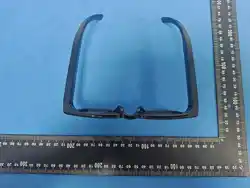
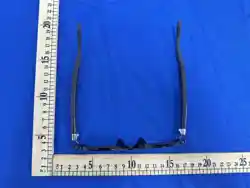
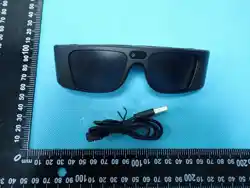
Product Name: MagicAI Glasses W
Body Material: TR90
Camera Resolution: 8MP
Bluetooth: Bluetooth 5.2
Built-in Storage: 16GB
Battery Capacity: 265mAh
Charging: 4PIN Magnetic Connector
Charging Time: Approximately 4 hours
1. Download & Connect
1) Download and install the “Memories” app on
your smartphone.Search “Memories” in the app
store or scan the QR code to download.
2. Connect the Glasses
1) Power on the glasses: Press and hold the right
button for 3 seconds until the startup tone
sounds.
2) Open the “Memories” app, search for the
device, and connect via the Bluetooth name of
the glasses.
3) Successfully entered the interface (as shown
below).
Currently available in the App Store, Google Play, and Official
Website for Thailand, Japan, Macau China, Hong Kong China,
Philippines, and Malaysia.
Official Website: https://whlmemories.com/
Service Hotline: 0852-31043175
Mandarin English
1 Wake Word
Hey Magic Hey Magic
2
Voice-activated Photo
Capture
拍张照片 take a picture
3
Voice-activated Video
Recording
打开录像 take a video
4
Voice-activated Audio
Recording
打开录音 take a record
5
Voice-activated Call
Answering
接听电话 Take the call
6
Voice-activated Call
Hanging Up
我正在忙 I’m busy now
7 Volume +
声音大一点
Increase the
volume
8 Volume -
声音小一点
reduce the
volume
Voice Commands
No. Scenarios
After connecting via Bluetooth, the glasses will
automatically play the phone’s music.(If no
music player is open on the phone, a voice
prompt will remind: “Please open phone music.”)
5.Call Handling:Single click to answer a call,
Double click to reject a call, During a call, single
click to hang up
6.Album: Stores photos and videos taken by the
glasses; supports LAN transfer to the app’s
album and sharing.
7.Audio: Stores recorded audio files; supports
LAN transfer to the app’s audio section and
sharing.
8.OTA Firmware Upgrade: Firmware can be
updated through the app.
9. System Settings: Includes multimedia
settings, wear detection switch, button
customization, low-power settings, beginner’s
guide, factory reset, device information, and
device deletion.
6. Highlight Features
1.AI Image Recognition: Wake the AI voice
assistant and ask questions about what the
glasses have captured. The AI will analyze and
provide answers based on the visual content.
2.Schedule Reminders: You can set schedule
reminders by waking the AI voice assistant, or
through the app.
Magic AI Glasses W – User Manual

This device complies with Part 15 of the FCC Rules. Operation is subject to the following two conditions: (1) this device may not cause
harmful interference, and (2) this device must accept any interference received, including interference that may cause undesired
operation.
Changes or modifications to this unit not expressly approved by the party responsible for compliance could void the user’s authority to
operate the equipment.
NOTE: This equipment has been tested and found to comply with the limits for a Class B digital device, pursuant to Part 15 of the FCC
Rules. These limits are designed to provide reasonable protection against harmful interference in a residential installation. This
equipment generates uses and can radiate radio frequency energy and, if not installed and used in accordance with the instructions,
may cause harmful interference to radio communications. However, there is no guarantee that interference will not occur in a particular
installation. If this equipment does cause harmful interference to radio or television reception, which can be determined by turning the
equipment off and on, the user is encouraged to try to correct the interference by one or more of the following measures:
-- Reorient or relocate the receiving antenna.
-- Increase the separation between the equipment and receiver.
-- Connect the equipment into an outlet on a circuit different from that to which the receiver is connected.
-- Consult the dealer or an experienced radio/TV technician for help.
This device and its antenna(s) must not be co-located or operation in conjunction with any other antenna or transmitter.
Radiation Exposure Statement
The device has been evaluated to meet general RF exposure requirement in portable exposure condition without restriction.