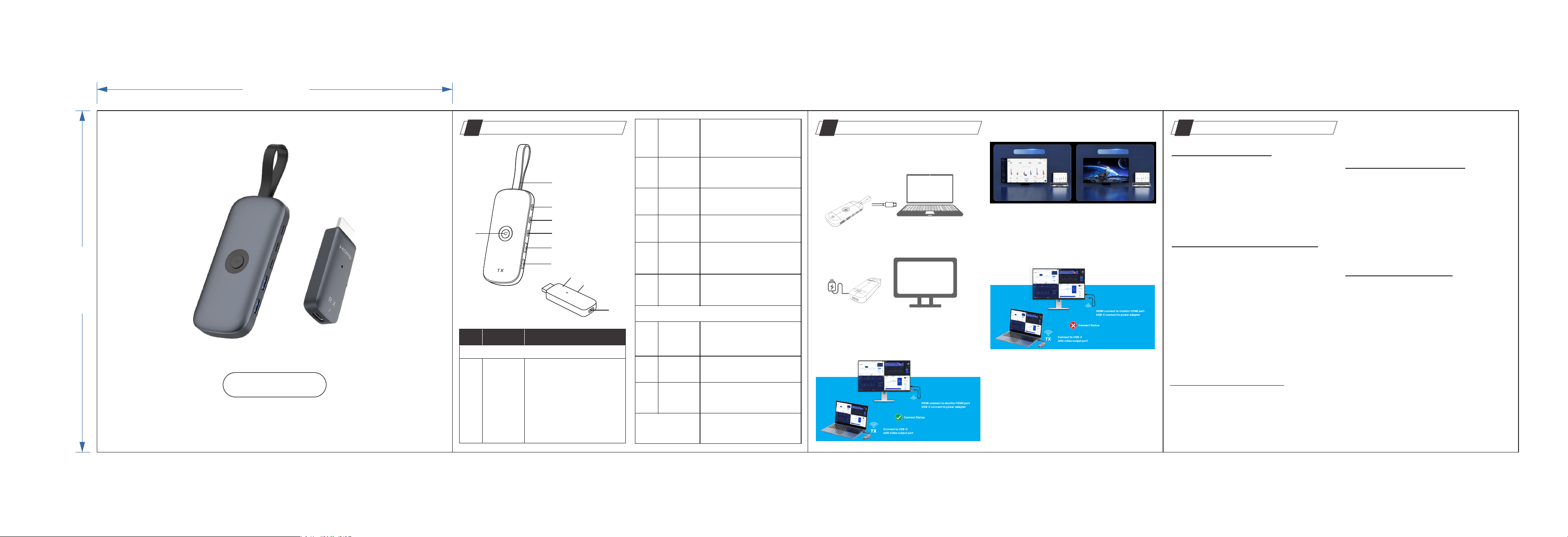
5IN1WirelessHDMIHUB
UserGuide
①
②
③
④
⑤
⑥
⑦
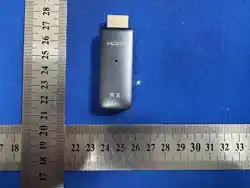
RX
/
HD MI
⑧
⑨
⑩
①
No.ItemDescription
TX(Transmitter)
PD in
Connect to a PD (Power
●
Delivery) charger and cable to
charge your laptop.
This port supports charging up to
●
85W for your laptop, plus an
additional 15W to power the hub.
For optimal 85W charging,a
100w PD charger and cable (not
included) are required.
②
USB-C port
Connect to a USB-C device to
transfer data at speeds up to
5Gbps, only data
③
USB-C port
Connect to a USB-C device to
transfer data at speeds up to
5Gbps,only data
④
USB-A port
Connect to a USB-A device to
transfer data at speeds up to 5Gbps
⑤
USB-A port
⑥
Switch button
Control the display of the extended
screen (on or off)
⑦
USB-C
connector
Plug into the laptop's USB-C port
Frequency Range
Connect to a USB-A device to
transfer data at speeds up to 5Gbps
RX(Receiver)
⑧
HDMI port
Connect to HDMI-enabled monitors,
with a maximum resolution of up to
1080P/60Hz
⑨
Pairing button
Re-pairing TX and RX
⑩
Power in
Connect to a at least 5W charger
and cable to charge your RX.
5150MHz ~ 5250MHz
5725MHz ~ 5850MHz
AtaGlance
01
HowtouseyourwirelessHDMIhub
02
①TX hub connect to the USB-C port of your laptop.Make
sure that the USB-C port of your laptop supports Power
Delivery (for charging) and DP Alt Mode (for HDMI display).
②Plugthereceiver(RX)intothemonitororTV, UseaUSB-
Cpowercabletoconnectapowersourceofatleast5V/1A
③Theproductispre-pairedatthefactoryandisplug-and-
play.Please wait for about 10 seconds. When you see a
greencheckmarkonthescreen,itmeanstheconnection
wassuccessful.
④Once the screen appears successfully, you can choose
eithermirrormodeorextendedmodeonyourcomputer.
⑤Ifthedisplaydoesnotshowanimageortheconnection
fails, you can try resolving the issue by re-pairing the
devices.Useapapercliptopressthere-pairingswitchon
theRXtoenterre-pairingmode,thenwaitafewseconds
forthere-pairingprocesstocomplete.
Copy Mode
Exended Mode
⑥The2*USB-Cand2*USB-Aportssupportadatatransfer
rateof5Gbpsandcanbeusedtoconnectdevicessuchas
keyboards, mice, USB flash drives, external hard drives,
andprintersfordatatransfer.
⑦The power charging port support PD3.0 100W max.
input, which can support charging up to 85W for your
laptop.
RX
RX
Safety&operationalwarnings
03
①Power&ElectricalSafety
②WirelessPerformance&Interference
④Latency&ContentLimitations
⑤Handling&PortProtection
Use Approved Power Adapters: For the RX,always use a
certified 5V/1A (or 5V/2A) power supply. Connecting to
incompatible voltage or currentsources may cause circuit
burnoutorfirehazards.
Do Not Disassemble: There are no user-serviceable parts
inside.Donotopen,modify,orattempttorepairthecasing,
as doing so may cause electric shock and void your
warranty.
enclosedspaces,coveritwithcloth,orpositionitnearheat
sources (e.g., radiators, AV receivers). Overheating may
triggerautomaticshutdownordamagetheunit.
Not Suitable for Competitive Gaming: Wireless Wi-Fi
tra n sm i s sio n introd u ces a sl i g ht late n cy (typ i c a l ly
30ms‒150ms). While ideal for presentations and media
streaming,itisnotrecommendedforreal-timecompetitive
gaming.
HDCP Copyright Restrictions: Certain DRM-protected
content (e.g., Netflix, Disney+, Amazon Prime Video) may
notmirrorproperlyonspecificsourcedevicesduetoHDCP
protocollimitations.
Proper Cable Insertion: Insert and remove HDMI/USB-C
connectors horizontally without twisting to prevent pin
damage.
KeepAwayfromMoisture:Thisdeviceisnotwaterproof.Do
notexposeittorain,highhumidity,orliquids.
Avo i d Physical O b structions: W i - F i signals d egrade
significantlywhenpassingthroughwalls,metalstructures,
orsolidfurniture,causinglatencyorsignalloss.Maintaina
direct line of sight between the transmitter (TX) and
receiver(RX)wheneverpossible.
FrequencyInterference:Wirelessrouters,microwaves,and
Bluetoothdevicesoperatingonthe5GHzbandsmaycause
signalinterference.
Transmission Range: Stated maximum distances are
measured in open, unobstructed environments. Actual
operational range may vary based on environmental
interferenceandobstacles.
③ThermalSafety&Ventilation
NormalOperatingHeat:High-speedvideodecodingandWi-
Fitransmissiongenerateheat.Thesurfacetemperaturerise
(typically 40°C‒50°C / 104°F‒122°F) during operation is
normalandnotaproductdefect.
EnsureProperVentilation:Donotplacethedevicein
130.00 mm
125.00 mm

FCC ID warning:
FCC Statement:
This device complies with part 15 of the FCC Rules. Operation is subject to the following two
conditions:
(1) This device may not cause harmful interference, and
(2) this device must accept any interference received, including interference that may cause undesired
operation.
This equipment has been tested and found to comply with the limits for a Class B digital device,
pursuant to part 15 of the FCC Rules. These limits are designed to provide reasonable protection
against harmful interference in a residential installation. This equipment generates, uses and can
radiate radio frequency energy and, if not installed and used in accordance with the instructions, may
cause harmful interference to radio communications. However, there is no guarant ee that
interference will not occur in a particular installation. If this equipment does cause harmful
interference to radio or television reception, which can be determined by turning the equipment off
and on, the user is encouraged to try to correct the interference by one or more of the following
measures:
—Reorient or relocate the receiving antenna.
—Increase the separation between the equipment and receiver.
—Connect the equipment into an outlet on a circuit different from that to which the receiver is
connected.
—Consult the dealer or an experienced radio/TV technician for help.
Caution: Any changes or modifications not expressly approved by the party responsible for
compliance could void the user's authority to operate the equipment.
This equipment complies with FCC radiation exposure limits set forth for an uncontrolled environm
ent. This transmitter must not be co‐located or operating in conjunction with any other antenna or
transmitter.
RF exposure warning:
This equipment complies with radiation exposure limits set forth for an
uncontrolled environment. This equipment should be installed and
operated with Minimum distance 20cm between the radiator and your
body.