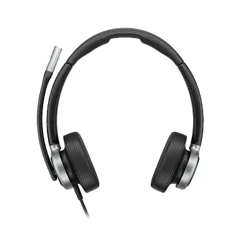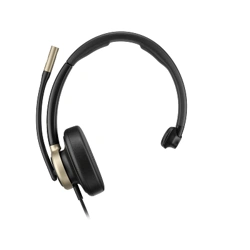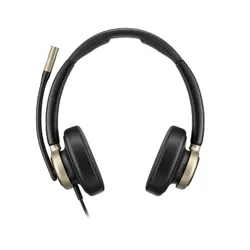
Poly Focus 620/625 and 620/625 Fold
Bluetooth Headset User Guide
SUMMARY
This guide provides the end-user with task-based user information for the featured product.

Legal information
Copyright and license
© 2026, HP Development Company, L.P. The information contained herein is subject to change without
notice. The only warranties for HP products and services are set forth in the express warranty
statements accompanying such products and services. Nothing herein should be construed as
constituting an additional warranty. HP shall not be liable for technical or editorial errors or omissions
contained herein.
Trademark credits
All third-party trademarks are the property of their respective owners. Bluetooth is a trademark owned
by its proprietor and used by HP Inc. under license.
Privacy policy
HP complies with applicable data privacy and protection laws and regulations. HP products and
services process customer data in a manner consistent with the HP Privacy Policy. Please refer to
HP
Privacy Statement.
Open source software used in this product
This product contains open source software. You may receive the open source software from HP
up to three (3) years after the distribution date of the applicable product or software at a charge
not greater than the cost to HP of shipping or distributing the software to you. To receive software
information, as well as the open source software code used in this product, contact HP by email at
ipgoopensourceinfo@hp.com.

Table of contents
1 Poly Focus headset overview 1
Headset 1
Be safe 2
USB Bluetooth adapter LEDs 2
Locate the regulatory markings and serial number on your headset 3
2 Poly Focus wireless charge stand overview 4
Assemble charge stand 4
Charge stand LEDs 5
Locate the serial number on your HP Poly Focus charge stand 6
3 Poly Focus multi-device charge stand overview 7
Assemble charge stand 7
Charge stand LEDs 8
Locate the serial number on your HP Poly Focus charge stand 9
4 Load software 10
Update your Poly device 10
Update your Poly headset and charge stand 11
5 Fit 12
Adjust the headband 12
Position the boom 12
Change ear cushion size 13
6 Charge 14
Charge headset 14
Check headset battery status 14
Charge your headset with the wireless charge stand 15
Charge your compatible accessories with the multi-device charge stand 15
7 Connect and pair 17
Pair to mobile device 17
Pair to PC with Bluetooth direct 17
Use BT700 USB adapter 18
Connect to PC 18
Pair BT700 USB adapter again 19
Congure USB adapter for streaming media 19
8 Basics 20
iii

Power on 20
Adjust the volume 20
Adjust headset microphone volume (softphone) 20
ANC and Transparency mode 20
Control streaming audio 21
Play or pause audio 21
Track forward 21
Track backward 21
Voice assistant (smartphone feature) 21
Using sensors 22
Sensor behavior 22
Disable sensors 22
9 Manage calls 23
Answer a call 23
End a call 23
Reject a call 23
Make a call 23
Mute 23
Hold a call 23
Answer a second call 24
Switch between calls (ash) 24
10 More Features 25
Congure Teams/Custom button 25
Microsoft Teams settings 25
Other provider settings 25
Mute reminder 26
Hold reminder 26
DeepSleep mode 26
Fold and store your headset (620 Fold model only) 26
Replace headset battery 27
11 What's in the box 29
What's in the box for the wireless charge stand 30
What's in the box for the multi-device charge stand 30
12 Safety warnings 32
Safety Instructions 32
Embedded magnet warning 34
13 Support 35
iv
Poly Focus headset overview1
Your new headset system includes:
● Bluetooth headset
● USB Bluetooth adapter
Headset
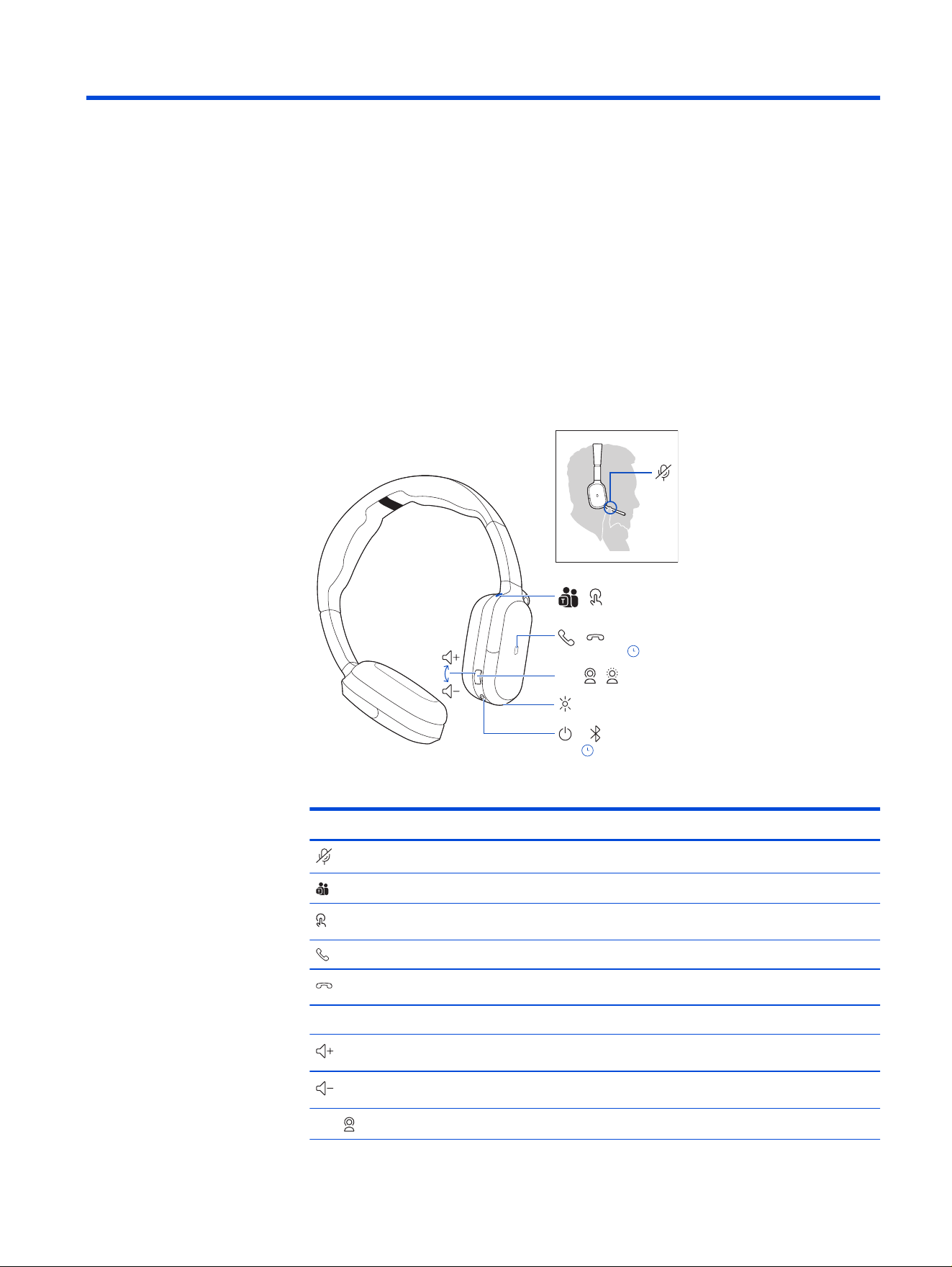
Your headset has buttons on the right ear cup. Use the buttons for call and media
control.
:02
x1
:02
Siri/Google
ANC
/
/
/
/
/
Table 1-1 Headset icon descriptions
Icon Headset control
Mute/unmute on microphone boom
Microsoft Teams
Custom button
Answer call
End call
Siri/Google Assistant Voice assistant
Volume up
Volume down
ANC ANC mode
Poly Focus headset overview 1
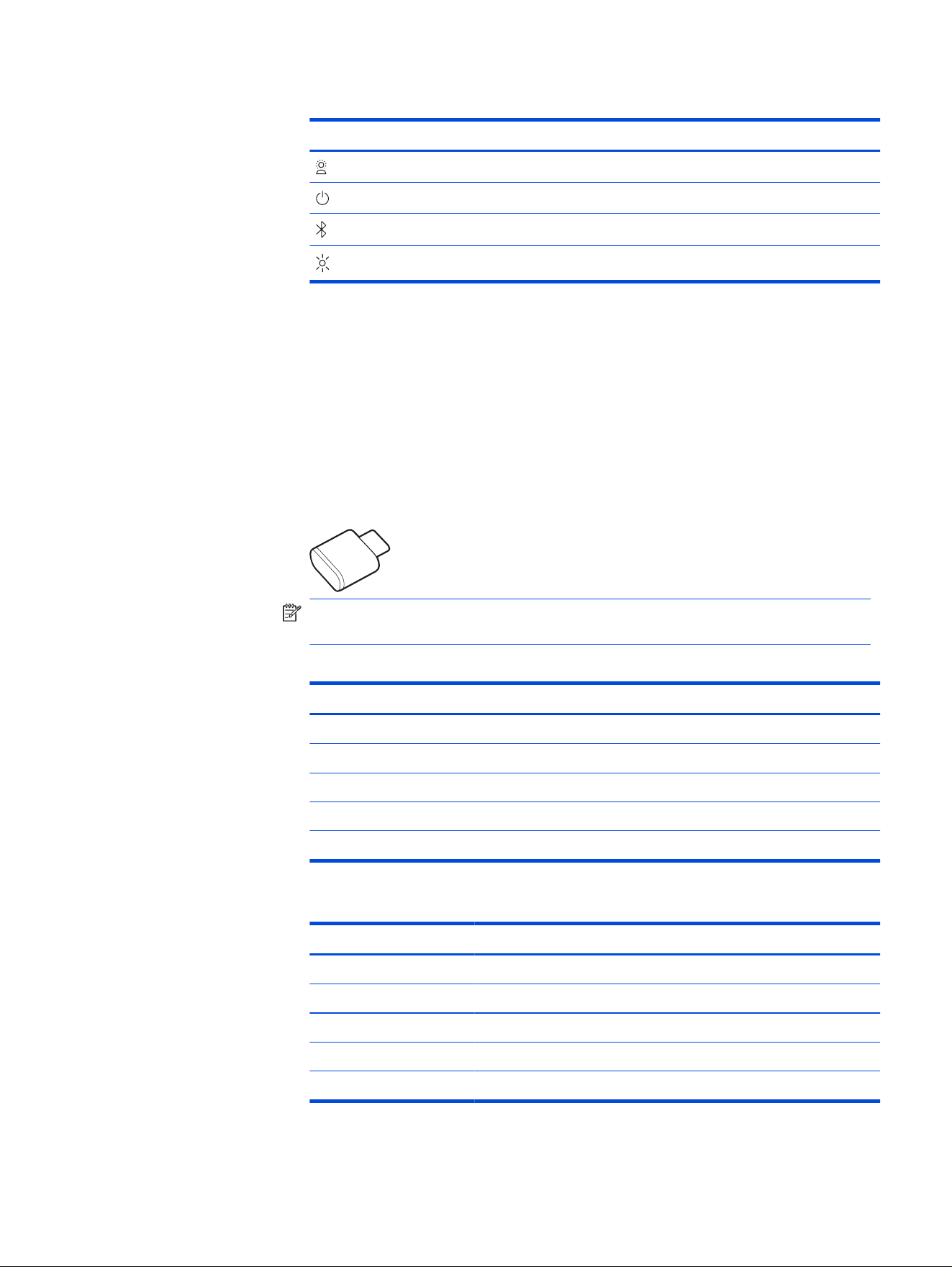
Table 1-1 Headset icon descriptions (continued)
Icon Headset control
Transparency mode
Power
Bluetooth® pairing
LEDs/Online indicator
Be safe
Please read the safety guide for important safety and regulatory information before
using your new device.
USB Bluetooth adapter LEDs
Your high-delity Bluetooth USB adapter comes pre-paired to your Poly device. Plug
it into your computer to connect to
high-delity computer audio.
NOTE: Your adapter's USB connection type and design may vary, but the
function is the same.
Table 1-2
Standard LEDs
LED behavior Description
Flashing red and blue Pairing
Solid blue Device connected
Flashing blue On a call
Solid red Mute active
Flashing purple Streaming media from computer
Table 1-3 LEDs with Microsoft Teams*
LED behavior Description
Flashing red and blue Pairing
Solid purple Microsoft Teams connected
Flashing blue On a call
Solid red Mute active
Pulsing purple Microsoft Teams notication
2 Chapter 1 Poly Focus headset overview
*Requires Microsoft Teams desktop application.
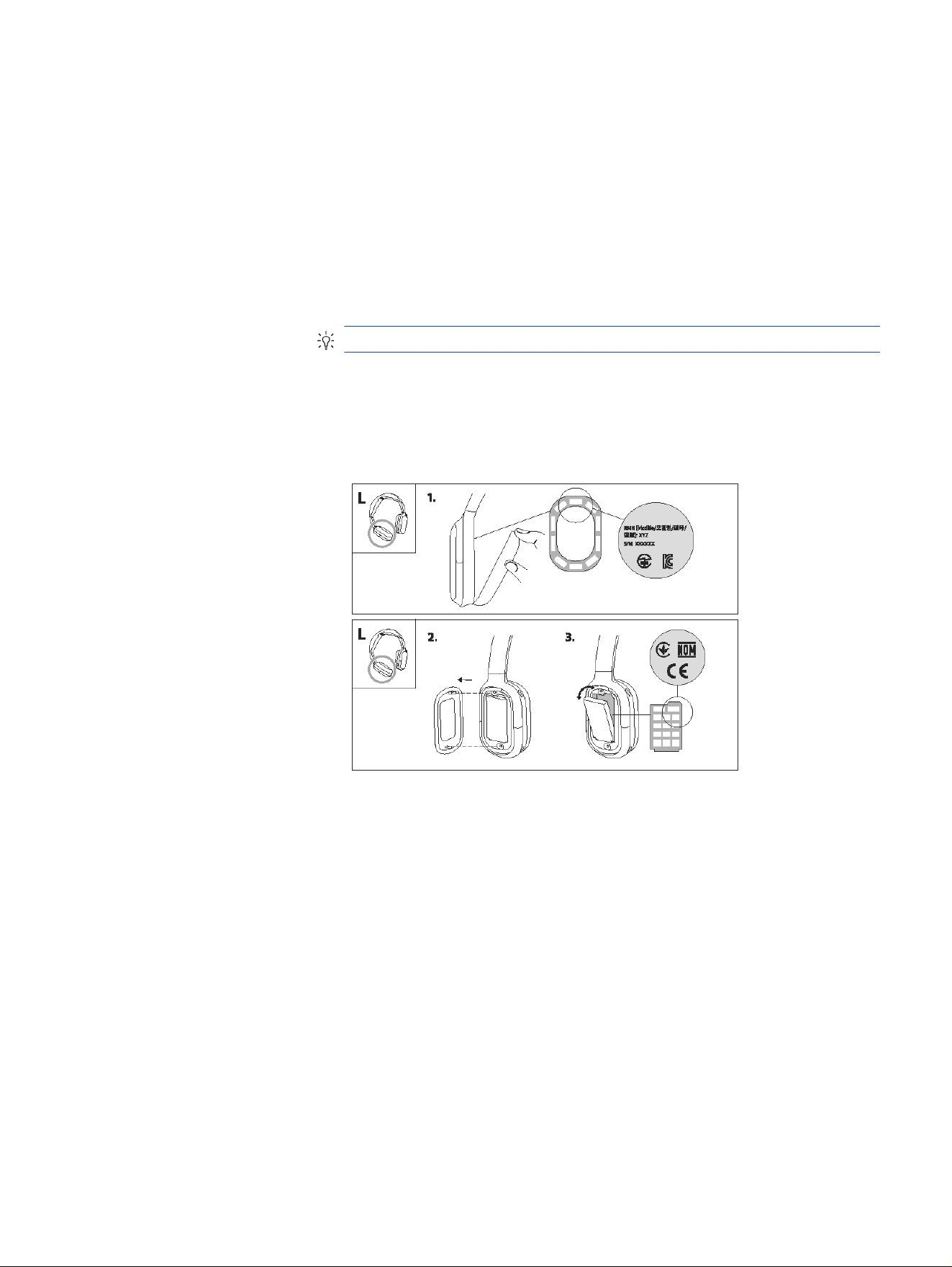
Locate the regulatory markings and serial number on your
headset
Find the serial number and regulatory markings on the left side of your headset.
1. Gently pull the left ear cushion away from the earcup to view the serial number
and regulatory markings on the inside of the earcup. The serial number is
formatted SN: XXXXXX (typically 6 digits).
TIP: Take a photo with your smartphone for a better view of the serial number.
2. To view more regulatory markings, remove the outer cover of your left earcup
to reveal the battery.
3. Remove the battery to view regulatory markings on the inside of the battery
compartment.
Locate the regulatory markings and serial number on your headset
3
Poly Focus wireless charge stand
overview
2
Use your charge stand to charge your headset.
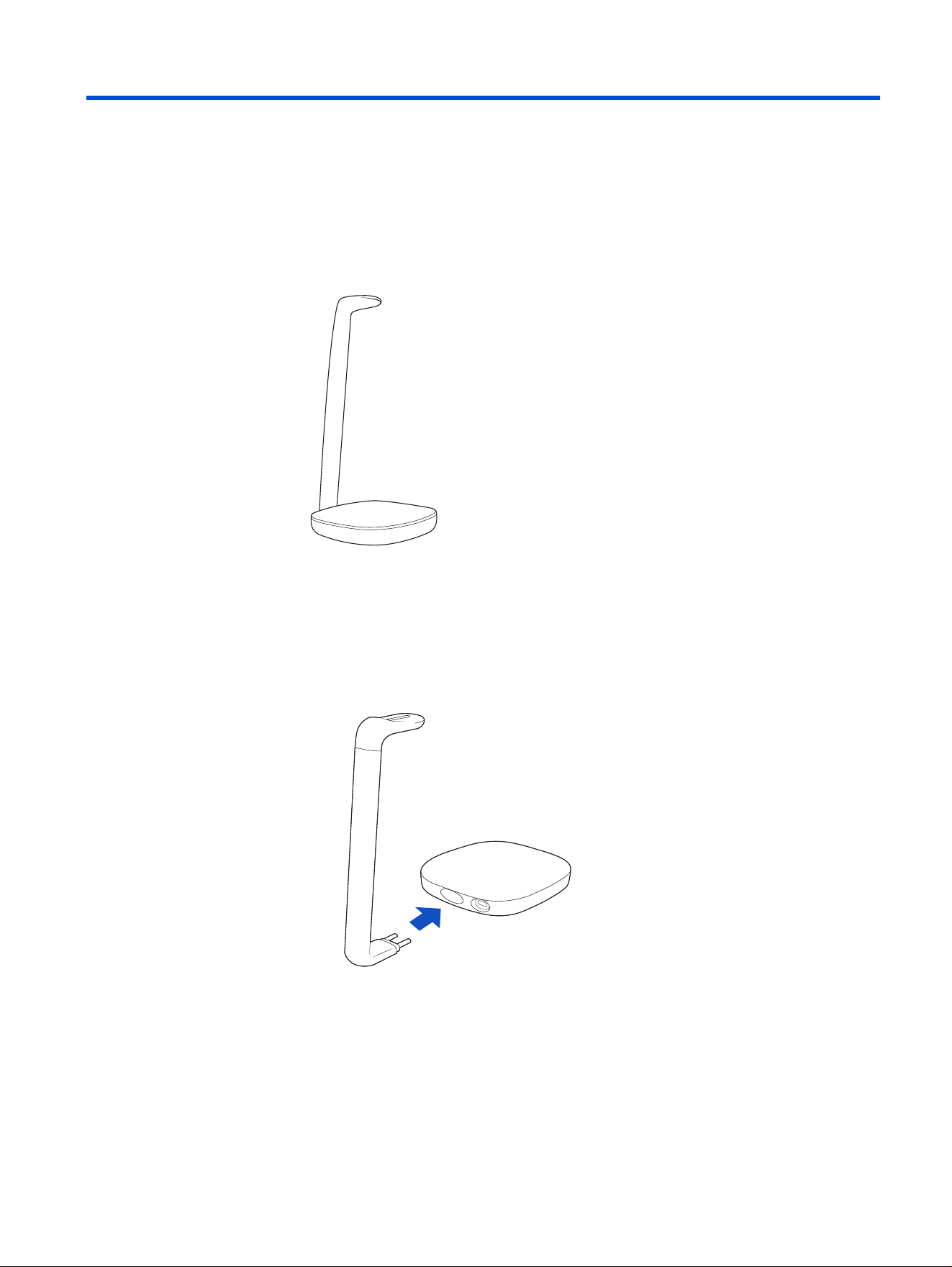
Assemble charge stand
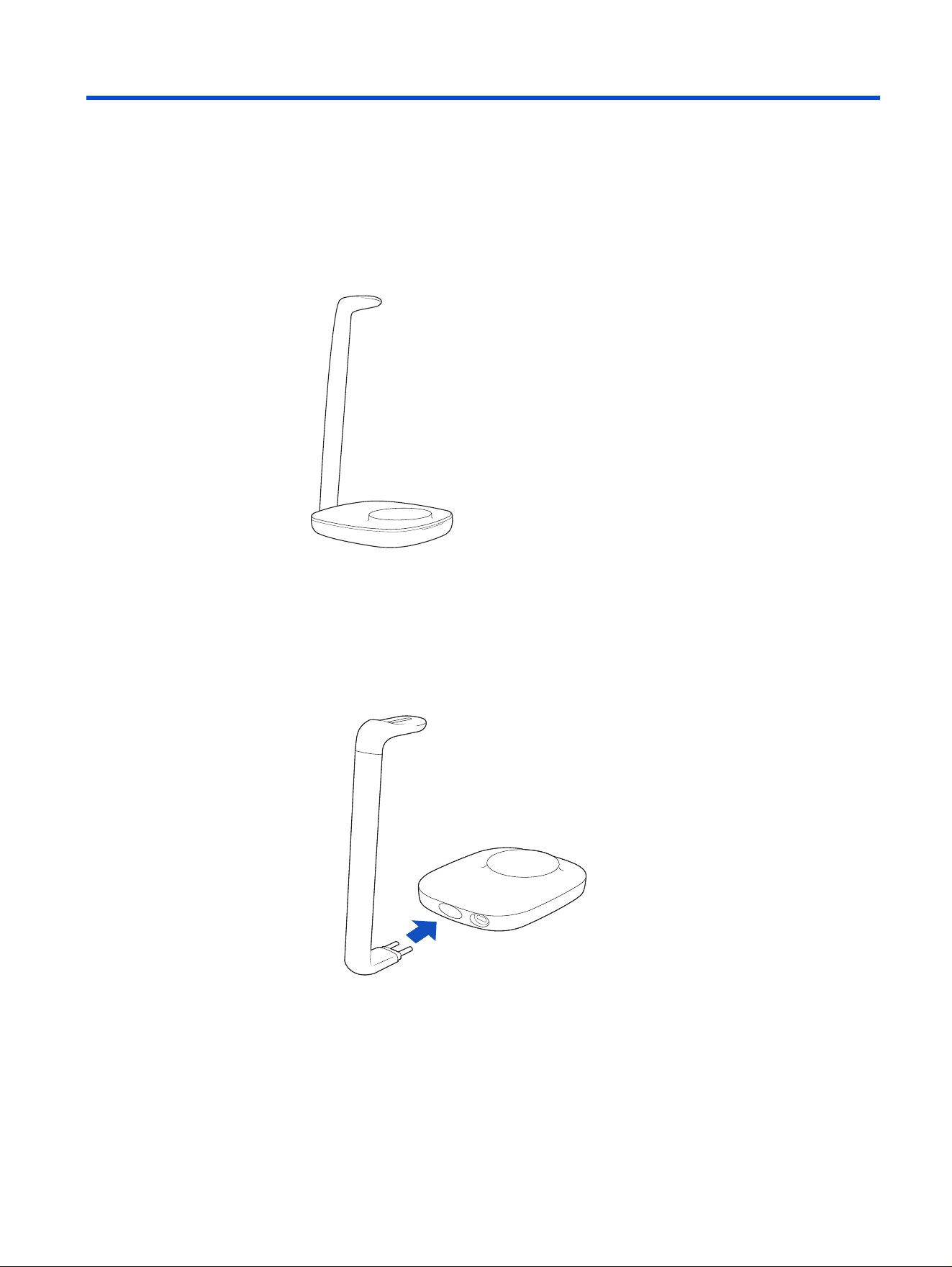
Attach the charge arm to the base and connect the USB-C cable to begin charging.
1. Firmly push the charge arm to the back of the base. You will hear a click when
the arm is in place.
4
Chapter 2 Poly Focus wireless charge stand overview
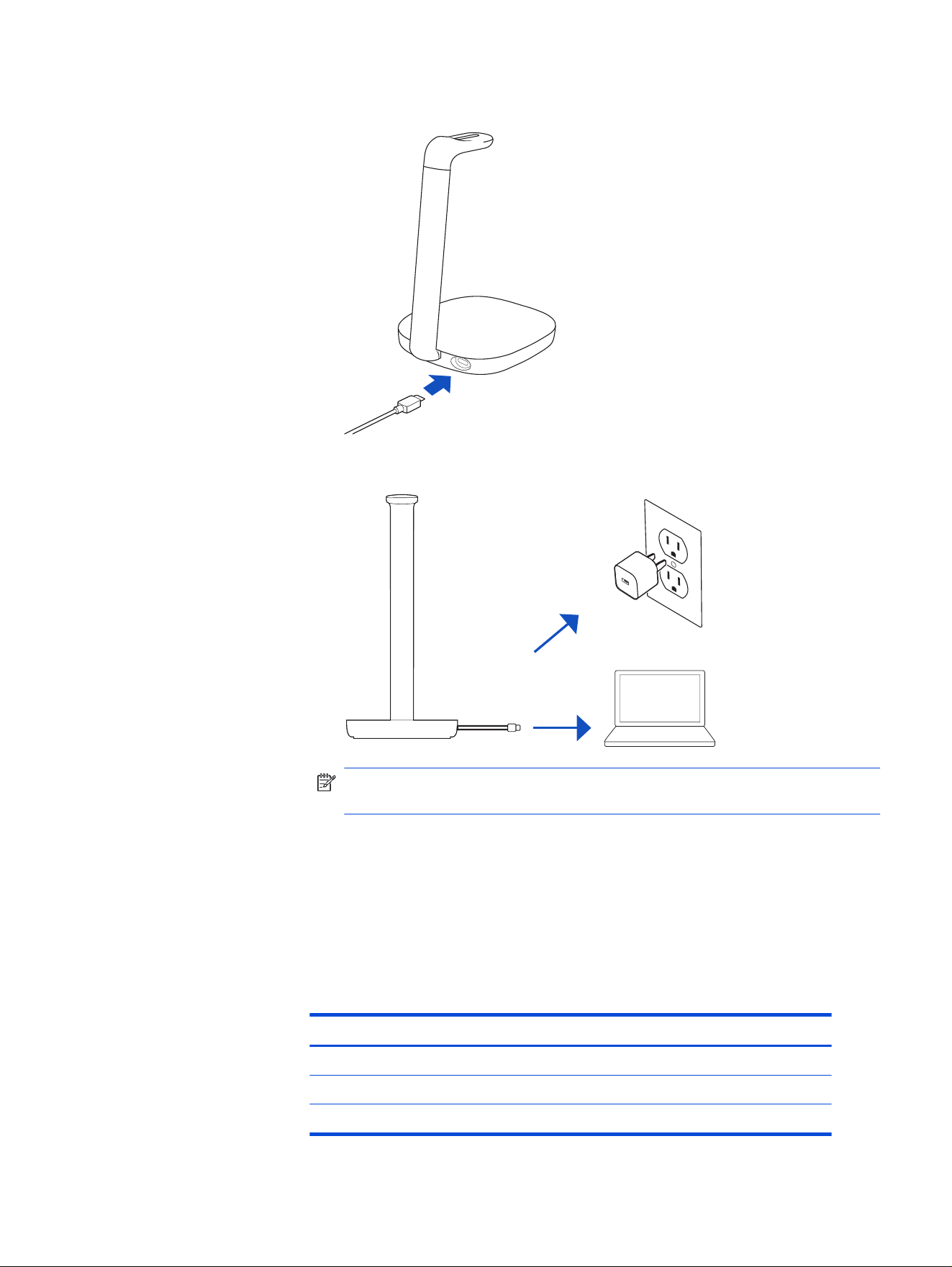
2. Connect the USB-C cable to the back of the base.
3. Connect the other end of the USB-C cable to a power source.
NOTE: The charge stand USB-C cable plugs into a computer or wall charger’s
USB-C port.
The charge stand LED on the charge arm displays solid white when the charge
stand is assembled correctly and ready to charge.
Charge stand LEDs
Your charge stand has an LED at the top of the charge arm that displays power and
charge status.
Table 2-1
Charge stand LED
LED color Status
Solid Power on
Flashing Headset charging
Off Charge complete
Charge stand LEDs 5

Locate the serial number on your HP Poly Focus charge
stand
Find the serial number on the bottom of the charge stand.
■
On the bottom of the charge stand, nd the serial number SN: XXXXXX (typically
6 digits).
TIP: Take a photo with your smartphone for a better view of the serial number.
6 Chapter 2 Poly Focus wireless charge stand overview
Poly Focus multi-device charge stand
overview
3
Use your charge stand to charge your headset and compatible Qi charging devices.
Assemble charge stand
Attach the charge arm to the base and connect the USB-C cable to begin charging.
1. Firmly push the charge arm to the back of the base. You will hear a click when
the arm is in place.
Poly Focus multi-device charge stand overview
7
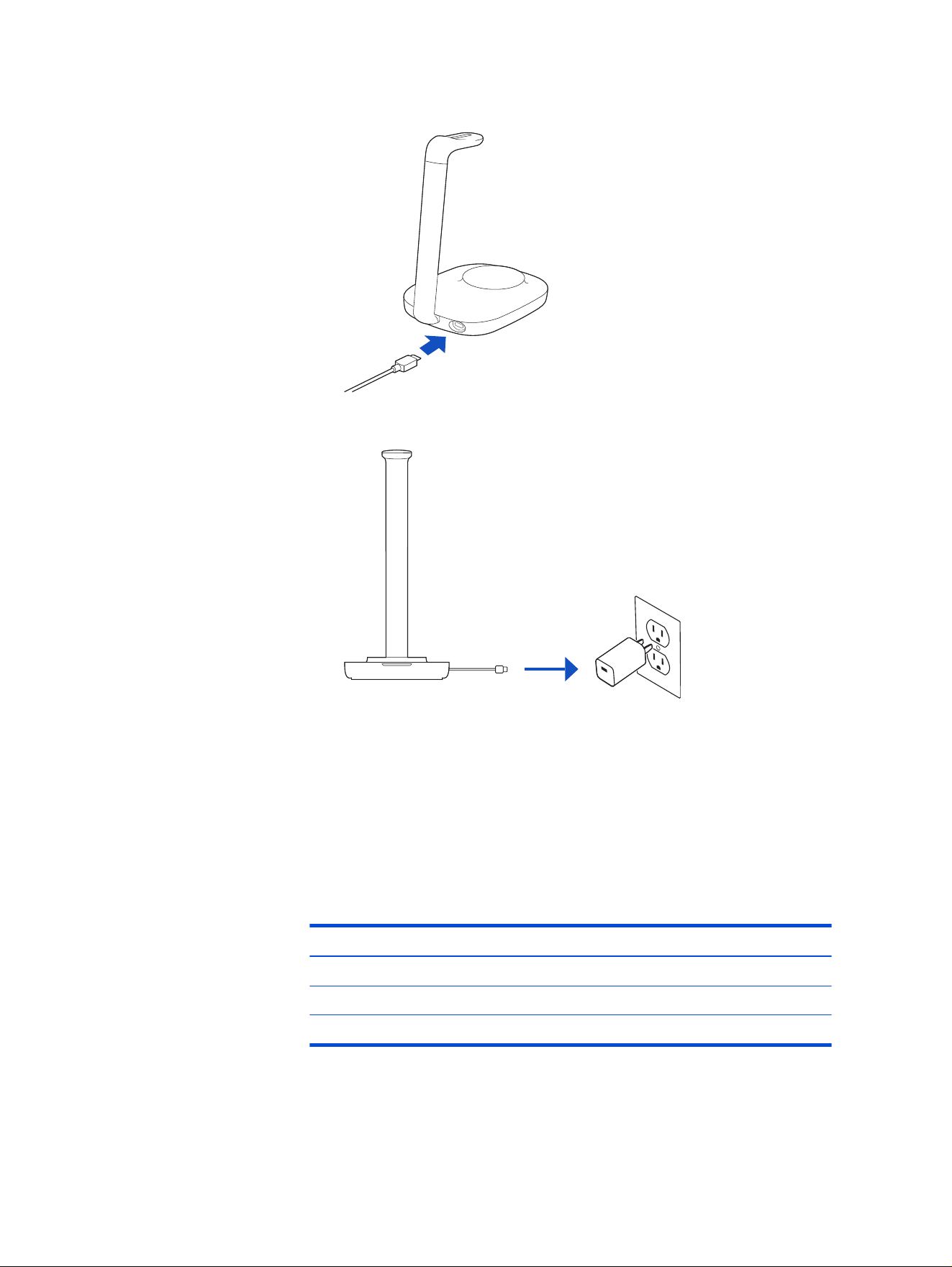
2. Connect the USB-C cable to the back of the base.
3. Connect the other end of the USB-C cable to a power source.
The charge stand LED on the charge arm displays solid white when the charge
stand is assembled correctly and ready to charge.
Charge stand LEDs
Your charge stand has 2 status LEDs. The LED at the top of the charge arm displays
power and headset charge status. The LED on the charge base displays the status
of the Qi charge pad.
Table 3-1
Charge stand LED
LED color Status
Solid Power on
Flashing Headset charging
Off Charge complete
8 Chapter 3 Poly Focus multi-device charge stand overview

Table 3-2 Qi charge LED
LED color Status
Solid white Accessory charging
Flashing red Insufcient power to charge accessory on Qi
charge pad
Locate the serial number on your HP Poly Focus charge
stand
Find the serial number on the bottom of the charge stand.
■
On the bottom of the charge stand, nd the serial number SN: XXXXXX (typically
6 digits).
TIP: Take a photo with your smartphone for a better view of the serial number.
Locate the serial number on your HP Poly Focus charge stand
9

Load software4
Download HP Poly Studio to get the most out of your device. Some softphones
require the installation of HP software to enable device call control (answer or end a
call and mute) functionality.
NOTE: Administrative privileges may be required to download the desktop
application. If you don't have administrator privileges on your system, contact your
system administrator.
● Download the HP Poly Studio Desktop app at hp.com/studio.
● Download the HP Poly Studio Mobile app at hp.com/studio, the App Store, or
Google Play.
Table 4-1 Supported features
Feature HP Poly Studio Mobile app HP Poly Studio Desktop app
Congure call control for
softphones
Available for some
softphones
✓
Change headset language ✓ ✓
Enable features ✓ ✓
Choose preferred Equalizer
setting
✓ ✓
Battery meter ✓ ✓
Update device rmware ✓ ✓
Manage notications and
alerts
✓ ✓
Schedule wellbeing
reminders
✓
View user guide ✓ ✓
FindMyHeadset ✓
Update your Poly device
Keep your rmware and software up to date to improve performance and add new
features to your Poly device.
Update your device using HP Poly Studio. Download the app at hp.com/studio.
10
Chapter 4 Load software

Update your Poly headset and charge stand
Keep your rmware and software up to date for optimal performance and to add
new features to your Poly device.
1. With your headset turned on, dock it on the charge stand.
2. Download the HP Poly Studio App from hp.com/studio.
3. Open the app, and then select your Poly headset from the device list to check
for available updates.
4. Click the Update button to install the latest rmware for your headset.
5. If a rmware update is available, the charge stand updates automatically.
NOTE: Your headset sends rmware updates to your charge stand via
Bluetooth.
Update your Poly headset and charge stand
11
Fit5
Wear your headset correctly for the best call and sound quality.
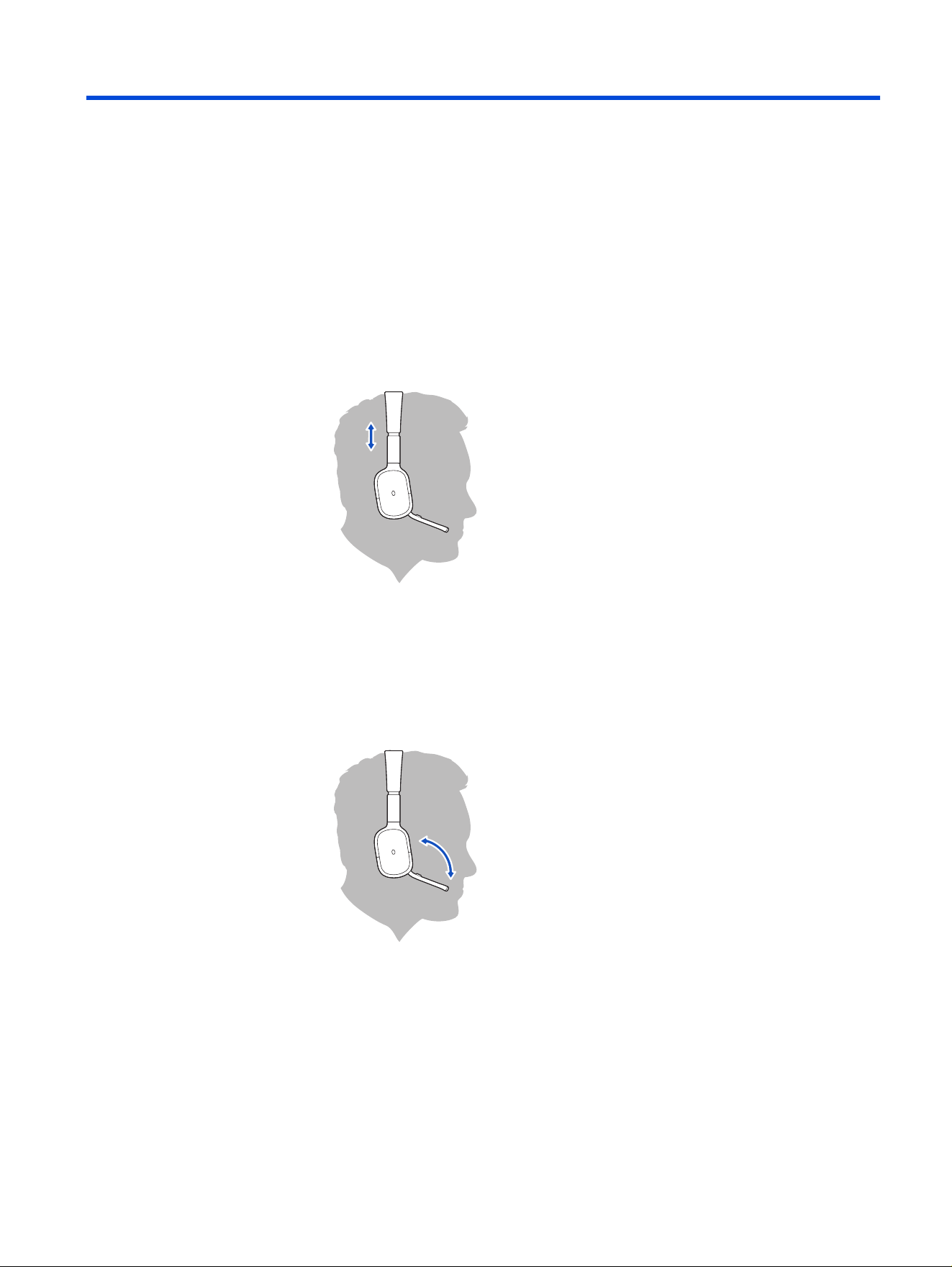
Adjust the headband
Adjust your headband for comfort.
■
Lengthen or shorten the band until it ts comfortably. The cushions should sit
comfortably over the center of your ears.
Position the boom
Position the microphone boom for optimum outgoing audio on a call.
■
Pull down the microphone boom from the right ear cup and align with your
mouth.
Move the microphone boom back to the ear cup when not on a call.
12
Chapter 5 Fit
Change ear cushion size
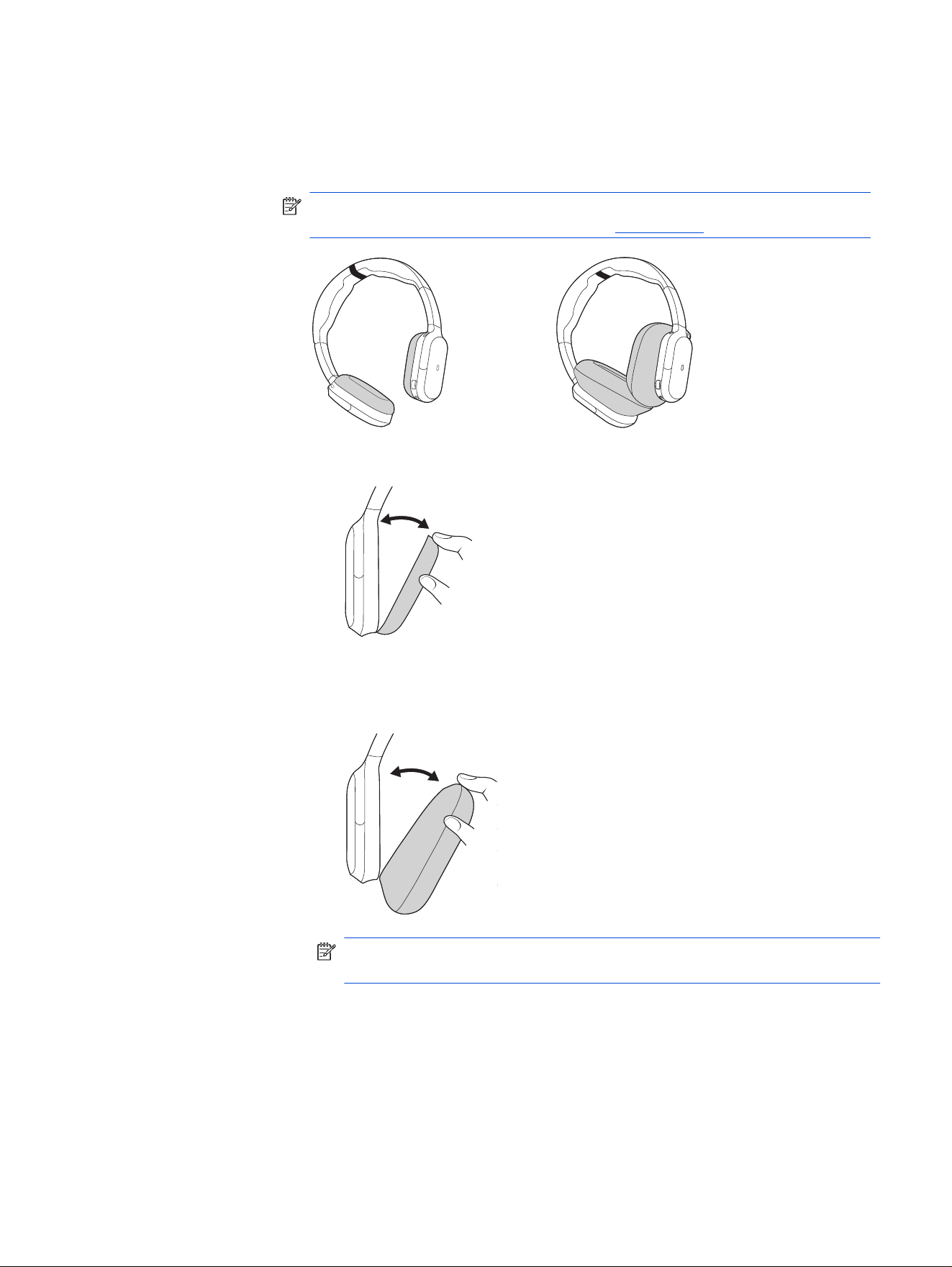
Your headset is compatible with 2 sets of ear cushions that easily attach to the
headset with magnets.
NOTE: Your headset includes one set of ear cushions. On-ear and over-the-ear
cushion sets are available as accessories at hp.com/shop.
1. Pull off each ear cushion from the opening at the top of the ear cup.
2. Attach each new ear cushion by aligning with the correct side. The left ear
cushion aligns with the left ear cup and the right ear cushion aligns with the
right ear cup.
NOTE: The headset magnets ensure that the ear cushions connect to the
correct sides and in the correct orientation.
Change ear cushion size
13
Charge6
Your headset has up to 30 hours of talk time with ANC and online indicator on. It has
up to 50 hours of listening time with ANC and online indicator off.
Charge headset
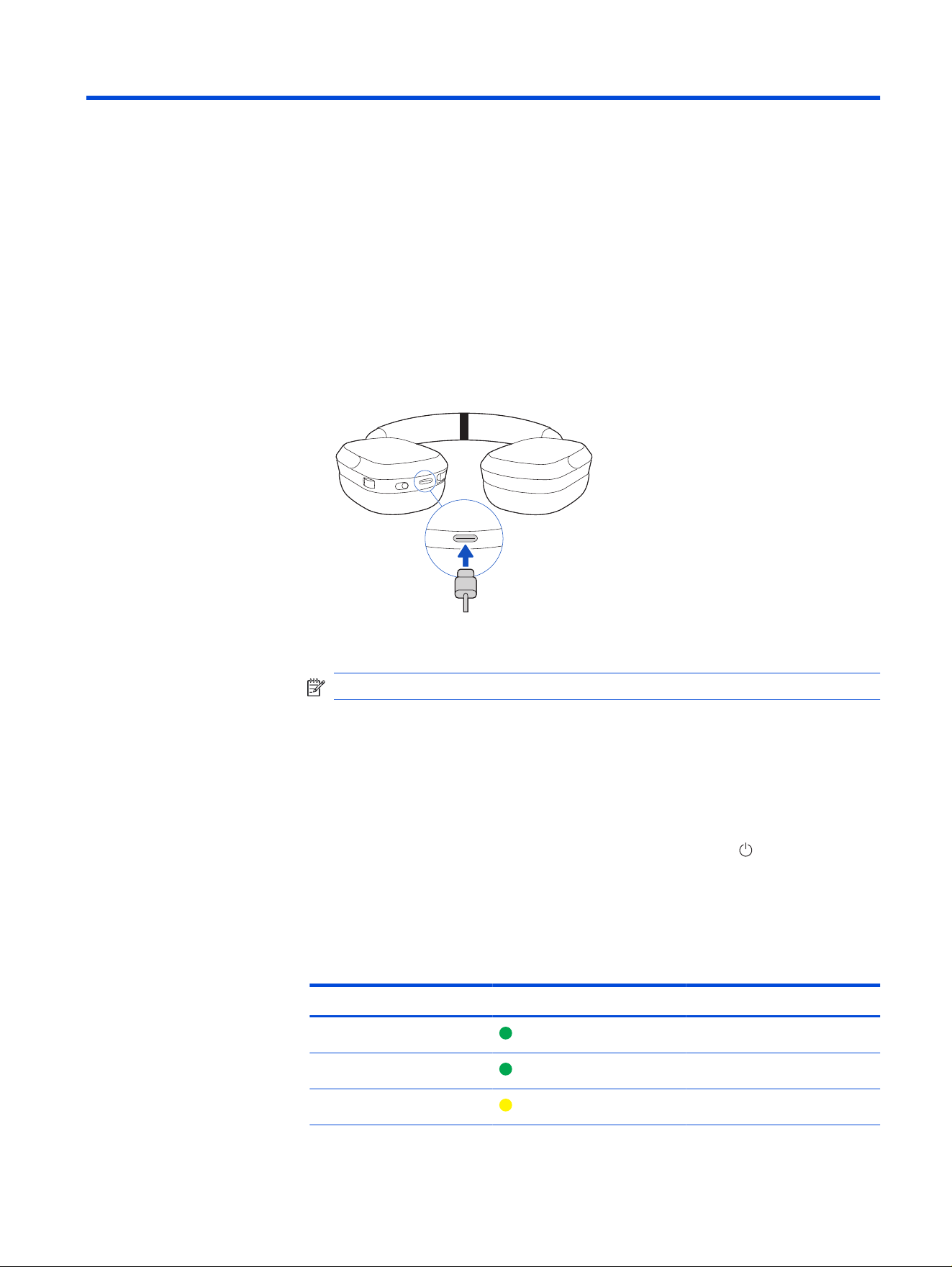
Charge your headset using the USB-C cable.
■
Insert the USB-C cable into the headset charge port and connect the other end
to power.
It takes approximately 1 hour to fully charge your headset. The headset LEDs
ash when charging and turn off once charging is complete.
NOTE: The USB-C cable plugs into a computer or wall charger's USB port.
Check headset battery status
Check your headset battery status.
■
Do one of the following:
● With your headset inactive, slide and release the Power switch away from
the off position. Listen to the voice alert or observe the headset LEDs.
● Power on your headset and listen to the voice alert.
● View headset battery level in HP Poly Studio.
Table 6-1
Battery status
Voice alert Headset LEDs Talk time
"Battery high" 12 hours or more
"Battery medium" 2 to 12 hours
"Battery low" 30 minutes to 2 hours
14 Chapter 6 Charge
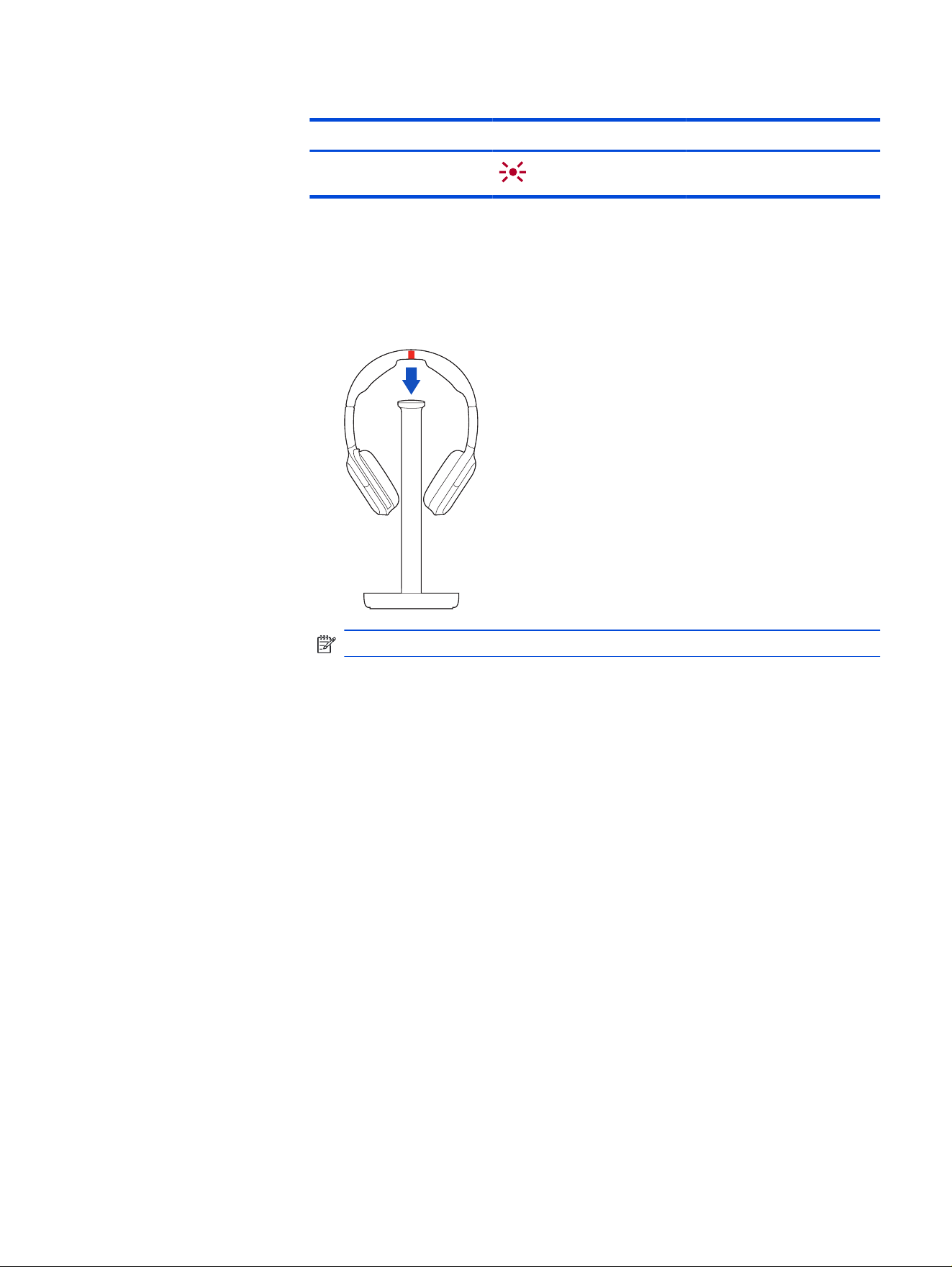
Table 6-1 Battery status (continued)
Voice alert Headset LEDs Talk time
"Battery critical" Less than 30 minutes
Charge your headset with the wireless charge stand
Charge your headset using the accessory charge stand (sold separately).
1. With your headset turned on, place it on the charge stand.
NOTE: The charge stand plugs into a computer or wall charger’s USB-C port.
2. Charge stand LED pulses when charging and turns off when the headset is
fully charged. Headset LEDs ash when charging and turn off once charging is
complete. It takes approximately 3 hours to fully charge your headset.
Charge your compatible accessories with the multi-device
charge stand
The base of your charge stand has Qi charging technology to charge your mobile
phone or other compatible products.
Charge your headset with the wireless charge stand
15
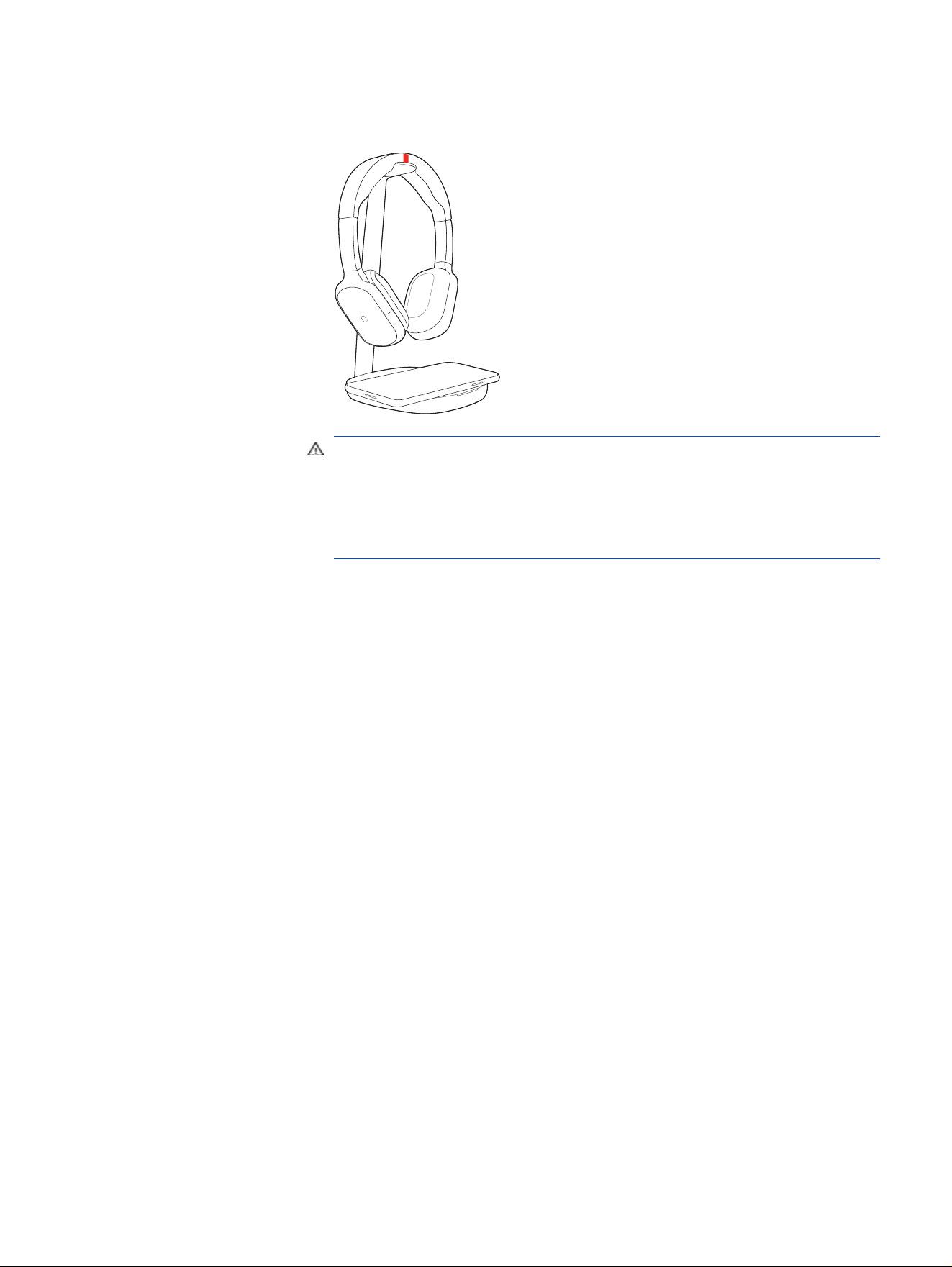
■
Place your mobile phone on the charging pad of the charge stand base. Your
mobile phone can be charged at the same time as your headset or alone.
WARNING! Place only Qi-certied devices on the Qi2 charge pad to ensure
the proper function of your charge stand. The charge stand is intended only for
use with Qi-certied devices and the Qi2 Foreign Object Detection (FOD) might
not work properly with power receivers that are
non-certied. Use of the charge
stand with non-certied products can lead to overheating, device damage, or
re hazards.
The base LED turns on solid when charging.
16
Chapter 6 Charge
Connect and pair7
Connect and pair your headset to your PC and mobile devices.
Pair to mobile device
Pair your headset to your mobile device.
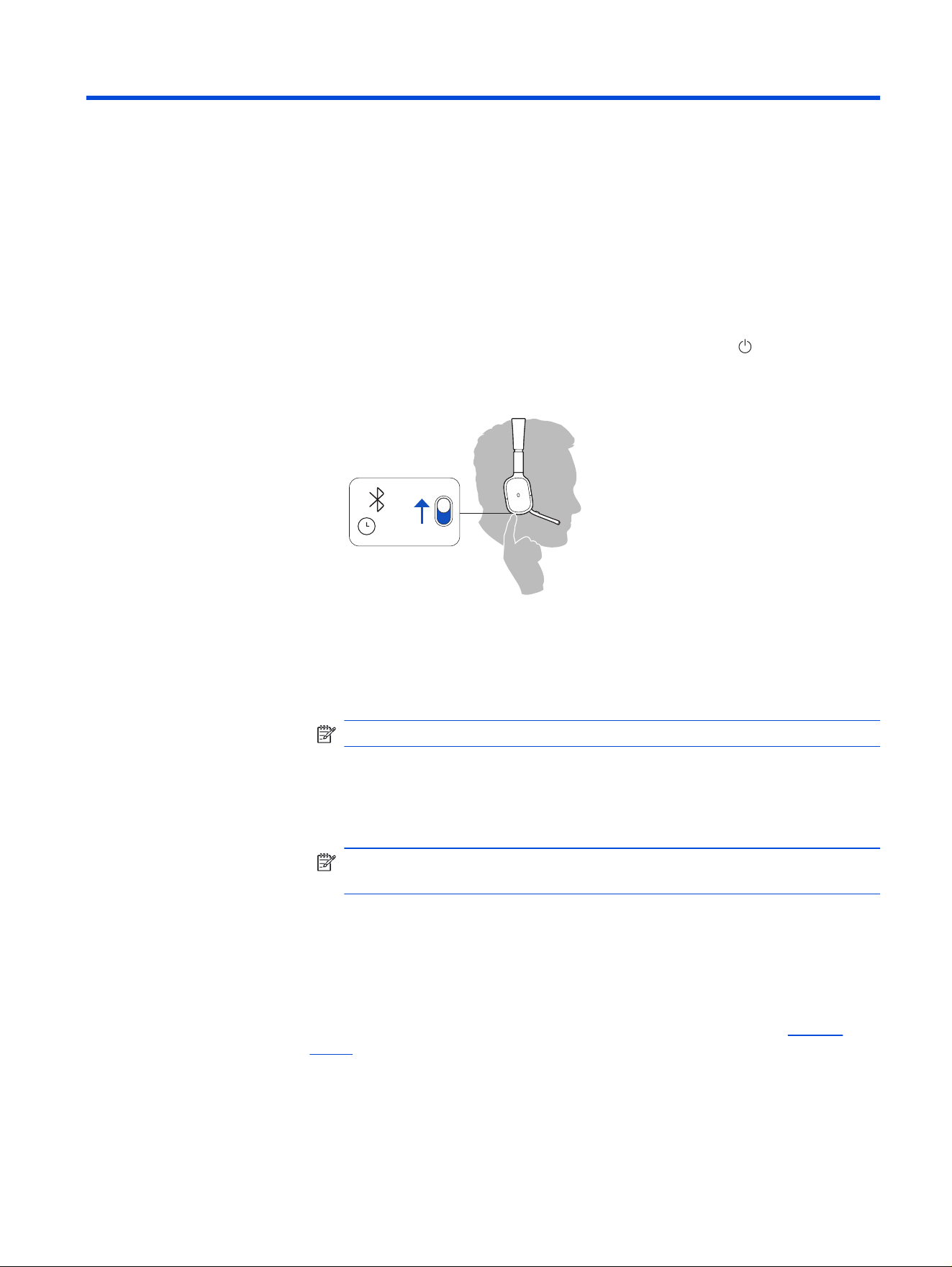
1. To put your headset in pair mode, slide and hold the Power switch away from
the off position until you hear "pairing" and the headset LEDs ash blue and
white.
:02
2. Activate Bluetooth on your phone and set it to search for new devices.
● iPhone Settings > Bluetooth > On*
● Android Settings > Bluetooth On > Scan for devices*
NOTE: *Menus may vary by device.
3. Select “HP Poly Focus 620/625, HP Poly Focus 620/625F.”
Once successfully paired, you hear “pairing successful” and the headset LEDs
stop ashing.
NOTE: Your headset can pair with up to 10 devices but only maintain 2
connections simultaneously; this includes the Bluetooth adapter.
Pair to PC with Bluetooth direct
Quickly pair to your PC with Bluetooth direct PC pairing and HP Poly Studio Desktop.
HP Poly Studio Desktop improves softphone call control and call quality.
This feature requires HP Poly Studio Desktop 2.0. Download the app at hp.com/
studio.
Make sure that Swift Pair is enabled in the Bluetooth settings of your PC to use
this pairing method. Go to Settings > Bluetooth & other devices and select Show
notications to connect using Swift Pair.
Connect and pair
17
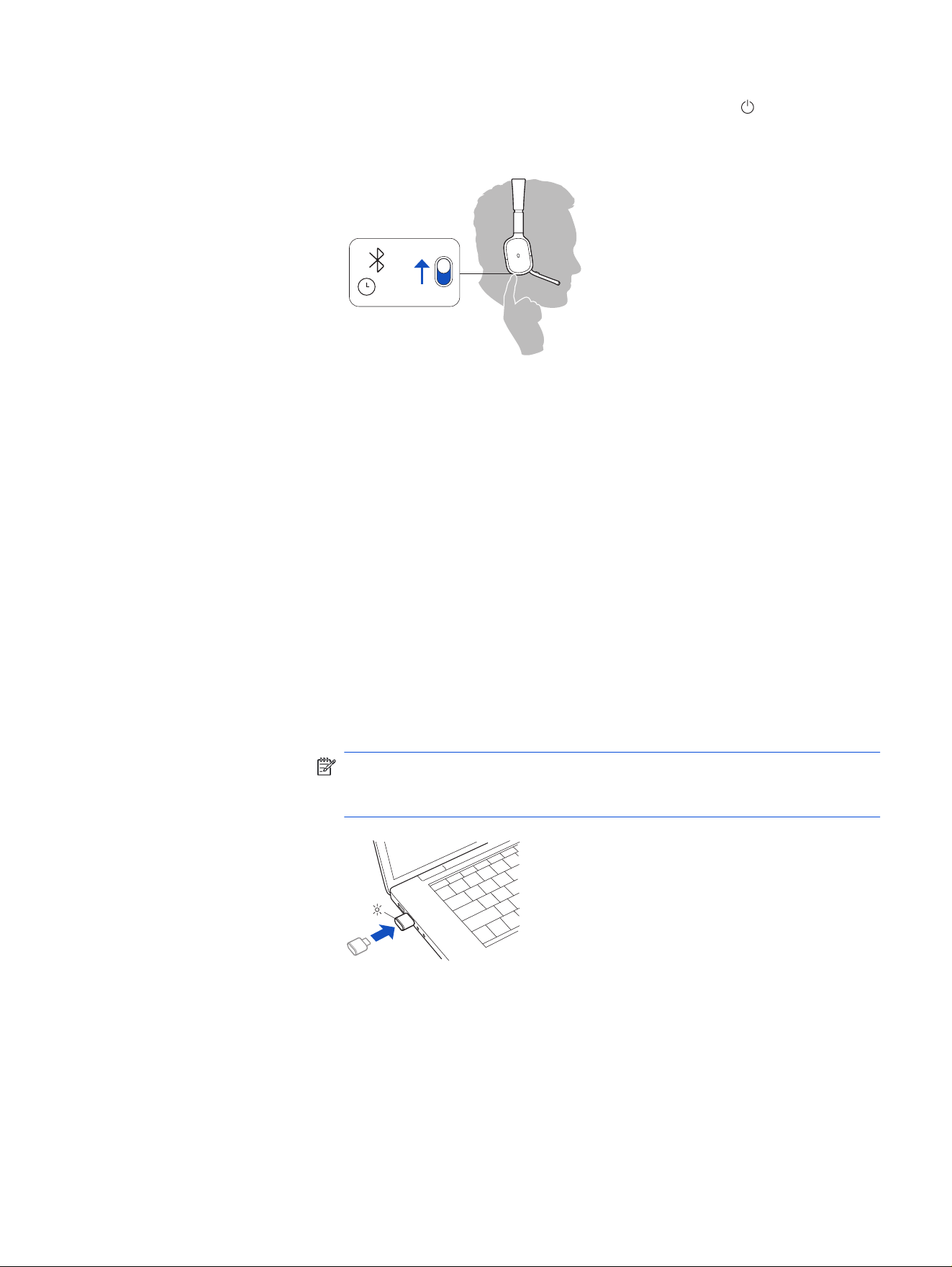
1. To put your headset in pair mode, slide and hold the Power switch away from
the off position until you hear “Pairing” and the headset LEDs ash blue and
white.
:02
2. Select Connect on the PC notication.
When your headset is successfully paired, you hear “Pairing successful” and
“PC connected.” You receive a PC notication that the device is paired and
ready to use.
Use BT700 USB adapter
Typically, your USB Bluetooth adapter is pre-paired to your Poly audio device.
Connect to PC
Your Bluetooth USB adapter provides the best connection, softphone functionality,
and acoustic sound quality through your headset. The adapter comes pre-paired to
your headset.
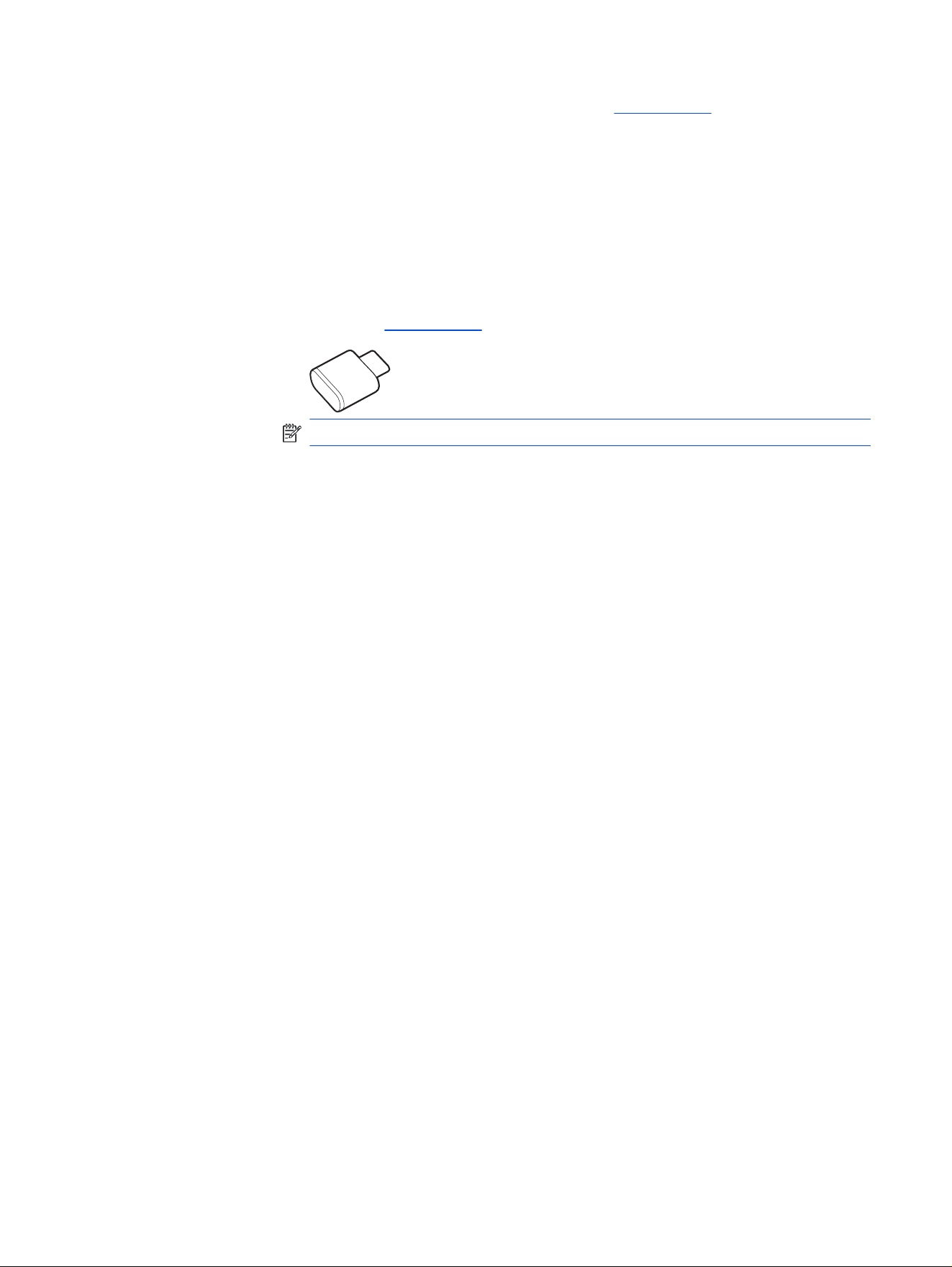
1. Turn on your headset and insert the Bluetooth USB adapter into your laptop or
PC.
NOTE: To connect to a USB Type-A port on your PC, attach the provided USB
Type-C–to–USB Type-A adapter to your Bluetooth adapter before plugging it
into the port.
The USB adapter LED ashes and then turns solid to indicate the headset is
connected to the USB adapter. If you are wearing your headset, you hear “PC
connected” to indicate the connection is established.
When on a call, the LED on the USB adapter ashes blue. When not on a call the
LED is solid.
18
Chapter 7 Connect and pair
2. Load HP Poly Studio Desktop by visiting hp.com/studio.
This app enables you to customize your headset behavior through advanced
settings and options.
Pair BT700 USB adapter again
Typically, your USB Bluetooth adapter is pre-paired to your Poly audio device. If your
adapter is disconnected or bought separately, pair the adapter again to your Poly
device.
Your USB adapter requires HP Poly Studio Desktop to pair to a Poly audio device.
Download: hp.com/studio.
NOTE: Adapter design varies by USB connection.
1. Insert the high-delity Bluetooth USB adapter into your laptop or computer and
wait for your computer to recognize it.
2. Put your Poly audio device in pair mode.
3. Launch HP Poly Studio Desktop and select Poly BT700.
4. Put your Bluetooth USB adapter into pair mode by selecting Pair new device
on the adapter's main page or overow menu.
Your adapter ashes red and blue. Pairing is successful when you hear "pairing
successful" and "PC connected" and the Bluetooth USB adapter LED is solid.
Congure
USB adapter for streaming media
Your high-delity Bluetooth USB adapter comes ready to take calls. To stream
media, congure your Bluetooth USB adapter.
Windows
1. To congure your Bluetooth USB adapter for streaming media in your PC, go to
Start menu > Control Panel > Sound > Playback tab. Select Poly BT700 set it
as the Default Device and click OK.
2. To pause music when you place or receive calls, go to Start menu > Control
Panel > Sound > Communications tab and select the desired parameter.
Mac
■
To congure your Bluetooth USB adapter for streaming media on your Mac, go to
System Preferences > Sound. On both the Input and Output tabs, select Poly
BT700.
Pair BT700 USB adapter again
19
Basics8
Control features using the headset buttons.
Power on
Power on your headset.
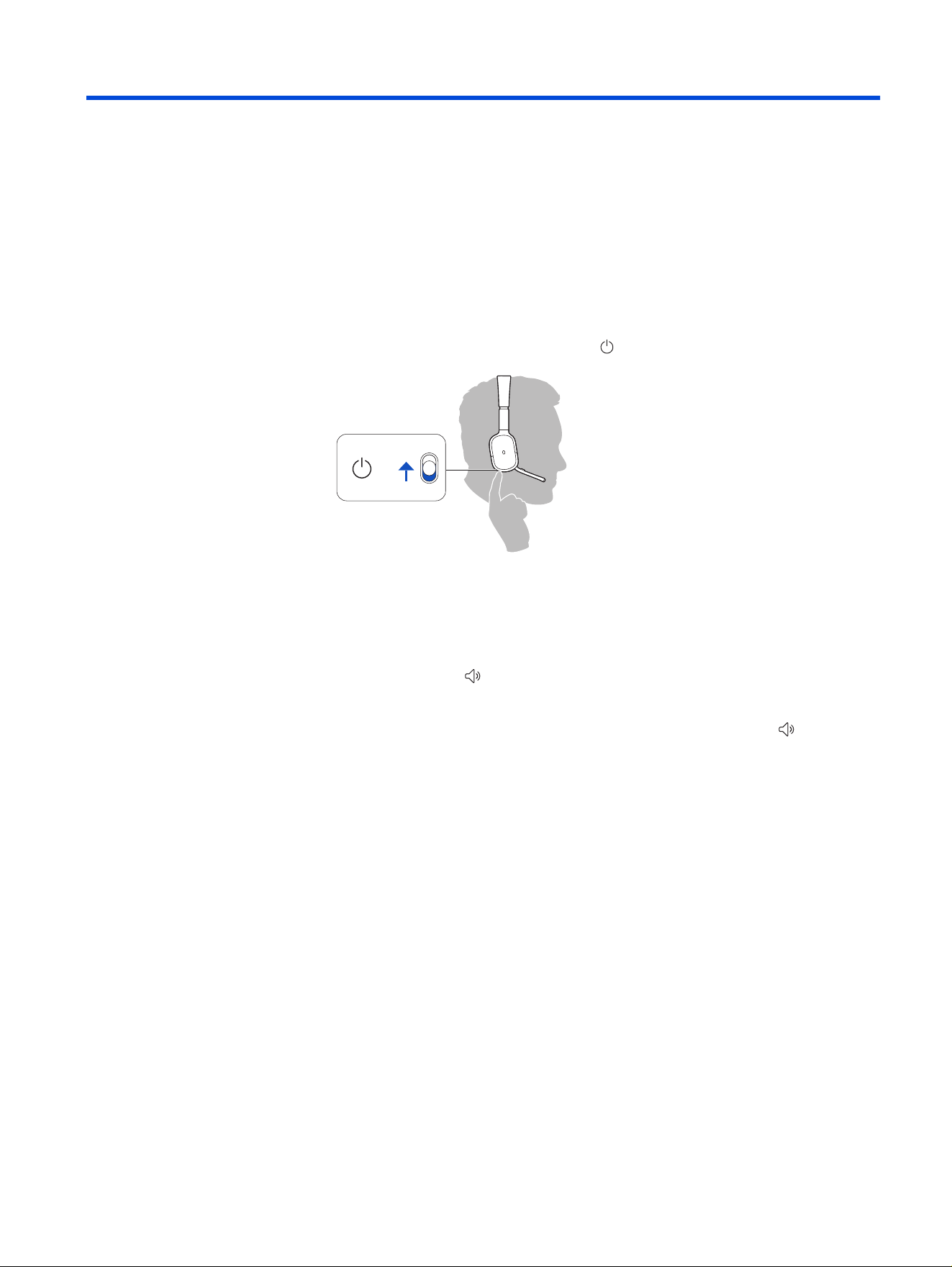
■
To turn on the headset, slide the Power button to reveal green.
Adjust the volume
Increase or decrease the volume of your headset audio.
■
Toggle the Volume wheel up to increase volume or down to decrease volume
during a call or while streaming audio.
While not on a call or streaming audio, you can toggle the Volume wheel to
adjust the volume level for Caller Announce and other voice prompts.
Adjust headset microphone volume (softphone)
Adjust your headset volume for softphone calls.
■
Place a test softphone call and adjust softphone volume and PC sound volume
accordingly.
ANC and Transparency mode
Active Noise Canceling (ANC) reduces external noise and enhances your music
and sound quality. Transparency Mode allows you to hear your surroundings while
wearing your headset.
20
Chapter 8 Basics
■
With your headset idle, press your headset's Volume wheel to switch between
ANC Mode and Transparency Mode.
Congure settings in HP Poly Studio: Go to Settings > ANC.
NOTE: Your headset must be idle or streaming media to switch between
modes. Modes can’t be switched during a call.
Control streaming audio
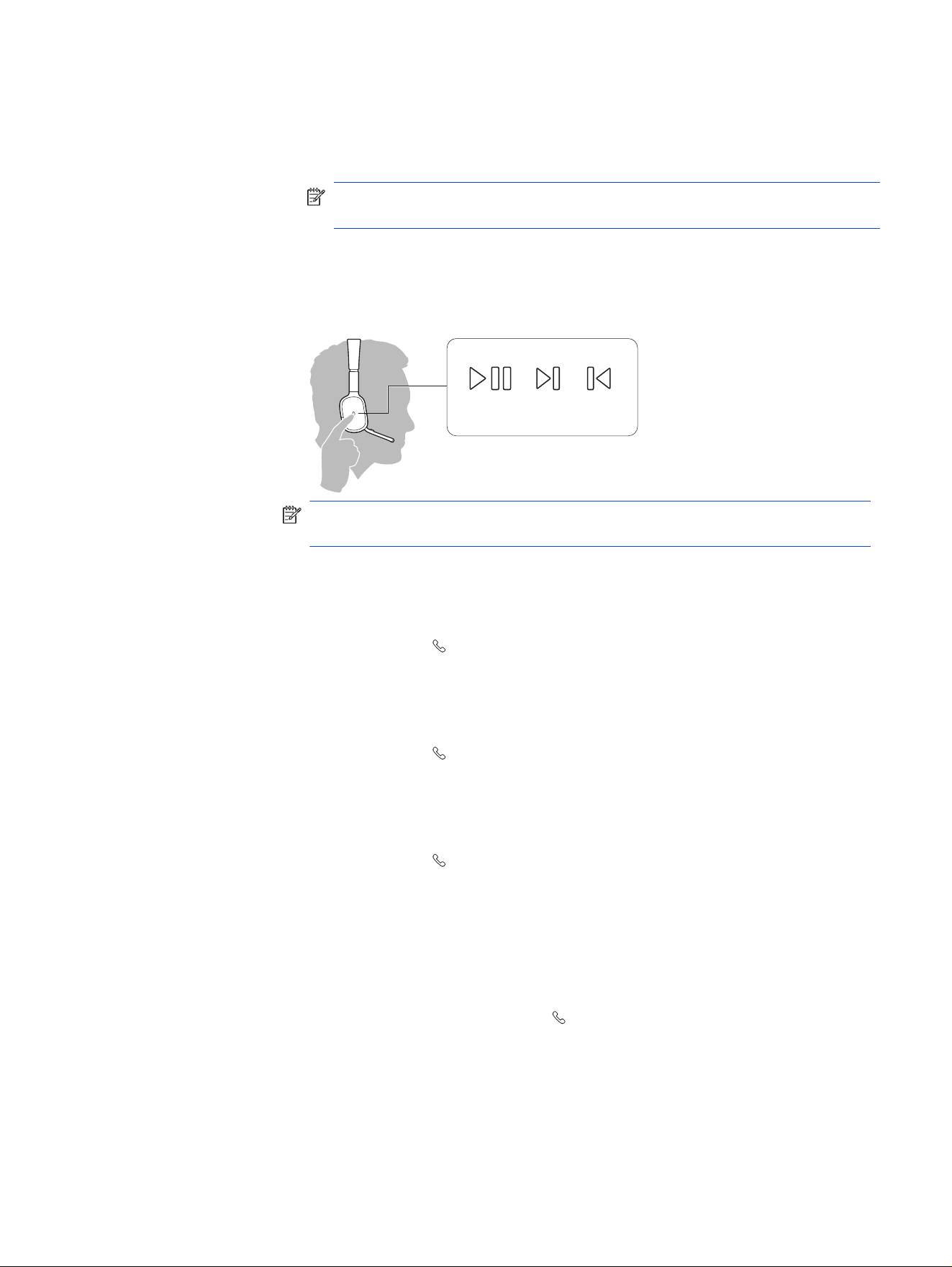
Control streaming audio with your headset Call button.
x1 x2 x3
/ /
NOTE: Functionality varies by application. The feature may not function with
web-based apps.
Play or pause audio
Play or pause audio with your headset.
■
Press the Call button to pause or resume streaming audio.
Track forward
Play the next track while streaming audio.
■
Press the Call button two times to play the next track.
Track backward
Play the previous track while streaming audio.
■
Press the Call button three times to play the previous track.
Voice assistant (smartphone feature)
Use your headset to communicate with your smartphone voice assistant.
This feature works with Siri and Google Assistant.
1. Press and hold the Call button for 2 seconds to activate your phone's default
voice assistant.
2. Wait for the phone prompt to activate voice dialing, search, and other
smartphone voice controls.
Control streaming audio
21

Using sensors
Smart sensors respond when you put on or take off your headset. Depending on
your model, you can customize the sensors in HP Poly Studio.
Sensor behavior
The following table describes the default sensor settings.
Table 8-1 Headset active sensor behavior
Action Putting on the headset Taking off the headset
Mobile/softphone call Answers the call Keeps call in headset
Music/media Resumes music/media (if playing
previous to taking off)*
Pauses music/media (if
playing)*
Mute (activate in HP Poly Studio) Unmutes (if on an active call) Do nothing
NOTE: *Functionality varies by application. May not function with web-based
apps.
Disable sensors
Disable your headset smart sensors in
HP Poly Studio or by using a button press
while your headset is idle.
■
Simultaneously press and hold the Call and Mute buttons for 5 seconds.
You hear "smart sensors off” when the sensors are disabled.
22
Chapter 8 Basics

Manage calls9
Manage calls with your headset.
Answer a call
Choose a method to answer a call.
■
Choose one of the following:
● Put the headset on to answer a call.
● Say “answer” after call is announced.
● Press the Call button.
● Lower microphone boom.
End a call
End calls with your headset.
■
Press the Call button.
Reject a call
Reject incoming calls with your headset.
■
Press the Call button for 2 seconds until you hear a tone.
Make a call
Use your softphone to make an outgoing call.
■
Dial using your softphone app.
Mute
Mute your microphone during calls.
■
During an active call:
● Press the Mute button to mute or unmute your headset.
● Rotate your microphone boom into the up position.
Hold a call
Use your headset to place an active call on hold.
Manage calls
23

1. Press and hold the Mute button for 2 seconds to hold the call.
The LEDs ash red.
2. To resume call, hold the Mute button again for 2 seconds.
The LEDs return to pulsing red.
Answer a second call
Answer a second incoming call while on an active call.
1. Press and hold the Mute button for 2 seconds to hold the current call.
2. Press the Call button to answer new call.
Switch between calls
(ash)
Use your headset to switch between two active softphone calls.
■
Press the headset Mute button for 2 seconds.
Active call is put on hold and the second call is routed to the headset.
24
Chapter 9 Manage calls

More Features10
Congure and use additional features.
Congure Teams/Custom button
Congure your Teams/Custom button actions in HP Poly Studio.
Microsoft Teams features are the default actions.
1. Open HP Poly Studio and go to Settings > Custom Button.
2. Select Microsoft Teams to assign Teams actions or other Providers.
■
If other Providers is selected, choose from Hold/Resume Call, Play/
Pause, ANC/Transparency Mode, Voice Assistant, or Do nothing.
NOTE: Other providers is not available when Microsoft Teams is connected.
Microsoft Teams settings
Control all Microsoft Teams features in the table below when Microsoft Teams is
selected as the Custom Button.
Table 10-1
Microsoft Teams features
Teams feature Button press
Launch Teams Press once to view Microsoft Teams app on your
computer.
Raise hand in Teams When in an active Teams call, press the button for
2 seconds to raise your hand.
View Teams message Press once to view the Teams message.
Other provider settings
Choose 1 of the following features to assign when Other Providers is selected as
the Custom Button.
NOTE: Other providers is not available when Microsoft Teams is connected.
Table 10-2
Other provider options
Feature Button press
Hold/resume Call Press once to place a call on hold. Press once to
resume held call.
Play/pause Press once to pause or resume media.
ANC/Transparency Mode Press once to alternate between ANC or
Transparency mode.
More Features 25

Table 10-2 Other provider options (continued)
Feature Button press
Voice assistant Press once to activate Voice assistant.
Do nothing Button presses do nothing.
Mute reminder
Receive mute reminders during calls.
■
If mute reminder is on, an alert plays when you speak to remind you that mute is
activated. Customize your settings in HP Poly Studio Desktop.
Hold reminder
Receive hold alerts when you have a call on hold.
■
If hold reminder is on, an alert repeats to remind you that you have a call on hold.
Customize your settings in HP Poly Studio Desktop.
DeepSleep mode
If you leave your headset powered on but out of range of your paired device, the
headset conserves power by entering DeepSleep mode after 24 hours.
Choose a method to exit DeepSleep mode and wake the headset.
■
Choose one of the following:
● Press the Call button
● Press the Mute button
● Press the Teams/Custom button
● Power off and on
● Put the headset on
Fold and store your headset (620 Fold model only)
Your headset folds to store and transport in the provided case.
1. Fold in the ear cups toward the headband and rotate the ear cups so they lay
at.
26
Chapter 10 More Features
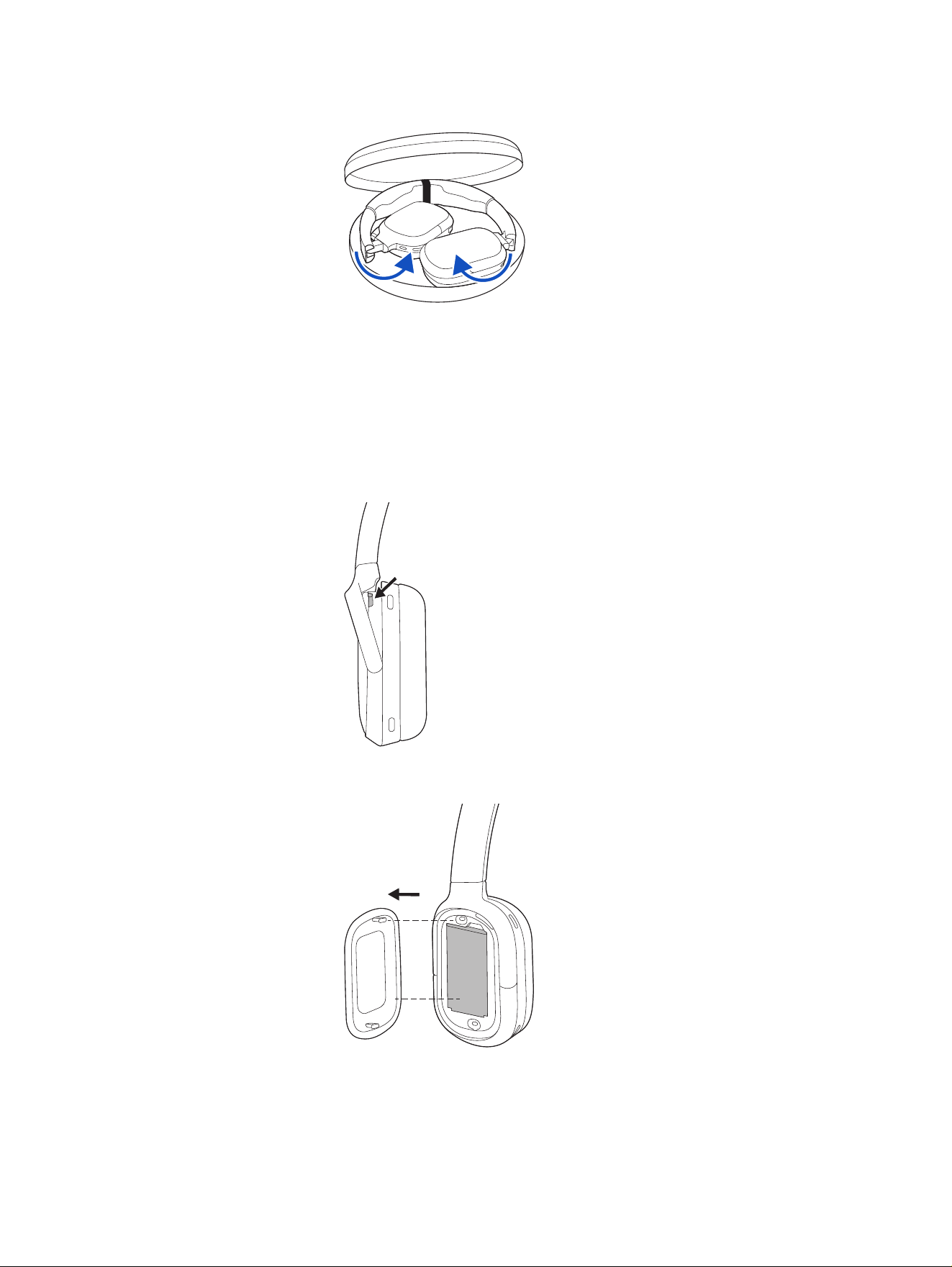
2. Place in case.
Replace headset battery
Replace your headset battery when necessary.
The headset battery is located in the left ear cup.
1. Pull the headband away from the left ear cup and locate the recessed area at
the top of the ear cup.
2. Place your ngernail in the recessed area and pull the cover from the ear cup.
Replace headset battery
27
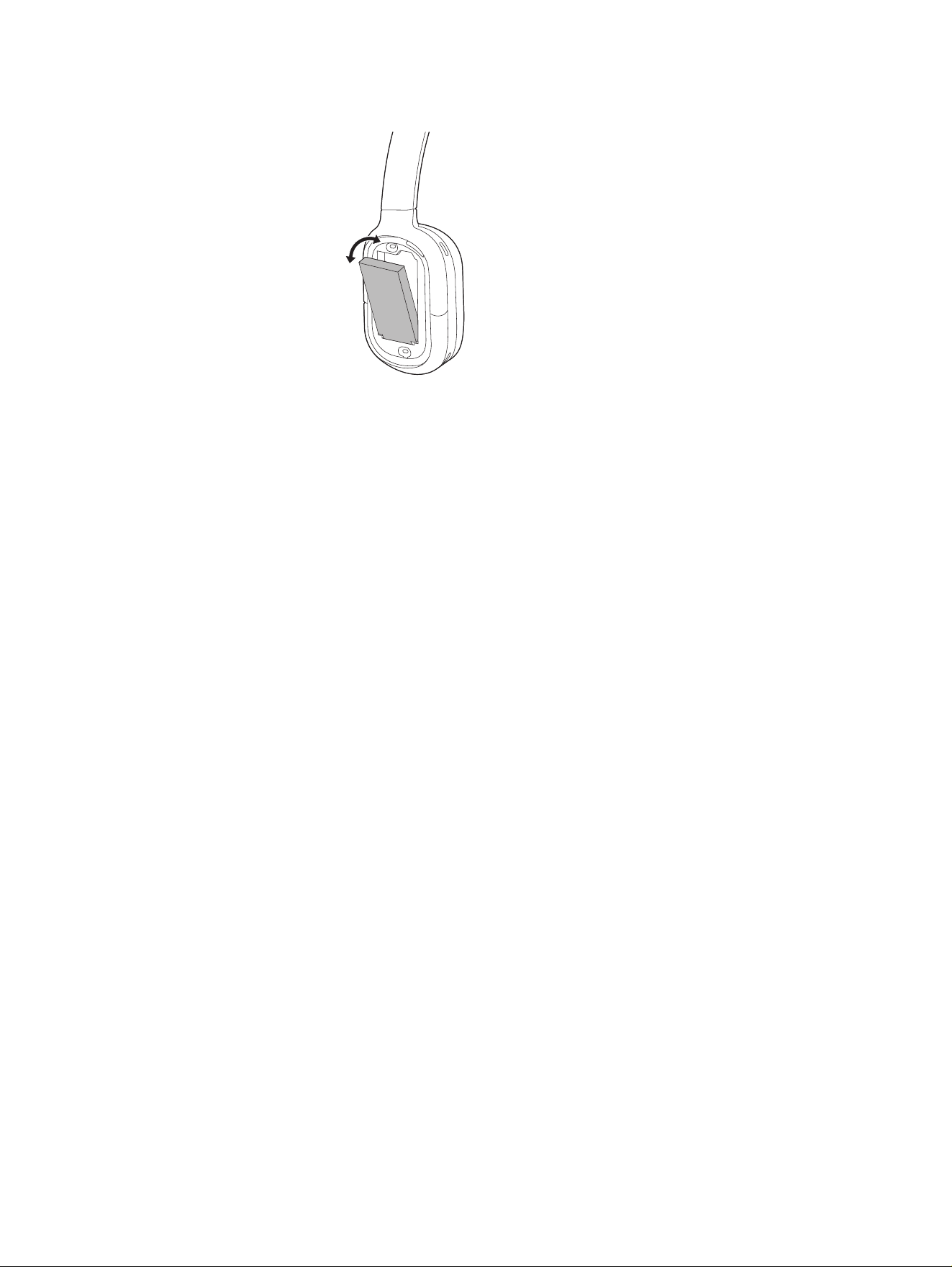
3. Remove existing battery and replace with new battery.
28 Chapter 10 More Features
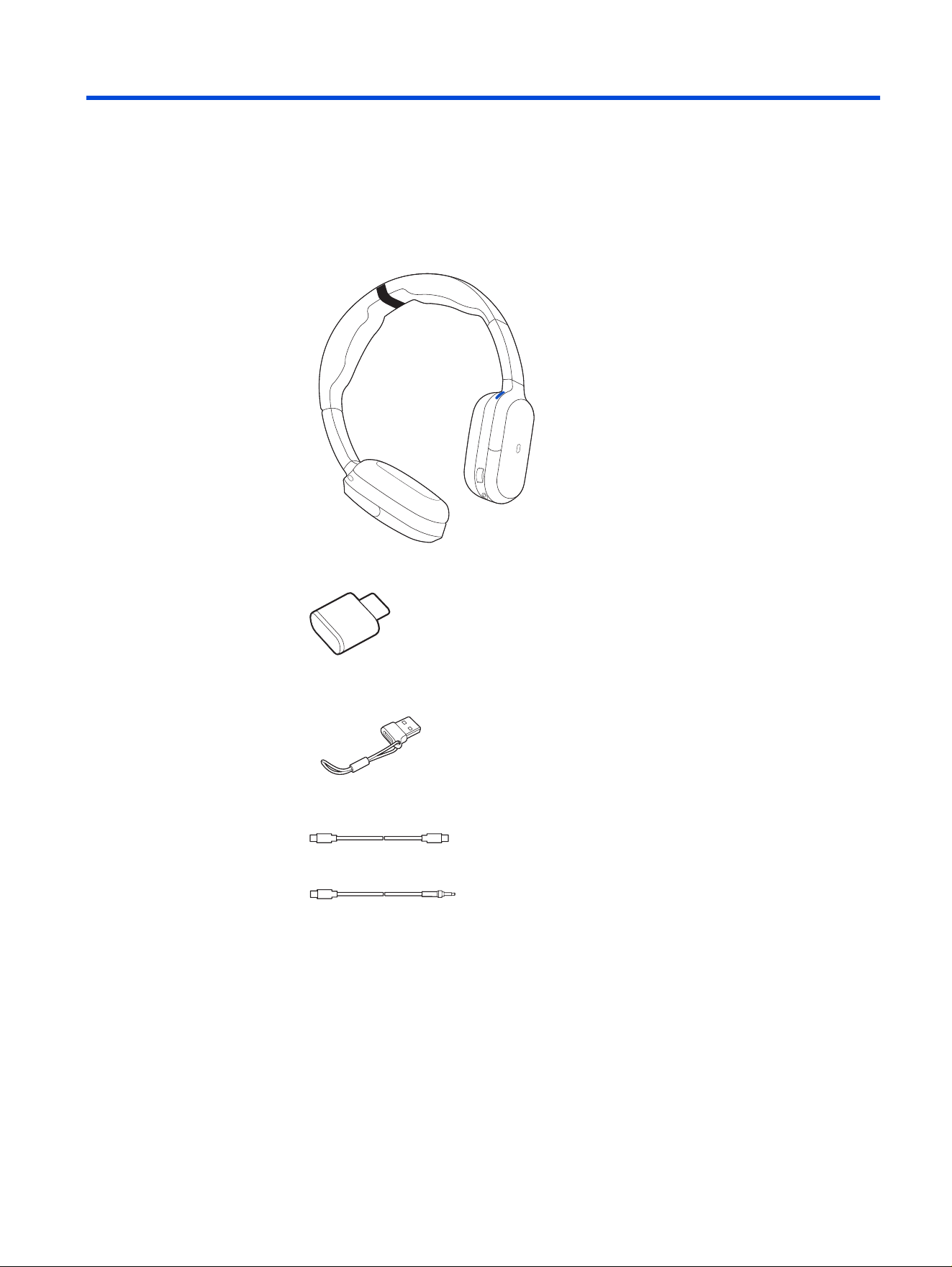
What's in the box11
Contents may vary by product.
Figure 11-1 Bluetooth headset
Figure 11-2 Bluetooth USB-C Adapter
Figure 11-3 USB-C to USB-A adapter
Figure 11-4 USB-C cable
Figure 11-5 USB-C to 3.5 mm cable (Fold model only)
What's in the box
29
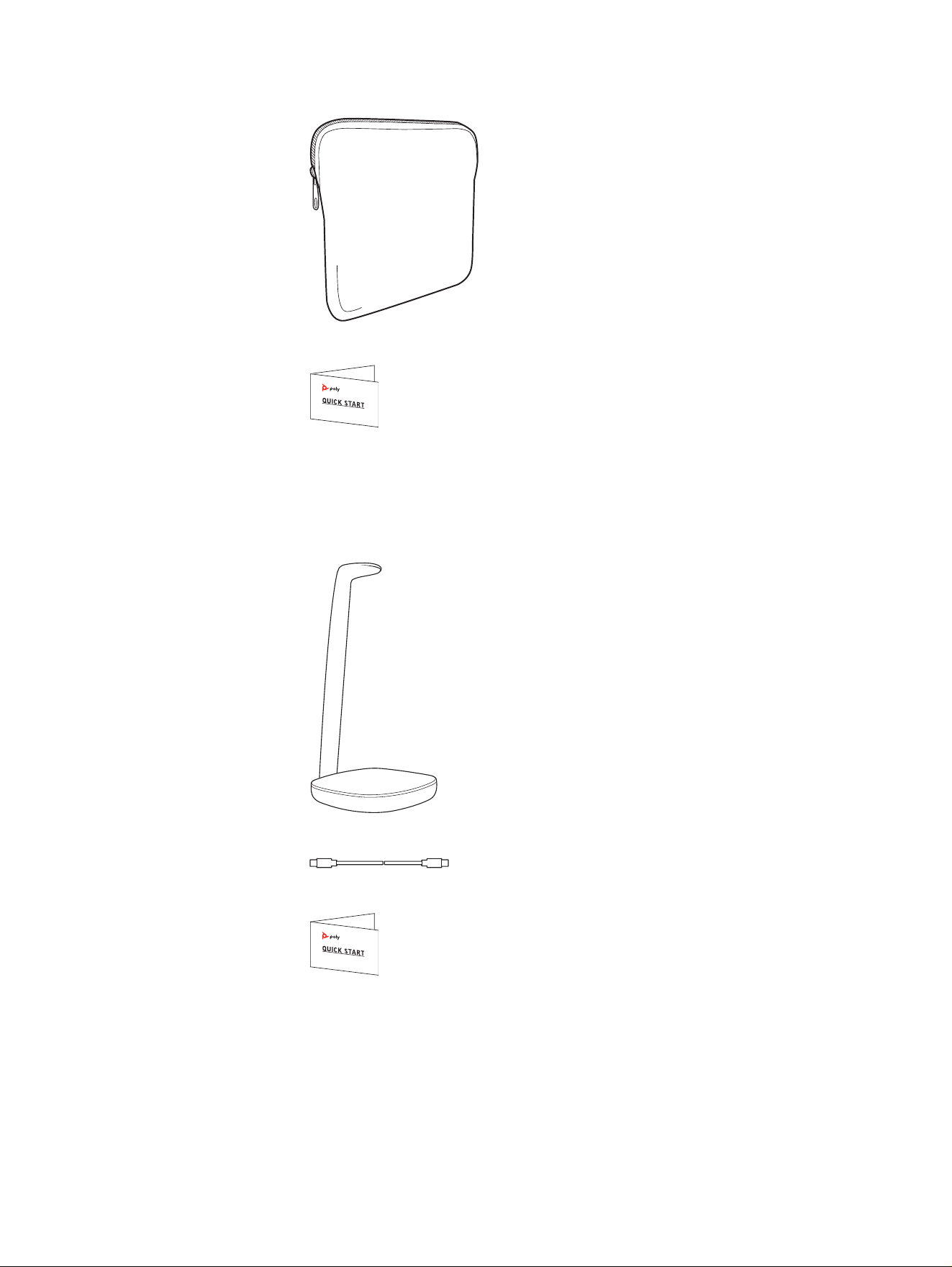
Figure 11-6 Carrying case (design varies by model)
Figure 11-7 Quick start guide
What's in the box for the wireless charge stand
Contents may vary by product. Bundled or sold separately.
Figure 11-8 Charge stand
Figure 11-9 USB-C cable
Figure 11-10 Quick start guide
What's in the box for the multi-device charge stand
Contents may vary by product. Sold separately.
30
Chapter 11 What's in the box
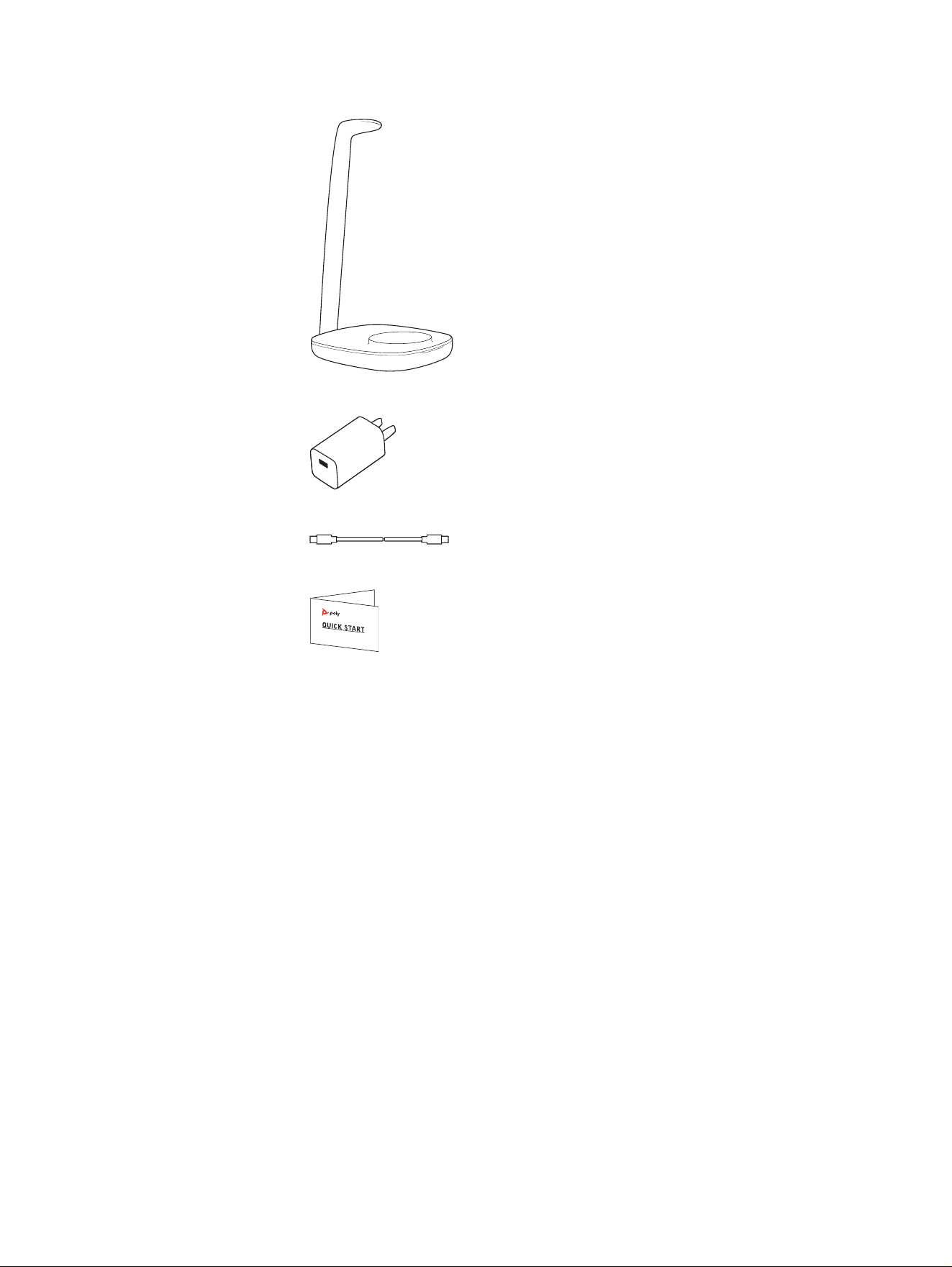
Figure 11-11 Charge stand
Figure 11-12 USB wall adapter
Figure 11-13 USB-C cable
Figure 11-14 Quick start guide
What's in the box for the multi-device charge stand
31

Safety warnings12
Safety Instructions
To reduce the risk of re, electric shock, injury to persons and damage to property,
read all operating instructions and the following safety instructions before using
your HP product. Operating, storage and charging temperature is 10˚C to 40˚C
(50˚F to 104˚F).
● Only use those HP products and accessories designed for use with this
product.
● If you experience a skin irritation after using this product, discontinue use and
contact HP.
● CHILDREN. Never allow children to play with the product-small parts may be a
choking hazard.
● Do not disassemble the product as this may expose you to dangerous voltages
or other risks. Incorrect reassembly can cause electric shock or re when the
product is subsequently used.
● Unplug, discontinue use and contact HP if the product overheats or has a
damaged outer casing, cord or plug.
● Exposure to high volume sound levels or excessive sound pressure may
cause temporary or permanent damage to your hearing. Although there is no
single volume setting that is appropriate for everyone, you should always use
your headset/headphones with the volume set at moderate levels and avoid
prolonged exposure to high volume sound levels. The louder the volume, the
less time is required before your hearing could be affected. You may experience
different sound levels when using your headset/headphones with different
devices. The device you use and its settings affect the level of sound you hear.
If you experience hearing discomfort, you should stop listening to the device
through your headset/headphones and have your hearing checked by your
doctor. To protect your hearing, some hearing experts suggest that you:
1. Set the volume control in a low position before putting your headset/
headphones on your ears and use as low a volume as possible.
2. Avoid turning up the volume to block out noisy surroundings. Whenever
possible, use your headset/headphones in a quiet environment with low
background noise.
3. Limit the amount of time you use headsets/headphones at high volume levels.
4. Turn the volume down if the sound from the headset/headphones prevent you
from hearing people speaking near you.
32
Chapter 12 Safety warnings

● If you use your headset/headphones while driving, check local laws regarding
use of a mobile phone and headset, and ensure your attention and focus remain
on driving safely. Use of a headset/headphones that covers both ears will
impair your ability to hear other sounds and in most regions is illegal to use
while operating a motor vehicle or riding a bicycle and may be a serious hazard
for you and others.
● If this product includes earbuds/eartips, install and use them in accordance
with the instructions provided. Do not force earbuds/eartips down the ear canal.
Consult a doctor if they become lodged in the ear canal.
● Plug the mains adapter or charger into a socket-outlet that is near to the
equipment and will be easily accessible.
Battery Warnings for Wireless Products
● If your product has an embedded, non-replaceable battery, do not attempt
to open the product or remove the battery as this may cause injury and/or
damage the product. If your product has a replaceable battery, use only the
battery type supplied by HP. Remove a spent battery promptly.
● Replace rechargeable batteries after three years or 300 charge cycles,
whichever occurs rst.
● Do not dispose of the product or battery in a re or heat above 40°C (104°F).
● Do not expose the battery to extremely high temperatures. It may result in an
explosion or the leakage of ammable liquid or gas.
● Do not open, deform or mutilate the battery. There may be corrosive materials
which can cause damage to eyes or skin and may be toxic if swallowed.
● Never put batteries in mouth. If swallowed, contact a physician or poison control
center.
● Swallowing may lead to burns, perforation of soft tissue, and death. Severe
burns can occur within 2 hours of ingestion.
● Always store batteries where children cannot reach them.
● Do not allow any battery or its holder to contact metal objects such as keys or
coins.
● RECYCLING: The product battery must be recycled or disposed of properly.
Contact your local recycling center for battery removal and proper disposal.
● Use only the charger supplied by HP to charge the product and follow the
charging instructions provided. Alternatively, if your headset is designed to be
charged with your cell phone charger, use only cell phone chargers approved
and provided by your cell phone manufacturer. Do not use the charger for any
other purpose. Ensure that the voltage rating corresponds to the power supply
you intend to use.
Safety Instructions
33

Embedded magnet warning
Please read the following embedded magnet warning.
WARNING! This device contains embedded magnets. Please be aware that
magnetic elds may interfere with the proper functioning of medical devices such
as pacemakers and implantable cardioverter-debrillators (ICD’s). As a precaution
it is recommended to keep this device at least 15 cm or at least 30 cm (when using
a wireless charger) away from any individuals wearing electronic medical devices.
If interference is suspected, stop using the device immediately and consult your
physician and the medical device manufacturer for further guidance.
34 Chapter 12 Safety warnings

Support13
NEED MORE HELP?
support.hp.com/poly
HP Inc.
1501 Page Mill Road
Palo Alto, CA 94304, U.S.A.
650-857-1501
HP REG 23010, 08028
Barcelona, Spain
HP Inc UK Ltd
Regulatory Enquiries, Earley West
300 Thames Valley Park Drive
Reading, RG6 1PT
United Kingdom
台灣惠普資訊科技股份有限公司
臺北市南港區經貿二路 66 號 10 樓
電話:02-37899900
RMN (Regulatory Model Number): PBF620, PBF620F, PWPTF620, BT700C
Document part number: Q12332-001
Publication date: June 2026
Email us at documentation.feedback@hp.com with queries or suggestions related
to this document.
Support
35