P/N YRD420-KD-F Rev A
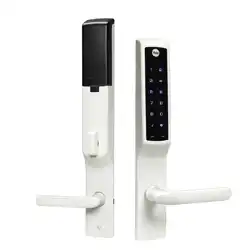
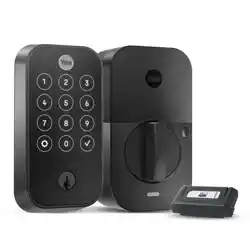
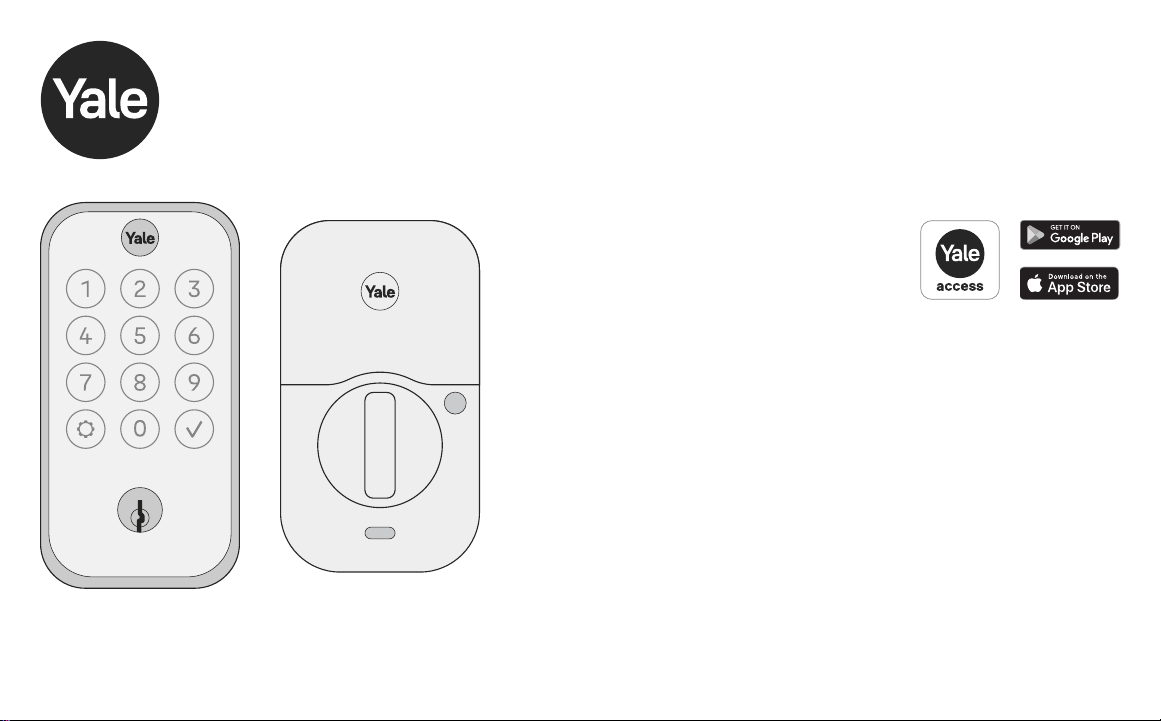
Assure Lock 2 Touch
Keyed YRD420-F
Trusted Every Day
Download Yale Access App
Create an account if you don’t already have
one, and tap “Set Up a Device”.
Note: If you have an account with the August App, use the same username and
password for the Yale Access App.
Install and Set Up Your Lock
Follow the step-by-step Installation and Setup Guide in this manual, or
refer to the app installation guide with helpful videos.
Note: If you use the app, please tear off the Door Checker and the Marking
Template (pages 5-8) to use when prompted.
Use Your Lock
Unlock with your fingerprint, create permanent or temporary entry
codes, set up Auto-Lock and more.
ISL-2225-00-100

P/N YRD420-KD-F Rev A

3
P/N YRD420-KD-F Rev A
Contents
In the Box 4
Door Checker 5
Marking Templates 7
Installation and Setup Guide 9
Remove Existing Deadbolt 10
Check Door Measurements 11
Make or Adjust Holes 12
Install Deadbolt Latch 13
Install Exterior Keypad 14
Install Mounting Plate 15
Attach Wire Cable to Interior Lock 16
Install Interior Lock 17
Test Thumbturn and Key 18
Install Yale Smart Module (Optional) 19
Install DoorSense (Optional) 20
Install Batteries and Set Up with App 23
Set Up HomeKit (Optional, iOS Only) 24
Set Up Fingerprints and Entry Codes 25
Using Your Lock 26
Connecting to Your Lock 27
LED Alerts 28
Resetting Your Lock to Factory Defaults 29
Features 30
App Settings 31
Lock Operations Troubleshooting 33
Hardware Troubleshooting 35
4
P/N YRD420-KD-F Rev A
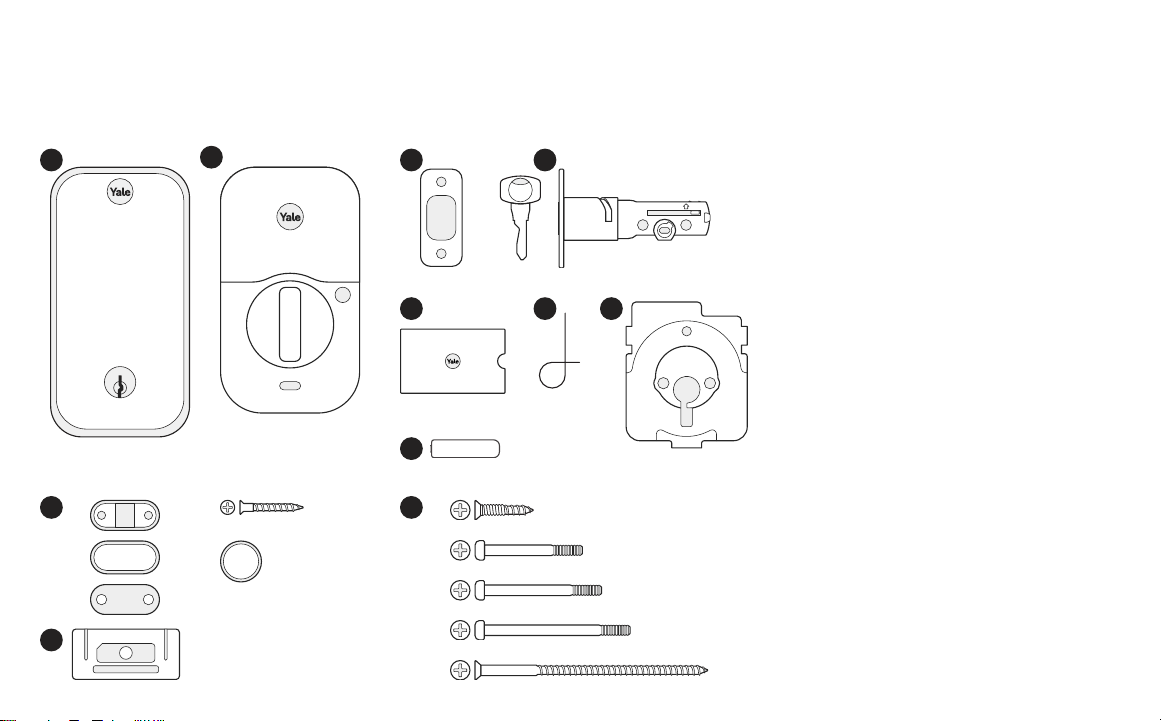
In the Box
Lock Hardware
b.
c.
d.
e.
X 4
X 4
X 2
X 2
X 2
X 2
X 2
Add-Ons
1
2
3
5 76
4
UP
1. Exterior Keypad
2. Interior Lock
3. Strike Plate
4. Adjustable Deadbolt & Key
5. Manual
6. Reset Pin
7. Mounting Plate
8. AA Batteries
9. Screws
a. Strike Plate and Deadbolt Screws
b. Teal Screw Set B
c. Black Screw Set C
d. Silver Screw Set D
e. Optional Security Strike Plate Screws
10. DoorSense
a. Housing
b. Cover
c. Mounting Tape
d. Screws
e. Flush Mount Cap
11. Smart Module
(Included with select models)
8
10
9
11
a. a.d.
e.b.
c.
AA
5
P/N YRD420-KD-F Rev A
Tear Along the Dotted Line
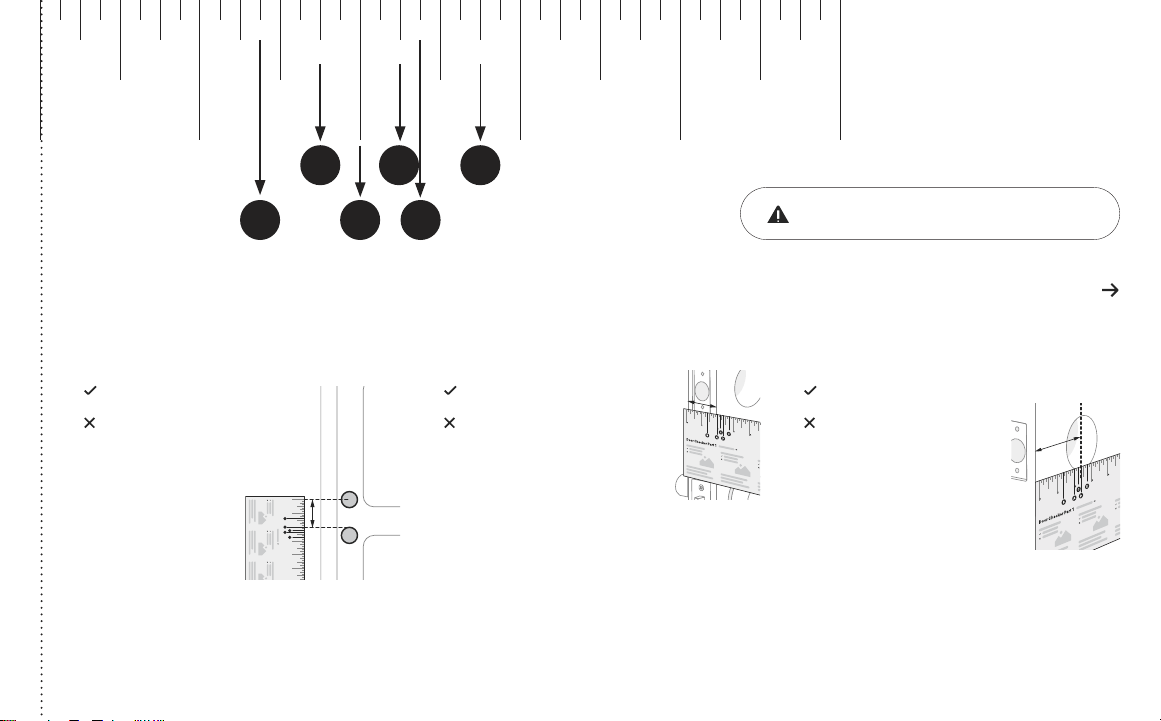
Door Checker Part 1
Measure Clearance Measure Door Thickness Measure Backset
A. 2” minimum clearance between top
of the door knob and center of deadbolt
hole.
B. 1-3/8” door thickness; use teal
(shortest) screws.
C. 1-3/8” - 1-3/4” door thickness;
use black (medium) screws.
D. 1-3/4” - 2-1/4” door thickness;
use silver (longest) screws.
E. 2-3/8” backset, use out of box latch
setting.
F. 2-3/4” backset, adjust latch setting
(Step 2, point 1 of this manual).
Greater than A B, C or D Equals E or F
Less than A
Less than B or
greater than D
Doesn’t equal E or F
(Your door is not a match)
(Your door is not a match)
(Your door is not a match)
10 2 3 4 5
6
Door Checker Part 1
v
B A D
C E
v
v
See Reverse for Part 2
1/8 1/8 1/8 1/8 1/83/8 3/8 3/8 3/8 3/85/8 5/8 5/8 5/8 5/87/8 7/8 7/8 7/8 7/8
1/4 1/4 1/4 1/4 1/4
1/2
10 2 3 4 5
1/2 1/2 1/2 1/2
3/4 3/4 3/4 3/4 3/4
B A E
DC F
If printed from electronic file, Measure
ruler to check scale. Set print scale to 1:1.
6
P/N YRD420-KD-F Rev A
Tear Along the Dotted Line
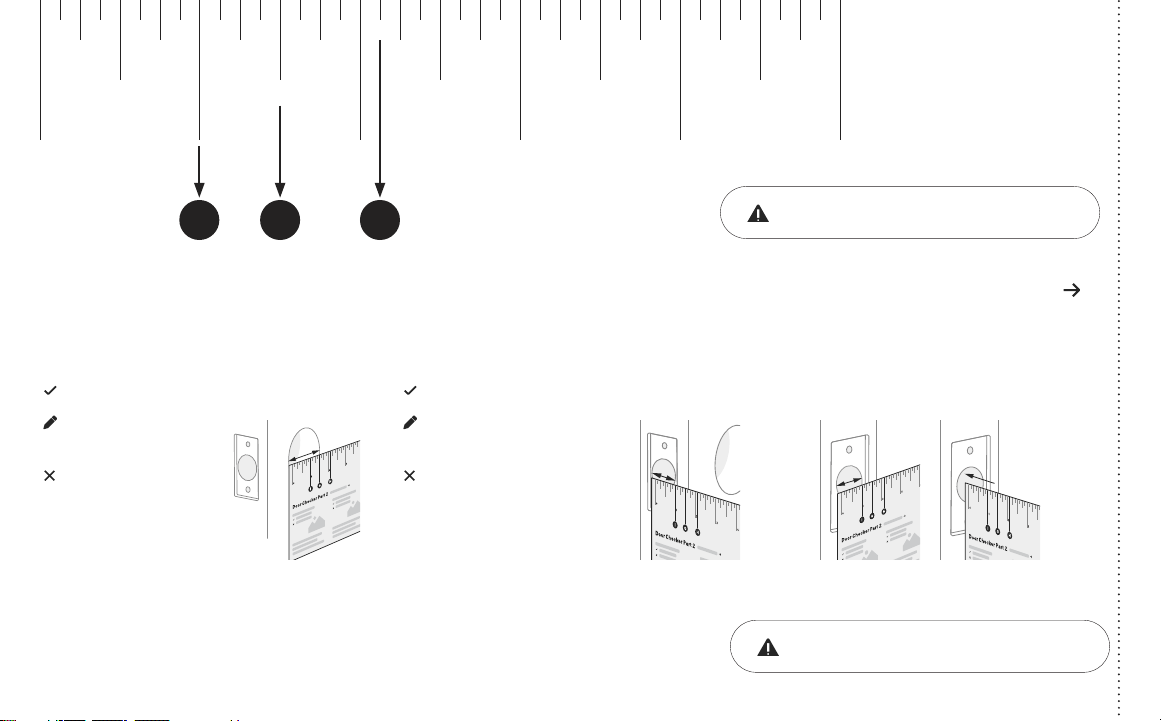
Door Checker Part 2
See Reverse for Part 1
Measure Face Bore
Equals G or H
Less than G Less than I
G. 1-1/2” face bore diameter.
H. 2-1/8” face bore diameter.
Measure Edge Bore and Strike Pocket
I. 1” edge bore diameter;
1” strike pocket diameter and depth.
Equals I
Greater than IGreater than H
(Adjust diameter to G or H) (Adjust diameter to I)
(Your door is not a match)(Your door is not a match)
(Edge Bore)Door
(Strike Pocket)
Frame
Diameter Depth
Minimum strike pocket depth is 1”.
HI G
1/8 1/8 1/8 1/8 1/83/8 3/8 3/8 3/8 3/85/8 5/8 5/8 5/8 5/87/8 7/8 7/8 7/8 7/8
1/4 1/4 1/4 1/4 1/4
1/2
10 2 3 4 5
1/2 1/2 1/2 1/2
3/4 3/4 3/4 3/4 3/4
If printed from electronic file, Measure
ruler to check scale. Set print scale to 1:1.
7
P/N YRD420-KD-F Rev A
Tear Along the Dotted Line
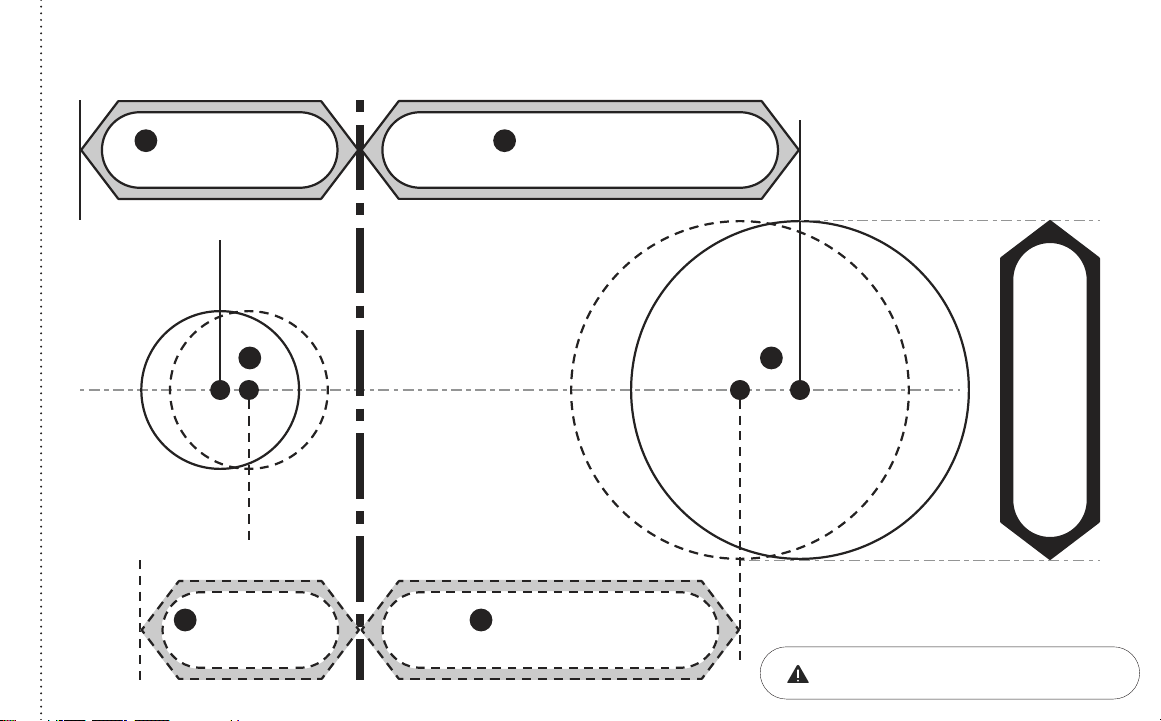
Marking Template for 2-1/8” (54mm) Face Bore
Center of
1” (25mm)
Edge Bore
Center of
1” (25mm)
Edge Bore
Centerline
Center of
2-1/8” (54mm)
Face Bore
Center of
2-1/8” (54mm)
Face Bore
I H
1-3/8” (35mm)
Door Thickness
B
2-3/8” (60mm)
Backset
E
1-3/4” (44.5mm)
Door Thickness
C
2-3/4” (70mm)
Backset
F
2-1/8”
If printed from electronic file, Measure
ruler to check scale. Set print scale to 1:1.
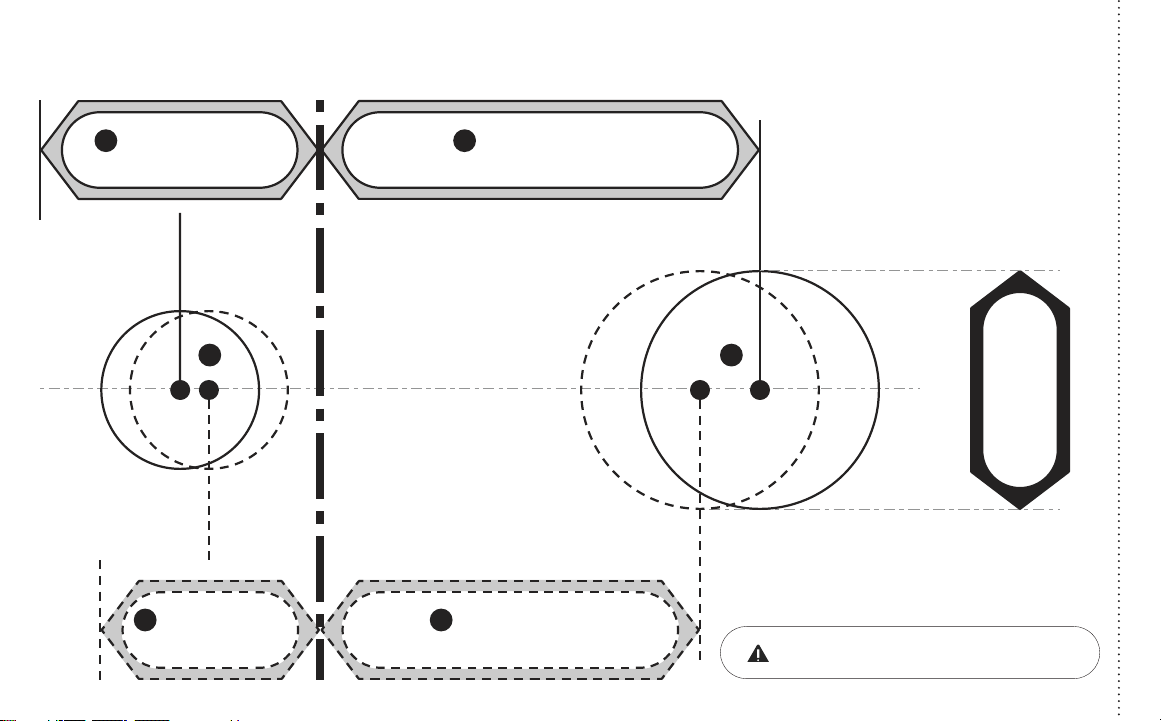
8
P/N YRD420-KD-F Rev A
Marking Template for 1-1/2” (38mm) Face Bore
Center of
1” (25mm)
Edge Bore
Center of
1” (25mm)
Edge Bore
Centerline
Center of
1-1/2” (38mm)
Face Bore
Center of
1-1/2” (38mm)
Face Bore
1-1/2”
I G
1-3/8” (35mm)
Door Thickness
B
2-3/8” (60mm)
Backset
E
1-3/4” (44.5mm)
Door Thickness
C
2-3/4” (70mm)
Backset
F
Tear Along the Dotted Line
If printed from electronic file, Measure
ruler to check scale. Set print scale to 1:1.
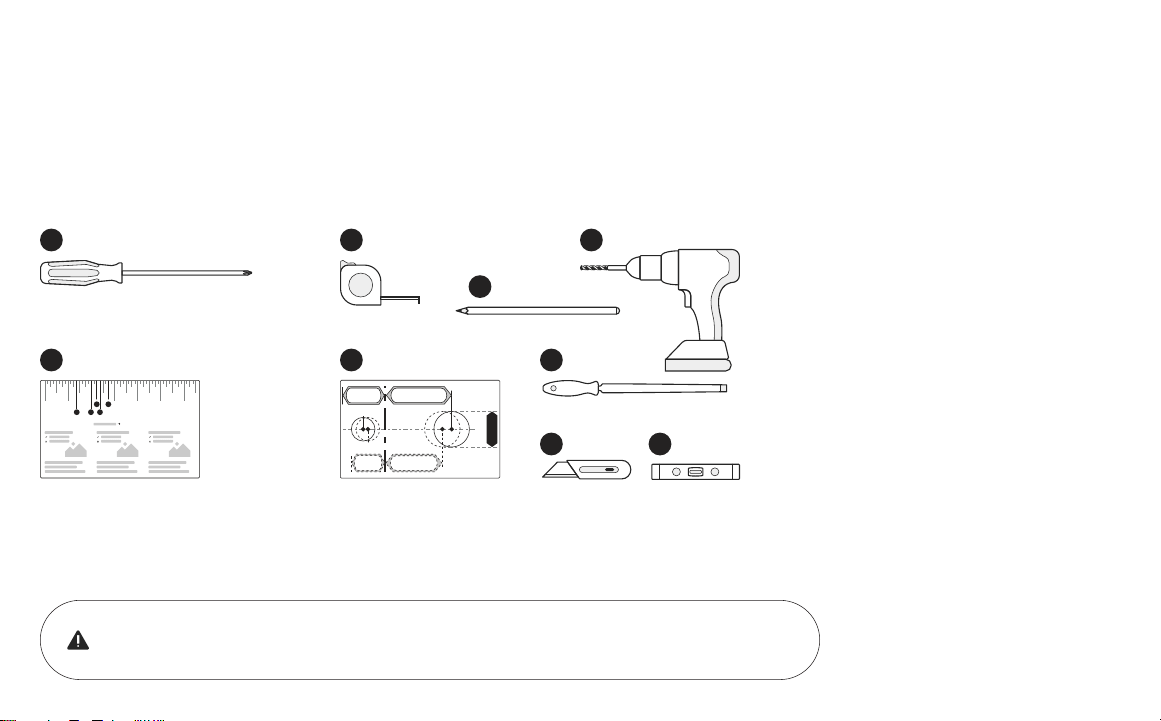
9
P/N YRD420-KD-F Rev A
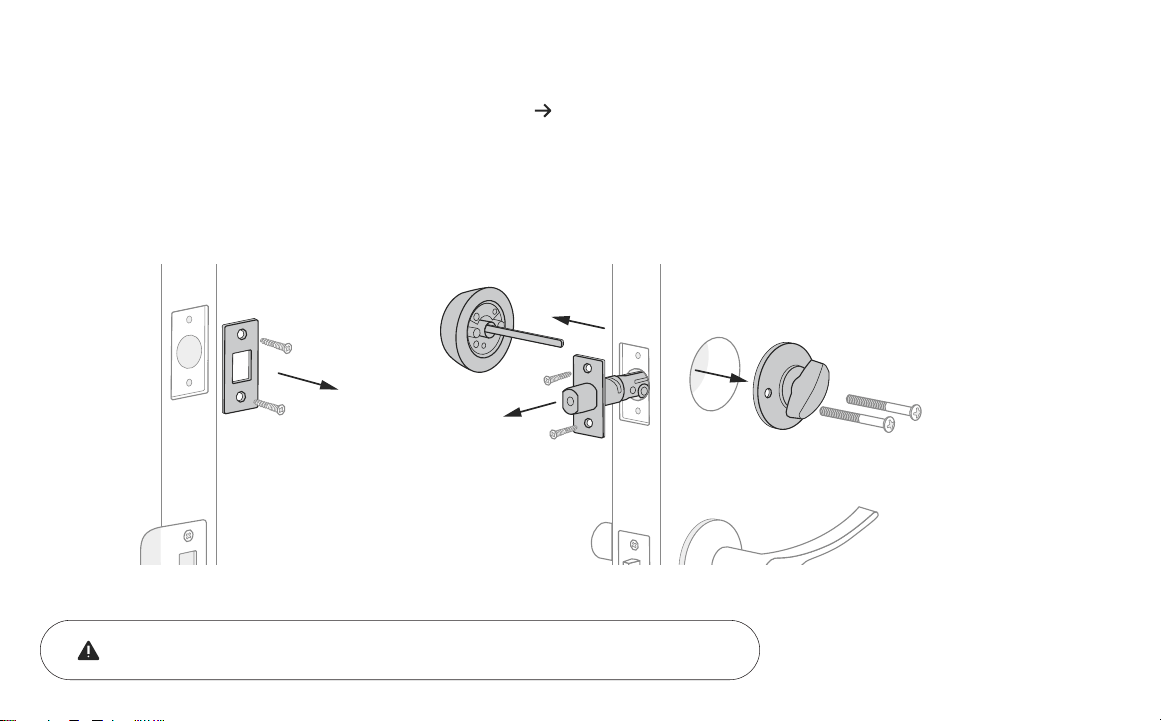
Required Tools
You Might Also Need
Failure to follow the Installation Guide precisely could result in damage to the product,
voiding the factory warranty, and could lead to failure of the product to provide access.
1. Phillips Head Screwdriver
2. Door Checker
(tear off pages 5-6 of this manual)
3. Tape Measure
4. Drill
5. Marking Template
(tear off pages 7-8 of this manual)
6. Pencil
7. Wood Mortise Chisel
8. Utility Knife
9. Level
10 2 3 4 5 6
Door Checker Part 1
v
B A D
C E
1 3
5
8
7
9
6
4
2
Installation and Setup Guide
10
P/N YRD420-KD-F Rev A
Frame Door
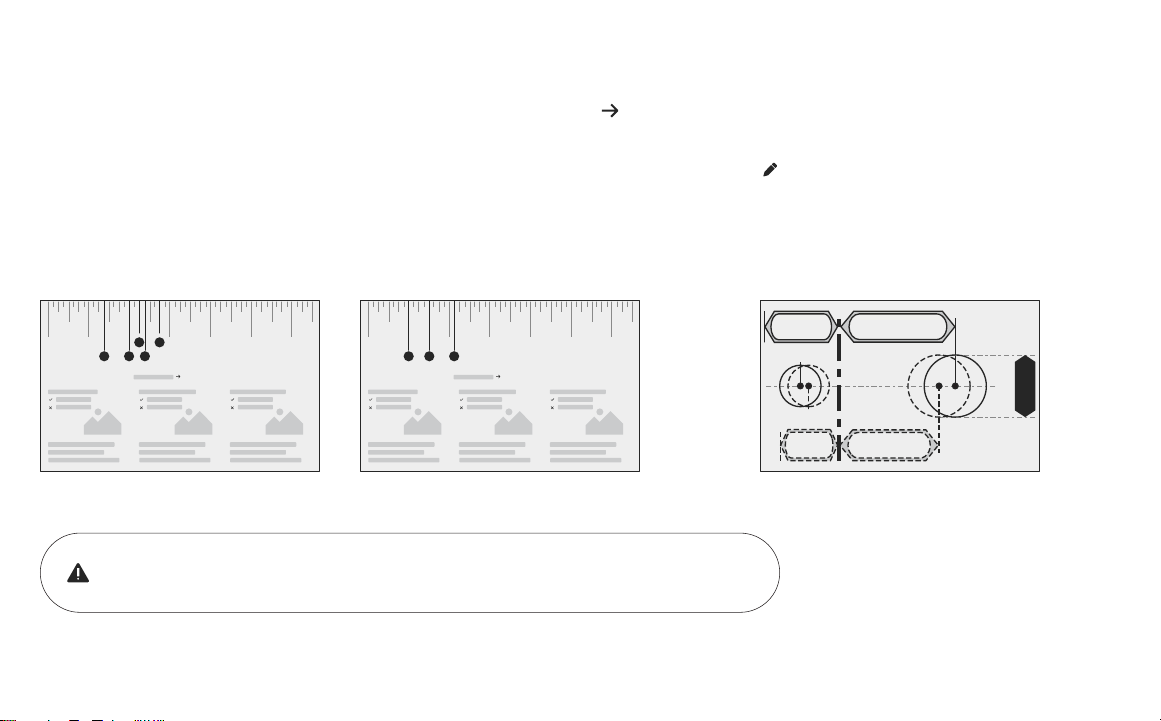
Keep your old deadbolt until your new lock has been successfully installed.
1a
Remove Existing Deadbolt
If you have a new door, please proceed to step 1b.
If you have a deadbolt on your door, use the diagram to help you remove it.
11
P/N YRD420-KD-F Rev A
If you have confirmed that the existing holes are compatible with your new lock, please proceed to step 2 (skip step 1c).
If you need to make adjustments, go to
step 1c and find the closest match to each
aspect of your door on the Marking Template.
Tear off the Door Checker (pages 5-6) and follow the guidelines on both sides to
measure each aspect of your door and frame. There are some cases when existing
holes cannot be adjusted to be compatible.
Please do not drill any holes until you confirm that your door is compatible.
10 2 3 4 5 6
Door Checker Part 1
v
B A D
C E
10 2 3 4 5 6
Door Checker Part 2
H F G
1b
Check Door Measurements
If your door doesn’t have holes, please proceed to step 1c.
12
P/N YRD420-KD-F Rev A
1c
Make or Adjust Holes
Skip this step if you have confirmed that the existing holes are compatible (step 1b).
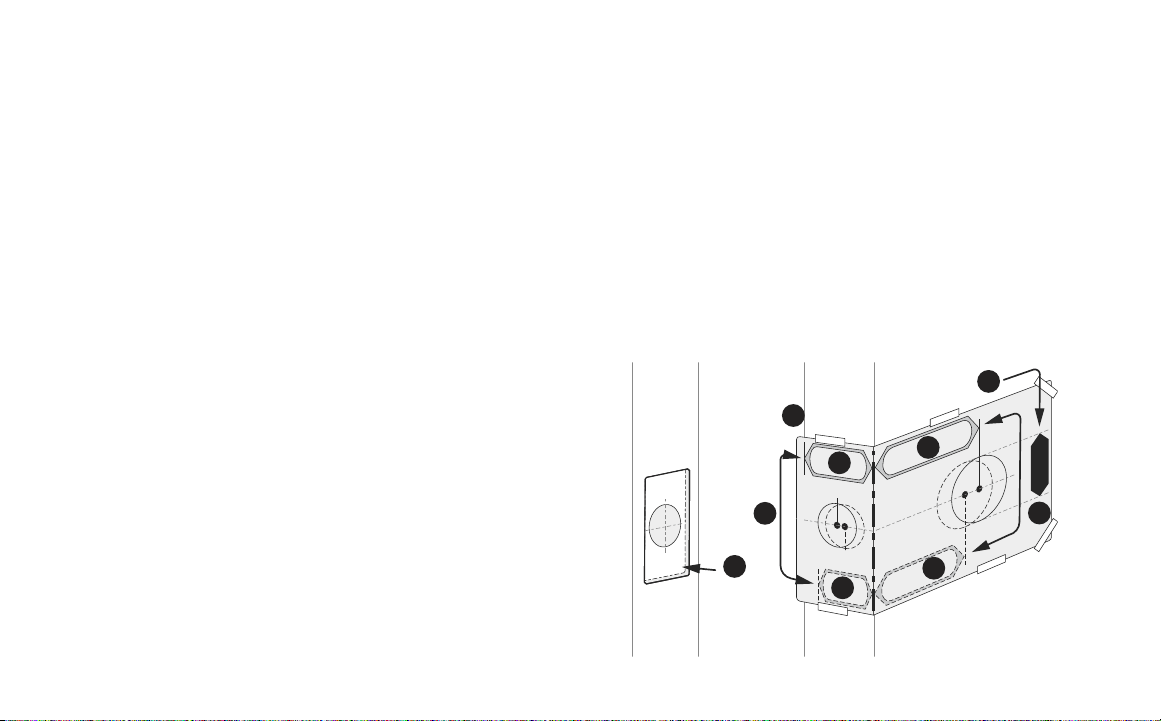
1. Tear off the Marking Template (pages 7-8), and choose the
preferred face bore diameter (2- 1/8” or 1-1/2”) on either side
of the template.
2. Tape the Marking Template onto the door as shown.
3. Check the door thickness. It should match either the shape
with solid outlines (1-3/4”), or the one with dashed outlines
(1-3/8”).
3a. Use solid lines as a template for 1-3/4” door thickness.
3b. Use dashed lines for 1-3/8” door thickness.
4. Choose your preferred backset. It should match either the
shape with solid outlines (2-3/4”), or the one with dashed
outlines (2-3/8”).
4a. Use solid lines as a template for 2-3/4” backset.
4b. Use dashed lines for 2-3/8” backset.
5. Drill holes in your door where marked.
6. On the door frame, align the center of the strike plate with the
center of the edge bore. Trace the strike plate, then chisel to the
depth of the strike plate so it sits flush with your door frame. Drill
the 1” diameter strike pocket with a minimum depth of 1”.
6
Frame Door
1
2
3a
4
3b
4a
4b
3
13
P/N YRD420-KD-F Rev A
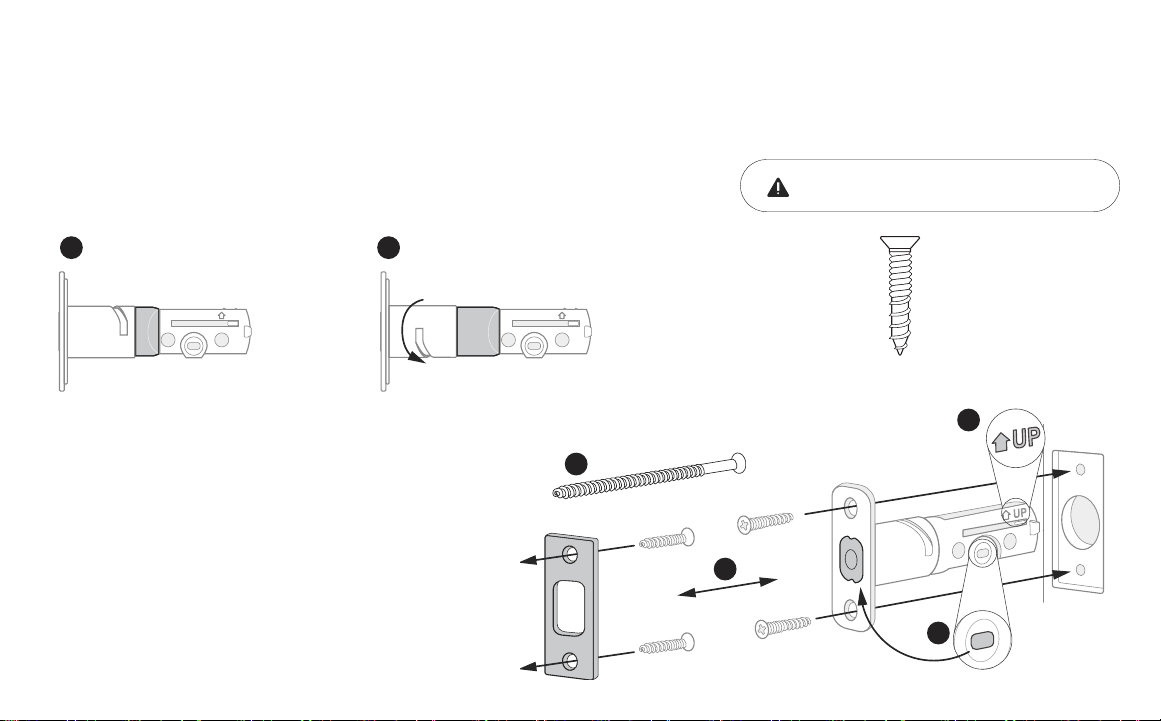
1. Correct deadbolt length is based on the backset. Refer to measurements
E and F on the Door Checker (page 5) to verify backset.
2. Align strike plate with deadbolt latch.
2a. (Optional) Security screws can be used in place of
the small strike plate screws.
3. Make sure UP arrow on the deadbolt is facing upwards.
4. Deadbolt latch must be in an unlocked position.
Note: If the deadbolt latch is extended, use a small flathead
screwdriver to rotate slot until deadbolt latch is retracted.
x 2 for Deadbolt Latch
x 2 for Strike Plate
(Actual size)
2
Install Deadbolt Latch
2-3/4
2-3/8
UP
2-3/8” Backset
(Out of box)
E
2-3/4
2-3/8
UP
2-3/4” Backset
(To adjust, twist neck by holding the body stable)
F
2a
2
3
4
Minimum strike pocket depth is 1”.
14
P/N YRD420-KD-F Rev A
1
5
6
4
3
Install Exterior Keypad
3
Install your lock with the door open.
Do not close your door until all the steps are completed.
1. Refer to measurements G and H on the Door Checker (page 6) to measure
face bore hole. If the hole is less than 2-1/8” (H), remove adapter by
twisting it off the body of the lock.
Note: Removing the adapter might also help if your face bore and edge bore are of
irregular shape or are not properly aligned.
2. Remove the plastic cover from the keypad.
3. Make sure your deadbolt latch is in an unlocked position. Refer to
step 2, point 4 (page 13) for guidance on how to retract it, if needed.
4. Slide the tailpiece through the deadbolt latch slot.
5. Guide the wire cable under the deadbolt.
6. Slide the keypad in place, making sure it’s on the exterior
part of your door.
15
P/N YRD420-KD-F Rev A
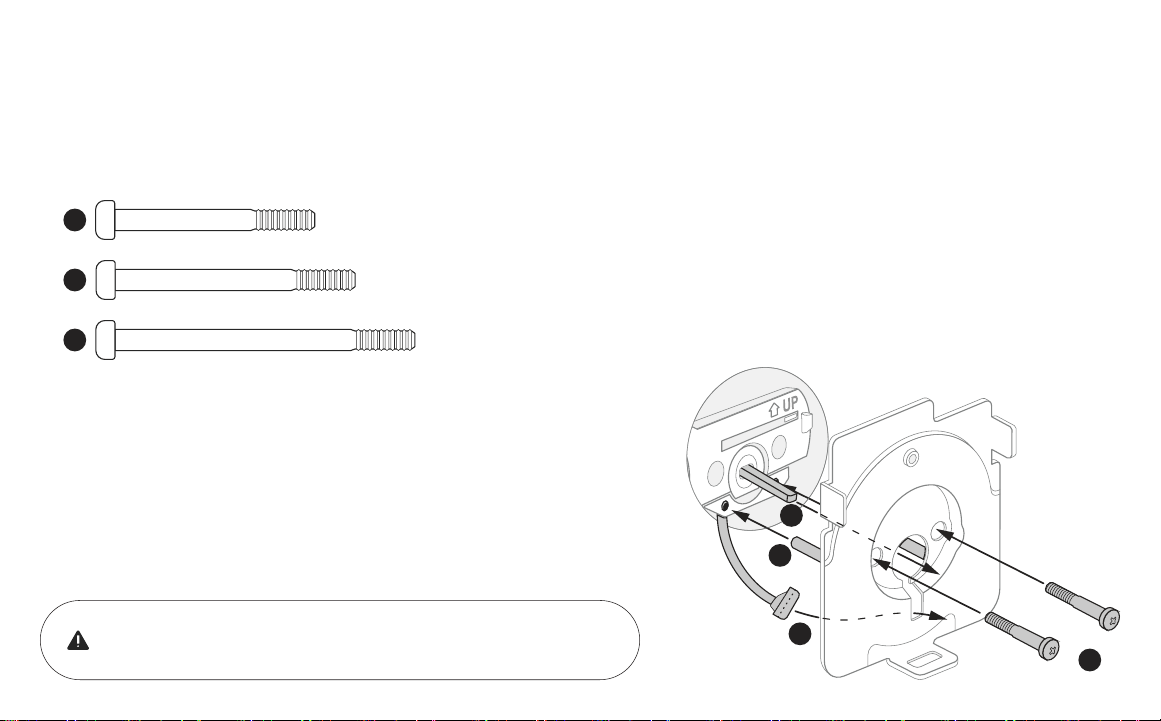
1. Refer to measurements B, C, and D on the Door Checker (page 5) to select screws.
2. Route the wire cable into the designated slot in the mounting plate. You
may have to squeeze the cable slightly in order for it to pass through.
3. Guide posts of the mounting plate into the holes on the exterior keypad.
4. Slide tailpiece through the designated slot in the mounting plate.
5. Tighten screws with a screwdriver to secure
the mounting plate. As you tighten the
screws, make sure the mounting plate and
the keypad are straight.
x 2 Teal Screws (1-3/8” door thickness)
x 2 Black Screws (1-3/8” - 1-3/4” door thickness)
x 2 Silver Screws (1-3/4” - 2-1/4” door thickness)
B
2
3
4
5
C
D
4
Install Mounting Plate
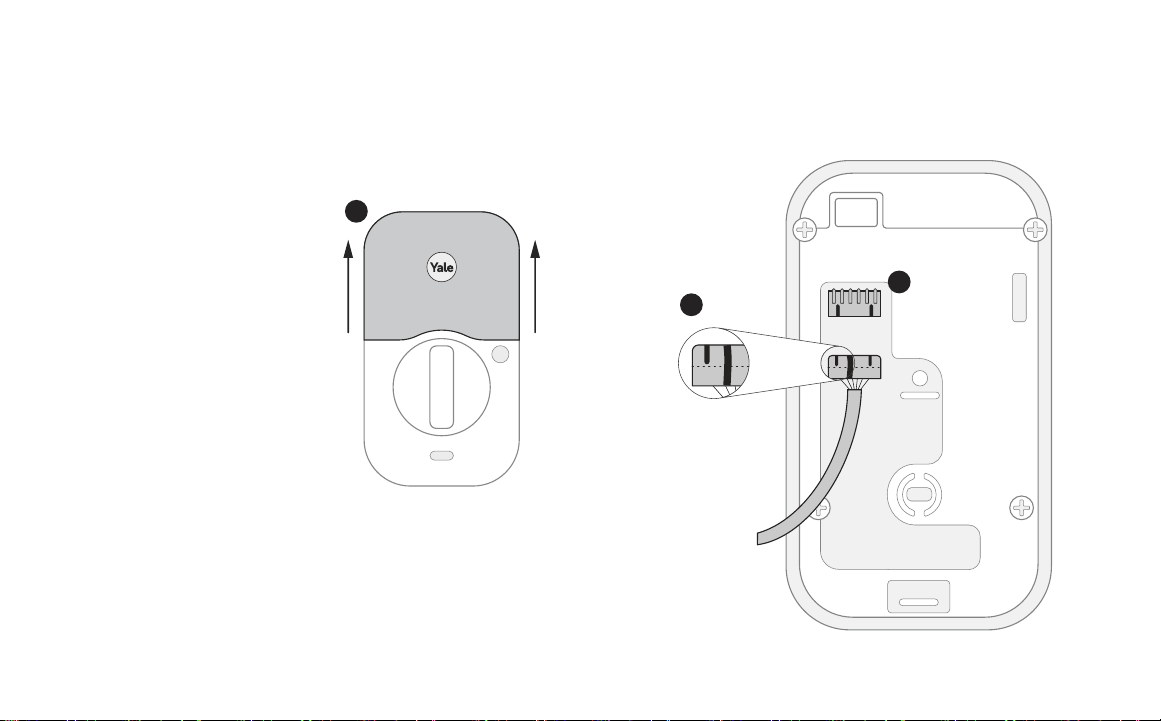
With the mounting plate installed, ensure that the wire cable is
not pinched to prevent it from reducing your lock’s battery life.
16
P/N YRD420-KD-F Rev A
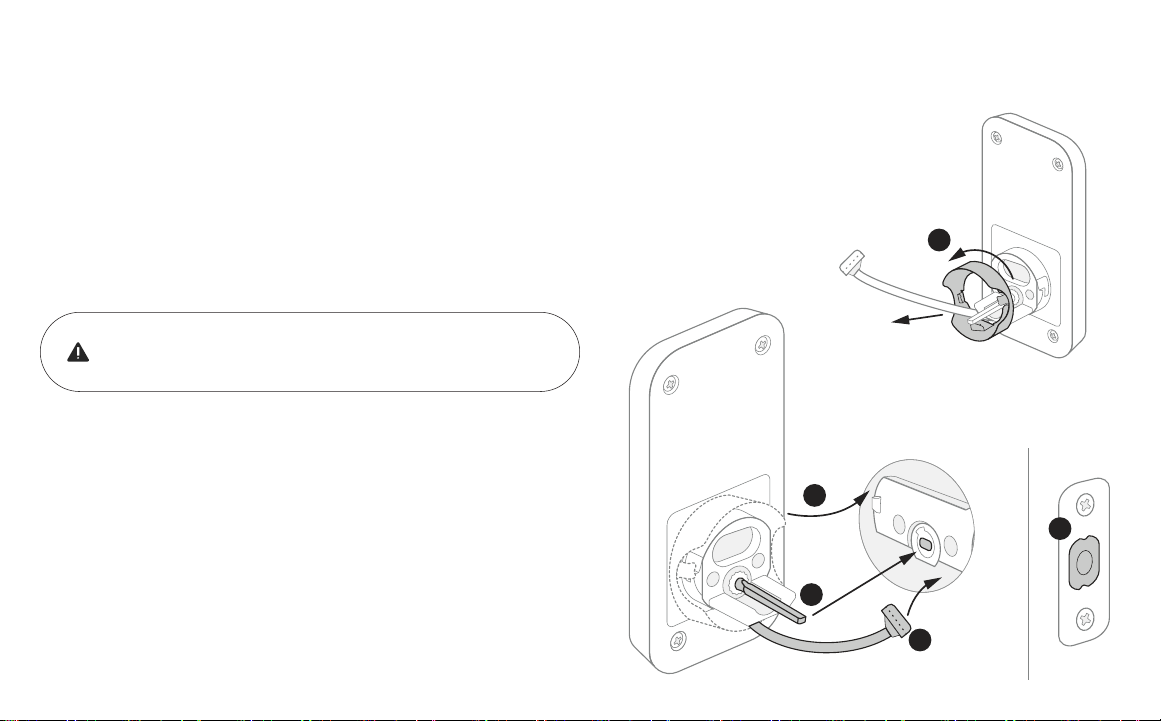
1. Remove battery cover by pulling it upwards off the body of the
interior lock.
2. Make sure the side of the cable end with the ridges and the
marked line faces outward.
3. Push cable into the designated slot until you hear a click.
2
1
3
5
Attach Wire Cable to Interior Lock
17
P/N YRD420-KD-F Rev A
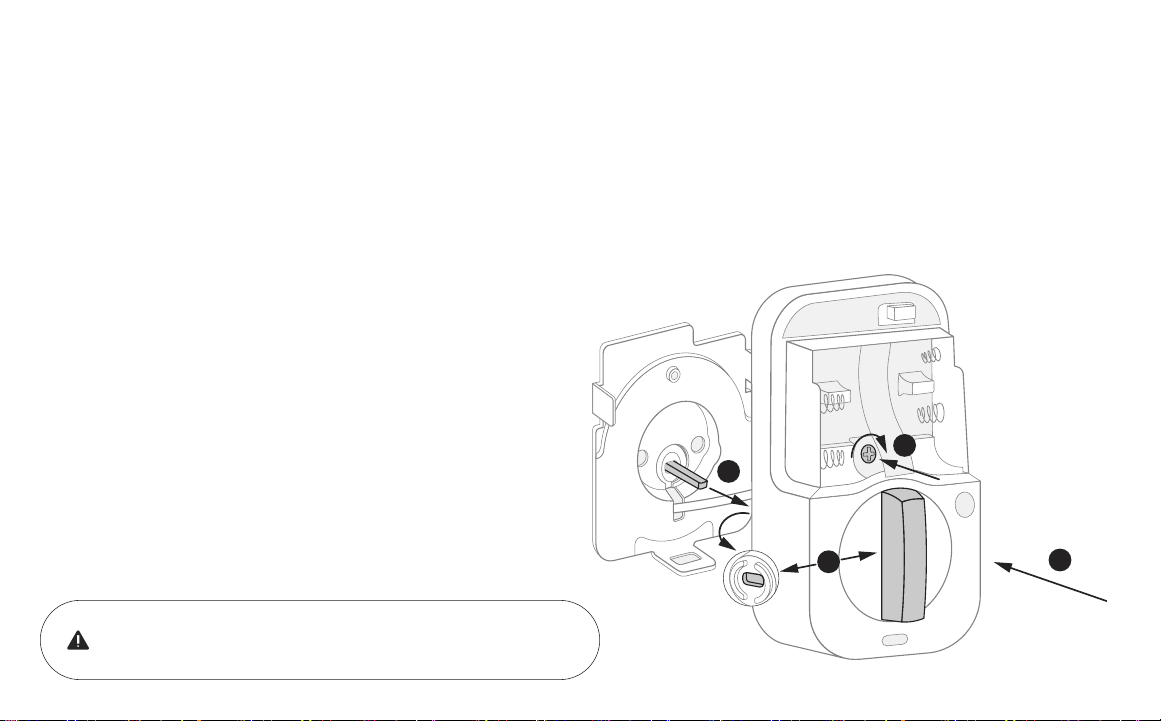
1. Make sure the tailpiece slot is in horizontal position. Use the
thumbturn to adjust if needed.
2. Slide the tailpiece through the designated slot on the back of the
thumbturn.
3. Press the lock against the mounting plate, adjusting its position until
it clicks into place and the bottom of the lock is held in place.
4. Tighten the one pre-installed screw.
3
When fully tightened, lock should be flush to door.
6
Install Interior Lock
2
1
4
18
P/N YRD420-KD-F Rev A
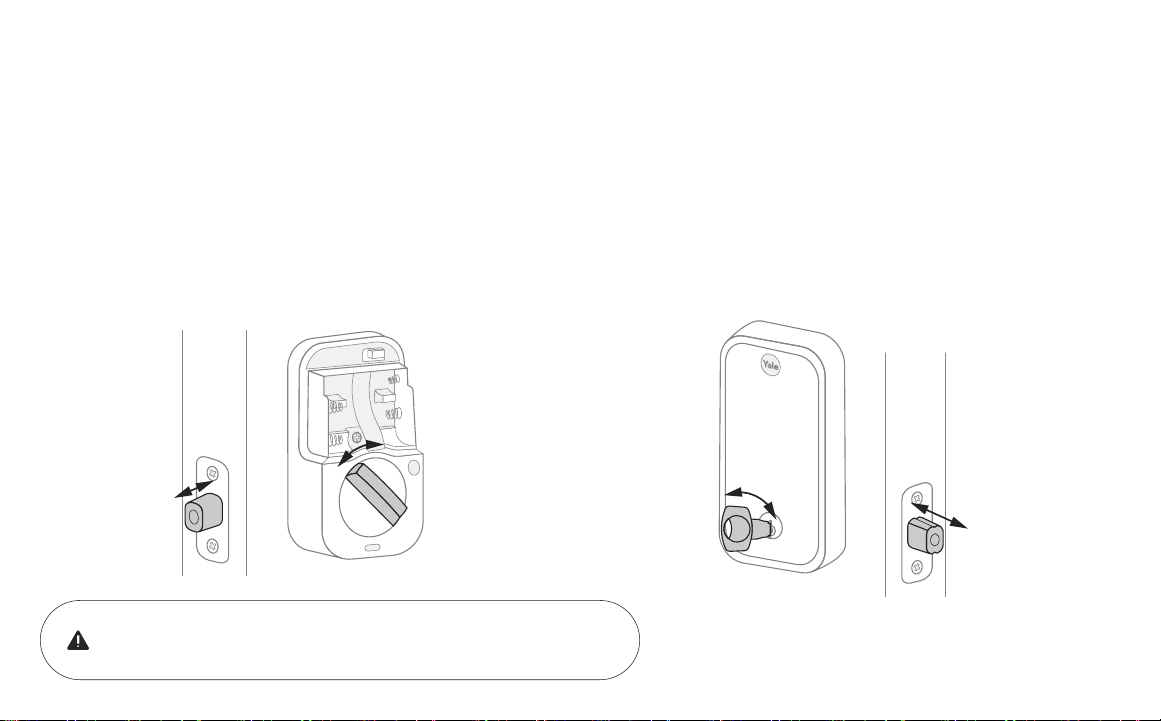
If deadbolt latch does not lock or unlock with the key (from the outside) or the
thumbturn (from the inside):
• Ensure that the deadbolt latch is centered in the face bore hole;
• Ensure that the tailpiece is positioned horizontally and inserted through
deadbolt latch slot (step 3, point 3) into the thumbturn slot (step 6, point 2).
Smooth deadbolt latch operation will enhance your battery life.
7
Test Thumbturn and Key
19
P/N YRD420-KD-F Rev A
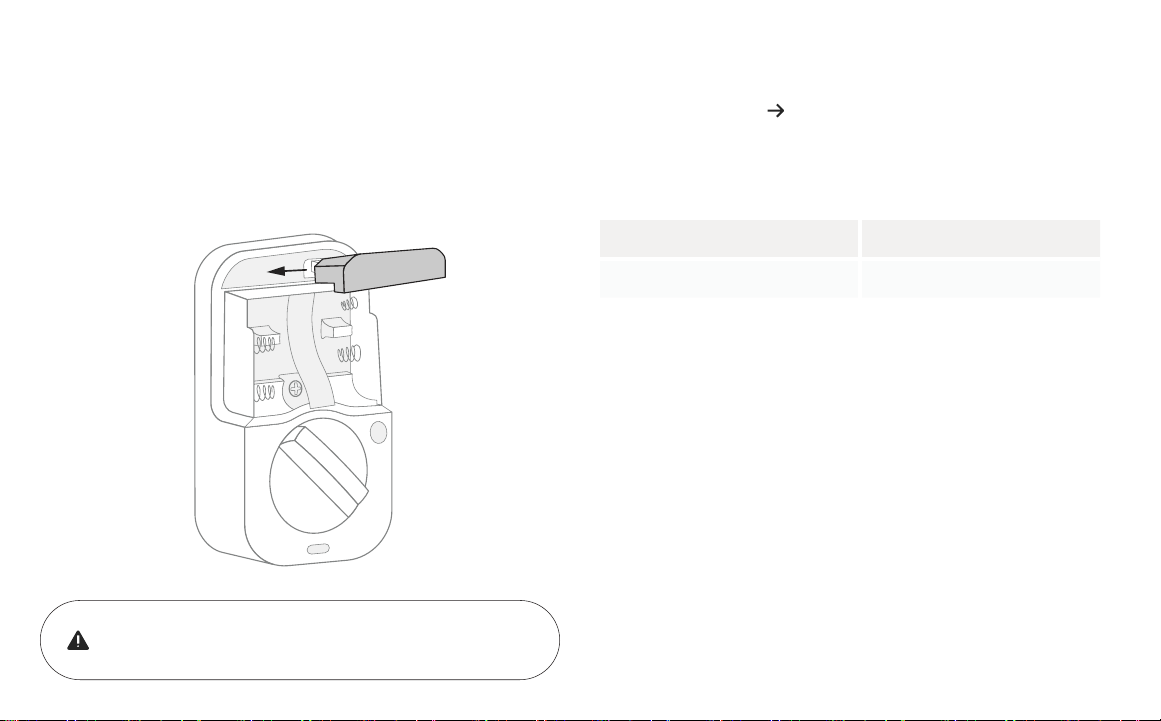
Batteries must not be installed when inserting or
removing Yale Smart Module.
8
Install Yale Smart Module (Optional)
If your lock model does not include a Smart Module, please proceed to step 9a.
Insert Yale Smart Module into the designated slot at the top of the
body of the lock.
Note: If you purchased your module separately, check compatibility with
your Assure 2 Touch. See table below for the list of compatible modules.
AYR-MOD-ZWV-USA Z-Wave 500 series Module
AYR-MOD-WF1-USA Wi-Fi Module
20
P/N YRD420-KD-F Rev A
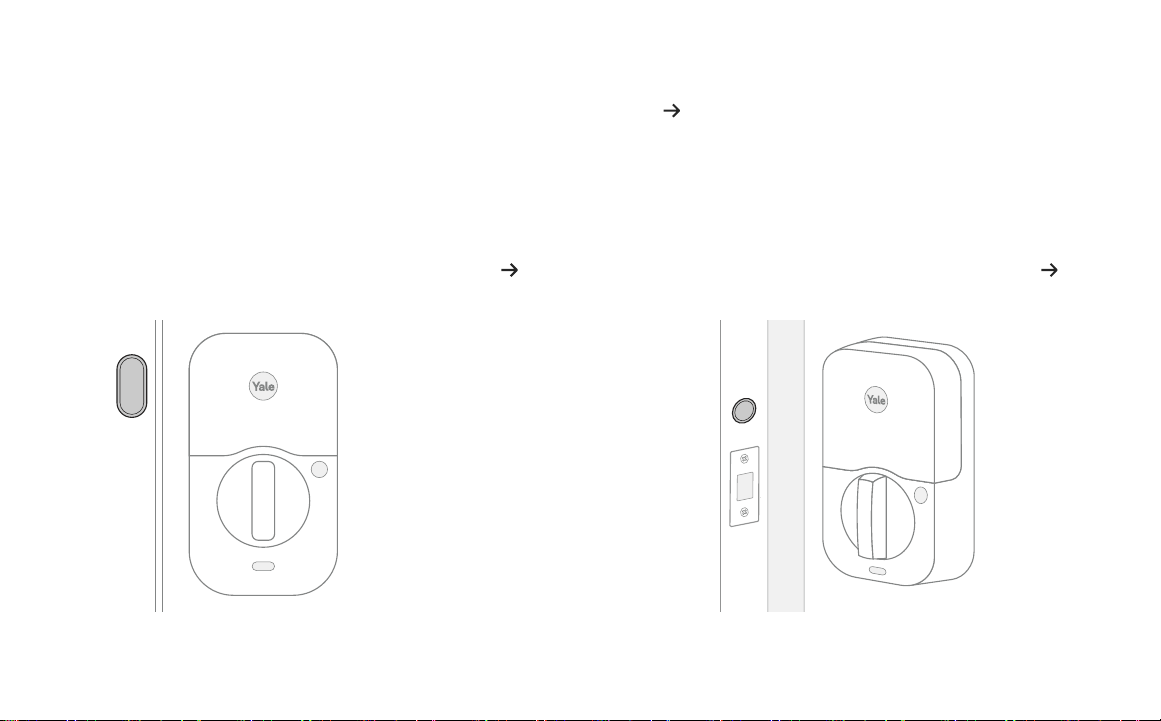
Surface mount is a quick and easy option to secure DoorSense on the inside
of your door frame.
Flush mount is installing DoorSense into the edge of the door frame. It
provides a cleaner look with more robust performance but requires drilling.
For surface mount instructions, please proceed to step 9b. For flush mount instructions, please proceed to step 9c.
9a
Install DoorSense (Optional)
If you do not wish to install DoorSense, please proceed to step 10.
DoorSense is a magnetic sensor installed on your door frame that can keep track of when the door is opened and closed.
21
P/N YRD420-KD-F Rev A
It is recommended to complete the last step after your lock
is calibrated with the app to ensure you are able to retrieve
accurate door state readings before modifying your frame.
9b
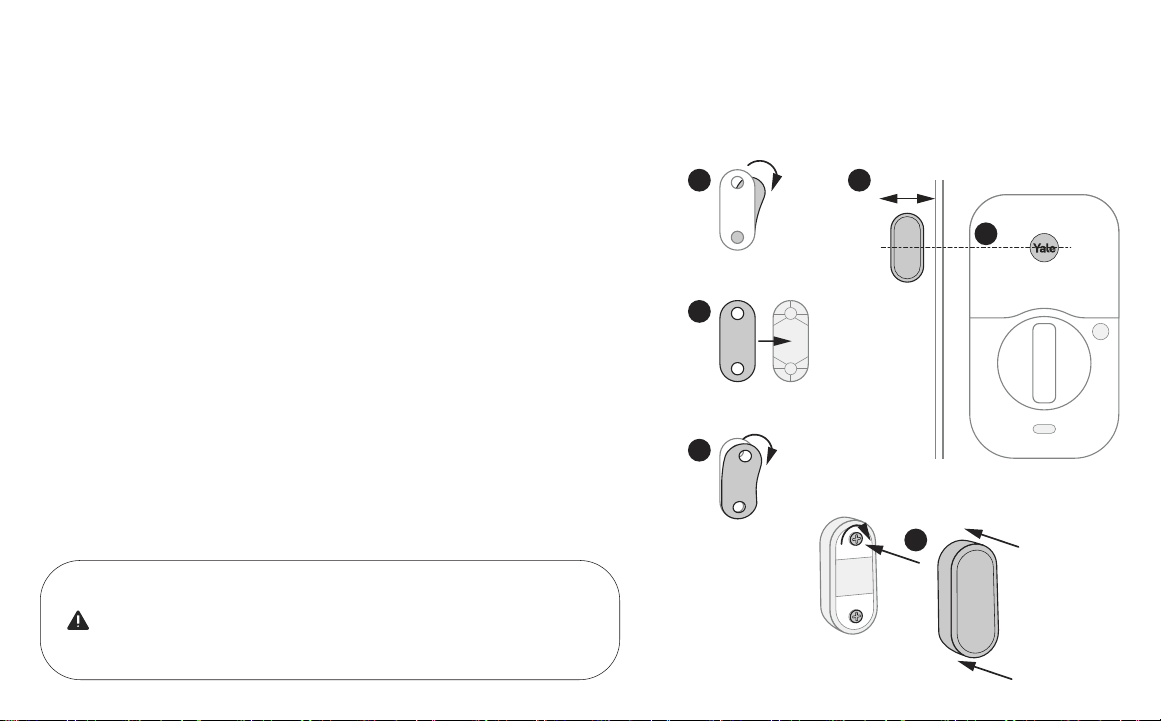
DoorSense Surface Mount
1. Remove one side of the backing from the adhesive.
2. Attach tape to the back of the DoorSense, ensuring it is aligned with the
edges of the device and the screw holes.
3. Remove the remaining backing from the adhesive.
4. Determine mounting location. For optimal performance, DoorSense
should be mounted within 1-1/2” from the edge of your door frame.
Note: DoorSense will still work if placed on curved or angled trim moulding around
the door frame as long as it is within 1-1/2” from the edge.
5. Ensure DoorSense is in proper position by center aligning it with the Yale
logo on the battery cover, and adhere it to the door frame.
6. Tighten pre-installed screws and attach cover.
1 4
5
2
3
6
1-1/2”
22
P/N YRD420-KD-F Rev A
1
3
4
5
8
67
2
2”
5/8”
1/2”
9c
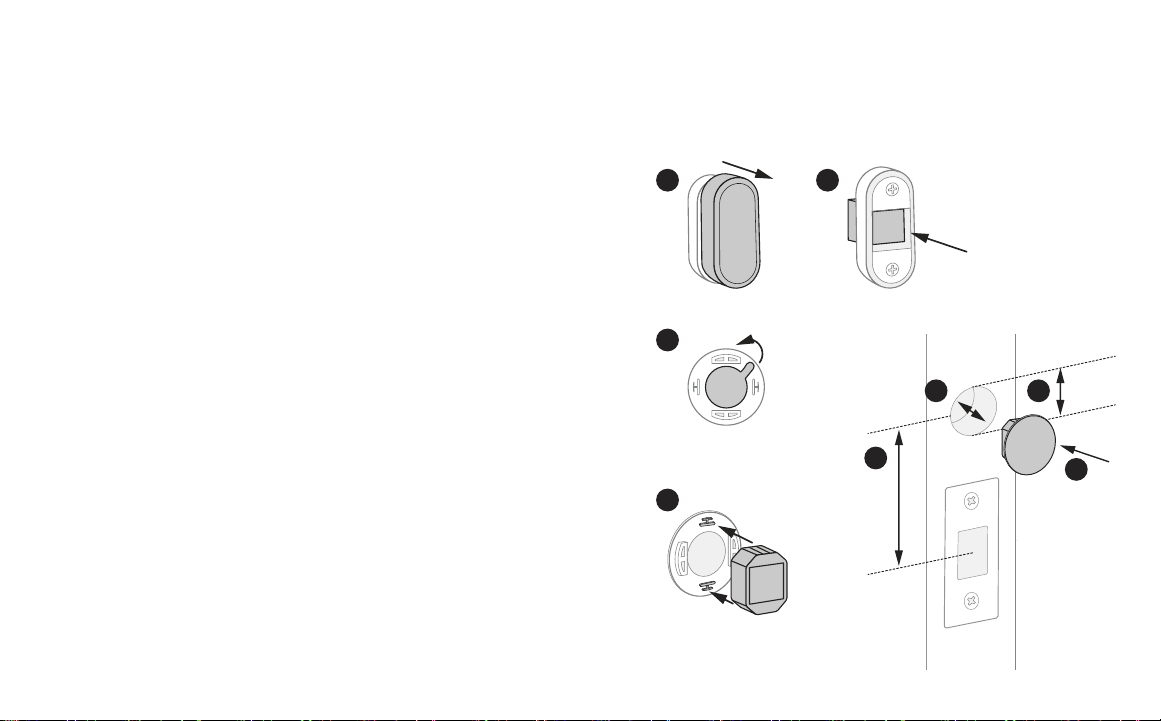
DoorSense Flush Mount
Frame
1. Take off DoorSense cover.
2. Push the magnet out of the housing.
3. Expose the adhesive on the magnet cap by removing the blue backing.
4. Press the magnet onto the cap so that the notches interlock.
5. Determine mounting location on the door frame. The distance from the
center of the strike plate to the center of the DoorSense should be 2”,
making the DoorSense in line with the logo on the battery cover of the lock.
6. Mark a hole that’s horizontally centered on the door frame and is 5/8” in
diameter.
7. Drill a 1/2” deep hole where marked.
8. Insert DoorSense into the hole.
Note: If it is too snug to push in by hand, protect the frame with a piece of scrap wood
and use light blows with a hammer or mallet. If it is too loose, try wrapping tape around
it so that it fits snugly.
23
P/N YRD420-KD-F Rev A
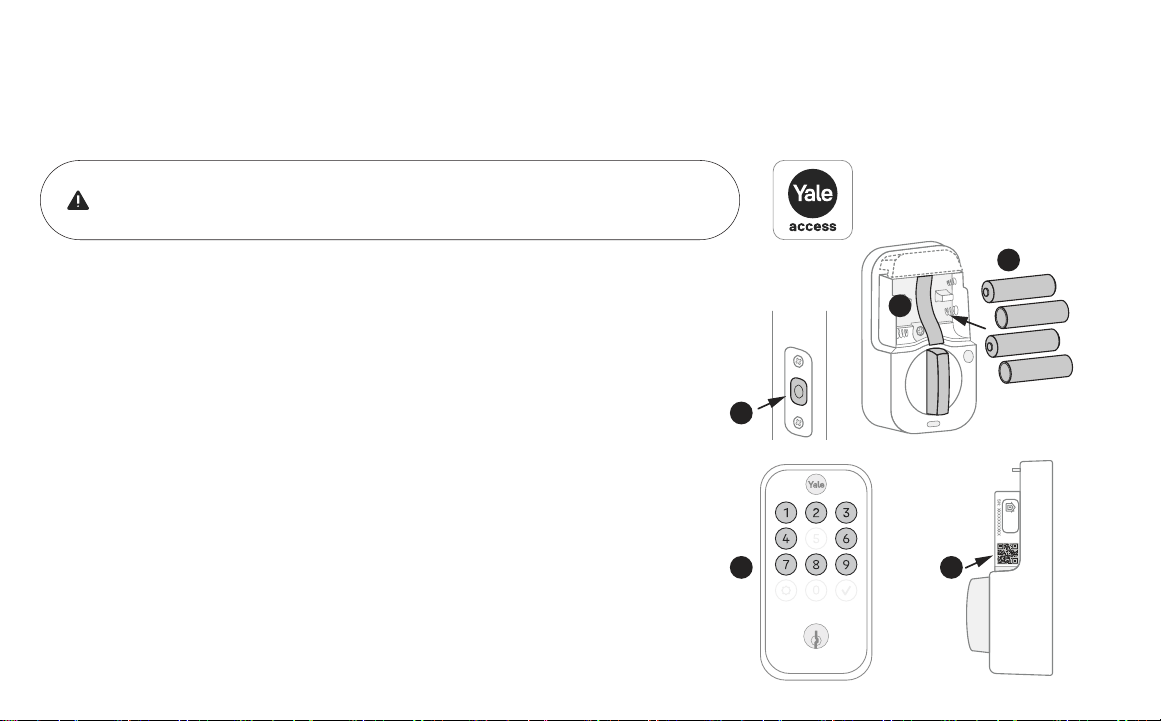
1. Before installing batteries, make sure the deadbolt latch is unlocked.
2. Place ribbon behind batteries for easy battery removal.
3. Install 4 batteries.
4. Once batteries are inserted, the entire keypad will light up in a clockwise
pattern. Once this happens, the lock is in pairing mode. Open Yale Access
App, tap on “Set Up a Device”, and follow the in-app setup instructions.
Note: If the lock exits pairing mode, simply press the Yale logo to restart.
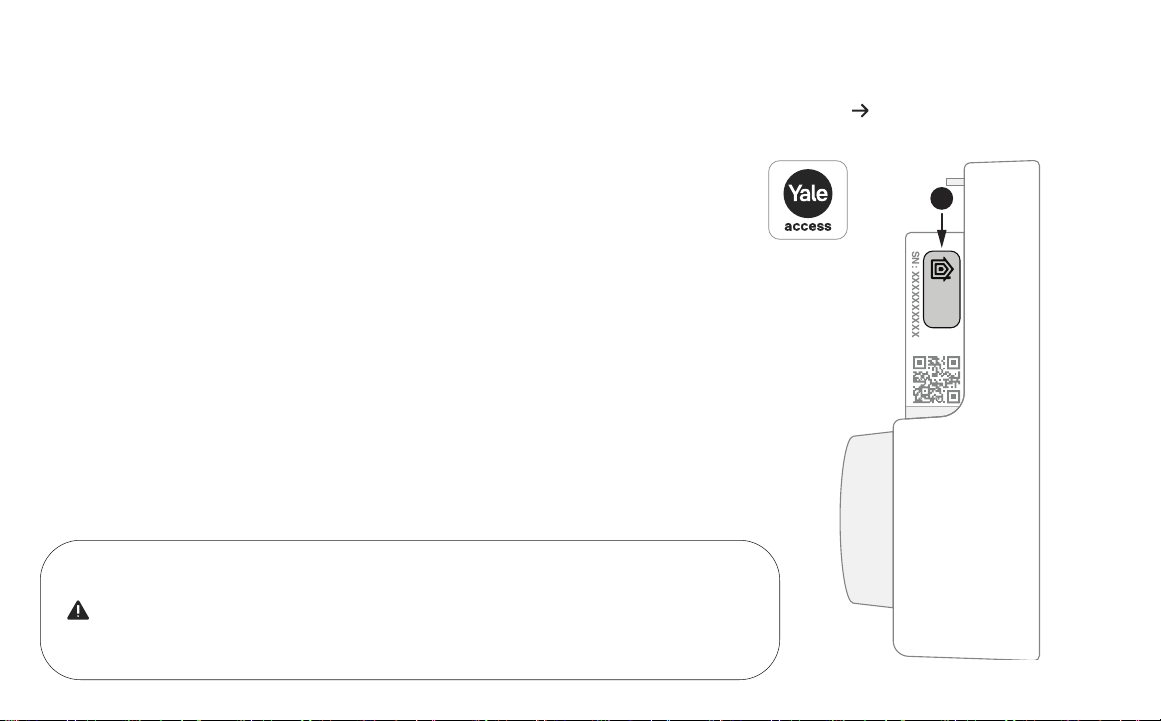
5. With the battery cover off, locate the setup QR code on the side of the lock.
Scan it when prompted by the app.
Note: The setup QR code can also be found on the quick start guide.
Make sure you have Yale Access App downloaded and an account created.
Once batteries are inserted, lock is ready to be set up with the app.
4
1
3
2
10
Install Batteries and Set Up with App
5
XXXX
XXXX
SN: XXXXXXXXXX
24
P/N YRD420-KD-F Rev A
1. To enable HomeKit, make sure your lock is installed and set up with Yale Access
app. In the Yale Access app lock settings select “HomeKit” to begin HomeKit setup.
2. To begin setup, you’ll need access to the 8-digit HomeKit accessory code located
on the side of the lock under the battery cover. Follow the instructions in the Yale
Access app to set up HomeKit.
Note: If you have HomePod®, HomePod Mini®, or Apple TV® set up as a home hub, to ensure
successful HomeKit setup, make sure they are online and connected.
Enabling the HomeKit integration allows you to connect your lock and control it
from your iPhone with the Apple Home app.
11
Set Up HomeKit (Optional, iOS Only)
If you do not wish to set up HomeKit, please replace battery cover and proceed to step 12.
Sharing access to your lock in Home app with others and controlling this HomeKit-
enabled accessory away from home requires a HomePod®, HomePod mini®, or
Apple TV® set up as a home hub. To operate the lock from the Home app, all invited
Home app users are required to be owners of the lock in Yale Access app.
XXXX
XXXX
SN: XXXXXXXXXX
2
25
P/N YRD420-KD-F Rev A
12
Set Up Fingerprints and Entry Codes
1. To create a credential for a new user, tap on “Invite”, then select
whether they should also have app access or only fingerprint/entry
code access. While inviting them, you will be able to register a
fingerprint or create an entry code.
2. Tap on existing users in Guest List to register new fingerprints, create
new entry codes, or manage existing credentials.
You can register and manage fingerprints or entry codes from the
Guest List tab of the Yale Access app.
You must have Bluetooth connection with the lock to create or manage fingerprints.
You must have Bluetooth or Wi-Fi connection with the lock to create or manage entry codes.
26
P/N YRD420-KD-F Rev A
Using Your Lock
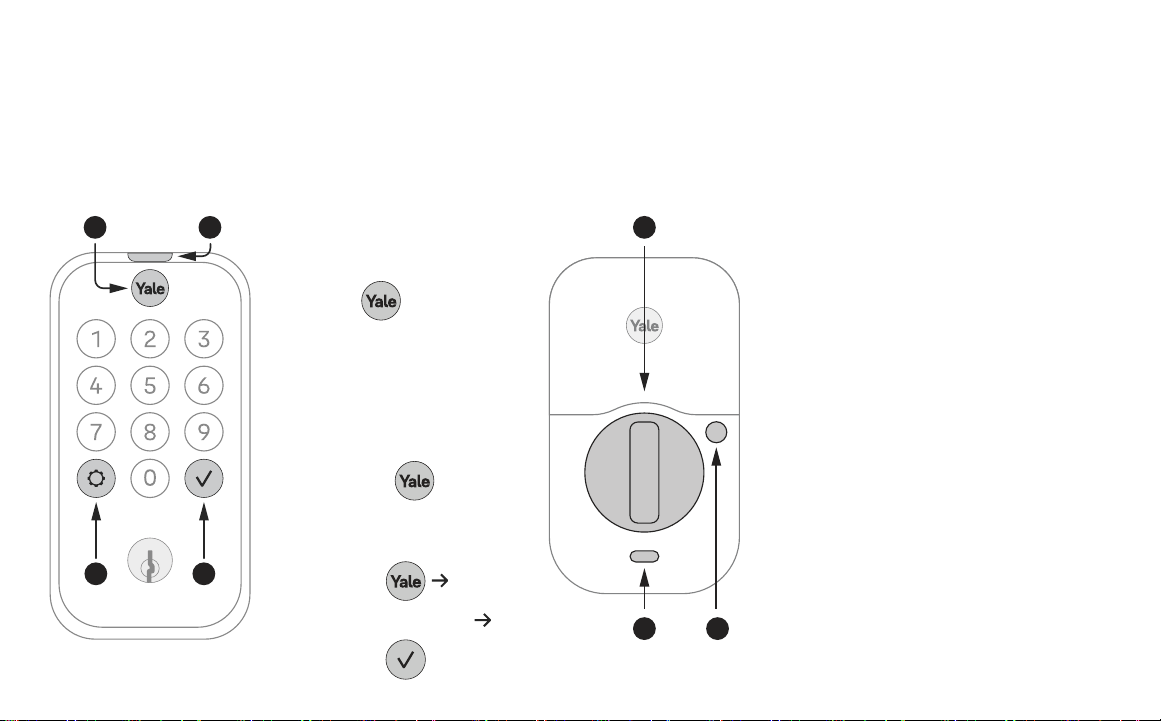
Exterior Keypad
To lock your door
Press
Touch
To unlock your door
• With fingerprint*
• With entry code
Press
Enter entry code
Press
Interior Lock
1. Exterior LED Indicator
2. Wake / One-Touch Locking /
Fingerprint Scanner
3. Warnings / Menu
4. Submit Entry Code
5. Thumbturn
6. Passage Button
7. Interior LED Indicator
1
3 4
2 5
67
* Make sure that you’re using a registered
finger, and that it’s clean and dry.
27
P/N YRD420-KD-F Rev A
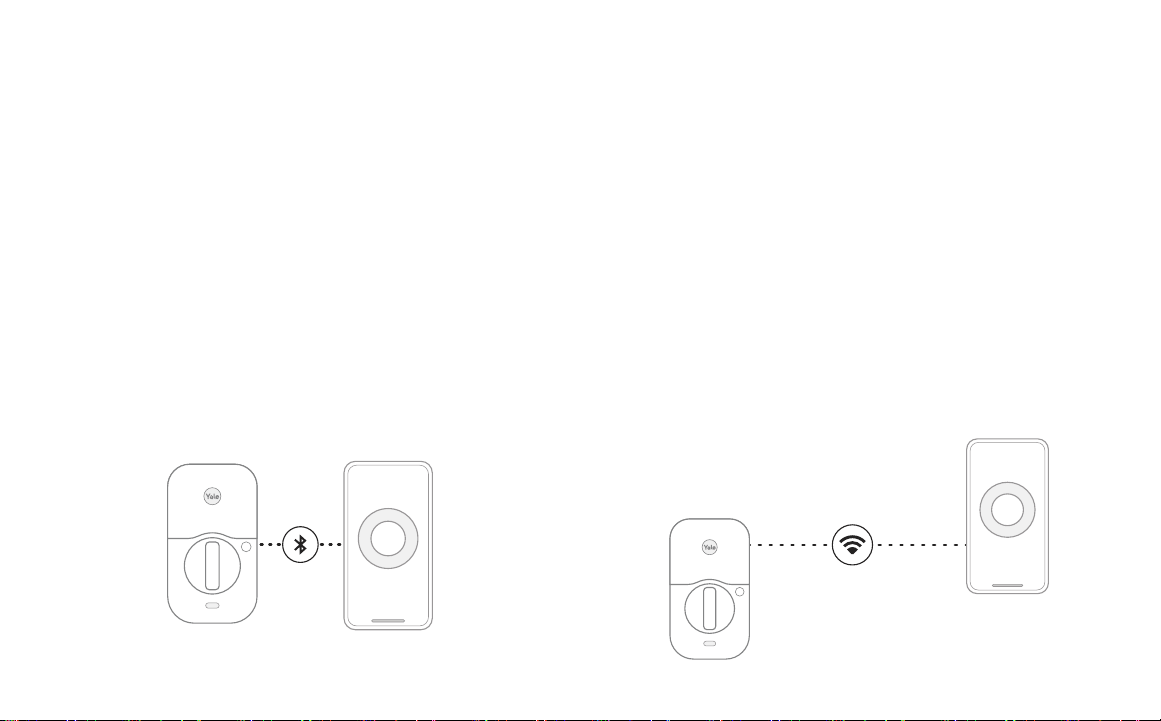
Connecting to Your Lock
With Bluetooth connection, you can use your app to lock, unlock,
create or manage entry codes, change settings, see who used the
lock, etc. while you’re within Bluetooth range of the lock. Every
Assure Lock 2 has Bluetooth built in.
With Wi-Fi connection, you can be away from home and use your
app to operate your lock, monitor who’s coming and going, and
create or manage entry codes. To connect your lock to your Wi-Fi
network, you will need a module (available with select models and
sold separately). See step 8 for compatible modules.
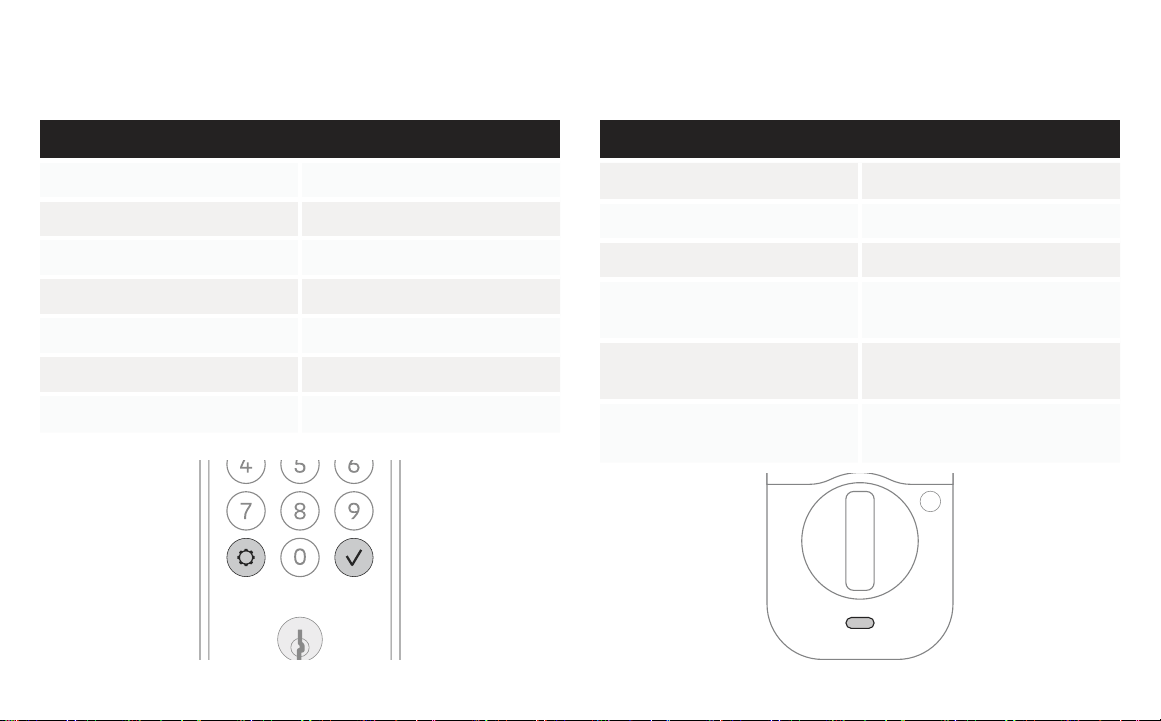
There are two possible ways to connect to your lock with your Yale Access app. When you’re near your lock you
can connect through Bluetooth, and if you have an optional module you can connect remotely through Wi-Fi.
28
P/N YRD420-KD-F Rev A
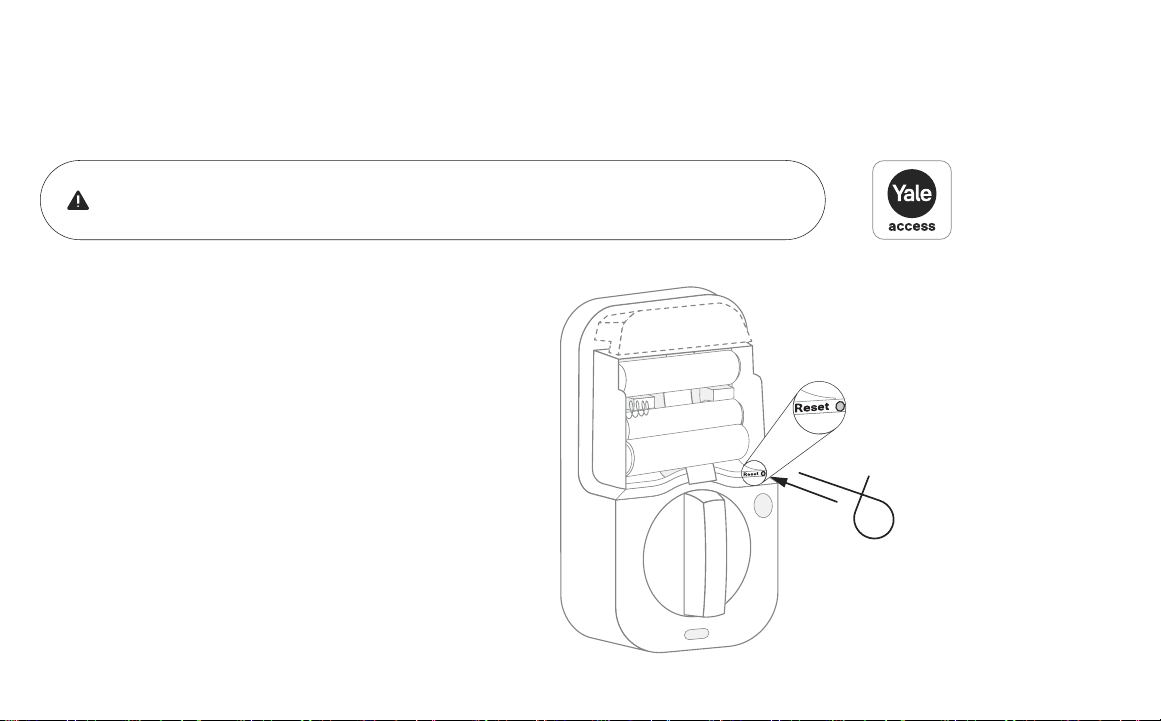
LED Alerts
Exterior Keypad Alerts
Gear flashes amber Low battery level 1
Gear flashes red Low battery level 2
Gear flashes red, then stays red Low battery level 3
Checkmark flashes Pairing success
Any key, then gear flash red Jammed lock
Gear flashes white Pairing
Gear flashes red during pairing Pairing failure
Interior Lock Alerts
LED indicator flashes blue Low battery levels 1, 2, and 3
LED indicator flashes red Locked state
LED indicator flashes green Unlocked state
LED indicator turns green for 3
seconds
Pairing success
LED indicator turns red for 3
seconds
Pairing failure
LED indicator intermittently
flashes yellow
Passage Mode is on (see page
30)
29
P/N YRD420-KD-F Rev A
Resetting Your Lock to Factory Defaults
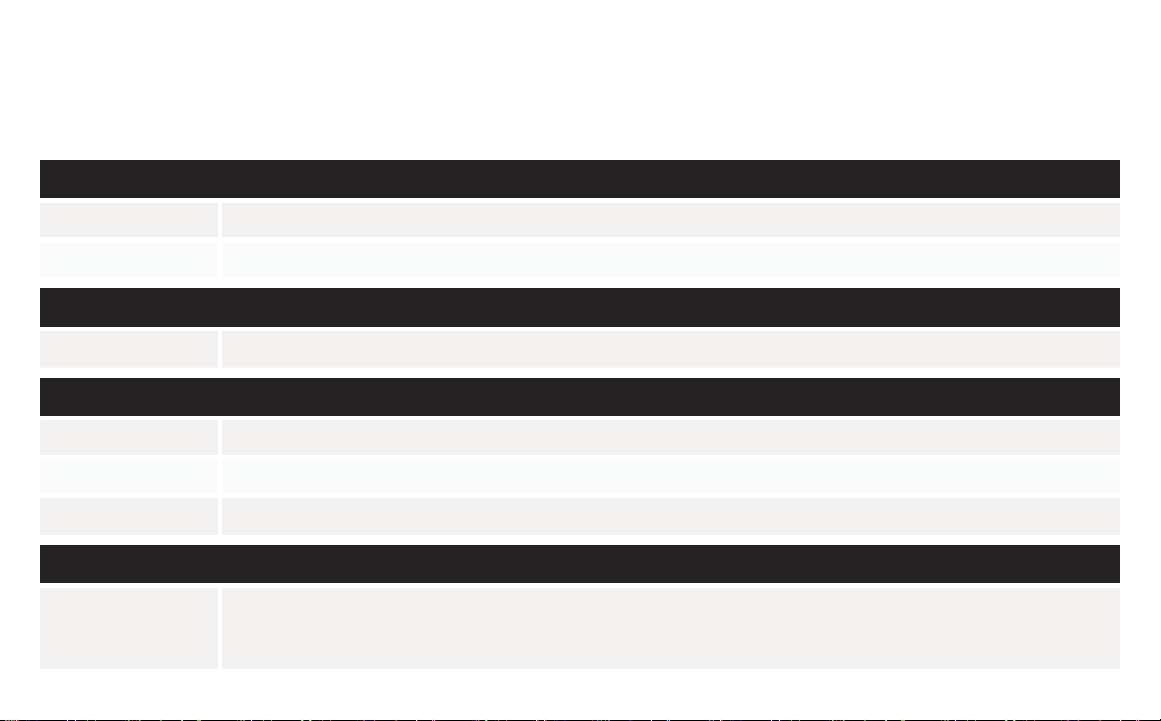
If you have set up your lock with Yale Access App, you should reset it using the app.
Go to your lock’s settings and choose “Factory Reset”.
1. Remove one battery.
2. Insert reset pin into the designated reset hole.
3. Press and hold the reset pin.
4. While holding the reset pin, reinsert battery.
5. Keep holding the reset pin for 5 more seconds.
6. Take out the reset pin.

30
P/N YRD420-KD-F Rev A
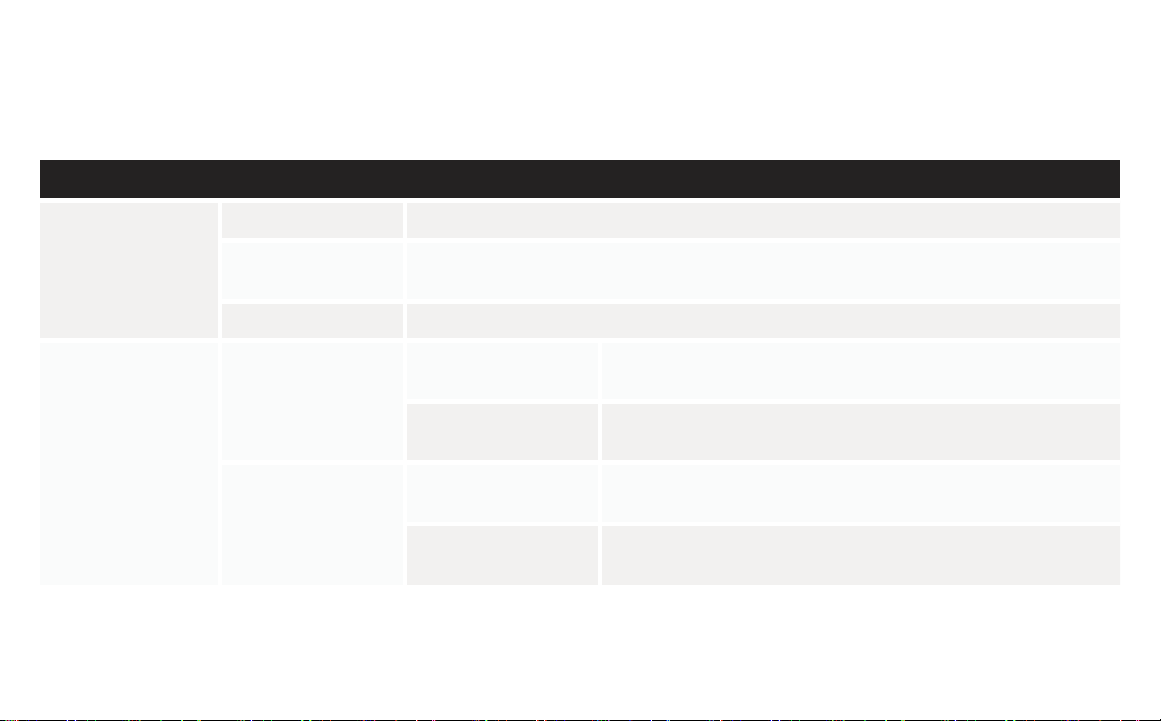
Features
DoorSense · DoorSense keeps track of when your door is closed or open.
Fingerprint · Unlock your door by scanning your fingerprint.
Entry Codes
· Entry codes are used to unlock your door.
· Create entry codes from the “Guest List” tab in the Yale Access App.
· You can set permanent, recurring, and temporary entry codes.
· An unlimited number of entry codes can be created or deleted as long as you have Bluetooth or Wi-Fi connection to the lock.
Auto-Lock
· Auto-Lock automatically locks the door for you.
· It can be set to lock on a timer for as short as 30 seconds, or as long as 30 minutes.
· When using the Auto-Lock feature with DoorSense, your door will not lock until it is closed.
· Auto-Lock can be set up in the lock settings of the app.
Auto-Unlock
· Auto-Unlock knows when you arrive and unlocks the door as you approach.
· Auto-Unlock can be set up in the lock settings of the app.
Passage Mode
· Use passage mode when you want to disable Auto-Lock for an extended period of time.
· Simply press and hold the Passage button on the inside of the lock until you hear a chime to turn it on.
· To turn passage mode off, lock your door or press and hold the Passage button until you hear a chime.
Integrations
· Yale Access products work in harmony with some of your favorite smart home brands.
· Integrations can be set up in the Yale Access App from the “Works With” menu option.
31
P/N YRD420-KD-F Rev A
App Settings
You can find these and other settings in the Yale Access App.
Security
Hide Entry Codes If turned on, all entry codes within the app will be hidden from view.
Verified Access If turned on, biometric/passcode authentication is required to operate the lock using the app.
Notifications
Smart Alerts Create alerts you wish to receive from the app.
Automation
Auto-Lock Door will automatically lock, either when door is closed (with DoorSense), or on a timer.
Auto-Unlock Door will automatically unlock when you arrive home.
DoorSense Allows you to know when your door is opened or closed.
Information
Programming Code
This code is automatically created by the Yale Access App and used to access programming features: handing, Smart Module
integration, and diagnostics. This code cannot be used to unlock the door. Find your programming code in the Yale Access App,
enter this code on the keypad and press the gear symbol.
32
P/N YRD420-KD-F Rev A
Advanced Device Settings
Device Settings
Volume You can turn the lock volume on or off, and set it to high or low.
Inside Indicator Light
When turned on, it will show the active status (e.g. locked) of the lock. This light will also inform you
when the batteries are low, passage mode is enabled, and pairing is successful.
One-Touch Locking Lock the keypad by touching the Yale logo.
Keypad Settings
Keypad Security
Shutdown Timing
(Default: 60 sec)
The lock will shut down for the set period of time and not allow
operation after the wrong code entry limit has been reached.
Wrong Code Limit
(Default: 5 times)
After the set number of unsuccessful attempts at entering a valid entry
code, the lock will shut down and not allow operation for 60 seconds.
Operating Mode
Normal
(Default)
All entry codes will work and the lock can be unlocked and locked using
the app and voice assistants.
Vacation
When enabled, all entry code access will be restricted. Users can still
lock and unlock the door with the app.
App Settings
You can find these and other settings in the Yale Access App.

33
P/N YRD420-KD-F Rev A
Lock Operations Troubleshooting
Lock does not respond.
· Press the Yale logo to activate the keypad.
· Verify contact with the logo.
· If keypad numbers are visible, check if they respond when pressed.
· Check batteries are installed and oriented correctly in battery case. Replace batteries* if needed.
· Check that the keypad wire is fully connected and not pinched.
Lock does not respond – door is locked and
unaccessible.
· Batteries may not have enough power. Replace batteries*.
· Use mechanical key to unlock the door.
Lock is on for a while then shows no reaction.
Lights dim.
· Batteries do not have enough power. Replace batteries*.
Lock chimes indicating code acceptance
but door will not open.
· Check for any foreign objects between door and frame.
· Check that the wire is firmly connected to the interior lock.
Lock operates to allow access but will not
automatically unlock.
· Check to see if Auto-Lock is enabled.
· Disable Auto-Lock to lock the door manually.
Lock responds “Low Battery”. · Replace all four (4) batteries* with new AA alkaline batteries.
* After replacing your batteries, it’s highly recommended to use your app to lock or unlock your device. This will allow the app to connect to the lock to ensure
that the internal time of the device is correct.

34
P/N YRD420-KD-F Rev A
Lock does not unlock with fingerprint.
· Verify that you’re using a registered finger.
· Make sure the finger you’re using is clean and dry.
Entry code will not register.
· If low battery indicator is lit, replace batteries*.
· Verify that your entry code consists of 4 to 8 digits.
· Make sure you are using different entry codes for different users.
· Entry code must be entered while the keypad is active (tap on the Yale logo to wake it up and enter
the entry code within 5 seconds).
Upon entering an entry code and pressing the
Check key, the lock displays “Invalid Code”
error or lock times out without responding.
· Verify entered code is a valid, previously programmed, 4 to 8 digit code.
· Vacation mode might be on. Only an admin user can switch vacation mode to normal in the app.
Upon entering an entry code and pressing the
Check key, lock responds “Wrong Number of
Digits”.
· The digits entered were incorrect or incomplete. Re-enter the correct code followed by the Check
key.
Deadbolt does not extend when locking the
door with the keypad.
· Lock was not handed properly. Find the setting called “Lock Handing” to fix this issue.
Lock operates but makes no sound. · Check in the app settings if volume is set to off.
* After replacing your batteries, it’s highly recommended to use your app to lock or unlock your device. This will allow the app to connect to the lock to ensure
that the internal time of the device is correct.
Lock Operations Troubleshooting
35
P/N YRD420-KD-F Rev A
Deadbolt grinds and will not extend to lock
when using an entry code but thumbturn
locks and unlocks smoothly.
· Lock was not handed properly. Find the setting called “Lock Handing” to fix this issue.
Deadbolt is hitting the strike plate. · Reposition the strike plate to align with deadbolt.
Deadbolt is not fully extending. · Increase depth of the deadbolt strike pocket in the frame.
Resistance when locking deadbolt that
requires pushing or pulling on the door to
align deadbolt and latch.
Adjust your existing knob, lever, or handleset strike plate. Latch engagement into the strike is the main
component used for door alignment.
To adjust knob / lever / handleset strike plate:
1. Remove plate from door frame with a hand screwdriver. Note: using an electric driver may strip
screw heads or enlarge screw holes.
2. Locate tab on strike plate. Bend the tab towards surface of strike. Note: a small change may be all
that is required.
3. Reinstall strike plate using a screwdriver and test again.
4. If door cannot be adjusted sufficiently with strike tab, both knob/lever/handleset latch and deadbolt
could require adjustment – we suggest you contact a local locksmith for assistance.
Hardware Troubleshooting

P/N YRD420-KD-F Rev A
Use:
Use of the Works with Apple badge means that an accessory has
been designed to work specifically with the technology identified
in the badge and has been certified by the developer to meet Apple
performance standards.
Apple is not responsible for the operation of this device or its
compliance with safety and regulatory standards.
Apple®, Apple Home™, Apple Watch®, HomeKit®, and iPhone® are
trademarks of Apple Inc., registered in the U.S. and other countries
and regions.
Google, Google Play and Google Home are trademarks of Google LLC.
Amazon, Alexa and all related logos are trademarks of Amazon.com,
Inc. or its affiliates.
Wi-Fi is a registered trademark of Wi-Fi Alliance®.
The Bluetooth® word mark and logos are registered trademarks
owned by Bluetooth SIG, Inc. and any use of such marks by Yale is
under license. Other trademarks and trade names are those of their
respective owners.
FCC:
FCC ID: 2ABFG-YRD420-F
IC ID: 11626A-YRD420-F
Class B Equipment
This equipment has been tested and found to comply with the limits
for a Class B digital device, pursuant to Part 15 of the FCC Rules.
These limits are designed to provide reasonable protection against
harmful interference in a residential installation. This equipment
generates, uses, and can radiate radio frequency energy and, if not
installed and used in accordance with the instructions, may cause
harmful interference to radio communications. However, there is no
guarantee that interference will not occur in a particular installation. If
this equipment does cause harmful interference to radio or television
reception, which can be determined by turning the equipment off and
on, the user is encouraged to try to correct the interference by one or
more of the following measures:
• Reorient or relocate the receiving antenna.
• Increase the separation between the equipment and receiver.
• Connect the equipment into an outlet on a circuit different from that
to which the receiver is connected.
• Consult the dealer or an experienced radio/TV technician for help.
Warning:
Changes or modifications to this device, not expressly approved by
Yale Home could void the user’s authority to operate the equipment.
Industry Canada:
FCC ID: 2ABFG-YRD420-F
IC ID: 11626A-YRD420-F
This Class A digital apparatus meets all requirements of the
Canadian Interference Causing Equipment Regulations.
Trusted Every Day
Yale Home
24/7 Support: 1-855-213-5841 • support.shopyalehome.com
Yale® and Assure Lock® 2 are registered trademarks of Master Lock Company LLC and its affiliates. Other products’ brand names may be
trademarks or registered trademarks of their respective owners and are mentioned for reference purposes only. ©Copyright 2023. All rights
reserved. Reproduction in whole or in part without the express written permission of Master Lock Company LLC or its affiliates is prohibited.