USER GUIDE:
3128
BLUETOOTH
®
UHF RFID RAIN READER
www.tsl.com
Design • Development • Manufacture

3128 UHF Reader User Guide V0.11Copyright © 2026 Technology Solutions (UK) Ltd
2
TERMS & CONDITIONS
Copyright © 2026 Technology Solutions (UK) Ltd. All rights reserved.
No part of this publication may be reproduced or used in any form, or by any electrical or mechanical means,
without permission in writing from Technology Solutions (UK) Ltd. This includes electronic or mechanical
means,such as photocopying, recording, or information storage and retrieval systems. The material in this manual
is subject to change without notice.
Technology Solutions (UK) Ltd (TSL
®
) reserves the right to make changes to any software or product to improve
reliability, function, or design. TSL does not assume any product liability arising out of, or in connection with, the
application or use of any product, circuit, or application described herein. No license is granted, either expressly or
by implication, estoppel, or otherwise under any patent right or patent, covering or relating to any combination,
system, apparatus, machine, material, method, or process in which TSL products might be used. An implied
license exists only for equipment, circuits, and subsystems contained in TSL products. TSL and the TSL logo are
registered trademarks of TSL. Other product names mentioned in this manual may be trademarks or registered
trademarks of their respective companies and are hereby acknowledged.
All software is provided strictly on an “as is” basis. All software, including firmware, furnished to the user is on
a licensed basis. TSL grants to the user a non-transferable and non-exclusive license to use each software or
firmware program delivered hereunder (licensed program). Except as noted below, such license may not be
assigned, sublicensed, or otherwise transferred by the user without prior written consent of TSL. No right to
copy a licensed program in whole or in part is granted, except as permitted under copyright law. The user shall
not modify, merge, or incorporate any form or portion of a licensed program with other program material, create
a derivative work from a licensed program, or use a licensed program in a network without written permission
from TSL. The user agrees to maintain TSL’s copyright notice on the licensed programs delivered hereunder, and
to include the same on any authorized copies it makes, in whole or in part. The user agrees not to decompile,
disassemble, decode, or reverse engineer any licensed program delivered to the user or any portion thereof.
iPad, iPad Air, iPad mini, iPad Pro, iPhone, iPod, iPod touch are trademarks of Apple Inc., registered
in the U.S. and other countries. IOS is a trademark or registered trademark of Cisco in the U.S. and other countries
and is used under license.
Use of the Made for Apple badge means that an accessory has been designed to connect specifically to the Apple
product(s) identified in the badge and has been certified by the developer to meet Apple performance standards.
Apple is not responsible for the operation of this device or its compliance with safety and regulatory standards.
The Bluetooth
®
word mark and logos are registered trademarks owned by Bluetooth SIG, Inc. and any use of
such marks by Technology Solutions (UK) Ltd is under license. Other trademarks and trade names are those of
their respective owners.
www.tsl.com

3128 UHF Reader User Guide V0.11Copyright © 2026 Technology Solutions (UK) Ltd
3
CONTENT
Introduction 4
Parts of the 3128 UHF Reader 4
Alternative Configurations of the 3128 Reader 5
Using the 3128 UHF Reader 6
Power Handle Installation or Removal 6
Inserting or Removing a Micro SD Card 8
Antenna Installation or Removal 10
Locking the Antenna 11
Charging 12
Button Operation 14
Controlling the Trigger Button Through ASCII Commands 14
Reading Transponders 15
Status LED 16
Connections 17
Bluetooth Wireless Technology Connection 17
Comparison of Bluetooth Operating Modes 18
Changing the Bluetooth Operating Mode 19
Changing the Bluetooth Operating Mode Using Command Scan 20
Setting up a Bluetooth Connection with an Apple iOS Device 21
Micro SD Card Contents 26
Auto Run File (AUTO.TXT) 26
Log File (LOG.TXT) 26
Software Development 27
Command Scan 28
What is Command Scan? 28
Using Command Scan to Switch Bluetooth Mode 28
More Information 28
Troubleshooting and Maintenance 29
Maintenance 29
Troubleshooting 29
Regulatory Information 30
Information to the User – FCC 30
Marking and European Economic Area (EEA) 30
Industry Canada statement 31
Korea Warning Statement for Class B ITE 31
Battery Safety 32
Health and Safety Recommendations 33
Waste Electrical and Electronic Equipment (wEEE) 34
Warranty 34
About 36
About TSL 36
Contact 36
About HID 36
www.tsl.com
3128 UHF Reader User Guide V0.11Copyright © 2026 Technology Solutions (UK) Ltd
4
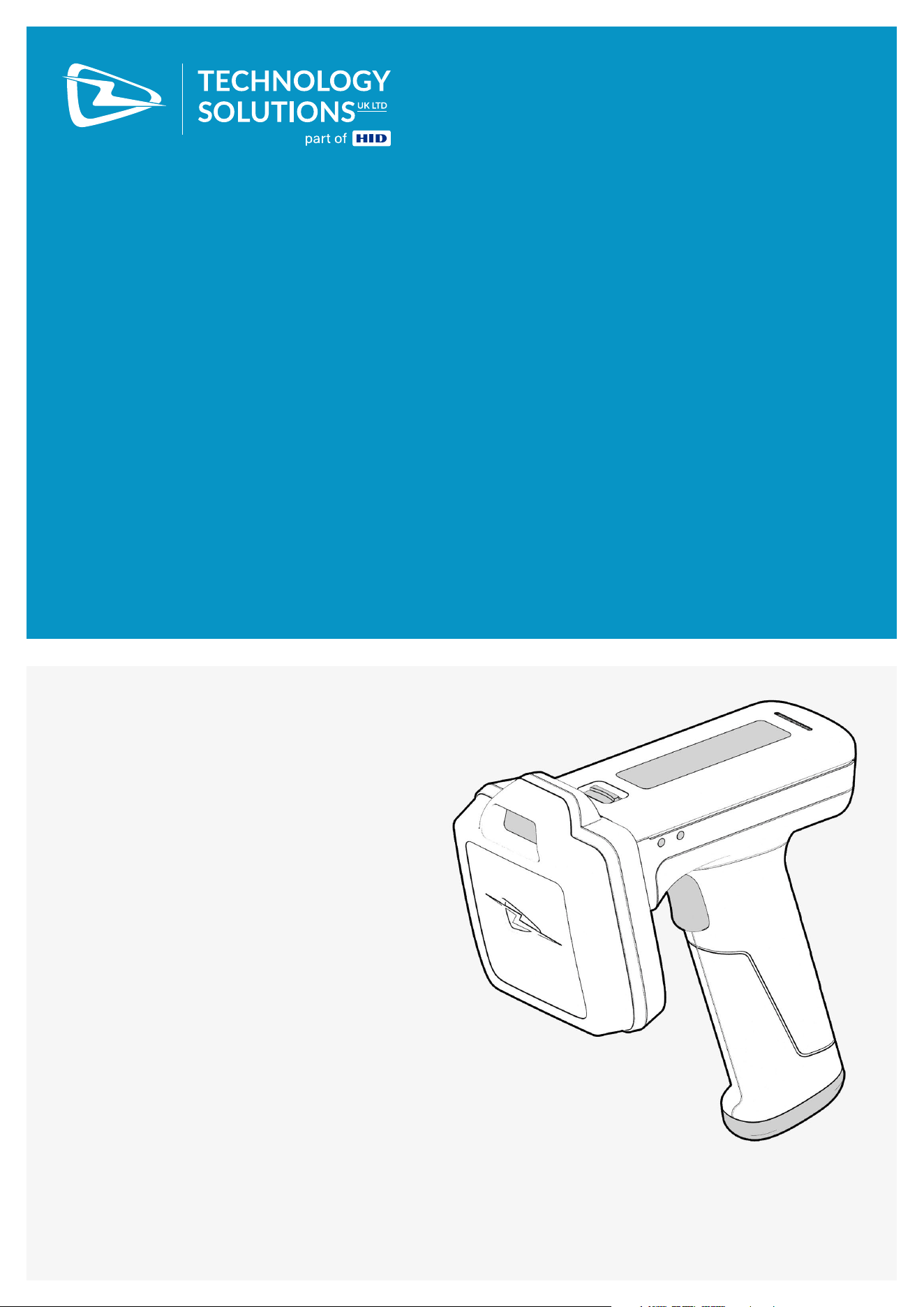
The TSL 3128 Bluetooth UHF RFID Reader provides Ultra High Frequency (UHF) Radio Frequency Identification
(RFID), with optional barcode scanning functionality. The unit can be used in batch mode using an optional Micro
SD card, or connected to a host device via Bluetooth. The 3128 can read and write to EPC Global Class 1 Gen 2
UHF RFID transponders.
INTRODUCTION
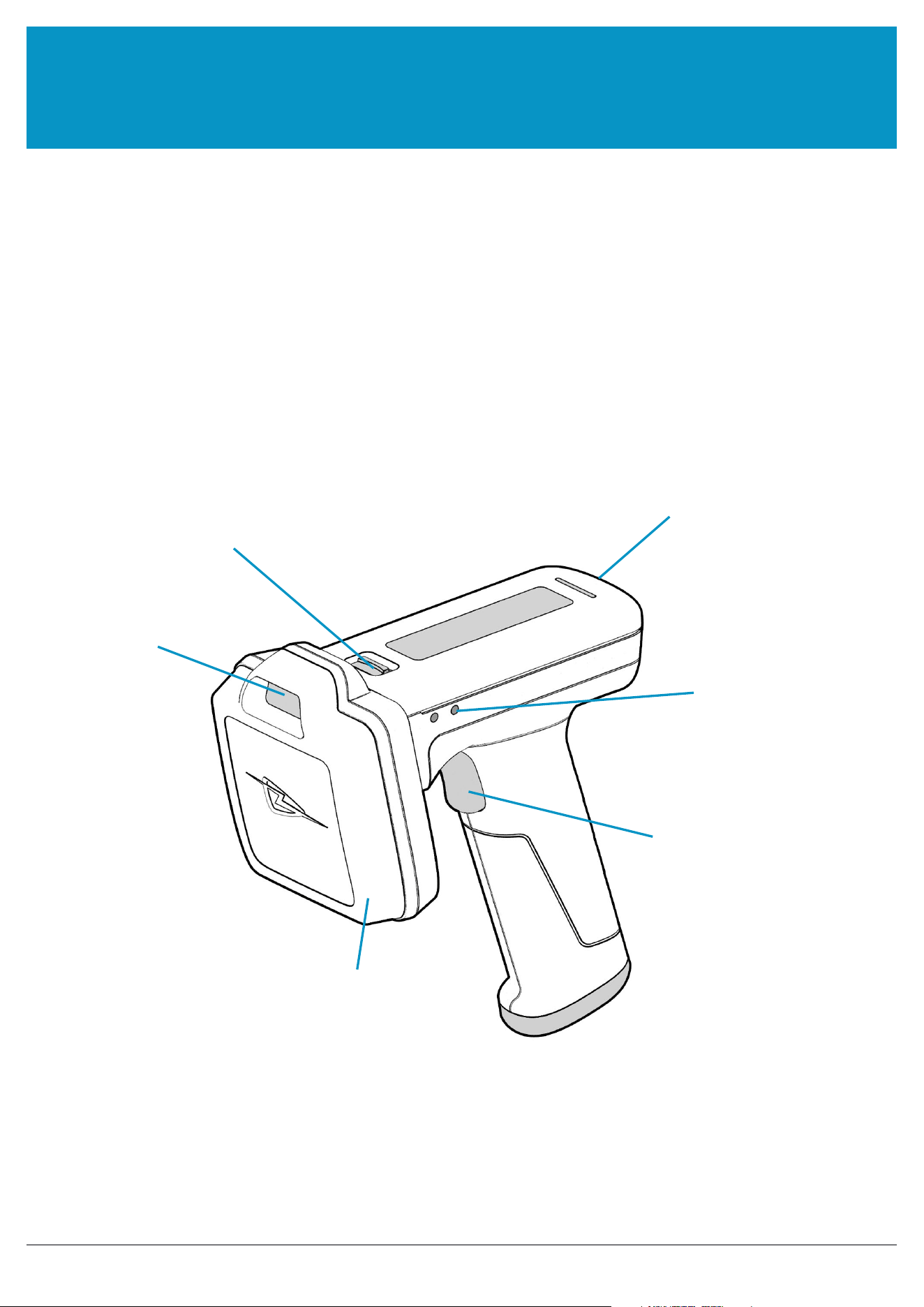
Antenna release latch
Docking connector
Status LEDs
Trigger Button
UHF Antenna with 2D Imager
Figure 1: Parts of the 3128 UHF Reader
PARTS OF THE 3128 UHF READER
Barcode Imager
www.tsl.com
3128 UHF Reader User Guide V0.11Copyright © 2026 Technology Solutions (UK) Ltd
5
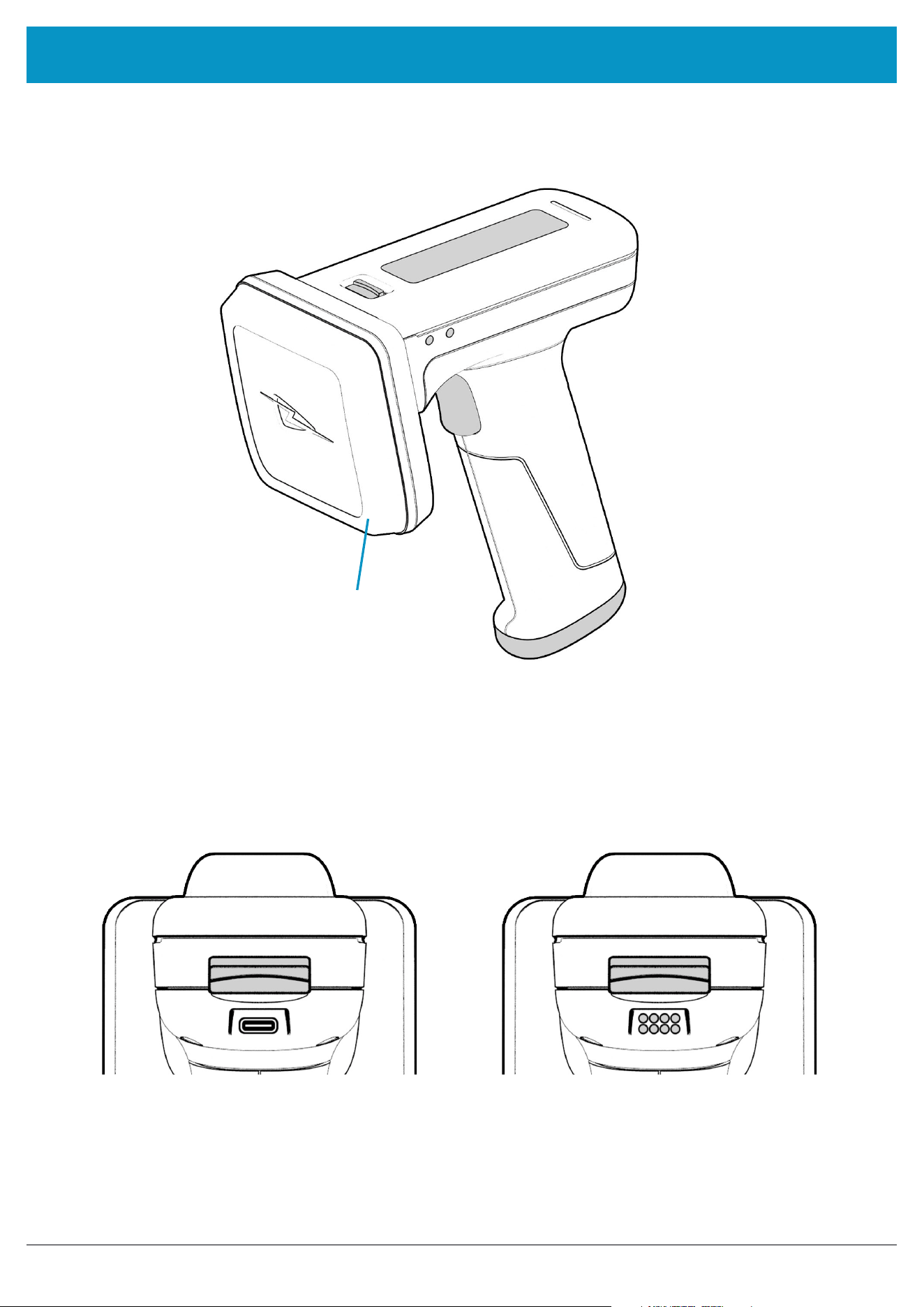
UHF Antenna (no barcode imager)
Figure 2: UHF antenna fitted (instead of UHF antenna with 2D Barcode Imager)
ALTERNATIVE CONFIGURATIONS OF THE 3128 READER
INTRODUCTION
Figure 3: By default, the 3128 Reader is supplied with a Power Handle with
a USB-C connector (left). A Power Handle with Power Pins (right) can also
be purchased, for use with a docking cradle.
www.tsl.com
3128 UHF Reader User Guide V0.11Copyright © 2026 Technology Solutions (UK) Ltd
6
USING THE 3128 UHF READER
POWER HANDLE INSTALLATION OR REMOVAL
A high capacity battery is contained within the Power Handle. The Power Handle can be charged using a USB-C
lead (USB-C models only) or in a charging cradle (Power-Pin models only). To remove or replace the Power Handle,
please follow the steps below.
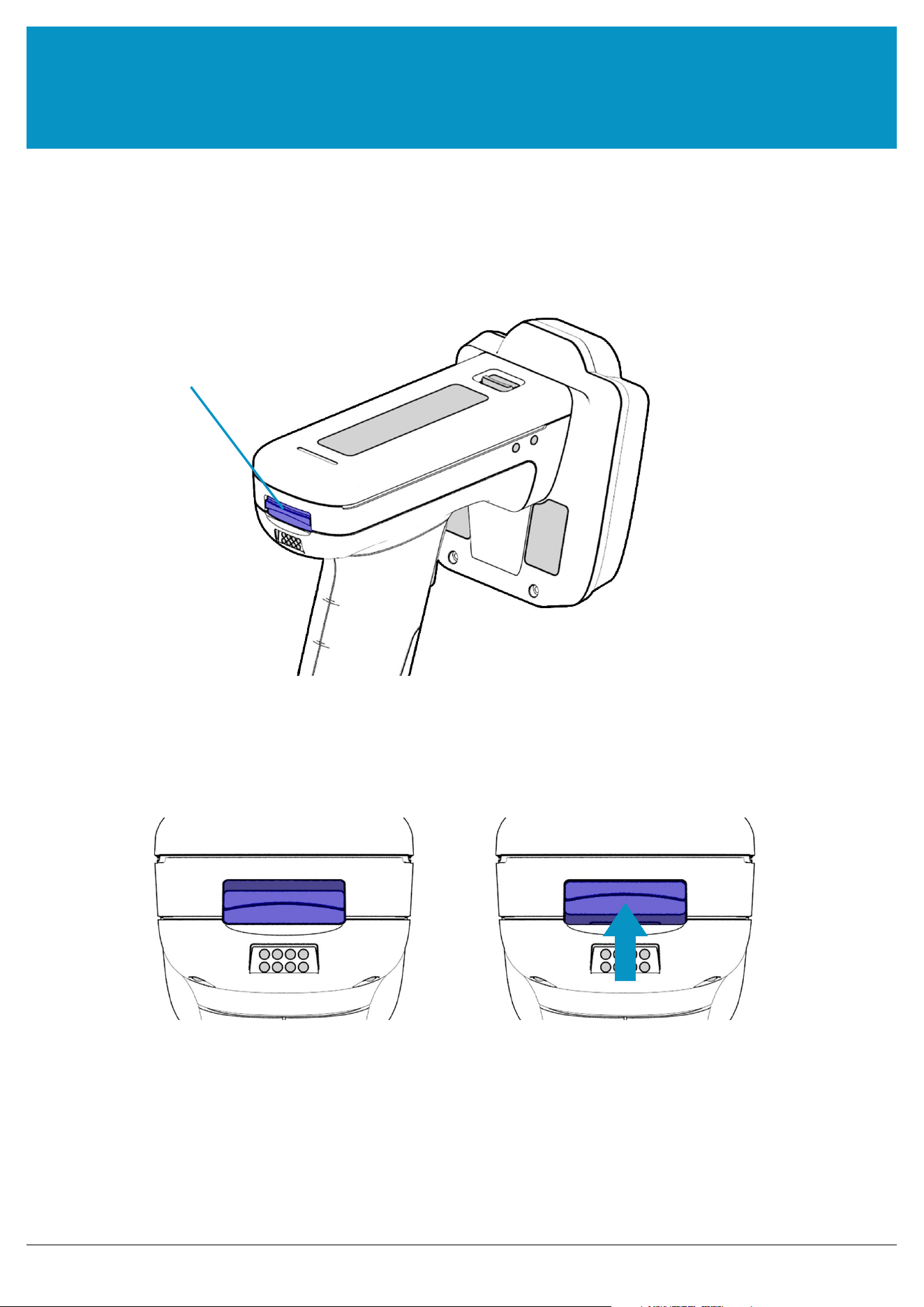
Handle Release latch
Figure 4: Location of Handle Release latch
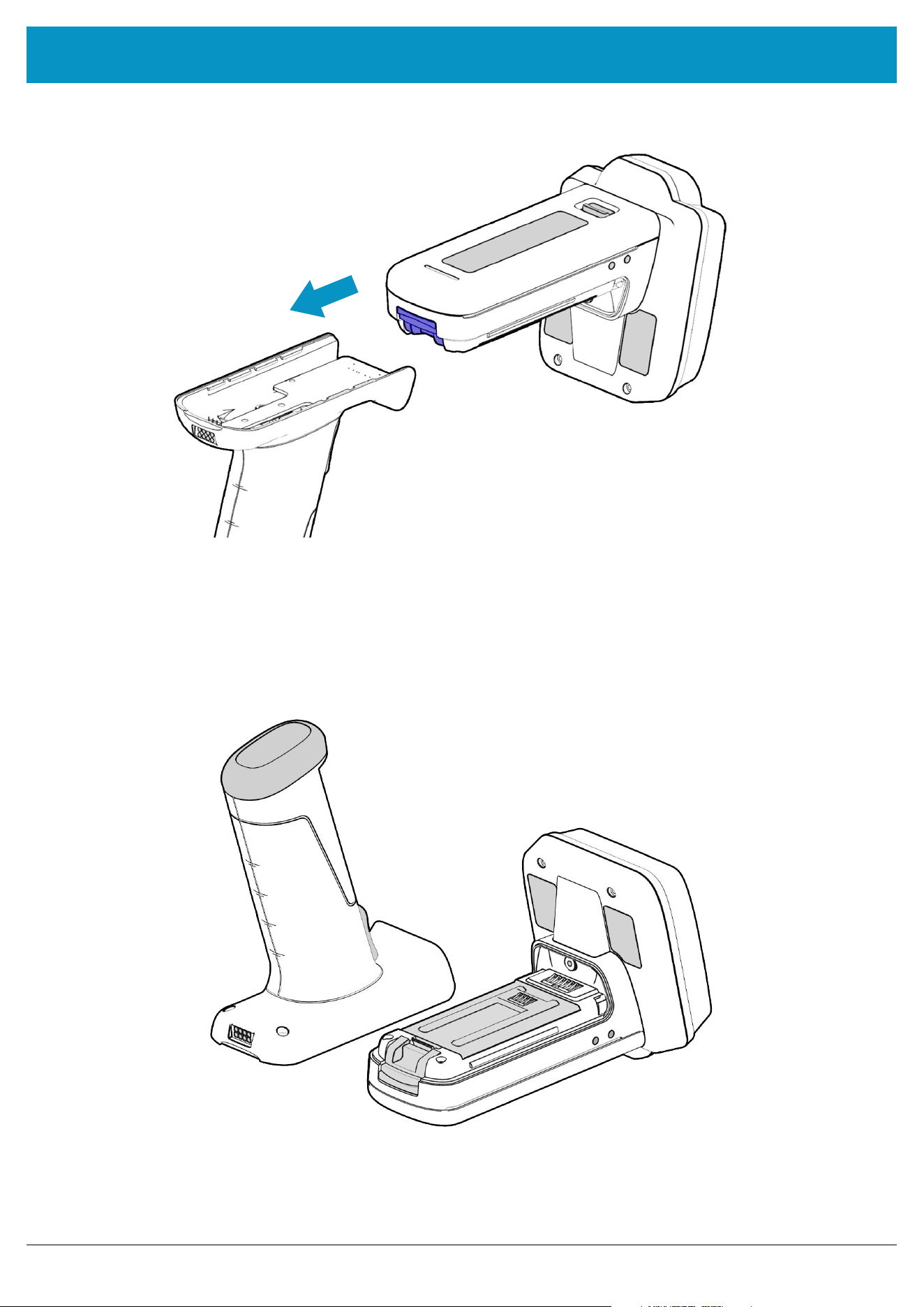
Push the Handle Release latch in the direction indicated by the arrow (See “Figure 5: Handle Release latch
operation” ). At the same time, gently slide the Power Handle in the direction indicated (See “Figure 6: Slide Power
Handle off”.
Figure 5: Handle Release latch operation
www.tsl.com
3128 UHF Reader User Guide V0.11Copyright © 2026 Technology Solutions (UK) Ltd
7
USING THE 3128 UHF READER
Figure 6: Slide Power Handle off
Figure 7: Power Handle removed
www.tsl.com
3128 UHF Reader User Guide V0.11Copyright © 2026 Technology Solutions (UK) Ltd
8
USING THE 3128 UHF READER
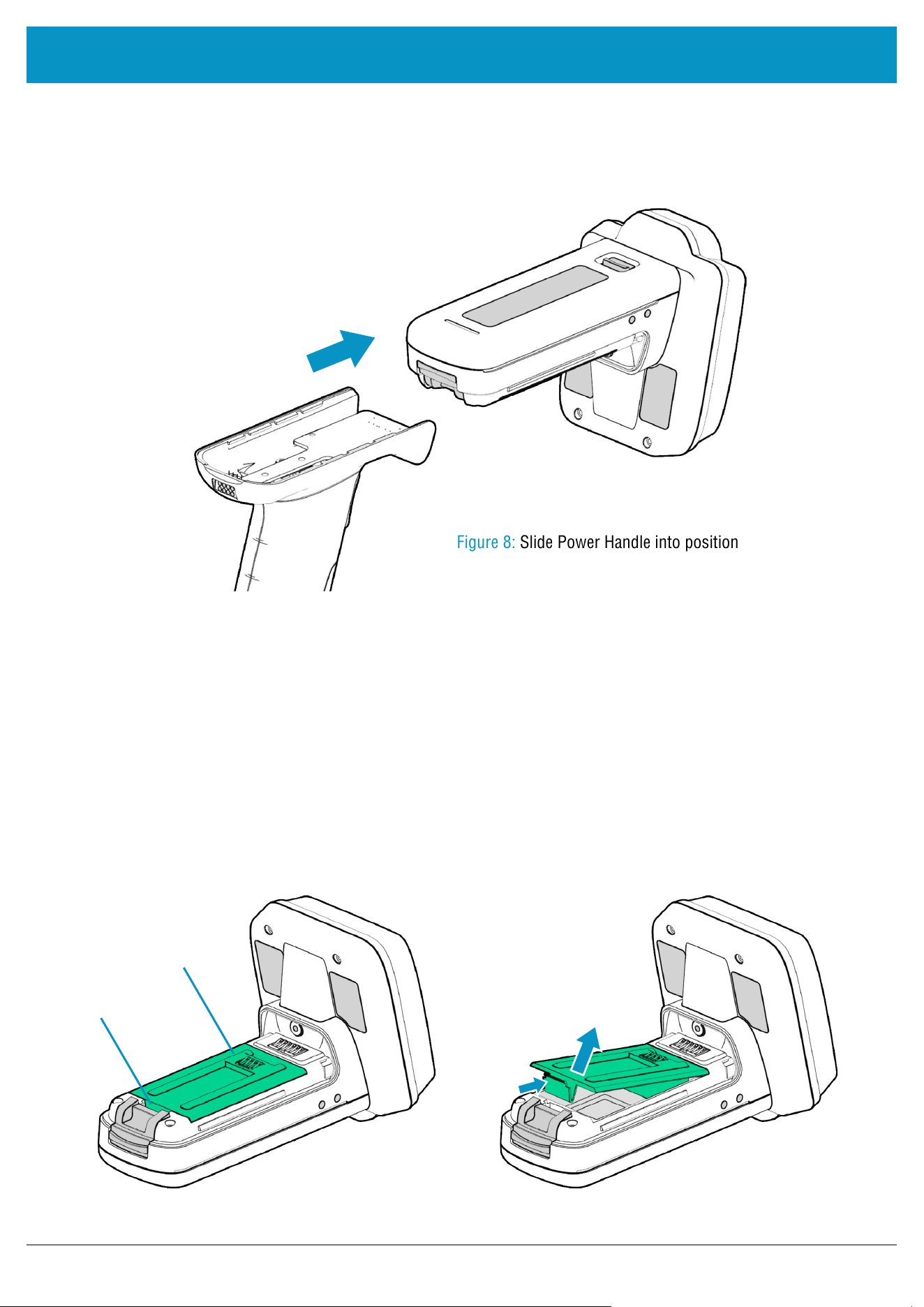
The actions to replace the Power Handle are:
● Slide the Power Handle back onto the main unit, making sure that the guide rails are properly aligned
● The release latches will audibly ‘click’ to indicate the Power Handle is fixed in place
Figure 8: Slide Power Handle into position
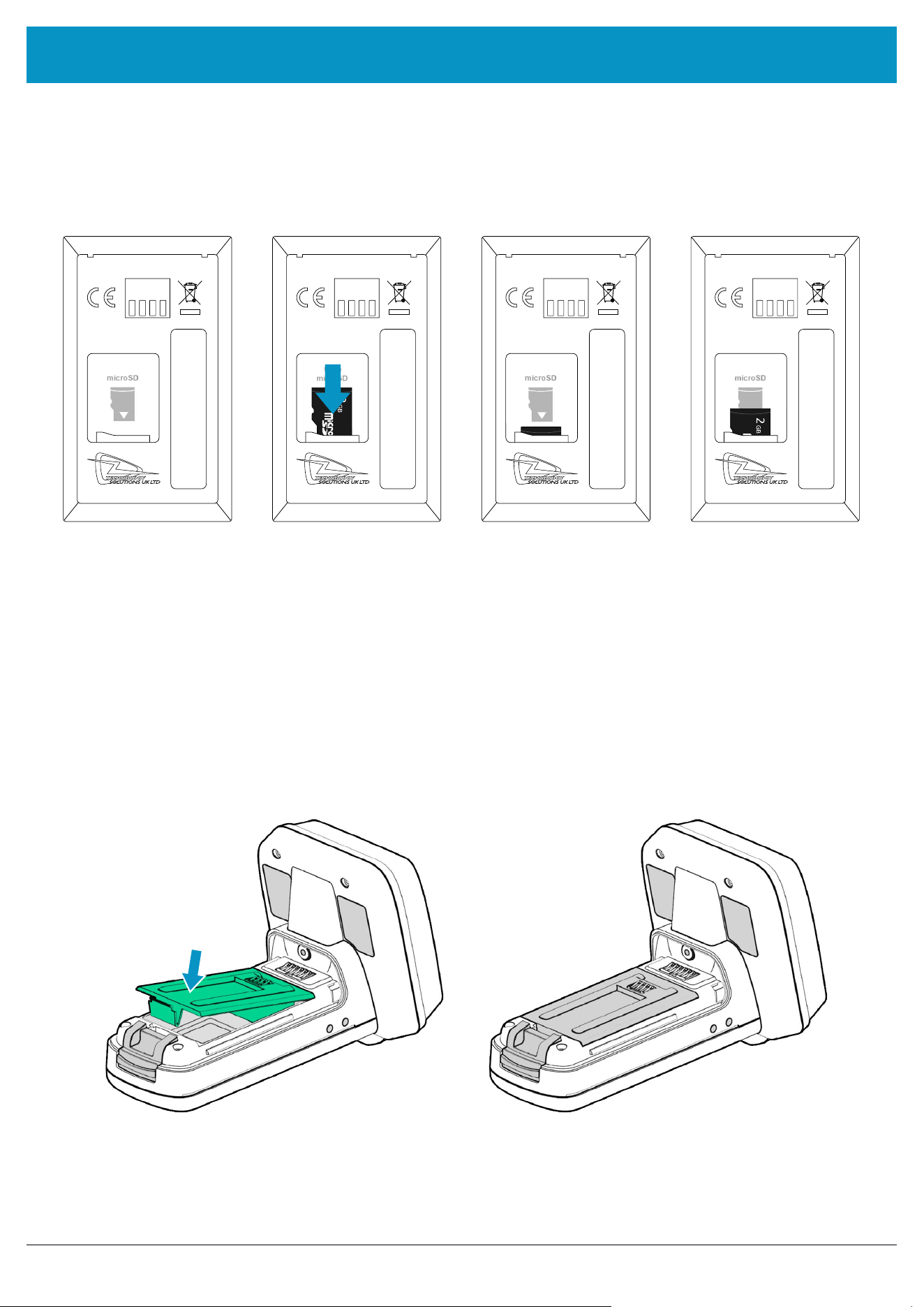
To remove the Power Bridge/access the micro SD card slot
1. Remove the Power Handle (see “Power Handle Installation or Removal” on page 6)
2. Press on the Release Tab to lift the Power Bridge out of the main body of the reader (see “Figure 8: Slide
Power Handle into position”)
3. The micro SD card slot will now be visible
An optional micro SD card can be installed inside the 3128 reader. The card should be SD/SDHC compatible,
FAT16 or FAT32 up to 256 GB.
INSERTING OR REMOVING A MICRO SD CARD
Power Bridge
Figure 9: Remove Power Bridge
Release Tab
www.tsl.com
3128 UHF Reader User Guide V0.11Copyright © 2026 Technology Solutions (UK) Ltd
9
USING THE 3128 UHF READER
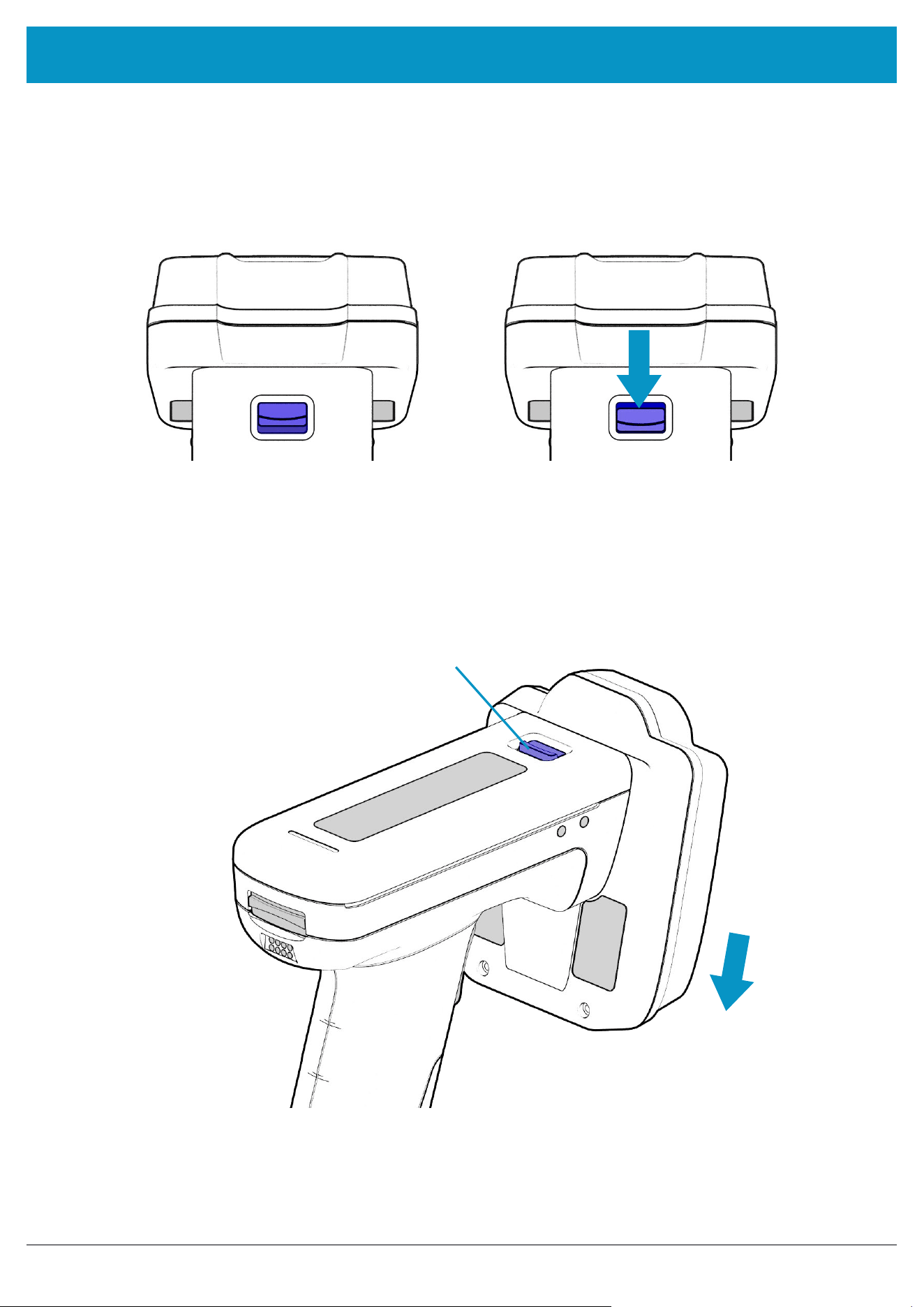
Figure 11: Replace Power Bridge
To insert or remove a micro SD card
The card slot is spring loaded. After aligning the card with the slot, push and release the card once to lock the card
into the holder. Once locked in a further push and release will eject the card. It can then be removed from the slot.
Figure 10: Micro SD Card Insertion and Removal
To replace the Power Bridge
● Align the Power Bridge using the indents with the pips on the case
● Carefully push the Power Bridge down into position, until the Release Tab clicks into place
● Check that the Power Bridge is sitting correctly in position before attaching a Power Handle
www.tsl.com
3128 UHF Reader User Guide V0.11Copyright © 2026 Technology Solutions (UK) Ltd
10
USING THE 3128 UHF READER
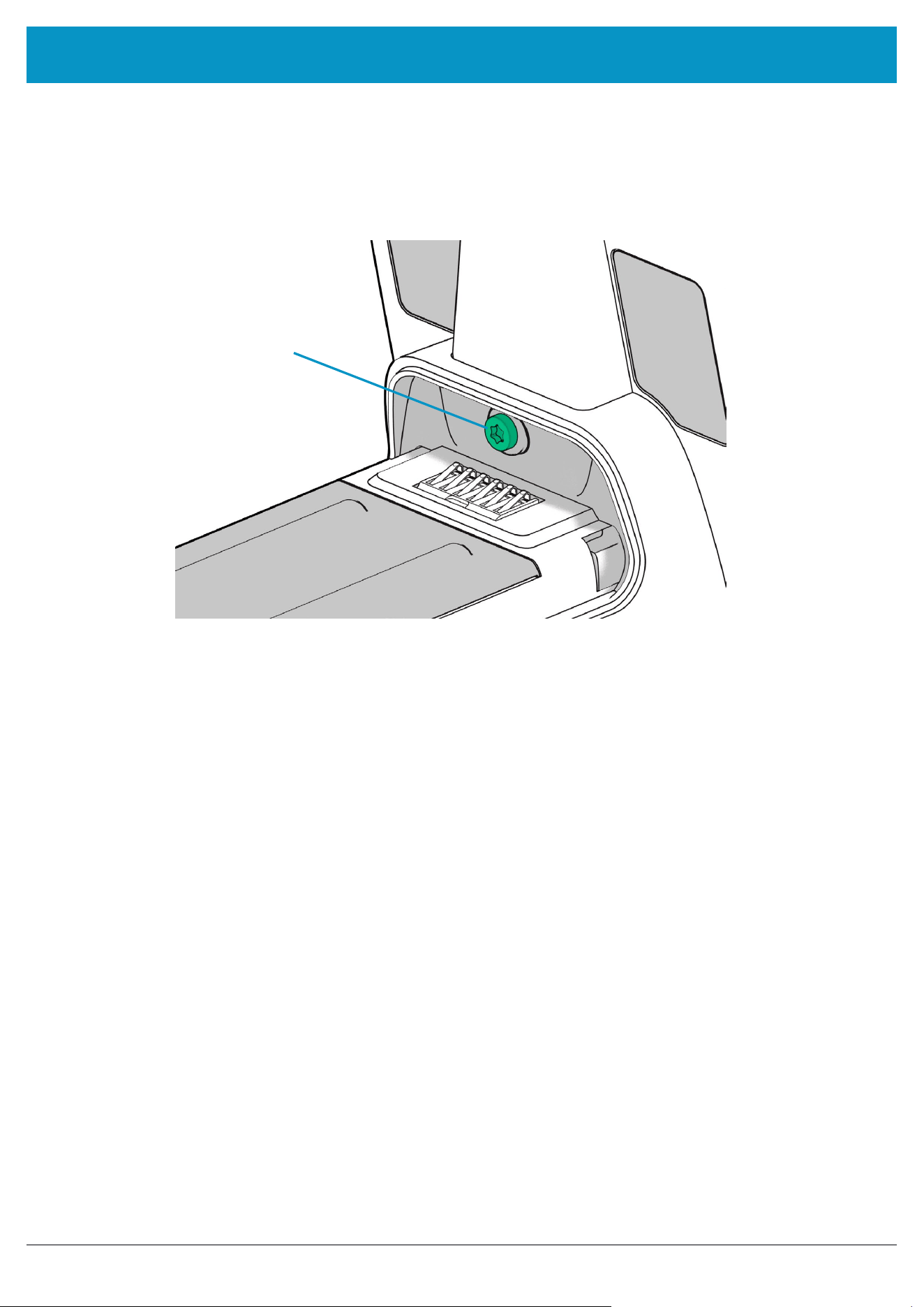
ANTENNA INSTALLATION OR REMOVAL
The antenna can be detached from the main body of the reader. To remove the antenna, ensure that the reader is
powered off, then move the release latch and antenna in the directions indicated in the diagrams below.
Figure 12: Antenna release latch operation
Antenna release latch
Detach antenna
in this direction
Figure 13: Antenna release latch location
www.tsl.com
3128 UHF Reader User Guide V0.11Copyright © 2026 Technology Solutions (UK) Ltd
11
USING THE 3128 UHF READER
LOCKING THE ANTENNA
The antenna can be locked into position using an M2.5 x 5 mm Torx pan head screw.
Insert locking screw here
Figure 14: Antenna locking screw location
www.tsl.com
3128 UHF Reader User Guide V0.11Copyright © 2026 Technology Solutions (UK) Ltd
12
USING THE 3128 UHF READER
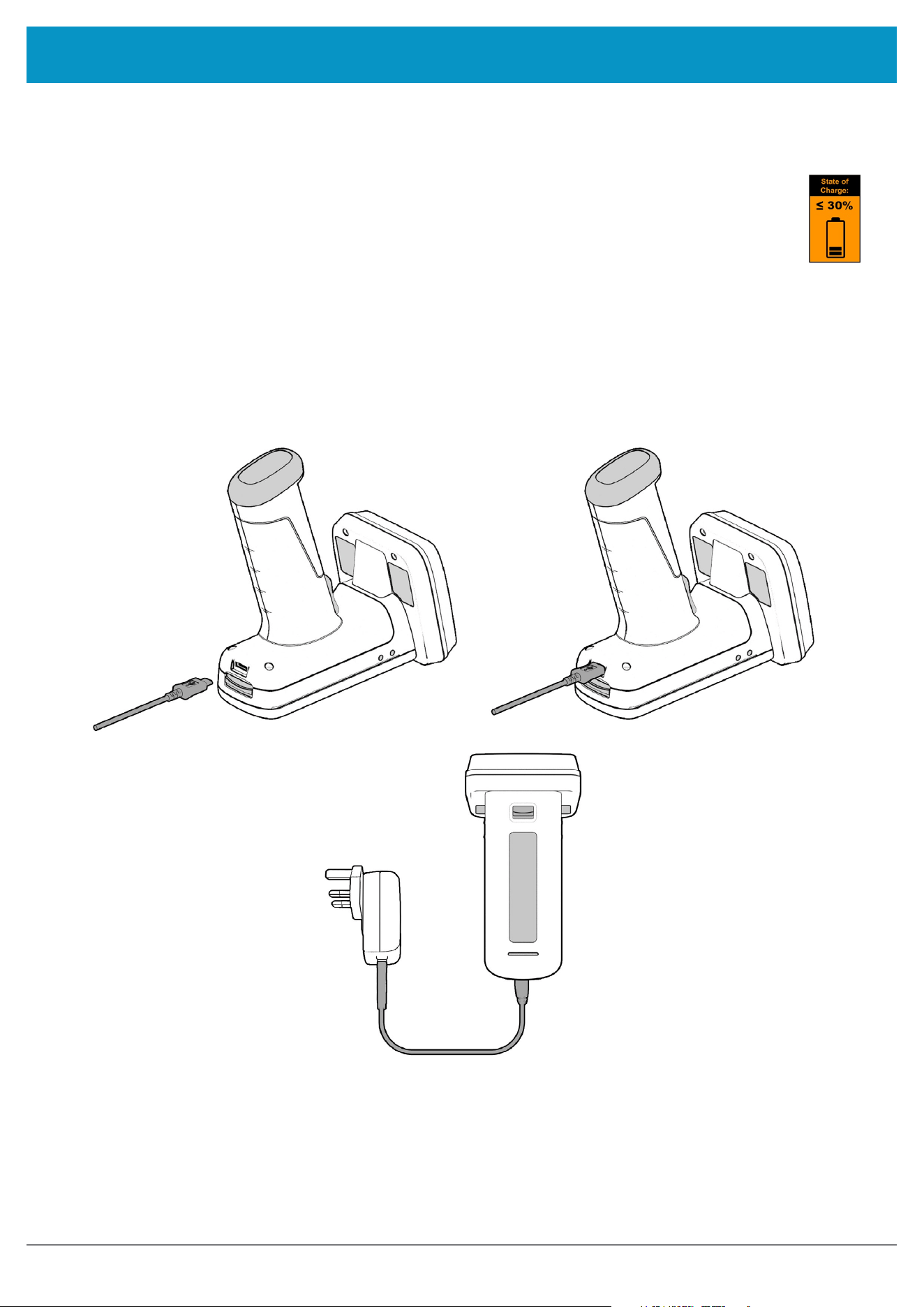
CHARGING
Figure 15: Attaching the USB-C cable
To comply with international shipping regulations, all batteries included with TSL products are
discharged to less than 30% of their maximum capacity when shipped. It is therefore important that
the unit is fully charged before using your 3128 UHF Reader for the first time. Please note that the Power
Handle will take 2-3 charge cycles to reach full capacity.
The 3128 UHF Reader is supplied with a USB-C lead for charging and synchronisation. A USB power supply can
be used for independent charging of the Reader. The USB-C connector is inserted into the 3128 UHF Reader as
shown below.
If using a USB power supply, it should be connected to an accessible power outlet to permit easy
disconnection if required.
www.tsl.com
3128 UHF Reader User Guide V0.11Copyright © 2026 Technology Solutions (UK) Ltd
13
USING THE 3128 UHF READER
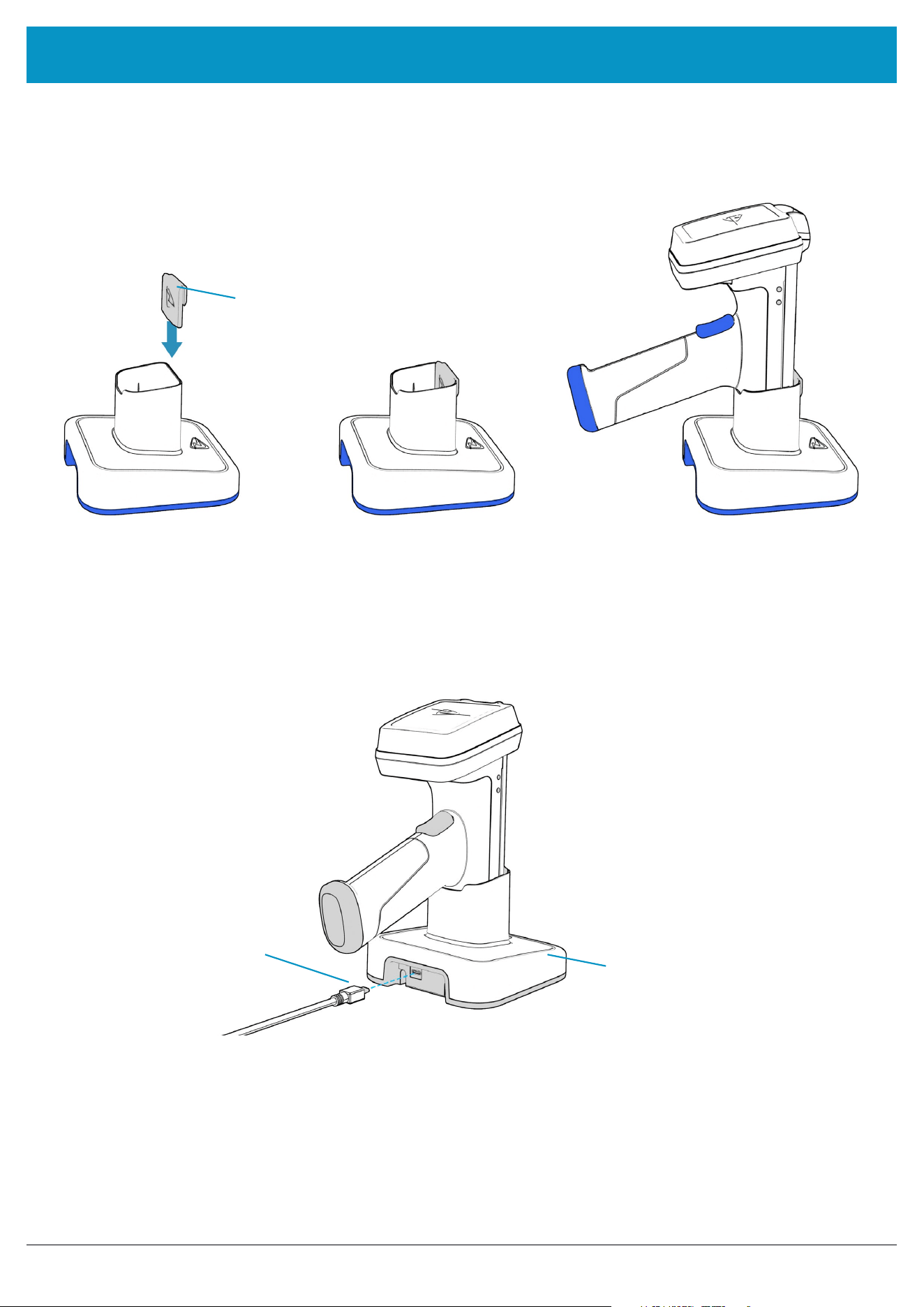
The 3128 UHF Reader can be charged using the dedicated 3128 Docking Cradle. The Docking Cradle has a
USB-C connector that can be used for either charging or data communications.
Before using the 3128 cradle, ensure that the Spacer plastic has been fitted (see “Figure 16: Fitting the Spacer
plastic into the 3128 Cradle”)
Figure 17: Charging the 3128 UHF Reader
USB-C Cable
(for power or data
connections)
3128 Cradle
Spacer plastic
Figure 16: Fitting the Spacer plastic into the 3128 Cradle
www.tsl.com
3128 UHF Reader User Guide V0.11Copyright © 2026 Technology Solutions (UK) Ltd
14
USING THE 3128 UHF READER
BUTTON OPERATION
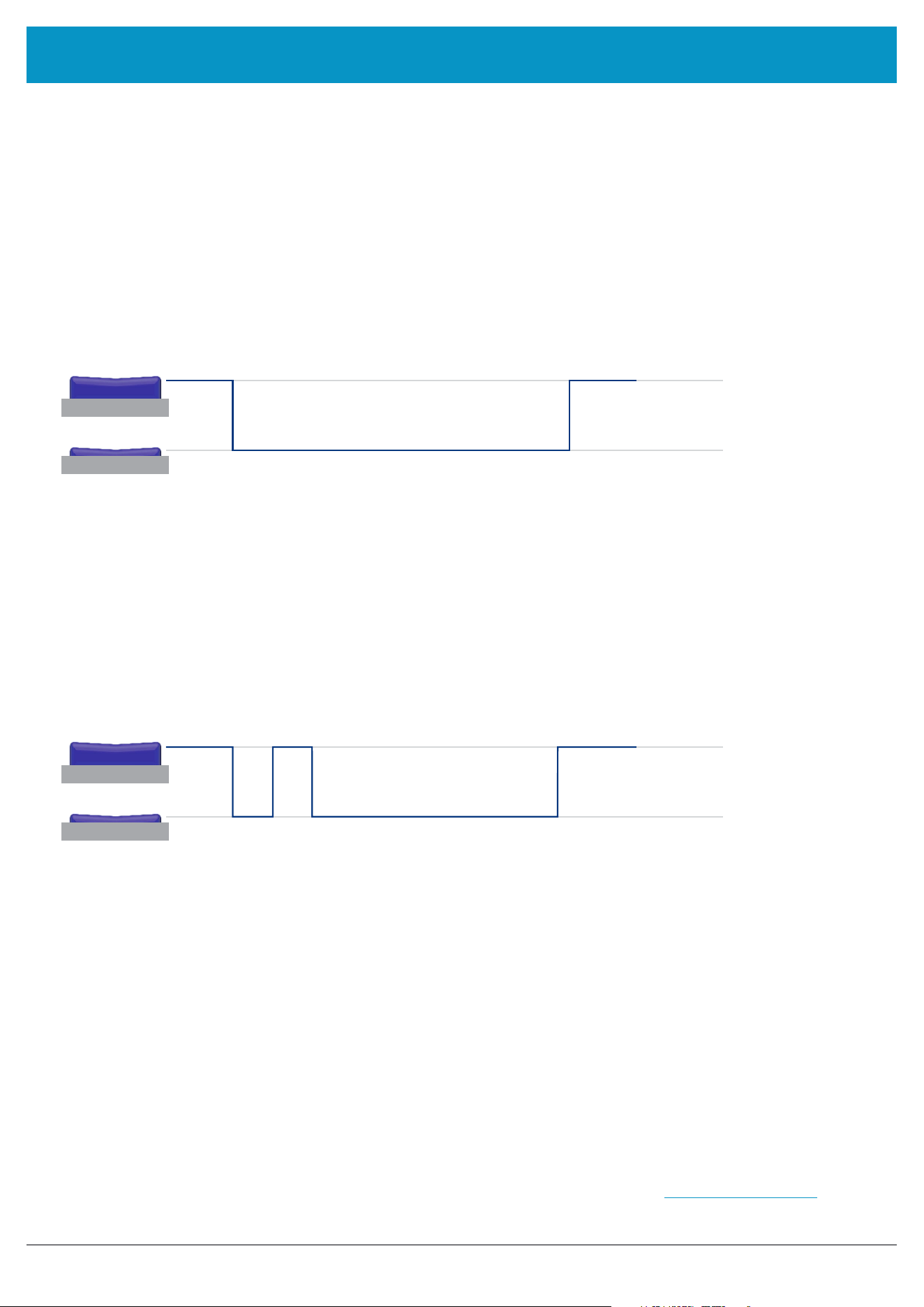
The 3128 UHF Reader has a Primary button action and a Secondary button action which can be initiated by
different button clicks: By default, the Primary action scans for UHF transponders, whilst the Secondary action
initiates the barcode scanner (Barcode scanning is only available with the 2D Imager Antenna variant). Which
operation is performed depends on the way in which the button is pressed. The Single and Double press button
actions are also programmable.
PRIMARY BUTTON (CLICK AND HOLD)
- UHF Transponder Read
>
>
>
>
>
The primary button click is a standard button action:
● To initiate a primary button click press and hold the trigger button.
● To terminate a primary button click release the trigger button.
In the default configuration the 3128 UHF Reader scans for UHF transponders as the primary function. The 3128
UHF Reader will continue to scan for UHF transponders while the button is pressed. It will stop scanning once the
button is released (and the current operation completes).
SECONDARY BUTTON (DOUBLE CLICK AND HOLD)
– Barcode Scan (2D Imager Antenna only)
The secondary button click is a single click quickly followed by a second press (press-release-press).
● To initiate a secondary button click press then release then press and hold the trigger button.
● To terminate a secondary button click release the trigger button.
In the default configuration the 3128 UHF Reader scans for barcodes as the secondary function. The 3128 UHF
Reader will continue to scan for a barcode while the button is pressed. It will stop scanning when any of the
following conditions are met:
● A barcode is scanned.
● The button is released.
● The barcode engine times out.
CONTROLLING THE TRIGGER BUTTON THROUGH ASCII COMMANDS
The trigger button’s mode can also be changed to stop/start using ASCII commands. Refer to the .pd and .ps
commands detailed within the ASCII Protocol PDF, which can be downloaded from the
3128 Downloads page
.
www.tsl.com
3128 UHF Reader User Guide V0.11Copyright © 2026 Technology Solutions (UK) Ltd
15
USING THE 3128 UHF READER
READING TRANSPONDERS
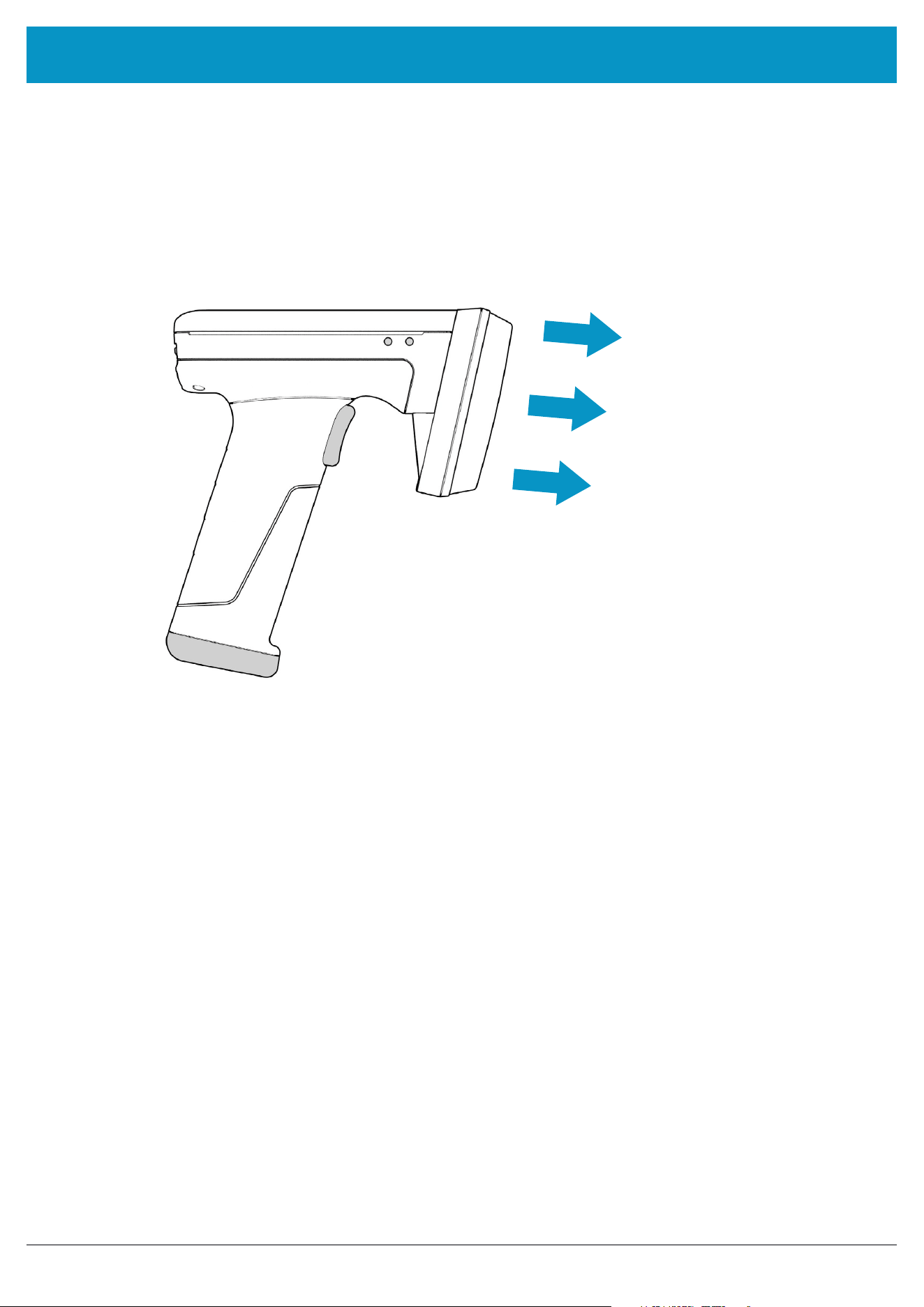
The 3128 UHF Reader can read and write to UHF RFID transponders when they are in range of the antenna. The
antenna is located on the front of the Reader and the read zone is in front of the antenna.
The range at which a transponder can be read depends on the transponder type and size, and the number of
transponders in the field.
The UHF reader reads
transponders in front
of the antenna
Figure 18: Antenna location and read direction
www.tsl.com
3128 UHF Reader User Guide V0.11Copyright © 2026 Technology Solutions (UK) Ltd
16
STATUS LED
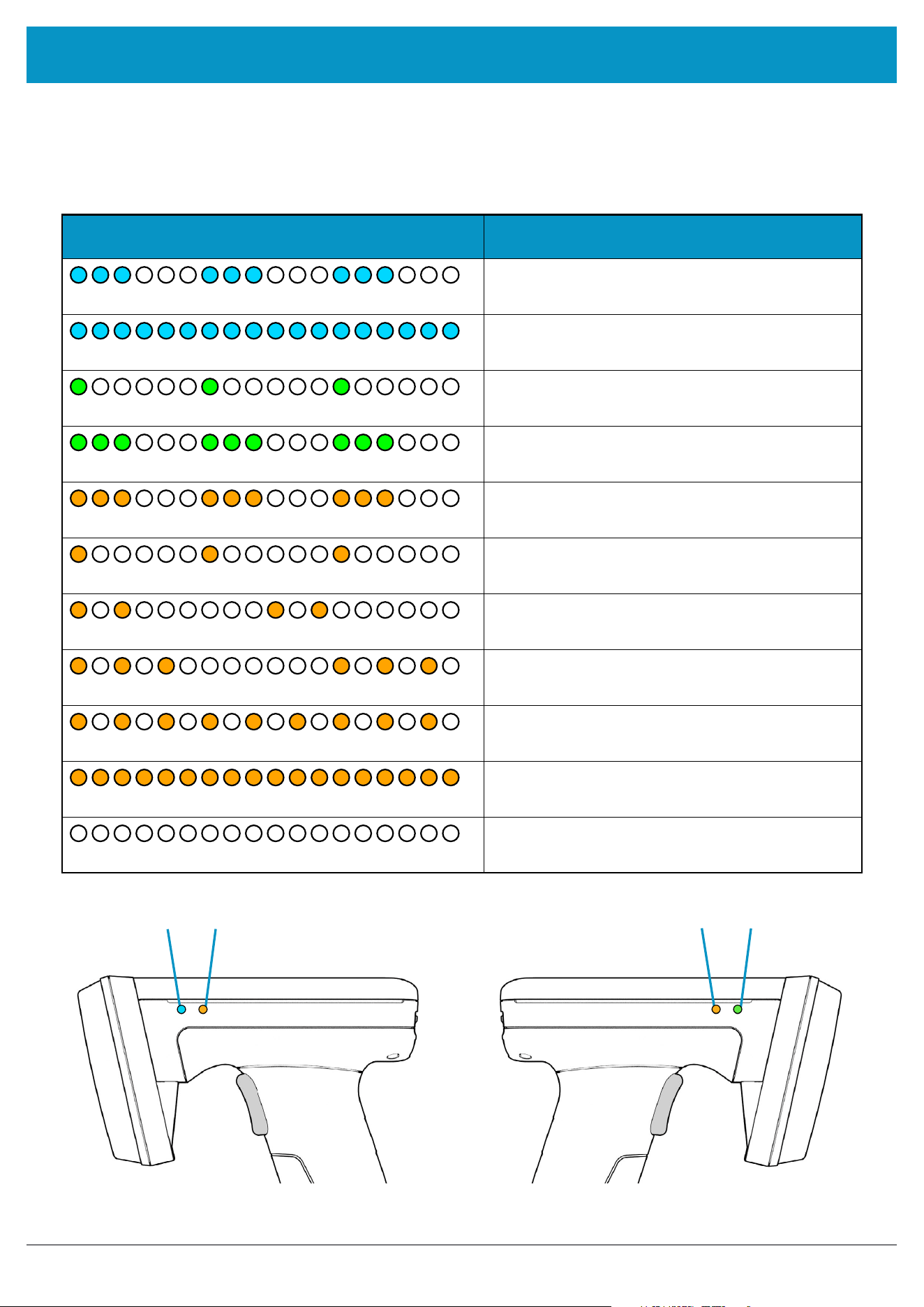
The status LEDs on the top of the 3128 UHF Reader provides an indication of the operating status of the Reader.
LED Status
Blue slow flash (50% on, 50% off).
The reader is awake but there is no connection
Blue constant.
The reader is awake and connected to a host
Short green flash.
The reader has successfully read a tag or barcode
or executed the alert command
Green slow flash (50% on, 50% off).
Antenna error
Orange slow flash (50% on, 50% off).
Battery low warning (<10% capacity remaining),
please recharge immediately
Orange short single slow flash.
Battery charging with battery level less than 33%
Orange short double flash.
Battery charging with battery level less than or
equal to 66%
Orange short triple flash.
Battery charging with battery level greater than 66%
Orange rapid flash.
There is a charge error / battery fault
Orange constant.
The reader is fully charged
All off.
The reader is off and not charging
USING THE 3128 UHF READER
Charge status
Charge status
Read indicatorBluetooth status
Figure 19: Location of status LEDs
www.tsl.com

3128 UHF Reader User Guide V0.11Copyright © 2026 Technology Solutions (UK) Ltd
17
BLUETOOTH WIRELESS TECHNOLOGY CONNECTION
COMPATIBLE PRODUCTS
The 3128 Bluetooth Handheld UHF RFID Reader is compatible with many Bluetooth wireless technology
enabled host devices including Android and Windows devices.
CONNECTIONS
The connection to the 3128 is either via Bluetooth or USB. Bluetooth connections use either a Virtual Com Port
(VCP) or via the iAP protocol for supported Apple iOS Devices. The USB port is USB CDC connection - this will still
appear as a serial device on a PC.
www.tsl.com
3128 UHF Reader User Guide V0.11Copyright © 2026 Technology Solutions (UK) Ltd
18
CONNECTIONS
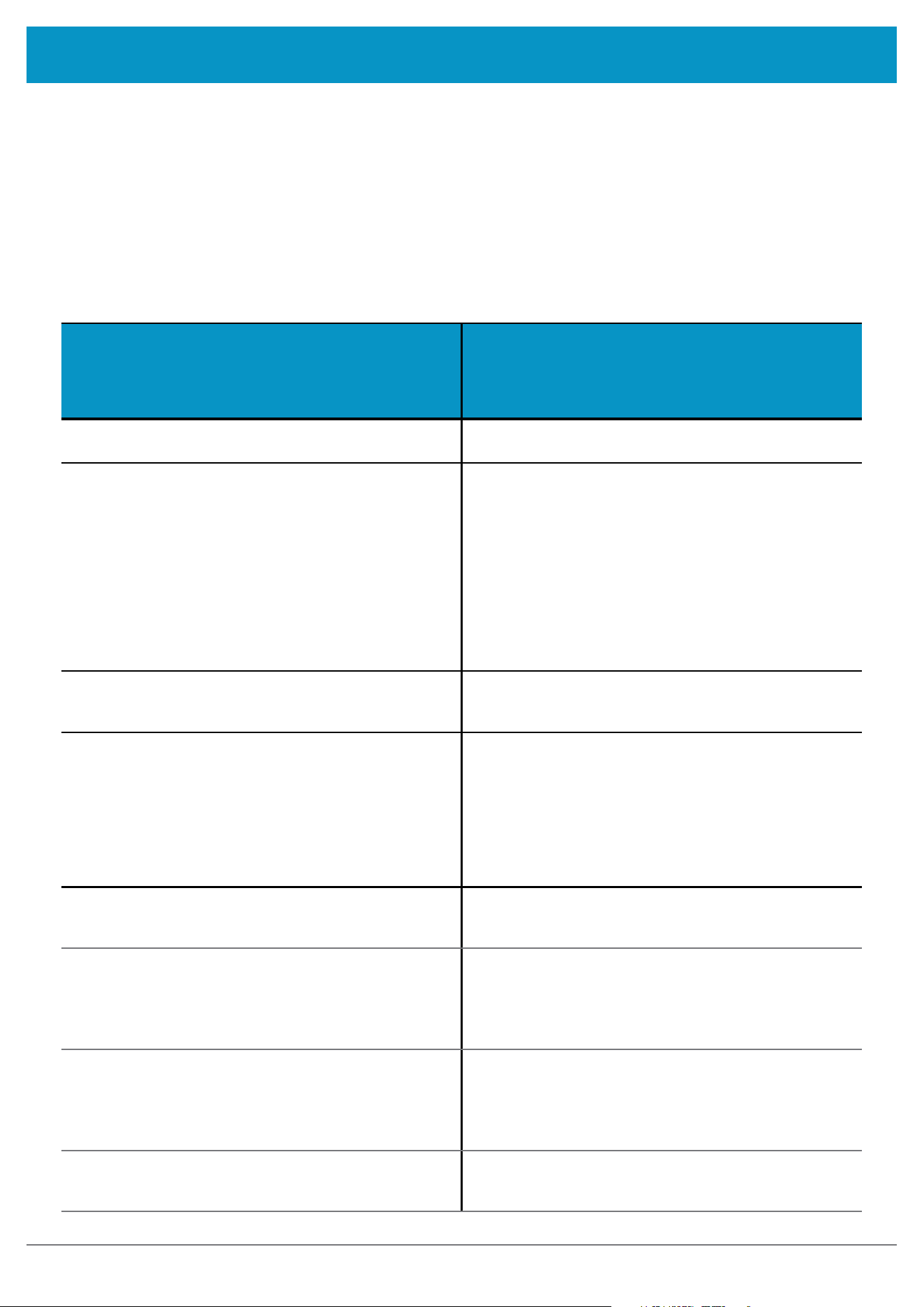
COMPARISON OF BLUETOOTH OPERATING MODES
TSL 31xx readers support four modes of operation over Bluetooth. When connected via USB the 3128 reader uses
the TSL ASCII 3 protocol (which is backwardly compatible with ASCII 2), but when connected over Bluetooth the
reader can either be set to use the TSL ASCII 3 protocol (Bluetooth SPP/SOG Mode) or it can appear as a Bluetooth
keyboard (Bluetooth HID/HOG Mode).
The comparison chart below highlights the differences between serial and HID operating modes:
Serial Modes
• Bluetooth SPP (Serial Port Profile)
• Bluetooth Low Energy SOG (Serial over GATT)
HID Modes
• Bluetooth HID (Human Interface Device)
• Bluetooth Low Energy HOG (HID over GATT)
Apps need to be written with specific support for the Reader Apps can use the Reader without modification
The Reader can be discovered and paired in the Bluetooth
Settings or from within the App but the App controls the
connection
● Connects when instructed by the App
● Disconnects when instructed by the App
● The reader powers off when no longer connected and
idle
● The App needs to connect to restore
Reader is discovered and paired in the Host Bluetooth
Settings (often appears as a Keyboard)
● After pairing the reader connects automatically
● If idle the reader sleeps and the connection is dropped
● The reader, when woken, automatically reconnects to the
host device
Apps receive and interpret ASCII Protocol responses when
the user triggers a UHF or barcode scan
Apps receive input as Key strokes from the reader including
Tab and Return/Enter keys
The App can respond and react intelligently to responses
e.g.
● duplicate responses can be ignored or counted
● incoming tag data can be truncated, stripped or
transformed into alternative representations: Hex, ASCII,
GS1 EPC URI, etc…
The reader types text for each barcode/UHF scan received
● The tag values can be returned in Hex or ASCII
representations
● Extra text may be included in the data returned
● The reader can trim tag/barcode data
The App can change the Reader’s behaviour The Reader can only send scanned data to the host, the host
cannot change the reader’s behaviour
The Reader’s behaviour and command parameters are
controlled in real time by the App e.g. the trigger action can
change to suit the task that the User is performing; the App
can allow the User to specify Inventory output power
The Reader’s behaviour, such as the action of the reader’s
trigger switch, the inventory output power, the idle sleep
timeout and other command parameters can be configured
only once at start-up.
Configuration is held within the App (any configuration in the
AUTO.TXT is likely to be overridden by the App settings)
All configuration is held in an AUTO.TXT file stored on the
(optional) SD card. Removing the SD card or deleting the
AUTO.TXT and power-cycling the unit restores default
settings.
All reader activity, by default, is saved to a log file if an SD-
Card is fitted.
All reader activity, by default, is saved to a log file if an SD-
card is fitted.
www.tsl.com

3128 UHF Reader User Guide V0.11Copyright © 2026 Technology Solutions (UK) Ltd
19
CONNECTIONS
CHANGING THE BLUETOOTH OPERATING MODE
TSL Bluetooth UHF RFID Readers can be operated in
SPP mode
where the Reader is controlled by a custom-
written application or in
HID mode
, where the Reader behaves like a Bluetooth Keyboard.
The HID mode has two variants
i
:
1.
HID mode
Compatible with Android, Windows and Apple devices
2.
HID Apple mode
Compatible only with Apple devices providing an on-screen keyboard toggle
If the 3128 Reader is equipped with a 2D imager, you change modes simply by scanning a special barcode
- see “Changing the Bluetooth Operating Mode Using Command Scan” on page 20 . If no 2D imager is
available then follow the steps detailed below.
Preparation:
Download and install “TSL PC Firmware Downloader” from the Reader product download page (free, one time,
registration required):
www.tsl.com/3128-downloads
To switch to Bluetooth HID mode:
● First delete existing pairings to the UHF reader
● Launch the Firmware Downloader (Desktop Firmware Loader)
● Connect the UHF reader to the computer using the supplied USB cable. The driver should install automatically
(*)
● The downloader should prompt as the com port arrives and select the com port automatically (“COMn arrived”)
● Select Action>Reset Bluetooth to HID mode or Action>Reset Bluetooth to HID Apple mode (wait for the process
to complete)
● Disconnect the UHF reader from the computer (unplug USB)
● Wake the UHF reader (pull trigger, blue flashing LED)
● Pair to the reader on the device (it typically appears as a keyboard icon and connects automatically)
● Scanned data should now be typed into the current application on the device
To switch to Bluetooth SPP mode:
● First delete existing pairings to the UHF reader
● Launch the downloader (
Desktop Firmware Loader
)
● Connect the UHF reader to the computer using the supplied USB cable.
● The driver should install automatically (*)
● The downloader should prompt as the com port arrives and select the com port automatically (“COMn
arrived”)
● Select Action>Reset Bluetooth to SPP mode (wait for the process to complete)
● Disconnect the UHF reader from the computer (unplug USB)
● Wake the UHF reader (pull trigger, blue flashing LED)
● Pair to the reader on the device
● Launch an Application (e.g.
RFID Explorer
) to use the reader
(*) if not, download from here:
https://ftdichip.com/drivers/vcp-drivers/
www.tsl.com
3128 UHF Reader User Guide V0.11Copyright © 2026 Technology Solutions (UK) Ltd
20
CONNECTIONS
Further Information
Further information can be found from the Reader Download pages (free, one-time, registration required - see links
above)
Application Note – Bluetooth HID mode
: Provides further examples for configuring HID mode
Application Note – Using the Micro SD log and auto-run files
: Describes using the AUTO.TXT
TSL ASCII Protocol 2.5 Rev A
: Details all the commands including for HID .st,.hs,.hc, and .hd
If you encounter any issue while following the above procedure please contact
suppor[email protected]
providing the
following information:
● The serial number of the UHF Reader
● The Firmware version of the UHF Reader
● The step at which the procedure failed
● A description of the fault that occurred
i
Firmware requirements: 1128 - v4.2.7 or greater; 1153 – v2.1.7 or greater; 1166 – v1.1.6 or greater
CHANGING THE BLUETOOTH OPERATING MODE USING COMMAND SCAN
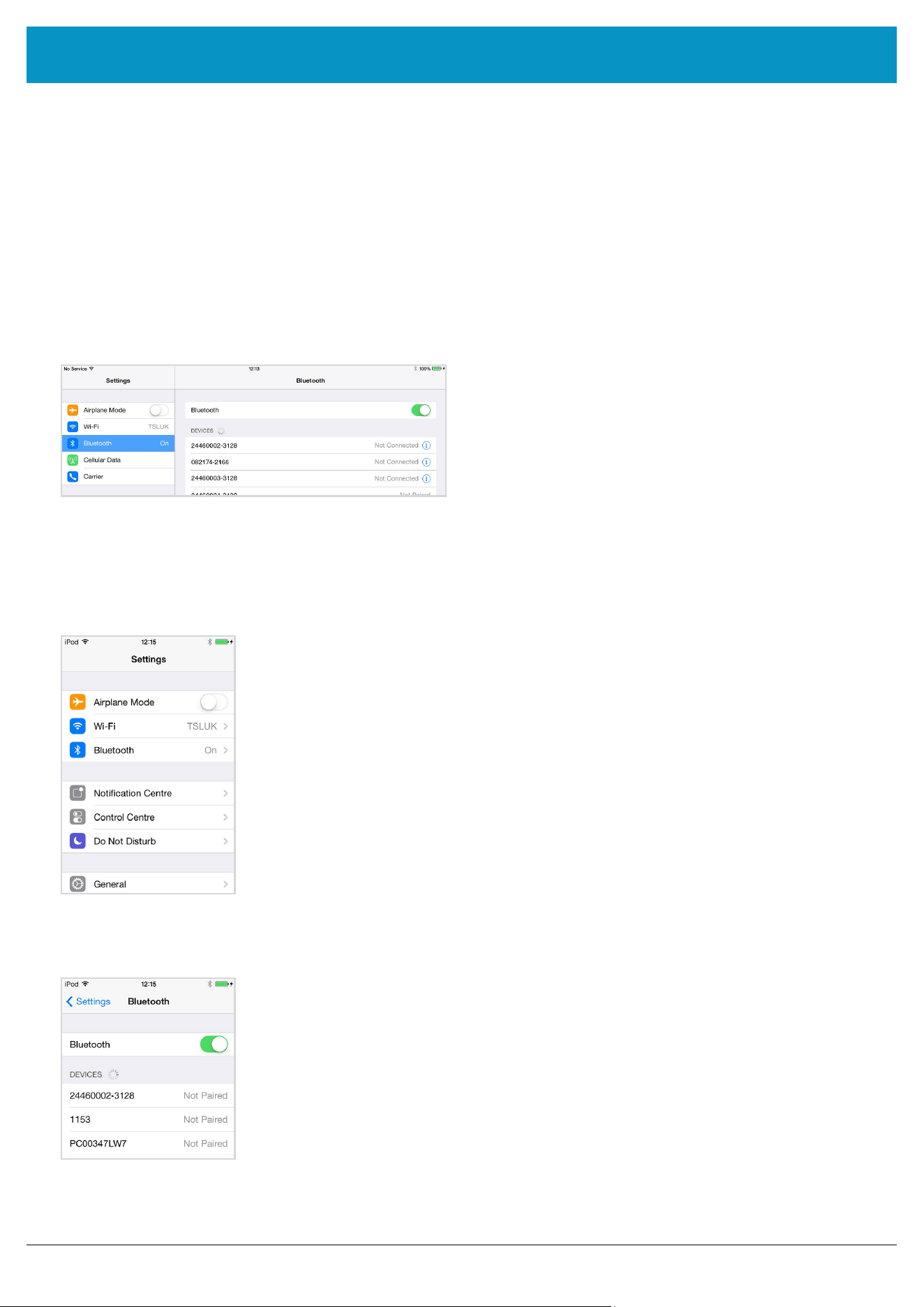
3128 UHF RFID Readers equipped with a 2D Barcode Imager can scan special ‘Command Scan’ barcodes to
change the Readers’ parameters, including switching the Bluetooth Operating Mode. Simply scan one of the 2D
barcodes below to switch mode.
WARNING - Scanning one of the 2D barcodes below with a TSL 3xxx Reader (such as the 3128) changes the
operating parameters of the Reader. This is a persistent change (i.e. change will remain after removing the power
handle to reset the Reader). The Bluetooth Mode can be changed back by scanning the other barcode.
SWITCH TO HID MODE
auto://tsl.com/.bt -m hid .al -fm
SWITCH TO SPP MODE
auto://tsl.com/.bt -m spp .al -fm
Further Information
See “Command Scan” on page 28
www.tsl.com
3128 UHF Reader User Guide V0.11Copyright © 2026 Technology Solutions (UK) Ltd
21
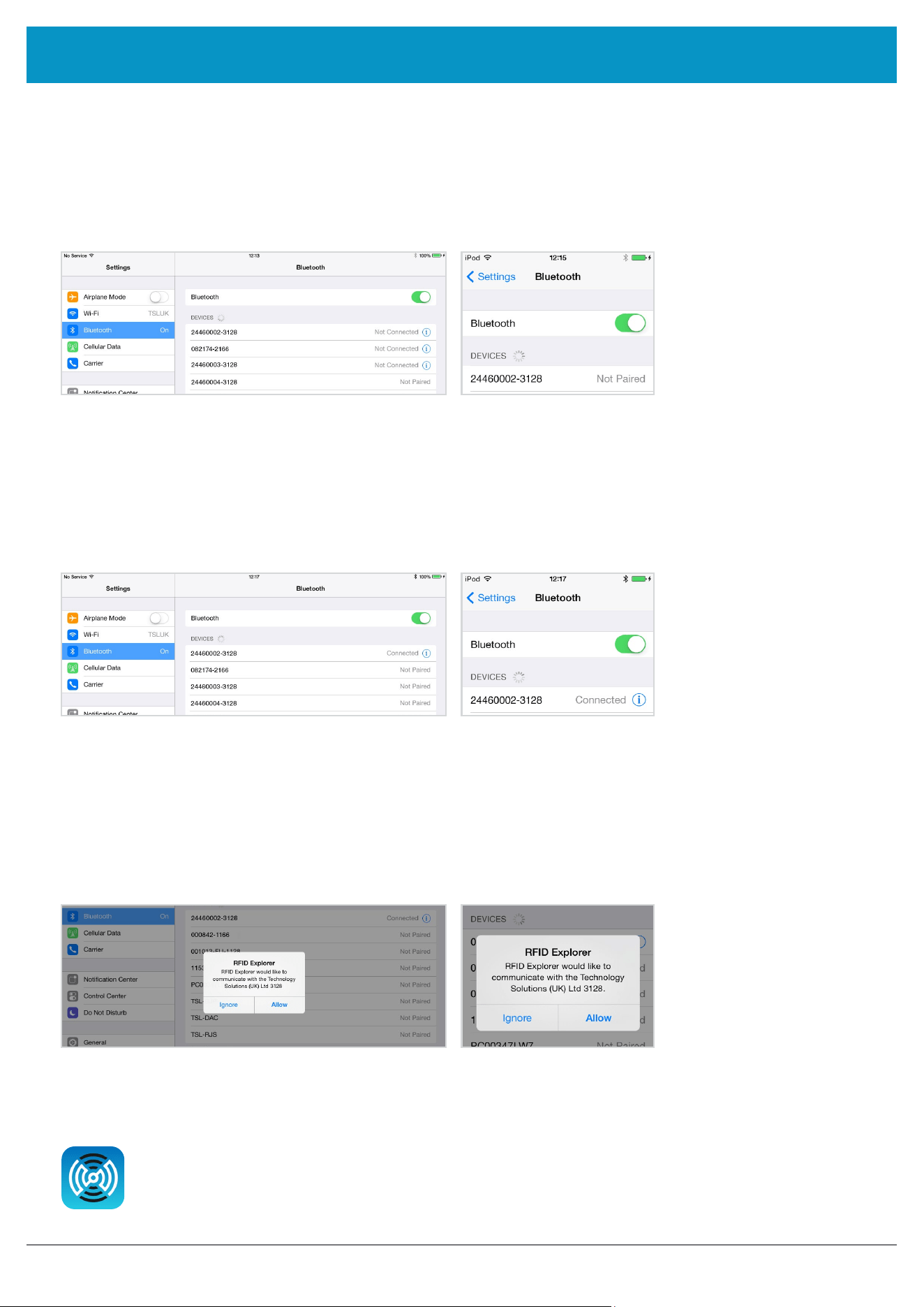
VIEW LIST OF
BLUETOOTH DEVICES (IOS)
BLUETOOTH WIRELESS TECHNOLOGY CONNECTION
iPad
®
:
● Go to the Settings App.
Figure 21: Select Bluetooth settings
Figure 22: List of devices in Bluetooth settings
● Go to the Settings App.
● Select the Bluetooth settings in the left hand
column.
Figure 20: List of devices in Bluetooth settings
iPod
®
/ iPhone
®
:
● Tap on the
Bluetooth
row to be taken to the
Bluetooth
settings
SETTING UP A BLUETOOTH CONNECTION WITH AN APPLE IOS DEVICE
Awaken the 3128 UHF Reader by squeezing the trigger, which is confirmed by the flashing of the blue LED. To pair
with your iOS device, navigate to the Bluetooth option within the Settings menu on your iOS device.
www.tsl.com
3128 UHF Reader User Guide V0.11Copyright © 2026 Technology Solutions (UK) Ltd
22
iPod
®
/ iPhone
®
iPad
®
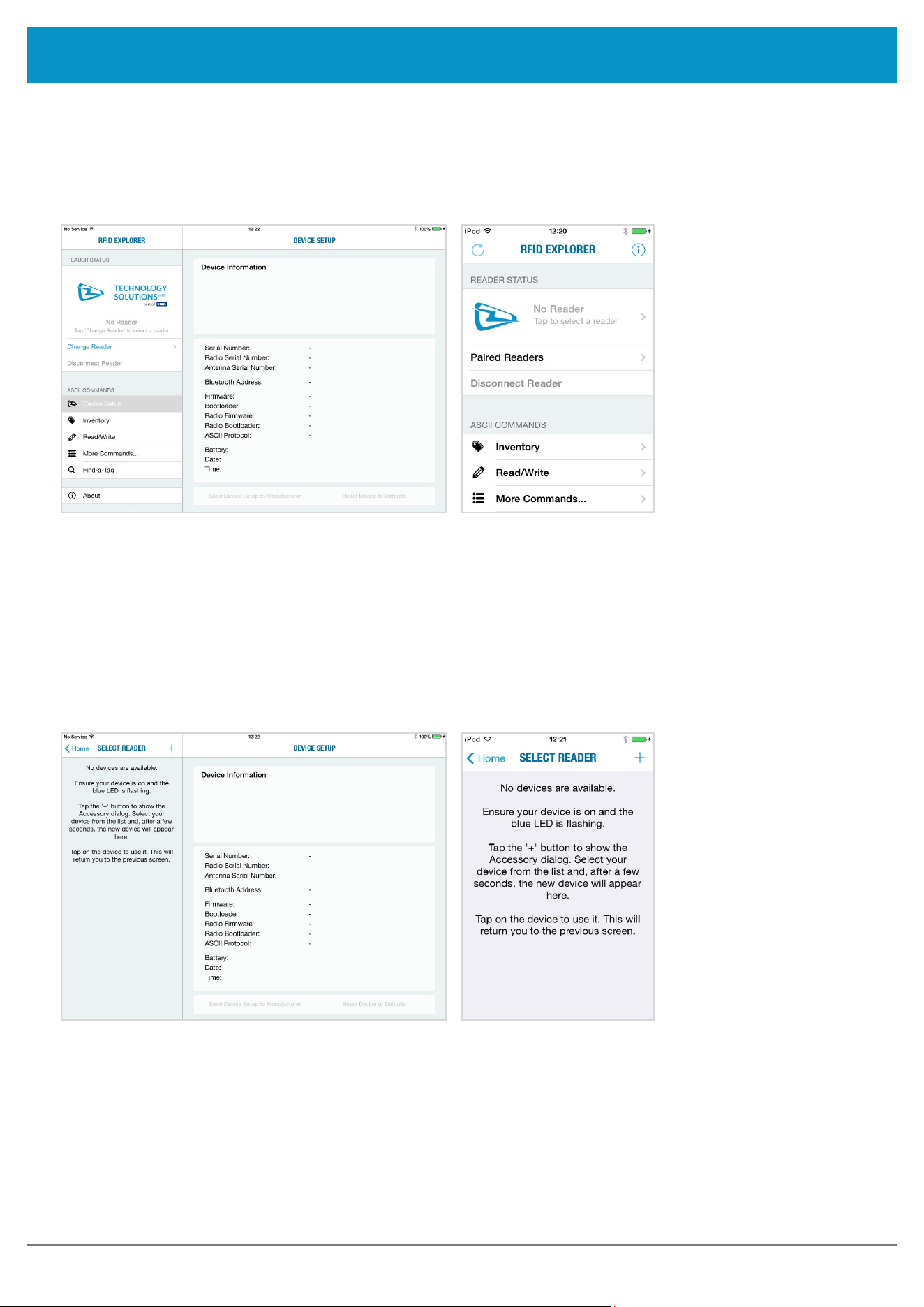
Figure 23: Identify device
After successfully pairing with the 3128 UHF Reader the device will be shown as ‘connected’.
iPod
®
/ iPhone
®
Figure 24: Device connected
iPad
®
Open TSL’s RFID Explorer App.
The RFID Explorer App can be downloaded from the App Store.
PAIR WITH TSL BLUETOOTH DEVICE
BLUETOOTH WIRELESS TECHNOLOGY CONNECTION
In the list of Bluetooth devices, the 3128 UHF reader will be identified by its serial number (3128-xx-xxxxxx). Click
on the corresponding row to pair with the reader.
If RFID Explorer is installed on your device then a prompt will appear requesting a connection to the newly added
reader. Choose ‘Allow’ to launch RFID Explorer or ‘Ignore’ if the device is to be used with a different App.
iPod
®
/ iPhone
®
Figure 25: Allow connection
iPad
®
www.tsl.com
3128 UHF Reader User Guide V0.11Copyright © 2026 Technology Solutions (UK) Ltd
23
BLUETOOTH WIRELESS TECHNOLOGY CONNECTION
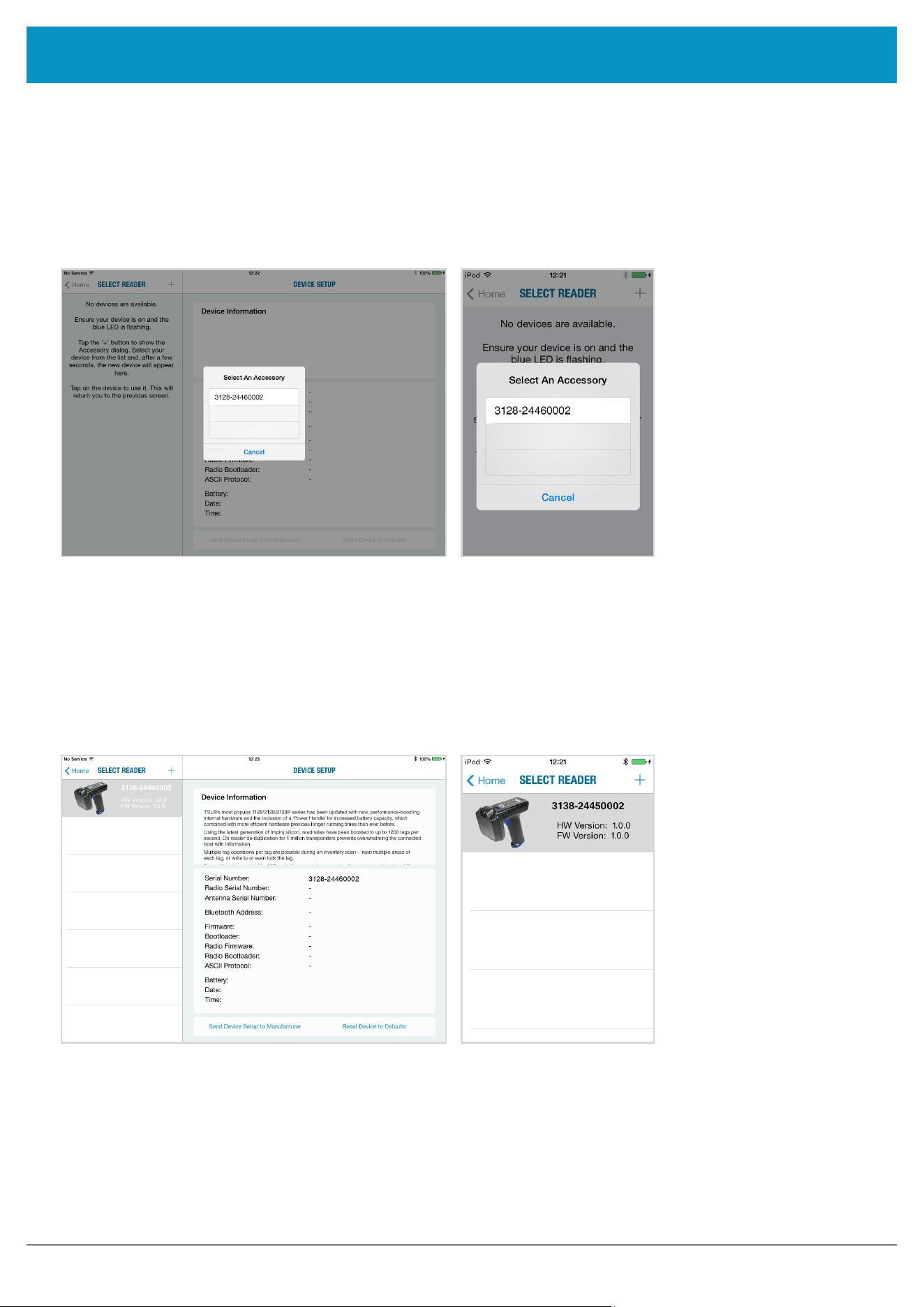
If the app is starting up for the first time, no reader will be selected. To select a reader, tap on ‘Change Reader’ in
the menu to the left (iPad
®
) or ‘Paired Readers’ (iPod
®
/iPhone
®
).
iPod
®
/ iPhone
®
iPad
®
Figure 26: TSL RFID explorer App on first load - no reader selected
If you have a reader selected from your device’s Bluetooth settings as previously shown, continue from Figure 28.
If the ‘No devices are available’ message in Figure 25 appears, you can also connect to a device through the RFID
Explorer app. Press the + sign presented in the top right corner of the Select Reader section/screen.
iPod
®
/ iPhone
®
iPad
®
Figure 27: No devices are available
www.tsl.com
3128 UHF Reader User Guide V0.11Copyright © 2026 Technology Solutions (UK) Ltd
24
BLUETOOTH WIRELESS TECHNOLOGY CONNECTION
iPod
®
/ iPhone
®
iPad
®
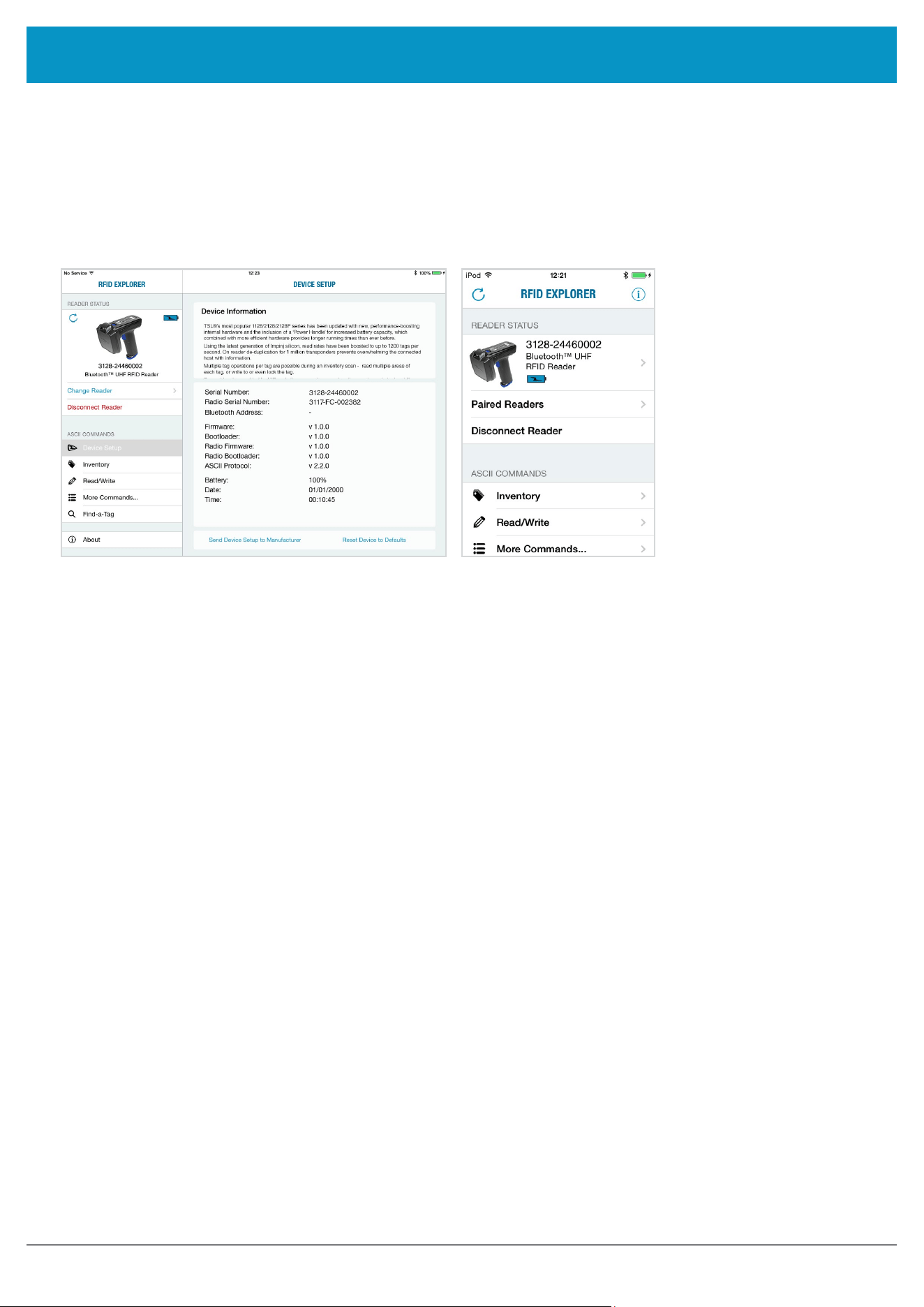
Figure 28: Select the Reader to use
This will open a ‘Select An Accessory’ dialog box.
There may be a small delay in loading available readers.
Once the available readers have loaded select the 3128 UHF Reader.
A list of compatible and currently paired Bluetooth
devices will appear. Select the device to be used with the RFID
Explorer App.
iPod
®
/ iPhone
®
iPad
®
Figure 29: List of paired
Bluetooth devices
www.tsl.com
3128 UHF Reader User Guide V0.11Copyright © 2026 Technology Solutions (UK) Ltd
25
The selected device’s image will appear, accompanied by relevant device information. The ‘Inventory’, ‘Read/
Write’, ‘Commands’ and ‘Find a Tag’ features can now be explored. To maximise battery life it is recommended to
release the 3128 UHF Reader from its Bluetooth connection if the reader is not to be used for a significant period of
time.
BLUETOOTH WIRELESS TECHNOLOGY CONNECTION
iPod
®
/ iPhone
®
iPad
®
Figure 30: 3128 UHF Reader selected and ready to use
www.tsl.com

3128 UHF Reader User Guide V0.11Copyright © 2026 Technology Solutions (UK) Ltd
26
MICRO SD CARD CONTENTS
Once an SD card is installed an Auto Run file can be created on the SD card. The Auto Run file contains a list of
ASCII commands that are executed as the Reader powers up. The file should be located at the root of the card and
called “AUTO.TXT”. Although the file can contain any valid ASCII commands, one per line, it is intended that these
have the take no action ‘-n’ flag specified to allow the default parameters for any command to be changed from the
firmware defaults as the unit boots without actually executing the command.
For example to change the carrier power of the inventory command from 29dBm to 20dBm ‘.iv -o20 -n’ would be
appended to the Auto Run file. As is the behaviour with command parameters this will set the output power for the
inventory command until a new value is sent with this command. Therefore the inventories executed by the trigger,
which executes ‘.iv’ will use the modified output power.
The Auto Run file can be manually created on the card before it is inserted into the 3128 or the ASCII command
Write Command to Auto Run File ‘.wa’ can be used. The Read Auto Run File ‘.ra’ can be used to read back the
contents of the Auto Run file or delete the file from the card.
AUTO RUN FILE (AUTO.TXT)
Once an SD card is installed and logging is enabled a log file is created on the SD card. The file is located at the
root of the card and called “LOG.TXT”. All the lines from every response to every command that is executed by the
reader (including those performed from trigger actions) are appended to the end of the file. Events such as Power
up are also appended to the file.
The ASCII Read Log File command (‘.rl’) is provided to enable or disable logging, to read the log file from the card
or to delete the log file from the card.
Please note that the log file can quickly become large relative to the speed at which it can be downloaded using
the Read Log File Command.
Start of a sample log output:
LOG FILE (LOG.TXT)
DT: 2026-04-15T16:46:58
EV: Log File created
CS: .ws -sa4 -sbepc -sd300833B2DDD9014000000000 -sl06 -so0002 -sts2 -dbepc -da330DE29525C0210005F5F88A
-dl06 -do0002
WW: 0
ME: No Transponder found
ER:005
DT: 2026-04-15T17:58:28
EV: Disconnected
DT: 2026-04-15T17:59:28
EV: Sleep
DT: 2026-04-18T09:18:21
EV: Wake up
CS: .al –dlon
OK:
DT: 2026-04-18T09:19:22
EV: Sleep
DT: 2026-04-18T10:07:42
EV: Wake up
DT: 2026-04-18T10:07:42
EV: Connected USB
CS: .al –dlon
OK:
CS: .iv LCMD 000000 -qss0 –qta
EP: 330DE29525C0210005F5F8F2
EP: 221001500000000000000027
OK:
www.tsl.com

3128 UHF Reader User Guide V0.11Copyright © 2026 Technology Solutions (UK) Ltd
27
SOFTWARE DEVELOPMENT
To make full use of the functionality of the 3128 UHF Reader, a customised software application will be required.
The new 3128
Bluetooth UHF RFID reader incorporates TSL’s unique ASCII protocol for faster and easier
application development. This sophisticated parameterised ASCII protocol provides the developer a powerful set
of commands that carry out multiple actions locally within the
Bluetooth reader. This approach enables multiple
tag operations executed using simple pre-configured ASCII commands which not only speeds integration of
the reader into applications but also abstracts the developer from some of the complexities of the underlying
Native API. Simple, text based commands are sent to the reader and responses are returned as text. This allows
straightforward access to RFID tag functions such as inventory, read and write. Details of the ASCII command
mode are available for download from
www.tsl.com/3128-downloads
.
www.tsl.com
3128 UHF Reader User Guide V0.11Copyright © 2026 Technology Solutions (UK) Ltd
28
COMMAND SCAN
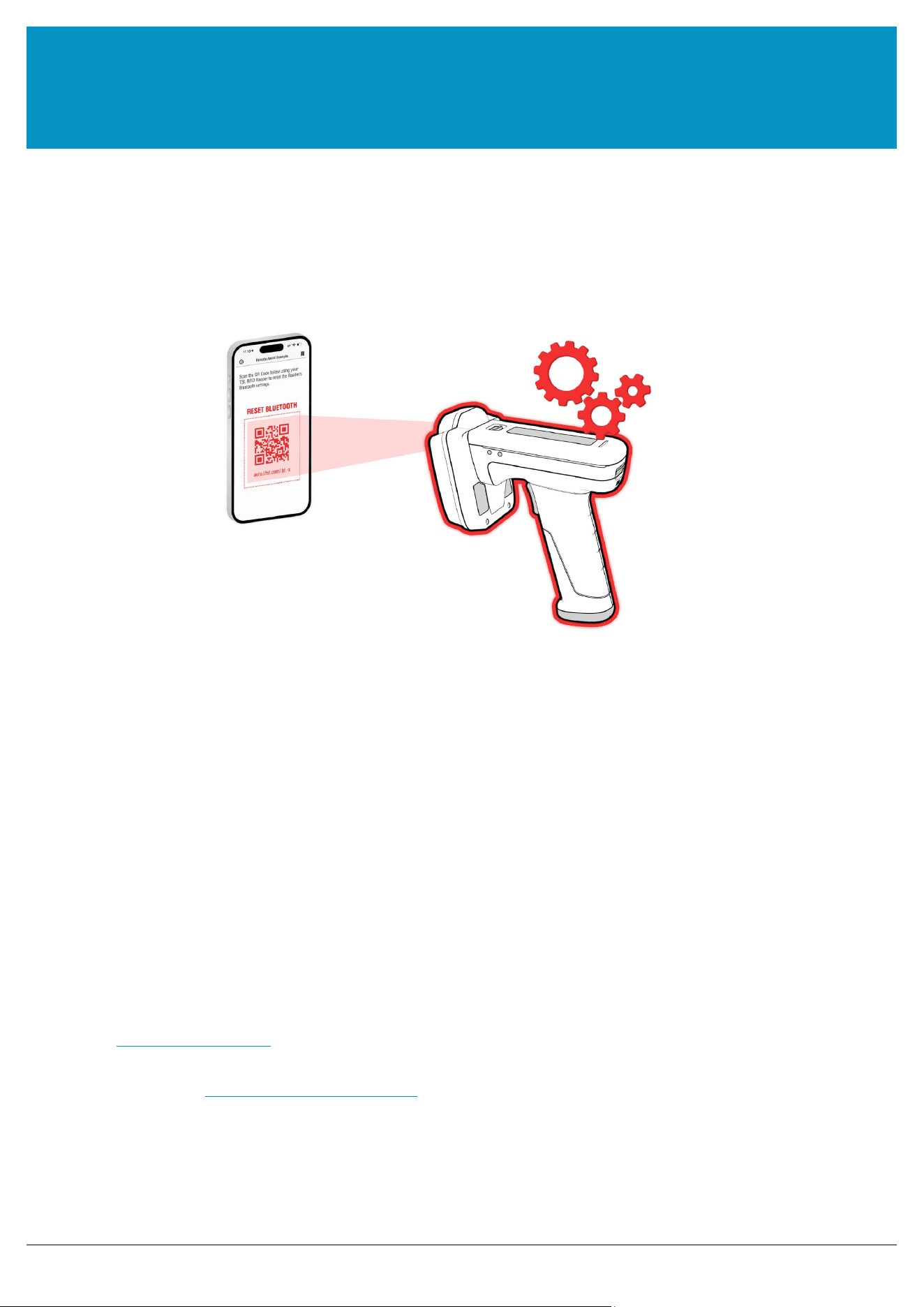
3128 UHF RFID Readers equipped with a 2D Barcode Imager can use a patent-pending new feature called ‘TSL
Command Scan’, that enables the use of barcode scanning to configure or otherwise adjust parameters of the
RFID reader. This simple but powerful ability opens up a whole world of possibilities for developers to configure or
commission TSL RFID Readers using convenient, time-saving methods.
WHAT IS COMMAND SCAN?
● Command Scan instantly configures the RFID Reader
● Allows on-the-fly adjustments of Reader parameters for different use cases, such as scanning multiple columns
of data to a spreadsheet, using an audible ‘tag-finding’ mode, or reading just one tag at a time.
● Use Command Scan to configure the Reader’s Autorun file to make persistent changes (i.e. the Reader retains
its settings after powering off/on)
● Makes the commisioning phase of new readers much quicker - no need to connect to a PC, and Reader can be
configured in an instant
● Add whatever ‘ASCII Protocol’ commands you like to the barcodes
● Visit
commandscan.tsl.com
to generate 2D barcodes, and build a list of commands to write to an autorun file on
the target reader
● See the full list of
TSL ASCII Protocol commands
available for use within Command Scan barcodes
MORE INFORMATION
● See “Changing the Bluetooth Operating Mode Using Command Scan” on page 20
USING COMMAND SCAN TO SWITCH BLUETOOTH MODE
www.tsl.com
3128 UHF Reader User Guide V0.11Copyright © 2026 Technology Solutions (UK) Ltd
29
MAINTENANCE
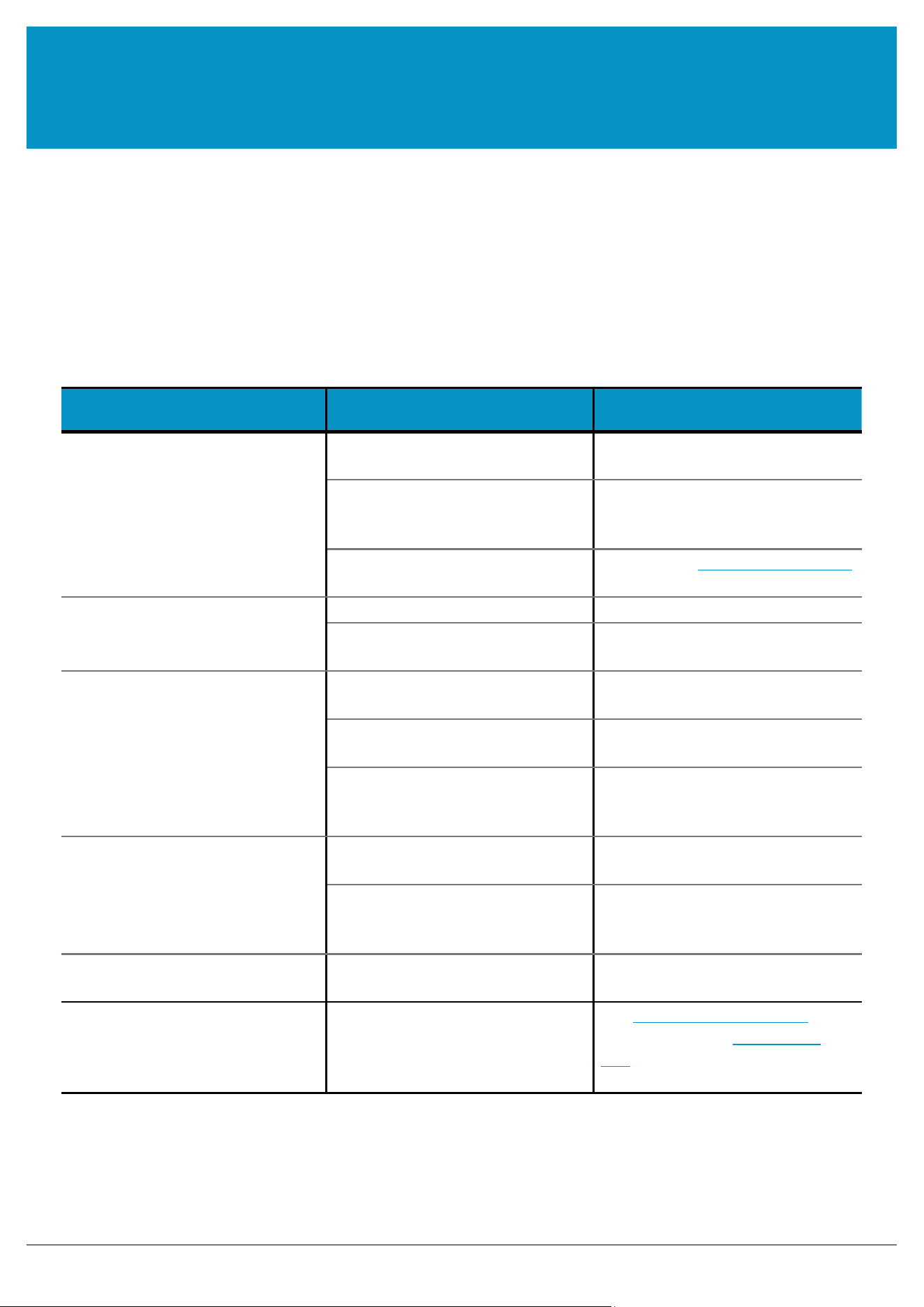
TROUBLESHOOTING
For trouble-free service please observe the following tips when using the 3128 UHF Reader:
● Protect the 3128 UHF Reader from temperature extremes. Do not leave it on the dashboard of a car on a hot
day, and keep it away from heat sources.
TROUBLESHOOTING AND MAINTENANCE
Symptoms Possible cause Action
Nothing happens when the trigger
button is pressed.
If the LEDs are not on then the
battery may be flat.
Charge the 3128 UHF Reader.
The 3128 UHF Reader may have
button actions disabled.
Check the 3128 UHF Reader
configuration and restore to defaults
if unsure.
Other.
Work through
Troubleshooting Guide
on TSL Website
The orange LED flashes rapidly
when charging.
There is a battery fault. Replace the Power Handle.
The battery pack temperature is
outside recommended limits.
Ensure that charging only occurs
between 5°C and 40°C.
The host Bluetooth discovery does
not find the 3128 UHF Reader.
The 3128 UHF Reader has powered
off.
Press the trigger button and ensure
the blue LED is flashing.
The 3128 UHF Reader is out of
range.
Move the 3128 UHF Reader closer
to the host.
The Bluetooth friendly name of
the 3128 UHF Reader has been
changed.
Check the Bluetooth friendly name
or restore the 3128 UHF Reader to
factory defaults if unsure.
Opening the Bluetooth virtual com
port does not connect to the 3128
UHF Reader.
The host has paired to a different
Bluetooth device.
Pair to the required 3128 UHF
Reader.
The host Bluetooth function has an
error.
Warm boot the host. If this does not
help, delete the 3128 UHF Reader
from the favourites list and re-pair.
Bluetooth pairing fails. The PIN on the 3128 UHF Reader
has been changed
Set the Bluetooth PIN to a known
value
Other symptoms. Other fault.
Run
ASCII Remote Diagnostic
and email result to
support@tsl.
com
along with a description of the
problem.
www.tsl.com
3128 UHF Reader User Guide V0.11Copyright © 2026 Technology Solutions (UK) Ltd
30
INFORMATION TO THE USER – FCC
Federal Communication Commission Interference Statement
This device complies with Part 15 of the FCC Rules. Operation is subject to the following two conditions: (1) This
device may not cause harmful interference, and (2) this device must accept any interference received, including
interference that may cause undesired operation.
NOTE: This equipment has been tested and found to comply with the limits for a Class A digital device, pursuant to
part 15 of the FCC Rules. These limits are designed to provide reasonable protection against harmful interference
when the equipment is operated in a commercial environment. This equipment generates, uses, and can radiate
radio frequency energy and, if not installed and used in accordance with the instruction manual, may cause harmful
interference to radio communications. Operation of this equipment in a residential area is likely to cause harmful
interference in which case the user will be required to correct the interference at his own expense.
FCC Caution:
● Any changes or modifications not expressly approved by the party responsible for compliance could void the
user’s authority to operate this equipment.
● This transmitter must not be co-located or operating in conjunction with any other antenna or transmitter.
Radiation Exposure Statement:
The product complies with the FCC portable RF exposure limit set forth for an uncontrolled environment and is
safe for intended operation as described in this manual. Further RF exposure reduction can be achieved if the
product is kept as far as possible from the user body or the device is set to a lower output power if such function is
available.
REGULATORY INFORMATION
Technology Solutions UK Ltd hereby declares that this radio equipment is in compliance with Directives 2014/53/
EU and 2011/65/EU.
The reader operates using the specified frequencies up to the maximum output powers as in the table below:
Radio Frequency of operation Maximum Output Power
Bluetooth 2.4 GHz 3 dBm
UHF RFID 865 MHz - 868 MHz 29 dBm
MARKING AND EUROPEAN ECONOMIC AREA (EEA)
www.tsl.com
3128 UHF Reader User Guide V0.11Copyright © 2026 Technology Solutions (UK) Ltd
31
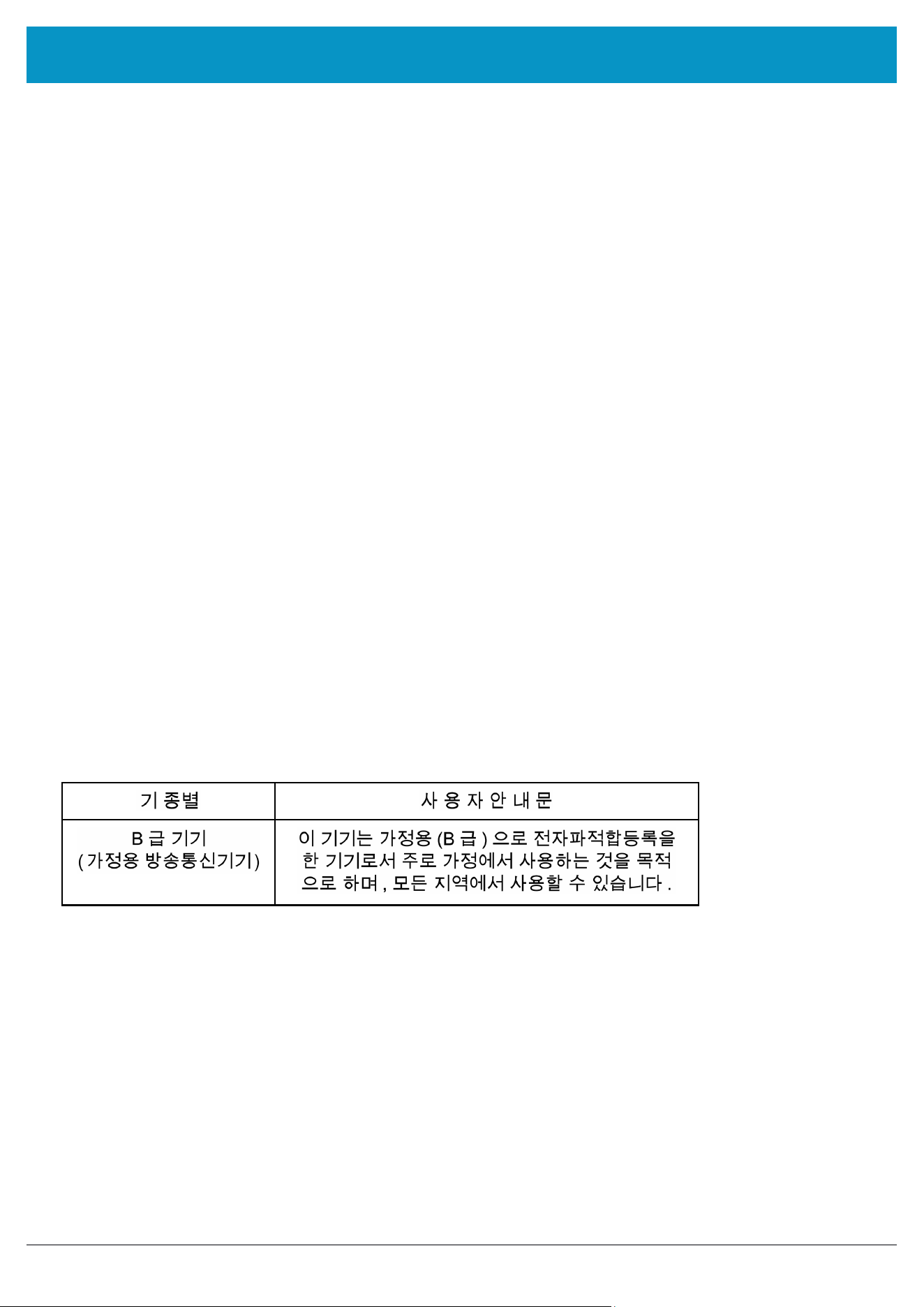
KOREA WARNING STATEMENT FOR CLASS B ITE
REGULATORY INFORMATION
INDUSTRY CANADA STATEMENT
English
This device complies with ISED’s licence-exempt RSSs. Operation is subject to the following two conditions:
(1) This device may not cause harmful interference, and (2) this device must accept any interference received,
including interference that may cause undesired operation.
Radiation Exposure Statement:
The product complies with the Canada portable RF exposure limit set forth for an uncontrolled environment and
is safe for intended operation as described in this manual. Further RF exposure reduction can be achieved if the
product can be kept as far as possible from the user body or set the device to lower output power if such function
is available.
French
Le présent appareil est conforme aux CNR d’ ISED applicables aux appareils radio exempts de licence.
L’exploitation est autorisée aux deux conditions suivantes : (1) le dispositif ne doit pas produire de brouillage
préjudiciable, et (2) ce dispositif doit accepter tout brouillage reçu, y compris un brouillage susceptible de
provoquer un fonctionnement indésirable.
Déclaration d’exposition aux radiations:
Le produit est conforme aux limites d’exposition pour les appareils portables RF pour les Etats-Unis et le Canada
établies pour un environnement non contrôlé.
Le produit est sûr pour un fonctionnement tel que décrit dans ce manuel. La réduction aux expositions RF peut être
augmentée si l’appareil peut être conservé aussi loin que possible du corps de l’utilisateur ou que le dispositif est
réglé sur la puissance de sortie la plus faible si une telle fonction est disponible.
www.tsl.com

3128 UHF Reader User Guide V0.11Copyright © 2026 Technology Solutions (UK) Ltd
32
BATTERY SAFETY
● Replacement of a battery with an incorrect type can defeat a safeguard (for example, in the case of some
lithium battery types)
● Disposal of a battery into fire or a hot oven, or mechanically crushing or cutting a battery, can result in an
explosion.
● Leaving a battery in an extremely high temperature surrounding environment can result in an explosion or the
leakage of flammable liquid or gas.
● A battery subjected to extremely low air pressure may result in an explosion or the leakage of flammable liquid
or gas.
REGULATORY INFORMATION
CAUTION!
RISK OF EXPLOSION IF
BATTERY IS REPLACED BY
AN INCORRECT TYPE.
DISPOSE OF USED
BATTERIES ACCORDING
TO THE INSTRUCTIONS.
www.tsl.com

3128 UHF Reader User Guide V0.11Copyright © 2026 Technology Solutions (UK) Ltd
33
Ergonomic Recommendations
Caution: In order to avoid or minimize the potential risk of ergonomic injury, follow the recommendations below.
Consult with your local Health & Safety Manager to ensure that you are adhering to your company’s safety
programs to prevent employee injury.
● Reduce or eliminate repetitive motion
● Maintain a natural position
● Reduce or eliminate excessive force
● Keep objects that are used frequently within easy reach Perform tasks at correct heights
● Reduce or eliminate vibration
● Reduce or eliminate direct pressure
● Provide adjustable workstations
● Provide adequate clearance
● Provide a suitable working environment
● Improve work procedures.
For vehicle installation and use
An air bag inflates with great force. DO NOT place objects, including either installed or portable wireless
equipment, in the area over the air bag or in the air bag deployment area. If in-vehicle wireless equipment is
improperly installed and the air bag inflates, serious injury could result.
RF signals may affect improperly installed or inadequately shielded electronic systems in motor vehicles (including
safety systems). Check with the manufacturer or its representative regarding your vehicle. You should also consult
the manufacturer of any equipment that has been added to your vehicle.
Power Supply
Use only TSL-approved cradles, chargers and power supplies with the 3128 UHF Reader. Use of an alternative
power supply will invalidate any approval given to this device, void the warranty for the product and may be
dangerous.
HEALTH AND SAFETY RECOMMENDATIONS
www.tsl.com

3128 UHF Reader User Guide V0.11Copyright © 2026 Technology Solutions (UK) Ltd
34
For EU Customers: All products at the end of their life must be returned to TSL for recycling. For information on
how to return product please contact TSL.
WARRANTY
WASTE ELECTRICAL AND ELECTRONIC EQUIPMENT
(WEEE)
(A) Warranty
TSL’s hardware Products are warranted against defects in workmanship and materials for a period of twelve (12) months
from the date of shipment, unless otherwise provided by TSL in writing, provided the Product remains unmodified and is
operated under normal and proper conditions. Warranty provisions and durations on software, integrated installed systems,
Product modified or designed to meet specific customer specifications (“Custom Products”), remanufactured products, and
reconditioned or upgraded products, shall be as provided in the applicable Product specification in effect at the time of
purchase or in the accompanying software license.
(B) Spare Parts
Spare parts (i.e. parts, components, or subassemblies sold by TSL for use in the service and maintenance of Products) are
warranted against defects in workmanship and materials for a period of thirty (30) days from the date of shipment. Spare parts
may be new or originate from returned units under the conditions set forth in subsection D below.
(C) Repair of TSL branded hardware
For repairs on TSL branded hardware Products under this Agreement, including repairs covered by warranty, the repair services
provided are warranted against defects in workmanship and materials on the repaired component of the Product for a period
of thirty (30) days from the shipment date of the repaired Product, or until the end of the original warranty period, whichever is
longer. Any such defects shall be notified to TSL in writing within 7 days of the same becoming apparent.
(D) Product Service
Products may be serviced or manufactured with parts, components, or subassemblies that originate from returned products and
that have been tested as meeting applicable specifications for equivalent new material and Products. The sole obligation of TSL
for defective hardware Products is limited to repair or replacement (at TSL’s option) on a “return to base (RTB)” basis with prior
TSL authorisation.
Customer is responsible for prompt shipment to TSL and assumes all costs and risks associated with this transportation; return
shipment to the Customer will be at TSL’s expense. Customer shall be responsible for return shipment charges for product
returned where TSL determines there is no defect (“No Defect Found”), or for product returned that TSL determines is not
eligible for warranty repair. No charge will be made to Buyer for replacement parts for warranty repairs. TSL is not responsible
for any damage to or loss of any software programs, data or removable data storage media, or the restoration or reinstallation of
any software programs or data other than the software, if any, installed by TSL during manufacture of the Product.
www.tsl.com

3128 UHF Reader User Guide V0.11Copyright © 2026 Technology Solutions (UK) Ltd
35
(E) Original Warranty Period
Except for the warranty applying solely to the repaired component arising from a repair service as provided in Section C above,
the aforementioned provisions do not extend the original warranty period of any Product that had either been repaired or
replaced by TSL.
(F) Warranty Provisions
The above warranty provisions shall not apply to any Product:
(i) which has been repaired, tampered with, altered or modified, except by TSL’s authorized service personnel;
(ii) in which the defects or damage to the Product result from normal wear and tear, misuse, negligence, improper storage, water
or other liquids, battery leakage, use of parts or accessories not approved or supplied by TSL, or failure to perform operator
handling and scheduled maintenance instructions supplied by TSL;
(iii) which has been subjected to unusual physical or electrical stress, abuse, or accident, or forces or exposure beyond normal
use within the specified operational and environmental parameters set forth in the applicable Product specification; nor shall the
above warranty provisions apply to any expendable or consumable items, such as batteries, supplied with the Product.
EXCEPT FOR THE WARRANTY OF TITLE AND THE EXPRESS WARRANTIES STATED ABOVE, TSL DISCLAIMS ALL
WARRANTIES ON PRODUCTS FURNISHED HEREUNDER INCLUDING ALL IMPLIED WARRANTIES OF MERCHANTABILITY
AND FITNESS FOR A PARTICULAR USE. ANY IMPLIED WARRANTIES THAT MAY BE IMPOSED BY LAW ARE LIMITED IN
DURATION TO THE LIMITED WARRANTY PERIOD. SOME STATES OR COUNTRIES DO NOT ALLOW A LIMITATION ON
HOW LONG AN IMPLIED WARRANTY LASTS OR THE EXCLUSION OR LIMITATION OF INCIDENTAL OR CONSEQUENTIAL
DAMAGES OR CONSUMER PRODUCTS. IN SUCH STATES OR COUNTRIES, FOR SUCH PRODUCTS, SOME EXCLUSIONS OR
LIMITATIONS OF THIS LIMITED WARRANTY MAY NOT APPLY.
The stated express warranties are in lieu of all obligations or liabilities on the part of TSL for damages, including but not limited
to, special, indirect or consequential damages arising out of or in connection with the use or performance of the Product or
service. TSL’s liability for damages to Buyer or others resulting from the use of any Product or service furnished hereunder shall
in no way exceed the purchase price of said Product or the fair market value of said service, except in instances of injury to
persons or property.
TSL is not responsible for any damages incurred during shipment if the approved shipping container is not used. Shipping the
units improperly can possibly void the warranty. If the original shipping container was not kept, contact your local distributor or
TSL to have another sent to you.
TSL shall not be responsible for any injury, damage or loss of whatever kind caused directly or indirectly by the goods whether
as a result of their manufacture, operation, use or otherwise and the customer shall indemnify TSL from any claim arising from
any loss suffered by any third party.
WARRANTY
www.tsl.com
3128 UHF Reader User Guide V0.11Copyright © 2026 Technology Solutions (UK) Ltd
36
ABOUT
ABOUT TSL
CONTACT
ISO 9001: 2015
Technology Solutions UK Ltd (TSL), part of HID, is a leading manufacturer of high performance mobile RFID
readers used to identify and track products, assets, data or personnel.
For over two decades, TSL has delivered innovative data capture solutions to Fortune 500 companies around the
world using a global network of distributors and system integrators. Specialist in-house teams design all aspects of
the finished products and software ecosystems, including electronics, firmware, application development tools, RF
design and injection mould tooling.
TSL is an ISO 9001:2015 certified company.
Address: Technology Solutions (UK) Ltd, Suite A, Loughborough Technology Centre, Epinal Way,
Loughborough, Leicestershire, LE11 3GE, United Kingdom.
Telephone: +44 1509 238248
Fax: +44 1509 214144
Email:
Website:
www.tsl.com
Technology Solutions (UK) Ltd reserves the right to change its products, specifications and services at any time without notice.
HID powers the trusted identities of the world’s people, places and things. We make it possible for people to
transact safely, work productively and travel freely. Our trusted identity solutions give people convenient access
to physical and digital places and connect things that can be identified, verified and tracked digitally. Millions
of people around the world use HID products and services to navigate their everyday lives, and billions of things
are connected through HID technology. We work with governments, educational institutions, hospitals, financial
institutions, industrial businesses and some of the most innovative companies on the planet. Headquartered in
Austin, Texas, HID has over 4,000 employees worldwide and operates international offices that support more than
100 countries. HID is an ASSA ABLOY Group brand.
For more information, visit
www.hidglobal.com
.
ABOUT HID
www.tsl.com