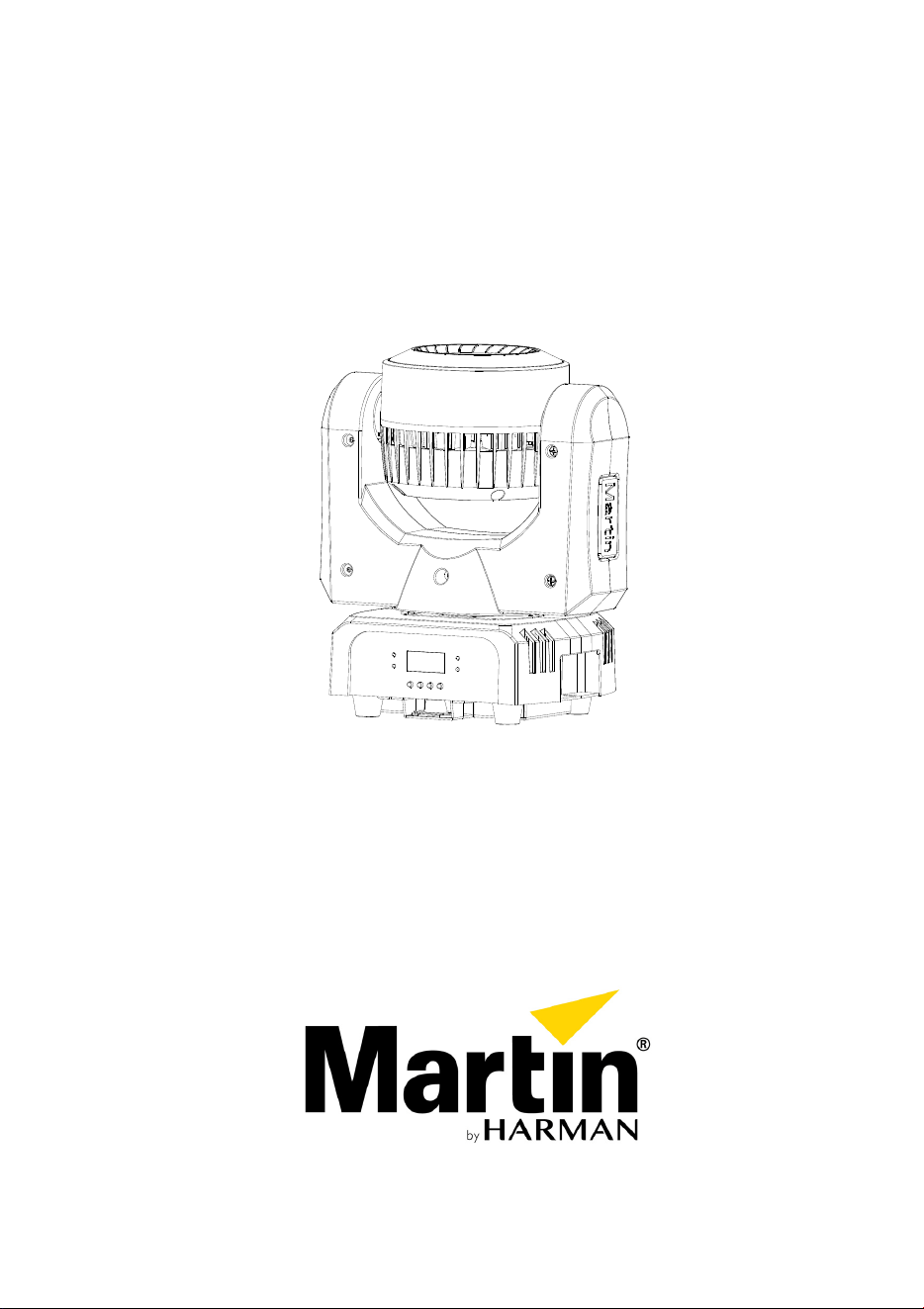
RUSH MH 10 Beam FX
User Manual

Information subject to change without notice. HARMAN Professional Denmark ApS disclaims
liability for any injury, damage, direct or indirect loss, consequential or economic loss or any other
loss occasioned by the use of, inability to use or reliance on the information contained in this
document.
©2017 HARMAN Professional Denmark ApS. All rights reserved. Martin® is a registered
trademark of HARMAN Professional Denmark ApS registered in the United States and/or other
countries. Features, specifications, and appearance are subject to change without notice.
Martin Professional • Olof Palmes Allé 18 • 8200 Aarhus N • Denmark • www.martin.com
Manual: Revision C

Table of contents
Safety information .............................................................................................. 5
Introduction ...................................................................................................... 10
Before using the product for the first time .................................................... 10
Physical installation ......................................................................................... 11
Fastening the fixture to a flat surface ........................................................... 11
Mounting the fixture on a truss ..................................................................... 11
AC power ......................................................................................................... 13
Linking fixtures to power in a chain .............................................................. 14
Fixture overview ............................................................................................... 15
Control data link ............................................................................................... 16
Tips for reliable data transmission ............................................................... 16
Connecting the data link ............................................................................... 17
Fixture setup .................................................................................................... 18
Using the control menus .............................................................................. 18
DMX addressing ........................................................................................... 18
DMX channel mode ...................................................................................... 19
Behavior without DMX (DMX State) ............................................................. 19
Stand-alone settings .................................................................................... 19
Pan/tilt inversion ........................................................................................... 21
Dimmer settings ........................................................................................... 21
Backlight ....................................................................................................... 22
Function delay .............................................................................................. 23
White balance adjustment ............................................................................ 23
Manual test ................................................................................................... 23
Auto test ....................................................................................................... 23
LED Temperature ......................................................................................... 24
Fixture time ................................................................................................... 24
Firmware version .......................................................................................... 24
Pro defaults .................................................................................................. 24
Reset ............................................................................................................ 24
Fan mode ..................................................................................................... 24
Home position adjustment (offset menu) ..................................................... 25
Setting options by RDM ................................................................................... 25
Scanning for RDM devices on the data link ................................................. 25
Getting status and setting options by RDM .................................................. 26
RDM functions .............................................................................................. 26
Effects .............................................................................................................. 28
Pan and tilt ................................................................................................... 28
Electronic dimming ....................................................................................... 29
Strobe effects ............................................................................................... 29
Colors ........................................................................................................... 29

Maintenance .................................................................................................... 30
Cleaning ....................................................................................................... 30
Replacing the primary fuse ........................................................................... 31
Service and repairs ...................................................................................... 31
DMX protocol ................................................................................................... 32
Basic (24-channel) mode ............................................................................. 32
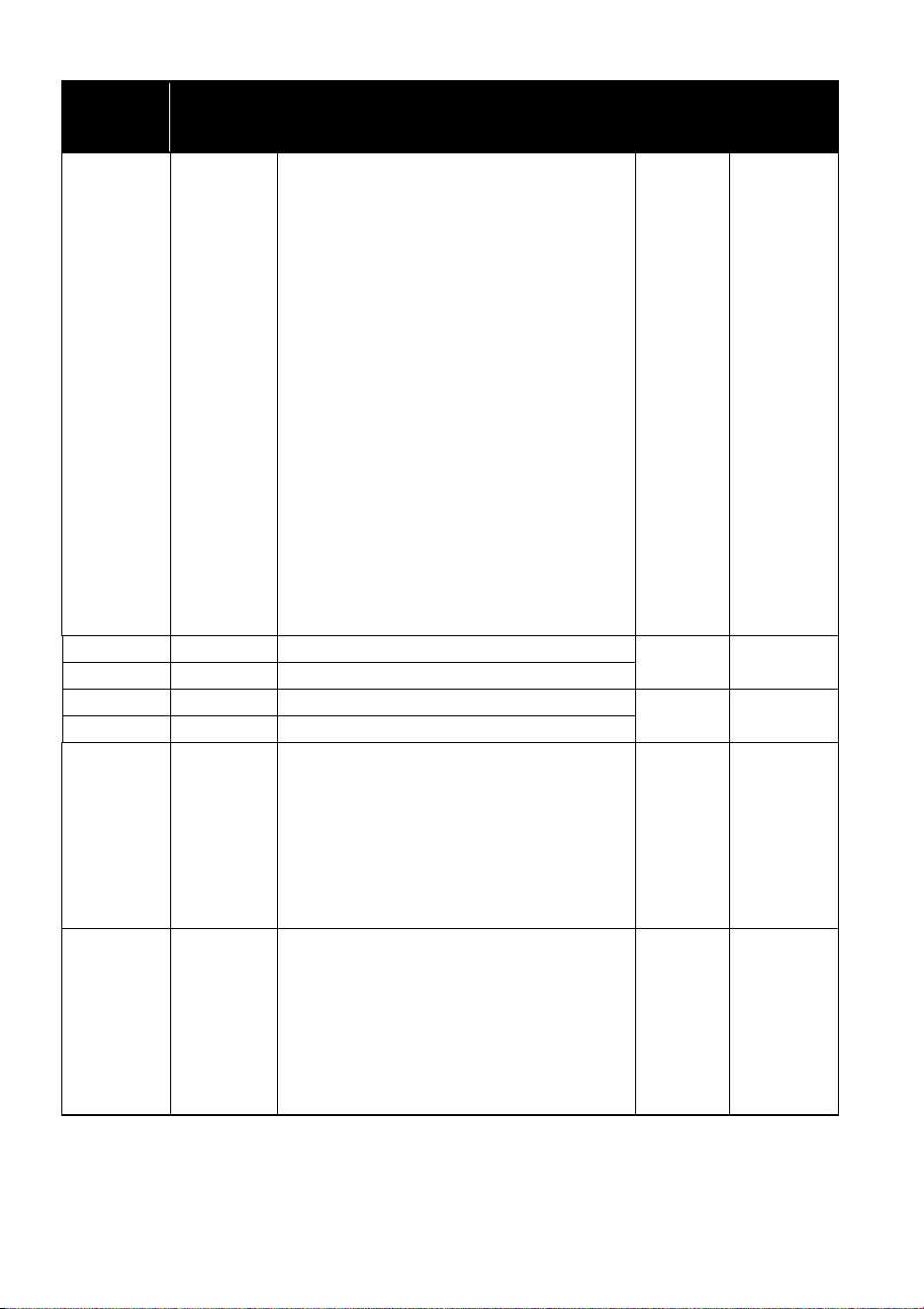
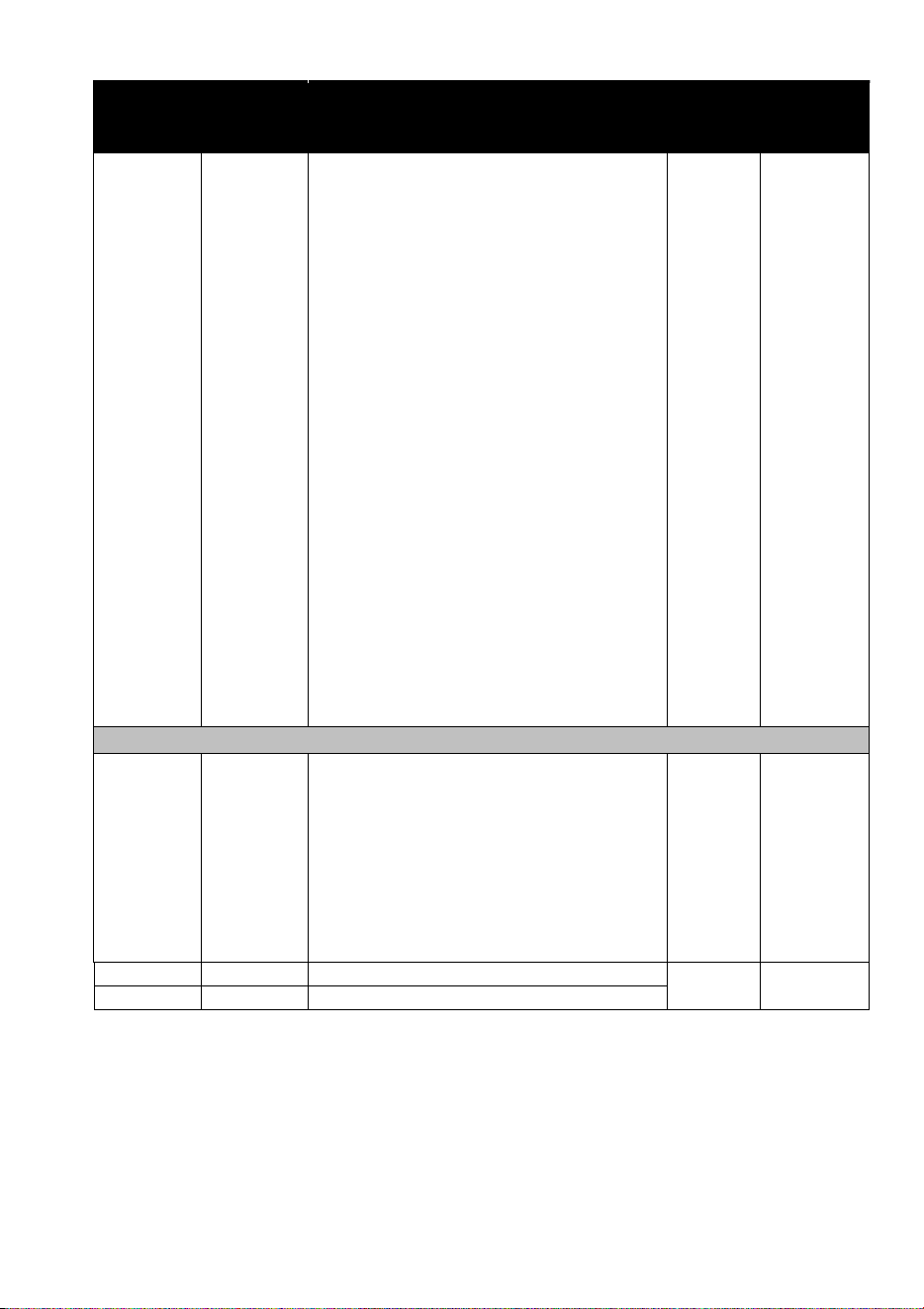
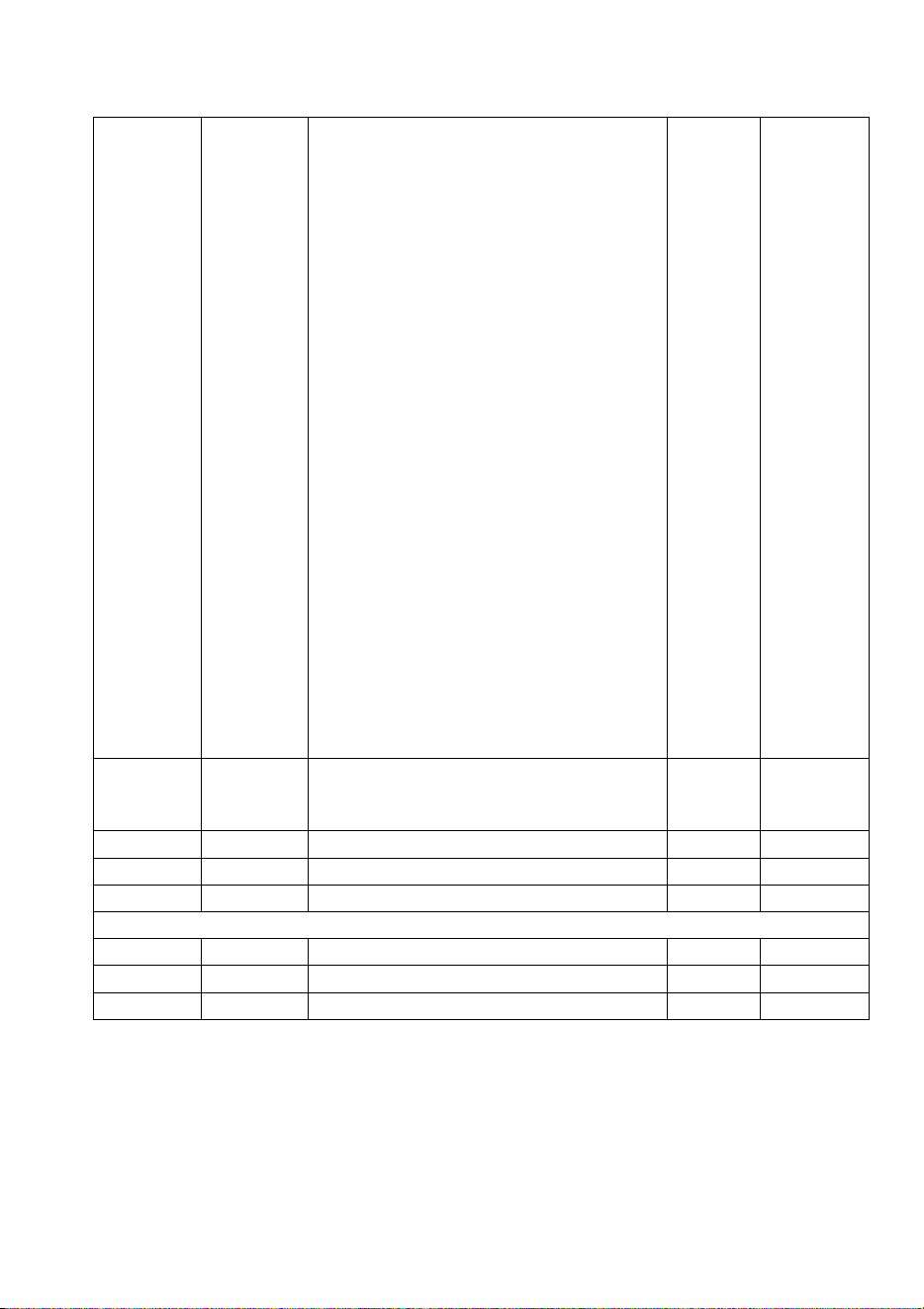
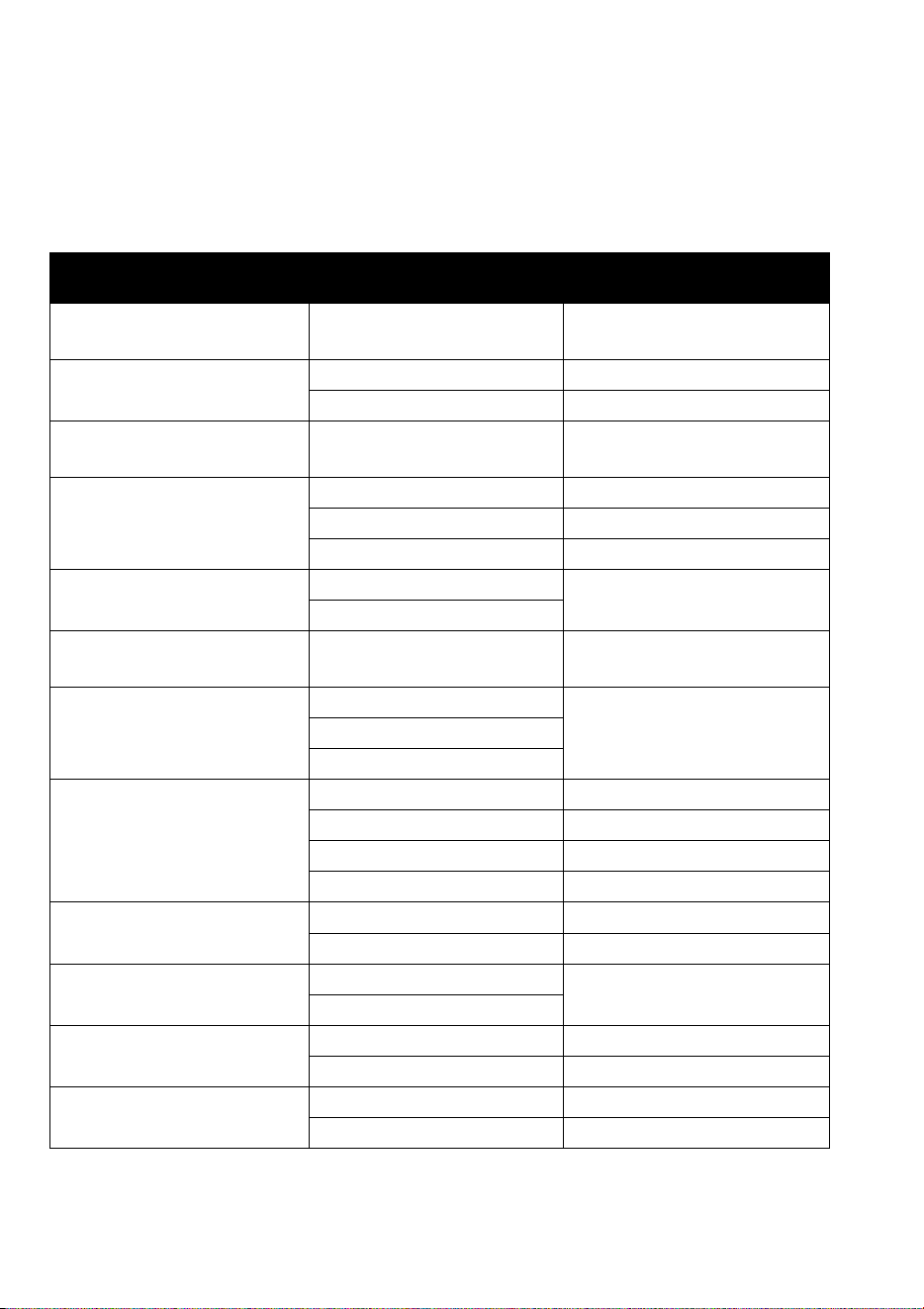
Extended (93-channel) mode ....................................................................... 37
Control menus .................................................................................................. 42
Troubleshooting ............................................................................................... 45
Specifications ................................................................................................... 46
RUSH™ MH10 Beam FX User Manual 5
Safety information
WARNING!
Read the safety precautions in this manual before installing,
operating or servicing this product.
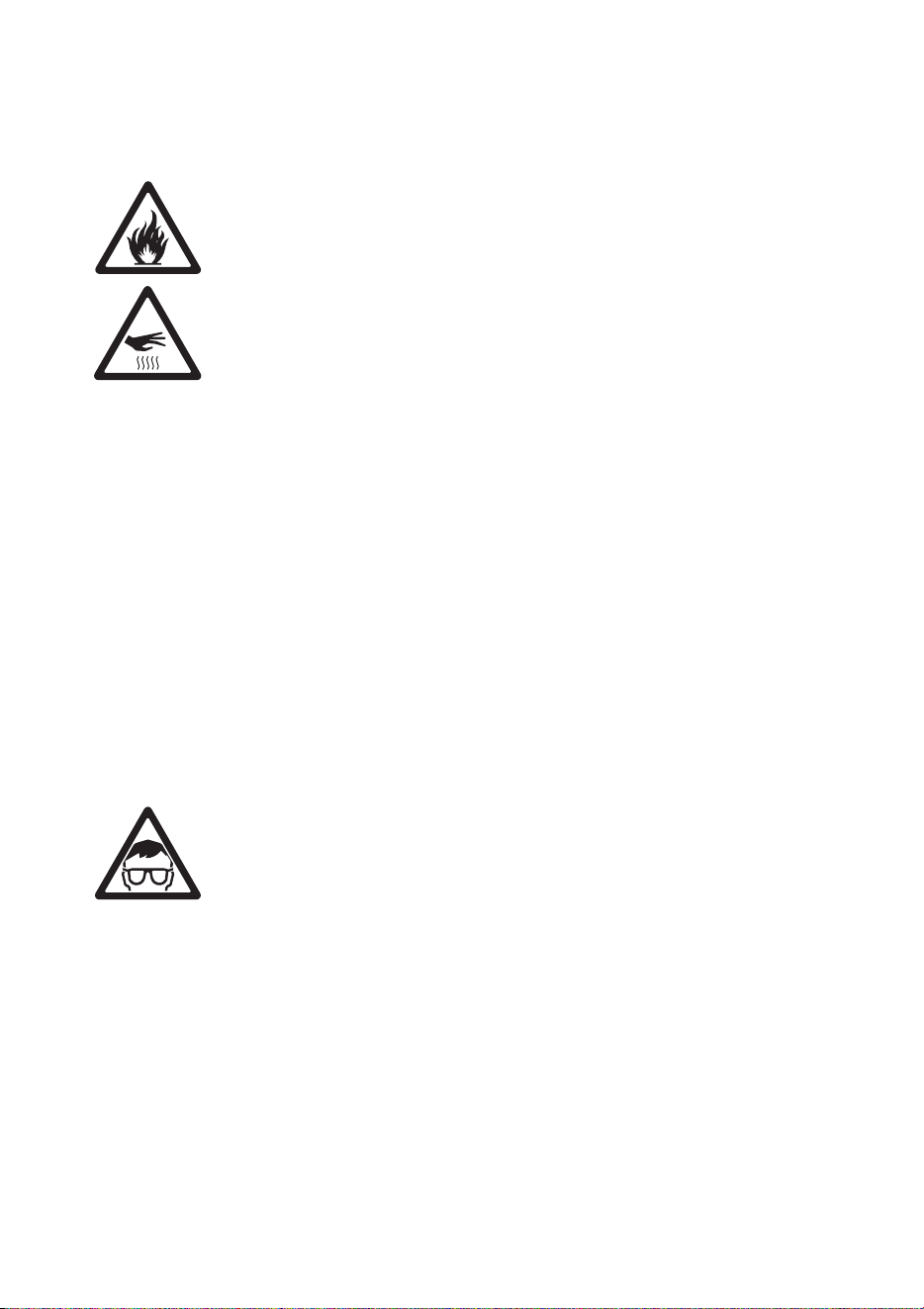
The following symbols are used to identify important safety information on the
product and in this manual:
Warning!
Safety
hazard. Risk
of severe
injury or
death.
Warning!
Powerful
light
emission.
Risk of eye
injury.
Warning!
See user
manual for
important
safety
information.
Warning!
Hazardous
voltage.
Risk of
lethal or
severe
electric
shock.
Warning!
Hot
surfaces.
Warning!
Fire hazard.
Warning! Risk Group 2 product according to EN 62471.
Possibly hazardous radiation emitted from this product. May be
harmful to the eyes. Do not stare at operating lamp and do not
view the light output with optical instruments or any device that
may concentrate the beam.
This lighting fixture is for professional use only and must be
installed by a qualified technician. It is not for household use. It
presents risks of severe injury or death due to fire hazards,
electric shock and falls. It produces a powerful, concentrated
beam of light that can create a fire hazard or a risk of eye injury
if the safety precautions below are not followed.
Install, operate and service Martin® products only as directed in
their user manuals, or you may create a safety hazard or cause
damage that is not covered by product warranties.
Follow the safety precautions listed below and observe all
warnings in this manual and printed on the product. Keep this
user manual for future use.

6 RUSH™ MH10 Beam FX User Manual
For the latest user documentation and other information for this
and all Martin® products, please visit the Martin website at
http://www.martin.com
If you have any questions about how to install, operate or
service the fixture safely, please contact your Martin®
distributor (see www.martin.com/where-to for details) or call the
Martin® 24-hour service hotline on +45 8740 0000, or in the
USA on 1-888-tech-180.
Respect all locally applicable laws, codes and regulations when
installing, operating or servicing the fixture.
Protection from electric shock
Do not expose the fixture to rain or moisture.
Disconnect the fixture from AC power before carrying out any
installation or maintenance work and when the fixture is not in
use.
Ensure that the fixture is electrically connected to ground
(earth).
Use only a source of AC power that complies with local building
and electrical codes and has both overload and ground-fault
(earth-fault) protection.
Socket outlets or external power switches used to supply the
fixture with power must be located near the fixture and easily
accessible so that the fixture can easily be disconnected from
power.
Replace defective fuses with ones of the specified type and
rating only.
Isolate the fixture from power immediately if the power plug or
any seal, cover, cable, or other component is damaged,
defective, deformed, wet or showing signs of overheating. Do
not reapply power until repairs have been completed
Before using the fixture, check that all power distribution
equipment and cables are in perfect condition and rated for the
electrical requirements of all connected devices.
The mains power input cable supplied with the fixture is rated
6 A and can supply only one fixture with mains power. Do not
connect any device to the fixture’s MAINS OUT socket when
using this input cable. If you want to connect other fixtures to
RUSH™ MH10 Beam FX User Manual 7
the MAINS OUT socket, see ‘Linking fixtures to power in a
chain’ on page 14.
Protection from burns and fire
Do not operate the fixture if the ambient temperature (T
a
) exceeds
40° C (104° F).
The surface of the product casing can reach up to 50° C (122° F)
during operation. Avoid contact by persons and materials. Allow
the fixture to cool for at least 10 minutes before handling.
Keep flammable materials well away from the fixture. Keep all
combustible materials (e.g. fabric, wood, paper) at least 100 mm
(4 in.) away from the fixture head.
Ensure that there is free and unobstructed airflow around the
fixture. Provide a minimum clearance of 100 mm (4 in.) around
fans and air vents.
Do not illuminate surfaces within 200 mm (8 in.) of the fixture.
Do not attempt to bypass thermostatic switches or fuses.
Do not stick filters, masks or other materials onto any optical
component.
The fixture’s lenses can focus the sun’s rays inside the fixture,
creating a risk of fire and damage. Do not expose the front of the
fixture to sunlight or any other bright light source.
Protection from eye injury
The fixture falls into Risk Group 2 according to EN62471. To
minimize the risk of eye irritation or injury, disconnect the fixture
from power at all times when the fixture is not in use, and provide
well-lit conditions to reduce the pupil diameter of anyone working
on or near the fixture.
The light from the LED lamp is possibly hazardous and may be
harmful to the eyes. Do not stare directly into the product’s light
output.
Do not look at the light output with magnifiers, telescopes,
binoculars or similar optical instruments that may concentrate the
light output.
Ensure that persons are not looking directly into the LEDs when
the product lights up suddenly. This can happen when power is
8 RUSH™ MH10 Beam FX User Manual
applied, when the product receives a DMX signal, or when certain
control menu items are selected.
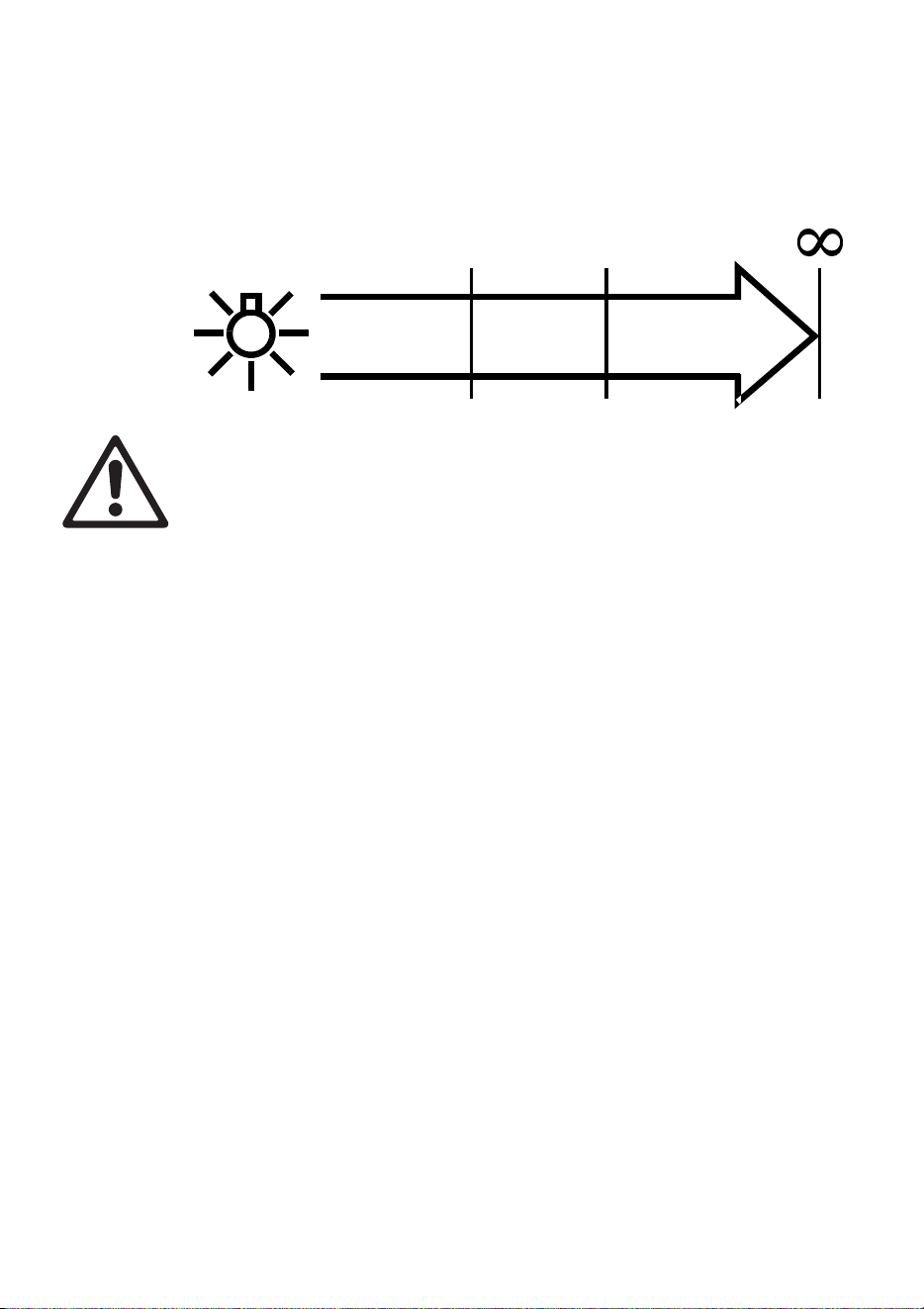
The fixture falls into the following Risk Groups according to
EN62471 at the distances indicated below:
RISK GROUP
2
RISK GROUP
1
19.8 m
(65.0 ft.)
212.4 m
(697 ft.)
RISK GROUP
EXEMPT
Protection from injury
Fasten the fixture securely to a fixed surface or structure when in
use. The fixture is not portable when installed.
Ensure that any supporting structure and/or hardware used can
hold at least 10 times the weight of all the devices they support.
If suspending from a rigging structure, fasten the fixture to a
rigging clamp. Do not use safety cables as the primary means of
support.
If the fixture is installed in a location where it may cause injury or
damage if it falls, install as directed in this manual a secondary
attachment such as a safety cable that will hold the fixture if a
primary attachment fails. The secondary attachment must be
approved by an official body such as TÜV as a safety attachment
for the weight that it secures, must comply with EN 60598-2-17
Section 17.6.6 and must be capable of bearing a
static suspended load that is ten times the weight of the fixture and
all installed accessories.
Allow enough clearance around the head to ensure that it cannot
collide with an object or another fixture when it moves.
Check that all external covers and rigging hardware are securely
fastened.
Block access below the work area and work from a stable platform
whenever installing, servicing or moving the fixture.
Do not operate the fixture with missing or damaged covers, shields
or any optical component.
Do not lift or carry the fixture by its head. Support the fixture by its
base only.

RUSH™ MH10 Beam FX User Manual 9
In the event of an operating problem, stop using the fixture
immediately and disconnect it from power. Do not attempt to use a
fixture that is obviously damaged.
Do not modify the fixture in any way not described in this manual
or install other than genuine Martin® parts.
Refer any service operation not described in this manual to a
qualified technician.

10 RUSH™ MH10 Beam FX User Manual
Introduction
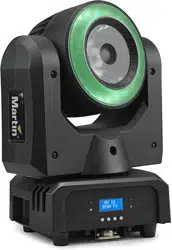
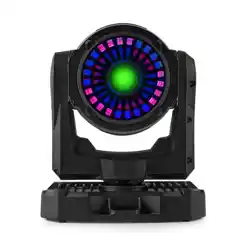
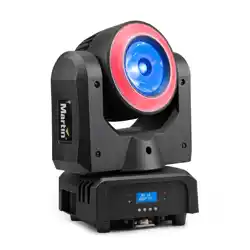
The RUSH™ MH 10 Beam FX is a fast, compact moving head effect fixture
with dual LED effects: a 60W long-life RGBW LED providing an intense 4.4
degree beam effect and an array of 24 smaller LEDs providing a background
ring of light with full individual pixel control and built-in animation effects. The
pan and tilt can continuously rotate 360 degrees or provide fixed 16-bit
positioning and the fixture also features smooth electronic dimming and strobe
effects. The rugged, lightweight construction makes it ideal for events, touring,
and small venues.
The fixture is supplied with this user manual, a 1.5 m (4.9 ft.) bare-ended
power cable ready for a local power plug (not included) and a mounting
bracket for attachment of a suitable, user-supplied rigging clamp.
Before using the product for the first time
1. Read ‘Safety information’ starting on page 5 before installing, operating or
servicing the fixture.
2. Unpack and ensure that there is no transportation damage before using
the fixture. Do not attempt to operate a damaged fixture.
3. If the fixture is not going to be hard-wired to a mains supply, install a local
power plug (not supplied) to the end of the supplied power cable.
4. Before operating, ensure that the voltage and frequency of the power
supply match the power requirements of the fixture.
5. Check the support pages on the Martin Professional website at
www.martin.com for the most recent user documentation and technical
information about the fixture. Martin® user manual revisions are identified
by the revision letter at the bottom of the inside cover.
Note that whenever AC power is applied to the fixture, it will reset all effects
and functions to their home positions. Be prepared for the fixture head to
move. A reset usually takes around 20 seconds.
RUSH™ MH10 Beam FX User Manual 11
Physical installation
Warning! Read ‘Safety information’ on page 5 before
installing the fixture.
The fixture is designed for indoor use only and must be used in
a dry location with adequate ventilation. Ensure that none of the
fixture’s ventilation slots are blocked and all minimum distances
are observed.
The fixture must be installed by a qualified technician. It may be
operated in any orientation.
Fasten the fixture to a secure structure or surface. Do not stand
it on a surface or leave it where it can be moved or fall over. If
you install the fixture in a location where it may cause injury or
damage if it falls, secure it as directed in this user manual using
a securely anchored safety cable that will hold the fixture if the
primary fastening method fails.
Martin® can supply safety cables and rigging clamps that are suitable for use
with the fixture (see ‘Accessories’ on page 48).
Fastening the fixture to a flat surface
The fixture can be fastened to a hard, fixed, flat surface in any orientation.
Ensure that the surface and all fasteners used can support at least 10 times the
weight of all fixtures and equipment they will support.
Fasten the fixture securely. Do not stand it on a surface or leave it where it can
be moved or fall over. If you install the fixture in a location where it may cause
injury or damage if it falls, secure it as directed below with a securely anchored
safety cable that will hold the fixture if the primary fastening method fails.
Mounting the fixture on a truss
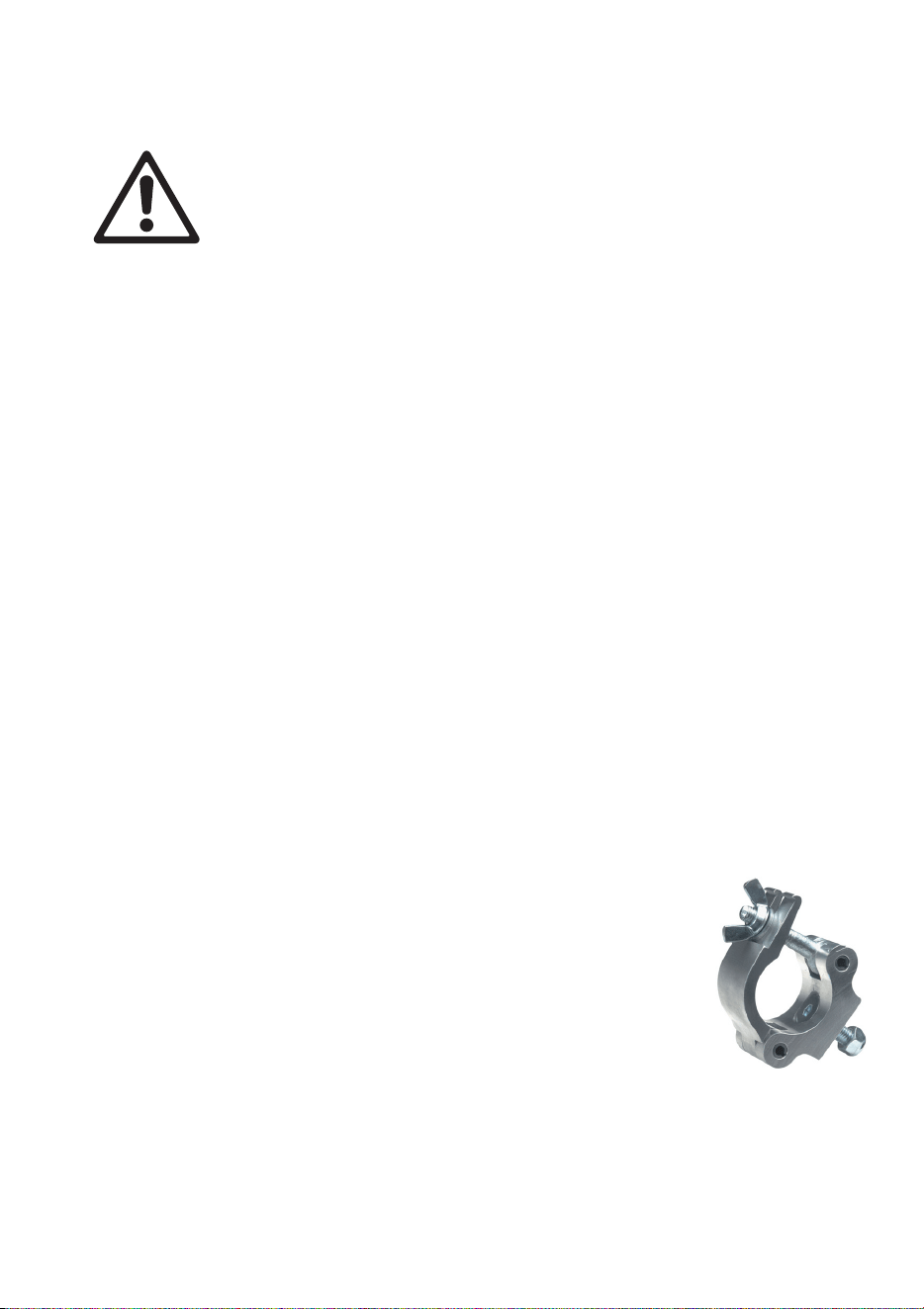
The fixture can be clamped to a truss or similar rigging
structure in any orientation. Use a suitable rigging clamp such
as a G-clamp or a half-coupler clamp (see illustration on right)
fastened to the included omega bracket.
To clamp the fixture to a truss:
1. Check that the rigging structure can support at least 10 times the weight of
all fixtures and equipment to be installed on it.
2. Block access under the work area.
12 RUSH™ MH10 Beam FX User Manual
3. The fixture is supplied with an omega-type bracket to which a rigging
clamp can be attached. Bolt a rigging clamp securely to the bracket. The
bolt used must be M12, grade 8.8 steel minimum, and fastened with a self-
locking nut.
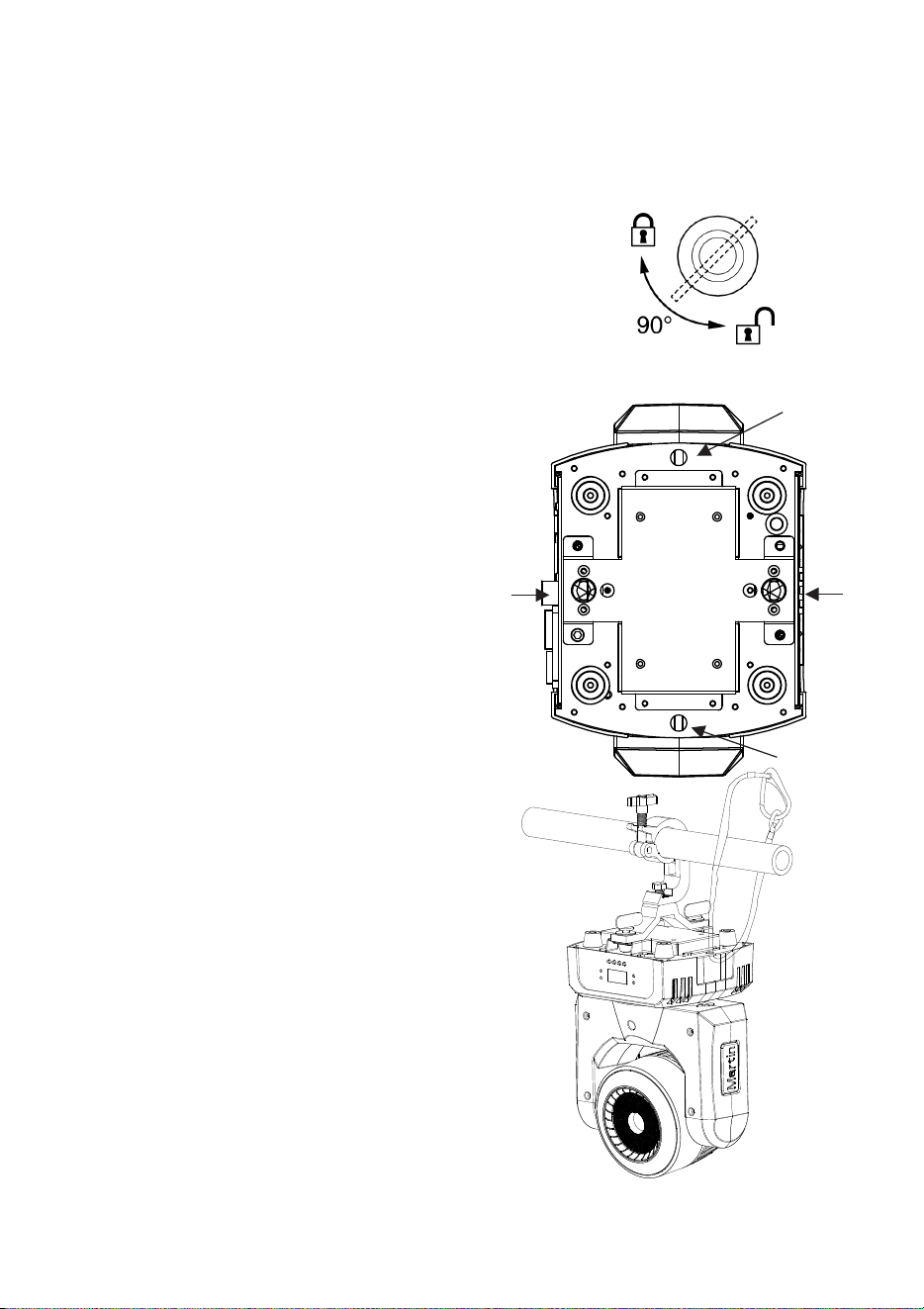
4. Fasten the omega bracket to mounting holes A on
the base of the fixture using the bracket’s quarter-
turn fasteners. Turn quarter-turn fasteners a full 90°
to lock them (see illustration on right).
5. Working from a stable platform, hang
the fixture vertically on the truss and
fasten the rigging clamp onto the
truss.
6. Secure the fixture with a safety cable
through attachment points B as
directed below.
7. Check that the head will not collide
with other fixtures or objects.
Securing with a safety cable
Secure the fixture with a safety cable (or
other secondary attachment) that is
approved for the weight of the fixture so
that the safety cable will hold the fixture if
the primary attachment fails. Loop the
safety cable through one of the two
attachment points B in the base of the
fixture base (see illustrations above and to
right) and around a secure anchoring
point.
If a safety cable attachment point
becomes damaged or deformed, do not
use the fixture. Return it to a Martin
Service Centre for repair.
B
A
A
B
RUSH™ MH10 Beam FX User Manual 13
AC power
Warning! Read ‘Safety information’ on page 5 before
connecting the fixture to AC mains power.
Warning! The mains power input cable supplied with the
fixture is rated 6 A and can supply only one fixture with
mains power. Do not connect any device to the fixture’s
MAINS OUT socket when using this input cable. If you want
to connect other fixtures to the MAINS OUT socket, see
‘Linking fixtures to power in a chain’ on page 14.
For protection from electric shock, the fixture must be grounded
(earthed). The power distribution circuit must be equipped with a
fuse or circuit breaker and ground-fault (earth-fault) protection.
Socket outlets or external power switches used to supply the
fixture with power must be located near the fixture and easily
accessible so that the fixtures can easily be disconnected from
power.
Do not use an external dimming system to supply power to the fixture, as this
may cause damage to the fixture that is not covered by the product warranty.
The fixture can be hard-wired to a building electrical installation if you want to
install it permanently, or a power plug (not supplied) that is suitable for the
local power outlets can be installed on the power cable. Socket outlets or
external power switches used to supply the fixture with power must be located
near the fixture and easily accessible so that the fixture can easily be
disconnected from power.
If you install a power plug on the supplied power cable, install a grounding type
(earthed) plug with integral cable grip that is rated 8 A minimum, 250 V. Follow
the plug manufacturer’s instructions and connect the wires in the power cable
as shown in this table:
Live or L Neutral or N
Earth, Ground or
US system
Black White Green
EU system
Brown Blue Yellow/green
The fixture has an auto-ranging power supply that accepts AC mains power at
100-240 V at 50/60 Hz. Do not apply AC mains power at any other voltage or
frequency to the fixture.

14 RUSH™ MH10 Beam FX User Manual
Linking fixtures to power in a chain
The mains power input cable supplied with the fixture is rated 6 A and can
safely supply enough power for one fixture only. If you want to use the MAINS
OUT socket on the fixture to link power to another fixture in a daisy-chain, you
must obtain the larger power input cables and power link cables available as
an accessory from Martin (see ‘Accessories’ on page 48).
Using the 14 AWG or 1.5mm
2
cables from Martin®, you can link:
• Maximum nine (9) MH 10 fixtures in total at 100-120 V, or
• Maximum nineteen (19) MH 10 fixtures in total at 200-240 V.
If you install a power plug on the 14 AWG / 1.5 mm
2
power input cable, install
a grounding type (earthed) plug with integral cable grip that is rated 16 A
minimum, 250 V.
RUSH™ MH10 Beam FX User Manual 15
Fixture overview
1
2
2
3
4
5
6
7
8
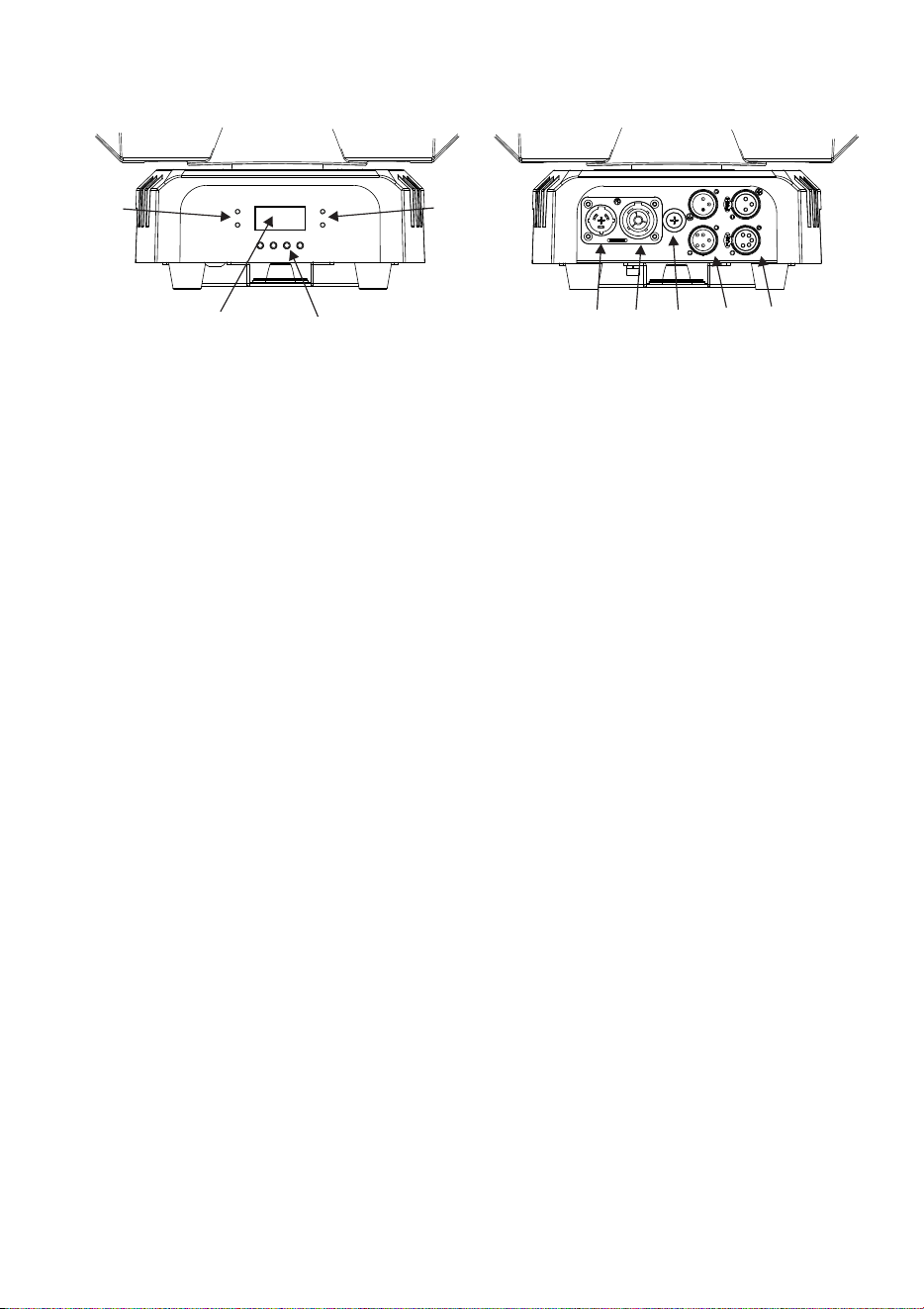
1 – Display
2 – LEDs
Four LEDs provide status information.
• DMX: Valid DMX signal present.
•
CLIENT: Fixture operating as a stand-al
one client.
• MASTER: Fixture ope
rating as the stand-alone master.
• SOUND: Audio signal triggering stand-alone sequence.
3 – Control buttons
• MENU: Press to activate the menu. Within the menu, press to escape and
return to the previous level. Press and hold to exit the menu.
• DOWN: Press to scroll down through menu options.
• UP: Press to scroll up through menu options.
• ENTER: Press to confirm and save the menu selection.
4, 5 – XLR DMX input/output
For your convenience, 3 and 5-pin XLR sockets are provided for DMX input
and output (through to next fixture). Do not connect output cables to both the
3-pin and 5-pin output sockets at the same time as this may cause data errors
(in other words, you cannot use the two outputs on the fixture to split the DMX
line).
6 – Fuse
The T 2.0 A fixture fuse is located in a fuseholder next to the power
input/output connectors.
7 – AC mains power input
A yellow Neutrik True1 powerCON inlet connector is provided to connect the
fixture to mains power.
8 – AC mains power link output
A yellow Neutrik True1 powerCON outlet connector is provided to allow mains
power to be linked to the next fixture. Please refer to the section above
“Linking fixtures to power in a chain” for safe use of this connector.
16 RUSH™ MH10 Beam FX User Manual
Control data link
A DMX 512 data link is required in order to control the fixture via DMX. The
fixture has 3-pin and 5-pin XLR connectors for DMX data input and output.
Up to 32 devices can be linked together on a single daisy chain. The total
number of fixtures in one 512-channel DMX universe is limited by the number
of DMX channels required by the fixtures. Note that if independent control of a
fixture is required, it must have its own DMX channels. Fixtures that are
required to behave identically can share the same DMX address and
channels. To add more fixtures or groups of fixtures when the above limits are
reached, add a DMX universe and/or split the daisy-chained link into branches
using a powered DMX splitter.
Tips for reliable data transmission
Use shielded twisted-pair cable designed for RS-485 devices: standard
microphone cable cannot transmit control data reliably over long runs. 24
AWG cable is suitable for runs up to 300 meters (1000 ft.). Heavier gauge
cable and/or a DMX buffer is recommended for longer runs. The pin-out on all
connectors is:
• pin 1 = shield
• pin 2 = cold (-)
• pin 3 = hot (+).
Pins 4 and 5 in the 5-pin XLR connectors are not used in the fixture but are
available for possible additional data signals as required by the DMX512-A
standard. Standard pin-out is pin 4 = data 2 cold (-) and pin 5 = data 2 hot (+).

RUSH™ MH10 Beam FX User Manual 17
To split the link into branches, use an opto-isolated splitter such as the
Martin® DMX 5.3 Splitter. Terminate the link by installing a termination plug in
the output socket of the last fixture. The termination plug, which is a male XLR
plug with a 120 Ohm, 0.25 W resistor soldered between pins 2 and 3, “soaks
up” the control signal so it does not reflect and cause interference. If a splitter
is used, terminate each branch of the link.
Connecting the data link
To connect the fixture to data:
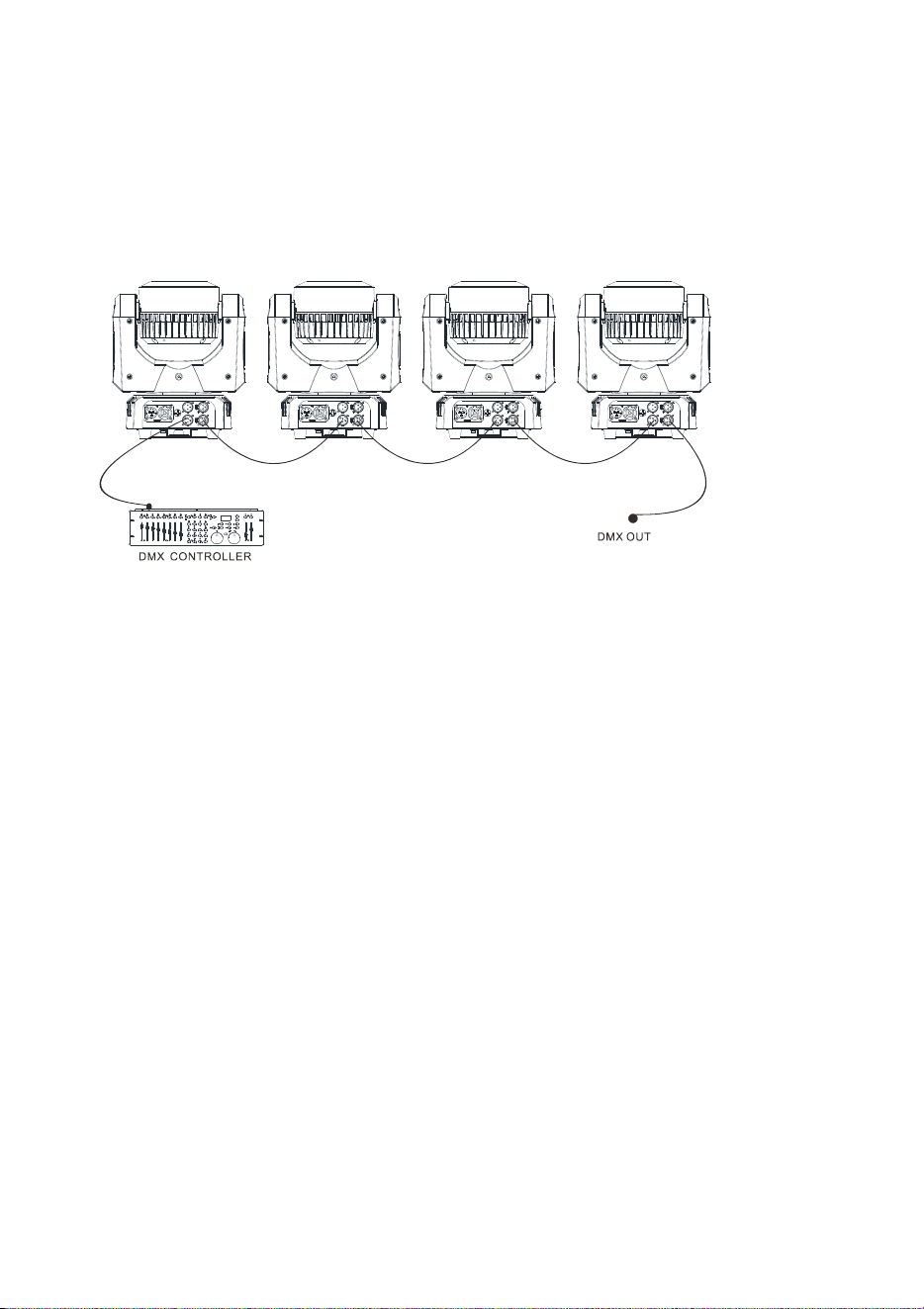
1. Connect the DMX data output from the controller to the closest fixture’s
male XLR DMX input connector.
2. Connect the first fixture’s DMX output to the DMX input of the next fixture
and continue connecting fixtures output to input. Terminate the last fixture
on the link with a DMX termination plug.

18 RUSH™ MH10 Beam FX User Manual
Fixture setup
This section explains the fixture characteristics you can set that determine how
it can be controlled and will behave. You choose the settings using the menus
available from the control panel, and they are retained even when the fixture is
powered off.
You can also set the options on the fixture remotely over the DMX line using a
suitable RDM controller.
A complete map of the control menu structure and brief explanations of their
purposes can be found on page 32.
Using the control menus
To access the control menus, press the MENU button. Navigate the menu
structure using the ENTER, DOWN and UP buttons. To select a menu option
or to confirm a selection, press the ENTER button. To return to a higher level
in the menu structure without making a change, press the MENU button.
To exit the control menus completely, press and hold the MENU button.
DMX addressing
The DMX address, also known as the start channel, is the first channel used to
receive instructions from a DMX controller. The fixture is controlled using a
minimum of 24 DMX channels (but has an extended mode which uses more
channels). Each DMX controlled fixture must have a DMX address set. For
example, if the fixture has a DMX address of 10, then it uses channels 10 to
33 inclusive. The following fixture in the DMX chain could then be set to a
DMX address of 35.
For independent control, each fixture must be assigned its own control
channels. Two fixtures of the same type may share the same address if
identical behavior is desired. Address sharing can be useful for diagnostic
purposes and symmetric control, particularly when combined with the inverse
pan and tilt options.
To set the fixture’s DMX address:
1. In the control menu, select DMX ADDRESS and press ENTER to confirm.
The present address will blink in the display.
2. Use the UP and DOWN buttons to select an address from 1 to 492 (the
top address will vary depending on the DMX mode of the fixture).
3. Press ENTER to confirm your selection.

RUSH™ MH10 Beam FX User Manual 19
DMX channel mode
You can control the fixture in two modes:
Basic (24 channel mode) controls all 24 cells of the LED ring together, so they
will be all the same color in RGB mode (though FX animations for the ring are
provided).
Extended (93 channel mode) allows you to control the 24 cells of the LED ring
separately using 24 groups of RGB control.
See “DMX protocol” on page 32 for a table showing the function of each DMX
channel.
To adjust the setting:
1. Select CHANNEL MODE and press ENTER. The currently set option will
blink in the display.
2. Use the DOWN and UP buttons to select Basic 24ch (default) or Extended
93ch.
3. Press ENTER to save your selection.
Behavior without DMX (DMX State)
The DMX STATE setting determines how the fixture behaves when it is not
receiving a DMX signal. You can set the fixture to enter Show Mode, black out,
or hold the effect it was displaying when the DMX signal stopped. The fixture is
set to HOLD by default.
To adjust the setting:
1. Select DMX STATE and press ENTER. The currently set option will blink in
the display.
2. Use the DOWN and UP buttons to select SHOW MODE (fixture enters
Show Mode), BLACKOUT (fixture blacks out) or HOLD (fixture shows the
last effect it was displaying before the DMX signal stopped).
3. Press ENTER to save your selection.
Stand-alone settings
The fixture will operate in stand-alone mode if it is not receiving a DMX signal
and the DMX STATE menu option is set to SHOW MODE (see above), or if
you enter the SHOW MODE menu in the control panel.
Stand-alone show selection (Show Mode)
Four pre-programmed stand-alone shows are available. To set the show that
the fixture will run in Show Mode:

20 RUSH™ MH10 Beam FX User Manual
1. Select SHOW MODE and press ENTER to confirm. The currently selected
show will blink in the display.
2. Use the DOWN and UP buttons to select Show 1, 2, 3 or 4.
3. Press ENTER to save your selection.
Master/
FOLHQW operation
Fixtures in Show Mod
e can be linked in a chain and set to master/client
operation, where one master fixture running a standalone show controls the
behavior of client fixtures. Two client modes are available:
• Fixtures in Client 1 mode copy the master.
•
Fixtures in
Client 2 mode are synchronized with the m
aster but have slight
variations
in behavior.
You must set all the fixtures except one as clients. If you set more than one
fixture in the chain to act as master, you may cause damage that is not
covered by the product warranty.
To operate fixtures in master/
client mode:
1. Link fixtures in a chain, using DMX cable to connect one fixture’s DMX
OUT socket to the next fixture’s DMX IN socket. See ‘Control data link’ on
page 16.
2. In the MASTER CLIENT menu, set one fixture to MASTER and set all the
other fixtures to CLIENT 1 or CLIENT 2.
3. Set the master fixture in the chain to run one of its four standalone shows
using its SHOW MODE menu (see ‘Show Mode’ above).
4. Set all the fixtures in the chain to DMX STATE SHOW MODE.
5. Make sure that the fixtures are not receiving a DMX signal.
Sound activation in show mode
Show Mode can be combined with sound activation. The fixture has a built-in
microphone that can be used to trigger scene changes in sync with a music
beat (music trig) when the fixture is running in Show Mode.
To enable sound activation:
1. Select SOUND MODE and press ENTER.
2. Use the DOWN and UP buttons to select ON (sound activation enabled) or
OFF (sound activation disabled).
3. Press ENTER to save your selection.
To adjust the sensitivity of sound activation to the volume of the music:
1. Turn on the music source and set it to the desired volume.
2. Select SOUND SENSE and press ENTER.

RUSH™ MH10 Beam FX User Manual 21
3. Use the DOWN and UP buttons to change the sensitivity level from 0
to100.
4. When the fixture responds correctly to the beat, press ENTER to save
your selection.
Pan/tilt inversion
The PAN INVERSE and TILT INVERSE menus can be used to reverse the
direction of pan and tilt. These settings are useful for symmetrical effects with
multiple fixtures, or when coordinating the movement of fixtures that are floor
mounted and rigged upside down.
To adjust the pan inversion settings:
1. Select PAN INVERSE and press ENTER to confirm. The currently set
mode will blink in the display.
2. Use the DOWN and UP buttons to select YES (tilt inversion) or NO
(normal) mode.
3. Press ENTER to save your selection.
To adjust the tilt inversion settings:
1. Select TILT INVERSE and press ENTER to confirm. The currently set
mode will blink in the display.
2. Use the DOWN and UP buttons to select YES (tilt inversion) or NO
(normal) mode.
3. Press ENTER to save your selection.
Dimmer settings
Dimming curve
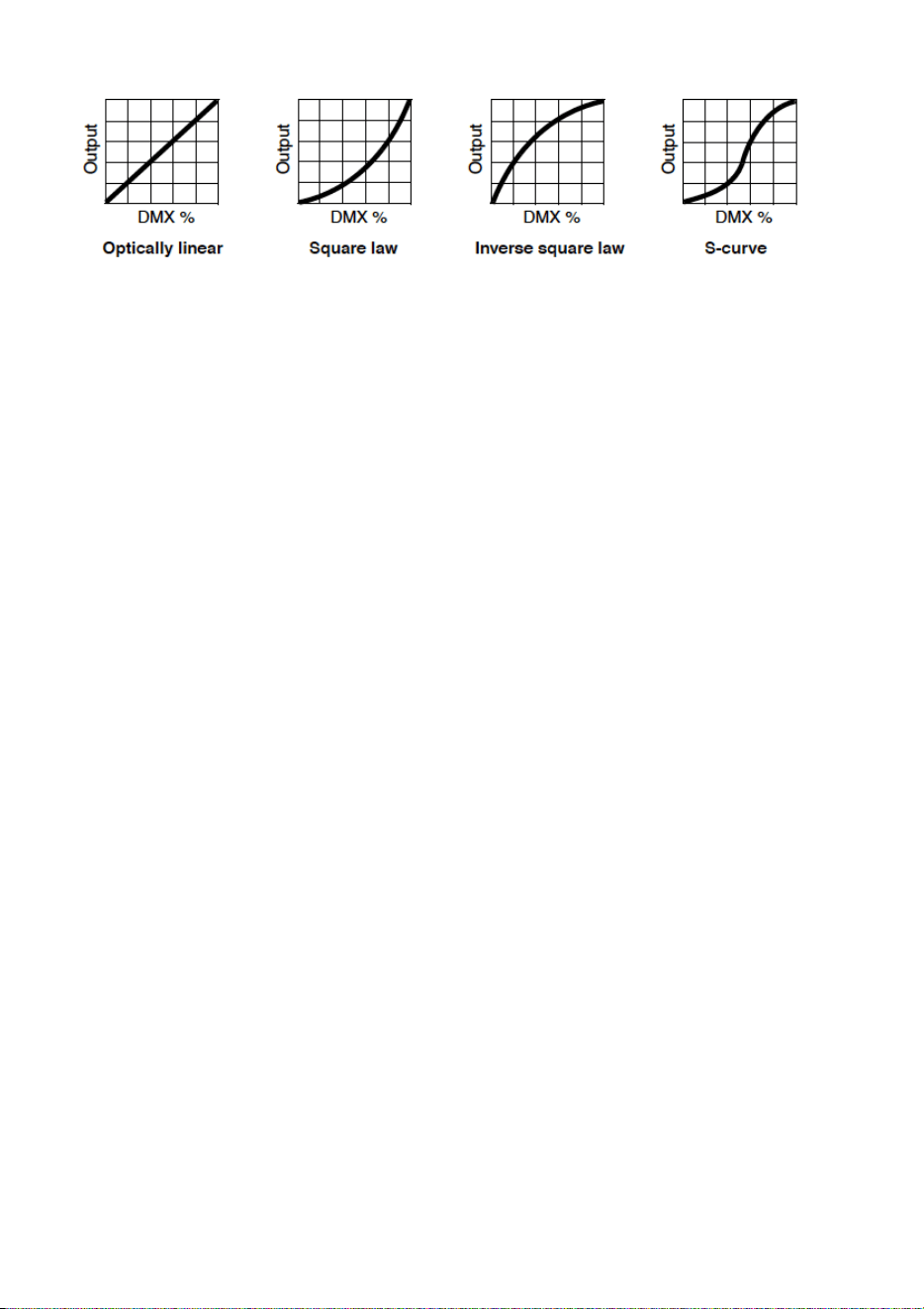
Four dimming curves are available to modify dimmer response. The default is
MODE 2. The settings affect response as follows:
MODE 1 LINEAR: the increase in light intensity appears to be linear as
DMX value is increased.
MODE 2 SQUARE LAW: light intensity control is finer at low levels and
coarser at high levels.
MODE 3 INVERSE SQUARE LAW: light intensity control is coarser at low
levels and finer at high levels.
MODE 4 S-CURVE: light intensity control is finer at low levels and high
levels and coarser at medium levels.
22 RUSH™ MH10 Beam FX User Manual
To set the fixture’s dimmer curve:
1. Select DIMMER CURVE and press ENTER to confirm. The mode that is
currently active will blink in the display.
2. Use the DOWN and UP buttons to select the desired mode.
3. Press ENTER to save your selection.
Dimming curve can also be set by DMX using the Special Function channel.
Dimmer speed
There are two dimmer speed options:
• SNAP is the default setting. It sets the dimmer to exactly follow changes in
dimming level sent from the controller. This gives the fastest dimmer
response.
• FADE adds an approximate two-second smooth fade to changes in
dimming level sent from the controller. This gives the smoothest dimmer
fading.
To set the dimmer speed:
1. Select DIMMER SPEED and press ENTER to confirm.
2. Use the DOWN and UP buttons to select SNAP or FADE. Press ENTER
to confirm.
Backlight
To turn the control panel display backlight on or off:
1. Select BACK LIGHT and press ENTER to confirm. The current mode will
blink in the display.
2. Use the DOWN and UP buttons to select ON or OFF.
3. Press ENTER to save your selection.
The backlight can also be turned on or off by DMX using the Special Function
channel.

RUSH™ MH10 Beam FX User Manual 23
Function delay
To reduce the risk of accidental activation, you can set a delay of up to 3
seconds before a DMX command will activate a function on the special
function settings DMX channel. To set the delay duration:
1. Select FUNCTION DELAY and press ENTER to confirm. The current delay
setting will blink in the display.
2. Use the DOWN and UP buttons to select No Delay, 1S Delay, 2S Delay or
3S Delay (default).
3. Press ENTER to save your selection (or press MENU to exit without
saving any changes).
White balance adjustment
As LED brightness changes with age, you may want to adjust the output of the
fixture to match the color of other fixtures. You can individually adjust the
brightness of the red, green and blue emitters to produce the desired white
color. To adjust the fixture’s white balance:
1. Select WHITE BALANCE and press ENTER to confirm.
2. Use the DOWN and UP buttons to select RED, GREEN or BLUE.
3. Once the color has been selected, press ENTER.
4. Use the DOWN and UP buttons to adjust the amount of that color
(125~255) in the white balance mix.
5. Press ENTER to save your selection (or press MENU to exit without
saving any changes).
Manual test
Fixture functions can be individually controlled and tested manually. This
feature can be also used to setup a static scene without a controller. To
operate the fixture effects manually:
1. Select Manual Test and press ENTER.
2. Use the DOWN and UP buttons to select the function you want to set.
3. Once the function has been selected, press ENTER.
4. Use the DOWN and UP button to change the value (0-255).
5. Press MENU to exit.
Auto test
To perform a complete test of all of the fixture functions:
1. Select AUTO TEST and press the ENTER button.

24 RUSH™ MH10 Beam FX User Manual
2. Press the ENTER button. The fixture will run a self-test routine.
LED Temperature
To check the LED Temperature of the fixture, select LED TEMP. and press
ENTER. The display will show the temperature of the unit. Press MENU to
exit.
Fixture time
To display the fixture’s operating hours counter, select FIXTURE TIME and
press ENTER. The display will show the number of hours the fixture has been
in operation since manufacture. Press MENU to exit.
Firmware version
To display the fixture’s current firmware version, select FIRMWARE VERSION
and press ENTER. The display will show the version of firmware in the fixture.
Press MENU to exit.
Pro defaults
PRO Defaults lets you cancel any changes in fixture settings that have been
made using the control panel and return the fixture to its original factory default
settings. To restore the default settings:
1. Select PRO DEFAULTS and press ENTER. The display will blink.
2. Use the DOWN and UP buttons to select YES.
3. Press ENTER to restore the default settings (or press MENU to exit
without making any changes).
Reset
The fixture resets its motors each time you power it on, but you can also reset
the fixture motors manually from the control panel and by DMX. To carry out a
manual reset from the control panel, scroll to RESET and press ENTER to
reset the fixture, or press MENU to exit without resetting. A reset takes approx.
20 seconds. After this, the fixture returns to its state before the reset.
The fixture motors can also be reset by DMX using the Special Function
channel.
Fan mode
Fan speed can be adjusted to maximize light output or quiet operation.
1. Select FAN MODE and press ENTER.
2. Using the DOWN and UP buttons, toggle between the two modes:

RUSH™ MH10 Beam FX User Manual 25
- LOW. Fans run at constant low speed for quieter operation. Light
output is reduced when necessary to control fixture temperature.
- AUTO. Fan speed increases when necessary to control fixture
temperature, but light output is constant.
3. Press ENTER to confirm your choice.
Home position adjustment (offset menu)
If the fixture head does not return to the correct home position even after a
reset, you can adjust the home position by defining offsets.
To make the adjustment from the control panel:
1. Reset the fixture motors as described above.
2. While still in menu mode, press and hold ENTER for at least 3 seconds to
enter Offset mode.
3. Use the DOWN and UP buttons up to choose PAN or TILT function to
adjust.
4. Use the DOWN and UP buttons to adjust the effect’s home position.
5. Press ENTER to save your selection (or press MENU to exit without
saving any changes).
The fixture offset/calibration can also be set by DMX using the Special
Function channel.
Setting options by RDM
You can remotely configure the fixture over the DMX line using RDM. Martin®
offers a range of suitable RDM-compatible controllers.
Martin® M-PC is a Windows-based application available from Martin® that lets
you set up, manage and control a lighting installation from a PC that is
connected to the installation via a DMX data link. To use Martin® M-PC,
connect a PC running the application to the data link via a USB-to-DMX
interface box such as the Martin® M-DMX.
A full list of the RDM functions that the MH 10 fixture supports is given at the
end of this chapter. These functions are generally referred to using the more
specific term ‘PIDs’ or ‘Parameter IDs’.
Scanning for RDM devices on the data link
Before you can communicate with fixtures using RDM, you must send a scan
command (also called a device discovery command) to all the devices on the
data link so that the RDM controller can identify them. It does this by retrieving

26 RUSH™ MH10 Beam FX User Manual
each device’s factory-set unique identifier (UID). This process can take some
time depending on the number of devices on the link.
To identify the fixtures on the link:
Check that the fixtures are correctly connected to the RDM controller on the
data link and that power is applied to all fixtures.
1. In Martin® M-PC, go to RDM CONTROLLER DISCOVER DEVICES.
2. Give the controller time to identify the devices on the link and prepare for
communication with the devices.
Getting status and setting options by RDM
The status and options listed in the table below can be read and set by RDM.
You can set an option on one fixture by sending a unicast RDM command to
that one fixture only, or you can set the same option on all the fixtures on the
data link by sending a broadcast RDM command to all the devices on the link.
For status reading, you can only use unicast RDM to read information from an
individual fixture.
RDM functions
As a minimum, MH 10 supports the following RDM functions:
Device discovery
DISC_UNIQUE_BRANCH
DISC_MUTE
DISC_UN_MUTE
Device management
GET SET
DEVICE_INFO
IDENTIFY_DEVICE
DMX_START_ADDRESS
SOFTWARE_VERSION_LABEL
SUPPORTED_PARAMETERS
RESET_DEVICE

RUSH™ MH10 Beam FX User Manual 27
COMMS_STATUS
QUEUED_MESSAGE
STATUS_MESSAGES
STATUS_ID_DESCRIPTION
CLEAR_STATUS_ID
DEVICE_MODEL_DESCRIPTION
MANUFACTURER_LABEL
DEVICE_LABEL
BOOT_SOFTWARE_VERSION_ID
DMX_PERSONALITY
DMX_PERSONALITY_DESCRIPTION
SENSOR_DEFINITION
SENSOR_VALUE
DEVICE_HOURS
PAN_INVERT
TILT_INVERT
LAST_STATE (0XA004)*
DIMMER_CURVE (0XA007)*
*See ’Control menus’ on page 42 for an explanation of this function.

28 RUSH™ MH10 Beam FX User Manual
Effects
See ‘DMX protocol’ on page 32 for a full list of the DMX channels and values
required to control the different effects.
Pan and tilt
The fixture’s head can be rotated continuously on both pan and tilt axes, or
can be positioned through 540° of pan and 270° of tilt with 16-bit coarse and
fine control. Using the control menus it is possible to invert pan or tilt
movement.
To set fixed positions for pan or tilt, ensure that the corresponding Rotation
control channel is set to zero.
The fixture incorporates pan and tilt feedback, so that if a pan or tilt position
error is detected or the fixture is knocked out of position, the shutter closes
and the fixture resets to the correct pan & tilt position.
Pan/tilt options
Using the Special Function control channel (ch15) you can configure various
pan/tilt options. Return the Special Function channel to zero to resume normal
DMX control. If a delay time is set in the “Function Delay” setting then you
need to add this time to the time below.
Auto-blackout: Light output will be blacked out when the head moves.
• On: hold Special Function between 145-149 for 1 second.
• Off (default): hold Special Function between 150-154 for 1 second.
Pan-Tilt speed: Sets the maximum speed for pan-tilt.
• Fast (default): hold Special Function between 80-84 for 1 second.
• Smooth: hold Special Function between 85-89 for 1 second.
Adjust Pan-Tilt home position (calibration): follow this sequence.
1. Hold Special Function channel between 55-59 for 5 seconds.
2. Set desired Pan and/or Tilt position using the pan/tilt DMX channels.
3. Hold Special Function channel between 165-169 for 5 seconds to store
the settings.
4. Return Special Function channel to zero.
Reset Pan-Tilt home position to factory default: hold Special Function
channel between 245-249 for 5 seconds.

RUSH™ MH10 Beam FX User Manual 29
Electronic dimming
You can set the overall intensity of the beam effect and the ring effect
separately using electronic dimming from 0 to 100%. There is 16-bit coarse
and fine control for each effect.
Dimmer options
Four different dimming curves are available (see ‘Dimmer settings’ on page
21).
The dimming curve can be set by DMX using the Special Function control
channel (ch15).
• Linear: hold Special Function between 60-64 for 1 second.
• Square (default): hold Special Function between 65-69 for 1 second.
• Inverse Square: hold Special Function between 70-74 for 1 second.
• S-curve: hold Special Function between 75-79 for 1 second.
The dimming curve can also be selected from the control menu.
Strobe effects
The fixture electronically provides instant open and blackout, variable speed
flash from 3 to 20 flashes per second, and random strobe effects. Separate
control channels are provided for the beam effect and ring effect.
Colors
The fixture has two separate effect elements, the LED beam effect and the
LED ring effect. Both can produce any color using a combination of red, green
and blue LEDs; the LED beam also has white emitters.
In Extended (93-channel) mode the LED ring is divided into 24 cells, each of
which have independent red, green and blue control. These can be used for
pixel mapping or for further effects. In Basic (24-channel) mode the LED ring is
controlled as a single element.
In either mode, color FX (pre-programmed animation macros) can be run on
the LED ring using the two FX channels. The first channel selects the effect
and the second channel selects the speed of the effect.
A Color channel is provided for both the beam and the ring which allows you to
select a range of preset colors using Lee filter numbers. You can also select a
Color Wheel Rotation effect at varying speeds, and a random color selection
mode. When the Color channel is above zero, the red, green and blue control
channels have no effect.

30 RUSH™ MH10 Beam FX User Manual
Maintenance
Warning! Read ‘Safety information’ on page 5 before
servicing the fixture.
There are no user serviceable parts inside the fixture. Do not
open the housing. Refer any service operation not described in
this user manual to a qualified service technician.
Disconnect the fixture from mains power before cleaning or
servicing.
Service fixtures in an area where there is no risk of injury from
failing parts, tools or other materials.
The user may carry out the service operations described in this manual. All
other service operations must be carried out by an authorized Martin® service
technician. Do not try to repair the fixture yourself, as you may create a safety
risk or cause damage that is not covered by the product warranty.
Installation, on-site service and maintenance can be provided worldwide by the
Martin Professional™ Global Service organization and its approved agents,
giving owners access to Martin’s expertise and product knowledge in a
partnership that will ensure the highest level of performance throughout the
product’s lifetime. Please contact Martin® for details.
Cleaning
Excessive dust, smoke fluid, and particle buildup degrades performance,
causes overheating and will damage the fixture. Damage caused by
inadequate cleaning or maintenance is not covered by the product warranty.
The cleaning of external optical lenses must be carried out periodically to
optimize light output. Cleaning schedules for lighting fixtures vary greatly
depending on the operating environment. It is therefore impossible to specify
precise cleaning intervals for the fixture. Environmental factors that may result
in a need for frequent cleaning include:
• Use of smoke or fog machines.
• High airflow rates (near air conditioning vents, for example).
• Presence of cigarette smoke.
• Airborne dust (from stage effects, building structures and fittings or the
natural environment at outdoor events, for example).
If one or more of these factors is present, inspect fixtures within their first 100
hours of operation to see whether cleaning is necessary. Check again at
frequent intervals. This procedure will allow you to assess cleaning
requirements in your particular situation. If in doubt, consult your Martin dealer
about a suitable maintenance schedule.

RUSH™ MH10 Beam FX User Manual 31
Use gentle pressure only when cleaning, and work in a clean, well-lit area. Do
not use any product that contains solvents or abrasives, as these can cause
surface damage.
To clean the fixture:
1. Disconnect the fixture from power and allow it to cool for at least 10
minutes.
2. Vacuum or gently blow away dust and loose particles from the outside of
the fixture and the air vents at the back and sides of the head and in the
base with low-pressure compressed air.
3. Clean surfaces by wiping gently with a soft, clean lint-free cloth moistened
with a weak detergent solution. Do not rub glass surfaces hard: lift
particles off with a soft repeated press. Dry with a soft, clean, lint-free cloth
or low-pressure compressed air. Remove stuck particles with an
unscented tissue or cotton swab moistened with glass cleaner or distilled
water.
4. Check that the fixture is dry before reapplying power.
Replacing the primary fuse
If the fixture is completely dead, the fixture’s primary fuse may have blown and
it may be necessary to install a new fuse. This fuse is located in the fuse
holder to the right of the mains input/output connectors. Replace with a fuse of
the same size and specified rating only.
If you need to replace the fuse:
1. Disconnect the fixture from power and allow it to cool.
2. Remove the fuse holder and replace the spent fuse.
3. Close the fuse holder before reapplying power.
Service and repairs
Never try to repair the fixture by yourself as this may result in damage or
malfunction and it may potentially void your product warranty. The equipment
must only be serviced or repaired by an authorized Martin service technician.
32 RUSH™ MH10 Beam FX User Manual
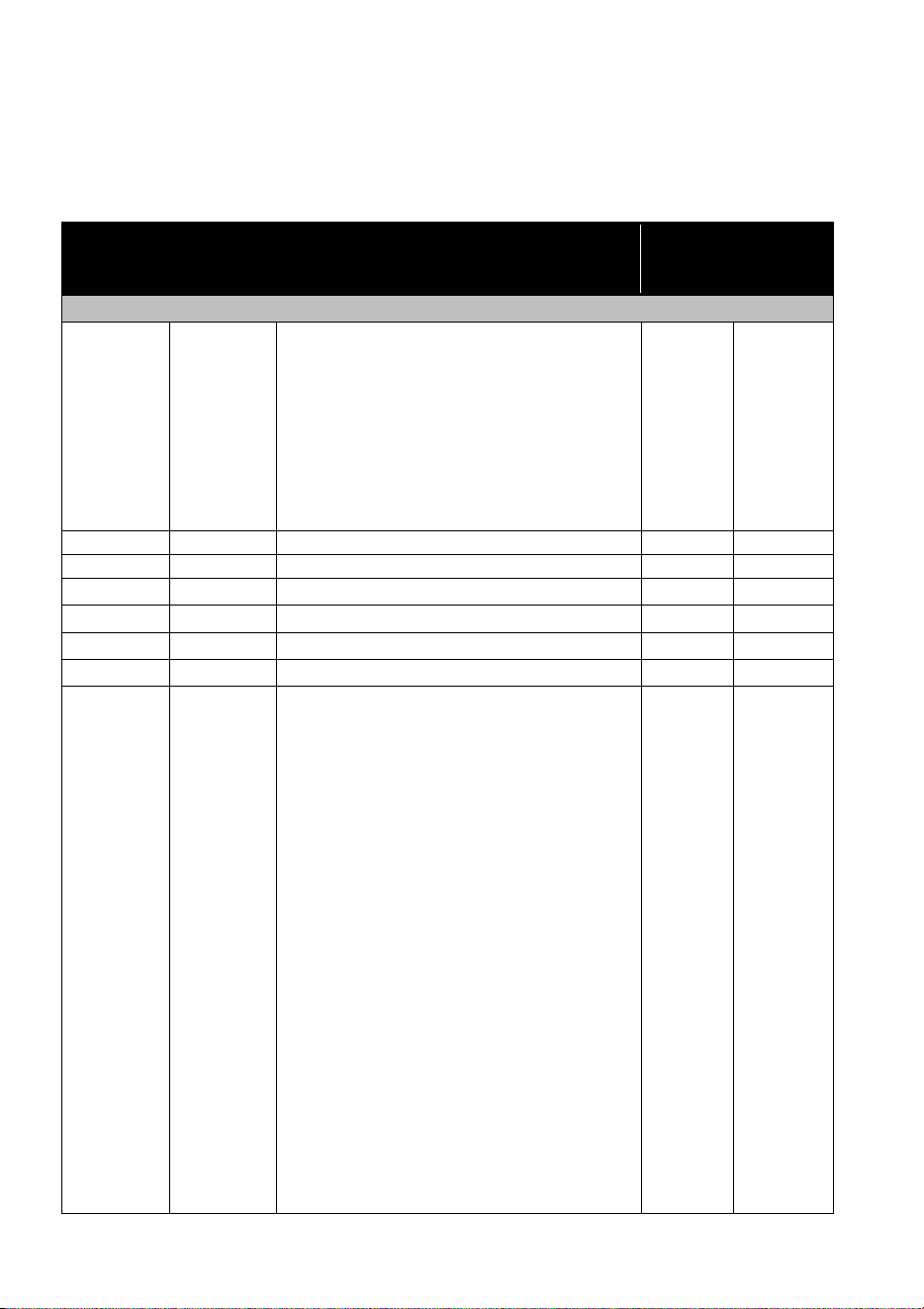
DMX protocol
Basic (24-channel) mode
Channel Value Function
Fade
type
Default
value
Beam Section
1
000-031
032-063
064-095
096-127
128-159
160-191
192-223
224-255
Strobe
Close
Open
Strobe (SlowFast)
Fast Close, Slow Open
Fast Open, Slow Close
Pulse Effects
Random Strobe (SlowFast)
Shutter Open
Snap 50
2
000-255
Dimme
r
Coarse 0-100%
Fade 0
3
000-255
Dimmer Fine
Fade 0
4
000-255
Red 0-100%
Fade 255
5
000-255
Green 0-100%
Fade 255
6
000-255
Blue 0-100%
Fade 255
7
000-255
White 0-100%
Fade 0
8
000-009
010-014
015-019
020-024
025-029
030-034
035-039
040-044
045-049
050-054
055-059
060-064
065-069
070-074
075-079
080-084
085-089
090-094
095-099
100-104
105-109
110-114
Colo
r
Open
LEE790 - Moroccan Pink
LEE157 - Pink
LEE332 - Special Rose Pink
LEE328 - Follies Pink
LEE345 - Fuchsia Pink
LEE194 - Surprise Pink
LEE181 - Congo Blue
LEE071 - Tokyo Blue
LEE120 - Deep Blue
LEE079 - Just Blue
LEE132 - Medium Blue
LEE200 - Double CT Blue
LEE0161 - Slate Blue
LEE0201 - Full CT Blue
LEE202 - Half CT Blue
LEE117 - Steel Blue
LEE353 - Lighter Blue
LEE118 - Light Blue
LEE116 - Medium Blue Green
LEE124 - Dark Green
LEE139 - Primary Green
Snap
0
RUSH™ MH10 Beam FX User Manual 33
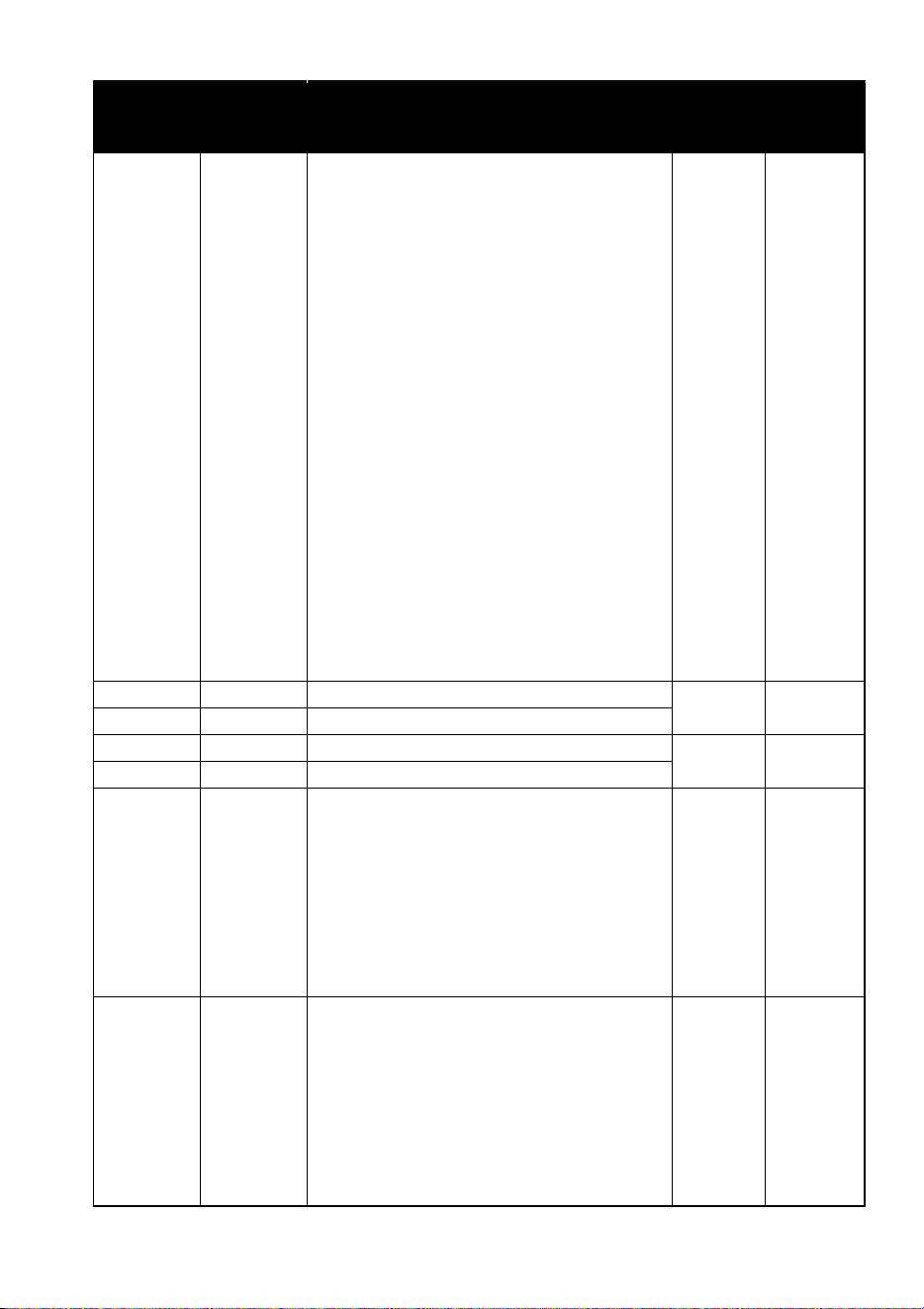
Channel Value Function
Fade
type
Default
value
8
(contd.)
115-119
120-124
125-129
130-134
135-139
140-144
145-149
150-154
155-159
160-164
165-169
170-174
175-179
180-201
202-207
208-229
230-234
235-239
240-244
245-249
250-255
LEE089 - Moss Green
LEE122 - Fern Green
LEE738 - JAS Green
LEE088 - Lime Green
LEE100 - Spring Yellow
LEE104 - Deep Amber
LEE179 - Chrome Orange
LEE105 - Orange
LEE021 - Gold Amber
LEE778 - Millennium Gold
LEE135 - Deep Golden Amber
LEE164 - Flame Red
Open
Color wheel rotation effect
Clockwise Fast Slow
Stop
Clockwise SlowFast
Open
Random color effect
Fast
Medium
Slow
Open
9
000-255
Pan 0-540°
Fade 32768
10
000-255
Pan fine
11
000-255
Tilt 0-270°
Fade 32768
12
000-255
Tilt Fine
13
000-002
003-126
127-129
130-253
254-255
Pan Rotate
No function (fixture in positioning
mode)
Rotation CW FastCW Slow
No rotation (fixture stops at its current
position)
Rotation CCW SlowCCW Fast
No rotation (fixture stops at its current
position)
Fade
0
14
000-002
003-126
127-129
130-253
254-255
Tilt Rotate
No function (fixture in positioning
mode)
Rotation CW FastCW Slow
No rotation (fixture stops at its current
position)
Rotation CCW SlowCCW Fast
No rotation (fixture stops at its current
position)
Fade
0
34 RUSH™ MH10 Beam FX User Manual
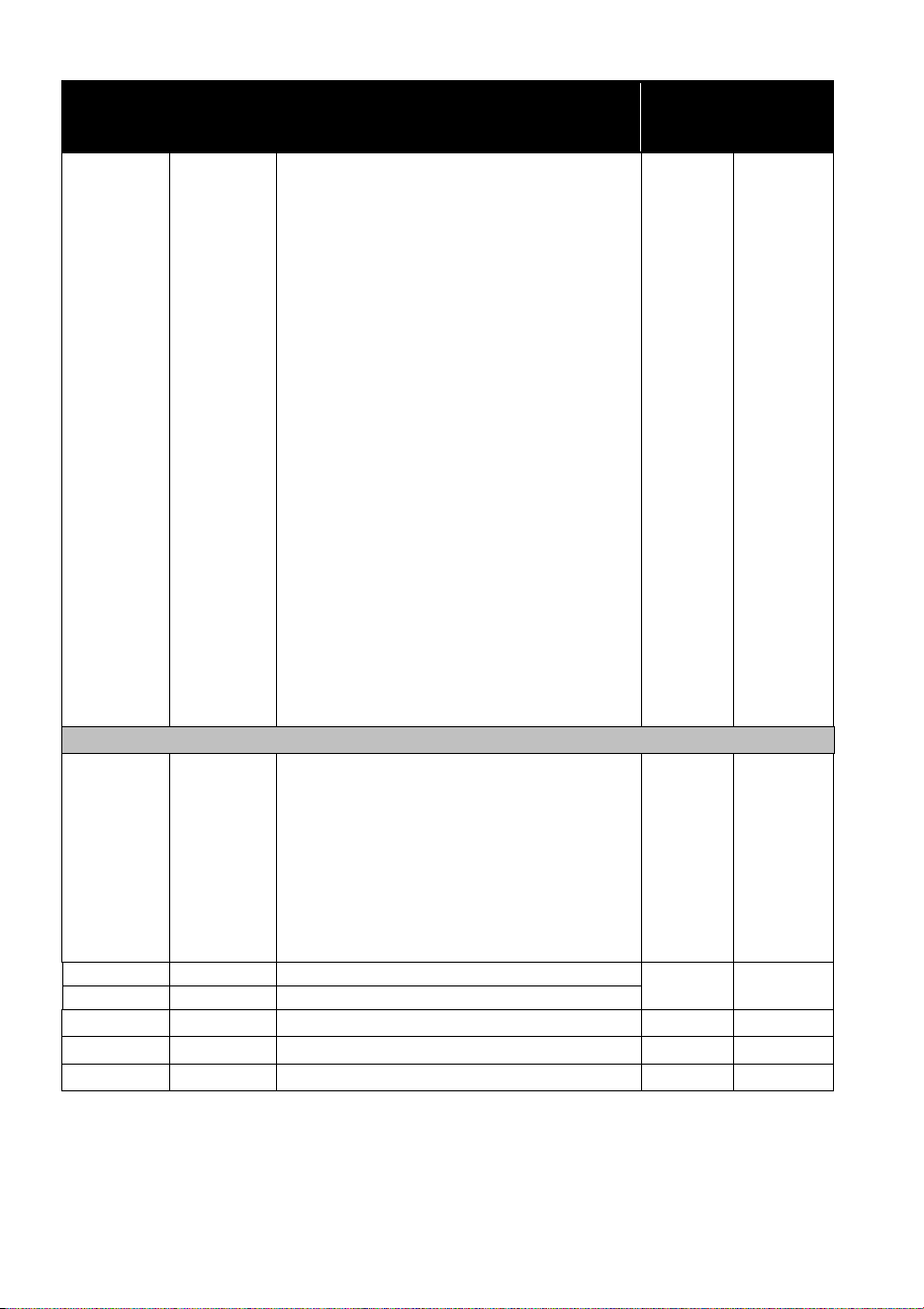
Channel Value Function
Fade
type
Default
value
15
000-009
010-014
015-054
055-059
060-064
065-069
070-074
075-079
080-084
085-089
090-094
095-099
100-144
145-149
150-154
155-159
160-164
165-169
170-244
245-249
250-255
Special Functions
No function (disables calibration)
Reset fixture
No function
Enable Calibration (5 sec.)
Linear dimmer curve (1 sec.)
Square law dimmer curve (default) (1
sec.)
Inverse square law dimmer curve (1
sec.)
S-Curve dimmer curve (1 sec.)
Pan/Tilt Speed = Normal (1 sec.)
Pan/Tilt Speed = Smooth (1 sec.)
Pixel FX = Snap (default) (1 sec.)
Pixel FX = Fade (1 sec.)
No function
Auto-blackout on (1 sec.)
Auto-blackout off (default) (1 sec.)
Turn On Display On Fixture (1 sec.)
Turn Off Display On Fixture (1 sec.)
Store Pan/Tilt Calibration (5 sec.)
No function
Reset all calibration values to factory
default (5 sec.)
No function
Snap
0
Ring Section
16
000-031
032-063
064-095
096-127
128-159
160-191
192-223
224-255
Strobe
Close
Open
Strobe (SlowFast)
Fast Close, Slow Open
Fast Open, Slow Close
Pulse Effects
Random Strobe (SlowFast)
Shutter Open
Snap 50
17
000-255
Dimme
r
0-100%
Fade 0
18
000-255
Dimmer Fine 0-100%
19
000-255
Red 0-100%
Fade 255
20
000-255
Green 0-100%
Fade 255
21
000-255
Blue 0-100%
Fade 255

RUSH™ MH10 Beam FX User Manual 35
22
000-009
010-014
015-019
020-024
025-029
030-034
035-039
040-044
045-049
050-054
055-059
060-064
065-069
070-074
075-079
080-084
085-089
090-094
095-099
100-104
105-109
110-114
115-119
120-124
125-129
130-134
135-139
140-144
145-149
150-154
155-159
160-164
165-169
170-174
175-179
180-201
202-207
208-229
230-234
235-239
240-244
245-249
250-255
Colo
r
Presets
Open
LEE790 - Moroccan Pink
LEE157 - Pink
LEE332 - Special Rose Pink
LEE328 - Follies Pink
LEE345 - Fuchsia Pink
LEE194 - Surprise Pink
LEE181 - Congo Blue
LEE071 - Tokyo Blue
LEE120 - Deep Blue
LEE079 - Just Blue
LEE132 - Medium Blue
LEE200 - Double CT Blue
LEE0161 - Slate Blue
LEE0201 - Full CT Blue
LEE202 - Half CT Blue
LEE117 - Steel Blue
LEE353 - Lighter Blue
LEE118 - Light Blue
LEE116 - Medium Blue Green
LEE124 - Dark Green
LEE139 - Primary Green
LEE089 - Moss Green
LEE122 - Fern Green
LEE738 - JAS Green
LEE088 - Lime Green
LEE100 - Spring Yellow
LEE104 - Deep Amber
LEE179 - Chrome Orange
LEE105 - Orange
LEE021 - Gold Amber
LEE778 - Millennium Gold
LEE135 - Deep Golden Amber
LEE164 - Flame Red
Open
Color wheel rotation effect
Clockwise Fast Slow
Stop
Clockwise SlowFast
Open
Random color effect
Fast
Medium
Slow
Open
Snap
0

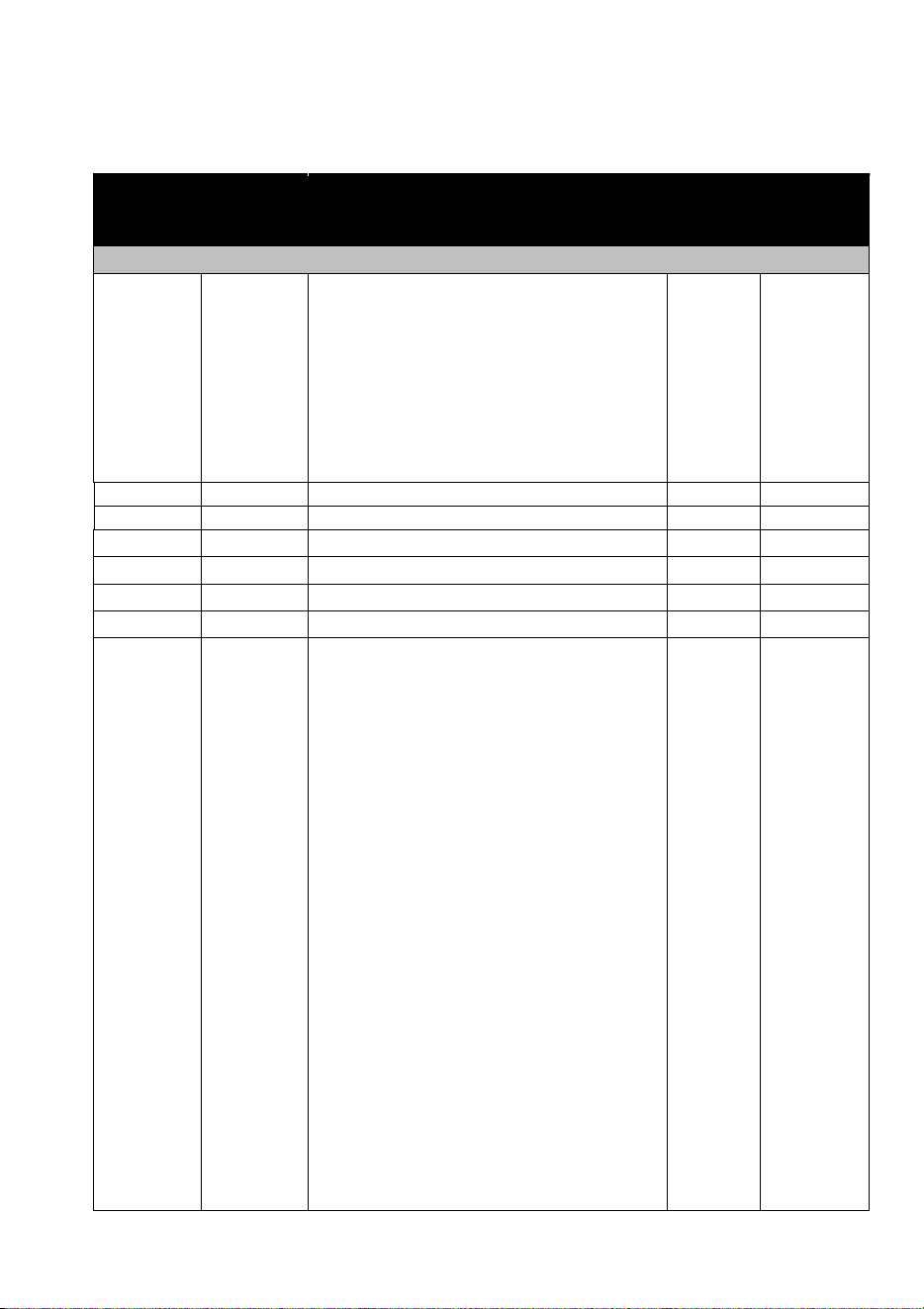
36 RUSH™ MH10 Beam FX User Manual
23
000-009
010-020
021-031
032-042
043-053
054-064
065-075
076-086
087-097
098-108
109-119
120-130
131-141
142-152
153-163
164-174
175-185
186-196
197-207
208-218
219-229
230-240
241-251
252-255
Color FX
Open
FX 1 (Pixel chase, clockwise)
FX 2 (Pixel chase, counterclockwise)
FX 3 (Pixel bounce effect)
FX 4 (Pixel fill, horizontal)
FX 5 (Pixel fill, vertical)
FX 6 (Dual bounce effect)
FX 7 (Pixel wave, horizontal)
FX 8 (Pixel wave, vertical)
FX 9 (Sparkle)
FX 10 (Quarter rotation, clockwise)
FX 11 (Quarter rotation,
counterclockwise)
FX 12 (Eights rotation, clockwise)
FX 13 (Eights rotation,
counterclockwise)
FX 14 (Split rotation, clockwise)
FX 15 (Split rotation, counterclockwise)
FX 16 (Quarter flip)
FX 17 (Half flip, vertical)
FX 18 (Half flip, horizontal)
FX 19 (RGB color flash)
FX 20 (Rainbow flash)
FX 21 (Hot and cold flash)
FX 22 (White and blue flash)
Open
Snap 0
24
000-009
010-255
Color FX speed
Open
Color FX speed SlowFast
Fade 60
RUSH™ MH10 Beam FX User Manual 37
Extended (93-channel) mode
Channel Value Function Fade
type
Default
value
Beam Section
1
000-031
032-063
064-095
096-127
128-159
160-191
192-223
224-255
Strobe
Close
Open
Strobe (SlowFast)
Fast Close, Slow Open
Fast Open, Slow Close
Pulse Effects
Random Strobe (SlowFast)
Shutter Open
Snap 50
2
000-255
Dimme
r
Coarse 0-100%
Fade 0
3
000-255
Dimmer Fine
Fade 0
4
000-255
Red 0-100%
Fade 255
5
000-255
Green 0-100%
Fade 255
6
000-255
Blue 0-100%
Fade 255
7
000-255
White 0-100%
Fade 0
8
000-009
010-014
015-019
020-024
025-029
030-034
035-039
040-044
045-049
050-054
055-059
060-064
065-069
070-074
075-079
080-084
085-089
090-094
095-099
100-104
105-109
110-114
115-119
120-124
Colo
r
Open
LEE790 - Moroccan Pink
LEE157 - Pink
LEE332 - Special Rose Pink
LEE328 - Follies Pink
LEE345 - Fuchsia Pink
LEE194 - Surprise Pink
LEE181 - Congo Blue
LEE071 - Tokyo Blue
LEE120 - Deep Blue
LEE079 - Just Blue
LEE132 - Medium Blue
LEE200 - Double CT Blue
LEE0161 - Slate Blue
LEE0201 - Full CT Blue
LEE202 - Half CT Blue
LEE117 - Steel Blue
LEE353 - Lighter Blue
LEE118 - Light Blue
LEE116 - Medium Blue Green
LEE124 - Dark Green
LEE139 - Primary Green
LEE089 - Moss Green
LEE122 - Fern Green
Snap
0
38 RUSH™ MH10 Beam FX User Manual
Channel Value Function Fade
type
Default
value
125-129
130-134
135-139
140-144
145-149
150-154
155-159
160-164
165-169
170-174
175-179
180-201
202-207
208-229
230-234
235-239
240-244
245-249
250-255
LEE738 - JAS Green
LEE088 - Lime Green
LEE100 - Spring Yellow
LEE104 - Deep Amber
LEE179 - Chrome Orange
LEE105 - Orange
LEE021 - Gold Amber
LEE778 - Millennium Gold
LEE135 - Deep Golden Amber
LEE164 - Flame Red
Open
Color wheel rotation effect
Clockwise Fast ->Slow
Stop
Clockwise Slow->Fast
Open
Random color effect
Fast
Medium
Slow
Open
9
000-255
Pan 0-540°
Fade 32768
10
000-255
Pan fine
11
000-255
Tilt 0-270°
Fade 32768
12
000-255
Tilt Fine
13
000-002
003-126
127-129
130-253
254-255
Pan Rotate
No Function
Rotation CW FastCW Slow
No rotation (fixture stops at its current
position)
Rotation CCW SlowCCW Fast
No rotation (fixture stops at its current
position)
Fade
0
14
000-002
003-126
127-129
130-253
254-255
Tilt Rotate
No Function
Rotation CW FastCW Slow
No rotation (fixture stops at its current
position)
Rotation CCW SlowCCW Fast
No rotation (fixture stops at its current
position)
Fade
0
RUSH™ MH10 Beam FX User Manual 39
Channel Value Function Fade
type
Default
value
15
000-009
010-014
015-054
055-059
060-064
065-069
070-074
075-079
080-084
085-089
090-094
095-099
100-144
145-149
150-154
155-159
160-164
165-169
170-244
245-249
250-255
Special Functions
No Function (disables calibration)
Reset fixture
No Function
Enable Calibration (5 sec.)
Linear dimmer curve (1 sec.)
Square law dimmer curve (default) (1
sec.)
Inverse square law dimmer curve (1
sec.)
S-Curve dimmer curve (1 sec.)
Pan/Tilt Speed = Normal (1 sec.)
Pan/Tilt Speed = Smooth (1 sec.)
Pixel FX = Snap (default) (1 sec.)
Pixel FX = Fade (1 sec.)
No Function
Auto-blackout on (1 sec.)
Auto-blackout off (default) (1 sec.)
Turn On Display On Fixture (1 sec.)
Turn Off Display On Fixture (1 sec.)
Store Pan/Tilt Calibration (5 sec.)
No Function
Reset all calibration values to factory
defaults (5 sec.)
No Function
Snap
0
Ring Section
16
000-031
032-063
064-095
096-127
128-159
160-191
192-223
224-255
Strobe
Close
Open
Strobe (SlowFast)
Fast Close, Slow Open
Fast Open, Slow Close
Pulse Effects
Random Strobe (SlowFast)
Shutter Open
Snap 50
17
000-255
Dimme
r
0-100%
Fade 0
18
000-255
Dimmer Fine

40 RUSH™ MH10 Beam FX User Manual
19
000-009
010-014
015-019
020-024
025-029
030-034
035-039
040-044
045-049
050-054
055-059
060-064
065-069
070-074
075-079
080-084
085-089
090-094
095-099
100-104
105-109
110-114
115-119
120-124
125-129
130-134
135-139
140-144
145-149
150-154
155-159
160-164
165-169
170-174
175-179
180-201
202-207
208-229
230-234
235-239
240-244
245-249
250-255
Colo
r
Presets
Open
LEE790 - Moroccan Pink
LEE157 - Pink
LEE332 - Special Rose Pink
LEE328 - Follies Pink
LEE345 - Fuchsia Pink
LEE194 - Surprise Pink
LEE181 - Congo Blue
LEE071 - Tokyo Blue
LEE120 - Deep Blue
LEE079 - Just Blue
LEE132 - Medium Blue
LEE200 - Double CT Blue
LEE0161 - Slate Blue
LEE0201 - Full CT Blue
LEE202 - Half CT Blue
LEE117 - Steel Blue
LEE353 - Lighter Blue
LEE118 - Light Blue
LEE116 - Medium Blue Green
LEE124 - Dark Green
LEE139 - Primary Green
LEE089 - Moss Green
LEE122 - Fern Green
LEE738 - JAS Green
LEE088 - Lime Green
LEE100 - Spring Yellow
LEE104 - Deep Amber
LEE179 - Chrome Orange
LEE105 - Orange
LEE021 - Gold Amber
LEE778 - Millennium Gold
LEE135 - Deep Golden Amber
LEE164 - Flame Red
Open
Color wheel rotation effect
Clockwise FastSlow
Stop
Clockwise SlowFast
Open
Random color effect
Fast
Medium
Slow
Open
Snap 0
RUSH™ MH10 Beam FX User Manual 41
20
000-009
010-020
021-031
032-042
043-053
054-064
065-075
076-086
087-097
098-108
109-119
120-130
131-141
142-152
153-163
164-174
175-185
186-196
197-207
208-218
219-229
230-240
241-251
252-255
Color FX
Open
FX 1 (Pixel chase, clockwise)
FX 2 (Pixel chase, counterclockwise)
FX 3 (Pixel bounce effect)
FX 4 (Pixel fill, horizontal)
FX 5 (Pixel fill, vertical)
FX 6 (Dual bounce effect)
FX 7 (Pixel wave, horizontal)
FX 8 (Pixel wave, vertical)
FX 9 (Sparkle)
FX 10 (Quarter rotation, clockwise)
FX 11 (Quarter rotation,
counterclockwise)
FX 12 (Eights rotation, clockwise)
FX 13 (Eights rotation,
counterclockwise)
FX 14 (Split rotation, clockwise)
FX 15 (Split rotation,
counterclockwise)
FX 16 (Quarter flip)
FX 17 (Half flip, vertical)
FX 18 (Half flip, horizontal)
FX 19 (RGB color flash)
FX 20 (Rainbow flash)
FX 21 (Hot and cold flash)
FX 22 (White and blue flash)
Open
Snap 0
21
000-009
010-255
Color FX speed
Open
Color FX speed SlowFast
Fade 60
22
000-255
Cell 1 Red 0-100%
Fade 255
23
000-255
Cell 1 Green 0-100%
Fade 255
24
000-255
Cell 1 Blue 0-100%
Fade 255
… Repeat for RGB Cells 2-23 …
91
000-255
Cell 24 Red 0-100%
Fade 255
92
000-255
Cell 24 Green 0-100%
Fade 255
93
000-255
Cell 24 Blue 0-100%
Fade 255
42 RUSH™ MH10 Beam FX User Manual
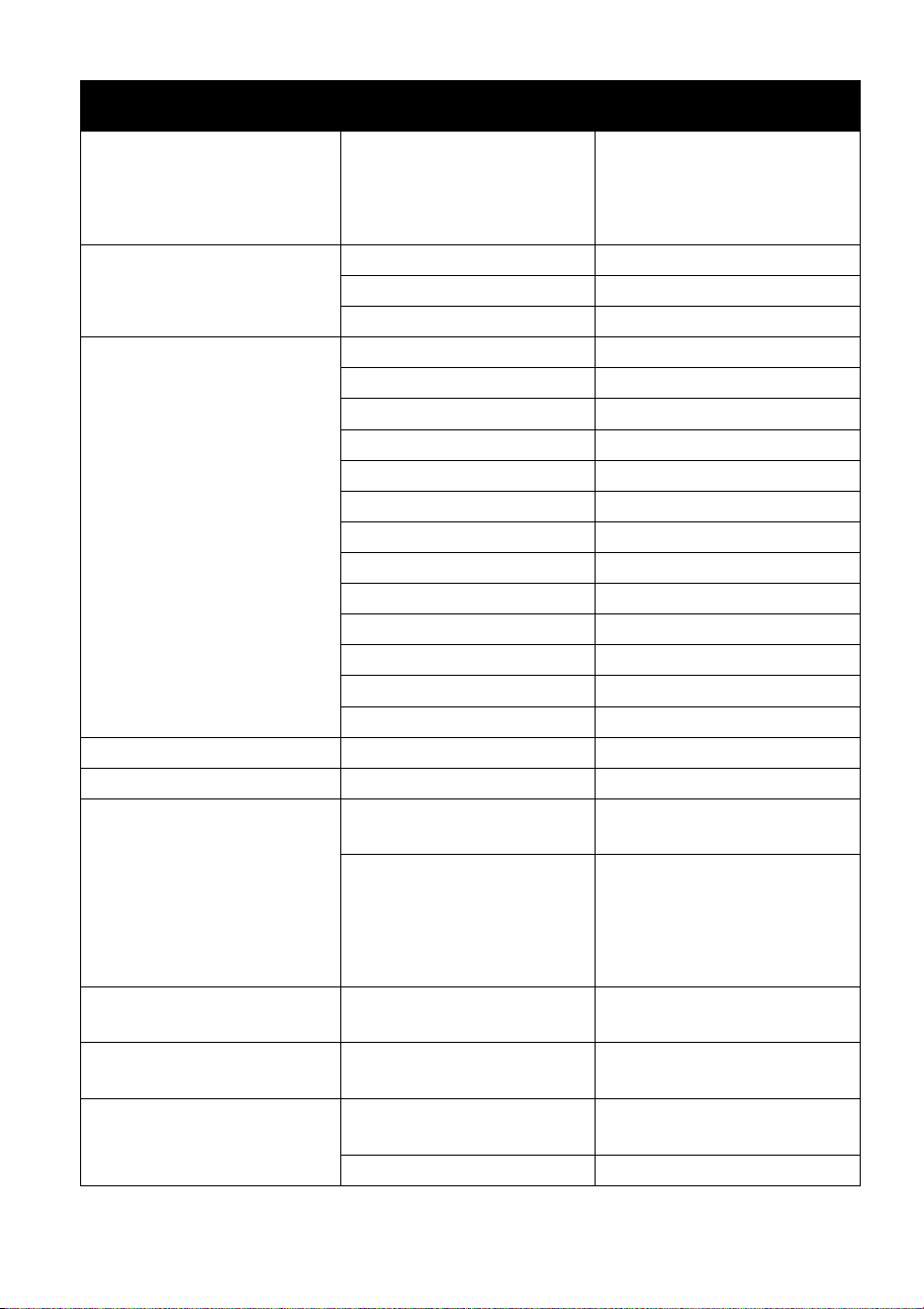
Control menus
To access the control menus, press the MENU button. Use the UP and DOWN
buttons to navigate the menus. Select a menu option with the ENTER button.
For more information, see ‘Using the control menus’ on page 18.
Default fixture settings are shown in bold.
Menu Sub-menu Explanation
DMX Address 1–512
Fixture DMX address
setting
Channel Mode
Basic 24ch No pixel map of Ring
Extended 93ch Pixel map Ring
Show Mode Show 1…Show 4
Select stand-alone
program
Master Client
Master Fixture acts as master
&OLHQW Client
copies master
Client 2 Client synced by master
Sound Mode
On
Toggle music trigger for
stand-alone operation
Off
Sound Sense 0…100 (default 90)
Microphone sensitivity for
music trigger
DMX State
Show Mode
Fixture behavior if DMX
control signal is missing
or lost
Blackout
Hold
Dimmer Curve
Mode 1 Optically linear
Mode 2
Square law
Mode 3 Inverse square law
Mode 4 S-curve
Dimmer Speed
Fade Smoother dimming
Snap
Faster dimming
Back light
On
Toggle display panel
backlight
Off
Pan Inverse
Yes Invert pan control
No
Normal pan control
Tilt Inverse
Yes Invert tilt control
No
Normal tilt control
RUSH™ MH10 Beam FX User Manual 43
Menu Sub-menu Explanation
Function Delay no delay
1s delay
2s delay
3s delay
Adds a delay before
function changes are
activated on the Special
Function channel
White Balance Red set brightness 125-255
Green set brightness 125-255
Blue set brightness 125-255
Manual Test Pan 0-255
RPan (Pan rotate) 0-255
Tilt 0-255
RTilt (Tilt rotate) 0-255
Red 0-255
Green 0-255
Blue 0-255
White 0-255
ArRed (Ring Red) 0-255
ArGreen (Ring Green) 0-255
ArBlue (Ring Blue) 0-255
Dimmer 0-255
Strobe 0-255
Auto Test
LED Temp. Temperature readout
Fan Mode
Auto
Optimize cooling for light
output intensity
Low
Optimize cooling for
quietness (output
intensity is reduced if
necessary to limit
temperature)
Firmware Version
Currently installed
firmware version
Fixture Time
Fixture operating hours
counter
PRO Defaults
Yes
Restore factory default
settings
No
Exit
44 RUSH™ MH10 Beam FX User Manual
Menu Sub-menu Explanation
Reset
Yes
Force a fixture motor
reset
No
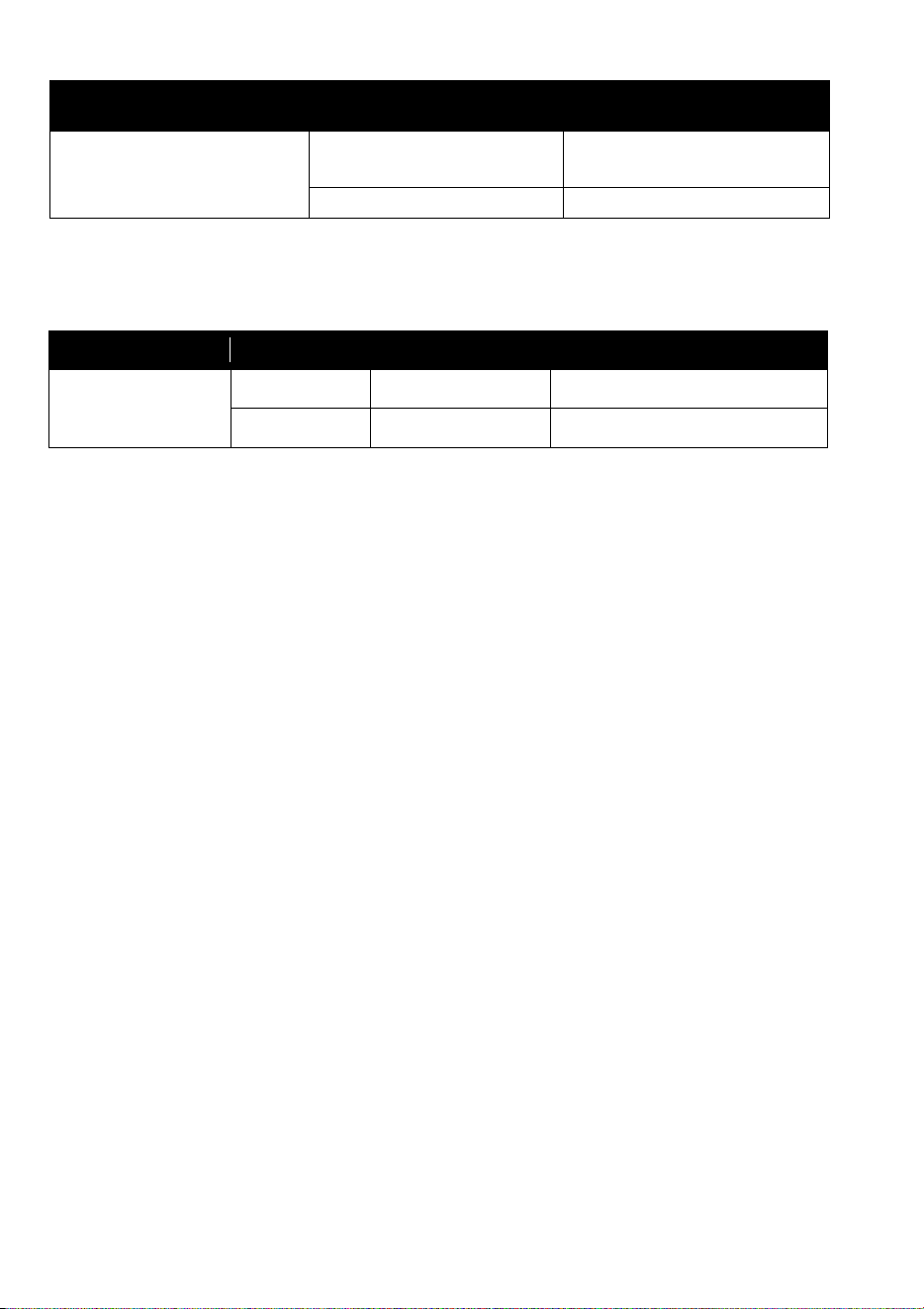
To access the Offset menu, press MENU to enter the menu structure and then
press and hold ENTER for three seconds.
Menu Sub-menu Setting Explanation
Offset Menu
Pan -127127 Pan offset
Tilt -127127 Tilt offset

RUSH™ MH10 Beam FX User Manual 45
Troubleshooting
This section describes a few common problems that may occur during
operation and provides some suggestions for easy troubleshooting:
Symptom Potential Causes Remedies
No light from fixture,
or fans not working.
Power supply issue
such as blown fuse,
faulty connector or
damaged cable.
Ensure that the mains
supply is connected and
supplying power to the
fixture.
Check all power
connections and cables.
Check and if necessary
replace the fixture fuse.
One of the control
channels is
unresponsive or only
responds
intermittently.
DMX setup or DMX link
fault.
Damaged step motor or
cable connection
between head and body.
See next section.
Contact your Martin
authorized distributor or
service center for
assistance.
Fixture does not
respond to DMX
control.
Fault in the DMX
network due to
connector or cable
damage, incorrect DMX
addressing, or potential
interference from
proximity to a high
voltage installation.
Ensure that fixture’s DMX
address matches address
set on DMX control device.
Check that fixture DMX
LED is on, and if not, check
all DMX cables and
connections.
Ensure that DMX link is
terminated.
Check that all components
on DMX link use standard
DMX polarity.
Attempt to control the
fixture with another DMX
control device.
Move or shield link if it is
close to an unshielded
high-voltage installation.
46 RUSH™ MH10 Beam FX User Manual
Specifications
Physical
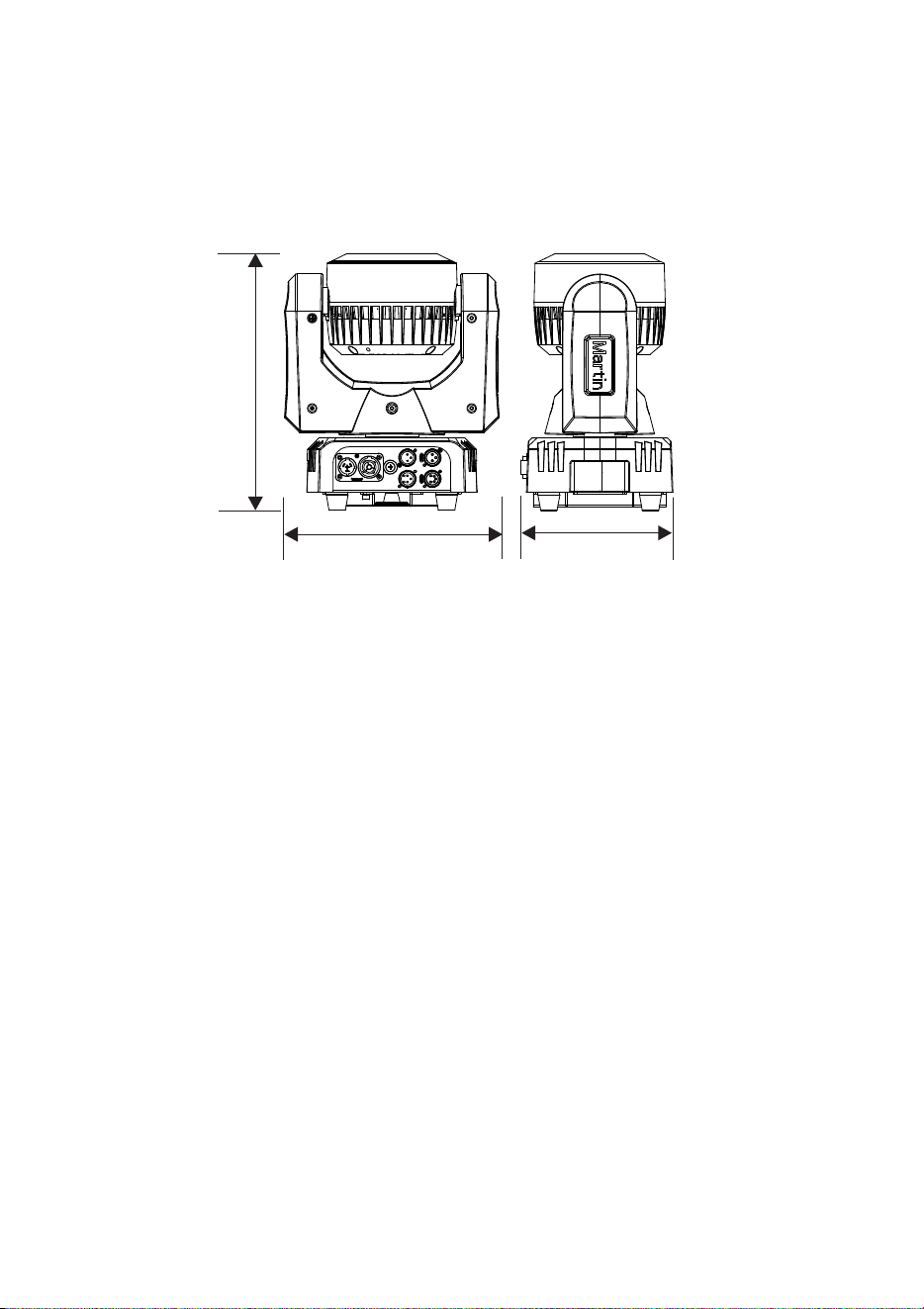
Dimensions (LxWxH) ..................... 275 x 188 x 325 mm (10.8 x 7.4 x 12.8 in.)
Weight .................................................................................... 7.5 kg (16.5 lbs.)
188mm
275mm
325mm
Dynamic Effects
Beam color mixing ................................................................................. RGBW
Ring color mixing ...................... RGB, grouped or individual control of 24 cells
Virtual color wheel .......... 33 color presets, virtual color wheel rotation effects,
random color (independent in beam and ring)
Pre-programmed effects ........... FX (effect macros) in ring with variable speed
and direction of sequences, synchronization
and chases across multiple fixtures
Dimming .................................. 0-100%, coarse and fine control (independent
in beam and ring)
Electronic shutter effect ............. Strobe effect, pulse effects, instant open and
blackout (independent in beam and ring)
Pan ..................................................... Continuous rotation or 540° positioning
Tilt ....................................................... Continuous rotation or 270° positioning
Strobe ..................... Variable from 3 - 20 Hz, pulse effects and random strobe
Electronic dimming ................................ 0 - 100%, four dimming curve options
Optics
Beam effect light source .................... 60 W RGBW Osram LE RTDUW S2WP
Ring effect light source ................................................. 24 x 0.25 W RGB LED
Cutoff beam angle ...................................................................................... 4.4°
Minimum LED lifetime ..................... 20 000 hours (to >70% luminous output)*
*Figure obtained under manufacturer´s test conditions

RUSH™ MH10 Beam FX User Manual 47
Control and Programming
Control options .................................... DMX, RDM, stand-alone, master/
client
DMX channels ..................................................................................... 24 or 93
Stand-alone trigger options ................................................ Music trig, auto trig
Stand-alone memory ........................................................................... 4 shows
Setting and addressing ........................ Control panel with backlit LCD display
Pan and tilt speed................... Adjustable via onboard control panel and DMX
DMX compliance ............................................................ USITT DMX512/1990
RDM compliance ................................................................. ANSI/ESTA E.120
Construction
Color ......................................................................................................... Black
Housing .......................................... High impact flame retardant thermoplastic
IP rating .................................................................................................... IP 20
Installation
Mounting points ............................. One quarter-turn bracket for rigging clamp
Location ................ Dry location only, must be fastened to surface or structure
Orientation ...................................................................................................Any
Minimum distance to illuminated surfaces ................................ 200 mm (8 in.)
Minimum distance to combustible materials ............................. 100 mm (4 in.)
Minimum clearance around fans and vents .............................. 100 mm (4 in.)
Connections
AC power input/output ........................................... Neutrik powerCON TRUE1
DMX/RDM data in/out .............................................. 3-pin & 5-pin locking XLR
Electrical
AC power ............................................................ 100-240 V nominal, 50/60 Hz
Power supply unit ................................... Auto-ranging electronic switch mode
Fuse ...................................................................................................... T 2.0 A
Typical power and current
120 V, 60 Hz ................................................................. 0.85 A, 100W, PF 0.99
230 V, 50 Hz ................................................................. 0.49 A, 108W. PF 0.99
Measurements made at nominal voltage with all LEDs at full intensity. Allow
for a deviation of +/- 10%.
Approvals
EU safety ....................... EN 60598-2-17 (EN 60598-1), EN 62471, EN 62493
EU EMC ............................................... EN 55015; EN 55032; EN 55103-1,-2;
EN 61000-3-2,-3; EN 61000-4-2, -4, -5; EN 61547
US safety ............................................................................................. UL 1573

48 RUSH™ MH10 Beam FX User Manual
US EMC ........................................................................... FCC Part 15 Class A
Canadian safety ................................................................ CSA C22.2 No. 166
Canadian EMC .................................................................... ICES-003 Class A
Australia/NZ .............................................................................................. RCM
Thermal
Cooling ..................................... Forced air (temperature regulated, low noise)
Maximum ambient temperature (T
a
max.) ................................ 40° C (104° F)
Minimum ambient temperature (T
a
min) ......................................... 0°C (32° F)
Included Items
Power cable, 1.5 m (4.9 ft.) 18AWG/0.75mm
2
without mains plug
Omega bracket for rigging clamp attachment
Accessories
Input cables, 16 A, for connection to power
Power Input Cable, H07RN-F, 2.5 mm
2
,
Neutrik TRUE1 NAC3FX-W to bare ends, 1.5 m (4.9 ft.)..... P/N 91611797
Power Input Cable, H07RN-F, 2.5 mm
2
,
Neutrik TRUE1 NAC3FX-W to bare ends, 5 m (16.4 ft.) ...... P/N 91611786
Power Input Cable, SJOOW, AWG 12,
Neutrik TRUE1 NAC3FX-W to bare ends, 1.5 m (4.9 ft.)..... P/N 91610173
Power Input Cable, SJOOW, AWG 12,
Neutrik TRUE1 NAC3FX-W to bare ends, 5 m (16.4 ft.) ...... P/N 91610174
Relay cables, 16 A, for relaying power in chains
Power Relay Cable, H07RN-F, 2.5 mm
2
,
Neutrik TRUE1 to TRUE1, 0.45 m (1.5 ft.) ........................... P/N 91611784
Power Relay Cable, H07RN-F, 2.5 mm
2
,
Neutrik TRUE1 to TRUE1 1.2 m (3.9 ft.) .............................. P/N 91611785
Power Relay Cable, H07RN-F, 2.5 mm
2
,
Neutrik TRUE1 to TRUE1 2.5 m (8.2 ft.) .............................. P/N 91611796
Power Relay Cable, SJOOW, AWG 12,
Neutrik TRUE1 to TRUE1, 0.45 m (1.5 ft.) ........................... P/N 91610170
Power Relay Cable, SJOOW, AWG 12,
Neutrik TRUE1 to TRUE1, 1.2 m (3.9 ft.) ............................. P/N 91610171
Power Relay Cable, SJOOW, AWG 12,
Neutrik TRUE1 to TRUE1, 2.5 m (8.2 ft.) ............................. P/N 91610172
Power connectors, cable mount
Neutrik PowerCON TRUE1 NAC3MX-W (male) ....................... P/N 91611788
Neutrik PowerCON TRUE1 NAC3FX-W (female) ..................... P/N 91611789

RUSH™ MH10 Beam FX User Manual 49
Installation hardware
Half-coupler clamp ..................................................................... P/N 91602005
G-clamp* .................................................................................... P/N 91602003
Quick-trigger clamp* ................................................................... P/N 91602007
Safety cable, safe working load 60 kg, black ............................. P/N 91604006
Safety cable, safe working load 60 kg, silver ............................. P/N 91604007
*Use with fixture hanging vertically downwards only
Related Items
RUSH® Software Uploader 1 ..................................................... P/N 91611399
Martin® Companion uploader software with
Martin® M-DMX Interface ..........................................See www.martin.com
Ordering Information
RUSH® MH 10 Beam FX in cardboard box ............................... P/N 90280120
Specifications subject to change without notice. For latest product
specifications, see www.martin.com
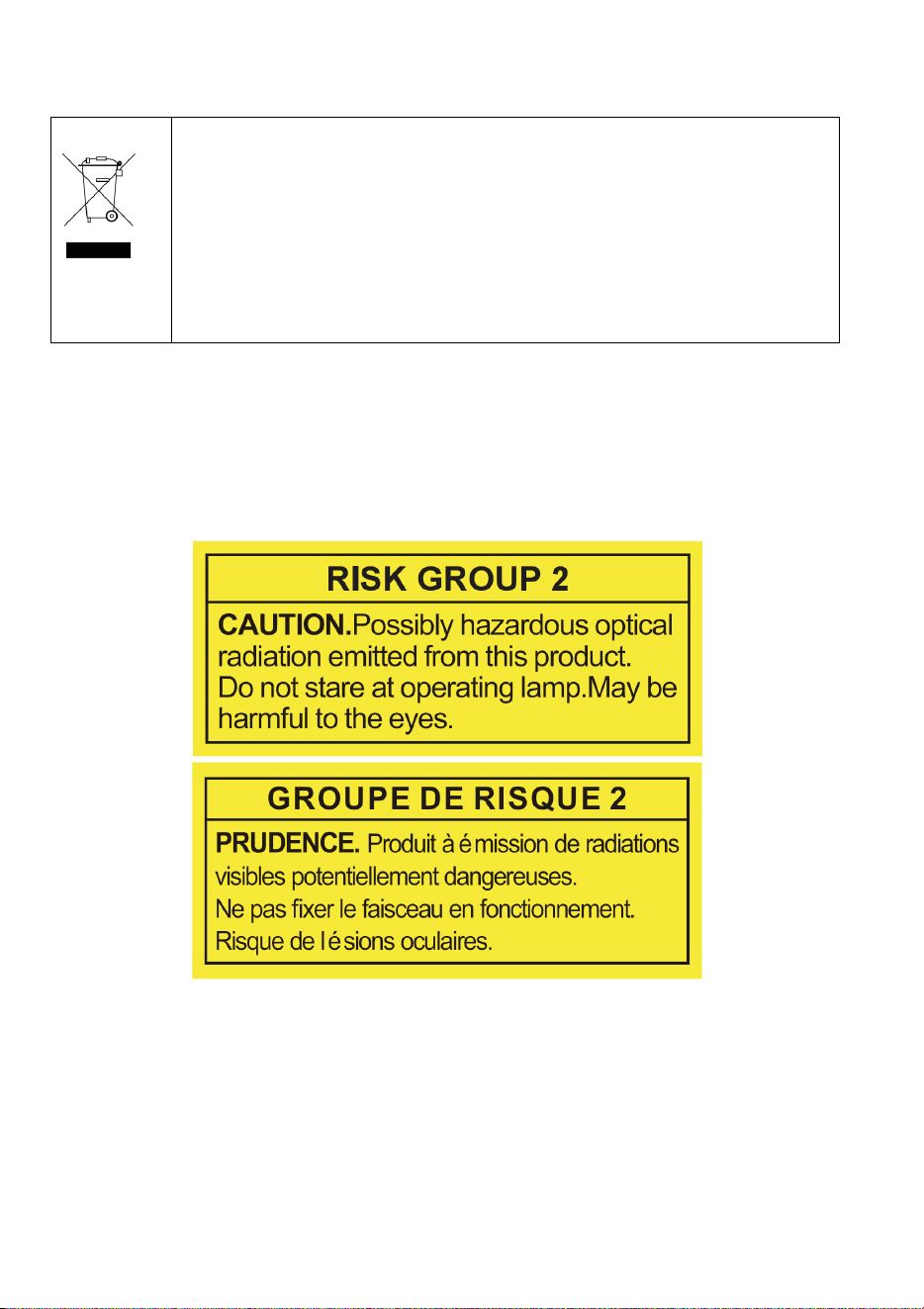
50 RUSH™ MH10 Beam FX User Manual
Disposing of this product
RUSH by Martin® products are supplied in compliance with
Directive 2012/19/EC of the European Parliament and of the
Council of the European Union on WEEE (Waste Electrical and
Electronic Equipment), where applicable. Help preserve the
environment! Ensure that this product is recycled at the end of its
life. Your supplier can give details of local arrangements for the
disposal of RUSH by Martin products
Photobiological Safety Warning
The label shown below is displayed on this product. If it becomes difficult or
impossible to read, it must be replaced using the illustration below to
reproduce new labels sized 18 x 45 mm (each label), in black on a yellow
background.