V1.0
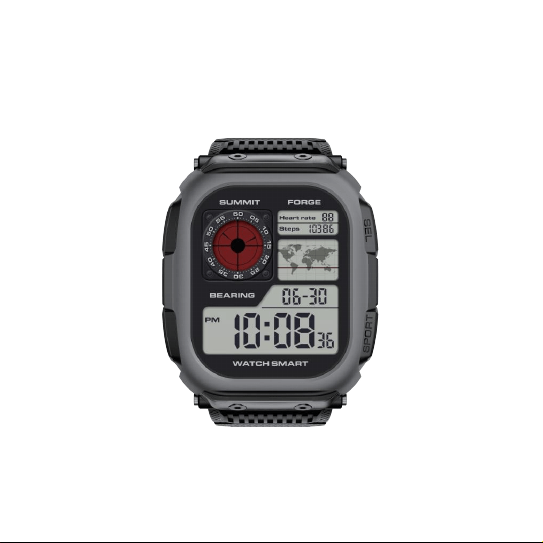
DM66
GPS SMART WATCH
User Manual
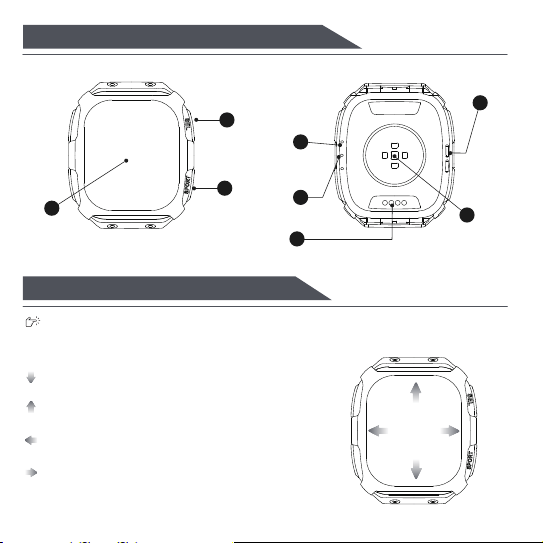
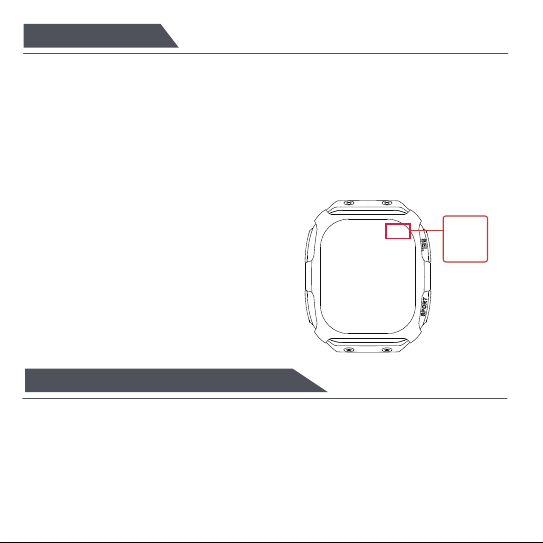
1.Product Introduction&buttons Instructions
6
4
1
7
button 1
air pressure
hole
heart rate
sensor
2
button 2
MIC
charging port
speaker
3
display
8
5
1、Power button;2、Return key / shortcut key / Sports button;
Swipe down: Swipe down on the watch face
interface to open the status bar
Swipe up: Swipe up on the watch face interface to
access the card shortcut function
Swipe left: Swipe left on the watch face interface to
enter the main menu interface
Swipe right: Swipe right on the watch face
interface to enter the notification information
interface.
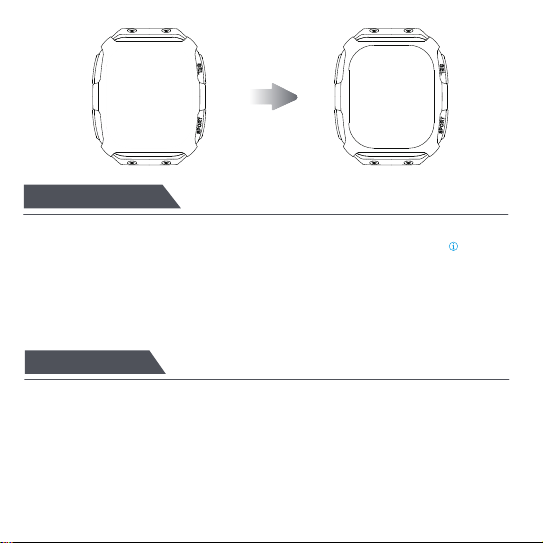
On the watch face interface, press and hold the watch face for 2-3 seconds to
switch watch faces. Swipe left or right to switch watch faces, and click to select a
watch face.
2.Touch Screen Operation Instructions
3.APP Connection
4. Offline Geomorphic Map Download
Scan the watch QR code or go to major application markets to download and
install the "GloryFitPro" APP. When you open the APP for the first time, a
permission pop-up window will pop up. Please click "Allow" to ensure that the APP
can obtain the corresponding permissions.
During the connection process, a pop-up window will pop up to confirm the pairing
connection with the watch and mobile phone. Please click to confirm the pairing.
After the connection is successful, the call icon and data connection icon in the
watch status bar will turn green. In gray, it is not connected.
In the "Devices" of the GloryFitPro APP, find the "Geomorphic Map" and select a
map radius range between 2-20 kilometers to transfer to Device. Once transferred,
when on a workout interface with a successful GPS Connected, swipe right to view
the Geomorphic Map along with the route generated during your activity. Press
any button to return to the workout interface .
Scan Watch
QR Code
5.Unbinding APP
This device complies with part 15 of the FCC Rules. Operation is subject to the
following two conditions: (1) This device may not cause harmful interference, and (2)
this device must accept any interference received, including interference that may
cause undesired operation.
Any Changes or modifications not expressly approved by the party responsible for
compliance could void the user's authority to operate the equipment.
6.FCC Caution
IOS: Find "Unbind" in the "Device" interface of the APP and click on it to enter the
"Settings-Bluetooth" interface of the mobile phone system. Click on the" " on the
right of the device and select "Forget this device" to unbind it from the mobile
phone system. Make sure it is no longer connected to the mobile phone, otherwise
it will not be able to connect again next time.
Android: Find "Unbind" in the "Device" interface of the APP and click on it to
disconnect from the mobile phone

Note: This equipment has been tested and found to comply with the limits for a
Class B digital device, pursuant to part 15 of the FCC Rules. These limits are
designed to provide reasonable protection against harmful interference in a
residential installation.
This equipment generates uses and can radiate radio frequency energy and, if not
installed and used in accordance with the instructions, may cause harmful
interference to radio communications. However, there is no guarantee that
interference will not occur in a particular installation. If this equipment does cause
harmful interference to radio or television reception, which can be determined by
turning the equipment off and on, the user is encouraged to try to correct the
interference by one or more of the following measures:
-Reorient or relocate the receiving antenna.
-Increase the separation between the equipment and receiver.
-Connect the equipment into an outlet on a circuit different from that to which the
receiver is connected.
-Consult the dealer or an experienced radio/TV technician for help.
The device has been evaluated to meet general RF exposure requirement. The
device can be used in portable exposure condition without restriction.