
KOSPET MAGIC P10/R10
User Manual
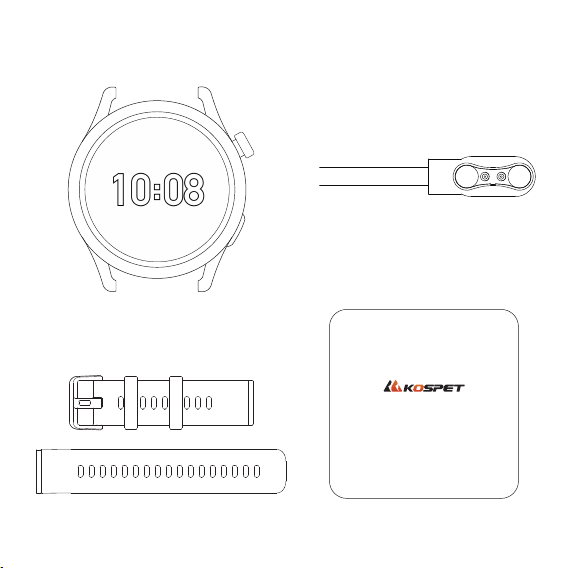
Packing List
Strap
Smartwatch
Magnetic charging cable
User manual
KOSPET MAGIC P10/R10
User Manual
1
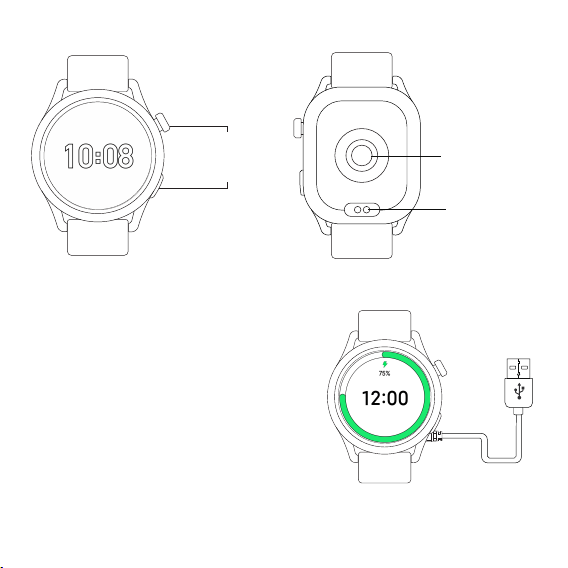
About the Watch
Watch Charging
· Please fully charge the watch before first use.
· The magnetic charging cable’s USB connector
needs to be plugged into a power adapter or
a computer’s USB port to function.
· The charging cable’s magnetic connector
automatically attaches to the back of the watch.
When charging, please ensure that the metal
contacts on the back of the watch are closely
connected to the charger’s magnetic connector.
· Please use the original KOSPET magnetic charging
cable to charge the watch. Before charging, ensure
that both the charging cable and the watch are dry
and clean.
Notes:
· Please use a power adapter with an output current
of 500mA or higher and ensure that it is certified to
meet safety standards.
Charging port
Heart rate sensor
Rotating crown
BACK button
2

3
Watch Wear and Care Tips
After water activities (e.g., swimming, surfing), promptly shake the watch to remove
residual water from holes in the watch case. Wipe the watch body and the strap with a soft
cloth dampened with clean water. Allow them to dry completely before wearing the watch
again to prevent salt deposits that may affect the normal use of the watch.
Cleaning and Maintenance After Water Activities
After intense activities (e.g., running, hiking, cycling), sweat and acidic residues may
accumulate on the watch. Please rinse the watch with clean water and dry it promptly to
minimize long-term corrosion.
Cleaning Tips After Workouts
Device defects or damage caused by improper cleaning or chemical exposure is not
covered under warranty.
Do not use soap, hand sanitizer, shampoo, or other harsh chemicals to clean the watch, in
order to avoid skin irritation or component damage caused by residues.
Cleaning Precautions
Do not expose the watch to the following conditions to maintain its water resistance.
· High-temperature environments (e.g., saunas, hot showers)
· High-pressure water (e.g., diving, water skiing)
· Strong corrosive liquids or UV/radiation exposure
Usage Environment Precautions
Note: Prolonged exposure to extreme conditions accelerates gasket deterioration, which
may lead to water ingress.
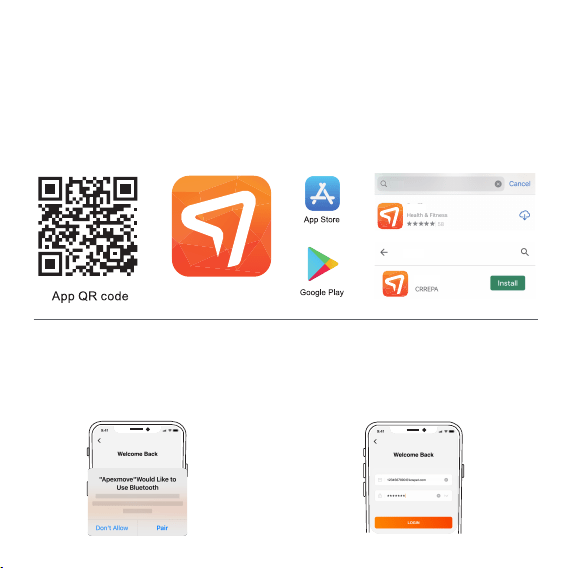
Before using the smartwatch, please download the Apexmove App where you can access
more health and fitness data insights and customize various settings, which helps you to
embrace a healthier and more active lifestyle.
App Download and Installation
Apexmove
Method 2:
Enter the keyword "Apexmove" in the
Apple App Store or Google Play Store to
download and install the App.
Apexmove
Apexmove
Apexmove
Apexmove
App Registration and Login
1. Once the installation is completed, open
the App, allow it access BT and location,
and grant other necessary permissions on
the smartwatch.
2. To fully experience all the features of the
smartwatch, please register and log into
the App before use.
4
Method 1:
Scan the QR code below to download
and install the App.
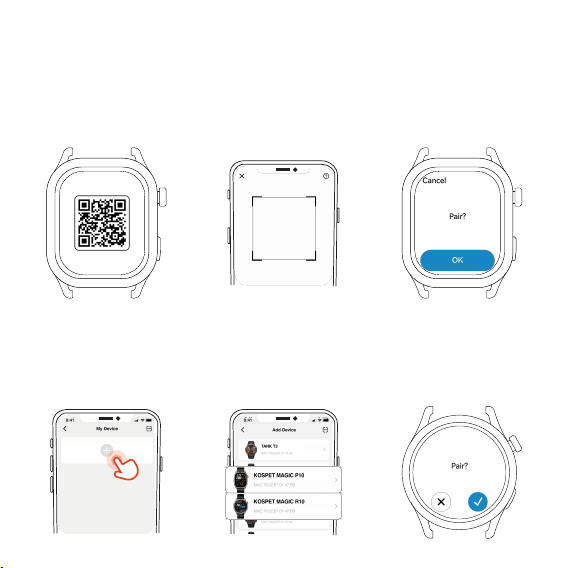
Pairing and Connection
Method 1:
① Press and hold the crown for 3 seconds to power on the watch and switch to the QR
code interface.
② Open the App and go to My > My Device.
③ Select the scanning icon to pair the watch.
Method 2:
① Press and hold the crown for 3 seconds to power on the watch.
② Open the App and go to My > My Device.
③ Select the Add Device icon, find "KOSPET MAGIC P10/R10" from nearby devices, and tap to
pair the device.
5
6
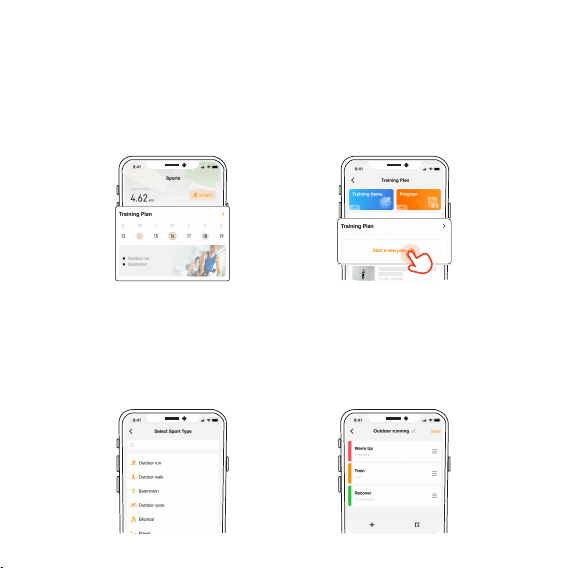
Create and Customize Training Plans
You can create your own training plans in the App with a few simple steps.
Step 1:
Open the App and go to the Workouts page. Click "Training Plans" to enter the plan
creation page.
Step 2:
On the plan creation page, click "Training Programs" to create your program. Select
workout and step types and set duration and intensity goals for each workout step to
create a single training program.
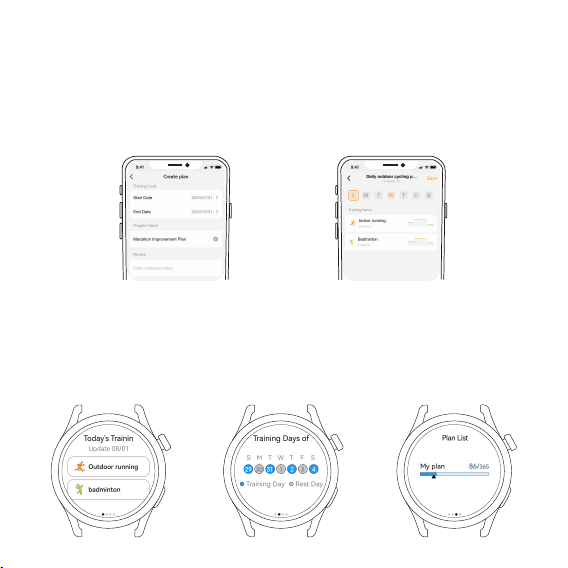
Step 3:
Click "Create Plan" on the plan creation page. Set up the name and starting date of the
plan to create a training plan. After setting weekly training programs, the App will
automatically generate training templates according to your training cycle.
Step 4:
Once the training plans are synced successfully, you can check your daily training
programs and training progress on the watch, which helps you to achieve your training
goals.
7
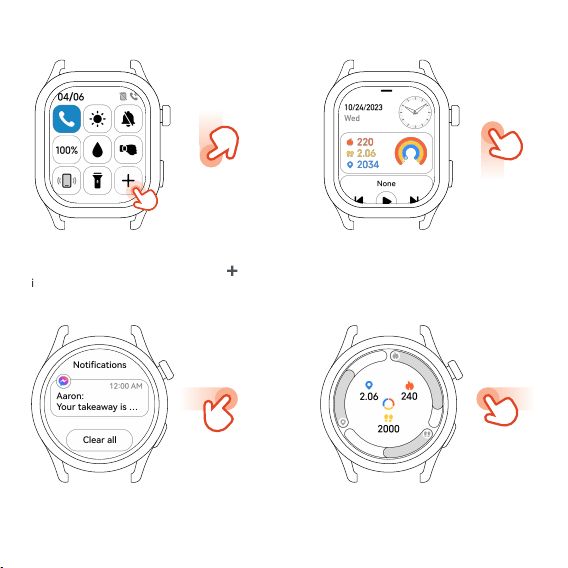
Swipe Down:
Swipe down on the home screen to
access the Control Center. Tap the
➕
icon to customize it.
Swipe Right:
Swipe right on the home screen to view
unread notifications.
Gesture Operations
Swipe Up:
Swipe up on the home screen to
access the Shortcut Cards. Tap the
Edit icon below to customize it.
Swipe Left:
Swipe left on the home screen to
access the Widgets.
8
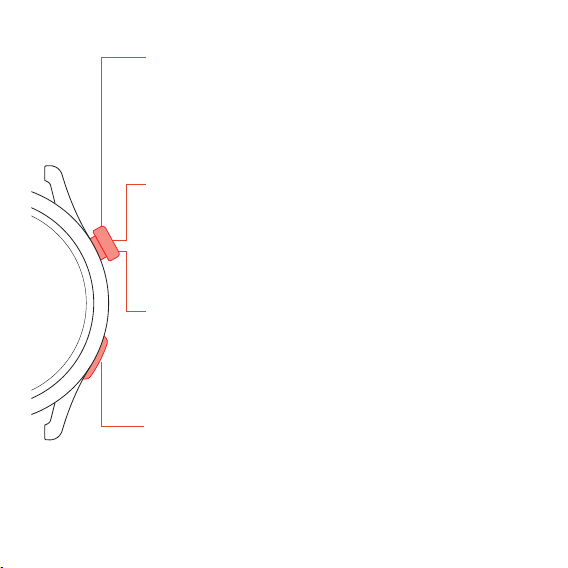
Button Operations
9
a. on the App List and other pages to scroll up/down through
options.
b. on the watch face editing page to switch between watch faces.
c. on the brightness adjustment page to increase/decrease screen
brightness.
d. during music playback/BT calls to adjust the volume.
a. to wake the watch screen when the screen is off.
b. on the home screen to enter the App List.
c. on other pages to return to the home screen.
d. in Timer/Stopwatch to pause/resume the countdown/timing.
e. during a workout to pause/start the workout.
f. during water activities to unlock the screen.
a. for 3 seconds when the watch is powered off to power it on.
b. for 3 seconds when the watch is powered on to access the Power
off/Restart page.
c. for over 8 seconds when the watch is powered on to force a restart.
d. for 5 seconds in the power saving mode to exit the mode.
1. Rotate the Crown:
2. Press the Crown once:
3. Press and hold the Crown:
a. on the home screen to access Workout. You can customize
features for the BACK button in Settings.
b. to wake the watch screen when the screen is off.
c. on other pages to return to the upper-level page.
d. in Stopwatch to start split timing or reset timing when the
stopwatch stops.
e. on the workout preparation page to start the workout.
4. Press the BACK button once:
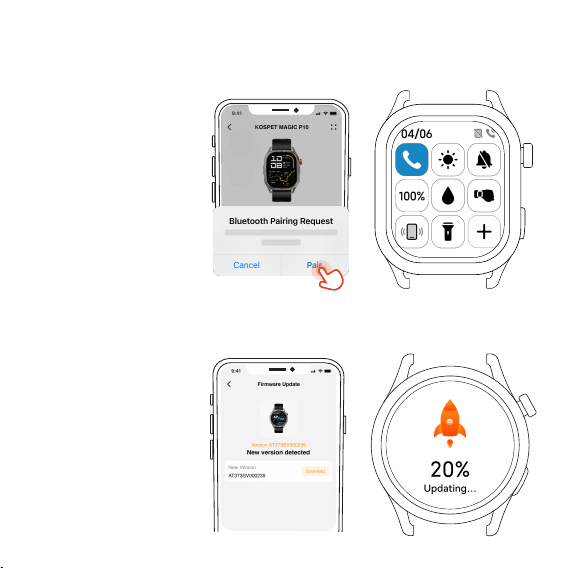
Once the watch is
connected to the App, tap
“Pair” in the App to enable
BT calling.
Open the App and go to
My > My Device > Firmware
Update to download the
latest firmware version.
(Compatible with both iPhones and Android phones)
BT Calling Setup
OTA Update
10
For products purchased from the KOSPET official online store (http://www.kospet.com),
please visit https://kospet.com/pages/warranty-policy for the warranty policy.
If you have any further questions, feel free to:
· Email: [email protected]
· Call: +1 (507) 668-8466 (Service hours: Monday to Friday, 9:00 AM - 6:00 PM EST)
For purchases made on Amazon, please contact: [email protected].
· This product is not a professional medical device and cannot be used for medical
purposes, or as basis for diagnosis of any medical condition. All detection results are
provided for reference purposes only.
· While the watch passed waterproof testing before leaving the factory, wear and tear
during daily use may affect its sealing performance. Please use the watch carefully
while swimming or diving, and avoid wearing it in saunas or during hot showers.
· Do not expose the watch to high temperatures or place it near heat sources, such as
heaters, ovens, microwaves, or water heaters, as excessive heat may cause battery
explosion and other safety hazards.
· This product uses a non-removable polymer battery. Disassembly by unauthorized
personnel is strictly prohibited to prevent potential risks.
Technical Specifications
Warranty Policy
Safety Precautions
11
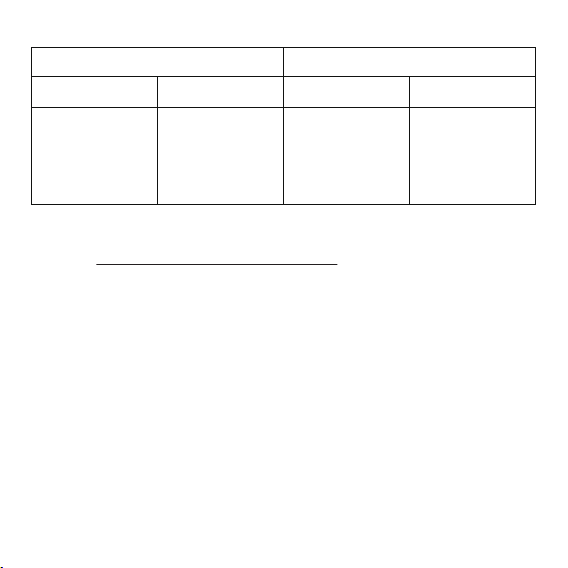
P10 R10
Frequency
Power (EIRP)
Frequency
Power (EIRP)
2402-2480MHz
BeiDou, GPS,
GLONASS,
GALILEO, QZSS,
NavIC
BT: 2.73 dBm
BLE:2.85 dBm
2402-2480MHz
BeiDou, GPS,
GLONASS,
GALILEO, QZSS,
NavIC
BT: 1.44 dBm
BLE:1.10 dBm

This equipment has been tested and found to comply with the limits for a Class B digital
device, pursuant to part 15 of the FCC Rules. These limits are designed to provide
reasonable protection against harmful interference in a residential installation. This
equipment generates, uses, and can radiate radio frequency energy and, if not installed
and used in accordance with the instructions, may cause harmful interference to radio
communications. However, there is no guarantee that interference will not occur in a
particular installation. If this equipment does cause harmful interference to radio or
television reception, which can be determined by turning the equipment off and on, the
user is encouraged to try to correct the interference by one or more of the following
measures:
· Reorient or relocate the receiving antenna.
· Increase the separation between the equipment and the receiver.
· Connect the equipment to an outlet on a circuit different from that to which the receiver
is connected.
· Consult the dealer or an experienced radio/TV technician for help.
Important Notice:
This equipment complies with FCC radiation exposure limits set forth for an uncontrolled
environment.
FCC Radiation Exposure Statement
12
Any changes or modifications not expressly approved by the party responsible for
compliance could void the user's authority to operate the equipment.
This device complies with part 15 of the FCC Rules. Operation is subject to the following two
conditions:
(1) This device may not cause harmful interference, and
(2) This device must accept any interference received, including interference that may
cause undesired operation.
FCC Warning:

This user manual is published by KOSPET. The company reserves the right of final
interpretation and may make adjustments to this manual anytime if necessary. Feature
descriptions on the foregoing pages are provided for reference only.
Manufacturer:
Shenzhen Amazwear Technology Co., Ltd.
MADE IN CHINA
34/F, Changjiang Center, Intersection of Renmin Road and Jianshe Road, Jingxin
Community, Longhua Subdistrict, Longhua District, Shenzhen, Guangdong, China
Address:
13