1
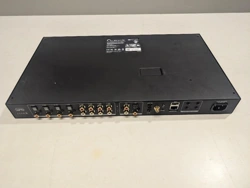
Episode Ry EA-STREAM-PRE4
4-Zone Streaming Preamp Instruction Manual
Box contents
• 4-Zone Preamp
• Power Cable
• Rack Mount Ears and Hardware
• Table Mount Feet
Hardware interface
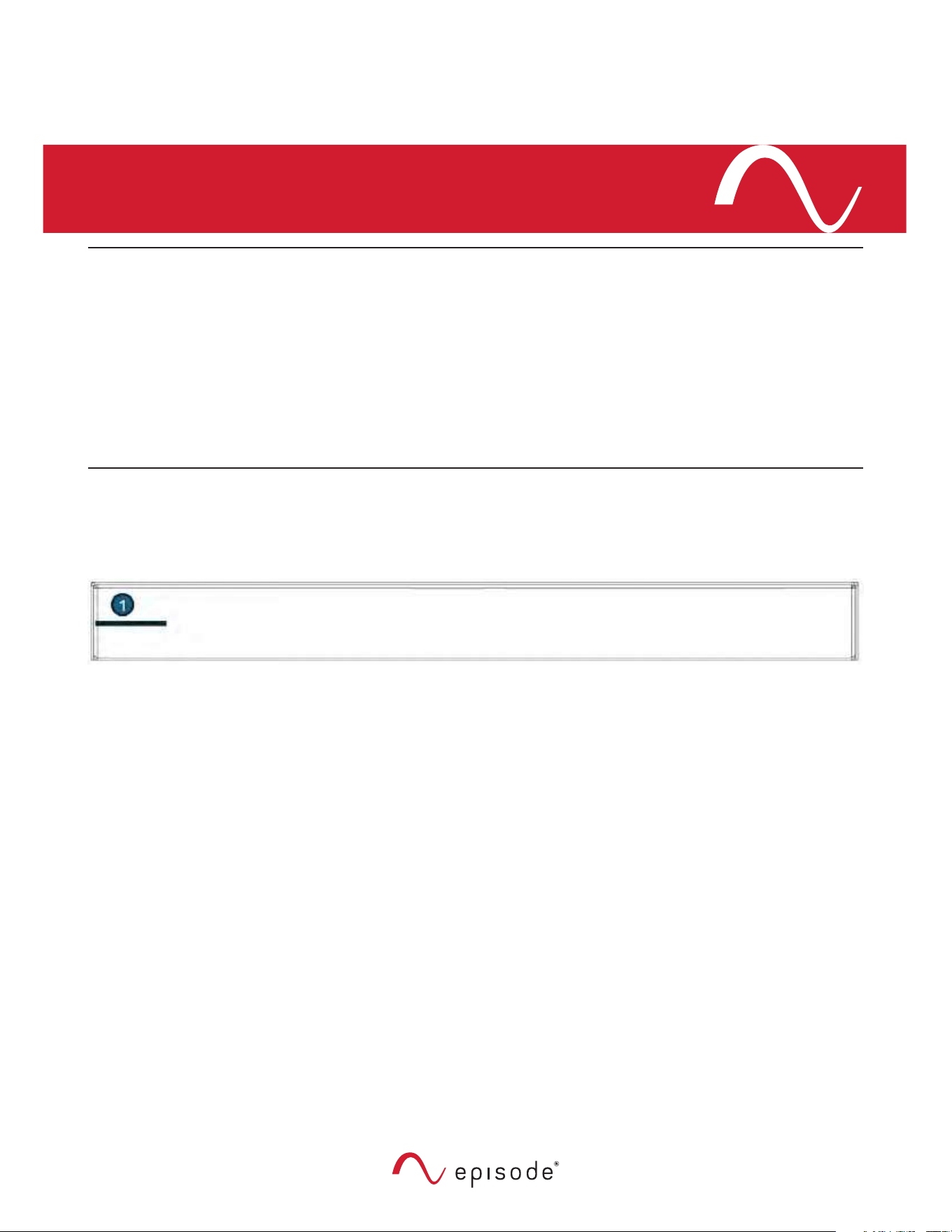
Front panel
1. Power LED:
Solid blue: Unit is on
O: Unit is in standy mode or switched o
2
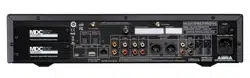
Rear panel
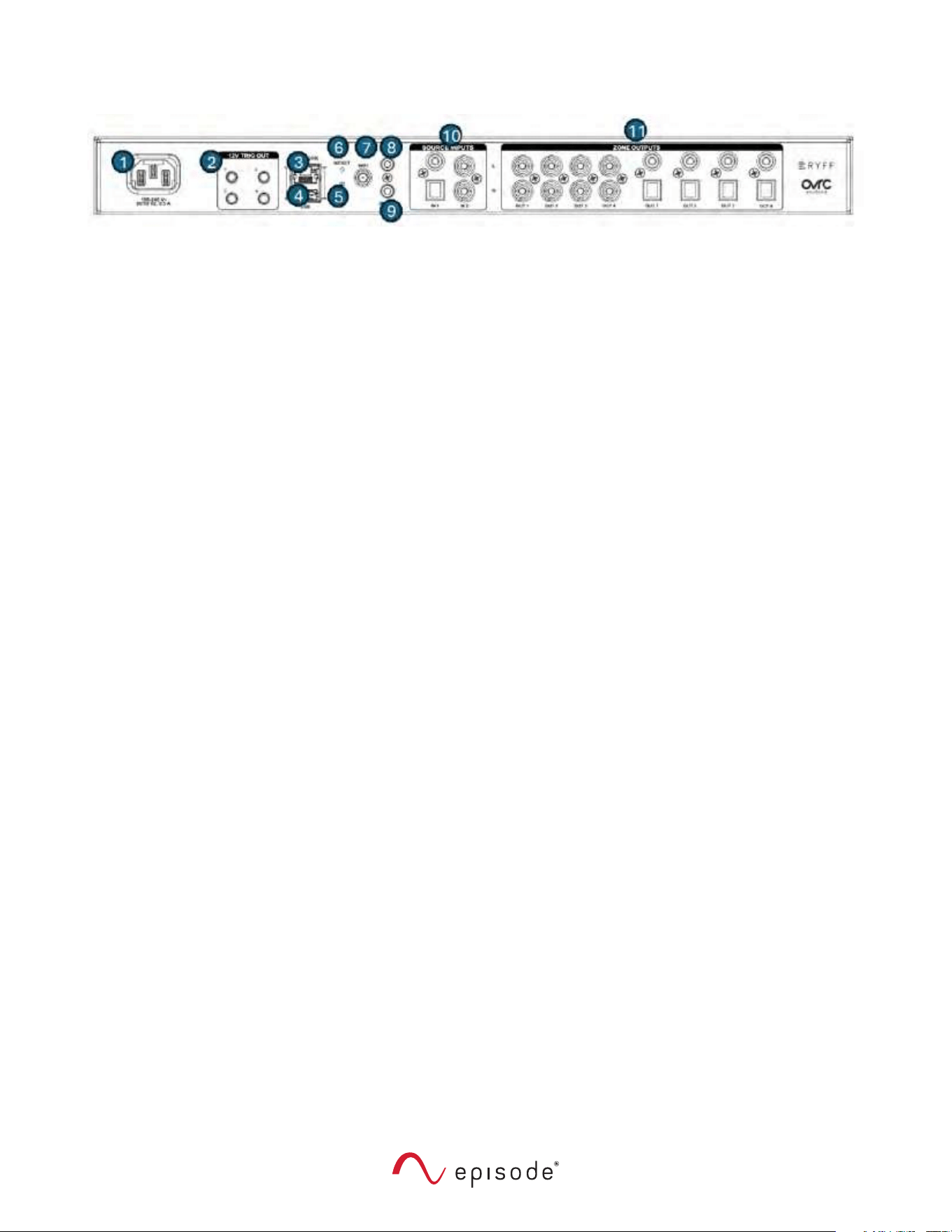
1. AC Input 3-prong non-polarized inlet for connecting IEC 60320-C13 style power cable, 100-240V
60/50 Hz, 0.5A
2. 12V Trigger Outputs Four 12V trigger outputs (3.5mm mono jack style) allows each zone to
independently send 12V trigger signal to external amplifiers or devices. Trigger output number
corresponds (1-4) to zone number.
3. Network LAN Input Use CAT5 or CAT6 cable (RJ45 connector) to connect preamp to 10/100/1000
BaseT ethernet connection. Network connection is required for content streaming, app control, and
initial configuration and setup.
Note: Wired connection is required for initial network setup. If WiFi connection is preferred, the wired
connection can be removed only after WiFi is configured in OvrC. As with all network connected
devices, a wired connection is recommended for stability and speed of network connection.
4. USB Port: Used for connecting an external USB drive for playback of audio files
5. ID Button: Used for identifying the device within Control4 or OvrC configuration (see “OVRC
CONFIGURATION” for more information).
6. Reset Button: A recessed micro-controlled push button.
• Quick momentary press = reboot
• Hold RESET button for 5 seconds = Returns network settings to DHCP default
• Hold RESET button for 10+ seconds = Return the device to its factory default configuration.
7. WiFI Antenna Port: Used for connecting included WiFi antenna. This will improve WiFi communi-
cation and connection.
8. IR Input: 3.5 mm stereo port. The adaptive IR input circuit supports 38 KHz carrier frequencies.
9. IR Output: 3.5 mm stereo port. Used for looping IR out to additional amplifiers or devices.
10. Source Inputs: Analog RCA unbalanced and digital inputs for connecting external audio sources.
Sources can be selected for playback in any combination of zones via the Ry app or Control4
navigator by the end user.
• Optical Input: Digital Coax / Optical input for connecting local digital sources.
• RCA Analog Input: Line-level analog RCA unbalanced inputs for connecting local analog source.
11. Zone Outputs: The Pre-4 provides a total of 4 dierent zone outputs, in the form of parallel analog
RCA, digital optical, or digital coax connections. While the output types can be mixed between
zones, only one connection can be used per zone, which is selectable in OvrC configuration.

3
Installation and placement
• Be sure that the unit is in a well-ventilated area that provides adequate cooling.
• Do not block the cooling vents located on both sides of the unit.
• Do not place the unit on carpeting or any similar material.
• Do not install the unit near a source of heat, or in an extremely humid or wet location.
• If your installation lacks good air flow (such as solid cabinet doors or wall-mounted racks), it may be
necessary to create ventilation to allow outside air into the space.
• Allow a minimum of 3 inches of free air space on either side of the unit. (Does not apply to rack
mounting)
Typical wiring
OvrC configuration
OvrC setup and configuration gives you remote device management, real-time notifications, and
intuitive customer management, right from your computer or mobile device. Setup is plug-and-play,
with no port forwarding or DDNS address required. To add this device to your OvrC account:
1. Connect the device to the Internet.
2. Navigate to OvrC (www.ovrc.com) and log in to your account.
3. Add the device (MAC address and Service Tag numbers needed for authentication).
If the location has an OvrC Pro device installed, a network scan will automatically identify and claim
the device.
4
Ry Standalone vs Control4 project type and configuration
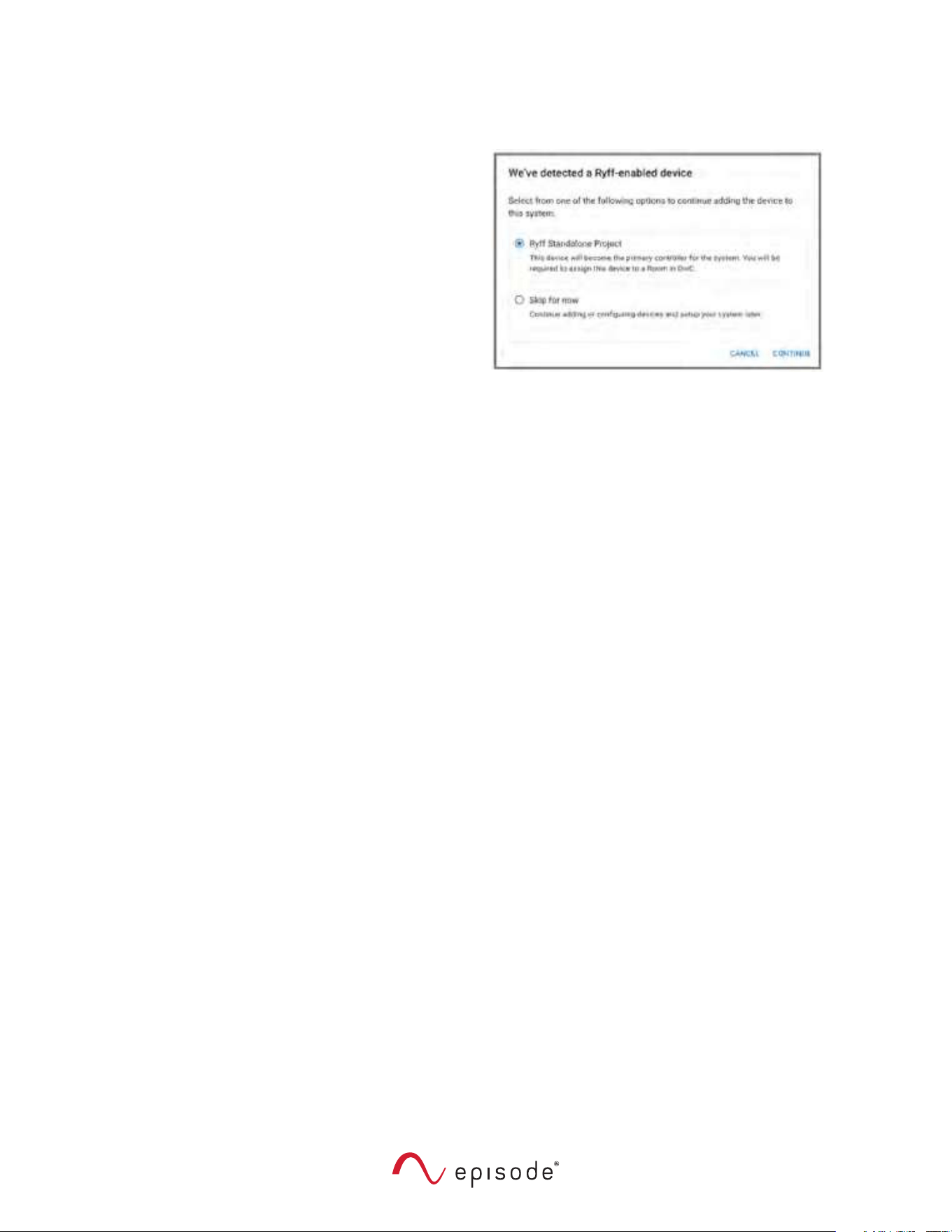
Once you’ve claimed the device in OvrC, the following window appears:
Select Ry Standalone Project if you plan on
using the Pre-4 without a Control4 system.
Select Skip For Now if you plan to use the Pre-4
in a Control4 system or aren’t sure.
Continue to follow the prompts on screen to
assign the device to a room.
Device Configuration and Audio Settings
Once the device is claimed and assigned to a room, click on the CONFIGURE tab to configure the
device’s IP settings and audio settings.
IP Settings: This page allows you to configure the IP settings for the device, including DHCP settings and
wired vs WiFi connectivity.
Input / Output Settings: This page allows you configure the source, zone and audio settings for the
device.
• Input 2 Type: Select which input connection you will be using for each input 2 (Digital Optical or
Digital Coax).
• Input Gain: User-adjustable gain setting which allows for a 24dB range of boost or cut (-12dB to
+12dB) per input.
• Input Delay: User-adjustable delay setting which allows for 0 to 80 milliseconds of delay per input,
in 1 ms increments.
• Output Name: Assign a name to each output. This output name will carry through to the Ry app or
Control4 app where applicable.
• Output Type: Select which output connection you will be using for each output (Analog RCA, Digital
Optical, or Digital Coax).
• Airplay Name: Name each output zone as a specific Airplay zone for use in iOS devices.
Ry App (for standalone installations only):
Once the device is claimed and configured in OvrC, download the Ry App the end user’s device. This
is available via the Apple App Store for iOS devices or the Google Play Store for Android devices. Once
downloaded, the user should follow the prompts to add their streaming services. Any local devices/
connections that were added in the OvrC configuration will populate automatically in the app when the
device is connected to the same network. Any Airplay zones that were named in the OvrC configuration
will automatically populate in their iOS menu when the device is connected to the same network.
5
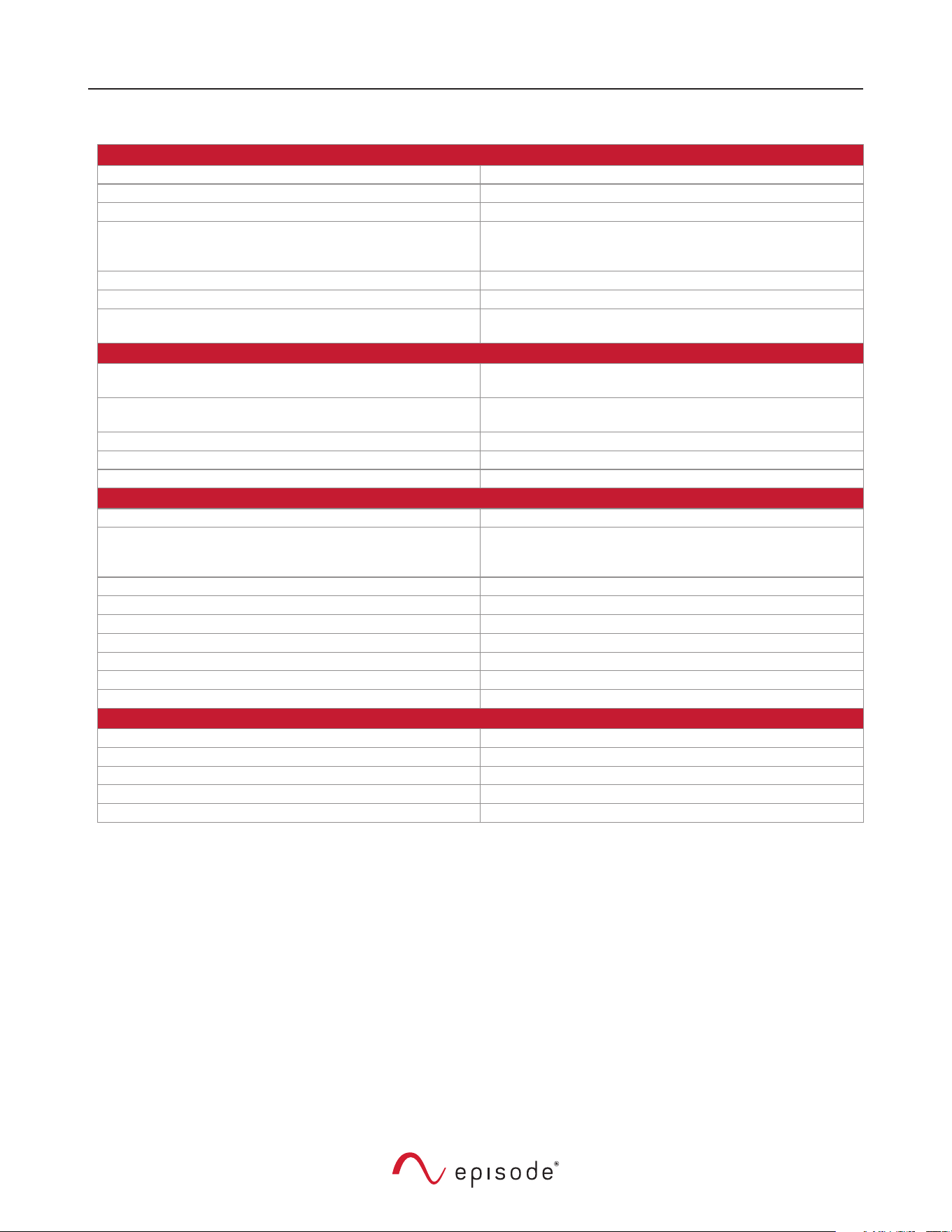
Specifications
General
Model number EA-STREAM-PRE4
Power input 100 to 240 Vac, 50/60 Hz, 20W
Wired Ethernet RJ45 jack, 10/100/1000 BaseT
Wi-Fi
External antenna, 2.4GHz and 5GHz (802.11b/g/n/ac)
Security options to include Encryption: 64/128 WEP, TKIP/AES
Authentication: WEP, WPA, WPA2.
Power cord length 2m
OvrC OvrC-enabled
Streaming services
Apple Music, Spotify Connect, Tidal, Pandora, iHeart Radio,
TuneIn, SiriusXM, and more
Connections
Audio inputs
2 inputs, 1 analog stereo and 1 digital, (S/PDIF coax or
TOSLINK optical)
Audio outputs
4 stereo analog out, 4 digital (S/PDIF coax or TOSLINK
optical)
12V trigger 4 ports, 12V 200mA, output only
IR Not used
USB 1 USB 2.0 port, supports playback of media stored on USB
Audio
Analog input frequency response 48-192 kHz sampling 20Hz-22 kHz, +/-0.5dB
Digital input frequency response
48kHz sampling 20Hz-20kHz +/-0.5dB,
96kHz sampling 20Hz-20kHz +/-0.5dB,
192kHz sampling 20Hz-20kHz +/-0.5 dB
Phase response +/-0.5 deg 20Hz -20kHz
SNR (A-weighted) 117 dB
DNR (A-weighted) 118 dB
Input sensitivity 2 V
RMS
IMD-SMPTE < -105dB @ 1 V
RMS
Crosstalk > 108 dB
THD+N (20-20kHz) 0.002%
Physical
Dimensions 1.7 × 17 × 9.6 in. (4.3 × 43 × 24.3 cm)
Weight 8 lbs
Operating temperature 32 to 102° F (0 to 40° C)
Storage temperature -4 to 158° F (-20 to 70°C)
Cooling method Fanless

6
Technical Support
For chat and telephone, visit ctrl4.co/techsupport • Email: T[email protected]
Visit tech.control4.com/technician for discussions, instructional videos, news, and more.
Warranty and Legal Notices
Find details of the product’s Limited Warranty and other resources such as regulatory notices and patent and safety information,
at snapone.com/legal or request a paper copy from Customer Service at 866.424.4489.
Copyright ©2022, Snap One, LLC. All rights reserved. Snap One and its respective logos are registered trademarks or
trademarks of Snap One, LLC, in the United States and/or other countries. 4Store, 4Sight, Control4, Control4 My Home, SnapAV,
Araknis Networks, BakPak, Binary, Dragonfly, Episode, Luma, Mockupancy, Nearus, NEEO, Optiview, OvrC, Pakedge, Sense,
Strong, Strong Evolve, Strong VersaBox, SunBriteDS, SunBriteTV, Triad, Truvision, Visualint, WattBox, Wirepath, and Wirepath ONE
are also registered trademarks or trademarks of Snap One, LLC. Other names and brands may be claimed as the property of
their respective owners. Snap One makes no claim that the information contained herein covers all installation scenarios and
contingencies, or product use risks. Information within this specification subject to change without notice.
260205-1030
Part # 200-____