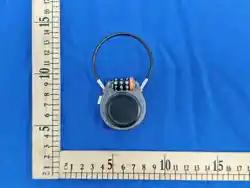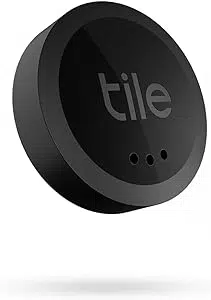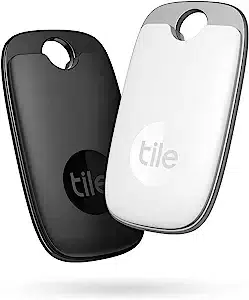

Overview introduction
The device works with both Google’s Find Hub and Apple Find My, providing a secure and user-friendly solution for finding belongings. Collaborative
positioning is carried out by leveraging a vast secure network composed of Android
™
and Apple devices. It can easily locate keys, wallets, and more, with
security as its top priority. Designed for user convenience, it helps you say goodbye to lost items and simplifies daily life.
How To Pair(iOS device)
Note: iOS or macOS with the latest version.
1.1 Place the device next to your Apple device like iPhone.
1.2 Turn on Bluetooth on iPhone and connect to the Internet.
1.3 Press and hold the button for 2 seconds, and you will hear a beep indicating successful power-on.
1.4 Open the 'Find My' app.
1.5 In the Find My app, tap Add Item, then select Other Supported Items.
1.6 Once the device is located, tap 'connect '.
1.7 Enter a name and choose an emoji for the device. Tap 'Continue'.
1.8 Find My will ask for confirmation to add the device to your Apple ID. Tap 'Agree'.
1.9 Tap 'Finish' and the device will be set up and ready to be used.
How To Pair(Android device)
Note: It requires an Android smartphone that supports Google Play Services and runs on Android 9 or later.
Android Pairing Name: Smart Tag
2.1 Search and download the Find Hub app on Google Play.
2.2 Ensure that your phone has location services enabled, Bluetooth turned on, is connected to the internet, logged into a Google Account, and
has the "Find Hub" feature activated.
2.3 Open 'Find Hub' app.
2.4 Place your device near your Android device.
2.5 Press and hold the button for 2 seconds, and you will hear a beep indicating successful power-on.
2.6 Wait for a half-screen notification to appear, then follow the on-screen instructions on your Android device to add the the device to Find Hub.
Battery
The device contains a coin shaped battery. During the product's lifespan, it may be necessary to replace the battery. By observing
the correct negative and positive connections, only replace batteries of the same type (CR2032) and rating.
Battery replacement
3.1 Use the small tool to open the rear cover.
3.2 Replace the new battery.
3.3 Close the rear cover.
Additional Tips
4.1 To switch from working mode to disabled mode (Flight Mode), simply power off the device: press and hold the button for approximately 7
seconds, then release it once the device emits a beep pattern of "beep, beep-beep, beep-beep-beep".
4.2 To switch from disabled mode (Flight Mode) to working mode, please power on the device again: press and hold the button for approximately
2 seconds, then release it once the device emits a single "beep"; the device will enter pairing mode, and note that if no connection is established
within 2 minutes, it will time out and require a restart.
4.3 Factory Reset: Press and hold the button – do not release it after hearing the continuous beep pattern of "beep, beep-beep,
beep-beep-beep"; keep holding until a long beep is heard, then release. Note that a timeout will occur after 2 minutes.
4.4 To remove this device from your Apple device: Open the "Find My" app, select "Items", tap on the device, then scroll down and tap "Remove
This Device".
4.5 To remove this device from your Android device: Open the "Find Hub" app, tap on the device you want to remove, then tap the "Settings"
button in the top-right corner. Tap "Remove from Find Hub" at the bottom of the interface, and then tap the "Remove" button. Once the device is
removed successfully, it will emit a "beep-beep" prompt, and a "Device Removed" pop-up will appear on your phone.
4.6 If this device fails to connect to the App, follow the instructions in Section 4.3 to perform a factory reset, then restart the pairing process.
Important matters
The device contains delicate electronic parts, including a battery to avoid damage, loss of function, or potential harm, please refrain from
dropping, hitting, puncturing, crushing,disassembling, exposing it to extreme heat or liquids, or placing it in areas with a high concentration of
industrial chemicals.
WARNING: Do not swallow the battery; There is a chemical bum hazard.
Choking Hazard Warning
The device, its battery compartment door, the battery itself, and the case may pose a choking hazard or cause injury to small children. Please keep
these items out of reach of young children.
The device, the battery hatch, the battery itself, and the enclosure may pose a choking hazard or cause injury to young children. Keep these out of
the reach of small children.
Medical Device Interference
The device contains components and radios that emit electromagnetic fields, as well as magnets. These elements maypotentially interfere with
pacemakers, defibrillators, or other medical devices. To ensure safety, maintain a safe distance between your medical device and the device. We
strongly advise consulting your physician and the manufacturer of your medical device for information that is specific to your situation. If you
suspect that the device is interfering with your pacemaker defibrillator or any other medical device,discontinue its use immediately.
Important Handling Guidelines
Its normal for the device to show discoloration with regular use. To clean it, use a soft, dry, lint-free cloth. Avoid applying pressure with sharp
objects on the rubber seal or the battery terminal contacts inside the device. Do not allow moisture to enter any openings or use aerosol sprays,
solvents or abrasive materials to clean the device.
Legal notice
Find Hub helps you find and connect to what matters in a single secure place. Google, Android, Google Play and Find Hub are trademarks of
Google LLC.
This product has been certified by Google to meet Find Hub network accessory specifications. Google is not responsible for the operation of this
product. Google is also not responsible for the ensuring that the product complies with any applicable safety standards or other requirements.
Find Hub network requires location services and Bluetooth to be turned on. Requires cell service or internet connection. Works on Android 9+ and
in certain countries for age-eligible users.

To use the Apple Find My app to locate this item, the latest version of iOS, iPadOS, or macOS is recommended. The Find Items app on Apple
Watch requires the latest version of watchOS.
Use of the Works with Apple badge means that a product has been designed to work specifically with the technology identified in the badge and
has been certified by the product manufacturer to meet Apple Find My network product specifications and requirements. Apple is not responsible
for the operation of this device or use of this product or its compliance with safety and regulatory standards.
Apple, Apple Find My, Apple Watch, Find My, iPhone, iPad, iPadOS, Mac, macOS and watchOS are trademarks of Apple Inc., registered in the U.S.
and other countries. IOS is a trademark or registered trademark of Cisco in the U.S. and other countries and is used under license.
概述简介
本设备集成谷歌 Find Hub 与苹果 Find My 技术,为物品查找提供安全、易用
的解决方案。设备借助 Android™ 与苹果设备组成的庞大匿名网络实现协同定位,
可轻松查找钥匙、钱包等物品,并将安全作为首要考量。本品专为便捷使用设计,
助您告别物品丢失烦恼,简化日常生活。
配对方法(iOS 设备)
注意:需使用最新版本的 iOS 或 macOS 系统。
1.1 将设备靠近您的苹果设备(如 iPhone)。
1.2 开启 iPhone 的蓝牙并连接互联网。
1.3 长按按键 2 秒,听到一声提示音即表示开机成功。
1.4 打开 “查找” App。
1.5 在“查找”应用程序中,点击添加物品,其他支持物品。
1.6 设备被搜索到后,点击 “连接”。
1.7 为设备输入名称并选择表情符号,点击 “继续”。
1.8 “查找” 将请求确认将设备添加至您的 Apple ID,点击 “同意”。
1.9 点击 “完成”,设备设置完毕即可使用。
配对方法(Android 设备)
注意:需要支持 Google Play 服务的安卓智能手机且安卓系统 9 及以上。
Android 配对名称:Smart Tag
2.1 在谷歌应用商店搜索并下载 Find Hub 应用。
2.2 确保手机已开启定位服务、蓝牙,连接互联网,登录谷歌账号,并已启用
“Find Hub” 功能。
2.3 打开 “Find Hub” 应用。
2.4 将您的设备靠近安卓设备。
2.5 长按按键 2 秒,听到一声提示音即表示开机成功。
2.6 等待设备弹出半屏通知,然后按照屏幕指引将设备添加至 Find Hub。
电池

本设备内置纽扣电池。产品使用期间可能需要更换电池。请注意正确安装正负极,
仅可更换同型号(CR2032)及相同规格的电池。
电池更换
3.1 用小工具打开后盖。
3.2 更换新电池。
3.3 合上后盖。
附加提示
4.1 从工作模式切换至禁用模式(飞行模式):直接关机即可。长按按键约 7 秒,
当设备发出 “滴、滴滴、滴滴滴” 提示音后松开按键。
4.2 从禁用模式(飞行模式)切换回工作模式:重新开机。长按按键约 2 秒,
听到一声 “滴” 后松开;设备将进入配对模式。请注意:若 2 分钟内未建立
连接,将超时并需重新开机。
4.3 恢复出厂设置:长按按键,听到 “滴、滴滴、滴滴滴” 连续提示音后请勿
松开,继续按住直至听到一声长提示音后松开。请注意:2 分钟后将超时。
4.4 从苹果设备移除本设备:打开 “查找” App,选择 “物品”,点击该设备,
向下滑动并点击 “移除此设备”。
4.5 从安卓设备移除本设备:打开 “查找中心” App,点击需移除的设备,再
点击右上角 “设置” 按钮。点击界面底部的 “从查找中心 移除”,然后点击
“移除” 按钮。设备移除成功后会发出 “滴滴” 提示音,手机将弹出 “设备
已移除” 提示框。
4.6 若设备无法连接 App,请按照第 4.3 节说明恢复出厂设置,然后重新进行
配对。
重要事项
本设备包含精密电子部件及电池。为避免损坏、功能失效或潜在危险,请勿摔落、
撞击、穿刺、挤压、拆解,勿置于高温、液体环境或工业高浓度化学品区域。
警告
请勿吞食电池;否则有化学灼伤危险。
窒息风险警告
本设备、电池仓门、电池及外壳可能对幼儿造成窒息风险或伤害。请将此类物品
放置在幼儿接触不到的地方。

医疗设备干扰
本设备包含可发射电磁场的组件与射频模块,以及磁铁。这些部件可能会对心脏
起搏器、除颤器或其他医疗设备产生干扰。为确保安全,请使医疗设备与本设备
保持安全距离。我们强烈建议您咨询医生及医疗设备制造商,获取针对您个人情
况的专属信息。若您怀疑本设备对心脏起搏器、除颤器或其他医疗设备造成干扰,
请立即停止使用。
重要使用指南
设备在正常使用过程中出现变色属于正常现象。清洁时请使用柔软、干燥、无绒
布擦拭。请勿使用尖锐物体按压设备内部的橡胶密封件或电池端子触点。请勿让
水分进入任何开孔,勿使用喷雾、溶剂或研磨材料清洁设备。
法律声明
Find Hub 可在一个安全的平台中,帮你查找并连接重要物品。Google、Android、
Google Play 及 Find Hub 均为 Google LLC 的商标。
本产品已通过 Google 认证,符合 Find Hub 网络配件规范。Google 不对本产
品的运行承担责任。Google 亦不负责确保本产品符合任何适用的安全标准或其
他要求。
使用 Find Hub 网络需开启位置服务与蓝牙功能,且需接入蜂窝移动网络或互联
网。本功能适用于 Android 9+ 系统,仅面向特定国家和地区的符合年龄要求的
用户使用。
建议使用最新版本的 iOS、iPadOS 或 macOS 系统,以通过苹果 “Find My” App
定位本物品。Apple Watch 上的查找物品 App 需使用最新版本的 watchOS。
使用 “Works with Apple” 标识,表示该产品专为配合此标识所标注的技术使
用而设计,并已由产品制造商认证,符合苹果 “查找” 网络产品规范及要求。
苹果公司不对本设备的运行、本产品的使用,以及其是否符合安全与法规标准承
担责任。
Apple、Apple Find My、Apple Watch、Find My、iPhone、iPad、iPadOS、Mac、
macOS 及 watchOS 均为 Apple Inc. 在美国及其他国家与地区注册的商标。iOS
为 Cisco 在美国及其他国家与地区的商标或注册商标,经授权使用。

This equipment has been tested and found to comply with the limits for a Class B digital device,
pursuant to part 15 of the FCC Rules. These limits are designed to provide reasonable protection
against harmful interference in a residential installation. This equipment generates, uses and can
radiate radio frequency energy and, if not installed and used in accordance with the instructions, may
cause harmful interference to radio communications. However, there is no guarantee that interference
will not occur in a particular installation. If this equipment does cause harmful interference to radio or
television reception, which can be determined by turning the equipment off and on, the user is
encouraged to try to correct the interference by one or more of the following measures:
•Reorient or relocate the receiving antenna.
•Increase the separation between the equipment and receiver.
•Connect the equipment into an outlet on a circuit different from that to which the receiver is
connected.
•Consult the dealer or an experienced radio/TV technician for help.
Caution: Any changes or modifications to this device not explicitly approved by manufacturer could
void your authority to operate this equipment.
This device complies with part 15 of the FCC Rules. Operation is subject to the following two
conditions: (1) This device may not cause harmful interference, and (2) this device must accept any
interference received, including interference that may cause undesired operation.
RF Exposure Information
The device has been evaluated to meet general RF exposure requirement. The device can be used in
portable exposure condition without restriction.
FCC Statement