
CONTENT
About Product
What's in the box
Specification
How to connect
User interface
Interfaces
How to upgrade your product
How to report an issue

About Product
This product uses a USB data cable to easily connect to the original car's USB interface:
1, It allows users to wirelessly connect the camera to the device via Wi-Fi and
display videos on the vehicle multimedia screen;
2, it’s designed for smartphones to use Apple Car Play and Google Android Auto wireless
on the factory car multimedia system which has built in Apple Car Play function.
Note: When using this product, you can only use the remote control or other control mode
of the external HDMI device.
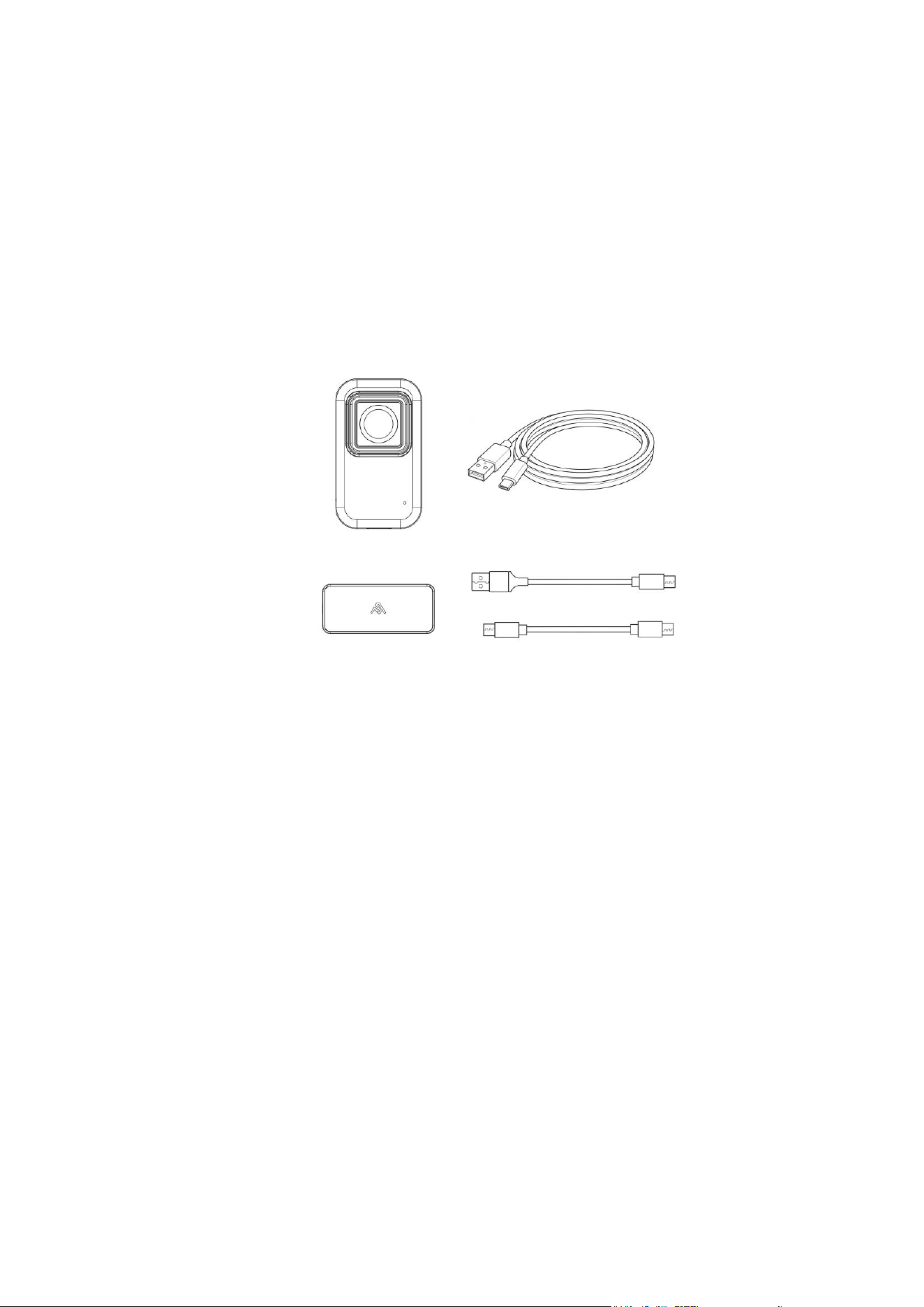
What's in the box
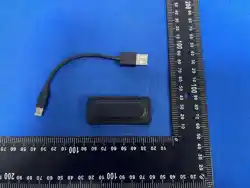
Wireless Carplay&Android Auto adaptor *1
USB A to C plug adapter *1
USB C to C plug adaptor *1
Baby monitor *1
1.5M USB extension cable for power supply*1
Brackets for baby monitor * 3

Specification
Compatibility
Car with OEM Apple Car Play
Baby monitor
1080P resolution
150 degrees wide angle
Power input
USB 5V
Wi-Fi
2.4G+5G
Connectors
USB-C
Product Size
60*60*11.2mm
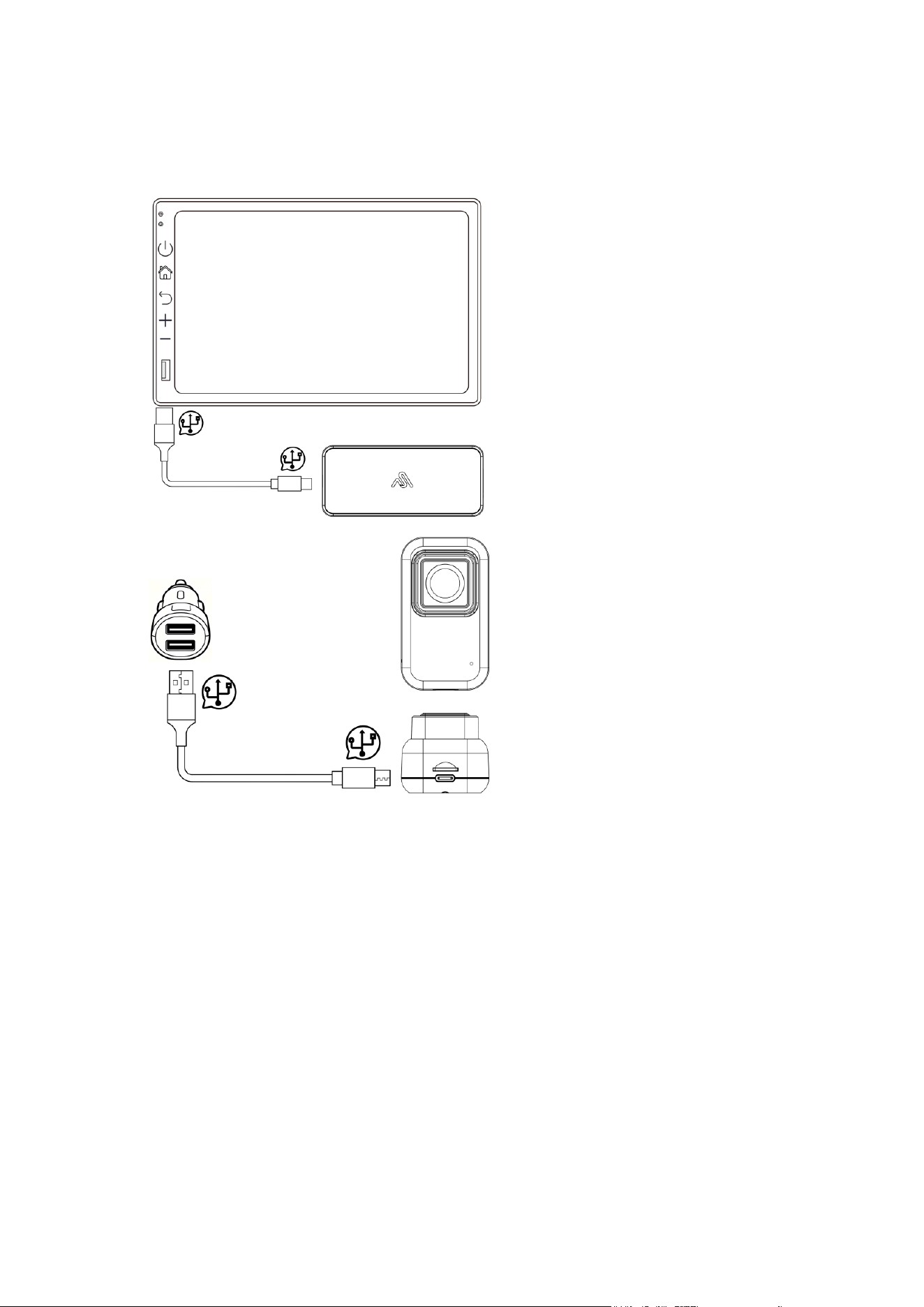
How to connect
1, Use USB-A to USB-C plug adaptor if the original USB port in the car is USB-A female
2, Use USB-C to USB-C plug adaptor if the original USB port in the car is USB-C female
3,1.5M USB A to USB C cable for baby camera, and the power supply for this camera
must be guaranteed at 5V, 1A
Tips! Some car have two ports, one for power charging ,one for transmitting data. Please
use the data port for wireless carplay&Android Auto adaptor.
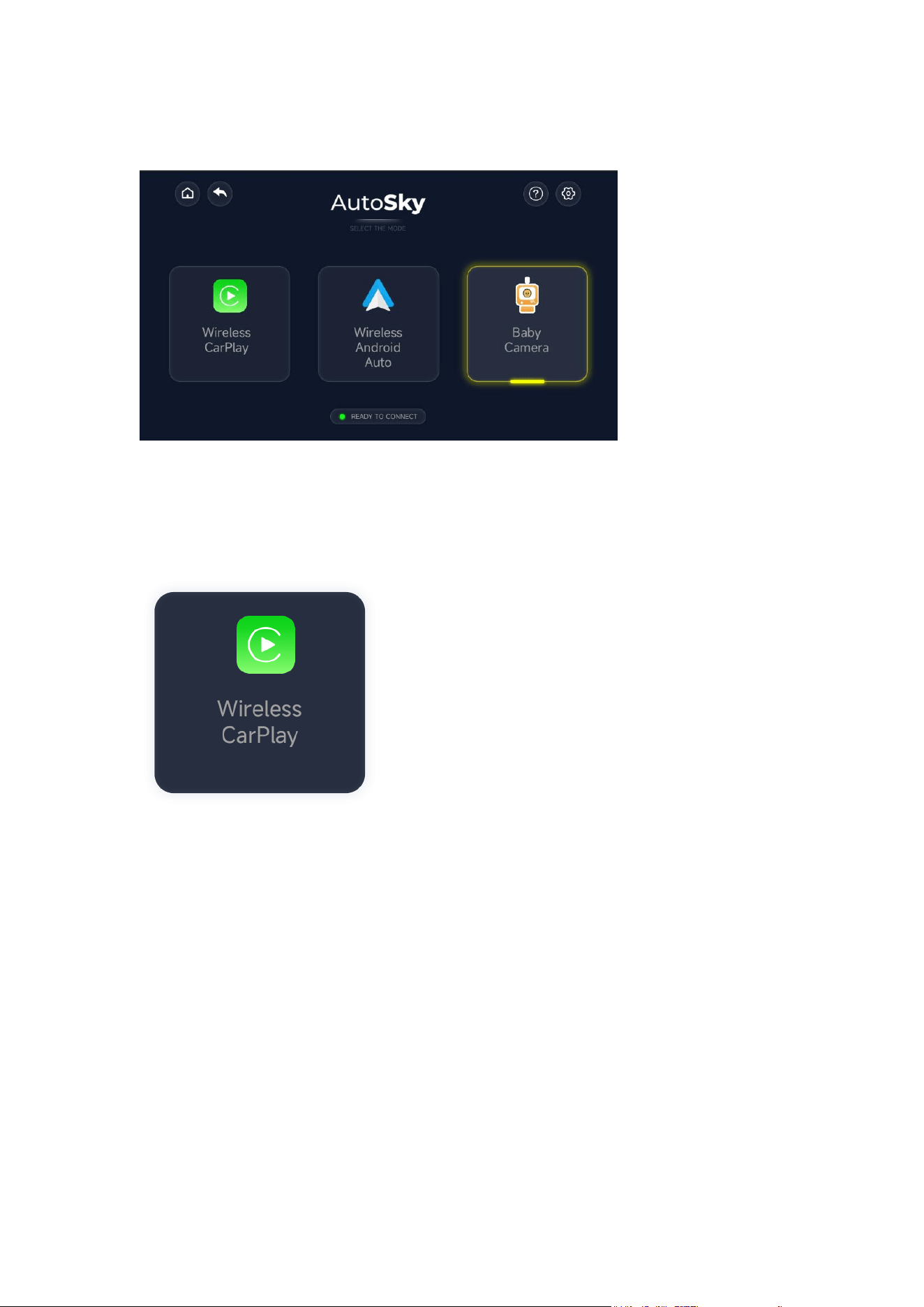
User interface
Home Menu
How to use wireless CarPlay:
1,Tap the Wireless Car Play icon;
2, On your iPhone, go to “Settings”>”Bluetooth”, in Other Devices list, you will see a Bluetooth
device name started with “AutoSky-XXXX”, tap to paid, allow permission and tap Use Car-play
box to connect wireless
Note:
If the factory car supports Car-play connection via USB cable, please plug the device into the
USB port in the car. Usually that USB port marked with Car play or smart-phone icon, select
the Car play function in the original car radio system, it goes to above interface:
Make sure your iPhone’s Bluetooth and Wi-Fi features are turned on and no other in-car
devices are connected
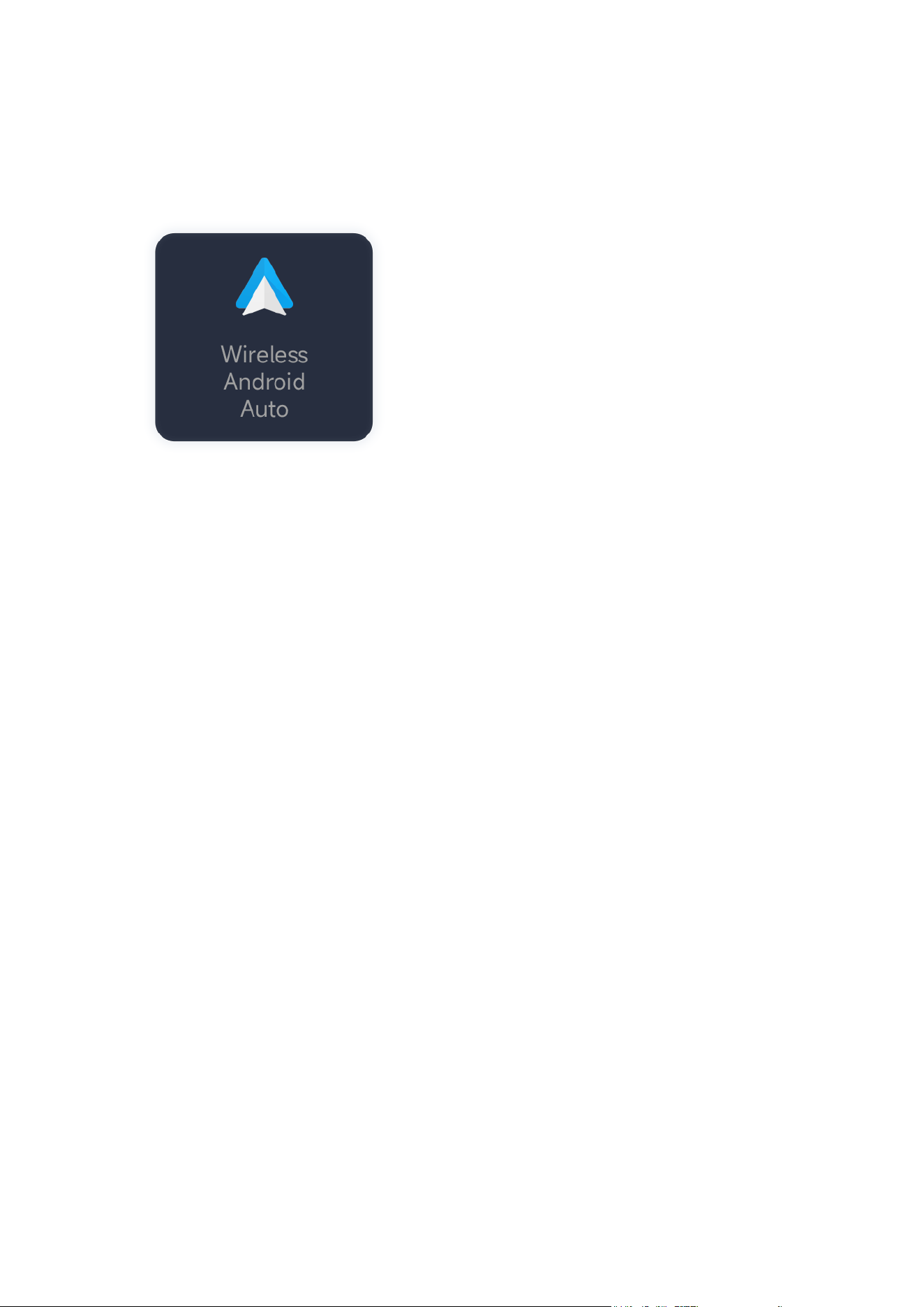
How to use Wireless Android Auto
1, Tap the Wireless Android Auto icon
2, Enable “wireless Android Auto ”in Android Auto settings
3, Tuurn on Android phone’s Wi-Fi and Bluetooth, then search bluetooth name: AutoSky-XXXX,
tap to pair;
4, It will connect to wireless Android Auto automatically after a few seconds
Note:
Before using Android Auto,please make sure you have the latest Android Auto application in
your Android Smart-phone
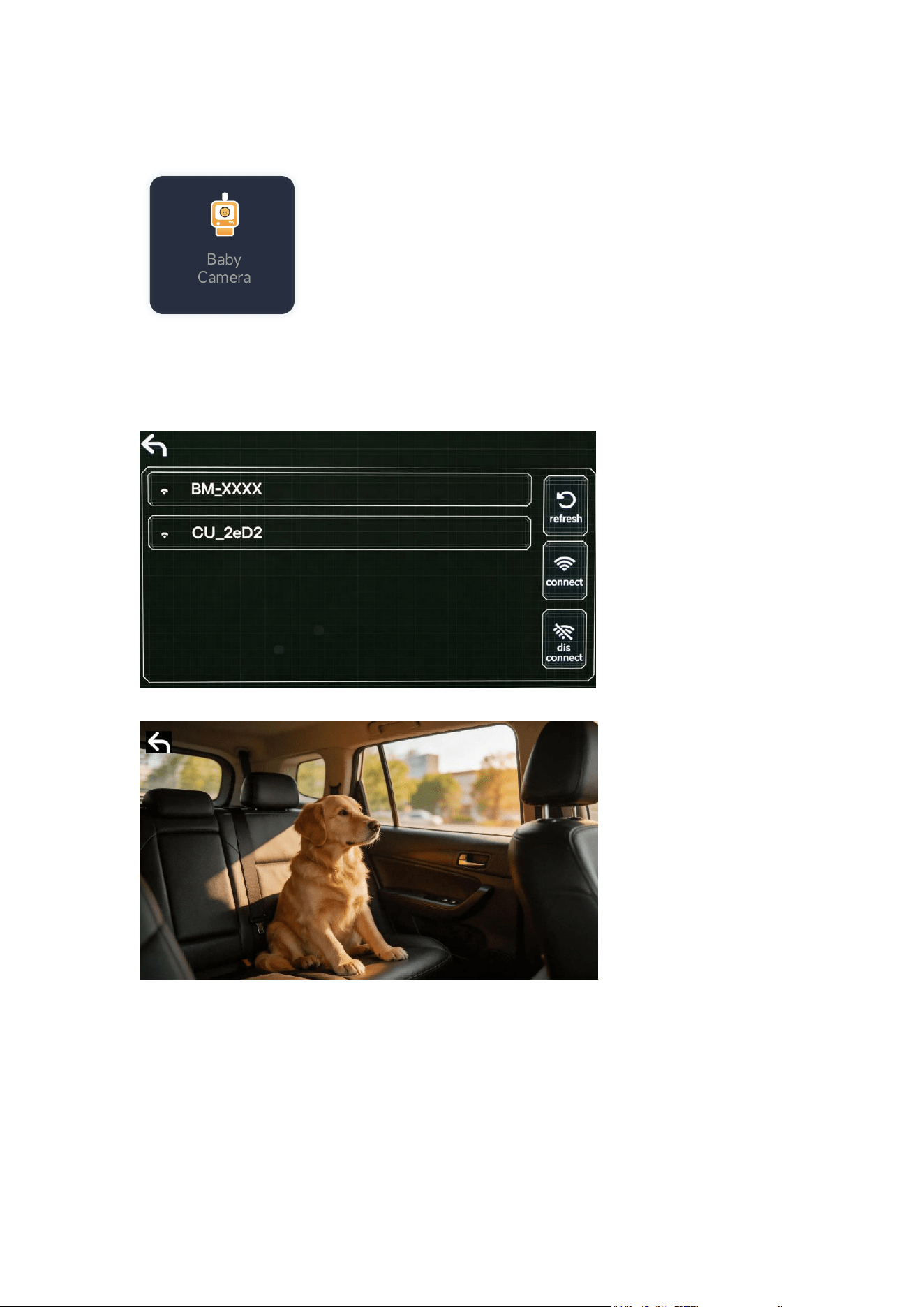
How to use Baby camera
1, Make sure Baby camera with 5V power supply, the blue LED keeps on;
2,Tap the Baby Camera icon
3,It goes to below menu, tap refresh to find the Wi-Fi name:BM-XXXX and choose this Wi-Fi,
Then tap Connect icon, it goes to Camera mode and display the video once Wi-Fi connected
Interfaces
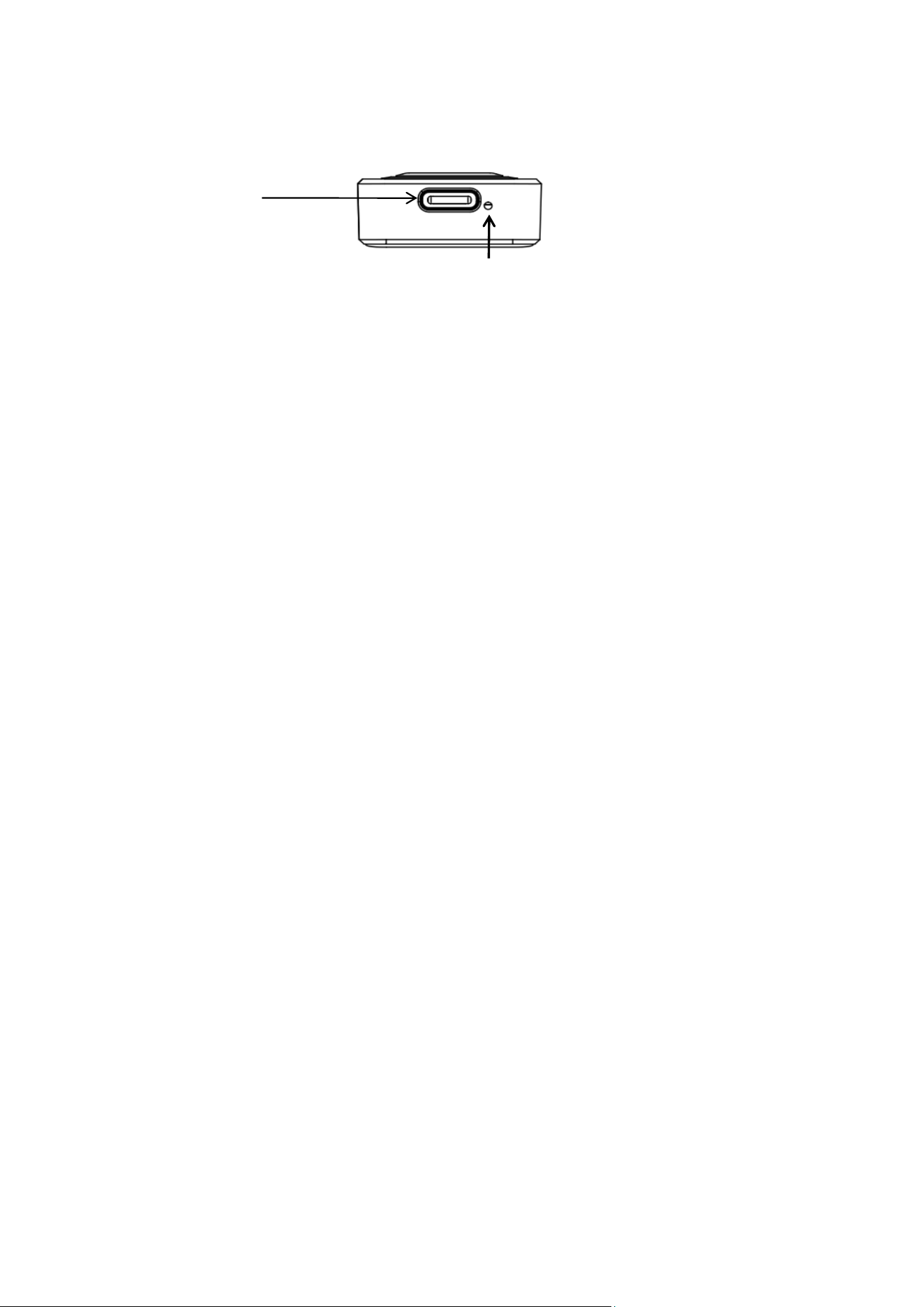
USB C port
Reset hole
USB Port: Connect to Car
Reset hole: Reset the device
LED indicator
Blue light Flashing: Power on
Blue light on: Connected to the car
Red light Flashing: Upgrading
White light: Upgrade completed
Green light: P2P mode
White Light Flashing: Reset successful
How to upgrade your product
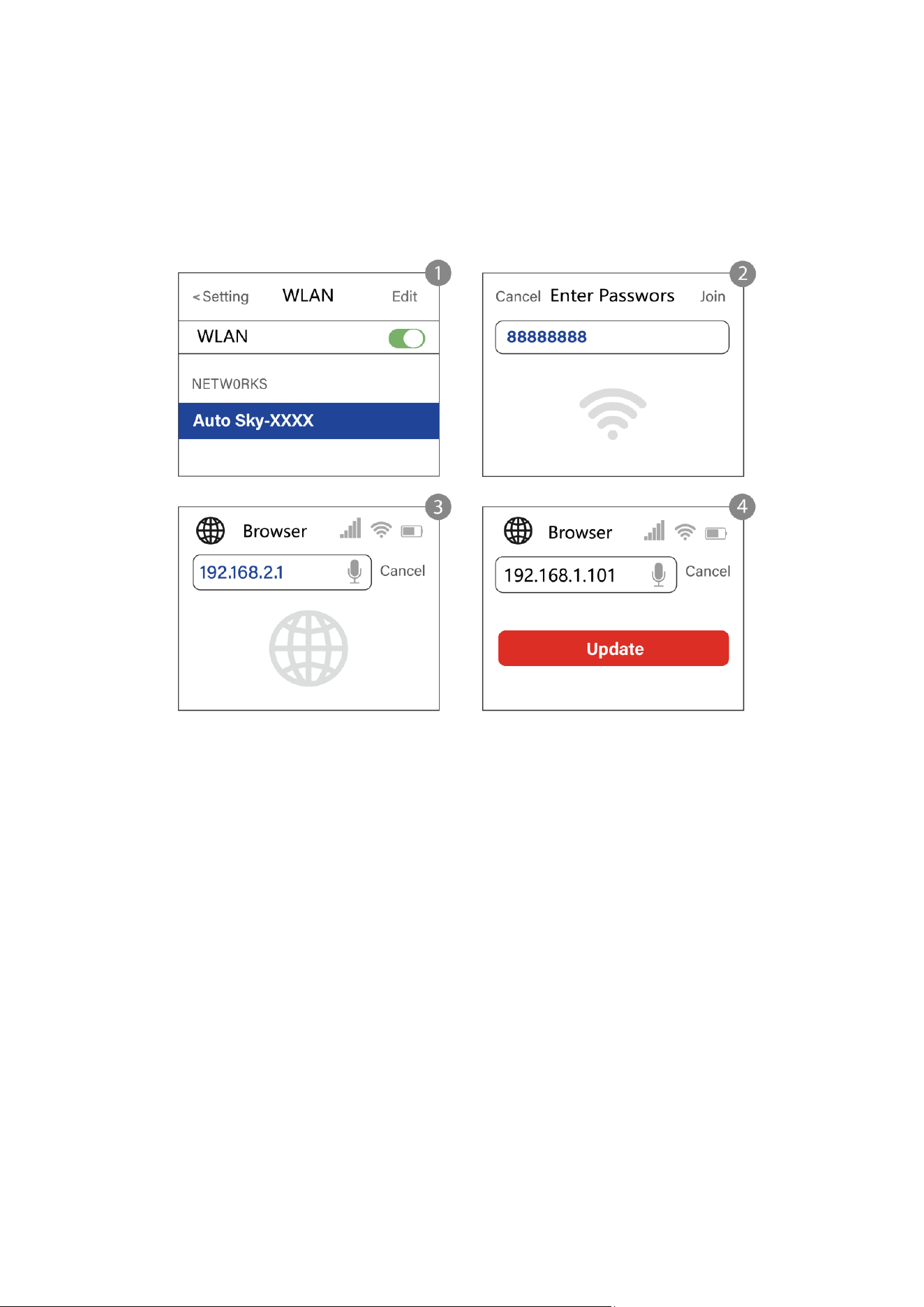
Update on iPhone
While the power on, join the adapter's WiFi network [AutoSky-XXXX] and the password is
88888888.Next enter 192.168.2.1 on iPhone's browser, and tap "Update”
Update on Android smartphone
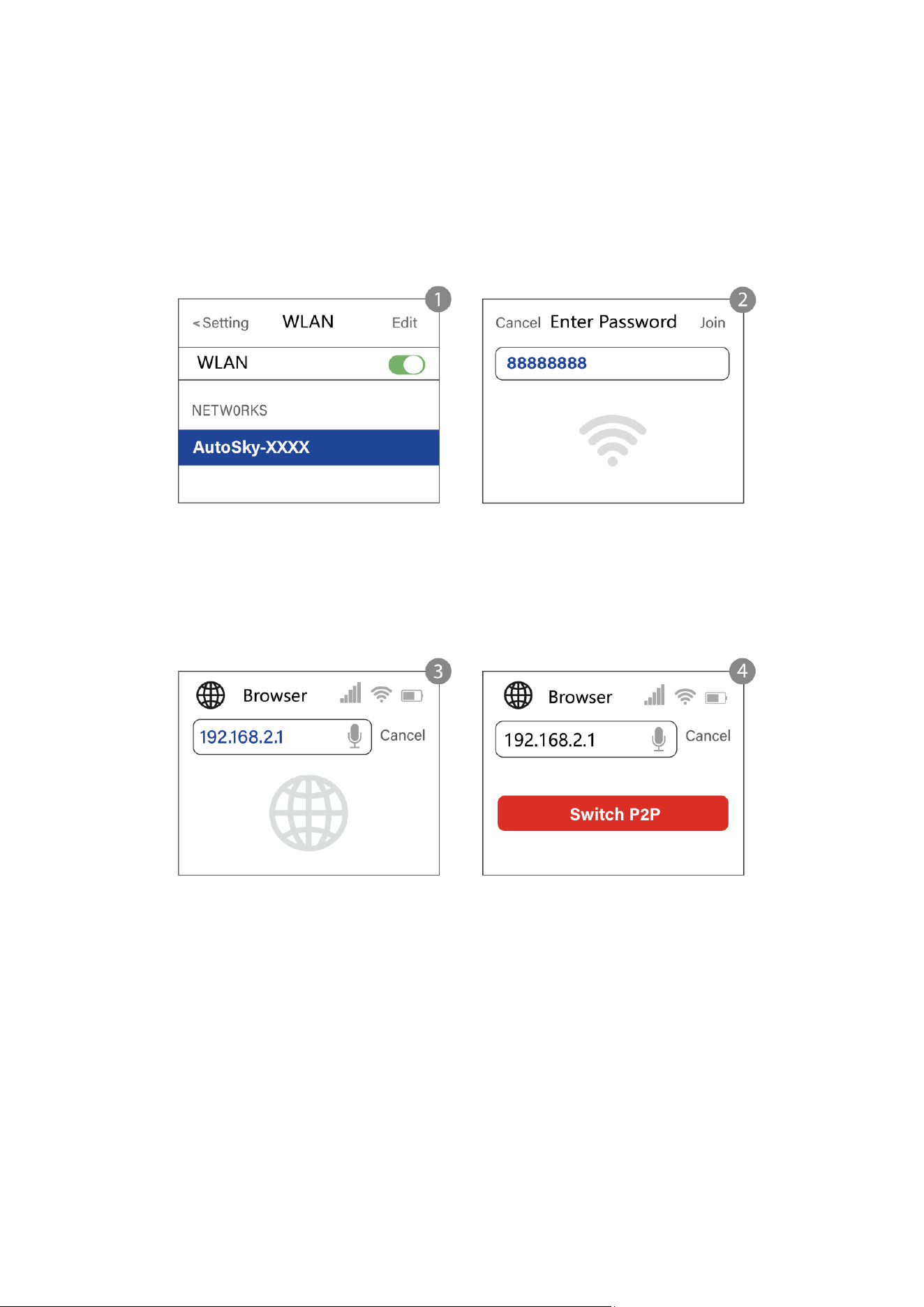
Connect the adapter's WiFi network [AutoSky-XXXX](you can find it in the car screen) in
your Android phone and the password is 88888888. Tap YES if there is a pop-up
notification of internet access.
Enter 192.168.2.1 on smartphone browser, go to the bottom of the page, and tap "Switch
P2P"
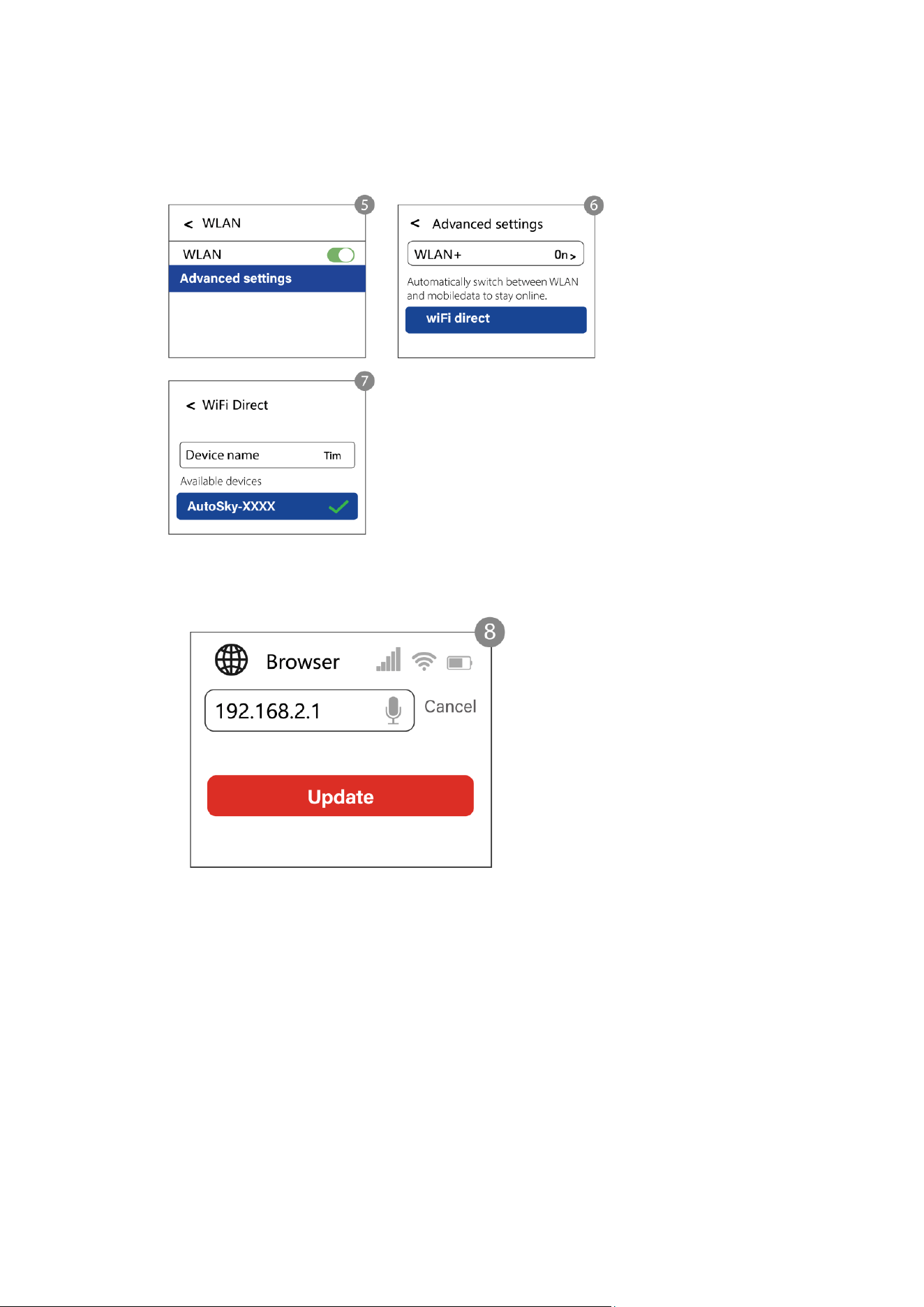
On your phone, go to WiFi >> Advanced settings >>WiFi direct, tap [AutoSky-XXXX] and
make sure it has connected.
Enter 192.168.2.1 again on smartphone browser,next tap "Update"
Note:
1.The led indicator will flash rapidly while updating.Wait for more 30s after the light is
always on, then disconnect and reconnect the adapter from USB port to finish the whole
update.
2. Android phone interface may be different, the above link is a rough description.

How to report an issue
How to report an issue
Any issue while using the adapter, you could directly
report the issue online and send us the feedback screenshot. We will fix it as soon as
possible.
For iPhone users, please enter 192.168.2.1 on your iPhone browser to submit the issue
details after connected to the WiFi network [ AutoSky-XXXX ] While the power on;
For Android users, please follow the steps of [update on Android smartphone] on the
previous page, then enter 192.168.2.1 to submit the issue.

FCC Warnning:
This equipment has been tested and found to comply with the limits for a Class B digital device,
pursuant to part 15 of the FCC Rules. These limits are designed to provide
reasonable
protection againstharmful interference in a residential installation. This equipment generates,
uses and can radiateradio
frequency
energy
and,
if
not
installed
and
used
in
accordance
with
the
instructions,
maycause
harmful
interference
to
radio
communications.
However,
there
is
no
guarantee
thatinterference
will
not
occur
in
a
particular
installation.
If
this
equipment
does
cause
harmfulinterference to radio or television reception, which can be
determined by turning the equipmentoff
and
on,
the
user
is
encouraged
to
try
to
correct
the
interference
by
one
or
more
of
thefollowing measures:
•
Reorient or relocate the receiving antenna.
•
Increase the separation between the equipment and receiver.
•
Connect the equipment into an outlet on a circuit different from that to which the receiver is
connected.
• Consult the dealer or an experienced radio/TV technician for help.
Caution:
Any
changes
or
modifications
to
this
device
not
explicitly
approved
by
manufacturer
could void your authority to operate this equipment.
This
device
complies
with
part
15
of
the
FCC
Rules.
Operation
is
subject
to
the
following
two
conditions:
(1)This
device
may
not
cause
harmful
interference,
and
(2)
this
device
must
accept
any
interference received, including interference that may cause undesired operation.
This
equipment
complies
with
FCC
radiation
exposure
limits
set
forth
for
an
uncontrolled
environment.
This
equipment
should
be
installed
and
operated
with
minimum
distance
20cm
between the radiator and your body.