Product Overview
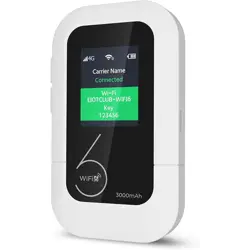
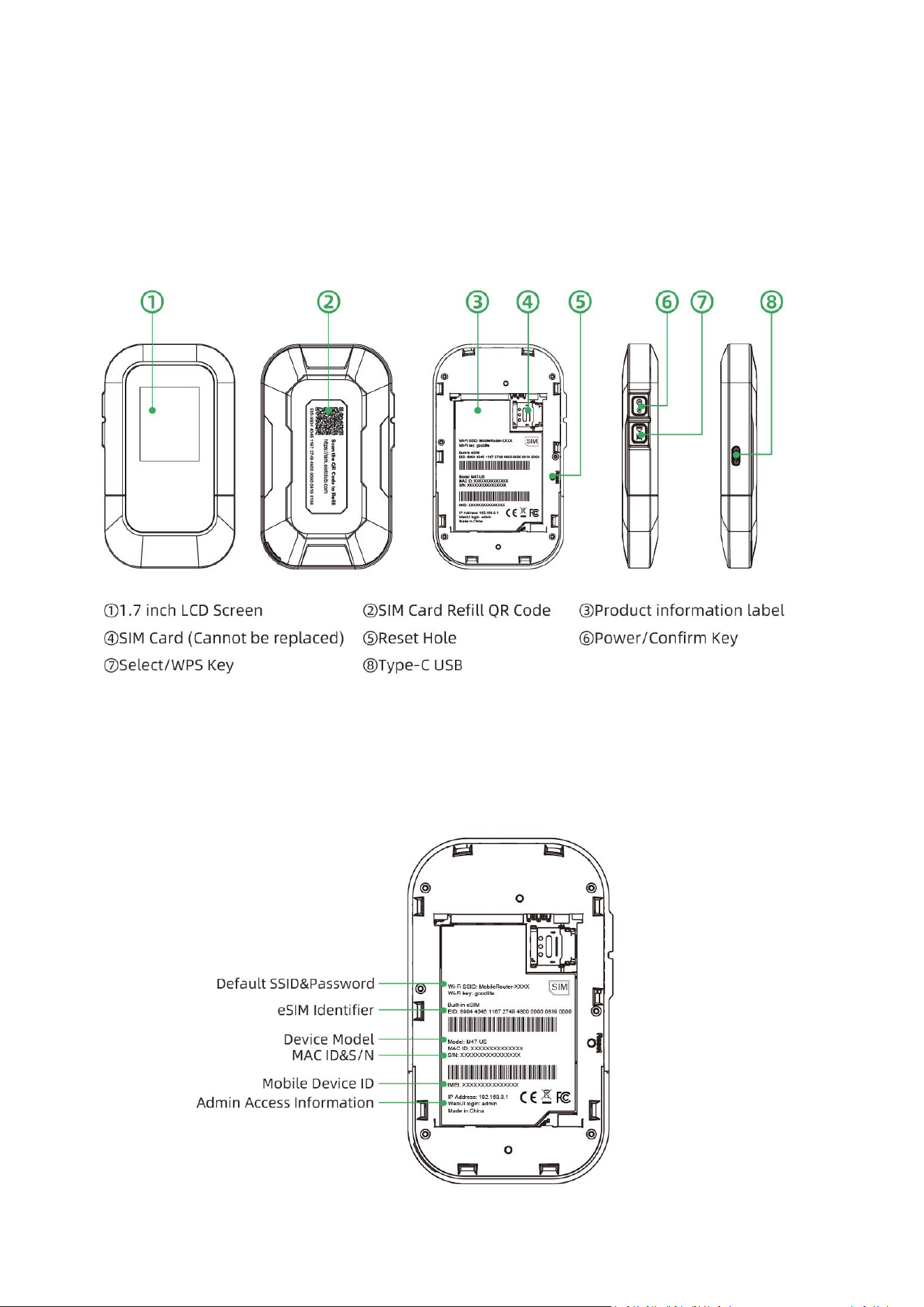
1. Product Appearance and Description
2. Product Label Description
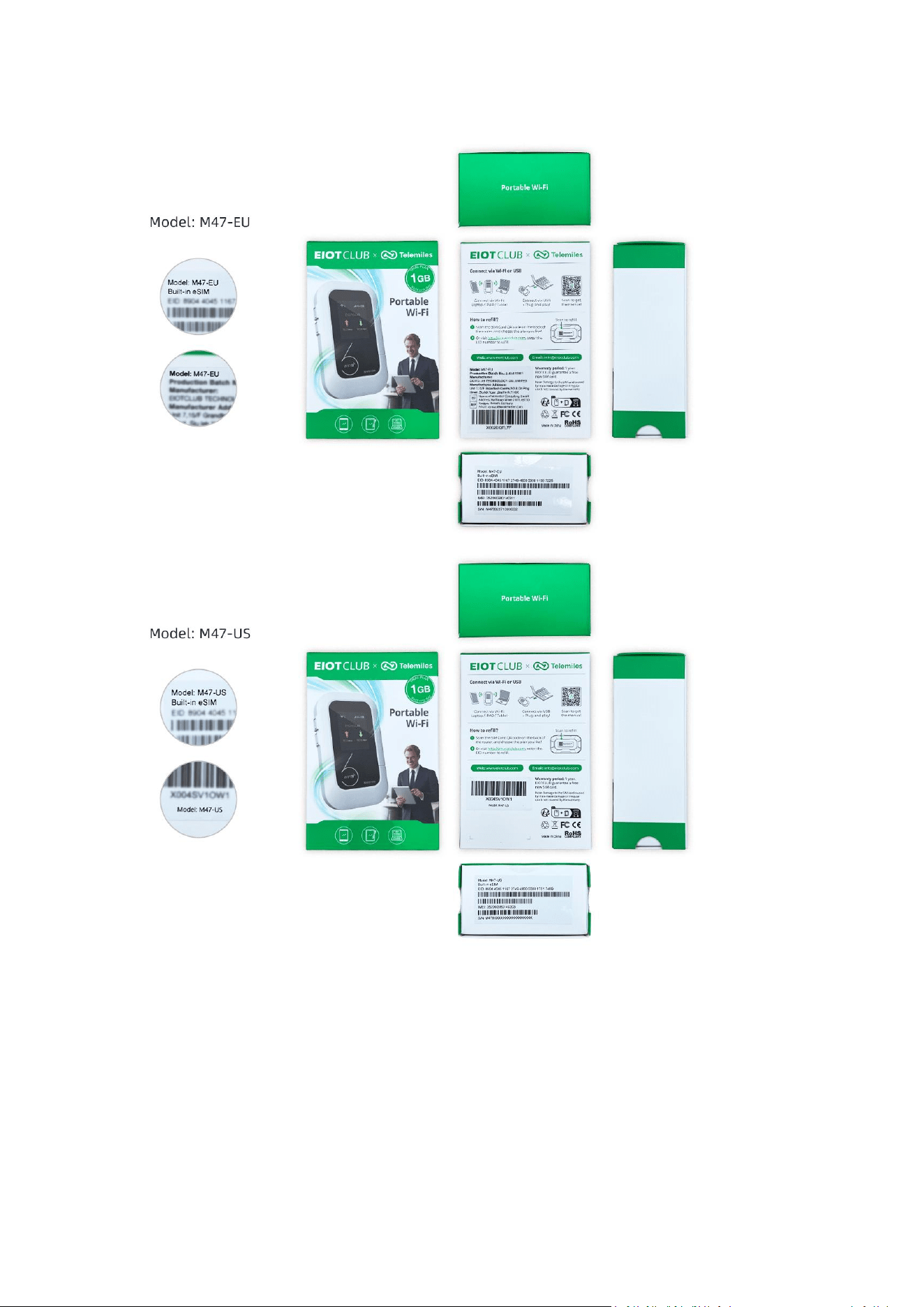
3. Packaging and Model
Pay attention to:
* M47-EU model can only be used in Europe
* M47-US model can only be used in the United States
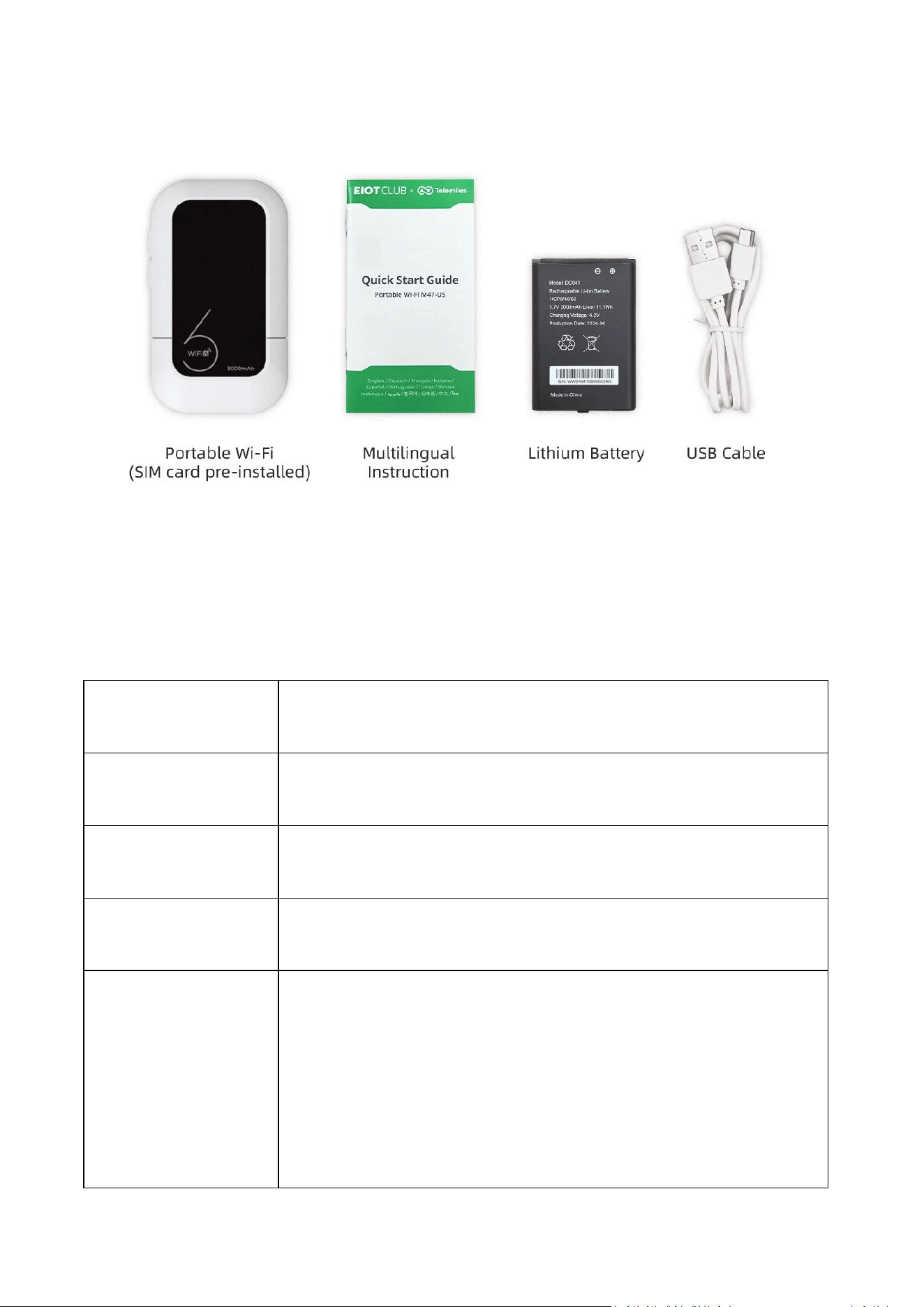
4. What's in the Box
Specifications
Specification
Details
Dimensions
107.7mm × 63mm × 16.5mm
Product Weight
125g
Screen
1.7inch LCD Screen
4G Frequency
For M47-EU model:
LTE: B1/B3/B7/B8/B20/B28/B38/B40/B41
WCDMA: B1/B8
Specification
Details
FOR M47-US model:
LTE: B2/B4/B5/B12/B13/B66
HSPA+/HSPA/WCDMA: B2/B4/B5
Peak Data Rates
LTE FDD: DL 150Mbps/UL 50Mbps (Cat4)
Wi-Fi Protocol
IEEE 802.11b/g/n/ax Wi-Fi 6 (2.4GHz)
Operating
Temperature
0℃~40℃ / 32℉~104℉
Power
3000mAh Li-ion Battery
Type-C USB Input 5V/1A
Encryption
WEP, WPA2, WPA3, AES or TKIP, WPA2/WPA
Max. Supported
Devices
Up to 9 devices via Wi-Fi + 1 device via USB
Supported Systems
Windows 10 or later / Android 12 or later / iOS 18 / macOS
Sequoia / Linux

Quick Start Guide
1. First-time Connection
Steps: Unbox → Install the battery → Press and hold power button for 6 seconds to
turn on → Connect via Wi-Fi Name & Password / QR Code Scan / USB.
Power off: Press and hold the power button for 5 seconds.
2. Connection Methods
Via Wi-Fi Name and Password
The Wi-Fi name (SSID) and password are displayed on the screen. Search for the
corresponding Wi-Fi name on your device and enter the password to connect.
Via QR Code Scan
Press the selection button, navigate to the 'WIFI PWD' , and scan the QR code to
connect automatically.
Via USB Connection
Connect the device to your computer using a USB data cable for internet access.
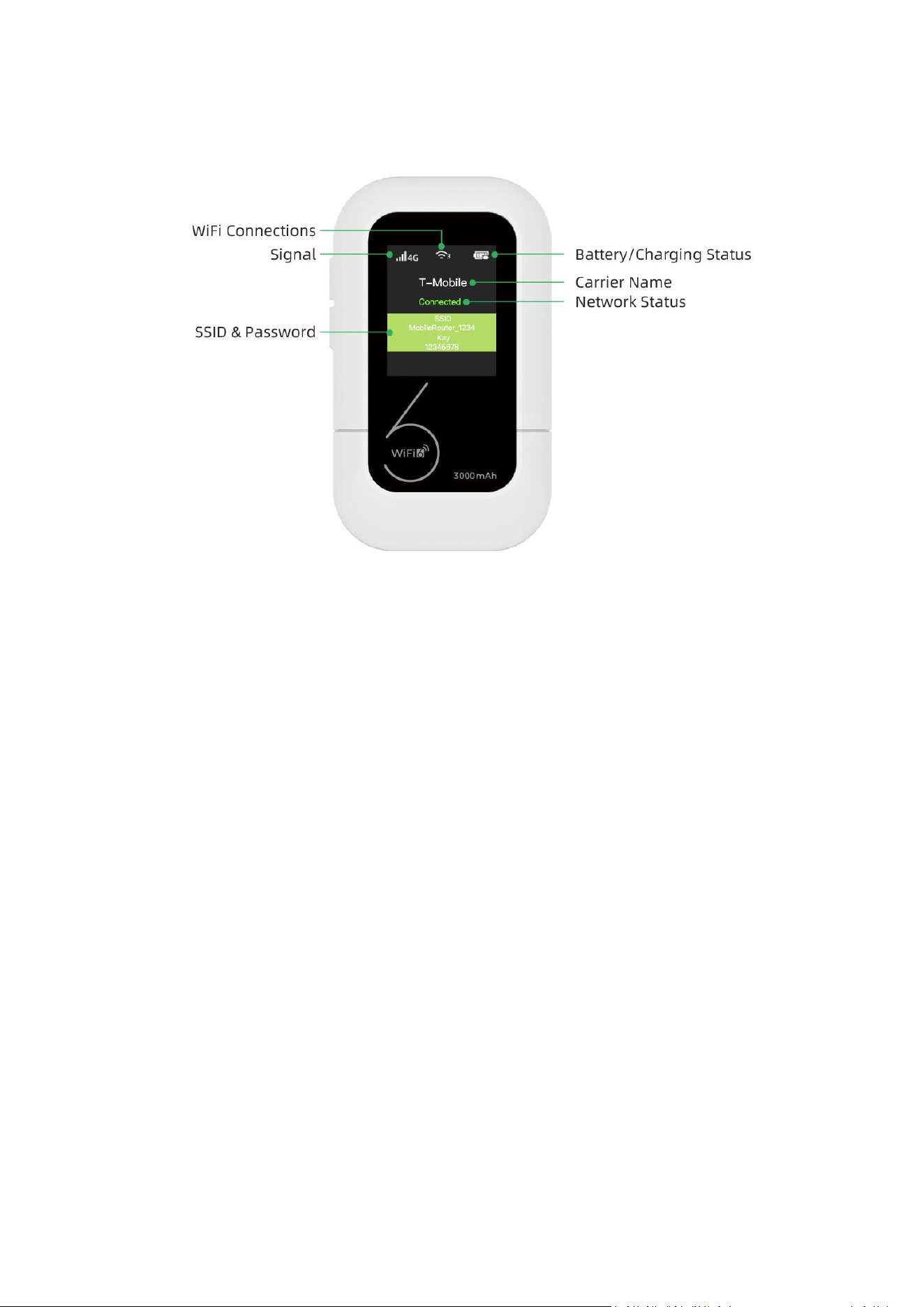
3. Screen Display Information
*Screen automatically turns off after 30 seconds of inactivity. Device enters
Power-saving mode after 10 minutes with no Wi-Fi connection(This duration can be
customised to your preference), press the power button to wake.
4. Select Button Function
The Select Button on this product is designed to display multiple QR code functions:
Press Once: Shows WiFi PWD QR Code
Function: Scan this code with your smartphone's camera or a QR code scanner. Your
phone will automatically obtain the WiFi network name (SSID) and password, and
connect to the product's WiFi network directly. No need to manually enter the
password for quick and easy setup.
Press Twice: Shows Refill QR Code
Function: After scanning, you will be redirected to the official top-up page or
payment platform. You can recharge your product account online here.
Press Three Times: Shows Manual QR Code
Function: Scan this code to view or download the latest version of the product's
electronic manual online, allowing you to check detailed functions and maintenance
information anytime.
Network Settings
1. Web Management Interface
Access: Enter 192.168.8.1 in browser
Username: admin
Password: admin
Note: Accessing the admin panel requires connection our portable WiFi network
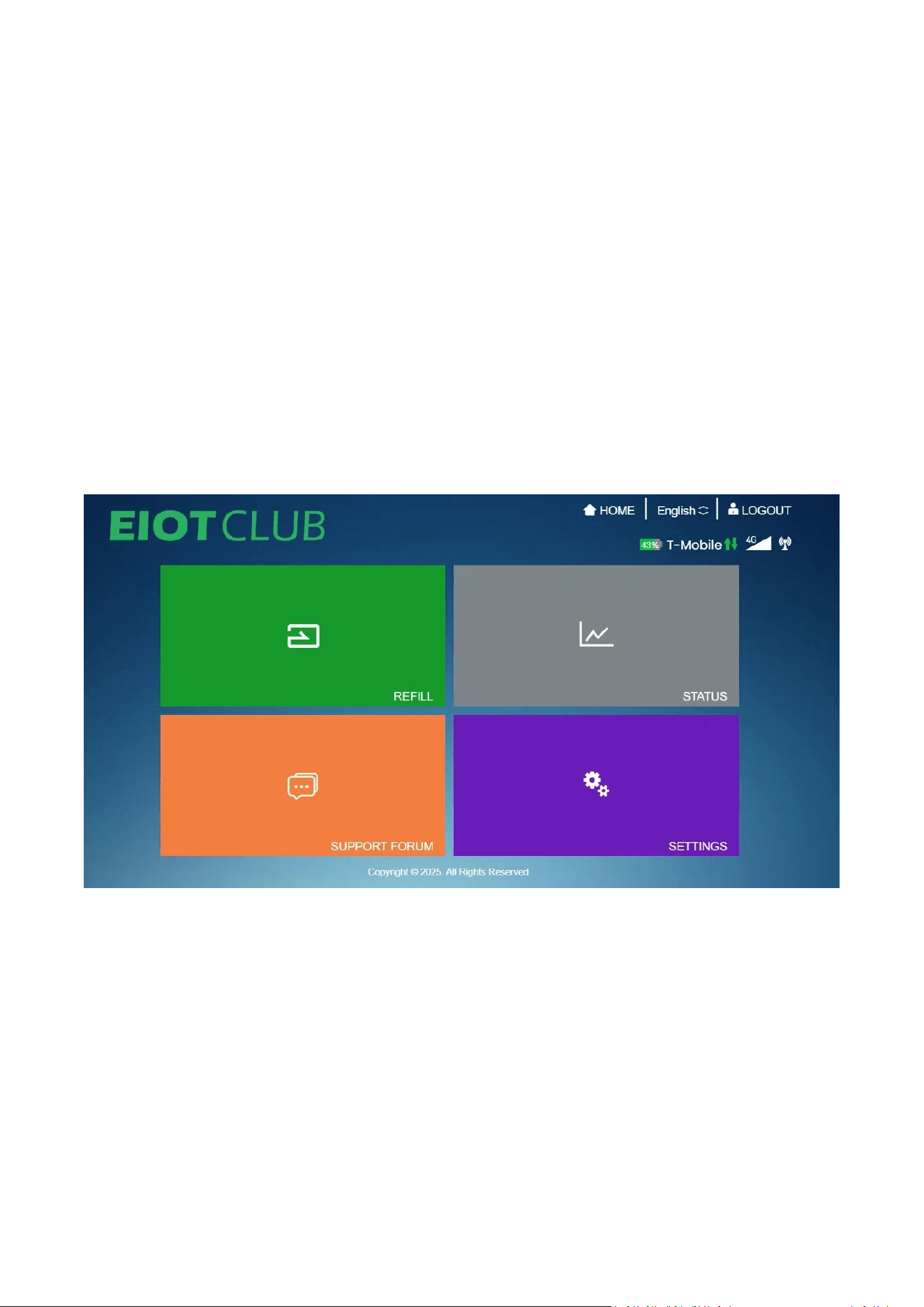
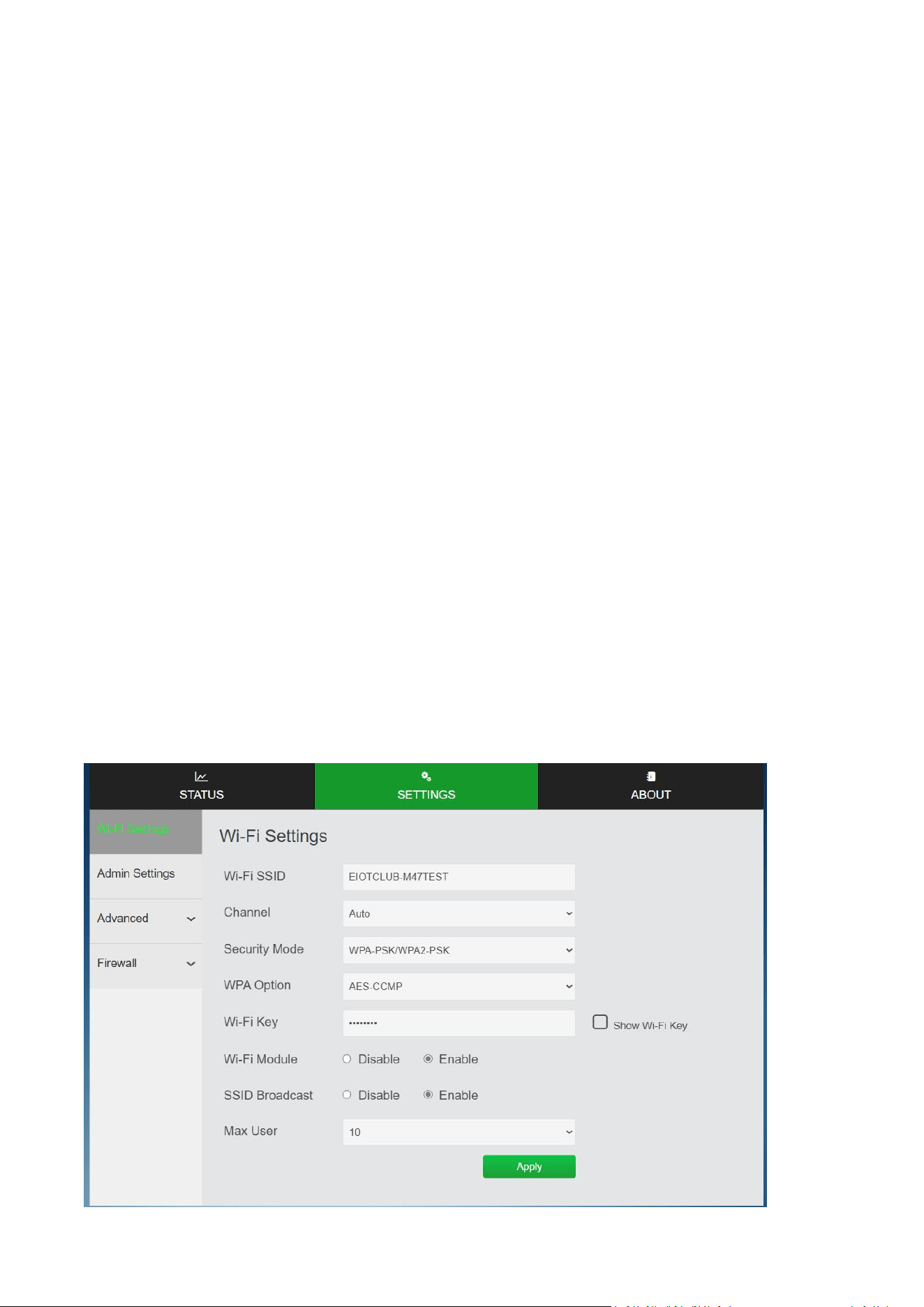
2. Refill
Click to enter the top-up page and purchase data
3. Status
The Basic Status page provides a comprehensive overview of your device's
connection and network information. Here you can see:
Connection Overview: Network Mode, Status (e.g., 4G Connected), and your Telecom
Operator.
SIM Card & WAN Details: The device's ICCID and its WAN IP Address.
DNS:DNS Server addresses.
Wi-Fi Status: Current state of the Wi-Fi network.
Connected Clients: The total Number of Users currently connected to your device.
User List: A detailed list of all connected devices, showing their Host Name, assigned
local IP Address, and MAC Address.
4. Settings
4.1 Wi-Fi Settings
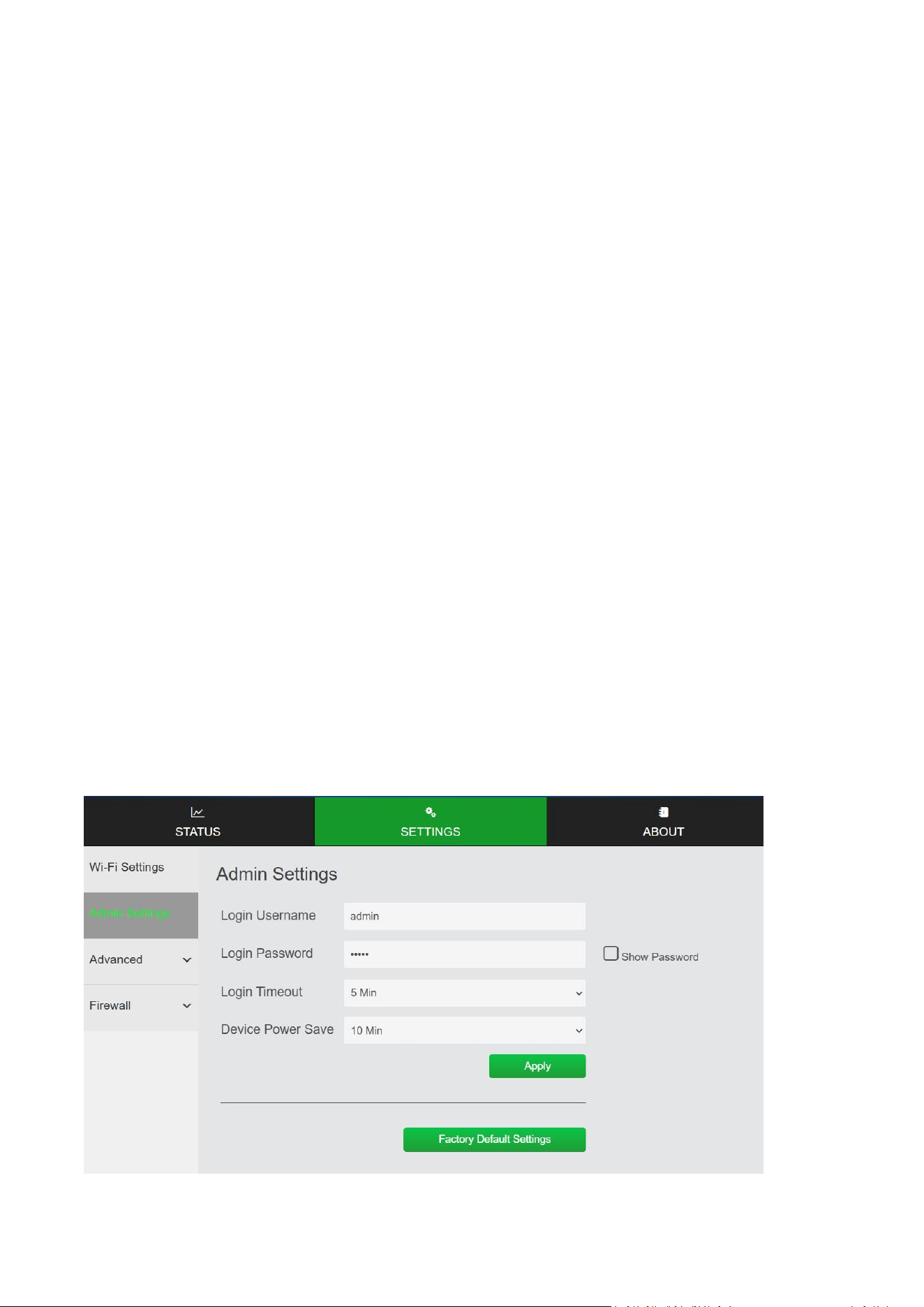
SSID (Network Name): This is the name of your Wi-Fi network that appears in the list
of available networks on your devices. You can personalize it.
Channel: The Auto setting is optimal for most users.
Security Mode: This defines the security protocol that protects your network.
Different encryption modes are available for selection.
WPA Option: Various WPA encryption options are supported.
Wi-Fi Key: This is the password required to connect to your Wi-Fi network.
Wi-Fi Module: This toggle completely turns the device's Wi-Fi signal broadcast on or
off. Disable this when you only wish to use the USB connection method.
SSID Broadcast: This controls whether your network name (SSID) is visible to other
devices.
Max User: This sets a limit on the number of devices that can be connected to your
Wi-Fi simultaneously.
4.2 Admin Settings
This is where you can change the username and password required to access the
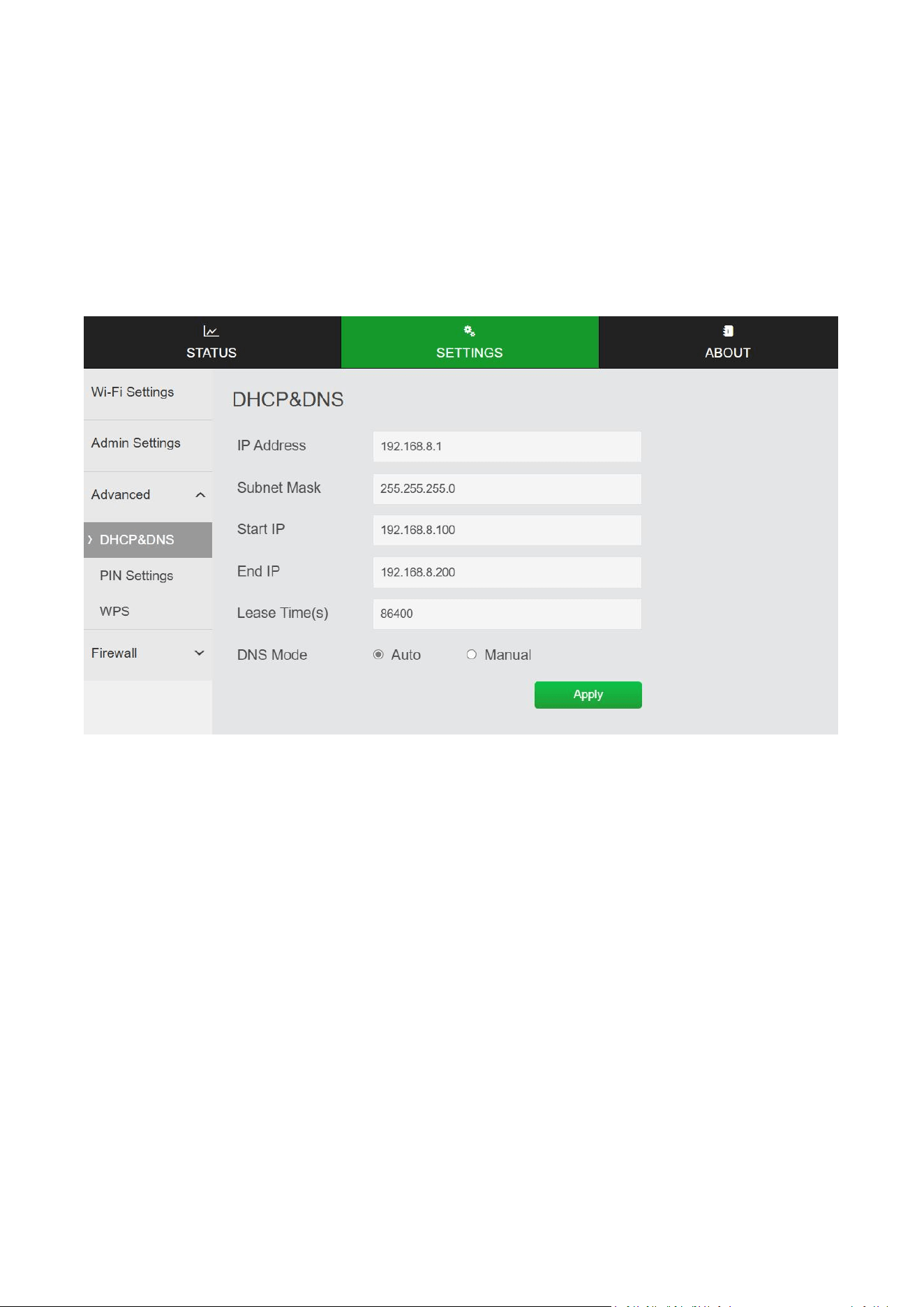
router's administration panel at 192.168.8.1 and customise the logout time and the
time to enter power-saving mode.
You may also restore the device to factory settings here.
4.3 Advanced
In the advanced options page, you can configure the following settings:
DHCP & DNS: This section manages the local network's IP address distribution and
domain name resolution.
PIN Settings: Configure the PIN code for the SIM card.
WPS: This provides a simplified method to connect devices to your Wi-Fi network
without entering the password.
4.4 Firewall
This section provides advanced tools to control network access and enhance the
security of your local network.
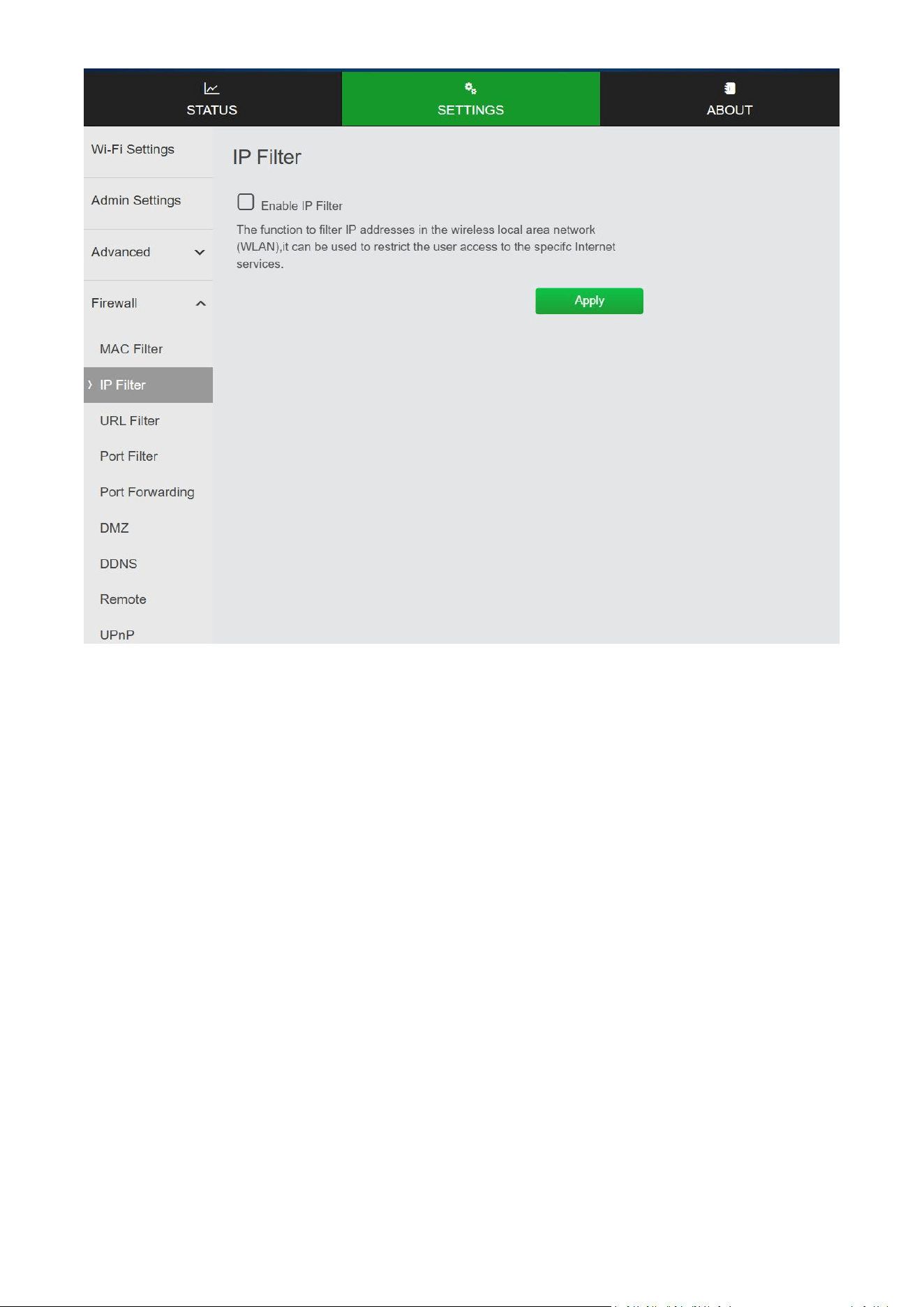
MAC Filter Mode: Controls devices' access to your network based on their MAC
address.
IP Filter: Allows you to block or permit network traffic based on specific IP addresses.
URL Filter: Enables you to block access to specific websites by filtering web addresses
(URLs).
Port Filter: The function to filter Port in the wireless local area network (WLAN), it can
be used to restrict the user access to the specific Internet services.
Port Forwarding: It allows remote computers (for example, computers on the
Internet) to connect to a specific computer or service within a private local-area
network
DMZ (Demilitarized Zone): If a PC can't run network applications through the gateway,
enable the DMZ function and enter the IP address of the PC below.
DDNS (Dynamic Domain Name System): It is a method of updating in real time, a
Domain Name System to point to a changing IP address on the Internet. This is used
to provide a persistent domain name for a resource that may change location on the
network.
Remote: Enable or disable the ability for the device to respond to ping requests from
the internet. Enable or disable remote access to the device’s administration interface
from the internet.
UPnP (Universal Plug and Play): Allows devices on your local network to
automatically configure port forwarding for compatible applications.
5. About
Check for the latest software version and update
Troubleshooting
Symptom
Solution
No charging response
Use a 5V/1A charger and the original Type-C cable.
Charging interruption
Move the device to a cooler area. (Over-temperature
protection >40°C triggered)
No signal
1. Ensure the carrier name is displayed (e.g., "AT&T").
2. Change location → Avoid basements or metallic enclosures.

Symptom
Solution
Signal but no internet
1. Check data balance: Scan the Refill QR Code to check data
usage.
2. Contact Support: Click the customer service icon on the
recharge page to get help.
Factory Reset
Soft reset: Web interface > SETTINGS > Admin Settings > Factory Default Settings
Hard reset: Insert pin into reset hole for 5 seconds while powered on > Screen
reboots
Safety Warnings
PROHIBITED ACTIONS:
Do not remove/replace the built-in SIM card
→ Will make the equipment unusable
Do not use chargers other than 5V/1A
→ May cause battery swelling or damage
Do not force or place heavy objects on the SIM slot cover
→ Hinge weight limit is less than 200g (7oz)
Do not use in water or high-humidity environments
→ Rated IPX4 (splash-resistant only, not waterproof)