Rev.6 EM15XS3088F
EPSON RC+ 6.0 Option
Vision Guide 6.0
Properties and Results Reference

EPSON RC+ 6.0 Option Vision Guide 6.0 Properties and Results Reference Rev.6

Vision Guide 6.0 Properties & Results Reference Rev.6 i
EPSON RC+ 6.0 Option
Vision Guide 6.0 Properties and Results Reference
Rev.6
Copyright 2009-2015 SEIKO EPSON CORPORATION. All rights reserved.

ii Vision Guide 6.0 Properties & Results Reference Rev.6
FOREWORD
Thank you for purchasing our robot products. This manual contains the information
necessary for the correct use of the EPSON RC+ software.
Please carefully read this manual and other related manuals when using this software.
Keep this manual in a handy location for easy access at all times.
WARRANTY
The robot and its optional parts are shipped to our customers only after being subjected
to the strictest quality controls, tests and inspections to certify its compliance with our
high performance standards.
Product malfunctions resulting from normal handling or operation will be repaired free
of charge during the normal warranty period. (Please ask your Regional Sales Office
for warranty period information.)
However, customers will be charged for repairs in the following cases (even if they
occur during the warranty period):
1. Damage or malfunction caused by improper use which is not described in the
manual, or careless use.
2. Malfunctions caused by customers’ unauthorized disassembly.
3. Damage due to improper adjustments or unauthorized repair attempts.
4. Damage caused by natural disasters such as earthquake, flood, etc.
Warnings, Cautions, Usage:
1. If the robot or associated equipment is used outside of the usage conditions and
product specifications described in the manuals, this warranty is void.
2. If you do not follow the WARNINGS and CAUTIONS in this manual, we
cannot be responsible for any malfunction or accident, even if the result is
injury or death.
3. We cannot foresee all possible dangers and consequences. Therefore, this
manual cannot warn the user of all possible hazards.
Vision Guide 6.0 Properties & Results Reference Rev.6 iii
TRADEMARKS
Microsoft, Windows, Windows logo, Visual Basic, and Visual C++ are either
registered trademarks or trademarks of Microsoft Corporation in the United States
and/or other countries.
Other brand and product names are trademarks or registered trademarks of the
respective holders.
TRADEMARK NOTIFICATION IN THIS MANUAL
Microsoft® Windows® XP Operating system
Microsoft® Windows® Vista Operating system
Microsoft® Windows® 7 Operating system
Throughout this manual, Windows XP, Windows Vista, and Windows 7 refer to above
respective operating systems. In some cases, Windows refers generically to Windows XP,
Windows Vista, and Windows 7.
NOTICE
No part of this manual may be copied or reproduced without authorization.
The contents of this manual are subject to change without notice.
Please notify us if you should find any errors in this manual or if you have any
comments regarding its contents.
INQUIRIES
Contact the following service center for robot repairs, inspections or adjustments.
If service center information is not indicated below, please contact the supplier office
for your region.
Please prepare the following items before you contact us.
- Your controller model and its serial number
- Your manipulator model and its serial number
- Software and its version in your robot system
- A description of the problem
SERVICE CENTER

iv Vision Guide 6.0 Properties & Results Reference Rev.6
MANUFACTURER
Seiko Epson Corporation
Toyoshina Plant
Robotics Solutions Operations Division
6925 Toyoshina Tazawa,
Azumino
-shi, Nagano, 399-8285
Japan
TEL
: +81-(0)263-72-1530
FAX
: +81-(0)263-72-1495
SUPPLIERS
North & South America
Epson America, Inc.
Factory Automation/Robotics
18300 Central Avenue
Carson, CA 90746
USA
TEL
: +1-562-290-5900
FAX
: +1-562-290-5999
E-MAIL
: [email protected]on.com
Europe
Epson Deutschland GmbH
Factory Automation Division
Otto
-Hahn-Str.4
D
-40670 Meerbusch
Germany
TEL
: +49-(0)-2159-538-1391
FAX
: +49-(0)-2159-538-3170
E-MAIL
: robot.infos@epson.de
China
Epson (China) Co., Ltd.
Factory Automation Division
7F, Jinbao Building No. 89
, Jinbao Street,
Dongcheng District, Beijing
,
China, 100005
TEL
: +86-(0)-10-8522-1199
FAX
: +86-(0)-10-8522-1120
Taiwan
Epson Taiwan Technology & Trading Ltd.
Factory
Automation Division
14F, No.7, Song Ren Road, Taipei 110
,
Taiwan, ROC
TEL
: +886-(0)-2-8786-6688
FAX
: +886-(0)-2-8786-6677

Vision Guide 6.0 Properties & Results Reference Rev.6 v
Korea
Epson Korea Co., Ltd.
Marketing Team
(Robot Business)
27F DaeSung D
-Polis A, 606
Seobusaet
-gil, Geumcheon-gu, Seoul, 153-803
Korea
TEL
: +82-(0)-2-3420-6692
FAX
: +82-(0)-2-558-4271
Southeast Asia
Epson Singapore Pte. Ltd.
Factory Automation System
1 HarbourFront
Place, #03-02,
HarbourFront Tower
One,
Singapore 098633
TEL
: +65-(0)-6586-5696
FAX
: +65-(0)-6271-3182
India
Epson India Pvt. Ltd.
Sales & Marketing (Factory Automation)
12th Floor, The Millenia, Tower A, No. 1,
Murphy Road, Ulsoor, Bangalore
,
India 560008
TEL
: +91-80-3051-5000
FAX
: +91-80-3051-5005
Japan
Epson Sales Japan Corporation
Factory Automation Systems Department
Nishi
-Shinjuku Mitsui Bldg. 6-24-1
Nishishinjuku
, Shinjuku-ku, Tokyo 160-8324
Japan
TEL
: +81-(0)3-5321-4161

vi Vision Guide 6.0 Properties & Results Reference Rev.6
SAFETY PRECAUTIONS
Installation of robots and robotic equipment should only be performed by qualified
personnel in accordance with national and local codes. Please carefully read this
manual and other related manuals when using this software.
Keep this manual in a handy location for easy access at all times.

Table of Contents
Vision Guide 6.0 Properties & Results Reference Rev.6 vii
Vision Properties and Results Reference 1
Overview ......................................................................................................... 1
Vision Properties and Results Format Description ........................................ 1
AbortSeqOnFail Propertys.............................................................................. 2
Accept Property .............................................................................................. 3
AcceptChar Property ...................................................................................... 4
AcceptString Property ..................................................................................... 5
AcquireState Result ........................................................................................ 6
AllFound Result .............................................................................................. 7
Angle Result ....................................................................................... 8
AngleAccuracy Property ................................................................................. 9
AngleEnable Property ................................................................................... 10
AngleMaxIncrement Property ....................................................................... 11
AngleObject Property ................................................................................... 12
AngleOffset Property .................................................................................... 13
AngleRange Property ................................................................................... 14
AngleStart Property ...................................................................................... 15
Area Result ................................................................................................... 16
AsyncMode Property .................................................................................... 17
BackColor Property ...................................................................................... 18
CalComplete Result ...................................................................................... 19
Calibrate Property ......................................................................................... 20
Calibration Property ...................................................................................... 21
CalString Property ........................................................................................ 22
Camera Property .......................................................................................... 23
CameraBrightness Property ........................................................................ 24
CameraContrast Property ............................................................................ 25
CameraGain Property ................................................................................... 26
CameraHue Property ................................................................................... 27
CameraOffset Property ................................................................................. 28
CameraOrientation Property ........................................................................ 29
CameraSaturation Property ......................................................................... 30
CameraX Result ........................................................................................... 31
CameraX1 Result ......................................................................................... 32
CameraX2 Result ......................................................................................... 33
CameraXYU Result ...................................................................................... 34
CameraY Result ........................................................................................... 35
CameraY1 Result ......................................................................................... 36
CameraY2 Result ......................................................................................... 37
Caption Property ........................................................................................... 38
CenterPntObjResult Property ....................................................................... 39
CenterPntRotOffset Property ...................................................................... 40

Table of Contents
viii Vision Guide 6.0 Properties & Results Reference Rev.6
CenterPntOffsetX Property ........................................................................... 41
CenterPntOffsetY Property ........................................................................... 42
CenterPointObject Property .......................................................................... 43
CenterX Property .......................................................................................... 44
CenterY Property .......................................................................................... 45
CodeType Property ....................................................................................... 46
ColorIndex Result ........................................................................................ 47
ColorName Result ........................................................................................ 48
ColorValue Result ........................................................................................ 49
Compactness Result ..................................................................................... 50
Confusion Property ....................................................................................... 51
Constraints Property ..................................................................................... 52
Contrast Result ............................................................................................. 54
ContrastTarget Property ............................................................................... 55
ContrastVariation Property ........................................................................... 56
CreateFont Property ..................................................................................... 57
CurrentChar Property ................................................................................... 58
CurrentModel Property ................................................................................ 59
CurrentResult Property ................................................................................. 60
DetailLevel Property ..................................................................................... 62
EdgeThreshold Property ............................................................................... 63
EdgeType Property ....................................................................................... 64
EndPntObjResult Property............................................................................ 65
EndPointObject Property .............................................................................. 66
EndPointType Property ................................................................................. 67
ErrorCorrection Property ............................................................................... 69
ExportFont Property ...................................................................................... 70
ExposureDelay Property ............................................................................... 71
ExposureTime Property ................................................................................ 72
Extrema Result ............................................................................................. 73
Found Result ................................................................................................. 74
FoundColor Property .................................................................................... 75
FoundOnEdge Result ................................................................................... 76
Frame Property ............................................................................................. 77
Graphics Property ......................................................................................... 78
Holes Result .................................................................................................. 79
ImageBuffer Property .................................................................................... 80
ImageColor Property .................................................................................... 82
ImageFile Property........................................................................................ 83

Table of Contents
Vision Guide 6.0 Properties & Results Reference Rev.6 ix
ImageSource Property .................................................................................. 84
ImportFont Property ...................................................................................... 85
InvaldChar Property ...................................................................................... 86
Iterations Property ........................................................................................ 87
Lamp Property .............................................................................................. 88
LampDelay Property ..................................................................................... 89
Length Result ................................................................................................ 90
LineObject1 Property .................................................................................... 91
LineObject2 Property .................................................................................... 92
MaxArea Property ......................................................................................... 93
MaxLength Property ..................................................................................... 94
MaxPixelLength Property ............................................................................. 95
MaxX Result ................................................................................................. 96
MaxY Result ................................................................................................. 97
MinArea Property .......................................................................................... 98
MinLength Property ...................................................................................... 99
MinMaxArea Property ................................................................................. 100
MinPixelLength Property ............................................................................ 101
MinX Result ................................................................................................ 102
MinY Result ................................................................................................ 103
ModelColor Property .................................................................................. 104
ModelColorTol Property ............................................................................. 105
ModelName Property ................................................................................. 106
ModelObject Property ................................................................................. 107
ModelOK Property ...................................................................................... 108
ModelOrgAutoCenter Property ................................................................... 109
ModelOrgX Property ................................................................................... 110
ModelOrgY Property ................................................................................... 111
ModelWin Property ..................................................................................... 112
ModelWinHeight Property........................................................................... 113
ModelWinLeft Property ............................................................................... 114
ModelWinTop Property ............................................................................... 115
ModelWinWidth Property ............................................................................ 116
MotionDelay Property ................................................................................. 117
Name Property ............................................................................................ 118
NumberFound Result ................................................................................. 119
NumberOfModels Property ........................................................................ 121
NumberOfResults Property ....................................................................... 122
NumberToFind Property ............................................................................. 123
Operation Property ..................................................................................... 125
OriginAngleEnabled Property ..................................................................... 127
OriginPntObjResult Property ...................................................................... 128

Table of Contents
x Vision Guide 6.0 Properties & Results Reference Rev.6
OriginPoint Property ................................................................................... 129
Perimeter Result ......................................................................................... 130
PixelLength Result ...................................................................................... 131
PixelLine Result .......................................................................................... 132
PixelX Result ............................................................................................... 133
PixelX1 Result ............................................................................................. 134
PixelX2 Result ............................................................................................. 135
PixelXYU Result .......................................................................................... 136
PixelY Result ............................................................................................... 137
PixelY1 Result ............................................................................................. 138
PixelY2 Result ............................................................................................. 139
PointsTaught Property ................................................................................ 140
PointType Property ..................................................................................... 141
Polarity Property ......................................................................................... 142
Radius Property .......................................................................................... 143
RejectOnEdge Property .............................................................................. 144
ReferenceType Property ............................................................................. 145
RobotAccel Property ................................................................................... 146
RobotArm Property ..................................................................................... 147
RobotLimZ Property .................................................................................... 148
RobotLocal Property ................................................................................... 149
RobotNumber Property ............................................................................... 150
RobotSpeed Property ................................................................................. 151
RobotTool Property ..................................................................................... 152
RobotU Result ............................................................................................. 153
RobotX Result ............................................................................................. 154
RobotX1 Result ........................................................................................... 155
RobotX2 Result ........................................................................................... 156
RobotXYU Result ........................................................................................ 157
RobotY Result ............................................................................................. 158
RobotY1 Result ........................................................................................... 159
RobotY2 Result ........................................................................................... 160
Robustness Propety ................................................................................... 161
RotationAngle Property ............................................................................... 162
Roughness Result....................................................................................... 163
RuntimeAcquire Property ............................................................................ 164
RuntimeFreeze Property ............................................................................. 165

Table of Contents
Vision Guide 6.0 Properties & Results Reference Rev.6 xi
SaveImage Property ................................................................................... 166
Scale Result ................................................................................................ 167
ScaleEnable Property ................................................................................. 168
ScaleFactorMax Property ........................................................................... 169
ScaleFactorMin Property ............................................................................ 170
ScaleTarget Property .................................................................................. 171
Score Result ............................................................................................... 172
ScoreWeightContrast Property ................................................................... 173
ScoreWeightStrength Property ................................................................... 174
SearchWidth Property ................................................................................ 175
SearchWin Property ................................................................................... 176
SearchWinHeight Property ......................................................................... 177
SearchWinLeft Property ............................................................................. 178
SearchWinTop Property ............................................................................. 179
SearchWinWidth Property .......................................................................... 180
SeparationAngle Property .......................................................................... 181
SeparationMinX Property ........................................................................... 182
SeparationMinY Property ........................................................................... 183
SeparationScale Property........................................................................... 184
SharedEdges Property ............................................................................... 185
ShowAllResults Result ............................................................................... 186
ShowCharResults Result............................................................................ 187
ShowExtensions Property .......................................................................... 188
ShowFont Property ..................................................................................... 189
ShowModel Property .................................................................................. 190
ShowProcessing Property .......................................................................... 191
SizeToFind Property ................................................................................... 192
Smoothness Property ................................................................................. 193
Sort Property ............................................................................................... 194
StartPntObjResult Property ........................................................................ 195
StartPointObject Property ........................................................................... 196
StartPointType Property ............................................................................. 197
Strength Result ........................................................................................... 199
StrengthTarget Property ............................................................................. 200
StrengthVariation Property ......................................................................... 201
StrobeDelay Property ................................................................................. 202
StrobeTime Property .................................................................................. 203
TargetCharHeight Property ........................................................................ 204
TargetCharSpacing Property ...................................................................... 205
TargetCharWidth Property.......................................................................... 206
TargetSequence Property .......................................................................... 207
Text Result .................................................................................................. 208
Thickness Property ..................................................................................... 209
ThresholdColor Property ............................................................................ 210
ThresholdHigh Property .............................................................................. 211

Table of Contents
xii Vision Guide 6.0 Properties & Results Reference Rev.6
ThresholdLow Property ............................................................................... 212
Time Result ................................................................................................. 213
Timeout Property ........................................................................................ 214
TotalArea Result ......................................................................................... 215
TriggerMode Property ................................................................................. 216
TwoRefPoints Property ............................................................................... 217
UpwardLamp Property ................................................................................ 218
UpwardSequence Property......................................................................... 219
VCal Statement ........................................................................................... 220
VCalPoints Statement ................................................................................. 221
VCls Statement ........................................................................................... 222
VCreateCalibration Statement .................................................................... 223
VCreateObject Statement ........................................................................... 224
VCreateSequence Statement ..................................................................... 225
VDeleteCalibration Statement .................................................................... 226
VDeleteObject Statement ........................................................................... 227
VDeleteSequence Statement ..................................................................... 228
VGet Statement .......................................................................................... 229
VLoad Statement ........................................................................................ 231
VLoadModel Statement .............................................................................. 232
VRun Statement .......................................................................................... 233
VSave Statement ........................................................................................ 234
VSaveImage Statement .............................................................................. 235
VSaveModel Statement ............................................................................. 236
VSet Statement ........................................................................................... 237
VShowModel Statement ............................................................................ 239
VStatsReset Statement ............................................................................. 240
VStatsResetAll Statement ......................................................................... 241
VStatsSave Statement ............................................................................... 242
VStatsShow Statement .............................................................................. 243
VTeach Statement ..................................................................................... 244
VTrain Statement ....................................................................................... 245
X Property ................................................................................................... 246
X1 Property ................................................................................................. 247
X2 Property ................................................................................................. 248
XAvgError Result ........................................................................................ 249
XMaxError Result ........................................................................................ 250
XmmPerPixel Result ................................................................................... 251
XTilt Result .................................................................................................. 252
Y Property ................................................................................................... 253
Y1 Property ................................................................................................. 254
Y2 Property ................................................................................................. 255

Table of Contents
Vision Guide 6.0 Properties & Results Reference Rev.6 xiii
YAxisPntObjResult Property ...................................................................... 256
YAxisPoint Property .................................................................................... 257
YAvgError Result ........................................................................................ 258
YMaxError Result ....................................................................................... 259
YmmPerPixel Result ................................................................................... 260
YTilt Result ................................................................................................. 261

Table of Contents
xiv Vision Guide 6.0 Properties & Results Reference Rev.6
Vision Guide 6.0 Properties and Results Reference Rev.6 1
Vision Properties and Results
Reference
Overview
This reference manual explains all Vision Guide sequence, object, and calibration properties and
results, and all Vision Guide SPEL+ commands. For more information on how to use Vision Guide,
refer to the Vision Guide manual.
Vision Properties and Results Format Description
All Vision Guide properties and results are listed in the pages that follow. An explanation of the
headings for the property and result reference pages is given below:
Applies To
If the property or result is used with vision objects, then this section simply lists
the vision objects for which this property applies. (Ex. Blob, Correlation,
Polar...)
If the property or result is used with vision sequences then the words Vision
Sequence will appear in this section.
If the property or result is used with vision calibration then the words Vision
Calibration will appear in this section.
Description
A simple description is given for each property or result. This section is
normally very short for simplicity.
Usage
The Usage Section describes how to access the property or result from the
SPEL
+
Language.
Values
Describes the range of acceptable values which the property can be set to or
which the result will return. A default value is also shown for those properties
that have a default.
Remarks
Explains more details than the Description Section. This section is normally
used to describe any caveats or special information that may apply to the
specific property or result. (It is highly recommended to read the Remarks
Section for each property prior to its usage.)
See Also
Gives a list of related properties, results, vision objects and other topics that may
prove useful to review.
Runtime only
This is displayed under the property or result name when it applies. Runtime
only properties and results cannot be accessed from the Vision Guide GUI.
They can only be accessed from the SPEL+ language or from VB Guide.

AbortSeqOnFail Property
2 Vision Guide 6.0 Properties and Results Reference Rev.6
AbortSeqOnFail Property
Applies To
Vision Objects: All
Description
Allows the user to specify that if an object fails (i.e. is not found), then the entire sequence is aborted at that
point and no further objects are processed.
Usage
VGet Sequence.Object.AbortSeqOnFail, var
VSet Sequence.Object.AbortSeqOnFail, value
Sequence Name of a sequence or string variable containing a sequence name.
Object Name of an object or string variable containing an object name. The object must exist in the
specified sequence.
var Boolean variable that will contain the value of the property.
value Boolean expression for the new value of the property.
Values
False Does not cause the sequence to abort when the object is not found.
True Causes the sequence to abort when the object is not found.
Default: 0 – False
Remarks
Use AbortSeqOnFail when you no longer want a sequence to continue if an object is not found.
See Also
Blob Object, ColorMatch Object, Correlation Object, Edge Object, Frame Object, Geometric Object, Line
Object, Point Object, Polar Object, CodeReader Object, Object Tab, OCR Object

Accept Property
Vision Guide 6.0 Properties and Results Reference Rev.6 3
Accept Property
Applies To
Vision Objects: CodeReader, ColorMatch, Correlation, Edge, Geometric, Polar
Description
The Accept property specifies the score that a feature must equal or exceed to be considered found.
Usage
VGet Sequence.Object.Accept, var
VSet Sequence.Object.Accept, value
Sequence Name of a sequence or string variable containing a sequence name.
Object Name of an object or string variable containing an object name. The object must exist in the
specified sequence.
var Integer variable that will contain the value of the property.
value Integer expression for the new value of the property.
Values
Integer number from 1 - 999
Default: 700 – CodeReader, ColorMatch, Correlation, Geometric, Polar
100 – Edge
Remarks
The Accept property can also affect the searching speed by providing a hint as to when to pursue the search
in a given area of the Region of Interest. When the Accept property is high, features must be very similar to
the model, so many regions can be ruled out by a cursory examination and not pursued further. However, if
the Accept property is low, features that are only slightly similar to the model may exceed the Accept
property, so that a detailed examination of more regions in the scene is needed. Thus, raising the Accept
property tends to reduce the time required for searches.
If the specified value is small, it may result in false detection.
See Also
CodeReader Object, ColorMatch Object, Confusion Property, Correlation Object, Edge Object, Geometric
Object, Object Tab, Polar Object, Score Result

AcceptChar Property
4 Vision Guide 6.0 Properties and Results Reference Rev.6
AcceptChar Property
Applies To
Vision Objects: OCR
Description
Sets / returns the character acceptance percentage for the OCR object.
Usage
VGet Sequence.Object.AcceptChar, var
VSet Sequence.Object.AcceptChar, value
Sequence Name of a sequence or string variable containing a sequence name.
Object Name of an object or string variable containing an object name. The object must exist in the
specified sequence.
var Integer variable that will contain the value of the property.
value Integer expression for the new value of the property.
Values
1 ~ 100 %
Default: 50
Remarks
The AcceptChar property allows you to adjust the accept level on a character basis in percent. When the
OCR object is searching, each character found must have a score greater than or equal to the AcceptChar
value. The AcceptChar property is used with the AcceptString property to determine if a string is valid.
See Also
AcceptString Property, Object Tab, OCR Object

AcceptString Property
Vision Guide 6.0 Properties and Results Reference Rev.6 5
AcceptString Property
Applies To
Vision Objects: OCR
Description
Sets / returns the string acceptance percentage for the OCR object.
Usage
VGet Sequence.Object.AcceptString, var
VSet Sequence.Object.AcceptString, value
Sequence Name of a sequence or string variable containing a sequence name.
Object Name of an object or string variable containing an object name. The object must exist in the
specified sequence.
var Integer variable that will contain the value of the property.
value Integer expression for the new value of the property.
Values
1 ~ 100%
Default: 50
Remarks
The AcceptString property allows you to adjust the accept level for the entire string in percent. When the
OCR object is searching, first each character found must have a score greater than or equal to the
AcceptChar value. Then, the entire string of characters must have an average score greater than or equal to
the AcceptString value.
See Also
AcceptChar Property, Object Tab, OCR Object

AcquireState Result
6 Vision Guide 6.0 Properties and Results Reference Rev.6
AcquireState Result
Runtime only
Applies To
Vision Sequence
Description
The AcquireState result is used determine if a picture has been taken for a sequence whose RuntimeAcquire
property has been set to Strobed.
Usage
VGet Sequence.AcquireState, var
Sequence Name of a sequence or string variable containing a sequence name.
var Integer variable that will contain the value of the result.
Values
0 Picture has not been taken, strobe has not yet fired.
3 Picture has been taken.
Remarks
After calling VRun for a strobed sequence, the SPEL
+
program must wait for the AcquireState to become 3
before further vision processing can continue.
See Also
Object Tab, RunTimeAcquire Property

AllFound Result
Vision Guide 6.0 Properties and Results Reference Rev.6 7
AllFound Result
Applies To
Vision Sequence
Description
The AllFound result returns whether or not all objects within the specified sequence were found.
Usage
VGet Sequence.AllFound, var
Sequence Name of a sequence or string variable containing a sequence name.
var Boolean variable that will contain the value of the result.
Values
0 – False One of the objects within the sequence was not found.
1 – True All objects within the sequence were found.
Remarks
The AllFound result is useful to determine that all objects within a specified sequence are found. This
result applies to sequences only and will not be found in object results.
See Also
Found Result, Sequence Tab, Time Result, Vision Sequences

Angle Result
8 Vision Guide 6.0 Properties and Results Reference Rev.6
Angle Result
Applies To
Vision Objects: Blob, Correlation, Frame, Geometric, Line, Polar
Description
Returns the angle of the found object.
Usage
VGet Sequence.Object.Angle[(result)], var
Sequence Name of a sequence or string variable containing a sequence name.
Object Name of an object or string variable containing an object name. The object must exist in the
specified sequence.
var Real variable that will contain the value of the result.
result Optional result number. If omitted, the result number is the CurrentResult. Used for objects
that return multiple results.
Values
Real number in degrees
Blob : −90 to 90 degree
Others : 0 to 360 degree
Remarks
The Angle result returns the found part's angle in the image coordinate system. In some cases, you may
want to use a Polar object to determine angle because it can be faster and more accurate.
Statistics
For the Angle result, the following statistics are available. AngleMax, AngleMean, AngleMin, AngleRange,
AngleStdDev. Please see Statistics in the Vision Guide manual for details about using statistics.
See Also
AngleEnable Property, AngleMaxIncrement Property, AngleOffset Property, AngleTolerance Property,
Blob Object, Correlation Object, Frame Object, Geometric Object, Line Object, Object Tab, Polar Object,
RobotU Result

AngleAccuracy Property
Vision Guide 6.0 Properties and Results Reference Rev.6 9
AngleAccuracy Property
Applies To
Vision Objects: Correlation
Description
Specifies the accuracy of a correlation search with rotation.
Usage
VGet Sequence.Object.AngleAccuracy, var
VSet Sequence.Object.AngleAccuracy, value
Sequence Name of a sequence or string variable containing a sequence name.
Object Name of an object or string variable containing an object name. The object must exist in the
specified sequence.
var Real variable that will contain the value of the property.
value Real expression for the new value of the property.
Values
Real number in degrees from 0.1 - 10
Default: 1
Remarks
The AngleAccuracy property is used at model training time and not at run-time. This value specifies the
desired accuracy for angle search.
The Correlation model must be taught after a new value for the AngleAccuracy property is set in order for
the new setting to take affect. If you teach a Correlation Model, then later set the AngleAccuracy property
to a new value, and then try to run that Correlation object, it will not search with the new angle accuracy.
You must re-teach the Correlation Model with the AngleEnable property set to 1–True, and with the new
value for the AngleAccuracy property in order for Correlation search with angle to use the new
AngleAccuracy property value.
See Also
AngleMaxIncrement Property, AngleRange Property, Angle Result, Correlation Object, Object Tab

AngleEnable Property
10 Vision Guide 6.0 Properties and Results Reference Rev.6
AngleEnable Property
Applies To
Vision Objects: Correlation, Geometric
Description
Specifies whether or not a correlation or geometric object will search for rotation of a feature.
Usage
VGet Sequence.Object.AngleEnable, var
VSet Sequence.Object.AngleEnable, value
Sequence Name of a sequence or string variable containing a sequence name.
Object Name of an object or string variable containing an object name. The object must exist in the
specified sequence.
var Boolean variable that will contain the value of the property.
value Boolean expression for the new value of the property.
Values
0 – False Do not search for rotation.
1 – True Search for rotation.
Default: 0 – False
Remarks
The AngleRange and AngleMaxIncrement properties will not be used with the correlation or geometric
search object if the AngleEnable property is set to 0–False.
It should be noted that while correlation with angle is normally able to find rotated parts, the correlation
search time usually increase significantly. This is why correlation with angle is most useful for finding
parts which rotate only slightly. The Polar object however, is normally very fast and can be used in
conjunction with the Correlation object for a powerful and fast combination. (See the sections on
Correlation or Polar Searching for more information.)
The Correlation Model must be taught after the AngleEnable property is set to 1–True. If you teach a
Correlation Model, then set the AngleEnable property to 1–True, and then try to run that Correlation object,
it will not search with angle. You must re-teach the Correlation Model with the AngleEnable property set
to 1–True in order for Correlation search with angle to work properly. You must also have the proper
settings for the AngleMaxIncrement and AngleRange Properties prior to teaching the new Model as well.
See Also
AngleMaxIncrement Property, AngleRange Property, Angle Result, Correlation Object, Geometric Object,
Object Tab

AngleMaxIncrement Property
Vision Guide 6.0 Properties and Results Reference Rev.6 11
AngleMaxIncrement Property
Applies To
Vision Objects: Correlation
Description
The AngleMaxIncrement property specifies the maximum angle increment amount for teaching a
correlation model for searching with angle. The model training function selects an angular increment
automatically and then uses the smaller of the automatically selected increment and the maximum angle
increment defined by the AngleMaxIncrement property.
Usage
VGet Sequence.Object.AngleMaxIncrement, var
VSet Sequence.Object.AngleMaxIncrement, value
Sequence Name of a sequence or string variable containing a sequence name.
Object Name of an object or string variable containing an object name. The object must exist in the
specified sequence.
var Real variable that will contain the value of the property.
value Real expression for the new value of the property.
Values
Real number in degrees from 1 - 45
Default: 5
Remarks
Before reading anything else about the AngleMaxIncrement property it should be noted that the Correlation
Model must be taught after a new value for the AngleMaxIncrement property is set in order for those
settings to take affect. If you teach a Correlation Model, then later set the AngleMaxIncrement property to
a new value, and then try to run that Correlation object, it will not search with the new angle increment.
You must re-teach the Correlation Model with the AngleEnable property set to 1–True, and with the new
value for the AngleMaxIncrement property in order for Correlation search with angle to use the new
AngleMaxIncrement property value. You must also have the proper settings for the AngleRange property
prior to teaching the new Model as well.
If you wish to measure angle precisely, you should provide a maximum angle increment corresponding to
the degree of precision you desire. You should keep in mind, however, that the smaller the angle increment,
the more storage will be required for the model and the slower the search time will be.
It should be noted that while correlation with angle is normally able to find rotated parts, the correlation
search time usually increase significantly. This is why correlation with angle is most useful for finding
parts which rotate only slightly. The Polar object however, is normally very fast and can be used in
conjunction with a Correlation object for a powerful and fast combination. (See the sections on Correlation
or Polar Searching for more information.)
See Also
Angle Result, AngleEnable Property, AngleRange Property, Correlation Object, Object Tab

AngleObject Property
12 Vision Guide 6.0 Properties and Results Reference Rev.6
AngleObject Property
Applies To
Vision Objects: ImageOp
Description
Sets / returns the object to be used to determine the angle of rotation for the ImageOp object Rotate
operation.
Usage
VGet Sequence.Object.AngleObject, var
VSet Sequence.Object.AngleObject, value
Sequence Name of a sequence or string variable containing a sequence name.
Object Name of an object or string variable containing an object name. The object must exist in the
specified sequence.
var String variable that will contain the value of the property.
value String expression for the new value of the property.
Values
Screen, or the name of an object whose step number is prior to the step number of the ImageOp object and
returns an Angle result.
Default: Screen
Remarks
Use AngleObject together with the Rotate setting of the Operation property to automatically rotate the
image according to the Angle result of the AngleObject.
The following objects can be used:
Blob, Correlation, Geometric, Polar, Frame
See Also
ImageOp Object, Operation Property, RotationAngle Property

AngleOffset Property
Vision Guide 6.0 Properties and Results Reference Rev.6 13
AngleOffset Property
Applies To
Vision Objects: Polar
Description
An angle value which is used as an offset to line up the Polar Search direction indicator (graphic line on the
image display) with the part since it is virtually impossible and normally impractical to teach a polar object
with the proper rotation of a part so that the direction lines up with the part.
Usage
VGet Sequence.Object.AngleOffset, var
VSet Sequence.Object.AngleOffset, value
Sequence Name of a sequence or string variable containing a sequence name.
Object Name of an object or string variable containing an object name. The object must exist in the
specified sequence.
var Real variable that will contain the value of the property.
value Real expression for the new value of the property.
Values
Real number in degrees from 0 - 360
Default: 0
Remarks
The AngleOffset is provided to allow the Polar object's graphic direction indicator to line up with a specific
area on a part. The graphic direction indicator is normally set at the default position for the polar object
which is 0 degrees (at 3 O'clock). The rotation for the AngleOffset property is then defined in a counter
clockwise direction.
See Also
Object Tab, Polar Object

AngleRange Property
14 Vision Guide 6.0 Properties and Results Reference Rev.6
AngleRange Property
Applies To
Vision Objects: CodeReader, Correlation, Geometric
Description
Specifies the range within which to train a series of rotated models.
Usage
VGet Sequence.Object.AngleRange, var
VSet Sequence.Object.AngleRange, value
Sequence Name of a sequence or string variable containing a sequence name.
Object Name of an object or string variable containing an object name. The object must exist in the
specified sequence.
var Integer variable that will contain the value of the property.
value Integer expression for the new value of the property.
Values
Correlation: Integer number in degrees from 0 – 180 for local cameras and 0 – 45 for Compact Vision
Smart cameras.
Geometric: Integer number in degrees from 0 – 180 for all cameras.
Default: 10
Remarks
Before reading anything else about the AngleRange property it should be noted that the Correlation Model
must be taught after a new value for the AngleRange property is set in order for those settings to take affect.
If you teach a Correlation Model, then later set the AngleRange property to a new value, and then try to run
that Correlation object, it will not search with the new angle range. You must re-teach the Correlation
Model with the AngleEnable property set to 1–True, and with the new value for the AngleRange property in
order for Correlation search with angle to use the new AngleRange property value. You must also have the
proper settings for the AngleMaxIncrement property prior to teaching the new Model as well.
The AngleRange property is must be set before teaching the model. This value specifies the range within
which to train a series of rotated models. For example, if the AngleRange property is set to 5, then when
the model is trained, a set of models is actually trained within +/- 5 degrees of the current model position.
These models are then used when a correlation search with angle is specified.
It should be noted that using correlation with angle will generally cause the correlation time to increase
significantly. This is why correlation with angle is normally used for small angle increments only. The
Polar object however, is normally very fast and can be used in conjunction with the Correlation object for a
powerful and fast combination. (See the sections on Correlation or Polar Searching in the Vision Guide
Manual for more information.)
Specify a small value for the setting. If the value is large, the detection time gets longer and may result in
false detection.
See Also
Angle Result, AngleEnable Property, AngleMaxIncrement Property, CodeReader Object, Correlation
Object, Geometric Object, Object Tab

AngleStart Property
Vision Guide 6.0 Properties and Results Reference Rev.6 15
AngleStart Property
Applies To
Vision Objects: CodeReader, Correlation, Geometric
Description
Sets / returns the starting search angle.
Usage
VGet Sequence.Object.AngleStart, var
VSet Sequence.Object.AngleStart, value
Sequence Name of a sequence or string variable containing a sequence name.
Object Name of an object or string variable containing an object name. The object must exist in the
specified sequence.
var Integer variable that will contain the value of the property.
value Integer expression for the new value of the property.
Values
Integer number in degrees from 0 - 360
Default: 0
Remarks
Use AngleStart to set the starting search angle. This property is only valid when AngleEnable is set to 1–
True. The system will search for the model starting with AngleStart using the AngleRange property. For
example, if AngleStart is 45 degrees and AngleRange is 10 degrees, then the system will search from 35 to
55 degrees.
Note that after setting AngleStart, the model will be automatically preprocessed on the next run, which
could cause slower cycle time on that first run. Subsequent cycle times will be at normal speed.
See Also
Angle Result, AngleEnable Property, AngleMaxIncrement Property, AngleRange Property, CodeReader
Object, Correlation Object, Geometric Object, Object Tab

Area Result
16 Vision Guide 6.0 Properties and Results Reference Rev.6
Area Result
Applies To
Vision Objects: Blob
Description
Returns the area of a blob.
Usage
VGet Sequence.Object.Area[(result)], var
Sequence Name of a sequence or string variable containing a sequence name.
Object Name of an object or string variable containing an object name. The object must exist in the
specified sequence.
var Real variable that will contain the value of the result.
result Optional result number. If omitted, the result number is the CurrentResult.
Values
Real number in pixels from 1 to searchWinWidth x searchWinHeight
Remarks
The Area result is the total area of the blob (in pixels). The area measurement may have a fractional
component.
Statistics
For the Area result, the following statistics are available. AreaMax, AreaMean, AreaMin, AreaStdDev.
Please see Statistics in the Vision Guide manual for details about using statistics.
See Also
Blob Object, MaxArea Property, MinArea Property, MinMaxArea Property, Object Tab

AsyncMode Property
Vision Guide 6.0 Properties and Results Reference Rev.6 17
AsyncMode Property
Runtime Only
Applies To
Vision Sequence
Description
Defines whether or not VRun returns after acquiring the image and before sequence processing.
Usage
VGet Sequence.AsyncMode, var
VSet Sequence.AsyncMode, value
Sequence Name of a sequence or string variable containing a sequence name.
var Boolean variable that will contain the value of the property.
value Boolean expression for the new value of the property.
Values
0 – False Causes VRun to acquire the image and perform the sequence processing during VRun.
1 – True Causes VRun to return after the image is acquired.
Default: 1 – True
Remarks
The AsyncMode property lets you choose whether VRun should return after acquiring the image and before
sequence processing. When AsyncMode is True, VRun acquires the image and returns to SPEL+. The
sequence is then processed by the vision system. This is useful for taking a picture and then moving the
robot while the vision sequence is processing. If VRun, VGet, VSet, or any other vision command are
called after VRun for the same sequence, they will wait for the previous sequence to be processed before
executing.
See Also
VRun

BackColor Property
18 Vision Guide 6.0 Properties and Results Reference Rev.6
BackColor Property
Applies To
Vision Objects: All
Description
Sets the background color for an object's label.
Usage
VGet Sequence.Object.BackColor, var
VSet Sequence.Object.BackColor, value
Sequence Name of a sequence or string variable containing a sequence name.
Object Name of an object or string variable containing an object name. The object must exist in the
specified sequence.
var Integer variable that will contain the value of the property.
value Integer expression for the new value of the property.
Values
0 - None
1 - Black
2 – White
Default: 0 – None
Remarks
With some images, it is difficult to read the label because of the video background. Use BackColor to make
the label easier to read.
See Also
FoundColor Property

CalComplete Result
Vision Guide 6.0 Properties and Results Reference Rev.6 19
CalComplete Result
Applies To
Vision Calibration
Description
Returns the completion status of a calibration.
Usage
VGet Calibration.CalComplete, var
Calibration Name of a calibration or string variable containing a calibration name.
var Boolean variable that will contain the value of the result.
Values
0 – False Calibration has not been completed.
1 – True Calibration has been completed.
Remarks
Use CalComplete to determine if a calibration has been completed successfully.
See Also
PointsTaught Property

Calibrate Property
20 Vision Guide 6.0 Properties and Results Reference Rev.6
Calibrate Property
Applies To
Vision Objects: OCR
Description
Calibrates a character recognition font.
Usage
VSet Sequence.Object.Calibrate, True
Sequence Name of a sequence or string variable containing a sequence name.
Object Name of an object or string variable containing an object name. The object must exist in the
specified sequence.
Values
At run time, set to True to calibrate the font. From the Vision Guide GUI, a button is provided.
Remarks
The Calibrate property is used to automatically set the target character height, width, and spacing from an
image with a known string. The OCR search window must be positioned around the calibration text and the
CalString property must contain the text in the image.
After calibration, the TargetCharHeight, TargetCharWidth, and TargetCharSpacing properties will be set.
Font calibration must be executed when using fonts derived from SEMI fonts.
See Also
CalString Property, TargetCharHeight Property, TargetCharSpacing Property, TargetCharWidth Property,
Object Tab, OCR Object
Calibration Property
Vision Guide 6.0 Properties and Results Reference Rev.6 21
Calibration Property
Applies To
Vision Sequence
Description
Sets / returns the calibration used with the specified sequence.
Usage
VGet Sequence.Calibration, var
VSet Sequence.Calibration, value
Sequence Name of a sequence or string variable containing a sequence name.
var String variable that will contain the value of the property.
value Name of a calibration or string expression containing a calibration name.
Values
String value of up to 16 characters containing the name of the calibration
Defalut: None
Remarks
Calibration is required for most vision applications to calculate the proper results for the robot coordinate
system and camera coordinate system. The Calibration property associates a previously defined calibration
with the specified vision sequence. All calibrations which have been completed previously will appear in
the Sequence Tab Calibration property which allows the user to select which calibration to use for this
sequence.
It should be noted that each vision sequence may have only 1 calibration defined at a time. However, if you
want to run a sequence with different calibrations, you can set the Calibration property for the sequence at
runtime prior to initiating the sequence. For example, you can run the sequence test with calibration calib1
and then later run the sequence test with calibration calib2 as follows:
VSet test.Calibration, calib1
VRUN test
VSet test.Calibration, calib2
VRUN test
See Also
Calibration Details, Sequence Tab, Vision Sequences

CalString Property
22 Vision Guide 6.0 Properties and Results Reference Rev.6
CalString Property
Applies To
Vision Objects: OCR
Description
Sets / returns the text used to calibrate an OCR font.
Usage
VGet Sequence.Object.CalString, var
VSet Sequence.Object.CalString, value
Sequence Name of a sequence or string variable containing a sequence name.
Object Name of an object or string variable containing an object name. The object must exist in the
specified sequence.
var String variable that will contain the value of the property.
value String expression for the new value of the property.
Values
String containing the text to search for during font calibration.
See Also
InvalidChar Property, Object Tab, OCR Object
Camera Property
Vision Guide 6.0 Properties and Results Reference Rev.6 23
Camera Property
Applies To
Vision Sequence
Vision Calibration
Description
Specifies which camera to use for a vision sequence or calibration.
Usage
VGet {Sequence | Calibration}.Camera, var
VSet {Sequence | Calibration}.Camera, value
Sequence Name of a sequence or string variable containing a sequence name.
Calibration Name of a calibration or string variable containing a calibration name.
var Integer variable that will contain the value of the property.
value Integer expression for the new value of the property.
Values
Integer value from 1-8.
Default: 1
Remarks
One camera may be associated with a vision sequence or calibration at a time.
For sequences, the camera number must be selected before executing VRun.
For calibrations, the camera number must match the camera number of the calibration target sequence.
Example
The following example shows how to use different cameras with the same vision sequence. We will set the
Camera property prior to executing the vision sequence called FINDMARK.
Function test
#define CAMERA1 1
#define CAMERA2 2
VSet findmark.Camera, CAMERA1
VRun findmark
'Get any info req'd from 1st sequence here (i.e. VGet findmark.xxx.xxx)
VSet findmark.Camera, CAMERA2
VRun findmark
'Get any info req'd from 2nd sequence here (i.e. VGet findmark.xxx.xxx)
Fend
See Also
CameraGain Property, CameraOffset Property, Sequence Tab, Vision Sequences

CameraBrightness Property
24 Vision Guide 6.0 Properties and Results Reference Rev.6
CameraBrightness Property
Applies To
Vision Sequence
Description
Specifies the brightness setting for the camera used in the current sequence.
Usage
VGet Sequence.CameraBrightness, var
VSet Sequence. CameraBrightness, value
Sequence Name of a sequence or string variable containing a sequence name.
var Integer variable that will contain the value of the property.
value Integer expression for the new value of the property.
Values
Integer value from 0 - 255
Default: 128
Remarks
The CameraBrightness property is normally left at a value of 128.
Adjust the value of the CameraBrightness property when you want to change the brightness of an
acquisition. The CameraBrightness property can have values in the range of 0-255, with higher values
giving more brightness.
This property is available only for Morphis, Concord, and Compact Vision cameras.
See Also
Camera Property, CameraContrast Property, Sequence Tab, Vision Sequences

CameraContrast Property
Vision Guide 6.0 Properties and Results Reference Rev.6 25
CameraContrast Property
Applies To
Vision Sequence
Description
Specifies the contrast setting for the camera used in the current sequence.
Usage
VGet Sequence.CameraContrast, var
VSet Sequence. CameraContrast, value
Sequence Name of a sequence or string variable containing a sequence name.
var Integer variable that will contain the value of the property.
value Integer expression for the new value of the property.
Values
Integer value from 0 to 255
Default: 128
Remarks
The CameraContrast property is normally left at a value of 128.
Adjust the value of the CameraContrast property when you want to change the contrast of an acquisition.
The CameraContrast property can have values in the range of 0-255, with higher values giving more
contrast.
This property is available only for Morphis, Concord, and Compact Vision cameras.
See Also
Camera Property, CameraBrightnessProperty, Sequence Tab, Vision Sequences

CameraGain Property
26 Vision Guide 6.0 Properties and Results Reference Rev.6
CameraGain Property
Applies To
Vision Sequence
Description
Specifies the gain settings for the camera used in the current sequence. The gain determines the dynamic
range of the digital values that will be assigned to the video signal in the A/D converter on the camera.
(Also known as Contrast.)
Usage
VGet Sequence.CameraGain, var
VSet Sequence.CameraGain, value
Sequence Name of a sequence or string variable containing a sequence name.
var Integer variable that will contain the value of the property.
value Integer expression for the new value of the property.
Values
Integer value from 0 to 255
Default: 80 – Smart Camera
255 – Frame Grabber
Remarks
Adjust the value of the CameraGain property when you want to change the contrast of an acquisition. The
CameraGain property can have values in the range of 0-255, with lower values representing higher gain in
the analog section.
The CameraGain property is normally left at a value of 80. Setting too high or low CameraGain property
value may cause improper vision processing.
Before adjusting the value of the CameraGain property, make sure that ExposureTime = 0.
This property is available only for Meteor2/MC cameras and Smart Cameras.
See Also
Camera Property, CameraContrast Property, CameraOffset Property, Sequence Tab, Vision Sequences

CameraHue Property
Vision Guide 6.0 Properties and Results Reference Rev.6 27
CameraHue Property
Applies To
Vision Sequence
Description
Specifies the hue setting for the camera used in the current sequence.
Usage
VGet Sequence.CameraHue, var
VSet Sequence. CameraHue, value
Sequence Name of a sequence or string variable containing a sequence name.
var Integer variable that will contain the value of the property.
value Integer expression for the new value of the property.
Values
Integer value from 0 - 255
Default: 128
Remarks
The CameraHue property is normally left at a value of 128. It is only available for color cameras.
Adjust the value of the CameraHue property when you want to change the color hue of an acquisition. The
CameraHue property can have values in the range of 0-255.
See Also
Camera Property, CameraSaturation Property, Sequence Tab, Vision Sequences

CameraOffset Property
28 Vision Guide 6.0 Properties and Results Reference Rev.6
CameraOffset Property
Applies To
Vision Sequence
Description
Specifies the offset for the camera used in the current sequence. The offset is the lower limit of the digital
values that will be assigned to the video signal in the A/D converter. (Also known as Brightness.)
Usage
VGet Sequence.CameraOffset, var
VSet Sequence.CameraOffset, value
Sequence Name of a sequence or string variable containing a sequence name.
var Integer variable that will contain the value of the property.
value Integer expression for the new value of the property.
Values
Integer value from 0 - 255
Default: 0
Remarks
The CameraOffset property is normally left at the default value.
Change the CameraOffset property when you want to change the brightness of an acquisition. Adjusting
the CameraOffset property allows you to select the lower and upper limits (saturation points) at which
differentiation of assigned digital values begins and ends. Due to variations in camera components, the
lowest digital values that can be converted may not be precisely 0, but will be close to 0. All signal
voltages that exceed the upper limit of the dynamic range are assigned the highest digital value possible.
This property is available only for Meteor2/MC cameras and Smart Cameras.
See Also
Camera Property, CameraGain Property, Sequence Tab, Vision Sequences

CameraOrientation Property
Vision Guide 6.0 Properties and Results Reference Rev.6 29
CameraOrientation Property
Applies To
Vision Calibration
Description
Sets / returns the CameraOrientation type for the specified calibration.
Usage
VGet Calibration.CameraOrientation, var
VSet Calibration.CameraOrientation, value
Calibration Name of a calibration or string variable containing a calibration name.
var Integer variable that will contain the value of the property.
value Integer expression for the new value of the property.
Values
1 - Standalone
2 - Fixed Downward
3 - Fixed Upward
4 - Mobile on J2
5 - Mobile on J4
6 - Mobile on J5
7 - Mobile on J6
Default: 1 – Standalone
Remarks
The CameraOrientation property must be set before teaching calibration points.
See Also
Camera Property, CameraGain Property, Sequence Tab, Vision Sequences

CameraSaturation Property
30 Vision Guide 6.0 Properties and Results Reference Rev.6
CameraSaturation Property
Applies To
Vision Sequence
Description
Specifies the color saturation setting for the camera used in the current sequence.
Usage
VGet Sequence.CameraSaturation, var
VSet Sequence. CameraSaturation, value
Sequence Name of a sequence or string variable containing a sequence name.
var Integer variable that will contain the value of the property.
value Integer expression for the new value of the property.
Values
Integer value from 0 - 255
Default: 128
Remarks
The CameraSaturation property is normally left at a value of 128. It is only available for color cameras.
Adjust the value of the CameraSaturation property when you want to change the color saturation of an
acquisition. The CameraSaturation property can have values in the range of 0-255.
See Also
Camera Property, CameraHue Property, Sequence Tab, Vision Sequences

CameraX Result
Vision Guide 6.0 Properties and Results Reference Rev.6 31
CameraX Result
Applies To
Vision Objects: Blob, Correlation, Edge, Geometric, Point, Polar
Description
Returns the X position coordinate of the found part's position in the camera coordinate frame.
Usage
VGet Sequence.Object.CameraX [(result)], var
Sequence Name of a sequence or string variable containing a sequence name.
Object Name of an object or string variable containing an object name. The object must exist in the
specified sequence.
var Real variable that will contain the value of the result.
result Optional result number. If omitted, the result number is the CurrentResult. Used for objects
that return multiple results.
Values
Real number in millimeters.
Remarks
The CameraX result is always in millimeters in the camera coordinate system.
It should be noted that the CameraX result can only be calculated for vision sequences which have been
associated with a calibration. If no calibration has been assigned to the vision sequence then if VGet is used
to retrieve the CameraX result, an error will occur.
Statistics
For the CameraX result, the following statistics are available. CameraXMax, CameraXMean, CameraXMin,
CameraXStdDev. Please see Statistics in the Vision Guide manual for details about using statistics.
See Also
Angle result, Blob Object, CameraY result, CameraXYU result, Correlation Object, Edge Object, Found
result, Geometric Object, Object Tab, Point Object, Polar Object, RobotX result

CameraX1 Result
32 Vision Guide 6.0 Properties and Results Reference Rev.6
CameraX1 Result
Applies To
Vision Objects: Line
Description
Returns the starting point position (X1) of a Line object in Camera coordinates.
Usage
VGet Sequence.Object.CameraX1, var
Sequence Name of a sequence or string variable containing a sequence name.
Object Name of an object or string variable containing an object name. The object must exist in the
specified sequence.
var Real variable that will contain the value of the result.
Values
The value returned for the CameraX1 result depends upon the calibration used for the camera. Values are
always returned in millimeters.
Remarks
Every line must have a starting point and ending point. The CameraX1 and CameraX2 results represent the
X coordinate position starting (X1,Y1) and endpoints (X2,Y2) of the specified Line object. Since Line
object starting and endpoints can be assigned to other vision objects, the (CameraX1, CameraY1) and
(CameraX2, CameraY2) coordinate pairs can actually be Camera coordinate positions which match the
CameraX and CameraY results for other vision objects. (In other words if a Line Object's starting point is
defined by a Correlation object, then the (CameraX, CameraY) results from the Correlation object will
match the (CameraX1, CameraY1) results for the Line object.)
It should be noted that the CameraX1 result can only be calculated for vision sequences which have been
associated with a calibration. If no calibration has been assigned to the vision sequence then if VGet is used
to retrieve the CameraX1 result, an error will occur.
See Also
Angle Result, CameraX2 Result, CameraY1 Result, CameraY2 Result, Line Object, Object Tab, PixelX
Result, PixelX1 Result, RobotX Result, RobotXYU Result, X1 Property, X2 Property, Y1 Property, Y2
Property

CameraX2 Result
Vision Guide 6.0 Properties and Results Reference Rev.6 33
CameraX2 Result
Applies To
Vision Objects: Line
Description
Returns the end point position (X2) of a Line object in Camera coordinates.
Usage
VGet Sequence.Object.CameraX2, var
Sequence Name of a sequence or string variable containing a sequence name.
Object Name of an object or string variable containing an object name. The object must exist in the
specified sequence.
var Real variable that will contain the value of the result.
Values
The value returned for the CameraX2 result depends upon the calibration used for the camera. Values are
always returned in millimeters.
Remarks
Every line must have a starting point and ending point. The CameraX1 and CameraX2 results represent the
X coordinate position starting (X1,Y1) and endpoints (X2,Y2) of the specified Line object. Since Line
object starting and endpoints can be assigned to other vision objects, the (CameraX1, CameraY1) and
(CameraX2, CameraY2) coordinate pairs can actually be Camera coordinate positions which match the
CameraX and CameraY results for other vision objects. (In other words if a Line object's starting point is
defined by a Correlation object, then the (CameraX, CameraY) results from the Correlation object will
match the (CameraX1, CameraY1) results for the Line object.)
It should be noted that the CameraX2 result can only be calculated for vision sequences which have been
associated with a calibration. If no calibration has been assigned to the vision sequence then if VGet is used
to retrieve the CameraX2 result, an error will occur.
See Also
Angle Result, CameraX1 Result, CameraY1 Result, CameraY2 Result, Line Object, Object Tab, PixelX
Result, PixelX2 Result, RobotX Result, RobotXYU Result, X1 Property, X2 Property, Y1 Property, Y2
Property

CameraXYU Result
34 Vision Guide 6.0 Properties and Results Reference Rev.6
CameraXYU Result
Runtime Only
Applies To
Vision Objects: Blob, Correlation, Edge, Geometric, Point, Polar
Description
Returns the CameraX, CameraY and Angle position coordinates of the found part's position in the camera
coordinate frame.
Usage
VGet Sequence.Object.CameraXYU [(result)], found, xVar, yVar, uVar
Sequence Name of a sequence or string variable containing a sequence name.
Object Name of an object or string variable containing an object name. The object must exist in the
specified sequence.
found Boolean variable representing whether or not the part you are looking for was found.
xVar Real variable that will contain the X coordinate position of the part.
yVar Real variable that will contain the Y coordinate position of the part.
uVar Real variable that will contain the angular position (rotation) of the part with respect to the
camera coordinate system
result Optional result number. If omitted, the result number is the CurrentResult. Used for objects
that return multiple results.
Values
found Boolean value which is either True or False
xVar Real number in millimeters
yVar Real number in millimeters
uVar Real number in degrees
Remarks
The xVar and yVar values are returned in millimeters since the Camera Coordinate Frame is calibrated in
millimeters. The uVar value is returned in degrees.
It should be noted that the CameraXYU result can only be calculated for vision sequences which have been
associated with a calibration. If no calibration has been assigned to the vision sequence then if VGet is used
to retrieve the CameraXYU result, an error will occur.
The CameraXYU result is available at runtime only.
See Also
Angle Result, Blob Object, CameraX Result, CameraY Result, Correlation Object, Edge Object, Found
Result, Geometric Object, Point Object, Polar Object, RobotXYU Result

CameraY Result
Vision Guide 6.0 Properties and Results Reference Rev.6 35
CameraY Result
Applies To
Vision Objects: Blob, Correlation, Edge, Geometric, Point, Polar
Description
Returns the Y position coordinate of the found part's position in the camera coordinate frame.
Usage
VGet Sequence.Object.CameraY [(result)], var
Sequence Name of a sequence or string variable containing a sequence name.
Object Name of an object or string variable containing an object name. The object must exist in the
specified sequence.
var Real variable that will contain the value of the result.
result Optional result number. If omitted, the result number is the CurrentResult. Used for objects
that return multiple results.
Values
Real number in millimeters
Remarks
The CameraY result is always in millimeters in the camera coordinate system.
It should be noted that the CameraY result can only be calculated for vision sequences which have been
associated with a calibration. If no calibration has been assigned to the vision sequence then if VGet is used
to retrieve the CameraY result, an error will occur.
Statistics
For the CameraY result, the following statistics are available. CameraYMax, CameraYMean, CameraYMin,
CameraYStdDev. Please see Statistics in the Vision Guide manual for details about using statistics.
See Also
Angle Result, Blob Object, CameraX Result, CameraXYU Result, Correlation Object, Edge Object, Found
Result, Geometric Object, Point Object, Polar Object, RobotXYU Result, RobotY Result

CameraY1 Result
36 Vision Guide 6.0 Properties and Results Reference Rev.6
CameraY1 Result
Applies To
Vision Objects: Line
Description
Returns the starting point position Y coordinate (Y1) of a Line object in Camera coordinates.
Usage
VGet Sequence.Object.CameraY1, var
Sequence Name of a sequence or string variable containing a sequence name.
Object Name of an object or string variable containing an object name. The object must exist in the
specified sequence.
var Real variable that will contain the value of the result.
Values
Real number in millimeters
Remarks
Every line must have a starting point and ending point. The CameraY1 and CameraY2 results represent the
Y coordinate position starting (X1,Y1) and endpoints (X2,Y2) of the specified Line object. Since Line
object starting and endpoints can be assigned to other vision objects, the (CameraX1, CameraY1) and
(CameraX2, CameraY2) coordinate pairs can actually be Camera coordinate positions which match the
CameraX and CameraY results for other vision objects. (In other words if a Line object's starting point is
defined by a Correlation object, then the (CameraX, CameraY) results from the Correlation object will
match the (CameraX1, CameraY1) results for the Line object.)
It should be noted that the CameraY1 result can only be calculated for vision sequences which have been
associated with a calibration. If no calibration has been assigned to the vision sequence then if VGet is used
to retrieve the CameraY1 result, an error will occur.
See Also
Angle Result, CameraX1 Result, CameraX2 Result, CameraY2 Result, Line Object, Object Tab, PixelX
Result, PixelY2 Result, RobotY Result, RobotXYU Result, X1 Property, X2 Property, Y1 Property, Y2
Property

CameraY2 Result
Vision Guide 6.0 Properties and Results Reference Rev.6 37
CameraY2 Result
Applies To
Vision Objects: Line
Description
Returns the ending point position (Y2) of a Line object in Camera coordinates.
Usage
VGet Sequence.Object.CameraY2, var
Sequence Name of a sequence or string variable containing a sequence name.
Object Name of an object or string variable containing an object name. The object must exist in the
specified sequence.
var Real variable that will contain the value of the result.
Values
The value returned for the CameraY2 result depends upon the calibration used for the camera. Values are
always returned in millimeters.
Remarks
Every line must have a starting point and ending point. The CameraY1 and CameraY2 results represent the
Y coordinate position starting (X1,Y1) and endpoints (X2,Y2) of the specified Line object. Since Line
object starting and endpoints can be assigned to other vision objects, the (CameraX1, CameraY1) and
(CameraX2, CameraY2) coordinate pairs can actually be Camera coordinate positions which match the
CameraX and CameraY results for other vision objects. (In other words if a Line object's starting point is
defined by a Correlation object, then the (CameraX, CameraY) results from the Correlation object will
match the (CameraX1, CameraY1) results for the Line object.)
It should be noted that the CameraY2 result can only be calculated for vision sequences which have been
associated with a calibration. If no calibration has been assigned to the vision sequence then if VGet is used
to retrieve the CameraY2 result, an error will occur.
See Also
Angle Result, CameraX1 Result, CameraX2 Result, CameraY1 Result, Line Object, Object Tab, PixelX
Result, PixelY2 Result, RobotY Result, RobotXYU Result, X1 Property, X2 Property, Y1 Property, Y2
Property

Caption Property
38 Vision Guide 6.0 Properties and Results Reference Rev.6
Caption Property
Applies To
Vision Objects: All
Description
Sets or returns the caption of the object.
Usage
VGet Sequence.Object.Caption, var
VSet Sequence.Object.Caption, value
Sequence Name of a sequence or string variable containing a sequence name.
Object Name of an object or string variable containing an object name. The object must exist in the
specified sequence.
var String variable that will contain the value of the property.
value String expression for the new value of the property.
Values
String of 16 characters or less. Any alphanumeric or the following punctuation characters are allowed.
‘ _ ( ) * & $ # @ . : \ / < > “
Default: Empty string
Remarks
The Caption property allows you to assign a meaningful label to the vision object. By default, the Caption
property is an empty string, and the name of the object will be used as its label.
See Also
Blob Object, CodeReader Object, Correlation Object, Edge Object, Frame Object, Geometric Object,
ImageOp Object, Line Object, Object Tab, OCR Object, Point Object, Polar Object

CenterPntObjResult Property
Vision Guide 6.0 Properties and Results Reference Rev.6 39
CenterPntObjResult Property
Applies To
Vision Objects: Blob, CodeReader, Correlation, Geometric, OCR, Polar
Description
Specifies which result to use from the CenterPointObject.
Usage
VGet Sequence.Object.CenterPntObjResult, var
VSet Sequence.Object.CenterPntObjResult, value
Sequence Name of a sequence or string variable containing a sequence name.
Object Name of an object or string variable containing an object name. The object must exist in the
specified sequence.
var Integer variable that will contain the value of the property.
value Integer expression for the new value of the property.
Values
The value can normally range from 1 to the NumberToFind value for the CenterPointObject. If the
CenterPointObject is 'Screen', then the value is always 1. For ColorMatch objects, the value can be 0. In
this case, a ColorMatch result will be created for each result of the CenterPointObject.
Default: 1
Remarks
CenterPntObjResult enables you to attach several objects to the results of one CenterPointObject. For
example, you could create a blob object with NumberToFind set to 4. Then you could attach a polar object
to each one of the results by specifying the blob for the CenterPointObject of each polar and a different
CenterPntObjResult for each polar.
See Also
Blob Object, CenterPointObject Property, CenterX Property, CenterY Property, CodeReader Object,
Correlation Object, Geometric Object, OCR Object, Object Tab, Polor Object

CenterPntRotOffset Property
40 Vision Guide 6.0 Properties and Results Reference Rev.6
CenterPntRotOffset Property
Applies To
Vision Objects: ColorMatch
Description
Specifies whether the center point offset should be rotated or not.
Usage
VGet Sequence.Object.CenterPntRotOffset, var
VSet Sequence.Object. CenterPntRotOffset, value
Sequence Name of a sequence or string variable containing a sequence name.
Object Name of an object or string variable containing an object name. The object must exist in the
specified sequence.
var Boolean variable that will contain the value of the property.
value Boolean expression for the new value of the property.
Values
True – rotate the offset
False – do not rotate the offset
Default: False
Remarks
Set CenterPntRotOffsets to True if you want the center point offset to be rotated by the Angle result of the
CenterPointObject.
See Also
ColorMatch Object, CenterPointObject Property, CenterPntOffsetX Property, CenterPntOffsetY Property

CenterPntOffsetX Property
Vision Guide 6.0 Properties and Results Reference Rev.6 41
CenterPntOffsetX Property
Applies To
Vision Objects: Blob, CodeReader, ColorMatch, Correlation, Geometric, OCR, Polar
Description
Sets or returns the X offset of the center of the search window after it is positioned with the
CenterPointObject.
Usage
VGet Sequence.Object.CenterPntOffsetX, var
VSet Sequence.Object.CenterPntOffsetX, value
Sequence Name of a sequence or string variable containing a sequence name.
Object Name of an object or string variable containing an object name. The object must exist in the
specified sequence.
var Integer variable that will contain the value of the property.
value Integer expression for the new value of the property.
Values
Integer in pixels. If the search window would not be positioned within the video image as a result of the
value, then the search window will not be re-positioned and the object will be marked as not found.
Default: 0
Remarks
The CenterPntOffsetX property can be used to shift a search window that has been positioned by a
CenterPointObject.
If CenterPointObject property is set to None, then CenterPntOffsetX has no effect.
See Also
Blob Pbject, CenterPointObject, CenterPntOffsetY, CodeReader Object, ColorMatch Object, Correlation
Object, Geometric Object, OCR Object, Object Tab, Polor Object

CenterPntOffsetY Property
42 Vision Guide 6.0 Properties and Results Reference Rev.6
CenterPntOffsetY Property
Applies To
Vision Objects: Blob, CodeReader, ColorMatch, Correlation, Geometric, OCR, Polar
Description
Sets or returns the Y offset of the center of the search window after it is positioned with the
CenterPointObject.
Usage
VGet Sequence.Object.CenterPntOffsetY, var
VSet Sequence.Object.CenterPntOffsetY, value
Sequence Name of a sequence or string variable containing a sequence name.
Object Name of an object or string variable containing an object name. The object must exist in the
specified sequence.
var Integer variable that will contain the value of the property.
value Integer expression for the new value of the property.
Values
Integer in pixels. If the search window would not be positioned within the video image as a result of the
value, then the search window will not be re-positioned and the object will be marked as not found.
Default: 0
Remarks
The CenterPntOffsetY property can be used to shift a search window that has been positioned by a
CenterPointObject.
If CenterPointObject property is set to None, then CenterPntOffsetY has no effect.
See Also
Blob Object, CenterPointObject, CenterPntOffsetX, CodeReader Object, ColorMatch Object, Correlation
Object, Geometric Object, OCR Object, Object Tab, Polor Object

CenterPointObject Property
Vision Guide 6.0 Properties and Results Reference Rev.6 43
CenterPointObject Property
Applies To
Vision Objects: Blob, CodeReader, ColorMatch, Correlation, Geometric, OCR, Polar
Description
Specifies the object whose position is used as the center for the specified object.
Usage
VGet Sequence.Object.CenterPointObject, var
VSet Sequence.Object.CenterPointObject, value
Sequence Name of a sequence or string variable containing a sequence name.
Object Name of an object or string variable containing an object name. The object must exist in the
specified sequence.
var String variable that will contain the value of the property.
value String expression for the new value of the property.
Values
Name of a vision object or screen.
Default: Screen
Remarks
The CenterPointObject is based on the resulting coordinate position of an object which is executed prior to
the specified object.
When teaching an object which has the CenterPointObject set to something other than Screen, the vision
object defined as CenterPointObject is executed first and the resulting position (PixelX and PixelY) is used
to position the object before it is taught. In order for the current object to be found in the future also
requires that the vision object defined as the CenterPointObject is found so that the center of the current
object can be based on the PixelX and PixelY positions for that object.
See Also
Blob Object, CenterX Property, CenterY Property, CodeReader Object, ColorMatch Object, Correlation
Object, Geometric Object, Object Tab, OCR Object, Polar Object

CenterX Property
44 Vision Guide 6.0 Properties and Results Reference Rev.6
CenterX Property
Applies To
Vision Objects: Polar
Description
Specifies the X Coordinate position to be used as the center point for the Polar object.
Usage
VGet Sequence.Object.CenterX, var
VSet Sequence.Object.CenterX, value
Sequence Name of a sequence or string variable containing a sequence name.
Object Name of an object or string variable containing an object name. The object must exist in the
specified sequence.
var Real variable that will contain the value of the property.
value Real expression for the new value of the property.
Values
Real number from 0 – (video width in pixels – 1). However, we must take into account the value of the
Radius property for the Polar object since the center of the Polar object cannot be at the edge of the
Camera's field of view. Therefore, the actual range is:
(0 + Radius) - (Max Camera X Resolution – Radius – 1)
For example, an image resolution of (640x480) and a 16 pixel radius gives a range of 16 - 623.
Default: X coordinate screen position of the center of the Polar object
Remarks
This property is filled in automatically when the CenterPointObject property for a Polar object is set to
another vision object. However, if the CenterPointObject property for a Polar object is set to Screen, then
the user may set the CenterX property to position the Polar object.
The user may also set the CenterPointObject property for a Polar object automatically by physically
dragging the Polar object to a new position on the screen. When this drag operation is done, the CenterX
property is automatically updated with the new CenterX position of the Polar object.
See Also
CenterY Property, CenterPoint Property, Object Tab, Polar Object

CenterY Property
Vision Guide 6.0 Properties and Results Reference Rev.6 45
CenterY Property
Applies To
Vision Objects: Polar
Description
Specifies the Y Coordinate position to be used as the center point for the Polar object.
Usage
VGet Sequence.Object.CenterY, var
VSet Sequence.Object.CenterY, value
Sequence Name of a sequence or string variable containing a sequence name.
Object Name of an object or string variable containing an object name. The object must exist in the
specified sequence.
var Real variable that will contain the value of the property.
value Real expression for the new value of the property.
Values
Real number from 1 – (video width in pixels – 1). However, we must take into account the value of the
Radius property for the Polar object since the center of the Polar object cannot be at the edge of the
Camera's field of view. Therefore, the actual range is:
(0 + Radius) - (Max Camera Y Resolution – Radius – 1)
For example, an image resolution of 640x480 and a 16 pixel radius gives a range of 16 - 463.
Default: Y coordinate Screen Position of the center of the Polar object
Remarks
This property is filled in automatically when the CenterPointObject property for a Polar object is set to
another vision object. However, if the CenterPointObject property for a Polar object is set to Screen, then
the user may set the CenterY property to position the Polar object.
The user may also set the CenterPointObject property for a Polar object automatically by physically
dragging the Polar object to a new position on the screen. When this drag operation is done, the CenterY
property is automatically updated with the new CenterY position of the Polar object.
See Also
CenterX Property, CenterPoint, Object Tab, Polar Object

CodeType Property
46 Vision Guide 6.0 Properties and Results Reference Rev.6
CodeType Property
Applies To
Vision Objects: CodeReader
Description
Sets / returns which type of bar code or matrix code to search for with the CodeReader object.
Usage
VGet Sequence.Object.CodeType, var
VSet Sequence.Object.CodeType, value
Sequence Name of a sequence or string variable containing a sequence name.
Object Name of an object or string variable containing an object name. The object must exist in the
specified sequence.
var Integer variable that will contain the value of the property.
value Integer expression for the new value of the property.
Values
1 – Data Matrix 2-D code
2 – EAN13 Digits 0 - 9, fixed length
3 – Code39 0 - 9, A - Z, ./+-%$Spc, variable length
4 – Interleaved 2 of 5 Digits 0 - 9, fixed length
5 – Code128 Full ASCII, variable length
6 – Codabar 0 - 9,$+.:/
7 – BC412
8 – PDF417 Portable Data File 2D code
9 – MicroPDF 417 2-D code
10 – QR 2-D code
11 – Maxicode 2-D code
12 – Code 93 0 - 9, A - Z, ./+-%$Spc, variable length
13 – EAN 8 Digits 0 - 9, fixed length
14 – Pharmacode Single integer between 3-131070
15 – Planet Half and full height bars, 12 or 14 digits
16 – Postnet Postal service zip codes
17 – RSS Code Digits 0 - 9
18 – UPC A Digits 0 - 9, fixed length.
19 – UPC E Digits 0 - 9, fixed length
Default: 3 – Code39
Remarks
CodeType specifies which type of bar code or matrix code to search for with the CodeReader object.
See Also
CodeReader Object, Found Result, Object Tab

ColorIndex Result
Vision Guide 6.0 Properties and Results Reference Rev.6 47
ColorIndex Result
Applies To
Vision Objects: ColorMatch
Description
Returns the index of the color model found to be the best match.
Usage
VGet Sequence.Object.ColorIndex [(result)], var
Sequence Name of a sequence or string variable containing a sequence name.
Object Name of an object or string variable containing an object name. The object must exist in the
specified sequence.
var Real variable that will contain the value of the result.
result Optional integer result number from 1 to the NumberToFind property. If omitted, the result
number is the CurrentResult
Values
Index of the matched color model.
Remarks
The ColorIndex result is the index of the matched color model. ColorName result is the name given to the
color model of the best matched model.
See Also
ColorMatch Object, ColorName Result, ColorValue Result, Object Tab

ColorName Result
48 Vision Guide 6.0 Properties and Results Reference Rev.6
ColorName Result
Applies To
Vision Objects: ColorMatch
Description
Returns the name of the color model found to be the best match.
Usage
VGet Sequence.Object.ColorName [(result)], var
Sequence Name of a sequence or string variable containing a sequence name.
Object Name of an object or string variable containing an object name. The object must exist in the
specified sequence.
var String variable that will contain the value of the result.
result Optional integer result number from 1 to the NumberToFind property. If omitted, the result
number is the CurrentResult
Values
A string containing the name of the color model.
Remarks
ColorName is the name given to the color model of the best matched model. The ColorIndex result is the
index of the matched model. The name of a color can be changed from the Vision Guide window by
clicking on the Teach button for the object and changing the color names. At runtime, the ModelName
property can be used.
See Also
ColorMatch Object, ColorIndex Result, ColorValue Result, ModelName Property, Object Tab

ColorValue Result
Vision Guide 6.0 Properties and Results Reference Rev.6 49
ColorValue Result
Applies To
Vision Objects: ColorMatch
Description
Returns the value of the color model found to be the best match.
Usage
VGet Sequence.Object.ColorValue [(result)], var
Sequence Name of a sequence or string variable containing a sequence name.
Object Name of an object or string variable containing an object name. The object must exist in the
specified sequence.
var Long variable that will contain the value of the result.
result Optional integer result number from 1 to the NumberToFind property. If omitted, the result
number is the CurrentResult
Values
RGB value of the color.
Remarks
ColorValue returns the RGB value of the matched color in the format &Hrrggbb (red, green, blue).
See Also
ColorMatch Object, ColorIndex Result, ColorName Result, Object Tab

Compactness Result
50 Vision Guide 6.0 Properties and Results Reference Rev.6
Compactness Result
Applies To
Vision Objects: Blob
Description
Returns the compactness of a blob.
Usage
VGet Sequence.Object.Compactness [(result)], var
Sequence Name of a sequence or string variable containing a sequence name.
Object Name of an object or string variable containing an object name. The object must exist in the
specified sequence.
var Real variable that will contain the value of the result.
result Optional integer result number from 1 to the NumberToFind property. If omitted, the result
number is the CurrentResult
Values
Minimum value is 1.0.
Remarks
Compactness is a measure of how close all particles in a blob are from one another. It is derived from the
perimeter and area. A circular blob is most compact and is defined to have a compactness measure of 1.0
(the minimum). More convoluted shapes have larger values.
See Also
Blob Object, Holes Result, Object Tab, Perimeter Result, Roughness Result

Confusion Property
Vision Guide 6.0 Properties and Results Reference Rev.6 51
Confusion Property
Applies To
Vision Objects: Correlation, Geometric, Polar
Description
Indicates the amount of confusion expected in the image to be searched. This is the highest shape score a
feature can get that is not an instance of the feature for which you are searching. (i.e. Will there be patterns
in the image which will "confuse" the searching algorithms? To what level?)
Usage
VGet Sequence.Object.Confusion, var
VSet Sequence.Object.Confusion, value
Sequence Name of a sequence or string variable containing a sequence name.
Object Name of an object or string variable containing an object name. The object must exist in the
specified sequence.
var Integer variable that will contain the value of the property.
value Integer expression for the new value of the property.
Values
Integer number from 1-999 with the higher numbers representing a higher confusion in an image.
Default: 800
Remarks
Both the Confusion property and the Accept property affect searching and pattern finding speed. The
Confusion property allows the system to quit the Correlation Search or Polar Search before exploring all
possible regions of the image, thus speeding up the process.
Set the Confusion property based on the highest value you expect the "wrong part" to get (plus a margin for
error). The Confusion property should be greater than or equal to the Accept property. Setting the
Confusion property to a high value may increase the time of the search, but may be necessary to insure that
the correct features are found.
The Confusion property becomes very important when there are multiple features within an image which
are very similar. In these cases the proper setting of the Confusion property (i.e. at a high enough level)
helps eliminate the wrong features from the Correlation Search, or Polar Search. However, when an image
has few features which look the same then the Confusion property can be set a little lower. This can help
reduce processing time.
See Also
Accept Property, Correlation Object, Geometric Object, Object Tab, Polar Object, Score Result
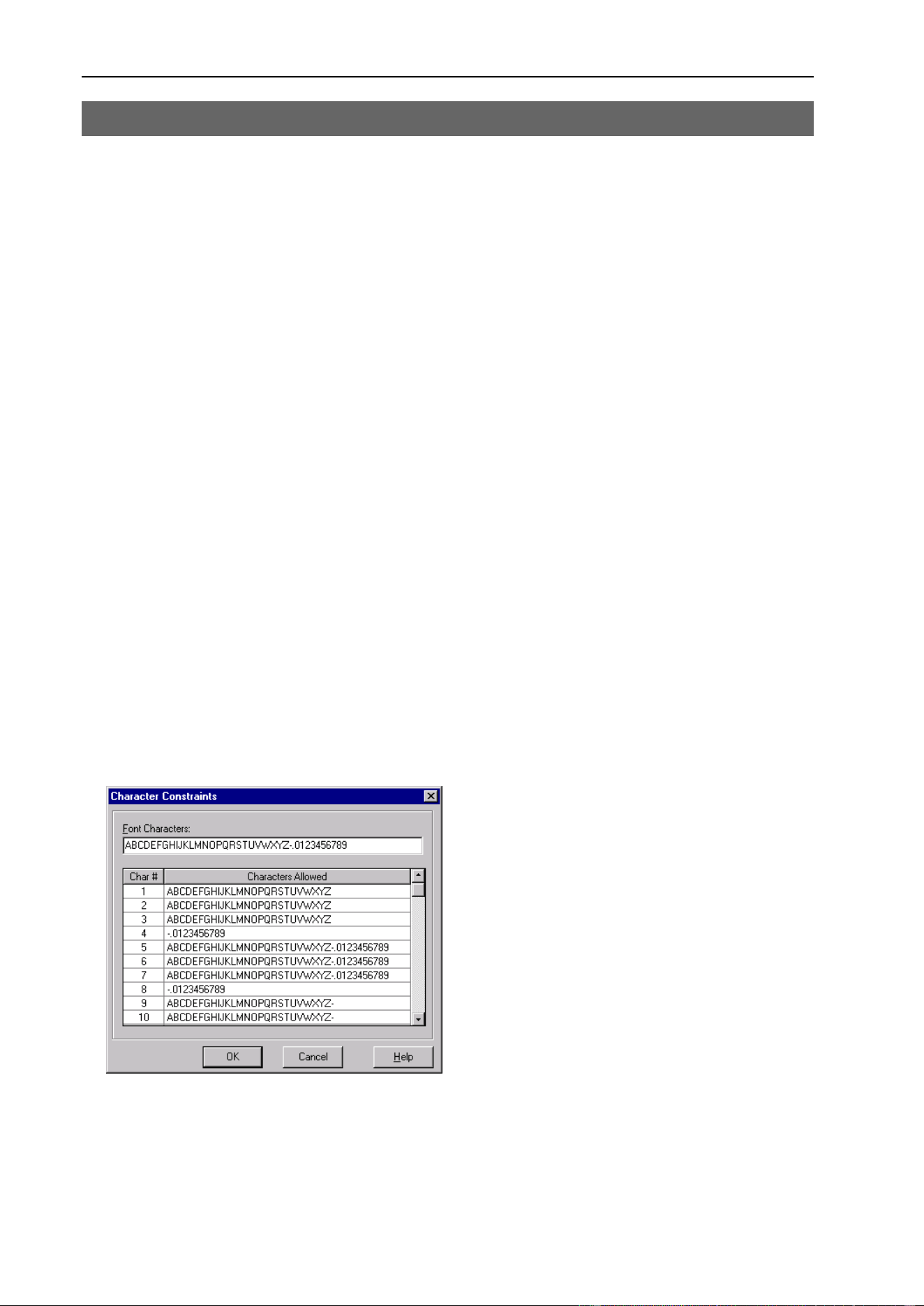
Constraints Property
52 Vision Guide 6.0 Properties and Results Reference Rev.6
Constraints Property
Applies To
Vision Objects: OCR
Description
Limits the candidates for each character position in an OCR string.
Usage
VGet Sequence.Object.Constraints, var
VSet Sequence.Object.Constraints, value
Sequence Name of a sequence or string variable containing a sequence name.
Object Name of an object or string variable containing an object name. The object must exist in the
specified sequence.
var String variable that will contain the value of the property.
value String expression for the new value of the property.
Values
A String containing one or more characters that can be valid for the specified character position. Each
character must be in the current font.
Remarks
Use the Constraints property to set limits on which letter or digit each character can be in an OCR string.
The Constraints property is available from both the Vision Guide window Object Tab and from the SPEL
+
Language.
From the Vision Guide GUI, a dialog is presented as shown below: All of the characters in the current font
are displayed in the Font Characters text box. You can copy and paste characters from the text box to the
grid. You can only enter the characters that are in the current font.

Constraints Property
Vision Guide 6.0 Properties and Results Reference Rev.6 53
From the SPEL
+
language, you must use the CurrentChar property to set which character you want to
configure constraints for.
For example, this code sets the constraints for character position 2:
VSet seq1.ocr01.CurrentChar, 2
VSet seq1.ocr01.Constraints, "ABC123"
See Also
CreateFont Property, CurrentChar Property, Robustness Property, Object Tab, OCR Object

Contrast Result
54 Vision Guide 6.0 Properties and Results Reference Rev.6
Contrast Result
Applies To
Vision Objects: Edge
Description
Returns the contrast of the found Edge.
Usage
VGet Sequence.Object.Contrast, var
Sequence Name of a sequence or string variable containing a sequence name.
Object Name of an object or string variable containing an object name. The object must exist in the
specified sequence.
var Real variable that will contain the value of the result.
Values
Real number from 0 - 255
Remarks
Contrast is the difference in grayscale values between an edge and its background. Contrast can help find
weaker edges. First, find the edge you want to search for and record the contrast value. Next, set the
ContrastTarget property to this value. Then set the ScoreWeightContrast to a higher value that
ScoreWeightStrength. This tells the Edge object to look for an edge with the desired contrast and base the
score on it.
See Also
ContrastTarget Property, ContrastVariation Property, Edge Object

ContrastTarget Property
Vision Guide 6.0 Properties and Results Reference Rev.6 55
ContrastTarget Property
Applies To
Vision Objects: Edge
Description
Sets the desired contrast for the edge search.
Usage
VGet Sequence.Object.ContrastTarget, var
VSet Sequence.Object.ContrastTarget, value
Sequence Name of a sequence or string variable containing a sequence name.
Object Name of an object or string variable containing an object name. The object must exist in the
specified sequence.
var Integer variable that will contain the value of the property.
value Integer expression for the new value of the property.
Values
0 - 255
Default: 0 (any contrast)
Remarks
ContrastTarget is the desired difference in grayscale values between an edge and its background. Use
ContrastTarget to find weaker edges or edges at an angle. First, find the edge you want to search for and
record the Contrast result value. You may have to temoparily change the Edge object position to find it.
Next, set the ContrastTarget property to this value. Then set the ScoreWeightContrast to a higher value
then ScoreWeightStrength. This tells the Edge object to look for an edge with the desired contrast and base
the score on it.
See Also
Contrast Result, ContrastVariation Property, Edge Object

ContrastVariation Property
56 Vision Guide 6.0 Properties and Results Reference Rev.6
ContrastVariation Property
Applies To
Vision Objects: Edge
Description
ContrastVariation is the tolerance for the ContrastTarget property.
Usage
VGet Sequence.Object.ContrastVariation, var
VSet Sequence.Object.ContrastVariation, value
Sequence Name of a sequence or string variable containing a sequence name.
Object Name of an object or string variable containing an object name. The object must exist in the
specified sequence.
var Integer variable that will contain the value of the property.
value Integer expression for the new value of the property.
Values
Integer number from 0 - 255
Default: 0 (any variation)
Remarks
Use ContrastVariation to tighten the search for the edge with contrast of ContrastTarget.
See Also
Contrast Result, ContrastTarget Property, Edge Object

CreateFont Property
Vision Guide 6.0 Properties and Results Reference Rev.6 57
CreateFont Property
Applies To
Vision Objects: OCR
Description
Runs the Font wizard for the OCR object from the Vision Guide window.
Remarks
CreateFont is used to create a font for the OCR object. There are two types of fonts you can create:
SEMI Font Based on SEMI standard fonts.
User Defined Font Based on characters from an image and / or individually trained characters.
See Also
Constraints Property, OCR Object

CurrentChar Property
58 Vision Guide 6.0 Properties and Results Reference Rev.6
CurrentChar Property
Runtime Only
Applies To
Vision Objects: OCR
Description
Sets / returns the current character index for the Constraints property.
Usage
VGet Sequence.Object.CurrentChar, var
VSet Sequence.Object.CurrentChar, value
Sequence Name of a sequence or string variable containing a sequence name.
Object Name of an object or string variable containing an object name. The object must exist in the
specified sequence.
var Integer variable that will contain the value of the property.
value Integer expression for the new value of the property.
Values
Integer number from 1 to the number of characters that can be read.
Remarks
Use the CurrentChar property to set the current character index for the Constraints property.
For example, this code sets the constraints for character position 2:
VSet seq1.ocr01.CurrentChar, 2
VSet seq1.ocr01.Constraints, "ABC123"
See Also
Constraints Property, OCR Object

CurrentModel Property
Vision Guide 6.0 Properties and Results Reference Rev.6 59
CurrentModel Property
Runtime Only
Applies To
Vision Objects: ColorMatch, ImageOp
Description
Sets / returns the current model index for teaching and naming models.
Usage
VGet Sequence.Object.CurrentModel, var
VSet Sequence.Object.CurrentModel, value
Sequence Name of a sequence or string variable containing a sequence name.
Object Name of an object or string variable containing an object name. The object must exist in the
specified sequence.
var Integer variable that will contain the value of the property.
value Integer expression for the new value of the property.
Values
Integer number from 1 to the NumberOfModels result value.
Remarks
Use the CurrentModel property to set the current model index for teaching and naming color models.
For example, this code sets the color of model 2:
VSet seq1.ColorMatch01.CurrentModel, 2
VSet seq1.ColorMatch01.ColorValue, &Hff0000
VSet seq1.ColorMatch01.ModelName, "Red"
See Also
NumberOfModels Property, ColorMatch Object, ImageOp Object

CurrentResult Property
60 Vision Guide 6.0 Properties and Results Reference Rev.6
CurrentResult Property
Applies To
Vision Objects: Blob, Correlation, Edge, Geometric
Description
Defines which result to display in the Results list on the Object tab or which result to return data for when
an object searches for multiple results.
Usage
VGet Sequence.Object.CurrentResult, var
VSet Sequence.Object.CurrentResult, value
Sequence Name of a sequence or string variable containing a sequence name.
Object Name of an object or string variable containing an object name. The object must exist in the
specified sequence.
var Integer variable that will contain the value of the property.
value Integer expression for the new value of the property.
Values
Integer number from 1 - NumberToFind property value.
Default: 1
Remarks
Blob, Correlation, Edge, and Geometric objects support finding multiple results. The CurrentResult
property defines which result to work with.
When you are only trying to find 1 result (as defined by the NumberToFind property), the CurrentResult
property is automatically set to 1 since there is only 1 possible result to return.
When working with the Vision Guide window, you will also notice that the Results list on the Object tab
will display a heading like "Result (1 of 15)". This means that the system tried to find 15 features (as
defined by the NumberToFind property) and the Results list will display the results for item 1.
If you want to see the results for one of the other results, just change the CurrentResult property value to
indicate which result you want to examine.
Results are ordered according to the Sort property setting.
See Also
Blob Object, Correlation Object, Edge Object, Found Result, Geometric Object, NumberFound Result,
NumberToFind Property, Object Tab, Sort Property

CurrentResult Property
Vision Guide 6.0 Properties and Results Reference Rev.6 61
Example
The following SPEL
+
language example runs a vision sequence called "mtest" which contains a Blob object
called "Blob01". "Blob01" has been defined to find multiple blobs (3) from within a single Search Window.
(i.e. mtest.Blob01.NumberToFind = 3)
The following program will run the sequence and make sure that the proper number of features (3) was
found for "Blob01" and then print the Area for each result.
Function main
#define NUM_TO_FIND 3
Integer foundCount, area
VRun mtest
VGet mtest.Blob01.NumberFound, foundCount
If foundCount = NUM_TO_FIND Then
Print "The correct number of blobs were found"
Else
Print "Only (", found, ") blobs were found"
EndIf
VSet mtest.Blob01.CurrentResult, 1
VGet mtest.BLOB01.Area, area
Print "1st blob area =", area, "pixels"
VSet mtest.Blob01.CurrentResult, 2
VGet mtest.Blob01.Area, area
Print "2nd blob area =", area, "pixels"
VSet mtest.Blob01.CurrentResult, 3
VGet mtest.Blob01.Area, area
Print "3rd blob area =", area, "pixels"
Fend

DetailLevel Property
62 Vision Guide 6.0 Properties and Results Reference Rev.6
DetailLevel Property
Applies To
Geometric
Description
Selects the level at which an edge is considered found during the geometric search.
Usage
VGet Sequence.Object.DetailLevel, var
VSet Sequence.Object.DetailLevel, value
Sequence Name of a sequence or string variable containing a sequence name.
Object Name of an object or string variable containing an object name. The object must exist in the
specified sequence.
var Integer variable that will contain the value of the property.
value Integer expression that contains the new value of the property.
Values
1 - Medium
2 - High
3 - Very High
Default: 1 - Medium
Remarks
The DetailLevel property determines what is considered an edge during the search. Edges are defined by
the transition in grayscale value between adjacent pixels. The default level (Medium) offers a robust
detection of active edges from images with contrast variation, noise, and non-uniform illumination.
Nevertheless, in cases where objects of interest have a very low contrast compared to high contrast areas in
the image, some low contrast edges can be missed.
If your images contain low-contrast objects, a detail level setting of High should be used to ensure the
detection of all important edges in the image. The Very High setting performs an exhaustive edge
extraction, including very low contrast edges. However, it should be noted that this mode is very sensitive
to noise.
The Smoothness property also affects how edges are extracted.
See Also
Geometric Object, Smoothness Property

EdgeThreshold Property
Vision Guide 6.0 Properties and Results Reference Rev.6 63
EdgeThreshold Property
Applies To
Vision Objects: Edge
Description
Sets the threshold percentage for which edges with grayscale variation below this value are ignored.
Usage
VGet Sequence.Object.EdgeThreshold, var
VSet Sequence.Object.EdgeThreshold, value
Sequence Name of a sequence or string variable containing a sequence name.
Object Name of an object or string variable containing an object name. The object must exist in the
specified sequence.
var Integer variable that will contain the value of the property.
value Integer expression for the new value of the property.
Values
Integer number from 1 - 100%
Default: 2
Remarks
Use EdgeThreshold to reject edges along the search path with smaller grayscale variations. During an edge
search, the image in the search area is projected into one line of pixels. Each pixel in the projection is a
summation of all the pixels in the same column of the search area. An edge value is determined for each
pixel in the projection. The EdgeThreshold rejects edges values below the setting.
See Also
Edge Object, Strength Result, StrengthTarget Property, StrengthVariation Property

EdgeType Property
64 Vision Guide 6.0 Properties and Results Reference Rev.6
EdgeType Property
Applies To
Vision Objects: Edge
Description
Sets / gets the type of edge to search for.
Usage
VGet Sequence.Object.EdgeType, var
VSet Sequence.Object.EdgeType, value
Sequence Name of a sequence or string variable containing a sequence name.
Object Name of an object or string variable containing an object name. The object must exist in the
specified sequence.
var Integer variable that will contain the value of the property.
value Integer expression for the new value of the property.
Values
1 - Single
2 - Pair
Default: 1 – Single
Remarks
Use EdgeType to choose whether to search for a single edge or an edge pair. An edge pair is two
opposing edges. The coordinate of the pair is the midpoint of the line between the two edge coordinates.
See Also
Edge Object

EndPntObjResult Property
Vision Guide 6.0 Properties and Results Reference Rev.6 65
EndPntObjResult Property
Applies To
Vision Objects: Edge, Line
Description
Specifies which result to use from the EndPointObject.
Usage
VGet Sequence.Object.EndPntObjResult, var
VSet Sequence.Object.EndPntObjResult, value
Sequence Name of a sequence or string variable containing a sequence name.
Object Name of an object or string variable containing an object name. The object must exist in the
specified sequence.
var Integer variable that will contain the value of the property.
value Integer expression for the new value of the property.
Values
The value can range from 1 to the NumberToFind value for the EndPointObject. If the EndPointObject is
'Screen', then the value is always 1.
Remarks
EndPntObjResult enables you to attach several objects to the results of one EndPointObject. For example,
you could create a blob object with NumberToFind set to 4. Then you could attach a line object to each one
of the results by specifying the blob for the EndPointObject of each line and a different EndPntObjResult
for each line.
See Also
Edge Object, EndPointObject Property, Line Object, Object Tab, StartPntObjResult Property

EndPointObject Property
66 Vision Guide 6.0 Properties and Results Reference Rev.6
EndPointObject Property
Applies To
Vision Objects: Edge, Line
Description
Specifies the vision object to use for the end point of a Line object.
Usage
VGet Sequence.Object.EndPointObject, var
VSet Sequence.Object.EndPointObject, value
Sequence Name of a sequence or string variable containing a sequence name.
Object Name of an object or string variable containing an object name. The object must exist in the
specified sequence.
var String variable that will contain the value of the property.
value String expression for the new value of the property. Valid vision objects for the
EndPointObject property are: Blob, Correlation, Edge, Geometric, Line, and Point objects.
The Screen may also be used as the EndPointObject.
Values
Screen or any object that runs prior to the Line object.
Default: Screen
Remarks
When a Line object is first created, the EndPointObject property is set to Screen. However, Line objects
are normally attached to other vision objects. This is the purpose of the StartPointObject and
EndPointObject properties. Through these two properties the user can define a line between any two vision
objects (except Frames).
Frame objects cannot be used to define an end point for a Line object. However, this does not cause a
limitation because Frames are defined by other vision objects. In those cases where you want to define a
line end point with a Frame object, use a Point object in the frame to define the end point of the Line object.
It is important to note that for each specific vision sequence, only those vision objects which are executed
prior to the Line object in the vision sequence steps will be available to use as an EndPointObject.
See Also
Edge Object, EndPointType Property, Line Object, Object Tab, StartPointObject Property
EndPointType Property
Vision Guide 6.0 Properties and Results Reference Rev.6 67
EndPointType Property
Applies To
Vision Objects: Edge, Line
Description
Specifies the type of end point to use for the line object. In most cases the end point type will be a point
(which usually means the PixelX and PixelY position of the EndPointObject). However, when the
EndPointObject for the current line is a 2nd Line object, the EndPointType property is used to define an
intersection point on the 2nd line such as the lines midpoint, endpoint, startpoint or perpendicular position.
Usage
VGet Sequence.Object.EndPointType, var
VSet Sequence.Object.EndPointType, value
Sequence Name of a sequence or string variable containing a sequence name.
Object Name of an object or string variable containing an object name. The object must exist in the
specified sequence.
var Integer variable that will contain the value of the property.
value Integer expression for the new value of the property.
Values
EndPointObject = Line
EndPointObject = Screen, Blob, Correlation, Geometric, Edge,
or Point object
See remarks.
Default: 2 – MidPoint
0 – Point
When used with objects other than the Line object, the EndPointType
can only be of type Point.
Default: 0 – Point
Remarks
As you can see in the Values Table above, most of the EndPointObject's support only 1 EndPointType
called Point. This is because most EndPointObject's use the PixelX and PixelY position for a reference
position for defining a Start or End Point for a line. So when the EndPointObject is defined as Screen, Blob,
Correlation, Edge, or Point, the EndPointType will always be set to 0 – Point.
The range of valid values for EndPointType depend upon the EndPointObject.
However, when the EndPointObject is another Line object, the user must decide where on the 2nd line to
intersect with the 1st line. The choices are as follows:
1 - EndPoint Use the end point of the other line as the endpoint for this line.
2 - MidPoint Cut the other line in half and use the center (or midpoint of the other line as the
endpoint for this line.
3 - Perpendicular Calculate the position on the 2nd line where the 2 lines intersect in a perpendicular
fashion and use this position as the end point.
4 - StartPoint Use the starting point of the other line as the end point for this line.
5 - PerpToStartPnt Calculate the position on the 2nd line where the 2 lines intersect in a perpendicular
fashion through the start point of the first line and use this position as the end point.
6 - PerpToMidPnt Calculate the position on the 2nd line where the 2 lines intersect in a perpendicular
fashion through the mid point of the first line and use this position as the end point.

EndPointType Property
68 Vision Guide 6.0 Properties and Results Reference Rev.6
7 - PerpToEndPnt Calculate the position on the 2nd line where the 2 lines intersect in a perpendicular
fashion through the end point of the first line and use this position as the end point.
If the EndPointObject is modified to a Line object then the EndPointType is automatically changed to
MidPoint.
If the EndPointObject is modified to Screen or Blob, Correlation, Edge, or Point object then the
EndPointType is automatically changed to 0 - Point.
See Also
Edge Object, EndPointObject Property, Line Object, Object Tab, StartPointType Property

ErrorCorrection Property
Vision Guide 6.0 Properties and Results Reference Rev.6 69
ErrorCorrection Property
Applies To
Vision Objects: CodeReader
Description
Sets / returns the error correction used for a CodeReader object.
Usage
VGet Sequence.Object.ErrorCorrection, var
VSet Sequence.Object.ErrorCorrection, value
Sequence Name of a sequence or string variable containing a sequence name.
Object Name of an object or string variable containing an object name. The object must exist in the
specified sequence.
var Integer variable that will contain the value of the property.
value Integer expression for the new value of the property.
Values Applies to CodeType
0 – None BC412, Codabar, Code39, DataMatrix, Interleaved 2 of 5, Phamacode
1 – Auto Codabar, Code128, DataMatrix, EAN13, PDF417, QR
2 – Check Digit Code128, Code39, Code93, EAN8, EAN13, Interleaved 2 of 5, Planet, Postnet, RSS
Code, UPCA, UPCE
3 – ECC 050 DataMatrix
4 – ECC 080 DataMatrix
5 – ECC 100 DataMatrix
6 – ECC 140 DataMatrix
7 – ECC 200 DataMatrix
8 – Reed Sol.1 PDF417
9 – Reed Sol.2 PDF417
10 – Reed Sol.3 PDF417
11 – Reed Sol.4 PDF417
12 – Reed Sol.5 PDF417
13 – Reed Sol.6 PDF417
14 – Reed Sol.7 PDF417
15 – Reed Sol.8 PDF417
16 – Reed Sol. Maxicode, MicroPDF417
17 – ECC H QR
18 – ECC L QR
19 – ECC M QR
20 – ECC Q QR
Default: 1 - Auto
Remarks
Normally the ErrorCorrection property is set to Auto and automatically determines the which error
correction scheme to use. You can set the ErrorCorrection property to a known value to make the search
more robust. Note that not all correction schemes apply to all code types, as shown in the values above.
See Also
CodeReader Object, Found Result, Object Tab

ExportFont Property
70 Vision Guide 6.0 Properties and Results Reference Rev.6
ExportFont Property
Applies To
Vision Objects: OCR
Description
Runs a file dialog from the Vision Guide GUI that allows you to export a font file.
Remarks
Use the ExportFont property to export a font file.
See Also
CreateFont Property, ImportFont Property, Object Tab, OCR Object

ExposureDelay Property
Vision Guide 6.0 Properties and Results Reference Rev.6 71
ExposureDelay Property
Applies To
Vision Sequence
Description
Sets the delay time between receiving the hardware trigger and starting the exposure.
Usage
VGet Sequence.ExposureDelay, var
VSet Sequence.ExposureDelay, value
Sequence Name of a sequence or string variable containing a sequence name.
var Long variable that will contain the value of the property.
value Long expression for the new value of the property.
Values
Long value in microseconds.
Default: 0 (microsecond)
Remarks
Use ExposureDelay to set the time delay between the hardware trigger and the exposure start.
This property is only available for Compact Vision cameras.
See Also
RuntimeAcquire Property, ExposureTime Property, StrobeDelay Property, StrobeTime Property
ExposureTime Property
72 Vision Guide 6.0 Properties and Results Reference Rev.6
ExposureTime Property
Applies To
Vision Sequences
Description
Sets the electronic shutter time for a camera that is running in asynchronous reset mode.
Usage
VGet Sequence.ExposureTime, var
VSet Sequence.ExposureTime, value
Sequence Name of a sequence or string variable containing a sequence name.
var Long variable that will contain the value of the property.
value Long expression for the new value of the property.
Values
Long value in microseconds.
Default: 0 (microsecond)
Remarks
For Compact Vision cameras: When RuntimeAcquire is 1–Stationary and ExposureTime = 0, the default
exposure time is used, as shown below.
Camera Model
Default Exposure Time
NET 1044 BU
14000 microseconds
NET 4133 BU
35400 microseconds
For Smart Cameras: When RuntimeAcquire is 1–Stationary and ExposureTime = 0, the camera acquires
images in Next Frame mode. When the sequence runs, the camera waits for the next valid frame, then
acquires the image. CameraGain and CameraOffset settings are used. Typical image acquire time is from
33 to 66 ms for SC300 series.
When RuntimeAcquire is 1–Stationary and ExposureTime is > 0, the camera acquires images in async reset
mode. When the sequence runs, the camera sensor is exposed for the ExposureTime, then the image is
acquired. CameraGain and CameraOffset settings are not used. Typical image acquire time is 33 ms +
Exposure time.
For Smart Cameras: When RuntimeAcquire is 2–Strobed, ExposureTime must be > 0, and the camera
acquires images in async reset mode. After the hardware trigger input is received, the camera sensor is
exposed for the ExposureTime, then the image is acquired. CameraGain and CameraOffset settings are not
used. Typical image acquire time is 33 ms + Exposure time.
Make sure that ExposureTime = 0 when adjusting the value of the CameraGain property.
See Also
RuntimeAcquire Property, CameraGain Property, CameraOffset Property, Sequence Tab

Extrema Result
Vision Guide 6.0 Properties and Results Reference Rev.6 73
Extrema Result
Runtime only
Applies To
Vision Objects: Blob
Description
Returns the blob extrema coordinates.
Usage
VGet Sequence.Object.Extrema [(result)], varMinX, varMaxX, varMinY, varMaxY
Sequence Name of a sequence or string variable containing a sequence name.
Object Name of an object or string variable containing an object name. The object must exist in the
specified sequence.
varMinX Real variable containing minimum X position of the blob's Extrema.
varMaxX Real variable containing maximum X position of the blob's Extrema.
varMinY Real variable containing minimum Y position of the blob's Extrema.
varMaxY Real variable containing maximum Y position of the blob's Extrema.
result Optional result number. If omitted, the result number is the CurrentResult. Used for objects
that return multiple results.
Values
The values returned are always in pixels and may be from 1 - video height.
Remarks
The MinX, MaxX, MinY, and MaxY results together define a blob's smallest enclosing rectangle that is
aligned with the coordinate axes and completely encloses the blob. This rectangle is known as the extrema.
The Extrema result enables you to retrieve all four coordinates in one command.
The Extrema value can be fractional. For example, 100.5 would be between the 100 and 101 pixels.
See Also
Area Result, Blob Object, MinX Result, MaxX Result, MaxY Result, MinY Result, Object Tab

Found Result
74 Vision Guide 6.0 Properties and Results Reference Rev.6
Found Result
Applies To
Vision Objects: Blob, CodeReader, Correlation, Edge, Frame, Geometric, Line, Point, OCR, Polar
Description
Returns whether or not the object was found.
Usage
VGet Sequence.Object.Found [(result)], var
Sequence Name of a sequence or string variable containing a sequence name.
Object Name of an object or string variable containing an object name. The object must exist in the
specified sequence.
var Boolean variable that will contain the value of the result.
result Optional result number. If omitted, the result number is the CurrentResult. Used for objects
that return multiple results.
Values
0–False The part was not found
1–True The part was found
Remarks
The Found result simply returns whether or not the part or the current object is looking for was found. For
example, and Edge Object returns whether or not an Edge was found and a Correlation object returns
whether or not an image was found which matches the taught model.
The Found result is also included with the RobotXYU, and CameraXYU results to reduce the number of
function calls required to move the robot to pick up parts when they are found.
See Also
Blob Object, CameraXYU Result, CodeReader Object, Correlation Object, CurrentResult Property, Edge
Object, FoundOnEdge Result, Frame Object, Geometric Object, Line Object, NumberFound Result,
NumberToFind Property, Object Tab, OCR Object, Point Object, Polar Object, RobotXYU Result, Score
Result

FoundColor Property
Vision Guide 6.0 Properties and Results Reference Rev.6 75
FoundColor Property
Applies To
Vision Objects: All
Description
Selects the color for an object when it is found.
Usage
VGet Sequence.Object.FoundColor, var
VSet Sequence.Object.FoundColor, value
Sequence Name of a sequence or string variable containing a sequence name.
Object Name of an object or string variable containing an object name. The object must exist in the
specified sequence.
var Integer variable that will contain the value of the property.
value Integer expression for the new value of the property.
Values
1 - Light Green If this object is found, show it in Light Green
2 - Dark Green If this object is found, show it in Dark Green
Default: 1 – Light Green
Remarks
You can set the FoundColor property to show an object that is found in Light Green, or Dark Green. In a
bright image, the Dark Green could be easier to see, whereas in a darker image, the Light Green would be
easier to see.
See Also
Graphics Property, Found Result

FoundOnEdge Result
76 Vision Guide 6.0 Properties and Results Reference Rev.6
FoundOnEdge Result
Applies To
Vision Objects: Blob, Correlation, Geometric
Description
Returns 1–True when a Blob, Correlation, or Geometric object is found too close to the edge of the search
window.
Usage
VGet Sequence.Object.FoundOnEdge [(result)], var
Sequence Name of a sequence or string variable containing a sequence name.
Object Name of an object or string variable containing an object name. The object must exist in the
specified sequence.
var Boolean variable that will contain the value of the result.
result Optional result number. If omitted, the result number is the CurrentResult.Used for objects
that return multiple results.
Values
0–False The part was not found at the edge of the search window
1–True The part was found at the edge of the search window
Remarks
The FoundOnEdge result is a special status which works only with the Blob, Correlation, and Geometric
objects. It tells the user why a specific Blob, Correlation, or Geometric object is not Found.
Sometimes the Vision System tries to report that a Blob, Correlation, or Geometric object was found even
though part of the object may be located outside of the Field of View. Rather than report these objects as
Found, Vision Guide returns 0–False for the Found result when a Blob, Correlation, or Geometric object is
found but part of the object is outside of the Search Window.
If you want to reject a part when FoundOnEdge is 1–True, set the RejectOnEdge property to 1–True.
There will be cases where you will use a Correlation object and the Found result continues to return 0–False
even though the Score result for the object is well below the Accept property. In these situations, check the
FoundOnEdge result and RejectOnEdge property. This will tell you that the part was in fact found by the
Vision System but that Vision Guide will not return the results because the part or object is outside of the
Field of View when the picture was taken.
See Also
Blob Object, Correlation Object, Found Result, Geometric Object, Object Tab, RejectOnEdge Property,
Score Result

Frame Property
Vision Guide 6.0 Properties and Results Reference Rev.6 77
Frame Property
Applies To
Vision Objects: Blob, CodeReader, ColorMatch, Correlation, Edge, Geometric, ImageOp, Line, Point, OCR,
Polar
Description
Defines the current object searching position with respect to the specified frame.
Usage
VGet Sequence.Object.Frame, var
VSet Sequence.Object.Frame, value
Sequence Name of a sequence or string variable containing a sequence name.
Object Name of an object or string variable containing an object name. The object must exist in the
specified sequence.
var String variable that will contain the value of the property.
value String expression for the new value of the property.
Values
Any Frame object which is located prior to the current vision object in the Object Execution Step List can
be specified as the Frame property value.
Default: None
Remarks
The Frame property is very useful for aligning objects to specific positions which respect to other objects
found positions. For more details see the Frame object explanation in Vision Objects.
Vision objects can use any Frame objects which have been defined as long as the associated Frame object is
located before the vision object in the Object Execution Step List.
The Object Execution Step List is the list shown on the Sequence Tab which shows the execution order for
all objects in the current sequence.
See Also
Blob Object, CodeReader Object, ColorMatch Object, Correlation Object, Edge Object, Frame Object,
Geometric Object, ImageOp Object, Line Object, Object Tab, OCR Object, Point Object, Polar Object

Graphics Property
78 Vision Guide 6.0 Properties and Results Reference Rev.6
Graphics Property
Applies To
Vision Objects: All
Description
Specifies which graphics to display at runtime and design time. (i.e. Whether to show graphics for each
object, just position information, or nothing at all.) This property can help remove screen clutter from
complex vision sequences.
Usage
VGet Sequence.Object.Graphics, var
VSet Sequence.Object.Graphics, value
Sequence Name of a sequence or string variable containing a sequence name.
Object Name of an object or string variable containing an object name. The object must exist in the
specified sequence.
var Integer variable that will contain the value of the property.
value Integer expression for the new value of the property.
Values
1 - All Display object labels, line references, and found position
2 - Position Only Display found position only
3 - None Don't display any graphics at run time
Default: 1 – All
Remarks
While graphics such as vision object Labels (which show vision object names), lines, Search Windows, and
found position crosshairs are very useful they can get in the way if too many are displayed at the same time.
The Graphics property helps eliminate unnecessary clutter on the Vision Guide Development, Run or
Operator Windows by removing those graphics from objects which the designer specifies.
The Graphics property is used to define the graphics display characteristics for each vision object. These
will normally be set to values which, when combined with the Graphics Properties of other vision objects,
will help reduce screen display clutter. The Graphics property is normally used to set the graphics
characteristics exactly as you would like your final vision solution to display graphics on the Run or
Operator Window.
The Graphics property settings for all vision objects can be overridden with the Force All Graphics On and
Force Labels Off Vision Guide toolbar buttons.
It is important to note that the Graphics property settings apply to both runtime and design modes. (i.e. the
Run Window, Operator Window, and Vision Guide Window) This is done to ensure that the graphics
display is always the same regardless of if you run a sequence from the Vision Guide Window or from a
program.
See Also
Blob Object, CodeReader Object, Correlation Object, Edge Object, Frame Object, Geometric Object,
ImageOp Object, Line Object, Object Tab, OCR Object, Point Object, Polar Object

Holes Result
Vision Guide 6.0 Properties and Results Reference Rev.6 79
Holes Result
Applies To
Vision Objects: Blob
Description
Returns the number of holes found within a Blob object.
Usage
VGet Sequence.Object.Holes [(result)], var
Sequence Name of a sequence or string variable containing a sequence name.
Object Name of an object or string variable containing an object name. The object must exist in the
specified sequence.
var Integer variable that will contain the value of the result.
result Optional integer result number from 1 to the NumberToFind property. If omitted, the result
number is the CurrentResult
Values
Valid values are zero to the number of holes found.
Remarks
A hole is a blob with opposite polarity located within the blob that was found. Holes that intersect the edge
of the blob are not counted.
See Also
Blob Object, Compactness Result, Object Tab, Perimeter Result, Roughness Result

ImageBuffer Property
80 Vision Guide 6.0 Properties and Results Reference Rev.6
ImageBuffer Property
Applies To
Vision Sequence
Description
Specifies which image buffer to use for a sequence.
Usage
VGet Sequence.ImageBuffer, var
VSet Sequence.ImageBuffer, value
Sequence Name of a sequence or string variable containing a sequence name.
var Integer variable that will contain the value of the property.
value Integer expression for the new value of the property.
Values
Integer value from 0-10.
Default: 0
Remarks
When a sequence takes a picture or searches for objects, it uses the camera image buffer specified with the
ImageBuffer property. Each frame grabber camera has its own private image buffer (0), which is the
ImageBuffer default value. In addition, there are 10 global image buffers that are shared between all
cameras and sequences in the project. Using shared image buffers, you can grab an image with one
sequence and search the same image with other sequences. When you are only searching for objects in an
image that has already been acquired by another sequence, you must set the sequence RuntimeAcquire
property to None.
Note that the ImageBuffer property cannot be used with Smart Cameras.
Example
In the following example, the robot is moved to five camera positions and a picture is taken at each position
into an image buffer. Next, another sequence is used to search the previously acquired images.
ImageBuffer Property
Vision Guide 6.0 Properties and Results Reference Rev.6 81
Function FindParts
Integer i
' Move the camera to 5 positions and grab an image into 5 buffers
For i = 1 to 5
Go P(100 + i)
VSet TakePicture.ImageBuffer, i
VRun TakePicture
Next i
' Signal to other tasks that we are done with the robot
MemOn ScanFinished
' Search for a part in each image
' The SearchPart sequence RuntimeAcquire property is set to None
For i = 1 to 5
VSet SearchPart.ImageBuffer, i
VRun SearchPart
VGet SearchPart.Blob01.Found, g_PartFound(i)
Next i
Fend

ImageColor Property
82 Vision Guide 6.0 Properties and Results Reference Rev.6
ImageColor Property
Applies To
Vision Sequence
Description
Specifies which how the color image is acquired.
Usage
VGet Sequence.ImageColor, var
VSet Sequence.ImageColor, value
Sequence Name of a sequence or string variable containing a sequence name.
var Integer variable that will contain the value of the property.
value Integer expression for the new value of the property.
Values
1 – All Acquire all three color bands: Red, Green, and Blue.
2 – Red Acquire only the red color band.
3 – Green Acquire only the green color band.
4 – Blue Acquire only the blue color band.
5 – Grayscale Acquire a grayscale image.
Default: 1 - All
Remarks
Use the ImageColor property to configure which color band(s) to acquire. This property is only available
for color cameras.

ImageFile Property
Vision Guide 6.0 Properties and Results Reference Rev.6 83
ImageFile Property
Applies To
Vision Sequence
Description
Sets or returns the image file for the current sequence.
Usage
VGet Sequence.ImageFile, var
VSet Sequence.ImageFile, value
Sequence Name of a sequence or string variable containing a sequence name.
var String variable that will contain the value of the property.
value String expression that contains the new value of the property.
Value
String that containing a image
Default: None
Remarks
Use the ImageFile property to view and search images stored on disk with the SaveImage property.
To set the value to None from the Vision Guide window, select the ImageFile property, then press the Del
key.
Supported formats for bitmap files:
(All of the following conditions must be satisfied.)
Uncompressed Windows Bitmap
Bit depth: either of 8, 16 (RGB555), 24, or 32 (RGB888)
Following formats are not supported.
OS/2
Compressed files
Bit depth: 1, 4
See Also
Sequence Tab, Vision Sequences, SaveImage Property, ImageSource Property

ImageSource Property
84 Vision Guide 6.0 Properties and Results Reference Rev.6
ImageSource Property
Applies To
Vision Sequence
Description
Sets or returns the current image source for the sequence.
Usage
VGet Sequence.ImageSource, var
VSet Sequence.ImageSource, value
Sequence Name of a sequence or string variable containing a sequence name.
var Integer variable that will contain the value of the property.
value Integer expression that contains the new value of the property.
Value
1 – Camera
2 – File
Default: None
Remarks
ImageSource allows you to run a sequence from a camera image or from an image file set with the
ImageFile property.
If the ImageFile property is set to a valid image file, then the ImageSource property will automatically be
set to 2 - File.
See Also
Sequence Tab, Vision Sequences, ImageFile Property

ImportFont Property
Vision Guide 6.0 Properties and Results Reference Rev.6 85
ImportFont Property
Designtime only
Applies To
Vision Objects: OCR
Description
Runs a file dialog from the Vision Guide GUI that allows you to import a font file.
Remarks
Use the ImportFont property to import a font file that has been previously exported with the ExportFont
property. You can import font files created in any project.
See Also
CreateFont Property, ExportFont Property, OCR Object

InvalidChar Property
86 Vision Guide 6.0 Properties and Results Reference Rev.6
InvalidChar Property
Applies To
Vision Objects: OCR
Description
Sets / returns the character used in the Text result to represent an invalid character.
Usage
VGet Sequence.Object.InvalidChar, var
VSet Sequence.Object.InvalidChar, value
Sequence Name of a sequence or string variable containing a sequence name.
Object Name of an object or string variable containing an object name. The object must exist in the
specified sequence.
var String variable that will contain the value of the property.
value String expression for the new value of the property.
Values
String with one character.
Default: "?"
Remarks
The InvalidChar property allows you to set which character should be substituted for invalid characters in
the Text result after an OCR search operation.
See Also
CalString Property, Constraints Property, Object Tab, OCR Object, Text Result

Iterations Property
Vision Guide 6.0 Properties and Results Reference Rev.6 87
Iterations Property
Applies To
Vision Objects: ImageOp
Description
Sets/returns how many times to execute the image operation.
Usage
VGet Sequence.Object.Iterations, var
VSet Sequence.Object.Iterations, value
Sequence Name of a sequence or string variable containing a sequence name.
Object Name of an object or string variable containing an object name. The object must exist in the
specified sequence.
var Integer variable that will contain the value of the property.
value Integer expression for the new value of the property.
Values
1 ~ 99
Default: 1
Remarks
The Iterations property affects the following ImageOp operations:
Open, Close, Erode, Dilate, Smooth, Sharpen1, Sharpen2, Thin, Thicken.
See Also
ImageOp Object, Operation Property

Lamp Property
88 Vision Guide 6.0 Properties and Results Reference Rev.6
Lamp Property
Applies To
Vision Calibration
Description
Sets the output bit used for the calibration lamp.
Usage
VGet Calibration.Lamp, var
VSet Calibration.Lamp, value
Calibration Name of a calibration or string variable containing a calibration name.
var Integer variable that will contain the value of the property.
value Integer expression for the new value of the property.
Values
Integer value of a valid standard output bit.
Default: None
Remarks
Use the Lamp property to automatically turn on a lamp for calibration. Use the LampDelay property to
allow time for a lamp to turn on before calibration continues.
See Also
LampDelay Property, UpwardLamp Property

LampDelay Property
Vision Guide 6.0 Properties and Results Reference Rev.6 89
LampDelay Property
Applies To
Vision Calibration
Description
Sets / returns the amount of time to wait for a calibration lamp to turn on.
Usage
VGet Calibration.LampDelay, var
VSet Calibration.LampDelay, value
Calibration Name of a calibration or string variable containing a calibration name.
var Real variable that will contain the value of the property.
value Real expression for the new value of the property.
Values
Real number in seconds
Remarks
Use the LampDelay property to allow time for a lamp to turn on before calibration continues. This is
especially useful for flourescent lamps.
See Also
Lamp Property, MotionDelay Property, UpwardLamp Property

Length Result
90 Vision Guide 6.0 Properties and Results Reference Rev.6
Length Result
Applies To
Vision Objects: Line
Description
Returns a length in millimeters of the distance between the starting and ending point of the line.
Usage
VGet Sequence.Object.Length, var
Sequence Name of a sequence or string variable containing a sequence name.
Object Name of an object or string variable containing an object name. The object must exist in the
specified sequence.
var Integer variable that will contain the value of the result.
Values
The value returned is always in millimeters and may be from 0 on up. This real number represents the
length of the line and depends upon calibration in order to return a value.
Remarks
The Length result can only be returned if calibration has been performed because the length is measured in
millimeters. This calibration can be done with or without the robot.
The Length result can be used for inspection and measurement applications where measurements are
required. (For example, to measure spark plug gaps.)
See Also
Calibration, Line Object, Object Tab, PixelLength Result

LineObject1 Property
Vision Guide 6.0 Properties and Results Reference Rev.6 91
LineObject1 Property
Applies To
Vision Objects: Point
Description
Specifies the 1st Line object to use for defining the position of a Point object. (LineObject1 defines the line
which is used by the PointType property for defining the position of the Point object. )
Usage
VGet Sequence.Object.LineObject1, var
VSet Sequence.Object.LineObject1, value
Sequence Name of a sequence or string variable containing a sequence name.
Object Name of an object or string variable containing an object name. The object must exist in the
specified sequence.
var String variable that will contain the value of the property.
value String expression for the new value of the property.
Values
Any Line object which is located prior to the Point object can be specified as the LineObject1 property
value.
Default: None
Remarks
When a Point object is first created, the default LineObject1 property is set to None. However, if you want
to position a point on the midpoint of a line, then the LineObject1 property defines which Line object to use.
In this case the LineObject1 property must be set first and then the PointType property can be set to 1–
MidPoint. A MidPoint of a line can only be specified for LineObject1. (i.e. you cannot specify the
MidPoint of the LineObject2 property.)
LineObject1 can also be used to define the 1st of 2 lines when you want to define a Point object position as
the intersection point between 2 lines. (LineObject2 defines the other Line to use for the intersection point.)
It is important to note that for each specific vision sequence, only those Line objects which are executed
prior to the Point object in the vision sequence steps will be available to use as LineObject1. (The order of
the vision object execution can be adjusted from the Sequence Tab.)
When using the point and click interface click on the LineObject1 property Value Field and a drop down
list will appear showing a list of available Line objects which can be used for the LineObject1 property.
Click on one of the choices and the value field will be set accordingly.
When using the Point-and-Click Object tab to set the LineObject1 property it is important to note that only
those objects which are defined prior to the Point object are displayed in the drop down list. This helps
reduce the chances of the user defining a Line object which isn't defined prior to the Point object.
Vision Guide automatically checks which vision objects may be used as LineObject1 and only displays
those items in the LineObject1 drop down list.
See Also
Line Object, LineObject2 Property, Object Tab, Point Object, PointType Property

LineObject2 Property
92 Vision Guide 6.0 Properties and Results Reference Rev.6
LineObject2 Property
Applies To
Vision Objects: Point
Description
Specifies the 2nd Line object to use for defining the position of a Point object when that position is defined
by the intersection point of 2 lines. (LineObject1 and LineObject2 together define 2 lines whose intersection
point can be defined as the position of the Point object.)
Usage
VGet Sequence.Object.LineObject2, var
VSet Sequence.Object.LineObject2, value
Sequence Name of a sequence or string variable containing a sequence name.
Object Name of an object or string variable containing an object name. The object must exist in the
specified sequence.
var String variable that will contain the value of the property.
value String expression for the new value of the property.
Values
Any Line object which is located prior to the Point object can be specified as the LineObject2 property
value.
Default: None
Remarks
The LineObject2 property is only required when you want to define the position of a Point object as the
position of intersection between 2 Lines. In this case LineObject1 must also specify a Line object before
the PointType property can be set. Once the lines are defined for LineObject1 and LineObject2, the
PointType property can be set to Intersection. However, if either the LineObject1 or LineObject property is
not yet defined then an error will occur when trying to set the PointType property to Intersection.
It is important to note that for each specific vision sequence, only those Line objects which are executed
prior to the Point object in the vision sequence steps will be available to use as LineObject2. (The order of
the vision object execution can be adjusted from the Sequence Tab.)
When using the point and click interface click on the LineObject2 property Value Field and a drop down
list will appear showing a list of available Line objects which can be used for the LineObject2 property.
Click on one of the choices and the value field will be set accordingly.
When using the Point-and-Click Object tab to set the LineObject2 property it is important to note that only
those objects which are defined prior to the Point object are displayed in the drop down list. This helps
reduce the chances of the user defining a Line object which isn't defined prior to the Point object.
Vision Guide automatically checks which vision objects may be used as LineObject2 and only displays
those items in the LineObject2 drop down list.
See Also
Line Object, LineObject1 Property, Object Tab, Point Object, PointType Property

MaxArea Property
Vision Guide 6.0 Properties and Results Reference Rev.6 93
MaxArea Property
(Maximum Area)
Applies To
Vision Objects: Blob
Description
Defines the upper Area limit for the Blob Object. For a Blob to be found it must have an Area result below
the value set for MaxArea property.
Usage
VGet Sequence.Object.MaxArea, var
VSet Sequence.Object.MaxArea, value
Sequence Name of a sequence or string variable containing a sequence name.
Object Name of an object or string variable containing an object name. The object must exist in the
specified sequence.
var Long variable that will contain the value of the property.
value Long expression for the new value of the property.
Values
1 - (video width x video height)
Default: 100000
Remarks
The purpose of the MinArea and MaxArea Properties is to set a range for the Blob object such that if a blob
area does not fit within the range then it is considered not found. (i.e. the Found result is returned as False.)
When a new Blob object is created the range between the MinArea property and MaxArea property is quite
large because the default values are set at 25 and 100,000 respectively. This means that in most situations
the Blob object will return a Found result as 1–True since the range for Blobs is so wide. In most
applications it is useful to set a tighter range between the MinArea and MaxArea Properties but of course
there values will vary from application to application. The point here is to remember to set the MinArea
and MaxArea Properties and don't just rely on the default settings.
Do no set the range between MinArea and MaxArea too large. If the range is too large, it may result in
false detection.
See Also
Area Result, Blob Object, MinArea Property, MinMaxArea Property, Object Tab

MaxLength Property
94 Vision Guide 6.0 Properties and Results Reference Rev.6
MaxLength Property
Applies To
Vision Objects: Line
Description
Defines the upper length limit for the Line object. For a Line to be found it must have a Length result
below the value set for MaxLength property.
Usage
VGet Sequence.Object.MaxLength, var
VSet Sequence.Object.MaxLength , value
Sequence Name of a sequence or string variable containing a sequence name.
Object Name of an object or string variable containing an object name. The object must exist in the
specified sequence.
var Long variable that will contain the value of the property.
value Long expression for the new value of the property.
Values
0 or higher
Default: 1000
Remarks
The purpose of the MinLength and MaxLength Properties is to set a range for the Line object such that if a
line length does not fit within the range then it is considered not found. (i.e. the Found result is returned as
0–False.)
This is useful when you want to gauge the length of a line in millimeters. To gauge a line in pixels, see the
MinPixelLength and MaxPixelLength properties.
See Also
Line Object, MinLength Property, MinPixelLength Property, MaxPixelLength Property, Object Tab

MaxPixelLength Property
Vision Guide 6.0 Properties and Results Reference Rev.6 95
MaxPixelLength Property
Applies To
Vision Objects: Line
Description
Defines the upper pixel length limit for the Line object. For a Line to be found it must have a PixelLength
result below the value set for MaxPixelLength property.
Usage
VGet Sequence.Object.MaxPixelLength, var
VSet Sequence.Object.MaxPixelLength , value
Sequence Name of a sequence or string variable containing a sequence name.
Object Name of an object or string variable containing an object name. The object must exist in the
specified sequence.
var Real variable that will contain the value of the property.
value Real expression for the new value of the property.
Values
0 or higher in pixels
Default: 1000
Remarks
The purpose of the MinPixelLength and MaxPixelLength Properties is to set a range for the Line object
such that if a line length does not fit within the range then it is considered not found. (i.e. the Found result
is returned as 0–False.)
This is useful when you want to gauge the length of a line in pixels. To gauge a line in Millimeters, see the
MinLength and MaxLength properties. The default settings allow most lines to be found.
See Also
Line Object, MinLength Property, MaxLength Property, MinPixelLength Property, Object Tab

MaxX Result
96 Vision Guide 6.0 Properties and Results Reference Rev.6
MaxX Result
Applies To
Vision Objects: Blob
Description
Returns the maximum X pixel coordinate of the blob extrema.
Usage
VGet Sequence.Object.MaxX [(result)] , var
Sequence Name of a sequence or string variable containing a sequence name.
Object Name of an object or string variable containing an object name. The object must exist in the
specified sequence.
var Real variable that will contain the value of the result.
result Optional result number. If omitted, the result number is the CurrentResult. Used for objects
that return multiple results.
Values
The value returned is always in pixels and may be from 1 - video width.
Remarks
The MinX, MaxX, MinY, and MaxY results together define a blob's smallest enclosing rectangle that is
aligned with the coordinate axes and completely encloses the blob. This rectangle is known as the Extrema.
The MinX, MaxX, MinY, and MaxY results can hold fractional values. For example, 100.5 would be
between the 100 and 101 pixels.
See Also
Area Result, Blob Object, Extrema Result, MaxY Result, MinX Result, MinY Result, Object Tab

MaxY Result
Vision Guide 6.0 Properties and Results Reference Rev.6 97
MaxY Result
Applies To
Vision Objects: Blob
Description
Returns the maximum Y pixel coordinate of the blob extrema.
Usage
VGet Sequence.Object.MaxY [(result)], var
Sequence Name of a sequence or string variable containing a sequence name.
Object Name of an object or string variable containing an object name. The object must exist in the
specified sequence.
var Real variable that will contain the value of the result.
result Optional result number. If omitted, the result number is the CurrentResult. Used for objects
that return multiple results.
Values
Real number in pixels.
Remarks
The MinX, MaxX, MinY, and MaxY results together define a blob's smallest enclosing rectangle that is
aligned with the coordinate axes and completely encloses the blob. This rectangle is known as the Extrema.
The MinX, MaxX, MinY, and MaxY results can hold fractional values. For example, 100.5 would be
between the 100 and 101 pixels.
See Also
Area Result, Blob Object, Extrema Result, MaxX Result, MinX Result, MinY Result, Object Tab

MinArea Property
98 Vision Guide 6.0 Properties and Results Reference Rev.6
MinArea Property
Applies To
Vision Objects: Blob
Description
Defines the lower Area limit for the Blob object. For a Blob to be found it must have an Area result above
the value set for MinArea property.
Usage
VGet Sequence.Object.MinArea, var
VSet Sequence.Object.MinArea , value
Sequence Name of a sequence or string variable containing a sequence name.
Object Name of an object or string variable containing an object name. The object must exist in the
specified sequence.
var Long variable that will contain the value of the property.
value Long expression for the new value of the property.
Values
1 - MaxArea in pixels
Default: 25
Remarks
The purpose of the MinArea and MaxArea Properties is to set a range for the Blob object such that if a blob
area does not fit within the range then it is considered not found.
When a new Blob object is created the range between the MinArea property and MaxArea property is quite
large because the default values are set at 25 and 100,000 respectively. This means that in most situations
the Blob object will return a Found result as 1–True since the range is large. In most applications it is
useful to set a tighter range between the MinArea and MaxArea Properties but of course there values will
vary from application to application. The point here is to remember to set the MinArea and MaxArea
Properties and don't just rely on the default settings.
Do no set the range between MinArea and MaxArea too large. If the range is too large, it may result in
false detection.
See Also
Area Result, Blob Object, MaxArea Property, Object Tab

MinLength Property
Vision Guide 6.0 Properties and Results Reference Rev.6 99
MinLength Property
Applies To
Vision Objects: Line
Description
Defines the lower length limit for the Line object. For a Line to be found it must have a Length result
above the value set for MinLength property.
Usage
VGet Sequence.Object.MinLength, var
VSet Sequence.Object.MinLength , value
Sequence Name of a sequence or string variable containing a sequence name.
Object Name of an object or string variable containing an object name. The object must exist in the
specified sequence.
var Real variable that will contain the value of the property.
value Real expression for the new value of the property.
Values
Real number in millimeters
Default: 0
Remarks
The purpose of the MinLength and MaxLength Properties is to set a range for the Line object such that if a
line length does not fit within the range then it is considered not found.
This is useful when you want to gauge the length of a line in millimeters. To gauge a line in pixels, see the
MinPixelLength and MaxPixelLength properties.
See Also
Line Object, MaxLength Property, MinPixelLength Property, MaxPixelLength Property, Object Tab

MinMaxArea Property
100 Vision Guide 6.0 Properties and Results Reference Rev.6
MinMaxArea Property
Runtime only
Applies To
Vision Objects: Blob
Description
Defines the lower and upper Area limits for the Blob object. For a Blob to be found it must have an Area
result greater than the MinArea property and less than the MaxArea property. (MinMaxArea property was
added to allow easy manipulation of both the MinArea and MaxArea Properties from one function call in
the SPEL
+
language.)
Usage
VGet Sequence.Object.MinMaxArea, minVar, maxVar
VSet Sequence.Object.MinMaxArea, minVar, maxVar
Sequence Name of a sequence or string variable containing a sequence name.
Object Name of an object or string variable containing an object name. The object must exist in the
specified sequence.
minVar Long variable containing the minimum area to get from or set to the MinArea property
maxVar Long variable containing the maximum area to get from or set to the MaxArea property
Values
For details, refer to MaxArea Property or MinArea Property.
Remarks
The purpose of the MinMaxArea property is to provide a single function call from the SPEL
+
language to
allow the setting of both the MinArea and MaxArea Properties.
Do no set the MinMaxArea setting too large. If the range is too large, it may result in false detection.
See Also
Area Result, Blob Object, MaxArea Property, MinArea Property, Object Tab

MinPixelLength Property
Vision Guide 6.0 Properties and Results Reference Rev.6 101
MinPixelLength Property
Applies To
Vision Objects: Line
Description
Defines the lower length limit for the Line object. For a Line to be found it must have a PixelLength result
above the value set for MinPixelLength property.
Usage
VGet Sequence.Object.MinPixelLength, var
VSet Sequence.Object.MinPixelLength , value
Sequence Name of a sequence or string variable containing a sequence name.
Object Name of an object or string variable containing an object name. The object must exist in the
specified sequence.
var Real variable that will contain the value of the property.
value Real expression for the new value of the property.
Values
0 or higher real number in pixels
Default: 0
Remarks
The purpose of the MinPixelLength and MaxPixelLength Properties is to set a range for the Line object
such that if a line pixellength does not fit within the range then it is considered not found.
This is useful when you want to gauge the length of a line in pixels. To gauge a line in Millimeters, see the
MinLength and MaxLength properties. The default settings allow most lines to be found.
See Also
Line Object, MaxLength property, MinLength property, MaxPixelLength property, Object Tab

MinX Result
102 Vision Guide 6.0 Properties and Results Reference Rev.6
MinX Result
Applies To
Vision Objects: Blob
Description
Returns the minimum X pixel coordinate of the blob extrema.
Usage
VGet Sequence.Object.MinX [(result)], var
Sequence Name of a sequence or string variable containing a sequence name.
Object Name of an object or string variable containing an object name. The object must exist in the
specified sequence.
var Real variable that will contain the value of the result.
result Optional result number. If omitted, the result number is the CurrentResult. Used for objects
that return multiple results.
Values
Real number in pixels
Remarks
The MinX, MaxX, MinY, and MaxY results together define a blob's smallest enclosing rectangle that is
aligned with the coordinate axes and completely encloses the blob. This rectangle is known as the extrema.
The MinX, MaxX, MinY, and MaxY results can hold fractional values. For example, 100.5 would be
between the 100 and 101 pixels.
See Also
Area Result, Blob Object, MaxX Result, MaxY Result, MinY Result, Object Tab

MinY Result
Vision Guide 6.0 Properties and Results Reference Rev.6 103
MinY Result
Applies To
Vision Objects: Blob
Description
Returns the minimum Y pixel coordinate of the blob extrema.
Usage
VGet Sequence.Object.MinY [(result)], var
Sequence Name of a sequence or string variable containing a sequence name.
Object Name of an object or string variable containing an object name. The object must exist in the
specified sequence.
var Real variable that will contain the value of the result.
result Optional result number. If omitted, the result number is the CurrentResult. Used for objects
that return multiple results.
Values
Real number in pixels
Remarks
The MinX, MaxX, MinY, and MaxY results together define a blob's smallest enclosing rectangle that is
aligned with the coordinate axes and completely encloses the blob. This rectangle is known as the Extrema.
The MinX, MaxX, MinY, and MaxY results can hold fractional values. For example, 100.5 would be
between the 100 and 101 pixels.
See Also
Area Result, Blob Object, MaxX Result, MaxY Result, MinX Result, Object Tab

ModelColor Property
104 Vision Guide 6.0 Properties and Results Reference Rev.6
ModelColor Property
Runtime Only
Applies To
Vision Objects: ColorMatch, ImageOp
Description
Gets / sets the color of a model.
Usage
VGet Sequence.Object.ModelColor, var
VSet Sequence.Object.ModelColor, value
Sequence Name of a sequence or string variable containing a sequence name.
Object Name of an object or string variable containing an object name. The object must exist in the
specified sequence.
var Long variable that will contain the value of the property.
value Long expression that will contain the new value of the property.
Values
The color of the model in the format &Hrrggbb (red, green, blue).
Remarks
The ModelColor property is used to set the color of a model at runtime.
See Also
ColorMatch Object, ImageOp Object, ModelName Property

ModelColorTol Property
Vision Guide 6.0 Properties and Results Reference Rev.6 105
ModelColorTol Property
Runtime Only
Applies To
Vision Objects: ImageOp
Description
Gets / sets the color tolerance of a model.
Usage
VGet Sequence.Object.ModelColorTol, var
VSet Sequence.Object.ModelColorTol, value
Sequence Name of a sequence or string variable containing a sequence name.
Object Name of an object or string variable containing an object name. The object must exist in the
specified sequence.
var Real variable that will contain the value of the property.
value Real expression that will contain the new value of the property.
Values
The color tolerance of the model.
Remarks
The ModelColorTol property is used to set the color tolerance of a model at runtime.
See Also
ImageOp Object

ModelName Property
106 Vision Guide 6.0 Properties and Results Reference Rev.6
ModelName Property
Runtime Only
Applies To
Vision Objects: ColorMatch, ImageOp
Description
Gets / sets the name of a model.
Usage
VGet Sequence.Object.ModelName, var
VSet Sequence.Object.ModelName, value
Sequence Name of a sequence or string variable containing a sequence name.
Object Name of an object or string variable containing an object name. The object must exist in the
specified sequence.
var String variable that will contain the value of the property.
value String expression that will contain the new value of the property.
Values
The name of the model.
Remarks
The ModelName property is used to set the name of a model at runtime.
See Also
ColorMatch Object, ImageOp Object, ModelColor Property

ModelObject Property
Vision Guide 6.0 Properties and Results Reference Rev.6 107
ModelObject Property
Applies To
Vision Objects: ColorMatch, Correlation, Geometric, Polar
Description
Determines which model to use for searching.
Usage
VGet Sequence.Object.ModelObject, var
VSet Sequence.Object.ModelObject, value
Sequence Name of a sequence or string variable containing a sequence name.
Object Name of an object or string variable containing an object name. The object must exist in the
specified sequence.
var String variable that will contain the value of the property.
value String expression for the new value of the property.
Values
Self Use the model for this object to search with.
objectName Use the model for this object.
Default: Self
Remarks
The ModelObject property enables you to use one model for several objects of the same type. For example,
if you have 5 polar objects that all search for the same part, you can teach the model for the first polar
object, then set the ModelObject for the remaining polar objects to "Polar01" (the first polar object).
Note that you cannot set the ModelObject property to an object whose ModelObject property is not 'Self'.
See Also
ColorMatch Object, Correlation Object, Geometric Object, Polar object, Object Tab

ModelOK Property
108 Vision Guide 6.0 Properties and Results Reference Rev.6
ModelOK Property
Runtime only
Applies To
Vision Objects: Correlation, Geometric, OCR, Polar
Description
Returns the status of an object's model.
Usage
VGet Sequence.Object.ModelOK, var
Sequence Name of a sequence or string variable containing a sequence name.
Object Name of an object or string variable containing an object name. The object must exist in the
specified sequence.
var Boolean variable that will contain the value of the property.
Values
0 – False
1 – True
Remarks
If the model has been taught, ModelOK will return 1–True. You can ensure that the sequence will run
before running a sequence.
See Also
Correlation Object, Geometric Object, ModelObject Property, OCR Object, Polar object

ModelOrgAutoCenter Property
Vision Guide 6.0 Properties and Results Reference Rev.6 109
ModelOrgAutoCenter Property
Applies To
Vision Objects: Correlation, Geometric
Description
A model has a fixed reference point by which we describe its location in an image. This point is referred to
as the model's origin. The ModelOrgAutoCenter property causes the model origin to be placed at the center
of the model window automatically.
Usage
VGet Sequence.Object.ModelOrgAutoCenter, var
VSet Sequence.Object.ModelOrgAutoCenter, value
Sequence Name of a sequence or string variable containing a sequence name.
Object Name of an object or string variable containing an object name. The object must exist in the
specified sequence.
var Boolean variable that will contain the value of the property.
value Integer expression for the new value of the property.
Values
0 – False Do not cause the model origin to be automatically positioned
1 – True Automatically position the model origin at the center of the model window
Default: 1 – True
Remarks
The model origin may lie anywhere within the region defined by the model window. The origin's
coordinates define the model origin relative to the model window's upper left corner, that is, relative to the
location of element [0][0] of the model window that defines the model.
The ModelOrgAutoCenter property causes the model origin to be positioned automatically in the center of
the model window whenever the model window is moved or resized.
If the ModelOrgAutoCenter property is set to 1–True, then the ModelOrgX and ModelOrgY Properties
cannot be used to reposition the model origin.
See Also
Anatomy of a Vision Object, Correlation Object, Geometric Object, ModelOrgX Property, ModelOrgY
Property, Object Tab

ModelOrgX Property
110 Vision Guide 6.0 Properties and Results Reference Rev.6
ModelOrgX Property
Applies To
Vision Objects: Correlation, Geometric
Description
A model has a fixed reference point by which we describe its location in an image. This point is referred to
as the model origin. The ModelOrgX property contains the X coordinate value of the model origin.
Usage
VGet Sequence.Object.ModelOrgX, var
VSet Sequence.Object.ModelOrgX, value
Sequence Name of a sequence or string variable containing a sequence name.
Object Name of an object or string variable containing an object name. The object must exist in the
specified sequence.
var Integer variable that will contain the value of the property.
value Integer expression for the new value of the property.
Values
The ModelOrgX property can be set between 1-255 because the model window is limited in the X direction
to 255 pixels. It should be noted that the ModelOrgX defines the X coordinate of the model origin with
respect to the model's upper left corner.
Default: The model origin is placed in the center of the model window when a new object is created.
Remarks
The model origin may lie anywhere within the model window Region. The origin's coordinates define the
model origin relative to the model's upper left corner, that is, relative to the location of element [0][0] of the
image that defines the model.
When you create a new Correlation, the model origin is set to the center of the model window. However,
the user may modify this position by typing in a new X and Y positions into the ModelOrgX and
ModelOrgY Properties or by simply clicking on the model origin (the crosshair shown in the middle of the
model window) and moving it to the position desired.
The user can also modify the model origin automatically by setting the ModelOrgAutoCenter property to 1–
True. If the ModelOrgAutoCenter property is set to 1–True then the model origin is automatically set to the
center of the model window.
If the ModelOrgAutoCenter property is set to 1–True, the ModelOrgX property cannot be used to reposition
the model origin.
See Also
Anatomy of a Vision Object, Correlation Object, Geometric Object, ModelOrgAutoCenter Property,
ModelOrgY Property, Object Tab

ModelOrgY Property
Vision Guide 6.0 Properties and Results Reference Rev.6 111
ModelOrgY Property
Applies To
Vision Objects: Correlation, Geometric
Description
A model has a fixed reference point by which we describe its location in an image. This point is referred to
as the model's Origin. The ModelOrgY property contains the Y coordinate value of the model's origin.
Usage
VGet Sequence.Object.ModelOrgY, var
VSet Sequence.Object.ModelOrgY, value
Sequence Name of a sequence or string variable containing a sequence name.
Object Name of an object or string variable containing an object name. The object must exist in the
specified sequence.
var Integer variable that will contain the value of the property.
value Integer expression for the new value of the property.
Values
Basically, the ModelOrgY property can be set between 1-255. However, it should be noted that the
ModelOrgY defines the Y coordinate of the model origin with respect to the model's upper left corner.
Default: The model origin is placed in the center of the model window when a new object is created.
Remarks
The model origin may lie anywhere within the model's bounds. The origin's coordinates define the model
origin relative to the model's upper left corner, that is, relative to the location of element [0][0] of the image
that defines the model.
When you create a new Correlation object, the model origin is set to the center of the model window.
However, the user may modify this position by typing in a new X and Y positions into the ModelOrgX and
ModelOrgY Properties or by simply clicking on the model origin (the crosshair shown in the middle of the
model window) and moving it to the position desired.
The user can also modify the model origin automatically by setting the ModelOrgAutoCenter property to 1–
True. If the ModelOrgAutoCenter property is set to 1–True then the model origin is automatically set to the
center of the model window.
If the ModelOrgAutoCenter property is set to 1–True, the ModelOrgY property cannot be used to reposition
the model origin.
See Also
Anatomy of a Vision Object , Correlation Object, Geometric Object, ModelOrgAutoCenter Property,
ModelOrgX Property, Object Tab

ModelWin Property
112 Vision Guide 6.0 Properties and Results Reference Rev.6
ModelWin Property
Runtime only
Applies To
Vision Objects: Correlation, Geometric
Description
Defines the position and size of the model window for Correlation and Geometric objects.
Usage
VGet Sequence.Object.ModelWin, LeftVar, TopVar, WidthVar, HeightVar
VSet Sequence.Object.ModelWin, LeftVar, TopVar, WidthVar, HeightVar
Sequence Name of a sequence or string variable containing a sequence name.
Object Name of an object or string variable containing an object name. The object must exist in the
specified sequence.
LeftVar Integer variable representing the leftmost position of the model window (in Pixels).
TopVar Integer variable representing the uppermost position of the model window (in Pixels).
WidthVar Integer variable representing the width of the model window (in Pixels).
HeightVar Integer variable representing the height of the model window (in Pixels).
Values
All Values are in Pixels. See the ModelWinTop, ModelWinLeft, ModelWinWidth, and ModelWinHeight
Properties for exact value data.
Remarks
The ModelWin property was added to provide easy access to the ModelWinTop, ModelWinLeft,
ModelWinWidth and ModelWinHeight Properties from the SPEL
+
Language. The ModelWin property
allows the setting of all 4 Properties. There are cases where the user may want to define the position and
size of the model window dynamically and for that reason the ModelWin property was created.
The ModelWin property can be applied to the Correlation and Geometric objects. Each of these object
types have rectangular model windows used to define the position and size of the Model.
See Also
Correlation Object, Geometric Object, ModelWinHeight Property, ModelWinLeft Property, ModelWinTop
Property, ModelWinWidth Property, Object Tab

ModelWinHeight Property
Vision Guide 6.0 Properties and Results Reference Rev.6 113
ModelWinHeight Property
Applies To
Vision Objects: Correlation, Geometric, OCR
Description
Defines the height of the model window used for Correlation and Geometric object models.
Usage
VGet Sequence.Object.ModelWinHeight, var
VSet Sequence.Object.ModelWinHeight, value
Sequence Name of a sequence or string variable containing a sequence name.
Object Name of an object or string variable containing an object name. The object must exist in the
specified sequence.
var Integer variable that will contain the value of the property.
value Integer expression that contains the new value of the property.
Values
Integer number in pixels from 10 – 240.
Default: 50
Remarks
The model window always fits inside the Search Window.
The Correlation and Geometric objects have rectangular model windows which define the position and size
of the model to be taught. The ModelWinHeight property is set automatically when the user drags the
upper or lower horizontal sides of the model window.
Keep in mind that larger model windows cause the taught Model to be bigger, which in turn cause the
execution time to increase.
The ModelWinHeight property is available from both the Vision Guide window Object tab and from the
SPEL
+
Language. The easiest way to set the ModelWinHeight is to simply click on the upper or lower
horizontal sides of the model window and then drag them vertically.
It is also possible to set a specific height value for the ModelWinHeight property. Click on the
ModelWinHeight property Value Field and simply enter in the value which you would like to set the
ModelWinHeight property to. Once the user moves the cursor off the value field, the ModelWinHeight will
be adjusted for the associated vision object. Note that the additional height is added to the lower side of the
model window. This is because the upper most position of the model window is fixed according to the
ModelWinTop property.
See Also
Anatomy of a Vision Object , Correlation Object, Geometric Object, ModelOrgAutoCenter Property,
ModelOrgY Property, ModelOrgY Property, ModelWin Property, ModelWinLeft Property, ModelWinTop
Property, ModelWinWidth Property, Object Tab, OCR Object

ModelWinLeft Property
114 Vision Guide 6.0 Properties and Results Reference Rev.6
ModelWinLeft Property
Applies To
Vision Objects: Correlation, Geometric, OCR
Description
Defines the left most position of the model window for Correlation and Geometric objects.
Usage
VGet Sequence.Object.ModelWinLeft, var
VSet Sequence.Object.ModelWinLeft, value
Sequence Name of a sequence or string variable containing a sequence name.
Object Name of an object or string variable containing an object name. The object must exist in the
specified sequence.
var Integer variable that will contain the value of the property.
value Integer expression that contains the new valuw of the property.
Values
Integer number in pixels from 1 - video width
Remarks
The ModelWinLeft property is available for the Correlation and Geometric objects only since those are the
only vision objects which use a Model to define a pattern to search for. The model window always fits
inside the Search Window.
The Correlation and Geometric objects have rectangular model windows which define the position and size
of the model to be taught. The ModelWinLeft property is set automatically when the user drags the entire
model window to a new location or when the leftmost side of the model window is dragged to resize the
model window.
The ModelWinLeft property is available from both the Vision Guide window Object Tab and from the
SPEL
+
Language. The easiest way to set the ModelWinLeft position is to simply click down on one of the
sides of the model window and then drag the model window to a new position. You can also click on the
leftmost vertical side of the model window at the center of the vertical line where the leftmost window
handle is (the small square on the left vertical side of the Model window). You will see the mouse pointer
change to a two direction horizontal arrow. Now drag the leftmost vertical side of the model window and
you will see the size of the model change. Release the mouse button when you want to set the position.
It is also possible to set a specific value for the ModelWinLeft property. Click on the ModelWinLeft
property Value Field in the Object tab and simply enter in the value which you would like to set the
ModelWinLeft property to. Once the user moves the cursor off the value field, the leftmost position of the
model window will be adjusted for the associated vision object.
See Also
Anatomy of a Vision Object, Correlation Object, Geometric Object, ModelOrgAutoCenter Property,
ModelOrgX Property, ModelOrgY Property, ModelWin Property, ModelWinHeight Property,
ModelWinTop Property, ModelWinWidth Property, Object Tab, OCR Object

ModelWinTop Property
Vision Guide 6.0 Properties and Results Reference Rev.6 115
ModelWinTop Property
Applies To
Vision Objects: Correlation, Geometric, OCR
Description
Defines the upper most position of the model window for Correlation and Geometric objects.
Usage
VGet Sequence.Object.ModelWinTop, var
VSet Sequence.Object.ModelWinTop, value
Sequence Name of a sequence or string variable containing a sequence name.
Object Name of an object or string variable containing an object name. The object must exist in the
specified sequence.
var Integer variable that will contain the value of the property.
value Integer expression that contains the new value of the property.
Values
Integer number in pixels from 1 - video height
Remarks
The ModelWinTop property is available for the Correlation and Geometric objects only since those are the
only vision objects which use a model to define a pattern to search for. The model window always fits
inside the Search Window.
The Correlation and Geometric objects have rectangular model windows which define the position and size
of the model to be taught. The ModelWinTop property is set automatically when the user drags the entire
model window to a new location or when the topmost side of the model window is dragged to resize the
model window.
The ModelWinTop property is available from both the Vision Guide window Object tab and from the
SPEL
+
Language. The easiest way to set the ModelWinTop position is to simply click on the top or bottom
horizontal side of the model window and then drag the model window to a new position. You can also
click on the uppermost horizontal side of the model window at the center of the vertical line where the
uppermost side window handle is (the small square on the upper horizontal side of the Model window).
You will see the mouse pointer change to a two direction vertical arrow. Now drag the uppermost
horizontal side of the model window and you will see the size of the model change. Release the mouse
button when you want to set the position.
It is also possible to set a specific value for the ModelWinTop property. Click on the ModelWinTop
property Value Field and simply enter in the value which you would like to set the ModelWinTop property
to. Once the user moves the cursor off the value field, the uppermost position of the model window will be
adjusted for the associated vision object.
See Also
Anatomy of a Vision Object, Correlation Object, Geometric Object, ModelOrgAutoCenter Property,
ModelOrgX Property, ModelOrgY Property, ModelWin Property, ModelWinHeight Property,
ModelWinLeft Property, ModelWinWidth Property, Object Tab, OCR Obejct

ModelWinWidth Property
116 Vision Guide 6.0 Properties and Results Reference Rev.6
ModelWinWidth Property
Applies To
Vision Objects: Correlation, Geometric, OCR
Description
Defines the width of a model window.
Usage
VGet Sequence.Object.ModelWinWidth, var
VSet Sequence.Object.ModelWinWidth, value
Sequence Name of a sequence or string variable containing a sequence name.
Object Name of an object or string variable containing an object name. The object must exist in the
specified sequence.
var Integer variable that will contain the value of the property.
value Integer expression tha contains the new value of the property.
Values
Integer number in pixels from 10 – 256.
Default: 50
Remarks
The model window always fits inside the search window.
The ModelWinWidth property is set automatically when the user drags the entire model window to a new
location or when one of the horizontal sides of the model window is dragged to resize the model window.
Keep in mind that larger model windows cause the taught Model to be larger, which in turn may cause the
execution time to increase.
The ModelWinWidth property is available from both the Vision Guide window Object tab and from the
SPEL
+
Language. The easiest way to set the ModelWinWidth value is to simply click on the left or right
vertical side of the model window and then drag the model window to a new position. The
ModelWinWidth property will be set automatically.
You can also click on the left or right vertical side of the model window at the center of the vertical line
where the window handle is (the small square on the upper horizontal side of the Model window). You will
see the mouse pointer change to a two direction horizontal arrow. Now drag the side of the model window
and you will see the of the model change in width. Release the mouse button when you want to set the
position.
It is also possible to set a specific value for the ModelWinWidth property. Click on the ModelWinWidth
property Value Field and simply enter in the value which you would like to set the ModelWinWidth
property to. Once the user moves the cursor off the value field, the uppermost position of the model
window will be adjusted for the associated vision object. Note that the additional width is added to the right
side of the model window. This is because the left most position of the model window is fixed according to
the ModelWinLeft property.
See Also
Anatomy of a Vision Object, Correlation Object, Geometric Object, ModelOrgAutoCenter Property,
ModelOrgX Property, ModelOrgY Property, ModelWin Property, ModelWinHeight Property,
ModelWinLeft Property, ModelWinTop Property, Object Tab, OCR Obejct

MotionDelay Property
Vision Guide 6.0 Properties and Results Reference Rev.6 117
MotionDelay Property
Applies To
Vision Calibration
Description
Sets / returns the amount of time to wait after each robot motion during the calibration cycle.
Usage
VGet Calibration.MotionDelay, var
VSet Calibration.MotionDelay, value
Calibration Name of a calibration or string variable containing a calibration name.
var Integer variable that will contain the value of the property.
value Integer expression for the new value of the property.
Values
Integer number in milliseconds
Default: 500
Remarks
Use the MotionDelay property to allow settling time after the robot is moved during a calibration cycle.
During calibration, it is important that the robot, tooling, and table are not moving when the vision system
is acquiring images. It is recommended that values below 500 milliseconds should not be used.
See Also
LampDelay Property

Name Property
118 Vision Guide 6.0 Properties and Results Reference Rev.6
Name Property
Applies To
Vision Sequence
Vision Calibration
Vision Objects: All
Description
All vision objects, Sequences, and Calibrations must have a name. The name is then used to refer to the
individual vision object, Sequence or Calibration.
Usage
VGet Sequence.Object.Name, var
Sequence Name of a sequence or string variable containing a sequence name.
Object Name of an object or string variable containing an object name. The object must exist in the
specified sequence.
var String variable that will contain the value of the property.
Remarks
Upon the creation of a new vision sequence, a dialog is displayed requesting a name for the new Sequence.
This name is then set as the Name property Value for the vision sequence. However, the user can modify
this name from the Sequence Tab.
Upon the creation of a new vision object such as a Blob, Correlation, etc., a name is automatically assigned
to the object. The names used are based on the object type with a numeric value appended to the end of the
name. For example, the following names might have been created for a specific vision sequence: Blob01,
Corr01, Blob02, Blob03, Corr02, Line01.
See Also
Blob Object, CodeReader Object, Correlation Object, Edge Object, Frame Object, Geometric Object,
ImageOp Object, Line Object, Object Tab, OCR Object, Point Object, Polar Object, Sequence Tab

NumberFound Result
Vision Guide 6.0 Properties and Results Reference Rev.6 119
NumberFound Result
Applies To
Vision Objects: Blob, Correlation, Edge, Geometric
Description
Returns the number of features found within a single Search Window for a Blob, Correlation, Edge, or
Geometric object.
Usage
VGet Sequence.Object.NumberFound, var
Sequence Name of a sequence or string variable containing a sequence name.
Object Name of an object or string variable containing an object name. The object must exist in the
specified sequence.
var Integer variable that will contain the value of the result.
Values
Valid number found for all objects is 0 - 100.
Remarks
Blob, Correlation, Edge, and Geometric objects support the finding of multiple features within a single
Search Window. The NumberToFind property defines how many features to search for.
The NumberFound result returns how may features were actually found.
The NumberFound result is a special result. It will always return the number of features that were found for
the specified vision object regardless of the setting of the CurrentResult property. All the other results in
the Results List are specific to each individual results record and will have different values depending upon
the setting of the CurrentResult property.
Blob results are ordered by largest found blob to smallest found blob. (i.e. result record 1 (CurrentResult =
1) contains the results for the largest blob.)
Correlation results are ordered by highest Score result to lowest Score result. (i.e. result Record 1
(CurrentResult =1) contains the results for the feature with the highest score.)
See Also
Blob Object, Correlation Object, CurrentResult Property, Edge Object, Found Result, Geometric Object,
NumberToFind Property, Object Tab

NumberFound Result
120 Vision Guide 6.0 Properties and Results Reference Rev.6
Example
The following SPEL
+
language example runs a vision sequence called mtest which contains a Correlation
object called Corr01. Corr01 has been defined to find multiple features (3).
The following program will run the sequence and make sure that the proper number of features (3) was
found for Corr01 and then print the Score result in descending order.
Function main
#define NUM_TO_FIND 3
Boolean numfound
Integer score
VRun mtest
VGet mtest.Corr01.NumberFound, numfound
If numfound = NUM_TO_FIND Then
Print "The Proper Number of features(3) were found"
Else
Print "Only (", numfound, ") features were found"
Exit Function
EndIf
VGet mtest.Corr01.Score(1), score
Print "1st feature score (Best): ", score
VGet mtest.Corr01.Score(2), score
Print "2nd feature score (Medium): ", score
VGet mtest.Corr01.Score(3), score
Print "3rd feature score (Worst): ", score
Fend

NumberOfModels Property
Vision Guide 6.0 Properties and Results Reference Rev.6 121
NumberOfModels Property
Runtime Only
Applies To
Vision Objects: ColorMatch, ImageOp
Description
Gets / sets the number of models used by the object.
Usage
VGet Sequence.Object.NumberOfModels, var
VSet Sequence.Object.NumberOfModels, value
Sequence Name of a sequence or string variable containing a sequence name.
Object Name of an object or string variable containing an object name. The object must exist in the
specified sequence.
var Integer variable that will contain the value of the property.
value Integer expression for the new value of the property.
Values
The number of models defined for the object.
Remarks
The NumberOfModels property is used at runtime to set the number of models for a ColorMatch or
ImageOp object. After setting NumberOfModels, you can use CurrentModel and VTeach to teach each
color model.
See Also
CurrentModel Property, ColorMatch Object, ImageOp Object, VTeach

NumberOfResults Property
122 Vision Guide 6.0 Properties and Results Reference Rev.6
NumberOfResults Property
Applies To
Vision Objects: All
Description
Gets the number of results for an object.
Usage
VGet Sequence.Object.NumberOfResults, var
Sequence Name of a sequence or string variable containing a sequence name.
Object Name of an object or string variable containing an object name. The object must exist in the
specified sequence.
var Integer variable that will contain the value of the property.
Values
The number of results for the object.
Remarks
The NumberOfResults property is used at runtime to determine the total number of results (found and not
found).
See Also
CurrentResult Property, NumberFound Result

NumberToFind Property
Vision Guide 6.0 Properties and Results Reference Rev.6 123
NumberToFind Property
Applies To
Vision Objects: Blob, Correlation, Edge, Geometric
Description
Defines the number of features to search for within a single Search Window for a Blob, Correlation, Edge,
or Geometric object.
Usage
VGet Sequence.Object.NumberToFind, var
VSet Sequence.Object.NumberToFind, value
Sequence Name of a sequence or string variable containing a sequence name.
Object Name of an object or string variable containing an object name. The object must exist in the
specified sequence.
var Integer variable that will contain the value of the property.
value Integer expression for the new value of the property.
Values
Valid entries are 0 ~ 100.
Default: 1
Remarks
The Blob, Correlation, Edge, and Geometric objects support finding multiple features within a single
Search Window. The NumberToFind property defines how many.
Since many applications require that only 1 feature be found within a Search Window, the default value of
the NumberToFind property is set to 1.
When working in the Vision Guide Development Environment, you will notice that the Results List on the
Object tab will display a heading like "Result (1 of 15)". This means that the system tried to find 15
features (as defined by the NumberToFind property) and the Result List will display the results for item 1.
If you want to see the results for one of the other results, just change the CurrentResult property value to
indicate which result you want to examine.
Blob results are ordered according to the SizeToFind and Sort properties.
If NumberToFind is set to 0, then all possible results are found, up to the maximum allowed. One use is
when the Blob object is used as a pixel counter. With NumberToFind set to 0, then the TotalArea result
will equal the total number of pixels found in the search window.
Correlation and Geometric results are ordered by highest Score result to lowest Score result when Sort is
None. (i.e. result Record 1 (CurrentResult =1) contains the results for the feature with the highest score.)
See Also
Blob Object, Correlation Object, CurrentResult property, Edge Object, Found Result, Geometric Object,
NumberFound Result, Object Tab

NumberToFind Property
124 Vision Guide 6.0 Properties and Results Reference Rev.6
Example
The following SPEL
+
language example runs a vision sequence called mtest which contains a Correlation
object called Corr01. The NumberToFind value for Corr01 is set using VSet.
The following program will run the sequence and make sure that the proper number of features (3) was
found for Corr01 and then print the Score result in descending order.
Function main
#define NUM_TO_FIND 3
Boolean numfound
Integer score
VSet mtest.Corr01.NumberToFind, NUM_TO_FIND
VRun mtest
VGet mtest.Corr01.NumberFound, numfound
If numfound = NUM_TO_FIND Then
Print "The Proper Number of features(3) were found"
Else
Print "Only (", numfound, ") features were found"
Exit Function
EndIf
VGet mtest.Corr01.Score(1), score
Print "1st feature score (Best): ", score
VGet mtest.Corr01.Score(2), score
Print "2nd feature score (Medium): ", score
VGet mtest.Corr01.Score(3), score
Print "3rd feature score (Worst): ", score
Fend

Operation Property
Vision Guide 6.0 Properties and Results Reference Rev.6 125
Operation Property
Applies To
Vision Objects: ImageOp
Description
Sets which image operation to perform.
Usage
VGet Sequence.Object.Operation, var
VSet Sequence.Object.Operation, value
Sequence Name of a sequence or string variable containing a sequence name.
Object Name of an object or string variable containing an object name. The object must exist in the
specified sequence.
var Integer variable that will contain the value of the property.
value Integer expression for the new value of the property.
Values
1 - Open Performs an opening-type morphological operation. This is an erosion followed by a
dilation. The number of iterations is determined by the Iterations property.
2 - Close Performs a closing-type morphological operation. This is a dilation followed by an
erosion. The number of iterations is determined by the Iterations property.
3 - Erode Performs an erosion-type morphological operation. The number of iterations is
determined by the Iterations property.
4 - Dilate Performs a dilation-type morphological operation. The number of iterations is
determined by the Iterations property.
5 - Smooth Performs a smoothing type convolution operation. The number of iterations is
determined by the Iterations property.
6 - Sharpen1 Performs a sharpen type convolution operation. The number of iterations is
determined by the Iterations property.
7 - Sharpen2 Performs a sharpen type convolution operation. The number of iterations is
determined by the Iterations property.
8 - HorizEdge Highlights horizontal edges.
9 - VertEdge Highlights vertical edges.
10 - EdgeDetect1 Highlights edges.
11 - EdgeDetect2 Highlights edges.
12 - LaPlaceEdge1 Highlights edges.
13 - LaPlaceEdge2 Highlights edges.
14 - Thin Thins blobs in the image.
15- Thicken Thickens blobs in the image.
16 - Binarize Binarizes the image according to the ThresholdLow and ThresholdHigh settings.

Operation Property
126 Vision Guide 6.0 Properties and Results Reference Rev.6
17 - Rotate Rotates the image according to the AngleObject or RotationAngle settings. If
AngleObject is Screen, then the rotation angle is determined by the RotationAngle
property. Otherwise, the rotation angle is determined by the Angle result of the
AngleObject. The rotation is counter-clockwise for positive angles.
18 - FlipHoriz Flips the image from left to right.
19 - FlipVert Flips the image from top to bottom.
20 - FlipBoth Flips the image horizontally and vertically.
21 - ColorFilter Filters the image using the color models.
Default: 1 – Open
Remarks
The Operation settings can be grouped as follows:
Morphology
Open, Close, Erode, Dilate
The morphological operations use grayscale morphology. The Polarity property determines which shade to
operate on: Dark or Light. For example, if you have dark objects on a light background, then you should
set the Polarity property to 1–DarkOnLight. If you were to set Polarity to 2–LightOnDark for the same
image, then executing Erode will look like a Dilate, because the light objects will be eroded, making the
dark objects dilated. The Iterations property determines how many times to execute the operation.
Convolution
Smooth, Sharpen1, Sharpen2, HorizEdge, VertEdge, EdgeDetect1 EdgeDetect2, LaPlaceEdge1,
LaPlaceEdge2, Thin, Thicken
The Polarity property determines which shade to operate on for the Thin and Thicken operations. The
Iterations property determines how many times to execute the operation.
Image Manipulation
Rotate, FlipHoriz, FlipVert, FlipBoth
Binarize
ThresholdLow and ThresholdHigh are the boundaries for determining which gray values will be black and
which values will be white. All gray values in between the thresholds will be black and all others will be
white.
Color Filter
One or more filter colors and a background color can be taught. At runtime, the ImageOp tool checks each
pixel color in the image ROI. If a pixel color is within the specified tolerance of one of the filter colors,
then the pixel is unchanged. Otherwise, the pixel color is set to the specified background color.
See Also
ImageOp Object, Iterations Property

OriginAngleEnabled Property
Vision Guide 6.0 Properties and Results Reference Rev.6 127
OriginAngleEnabled Property
Applies To
Vision Objects: Frame
Description
Enables a single point frame to rotate with the angle of the origin object.
Usage
VGet Sequence.Object.OriginAngleEnabled, var
VSet Sequence.Object.OriginAngleEnabled, value
Sequence Name of a sequence or string variable containing a sequence name.
Object Name of an object or string variable containing an object name. The object must exist in the
specified sequence.
var Boolean variable that will contain the value of the property.
value Integer expression for the new value of the property.
Values
0 – False Frame will not rotate with origin point angle
1 – True Frame will rotate with origin point angle
Default 0 – False
Remarks
The OriginAngleEnabled property enables a frame to rotate with the angle of the origin object. For
example, you can set the OriginPoint to a Polar object and set OriginAngleEnabled to 1–True. The frame
will rotate to the angle of the Polar object.
If the YAxisObject is set to a value other than Screen, then OriginAngleEnabled has no effect.
See Also
Frame Object, Object Tab

OriginPntObjResult Property
128 Vision Guide 6.0 Properties and Results Reference Rev.6
OriginPntObjResult Property
Applies To
Vision Objects: Frame
Description
Specifies which result to use from the OriginPointObject.
Usage
VGet Sequence.Object.OriginPntObjResult, var
VSet Sequence.Object.OriginPntObjResult, value
Sequence Name of a sequence or string variable containing a sequence name.
Object Name of an object or string variable containing an object name. The object must exist in the
specified sequence.
var Integer variable that will contain the value of the property.
value Integer expression for the new value of the property.
Values
The value can range from 1 to the NumberToFind value for the OriginPointObject.
If the OriginPointObject is 'Screen', then the value is always 1.
Remarks
Use the OriginPntObjResult property to specify a result number other than one for a Frame Object's
OriginPoint.
See Also
Frame Object, Object Tab, OriginPoint Property, YAxisPoint Property, YAxisObjResult Property

OriginPoint Property
Vision Guide 6.0 Properties and Results Reference Rev.6 129
OriginPoint Property
Applies To
Vision Objects: Frame
Description
Defines the vision object to be used as the origin point for a Frame object.
Usage
VGet Sequence.Object.OriginPoint, var
VSet Sequence.Object.OriginPoint, value
Sequence Name of a sequence or string variable containing a sequence name.
Object Name of an object or string variable containing an object name. The object must exist in the
specified sequence.
var String variable that will contain the value of the property.
value String expression for the new value of the property. Valid vision objects for the OriginPoint
property are Blob, Correlation, Edge, Line, and Point objects. The OriginPoint may also be
based on the Screen position of the Frame.
Values
Screen or any object that runs prior to the frame and returns PixelX and PixelY results.
Default: Screen
Remarks
When a Frame object is first drag-and-dropped onto the Image Display area of the Vision Guide Window,
the default OriginPoint property is set to Screen. Frame objects are normally attached to other Vision
objects. This is the purpose of the OriginPoint and YAxisPoint. Through these 2 properties the user can
define a frame of reference for other objects to have their position based upon. This capability is useful
when specific features can be used to find reference points on a part and then other vision objects can be
located on the image with respect to the frame position defined.
The OriginPoint and YAxisPoint properties are used together to define a vision frame which has an origin
at the OriginPoint and a Y Axis direction defined by the YAxisPoint property.
It is important to note that for each specific vision sequence, only those vision objects which are executed
prior to the Frame object in the vision sequence steps will be available to use as an OriginPoint. (The order
of the vsion object execution can be adjusted from the Sequence Tab.)
When using the GUI to change the OriginPoint property Value, a drop down list will appear showing a list
of available vision objects (along with the default value Screen) which can be used to define the Origin of
the Frame. Click on one of the choices and the value field will be set accordingly.
When using the Object tab to set the OriginPoint property it is important to note that only those objects
which are defined prior to the Frame object are displayed in the drop down list. This helps reduce the
chances of the user defining an OriginPoint which isn't defined prior to the Frame object.
Vision Guide automatically checks which vision objects can be used as the OriginPoint and displays only
those object Names in the drop down list.
See Also
Frame Object, Object Tab, YAxisPoint Property

Perimeter Result
130 Vision Guide 6.0 Properties and Results Reference Rev.6
Perimeter Result
Applies To
Vision Objects: Blob
Description
Returns the perimeter of a blob.
Usage
VGet Sequence.Object.Perimeter [(result)], var
Sequence Name of a sequence or string variable containing a sequence name.
Object Name of an object or string variable containing an object name. The object must exist in the
specified sequence.
var Real variable that will contain the value of the result.
result Optional result number. If omitted, the result number is the CurrentResult. Used for objects
that return multiple results.
Values
Real number in pixels.
Remarks
The perimeter is the total number of pixels along the blob edges, including the edges of holes.
See Also
Blob Object, Compactness Result, Holes Result, Object Tab, Roughness Result

PixelLength Result
Vision Guide 6.0 Properties and Results Reference Rev.6 131
PixelLength Result
Applies To
Vision Objects: Line
Description
Returns the length in pixels of the distance between the starting and ending point of the line.
Usage
VGet Sequence.Object.PixelLength, var
Sequence Name of a sequence or string variable containing a sequence name.
Object Name of an object or string variable containing an object name. The object must exist in the
specified sequence.
var Real variable that will contain the value of the result.
Values
Real number in pixels
Remarks
Unlike the Length result, the PixelLength result returns a value even if calibration has not yet been
performed. This is because the units are in pixels and no calibration is needed for pixel unit based
calculations. If the user needs a length in millimeters then a standalone or robot based camera calibration is
required.
Statistics
For the PixelLength result, the following statistics are available. PixelLengthMax, PixelLengthMean,
PixelLengthMin, PixelLengthStdDev. Please see Statistics in the Vision Guide manual for details about
using statistics.
See Also
Calibration, Length Result, Line Object, Object Tab

PixelLine Result
132 Vision Guide 6.0 Properties and Results Reference Rev.6
PixelLine Result
Runtime only
Applies To
Vision Objects: Line
Description
Run time only result which returns the pixel coordinate position data of the starting (X1, Y1) and ending
(X2, Y2) points of the specified Line object.
Usage
VGet Sequence.Object.PixelLine, X1, Y1, X2, Y2
Sequence Name of a sequence or string variable containing a sequence name.
Object Name of an object or string variable containing an object name. The object must exist in the
specified sequence.
X1 Real variable representing the X coordinate position of the starting point of the Line object
specified by Object.
Y1 Real variable representing the Y coordinate position of the starting point of the Line object
specified by Object.
X2 Real variable representing the X coordinate position of the ending point of the Line object
specified by Object.
Y2 Real variable representing the Y coordinate position of the ending point of the Line object
specified by Object.
Values
X1, X2 Real variable specified in pixels from 1 - video width.
Y1, Y2 Real variable specified in pixels from 1 - video height.
Remarks
The PixelLine result is a runtime result which provides the X1, Y1, X2 and Y2 pixel coordinate data for the
starting and ending points of the specified Line object.
The PixelLine result returns the same information as the PixelX1, PixelY1, PixelX2, and PixelY2 results.
However, it returns this information with 1 function call rather than 4 separate calls.
See Also
Line Object, Object Tab, PixelX1 Result, PixelX2 Result, PixelY1 Result, PixelY2 Result, RobotXYU
Result, RobotU Result, RobotX Result, RobotY Result

PixelX Result
Vision Guide 6.0 Properties and Results Reference Rev.6 133
PixelX Result
Applies To
Vision Objects: Blob, Correlation, Edge, Geometric, Point, Polar
Description
Returns the X position coordinate of the found part's position in pixel coordinates.
Usage
VGet Sequence.Object.PixelX [(result)], var
Sequence Name of a sequence or string variable containing a sequence name.
Object Name of an object or string variable containing an object name. The object must exist in the
specified sequence.
var Real variable that will contain the value of the result.
result Optional result number. If omitted, the result number is the CurrentResult. Used for objects
that return multiple results.
Values
Min: 0
Max Video width- 1
Remarks
The PixelX result is the X coordinate of the objects position in the image coordinate system. The value is a
real number that has a fractional component because of the sub-pixeling feature.
Statistics
For the PixelX result, the following statistics are available. PixelXMax, PixelXMean, PixelXMin,
PixelXStdDev. Please see Statistics in the Vision Guide manual for details about using statistics.
See Also
Angle Result, Blob Object, CameraX Result, CameraXYU Result, Correlation Object, Edge Object, Found
Result, Geometric Object, Object Tab, Point Object, Polar Object, PixelXYU Result, RobotX Result,
RobotXYU Result

PixelX1 Result
134 Vision Guide 6.0 Properties and Results Reference Rev.6
PixelX1 Result
Applies To
Vision Objects: Line
Description
Returns the pixel X coordinate of the starting point of a Line object.
Usage
VGet Sequence.Object.PixelX1, var
Sequence Name of a sequence or string variable containing a sequence name.
Object Name of an object or string variable containing an object name. The object must exist in the
specified sequence.
var Real variable that will contain the value of the result.
Values
Min: 0
Max Video width- 1
Remarks
Every line has a starting point and ending point. The PixelX1 and PixelX2 results represent the X
coordinate position of the starting (X1,Y1) and end points (X2,Y2) of the specified Line object. Since Line
object starting and end points can be assigned to other vision objects, the (PixelX1, PixelY1) and (PixelX2,
PixelY2) coordinate pairs can actually be pixel coordinate positions which match the PixelX and PixelY
results for other vision objects. (In other words if a Line object's starting point is defined by a Correlation
object, then the (PixelX, PixelY) results from the Correlation object will match the (PixelX1, PixelY1)
results for the Line object.)
See Also
Angle Result, Line Object, Object Tab, PixelX Result, PixelX2 Result, PixelY Result, PixelY1 Result,
PixelY2 Result, RobotX Result, RobotXYU Result, X1 Property, X2 Property, Y1 Property, Y2 Property

PixelX2 Result
Vision Guide 6.0 Properties and Results Reference Rev.6 135
PixelX2 Result
Applies To
Vision Objects: Line
Description
Returns the pixel X coordinate of the end point of a Line object.
Usage
VGet Sequence.Object.PixelX2, var
Sequence Name of a sequence or string variable containing a sequence name.
Object Name of an object or string variable containing an object name. The object must exist in the
specified sequence.
var Real variable that will contain the value of the result.
Values
Min: 0
Max Video width- 1
Remarks
Every line must have a starting point and ending point. The PixelX1 and PixelX2 results represent the X
coordinate position starting (X1,Y1) and endpoints (X2,Y2) of the specified Line object. Since Line object
starting and endpoints can be assigned to other vision objects, the (PixelX1, PixelY1) and (PixelX2,
PixelY2) coordinate pairs can actually be pixel coordinate positions which match the PixelX and PixelY
results for other vision objects. (In other words if a Line object's endpoint is defined by a Correlation object,
then the (PixelX, PixelY) results from the Correlation object will match the (PixelX2, PixelY2) results for
the Line object.)
See Also
Angle Result, Line Object, Object Tab, PixelX Result, PixelX1 Result, PixelY Result, PixelY1 Result,
PixelY2 Result, RobotX Result, RobotXYU Result, X1 Property, X2 Property, Y1 Property, Y2 Property

PixelXYU Result
136 Vision Guide 6.0 Properties and Results Reference Rev.6
PixelXYU Result
Runtime only
Applies To
Vision Objects: Blob, Correlation, Edge, Geometric, Point, Polar
Description
Returns the PixelX, PixelY and Angle coordinates of the found part's position in the image coordinate
system.
Usage
VGet Sequence.Object.PixelXYU [(result)] , found, xVar, yVar, uVar
Sequence Name of a sequence or string variable containing a sequence name.
Object Name of an object or string variable containing an object name. The object must exist in the
specified sequence.
found Boolean variable representing whether or not the part you are looking for was found.
xVar Real variable representing the X pixel coordinate position of the part.
yVar Real variable representing the Y pixel coordinate position of the part.
uVar Real variable representing the angular position (rotation) of the part with respect to the image
coordinate system
result Optional result number. If omitted, the result number is the CurrentResult. Used for objects
that return multiple results.
Values
found Boolean value which is either True or False
xVar Real number in pixels
yVar Real number in pixels
uVar Real number in degrees
Remarks
The PixelXYU result returns coordinates in the image coordinate system.
See Also
Angle Result, Blob Object, CameraX Result, CameraY Result, CameraXYU Result, Correlation Object,
Edge Object, Found Result, Geometric object, PointObject, Polar Object, RobotX Result, RobotY Result,
RobotU Result, RobotXYU Result

PixelY Result
Vision Guide 6.0 Properties and Results Reference Rev.6 137
PixelY Result
Applies To
Vision Objects: Blob, Correlation, Edge, Geometric, Point, Polar
Description
Returns the Y position coordinate of the found part's position in pixel coordinates.
Usage
VGet Sequence.Object.PixelY [(result)], var
Sequence Name of a sequence or string variable containing a sequence name.
Object Name of an object or string variable containing an object name. The object must exist in the
specified sequence.
var Real variable that will contain the value of the result.
result Optional result number. If omitted, the result number is the CurrentResult. Used for objects
that return multiple results.
Values
Min: 0
Max Video height- 1
Remarks
The PixelY result is the Y coordinate of the objects position in the image coordinate system. The value is a
real number that has a fractional component because of the sub-pixeling feature.
Statistics
For the PixelY result, the following statistics are available. PixelYMax, PixelYMean, PixelYMin,
PixelYStdDev. Please see Statistics in the Vision Guide manual for details about using statistics.
See Also
Angle Result, Blob Object, CameraXYU Result, CameraY Result, Correlation Object, Edge Object, Found
Result, Geometric Object, Object Tab, PixelXYU Result, Point Object, Polar Object, RobotY Result,
RobotXYU Result

PixelY1 Result
138 Vision Guide 6.0 Properties and Results Reference Rev.6
PixelY1 Result
Applies To
Vision Objects: Line
Description
Returns the pixel Y coordinate of the starting point of a Line object.
Usage
VGet Sequence.Object.PixelY1, var
Sequence Name of a sequence or string variable containing a sequence name.
Object Name of an object or string variable containing an object name. The object must exist in the
specified sequence.
var Real variable that will contain the value of the result.
Values
Min: 0
Max Video height- 1
Remarks
Every line must have a starting point and ending point. The PixelY1 and PixelY2 results represent the Y
coordinate position starting (Y1) and endpoints (Y2) of the specified Line object. Since Line object starting
and endpoints can be assigned to other vision objects, the (PixelX1, PixelY1) and (PixelX2, PixelY2)
coordinate pairs can actually be pixel coordinate positions which match the PixelX and PixelY results for
other vision objects. (In other words if a Line object's starting point is defined by a Correlation object, then
the (PixelX, PixelY) results from the Correlation object will match the (PixelX1, PixelY1) results for the
Line object.)
See Also
Angle Result, Line Object, Object Tab, PixelX Result, PixelX1 Result, PixelY Result, PixelY1 Result,
PixelY2 Result, RobotY Result, RobotXYU Result, X1 Property, X2 Property, Y1 Property, Y2 Property

PixelY2 Result
Vision Guide 6.0 Properties and Results Reference Rev.6 139
PixelY2 Result
Applies To
Vision Objects: Line
Description
Returns the pixel Y coordinate of the end point of a Line object.
Usage
VGet Sequence.Object.PixelY2, var
Sequence Name of a sequence or string variable containing a sequence name.
Object Name of an object or string variable containing an object name. The object must exist in the
specified sequence.
var Real variable that will contain the value of the result.
Values
Min: 0
Max Video height- 1
Remarks
Every line must have a starting point and ending point. The PixelY1 and PixelY2 results represent the Y
coordinate position starting (Y1) and endpoints (Y2) of the specified Line object. Since Line object starting
and endpoints can be assigned to other vision objects, the (PixelX1, PixelY1) and (PixelX2, PixelY2)
coordinate pairs can actually be pixel coordinate positions which match the PixelX and PixelY results for
other vision objects. (In other words if a Line object's endpoint is defined by a Correlation object, then the
(PixelX, PixelY) results from the Correlation object will match the (PixelX2, PixelY2) results for the Line
object.)
See Also
Angle Result, Line Object, Object Tab, PixelX Result, PixelX1 Result, PixelX2 Result, PixelY Result,
PixelY1 Result, RobotXYU Result, RobotY Result, X1 Property, X2 Property, Y1 Property, Y2 Property

PointsTaught Property
140 Vision Guide 6.0 Properties and Results Reference Rev.6
PointsTaught Property
Applies To
Vision Calibration
Description
Returns the teach state of a vision calibration's points.
Usage
VGet Calibration.PointsTaught, var
Calibration Name of a calibration or string variable containing a calibration name.
var Boolean variable that will contain the value of the result.
Values
0 – False Points have not been taught.
1 – True Points have been taught.
Remarks
PointsTaught must be True before you can execute a calibration. If you teach the calibration points from
the Vision Guide GUI Calibration tab, then this property will automatically be set to 1–True.
See Also
CalComplete Result

PointType Property
Vision Guide 6.0 Properties and Results Reference Rev.6 141
PointType Property
Applies To
Vision Objects: Point
Description
Defines whether the Point object will have its position based on either the position the Point object is placed
on the Screen (0 - Screen), the midpoint of a line (1 - midpoint), or the intersection of 2 lines (2 -
intersection).
Usage
VGet Sequence.Object.PointType, var
VSet Sequence.Object.PointType, value
Sequence Name of a sequence or string variable containing a sequence name.
Object Name of an object or string variable containing an object name. The object must exist in the
specified sequence.
var Integer variable that will contain the value of the property.
value Integer expression for the new value of the property.
Values
0 - Screen Sets the Point object's position to be based upon the position on the screen
1 - MidPoint Sets the Point object's position to be based upon the Midpoint of the Line object
selected as LineObject1 for this Point.
2 - Intersection Sets the Point objects position to be based upon the point were 2 lines intersect as
defined by LineObject1 and LineObject2 for this point.
Default: 0 - Screen
Remarks
Point objects are useful to define the midpoint or intersection point of a line or lines. This is their primary
purpose. The PointType property is used to define the what the position for a Point object will be based
upon. As mentioned before there are 3 choices.
0 - Screen: This is the default value for a Point object when it is first created but most of the time the
PointType property is not set to this value.
1 - MidPoint: A point position can be set to coincide with the midpoint of the line defined by the
LineObject1 property. If the LineObject1 property does not specify a line, then an error
dialog will appear if you try to set the PointType to 1–MidPoint informing you that
LineObject1 does not exist. (i.e. you cannot define a point as the midpoint of a non-
existent line.)
2 - Intersection: A point position can be set to coincide with the intersection of 2 lines defined by the
LineObject1 and LineObject2 Properties. If the either the LineObject1 or LineObject2
property does not specify a Line then an error dialog will appear if you try to set the
PointType to 2–Intersection informing you that one of the 2 lines required to form an
intersection does not exist.
The intersection of 2 lines does not have to appear directly between the starting and ending points for the
lines. The intersection could occur somewhere along the imaginary extension of either or both lines.
See Also
LineObject1 Property, LineObject2 Property, Object Tab, Point Object

Polarity Property
142 Vision Guide 6.0 Properties and Results Reference Rev.6
Polarity Property
Applies To
Vision Objects: Blob, CodeReader, Edge, ImageOp
Description
For Blob and ImageOp objects, Polarity defines the differentiation between objects and background.
For Edge objects, Polarity defines the transition of an edge.
Usage
VGet Sequence.Object.Polarity, var
VSet Sequence.Object.Polarity, value
Sequence Name of a sequence or string variable containing a sequence name.
Object Name of an object or string variable containing an object name. The object must exist in the
specified sequence.
var Integer variable that will contain the value of the property.
value Integer expression for the new value of the property.
Values
Edge: 1 - LightToDark Searching for an Edge transition from light to dark
2 - DarkToLight Searching for an Edge transition from dark to light
Blob: 1 - DarkOnLight Find a dark blob on a light background
2 - LightOnDark Find a light blob on a dark background
ImageOp: 1 - DarkOnLight The operation will be performed on dark objects.
2 - LightOnDark The operation will be performed on light objects.
CodeReader: 1 - DarkOnLight Find a dark code on a light background
2 - LightOnDark Find a light code on a dark background
Default: 1
Remarks
The Polarity property is important for both the Edge and Blob objects because it defines one of the core
parameters for each.
In the case of the Edge object, the Polarity defines the edge transition along the direction of the edge search.
When using the Blob object, Polarity is critical. The Vision System must be told whether or not to look for
light objects on a dark background or dark objects on a light background. Without the proper setting for the
Polarity property, the Blob object will return strange results. Keep in mind that if a Blob object can find a
dark object on a light background it can also find a light object on a dark background. The ThresholdHigh
property and ThresholdLow property will also have an impact on the Blob object 's ability to find blobs.
Please refer to ThresholdHigh Property and ThresholdLow Property for more information.
See Also
Blob Object, CodeReader Object, Direction Property, Edge Object, ImageOp Object, Object Tab,
ThresholdLow Property, ThresholdHigh Property

Radius Property
Vision Guide 6.0 Properties and Results Reference Rev.6 143
Radius Property
Applies To
Vision Objects: ColorMatch, Polar
Description
Defines the radius for a ColorMatch object and a Polar object. See diagram below which shows a Polar
object.
Thickness
Radius
Usage
VGet Sequence.Object.Radius, var
Sequence Name of a sequence or string variable containing a sequence name.
Object Name of an object or string variable containing an object name. The object must exist in the
specified sequence.
var Integer variable that will contain the value of the property.
Values
The radius in pixels
Default: 50
Remarks
Use the Radius property to set the radius for the object.
It is important to remember that the Polar object is used to process images that are circular in nature. The
Radius property defines the size of the circle used for the Polar object. This means that the Radius property
along with the Thickness property defines the size of the Search Window for the Polar object.
The size required for a Polar object Search very much depends upon what the Polar object is being used for.
For example, if the Polar object is being used to Inspect Gear Teeth then the Polar object should be made
just a little larger than the Gear to be inspected. However, if the Polar object is used just to find an angular
position of a specific part of an image, then the Polar object may be smaller in size. Keep in mind that the
smaller the Polar object search window, the faster the execution time for the Polar search.
See Also
CenterPoint Property, CenterX Property, CenterY Property, ColorMatch Object, Object Tab, Polar Object,
Thickness Property

RejectOnEdge Property
144 Vision Guide 6.0 Properties and Results Reference Rev.6
RejectOnEdge Property
Applies To
Vision Objects: Blob, Correlation, Geometric
Description
Determines if an object is rejected if found on the edge of the search window.
Usage
VGet Sequence.Object.RejectOnEdge, var
VSet Sequence.Object.RejectOnEdge, value
Sequence Name of a sequence or string variable containing a sequence name.
Object Name of an object or string variable containing an object name. The object must exist in the
specified sequence.
var Boolean variable that will contain the value of the property.
value Boolean expression for the new value of the property.
Values
0 – False Do not reject the object if found on edge of search window.
1 – True Reject the object if found on edge of search window.
Default: 0 – False
Remarks
When searching for objects that can fall outside the search window, setting RejectOnEdge to 1–True will
prevent these objects from being found. For example, if you are trying to locate the center of a blob, and it
falls partially outside the search window will not report the correct center of mass. Therefore, you should
use RejectOnEdge to reject the result.
See Also
Blob Object, Correlation Object, FoundOnEdge Result, Geometric Object, Object Tab

ReferenceType Property
Vision Guide 6.0 Properties and Results Reference Rev.6 145
ReferenceType Property
Applies To
Vision Calibration
Description
Sets / returns the reference type for a calibration.
Usage
VGet Calibration.ReferenceType, var
VSet Calibration.ReferenceType, value
Calibration Name of a calibration or string variable containing a calibration name.
var Integer variable that will contain the value of the property.
value Integer expression for the new value of the property.
Values
1 – Taught points
2 – Upward camera
Default: 1 – Taught points
Remarks
The calibration reference is a point defined in the robot coordinate system. When taught points are
specified, one or two points are taught using a tool on the robot end effector during the teaching process for
calibration points. When upward camera is specified, an upward camera that has already been calibrated is
used to find the reference target. This method is the most accurate.
See Also
CameraOrientation Property, PointsTaught Result, TwoPointReference Property

RobotAccel Property
146 Vision Guide 6.0 Properties and Results Reference Rev.6
RobotAccel Property
Applies To
Vision Calibration
Description
Sets / returns the robot point to point motion acceleration used during the calibration cycle.
Usage
VGet Calibration.RobotAccel, var
VSet Calibration.RobotAccel, value
Calibration Name of a calibration or string variable containing a calibration name.
var Integer variable that will contain the value of the property.
value Integer expression for the new value of the property.
Values
Integer value from 1 to 99%.
Default: 10
Remarks
Use RobotAccel along with RobotSpeed to configure the speed of a calibration cycle. For more delicate
systems, a slow speed and accel should be used. The robot must not cause any vibration of the camera that
could affect calibration accuracy.
See Also
Accel Statement, RobotSpeed Property, Speed Statement

RobotArm Property
Vision Guide 6.0 Properties and Results Reference Rev.6 147
RobotArm Property
Applies To
Vision Calibration
Description
Sets / returns the robot arm used when teaching points for a vision calibration.
Usage
VGet Calibration.RobotArm, var
VSet Calibration.RobotArm, value
Calibration Name of a calibration or string variable containing a calibration name.
var Integer variable that will contain the value of the property.
value Integer expression for the new value of the property.
Values
Integer value from 0 - 15.
Default: 0
Remarks
RobotArm defines the arm definition used during the teaching process for a vision calibration.
See Also
RobotLocal, RobotTool

RobotLimZ Property
148 Vision Guide 6.0 Properties and Results Reference Rev.6
RobotLimZ Property
Applies To
Vision Calibration
Description
Sets / returns the robot LimZ value used during the calibration cycle for a mobile camera.
Usage
VGet Calibration.RobotLimZ, var
VSet Calibration.RobotLimZ, value
Calibration Name of a calibration or string variable containing a calibration name.
var Integer variable that will contain the value of the property.
value Integer expression for the new value of the property.
Values
Real value from −999 mm to 999 mm.
Default: 0
Remarks
Use RobotLimZ to specify the LimZ value used for the first motion used in a mobile camera calibration
cycle (SCARA robot only). During mobile calibration, when the robot is moved to the first camera
calibration point, a Jump command is used. RobotLimZ can be used to limit the distance that the robot
moves up in Z for that Jump command.
See Also
Accel Statement, RobotSpeed Property, Speed Statement

RobotLocal Property
Vision Guide 6.0 Properties and Results Reference Rev.6 149
RobotLocal Property
Applies To
Vision Calibration
Description
Sets / returns the local coordinate system used when teaching points for a vision calibration.
Usage
VGet Calibration.RobotLocal, var
VSet Calibration.RobotLocal, value
Calibration Name of a calibration or string variable containing a calibration name.
var Integer variable that will contain the value of the property.
value Integer expression for the new value of the property.
Values
Integer value from 0 - 15.
Default: 0
Remarks
RobotLocal defines the local robot coordinate system used during the teaching process for a vision
calibration.
See Also
RobotArm, RobotTool

RobotNumber Property
150 Vision Guide 6.0 Properties and Results Reference Rev.6
RobotNumber Property
Applies To
Vision Calibration
Description
Sets / returns the robot number associated with a vision calibration.
Usage
VGet Calibration.RobotNumber, var
VSet Calibration.RobotNumber, value
Calibration Name of a calibration or string variable containing a calibration name.
var Integer variable that will contain the value of the property.
value Integer expression for the new value of the property.
Values
Integer value from 1 to the number of robots in the system.
Remarks
RobotNumber specifies which robot the vision calibration is used for.
See Also
RobotArm, RobotLocal, RobotTool

RobotSpeed Property
Vision Guide 6.0 Properties and Results Reference Rev.6 151
RobotSpeed Property
Applies To
Vision Calibration
Description
Sets / returns the robot point to point motion speed used during the calibration cycle.
Usage
VGet Calibration.RobotSpeed, var
VSet Calibration.RobotSpeed, value
Calibration Name of a calibration or string variable containing a calibration name.
var Integer variable that will contain the value of the property.
value Integer expression for the new value of the property.
Values
Integer value from 1 to 100%.
Default: 10
Remarks
Use RobotSpeed along with RobotAccel to configure the speed of a calibration cycle. For more delicate
systems, a slow speed and accel should be used. The robot must not cause any vibration of the camera that
could affect calibration accuracy.
See Also
Accel Statement, RobotAccel Property, Speed Statement

RobotTool Property
152 Vision Guide 6.0 Properties and Results Reference Rev.6
RobotTool Property
Applies To
Vision Calibration
Description
Sets / returns the robot tool used when teaching points for a vision calibration.
Usage
VGet Calibration.RobotTool, var
VSet Calibration.RobotTool, value
Calibration Name of a calibration or string variable containing a calibration name.
var Integer variable that will contain the value of the property.
value Integer expression for the new value of the property.
Values
Integer value from 0 - 15.
Default: 0
Remarks
RobotTool defines the tool used during the teaching process for a vision calibration.
See Also
RobotArm, RobotLocal

RobotU Result
Vision Guide 6.0 Properties and Results Reference Rev.6 153
RobotU Result
Applies To
Vision Objects: Blob, Correlation, Geometric, Line, Polar
Description
Returns the U angle of the found part's position in the robot coordinate system.
Usage
VGet Sequence.Object.RobotU [(result)], var
Sequence Name of a sequence or string variable containing a sequence name.
Object Name of an object or string variable containing an object name. The object must exist in the
specified sequence.
var Real variable that will contain the value of the result.
result Optional result number. If omitted, the result number is the CurrentResult. Used for objects
that return multiple results.
Values
Real value representing in degrees (0 if no calibration).
Remarks
The RobotU result is similar to the Angle result except that the position results are returned with reference
to the robot coordinate system. This means that the RobotU result is suited for robot guidance applications.
However, keep in mind that a special result called the RobotXYU result is most often used for robot
guidance because it returns not only the U, but also the X, and U coordinate positions as well as whether or
not the part was found. See RobotXYU Result for more information.
It should be noted that the RobotU result can only be calculated for vision sequences which have been
calibrated with the robot coordinate system. If no calibration has been assigned to the vision sequence then
the RobotU result will return 0.
Statistics
For the RobotU Result, the following statistics are available. RobotUMax, RobotUMean, RobotUMin,
RobotUStdDev. Please see Statistics in the Vision Guide manual for details about using statistics.
See Also
Angle Result, Blob Object, CameraXYU Result, Correlation Object, Found Result, Geometric Object, Line
Object, PixelXYU Result, Polar Object, RobotX Result, RobotY Result, RobotXYU Result

RobotX Result
154 Vision Guide 6.0 Properties and Results Reference Rev.6
RobotX Result
Applies To
Vision Objects: Blob, Correlation, Edge, Geometric, Point, Polar
Description
Returns the X position coordinate of the found part's position in the robot coordinate system.
Usage
VGet Sequence.Object.RobotX [(result)], var
Sequence Name of a sequence or string variable containing a sequence name.
Object Name of an object or string variable containing an object name. The object must exist in the
specified sequence.
var Real variable that will contain the value of the result.
result Optional result number. If omitted, the result number is the CurrentResult. Used for objects
that return multiple results.
Values
Real number in millimeters.
Remarks
The RobotX result returns an X coordinate in the robot coordinate system, and can therefore be used for
robot guidance applications. However, keep in mind that a special result called the RobotXYU result is
most often used for robot guidance because it returns not only the X, but also the Y, and U coordinate
positions as well as whether or not the part was found. See RobotXYU Result for more information.
The RobotX Result is always returned in millimeters.
It should be noted that the RobotX result can only be calculated for vision sequences which have been
calibrated with the robot coordinate system. If no calibration has been assigned to the vision sequence then
using VGet to retreive the RobotX result will cause an error to occur.
Statistics
For the RobotX Result, the following statistics are available. RobotXMax, RobotXMean, RobotXMin,
RobotXStdDev. Please see Statistics in the Vision Guide manual for details about using statistics.
See Also
Angle Result, Blob Object, CameraXYU Result, Correlation Object, Edge Object, Found Result, Geometric
Object, PixelXYU Result, Point Object, Polar Object, RobotY Result, RobotU Result, RobotXYU Result

RobotX1 Result
Vision Guide 6.0 Properties and Results Reference Rev.6 155
RobotX1 Result
Applies To
Vision Objects: Line
Description
Returns the X coordinate of the starting point position (X1) of a Line object in the robot coordinate system.
Usage
VGet Sequence.Object.RobotX1, var
Sequence Name of a sequence or string variable containing a sequence name.
Object Name of an object or string variable containing an object name. The object must exist in the
specified sequence.
var Real variable that will contain the value of the result.
Values
Real number in millimeters.
Remarks
Every line must have a starting point and ending point. The RobotX1 and RobotX2 results represent the X
coordinate position starting (X1,Y1) and endpoints (X2,Y2) of the specified Line object. Since Line object
starting and endpoints can be assigned to other vision objects, the (RobotX1, RobotY1) and (RobotX2,
RobotY2) coordinate pairs can actually be Robot coordinate positions which match the RobotX and RobotY
results for other vision objects. In other words if a Line object's starting point is defined by a Correlation
object, then the (RobotX, RobotY) results from the Correlation object will match the (RobotX1, RobotY1)
results for the Line object.
The RobotX1 result is always in millimeters in the robot coordinate system.
It should be noted that the RobotX1 result can only be calculated for vision sequences which have been
calibrated with the robot coordinate system. If no calibration has been assigned to the vision sequence then
using VGet to retreive the RobotX1 result will cause an error to occur.
See Also
Angle Result, Line Object, Object Tab, PixelX Result, PixelX1 Result, PixelX2 Result, PixelY Result,
PixelY1 Result, PixelY2 Result, RobotX Result, RobotX2 Result, RobotXYU Result, RobotY Result,
RobotY1 Result, X1 Property, X2 Property, Y1 Property, Y2 Property

RobotX2 Result
156 Vision Guide 6.0 Properties and Results Reference Rev.6
RobotX2 Result
Applies To
Vision Objects: Line
Description
Returns the X coordinate of the ending point position (X2) of a Line object in the robot coordinate system.
Usage
VGet Sequence.Object.RobotX2, var
Sequence Name of a sequence or string variable containing a sequence name.
Object Name of an object or string variable containing an object name. The object must exist in the
specified sequence.
var Real variable that will contain the value of the result.
Values
Real number in millimeters.
Remarks
Every line has a starting point and ending point. The RobotX1 and RobotX2 results represent the X
coordinates of the line starting point (X1, Y1) and end point (X2, Y2) of the specified Line object. Since
Line object starting and end points can be assigned to other vision objects, the (RobotX1, RobotY1) and
(RobotX2, RobotY2) coordinate pairs can actually be robot coordinate positions which match the RobotX
and RobotY results for other vision objects. (In other words if a Line object's endpoint is defined by a
Correlation object, then the (RobotX, RobotY) results from the Correlation object will match the (RobotX2,
RobotY2) results for the Line object.)
The RobotX2 result is always in millimeters in the robot coordinate system.
It should be noted that the RobotX2 result can only be calculated for vision sequences which have been
calibrated with the robot coordinate system. If no calibration has been assigned to the vision sequence then
using VGet to retreive the RobotX2 result will cause an error to occur.
See Also
Angle Result, Line Object, Object Tab, PixelX Result, PixelX1 Result, PixelY Result, PixelY1 Result,
PixelY2 Result, RobotX Result, RobotX1 Result, Robot|XYU Result, RobotY Result, RobotY1 Result,
RobotY2 Result, X1 Property, X2 Property, Y1 Property, Y2 Property

RobotXYU Result
Vision Guide 6.0 Properties and Results Reference Rev.6 157
RobotXYU Result
Runtime only
Applies To
Vision Objects: Blob, Correlation, Edge, Geometric, Point, Polar
Description
Returns the RobotX, RobotY and RobotU position coordinates of the found part's position with respect to
the robot coordinate system.
Usage
VGet Sequence.Object.RobotXYU [(result)], found, xVar, yVar, uVar
Sequence Name of a sequence or string variable containing a sequence name.
Object Name of an object or string variable containing an object name. The object must exist in the
specified sequence.
found Boolean variable representing whether or not the part you are looking for was found.
xVar Real variable that will contain the X coordinate position of the part.
yVar Real variable that will contain the Y coordinate position of the part.
uVar Real variable that will contain the angular position (rotation) of the part.
result Optional result number. If omitted, the result number is the CurrentResult. Used for objects
that return multiple results.
Values
found True or False
xVar Real number in millimeters
yVar Real number in millimeters
uVar Real number in degrees
Remarks
The RobotXYU result returns a position in the robot coordinate system and therefore can be used for robot
guidance applications. The RobotXYU result xVar and yVar values are always returned in millimeters.
The uVar value is always returned in degrees. When used for a Point object, uVar always returns 0.
It should be noted that the RobotXYU result can only be calculated for vision sequences which have been
calibrated with the robot coordinate system. If no calibration has been assigned to the vision sequence then
the RobotXYU result cause an error to occur.
See Also
Blob Object, CameraX Result, CameraY Result, CameraXYU Result, Correlation Object, Edge, Found
Result, Geometric Object, PixelXYU Result, Point Object, Polar Object, RobotX Result, RobotY Result,
RobotU Result

RobotY Result
158 Vision Guide 6.0 Properties and Results Reference Rev.6
RobotY Result
Applies To
Vision Objects: Blob, Correlation, Edge, Geometric, Point, Polar
Description
Returns the Y coordinate of the found part's position in the robot coordinate system.
Usage
VGet Sequence.Object.RobotY [(result)] , var
Sequence Name of a sequence or string variable containing a sequence name.
Object Name of an object or string variable containing an object name. The object must exist in the
specified sequence.
var Real variable that will contain the value of the result.
result Optional result number. If omitted, the result number is the CurrentResult. Used for objects
that return multiple results.
Values
var Real number in millimeters.
Remarks
The RobotX result returns an Y coordinate in the robot coordinate system, and can therefore be used for
robot guidance applications. However, keep in mind that a special result called the RobotXYU result is
most often used for robot guidance because it returns not only the Y, but also the X, and U coordinate
positions as well as whether or not the part was found. See RobotXYU Result for more information.
The RobotY Result is always returned in millimeters.
It should be noted that the RobotY result can only be calculated for vision sequences which have been
calibrated with the robot coordinate system. If no calibration has been assigned to the vision sequence then
using VGet to retreive the RobotY result will cause an error to occur.
Statistics
For the RobotY Result, the following statistics are available. RobotYMax, RobotYMean, RobotYMin,
RobotYStdDev. Please see Statistics in the Vision Guide manual for details about using statistics.
See Also
Angle Result, Blob Object, CameraXYU Result, Correlation Object, Edge Object, Found Result, Geometric,
PixelXYU Result, Point Object, Polar Object, RobotX Result, RobotU Result, RobotXYU Result

RobotY1 Result
Vision Guide 6.0 Properties and Results Reference Rev.6 159
RobotY1 Result
Applies To
Vision Objects: Line
Description
Returns the Y coordinate of the starting point position (Y1) of a Line object in the robot coordinate system.
Usage
VGet Sequence.Object.RobotY1, var
Sequence Name of a sequence or string variable containing a sequence name.
Object Name of an object or string variable containing an object name. The object must exist in the
specified sequence.
var Real variable that will contain the value of the result.
Values
Real number in millimeters
Remarks
Every line must have a starting point and ending point. The RobotY1 and RobotY2 results represent the Y
coordinate position starting (Y1) and endpoints (Y2) of the specified Line object. Since Line object starting
and endpoints can be assigned to other vision objects, the (RobotX1, RobotY1) and (RobotX2, RobotY2)
coordinate pairs can actually be Robot coordinate positions which match the RobotX and RobotY results
for other vision objects. (In other words if a Line object's starting point is defined by a Correlation object,
then the (RobotX, RobotY) results from the Correlation object will match the (RobotX1, RobotY1) results
for the Line object.)
The RobotY1 result is always in millimeters in the robot coordinate system.
It should be noted that the RobotY1 result can only be calculated for vision sequences which have been
calibrated with the robot coordinate system. If no calibration has been assigned to the vision sequence then
using VGet to retreive the RobotY1 result will cause an error to occur.
See Also
Angle Result, Line Object, Object Tab, PixelX Result, PixelX1 Result, PixelY Result, PixelY1 Result,
PixelY2 Result, RobotX Result, RobotX1 Result, RobotX2 Result, RobotXYU Result, RobotY Result,
RobotY2 Result, X1 Property, X2 Property, Y1 Property, Y2 Property

RobotY2 Result
160 Vision Guide 6.0 Properties and Results Reference Rev.6
RobotY2 Result
Applies To
Vision Objects: Line
Description
Returns the Y coordinate of the ending point position (Y2) of a Line object in the robot coordinate system.
Usage
VGet Sequence.Object.RobotY2, var
Sequence Name of a sequence or string variable containing a sequence name.
Object Name of an object or string variable containing an object name. The object must exist in the
specified sequence.
var Real variable that will contain the value of the result.
Values
Real number in millimeters
Remarks
Every line must have a starting point and ending point. The RobotY1 and RobotY2 results represent the Y
coordinate position starting (Y1) and endpoints (Y2) of the specified Line object. Since Line object starting
and endpoints can be assigned to other vision objects, the (RobotX1, RobotY1) and (RobotX2, RobotY2)
coordinate pairs can actually be robot coordinate positions which match the RobotX and RobotY results for
other vision objects. (In other words if a Line object's endpoint is defined by a Correlation object, then the
(RobotX, RobotY) results from the Correlation object will match the (RobotX2, RobotY2) results for the
Line object.)
The RobotY2 result is always represented in millimeters with respect to the robot coordinate system.
It should be noted that the RobotY2 result can only be calculated for vision sequences which have been
calibrated with the robot coordinate system. If no calibration has been assigned to the vision sequence then
using VGet to retreive the RobotY2 result will cause an error to occur.
See Also
Angle Result, Line Object, Object Tab, PixelX Result, PixelX1 Result, PixelX2 Result, PixelY Result,
PixelY1 Result, PixelY2 Result, RobotX Result, RobotX1 Result, RobotX2 Result, RobotXYU Result,
RobotY Result, RobotY1 Result, X1 Property, X2 Property, Y1 Property, Y2 Property

Robustness Property
Vision Guide 6.0 Properties and Results Reference Rev.6 161
Robustness Property
Applies To
Vision Objects: OCR
Description
Sets the search robustness for the OCR object.
Usage
VGet Sequence.Object.Robustness, var
VSet Sequence.Object.Robustness, value
Sequence Name of a sequence or string variable containing a sequence name.
Object Name of an object or string variable containing an object name. The object must exist in the
specified sequence.
var Integer variable that will contain the value of the property.
value Integer expression for the new value of the property.
Values
1 - Very High Most reliable, slowest speed.
2 - High Reliable for noisy images.
3 - Medium Average speed and reliability.
4 - Low Fast for good images.
5 - Very Low Fastest speed, least reliable.
Default: Very High
Remarks
The Robustness property sets the speed/reliability of the search. It is recommended that Very High is used.
If it's a clear image and you want to gain more speed, you can go to a lower setting.
See Also
AcceptChar Property, AcceptString Property, Constraints Property, OCR Object, Object Tab

RotationAngle Property
162 Vision Guide 6.0 Properties and Results Reference Rev.6
RotationAngle Property
Applies To
Vision Objects: ImageOp
Description
Sets/returns the angle of rotation for the ImageOp object Rotate operation.
Usage
VGet Sequence.Object.RotationAngle, var
VSet Sequence.Object.RotationAngle, value
Sequence Name of a sequence or string variable containing a sequence name.
Object Name of an object or string variable containing an object name. The object must exist in the
specified sequence.
var Integer variable that will contain the value of the property.
value Integer expression for the new value of the property.
Values
Default: 0 degrees
Remarks
RotationAngle is used to determine how many degrees to rotate the image when the AngleObject property
is set to Screen. If AngleObject is not set to Screen, the RotationAngle has no effect.
Rotation is counter-clockwise for positive angles.
Pixels that are not in the rotation are set to 0 (black).
See Also
AngleObject Property, ImageOp Object, Operation Property

Roughness Result
Vision Guide 6.0 Properties and Results Reference Rev.6 163
Roughness Result
Applies To
Vision Objects: Blob
Description
Returns the roughness of a blob.
Usage
VGet Sequence.Object.Roughness [(result)], var
Sequence Name of a sequence or string variable containing a sequence name.
Object Name of an object or string variable containing an object name. The object must exist in the
specified sequence.
var Real variable that will contain the value of the result.
result Optional integer result number from 1 to the NumberToFind property. If omitted, the result
number is the CurrentResult.
Values
Minimum value is 1.0.
Remarks
Roughness is a measure of the unevenness or irregularity of a blob's surface. It is the ratio of the true
perimeter to the convex perimeter of a blob. The convex perimeter is the length of a line connecting all the
extremities of the blob directly, while the true perimeter is the length of a line connecting every pixel along
the blob's edge. Smooth convex blobs have a roughness of 1.0 (the minimum), whereas rough blobs have a
higher value because their true perimeter is bigger than their convex perimeter.
See Also
Blob Object, Compactness Result, Holes Result, Perimeter Result

RuntimeAcquire Property
164 Vision Guide 6.0 Properties and Results Reference Rev.6
RuntimeAcquire Property
Applies To
Vision Sequence
Description
The RuntimeAcquire property tells the vision sequence which method to use to acquire an image for use
with that sequence.
Usage
VGet Sequence.Object.RuntimeAcquire, var
VSet Sequence.Object.RuntimeAcquire, value
Sequence Name of a sequence or string variable containing a sequence name.
Object Name of an object or string variable containing an object name. The object must exist in the
specified sequence.
var Integer variable that will contain the value of the property.
value Integer expression for the new value of the property.
Values
0 - None This tells the vision system not to acquire an image. Simply use the image which is already
in the frame buffer. This is useful when a series of Vision sequences are to work from the
same image. For example, you could acquire an image in sequence #1. During this sequence
you could also execute some vision objects. Next assume that you want to use another vision
sequence on the same image. Simply set the RuntimeAcquire property to None for the 2nd
vision sequence and the same image will be used for both sequences.
1 - Stationary The camera is stationary (not moving). A new image is acquired at the start of the vision
sequence. This is the normal method for running a vision sequence. Each time a new vision
sequence is executed, a new image is acquired at the start of the sequence. The
ExposureTime property affects how stationary images are acquired. See ExposureTime for
details.
2 - Strobed The image acquisition starts by the trigger input. Also the strobe output is output. This is the
mechanism for setting up strobed lighting for capturing moving images within the frame
buffer. See the remarks section below for more details.
Default: 1 - Stationary
Remarks
The RuntimeAcquire property is very important to understand. There are 3 setting for the RuntimeAcquire
property as explained in the Values section. The most common of the 3 is the 1–Stationary setting since in
most cases you will want to acquire a new image at the beginning of each vision sequence.
However, you may also use the same image for more than 1 sequence. Simply acquire an image for the 1st
sequence and then use the same image in the 2nd sequence making sure to set the RuntimeAcquire property
to 0–None for the 2nd sequence.
The 3rd Acquisition method is called 2–Strobed. This acquiers an image as follows.
When the vision sequence is run, the sequence will wait for an input trigger. At the instance the trigger
input goes active, the vision sequence will initiate an acquisition, thus capturing the image at the same time
as the strobe of the light source. Please see Image Acquisition in the Vision Guide 6.0 manual for more
details.
See Also
Object Tab, RuntimeFreeze Property, Vision Sequences

RuntimeFreeze Property
Vision Guide 6.0 Properties and Results Reference Rev.6 165
RuntimeFreeze Property
Applies To
Vision Sequence
Description
Defines whether or not to freeze the display of an image acquired during a vision sequence.
Usage
VGet Sequence.RuntimeFreeze, var
VSet Sequence.RuntimeFreeze, value
Sequence Name of a sequence or string variable containing a sequence name.
var Boolean variable that will contain the value of the property.
value Boolean expression for the new value of the property.
Values
0 – False Do not freeze the image. (Image display area will show live image)
1 – True Freeze the image. (Image display area will show frozen image)
Default: 1 – True
Remarks
The RuntimeFreeze property lets you choose whether to show the image acquired during a sequence, or
show live video after the sequence runs.
See Also
RuntimeAcquire Property, Sequence Tab, Vision Sequences

SaveImage Property
166 Vision Guide 6.0 Properties and Results Reference Rev.6
SaveImage Property
Designtime Only
Applies To
Vision Sequence
Description
Saves the currently displayed image on disk.
Remarks
SaveImage allows you to save images to disk that can be used by the ImageFile property. The file can be
saved in the following formats: MIM (default format for Vision Guide), BMP, TIF, or JPG.
See Also
Object Tab, ImageFile Property, ImageSource Property

Scale Result
Vision Guide 6.0 Properties and Results Reference Rev.6 167
Scale Result
Applies To
Vision Objects: Geometric
Description
Returns the scale of the object found.
Usage
VGet Sequence.Object.Scale [(result)], var
Sequence Name of a sequence or string variable containing a sequence name.
Object Name of an object or string variable containing an object name. The object must exist in the
specified sequence.
var Real variable that will contain the value of the result.
result Optional result number. If omitted, the result number is the CurrentResult.
Values
Real number scale factor.
Remarks
You can use the Scale result to determine the size of the object found compared to the size of the model
trained. The ScaleEnabled property must be set to 1–True to allow the scale to be determined during the
search.
See Also
Geometric Object, Object Tab , ScaleEnable Property, ScaleFactorMax Property, ScaleFactorMin Property,
ScaleTarget Property

ScaleEnable Property
168 Vision Guide 6.0 Properties and Results Reference Rev.6
ScaleEnable Property
Applies To
Vision Objects: Geometric
Description
Enables the Scale result.
Usage
VGet Sequence.Object.ScaleEnable, var
VSet Sequence.Object.ScaleEnable, value
Sequence Name of a sequence or string variable containing a sequence name.
Object Name of an object or string variable containing an object name. The object must exist in the
specified sequence.
var Boolean variable that will contain the value of the property.
value Boolean expression for the new value of the property.
Values
0 – False Do not account for scale during search.
1 – True Determine scale factor.
Default: 0 – False
Remarks
You must set ScaleEnable to 1–True to account for scale differences during the search.
See Also
Geometric Object, Object Tab, Scale Result, ScaleFactorMax Property, ScaleFactorMin Property,
ScaleTarget Property, Vision Sequences

ScaleFactorMax Property
Vision Guide 6.0 Properties and Results Reference Rev.6 169
ScaleFactorMax Property
Applies To
Vision Objects: Geometric
Description
Sets / returns the maximum scale factor applied to the ScaleTarget value.
Usage
VGet Sequence.Object.ScaleFactorMax, var
VSet Sequence.Object.ScaleFactorMax, value
Sequence Name of a sequence or string variable containing a sequence name.
Object Name of an object or string variable containing an object name. The object must exist in the
specified sequence.
var Real variable that will contain the value of the property.
value Real expression for the new value of the property.
Values
1.0 - 2.0
Default: 2.0
Remarks
ScaleFactorMax and ScaleFactorMin determine the scale range to search for as applied to the ScaleTarget
property. The maximum scale found is ScaleFactorMax * ScaleTarget.
To use ScaleFactorMax and ScaleFactorMin, you must set the ScaleEnabled property to 1–True.
See Also
Geometric Object, Object Tab, Scale Result, ScaleEnable Property, ScaleFactorMin Property, ScaleTarget
Property

ScaleFactorMin Property
170 Vision Guide 6.0 Properties and Results Reference Rev.6
ScaleFactorMin Property
Applies To
Vision Objects: Geometric
Description
Sets / returns the minimum scale factor applied to the ScaleTarget value.
Usage
VGet Sequence.Object.ScaleFactorMin, var
VSet Sequence.Object.ScaleFactorMin, value
Sequence Name of a sequence or string variable containing a sequence name.
Object Name of an object or string variable containing an object name. The object must exist in the
specified sequence.
var Real variable that will contain the value of the property.
value Real expression for the new value of the property.
Values
0.5 - 1.0
Default: 0.5
Remarks
ScaleFactorMax and ScaleFactorMin determine the scale range to search for as applied to the ScaleTarget
property. The minimum scale found is ScaleFactorMin * ScaleTarget.
To use ScaleFactorMax and ScaleFactorMin, you must set the ScaleEnabled property to 1–True.
See Also
Geometric Object, Object Tab, Scale Result, ScaleEnable Property, ScaleFactorMax Property, ScaleTarget
Property

ScaleTarget Property
Vision Guide 6.0 Properties and Results Reference Rev.6 171
ScaleTarget Property
Applies To
Vision Objects: Geometric
Description
Sets / returns the expected scale of the model you are searching for.
Usage
VGet Sequence.Object.ScaleTarget, var
VSet Sequence.Object.ScaleTarget, value
Sequence Name of a sequence or string variable containing a sequence name.
Object Name of an object or string variable containing an object name. The object must exist in the
specified sequence.
var Real variable that will contain the value of the property.
value Real expression for the new value of the property.
Values
0.5 - 2.0
Default: 1.0
Remarks
To use ScaleTarget, you must set the ScaleEnabled property to 1–True. The actual scale range is
determined by ScaleTarget, ScaleFactorMin, and ScaleFactorMax.
The range is determined as follows:
minimum scale = ScaleFactorMin * ScaleTarget
maximum scale = ScaleFactorMax * ScaleTarget
See Also
Geometic Object, Object Tab, Scale Result, ScaleEnable Property, ScaleFactorMax Property,
ScaleFactorMin Property

Score Result
172 Vision Guide 6.0 Properties and Results Reference Rev.6
Score Result
Applies To
Vision Objects: CodeReader, Correlation, Edge, Geometric, OCR, Polar
Description
Returns an integer value which represents the level at with the runtime image matches the model for which
it is searching. (In the case of the Edge object the Score result measures the level at which a contrast
between Light to Dark or Dark to Light transition takes place.) In summary an object's Score result is the
measure of how well the model was found.
Usage
VGet Sequence.Object.Score [(result)], var
Sequence Name of a sequence or string variable containing a sequence name.
Object Name of an object or string variable containing an object name. The object must exist in the
specified sequence.
var Integer variable that will contain the value of the result.
result Optional result number. If omitted, the result number is the CurrentResult.
Values
0 - 1000
Remarks
The Score result is the basic value used to measure how well a feature in the search area matches a
previously taught model. If the Score is not greater than or equal to the Accept property value, the object is
considered not found.
Normally a low Score result means that the image doesn't contain any patterns which closely match the
Model. However, it should be noted that a low Score result can also be obtained if the Accept property and
Confusion Properties are not set high enough. If these properties are set low, the first pattern found that
meets the Accept and Confusion property thresholds will be returned as found. This could mean that other
patterns in the image which may have been better matches would not be found.
Don't expect that your Score results will always be close to 1000. Just because a Score result is returned
which is relatively low (as compared to a perfect score of 1000) doesn't mean that the application cannot be
done or isn't reliable. There are many different application types and each has its own circumstances which
affect the Score results. Some applications will return Score results of less than 500 while others may
always return Score results over 900. Proper settings of lighting, part presentation, overall vision
application setup, and proper vision tool usage will all affect the Score results.
Statistics
For the Score Result, the following statistics are available. ScoreMax, ScoreMean, ScoreMin, ScoreStdDev.
Please see Statistics in the Vision Guide manual for details about using statistics.
See Also
Accept Property, CodeReader Object, Confusion Property, Correlation Object, Edge Object, Found Result,
Geometric Object, Object Tab, OCR Object, Polar Object

ScoreWeightContrast Property
Vision Guide 6.0 Properties and Results Reference Rev.6 173
ScoreWeightContrast Property
Applies To
Vision Objects: Edge
Description
Sets the percentage of the score that depends on contrast.
Usage
VGet Sequence.Object.ScoreWeightContrast, var
VSet Sequence.Object.ScoreWeightContrast, value
Sequence Name of a sequence or string variable containing a sequence name.
Object Name of an object or string variable containing an object name. The object must exist in the
specified sequence.
var Integer variable that will contain the value of the property.
value Integer expression for the new value of the property.
Values
Integer value from 0 - 100%
Default: 50
Remarks
The ScoreWeightContrast is a percentage value that tells the Edge object how much to weigh the contrast
result in the final score. ScoreWeightContrast works with ScoreWeighStrength. Both of these property
values must add up to 100%. When you set one property, the system will automatically set the other
property to the correct value.
See Also
Edge Object, Contrast Result, ScoreWeightStrength Property

ScoreWeightStrength Property
174 Vision Guide 6.0 Properties and Results Reference Rev.6
ScoreWeightStrength Property
Applies To
Vision Objects: Edge
Description
Sets the percentage of the score that depends on edge strength.
Usage
VGet Sequence.Object.ScoreWeightStrength, var
VSet Sequence.Object.ScoreWeightStrength, value
Sequence Name of a sequence or string variable containing a sequence name.
Object Name of an object or string variable containing an object name. The object must exist in the
specified sequence.
var Integer variable that will contain the value of the property.
value Integer expression for the new value of the property.
Values
Integer value from 0 - 100%
Default: 50
Remarks
The ScoreWeightStrength is a percentage value that tells the Edge object how much to weigh the edge
strength result in the final score. ScoreWeightStrength works with ScoreWeighContrast. Both of these
property values must add up to 100%. When you set one property, the system will automatically set the
other property to the correct value.
See Also
Edge Object, Contrast Result, ScoreWeightContrast Property
SearchWidth Property
Vision Guide 6.0 Properties and Results Reference Rev.6 175
SearchWidth Property
Applies To
Vision Objects: Edge
Description
The SearchWidth property specifies the width of the search for Edge objects.
Usage
VGet Sequence.Object.SearchWidth, var
VSet Sequence.Object.SearchWidth, value
Sequence Name of a sequence or string variable containing a sequence name.
Object Name of an object or string variable containing an object name. The object must exist in the
specified sequence.
var Integer variable that will contain the value of the property.
value Integer expression for the new value of the property.
Values
Integer number from 3-99 pixels.
Default: 3
Remarks
Normally the Edge object will work fine with the default 3 pixel search width. However, for some
applications you may want to increase the width of the edge search to help find an edge with some
imperfections. By increasing the SearchWidth, the Edge object can gather more information to determine
where the edge is. During processing, the 2-dimensional search window is transformed to a 1-dimension
row of grayscale values. Edge filters are applied to this row of values to determine where the edge is.
Using a wider search window helps ignore imperfections in the edge.
The figures below show an edge object with SearchWidth set to 3 on the left and SearchWidth set to 30 on
the right. The edge object on the left finds the bump, where as the edge object on the right finds the correct
edge because the wider search width will cause the projected search line to favor the true edge.
See Also
Edge Object, Score Result, Object Tab

SearchWin Property
176 Vision Guide 6.0 Properties and Results Reference Rev.6
SearchWin Property
Runtime only
Applies To
Vision Objects: Blob, CodeReader, Correlation, Geometric, ImageOp, OCR
Description
Defines the position and size of a search window.
Usage
VGet Sequence.Object.SearchWin, LeftVar, TopVar, WidthVar, HeightVar
VSet Sequence.Object.SearchWin, LeftVar , TopVar, WidthVar, HeightVar
Sequence Name of a sequence or string variable containing a sequence name.
Object Name of an object or string variable containing an object name. The object must exist in the
specified sequence.
LeftVar Integer variable representing the leftmost position of the Search Window (in Pixels) to get
from or set to the SearchWinLeft property.
TopVar Integer variable representing the uppermost position of the Search Window (in Pixels) to get
from or set to the SearchWinTop property.
WidthVar Integer variable representing the width of the Search Window (in Pixels) to get from or set to
the SearchWinWidth property.
HeightVar Integer variable representing the height of the Search Window (in Pixels) to get from or set to
the SearchWinHeight property.
Values
All Values are in Pixels. See the Left, Top, Width, and SearchWinHeight Properties for exact value data.
Remarks
The SearchWin property was added to provide easy access to the SearchWinTop, SearchWinLeft,
SearchWinWidth and SearchWinHeight Properties from the SPEL
+
Language. The SearchWin property
allows the setting of all 4 Properties with just 1 function call. There are cases where the user may want to
define the position and size of the Search Window dynamically and for that reason the SearchWin property
was created.
Do not the set the SearchWin setting too large. If the value is too large, the detection time gets longer and
may result in false detection.
See Also
Blob Object, CodeReader Object, Correlation Object, Geometric Object, ImageOp Object, Object Tab,
OCR Object, SearchWinHeight Property, SearchWinLeft Property, SearchWinTop Property,
SearchWinWidth Property

SearchWinHeight Property
Vision Guide 6.0 Properties and Results Reference Rev.6 177
SearchWinHeight Property
Applies To
Vision Objects: Blob, CodeReader, Correlation, Geometric, ImageOp, OCR
Description
Defines the height of an object's search window.
Usage
VGet Sequence.Object.SearchWinHeight, var
VSet Sequence.Object.SearchWinHeight, value
Sequence Name of a sequence or string variable containing a sequence name.
Object Name of an object or string variable containing an object name. The object must exist in the
specified sequence.
var Integer variable that will contain the value of the property.
value Integer expression for the new value of the property.
Values
Integer number in pixels from 10 to video height - SearchWinTop
Default: 100
Remarks
The SearchWinHeight property is available for the Blob, Correlation, Geometric, and ImageOp objects.
Each of these object types have similar rectangular Search Windows used to define the area to search within.
The SearchWinHeight property is set automatically when the user drags the upper or lower horizontal
window handles for the Search Window of each object type.
There are cases where the user may want to expand or position the Search Window dynamically and for that
reason the SearchWinHeight property can also be set from the SPEL
+
Language.
Do not the set the SearchWinHeight setting too large. If the value is too large, the detection time gets
longer and may result in false detection.
See Also
Blob Object, CodeReader Object, Correlation Object, Geometric Object, ImageOp Object, Object Tab,
OCR Obejct, SearchWinLeft Property, SearchWinTop Property, SearchWinWidth Property, Window
Property

SearchWinLeft Property
178 Vision Guide 6.0 Properties and Results Reference Rev.6
SearchWinLeft Property
Applies To
Vision Objects: Blob, CodeReader, Correlation, Geometric, ImageOp, OCR
Description
Defines the X coordinate of the left side of an object's search window.
Usage
VGet Sequence.Object.SearchWinLeft, var
VSet Sequence.Object.SearchWinLeft, value
Sequence Name of a sequence or string variable containing a sequence name.
Object Name of an object or string variable containing an object name. The object must exist in the
specified sequence.
var Integer variable that will contain the value of the property.
value Integer expression for the new value of the property.
Values
Integer number in pixels from 0 to video width - SearchWinWidth
Remarks
The SearchWinLeft property is available for the Blob, Correlation, Geometric, and ImageOp objects. Each
of these object types have similar rectangular Search Windows used to define the area to search within.
The SearchWinLeft property is set automatically when the user drags the left vertical window handle for the
Search Window of each object type.
There are cases where the user may want to position the Search Window dynamically and for that reason
the SearchWinLeft property can also be set from the SPEL
+
Language.
See Also
Blob Object, CodeReader Object, Correlation Object, Geometric Object, ImageOp Object, Object Tab,
OCR Obejct, SearchWinHeight Property, SearchWinTop Property, SearchWinWidth Property, Window
Property

SearchWinTop Property
Vision Guide 6.0 Properties and Results Reference Rev.6 179
SearchWinTop Property
Applies To
Vision Objects: Blob, CodeReader, Correlation, Geometric, ImageOp, OCR
Description
Defines the Y coordinate of the top of an object's search window.
Usage
VGet Sequence.Object.SearchWinTop, var
VSet Sequence.Object.SearchWinTop, value
Sequence Name of a sequence or string variable containing a sequence name.
Object Name of an object or string variable containing an object name. The object must exist in the
specified sequence.
var Integer variable that will contain the value of the property.
value Integer expression for the new value of the property.
Values
Integer value in pixels from 0 to video height - SearchWinHeight
Remarks
The SearchWinTop property is available for the Blob, Correlation, Geometric, and ImageOp objects. Each
of these object types have similar rectangular Search Windows used to define the area to search within.
The SearchWinTop property is set automatically when the user drags the upper horizontal window handle
of a specific object's Search Window or moves an object's Search Window vertically. However, the Top
position of an object's Search Window can also be moved by simply entering a new value in the
SearchWinTop property.
There are cases where the user may want to position the Search Window dynamically and for that reason
the SearchWinTop property can also be set from the SPEL
+
Language.
See Also
Blob Object, CodeReader Object, Correlation Object, Geometric Object, ImageOp Object, Object Tab,
OCR Object, SearchWinHeight Property, SearchWinLeft Property, SearchWinWidth Property, Window
Property

SearchWinWidth Property
180 Vision Guide 6.0 Properties and Results Reference Rev.6
SearchWinWidth Property
Applies To
Vision Objects: Blob, CodeReader, Correlation, Geometric, ImageOp, OCR
Description
Defines the width of the an object's search window.
Usage
VGet Sequence.Object.SearchWinWidth, var
VSet Sequence.Object.SearchWinWidth, value
Sequence Name of a sequence or string variable containing a sequence name.
Object Name of an object or string variable containing an object name. The object must exist in the
specified sequence.
var Integer variable that will contain the value of the property.
value Integer expression for the new value of the property.
Values
Integer number in pixels from 10 to video width - SearchWinLeft
Default: 100
Remarks
The SearchWinWidth property is available for the Blob, Correlation, Geometric, and ImageOp objects.
Each of these object types have similar rectangular Search Windows used to define the area to search within.
The SearchWinWidth property is set automatically when the user drags the left or right vertical window
handles for the Search Window of each object type. However, the width of an object's Search Window can
also be adjusted by simply entering a new value in the SearchWinWidth property.
There are cases where the user may want to expand or position the Search Window dynamically and for that
reason the SearchWinWidth property can also be set from the SPEL
+
Language.
Do not the set the SearchWinWidth setting too large. If the value is too large, the detection time gets longer
and may result in false detection.
See Also
Blob Object, CodeReader Object, Correlation Object, Geometric Object, ImageOp Object, Object Tab,
OCR Object, SearchWinHeight Property, SearchWinLeft Property, SearchWinTop Property, Window
Property

SeparationAngle Property
Vision Guide 6.0 Properties and Results Reference Rev.6 181
SeparationAngle Property
Applies To
Vision Objects: Geometric
Description
Sets / returns the minimum angle allowed between found objects.
Usage
VGet Sequence.Object.SeparationAngle, var
VSet Sequence.Object.SeparationAngle, value
Sequence Name of a sequence or string variable containing a sequence name.
Object Name of an object or string variable containing an object name. The object must exist in the
specified sequence.
var Real variable that will contain the value of the property.
value Real expression for the new value of the property.
Values
Real value from 0 - 180 degrees
0 = Disabled
Default: 10
Remarks
Use SeparationAngle to specify the minimum angle required between found objects.
SeparationAngle works with SeparationMinX, SeparationMinY, SeparationScale. Note that only one
separation condition needs to be satisfied for objects to be considered found.
See Also
Geometric Object, Object Tab, SeparationMinX Property, SeparationMinY Property, SeparationScale
Property

SeparationMinX Property
182 Vision Guide 6.0 Properties and Results Reference Rev.6
SeparationMinX Property
Applies To
Vision Objects: Geometric
Description
Sets / returns the minimum distance along the X axis allowed between found objects.
Usage
VGet Sequence.Object.SeparationMinX, var
VSet Sequence.Object.SeparationMinX, value
Sequence Name of a sequence or string variable containing a sequence name.
Object Name of an object or string variable containing an object name. The object must exist in the
specified sequence.
var Real variable that will contain the value of the property.
value Real expression for the new value of the property.
Values
Real value from 0 - 100% of model width
0 = Disabled
Default: 10
Remarks
Use SeparationMinX to specify the minimum distance along the X axis required between found objects.
SeparationMinX is a percentage of model width.
SeparationMinX works with SeparationAngle, SeparationMinY, SeparationScale. Note that only one
separation condition needs to be satisfied for objects to be considered found.
See Also
Geometric Object, Object Tab, SeparationAngle Property, SeparationMinY Property, SeparationScale
Property

SeparationMinY Property
Vision Guide 6.0 Properties and Results Reference Rev.6 183
SeparationMinY Property
Applies To
Vision Objects: Geometric
Description
Sets / returns the minimum distance along the Y axis allowed between found objects.
Usage
VGet Sequence.Object.SeparationMinY, var
VSet Sequence.Object.SeparationMinY, value
Sequence Name of a sequence or string variable containing a sequence name.
Object Name of an object or string variable containing an object name. The object must exist in the
specified sequence.
var Real variable that will contain the value of the property.
value Real expression for the new value of the property.
Values
Real value from 0 - 100% of model width
0 = Disabled
Default: 10
Remarks
Use SeparationMinY to specify the minimum distance along the Y axis required between found objects.
SeparationMinY is a percentage of model height.
SeparationMinY works with SeparationAngle, SeparationMinX, SeparationScale. Note that only one
separation condition needs to be satisfied for objects to be considered found.
See Also
Geometric Object, Object Tab, SeparationAngle Property, SeparationMinX Property, SeparationScale
Property

SeparationScale Property
184 Vision Guide 6.0 Properties and Results Reference Rev.6
SeparationScale Property
Applies To
Vision Objects: Geometric
Description
Sets / returns the minimum scale difference allowed between found objects.
Usage
VGet Sequence.Object.SeparationScale, var
VSet Sequence.Object.SeparationScale, value
Sequence Name of a sequence or string variable containing a sequence name.
Object Name of an object or string variable containing an object name. The object must exist in the
specified sequence.
var Real variable that will contain the value of the property.
value Real expression for the new value of the property.
Values
Real value from 1.0 - 4.0
Default: 1.1
Remarks
Use SeparationScale to specify the minimum scale difference required between found objects.
SeparationScale works with SeparationMinX, SeparationMinX, SeparationScale. Note that only one
separation condition needs to be satisfied for objects to be considered found.
See Also
Geometric Object, Object Tab, SeparationAngle Property, SeparationMinX Property, SeparationMinY
Property

SharedEdges Property
Vision Guide 6.0 Properties and Results Reference Rev.6 185
SharedEdges Property
Applies To
Vision Objects: Geometric
Description
Sets / returns whether to allow edges to be shared between found objects.
Usage
VGet Sequence.Object.SeparationScale, var
VSet Sequence.Object.SeparationScale, value
Sequence Name of a sequence or string variable containing a sequence name.
Object Name of an object or string variable containing an object name. The object must exist in the
specified sequence.
var Boolean variable that will contain the value of the property.
value Boolean expression for the new value of the property.
Values
0 – False Shared edges are not allowed.
1 – True Shared edges are allowed.
Default: 0 – False
Remarks
You can choose to allow found objects to share edges by setting SharedEdges to 1–True. Otherwise, edges
that can be part of more than one found object are considered part of the found object with the greatest
score.
See Also
Geometric Object, Object Tab

ShowAllResults Result
186 Vision Guide 6.0 Properties and Results Reference Rev.6
ShowAllResults Result
Designtime only
Applies To
Vision Objects: Blob, Correlation, Edge, Geometric
Description
A button is placed in the ShowAllResults result value field which when clicked opens a dialog which shows
all the results for this vision object.
Remarks
The ShowAllResults result is a special type of results which allows the user to see all the results for a
specific vision object. It is the most useful when there are multiple results for a specific vision object
because you can see all the results at one time.
The ShowAllResults result was designed to make is easier to see multiple results all together in one place.
Therefore, it is only available for those vision objects which support multiple results (Blob, Correlation, and
Geometric objects.)
See Also
Blob Object, Correlation Object, Edge Object, Geometric Object, Object Tab

ShowCharResults Result
Vision Guide 6.0 Properties and Results Reference Rev.6 187
ShowCharResults Result
Designtime only
Applies To
Vision Objects: OCR
Description
Displays the score for each character.
Remarks
If a character score is below the AcceptChar property value, then the score will be displayed in red. The
average value of the character scores is the overall score, which is compared with the AcceptString property
value.
See Also
AcceptChar Property, AcceptString Property, Object Tab, OCR Object.

ShowExtensions Property
188 Vision Guide 6.0 Properties and Results Reference Rev.6
ShowExtensions Property
Applies To
Vision Objects: Line
Description
By default, Line objects display a line from a starting reference (defined by the StartPointObject property)
to an ending reference (defined by the EndPointObject property). The ShowExtensions property causes the
graphics display of the line to be extended out (by using a dotted line to indicate the extensions) so you can
see the complete projection of the line.
Usage
VGet Sequence.Object.ShowExtensions, var
VSet Sequence.Object.ShowExtensions, value
Sequence Name of a sequence or string variable containing a sequence name.
Object Name of an object or string variable containing an object name. The object must exist in the
specified sequence.
var Boolean variable that will contain the value of the property.
value Integer expression for the new value of the property.
Values
0 – False Do not show line extensions
1 – True Show line extensions
Default: 0 – False
Remarks
When a Line object is created, the default graphic display of the Line object is simply a line with a starting
and ending point. The StartPointObject and EndPointObject Properties can be used to modify the direction
and length of the line but in some cases you may want to see where the line extends to. This is the purpose
of the ShowExtensions property.
Extensions are useful when you need to see more than just a line between 2 points. For example, assume
you create a Line object perpendicular to another line and the point at which the 2 lines meet is not actually
on the physical line but at some location extended from the line. You can see this point of intersection by
running your application with the ShowExtensions property set to 1–True.
See Also
EndPointObject Property, Line Object, Object Tab, StartPointObject Property
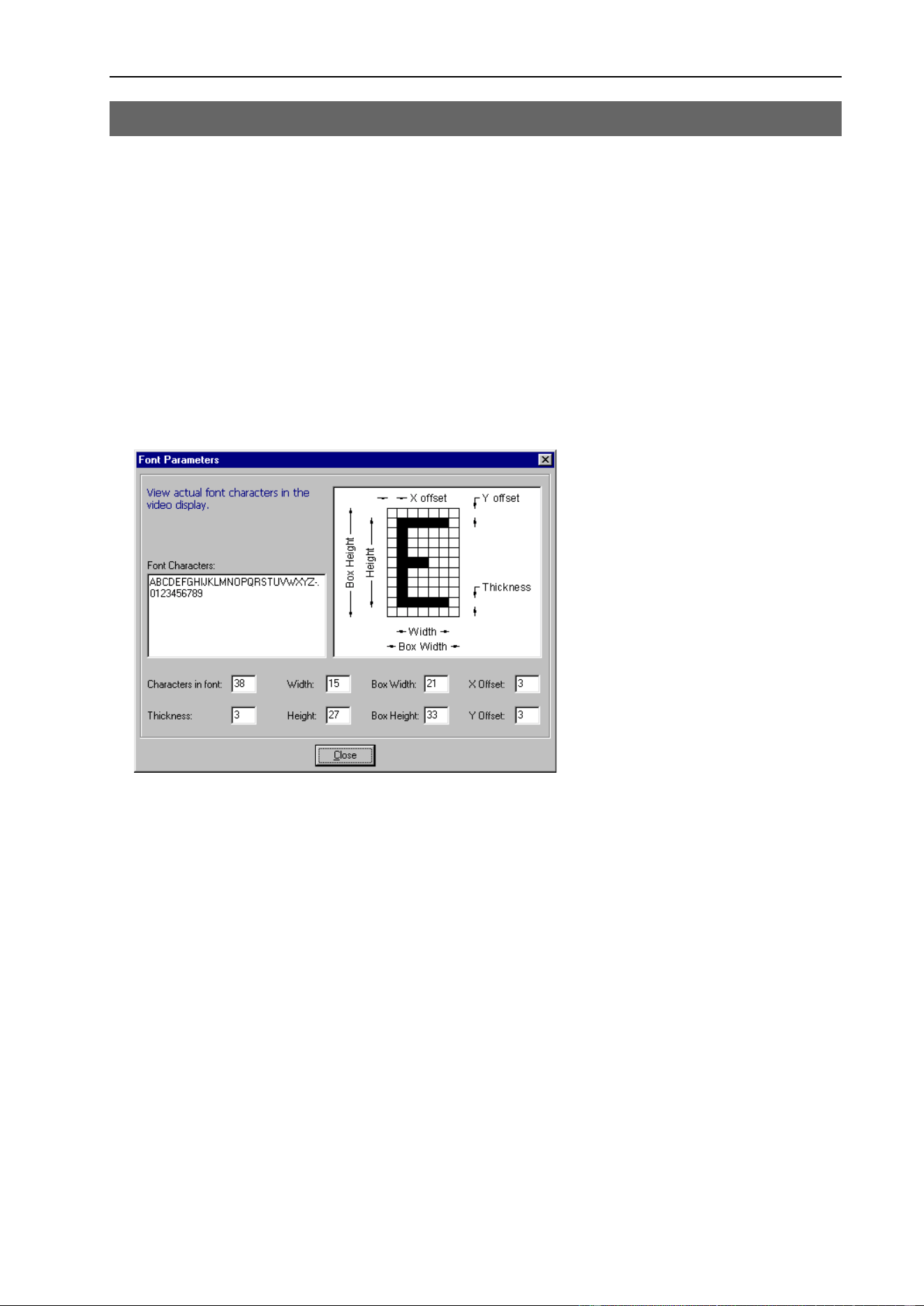
ShowFont Property
Vision Guide 6.0 Properties and Results Reference Rev.6 189
ShowFont Property
Designtime only
Applies To
Vision Objects: OCR
Description
Displays the current font in the upper left corner of the video display along with a dialog that shows the
character parameters.
Remarks
Use the ShowFont property to view the current font. A dialog is displayed showing the parameters for the
current font. Also, the actual characters stored in the vision system memory are shown on the video display.
The ShowFont property is only available from the Vision Guide window Object Tab.
See Also
CreateFont Property, OCR Object, Object Tab
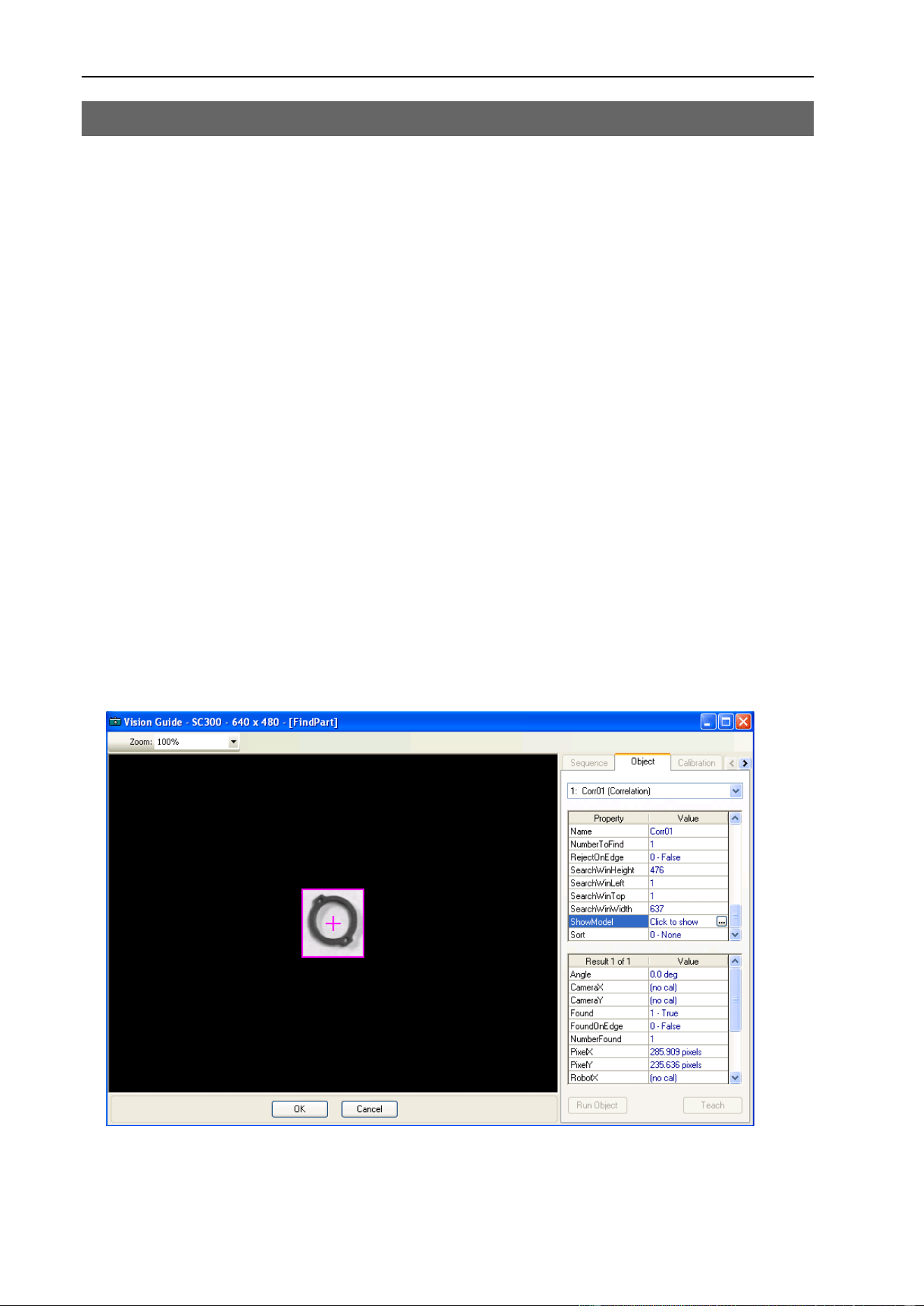
ShowModel Property
190 Vision Guide 6.0 Properties and Results Reference Rev.6
ShowModel Property
Designtime only
Applies To
Vision Objects: Correlation, Geometric, Polar
Description
The ShowModel property allows a previously taught model to be displayed at various zoom settings. You
can also change the model orgin and don’t care pixels for some models.
Remarks
Correlation and Geometric Objects:
You can zoom the model and also change the model origin with mouse or arrow keys and paint / erase
“don’t care” pixels.
The ShowModel property is available from the Vision Guide window Object tab.
The user clicks on the value field of the ShowModel property which causes a button to appear in the Value
field. Click on the button and the model will be displayed in the Vision Guide window.
Changing the model orgin
This allows you to set the model origin more accurately. A check box is provided so that
ModelOrgAutoCenter can be toggled. When ModelOrgAutoCenter is set to on, the model origin is
centered and cannot be changed.
To change the model origin with the mouse, make sure that the ModelOrgAutoCenter check box is off.
Then point to the center of the cross, and click the mouse down. Now drag the cross to the desired position.
Click OK to save the new model origin settings.
Polar Objects:
The model can be zoomed. The ModelOrgAutoCenter check box and drawing toolbar are hidden, since
they do not apply in this case. Also, there is a Close button instead of OK and Cancel.
See Also
Correlation Object, Geometric Object, Object Tab, Polar Object

ShowProcessing Property
Vision Guide 6.0 Properties and Results Reference Rev.6 191
ShowProcessing Property
Applies To
Vision Sequence
Description
Determines whether ima:ge processing should be displayed with RunTimeFreeze set to 1–True.
Usage
VGet Sequence.ShowProcessing, var
VSet Sequence.ShowProcessing, value
Sequence Name of a sequence or string variable containing a sequence name.
var Boolean variable that will contain the value of the property.
value Integer expression for the new value of the property.
Values
0 – False Do not show processing.
1 – True Show processing
Default: 1 – True
Remarks
Sometimes when using image processing objects such as ImageOp, it is desirable not to see the processing.
For example, if you use an ImageOp to binarize an entire image before other objects execute, the display
will show the binarized image if ShowProcessing is 1–True. By setting it to 0–False, only the object
graphics are displayed without showing the image processing.
See Also
RunTimeFreeze Property, Sequence Tab, Vision Sequences

SizeToFind Property
192 Vision Guide 6.0 Properties and Results Reference Rev.6
SizeToFind Property
Applies To
Vision Objects: Blob
Description
Selects which size of blobs to find.
Usage
VGet Sequence.Object.SizeToFind, var
VSet Sequence.Object.SizeToFind, value
Sequence Name of a sequence or string variable containing a sequence name.
Object Name of an object or string variable containing an object name. The object must exist in the
specified sequence.
var Integer variable that will contain the value of the property.
value Integer expression for the new value of the property.
Values
0 – Any Find blobs of any size.
1 – Largest Find the largest blobs.
2 – Smallest Find the smallest blobs.
Default: 1 – Largest
Remarks
Use the SizeToFind property to find the largest or smallest blobs in an image. When a blob object searches
for blobs in an image, it finds several candidates; sometimes many more than the desired number.
SizeToFind can filter the results so that you get the largest or smallest blobs.
See Also
Blob Object, Sort Property

Smoothness Property
Vision Guide 6.0 Properties and Results Reference Rev.6 193
Smoothness Property
Applies To
Vision Objects: Geometric
Description
Sets / returns the smoothness level for the geometric edge extraction filter.
Usage
VGet Sequence.Object.Smoothness, var
VSet Sequence.Object.Smoothness, value
Sequence Name of a sequence or string variable containing a sequence name.
Object Name of an object or string variable containing an object name. The object must exist in the
specified sequence.
var Integer variable that will contain the value of the property.
value Integer expression for the new value of the property.
Values
0 - 100
Default: 50
Remarks
The Smoothness property allows you to control the smoothing level of the edge extraction filter. The
smoothing operation evens out rough edges and removes noise. The range of this control varies from 0 (no
smooth) to 100 (a very strong smooth). The default setting is 50.
The DetailLevel property also affects how edges are extracted.
See Also
DetailLevel Property, Geometric Object, Object Tab, Timeout Property

Sort Property
194 Vision Guide 6.0 Properties and Results Reference Rev.6
Sort Property
Applies To
Vision Objects: Blob, Correlation, Geometric
Description
Sets or returns the sort order used for the results of an object.
Usage
VGet Sequence.Object.Sort, var
VSet Sequence.Object.Sort, value
Sequence Name of a sequence or string variable containing a sequence name.
Object Name of an object or string variable containing an object name. The object must exist in the
specified sequence.
var Integer variable that will contain the value of the property.
value Integer expression for the new value of the property.
Values
0 – None No sorting is done.
1 – PixelX Results are ordered from left to right according to the PixelX result.
2 – PixelY Results are ordered from top to bottom according to the PixelY result.
3 – PixelXY Results are ordered diagonally from upper left to lower right according to the PixelX
and PixelY results.
4 – CameraX Results are ordered from left to right according to the CameraX result.
5 – CameraY Results are ordered from bottom to top according to the CameraY result.
6 – CameraXY Results are ordered diagonally from lower left to upper right according to the
CameraX and CameraY results.
7 – RobotX Results are ordered along the Robot's X axis according to the RobotX result.
8 – RobotY Results are ordered along the Robot's Y axis according to the RobotY result.
9 – RobotXY Results are ordered diagonally according to the RobotX and RobotY results.
Default 0 - None
Remarks
The Sort property allows you to sort the results of an object so that you can retrieve the results in the
desired order.
If you want to retrieve results in descending order, then reverse the order that you retrieve them. For
example:
For i = numFound To 1 Step -1
VGet seq1.blob01.RobotXYU(i), found(i), x(i), y(i), u(i)
Next i
See Also
Blob Object, Correlation Object, Geometric Object, Object Tab

StartPntObjResult Property
Vision Guide 6.0 Properties and Results Reference Rev.6 195
StartPntObjResult Property
Applies To
Vision Objects: Edge, Line
Description
Specifies which result to use from the StartPointObject.
Usage
VGet Sequence.Object.StartPntObjResult, var
VSet Sequence.Object.StartPntObjResult, value
Sequence Name of a sequence or string variable containing a sequence name.
Object Name of an object or string variable containing an object name. The object must exist in the
specified sequence.
var Integer variable that will contain the value of the property.
value Integer expression for the new value of the property.
Values
The value can range from 1 to the NumberToFind value for the StartPointObject. If the StartPointObject is
'Screen', then the value is always 1.
Remarks
StartPntObjResult enables you to attach several objects to the results of one StartPointObject. For example,
you could create a blob object with NumberToFind set to 4. Then you could attach a line object to each one
of the results by specifying the blob for the StartPointObject of each line and a different StartPntObjResult
for each line.
See Also
Edge Object, EndPntObjResult Property, Line Object, Object Tab, StartPointObject Property

StartPointObject Property
196 Vision Guide 6.0 Properties and Results Reference Rev.6
StartPointObject Property
Applies To
Vision Objects: Edge, Line
Description
Specifies the vision object to connect the starting point of the Line to. (i.e. This property defines the
position of the start point of the line.)
Usage
VGet Sequence.Object.StartPointObject, var
VSet Sequence.Object.StartPointObject, value
Sequence Name of a sequence or string variable containing a sequence name.
Object Name of an object or string variable containing an object name. The object must exist in the
specified sequence.
var String variable that will contain the value of the property.
value String expression for the new value of the property. Valid vision objects for the
StartPointObject property are: Blob, Correlation, Edge, Geometric, Line, and Point objects.
Values
Screen or any object that runs prior to the Line object.
Default: Screen
Remarks
When a Line object is first created, the StartPointObject property is set to Screen. However, Line objects
are normally attached to other vision objects. This is the purpose of the StartPointObject and
EndPointObject properties. Through these two properties the user can define a line between any two vision
objects (except Frames).
Frame objects cannot be used to define an start point for a Line object. However, this does not cause a
limitation because Frames are defined by other vision objects. In those cases where you want to define a
line start point with a Frame object, use a Point object in the frame to define the start point of the Line
object.
It is important to note that for each specific vision sequence, only those vision objects which are executed
prior to the Line object in the vision sequence steps will be available to use as an StartPointObject.
See Also
Edge Object, EndPointObject Property, Line Object, Object Tab, StartPointType Property
StartPointType Property
Vision Guide 6.0 Properties and Results Reference Rev.6 197
StartPointType Property
Applies To
Vision Objects: Edge, Line
Description
Specifies the type of start point to use for the line object. In most cases the start point type will be a point
(which usually means the PixelX and PixelY position of the StartPointObject). However, when the
StartPointObject for the current line is a 2nd Line object, the StartPointType property is used to define an
intersection point on the 2nd line such as the lines midpoint, endpoint, startpoint or perpendicular position.
Usage
VGet Sequence.Object.StartPointType, var
VSet Sequence.Object.StartPointType, value
Sequence Name of a sequence or string variable containing a sequence name.
Object Name of an object or string variable containing an object name. The object must exist in the
specified sequence.
var Integer variable that will contain the value of the property.
value Integer expression for the new value of the property.
Values
StartPointObject = Line
StartPointObject = Screen, Blob, Correlation,
Geometric, Edge, or
Point object
See remarks.
Default: 2 - MidPoint
0 - Point
When used with objects other than the Line object, the StartPointType can
only be of type 0 - Point.
Default: 0 - Point

StartPointType Property
198 Vision Guide 6.0 Properties and Results Reference Rev.6
Remarks
As you can see in the Values Table above, most of the StartPointObject's support only 1 StartPointType
called 0–Point. This is because most StartPointObject's use the PixelX and PixelY position for a reference
position for defining a Start or End Point for a line. So when the StartPointObject is defined as Screen,
Blob, Correlation, Edge, or Point object the StartPointType will always be set to 0–Point.
The range of valid values for StartPointType depend on the StartPointObject.
However, when the StartPointObject is another Line object, the user must decide where on the 2nd line to
intersect with the 1st line. The choices are as follows:
1 - EndPoint Use the end point of the other line as the endpoint for this line.
2 - MidPoint Cut the other line in half and use the center (or midpoint of the other line as the
endpoint for this line.
3 - Perpendicular Calculate the position on the 2nd line where the 2 lines intersect in a perpendicular
fashion and use this position as the end point.
4 - StartPoint Use the starting point of the other line as the end point for this line.
5 - PerpToStartPnt Calculate the position on the 2nd line where the 2 lines intersect in a perpendicular
fashion through the start point of the first line and use this position as the start point.
6 - PerpToMidPnt Calculate the position on the 2nd line where the 2 lines intersect in a perpendicular
fashion through the mid point of the first line and use this position as the start point.
7 - PerpToEndPnt Calculate the position on the 2nd line where the 2 lines intersect in a perpendicular
fashion through the end point of the first line and use this position as the start point.
If the StartPointObject is modified to a Line object then the StartPointType is automatically changed to
MidPoint.
If the StartPointObject is modified to Screen, Blob, Correlation, Edge, or Point object then the
StartPointType is automatically changed to 0–Point.
See Also
Edge Object, EndPointType Property, Line Object, Object Tab, StartPointObject Property

Strength Result
Vision Guide 6.0 Properties and Results Reference Rev.6 199
Strength Result
Applies To
Vision Objects: Edge
Description
Returns the strength of the found Edge.
Usage
VGet Sequence.Object.Strength, var
Sequence Name of a sequence or string variable containing a sequence name.
Object Name of an object or string variable containing an object name. The object must exist in the
specified sequence.
var Integer variable that will contain the value of the result.
Values
0 - 100%
Remarks
Use the Strength result to set the StrengthTarget property.
See Also
Edge Object, StrengthTarget Property, StrengthVariation Property

StrengthTarget Property
200 Vision Guide 6.0 Properties and Results Reference Rev.6
StrengthTarget Property
Applies To
Vision Objects: Edge
Description
Sets the desired edge strength to search for.
Usage
VGet Sequence.Object.StrengthTarget, var
VSet Sequence.Object.StrengthTarget, value
Sequence Name of a sequence or string variable containing a sequence name.
Object Name of an object or string variable containing an object name. The object must exist in the
specified sequence.
var Integer variable that will contain the value of the property.
value Integer expression for the new value of the property.
Values
0 - 100%
Default: 0 (search for best strength)
Remarks
An edge's strength is the minimum/maximum edge value along the width of the edge (depending on
polarity). This value is a normalized percentage of the maximum pixel value.
Use StrengthTarget to find edges with lower strengths. First, find the edge you want to search for a record
the Strength result value. Next, set the StrengthTarget property to this value. Then set the
ScoreWeightStrength to a higher value than ScoreWeightContrast. This tells the Edge object to look for an
edge with the desired strength and base the score on it.
See Also
Edge Object, Strength Result, StrengthVariation Property

StrengthVariation Property
Vision Guide 6.0 Properties and Results Reference Rev.6 201
StrengthVariation Property
Applies To
Vision Objects: Edge
Description
StrengthVariation is the tolerance for the StrengthTarget property.
Usage
VGet Sequence.Object.StrengthVariation, var
VSet Sequence.Object.StrengthVariation, value
Sequence Name of a sequence or string variable containing a sequence name.
Object Name of an object or string variable containing an object name. The object must exist in the
specified sequence.
var Long variable that will contain the value of the property.
value Long expression for the new value of the property.
Values
0 - 100%
Default: 0
Remarks
Use StrengthVariation to tighten the search for the edge with strength of StrengthTarget.
See Also
Edge Object, Strength Result, StrengthTarget Property

StrobeDelay Property
202 Vision Guide 6.0 Properties and Results Reference Rev.6
StrobeDelay Property
Applies To
Vision Sequence
Description
Sets / returns the delay time between receiving the hardware trigger signal and turning on the camera's
strobe lamp output.
Usage
VGet Sequence.StrobeDelay, var
VSet Sequence.StrobeDelay, value
Sequence Name of a sequence or string variable containing a sequence name.
var Long variable that will contain the value of the property.
value Long expression for the new value of the property.
Values
Long value in microseconds.
Default: 0 (microsecond)
Remarks
Use StrobeDelay to set the time delay between the hardware trigger signal and turning on the strobe lamp
output.
This property is only available for Compact Vision cameras.
See Also
RuntimeAcquire Property, ExposureTime Property, ExposureDelay Property, StrobeTime Property

StrobeTime Property
Vision Guide 6.0 Properties and Results Reference Rev.6 203
StrobeTime Property
Applies To
Vision Sequence
Description
Sets / returns the amount of time the camera's strobe lamp output is turned on during image acquisition.
Usage
VGet Sequence.StrobeDelay, var
VSet Sequence.StrobeDelay, value
Sequence Name of a sequence or string variable containing a sequence name.
var Long variable that will contain the value of the property.
value Long expression for the new value of the property.
Values
Long value in microseconds.
Default: 0 (microsecond)
Remarks
Use StrobeTime to set the amount of time that the camera's strobe lamp output is turned on during image
acquisition.
This property is only available for Compact Vision cameras.
See Also
RuntimeAcquire Property, ExposureDelay Property, ExposureTime Property, StrobeDelay Property

TargetCharHeight Property
204 Vision Guide 6.0 Properties and Results Reference Rev.6
TargetCharHeight Property
Applies To
Vision Objects: OCR
Description
Sets / returns the height of a charcter in an OCR font.
Usage
VGet Sequence.Object.TargetCharHeight, var
VSet Sequence.Object.TargetCharHeight, value
Sequence Name of a sequence or string variable containing a sequence name.
Object Name of an object or string variable containing an object name. The object must exist in the
specified sequence.
var Integer variable that will contain the value of the property.
value Integer expression for the new value of the property.
Values
1 - 99 pixels
Remarks
You can use TargetCharHeight to manually set the character height for a font. Normally, this property is
automatically set during the Calibrate operation.
See Also
Calibrate Property, OCR Object, TargetCharSpacing Property, TargetCharWidth Property

TargetCharSpacing Property
Vision Guide 6.0 Properties and Results Reference Rev.6 205
TargetCharSpacing Property
Applies To
Vision Objects: OCR
Description
Sets / returns the inter-character spacing in an OCR font.
Usage
VGet Sequence.Object.TargetCharSpacing, var
VSet Sequence.Object.TargetCharSpacing, value
Sequence Name of a sequence or string variable containing a sequence name.
Object Name of an object or string variable containing an object name. The object must exist in the
specified sequence.
var Integer variable that will contain the value of the property.
value Integer expression for the new value of the property.
Values
1 - 99 pixels
Remarks
You can use TargetCharSpacing to manually set the inter-character spacing for a font. Normally, this
property is automatically set during the Calibrate operation.
See Also
Calibrate Property, OCR Object, TargetCharHeight Property, TargetCharWidth Property

TargetCharWidth Property
206 Vision Guide 6.0 Properties and Results Reference Rev.6
TargetCharWidth Property
Applies To
Vision Objects: OCR
Description
Sets / returns the inter-character width for an OCR font.
Usage
VGet Sequence.Object.TargetCharWidth, var
VSet Sequence.Object.TargetCharWidth, value
Sequence Name of a sequence or string variable containing a sequence name.
Object Name of an object or string variable containing an object name. The object must exist in the
specified sequence.
var Integer variable that will contain the value of the property.
value Integer expression for the new value of the property.
Values
1 - 100 pixels
Remarks
You can use TargetCharWidth to manually set the character width for a font. Normally, this property is
automatically set during the Calibrate operation.
See Also
Calibrate Property, OCR Object, TargetCharHeight Property, TargetCharSpacing Property

TargetSequence Property
Vision Guide 6.0 Properties and Results Reference Rev.6 207
TargetSequence Property
Applies To
Vision Calibration
Description
Specifies the vision sequence that is used to find the calibration target(s) during calibration.
Usage
VGet Calibration.TargetSequence, var
VSet Calibration.TargetSequence, value
Calibration Name of a calibration or string variable containing a calibration name.
var String variable that will contain the value of the property.
value String expression for the new value of the property.
Values
String value containing the name of the vision sequence
Default: None
Remarks
The TargetSequence property must be specified for all calibrations. For more details, see the chapter
Calibration in the Vision Guide manual.
See Also
UpwardSequence Property, ReferenceType Property

Text Result
208 Vision Guide 6.0 Properties and Results Reference Rev.6
Text Result
Applies To
Vision Objects: CodeReader, OCR
Description
Returns the text found in a search operation.
Usage
VGet Sequence.Object.Text [(result)], var
Sequence Name of a sequence or string variable containing a sequence name.
Object Name of an object or string variable containing an object name. The object must exist in the
specified sequence.
var String variable that will contain the value of the result.
Values
String.
Remarks
The Text result returns the text found by an OCR or CodeReader object. Invalid characters will be
substituted with the character specified the the InvalidChar property.
See Also
CodeReader Object, Found Result, InvalidChar Property, OCR Object, Score Result

Thickness Property
Vision Guide 6.0 Properties and Results Reference Rev.6 209
Thickness Property
Applies To
Vision Objects: Polar
Description
Defines the thickness (in pixels) of the ring used for the Polar object.
Thickness
Radius
Usage
VGet Sequence.Object.Thickness, var
Sequence Name of a sequence or string variable containing a sequence name.
Object Name of an object or string variable containing an object name. The object must exist in the
specified sequence.
var Integer variable that will contain the value of the property.
Values
1 - 25 pixels
Default: 5
Remarks
It is important to remember that the Polar object is used to process images that are circular in nature. The
Thickness property defines the thickness of the circular ring which is used to define the Search Window for
the Polar Search.
In many cases the Thickness property does not need to be very large for a successful search. Since the
Thickness property defines the Search Window size for the Polar object, keeping the Thickness small
results in faster Polar search times.
See Also
CenterPointObject Property, CenterX Property, CenterY Property, Object Tab, Polar Object, Radius
Property

ThresholdColor Property
210 Vision Guide 6.0 Properties and Results Reference Rev.6
ThresholdColor Property
Applies To
Vision Objects: Blob, ImageOp
Description
Sets or returns the color of the pixels whose gray values fall between the ThresholdHigh and ThresholdLow
properties.
Usage
VGet Sequence.Object.ThresholdColor, var
VSet Sequence.Object.ThresholdColor, value
Sequence Name of a sequence or string variable containing a sequence name.
Object Name of an object or string variable containing an object name. The object must exist in the
specified sequence.
var Integer variable that will contain the value of the property.
value Integer expression for the new value of the property.
Values
1 – Black
2 – White
Default: 1 – Black
Remarks
The ThresholdColor property defines the color of the pixels whose gray values are between the
ThresholdHigh and ThresholdLow properties during binarization. For example, when ThresholdColor =
Black, ThresholdLow = 50 and ThresholdHigh = 100, then pixels whose gray values are between 50 and
100 will be set to black during binarization. All other pixels will be white.
See Also
Blob Object, ImageOp Object, Object Tab, Polarity Property, ThresholdHigh, ThresholdLow Property

ThresholdHigh Property
Vision Guide 6.0 Properties and Results Reference Rev.6 211
ThresholdHigh Property
Applies To
Vision Objects: Blob, ImageOp
Description
Sets or returns the ThresholdHigh value for a Blob or ImageOp object.
Usage
VGet Sequence.Object.ThresholdHigh, var
VSet Sequence.Object.ThresholdHigh, value
Sequence Name of a sequence or string variable containing a sequence name.
Object Name of an object or string variable containing an object name. The object must exist in the
specified sequence.
var Integer variable that will contain the value of the property.
value Integer expression for the new value of the property.
Values
1 - 255 This value must be greater than the ThresholdLow value or an error will occur.
Remarks
Blob Objects:
The ThresholdHigh property works with the ThresholdLow property to define the grey level regions which
represent the feature (or object), the background and the edges of the image. The ThresholdHigh property
defines the upper bound for grey level values that are considered to be a blob. Any part of the image which
falls within grey level region between ThresholdLow and ThresholdHigh will be assigned a pixel weight of
1. (i.e. it is a blob.)
If the Polarity property is set to 1–DarkOnLight, then grey levels between ThesholdLow and
ThresholdHigh will changed to black pixels and all other pixels will be white.
If the Polarity property is set to 2–LightOnDark, then grey levels between ThesholdLow and
ThresholdHigh will changed to white pixels and all other pixels will be black.
One of the problems regarding the ThresholdLow and ThresholdHigh Properties is finding the correct
values to use for each. This is where the Histogram feature of Vision Guide comes in. You can run a
Histogram on an image to see the relationship between the pixel counts at various grey levels. From the
Histogram dialog, you can adjust each of the threshold values and view the results.
See Also
Blob Object, ImageOp Object,Object Tab, Polarity Property, ThresholdLow Property

ThresholdLow Property
212 Vision Guide 6.0 Properties and Results Reference Rev.6
ThresholdLow Property
Applies To
Vision Objects: Blob, ImageOp
Description
Sets or returns the ThresholdLow value for a Blob or ImageOp object.
Usage
VGet Sequence.Object.ThresholdLow, var
VSet Sequence.Object.ThresholdLow, value
Sequence Name of a sequence or string variable containing a sequence name.
Object Name of an object or string variable containing an object name. The object must exist in the
specified sequence.
var Integer variable that will contain the value of the property.
value Integer expression for the new value of the property.
Values
0 - 254 This value must be less than the ThresholdHigh value or an error will occur.
Remarks
Blob Objects:
The ThresholdLow property works with the ThresholdHigh property to define the grey level regions which
represent the feature (or object), the background and the edges of the image. The ThresholdLow property
defines the lower bound for grey level values that are considered to be a blob. Any part of the image which
falls within grey level region between ThresholdLow and ThresholdHigh will be assigned a pixel weight of
1. (i.e. it is a blob.)
If the Polarity property is set to DarkOnLight, then grey levels between ThesholdLow and ThresholdHigh
will changed to black pixels and all other pixels will be white.
If the Polarity property is set to LightOnDark, then grey levels between ThesholdLow and ThresholdHigh
will changed to white pixels and all other pixels will be black.
One of the problems regarding the ThresholdLow and ThresholdHigh Properties is finding the correct
values to use for each. This is where the Histogram feature of Vision Guide comes in. You can run a
Histogram on an image to see the relationship between the pixel counts at various grey levels. From the
Histogram dialog, you can adjust each of the threshold values and view the results.
See Also
Blob Object, ImageOp Object, Object Tab, Polarity Property, ThresholdHigh Property

Time Result
Vision Guide 6.0 Properties and Results Reference Rev.6 213
Time Result
Applies To
Vision Sequence
Vision Objects: Blob, CodeReader, Correlation, Edge, Geometric, ImageOp, OCR, Polar
Description
Returns the amount of time (in milliseconds) required to process the associated vision object or vision
sequence.
Usage
VGet Sequence.Object.Time, var
VGet Sequence.Time, var
Sequence Name of a sequence or string variable containing a sequence name.
Object Name of an object or string variable containing an object name. The object must exist in the
specified sequence.
var Integer variable that will contain the value of the result.
Values
0 - 2147483647 milliseconds (positive long integer)
Remarks
The Time result is used to store how quickly a vision object or vision sequence is able to execute. (i.e. how
quickly an object is found.)
The Time result is shown for each vision object (Blob, Correlation, Geometric, Edge, and Polar) as well as
for an entire vision sequence.
For the sequence time result: if the RuntimeAcquire property is set to 1 - Stationary (default), then the total
time includes the acquisition time plus the total time for all steps in the sequence. The acquisition time can
vary and depends on the time it takes for the vision system to synchronize with the camera.
For objects that return multiple results, the time returned is the total time to find all results. When viewed
on the Vision Guide window Results list, "(all results)" is appended to the time value to indicate this.
Statistics
For the Time result, the following statistics are available. TimeMax, TimeMean, TimeMin, TimeStdDev.
Please see Statistics in the Vision Guide manual for details about using statistics.
See Also
Blob Object, CodeReader Object, Correlation Object, Edge Object, Geometric Object, ImageOp Object,
Object Tab, OCR Object, Polar Object, Sequence Tab, Vision Sequences

Timeout Property
214 Vision Guide 6.0 Properties and Results Reference Rev.6
Timeout Property
Applies To
Vision Objects: Geometric
Description
Sets / returns the maximum search time for a Geometric object.
Usage
VGet Sequence.Object.Timeout, var
VSet Sequence.Object.Timeout, value
Sequence Name of a sequence or string variable containing a sequence name.
Object Name of an object or string variable containing an object name. The object must exist in the
specified sequence.
var Long integer variable that will contain the value of the property.
value Long integer expression for the new value of the property.
Values
0 - 1000000
Default: 2000
Remarks
Use the Timeout property to limit the amount of search time for a Geometric object.
See Also
Geometric Object, Object Tab

TotalArea Result
Vision Guide 6.0 Properties and Results Reference Rev.6 215
TotalArea Result
Applies To
Vision Objects: Blob
Description
Returns the sum of areas of all results.
Usage
VGet Sequence.Object.TotalArea, var
Sequence Name of a sequence or string variable containing a sequence name.
Object Name of an object or string variable containing an object name. The object must exist in the
specified sequence.
var Real variable that will contain the value of the result.
Values
Real number from 1- total pixels in image.
Remarks
TotalArea can be used to determine all pixels in the image being searched whose blobs fall withing the
MinArea and MaxArea properties. By setting NumberToFind to 0 and MinArea to 1, the Blob object can
be used as a pixel counter.
See Also
Area Result, Blob Object, Object Tab, NumberToFind Property

TriggerMode Property
216 Vision Guide 6.0 Properties and Results Reference Rev.6
TriggerMode Property
Applies To
Vision Sequence
Description
Specifies the type of trigger signal transition used for electronic shutter release acquisition.
Usage
VGet Sequence.TriggerMode, var
VSet Sequence.TriggerMode, value
Sequence Name of a sequence or string variable containing a sequence name.
var Integer variable that will contain the value of the property.
value Integer expression for the new value of the property.
Values
Integer value
1 – Leading The electronic shutter trigger will occur when the trigger signal transitions from low to high.
2 – Trailing The electronic shutter trigger will occur when the trigger signal transitions from high to low.
Default: 1 – Leading
Remarks
The TriggerMode property allows you to match the camera trigger signal transition according to the circuit
you are using.
See Also
RuntimeAcquire Property, Sequence Tab

TwoRefPoints Property
Vision Guide 6.0 Properties and Results Reference Rev.6 217
TwoRefPoints Property
Applies To
Vision Calibration
Description
Sets / returns whether a calibration should use two reference points instead of one.
Usage
VGet Calibration.TwoRefPoints, var
VSet Calibration.TwoRefPoints, value
Calibration Name of a calibration or string variable containing a calibration name.
var Boolean variable that will contain the value of the property.
value Integer expression for the new value of the property.
Values
0 – False Use one reference point
1 – True Use two reference points
Default: 0 – False
Remarks
Set TwoRefPoints to 1–True to use two reference points for a calibration. During calibration, when
CameraOrientation is set to Fixed upward, the system will search for the target, rotate 180 degrees, and
search for the target again to calculate the midpoint of the two searches.
See Also
CameraOrientation Property, ReferenceType Property

UpwardLamp Property
218 Vision Guide 6.0 Properties and Results Reference Rev.6
UpwardLamp Property
Applies To
Vision Calibration
Description
Sets / returns the I/O output bit used for the calibration upward camera lamp.
Usage
VGet Calibration.UpwardLamp, var
VSet Calibration.UpwardLamp, value
Calibration Name of a calibration or string variable containing a calibration name.
var Integer variable that will contain the value of the property.
value Integer expression for the new value of the property.
Values
Integer value of a valid output bit.
Default: None
Remarks
Use the UpwardLamp property to automatically turn on a lamp for a calibration using an upward camera to
find the reference point.
See Also
Lamp Property, LampDelay

UpwardSequence Property
Vision Guide 6.0 Properties and Results Reference Rev.6 219
UpwardSequence Property
Applies To
Vision Calibration
Description
UpwardSequence specifies the sequence used by an upward looking camera for a mobile calibration target
reference.
Usage
VGet Calibration.UpwardSequence, var
VSet Calibration.UpwardSequence, value
Calibration Name of a calibration or string variable containing a calibration name.
var String variable that will contain the value of the property.
value String expression for the new value of the property.
Value
String that contains the vision sequence name.
Default: None
See Also
ReferenceType Property, TargetSequence Property

VCal Statement
220 Vision Guide 6.0 Properties and Results Reference Rev.6
VCal Statement
Applies To
Vision Calibration
Description
VCal enables you to run a vision calibration from a SPEL
+
program.
Usage
VCal Calibration
Calibration Name of the Calibration to be calibrated.
Remarks
The calibration definition must be set up from the Vision Guide window or created using
VCreateCalibration before a calibration will run. Also, the calibration points must be taught, unless you are
calibrating a fixed camera in the robot coordinate system. In this case, you can execute VCal without the
points being taught first if you create a point file in the controller with the same name as the calibration. If
EPSON RC+ sees this point file, it will use the points in the file. See the following example.
After executing a calibration with VCal, you must call VSave to save the new calibration data.
Example
This example uses a mobile camera to calibrate a fixed downward camera.
Function CalFixedCamera As Boolean
Integer i
Boolean found
Real x, y, u
String obj$
' "mobileCal" is a sequence with 9 blobs that uses a mobile calibration.
' First we search with the mobile camera
Jump mobileCamView
VRun mobileCal
VGet mobileCal.AllFound, found
If Not found Then
MsgBox "Could not find all targets"
Exit Function
EndIf
For i = 1 TO 9
obj$ = "blob0" + Str$(i)
VGet mobileCal.obj$.RobotXYU, found, x, y, u
' Save each target point in robot coordinates
P(i) = XY(x, y, 0, 0)
Next i
' Save the points for VCal to use
' Note that "fixed" is the name of the calibration
SavePoints "fixed.pts"
Jump clearFixed
' Calibrate the fixed camera calibration scheme
VCal fixed
CalFixedCamera = True
Fend
See Also
VCalPoints, VCreateCalibration, Vision Sequences, VSave

VCalPoints Statement
Vision Guide 6.0 Properties and Results Reference Rev.6 221
VCalPoints Statement
Applies To
Vision Calibration
Description
VCalPoints enables you to teach points for a vision calibration from a SPEL
+
program.
Usage
VCalPoints Calibration
Calibration Name of the Calibration to be calibrated.
Remarks
When VCalPoints executes, a dialog is displayed that allows the user to teach the calibration points for the
specified calibration definition.
After teaching calibration points with VCalPoints, you must call VSave to make the changes permanent.
See Also
VCal, Vision Sequences, VSave

VCls Statement
222 Vision Guide 6.0 Properties and Results Reference Rev.6
VCls Statement
Applies To
The Graphics display
Description
VCls clears the image display area of all graphics.
Usage
VCls
Remarks
VCls causes all graphics which were drawn during execution of a vision sequence to be removed from the
image display area. This is most often used to remove screen clutter between vision sequences. For
example, if your application uses vision in only one part of the application, you may want to clear the image
display area while the robot is doing other parts of the application since the vision processing stage of the
application is complete.
VCls is available only from the SPEL
+
Language.
See Also
VGet, VRun, VSet, Vision Sequences

VCreateCalibration Statement
Vision Guide 6.0 Properties and Results Reference Rev.6 223
VCreateCalibration Statement
Applies To
Vision Calibration
Description
VCreateCalibration creates a vision calibration at runtime.
Usage
VCreateCalibration CalibrationName
CalibrationName String expression containing new calibration name.
Remarks
Here are the basic steps to create a runtime calibration:
1. Execute VCreateCalibration.
2. Use VSet to set CameraOrientation and TargetSequence properties. Set other properties as
necessary.
3. If the camera is not Standalone, you must create a point file for the calibration using the same
name, or call VCalPoints to teach calibration points.
4. Execute VCal to run the calibration.
5. Set the Calibration property for one or more sequences that will use the new calibration.
6. Execute VSave to save the changes.
To make changes to the vision configuration permanent, you must call VSave.
Example
Function CreateCal
String cal$
cal$ = "mycal"
VCreateCalibration cal$
VSet cal$.CameraOrientation, VISION_CAMORIENT_MOBILEJ2
VSet cal$.TargetSequence, "calSeq"
VCalPoints cal$
VCal cal$
VSave
Fend
See Also
VCreateObject, VCreateSequence, VSave

VCreateObject Statement
224 Vision Guide 6.0 Properties and Results Reference Rev.6
VCreateObject Statement
Applies To
Vision Sequence
Description
VCreateObject creates an object at runtime.
Usage
VCreateObject Sequence, ObjectName, ObjectType
Sequence Name of a sequence or string variable containing a sequence name.
ObjectName String expression containing the name of an object to create in sequence Sequence.
ObjectType Integer expression for the vision object type.
Object Type Constant Value
Correlation VISION_OBJTYPE_CORRELATION 1
Blob VISION_OBJTYPE_BLOB 2
Edge VISION_OBJTYPE_EDGE 3
Polar VISION_OBJTYPE_POLAR 4
Line VISION_OBJTYPE_LINE 5
Point VISION_OBJTYPE_POINT 6
Frame VISION_OBJTYPE_FRAME 7
ImageOp VISION_OBJTYPE_IMAGEOP 8
Ocr VISION_OBJTYPE_OCR 9
CodeReader VISION_OBJTYPE_CODEREADER 10
Geometric VISION_OBJTYPE_GEOMETRIC 11
Remarks
Use VCreateObject to add an object to an existing vision sequence at runtime. Use VSave to save it after
setting the properties.
See Also
VCreateCalibration, VCreateSequence, VSave

VCreateSequence Statement
Vision Guide 6.0 Properties and Results Reference Rev.6 225
VCreateSequence Statement
Applies To
Vision Sequence
Description
VCreateSequence creates an new vision sequence at runtime.
Usage
VCreateSequence SequenceName
SequenceName String expression containing new sequence name.
Remarks
Use VCreateSequence to create a new vision sequence at runtime. Use VCreateObject to add objects to the
sequence. Use VSave to save it after setting the properties.
See Also
VCreateCalibration, VCreateObject, VSave

VDeleteCalibration Statement
226 Vision Guide 6.0 Properties and Results Reference Rev.6
VDeleteCalibration Statement
Applies To
Vision Calibration
Description
VDeleteCalibration deletes a vision calibration at runtime.
Usage
VDeleteCalibration CalibrationName
CalibrationName Calibration name or string variable that contains the calibration name.
Remarks
Use VDeleteCalibration to delete a vision calibration at runtime. If the calibration does not exist, no error
occurs. Use VSave to save vision settings after deleting the calibration.
See Also
VCreateCalibration, VDeleteObject, VDeleteSequence, VSave
Example
VDeleteCalibration "mycal"

VDeleteObject Statement
Vision Guide 6.0 Properties and Results Reference Rev.6 227
VDeleteObject Statement
Applies To
Vision Sequence
Description
VDeleteObject deletes a vision object at runtime.
Usage
VDeleteObject Sequence, ObjectName
Sequence Name of a sequence or string variable containing a sequence name.
ObjectName String expression containing the name of an object to delete in sequence Sequence.
Remarks
Use VDeleteObject to delete a vision object at runtime. If the object does not exist, no error occurs. Use
VSaves to save vision settings after deleting the object.
See Also
VCreateObject, VDeleteCalibration, VDeleteSequence, VSave
Example
VDeleteObject "myseq", "blob01"

VDeleteSequence Statement
228 Vision Guide 6.0 Properties and Results Reference Rev.6
VDeleteSequence Statement
Applies To
Vision Sequence
Description
VDeleteSequence deletes a vision sequence at runtime.
Usage
VDeleteSequence SequenceName
SequenceName Sequence name or string variable that contains the sequence name.
Remarks
Use VDeleteSequence to delete a vision sequence at runtime. If the sequence does not exist, no error
occurs. Use VSave to save vision settings after deleting the sequence .
See Also
VCreateSequence, VDeleteCalibration, VDeleteObject, VSave
Example
VDeleteSequence "myseq"

VGet Statement
Vision Guide 6.0 Properties and Results Reference Rev.6 229
VGet Statement
Applies To
Vision Sequence
Vision Calibration
Vision Objects: All
Description
VGet is used to get the values of properties and results in SPEL+ and VB Guide.
Usage
VGet Sequence .Property, var
VGet Calibration .Property, var
VGet Sequence .Object.Property, var
VGet Sequence .Object .Result [ (resultIndex) ] , var
Sequence Name of a sequence or string variable containing a sequence name.
Calibration Name of a calibration or string variable containing a calibration name.
Object Name of an object or string variable containing an object name. The object must exist in the
specified sequence. Omit Object if you are retrieving a sequence or calibration property or
result.
Property Name of the property to set or return the value of.
Result Name of the result to get the value of. You can optionally specify a resultIndex for objects that
can return more than one set of result data, such as Blob and Correlation. This allows you to
obtain a particular result without setting the CurrentResult property.
var Variable(s) that will contain the value(s) returned.
VGet Statement
230 Vision Guide 6.0 Properties and Results Reference Rev.6
Remarks
VGet is a powerful part of the Vision Guide structure. It provides the core mechanism to get the property
and result values from the vision objects that are run from vision sequences.
VGet can be used to get property values before running a vision sequence so that you can check the value of
a specific property or even check and set it by using the VGet statement and then the VSet statement. VGet
can also be used to get property values after running a vision sequence
The most common use for VGet is to get the result values from vision objects after they have been run in a
sequence. This allows you to use the results to make decisions, perform calculations, define point positions
and a whole host of other things. In order to use VGet with results, you must first VRun the sequence
which contains the vision object for which you want to get a result from. For example, assume you created
a vision sequence which uses a Blob object to find how many holes are present in a specific part. This
means you will want to VGet the value of the Holes result for the Blob object. The following SPEL
+
program shows how VGet would be used in this instance.
Function test
'It is assumed that a sequence called FindHoles has already been created
'prior to running this program. FindHoles contains a Blob object called Part
'which is configured to find how many holes are in the search window.
'In this example, we will run the sequence and then display the number
'of holes which were found.
Integer count
VRun FindHoles 'Run the vision sequence
VGet FindHoles.Part.Holes, count 'Get the # of holes found
Print count, "holes found"
Fend
See Also
VRun, VSet, Vision Sequences

VLoad Statement
Vision Guide 6.0 Properties and Results Reference Rev.6 231
VLoad Statement
Applies To
All Vision Properties
Description
Loads all vision properties for the current project from disk.
Usage
VLoad
Remarks
Use VLoad to restore all vision properties at runtime to design time values.
When VLoad executes, it loads the data from the .VIS file in the project directory.
See Also
VSave

VLoadModel Statement
232 Vision Guide 6.0 Properties and Results Reference Rev.6
VLoadModel Statement
Applies To
Vision Objects: Correlation, Geometric, Polar
Description
Loads a model for a vision object from a file on the controller that was created with VSaveModel.
Usage
VLoadModel Sequence.Object, fileName
Sequence Name of a sequence or string variable containing a sequence name.
Object Name of an object or string variable containing an object name.
The object must exist in the specified sequence.
fileName Path and file name.
Remarks
VLoadModel can be used in applications where you have several different part models but the same vision
sequence can be used. The fileName parameter refers to a file that was previously saved with VSaveModel
for the same type of vision object.
VLoadModel can be used with the following vision objects:
- Correlation
- Geometric
- Polar
Example
VLoadModel seq1.corr01, "c:\models\corr01.mdl"
See Also
VSaveModel

VRun Statement
Vision Guide 6.0 Properties and Results Reference Rev.6 233
VRun Statement
Applies To
Vision Sequence
Description
VRun is a SPEL
+
language statement used to initiate execution of vision sequences which were created in
the Vision Guide development environment.
Usage
VRun Sequence
Sequence Name of a sequence or string variable containing a sequence name.
Remarks
Once a vision sequence has been created in the Vision Guide development environment it can be executed
from the development environment or from within a SPEL
+
program. The VRun SPEL
+
Language
statement initiates execution of vision sequences.
When VRun is initiated the vision sequence specified begins execution. This means that an image is
acquired (unless the user sets the RuntimeAcquire property to False) into the frame buffer, and then vision
objects are applied to that image as defined in the vision sequence.
It is important to note that VRun returns prior to completing execution of the vision sequence specified with
VRun. Once the image is acquired, VRun returns control to the next SPEL
+
statement which follows VRun.
This improves the throughput of the overall cycle time by allowing other SPEL
+
statements to execute
while vision processing occurs. (For example, the robot can move during vision processing, or a calculation
could be performed during this time.)
Once VRun is executed, VGet is normally used to get the results of the vision sequence such as part
position data, good part bad part status, part count information or many other results. Shown below is a
simple program which uses VRun and VGet to execute a vision sequence and then use results from that
sequence to display useful information to the user.
Before running the program, create a sequence called “FindHoles” and a blob object called “Part”.
Function test
'It is assumed that a sequence called FindHoles has already been created
'prior to running this program. FindHoles contains a Blob object called Part
'which is configured to find how many holes are in the search window.
'In this example, we will run the sequence and then display the number
'of holes which were found.
Integer count
VRun FindHoles 'Run the vision sequence
VGet FindHoles.Part.Holes, count 'Get the # of holes found
Print count, "holes found"
Fend
See Also
VGet, VSet, Vision Sequences

VSave Statement
234 Vision Guide 6.0 Properties and Results Reference Rev.6
VSave Statement
Applies To
All Vision Properties
Description
Saves all vision properties for the current project to disk.
Usage
VSave
Remarks
Use VSave to make runtime changes to vision properties permanent.
When VSave executes, it updates the .VIS file in the project directory.
See Also
VLoad, VSet

VSaveImage Statement
Vision Guide 6.0 Properties and Results Reference Rev.6 235
VSaveImage Statement
Applies To
Sequence
Description
Saves the current frame grabber image on a disk file.
Usage
VSaveImage Sequence, fileName
Sequence Name of a sequence or string variable containing a sequence name.
fileName Path and file name. The file extension must be MIM, BMP, TIF, or JPG.
Remarks
VSaveImage can be used to save an image to a disk file at run time. This is particularly useful for
analyzing images where parts were not found.
The image that is saved is the last image that was stored in the frame grabber. A VRun must be executed
before saving the image. The RuntimeFreeze property should be set to True for the sequence that you are
saving the image from.
Example
VRun seq1
VGet seq1.AllFound, found
If found = False Then
VSaveImage seq1, "c:\badimage\seq1.mim"
EndIf
See Also
ImageFile Property, SaveImage Property

VSaveModel Statement
236 Vision Guide 6.0 Properties and Results Reference Rev.6
VSaveModel Statement
Applies To
Vision Objects: Correlation, Geometric, Polar
Description
Saves a model for a vision object on disk.
Usage
VSaveModel Sequence.Object, fileName
Sequence Name of a sequence or string variable containing a sequence name.
Object Name of an object or string variable containing an object name. The object must exist in the
specified sequence.
fileName Path and file name excluding the extension.
Remarks
VSaveModel can be used in applications when you have several different part models. Normally, a model
for each object is stored in the Vision Guide data files. VSaveModel allows you to save the models into
specified files so you can load them into other objects of the same type.
VSaveModel can be used with the following vision objects:
- Correlation
- Geometric
- Polar
Example
Integer status
VTeach seq1.corr01, status
If status = 1 Then
VSaveModel seq1.corr01, "c:\models\corr01.mdl"
EndIf
See Also
VLoadModel

VSet Statement
Vision Guide 6.0 Properties and Results Reference Rev.6 237
VSet Statement
Applies To
Vision Sequence
Vision Calibration
Vision Objects: All
Description
VSet is used to set the values of properties from the SPEL
+
Language.
Usage
VSet Sequence.Property, value
VSet Calibration.Property, value
VSet Sequence.Object.Property, value
Sequence Name of a sequence or string variable containing a sequence name.
Calibration Name of the Calibration to set the property value for.
Object Name of the Object set the property value for. Omit if setting property for sequence or
calibration.
Property Name of the property to set a new value for.
value Expression for the new value. The data type depends on the property type.
Remarks
VSet is used to set property values for vision sequences, calibrations, and objects from the SPEL
+
language.
Save the vision settings using VSave after setting the property.
For many vision sequences all the proper property settings will be set from within the Vision Guide
development environment. However, there are also times when you will want to set property values in a
SPEL
+
program prior to running a vision sequence. For example, you may want to set the NumberToFind
property before running a sequence, or maybe you want to use the same vision sequence with 2 different
cameras. Both of these scenarios can be handled in SPEL
+
using VSet.
Shown below is a Vision Guide program which runs the same vision sequence for 2 different cameras to
calculate the number of holes found in a board.
It is assumed that a Sequence called "FindHoles" has already been created prior to running this program.
FindHoles contains a "Part" Blob object which is configured to find the number of holes in the Search
Window using Holes Result. In this example, we will run the sequence and then display the number of
holes which were found.
When VSet is called from a program, changes are only made in memory and are not saved. You must call
VSave to make the changes permanent. Otherwise, after program execution stops, the vision system is
restored to the previously saved state.
VSet Statement
238 Vision Guide 6.0 Properties and Results Reference Rev.6
Function test
Integer count
#define CAMERA1 1
#define CAMERA2 2
VSet FindHoles.Camera, CAMERA1 ' Find holes for part at camera 1
VSave
VRun FindHoles ' Run the Vision Sequence
VGet FindHoles.Part.Holes, count ' Get the # of holes which were found
Print "Camera1 holes found =", count
VSet FindHoles.Camera, CAMERA2 ' Repeat for camera 2
VSave
VRun FindHoles
VGet FindHoles.Part.Holes, count ' Get the # of holes which were found
Print "Camera2 holes found =", count
Fend
See Also
VGet, VRun, VSave, VSet, Vision Sequences

VShowModel Statement
Vision Guide 6.0 Properties and Results Reference Rev.6 239
VShowModel Statement
Applies To
Vision Objects: Correlation, Geometric, Polar
Description
The VShowModel command allows a previously taught model to be displayed at various zoom settings
from a SPEL
+
program. For more details, see the ShowModel property.
Usage
VShowModel Sequence.Object
Sequence Name of a sequence or string variable containing a sequence name.
Object Name of an object or string variable containing an object name. The object must exist in the
specified sequence.
Remarks
If changes are made to the model, such as don't care pixels, you must call VSaveModel to make the changes
permanent.
Example
VShowModel seq1.corr01
See Also
VSaveModel, VTeach, VTrain

VStatsReset Statement
240 Vision Guide 6.0 Properties and Results Reference Rev.6
VStatsReset Statement
Applies To
Vision Sequence
Description
The VStatsReset command resets all statistics in memory for one sequence in the current project. This
includes all of the objects in the sequence. If you want to update the statistics file on disk, you must
execute VStatsSave
Usage
VStatsReset Sequence
Sequence Name of a sequence or string variable containing a sequence name.
See Also
VGet, VRun, VStatsResetAll, VStatsSave, Vision Sequences

VStatsResetAll Statement
Vision Guide 6.0 Properties and Results Reference Rev.6 241
VStatsResetAll Statement
Applies To
All vision sequences in current project
Description
The VStatsResetAll command resets all statistics in memory for all vision sequences in the current project.
If you want to update the statistics file on disk, you must execute VStatsSave
Usage
VStatsResetAll
See Also
VGet, VRun, VStatsResetAll, VStatsSave, Vision Sequences

VStatsSave Statement
242 Vision Guide 6.0 Properties and Results Reference Rev.6
VStatsSave Statement
Applies To
All vision sequences in current project
Description
The VStatsSave command saves all vision statistics in the current project to a file in the current project's
directory. The filename is the name of the project with an .STX extension.
Usage
VStatsSave
Remarks
Statistics are saved whenever EPSON RC+ is closed. So typically VStatsSave is not needed. However, if
you want to reset the statistics, you must execute VStatsSave after executing VStatsResetAll, or
VStatsReset.
If no sequences have been run, no statistics file will be created.
If all statistics have been reset with the VStatsResetAll command, then the file will be deleted.
See Also
VGet, VRun, VStatsReset, VStatsResetAll
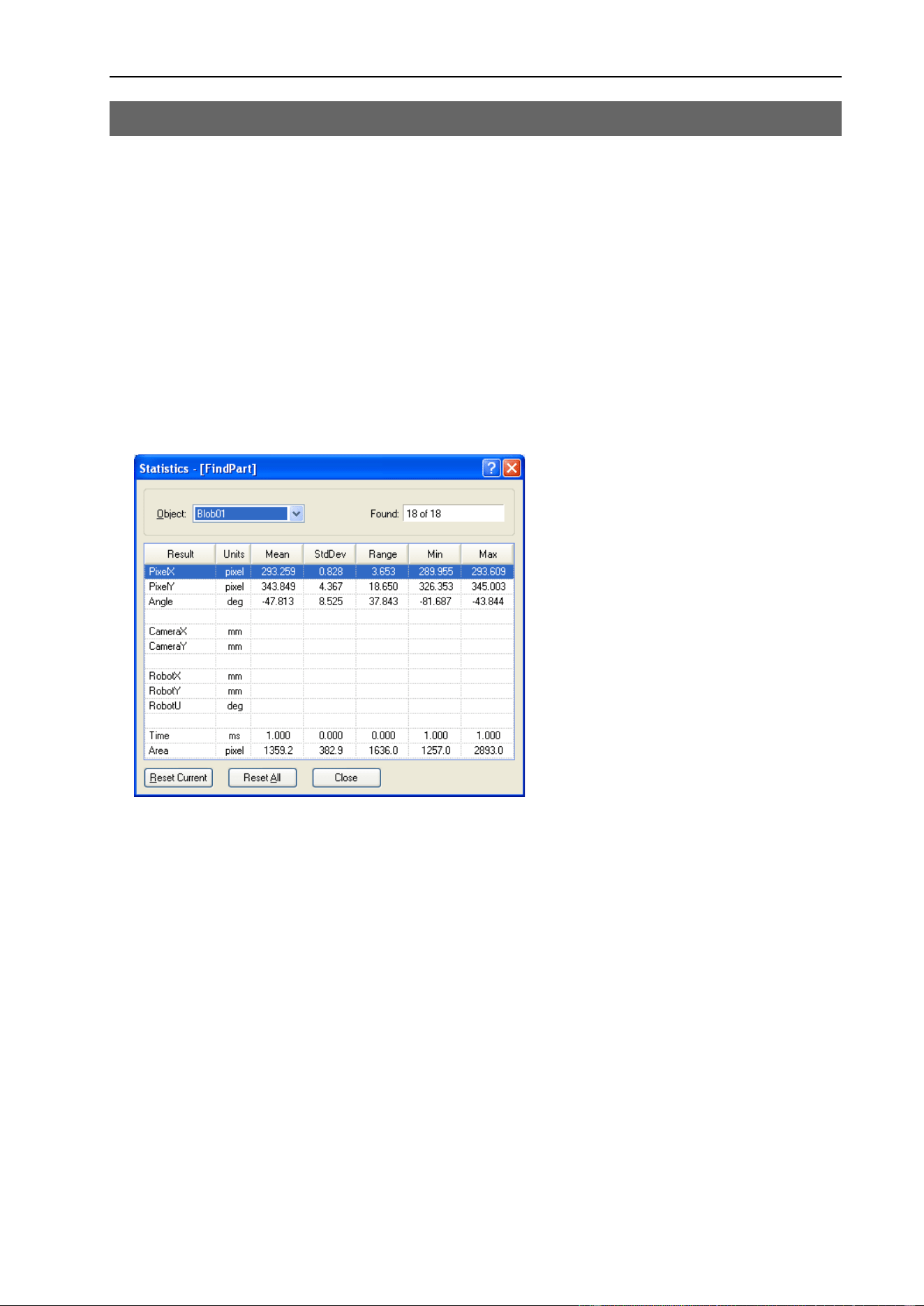
VStatsShow Statement
Vision Guide 6.0 Properties and Results Reference Rev.6 243
VStatsShow Statement
Applies To
Vision Sequence
Description
Displays statistics for a specified sequence.
Usage
VStatsShow Sequence
Sequence Name of a sequence or string variable containing a sequence name.
Remarks
VStatsShow will display a dialog showing the statistics for all objects in the specified sequence.
Example
VStatsShow Seq1
See Also
VStatsReset, VStatsResetAll, VStatsSave
VTeach Statement
244 Vision Guide 6.0 Properties and Results Reference Rev.6
VTeach Statement
Applies To
Vision Objects: ColorMatch, Correlation, Geometric, ImageOp, OCR, Polar
Description
VTeach enables you to teach a vision model from a SPEL
+
program.
Usage
VTeach Sequence.Object, var
Sequence Name of a sequence or string variable containing a sequence name.
Object Name of an object or string variable containing an object name. The object must exist in the
specified sequence.
var Integer variable that will contain the return status.
Values
Returns status in var. If the teach operation was successful, var will contain 1, otherwise it will contain 0.
Remarks
The object must exist before you can call VTeach. When VTeach executes, a snapshot is taken first, then
the model is taught using the current model window.
When using the ColorMatch or ImageOp objects, you must first set the CurrentModel property before
executing VTeach.
After executing VTeach, you must call VSaveModel to make the changes permanent.
Example
Integer status
VTeach seq1.corr01, status
If status = 1 Then
VSaveModel seq1.corr01, "c:\models\corr01"
EndIf
See Also
CurrentModel Property, VSaveModel, VTrain
NOTE

VTrain Statement
Vision Guide 6.0 Properties and Results Reference Rev.6 245
VTrain Statement
Applies To
All vision objects
Description
VTrain enables you to train the search window and model window for an object from a SPEL
+
program.
Usage
VTrain Sequence [.Object], var [, flags ]
Sequence Name of a sequence or string variable containing a sequence name.
Object Optional. Name of an object or string variable containing an object name. The object must
exist in the specified sequence. If omitted, the entire sequence can be trained.
var Integer variable that will contain the return status.
flags Optional. Configures VTrain operation.
1 - Show teach button.
2 - Don't show model windows.
Values
Returns status in var. If the user clicks OK, var will contain 1, otherwise it will contain 0.
Remarks
The sequence must exist before you call VTrain. If Object is specified then it must exist in the specified
sequence before you can call VTrain. When VTrain executes, a dialog is opened showing live video with
the specified sequence or object. The user can then move and size the search and model windows just as
you would in the Vision Guide window.
If flags bit 1 is set, a teach button will be displayed. For objects with models, such as Correlation,
Geometric, and Polar objects, the model will be taught if the teach button is clicked. You can retrieve the
ModelOK property after running VTrain to check if a model was trained. For Blob objects and ImageOp
objects with operation set to Binarize, the teach button will open the Histogram dialog and the operator can
adjust both high and low thresholds and then view the effects of changes.
If flags bit 2 is set, model windows will not be displayed. The operator can only change search windows
.
For objects with models, you can call VTeach after calling VTrain to teach the model if you are not
displaying the teach button.
After executing VTrain, you must call VSave to make the changes permanent.
See Also
VTeach, VSave

X Property
246 Vision Guide 6.0 Properties and Results Reference Rev.6
X Property
Applies To
Vision Objects: Point
Description
Defines the X coordinate of a Point object.
Usage
VGet Sequence.Object.X, var
VSet Sequence.Object.X, value
Sequence Name of a sequence or string variable containing a sequence name.
Object Name of an object or string variable containing an object name. The object must exist in the
specified sequence.
var Integer variable that will contain the value of the property.
value Integer expression for the new value of the property.
Values
Min: 0
Max Video width: −1
Remarks
The X property is used to locate horizontal position of the Point object in the image coordinate system.
This property is initially set to the X position where the user drops a newly created Point object. However,
if a Point object is associated with another object in the sequence (i.e. the PointType property is set to
another vision object and not set to 0–Screen), then the X property for the Point object is automatically
modified according to the associated object.
When the PointType property is set to 0–Screen there are two methods which can be used to move the Point
object:
- Click on the Point object's label and drag the object to the position you want to place it.
- Change the X and Y properties for the Point object.
See Also
Object Tab, Point Object, Y Property

X1 Property
Vision Guide 6.0 Properties and Results Reference Rev.6 247
X1 Property
Applies To
Vision Objects: Edge, Line
Description
Defines the X1 coordinate of an object where the (X1, Y1) coordinate pair defines the position of the
starting point of the object.
Usage
VGet Sequence.Object.X1, var
VSet Sequence.Object.X1, value
Sequence Name of a sequence or string variable containing a sequence name.
Object Name of an object or string variable containing an object name. The object must exist in the
specified sequence.
var Integer variable that will contain the value of the property.
value Integer expression for the new value of the property.
Values
Min: 0
Max Video width - 1
Remarks
Line Object:
The X1 property is used to locate horizontal position for the starting point of a Line object. This property is
initially set to the starting point X position where the user drops a newly created Line object. However, if a
Point object is associated with another object in the sequence (i.e. the StartPointType property is set to
another vision object and not set to 0–Screen), then the X1 property for the Line object is automatically
modified according to the associated property.
When the StartPointType property is set to 0–Screen there are 2 methods which can be used to move the
Line object:
- Click on the Line object's label and drag the object to the position you want to place it.
- Change the X1, Y1, X2, or Y2 coordinates.
Edge Object:
The X1 property is used to locate horizontal position for the starting point of an Edge object.
See Also
Edge Object, Line Object, Object Tab, StartPointObject Property, StartPointType Property, X2 Property,
Y1 Property, Y2 Property

X2 Property
248 Vision Guide 6.0 Properties and Results Reference Rev.6
X2 Property
Applies To
Vision Objects: Edge, Line
Description
Defines the X2 coordinate of an object where the (X2, Y2) coordinate pair defines the position of the
starting point of the object.
Usage
VGet Sequence.Object.X2, var
VSet Sequence.Object.X2, value
Sequence Name of a sequence or string variable containing a sequence name.
Object Name of an object or string variable containing an object name. The object must exist in the
specified sequence.
var Integer variable that will contain the value of the property.
value Integer expression for the new value of the property.
Values
Min: 0
Max Video width: −1
Remarks
Line Object:
The X2 property is used to locate horizontal position for the endpoint of a Line object. This property is
initially set to the ending point X position where the user drops a newly created Line object. However, if a
Point object is associated with another object in the sequence (i.e. the EndPointType property is set to
another vision object and not set to 0–Screen), then the X2 property for the Line object is automatically
modified according to the associated property.
When the EndPointType property is set to 0–Screen there are 2 methods which can be used to move the
Line object:
- Click on the Line object's label and drag the object to the position you want to place it.
- Change the X1, Y1, X2, or Y2 coordinates.
Edge Object:
The X2 property is used to locate horizontal position for the ending point of an Edge object.
See Also
Edge Object, EndPointObject Property, EndPointType Property, Line Object, Object Tab, X1 Property, Y1
Property, Y2 Property

XAvgError Result
Vision Guide 6.0 Properties and Results Reference Rev.6 249
XAvgError Result
Applies To
Vision Calibration
Description
Returns the average calibration error along the X axis.
Usage
VGet Calibration.XAvgError, var
Calibration Name of a calibration or string variable containing a calibration name.
var Real variable that will contain the value of the result.
Values
Real number in millimeters.
Remarks
XAvgError is the average calibration error along the X axis detected during calibration.
See Also
XMaxError, XmmPerPixel, YAvgError

XMaxError Result
250 Vision Guide 6.0 Properties and Results Reference Rev.6
XMaxError Result
Applies To
Vision Calibration
Description
Returns the maximum calibration error along the X axis.
Usage
VGet Calibration.XMaxError, var
Calibration Name of a calibration or string variable containing a calibration name.
var Real variable that will contain the value of the result.
Values
Real number in millimeters.
Remarks
XMaxError is the maximum calibration error along the X axis detected during calibration.
See Also
XAvgError, XmmPerPixel, YMaxError

XmmPerPixel Result
Vision Guide 6.0 Properties and Results Reference Rev.6 251
XmmPerPixel Result
Applies To
Vision Calibration
Description
Returns the X millimeters/pixel value of the specified calibration.
Usage
VGet Calibration.XmmPerPixel, var
Calibration Name of a calibration or string variable containing a calibration name.
var Real variable that will contain the value of the result.
Values
Real number in millimeters.
Remarks
XmmPerPixel is the number of millimeters per pixel along the camera X axis.
See Also
XAvgError, XMaxError, YmmPerPixel

XTilt Result
252 Vision Guide 6.0 Properties and Results Reference Rev.6
XTilt Result
Applies To
Vision Calibration
Description
Returns the calibration X tilt result.
Usage
VGet Calibration.XTilt, var
Calibration Name of a calibration or string variable containing a calibration name.
var Real variable that will contain the value of the result.
Remarks
XTilt is a relative value that indicates camera tilt along the camera X axis. The directions are as viewed
from the camera in the image coordinate system (plus x is right).
A positive value indicates tilt to the right, negative is tilt to the left.
See Also
YTilt Result

Y Property
Vision Guide 6.0 Properties and Results Reference Rev.6 253
Y Property
Applies To
Vision Objects: Points
Description
Defines the Y coordinate of a Point object.
Usage
VGet Sequence.Object.Y, var
VSet Sequence.Object.Y, value
Sequence Name of a sequence or string variable containing a sequence name.
Object Name of an object or string variable containing an object name. The object must exist in the
specified sequence.
var Integer variable that will contain the value of the property.
value Integer expression for the new value of the property.
Values
Min: 0
Max Video height- 1
Remarks
The Y property is used to locate the vertical position of the Point object in the image coordinate system.
This property is initially set to the Y position where the user drops a newly created Point object. However,
if a Point object is associated with another object in the sequence (i.e. the PointType property is set to
another vision object and not set to 0–Screen), then the Y property for the Point object is automatically
modified according to the associated object.
When the PointType property is set to 0–Screen, there are two methods which can be used to move the
Point object:
- Click on the Point object's label and drag the object to the position you want to -place it.
- Change the X and Y properties for the Point object.
See Also
Object Tab, Point Object, X Property

Y1 Property
254 Vision Guide 6.0 Properties and Results Reference Rev.6
Y1 Property
Applies To
Vision Objects: Edge, Line
Description
Defines the Y1 coordinate of an object where the (X1, Y1) coordinate pair defines the position of the
starting point of the object.
Usage
VGet Sequence.Object.Y1, var
VSet Sequence.Object.Y1, value
Sequence Name of a sequence or string variable containing a sequence name.
Object Name of an object or string variable containing an object name. The object must exist in the
specified sequence.
var Integer variable that will contain the value of the property.
value Integer expression for the new value of the property.
Values
Min: 0
Max Video height- 1
Remarks
There are cases where the user may want to position a Point object dynamically and for that reason the Y1
property can also be set from the SPEL
+
Language.
Line Object:
The Y1 property is used to locate vertical position for the starting point of a Line object. This property is
initially set to the Y position where the user drops a newly created Line object. However, if a Point object
is associated with another object in the sequence (i.e. the StartPointType property is set to another vision
object and not set to 0–Screen), then the Y1 property for the Line object is automatically modified
according to the associated property.
When the StartPointType property is set to 0–Screen there are 2 methods which can be used to move the
Line object:
- Click on the Line object's label and drag the object to the position you want to place it.
- Change the X1, Y1, X2, or Y2 coordinates.
Edge Object:
The Y1 property is used to locate veritical position for the starting point of an Edge object.
See Also
Edge Object, Line Object, Object Tab, StartPointObject property, StartPointType property, X1 property, X2
property, Y2 property

Y2 Property
Vision Guide 6.0 Properties and Results Reference Rev.6 255
Y2 Property
Applies To
Vision Objects: Edge, Line
Description
Defines the Y2 coordinate of an object where the (X2, Y2) coordinate pair defines the position of the
starting point of the object.
Usage
VGet Sequence.Object.Y2, var
VSet Sequence.Object.Y2, value
Sequence Name of a sequence or string variable containing a sequence name.
Object Name of an object or string variable containing an object name. The object must exist in the
specified sequence.
var Integer variable that will contain the value of the property.
value Integer expression for the new value of the property.
Values
Min: 0
Max Video height- 1
Remarks
There are cases where the user may want to position a Point object dynamically and for that reason the Y2
property can also be set from the SPEL
+
Language.
Line Object:
The Y2 property is used to locate vertical position for the ending point of a Line object. This property is
initially set to the ending point Y position where the user drops a newly created Line object. However, if a
Point object is associated with another object in the sequence (i.e. the EndPointType property is set to
another vision object and not set to 0–Screen), then the Y2 property for the Line object is automatically
modified according to the associated property.
When the EndPointType property is set to 0–Screen there are two methods which can be used to move the
Line object:
- Click on the Line object's label and drag the object to the position you want to place it.
- Change the X1, Y1, X2, or Y2 coordinates.
Edge Object:
The Y1 property is used to locate veritical position for the ending point of an Edge object.
See Also
Edge Object, EndPointObject Property, EndPointType Property, Line Object, Object Tab, X1 Property, X2
Property, Y1 Property

YAxisPntObjResult Property
256 Vision Guide 6.0 Properties and Results Reference Rev.6
YAxisPntObjResult Property
Applies To
Vision Objects: Frame
Description
Specifies which result to use from the YAxisPointObject.
Usage
VGet Sequence.Object.YAxisPntObjResult, var
VSet Sequence.Object.YAxisPntObjResult, value
Sequence Name of a sequence or string variable containing a sequence name.
Object Name of an object or string variable containing an object name. The object must exist in the
specified sequence.
var Integer variable that will contain the value of the property.
value Integer expression for the new value of the property.
Values
The value can range from 1 to the NumberToFind value for the YAxisPointObject.
If the YAxisPointObject is 'Screen', then the value is always 1.
Remarks
Use the YAxisPntObjResult property to specify a result number other than one for a Frame Object's
YAxisPoint.
See Also
Frame Object, Object Tab, OriginPntObjResult Property, OriginPoint Property, YAxisPoint Property

YAxisPoint Property
Vision Guide 6.0 Properties and Results Reference Rev.6 257
YAxisPoint Property
Applies To
Vision Objects: Frame
Description
Defines the vision object to be used as the Y axis point for a Frame object.
Usage
VGet Sequence.Object.YAxisPoint, var
VSet Sequence.Object.YAxisPoint, value
Sequence Name of a sequence or string variable containing a sequence name.
Object Name of an object or string variable containing an object name. The object must exist in the
specified sequence.
var String variable that will contain the value of the property.
value String expression for the new value of the property. Valid vision objects for the YAxisPoint
property are: Blob, Correlation, Edge, Line, and Point objects. The YAxisPoint may also be
based on the Screen position of the Frame.
Values
Screen or any object that runs prior to the frame and returns PixelX and PixelY results.
Default: Screen
Remarks
When a Frame object is first drag-and-dropped onto the Image display area of the Vision Guide Window,
the default YAxisPoint property is set to Screen. Frame objects are normally attached to other Vision
objects. This is the purpose of the OriginPoint and YAxisPoint. Through these 2 properties the user can
define a frame of reference for other objects to have their position based upon. This capability is useful
when specific features can be used to find reference points on a part and then other vision objects can be
located on the image with respect to the frame position defined.
The OriginPoint and YAxisPoint properties are used together to define a vision frame which has an origin
at the OriginPoint and a Y axis direction defined by the YAxisPoint property.
It is important to note that for each specific vision sequence, only those vision objects which are executed
prior to the Frame object in the vision sequence steps will be available to use as an OriginPoint. (The order
of the vision object execution can be adjusted from the Sequence Tab.)
When using the point and click interface click on the YAxisPoint property Value Field. Then click on the
arrow and a drop down list will appear showing a list of available vision objects (along with the default
value Screen) which can be used to define the Y Axis direction of the Frame. Click on one of the choices
and the value field will be set accordingly.
When using the Object tab to set the YAxisPoint property it is important to note that only those objects
which are defined prior to the Frame object are displayed in the drop down list. This helps reduce the
chances of the user defining an OriginPoint which isn't defined prior to the Frame object.
Vision Guide automatically checks which vision objects can be used as the YAxisPoint and displays only
those object names in the drop down list.
See Also
Frame Object, Frame Property, Object Tab, OriginPoint Property

YAvgError Result
258 Vision Guide 6.0 Properties and Results Reference Rev.6
YAvgError Result
Applies To
Vision Calibration
Description
Returns the average calibration error along the Y axis.
Usage
VGet Calibration.YAvgErr, var
Calibration Name of a calibration or string variable containing a calibration name.
var Real variable that will contain the value of the result.
Values
Real number in millimeters.
Remarks
YAvgError is the average calibration error along the Y axis detected during calibration.
See Also
XAvgError, YMaxError, YmmPerPixel

YMaxError Result
Vision Guide 6.0 Properties and Results Reference Rev.6 259
YMaxError Result
Applies To
Vision Calibration
Description
Returns the maximum calibration error along the Y axis.
Usage
VGet Calibration.YMaxErr, var
Calibration Name of a calibration or string variable containing a calibration name.
var Real variable that will contain the value of the result.
Values
Real number in millimeters.
Remarks
YMaxError is the maximum calibration error along the Y axis detected during calibration.
See Also
XMaxError, YAvgError, YmmPerPixel

YmmPerPixel Result
260 Vision Guide 6.0 Properties and Results Reference Rev.6
YmmPerPixel Result
Applies To
Vision Calibration
Description
Returns the Y millimeters/pixel value of the specified calibration.
Usage
VGet Calibration.YmmPerPixel, var
Calibration Name of a calibration or string variable containing a calibration name.
var Real variable that will contain the value of the result.
Values
Real number in millimeters.
Remarks
YmmPerPixel is the number of millimeters per pixel along the camera Y axis.
See Also
XmmPerPixel, YAvgError, YMaxError

YTilt Result
Vision Guide 6.0 Properties and Results Reference Rev.6 261
YTilt Result
Applies To
Vision Calibration
Description
Returns the calibration Y tilt result.
Usage
VGet Calibration.YTilt, var
Calibration Name of a calibration or string variable containing a calibration name.
var Real variable that will contain the value of the result.
Remarks
YTilt is a relative value that indicates camera tilt along the camera Y axis. The directions are as viewed
from the camera in the image coordinate system (plus y is down).
A positive value indicates tilt down, negative indicates tilt up.
See Also
XTilt Result

YTilt Result
262 Vision Guide 6.0 Properties and Results Reference Rev.6