Need help? Contact Band Connect at (513) 202-3370.
1
Quick Start Guide
support@bandconnect.net
(513)202-3370

© Band Connect, Inc. | support@bandconnect.net 2
Getting Started
Welcome to Band Connect!
Hello,
Welcome to Band Connect, your personalized therapy
companion, designed to guide your recovery journey and
help you achieve the best possible outcomes.
With Band Connect, your home exercise program becomes
straightforward and easy to follow. The app provides step-
by-step instructions, real-time feedback to ensure correct
form, and guidance aligned with what your clinician
prescribed during your in-clinic visit.
Your clinician can also monitor your progress, adjust your
plan as needed, and ensure your recovery stays on track.
Band Connect maximizes your recovery potential and by
using this platform consistently, you’ll give your care team
the insights they need to support your recovery every step
of the way.
Remember: bring your kit to every visit—it’s an essential
part of your care.
Let’s get started on the path to recovery, together.
Best wishes,
The Band Connect Team
Need help? Contact Band Connect at (513) 202-3370.
3
What to Expect.
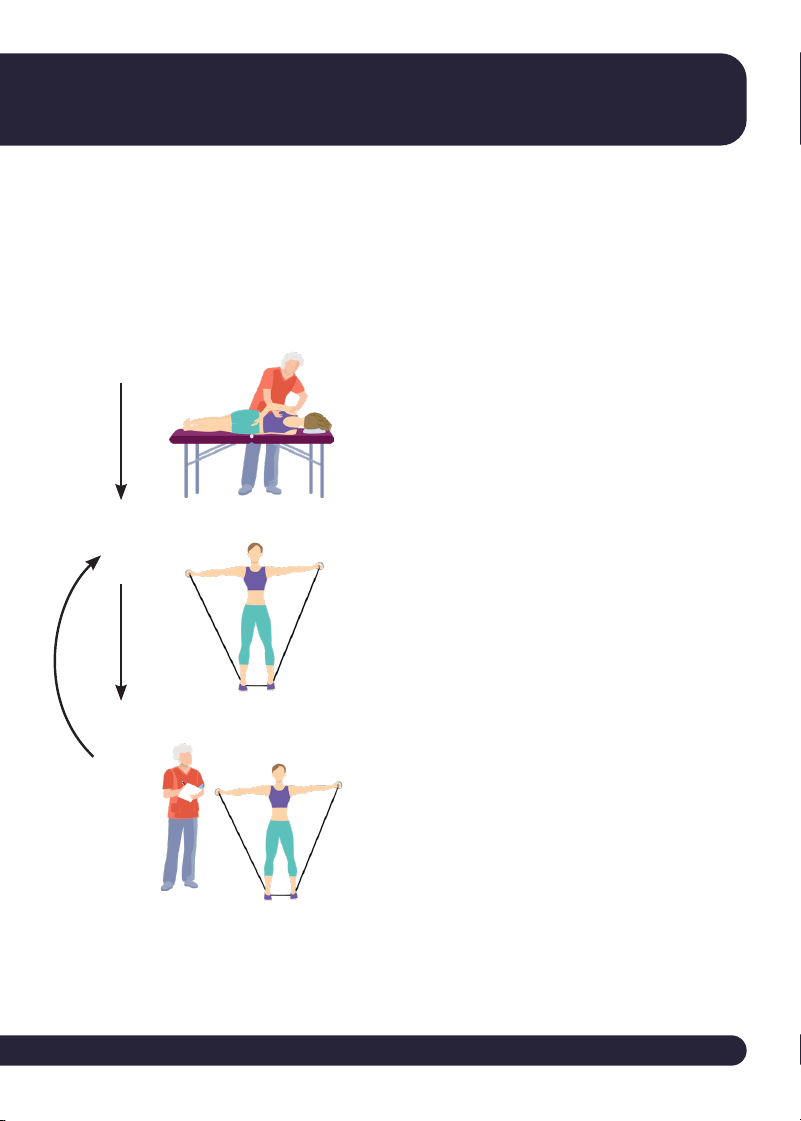
You will leverage Band Connect both inside the clinic
and at home. Here are the steps that you will take on
your recovery journey.
1.
2.
3.
FIRST IN-CLINIC VISIT
Your clinician will set the base-
lines for your exercises.
AT-HOME SESSIONS
Perform exercises at home with
real-time feedback. Then, complete
your assigned assessments.
FOLLOW-UP IN-CLINIC VISITS
Your clinician reviews progress
and updates your home exercise
program as needed.
© Band Connect, Inc. | support@bandconnect.net 4
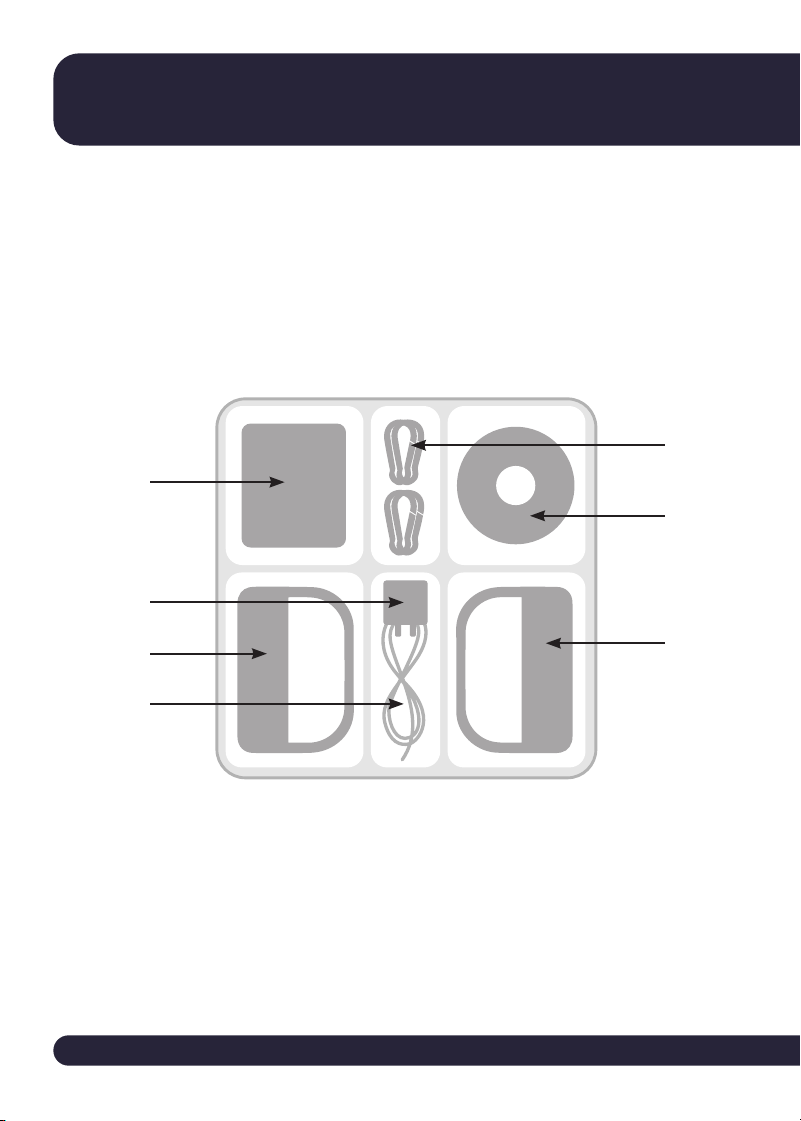
Your Band Connect Kit contains all the essential
components you will need for your recovery journey
with Band Connect.
So, let’s go over what’s inside.
YOUR BAND CONNECT KIT
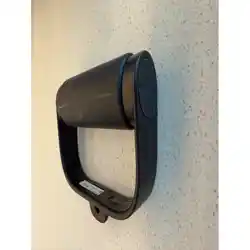
1. Band Connect Handle
2. Charging Cords
3. Charging Block
4. Phone Stand
5. Door Anchor
6. Carabiners
Getting Started
4
6
1
5
2
1
3
Need help? Contact Band Connect at (513) 202-3370.
5
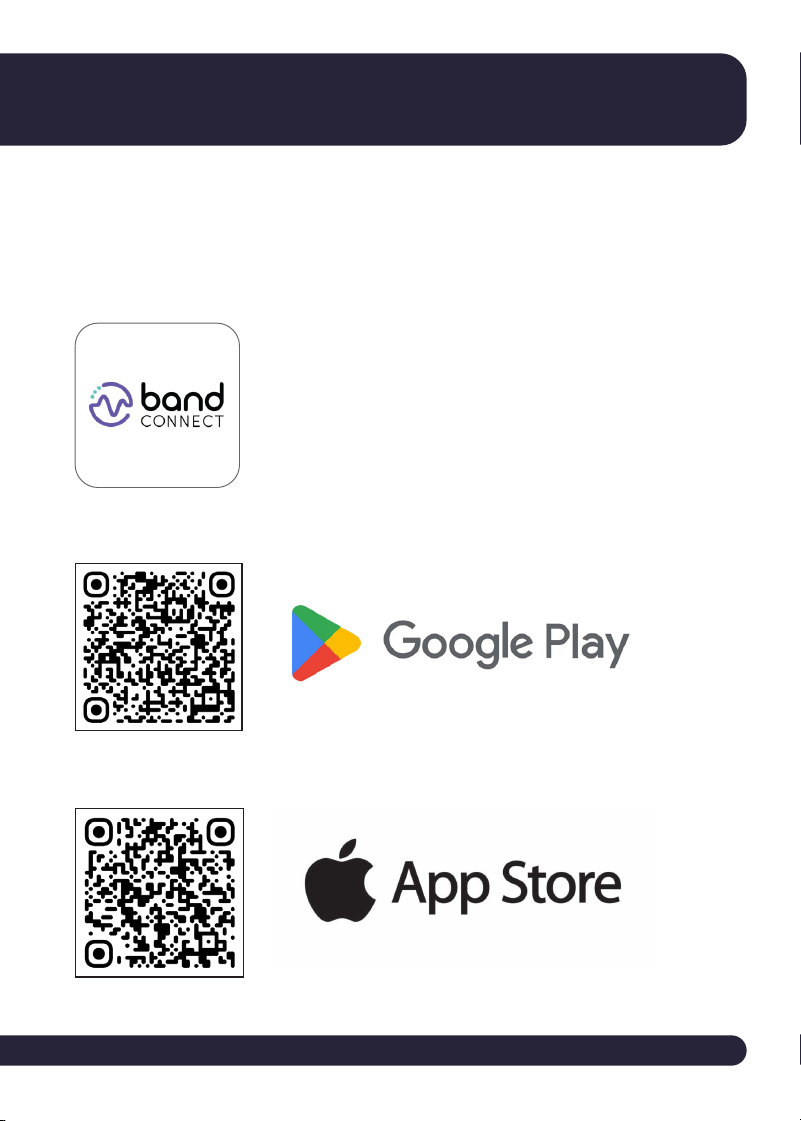
Find Band Connect on the App Store or Google Play
to download the app, or scan the QR codes below
for direct access.
HOW TO DOWNLOAD THE APP
Look for the Band Connect logo
before downloading.
Android Google Play
Apple App Store
© Band Connect, Inc. | support@bandconnect.net 6
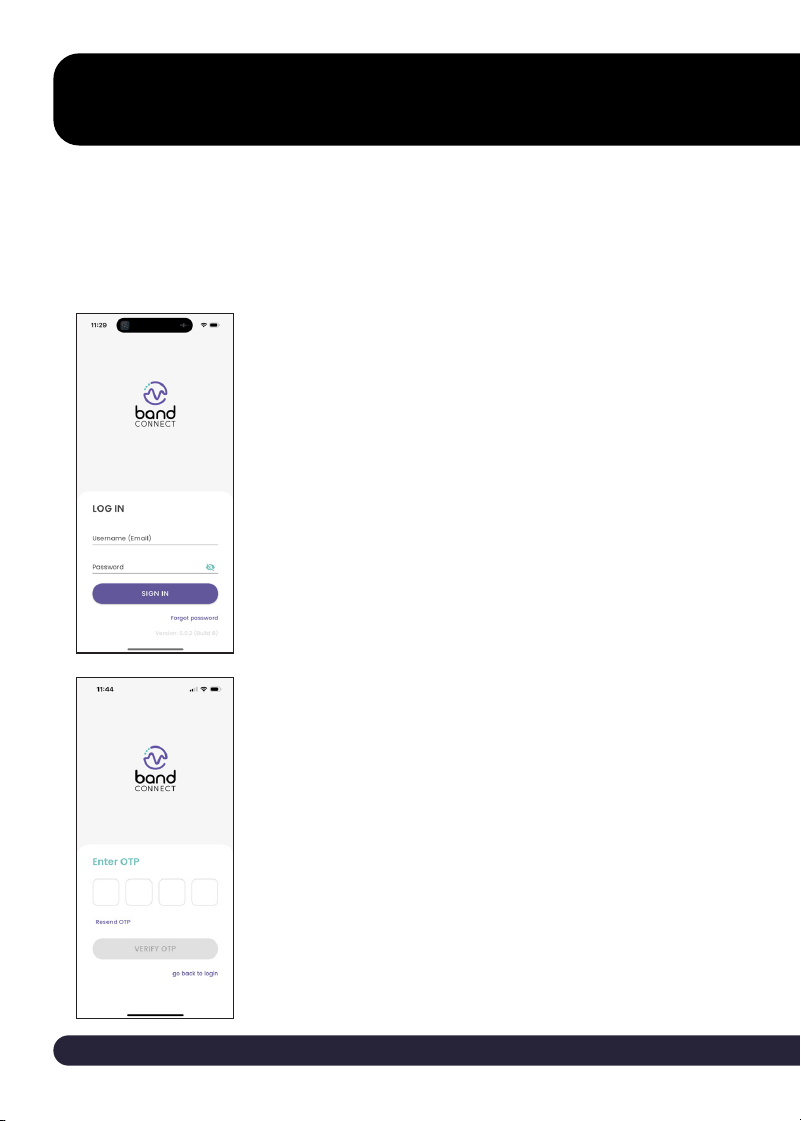
LOGGING IN
1. Login to the Band Connect App
Input your username, which is the email you
provided to your clinician, and the password
you set in the clinic, then select “sign in”.
If you don’t remember which email you
provided to your clinician, please call Band
Connect support at (513)202-3370.
2. Input your One Time Password (OTP)
Once you complete the step above, you will
receive an email with a four-digit code that
you need to enter each time you log in. This is
to keep your account secure.
Once the app is downloaded, you can log in to access
your treatments within the app.
Getting Started
Need help? Contact Band Connect at (513) 202-3370.
7
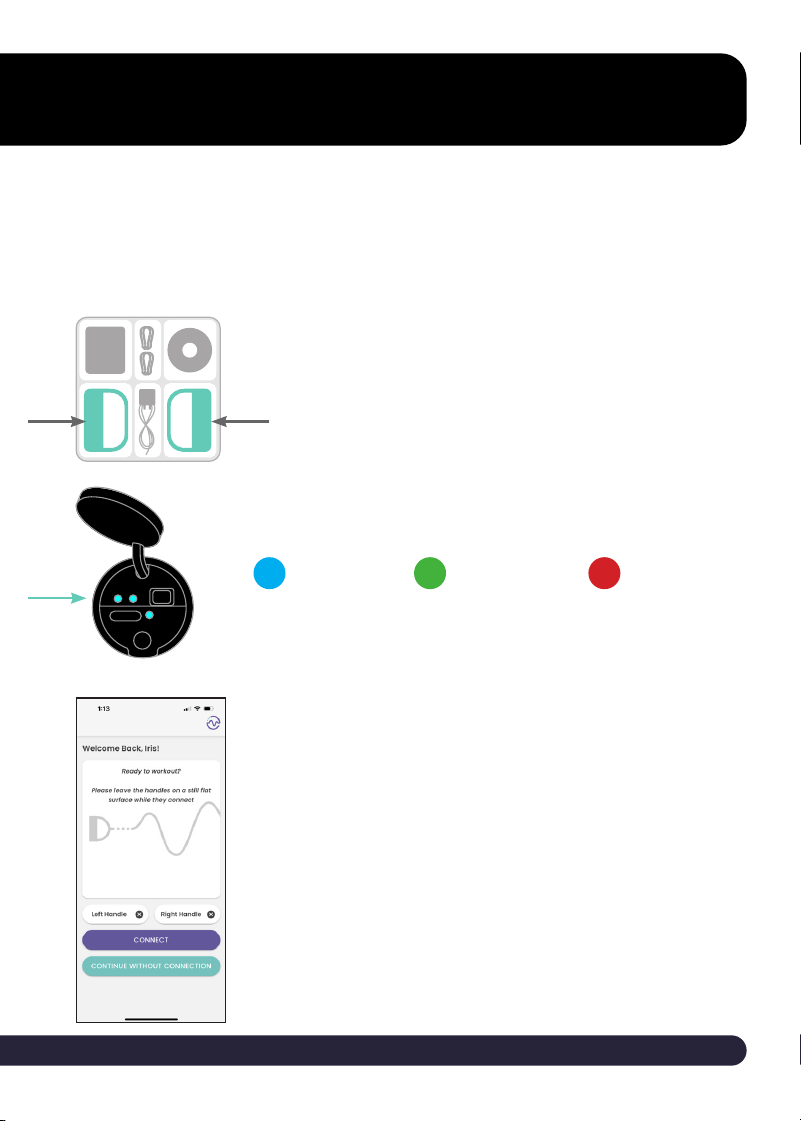
CONNECTING HANDLES
1. Find your handles in your kit.
3. Connect your handles to your phone.
Your app will indicate the handles are
connected.
Your handles are the essential component in your kit.
Please see below for how to use them properly and
recommended best practices.
2. Turn on your Cu.
The Cu will have a blue light when on.
Solid blue indicates
that you’re connected
to your phone.
BLUE
Blinking green indicates
charging, while a solid
green light indicates the
battery is fully charged.
GREEN
Blinking red indicates
low battery.
RED
© Band Connect, Inc. | support@bandconnect.net 8
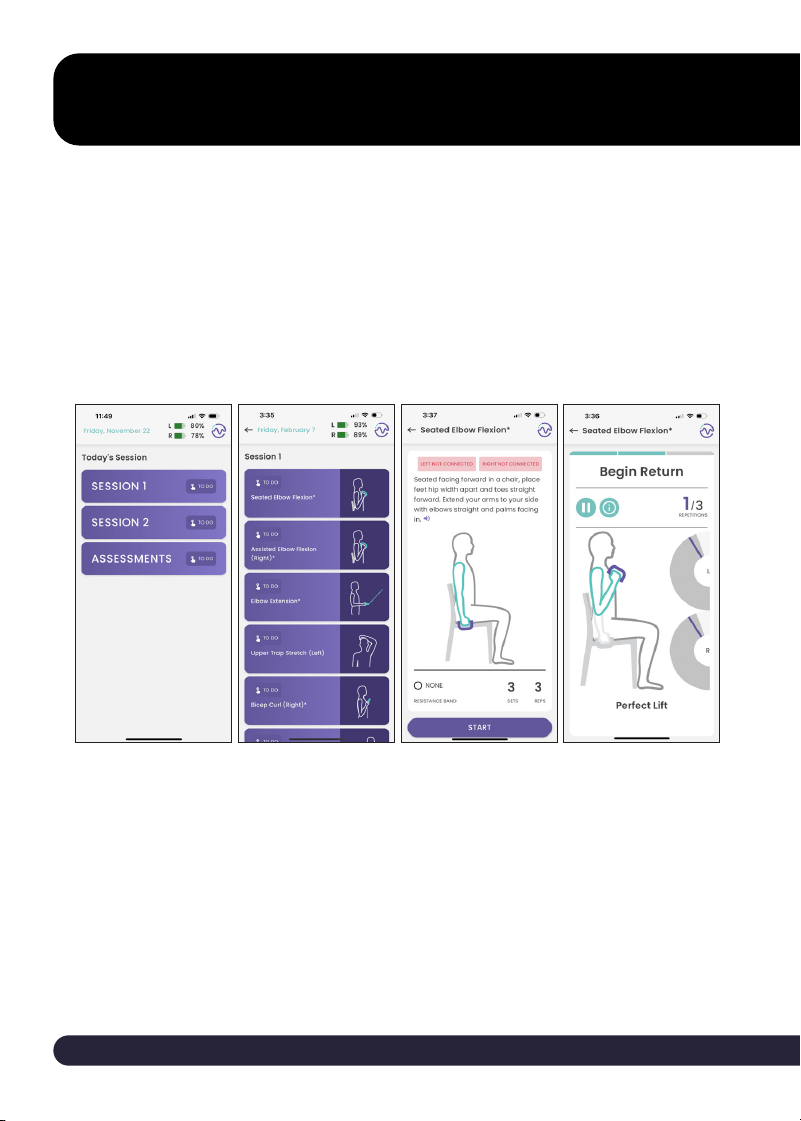
Each day you log into the patient app, you will see the treatment
that needs to be completed that day, including both the exercise
sessions and assessments.
START YOUR SESSION
1. Complete Exercise Session #1
First, select Session 1 on the assigned treatment screen to begin.
Then follow the prompts to complete all exercises in Session 1.
2. Complete Additional Exercise Sessions
After Session 1, proceed to the next available sessions, if any.
Please follow directions from your clinician as to the interval
between sessions.
3. Complete all assigned Assessments.
Select “Assessments” on the treatment screen. Follow the
prompts to answer the assessment questions as presented.
Completing Your Treatment
Need help? Contact Band Connect at (513) 202-3370.
9
The Band Connect app is very simple to use. The next
section outlines what you will see while you’re completing
your assigned treatment.
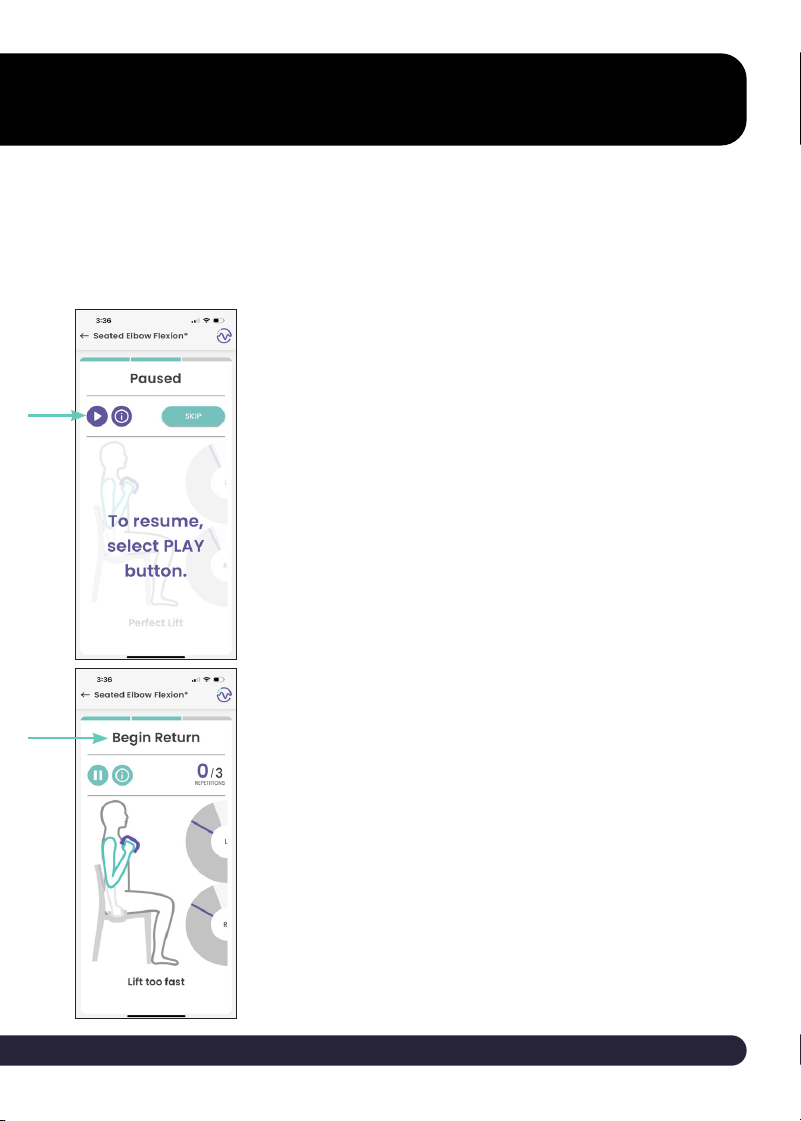
1. Pausing your session
If interrupted, select the pause button
to resume later.
To skip an exercise, pause and select
“Skip.” Choose a reason from the
dropdown menu.
2. Movement Cues
While completing your therapy, you’ll see
cues such as “too fast,” “too slow,” “too
short,” or “too far”.
These are to help guide you to recreate
what you did in the clinic with your
clinician.
WHAT YOU’LL SEE
© Band Connect, Inc. | support@bandconnect.net 10
Completing Your Treatment
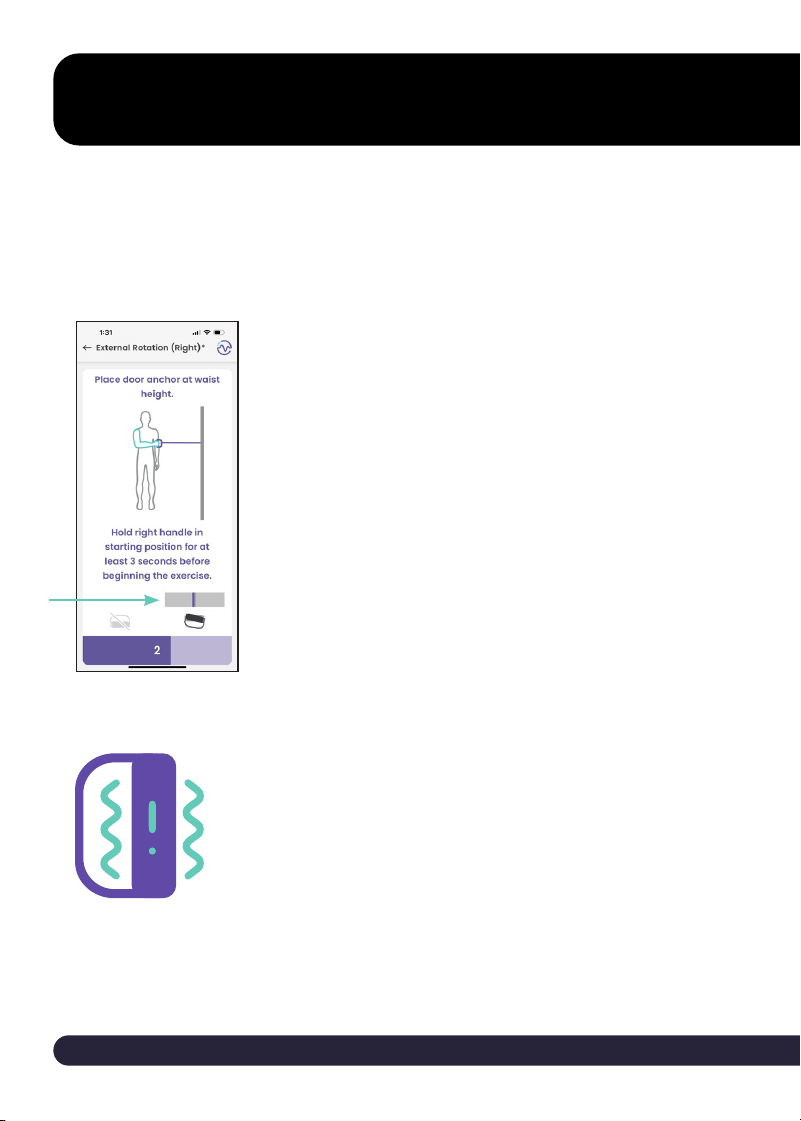
3. Adjusting Tension
The app ensures that you start with the
right starting tension for each exercise that
leverages the resistance band.
Use the app’s tension bar to match the
resistance band tension.
4. Haptic Feedback
Handles buzz to signal when to start, pause,
or end movements.
Stronger feedback indicates incorrect
handle positioning or movement.
WHAT YOU’LL SEE
The Band Connect app is very simple to use. The next
section outlines what you will see while you are completing
your assigned treatment.
Need help? Contact Band Connect at (513) 202-3370.
11
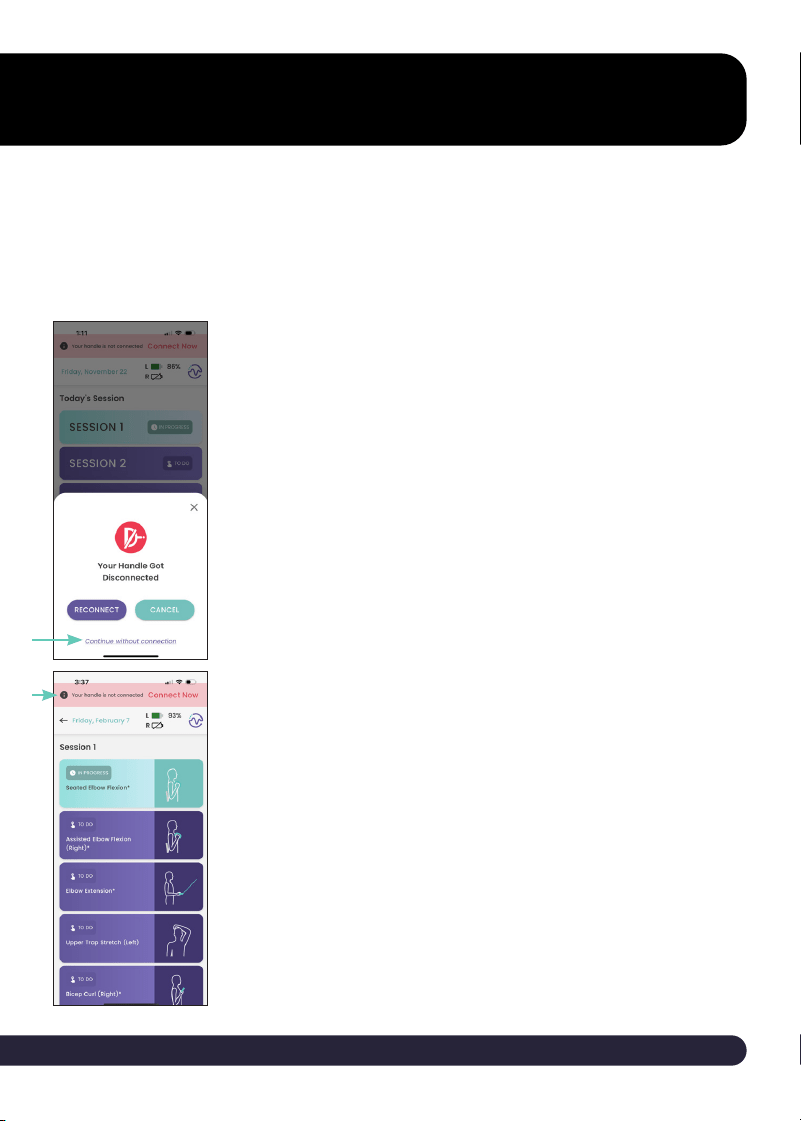
COMPLETING AN UNCONNECTED SESSION
If one or both handles do not connect to the application or get
disconnected, you will be prompted to try to connect/reconnect
the sensors.
If you decide to continue without the
connection, you have the ability to
reconnect at any point by selecting
“Connect Now”.
You have the option to select continue
to begin an unconnected session.
© Band Connect, Inc. | support@bandconnect.net 12
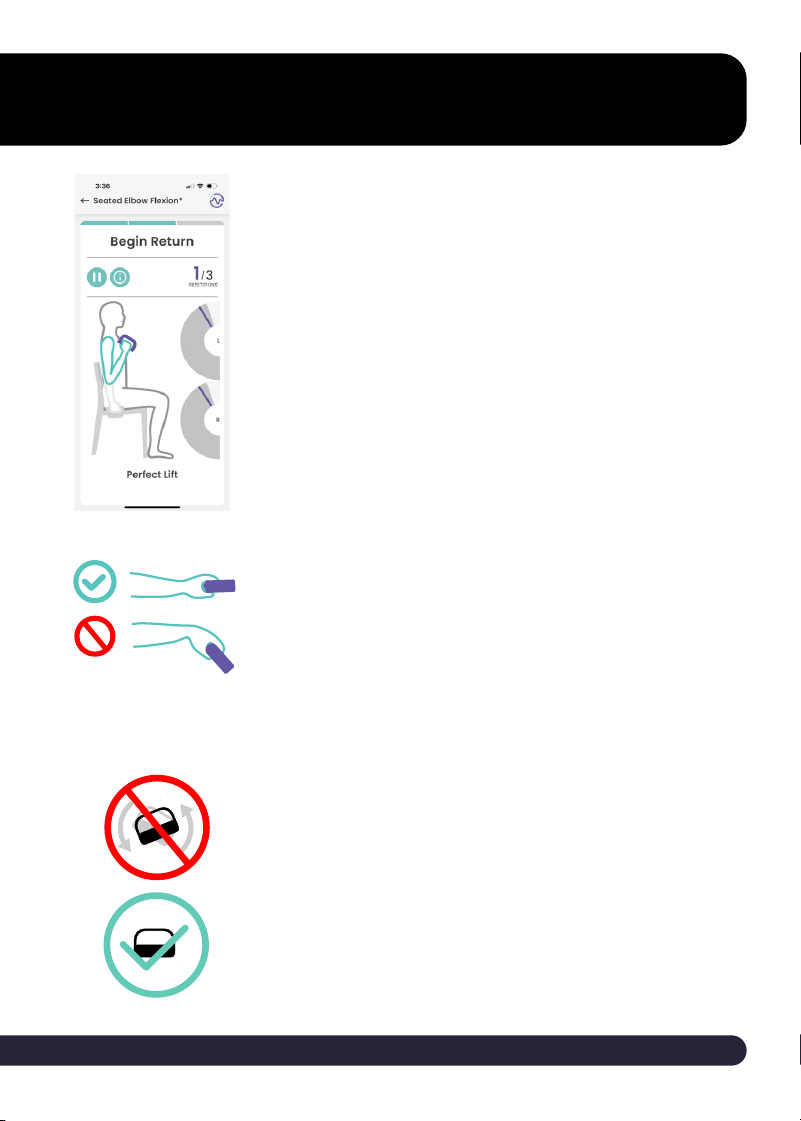
USING YOUR HANDLES
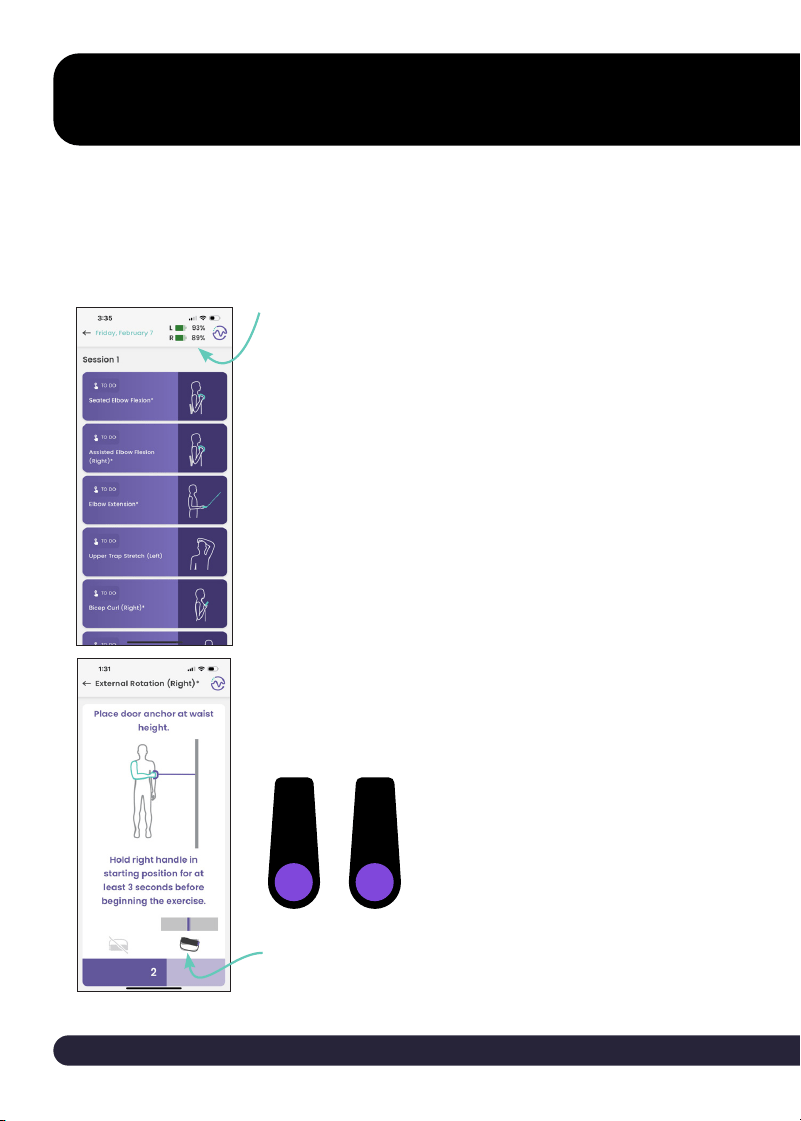
1. Keep Handles Charged
Check the handle charge in the app (upper left
corner). Charge handles at least once every 10
days for best performance.
2. Hold Handles Correctly
Ensure your thumbs point towards the purple
cover at the top. Use the right handle in your
right hand and the left handle in your left hand.
Refer to the app diagrams for the correct
starting position for each exercise.
Your handles are a crucial part of your kit. Follow these guidelines
to ensure proper use and optimal performance.
More About Your Handles.
L R
Need help? Contact Band Connect at (513) 202-3370.
13
3. Follow Cues
Follow cues and haptic feedback. Pay attention
to auditory, haptic and on-screen cues as you
do your exercises. Haptics will indicate when to
pause or start movement during each exercise.
4. Maintain Wrist Position
Keep wrists straight during exercises, especially
with resistance movements.
Avoid bending wrists to ensure accurate
movement tracking.
5. Use Steady, Smooth Movements
Avoid shaky, jerky, or rattling movements to
prevent errors

© Band Connect, Inc. | support@bandconnect.net 14
If you’re having trouble connecting your Band Connect
handles to the app, follow these steps to troubleshoot:
1. Check Handle Status
Make sure your handles are ON, as indicated by a blue light. If
the handles won’t turn on, they may need to be charged.
2. Charge the Handles
If the battery is completely discharged, the handles won’t turn
on. Charge them fully before trying to connect again. You will
see a solid green light when they are fully charged.
3. Restart the Handles
If the handles are charged and on but still not connecting, turn
them OFF and then back ON.
4. Restart the App on Your Phone
Sometimes, closing the app completely or logging out and
back in can resolve connectivity issues.
If the handles still won’t connect for any reason, continue
your exercises in “Unconnected Mode.” The app is designed
to guide you through your exercises even without handle
connectivity. Your clinician will continue to be able to monitor
your therapy as well.
We’re Here to Help!
Troubleshooting Connectivity

Need help? Contact Band Connect at (513) 202-3370.
15
FAQs
1. What is Band Connect?
The Band Connect App is designed to guide you through your
prescribed exercises step-by-step. Simply log in using your
credentials, and follow the on-screen instructions for each
exercise session. Your clinician will assign specific exercises
tailored to your recovery needs, which will appear in the app
on the scheduled days.
2. Why is it important to use the Band Connect app instead of
just doing the exercises on my own?
Patients typically have to rely on paper instructions to
complete their required home therapy. As a Band Connect
user, the app provides personalized directions based on your
in-clinic experience, ensuring that you do your exercises
correctly with the right form and movements. The app also
provides valuable data to your clinician about your activity
and progress, allowing them to adjust your treatment plan on
an ongoing basis.
3. What do I do if my handles stop working?
There may be times where the handles do not readily
connect. The App provides for an “Unconnected Mode”, which
allows you to complete your exercises without the Band
Connect handles being connected. This helps maintain your
routine and ensures continuous progress.

© Band Connect, Inc. | support@bandconnect.net 16
FAQs
We’re Here to Help!
4. Can I just use Band Connect for my therapy and stop
coming to all my in-person therapy visits?
Please continue attending your therapy visits as usual! Band
Connect is designed to complement your in-person sessions, not
replace them. It’s a tool that works alongside your clinician to
optimize your treatment.
5. How often should I charge the Band Connect handles?
You should plan on turning the handles OFF after each usage.
Consider charging the handles approximately 2 times per week.
The battery indicator located in the Band Connect app shows
a low level. It’s best to turn o the handles while charging to
maintain battery health.
6. Can I skip exercises if I’m having a tough day?
The Band Connect App has Pause and Skip options that you can
use if an exercise feels too challenging. However, it’s essential
to communicate this with your clinician so they can adjust your
plan if necessary and provide guidance on how to manage
dicult days.
Need help? Contact Band Connect at (513) 202-3370.
17
7. What should I do if I forget my password for the Band
Connect app?
If you forget your password, you can reset it by selecting the
“Forgot Password” option on the app’s login screen. Follow
the instructions sent to your registered email to create a new
password.
8. Can I keep the kit after therapy?
No, the kit should be returned to the clinic upon completion of
your therapy. Your clinician will provide instructions on how to
return it.
ARE YOU HAVING TROUBLE?
Please email us at support@bandconnect.net or
give us a call at (513)202-3370. We’re here to help!

© Band Connect, Inc. | support@bandconnect.net 18