Copyright © 2025, PuroAir
READ AND SAVE THESE INSTRUCTIONS
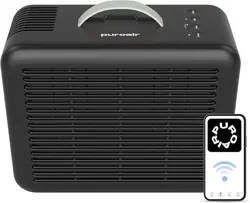
PuroAir 100
USER MANUAL
1
user manual
QUICK START GUIDE
UNBOX YOUR PURIFIER:
REGISTER YOUR WARRANTY:
REMOVE FILTER PACKAGING
POWER ON & SELECT MODE:
DOWNLOAD THE APP:
CONNECT TO WIFI:
Carefully remove the
purifier from its packaging.
Complete your warranty registration
directly in the app.
Follow the in-app instructions to
connect your purifier to Wifi.
Locate the filter cover and remove it to access
the filter. Remove the plastic packaging from
the filter and re-install it in the product and
place the filter cover back in place.
A beep indicates that the unit is plugged in.
Press the Power button to turn on the unit. You
will see the Power light illuminate and the Mode
will default to Low fan speed.
2
5
3 4
1
6
Download from the
Apple App Store.
Download from
Google Play Store.
2
puroair

TABLE OF CONTENTS
PuroAir App Setup 5
Safety precautions 6
Product information 9
Placement of air purifier 10
Filter installation 11
Understanding the role of filters 14
3 stage filter 15
Using the purifier 17
Turning on the purifier 18
Sleep mode and wifi 19
Filter reset 19
Maintenance and cleaning 20
Machine troubleshooting 22
App troubleshooting 24
Browse other products 26
Product warranty 28
3
user manual
4
puroair
Download the PuroAir App
To download the PuroAir App,
scan the QR code or search
“PuroAir” in the Apple App
Store or Google Play Store.
Open the app and log in or sign up
Note: You must create your own
PuroAir account to use third-party
services and products. These will
not work with a guest account.
To connect your PuroAir device, ensure the following:
• Your phone is connected to a 2.4GHz Wifi network and has Location Services turned on.
• Your phone is within 5 feet of the PuroAir device for Bluetooth pairing.
Connect to Wifi:
Press and hold the Wifi button on your PuroAir device for 3 seconds until it starts flashing. This
enables Bluetooth pairing mode.
Next, ensure your smartphone is connected to a 2.4GHz Wifi network and that both Bluetooth
and Location Services are turned on. Open the app and select the device to begin pairing. The
app will guide you through the rest of the setup process.
Once connected, Location Services can be turned off.
Connect Amazon Alexa or
Google Assistant
App can be used to connect your
air purifier to Amazon Alexa™ or
Google Assistant™. Follow in-app
instructions to set up your voice
assistant.
Note: customer must create their
own PuroAir account to access
voice assistants.
Changing your Wifi Network
To disconnect Wifi, press and
hold the power button for 3
seconds until the Wifi indicator
flashes. This will restore the
devices default settings and
disconnect it from the app.
To reconnect the device, please
follow the instructions in the
PuroAir app for adding a device.
PUROAIR APP SETUP
For additional instructions on how to setup the app, contact Amazon Customer Support or the Seller.
5
user manual
SAFETY
PRECAUTIONS
In order to avoid possible injury, damage to the unit, or damage to the
surrounding areas, please pay attention to the following safety precautions.
If the power cord is damaged, do not attempt to repair it at home.
WARNING: To reduce the risk of fire, electric shock, or injury to persons, do
not use replacement parts that have not been recommended by the manu-
facturer (e.g., parts made at home using a 3D printer).
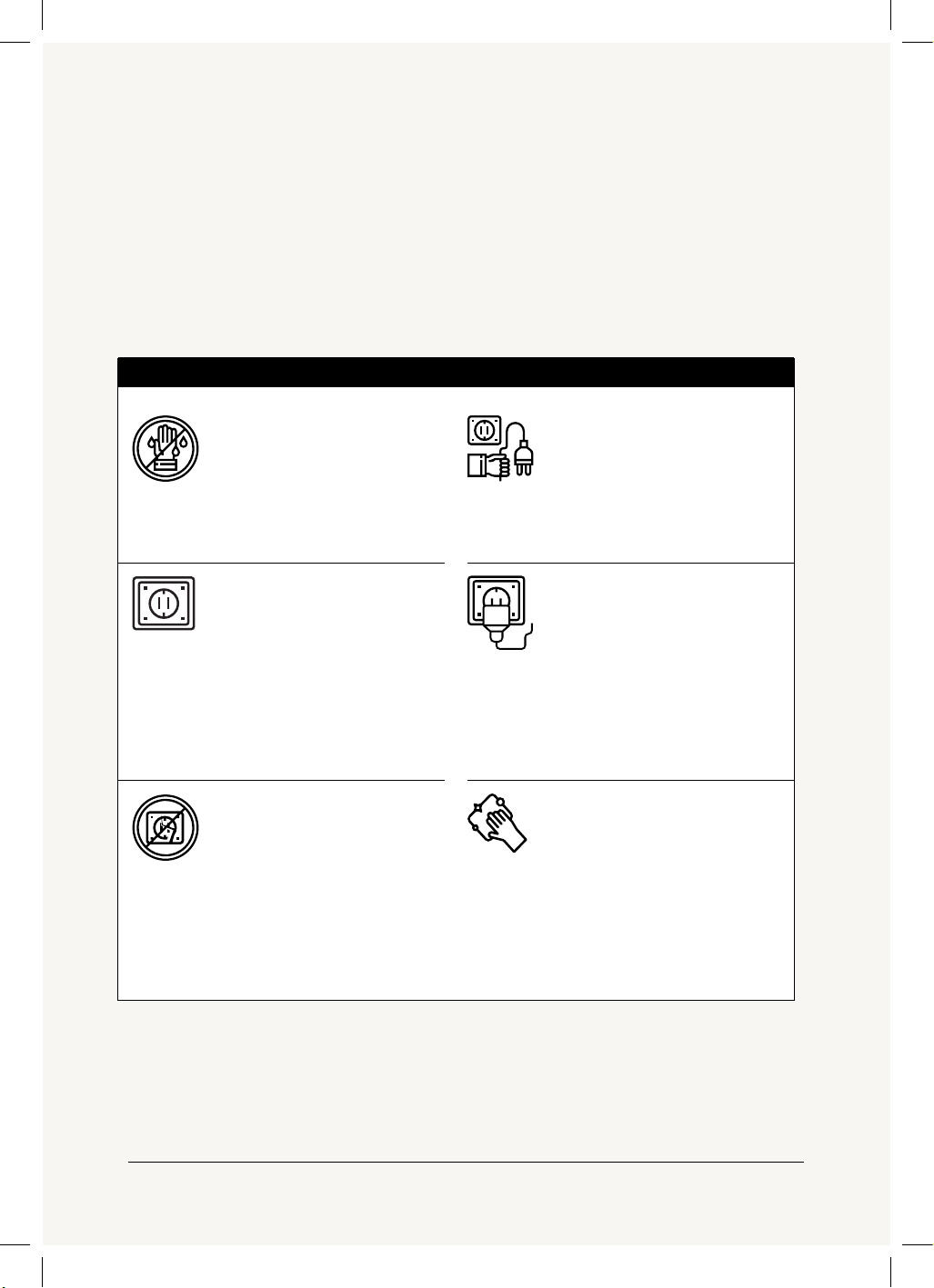
Do not touch power plug
with wet hands.
Only 100-240V ~AC,
50/60Hz power supply
should be used.
Do not damage the power
cord and socket.
When using the purifier, do not bind the
wires. Using damaged wires may lead to
electric shock, short circuit or fire.
Do not cut, twist, poke and pull wires, or
place heavy objects on wires or sockets.
Before cleaning the
purifier, make sure that
the power supply has
been disconnected.
Fully plug in the air
purifier before turning on.
If the plug is not fully inserted into the
socket, it may cause electric shock or
overheating.
Do not use damaged plugs or loose power
outlets.
Please clean the power
plug regularly.
Pull out the power plug and clean it with a
dry cloth (do not use a wet cloth).
If the appliance is not used for a long time,
the power plug should be removed.
WARNING
6
puroair
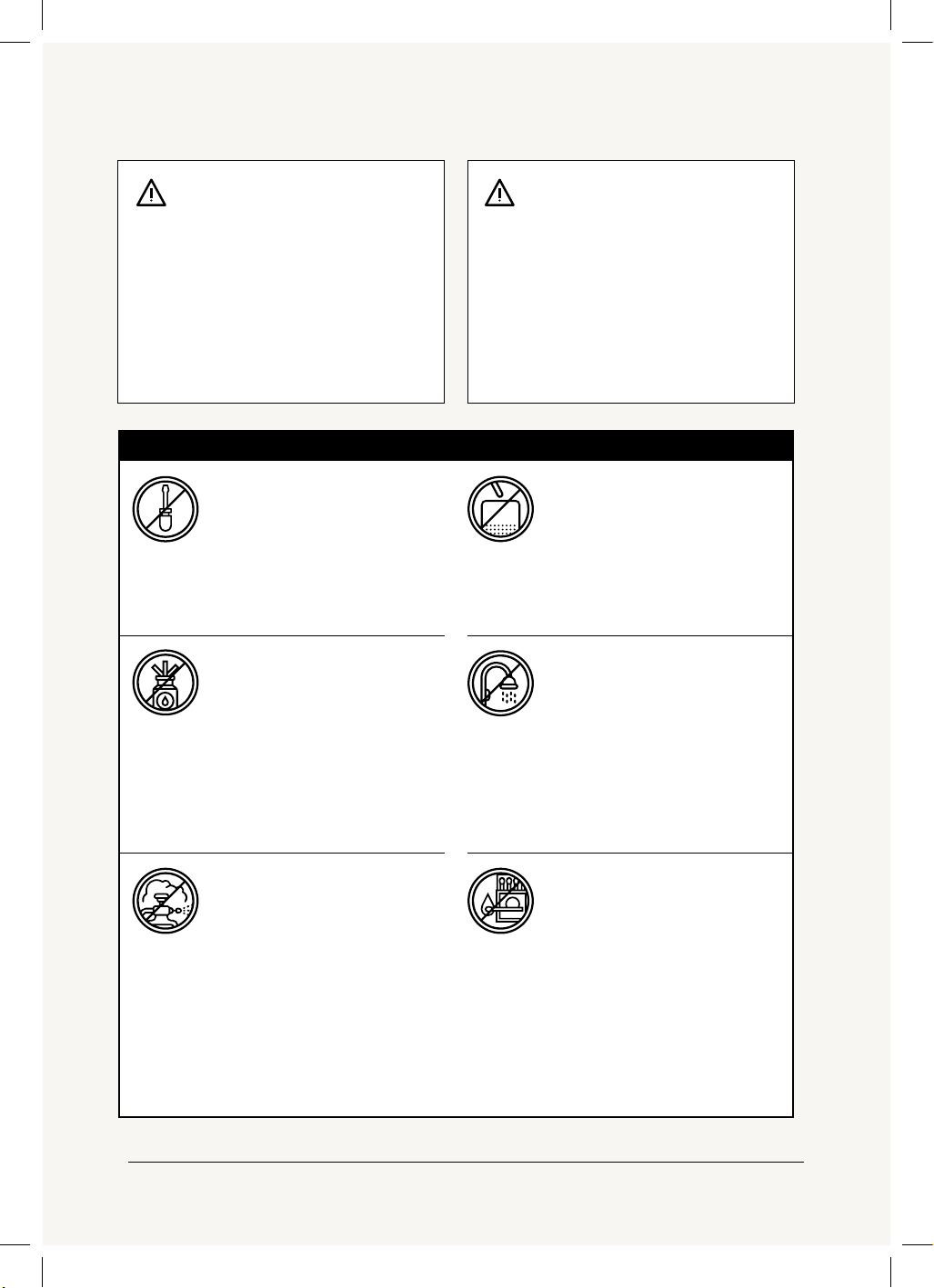
Do not use benzene, thin-
ner or other solvents to
clean the air purifier.
Do not use the air purifier
in a room with fumigation
insecticides.
Chemical residues may accumulate in the
unit and then be released from the air
outlet which can be dangerous.
After using insecticide, the room should
be thoroughly ventilated before using the
air purfier.
Do not use this air purifier
in a place with a high tem-
perature, high humidity or
a wet enviroment such as
a bathroom.
Do not let volatile
substances or combus-
tible materials, such as
tobacco and sparks,
float into the purifier.
Do not disassemble or
refit the air purifier
without authorization.
If you need to move the product, please disconnect
the power first.
Be sure to move the product slowly.
Do not move the product by pulling the power cord.
Do not move the machine while the product is in
operation. If you need to move the machine, please
turn o the power.
If a switch does not work.
If the power cord or plug is abnormally hot.
If the fuse burns out.
If you notice a burnt odor or abnormal sound or
vibration.
If there is any other abnormal phenomenon or fault.
Do not place rods or metal
objects near or in the air
outlet or opening.
WARNING
Do not use if:
7
user manual
READ AND SAVE THESE INSTRUCTIONS
To reduce the risk of fire or electric shock, do not use this
appliance with any solid-state speed control devices.
Do not spray any paint, insecticide, ethyl alcohol, or any other
chemical agent on the appliance’s surface. It can cause a crack,
electric shock, or fire. If there is a chemical accumulated inside
of the device, it will be discharged from the air outlet and
dispersed back into the living space. Please ensure the room is
well ventilated if using any of the listed chemicals.
The air purifier should not be used in a flammable and
combustible environment or environment with corrosive air.
When the device is on, please do not touch the air inlet or
outlet, or put a hand or any object into the air outlet so as to
prevent injury or damage to the product. Do not sit on or place
any objects on the device.
Device is designed for indoor, dry location installation. Not
intended for bathroom or high humidity environment. Improper
usage may cause fire, electric shock, or malfunction.
Do not modify, dismantle or repair the appliance. This may
cause fire, electric shock, or malfunction.
Do not use the appliance if the power cord or plug is broken,
damaged, and/or defective. This can cause electric shock or
fire. Do not touch the power cord with a wet hand. The power
cord should only be replaced by the manufacturer or an
authorized repair professional.
WARNING
8
puroair
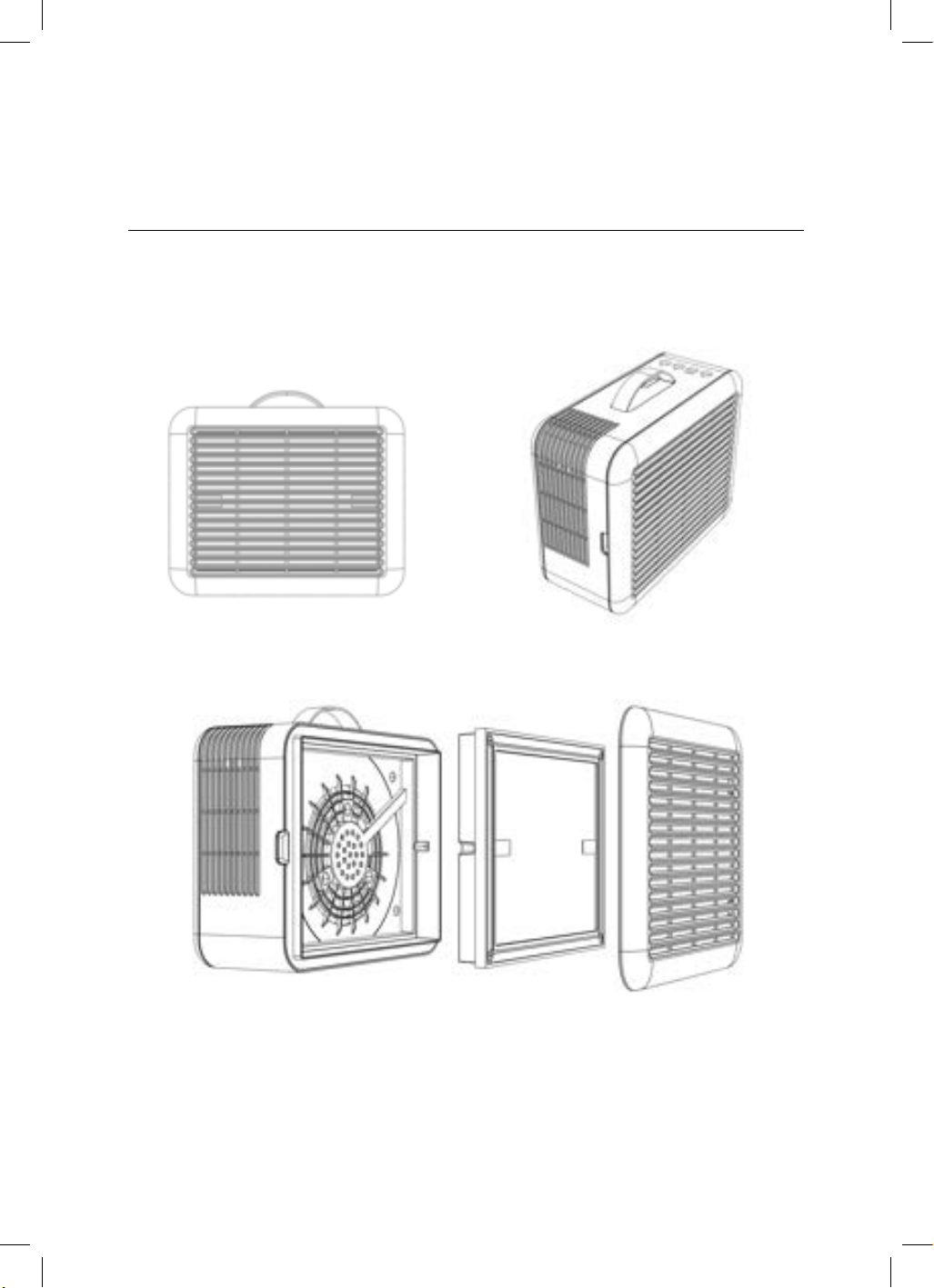
PRODUCT INFORMATION
PRODUCT ANATOMY
Includes power adapter. Adapter input: 100-240VAC, 50/60Hz
user manual
9
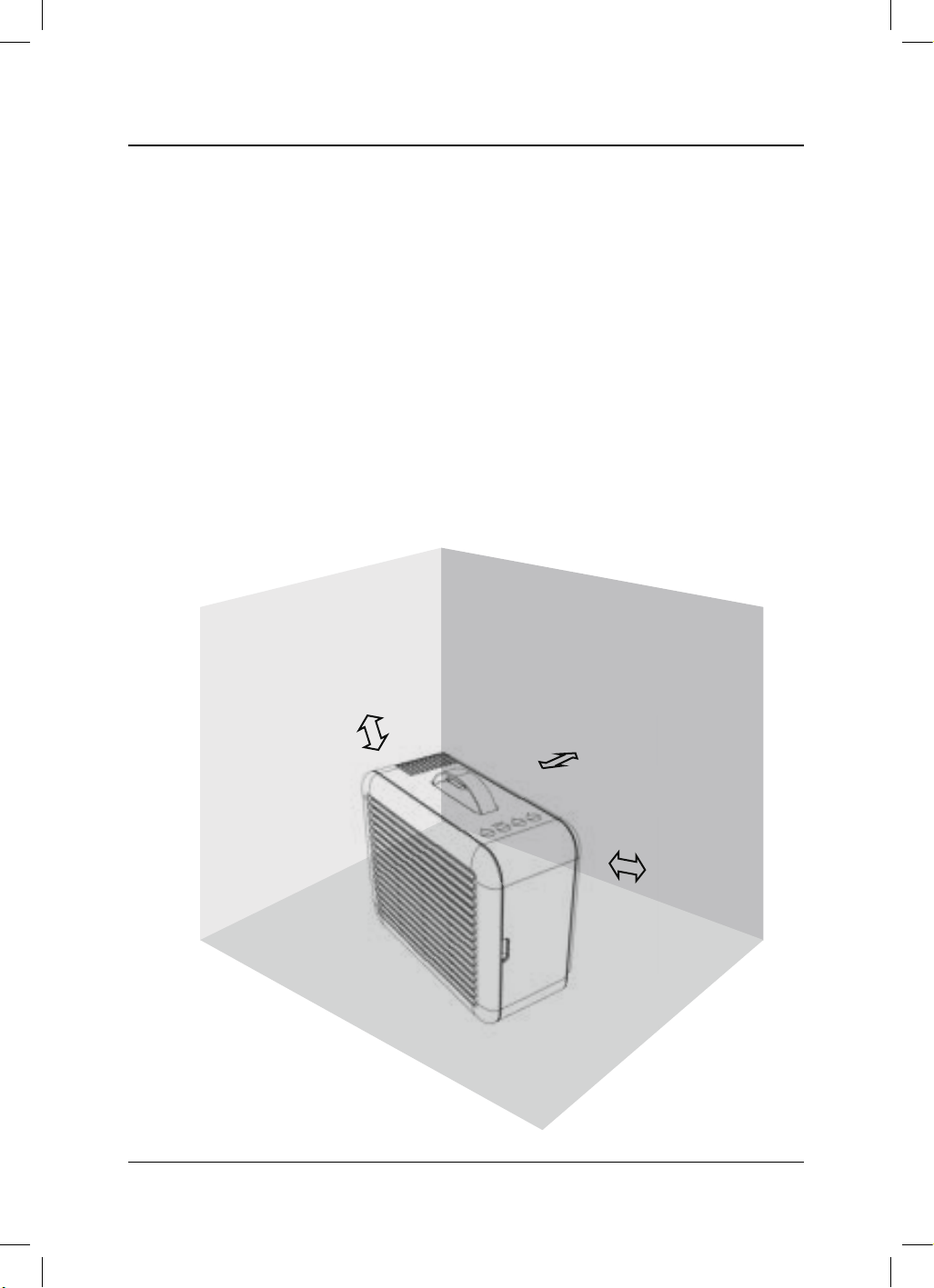
PLACEMENT OF AIR PURIFIER
8 INCHES
8 INCHES
8 INCHES
In order to achieve optimal air circulation and filtration, make
sure the air intake and output of the machine are more than 8
inches away from any obstacles.
Please keep the air purifier 3 ft away from other
electrical appliances.
Do not obstruct the air intake or output to ensure
adequate ventilation and maximum eiciency.
10
puroair
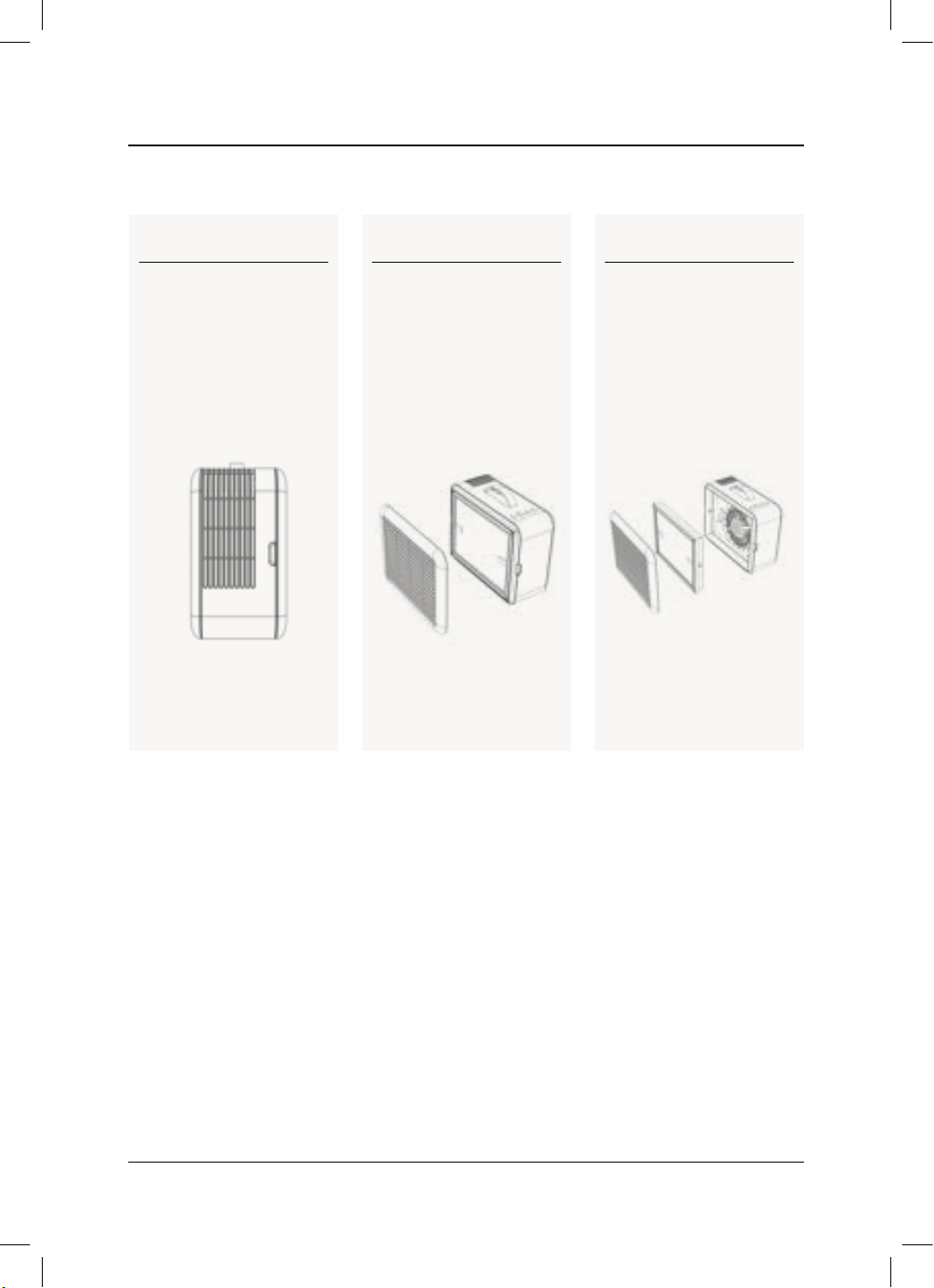
FILTER INSTALLATION
Step 1
Remove all packaging
materials and place the
machine on a dry, stable,
level surface.
Step 2
Remove the filter cover by
grabbing on both sides and
pulling o.
Step 3
Locate the tabs on each
side of the filter and pull the
filter out using the tabs.
11
user manual
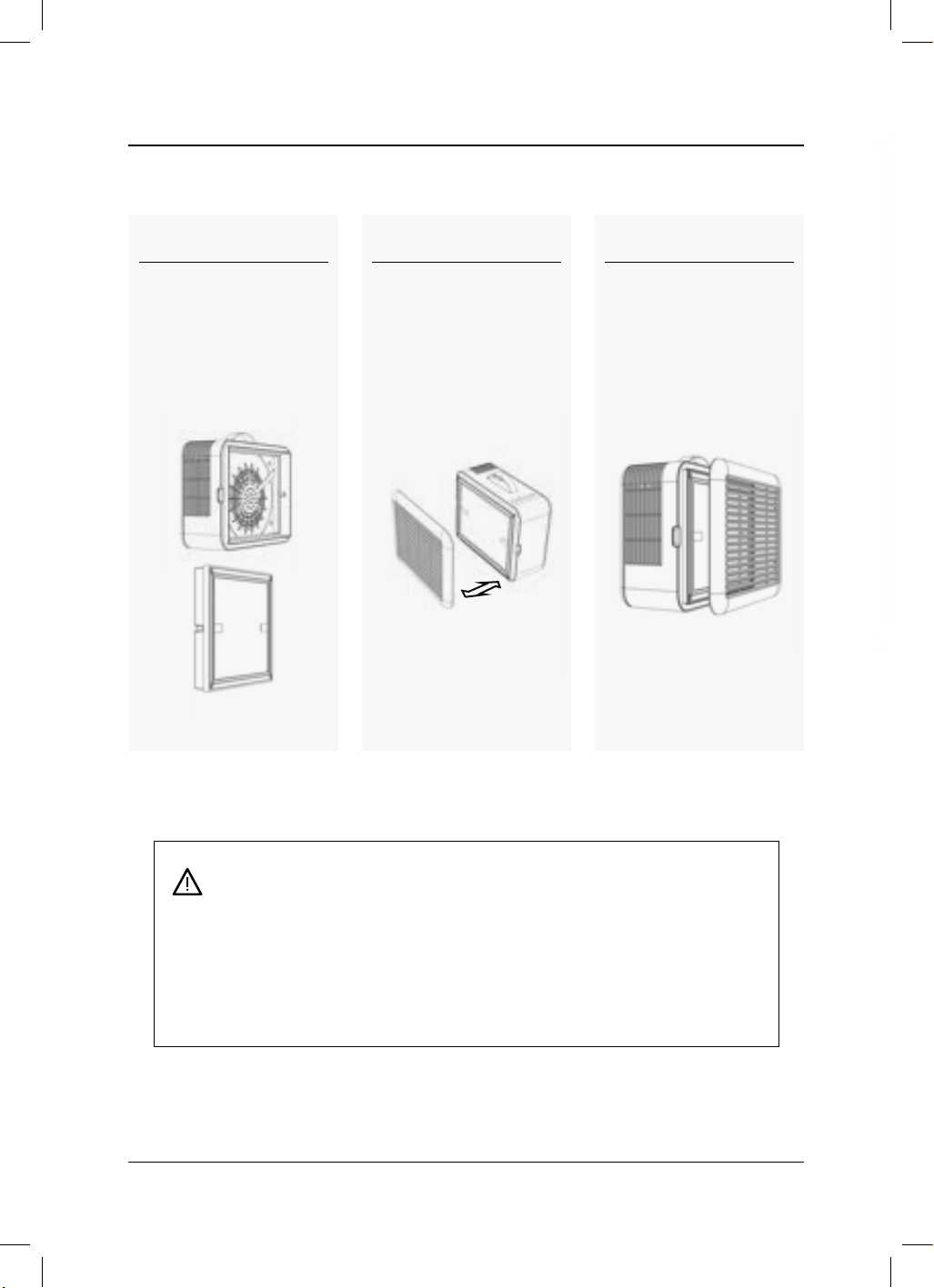
Step 4
Remove the plastic bag
around the filter - don’t
forget this step!
Step 5
Place the filter back inside
the purifier.
Step 6
Align the filter cover to the
unit. Once the cover gets
close enough to the unit,
magnets will snap the cover
back into place.
• Do not operate the purifier without a filter.
• Check to make sure the plastic bag around the filter has been removed before use.
• Only use genuine PuroAir filters with this purifier. Other filters may cause
operational issues that will limit the eectiveness of the unit.
12
puroair
13
user manual
UNDERSTANDING THE ROLE OF FILTERS
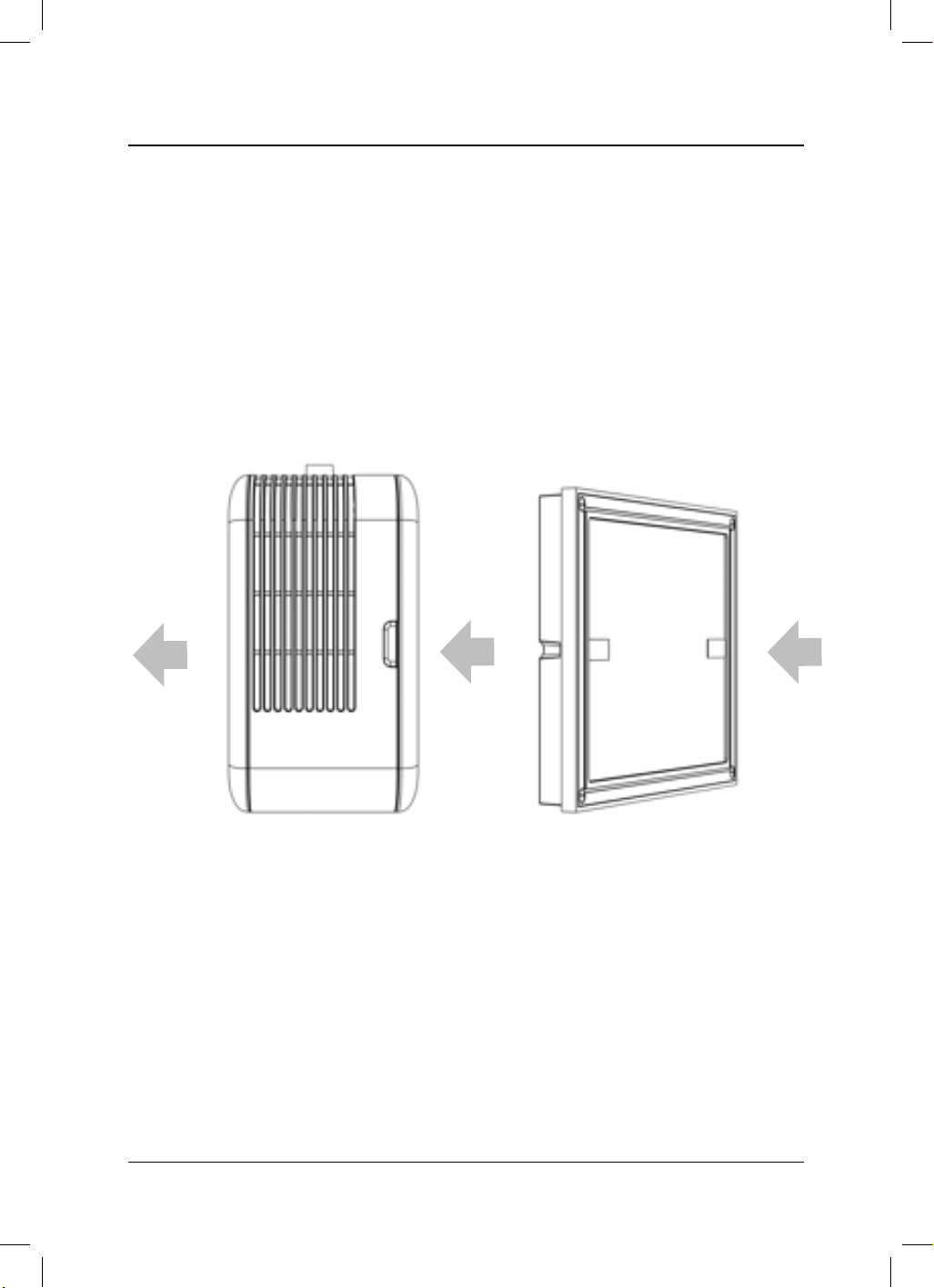
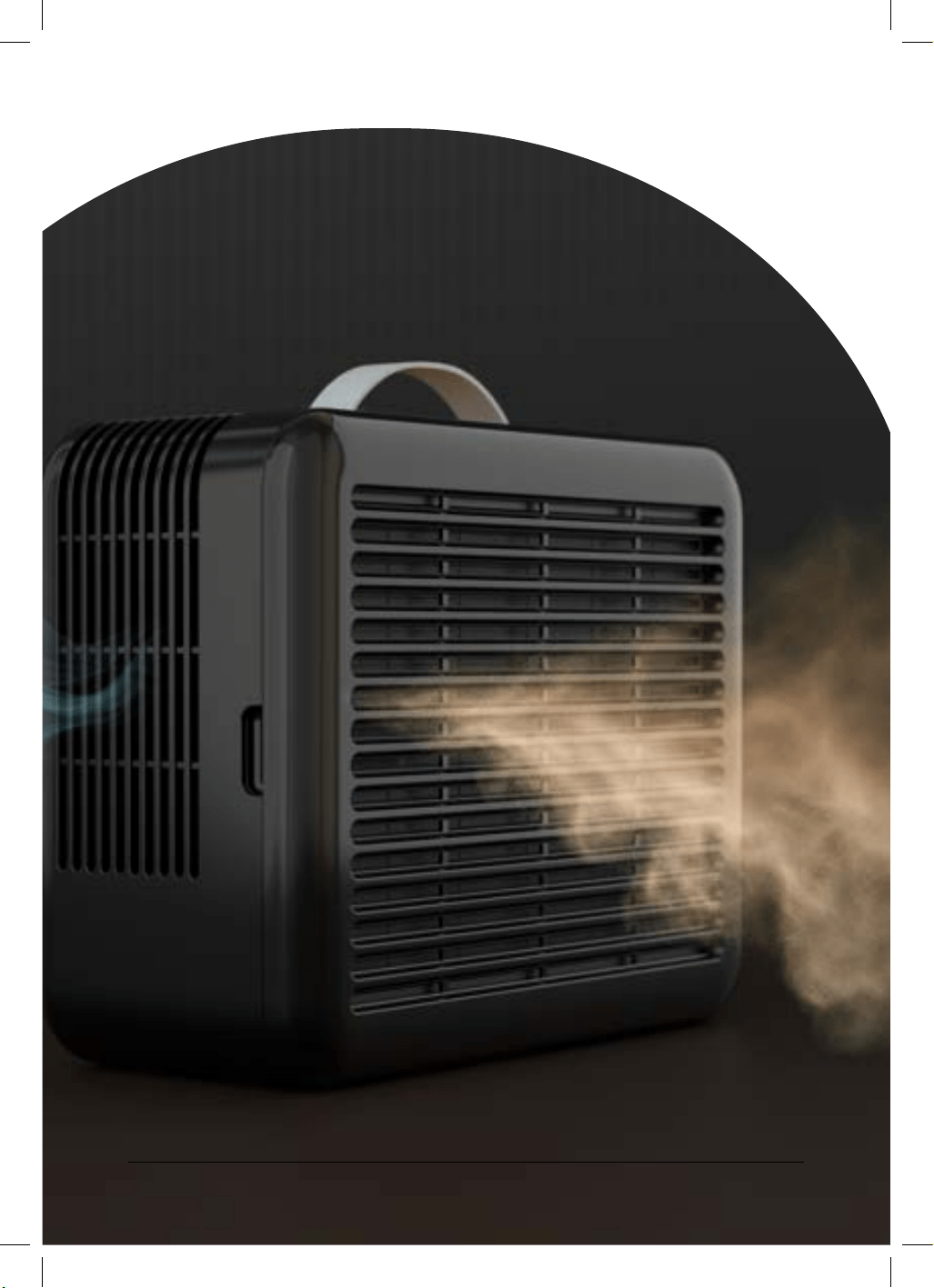
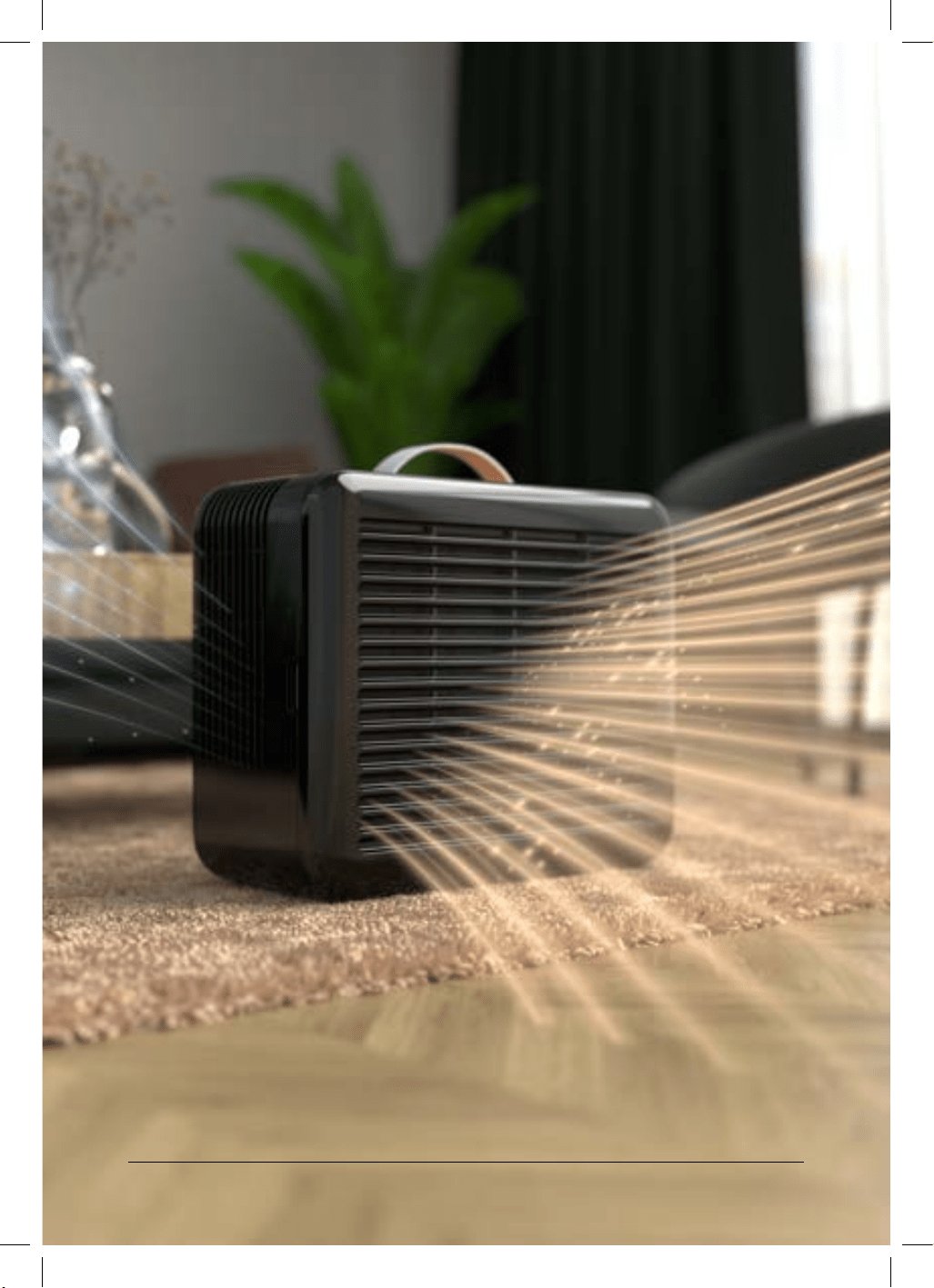
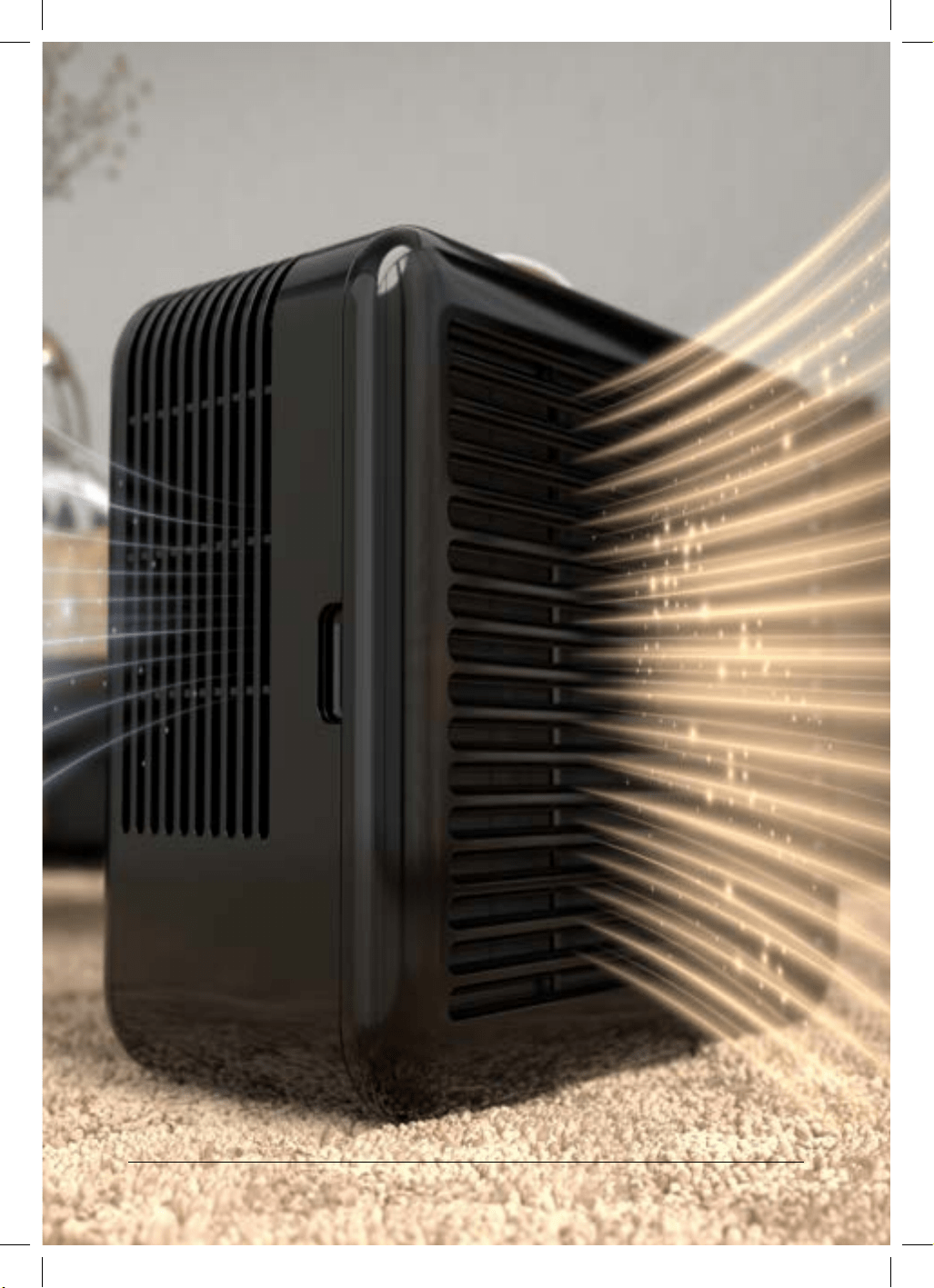
Filtered air flows into your
space through the air outlet
on the side of the product.
Unfiltered air is pulled into
the air intake on the front
of the product.
Dirty air is pulled through the
filter, preventing contaminants
from passing and filtered air
flows through the fan and out
into your space.
14
puroair
UNIQUE TRIPLE PURIFICATION TECHNOLOGY
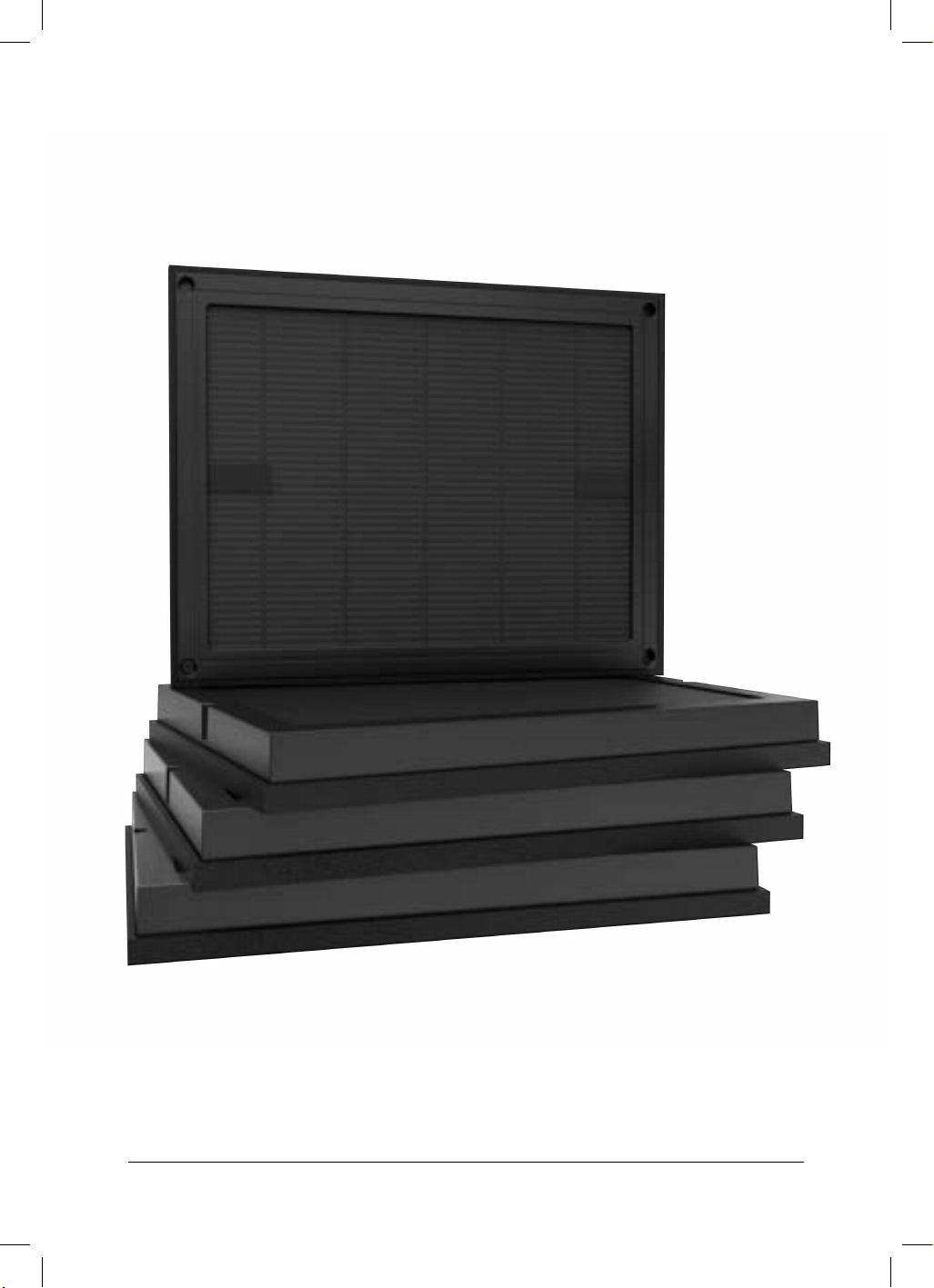
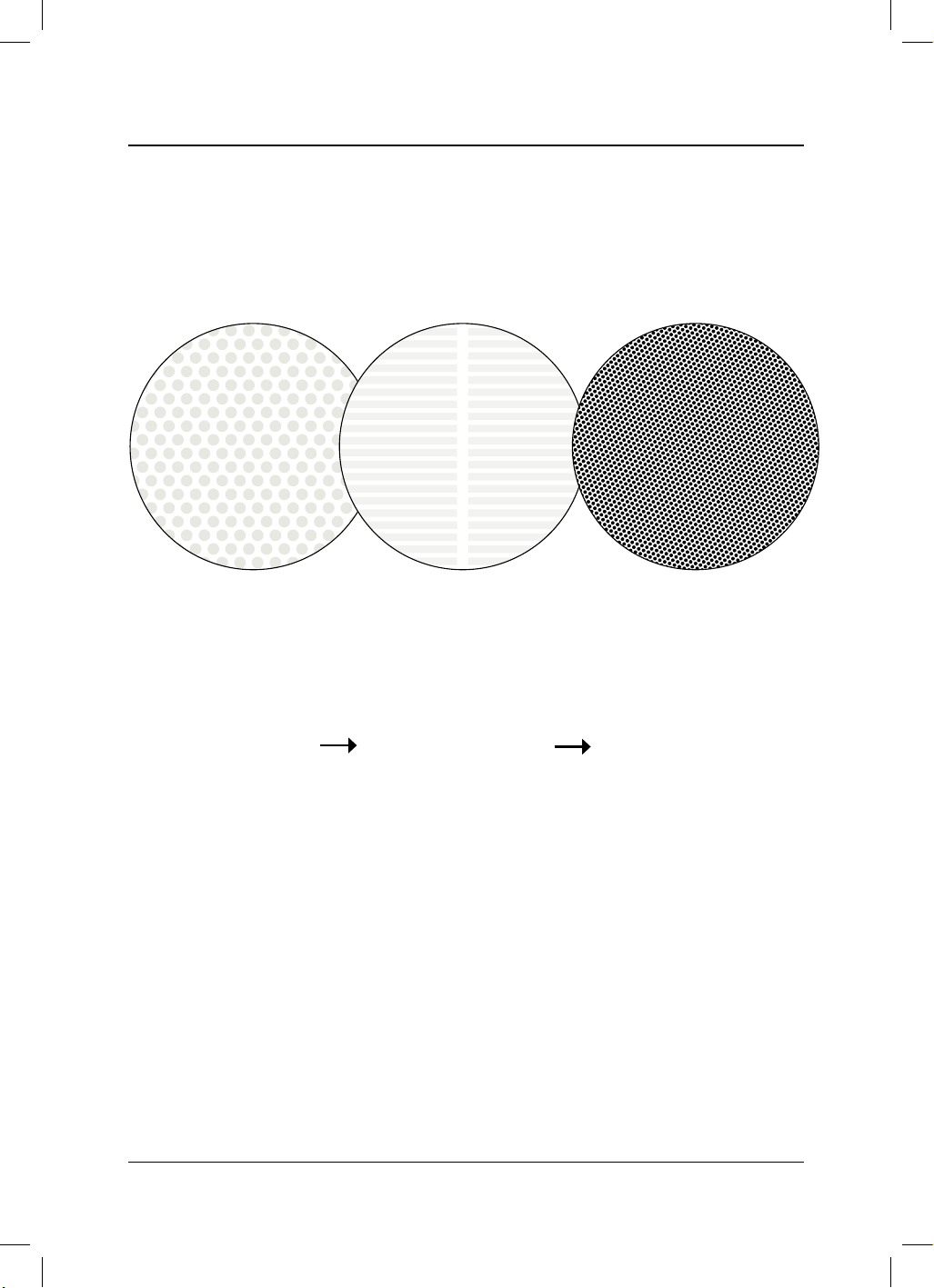
High eiciency HEPA & activated carbon are combined in the same filter.
Pre-Screen
Filter
High Eiciency
HEPA Filter
CarbonTech™
Activated Carbon Filter
15
16
puroair
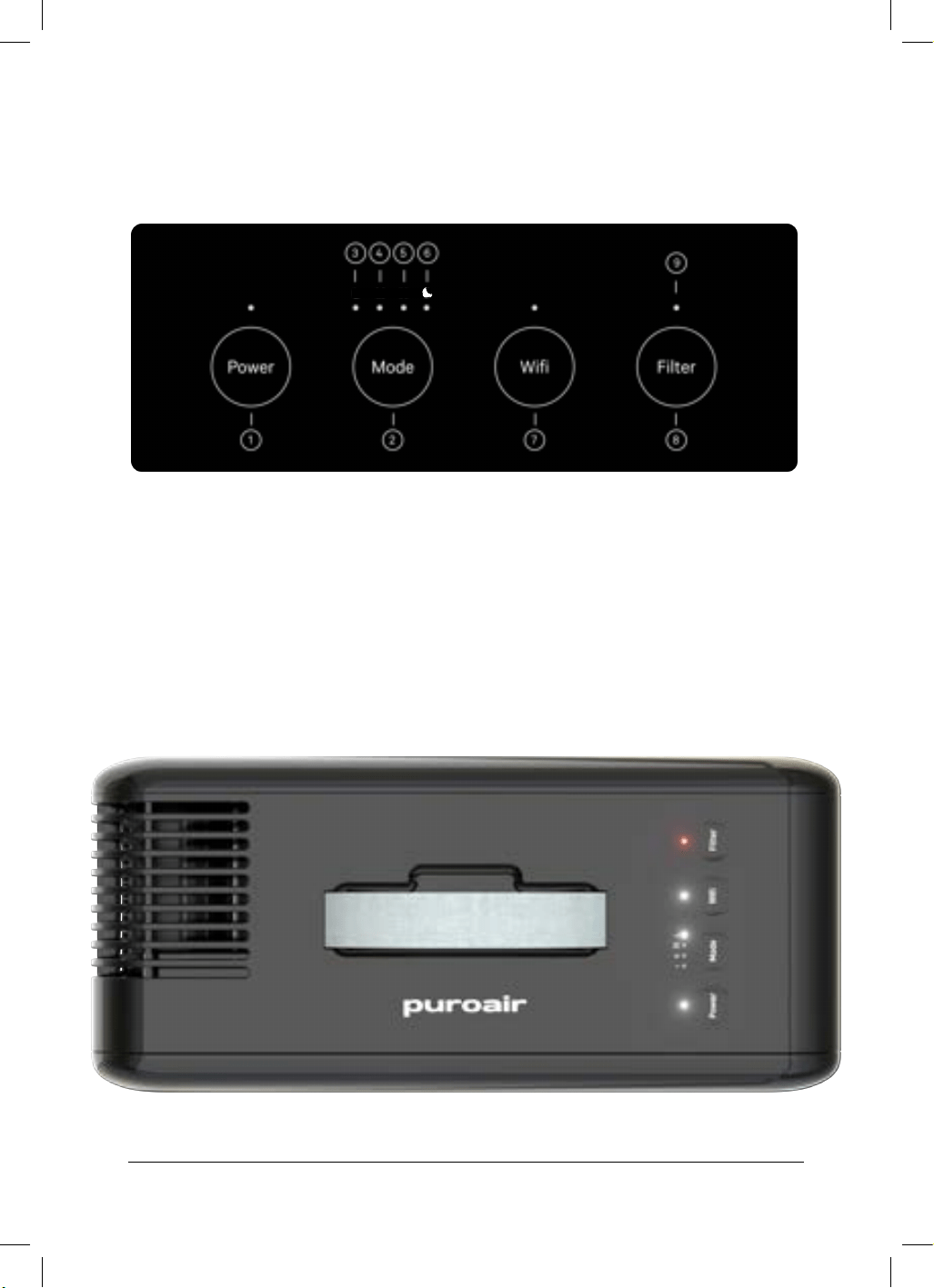
USING THE PURIFIER
1 Power button
2 Mode button
3 Low fan speed indicator
4 Medium fan speed indicator
5 High fan speed indicator
6 Sleep mode indicator
7 Wifi button
8 Filter reset button
9 Filter change indicator
I
II
III
17
user manual
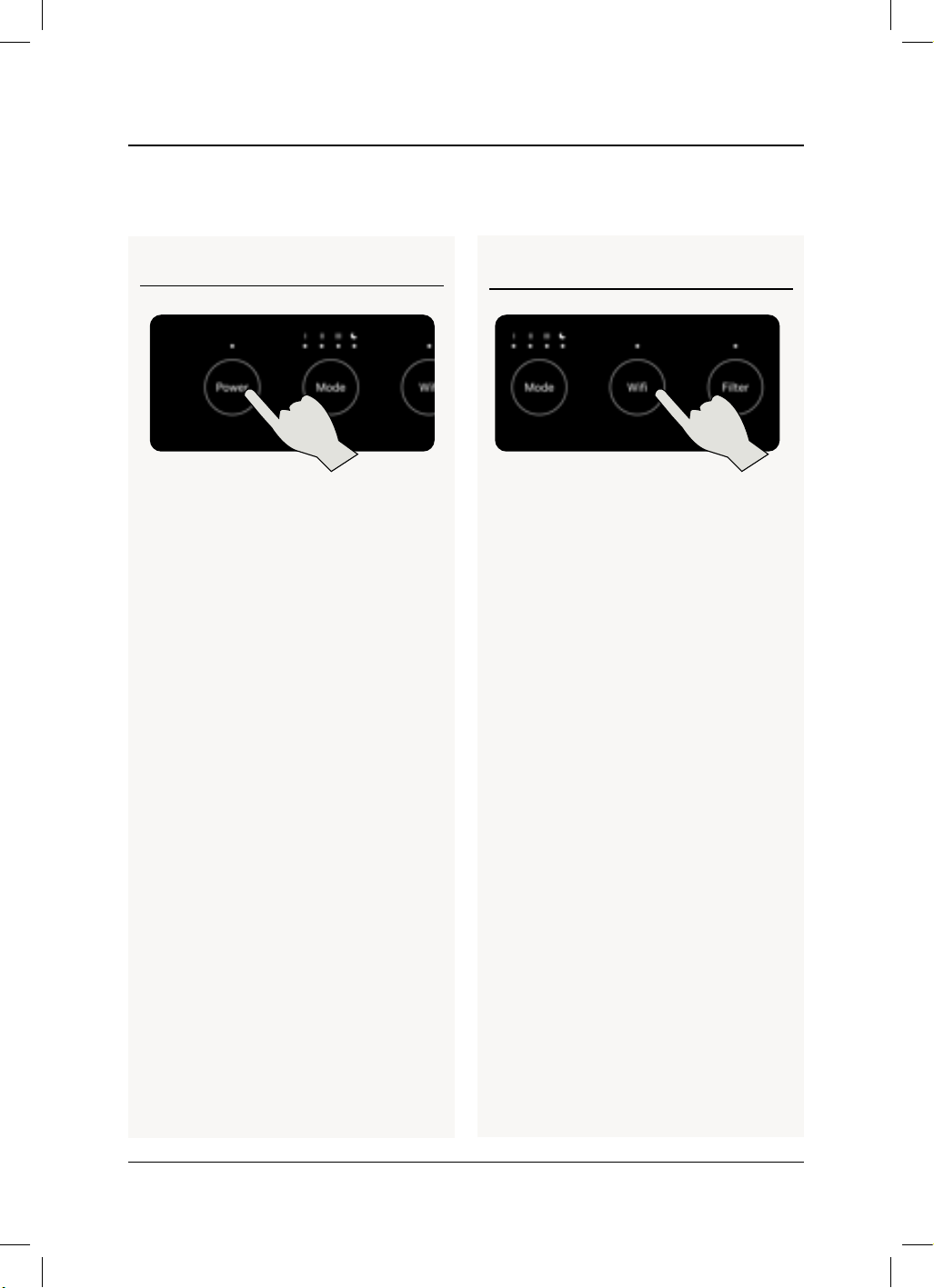
FUNCTIONS IN DETAIL
Power Button
To turn the unit on, plug it in and then
press the Power button. You will hear a
beep and then the unit will start running
at low fan speed and the Low fan speed
indicator will illuminate. To turn the unit
off, press the Power button again and all
LEDs will turn off.
Powering on or off
Wifi Connection
Wifi Button
To start pairing mode, press and hold the
Wifi button for 3 seconds until the wifi
indicator begins blinking. Then follow the
instructions in the app to connect your
device.
When the unit is powered on and is con-
nected to wifi, the wifi indicator light will
illuminate. The unit will stay connected
to Wifi even if turned off, as long as it’s
plugged into power. If the unit loses
power, it will try to reconnect once power
is restored.
18
puroair
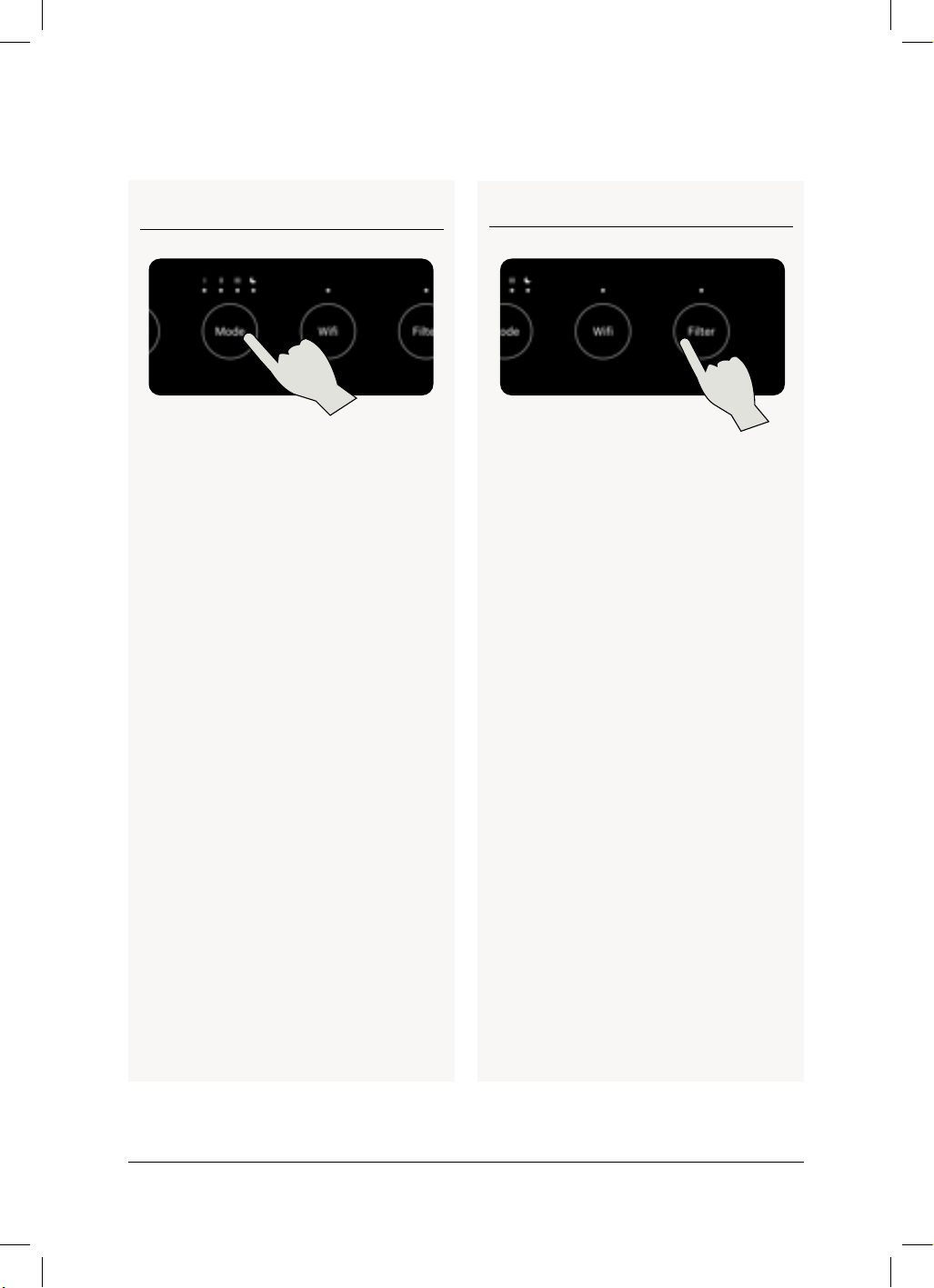
Filter Function
Filter Button
Your unit has a countdown to measure
the useful life of your filter. When it is
time to replace your filter, the Filter
change indicator light will illuminate red
and begin flashing. Once you replace the
filter, hold down the Filter reset button
for 3 seconds to reset the filter count-
down.
Fan & Sleep Modes
Mode Button
When first powered on, the Low fan
speed indicator will illuminate to show
that the unit is operating on low fan
speed. Press the Mode button to cycle
the fan between low, medium, high, and
sleep fan speeds before cycling back to
low.
Sleep Mode
When you enter the sleep mode, the sleep
indicator light will dimly illuminate, all
other lights will turn off, and the fan will
be adjusted to a lower speed. To exit sleep
mode, press any button and the sleep
indicator will turn off and the unit will
default to Low fan speed.
19
MAINTENANCE
& CLEANING
Clean air purifier
Clean the inside and outside of the
purifier body regularly to prevent dust
accumulation.
• Use a soft dry cloth to wipe dust off the
purifier.
• Clean the air intake and output with a
soft dry cloth.
Unplug the power plug before cleaning the product.
Do not immerse the product in water or any other liquid.
Do not use abrasives or corrosive cleaning agents.
The filter is not washable.
20
puroair
21
user manual
MACHINE
TROUBLESHOOTING
Questions or Concerns?
Contact Amazon Customer Support or the Seller
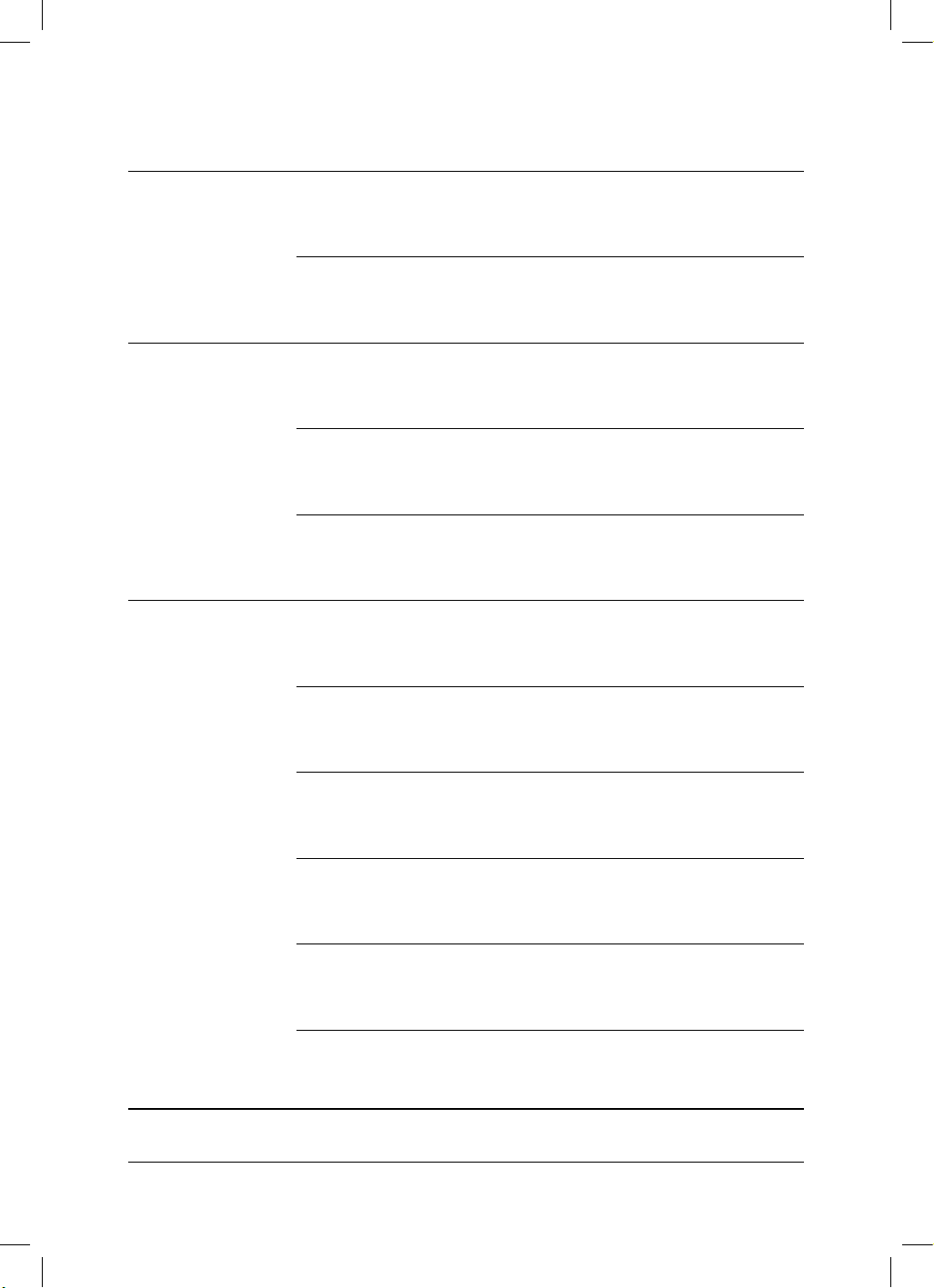
State Possible causes Possible solution
Machine won’t
turn on
The power plug is not in place Pull out the power plug and plug in the power
again. Make sure the other side of the power
cable is securely plugged into the unit.
The power plug or wire
is damaged
Please contact Amazon Customer Support or
the seller
Fan is not working
The machine is not on Plug in the power and turn on the machine again
The motor is damaged Please contact Amazon Customer Support or
the seller
Motor loose or foreign
particles inside the machine
Please contact Amazon Customer Support or
the seller
Poor purification
performance or
suboptimal purification
capacity
The filter was not replaced Replace with a new filter and be sure to hold
down the Filter reset button for 3 seconds to
countdown the useful life of the new filter.
The air inlet or outlet of the
machine is blocked
Use a soft, dry cloth to wipe away any excess
particles. If this does not work, please contact
Amazon Customer Support or the seller
The plastic package of the filter
is not removed
Remove the plastic package of the filter screen
for reuse
There is not proper clearance or
space around the machine to
ventilate it
Make sure that the air inlet and outlet of the
machine are not less than 8 inches away from
obstacles
There is no filter in the machine Make sure that the filter is placed in the machine
in the direction indicated. Always use a genuine
PuroAir filter for optimal performance.
More than expected room coverage Be sure to account for ceiling height as higher
ceilings will impact the coverage area a purifier
would need to address.
23
user manual

APP TROUBLESHOOTING
1. CHECK WIFI CONNECTION
Ensure Wifi is Enabled: Verify that the Wifi on both the
device and the smartphone/tablet is turned on.
Check Network Status: Ensure that the Wifi network
is functioning properly and that other devices can
connect to it.
Signal Strength: Ensure that the device is within
range of the Wifi router and that there are no physical
obstructions or interference from other devices.
2. VERIFY APP AND DEVICE COMPATIBILITY
App Version: Ensure that the app is up to date. Visit
the app store to check for updates.
Device Compatibility: Confirm that your smartphone
or tablet is compatible with both the app and the Wifi
product.
3. RESTART DEVICES
Restart the Wifi Product: Power off the device, wait a
few seconds, and then power it back on.
Restart the Router: Reboot the Wifi router to reset the
connection.
Restart the Mobile Device: Restart your smartphone
or tablet.
4. CHECK WIFI SETTINGS
Network Selection: Ensure that the device is connect-
ed to the correct Wifi network (e.g., 2.4 GHz vs. 5 GHz,
as some devices may only work on one frequency
band).
Wifi Password: Double-check that the correct Wifi
password is entered in both the app and the device.
No Hidden SSID: Ensure that the Wifi network is not
hidden. If it is, manually enter the SSID in the app.
need to reset network settings on your smartphone
or tablet. Be aware that this will remove all saved Wifi
networks.
5. APP PERMISSIONS
Location Services: Ensure that location services are
enabled on your mobile device, as some apps require
this to find and connect to Wifi devices.
Permissions: Make sure the app has the necessary
permissions to access Wifi, location, and other rele-
vant features.
6. RESET NETWORK SETTINGS
Forget Network: On your mobile device, forget the Wifi
network and reconnect to it.
Reset Network Settings: If the issue persists, you may
need to reset network settings on your smartphone
or tablet. Be aware that this will remove all saved Wifi
networks.
7. REINSTALL THE APP
Uninstall and Reinstall: Uninstall the app from your
mobile device and then reinstall it. This can resolve
any software glitches.
8. FACTORY RESET THE WIFI PRODUCT
Reset to Default: If all else fails, perform a factory reset
on the Wifi product. To perform a factory reset, press
and hold the Power button for 10 seconds. Note that
this will erase all settings and return the device to its
original state.
9. CHECK FOR INTERFERENCE
Avoid Congested Channels: Ensure that the Wifi net-
work is not on a congested channel, which can cause
connectivity issues.
Minimize Interference: Move the device away from
potential sources of interference, such as microwaves,
cordless phones, and other wireless devices.
10. CONTACT SUPPORT
PuroAir’s Commitment to Support: If the problem
persists, please
contact Amazon Customer Support
or the seller
for further assistance. They may provide
additional troubleshooting steps or updates for your
device.
AIR PURIFIER NOT CONNECTING TO APP

1. CHECK POWER SUPPLY
Power Connection: Ensure the device is properly
plugged in and receiving power. Check that the power
outlet is functioning.
Power Button: Verify that the device is turned on.
Some devices may have a physical power button or
switch.
2. VERIFY WIFI CONNECTION
Wifi Status: Confirm that the Wifi router is online and
broadcasting a signal. Check if other devices can
connect to the Wifi network.
Signal Strength: Ensure the device is within range of
the Wifi router. If the signal is weak, try moving the
device closer to the router.
Network Congestion: If multiple devices are connected
to the same network, try disconnecting a few to see if
that resolves the issue.
3. RESTART DEVICES
Restart the Wifi Product: Power off the device, wait for
a few seconds, and then power it back on.
Restart the Router: Reboot the Wifi router to refresh
the connection.
Restart Connected Devices: Restart any other devices
connected to the Wifi network to ensure they aren’t
causing interference.
4. CHECK WIFI NETWORK SETTINGS
Network Name (SSID): Ensure the device is connected
to the correct Wifi network, especially if there are
multiple networks available.
Password: Verify that the correct Wifi password is
entered. If the password has changed, you’ll need to
update it on the device.
2.4 GHz vs. 5 GHz: Some devices only work on a 2.4
GHz network. Ensure the device is connected to the
appropriate frequency band.
5. INSPECT ROUTER SETTINGS
SSID Visibility: Ensure the Wifi network’s SSID is not
hidden. If it is, you may need to manually enter the
SSID in the device’s settings.
MAC Address Filtering: Check if MAC address filtering
is enabled on the router. If so, make sure the device’s
MAC address is added to the allowed list.
DHCP: Ensure that DHCP is enabled on the router
to automatically assign IP addresses to connected
devices.
6. UPDATE FIRMWARE/SOFTWARE
Device Firmware: Check if there are any firmware
updates available for the device. Update if necessary.
Router Firmware: Ensure that the router’s firmware is
up to date.
App Updates: If the device is controlled via an app,
ensure the app is updated to the latest version.
7. CHECK FOR INTERFERENCE
Physical Obstructions: Move the device to reduce any
potential physical obstructions between it and the
router (e.g., walls, metal objects).
Wireless Interference: Minimize interference from
other wireless devices such as microwaves, cordless
phones, or baby monitors.
8. RESET NETWORK SETTINGS
Forget and Reconnect: On the device, forget the Wifi
network and then reconnect to it. This may resolve
connection issues.
Reset Network Settings: If the device has an option to
reset network settings, use this feature to clear any
old or corrupt settings and then reconnect to the Wifi.
9. FACTORY RESET THE DEVICE
Restore to Factory Settings: If the device remains
offline, perform a factory reset to restore it to its
original settings. To perform a factory reset, press and
hold the Power button for 10 seconds. This should
only be done as a last resort, as it will erase all current
settings and data.
10. CHECK INTERNET CONNECTION
ISP Status: Verify that your internet service provider
(ISP) is not experiencing any outages. If there’s a
known issue, wait until service is restored.
11. CONTACT TECHNICAL SUPPORT
Manufacturer’s Support: If none of the above steps
work,
contact Amazon Customer Support or the sell-
er
for further assistance. They may provide additional
troubleshooting steps or updates for your device.
AIR PURIFIER IS OFFLINE
25
user manual
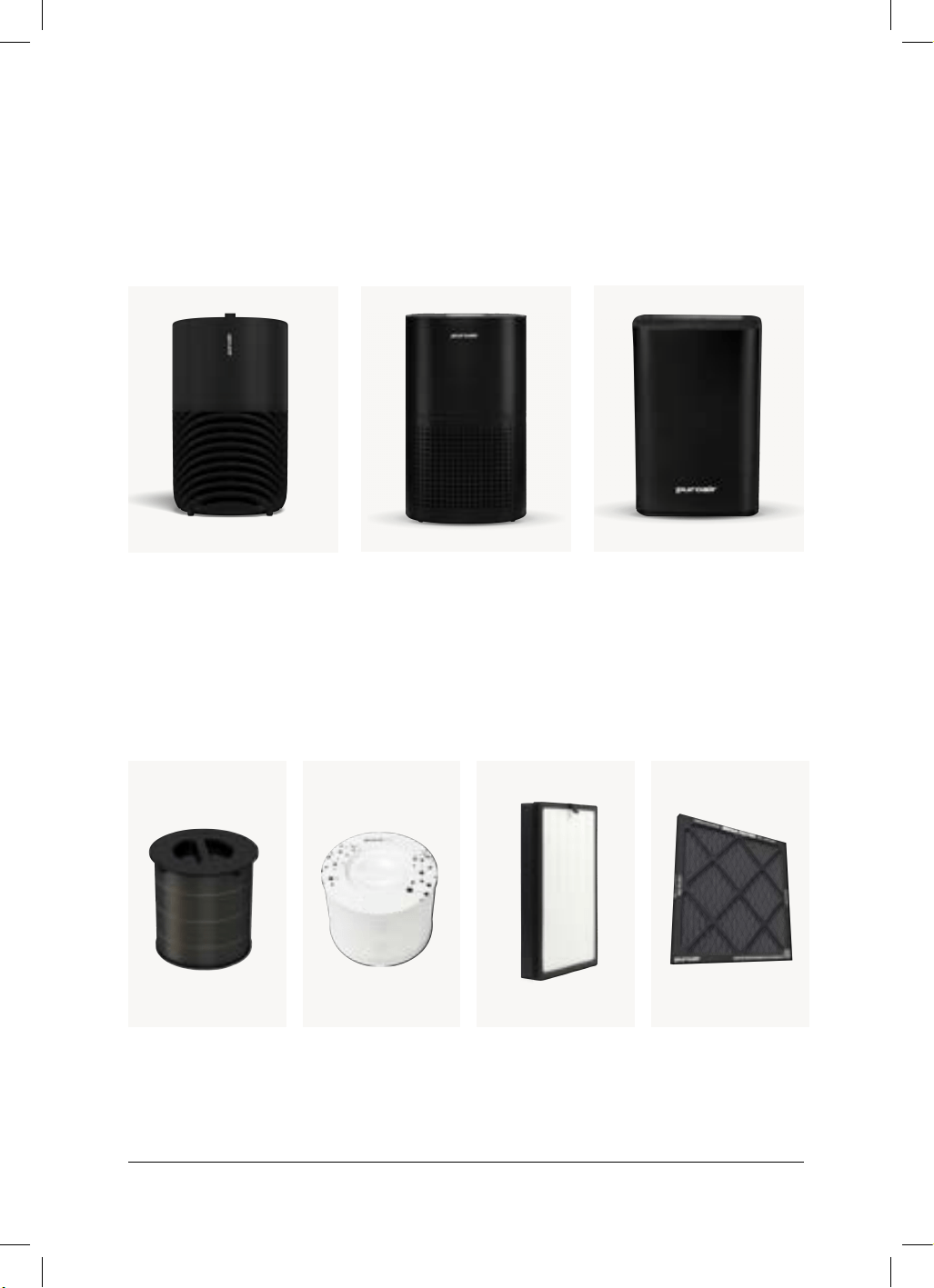
BROWSE OUR OTHER
PRODUCTS:
AIR PURIFIERS
REPLACEMENT AIR FILTERS:
PuroAir 240PuroAir 130i
PuroAir 240 FilterPuroAir 130i Filter
PuroAir 400
PuroAir 400 Filter HVAC MEGA Filter
26
puroair
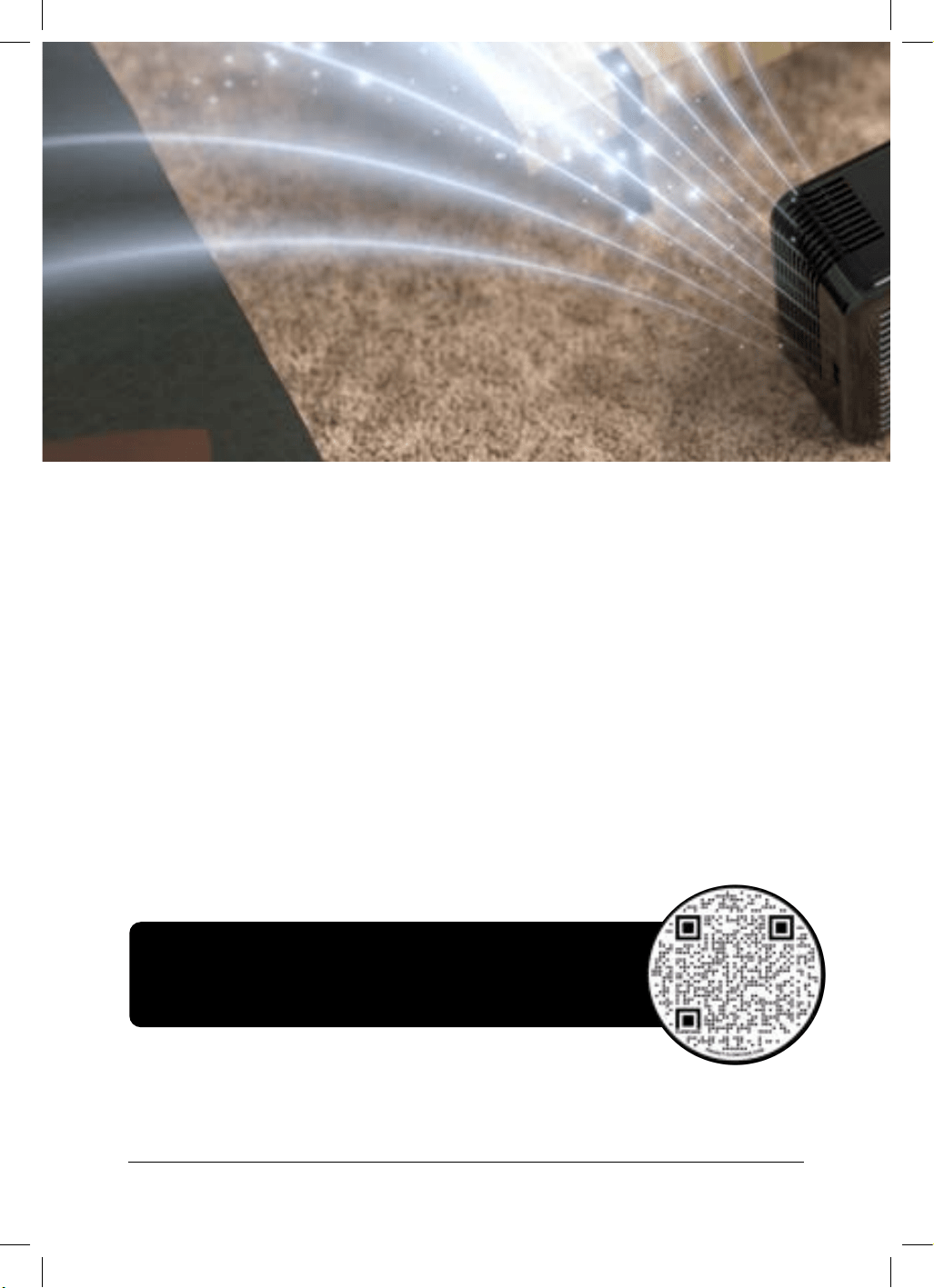
READY TO REPLACE YOUR
AIR FILTER?
Join our Filter Subscription program and receive amazing benefits:
Order your
replacement
filter today:
Hassle-Free:
No need to remember when to
reorder filters—they arrive at your
doorstep just when you need them.
Genuine PuroAir Filters
PuroAir filters are high quality
performance filters designed and
tested to filter pollen, dust, pet dan-
der, smoke, odors, and more.
Flexible Management
You can skip shipments or
adjust your delivery schedule
anytime to fit your needs.
Cost Savings
Every filter you receive
through your subscription
comes with a discount, saving
you money compared to one-
time purchases.
27
user manual
WARRANTY INFORMATION
Congratulations on your purchase of a PuroAir purifier! We stand by the quality of
our products and are pleased to oer you peace of mind with our comprehensive
warranty coverage.
For detailed warranty info, please contact Amazon Customer Support or the seller.
All PuroAir purifiers purchased directly from us or through our authorized
resellers include a 2-year warranty with registration. This covers any defects or issues
with your device for up to two years from the date of purchase.
Purifier Limited Warranty:
Register Your Free 2 Year Warranty
28
puroair
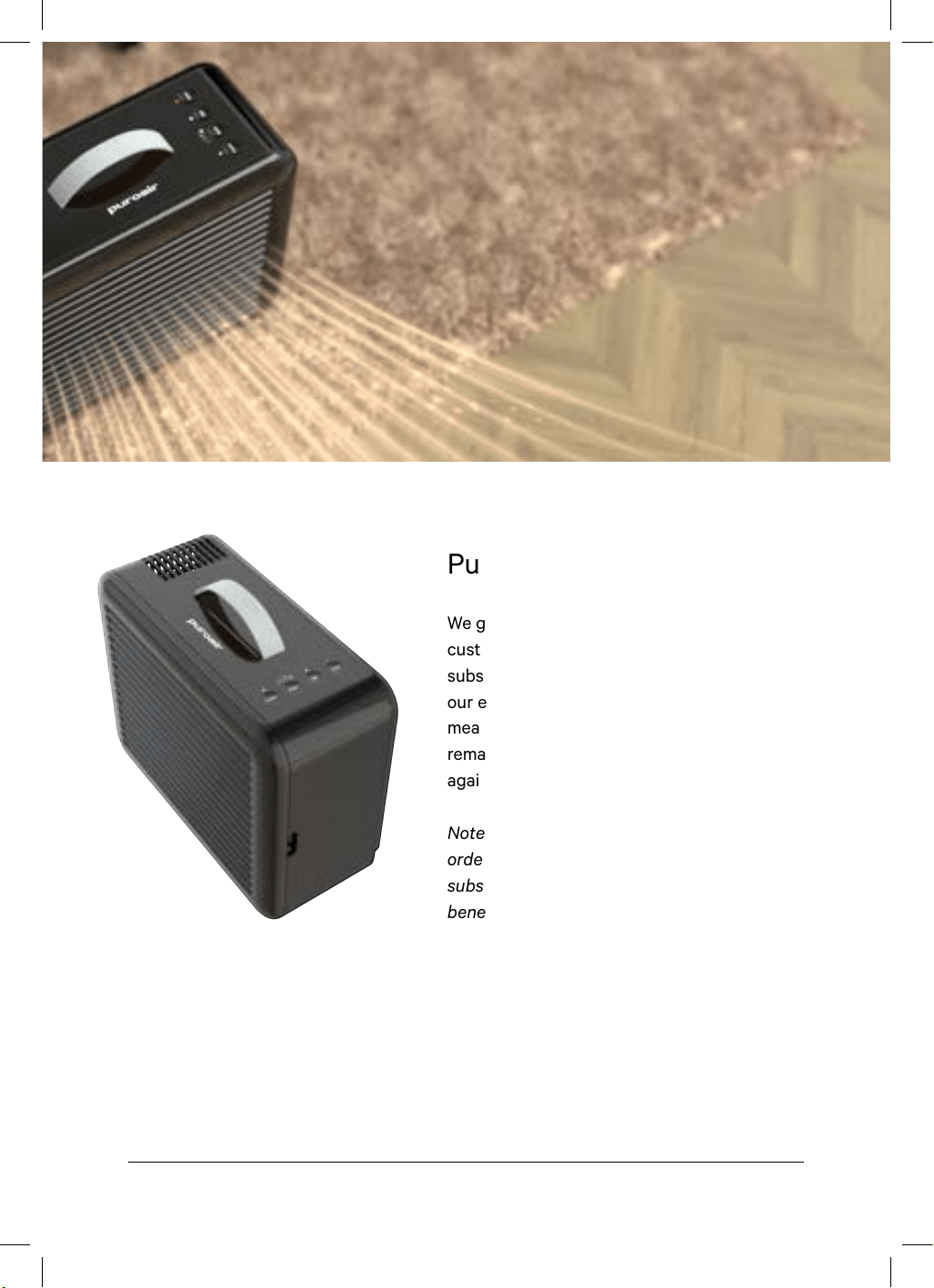
For detailed warranty info, please contact Amazon Customer Support or the seller.
We go even further for our loyal
customers. By maintaining an active filter
subscription, your purifier is covered under
our exclusive Lifetime Warranty. This
means as long as your filter subscription
remains active, your purifier is protected
against any defects or issues.
Note: Customers may be asked to provide
order details or a receipt of an active filter
subscription when using Lifetime Warranty
benefits.
Purifier Lifetime Warranty:
29
user manual

This device complies with Part 15 of the FCC Rules. Operation is
subject to the following two conditions:
(1)This device may not cause harmful interference, and
(2)This device must accept any interference received, including
interference that may cause undesired operation.
Meets California Ozone Emissions Limit. CARB Certified.
30
puroair
31
user manual
© 2025 PuroAir.
32
puroair