USER MANUAL
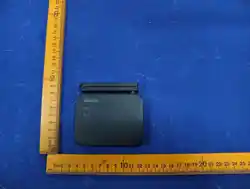
Wifi Hub
Model: WG03
Thank You!
Need Help?
: support@diivoosmart.com
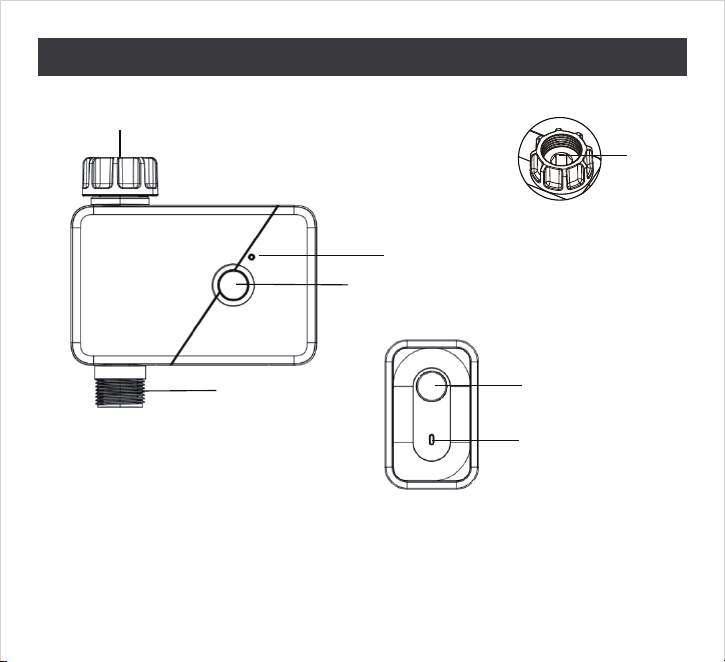
1. Product Appearance
1
Packing List
1. Water Timer*1
2. 1/2"inlet adapter*1
3. Threaded connector*1
4. Thread Seal Tape*1
5. Instruction*1
Filter
Hose Faucet Connection
LED Light
Control Button
LED Light
ON/OFF Button
Outlet
fitting 3/4”
3/4" inlet adapter

2.Product Specifications
3.Important Tips
1. Please do not use Carbon-zinc or rechargable batteries.
2. Do not use your timer when the air temperature is below 3°C(37°F), the
timers should be removed from the hose faucet and stored indoors to avoid
potential frozen damage.
3. When replacing the power unit, please make sure that the water timer is
dry.
4. Filter can trap dirt particles, please clean filter regularly and replace if
worn to prevent blockage.
5. The valve will shut down automatically when the voltage is lower than 4.3V.
6. The range of connection and control is within 60m of the open area.
7. Do not put the water valve in underground water valve box or in the place
where the signal may be blocked.
8. Make sure the device is connected to 2.4GHz Wifi frequency.
Water Timer: WT-07W
1. Working Water Pressure:
0.5bar-8bar (7.25 psi-116.03 psi)
2. Working Temperature: 3°C-50°C
(37℉-122℉)
3. Waterproof Level: IP54
4. Power Supply: 4 x AA batteries
WiFi hub: WG03
1. Wi-Fi Band: 2.4 GHz only.
2. WiFi hub: up to 196 feet(60m).
3. Input voltage110V-220V, frequen-
cy: 433.92MHZ
2
4. Mode Of Operation
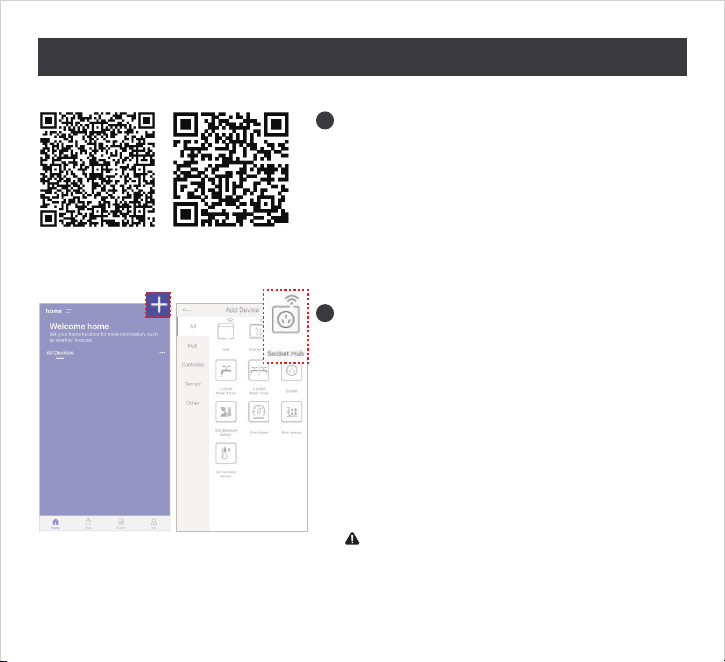
Download"HOMGAR" app and register.
1
Pairing hub
2-1. Connect hub to powersource, press
and hold for 5-10 sec until blue light
flashes to enter pairing mode.
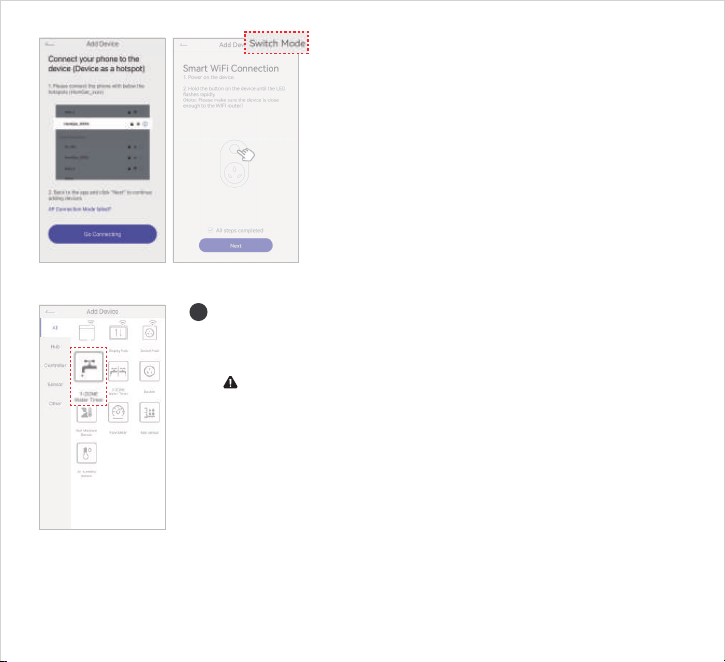
2-2. Hub matching method 1: Smart
pairing
Matching order: "+" (Home) → "socket
hub" → set WIFI information with correct
WIFI password → make sure the hub is
powered on, press and hold the hub
button until the light flashes quickly → set
the device name.
Note: If the network pairing fails within
120 seconds, check the settings and retry, or
switch the pairing method into the AP
pairing.
2
3
IOS Android
home
Adding a valve
3-1. Put batteries in the valve and connect it to water
pipe, press and hold the button on the valve for 5-10 sec
until red light flashes to enter pairing mode.
Note: make sure the water value is closed
3-2.Pairing steps:“+”to enter main page→ select
“1-zone water timer”→”Next"→Pair your device→
complete.
3
2-3. Hub matching method 2: AP networking
Matching order: "+" (Home) → "socket hub"
→ Set WIFI information with correct WIFI
password → When the device is in smart
pairing mode, press the button to enter AP
pairing → Switch the pairing mode →
Connect the phone to HomGar_xxx Hotspot
→ Set the device name.
4
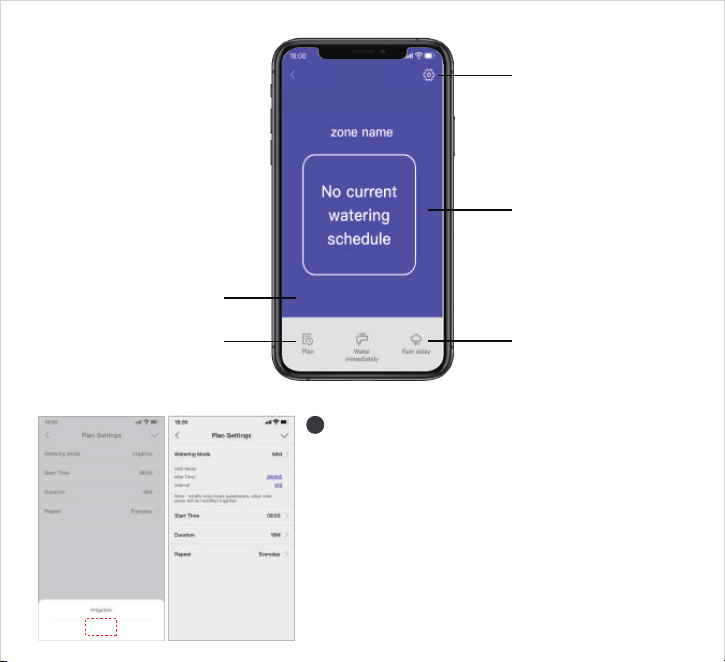
Operating Interface
4-1. Watering schedule
(1)Misting mode
●Set start time(00:00-23:59)→Total
misting length(1min-12h)→Misting
duration(5s-60min)→Misting inverval
(5s-60min)→Watering program frequen-
cy(Everyday, Odd days, Even days, Custom)
4
5
Setting
When there is no watering
schedule, the screen
displays: No current
watering schedule
When there is a watering
schedule, the screen
displays: remaining watering
hours/next run �me
Watering schdule
Rain delay
Start watering immediatel
y
Mist
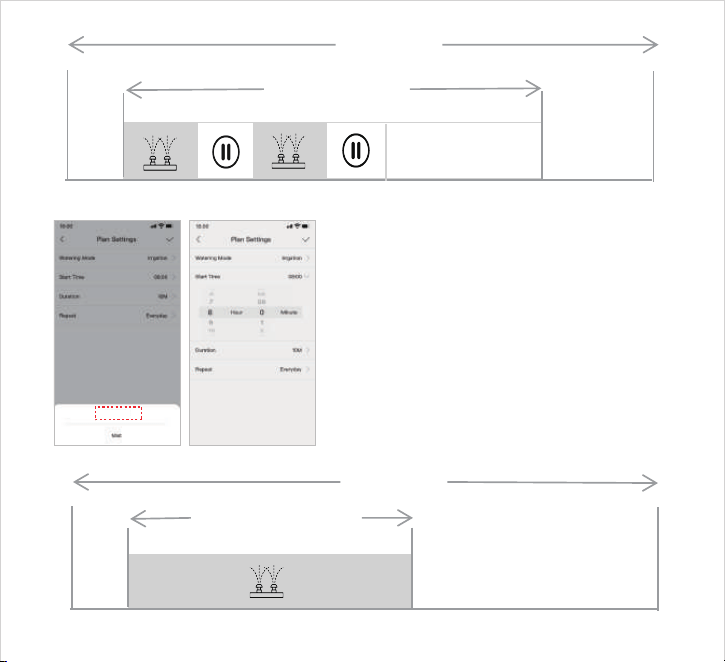
6
(2) Irrigation mode
●Set start time(00:00-23:59)→Total
irrigation length(1min-12h)→Irrigation
frequency(Everyday, Odd days, Even
days, Custom)
Total mis�ng lengt
h
One day
Start �me
... ...
Total irriga�on length
One day
Start �me
Irrigation
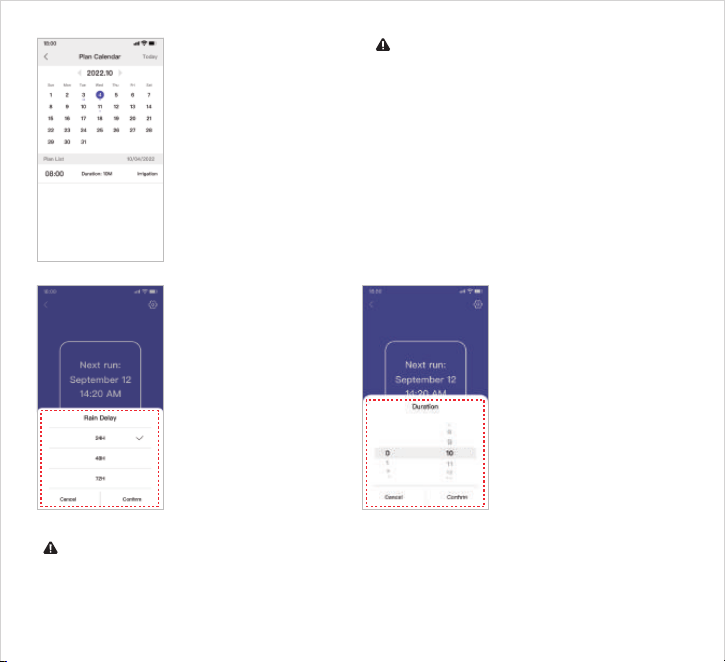
7
(3) Schedule
Calender
Able to check
watering schedule
for current month,
the little dot under
the date represents
watering times for
current date.
4-2. Rain delay
Set up Rain delay
duration (24H, 48H,
72H), remaining
watering time will be
displayed, it will stop
automatically when
time's up, or shut
down manually
before time's up.
4-3. Manual Watering
Set up manual
watering duration (1
min- 12h), remaining
watering time will be
displayed, it will stop
automatically when
time's up, or shut
down manually
before time's up.
Note: Up to 6
watering schedules
can be set at the same
time. when preset
program is in conflict
with other zones,
turning on water valve
will lower water flow.
Note: After turning on "rain delay" or "Manuel watering", the Auto watering
program will stop, after stopping manual watering, the program will resume but
the remain watering duration for the relap period of the program will not be
executed.
H Min
8
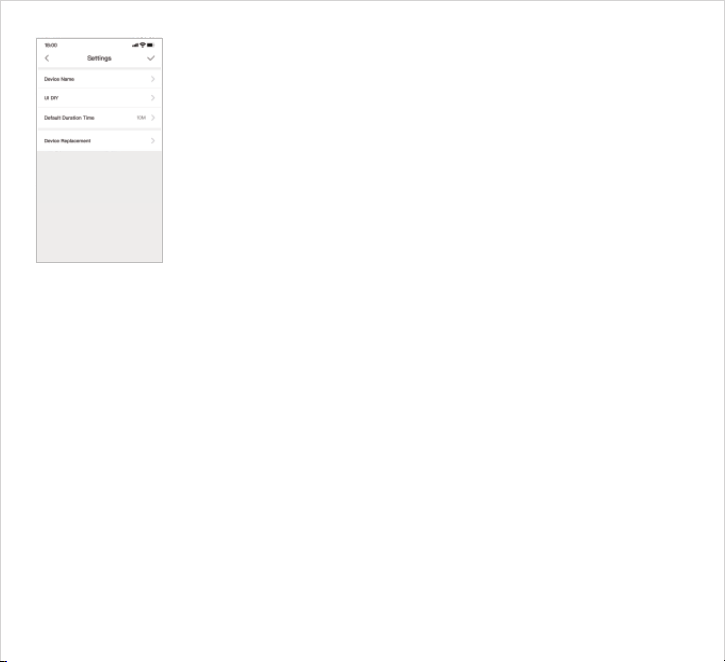
4-4. Setting
(1) Zone Setting
Click Zone1 to change Zone name and default watering
time.
(2)Custom interface
Change into your preferable background picture and font.
Amazon Alexa
Open the Alexa app on your phone, log in successfully and select
"Skills&Games" on the “MORE” page.
-Search for "Homgar Intelligence" and select it.
-Click "Enable to use" to enable the skill.
-Enter your HOMGAR APP account & password, then click "Sign In" to bind
your HOMGAR APP account and activate your device.
Voice commands.
Alexa→open "zone name "
Alexa→close "zone name "
Google Assistant
Open the Google Home app on your phone, sign in, click the "+" symbol in
the upper left corner, then click the "Set up device" option, and select "Use
Google" . Enter your account password via "HomgarSmart" to bind your app
account and allow it to access your Google account
Voice commands.
okGoogle→open "zone name "
okGoogle→close "zone name "

5. FAQ
9
Q1: Why doesn't the water timer opened/closed within the preset time?
●The program is incorrect.
●The water pressure is too low.
●There are particles of dirt or debris
inside the valve.
●There are overlapped plan in the
multiple set start times.
Q2: Why does the network connection fail?
● Please check if the icon is selected correctly in the app.
● If the device is already connected to another cell phone, please disconnect first.
● Turn off the WLAN connection of your phone and turn it on again.
● Make sure there is sufficient battery power and place the water valve as close as
possible to the gateway.
● There are too many devices connected to the router and the WLAN signal is
unstable.
● Pairing is only to be performed on 2.4G WLAN networks.
● It is not possible to connect the gateway and water valve on the tablet.
Q3: The hose tap connection/outlet leaks?
● The O-ring is connected correctly to the hose tap.
● The connection outlet or water pipe is broken.
● The faucet and water pipe has a different thread.
If necessary, please use an appropriate adapter or PTFE tape.
Q4: Is it compatible with water bucket or drip system?
● No, because the water pressure of water bucket and drip system does not meet
the pressure standard for water valve.
●Manual watering is turned on.
●Valve fails.
●The battery is low.
●The faucet is turned off.
●Rain delay is activated.

FCC Caution.
(1)§ 15.19 Labelling requirements.
This device complies with part 15 of the FCC Rules. Operation is subject to the
following two conditions: (1) This device may not cause harmful interference, and
(2) this device must accept any interference received, including interference that
may cause undesired operation.
§ 15.21 Changes or modification warning
Any Changes or modifications not expressly approved by the party responsible for
compliance could void the user's authority to operate the equipment.
§ 15.105 Information to the user.
Note: This equipment has been tested and found to comply with the limits for a
Class B digital device, pursuant to part 15 of the FCC Rules. These limits are designed
to provide reasonable protection against harmful interference in a residential
installation. This equipment generates uses and can radiate radio frequency energy
and, if not installed and used in accordance with the
instructions, may cause harmful interference to radio communications. However,
there is no guarantee that interference will not occur in a particular installation. If
this equipment does cause harmful interference to radio or television reception,
which can be determined by turning the equipment off and on, the user is
encouraged to try to correct the interference by one or more of
the following measures:
-Reorient or relocate the receiving antenna.
-Increase the separation between the equipment and receiver.
-Connect the equipment into an outlet on a circuit different from that to which the
receiver is connected.
-Consult the dealer or an experienced radio/TV technician for help.
RF warning for Mobile device:
This equipment complies with FCC radiation exposure limits set forth for an
uncontrolled environment. This equipment should be installed and operated with
minimum distance 20cm between the radiator & your body.