USER MANUAL
Elo Touch Solutions
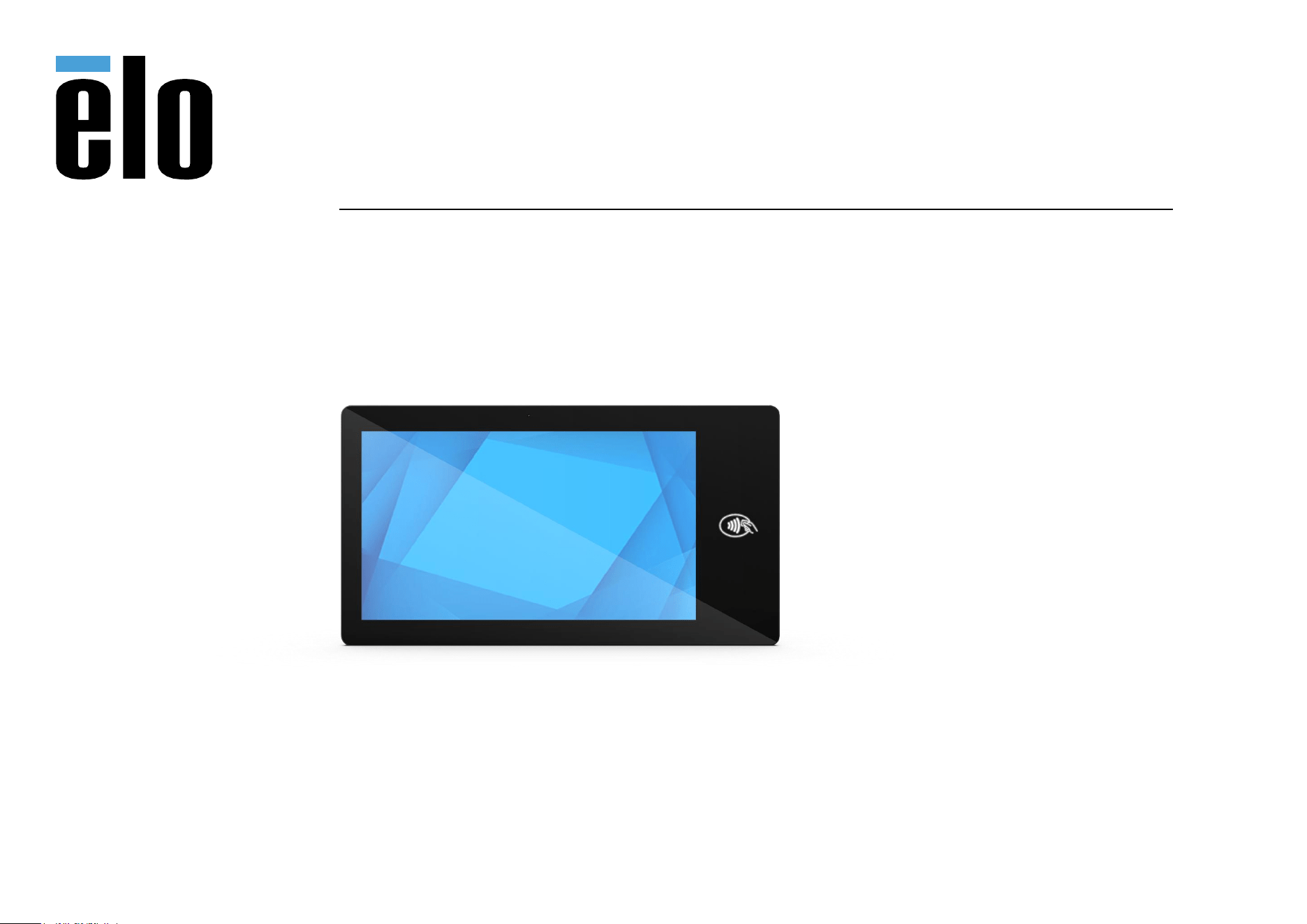
Elo Pay 15” “Tap-to-Pay”
ESY15I1E

UM600xxx Rev A page 2 of 87
User Manual – Elo Pay 15-inch Tap to Pay for Android
(TM)
Copyright © 2025 Elo Touch Solutions, Inc. All Rights Reserved.
No part of this publication may be reproduced, transmitted, transcribed, stored in a retrieval system, or translated into any language or computer
language, in any form or by any means, including, but not limited to, electronic, magnetic, optical, chemical, manual, or otherwise without prior written
permission of Elo Touch Solutions, Inc.
Google Play services
Disclaimer
The information in this document is subject to change without notice. Elo Touch Solutions, Inc., and its Affiliates (collectively “Elo”) makes no representations or
warranties with respect to the contents herein and specifically disclaims any implied warranties of merchantability or fitness for a particular purpose. Elo
reserves the right to revise this publication and to make changes from time to time in the content hereof without obligation of Elo to notify any person of such
revisions or changes.
Trademark Acknowledgments
Elo, Elo (logo), Elo Touch, Elo Touch Solutions, EloView, are trademarks of Elo and its Affiliates.

UM600xxx Rev A page 3 of 87
User Manual – Elo Pay 15-inch Tap to Pay for Android
(TM)
Contents
Section 1 ................................................................................................................................................................................................................................................. 6
Product Description ............................................................................................................................................................................................................................................................................................................ 7
Overview – Specifications ................................................................................................................................................................................................................................................................................................. 7
Features: Elo Pay 15” “Tap-to-Pay” .................................................................................................................................................................................................................................................................................. 8
Section 2 ................................................................................................................................................................................................................................................. 9
Unpacking ......................................................................................................................................................................................................................................................................................................................... 10
How to Install Power over Ethernet (Elo Part Number E669163) ................................................................................................................................................................................................................................. 11
Power Button ..................................................................................................................................................................................................................................................................................................................... 11
Power LED Status .............................................................................................................................................................................................................................................................................................................. 11
Power / Function Buttons Features and Gestures ........................................................................................................................................................................................................................................................ 12
Out of Box Experience (OOBE) ....................................................................................................................................................................................................................................................................................... 13
Elo Home APK Home Screen – Enroll with Eloview ....................................................................................................................................................................................................................................................... 14
Screen Lock and Home Screens – GMS ........................................................................................................................................................................................................................................................................ 16
Section 3 ............................................................................................................................................................................................................................................... 21
Network & Internet ........................................................................................................................................................................................................................................................................................................... 22
Wi-Fi hotspot ...................................................................................................................................................................................................................................................................................................................... 24
Connected devices ......................................................................................................................................................................................................................................................................................................... 26
PoE Power Manager ......................................................................................................................................................................................................................................................................................................... 30
NFC ..................................................................................................................................................................................................................................................................................................................................... 32
Apps & Notifications ......................................................................................................................................................................................................................................................................................................... 33
Display ................................................................................................................................................................................................................................................................................................................................ 36
Screen timeout .................................................................................................................................................................................................................................................................................................................. 37
Auto-rotation screen ........................................................................................................................................................................................................................................................................................................ 37
Font size ............................................................................................................................................................................................................................................................................................................................. 38
Display size ........................................................................................................................................................................................................................................................................................................................ 38
Sound ................................................................................................................................................................................................................................................................................................................................. 41

UM600xxx Rev A page 4 of 87
User Manual – Elo Pay 15-inch Tap to Pay for Android
(TM)
Storage .............................................................................................................................................................................................................................................................................................................................. 46
Storage Manager ............................................................................................................................................................................................................................................................................................................. 46
Wakeup Source ................................................................................................................................................................................................................................................................................................................ 47
Location ............................................................................................................................................................................................................................................................................................................................. 49
Security & Privacy ............................................................................................................................................................................................................................................................................................................. 50
Security ............................................................................................................................................................................................................. 50
App Security ..................................................................................................................................................................................................... 50
Device Unlock ................................................................................................................................................................................................................................................................................................................... 50
Account security .............................................................................................................................................................................................................................................................................................................. 51
Device Finders .................................................................................................................................................................................................................................................................................................................. 51
System & updates ............................................................................................................................................................................................................................................................................................................. 52
Privacy .............................................................................................................................................................................................................. 52
Permission Manger ........................................................................................................................................................................................................................................................................................................... 52
Privacy dashboard ........................................................................................................................................................................................................................................................................................................... 53
Ads ...................................................................................................................................................................................................................................................................................................................................... 53
Data sharing updates for location.................................................................................................................................................................................................................................................................................. 53
More security & privacy ................................................................................................................................................................................... 53
Accounts ........................................................................................................................................................................................................................................................................................................................... 54
Accessibility ....................................................................................................................................................................................................................................................................................................................... 55
Digitial Wellbeing & parental controls ........................................................................................................................................................................................................................................................................... 57
System ................................................................................................................................................................................................................................................................................................................................ 58
Reset options ..................................................................................................................................................................................................................................................................................................................... 61
Multiple users .................................................................................................................................................................................................................................................................................................................... 61
To switch users .................................................................................................................................................................................................................................................................................................................. 61
To add user ........................................................................................................................................................................................................................................................................................................................ 61
To delete guest from the device .................................................................................................................................................................................................................................................................................... 61
To rename Admin Profile info .......................................................................................................................................................................................................................................................................................... 62
Developer .......................................................................................................................................................................................................................................................................................................................... 62
About tablet ...................................................................................................................................................................................................................................................................................................................... 63

UM600xxx Rev A page 5 of 87
User Manual – Elo Pay 15-inch Tap to Pay for Android
(TM)
Section 4 ............................................................................................................................................................................................................................................... 64
About Camera App (Snapdragon) ............................................................................................................................................................................................................................................................................... 65
Take a Picture and Record Video .................................................................................................................................................................................................................................................................................. 67
Take a Screenshot ............................................................................................................................................................................................................................................................................................................ 68
File Application ................................................................................................................................................................................................................................................................................................................. 68
General-purpose Input/Output (GPIO) Support .......................................................................................................................................................................................................................................................... 70
About Debug Bridge (ADB) control ............................................................................................................................................................................................................................................................................... 71
Optional Flip Stand (Elo Z20 Stand) ................................................................................................................................................................................................................................................................................ 72
Factory Full Reset .............................................................................................................................................................................................................................................................................................................. 73
Optional Peripherals ......................................................................................................................................................................................................................................................................................................... 74
Section 5: Technical Support and Maintenance................................................................................................................................................................................... 76
Technical Assistance ........................................................................................................................................................................................................................................................................................................ 76
Elo Pay 15” “Tap-to-Pay” Care and Handling .............................................................................................................................................................................................................................................................. 77
Operating time and Panel Image Sticking ................................................................................................................................................................................................................................................................... 78
Section 6: Regulatory Information ........................................................................................................................................................................................................ 79
Electrical Safety Information ........................................................................................................................................................................................................................................................................................... 79
Emissions and Immunity Information .............................................................................................................................................................................................................................................................................. 79
Radio Equipment Directive ............................................................................................................................................................................................................................................................................................. 82
Agency Certifications ...................................................................................................................................................................................................................................................................................................... 83
Waste Electrical & Electronic Equipment Directive (WEEE) ........................................................................................................................................................................................................................................ 84
Energy Star ......................................................................................................................................................................................................................................................................................................................... 84
Child Safety Warning ....................................................................................................................................................................................................................................................................................................... 85
This Product is not intent for use by children. This product is not suitable for use in locations where children are likely to be present. ............................................ 85
Section 7: Warranty Information ........................................................................................................................................................................................................... 86

UM600xxx Rev A page 6 of 87
User Manual – Elo Pay 15-inch Tap to Pay for Android
(TM)
Section 1
Introduction
UM600xxx Rev A page 7 of 87
User Manual – Elo Pay 15-inch Tap to Pay for Android
(TM)
Product Description
Your new Elo Pay 15” “Tap-to-Pay” Interactive Signage system combines reliable performance
from Elo with the latest developments in touchscreen technology and display design. This
combination of features creates a natural flow of information between a user and the Elo Pay
15” “Tap-to-Pay” system.
Overview – Specifications
Feature
Specification
Operating System
Powered by Android™
Processor
Qualcomm QCS6490
Memory
8GB
Internal Storage
64GB
Display
1920 x 1080
Aspect Ratio
16:9
Touch Screen
Capacitive touch; up to 10 touches
Camera
8MP - 3200*2400, Auto Focus
Micro-SD
Support for microSD cards
(up to 2TB)
Wi-Fi + Bluetooth
IEEE 802.11a/b/g/n/ac/ax + Bluetooth 5.2 with BLE
Microphone
2x Digital Microphones
Speaker
2x 1.5W
USB Port and Video Port
4x microUSB
(1)
ports (500mA)
1x USB 3.0 Type A (900mA)
1x Type-C (Power Delivery
(
2)
and Video out
(3)
)
(1)
Support for 1.2A on one port and 500mA for the remaining three ports
(2)
Support for 5V/3A, 9V/3A, 15V/1.8A, 20V/1.35A, max 27W
(3)
Support up to 4k30 DP Alt. Mode (with USB 2.0 high speed when DP alt).
Temperature
Operating: 0°C to 40°C (32°F to 104°F)
Storage: -20°C to 50°C (-4°F to 122°F)
Humidity
Operating: 20% to 80%
Storage: 10% to 90%
UM600xxx Rev A page 8 of 87
User Manual – Elo Pay 15-inch Tap to Pay for Android
(TM)
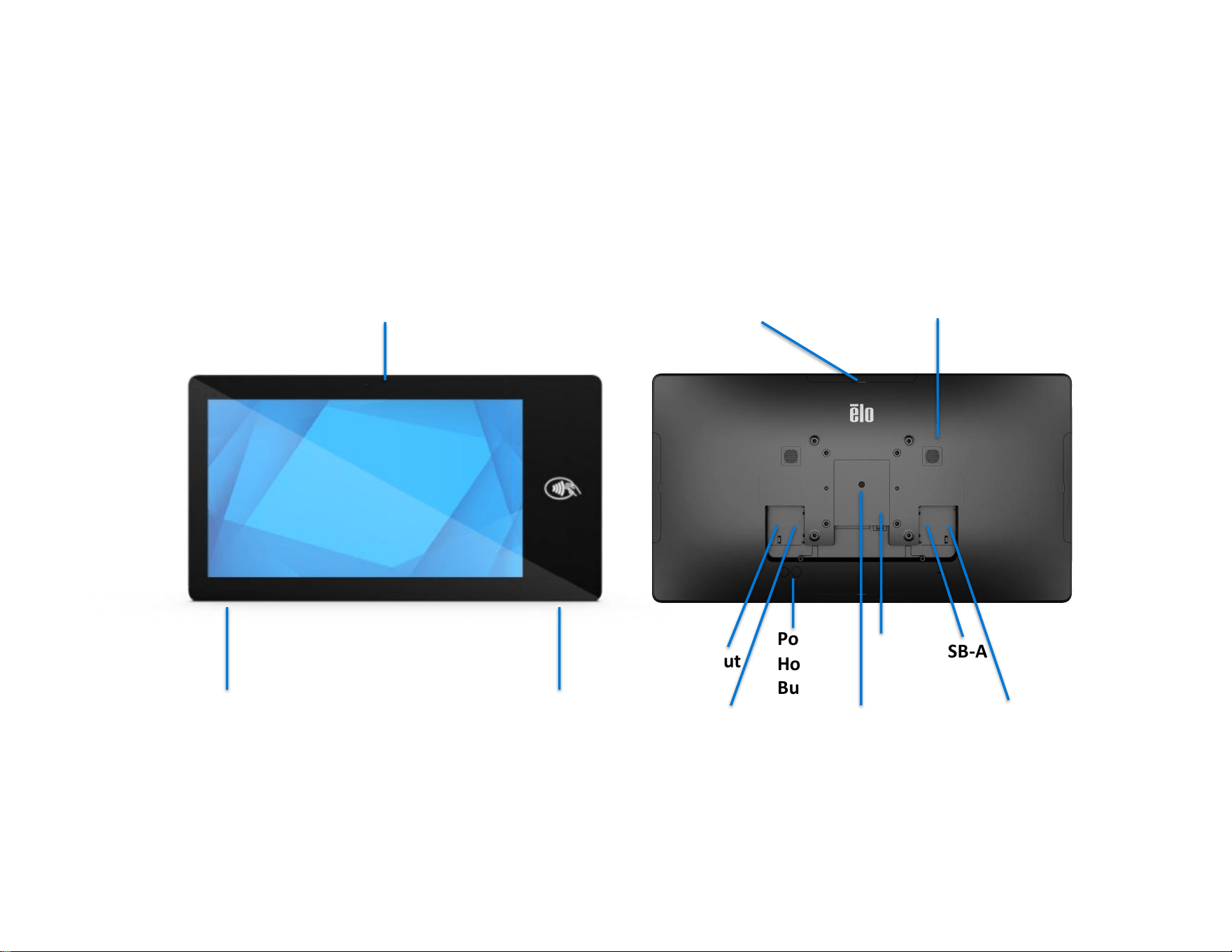
Features: Elo Pay 15” “Tap-to-Pay”
• 15.6-inch Display
• 8 Megapixel Camera
• Dual Microphones
• Dual Speakers
• 2 MIMO Wi-Fi Antennas
• Vesa Mounting pattern 75 and 100mm

UM600xxx Rev A page 9 of 87
User Manual – Elo Pay 15-inch Tap to Pay for Android
(TM)
Section 2
Getting Started
UM600xxx Rev A page 10 of 87
User Manual – Elo Pay 15-inch Tap to Pay for Android
(TM)
Unpacking
Verify that the box contains:
• Elo Pay 15” “Tap-to-Pay”
• Power Brick
• North American Power Cable
• European Power Cable
• Quick Install Guide
• Screws for cable cover door
Remove all protective materials from the device.
Inspect the device for damage.
Report immediately if the system has damaged part and/or missing items as listed above.
UM600xxx Rev A page 11 of 87
User Manual – Elo Pay 15-inch Tap to Pay for Android
(TM)
How to Install Power over Ethernet (Elo Part Number E669163)
• Unscrew the PoE cover from the back of the device.
o See full details in the Power over Ethernet kit Quick Install Guide
• Mount the PoE module so that the pins line up with the mating receptacle.
o This equipment is only to be connected to PoE networks without routing to outside plants
Power Button
Note: As soon as power is applied to the system, the device will boot up.
Do not touch the screen during the system boot up.
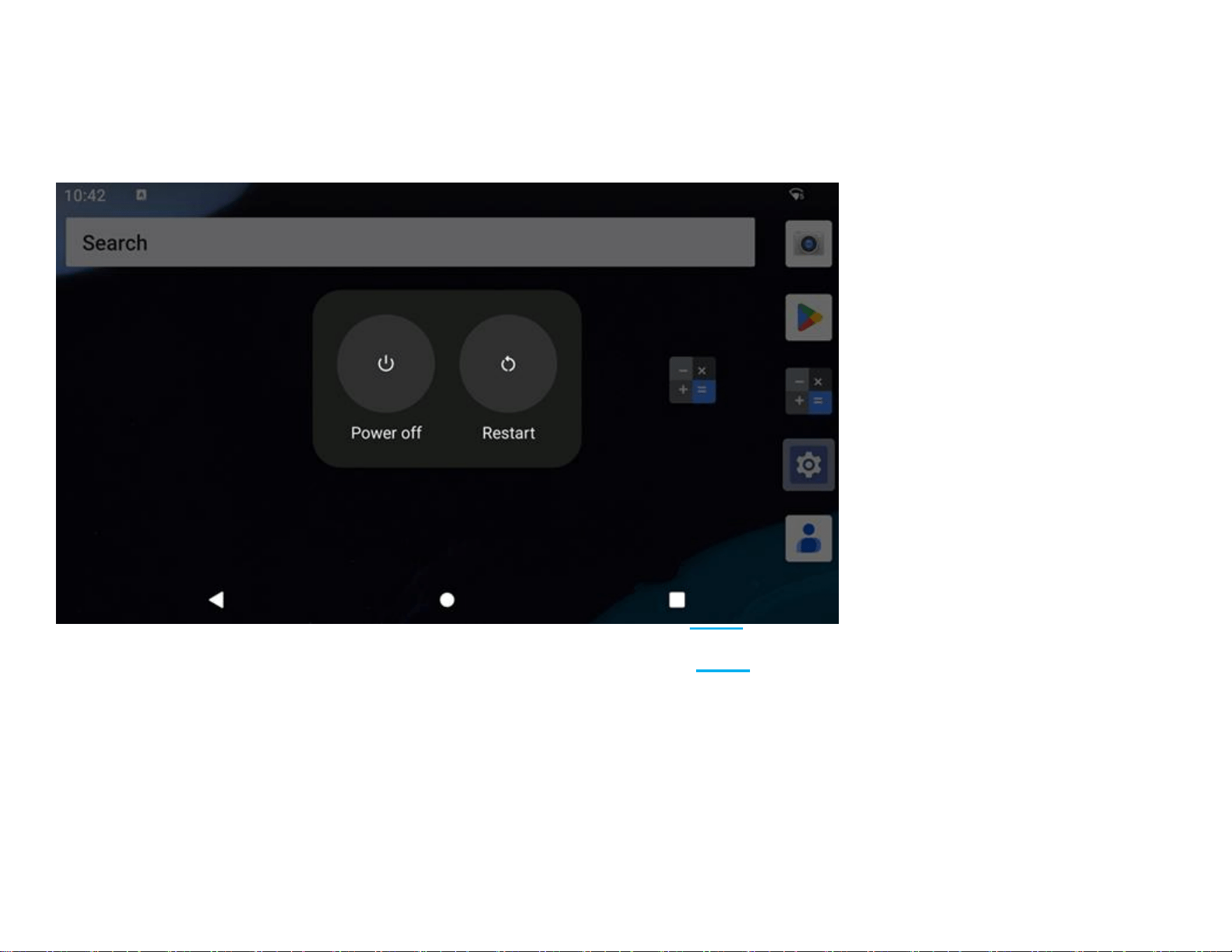
• To turn ON the system, press power button for 500 milliseconds.
• To Shut down or Restart, press and hold the power button for more than 2 seconds and follow the on-screen display menu.
• To force the system to Shut down, press and hold the power button for 12 seconds.
• To bring the system out of sleep/standby mode, either press the power button once or touch the screen.
Power LED Status
POWER LED STATUS
DESCRIPTION
OFF
OFF
Solid White
Power ON
Solid Orange
Power OFF
Blinking White
Idle Mode
UM600xxx Rev A page 12 of 87
User Manual – Elo Pay 15-inch Tap to Pay for Android
(TM)
Power / Function Buttons Features and Gestures
Power button On-Screen display menu
If the power button is pressed for more than 2 seconds, a pop-up screen menu will appear.
UM600xxx Rev A page 13 of 87
User Manual – Elo Pay 15-inch Tap to Pay for Android
(TM)
Out of Box Experience (OOBE)
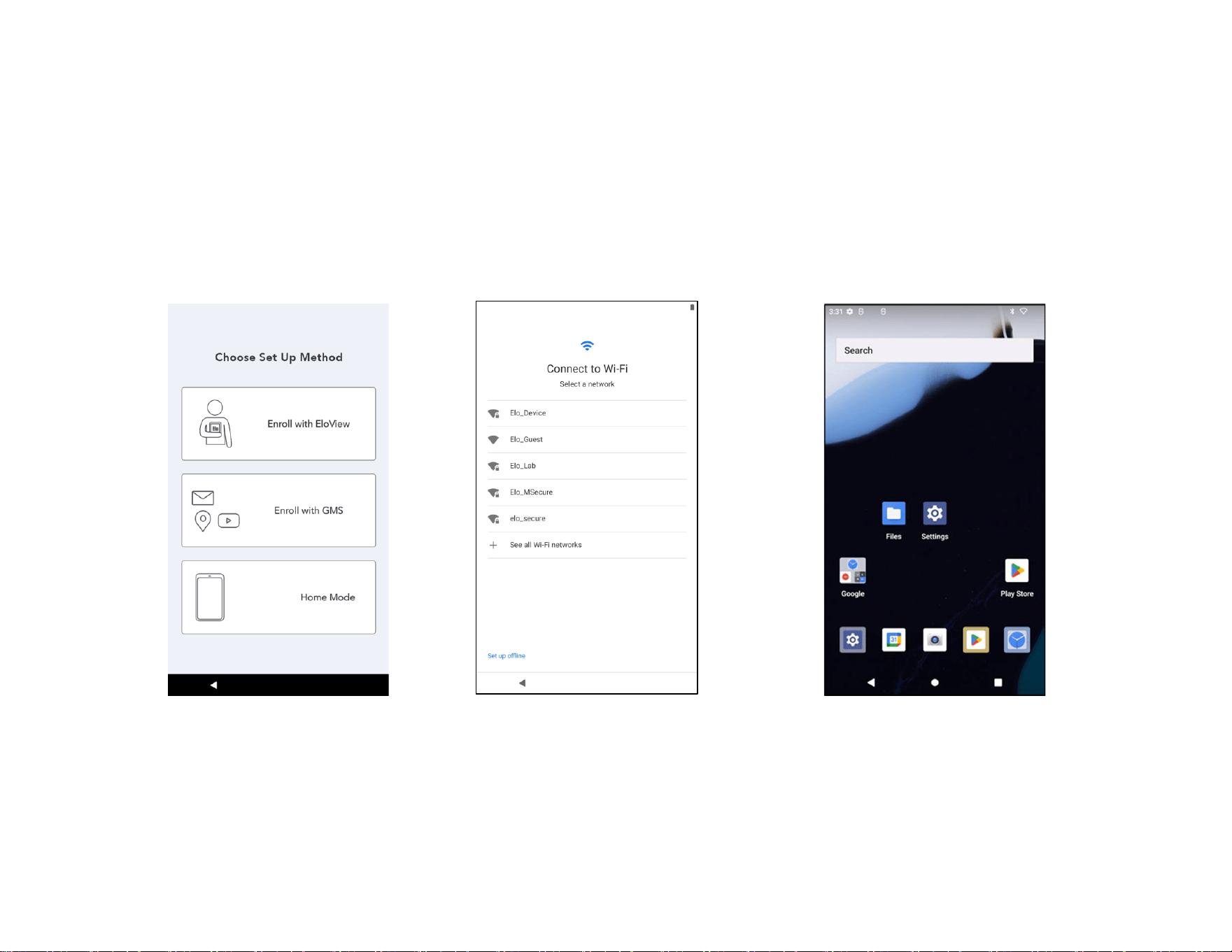
S
Step 1:
• Choose the following set
up method.
Step 2:
• Follow on-screen instructions
to complete the setup.
• To enroll with EloView® you
must connect to Wi-Fi.
•
Step 3:
• Go to Page15-16 for EloView® Home
(screen locked at default).
• Go to Page17-21 for GMS and
Android Home.

UM600xxx Rev A page 14 of 87
User Manual – Elo Pay 15-inch Tap to Pay for Android
(TM)
Elo Home APK Home Screen – Enroll with Eloview
Refer to ELOVIEW SUPPORT PAGE on www.elotouch.com for Eloview information
The Elo Home APK Home Screen is the starting point for navigating of the device. You can place your favorite apps and widgets here.
Note: The images below may appear different from the actual device.
Elo View
Settings
UM600xxx Rev A page 15 of 87
User Manual – Elo Pay 15-inch Tap to Pay for Android
(TM)
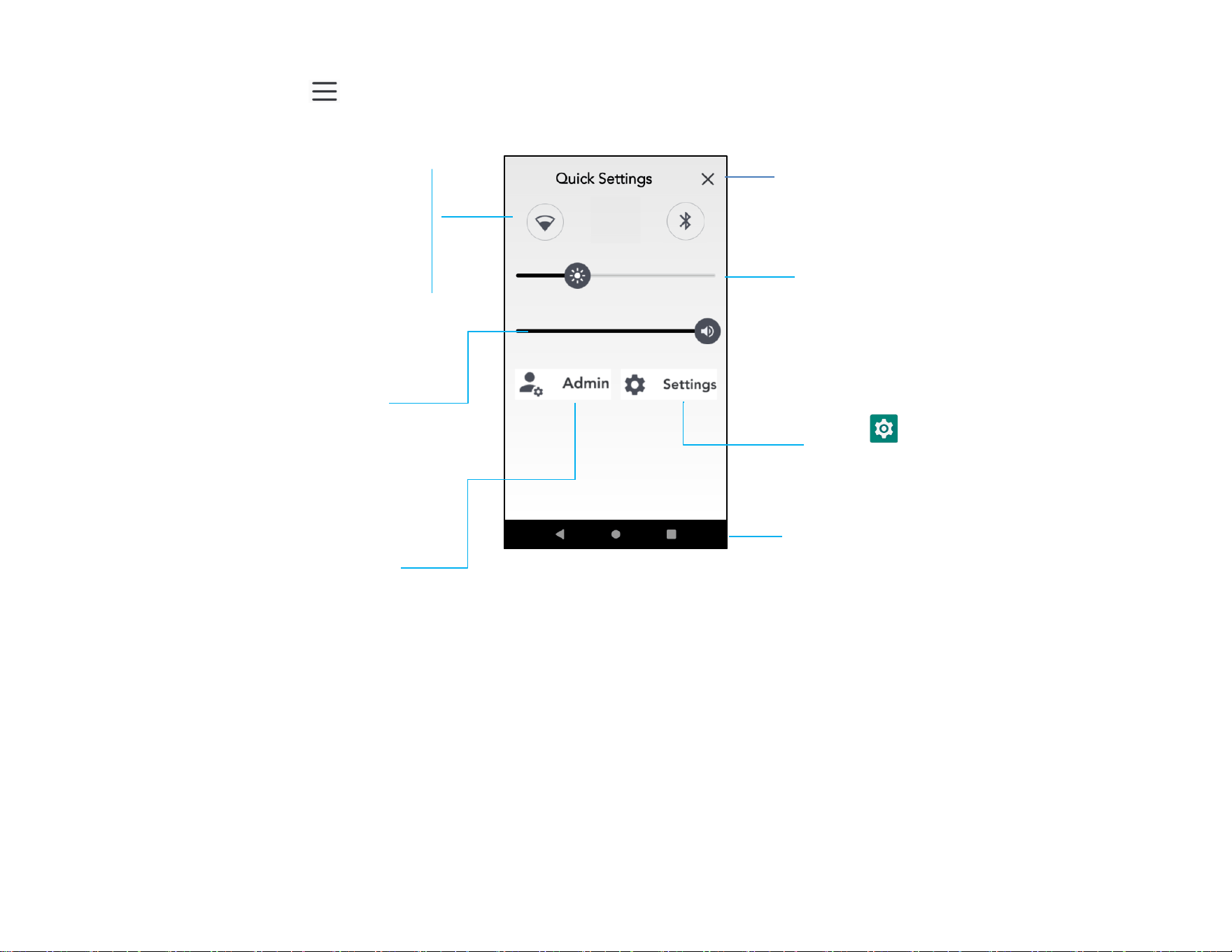
Elo Home APK Quick Settings
To access the Quick Settings, tap 3 lines menu from Elo Home APK Home Screen. Located on the upper right side.
Navigation Bar*
*if enabled in Eloview
Brightness
❖ Move the slider bar left or
right to adjust the brightness
level.
Volume
❖ Move slide bar Left or Right to
adjust the volume.
Shortcut to System Settings
Settings:
❖ Wi-Fi
❖ Bluetooth
❖ Battery
• Tap an Icon once to enable
or disable.
• Press and hold an Icon to
access the settings.
•
Exit
Admin
Settings
UM600xxx Rev A page 16 of 87
User Manual – Elo Pay 15-inch Tap to Pay for Android
(TM)
Screen Lock and Home Screens – GMS
Note: The images below may appear different from the actual computer.
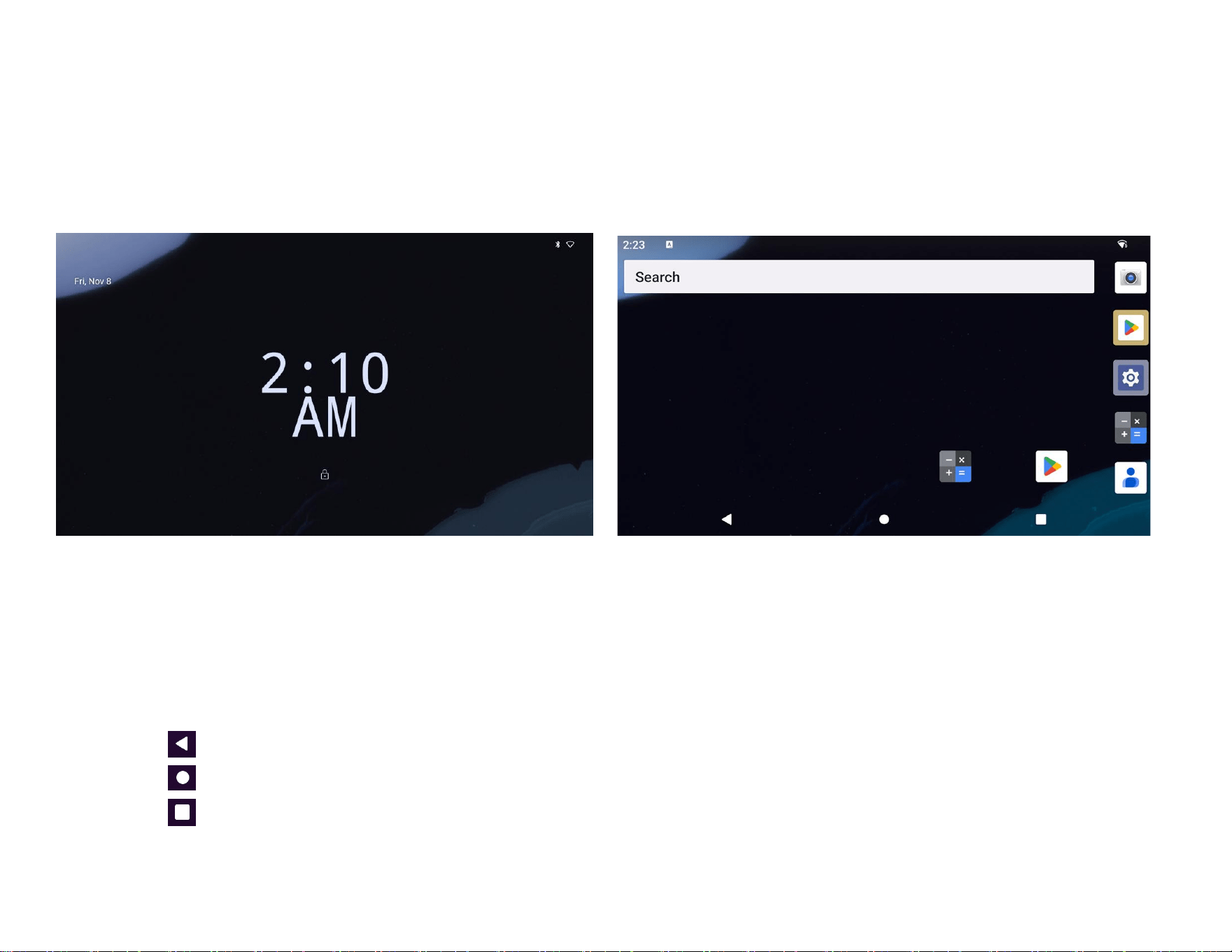
Home Screen is the starting point for navigating the Elo Pay 15-inch Tap to Pay device. You can place your
favorite apps and widgets here.
• To unlock the screen to Home Screen, swipe up on the Lock Screen.
Note: The default security is Swipe. Refer to the Security settings section in this manual for advanced settings.
• To Lock the screen, press the power button once.
Navigation Bar
Recent App - Return to the previous page.
Home - Return to the home screen.
Back - Switch between recently used apps.
Home Screen
Lock Screen
UM600xxx Rev A page 17 of 87
User Manual – Elo Pay 15-inch Tap to Pay for Android
(TM)
Notification Panel
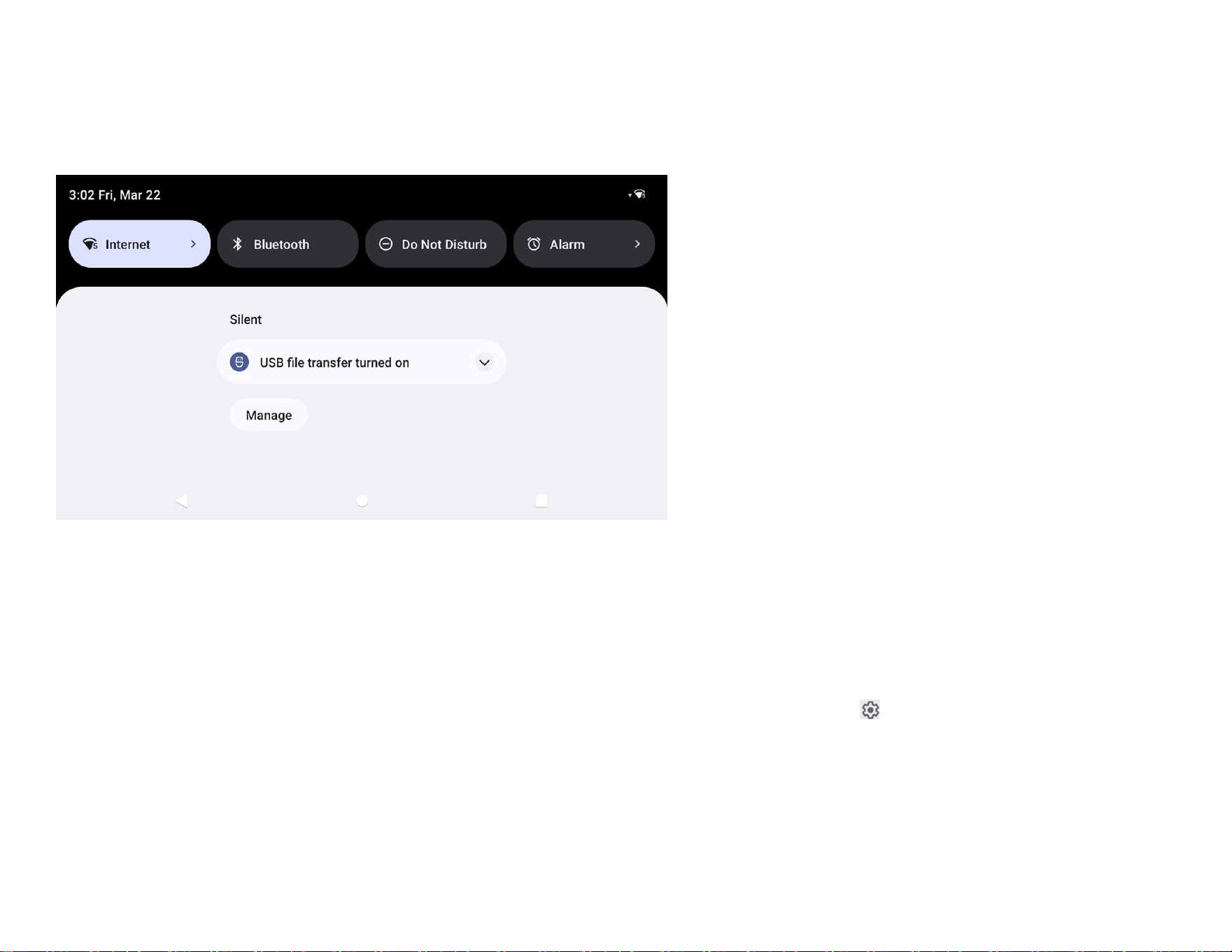
The notification panel allows for quick access to setting shortcuts and notification alerts.
Note: The images below may appear different from the actual device.
To open the Notification Panel
• From the Home Screen, swipe down from the top of the touch screen.
• To clear a single notification alert, drag the notification all the way to the left or right.
• To clear all notification alerts, tap “Clear”.
• To customize notification alerts, drag the notification halfway to the left or right then tap setting.
• To exit, tap the Navigation Bar feature or swipe up the notification alert menu.
UM600xxx Rev A page 18 of 87
User Manual – Elo Pay 15-inch Tap to Pay for Android
(TM)
Quick Acess Panel
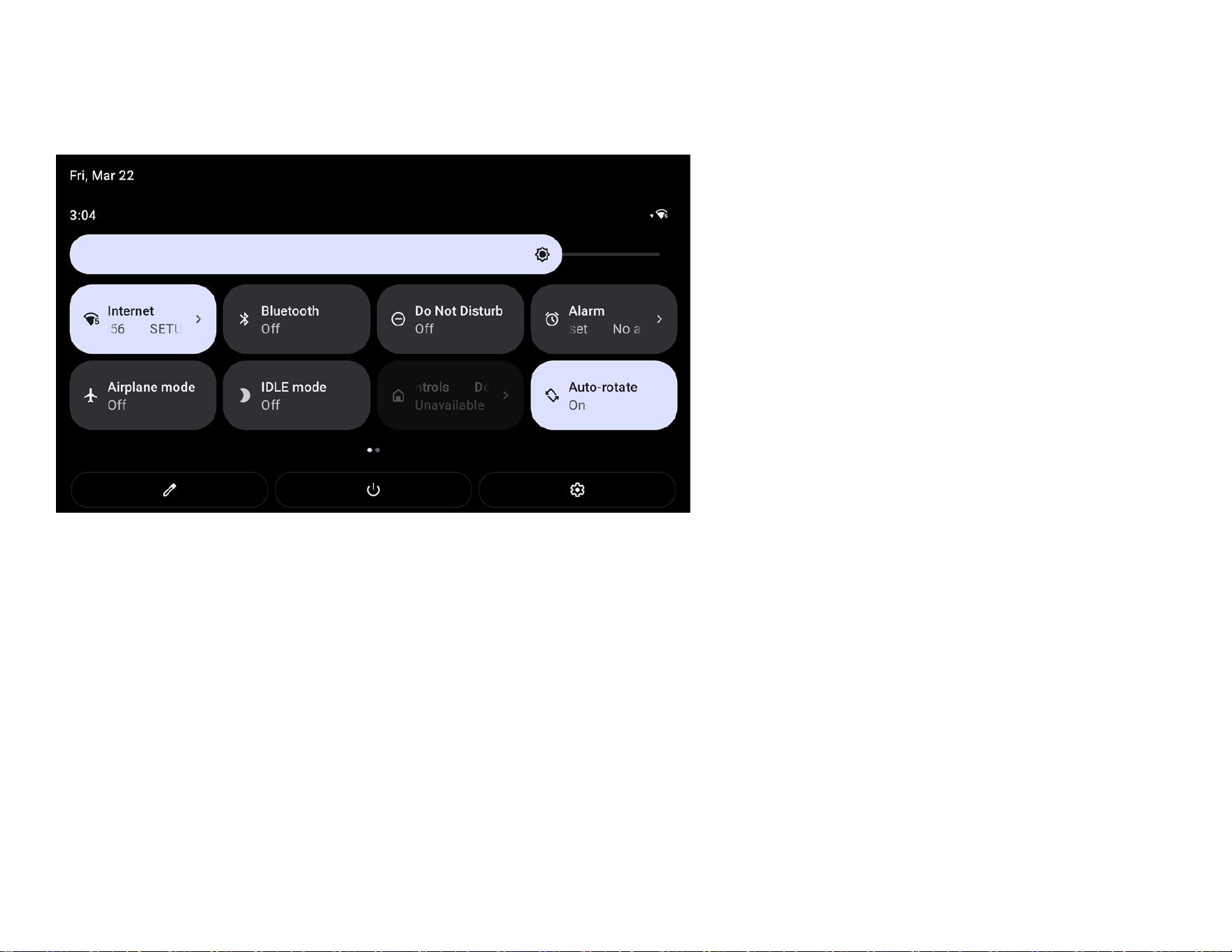
Access Panel allows for quick access frequently used settings, Brightness, and a shortcut to System Settings.
Note: The images below may appear different from the actual computer.
To open the Full Quick Access Panel
• From the Lock Screen, swipe down from top of the touch screen once.
• From the Home Screen, swipe down with two fingers from top of the touch screen.
• If the Notification Panel is open swipe down from the Quick Settings bar.
• For additional shortcut Icon’s swipe screen from right to left.
• Tap Navigation Bar to exit.
UM600xxx Rev A page 19 of 87
User Manual – Elo Pay 15-inch Tap to Pay for Android
(TM)
Application Drawer & Google Application
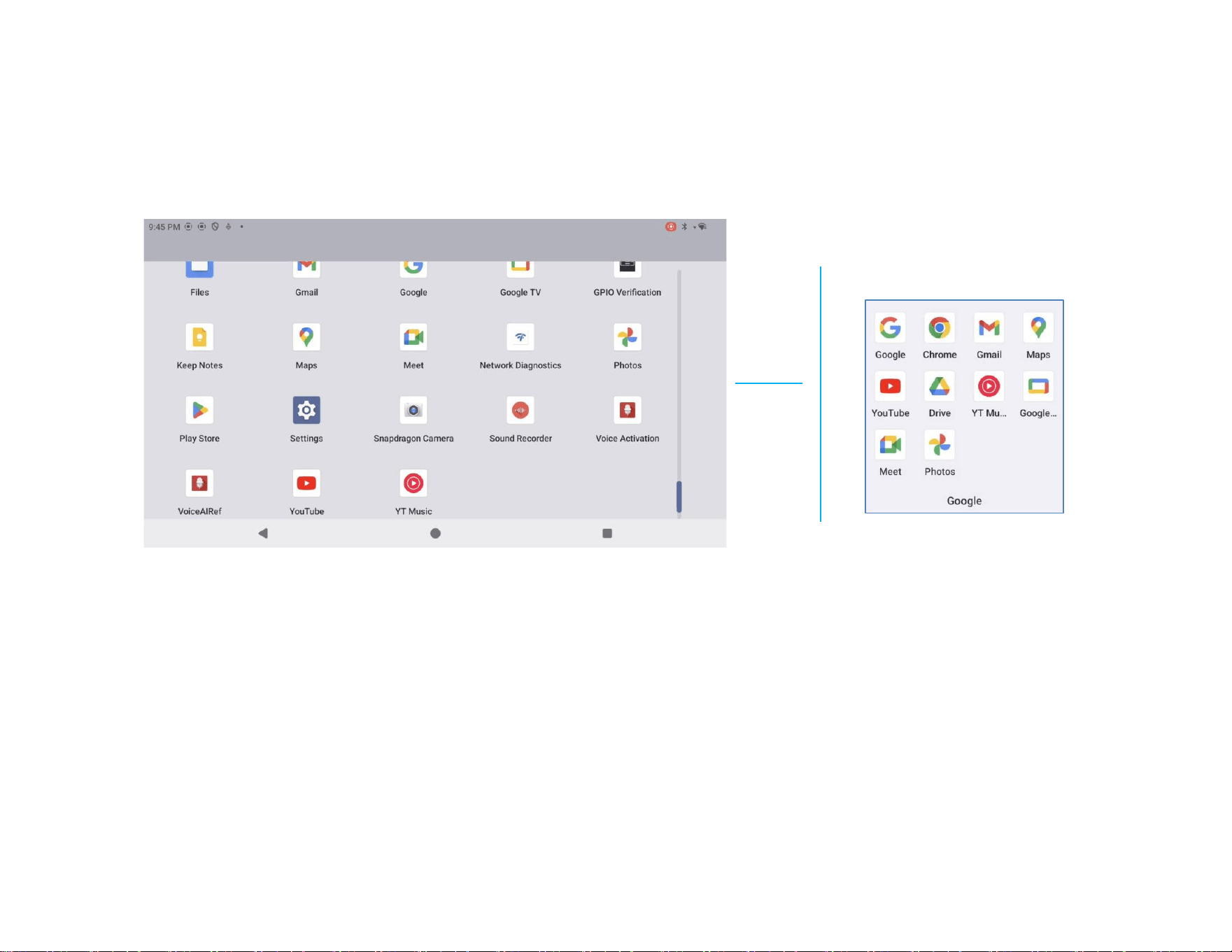
The application drawer is a menu containing all of the applications installed on the device including System Settings. This is different from
the Home Screen, as it contains every app installed and cannot be customized.
Note: The images below may appear different from the actual computer.
To open the Application Drawer (Manager)
• Swipe up the Navigation Bar from the Home screen.
• To open an application, tap once.
• To exit from the Application Drawer, tap the Navigation Bar or swipe down.
Google Application
UM600xxx Rev A page 20 of 87
User Manual – Elo Pay 15-inch Tap to Pay for Android
(TM)
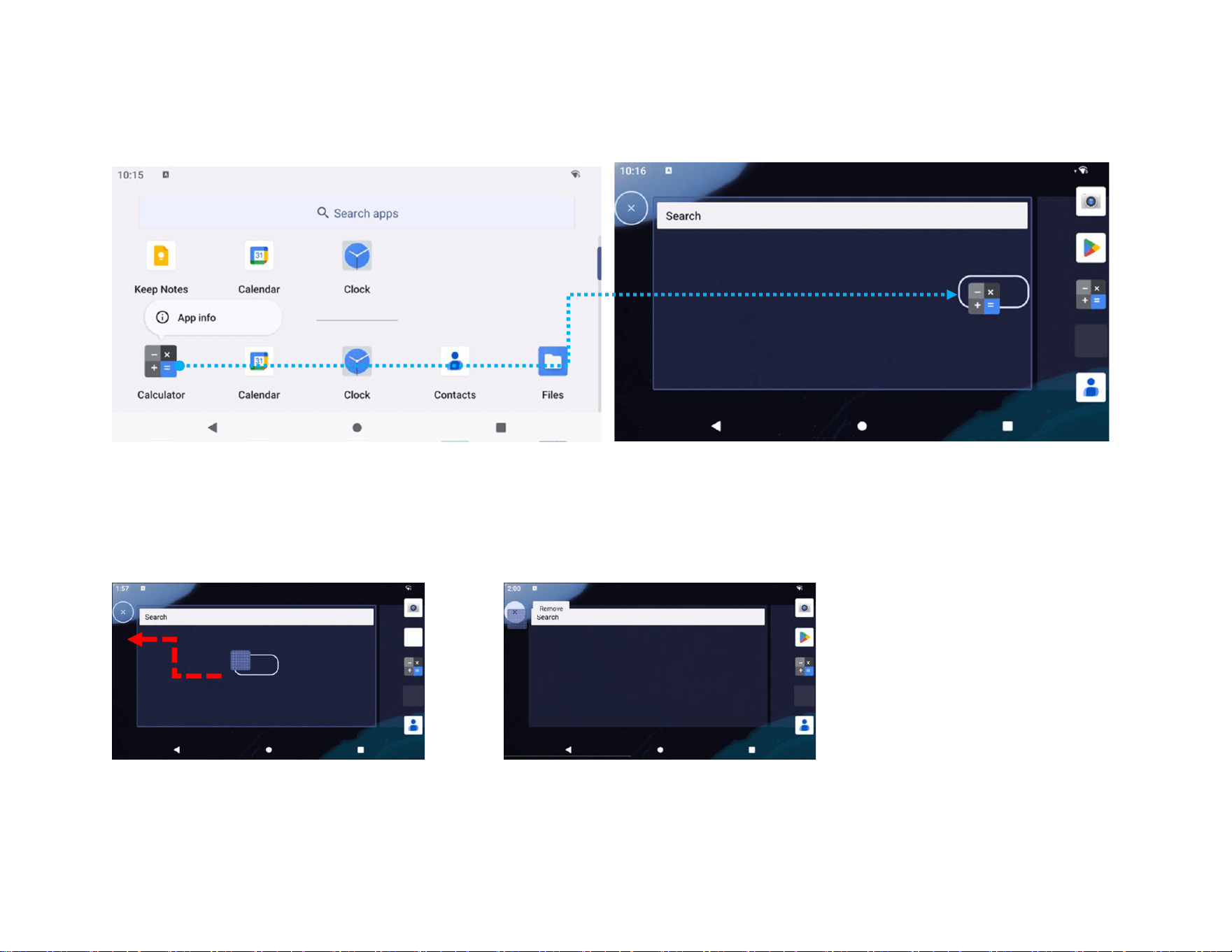
Customize and add a shortcut to the Home Screen.
Note: The images below may appear different from the actual computer.
• From the Application drawer, press and hold an app or (Icon) then drag the Icon to move the app to the Home Screen.
• Drag the Icon into new location and release.
• To cancel, drag the icon to “X Cancel”.
• To remove a shortcut Icon from home screen, press and hold the Icon then drag the Icon to “X Remove”.
• To uninstall an app, press and hold then drag the icon to “Uninstall”.
UM600xxx Rev A page 21 of 87
User Manual – Elo Pay 15-inch Tap to Pay for Android
(TM)
Section 3
System
Settings
The System Settings menu allows you to control most aspects of your device - everything
from establishing a new Wi-Fi or Bluetooth connection, to installing a third-party onscreen
keyboard, to adjusting system sounds and screen brightness.
UM600xxx Rev A page 22 of 87
User Manual – Elo Pay 15-inch Tap to Pay for Android
(TM)
Network & Internet
The Network & Internet application allows you to access Wi-Fi, Airplane Mode, Mobile plan, Hotspot, Tethering and
Advanced settings of Data Saver, VPN and DNS.
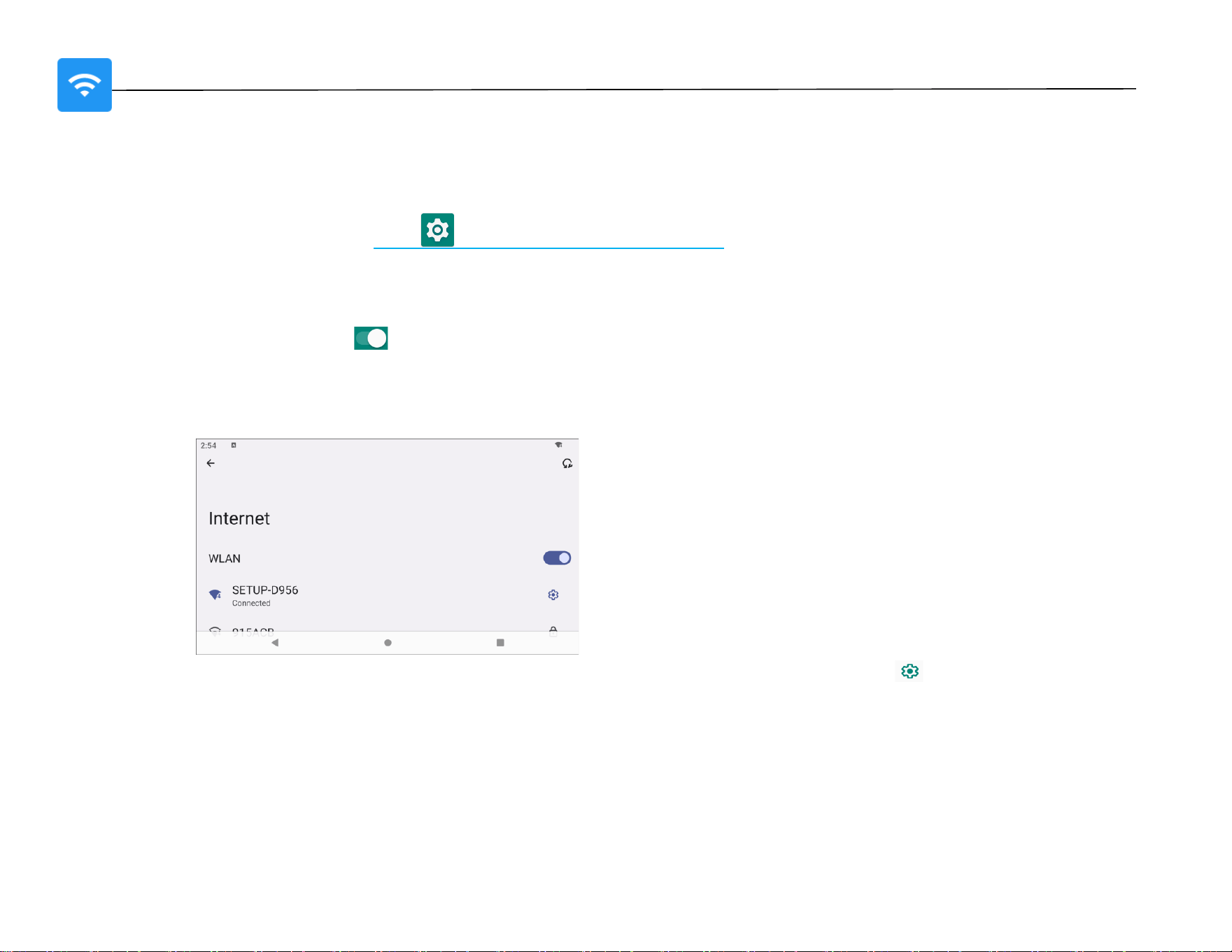
To set up Network and Internet, enter Settings → Network & Internet →
WLAN
• Tap Internet.
• Tap WLAN to enable .
• From the list, select a wireless network.
• When prompted enter the network password.
• Tap Connect.
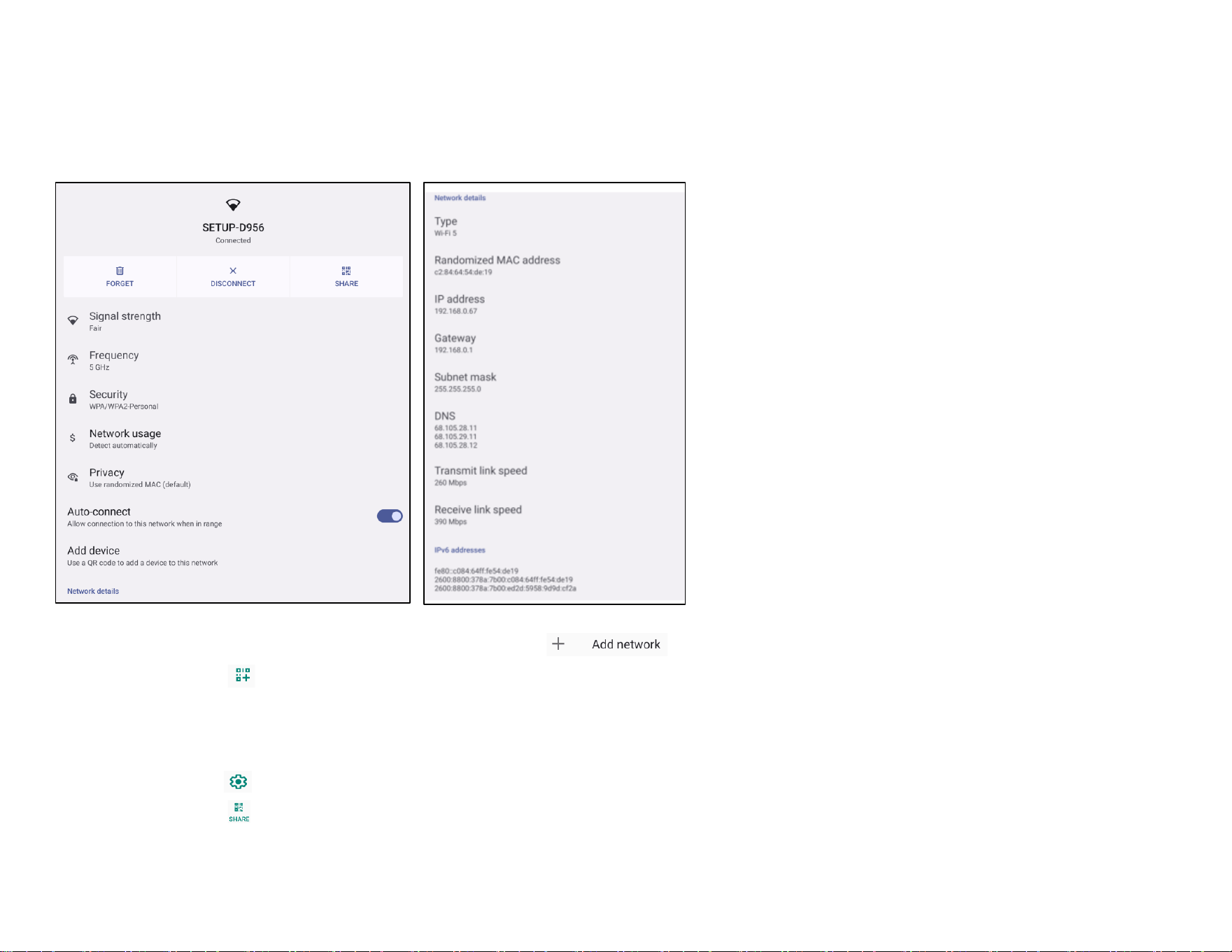
For additional Network detail information’s (IP address, Security, Frequency and Advanced), tap setting of the network (e.g.
SETUP_D956).
UM600xxx Rev A page 23 of 87
User Manual – Elo Pay 15-inch Tap to Pay for Android
(TM)
Joining Wi-Fi using QR code
• From the list of saved Wi-Fi scroll down and tap .
• Tap (QR code) icon to the right of Add network.
• Position the viewfinder over the QR code on another device.
Sharing Wi-Fi using QR code
• Tap setting of the connected device.
• Tap (Share) icon.
UM600xxx Rev A page 24 of 87
User Manual – Elo Pay 15-inch Tap to Pay for Android
(TM)
Enabling Dynamic Frequency Selection (DFS) channels
• From the Wi-fi settings page, select Wi-Fi preferences
• Select Advanced
• Enable or Disable the DFS selection option
• The following channels are supported:
Channel 52, 56, 60, 64, 100, 104, 108, 112, 116, 120, 124, 128, 132, 136, 140, 144
Disconnecting a connected Wireless Network
• Tap setting of the connected device.
• Tap (FORGET) icon to disconnect.
Ethernet LAN (Gigabit)
Note: To connect the Elo Pay 15” “Tap-to-Pay” to Ethernet, just connect the cable to the RJ45 Jack. When available, the Elo Pay 15” “Tap-to-
Pay” will automatically prioritize the ethernet connection. If the Elo Pay 15” “Tap-to-Pay” does not, please follow the steps below.
• Place the Elo Pay 15” “Tap-to-Pay” into the Elo Home APK.
• Set Wi-Fi to disable.
• Go to Wi-Fi settings, tap Use Wi-Fi to disable .
• Tap Ethernet.
• Tap toggle switch to enable .
Airplane mode
This will disable all of the wireless transmission functions. Including cellular, Wi-Fi, and Bluetooth.
• To enable , tap Airplane mode.
Hotspot & tethering
Wi-Fi hotspot
This feature is for sharing Internet network connection with another device using Wi-Fi.
Note: The Elo Pay 15” “Tap-to-Pay” must be connected to Wi-Fi. See Network & Internet connection on this user manual.
• Tap Hotspot and tethering.
• Tap Wi-Fi hotspot.
• Tap toggle switch to ON .
• Tap QR code.
• The QR code is for another device to scan the password for easy connect.

UM600xxx Rev A page 25 of 87
User Manual – Elo Pay 15-inch Tap to Pay for Android
(TM)
• To enter manually the password, tap Hotspot password.
USB tethering
This feature is for sharing Internet connection to another device using a USB cable.
Note: The USB cable must be connected first from Elo Pay 15” “Tap-to-Pay” to another device or PC. See Connected device → USB
on this user manual.
• Tap Hotspot and tethering.
• Tap USB tethering, to enable .
Bluetooth tethering
This feature is for sharing internet network connection to another device using Bluetooth.
Note: The Bluetooth must be paired first from Elo Pay 15” “Tap-to-Pay” to another device or PC. See Connected devices → Bluetooth
on this user manual.
• Tap Hotspot and tethering.
• To enable , tap Bluetooth tethering.
Data Saver
This feature is for saving data if the internet network connection is on a metered device..
Note: The Bluetooth must be paired first from Elo Pay 15” “Tap-to-Pay” to another device or PC. See Connected devices → Bluetooth
on this user manual.
• Tap Data Saver
• To enable , tap Use Data Saver
UM600xxx Rev A page 26 of 87
User Manual – Elo Pay 15-inch Tap to Pay for Android
(TM)
Connected devices
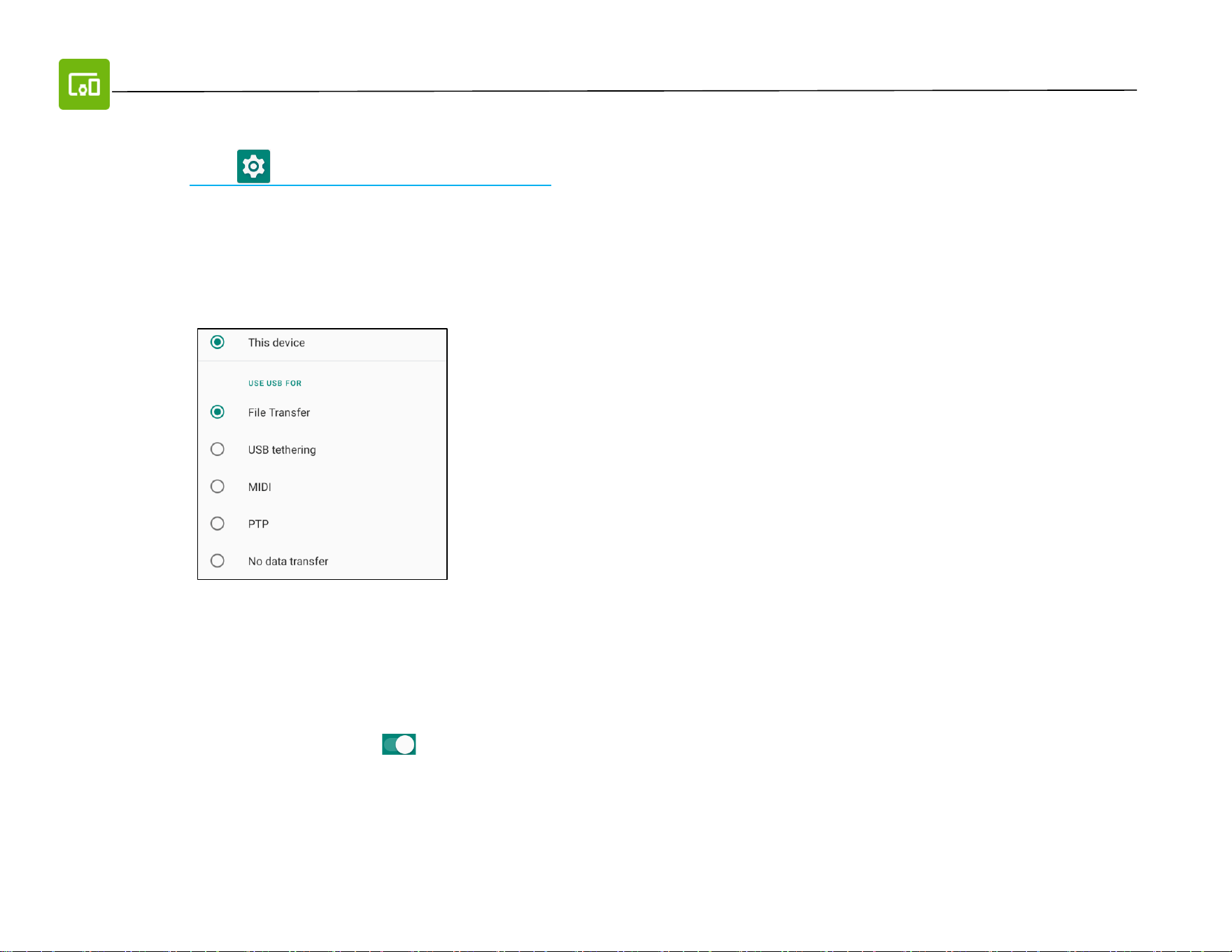
The Connected devices application allows you to pair Bluetooth devices, NFC, and USB (Tethering File transfer MDI and PTP)
To setup, enter Settings → Connected devices →
USB
Note: To activate the USB settings, connect the USB cable from the Elo Pay 15” “Tap-to-Pay” to another device or PC. Once the Elo Pay 15-
inch Tap to Pay detects the external computer, it will become available in the USB preference settings.
• Tap USB.
• From USB Preferences under USE USB FOR choose and tap a feature to enable.
Bluetooth
Note: Make sure the BT device is on and is discoverable.
• Tap Connection preferences.
• Tap Bluetooth.
• Tap toggle switch to ON .
• Tap + Pair new device.
• From Available devices screen, tap a device to pair.
• When a pairing request message appears.
• Verify the pairing number is the same.
• If the pairing requests a PIN, enter the PIN.
❖ File transfer – This will share Elo Pay 15” “Tap-to-Pay” internal and SD shared storage.
❖ USB tethering – This will share internet network connection.
❖ MIDI - Musical Instrument Digital Interface.
❖ PTP - Picture Transfer Protocol.
❖ No data transfer – (Default Setting) No data will be transferred even if the USB cable is
connected.
UM600xxx Rev A page 27 of 87
User Manual – Elo Pay 15-inch Tap to Pay for Android
(TM)
• Tap PAIR, to connect.
• When the Bluetooth device is successfully connected to Elo Pay 15” “Tap-to-Pay”, the connection will show as Active or
Connected.
Unpair a paired Bluetooth Device
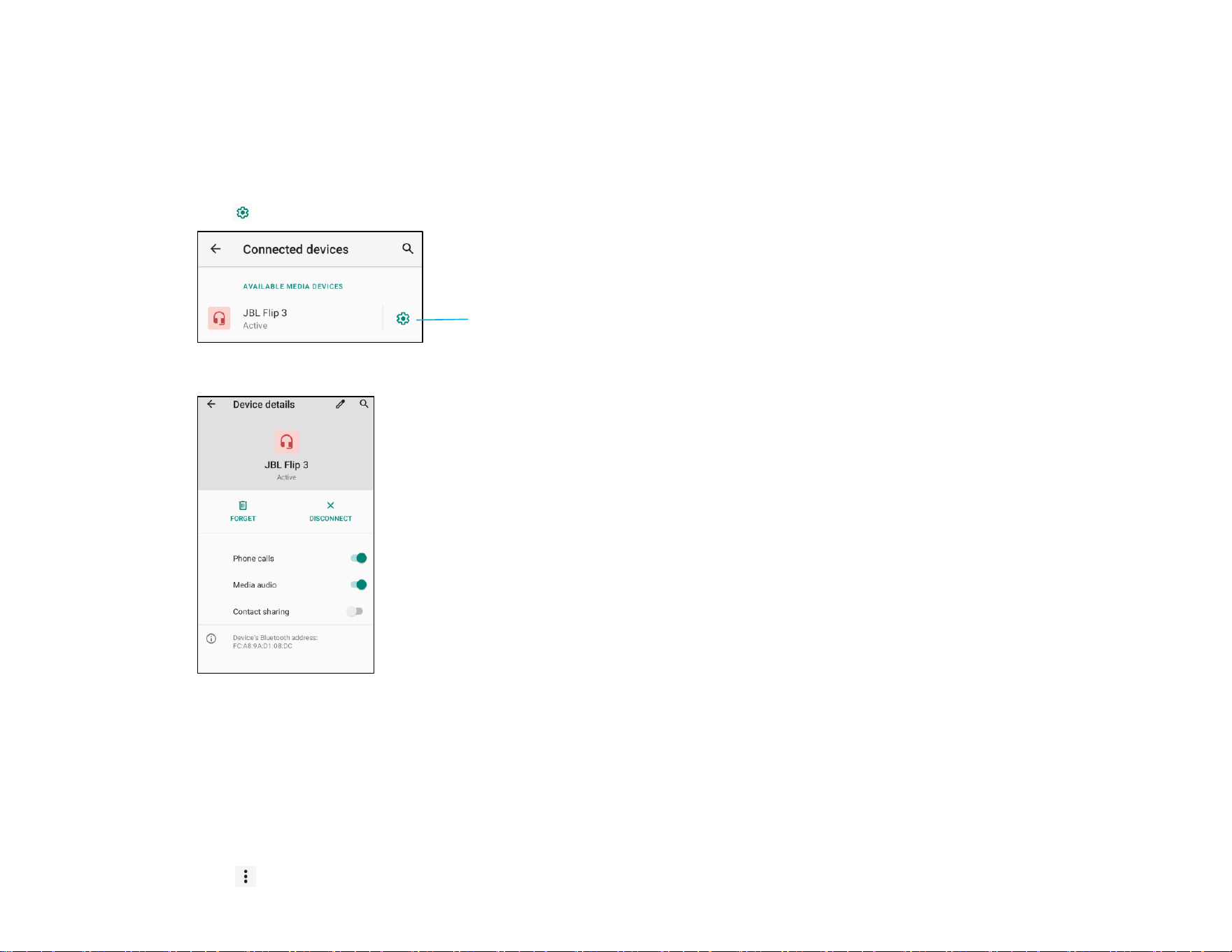
• Navigate back to ‘Connected devices’ screen, from AVAILABLE MEDIA DEVICES or PREVIOUSLY CONNECTED DEVICES.
• Tap settings of the connected device (e.g. JBL Flip 3).
• In the settings menu, it is possible to DISCONNECT, FORGET (to unpair the device) and to enable and disable Phone calls, Media
audio and Contact sharing.
Cast
This allows to mirror the Elo Pay 15-inch Tap to Pay display onto a wireless display device (e.g. Smart TV).
Note: Make sure the wireless display capable device and Elo Pay 15” “Tap-to-Pay” are on the same wireless network. See Network & Internet
connection on this user manual.
• Tap Connection preferences.
• Tap Cast.
• Tap 3-dots menu.
BT Device Setting
UM600xxx Rev A page 28 of 87
User Manual – Elo Pay 15-inch Tap to Pay for Android
(TM)
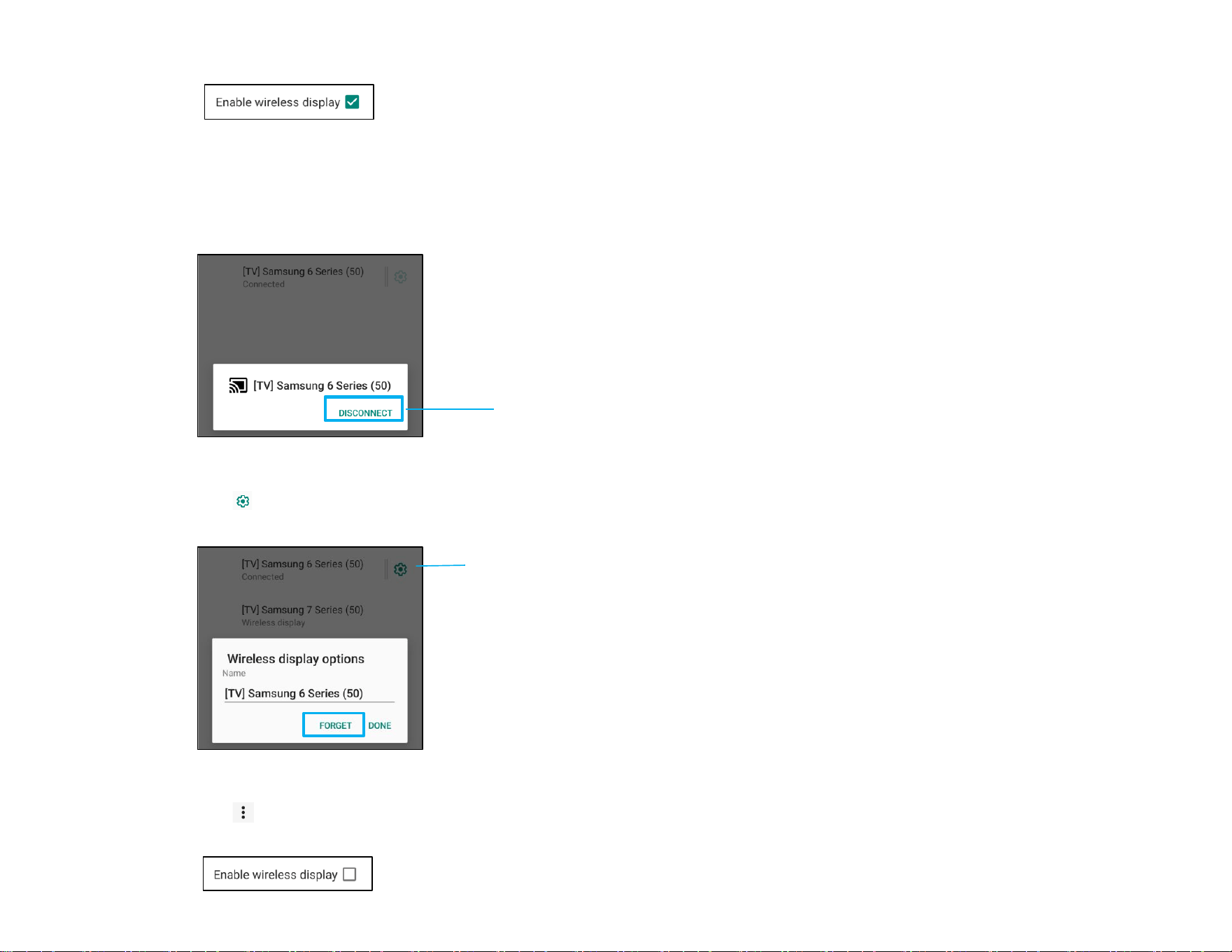
• Tap Enable wireless display to begin scanning for compatible displays.
• From the list, tap a wireless display (e.g. TV). From the Wireless Display device (TV), if promoted tap Allow.
Disconnect and forget a connected wireless display
• To stop the device from casting, tap the connected wireless display (e.g. TV).
• Tap DISCONNECT.
To forget a device
• Tap setting of connected wireless display.
• From wireless display options screen, tap FORGET.
To stop scanning available wireless display to cast
• Tap 3-dots menu.
• Tap Enable wireless display to be unchecked
Device Setting
Wireless Display name
Setting
UM600xxx Rev A page 29 of 87
User Manual – Elo Pay 15-inch Tap to Pay for Android
(TM)
Printing
Note: Make sure Elo Pay 15” “Tap-to-Pay” and printer are connected to the same network.
• Tap Connection preferences.
• Tap Printing.
• Tap Default Print Service.
• Tap toggle switch to ON .
• Tap 3-dots menu.
• Tap Add printer.
To add a printer using Wi-Fi printer:
• Tap Wi-Fi direct printing to enable .
• If prompted, tap ‘ALLOW ONLY WHILE USING THE APP’ to allow the device.
• Tap Wi-Fi Direct printers to start searching for a Wi-Fi printer to add.
• Tap the printer’s name to connect.
To add a printer entering IP address:
• Tap Add printer by IP address.
• Enter the printer’s IP address.
•
Files received via Bluetooth
This menu will show a list of all the files that have been transferred via Bluetooth.
UM600xxx Rev A page 30 of 87
User Manual – Elo Pay 15-inch Tap to Pay for Android
(TM)
PoE Power Manager
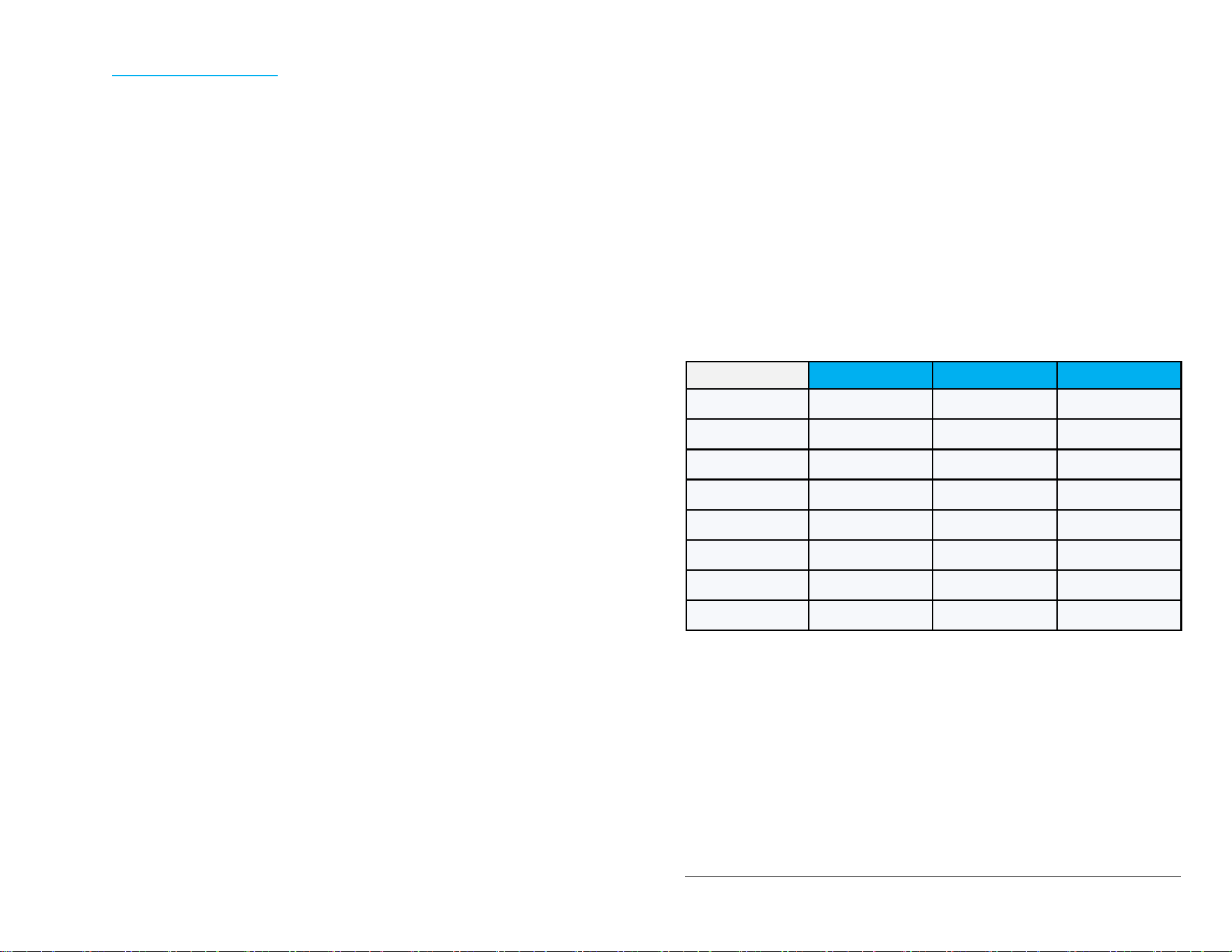
When Power over Ethernet is being used, the PoE power manager allows the ability to enable and disable available features.
To enter the power over ethernet setting, navigate to settings → Connected devices → Connection preferences → PoE power
manager.
Note:
1. DO NOT power by POE and DC power brick simultaneously.
2. 51W is the maximum available power to the system when using the PoE module. PoE Power Management setting page will not be
displayed when 51W power is detected.
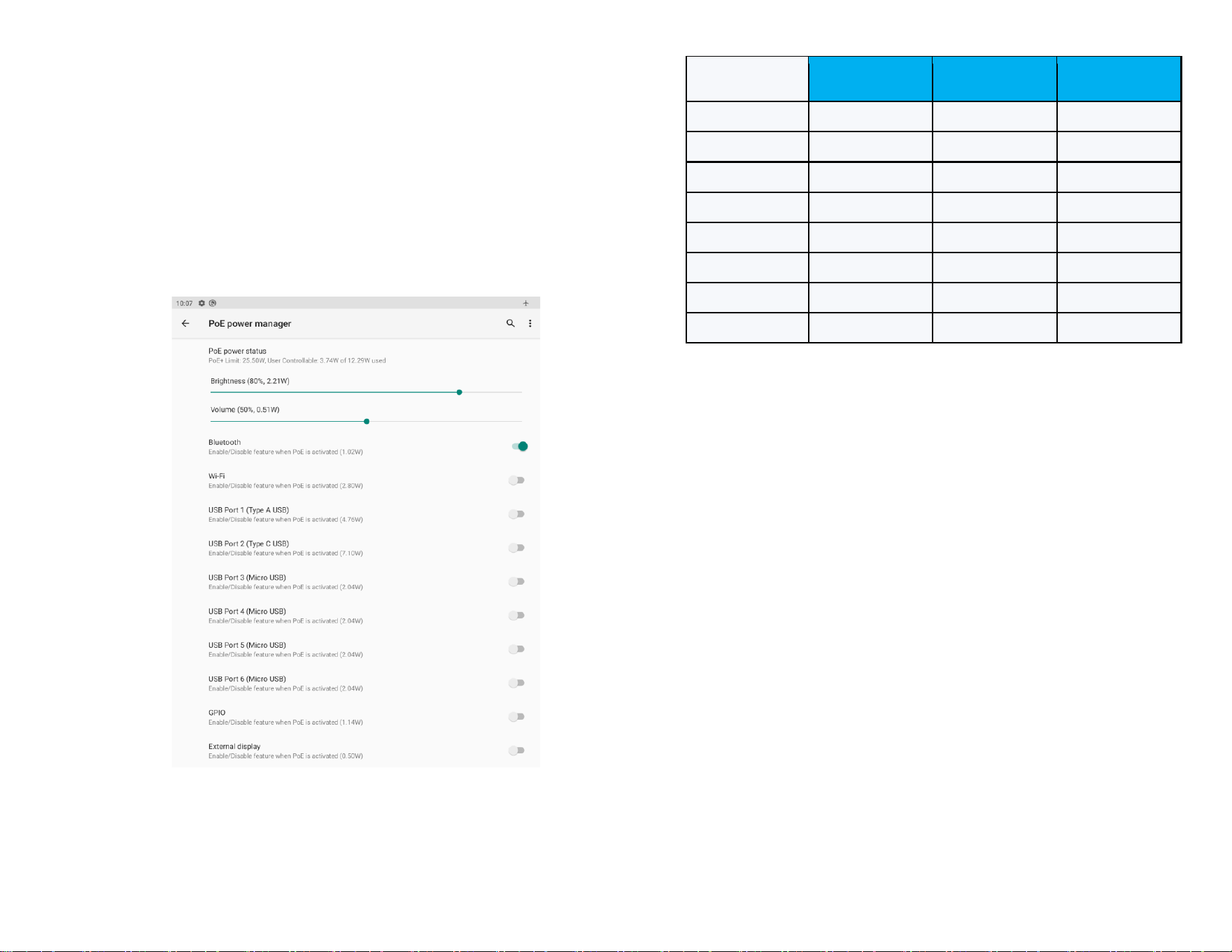
POE < 25.5W
10” Standard
15” Standard
22” Standard
Bluetooth
Enable
Enable
Enable
WiFi
Disable
Disable
Disable
USB 3.0 Type A
Disable
Disable
Disable
USB 3.0 Type C
Disable
Disable
Disable
Edge Connect Ports
Disable
Disable
Disable
GPIO
Disable
Disable
Disable
External Display
Disable
Disable
Disable
Brightness Level
80%
80%
70%
UM600xxx Rev A page 31 of 87
User Manual – Elo Pay 15-inch Tap to Pay for Android
(TM)
3. POE IEEE 802.3af PSE is insufficient for optimal performance. Not
recommended for use.
4. POE++ IEEE 802.3bt PSE is recommended.
5. POE+ IEEE802.3at PSE can only provide approximately 25.5W of power.
The system will default disable I/O mostly.
Users must manually select and enable the required I/O as below
(upper table).
6. When using the POE module, USB-C max power output is 15W.
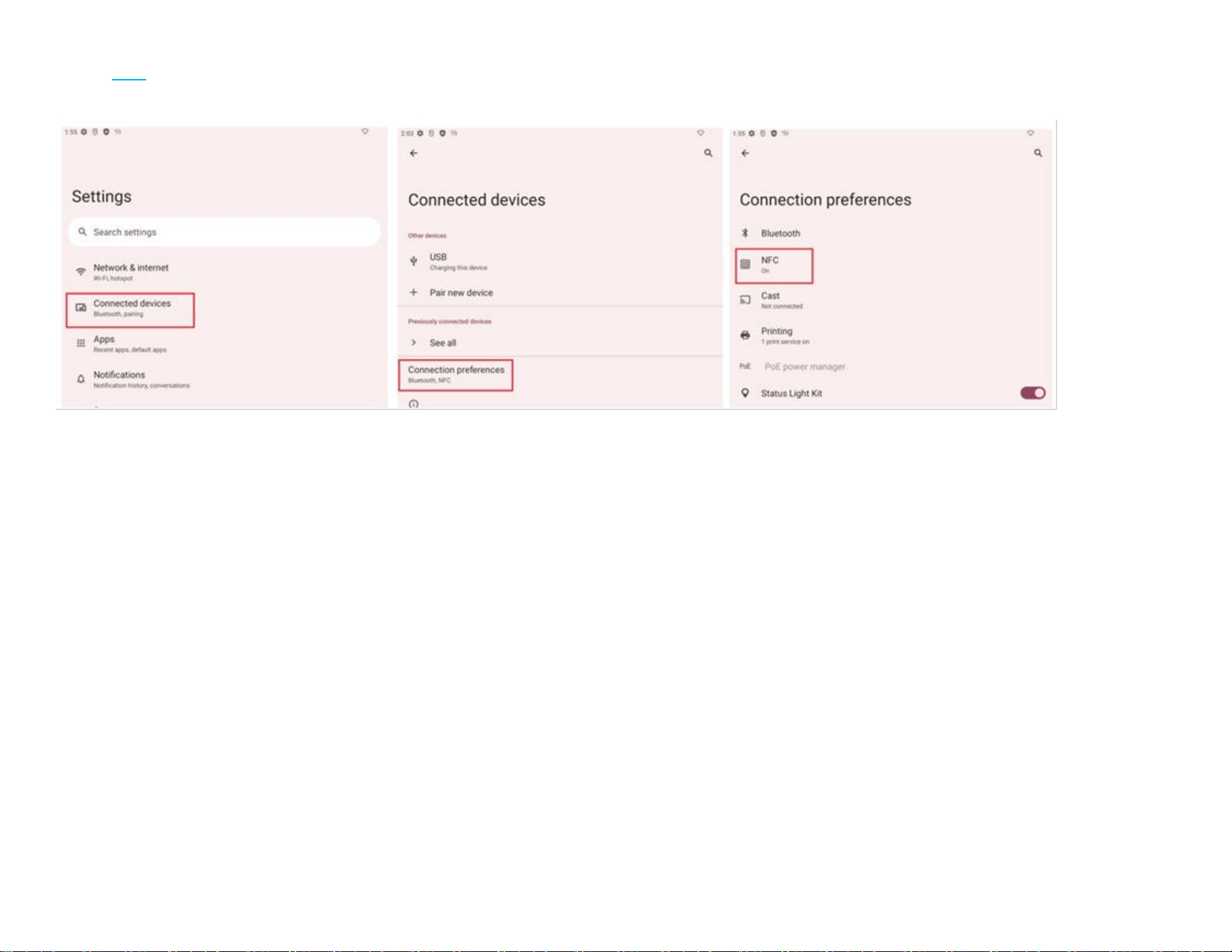
POE = 51W
PoE++ (802.3bt)
10” Standard
15” Standard
22” Standard
Bluetooth
Enable
Enable
Enable
WiFi
Enable
Enable
Enable
USB 3.0 Type A
Enable
Enable
Enable
USB 3.0 Type C
Enable
Enable
Enable
Edge Connect Ports
Enable
Enable
Enable
GPIO
Enable
Enable
Enable
External Display
Enable
Enable
Enable
Brightness Level
100%
100%
100%
UM600xxx Rev A page 32 of 87
User Manual – Elo Pay 15-inch Tap to Pay for Android
(TM)
NFC
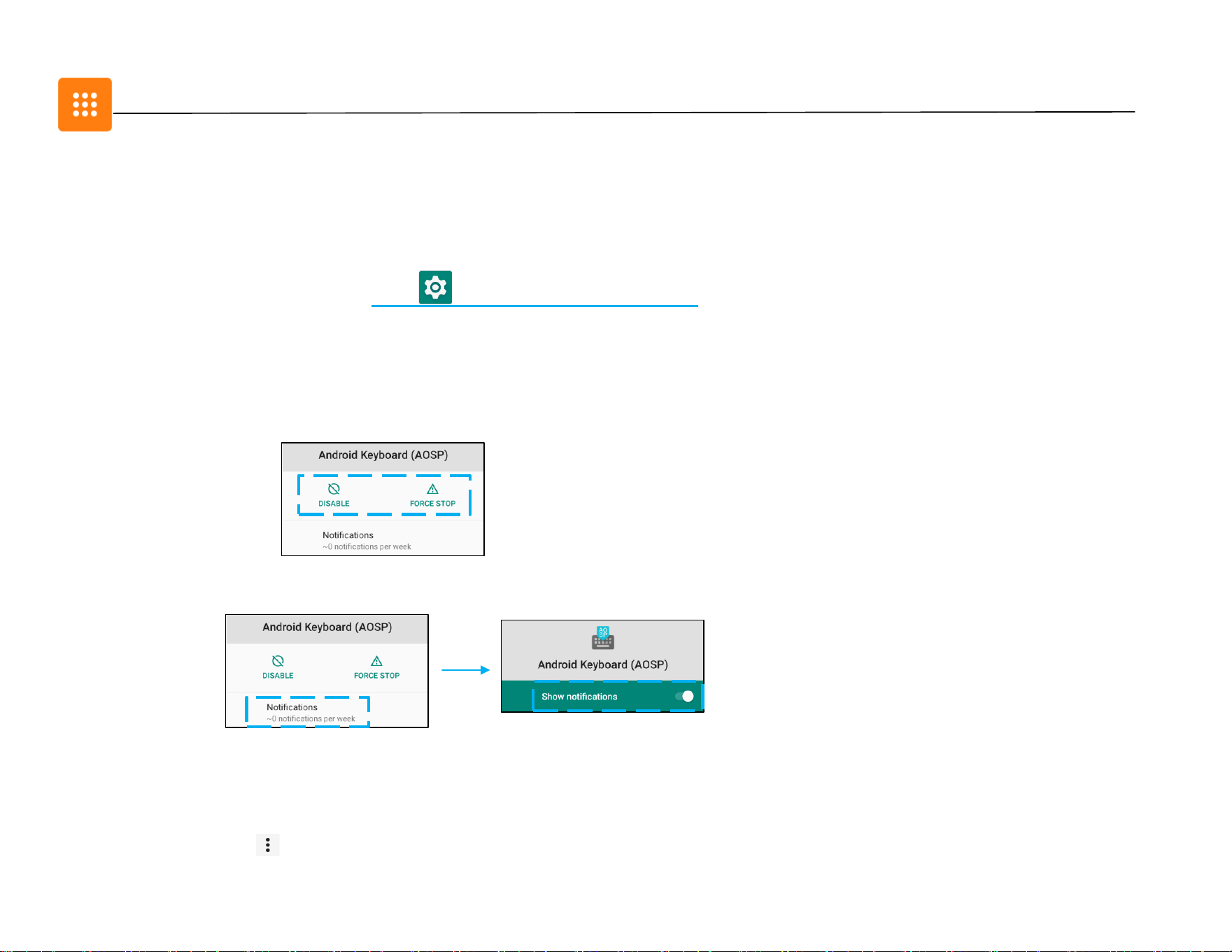
To enter the NFC setting, navigate to Android settings → Connected devices → Connection preferences → NFC
UM600xxx Rev A page 33 of 87
User Manual – Elo Pay 15-inch Tap to Pay for Android
(TM)
Apps & Notifications
App & Notification settings are to streamline app alerts by changing which apps send notifications and how the
notifications alert you.
To manage App & Notification, enter Settings → App & Notification
Setting notifications
• In the Recently opened apps, tap SEE ALL APPS or App info.
• From App Info screen tap an App to set the notification (e.g. Keyboard).
❖ In the App property settings you can also DISABLE, ENABLE, and FORCE STOP the app.
• To enable or disable notifications, tap Notifications. Then select Show notifications.
• To add a dot for unread notifications, tap Advanced then tap Allow notification dot.
Resetting app preferences
This will not lose any app data.
• Tap 3-dots menu from App Info screen.
• Tap Reset app preferences then tap RESET APP.
UM600xxx Rev A page 34 of 87
User Manual – Elo Pay 15-inch Tap to Pay for Android
(TM)
Setting Permission manager to an application
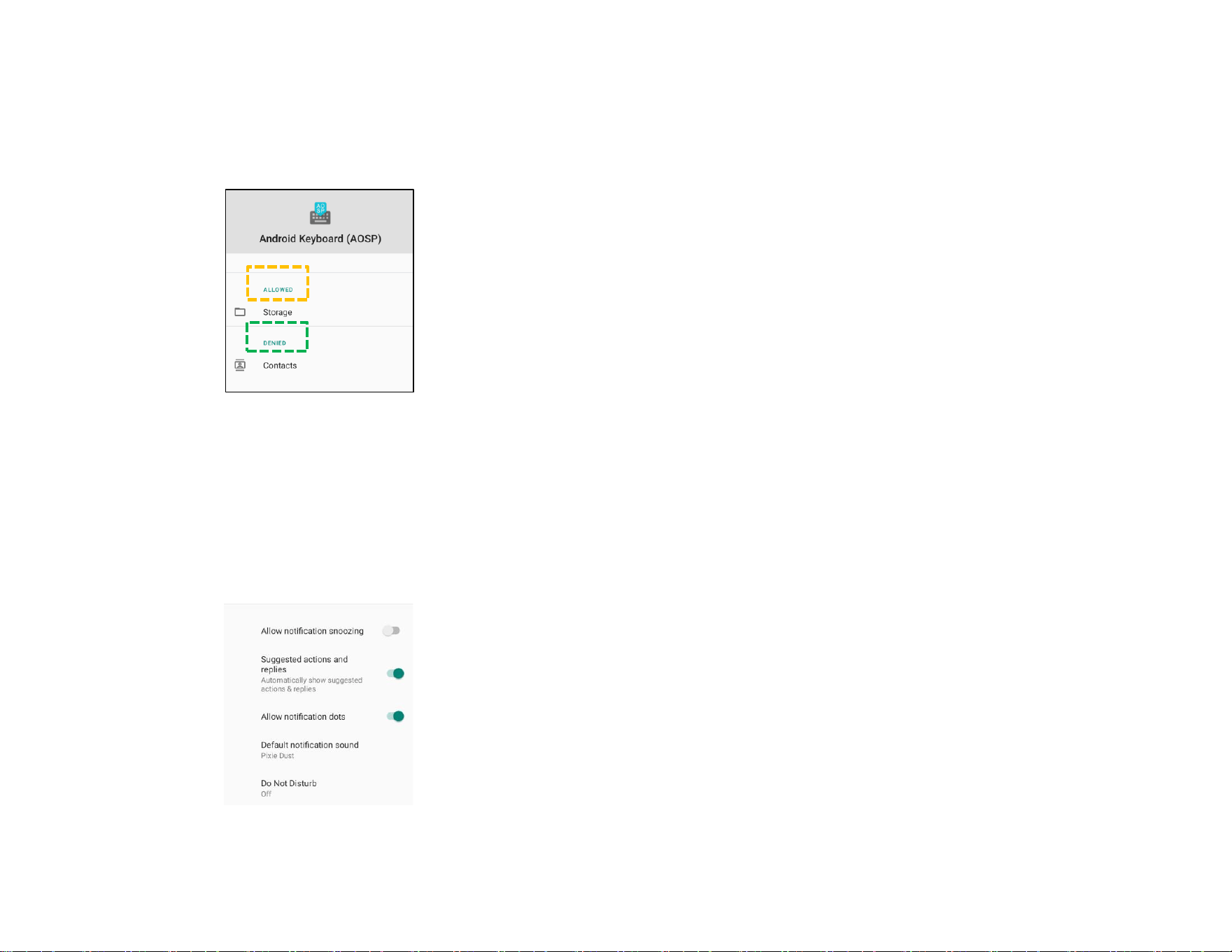
• To manage a preference’s permissions to an app (e.g. Keyboard), tap Permissions.
• To allow a permission to an application, tap an app from DENIED menu.
• To deny a permission to an application, tap an app from ALLOWED menu.
Setting notifications in the lock screen
• To set up notification in the lock screen from Apps and notification screen, tap Notifications.
• Tap Notification on lock screen. Then follow on-screen instruction on how notifications appear in the lock screen.
For additional settings
• Tap Advanced.
• Tap a feature to enable or disable.
Setting Permission manager on apps using storage, phone, and location
• To give permission to an app, tap Permission manager from Apps and notifications screen.
UM600xxx Rev A page 35 of 87
User Manual – Elo Pay 15-inch Tap to Pay for Android
(TM)
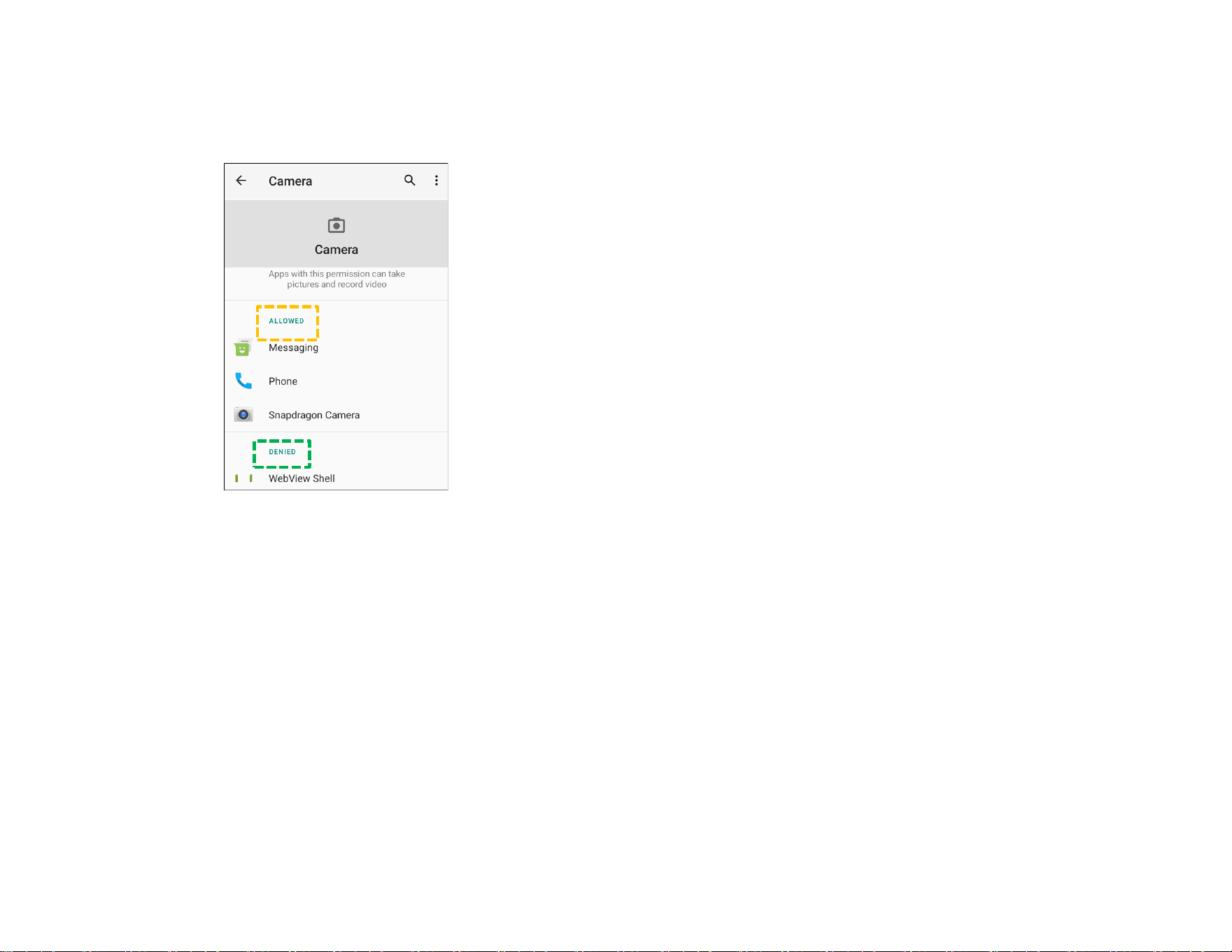
• In the menu of permission manager, tap an app to manage that app’s permissions (e.g. Camera).
• From the camera properties, choose an app to manage.
• To allow a permission to an application, tap an app from DENIED menu.
• To deny a permission to an application, tap an app from ALLOWED menu.
Setting Emergency alerts
• Tap Advanced from the Apps and notifications screen.
• Tap Emergency alerts.
• From the menu of alerts, tap a feature (e.g. AMBER alerts) to enable or disable.
• For Sound and Vibration settings, tap Vibration to enable or disable under Alert Preferences.
• For Alert reminder settings, tap Alert reminder sound.
UM600xxx Rev A page 36 of 87
User Manual – Elo Pay 15-inch Tap to Pay for Android
(TM)
Display
The Display application manages the screen’s display settings.
To modify Display settings, enter Settings →Display →
Auto Idle mode
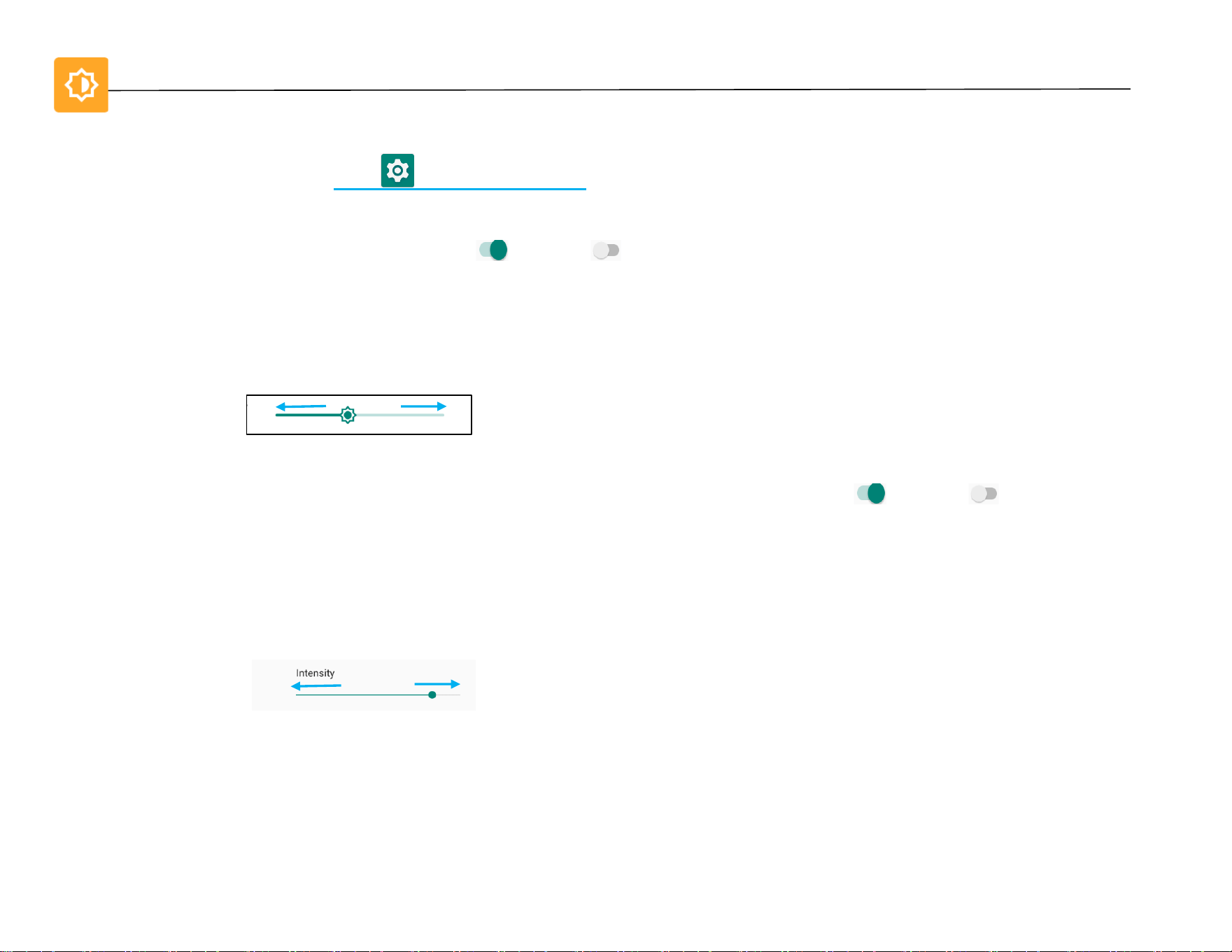
• Tap Auto idle mode to enable or disable .
• When enabled, the backlight will turn off between the hours of 00:00 and 06:00 daily.
Brightness Level
• Tap Brightness level.
• Move the slider bar right or left to adjust the screen’s brightness.
Dark theme
• To switch screen theme between dark (black color) or light (white color), enable or disable .
Night Light Feature
This feature will tint the screen to amber. This makes easier to look at the screen or read in dim light.
• Tap Night Light.
• Tap TURN ON NOW.
• To adjust intensity, move the slider bar right or left.
• To disable, tap TURN OFF NOW.
Customizing a time schedule
• Tap Schedule.
• Select Turn on at custom time.
❖ Tap Start time to set the time (for example at 10:00PM).
• Tap OK to execute.
❖ Tap Enter time to set the time (for example at 6:00AM),
UM600xxx Rev A page 37 of 87
User Manual – Elo Pay 15-inch Tap to Pay for Android
(TM)
• Tap OK to execute.
To disable the time schedule
• Tap Schedule.
• Tap None.
Wallpaper
• Tap Wallpaper.
• Select a wallpaper from the following options.
❖ Live Wallpapers
❖ Snapdragon Gallery → Download – Picture – Screenshot
• Select an image or picture you want as a wallpaper from the folders.
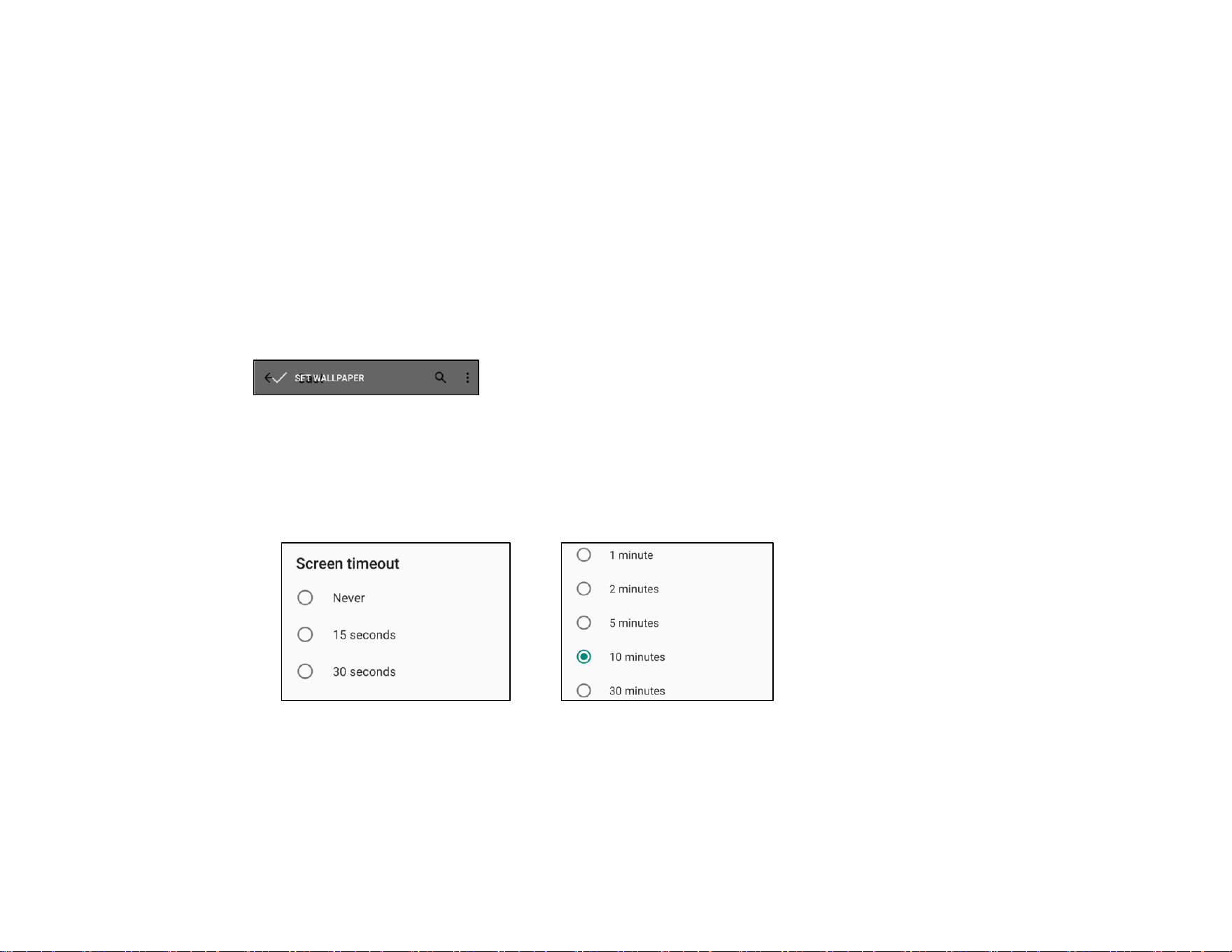
• Tap SET WALLPAPER.
Advanced
Screen timeout
• Tap Screen timeout.
• Select the time limit from the following option.
• Tap to save.
Auto-rotation screen
• Tap Auto-rotation screen to enable or disable.
UM600xxx Rev A page 38 of 87
User Manual – Elo Pay 15-inch Tap to Pay for Android
(TM)
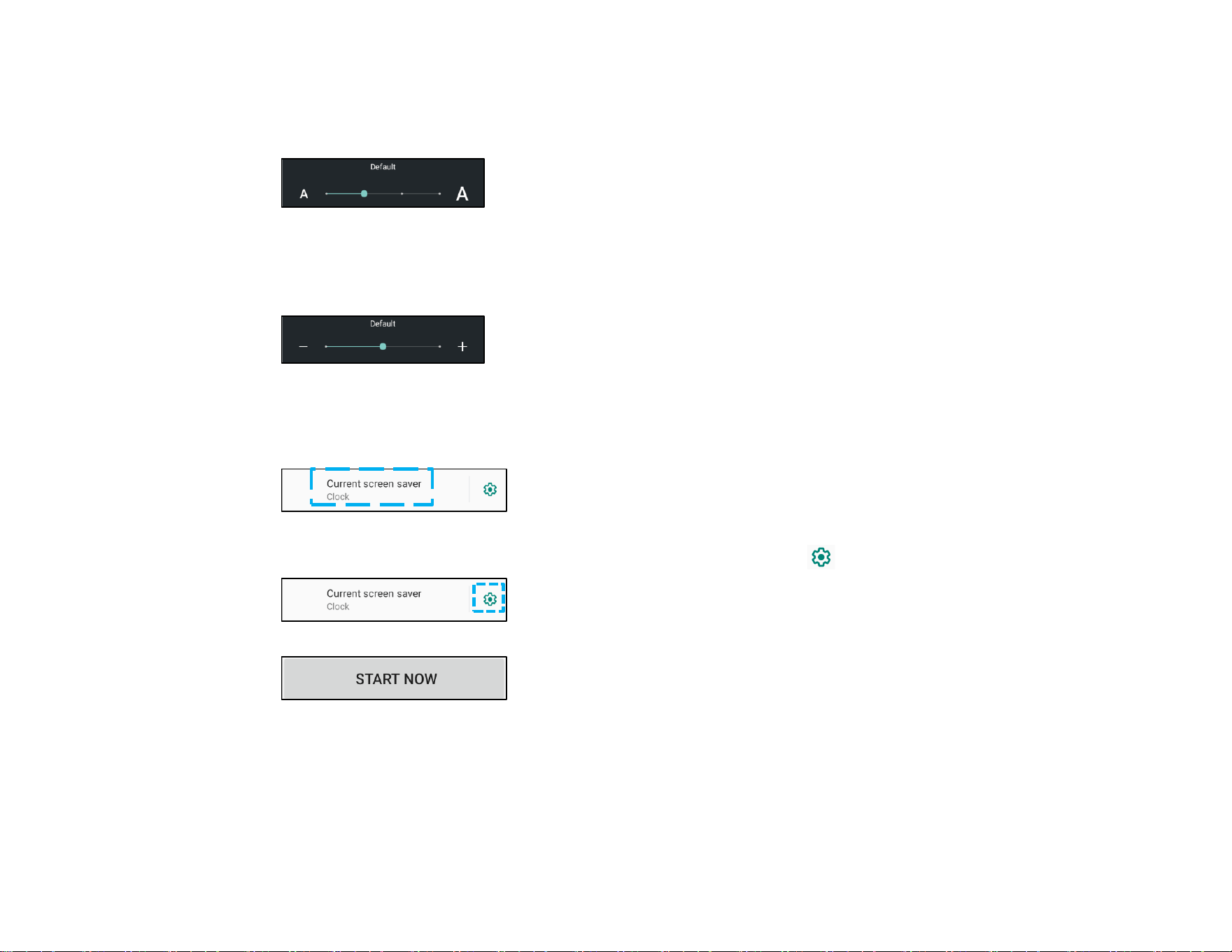
Font size
• Tap Font size.
• Move the slider bar left or right to adjust the text size.
Display size
• Tap Display size.
• Move the slider bar to left or right to adjust the screen size.
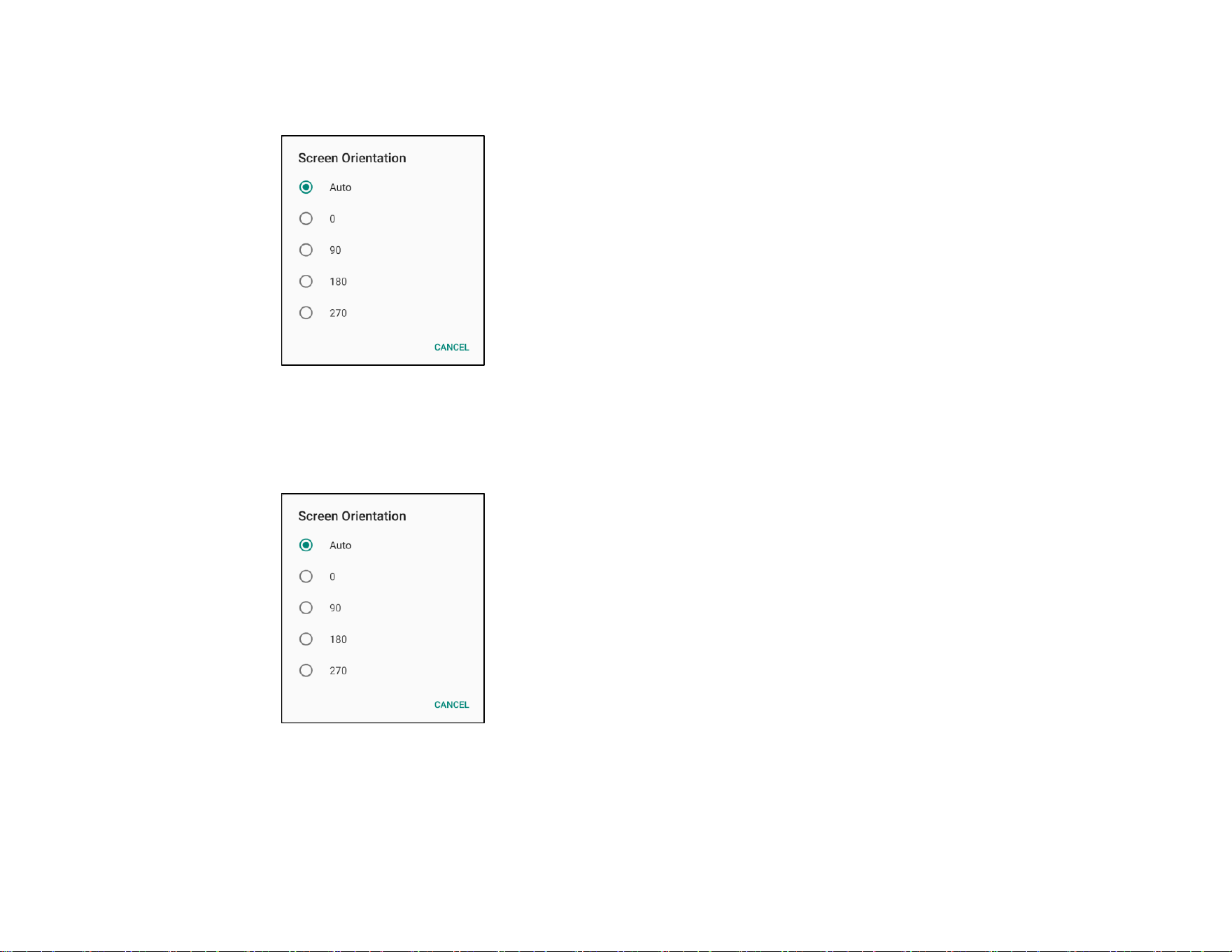
Screen saver
• Tap Screen saver.
• Tap Current screen saver to make changes to the current settings.
• Select a screen saver from Clock, Colors, Photo Frame, and Photo Table.
• For additional clock, Photo Frame, and Photo Table screen savers, tap setting.
• To activate Screen saver, tap START NOW.
UM600xxx Rev A page 39 of 87
User Manual – Elo Pay 15-inch Tap to Pay for Android
(TM)
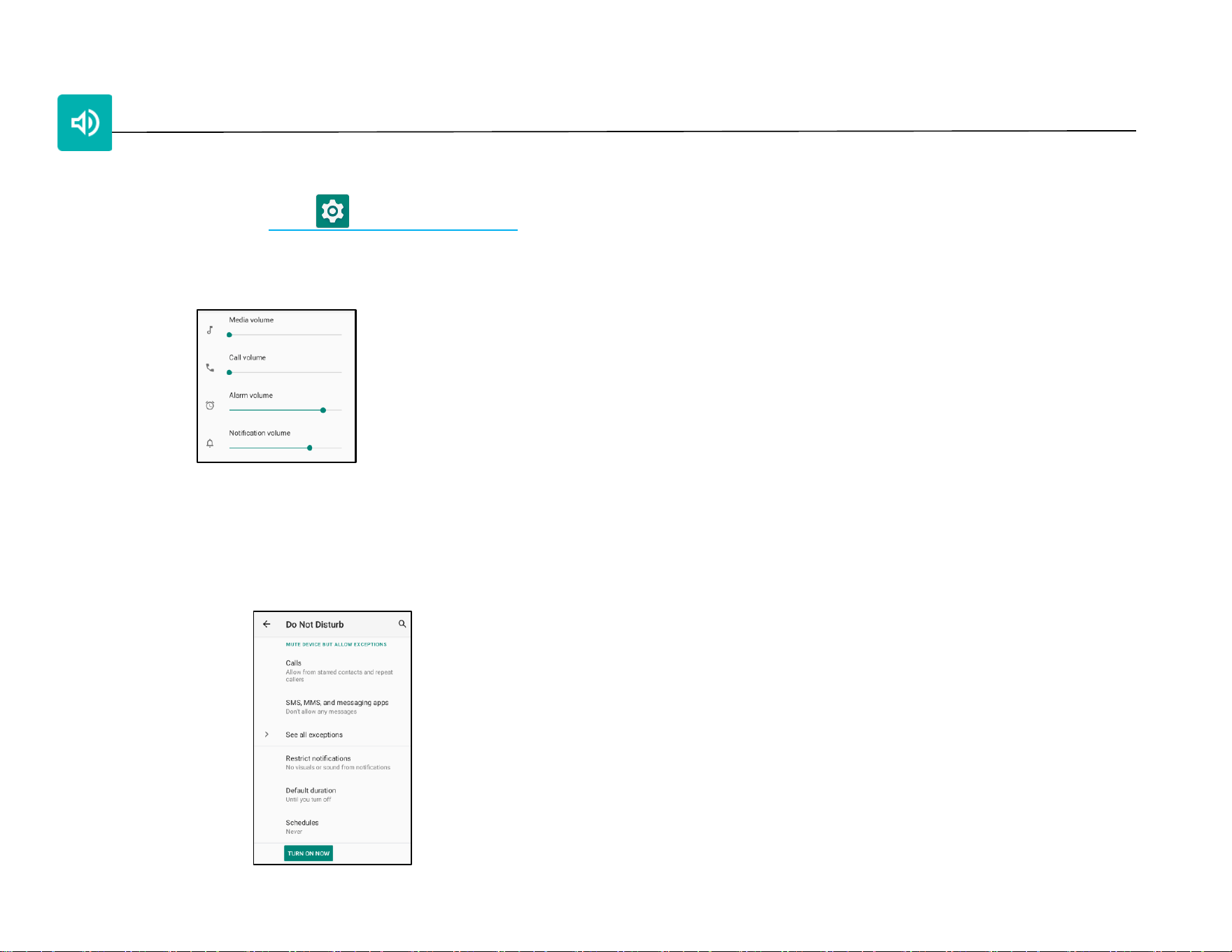
External Screen Orientation
• Tap External Screen Orientation to change the orientation of the second screen.
• Select the orientation from the following option.
• Tap to save.
Screen Orientation
• Tap Screen Orientation.
• Select the orientation from the following option.
• Tap to save.

UM600xxx Rev A page 40 of 87
User Manual – Elo Pay 15-inch Tap to Pay for Android
(TM)
Screen Density
• Provides the ability to change between 160 MDPI or 240 HDPI
UM600xxx Rev A page 41 of 87
User Manual – Elo Pay 15-inch Tap to Pay for Android
(TM)
Sound
The sound application is to manage audio, vibration and Do not Disturb features.
To modify settings, enter Settings → Sound →
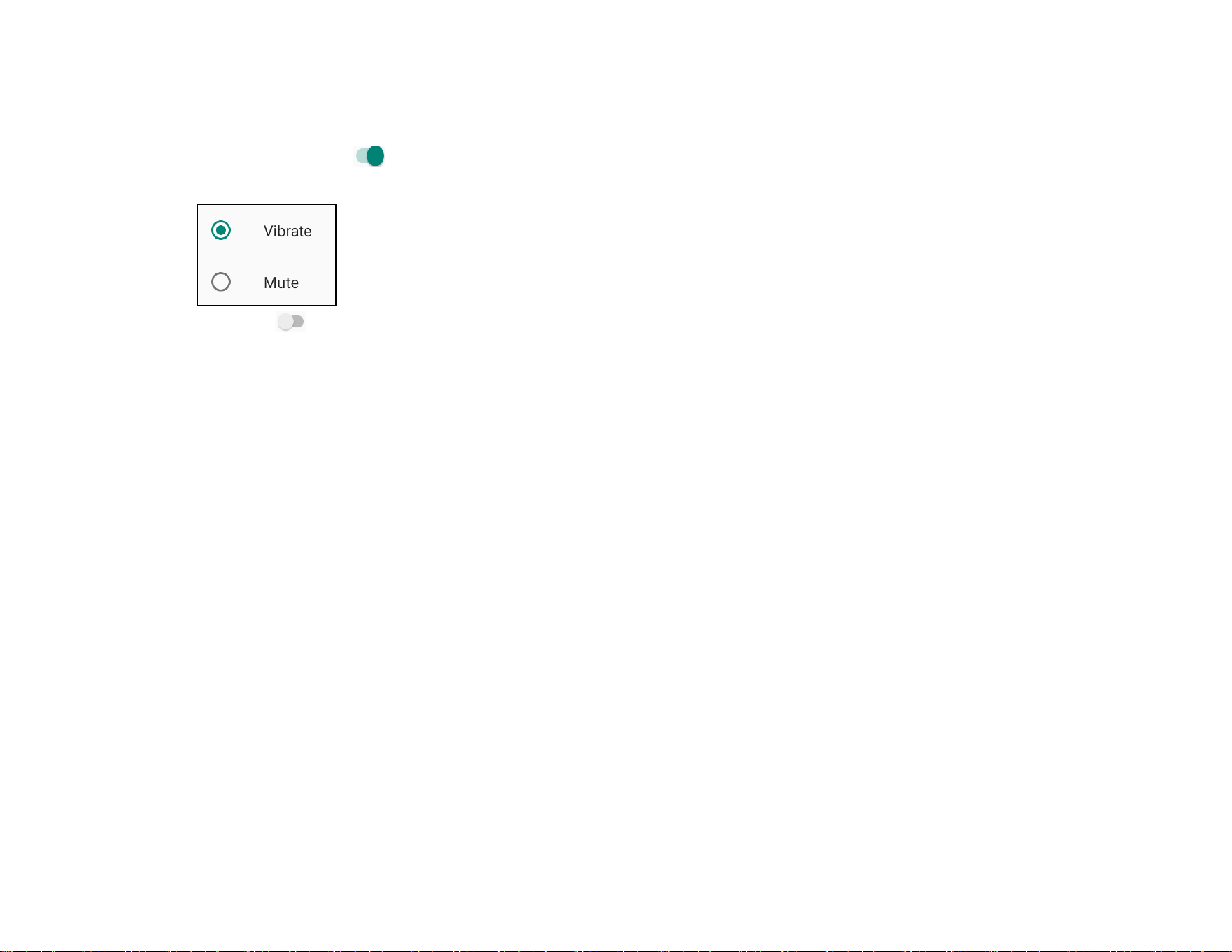
Volumes
• To decrease or increase the following sound volume, drag slider left or right.
Do not Disturb
• Tap Do not Disturb.
• Tap TURN ON NOW, to enable Do not Disturb,
❖ To manage settings, tap a feature you wish to manage and follow on-screen instructions to complete the set up.
• To disable, tap TURN OFF NOW
UM600xxx Rev A page 42 of 87
User Manual – Elo Pay 15-inch Tap to Pay for Android
(TM)
Shortcut to Prevent Ringing
• Tap Shortcut to prevent ringing.
• Tap toggle switch to enable.
• Select from the following options.
• To disable , tap toggle switch.
UM600xxx Rev A page 43 of 87
User Manual – Elo Pay 15-inch Tap to Pay for Android
(TM)
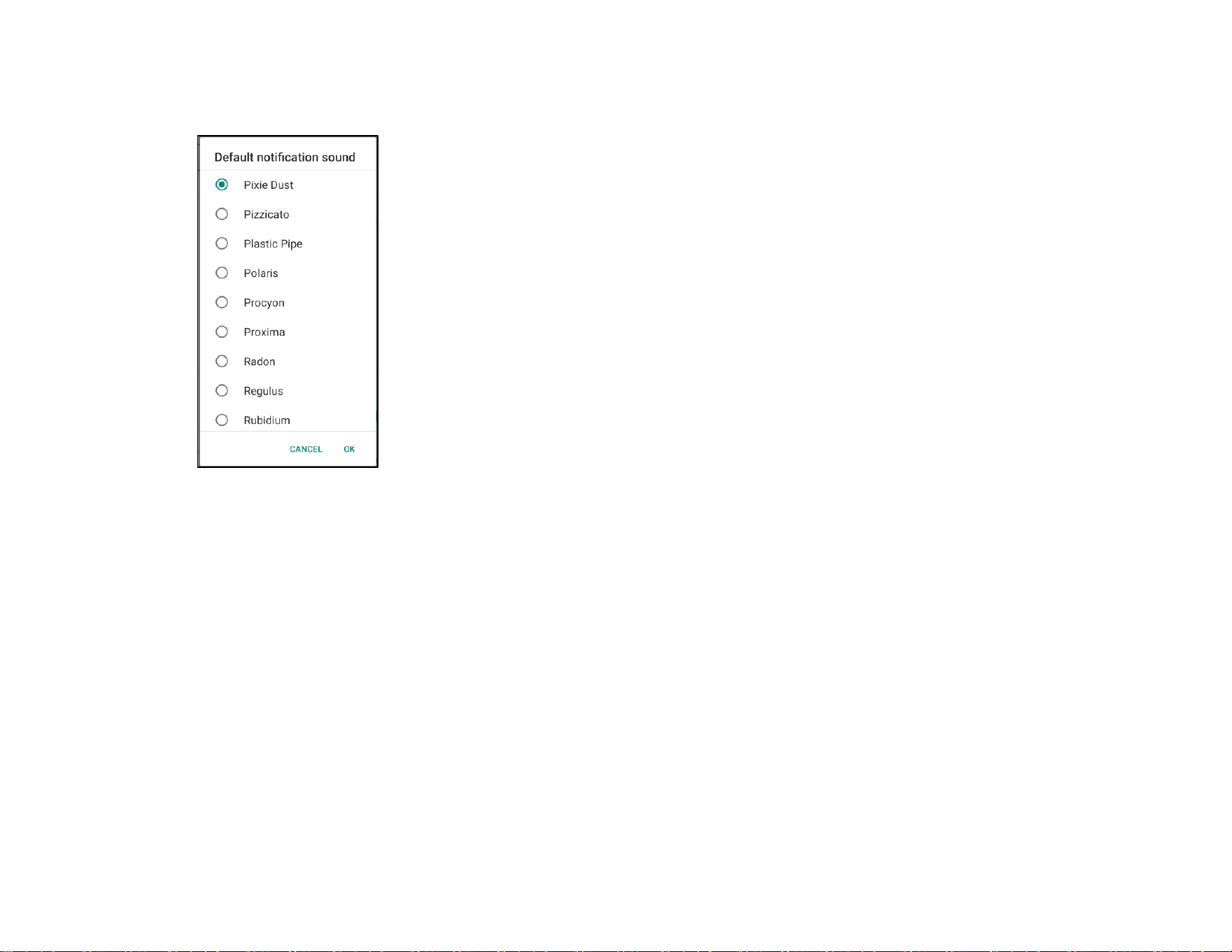
Default Notification Sound
• Tap Default notification sound.
• Select a sound from the list (e.g. Pixie Dust) and tap OK to save.
UM600xxx Rev A page 44 of 87
User Manual – Elo Pay 15-inch Tap to Pay for Android
(TM)
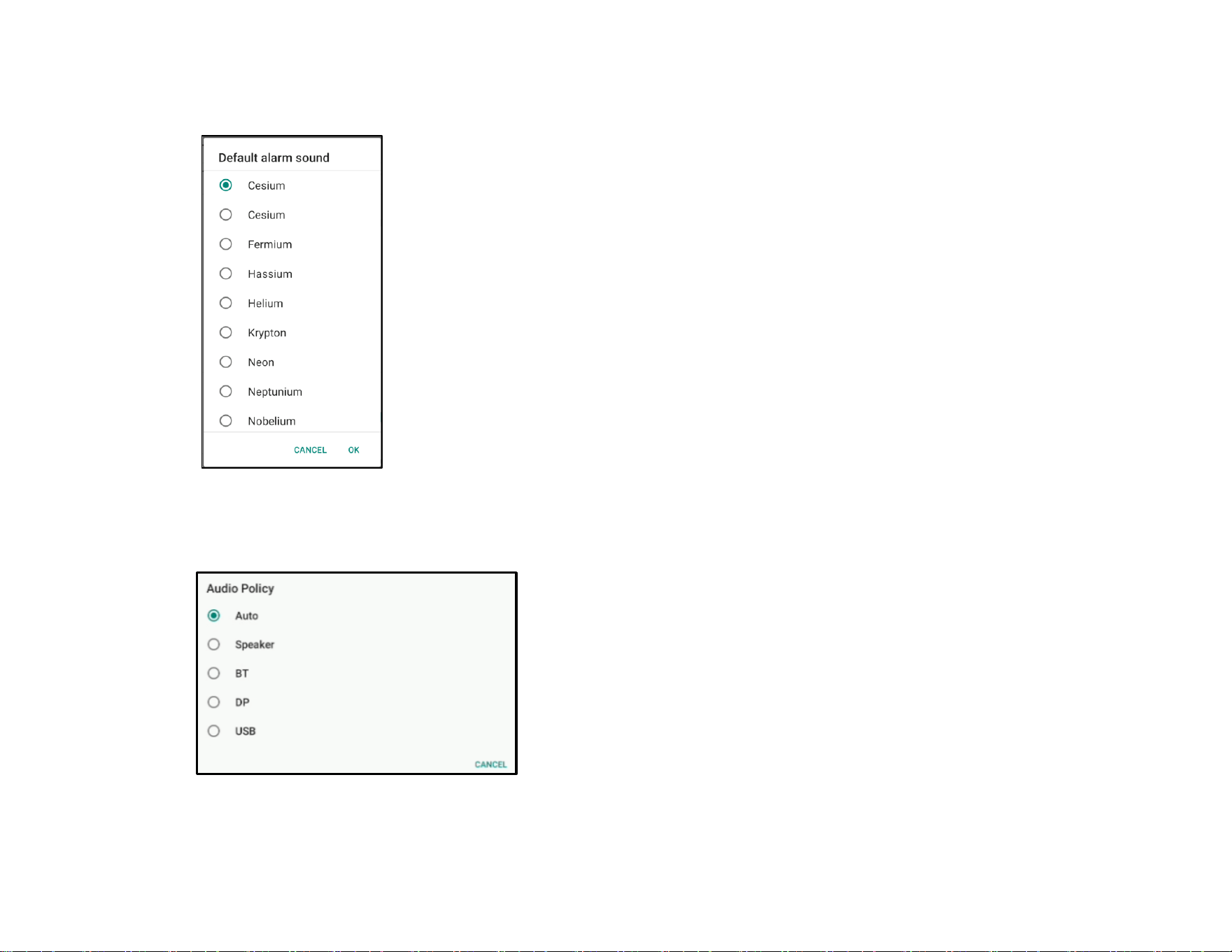
Default Alarm Sound
• Tap Default Alarm sound.
• Select an alarm sound from the list (e.g. Cesium) and tap OK to save.
Audio Policy
• Select to audio output port.
• Default is Auto
UM600xxx Rev A page 45 of 87
User Manual – Elo Pay 15-inch Tap to Pay for Android
(TM)
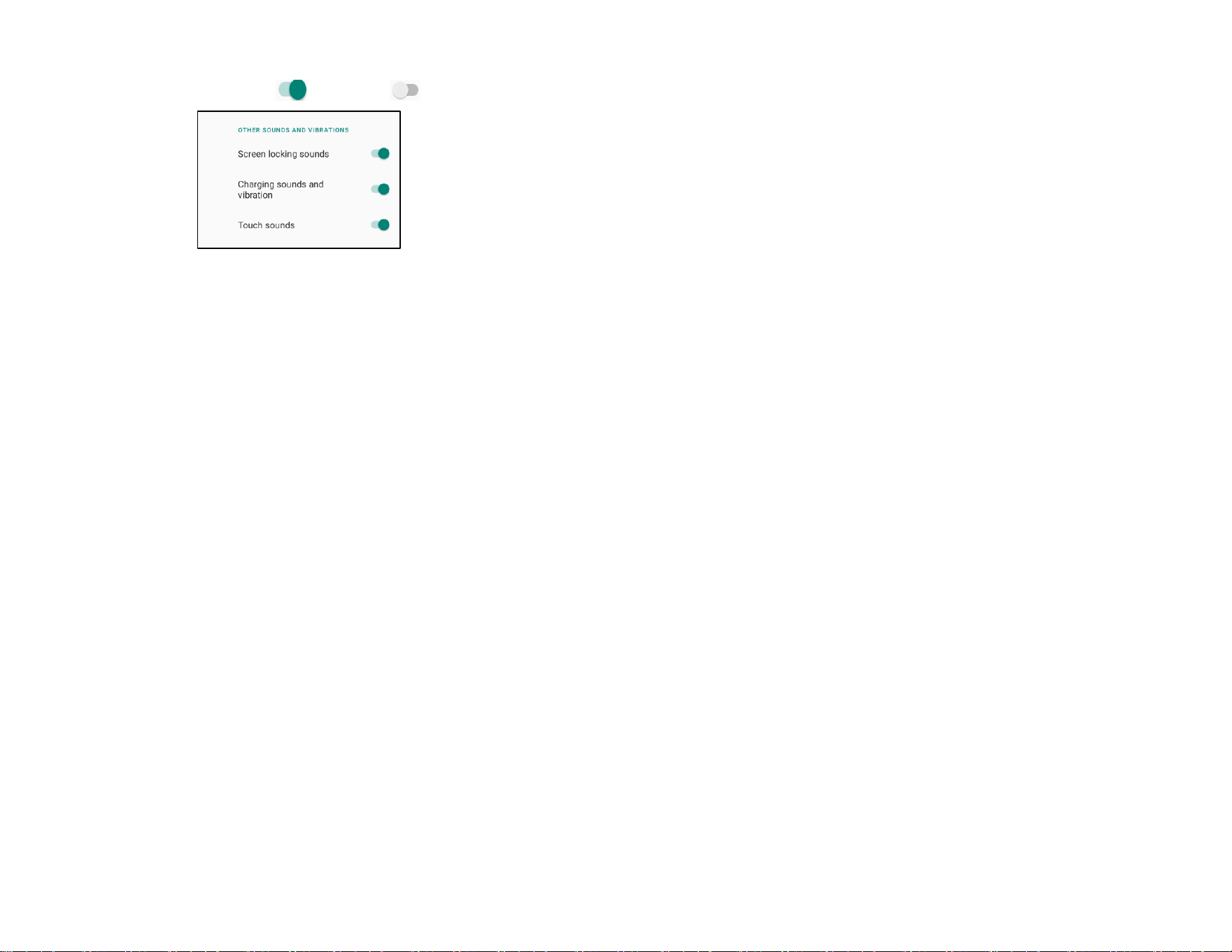
Advanced
• To enable or disable on the following features below, tap a feature.
UM600xxx Rev A page 46 of 87
User Manual – Elo Pay 15-inch Tap to Pay for Android
(TM)
Storage
To manage Storage, enter Settings → Storage →
Internal Shared Storage
• To check the status of internal memory storage, tap Internal Shared storage.
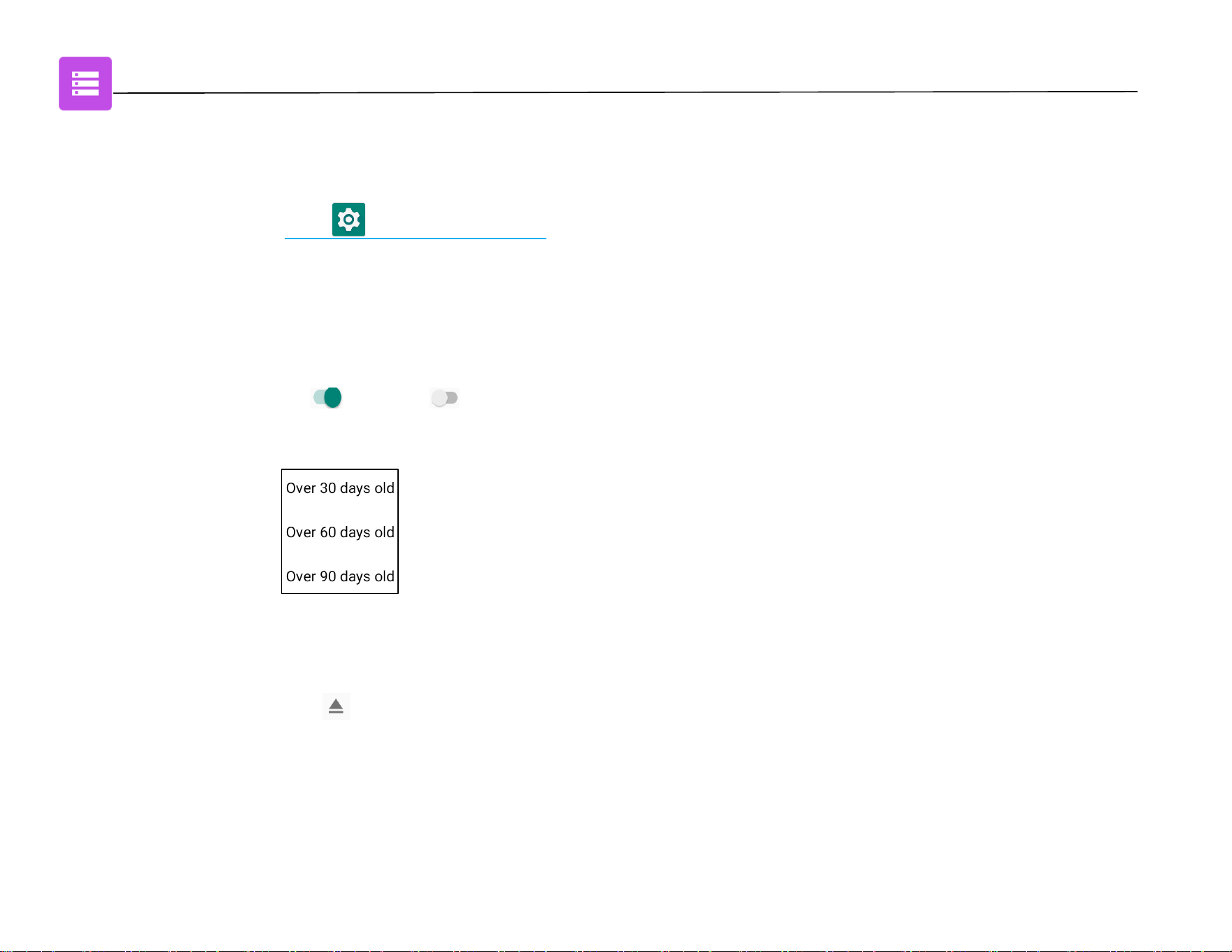
Storage Manager
This feature is to help free up storage space, storage manager removes backed up photos and video from the device.
• To enable or disable , tap Storage manager.
• To make changes to set days on removing photos and videos, tap Remove photos & Videos.
❖ Select from the options below.
• Tap Back to exit.
SD card
• To manage SD card, tap SD card.
• To safely eject SD card, tap eject.
• To remount the SD card, tap SD card.
• Tap MOUNT.
UM600xxx Rev A page 47 of 87
User Manual – Elo Pay 15-inch Tap to Pay for Android
(TM)
Wakeup Source
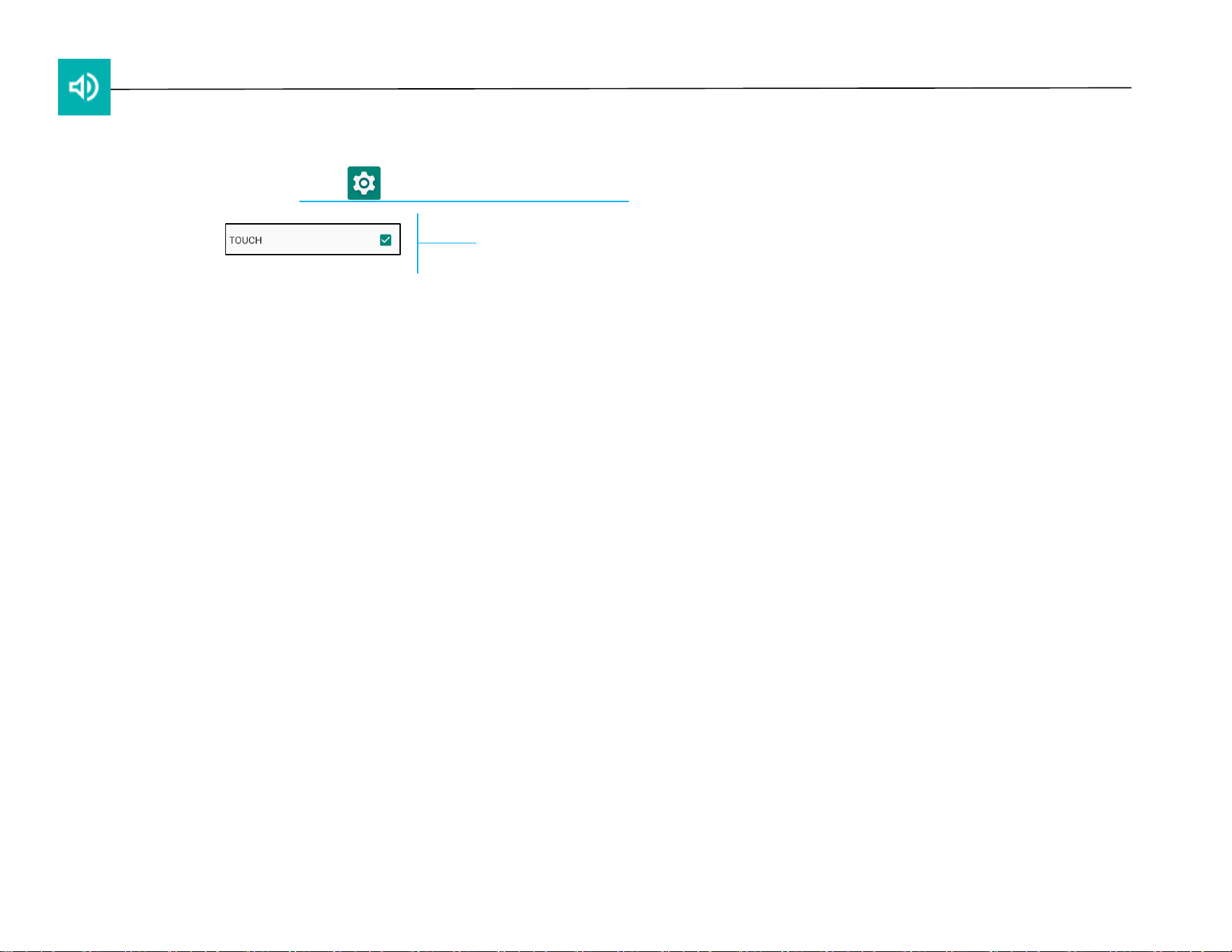
The Wakeup Source applications allows you to program the “Touch Screen” to wake up the device from sleep or idle mode.
To modify the settings, enter Settings → Wakeup Source →
If the device is touched within 3 seconds of going to sleep, the device will wake up even if the wake on touch option is
disabled.
Tap to Enable (Checked) or Disable (Unchecked).
UM600xxx Rev A page 48 of 87
User Manual – Elo Pay 15-inch Tap to Pay for Android
(TM)
Privacy
The Privacy application is to give you control over what permissions of applications can have.
To manage permission, enter Settings → Privacy →
Permission Manger
This is to grant permission of an App that uses storage, phone, and location.
• To manage permissions to an app, tap Permission manager.
• From the menu of permission manager, tap an app you wish to manage (e.g. Camera).
• From the camera property shows what applications has camera permissions.
• To allow a permission to an application, tap an app from DENIED menu.
• To deny a permission to an application, tap an app from ALLOWED menu.
Show passwords
This will display character briefly as you type a password.
• To enable and disable , tap Show passwords.
Lock screen
This will show all notification content in the lock screen.
• To enable and disable , tap Lock screen.
Autofill service from Google
This will allow the user to save passwords, credit cards and addresses in order to quickly fill out online forms.
UM600xxx Rev A page 49 of 87
User Manual – Elo Pay 15-inch Tap to Pay for Android
(TM)
Location
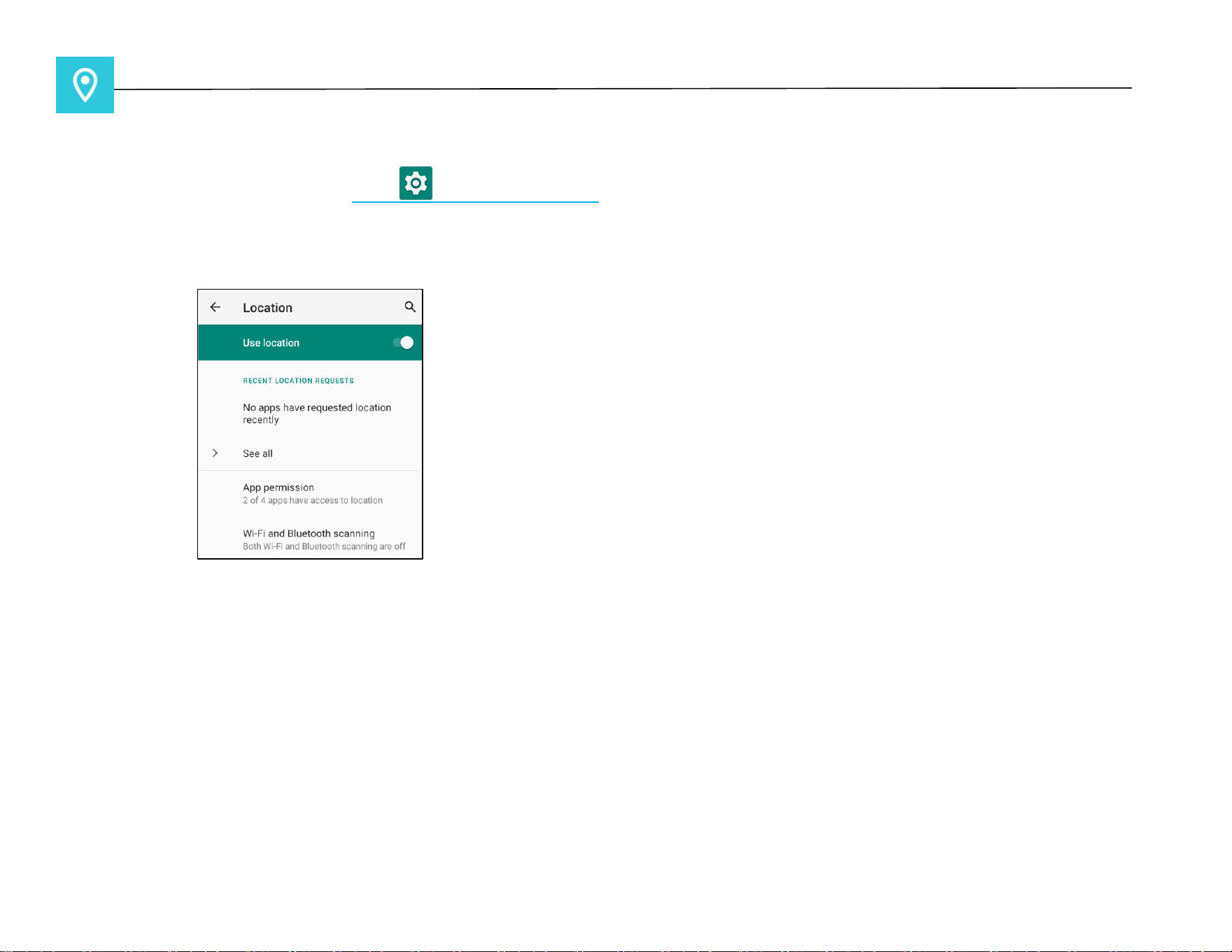
To modify Locations settings, enter Settings → Location
• Tap Location.
• To enable or disable, tap Use location
• For apps have requested location recently, tap See all.
• To update permission, tap App permission.
• To scan for Wi-Fi networks and Bluetooth, tap Wi-Fi and Bluetooth scanning,
Note: This feature allows apps and services to scan for Wi-fi networks and Bluetooth anytime. This can be used to
improve location-based features and services.
UM600xxx Rev A page 50 of 87
User Manual – Elo Pay 15-inch Tap to Pay for Android
(TM)
Security & Privacy
The security & privacy application is to manage App security, device lock and permissions.
Security
App Security
• Tap App Security.
Device Unlock
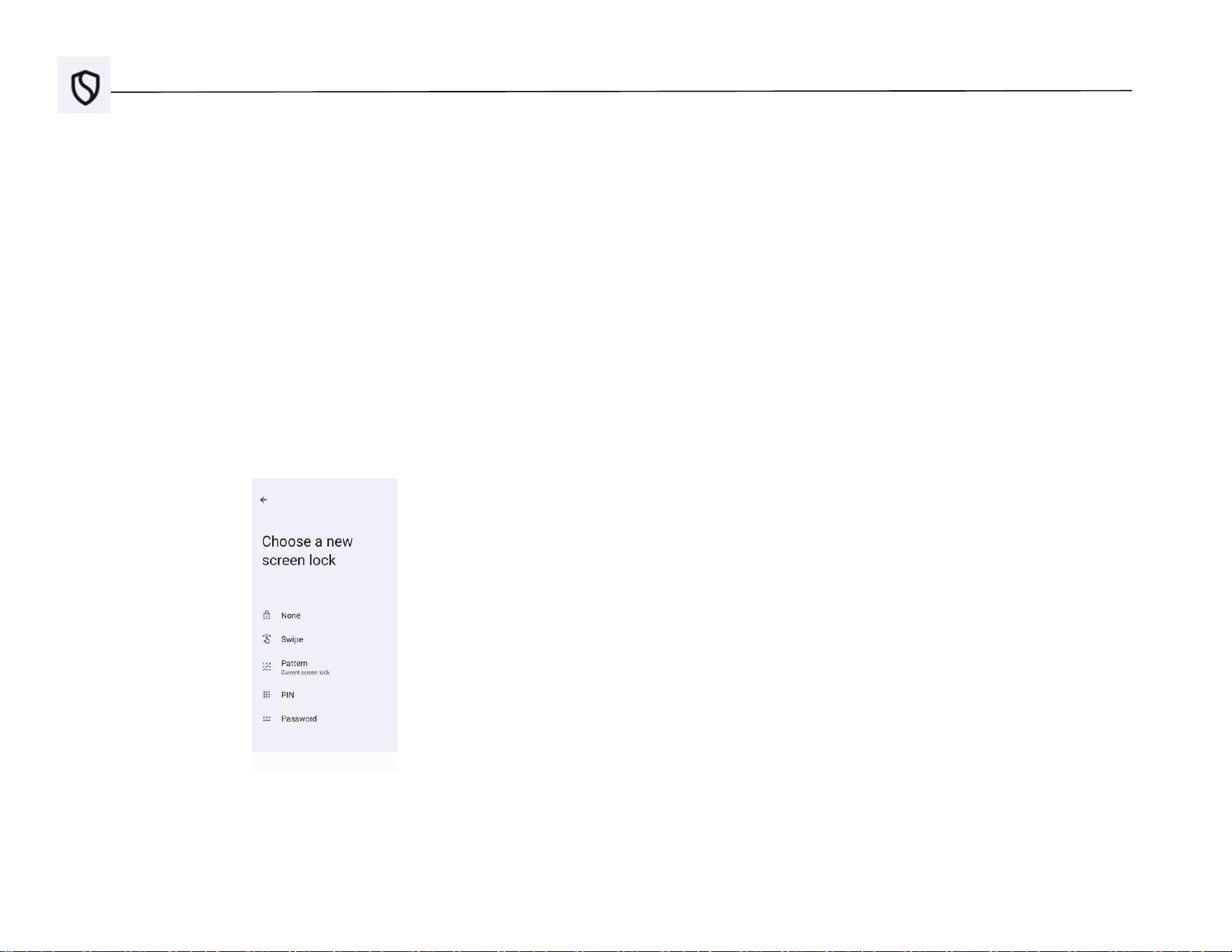
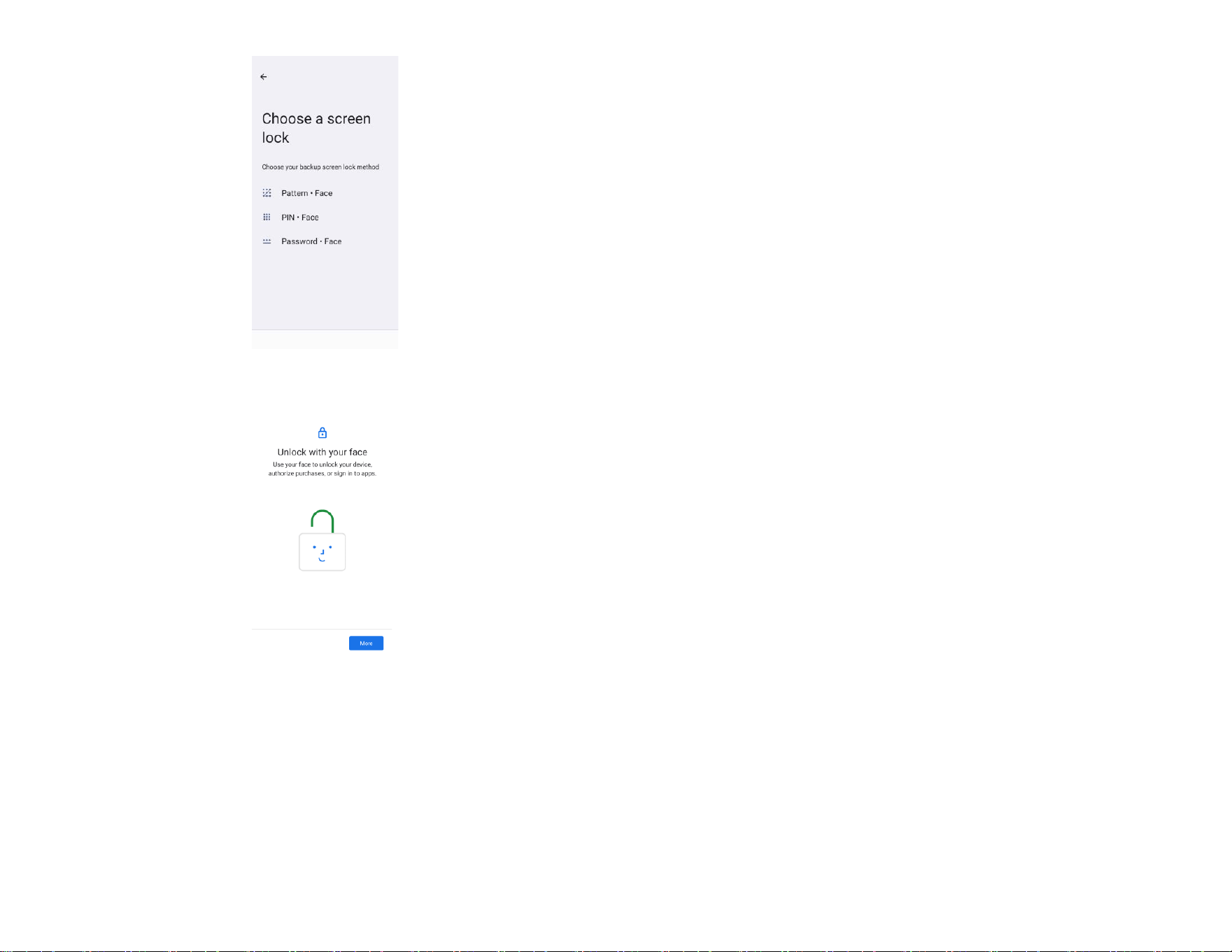
• Tap Device Unlock to manage screen lock, face unlock.
• Screen lock
• Choose a new screen lock
• Follow the instruction to set the screen lock
• Face Unlock
• Choose a screen lock
UM600xxx Rev A page 51 of 87
User Manual – Elo Pay 15-inch Tap to Pay for Android
(TM)
• Unlock your face
• Follow the instruction on the screen to set up Face Unlock
Account security
• Tap account security
• To set the security checkup and password checkup.
Device Finders
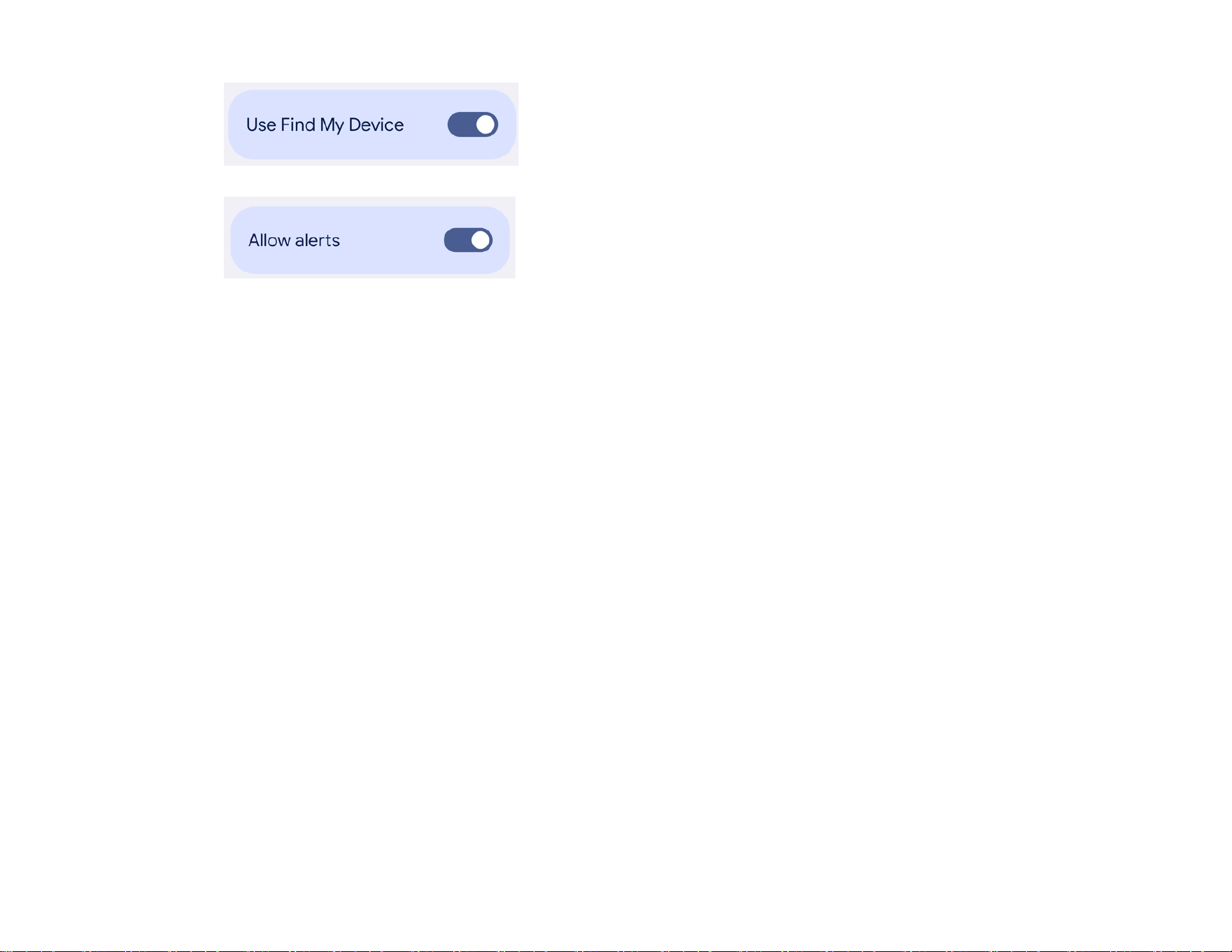
• Tap Device Finders
UM600xxx Rev A page 52 of 87
User Manual – Elo Pay 15-inch Tap to Pay for Android
(TM)
• To set find my device, to enable use Find My Device
• To set Unknown tracker alerts, to enable Allow alerts
System & updates
• Tap Systems & updates
• To set the system update and backup
Privacy
The Privacy application is to give you control over what permissions of applications can have.
Permission Manger
This is to grant permission of an App that uses storage, phone, and location etc.
• To manage permissions to an app, tap Permission manager.
• From the menu of permission manager, tap a permission type which you wish to manage (e.g. Camera).
• To change an app’s permission, tap the app, then choose your permission settings
• To change the permission setting, tap it, then choose Allow or Don't allow.
• You may be able to choose
All the time: For location only. The app can use the permission at any time, even when you’re not using the app.
Allow only while using the app: The app can use the permission only when you're using that app.
Ask every time: Every time you open the app, it'll ask to use the permission. It can use the permission until you’re done with the app.
Don't allow: The app cannot use the permission, even when you’re using the app.

UM600xxx Rev A page 53 of 87
User Manual – Elo Pay 15-inch Tap to Pay for Android
(TM)
Privacy dashboard
This shows which apps recently used permissions
Ads
Manage device data used to show your ads.
Data sharing updates for location
Review apps that changed the way they may share your location data
More security & privacy
Supports additional security and privacy settings like app pinning and notifications on lock screen.
UM600xxx Rev A page 54 of 87
User Manual – Elo Pay 15-inch Tap to Pay for Android
(TM)
Accounts
To add an account, enter Settings → Accounts
• To set up an account, tap Account.
• Tap + Add account.
• Enter an email account.
• Enter an Account type you want to add (PERSONAL - POP3 or PERSONAL – IAMP).
• Follow the on-screen instructions to complete the setup.
UM600xxx Rev A page 55 of 87
User Manual – Elo Pay 15-inch Tap to Pay for Android
(TM)
Accessibility
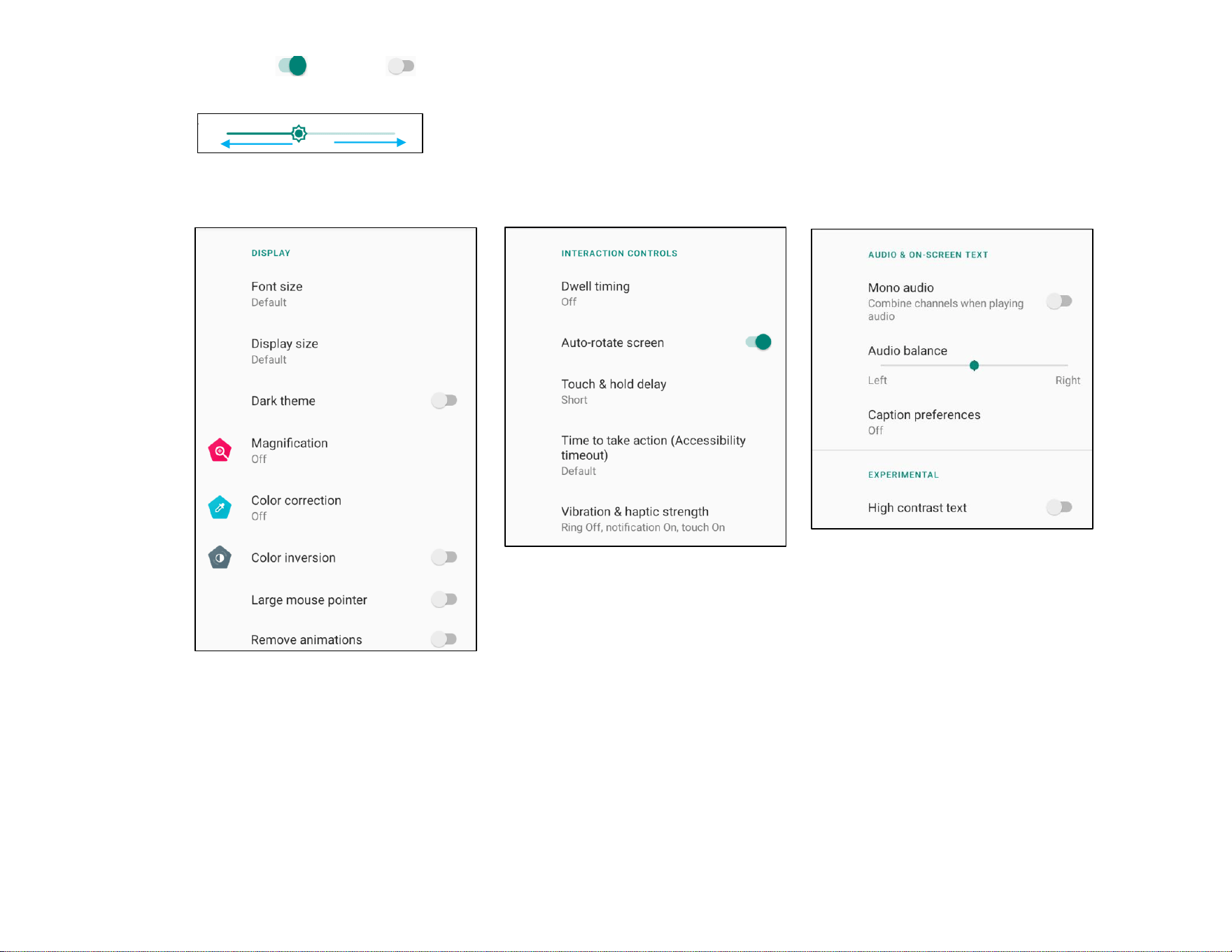
The Accessibility is a large on-screen menu to control the Elo Elo Pay 15-inch Tap to Pay device. You can control display, audio & on-screen
text and more.
To modify settings, enter Settings → Accessibility
• From the menu, select a feature to change the setting.
• Select to Speak
❖ If enabled, will speak the text word when it is clicked on.
• TalkBack
❖ If enabled, will provide feedback to use the device without having to look at it.
• Text-to-speech output
❖ Will convert text into speech.
❖ There are also option to change the language, speech rate and pitch
UM600xxx Rev A page 56 of 87
User Manual – Elo Pay 15-inch Tap to Pay for Android
(TM)
• To enable or disable , tap the feature.
• To adjust slide bar, drag slider right or left.
• For other settings, tap the feature and follow the on-screen instruction to complete the setup.

UM600xxx Rev A page 57 of 87
User Manual – Elo Pay 15-inch Tap to Pay for Android
(TM)
Digitial Wellbeing & parental controls
• Digital Wellbeing and Parental controls are available here.
UM600xxx Rev A page 58 of 87
User Manual – Elo Pay 15-inch Tap to Pay for Android
(TM)
System
To modify settings, enter Settings → System →
Languages & input
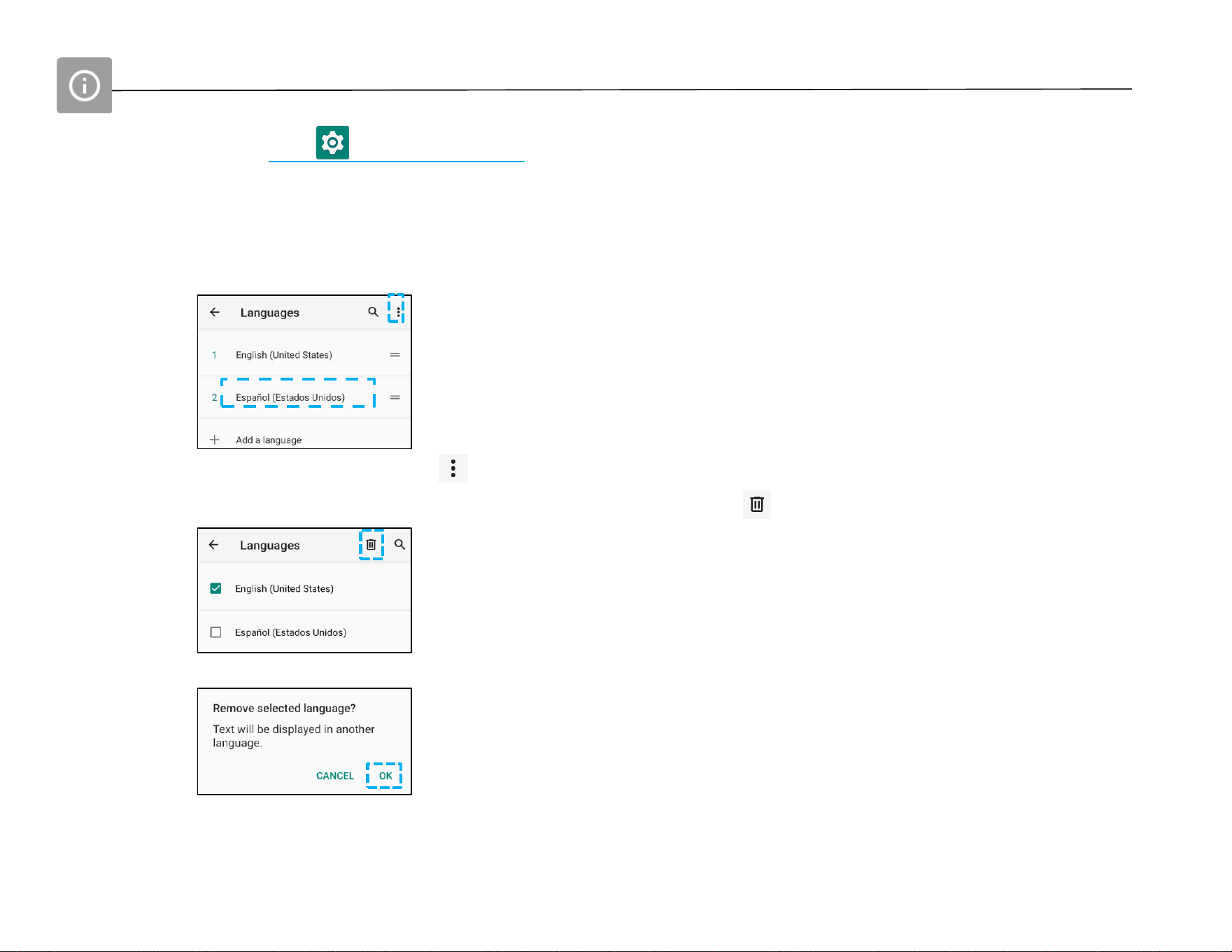
• To change language, tap Languages & input.
• Tap Language.
• Tap + Add a language, then choose from the list of languages to add (e.g. Espanol).
• After choosing a language, tap 3-dots menu then tap Remove.
• To change a language e.g. from English to Espanol, tap English then tap .
• Tap OK to remove selected language.
UM600xxx Rev A page 59 of 87
User Manual – Elo Pay 15-inch Tap to Pay for Android
(TM)
Gestures
• Tap Gestures.
For camera gesture
• Tap Jump to camera.
• Tap Jump to camera to enable or disable .
❖ When set to enable, pressing power button twice will activate, the digital camera.
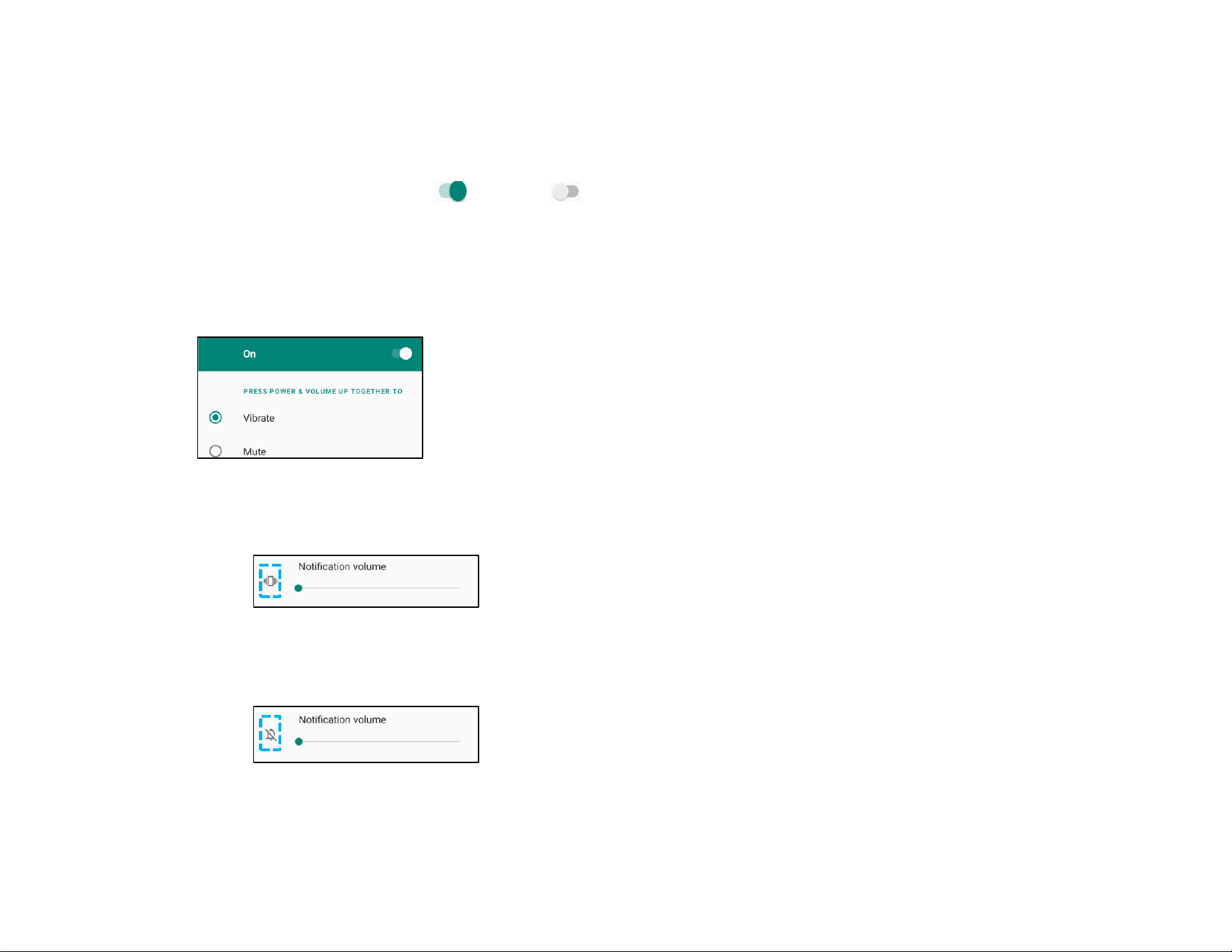
For notification volume gesture
• Tap Preventing ringing
• Tap toggle switch to ON or OFF.
❖ When set to Vibrate mode and notification volume is active, pressing power + volume up buttons together, the notification
volume will be set to vibrate mode.
❖ The vibrate mode Icon will also show into status bar.
❖ When set to Mute mode and notification volume is active, pressing power + volume up buttons together, the notification
volume will be muted.
❖ The mute Icon will also show into status bar.
UM600xxx Rev A page 60 of 87
User Manual – Elo Pay 15-inch Tap to Pay for Android
(TM)
Date & Time
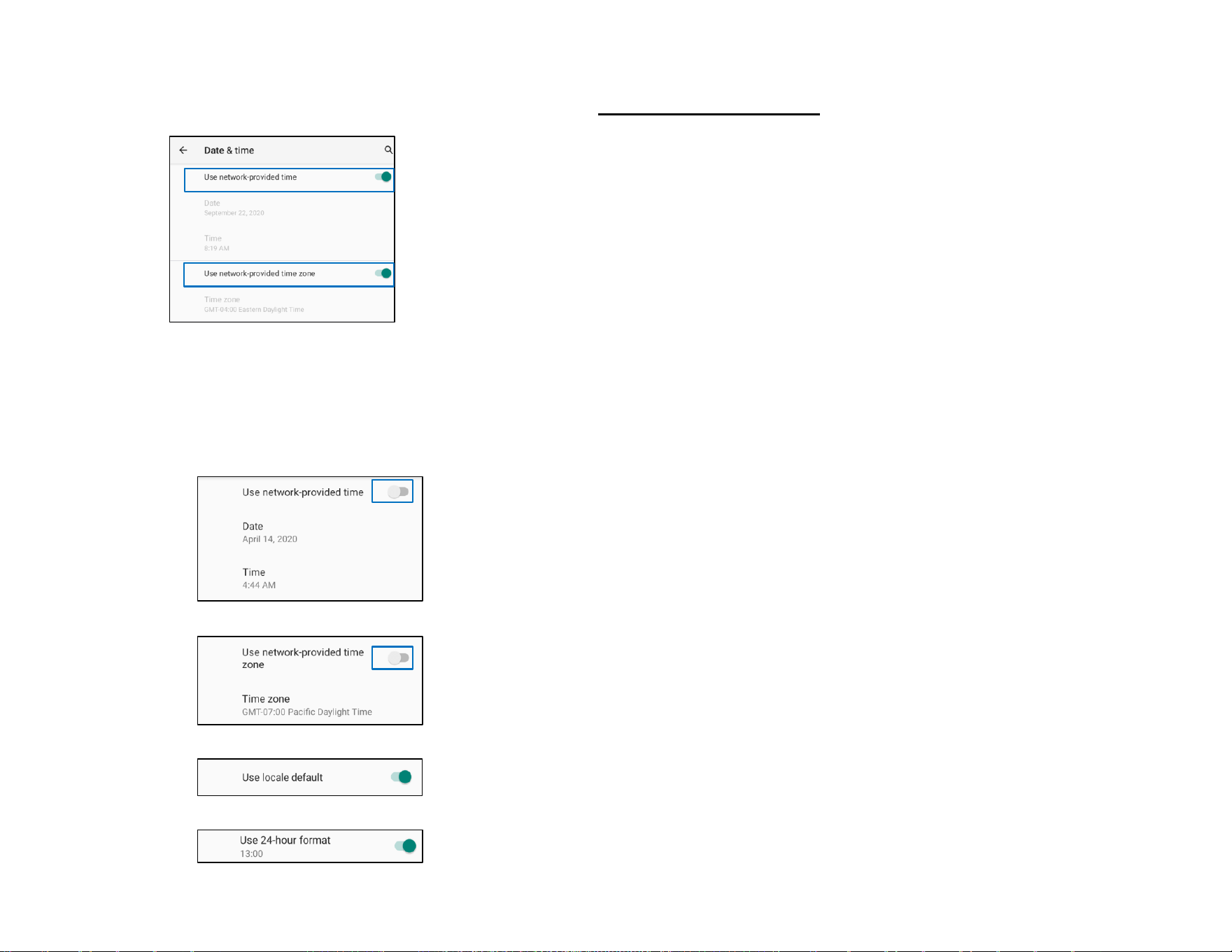
Note: The recommended setting for “Date and Time” is to use, “USE network provided time”.
And for Time zone when is set to “USE network provided zone”, you need a sim card to work.
For manual settings:
• Tap Date & Time.
• To set Date and Time manually, tap Use network-provided time.
• Tap Date.
• Tap Time.
• To set time zone, tap network -provided time and select your time zone.
• To set to 12 hours format, tap Use locale default.
• To set 24 formants, tap Use 24-hours format.
UM600xxx Rev A page 61 of 87
User Manual – Elo Pay 15-inch Tap to Pay for Android
(TM)
Advanced
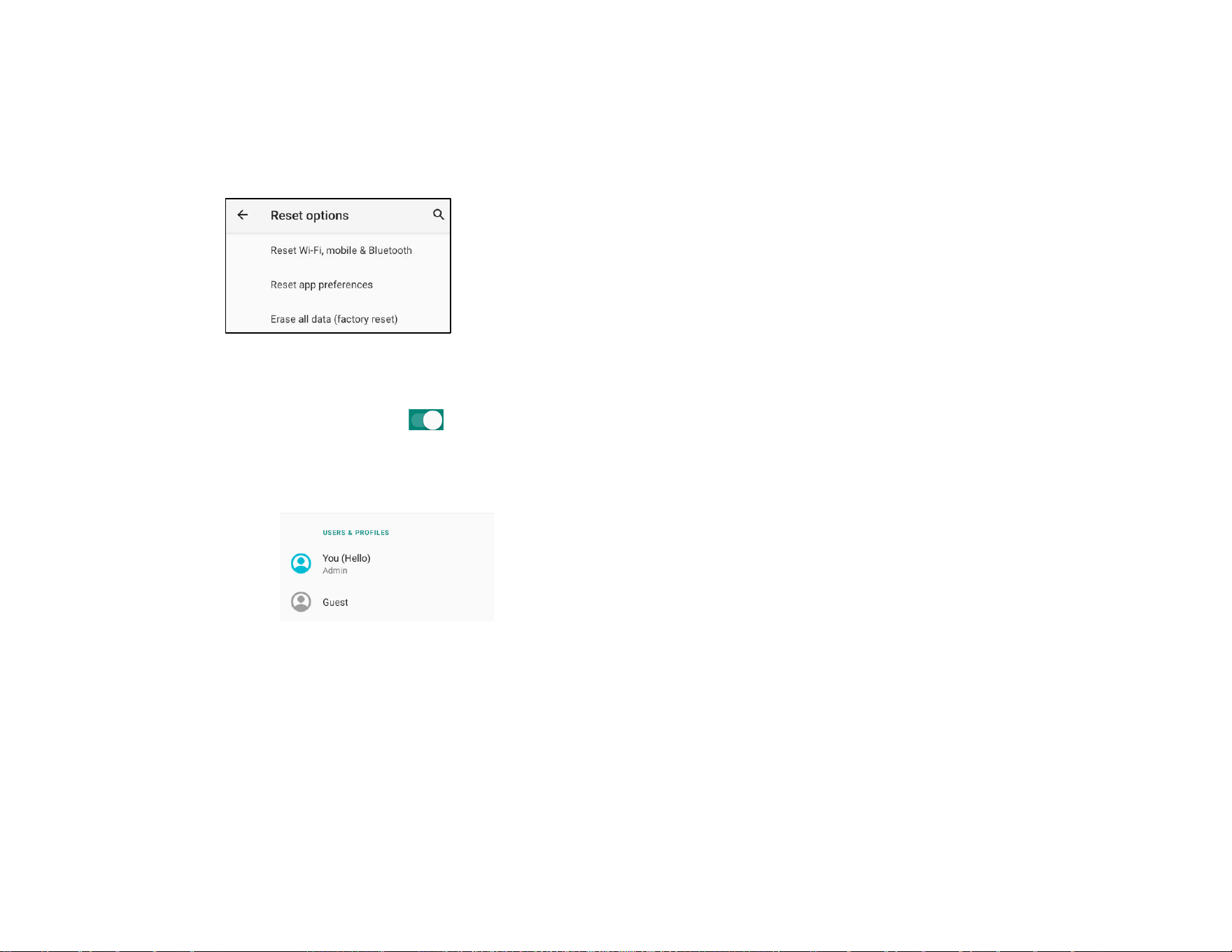
Reset options
• To select a following option to reset, tap Reset options.
• From the list, select an item to reset then tap to execute and follow on-screen instruction.
Multiple users
• Tap Multiple users.
• Tap toggle switch to ON.
To switch users
• Tap a user or name from the following option.
To add user
Note: only admin can add users.
• Tap + Add user or profile.
• To set up apps and contents for the user, tap User.
Follow on-screen instructions to complete account set up.
• To set up restriction access to apps and content for the users, tap Restricted profile.
Follow on-screen instructions to complete account set up.
To delete guest from the device

UM600xxx Rev A page 62 of 87
User Manual – Elo Pay 15-inch Tap to Pay for Android
(TM)
• Tap 3-dot menu from Multiple Users screen.
• Tap Delete Guest from this device.
To rename Admin Profile info
• Tap admin
• Enter the name.
• Tap OK to save.
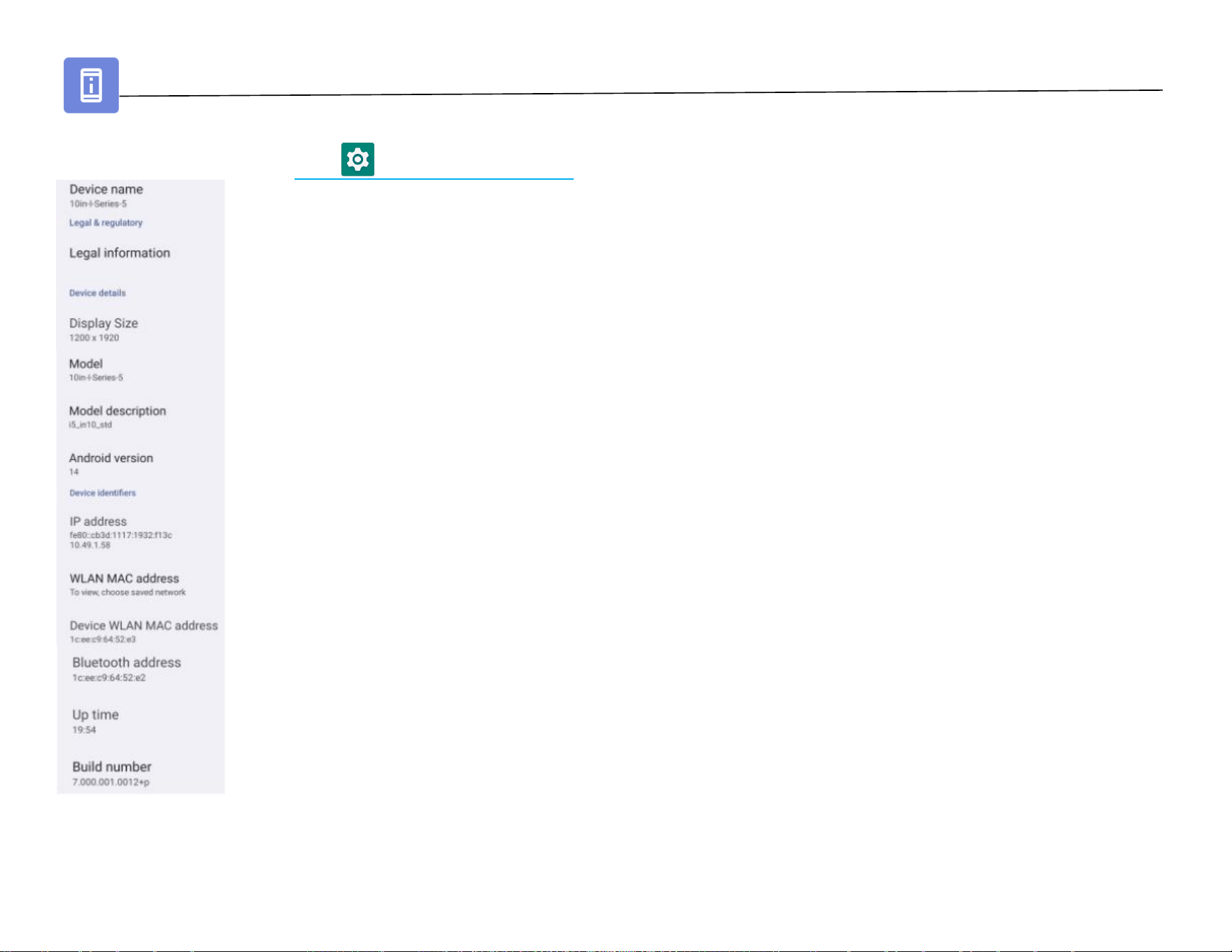
Developer (Accessing developer option menu)
• To access Developer option menu, go to About tablet →Build number.
• Tap Build number 7 times. When successfully done you will see the message “You are now a developer”.
• Then go back to → System → Advanced.
UM600xxx Rev A page 63 of 87
User Manual – Elo Pay 15-inch Tap to Pay for Android
(TM)
About tablet
For viewing specific information of Elo Pay 15-inch Tap to Pay device.
To view and modify settings, enter Settings → About tablet

UM600xxx Rev A page 64 of 87
User Manual – Elo Pay 15-inch Tap to Pay for Android
(TM)
Section 4
Operational
UM600xxx Rev A page 65 of 87
User Manual – Elo Pay 15-inch Tap to Pay for Android
(TM)
About Camera App (Snapdragon)
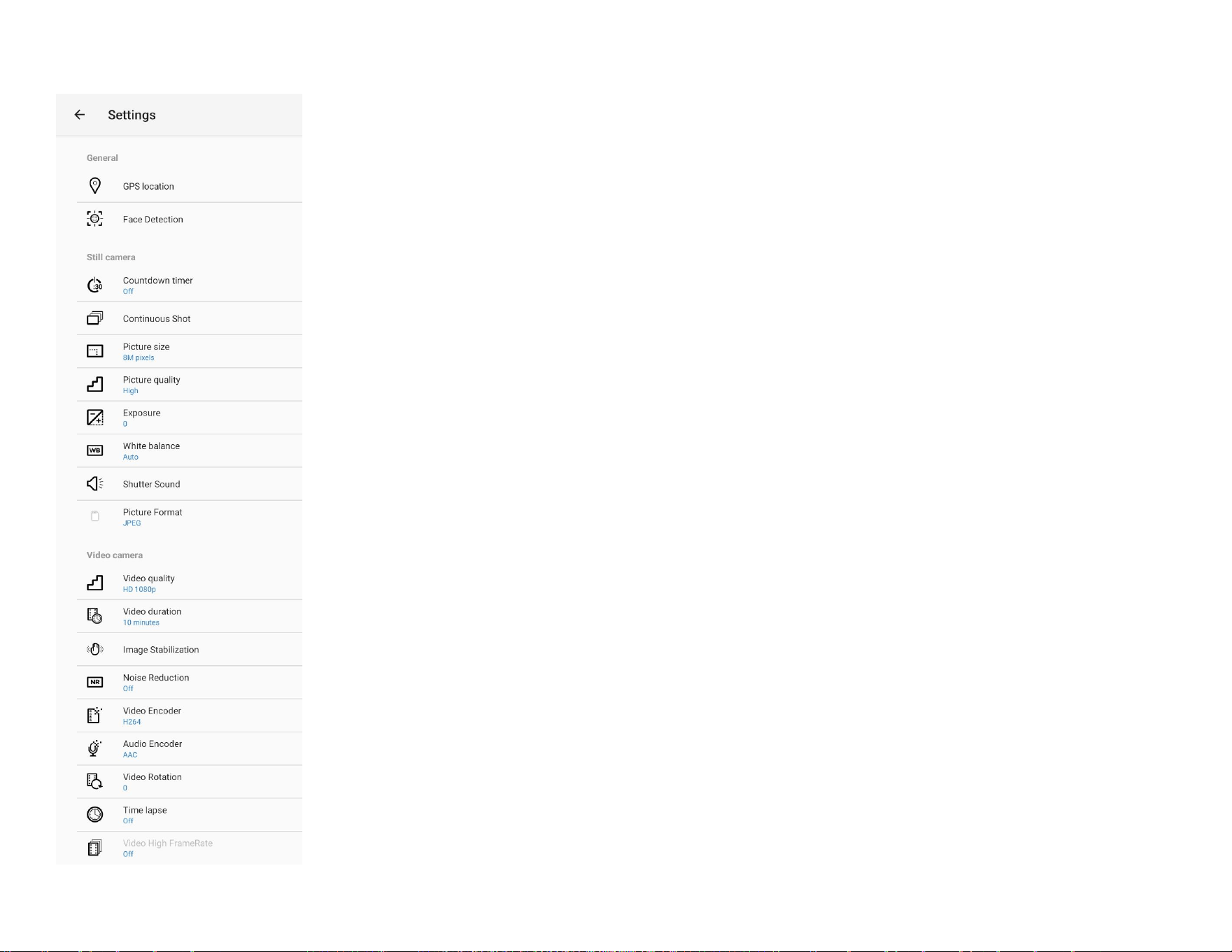
Camera Features
Switch - A switch between Camera to Video.
Camera Options - For selecting the best exposure settings to fit the type of scene being shot. That is, in addition to the amount of light in the scene.
HDR mode can be enabled from here.
All other option available by clicking the gearhead icon are listed in the table below.
Shutter Release - For taking picture.
Gallery – For viewing captured picture.
Camera
Options
Color Filters
Switch to
video mode
Shutter Release icon
Gallery
UM600xxx Rev A page 66 of 87
User Manual – Elo Pay 15-inch Tap to Pay for Android
(TM)
Advanced Settings
• GPS location will be saved
• Faces will be detected
• Count down timers supports Off, 2 seconds, 5 seconds and 10 seconds
• Will take continuous shots
• Allows the picture size to be changed.
• Allows user to select the output picture quality
• Ability to change the exposure
• Allows control of the white balance (Auto, Incandescent, Fluorescent, Daylight, Cloudy)
• Enable or disable the shutter sound
• Allows control of the picture format (JPEG or HEIF)
• Allows control of the video quality. (1080p is the native resolution)
• Allows control of how long a video will be taken
• Provide software image stabilization
• Reduces noise that is introduce when taking video.
• Allows control of the video encoder
• Allows control of the audio encoder
• Allows a time lapse at various intervals (up to 24 hours)
• Video high frame rate (FPS) can be enabled. (not available in time lapse mode)
UM600xxx Rev A page 67 of 87
User Manual – Elo Pay 15-inch Tap to Pay for Android
(TM)
Take a Picture and Record Video
• Tap Snapdragon camera app to access the Digital camera.
• To change camera and video settings, see features.
• From the switch, located on bottom left side of the Elo Pay 15” “Tap-to-Pay” select one from the following options.
For Panorama, tap Panorama Icon.
❖ To take panoramic pictures, tap panorama shutter Icon.
❖ Slowly move the device across to take a panoramic picture.
❖ When finished, tap stop Icon.
For Video recording, tap Video Icon.
❖ To record videos, tap capture Icon.
❖ To mute and unmute sound while recording, tap microphone Icon.
❖ When finished recording, tap stop Icon
For camera, tap Camera Icon.
❖ To take pictures, tap shutter release Icon.
❖ To enable and disable shutter sound, go to advanced settings. See camera features.
❖ To zoom an object or scene place two fingers on the screen together, spreads them apart to zoom in and pinch
to zoom out.
❖ To auto focus an object or scene, tap touch screen.
❖ To view pictures and play recorded videos, tap gallery.
❖ To play recorded video, tap play.
UM600xxx Rev A page 68 of 87
User Manual – Elo Pay 15-inch Tap to Pay for Android
(TM)
Take a Screenshot
For capturing an image of the screen. The device will automatically save the image in the File folder application.
• Press the power button for more than 2 seconds and a pop-up screen menu will appear then tap screenshot.
File Application
The File Manager app helps to manage, delete, print, shares and transfer files between the mobile storage and a computer.
To access pictures, videos, screenshots, audios, downloads, and mobile internal / external storage, go to application drawer.
• Tap file application from the application drawer.
• Tap 3 lines menu and choose one of the following options.
• Tap Image Icon for pictures and screenshots.
❖ Tap Camera folder for photos.
❖ Tap Screenshots folder for screenshot images.
❖ Tap Video for recorded videos.
❖ Tap Camera folder.
❖ Tap Audio for recorded audios.
❖ Tap for Downloaded items.
❖ Tap for mobile internal storage folders.
❖ Tap for mobile external storage folders.
Delete Files
• To delete files from the folders above, press and hold an item or tap 3 dots menu to select all items in the folder.
• Tap to delete.
• Tap OK to confirm.

UM600xxx Rev A page 69 of 87
User Manual – Elo Pay 15-inch Tap to Pay for Android
(TM)
Copy and Move Files
• To copy or move files into new location press and hold an item from the folders above or tap 3 dots menu to select all items in
the folder.
• Tap 3 dots menu again and choose “Copy to” or “Move to”.
• Tap 3 lines menu and choose from the following options where you want to move or copy the item.
• To create a new folder, tap 3 dots menu.
• Rename the folder.
• Tap Copy or Move to confirm.
• Print File
• Note: To print you must set a printer. See Settings → Connected device → Print.
• To print files from the folders above, tap an item once.
• Tap 3 dots menu and tap Print.
Share Files
Note: Make sure both device Bluetooth are paired. See Connected devices → Bluetooth on this user manual.
• To share files from the folders above, press and hold an item.
• tap share Icon.
• To share via Bluetooth, tap Bluetooth Icon.
• To share via Email, tap email Icon
• For more options hold an item from the folders above.
• Tap 3 dots menu and choose from the following options and follow on-screen instructions.

UM600xxx Rev A page 70 of 87
User Manual – Elo Pay 15-inch Tap to Pay for Android
(TM)
General-purpose Input/Output (GPIO) Support
The Elo Pay 15” “Tap-to-Pay” supports a GPIO which can be used to connect to peripherals such as a motion sensor.
Elo has an optional GPIO cable (PN: E211544) with flying leads so that it is easy for users to connect their
own peripherals.
Pinout of the GPIO cable (PN: E086398):
Red Wire: Pin 1 → 5 Volt output connection
White Wire: Pin 2 → Input connection 1
Green Wire: Pin 3 → Input connection 2
Two Black Wires: Pin 4 and Pin 5 are tied to ground
5V, 200mA is the max voltage and current available via this GPIO port.
G-Sensor
All Elo Pay 15” “Tap-to-Pay” units are equipped with a g-sensor and will rotate the video based on the orientation of the device.
USB – C Settings
Elo Pay 15” “Tap-to-Pay” device supports USB – C video, audio and touch via the USB- C cable.
The Elo Pay 15” “Tap-to-Pay” device can also support power up to an Elo 1502L Touch monitor via the USB – C cable when using the optional Elo 90W
power supply.
To enable video output, enter the developer options and click on USB and DP configuration.
• Default mode is DP (4 lanes) & HS-USB (allows for video output and USB2.0 speeds)
• Note Ethernet speeds will be limited to USB2.0 speeds
• User can change to SS-USB only to allow for higher USB and Ethernet speeds. There is no video output in this mode.
• If the USB protocol is changed, please reset the Elo Pay 15-inch Tap to Pay Device.
UM600xxx Rev A page 71 of 87
User Manual – Elo Pay 15-inch Tap to Pay for Android
(TM)
About Debug Bridge (ADB) control
Elo Pay 15” “Tap-to-Pay” supports debugging via Wi-Fi/Ethernet or using the USB cable.
Note: For USB debugging, use a USB Type A to Type A cable.
Set Elo Pay 15” “Tap-to-Pay” to (Developer)
• Enter Settings → About tablet → Build Number.
• Tap Build Number 7 times to enter developer mode.
• Go back to the Settings → System → Advanced and you will see “Developer Options”.
• From Developer options on- screen display, enable the option called “USB debugging”.
To connect via Wi-Fi
Ensure that your computer is online and not behind a firewall.
• Find the IP address (by going to Settings → Network & Internet → Wi-Fi →Tap the active connection → Advanced→ IP Address.
• On your host computer, use the command ADB connect <IP address> to be able to perform ADB actions.
To connect via USB, perform the following steps
• Ensure the USB cable is not connected to the Elo Pay 15” “Tap-to-Pay”.
• From the settings, enter Developers Options
• Turn on the “Enable USB Debugging” option
• Plug USB cable (type A) side into the Elo Pay 15-inch Tap to Pay device and (type A) to host PC.
• In the host PC, input “ADB devices” to check if the Elo Pay 15” “Tap-to-Pay” serial number shows
up. If it is there, then you have connected successfully.

UM600xxx Rev A page 72 of 87
User Manual – Elo Pay 15-inch Tap to Pay for Android
(TM)
Optional Flip Stand (Elo Z20 Stand)
Elo provides an optional flip stand kit which supports the Elo Pay 15” “Tap-to-Pay”. The following features are available on the flip
stand.
USB – C for video output
• DisplayPort, USB and Power Delivery up to 27W
• Supported Elo Touch Monitors: ET1002L, ET1302L and ET1502L
Four USB 3.0 Type A ports
• When using a secondary display, USB speeds will be set to USB2.0 protocol
• The default setting for USB is USB 2.0 protocol.
RJ12 connector which can be used as a cash drawer
• User must choose which setting the RJ12 will be in.
• The available options are 12V or 24V.
Ethernet LAN
• Ethernet download speeds will decrease to ~250Mbps when using the secondary display
Certification information:
The Elo Z20 Stand is not in scope or UL/cUL.
The Elo Pay 15” “Tap-to-Pay” Standard head meets UL/cUL. When it is mounted on the Z20 stand, the unit can be used under UL/cUL
certification.
UM600xxx Rev A page 73 of 87
User Manual – Elo Pay 15-inch Tap to Pay for Android
(TM)
Factory Full Reset
A full factory reset should only performed if all other recovery methods have failed and all other troubleshooting options. Perfoming
a full factory reset results in loss of data. This options will recover the original factory image state by erasing all data in the main
storage on the Elo Pay 15” “Tap-to-Pay”.
Note: Performing a factory reset on bootloader menu, if you added a Google Account to Elo Pay 15” “Tap-to-Pay” make sure you
have your Google credential (Username and password) associated with the Elo Pay 15” “Tap-to-Pay”. If you don’t have it you will not
be able to use the device after reset. This is a security measure that prevents unauthorized user from using the device if they do a
factory reset on bootloader menu.
To Reset
• Enter Settings → System → Advanced → Reset Options.
• Tap Erase all data.
• Under Erase all data (factory reset), tap Erase all data .
• Under Erase all data?, tap Erase all data.
• When successfully don, the device will auto reboot.
UM600xxx Rev A page 74 of 87
User Manual – Elo Pay 15-inch Tap to Pay for Android
(TM)
Optional Peripherals
Part Number
Description
E669163
POE++ Module Kit for I-Series 5
E809509
Expansion module kit
E572635
90W Replacement Cable Kit (power supply for a single device with an USB-C powered external display)
E514304
65W Replacement Cable Kit (power supply for a single device without USB-C powered external display)
E134286
Fingerprint Scanner
E673037
RFID reader
E001002
MSR
E644767
Status Light
E384627
2D Barcode Scanner (SE4720)
E245047
2D Barcode Scanner (SE4107)
E201494
2D Webcam
E894719
Speaker
E419081
Edge Connect Audio Adapter
UM600xxx Rev A page 75 of 87
User Manual – Elo Pay 15-inch Tap to Pay for Android
(TM)
Optional Stands and Mounting Kits
Stands available for the Elo Pay 1 ” “Tap-to-Pay” models
Display size and weight will limit the mounting angle
Part Number
Description
E307788
E307974
Elo Stand 1302L – Black (75mm VESA)
Elo Stand 1302L – White (75mm VESA)
Only works with the 1 6” devices
E143088
Wallmount
E804330
E808963
Elo Stand 1902/3-2202/3 – Black (100mm VESA)
Elo Stand 1902/3-2202/3 – White (100mm VESA)
E509844
E510042
Elo Stand 2402/3-2702/3 – Black (100mm VESA)
Elo Stand 2402/3-2702/3 – White (100mm VESA)
E044356
Tabletop Stand for 22'' I-Series (100mm VESA)
E044162
Tabletop Stand for 15.6'' Display (Black) (100mm VESA)
E514693
Thinnaby Countertop (1 6” and ” odels)
E514881+E515260
Thinnaby Floor Stand + Base (1 6” and ” odels)
E421137
Wallaby Countertop Stand (1 6” and ” odels)
E421325+E797162
Wallaby Floor Stand + Base (1 6” and ” odels)
E796783
Wallaby Self-Service Countertop Stand
E796965
Wallaby Self-Service Floor Stand
E989127
Wallaby Pro self-service countertop stand
E989314
Wallaby Pro self-service floor stand top (note: complete self-service floor
stand requires floor base part E989512 sold separately)
E047458
6” (1 ) Pole Mount Bolt Down Kit
E047663
1 ” ( 0 8 ) Pole Mount Bolt Down Kit
E047864
18” ( ) Pole Mount Bolt Down Kit
E048069
Pole Mount Floor Stand
E045151
Pole Mount Bracket
E043382
Shelf Mount
E375343
KIT-EMV-BRKT-EDYNAMO
E586981
KIT-EMV-BRKT-RP457C-AUDIO-JACK
E710930
KIT-EMV-BRKT-RP457C-BT-USB
E767356
KIT, Z20-POS-STANDGEN2-15
Only works with the 1 6” devices
UM600xxx Rev A page 76 of 87
User Manual – Elo Pay 15-inch Tap to Pay for Android
(TM)
Section 5: Technical Support and Maintenance
Technical Assistance
Refer to last page for worldwide technical support phone numbers.
Technical Specifications
visit www.elotouch.com/products
for technical specifications for this device
Support
visit www.elotouch.com/support for technical support

UM600xxx Rev A page 77 of 87
User Manual – Elo Pay 15-inch Tap to Pay for Android
(TM)
Elo Pay 15” “Tap-to-Pay” Care and Handling
The following tips will help maintain optimal performance of your Elo:
• To prepare for cleaning the touchscreen, power down the device (if possible), or ensure your on-screen software
can tolerate false touches while you clean.
• Do not get liquids inside the unit. Do not spray the Elo product directly. Instead, use wet wipes, a sprayed cloth or
a dampened cloth with the excess moisture squeezed off.
• Select only non-abrasive cleaning wipes or cloths to avoid scratching touchscreens.
• Avoid highly concentrated alcohol (> 70%), non-diluted bleach or ammonia solutions, as these may cause
discoloration.
• Wipe the surfaces with the appropriate wipes or cloths and approved cleaning products and allow them to dry.
• For additional cleaning methods, recommended cleaning and disinfectant solutions, please visit
https://www.elotouch.com/support/technical-support/cleaning

UM600xxx Rev A page 78 of 87
User Manual – Elo Pay 15-inch Tap to Pay for Android
(TM)
Operating time and Panel Image Sticking
*Notice that this product’s maximum continuous operating time is 20/7, please pay attention to the following instructions.
- What is Image Sticking? What Causes Image Sticking
Image Persistence, image burn-in, and image sticking are terms used to describe LCD image retention. LCD image retention occurs when a fixed
pattern is displayed over a prolonged period. The fixed pattern might cause a parasitic capacitance to build up within the LCD component, which
inhibits the liquid crystal molecules from returning to their normal relaxed state.
All LCDs/CRTs and color plasma displays are susceptible to image retention, at varying degrees. Phosphor based display devices, such as CRTs and
color plasma displays are most susceptible, and image retention on phosphor-based devices is often irreversible. Transmissive devices, such as LCDs
are less susceptible, and in most cases LCD image retention can be reversed.
The rate of image sticking depends on the image pattern, duration of fixed image, the temperature, and production variations. Likewise, the rate of
diffusion of the image sticking (recovery time) also depends on these factors.
- What Can Be Done about It
The best way to avoid image bum-in is to limit the amount of static content on the display. Image sticking may be avoided by turning the display off
periodically for a period between 2 to 4 hours.
To reduce the possibility of image retention, we recommend:
Displaying alternating black/white images for 2 to 4 hours
Using a screen saver when the touchscreen is not in use
Image retention caused by static (non-moving) images displayed for lengthy periods (image burn-in) is not covered under Elo warranty

UM600xxx Rev A page 79 of 87
User Manual – Elo Pay 15-inch Tap to Pay for Android
(TM)
Section 6: Regulatory Information
Electrical Safety Information
Compliance is required with respect to the voltage, frequency, and current requirements indicated on the manufacturer’s
label. Connection to a different power source than those specified herein will likely result in improper operation, damage
to the equipment, or poses a fire hazard if the limitations are not followed.
There are no operator serviceable parts inside this equipment. There are hazardous voltages generated by this equipment
which constitute a safety hazard. Service should be provided only by a qualified service technician.
Contact a qualified electrician or the manufacturer if there are questions about the installation prior to connecting the
equipment to mains power.
Emissions and Immunity Information
Notice to Users in the United States: This device complies with part 15 of the FCC Rules. Operation is subject to the
following two conditions: (1) This device may not cause harmful interference, and (2) this device must accept any
interference received, including interference that may cause undesired operation of the device.
Changes or modifications not expressly approved by the party responsible for compliance could void the user ‘s authority
to operate the equipment.
NOTE: This equipment has been tested and found to comply with the limits of Class A for all model digital devices,
pursuant to part 15 of the FCC Rules. These limits are designed to provide reasonable protection against harmful
interference in a residential installation. This equipment generates, uses, and can radiate radio frequency energy and, if
not installed and used in accordance with the instructions, may cause harmful interference to radio communications.
However, there is no guarantee that interference will not occur in a particular installation. If this equipment does cause
harmful interference to the radio or television reception, which can be determined by turning the equipment off and on,
the user is encouraged to try to correct the interference by one or more of the following measures:
—Reorient or relocate the receiving antenna.
—Increase the separation between the equipment and receiver.
—Connect the equipment into an outlet on a circuit different from that to which the receiver is connected.
—Consult the dealer or an experienced radio/TV technician for help.
This equipment should be installed and operated to ensure a minimum of 20 cm space for any person.

UM600xxx Rev A page 80 of 87
User Manual – Elo Pay 15-inch Tap to Pay for Android
(TM)
Notice to Users in Canada for IC compliance: This equipment complies with the Class A for radio noise emissions from
digital apparatus as established by the Radio Interference Regulations of Industrial Canada.
CAN ICES-003(A) / NMB-003(A)
Devices contains license-exempt transmitter(s)/receiver(s) that comply with Innovation, Science and Economic
Development Canada’s license-exempt RSS(s). Operation is subject to the following two conditions:
(1) Those devices may not cause interference.
(2) Those devices must accept any interference, including interference that may cause undesired operation of the
device.
L’émetteur/récepteur exempt de licence contenu dans le présent appareil est conforme aux CNR d’Innovation, Sciences
et Développement économique Canada applicables aux appareils radio exempts de licence. L’exploitation est
autorisé e aux deux conditions suivantes :
(1) L’appareil ne doit pas produire de brouillage;
(2) L’appareil doit accepter tout brouillage radioélectrique subi, même si le brouillage est susceptible d’en compromettre
le fonctionnement.
Operation of transmitters in the 5.925-7.125 GHz band is prohibited for control of or communications with unmanned aircraft
systems.
Notice to Users in the European Union: Use only the provided power cords and interconnecting cables provided with the
equipment. The substitution of provided cords and cabling may compromise electrical safety or CE Mark Certification for
emissions or immunity as required by the following standards:
This Information Technology Equipment (ITE) is required to have a CE Mark on the Manufacturer’s label which means that
the equipment has been tested to the following Directives and Standards: This equipment has been tested to the
requirements for the CE Mark as required by EMC Directive 2014/30/ EU as indicated in European Standard EN 55032 Class
A and the Low Voltage Directive 2014/35/EU as indicated in European Standard EN 62368-1.
General Information to all Users:
This equipment generates, uses, and can radiate radio frequency energy. If not installed and used according to this
manual the equipment may cause interference with radio and television communications. There is, however, no
guarantee that interference will not occur in any particular installation due to site-specific factors.
1.
In order to meet emission and immunity requirements, the user must observe the following:
a.
Use only the I/O cables provided to connect this digital device with any computer.
b.
To ensure compliance, use only the provided manufacturer’s approved line cord.
c.
The user is cautioned that changes or modifications to the equipment not expressly approved by the party
responsible for compliance could avoid the user’s authority to operate the equipment.

UM600xxx Rev A page 81 of 87
User Manual – Elo Pay 15-inch Tap to Pay for Android
(TM)
2.
If this equipment appears to cause interference with radio or television reception, or any other device:
a.
Verify as an emission source by turning the equipment off and on. If you determine that this equipment is causing
the interference, try to correct the interference by using one or more of the following measures:
i.
Move the digital device away from the affected receiver.
ii.
Reposition (turn) the digital device with respect to the affected receiver.
iii.
Reorient the affected receiver’s antenna.
iv.
Plug the digital device into a different AC outlet so the digital device and the receiver are on different branch
circuits.
v.
Disconnect and remove any I/O cables that the digital device does not use. (Unterminated I/O cables are a
potential source of high RF emission levels.)
vi.
Plug the digital device into only a grounded outlet receptacle. Do not use AC adapter plugs. (Removing or
cutting the line cord ground may increase RF emission levels and may also present a lethal shock hazard to
the user.)
If you need additional help, consult your dealer, manufacturer, or an experienced radio or television technician.
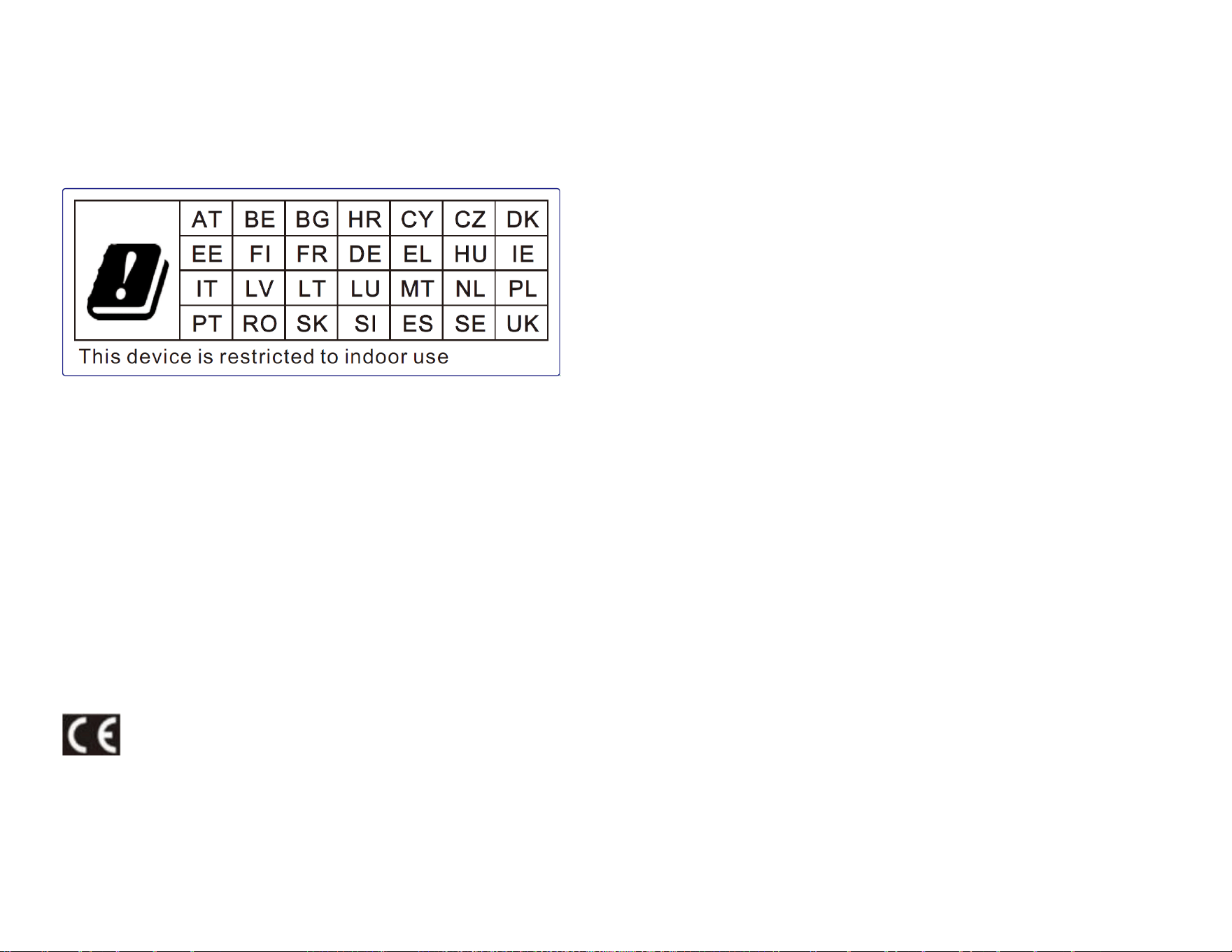
UM600xxx Rev A page 82 of 87
User Manual – Elo Pay 15-inch Tap to Pay for Android
(TM)
Radio Equipment Directive
Elo hereby declares that the radio equipment type, Elo Pay 15” “Tap-to-Pay”, is in compliance with Directive 2014/53/EU. The
full text of the EU Declaration of Conformity is available at the following internet address: www.elotouch.com
This device is designed and intended for indoor use only.
Operation frequency and radio-frequency power are listed as below:
o WLAN 802.11b/g/n/ax 2400MHz-2483.5MHz ≤ 20 dBm
WLAN 802.11a/n/ac/ax 5150MHz-5725MHz <23 dBm
WLAN 802.11a/n/ac/ax 5725MHz-5825MHz <13.98 dBm
WLAN 802.11ax 59450MHz-6425MHz <23 dBm
o Bluetooth BREDRLE 2400MHz-2483.5MHz ≤ 20 dBm
ECC/DEC/ (04)08:
The use of the frequency band 5 150-5 350 MHz is restricted to indoor operation because of the protection requirements of
satellite services
EC R&TTE Directive EU Directive 2014/53/EU of the European Parliament and of the Council of 16 April 2014 on the
harmonization of the laws of the Member States relating to making available on the market of radio equipment
and repealing Directive 1999/5/EC Text with EEA relevance.
Identification marks the relevant technical documentation is held at: Elo Touch Solutions, Inc. 670 N. McCarthy
Boulevard Suite 100 Milpitas, CA 95035 USA
USA FCC ID: RBWESYQC5PAY
Canada IC ID: 10757B-ESYQC5PAY
Canada IC HVIN: ESY15I1EPAY

UM600xxx Rev A page 83 of 87
User Manual – Elo Pay 15-inch Tap to Pay for Android
(TM)
Agency Certifications
The following certifications and marks have been issued or declared for this peripheral:
• UL, FCC (US) – Class A
• cUL, IC (Canada)
• CB (International Safety)
• CE (Europe) – Class A
• VCCI (Japan)
• RCM (Australia)
• China RoHS
UM600xxx Rev A page 84 of 87
User Manual – Elo Pay 15-inch Tap to Pay for Android
(TM)
Waste Electrical & Electronic Equipment Directive (WEEE)
This product should not be disposed of with household waste. It should be deposited at a facility that enables recovery and recycling.
Elo has put in place recycling arrangements in certain parts of the world. For information on how you can access these arrangements,
please visit www.elotouch.com/e-waste-recycling-program/.
Replace the battery with same type only. Improper replacement of battery may cause in risk of burns, fire, and explosions.
Dispose the battery according to local regulations. Risk of fire and burns if properly handled. Do not open and crush, heat
above 60˚ C / 140˚ F or incinerate. If there is a serious swelling of the battery, do not continue using.
Energy Star
Elo Pay 15” “Tap-to-Pay” devices can meet Energy Star 9.0 requirements.
Energy Star is a program run by the U.S. Environmental Protection Agency (EPA) and U.S. Department of Energy (DOE) that promotes
energy efficiency.
This product qualifies for ENTERGY STAR in the “factory default” settings and this is the setting in which power savings will be achieved.
Changing the factory defaule picture settings or enabling other features will increase power consumption that could exceed the limits
necessary to qualify for ENERGY STAR rating.
For more information on the ENERGY STAR program, refer to engergystar.gov

UM600xxx Rev A page 85 of 87
User Manual – Elo Pay 15-inch Tap to Pay for Android
(TM)
Child Safety Warning
This Product is not intent for use by children. This product is not suitable for use in locations where children are likely to be present.


UM600xxx Rev A page 87 of 87
User Manual – Elo Pay 15-inch Tap to Pay for Android
(TM)
www.elotouch.com
Visit our website for the latest
• Product Information
• Specifications
• Upcoming Events
• Press Releases
• Software Drivers
Google, Android, Google Play and YouTube are trademarks of Google LLC.
To find out more about our extensive range of Elo touch solutions, go to www.elotouch.com, or call the
office nearest you.
North America
Tel +1 408 597 8000
Fax +1 408 597 8001
elosales[email protected]
Europe
Tel +32 (0)16 70 45 00
Fax +32 (0)16 70 45 49
elosales@elotouch.com
Asia-Pacific
Tel +86 (21) 3329 1385
Fax +86 (21) 3329 1400
www.elotouch.com.cn
Latin America
Tel +52 55 2281-6958
elosales[email protected]