
1
User’s manual
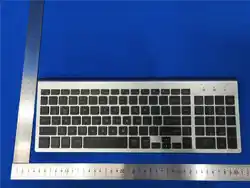
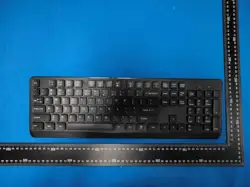
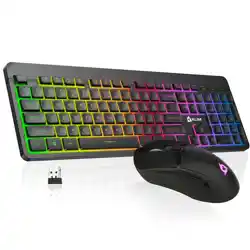
Model: KC-01-D
Instructions for using the Fn composite function keys
Fn+F1=Music player
Fn+F2=Volume down
Fn+F3=Volume up
Fn+F4=Mute
Fn+F5=Previous track
Fn+F6=Next track
Fn+F7=Play/pause
Fn+F8=Stop
Fn+F9=Homepage
Fn+F10=E-mail
Fn+F11=My computer
Fn+F12=Favorite
Setting and operation instructions
How to use
•Keyboard can connect to 3 devices, short press the pairing key to switch back and forth between
2.4G/BT1/BT2 modes.
•The current working channel can be determined by the different colors displayed on the LED:
2.4G: Green light BT1: Blue light BT2: Orange light
2.4G mode
•When turned on, it defaults to 2.4G working mode for keyboard. Simply plug the USB receiver
into the computer to start working.
BT mode
•Short press the pairing key to enter BT mode, and the corresponding LED indicator light will
flash once and turn off. Then, long press the pairing key for 3 seconds, and the corresponding
LED indicator light will flash quickly to enter pairing mode (pairing time is 2 minutes).
•Search for "BT5.0 KB/BT3.0 Keyboard" in the device, click "pairing" to connect and use. After
successful pairing, the corresponding LED light will stay on for 2 seconds and then turn off.
When the keyboard enters BT mode, two BT device names (BT5.0 KB/BT3.0 keyboard) can
be found. It is recommended to prioritize selecting the “BT5.0 KB” for pairing.

2
Attention
When the keyboard switches to BT mode for the first time, it directly enters pairing mode,
and the corresponding LED indicator light is in a flashing state. When the device searches for the
BT name, click "pairing" to connect and use it.
If the keyboard is already connected to a device in BT mode and the device has not been
deleted or unpaired, when switching to BT mode, the device will automatically reconnect and can
be used immediately.
Priority should be given to connecting to BT5.0 on WIN10/11. Some old computers may not
be able to find BT5.0, so simply connect to BT3.0.
Sleep mode
•If there is no key operation on the keyboard for 5 seconds, it enters sleep mode and all indicator
lights are off;
Pressing any button again will automatically restore it to its original state.
Low voltage indication
•When the voltage of the keyboard drops below to 3.2V, the red LED flashes.
Charging the keyboard
•Suggest using a USB-Type-C data cable to connect to a computer for charging (mobile phone
charger is not recommended).
Troubleshooting
If the keyboard doesn’t work, try the following:
Check if the battery of the keyboard is low. If so, please charge it first. It can work simultaneously
while charging.
Check if the USB receiver is plugged into the computer's USB port. If so, please try connecting to
a different USB port.
If the feedback of keyboard is slow or unresponsive:
Increase the distance between the keyboard and any other wireless device
Certain metal surfaces may interfere
The keyboard and receiver can delay response time.
Warning
Before using this product, please read all instructions and warnings.
Always keep dry.
Do not attempt to insert foreign objects into the device
Do not disassemble or attempt to repair equipment

3
FCC Warning Statement
Changes or modifications not expressly approved by the party responsible for compliance could void the user’s authority to
operate the equipment. This equipment has been tested and found to comply with the limits for a Class B digital device,
pursuant to Part 15 of the FCC Rules. These limits are designed to provide reasonable protection against harmful interference
in a residential installation. This equipment generates uses and can radiate radio frequency energy and, if not installed and
used in accordance with the instructions, may cause harmful interference to radio communications. However, there is no
guarantee that interference will not occur in a particular installation. If this equipment does cause harmful interference to radio
or television reception, which can be determined by turning the equipment off and on, the user is encouraged to try to correct
the interference by one or more of the following measures:
‐‐ Reorient or relocate the receiving antenna.
‐‐ Increase the separation between the equipment and receiver.
‐‐ Connect the equipment into an outlet on a circuit different from that to which the receiver is connected.
‐‐ Consult the dealer or an experienced radio/TV technician for help.
FCC Radiation Exposure Statement
The device has been evaluated to meet general RF exposure requirement. The device can be used in portable exposure cond
ition without restriction.
This device complies with Part 15 of the FCC Rules. Operation is subject to the following two conditions:
(1)This device may not cause harmful interference.
(2)This device must accept any interference received, including interference that may cause undesired operation.