MTOUCH
WIRELESS TRACKPAD
For Mac

Welcome to the Macally family and thank you for purchasing the
MTOUCH.
Our mission is to deliver aesthetically pleasing, high-quality and
affordable peripherals and accessories to satisfied customers. We
do that by creating products that are both innovative and practical but
most important easy-to-use.
If you have any questions, feedback, or just want to say hi, please
reach out to us at techsupport@macally.com or on any one of our
social media channels.
Don’t forget to share your setup with us using #macally and follow us
for to get exclusive offers.
With Love From Southern California,
Macally
PACKAGE CONTENTS
HARDWARE BASICS
SYSTEM REQUIREMENTS
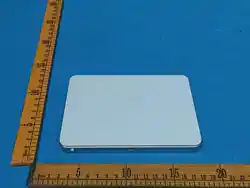
• Trackpad
• USB-C to USB-C charging cable
• User's Guide
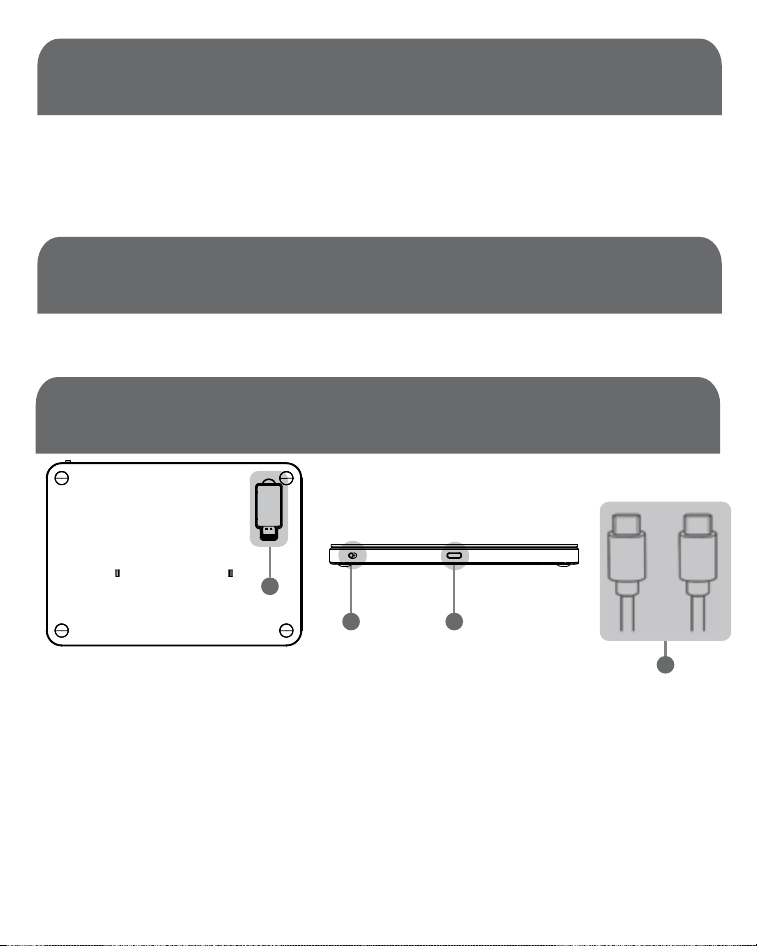
1.2.4G Dongle/Receiver
2.USB-C Charging Port
3.On/Off Switch and LED Light
LED Light
• Turn on – Red LED blinks once, then goes off
• Low Battery – Red LED blinks
• Full Battery – Red LED off
4.USB-C to USB-C Charging Cable
• Any Mac with a USB-C port
1
23
4
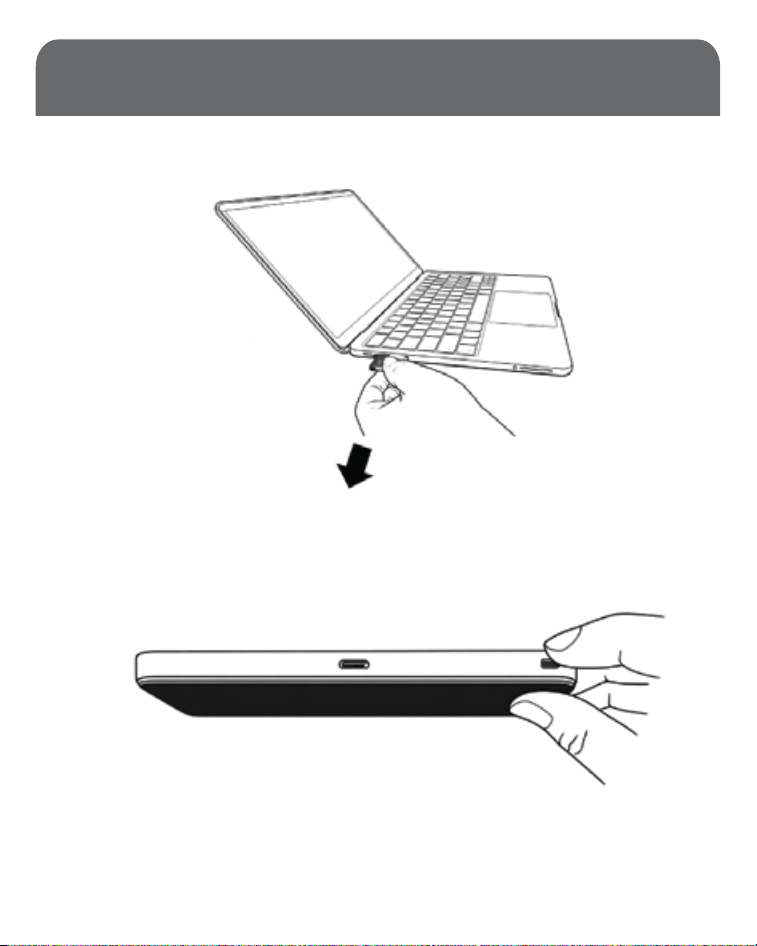
2.4 G Dongle/Receiver Installation
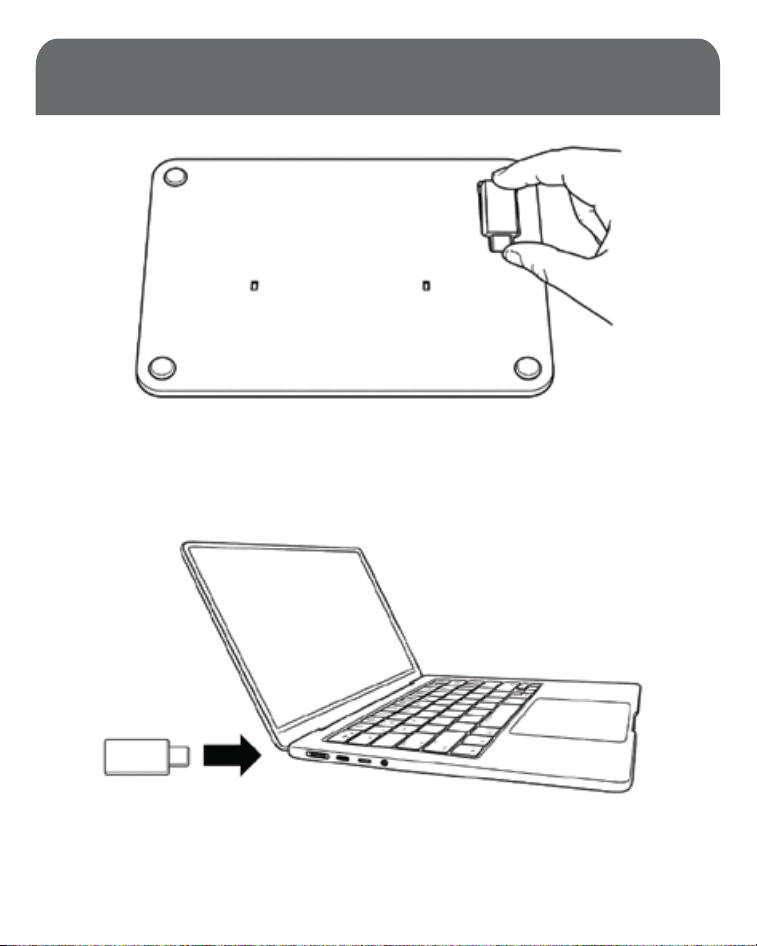
1.Remove the 2.4G Dongle/Receiver from the
bottom.
2.Plug the 2.4G Dongle/Receiver into a Mac with a
USB-C port.
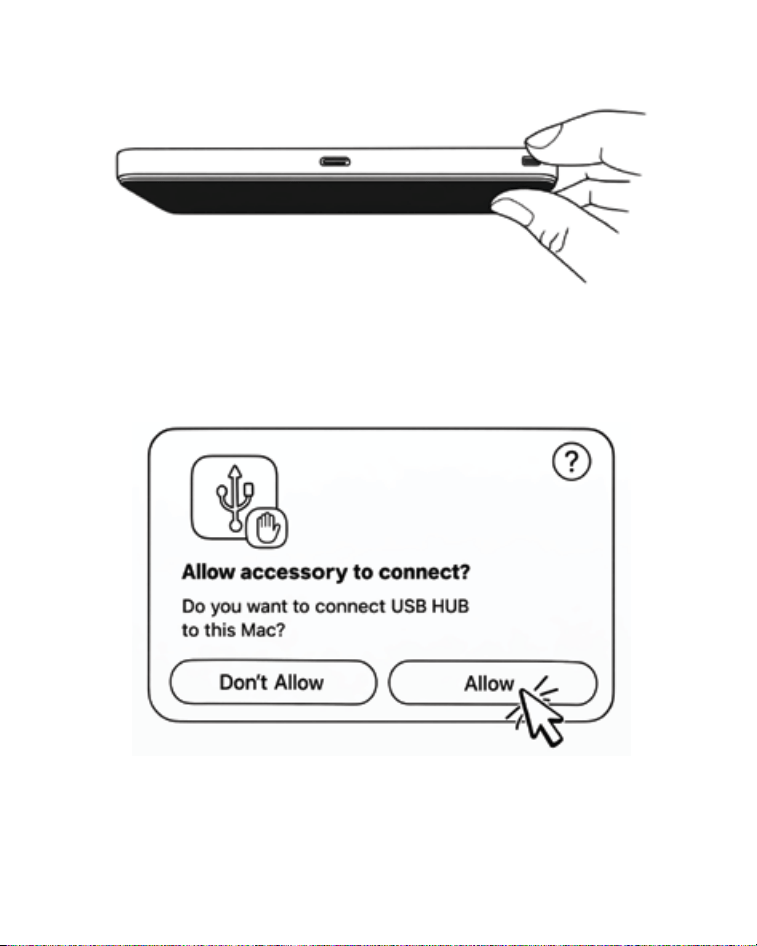
3.Turn the trackpad on.
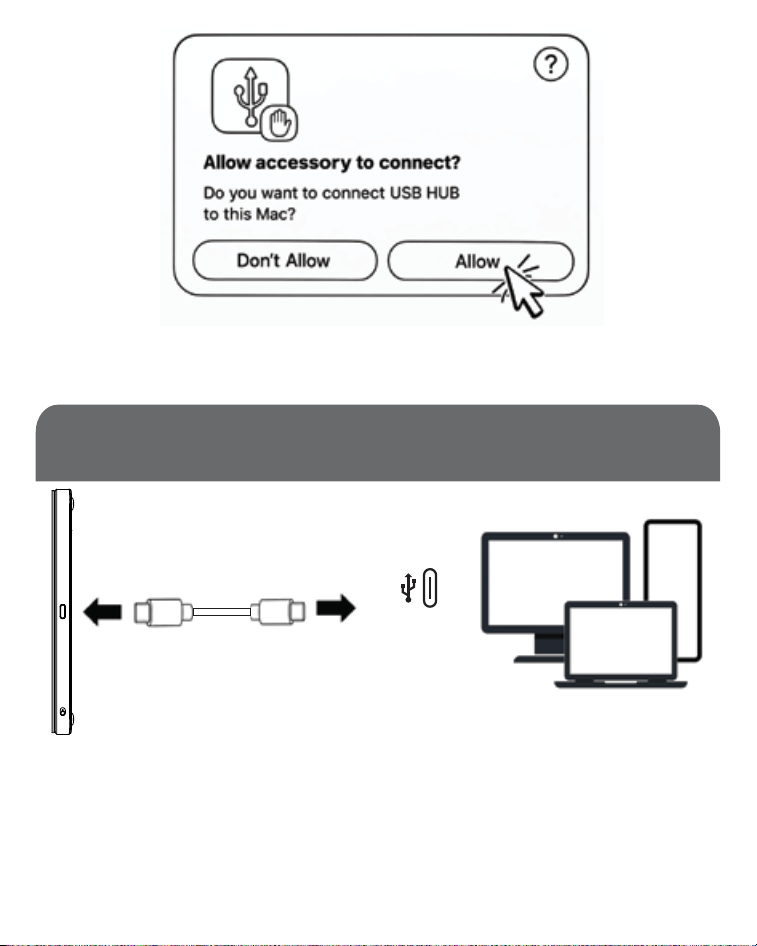
4.Your Mac may ask you to allow an accessory to
connect. Make sure you click allow.
WIRED INSTALLATION
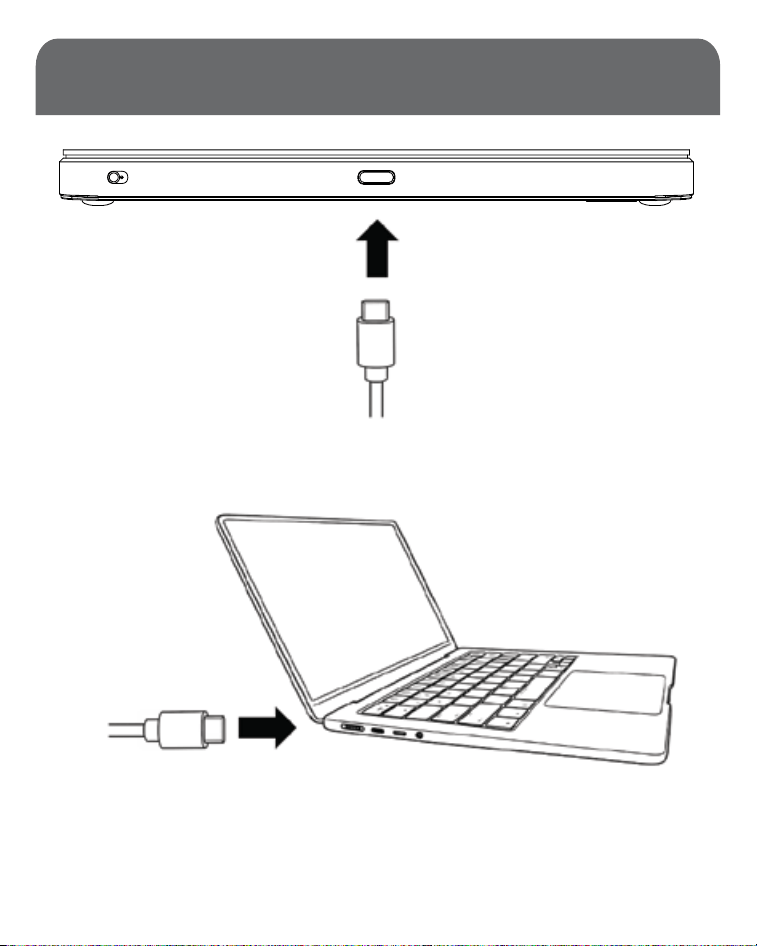
1.Plug one end of the USB-C cable into the track-
pad.
2.Plug the other end of the USB-C cable into your
computer.
CHARGING THE TRACKPAD
3.Your Mac may ask you to allow an accessory to
connect. Make sure you click allow.
Plug one end of the USB-C cable into the MTOUCH.
Then plug the other end of the USB-C cable into your
computer or wall adapter to charge.
Charging LED
• Red Light Blinking – Needs Charging
• Red Light Off – Charged
USB-C
RESYNC THE DONGLE
1.Remove the 2.4G dongle/receiver from your Mac.
2.Turn the trackpad off.
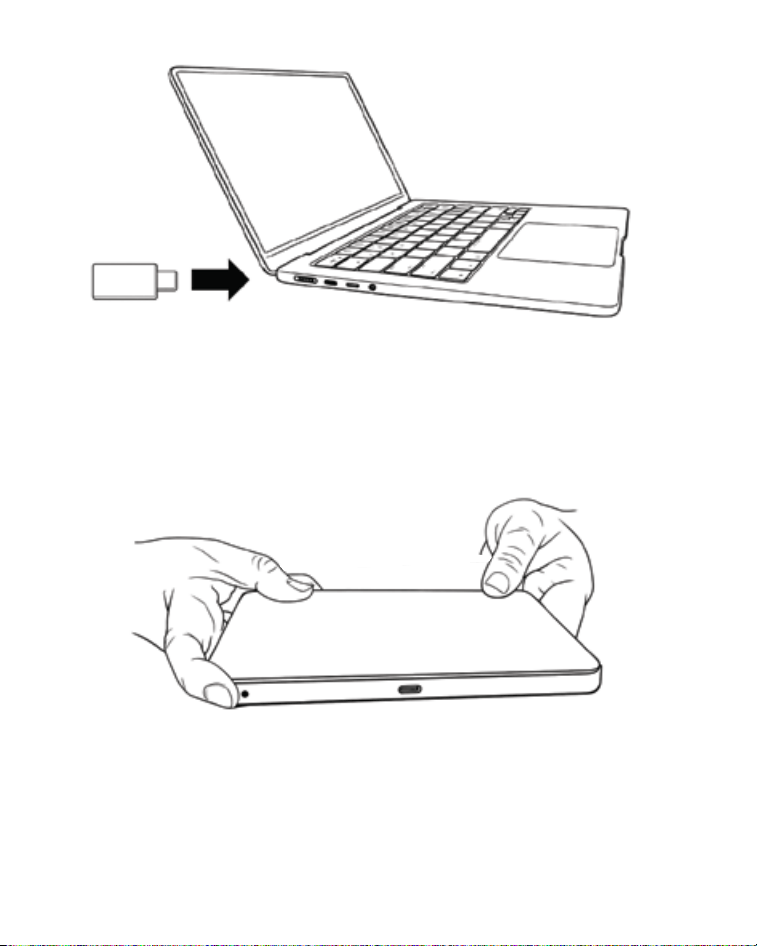
3.Plug the 2.4G dongle/receiver into your Mac. Note:
You will need to finish step 4 within 5 seconds of
finishing step 3.
4.Press both the lower right and left corners and
then switch on the trackpad. The trackpad will start
the pairing process. (flashing red for a few seconds
until it’s paired)

GESTURES FOR MAC
Below is a chart showing how you use gestures on a Mac.
Gesture Picture Gesture Name Description
Tap to Click
Secondary click
(right-click)
Smart zoom
Scroll
Tap with one finger to
click.
Click or tap with two
fingers.
Double-tap with two
fingers to zoom in and
back out of a webpage
or PDF.
Slide two fingers up or
down to scroll.

Zoom in or out
Pinch with two fingers
to zoom in or out.
Rotate
Click or tap with two
fingers.
Swipe between
pages
Swipe left or right with
two fingers to show
the previous or next
page.
Open Notification
Center
Swipe left from the
right edge with two
fingers to show Notifi-
cation Center.
Look up and data
detectors
Tap with three fingers
to look up a word or
take actions with
dates, addresses,
phone numbers, and
other data.
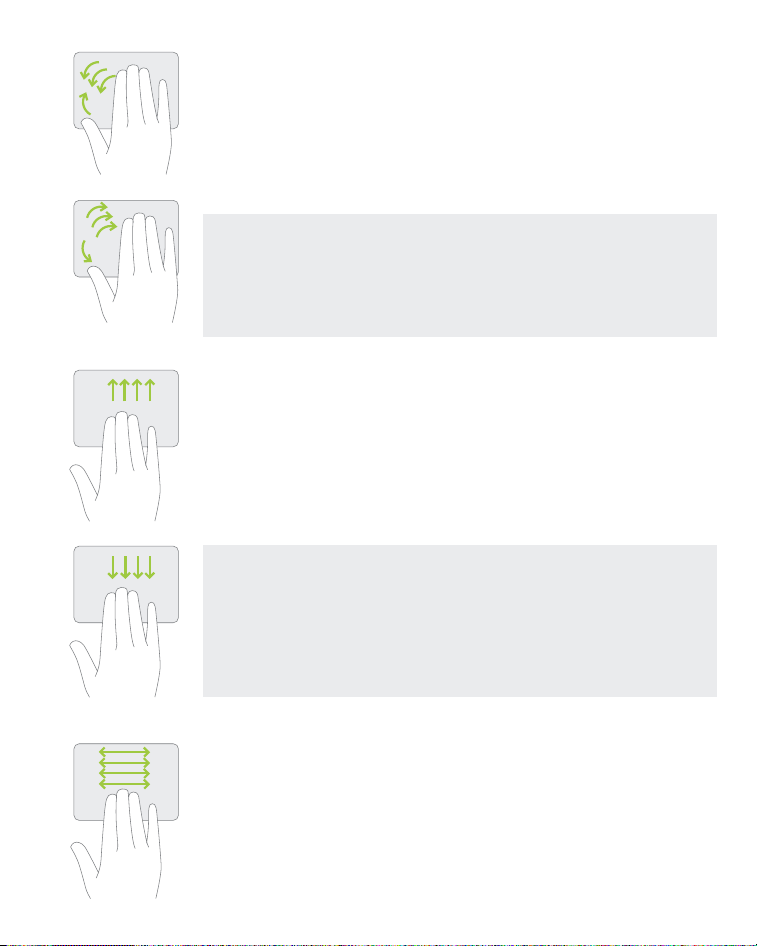
Show desktop
Spread your thumb
and four fingers apart
to show your desktop.
Apps
Pinch your thumb and
four fingers together to
show your installed
apps.
Mission Control
Swipe up with four
fingers to open
Mission Control.
App Exposé
Swipe down with four
fingers to see all
windows of the app
you're using.
Swipe between
full-screen apps
Swipe left or right with
four fingers to move
between desktops
and full-screen apps.
SAFETY INSTRUCTIONS
SPECIFICATIONS
Please read the following carefully. Incorrect use of this
product may result in reduced performance, perma-
nent damage, and void your warranty.
• Keep this device away from liquid, humidity, and
moisture.
• Operate this device only within the specific tempera-
ture range of 0°C (32° F) to 5°C to 40°C (104° F)
• Please refrain from taking the device apart. Doing so
will void your warranty.
• Do not dispose of this product in the garbage. Take it
to your local recycling center.
Battery Size
Charge Time
Work Time
Charging Port
1000 mAh
4 hr
20 Days
USB-C

Tech support
Tech support hours are from 9:00 AM to 5:00 PM Monday
through Friday (PST).
• E-Mail: techsupport@macally.com
• Phone: (909) 230-6888
FCC STATEMENT
This device complies with part 15 of the FCC Rules. Operation is
subject to the following two conditions: (1) This device may not
cause harmful interference, and (2) this device must accept any
interference received, including interference that may cause unde-
sired operation.
Any Changes or modifications not expressly approved by the party
responsible for compliance could void the user's authority to oper-
ate the equipment.
Note: This equipment has been tested and found to comply with
the limits for a Class B digital device, pursuant to part 15 of the
FCC Rules. These limits are designed to provide reasonable
protection against harmful interference in a residential installation.
This equipment generates uses and can radiate radio frequency
energy and, if not installed and used in accordance with the
instructions, may cause harmful interference to radio communica-
tions. However, there is no guarantee that interference will not
occur in a particular installation. If this equipment does cause
harmful interference to radio or television reception, which can be
determined by turning the equipment off and on, the user is
encouraged to try to correct the interference by one or more of the
following measures:

Warranty
Macally Peripherals warrants that this product will be free from
defects in title, materials and manufacturing workmanship for one
year in North America from the date of the purchase. If the product
is found to be defective then, as your sole remedy and as the man-
ufacturer’s only obligation, Macally will repair or replace the prod-
uct. This warranty is exclusive and is limited to the product that this
user’s guide came with. This warranty shall not apply to products
that have been subjected to abuse, misuse, abnormal electrical or
environmental conditions, or any condition other than what can be
considered normal use. The liability of Macally Peripherals arising
from this warranty and sale shall be limited to a refund of the
purchase price. In no event shall Macally Peripherals be liable for
costs of procurement of substitute products or services, or for any
lost profits, or for any consequential, incidental, direct or indirect
damages, however caused and on any theory of liability, arising
from this warranty and sale. These limitations shall apply notwith-
standing any failure of essential purpose of any limited remedy.
-Reorient or relocate the receiving antenna.
-Increase the separation between the equipment and receiver.
-Connect the equipment into an outlet on a circuit different from
that to which the receiver is connected.
-Consult the dealer or an experienced radio/TV technician for
help.
The device has been evaluated to meet general RF exposure
requirement. The device can be used in portable exposure condi-
tion without restriction.