
Linux System ZZKJ-T113-i Instruction Manual
Disclaimer:
1. Do not install or repair this product by yourself. Installation or
repair of this product by unauthorized or untrained personnel may
lead to dangerous situations.
2. For your and others' personal safety, do not operate this product
while driving a car.
3. Do not let this product come into contact with liquids. Liquids
may cause damage to this product, smoke from the machine, and
short circuits in the circuit, etc.
4. The built-in functions of this product are only provided as an
auxiliary prompt for you when driving a vehicle. They do not imply
that you can be distracted, careless or lose your judgment while
driving. Any safety accidents caused thereby are not the
responsibility of our company.
5. The pictures used in this manual are for reference only. Any
misunderstandings arising therefrom are not the responsibility of
our company.
6. If this product malfunctions or fails to work properly, please
consult your local dealer or contact our after-sales service technical
specialist.
Product Details Introduction:
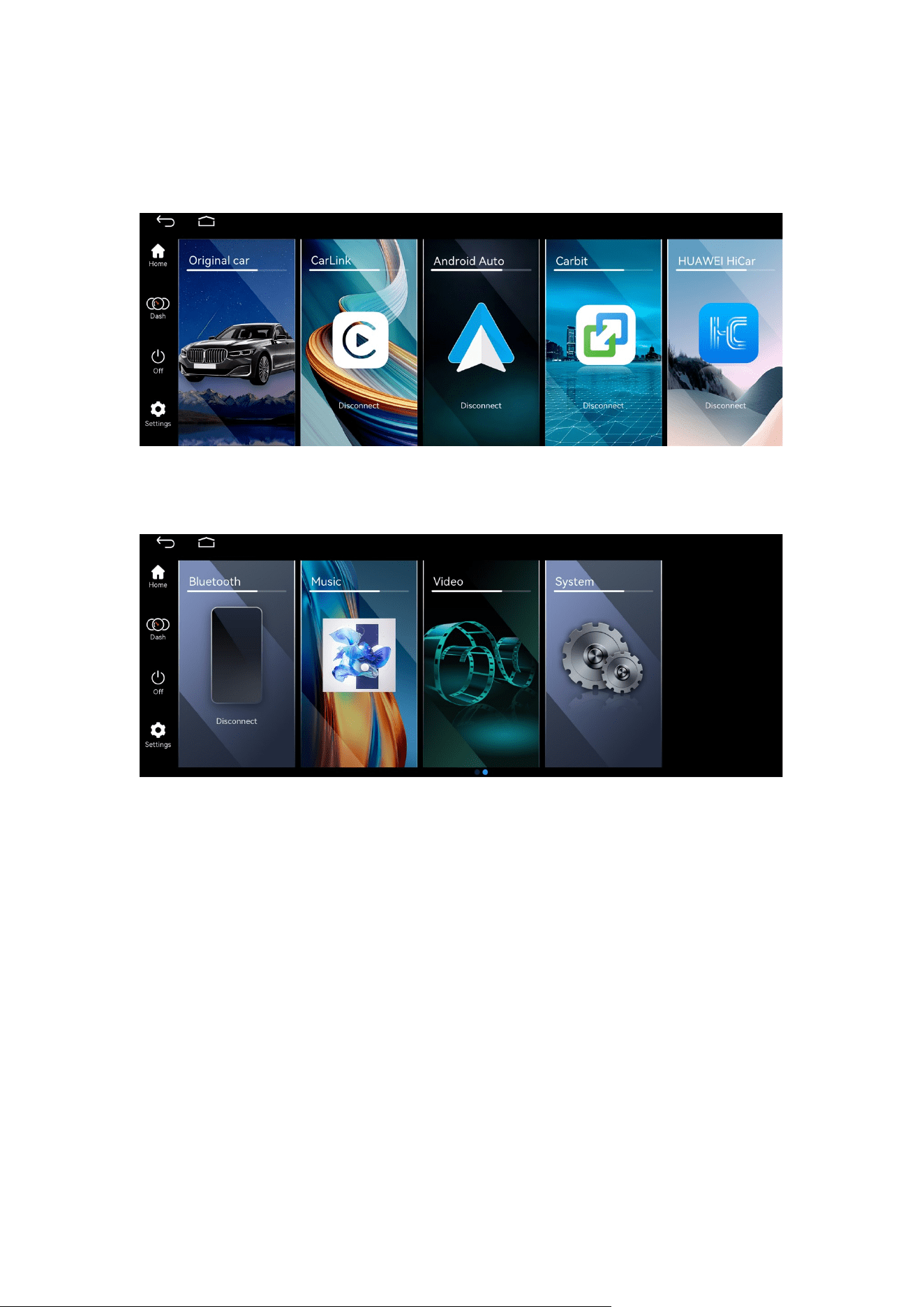
1. Home Page: Click to return to the main menu.
2. Dashboard: Click to enter the LCD dashboard display interface.
3. Screen Off: Click to turn off the screen display. Click the screen
again to restore the screen display.
4. Original Vehicle: Click to enter the original vehicle system display
interface.
5. CarLink: Apple Carplay function. Turn on Bluetooth and WIFI on

your iPhone, then connect the car's Bluetooth device on your
iPhone. The phone will pop up a box asking you to select "Pair" or
"Use Carplay in the Vehicle".
6. Audroid Auto: Turn on the Bluetooth and WIFI on your phone,
connect the car's Bluetooth device, and the phone will pop up a box
asking you to select "Pair" or "Allow".
7. Yilian: Click to enter the QR code download APP, and use the APP
to scan the QR code to connect the device.
8. HUAWEI HiCar: When a Huawei phone is brought close to the
car's central control unit, it detects the vehicle's in-car device and
prompts the user to enter the connection code for the first
verification.
9. Bluetooth: Search for Bluetooth devices to establish a connection,
and you can make calls or play Bluetooth music.
10. Music: Click to enter and you can play the music stored on a USB
device.
11. Video: Click to play the videos inside the USB device.
12. System: Enter to make settings for voice, brightness, audio,
original vehicle parameters, Bluetooth and WIFI, version
information (you can click "Restart System" or "Restore Factory
Settings" on the version information interface).
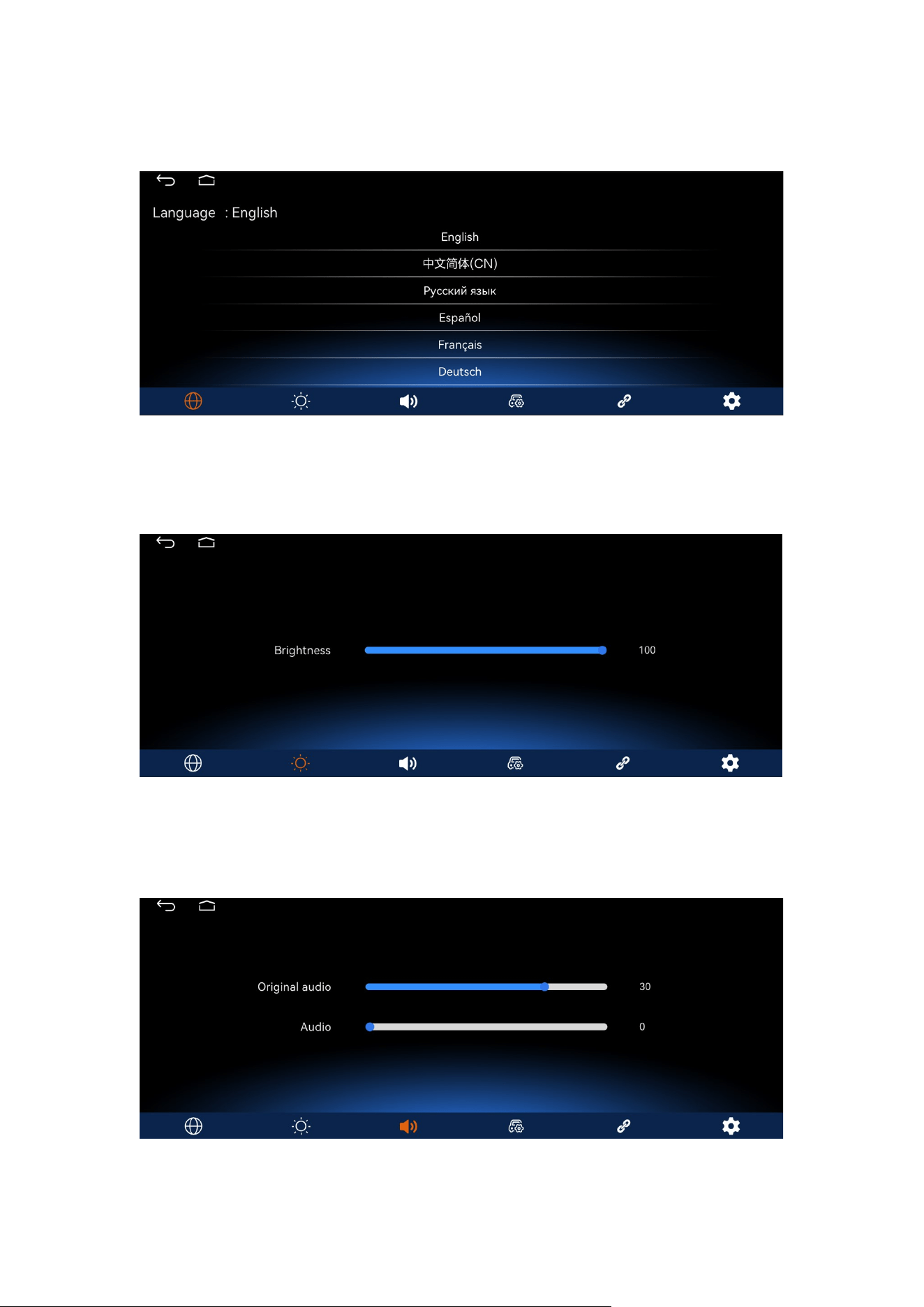
system settings:
Language settings
Brightness setting
Audio settings
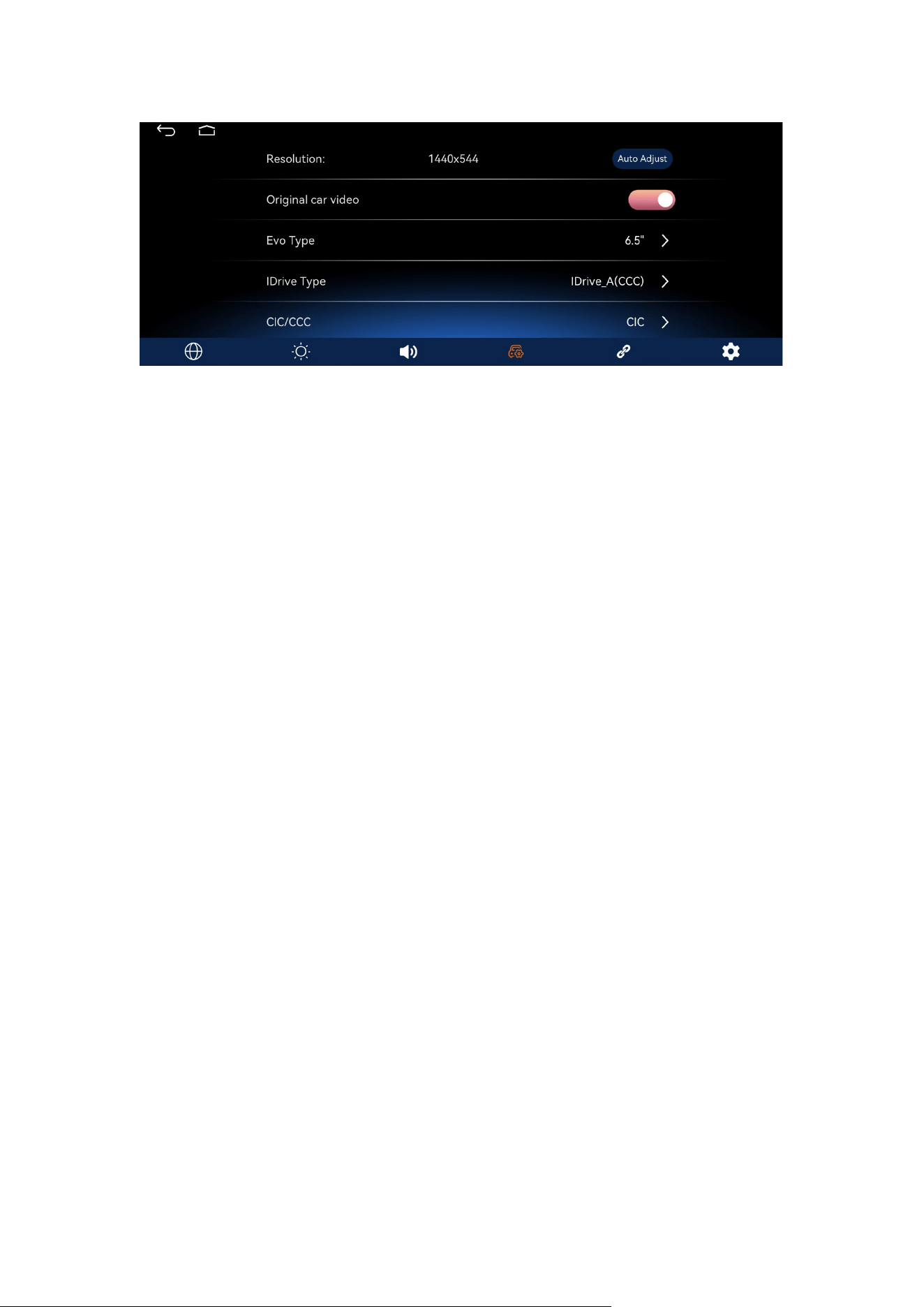
1. Resolution: Set the original vehicle display resolution. Click "Auto
Adjust" and it will automatically identify the original vehicle
resolution.
2. Original Vehicle Video: Switch for displaying the original vehicle.
Keep it on if you want to retain the original vehicle, and turn it off if
you don't want to.
3. EVO Type: Select based on the size of the original vehicle screen
of the EVO model. (Installation of BMW EVO models requires
setting.)
4. IDrive Type: This is the setting for the CCC system knob protocol.
It is divided into IDrive_A and IDrive_B. (Installation of BMW CCC
models requires setting.)
5. CIC/CCC: Select CCC or CIC according to the original BMW system.
(Installation of BMW CCC models or CICC models requires setting.)
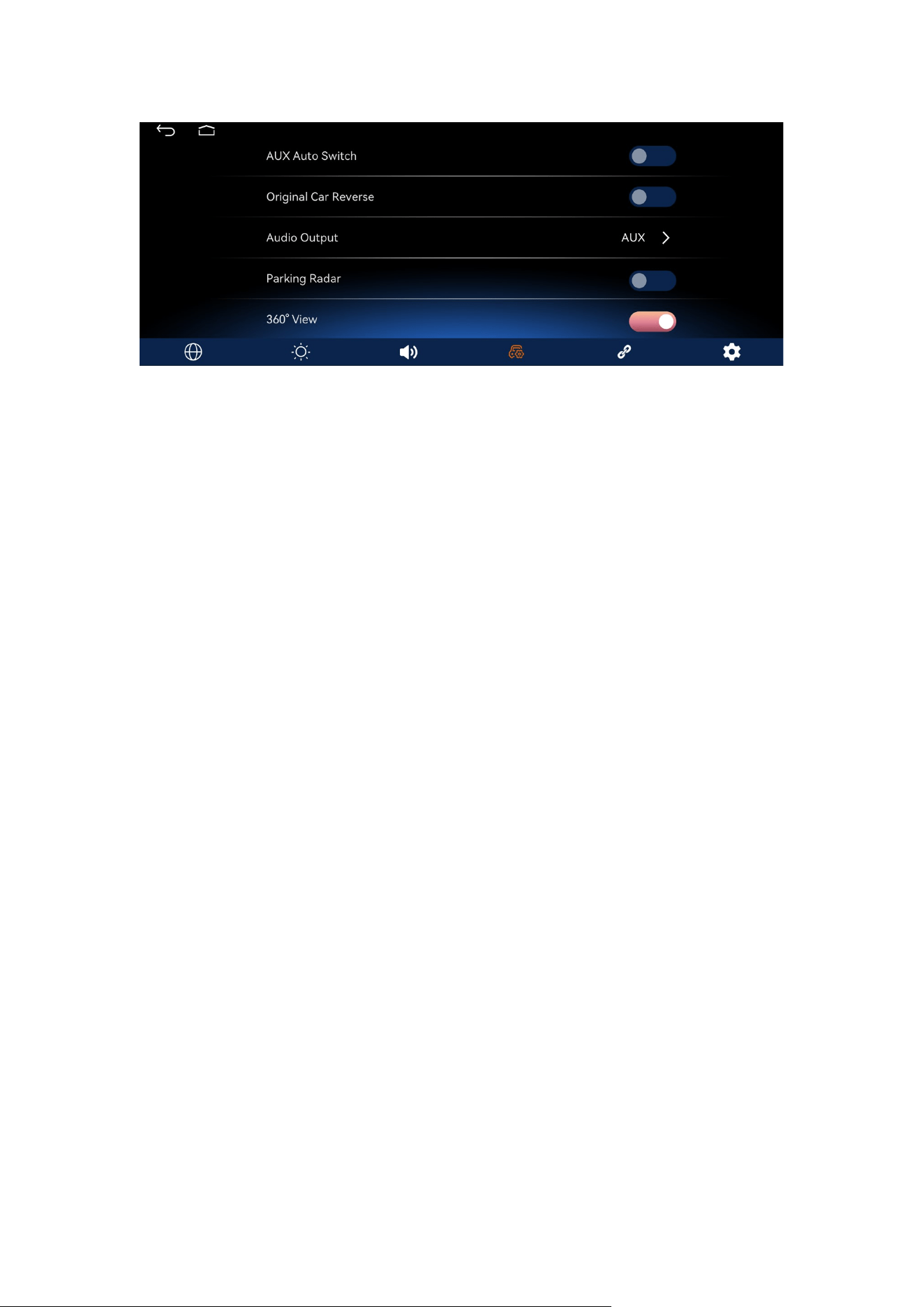
1. AUX automatic switch: Turn on for automatic AUX audio
switching, and turn off for manual AUX audio switching.
2. Original vehicle reverse: The original vehicle reverse camera
needs to be turned on when using it. For aftermarket installed
cameras, this option should be turned off.
3. Audio output: You can choose either "AUX" or "Bluetooth
transmission". For BMW EVO models, Mercedes-Benz 5.0/5.5/6.0
models, choose "Bluetooth transmission", while for other models,
choose "AUX".
4. Parking radar: When turned on, the reverse view will display the
radar on the same screen. When turned off, the reverse view will
not have the radar displayed on the same screen.
5. 360-degree panoramic view: This option requires checking the
machine configuration. It only works if it has the 360-degree
panoramic function.
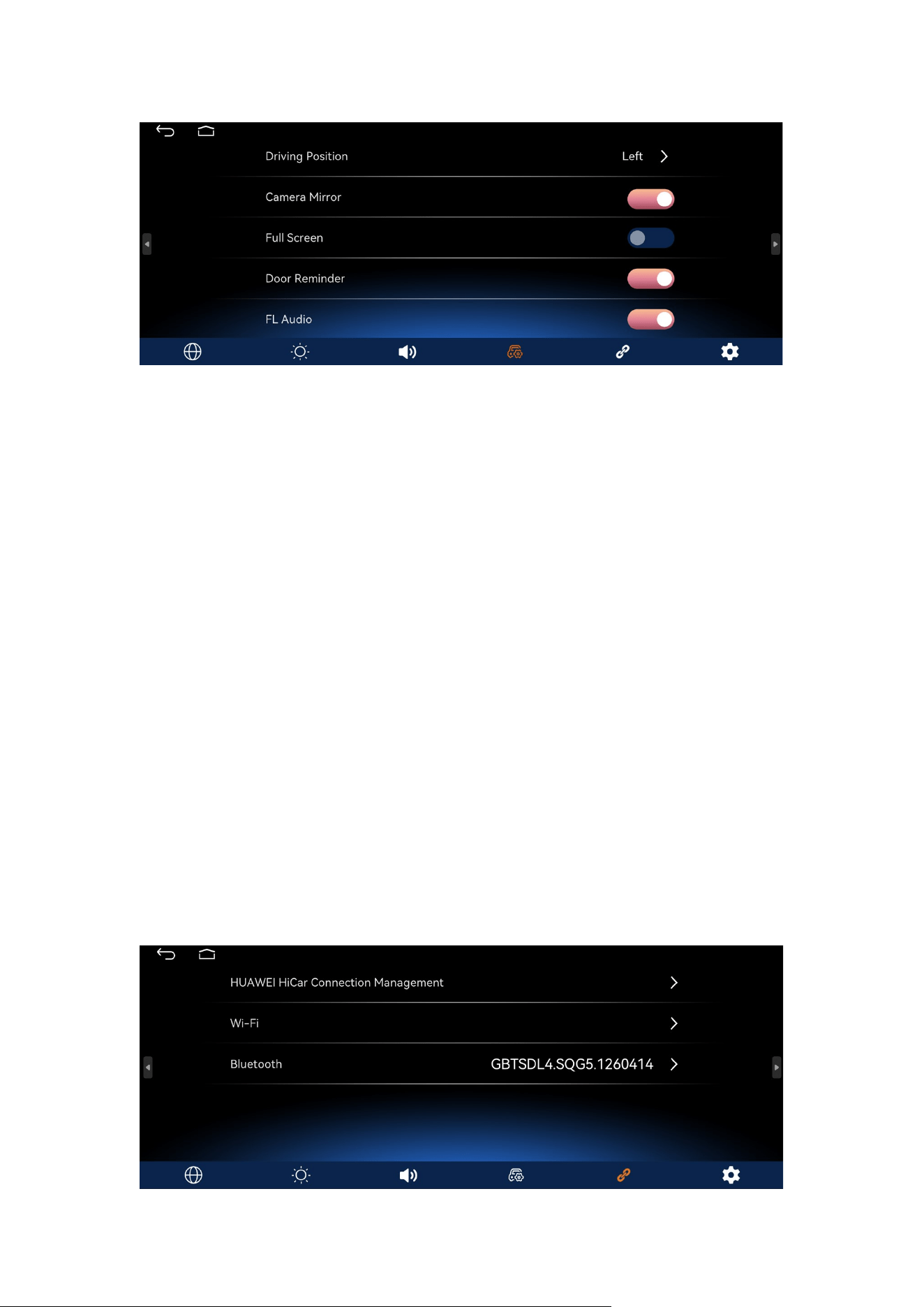
1. Driving position: Choose according to the driving position of the
left or right vehicle.
2. Camera mirroring: This option needs to be enabled for the right
vehicle, but not for the left vehicle.
3. Forced full screen: After enabling this option, the original vehicle
system screen will be fully displayed.
4. Door reminder: Enable this option to have a door status prompt
box pop up in the middle of the screen when opening the door.
5. FL audio: This option refers to the audio broadcast from the left
speaker before switching between navigation sounds and Bluetooth
phone sounds.
1. HUAWEI HiCar Connection Management: The interface for
managing the connection list of the Huawei HiCar function.
2. Wi-Fi: The list of connected Wi-Fi networks.
3. Bluetooth: Click to enter the Bluetooth connection interface.
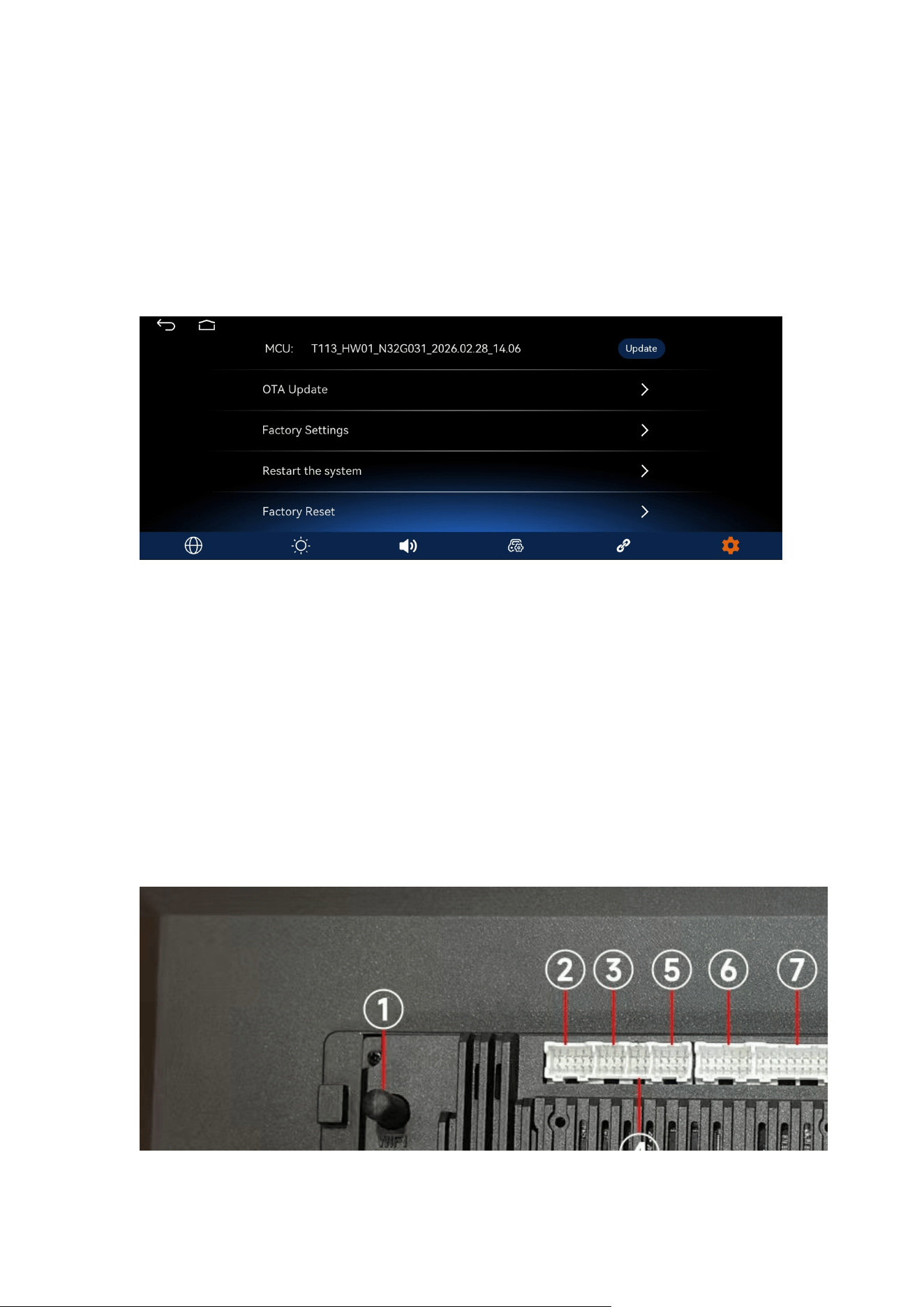
1. Wireless Upgrade: Remote OTA upgrade can be performed by
connecting to the network.
2. Factory Settings
3. Restart System
4. Restore Factory Settings
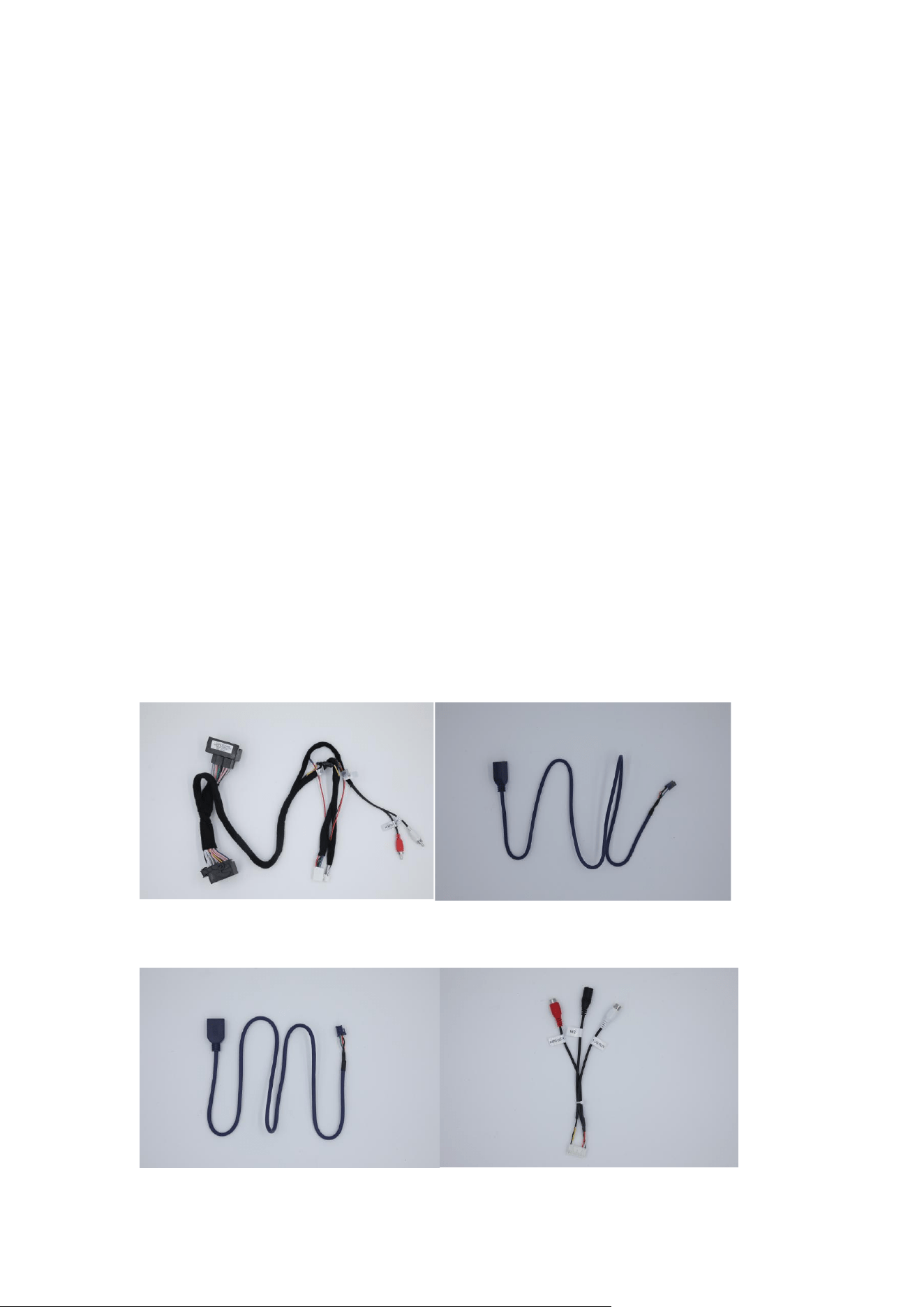
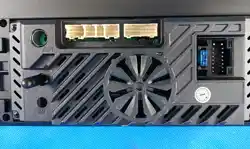
1. WIFI antenna
2. Rearview video input
3. 6P USB interface
4. 4P USB interface
5. Front left speaker control, reverse detection line and ILL small
light line
6. TX/RX signal line
7. RCA audio output
8. Power plug
9. Original vehicle screen LVDS signal input
Accessories:
Power cord 4P USB cable
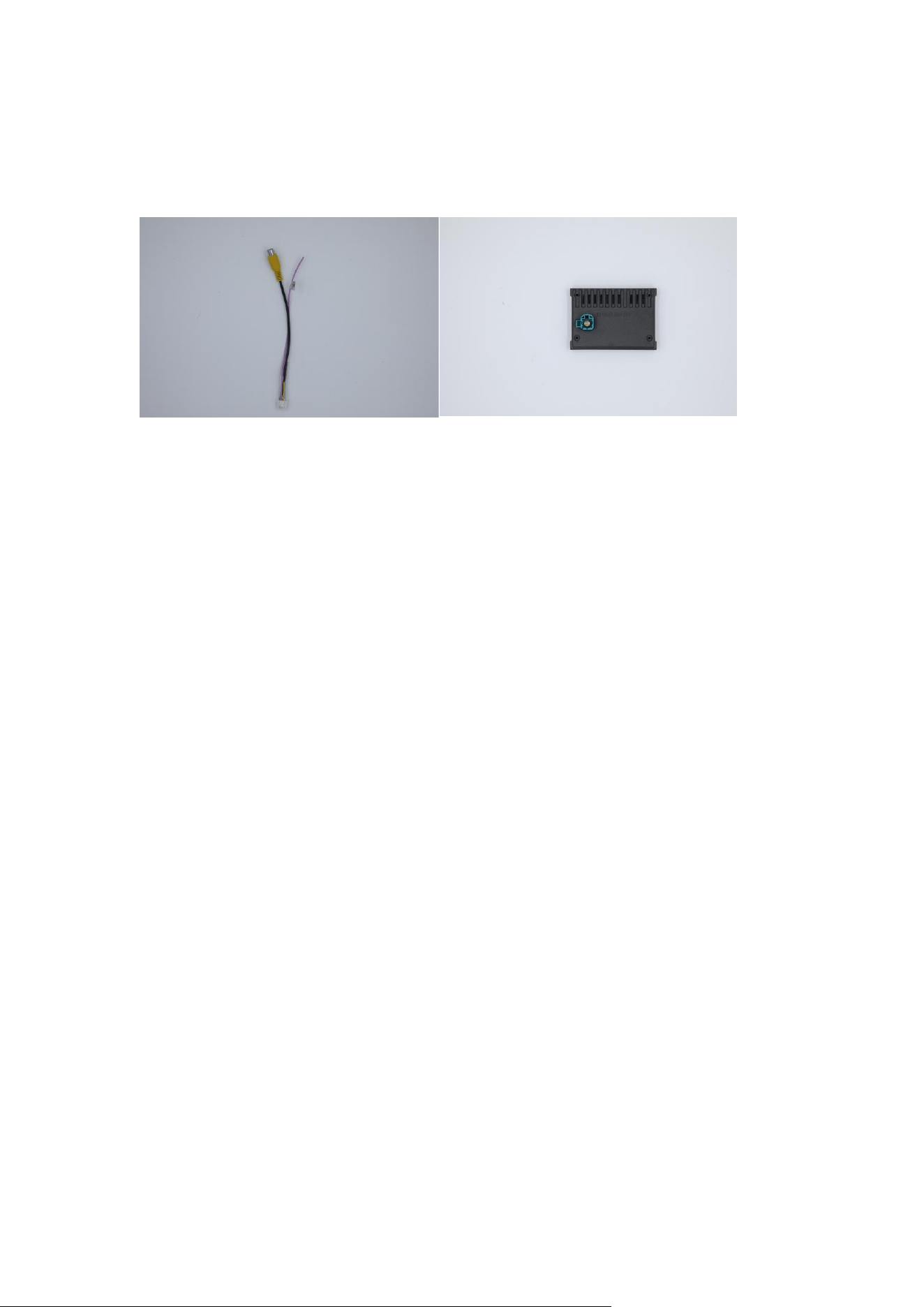
6P USB cable RCA audio cable
Reverse video input cable Original LVDS small board
(depending on the vehicle model)
Note: When installing the machine for the first time, you need to
enter the settings, click "Restore Factory Settings", initialize the
original vehicle resolution, and then long press the "Original
Vehicle" option to enable adaptive resolution for the original vehicle.
Only by entering the "Original Vehicle" option can the original
vehicle system screen be displayed normally; otherwise, it will not
be displayed.

FCC Information and Copyright
This equipment has been tested and found to comply with the limits for a Class B
digital device,pursuant to part 15 of the FCC Rules.
These limits are designed to provide reasonable protection against harmful
interference in a residential installation. This equipment generates, uses and can
radiate radio frequency energy and, if not installed and used in accordance with the
instructions, may cause harmful interference to radio communications. However,
there is no guarantee that interference will not occur in a particular installation. If this
equipment does cause harmful interference to radio or television reception, which can
be determined by turning the equipment off and on, the user is encouraged to try to
correct the interference by one or more of the following measures:
—Reorient or relocate the receiving antenna.
—Increase the separation between the equipment and receiver.
—Connect the equipment into an outlet on a circuit different from that to which the
receiver is connected.
—Consult the dealer or an experienced radio/TV technician for help.
15.19 Labelling requirements.
This device complies with part 15 of the FCC Rules. Operation is subject to the
following two conditions:
(1)This device may not cause harmful interference, and
(2) this device must accept any interference received, including interference that may
cause undesired operation.
changes or modifications not expressly approved by the party responsible for
compliance could void the user's authority to operate the equipment.
This equipment complies with FCC exposure limits set forth for an uncontrolled
environment.
This equipment should be installed and operated with minimum distance of 20 cm
between the radiator and your body.
This transmitter must not be co-located or operating in conjunction with any other
antenna or transmitter.