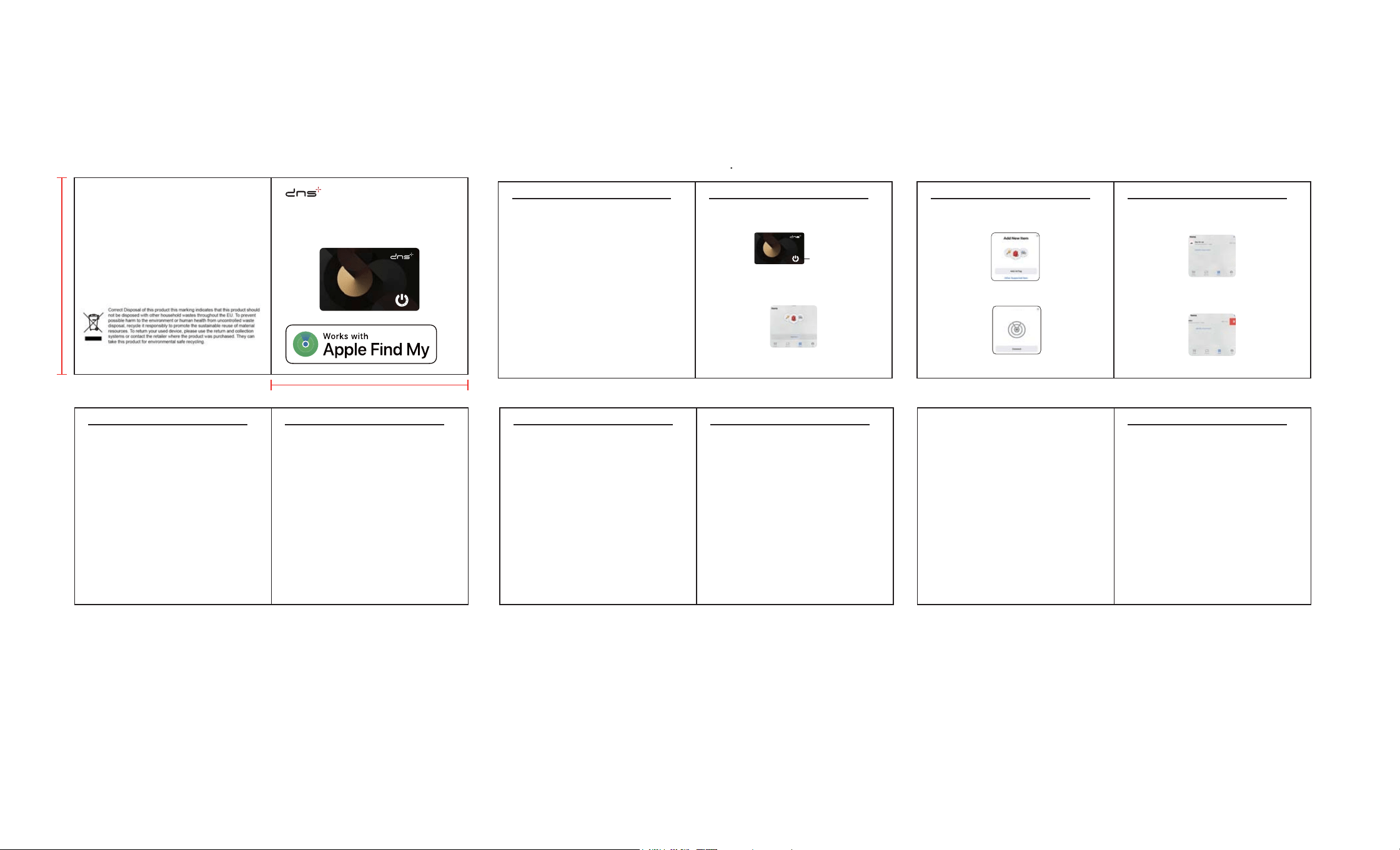
1. Press the power button,and you will hear a
"Di" sound, indicating a successful boot.
2.Turn on the Apple Find My app. Click "ltems",
then click "Add ltem", then follow the
instructions shown.
3.Click “Other Supported Items”.
4.Find
“SH-207&7”, click“Connect”.
50mm
50mm
- 5 -
Factory setting:
1.Press and hold the button, release the button
when you hear 'Di-DiDi-DiDiDi-Di' sound; After
releasing button, you will hear a 'DiDi' sound.
2.Your Find My accessory has now been
successfully reset.
Tip: Press and hold the button, you will hear
'Di-DiDi-DiDiDi-Di' sound, then immediately
release, After hearing two "Di-Di" sound,
indicating the operation was successful.
How to remove items from the Apple Find My
app:
Navigate to the project page in Apple's Find My
app. Scroll down to the bottom and tap Delete
ltem, then tap Delete. The card has been
successfully removed.
ADDTIONAL TIPS
- 6 -
How to turn off the card:
- Press and hold the button for about 6
seconds; you will hear 'Di-DiDi-DiDiDi', then
release.
Tip: You can hold the button until you hear 'Di-
DiDi-DiDiDi' sound, then release; after releasing
it is turned off.
Perform Serial Number Lookup:
You can use the Find My app on an iPhone to
learn about Smart Card that’s been misplaced
or lost by its owner.
Open the Find My app, scroll to the bottom of
the Items tab, then tap Identify Found Item.
1.Launch the "Find My" app on your iPhone.
2.Scroll to the bottom of the "Items" tab, then
tap "Identify Found Item".
ADDTIONAL TIPS
- 8 -
SPECIFICATIONS
- 7 -
3.Keep the Find My accessory near the iPhone.
Once the iPhone has detected the Find My
accessory, select it from the list of found items.
4.You will be taken to a page where you can
learn about the item.
5.Locate the button on the front of the Find My
accessory and press and hold until hear 'Di-
DiDi', then release.
6.Once connected to the Find My accessory,
tap "Continue On Website" to see if the owner
has left a Lost Mode message and view the
item's serial number.
ADDTIONAL TIPS
- 1 -
Requires before connecting:
- An iPhone, iPad, or iPod touch with iOS 14.5 or
later, with two-factor authentication enabled.
- Find My and Bluetooth enabled.
- A strong Wi-Fi or cellular connection.
- Location Services turned on: Settings >
Privacy > Location Services.
- For Precision Finding, enable Location Access
for Find My: Settings > Privacy > Location
Services, scroll and tap on Find My, choose
While Using the App / Widgets, then enable
Precision Location.
HOW TO SET UP YOUR SMART CARD
- 2 -
HOW TO SET UP YOUR SMART CARD
- 10 -
Use of the Works with Apple badge means that
a product has been designed to work
specifically with the technology identified in the
badge and has been certified by the product
manufacturer to meet Apple Find My network
product specifications and requirements. Apple
is not responsible for the operation of this
device or use of this product or its compliance
with safety and regulatory standards.
Apple, Apple Find My, Apple Watch, Find My,
iPhone, iPad, iPadOs, Mac, macOS and
watchOS
are trademarks of Apple lnc., registered in the
U.S. and other countries. IOS is a trademark or
registered trademark of Cisco in the U.S. and
other countries and is used under license.
- 3 -
- 4 -
If you have added other items, you need to click
on the plus sign at the top right and enter it by
clicking on other items.
Navigate to the item page on the Apple Find
My app. Click "ltems",then Swipe left on the
item you want to remove.
ADDTIONAL TIPS HOW TO SET UP YOUR SMART CARD
SH-207&7
^ŵĂƌƚdĂŐ
Model: SH-207&7
Power
Button
)UHTXHQF\EDQG0+]
0D[LPXP5)3RZHUG%P
+HUHE\6+(1=+(1'16,1'8675,(6&2
/7'GHFODUHVWKDWWKLV6PDUWWDJLVLQ
F
RPSOLDQFHZLWKWKHHVVHQWLDOUHTXLUHPHQWVDQG
RWKHUUHOHYDQWSURYLVLRQVRI'LUHFWLYH
(87KHIXOOWHVWRIWKH(8GHFODUDWLRQRI
FRQIRUPLW\LVDYDLODEOHDWWKHIROORZLQJLQWHUQHW
DGGUHVVZZZGQVFKLQDFRP
7KLVGHYLFHFRPSOLHVZLWK3DUWRIWKH)&&5XOHV2SHUDWLRQLV
VXEMHFWWRWKHIROORZLQJWZRFRQGLWLRQVWKLVGHYLFHPD\QRWFDXVH
KDUPIXOLQWHUIHUHQFHDQGWKLVGHYLFHPXVWDFFHSWDQ\LQWHUIHUHQFH
UHFHLYHGLQFOXGLQJLQWHUIHUHQFHWKDWPD\FDXVHXQGHVLUHGRSHUDWLRQ
:DUQLQJ&KDQJHVRUPRGLILFDWLRQVWRWKLVXQLWQRWH[SUHVVO\
DSSURYHG E\WKHSDUW\UHVSRQVLEOHIRUFRPSOLDQFHFRXOGYRLGWKH
XVHU¶VDXWKRULW\WRRSHUDWHWKHHTXLSPHQW
127(7KLVHTXLSPHQWKDVEHHQWHVWHGDQGIRXQGWRFRPSO\ZLWK
WKHOLPLWV IRUD&ODVV%GLJLWDOGHYLFHSXUVXDQWWR3DUWRIWKH)&&
5XOHV7KHVHOLPLWVDUHGHVLJQHGWRSURYLGHUHDVRQDEOHSURWHF
WLRQ
DJDLQVWKDUPIXOLQWHUIHUHQFHLQDUHVLGHQWLDOLQVWDOODWLRQ7KLV
HTXLSPHQWJHQHUDWHVXVHVDQGFDQUDGLDWHUDGLRIUHTXHQF\HQHUJ\
DQGLIQRWLQVWDOOHGDQGXVHGLQ DFFRUGDQFHZLWKWKHLQVWUXFWLRQVPD\
FDXVHKDUPIXOLQWHUIHUHQFH WRUDGLR FRPPXQLFDWLRQV
+RZHYHUWKHUHLVQRJXDUDQWHHWKDWLQWHUIHUHQFHZLOOQRWRFFXULQD
SDUWLFXODULQVWDOODWLRQ,IWKLVHTXLSPHQWGRHVFDXVHKDUPIXO
LQWHUIHUHQFHWRUDGLR RUWHOHYLVLRQ UHFHSWLRQZKLFKFDQEHGHWHUPLQHG
E\WXUQLQJWKHHTXLSPHQWRIIDQGRQWKHXVHULVHQFRXUDJHGWRWU\WR
FRUUHFWWKHLQWHUIHUHQFHE\RQHRUPRUHRIWKH
IROORZLQJPHDVXUHV
5HRULHQWRUUHORFDWHWKHUHFHLYLQJDQWHQQD
,QFUHDVHWKHVHSDUDWLRQEHWZHHQWKHHTXLSPHQWDQGUHFHLYHU
&RQQHFWWKHHTXLSPHQWLQWRDQRXWOHWRQDFLUFXLWGLIIHUHQWIURPWKDW
WRZKLFKWKHUHFHLYHULVFRQQHFWHG
&RQVXOWWKHGHDOHURUDQH[SHULHQFHGUDGLR79WHFKQLFLDQIRUKHOS
- 9 -
To use the Apple Find My app to locate this
item, the latest version of iOS, iPadOS, or
macOS is recommended.