APP
soundcore
Apple and the Apple logo are trademarks
of Apple Inc.
Google Play and the Google Play
logo are
trademarks of Google Inc.
Download the soundcore app to check battery level of the earclips, customize controls, experience dual
connections, update firmware, and explore more exciting features.
If your earclips cannot connect to the soundcore app, re-install the app or update it to the latest
version from your mobile app store.
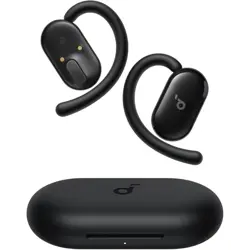
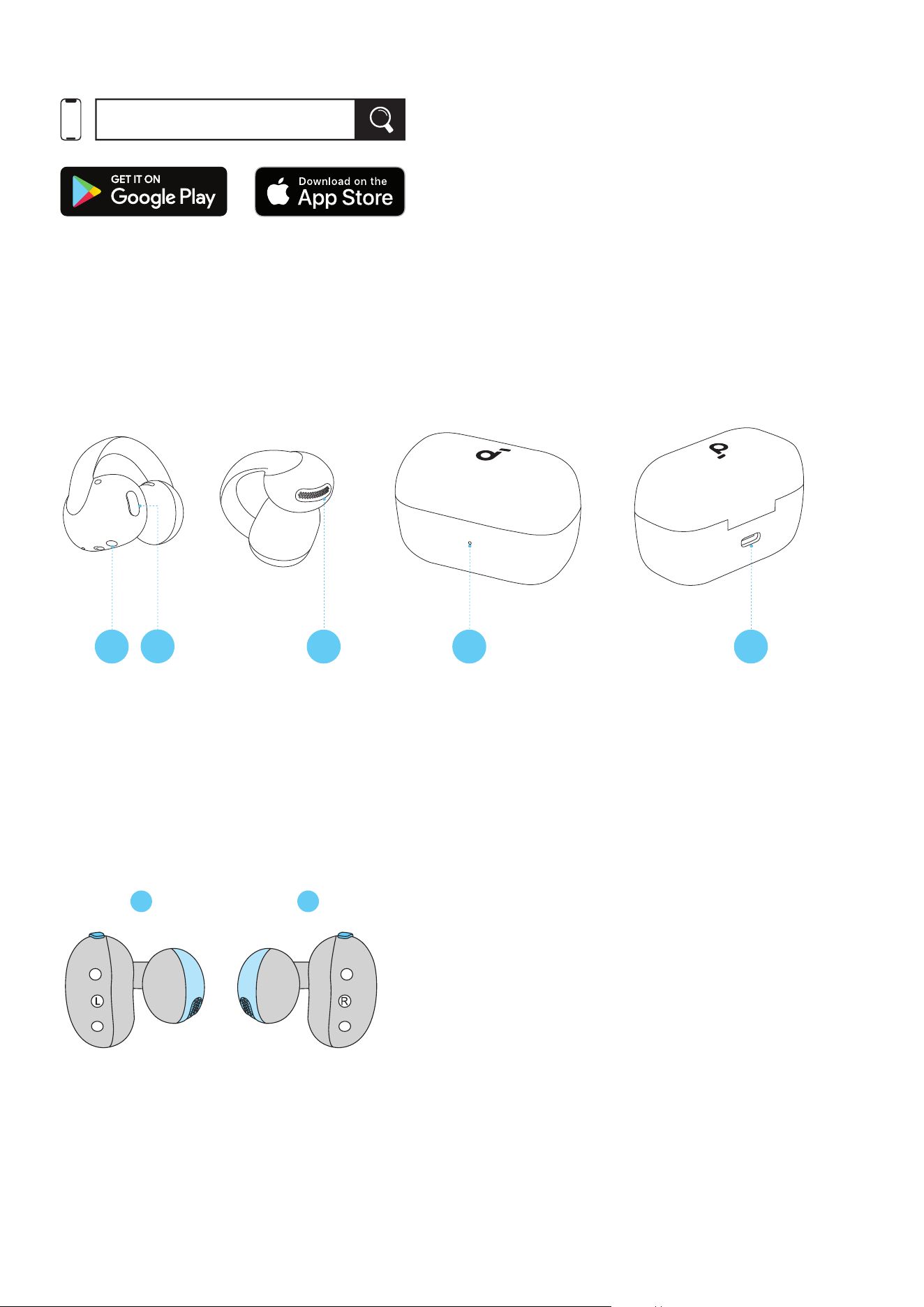
OVERVIEW
1 3 4 5
2
1. Earclip Charging Contact
2. Earclip Button
3. Sound Outlet
4. LED Indicator
5. USB-C Charging Port
WEARING
L R
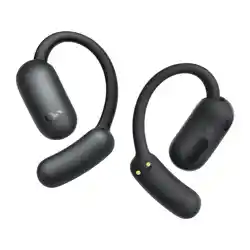
1. Make sure to identify the le and right earclips before wearing.
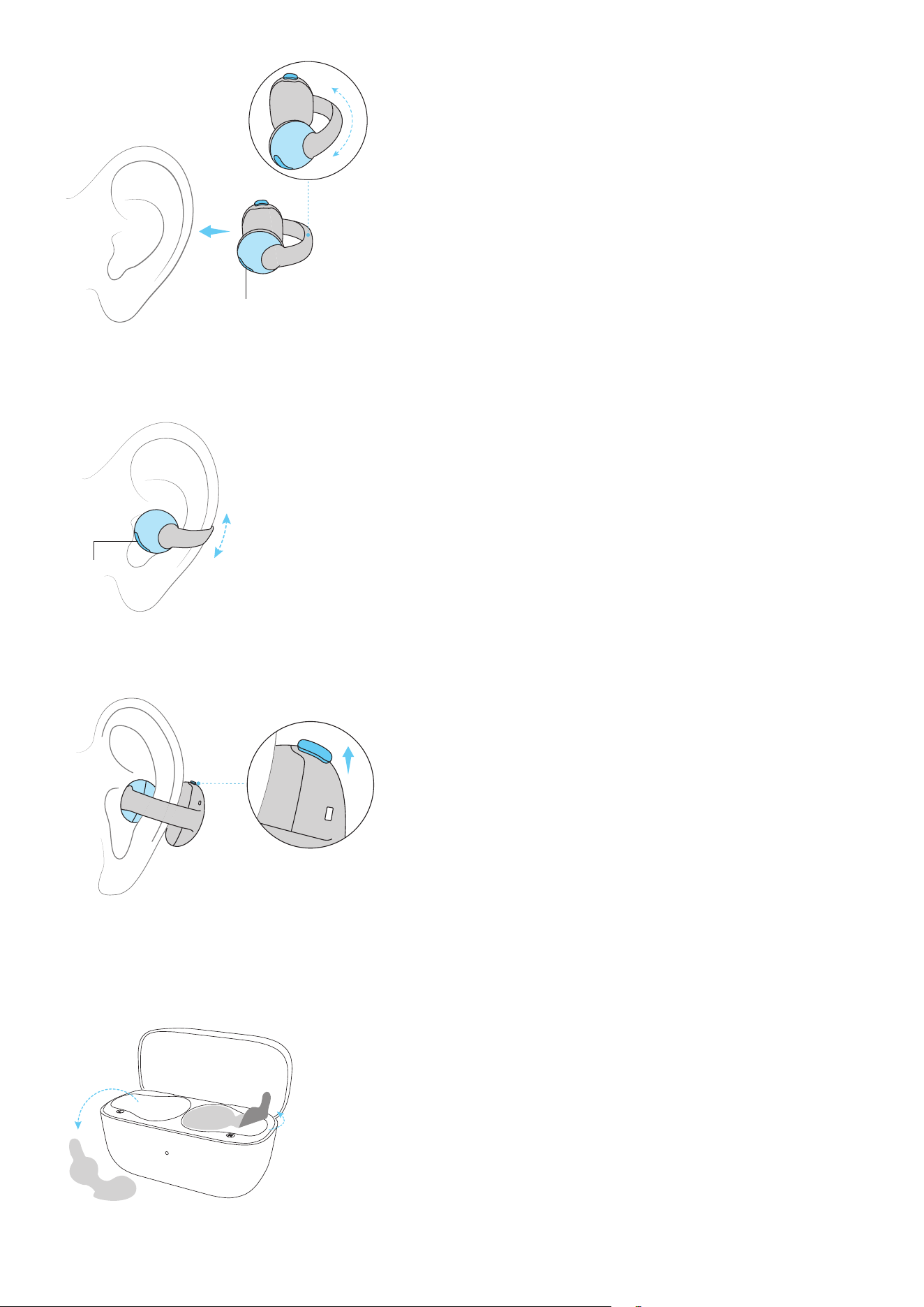
Speaker
2. Speaker (smaller part) in front and battery housing (with button) at the back.
Speaker
3. Adjust the earclips up or down for a comfortable position.
Note: The button should sit behind the ear and face upward.
POWERING ON & PAIRING
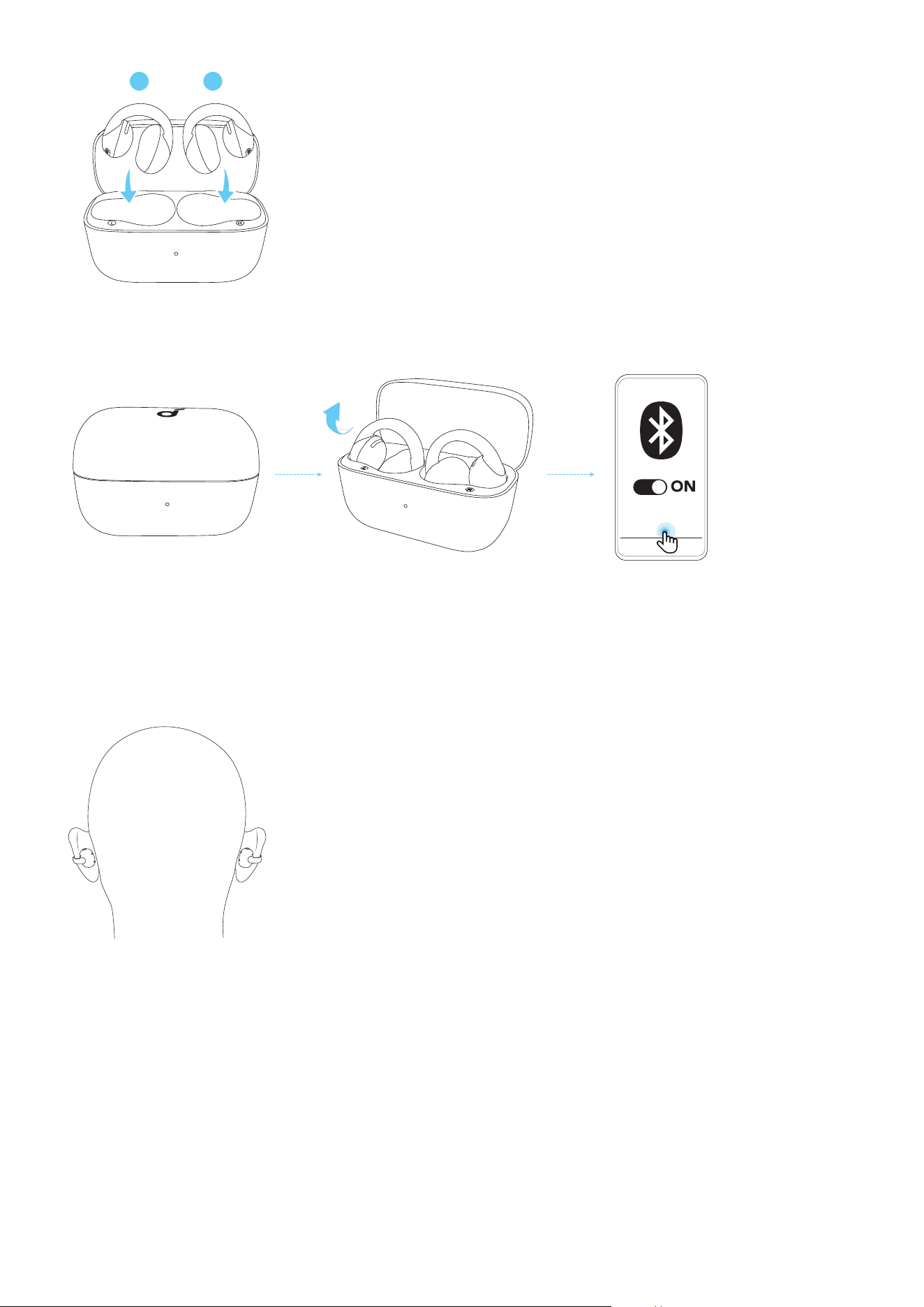
1. Remove the protective films first.
L R
2. Return the earclips to the case and close the lid.
soundcore
C50i
3. Open the lid to power on the earclips, then wear them. You'll hear a prompt tone, indicating they are
in pairing mode. Select "soundcore C50i" from your device's Bluetooth list to connect.
• Aer pairing is successful, you will hear a prompt tone.
MANUAL PAIRING
3s
L R
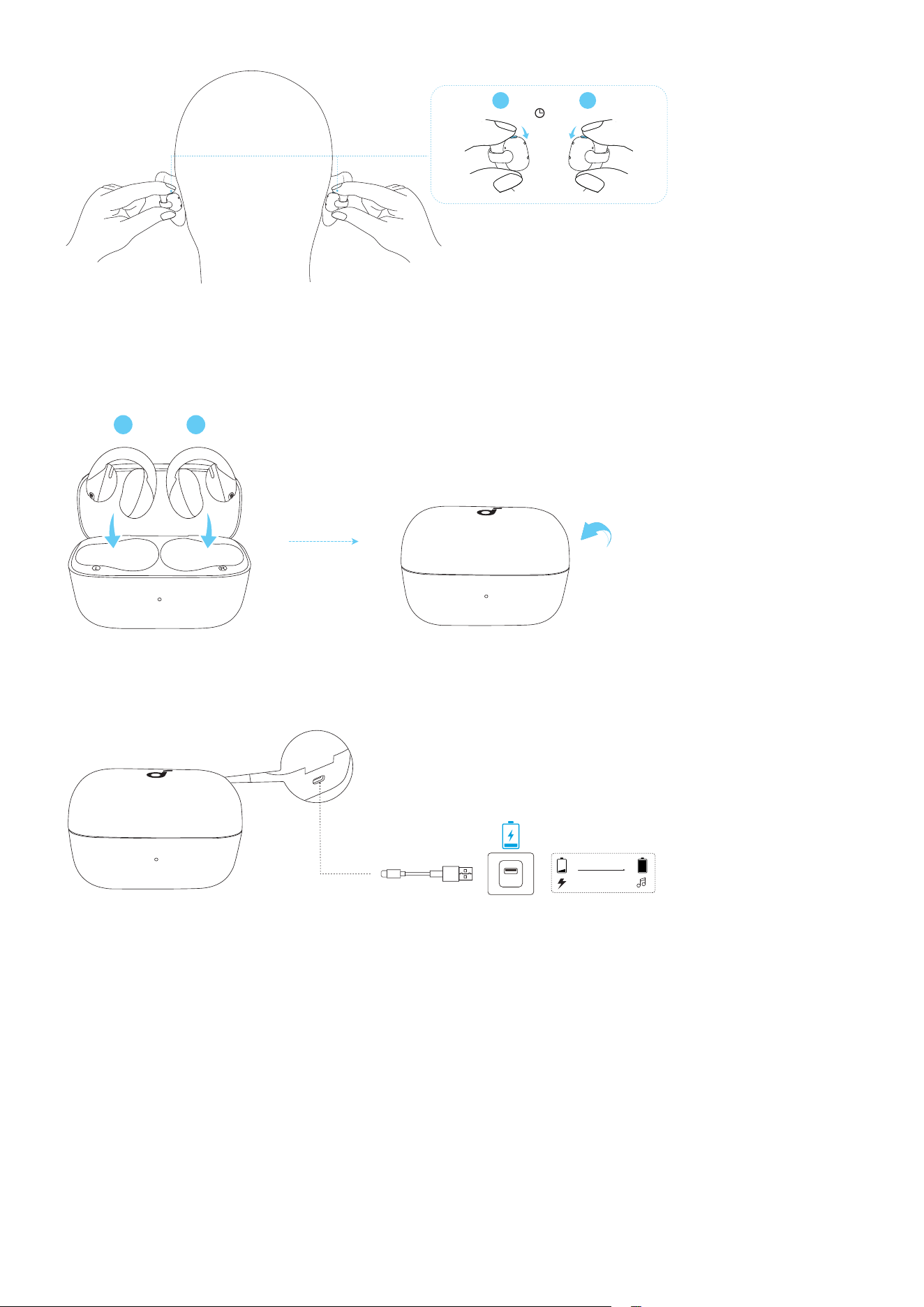
1. Wear the earclips.
3s
L R
2. Press and hold the button on both earclips for 3 seconds simultaneously until you hear a prompt tone.
3. Let go, and the earclips will enter pairing mode. Proceed to pair with your device.
CHARGING
L R
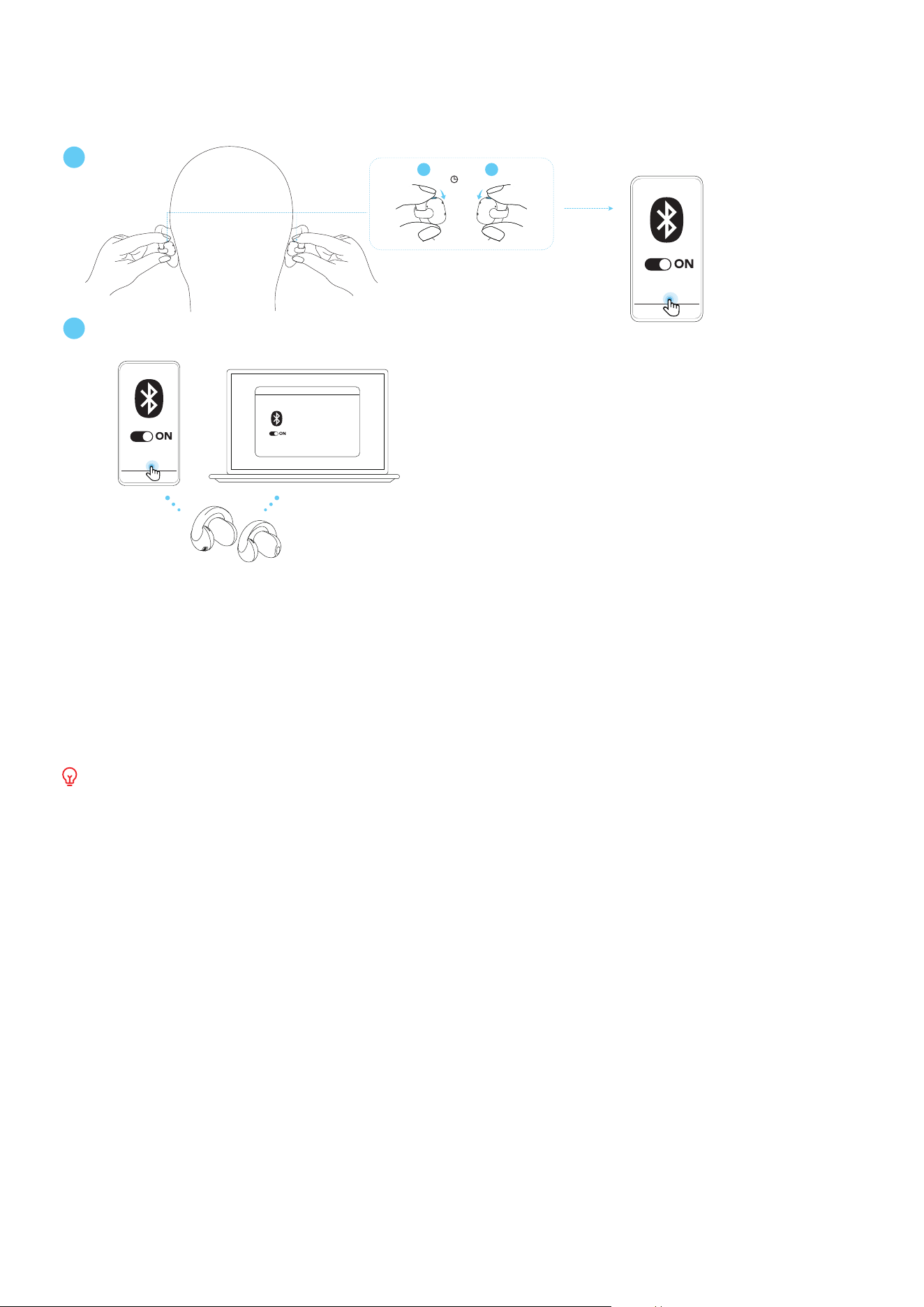
1. Place the earclips in the charging case and close it.
• Ensure the earclips and the USB-C charging port are fully dry before charging.
10 mins=2 hrs
2 hrs
2. Connect the charging case to a power supply using the USB-C charging cable provided.
• The charging case fully recharges in about 2 hours, and a 10-minute charge oers 2 hours of
playtime.
DUAL CONNECTIONS
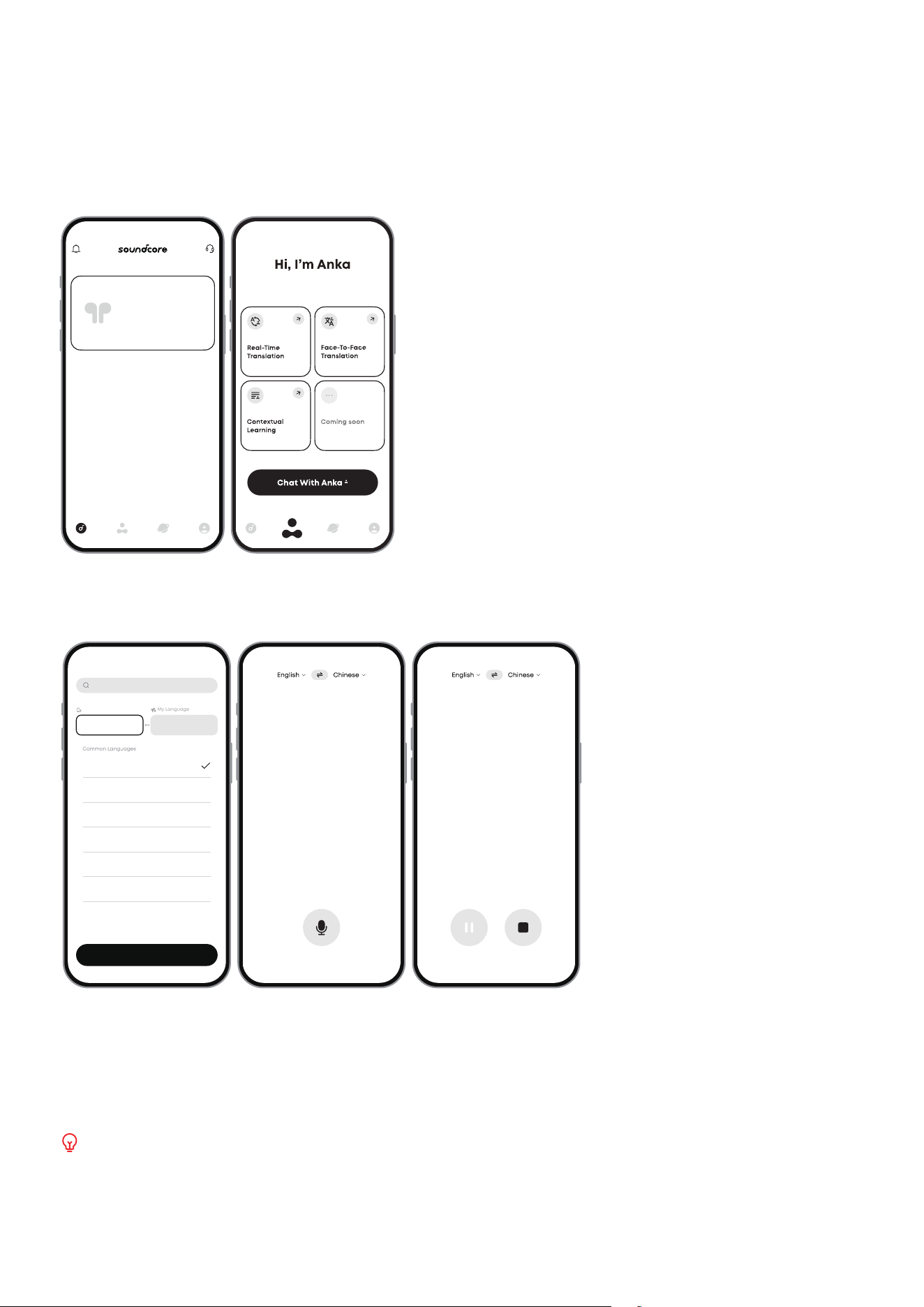
To connect your earclips with two Bluetooth devices at the same time, there are two methods:
Method 1: Manually Pair with the Second Device
1
2
soundcore
C50i
soundcore
C50i
soundcore
C50i
3s
L R
Wear the earclips, press and hold the button on both earclips for 3 seconds simultaneously until you
hear a prompt tone. The earclips will enter Bluetooth pairing mode, and you can then proceed to pair
them with the second device.
Method 2: Use the soundcore App
In the soundcore app, tap the cogwheel icon in the upper-right corner to access Settings. Then, select
Dual Connections > Enable Dual Connections > Connect New Device.
Dual Connections is enabled by default.
AI TRANSLATION
Before Use:
• Make sure your earbuds is connected to the app when using AI Translation.
• Disable Dual Connections.
Real-Time Translation
soundcore
soundcore
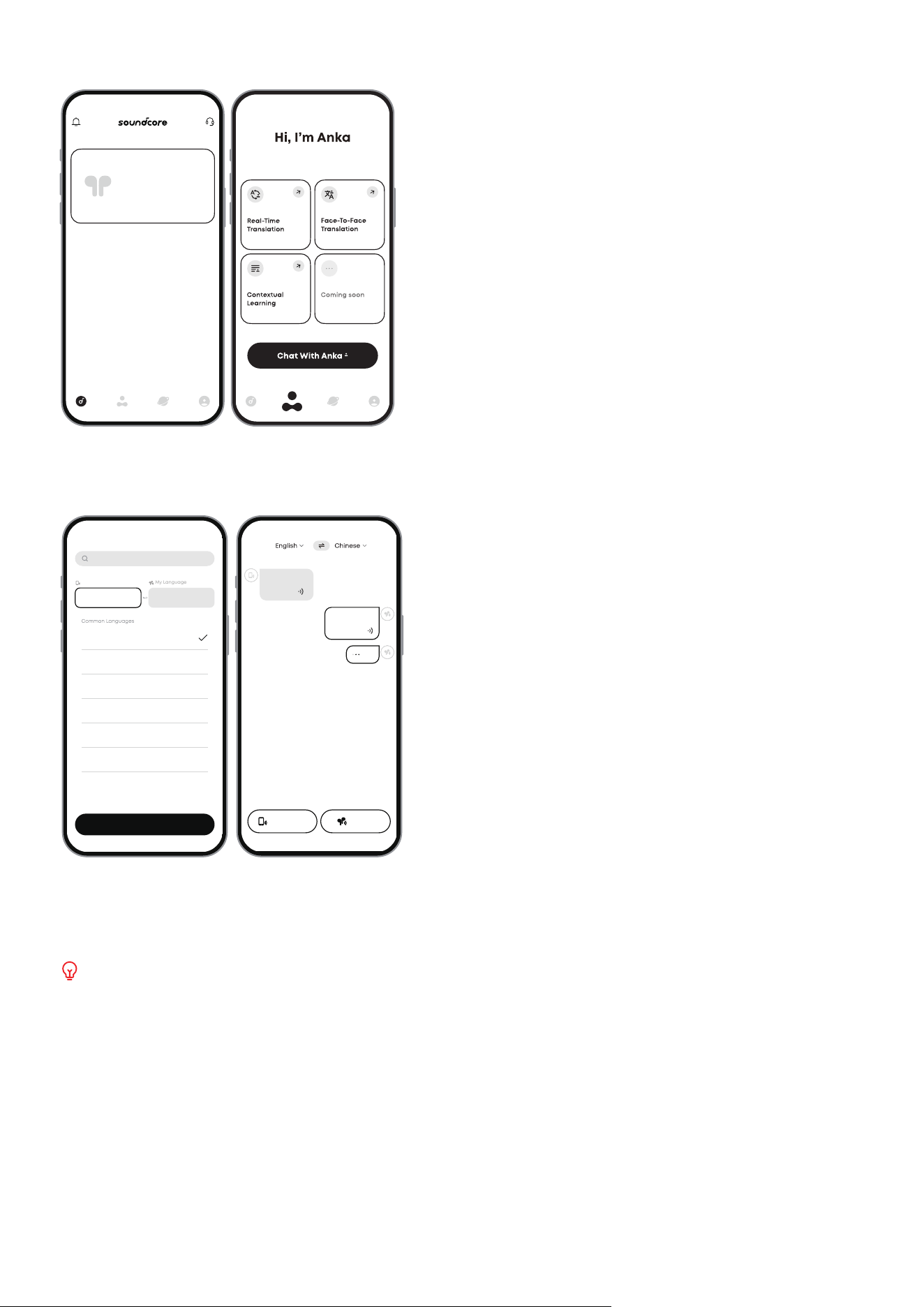
In the soundcore app, go to Anka > Real-Time Translation. Make sure your earclips are connected to the
app.
Click to start speaking English
Search
Thier Language
My Language
English
Japanese
French
Italian
German
Spanish
Chinese
Done
English Chinese
The translation is displayed in real time in the app.
1. Tap Real-Time Translation.
2. Tap the language section at the top of the page, then select Their Language and My Language.
3. Tap the microphone button to start recording. Tap the le button to pause, and the right button to
exit Real-Time Translation.
Supports 100 languages.
Face-to-Face Translation
soundcore
soundcore
In the soundcore app, go to Anka > Face-to-Face Translation. Make sure your earclips are connected to
the app.
Search
Thier Language
My Language
English
Japanese
French
Italian
German
Spanish
Chinese
Done
English Chinese
点击说话
hello, hello.
你好,你好。
你好吗
How are you?
Press to Talk
1. Tap the language section at the top of the page, then select Their Language and My Language.
2. Tap the bottom-right button and speak into your earclips. The translation will play from your phone.
3. Tap the bottom-le button and speak into your phone. The translation will play from your earclips.
Supports real-time translation of conversations in 100 languages.
LDAC
To use the LDAC codec, your device must be running Android 8.0 or higher.
LDAC oers higher sound quality but uses more power, which may reduce battery life.
For a stable Bluetooth connection, enable LDAC in low-inteerence environments.
Note: UI images are for illustrative purposes only; actual display may vary by soware version.
Fit Test
Upgrade your earphones’ soware
to use LADC codec. Do you want to
upgrade now?
Switching mondes, please wait
for about 10 seconds.
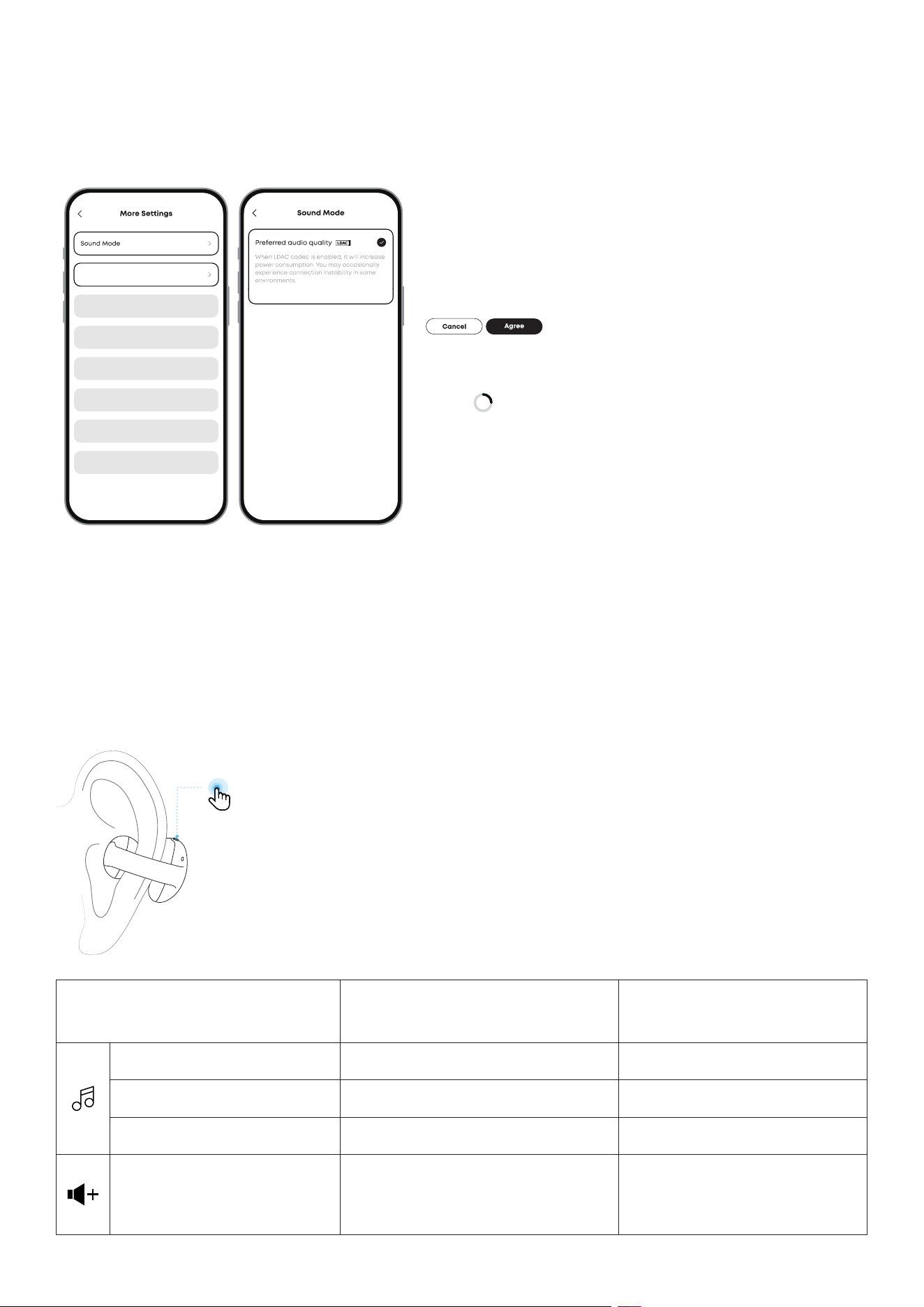
In the soundcore app:
1. Select Sound Mode.
2. Tap Preferred audio quality.
3. Tap Agree to proceed.
4. Switching audio codecs takes about 10 seconds. You may be prompted to update the firmware if a
new version is available.
CONTROLS
Using Both Earclips Using Single Earclip
Play / Pause Audio Single tap (L/R) Single tap (L/R)
Play the Next Track Double tap (R) Double tap (L/R)
Play the Previous Track Double tap (L) /
Increase Volume
Hold the right earclip (R) for
at least 2 seconds to increase
volume until the desired level is
reached
/
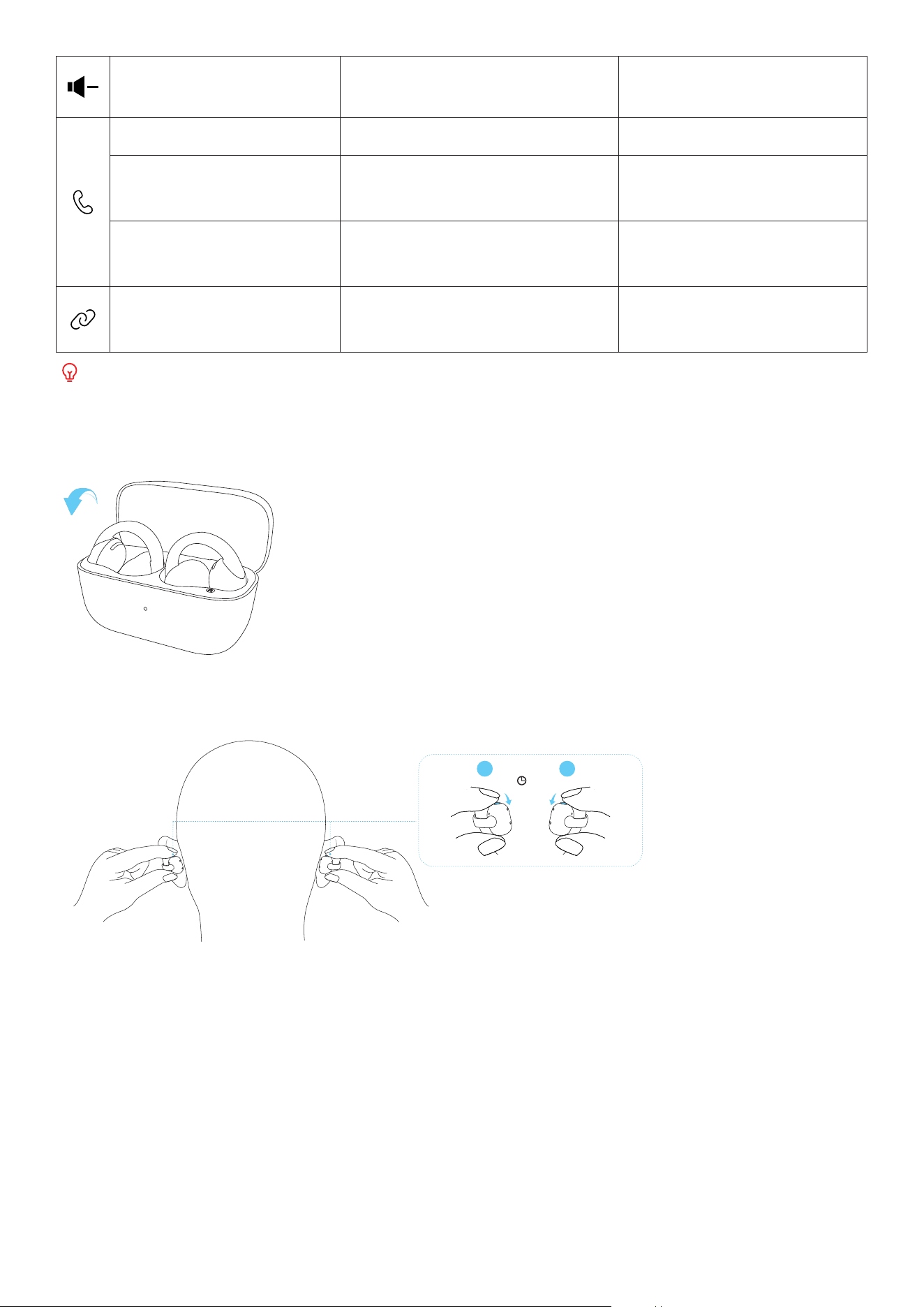
Decrease Volume
Hold the le earclip (L) for at least
2 seconds to decrease volume
until the desired level is reached
/
Answer Call Single tap (L/R) Single tap (L/R)
Hang Up Hold for 2 seconds (L/R) Hold for 2 seconds (L/R)
Reject Call Hold for 2 seconds (L/R) Hold for 2 seconds (L/R)
Manual Pairing
Press and hold the button on both
earclips for 3 seconds
/
You can also customize tap controls in the soundcore app.
POWERING OFF
To power o, place both earclips in the charging case and close the lid.
6s
L R
If you do not have the charging case with you, press and hold the buttons on both L and R earclips for 6
seconds to power o.
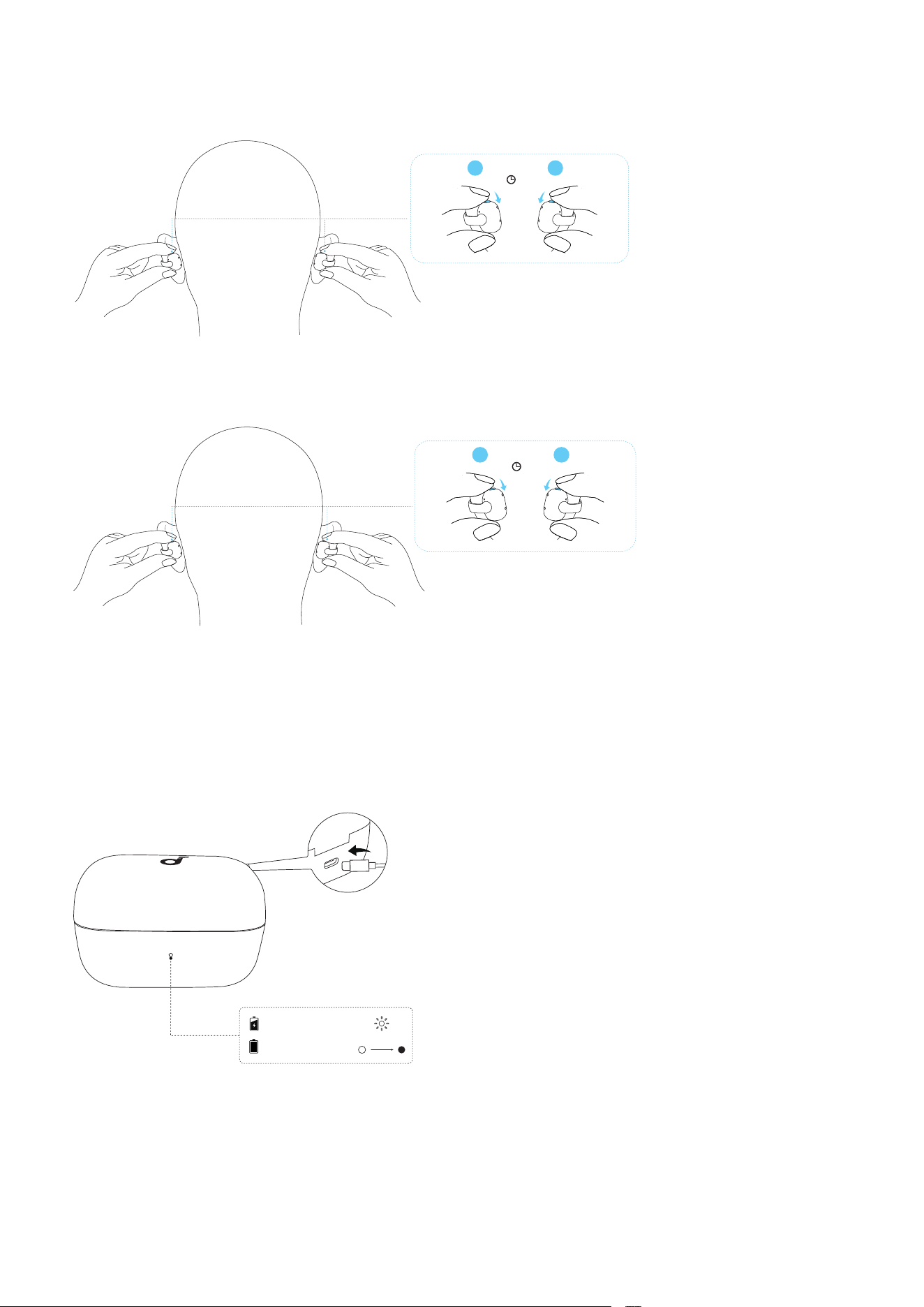
RESET
Reset the earclips if you encounter functionality issues.
6s
L R
Press and hold the buttons on both L and R earclips for 6 seconds until the earclips power o.
10s
L R
Press and hold the buttons on both L and R earclips again for 10 seconds to reset.
Note: If you hear the power-on tone while resetting, do not release the buttons until the operation is
complete.
LED LIGHT GUIDE
10s
Charging
Fully Charged
When you connect the charging case to a power source, the LED indicator will display the charging
status.
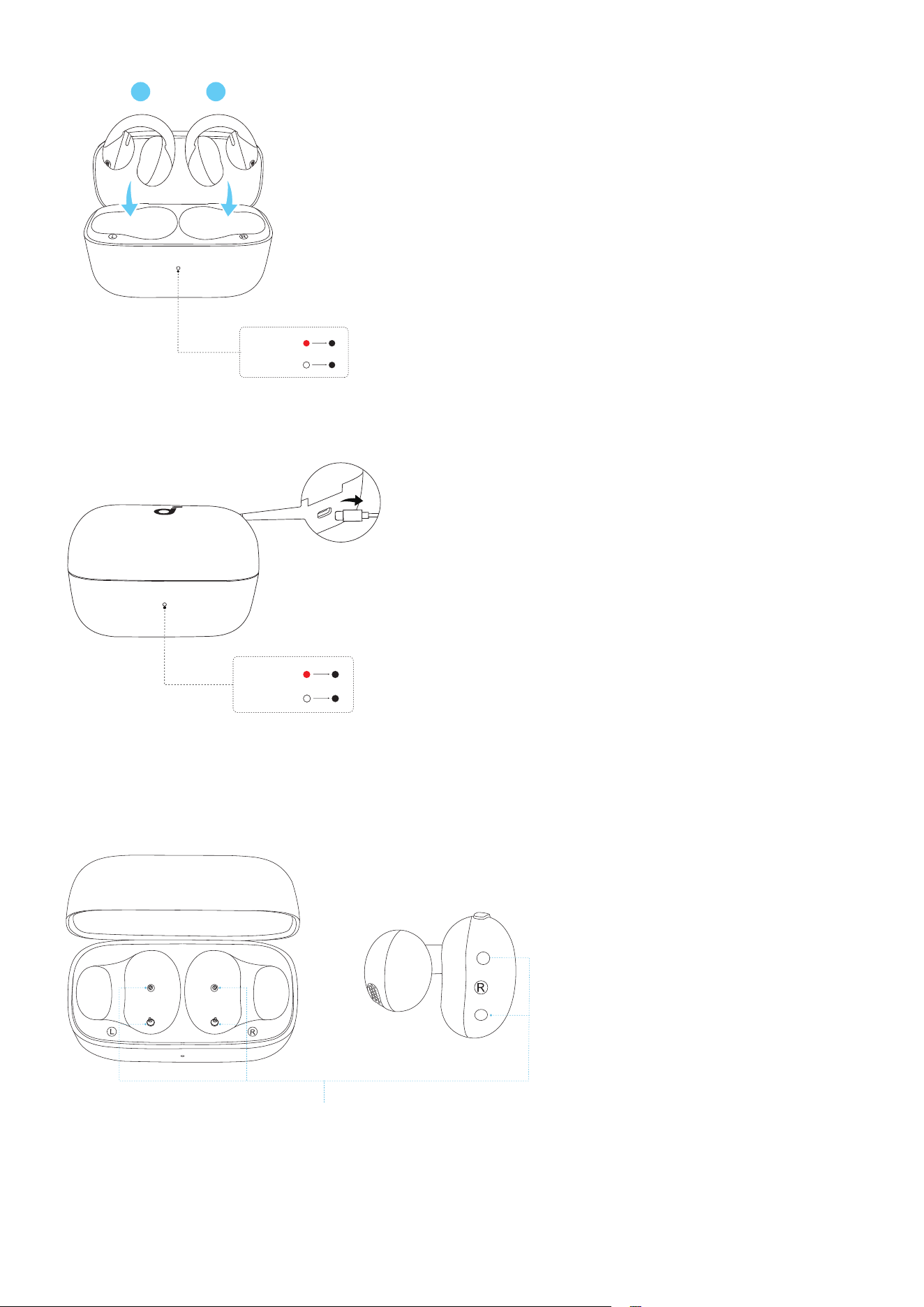
2s
2s
≤ 20%
> 20%
L R
Place both earclips in the charging case to check the battery level of the charging case.
3s
3s
≤ 20%
> 20%
When you disconnect the charging case from a power source, the LED indicator will display the
charging case's battery level.
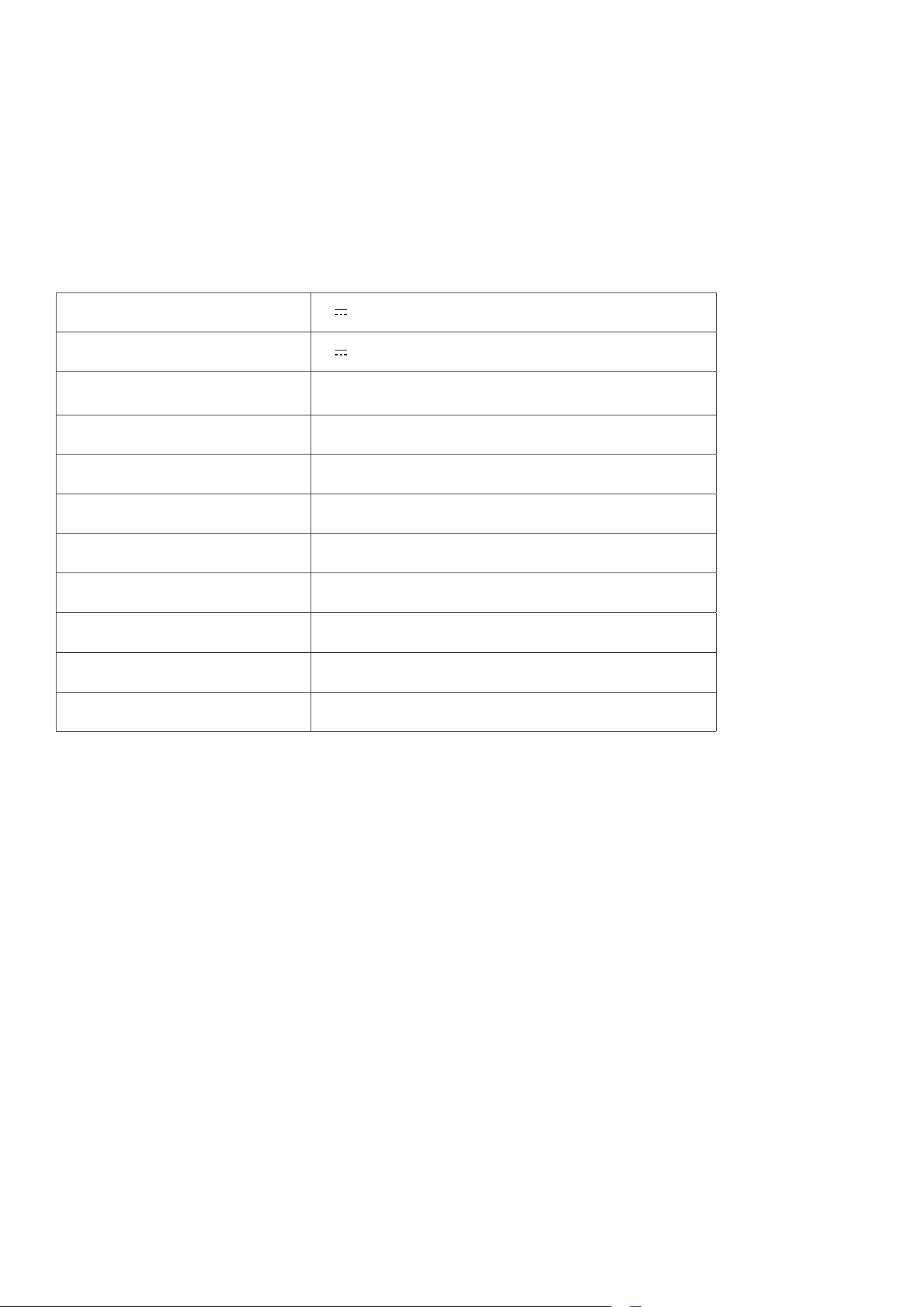
HOW TO CLEAN
Charging Contacts
Aer each use, wipe the earbuds with a so, dry cloth and clean the charging contacts with a cotton
swab to prevent charging and power-o issues caused by sweat accumulation.
FIRMWARE UPDATE
You will be notified when a new firmware version is available while the earclips are connected to the
app. Please note the following during the update process:
1. Do not disconnect your phone or play audio during installation.
2. Do not place the earphones in the charging case.
3. Keep the earphones within 0.5 m of your phone.
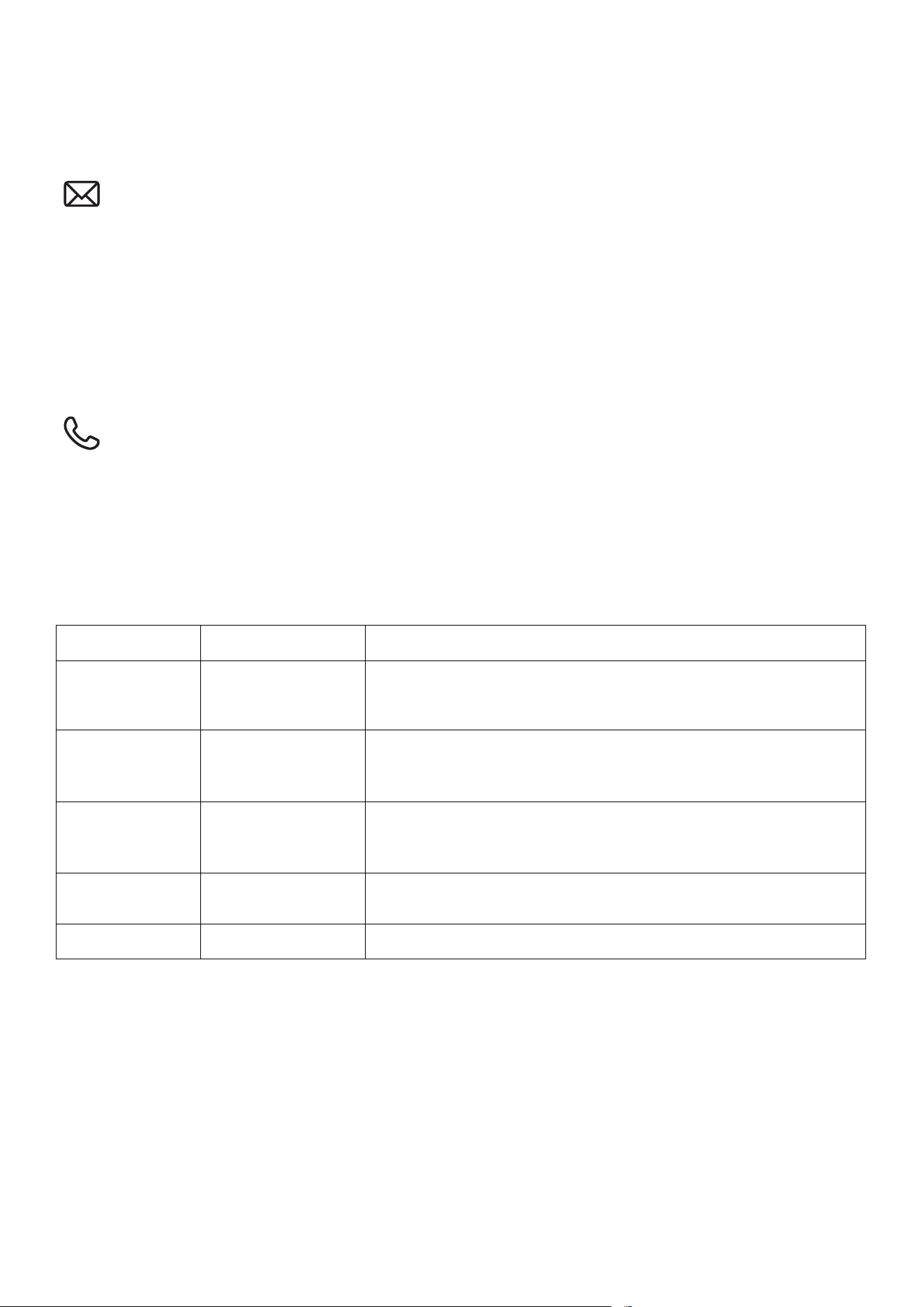
SPECS
Specifications are subject to change without notice.
Input 5V 1A
Output 5V 0.25A
Battery capacity
60mAh ×2 (Earclips)
580mAh (Charging Case)
Playtime Up to 7H (Up to 28H with Case)
Charging time 2H
Driver unit 12 mm
Frequency response 20~20kHz (40kHz in LDAC Mode)
Impedance 14Ω ± 15%
Waterproof rating (earbuds) IP55
Bluetooth version 6.0
Bluetooth range 15 m
CUSTOMER SERVICE
service@soundcore.com
uk.support@soundcore.com (uk)
ie.support@soundcore.com (Ireland)
support.india@anker.com (India)
support.mea@anker.com (For Middle East and Africa Only)
support@anker.com (
日本
)
support.kr@anker.com (
한국
)
ced-cn@anker.com
+1 (800) 988-7973 (US/Canada)
+44 (0) 1604 936 200 (UK)
+49 (0) 69 9579 7960 (DE)
03 4455 7823 (
日本
)
+86 400 0550 036 (
中国
)
+82 1666-8470 (
한국
)
+971 8000 320 817 (UAE)
+966 8008 500 030 (KSA)
+965 22069086 (Kuwait)
+20 8000 000 826 (Egypt)
+90 (850) 460 1414 (Türkiye)
+91 8000 504 414 (India)
Note: The 'x' of SN Code: xxxxxxxxxxxxxxxx is a variable, see below table.
Variable 'x' Range of variable Content
Eighth 0-9 or A-F
Denotes the hardware version which is not eected on the
safety compliance.
Ninth 8,9,A,B,C...
Denotes the year, 8 means 2018, 9 means 2019, A means 2020, B
means 2021, C means 2022, and so on.
Tenth and
Eleventh
01,02,03...
Denotes weeks, 01 means the first week in this year, 02 means
the secondary week in this year, and so on.
Twelh 1-7
Denotes date, 1 means Monday, 2 means Tuesday..., 7 means
Sunday and so on.
The last five 00001-99999 Denotes serial No.
Hereby, Anker Innovations Limited declares that this device is in compliance with The Product Security
and Telecommunications Infrastructure (Security Requirements for Relevant Connectable Products)
Regulations 2023. For the Statement of Compliance, visit the website:
https://uk.soundcore.com/pages/psti-related.