INSTRUCTION
MANUAL
Please read all the instructions
completely before use and save
this manual for future reference.

This page left blank intentionally.
CCRadio Solar BT |
3
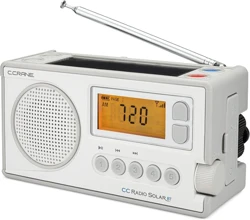
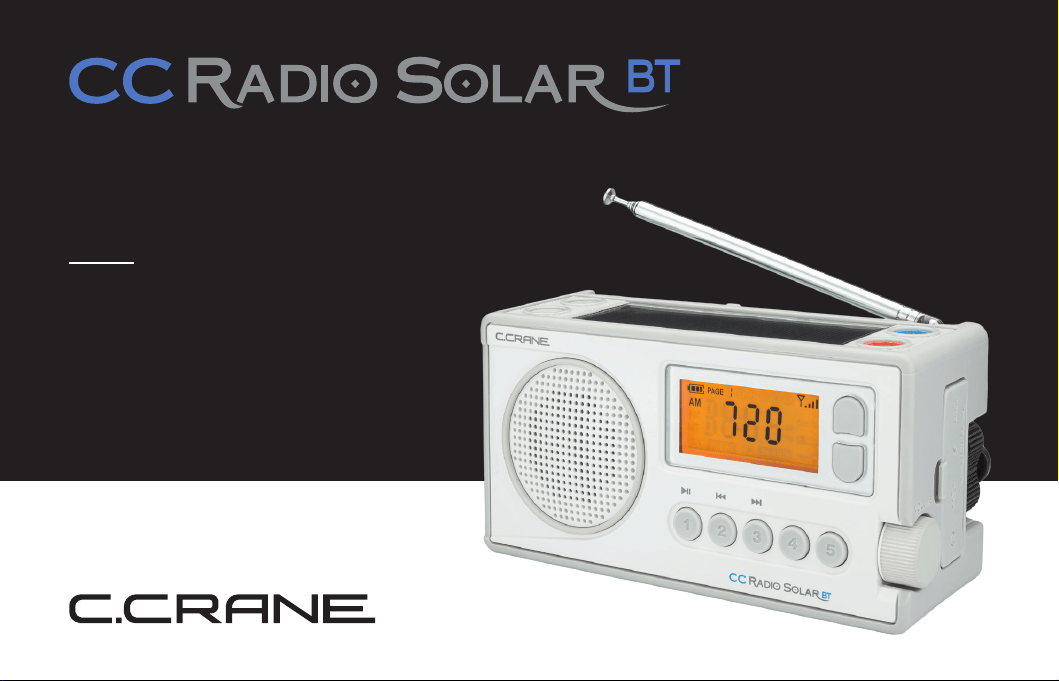
The CCRadio Solar BT is likely the rst emergency radio that doesn’t look or sound like one.
The idea simmered at C. Crane for many years while prototypes were designed. We took all the
feedback provided from customers over the years and incorporated them into this one. It has an
oversized AM antenna for superior long distance reception. FM reception is good thanks to the
latest chip technology. The solar panel is oversized to help keep the battery charged.
It is simple to use if you prefer to keep it that way, but there are some hidden features listed
underneath the battery compartment cover. The radio is initially delivered set to “low power”
consumption to conserve the battery. While the radio is “ON”, Press the number “1” and “5” keys
simultaneously and the radio will switch to high audio power. The special rubber shell is resistant to
yellowing over time.
The power storage of your radio is a lithium-ion battery which can last up to 10 years if you show it
a little exercise and sun. Please fully charge the battery with a USB cable or optional AC Adapter
once or twice a year. Please fully discharge the battery (by leaving the ashlight on until it goes off),
once a year, and then recharge for 12 hours via a USB cable or optional AC Adapter.
About the CCRadio Solar BT with Bluetooth
®
Receiving
CCRadio Solar BT |
4
About the CCRadio Solar BT with Bluetooth
®
Receiving
Crisis hint: If all power lines and the phone system are down, use texting to send a message with
your cell phone. It requires very little power and a text message can often get through to your loved
ones when a normal phone call will not connect. See page 24 for how to charge your cell phone.
NOTES:
• When the battery is low it will affect radio performance.
• The radio shuts off when a low voltage limit has been reached of approximately 3.4 volts to
protect the battery.
• If the battery drops below 3.4 volts you may need to charge it with an external charger for the
battery. We recommend that you search on the Internet for “NITECORE Ul1 Single-shot”.
BATTERY ICON DEFINITION:
1 bar =
3.4 - 3.7 volts
0 bars =
less than 3.4 volts
2 bars =
3.7 – 4.0 volts
3 bars =
4.0 – 4.2 volts
NOTE: (SOLAR PANEL) It may be of some advantage to capture morning or evening sunlight
by positioning the radio on end (with the ashlight facing down) and the panel facing the sun.
Alternatively, one could also tilt or prop the radio at a slant to optimize the solar angle.
CCRadio Solar BT |
5
Unpacking/Before Use
UNPACKING
The box should contain the CCRadio Solar BT radio, (1) Auxiliary In cable, (1) USB 2.0 Charging
cable, lanyard, warranty card and user manual. If anything is missing or damaged, please contact
your dealer immediately. We recommend that you keep the packaging in the unlikely event your
radio may need servicing.
FOR YOUR FUTURE REFERENCE:
Serial No. (Found inside battery compartment): ______________________________________
Date of purchase: _____________________________________________________________
Name & address of dealer: ______________________________________________________
WARNING: TO PREVENT FIRE OR ELECTRIC SHOCK HAZARD DO NOT EXPOSE THIS
PRODUCT TO RAIN OR MOISTURE.
CAUTION: TO REDUCE THE RISK OF ELECTRIC SHOCK, DO NOT REMOVE THE
RADIO BACK. NO USER SERVICEABLE PARTS INSIDE. REFER SERVICING TO
QUALIFIED SERVICE PERSONNEL.
CAUTION
RISK OF ELECTRIC SHOCK
DO NOT OPEN
CCRadio Solar BT |
6
Safety Instructions
THE LIGHTNING FLASH AND ARROWHEAD WITHIN THE TRIANGLE IS A WARNING
SIGN ALERTING YOU OF “DANGEROUS VOLTAGE” INSIDE THE RADIO.
THE EXCLAMATION POINT WITHIN THE TRIANGLE IS A WARNING SIGN ALERTING
YOU OF IMPORTANT INSTRUCTIONS ACCOMPANYING THIS RADIO.
CAUTION
• Before turning the unit on, set your volume control to a low setting.
• Slowly increase the sound until you can hear it comfortably and clearly without distortion.
• Long-term exposure to loud sounds may cause hearing damage. It is best to avoid high
volume levels when using headphones/earbuds, especially for extended periods.
PLEASE READ BEFORE USING THE RADIO
• Please fully charge the internal battery before use.
• We recommend the internal battery to be fully depleted and fully recharged every 6 months if the
radio has not been used. This will help maintain optimal battery life.
• Keep these precautions and instructions where all who will use this radio will read them.
CCRadio Solar BT |
7
Safety Instructions
To prevent damage to your radio or possible injury to you or others, read these safety precautions
and instructions entirely before applying power to the radio.
1. COMMON CARE
Check the radio and any accessories regularly. Do not use the radio if there is any sign of
damage. Only operate in accordance with the instructions in this manual. Only use attachments
or accessories specied by C. Crane. NOTE: If the radio is unused for more than 6 months, we
recommend winding the crank for at least 30 seconds to keep the battery healthy. Thereafter we
recommend charging the battery fully before returning to storage.
2. DISCONNECT POWER FROM THE RADIO IN CASE OF MALFUNCTION
We recommend charging with a computer or USB wall adapter with at least 1000mA power
output for best performance. Use only the recommended adapter. Otherwise, it may damage
the radio or cause a re or electric shock.
3. KEEP OUT OF REACH OF CHILDREN
Dropping the radio can cause damage or injury. Keep the cords in a position so someone cannot
trip and cause the radio to fall.
4. KEEP AWAY FROM WATER AND MOISTURE
Keep the radio dry. Liquids and moisture can damage the radio. If a liquid leaks into the radio do
not operate and seek a qualied service shop.
CCRadio Solar BT |
8
Safety Instructions
5. KEEP AWAY FROM EXTREME TEMPERATURES
Extreme temperatures can damage the radio. Never put the radio in direct sunlight in an
unventilated area or the inside of a car. The appliance should be away from heat sources such
as radiators, heat registers, stoves, or other appliances that produce heat.
CAUTION: Some windows may intensify the sun’s effect on your radio, causing melting or a
potential re hazard.
6. DO NOT ATTEMPT TO SERVICE RADIO
Refer all service work to a qualied service shop when the radio does not appear to operate
normally, exhibits a change in performance or the radio has received damage. Never open the
radio as this may expose you to dangerous voltages and this will void all warranties.
7. OUTSIDE ANTENNAS OR CABLES
Outside antennas or cables that create a potential hazard should not be used with this radio
unless installed by qualied personnel.
8. BATTERY CARE
If the radio is left unattended and unused for long periods of time, remove the batteries. The
batteries may leak and damage furniture or your radio.
CCRadio Solar BT |
9
Table of Contents
03
05
06
12
12
13
13
15
16
17
17
17
18
About The CCRadio Solar BT _________________________________________________
Unpacking / Before Use ______________________________________________________
Safety Instructions ___________________________________________________________
Power Options
Power Using the Solar Panel __________________________________________________
Power by Winding ___________________________________________________________
Power by AC Charging Adapter _________________________________________________
Power Using Batteries ________________________________________________________
Radio Operation
Display Panel _______________________________________________________________
Button Identication __________________________________________________________
Powering the Radio/Sleep Timer ________________________________________________
Tuning Buttons Up/Down _____________________________________________________
Change Bands/Set Weather Alert _______________________________________________
Volume Control _____________________________________________________________
CCRadio Solar BT |
10
18
18
20
21
21
21
22
22
23
24
25
26
27
27
28
28
Table of Contents
Saving a Station to Memory ____________________________________________________
Display Light _______________________________________________________________
Earphone Jack _____________________________________________________________
Aux Input Jack ______________________________________________________________
Radio Power/Charging Jack ___________________________________________________
Battery Selection Switch ______________________________________________________
Flashlight __________________________________________________________________
Lock Radio _________________________________________________________________
Bluetooth Operation _________________________________________________________
Phone Charger Jack (USB) ____________________________________________________
Setting the Clock ____________________________________________________________
Setting the Alarm (Buzzer Only) ________________________________________________
Disable Beep Sound _________________________________________________________
Designate Frequency or Clock __________________________________________________
Activate 9 or 10kHz Tuning ____________________________________________________
Enable High Power Audio Mode ________________________________________________
CCRadio Solar BT |
11
Activate 1 kHz AM Tuning _____________________________________________________
Set AM Bandwidth (Filters) ____________________________________________________
Reset to Factory Defaults _____________________________________________________
Change Memory Pages ______________________________________________________
Steps for Setting and Activating the Weather Alert __________________________________
Troubleshooting Guide ______________________________________________________
Specications ______________________________________________________________
Optional Accessories _________________________________________________________
29
29
30
30
31
32
37
39
Table of Contents
CCRadio Solar BT |
12
Power Options
POWER USING THE SOLAR PANEL
Place the solar panel in direct sunlight. It is best to angle the solar panel so that it is pointed directly
at the sun. Do not charge the radio in a hot area like a car. To charge the internal Li-ion battery
with the solar panel, it is best to leave the radio OFF. Eight hours of direct sunlight should provide
about 10 to 14 hours of playtime at medium volume, depending on sun intensity. Set the “Battery
Selection Switch” to Li-ion to play. (See Page 21). Charging in full sun can take approximately 42
hours when battery is depleted.
POWER BY WINDING
Unfold the Dynamo Crank from the back of the radio and rotate in either direction.
Proper winding speed is about 2 rotations per second or greater. After 90 seconds of winding the
radio will play for about 8-13 minutes. This varies depending on the winding speed, volume level
and band selection. NOTE: If the Li-ion battery has been fully depleted (less than 3.3 volts) for
many days (or depleted by the ashlight) then it may take extra winding before the battery will
power the radio again (greater than 3.3 volts). Charging by crank can take approximately 10-12
hours at 2 rotations per second when battery is depleted.
CCRadio Solar BT |
13
Power Options
POWER BY AC CHARGING ADAPTER (OPTIONAL ACCESSORY NOT INCLUDED)
Connect the AC charging adapter to a 120V/60Hz wall power outlet and to the Micro-USB charging
jack on the side of the radio beneath the rubber ap. This adapter can remain plugged into the
radio for continuous power but there may be added noise or interference while listening to the AM
radio band. We recommend listening to the AM radio band with AC charging adapter unplugged for
best reception. To fully charge the included Li-ion battery, keep the AC charging adapter connected
for about 10 - 12 hours with the power off.
POWER USING “AA” BATTERIES
When using “AA” Alkaline batteries the radio should play at normal volume for about 40 hours.
When using nickel metal hydride (NiMH) rechargeable “AA” batteries, about 35 hours of play can
be expected. This radio will not charge “AA” batteries.
NOTE: Do not use Lithium type “AA” batteries.
CCRadio Solar BT |
14
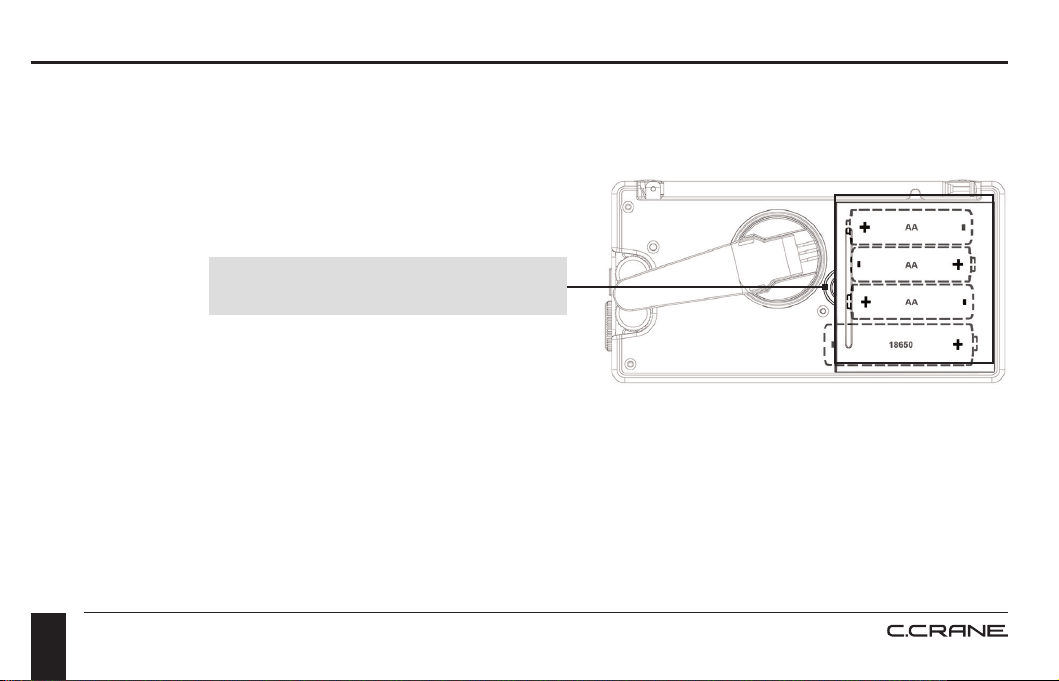
Press and lift the area indicated.
3. Insert (3) “AA” cell batteries (optional) or one (1) 18650 Li-ion battery (included) into the
compartment as indicated. (Do not use Lithium “AA” size batteries). Be sure the negative (-)
end of each battery is against the spring.
4. Replace the battery cover. You are now ready to operate your radio.
Power Options
INSTALLING “AA” OR “18650” BATTERIES
1. Position the radio face down on a soft surface to protect it.
2. Remove the Battery Cover using your ngernail or
a small tool.
CCRadio Solar BT |
15
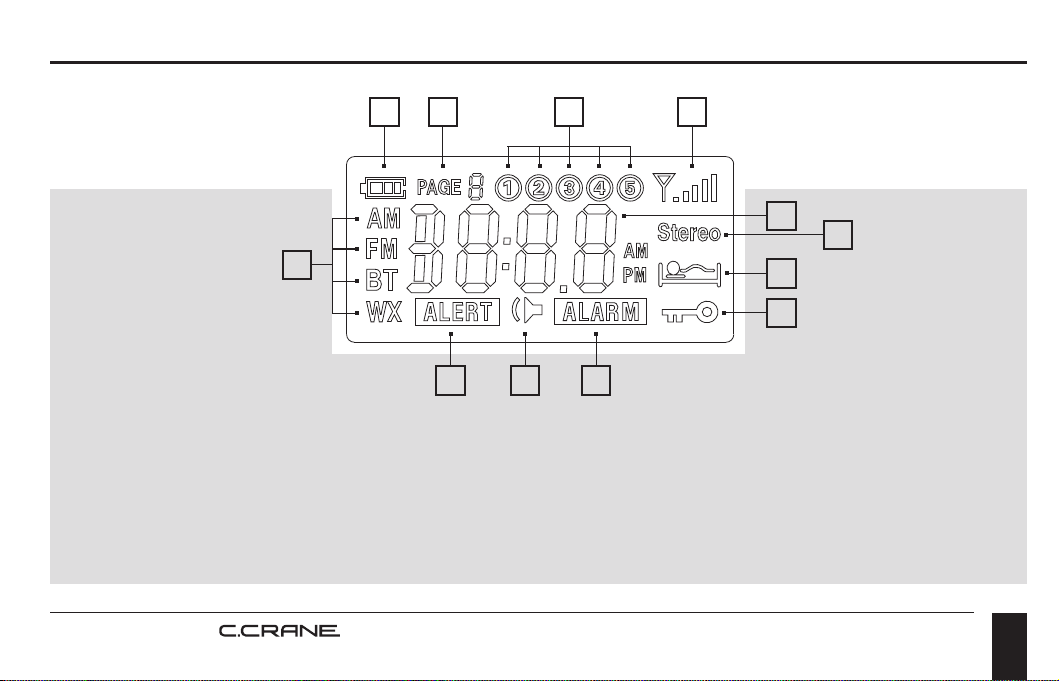
DISPLAY PANEL
A. Battery Icon
B. Page Number
(for station memories)
C. Station Memories 1 - 5
D. Reception Signal Strength
E. Band Indicator
(AM, FM, BT, Weather)
F. Frequency/Time
G. Beep ON/OFF
H. Alert is activated
I. Alarm is activated
J. Stereo FM reception
K. Sleep Timer is activated
L. Lock Switch is activated
(buttons are disabled)
A DB C
H G I
E
L
K
F
J
Radio Operation
CCRadio Solar BT |
16
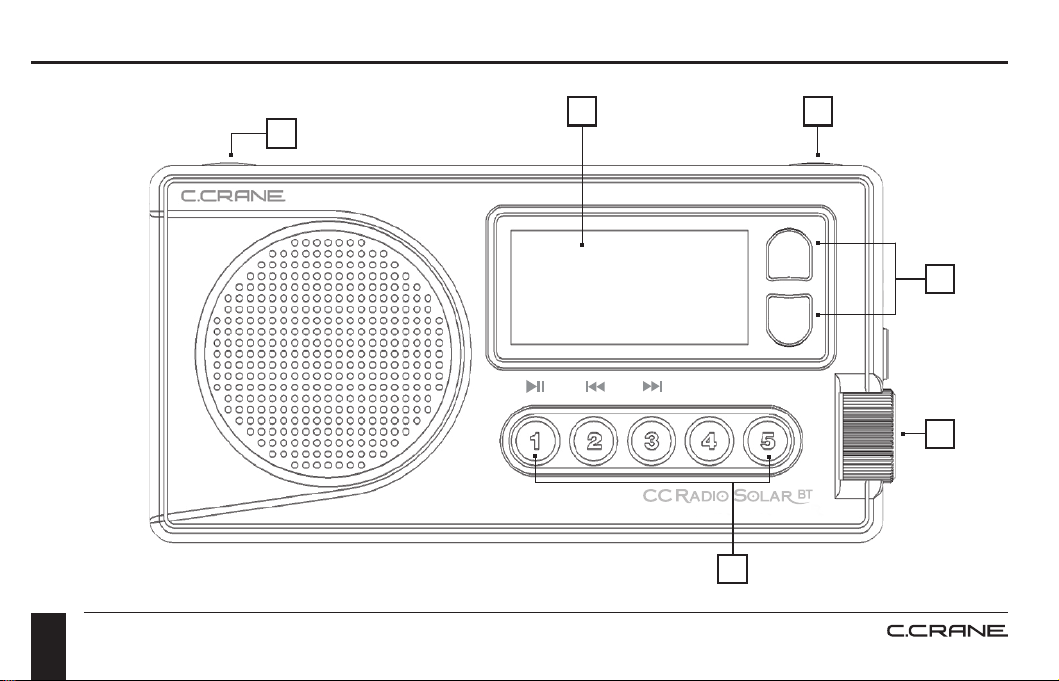
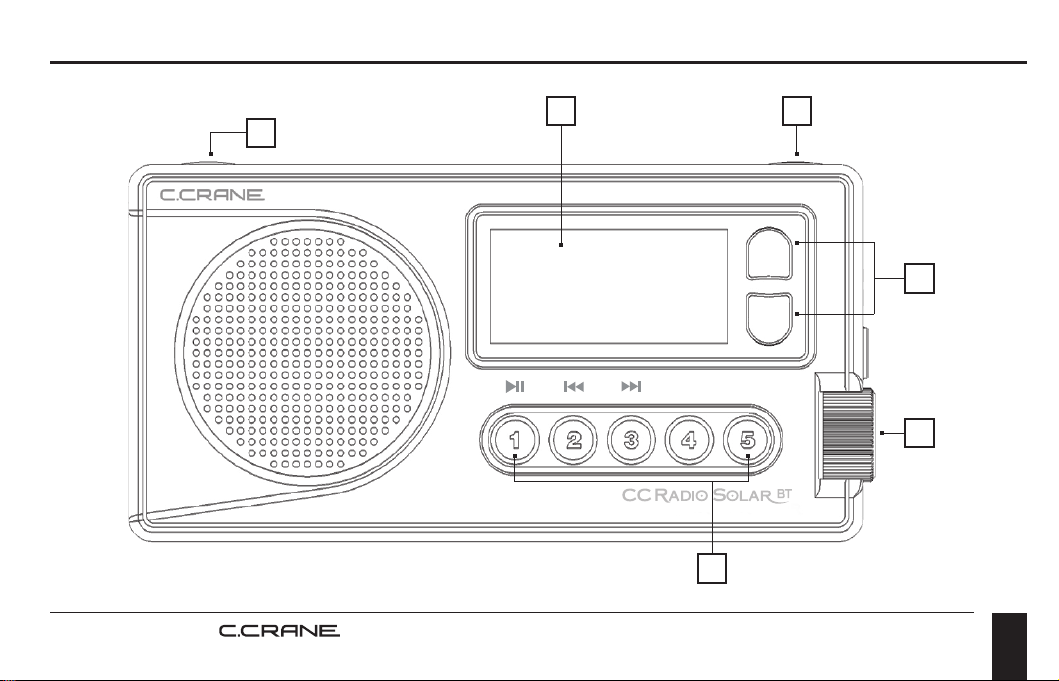
BUTTON IDENTIFICATION
Radio Operation
3
16
5
2
4
FRONT VIEW
CCRadio Solar BT |
17
1. POWER BUTTON / SLEEP TIMER
To turn the radio “ON” just press and release the red button. To use the Sleep Timer, press and
hold the red button. The Sleep Timer will automatically shut off the radio after the set amount of
time expires. The display will cycle through minutes 120, 90, 60, 45, 30, 15, and OFF. Release
the power button to activate the sleep setting you desire. The radio will remember your last Sleep
Timer setting the next time you activate it.
2. TUNING BUTTONS
Press once quickly to tune to the next frequency increment. Press and hold for 1-second to
automatically tune to the next strong station. Hold continuously to cycle through the whole band.
3. CHANGE BANDS AND SET WEATHER ALERT
Press and release the BAND button to cycle between FM, AM, and Weather. The BAND button
can also be used to set the weather alert. When the weather alert is activated it will monitor the
selected weather channel for NOAA weather alerts. When a NOAA alert is issued (on the selected
weather channel) the CCRadio Solar BT will beep and provide important information. To activate
the NOAA Weather Alert, press and hold “Band” button for more than 3 seconds. Continue holding
to select how long the alert will be activated (4hr, 8hr, 16hr or ON for continuously). Release the
button to make your selection.
Radio Operation
CCRadio Solar BT |
18
The display light will ash once every few seconds to remind you that the NOAA Weather Alert is
“ON”. To turn the alert “OFF”, hold the Band button for three seconds until “OFF” is displayed and
beep is heard, then release the button.
4. VOLUME CONTROL
Rotate to adjust volume.
5. STATION MEMORY BUTTONS 1 - 5
Save your favorite stations to memory buttons. To save a station, press and hold any memory
button for 2 seconds while the station is playing. To play a saved station, press the same button
once quickly.
6. DISPLAY LIGHT
The LCD Display light will stay enabled for 10 seconds after each button press. If the radio is
plugged into continuous power you can keep the display light on continuously while the radio is on.
For this, press and hold the POWER and LIGHT button until the display cycles to your desired
brightness and then release.
Radio Operation
CCRadio Solar BT |
19
Radio Operation
3
16
5
2
4
FRONT VIEW
CCRadio Solar BT |
20
Radio Operation
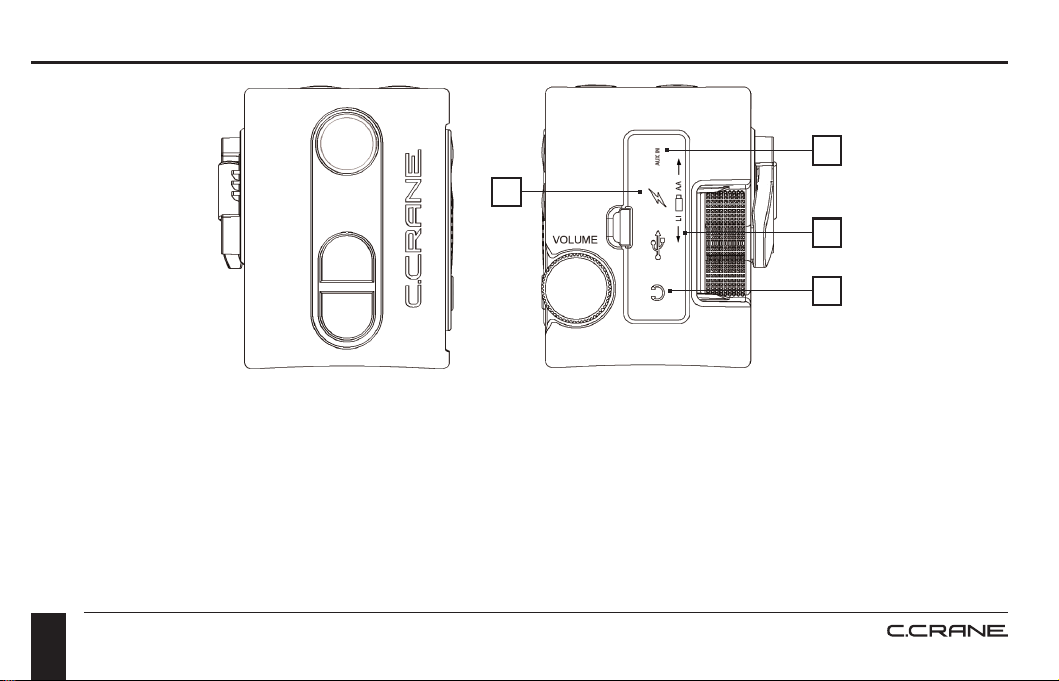
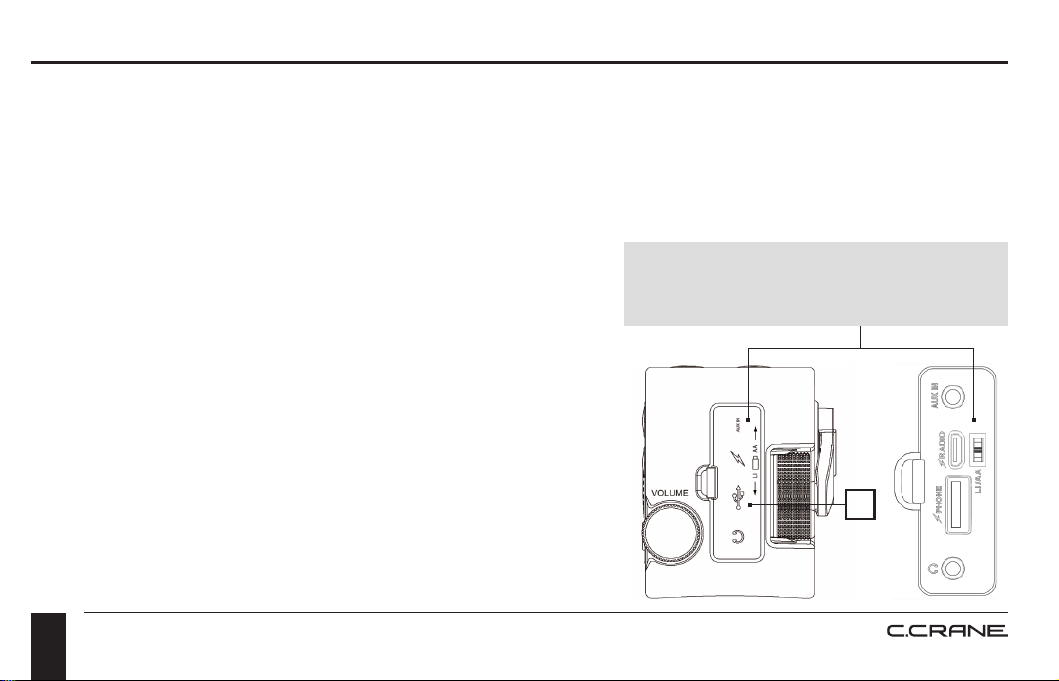
7. EARPHONE JACK
To listen using earphones, connect your earphones to the lower round jack behind the rubber
cover. When earphones are plugged in, stereo sound can be heard from strong FM stations
offering stereo sound. Weak FM stations, all AM stations, and Weather stations will be received in
mono sound.
LEFT SIDE VIEW RIGHT SIDE VIEW
8
10
7
9
CCRadio Solar BT |
21
8. AUX INPUT JACK
To use the CCRadio Solar BT as a speaker for your device, connect a 1/8” stereo patch cable
(included), with one end of the patch cable to your device’s audio output jack (or a headphone jack)
and the other end to the Aux input jack (upper round jack under the rubber cover) of the CCRadio
Solar BT. The radio will automatically detect when a device is plugged-in and change to AUX input
mode. High power audio mode will always be used with AUX input for best sound quality.
9. RADIO POWER/CHARGING JACK
Connect any Micro-USB cable for continuous power or to charge the radio battery. You will notice
some noisy interference while listening to the AM Radio band with power connected.
10. BATTERY SELECTION SWITCH
Please see Page 14 for opening the battery compartment and inserting batteries. The CCRadio
Solar BT uses one 3.7V Lithium-ion 18650 rechargeable battery (included). This battery will give
you about 300-500 full charge and discharge cycles and play the radio for about 40-50 hours on
low power mode. It is replaceable at ccrane.com. You might want to charge and keep a second
battery for backup power. Optionally three “AA” alkaline batteries can be used to power the radio as
an alternative source of power. If using alkaline batteries then you will need to ip the switch “up”
under the rubber ap to “AA”.
Radio Operation
CCRadio Solar BT |
22
Radio Operation
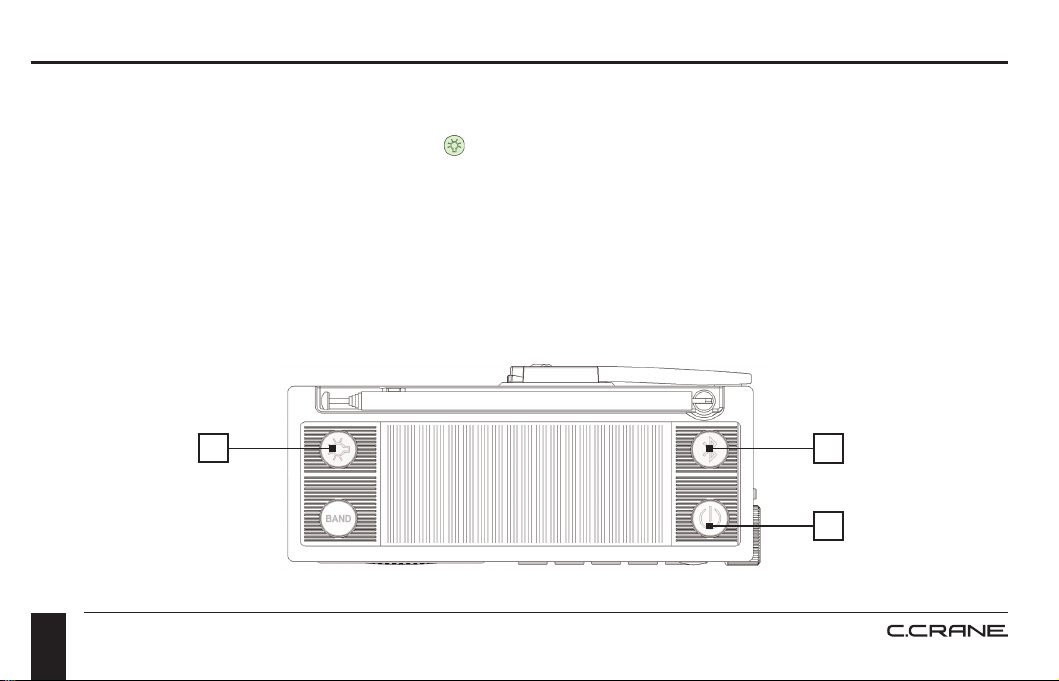
11. FLASHLIGHT
Located on the left side of the CCRadio Solar BT is a ashlight consisting of one super bright LED.
To turn the ashlight on, press the “Light” button once and release. The “Light” button will glow
in the dark to help you locate the radio in a power outage.
NOTE: In an emergency we recommend using the ashlight sparingly if your battery is low. The
ashlight is quite powerful using about 2 or 3 times the energy of playing the radio.
12. LOCK RADIO
Press and hold the BAND and POWER buttons at the same time for two seconds to disable all
buttons. Repeat to enable all buttons again. While the buttons are locked the VOLUME knob will
continue to work as normal.
TOP VIEW
11
12
13
CCRadio Solar BT |
23
Radio Operation
13. BLUETOOTH OPERATION
Bluetooth is a convenient way to play audio from your phone, tablet, computer, or voice-controlled
device using the speaker from the CCRadio Solar BT. Bluetooth will work wirelessly up to about 50
feet (depending on obstructions) between your device and the CCRadio Solar BT.
SETUP: You will only need to do the following setup once per Bluetooth device. Settings are
remembered thereafter.
1. Turn the radio on. On the radio, Press and release the Bluetooth (Blue) Button on top of the
radio until “BLUE” is displayed on the LCD screen.
2. Hold the Bluetooth button for about 4 seconds until the BT icon ashes on the LCD screen.
3. On your cell phone, tablet, or computer go to the Bluetooth settings and enable it if it is
not already.
4. Open the list of Bluetooth devices and look for “CCRadio Solar”. If you do not see “CCRadio
Solar” listed, then scan again.
5. Select “CCRadio Solar” from the list. Your device should say “Connected... “
OPERATION: While your device is connected with Bluetooth to the CCRadio Solar BT, any audio
that should normally be playing on your device will instead come out of the CCRadio Solar BT’s
speaker. Adjust the volume on the radio and your device for best sound. From the CCRadio Solar
BT, you can pause, play, or skip backwards or forwards using the memory preset buttons on the
front of the radio. #1 button = Play/Pause. #2 button = Skip to Previous. #3 button = Skip to Next.
CCRadio Solar BT |
24
NOTE: Button functionality will vary depending on the app or device linked to.
DISCONNECT: To disconnect Bluetooth or allow a different device to connect to the CCRadio
Solar BT, press and hold the Bluetooth (Blue) button for about 3-4 seconds or until the BT icon
ashes on the LCD screen.
14. PHONE CHARGER JACK (STANDARD USB PORT)
In an emergency, you may need to power your cell phone
to make an important call. Cranking the radio for just 90
seconds should give you enough time to make a few
quick calls. This, of course, will depend on the make and
model of your cell phone. Attach your phone’s charging
cable (not included) to the full size USB port located under
the rubber ap on the right side of the radio. To begin
charging, press and hold the “Light” button for 2 seconds.
You will notice the battery icon on the screen moving to
indicate that charging has begun. Your phone should also
indicate that it is charging. If your phone or device will
not accept the radio charge, then try fully powering off
your device and try again. When the radio battery is fully
depleted then charging will stop.
Radio Operation
14
Inputs and switch are under the
rubber cover on Right Side of radio.
CCRadio Solar BT |
25
Radio Operation
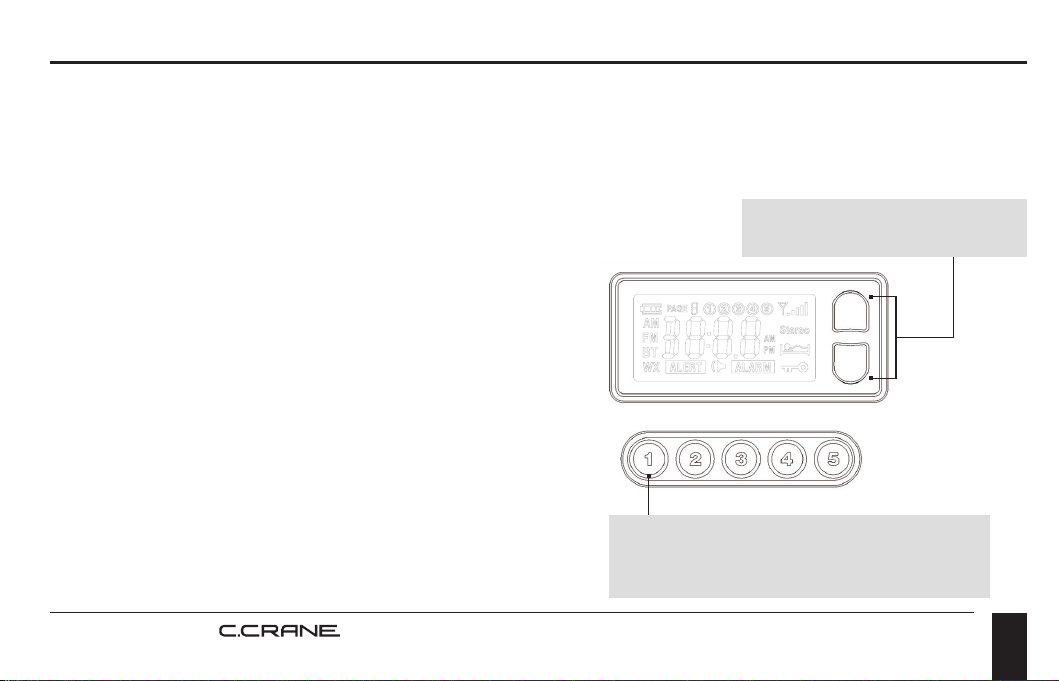
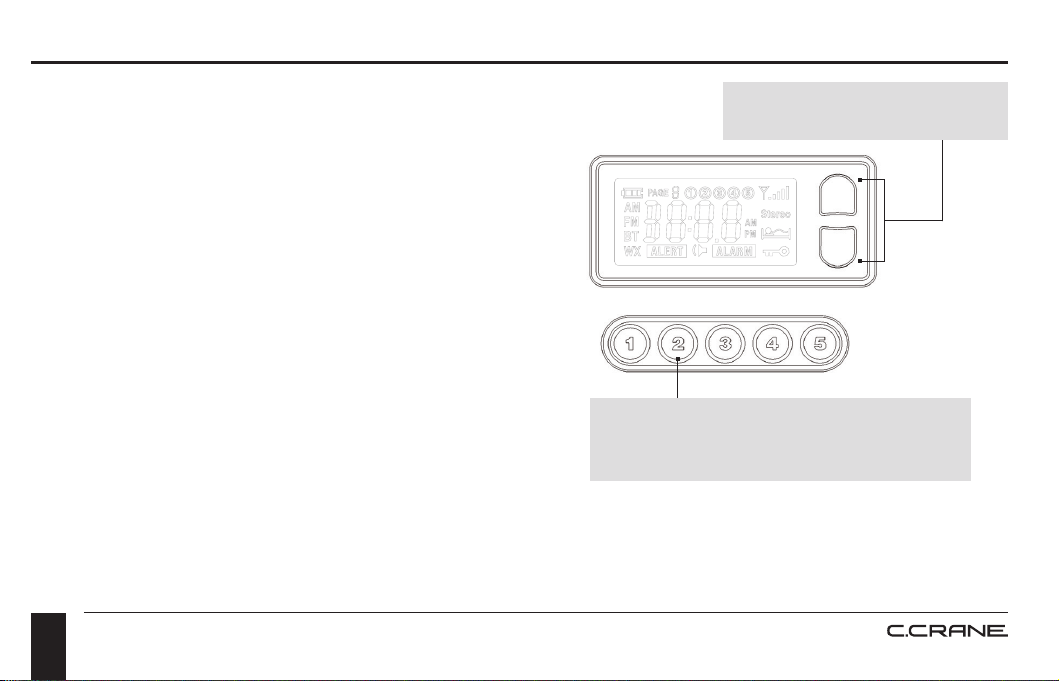
SETTING THE CLOCK
1. With the power OFF, press and hold memory
button #1 for two seconds. Release.
2. While the Hour is ashing, press the Up or
Down Tuning buttons until the hour and AM/PM
time is correct.
3. Press and release memory button #1 to adjust
the minutes. Cycle minutes using the Up or
Down Tuning buttons.
4. Press and release memory button #1 again after
the time is set correctly.
Up/Down Tuning Buttons
Memory Button #1 (Hold for 2
seconds to enter Clock Set mode).
NOTE: In an emergency situation where the phone circuits have overloaded or failed, texting
may work better for conserving battery life. Text messages will usually send automatically once
reception improves for a moment.
CCRadio Solar BT |
26
Radio Operation
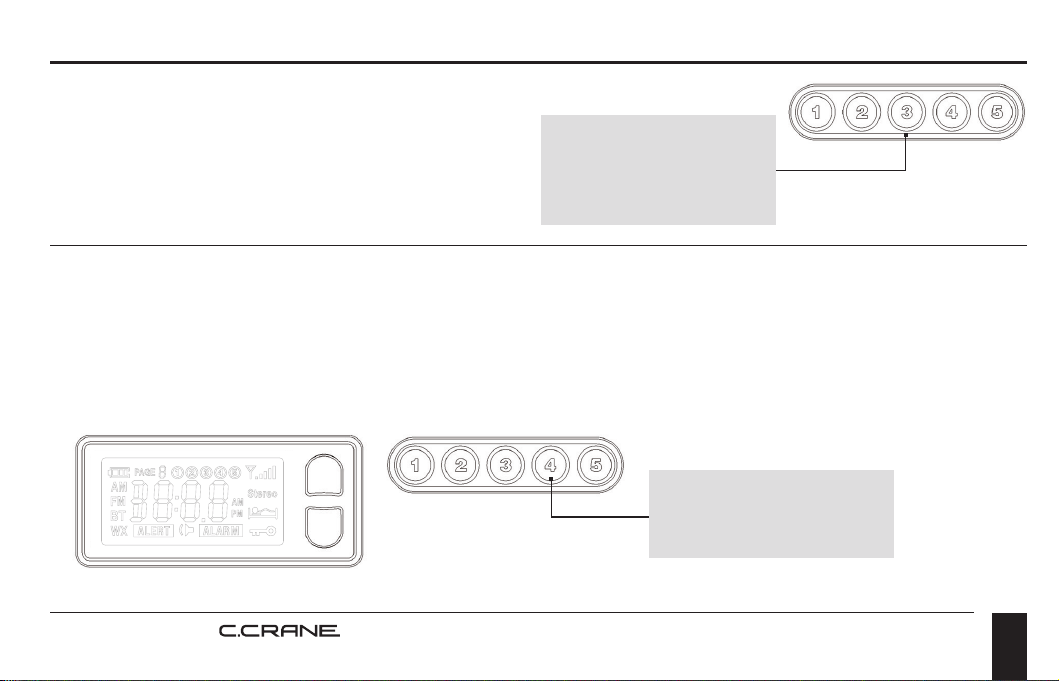
SETTING THE ALARM (BUZZER ONLY)
1. With the power OFF, press and hold memory
button #2 for two seconds.
Release.
2. While the Hour is ashing, press the Up or
Down Tuning buttons until the hour and AM/PM
time is correct.
3. Press and release memory button #2 to adjust
the minutes. Cycle minutes using the Up or
Down Tuning buttons.
4. Press and release memory button #2 again
after the time is set correctly. To disable the
alarm, press and hold memory button #2 for
two seconds.
Up/Down Tuning Buttons
Memory Button #2 (Hold for 2
seconds to enter Alarm Set mode).
CCRadio Solar BT |
27
Radio Operation
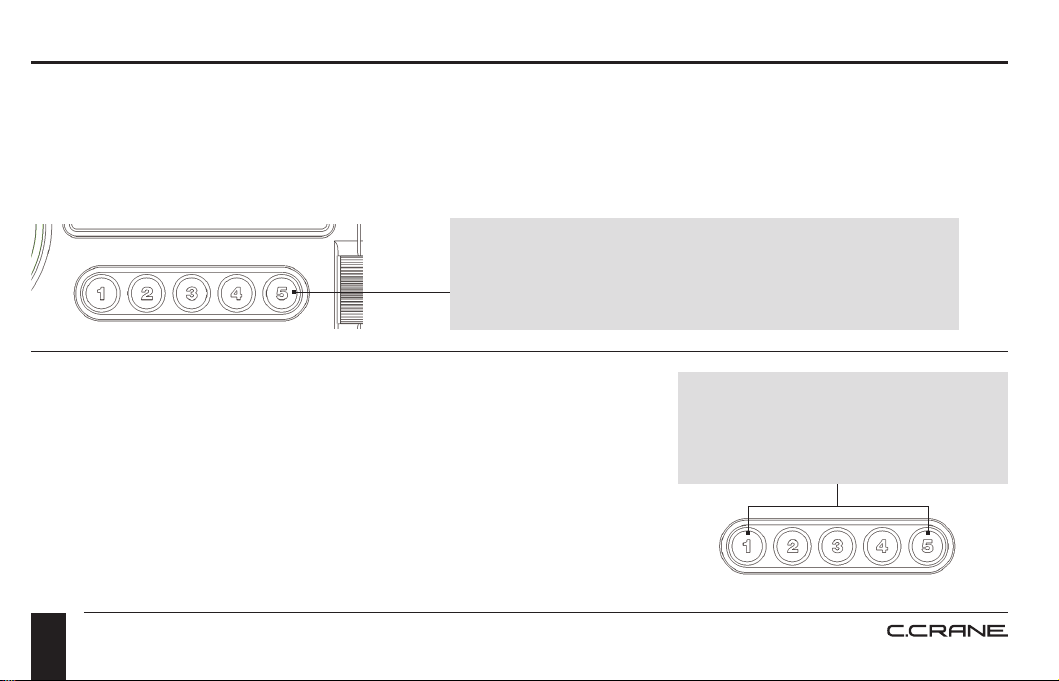
DISABLE BEEP SOUND
1. With the power OFF, press and hold memory
button #3 for two seconds. All beeps are
disabled except ALARM and WX ALERT.
2. Repeat sequence to enable beep again.
Memory Button #3
(Hold for 2 seconds
to disable beep).
DESIGNATE FREQUENCY OR CLOCK WHILE LISTENING TO THE RADIO
1. With the power OFF, press and hold memory button #4 for two seconds. “C” will appear on the
screen indicating that the Clock will show while listening to radio (after 10 seconds).
2. Repeat sequence to display Frequency instead. “F” will appear on the screen to indicate that the
Frequency will show when listening to the radio.
Memory Button #4
(Hold for 2 seconds).
CCRadio Solar BT |
28
Radio Operation
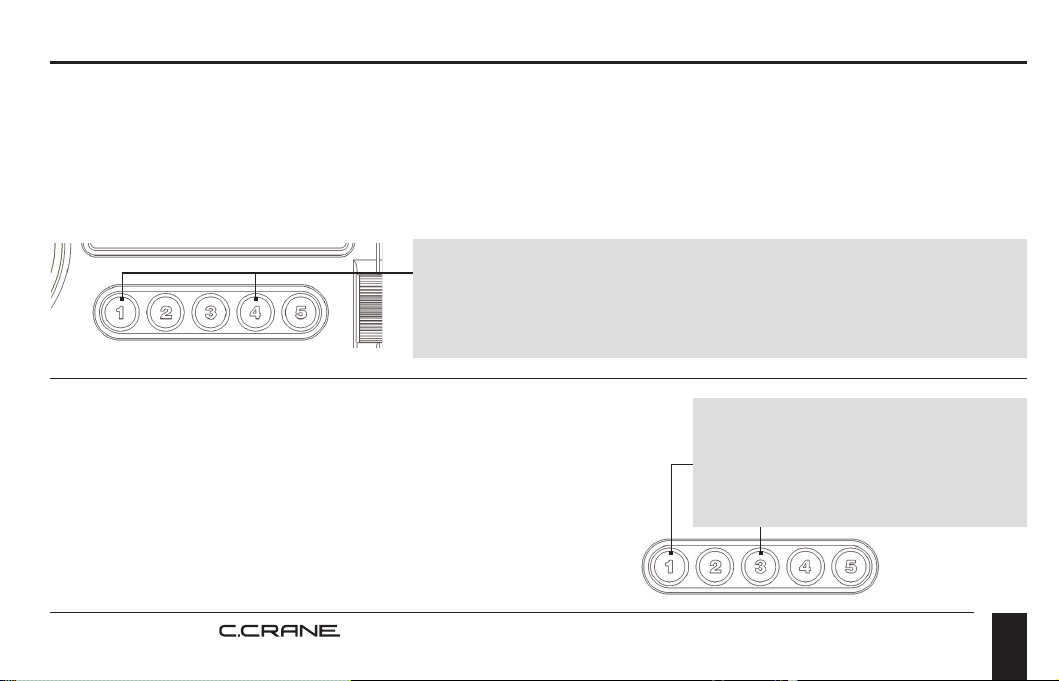
ACTIVATE 9 OR 10 KHZ AM TUNING (ALSO EXPANDS FM BAND)
1. With the power OFF, press and hold memory button #5 for two seconds to activate 9 kHz AM
tuning mode. This will also expand the FM band from 76 MHz to 108 MHz.
2. Repeat sequence to switch back to 10 kHz AM tuning and regular FM coverage
Memory Button #5
(Hold for 2 seconds to activate 9kHz AM tuning
mode. Repeat to switch back to 10kHz).
Memory Buttons #1 and #5
(Quickly press both buttons
to enable High Power mode).
ENABLE HIGH POWER AUDIO MODE
Quickly press memory buttons #1 and #5 at the same time while
listening to your desired station. If a device is connected to
the AUX input jack or on Bluetooth, then high power mode will
always be used. NOTE: This is used to improve audio quality
and loudness but will decrease battery life by about 1/3 or more
(depending on volume). We recommend this setting when the
radio is connected with the optional AC charging adapter.
CCRadio Solar BT |
29
ACTIVATE 1 KHZ AM TUNING STEPS
Quickly press and release memory buttons #1 and #4 at the same time while listening to your
desired AM station. Press again to return to normal (10 kHz) tuning. NOTE: This setting can tune
AM stations that are slightly off frequency for various reasons. Tuning 1 kHz higher or lower than
the actual station frequency may help improve reception.
Memory Buttons #1 and #4
(Quickly press both buttons to activate 1 kHz tuning steps.
Press again to return to normal).
Radio Operation
SET AM BANDWIDTH (FILTERS)
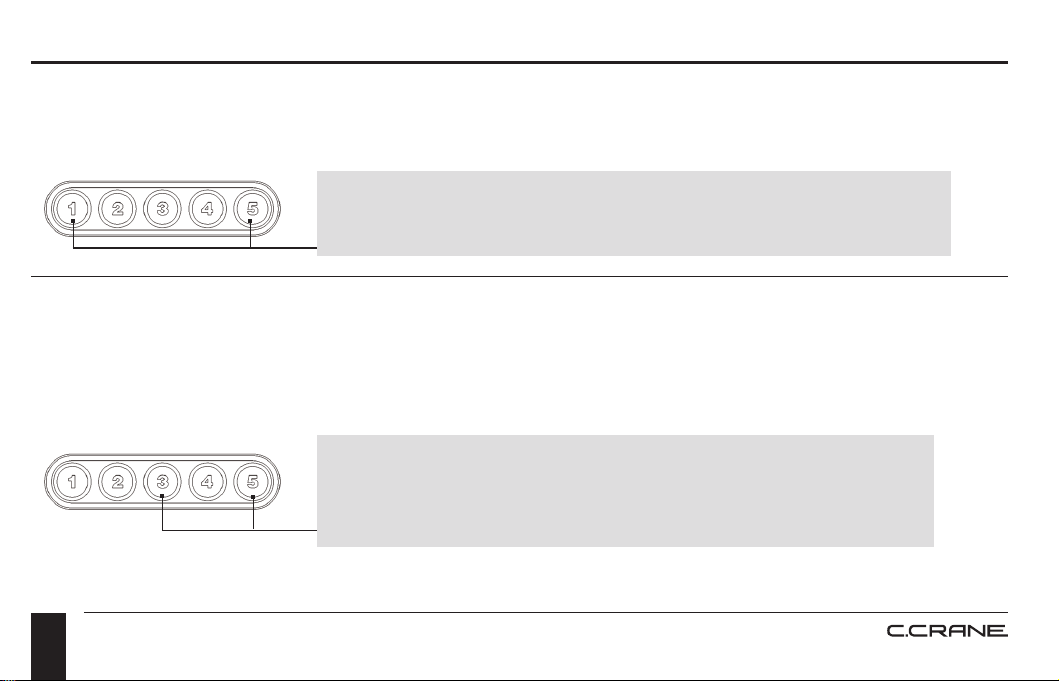
Quickly press and release memory buttons #1 and #3 at
the same time while listening to your desired AM station.
This will change from 2.5kHz (best for voice), 4kHz and
6kHz (best for music) each time buttons are pressed
quickly. NOTE: This setting is helpful to reduce or eliminate
unwanted noise or adjacent overlapping stations.
Memory Buttons #1 and #3
(Quickly press both buttons
to adjust the AM bandwidth
lter setting).
CCRadio Solar BT |
30
Radio Operation
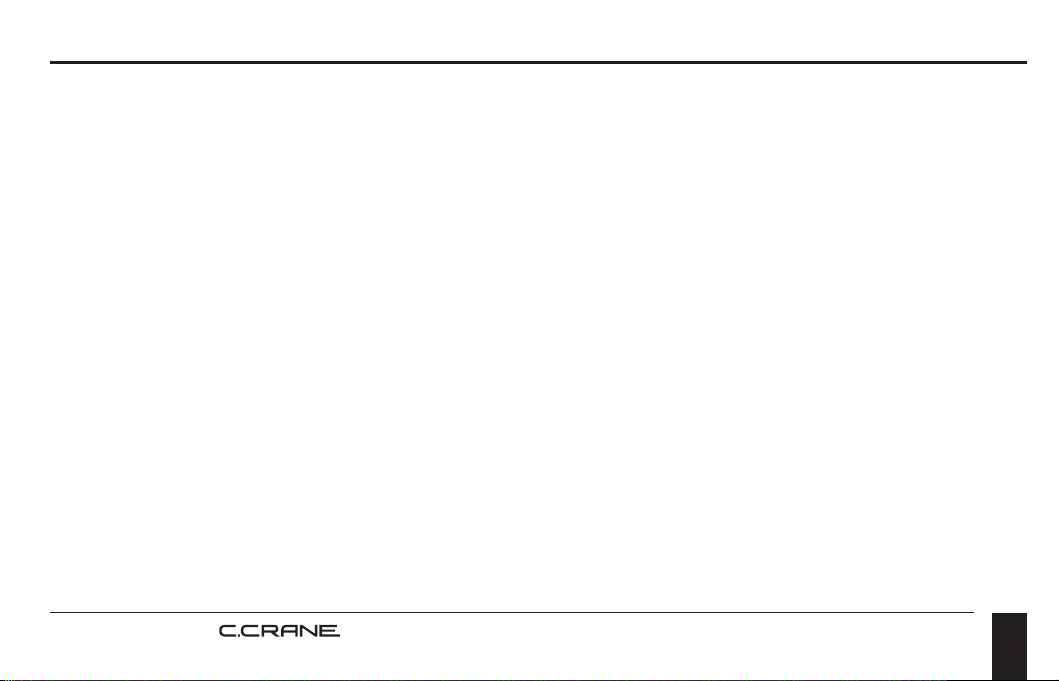
RESET TO FACTORY DEFAULTS
With power OFF, press and hold memory buttons #1 and #5 for ve seconds.
Memory Buttons #1 and #5
(Press and hold for 5 seconds to reset to factory defaults).
Memory Buttons #3 and #5
(Quickly press both buttons to enter Page Selection mode.
Then press 1 - 5 to select page number desired).
CHANGE MEMORY PAGES (HIDDEN SETTING)
The Page function gives you 20 additional presets for AM and FM. With power on quickly press
memory buttons #3 and #5 simultaneously to enter page selection mode then press memory button
1-5 to select the Page number that you desire. Each page can hold ve additional station memories.
CCRadio Solar BT |
31
Radio Operation
STEPS FOR SETTING AND ACTIVATING THE WEATHER ALERT
1. Turn the radio on by pressing and releasing the red power button.
2. Press and release the Band button until WX shows on the display.
3. Change the channel with the Up or Down tuning buttons until you hear your local NOAA
Weather Broadcast.
4. Press and hold the Band button until the desired hours of monitoring (4hr, 8hr, 16hr or on)
are selected.
NOTE: While the weather alert is activated, AM and FM radio is still accessible. The display light
will ash once every few seconds to remind you that the NOAA Weather Alert is “ON”.
When NOAA issues a weather alert, the radio will continuously beep for two minutes.
• Press and release the red Power Button to listen to the weather broadcast.
• To de-activate the Weather Alert, press and hold the Band button for 3 seconds or until “OFF”
is displayed.
CCRadio Solar BT |
32
Troubleshooting Guide
MY FULLY CHARGED LI-ION BATTERY DOES NOT POWER THE RADIO AND THE SWITCH
IS SET TO LI. THE SCREEN IS BLANK.
The radio may need a small amount of electricity to deactivate the protection circuit. Please rotate
the wind-up handle a few times or place the radio briey in the sun. When the display appears, the
radio should be ready for operation.
STATIONS WON’T HOLD IN MEMORY:
The memory button settings are being overwritten. When recalling a station from memory, if you
hold the memory button down too long it will program the current station over your previously
NONE OF THE BUTTONS WORK, BUT THE DISPLAY SCREEN IS ON:
The Radio may be locked. If the radio is locked then the LCD display screen will show a key. To
release the lock, press and hold the BAND and POWER buttons at the same time for 2 seconds
and the key icon will disappear in the LCD Display. (Please see “Lock Radio” on page 22.)
MY RADIO SHUTS OFF AFTER JUST A FEW SECONDS:
Low batteries can cause this situation. Recharge or replace them with a new set of batteries.
CCRadio Solar BT |
33
Troubleshooting Guide
stored station. To recall a station that has been stored in memory, always press and release the
button quickly. To program a new station into memory, tune to the desired station and then press
and hold the memory button for two seconds until you hear a beep, or the display shows a
memory number.
THE AM RECEPTION IS POOR:
You may need to rotate your radio until the reception is best. Many buildings that use brick, metal,
or stucco can absorb or reect the AM signal. Computers, cell phones, tablets, wireless chargers
and other electronic equipment, including uorescent lights, can cause noise that interferes with
your AM reception.
Move the radio to a different place to see if that helps. Additional noise may affect a weak signal.
Lastly, if your radio is currently charging or connected to a power source then unplug it and try
using it on batteries to see if the power source is causing the interference.
POOR RECEPTION ON FM AND WEATHER BAND:
The CCRadio Solar BT can use the silver whip antenna on the top of the radio for FM and Weather
bands. To improve reception of these bands, fully extend the whip antenna and try various
orientations to obtain the strongest signal. (See page 39 for our external FM Antenna.)
CCRadio Solar BT |
34
BATTERY POWER LEVEL INDICATOR DOESN’T SHOW FULL CHARGE WHEN USING
RECHARGEABLE “AA” NIMH BATTERIES:
Rechargeable “AA” NiMH batteries will not show a full charge on your radios display. The CCRadio
Solar BT is calibrated to read the charge of your alkaline batteries, which is 1.5 volts at full charge.
Rechargeable NiMH type batteries are fully charged at just 1.25 volts, and so your radio will show
a partial charge even if the rechargeable batteries have been fully charged. We do not recommend
using Lithium “AA” sized batteries in our products.
I HAVE THE RADIO IN THE SUN BUT THE BATTERY ICON DOES NOT BLINK:
The icon blinks when charging by using the micro USB input, optional AC Adapter or the crank.
It does not blink when charging in the sun.
WHY IS IT EASY TO CRANK THE RADIO WHEN THE BATTERY IS FULLY CHARGED:
When the battery starts to get low it will accept more current and it will become harder to crank.
MY RADIO WILL NOT POWER WHEN USING THE RECHARGEABLE BATTERY SETTING OR
WHEN PLUGGED INTO POWER:
Make sure that you have removed the small plastic pull tab between the battery and the contact.
Troubleshooting Guide
CCRadio Solar BT |
35
Troubleshooting Guide
Also be sure that your battery is oriented correctly in the battery compartment and that it is
charged sufciently.
HOW LONG WILL THE CCRADIO SOLAR BT PLAY ON A FRESH SET OF ALKALINE BATTERIES?
Approximately 35 hours of play on high power mode. Approximately 50 hours of play on low
power mode.
WHAT TYPE OF LITHIUM BATTERY IS USED IN THE CCRADIO SOLAR BT?
The battery included with the CCRadio Solar BT is a 18650 Rechargeable Battery – Protected 3.7V
Li-ion 3400mAh.
HOW LONG WILL THE CCRADIO SOLAR BT PLAY ON A FULLY CHARGED LITHIUM BATTERY?
The CC Solar will run about 35 hours at high volume or about 50 hours on the energy miser setting.
When the battery icon drops to two bars then the battery is approximately half full.
CAN I HAVE THE WEATHER ALERT SET AND LISTEN TO AM OR FM AT THE SAME TIME?
Yes you can. However, when setting the clock or alarm the weather alert needs to be deactivated.
CCRadio Solar BT |
36
WHEN CHARGING IN THE SUN USING THE SOLAR PANEL, USING THE USB CABLE OR
THE OPTIONAL AC ADAPTER, DOES THE SWITCH NEED TO BE SET TO LI?
No.
WILL THE BATTERY INDICATOR SHOW FULL BARS WHEN CHARGED IN THE SUN OR
HAND CRANKED?
Yes, once the battery reaches 4 volts. The following charge times are based on the mAh of the
Li-On battery and the mAh of the charging systems for each method:
• Charging in full sun can take approximately 42 hours.
• Charging with cranking can take approximately 10-12 hours. The fastest way to charge is to use
the USB cable or the AC Adapter (sold separately). This method can take up to 10 - 12 hours.
HOW DO I RESTORE THE RADIO TO FACTORY DEFAULTS?
With the power OFF, press and hold the memory buttons #1 and #5 for ve seconds. You will hear
a tone to signify it has been done.
Troubleshooting Guide
CCRadio Solar BT |
37
Specications
FREQUENCY RANGE
FM Band: 87.5 – 108 MHz (Regular Mode) / FM Band: 76 – 108 MHz (Expanded Mode –
See page 28) / AM Band: 520 – 1710 kHz
WEATHER BAND
Channel 1: 162.400 MHz / Channel 2: 162.425 MHz / Channel 3: 162.450 MHz
Channel 4: 162.475 MHz / Channel 5: 162.500 MHz / Channel 6: 162.525 MHz
Channel 7: 162.550 MHz
POWER SOURCE
• 18650 Li-ion 3.7 volt Protected Button Top Rechargeable Battery (3400mAh).
• “AA” size Alkaline Batteries (Do not use Lithium “AA” batteries).
• Solar Panel – 110mA (in full unobstructed sun light).
• Dynamo Wind-up Generator: 300-500ma (at about two rotations per second).
• 5-Volt DC, 1000mA, Micro USB.
WARRANTY
1-Year Limited Warranty
CCRadio Solar BT |
38
Specications
POWER CONSUMPTION
Low Power Mode 40-100mA DC (depending on headphone or speaker usage and volume level).
High Power Mode: 50-200mA DC (depending on headphone or speaker usage and volume level).
AUDIO
Speaker: 2”, 4 Ohm, 3 Watts.
Stereo headphone jack 1/8” (3.5mm).
Stereo input jack 1/8” (3.5mm).
Bluetooth Receiver.
ANTENNA
FM and Weather Band: Whip Antenna. / AM Band: Internal Ferrite Bar.
WEIGHT
Approximately 18.2 ounces with Li-ion Battery installed.
DIMENSIONS
6” W x 3” H x 2.5” D.
CCRadio Solar BT |
39
Accessories
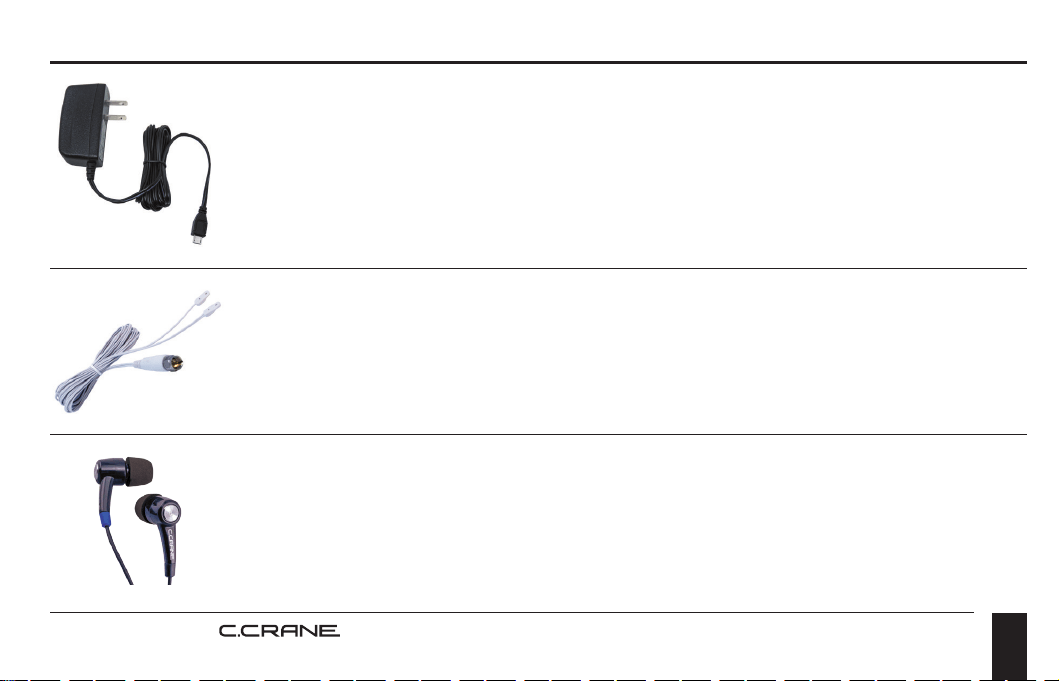
CCRadio Solar BT 5V AC Charging Adapter
Item# CCRSP
$14.99
FM Reect-2 Dipole Antenna
Item# FMR2
$14.99
CC Buds Pro
Item # CCBUDSPRO
$19.99

This page left blank intentionally.

This page left blank intentionally.
CCRadio Solar BT |
42
This device complies with part 15 of the FCC Rules. Operation is subject to the following two
conditions:
1. This device may not cause harmful interference, and
2. This device must accept any interference received, including interference that may cause
undesired operation.
Any changes or modications not expressly approved by the party responsible for compliance could
void the user’s authority to operate the equipment.
NOTE: This equipment has been tested and found to comply with the limits for a Class B digital
device, pursuant to Part 15 of the FCC Rules. These limits are designed to provide reasonable
protection against harmful interference in a residential installation. This equipment generates,
uses and can radiate radio frequency energy and, if not installed and used in accordance with
the instructions, may cause harmful interference to radio communications. However, there is no
guarantee that interference will not occur in a particular installation.
FCC Warning Content
CCRadio Solar BT |
43
If this equipment does cause harmful interference to radio or television reception, which can
be determined by turning the equipment off and on, the user is encouraged to try to correct the
interference by one or more of the following measures:
• Reorient or relocate the receiving antenna.
• Increase the separation between the equipment and receiver.
• Connect the equipment into an outlet on a circuit different from that to which the receiver
is connected.
• Consult the dealer or an experienced radio/TV technician for help.
The device has been evaluated to meet general RF exposure requirement. The device can be used
in portable exposure condition without restriction.
FCC Warning Content

Copyright © 2025 C. Crane. All rights reserved. No part of this booklet may be reproduced,
in any form or means whatsoever, without permission in writing from C. Crane. (Ver 4)
MODEL: CCRadio Solar BT
FCC ID: 2BFG8-CCRSBT
U.S. Patent D960,860 S
HVIN: CCRSBT
ISED: IC:31877-CCRSBT
172 Main Street
Fortuna, CA 95540-1816
Phone: 1-800-522-8863 | Web: ccrane.com