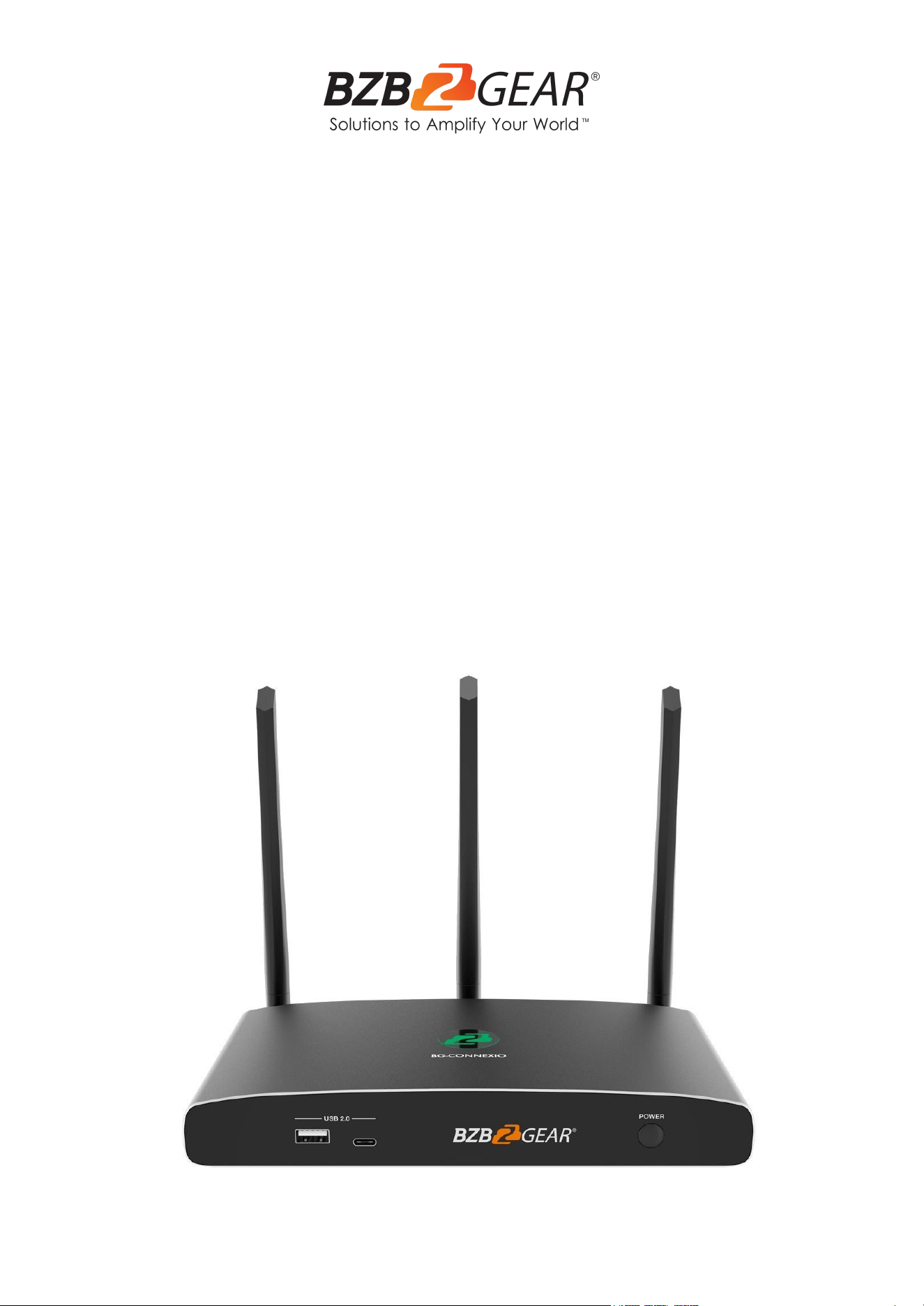
BG-Connexio
4K BYOD Collaboration Solution with
AirPlay, Miracast, and Chromecast Support
User Manual

BZBGEAR BG-Connexio PRODUCT MANUAL
Address: 830 National Drive #140, Sacramento, CA 95834, USA · Tel: +1(888)499-9906 · Email: support@bzbgear.com 2

BZBGEAR BG-Connexio PRODUCT MANUAL
TABLE OF CONTENTS
Statement 4
Safety Precaution 4
Introduction 5
Features 5
Packing List 6
Specifications 6
Operation Controls and Functions 7
Factory Reset 9
Default Configuration 9
USB Dongle (Optional) 10
Software Interface 11
Connecting a USB device 16
Software or Optional Dongle Connection 22
Options for Microsoft Windows PC / Laptop – Extended Screen 25
Android Devices 28
WIN10 PC Miracast 29
Chromecast on PC 30
Web Setting Management Configuration 36
Troubleshooting 64
Tech Support 68
Limited Product Warranty Terms 68
Mission Statement 68
Copyright 68
Address: 830 National Drive #140, Sacramento, CA 95834, USA · Tel: +1(888)499-9906 · Email: support@bzbgear.com 3
BZBGEAR BG-Connexio PRODUCT MANUAL
Statement
Please read these instructions carefully before connecting, operating, or configuring this
product. Please save this manual for future reference.
Safety Precaution
● To prevent damaging this product, avoid heavy pressure, strong vibration, or immersion
during transportation, storage, and installation.
● The housing of this product is made of organic materials. Do not expose to any liquid,
gas, or solids which may corrode the shell.
● Do not expose the product to rain or moisture.
● To prevent the risk of electric shock, do not open the case. Installation and maintenance
should only be carried out by qualified technicians.
● Do not use the product beyond the specified temperature, humidity, or power supply
specifications.
● This product does not contain parts that can be maintained or repaired by users.
Damage caused by dismantling the product without authorization from BZBGEAR is not
covered under the warranty policy.
● Installation and use of this product must strictly comply with local electrical safety
standards.
Address: 830 National Drive #140, Sacramento, CA 95834, USA · Tel: +1(888)499-9906 · Email: support@bzbgear.com 4
BZBGEAR BG-Connexio PRODUCT MANUAL
Introduction
BG-Connexio is a revolutionary wireless conference product that was specifically designed
to meet the needs of today's hybrid workforce. It allows for seamless local presentations as
well as collaborations with remote participants by connecting the room camera,
microphone, speakers, and display with the attendees' own laptops wirelessly. This
eliminates the need for cumbersome cables, setup, and makes it easy for people to take
advantage of the room's audio/video (A/V) system to collaborate with both in-room and
remote meeting participants.
Features
● Bring your own device wireless presentation experience, no cables required for
participants.
● Wireless connection between your laptop and room USB peripherals like a camera,
mic, and speakers for easy video conferencing.
● Fully compatible with mainstream platforms such as Teams, Zoom, Webex, etc.
● Wireless content input up to 1080P, HDMI 2.0 output.
● Native wireless mirroring protocols like AirPlay, Miracast, and Chromecast are
supported.
● Windows and Mac applications available for wireless connection.
● Available 2x2 split screen view.
● Supports wireless touch back on interactive whiteboard/touch screens.
● Best-in-class data security with dual network and high standard encryption.
● PoE supported.
● OSD control with preview function.
● Supports whiteboard and annotation.
● Customizable home screen page.
● Central management platform available.
Address: 830 National Drive #140, Sacramento, CA 95834, USA · Tel: +1(888)499-9906 · Email: support@bzbgear.com 5
BZBGEAR BG-Connexio PRODUCT MANUAL
Packing List
● 1x BG-Connexio
● 1x 12V/3A Power Supply
● 3x External Antennas
● 1x Dual USB Wireless Dongle (optional)
● 1x User Manual
Specifications
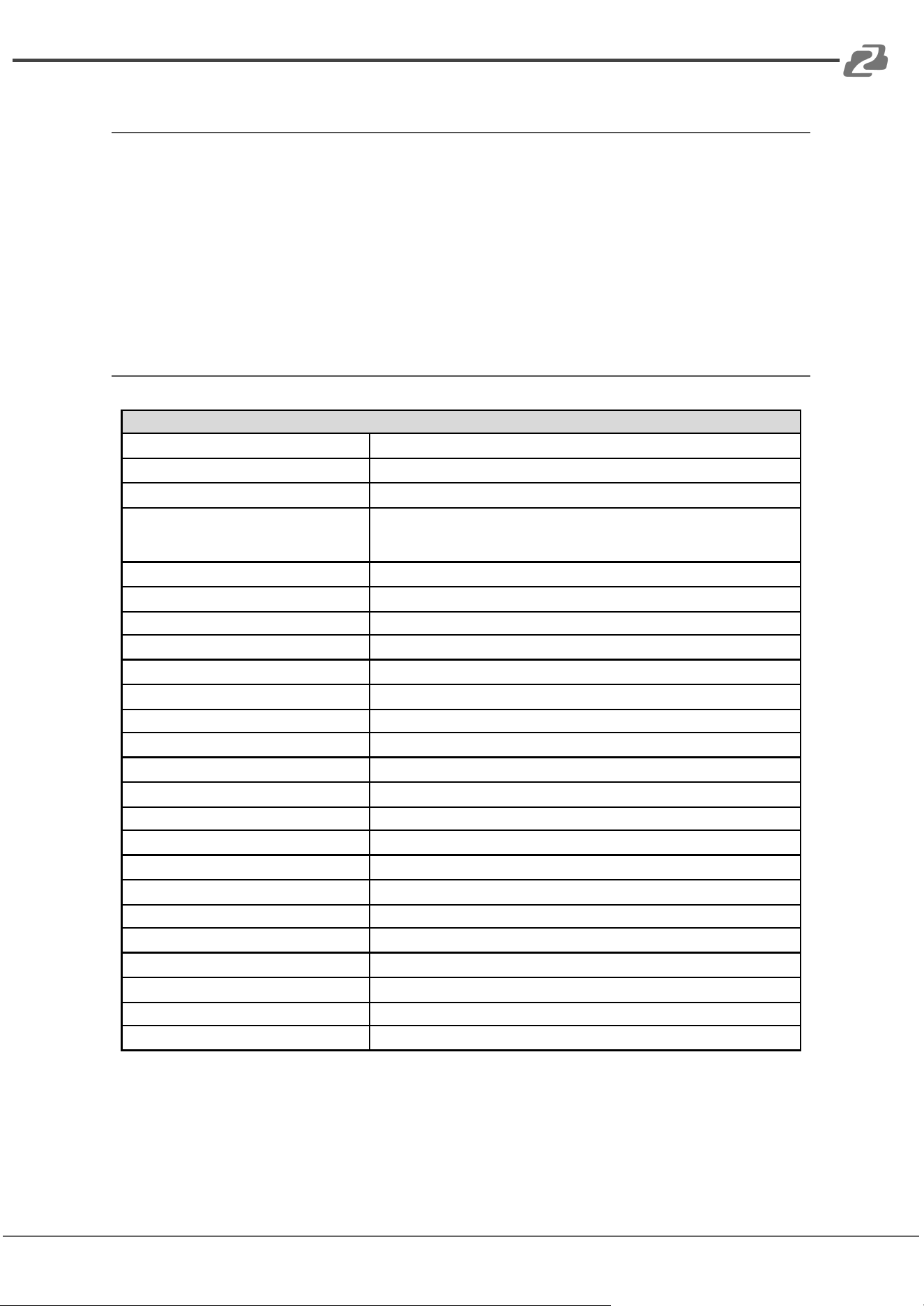
Specifications
HDMI output
1x HDMI 19-pin female connector
Video Output Resolution
3840x2160@60Hz, 3840x2160@30Hz, 1920x1080@60Hz, 1280x720@60Hz
Format Compliance
HDMI 1.4/HDMI 2.0
Video Capacity:
1080P @ <60Hz AirPlay for IOS devices
1080P @ <60Hz "WirelessMedia" Connexio application
1080P @ <60Hz for BG-C-USB dongle
HDCP
HDCP 1.4/HDCP2.2
Analog Audio Output
1x 3.5mm PC audio female connectors
LAN port
RJ45 x2:1000Mbps x1,100Mbps x1
USB interface
USB 3.0 x3: USB 2.0 x1,Type-C x2
Audio Input
AirPlay, Miracast, DLNA, Windows/MAC, WMH, USB/BT Speaker Phone
Control connectors
3.5mm Phoenix terminal/ RS232 interface
Number of window simultaneous on screen
≥4+14(4 main windows+14 thumbnail windows)
Number of simultaneous connections
≥16
Data rate in wireless
Up to 1200Mbps
Video Playback Frame Rate
20-60 FPS
Latency
<100ms,Min 20ms
Wireless transmission protocol
Wi-Fi IEEE 802.11 a/g/n/ac
Frequency band
2.4 GHz & 5 GHz
Dimension (W x D x H)
220mm x 120mm x 41mm (including antenna: 220mm x 120mm x 145mm)
Weight
2.2 lbs [1.0kg]
Temperature
-4° ~ +140° F / -20° ~ +60° C
Humidity (Storage / Operating)
20%-90%(non-condensing)
DC Power
12V / PoE
PoE standard
IEEE 802.3af
Power Consumption
10W (MAX)
Address: 830 National Drive #140, Sacramento, CA 95834, USA · Tel: +1(888)499-9906 · Email: support@bzbgear.com 6
BZBGEAR BG-Connexio PRODUCT MANUAL
Operation Controls and Functions
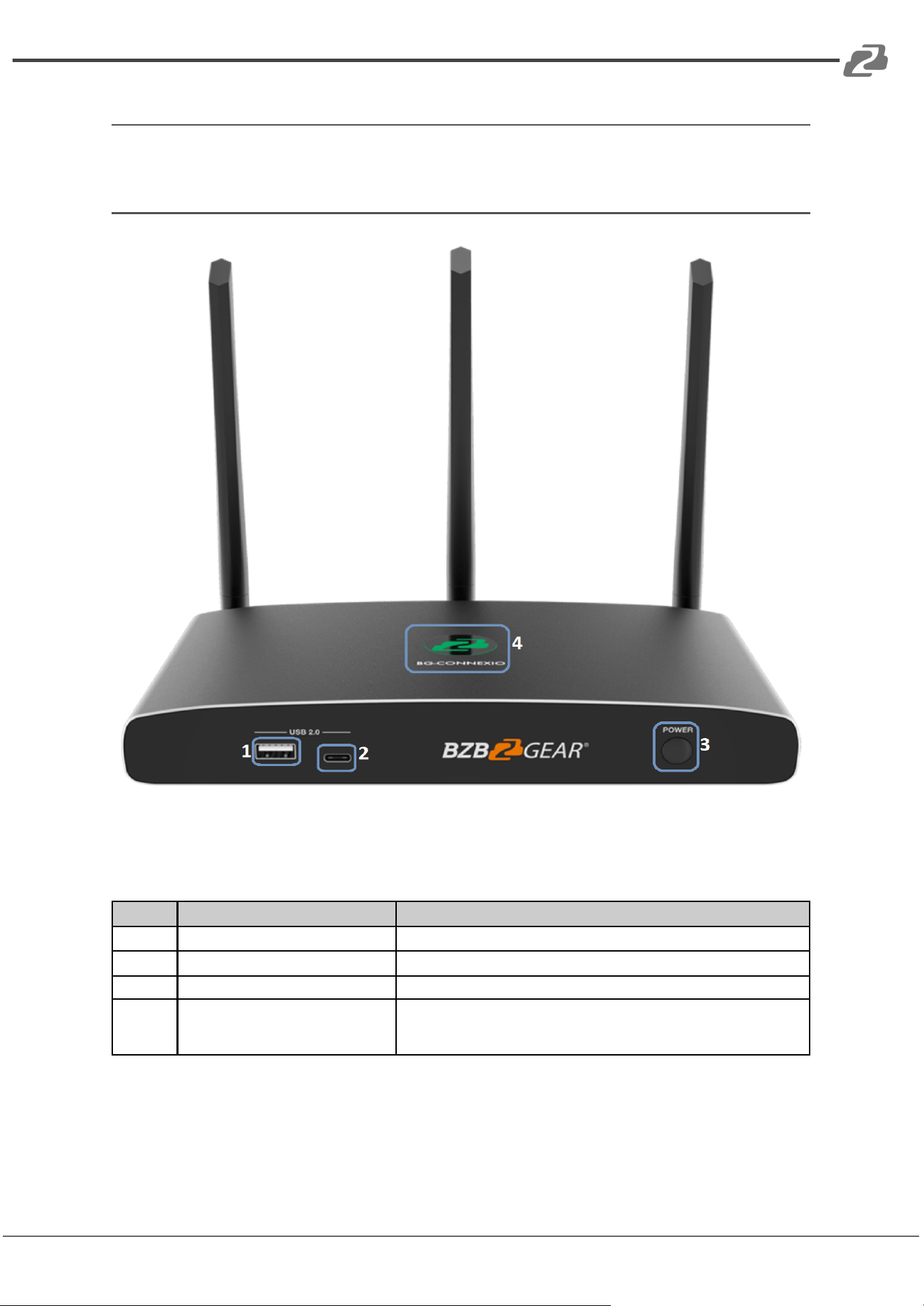
Front Panel
No.
Name
Function Description
1
Type-A USB connector (Front)
For mouse control, USB touch screen etc.
2
Type-C USB connector (Front)
For dongle pairing (optional dongles not included)
3
Power Button
Turn on or off the device.
4
Back-lit LED indicator
During boot it will flash RED, powered on and waiting is indicated
by flashing GREEN, “Ready to share” is indicated by solid
GREEN, “Sharing” is indicated by solid CYAN.
Note: The USB Type-A and Type-C ports on the front cannot be used at the same
time. The Type-C USB port is secondary to the USB Type-A port.
Address: 830 National Drive #140, Sacramento, CA 95834, USA · Tel: +1(888)499-9906 · Email: support@bzbgear.com 7
BZBGEAR BG-Connexio PRODUCT MANUAL
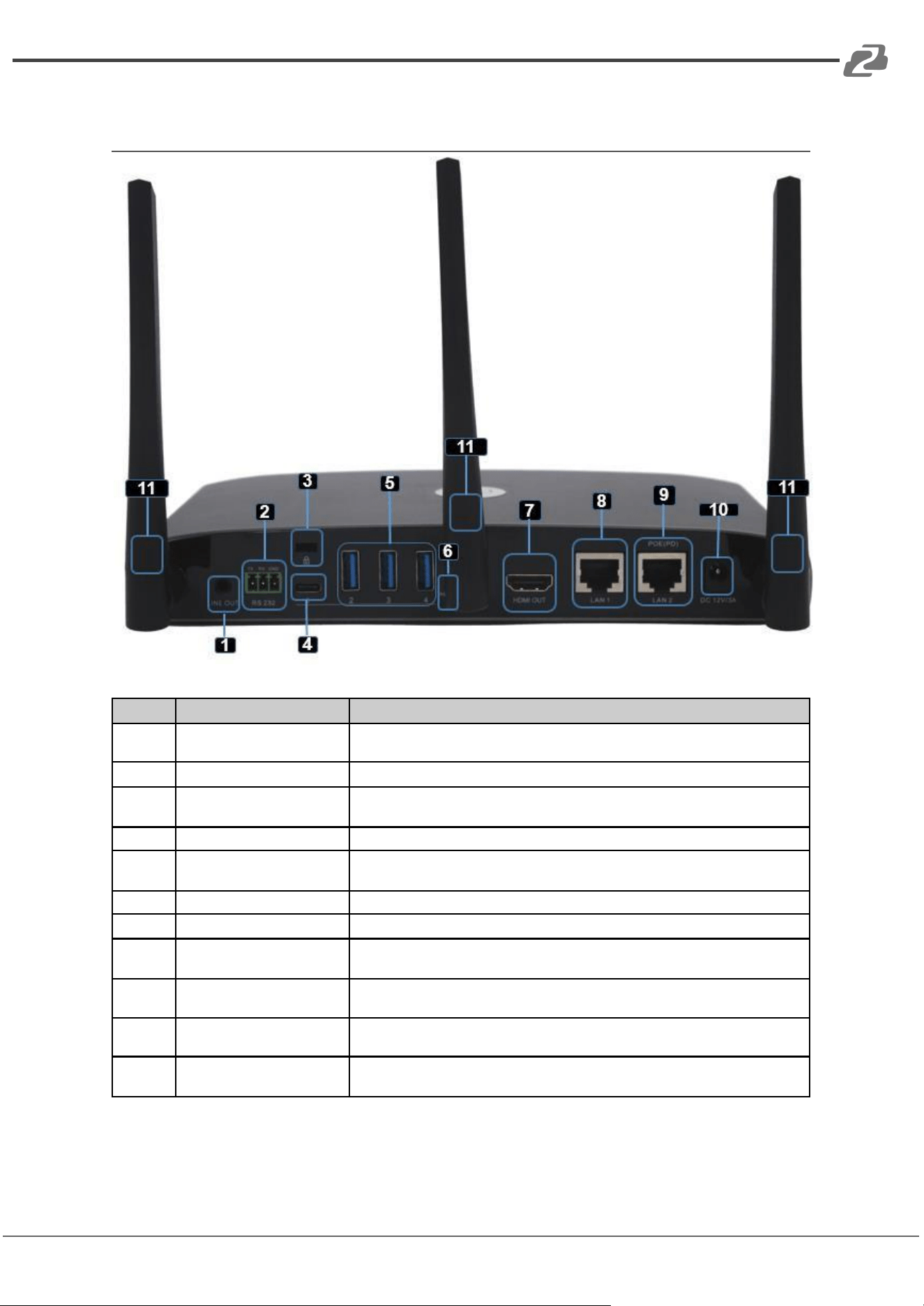
Rear Panel
No.
Name
Function Description
1
Line audio output
2 channel analog audio output, Connect a 3.5mm mini-jack to the line in jack of
an audio system.
2
RS-232
Connect an RS-232 cable from this port to an RS-232 device.
3
Kensington Lock
One end is wrapped around a fixed object and one end is inserted into this port
for physical security.
4
Type-C connector (Rear)
For Type-C dongle pairing.
5
USB 3.0 connector (Rear)
For mouse control, USB touch screen, and USB peripheral devices such as a
USB camera or speaker.
6
Reset
Reset button to restore to the factory default settings.
7
HDMI output
Connect an HDMI cable from this port to an HD or 4K/HDMI 2.0 display.
8
LAN Ethernet
port 1
100Mbps, Connect an Ethernet cable between this jack and a LAN.
9
LAN Ethernet
port 2
1000Mbps, Connect an Ethernet cable between this jack and a LAN. Supports
POE.
10
DC Power socket
Connect the included power adapter to this socket and connect the plug to an
available electrical outlet.
11
Antenna Fixture
Points
Screw in the three included antennas to these three ports.
Address: 830 National Drive #140, Sacramento, CA 95834, USA · Tel: +1(888)499-9906 · Email: support@bzbgear.com 8
BZBGEAR BG-Connexio PRODUCT MANUAL
Factory Reset
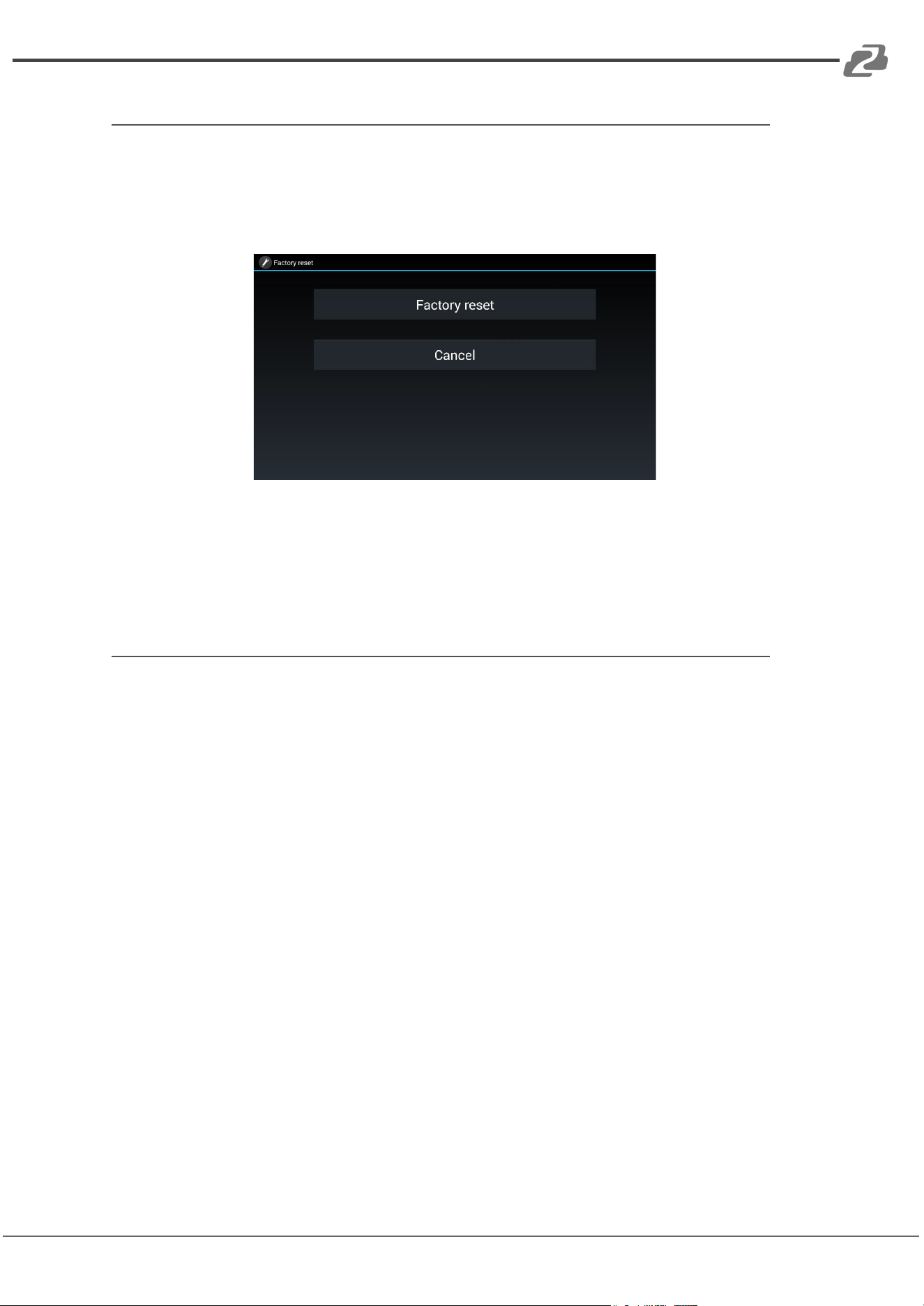
1. Power on the Connexio.
2. When the Home Screen is shown, press and hold the reset button on the rear
panel with a pointed object, e.g. an unbent paper clip until the “Factory Reset”
page is shown for at least 2 seconds.
a.
2. The Connexio will reboot after 3 seconds to the default configuration.
3. If you do not have a picture, press and hold the reset button until the red LED in
the top panel is illuminated to perform the reset.
NOTE: All previous settings will be lost and you will need to perform the initial set-up
once more.
Default Configuration
Ethernet:
Proxy: None
DHCP: Enable
Wireless network:
Frequency: 5GHZ
Channel: Auto
Auto change Wi-Fi hotspot password: 5minute
Display & Audio
HDMI resolution: Auto
HDMI CEC:
Device auto power off: ON
Connexio auto power on: OFF
Audio output: 3.5mm Jack & HDMI
AirPlay screen quality: High
show device name and password when mirroring: OFF
show PCs user name when mirroring: ON
Moderator Control
Add a sub-window bar to enable previewing the connected devices: ON
Real time preview: ON
Address: 830 National Drive #140, Sacramento, CA 95834, USA · Tel: +1(888)499-9906 · Email: support@bzbgear.com 9
BZBGEAR BG-Connexio PRODUCT MANUAL
System settings
Date & time: Automatic date & time: use network-provided time
Auto Standby: Never
Language: English
Security Settings
Security Level: Security level 1
Connection Password: 4-digits password beginning with 0000
Change admin password: admin(default)
Other settings
Auto create launcher: Disabled
Clear history after meeting: Always
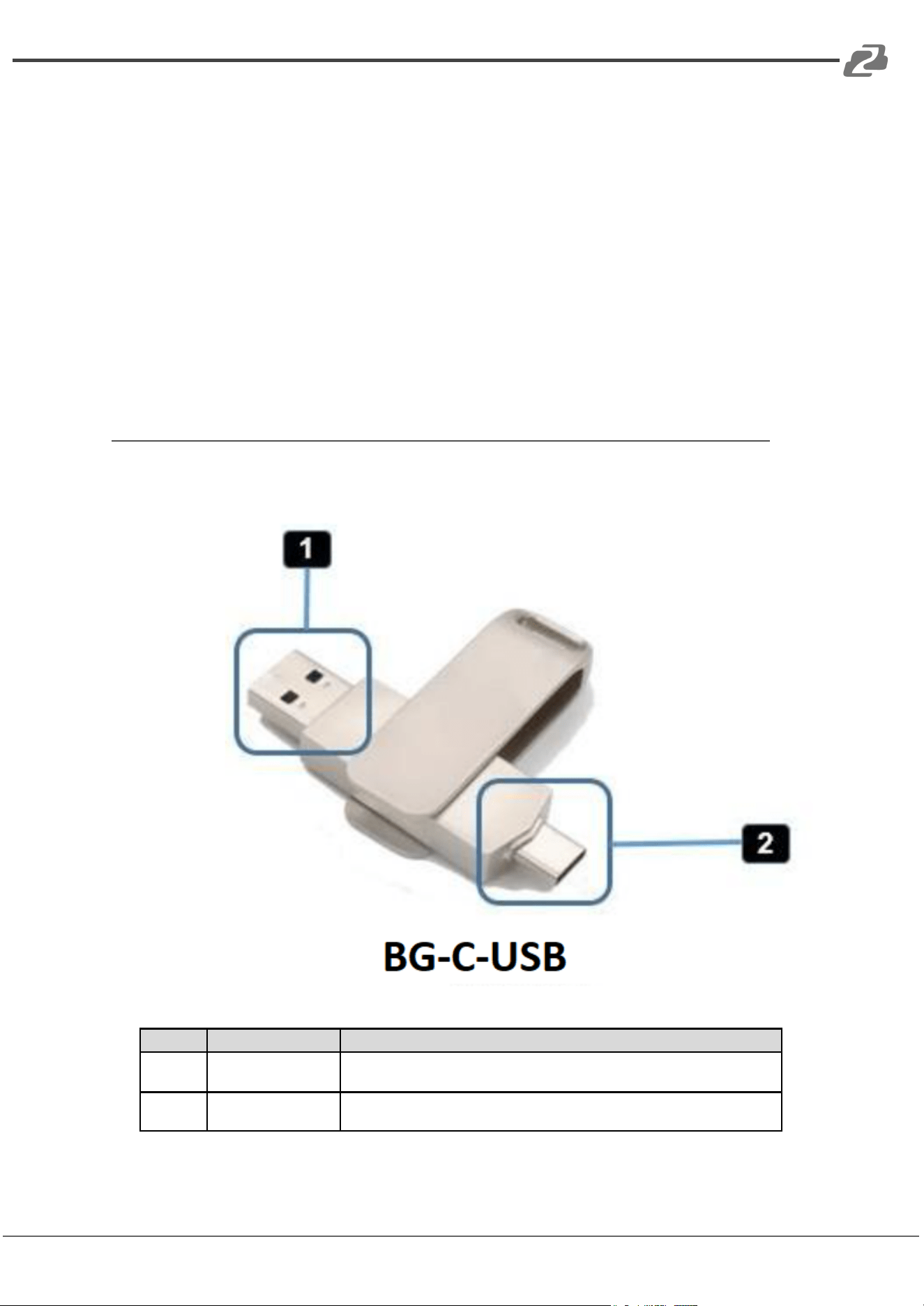
USB Dongle (Optional)
ID
Name
Description
1
USB connector
Use the USB connector of the dongle to plug into a PC/Laptop to share your
screen.
2
Type C connector
Using the Type-C connector of the dongle to plug into a PC/Laptop to share
your screen.
Address: 830 National Drive #140, Sacramento, CA 95834, USA · Tel: +1(888)499-9906 · Email: support@bzbgear.com 10
BZBGEAR BG-Connexio PRODUCT MANUAL
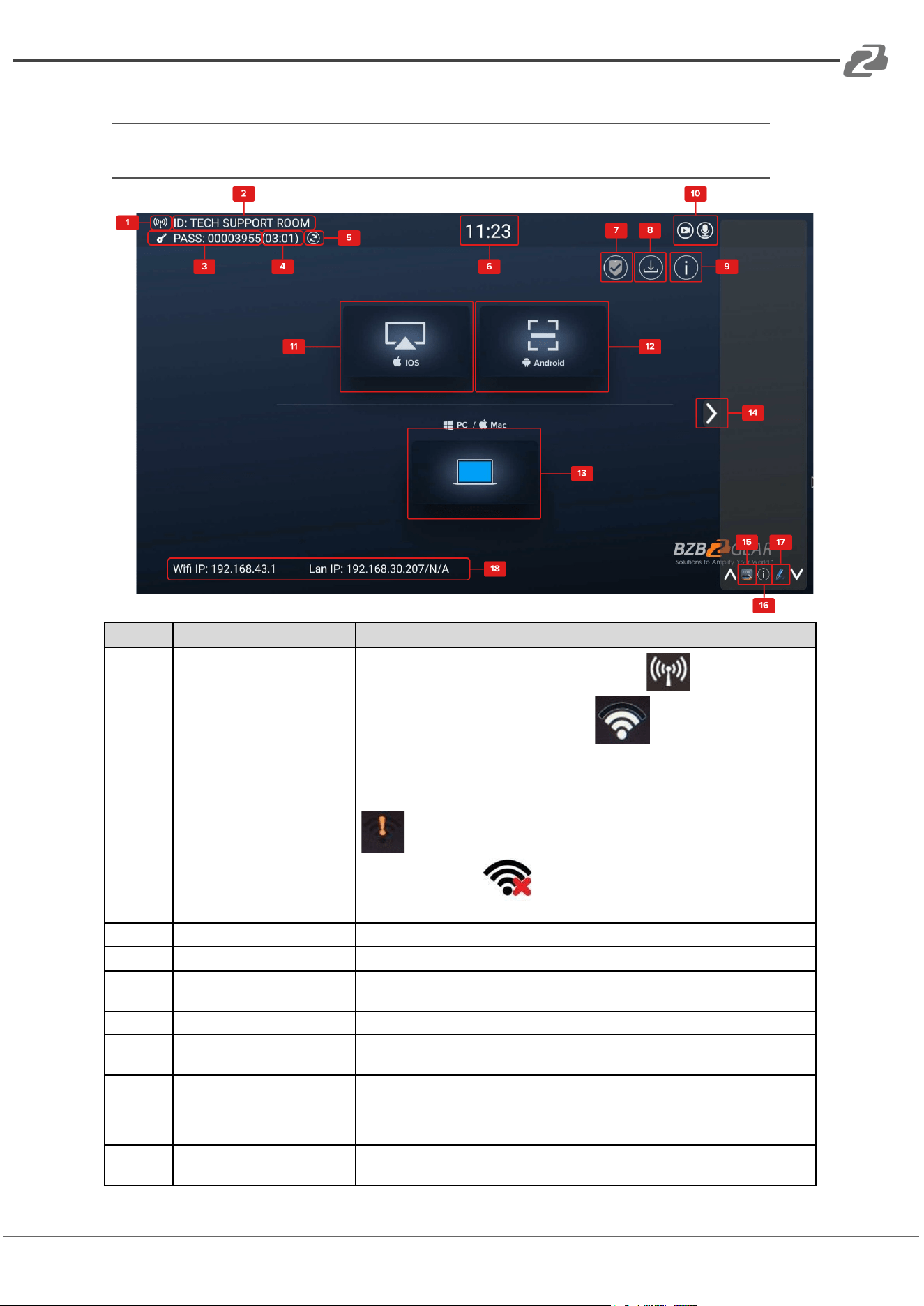
Software Interface
Home Screen
ID
Name
Description
1
Wi-Fi Indicator
Wi-Fi Direct mode: Internal access point is enabled
Wi-Fi Infrastructure mode: “Client-Mode”
Wi-Fi connection to router is established and the icon displays the current signal
strength.
A secure Wi-Fi connection is not established, or connection to a router failed:
Wi-Fi is not available:
LAN Infrastructure mode: access point is disabled.
2
ID
Wi-Fi name or device name of the base-unit access point.
3
PASS
Wi-Fi password of Connexio.
4
Password-Timer
The time until the password is changed automatically. Only displayed when the
timer is active.
5
Refresh Wi-Fi Password
Generate a new password manually for securing your Wi-Fi network.
6
Time
If LAN has access to a time server; even after disconnecting the LAN connection,
the time is displayed until the device has been disconnected from power.
7
Security Level
Security level 1-3, display ONLY. The security features of the displayed level are
shown in detail by clicking on the icon.
The settings can only be changed by an administrator in the web server console
settings menu.
8
Download Button
Creates, upgrades, and exports the launcher “WirelessMedia.exe“ for Windows
and Mac computers to a USB stick.
Address: 830 National Drive #140, Sacramento, CA 95834, USA · Tel: +1(888)499-9906 · Email: support@bzbgear.com 11
BZBGEAR BG-Connexio PRODUCT MANUAL
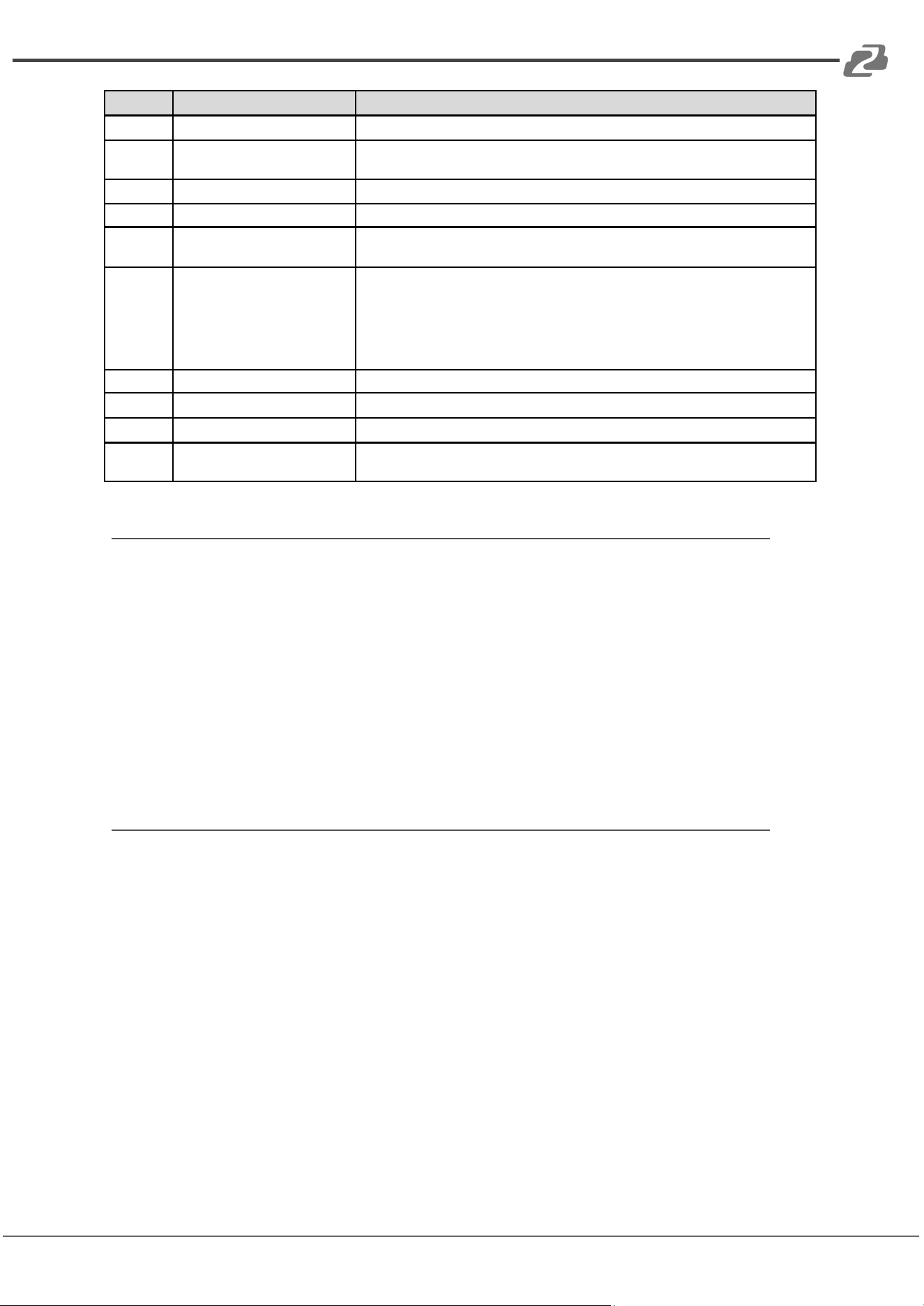
ID
Name
Description
9
Info
Show status-bar (1) – (7) on Home screen.
10
Camera and microphone icon
indicator
Once connected with a USB camera or microphone, the icon will show up
accordingly.
11
IOS Quick Start
IOS devices use AirPlay for mirroring.
12
Android Quick Start
Download the android app “WMedia2” to mirror from smart devices to the display.
13
Windows / MacOS Quick Start
Steps instruct how to transmit PC/Laptop onto the main screen. First-time users
must install the starter program from the web page or from the USB stick.
14
Preview function of the
screen contents of the
participants with transmitter
and mobile devices; White
Board & Annotation function
icon
Preview function of the screen contents of all connected transmitters and mobile
devices; White Board and Annotation function.
15
Whiteboard icon
Whiteboard function
16
Info
Click to show ID and password when mirroring.
17
Annotation
Annotation function.
18
Wi-Fi IP
LAN IP
Wi-Fi IP: address of Connexio in wireless LAN
Assigned IP: address of Connexio in LAN; “N/A“ = no connection to network
Installation
Introduction to the installation methods:
The Connexio can be installed in different ways in a meeting room.
● Table mount
● Wall mount
The articulated antennas are removable. They can rotate for better wireless
connection.
Note: For optimal performance, install the Connexio close to the display and avoid
obstacles between the Connexio and transmitting devices.
Antenna Placement Rules
● The antennas should be oriented vertically, so perpendicular to the ceiling and
parallel to the walls.
● The antennas should be installed far enough (at least 50 cm/1.6ft) from metallic
surfaces to avoid unwanted reflections and far enough (at least 1m/3.3ft) from other
radio equipment that operates in the same frequency range, e.g. other Wi-Fi access
points, cordless telephone, microwave ovens,…. It is also best to install antennas at
least 15 cm (6 inches) from concrete walls.
● The most favorable situation is a direct line of sight between antennas and Buttons.
Any obstruction will cause the signal to follow a longer propagation path, which can
result in performance degradation.
● Due to the particular radio pattern of the dipole antennas, the antennas should not
be placed just above potential positions of WirelessMedia users. As a result, the
advised position for the antennas is at the side of the meeting room
Address: 830 National Drive #140, Sacramento, CA 95834, USA · Tel: +1(888)499-9906 · Email: support@bzbgear.com 12
BZBGEAR BG-Connexio PRODUCT MANUAL
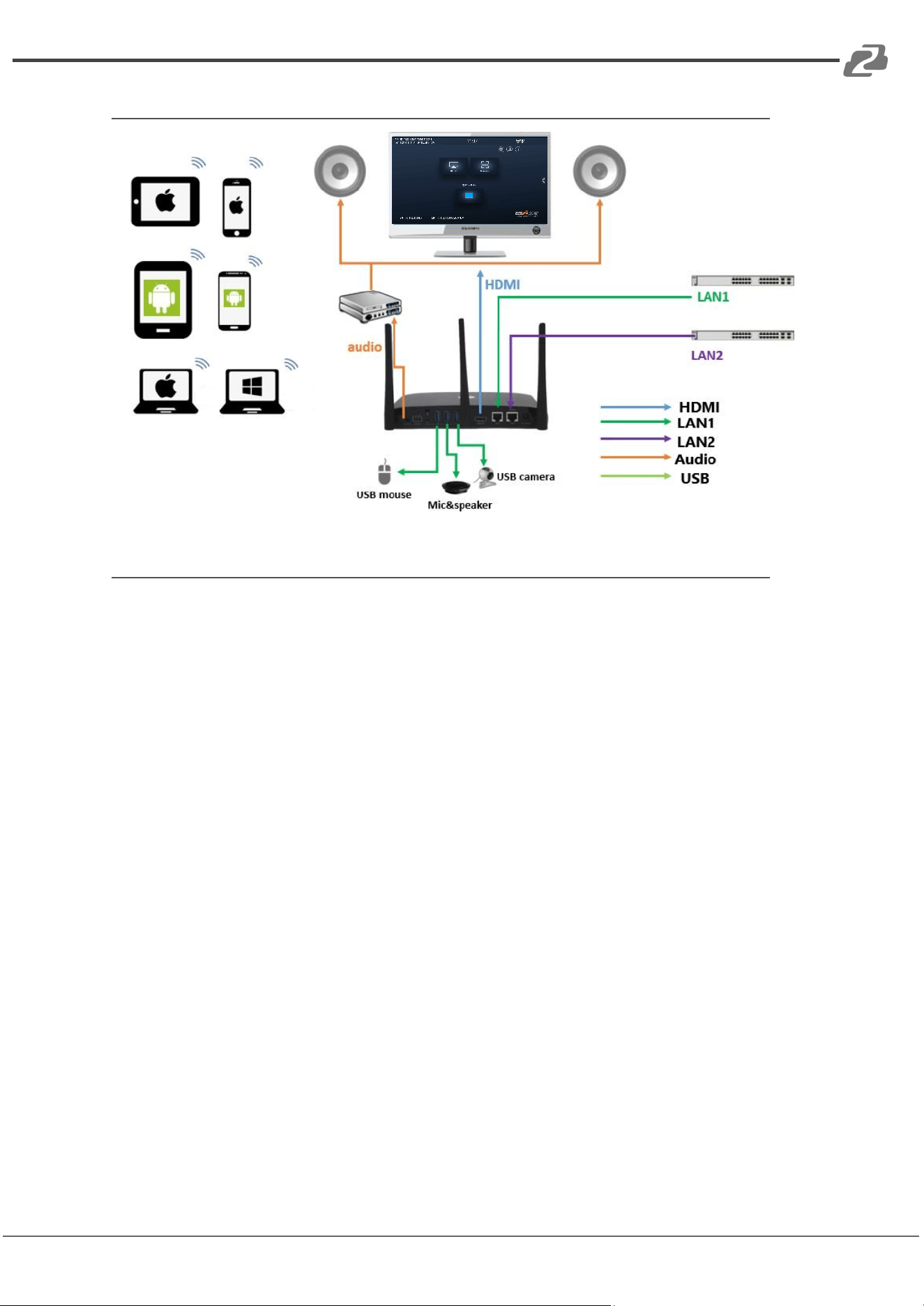
Wiring Diagram
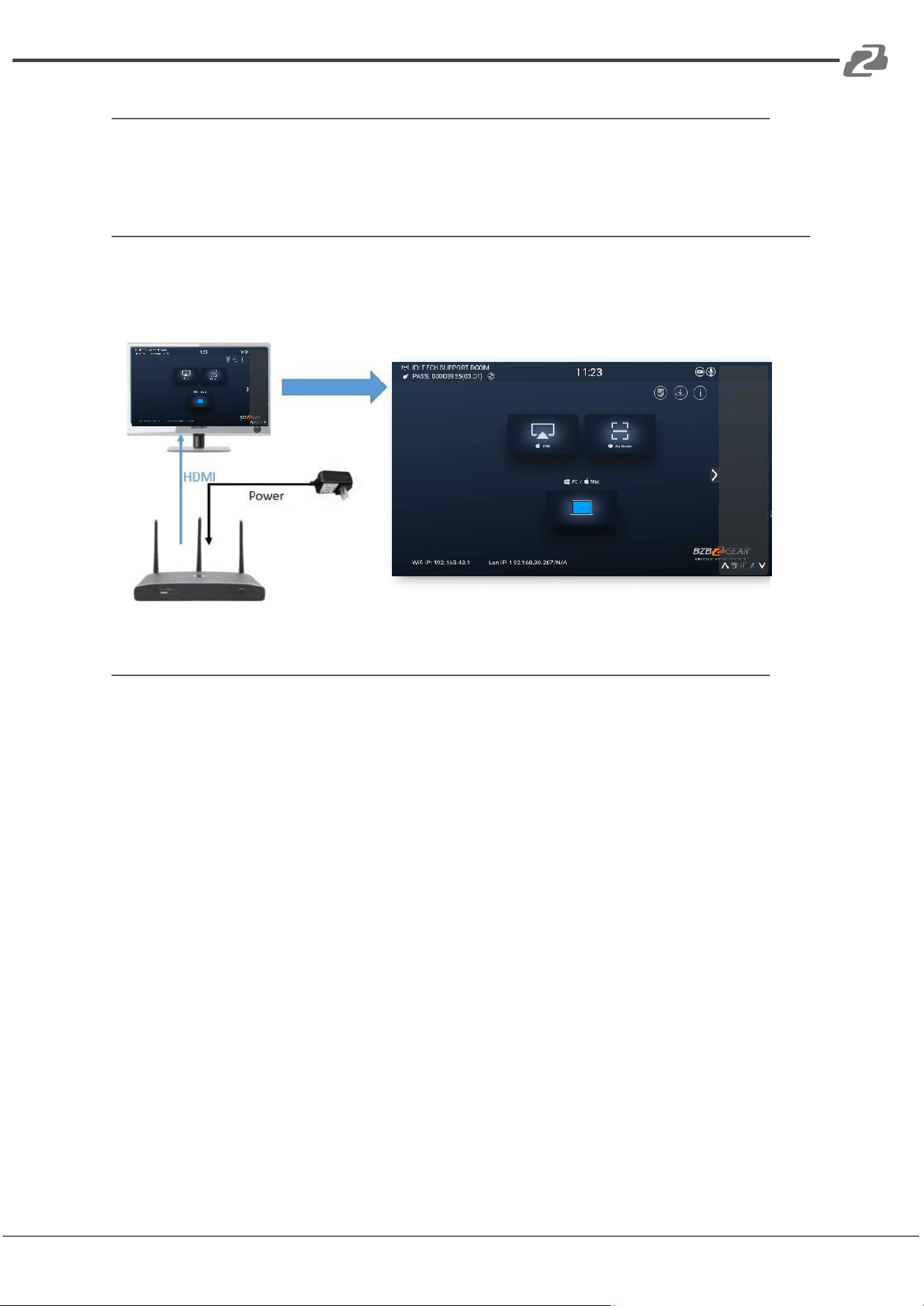
Power Connection
The Connexio can be powered by the external universal power adapter or via Power
over Ethernet (PoE).
How to connect the external power adapter
1. Choose the appropriate power plug (US, UK, EU or AU) to be installed on the
power adapter.
2. Plug in the power adapter to the power input connector on the Connexio.
3. Connect the power cable plug into the wall outlet.
Note: Once the Connexio is powered, it will start up automatically. Afterwards, use the POWER
button with Status LED on the front of the Connexio to switch it ON or OFF.
Address: 830 National Drive #140, Sacramento, CA 95834, USA · Tel: +1(888)499-9906 · Email: support@bzbgear.com 13
BZBGEAR BG-Connexio PRODUCT MANUAL
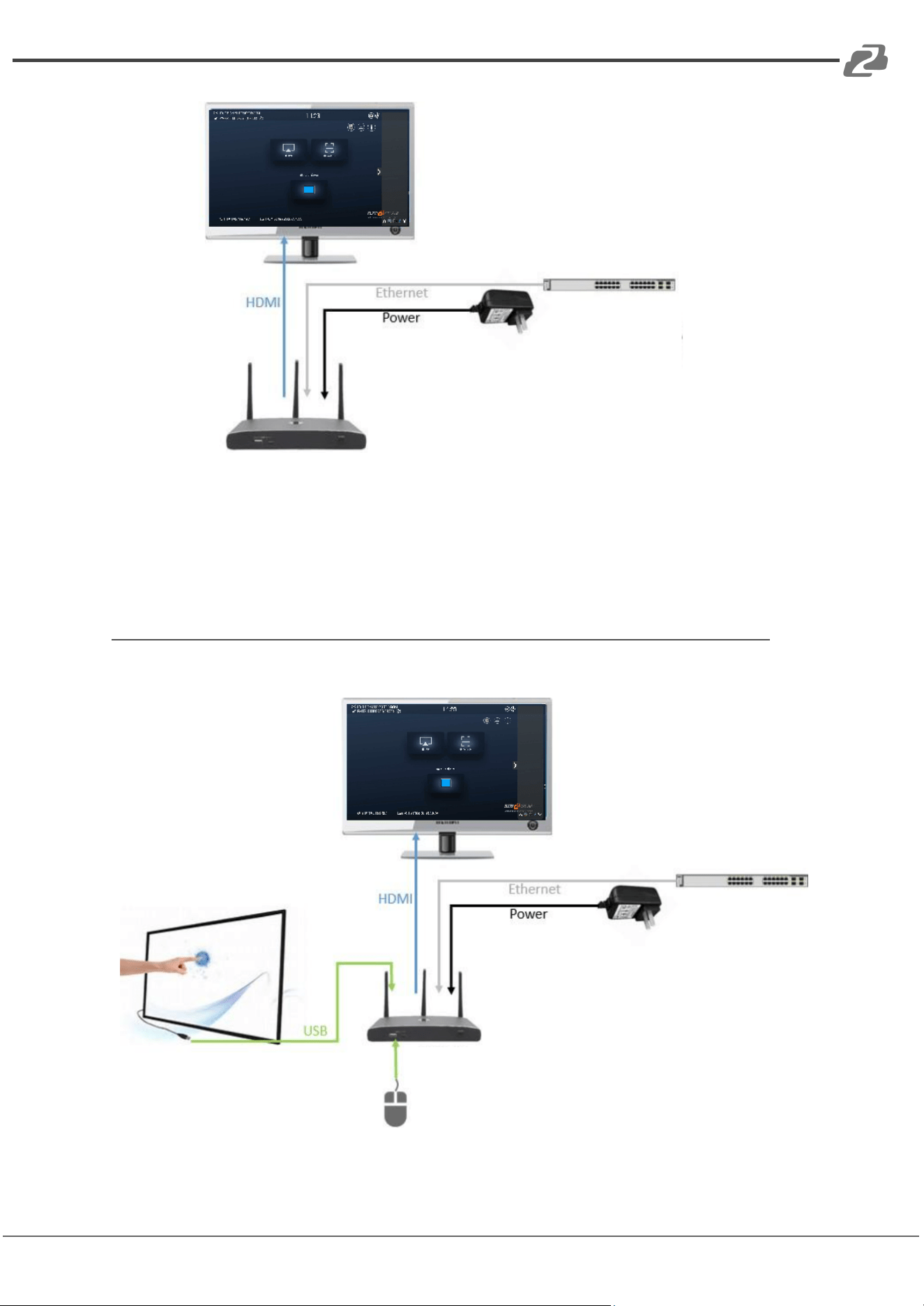
Power over Ethernet (PoE)
The Connexio can be powered via an ethernet cable if the unit is connected to a PoE
network switch instead of using the external power adapter.
Video Connection
1. Connect the HDMI Output of the Connexio to a 4K or Full-HD display with an HDMI
cable.
2. After the unit is started the system will show the home page, as shown below.
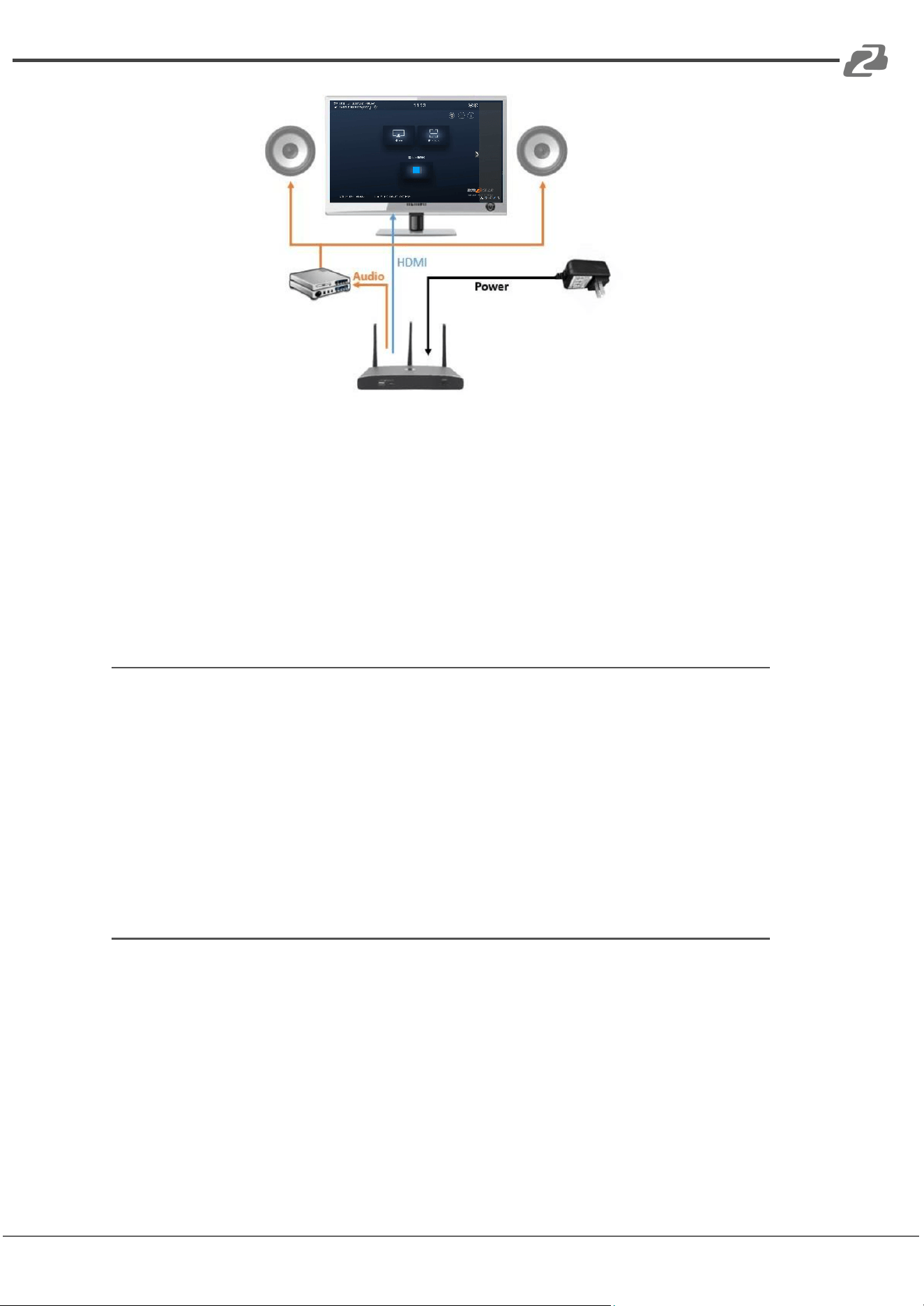
Audio Connection
The Connexio can transmit the audio output of the PC/Laptop to the Connexio
together with the video signal. The audio will be output at line levels from the 3.5mm
mini jack connector and via the HDMI output connectors simultaneously.
How to connect to an external audio system
1. Connect a 3.5mm mini audio cable to the audio port of the Connexio.
2. Connect the other side of the cable to the meeting room’s sound system.
Address: 830 National Drive #140, Sacramento, CA 95834, USA · Tel: +1(888)499-9906 · Email: support@bzbgear.com 14
BZBGEAR BG-Connexio PRODUCT MANUAL
If sound is not transmitted
The Connexio will continuously capture and transmit audio from the connected
PC/Laptop.
1. Ensure the LED on top is solid green and the PC/Laptop is sharing on the screen
2. Check that the Connexio is selected as the output device in sound settings and
that the volume is set to an acceptable level.
PC/Laptop Sound
As default the Connexio will mute the internal speaker of PC/Laptop and route
the audio to the Connexio in order to avoid an audio echo.
When clicking the button to stop sharing, the local speaker will return to its
previous state.
Note: If you want to keep the internal speaker of PC/Laptop active and still route
the audio to the Connexio, click the audio mute icon in the status bar to turn the
internal speaker on.
LAN Connection
The Connexio can be connected to a local network or directly to a PC/laptop. For
normal operation, a LAN connection is not necessary but it is recommended to
connect the Connexio to the Internet.
1. Connect a network cable with an RJ-45 connector into the LAN port of the
Connexio.
2. Connect the other side to the network.
3. If the connected network switch supports power over ethernet (PoE), it can
also power the Connexio instead of using the external power supply.
Address: 830 National Drive #140, Sacramento, CA 95834, USA · Tel: +1(888)499-9906 · Email: support@bzbgear.com 15
BZBGEAR BG-Connexio PRODUCT MANUAL
The LAN connection can be used for:
● Network integration of Connexio to the guest or company networks.
● Telnet control of the Connexio.
● Maintenance purposes.
Over-The-Air Updates (OTA) of firmware for the Connexio.
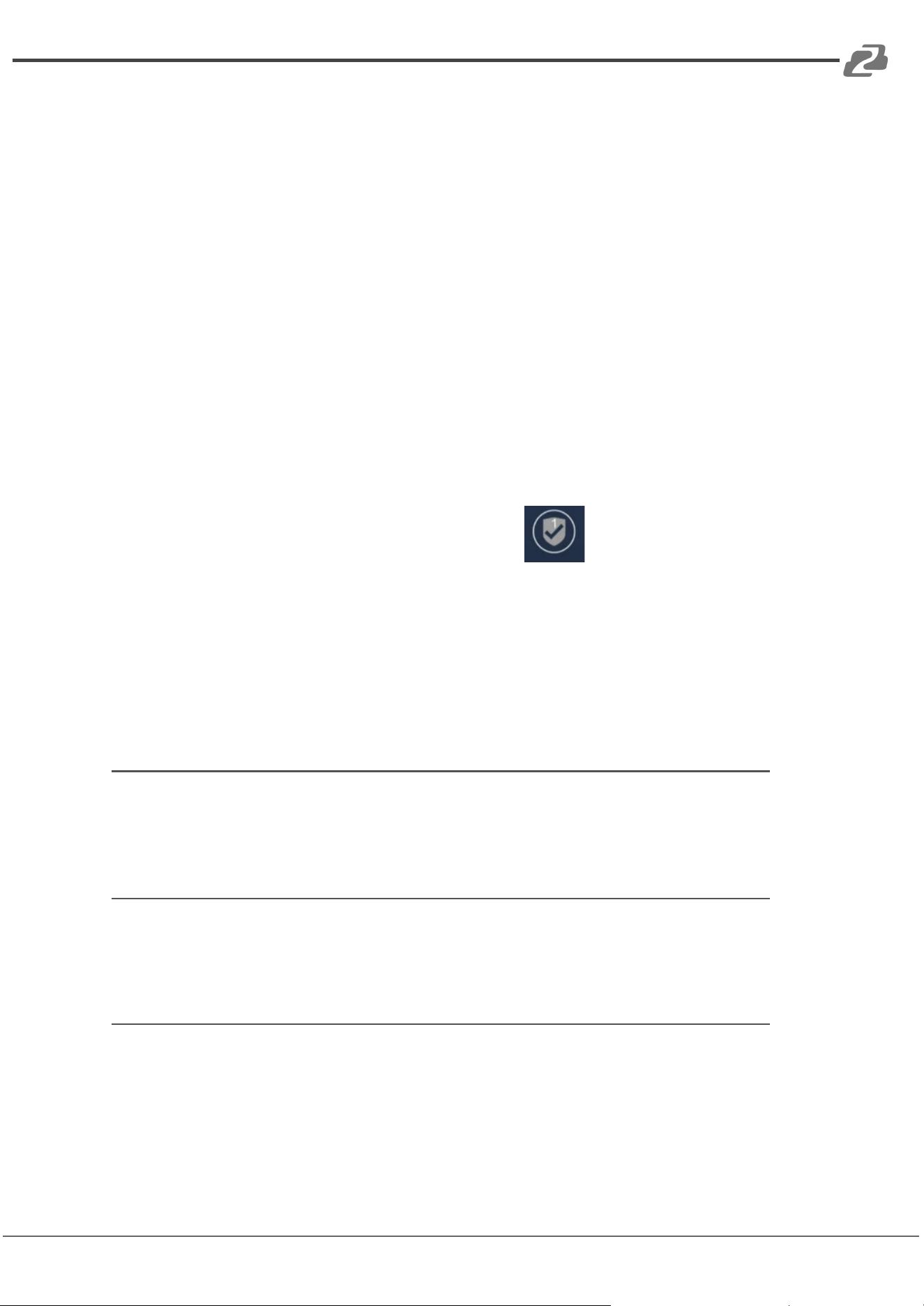
Connecting a USB device
Connect a USB mouse or to a touchscreen to control the Connexio.
Address: 830 National Drive #140, Sacramento, CA 95834, USA · Tel: +1(888)499-9906 · Email: support@bzbgear.com 16
BZBGEAR BG-Connexio PRODUCT MANUAL
Please be aware of the following limitations:
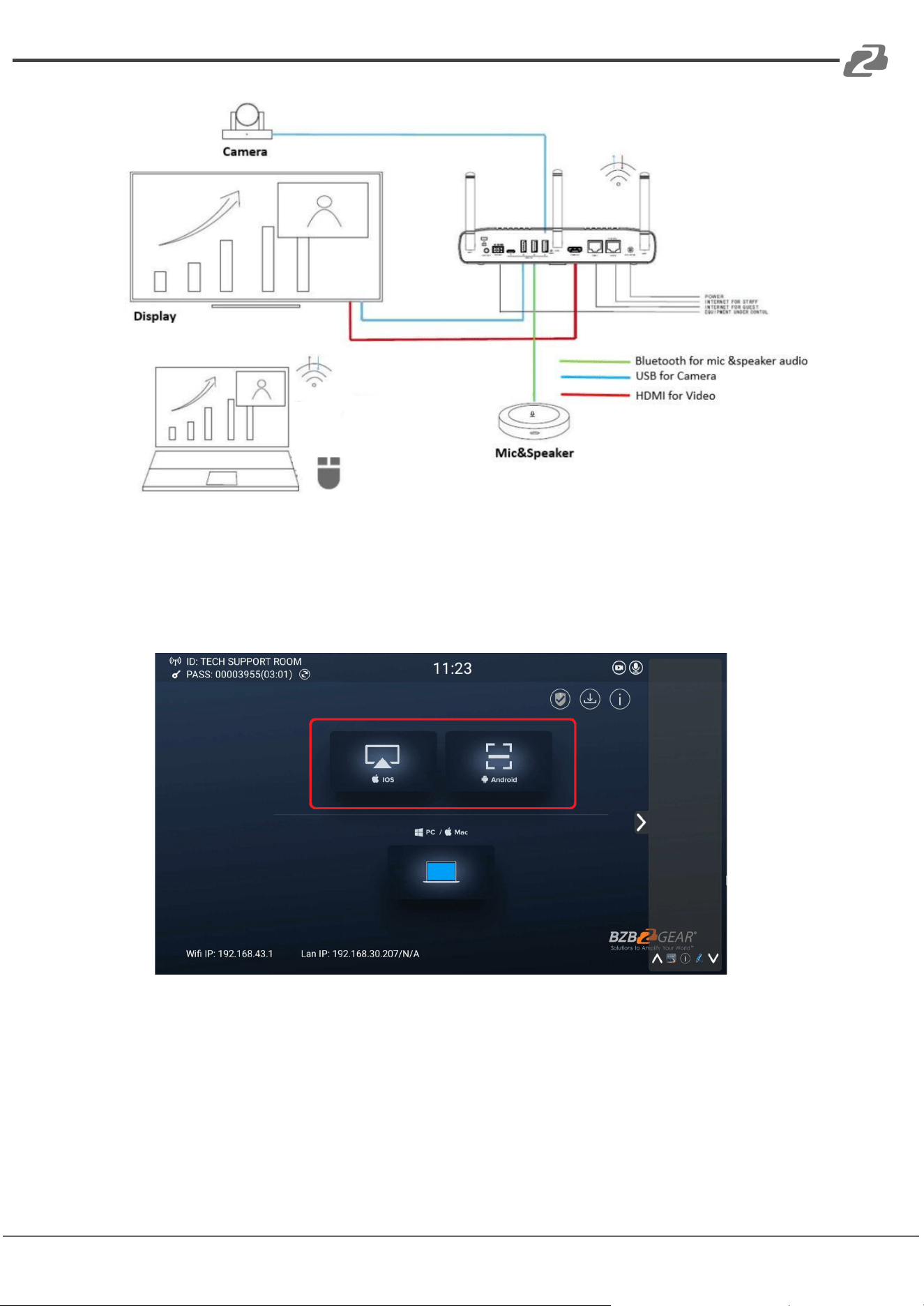
The Connexio supports most generic USB devices for the camera and speakerphone
peripherals, meaning most brands will work just fine. Note that the peripherals
attached must have the following characteristics to work with a Connexio setup:
● A connection via the Connexio app is required to access the connected
peripherals.
● For cameras that only have a built-in microphone and are not equipped with a
speaker or speakerphone (e.g.Logitech webcams or Huddle cameras), only the
camera functionality will be used by the Connexio.
● Separate mics and speakers are not supported. The Connexio only supports
speakerphone devices, which contain both microphones and speakers in one
peripheral. Separate microphones (e.g. speakerphones in combination with an
all-in-one camera) or USB speakers are not supported.
Configure the Security level through the check button to perform the
following actions:
1. To control the sharing PC/Laptop.
2. To activate system upgrading
3. For white board or annotation during a presentation the Connexio transmits
video, audio, and the USB-HID function for mouse control and click functions
of a touchscreen. Connect the touch interface of your screen to the USB-port
on your laptop or PC.
USB Mouse
For menu configuration:
Single click to select.
Right-click to navigate back to the Home Page.
Touch Screen
Click to select.
Long press to open the contextual menus or emulate double-click/right click of a USB
mouse.
External USB Devices over Wi-Fi Sharing
Connexio supports USB Cameras and USB speakerphones over Wi-Fi sharing.
Use the 3 USB ports and 1 Type-C port in the rear panel to connect external USB
devices such as microphones and cameras to use with video conferencing software
such as Skype, Zoom, Teams, and more.
Address: 830 National Drive #140, Sacramento, CA 95834, USA · Tel: +1(888)499-9906 · Email: support@bzbgear.com 17
BZBGEAR BG-Connexio PRODUCT MANUAL
Mobile Device: Wireless Connection
1. Android Devices: Download a sharing application such as “WirelessMedia2”
from the Google Play store.
2. WirelessMedia provides two ways to discover Connexio for mobile devices.
a) Portable Hotspot: Connect the hotspot to the Connexio.
b) LAN Connection: Connect the Connexio and mobile device to the same
LAN network to discover and connect to the Connexio.
3. iOS Devices: Use AirPlay to mirror the desktop.
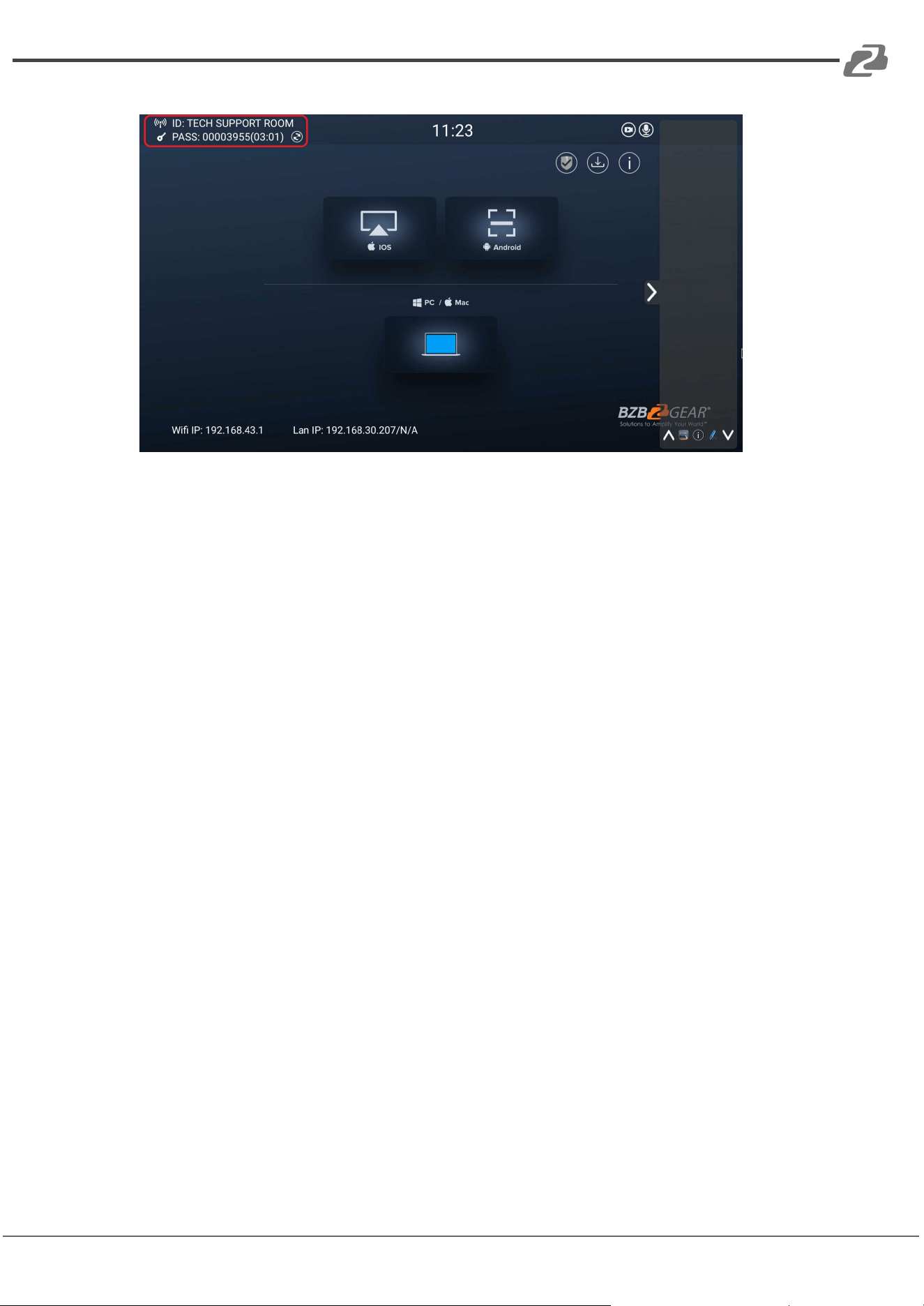
Enable portable hotspot:
Check that the ID and PASS (Password) are shown on the Homepage, as shown
Address: 830 National Drive #140, Sacramento, CA 95834, USA · Tel: +1(888)499-9906 · Email: support@bzbgear.com 18
BZBGEAR BG-Connexio PRODUCT MANUAL
below.
Address: 830 National Drive #140, Sacramento, CA 95834, USA · Tel: +1(888)499-9906 · Email: support@bzbgear.com 19
BZBGEAR BG-Connexio PRODUCT MANUAL
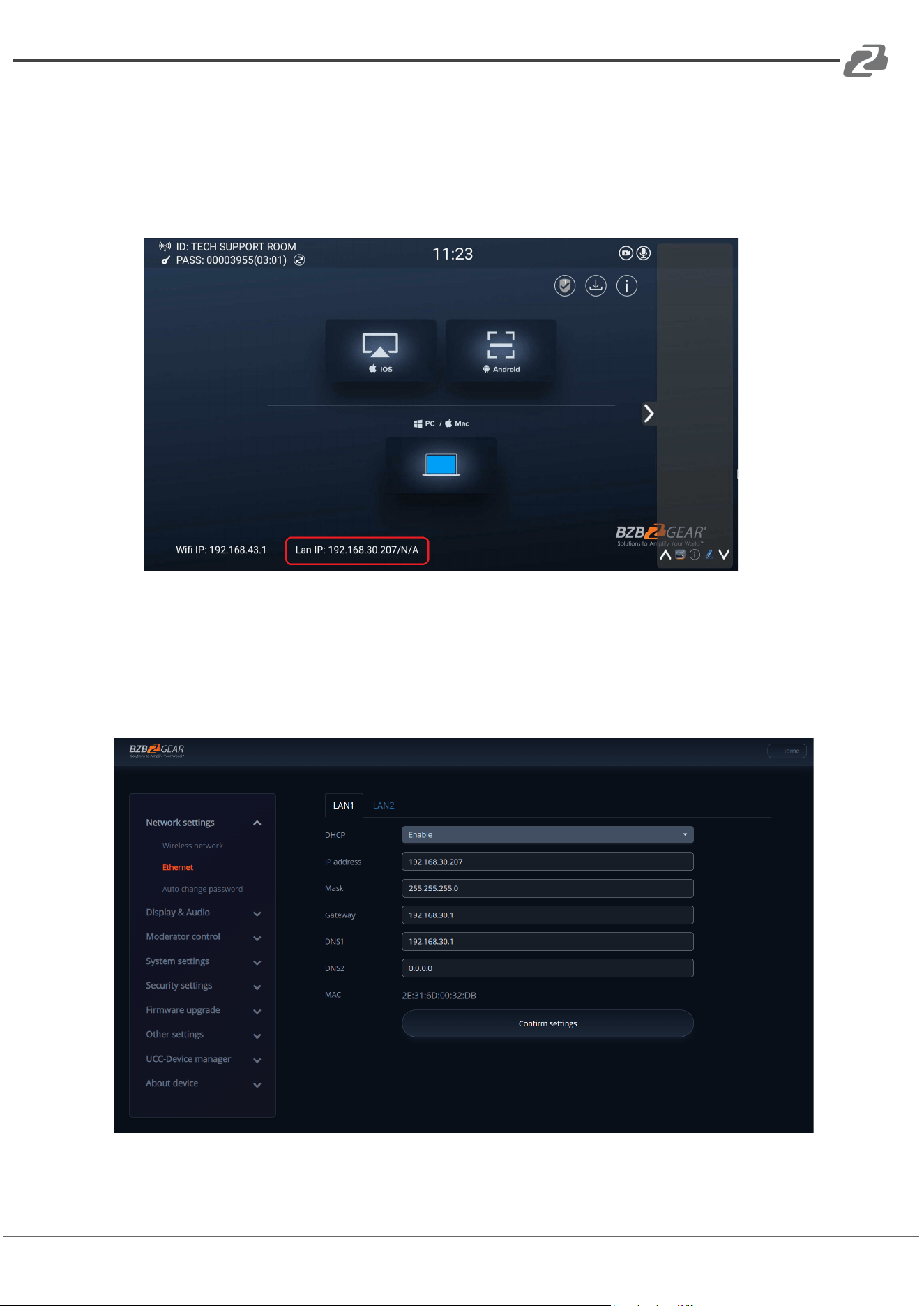
Enable LAN connection:
Be sure the Connexio is connected to the Network. The Connexio has
successfully connected to the LAN When the Local IP shows an active IP address
in the bottom left.
Note: When it shows “N/A” this means the Connexio is not connected to the LAN
(Local Area Network) by CAT cable or it failed to get an available IP address from the
router.
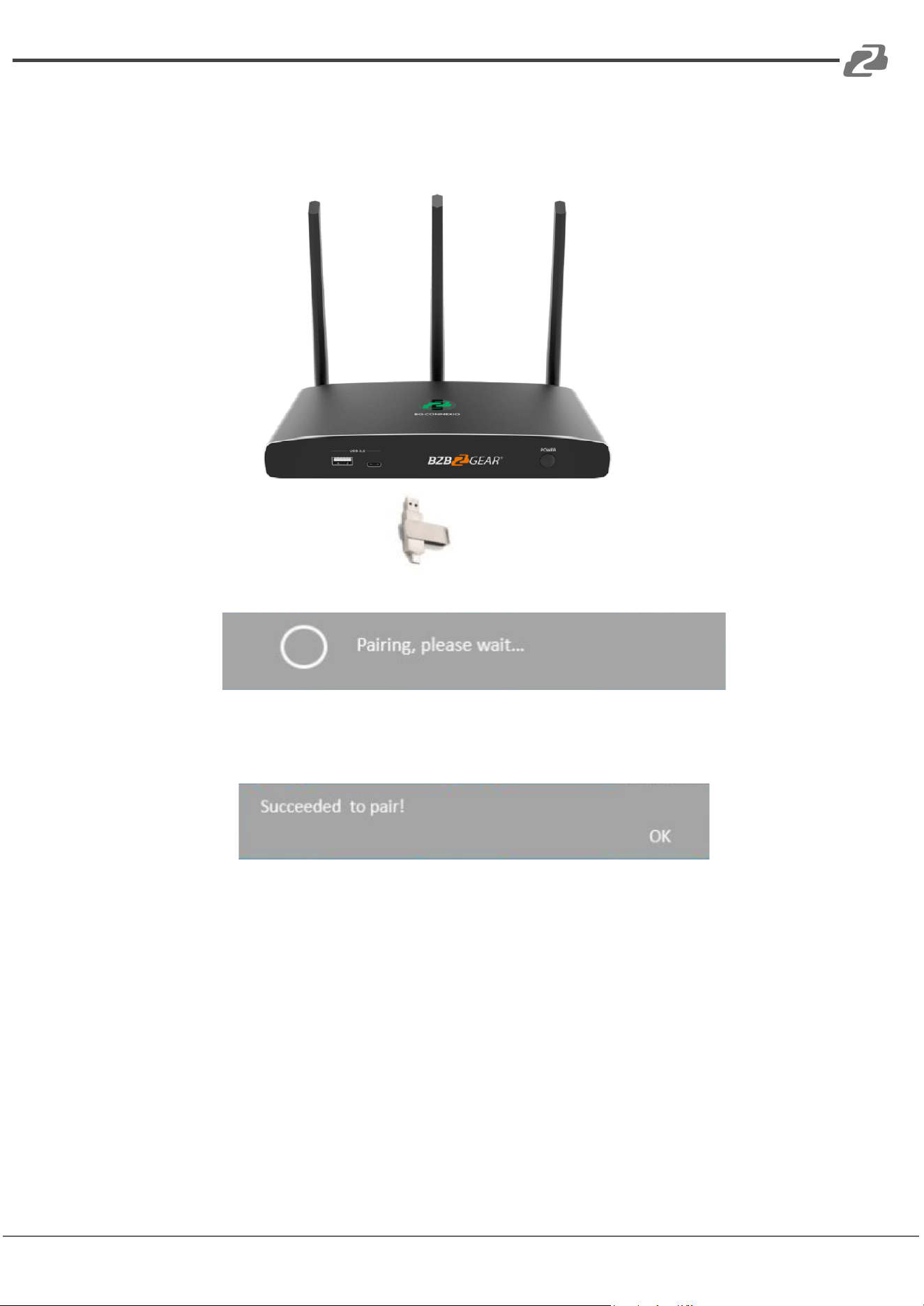
Logging into the Connexio via the LAN IP allows users to modify network settings as
shown below:
Address: 830 National Drive #140, Sacramento, CA 95834, USA · Tel: +1(888)499-9906 · Email: support@bzbgear.com 20
BZBGEAR BG-Connexio PRODUCT MANUAL
Pairing transmitter with Connexio
1. To pair the optional dongle to the Connexio connect one of the USB
connections (Type-C or Type-A) to the ports on the front of the Connexio.
1. A pop-up window will display “Pairing, please wait…” as shown below:
2. After pairing is complete, the message “Succeeded to pair!” will be displayed.
At this point it is safe to unplug the USB dongle and connect to a computer to
install the software or for quick pairing after initial first use.
If the error-message “Configuration fail” is shown, please check the connection of the
USB dongle and try again.
Note: After changing the SSID/Wi-Fi name in the menu all transmitters must be
paired again.
Address: 830 National Drive #140, Sacramento, CA 95834, USA · Tel: +1(888)499-9906 · Email: support@bzbgear.com 21
BZBGEAR BG-Connexio PRODUCT MANUAL
Software or Optional Dongle Connection
The Connexio can be operated with either the optional dongle or PC application. If
there are several participants in a meeting, mixed operation is also possible.
BG-C-USBi:
1. Pair the optional USB dongle with the Connexio as shown above.
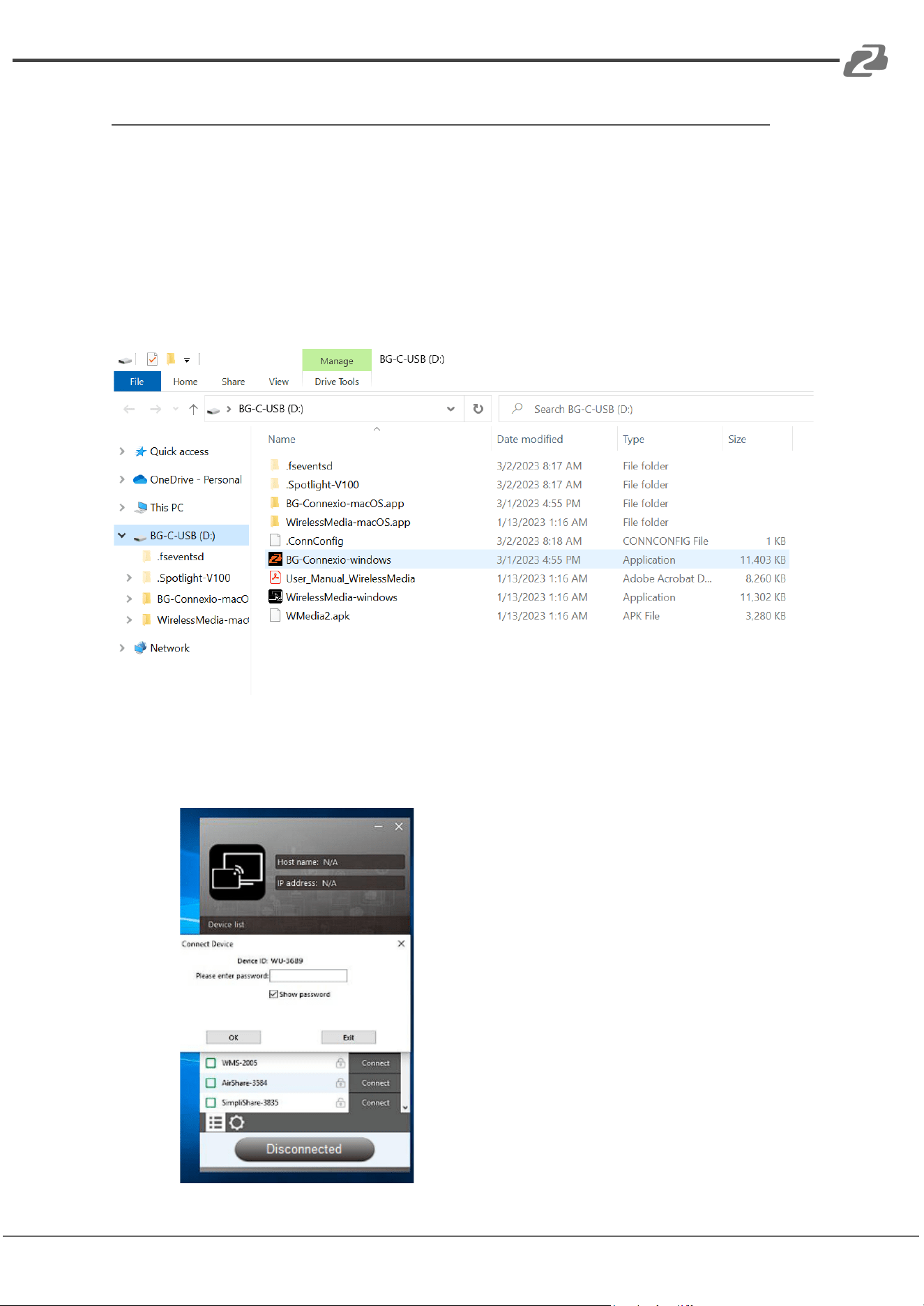
2. The necessary software will be automatically installed on the dongle as
shown below:
3. Plug the dongle into a PC/Macbook and click the “Launcher” to install. The
dongle will auto change the PC's Wi-Fi to the target Connexio’s Wi-Fi.
4. The software will have a pop-up message appear to enter the password to
connect.
Address: 830 National Drive #140, Sacramento, CA 95834, USA · Tel: +1(888)499-9906 · Email: support@bzbgear.com 22
BZBGEAR BG-Connexio PRODUCT MANUAL
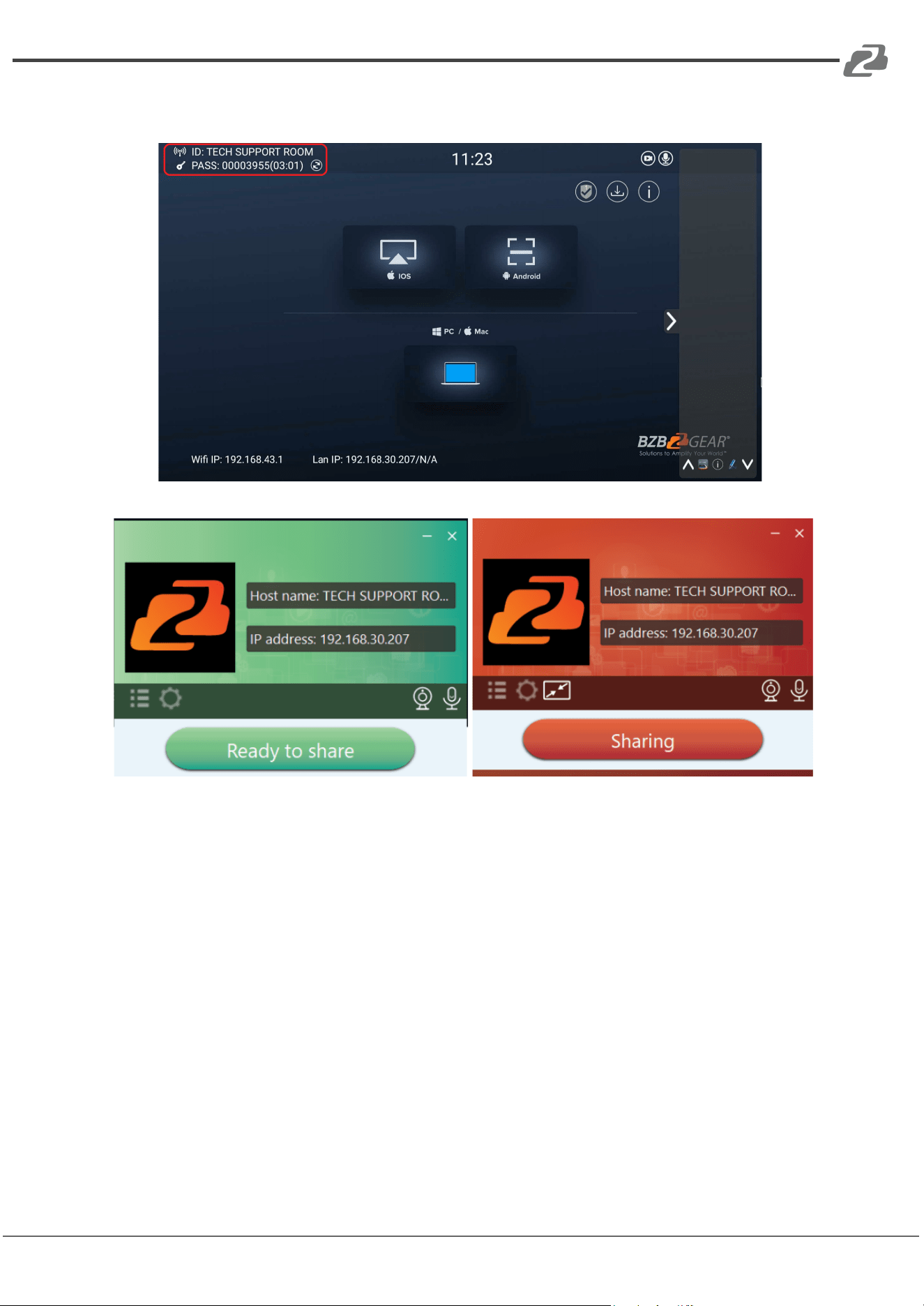
5. Enter the password shown in the top right of the splash screen as shown
below:
6. Once connected successfully, a message “Ready to share”, will appear:
7. Clicking the “Ready to share” button will change the window from green to
red and the button to “Sharing” when your screen is being actively shared.
Note: After initial install, users can either use the application on their computer or
activate the software by using the dongle which will automatically run the application if
installed. Users will need to close the file explorer window that pops up automatically.
To exit, even if the dongle is removed, users will need to exit the software by clicking
the ‘x’ in the top right of the window.
Manually Downloading the Application
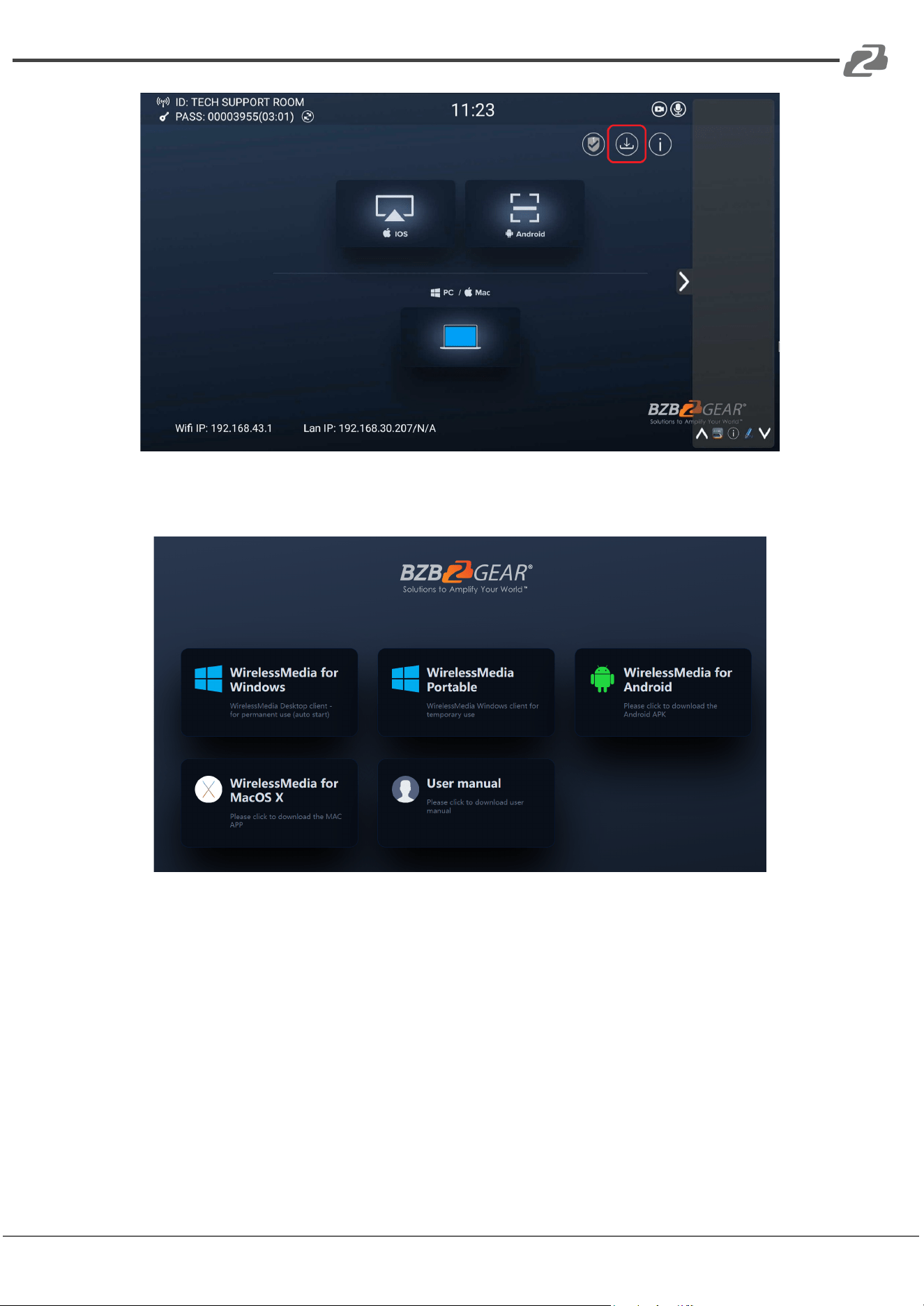
1. If needed, it is possible to use a universal USB stick to create a launcher.
Connect the USB stick to the Connexio and click the DOWNLOAD icon on the
homepage which will download applications for Windows, Android, Mac OS,
as well as the user manual.
Address: 830 National Drive #140, Sacramento, CA 95834, USA · Tel: +1(888)499-9906 · Email: support@bzbgear.com 23
BZBGEAR BG-Connexio PRODUCT MANUAL
2. Users can also download the application from the web page by connecting a
computer or device to the same network as the Connexio and navigating to the
LAN IP of the unit.
Address: 830 National Drive #140, Sacramento, CA 95834, USA · Tel: +1(888)499-9906 · Email: support@bzbgear.com 24
BZBGEAR BG-Connexio PRODUCT MANUAL
Options for Microsoft Windows PC / Laptop – Extended Screen
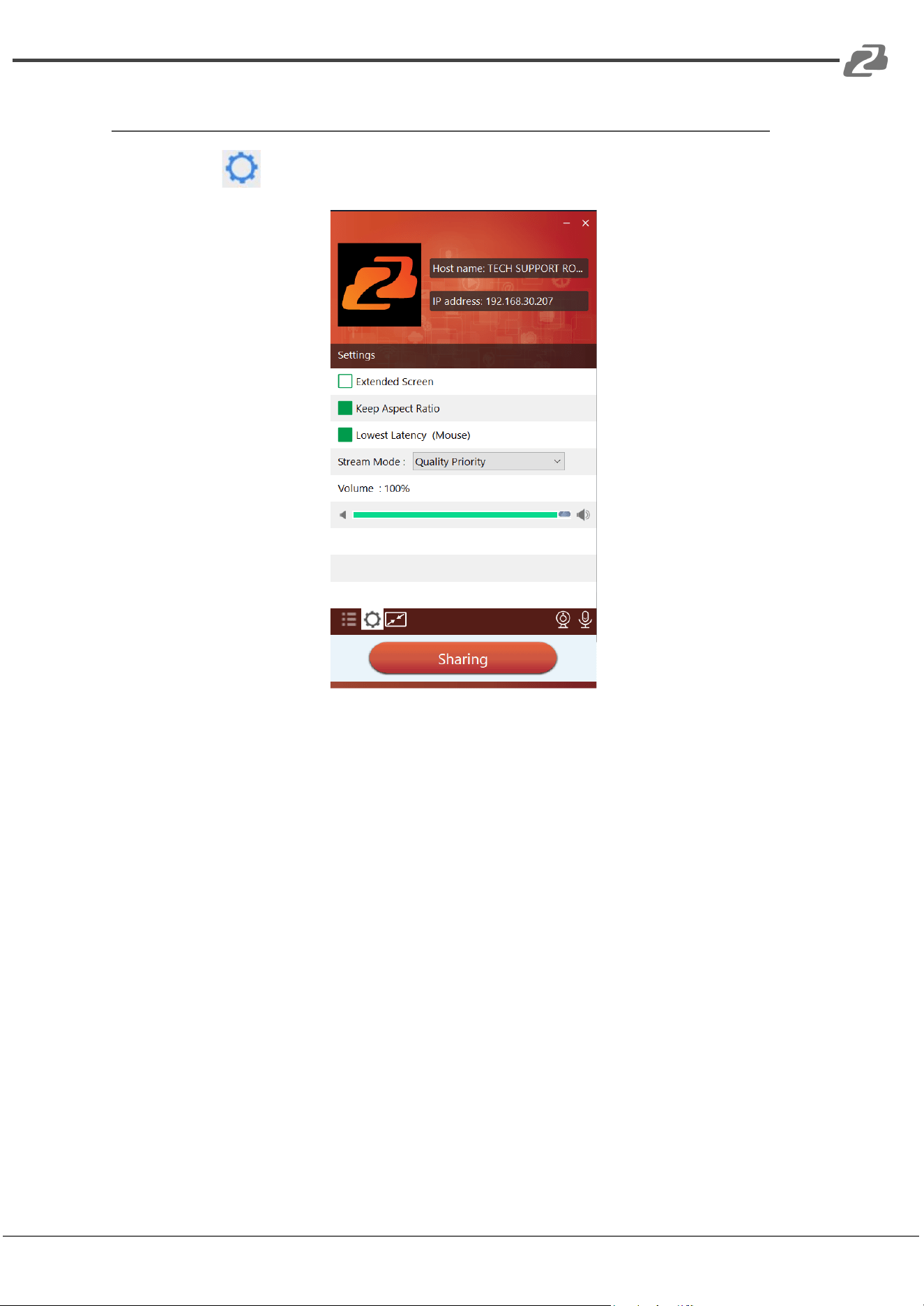
Click the icon in the App to open/close the “options” menu.
Options:
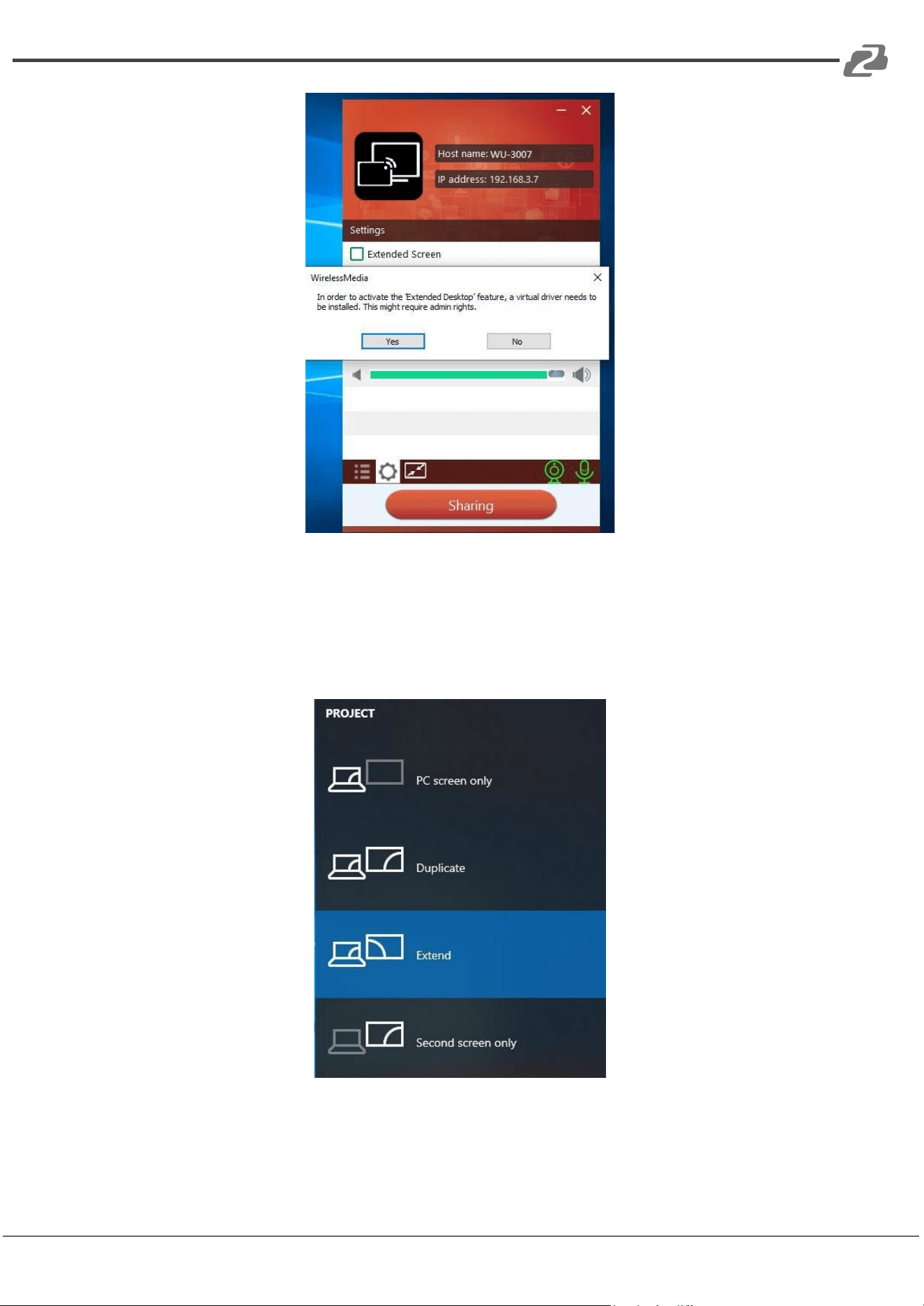
1. Extended Screen:
a. Transfers extended desktop functionality of the active source.
Depending on your operating system, the installation of a virtual driver
for “ExtendedDisplay“ may be necessary (see 3. below).
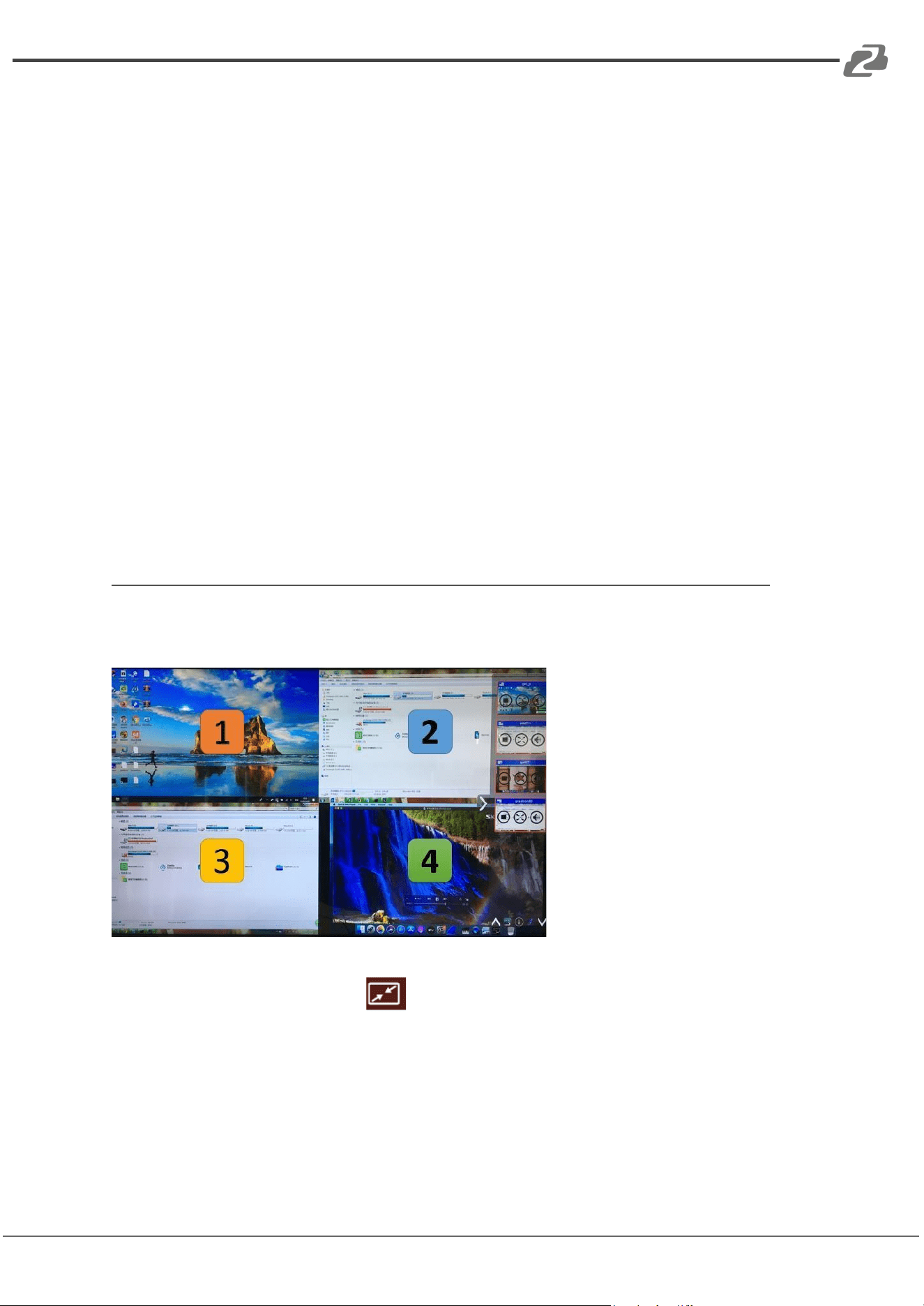
b. The primary screen (1) will be displayed on the laptop and the virtually
extended screen (2) will be displayed on the main screen. If the PC is
already connected to an extended screen (3), the extended screen (2)
will always be displayed on the main screen.
c. For the first time use of “Extended Screen” click the “Extended Screen”
box. A pop up message will indicate the installation of the
“ExtendedDisplay” driver. Click “yes” to continue, once installed, the
“Extended screen” function will be ready to use.
Address: 830 National Drive #140, Sacramento, CA 95834, USA · Tel: +1(888)499-9906 · Email: support@bzbgear.com 25
BZBGEAR BG-Connexio PRODUCT MANUAL
Note: If you select the “Extended Screen” feature, Windows automatically switches to
“Extended Mode”. If you stop the transfer with “WirelessMedia” (Pause), Windows
remains in " Extended Mode" until you press "Windows key + P" on the laptop to
select the "PC screen only" mode.
Address: 830 National Drive #140, Sacramento, CA 95834, USA · Tel: +1(888)499-9906 · Email: support@bzbgear.com 26
BZBGEAR BG-Connexio PRODUCT MANUAL
2. Keep Aspect Ratio:
Keep the original aspect ratio to display on the connected screen.
3. Low Latency Mouse:
The setting is applied individually for each connected device. The shape of the
mouse-pointer will equal the shape in the application. There may be a small
delay in movement of the cursor.
4. Stream Mode:
Fluency Priority: Image transmission delay is small, image resolution will be
lower, suitable for PPT presentation modes.
Quality Priority: The image resolution is high, but if the image content is
complex the transmission delay may be larger, suitable for watching a video.
5. Volume Slider:
Adjust the playback volume of the main screen when a presentation laptop is
active.
Quad View Mirroring
The Connexio can mirror 4 sources onto the main display simultaneously (supports
PC/Laptop and mobile devices).
Note: By clicking full screen icon in the bottom left of the PC UI interface the
content will be displayed as full screen. Click again and the screen will revert back to
quad view mode.
Address: 830 National Drive #140, Sacramento, CA 95834, USA · Tel: +1(888)499-9906 · Email: support@bzbgear.com 27
BZBGEAR BG-Connexio PRODUCT MANUAL
Android Devices
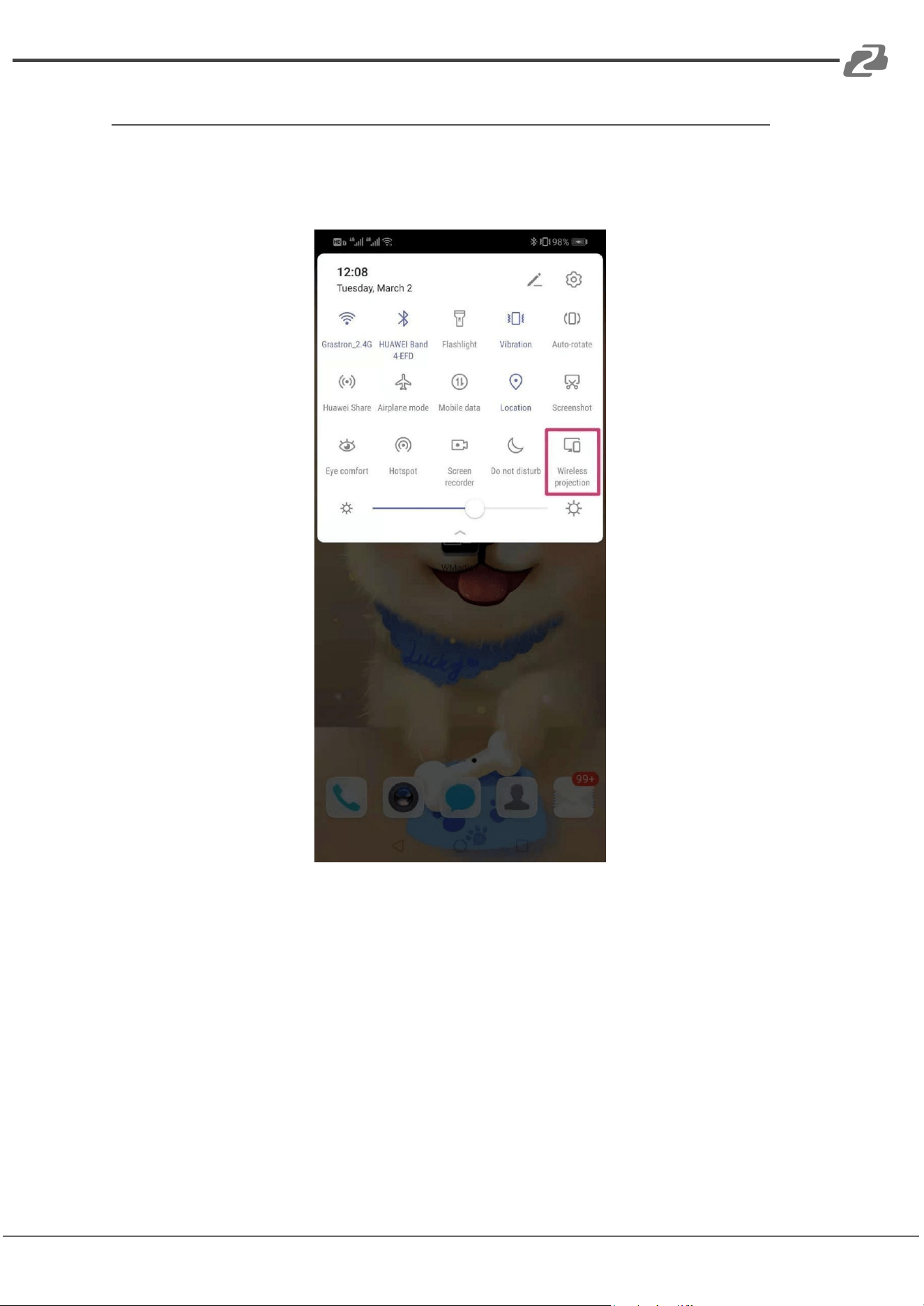
Steps as below:
1. Make sure the Wi-Fi or WLAN is enabled.
2. Swipe down from the top of the phone's screen and click the wireless
projection icon in the dropdown page.
3. It will open the wireless projection window, find the Connexio in the available
list to connect with.
Note: under Security Level 1 mode, there is no need to enter a password to
connect. Under Security level 2 and Security level 3 mode, users will need to
enter the password shown on the home screen.
4. After entering the password, it will show your mobile content on the display.
5. Click the “wireless projection” icon again to disconnect and stop mirroring.
Address: 830 National Drive #140, Sacramento, CA 95834, USA · Tel: +1(888)499-9906 · Email: support@bzbgear.com 28
BZBGEAR BG-Connexio PRODUCT MANUAL
WIN10 PC Miracast
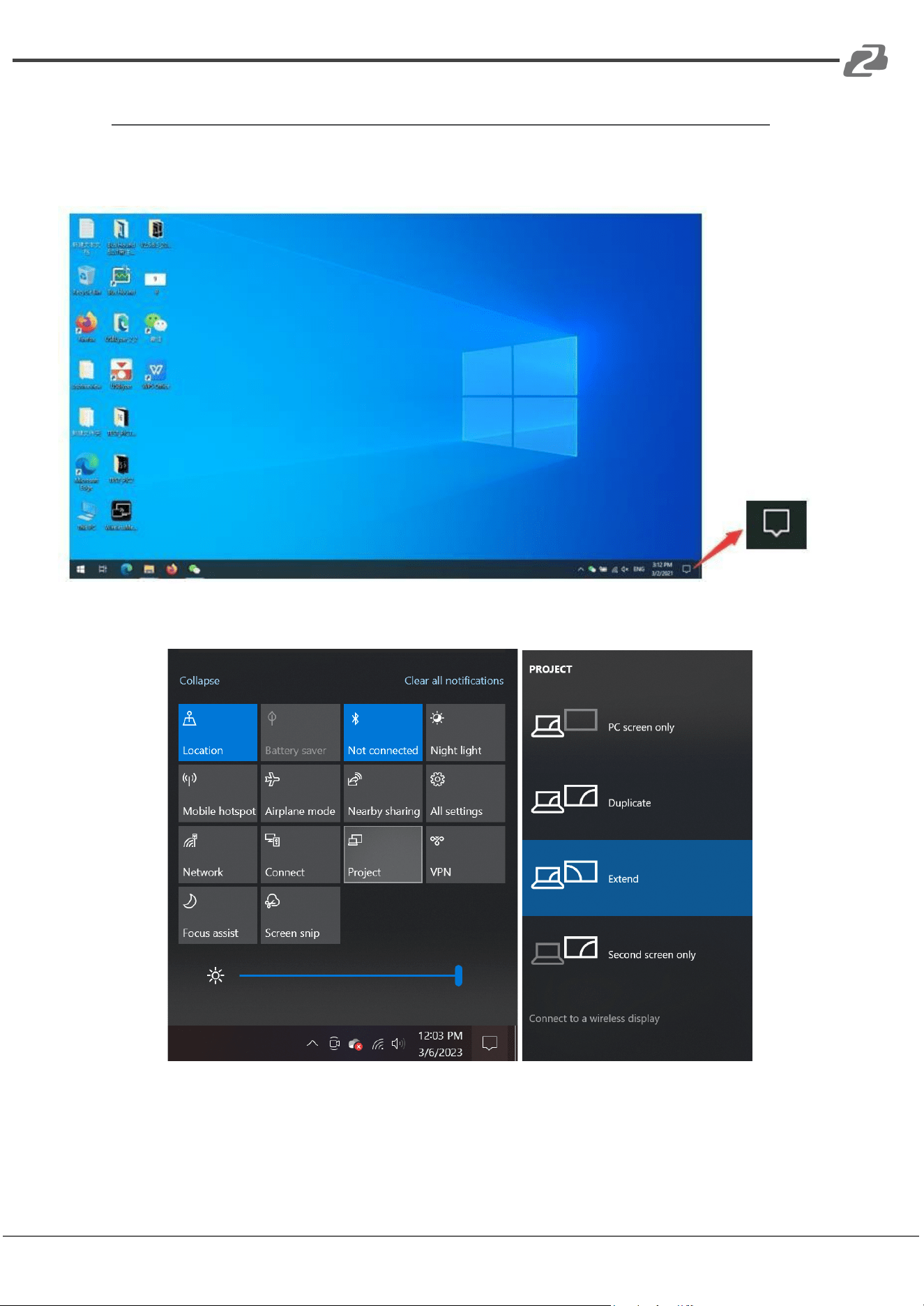
1. Make sure the Wi-Fi or WLAN is enabled.
2. Click the Notifications button in the bottom right operation zone icon as seen
below.
3. Click the “Project” icon, select “Connect to a wireless display,” and select the
Connexio from the list. Enter the password if prompted from the home
screen to connect and mirror.
Note: under Security Level 1 mode, there is no need to enter a password to connect.
Under Security level 2 and Security level 3 mode, users will need to enter the
password shown on the Connexio home screen to connect and mirror.
4. Click the “Project” icon again to disconnect to stop mirroring.
Address: 830 National Drive #140, Sacramento, CA 95834, USA · Tel: +1(888)499-9906 · Email: support@bzbgear.com 29
BZBGEAR BG-Connexio PRODUCT MANUAL
Chromecast on PC
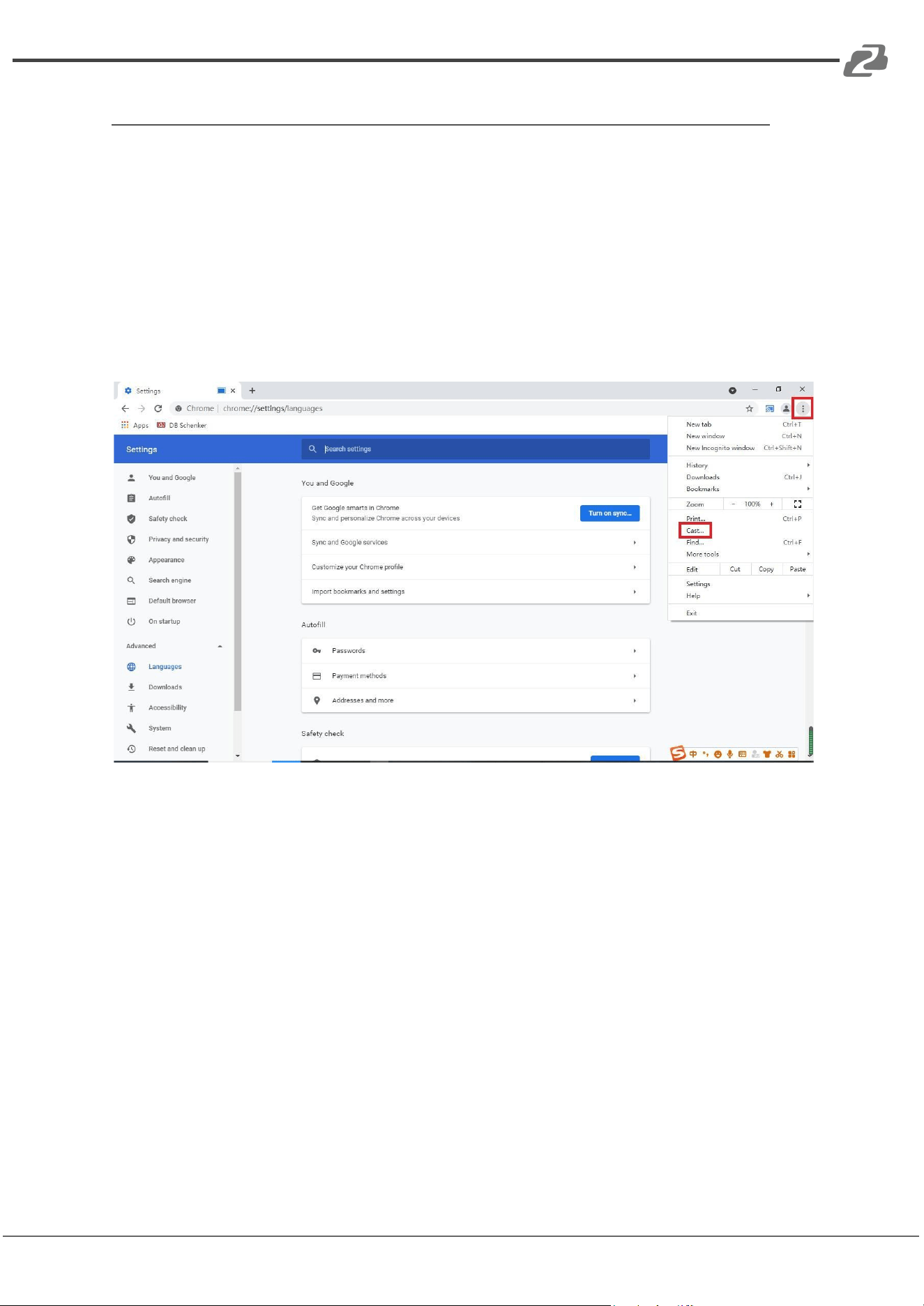
The Connexio supports Chromecast functionality on Windows 7/10/11 devices.
The PC and Connexio need to be in the same LAN network to start sharing via
Chromecast.
1. Open a Chrome based browser (Chrome/Edge) and connect your PC to the
same network as the Connexio.
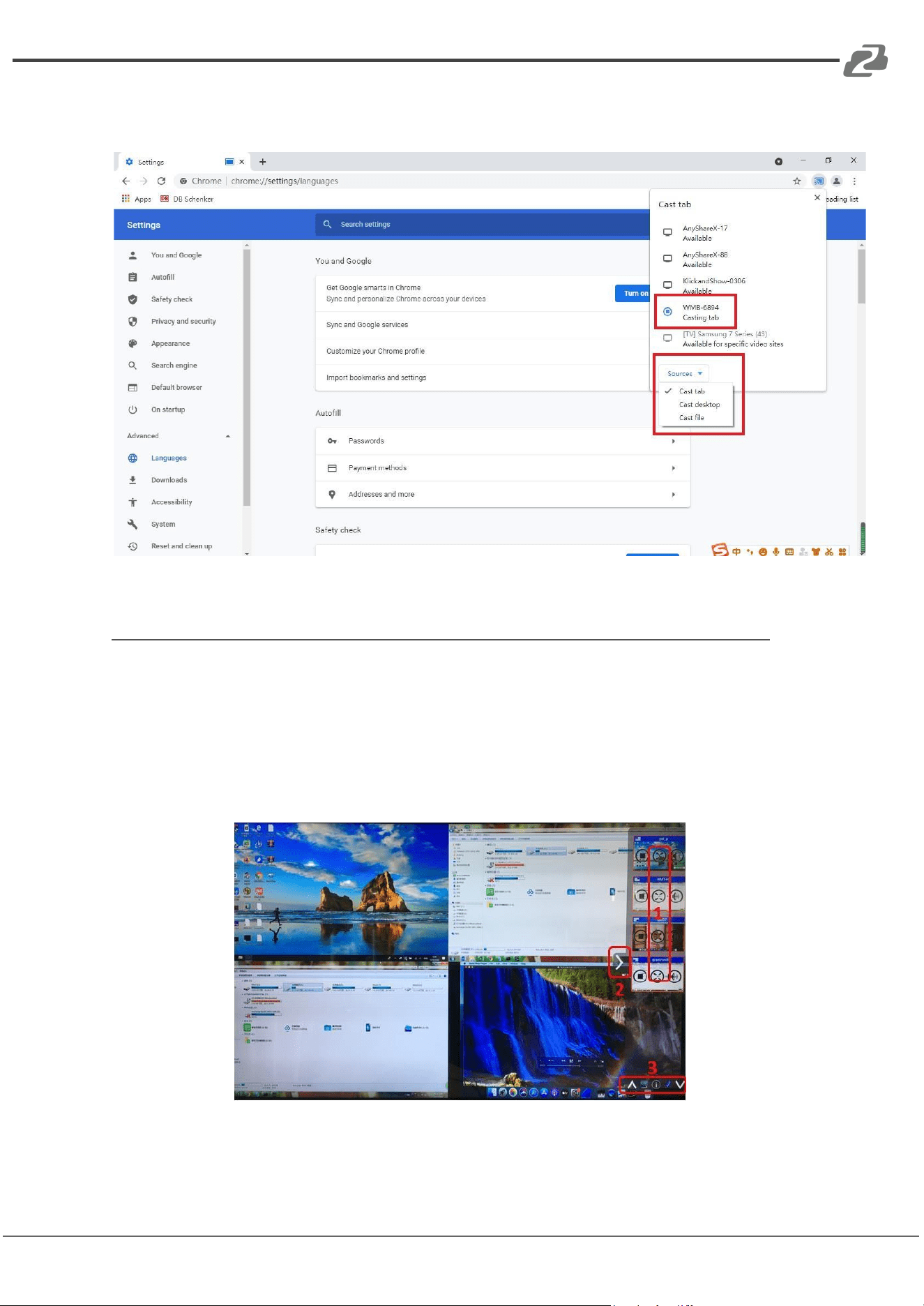
2. Click the menu (3 dots) in the top right and select “Cast…” and select the
Connexio SSID from the Cast tab to start the Chromecast function.
Address: 830 National Drive #140, Sacramento, CA 95834, USA · Tel: +1(888)499-9906 · Email: support@bzbgear.com 30
BZBGEAR BG-Connexio PRODUCT MANUAL
3. The “Sources” dropdown has three options to choose to cast. Cast tab, Cast
desktop, and Cast file.
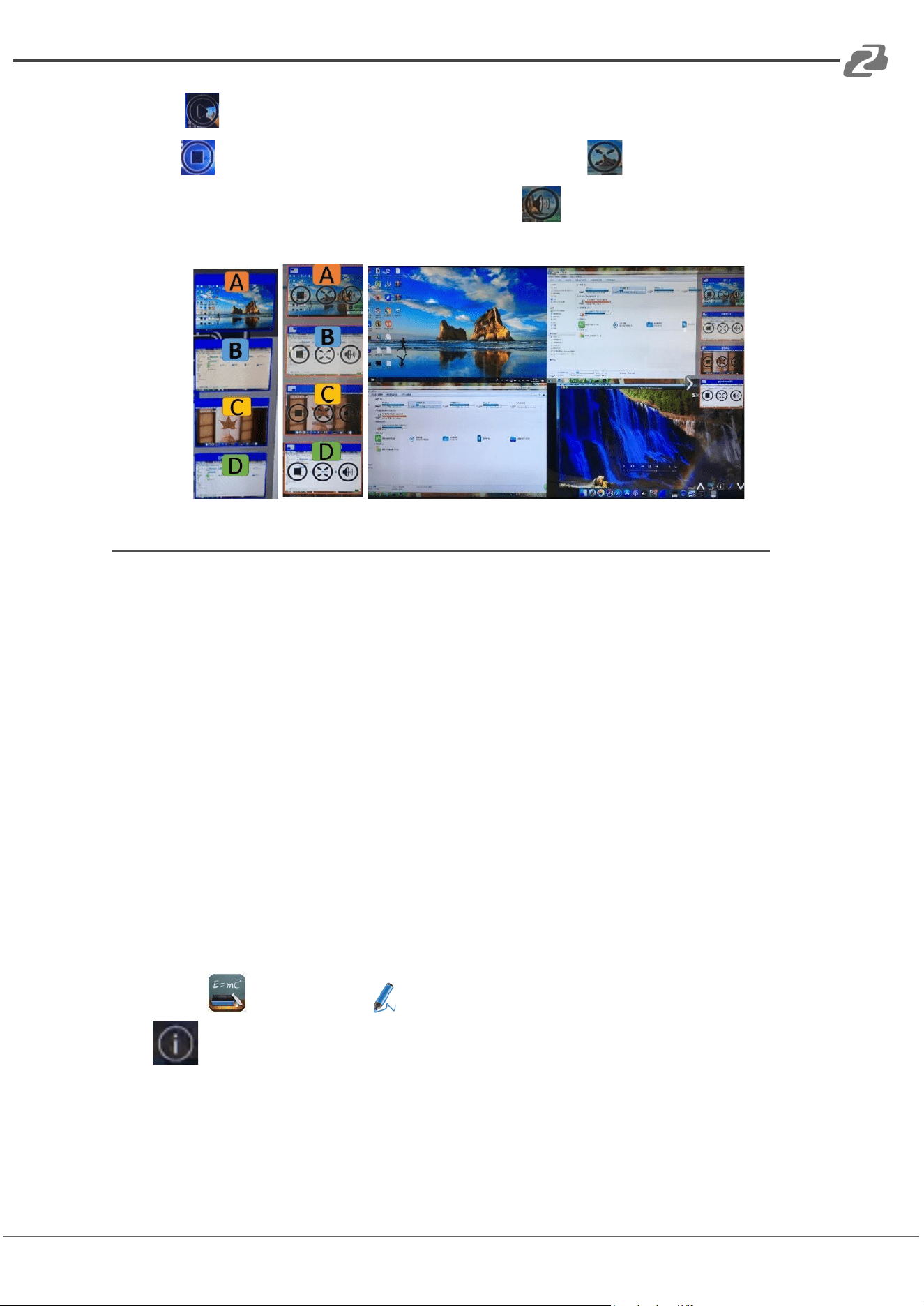
Preview Window
Using a touch-screen or with a mouse connected to the Connexio, you can click
on the LEFT/RIGHT arrows (2), to show small preview-windows on the right edge
of the screen or to hide them. Once the preview windows are activated, users see
live-pictures (1) of all connected host devices. Scroll UP or DOWN (3) to see more
connected devices.
As soon as a presenter is selected the screen will be activated. A red frame is
shown around the active picture.
Address: 830 National Drive #140, Sacramento, CA 95834, USA · Tel: +1(888)499-9906 · Email: support@bzbgear.com 31
BZBGEAR BG-Connexio PRODUCT MANUAL
The button indicates play and will show a screen when clicked. Clicking
the button will stop mirroring the current signal. The button will make
the connected device display as full screen. The indicates volume, click to
adjust the volume of the connected device.
Whiteboard & Annotation
Whiteboard and Annotation requires an HID compatible device such as an interactive
white board or interactive touch screen. It is easy to use, makes collaboration in your
business more productive and effective: documents can be easily written, edited,
captured, and shared.
Whiteboard: write all your ideas and share the digital notes with anybody. Different
color pens and backgrounds can be selected.
Annotation: draw or write annotations in an overlay of your documents or
presentations. Save and share everything that was discussed. Different colors of pen
can be selected.
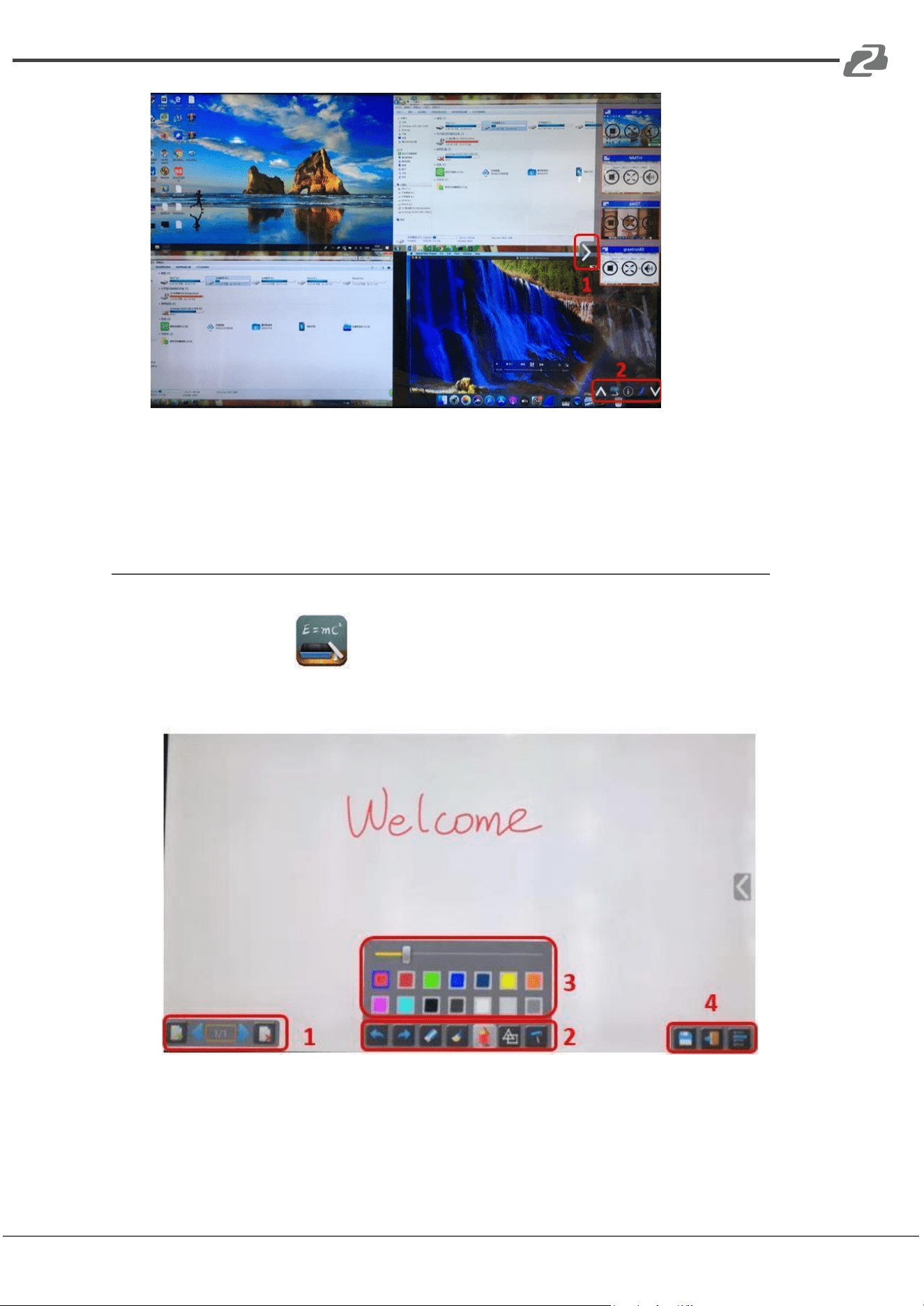
How to start Whiteboard or Annotation mode
The “Preview window” on the Home Screen.
Tap (click) the LEFT-arrow (1), located on the right side of the screen, and select
Whiteboard or Annotation (2).
The icon in (2) indicates “information.” Click to check the Connexio SSID,
password, Wi-Fi and Lan IP addresses when a device is sharing on the main screen.
This info will show on the main screen for at least 20s then will disappear
automatically. In order to let other attendees join into the meeting as well.
Address: 830 National Drive #140, Sacramento, CA 95834, USA · Tel: +1(888)499-9906 · Email: support@bzbgear.com 32
BZBGEAR BG-Connexio PRODUCT MANUAL
The toolbar for Whiteboard or Annotation will appear in the bottom of your
screen. If another user is mirroring, the Whiteboard & Annotation function will be
closed.
Whiteboard
Click on the icon to enter the white Whiteboard page. You can create
free drawings with your finger when using a touch screen or mouse (multitouch
capability).
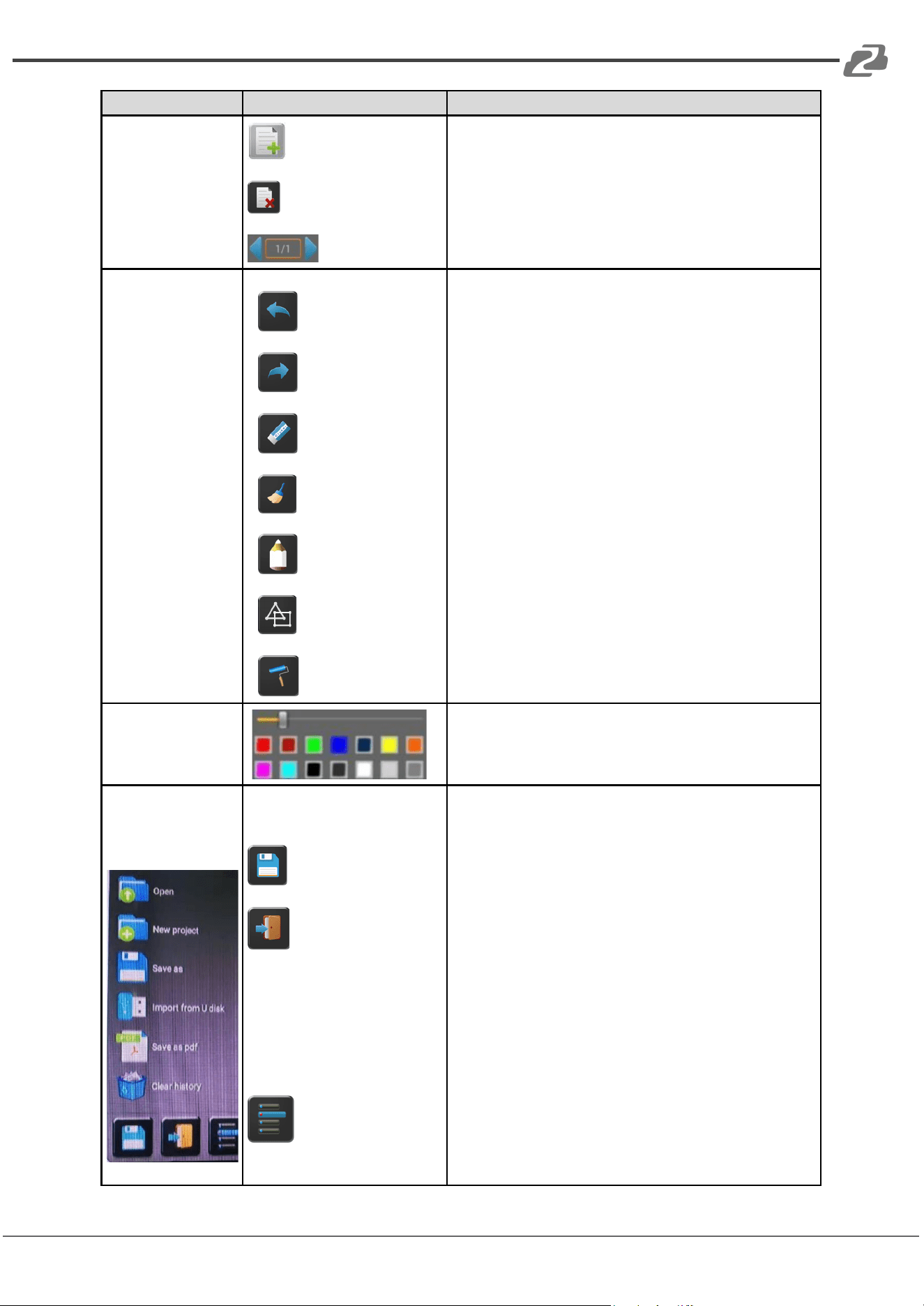
Use the toolbar to select one of the following functions.
Address: 830 National Drive #140, Sacramento, CA 95834, USA · Tel: +1(888)499-9906 · Email: support@bzbgear.com 33
BZBGEAR BG-Connexio PRODUCT MANUAL
ID
Icons
Function
Toolbar 1
1
2
3
1 - Add an empty page
2 - Delete the page
3 - Display previous or next page
Toolbar 2
1
2
3
4
5
6
7
1 - Undo: one step backward in changes
2 - Redo: one step forward in changes
3 - Erase part of drawings or annotation, change diameter by a
longer tap
4 - Clear the entire drawing/writing on the screen
5 - Pen allows writing/drawing in different colors
6 - Draw basic geometric shapes
7 - Select color of board, the drawing will be kept
Toolbar 3
Pops up when “Pen,” “Draw shape,” or “Select color of
board” is selected, for individual change of size of Pen,
Shape, or color.
Toolbar 4
File options
1
2
3
1 - Save the current screenshot on local storage (PNG+WMN)
2 - Close Whiteboard to go back to Home screen, actual project
can be saved on local storage (WMN)
3 - File options:
● Open WMN-file from local storage and continue/edit an
older project
● New project
● Save as WMN on local storage in unit, it will be erased
after
POWER-OFF
● Import from U disk stored project (WMN)
● All pages are saved as PDF on local storage
● Clear history – delete all whiteboard & annotation files
on local storage
Address: 830 National Drive #140, Sacramento, CA 95834, USA · Tel: +1(888)499-9906 · Email: support@bzbgear.com 34
BZBGEAR BG-Connexio PRODUCT MANUAL
Annotation
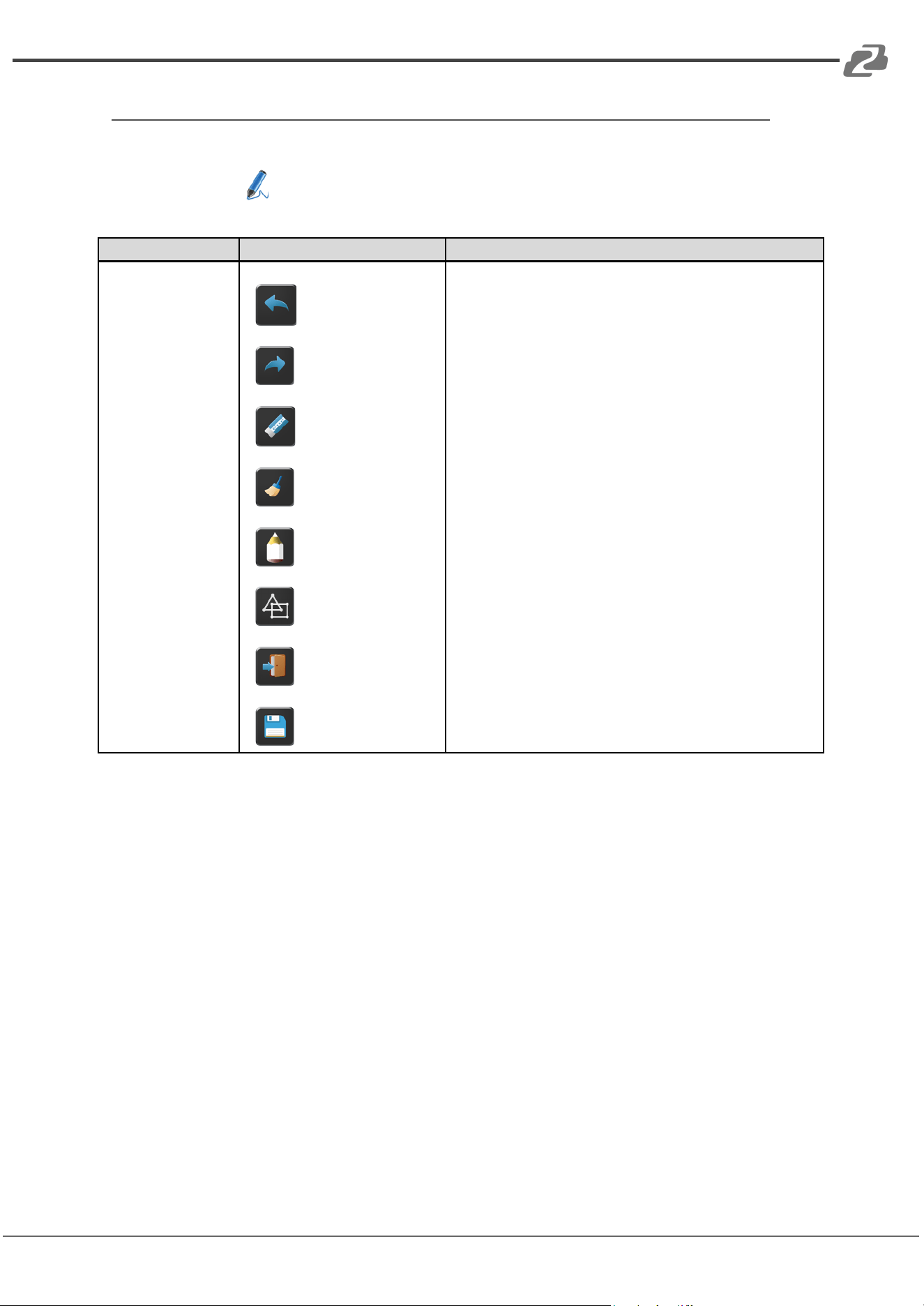
Click on the icon to enter the Annotation function. Use the toolbar to select one of
the following functions.
ID
Icons
Function
Toolbar 1
1
2
3
4
5
6
7
8
1 - Undo: one step backward in changes
2 - Redo: one step forward in changes
3 - Erase part of drawings or annotation, change diameter by a
longer tap
4 - Clear the entire drawing/writing on the screen
5 - Pen allows writing/drawing in different colors
6 - Draw basic geometric shapes
7 - Close Whiteboard to go back to Home screen, actual project
can be saved on local storage (WMN) Close Whiteboard to go
back to Home screen
8 - Save the current screenshot on local storage (PNG)
Address: 830 National Drive #140, Sacramento, CA 95834, USA · Tel: +1(888)499-9906 · Email: support@bzbgear.com 35
BZBGEAR BG-Connexio PRODUCT MANUAL
Web Setting Management Configuration
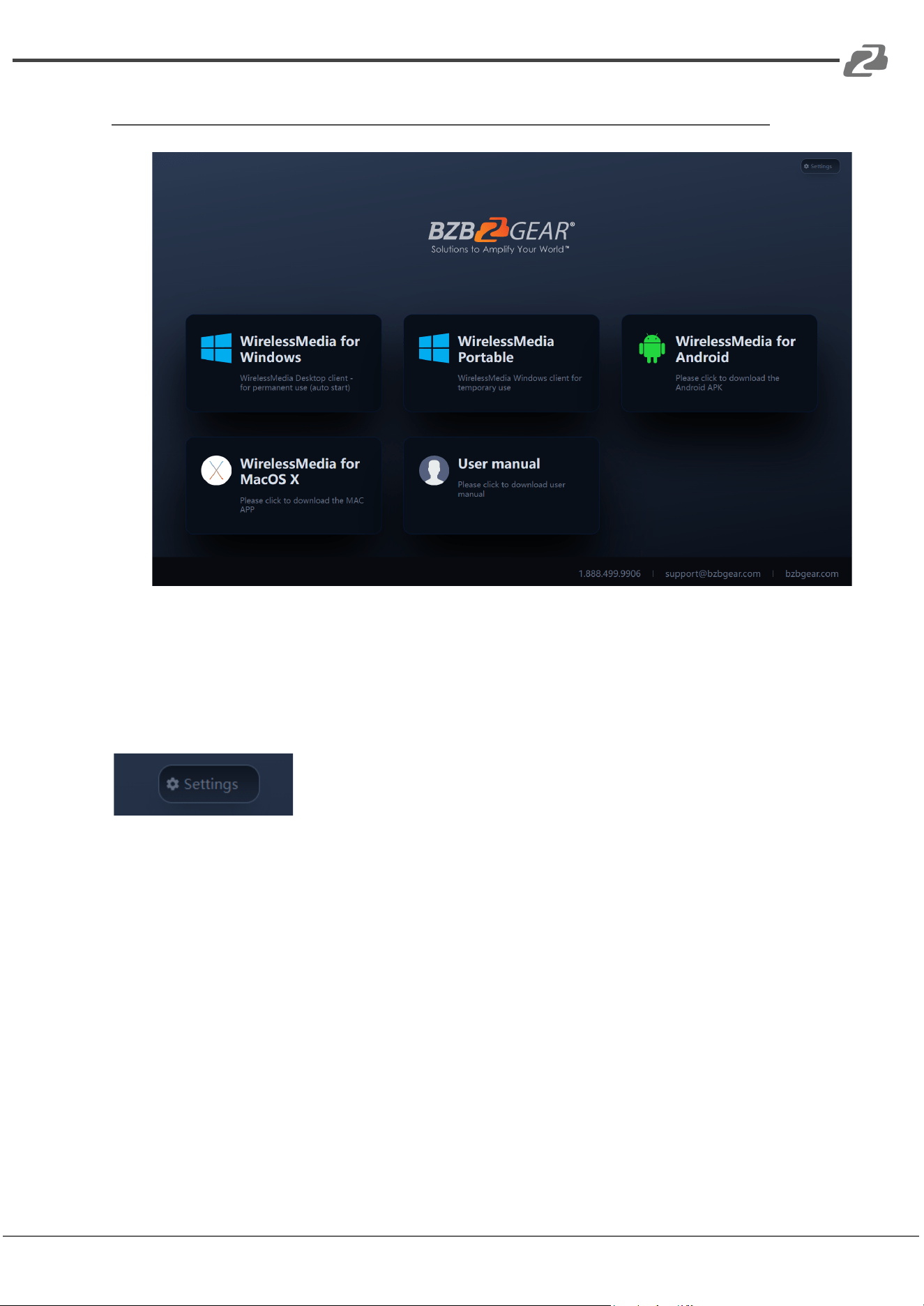
To access the web settings of the Connexio, the unit must be connected to the same
network as the device trying to connect. Type in the IP address of the Connexio
displayed at the bottom of the splash screen into your preferred browser. Once the
page loads users can download the Connexio applications or user manual if needed.
To access the device settings click “Settings” in top right of the window.
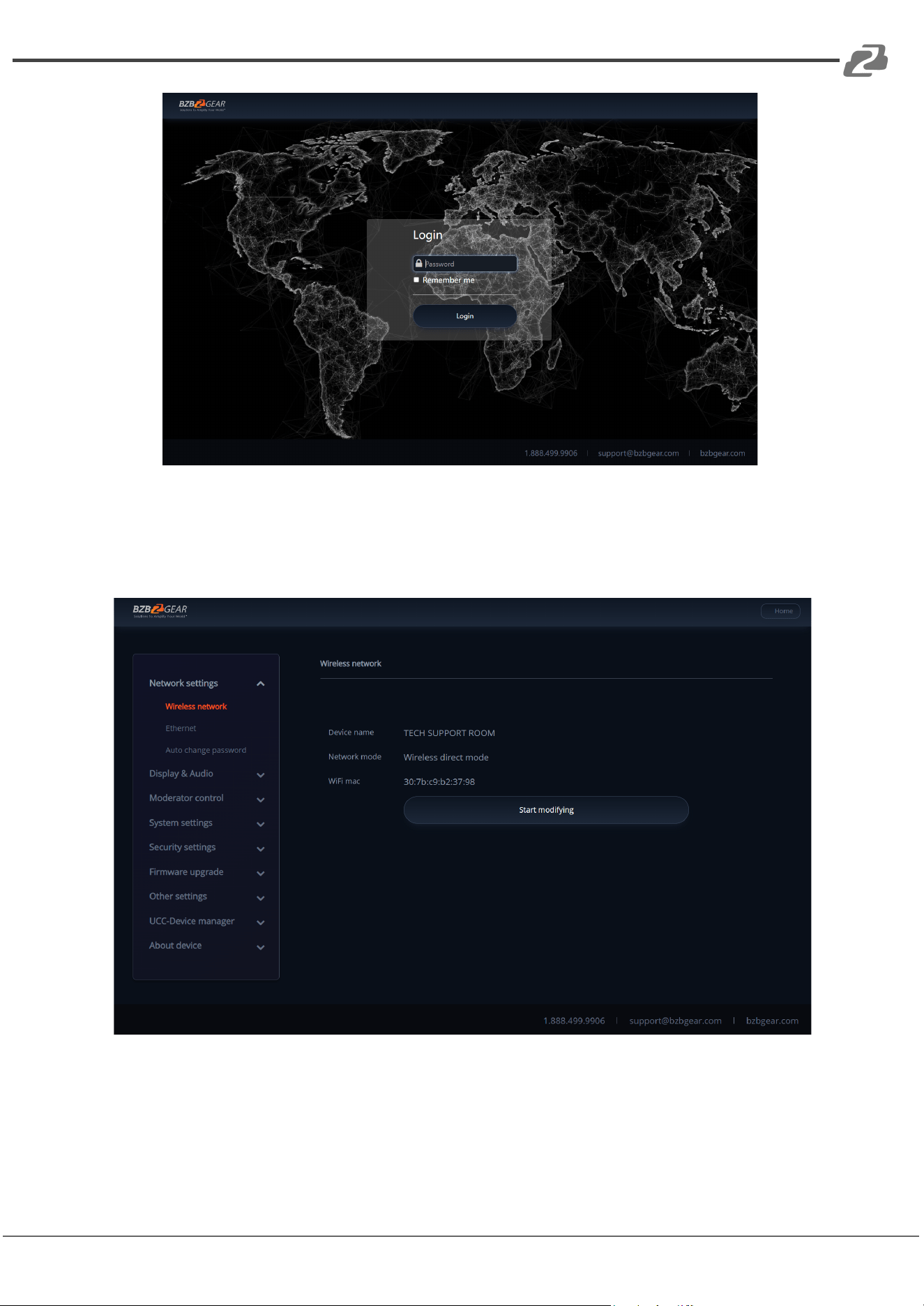
On initial sign in type in the default password “admin” into the password field and click
“Login.”
Address: 830 National Drive #140, Sacramento, CA 95834, USA · Tel: +1(888)499-9906 · Email: support@bzbgear.com 36
BZBGEAR BG-Connexio PRODUCT MANUAL
Upon successfully logging in, the main interface will be shown. From here users can
access settings from the left hand menu including Network settings, Display & Audio,
Moderator Control, System Settings, Security Settings, Firmware Upgrade, Other
Settings, and About Device.
Address: 830 National Drive #140, Sacramento, CA 95834, USA · Tel: +1(888)499-9906 · Email: support@bzbgear.com 37
BZBGEAR BG-Connexio PRODUCT MANUAL
Network Settings
Wireless Network
To take the full benefits of the WirelessMedia possibilities, the Connexio should be
properly integrated in the organization’s network. The wizard allows users to create a
custom configuration for integration of WirelessMedia into the existing wireless
infrastructure in larger organizations.
Segmented Dual Network provides two separate ways to connect to the Connexio
simultaneously, including a Wi-Fi network (normally connected to Guest/untrusted
network) and wired LAN network (normally connected to the corporate/trusted
network).
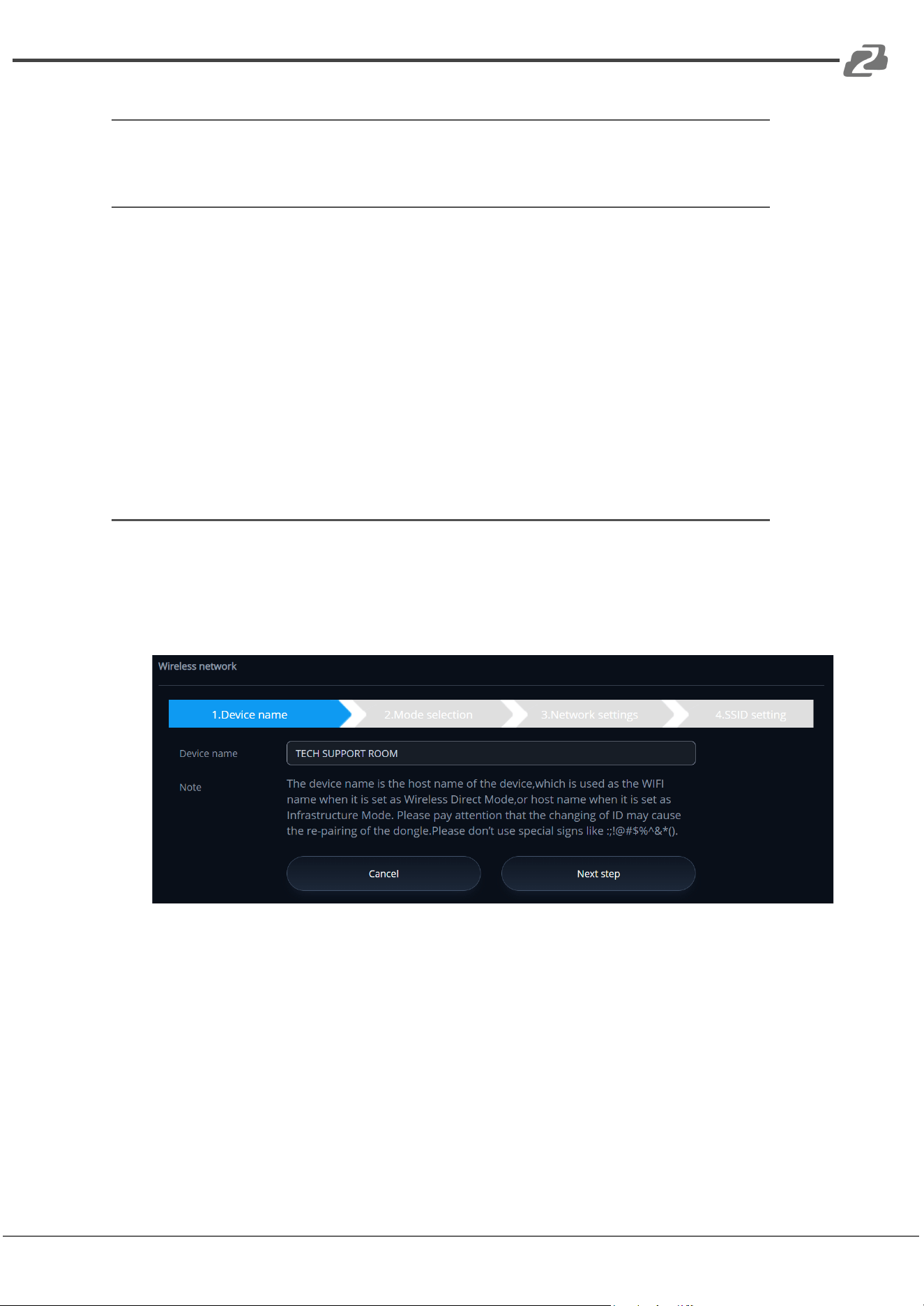
Wireless Network Configuration Wizard
Enter a device name for the Connexio. We recommend a descriptive name in case you
have more than one Connexio or other WirelessMedia installed. The default name is
“WMB-XXXX”.
Only "a-z","A-Z","0-9","-_" and space characters are allowed.
Address: 830 National Drive #140, Sacramento, CA 95834, USA · Tel: +1(888)499-9906 · Email: support@bzbgear.com 38
BZBGEAR BG-Connexio PRODUCT MANUAL
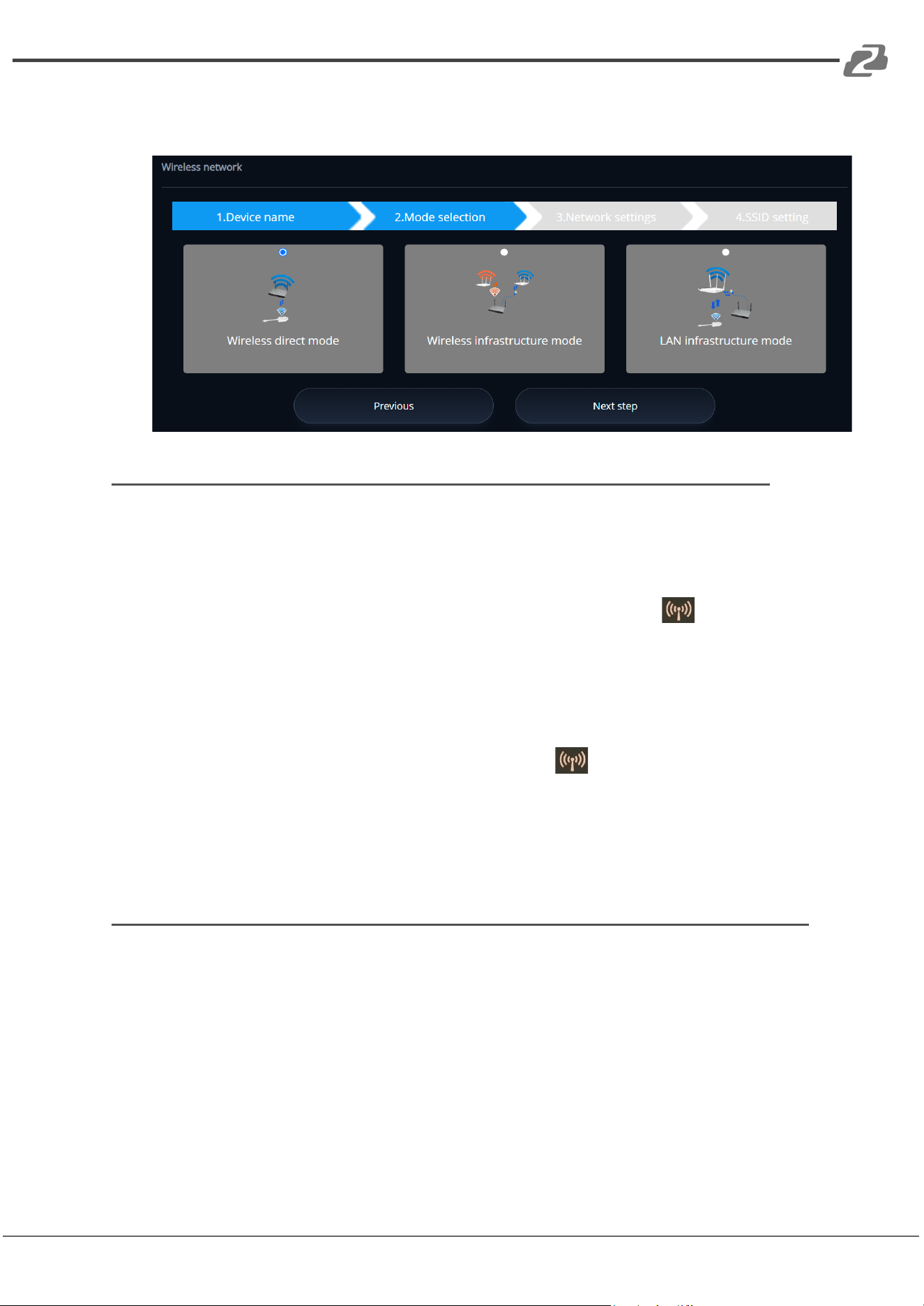
Click the “Next step” button to proceed. The following three connection methods are
available:
Wireless Direct Mode
After Factory Reset, the Connexio starts up in the default Stand-Alone “Wireless direct
mode” configuration, where the base unit creates its own wireless access point, which
devices use to connect with the software.
This is typical for a quick setup or small group meetings. The Wi-Fi icon for the
“Wireless direct mode” will be displayed in the top status-bar of the display splash screen.
Guests connect to the access-point of Connexio, while Staff can also connect to Base-unit
via Wi-Fi or via LAN connection from their corporate network.
Stand-Alone Connection
If the internal Wi-Fi access point of the Connexio is active and the dongle is paired,
then guests and staff can use the internal Wi-Fi access point of Connexio to present with all
their units. No Internet access is required.
Recommended Environment
This option is best for temporary operations, small installations, and rooms without network
access or networks that do not allow network access for guests due to strict security
concerns, or there is a need to be completely isolated from the corporate network.
You can start using Connexio in this mode without any other wireless network
configuration.
Click “Next step” to
Set up Wi-Fi access point
Address: 830 National Drive #140, Sacramento, CA 95834, USA · Tel: +1(888)499-9906 · Email: support@bzbgear.com 39
BZBGEAR BG-Connexio PRODUCT MANUAL
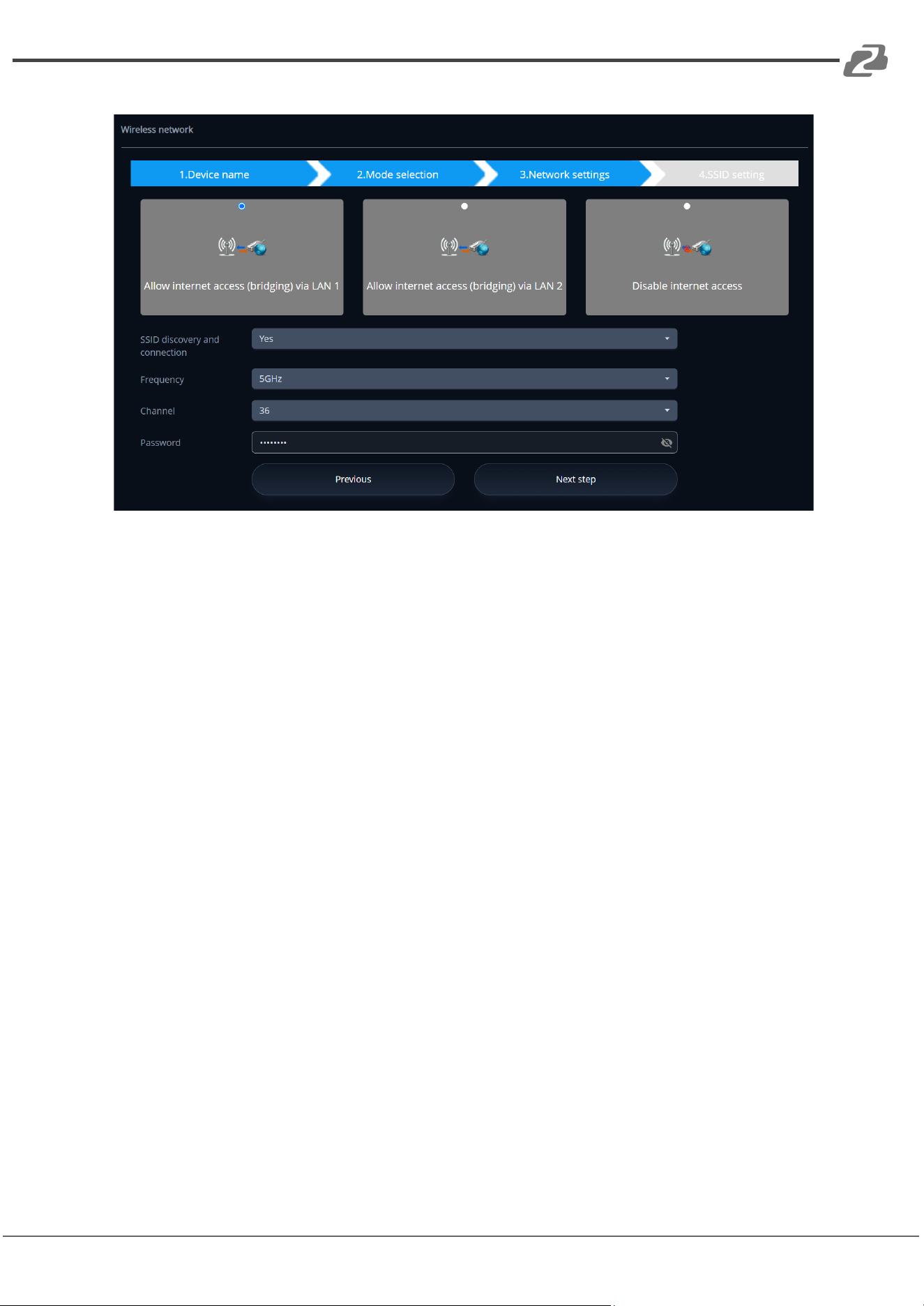
Set-up Wi-Fi access point includes, Frequency, Channel, and Password.
Frequency: Click to select the 2.4 GHz or 5 GHz Wi-Fi frequency. Default is 5 GHz.
Channel: Click to select the Wi-Fi channel. Default is 5 GHz, Auto.
Note: If the Wi-Fi channel is changed, no new pairing of the dongle is necessary.
2.4 GHz frequency band: channels 1, 2, 3, 4, 5, 6, 7, 8, 9, 10, 11,
5 GHz frequency band: no need to choose 5G channel, system will choose
proper channel automatically. Default is 5 GHz, channel: Auto.
Default channel (USA): 36, 40, 44, 48 or 149, 153, 157, 161. Four channels will be
opened at the same time and the system will automatically choose the proper
channel.
Default channel (Europe): 36 ,40, 44, 48.
Default channel (China): 149, 153, 157, 161.
Password: Click in the input field to enter a static password or leave alone to
randomly generate a password with a maximum length of 8 characters.
There are 3 ways to connect the Connexio to the Internet in “Wireless Direct
Mode.”
1) Allow internet access (bridging) via LAN 1: able to connect to the Internet if
the LAN1 port is available.
2) Allow internet access (bridging) via LAN 2: able to connect to the Internet if
the LAN2 port is available.
3) Disable internet access: cannot connect to the internet in this mode.
Address: 830 National Drive #140, Sacramento, CA 95834, USA · Tel: +1(888)499-9906 · Email: support@bzbgear.com 40
BZBGEAR BG-Connexio PRODUCT MANUAL
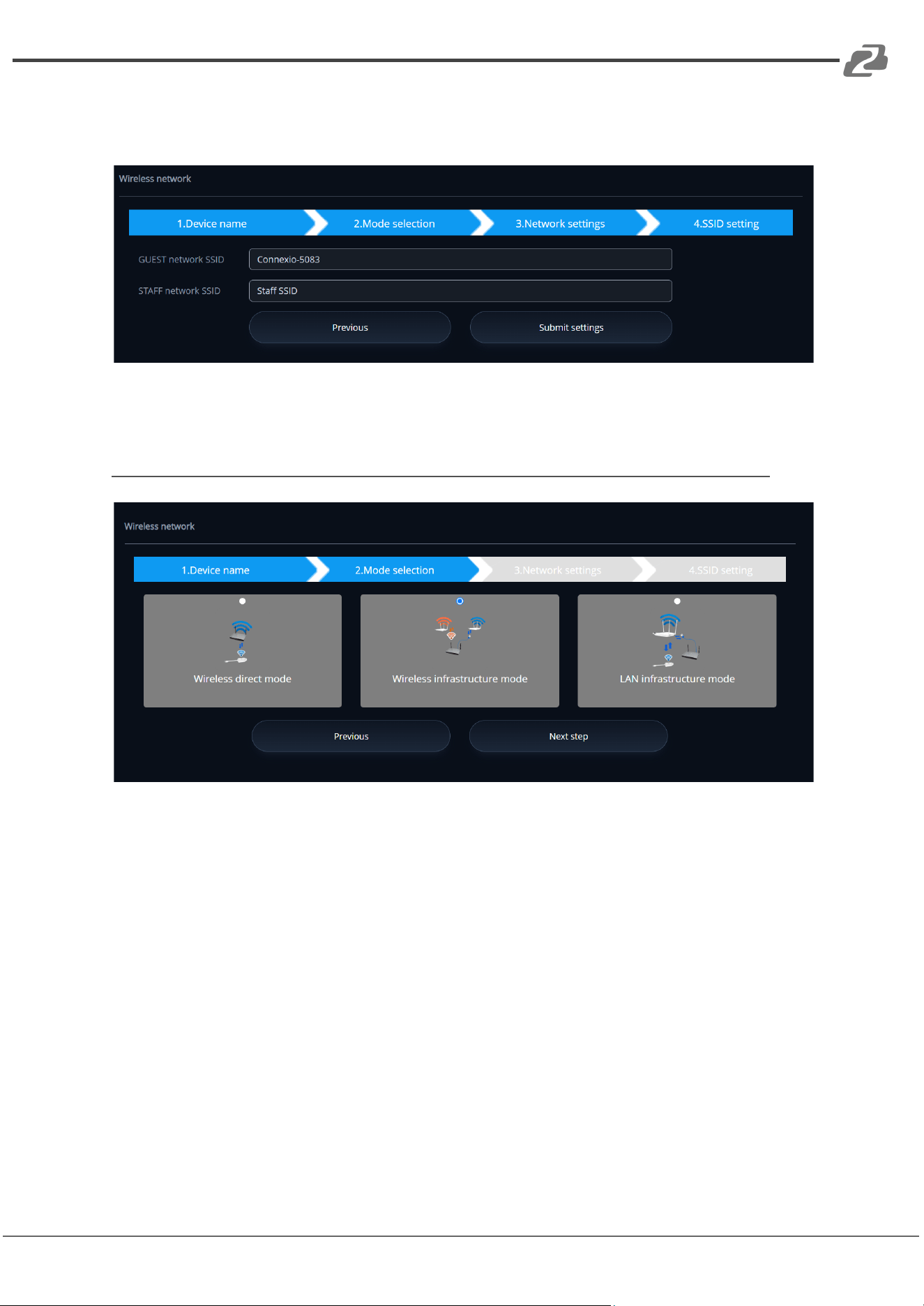
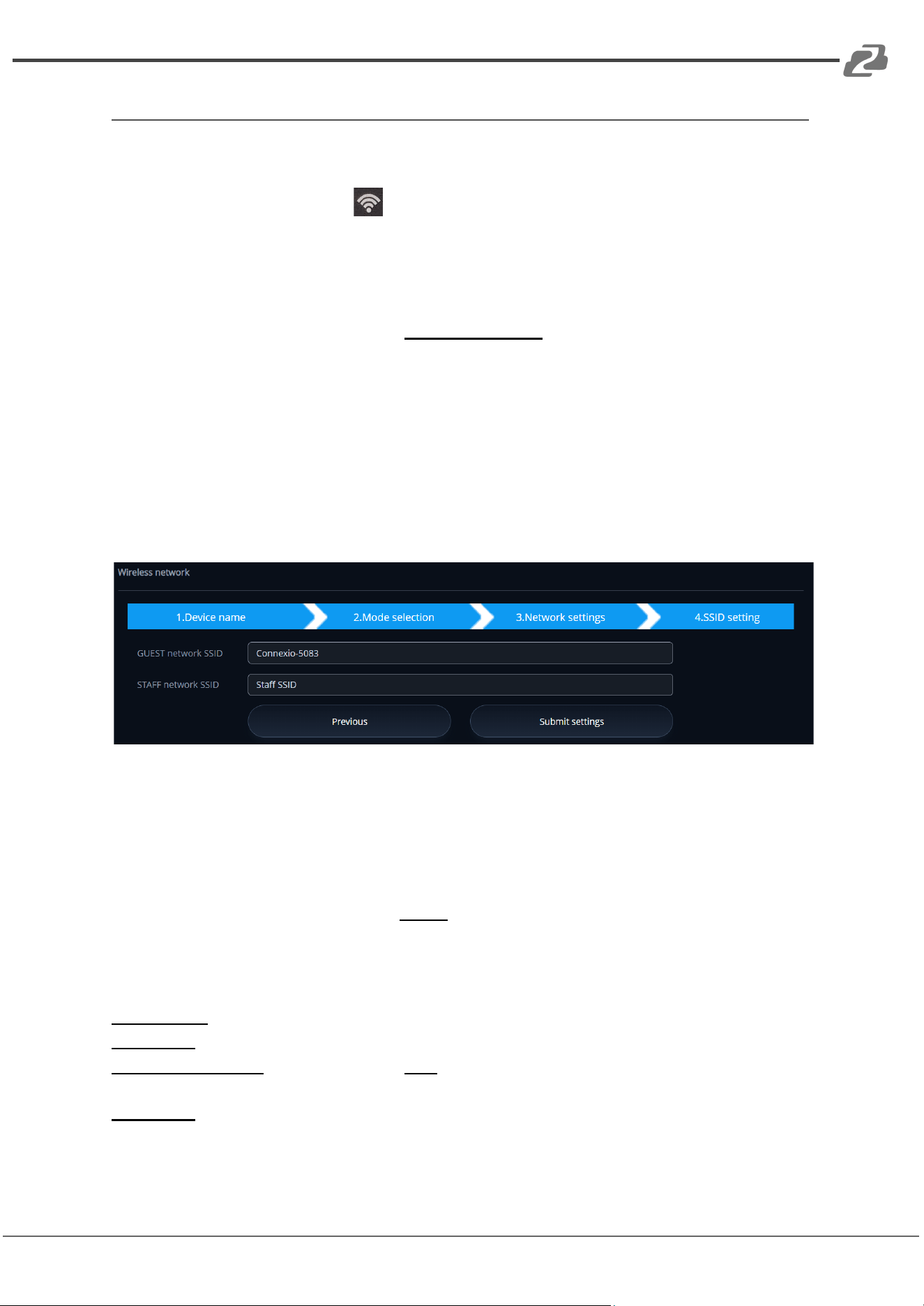
Click the “Next step” button to edit or change the Guest network SSID and STAFF
network SSID. This information will be shown on the splash screen display.
Click “Submit settings” to finish configuration. Afterwards please re-sync the dongle to the
Connexio.
Wireless Infrastructure Mode
Connexio can connect to a wired and a wireless network simultaneously. The Connexio is
connected to the company network via a hardwire LAN connection. Guest users connect to
Wi-Fi "Guest" access. The employees (“Staff”) connect to their usual access point of the
corporate network, without having to change the Wi-Fi. This is useful for organizations,
which have a wireless “Guest” network for external visitors and a wired “Staff” network for
their employees. The segmented Dual Network of Connexio provides two separate ways to
connect to the Connexio at the same time. Guest users will not be able to access any
resource on the main network of the company.
Connexio utilizes the existing wireless network infrastructure so both Guest and Staff
meeting participants have internet access.
Address: 830 National Drive #140, Sacramento, CA 95834, USA · Tel: +1(888)499-9906 · Email: support@bzbgear.com 41
BZBGEAR BG-Connexio PRODUCT MANUAL
Dual Network Configuration
The internal Wi-Fi network of the Connexio is connected to the Guest Wi-Fi network of the
organization.
Client Mode: the indicator-icon shows the actual signal strength. The Connexio is still
wired with a LAN-cable to the internal company network.
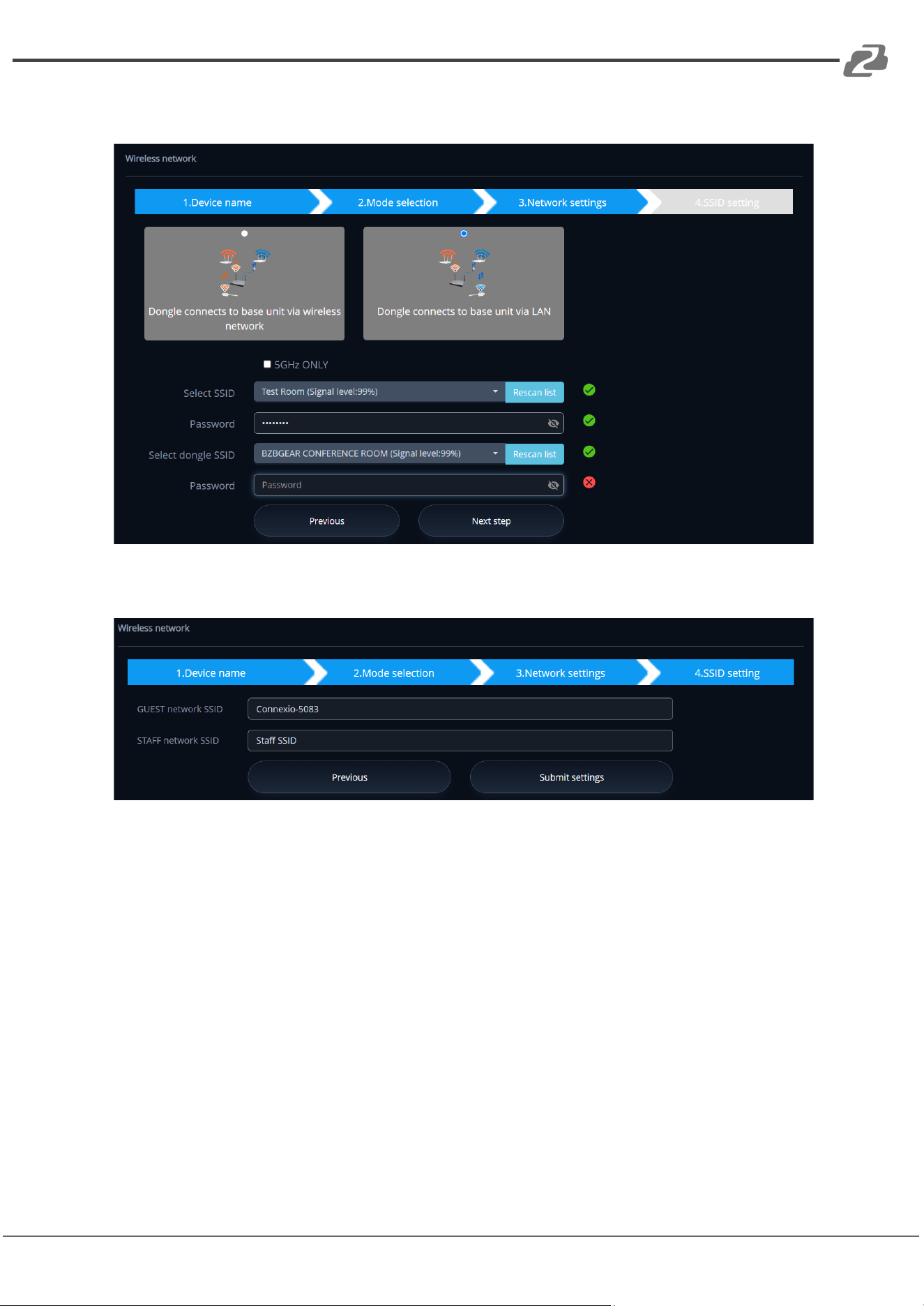
Click “Next step” to configure which network the dongle needs to be paired to.
“Dongle connects to the Connexio via wireless network.”
Choose a wireless network which is separate from the company LAN network for guest
users.
Select SSID: Choose a wireless network to connect to the Connexio for guests.
Password: enter password to connect the Connexio to the guest network.
Click “Next step” to edit or change Guest network SSID and Staff network SSID.
The Wi-Fi name of the guest network and staff will be shown on the home screen after
clicking “Submit settings.”
After submitting, resync the dongle with the Connexio.
“Dongle connects to the Connexio via LAN.”
Choose a LAN network which is used for the company staff users.
Note: usually in this mode, dongle paired for internal staff usage.
Select SSID: Choose a wireless network to connect to the Connexio for guest.
Password: enter password to connect the Connexio to the guest network.
Select dongle SSID: choose the same LAN network which the Connexio connects, to pair
the dongle.
Password: enter password of the LAN network.
Address: 830 National Drive #140, Sacramento, CA 95834, USA · Tel: +1(888)499-9906 · Email: support@bzbgear.com 42
BZBGEAR BG-Connexio PRODUCT MANUAL
See picture below:
Click “Next step” to edit or change Guest network SSID and Staff network SSID.
The Wi-Fi name of the guest and staff networks will be shown on the splash screen after
clicking “Submit settings.”
After submitting, resync the dongle with the Connexio.
Address: 830 National Drive #140, Sacramento, CA 95834, USA · Tel: +1(888)499-9906 · Email: support@bzbgear.com 43
BZBGEAR BG-Connexio PRODUCT MANUAL
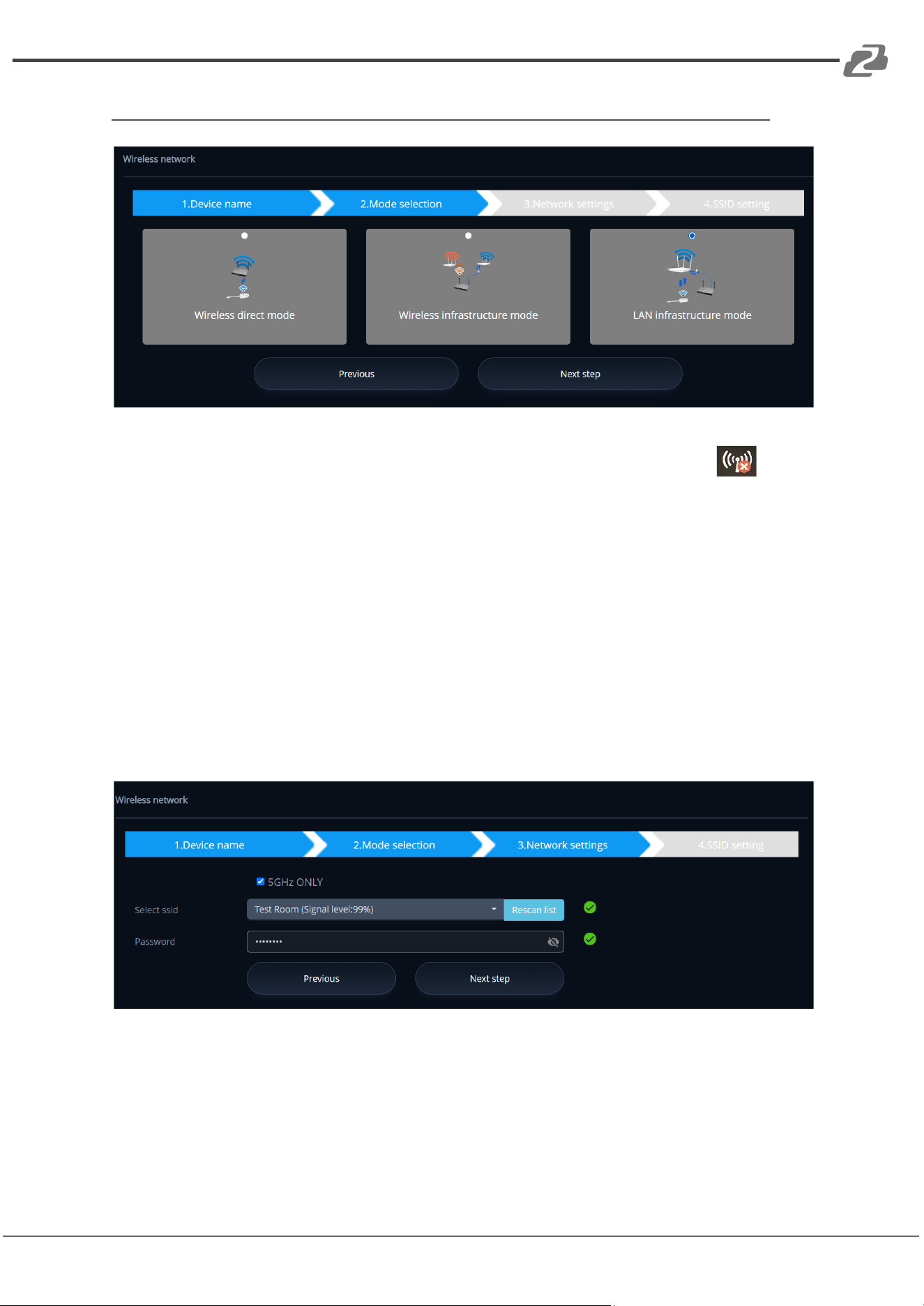
LAN Infrastructure Mode
In this configuration the built-in Wi-Fi access point of the Connexio is disabled: .
The dongle and/or mobile devices can connect to the secured wireless access point of the
company network. The Connexio Connexio needs to be connected via ethernet to the
company network.
Staff-users connect to their usual access point of the company network, without the need
to change their Wi-Fi. Follow the instructions of the configuration wizard for “LAN
infrastructure mode”.
Click “Next step” to choose a LAN network which is used for the company staff users and
pair the dongle into this network.
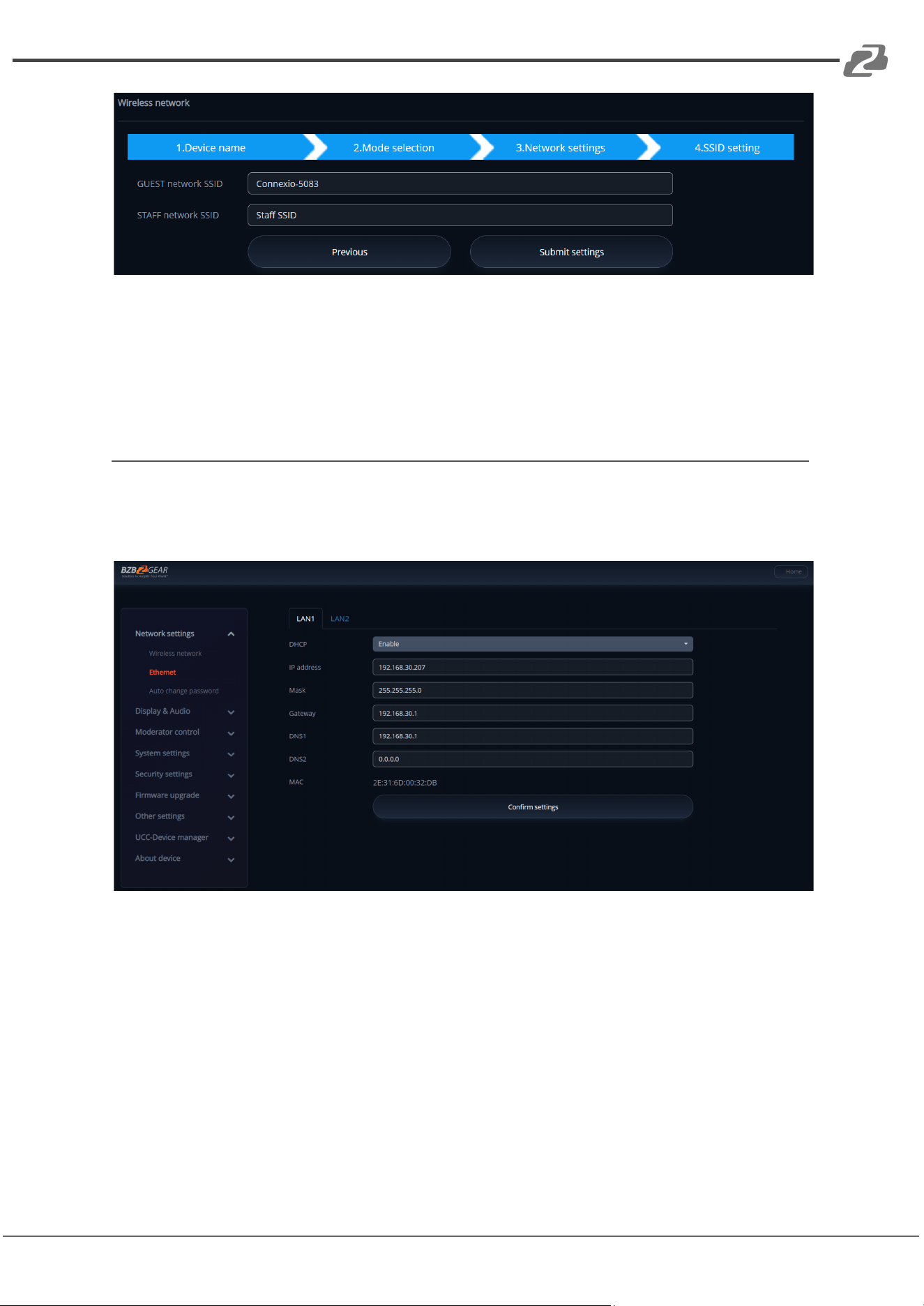
Click “Next step” to edit or change the Guest network SSID and Staff network SSID.
Address: 830 National Drive #140, Sacramento, CA 95834, USA · Tel: +1(888)499-9906 · Email: support@bzbgear.com 44
BZBGEAR BG-Connexio PRODUCT MANUAL
The Wi-Fi name of the guest and staff networks will be shown on the splash screen after
clicking “Submit settings.”
After submitting, resync the dongle with the Connexio.
Ethernet
Configure the Ethernet settings of the Connexios 2 LAN ports. If the Connexio is connected
with 2 LAN cables, they can be configured in the tab shown below.
Address: 830 National Drive #140, Sacramento, CA 95834, USA · Tel: +1(888)499-9906 · Email: support@bzbgear.com 45
BZBGEAR BG-Connexio PRODUCT MANUAL
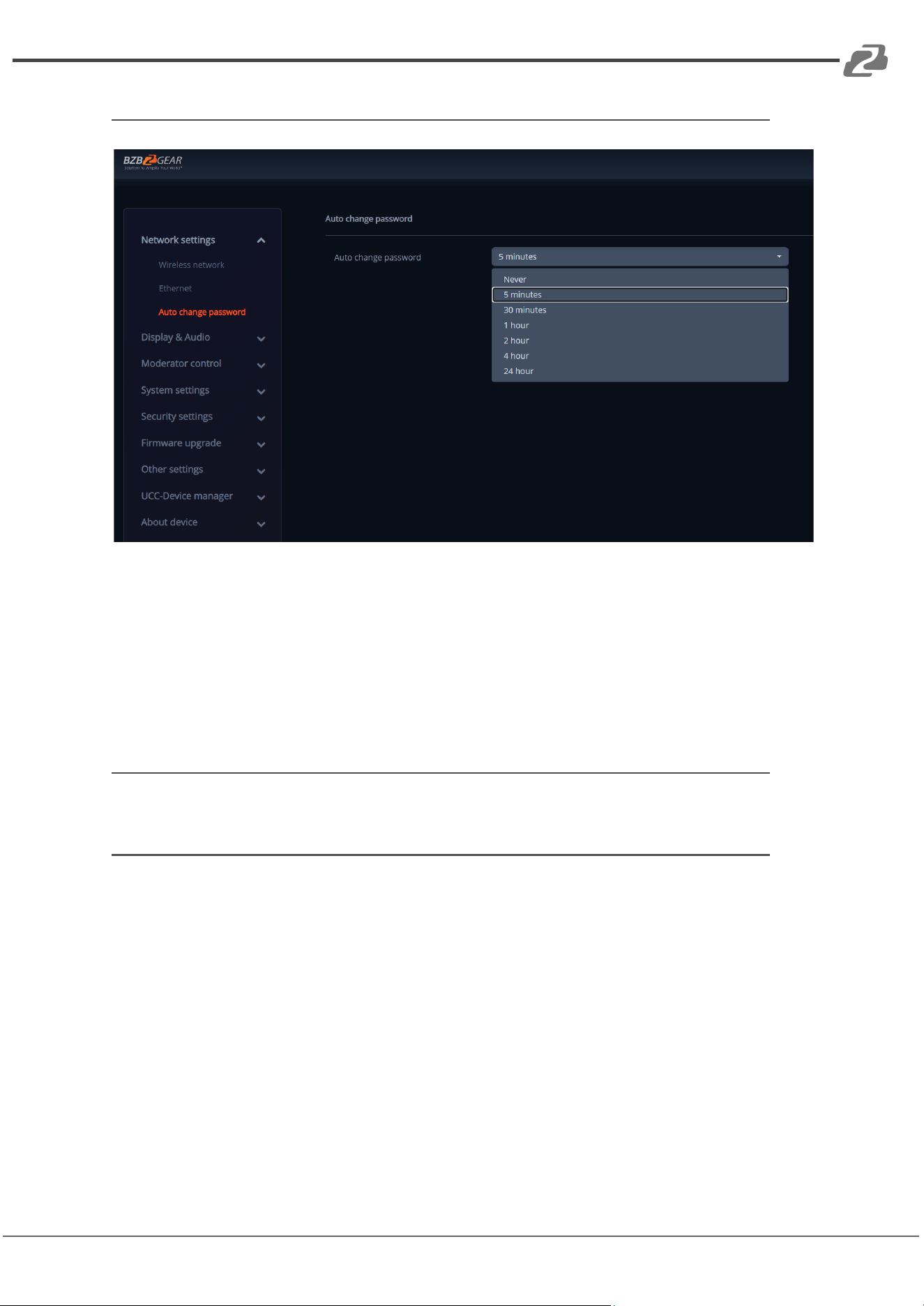
Auto Change Password
The password remains unchanged for all participants of the meeting while at least one
device is connected with the Connexio. After the last user is disconnected, a configurable
countdown begins.
The Connexio will automatically change the Wi-Fi password to a random number every
selected period of time unless the “Never” option is selected.
Display & Audio
HDMI
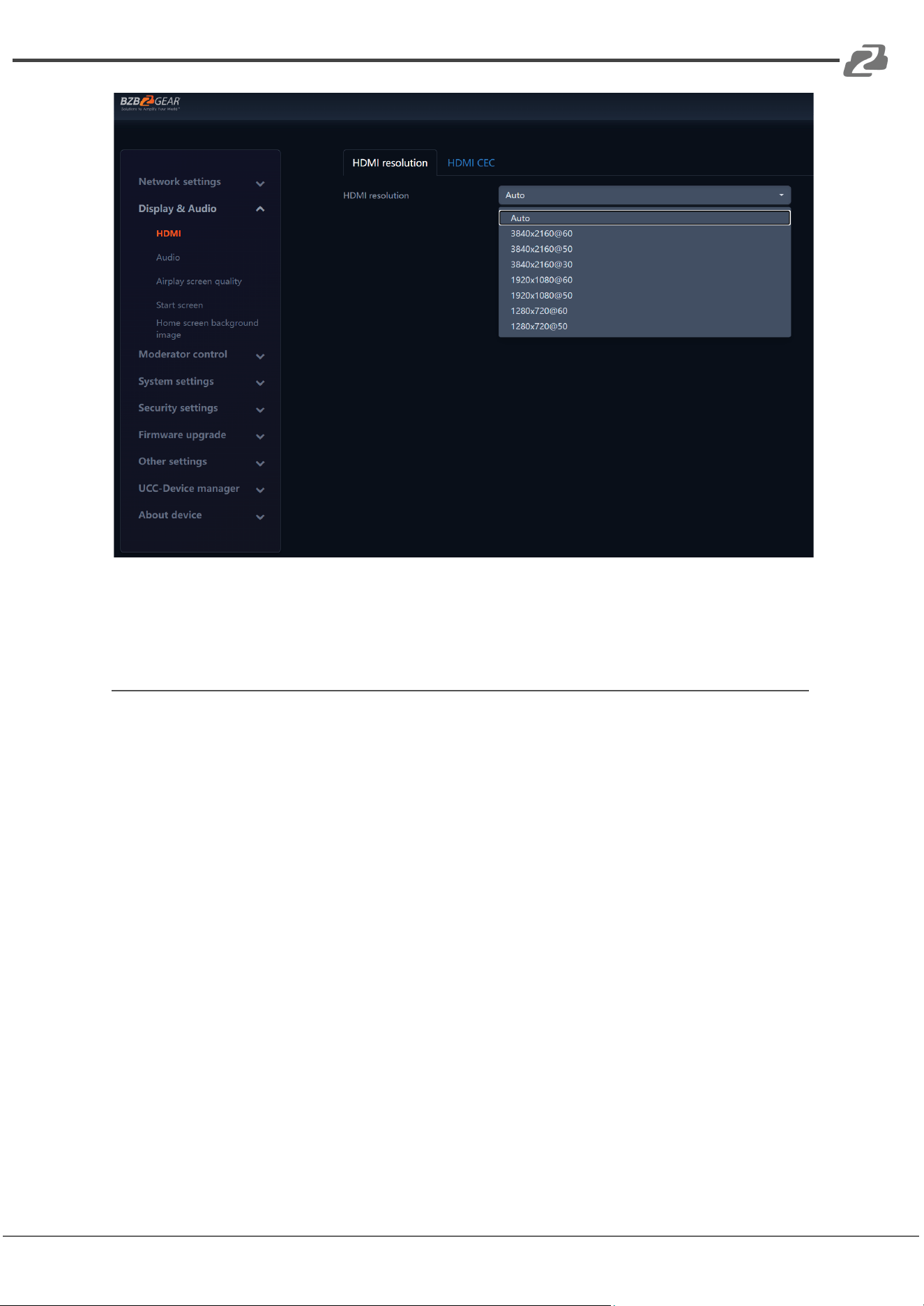
HDMI Resolution
Select the HDMI output of the Connexio.
Resolution Options:
Auto
3840x2160 @30Hz
3840x2160 @60Hz
3840x2160 @50Hz
1920x1080 @60Hz
1920x1080 @50Hz
1280x720 @60Hz
1280x720 @50Hz
Address: 830 National Drive #140, Sacramento, CA 95834, USA · Tel: +1(888)499-9906 · Email: support@bzbgear.com 46
BZBGEAR BG-Connexio PRODUCT MANUAL
Note: If the connected display only supports FULL HD (1920x1080 @60), the 4K resolution
options will not be shown on the list of available resolutions.
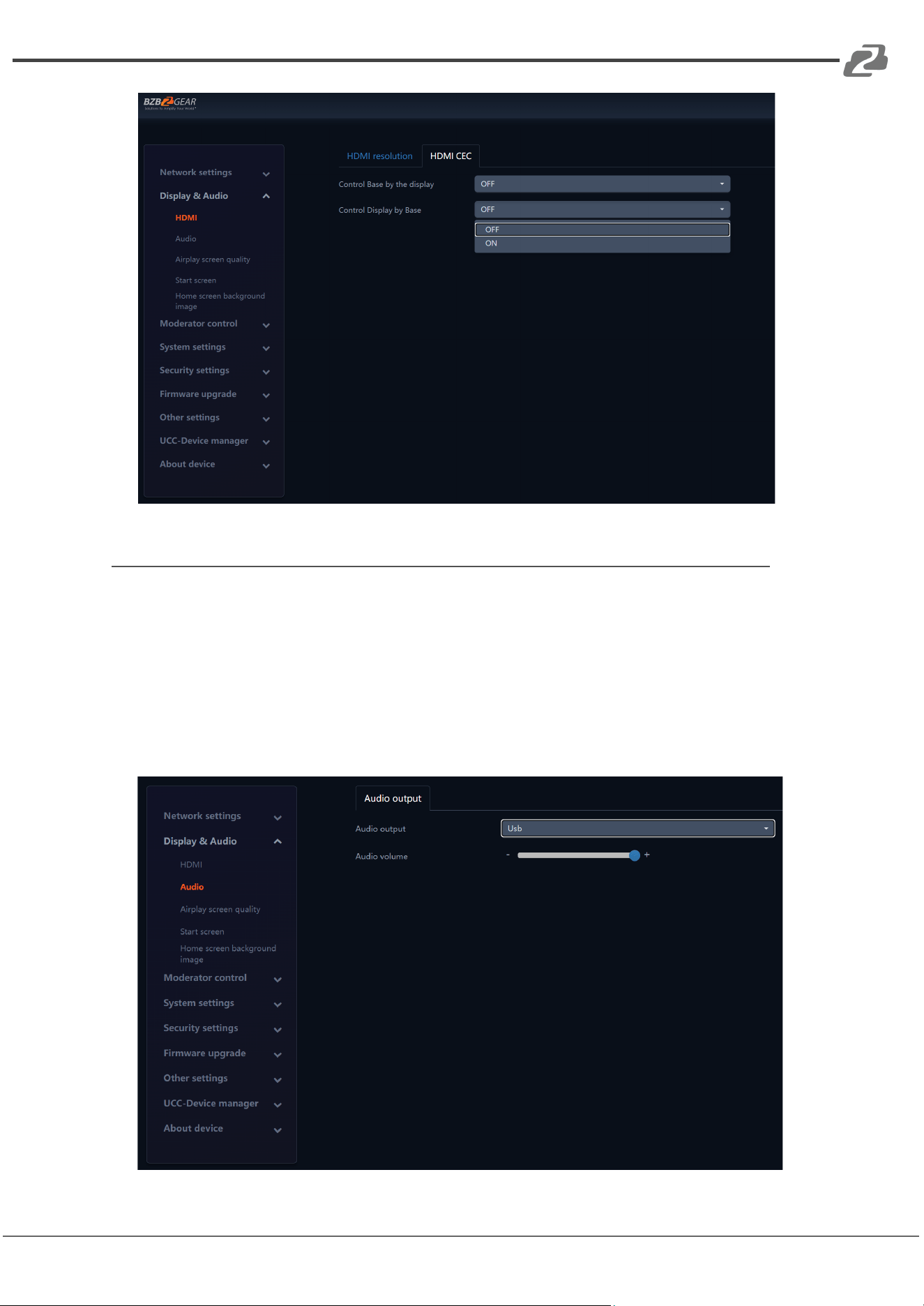
HDMI CEC
The Connexio supports CEC functions if the connected display also supports CEC
functions.
Note: If an HDMI CEC command does not work check whether the display supports the
desired CEC control feature or not. Some brands do not support every feature/function via
CEC control.
Control Connexio via the Display
ON: Turning the TV on/off will also send the command to the Connexio to wake up or put
the Connexio to sleep.
OFF: TV controls do not affect the Connexio.
Control Display via the Connexio
ON: Waking the Сonnexio will send the CEC command to turn on/wake the connected
display device.
OFF: The Connexio will not affect the connected display.
Address: 830 National Drive #140, Sacramento, CA 95834, USA · Tel: +1(888)499-9906 · Email: support@bzbgear.com 47
BZBGEAR BG-Connexio PRODUCT MANUAL
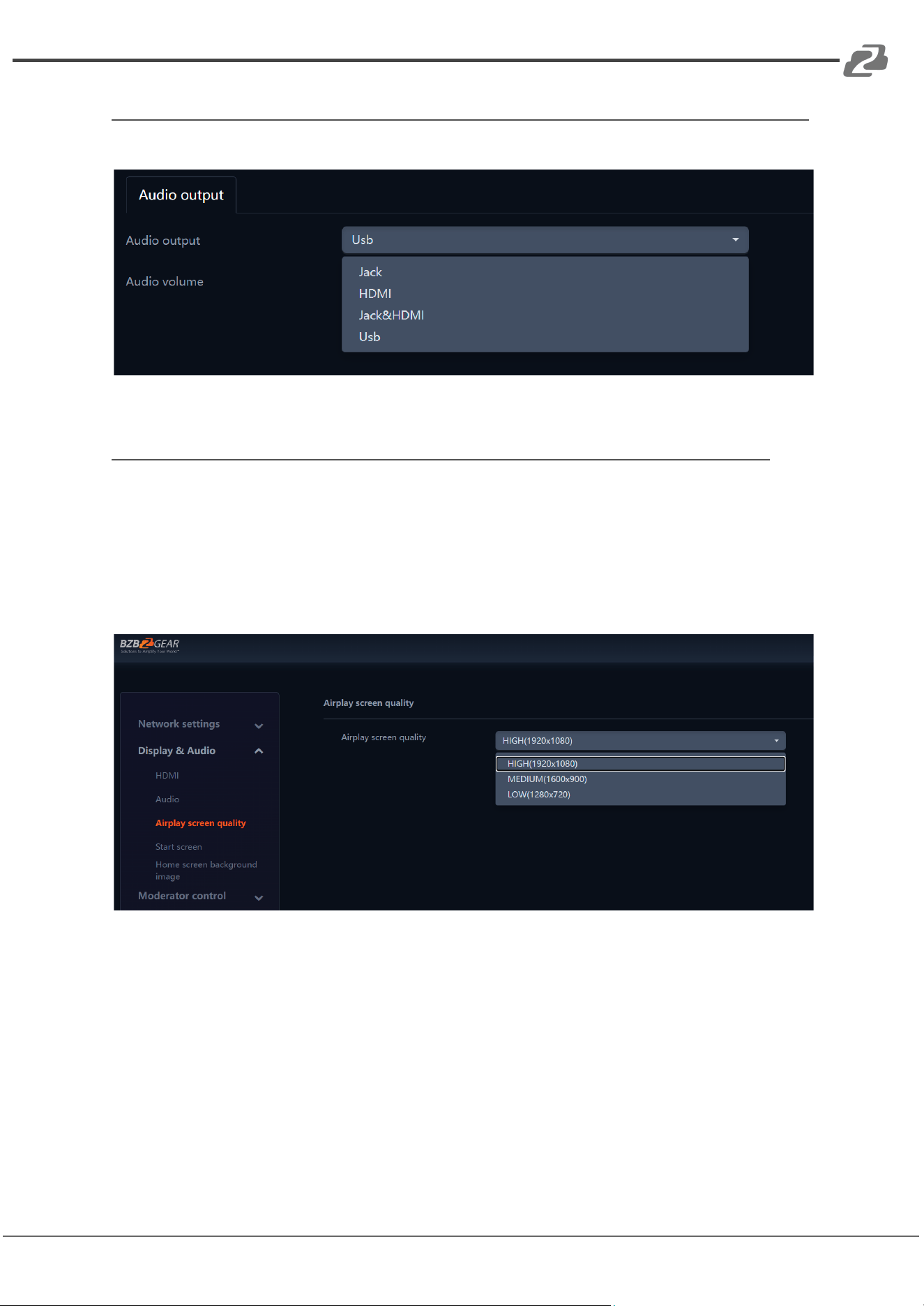
Audio
Audio output
Choose audio output method:
Jack: output only through the 3.5mm mini-jack.
HDMI: output only through HDMI audio.
Jack & HDMI (Default): output 3.5mm jack & HDMI audio simultaneously.
USB: Output audio to a connected USB device.
Address: 830 National Drive #140, Sacramento, CA 95834, USA · Tel: +1(888)499-9906 · Email: support@bzbgear.com 48
BZBGEAR BG-Connexio PRODUCT MANUAL
Volume
Users can select the volume to be output to the connected display/device from 0 to 100.
AirPlay Screen Quality
Click to select the one of three image quality options when transmitting from an
Apple device via AirPlay.
HIGH (1920x1080)
MEDIUM (1600x900)
LOW (1280x720)
Address: 830 National Drive #140, Sacramento, CA 95834, USA · Tel: +1(888)499-9906 · Email: support@bzbgear.com 49
BZBGEAR BG-Connexio PRODUCT MANUAL
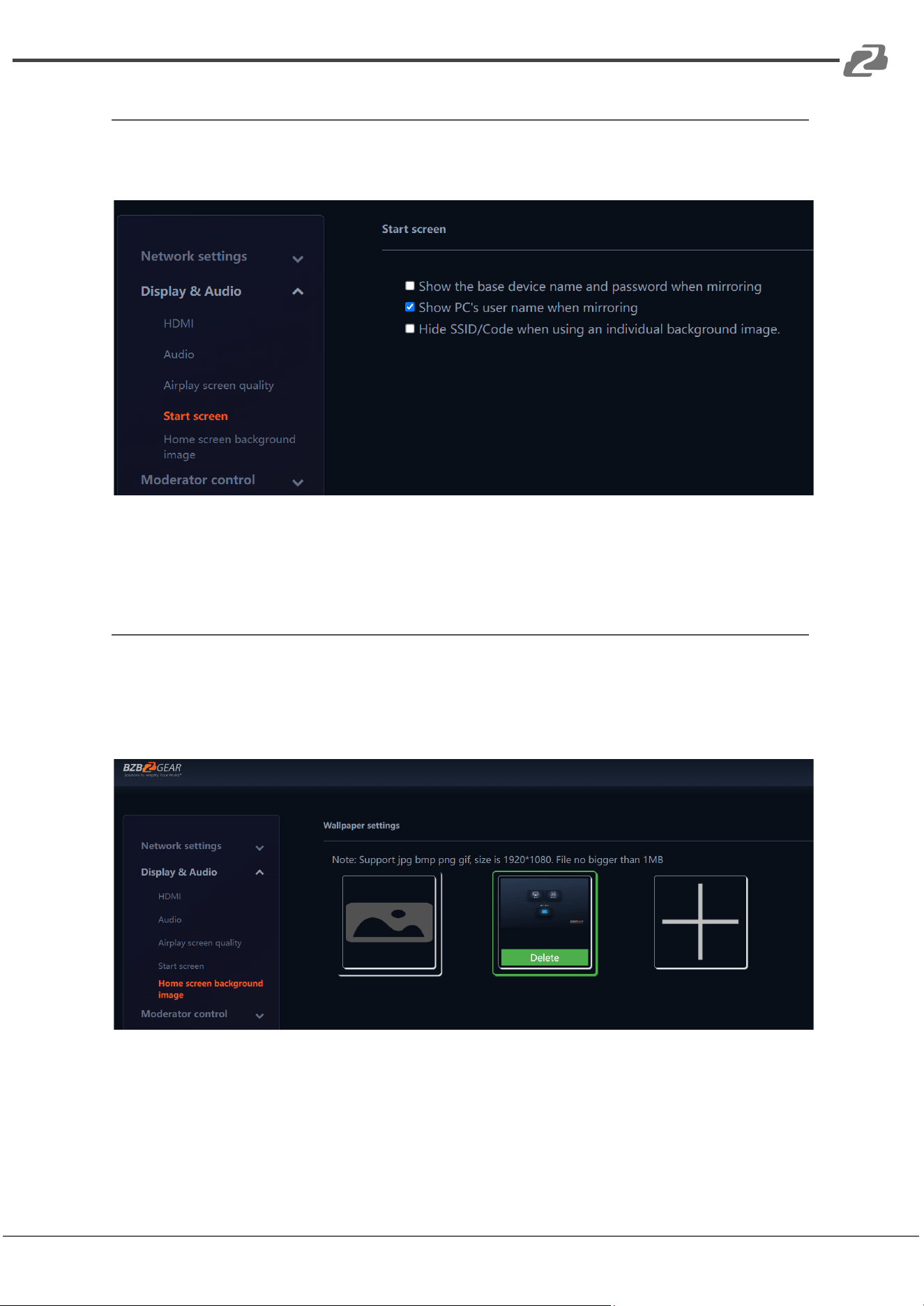
Start Screen
Show the Connexio device name and password when mirroring: Name (ID) and Wi-Fi
password can be shown or hidden in the top status-line of the main splash screen.
Show connected PCs user name when mirroring: If this option is enabled, the Connexio will
show a bubble on the display for a brief time with the connected/presenting PC username
when sharing is initially started.
Home Screen Background Image
Users can change the background image of the splash screen. Select the desired
image using the connected device which can be a jpg, bmp, png, gif with a resolution
of 1920x1080p. Users can return to the standard splash screen any time.
Address: 830 National Drive #140, Sacramento, CA 95834, USA · Tel: +1(888)499-9906 · Email: support@bzbgear.com 50
BZBGEAR BG-Connexio PRODUCT MANUAL
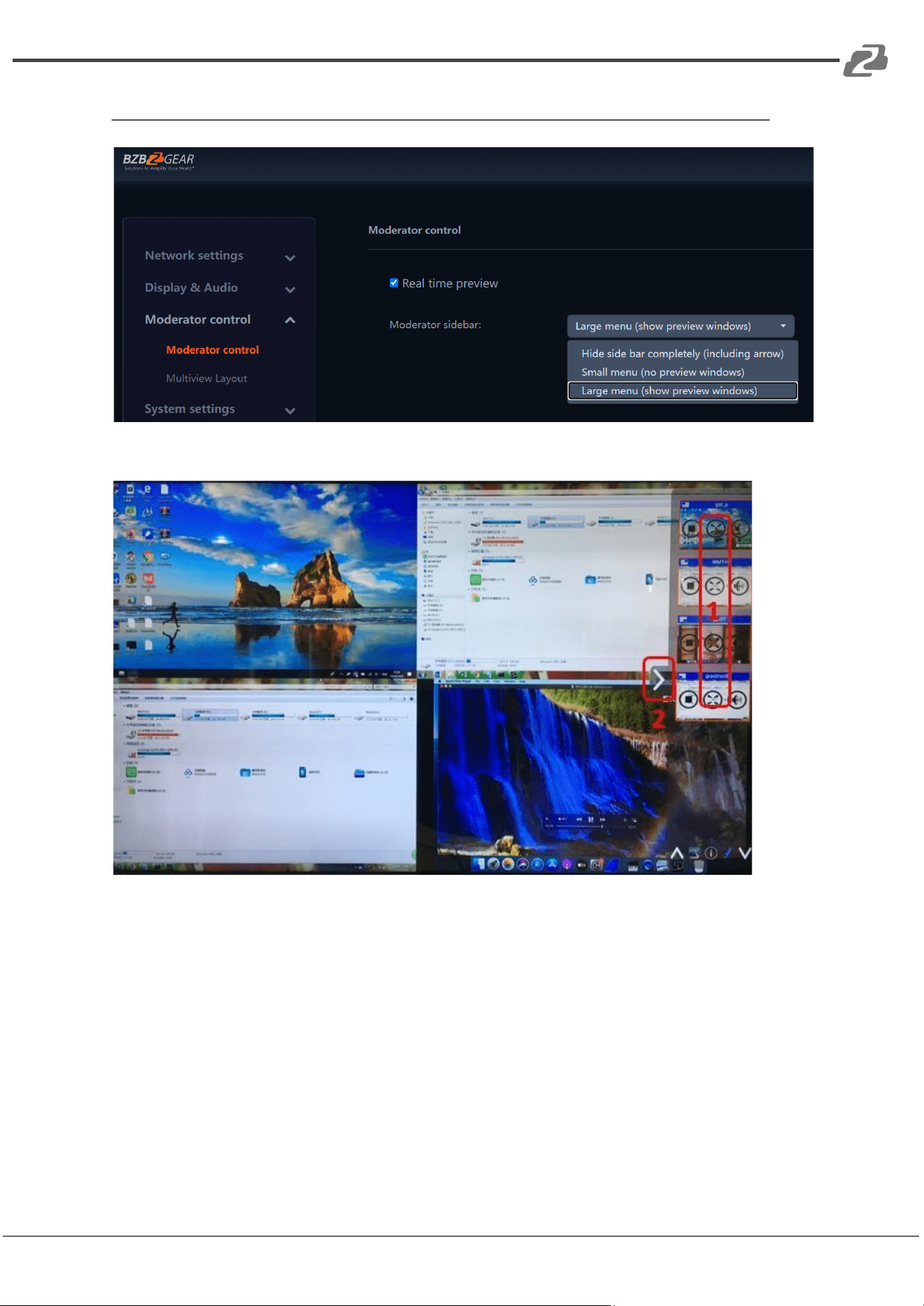
Moderator Control
Real time preview: Adds the window bar that enables previewing connected devices.
Real Time Preview
If the option is disabled then the preview window will only show a static picture for
connected devices.
Address: 830 National Drive #140, Sacramento, CA 95834, USA · Tel: +1(888)499-9906 · Email: support@bzbgear.com 51
BZBGEAR BG-Connexio PRODUCT MANUAL
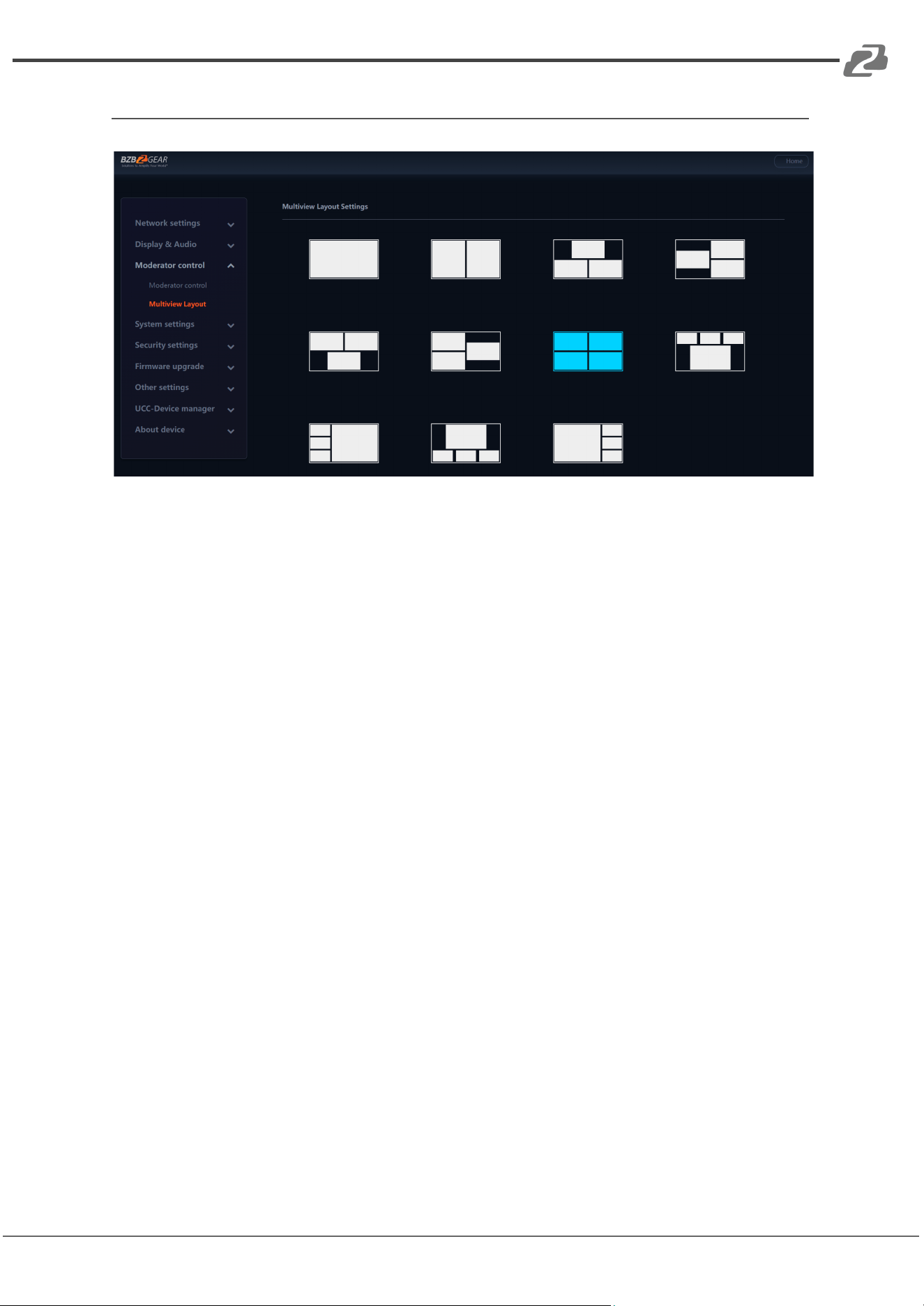
Multiview Layout
Users can select the multiview layout for connected devices. By default the Connexio is set
to a 2x2 configuration.
Address: 830 National Drive #140, Sacramento, CA 95834, USA · Tel: +1(888)499-9906 · Email: support@bzbgear.com 52
BZBGEAR BG-Connexio PRODUCT MANUAL
System settings
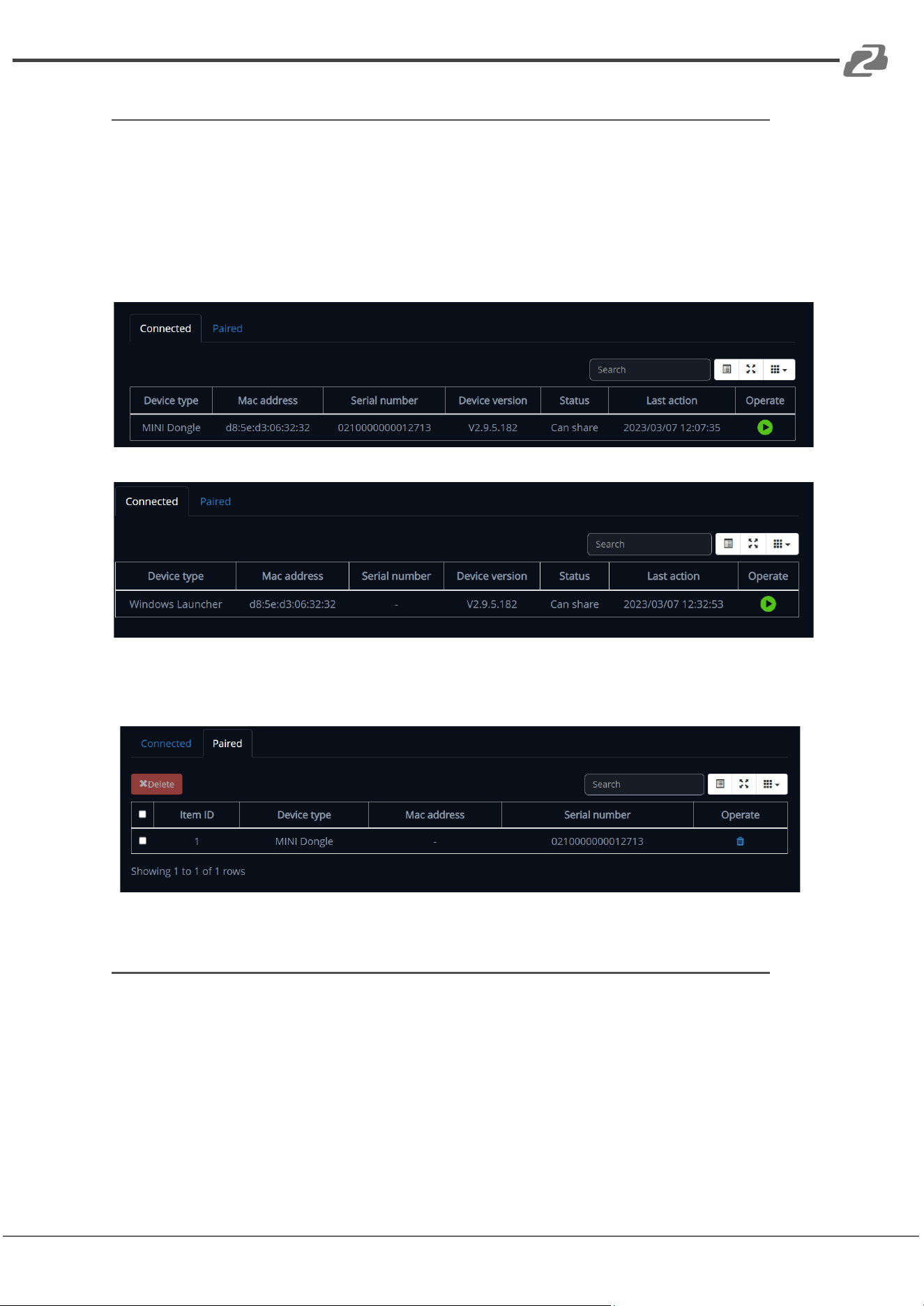
Buttons:
Connected: Shows the current status off all currently paired devices (Note: if the
connected computer software is launched using the Mini dongle it will appear as
so even after the dongle is disconnected)
Paired: Shows the properties of connected dongles and can be managed from
this page.
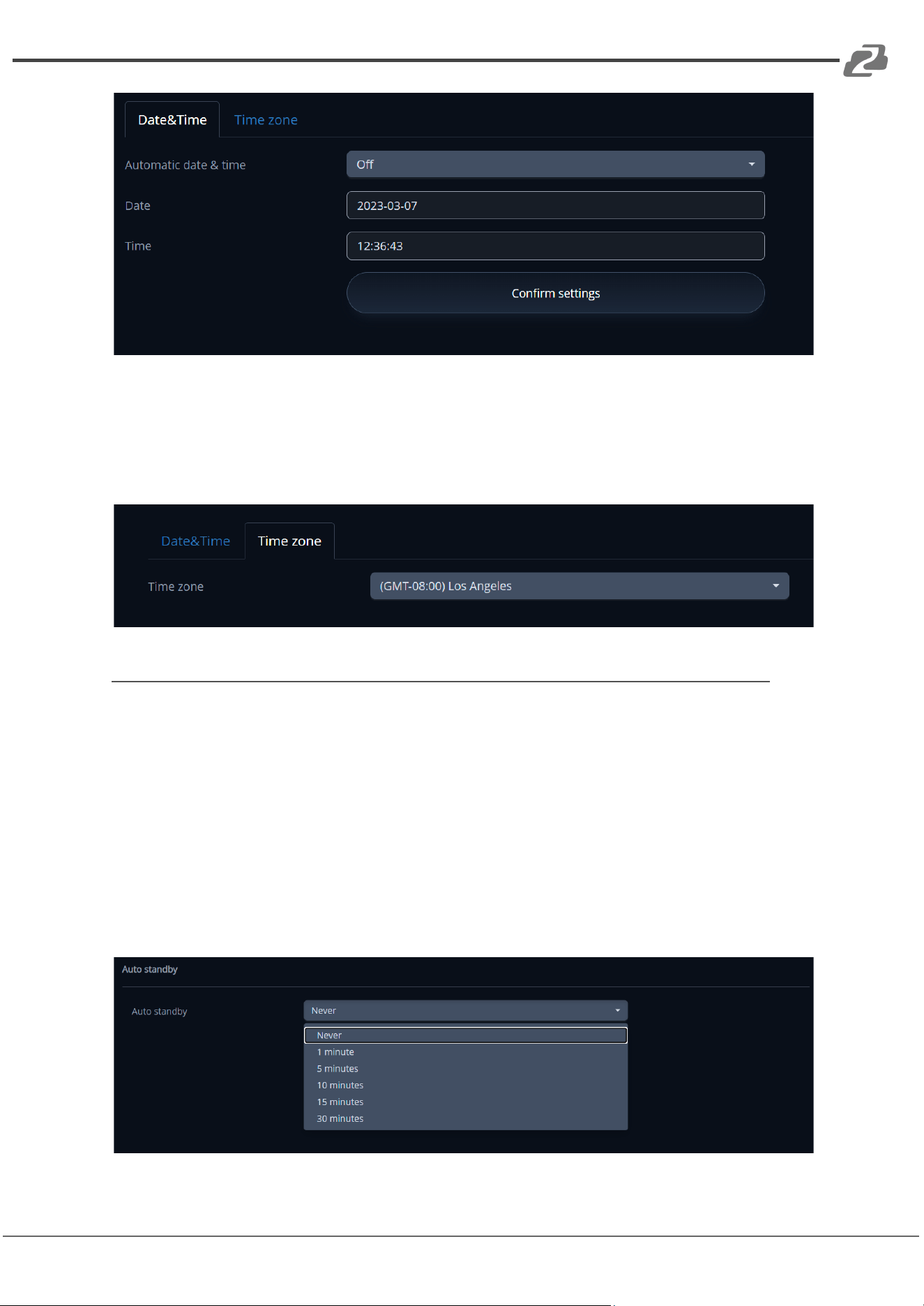
Date & Time
Includes Automatic date & time, Set date, Set time, Select time zone.
Automatic date & time: Check to use a NTP time server to provide time as
system time.
Address: 830 National Drive #140, Sacramento, CA 95834, USA · Tel: +1(888)499-9906 · Email: support@bzbgear.com 53
BZBGEAR BG-Connexio PRODUCT MANUAL
Set date: Click in the input field to fill out the appropriate date.
Set time: Click in the input field to fill out the appropriate time manually. The setting is not
saved, when the system is powered off.
Time zone: Click in the input field to fill out the appropriate time zone.
Auto Standby
If the Auto Standby mode is activated, Connexio will automatically switch to
power saving mode after a selectable time after the last dongle is unplugged,
desktop application closed, or Wi-Fi of a mobile device is disconnected. In
Standby, the green LED on top of the Connexio will be flashing and the
HDMI-output is switched off.
When a dongle is plugged in or another device is connected then the Standby
mode will be deactivated. Movement of a connected USB mouse will also cause
the Connexio to wake.
Address: 830 National Drive #140, Sacramento, CA 95834, USA · Tel: +1(888)499-9906 · Email: support@bzbgear.com 54
BZBGEAR BG-Connexio PRODUCT MANUAL
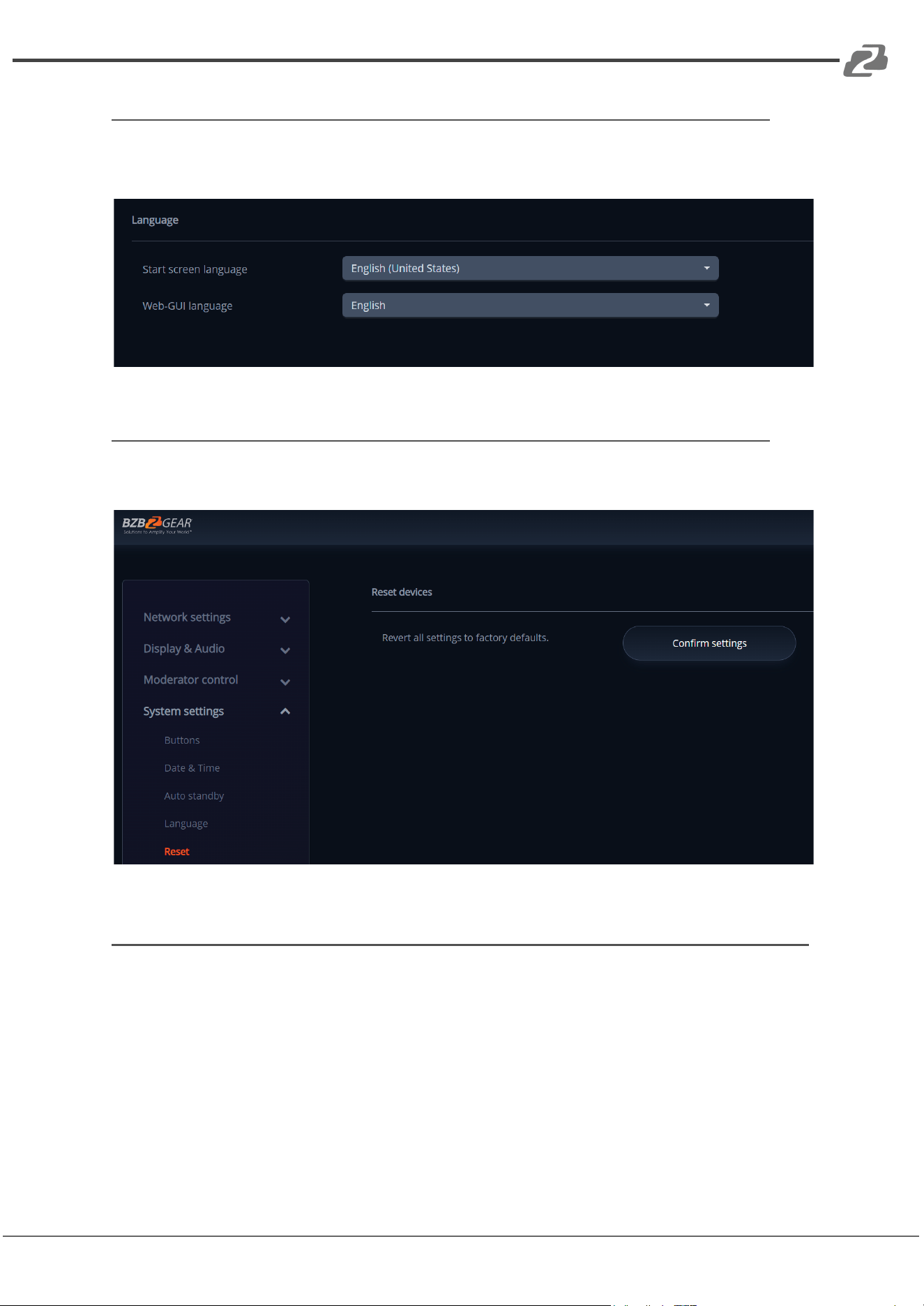
Language
Select an installed display language.
Reset
Restore the unit to factory settings.
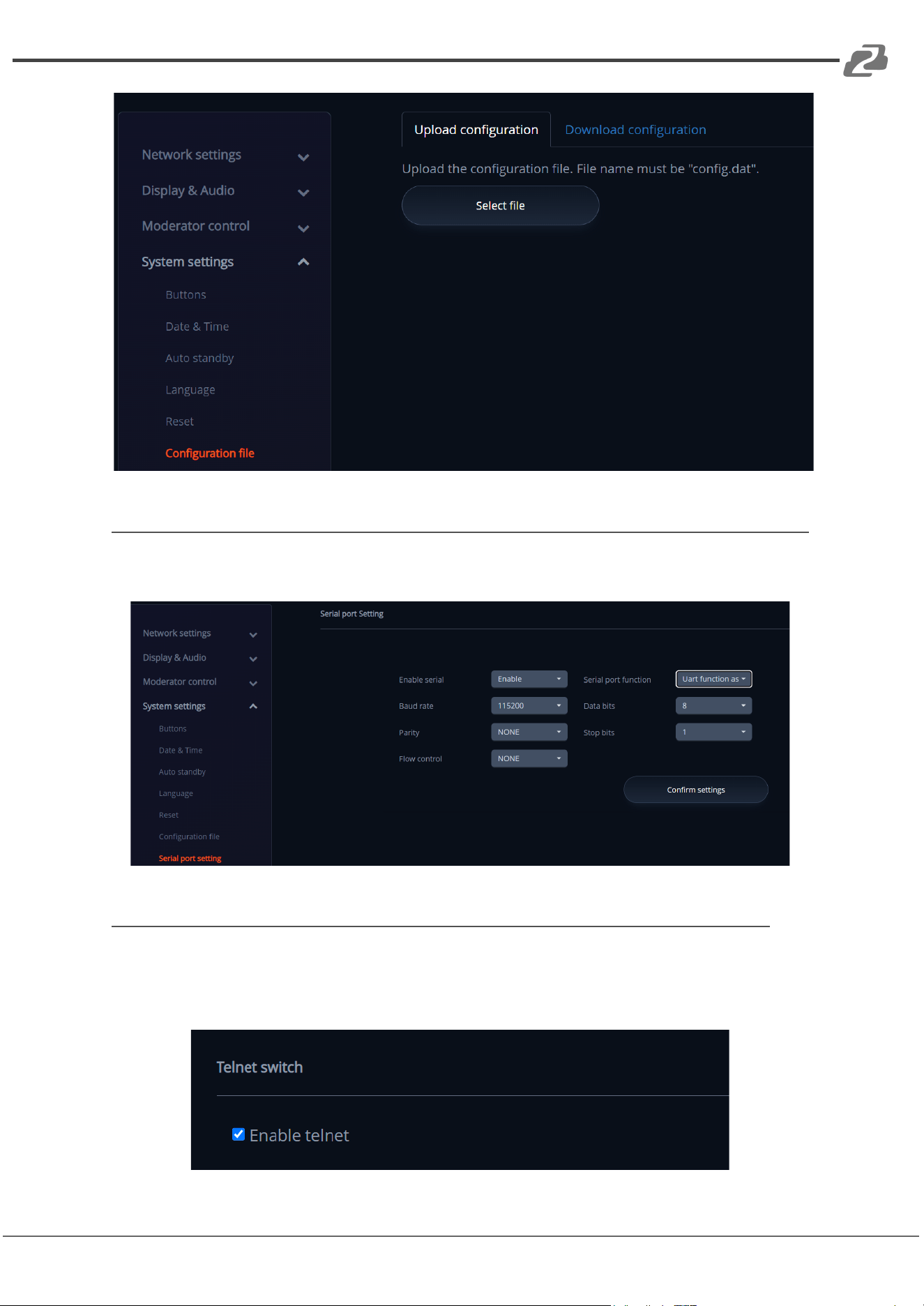
Configuration File
The Configuration File is a packaged file which contains all the configuration
parameters of the Connexio, which could be downloaded and copied to multiple
devices which need to use the same configuration.
Address: 830 National Drive #140, Sacramento, CA 95834, USA · Tel: +1(888)499-9906 · Email: support@bzbgear.com 55
BZBGEAR BG-Connexio PRODUCT MANUAL
Series Port Setting
To configure telnet command and RS-232 command.
Telnet Switch
Switch on or off the telnet functions
Address: 830 National Drive #140, Sacramento, CA 95834, USA · Tel: +1(888)499-9906 · Email: support@bzbgear.com 56
BZBGEAR BG-Connexio PRODUCT MANUAL
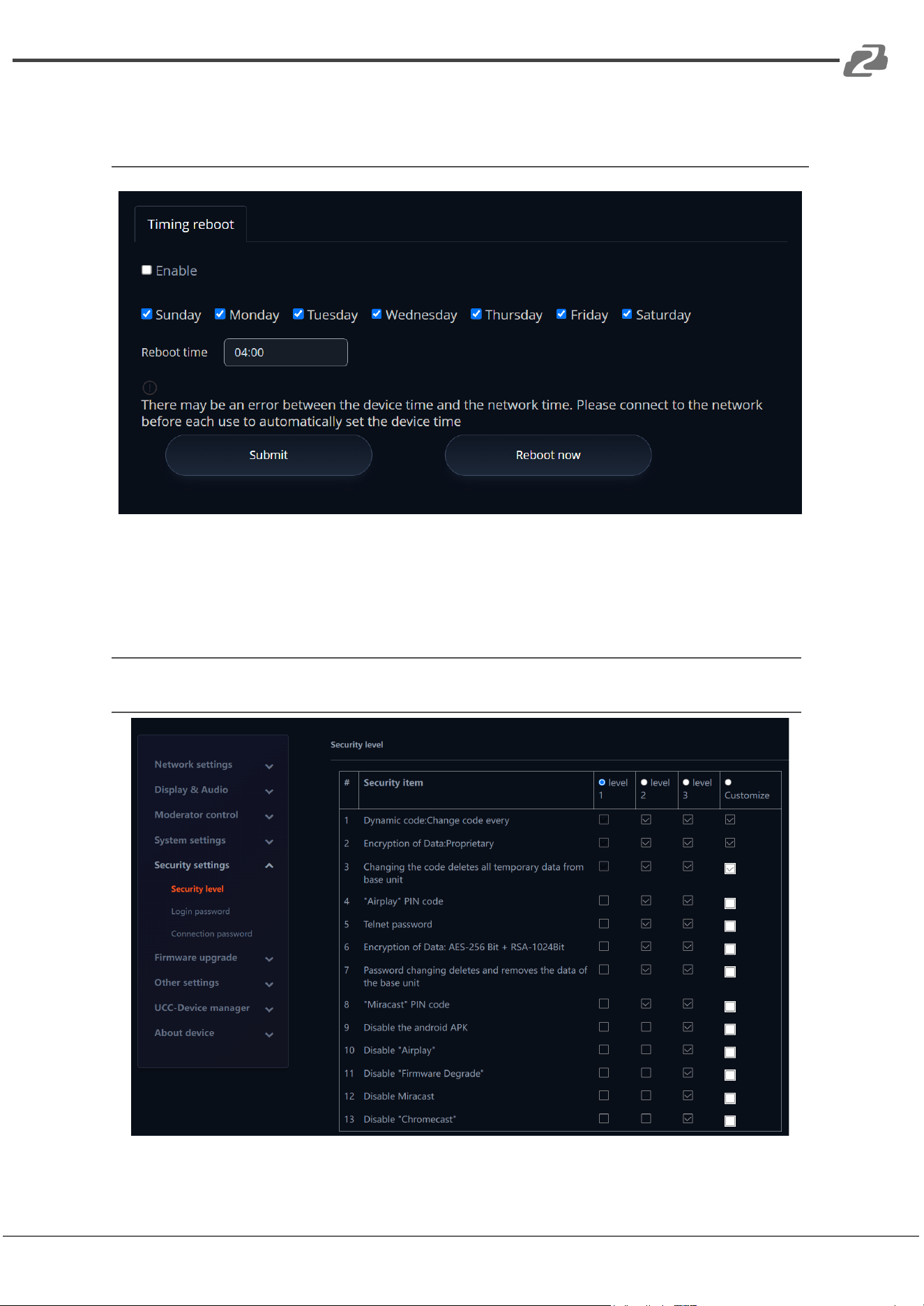
Reboot
Enable the system to automatically reboot on certain days at a specified time. This feature
is best used in conjunction with the automatic date and time with an NPT server.
Security Settings
Security Level
Address: 830 National Drive #140, Sacramento, CA 95834, USA · Tel: +1(888)499-9906 · Email: support@bzbgear.com 57
BZBGEAR BG-Connexio PRODUCT MANUAL
Based on user requirements, three different security levels can be set in the menu of the
Connexio for different security sensitive environments or security policies. A security level is
a predefined set of settings. Click on the corresponding entry in the menu if you want to
adjust the respective security features. The default setting is level 1.
Level 1: normal; security for daily usage for any organization such as a classroom, regular
meeting room, etc.
Level 2: medium security; provides increased security for companies, organizations,
government agencies, etc. through powerful encryption of audio and video data. Includes
security features such as limiting the transmission of "AirPlay" by introducing a password.
Level 3: high security; used for strict security requirements for companies, organizations,
authorities, banks etc.
This level contains all “Level 2” security measures; in addition, all mobile applications, such
as the Android application as well as AirPlay are blocked. The web browser (WebUI) of the
Base-unit is blocked. In addition, downgrading of the firmware is not possible.
The setting of the security level is displayed on the display splash screen by the shield icon
and clicking the icon will show more information.
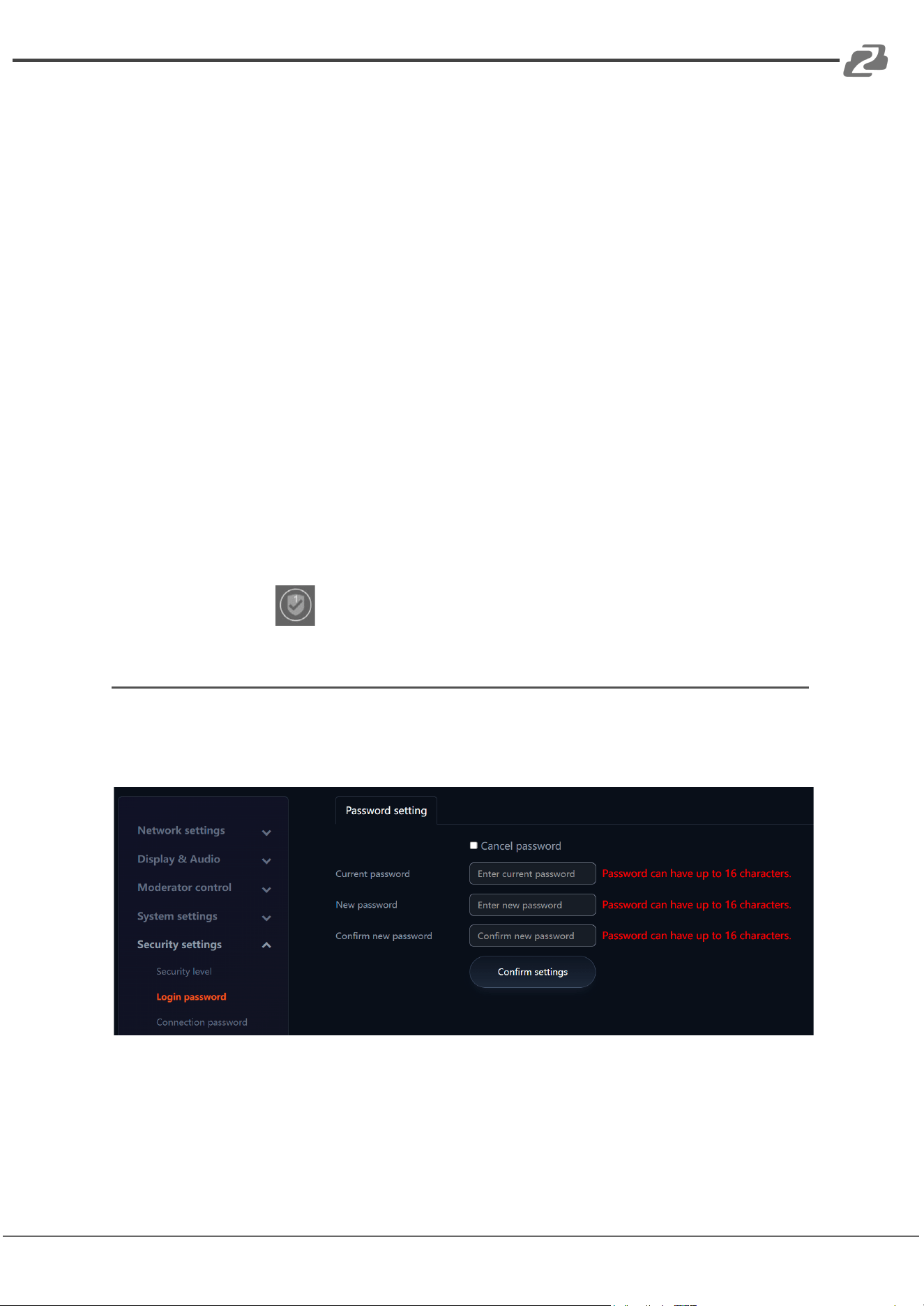
Login Password
Users can change admin password for entering the web interface. The default password, or
after a factory reset, is “admin”.
Users can also deactivate the password if desired.
Address: 830 National Drive #140, Sacramento, CA 95834, USA · Tel: +1(888)499-9906 · Email: support@bzbgear.com 58
BZBGEAR BG-Connexio PRODUCT MANUAL
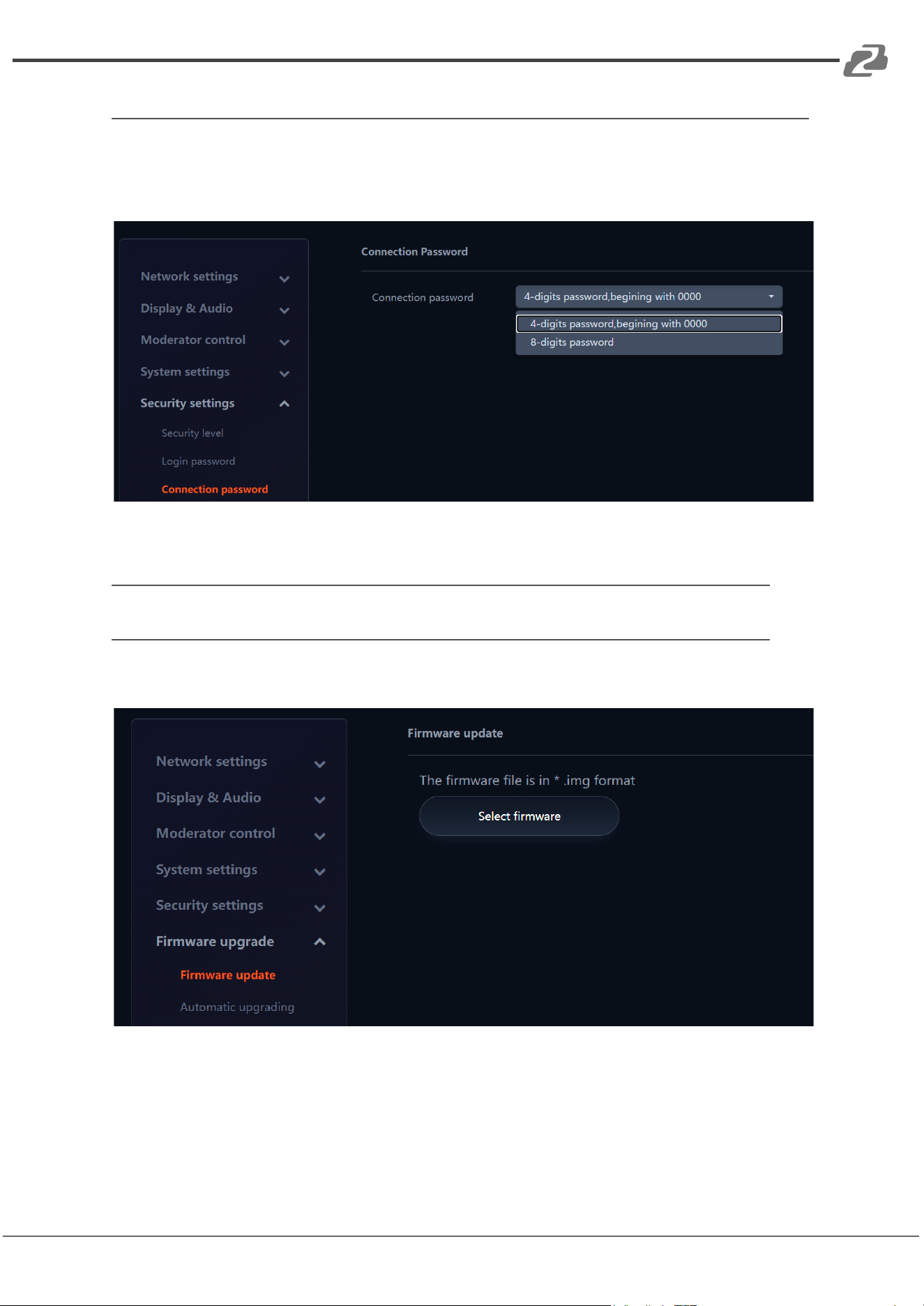
Connection Password
Two types of password formats can be chosen to show on the home screen.
4-digits password, beginning with 0000
8-digits password
Firmware Upgrade
Firmware Update
Upload firmware files to upgrade the Connexio.
Address: 830 National Drive #140, Sacramento, CA 95834, USA · Tel: +1(888)499-9906 · Email: support@bzbgear.com 59
BZBGEAR BG-Connexio PRODUCT MANUAL
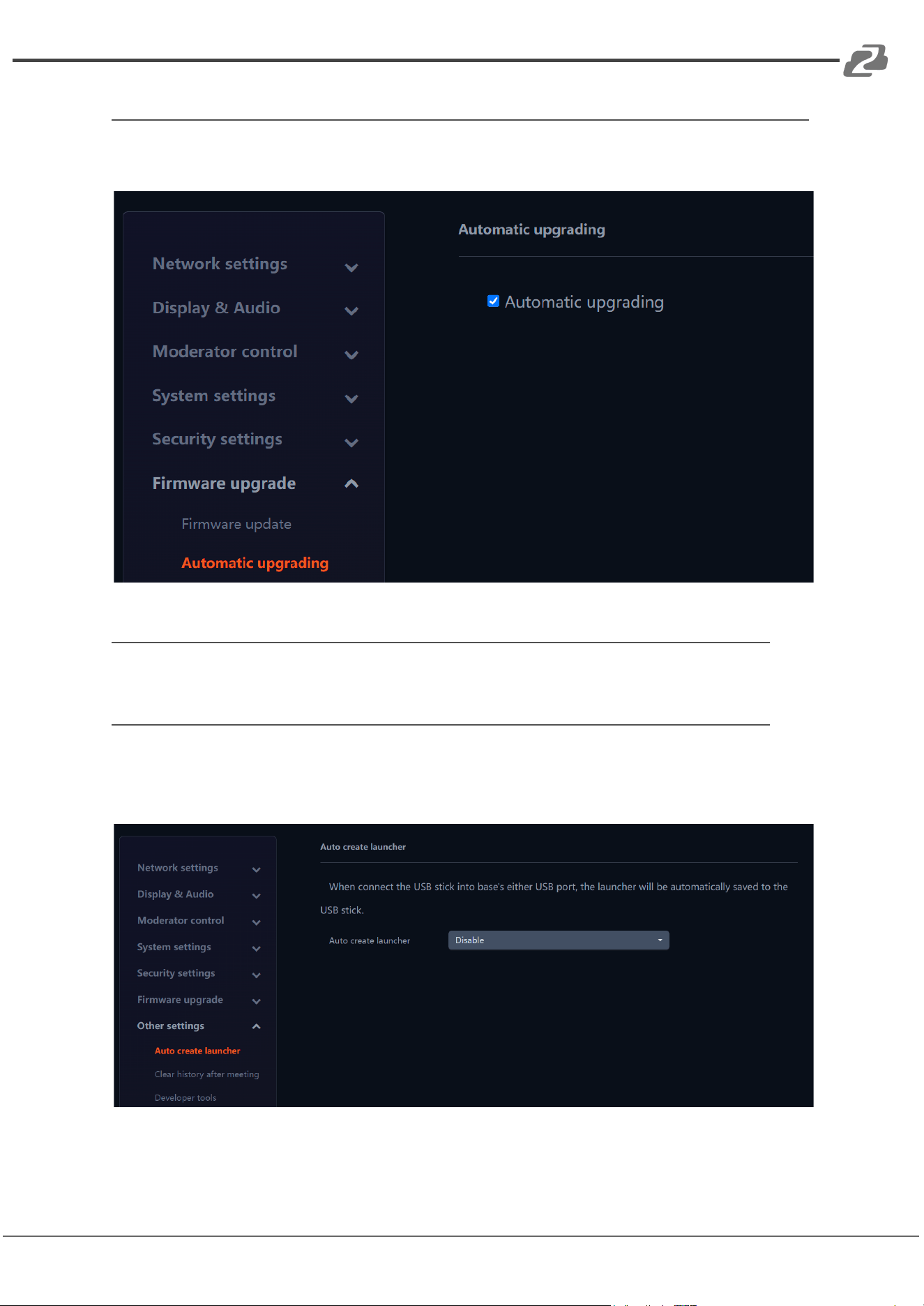
Automatic Upgrading
Tick the box to enable upgrading OTA via internet or local files.
Other Settings
Auto Create Launcher
When a USB flash drive is connected to the Connexio, the Connexio will automatically save
the various launcher software files and device user manual to the flash drive.
Address: 830 National Drive #140, Sacramento, CA 95834, USA · Tel: +1(888)499-9906 · Email: support@bzbgear.com 60
BZBGEAR BG-Connexio PRODUCT MANUAL
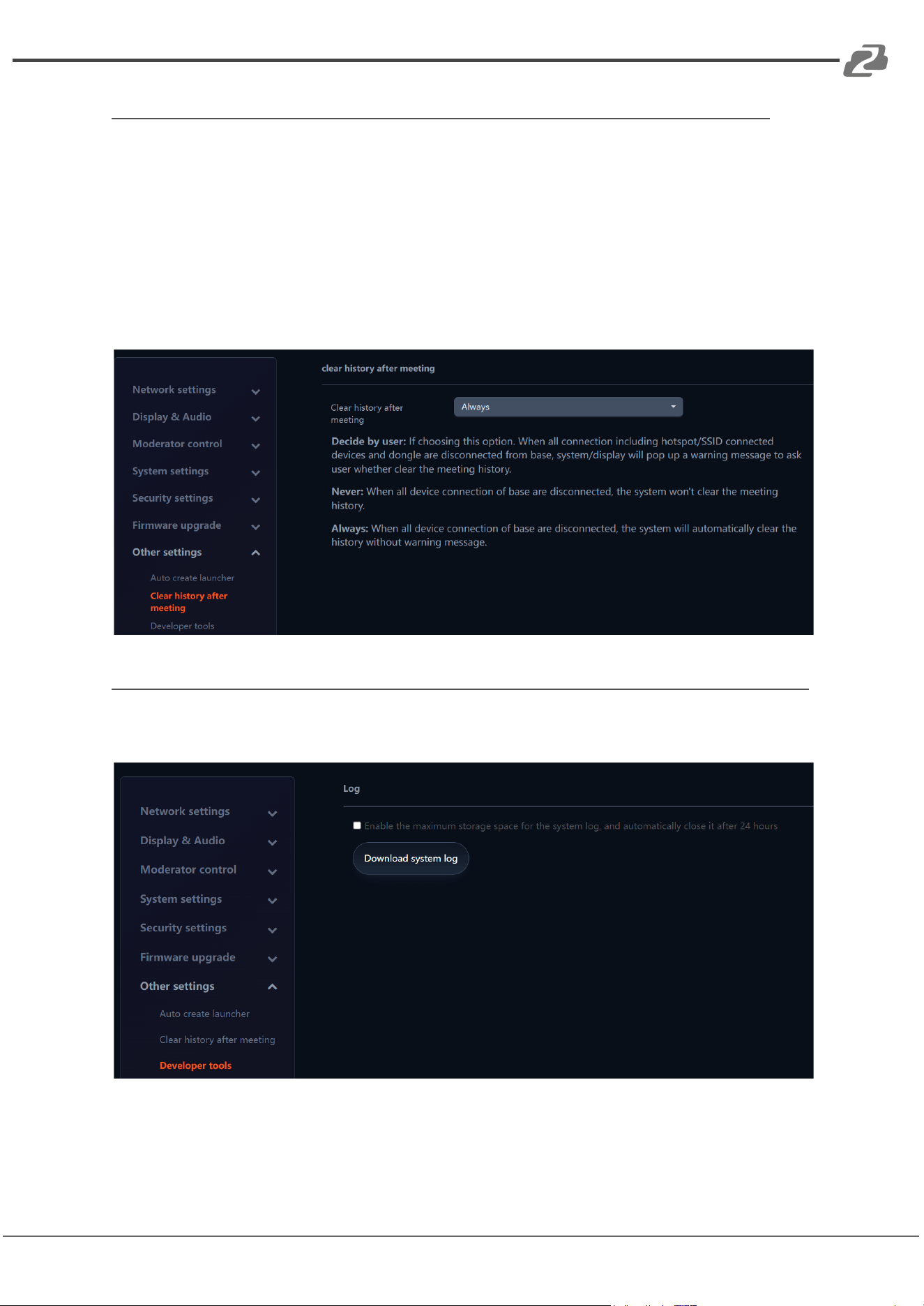
Clear History After Meeting
Pictures, videos, and music can be stored in memory of Connexio. This memory can
be erased at the end of a meeting automatically when the software is closed.
Settings options:
Decide by User – a dialog appears when the software is closed prompting the user to
decide.
Never – storage space is automatically erased, when memory is filled for 90%
Always – memory is automatically deleted.
Developer Tools
Check the box to enable Connexio to generate a system log file for diagnostics.
Address: 830 National Drive #140, Sacramento, CA 95834, USA · Tel: +1(888)499-9906 · Email: support@bzbgear.com 61
BZBGEAR BG-Connexio PRODUCT MANUAL
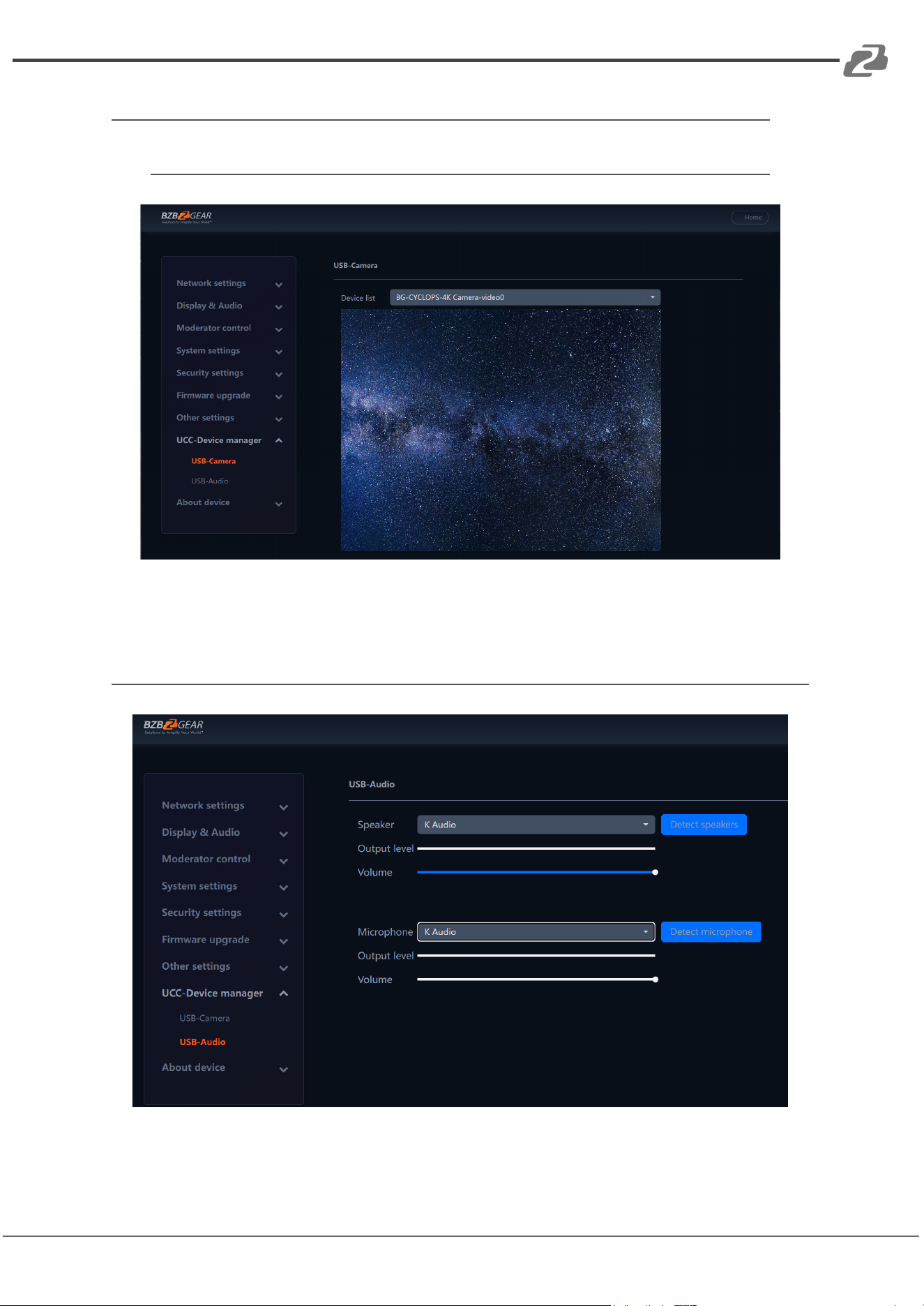
UCC-Device Manager
USB-Camera
Use the drop down device list to select and preview the image of a connected USB
camera.
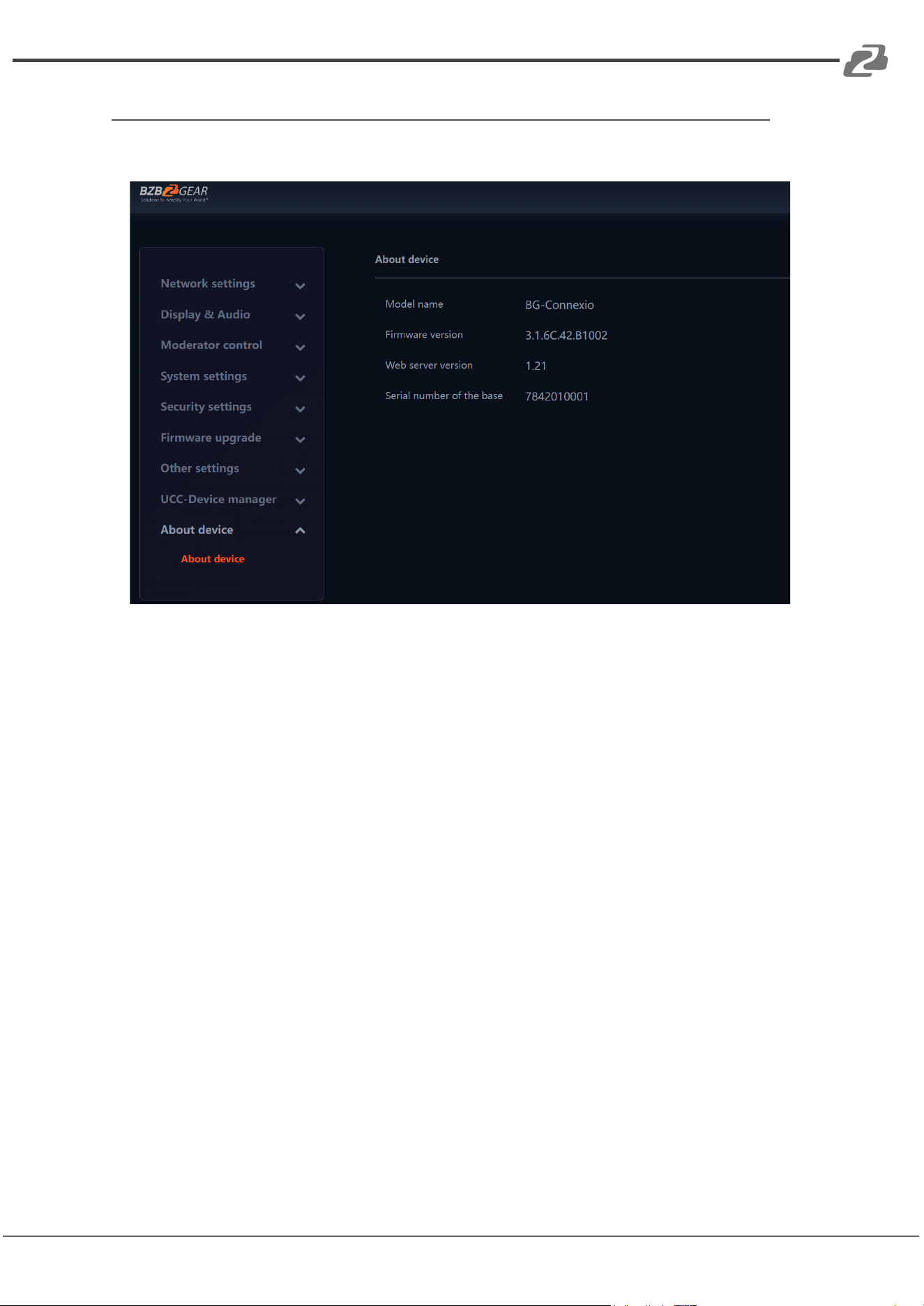
USB Audio
Use the drop downs and volume sliders to select and adjust connected USB speakers and
microphones.
Address: 830 National Drive #140, Sacramento, CA 95834, USA · Tel: +1(888)499-9906 · Email: support@bzbgear.com 62
BZBGEAR BG-Connexio PRODUCT MANUAL
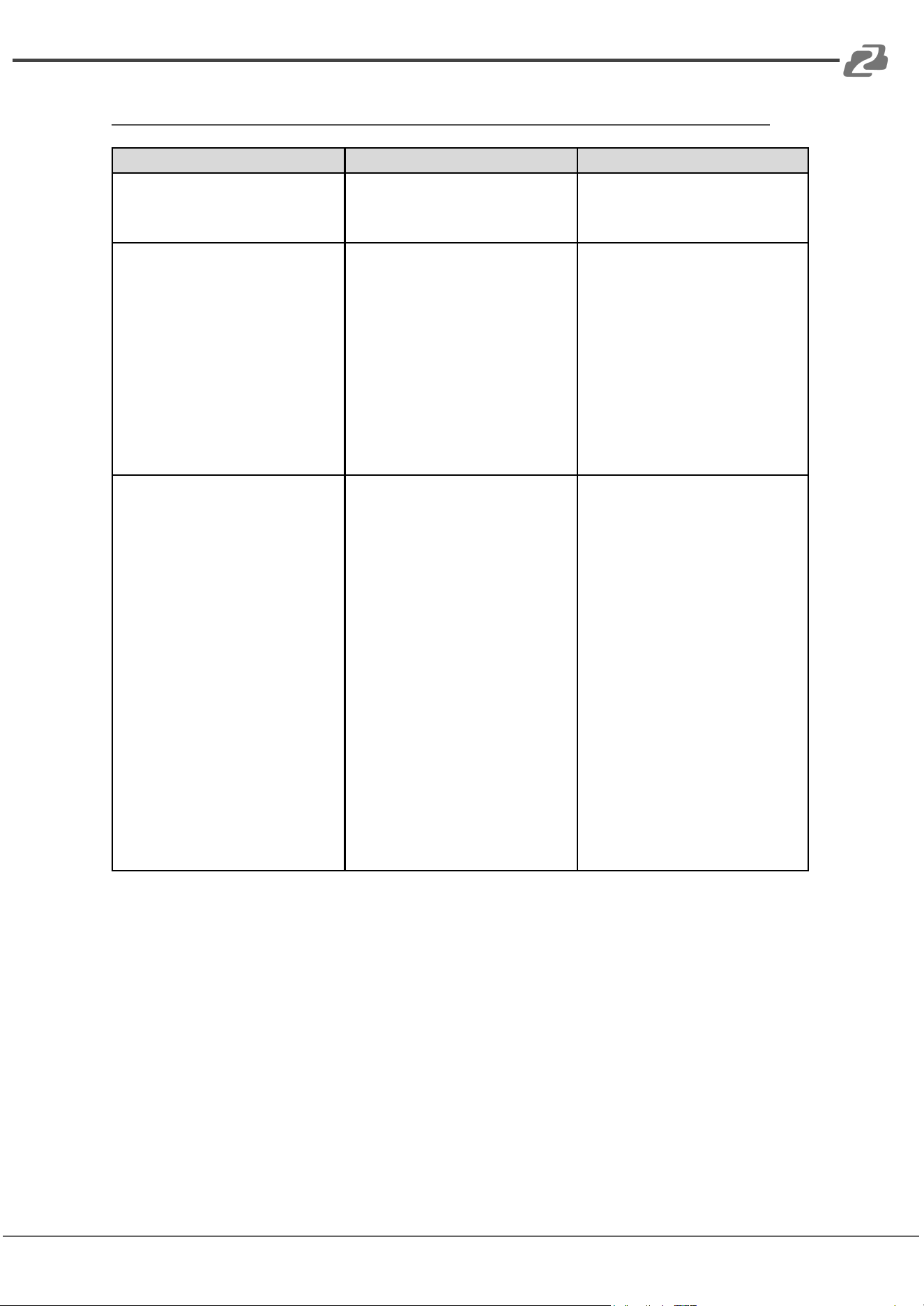
About Device
Check the firmware version of Connexio and the web server version.
Address: 830 National Drive #140, Sacramento, CA 95834, USA · Tel: +1(888)499-9906 · Email: support@bzbgear.com 63
BZBGEAR BG-Connexio PRODUCT MANUAL
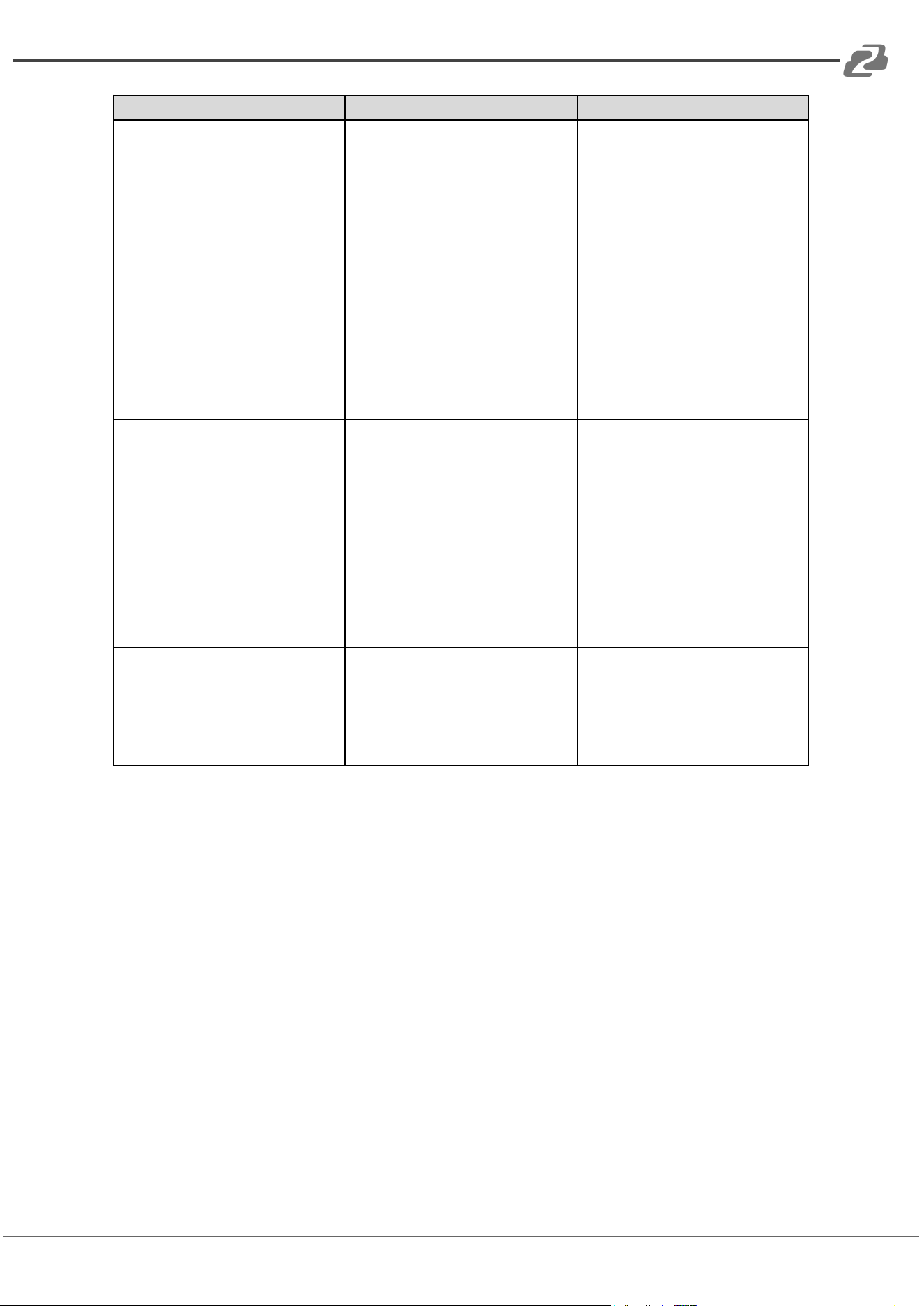
Troubleshooting
Problem
Cause
Solution
The WirelessMedia for Android
application or AirPlay on IOS devices
can’t find the Connexio.
The Wi-Fi password of the Connexio
changed while the android or IOS
device was connected to the Wi-Fi of
the Connexio.
Reconnect the mobile device by
entering the password shown on the
home screen.
The image quality on the main display
screen is not good.
The quality or length of the cable
between the Connexio and the display
or the connection between these two.
Improper resolution for the main
screen.
Connexio Resolutions:
3840x2160_60Hz,
3840x2160_50Hz
3840x2160_30Hz,
1920x1080_60Hz,
1920x1080_50Hz,
1920x1080_30Hz
● Replace the cable
● Check if the cable is
connected properly.
● Change the resolution on the
Setting configuration page
and match it to the native
resolution of the main
screen.
Bad wireless connection. The
connection between the transmitter
and the Connexio is not stable.
Wi-Fi problems.
● Interference in the radio
channel.
● Overload in the radio channel.
“WirelessMedia” does not
automatically jump to other
channels when there are
changes in the RF environment.
Low signal strength:
● Metal cabinets, walls, and other
construction elements can
cause reflections deteriorating
the wireless signal.
● Obstacles between transmitting
device/dongle and Connexio
cause lowering of the wireless
strength and quality.
Use a Wi-FI scanner to find a free
wireless frequency and channel and
select it via the setting configuration
page.
Check the RF environment regularly if
there are frequent changes in Wi-Fi
networks in your environment.
Put the Connexio closer to the main
screen.
Change the orientation of the antennas
at the rear panel of the Connexio to
point in the transmitter's direction.
Remove or limit as much as possible
all obstructions between the
transmitters and Connexio.
Avoid placing the base-unit in cabinets,
suspended
ceilings, under tables, or in adjoining
rooms.
Address: 830 National Drive #140, Sacramento, CA 95834, USA · Tel: +1(888)499-9906 · Email: support@bzbgear.com 64
BZBGEAR BG-Connexio PRODUCT MANUAL
Problem
Cause
Solution
Cannot get the application to run when
plugging the dongle into a laptop.
● When you are using
“WirelessMedia” for the first time
on your laptop or for guests, you
have to copy the Launcher
program “BG-Connexio
windows.exe” or “WirelessMedia
macOS.app” for first install on
your Laptop /PC. Run this
Starter- program. You can run
the Starter App without Admin
rights.
● Bad connection at USB port on
the laptop
● Some types of USB devices
might be blocked as per the
company policy.
There are 2 methods to load the
Launcher program.
Download the App via LAN or Wi-Fi
from the Connexio or copy the
application from the dongle.
● Reconnect to the USB port
● Try another USB port
● Reboot the laptop
If possible, change the USB port policy
on the laptop.
Low video performance (sharpness,
audio and video dropouts, video stream
is jerking, …)
● The video quality depends on
the computing power of the PC /
laptop and chosen playback
application.
● A laptop in battery mode can be
switched to reduce computing
power or to save energy. The
transmission of HD video
requires a certain amount of
CPU power to guarantee the
optimum quality of the
transmission.
● Use another media-player (VLC
player…) or another browser.
● Update the software of your video
player to the latest version.
● Reduce the CPU usage of other
software applications.
● Lower the screen resolution of the
Laptop.
● Update driver of your graphics
card.
● Turn off low power mode.
Video is not shown on screen
● The content uses HDCP
● The display cable is not
connected correctly
● The Connexio is in standby mode
or off.
● WirelessMedia input does not
support showing HDCP source.
If possible, connect the source
device directly to the display.
● Check if the cable is connected
correctly.
● Power cycle the Connexio.
Address: 830 National Drive #140, Sacramento, CA 95834, USA · Tel: +1(888)499-9906 · Email: support@bzbgear.com 65
BZBGEAR BG-Connexio PRODUCT MANUAL
Problem
Cause
Solution
Your content is removed from the display
and the LEDs on the base are blinking.
Connection to the Connexio is lost.
WirelessMedia tries to restore the
connection automatically. If it fails, the
LEDs on the Connexio start blinking.
Try to reestablish the connection
through the software/dongle.
No LAN connection with the Connexio.
Wrong IP address
● IP address is not within LAN
range
● DHCP is not enabled.
No Wi-Fi connection between mobile
device and Connexio
● Wrong Wi-Fi frequency
● Wrong SSID or password
Check the mobile device is on the
correct frequency.
Enter the correct SSID
No audio when transmitting a local file to
Connexio
Unsupported audio format such as Dolby
MS11, DDCO DTSLBR, DTSE,
DTSNeoUltra, SRS-THEATERSOUND,
DTS_StudioSound3D, DTS_HD
If possible, reformat the file to another
audio format, like DD, DD+, HE- AAC,
DTS DMP, WMA, DRA, COOK
There is no sound from the display.
● No connected audio device.
● Volume is set to OFF.
● The volume level is set too low in
the options of the "WirelessMedia"
Launcher program on PC.
● Audio signals may be muted.
● The Volume is set to low
● Audio is muted in the sound mixer
in the taskbar.
● The media player software is out of
date
● Ensure the audio is turned on.
● Adjust level in menu
configuration
● Adjust the volume in the
"WirelessMedia" Launcher
program on PC.
● Check the speaker icon in the
taskbar and ensure it is not
muted
● Adjust the volume options in
the WirelessMedia application
● Right-mouse click the speaker
icon in taskbar, open mixer and
unmute “WirelessMedia” or
“Video Playback”
● Update the media players
software
Address: 830 National Drive #140, Sacramento, CA 95834, USA · Tel: +1(888)499-9906 · Email: support@bzbgear.com 66
BZBGEAR BG-Connexio PRODUCT MANUAL
Problem
Cause
Solution
There is no sound when using a
MacBook.
There is a problem with the
sound-flower App which is integrated in
the driver WirelessMedia.app.
● You need Admin privileges
● Go to the macOS System
Preferences and select the
“Security & Privacy” tab. Find
the "allow to run/install the
sound-flower" and click on
“Allow” next to “Matt Ingels,” in
order to allow Sound-Flower to
install on the MacBook.
● Run the WirelessMedia.app
again and it will auto-install
Sound-Flower.
There is no sound via AirPlay.
The volume is set too low, on the mobile
device.
Increase the volume on the mobile
device.
There is no sound at main-screen, when
mirroring a video from the
“WirelessMedia for Android” application.
Due to an Android system limitation,
Android doesn’t provide an interface to
capture audio. In this case, there is no
sound when mirroring the video.
Use a dongle or Apple AirPlay to do the
mirroring instead.
Cannot update the firmware of the
Connexio.
Flash disk format is not correct.
Please reformat the flash disk to be FAT
format to update.
Poor video quality/lag when using
AirPlay.
The chosen application is throttling
transmission.
Reduce the output quality in the chosen
application to decrease buffering time
needed.
Address: 830 National Drive #140, Sacramento, CA 95834, USA · Tel: +1(888)499-9906 · Email: support@bzbgear.com 67
BZBGEAR BG-Connexio PRODUCT MANUAL
Tech Support
Have technical questions? We may have answered them already!
Please visit BZBGEAR’s support page (bzbgear.com/support) for helpful information and
tips regarding our products. Here you will find our Knowledge Base
(bzbgear.com/knowledge-base) with detailed tutorials, quick start guides, and step-by-step
troubleshooting instructions. Or explore our YouTube channel, BZB TV
(youtube.com/c/BZBTVchannel), for help setting up, configuring, and other helpful how-to
videos about our gear.
Need more in-depth support? Connect with one of our technical specialists directly:
Phone
1.888.499.9906
Email
support@bzbgear.com
Live Chat
bzbgear.com
Limited Product Warranty Terms
Pro Line: 5-year warranty from the date of purchase for AV/Broadcasting products bought
on or after August 1, 2024.
Essential Line: 3-year warranty from the date of purchase for AV/Broadcasting products
bought on or after August 1, 2024.
Cables: Lifetime Limited Product Warranty.
For complete warranty information, please visit bzbgear.com/warranty.
For questions, please call 1.888.499.9906 or email support@bzbgear.com.
Mission Statement
BZBGEAR is a breakthrough manufacturer of high-quality, innovative audiovisual equipment
ranging from AVoIP, professional broadcasting, conferencing, home theater, to live
streaming solutions. We pride ourselves on unparalleled customer support and services.
Our team offers system design consultation, and highly reviewed technical support for all
the products in our catalog. BZBGEAR delivers quality products designed with users in
mind.
Copyright
All the contents in this manual and its copyright are owned by BZBGEAR. No one is allowed
to imitate, copy, or translate this manual without BZBGEAR’s permission. This manual
contains no guarantee, standpoint expression or other implies in any form. Product
specification and information in this manual is for reference only and subject to change
without notice.
All rights reserved. No reproducing is allowed without acknowledgement.
Address: 830 National Drive #140, Sacramento, CA 95834, USA · Tel: +1(888)499-9906 · Email: support@bzbgear.com 68
