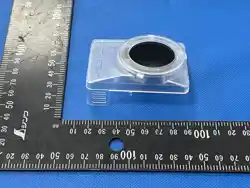
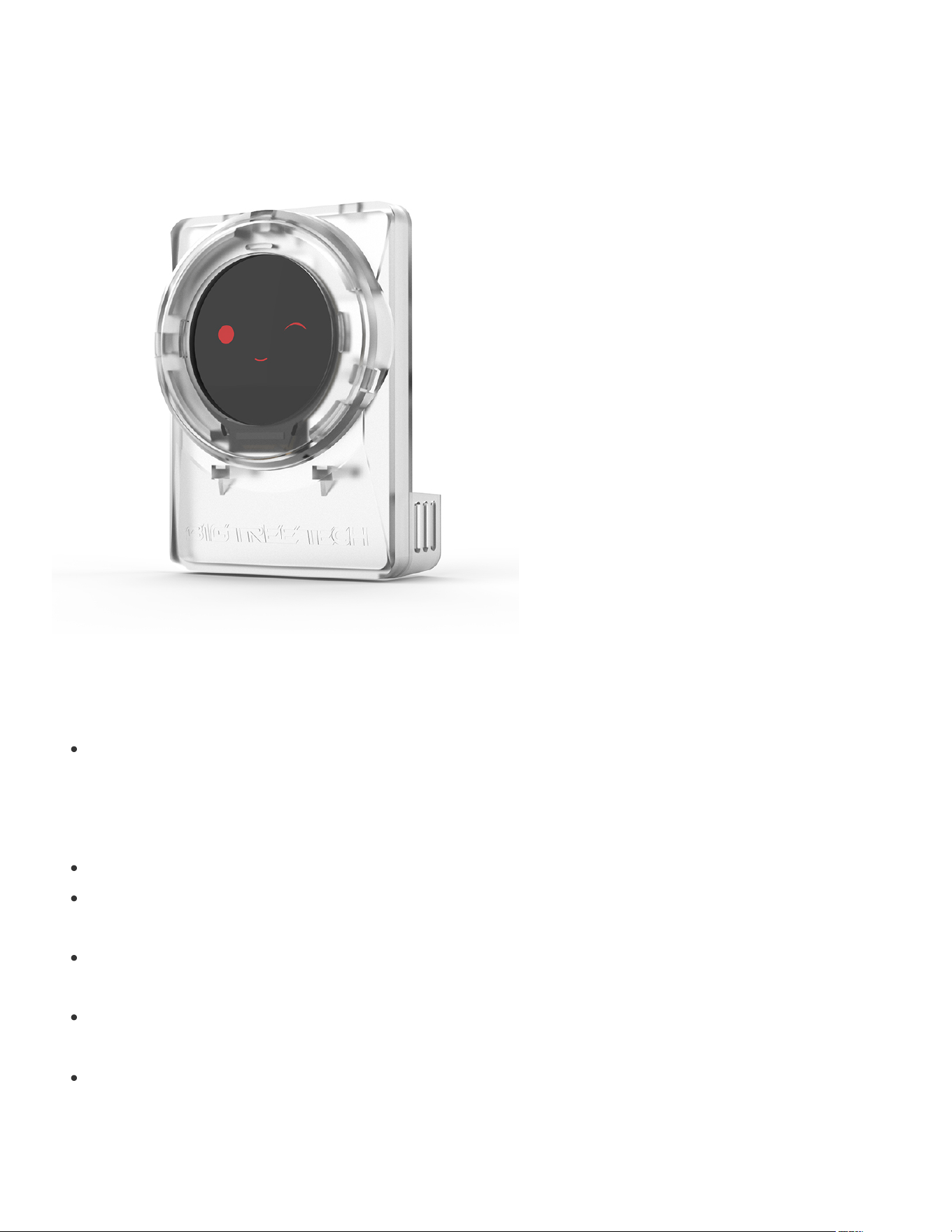
Panda Knomi
IMPORTANT NOTES
Since the Panda Knomi only uses "non-critical", status communication from printers, it is not
affected by any authentication processes that have recently been announced by Bambu Lab. For
more information on what is and is not affected, please refer to the official Bambu Lab
announcement.
Always make sure you are running the latest Panda Knomi firmware which you can find here
We are actively developing a repository where users can share their Panda Knomi themes. We
will share this link with users as soon as the repository is ready.
You can find various printable mounts for the P1, X1 and A1 series as well as cable management
tools here
Panda Knomi only supports connections to 2.4G Wi-Fi. Please ensure that your router is
broadcasting a 2.4GHz access point.
If the Panda Knomi is unable to communicate with the printer after being bound to it, it will display
the message:
Invalid IP, Adjusting
. This message should display for a maximum of 2 minutes
while the Panda Knomi finds the printer on the local network and reestablishes a connection. If it
is displayed for an extended period then either the printer or the router may need to be power

cycled. In such an instance you would also have connectivity issues when trying to use Bambu
Studio or Bambu Handy locally.
The Panda Knomi implements a special feature that automatically displays the webUI as soon as
you connect to the WiFi access point that it creates. Some browsers and devices have security
limitations with this kind of implementation that prevent uploading or downloading of files. If you
find that you are unable to upload or download files using the webUI then please exit the web
page that automatically popped up and revisit it from the native browser on your device.
If you encounter any issues during use or have suggestions for future hardware or firmware
releases then feel free to visit our GitHub page to submit an issue and stay in touch with us.
If you have any issues that are not solved by this wiki then please contact customer support at:
.
Specifications
MCU
Xtensa dual-core 32-bit LX6 ESP32
up to 240MHz clock speed.
Memory PSRAM-8MB(4MB RAM + 4MB Himem), Flash-16MB
Logic Voltage 3.3V
Input Power Voltage 5V-24V
Rated Power 0.65W
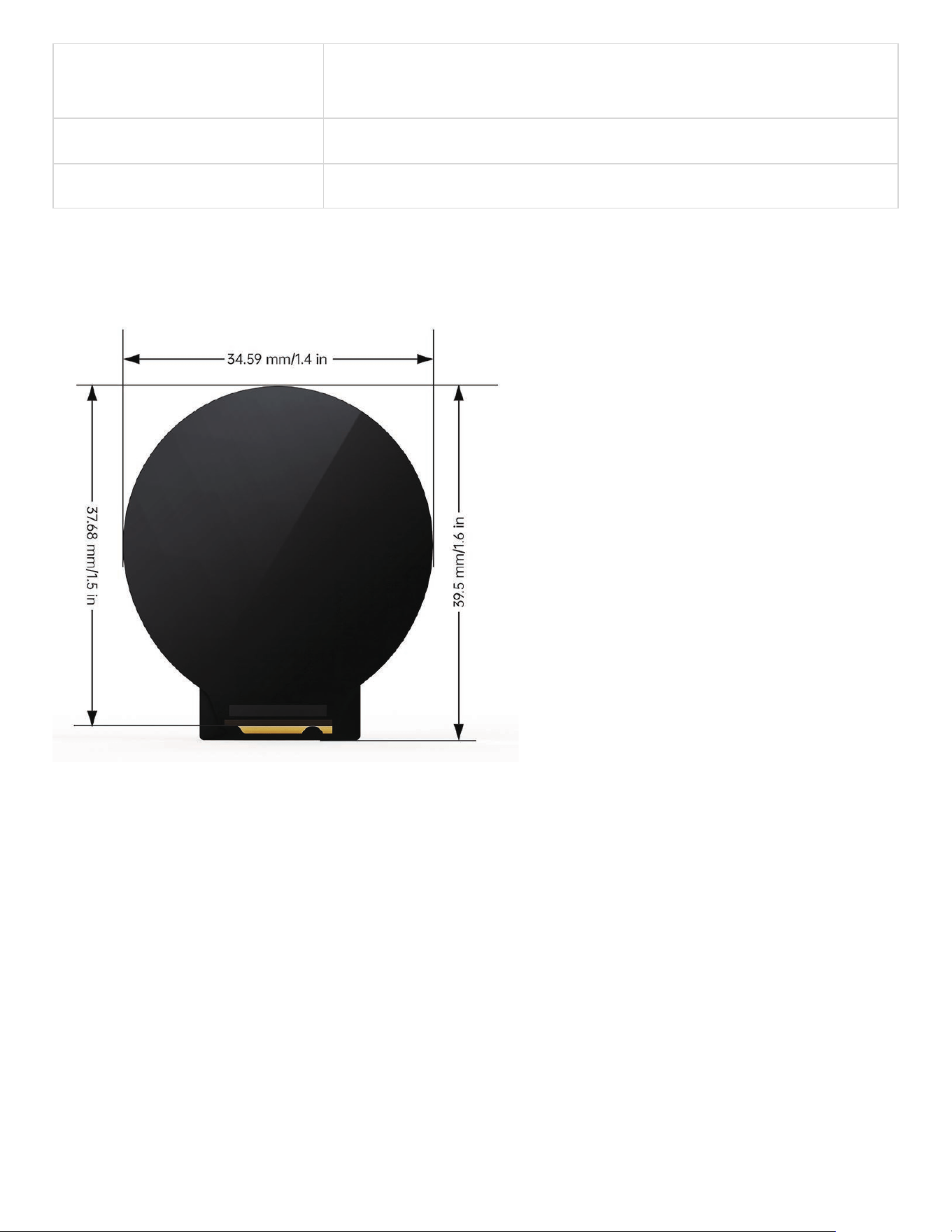
Dimensions 34.6mm x 37.9mm x 3.5mm
Display Size 1.28”
Resolution 240 x 240
Display Area 32.4(H)mm x 32.4(V)mm
Screen Driver Chip GC9A01
Viewing Angle 178°
Backlight Brightness 400 Cd/m²
Connectivity 2.4G Wi-Fi (IEEE 802.11 b/g/n)
Operating Temperature
Panda Knomi:-20°C to +70°C
Plastic Shell:-30℃ to +130℃
MCU
Xtensa dual-core 32-bit LX6 ESP32
up to 240MHz clock speed.
Storage Temperature -30°C to +80°C
Backlight Life Over 20,000 hours
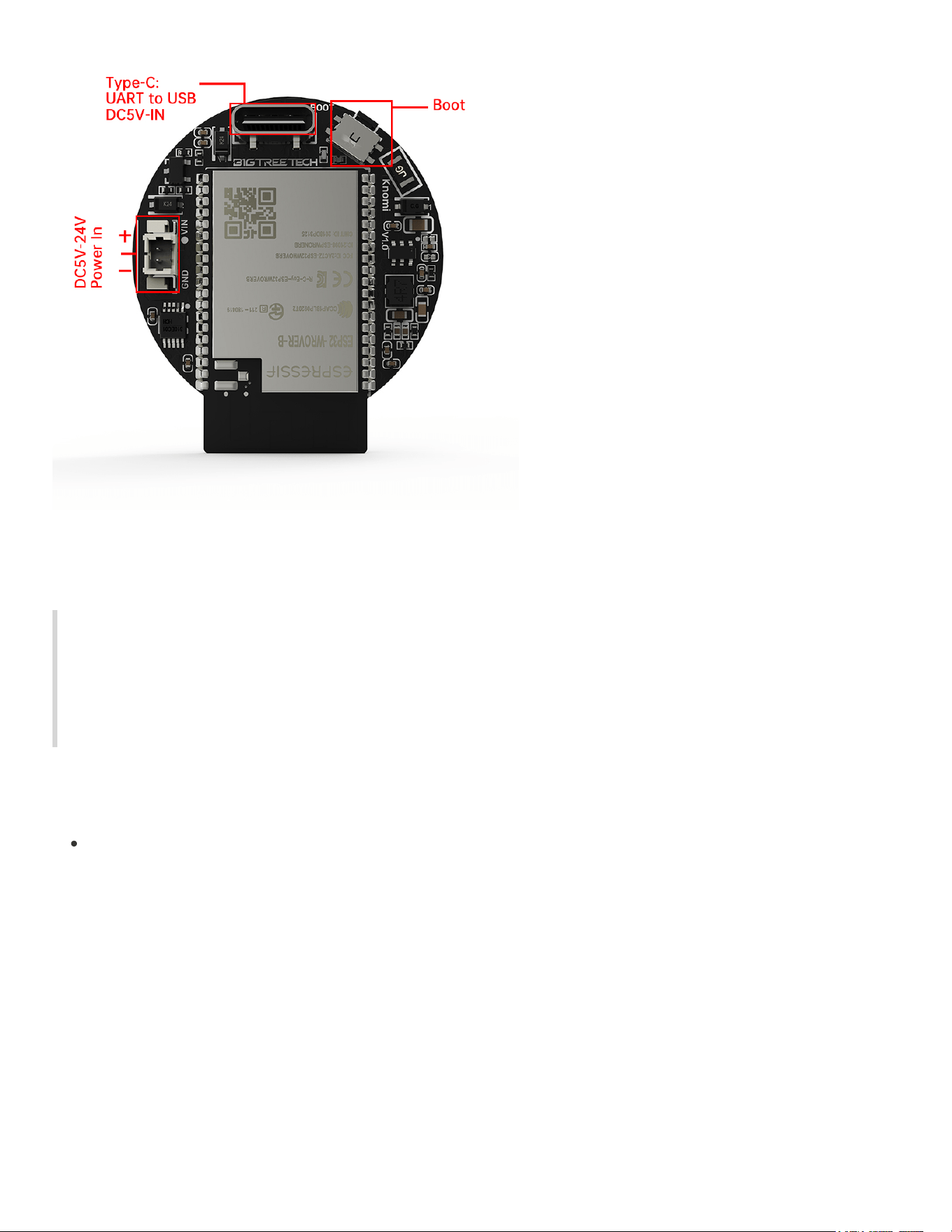
Dimensions & Interface
Installation Guides
The Panda Knomi can be mounted to A1, P1 and X1 series machines.
In this initial section, you will learn how to install the Panda Knomi onto the A1 Series toolhead
using the BIGTREETECH plastic shell. Later, installation instructions are provided for the gantry
mount on the A1 as well as the P1 and X1 series.
A1 Series Toolhead Mount
Gently peel off the protective cover.
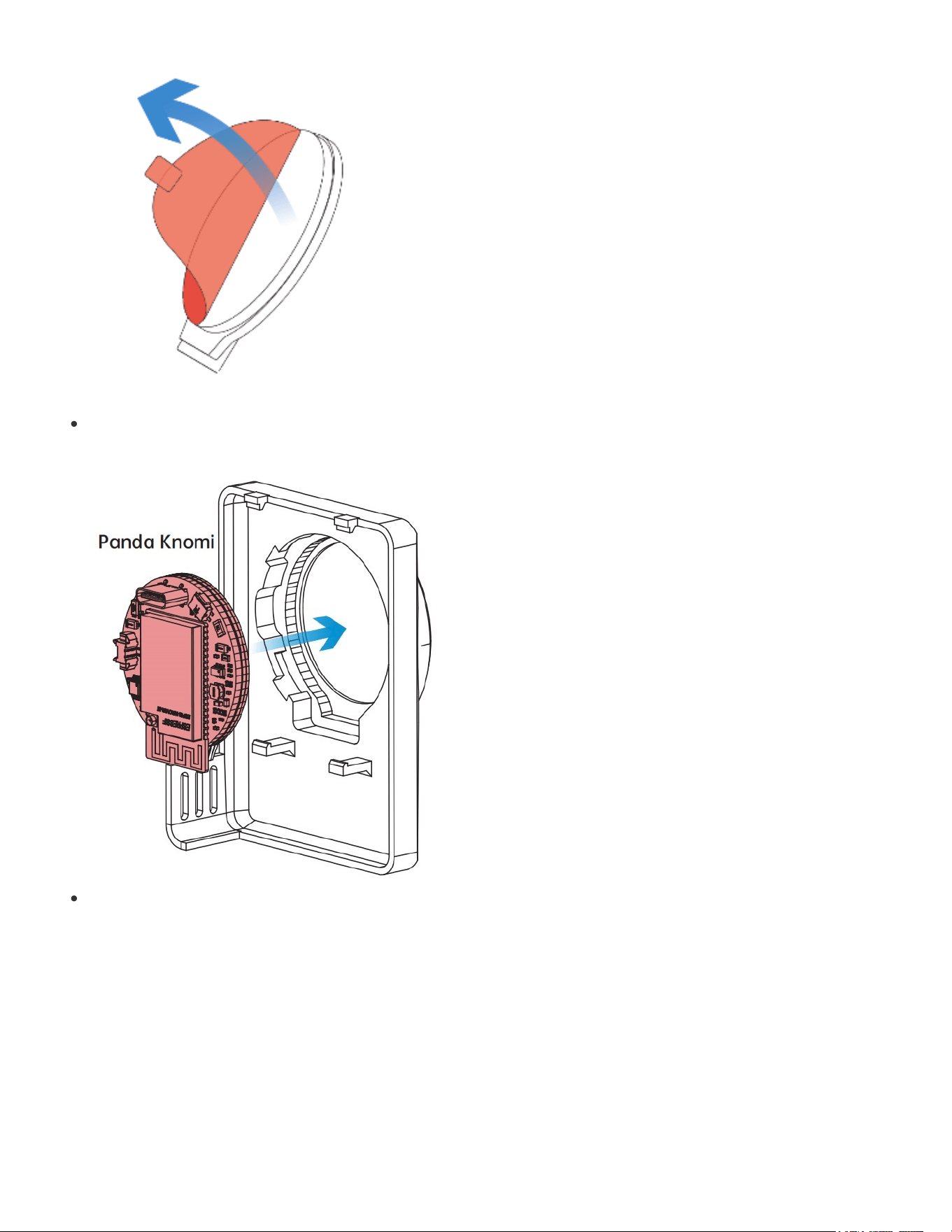
Position the Panda Knomi directly into the shell.
Align the cover with the locking tab, as shown by Arrow
A
. Then, gently press down in the
direction of Arrow
B
until it clicks past the tab, securing it in place.
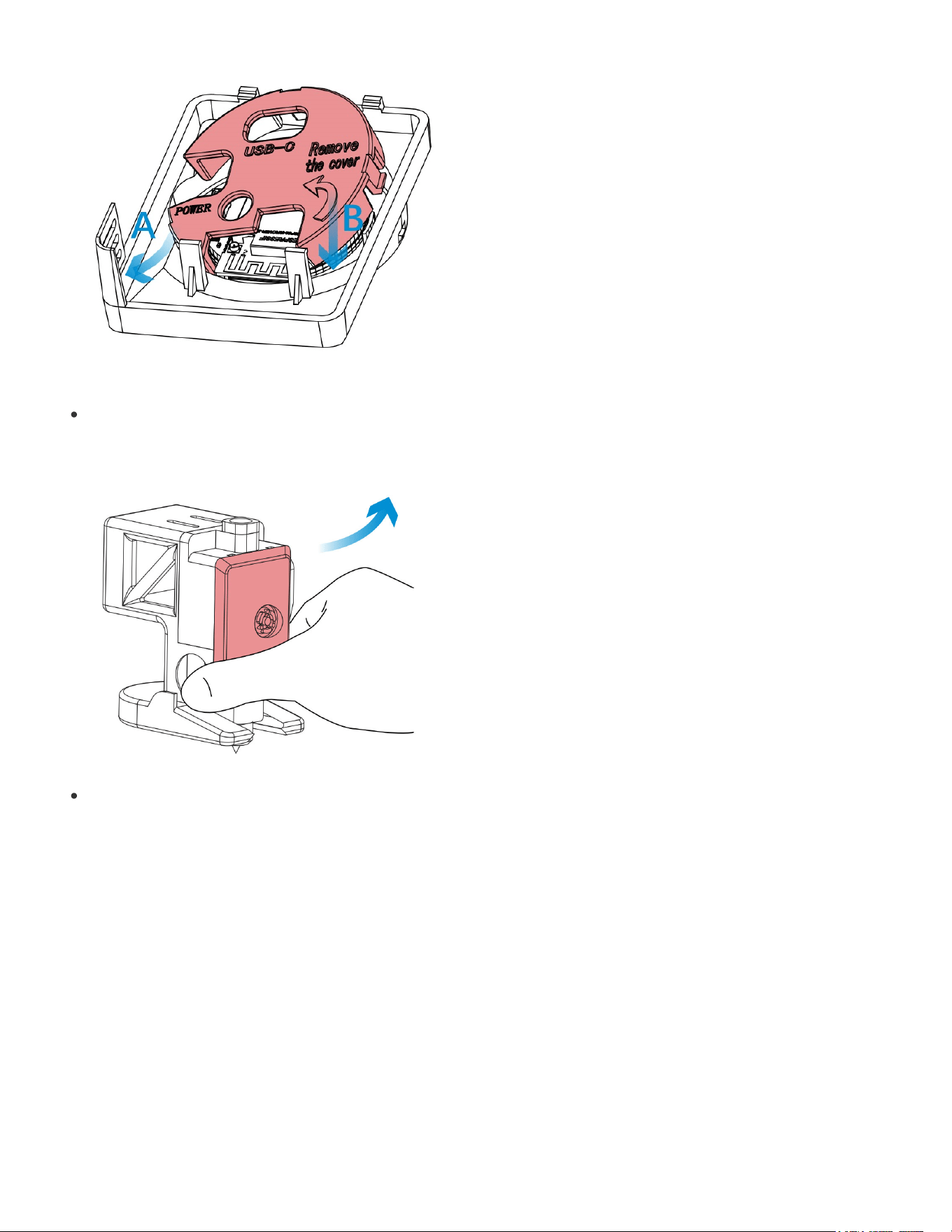
Press the Toolhead Cover from both sides to unlock and remove the cover.
Then remove the rotating wheel.
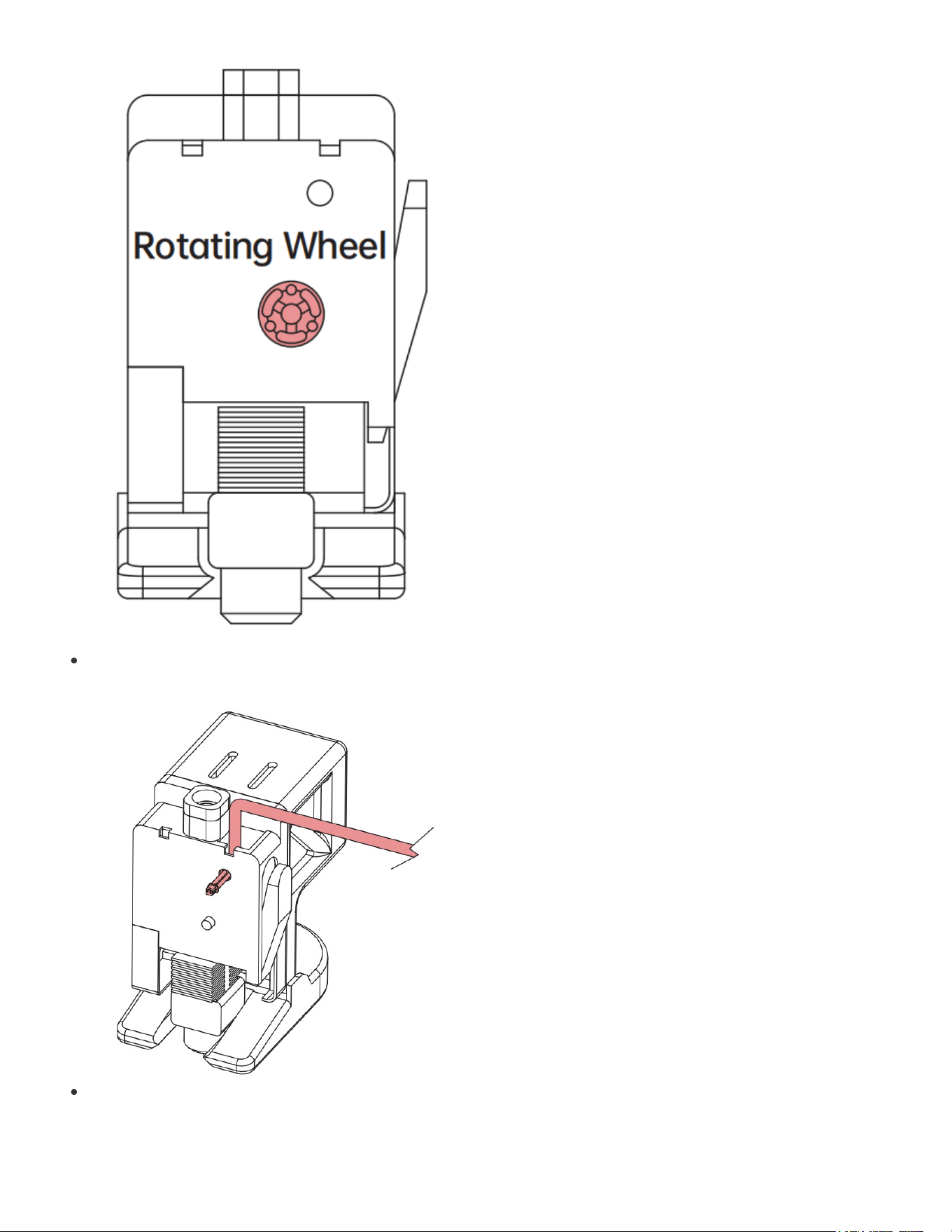
Pass the power cable through the designated holes.
Then connect it to the Panda Knomi power interface.
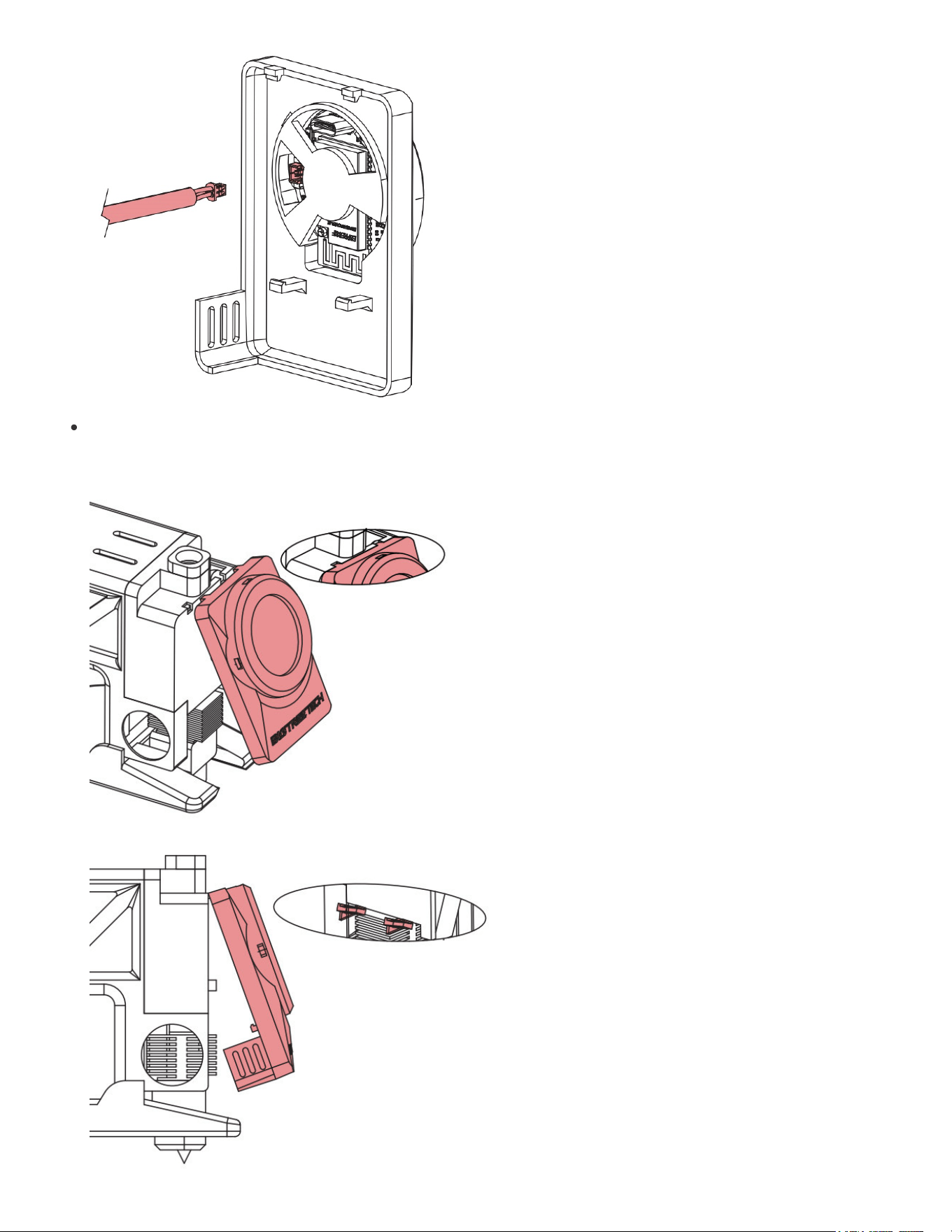
Snap the Panda Knomi from the top, then gently press to secure.
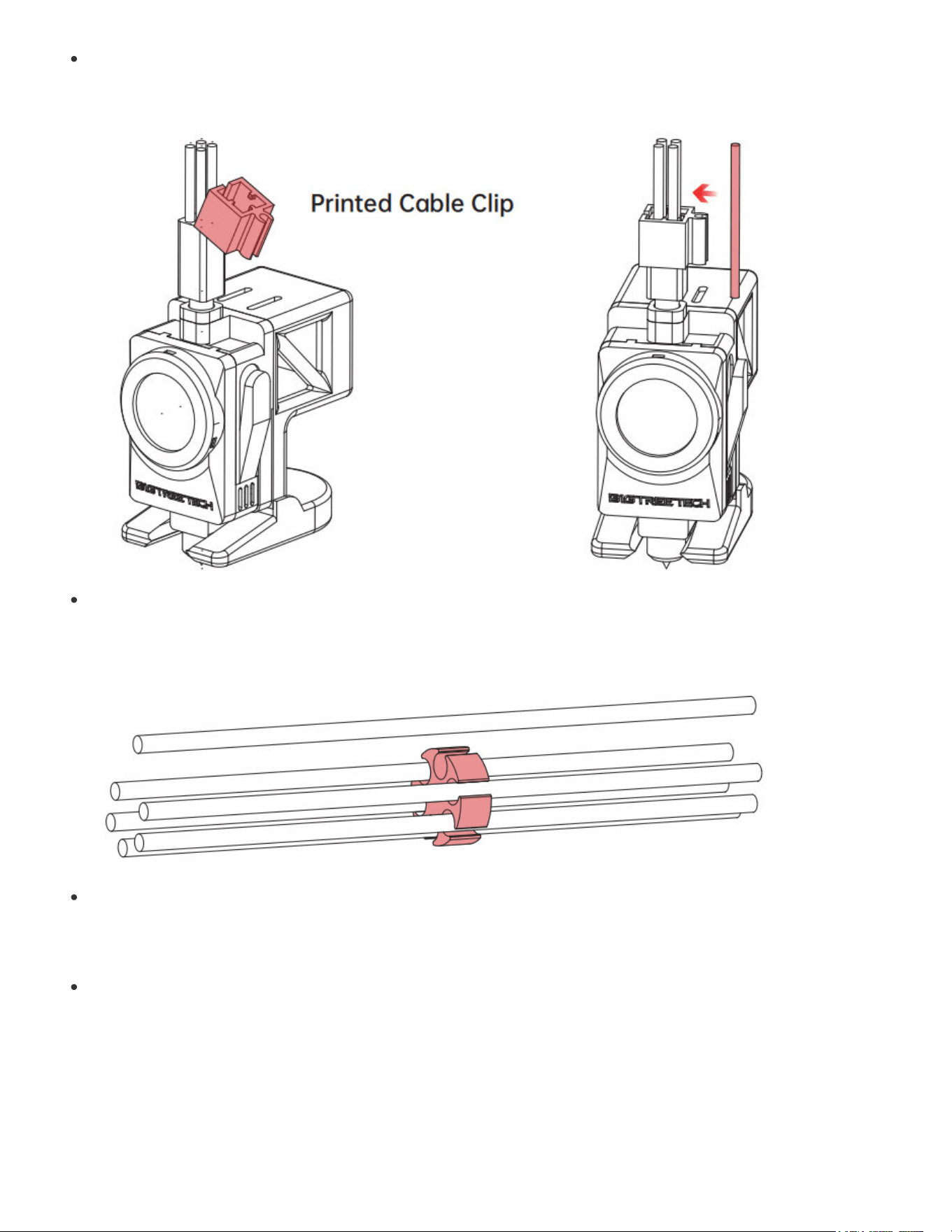
Finally, you will need to secure the power cable neatly so that it does not interfere with the print.
Start by installing the printable cable clip and then securing the power cable to it.
If you are using an AMS Lite you will also want to make use of the printable cable organizer which
will allow you to bind all of the PTFE tubes, the toolhead cable and the Panda Knomi power cable
together.
We also recommend using the supplied cable ties to gently bind the toolhead power cable and the
Panda Knomi power cable together at points along their length. The cable ties should not be so
tight that the pinch the wires only so that they remain in place.
A1 Toolhead installation Completed
Congratulations on successfully installing your Panda Knomi on the A1 series toolhead. We now
present the alternative mounting location guide and then the guide to provide power for A1 series
installations.
A1 Alternative Gantry Mount
Another mounting location exists on the A1 series printers that places the Panda Knomi on the
gantry.
To install the Panda Knomi in this location, first remove the front cover that is installed over the
gantry motor mount.
Next, place the Panda Knomi within the gantry mount cradle so that the screen is unobscured.
Install the gantry mount cradle into the gantry mount face plate.
Run the power wire through the provided cable channel at the bottom right of the gantry motor
mount.
Plug the power cable into the Panda Knomi.
Secure the gantry mount in place by first clipping the bottom left and then the remainder of the
mount.
Congratulations on installing your Panda Knomi in the gantry mount position. You can now move
on to the power guide for the A1 series.
A1 Series Power
It's now time to get your device powered up. MAKE SURE THAT YOUR PRINTER IS POWERED
OFF BEFORE PERFORMING THIS STAGE.
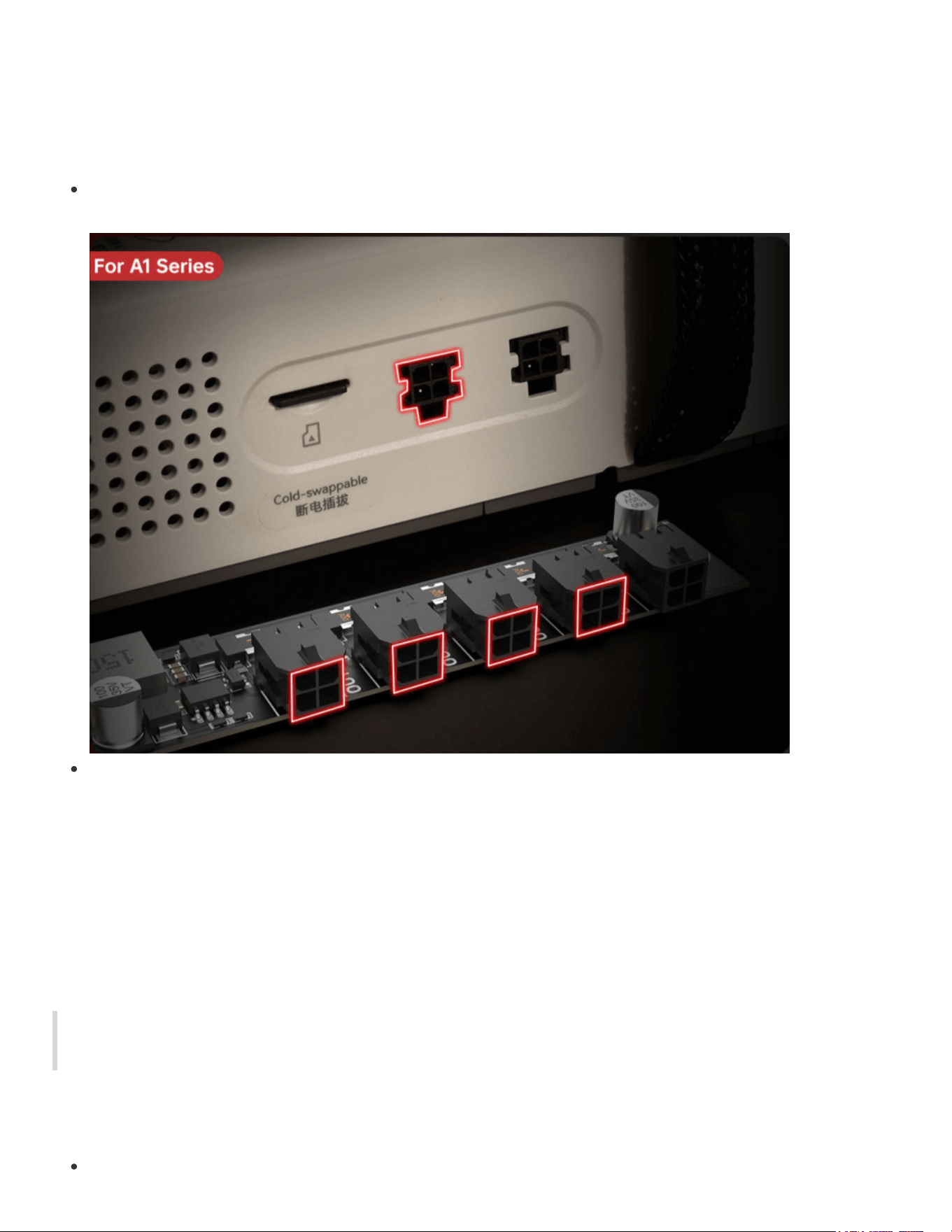
Locate an unused, 4 pin power port at the rear or side of the machine (A1 or A1 mini).
If there are no available power ports then you can make use of the Panda Branch (sold
separately) which will split one port into four. If using the Panda Branch for this purpose please
take note that it is not designed to provide power to arbitrary peripherals. Only use it within the
recommendations of BIGTREETECH to ensure that you do not overload the internal PSU of the
printer. The Panda Knomi consumes only 0.65W of power and is well within the specification of
what the internal PSU can provide. With that in mind, please set the Panda Branch USB power
switch to the 2A setting after connecting the Panda Knomi to ensure that any connected USB
peripherals are appropriately current limited.
It's now time to power up the Panda Knomi and get things configured so head over to the First
Time Use Guide
X1 Series Mounting
Ensure that you have printed out the X1 series mount before you start installation.
Gently peel off the protective cover.
Place the Panda Knomi into the back cover with the screen facing forward.
Clip the back cover into the round panel.
Press fit the round panel into the TFT panel.
Insert the power plug into the power socket on the rear of the Panda Knomi.
Install the whole assembly onto the TFT.
X1 Series Power
There are several options to provide power to the Panda Knomi when using an X1 series
machine.
If you are not using an AMS then you can connect it directly to the AMS output port at the rear of
the machine.
If you are using an AMS then you will need to use a Panda Branch to expand the four pin AMS
port and then connect the Panda Knomi to one of the expansion ports. Please take note that the
Panda Branch is not designed to provide power to arbitrary peripherals. Only use it within the
recommendations of BIGTREETECH to ensure that you do not overload the internal PSU of the
printer. The Panda Knomi consumes only 0.65W of power and is well within the specification of
what the internal PSU can provide. With that in mind, please set the Panda Branch USB power
switch to the 2A setting after connecting the Panda Knomi to ensure that any connected USB
peripherals are appropriately current limited.
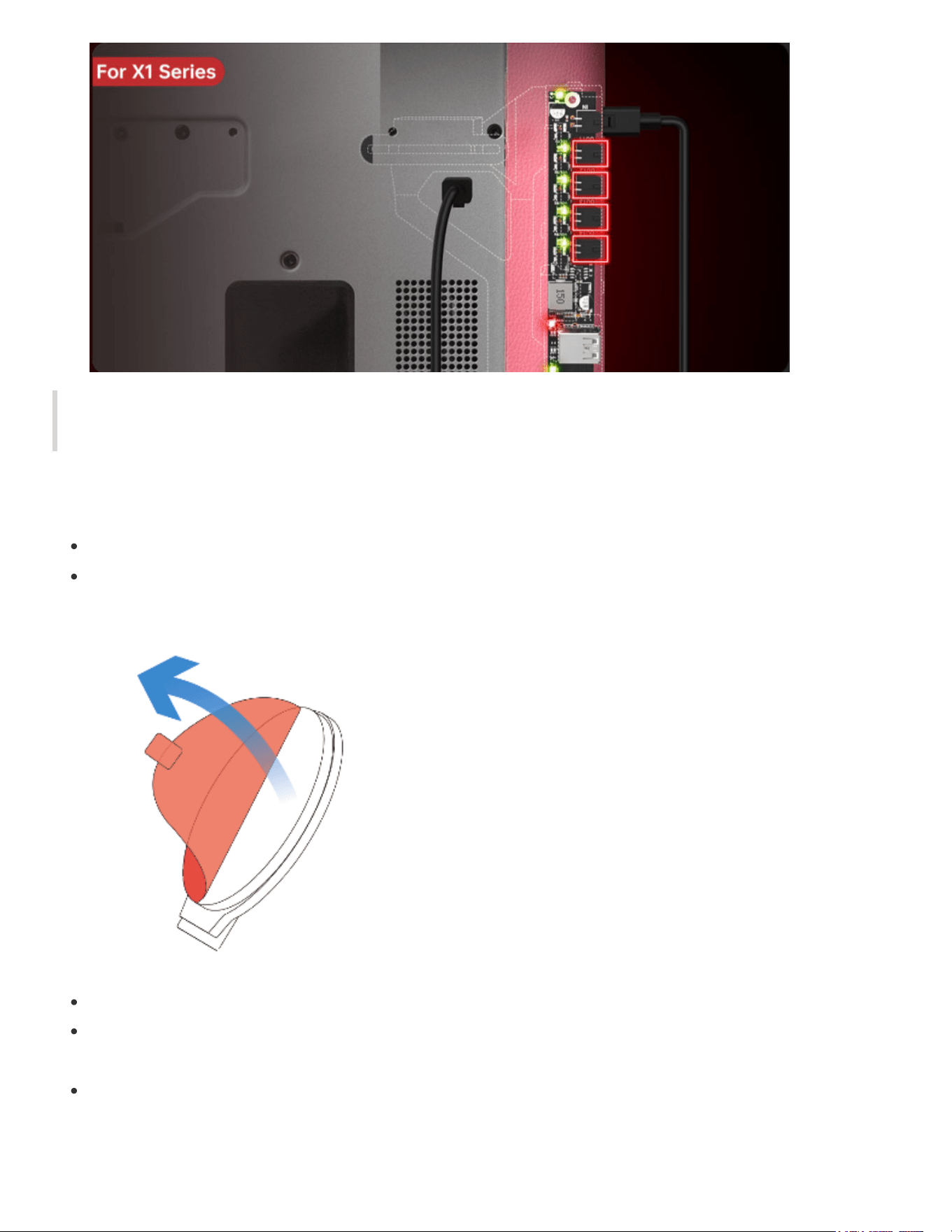
It's now time to power up the Panda Knomi and get things configured so head over to the First
Time Use Guide
P1 Series Mounting
Ensure that you have printed out the P1 series shell before you start installation.
Gently peel off the protective cover.
Place the Panda Knomi into the shell with the screen facing forward.
Insert the power plug into the power socket on the rear of the Panda Knomi or into the USB-C port
depending on where you are sourcing power from.
If you are sourcing power from the internal USB port then route the power cable using the cable
clips that exist within the machine along the top of that channel.
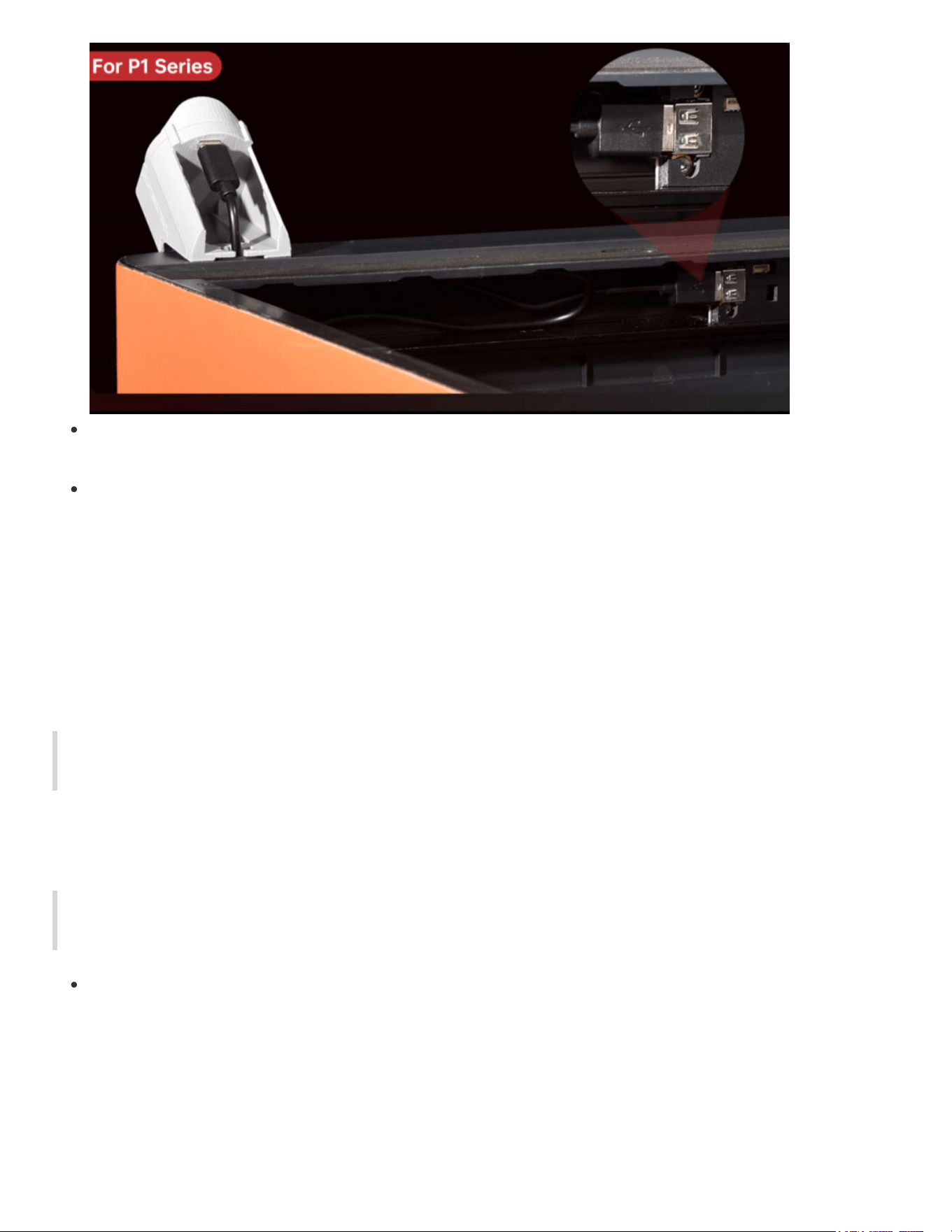
If you are sourcing power from the rear of the machine then select a cable route that works best
for you.
If you are using an AMS then you will need to use a Panda Branch to expand the four pin AMS
port and then connect the Panda Knomi to one of the expansion ports. Please take note that the
Panda Branch is not designed to provide power to arbitrary peripherals. Only use it within the
recommendations of BIGTREETECH to ensure that you do not overload the internal PSU of the
printer. The Panda Knomi consumes only 0.65W of power and is well within the specification of
what the internal PSU can provide. With that in mind, please set the Panda Branch USB power
switch to the 2A setting after connecting the Panda Knomi to ensure that any connected USB
peripherals are appropriately current limited.
It's now time to power up the Panda Knomi and get things configured so head over to the First
Time Use Guide
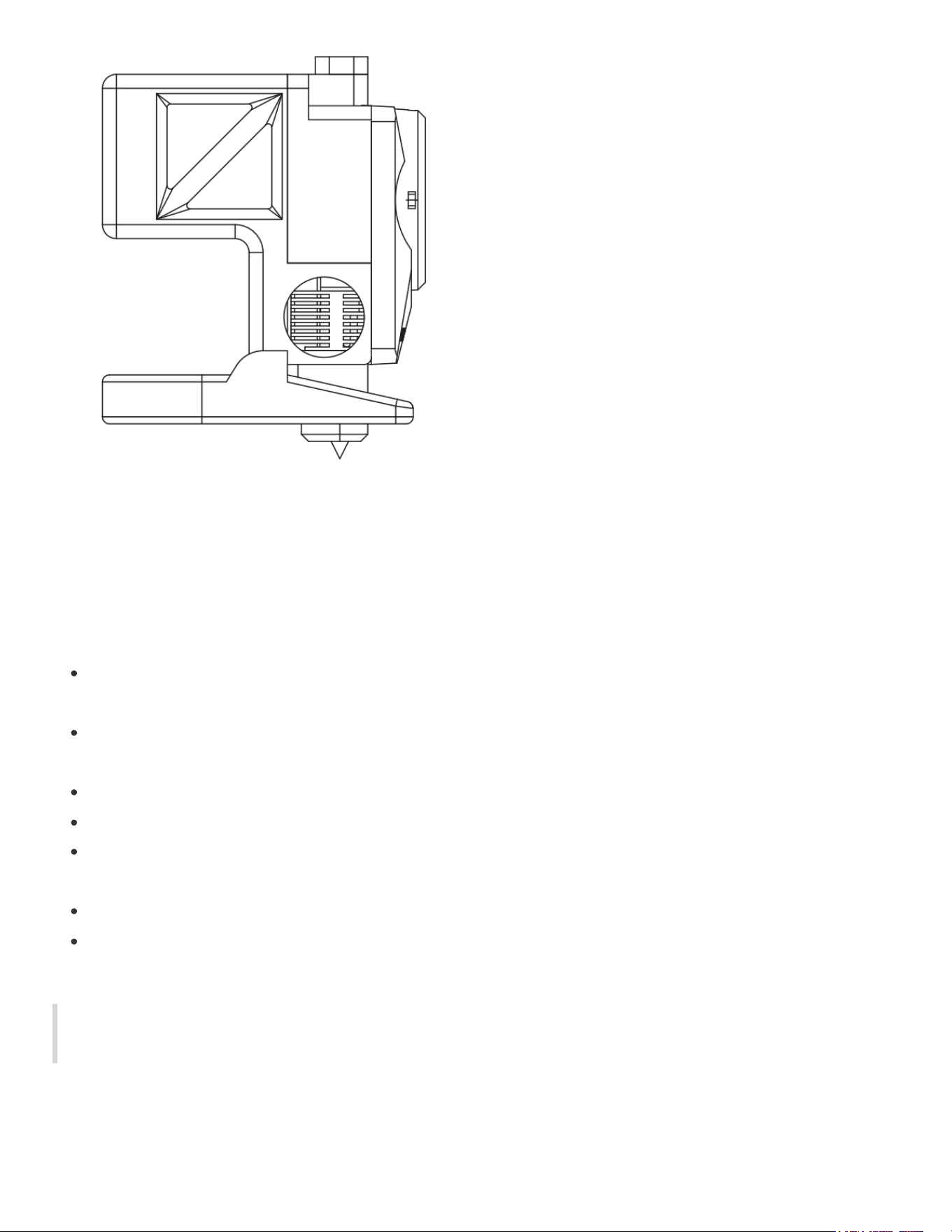
Disassembly Guide For A1 Series
To disassemble the plastic shell’s back cover or to detach the Panda Knomi from the A1 series
toolhead, please follow the method below.
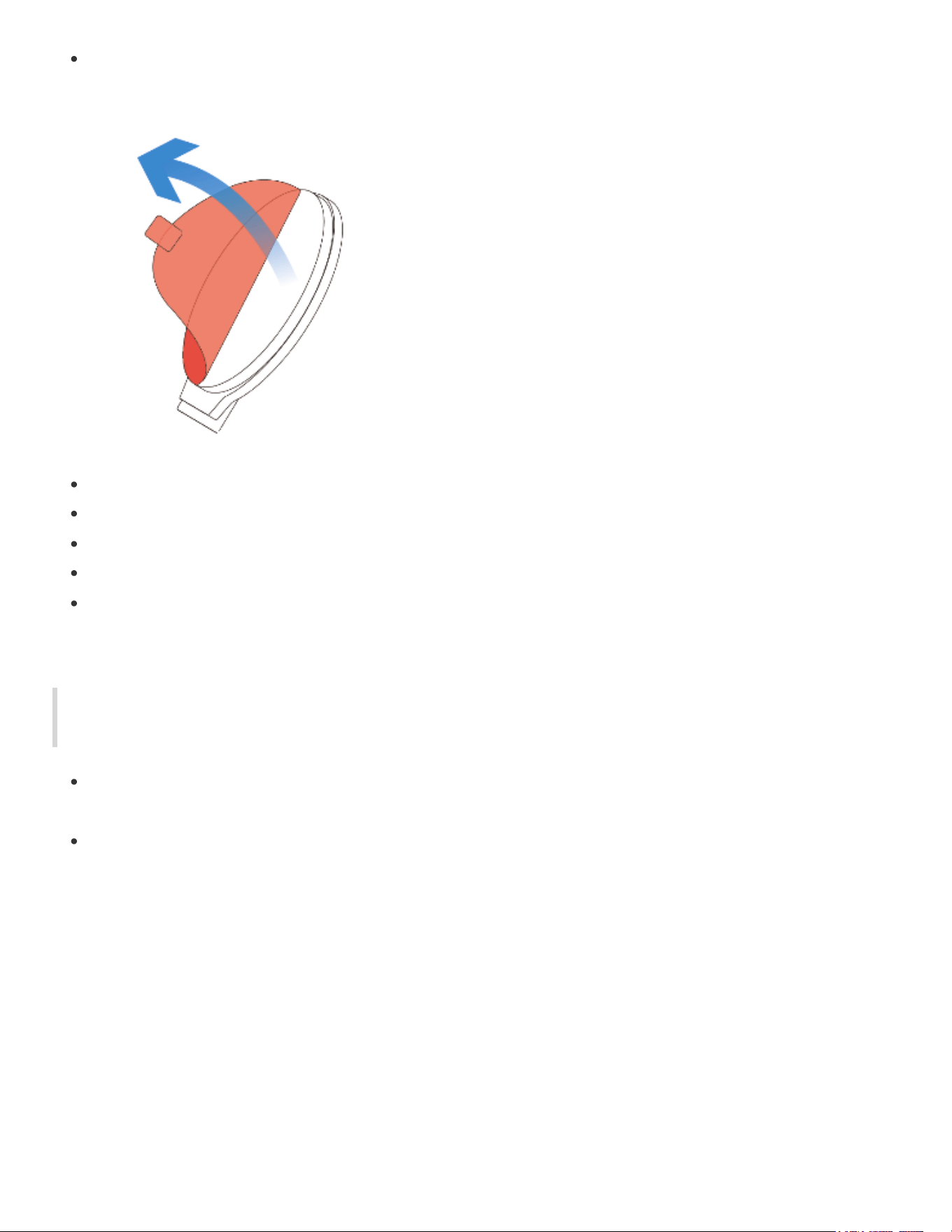
Press the shell from both sides to unlock and carefully remove it from the toolhead.
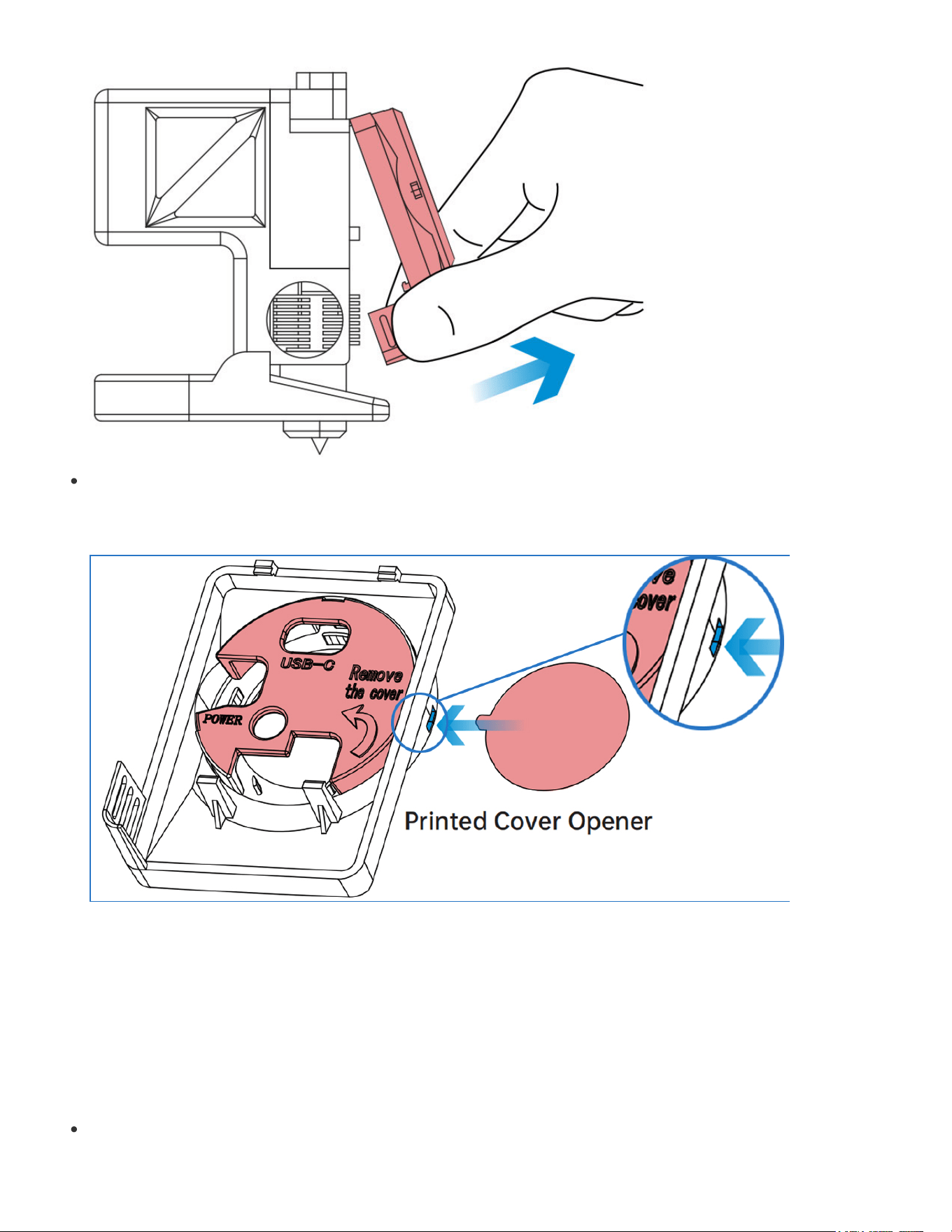
Press the blue-highlighted slot using the cover opener, and the cover will pop open. (You will need
to download the cover opener model file from GitHub and print it ahead of time.)
User Interface Instructions
First Time Use Guide
Access the Web UI
Start by connecting to the Panda Knomi hotspot. After booting for the first time or a factory reset,
you'll see the screen below.
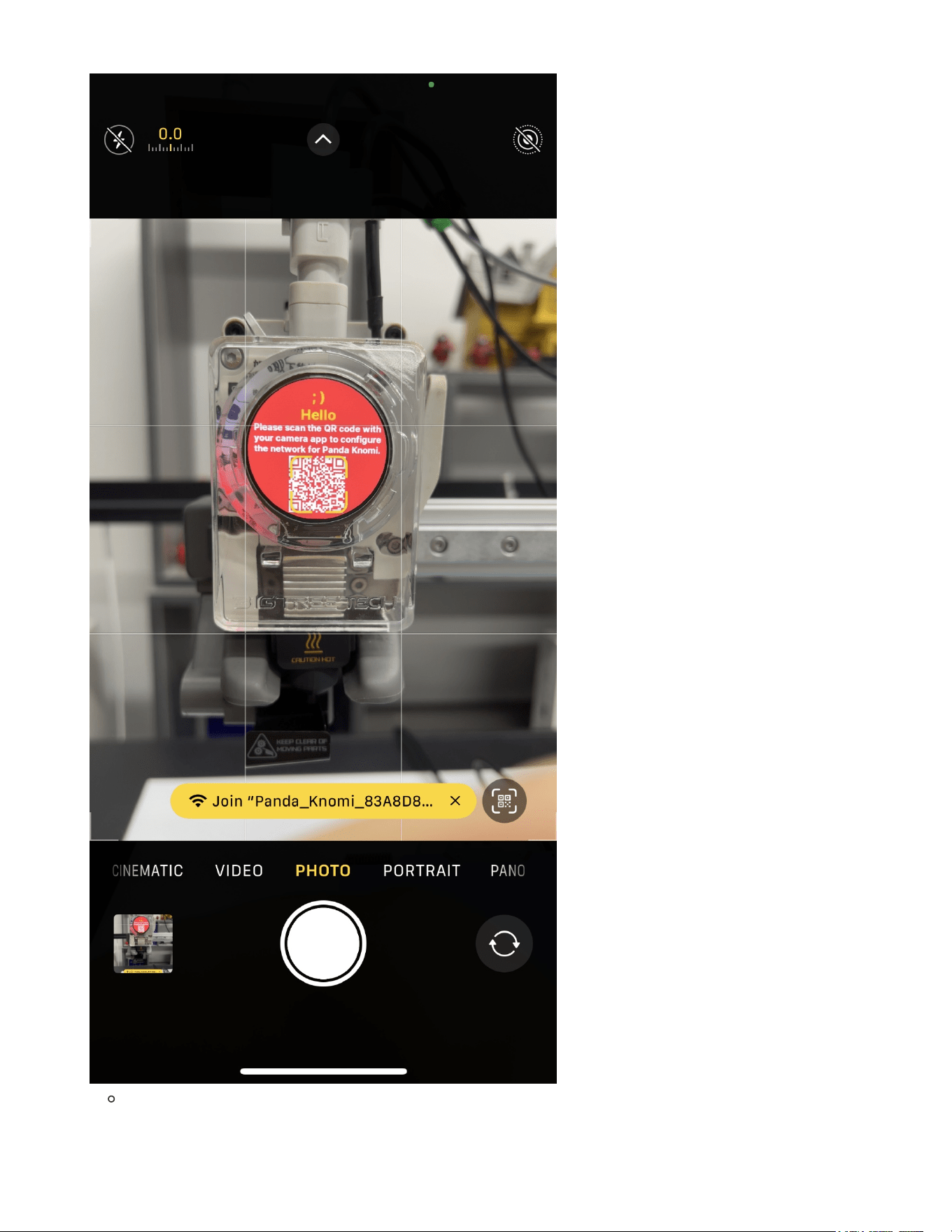
You can either scan the QR code to connect to the hotspot directly or perform a WiFi scan on
your device and connect manually using the credentials below.
Default credentials:

Wi-Fi SSID:
Panda_Knomi_xxxxxxxxxxxx
Wi-Fi Password:
987654321
Note: Most modern smartphones are equipped to scan QR codes directly through their camera app. This
feature is typically available on devices running iOS 11 or later, and Android 9.0 or later. If you are using an
iPhone then you may need to hold the phone a little away from the screen and pinch to zoom in for the
phone to recognise the QR code.
If scanning the QR code doesn't work, you can go to the
settings
menu on the device to
connect to the hotspot manually.
Using an iPhone as an example:
On your phone home screen, go to
Settings
→
WLAN
.
Turn on
WLAN
. Your device will automatically search for available networks.
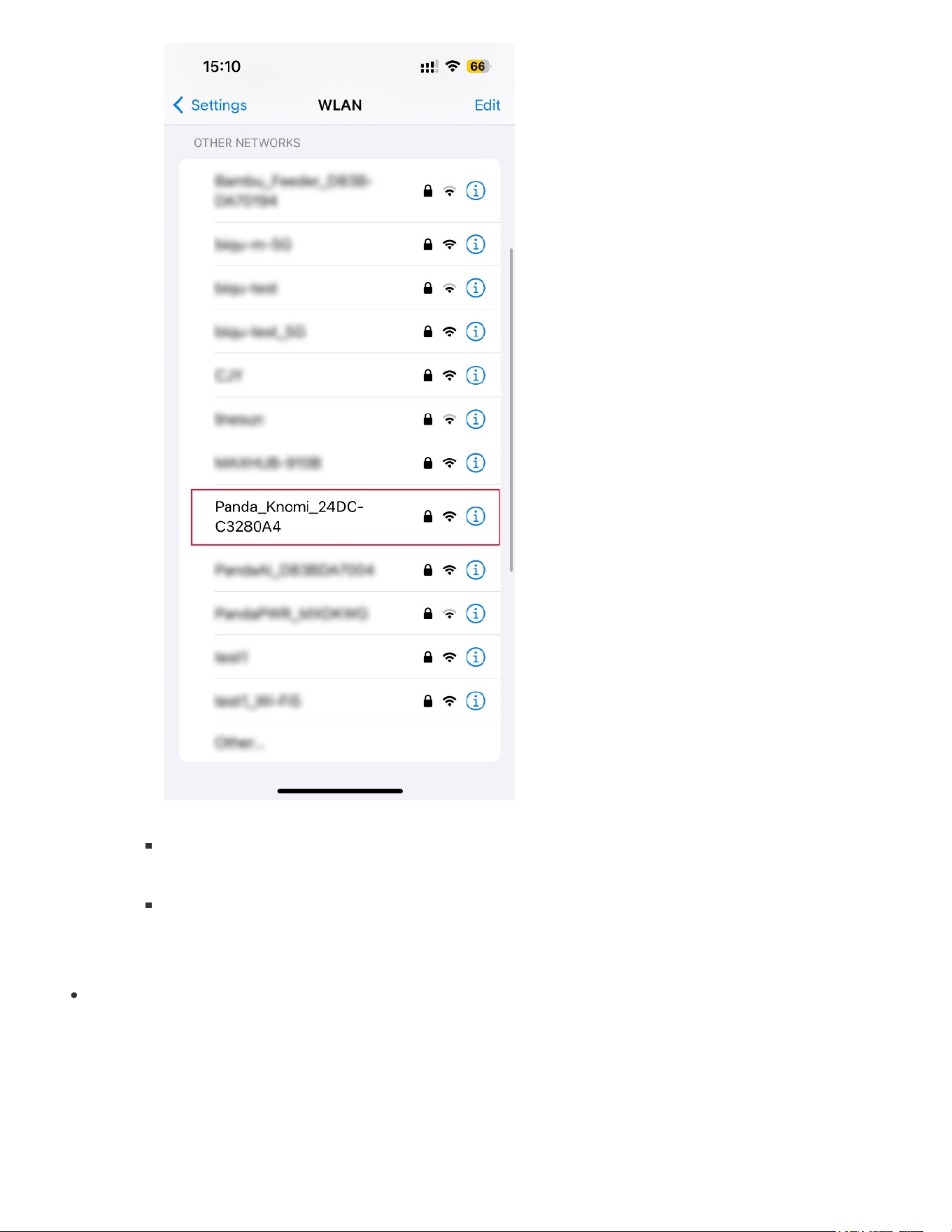
Tap on the network name starting with
Panda_Knomi_
and enter the default password:
987654321
.
After successfully connecting to the Panda Knomi network, you will see a blue
checkmark next to the network, and the Wi-Fi icon indicating a connection will appear in
the top-right corner of the screen.
After connecting to the Panda Knomi hotspot, the webUI should automatically appear once you
close the camera app on an iPhone or on Android there should be a prompt of
Connected (Login/Authentication required)
which you should click to enter the Web UI
configuration interface. Sometimes due to network reasons, you need to wait for 10~20 seconds
for this to appear. If you still cannot enter the Web UI configuration interface after waiting, you can
manually enter 192.168.254.1 for firmware versions
V1.0.4.1
and later (and use 192.168.4.1 for
previous versions) in the browser to access the Web UI configuration interface.
Connect Panda Knomi to the same Wi-Fi network as your printer
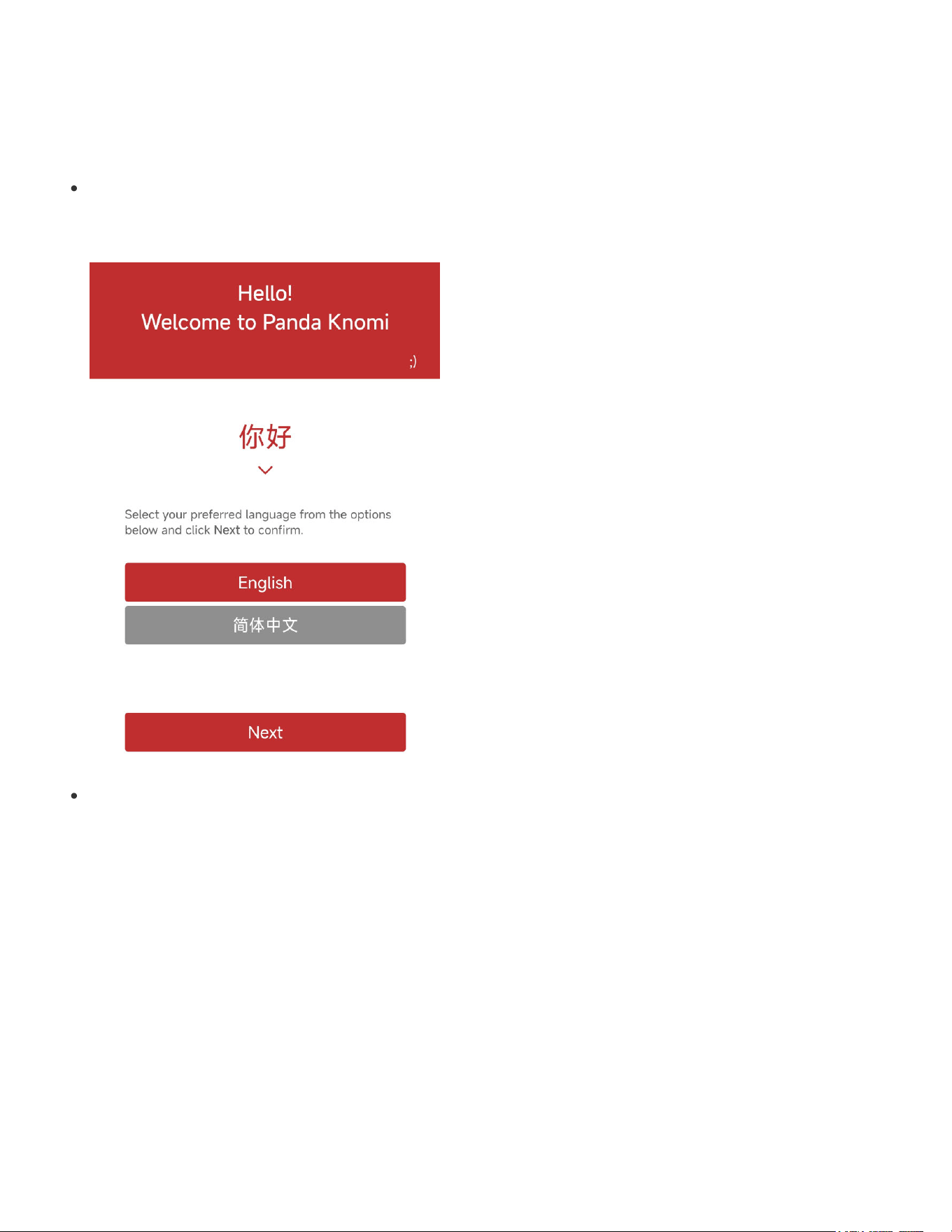
You will be prompted to select a language. After setting the language, tap
Next
to proceed to the
Wi-Fi connection interface.
The Panda Knomi will automatically search for available Wi-Fi networks in the vicinity. Please
select the Wi-Fi that the printer is connected to to connect. If the Wi-Fi that the printer is
connected to is not found. you can tap the
Scan
button to initiate a new search for networks.
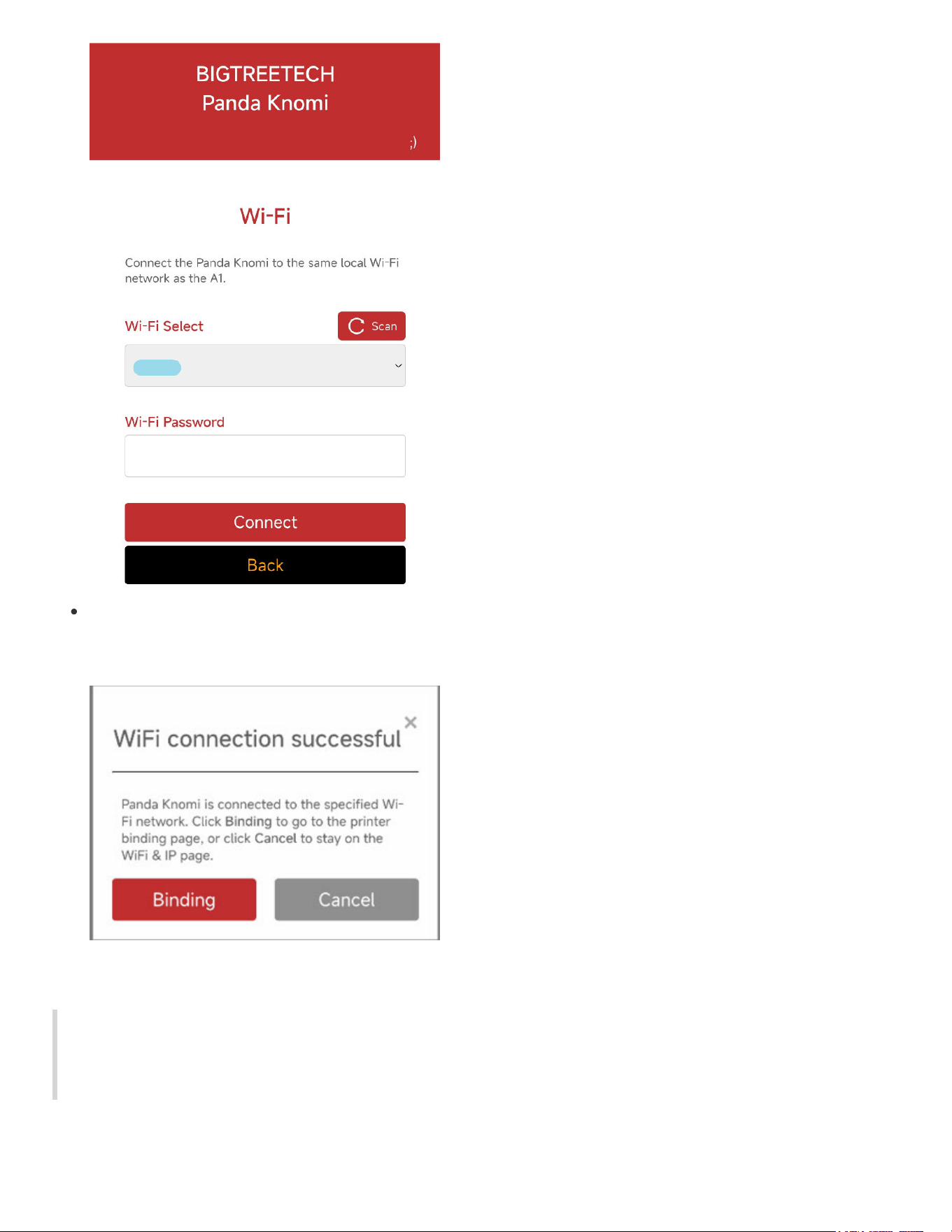
Once the connection is established, tap
Binding
to proceed to the
Printer
interface where you
will bind the printer.
Printer Binding
Note: If the access code field is blank, the printer may be in cloud mode and not linked to a cloud
account. Please switch the printer to
LAN Only Mode
or use Bambu Handy/Bambu Studio to bind
the printer to a cloud account.
Automatic Scanning
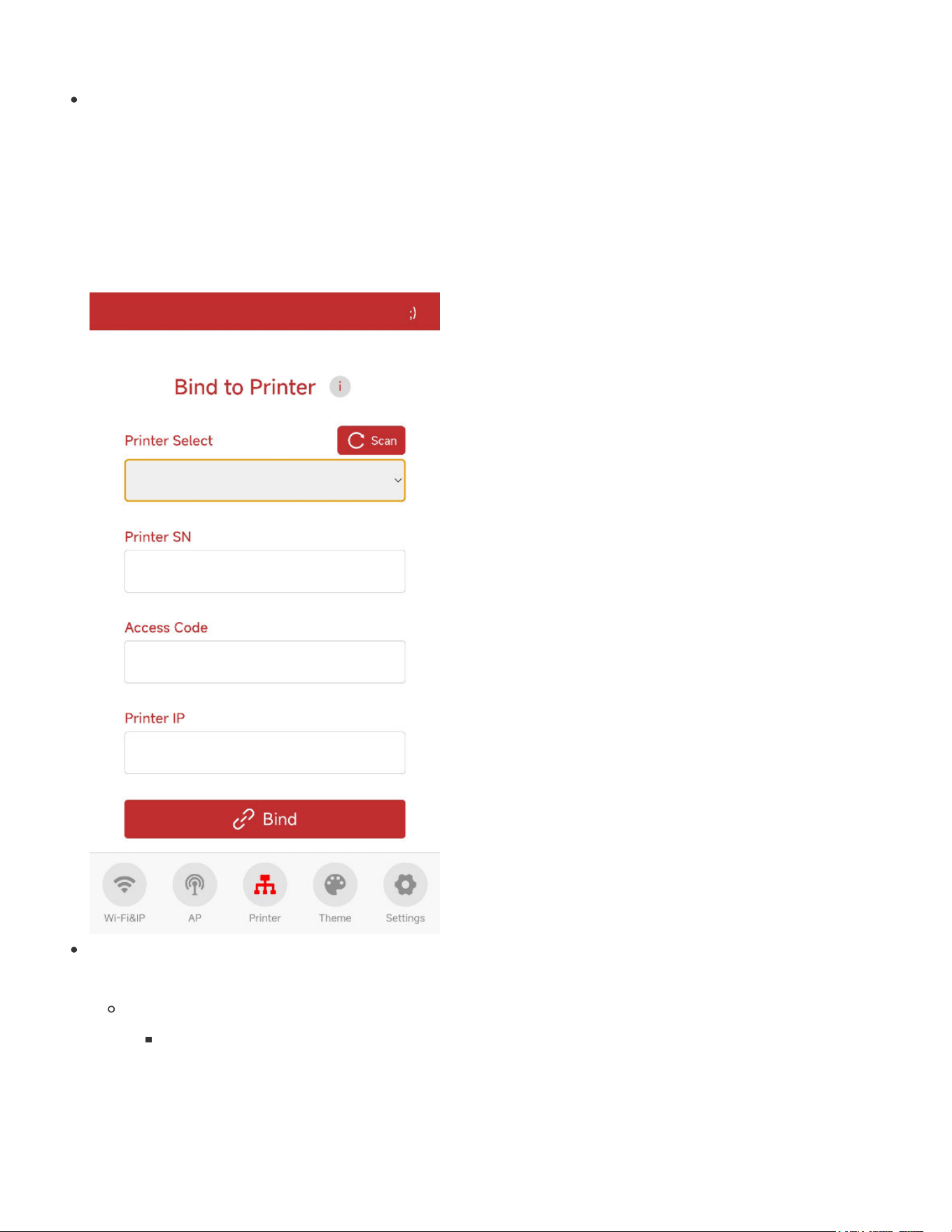
In the
Printer
interface, tap
Scan
to scan for printers on the same local network. A full scan
takes about 30 seconds. Each additional Bambu printer adds up to 20 seconds to the scan time.
Panda Knomi supports up to 20 printers per scan. If the number of printers in your LAN exceeds
20, it may not be able to scan all printers. If the scan fails to identify the printer you want to
connect, you can click the
Scan
button to scan again, or manually input all the information to bind
the printer.
After scanning, select the printer you wish to connect to. After selecting a printer, the
SN Code
and
IP
will be automatically filled in, but you will need to manually enter the
Access Code
.
For A1 Series
①
Setting
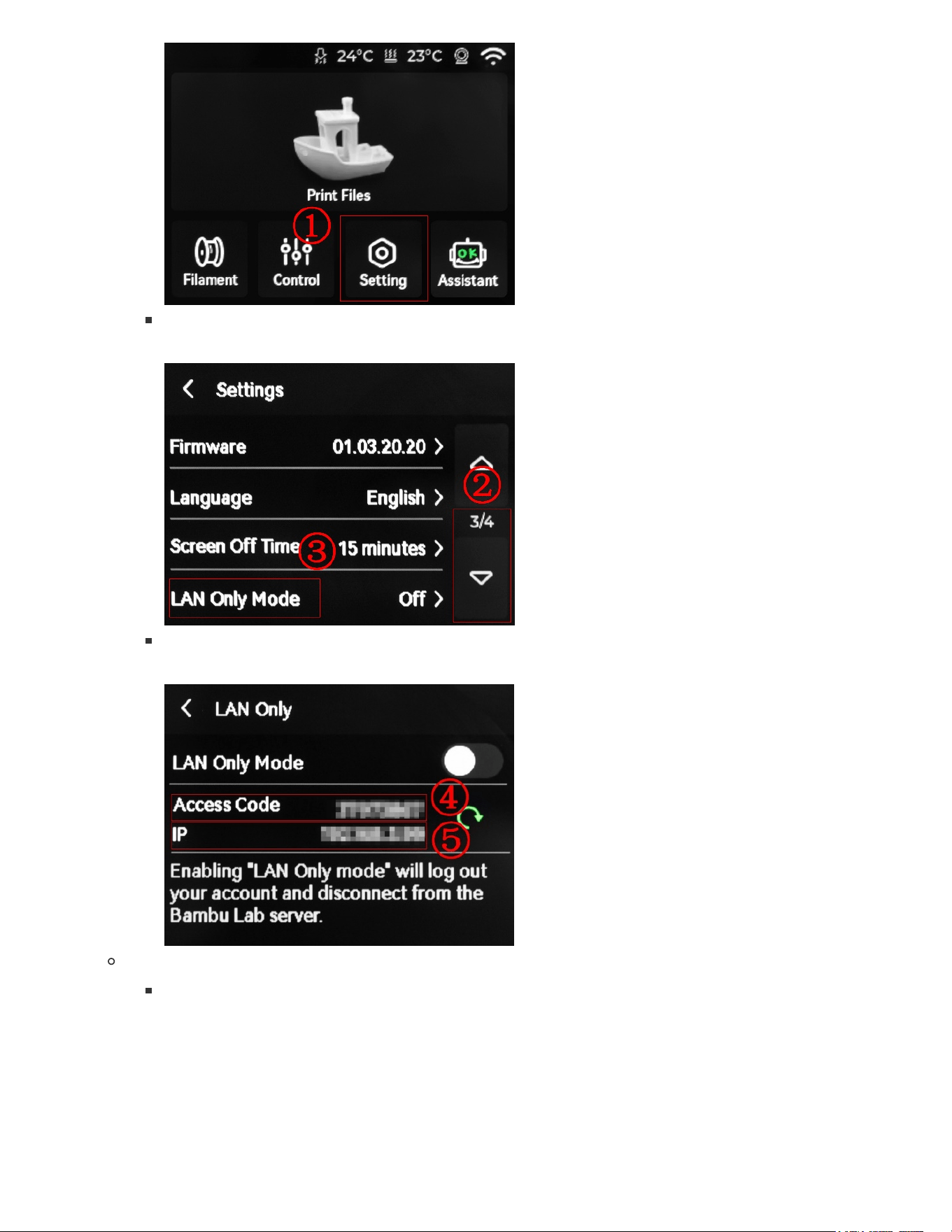
② -> ③
LAN Only Mode
④
Access Code
For P1 Series
①
Setting
-> ②
WLAN
-> ③
OK
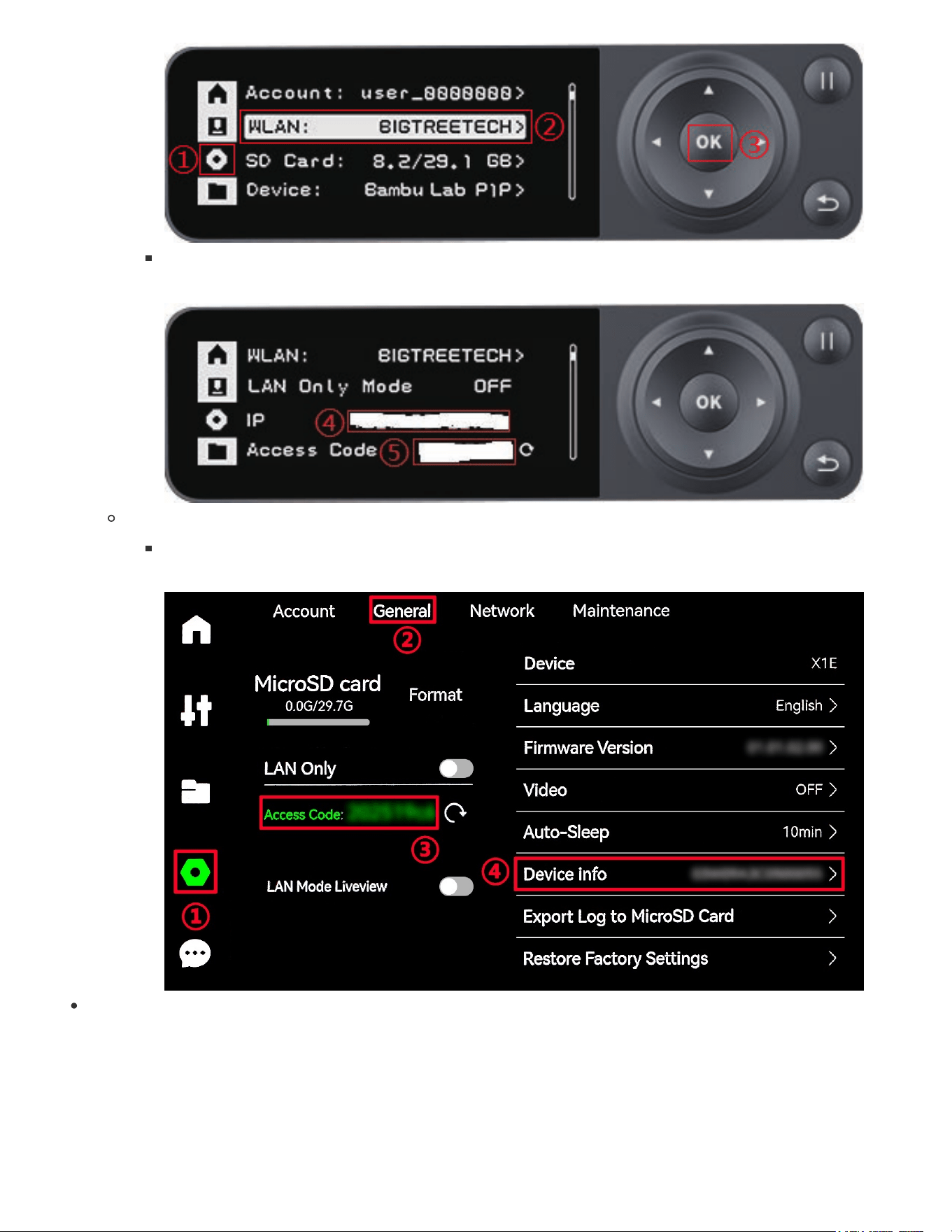
⑤
Access Code
For X1 Series
①
Setting
-> ②
General
-> ③
Access Code
Tap
Bind
. A
Binding successful
popup will confirm that the Panda Knomi has connected to the
printer.
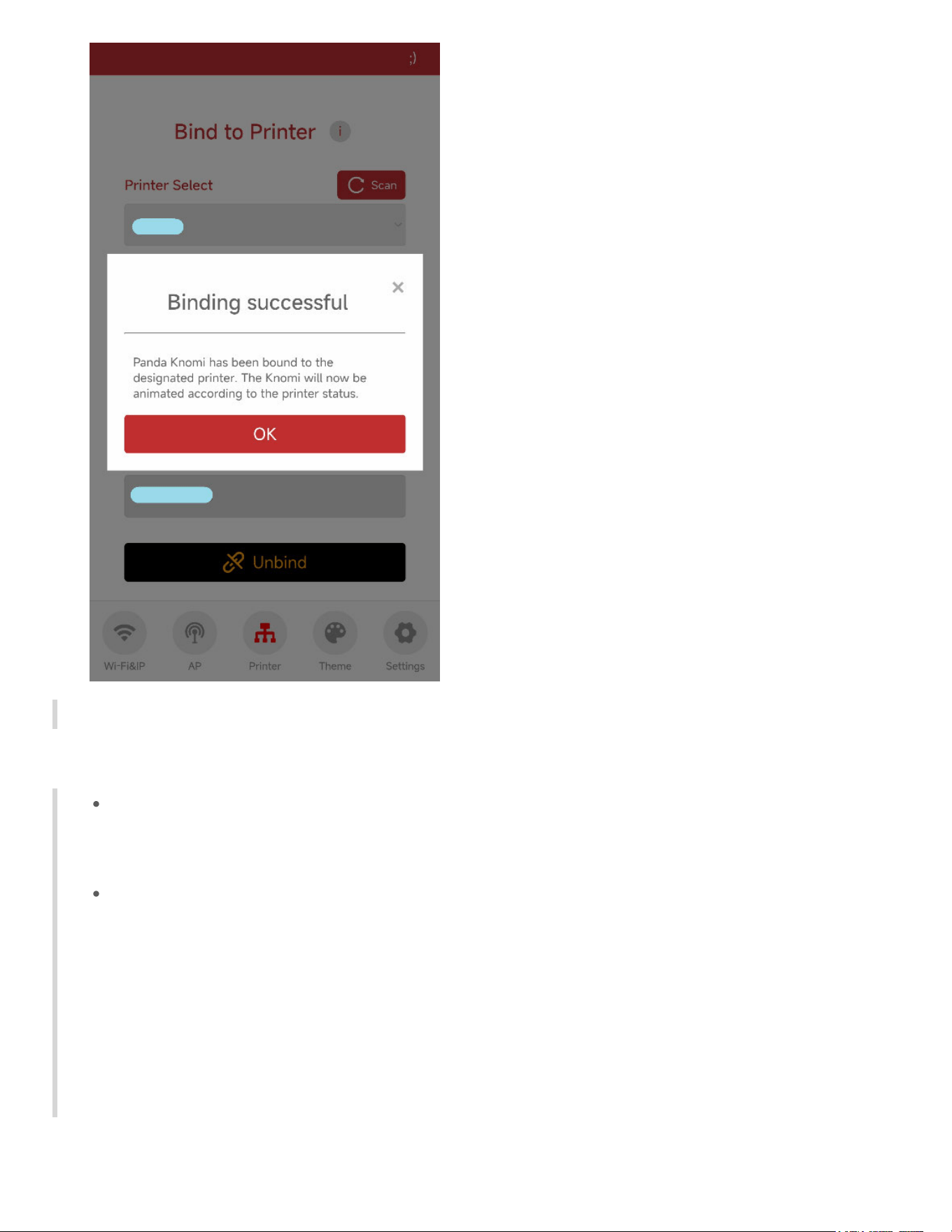
Congratulations! You can now enjoy your Panda Knomi.
Manual Input
Panda Knomi supports identifying up to 20 printers per scan. If the number of Panda Knomi
printers in your LAN exceeds 20, it may not be possible to scan all printers. We can
Manually Input
all the information needed to bind the printer.
If you don't have many Bambu Lab printers in your LAN, but still can't scan the printer, we
can also try to
Manually Input
all the information required to bind the printer. If Panda Knomi
cannot connect to the printer, it may be that some security features of your router prohibit
devices in the LAN from communicating with each other. This is typical for guest networks on
routers where device to device communication is restricted. If you are using a guest network
then please enable device to device communication on the router or move to a non-guest
network. If these suggestions fail then please contact customer service
to assist you with further investigation.
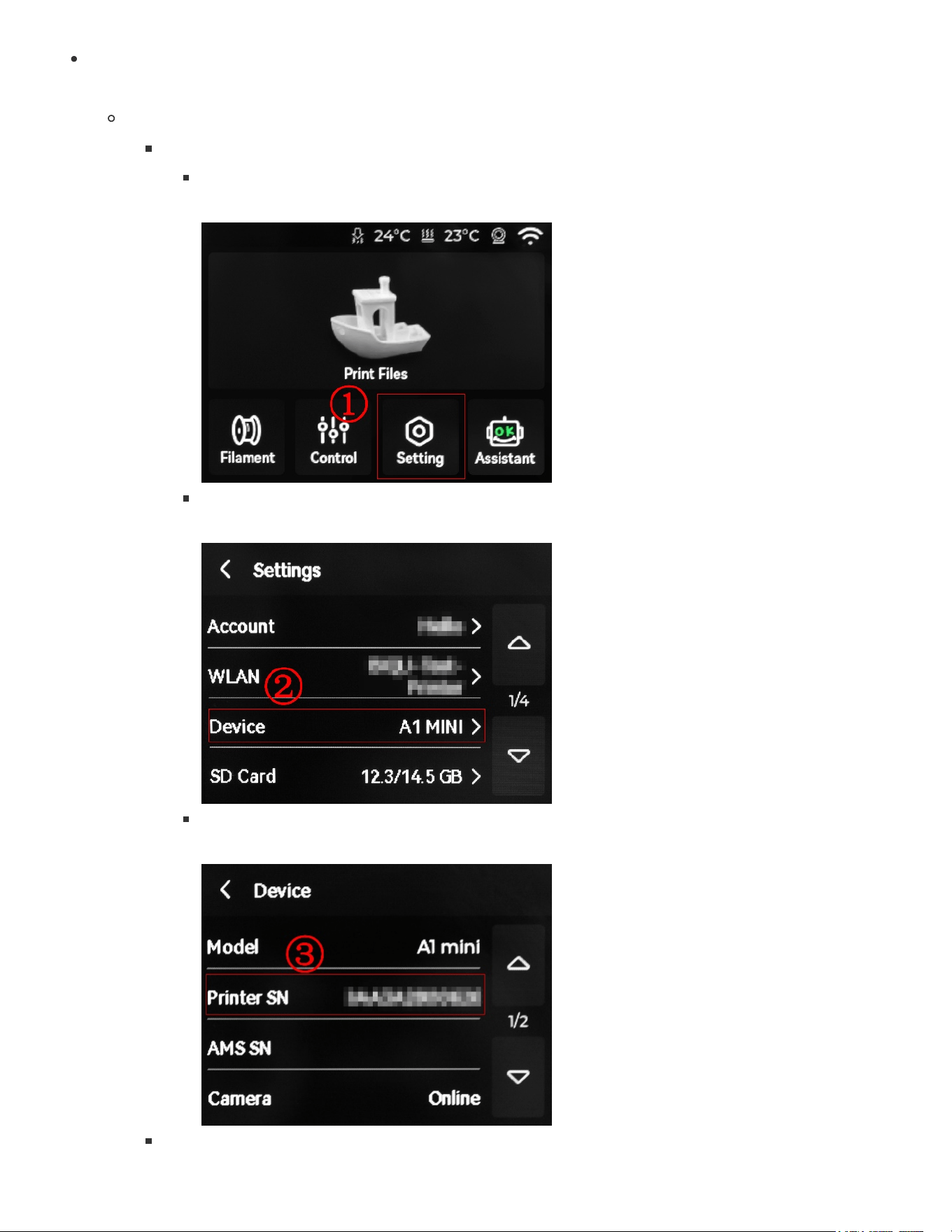
Find the
Printer SN
,
Access Code
and
IP
on the printer, and enter them into the corresponding
input fields on the Web UI.
For A1 Series
Printer SN
①
Setting
②
Device
③
Printer SN
Access Code
and
IP
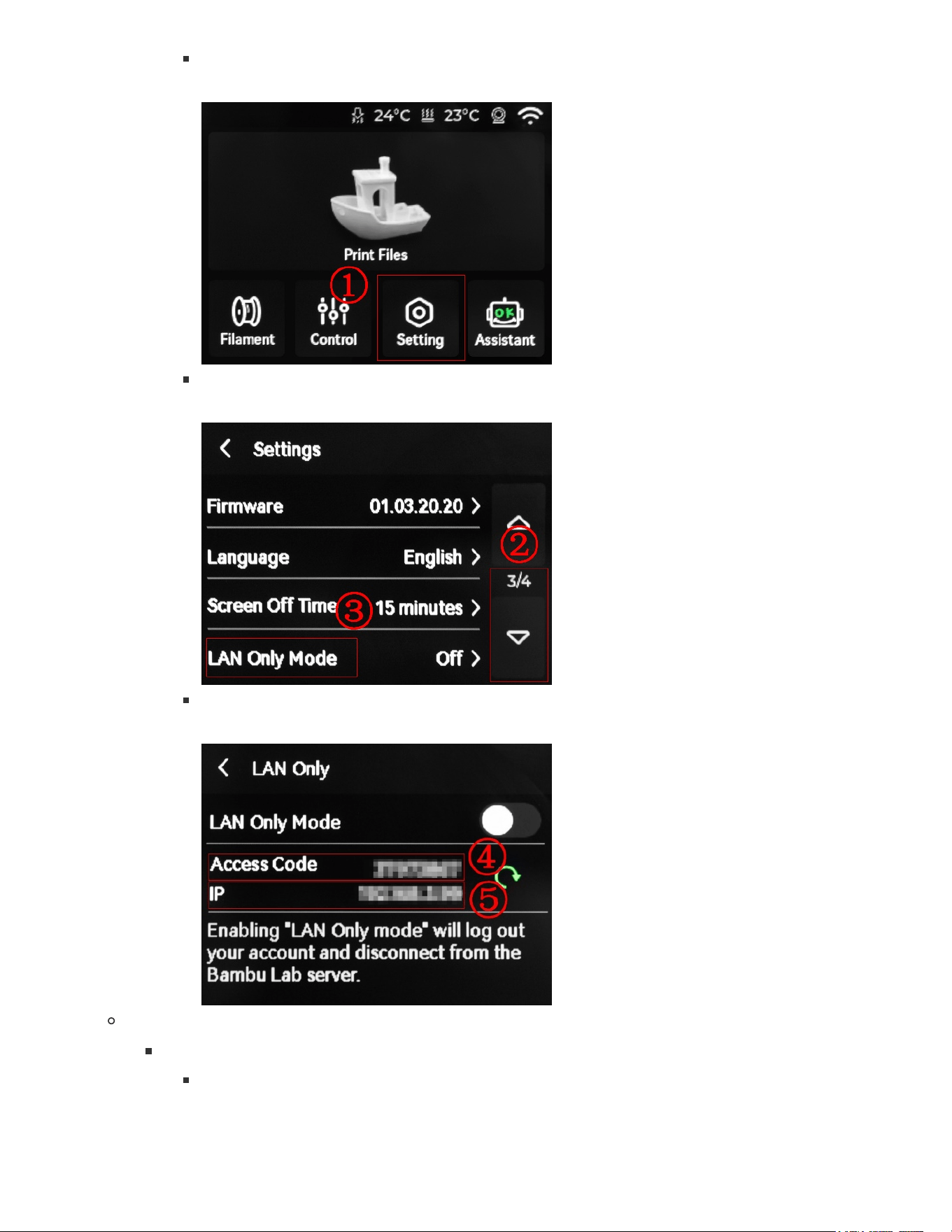
①
Setting
② -> ③
LAN Only Mode
④
Access Code
, ⑤
IP
For P1 Series
Printer SN
①
Setting
-> ②
Device
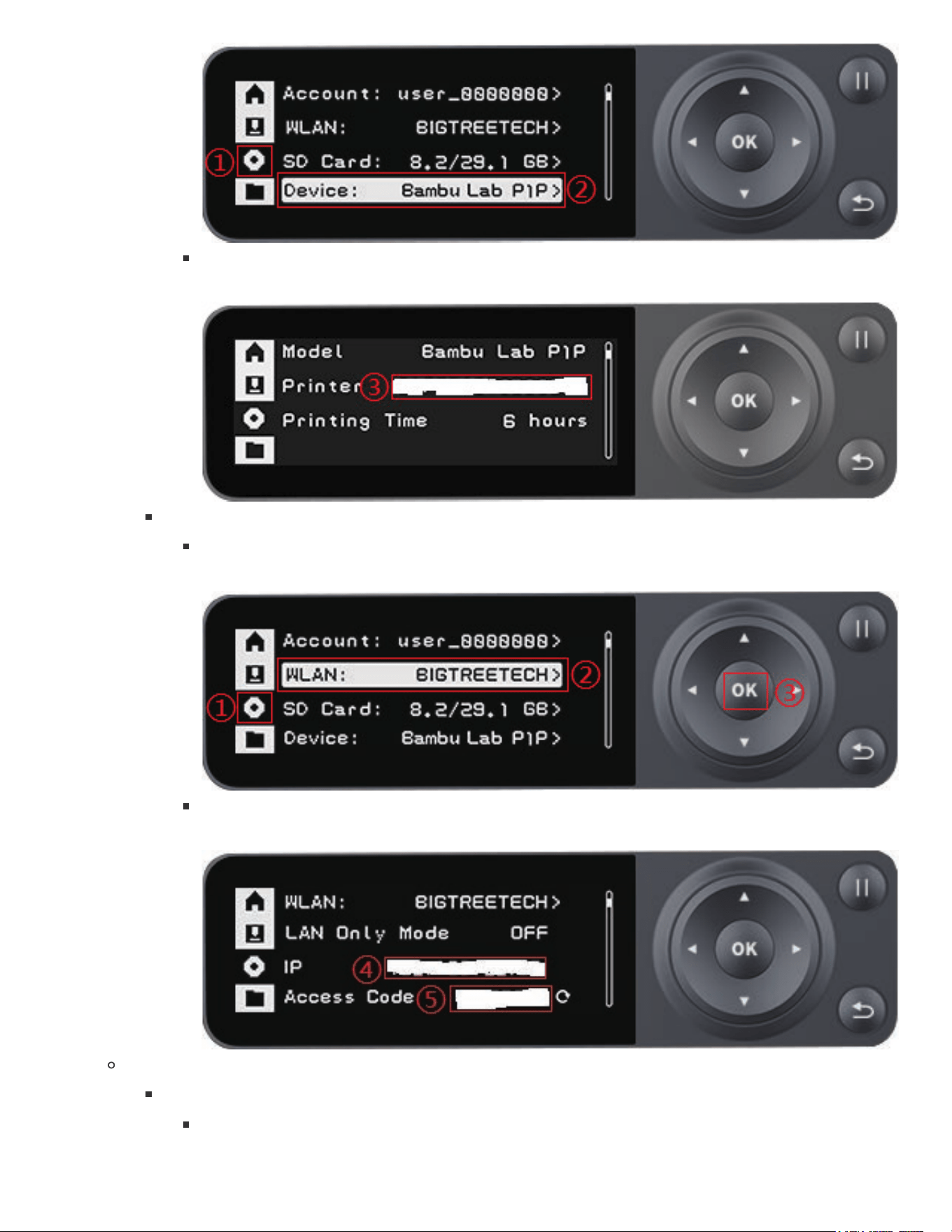
③
Printer
is the
Printer SN
Access Code
and
IP
①
Setting
-> ②
WLAN
-> ③
④
IP
, ⑤
Access Code
For X1 Series
Printer SN
和
Access Code
①
Setting
-> ②
General
-> ③
Access Code
, ④
Device info
is the
Printer SN
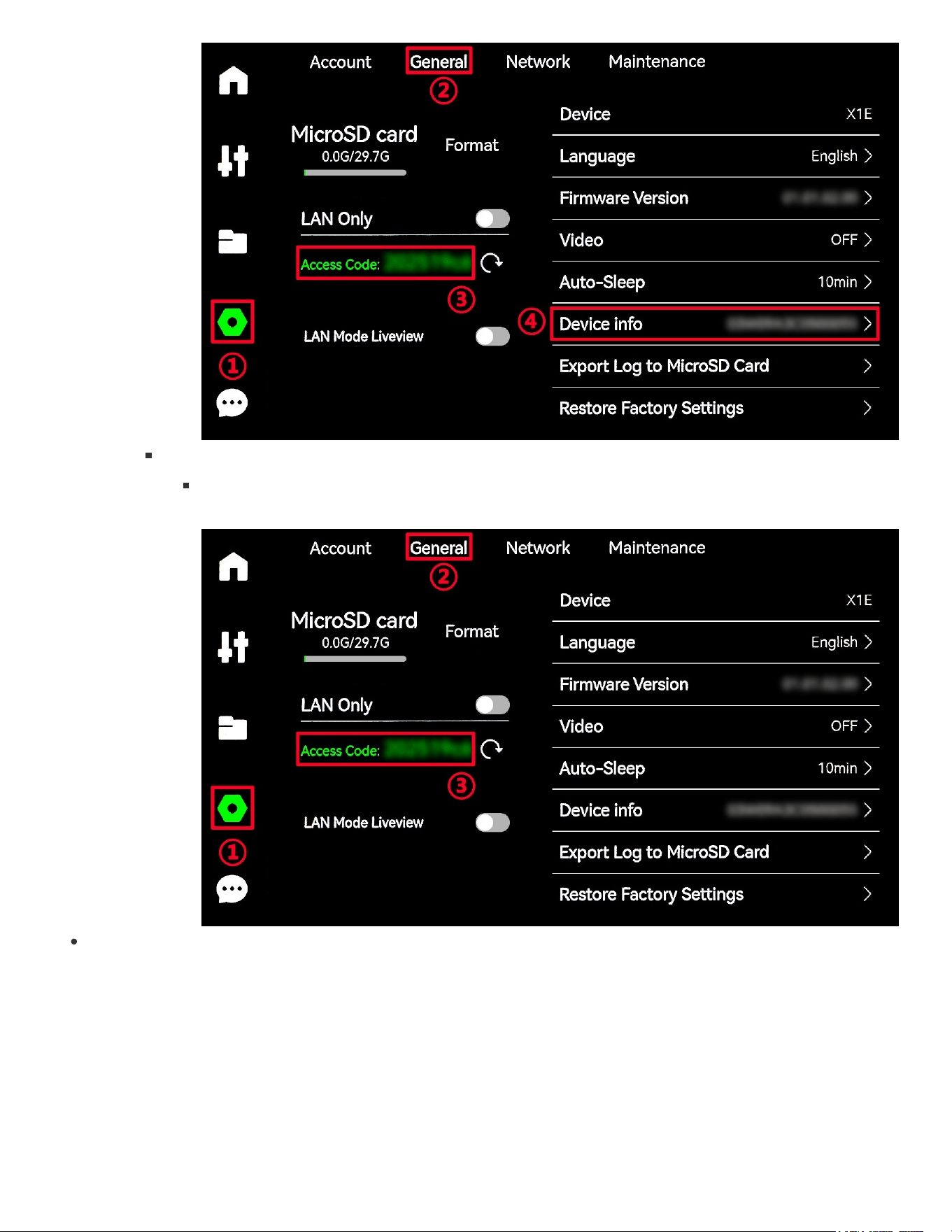
IP
①
Setting
-> ②
Network
-> ③
IP
Tap
Bind
. A
Binding successful
popup will confirm that the Panda Knomi has connected to the
printer.
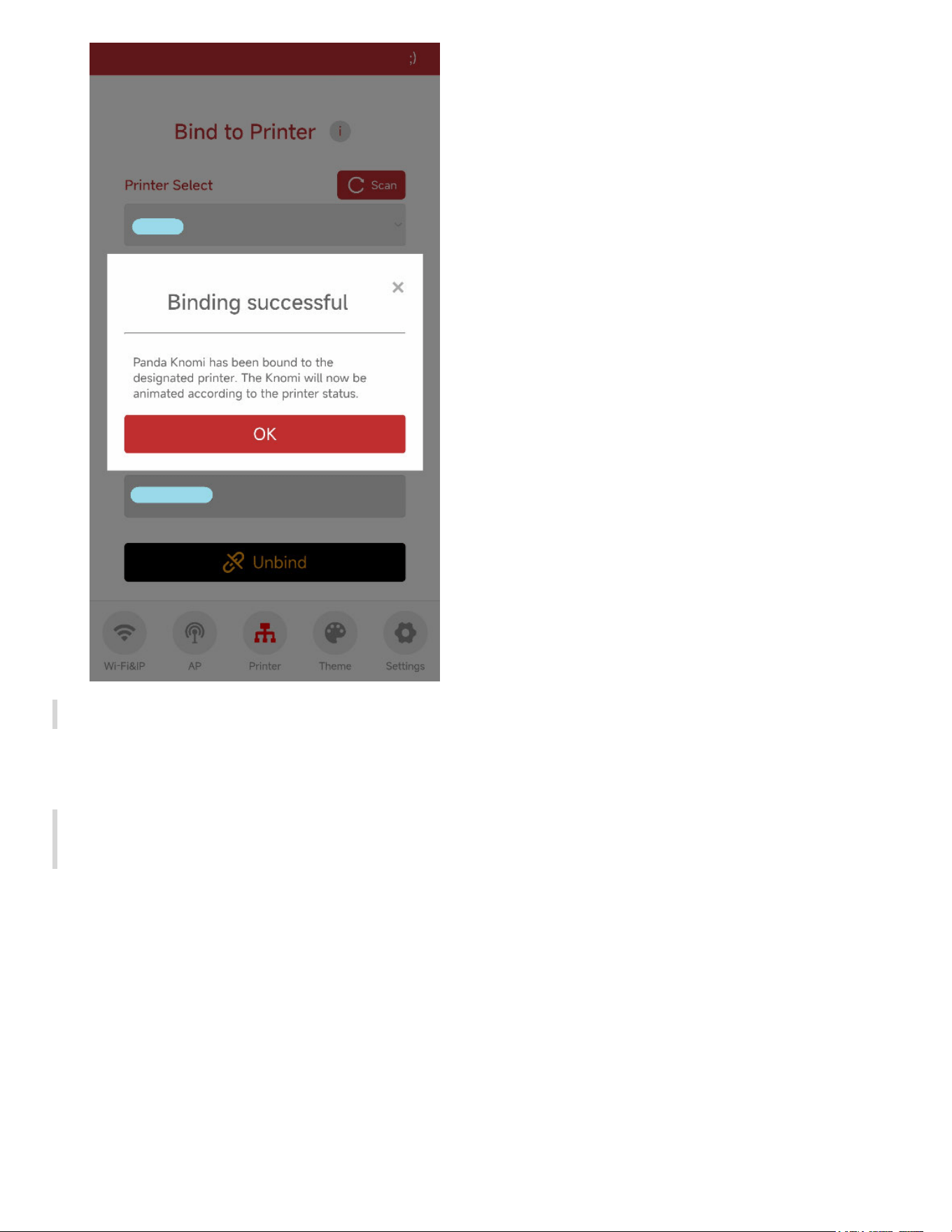
Congratulations! You can now enjoy your Panda Knomi.
Wi-Fi & IP Settings
The first tab that will appear when connecting to the Panda Knomi webUI is the WiFi and AP
settings tab.
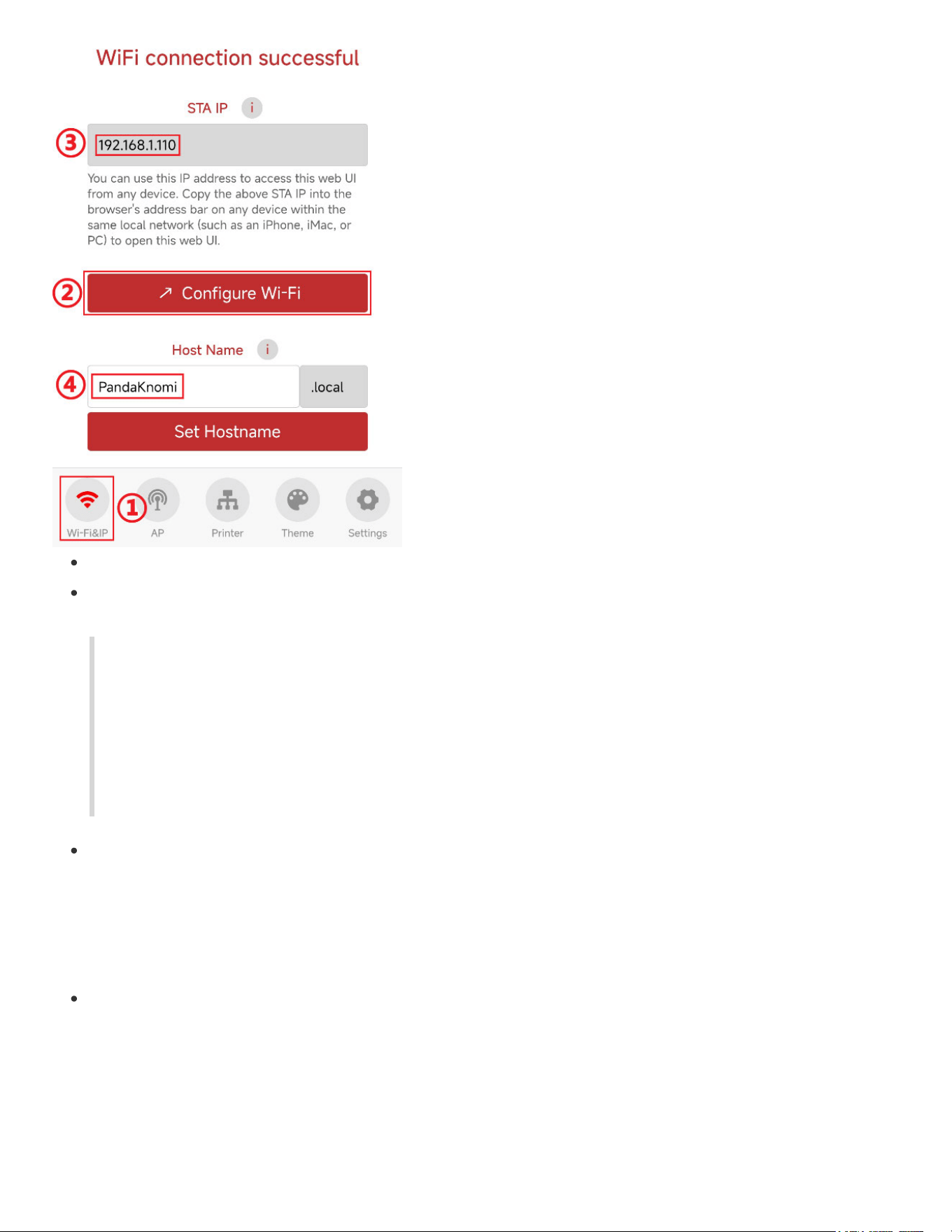
① Tap the
Wi-Fi & IP
option.
② To change the Wi-Fi network that Panda Knomi connects to, tap "Configure Wi-Fi", this will
take you back to the Wi-Fi configuration interface.
Note: When the Panda Knomi switches to a different Wi-Fi network, it will connect to a new local network and IP
address. If your device is connected to the same Wi-Fi network as Panda Knomi at the time of this change, you will
lose the ability to communicate with it. To reconnect, you'll need to join the new Wi-Fi network to which Panda
Knomi has connected. However, to avoid losing connection during this transition, it is recommended to connect
your device to the Panda Knomi's hotspot before initiating any changes to the Wi-Fi settings. This way, you can
manage the network settings without disrupting your connection to the device.
③ After configuring the network you'll see the IP address that the Panda Knomi has been
assigned on the network appear here. Make a note of this IP address because it is one of the
methods you can use to access the web UI again in the future. To access the web UI using the IP
address, type http://IPAddress into your browser, substituting the string "IPAddress" for the
address listed in this field.
④ Alternatively, if your devices are on the same network as Panda Knomi, you can access the
web UI using the hostname, which by default is
PandaKnomi
(accessible via
http://pandaknomi.local , hostname is not case-sensitive).
Note that if a VPN is active on your device, you may need to use the IP address directly, as
accessing by hostname might fail.
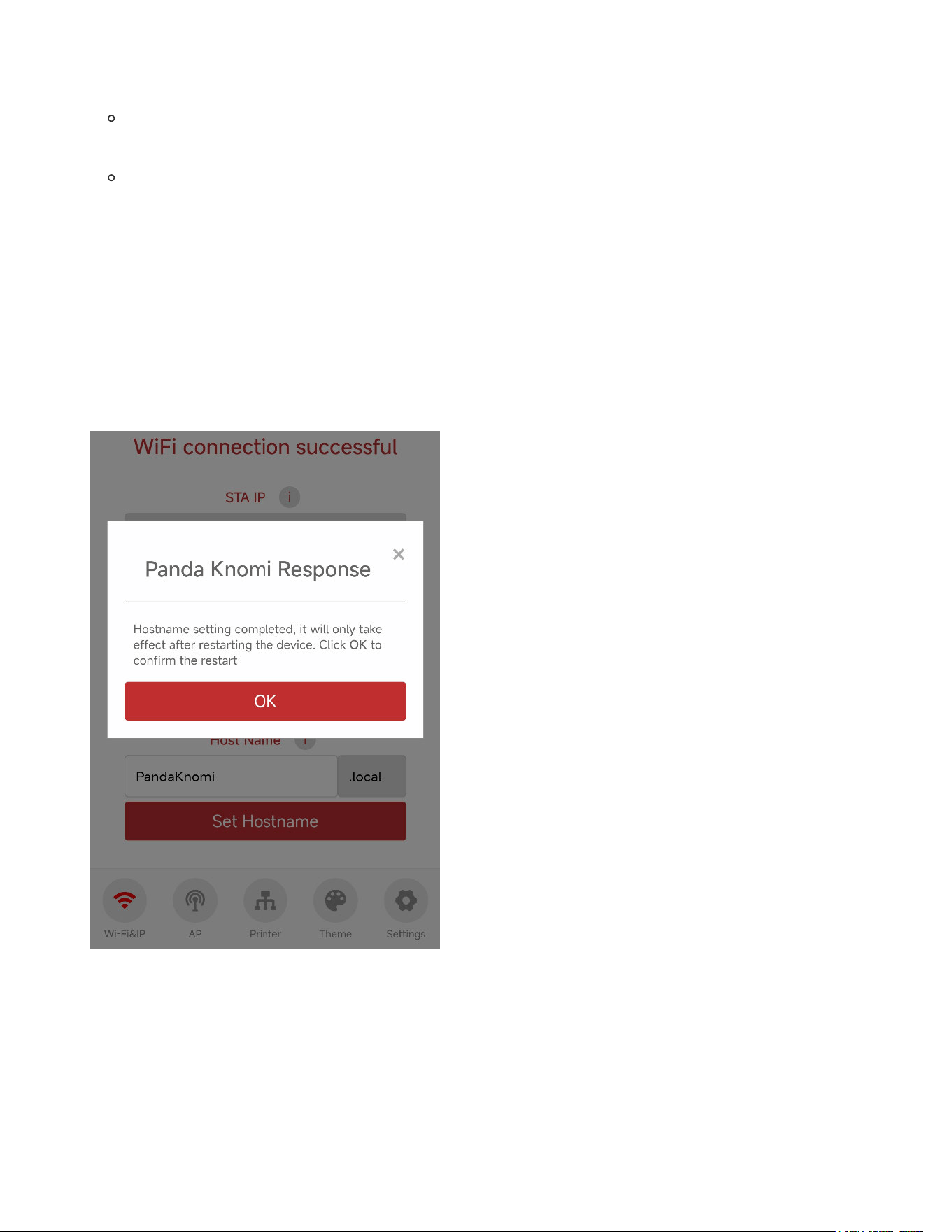
Setting the Hostname:
The hostname must consist only of letters (a-z, A-Z), numbers (0-9), and hyphens (-), and
must start with a letter.
The hostname must be at least 8 characters long and no more than 32 characters.(On
firmware version
V1.0.2
and earlier, please do not exceed 15 characters, otherwise the
device will not start and needs to be updated to firmware version
V1.0.3
or later)
After choosing a new hostname, tap
Set Hostname
to update Panda Knomi. A popup will confirm
the successful change. The device must be restarted for the hostname change to take effect. This
can be initiated by tapping
OK
in the confirmation popup, or postponed by closing the popup with
the
x
button. After changing the hostname, you will need to make sure that you use that new
hostname to access the web UI.
AP Interface
The next UI page is the Panda Knomi access point configuration page. The Panda Knomi AP is a
hotspot that the Panda Knomi broadcasts that allows you to connect directly to it instead of via another
WiFi network. If you do not want this hotspot to be broadcast then you can turn it off but the Panda
Knomi will turn it back on in case it is ever unable to connect to the WiFi network that you have
programed into it. This provides a failsafe way of reconnecting to the Panda Knomi in case the primary
network becomes unavailable.
If your device is connected to the Panda Knomi AP hotspot to access the Web UI, any changes or shutdown of the
Panda Knomi AP settings will disconnect the device. To prevent this, it is recommended to connect your device to the
same local network as Panda Knomi before making changes.
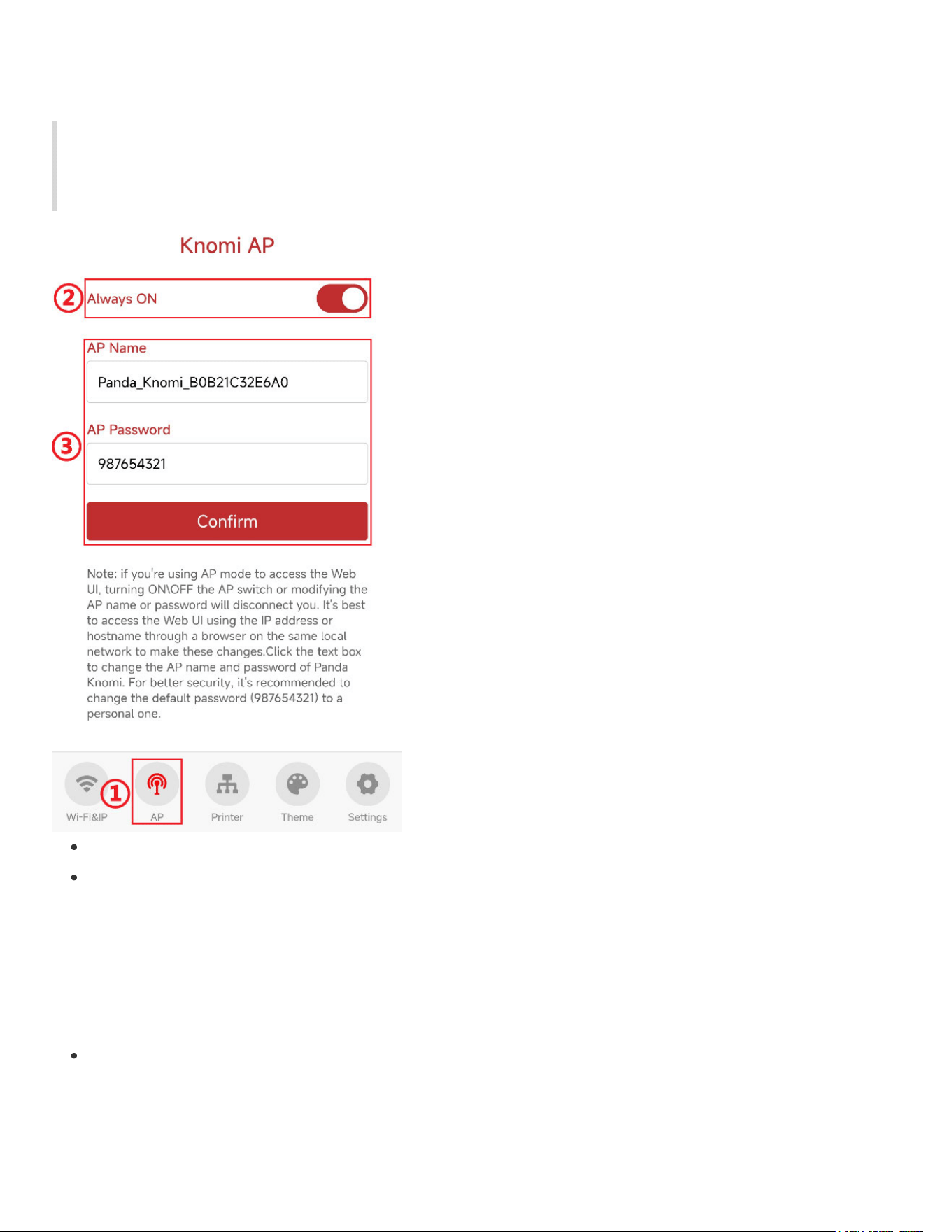
① Access the
AP
interface.
② Toggle the Panda Knomi AP hotspot on or off. When the AP hotspot is off, the Panda Knomi
will no longer broadcast its own WiFi network and you will only be able to connect to the web UI
using the WiFi network that it has connected to. Before disabling it, ensure you record the Panda
Knomi’s IP address and hostname on the current Wi-Fi network. Note that if the Panda Knomi
loses connection to the primary WiFi network then it will re-enable the AP hotspot regardless of
this setting so that you can connect to it and reconfigure the primary network.
③ Modify the Panda Knomi AP hotspot settings. Note that this is specifically for the network that
the Panda Knomi broadcasts and not for the network that it connects to. The default configuration
is:
Wi-Fi SSID:
Panda_Knomi_xxxxxxxxxxxx
Wi-Fi Password:
987654321
After modifying settings, there is no need to restart Panda Knomi. It will automatically create the
new AP hotspot in the background.
Theme Settings and IMG sharing
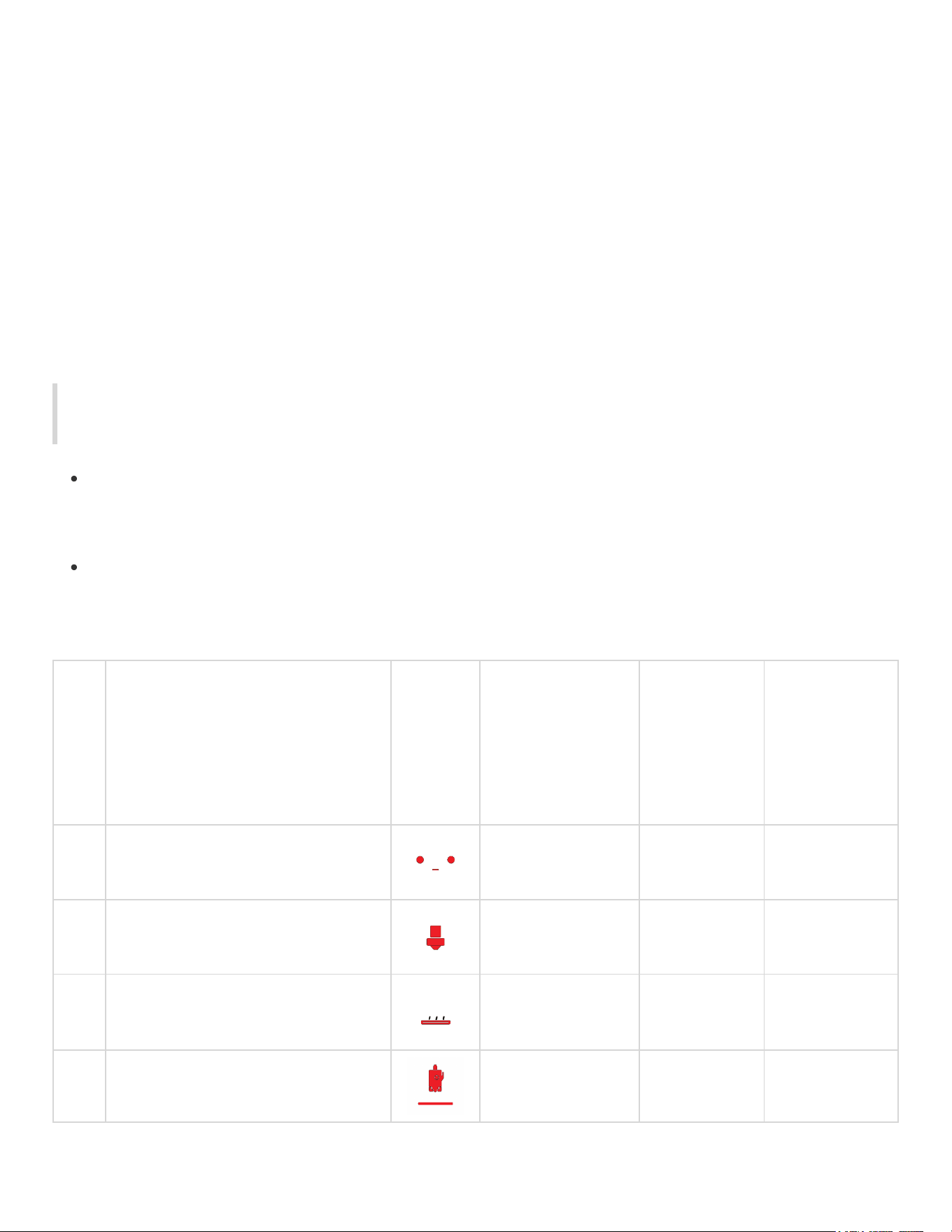
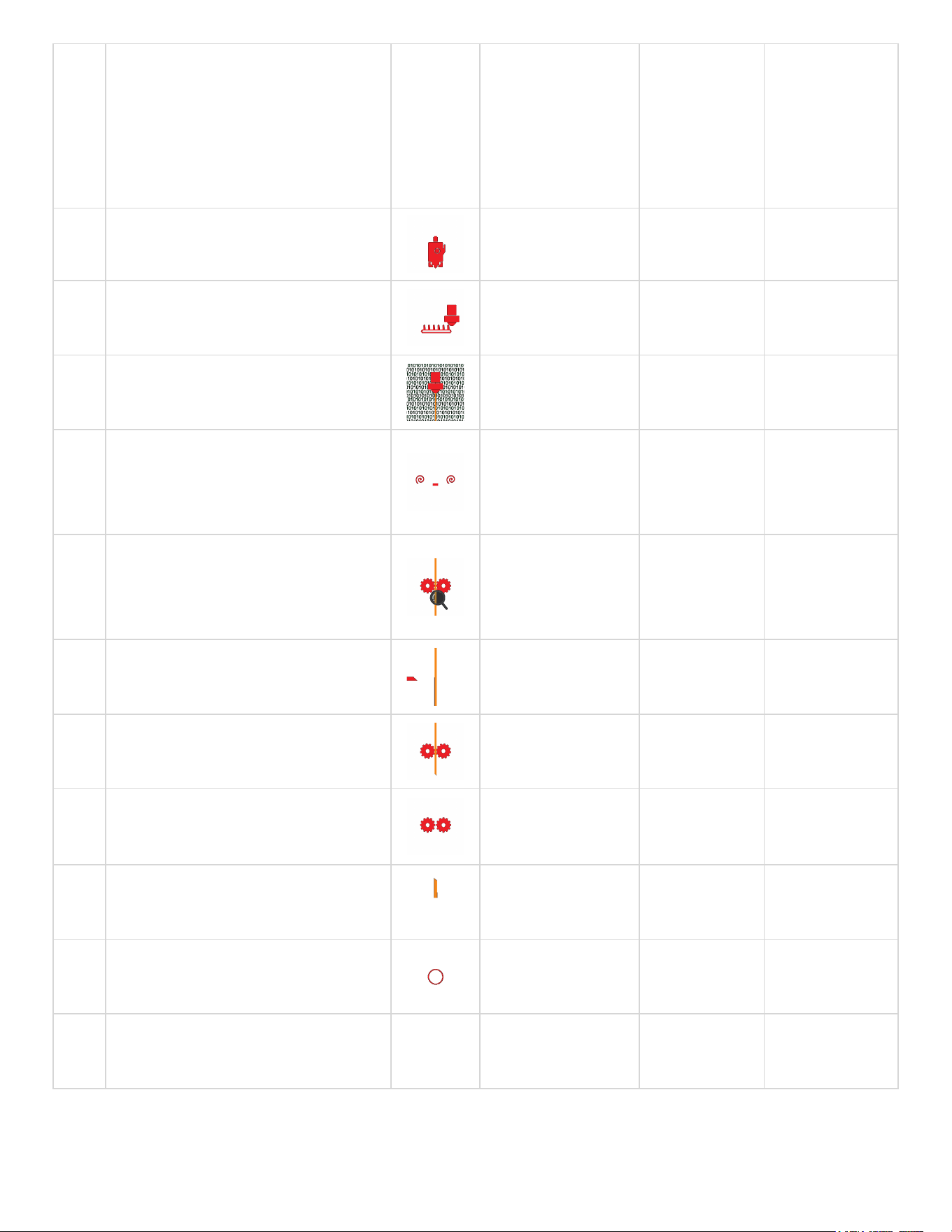
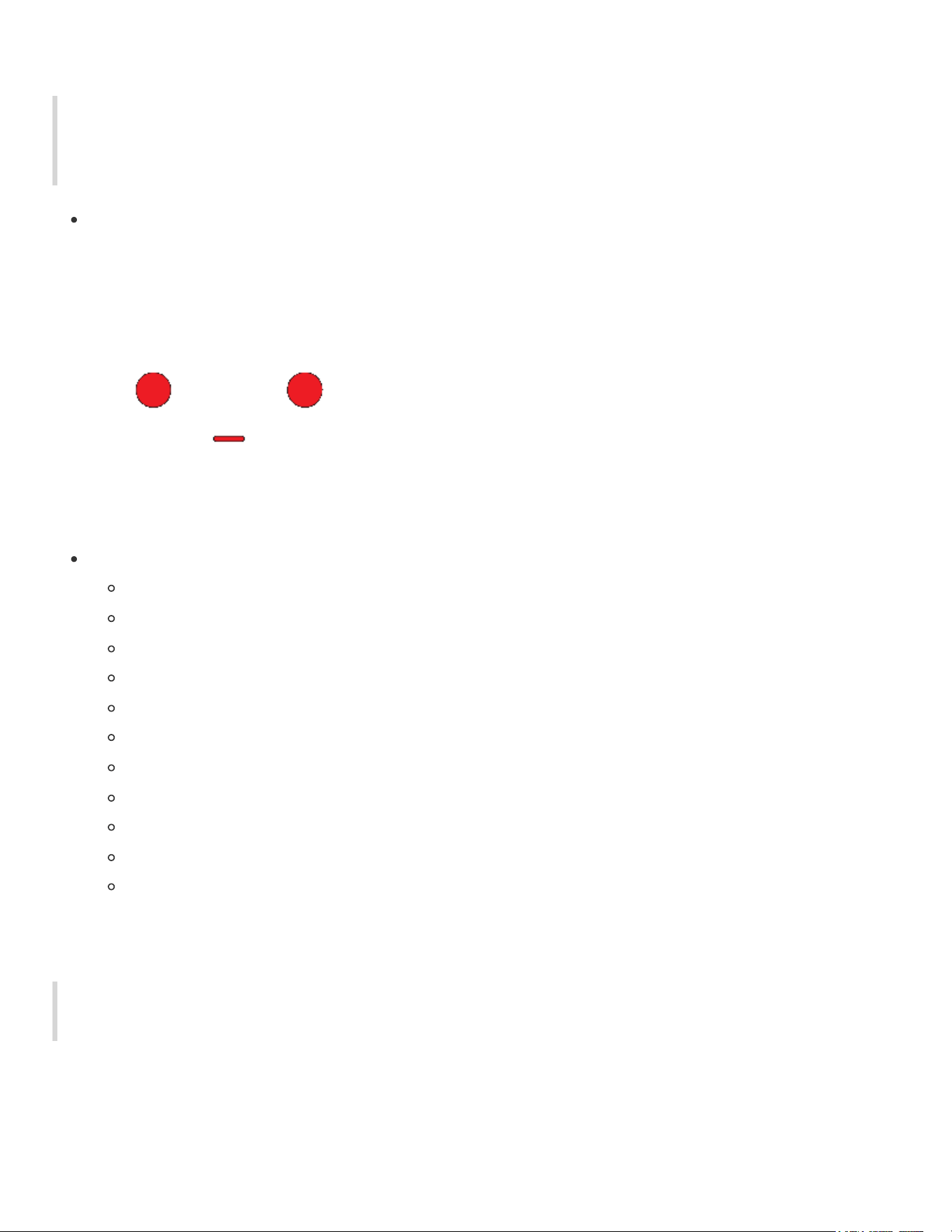
GIF Status Explanation
This section just explains what the factory default GIFs represent. If you really want to have some
fun and define your own GIFs or colours then see the theme settings section.
Due to hardware limitations, Panda Knomi requires that the size of a single GIF not exceed 1.5MB
(1536KB, 1MB = 1024KB), and the total size of all GIFs must not exceed 3MB (3072KB, 1MB =
1024KB).
In the factory state, the total size of all GIFs is 2664.25KB (slightly different from the sum of all
sizes in the table above due to rounding each GIF's size to two decimal places), leaving
407.75KB of available space.
File Name in Web UI
GIF
Effect
Conditions for
Display
(Printer must
be bound)
Factory
GIF Size
Factory
GIF
Resolution
(Width x
Height)
1 gif_idle_standby.gif
The printer is
idle.
63.61KB 240 x 240
2 gif_nozzle_heating.gif
Nozzle is
heating up.
135.7KB 240 x 240
3 gif_bed_heating.gif
Bed is heating
up.
128.55KB 240 x 240
4 gif_bed_leveling.gif
Auto-leveling. 111.28KB 240 x 240
File Name in Web UI
GIF
Effect
Conditions for
Display
(Printer must
be bound)
Factory
GIF Size
Factory
GIF
Resolution
(Width x
Height)
5 gif_homing.gif
Homing. 142.75KB 240 x 240
6 gif_nozzle_cleaning.gif
Nozzle is being
cleaned.
164.02KB 240 x 240
7 gif_calibrating_flow.gif
Calibrating
extrusion flow.
1023.41KB 240 x 240
8 gif_xy_mesh_mode_sweep.gif
Calibrating
resonance
compensation.
78.45KB 240 x 240
9 gif_filament_check_location.gif
Checking
filament
location.
225.3KB 240 x 240
10 gif_filament_cut.gif
Cutting
filament.
54.09KB 240 x 240
11 gif_filament_pull_back_cur.gif
Retracting
filament.
139.41KB 240 x 240
12 gif_filament_push_new.gif
Loading new
filament.
164.94KB 240 x 240
13 gif_filament_purge_old.gif
Purging old
filament.
52.98KB 240 x 240
14 gif_printing_ok.gif
Printing
complete.
22.37KB 240 x 240
15 gif_printing.gif
Printing in
progress.
157.41KB 240 x 240
Screen Saver
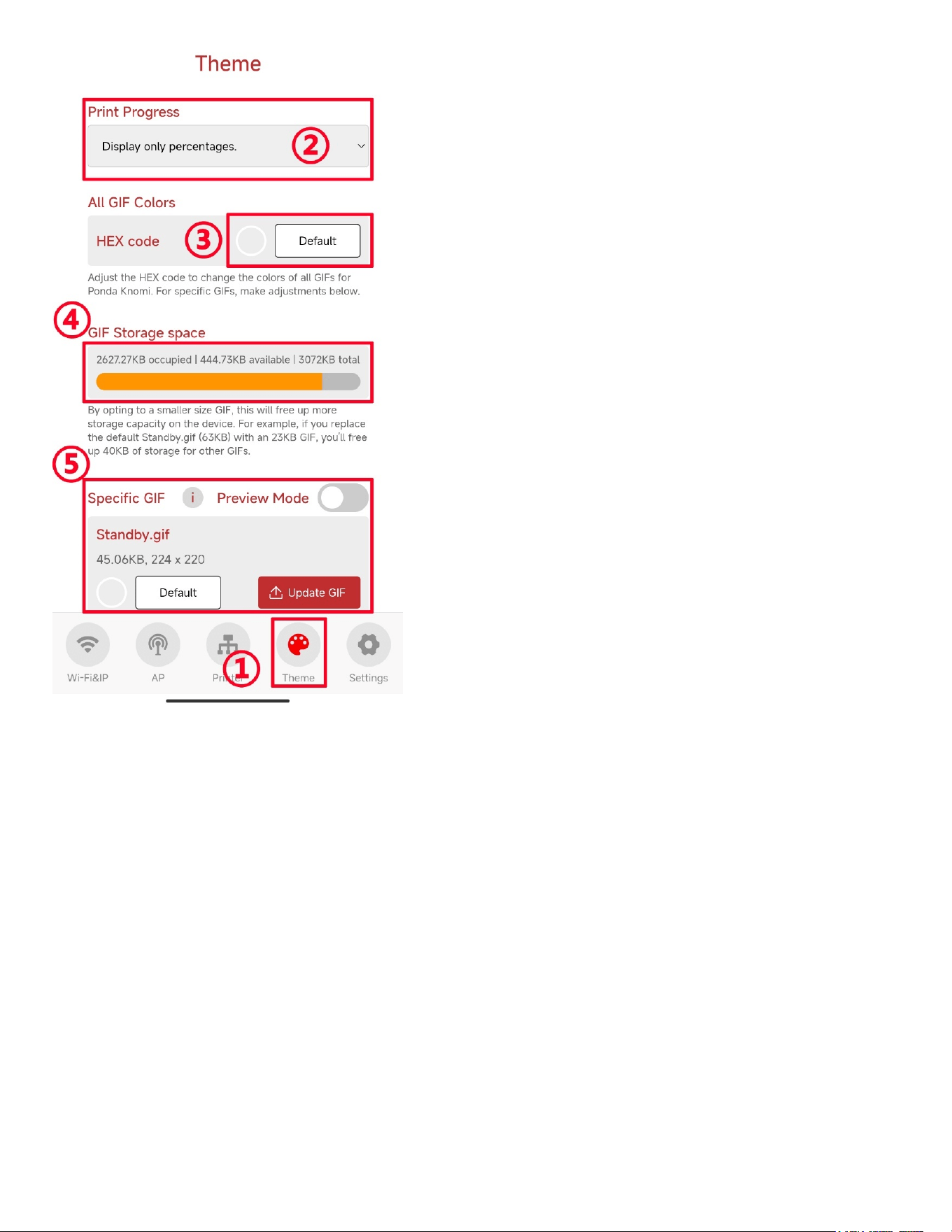
To prevent screen burn-in from long exposure to static images, Panda Knomi includes a built-in
screen saver. Every 15 seconds, a screen saver GIF (non-customizable) will appear for 2
seconds.
The screen saver GIF is as follows:
The screen saver is active on the following interfaces:
Invalid IMG interface
Hello screen after first power on
Wi-Fi scan completion
Wi-Fi connection failure
Wi-Fi password error
Binding printer interface
Printer scan completion
Printer SN error
Printer Access Code error
One printer HMS QR code interface
Multiple printer HMS error interface
Theme Settings
Theme settings are where the real fun begins with the Panda Knomi. Within this tab of the web UI
you will be able to tweak colour settings for the factory GIFs or upload your own, custom GIFs.
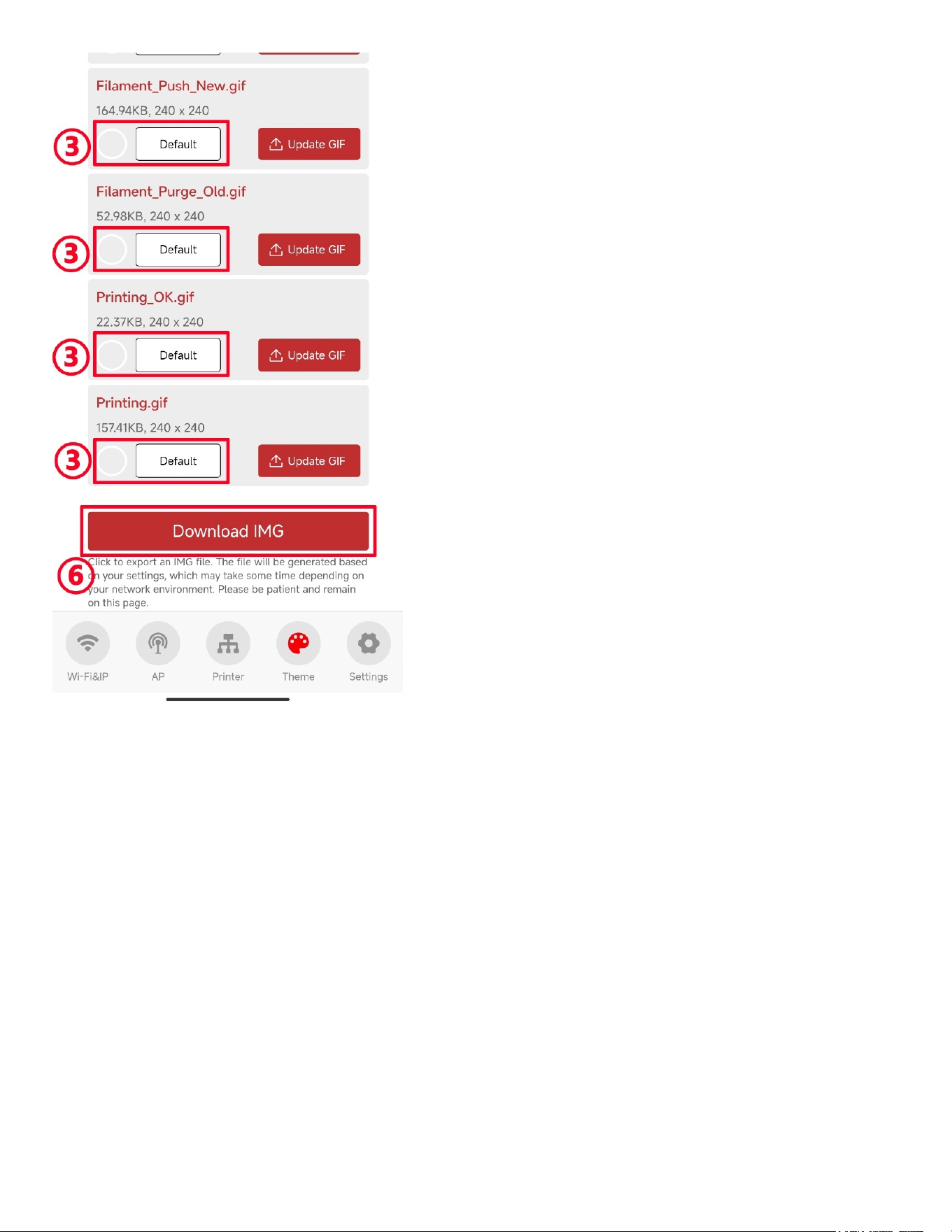
① Go to the
Theme
interface.
② Choose how to display printing progress:
Only percentage
: Displays real-time printing progress as a percentage.
Only GIF
: Displays a GIF representing the printing process.
Alternating percentage and GIF
: Alternates between showing the percentage and GIF every
10 seconds.
③ Set GIF Colors
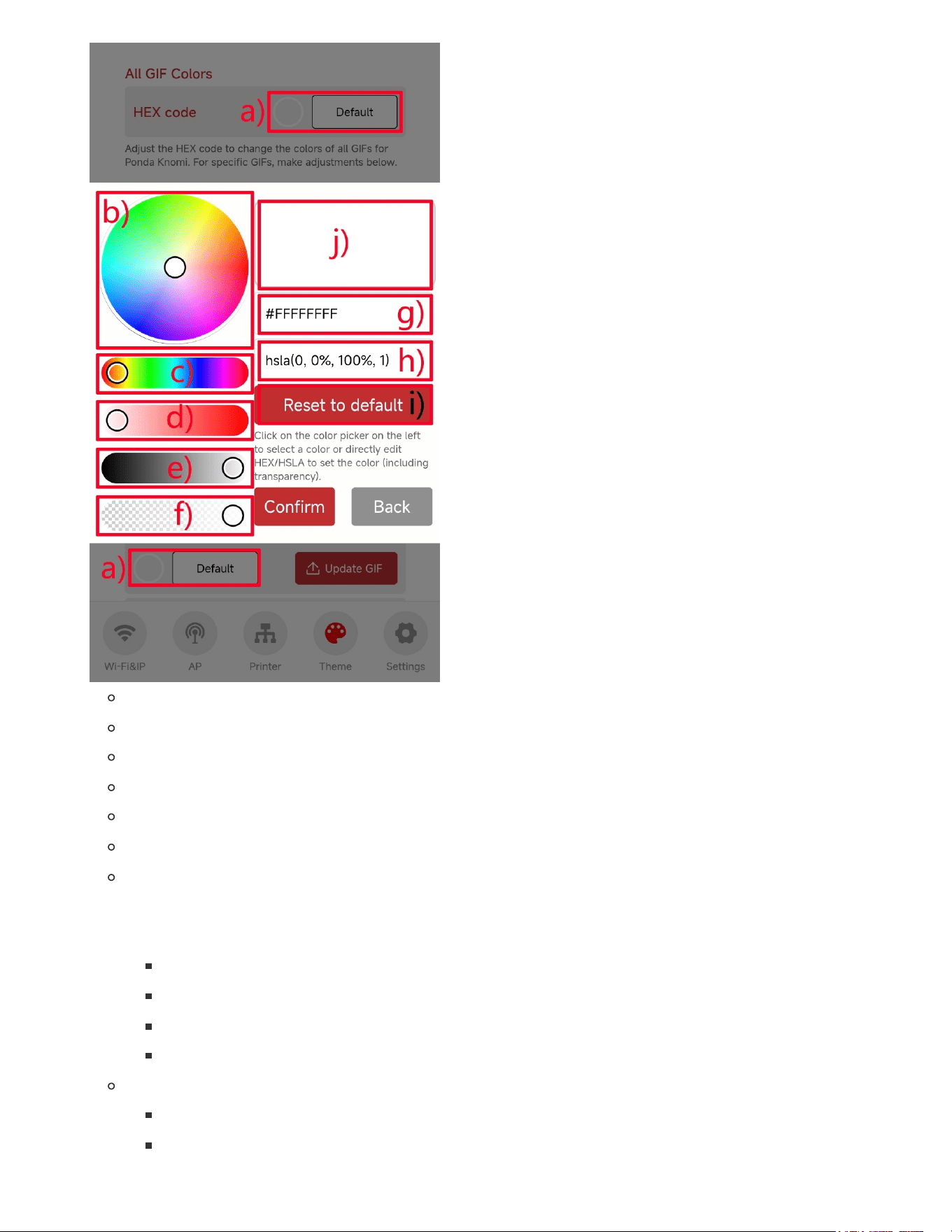
a) Tap to open the color setting interface for the GIF.
b) Use the HSL Color Picker.(What is HSL?)
c) H (Hue) ranges from 0° to 360°.
d) S (Saturation) ranges from 0% to 100%.
e) L (Lightness) ranges from 0% to 100%.
f) A (Alpha/Opacity) ranges from 0.00 to 1.00.
g) The corresponding RGBA Hexadecimal Value: Each color value ranges from 0 to 255
(0x00 to 0xFF). You can modify these values to get the desired color. For example,
#FFFFFFFF means:
R (Red):0xFF (255/255)
G (Green):0xFF (255/255)
B (Blue):0xFF (255/255)
A (Alpha):0xFF (1.00/1.00)
h) The corresponding HSLA Values, You can modify these values to get the desired color.
H (Hue):0°
S (Saturation):0%

L (Lightness):100%
A (Alpha):1.00
i) Tap to reset to the original GIF color.
j) Preview the color in the preview area.
④ View GIF Storage Usage
Due to Panda Knomi’s hardware limitations, the total size of all GIFs cannot exceed 3MB
(3072KB). If this limit is exceeded, the Web UI will block the update and display a pop-up
reminder.
⑤ Set Each GIF Individually (including color and custom GIF images)
Turn
Preview Mode
on/off to show/hide the
Preview
button.
Tapping
Preview this GIF
enters preview mode, allowing you to view the custom GIF on the
screen. To exit preview mode, turn off
Preview Mode
or navigate away from the
Theme
interface.
Custom GIF Notes:
Panda Knomi uses a
240 x 240
pixel screen resolution. GIFs larger than this resolution won’t
display fully, so only GIFs of this size or smaller are allowed.
Resize larger GIFs:
Tap
Select images
button to select GIF, or Drag and drop the GIF into the browser
window.
Make sure that the
Maintain aspect ratio
box is ticked. Avoid changing the aspect ratio
to cause inconsistent image effects
Change the larger of the
Width (px):
or
Height (px):
to 240. If both are the same then
you can change either of them.
Tap
Resize IMAGES
Tap
Download resized IMAGES
to download the resized GIF.
If using the UI color changing feature, the GIF must have a transparent background (usually
black is used for transparency if activated within a GIF). Without transparency, color changes
will affect the entire image. Note that almost all GIFs you can find online will not be
transparent. BIGTREETECH specifically designed our GIFs to have a transparent
background and you can too if you are familiar with how GIFs work.
Due to the nature of how GIFs update the display between frames, the last frame of a
transparent GIF must match the first frame otherwise there will be residual pixels during the
loop. This is only relevant if you are crafting your own, custom, transparent GIFs.
The size of a single GIF cannot exceed 1.5MB (1536KB, 1MB=1024KB), and the total size of
all GIFs cannot exceed 3MB (3072KB, 1MB=1024KB).
The new GIF size must not exceed the sum of the replaced GIF size and remaining capacity.
Otherwise, the Web UI will reject the replacement. You can check the available capacity in ④
and the size of each GIF in ⑤.
For example, to replace “Standby.gif,” if the factory GIF size is 63.61KB and the remaining
capacity is 407.75KB, the new GIF size cannot exceed 63.61KB + 407.75KB = 471.36KB.
⑥ Download and Export Custom GIF as IMG File, Conveniently backup or share your custom GIF
designs.
Note: As of firmware V1.0.2 the IMG does not include custom color data information, only GIF image data. Custom
color data will be included in V1.0.3.
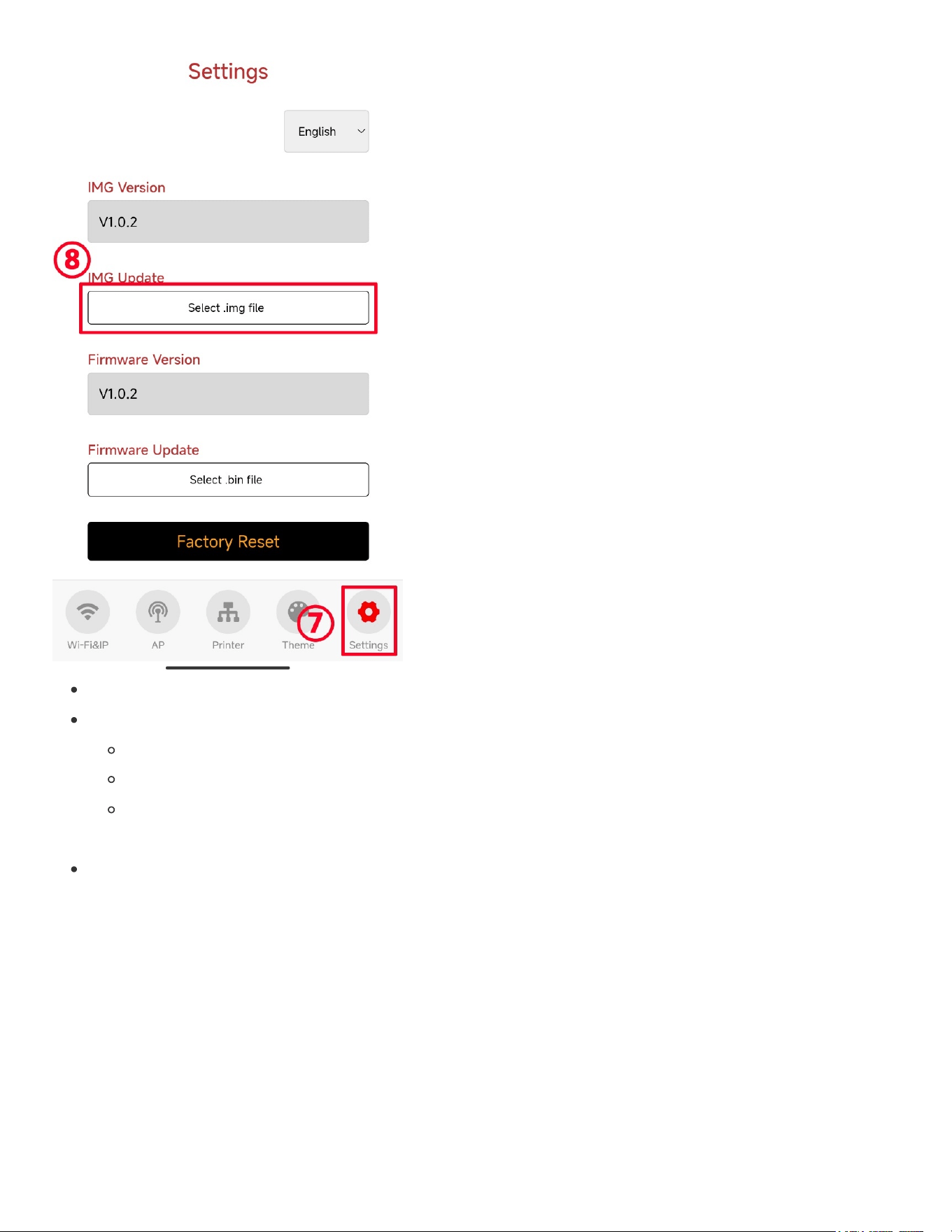
⑦ ⑧ Install Others’ Shared IMG Files to your Panda Knomi.
Apply IMG to Panda Knomi
Note: As of firmware V1.0.2 the IMG does not include custom color data information, only GIF image data. Custom color
data will be included in V1.0.3.
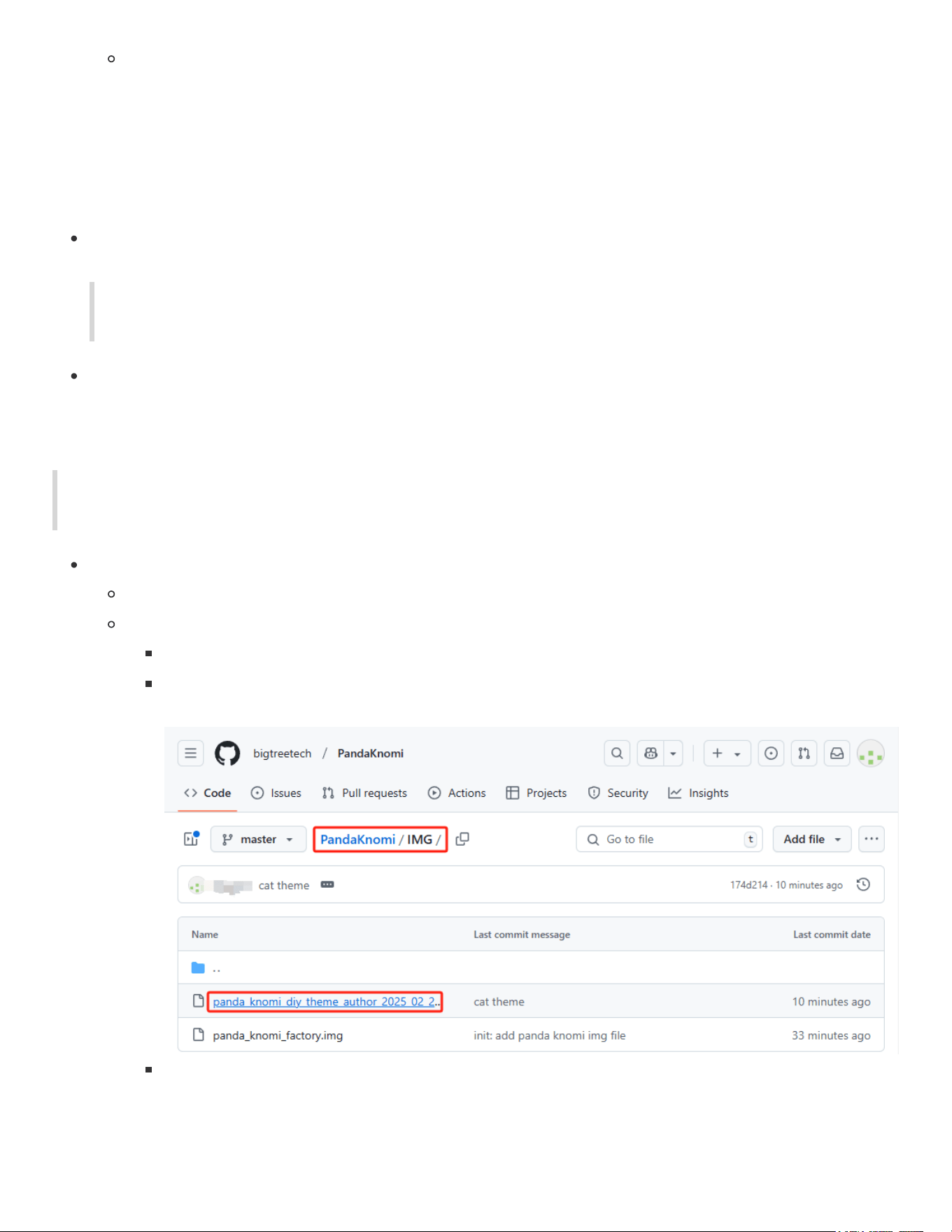
Download IMG Theme file
Download Panda Knomi
.img
files shared by other users in the community.
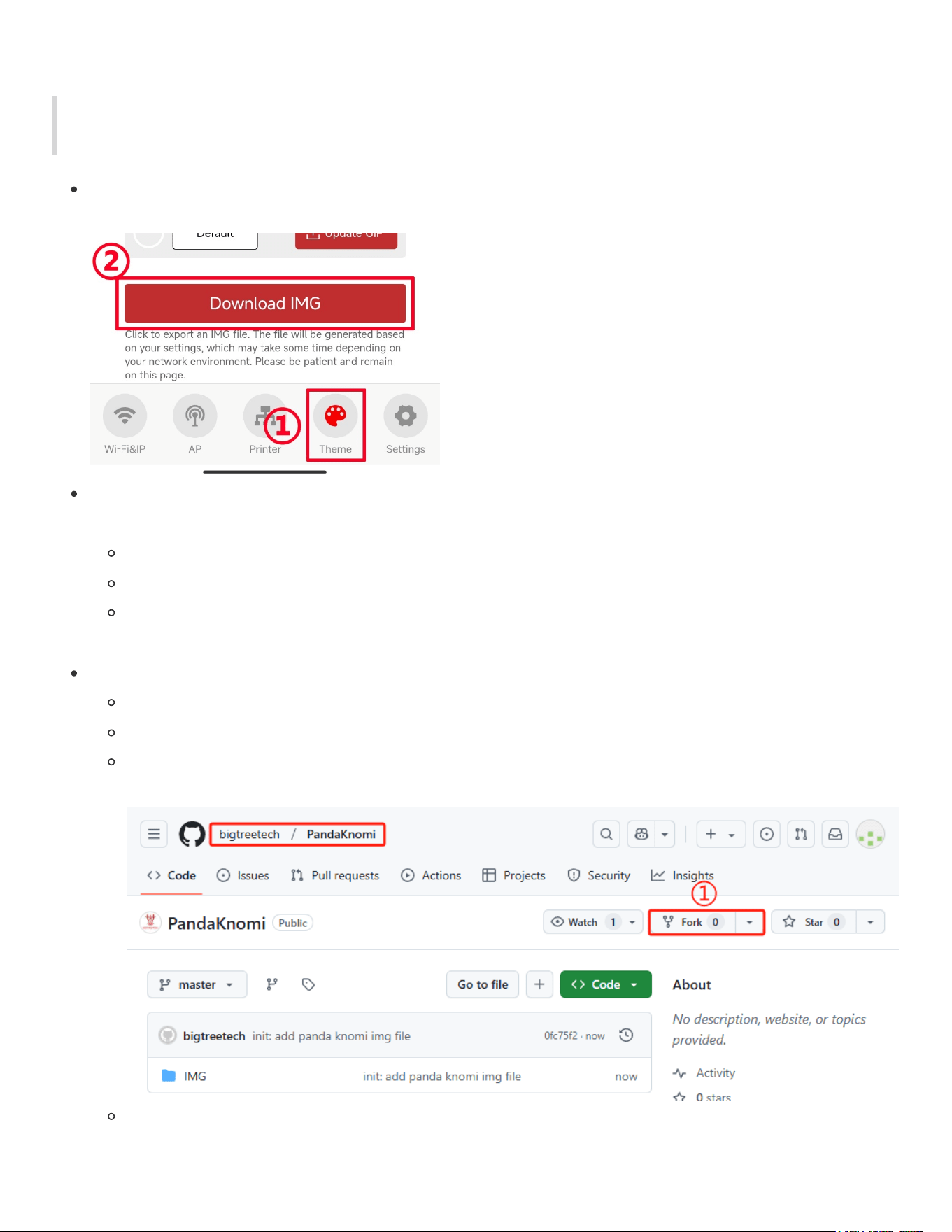
Download from the Github of Panda Knomi.
Visit Panda Knomi’s GitHub repository
Go to the IMG Folder, select the IMG theme.
Click Download to save it locally.
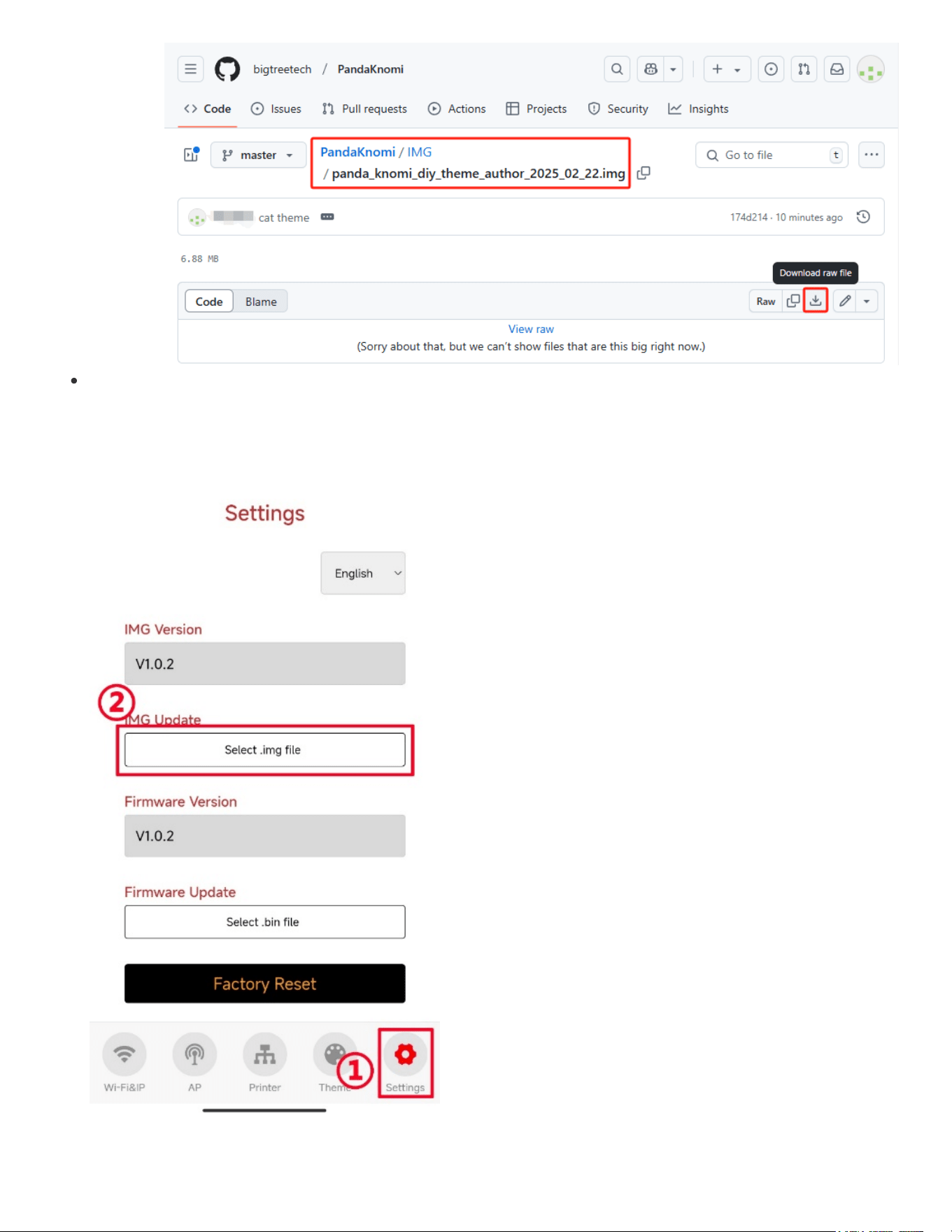
Then, enter Panda Knomi's Web UI: ① Go to "Settings" → ② Select the .img file you just
downloaded.
Once the update is complete, Panda Knomi will automatically apply the new IMG file.
Export IMG from Panda Knomi to Share
Note: As of firmware V1.0.2 the IMG does not include custom color data information, only GIF image data. Custom color
data will be included in V1.0.3.
① Go to "Theme" → ② Select "Export IMG," and wait for the file to export.
Rename it using the following format:
panda_knomi_diy_<theme_name>_<author_name>_YYYY_MM_DD.img
<theme_name>
: Choose a theme name for the IMG
<author_name>
: Author’s nickname or name
YYYY_MM_DD
: Date of the IMG file (Year_Month_Day)
Example: panda_knomi_diy_theme_author_2025_02_22.img。
Share IMG theme to GitHub
If you don’t have a GitHub account, please create one.
Visit Panda Knomi’s GitHub repository
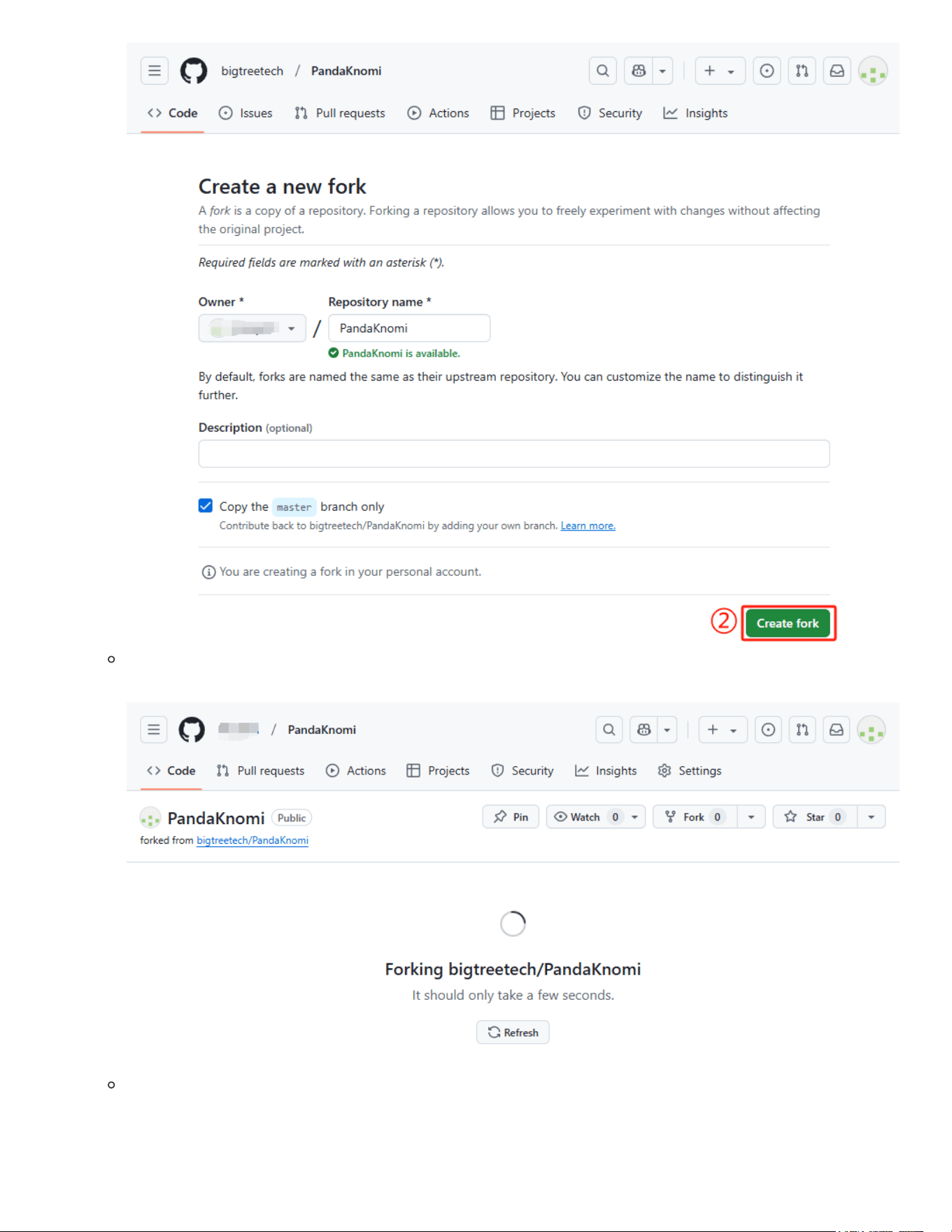
Click ①
Fork
Click ②
Create fork
Wait for the
fork
to complete
After forking, go to the IMG Folder
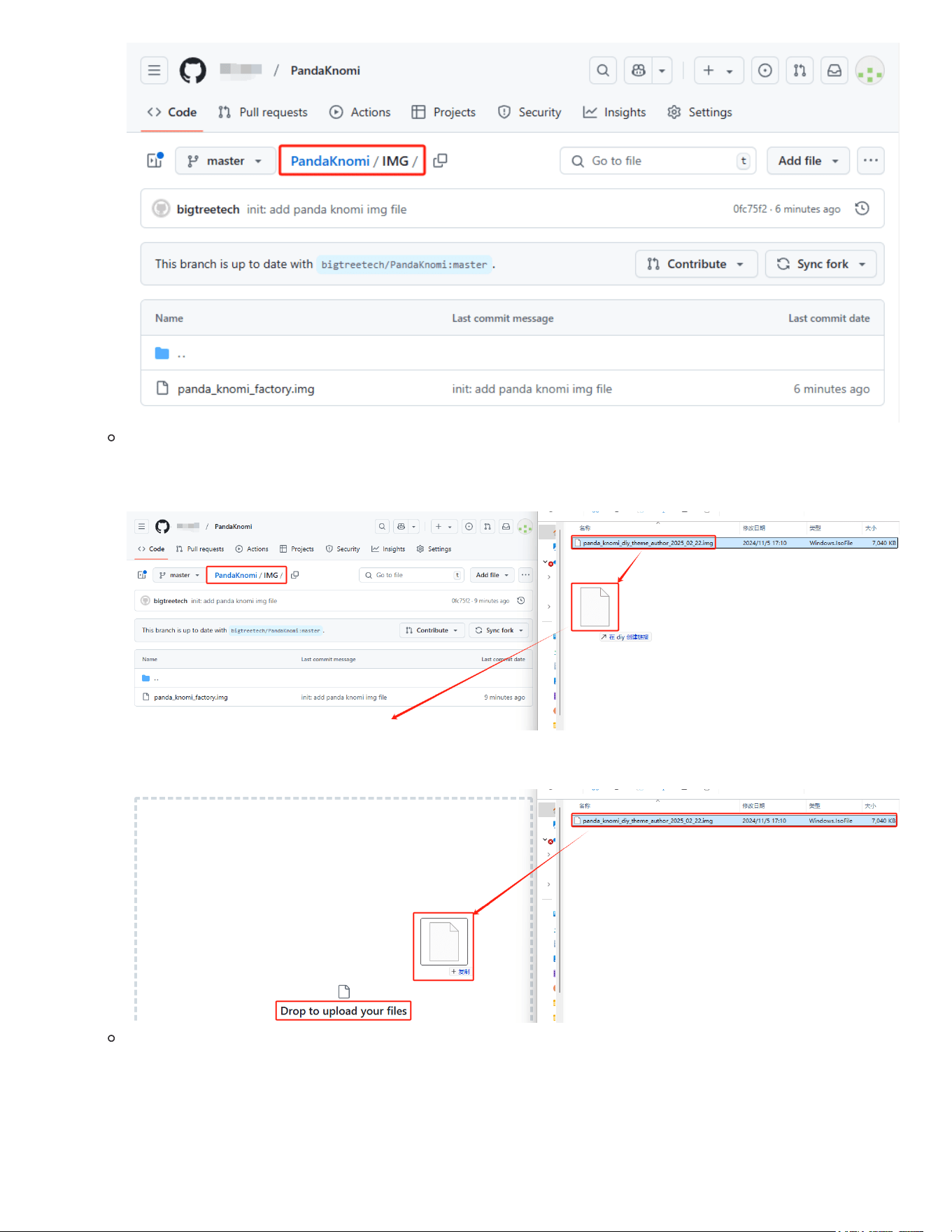
Drag and drop the IMG file into the browser window. The
Drop to upload your files
interface will appear.
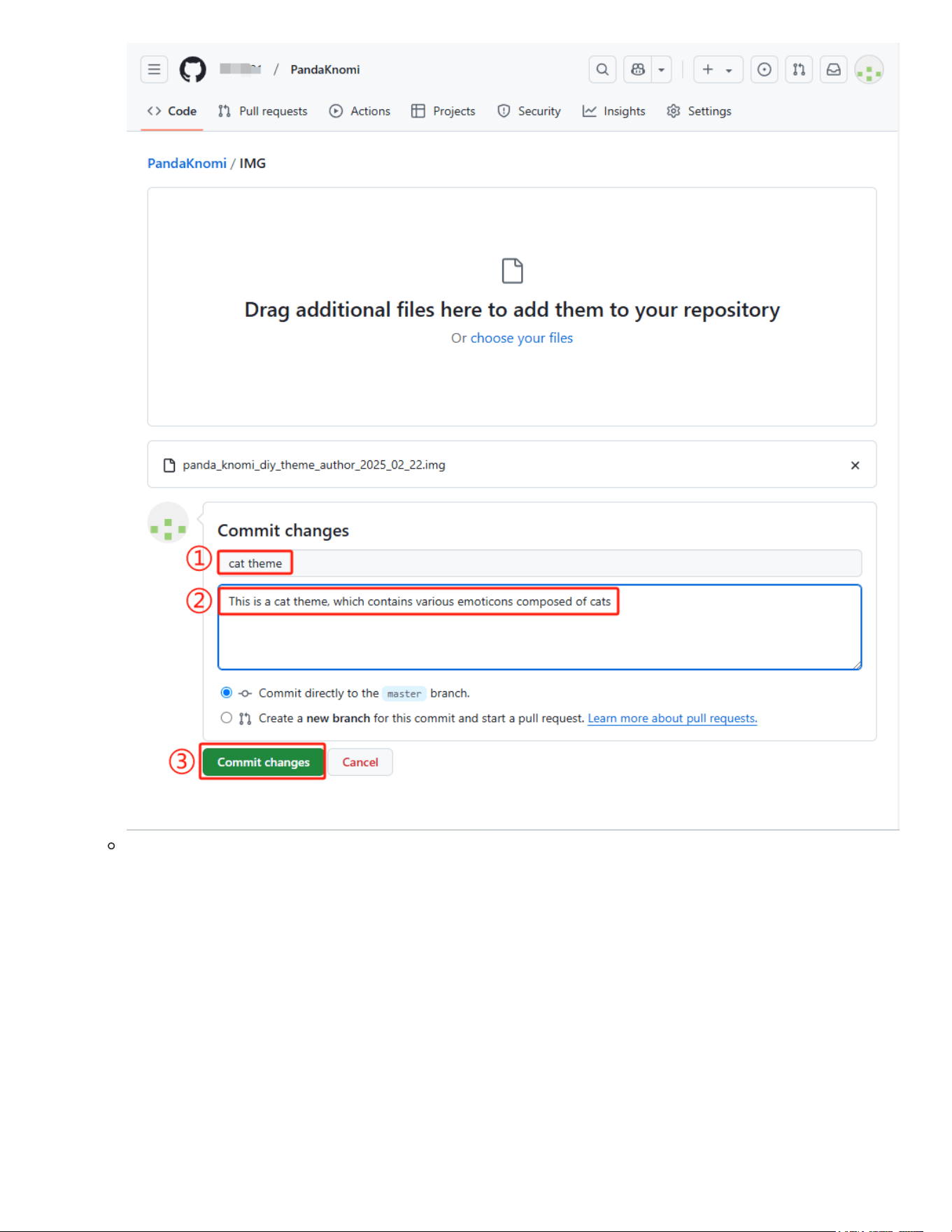
Enter the ①
title
, ②
description
, and ③
commit changes
.
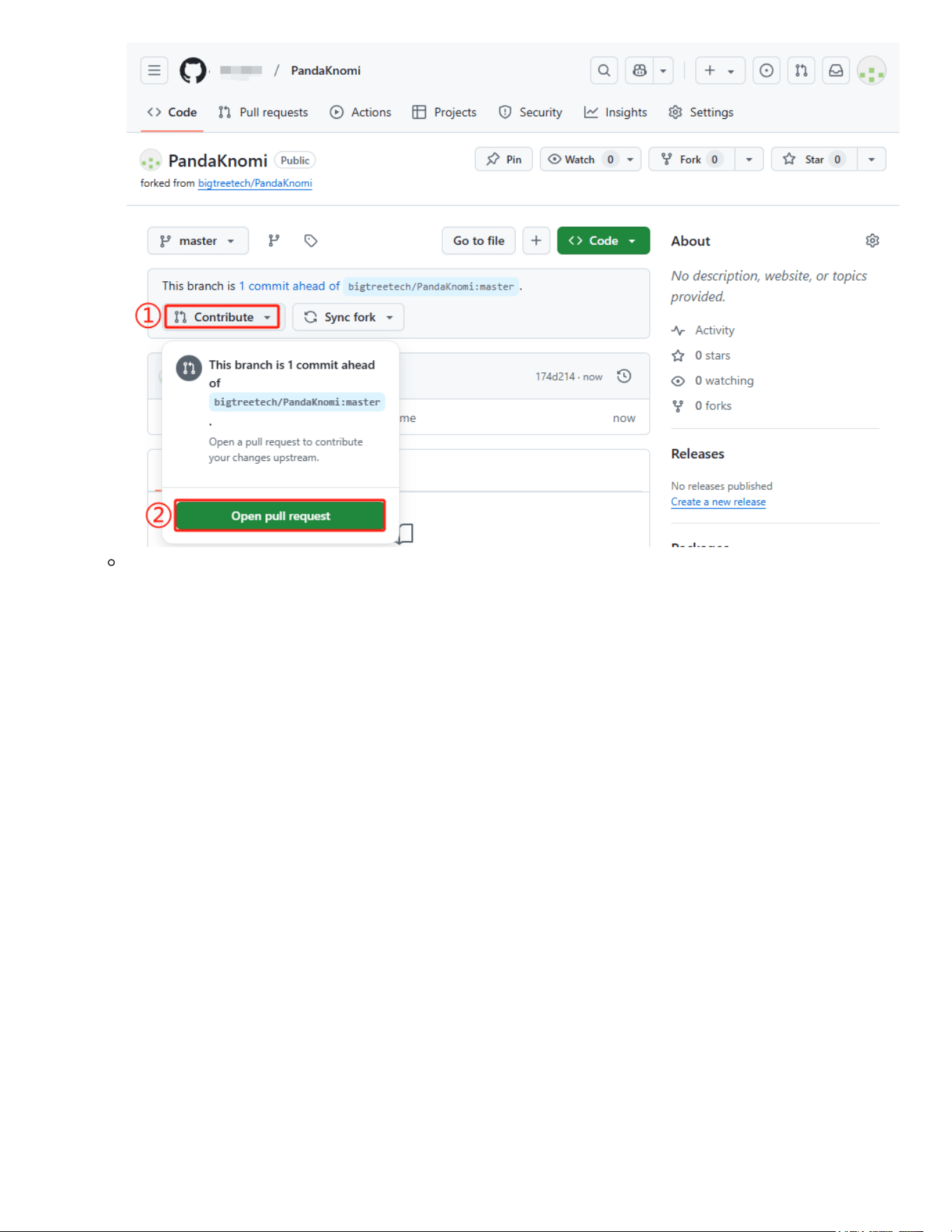
①
Contribute
-> ②
Open pull request
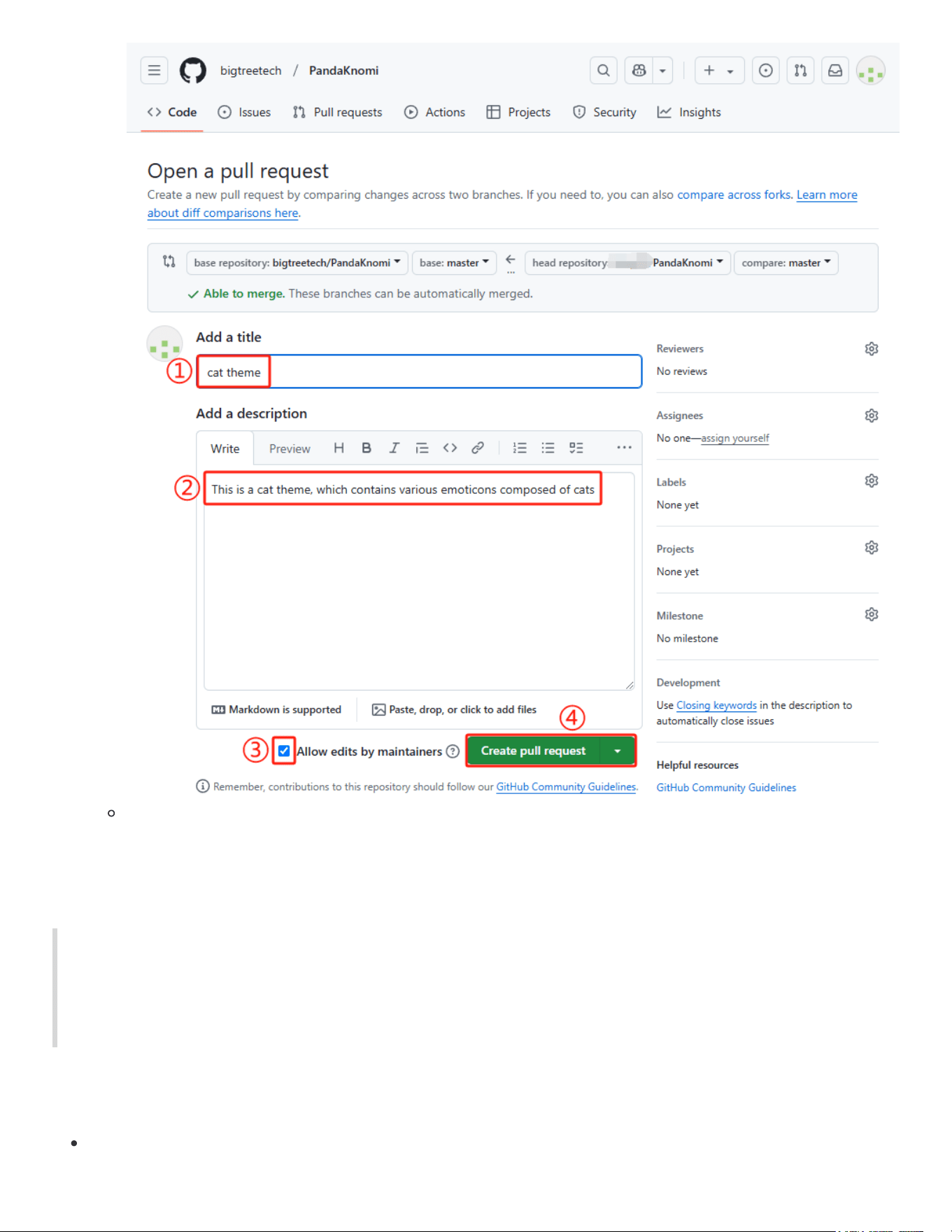
Write a ①
title
, ②
description
, check ③
Allow edits by maintainers
, and ④
Create pull request
Congratulations! You’ve shared your theme.
Factory Reset
Restoring the factory settings of Panda Knomi will erase all configurations, including language, Wi-Fi settings, custom
hostname, custom AP hotspot name and password, bound printers, print progress display selection, and theme color
information. However, custom GIFs cannot be restored to the factory defaults. GIFs can only be modified by uploading
new ones or updating the IMG file. The factory IMG file is available for download and can be updated from GitHub
Via Web UI
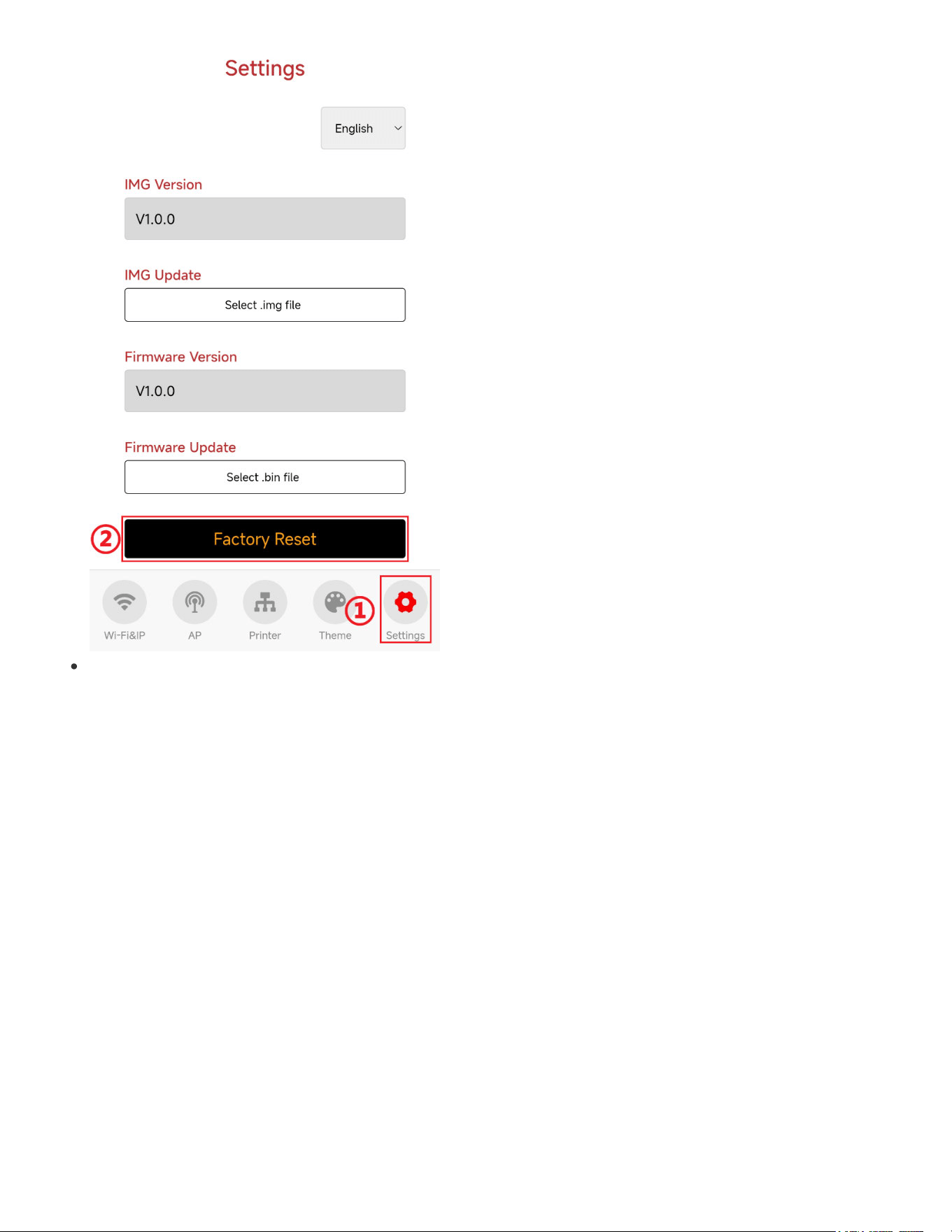
Go to the ①
Settings
interface and tap the ②
Factory Reset
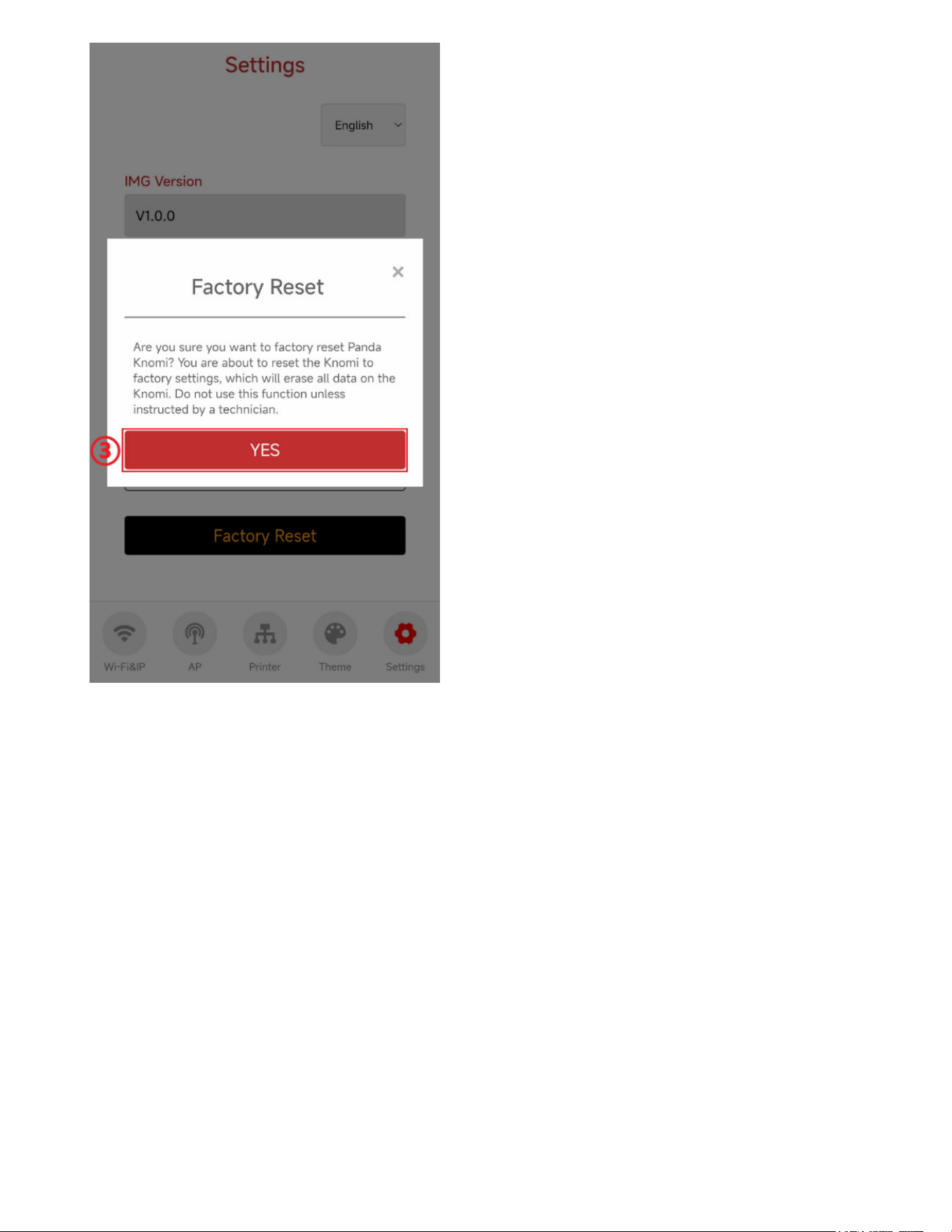
A confirmation popup will appear, Tap ③
YES
to confirm and reset. Panda Knomi will restore the
factory settings and restart.
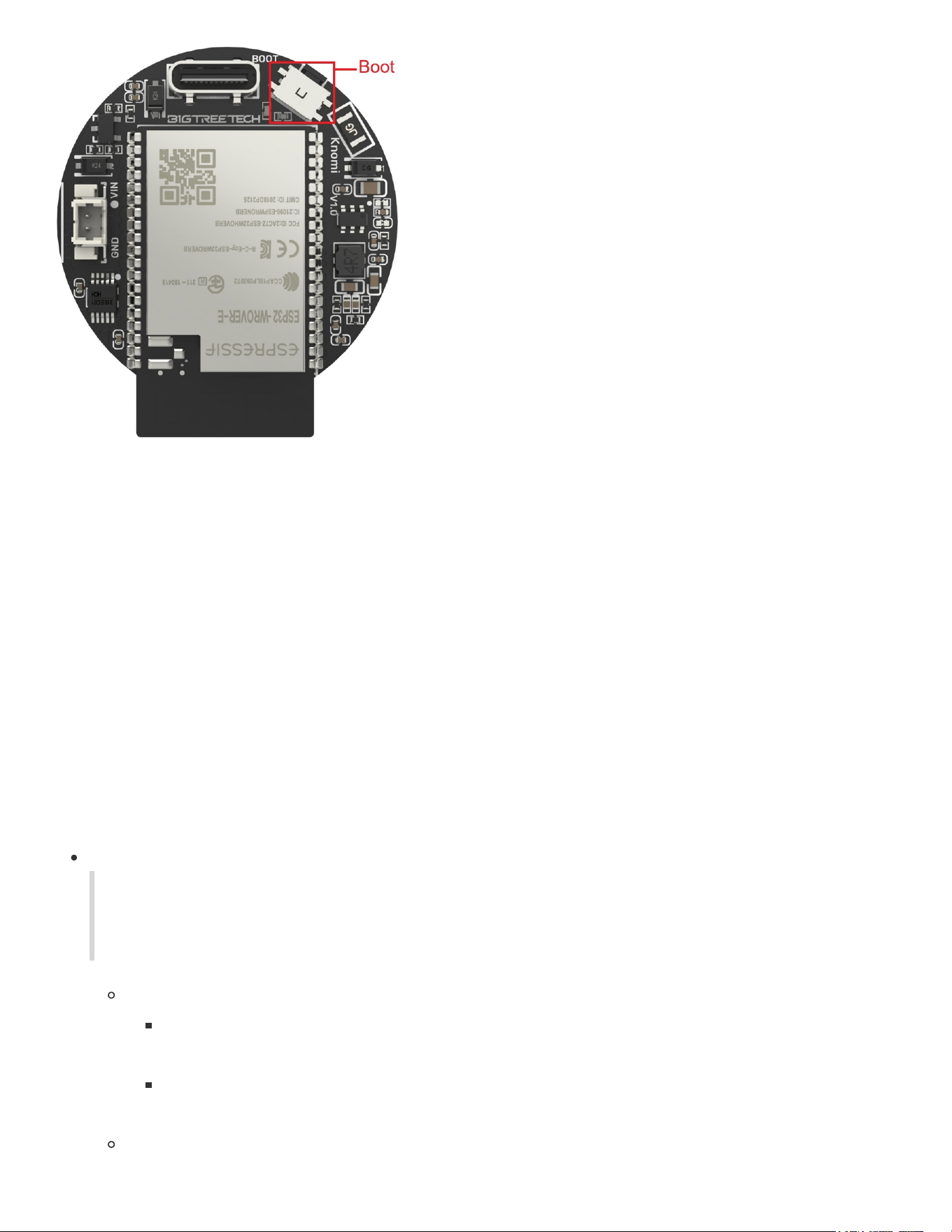
Via Hardware Button
Hold the Boot button on Panda Knomi for 5 seconds to reset the factory settings. The device will
restart automatically.
Firmware
Feature requests
If there is something you would like to see in a future release of the Panda Knomi firmware, please let
us know by logging a feature request on the official Panda Knomi Github repository.
Request a feature
How to update firmware
OTA
Access the Web UI
If Panda Knomi is already connected to Wi-Fi, you can connect the device to the same LAN as the Wi-Fi and
access the Web UI directly via IP to update the firmware. You can also connect the device to the AP hotspot of
Panda Knomi to access the Web UI to update the firmware. You can choose either of these two methods.
Connect your device to the same local network as Panda Knomi
Connect your device to the local area network of the Wi-Fi where Panda Knomi is
located (Wi-Fi or Ethernet is OK)
Enter Panda Knomi’s IP or hostname into your browser. The default hostname is
http://pandaknomi.local.
Connect to Panda Knomi's AP hotspot
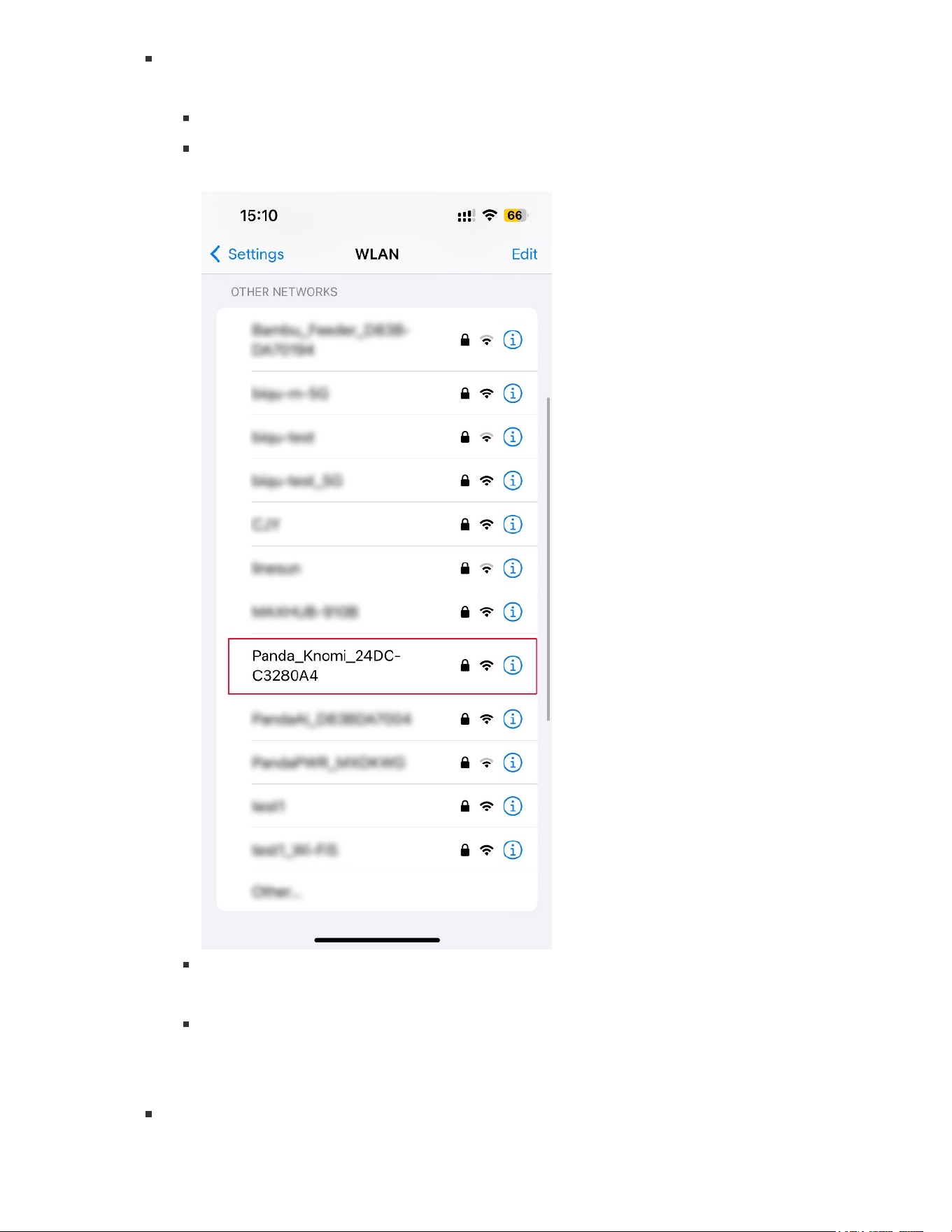
Connect your device to Panda Knomi's AP hotspot
Using an iPhone as an example:
On your phone home screen, go to
Settings
→
WLAN
.
Turn on
WLAN
. Your device will automatically search for available networks.
Tap on the network name starting with
Panda_Knomi_
and enter the default
password:
987654321
.
After successfully connecting to the Panda Knomi network, you will see a blue
checkmark next to the network, and the Wi-Fi icon indicating a connection will
appear in the top-right corner of the screen.
After connecting to the AP, there should be a prompt of
Connected (Login/Authentication required)
, and click it to enter the Web UI
configuration interface. Sometimes due to network reasons, you need to wait for 10~20
seconds. If you still cannot enter the Web UI configuration interface after waiting, you
can manually enter 192.168.254.1 for firmware versions
V1.0.4.1
and later (and use
192.168.4.1 for previous versions) in the browser to access the Web UI configuration
interface.
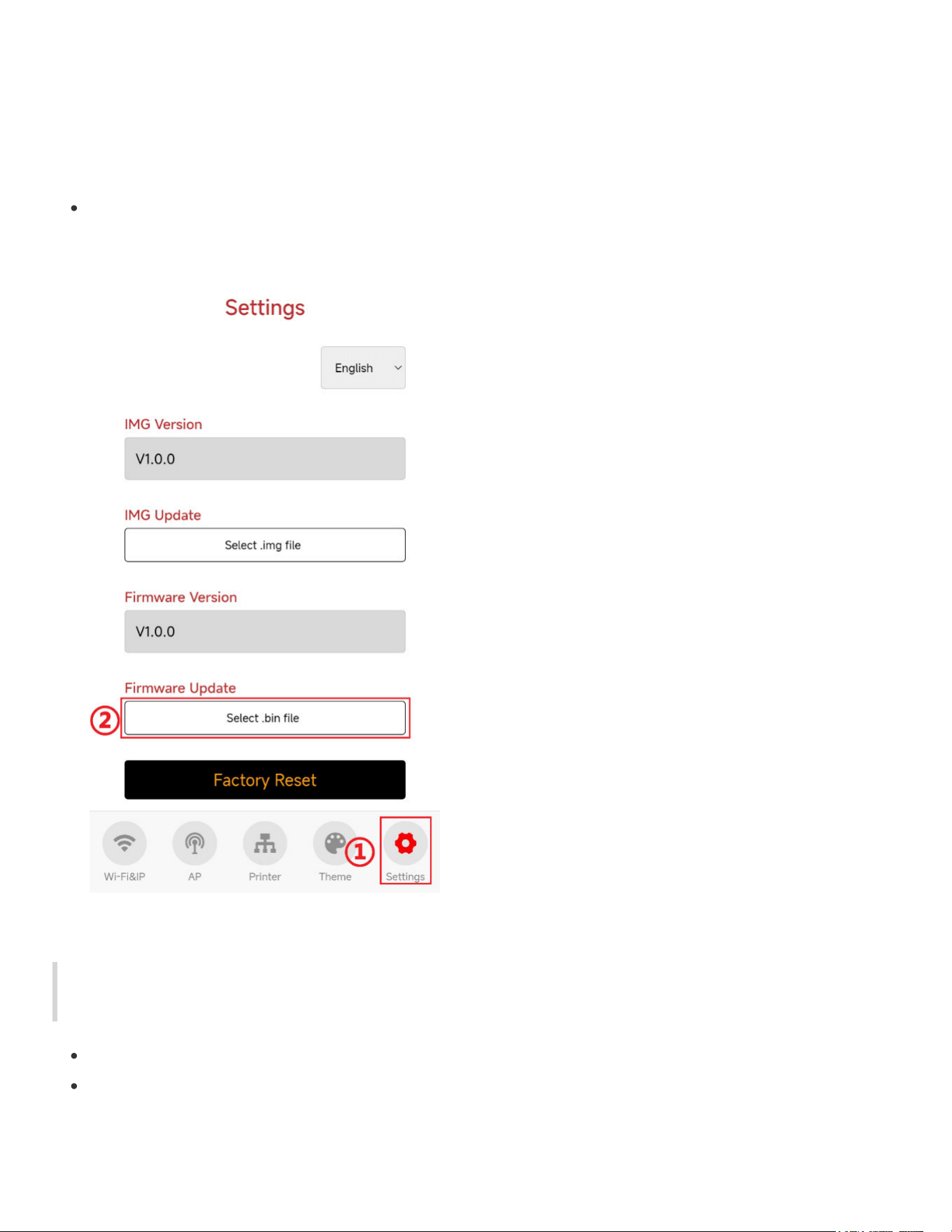
In the configuration interface, go to ①
Settings
, then tap ②
Select .bin file
to choose the
firmware to update. The device will restart automatically after the update.
flash_download_tool (Type-C)
Note: Panda Knomi firmware updates should be available as a free OTA, This step is only necessary when OTA is is not
working on your network as may be the case with some network configurations.
If your computer does not have the CH340 driver, please download and install CH341SER.EXE
Download the Flash Download Tools
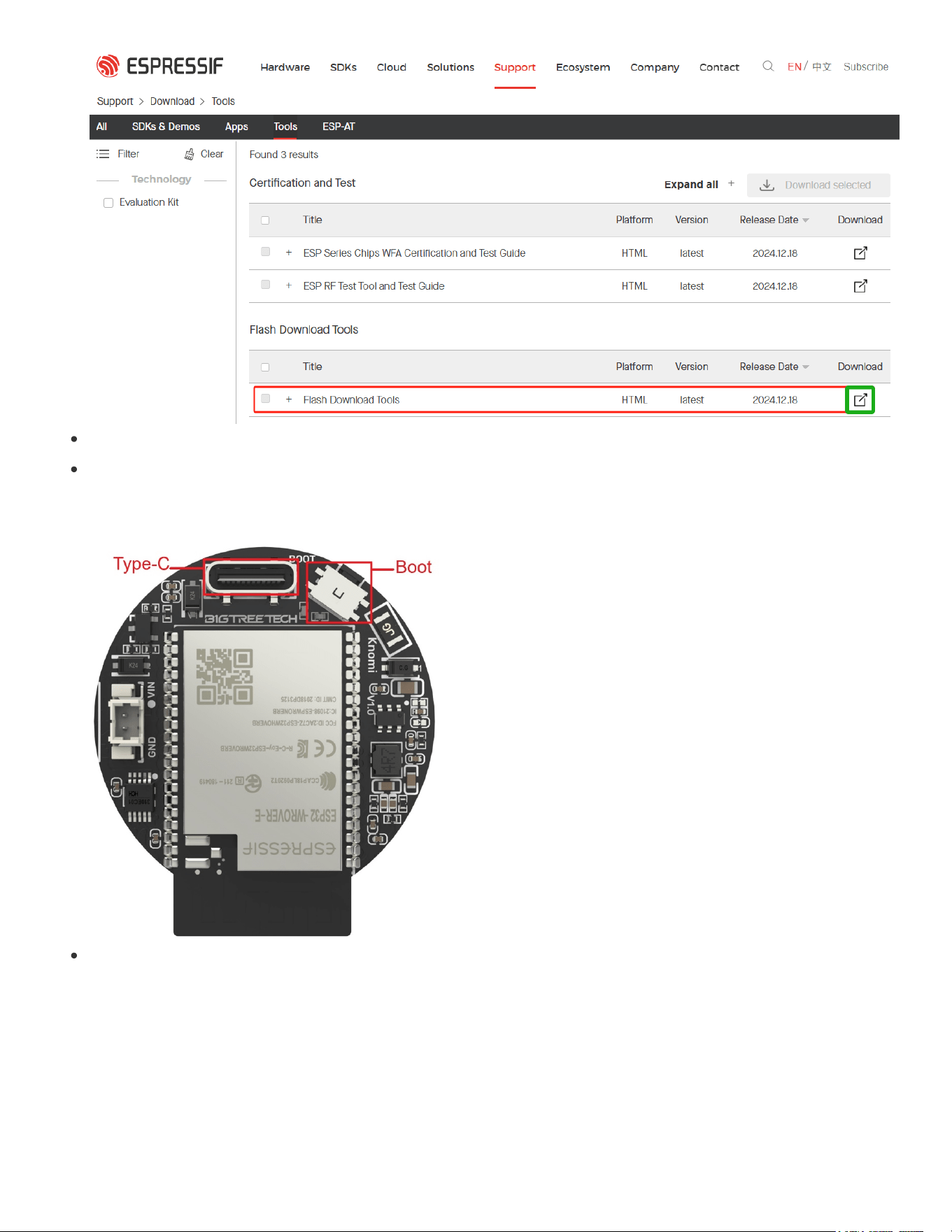
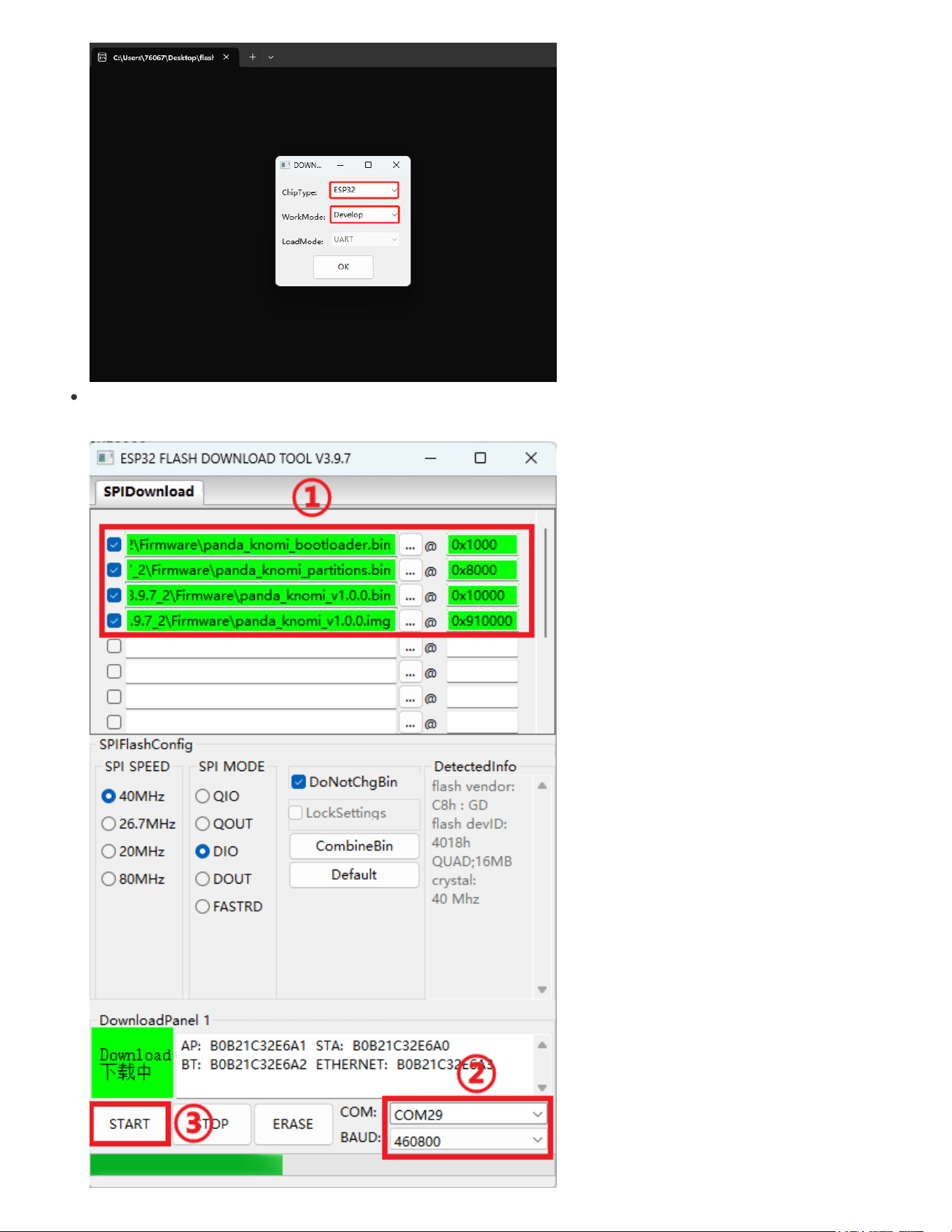
As shown in the figure below, configure the flash download tool:

① Set the.bin file's writing address, ensuring all checkboxes are ticked:
panda_knomi_bootloader.bin
to
0x1000
panda_knomi_partition.bin
to
0x8000
panda_knomi_v1.0.0.bin
to
0x10000
panda_knomi_v1.0.0.img
to
0x910000
② Set the COM port to the Panda Knomi port(We can check it in the computer's
Device Manager
->
Port
), and choose a baud rate (recommended: 460800).
③ Click
START
to begin writing. Once done, power off and restart Panda Knomi.
Firmware History
V1.0.4.1
Optimization: Change the default AP Hotspot IP from
192.168.4.1
to
192.168.254.1
to minimize
the possibility of conflicts with the router IP range as much as possible.
V1.0.4
Fixed: Use MAC address as the
client_id
for MQTT. To avoid the problem of multiple devices
using the same
client_id
being prohibited from connecting by the printer
Fixed: WebUI adds the ability to set AP Hotspot IP. Panda Knomi defaults to using
192.168.4.1
. If
your router also uses this IP range, Panda Knomi will not be able to connect to the printer and
needs to be set to a different IP range from the router, such as
192.168.5.1
. After the setup is
completed, the device needs to be restarted for it to take effect.
Fixed: Panda Knomi keeps displaying homing GIF when power loss recovery.
Fixed: Filter non UTF-8 encoded WiFi SSID(name) because non UTF-8 characters cannot be
transmitted through WebSocket TEXT.
Fixed: Unable to display and connect properly when WiFi SSID(name) starts with a space or has
multiple consecutive spaces.
Optimization: WebUI STA and AP add the function of hiding WiFi passwords.
Optimization: WiFi connection failure, add a 5-second interval when reconnecting in the
background, optimize uninterrupted reconnection to WiFi may cause unstable AP and slow WebUI
response issues.
TODO (known issue): Unable to display and connect WiFi with the
"
character in the
SSID(name), will be resolved in the next version.

V1.0.3.1
Optimization: WebUI custom GIFs with "resolution exceeding 240x240", "single GIF size
exceeding 1.5MB" and "sum of all GIF sizes exceeding 3MB" dialog boxes, with added redirect
links to wiki instructions for users to adjust GIFs to be compatible with PandaKonmi.
V1.0.3
Fixed: Implement dedicated memory management logic for custom GIF, fixed the issue of
insufficient memory caused by memory fragmentation when replacing GIFs.
Fixed: MQTT publish failed retry logic.
Fixed: MQTT receive buffer size has increased from 14KB to 80KB, because X1C connected to 4
AMS may have a single frame data size of up to 26KB, H2D may up to 50KB.
Fixed: Disable netbiosns to avoid the problem of devices failing to start when the hostname
exceeds 15 characters.
Optimization: The background color of the QR code is fixed to black, and optimizing the contrast
is not clear enough, which sometimes causes the phone to fail to scan successfully.
Optimization recolor GIF:
Colors are directly stored in GIFs, so that color schemes can be moved along with GIF/IMG
files, making it convenient for users to share color schemes.
Convert the colored RGB to CMYK and merge it with the original color, preserving the anti-
aliasing effect of GIF.
Delete the configuration of useless alpha transparent channels in WebUI.
Add a GIF loading interface to inform users of the current real-time status of Panda Knomi
Optimization: The 'Invalid IMG' interface only appears when the GIF to be displayed is invalid. The
previous logic was that as long as any GIF was invalid, it would appear when any of the GIFs
needed to be displayed.
Optimization: Add error codes to the message of WebUI wifi connection failure to help us locate
the cause of the problem.
V1.0.2
Fixed: Solve the problem that the TCP connection is occupied and the Web UI cannot be
accessed. Now the old connection will be forcibly disconnected and the latest Web UI request will
be answered.
Fixed: MQTT memory leak. Fixed the issue where Panda Knomi may remain in the state of
binding printer
after disconnecting and rebinding the printer more than 100 times.
Fixed: After unbinding a printer in Web UI, if you immediately click
Bind
the printer, Panda Knomi
may not bind the printer.

Fix: After printing is completed,
gif_printing_ok.gif
is occasionally not displayed.
Optimization: Add the total size limit of GIF, Web UI (pop-up window) + background (refuse to
allocate memory) are limited to no more than 3MB, to avoid GIF running out of RAM and causing
system abnormalities.
Optimization: Web UI adds display of GIF storage usage information.
Optimization: Web UI add the display of the size and resolution of each GIF file.
[V1.0.1]
Fixed: When accessing the Web UI, the pop-up window that appears immediately is always in
English.
Fixed: Screen saver function causes the
WiFi scan completed
and
Printer scan completed
interfaces not to be displayed.
Fixed: Unable to connect to WiFi hotspots with encryption method
WPA-PSK
.
Fixed: The WiFi password error was reported incorrectly. A 3-time retry mechanism was added.
An exception will be thrown only after the password error is reported 3 times, and the background
will still try to reconnect.
Optimization: It takes about 25 seconds for the A1 mini printer to complete the deployment of
MQTT after it is powered on. Panda Knomi will try to reconnect within 30 seconds after the
connection is started, and will throw an
Invalid IP
exception after 30 seconds, to avoid the
situation where Panda Knomi reports an error when MQTT deployment is not completed when the
printer is just turned on。
Optimization: When an
Invalid IP
exception occurs, Panda Knomi background automatically
listens to UDP and rescans the printer. If a printer with the same SN code is scanned, the new IP
will be re-applied to establish a connection.
[V1.0.0]
First released factory firmware.
Technical Support
Did this page help you? If you have any further questions about product usage or encounter other
issues, please feel free to contact our after-sales email at
.

FCC Statement
Changes or modifications not expressly approved by the party responsible for compliance could
void the user's authority to operate the equipment.
This equipment has been tested and found to comply with the limits for a Class B digital device,
pursuant to Part 15 of the FCC Rules. These limits are designed to provide reasonable
protection against harmful interference in a residential installation. This equipment generates
uses and can radiate radio frequency energy and, if not installed and used in accordance with
the instructions, may cause harmful interference to radio communications. However, there is no
guarantee that interference will not occur in a particular installation. If this equipment does
cause harmful interference to radio or television reception, which can be determined by turning
the equipment off and on, the user is encouraged to try to correct the interference by one or
more of the following measures:
-- Reorient or relocate the receiving antenna.
-- Increase the separation between the equipment and receiver.
-- Connect the equipment into an outlet on a circuit different from that to which the receiver is
connected.
-- Consult the dealer or an experienced radio/TV technician for help
This device complies with part 15 of the FCC rules. Operation is subject to the following two
conditions (1)this device may not cause harmful interference, and (2) this device must accept
any interference received, including interference that may cause undesired operation.
This equipment complies with FCC radiation exposure limits set forth for an uncontrolled
environment. This equipment should be installed and operated with minimum distance 20cm
between the radiator & your body.