User Manual
If the product is upgraded in the following please
refer to the actual product in hand.
Smart Pet Feeder
AL04-W
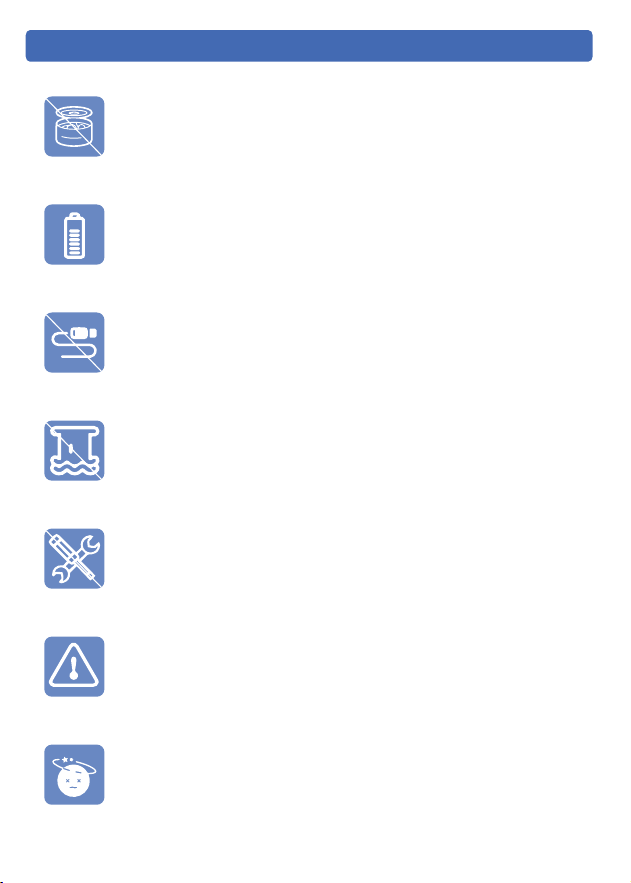
1MFBTFEPOPUVTFXFUDBOOFEPSNPJTUGPPE
5IJTQSPEVDUVTFT%$FMM#BUUFSJFTBTBCBDLVQQPXFSTVQQMZ
1MFBTFVTFEPVCMFQPXFSTVQQMZUPFOTVSFUIFOPSNBMVTFPG
UIFQSPEVDU
&YBNJOFUIFGFFEFSBGUFSJOTUBMMBUJPO%POPUQMVHJOJGUIFSFJT
XBUFSPOUIFQPXFSDBCMFPSQMVH
%POPUJNNFSTFUIFCBTFQBSUJOXBUFSBUBOZUJNFBTJUNBZ
EBNBHFFMFDUSPOJDDPNQPOFOUT
%POPUEJTBTTFNCMFUIFGFFEFSPUIFSUIBOBTJOTUSVDUFEJOUIJT
VTFSNBOVBM
0OMZVTFBDDFTTPSJFTSFDPNNFOEFEPSTPMECZUIFNBOVGBDUVSFS
5IFVTFPGBDDFTTPSJFTOPUSFDPNNFOEFEPSTPMECZUIF
NBOVGBDUVSFSNBZDBVTFBOVOTBGFDPOEJUJPO
%JTQPTFPGBMMQBDLBHJOHNBUFSJBMTQSPQFSMZ4PNFJUFNTNBZ
CFQBDLFEJOQMBTUJDCBHTUIFTFCBHTDPVMEDBVTFTVPDBUJPO
4BGFUZ*OTUSVDUJPOT
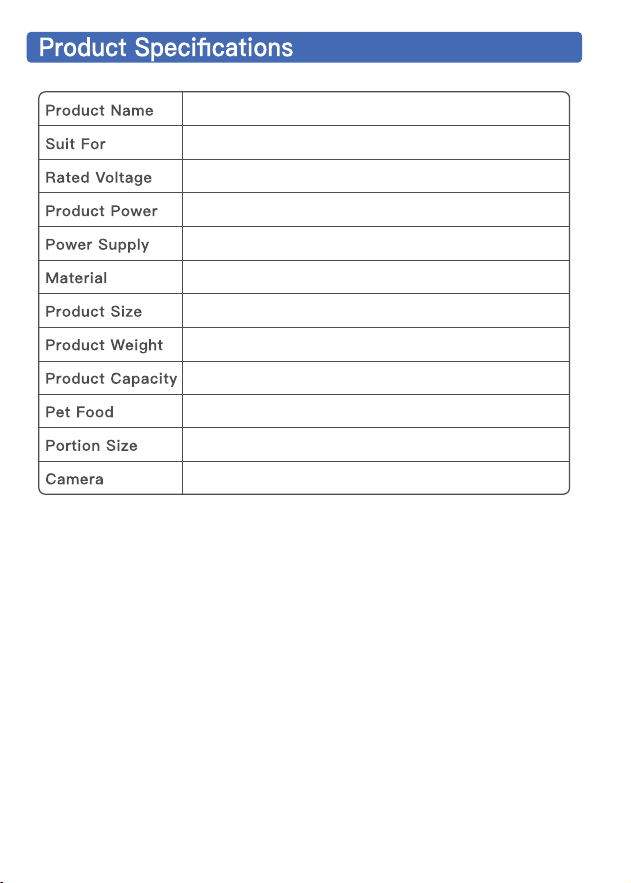
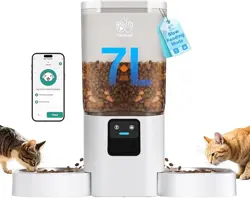
C at, Dog, R abbit, Small Pets,Multiple Pets
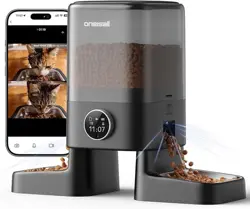
Smart Pet Feeder with Camera (2.4G/5G WiFi)
5V 1A
5W
Power Adapter and 3× D Cell Batteries
Eco-Friendly AB S
172*302*357mm(6.7*11.8*14in)
1.21kg/2.68lb
5L
D ry Food
4-7g(0.008-0.015lb)
1080P HD Night Vision Camera
- 02 -
- 03 -
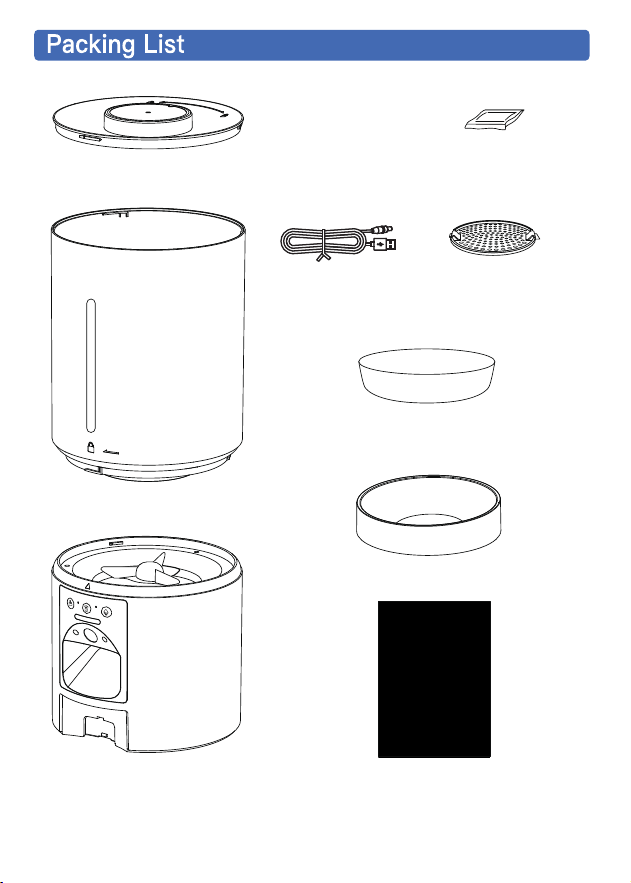
USB Cable*1
Stainless Steel
Feeding Bowl*1
Desiccant*1
Desiccant
Compartment*1
Lid*1
Food Tank*1
Feeder Base*1
Bowl Tray*1
User Manual*1
- 04 -
1
2
3
4
8
9
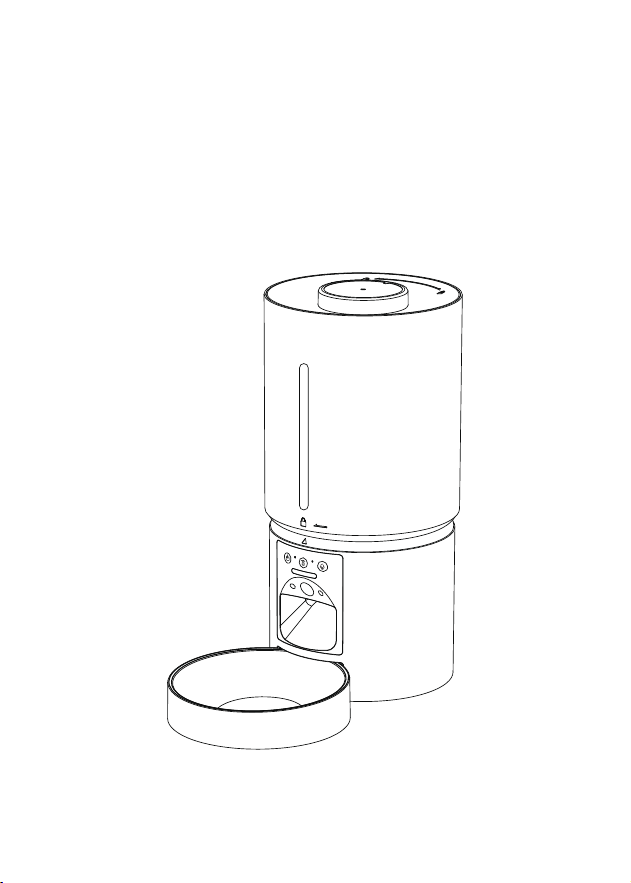
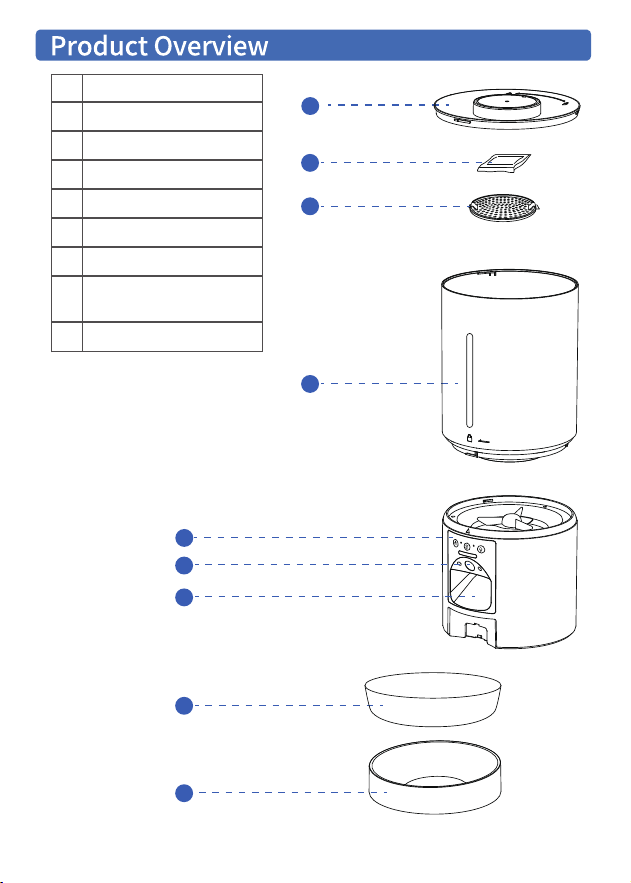
Lid
Desiccant
Desiccant Compartment
Food Tank
Control Panel
Camera
Food Outlet
Stainless Steel
Feeding Bowl
Bowl Tray
1
2
3
4
5
6
7
9
8
5
6
7
- 05 -
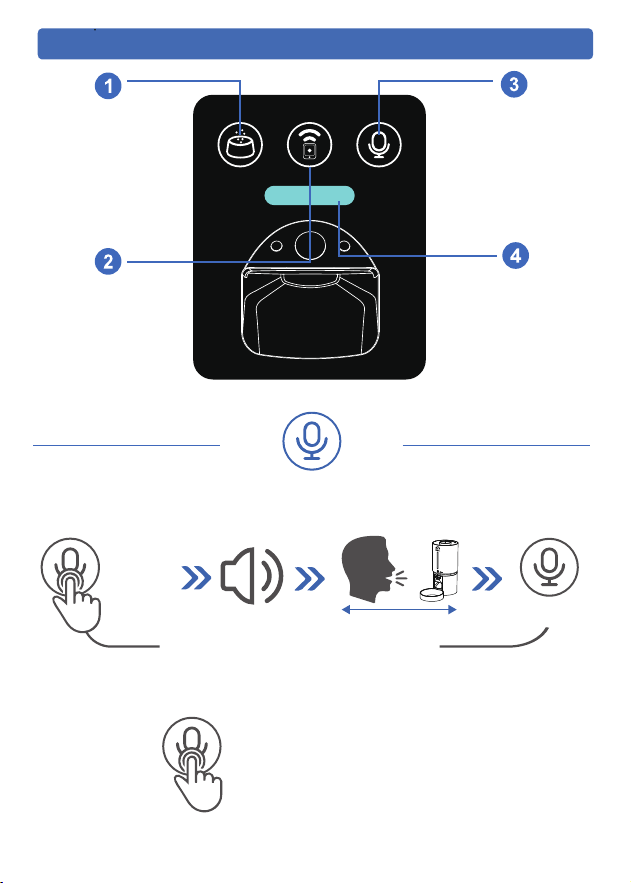
Buttons Explained
R eco rding
Bu tton
Manual Feeding
WiFi R eset
Bu tton
Indicator Light
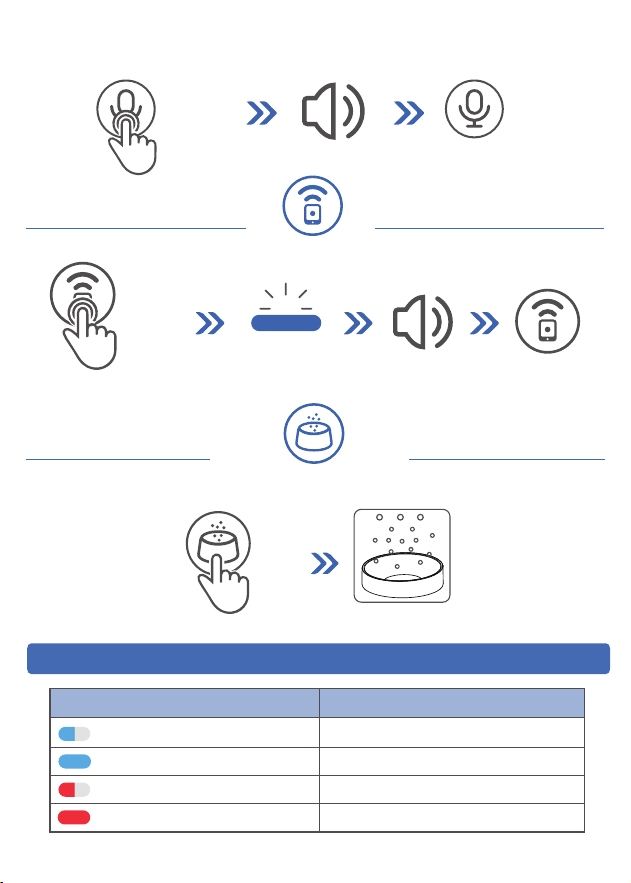
Recording Button
2.Check the recording s
1.Record Sound
Press and
hold
Hear two beep ~~~
Close to the feeder
Release the button
Within 10s
Keep the button pressed at all times
Press to play the recorded sound
- 06-
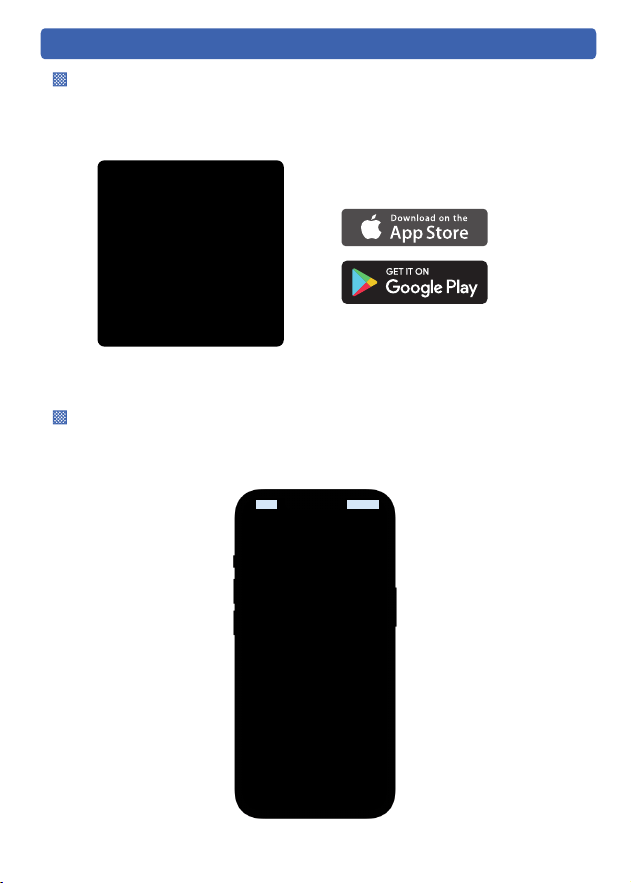
One Portion
Manual Feeding
P ress
Indicator Light Description
Blue Light Flashing
Blue Light Always On
Red Light Always On
Waiting for WiFi Connection
WiFi Connected
Enough Battery (Battery Powered Only)
Red Light Flashing Low Battery (Battery Powered Only)
StatusColor of Light
3.Clear Recording
Release the button
immediately
Press and
hold
4S
Hear two beep ~~~
Press and
hold
4S
Release the
button
WiFi Reset
Wait for the indicator
light to turn blue and
blink.
Hear the prompt tone
- 7 -
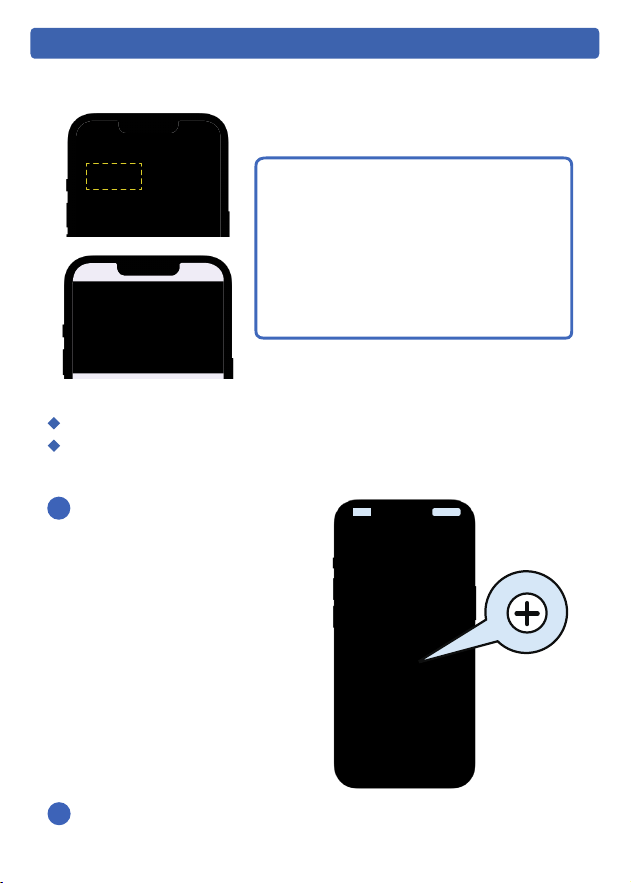
iCam 365
Install the APP and Log In
After opening the app , if you don't have an account, please register one.
If you ha ve alread y, please log in directly.
Scan the QR code or search in your device's app store to download and
install the iCam 365 app.
Sign up and log in
App In stallation
- 8 -
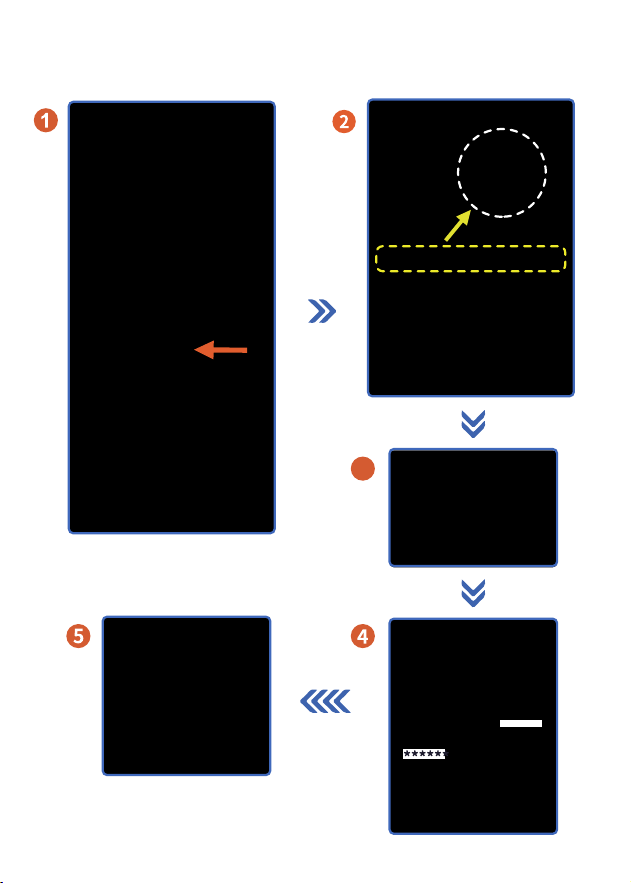
Add Feeder to APP
Step 1:Turn on phone permissions.
▲N ote:
1. Before adding the device to the APP,
please make sure the indicator light on
the feeder is blinking blue, as well as the
Bluetooth , WLAN , and GPS in your phone
are on.
2. The connection can only be established
when plugged in and not powered by
battery.
!
1 Please open the “iCam365”
APP →Click the [+] in the middle
to add a device.
Step 2:The feeder is ready to connect to the network
Turn on the power to the feeder.
Make sure the indicator light on the feeder is ashing blue.
2
Please follow the app prompts to operate.
- 9 -
3
QR Code Connection
Switch network
- 10 -
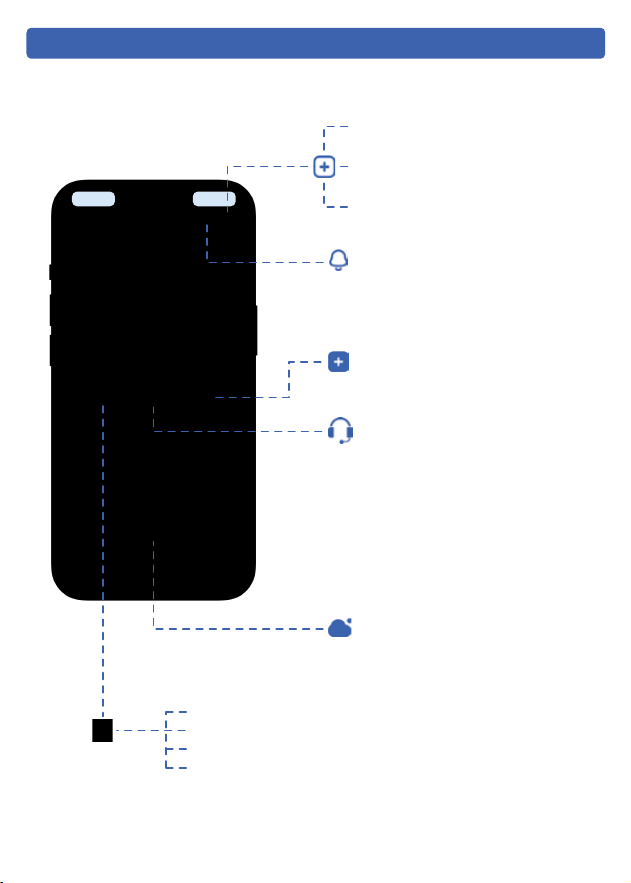
About the Came ra
Alarm Message:
Detects an object moving in
front of the camera
Add a Device
List Mode
Quartered Screen
Features Functions
More Settings
Cloud Storage
(Requires additional subscriptio)
Help & Feedback:
Any questions about the use ofthe
product, you can contact our brand
after-sales sta. We will solve your
problem until it is resolved.
Shared control
Night vision mode
Detection settings
Indicator light switch
Settings:
- 11 -
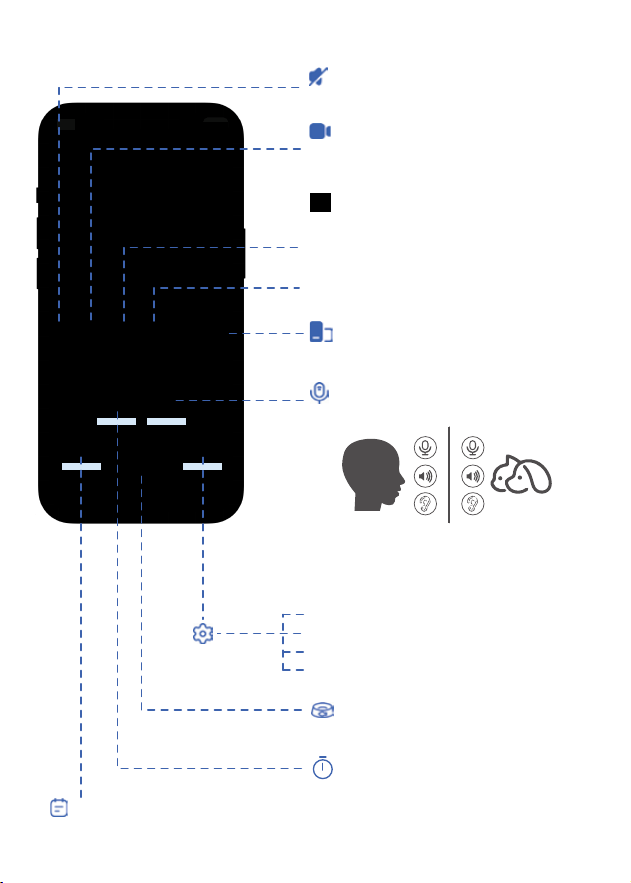
Feeder Functions
Feeding Schedule
Settings
Microphone
Feeding Record
Click the button to talk,and when it's
time to end the call, click the button aga
in.
Mute:
Turn o the sound in the video.
Video:
Click to record video, and click again
to end video recording.
Screenshot:
Take a screenshot of the screen and the
screenshot will be saved in an Gallery.
Landscape Mode:
Rotate the screen.
FHD/HD
Image Quality:
Microphone:
Two-Way Talk.
Feeding Records:
Feeding history can be viewed.
Feeding Schedule:
Daily feeding schedule can be set up for
up to 10 meals.
(When setting, be sure to select the date)
Manual Feeding:
Up to 15 portion per click.
Shared control
Night vision mode
Detection settings
Indicator light switch
Settings:

This device complies with part 15 of the FCC Rules. Operation is subject to the
following two conditions: (1) This device may not cause harmful interference, and (2)
this device must accept any interference received, including interference that may cause
undesired operation.
Any Changes or modifications not expressly approved by the party responsible for
compliance could void the user's authority to operate the equipment.
Note: This equipment has been tested and found to comply with the limits for a Class B
digital device, pursuant to part 15 of the FCC Rules. These limits are designed to
provide reasonable protection against harmful interference in a residential installation.
This equipment generates uses and can radiate radio frequency energy and, if not
installed and used in accordance with the instructions, may cause harmful interference
to radio communications. However, there is no guarantee that interference will not
occur in a particular installation. If this equipment does cause harmful interference to
radio or television reception, which can be determined by turning the equipment off and
on, the user is encouraged to try to correct the interference by one or more of the
following measures:
-Reorient or relocate the receiving antenna.
-Increase the separation between the equipment and receiver.
-Connect the equipment into an outlet on a circuit different from that to which the
receiver is connected.
-Consult the dealer or an experienced radio/TV technician for help.
-This equipment complies with FCC radiation exposure limits set forth for an
uncontrolled environment. This equipment should be installed and operated with
minimum distance 20cm between the radiator & your body.