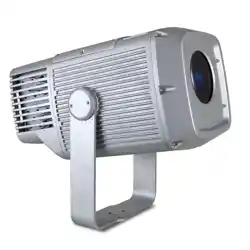
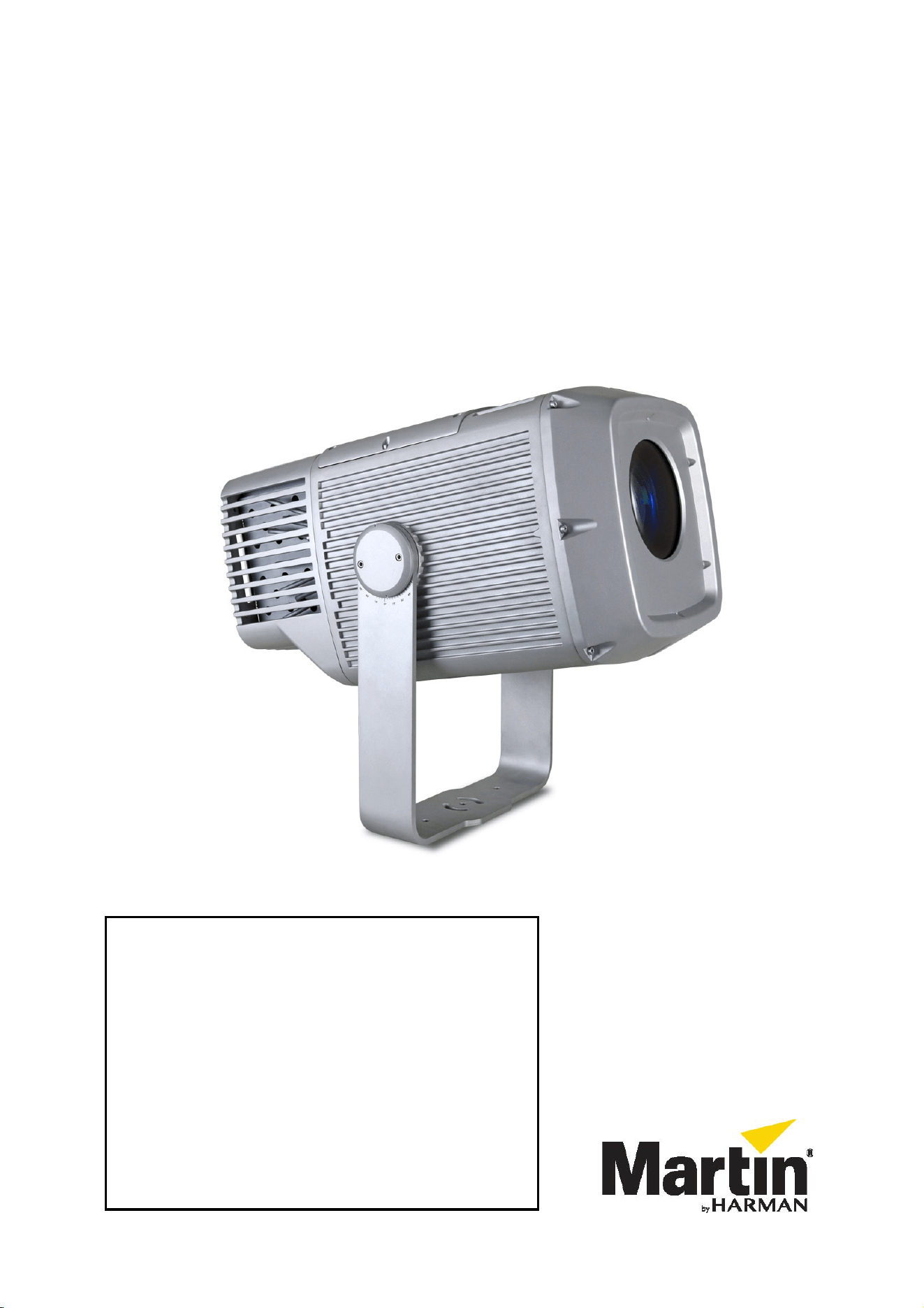
Exterior Projection 1000
User Manual
IMPORTANT! REMOVE TRANSPORT PROTECTION
BEFORE USE!
New Exterior Projection 1000 fixtures are supplied with
two cable ties fastened around internal moving parts
to protect components from damage during transport.
Before using the fixture, you must open the top cover
and remove the cable ties. See page 8.
If an Exterior Projection 1000 fixture has been used
and then correctly prepared for transport, a temporary
protection spring accessory should have been
installed around internal moving parts. Before using
the fixture, you must open the top cover and remove
the spring. See page 10.
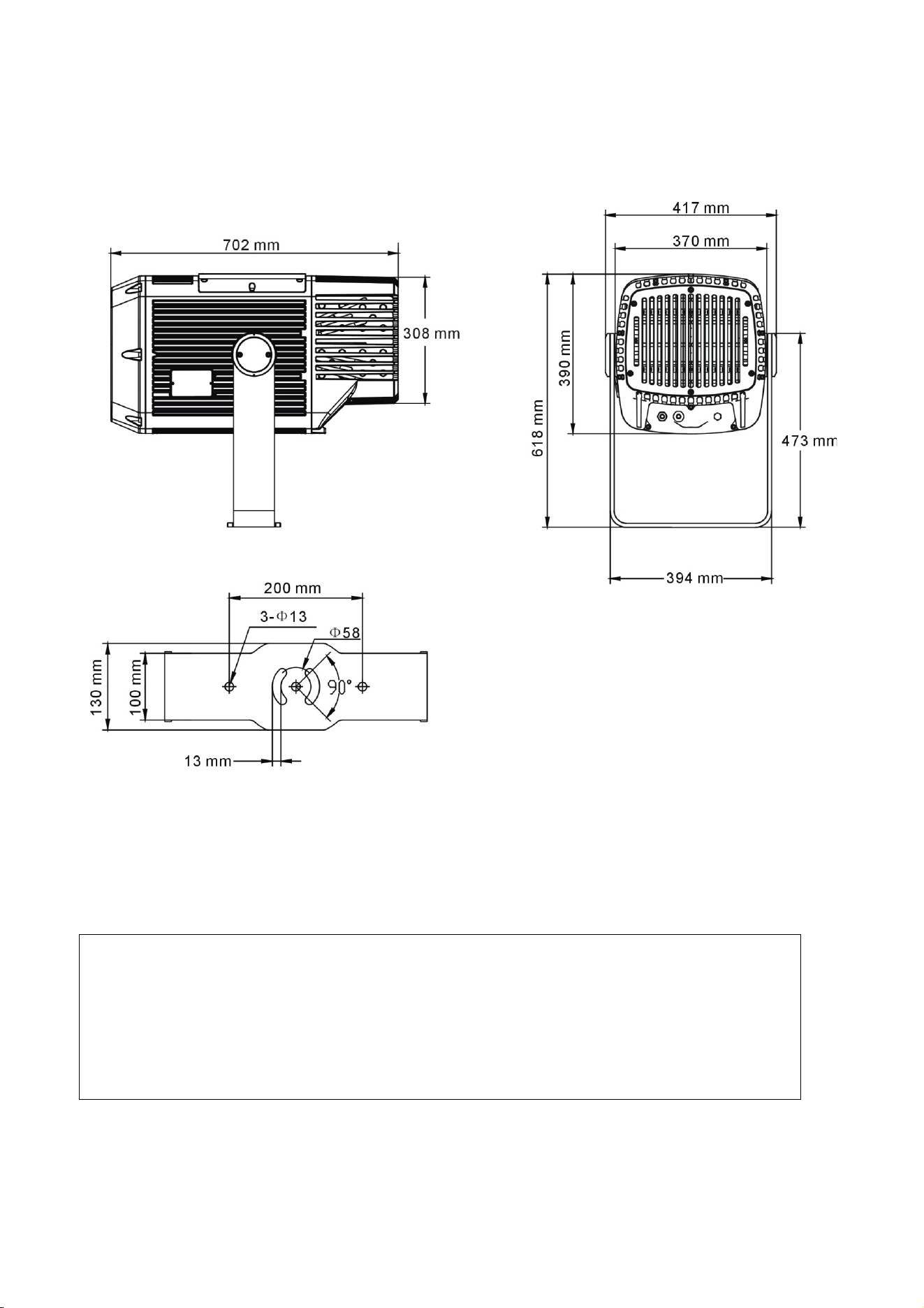
Dimensions
All dimensions are in millimeters
©2013-2020 HARMAN International Industries, Inc. Information subject to change without notice. HARMAN International
Industries, Inc. and all affiliated companies disclaim liability for any injury, damage, direct or indirect loss, consequential or
economic loss or any other loss occasioned by the use of, inability to use or reliance on the information contained in this
document.
Martin, HARMAN and all other trademarks in this document pertaining to services or products by HARMAN International
Industries, Inc. or its affiliates and subsidiaries are registered as the property of HARMAN International Industries, Inc.
HARMAN Professional Solutions • 8500 Balboa Blvd. • Northridge • CA 91329 • USA
Exterior Projection 1000 User Manual P/N 5088624-00 Revision H

Table of contents
Dimensions ........................................................................................................... 2
Safety information ................................................................................................. 5
Introduction ........................................................................................................... 8
Before using for the first time ................................................................................ 8
Transporting the fixture ....................................................................................... 10
Fixture overview ................................................................................................. 11
Physical installation ............................................................................................ 12
Protection from the sun ............................................................................ 12
Cooling ..................................................................................................... 12
Protection from moisture .......................................................................... 12
Avoiding galvanic corrosion ..................................................................... 12
Mounting the fixture .................................................................................. 12
Installing on a rigging truss ...................................................................... 13
Anchoring to a surface or structure .......................................................... 13
Safety cable attachment ........................................................................... 14
Adjusting aiming (pan and tilt) .................................................................. 14
AC power ............................................................................................................ 16
Protecting connections from moisture ...................................................... 16
Connecting to AC mains power ................................................................ 16
Control data link .................................................................................................. 18
Connecting the data link ........................................................................... 18
Fixture setup ....................................................................................................... 20
Using the control menus........................................................................... 20
Setting a DMX address ............................................................................ 20
Programming a standalone show ............................................................. 21
Manual control mode ................................................................................ 21
Display settings and user password ......................................................... 22
Fixture status ............................................................................................ 23
Fixture configuration (including host/client operation) .............................. 23
Setting effect offsets ................................................................................. 25
Setup via RDM ......................................................................................... 25
Effects ................................................................................................................. 26
Strobe / shutter ......................................................................................... 26
Electronic dimming ................................................................................... 26
CMY color mixing ..................................................................................... 26
Color wheel .............................................................................................. 26
Gobos ....................................................................................................... 27
Animation effect ........................................................................................ 29
Prism ........................................................................................................ 31
Frost ......................................................................................................... 31
Focus ........................................................................................................ 31
Zoom ........................................................................................................ 31
Operation ............................................................................................................ 32
Thermal conditions ................................................................................... 32
Projection data ......................................................................................... 32

Service and maintenance ................................................................................... 34
Firmware .................................................................................................. 34
Cleaning ................................................................................................... 34
Managing humidity ................................................................................... 35
General ..................................................................................................... 35
Seals and sealing surfaces ...................................................................... 35
Pressure relief valves ............................................................................... 35
Removing and reinstalling the top cover .................................................. 36
Replacing a rotating gobo ........................................................................ 38
Installing a glare shield accessory ........................................................... 42
Remote Device Management (RDM) ................................................................. 43
DMX protocol ...................................................................................................... 45
Control menus .................................................................................................... 48
Warnings and error messages ........................................................................... 50
Troubleshooting .................................................................................................. 51
Specifications...................................................................................................... 52
Exterior Projection 1000 User Manual 5
Safety information
WARNING!
Read the safety precautions in this manual before installing, operating or
servicing this product.
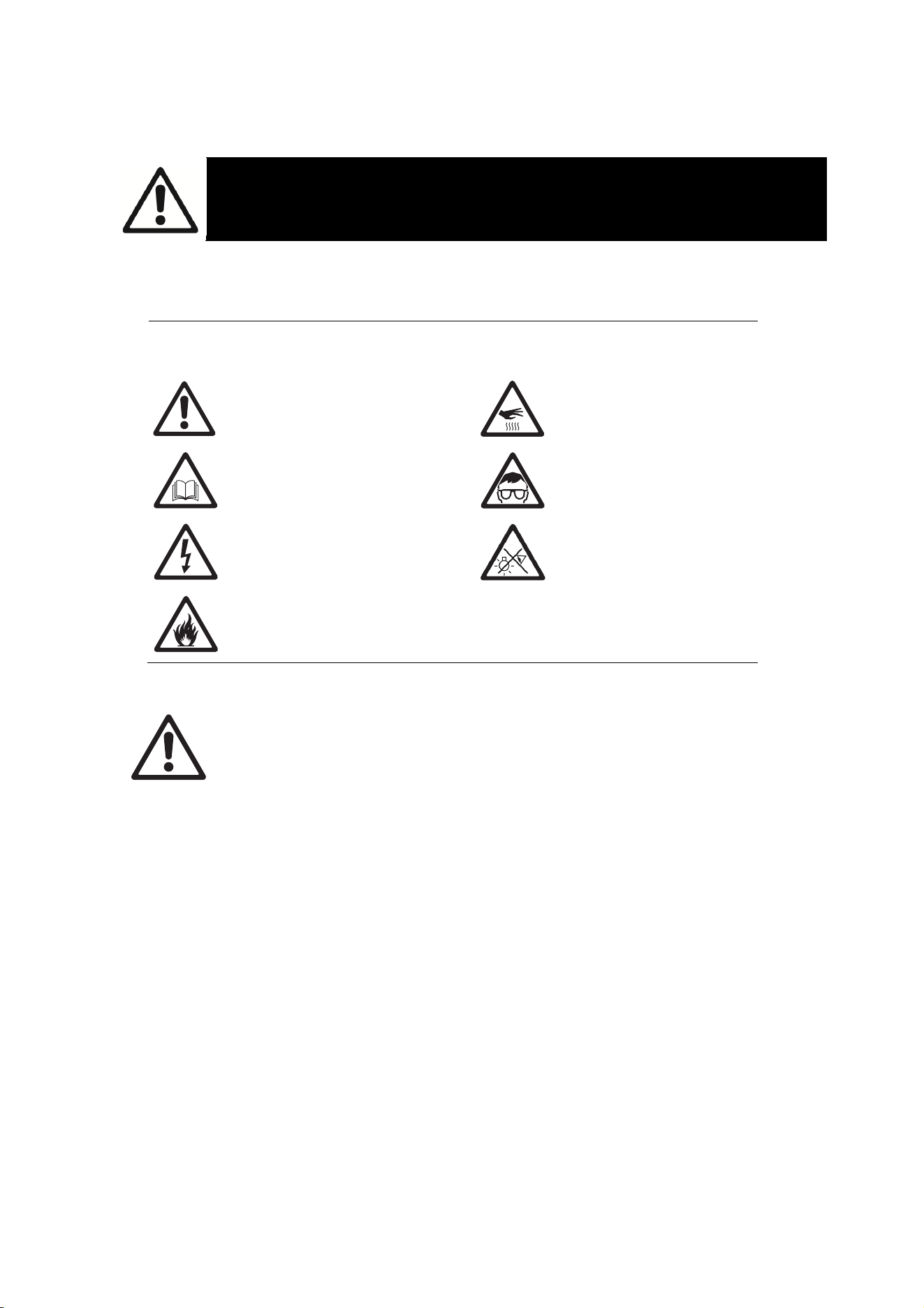
The following symbols are used to identify important safety information on the product and in this
manual:
The following symbols are used to identify important safety information on the product
and in this manual:
Warning! Safety hazard.
Risk of severe injury or
death.
Warning! Hot surface. Risk
of burns.
Warning! See user manual
for important safety
information.
Warning! Risk of eye
injury. Wear protective
eyewear.
Warning! Hazardous
voltage. Risk of lethal or
severe electric shock.
Warning! Do not look into
light output.
Warning! Fire hazard.
Warning! Risk Group 2 product according to EN 62471. Do not look directly into the
beam. Do not view the light output with optical instruments or any device that may
concentrate the beam.
This lighting fixture is for professional use only and must be installed by a qualified
technician. It is not for household use. It presents risks of severe injury or death due to
fire hazards, electric shock and falls. It produces a powerful, concentrated beam of light
that can create a fire hazard or a risk of eye injury if the safety precautions below are not
followed.
Respect all locally applicable laws, codes and regulations when installing, operating or
servicing the fixture.
The latest software, manuals and other documentation for all Martin products are
available for download at www.martin.com
The light source contained in the fixture may be replaced by Martin or an authorized
Martin service agent only.
A terminal block for connection to AC mains power is not included and must be supplied
by the installer.
Technical Support
If you have any questions about how to install, operate or service the fixture safely,
please contact your Martin® distributor. For technical support in North America, please
contact Harman Professional Technical Support by e-mail:
HProT[email protected] or by phone: (844) 776-4899. For technical
support outside North America, please contact
y
our national distributor.
6 Exterior Projection 1000 User Manual
User documentation
Install, operate and service Martin products only as directed in their user manuals or you
may create a safety hazard or cause damage that is not covered by product warranties.
Keep this user manual for future use. Before installing, using or servicing this fixture,
check that you have the latest version of the user manual, available on the fixture’s Tech
Docs/Support page on the Martin website at http://www.martin.com. Martin user manual
versions are identified by the Revision letter given at the bottom of page 2.
Refer any operation not described in this user manual to Martin Global Service or an
authorized Martin service agent.
Follow the safety precautions listed below and observe all warnings in this manual and
printed on the fixture. Keep this user manual for future use.
Protection from electric shock
This fixture is IP66 rated. It is suitable for use in wet locations, but do not immerse it in
water or install it in a location where it may become submerged.
The fixture is a Class I product according to IEC 61140. Ensure that the fixture is
electrically connected to ground (earth).
Disconnect the fixture from AC power when the fixture is not in use.
Use only a source of AC power that complies with local building and electrical codes and
has both overload and ground-fault (earth-fault) protection.
The circuit used to supply the fixture with AC power must include a power switch that is
easily accessible so that the fixture can easily be disconnected from power.
Shut down power to the entire installation at the main power distribution board and lock
out power before carrying out any installation or maintenance work.
Isolate the fixture from power immediately if any seal, cover, cable, connector or other
component is damaged, defective, deformed, wet or showing signs of overheating.
Contact Martin for any service operation not described in this user manual. Do not
reapply power until repairs have been completed
Before using the fixture, check that all power distribution equipment and cables are in
perfect condition and rated for the electrical requirements of all connected devices.
If the external flexible cable or cord of this luminaire is damaged, it shall be exclusively
replaced by the manufacturer or his service agent or a similar qualified person in order to
avoid a hazard.
Protection from burns and fire
Do not operate the fixture if the ambient temperature (T
a) exceeds 45° C (113° F).
The surface of the fixture casing can reach up to 85° C (185° F) during operation. Avoid
contact by persons and materials. Allow the fixture to cool for at least 10 minutes before
handling.
Keep flammable materials well away from the fixture. Keep combustible materials (e.g.
fabric, wood, paper) at least 0.1 m (4 ins.) away from the fixture housing.
Ensure that there is free and unobstructed airflow around the fixture.
Do not illuminate surfaces within 1.5 m (4.9 ft.) of the front glass.
Do not stick filters, masks or other materials onto any optical component.
The fixture’s optical components can focus the sun’s rays, creating a risk of fire and
damage. Do not expose the front of the fixture to sunlight or any other intense light
source.
Exterior Projection 1000 User Manual 7
Protection from eye injury
Do not stare directly into the light output. Ensure that persons are not looking directly into
the lamp when the fixture lights up suddenly. This can happen when power is applied,
when the fixture receives a DMX signal, or when certain control menu items are
selected.
Do not look at the light output with magnifiers, telescopes, binoculars or similar optical
instruments that may concentrate the light output.
Wear protective glasses and other PPE (personal protective equipment) when working
on or near the fixture.
The risk group distances given below apply to the light output from one fixture only. If
fixtures can be operated in combination, light intensity can increase and you should
consult a lighting professional for safety recommendations.
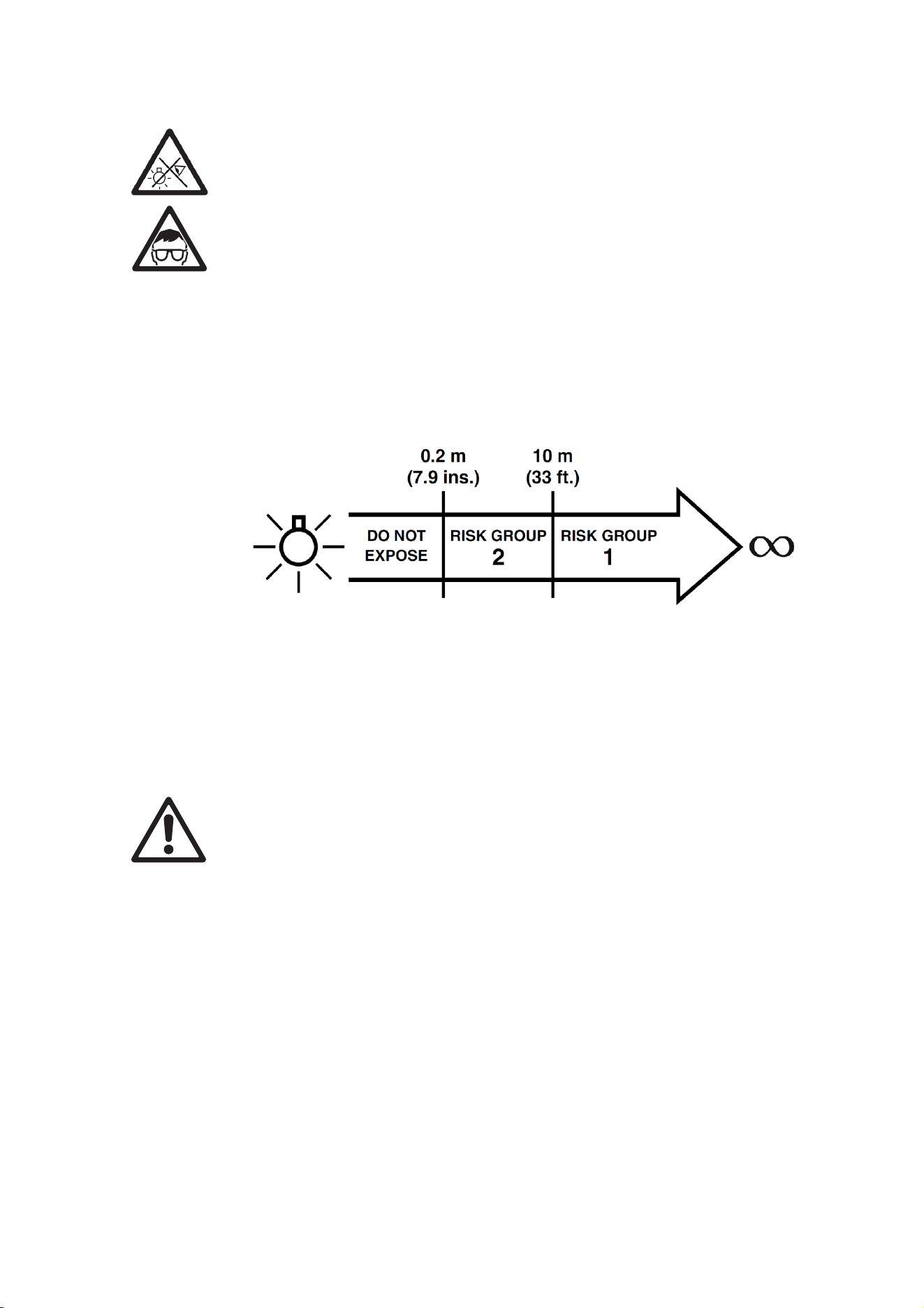
The Exterior Projection 1000 is classified into the following risk groups according to EN
62471 at the distances indicated:
At a distance of less than 0.2 m (7.9 ins.) from the fixture, the light output can potentially
cause eye or skin injury before an exposed person’s natural aversion responses (blink
reflex and reaction to skin discomfort) can protect them. At distances greater than 0.2m
(7.9 ins.), potential eye and skin injury hazards from the light output are normally
prevented by natural aversion reflexes.
Position the Exterior Projection 1000 so that persons cannot be exposed to the fixture’s
light output at less than 0.2m (7.9 ins.) from the fixture and so that prolonged staring into
the li
g
ht output at less than 10 m
(
33 ft.
)
from the fixture is not expected.
Protection from injury
Fasten the fixture securely to a fixed surface or structure when in use. The fixture is not
portable when installed.
Ensure that any supporting structure and/or hardware used can hold at least 10 times
the weight of all the devices they support.
If suspending the fixture from a rigging truss, support it with two rigging clamps and
secure it with an additional attachment such as a safety cable that will catch it if a rigging
clamp fails. Check that the truss and all installation hardware are approved for the weight
that they will support.
Check that all external covers and installation hardware are securely fastened.
Do not operate the fixture with missing or damaged covers, shields or any optical
component.
Block access below the work area and work from a stable platform whenever installing,
servicing or moving the fixture.
In the event of an operating problem, stop using the fixture immediately and disconnect it
from power. Do not attempt to use a fixture that is obviously damaged.
Do not modif
y
the fixture or install other than
g
enuine Martin parts.
8 Exterior Projection 1000 User Manual
Introduction
Congratulations on purchasing an Exterior Projection 1000 from Martin®. This product is a high-
quality lighting fixture that combines a powerful 440 W LED engine, advanced dynamic effects and
rugged weatherproofing. It gives clean, bright projections of images such as corporate logos and
patterns in indoor or outdoor environments.
The fixture features a rotating gobo wheel with seven interchangeable rotating gobos and a gobo
animation effect that can fill a rotating gobo projection with movement to give impressive and
realistic flame or water effects, for example. The fixture has full CMY color mixing and an
additional color wheel with 7 dichroic color filters. It also features one radial 3-facet and one linear
4-facet rotating prism, plus a variable frost effect. Besides these effects, the fixture features
smooth electronic dimming, remote zoom and focusing and eye-catching strobe/shutter effects. It
has a zoom range from 10° - 44°, allowing exact matching of the projected image to the target
projection surface.
The Exterior Projection 1000 can be controlled using any controller that is compatible with the
industry-standard DMX512 lighting control system. It also responds to RDM (Remote Device
Management) communication if you use an RDM-compliant controller. RDM lets you set up
fixtures (give DMX addresses to fixtures, for example) and retrieve status information from fixtures
over the DMX data link.
The Exterior Projection 1000 can also function without DMX control as a standalone projector and
run a show with up to twenty dynamic lighting effects that you can pre-program.
This user manual covers fixture software version 1.7.0.
Before using for the first time
IMPORTANT! The Exterior Projection 1000 is supplied with two cable ties fastened
around internal moving parts to protect components from damage during
transport. Before using the fixture, you must open the top cover and remove the
cable ties!
Open the fixture in dry weather conditions only.
Before you use the Exterior Projection 1000 for the first time:
1. Unpack and ensure that there is no transportation damage before using the fixture. Do not
attempt to operate a damaged fixture.
2. Check the fixture’s Tech Docs / Product Support page on the Martin website at
www.martin.com and make sure that you have read the latest user documentation and
technical information about the fixture. Martin user manual revisions are identified by the
revision letter at the bottom of the inside cover.
3. Read ‘Safety information’ starting on page 5 of this user manual.
4. Ensure that the voltage and frequency of the power supply match the power requirements of
the fixture.
5. Follow the instructions for removing the fixture’s top cover in ‘Removing and reinstalling the
top cover’ on page 36. Lift the top cover off the fixture. For ease of access – and if it is safe to
do so – you can unclip the safety cable and remove the cover completely from the fixture.
Exterior Projection 1000 User Manual 9
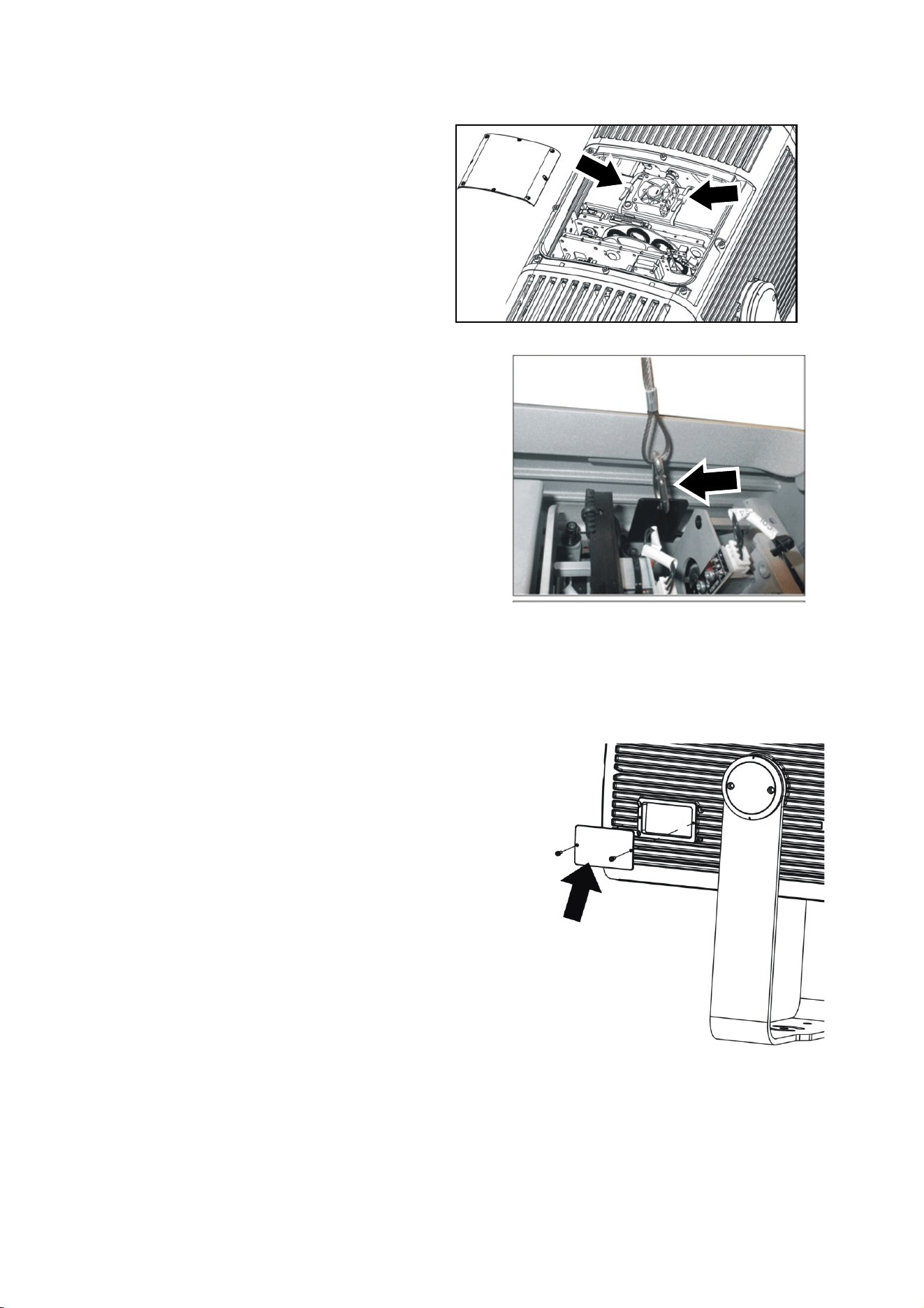
6. See illustration on right. Avoid dropping
cable ties or other items into the fixture.
Using scissors or cutting pliers, cut and
remove the two cable ties (arrowed).
7. See illustration on right. If you unclipped the top
cover safety cable, reattach it so that it will catch
the top cover and prevent it from falling.
• If the fixture will not be opened again before it
is used, follow the correct procedure for
reducing humidity when closing it: follow the
instructions in ‘Removing and reinstalling the
top cover’ on page 36.
• If the fixture will be opened again before it is
used, there is no need to follow the procedure
for reducing humidity and you can simply go to
the next step below.
8. Put the top cover back into position on the fixture and reinstall the eight top cover screws by
first inserting them finger-tight. Then use a torque driver and cross-tighten the screws in a
diagonal pattern, increasing torque gradually in stages until you reach a torque of 1.9 – 3.5
Nm.
9. See illustration on right. Remove the cover (arrowed)
from the control panel and display on the side of the
fixture so that you can set up the fixture using the control
panel.
10. If the temperature is below -20° C (-4° F), apply power to
the fixture but do not use it for 30 minutes. This will give
the fixture time to warm up to within its operating
temperature range.
Whenever AC power is applied to the fixture, it will reset all
effects and functions to their home positions. Reset is
available when fixture temperature is above -20° C (-4° F).
After the reset, the fixture will be ready for DMX control or
standalone operation.
10 Exterior Projection 1000 User Manual
Transporting the fixture
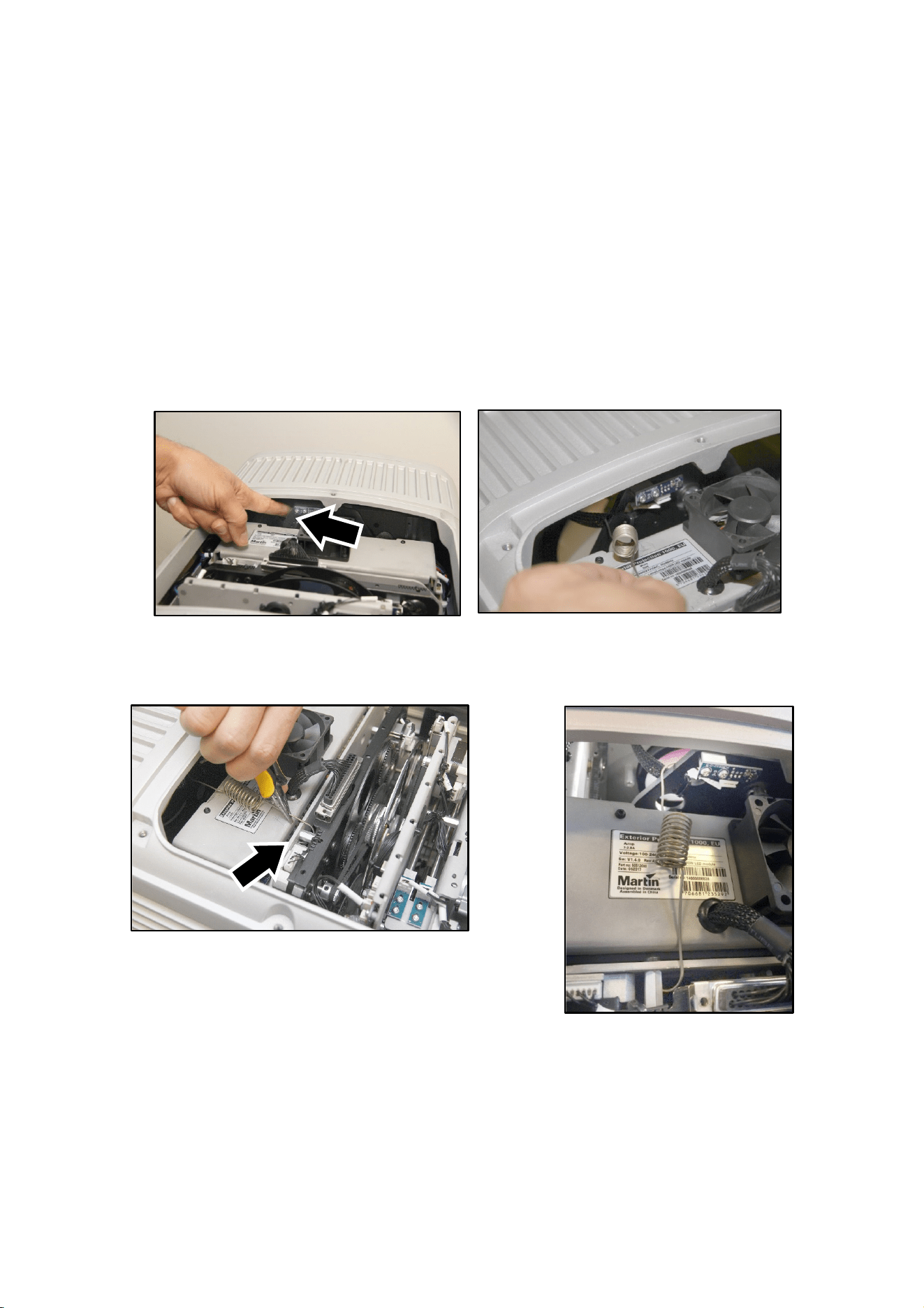
Important! If you need to transport the fixture after you have removed the temporary cable ties
that new fixtures are supplied with to protect them during delivery (see point 6. in the previous
section), you must open the top cover and install a temporary protection spring inside the fixture.
Installing the spring locks the frost car at the back of its movement range so that components are
protected from damage caused by movement during transport.
A transport protection spring is supplied with each fixture but you can also obtain the spring as an
accessory for the Exterior Projection 1000 by ordering P/N 91611097 from your Martin supplier.
To install the transport protection spring:
1. Open the top cover as described in ‘Removing and reinstalling the top cover’ on page 36.
2. See illustrations below. Pull the frost car back as far as it will go from the front of the fixture by
pulling on the metal frame of the car with your finger. Then hook the short end of the transport
protection spring through the circular hole (arrowed) in the metal frame of the frost car.
3. See illustrations below. Using a pair of flat-nosed pliers, hook the long end of the spring
around the turret nut (arrowed) on the effects module. Check that the transport protection
spring holds the frost car securely at the rear limit of the frost car’s travel.
4. Finally, reinstall the top cover as described in ‘Removing and reinstalling the top cover’ on
page 36.
Important! Before using the fixture after transport, you must open the top cover and remove the
spring. Leave a message on the fixture for the person who will unpack or install it, warning them
that they must remove the spring before the fixture is used.
Exterior Projection 1000 User Manual 11
Fixture overview
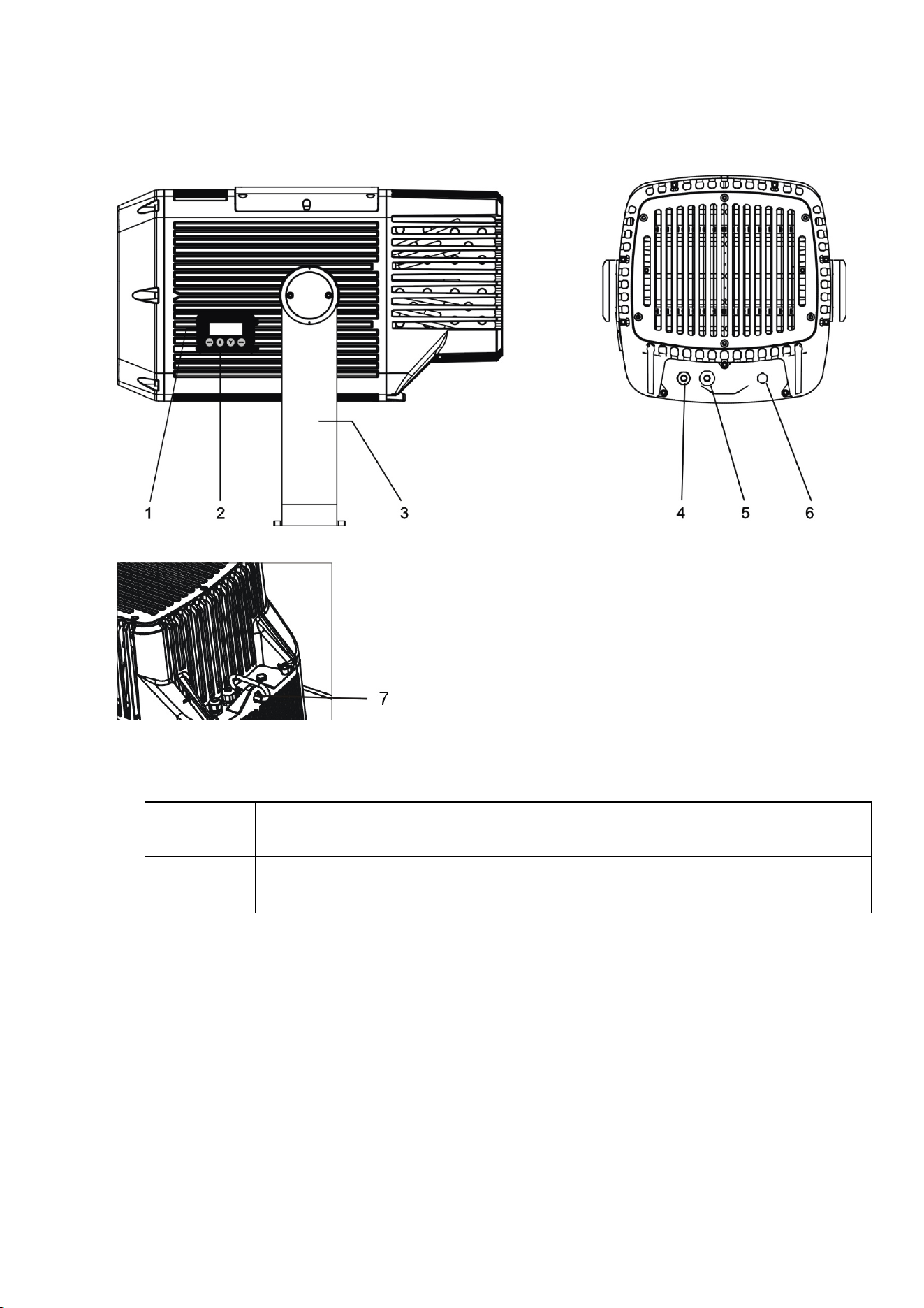
1. Control panel display (shown with cover removed)
2. Control buttons:
MENU
Activate the menu mode functions, or
Return to the previous level of the menu structure, or
Press and hold to exit the menus
DOWN (▼)
Go down a menu branch
UP
(
▲
)
Go up a menu branch
ENTER Confirm the selected function
3. Adjustable mounting yoke
4. DMX data combined in/out cable
5. AC mains power cable
6. Pressure relief valve
7. Safety cable attachment point
12 Exterior Projection 1000 User Manual
Physical installation
Read ‘Safety information’ on page 5 before installing the fixture.
Protection from the sun
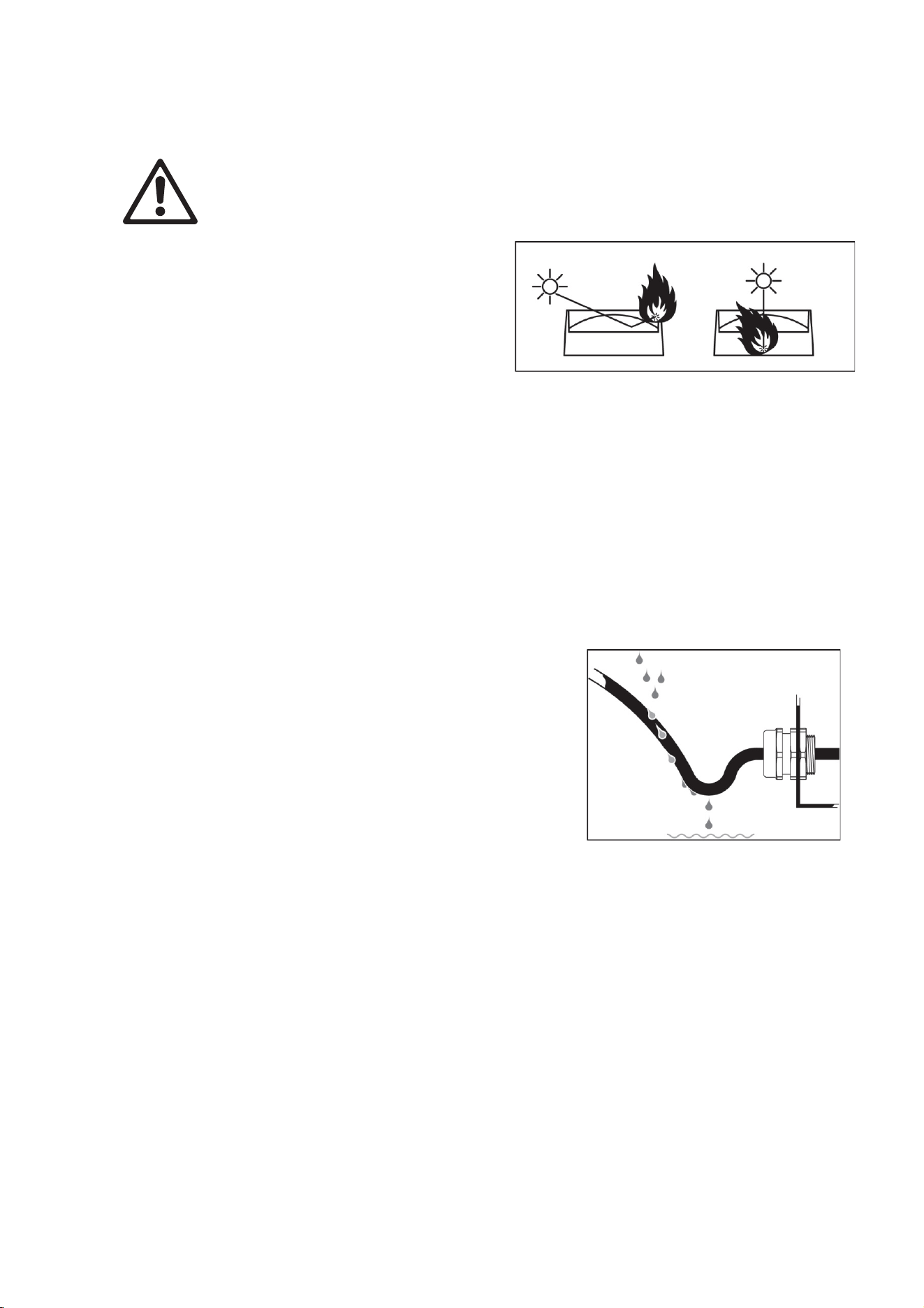
Important! The fixture’s optical system can focus rays
from the sun inside the fixture, causing internal damage
and presenting a fire hazard. Make sure that the sun
will not shine into the front of the fixture at any time.
The Glare Shield available from Martin can help protect
the front of the fixture from the sun. See page 42 for more details.
If the control panel will be exposed to sunlight, install its cover to protect the panel and display
from heat and UV radiation.
Cooling
The Exterior Projection 1000 has a thermal protection system. If temperatures inside the fixture
exceed safe levels, it regulates LED output to protect components.
The fixture has internal forced air cooling but it needs to dissipate heat externally by convention.
Ensure sufficient ventilation and free airflow around the fixture, especially around the grills on the
back of the fixture, to minimize any reduction in LED output in high ambient temperatures.
Protection from moisture
If there is a break or cut at any point in a cable (for example at a
connection point), and if this is exposed to water, moisture can be
drawn up the inside of the cable due to the vacuum effect of
temperature fluctuations during operation. Ensure that the fixture
is protected from the entry of water via cables by using IP66-rated
connectors or junction boxes, or by protecting connectors with
weatherproof housings. Make sure that all cables open into dry
areas.
See illustration on right. Create a drip loop before cable glands to
reduce any tendency for glands to be constantly immersed in
water.
Avoiding galvanic corrosion
The fixture and mounting bracket are manufactured in corrosion-resistant anodized aluminum.
Avoid mounting the fixture in direct contact with other types of metal, as this can cause galvanic
corrosion. When fastening to a metal that is not aluminum:
• Use an electrically insulating material (such as rubber or plastic) or coating between the
mounting bracket and the other metal.
• Use a non-conductive coating on fasteners (screws, bolts, washers, etc.) where they come into
contact with the mounting bracket.
Mounting the fixture
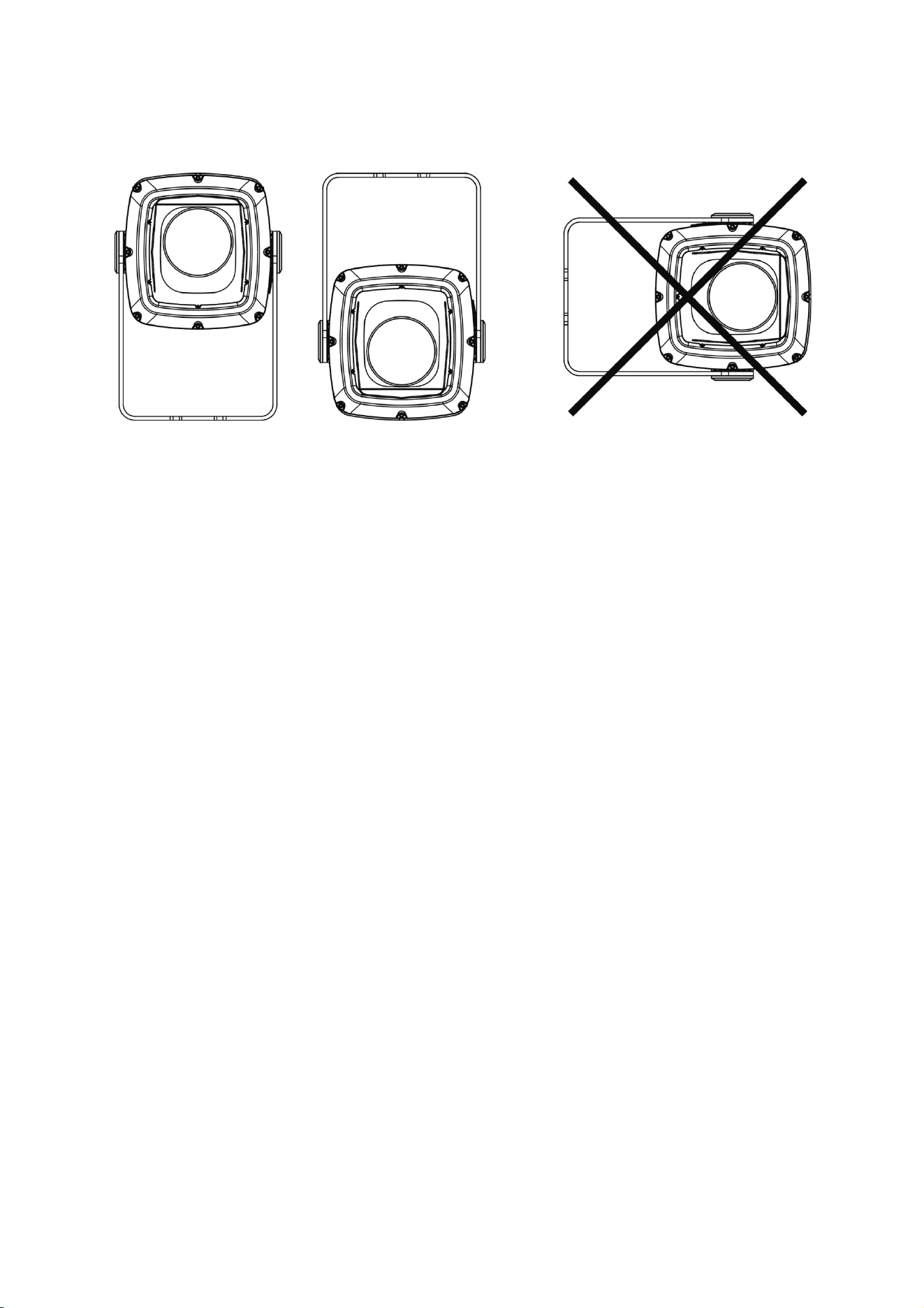
The fixture can be mounted at any angle and the yoke can be fastened to a vertical, horizontal or
angled surface, but the sides of the fixture must be vertical when installed (see examples below),
Exterior Projection 1000 User Manual 13
or the fixture’s cooling airflow will be affected, leading to excessively high fixture temperature and
reduced light output.
Do not stand the fixture freely on a surface or leave it where it can be moved or fall over. Ensure
that the installation surface or structure and all fasteners used can safely bear at least 10 times the
weight of all the fixtures and equipment they will support.
Installing on a rigging truss
It is possible to install the fixture temporarily on a rigging truss or similar support. If you do this,
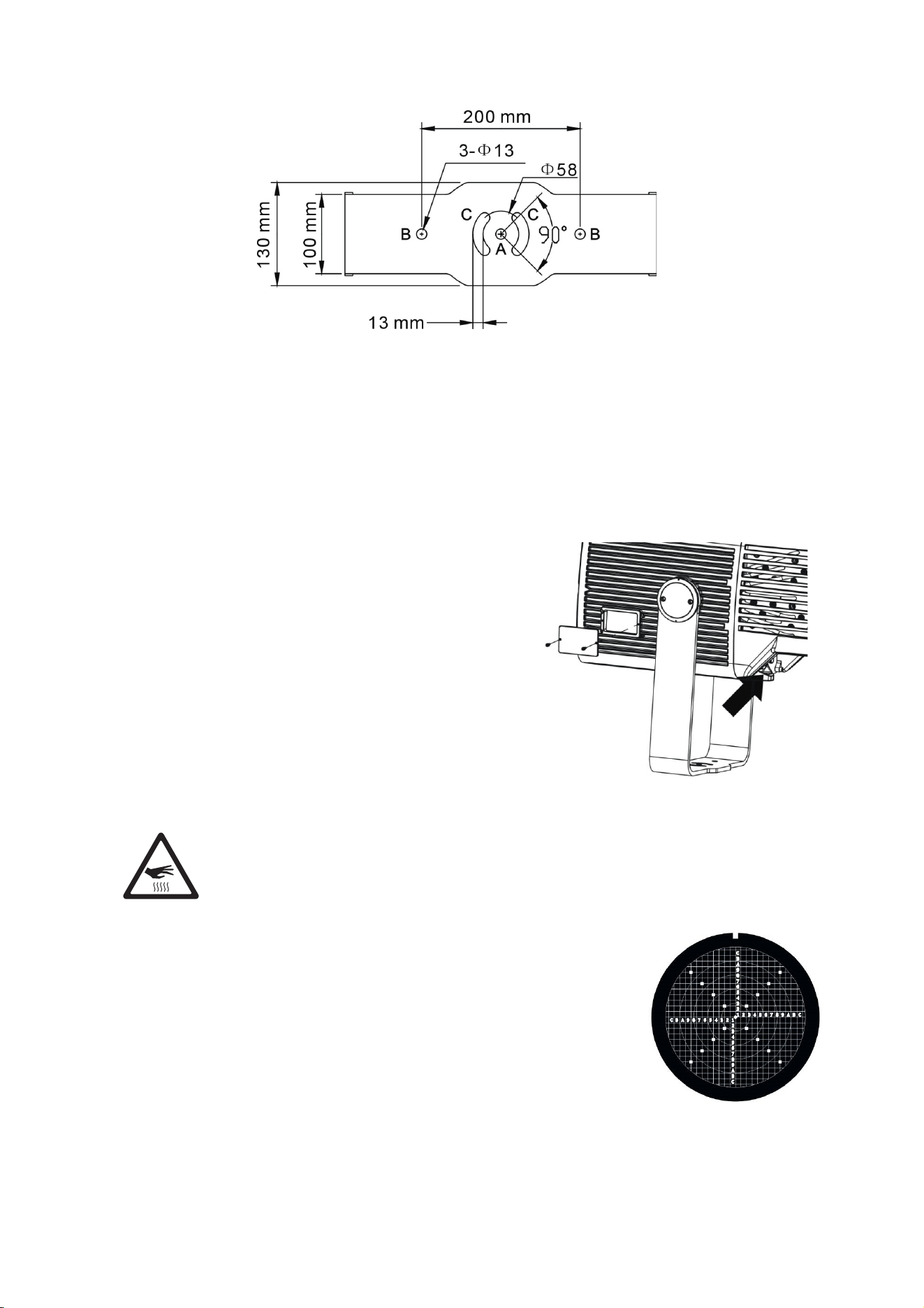
fasten two approved rigging clamps to the mounting yoke with two M12 bolts minimum grade 8.8
strength fastened through holes B in the mounting yoke base (see illustration on next page) and
suspend the fixture using the two clamps.
Do not suspend the fixture from only one clamp: use two approved rigging clamps. Install the
fixture hanging vertically downwards only. Secure the fixture with a safety cable as described in
‘Safety cable attachment’ on page 14. Check that the truss and all fasteners used can support 10
times the weight of all the fixtures and equipment that they will support.
Anchoring to a surface or structure
The fixture’s mounting yoke base must be securely anchored to a flat surface on a wall, pedestal,
structural beam or other suitable support. The yoke allows the fixture to be manually panned and
tilted for beam aiming adjustment.
To anchor the fixture to a surface:
1. See Mounting yoke base illustration on next page. Fasten a 12 mm (1/2 inch) shaft diameter
bolt to the surface through the center hole A in the mounting yoke.
2. Fasten two bolts with 8 mm (5/16 inch) shaft diameter to the surface with one bolt passing
through each of the curved slots C to anchor the fixture. This will give approximately 90° of
pan adjustment.
3. Adjust the fixture’s pan angle (side-to-side beam aiming) as described later in this chapter.
Adjusting pan is best carried out with power applied to the fixture so that the projection is
visible. Once pan is correct, fasten two 12 mm (1/2 inch) shaft diameter bolts to the surface
with one bolt passing through each of the holes B. Once bolts have been installed in holes B,
pan adjustment is no longer possible.
Sides of fixture vertical: OK
Sides of fixture not vertical: Not OK
14 Exterior Projection 1000 User Manual
Mounting yoke base
Safety cable attachment
If a secondary attachment is required for reasons of safety (in entertainment venues, onboard
marine vessels or in temporary installations, for example), you must install a safety cable:
1. See illustration on right. Loop a safety cable that is
approved for the weight of the fixture through the safety
cable attachment point (arrowed) in the fixture and
attach the safety cable to a secure anchoring point so
that the cable will catch the fixture if the primary method
of attachment fails.
2. Remove as much slack as possible from the safety
cable (by looping it more than once around the
anchoring point, for example). Make sure that if the
primary method of attachment fails, it will be impossible
for the fixture to drop any significant distance before the
safety cable catches it.
Adjusting aiming (pan and tilt)
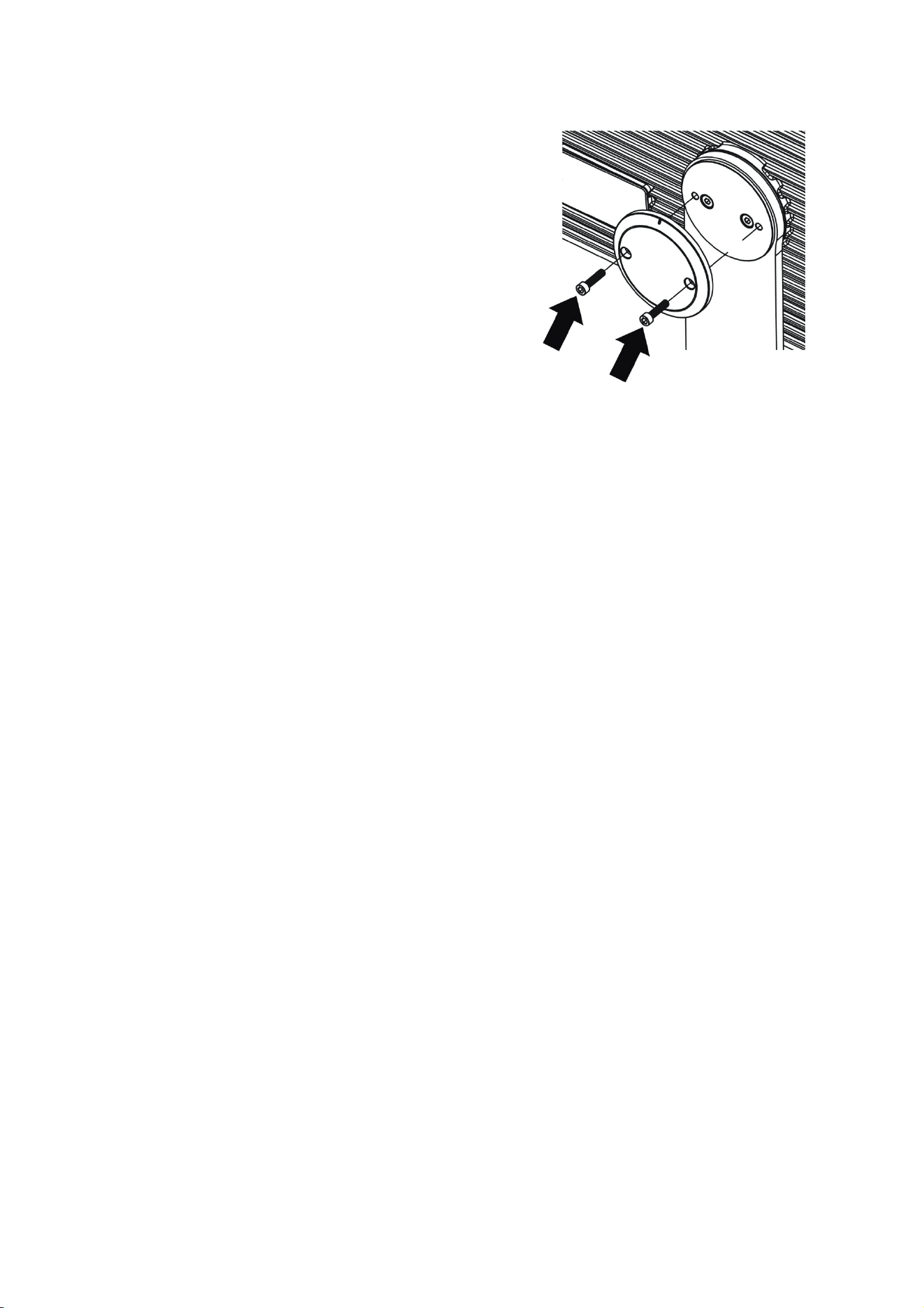
Warning! The fixture can become hot. Wear heat-resistant gloves if you adjust the
aim of the fixture when it is (or has recently been) powered on.
Fixture aim adjustment is best carried out after the fixture has been
connected to power and in weak light conditions so that the projection from
the fixture is clearly visible.
See illustration on right. If you require very precise aiming and setup, we
recommend that you order the ‘Line it Up’ projection setup gobo available
from Martin for the Exterior Projection 1000 (see ‘Accessories’ on page 54)
and install it in the gobo wheel while you adjust fixture aim, focus, etc.
Exterior Projection 1000 User Manual 15
To adjust the aim of the fixture:
1. Set the fixture to a gobo with a sharply defined pattern.
You can select the image remotely either via DMX or by
using the MANUAL TEST menu in the fixture’s control
panel.
2. Put on heat-resistant gloves.
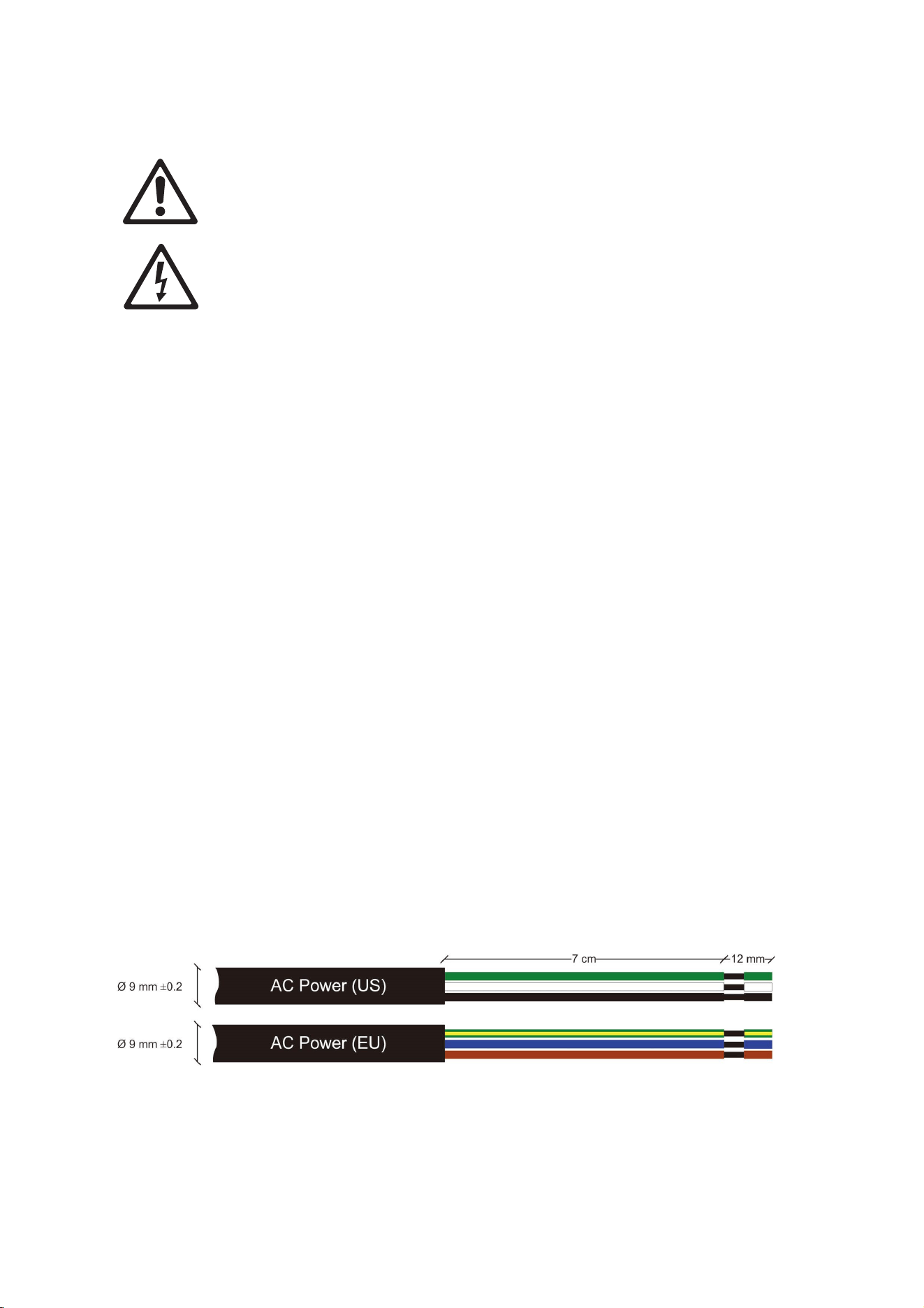
3. See illustration on right. Loosen the tilt lock Allen (hex)
screws (arrowed) on both sides of the yoke slightly, just
until you can tilt the fixture in the yoke.
4. See ‘Anchoring to a surface or structure’ on page 13. In
the base of the mounting yoke, loosen the bolts in the
center hole A and curved slots C slightly, just until you
can rotate the yoke.
5. Pan and tilt the fixture until it is aimed correctly.
6. Using a torque driver, tighten the four tilt lock screws to a torque of 1.8 – 3.5 Nm.
7. In the base of the mounting yoke, tighten the bolts in the center hole A and curved slots C and
install bolts in holes B. Check that the fixture will be held securely in all wind and weather
conditions.
16 Exterior Projection 1000 User Manual
AC power
Read ’Safety information’ on page 5 before connecting the fixture to AC mains power.
Lock out power to the entire installation before working on cables and connections.
Electrical installation must be carried out by qualified professionals only.
For protection from dangerous electric shock, the fixture must be grounded (earthed). The
AC power distribution system must be fitted with current overload and ground-fault (earth-
fault) circuit breakers as well as a means to isolate fixtures from power and lock out power
during service.
The Exterior Projection 1000 is supplied in EU and US models. Both models accept AC power at
100-240 V nominal or 277 V nominal at 50 or 60 Hz. Do not connect to power at any other voltage
or frequency.
You can connect the Exterior Projection 1000 to either of the following mains power distribution
systems:
• Single-phase (live, neutral, ground/earth) system.
• Grounded/earthed three-phase four-wire (three phases, neutral, ground/earth) system.
Do not try to connect to a three-phase three-wire (three phases, ground/earth) system.
There is no power on/off switch. Power is applied to an Exterior Projection 1000 fixture as soon as
it is connected to power. Provide a means to disconnect or shut down power to fixtures that is
easily accessible and is located close to the fixtures.
Do not use an external dimming system to supply power to the fixture, as this may cause damage
to the fixture that is not covered by the product warranty.
Protecting connections from moisture
Moisture can cause corrosion in unprotected cable connections. Moisture can also be sucked
along the inside of cables at breaks or cuts in the cable jacket (for example at connection points)
and into fixtures because of the vacuum effect of temperature fluctuations inside fixtures. To
protect connections and fixtures from moisture, take at least one of the following precautions:
● Locate cable junctions in dry areas (e.g. junction boxes in dry locations).
● Use connectors or junction boxes that are protected to IP67 or higher.
● Fill junction boxes with potting compound to seal the ends of cables and to protect connections
from corrosion.
Connecting to AC mains power
The fixture is supplied with a power cable installed ready for connection. See illustration below:
AC power cable
To connect to a single-phase system or to one phase of a three-phase four-wire system:
1. Lock out power to the installation.

Exterior Projection 1000 User Manual 17
2. Connect the conductors in the power cable to the distribution circuit as follows:
a) Connect the green wire (US models) or yellow/green wire (EU models) to ground (earth).
b) Connect the white wire (US models) or blue wire (EU models) to neutral.
c) Connect the black wire (US models) or brown wire (EU models) to live (one phase of a
three-phase system).
3. Check that all installation work is completed and carry out appropriate tests and safety checks
before applying power.
Installing a temporary power plug
It is possible to install a power plug (cord cap) on the power cable for temporary use only. If you
need to do this, install a grounding type (earthed) plug with integral cable grip that is rated
minimum 277 V, 6 A. Follow the plug manufacturer’s instructions and connect the wires in the
power cable as shown in the table below:
Live or L Neutral or N
Earth, Ground or
US system Black White Green
EU system Brown Blue Yellow/green

18 Exterior Projection 1000 User Manual
Control data link
A DMX512 data link is required in order to control the fixture via DMX (and manage fixtures via
RDM, if used). Your Martin supplier will be happy to help if you need advice or assistance in
planning the link.
Follow these guidelines when creating a DMX data link:
• Use RS-485 data cable designed for exterior use. RS-485 cable has low capacitance and a
characteristic impedance of 85 to 150 Ohms. It is electrically shielded and has at least one
twisted pair of conductors. The minimum recommended wire size is 0.25 mm2 (24 AWG) for
runs up to 300 meters (1000 ft.) and 0.32 mm2 (22 AWG) for runs up 500 meters (1640 ft.). A
cable run of more than 500 meters requires the use of a splitter-amplifier to boost the DMX
signal.
• If independent control of a fixture is required, that fixture must have its own DMX channels. Any
fixtures that will always be required to behave identically can have the same DMX address,
which means that they will use the same DMX channels.
• 512 DMX channels are available in a single DMX universe. Each time the number of DMX
channels required by the fixtures on a data link reaches 512 and you want to add more fixtures,
create a new DMX universe on a new data link and connect the additional fixtures to the new
link.
• You can connect up to 32 fixtures in a single daisy chain on a DMX data link. Connecting in a
daisy chain means that you must connect the DMX data OUT from one fixture to the DMX data
IN of the next fixture, creating a single line of fixtures. Do not split the link into branches by
creating a Y shape in the cable or at connectors.
• However, you can split a DMX data link into two or more branches if you use an optically
isolated DMX splitter-amplifier. To preserve RDM functionality, use an RDM-compatible splitter
such as the Martin RDM 5.5 Splitter. Each branch can contain up to 32 fixtures.
• If you reach the limit of 32 fixtures on a DMX data link, you can connect up to 32 additional
fixtures if you add a splitter-amplifier such as the Martin RDM 5.5 Splitter to the link in order to
boost the data signal. Adding a splitter-amplifier also lets you extend a data link beyond 500
meters (1640 ft.).
• The data link (and each branch of the link if you have created branches with a splitter-amplifier)
must be terminated at the end by placing a 120 ohm resistor (available from Martin, P/N
04150308) across the data output hot (+) and data output cold (-) conductors of the last fixture
on the link.
• Do not create long parallel runs of AC power and data cables, as these may cause interference
on the data link. Even if not required by law, use separate conduits for power and data cables.
• The Exterior Projection 1000’s combined data input/output cable does not support the optional
second data wire pair that is provided for in the DMX512-A standard. Do not place devices that
use the second data pair on the same DMX data link as Exterior Projection 1000 fixtures.
Connecting the data link
Important! Protect all connections and all breaks in cable jackets from moisture (see ‘Protecting
connections from moisture’ on page 16).
Important! Connect the data output from one fixture to the data input of one fixture only. If you
connect one data output to more than one data input, you will split the DMX data link into branches
which will probably cause data signal integrity problems.
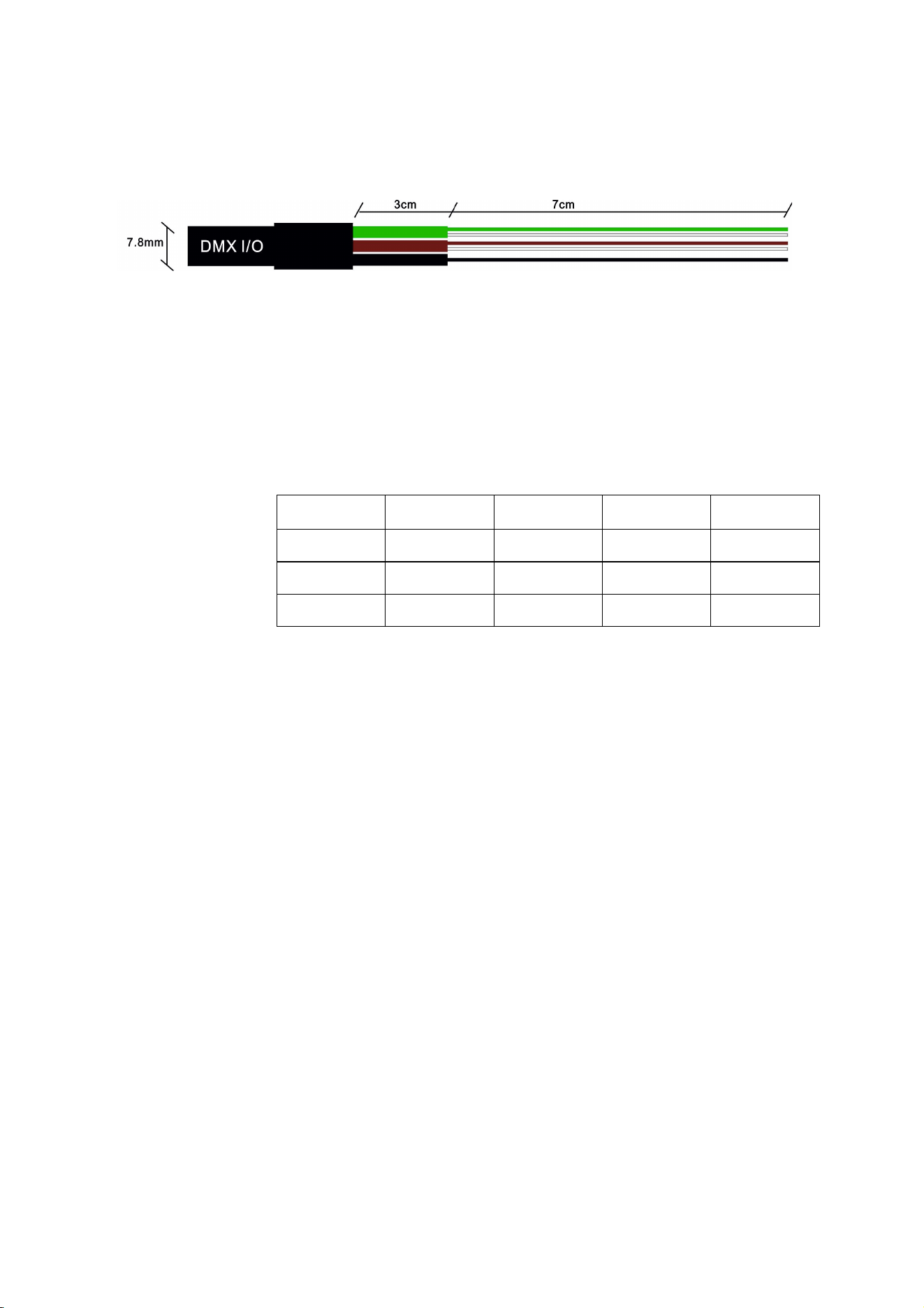
The Exterior Projection 1000 is supplied with a hard-wired 1.8 m (5.9 ft.) shielded cable with 2
pairs of wires for connection to a DMX data link.
Exterior Projection 1000 User Manual 19
The pair of wires with a green sleeve is for data input from the control device or previous device in
the daisy chain. The pair of wires with a brown sleeve is for data output (throughput) to the next
device in the daisy chain.
Exterior Projection 1000 DMX data cable
Connect the data cable as shown in the table below. Do not connect the shield conductor to
ground (earth) or allow it to come into contact with a connector shell, as this may cause
interference.
Data connection pinouts
Input wires
(g
reen sleeve
)
Output wires
(
brown sleeve
)
Shield
Wire color white green white brown black
Si
g
nal DMX in + DMX in - DMX out + DMX out - common
Male XLR pinout pin 3 pin 2 - - pin 1
Female XLR pinout - - pin 3 pin 2 pin 1

20 Exterior Projection 1000 User Manual
Fixture setup
Read ’Safety information’ on page 5 before operating the fixture.
Using the control menus
This section explains the fixture settings and utilities that are available using the control panel and
display that are located on the side of the fixture.
You can find a full map of the control menus in ’Control menus’ on page 31. Some settings and
functions are also available via RDM.
Control menu settings are retained when the fixture is powered off.
Navigating in the control menus
To access the control menus, press the MENU button and hold for three seconds.
• To select a menu option or to confirm a selection, press the ENTER button.
• To scroll up and down the items in a menu, use the DOWN ARROW (▼) and UP ARROW (▲)
buttons.
• To return to a higher level in the menu structure, press the MENU button.
• To exit all active control menus and return directly to the top level, press and hold the MENU
button.
Passwords
The Exterior Projection 1000 onboard control panel is password-protected to discourage
tampering. There are two passwords:
• A user password that is set to 123 by default but can be changed to any number from 0 to
999. This password is required to enter the control menus.
• A service password that is factory-set to 111 and cannot be changed. This password can
be used to enter the control menus if necessary.
To enter or set a password, use the DOWN ARROW and UP ARROW buttons to scroll to the
required number. When the number is displayed, press ENTER to confirm.
Setting a DMX address
The Exterior Projection 1000 uses twenty DMX channels to receive instructions from a DMX
controller. The fixture’s DMX address, also known as the start channel, is the first of these
channels. If a fixture that requires 4 DMX channels has its DMX address set to 1, for example,
then it uses channels 1, 2, 3 and 4. The next fixture can have its DMX address set to 5, the next to
9 and so on until all the 512 channels in one DMX universe are allocated.
If you want independent control of a group of fixtures, give each fixture its own DMX address so
that each fixture has its own control channels. If you want a group of fixtures of the same type to
always behave identically, give all the fixtures the same DMX address so that they all use the
same DMX control channels.
You can set a fixture’s DMX address using the fixture’s control panel or by sending commands
from an RDM-compliant DMX controller.
To set the fixture’s DMX address from the control panel:
1. Press and hold the MENU button to access the control menu.
2. Use UP and DOWN to select DMX ADDRESS from the menu. Press ENTER.

Exterior Projection 1000 User Manual 21
3. The fixture’s current DMX address is displayed. Press UP or DOWN to scroll to the DMX
address that you want to give to the fixture.
4. Press ENTER to store the DMX address in the fixture.
5. Press MENU to exit.
Programming a standalone show
You can program a standalone show – a sequence of ’scenes’ that run in a loop – in the Exterior
Projection 1000. A scene consists of a combination of effects such as gobo selection, gobo
movement, color, intensity, etc. You can set the standalone show to run if you are not using a DMX
controller or if a signal from a DMX controller is lost. The show can have up to 20 scenes that
display for up to 10 minutes each. You can program ’fades’ (changes from one scene to the next)
so that scenes change immediately or change gradually over a period of up to 120 seconds’
duration.
Note: To enable standalone operation, the OFFLINE MODE setting in the FIXTURE CONFIG
menu must be set to RUN SHOW. See ’Offline mode – behavior when no DMX or Host signal is
received’ on page 24. A fixture will only run a standalone show when it is not receiving a DMX
signal.
To program a stand-alone show:
1. Access the control menu and use UP and DOWN to scroll to PROGRAM SHOW. Press
ENTER to select.
2. Set the total number of scenes:
a. Select SET SCENE TOTAL and press ENTER.
b. Use UP and DOWN to select from 1 to 20 scenes.
c. Press ENTER.
3. Modify the appearance of scenes:
a. Select EDIT SCENE and press ENTER.
b. Select the scene that you want to modify and press ENTER.
c. Select the effect that you want to adjust (Strobe, Dimmer, Cyan, Magenta, Yellow, Color
Selection, Gobo Selection, Gobo Ind/Rot, Animation Index, Animation Rotation, Frost,
Prism, Prism Rotation, Zoom, Focus) and press ENTER.
d. Press UP or DOWN to scroll to a value. When satisfied, press ENTER to confirm your
selection.
e. Repeat steps c) and d) for each effect.
f. Press MENU to go back up one level in the menus and select another scene to modify.
g. When done editing scenes, press MENU again to return to the PROGRAM SHOW menu.
4. Set the length of time each scene is displayed before fading to the next scene and set the
length of time one scene fades to the next scene:
a. Select SET SHOW TIMES and press ENTER.
b. Select SET HOLD TIME and press ENTER. Press UP or DOWN to scroll to scene
duration from 0 to 600 seconds. Press ENTER to confirm your selection.
c. Select SET FADE TIME and press ENTER. Press UP or DOWN to scroll to a scene
change fade duration from 0 to 120 seconds. Press ENTER to confirm your selection.
5. Press MENU to exit.
Manual control mode
The fixture can be tested, reset and returned to default factory settings manually from the control
panel. To enter manual mode:
1. Access the control menu and select MANUAL MODE.
2. Press ENTER.

22 Exterior Projection 1000 User Manual
Manual test / manual single scene display
The manual test commands let you display a single scene (i.e. a single combination of effects)
manually, either for test purposes or to control the fixture without a DMX controller. To set up the
scene:
1. Select MANUAL TEST and press ENTER.
2. Use UP and DOWN to scroll through the fixture’s effect controls (Strobe, Dimmer, Cyan,
Magenta, Yellow, Color Selection, Gobo Selection, Gobo Ind /Rot, Animation Index, Animation
Rotation, Frost, Prism, Prism Rotation, Zoom, Focus).
3. Press ENTER to select an effect to adjust.
4. Use UP and DOWN to select a value for the effect, and press ENTER to confirm your
selection.
5. Repeat for each effect you want to control.
6. Press MENU to exit.
Any scene that you set in the MANUAL TEST menu is retained in memory when fixture power is
cycled off and on. The MANUAL TEST menu therefore lets you set up a permanent single-scene
display without DMX control.
Resetting effects
To reset an effect, returning it to its default setting:
1. Select RESET FUNCTIONS and press ENTER.
2. Select ALL or one of the effects.
3. Press ENTER to reset.
4. Press MENU to exit.
Returning to factory defaults
To return the fixture to its factory default settings, erasing any settings, standalone scenes, etc.
stored in the fixture’s memory:
1. Select FACTORY DEFAULT and press ENTER.
2. Select YES to return to factory defaults or NO to exit.
3. Press ENTER to confirm.
4. Give the fixture time to return to the factory default settings.
Display settings and user password
The DISPLAY SETTING menu provides options to invert, dim, and turn off the backlit LCD control
panel display. It also lets you lock and unlock the display and set a user password.
Display inverse
For easier reading when the fixture is mounted upside down, flip the display as follows:
1. Select DISPLAY INVERSE and press ENTER.
2. Select YES to invert the display or NO for normal reading.
3. Press ENTER to confirm.
Display auto turn off
Important! We strongly recommend that you set the display to turn off automatically after 1 minute
in order to maximize the lifetime of the display. AUTO OFF
YES is the factory default setting.
The display can be set to stay on or to turn off 1 minute after the last key press.

Exterior Projection 1000 User Manual 23
To set display behavior:
1. Select DISPLAY AUTO OFF and press ENTER.
2. Select NO to keep the display illuminated, or YES to have the display turn off automatically
after 1 minute.
3. Press ENTER to confirm.
Display intensity
To adjust the brightness of the control panel display:
1. Select INTENSITY and press ENTER.
2. Scroll to a value from 0 to 100%.
3. Press ENTER to confirm.
Locking the display
The onboard control panel and display are unlocked by default. If you want to prevent
unauthorized tampering, you can lock the control panel. If the control panel is locked, it is
impossible to make any changes in the control menus until the service password 111 has been
entered to unlock it.
To lock or unlock the control panel and display:
1. Select LOCK DISPLAY and press ENTER.
2. Select ON to lock the display or select OFF to unlock.
3. Press ENTER to confirm.
Setting the user password
Besides the service password 111 which cannot be changed, the Exterior Projection 1000 also has
a user password that you can change. The user password is set to 123 by default. To change the
user password:
1. Select SET PASSWORD and press ENTER.
2. Scroll to a value from 0 to 999.
3. Press ENTER to confirm.
Fixture status
You can view the following fixture status information in the FIXTURE STATUS menu:
• Current temperature of LED engine.
• Total number of hours the fixture has been in use.
• Total number of hours the LEDs have been powered on.
• Software version currently installed in the fixture.
You can also call up fixture status information from an RDM-compatible controller.
Fixture configuration (including host/client operation)
The FIXTURE CONFIG menu contains additional settings for customizing behavior.
Host/client operation – important guidelines
Fixtures operating in standalone mode can be synchronized in host/client operation if they are all
connected to each other on a DMX data link.
In host/client operation, one fixture running a standalone show – the ’host’ fixture –sends ‘fade’
and ’wait’ signals to the other fixtures running standalone shows – the ’client’ fixtures – so that
scene change times in client fixtures are synchronized with the scene change times in the host.

24 Exterior Projection 1000 User Manual
Every time the host changes to its next pre-programmed scene, the client fixtures change to their
next pre-programmed scene at the same time.
Note the following:
• Although scene changes in host and client fixtures all occur at the same time, scenes do not
have to be identical. You can program different effects in the standalone scenes of different
fixtures.
• Each fixture displays its own pre-programmed standalone show until it reaches its last scene,
then it starts the show sequence again and continues in a loop. If all fixtures have the same
number of scenes in their shows, they will all start shows in synch. If the standalone shows in
different fixtures have different numbers of scenes, the fixtures will restart their shows at
different times relative to each other.
• If no controller is connected to the first fixture on the link, you can improve the quality of the
data signal sent to client fixtures by connecting a DMX termination plug (a plug with a 120 Ohm
resistor across data hot and data cold) to the data input of the first fixture.
• DMX and RDM signals will override standalone operation in both the host and the client
fixtures. This means that standalone operation is only possible if no DMX signal is present.
• You must set only the first fixture on the link to be the host fixture. Set all the other fixtures as
clients. If you set more than one fixture to act as host, fixtures may have unexpected behavior.
Setting up host/client operation
Set up host/client operation as follows:
1. Program a standalone show in each fixture as described under ‘Programming a standalone
show’ on page 21.
2. On each fixture, access the control menu and select FIXTURE CONFIG. Press ENTER.
3. Check that all fixtures are set to CLIENT. On the first fixture on the link – and only on this
fixture – select HOST and press ENTER. Press MENU to return to the FIXTURE CONFIG
menu.
4. On each fixture, scroll to OFFLINE MODE and press ENTER. Then select RUN SHOW and
press ENTER. Finally, press and hold MENU to exit the control menus.
5. Fixtures will now run standalone shows synchronized with the host fixture’s standalone shows
whenever the fixtures are powered on and not receiving a DMX control signal.
Offline mode – behavior when no DMX or Host signal is received
There are three options for setting how a fixture behaves in offline mode, i.e. when it is not
receiving a control signal from either a DMX controller or a host fixture:
• RUN SHOW: Fixture executes its standalone show (fixture must be set to HOST).
- If the fixture is set to HOST and it does not receive a control signal, the fixture will execute
the scenes in its pre-programmed standalone show (see ‘Programming a standalone show’
on page 21). It will also send a signal to any fixtures that are connected to it and set to
CLIENT instructing them to run their standalone shows.
- If the fixture is set to CLIENT and it does not receive a control signal, it will black out until it
receives a control signal.
• DMX LAST STATE: Fixture holds and displays the last received DMX command (fixture must
be set to HOST).
- If the fixture is set to HOST and it does not receive a control signal, it will continue to obey
the last DMX command that it received.
- If the fixture is set to CLIENT and it does not receive a control signal, it will black out until it
receives a control signal.

Exterior Projection 1000 User Manual 25
• BLACK OUT (default): Fixture blacks out.
- If the fixture is set to HOST and it does not receive a control signal, it will black out until it
receives a control signal.
- If the fixture is set to CLIENT, it will always black out if it does not receive a control signal.
The three options listed above also determine the fixture’s behavior if the fixture is receiving a
control signal but that signal is suddenly lost.
To set a fixture’s offline mode behavior:
1. Access the control menu and scroll to FIXTURE CONFIG. Press ENTER.
2. Scroll to HOST/CLIENT and press ENTER. If you are going to set the fixture to RUN SHOW or
DMX LAST STATE, scroll to HOST and press ENTER to confirm. Press MENU to go back up
one level.
3. Scroll to OFFLINE MODE and press ENTER. Press UP or DOWN to select RUN SHOW, DMX
LAST STATE or BLACK OUT. Press ENTER to confirm.
Setting effect offsets
You should normally never need to change the Fixture Offsets setting. We recommend that you
change the setting with guidance from Martin Service only.
You can adjust the home position of each effect by setting an offset in the FIXTURE OFFSET
menu. Adjustments are held in memory when the fixture is powered off and on.
Offsets can be used to match multiple fixtures after they have been installed (if precise gobo
alignment is required, for example).
To reduce the risk of unauthorized tampering with the fixture, you must enter the user password
(factory default = 123) before you can access the FIXTURE OFFSET menu.
Setup via RDM
The Exterior Projection 1000 is compatible with RDM (Remote Device Management). Using an
RDM-compliant DMX controller, you can communicate with all the fixtures on a data link without
needing to access the fixture’s control panels or connect to each fixture individually. RDM lets you
set the DMX addresses of all the fixtures on the link, carry out basic fixture configuration and
retrieve basic fixture data.
See Remote Device Management (RDM) on page 43.
26 Exterior Projection 1000 User Manual
Effects
Strobe / shutter
The strobe / shutter effect provides instant open and blackout as well as variable speed regular
and random strobe effects.
Electronic dimming
Overall intensity can be adjusted 0-100%. 16-bit dimming resolution is available using two DMX
channels.
CMY color mixing
CMY color mixing available on three DMX channels allows fine color adjustment.
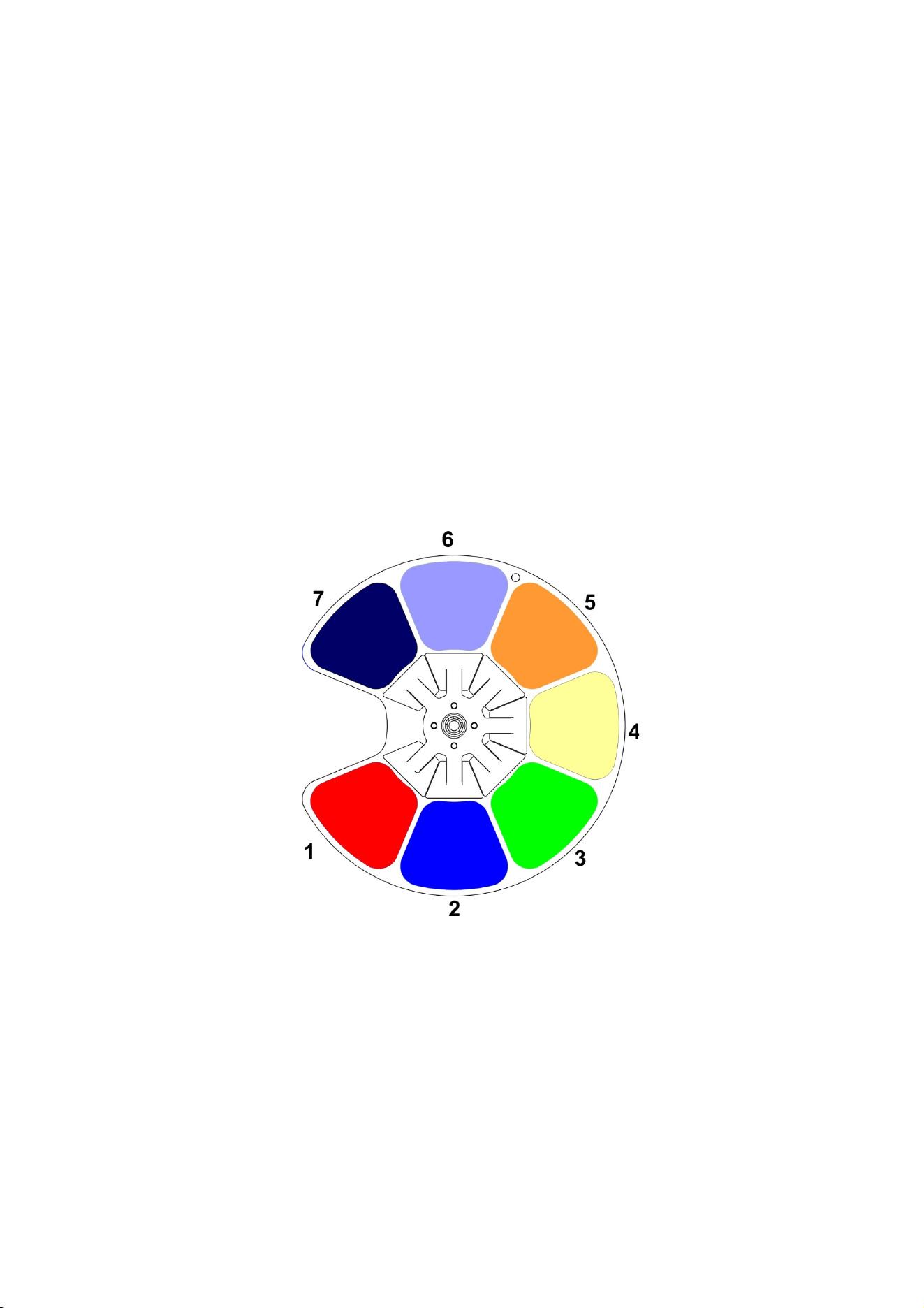
Color wheel
The color wheel contains the 7 dichroic color filters listed below plus an open (white) position.
Colors can be selected in full position steps or continuously scrolled for split colors. The color
wheel can be rotated with variable speed and direction. It can also be set to display random colors
at slow, medium and fast speeds. The color wheel is shown below viewed from the LED side (rear
of the fixture):
Color wheel
Slot 1: Deep Red Slot 5: Oran
g
e
Slot 2: Li
g
ht Blue Slot 6: CTB
Slot 3: Primar
y
Green Slot 7: Violet
Slot 4: CTO
As an alternative to the above colors, Martin can supply custom color filters made to special order.
Please consult your Martin supplier for details.
Exterior Projection 1000 User Manual 27
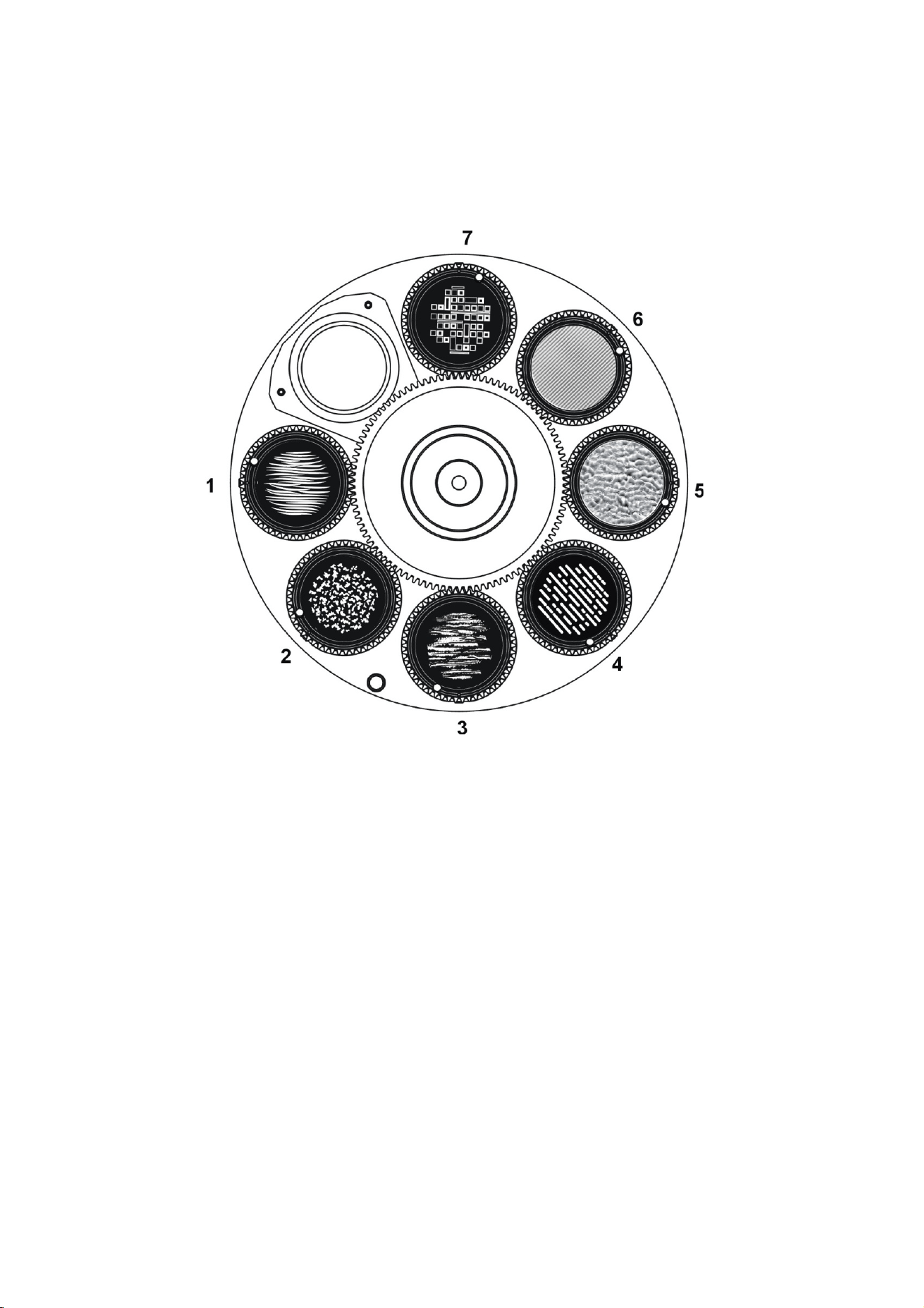
Gobos
The fixture contains a rotating gobo wheel with the seven rotating glass gobos shown below
installed as standard. The gobo wheel below is viewed from the front glass side (front of the
fixture):
Rotating gobo wheel
Gobo 1: Grass Lines Gobo 5: Ripple Texture Glass
Gobo 2: Organic Delight Gobo 6: Lined Effect Glass
Gobo 3: Brush lt Gobo 7: Sequence It
Gobo 4: Light Lines
The gobos can be set to indexed positions and rotated continuously with variable speed and
direction.
To project a gobo, select the gobo and action type (indexed angle or rotation) on channel 8, then
adjust the indexed angle or direction and speed of rotation on channels 9 and 10 until you obtain
the projection you want. Using two channels for adjustment gives 16-bit control.
Custom gobos
Gobos are user-replaceable. You can replace them with custom gobos made to your own design
provided that the gobos meet the quality and specifications of the Martin gobos supplied with the
fixture (see ’Gobos’ on page 53).
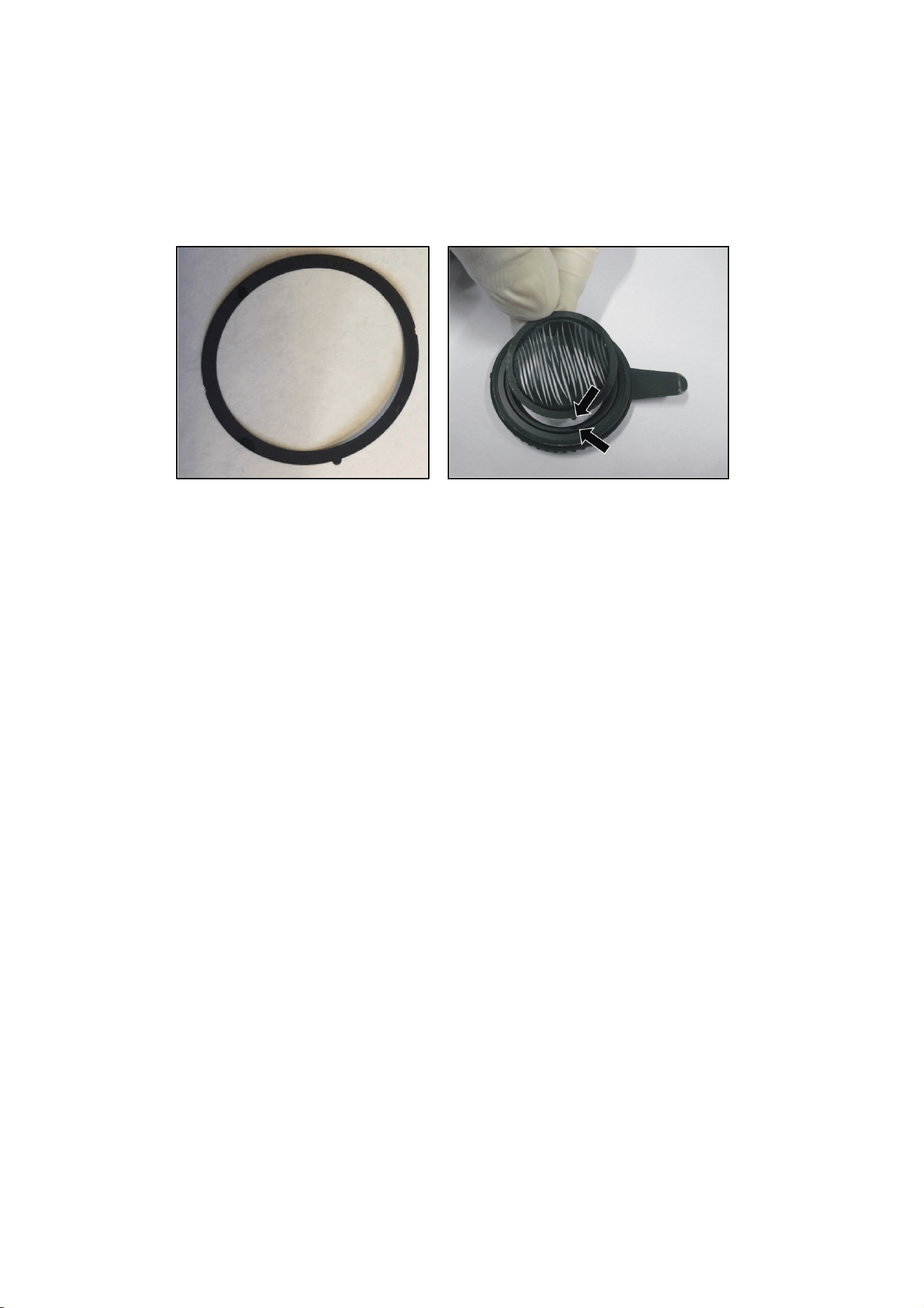
If you replace one of the standard gobos with a custom gobo, we recommend that you glue a gobo
ring with a key onto the gobo (see photos below). The key fits into a keyway in the goboholder and
prevents the gobo from moving in the goboholder and losing its correct orientation over time.
28 Exterior Projection 1000 User Manual
Gobo rings can be ordered in a set of 10 as an accessory from your Martin supplier. Ask for
P/N MAR-91611851.
The ring must be glued to the gobo using a silicone adhesive sealant that bonds to glass and
metals and that is suitable for use in temperatures from -55° C to 200° C continuous operation.
See page 38 for instructions on replacing rotating gobos.
Gobo indexing angles and precise gobo indexing
Mechanical tolerances mean that there can be small changes in the indexing angles (i.e. rotational
angles) of gobos when you rotate them or change gobos and then return to the initial indexing
angle.
From firmware version 1.7.0 (available early 2020), a ‘Precise gobo indexing’ mode is available on
the fixture settings DMX channel 20. This mode returns gobos more accurately to their original
position after a move. If you require the tightest possible gobo indexing angle repeatability and the
fixture is running an earlier firmware version, we recommend that you update to firmware v. 1.7.0
or later and enable ‘Precise gobo indexing’.
In ‘Precise gobo indexing’ mode, the fixture always moves gobos to their programmed angles from
a counterclockwise direction (as seen when looking at the projection). If you enable ‘Precise gobo
indexing’, you should also always move gobos to indexing angles from a counterclockwise
direction while you are programming a show on a DMX controller or programming a stand-alone
show as described under ‘Programming a standalone show’ on page 21. If you overshoot the
desired angle, do not fix the problem by moving the gobo back to the desired angle in a clockwise
direction. Instead, move the gobo back past the desired angle in a clockwise direction, then move
it to the desired angle from a counterclockwise direction again.
Note that you do not need to have ‘Precise gobo indexing’ mode selected during programming. In
fact, it might be easier to disable this mode during programming and then enable it in the final cue.
Note also that slow fading from one gobo indexing angle to another is slightly less smooth when
‘Precise gobo indexing’ mode is enabled. If you want to compensate for this, use short fades or
snap to indexed angles, or program a blackout cue prior to the indexed position.
No matter how carefully we engineer and manufacture Martin products, all lighting fixtures are
subject to mechanical tolerances. These will often cause very small changes in the indexing
angles (i.e. rotational angles) of gobos if you rotate or change gobos and then you return to the
initial gobo indexing angle. To reduce the visibility of any change in indexing angle, we recommend
that you avoid programming very tight gobo mapping in multiple fixtures. For example, avoid
aligning a vertical or horizontal line in gobo projections from two or more fixtures.
Exterior Projection 1000 User Manual 29
The offsets (changes in rotational angle of the gobo projection) that apply to the Exterior Projection
1000 are as follows:
• Maximum offset: 0.02 rad (1.15° or 30 mm offset at a beam diameter of 300 cm)
• Typical offset at individual gobo indexing or after fixture reset: < 0.0067 rad (less than 0.4° or
10 mm offset at a beam diameter of 300 cm)
• Typical offset at change between gobos: < 0.01 rad (less than 0.6° or 15 mm offset at a beam
diameter of 300 cm
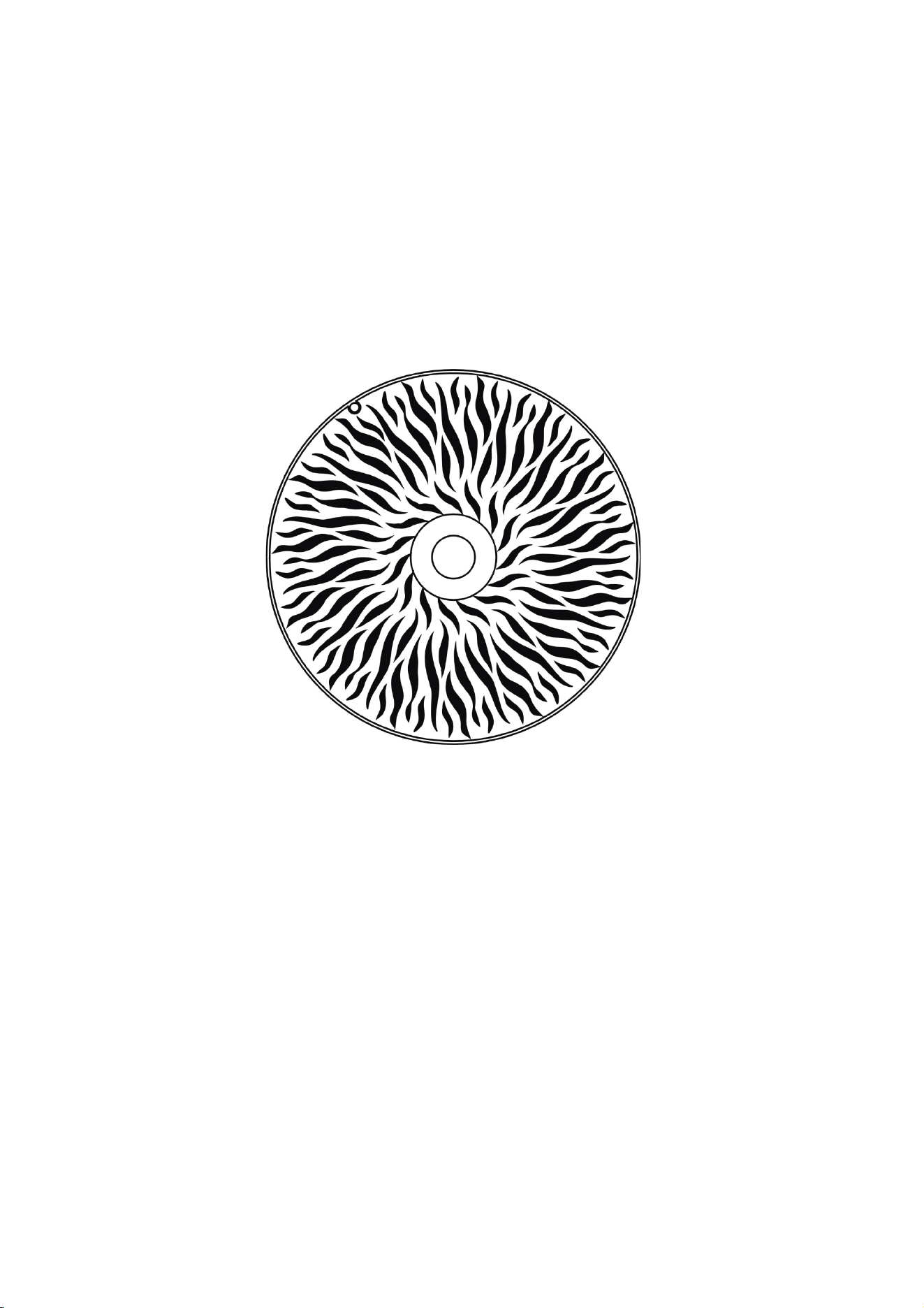
Animation effect
The gobo animation effect is designed to be combined with a rotating gobo and color filter to
create a moving image of flames, grass blowing in the wind, water, etc.
Animation effect
Adjust the speed and direction of the gobo rotation, the speed and direction of the animation effect
and fixture focus to give the most realistic animation.
You can adjust the position of the animation wheel on a separate DMX channel. This lets you
modify the angle of the animation effect.
In projections where animation and prism effects are combined with CMY color mixing, color
fringing will be visible around sharp edges, especially on less saturated colors. The fringing is
unavoidable with this combination of effects, but it is not unattractive and it gives depth to gobos.
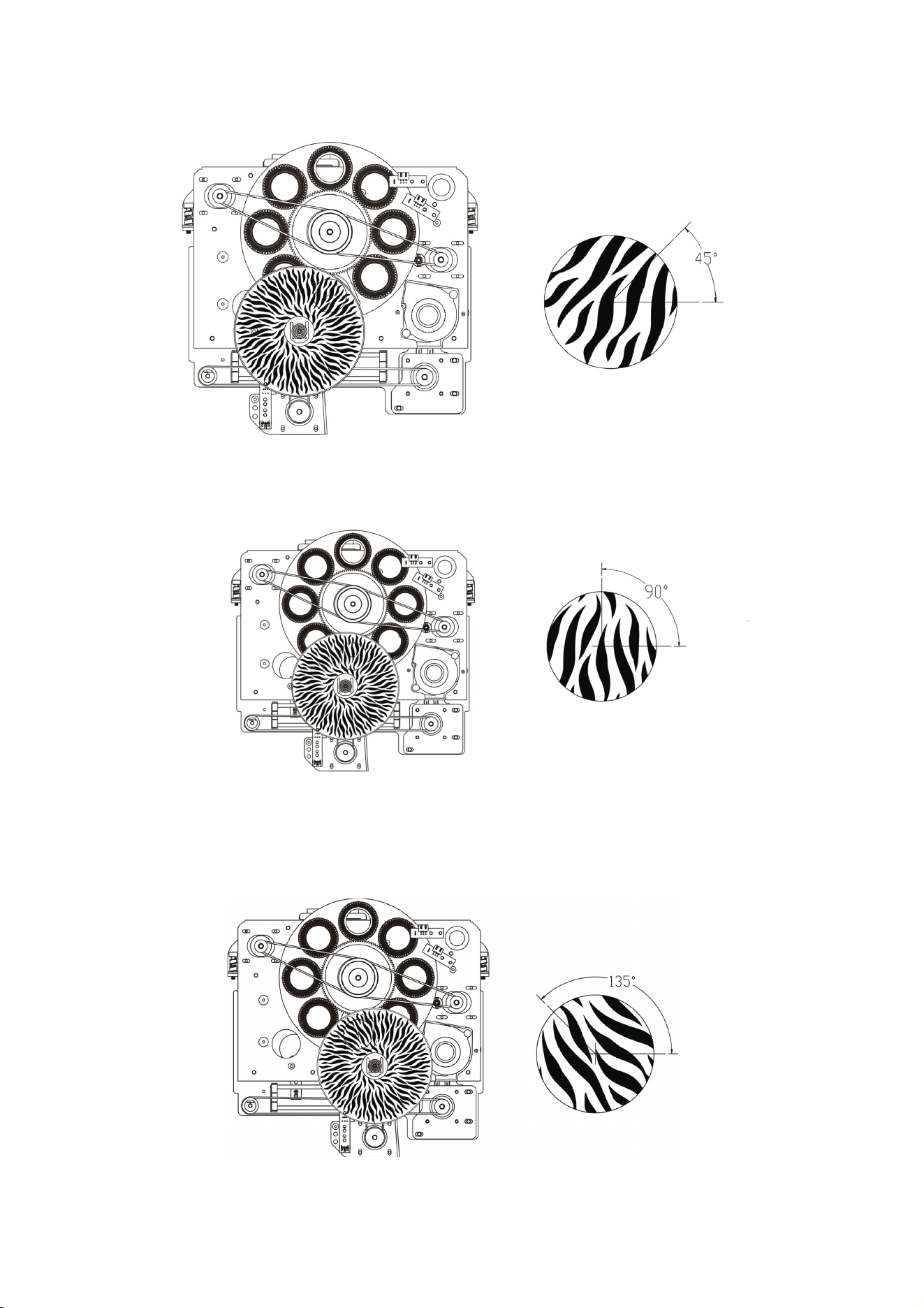
30 Exterior Projection 1000 User Manual
Animation Horizontal 45
°
Animation Horizontal 90
°
Animation Horizontal 135°
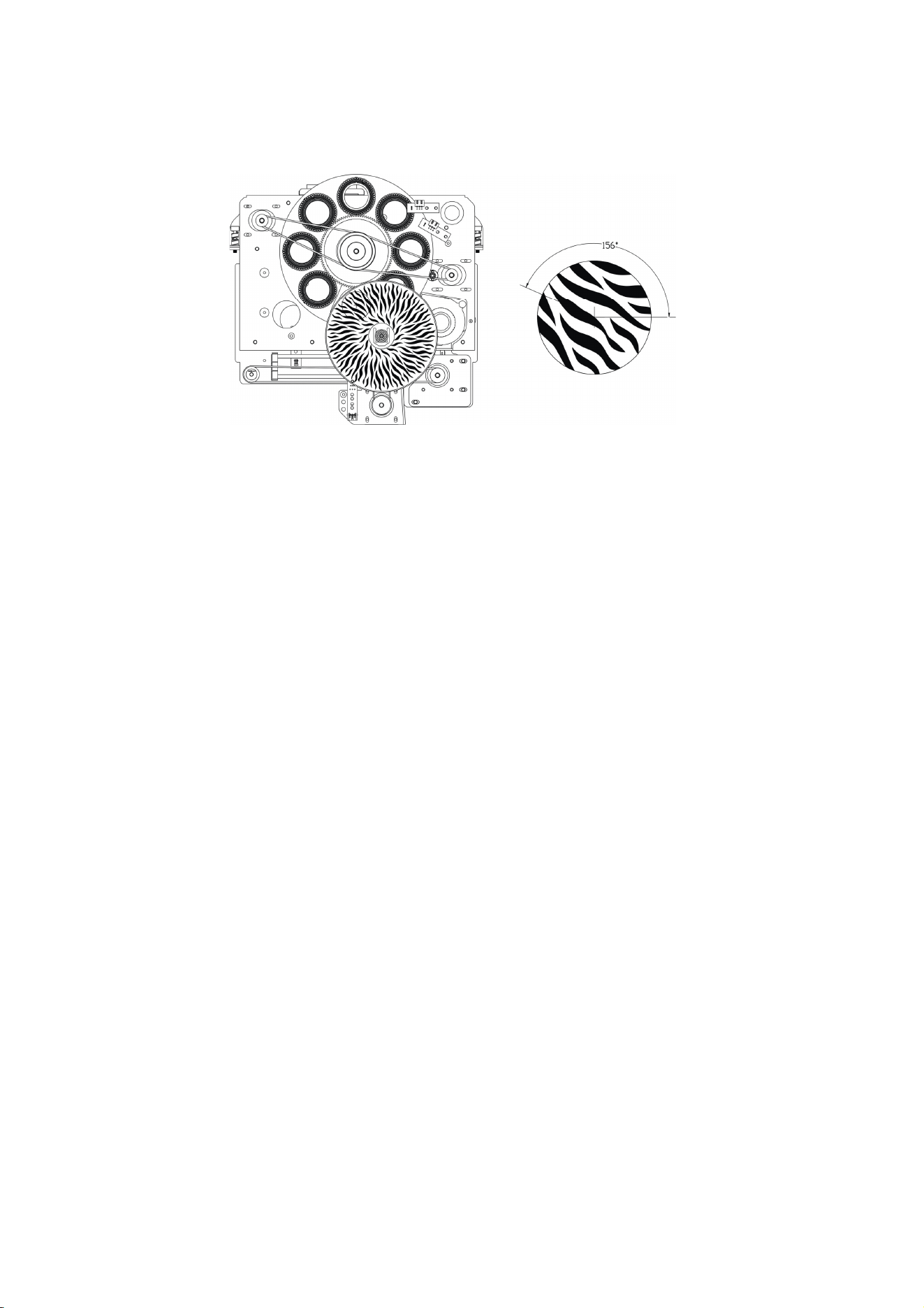
Exterior Projection 1000 User Manual 31
Animation Horizontal 156°
Prism
The fixture has one 4-facet linear rotating and one 3-facet radial rotating prism. Either prism can
be deployed to obtain rotating split beam effects. Each prism can be set to an indexed position or
rotated with variable speed and direction.
Frost
The frost filter softens the light output, giving a diffuse beam. You can adjust the level of diffuser
applied.
Focus
The motorized focus lets you adjust the sharpness of projections from the controller. Gobo
animation effects, for example, can be most effective if they are slightly out of focus.
The minimum distance at which you can obtain sharp focus is 5 m (16.4 ft.) between the fixture
and projection surface.
Zoom
The motorized zoom let you adjust the beam angle from 10
o
– 44°.

32 Exterior Projection 1000 User Manual
Operation
Thermal conditions
The Exterior Projection 1000 is designed for use in ambient temperatures between -30° C (-22° F)
and 45° C (113° F). For instant wake-up with no warm-up mode, we recommend that you keep
power applied constantly in ambient temperatures below 0° C (32° F).
If the fixture’s temperature rises above its normal operating range, it regulates its light output in
order to protect components from heat damage. As the ambient temperature nears 45° C (113° F)
and if the fixture is exposed to strong sunlight, for example, output intensity will be reduced.
Projection data
When projecting a gobo with an image of maximum size at a perpendicular surface (i.e. tilt angle
0° relative to the surface), you can obtain the following image sizes and light intensity in the
projection:
Narrow zoom setting (10°)
Distance to
pro
j
ection surface
10 m
(
33 ft.
)
20 m
(
65.6 ft.
)
30 m
(
98 ft.
)
40 m
(
131 ft.
)
50 m
(
164 ft.
)
Projection diameter in
meters (ft.)
1.5 m
(5.0 ft.)
3.0 m
(10.0 ft.)
4.5 m
(14.9 ft.)
6.1 m
(19.9 ft.)
7.6 m
(24.9 ft.)
Center illuminance in
lux
7310 1828 812 457 292
Center illuminance in
candela
679 170 75 42 27
Projection data, gobo with maximum image size, narrow zoom (10°)
Medium zoom setting (16°)
Distance to
pro
j
ection surface
10 m
(
33 ft.
)
20 m
(
65.6 ft.
)
30 m
(
98 ft.
)
40 m
(
131 ft.
)
50 m
(
164 ft.
)
Projection diameter in
meters (ft.)
2.4 m
(8.0 ft.)
4.9 m
(16.0 ft.)
7.3 m
(24.0 ft.)
9.7 m
(32.0 ft.)
12.2 m
(40.0 ft.)
Center illuminance in
lux
3110 778 346 194 124
Center illuminance in
candela
289 72 32 18 12
Projection data, gobo with maximum image size, medium zoom (16°)

Exterior Projection 1000 User Manual 33
Wide zoom setting (44°)
Distance to
pro
j
ection surface
10 m
(
33 ft.
)
20 m
(
65.6 ft.
)
30 m
(
98 ft.
)
40 m
(
131 ft.
)
50 m
(
164 ft.
)
Projection diameter in
meters (ft.)
7.0 m
(23 ft.)
14.0 m
(46.0 ft.)
21.0 m
(68.9 ft.)
28.0 m
(91.9 ft.)
35.0 m
(114.9 ft.)
Center illuminance in
lux
420 105 47 26 17
Center illuminance in
candela
39 10 4 2 2
Projection data, gobo with maximum image size, wide zoom (44°)

34 Exterior Projection 1000 User Manual
Service and maintenance
Read ‘Safety information’ on page 5 before servicing the fixture.
Important! Opening the fixture can allow moisture to enter and cause condensation on the
front glass. Read ‘Managing humidity’ below and follow the guidelines in this user manual
carefully.
Refer any service or repair operation not described in this manual to an authorized Martin service
technician. Do not try to carry out such an operation yourself, as doing so may present a health or
safety risk. It may also cause damage or malfunction, and it may void your product warranty.
Installation, on-site service and maintenance can be provided worldwide by the Martin Global
Service organization and its approved agents, giving owners access to Martin’s expertise and
product knowledge in a partnership that will ensure the highest level of performance throughout
the product’s lifetime. Please contact your Martin supplier for details.
Optical components have fragile coatings and are exposed to very high temperatures. Handle and
store components with care. Wear cotton gloves while handling them. Keep them perfectly clean
and free of oil and grease to reduce the risk of heat damage.
Firmware
The Exterior Projection 1000 accepts firmware (fixture software) updates via the DMX/RDM link if
you use an uploader tool such as the Martin Companion application running on a Windows PC.
Connect the PC to the DMX/RDM link via a suitable USB-to-DMX hardware interface such as the
Martin Companion Cable, P/N 91616091. See the Martin website at www.martin.com for details of
the firmware upload options available.
The information given in this user manual covers firmware version 1.7.0. If a fixture is running an
earlier version of the firmware, the fixture may not behave exactly as described in this user
manual. Bear in mind also that, if we release a new version of the firmware in the future, the later
firmware may not contain any changes that require an update to this user manual.
The latest firmware for all Martin products, with details of changes between firmware versions, is
available on the Martin website at www.martin.com. The Martin website also gives details of
recommended firmware upload tools. Your Martin supplier will be glad to help if you wish to upload
firmware to a Martin product and need assistance.
Cleaning
Regular cleaning is essential for fixture life and performance. Buildup of dust and dirt degrades the
fixture’s light output and cooling ability.
Cleaning schedules will vary greatly depending on the operating environment. It is therefore
impossible to specify precise cleaning intervals for the Exterior Projection 1000. Inspect fixtures
within their first few weeks of operation to see whether cleaning is necessary. Check again at
frequent intervals. This procedure will allow you to assess cleaning requirements in your particular
situation. If in doubt, consult your Martin dealer about a suitable maintenance schedule.
Do not use products that contain solvents, abrasives or caustic agents for cleaning, as they can
cause surface damage to the fixture. The aluminum housing and front glass can be cleaned with
mild detergents such as those for washing cars.
To clean the housing and front glass:
1. Isolate the fixture from AC power and allow the fixture to cool for 20 minutes.
2. Visually check that the silicone seals and the power and data cables are in good condition. If
any seal or cable shows signs of damage, cracking or loss of water resistance, stop cleaning
the fixture and contact a Martin authorized service technician for replacement.
3. If seals are in good condition, rinse off loose dirt with a hose or low-pressure water spray.

Exterior Projection 1000 User Manual 35
4. Wash the aluminum housing and front glass using warm water with a little mild detergent and
a soft brush or sponge. Do not use abrasive cleaners.
5. Rinse with clean water and wipe dry.
Managing humidity
Martin Exterior fixtures are IP66-rated and are designed to resist water and moisture in
environments with widely varying climate, temperature and humidity conditions. But if fixtures are
not managed correctly during installation and service, water and moisture can enter, leading to
humidity and condensation inside the fixtures. Maximize the performance and service life of your
product by following the precautions in this section.
General
• Carry out service during low-humidly weather conditions (or indoors if possible). Check that
fixtures are dry and free of moist air before closing them.
• Tighten cover screws exactly as directed in this manual and using a torque driver.
• Make sure that all threads are clean and dry. Do not apply lubricant to threads before
assembly. While lubricant may make disassembly easier during future service, it means that
tightening screws to the specified torque will compress seals too much.
• Air and water can be sucked along cables and into fixtures. A cracked or porous cable jacket
can allow water into the cable. Replace any cable that is not in perfect condition. Make sure
that cables from fixtures open into dry areas (e.g. junction boxes in dry locations).
• Do not clean fixtures with high-pressure water jets or immerse them.
Seals and sealing surfaces
The fixture must be sealed effectively. Covers have silicone seals that will withstand rain and water
splashing but will not withstand immersion or high-pressure water jets. Reinstall covers and seals
carefully if you have removed them.
• Make sure that seals and sealing surfaces are perfectly clean, dry and in perfect condition
before installing a cover. If you need to clean seals, use water and a soft cloth only. Replace
any seal that shows signs of aging, damage, cracking, stretching or deformation. Replacement
seals are available from Martin.
• Reinstall seals in exactly their original position.
• Install seals so that they closely follow the profile of the metal parts they are installed on. When
you run your finger around the sealing surface after you have installed a cover, you should not
be able to feel any places where the seal sticks out or sinks into the gap between the sealing
surfaces.
• Do not use liquid gasket or any other type of sealant on sealing surfaces or seals.
Pressure relief valves
A valve with a gas-permeable membrane on the back of the fixture (see ‘Fixture overview’ on page
11) equalizes pressure by allowing air to pass through it when the fixture heats up and cools down,
but at the same time it acts as a barrier to water in liquid form. The expulsion of warm air (with a
slightly higher water vapor content) and intake of cool air (with a slightly lower water vapor content)
prevents humidity buildup over time, provided that the valve works correctly and the fixture is
correctly sealed.
Valves become blocked over time as the micropores in the membrane fill with particles. If a valve
becomes blocked by dirt or water, excess pressure can damage seals or cause air and even water
to be sucked into the fixture along cables. Valves cannot be cleaned and must be replaced if they
show any signs of contamination or if they are not in perfect condition.
To obtain the maximum service life from your fixture, follow these guidelines:
• Do not allow water to collect on or near pressure relief valves. Do not install a fixture with the
valve membrane horizontal so that water can pool on it.
36 Exterior Projection 1000 User Manual
• Replace a valve with a new item if it shows any signs of contamination or is not in perfect
condition.
• Replace valves after an extended period of use. Intervals for valve replacement depend on the
installation environment.
• Consult your Martin dealer about a suitable valve replacement schedule.
• Contact Martin Service if a valve requires replacement.
Removing and reinstalling the top cover
Important! Open the fixture in dry weather conditions only. Use the fixture’s Evaporation Mode
and a new silica gel desiccant bag when you close the fixture to reduce humidity inside the fixture.
Access to optical components is made easy by a cover on the top of the fixture.
Removing the top cover
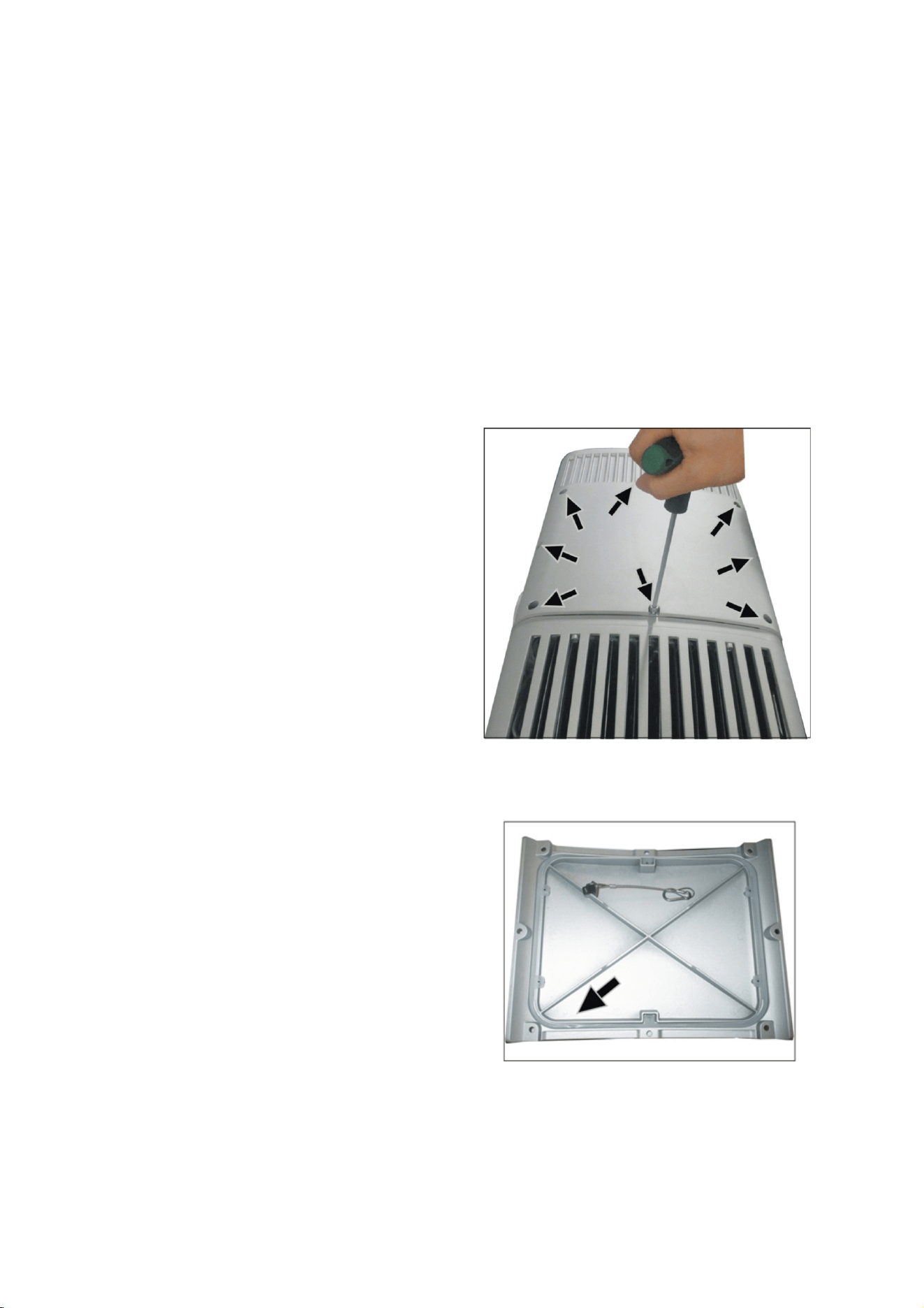
To remove the top cover:
1. Disconnect the fixture from power and allow it
to cool for at least 60 minutes.
2. See illustration on right. Use a 5 mm Allen key
(hex wrench) to remove the eight top cover
screws (arrowed). Lift the top cover off the
fixture. For ease of access – and if it is safe to
do so – you can unclip the safety cable and
remove the cover completely from the fixture.
Reinstalling the top cover
To reinstall the top cover:
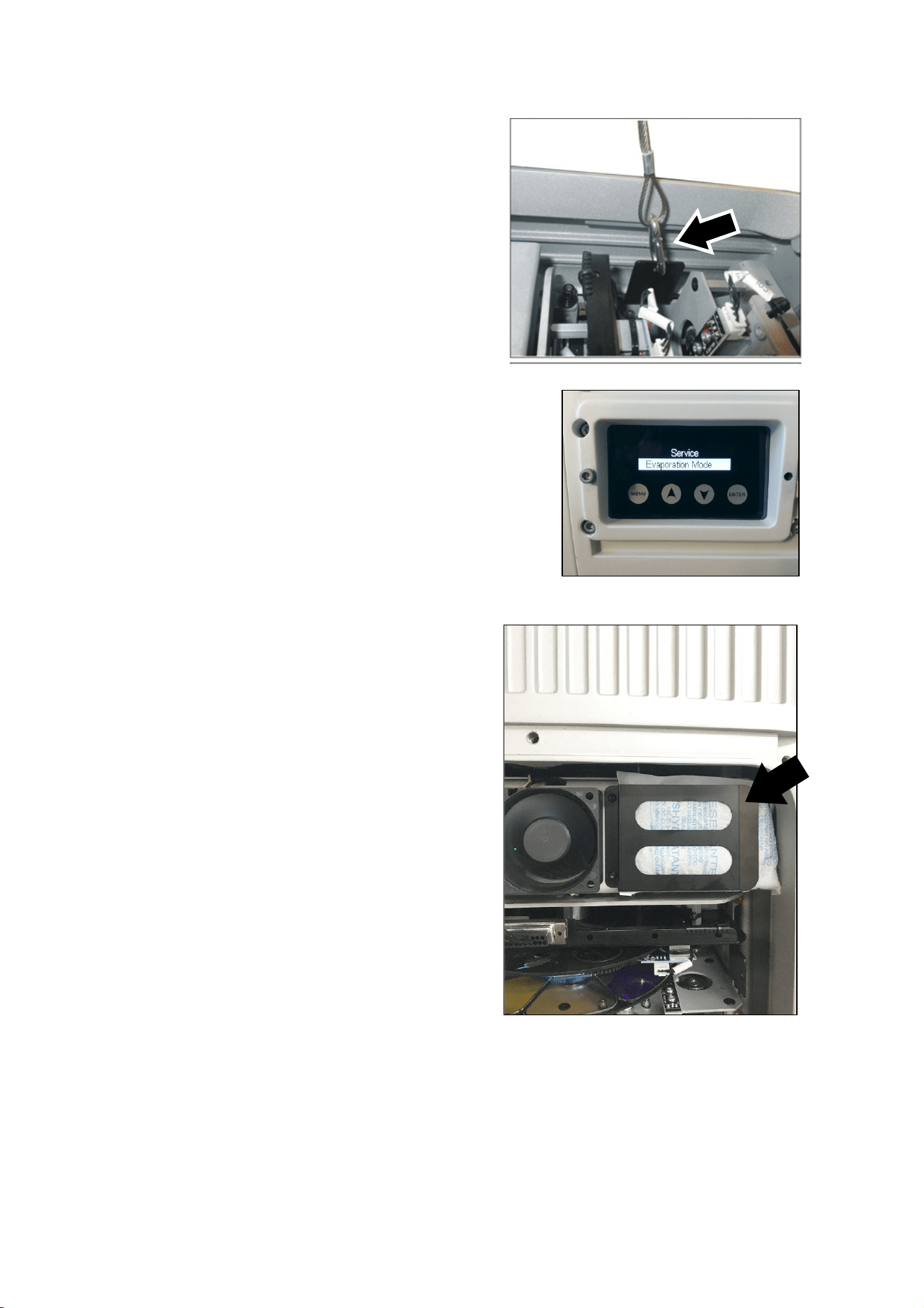
1. See illustration on right. Check the silicone seal in
the top cover. If it is not in perfect condition,
replace it with a new item from Martin.
Exterior Projection 1000 User Manual 37
2. See illustration on right. If you unclipped the top
cover safety cable, reattach it with its carabiner
hook (arrowed) so that it will catch the top cover
and prevent it from falling.
3. Place the top cover loosely over the top of the
fixture so that air can enter and leave the fixture
but debris cannot enter.
4. Obtain a silica gel desiccant bag (P/N 37220000)
from Martin. Do not remove the silica gel bag from
its sealed moisture-proof bag until you are ready to
install it as described below.
5. See illustration on right. Open the Service Evaporation
Mode control menu and select PASSWORD. Scroll to the
user password (default = 123) and press ENTER.
6. Select COVER OPEN and press ENTER.
7. Select EVAPORATION ON to set the fixture to
Evaporation Mode. This allows warm, humid air to leave
the fixture and dry air to enter the fixture. WAIT will appear
in the display.
8. After approx. 15 minutes the display will stop showing
WAIT and start showing CLOSE COVER. Press ENTER.
9. See illustration on right. Remove the silica gel desiccant bag from its sealed moisture-proof
bag. Move the top cover to one side for access, if
necessary, then install the silica gel bag under the
clip (arrowed) in the top of the fixture as shown.
10. Check that the top cover safety cable is correctly
installed.
11. Reinstall the eight top cover screws by first
inserting them finger-tight. Then use a torque
driver and cross-tighten the screws in a diagonal
pattern, increasing torque gradually in stages until
you reach a torque of 1.9 – 3.5 Nm.
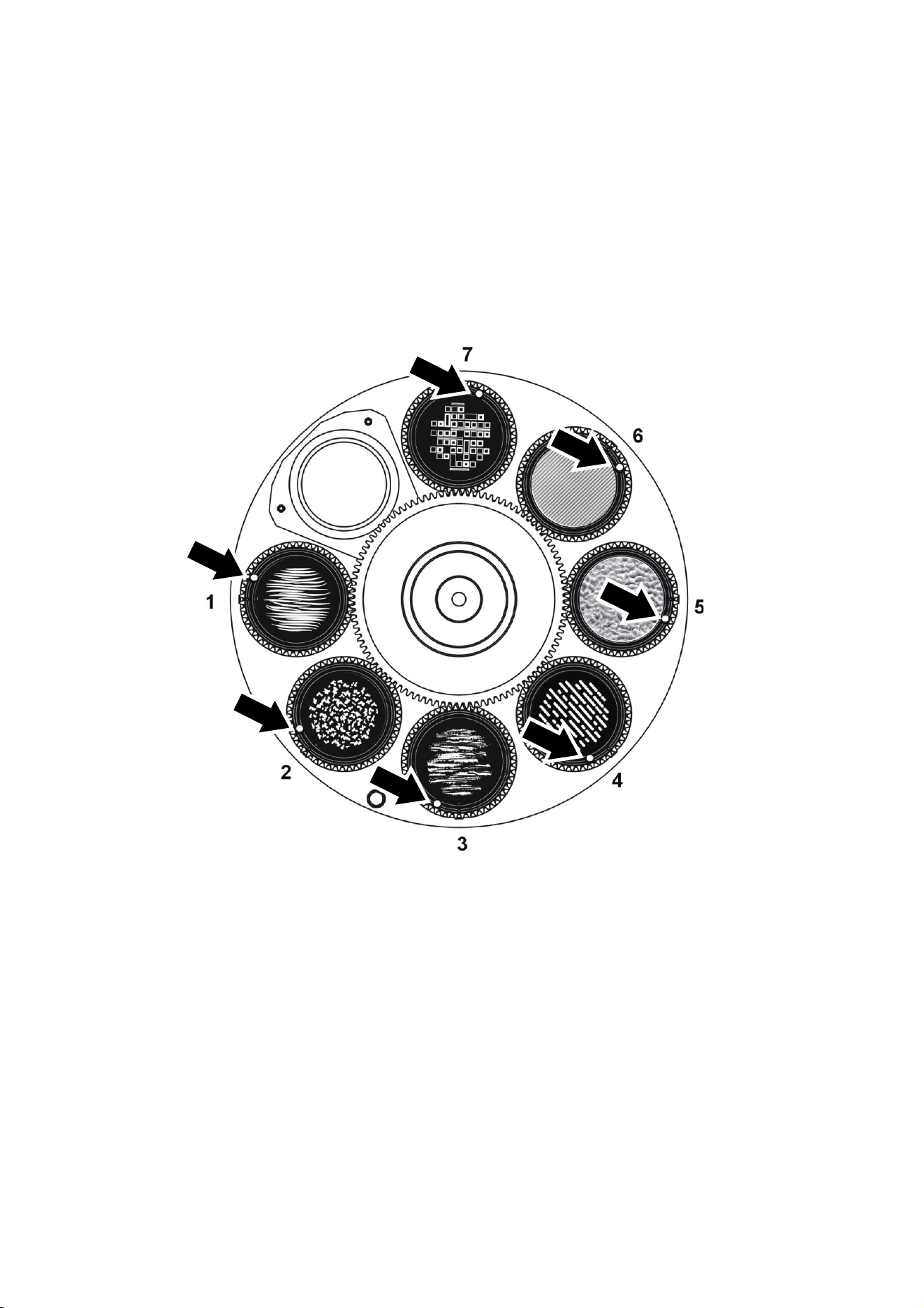
38 Exterior Projection 1000 User Manual
Replacing a rotating gobo
Gobos are user-replaceable, and you can replace them with custom gobos made to your own
design.
Gobos 1 – 4 and gobo 7 are printed/coated glass and share the same specifications, but gobos 5
and 6 are textured glass and have different specifications to the others. See ‘Gobos’ on page35.
When replacing the textured glass gobos in goboholder 5 and 6 with standard glass gobos, you
must use the long spring.
See illustration below. The goboholders have magnets (arrowed) that the fixture uses to recognize
the position of the gobo wheel and gobos. If you replace gobos, install gobos and goboholders in
their original orientation, using the magnet as reference.
The rotating gobos in the Exterior Projection 1000 are installed in goboholders that clip into the
rotating gobo wheel.
Keep gobos perfectly clean and free of oil and grease from your fingers. Put on clean, lint-free
gloves while handling gobos.
To replace a gobo:
1. Remove the top cover as described under ‘Removing and reinstalling the top cover’ earlier in
this chapter.
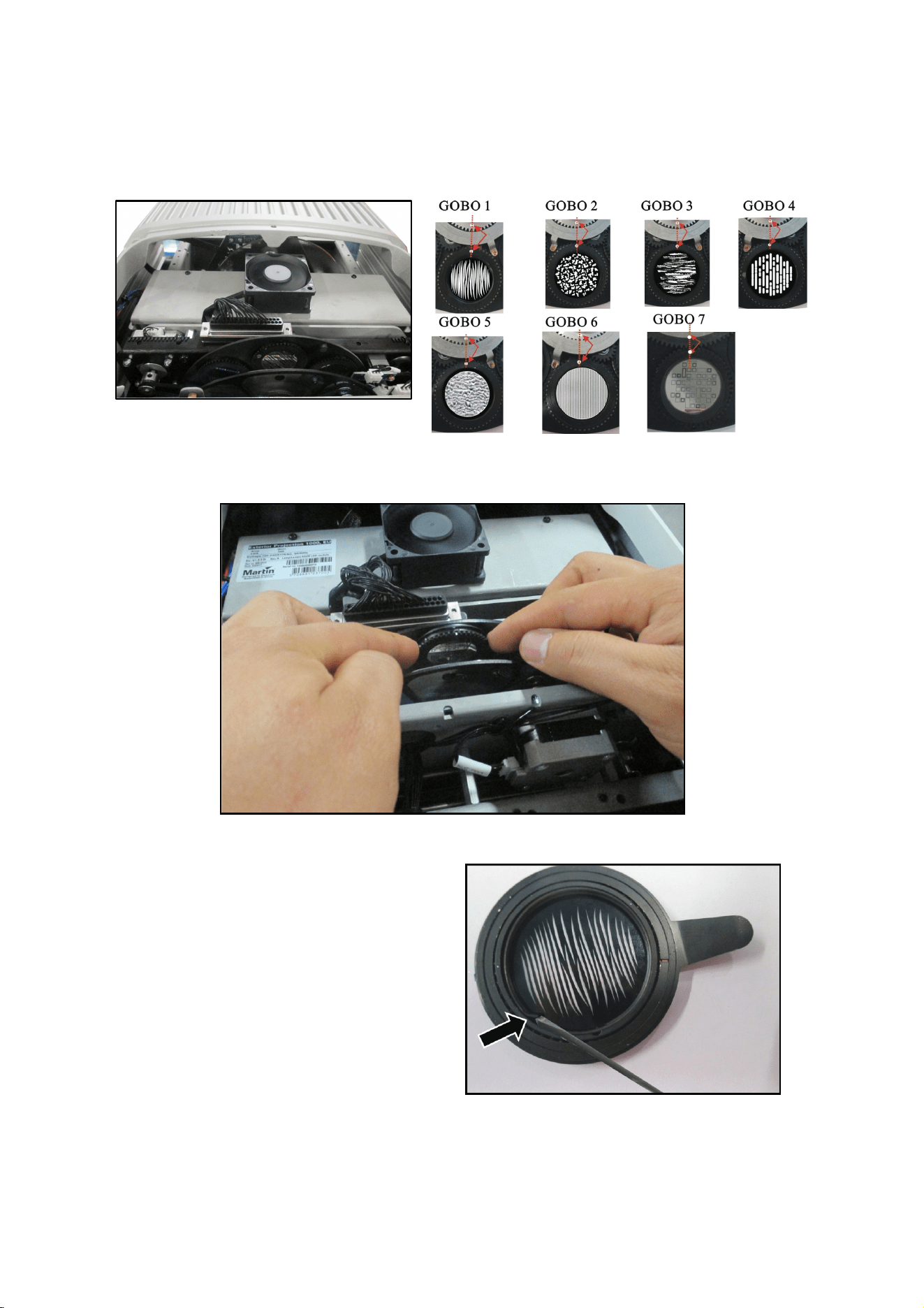
Exterior Projection 1000 User Manual 39
2. See illustrations below. Position the alignment mark (arrowed) in each goboholder at a
reference point such as the midpoint between the end of the motor mounting plate and multi-
connector. Remove and reinstall goboholders with alignment marks in the same position so
that you keep gobos in the same orientation.
3. See illustration below. Pull the goboholder away from the gobo wheel, then lift it up out of the
wheel.
4. See illustration on right. Place the
goboholder on a clean, flat work surface with
the teeth facing downwards. The gobo is
held in place in the goboholder by a spring.
Taking care to avoid scratching or applying
pressure to the gobo, lever the end of the
spring out, remove the spring and then lift
the gobo out of the goboholder.
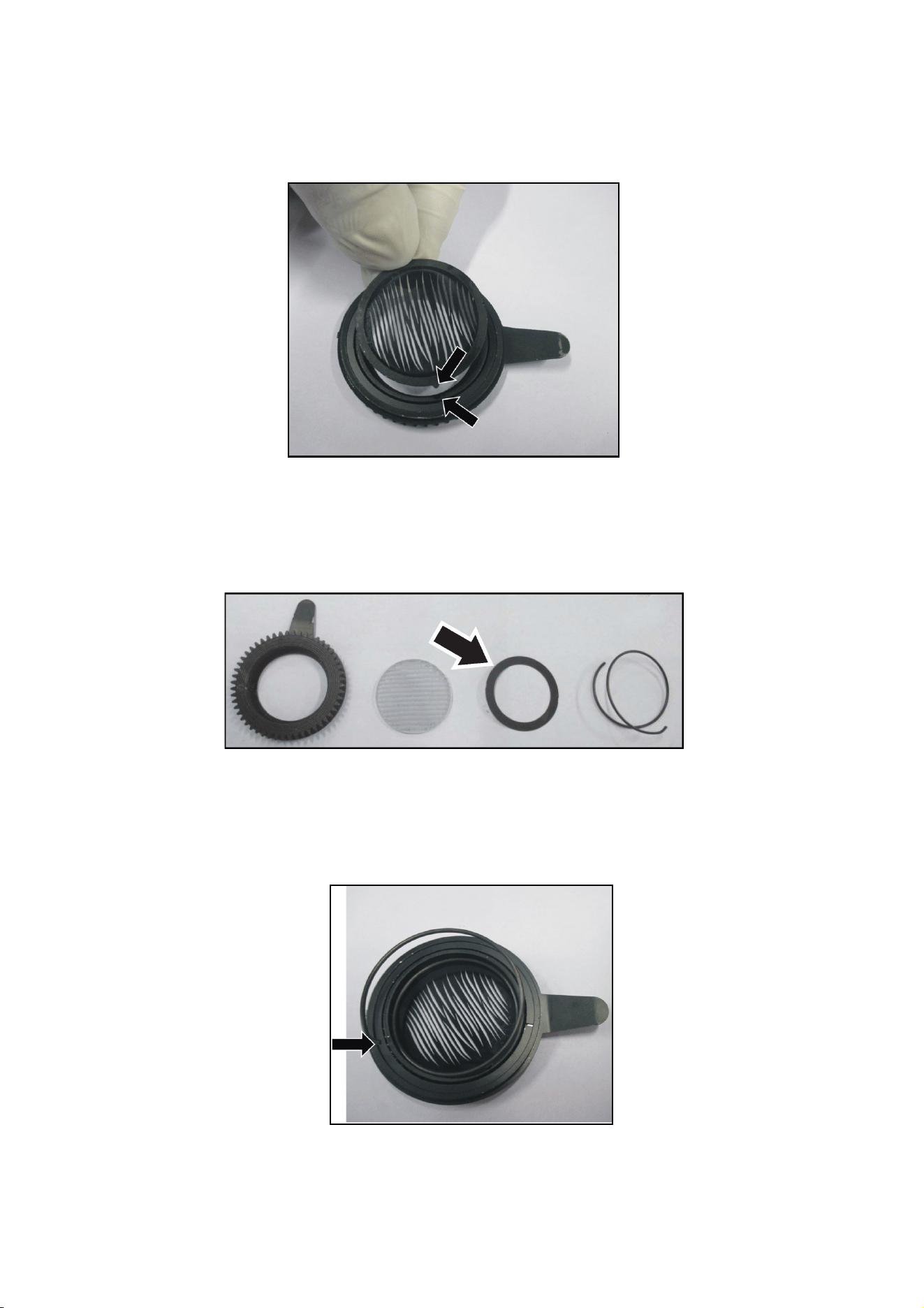
40 Exterior Projection 1000 User Manual
5. See illustration below. Wearing clean gloves, hold the gobo with the dark side facing up. Match
up the alignment marks (arrowed) in the gobo and goboholder. Lay the new gobo flat in the
goboholder.
Gobos 5 and 6 only
Gobos 5 and 6 are textured glass and require a thrust washer. See illustration below. Place the
black thrust washer (arrowed) over the gobo before you go on to the next step.
1. See illustration below. Note the end of the gobo retaining spring with the bend (arrowed) that is
used for levering the spring out of the goboholder. Making sure that the bend in the spring is at
the top (as shown below), closest to you, press the spring down into the goboholder until the
spring clips into its recess in the goboholder. Check that the spring is secure and that the gobo
is still sitting flat in the goboholder.
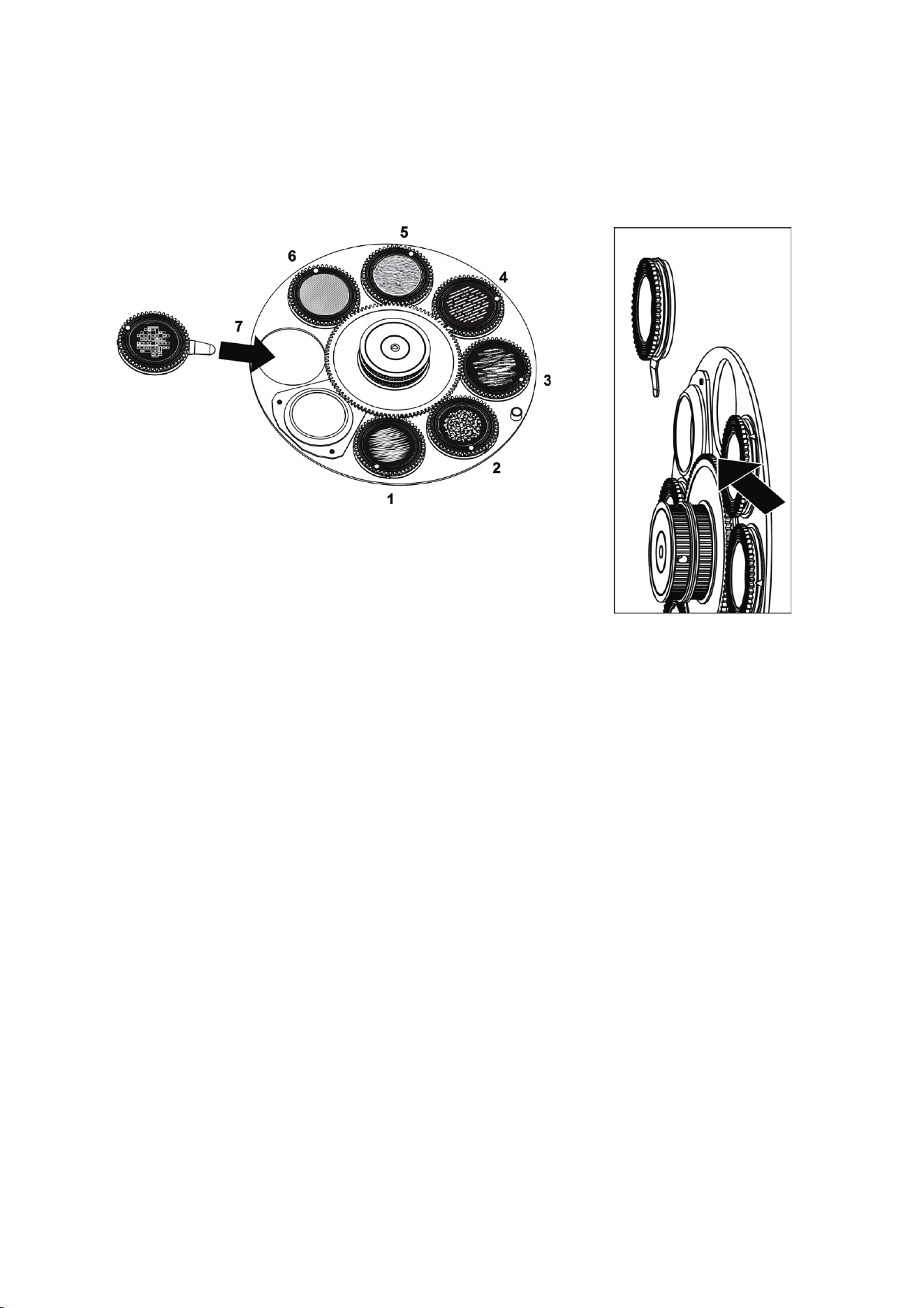
Exterior Projection 1000 User Manual 41
2. Hold the goboholder up to the rotating gobo wheel in its original position. Rotate it until the
alignment mark in the goboholder lines up with the reference point as shown in Step 3.
3. See illustrations below. Push the goboholder into position, sliding the tongue that sticks out
from the goboholder into position (arrowed) behind the gobo activation cog, pressing against
the gobo wheel.
4. Check that the goboholder is held securely. Rotate the whole gobo wheel with your finger and
check that the goboholder rotates in the wheel while you rotate the gobo wheel. If the
goboholder does not rotate, it is not correctly installed and its teeth are probably not engaged
correctly in the teeth in the gobo wheel. Lift the goboholder out of the gobo wheel and reinstall
it correctly.
5. Reinstall the top cover as described earlier in this chapter.
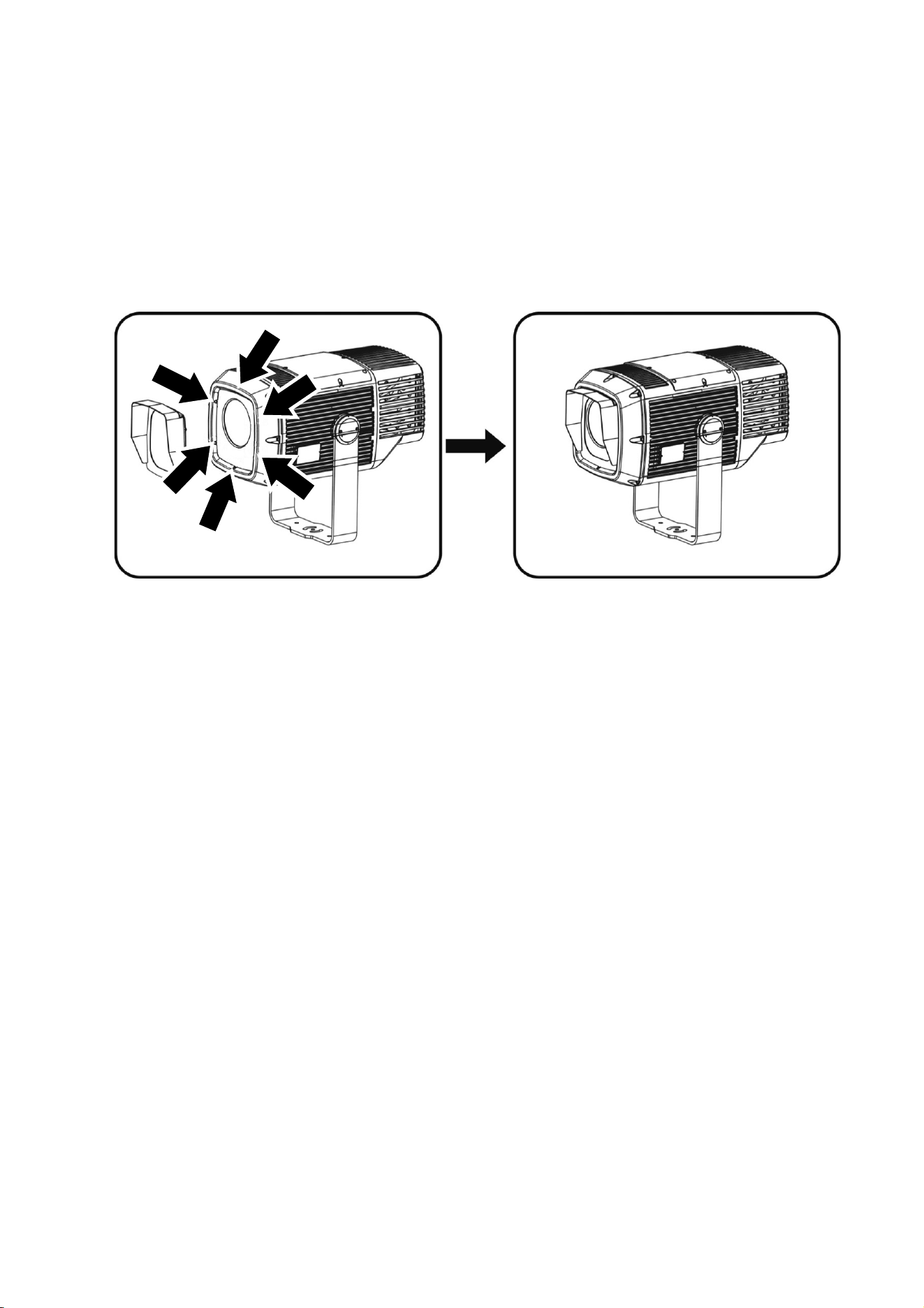
42 Exterior Projection 1000 User Manual
Installing a glare shield accessory
A glare shield is available from Martin as an optional accessory for the Exterior Projection 1000
(see ‘Accessories’ on page 54). The shield reduces stray light and is also recommended to help
protect the fixture from damage caused by the sun shining on the front of the fixture. The glare
shield can be installed in seconds.
To install a glare shield:
1. See illustration below. Remove the plugs from the holes (arrowed) for the six front accessory
mounting screws.
2. Six 3 mm Allen (hex) screws are supplied with the glare shield. Fasten the glare shield
securely to the fixture using the six screws. Use a torque driver to tighten the screws to a
torque of 0.7 – 1.1 Nm.
Exterior Projection 1000 User Manual 43
Remote Device Management (RDM)
The Exterior Projection 1000 features Remote Device Management (RDM) capability. RDM lets
you get information from the fixture and change settings in the fixture remotely over the DMX data
link.
To communicate with the fixture via RDM, use an RDM-compatible DMX controller.
Before you can communicate with fixtures, you must send a scan command (‘Disc Unique
Branch’) from the RDM controller to detect the devices on the data link. For other details of
communication with fixtures, see the RDM-compatible DMX controller’s user manual.
RDM commands are normally referred to as Parameter IDs or PIDs. The Exterior Projection 1000
responds to the following Parameter IDs:
Device discovery
Parameter ID
DISC_UNIQUE_BRANCH
DISC_MUTE
DISC_UN_MUTE
Device management
Parameter ID GET SET
COMMS_STATUS
QUEUED_MESSAGE
STATUS_MESSAGES
STATUS_ID_DESCRIPTION
CLEAR_STATUS_ID
SUPPORTED_PARAMETERS
PARAMETER_DESCRIPTION
DEVICE_INFO
DEVICE_MODEL_DESCRIPTION
MANUFACTURER_LABEL
DEVICE_LABEL
FACTORY_DEFAULTS
SOFTWARE_VERSION_LABEL
DMX_PERSONALITY
DMX_PERSONALITY_DESCRIPTION
DMX_START_ADDRESS
SLOT_DESCRIPTION
SENSOR_DEFINITION
SENSOR_VALUE
DEVICE HOURS
LAMP_HOURS
DEVICE_POWER_CYCLES

44 Exterior Projection 1000 User Manual
IDENTIFY DEVICE
RESET DEVICE
The commands that execute the PIDs in the table above are displayed differently on different RDM
controllers.
The Exterior Projection 1000 sends warnings and error message codes via RDM if you send a
command from the RDM controller. See ‘Warnings and error messages’ on page 50 for a list of
possible codes.
Exterior Projection 1000 User Manual 45
DMX protocol
Channel Value Function
Fade
Status
Default Value
1
0 - 19
20 - 49
50 - 200
201 - 210
211 - 255
Strobe
Shutter closed
Shutter open
Strobe (slow → fast)
Shutter open
Random strobe (slow → fast)
Snap 30
2
0 - 65335
Dimmer
Closed → open
Fade 0
3
4
0 - 255
Cyan
0 → 100%
Fade 0
5
0 - 255
Magenta
0 → 100%
Fade 0
6
0 - 255
Yellow
0 → 100%
Fade 0
7
0
12
24
36
48
60
72
84
96
108
120
132
144
156
168
180
192-200
201-203
204-206
207-209
210-212
213-215
216-218
219-221
222-255
Color selection
Continuous
Open
Split open/Color 1
Color 1
Split Color 1/Color 2
Color 2
Split Color 2/Color 3
Color 3
Split Color 3/Color 4
Color 4
Split Color 4/Color 5
Color 5
Split Color 5/Color 6
Color 6
Split Color 6/Color 7
Color 7
Split Color 7/Open
Open
Stepped
Slot 1
Slot 2
Slot 3
Slot 4
Slot 5
Slot 6
Slot 7
Open
Snap 0
46 Exterior Projection 1000 User Manual
8
0 – 4
5 – 9
10 – 14
15 – 19
20 – 24
25 – 29
30 – 34
35 – 39
40 – 44
45 – 49
50 – 54
55 – 59
60 – 64
65 – 69
70 – 74
75
–
255
Gobo selection
Indexing
Open gobo
Gobo 1 indexing
Gobo 2 indexing
Gobo 3 indexing
Gobo 4 indexing
Gobo 5 indexing
Gobo 6 indexing
Gobo 7 indexing
Rotation
Gobo 1 rotation
Gobo 2 rotation
Gobo 3 rotation
Gobo 4 rotation
Gobo 5 rotation
Gobo 6 rotation
Gobo 7 rotation
Open
g
obo
Snap 0
9
0 – 65535
0 – 600 (2,88)
601 – 32130
(125,130)
32131 – 32895
(128,127)
32896 – 64425
(251,169)
64426 – 65535
(
255,255
)
Gobo indexed position
If indexing is selected on channel 8
Indexed position, 0° Index at 32768
Gobo rotation direction and speed
If rotation is selected on channel 8
No rotation (gobo indexed at 0°)
Rotation CW fast → CW slow
No rotation (gobo stops at current
position)
Rotation CCW slow → CCW fast
No rotation (gobo indexed at 90°)
Fade 32768
10
11
0 – 255
Animation indexing
Indexed position 45° - 156°
Fade 0
12
0 - 2
3 - 126
127 - 129
130 - 253
254 - 255
Animation rotation
Stop
CW fast → slow
Stop (wheel stops at current position)
CCW slow → fast
Stop
Fade 0
13
0 -255
Frost
No diffuser → full diffuser
Fade 0
14
0 - 5
6 - 10
11 - 15
16 - 20
21 - 25
26 - 255
Prism
Open
3-facet prism indexing
Linear prism indexing
3-facet prism rotation
Linear prism rotation
No function
Snap 0
Exterior Projection 1000 User Manual 47
15
0 – 255
0 – 2
3 – 126
127 – 129
130 – 253
254 – 255
Prism indexed position
If channel 14 set to DMX value 6-15
Indexed position (0° index at 128)
Prism rotation
If channel 14 set to DMX value 16-25
No rotation (prism indexed at 0°)
Rotating CW Fast → CW Slow
No rotation (prism stops at current
position)
Rotating CCW Slow to CCW Fast
No rotation (prism indexed at 45°)
Fade 128
16
0 – 65535
Zoom
Wide → narrow
Fade 32768
17
18
0 – 65535
Focus
Far → near
Fade 32768
19
20
0-9
10-14
15-29
30-34
35-39
40-44
45-49
50-54
55-59
60-64
65-69
70-255
Fixture control/settings
No function
Reset fixture
No function
Precise gobo indexing ON
Precise gobo indexing OFF (default)
Parameter shortcuts = ON (default)
Parameter shortcuts = OFF
Auto-blackout = ON
Auto-blackout = OFF (default)
Illuminate display on fixture
Turn off display on fixture
No function
Snap 0
48 Exterior Projection 1000 User Manual
Control menus
To access the control menus, press the MENU button and hold for three seconds. Use the UP ▲
and DOWN ▼ buttons to navigate the menus. Select menu options using the ENTER button. Exit
menus using the MENU button.
DMX
Address
1~XXX Set fixture’s DMX address
Program
show
Set scene total 1-20
Set total number of scenes in standalone show
(default = 20)
Edit scene Scene 1~20
Strobe
Set value or percentage for each
effect in scene
Dimmer
Cyan
Etc…
Set show times
Set fade time 0~120s Default 0.0 seconds
Set hold time 0~600s Default 4.0 seconds
Manual
mode
Manual test
Strobe 0-255
Manually control all fixture’s
effects
Dimmer 0-100%
Cyan 0-255
Etc… Etc…
Reset functions
All
No
Reset all effects
Yes
Color/CMY
No
Reset color wheel and CMY
Yes
Gobo
No
Reset gobo wheel
Yes
PrismFrostFocusZoom
No
Reset prism, frost, focus and
zoom
Yes
Animation
No
Reset gobo animation wheel
Yes
Factory default Yes/No Return fixture to factory default settings
Display
setting
Inverse On/Off Flip readout in display panel through 180°
Display auto off No/Yes(1 minute) Display panel sleeps after 1 minute
Intensity 0%-100% Adjust display panel intensity
Lock display
On
Activate display locking (if display is locked,
hold Menu key pressed for 3 seconds, then
enter service password (111) to unlock)
Off
Set password 0…999 Set user password (default = 123)
Exterior Projection 1000 User Manual 49
Fixture
Config
Host/Client Host/Client
Fixture acts as host or client in host/client
operation
Important: Set only one fixture to be host!
Offline mode
Run show
When no DMX signal is present, fixture runs
standalone show
DMX last state
When no DMX signal is present, fixture displays
the last effect it was displaying before the DMX
signal stopped
Black out
When no DMX signal is present, fixture blacks
out
Service
Fixture status
LED Temperature Temperature of LED engine in °C
Power-on Hours
Number of hours fixture has been powered on
since manufacture
Lamp Hours
Number of hours light output has been
activated since manufacture (or since counter
last reset).
Press Enter, then use service password (123) to
access option to reset lamp hours to zero
Software Version V x.x.x
Currently installed software
(firmware) version
Fixture offset
Cyan -128~127
Note: For use by Martin
Service!
Enter user password
(default = 123) or service
password (111) for access
to effect offsets. Then set
an offset in each effect’s
home position.
Magenta -128~127
Yellow -128~127
Color Selection -128~127
Etc… …
Evaporation mode Password 0 … 999
Enter user password (default = 123) or service
password (111) to put fixture into Evaporation
Mode. To clear humidity, open top cover slightly,
then press Enter. When message to close cover
appears in display, close top cover, then press
Enter.
50 Exterior Projection 1000 User Manual
Warnings and error messages
The Exterior Projection 1000 monitors its own operation and is capable of self-diagnosis. If an
operating parameter such as ambient temperature is exceeded or if an error occurs, the fixture
displays a warning or error message in its onboard LCD display.
If the fixture displays a warning or error message, it can also send a four-character code to an
RDM controller. You may need to use a command to retrieve these codes from the fixture.
The following table gives the meaning of the warning and error message codes in RDM:
Message in display RDM code Notes
Environment temp out of
range
8003 Ambient temperature exceeded
Err Animation 901B Animation system error
Err Animation Rot 901C Animation wheel rotation error
Err Focus 901D Focus sensor error
Err Zoom 901E Zoom error
Err Frost 907F Frost error
Err Color Wheel 9015 Color wheel error
Err Gobo Wheel 9017 Gobo wheel error
Err Gobo ind/rot 9018 Gobo indexing/rotation error
Err Cyan 9022 Cyan error
Err Magenta 9023 Magenta error
Err Yellow 9024 Yellow error
Err 3_Facet_Prism 9028 3-facet prism error
Err Prism Rot 9029 Prism rotation error
CMY Fan 1 9056 CMY cooling fan 1 not running
PCBA Fan 9057 PCBA cooling fan not running
PSU Fan 9059 Internal PSU fan error
CMY Fan 2 905A CMY cooling fan 2 not running
Err Line Prism 9062 Linear prism error
Gobo Wheel Fan 90AE Gobo wheel cooling fan not running
Exterior Projection 1000 User Manual 51
Troubleshooting
This section provides some suggestions for solving possible problems:
Symptom Potential cause Remedies
No light from fixture Power supply issue such as
faulty connector or damaged
cable.
Ensure that mains supply is
connected and supplying
power to the fixture.
Check all power connections
and cables.
Reduced light output
Fixture may be close to
maximum operating
temperature and
automatically reducing output
to protect from overheating.
Check that maximum ambient
temperature (45° C) has not
been exceeded.
Ensure that fixture is clean
and that there is free airflow
around fixture, especially
around grills at back of fixture.
Fixture does not respond
correctly to DMX control
Incorrect DMX setup.
Fault in the DMX network due
to connector or cable damage
or potential interference from
proximity to a high voltage
installation.
Internal fault.
Check DMX addressing.
Check all DMX cables and
connections.
Ensure that DMX link is
terminated.
Attempt to control fixture with
another DMX control device.
Move or shield DMX link if it is
close to an unshielded high-
voltage installation.
Contact your Martin
authorized distributor or
service center for assistance.
Condensation visible on
inside of front glass
Humidity inside fixture. Condensation inside the
fixture is normal in some
atmospheric conditions. The
fixture will gradually expel
humidity via its Gore-Tex
pressure relief valve as it
cycles on and off.
If required, you can remove
excessive humidity by
following the directions given
in ‘Removing and reinstalling
the top cover’ starting on page
36.
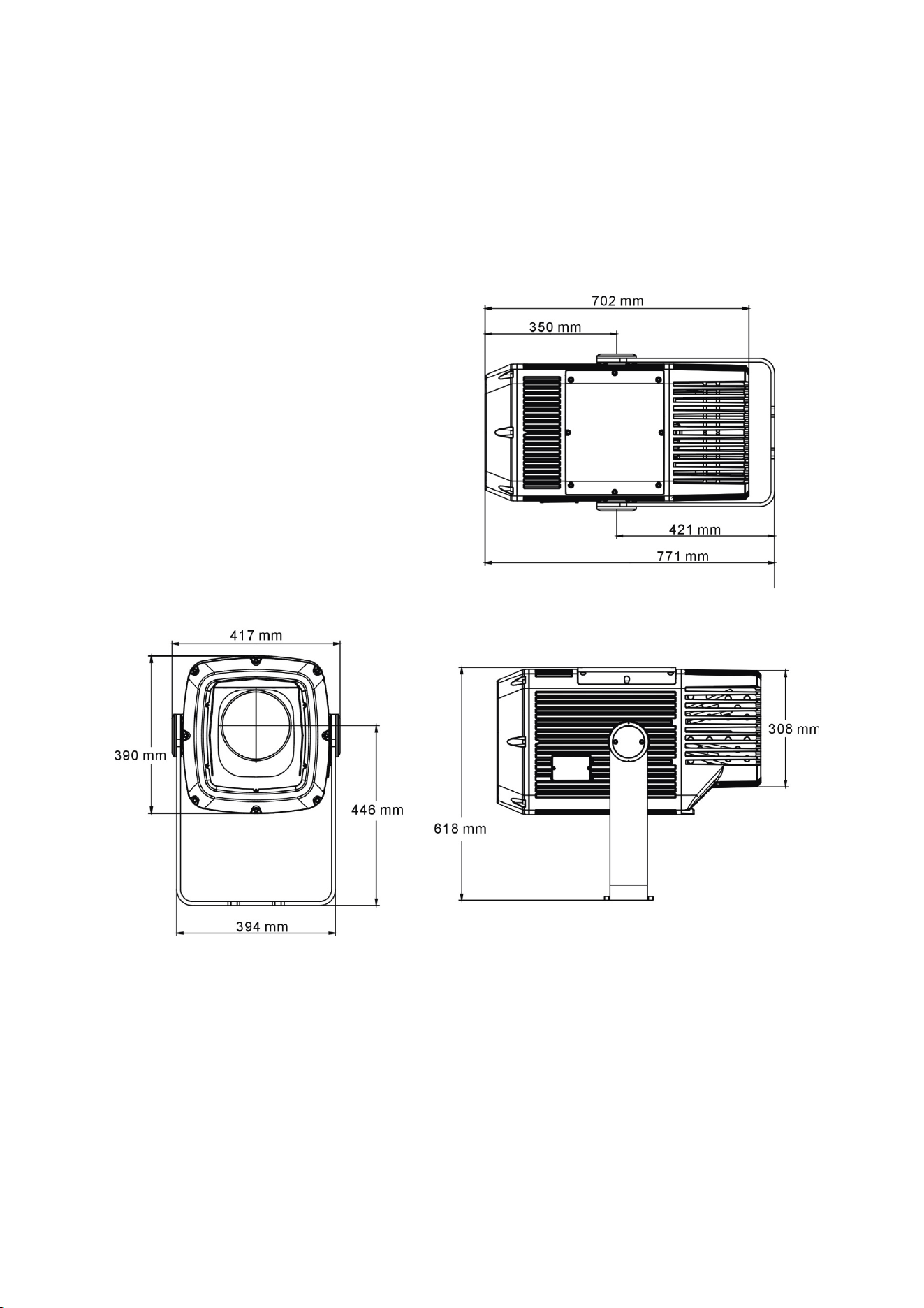
52 Exterior Projection 1000 User Manual
Specifications
Physical
Length (head horizontal) .................................................................................... 702 mm (27.7 in.)
Width .................................................................................................................. 417 mm (16.5 in.)
Height (head horizontal) ..................................................................................... 618 mm (24.4 in.)
Height (head vertical) ......................................................................................... 771 mm (30.4 in.)
Weight ................................................................................................................... 50 kg (110 lbs.)
All figures include mounting yoke
Dynamic Effects
Color mixing .......................................................................... CMY independently variable 0-100%
Color wheel ............................................................................. 7 interchangeable colors plus open
Rotating gobos ......................................... 7 rotating gobos plus open, indexing, variable rotation
Gobo animation wheel ..... Indexing, continuous rotation with variable angle, speed and direction
Zoom ...................................................................................... Motorized, 10° - 44° (cutoff angles)
Focus ............................................................................ Motorized, variable, 3 m (9.8 ft.) to infinity
Prism ............................ Prism wheel with 2 interchangeable prisms, prism rotation and indexing
Frost filter .......................................................................................................... Motorized, variable
Dimming ............................................................................ Electronic, 0-100% constantly variable
Shutter ......................................... Electronic, strobe and pulse effects, instant open and blackout

Exterior Projection 1000 User Manual 53
Control and Programming
Control options ........................................................................................ DMX, RDM, stand-alone
Configuration, addressing and status ........ Onboard control panel with OLED display or via RDM
8-bit control ..................................... CMY, color selection, gobo selection, prism, frost, animation
16-bit control ............................................. Gobo indexing and rotation, zoom, focus and intensity
DMX channels ............................................................................................................................ 20
DMX compliance ............................................................................................. USITT DMX512-A
RDM compliance ............................................................................................. ANSI/ESTA E1.20
Optics
Light source ..................................................................................... 440 W white light LED engine
CRI (Color Rendering Index) ...................................................................................................... 72
Color temperature ................................................................................................ 6500 K (±250 K)
LED lifetime .................................................................. 20 000 hours (to >70% luminous output)*
LED manufacturer ....................................................................................................... Appotronics
*Figure obtained under manufacturer's test conditions
Photometric Data
Cut-off angle ..................................................................................................................... 10° - 44°
Luminous intensity:
Zoom an
g
le Total output Center peak
10° 11 500 lumens 731 000 cd
16° 15 000 lumens 311 000 cd
40° 16 800 lumens 42 000 cd
Construction
Housing .................................................................................................................. Cast aluminum
Finish .................................................................. Hard-anodized, white or metallic grey lacquered
Front glass .................................................... 5 mm (0.2 in.) anti-reflection coated tempered glass
Ingress protection ................................................................................................................... IP 66
Impact resistance ..................................... IK08 (with control panel / display cover plate installed)
Corrosion resistance ......................................... C5-M (very high corrosivity / marine, ISO 12944)
EPA (Effective Projected Area ............................................................................................ 0.28m
2
RoHS compliant
Gobos
Suitable material ................ Metal or borosilicate glass, coatings heat-resistant to 450°C (842° F)
Gobo diameter .............................................................. 30.0 mm +0/-0.3 mm (1.2 in. +0/-0.02 in.)
Maximum image diameter .................................................................................... 26 mm (1.02 in.)
Gobo thickness, minimum ...................................................... 1.1 mm ±0.1 mm (0.045 ±0.004 in.)
Gobo thickness, maximum .............................................. 3.0 mm ±0.3 mm (0.118 in. ± 0.012 in.)*
*Gobos thicker than 2.5 mm require a shorter spring in the goboholder
Installation
Mounting ................................................................................................................ Adjustable yoke
Suitable for wet locations. Do not immerse in water.
Orientation .................................................................................. Any (sides must be kept vertical)
Minimum distance to illuminated surfaces ................................................................ 0.5 m (20 in.)
54 Exterior Projection 1000 User Manual
Connections
Power cable entry ................................................................................................ IP66 cable gland
Power connection .............................................................. 1.8 m (5.9 ft.) cable tail with bare ends
Power cable type ....................................................... EU models: H07RN-F 450/700 V, Ø 10 mm
US models: SJTW 14AWG, 300 V, Ø 9.3 mm (0.37 in.)
Data cable entry .................................................................................................. IP66 cable gland
Data connection ........................ 1.8 m (5.9 ft.) combined input + output cable tail with bare ends
Electrical
AC power ........................................................................... 100-120/200-277 V nominal, 50/60 Hz
Power supply ........................................................................ Auto-ranging electronic switch-mode
Typical half-cycle RMS inrush current .................................................................................. 15.5 A
Surge protection ...................................................................................................................... 4 kV
Idle power (zero intensity, no effects applied) ........................................................................ 75 W
Typical Power and Current
120 V, 60 Hz ................................................................................................ 645 W, 5.5 A, PF 0.98
230 V, 50 Hz ................................................................................................ 635 W, 2.9 A, PF 0.95
277 V, 60 Hz ................................................................................................ 635 W, 2.6 A, PF 0.90
Figures are typical, not maximum. Measurements made at nominal voltage with all LEDs at full
intensity. Allow for a deviation of +/- 10%. PF = Power Factor.
Thermal
Cooling ........................................................................................... Convection, internal forced air
Total heat dissipation (calculated) ............................................................................. 2350 BTU/hr.
Maximum surface temperature ................................................................................ 85° C (185° F)
Maximum ambient temperature (Ta max.) ............................................................. 45° C (113° F)*
Minimum ambient temperature (Ta min.) ............................................................. -30° C (-22° F)**
*Above this temperature the fixture regulates output to protect from overheating.
**For instant wake-up with no warm-up mode, leave power applied constantly in ambient
temperatures below 0° C (32° F).
Approvals
Global CB Certification/IECEE ........................................................ IEC 60598-2-5 (IEC 60598-1)
EU safety .............................. EN 60598-2-1, EN 60598-2-5 (EN 60598-1), EN 62471, EN 62493
EU EMC ................................. EN 55015, EN 55032, EN 55103-2, EN 61000-3-2, EN 61000-3-3,
EN 61000-4-2, EN 61000-4-3, EN 61000-4-4, EN 61547
US safety ................................................................................................................. ANSI/UL 1598
US EMC .................................................................................................... CFR 47 Part 15 Class A
Canadian EMC .................................................................... ICES-003 Class A, NMB 3-5 Class A
Australia/NZ ............................................................................................................................ RCM
Included Items
Silica gel desiccant bag ........................................................................................... P/N 37220000
Two gobo retaining springs, extra length, for use with non-textured gobos
Accessories
Glare Shield, Exterior Projection 1000 .................................................................... P/N 91611768
‘Line it Up’ Projection Setup Gobo for Exterior Projection 1000 ............................. P/N 91616075
Gobo Ring, Outer Diameter 30 mm, Set of 10 ............................................... P/N MAR-91611851
Protection Spring for Exterior Projection 1000 (use during transport) .................... P/N 91611097
Exterior Projection 1000 User Manual 55
Related Items
Martin Companion software suite ....................................... Free download from www.martin.com
Martin Companion Cable USB/DMX hardware interface ........................................ P/N 91616091
Martin RDM 5.5 Splitter ........................................................................................... P/N 90758150
Spare Parts
Silica Gel Desiccant Bag in sealed foil pack ........................................................... P/N 37220000
Exterior Projection 1000 Goboholder with Magnet (incl. washer + short spring) .... P/N 50482185
Exterior Projection 1000 Goboholder with Magnet (incl. washer + long spring) ..... P/N 50482186
Ordering Information
EU models
Exterior Projection 1000, EU, Aluminum ................................................................. P/N 90512000
Exterior Projection 1000, EU, White ........................................................................ P/N 90512015
US models
Exterior Projection 1000, US, Aluminum ................................................................. P/N 90512005
Exterior Projection 1000, US, White ........................................................................ P/N 90512010
Specifications subject to change without notice. Please see the Martin website at www.martin.com
for latest specifications.
Disposing of this product
Martin products are supplied in compliance with Directive
2012/19/EC of the European Parliament and of the Council of the
European Union on WEEE (Waste Electrical and Electronic
Equipment), where applicable.
Help preserve the environment! Ensure that this product is
recycled at the end of its life. Your supplier can give details of
local arrangements for the disposal of Martin products.

Notes

Notes

Notes

Notes

www.martin.com