
© 2026 Samsung Electronics Co., Ltd. All rights reserved.
USER GUIDE
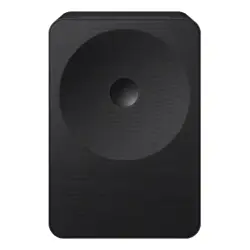
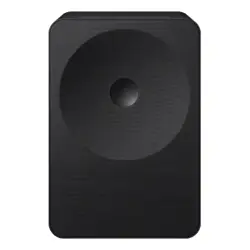
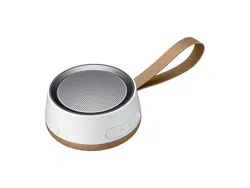
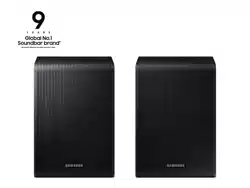
Music Studio 7 (HW-LS7*H)
Music Studio 5 (HW-LS5*H)
To receive more complete service, please register your product at
www.samsung.com
Figures and illustrations in this User Manual are provided for
reference only and may differ from actual product appearance.

English - 2
Contents
01 SafetyInformation 3
SAFETY WARNINGS . . . . . . . . . . . . . . . . . . . . . . . . . . . . . . . . . . . . . 3
Precautions . . . . . . . . . . . . . . . . . . . . . . . . . . . . . . . . . . . . . . . . . . . . 3
02 CheckingtheComponents 4
03 ProductOverview 4
Buttons. . . . . . . . . . . . . . . . . . . . . . . . . . . . . . . . . . . . . . . . . . . . . . . . 4
Terminals . . . . . . . . . . . . . . . . . . . . . . . . . . . . . . . . . . . . . . . . . . . . . . 5
04 ConnectingElectricalPower 5
05 ConnectingaMobileDevice 6
Connecting to the Samsung Sound App (Wireless Network) 6
Output specifications for the SOUND MODE. . . . . . . . . . . . . . . 7
Using Group Play . . . . . . . . . . . . . . . . . . . . . . . . . . . . . . . . . . . . . . . 7
Connecting to Apple AirPlay . . . . . . . . . . . . . . . . . . . . . . . . . . . . . 8
Connecting by Bluetooth . . . . . . . . . . . . . . . . . . . . . . . . . . . . . . . . 8
- Notes on Bluetooth connection . . . . . . . . . . . . . . . . . . . . . . . 8
- Disconnecting the Bluetooth device from a WiFi
Speaker. . . . . . . . . . . . . . . . . . . . . . . . . . . . . . . . . . . . . . . . . . . . . 8
- Disconnecting the WiFi Speaker from the Bluetooth
device . . . . . . . . . . . . . . . . . . . . . . . . . . . . . . . . . . . . . . . . . . . . . . 8
Using Instant Music Play . . . . . . . . . . . . . . . . . . . . . . . . . . . . . . . . 9
- Setting up Instant Music Play . . . . . . . . . . . . . . . . . . . . . . . . . 9
- Playing music instantly with the
Button . . . . . . . . . . . . 9
06 ConnectingtoaTV 9
Connecting by Wi-Fi. . . . . . . . . . . . . . . . . . . . . . . . . . . . . . . . . . . . . 9
Connecting to a TV that supports Dolby Atmos . . . . . . . . . . . . 9
Using the Q-Symphony Function . . . . . . . . . . . . . . . . . . . . . . . . 10
Connecting to Non-Q-Symphony TV . . . . . . . . . . . . . . . . . . . . . 10
Connecting by Bluetooth . . . . . . . . . . . . . . . . . . . . . . . . . . . . . . . 10
Connecting to a TV with HDMI ARC (Audio Return Channel)
Support. . . . . . . . . . . . . . . . . . . . . . . . . . . . . . . . . . . . . . . . . . . . . . . 11
Connecting using an Optical Cable . . . . . . . . . . . . . . . . . . . . . . 12
Using the Spacefit Sound. . . . . . . . . . . . . . . . . . . . . . . . . . . . . . . 12
- Connecting via WiFi Speaker . . . . . . . . . . . . . . . . . . . . . . . . . 12
- Connecting to TV . . . . . . . . . . . . . . . . . . . . . . . . . . . . . . . . . . . 12
07 ConnectinganExternalDevice 12
Connecting using an Optical Cable . . . . . . . . . . . . . . . . . . . . . . 12
08 AdditionalFeatures 13
Installing the WiFi Speaker (HW‑LS7*H) on a Stand . . . . . . . 13
- Screw specifications for mounting the WiFi Speaker on a
stand . . . . . . . . . . . . . . . . . . . . . . . . . . . . . . . . . . . . . . . . . . . . . . 13
Activate/Deactivate Wi-Fi and Bluetooth . . . . . . . . . . . . . . . . 13
- To activate/deactivate Wi-Fi connection . . . . . . . . . . . . . . 13
- To activate/deactivate Bluetooth connection. . . . . . . . . . 13
09 SoftwareUpdate 13
Auto Update . . . . . . . . . . . . . . . . . . . . . . . . . . . . . . . . . . . . . . . . . . 13
USB Update . . . . . . . . . . . . . . . . . . . . . . . . . . . . . . . . . . . . . . . . . . . 13
Reset . . . . . . . . . . . . . . . . . . . . . . . . . . . . . . . . . . . . . . . . . . . . . . . . . 14
Security updates information . . . . . . . . . . . . . . . . . . . . . . . . . . . 14
10 Troubleshooting 14
11 License 15
English - 3
01 Safety Information
The following also applies to the Subwoofer and Surround Speaker
SET.
SAFETY WARNINGS
TO REDUCE THE RISK OF ELECTRIC SHOCK, DO NOT REMOVE THE
COVER (OR BACK).
NO USER-SERVICEABLE PARTS ARE INSIDE. REFER SERVICING TO
QUALIFIED SERVICE PERSONNEL.
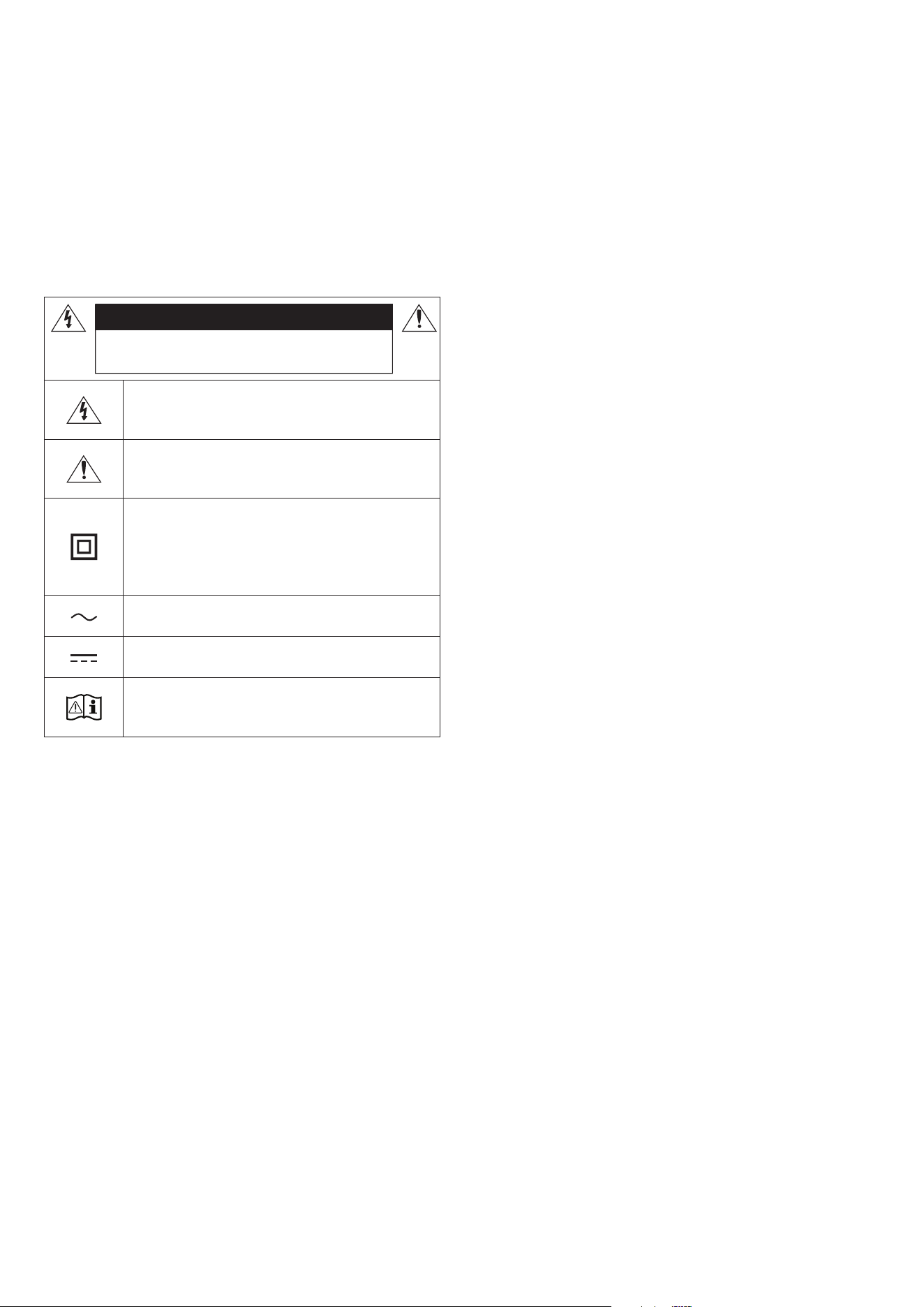
Refer to the table below for an explanation of symbols which may be
on your Samsung product.
RISK OF ELECTRIC SHOCK.
DO NOT OPEN.
CAUTION
This symbol indicates that high voltage is present
inside. It is dangerous to make any kind of contact
with any internal part of this product.
This symbol indicates that this product has included
important literature concerning operation and
maintenance.
Class II product : This symbol indicates that a safety
connection to electrical earth (ground) is not required.
If this symbol is not present on a product with a power
cord, the product MUST have a reliable connection to
protective earth (ground).
AC voltage : Rated voltage marked with this symbol is
AC voltage.
DC voltage : Rated voltage marked with this symbol is
DC voltage.
Caution. Consult Instructions for use : This symbol
instructs the user to consult the user manual for
further safety related information.
WARNING
• To reduce the risk of fire or electric shock, do not expose this
appliance to rain or moisture.
• Do not use liquid fumigators containing chemicals, such as
mosquito repellent or air freshener, around the product. If steam
comes in contact with the product surface or enters the product, it
may cause stains or malfunction.
• For crevices or other areas that cannot be thoroughly cleaned with a
cloth, use a soft cotton swab, brush, or air blower to remove dirt.
CAUTION
• TO PREVENT ELECTRIC SHOCK, MATCH WIDE BLADE OF PLUG TO
WIDE SLOT, FULLY INSERT.
• This apparatus shall always be connected to a AC outlet with a
protective grounding connection.
• To disconnect the apparatus from the mains, the plug must be
pulled out from the mains socket, therefore the mains plug shall be
readily operable.
• Do not expose this apparatus to dripping or splashing. Do not put
objects filled with liquids, such as vases, on the apparatus.
• To turn this apparatus off completely, you must pull the power plug
out of the wall socket. Consequently, the power plug must be easily
and readily accessible at all times.
Precautions
1. Ensure that the AC power supply in your house complies with the
power requirements listed on the identification sticker located
on the bottom of your product. Install your product horizontally,
on a suitable base (furniture), with enough space around it for
ventilation (7~10 cm). Make sure the ventilation slots are not
covered. Do not place the unit on amplifiers or other equipment
which may become hot. This unit is designed for continuous use.
To fully turn off the unit, disconnect the AC plug from the wall
outlet. Unplug the unit if you intend to leave it unused for a long
period of time.
2. During thunderstorms, disconnect the AC plug from the wall outlet.
Voltage peaks due to lightning could damage the unit.
3. Do not expose the unit to direct sunlight or other heat sources. This
could lead to overheating and cause the unit to malfunction.
4. Protect the product from moisture (i.e. vases), and excess heat
(e.g. a fireplace) or equipment creating strong magnetic or electric
fields. Unplug the power cable from the AC wall socket if the unit
malfunctions. Your product is not intended for industrial use. It is
for personal use only. Condensation may occur if your product has
been stored in cold temperatures. If transporting the unit during
the winter, wait approximately 2 hours until the unit has reached
room temperature before using.
5. Make sure to rest the AC/DC Adapter flat on a table or the floor. If
you place the AC/DC Adapter so that it is hanging with the AC cord
input facing upwards, water or other foreign substances could enter
the Adapter and cause the Adapter to malfunction.
English - 4
02 Checking the
Components
WiFi Speaker main unit
( HW‑LS7*H )
WiFi Speaker main unit
( HW‑LS5*H )
Power cord
( HW‑LS7*H / HW‑LS5*H )
AC/DC adapter
( HW‑LS7*H / HW‑LS5*H )
• For more information about the power supply and power
consumption, refer to the label attached to the product.
(Label: Bottom of the WiFi Speaker)
• To purchase additional components or optional cables, contact a
Samsung Service Center or Samsung Customer Care.
• The appearance of the accessories may differ slightly from the
illustrations above.
03 Product Overview
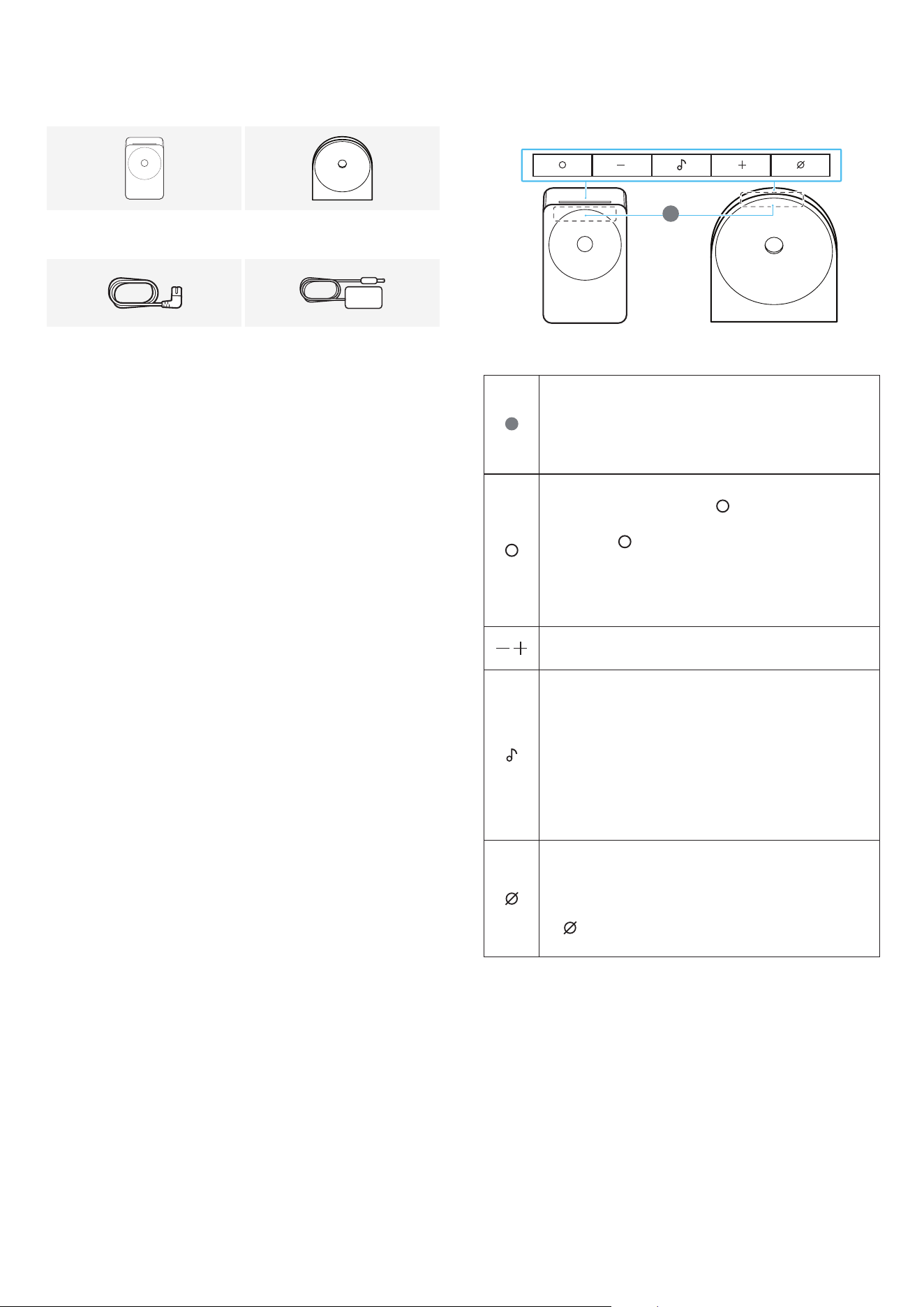
Buttons
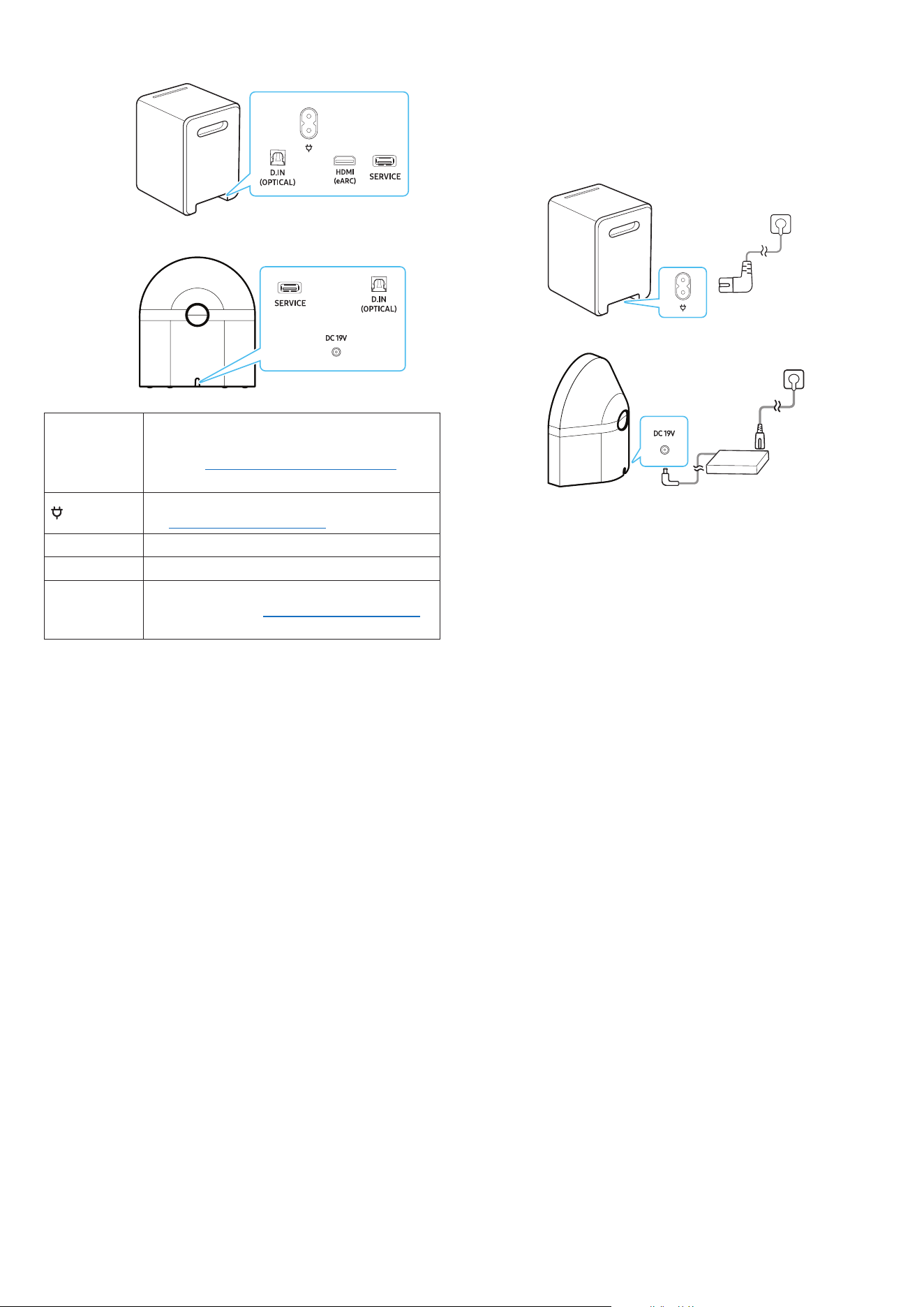
1
HW-LS7*H HW-LS5*H
1
LED indicator
The LED Indicator flashes, glows, or changes color
depending on the WiFi Speaker’s current mode or status.
• The Multicolor LED changes to White, Cyan, Green, Red,
and Blue depending on the mode or status.
( Multi Function ) Button
• In standby mode, press the
( Multi Function ) button
to turn on the WiFi Speaker.
• Press the ( Multi Function ) button to change the
mode.
- LS7*H: TV ARC → Wi-Fi → Bluetooth → Digital Audio
In
- LS5*H: Wi-Fi → Bluetooth → Digital Audio In
( Volume ) Button
Adjusts the volume.
( Instant Music Play ) Button
The music that was playing can be resumed instantly.
• Press the button to play or pause.
• Press the button twice to skip to the next track.
* When Spotify Tap is selected in the Instant Music
Play settings of the Samsung Sound app, the shortcut
button is assigned accordingly. In this mode, pressing
the button twice launches Spotify and plays a track
recommended for your listening preferences.
( Mic On/Off ) Button
Press the button to turn the microphone on or off. When
the microphone is off, the LED indicator will light red.
• To switch to Bluetooth Pairing state, press and hold the
( Mic On/Off ) button on the WiFi Speaker for more
than 3 seconds.
English - 5
Terminals
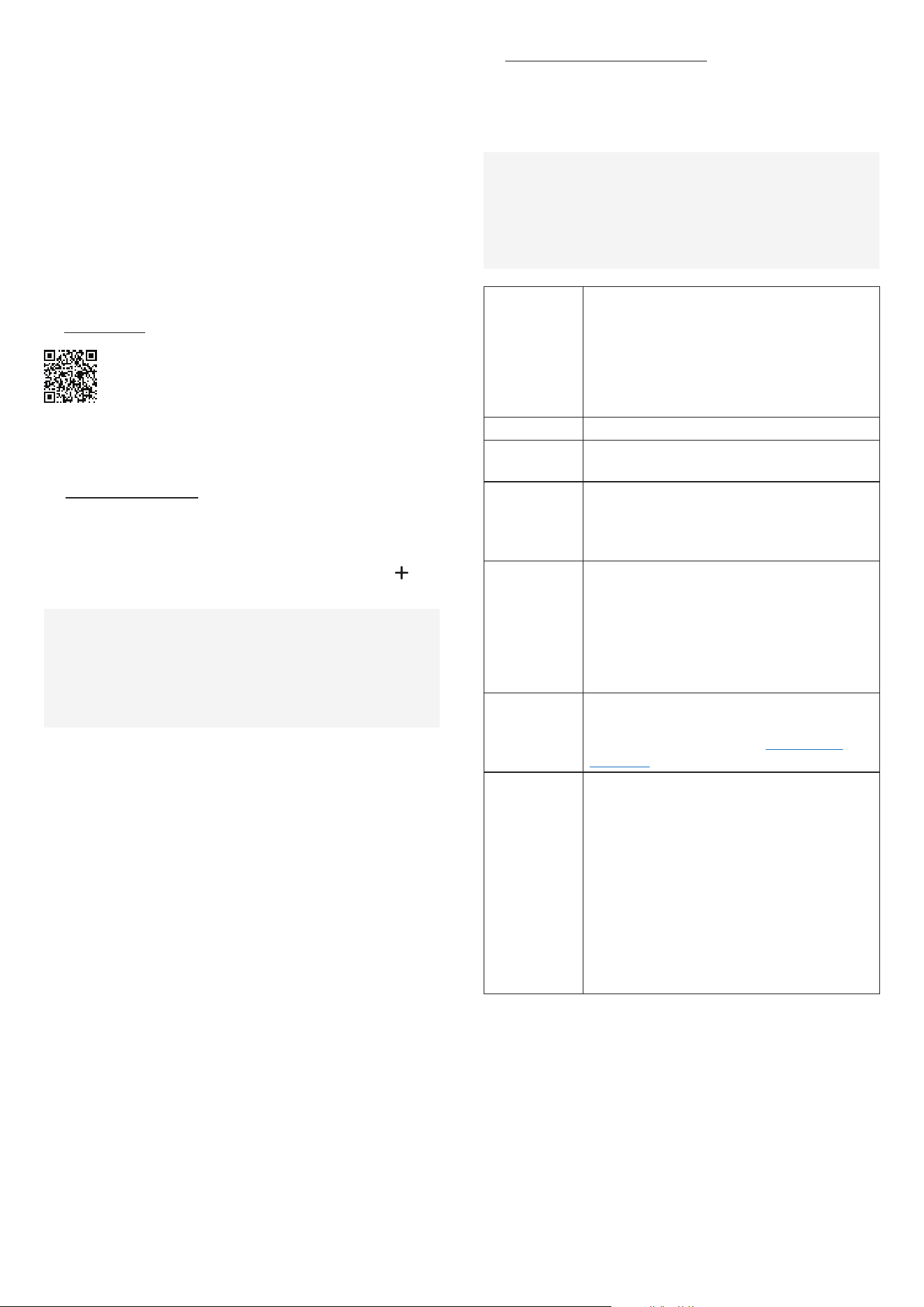
HW-LS7*H
HW-LS5*H
D. IN (OPTICAL)
Connect to a digital (optical) output terminal of a
TV or external device.
(Refer to "Connecting using an Optical Cable "
section.)
Connect the power cable to this power port. (Refer
to "Connecting Electrical Power " section.)
HDMI (eARC) Use this HDMI port to connect to a TV.
SERVICE Use this port to update firmware.
DC 19V
Connect the AC/DC power adapter. (Power
Supply In) (Refer to "Connecting Electrical Power "
section.)
• When disconnecting the power cable from a wall outlet, pull the
plug. Do not pull the cable.
- Do not pull the cable.
• When you turn on this unit, there will be a 4 to 5 second delay
before it produces sound.
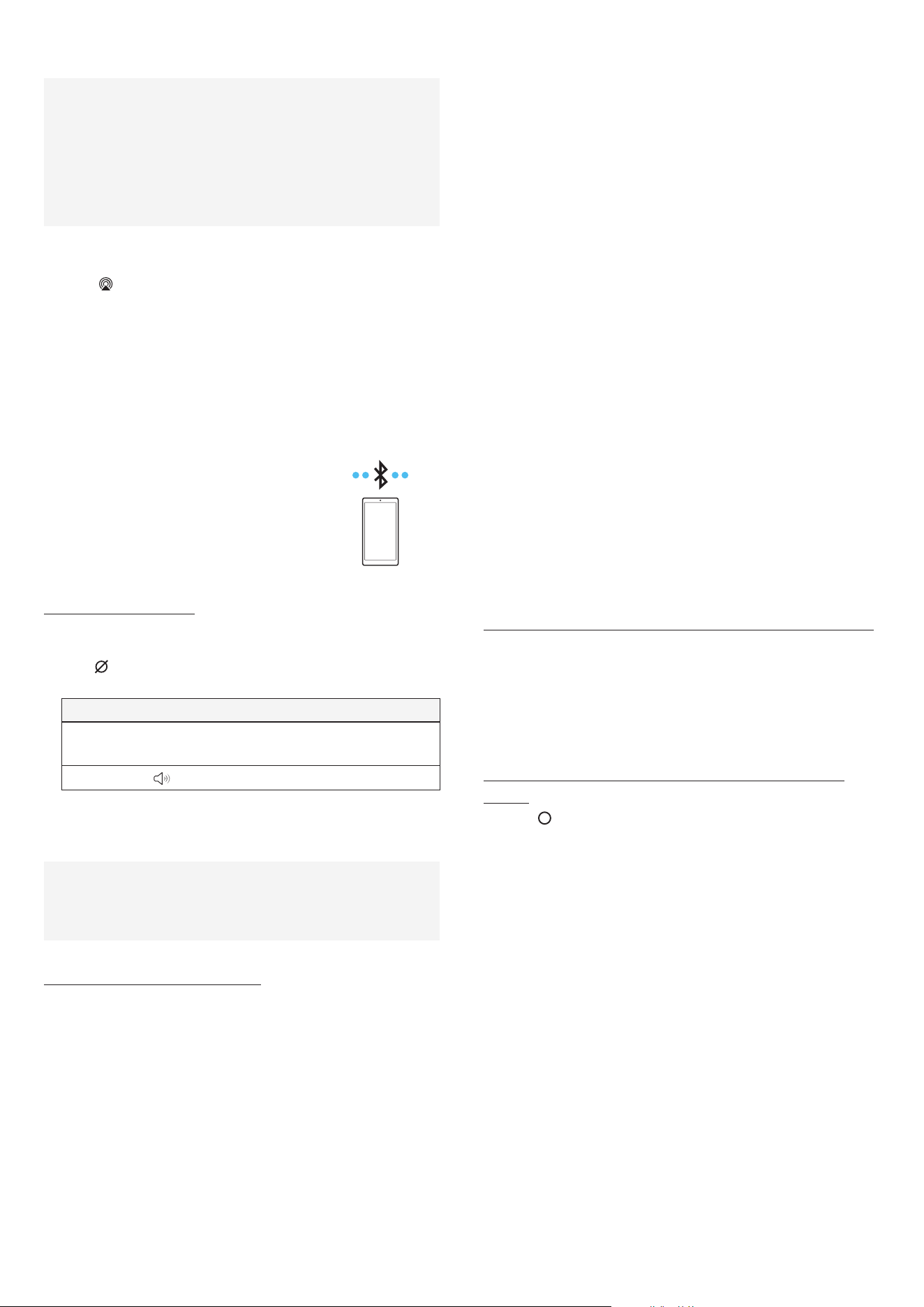
04 Connecting Electrical
Power
For more information about the required electrical power and power
consumption, refer to the label attached to the product. (Label:
Bottom of the WiFi Speaker)
HW-LS7*H
HW-LS5*H
NOTE
• If you unplug and reconnect the power cord when the product is
turned on, the WiFi Speaker turns on automatically.
• Make sure to rest the AC/DC Adapter flat on a table or the floor.
If you place the AC/DC Adapter so that it is hanging with the AC
cord input facing upwards, water or other foreign substances
could enter the Adapter and cause the Adapter to malfunction.
English - 6
05 Connecting a Mobile
Device
Connecting to the Samsung Sound App
(Wireless Network)
To connect a WiFi Speaker to a mobile device by a wireless network
(Wi-Fi), the Samsung Sound app is required.
• It is required to have a certain higher version of OS for the smooth
use of Samsung Sound . For more version informations, please refer
to the Samsung Sound App description in the OS-specific market.
1 - Installation
The Samsung Sound app allows you to control the
functionality of and adjust the settings of the WiFi
Speaker.
Download the Samsung Sound app from the app store of
your mobile device, or simply scan the provided QR code
and download the app.
2 - Device registration
1. Run the Samsung Sound app on your mobile device.
2. Follow the on screen instructions and add the product to your
mobile device.
- If the automatic pop-up window does not appear, press (
) on
the Home screen to register the product.
If device search is not possible
1. Connect the WiFi Speaker from the mobile device to Bluetooth.
2. Tap Devices on the Samsung Sound App.
3. Slide the screen to the left to select the WiFi Speaker card from
Personal Devices and click Register device in Samsung account
to register the device.
3 - Control with Samsung Sound
1. With the Samsung Sound app open on your mobile device, select
the WiFi Speaker that you have added.
2. The settings menu will appear for the WiFi Speaker, and you can
adjust the settings such as Volume , Sound Mode , and Equalizer .
If another user wants to control the WiFi Speaker
1. Make sure the mobile device is connected to the same Wi-Fi
network as the WiFi Speaker.
2. Open the Samsung Sound app and follow the on-screen
instructions to complete the setup. Once the setup is finished,
the WiFi Speaker can be controlled through the app.
Sound Mode
• Music : Provides more natural and room filling
sound for music content.
• Standard : Outputs the original sound.
• Adaptive Sound : Analyzes the content in real
time and automatically provides the optimal
sound field based on the characteristics of the
content.
Equalizer You can set the Bass and Treble .
Spacefit Sound
Pro
Provides optimized sound quality by analyzing the
listening spaces.
Active Voice
Amplifier Pro
Analyzes external noise in real time while WiFi
Speaker is playing, so that voice audio can always
be heard clearly.
• No data is saved during the analysis.
Auto Volume
This feature automatically adjusts the volume
to maintain a consistent level when changing
content or switching to another external input.
• This function is available only when
Q-Symphony is set to Off .
• If Q-Symphony is set to On , This feature is not
available.
Instant Music
Play
The music that was playing can be resumed
instantly.
(For more information, refer to “Using Instant
Music Play ” section.)
Advanced
Sound Settings
• Voice enhancement makes it easier to hear
spoken dialog in movies and TV.
• Bass enhancement mode strengthens bass
sound.
- This feature is supported only on the HW-
LS7*H model.
• Night mode is optimized for night time with the
settings adjusted to bring the volume down but
keep the dialog clear.
• Virtual : While Adaptive Sound mode is on, it
provides extended sound effects when playing
Dolby/DTS content.

English - 7
To change your Wi-Fi connection
1. Launch the Samsung Sound app from your mobile device
(smartphone or tablet).
2. Tap the WiFi Speaker’s card and tap the (
) icon.
3. Go to Device Settings → Network Status → Change Wi-Fi network ,
and follow the onscreen instructions.
Output specifications for the SOUND
MODE
HW-LS7*H
Effect Input Output
Adaptive Sound
Music
2.0 ch 3.1.1 ch
5.0 ch 3.1.1 ch
Dolby Atmos® 3.1.1 ch
Standard
2.0 ch 3.1 ch
5.0 ch 3.1 ch
Dolby Atmos® 3.1.1 ch
HW-LS5*H
Effect Input Output
Adaptive Sound
Music
Standard
2.0 ch 2.0 ch
5.0 ch 2.0 ch
Dolby Atmos® 2.0 ch
Using Group Play
• To benefit from this feature, add your WiFi Speaker to the
Samsung Sound app.
• To enable this, connect at least two audio devices to the same
Wi‑ Fi network at 5 GHz.
• This is available on Samsung Sound devices that support Wi-Fi
released year 2024 or later.
• This feature does not support TV sound.
Configuring Group Play
1. Run the Samsung Sound app on your mobile device.
2. Add the WiFi Speaker in the Samsung Sound app according to
the instructions in the “Connecting to the Samsung Sound App
(Wireless Network) ” section.
3. Tap the WiFi Speaker’s card.
4. On your mobile device, tap Group Play under the audio device icon.
- Group Play button appears only when WiFi Speaker is in Wi-Fi
mode.
- If the WiFi Speaker is playing the TV sound, the connection to the
TV is disconnected when creating a group.
5. Enable Group Play .
6. Select a desired device in the list, and tap Apply .
- You can add a maximum of 4 devices.
- With Group Play , the audio will be output through the host
device alone.
- When a device connected to the host device switches to a
different source, the device will be deleted from the group
automatically.
- When the host device is connected to a TV, the generated group
will be deleted automatically.
Disabling Group Play
1. Tap the audio device’s card.
2. On your mobile device, tap Group Play Settings under the audio
device icon.
3. Disable Group Play .
- To disable an individual device, uncheck the device from the list
and tap Apply .
English - 8
Connecting to Apple AirPlay
• This feature may not be available in some countries.
• To use AirPlay with your Samsung WiFi Speaker, the latest
version of iOS, iPadOS, or macOS is recommended.
• To enable AirPlay in your WiFi Speaker, you must first register the
device with the Samsung Samsung Sound app by agreeing with
the app’s terms and conditions.
• Make sure the WiFi Speaker is powered on and connected to the
same Wi-Fi network as your Apple device.
With AirPlay , you can enjoy music, podcasts, and other audio on your
Samsung WiFi Speaker, right from your Apple devices.
1. Select
from an AirPlay -supported app or Control Center on your
iPhone, iPad, or Mac.
2. Select the WiFi Speaker from the list of available devices to play the
current audio to.
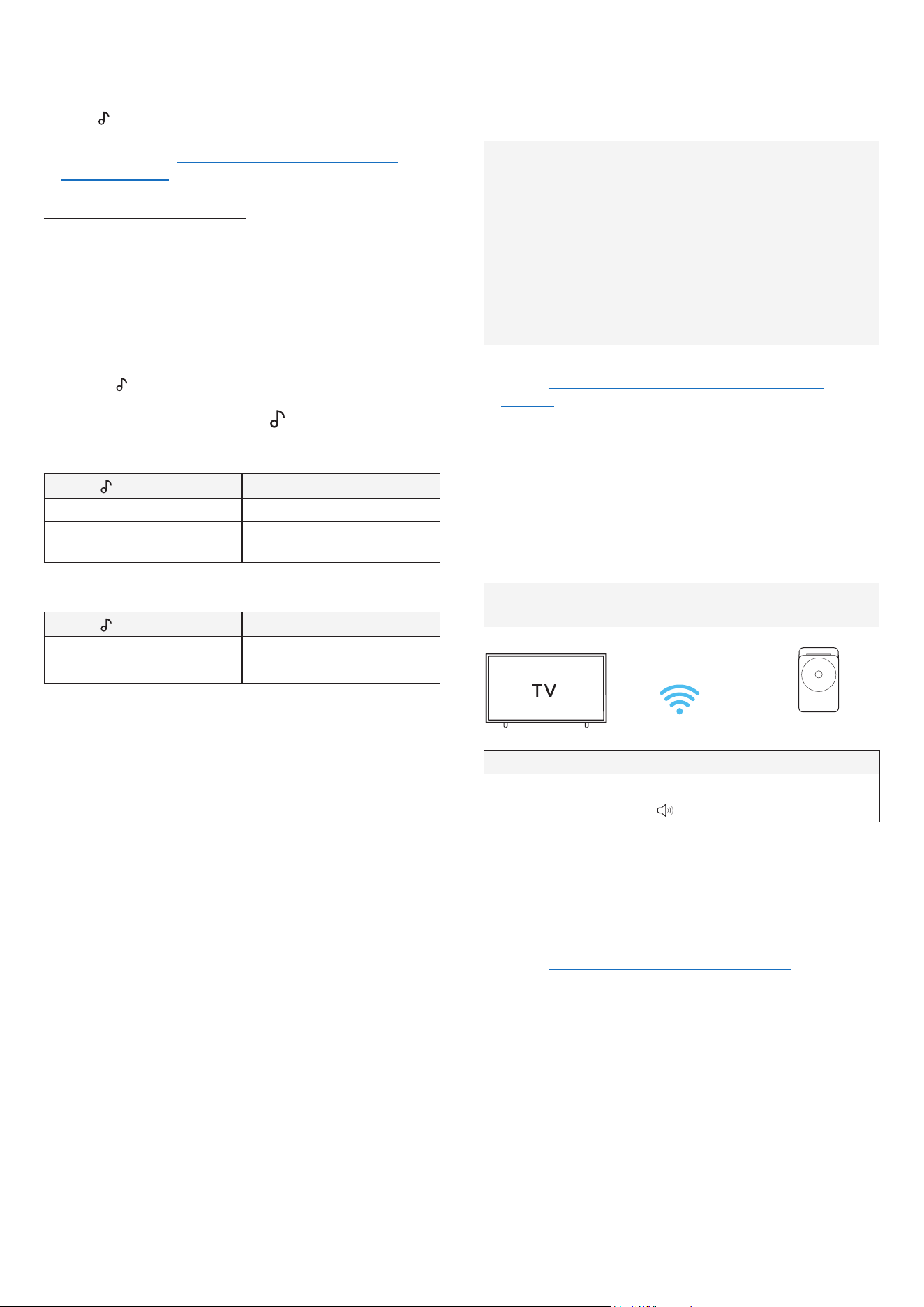
Connecting by Bluetooth
When a mobile device is connected using Bluetooth, you can hear
stereo sound without the hassle of cabling.
• When you connect a paired Bluetooth device
with the WiFi Speaker off, the WiFi Speaker
automatically turns on.
The initial connection
• When connecting to a new Bluetooth device, make sure the device
is within 3.28 ft (1 m) distance.
1. Press
( Mic On/Off ) button on the WiFi Speaker for 3 seconds or
longer.
LED Indicator
[Parting] Red → Green → Blue Blinks
[Connection is complete] Cyan Blinks x 3
Ready to connect by Bluetooth.
2. On your device, select Music Studio from the list that appears.
3. Play music files from the device connected by Bluetooth through
the WiFi Speaker.
If the device fails to connect
• If you have an existing WiFi Speaker (e.g., “ Music Studio ”) in the
list of speakers on the Mobile device, delete it.
• Repeat steps 1 and 2.
Notes on Bluetooth connection
• Locate a new device within 3.28 ft (1 m) to connect by Bluetooth
communication.
• If asked for a PIN code when connecting a Bluetooth device, enter
<0000>.
• The WiFi Speaker automatically turns off after 18 minutes in the
Ready state.
• The WiFi Speaker may not perform Bluetooth search or connection
correctly under the following circumstances:
- If there is a strong electrical field around the WiFi Speaker.
- If several Bluetooth devices are simultaneously paired with the
WiFi Speaker.
- If the Bluetooth device is turned off, not in place, or
malfunctions.
• Electronic devices may cause radio interference. Devices that
generate electromagnetic waves must be kept away from the WiFi
Speaker main unit - e.g., microwaves, wireless LAN devices, etc.
• The WiFi Speaker supports SBC data (44.1kHz, 48kHz).
• Connect only to a Bluetooth device that supports the A2DP (AV)
function.
• You cannot connect the WiFi Speaker to a Bluetooth device that
supports only the HF (Hands Free) function.
• When connecting the WiFi Speaker to a Bluetooth device, place
them as close to each other as possible.
• The farther the WiFi Speaker and Bluetooth device are from each
other, the lower the sound quality will become.
The Bluetooth connection may break when the devices are out of
the effective range.
• The Bluetooth connection may not function as intended in areas
with poor reception.
• A Bluetooth device may experience noise or malfunction under in
the following conditions:
- When the body is in contact with the signal transceiver on the
Bluetooth device or WiFi Speaker.
- In corners or when there is an obstacle in proximity, such as a
wall or partition, where electrical changes may occur.
- When exposed to radio interferences by other products
operating on the same frequency ranges, such as medical
equipment, microwave ovens, and wireless LAN devices.
- Obstacles such as doors and walls may still impact the sound
quality even when the devices are within the effective range.
• Note that your WiFi Speaker cannot be paired with other Bluetooth
devices while using the Bluetooth option.
• This wireless device may cause electrical interference during
operation.
Disconnecting the Bluetooth device from a WiFi Speaker
You can disconnect a Bluetooth device from the WiFi Speaker. For
instructions, see the Bluetooth device’s user manual.
• The WiFi Speaker will be disconnected.
• If the WiFi Speaker is disconnected from the Bluetooth device, the
multicolor LED indicator on the WiFi Speaker blinks “ Red” three
times.
Disconnecting the WiFi Speaker from the Bluetooth
device
Press the ( Multi Function ) button on the WiFi Speaker to switch the
mode from “ Bluetooth ”.
• Disconnecting takes time because the Bluetooth device must
receive a response from the WiFi Speaker. (Disconnection time may
differ, depending on the Bluetooth device)
English - 9
Using Instant Music Play
You can immediately play the last track from your preferred music
service app, or play recommended tracks provided by the Spotify app.
Press the
button on the Wi-Fi speaker.
• To use this feature, register your Wi-Fi speaker in the Samsung
Sound app. Refer to “Connecting to the Samsung Sound App
(Wireless Network) ” section.
Setting up Instant Music Play
You can configure the Wi-Fi speaker to connect directly to the Spotify
app or other music service apps.
1. Launch the Samsung Sound app on your mobile device.
2. Go to Samsung Sound → Wi‑Fi Speaker (device name) → Instant
Music Play , and select the desired option:
- Spotify Tap : Sets a shortcut to the Spotify app. You must play
music once in the Spotify app to complete the shortcut setup.
- Play/Pause : Sets a shortcut to other music service apps.
3. Press the
button on the Wi-Fi speaker to enjoy music playback.
Playing music instantly with the Button
When using the Spotify app
button press
Operation
Once Play/Pause
Twice
Plays recommended tracks
based on user preferences.
When using other music service apps
button press
Operation
Once Play/Pause
Twice Plays the next track
06 Connecting to a TV
Connecting by Wi-Fi
Pre-connection Checklist
• Wi-Fi connection is available only on Samsung TV.
• Check whether the wireless router (Wi-Fi) is turned on and the TV
is connected to the router.
• The TV and WiFi Speaker must be connected to the same wireless
network (Wi-Fi).
• If your wireless router (Wi-Fi) uses a DFS channel, you will not
be able to establish a Wi-Fi connection between the TV and WiFi
Speaker. Contact your Internet service provider for details.
• Because the menus may differ depending on the year of
manufacture, refer to your TV manual.
1. For more information about Wi-Fi connection to the WiFi Speaker,
refer to “Connecting to the Samsung Sound App (Wireless
Network) ” section.
2. Change the input source of the TV by using the Audio menu to WiFi
Speaker.
- Samsung TVs released in 2017 or later:
Sound → Sound Output → Music Studio
Connecting to a TV that supports Dolby
Atmos
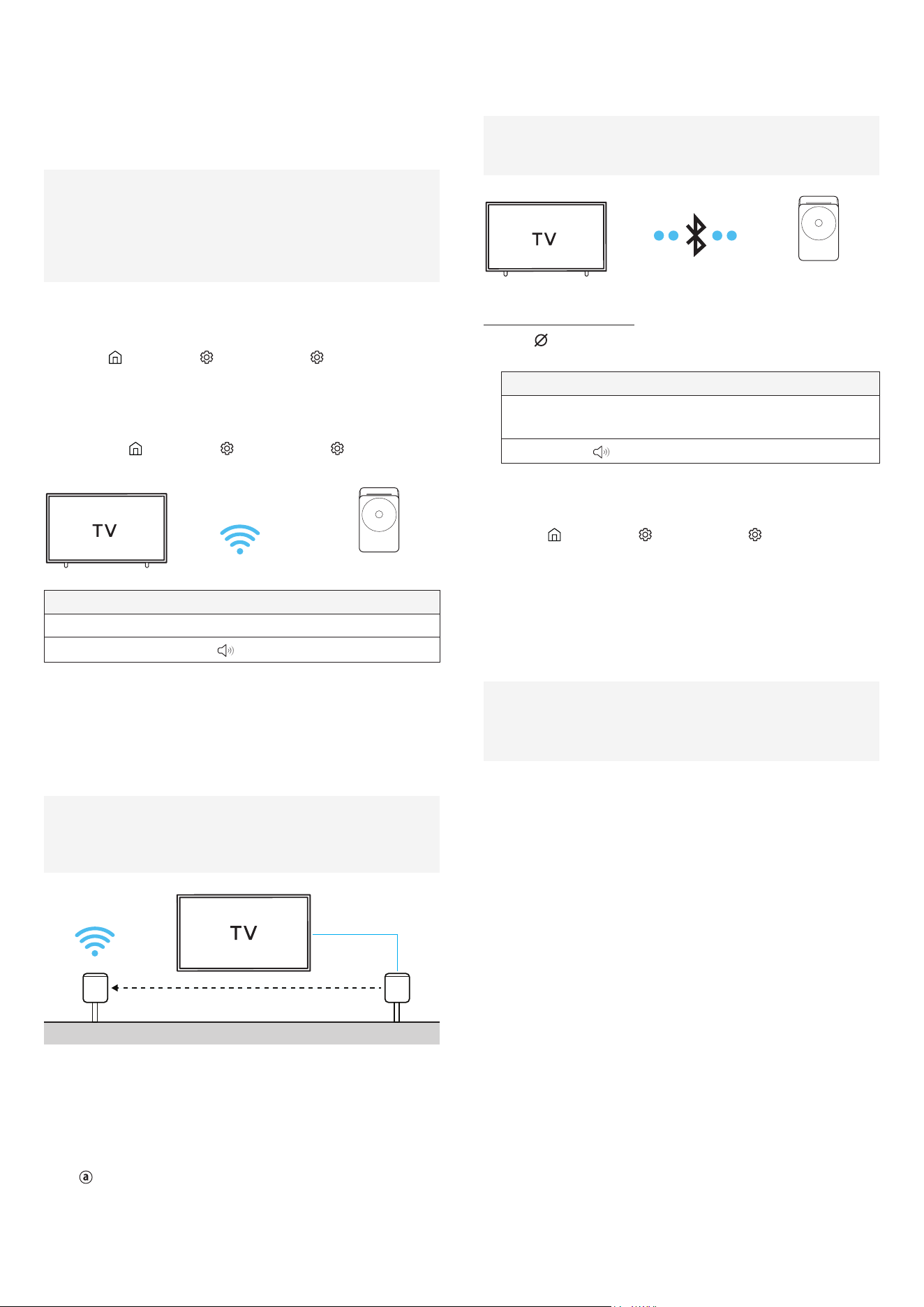
Pre-connection Checklist
• Make sure that the content supports Dolby Atmos®.
&U&
&&-"("/
LED indicator
White ON → OFF
Wi-Fi
1. Connect the WiFi Speaker and TV to the same wireless network
(Wi-Fi).
2. For sound output of the TV, select WiFi Speaker.
3. TV sound is output from the WiFi Speaker.
NOTE
• When you use Dolby Atmos®: If the input source is Dolby Atmos®,
refer to "Output specifications for the SOUND MODE " section.
• Configuring Dolby Atmos® on your BD player or other device
connected to the TV.
Open the audio output options on the settings menu of your
BD player or other device and make sure that “No Encoding” is
selected for Bitstream. For example, on a Samsung BD Player, go to
Home Menu → Sound → Digital Output and then select Bitstream
(unprocessed).
• This function is available in some Samsung TVs and some WiFi
Speaker models.
• The image of the WiFi Speaker may be different depending on the
model.
English - 10
Using the Q-Symphony Function
When the WiFi Speaker connects to a Samsung TV that supports the
Q-Symphony function you can play the sound simultaneously through
the WiFi Speaker and the TV. If you use the Q-Symphony function, the
surround sound played on the TV allows you to enjoy a richer, more
three-dimensional surround sound effect.
• It can operate according to the Codec supported by TV.
• This function is supported only when both the WiFi Speaker and
the TV are connected to the same Wi-Fi network.
• It is available with Samsung TV models released in 2022 or later.
• The image of the WiFi Speaker may be different depending on the
model.
1. Turn on the TV aand the WiFi Speaker.
2. In the TV’s Q-Symphony Settings , select the WiFi Speaker you want
to connect.
( Home (
) → Settings ( ) → All Settings ( ) → Sound →
Q-Symphony Settings )
- When the WiFi Speaker is connected, Q-Symphony will appear
in the TV’s Sound Output list. To switch back to the TV speaker,
select TV Speaker from the list.
( Home (
) → Settings ( ) → All Settings ( ) → Sound →
Sound Output )
&U&
&&-"("/
LED indicator
White ON → OFF
Wi-Fi
Connecting to Non- Q-Symphony TV
When two WiFi Speakers are connected to a TV that does not support
the Q-Symphony feature, you can enjoy stereo sound from the WiFi
speakers.
• This feature is supported only on the HW‑LS7*H model.
• It can operate according to the Codec supported by TV.
• Both WiFi Speakers must be connected to the same 5 GHz Wi‑Fi
network.
2"01 ,01
ĵ
1. Turn on the TV and both WiFi Speakers.
2. On your mobile device, launch the Samsung Sound app and tap
Stereo Settings to activate.
( Samsung Sound → Music Studio 7 (device name) → Stereo
Settings )
3. Connect the TV to the host WiFi Speaker.
-
: You can connect using an optical cable, HDMI cable, or
Bluetooth.
- The WiFi Speaker which is connected to the TV will automatically
become the host device.
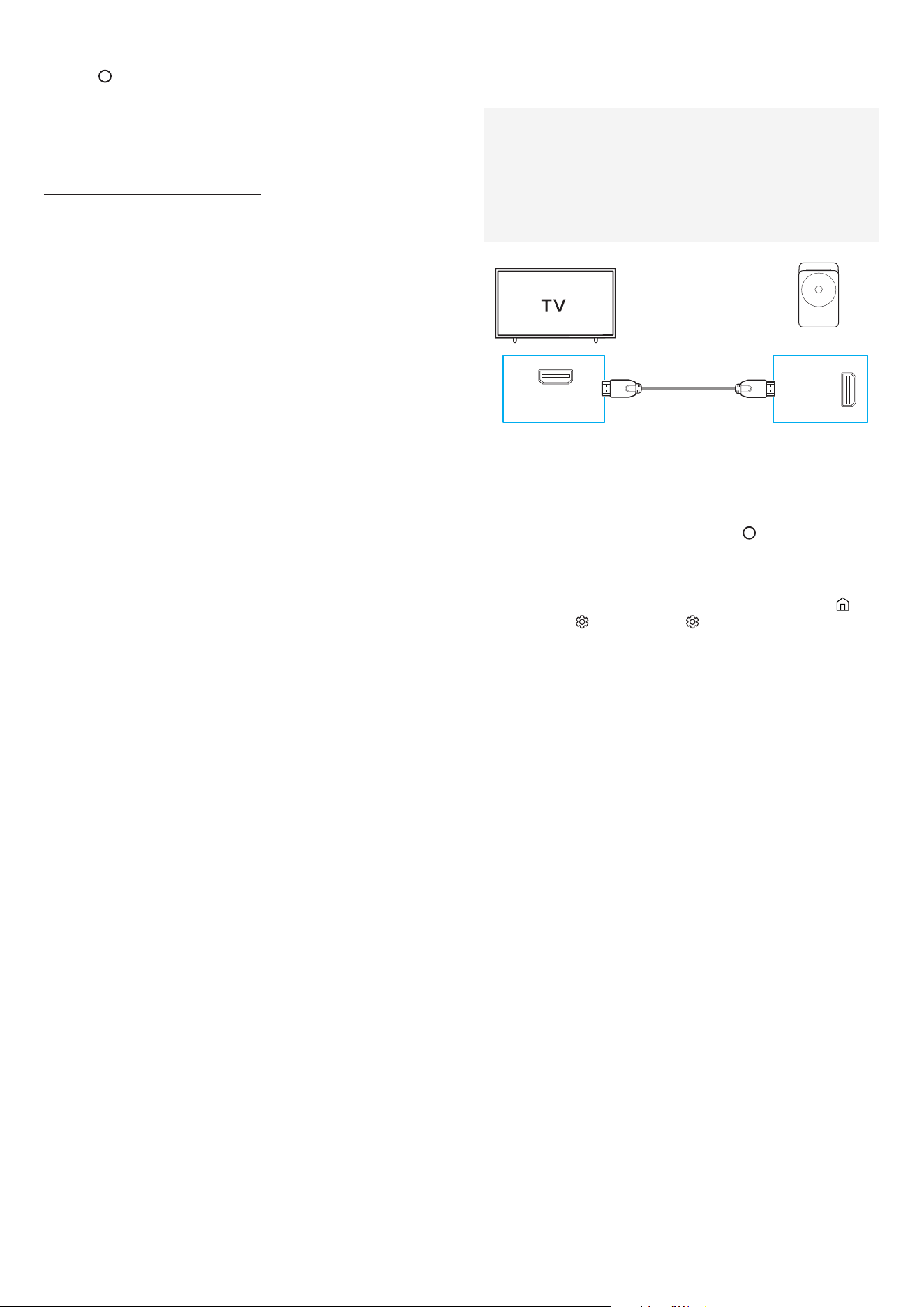
Connecting by Bluetooth
When a Samsung TV is connected using Bluetooth, you can hear stereo
sound without the hassle of cabling.
• Only one Samsung TV can be connected at a time.
• Samsung TV that supports Bluetooth can be connected. Check
the specifications of your TV.
&&-"("/
The initial connection
1. Press ( Mic On/Off ) button on the WiFi Speaker for 3 seconds or
longer.
LED Indicator
[Parting] Red → Green → Blue Blinks
[Connection is complete] Cyan Blinks x 3
Ready to connect by Bluetooth.
- Until pairing is complete, the Multicolor LED changes as Red →
Green → Blue in turn.
2. Select Bluetooth Speaker List on the Samsung TV.
( Home (
) → Settings ( ) → All Settings ( ) → Sound → Sound
Output → Bluetooth Speaker List )
3. From the list on the TV screen, select the WiFi speaker (Music
Studio) you want to register.
Once registration is complete, the status will change to Connected .
4. You can now enjoy Samsung TV sound through the WiFi Speaker.
If you later switch the WiFi Speaker mode to Bluetooth, the TV will
automatically reconnect.
If the device fails to connect
• If you have an existing WiFi Speaker (e.g., Wi-Fi Speaker ) on the
list of speakers on the Samsung TV, delete it.
• Then repeat steps 1 through 3.
English - 11
Disconnecting the WiFi Speaker from the Samsung TV
Press the ( Multi Function ) button at the side of the WiFi Speaker to
select the mode other than “ Bluetooth ”.
• Disconnecting takes time because the Samsung TV must receive
a response from the WiFi Speaker. (The time required may differ,
depending on the Samsung TV model.)
Notes on Bluetooth connection
• Locate a new device within 3.28 ft (1 m) to connect by Bluetooth
communication.
• If asked for a PIN code when connecting a Bluetooth device, enter
<0000>.
• The WiFi Speaker automatically turns off after 18 minutes in the
Ready state.
• The WiFi Speaker may not perform Bluetooth search or connection
correctly under the following circumstances:
- If there is a strong electrical field around the WiFi Speaker.
- If several Bluetooth devices are simultaneously paired with the
WiFi Speaker.
- If the Bluetooth device is turned off, not in place, or
malfunctions.
• Electronic devices may cause radio interference. Devices that
generate electromagnetic waves must be kept away from the WiFi
Speaker main unit - e.g., microwaves, wireless LAN devices, etc.
Connecting to a TV with HDMI ARC (Audio
Return Channel) Support
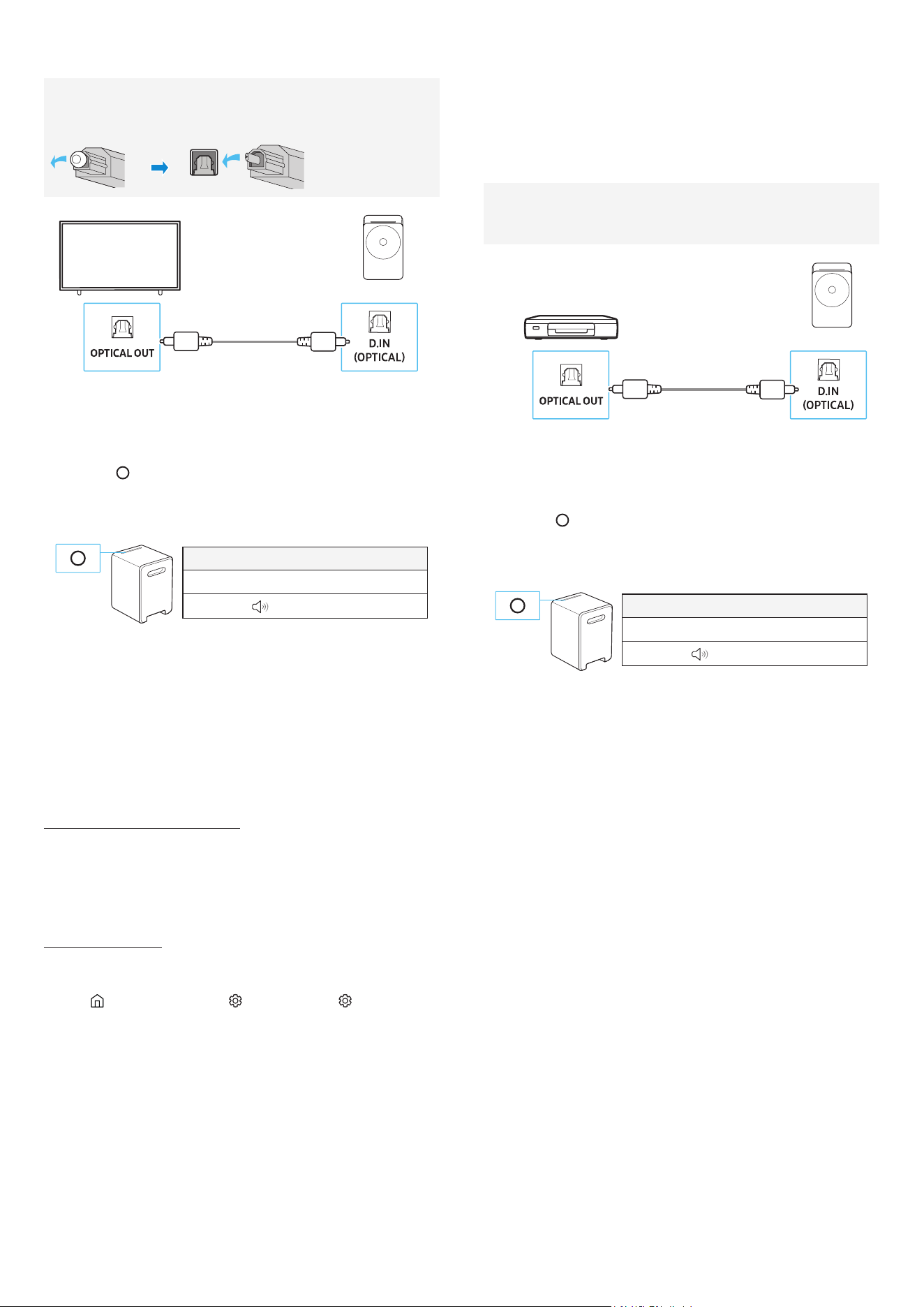
CAUTION
• If both an HDMI cable and an optical cable are connected, the
HDMI cable signal will take priority.
• When connecting the TV and WiFi Speaker with an HDMI cable,
make sure to connect the cable to the ARC port. If the correct
port isn't used, the TV won't make any sound.
• Using HDMI cables certified by HDMI.org is recommended.
U?B
HDMI IN
(ARC)
HDMI
(eARC)
1. While the WiFi Speaker and TV are turned off, connect the HDMI
cable as shown in the diagram above.
2. Turn on the WiFi Speaker and TV.
3. TV audio will play through the WiFi Speaker.
- If there is no TV sound output, press the
( Multi Function )
button on the WiFi Speaker to switch to TV ARC mode.
- To connect with eARC, the eARC function in the TV menu should
be turned on. Refer to the TV user manual for details about
how to configure the settings. (e.g.) Samsung TV: Home ( ) →
Settings ( ) → All Settings ( ) → Sound → Expert Settings →
HDMI-eARC Mode (Auto) )
- If there is no sound output, check the HDMI cable connection
status.
- You can use the volume buttons on your TV remote control to
adjust the WiFi Speaker volume.
NOTE
• This feature is supported only on the HW‑LS7*H model.
• When connecting a TV and soundbar that support HDMI ARC (Audio
Return Channel) using an HDMI cable, digital video and audio data
can be transmitted without a separate optical cable.
• Using a coreless HDMI cable is recommended whenever possible. If
using a cored HDMI cable, ensure its diameter is less than 14 mm.
• This function won't work if the HDMI cable doesn't support ARC.
• If the broadcast audio is encoded in Dolby and the "Digital Output
Audio Format" in your TV is set to PCM, changing the settings to
Dolby Digital, Dolby Digital+, or Auto is recommended for optimal
sound. Changing the setting will provide better sound quality.
(The TV menu may use different terms for Dolby Digital and PCM,
depending on the manufacturer.)
English - 12
Connecting using an Optical Cable
Pre-connection Checklist
When you use an optical cable and the terminals have covers, be
sure to remove the covers.
U?B
1. With the TV and WiFi Speaker turned off, connect the D.IN
(OPTICAL) port on the WiFi Speaker and the OPTICAL output port on
the TV with the optical cable (not supplied), as shown in the figure.
2. Turn on the WiFi Speaker and TV.
3. Press the
( Multi Function ) button on the WiFi Speaker unit and
then select the “ Digital Audio In ” mode. Then the announcement,
“ Digital Audio In ” is output.
LED indicator
White ON → OFF
Digital Audio In
4. The TV sound is output from the WiFi Speaker.
NOTE
This feature is supported only on the HW‑LS7*H model.
Using the Spacefit Sound
Provides optimized sound quality by analyzing the listening spaces.
Connecting via WiFi Speaker
1. Run the Samsung Sound app on your mobile device.
2. Tap WiFi Speaker’s card.
3. Enable Spacefit Sound Pro .
- This is available in all Sound modes.
Connecting to TV
To enable this function, turn on the AI Adaptive Sound+ mode on your
Samsung TV menu.
( Home (
) → Menu → Settings ( ) → All Settings ( ) → General →
Intelligent Mode Settings → AI Adaptive Sound+ )
• The sound mode on your WiFi Speaker will automatically change to
Adaptive Sound if you enable the AI Adaptive Sound+ mode on your
TV.
NOTE
This function works when the WiFi Speaker connects to some of the
Samsung TVs.
07 Connecting an External
Device
Connecting using an Optical Cable
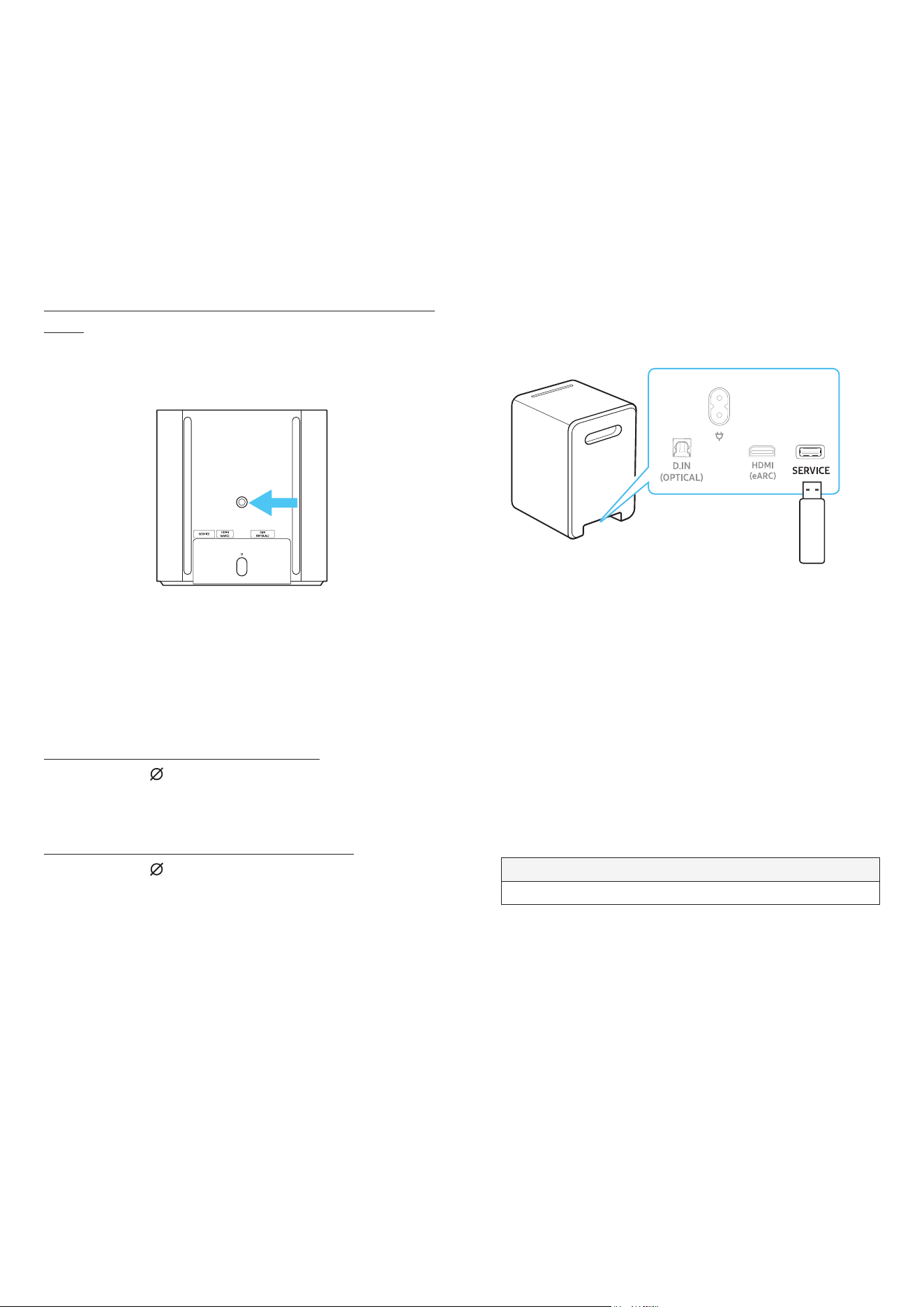
Pre-connection Checklist
Make sure both the external device and the WiFi Speaker are turned
off.
U?B
"1U1,-,5M*" ,+0,)"
1. Use an optical cable (not supplied) to connect the D.IN (OPTICAL)
port of the WiFi Speaker and the optical output port of the external
device. See the figure below.
2. Turn on both the WiFi Speaker and the external device.
3. Press the
( Multi Function ) button on the WiFi Speaker unit and
then select the “ Digital Audio In ” mode. Then the announcement,
“ Digital Audio In ” is output.
LED indicator
White ON → OFF
Digital Audio In
4. The audio signal of the external device will sound from the WiFi
Speaker.
NOTE
This feature is supported only on the HW‑LS7*H model.
English - 13
08 Additional Features
Installing the WiFi Speaker ( HW-LS7*H ) on
a Stand
To install the WiFi Speaker on a stand, please purchase a stand
separately.
The stand is not sold by Samsung. Refer to the installation guide
provided with the purchased stand for proper setup.
• Samsung is not responsible for any product damage caused by
improper installation.
Screw specifications for mounting the WiFi Speaker on a
stand
• Standard screw: ¼” – 20 UNC (Ø 6.35 mm, pitch 1.27 mm)
• Length: 15 mm
• Quantity: 1
,11,*,#1%"&&-"("/
Activate/Deactivate Wi-Fi and Bluetooth
The WiFi Speaker will restart automatically when the Wi-Fi or
Bluetooth function is activated or deactivated.
To activate/deactivate Wi-Fi connection
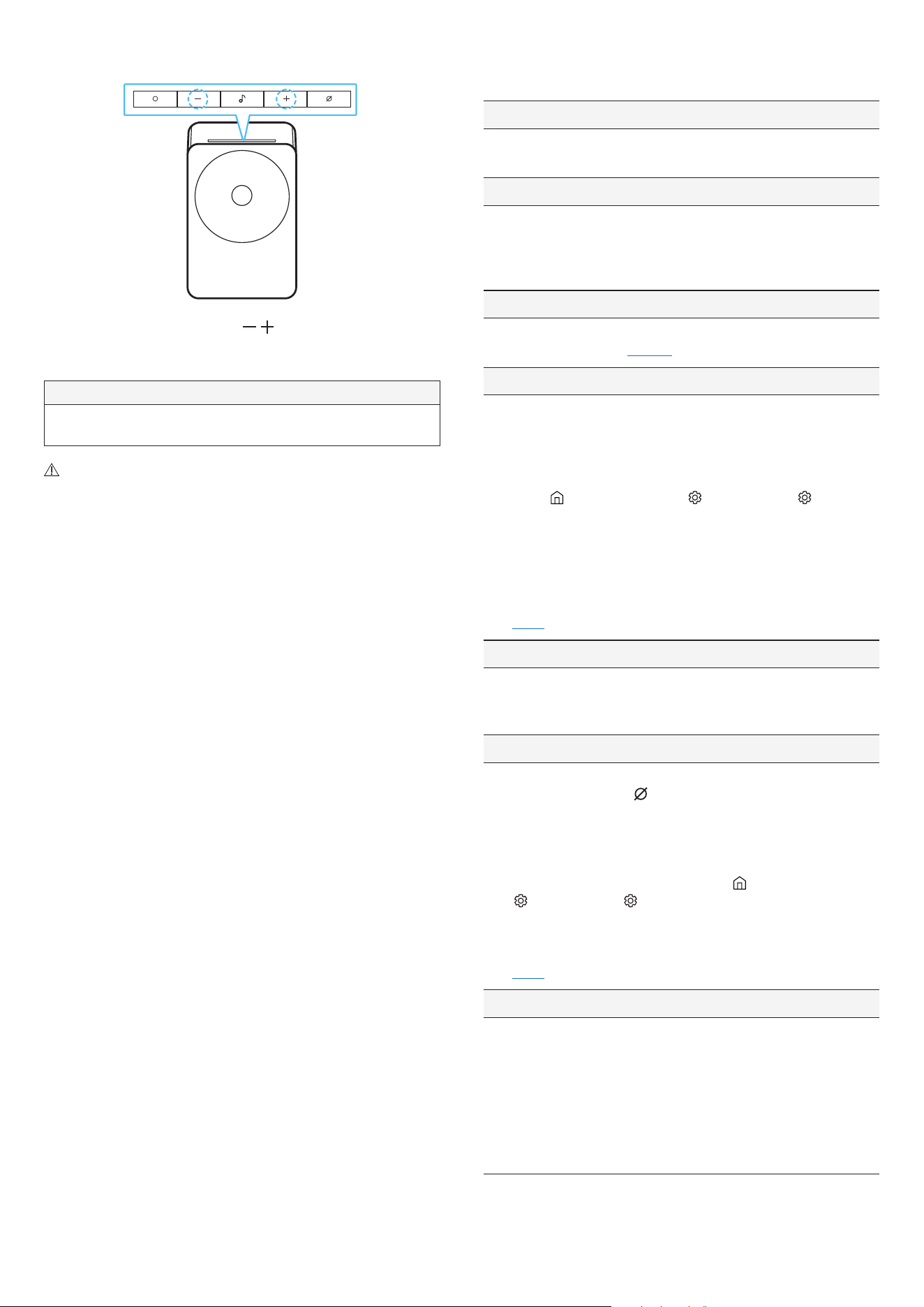
Press and hold the ( Mic On/Off ) button and the (-) button
simultaneously for more than 30 seconds. This will turn on or off the
Wi-Fi connection.
To activate/deactivate Bluetooth connection
Press and hold the ( Mic On/Off ) button and the (+) button
simultaneously for more than 30 seconds. This will turn on or off the
Bluetooth connection.
09 Software Update
Auto Update
When the WiFi Speaker is connected to the Internet, software updates
automatically occur even when the WiFi Speaker is turned off.
• To use the Auto Update function, the WiFi Speaker must be
connected to the Internet.
The Wi-Fi connection to the WiFi Speaker will be terminated if
the WiFi Speaker’s power cord is disconnected or the power is
cut off. If the power is cut off, when the power comes back on or
you reconnect the power cord, turn on the WiFi Speaker, and then
reconnect it to the Internet.
USB Update
Samsung may offer updates for the WiFi Speaker’s system firmware in
the future.
When an update is available, you can update the WiFi Speaker by
connecting the USB drive that contains the update firmware to the
SERVICE port of the WiFi Speaker.
1. Go to ( www.samsung.com ) → search for the model name from the
customer support menu option.
- For more information about update, refer to Upgrade Guide.
2. Download the upgrade file (USB type).
3. Unzip the file to create a folder with the file name.
4. Store the created folder in a USB and then connect it to the WiFi
Speaker.
5. Turn on the WiFi Speaker. Then the product is updated within 3
minutes.
LED indicator
The White moves from left to right, then from right to left.
- During update, do not turn it off or remove the USB.
- If the yellow LED is on after the software update is completed,
this means that an additional update is in progress. When this
happens, don’t turn off the power or remove the USB.
- If update does not proceed, reconnect the WiFi Speaker power
cord.
- When the latest version is installed, no update is performed.
- Depending on the USB type, update may not be supported.
- If there is no update file available, the indicator blinks red 3
times.
- If the update file is in the same or lower version than the
existing, the indicator blinks cyan 3 times.
English - 14
Reset
5 Sec
With the WiFi Speaker on, press the
( Volume ) buttons on the
body at the same time for at least 5 seconds. The LED indicator
changes as shown below and then the WiFi Speaker is reset.
LED indicator
White LED indicator moves from left to right and right to left → Cyan
Blinks X3 → Red Blinks X3
CAUTION
All the settings of the WiFi Speaker are reset. Be sure to perform this
only when a reset is required.
Security updates information
Security updates are provided to strengthen the security of your
device and protect your personal information. For more information on
security updates, visit https://security.samsungtv.com .
• The website supports only some languages.
10 Troubleshooting
Before seeking assistance, check the following.
WiFi Speaker does not turn on.
• Check whether the power cord of the WiFi Speaker is correctly
inserted into the outlet.
WiFi Speaker works erratically.
• After removing the power cord, insert it again.
• Power cycle the external device and try again.
• If there is no signal, the WiFi Speaker automatically turns off after
a certain period of time. Turn on the power.
The WiFi Speaker indicator turns solid red.
• The microphone is turned off. Turn on the microphone. (For more
information, refer to "Buttons " section.)
Sound is not output from the WiFi Speaker.
• The volume of the WiFi Speaker is too low or muted. Adjust the
volume.
• When any external device (STB, Bluetooth device, mobile device,
etc.) is connected, adjust the volume of the external device.
• For sound output of the TV, select WiFi Speaker. (Samsung TV:
Home ( ) → Menu → Settings ( ) → All Settings ( ) → Sound
→ Sound Output → Select WiFi Speaker )
• The cable connection to the WiFi Speaker may not be loose.
Remove the cable and connect again.
• Remove the power cord completely, reconnect, and turn the
power on.
• Reset the product and try again. (For more information, refer to
“Reset ”.)
I want to hear the audio signal from the WiFi Speaker alone.
• If you hear sounds from both the TV and WiFi Speaker, go to the
Settings menu for the TV audio and change the TV speaker to
Music Studio .
WiFi Speaker will not connect by Bluetooth.
• When connecting a new device, switch to “ Bluetooth Pairing ” for
connection. (Press the ( Mic On/Off ) button on the body for at
least 3 seconds.)
• If the WiFi Speaker is connected to another device, disconnect
that device first to switch the device.
• Reconnect it after removing the Bluetooth speaker list on the
device to connect. (Samsung TV: Home ( ) → Menu → Settings
( ) → All Settings ( ) → Sound → Sound Output → Bluetooth
Speaker List )
• Remove and reconnect the power plug, then try again.
• Reset the product and try again. (For more information, refer to
"Reset " section.)
Sound drops out when connected by Bluetooth.
• Some devices can cause radio interference if they are located too
close to the WiFi Speaker. e. g. microwaves, wireless routers, etc.
• If your device that is connected by Bluetooth moves too far away
from the WiFi Speaker, it may cause the sound to drop out. Move
the device closer to the WiFi Speaker.
• If a part of your body is in contact with the Bluetooth transceiver
or the product is installed on metal furniture, the sound may drop
out. Check the installation environment and conditions for use.
English - 15
WiFi Speaker will not connect to Wi-Fi.
• Check whether your wireless router is on.
• Turn off the router, turn it back on, and then try again.
• The WiFi Speaker will not connect if the wireless signal is too
weak. Try moving the router closer to the WiFi Speaker, or
eliminating any obstacles that are between the WiFi Speaker and
the router, if possible.
• If your wireless router is new, you will need to reconfigure the
speaker’s network settings.
The WiFi Speaker does not turn on automatically with the TV.
• When you turn off the WiFi Speaker while watching TV, power
synchronization with the TV is disabled. First turn off the TV.
The AVA function is not available in the following cases.
• The AVA function will not be available using Q-Symphony
function.
• The AVA function will not be available when the microphone is
turned off.
After connecting the TV to the WiFi Speaker, I switched the WiFi
Speaker mode. Then no sound is output from the TV.
• If you connect your WiFi Speaker to a mobile device while the WiFi
Speaker is connected to the TV, the WiFi Speaker outputs sound
from the mobile device while keeping the TV connection. So the
TV sound will not be delivered anywhere.
• Disconnect the mobile device, and the TV sound will be output
from the WiFi Speaker again.
Group Play is not enabled
• Check if the audio devices are newer models released year 2024
or later.
• Check if the host device is connected to a Wi-Fi network as
source.
• Make sure that all audio devices are connected to the same Wi-Fi
network (at 5 GHz).
11 License
Dolby, Dolby Atmos, and the double-D symbol are registered
trademarks of Dolby Laboratories Licensing Corporation.
Manufactured under license from Dolby Laboratories. Confidential
unpublished works.
Copyright © 2012‑2026 Dolby Laboratories. All rights reserved.
Apple, AirPlay, iPad, iPhone, and Mac are trademarks of Apple Inc.,
registered in the U.S. and other countries and regions.
• Use your phone, tablet or computer as a remote control for Spotify.
Go to spotify.com/connect to learn how
• The Spotify Software is subject to third party licenses found here:
https://www.spotify.com/connect/third-party-licenses
Being Roon Tested means that Samsung and Roon have collaborated
to ensure you have the best experience using Roon software and
Samsung equipment together, so you can just enjoy the music.
[ HW‑LS7*H ]
The terms HDMI, HDMI High-Definition Multimedia Interface, HDMI
Trade dress and the HDMI Logos are trademarks or registered
trademarks of HDMI Licensing Administrator, Inc.
Open Source License Notice
Open Source used in this product can be found on the following
webpage ( http://opensource.samsung.com ).