BG-AVENTO-4K
4K AI Enabled Dual-Lens NDI PTZ Conference Camera with
Intelligent Speaker Tracking & Panoramic View
User Manual

BZBGEAR BG-AVENTO-4K PRODUCT MANUAL
Address: 830 National Drive #140, Sacramento, CA 95834, USA · Tel: +1(888)499-9906 · Email: support@bzbgear.com 2

BZBGEAR BG-AVENTO-4K PRODUCT MANUAL
TABLE OF CONTENTS
Statement 4
Safety Precaution 4
Introduction 5
Features 5
Packing List 6
Specifications 7
Operation Controls and Functions 9
Installation and Mounting 11
Connection Diagram 13
Camera Operating Modes 13
IR Remote Control 15
Control Over IP Set Up 16
Web GUI Overview 18
Web UI Introduction 18
Troubleshooting 22
Tech Support 23
Limited Product Warranty Terms 23
Mission Statement 24
Copyright 24
Address: 830 National Drive #140, Sacramento, CA 95834, USA · Tel: +1(888)499-9906 · Email: support@bzbgear.com 3

BZBGEAR BG-AVENTO-4K PRODUCT MANUAL
Statement
Please read these instructions carefully before connecting, operating, or configuring this
product. Please save this manual for future reference.
Safety Precaution
● To prevent damaging this product, avoid heavy pressure, strong vibration, or immersion
during transportation, storage, and installation.
● The housing of this product is made of organic materials. Do not expose to any liquid,
gas, or solids which may corrode the shell.
● Do not expose the product to rain or moisture.
● To prevent the risk of electric shock, do not open the case. Installation and maintenance
should only be carried out by qualified technicians.
● Do not use the product beyond the specified temperature, humidity, or power supply
specifications.
● This product does not contain parts that can be maintained or repaired by users.
Damage caused by dismantling the product without authorization from BZBGEAR is not
covered under the warranty policy.
● Installation and use of this product must strictly comply with local electrical safety
standards.
Address: 830 National Drive #140, Sacramento, CA 95834, USA · Tel: +1(888)499-9906 · Email: support@bzbgear.com 4

BZBGEAR BG-AVENTO-4K PRODUCT MANUAL
Introduction
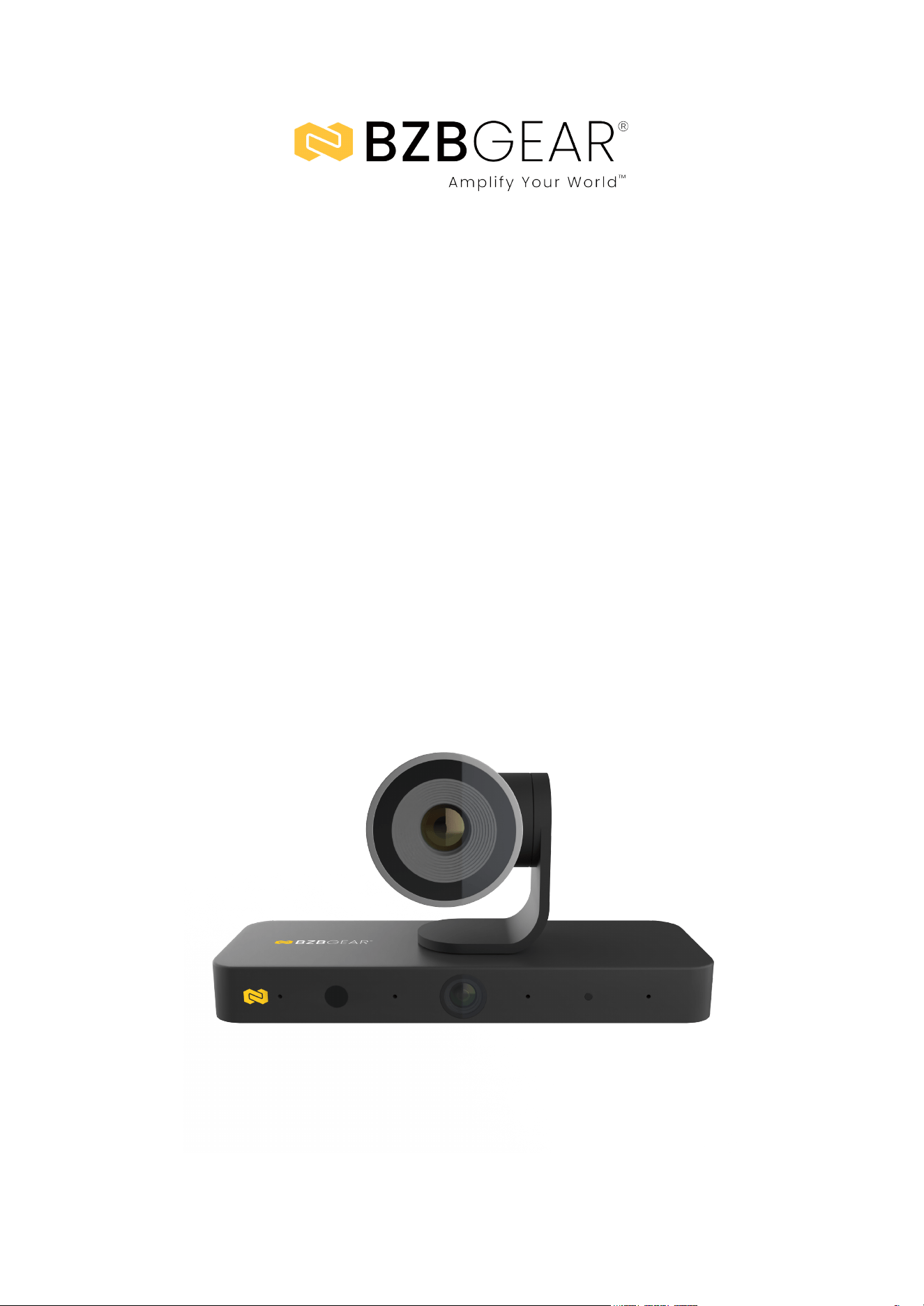
The BG-AVENTO-4K is a cutting-edge 4K dual-lens AI camera designed to elevate
collaboration in modern workspaces and educational environments. Featuring a
powerful dual-lens system—with a 4K PTZ camera offering optical zoom and a
wide-angle panoramic lens—it captures both detailed close-ups and the full room
view simultaneously, ensuring every participant is clearly visible.
Integrated with four linear array microphones and advanced AI algorithms, the
BG-AVENTO-4K delivers precise sound localization and intelligent speaker tracking,
automatically focusing on active participants for a natural and engaging meeting
experience. With plug-and-play USB 3.0 connectivity, support for 4K@30fps video,
and compatibility with leading video conferencing platforms, it provides
professional-quality video and effortless usability in small to medium-sized
conference rooms, training facilities, and online classrooms.
Features
● Dual-Lens System: Combines a panoramic camera for participant detection with a
PTZ camera to capture the optimal view of the room.
● 4K Resolution: Supports up to 4K@30fps with USB 3.0 connectivity for crisp,
high-quality video.
● PTZ Camera: 8MP sensor with 3x optical zoom and 110° diagonal field of view
(DFOV).
● Panoramic Camera: 1080p sensor with 120° diagonal field of view (DFOV) for
full-room coverage.
● Advanced Imaging: CMOS sensor and ISP algorithm deliver clear, vibrant video
with exceptional detail.
● AI-Powered Features: Auto framing, speaker tracking, presenter tracking, and
individual gallery view for natural, engaging meetings.
● Video Compression: Supports MJPG, NV12, H.265, and H.264 for broad
application compatibility.
● Cross-Platform Compatibility: Works with Windows 10/11 and macOS systems
seamlessly.
● Conference Integration: Compatible with Zoom, Microsoft Teams, Skype, Cisco
Webex™, and other leading platforms.
● Easy Installation: Plug-and-play design allows simple mounting on displays or
walls.
Address: 830 National Drive #140, Sacramento, CA 95834, USA · Tel: +1(888)499-9906 · Email: support@bzbgear.com 5

BZBGEAR BG-AVENTO-4K PRODUCT MANUAL
Packing List
● 1 x BG-AVENTO-4K
● 1 x DC 12V 3A Power Adapter with US Pins
● 1 x 1.8m USB-A to USB-C Cable
● 1 x IR Remote
● 1 x Private Lens Cap (for Panoramic lens)
● 1 x Mounting Bracket (with screws)
Address: 830 National Drive #140, Sacramento, CA 95834, USA · Tel: +1(888)499-9906 · Email: support@bzbgear.com 6

BZBGEAR BG-AVENTO-4K PRODUCT MANUAL
Specifications
Technical Specifications
Video & Audio
Input & Output Port: 1 × USB-C, 1 × HDMI OUT, 1 × USB-A, 1 × DC
12V IN
USB 3.0/2.0 Resolution Supported: MJPEG/H.265/H.264 –
320×240@30fps, 640×340@30fps, 1280×720@30fps (default),
1920×1080@30fps, 3840×2160@30fps NV12 – 320×240@30fps,
640×340@30fps, 1280×720@30fps (default), 1920×1080@30fps*
Note: Resolutions above apply only to the main lens. The panoramic
lens resolution is fixed at 1080p@30fps (MJPEG).
Output Video Encoding: MJPEG / H.264 / H.265 / NV12
USB Protocol: UVC 1.1
Camera
Lens: Main Lens – 8MP, 3× optical zoom, DFOV 110°; Panoramic
Lens – 2MP, fixed focus, DFOV 120°
Sensor: Main Lens – 8MP; Panoramic Lens – 2MP
White Balance: Auto
Backlight Compensation: Auto
Digital Noise Reduction: 2D, 3D DNR supported
PTZ Range: Horizontal ±75°, Vertical ±35°
HDR: Supported
Tracking Modes: Auto Framing / Speaker Tracking / Presenter
Tracking / Individuals Gallery
Speakerphone
Microphone: 4 × linear microphone arrays for human voice detection
and audio tracking (not usable as video conference audio source)
Peripherals: Supports connection with USB peripherals such as
speakerphones or third-party audio devices
Address: 830 National Drive #140, Sacramento, CA 95834, USA · Tel: +1(888)499-9906 · Email: support@bzbgear.com 7

BZBGEAR BG-AVENTO-4K PRODUCT MANUAL
Communication
& Control /
General
Compatible OS: Windows 10/11, macOS 10.10 or above
HDMI OUT: HDMI 1.4b with 4K@30Hz (no-HDCP). Outputs
continuously unless powered off or in standby.
USB Ports: USB-C 3.0 female; USB-A 2.0 female
Control Methods: IR Remote, LAN (Telnet & Web UI)
Operating Temperature: 0°C–40°C (32°F–104°F), 10%–90%
non-condensing
Storage Temperature: -20°C–60°C (-4°F–140°F), 10%–90%
non-condensing
Power Supply: DC 12V, 3A
Power Consumption: 10.824W (Max)
Dimensions (W×H×D): 200 × 100.44 × 69 mm / 7.87” × 3.95” × 2.72”
Net Weight: 0.44 kg / 0.97 lb
Address: 830 National Drive #140, Sacramento, CA 95834, USA · Tel: +1(888)499-9906 · Email: support@bzbgear.com 8
BZBGEAR BG-AVENTO-4K PRODUCT MANUAL
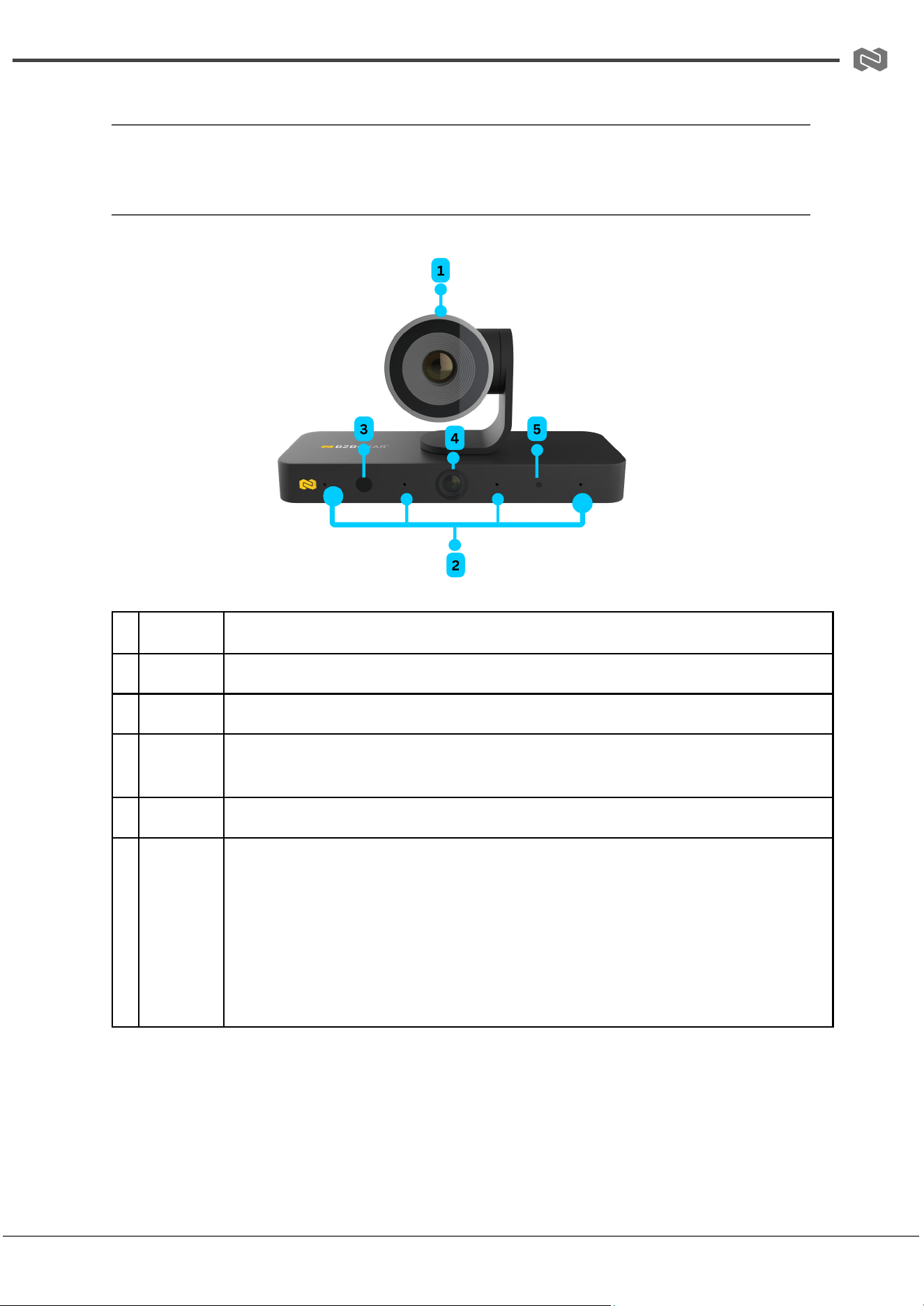
Operation Controls and Functions
Front Panel
#
Name
Description
1
Lens
4K optical zoom lens.
2
MIC
4 × Linear mic arrays for sound source localization.
3
IR
Window
Receives IR signals from the provided IR remote.
4
Lens
1080p fixed-focus lens.
5
Status
LED
Lighting white for about 2s, then off: The device is starting up.
Blinking dark white (breathing): The device is in idle mode. The color can be
set to red or off through the web UI.
Lighting white: The device is active.
Blinking quickly: The device is being upgraded.
Address: 830 National Drive #140, Sacramento, CA 95834, USA · Tel: +1(888)499-9906 · Email: support@bzbgear.com 9
BZBGEAR BG-AVENTO-4K PRODUCT MANUAL
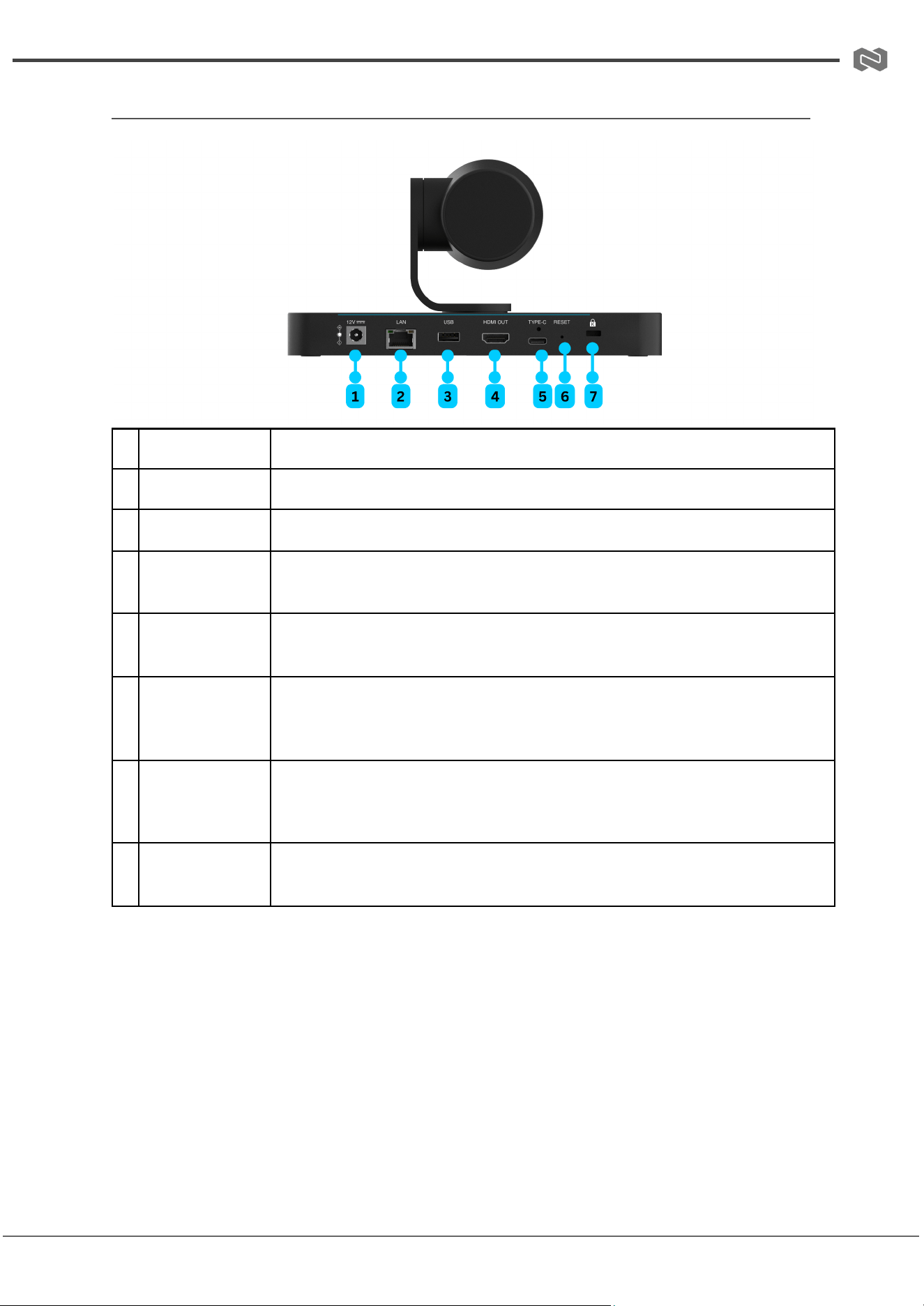
Rear Panel
#
Name
Description
1
DC 12V
Connect to the provided power adapter.
2
LAN
Connect to the network for web UI or Telnet control.
3
USB
USB 2.0 Type-A port. Connect to USB peripherals, such as a
speakerphone.
4
HDMI OUT
Connect to an HDMI display, video conference system, projector, or
video capture device.
5
TYPE-C
USB 3.0 Type-C port. Connect to a laptop, room PC, or all-in-one
conference device for transmitting audio and camera video signals
using the provided USB-A to USB-C cable.
6
RESET
Press once to display the IP address and tracking mode on the
connected display. Hold for at least 5 seconds to restore factory
defaults.
7
Kensington
Lock Slot
Kensington security slot.
Address: 830 National Drive #140, Sacramento, CA 95834, USA · Tel: +1(888)499-9906 · Email: support@bzbgear.com 10
BZBGEAR BG-AVENTO-4K PRODUCT MANUAL
Installation and Mounting
Note: Before beginning installation, ensure the device is disconnected from
the power source.
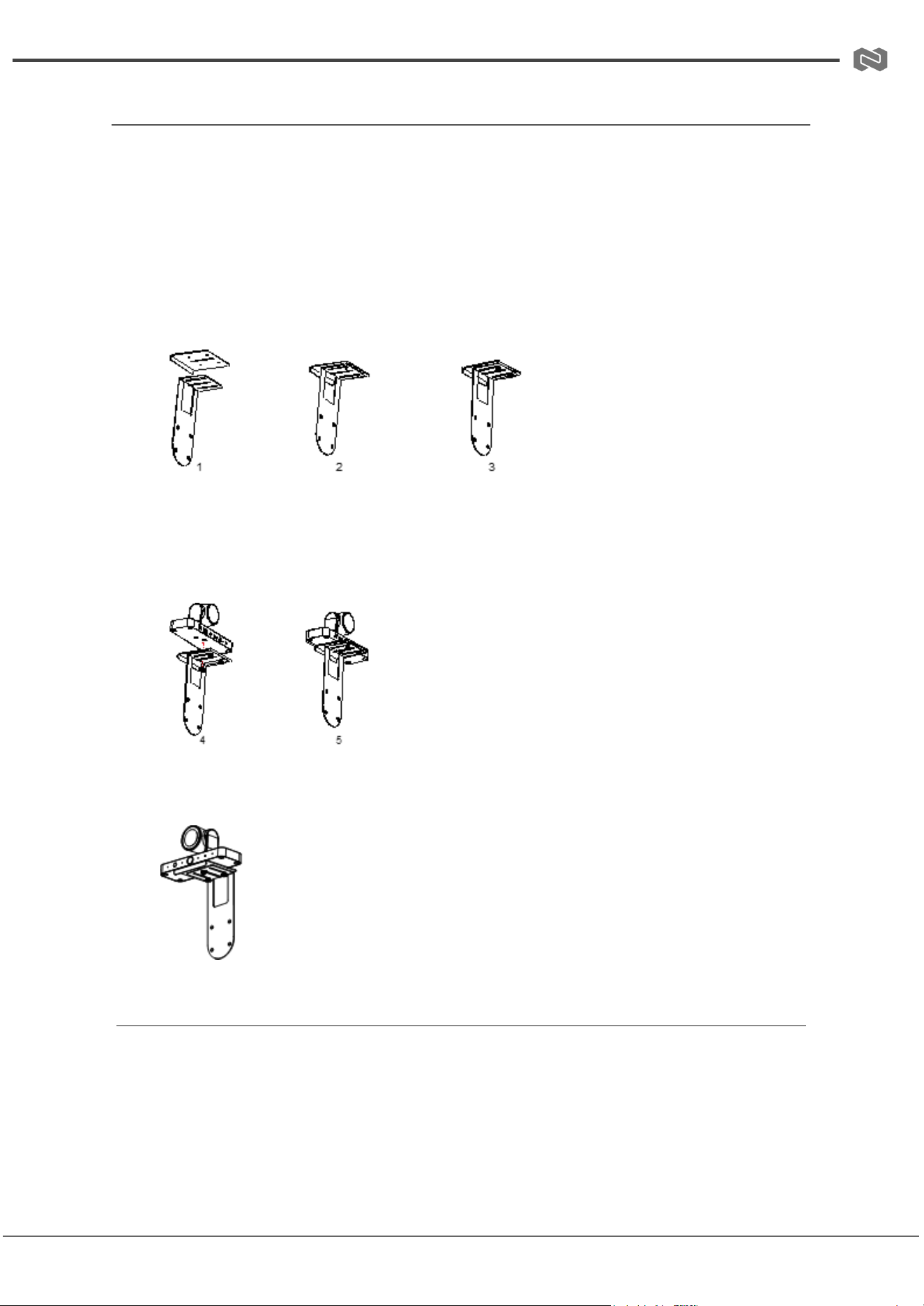
Assemble the Camera and Mounting Brackets
1. Assemble the brackets:
Attach the base bracket panel to the base support bracket using the two
assembly screws provided.
Example: Base Bracket Panel and Base Support Bracket Installation
2. Attach the camera:
Use the thumb screw to secure the mounting brackets to the camera.
Example: Install the Camera on the Mounting Bracket
Note: For wall installation, assemble the base support bracket.
Example: Mounting Direction for Wall-Mount Brackets
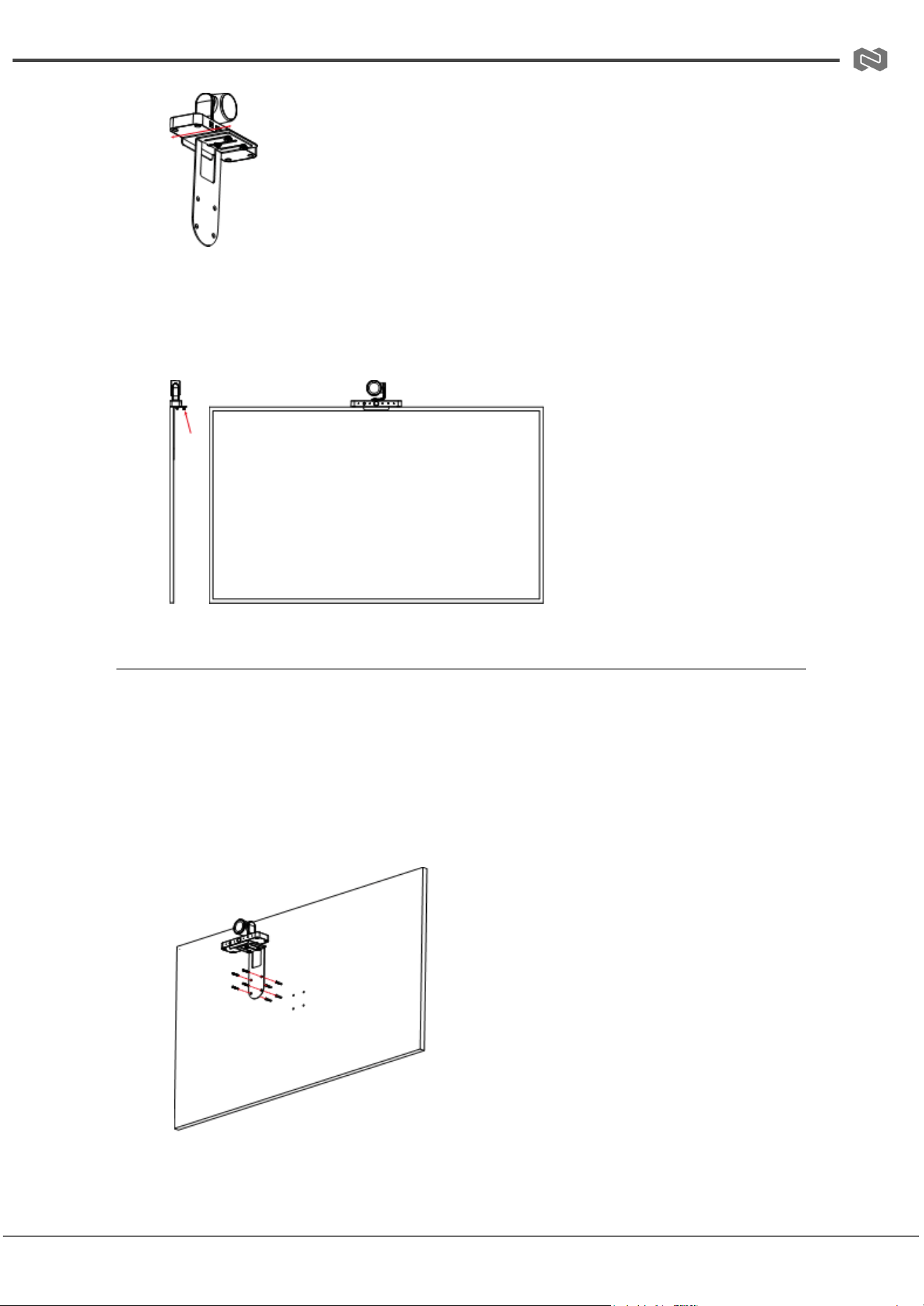
Install the Camera on a TV
1. Adjust the bracket:
Loosen the two assembly screws on the base support bracket, then slide the
long baffle to increase the distance between the two baffles.
Address: 830 National Drive #140, Sacramento, CA 95834, USA · Tel: +1(888)499-9906 · Email: support@bzbgear.com 11
BZBGEAR BG-AVENTO-4K PRODUCT MANUAL
Example: Loosen Screws and Move the Long Baffle
2. Mount the camera:
Place the camera on top of the TV. Adjust it forward or backward to fit the width of
the TV between the two baffles.
Example: Install the Camera on the TV
Install the Camera on a Wall
1. Prepare the wall:
Drill holes in the wall, then insert the plastic expansion anchors into the holes.
2. Mount the camera:
Secure the camera to the wall using the provided mounting screws.
Example: Install the Camera on the Wall
Address: 830 National Drive #140, Sacramento, CA 95834, USA · Tel: +1(888)499-9906 · Email: support@bzbgear.com 12
BZBGEAR BG-AVENTO-4K PRODUCT MANUAL
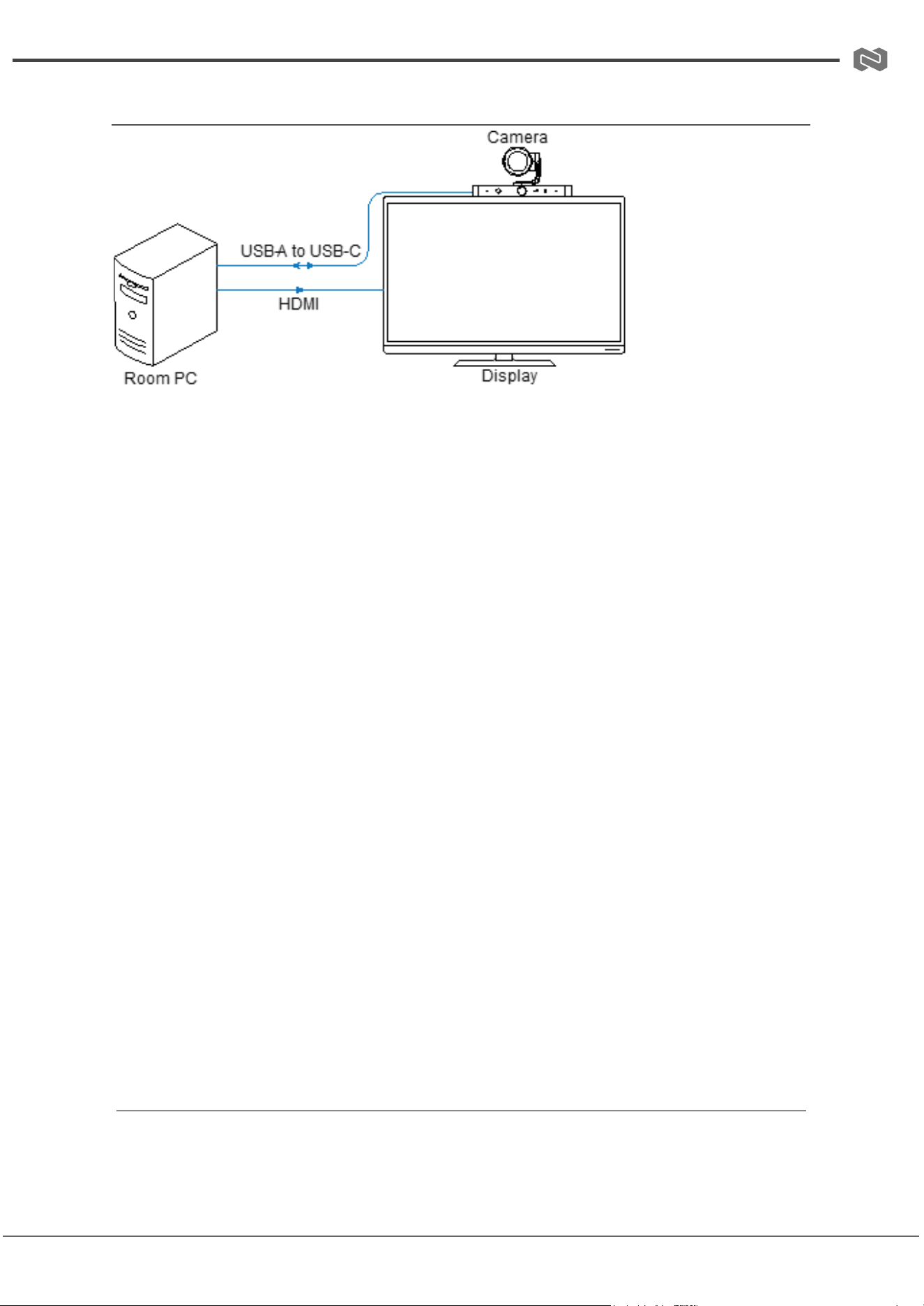
Connection Diagram
Camera Operating Modes
The camera operates in three modes: Init Mode, Idle Mode, and Active Mode.
Init Mode
When the camera is powered on, it starts in Init Mode.
● If no UVC signal transmission occurs and no HDMI display is connected to the
HDMI OUT port within 10 seconds of startup, the camera automatically switches to
Idle Mode.
● If a UVC channel is opened or an HDMI display is connected within 10 seconds of
startup, the camera transitions to Active Mode.
Idle Mode
In Idle Mode:
● Connecting a USB cable or pressing any button on the IR remote will wake the
camera and place it back into Init Mode.
● Once the UVC channel is established, the camera will switch to Active Mode.
Active Mode
In Active Mode:
● If the UVC channel is closed, the camera will return to Init Mode.
● If no UVC signal transmission occurs and no HDMI display is connected to the
HDMI OUT port within 10 seconds, the camera will transition to Idle Mode.
Address: 830 National Drive #140, Sacramento, CA 95834, USA · Tel: +1(888)499-9906 · Email: support@bzbgear.com 13

BZBGEAR BG-AVENTO-4K PRODUCT MANUAL
Notes
● The camera supports receiving commands via the UVC channel through AI mode,
IR remote, web UI, or third-party applications such as Zoom.
● When an external cascade speakerphone is connected, only audio signals are
transmitted through the cascade device. The microphone (MIC) and speaker (SPK)
of the cascade device will appear in the UC App’s menu and remain functional, even
if the camera itself is not in Active Mode.
Address: 830 National Drive #140, Sacramento, CA 95834, USA · Tel: +1(888)499-9906 · Email: support@bzbgear.com 14
BZBGEAR BG-AVENTO-4K PRODUCT MANUAL
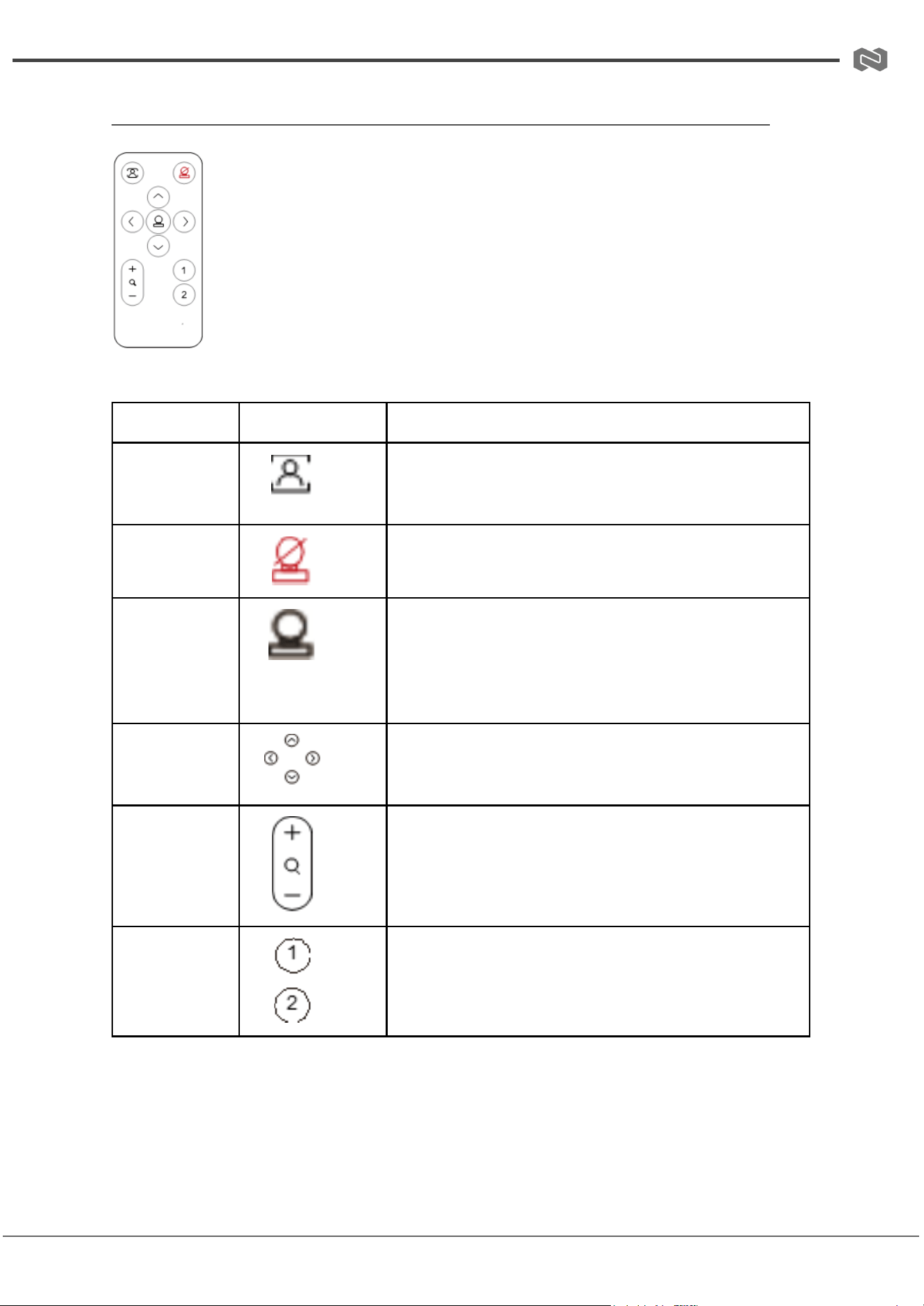
IR Remote Control
The camera supports IR remote control.
To operate, point the included IR remote directly at the IR sensor located
on the front panel of the camera.
Remote Control Button Functions
Button
Icon
Description
Tracking
Mode
Press to toggle between Auto Framing,
Presenter Tracking, Individuals Gallery, and
Off.
Standby
Mode
Press to enter or exit Idle Mode.
Home
- Press once to return to the default view
(available only when Tracking Mode is off).
- Press and hold for about 2 seconds to display
the current tracking mode and IP address on
the screen.
Navigati
on
Button
Press to control Pan/Tilt movements (available
only when Tracking Mode is off).
Zoom
- Press + to zoom in / – to zoom out.
- Press and hold to adjust the zoom
continuously.
Note: Available only when Tracking Mode is off.
Preset 1
/ 2
- Press and hold for 3 seconds to save the
current camera view to Preset 1 or Preset 2.
- Press once to recall the corresponding preset.
Note: Available only when Tracking Mode is off.
Address: 830 National Drive #140, Sacramento, CA 95834, USA · Tel: +1(888)499-9906 · Email: support@bzbgear.com 15

BZBGEAR BG-AVENTO-4K PRODUCT MANUAL
Control Over IP Set Up
Obtain IP Address
You can obtain the device’s IP address by pressing the RESET button on the front panel or
using the IR remote control. For detailed instructions, refer to the “Panel Overview” and “IR
Remote Control” sections.
Telnet Control
1. Connect a control PC to the LAN port of the device.
2. Establish a connection between the device and your computer before using Telnet
commands.
Telnet Connection Format:
telnet [IP address] [port]
● IP address: The device’s assigned IP address
● Port: The communication port number (default: 23)
Note: Some Telnet control tools do not require specifying the port number.
Example:
telnet 192.168.11.143
Web UI Control
The device includes a built-in Web User Interface (Web UI) that can be accessed through a
web browser. Supported browsers include Chrome, Safari, Firefox, Opera, and Internet
Explorer 10 or later.
● Default IP mode: DHCP
● Default login credentials:
○ Username: admin
○ Password: admin
Accessing the Web UI:
1. Connect the LAN port of the device to an Ethernet switch with an active DHCP
server.
2. Connect your PC to the same Ethernet switch.
3. Obtain the device’s IP address by:
○ Pressing the Home button on the provided IR remote (see “IR Remote
Control” section), or
Address: 830 National Drive #140, Sacramento, CA 95834, USA · Tel: +1(888)499-9906 · Email: support@bzbgear.com 16

BZBGEAR BG-AVENTO-4K PRODUCT MANUAL
○ Pressing the RESET button on the front panel (see “Panel Description”
section).
4. Enter the obtained IP address in your browser’s address bar and press Enter. The
login page will appear.
5. Log in using the default username and password (both “admin”).
6. When logging in for the first time, you will be prompted to change your password.
○ Enter a new password and click Apply to access the main interface.
○ Passwords must be 4 to 16 characters in length (alphanumeric only).
Address: 830 National Drive #140, Sacramento, CA 95834, USA · Tel: +1(888)499-9906 · Email: support@bzbgear.com 17
BZBGEAR BG-AVENTO-4K PRODUCT MANUAL
Web GUI Overview
Web UI Introduction
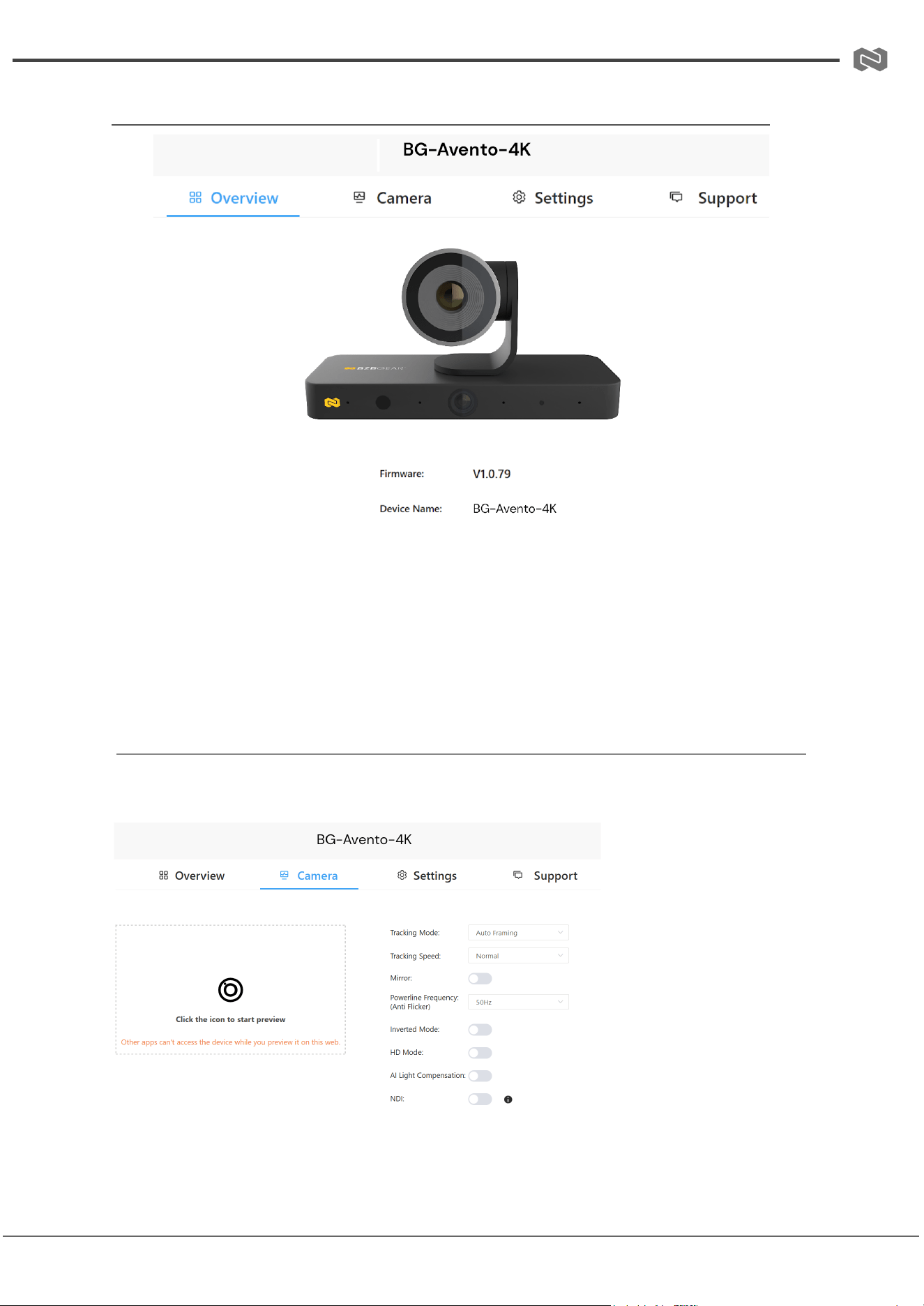
Overview
The Web UI displays the device’s firmware version, device name, and room name.
Camera Page
This section allows users to control camera functions.
Address: 830 National Drive #140, Sacramento, CA 95834, USA · Tel: +1(888)499-9906 · Email: support@bzbgear.com 18

BZBGEAR BG-AVENTO-4K PRODUCT MANUAL
Preview
● Preview Button: Click to start preview mode. The camera feed will display in
real-time.
○ Note: The camera will be unavailable for other software during preview.
○ To exit, move the mouse to the center of the screen and click the black
square.
Tracking Mode
Select a tracking mode from the drop-down menu:
1. Auto Framing (default)
○ AI lens tracks individuals in the room, adjusting angles and focal length to
keep the subject framed while maintaining facial clarity.
○ Tracking Speed: Fast (default), Normal, or Slow.
2. Speaker Tracking
● Locates the speaker by voice and frames them automatically (±15° left/right).
● Display Mode: Normal (default) or Smart Gallery.
● Tracking Speed: Slow (default), Normal, or Fast.
● PIP Mode: Toggle on/off. When enabled, select a layout. Default: Panorama lens
screen on the lower right of AI lens screen.
3. Presenter Tracking
● Automatically identifies the first speaker and continuously tracks them.
● PIP Mode: Same as Speaker Tracking.
4. Individuals Gallery
● Detects individuals and creates a multi-view display from left to right.
● If more than four people are detected, mode automatically switches to Auto Framing.
5. Off
● Manual control:
○ Focal Length: Adjust zoom using the circular slider.
○ Pan: Use arrow keys to move the camera.
○ Reset: Restore default focal length.
● Preset: Save current view with "Set" and recall with "Load".
● PIP Mode: Same as Speaker Tracking.
Address: 830 National Drive #140, Sacramento, CA 95834, USA · Tel: +1(888)499-9906 · Email: support@bzbgear.com 19
BZBGEAR BG-AVENTO-4K PRODUCT MANUAL
Additional Camera Settings
● Powerline Frequency: Select 50Hz (default) or 60Hz to prevent flickering.
● Inverted Mode: Enable if the camera is installed upside down. Default: Off.
● Mirror: Toggle mirror display. Default: Off.
● HD Mode: Enable/disable high-definition view (default: On). Changing this setting
restarts the device.
● AI Light Compensation: Automatically adjusts brightness and contrast using AI
(default: Off).
Settings Page
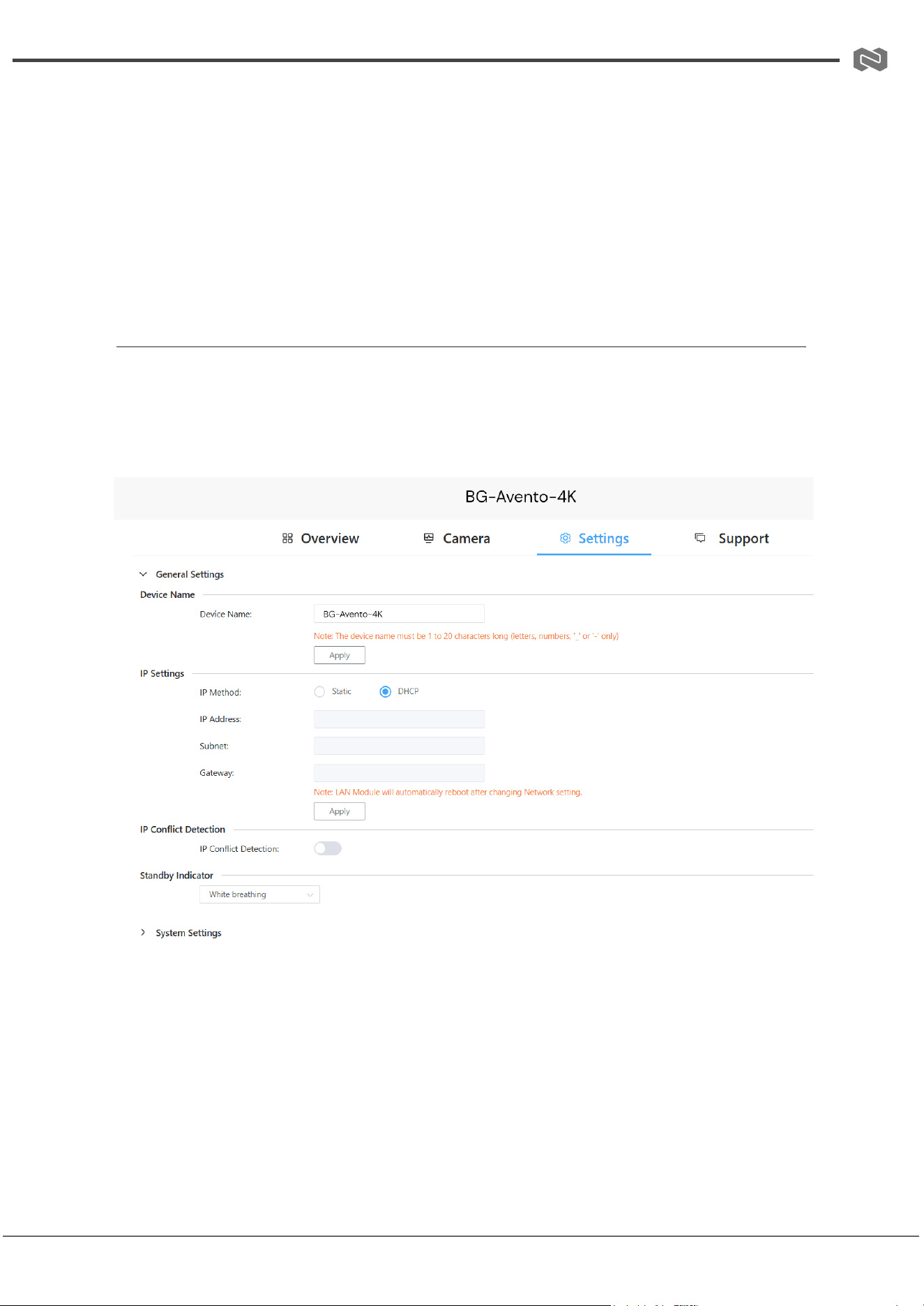
General Settings
● Device Name & Room Name: Enter names (1–20 characters: letters, numbers, “_”
or “-”) and click Apply.
● IP Settings: Choose between DHCP (automatic) or Static (manual).
○ Click Apply to save.
○ Note: For static IP, ensure the PC is on the same network. Reboot may take
2–3 minutes.
● IP Conflict Detection: Toggle on/off (default: On).
Address: 830 National Drive #140, Sacramento, CA 95834, USA · Tel: +1(888)499-9906 · Email: support@bzbgear.com 20
BZBGEAR BG-AVENTO-4K PRODUCT MANUAL
● Standby Indicator: Set the LED color for idle mode (default: White breathing).
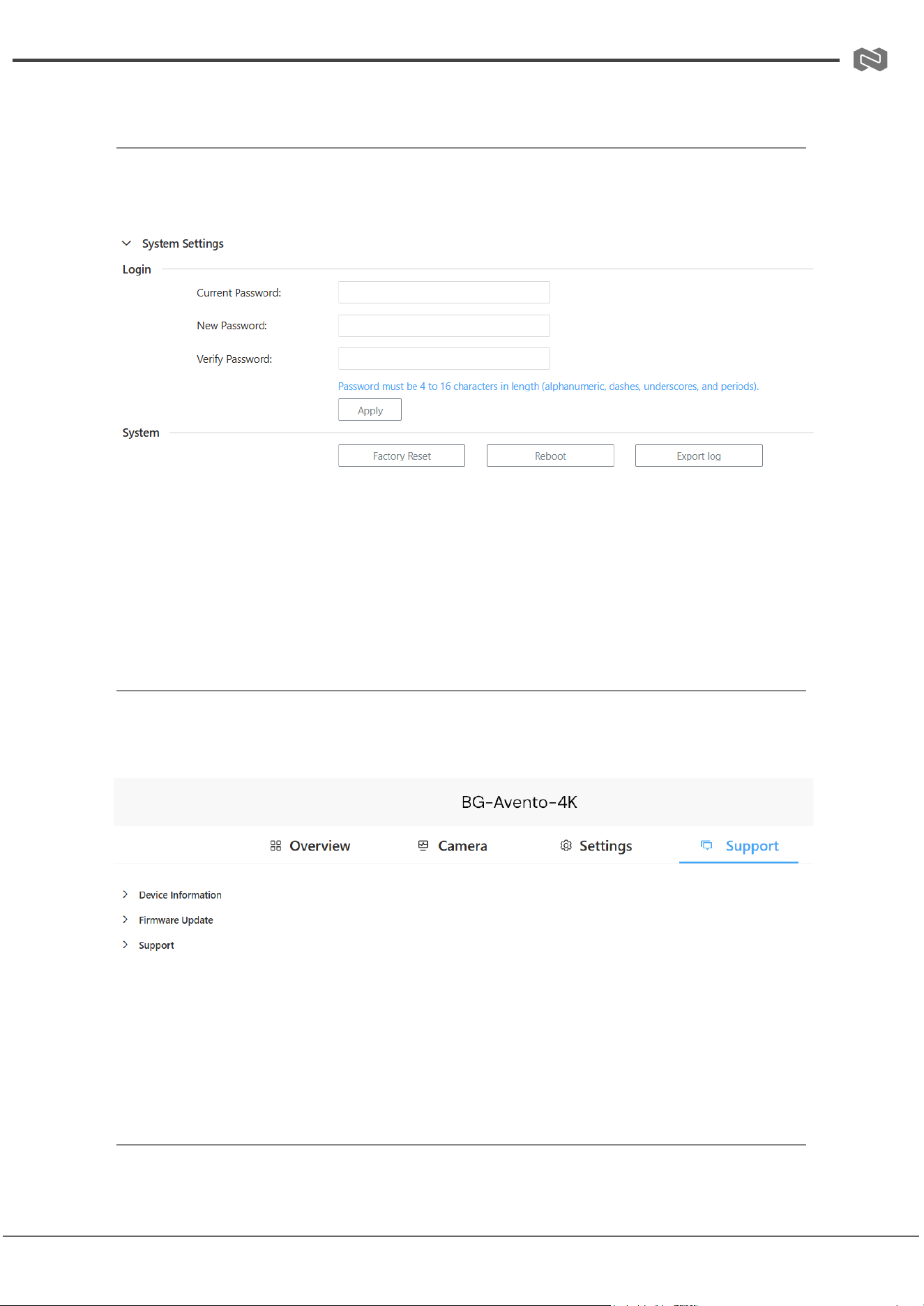
System Settings
● Login: Change password (default: admin, 4–16 alphanumeric characters).
● System:
○ Factory Reset: Restore defaults (wait 40s).
○ Reboot: Restart device (wait 40s).
○ Export Log: Save log file locally.
Support
● Device Information: Shows model, firmware version, and build time. Hover over the
version icon to see module details.
● Firmware Update: Upload the latest firmware and click Upgrade & Reboot. Do not
unplug during upgrade.
Address: 830 National Drive #140, Sacramento, CA 95834, USA · Tel: +1(888)499-9906 · Email: support@bzbgear.com 21

BZBGEAR BG-AVENTO-4K PRODUCT MANUAL
Troubleshooting
Problems
Causes
Solutions
No Power / All LED off
Power supply not connected,
connected fully, or wrong power
supply.
Check if the power supply is
connected correctly and the
output voltage value is within
recommended specifications.
No sound or sound issues
The HDMI connection is faulty,
the audio format is not
supported by the displays, or
the source player is set to
another port for audio output
Check if the HDMI cables are
connected correctly.
Check if the audio format is
supported by the display and
that a user has not changed the
supported audio format on the
player`s audio output. Ensure
output settings from the HDMI
source device as set correctly.
No picture or picture flickers
The HDMI cable may be faulty
or the category cable quality is
faulty.
Check if the HDMI
and category cable connections
are correct and undamaged.
Change to another good
working HDMI cable or category
cable (CAT6 or better cable is
recommended).
Address: 830 National Drive #140, Sacramento, CA 95834, USA · Tel: +1(888)499-9906 · Email: support@bzbgear.com 22

BZBGEAR BG-AVENTO-4K PRODUCT MANUAL
Tech Support
Have technical questions? We may have answered them already!
Please visit BZBGEAR’s support page (bzbgear.com/support) for helpful information and
tips regarding our products. Here you will find our Knowledge Base
(bzbgear.com/knowledge-base) with detailed tutorials, quick start guides, and step-by-step
troubleshooting instructions. Or explore our YouTube channel, BZB TV
(youtube.com/c/BZBTVchannel), for help setting up, configuring, and other helpful how-to
videos about our gear.
Need more in-depth support? Connect with one of our technical specialists directly:
Phone
1.888.499.9906
Email
support@bzbgear.com
Live Chat
bzbgear.com
Limited Product Warranty Terms
Pro Line: 5-year warranty from the date of purchase for AV/Broadcasting products bought
on or after August 1, 2024.
Essential Line: 3-year warranty from the date of purchase for AV/Broadcasting products
bought on or after August 1, 2024.
Cables: Lifetime Limited Product Warranty.
For complete warranty information, please visit bzbgear.com/warranty.
For questions, please call 1.888.499.9906 or email support@bzbgear.com.
Address: 830 National Drive #140, Sacramento, CA 95834, USA · Tel: +1(888)499-9906 · Email: support@bzbgear.com 23

BZBGEAR BG-AVENTO-4K PRODUCT MANUAL
Mission Statement
BZBGEAR is a breakthrough manufacturer of high-quality, innovative audiovisual equipment
ranging from AVoIP, professional broadcasting, conferencing, home theater, to live
streaming solutions. We pride ourselves on unparalleled customer support and services.
Our team offers system design consultation, and highly reviewed technical support for all
the products in our catalog. BZBGEAR delivers quality products designed with users in
mind.
Copyright
All the contents in this manual and its copyright are owned by BZBGEAR. No one is allowed
to imitate, copy, or translate this manual without BZBGEAR’s permission. This manual
contains no guarantee, standpoint expression or other implies in any form. Product
specification and information in this manual is for reference only and subject to change
without notice.
All rights reserved. No reproducing is allowed without acknowledgement.
Address: 830 National Drive #140, Sacramento, CA 95834, USA · Tel: +1(888)499-9906 · Email: support@bzbgear.com 24