HD Video Conference PTZ Camera
User Manual
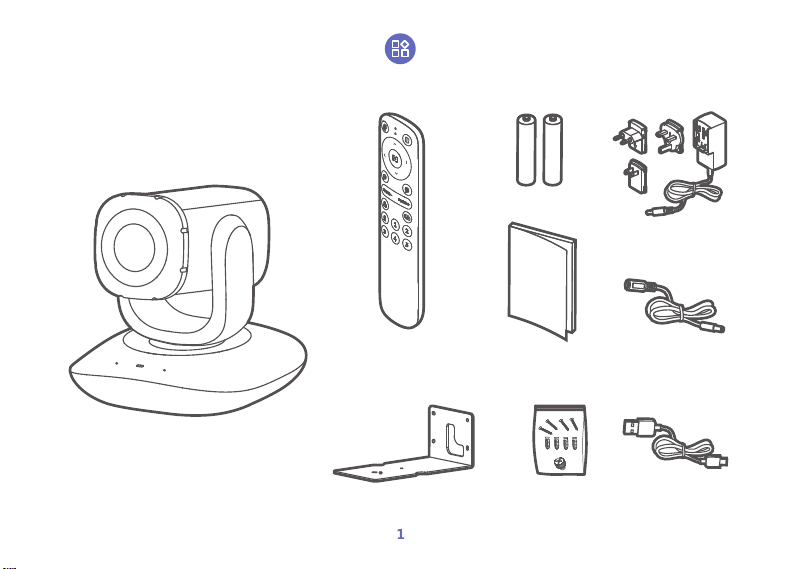
Packing List
Screws
Camera
Bracket
USB Cable
Adapter Extension Cable
Quick Start GuideRemote Control
Battery
Power Adapter
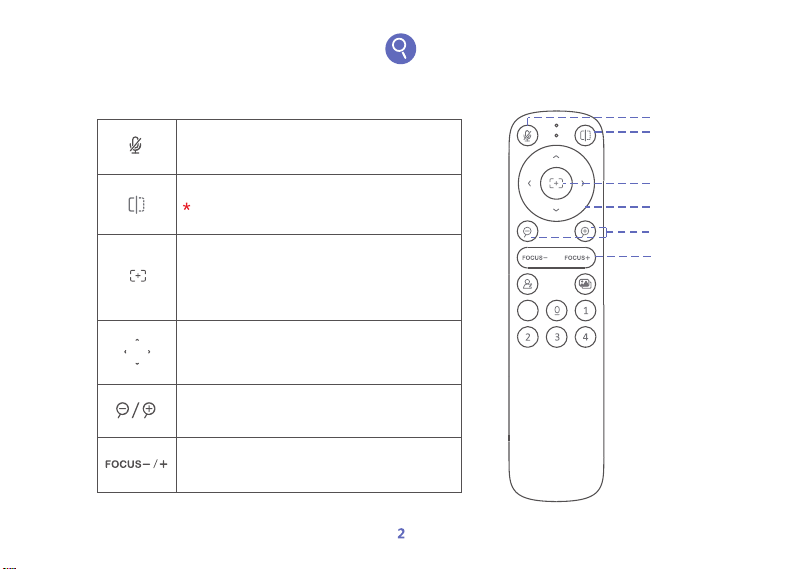
Image Flip
Pan/Tilt Control
Focus
Zoom Out/In
One-touch Focus
Mute
Turn on/off the pickup function of the remote
control, the camera and other external devices (if
any). Pickup function is enabled by default.
Click to mirror the image.
To rotate the image 90°, 180° or 270°, please use broadcaster
software or platforms like Live Companion.
Click the button for auto focus.
Press and hold the button for 3 seconds to switch
between auto focus mode (default) /semi-focus
mode.
Pan/tilt the camera.
Press the button to adjust the camera by level.
Press and hold the button to adjust the camera
continuously.
Press the button to zoom in/out by level.
Press and hold the button to adjust the camera
continuously.
Press the button to adjust the focus by level.
Press and hold the button to adjust the camera
continuously.
Functions
Fn
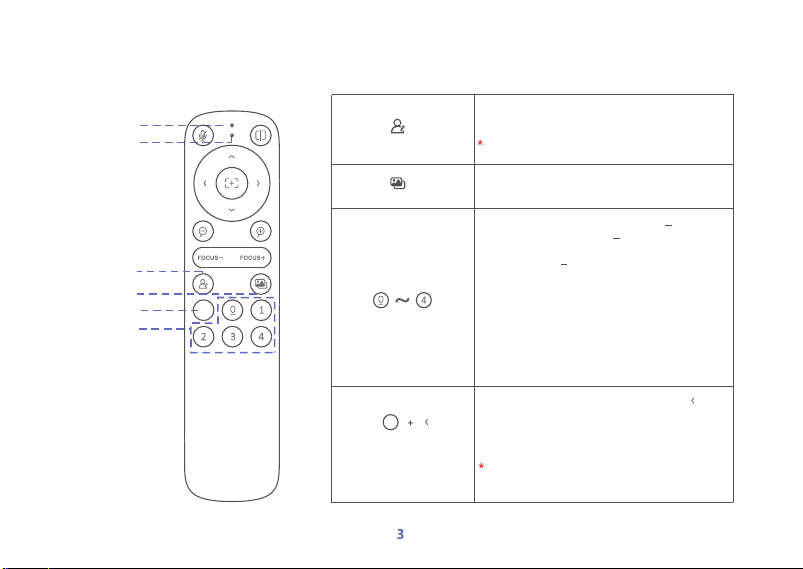
Indicator
Microphone
Presets
Fn
Host Mode
Image Mode
Fn
• Up to 5 presets can be set, with
0 to 4
representing 1 preset and 0 being the default
preset.
• If the preset 0 is predefined, the camera
moves to the set position after powering on.
If not, the camera moves to the default
position after powering on.
• Set/modify a preset:
1. Adjust the image by remote control.
2. Press and hold a preset number for 3
seconds, and the indicator of the camera
flashes white 3 times. It means the preset is
successfully set or modified.
Press and hold the button to enable the
pickup function of the remote control.
Release the button to disable the function.
The pickup function of the camera and other external devices
(if any) will be disabled after enabling the remote control pickup.
Switch the image mode. Standard (default),
Gentle, Bright, and Back light are available.
Press and hold Fn, and then long press for 3
seconds, and the indicator of the camera
flashes white 3 times. It means the switch
between same-direction mode (default) and
reverse-direction mode is successful.
Fn
Same-direction Mode/
Reverse-direction Mode
When the camera is mountedupside down, it is
recommended to enable the reverse-direction mode to
ensure that the direction of the remote control is the same as
the rotation direction of PTZ camera.
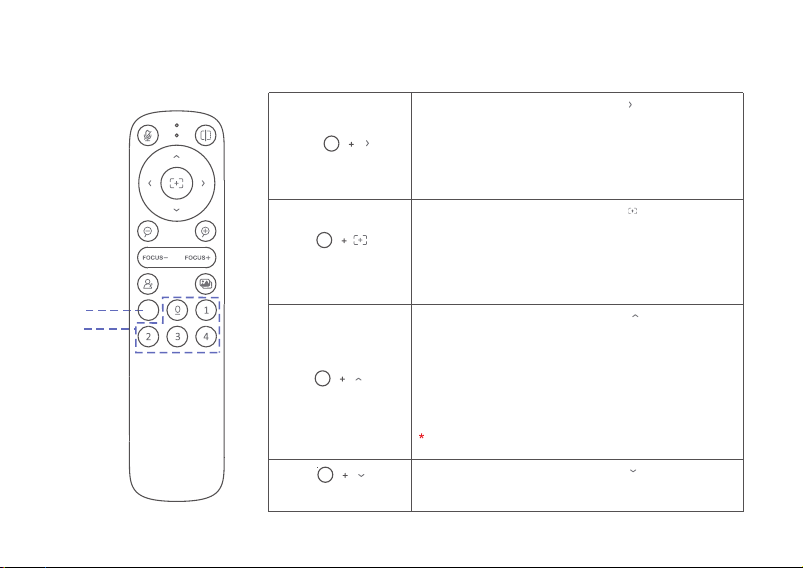
Presets
Fn
Fn
Press and hold Fn, and then long press for 3 seconds, and
the indicator of the camera flashes white 3 times. It means
the image freezing mode is enabled/disabled successfully.
Press and hold Fn, and then long press for 3 seconds, and
the indicator of the camera flashes white 3 times. It means
the privacy mode is enabled/disabled successfully.
Press and hold Fn, and then long press for 3 seconds to
enter/exit pairing mode.
Press and hold Fn, and then long press for 3 seconds,
and camera restores default settings after its light flashes
red 3 times.
• If pairing is successful in 20 seconds, the remote
control's light will flash red and white alternately twice
and then remain off.
• If pairing fails in 20 seconds, the remote control will exit
pairing mode automatically and its light will go off.
Ifpairing fails, please power downandreboot the camera, andit will
automatically enter the pairing mode to pair with remote control again.
Privacy Mode
Pairing Mode
Restore Default Settings
Image Freezing Mode
Fn
With the mode enabled, the device will rotate to the new
preset position before switching the live view image, and
the image recorded during the switch between two presets
will not be displayed. This function is disabled by default.
With the mode enabled, the lens will droop automatically
if no PTZ rotation, zoom, focus or other related operation
is performed in 30 seconds. This function is disabled by
default.
Fn
Fn
Fn
4
When entering pairing mode, the remote control's light
flashes white quickly.
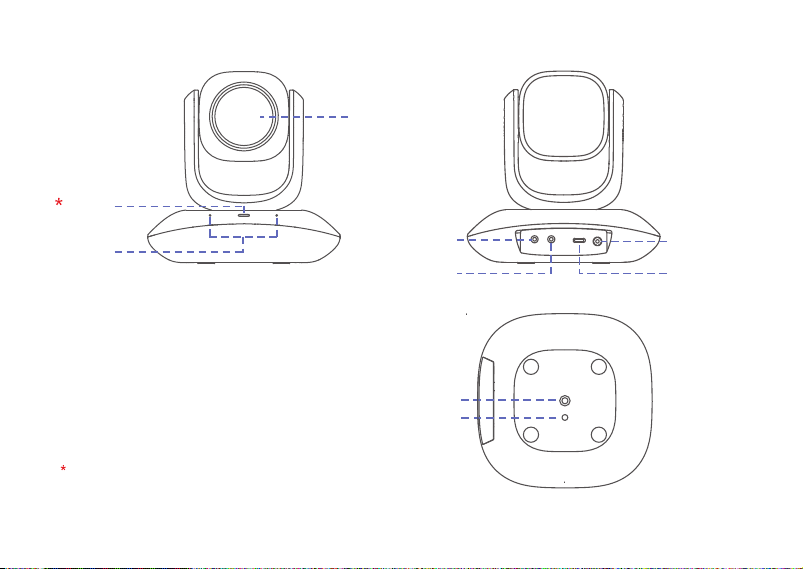
Indicator
Lens
Power Interface
1/4-20UNC Screw Hole
Lashing Eye
Indicator
• Solid White: The audio function/video function is working.
• Solid Red: The device is in mute mode.
• Light Off: The device is in standby mode.
Microphone
LINE IN
USB-C
LINE OUT
5
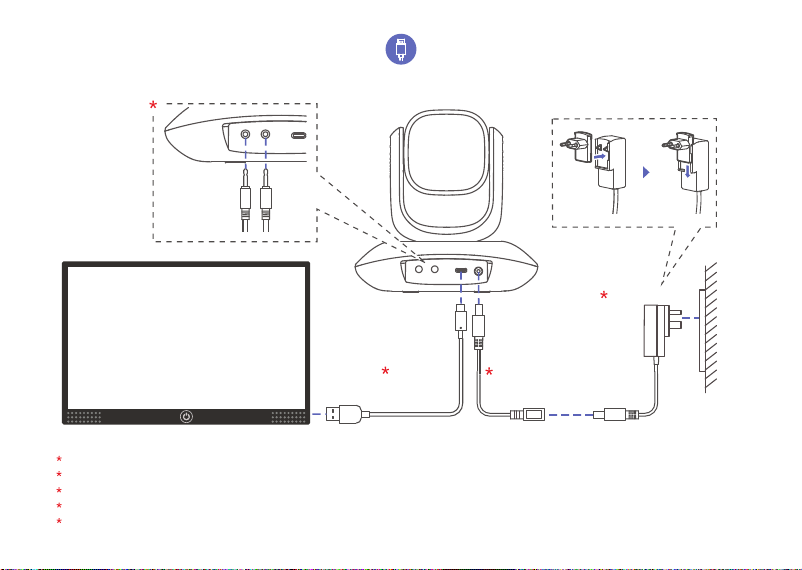
Connection
Connect the device to an intelligent terminal, such as a computer or conference flat panel.
LINE IN/LINE OUT: LINE IN port for connection of microphones and etc. LINE OUT port for connection of speakers and etc.
Select the suitable power adapter plug according to the actual using environment.
Adapter extension cable is for long-distance power connection.
Separately purchase a USB 2.0/3.0 extension cable with a signal amplifier if you need long-distance data connection.
USB Cable
Adapter Extension Cable
Power Adapter
6
LINE IN LINE OUT
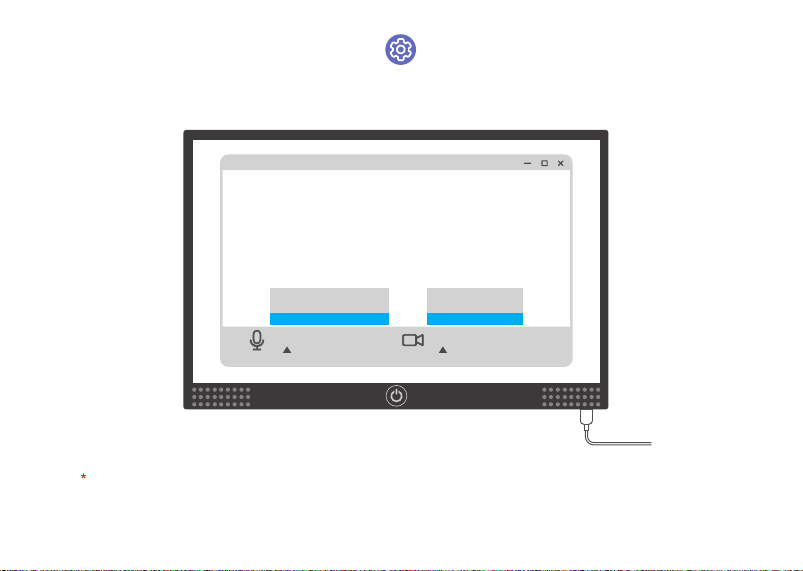
Setup Guide
Mi c rophone
Ca m e ra
Se lect Ca m era
De fau lt Sett ings
xx x USB Came ra
Se lect Mi c rop h one
De fau lt Sett ings
xx x USB Came ra- A udio
Power on the device and open the conference/video software. Select the Microphone as xxx USB Camera-Audio, and select the
Camera as xxx USB Camera. Take the actual product as standard.
7
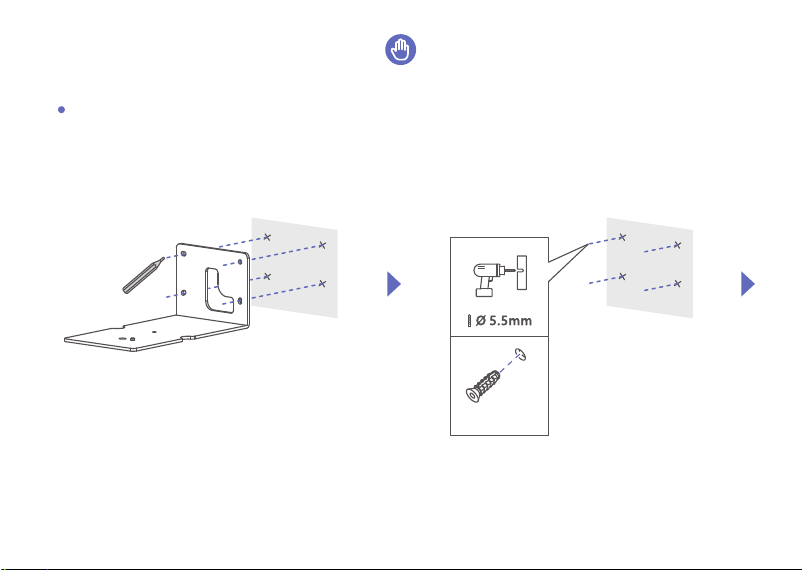
Wall Mounting
8
Installation
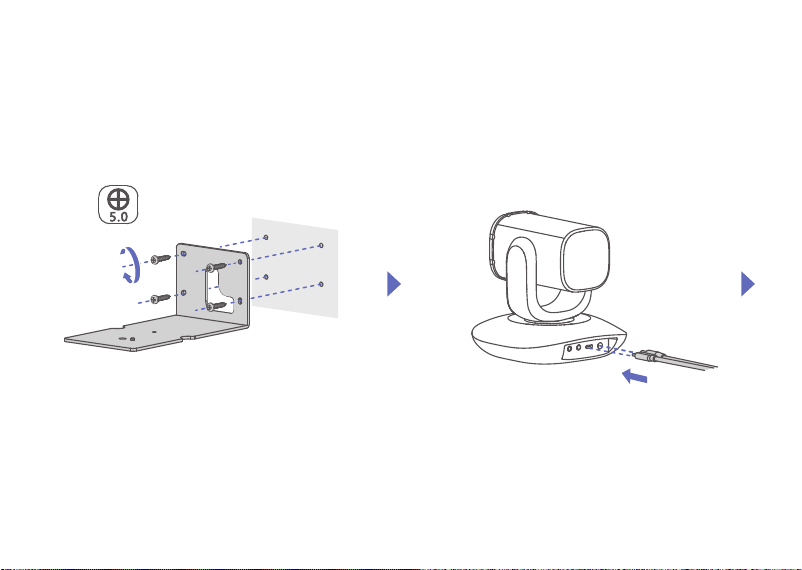
9
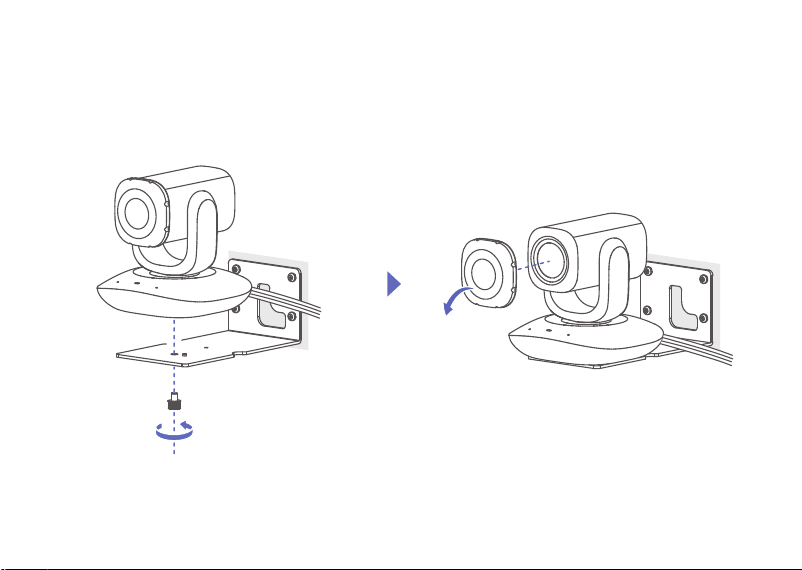
10
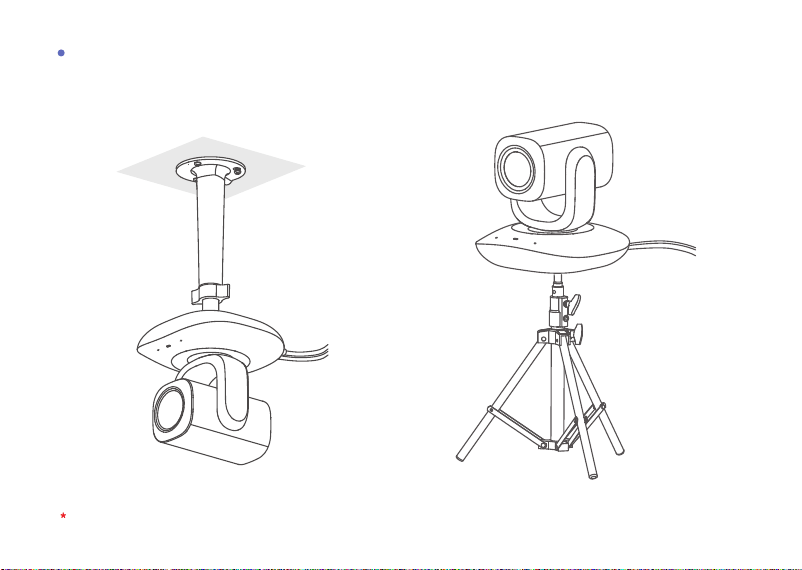
The brackets shall be purchased separately. Threaded hole: 1/4-20UNC.
Others
11
12
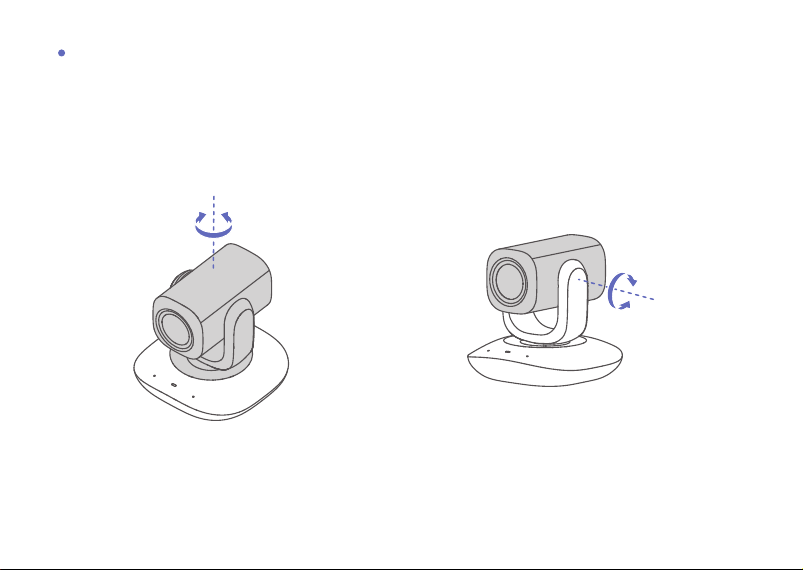
Angle Adjustment
-165°~165°
-30°~30°

Safety Instruction
Warnings
Laws and Regulations
The device should be used in compliance with local laws, electrical safety regulations, and fire prevention regulations.
Electrical Safety
The socket-outlet shall be installed near the equipment and shall be easily accessible.
Battery
CAUTION: Risk of explosion if the battery is replaced by an incorrect type.
Improper replacement of the battery with an incorrect type may defeat a safeguard (for example, in the case of some lithium battery
types).
Do not dispose of the battery into fire or a hot oven, or mechanically crush or cut the battery, which may result in an explosion.
Do not leave the battery in an extremely high temperature surrounding environment, which may result in an explosion or the
leakage of flammable liquid or gas.
Do not subject the battery to extremely low air pressure, which may result in an explosion or the leakage of flammable liquid or gas.
Dispose of used batteries according to the instructions.
Cautions
Fire Prevention
No naked flame sources, such as lighted candles, should be placed on the equipment.
Installation
Install the equipment according to the instructions in this manual.
Never place the equipment in an unstable location. The equipment may fall, causing serious personal injury or death.
DO NOT touch the sharp edges or corners.
Transportation
Keep the device in original or similar packaging while transporting it.
DO NOT drop the product or subject it to physical shock.
FAQ
Visit http://enpinfodata.hikvision.com/analysisQR/showQR/35d08787 for frequently asked questions.
13

Power Supply
EUT will be charged by specified source which the output circuit comply with LPS/PS 2.
Refer to the device label for the standard power supply. Please make sure your power supply matches with your device.
Use a power adapter provided by qualified manufacturers. It is recommended to provide an independent power adapter for each
device as adapter overload may cause over-heating or a fire hazard.
Maintenance
If the product does not work properly, please contact your dealer or the nearest service center. We shall not assume any responsibility
for problems caused by unauthorized repair or maintenance.
Cleaning
Please use a soft and dry cloth to clean the interior and exterior surfaces. Do not use alkaline detergents.
Using Environment
When any laser equipment is in use, make sure that the device lens is not exposed to the laser beam, or it may burn out.
DO NOT aim the lens at the sun or any other bright light.
To avoid heat accumulation, good ventilation is required for a proper operating environment.
DO NOT expose the device to extremely hot, cold, dusty, corrosive, saline-alkali, or damp environments. For temperature and humidity
requirements, see device specification.
DO NOT expose the device to high electromagnetic radiation.
Emergency
If smoke, odor, or noise arises from the device, immediately turn off the power, unplug the power cable, and contact the service
center.
Regulatory Information
14
EU Conformity Statement
This product and - if applicable - the supplied accessories too are marked with "CE" and comply therefore with the applicable harmonized
European standards listed under the Directive 2014/30/EU (EMCD) and Directive 2011/65/EU (RoHS).
Note: The products with the input voltage of within 50 to 1000 VAC or 75 to 1500 VDC comply with Directive 2014/35/EU (LVD), and the rest
products comply with Directive 2001/95/EC (GPSD). Please check the specific power supply information for reference.
The full text of the EU declaration of conformity is available at the following internet address: https://www.hikvision.com/en/support/
compliance/declaration-of-conformity.
2012/19/EU (WEEE directive): Products marked with this symbol cannot be disposed of as unsorted municipal waste in the European
Union. For proper recycling, return this product to your local supplier upon the purchase of equivalent new equipment, or dispose of it at
designated collection points. For more information see: www.recyclethis.info.
2006/66/EC (battery directive): This product contains a battery that cannot be disposed of as unsorted municipal waste in the European
Union. See the product documentation for specific battery information. The battery is marked with this symbol, which may include lettering
to indicate cadmium (Cd), lead (Pb), or mercury (Hg). For proper recycling, return the battery to your supplier or to a designated collection
point. For more information, see: www.recyclethis.info.

©2023 Hangzhou Hikvision Digital Technology Co., Ltd. All rights reserved.
About this Manual
The Manual includes instructions for using and managing the Product. Pictures, charts, images and all other information hereinafter are for
description and explanation only. The information contained in the Manual is subject to change, without notice, due to firmware updates or other
reasons. Please find the latest version of this Manual at the Hikvision website (https://www.hikvision.com/).
Please use this Manual with the guidance and assistance of professionals trained in supporting the Product.
Trademarks
and other Hikvision’s trademarks and logos are the properties of Hikvision in various jurisdictions.
Other trademarks and logos mentioned are the properties of their respective owners.
Disclaimer
TO THE MAXIMUM EXTENT PERMITTED BY APPLICABLE LAW, THIS MANUAL AND THE PRODUCT DESCRIBED, WITH ITS HARDWARE, SOFTWARE AND
FIRMWARE, ARE PROVIDED “AS IS” AND “WITH ALL FAULTS AND ERRORS”. HIKVISION MAKES NO WARRANTIES, EXPRESS OR IMPLIED, INCLUDING
WITHOUT LIMITATION, MERCHANTABILITY, SATISFACTORY QUALITY, OR FITNESS FOR A PARTICULAR PURPOSE. THE USE OF THE PRODUCT BY YOU IS AT
YOUR OWN RISK. IN NO EVENT WILL HIKVISION BE LIABLE TO YOU FOR ANY SPECIAL, CONSEQUENTIAL, INCIDENTAL, OR INDIRECT DAMAGES,
INCLUDING, AMONG OTHERS, DAMAGES FOR LOSS OF BUSINESS PROFITS, BUSINESS INTERRUPTION, OR LOSS OF DATA, CORRUPTION OF SYSTEMS,
OR LOSS OF DOCUMENTATION, WHETHER BASED ON BREACH OF CONTRACT, TORT (INCLUDING NEGLIGENCE), PRODUCT LIABILITY, OR OTHERWISE, IN
CONNECTION WITH THE USE OF THE PRODUCT, EVEN IF HIKVISION HAS BEEN ADVISED OF THE POSSIBILITY OF SUCH DAMAGES OR LOSS.
YOU ACKNOWLEDGE THAT THE NATURE OF THE INTERNET PROVIDES FOR INHERENT SECURITY RISKS, AND HIKVISION SHALL NOT TAKE ANY
RESPONSIBILITIES FOR ABNORMAL OPERATION, PRIVACY LEAKAGE OR OTHER DAMAGES RESULTING FROM CYBER-ATTACK, HACKER ATTACK, VIRUS
INFECTION, OR OTHER INTERNET SECURITY RISKS; HOWEVER, HIKVISION WILL PROVIDE TIMELY TECHNICAL SUPPORT IF REQUIRED.
YOU AGREE TO USE THIS PRODUCT IN COMPLIANCE WITH ALL APPLICABLE LAWS, AND YOU ARE SOLELY RESPONSIBLE FOR ENSURING THAT YOUR USE
CONFORMS TO THE APPLICABLE LAW. ESPECIALLY, YOU ARE RESPONSIBLE, FOR USING THIS PRODUCT IN A MANNER THAT DOES NOT INFRINGE ON
THE RIGHTS OF THIRD PARTIES, INCLUDING WITHOUT LIMITATION, RIGHTS OF PUBLICITY, INTELLECTUAL PROPERTY RIGHTS, OR DATA PROTECTION
AND OTHER PRIVACY RIGHTS. YOU SHALL NOT USE THIS PRODUCT FOR ANY PROHIBITED END-USES, INCLUDING THE DEVELOPMENT OR PRODUCTION
OF WEAPONS OF MASS DESTRUCTION, THE DEVELOPMENT OR PRODUCTION OF CHEMICAL OR BIOLOGICAL WEAPONS, ANY ACTIVITIES IN THE
CONTEXT RELATED TO ANY NUCLEAR EXPLOSIVE OR UNSAFE NUCLEAR FUEL-CYCLE, OR IN SUPPORT OF HUMAN RIGHTS ABUSES.
IN THE EVENT OF ANY CONFLICTS BETWEEN THIS MANUAL AND THE APPLICABLE LAW, THE LATTER PREVAILS.
Open Source Software Disclaimer
This product cannot be launched without the contribution of open source software. HIKVISION respects the Intellectual Property of others, has
established and will continue to improve its open source compliance system. You can get this product's Open Source Software Declaration and
Copyleft Source Code by visiting http://opensource.hikvision.com/Home.

UD31557B-C