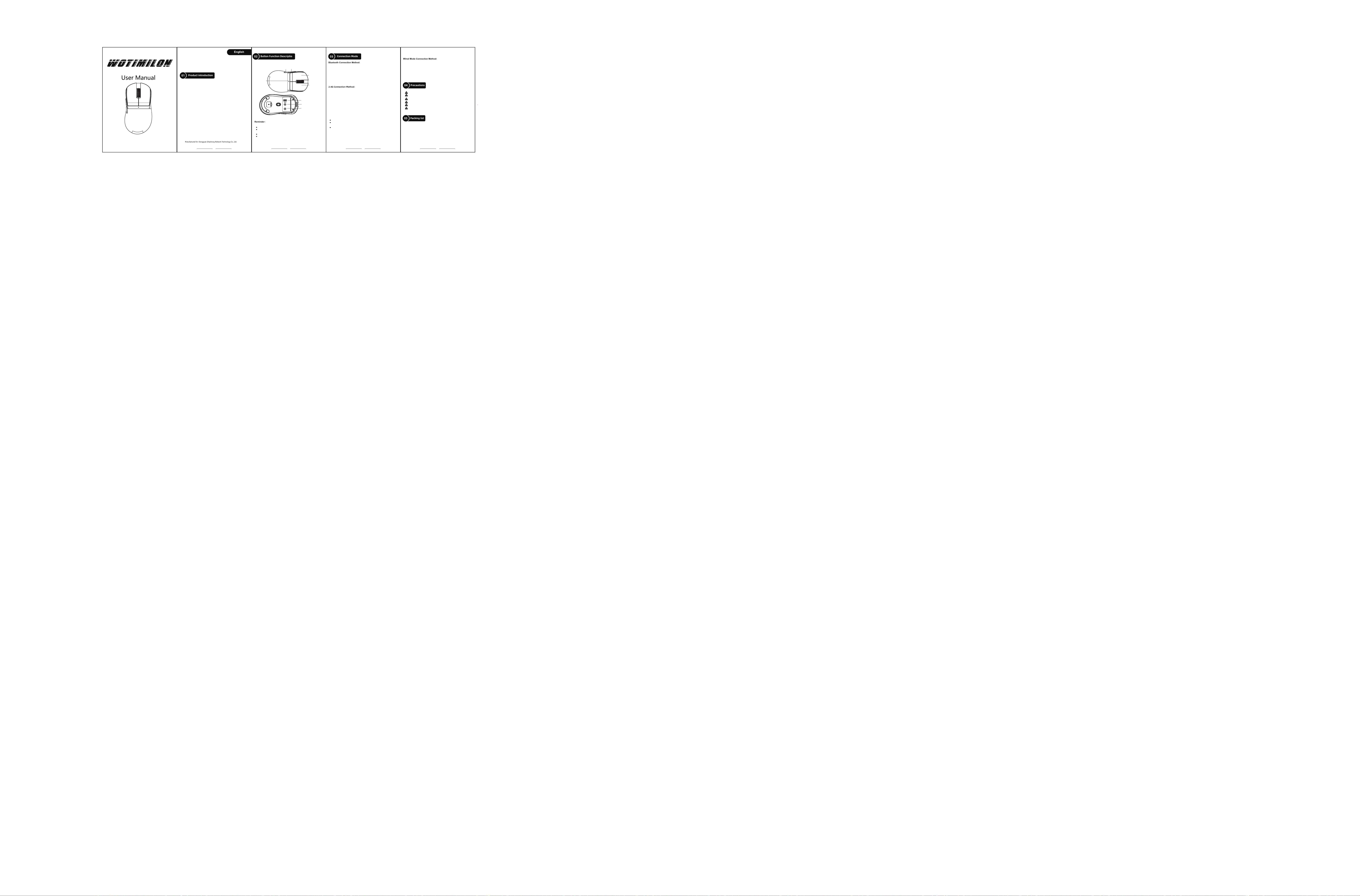
①Left button
②Scroll wheel +
middle button
③Right button
④Back button ⑤Forward button
⑥Battery & DPl
indicator light
0
0
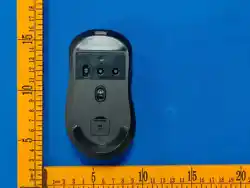
⑧Power toggle switch
(2.4G-0FF-BT)
⑨DPI cycle button
⑩Connect button
1
2
03
1. Sleep Mode
The mouse enters light sleep after 5 minutes of inactivity
The mouse enters deep sleep after 15 minutes of inactivity
2. Sleep Wake-up Method
Light sleep wake-up by moving or pressing a button
Deep sleep wake-up by pressing a button
3. Hardware cornection: Plug the product USB plug into the USB 1.1 or above version
port (when the product ls used for the first tlme, a prompt wlll pop up in the lower right
1. Product model: WT-M1
2. Product interface type: UsB-Type-C
3. Product connectfon method: UsB, 2.4G, Bluetooth5.3
4. Product aptcal senear: Pixar PAW3311
5. Transmission fequency: 24MHz
6. Report rate (HZ): 125 /250/500/1000 default (drlver adjustable}
7. Frame rate (lPS): 300lPS
8. Maximum acceleraton (G): 35G
9. DPi value and corasponding color: 800 red-1600 grean (dafault)-2400 blue
-3200yellow-6400 cyan-24000 purple can be driven to switchf mouse button gwitch.
10. Charging current: ≈210mA
11. ChargIng voltage: 4.5V.5.5Y
12. Product weight: 75±5g
13. Product size: ≈116*262.2*37.3mm
14. Data line interface (length}: Type-C/ 1.6 meters
15. Wireless transmission distance: 10 meters
16. Switch brand and servlce llfe: Huanyu mlcro switch
17. Support operating systems: xP, Wn7, Win8, win10, win11, Mac OS, Androld, Linux,
etc.
18. Sleap mode curent:First-level sleep mode, current approximately 0.5mA;
Second-level sleep mode, current approximately 0.05mA.
19.Manufactured for: Dongguan Zhaohong Network Technology Co., Ltd.
corner of the computer to automatically install the hardware)
1. When you want to use the 2.4G mode of the mouse, turn the power switch to the 2.4G
position;
2. Take out the 2.4G receiver of the mouse and plug the receiver into an idle USB port on
1. The power switch must be in the Bluetooth position ;
2. Press and hold the
⑩
key for about three seconds to enter the Bluetooth broadcast
and the ambient light flashes blue. At that time, please turn on the Bluetooth of your
mobile phone or other devices that need to be paired to search. When "WT-M1 Mouse"
appears, please connect in time. After the connection is successful, the ambient light
returns to the mode before the Bluetooth broadcast.
the computer, The computer will automatically install the configuration software, When
the computer prompts that the installation is complete and can be used, the mouse can
be connected to the computer, lf the computer does not respond after plugging in the
Turn the power switch to the middle OFF position, connect the mouse to the computer
with the TYPE.C cable, and when the cable is plugged in, the mouse is in wired mode
The battery level & DPI indicator light flashes in intervals in green. After the charging
is complete, this indicator light changes to the corresponding color indication of DPI
before charging. and the computer screen pointer can move when the mouse is moved,
receiver, change another USB port, The computer will automatically pair and install the
corresponding adapter software, Generally, the computer will prompt; Installation is
complete and can be used, which means that the mouse is successfully connected to
the computer,
3. lf the 2.4G signal finds a connection obstacle or the signal is lost, please follow the
steps below:
Turn the power switch to the 2.4G position;
Press and hold the
⑩
key for about three seconds to enter the 2.4G pairing mode,
and the ambient light flashes red;
Plug the 2.4G receiver that comes with the mouse into the USB port of the PC.
When the pairing is successful, the ambient light returns to the lighting mode before
pairing.
Thank you very much for choosing our WOTIMILON product, We hope it
canbring you a brand new operation and experience, At the same time, we look
forward toyour valuable suggestions on our products, We will continue to provide
you with betterproducts and services,
and the mouse can be used nommally.
Do not soak the mouse in liquid or sprinkle it with liquid.
Do not use the mouse in high temperature and high humidity environment.
Do not place the mouse in open flame.
Do not violently smash the mouse.
Do not disassemble the mouse.
Mouse*1
2.4G receiver*1
Cable*1
Mouse Grip Tape*1
Instruction manual*1
Do not charge the mouse with a fast charging adapter
04
WT-M1 Gaming Mouse
User Manual
FCC Statement
This device complies with part 15 of the FCC rules. Operation is subject to the following two conditions: (1) this device may not
cause harmful interference, and (2) this device must accept any interference received, including interference that may
cause undesired operation.
Caution: Changes or modifications not expressly approved by the party responsible for
compliance could void the user’s authority to operate the equipment.
NOTE: This equipment has been tested and found to comply with the limits for a Class B digital device, pursuant to part 15 of
the FCC Rules. These limits are designed to provide reasonable protection against harmful interference in a residential
installation. This equipment generates uses and can radiate radio frequency energy and, if not installed and used in
accordance with the instructions, may cause harmful interference to radio communications. However, there is no guarantee
that interference will not occur in a particular installation. If this equipment does cause harmful interference to radio or
television reception, which can be determined by turning the equipment off and on, the user is encouraged to try to correct the
interference by one or more of the following measures:
‐ Reorient or relocate the receiving antenna.
‐ Increase the separation between the equipment and receiver.
‐ Connect the equipment into an outlet on a circuit different from that to which the receiver is connected.
‐Consult the dealer or an experienced radio/TV technician for help important announcement
Radiation Exposure Statement
The device has been evaluated to meet general RF exposure requirement. The device can be used in portable exposure
condition without restriction.