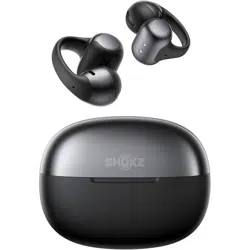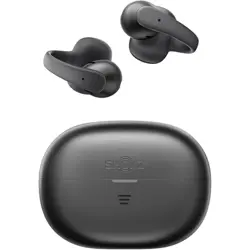

SHOKZ E210
User Guide
Shokz APP
Download the Shokz App
Enable MultiPoint Pairing and EQ switching. Check battery status,
customize touch controls, manage wear detection, swap left/right
earbuds, adjust prompt volume, use Find My Earbuds, and update
firmware.
*Apple and the Apple logo are trademarks of Apple Inc., registered in the U.S. and
other countries. Google Play is a trademark of Google LLC.
CATALOGUE
Catalogue
WHAT'S IN THE BOX
03
WEAR AND USE
05
Earbud Diagram
06
Charging Case
07
Bluetooth Pairing Instructions
08
Wearing Instructions
10
Audio Control
15
Call Management
16
13
TOUCH CONTROL INSTRUCTIONS
Power On/Off, and Standby Mode
18
17
CHARGING
Charging the Earbuds
20
Charging the Charging Case
21
��
CATALOGUE
Cleaning
36
IP Rating
37
35
CLEANING & MAINTENANCE
Storage and Maintenance
38
Serial Number Location
40
Warranty
41
39
AFTER-SALES SERVICE
EQ Adjustments
26
25
OTHER SHOKZ APP FUNCTIONS
MultiPoint Pairing
27
Interchangeable Left/Right Earbuds
29
Wear Detection
30
Adjusting the Volume of the Prompt Sounds
31
Auto Reconnect
32
Find My Earbuds
33
Resetting the Earbuds
34
CHARGING CASE INDICATOR
22
��
What's in the Box
��
What's in the Box
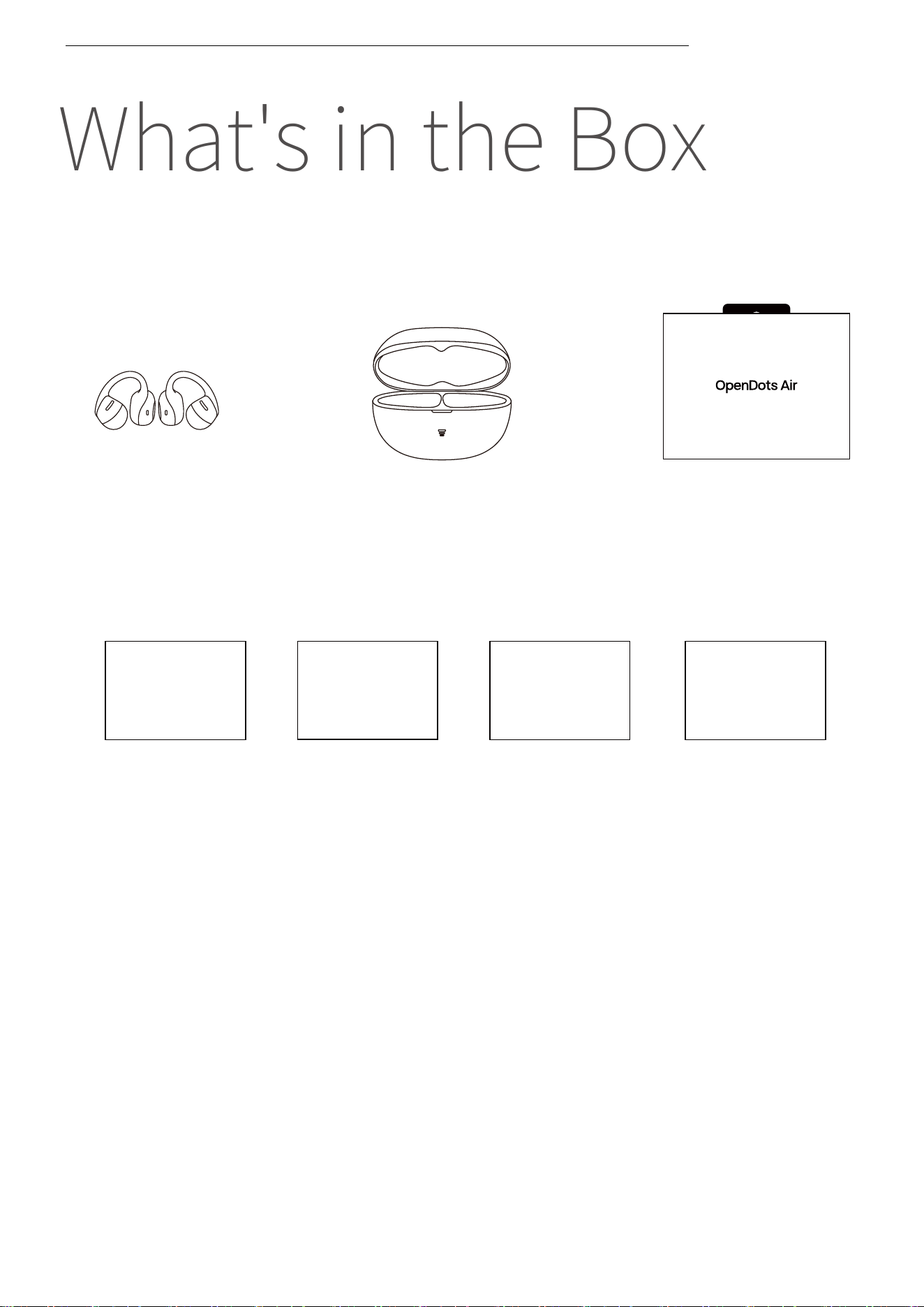
If any of the above-listed items are missing or the product is
damaged, do not use it. Please contact the dealer where the
product was purchased or reach out to us.
(Refer to page ��: After-Sales Service ‒ Contact Us)
WHAT'S IN THE BOX
��
User Guide*�
User Guide Warranty Card
Warranty Card *�
Legal Information
Legal Information *�
OpenDots Air
Packaging Box *�
App Card *�
Download
Shokz App
OpenDots Air
Clip-On Earbuds *�
OpenDots Air
Charging Case *�
Wear and Use
��
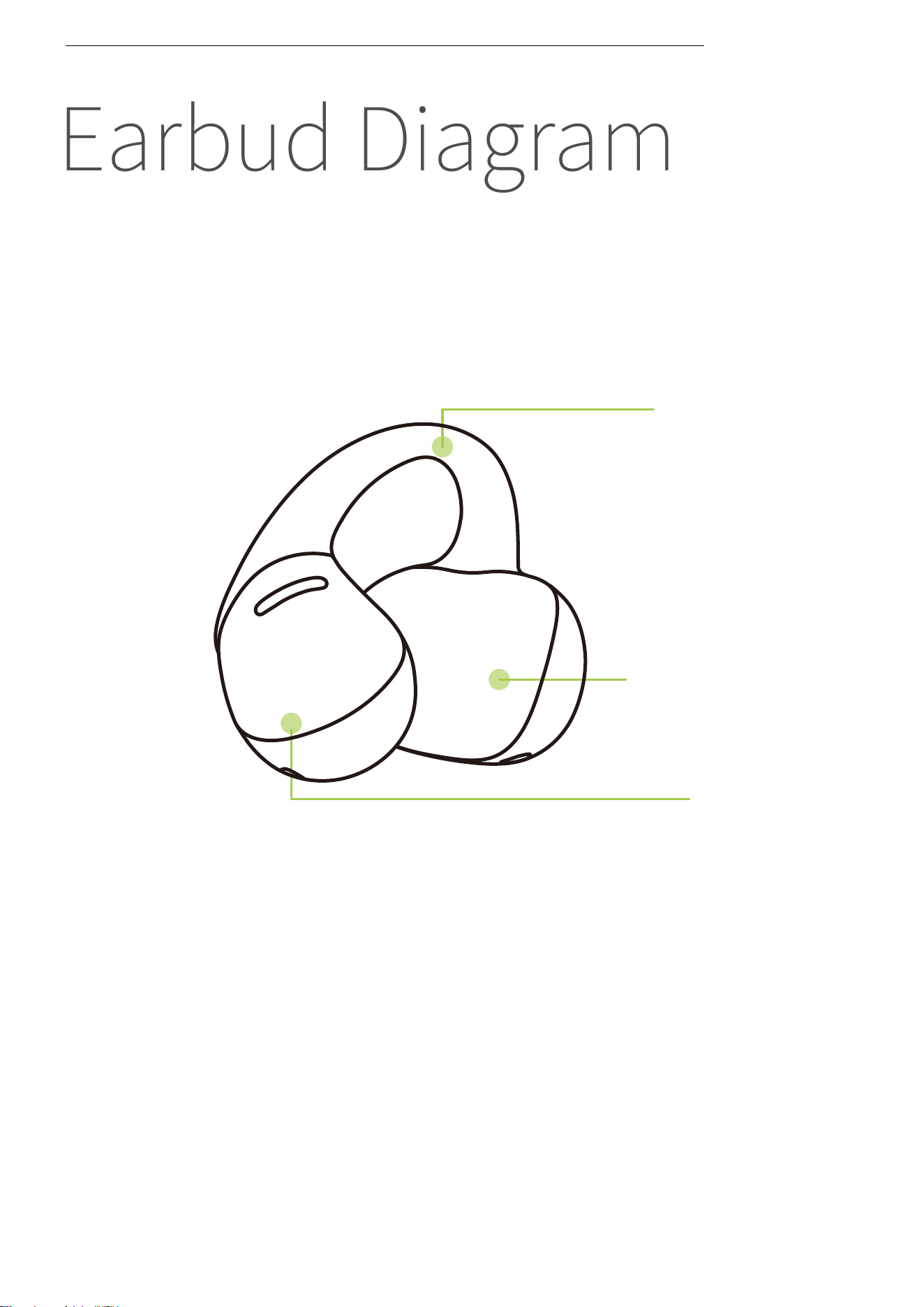
Earbud Diagram
These open-ear earbuds sit outside the ear canal. The symmetri-
cal design allows for interchangeable left/right wear with auto-
matic audio channel adjustment.
EARBUD DIAGRAM
Speaker
Battery
compartment
JointArc™
��
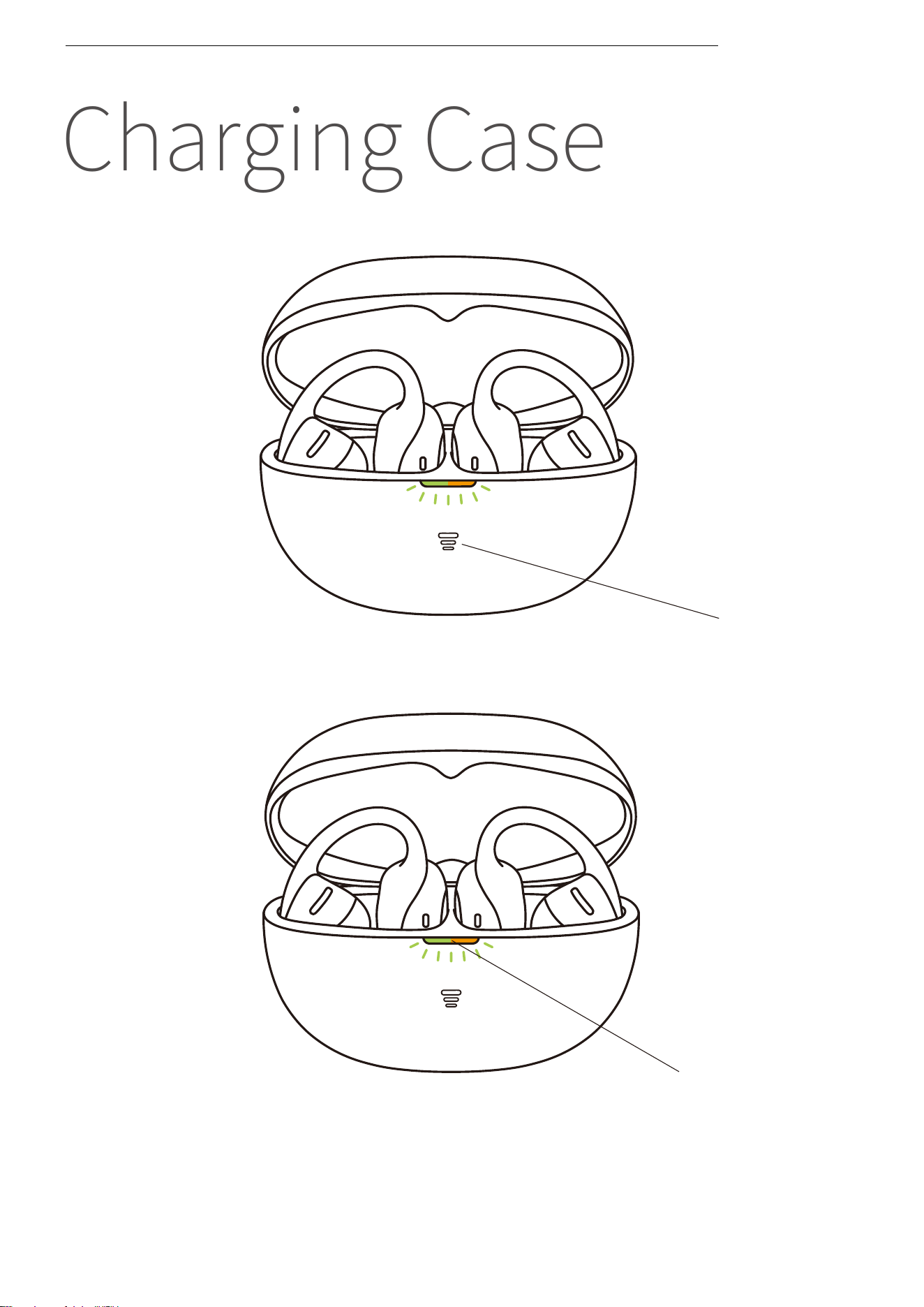
Charging Case
CHARGING CASE
Charging Case
Indicator LED
Charging Case
Button
��
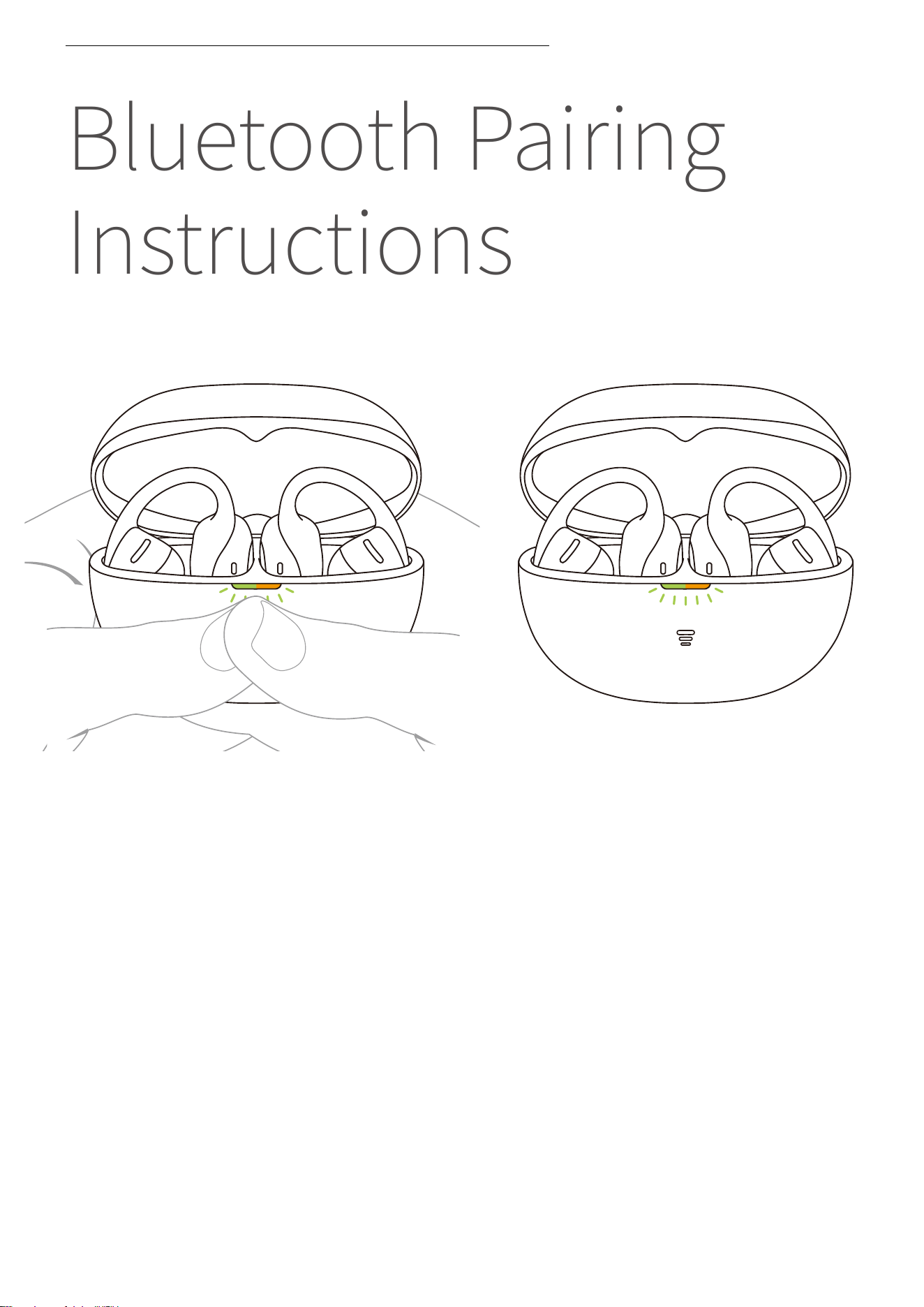
Bluetooth Pairing
Instructions
For first-time use, open the charging case to automatically enter
Bluetooth pairing mode. The indicator light inside the case will
flash orange and green. To re-pair the earbuds, follow these
steps:
�. Place both earbuds back into the charging case.
�. With the case lid open, press and hold the function button for
more than � seconds until the indicator light flashes orange and
green. The earbuds will enter pairing mode.
BLUETOOTH PAIRING INSTRUCTIONS
��
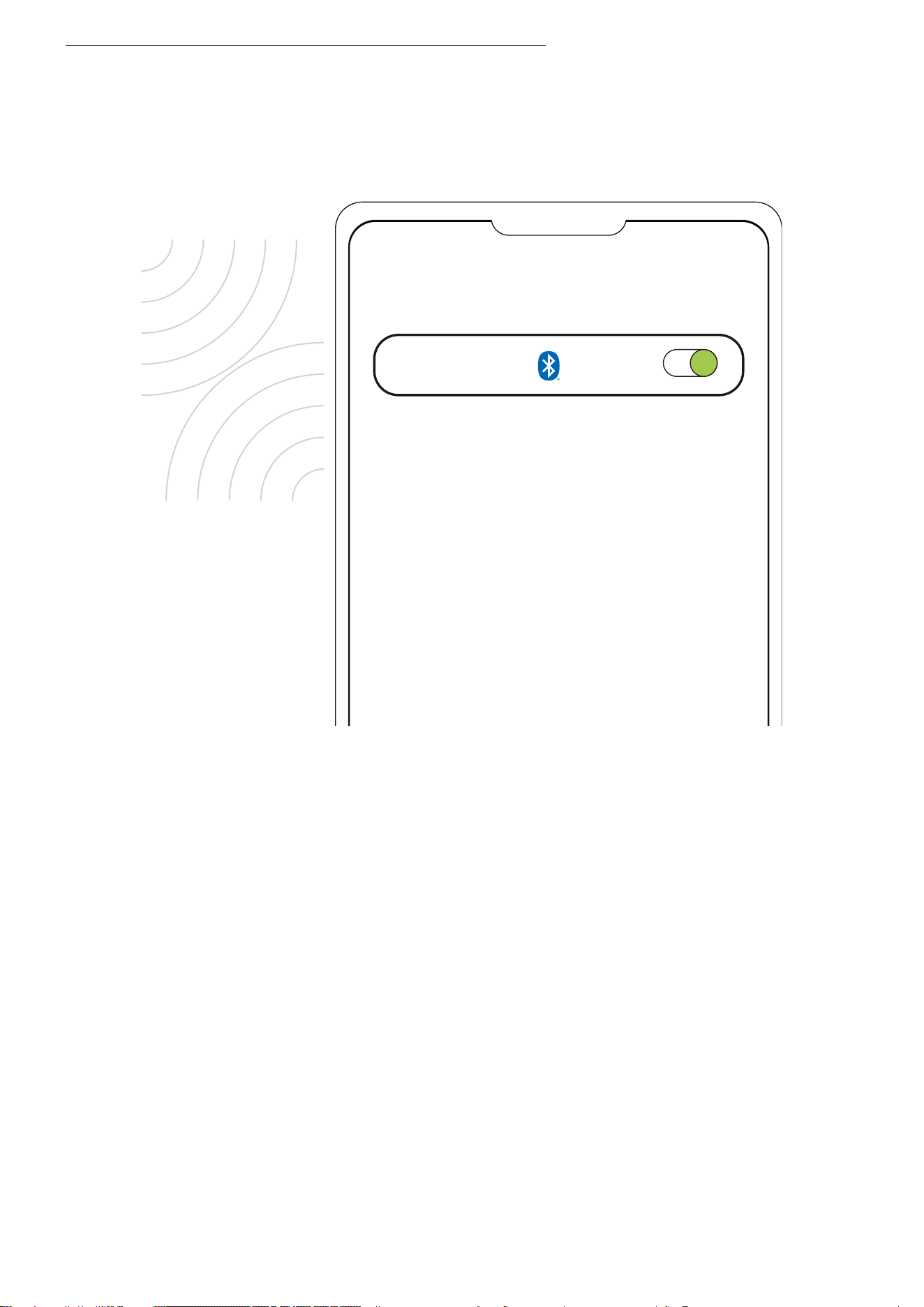
�. Turn on the Bluetooth function on your device and select
"OpenDots Air by Shokz". Once your device displays a successful
pairing message, the connection is complete.
Settings
Bluetooth
OpenDots Air by Shokz
Connected
BLUETOOTH PAIRING INSTRUCTIONS
*After the earbuds are connected to your phone, they will automatically power on and
reconnect whenever you open the charging case. Closing the case will automatically
power off the earbuds and disconnect them from the phone.
*Note: If the earbuds disconnect due to exceeding the Bluetooth range, they will
automatically reconnect once they return within range. Simply perform any touch
control to trigger reconnection.
��
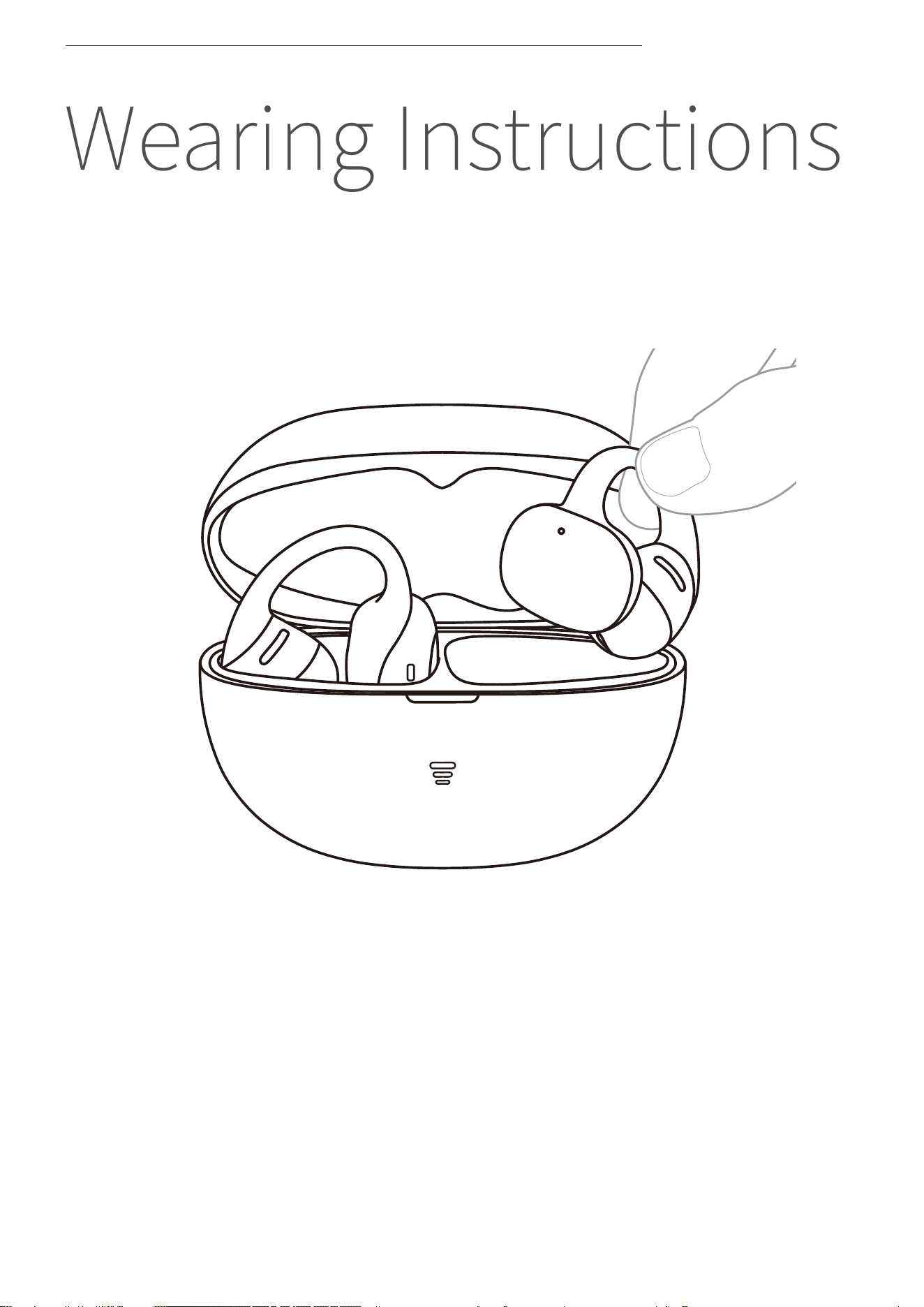
�. Pinch the JointArc™ with your thumb and forefinger and raise it
toward your ear.
Wearing Instructions
WEARING INSTRUCTIONS
��
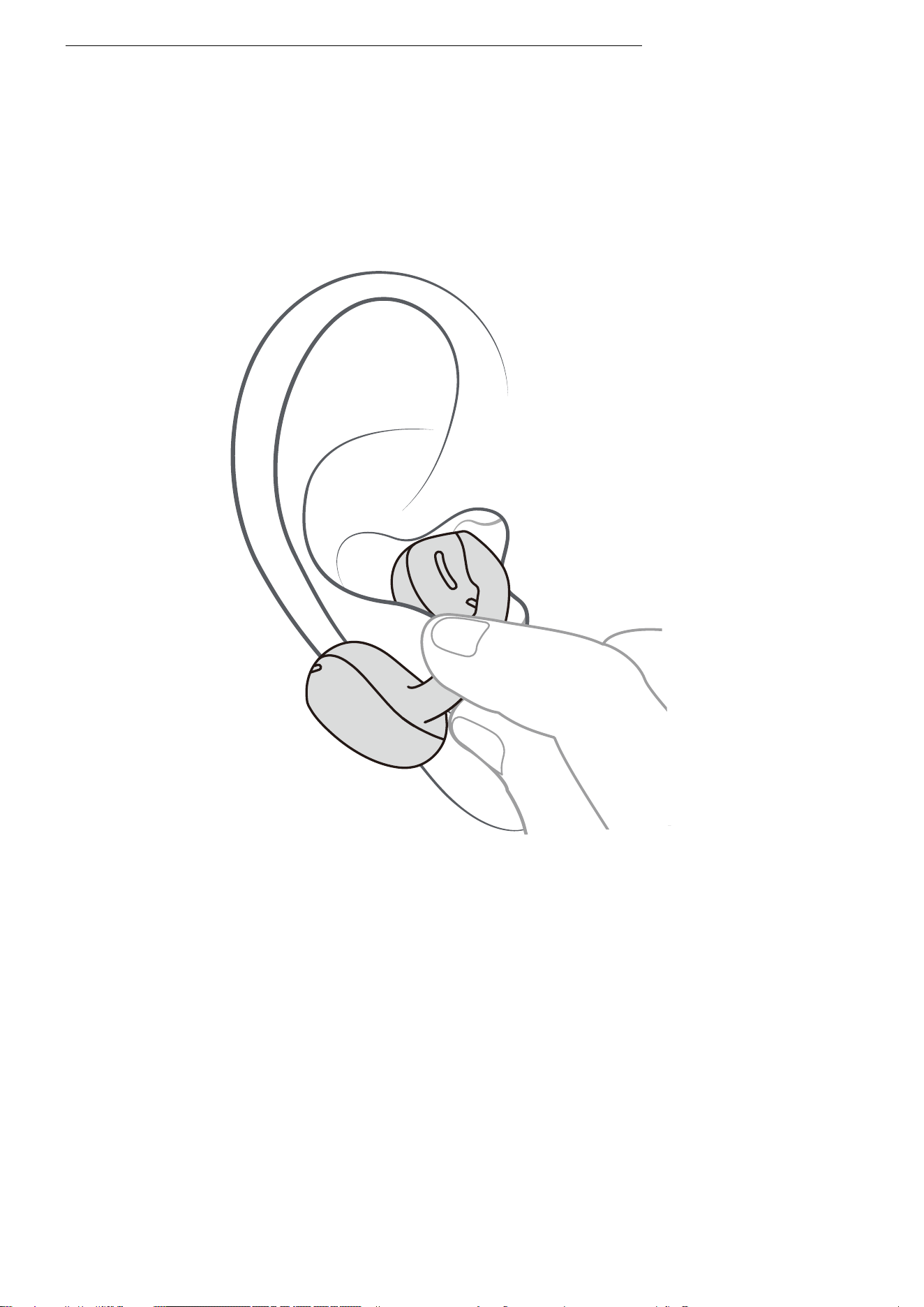
WEARING INSTRUCTIONS
�. Place the round speaker unit against the inner ridge of your ear.
Rest the battery compartment behind your ear.
��
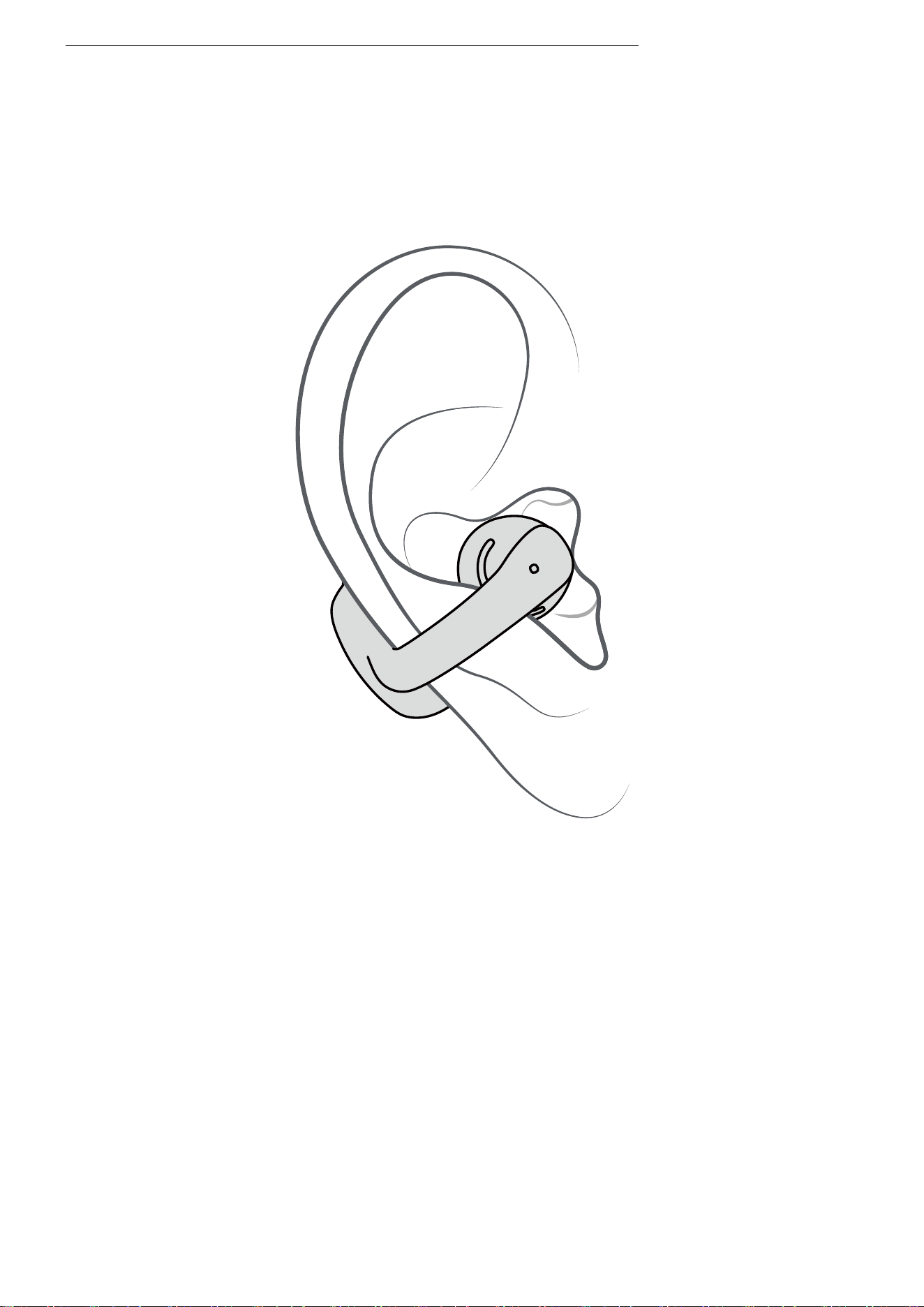
WEARING INSTRUCTIONS
�. Adjust the earbuds for a secure and comfortable fit. For optimal
stability, we recommend angling the JointArc™ slightly downward
(�° to ��°).
Avoid These Common Mistakes
Positioning: Ensure the round speaker sits in front of the ear canal
—do not insert it.
Angle: Keep the JointArc™ at a natural angle; avoid positioning it too
high or low.
Handling: Do not pull, twist, or bend the earbuds with excessive
force.
��
Touch Control
Instructions
��
Touch Control
Instructions
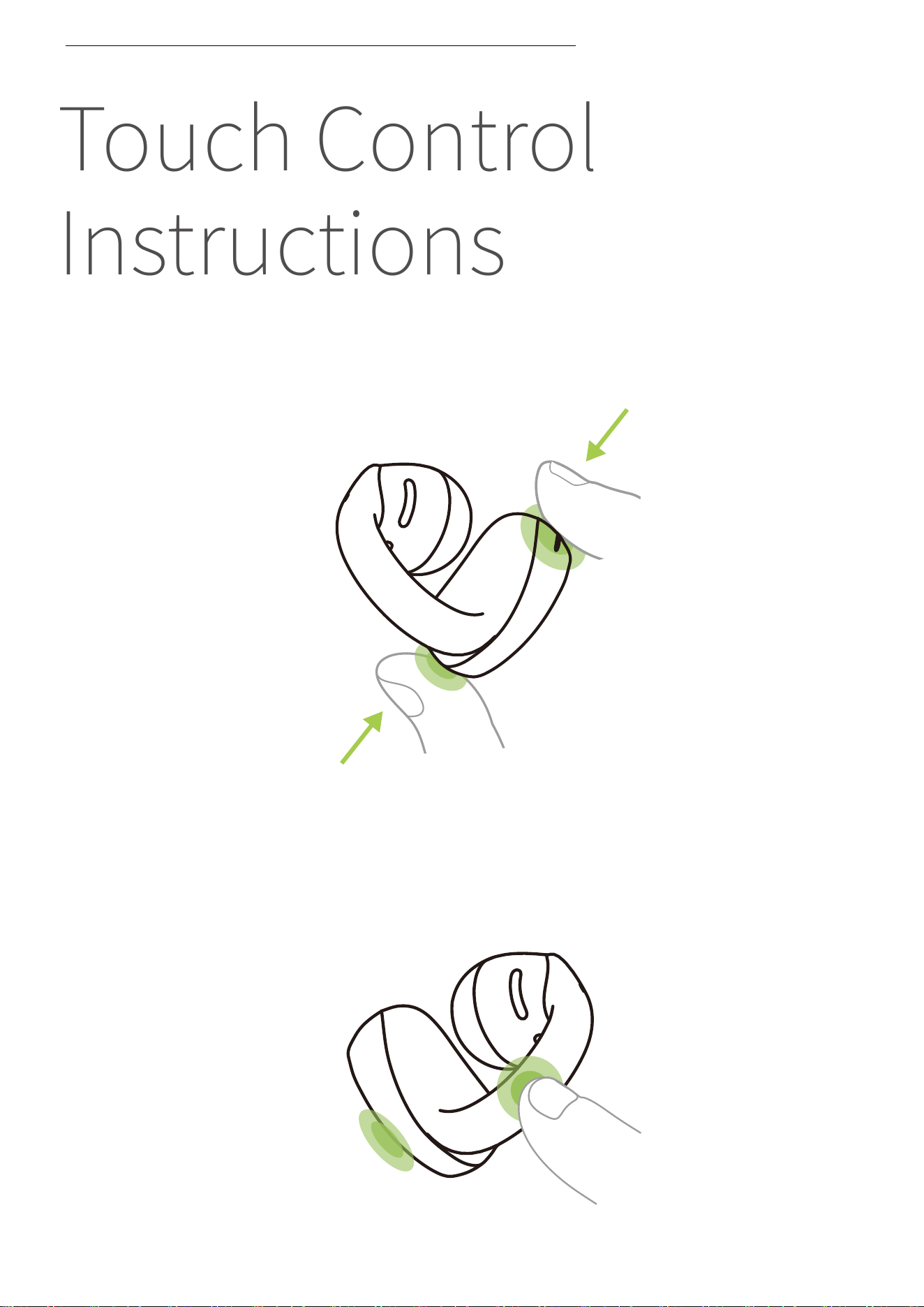
Gently pinch both ends of the battery compartment with two
fingers simultaneously.
TOUCH CONTROL INSTRUCTIONS
Two-finger pinch
Tap any area of the JointArc or battery compartment with one
finger.
Single-finger tap
��
Audio Control
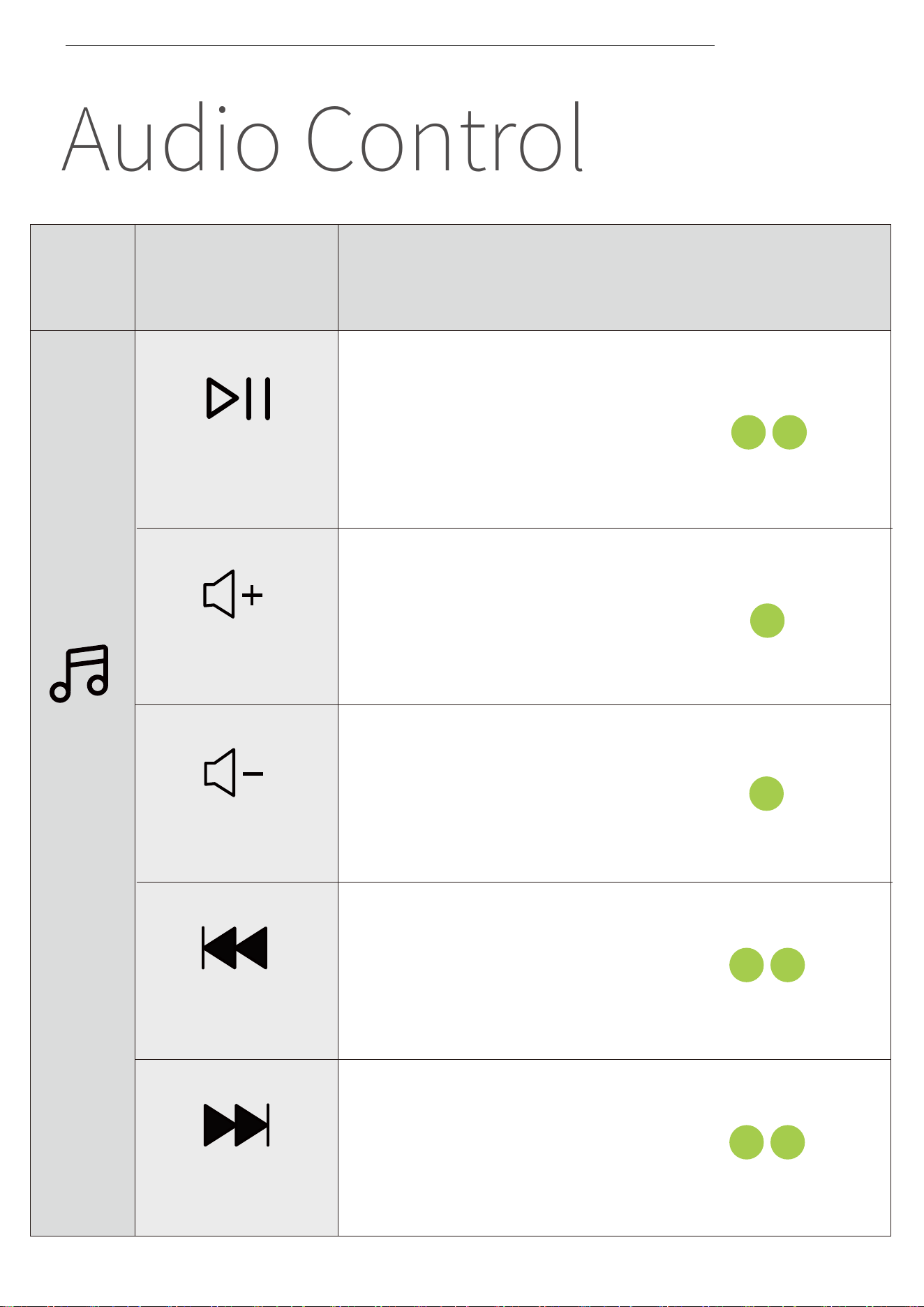
AUDIO CONTROL
Functions
Gestures
·Tap ×2
·R Pinch ×1
·L Pinch ×1
·R Pinch ×2
·L Pinch ×2
Volume +
Volume -
Play/Pause
��
Previous
track
Next track
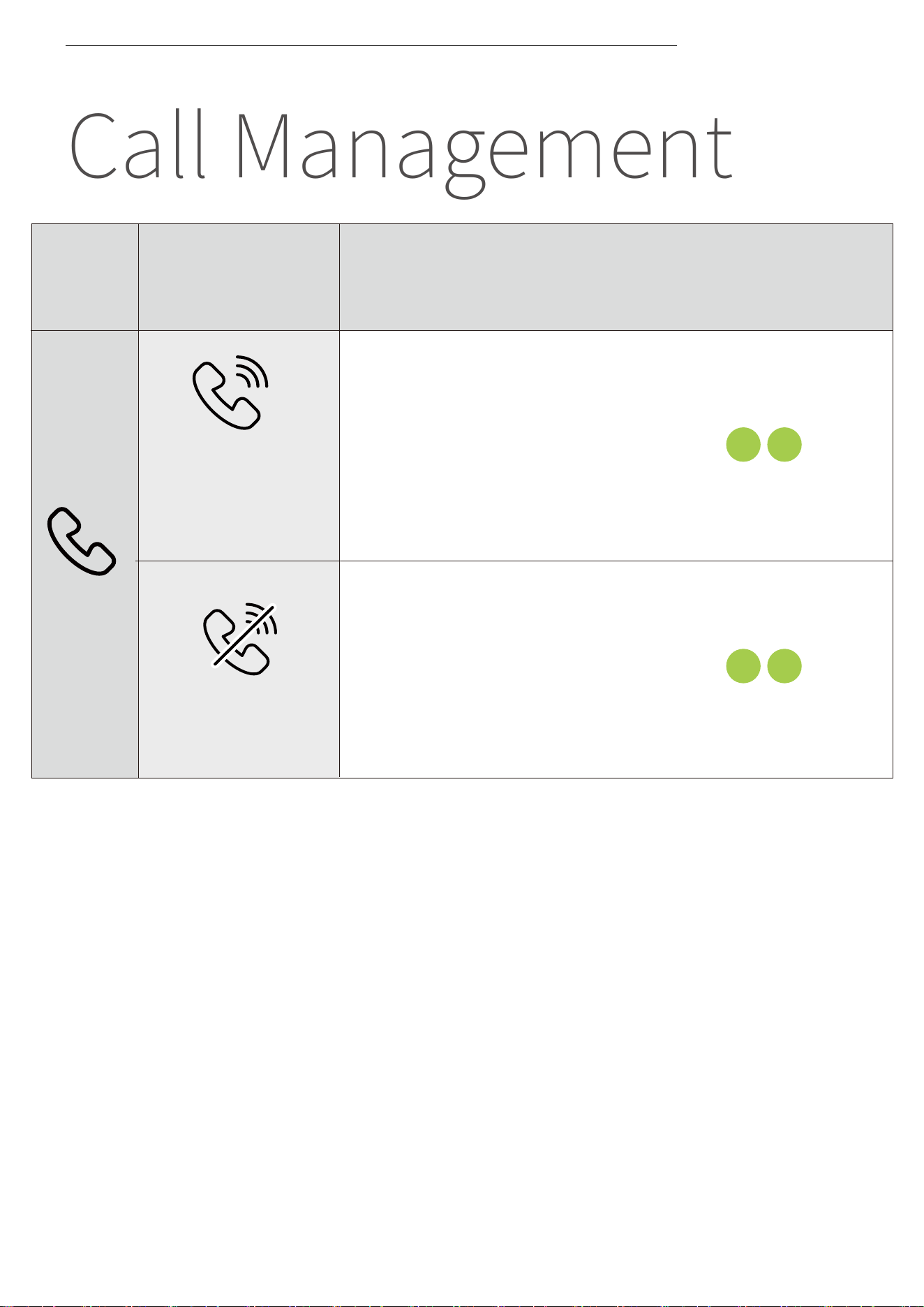
Advanced Call Management
When receiving a second call, you can:
Answer and hold the current call: Tap either earbud x�
After answering, you can:
Place on hold and switch calls: Tap either earbud x�
End current call and switch to call on hold: Pinch either earbud x�
Reject the new call: Pinch either earbud x�
End current call and answer incoming call: Pinch either earbud x�
Call Management
CALL MANAGEMENT
·Tap ×2
·Pinch ×2
Answer/
Hang up
Reject a call
Functions
Gestures
��
Charging
��
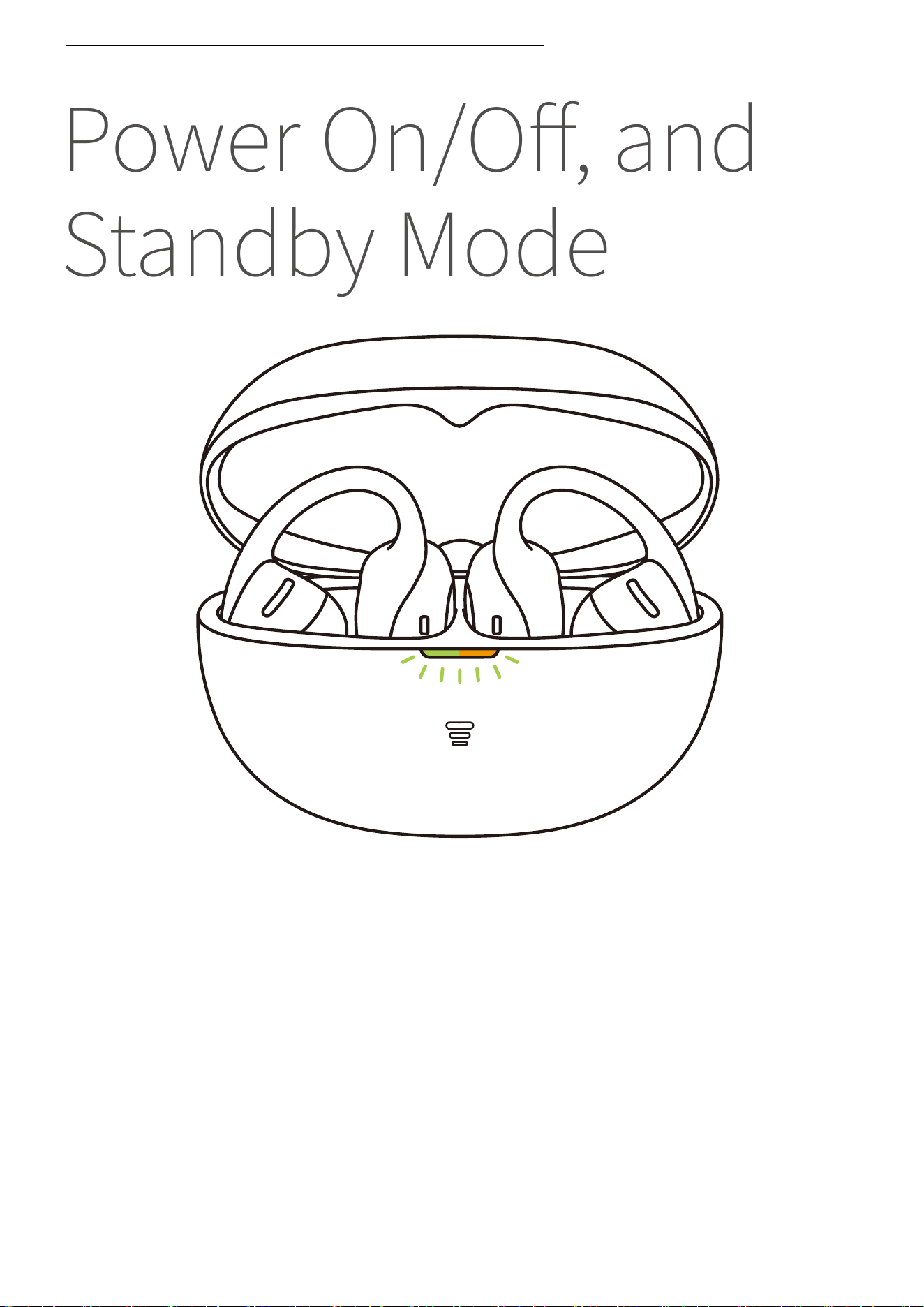
Power On/Off, and
Standby Mode
�. Power On
When the earbuds are inside the charging case, opening the case
will automatically power them on, and the case indicator light
will turn on.
Note: After removing the earbuds from the case, closing the charging case helps
preserve battery life and prevents debris from entering the case.
POWER ON/OFF, AND STANDBY MODE
��
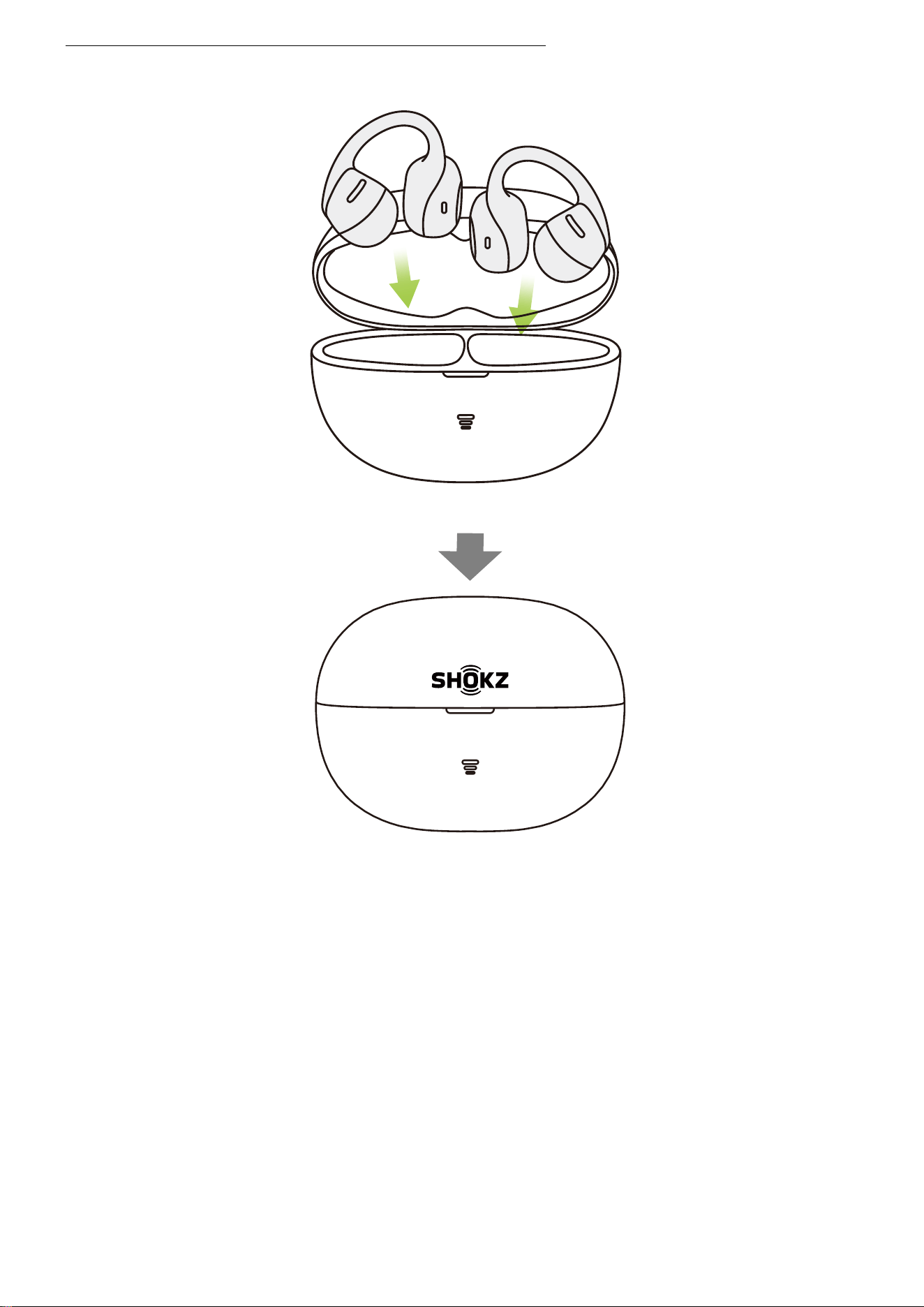
�. Power Off
Place both earbuds back into the charging case and close the lid.
The earbuds will automatically power off.
�. Standby Mode
If the earbuds are outside the charging case and remain uncon-
nected to a device for � minutes, they will switch to standby
mode to conserve battery power.
POWER ON/OFF, AND STANDBY MODE
��
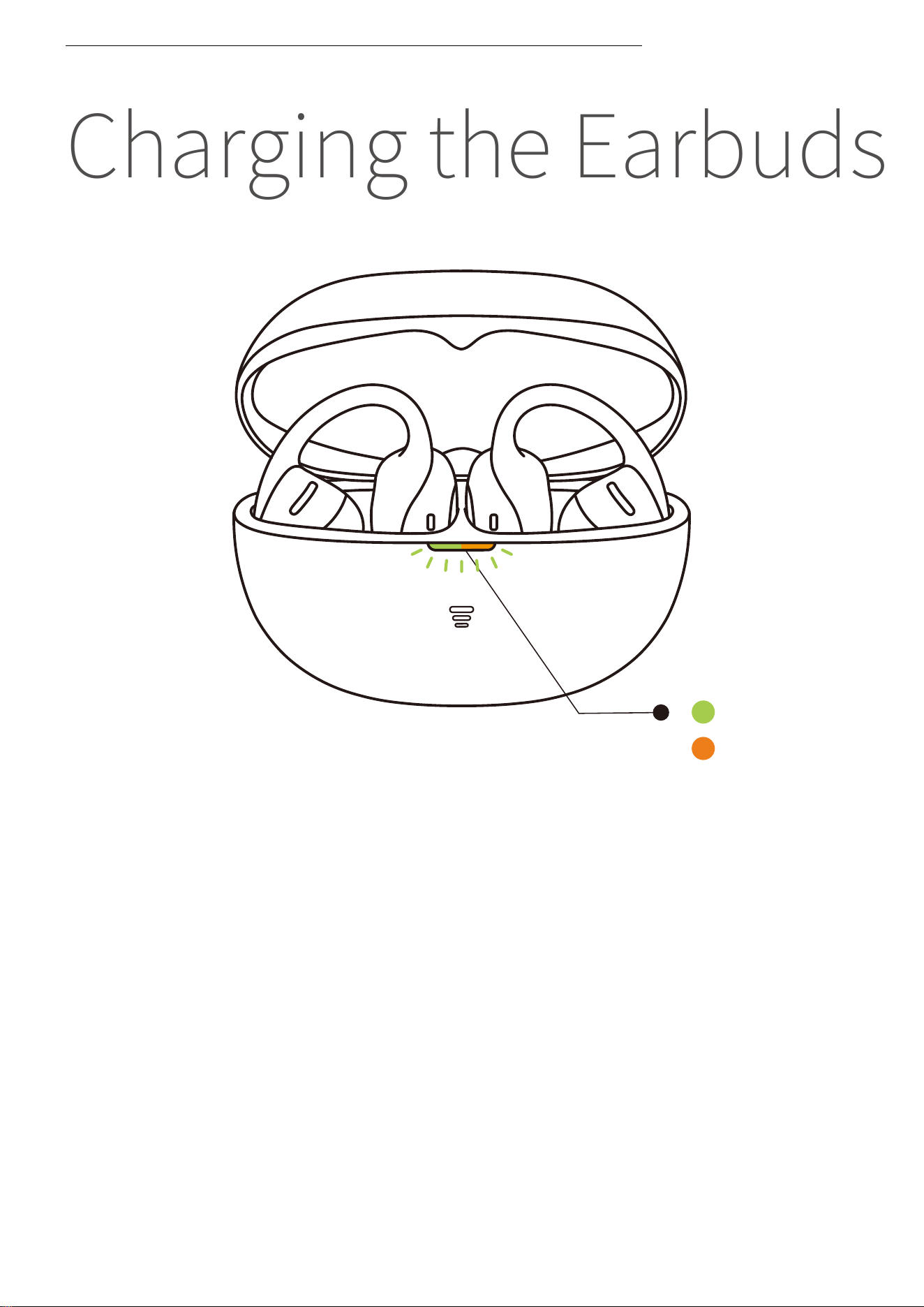
Place the earbuds into the charging case until they are magnet-
ically secured in place. The charging case indicator light will
turn on, and you can then close the case.
*Note:
�. The indicator light on the charging case shows the battery status of the earbuds
inside. A green light indicates a battery level higher than ��%, while an orange light
indicates a level lower than ��%. If both earbuds are in the case, the light will dis-
play the battery level of the earbud with the lower charge.
�. The earbuds will be fully charged after approximately �� minutes in the case.
Ensure the charging case has enough battery to charge the earbuds.
Charging the Earbuds
CHARGING THE EARBUDS
Low battery level
High battery level
��
Charging the Charging
Case
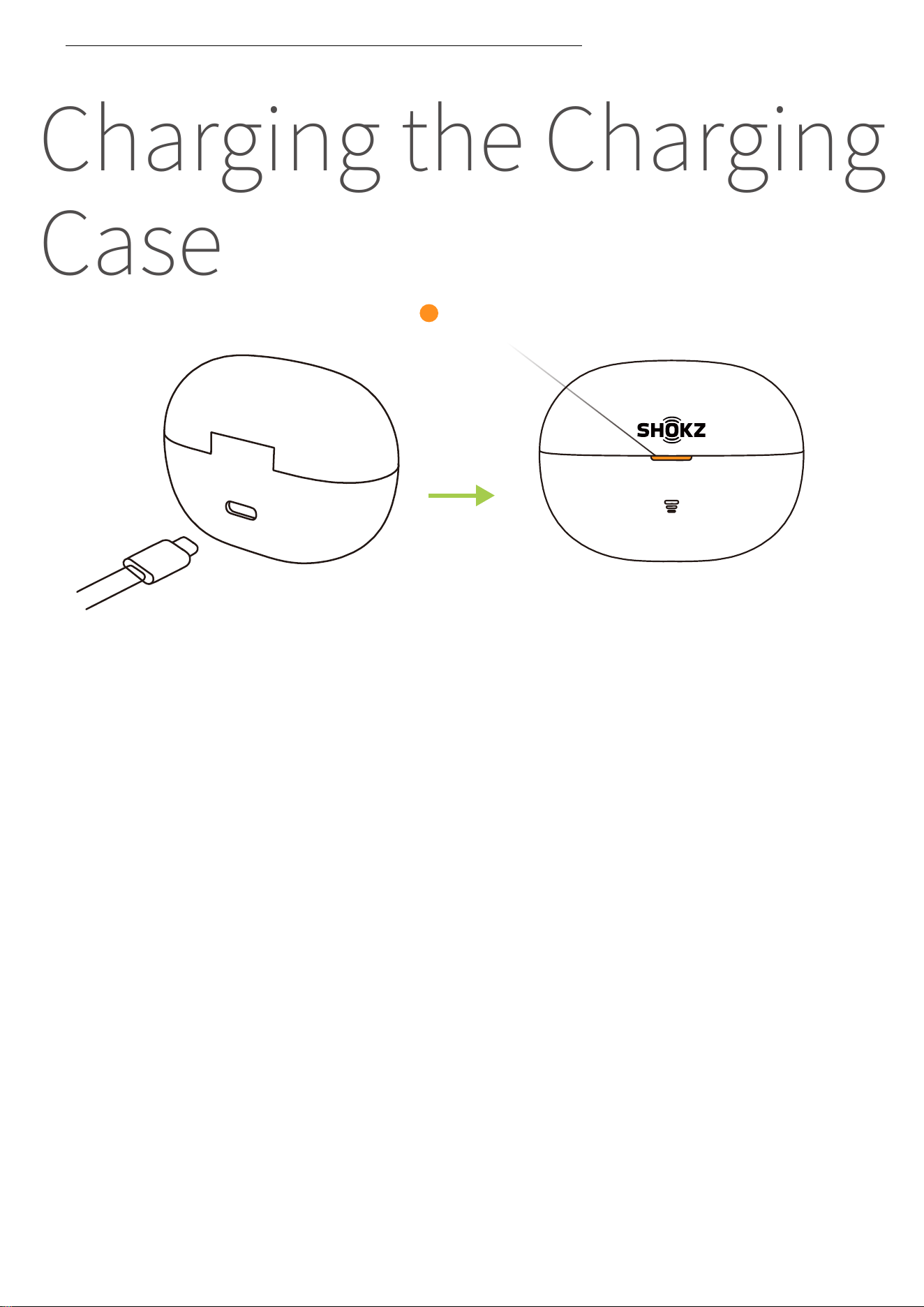
Insert the USB-C charging cable into the charging case and con-
nect it to a certified wall charger. During charging, the orange
light on the outside of the case will remain on, indicating that the
case is charging. When the light turns green and remains on, the
charging case is fully charged.
*Note:
When charging via cable, it takes approximately � hours to fully charge the case.
The charging case uses a standard �V±�% USB voltage. It is not recommended to
use a power source with a higher voltage for charging the case. Before charging,
ensure the charging port is dry and free from sweat or other liquids. If there is liquid
in the port, wipe it clean with a soft, dry cloth.
This product does not support wireless charging. Do not place the product on a
wireless charger for charging.
CHARGING THE CHARGING CASE
Orange light on the charging case
��
Charging Case
Indicator
��
Charging Case
Indicator
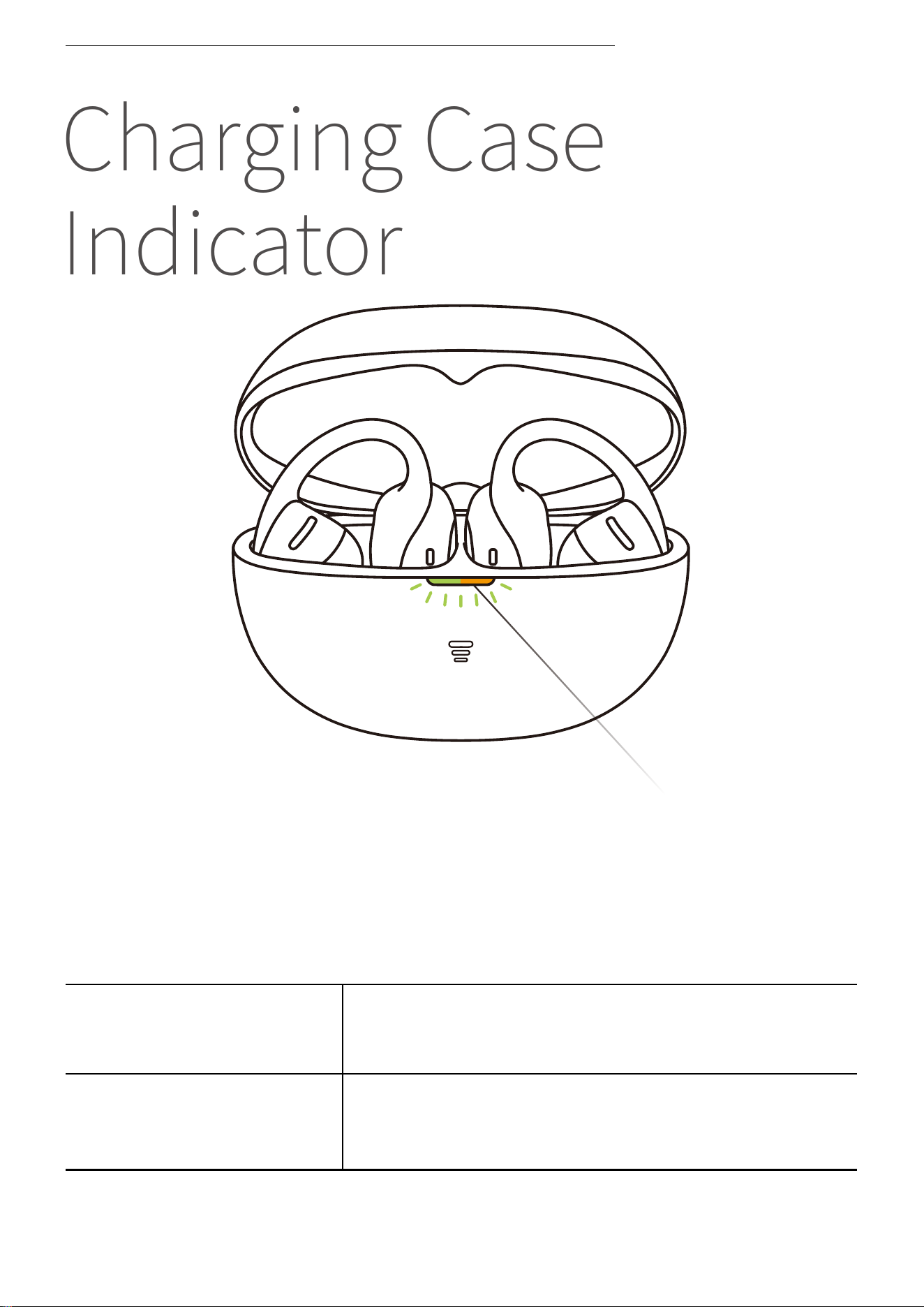
�. Battery Status of Earbuds in the Charging Case
When the earbuds are in the charging case, the indicator light
shows the battery status of the earbuds:
*Note: If both earbuds are in the case, the indicator light will display the battery level
of the earbud with the lower charge.
Battery below ��%
Battery above ��%
Open the charging case, and the orange light
will remain on for � seconds before turning off.
Open the charging case, and the green light
will remain on for � seconds before turning off
.
CHARGING CASE INDICATOR
Charging Case Indicator
��
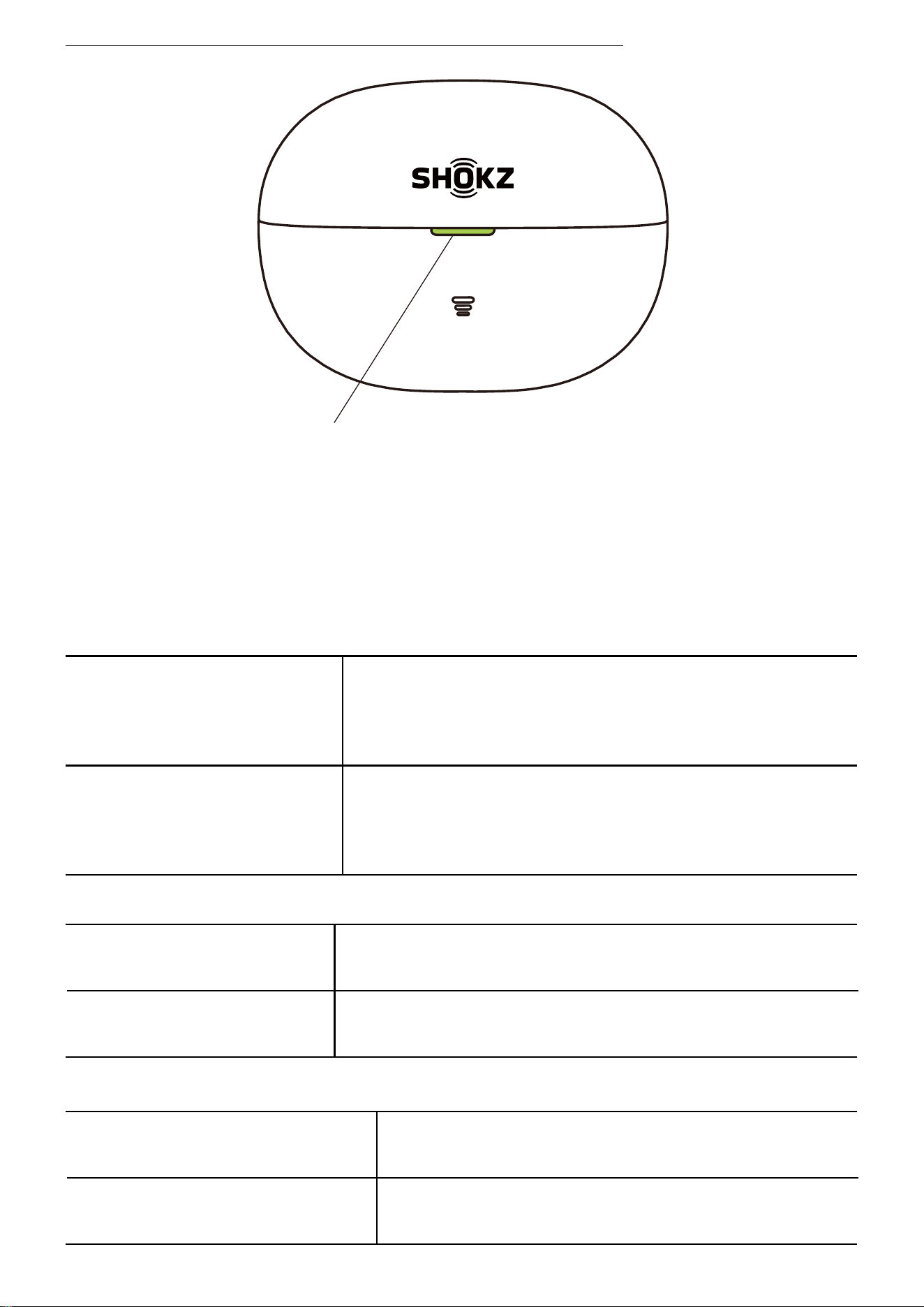
�. Connected to External Power Source
Charging Complete
Charging
The green light remains on.
The orange light remains on.
�. Other
Reset to Factory Settings
Pairing
The orange light flashes for � seconds
before turning off.
The orange and green lights flash alter-
nately.
CHARGING CASE INDICATOR
�. Both Earbuds Outside the Charging Case, Not Connected to
External Power
When both earbuds are outside the charging case and not connected
to an external power source, the indicator light shows the battery
status of the charging case:
Battery above ��%
Battery below ��%
When opening/closing the charging case or
pressing the case button, the green light will
remain on for � seconds before turning off.
When opening/closing the charging case or
pressing the case button, the orange light will
remain on for � seconds before turning off.
Charging Case Indicator
��

Other Shokz App
Functions
��
EQ Adjustments
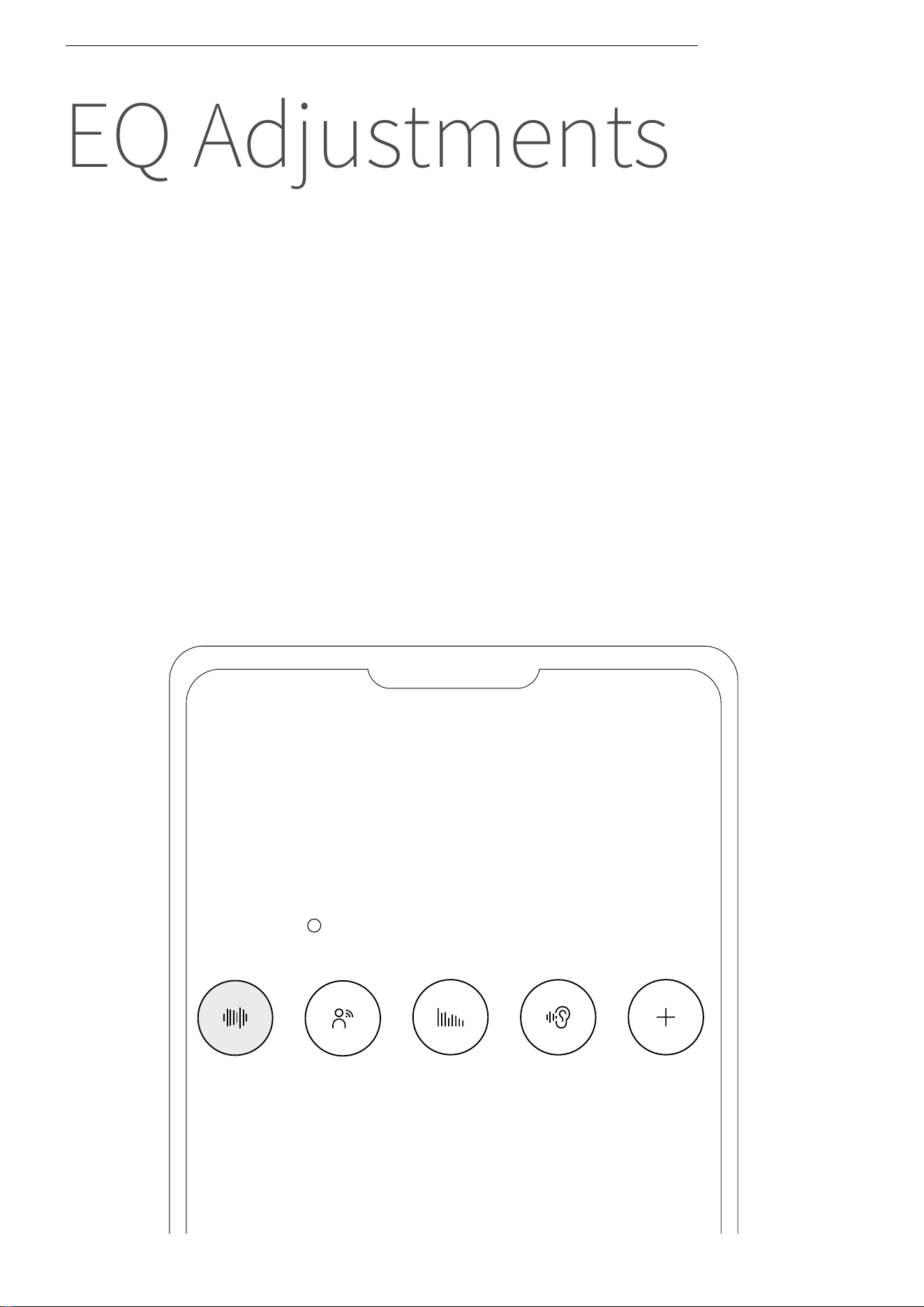
�. You can select different sound profiles or customize your own
in the Shokz App.
�. The Shokz App includes � preset sound modes: Standard,
Vocal, Bass, and Private. You can check the specific effects of
each mode in the app.
�. Before using, ensure the earbuds are connected to your phone
and open the Shokz App.
�. In the sound profile options, select a preset mode to adjust. To
create a customized listening experience, tap “Customize” to
freely personalize the sound profile.
EQ ADJUSTMENTS
OpenDots Air
EQ Modes
i
��
Standard Vocal
Bass
Private
Customize
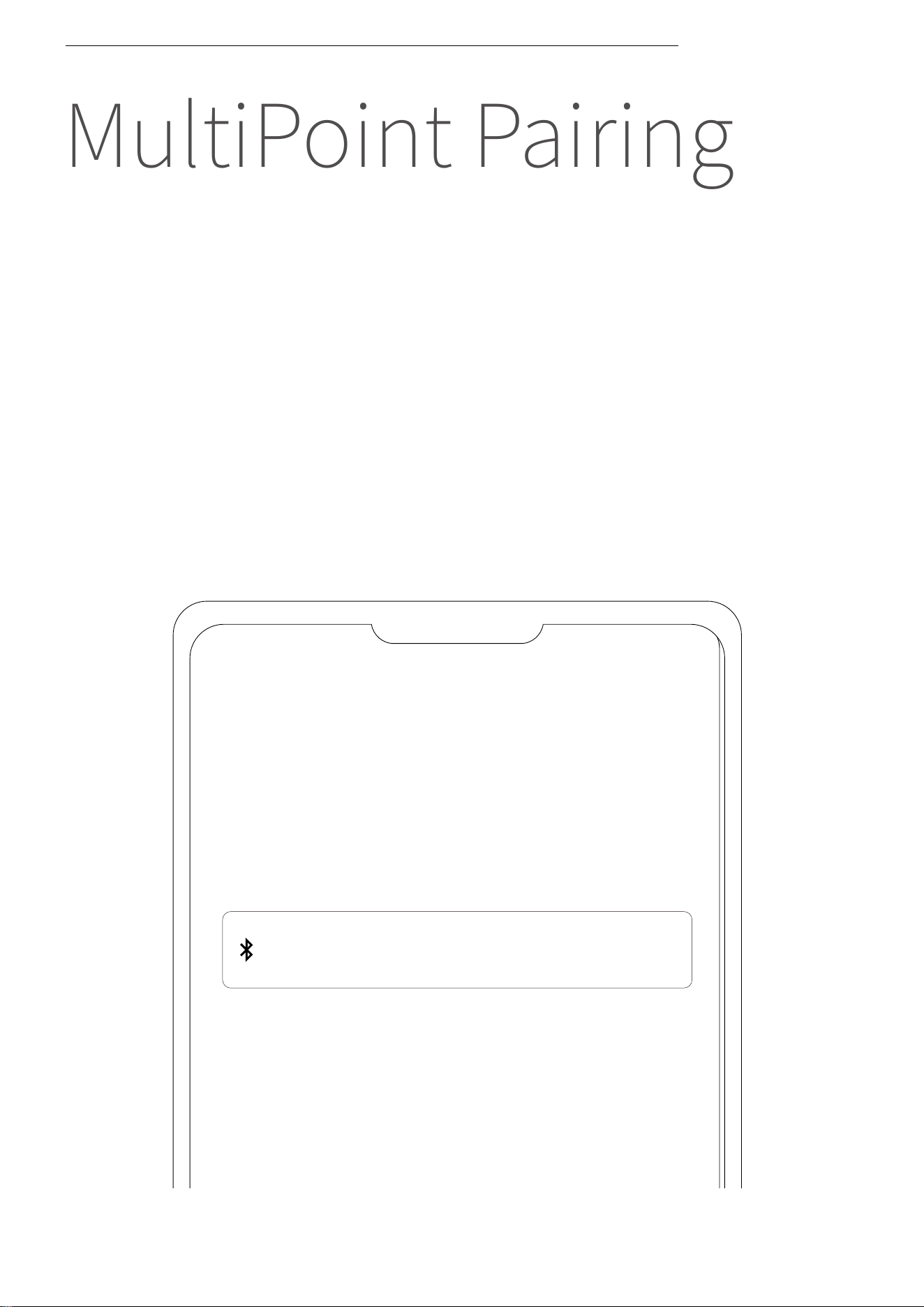
MultiPoint Pairing
OpenDots Air
MultiPoint Pairing
Off
�. First, connect your earbuds to your phone, then select “Multi-
Point Pairing” in the Shokz App.
MULTIPOINT PAIRING
��
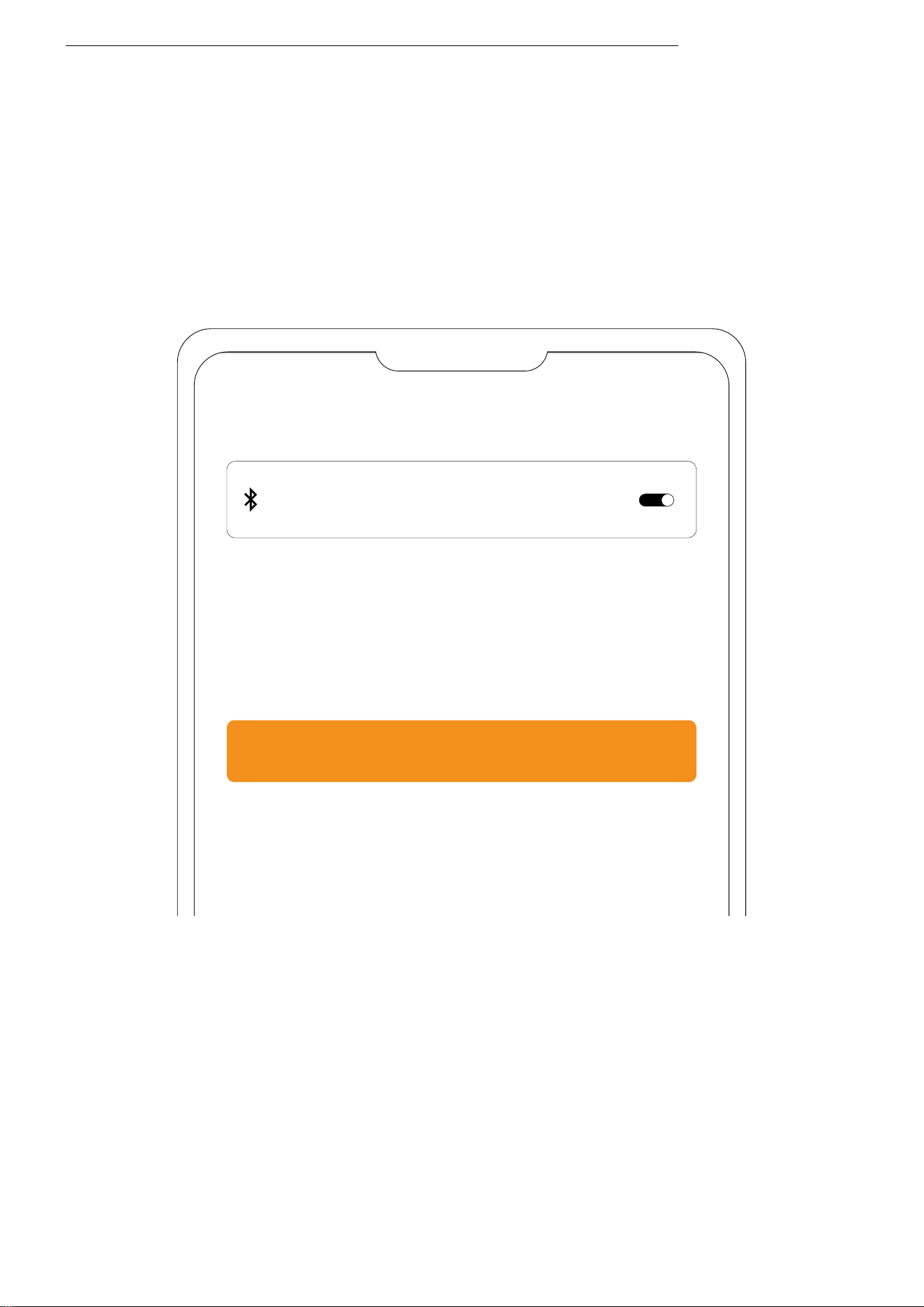
�. On the pop-up page, confirm that the MultiPoint Pairing feature
is enabled.
�. Select “Connect to the Second Device” and follow the instruc-
tions to connect to the second device.
�. Your earbuds are now connected to two devices, and you can
easily manage their Bluetooth connections through the Shokz
App.
Multipoint Pairing
Multipoint Pairing
Connect to the Second Device
MULTIPOINT PAIRING
��
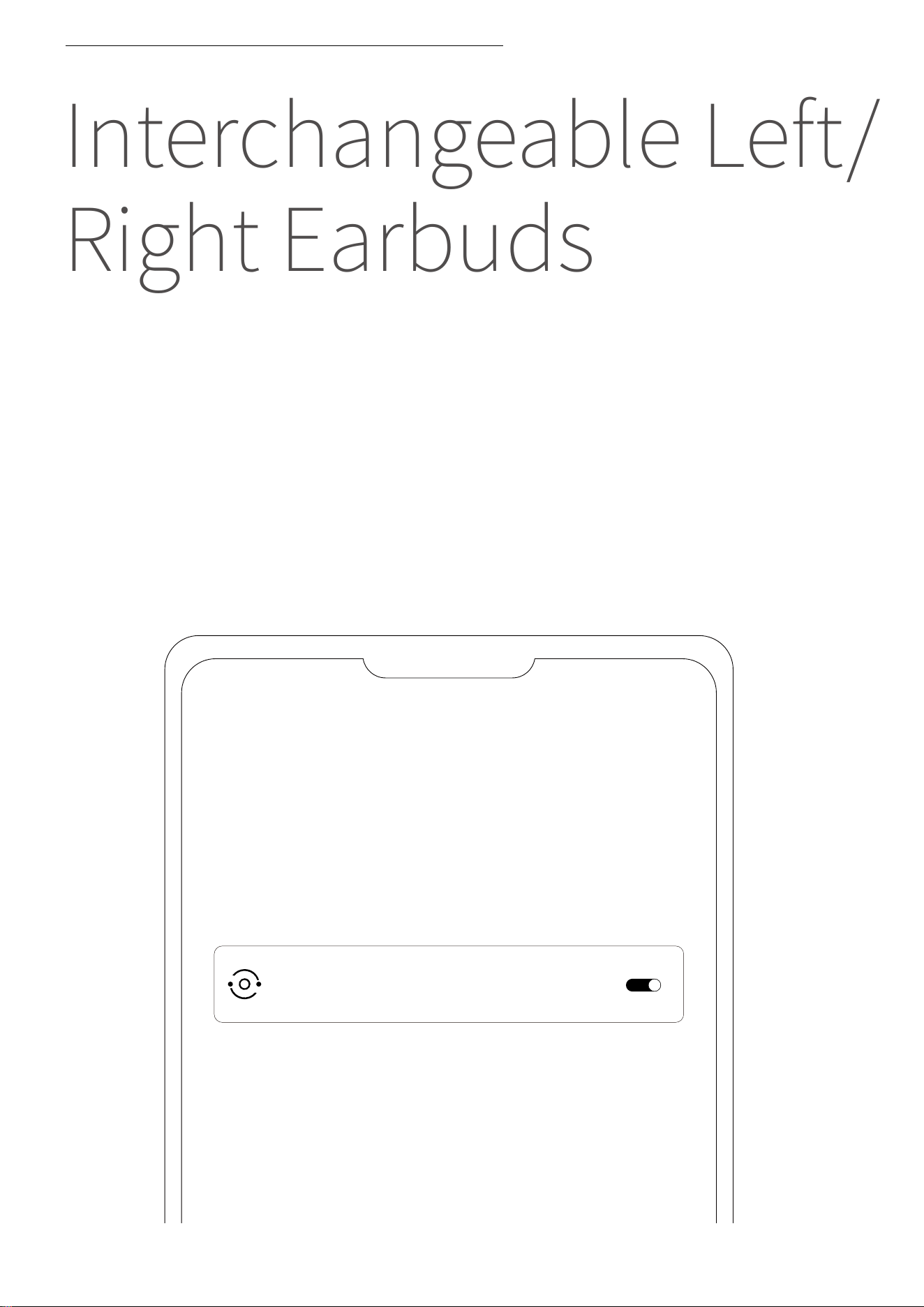
Interchangeable Left/
Right Earbuds
�. The earbuds do not require a specific left or right orientation.
Once worn, the earbuds can automatically detect the fit and
adapt to the left and right channels. You can enable or disable
this feature in the Shokz App.
�. Ensure that your earbuds are successfully connected to your
phone, then enable the "Interchangeable Left/Right Earbuds"
toggle in the Shokz App.
INTERCHANGEABLE LEFT/RIGHT EARBUDS
Settings
Interchangeable Left/Right Earbuds
��
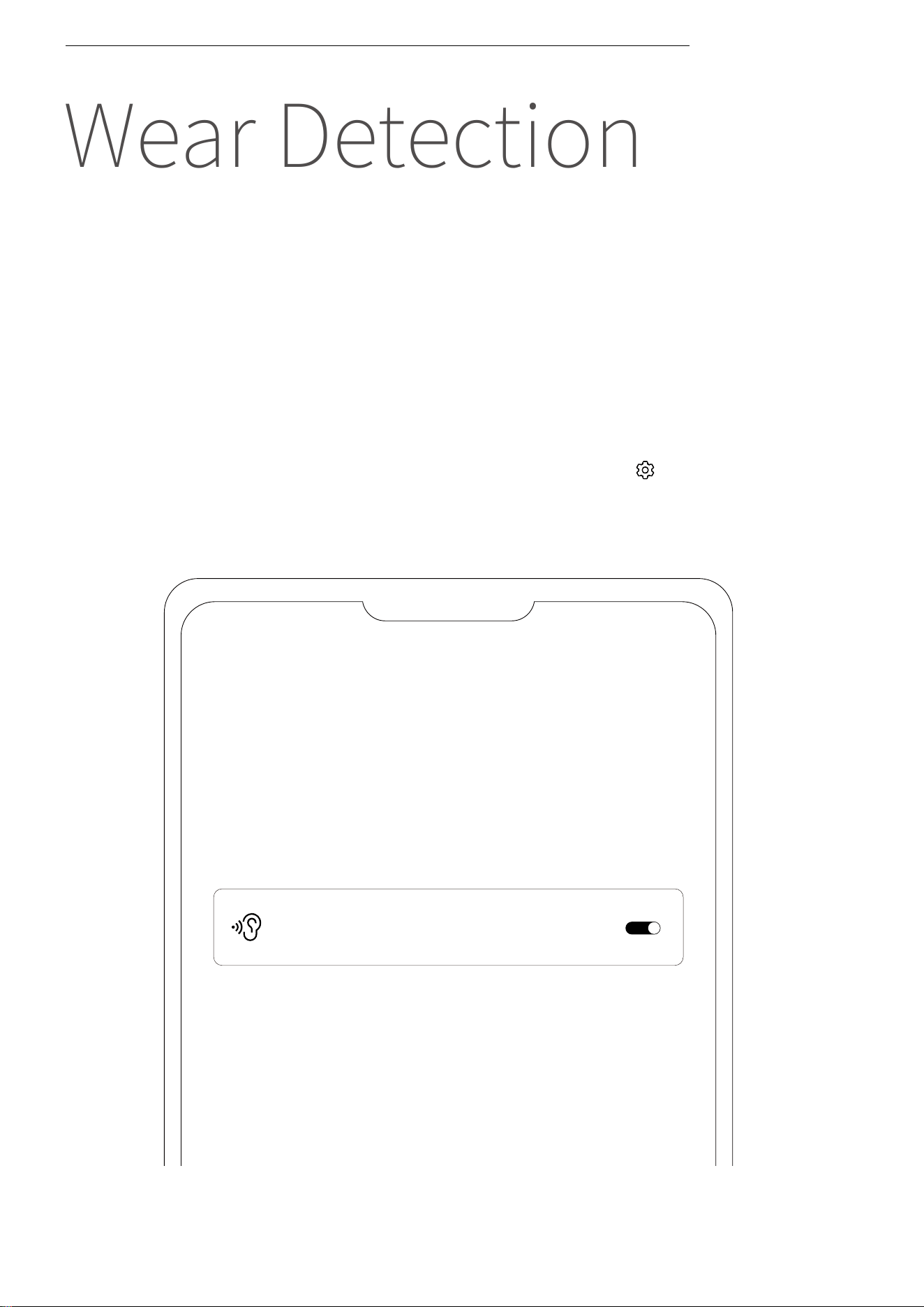
Wear Detection
�. The earbuds can automatically detect whether they are being
worn and will play or pause audio accordingly. You can enable or
disable this wear detection feature in the Shokz App.
�. Before using, ensure that your earbuds are successfully con-
nected to your phone, then open the Shokz App.
�. After opening the app, tap the settings icon ( ) in the top-right
corner, then select "Settings" > "Smart Wear Detection" to toggle
this feature on or off.
WEAR DETECTION
Settings
Smart Wear Detection
��
Charging Case
Indicator
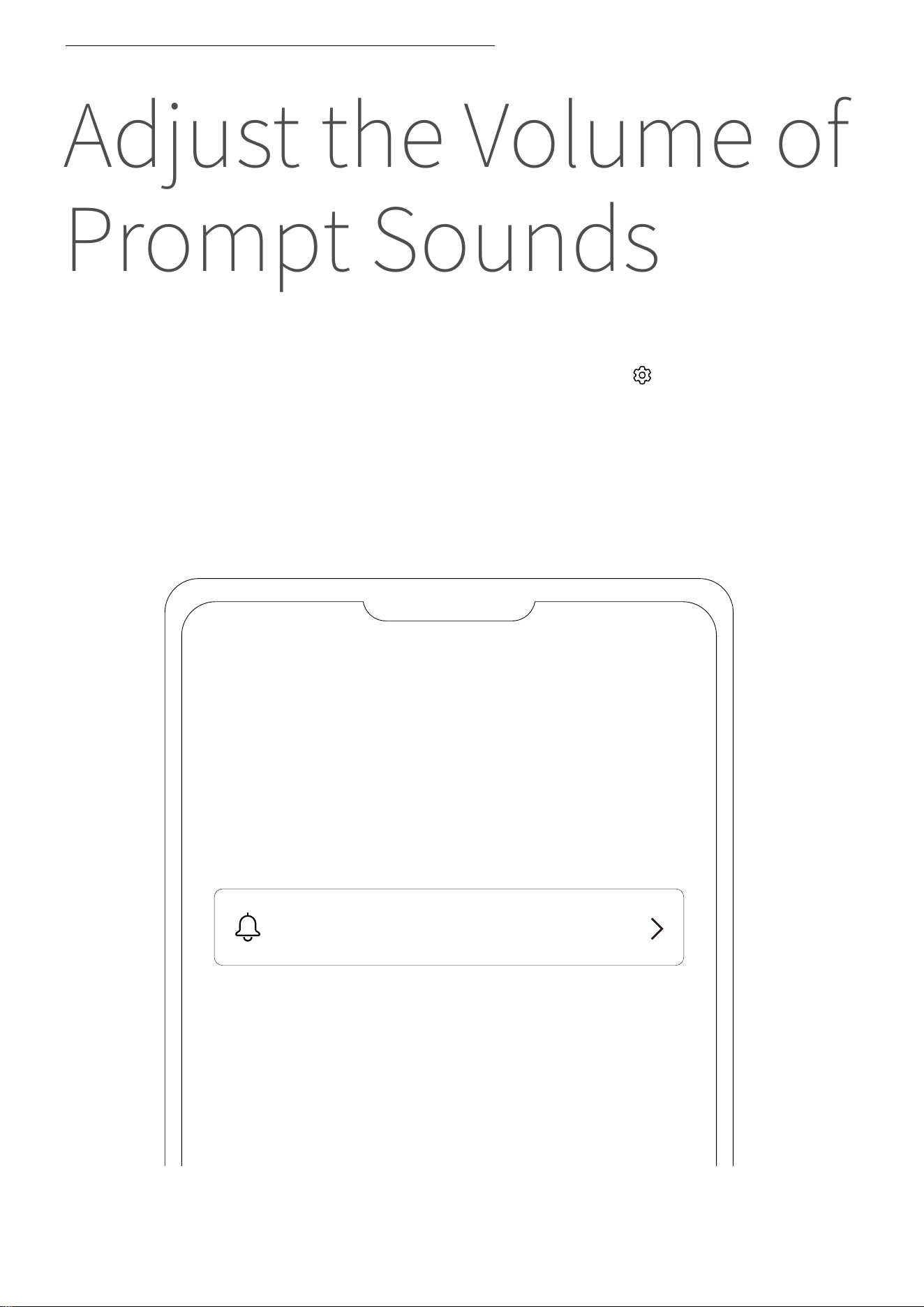
Adjust the Volume of
Prompt Sounds
�. Prompt sound volume can be adjusted in the Shokz App.
�. After opening the app, tap the settings icon ( ) in the top-right
corner, then select "Settings" > "Prompt Settings" to adjust the
volume to low, medium, or high.
ADJUST THE VOLUME OF PROMPT SOUNDS
Settings
Prompt Settings
��
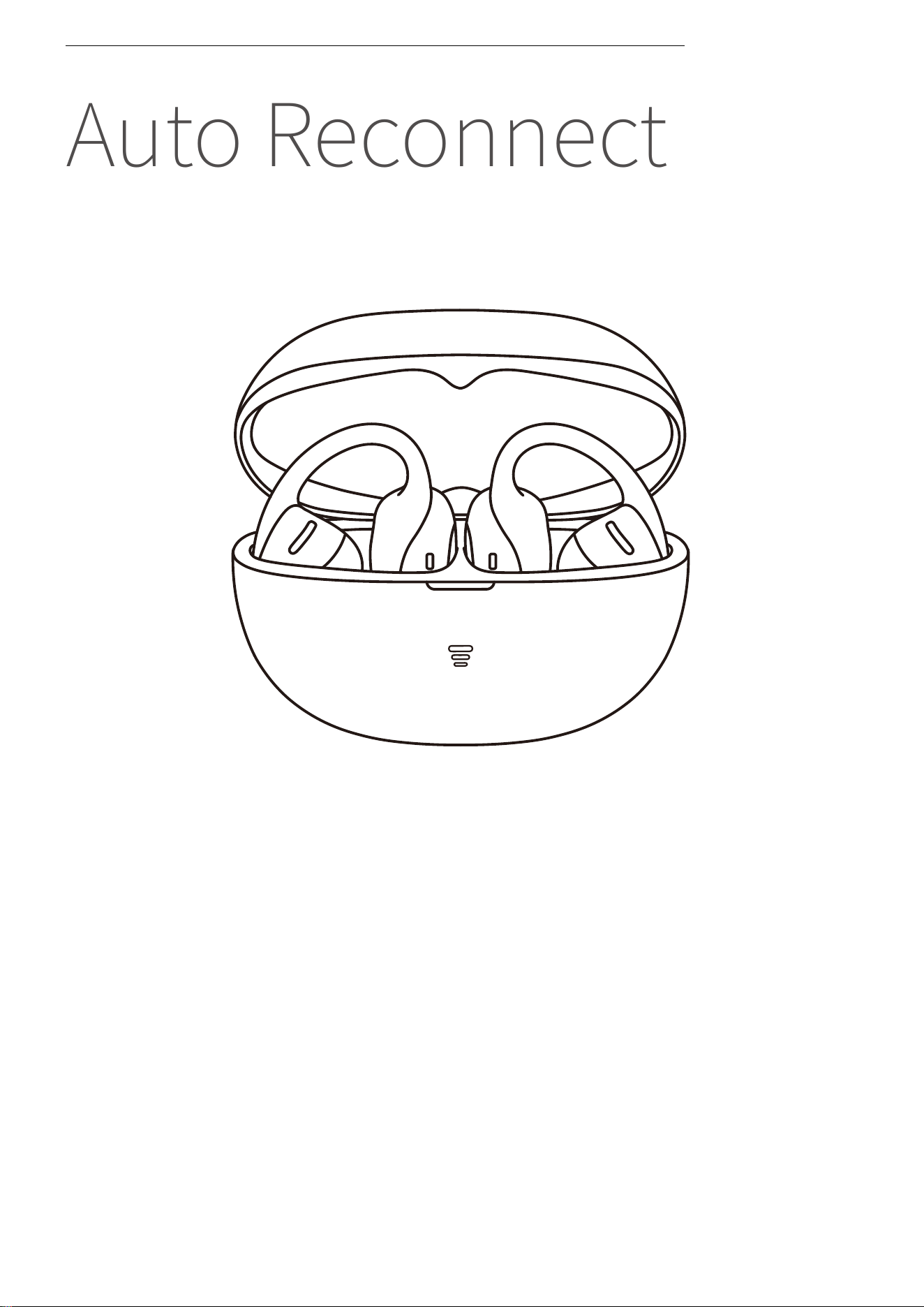
Auto Reconnect
�. After powering on, the earbuds will automatically attempt to
connect to the most recently connected device. A prompt sound
will indicate a successful connection.
�. If the earbuds are disconnected from the device due to distance,
and return within connection range (��m) within � minutes, they
will automatically reconnect to the last paired device. A prompt
sound will indicate a successful connection.
�. These devices must be within range (��m) and powered on.
Please ensure your mobile device has Bluetooth enabled.
AUTO RECONNECT
��
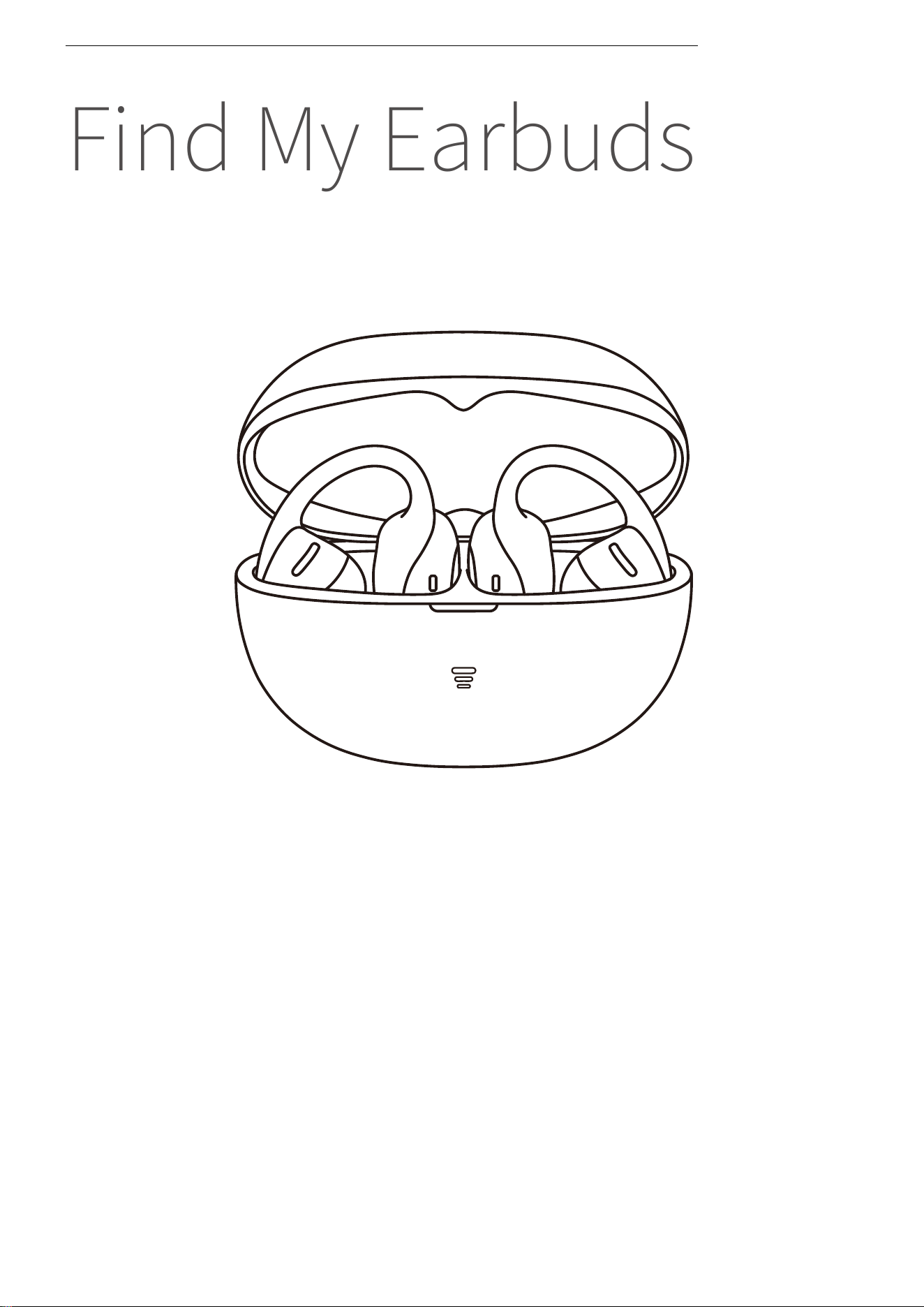
�. Before using, ensure that your earbuds are successfully con-
nected to your phone, then open the Shokz App and select “Find
My Earbuds”.
�. On the pop-up page, select the earbud you want to locate.
�. Select "Ping Left Ear" / "Ping Right Ear" to make the earbud
emit a continuous ringing sound.
*Note: Do not use this function while wearing the earbuds.
Find My Earbuds
FIND MY EARBUDS
��
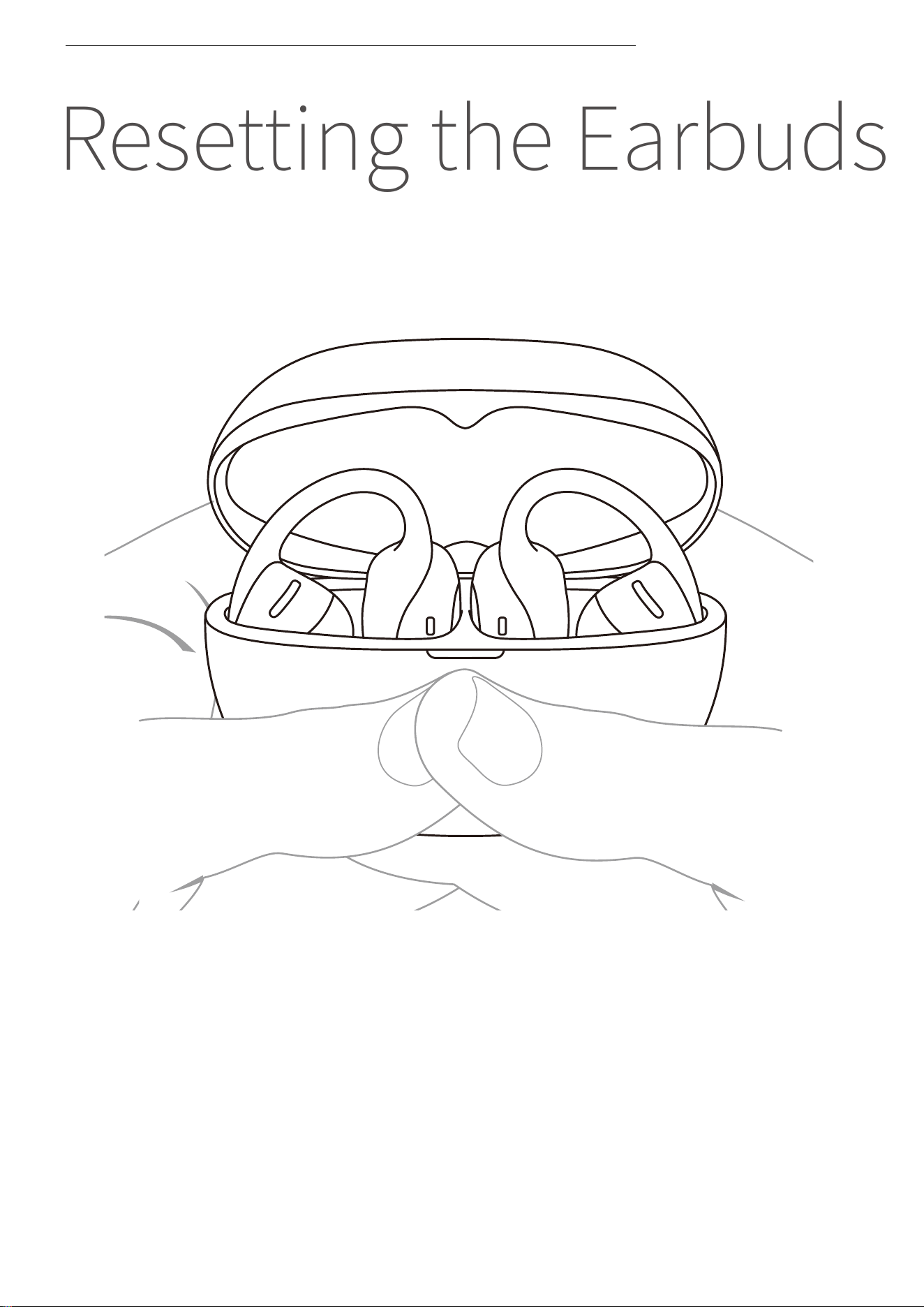
�. Resetting the earbuds will erase the paired device list and re-
store all settings to their defaults.
�. Place both earbuds into the charging case.
�. With the case lid open, press and hold the charging case func-
tion button for �� seconds. When the orange light inside the case
flashes for � seconds and then turns off, the reset is complete.
�. Once the indicator light flashes orange and green, the earbuds
are ready to pair and use.
Resetting the Earbuds
RESETTING THE EARBUDS
��

Cleaning &
Maintenance
��

Cleaning
�. Cleaning the metal contacts on the charging case
and earbuds: Using a pointed-tip cotton swab dipped
in a small amount of medical alcohol or clean water,
gently press and clean the metal contacts in the recess
of the charging case. Then wipe away any excess liquid
with a clean, dry, lint-free cloth until completely dry.
Clean the metal contacts at the bottom of the earbuds
in the same way.
�. After exercising or exposure to liquids, wipe away any
sweat, dirt, or debris. Ensure the earbuds and charging
contacts are completely dry and free of debris or dirt
before placing them in the charging case.
*Note: When cleaning your earbuds, avoid bending or twisting them excessively, as
this may cause warping and affect comfort and fit.
CLEANING
��
IP Rating
*Note:
�. The IP�� dust and water resistance is only applicable to the earbud body, not the
charging case.
�. The splash-resistant feature is not permanent and may degrade over time due to
wear and tear from regular use.
�. Do not immerse the product in water, expose it to prolonged moisture, or wear it
during water activities such as swimming, water skiing, or surfing.
�. If the product or its accessories come into contact with water, please wipe them
off as soon as possible and place them in a well-ventilated, cool area to dry. Do not
use or charge the product before it is completely dry.
Under controlled laboratory conditions, the earbud part of this
product has been tested for splash resistance, meeting the IP��
level under the IEC ����� standard.
IP RATING
��
Storage and
Maintenance
�. Store the product in a cool, dry place. Operating temperature: �°C
to ��°C.
�. Keep the product away from heat sources, flammable gases, and
corrosive liquids. Avoid prolonged exposure to direct sunlight or
high-temperature environments.
�. Stop using the product immediately if any part is damaged, emits
smoke, becomes excessively hot, or produces a burning smell.
�. The earbuds are rated IP�� for dust and splash resistance, suitable
for non-water sports and workouts. They are not fully waterproof. Do
not submerge the earbuds in water. The IP�� protection level may
degrade over time with normal wear and tear.
�. The charging case is not waterproof. Avoid exposing it to any
liquid.
�. Use a soft, dry cloth to clean the earbuds.
�. If the product is stored for an extended period, charge it fully
before using it again.
STORAGE AND MAINTENANCE
��

After-Sales Service
��
Serial Number
Location
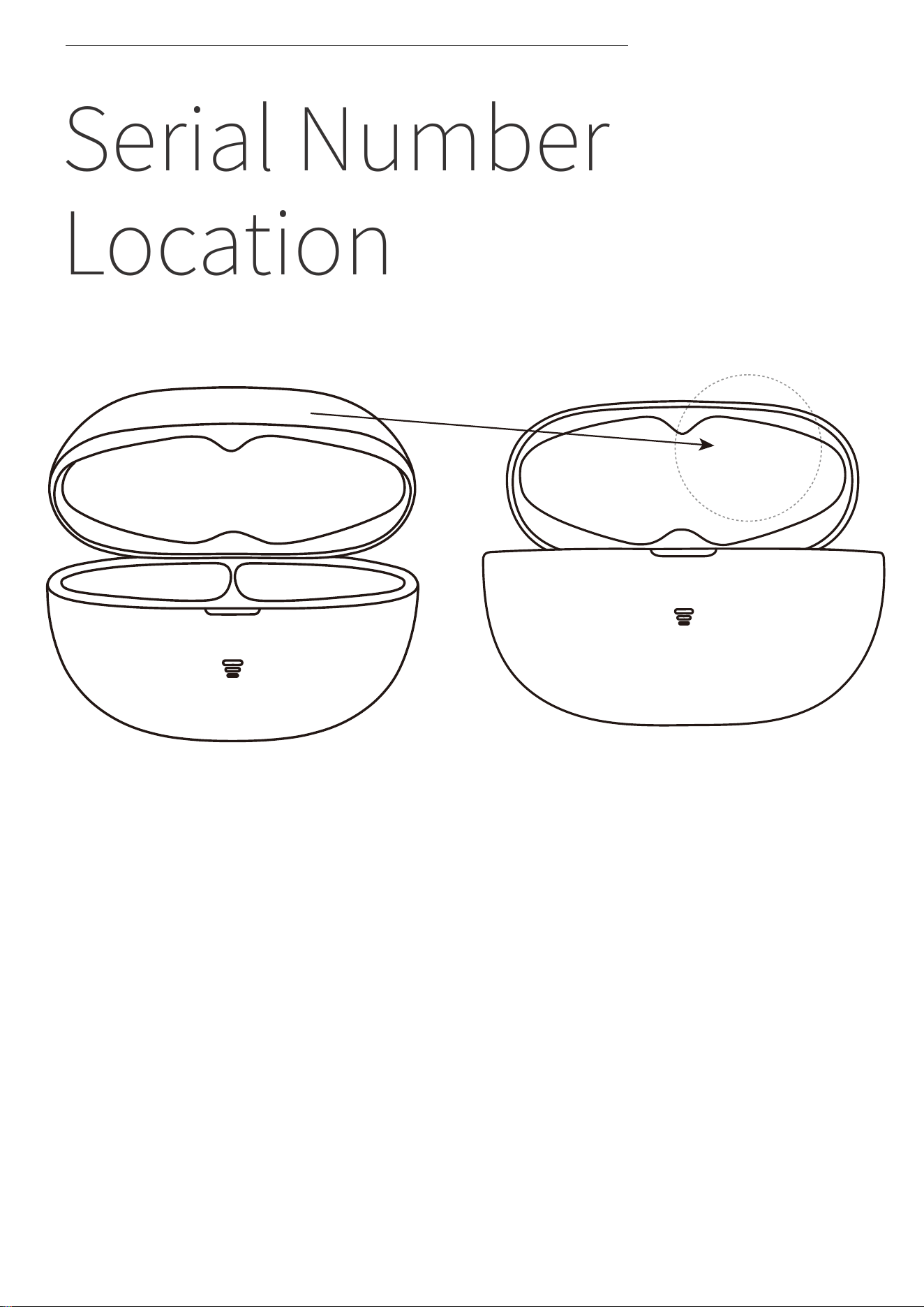
�. The product serial number is indicated on the barcode of the
packaging box and on the warranty card.
�. It is also printed on the bottom of the charging case.
SERIAL NUMBER LOCATION
SN:E210123456789
��
Warranty
WARRANTY
Your earphones are covered by a warranty. Visit our website at
https://shokz.com/pages/warranty-return for details of the lim-
ited warranty.
��