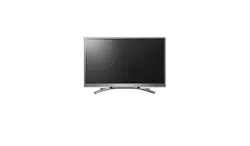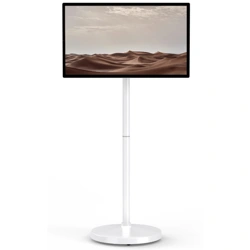

32” ROLLABLE SMART
TOUCHSCREEN TV
OR3200RTV
USER
MANUAL
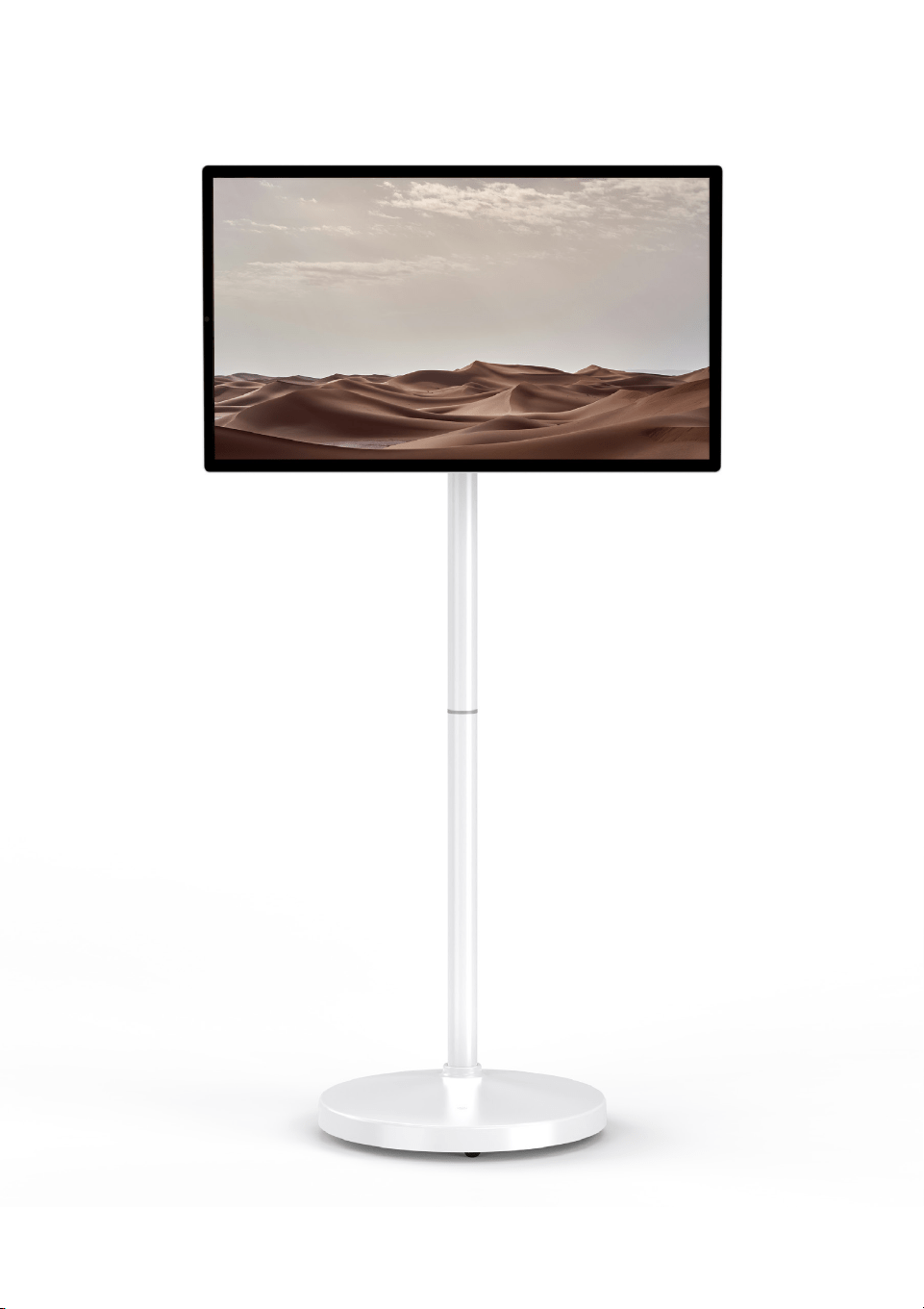
Table of Contents
1
Safety Precautions
In The Box
Product Overview
Remote Control
Battery
Assembly Instructions
Angle Adjustment
Powering On Your Device
Connections
Screen Mirroring
Troubleshooting
Specications
Need Help?
Warranty Information
2
6
7
8
9
10
15
16
17
18
20
21
22
23

2
THIS INSTRUCTION BOOKLET CONTAINS IMPORTANT SAFETY
INFORMATION. PLEASE READ IT CAREFULLY AND KEEP FOR
FUTURE REFERENCE.
To avoid potential re hazards, refrain from storing the Product in the
locations listed below. Doing so could result in re hazards, electric shock,
combustion/explosion, malfunction, or damage to the Product:
− Prolonged exposure to direct sunlight.
− High-humidity environments, such as bathrooms.
− Proximity to heat sources, such as stoves or other heaters.
− Contact with steam or oily fumes, such as kitchens or humidiers.
− Exposure to rainwater or moisture.
− Placement near inammable substances, such as gasoline or candles.
− Areas prone to dust accumulation.
− Unstable or high places, such as shelves or desks.
Place the Product in a well-ventilated space to prevent overheating. Avoid
placing it in a narrow space that can restrict the ow of air.
Never cover the Product with materials such as clothes or blankets. This
can restrict airow and cause the device to overheat, posing a risk of re.
After prolonged use, the Product’s ventilation port may become hot. Avoid
touching the ventilation port to prevent burns or other injuries.
To avoid product damage and potential electric leakage, protect the
power cables from twisting, bending, and cutting. If the power cables are
damaged, do not use the device and seek professional assistance.
When connecting the power cable, make sure the power interface
is securely and correctly connected to the device. A loose or poor
connection can not only damage the product, but also pose a risk of
electric shock. Do not move the Product while connecting the power
cable to avoid any accidents.
Do not remove the Product’s power cable by force.
Be sure to handle with caution when connecting to/removing the power
cable from the power source.
Safety Precautions

3
To avoid re hazards or electric shock, do not connect too many devices
on one singular power supply source.
Follow all installation instructions to avoid damage or injury due to
improper assembly.
Position the Product in a secure area to prevent damage or personal
injury.
Please connect the Product’s adapter to a three-pole grounded AC
socket. Make sure to connect the grounding wire to avoid electric shock.
In case of lightning, do not touch the Product. Electric shock may occur.
Do not drop metals into the Product. If foreign matters fall into the
Product, please remove the power cable and contact Customer Service.
In any of the following cases, please cut o the Product’s power supply
and contact Customer Service.
− The Product is damaged.
− Water or other foreign matter enters the Product.
− The Product has smoke or other odor.
Do not use high-voltage electronic equipment around the Product;
otherwise, it may lead to faults such as signal interference.
Make sure to use authorized parts and components; otherwise re hazard,
electric shock or malfunction may occur.
Do not try to modify the Product; otherwise, re hazard or electric
shock may occur. Please contact Customer Service or authorized repair
personnel to receive service or maintenance.
Do not dismantle the AC adapter or power cable; otherwise, re hazard or
electric shock may occur.
Do not drop or hit the Product.
To reduce re hazards or electric shock, do not touch the Product with
wet hands.
Wipe o water or dust (if any) on the power plug.
Safety Precautions

4
Safety Precautions
Do not apply unreasonable pressure or use sharp objects to press the
Product’s screen; otherwise, product damage and personal injury may
occur.
While cleaning the Product, please remove the power cable and wipe it
gently with a dry cotton cloth.
Do not spray water or other liquids directly onto the Product.
Do not clean your product with harmful chemicals, such as glass cleaner,
air freshener, insecticide, lubricant, automotive or industrial wax, polishing
agent, diluent, benzene or alcohol; otherwise, electric shock or product
damage may occur.
For any battery liquid leakage in the Base, stop use immediately to avoid
skin and eye contact. Any accidental contact may lead to blindness or
burns. Flush the contacted area with water immediately and contact a
medical professional for further assistance.
The battery may fail to recharge completely or have a reduced life if it is
discharged completely or idled for a long period of time.
Any unauthorized disassembly/assembly of product parts without
consulting the manufacturer may lead to product failure, and you will not
be entitled to maintenance services.
Do not push or kick the Product.
Do not suspend or put heavy objects on the Product.
Do not move or slide the Product while sitting on its Base.
Do not exceed the Product’s limit angle by force.

5
Safety Precautions
SAFETY WARNING (Stability Hazards)
Serious personal injury may occur due to display instability. The following
preventive work is recommended to avoid injury:
Be sure to use the suggested stand and mounting methods.
Be sure to put the Product on level ground.
Warn children about the hazards of climbing on or touching the display or
stand.
Make sure to arrange the Product’s power wires and cables neatly to
avoid tripping or dragging.
Do not put the Product at a high or tilted place.
Do not place articles such as toys, on the Product or stand, as this may
induce children to climb onto the Product.
6
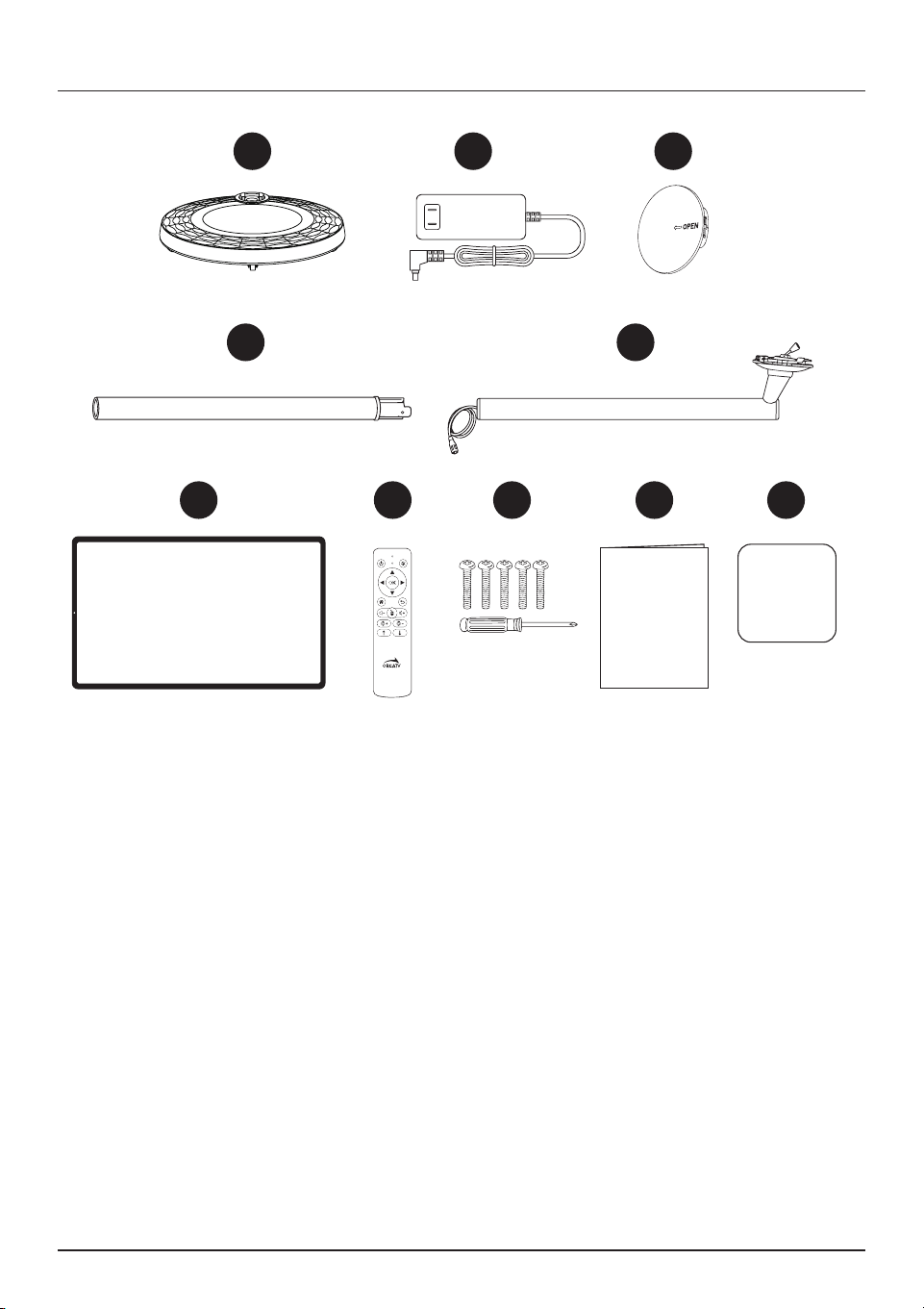
A. Base
B. Power Adapter
C. Bottom Cover
D. Stand (Lower)
E. Stand (Upper)
F. Monitor
G. Remote Control
H. Screws and Screwdriver
I. User Manual
J. Warranty Card
F G H I J
C
E
In the Box
A
D
B
7
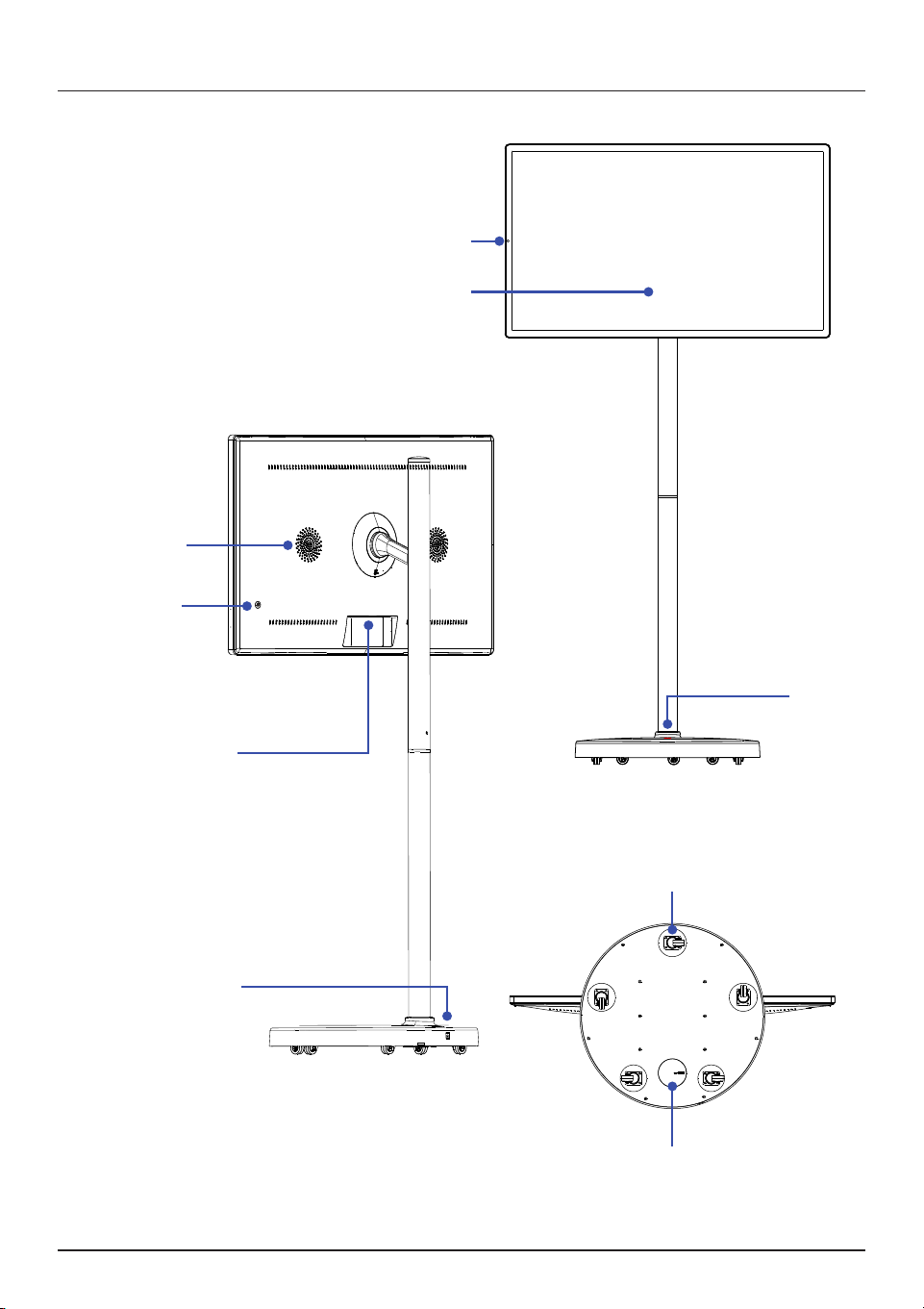
On/Off
Button
HDMI
®
Port
USB-C
®
Port
(Charging not supported)
USB-A
®
Port
Charging Port
Standby
Button
Speakers
Universal Wheel
Bottom Cover
Product Overview
Touchscreen
Display
Camera
8
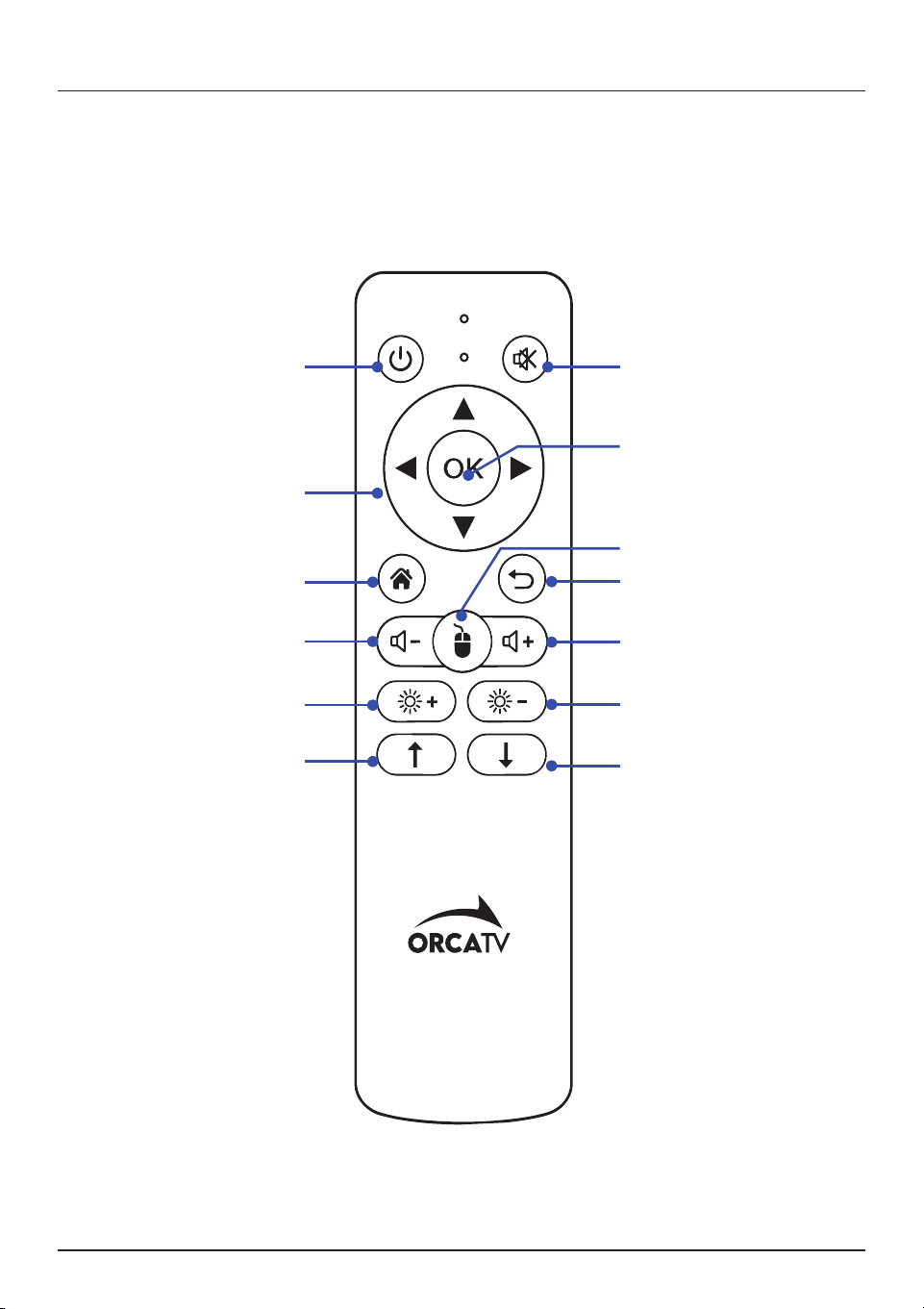
Note: Remote Control requires two (2) AAA batteries (included).
To pair your remote control, go to Settings > Bluetooth
®
on the main unit and
select “Add Bluetooth Device”. Press and hold the Home + Back buttons on
the remote until “Display” appears, then select it to pair.
Home
Decrease
Volume
Increase
Brightness
Page
Up
Air Mouse
Back
Decrease
Brightness
Increase
Volume
Page
Down
Remote Control
MutePower On/Off
Navigation
(Up / Down / Left / Right)
Select

9
The product’s movable Base is tted with a built-in battery to ensure
operation for periods of time without a connection to a power supply.
NOTE:
The power supply indicator serves the singular function of indicating the
status of the external power supply. A luminous green indicator denotes
the successful connection of the external power supply, while a lack of
illumination signies its disconnection.
The built-in battery can be fully recharged within approx. 7 hours.
The product’s battery life will decrease with time and usage.
The product’s battery may encounter charging failures when temperatures
are below 32˚F.
To optimize battery longevity, it is recommended to use the battery for
some time before recharging, rather than constantly keeping the battery
full.
Keep the battery’s power level at 50% to prolong its service life.
Note: The actual use period may vary along with use conditions, habits
and dierent factors, such as connected devices, ambient temperature
and product settings.
WARNING:
Using the wrong battery can be dangerous and may cause an explosion.
Be sure to handle the battery with caution. Users should not attempt to
dismantle and replace the battery on their own.
The battery shall not be disassembled, dropped or thrown into re.
If there is severe swelling, do not continue to use it.
Do not place it in a high temperature environment.
Do not use the battery if immersed in water.
Battery
10
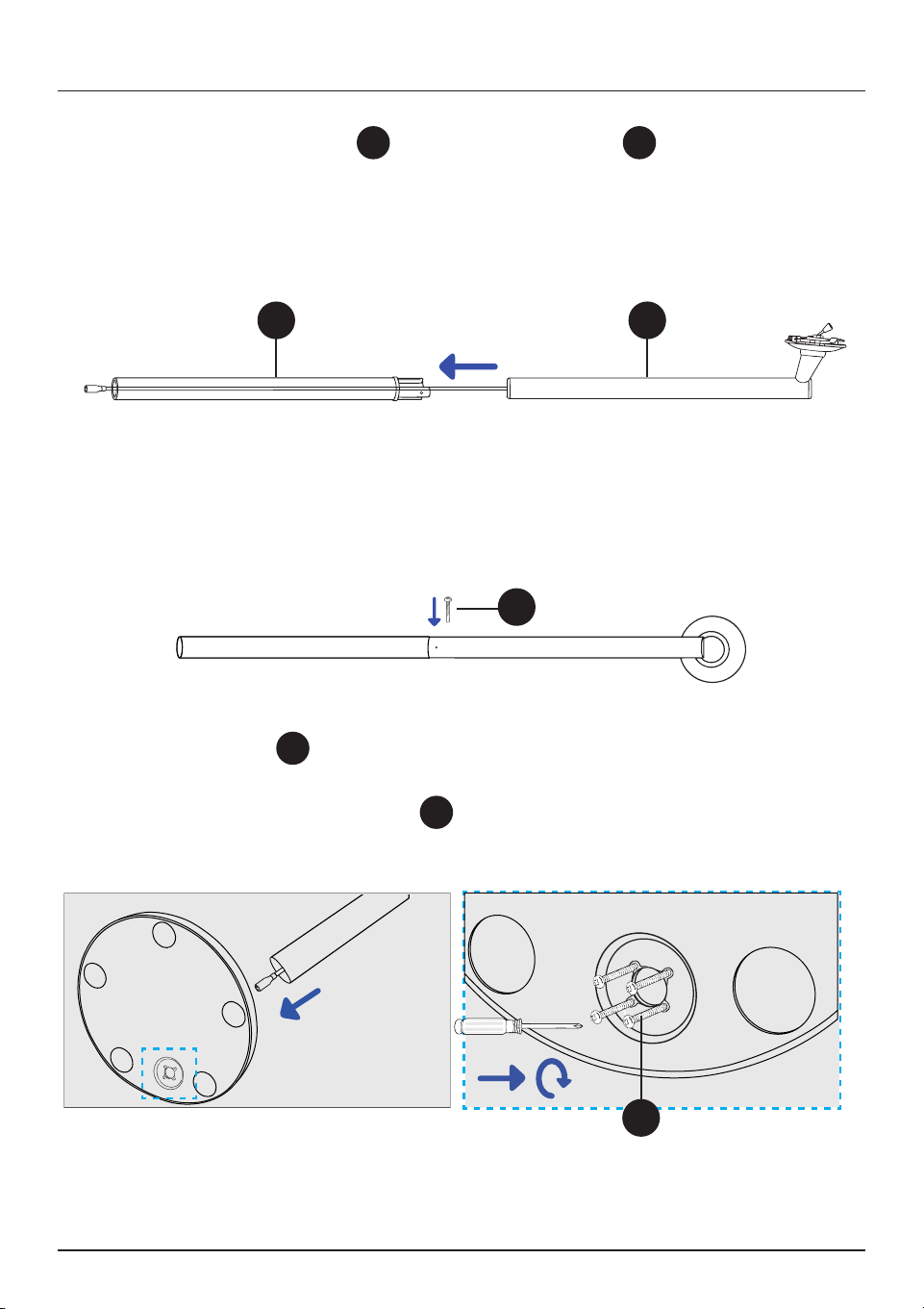
3. Remove the Base
A
from the packaging. Install the assembled stand
onto the Base while routing the power cable through the opening. Secure the
stand to the Base with the screws
H
using a screwdriver.
D E
H
H
1. Remove the Lower Stand
D
and the Upper Stand
E
from the
packaging. Feed the power cable from the Upper Stand through the center
of the Lower Stand, then connect the two stand sections.
2. Secure the connection with one screw using a screwdriver.
Assembly Instructions
11
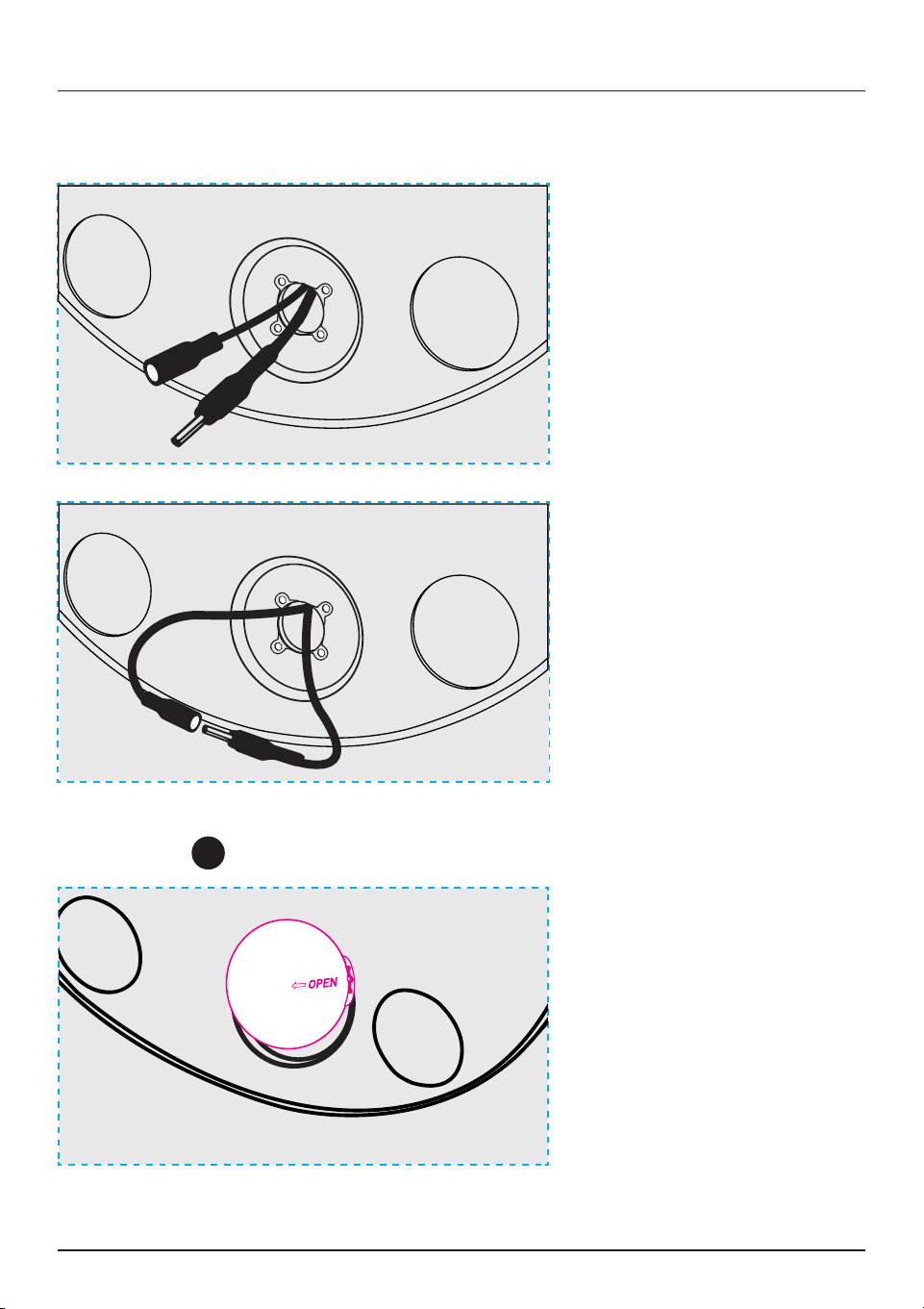
5. Install the Bottom Cover as indicated below.
Assembly Instructions
4. Connect the two wires, then tuck them inside the Base.
C
12
Assembly Instructions
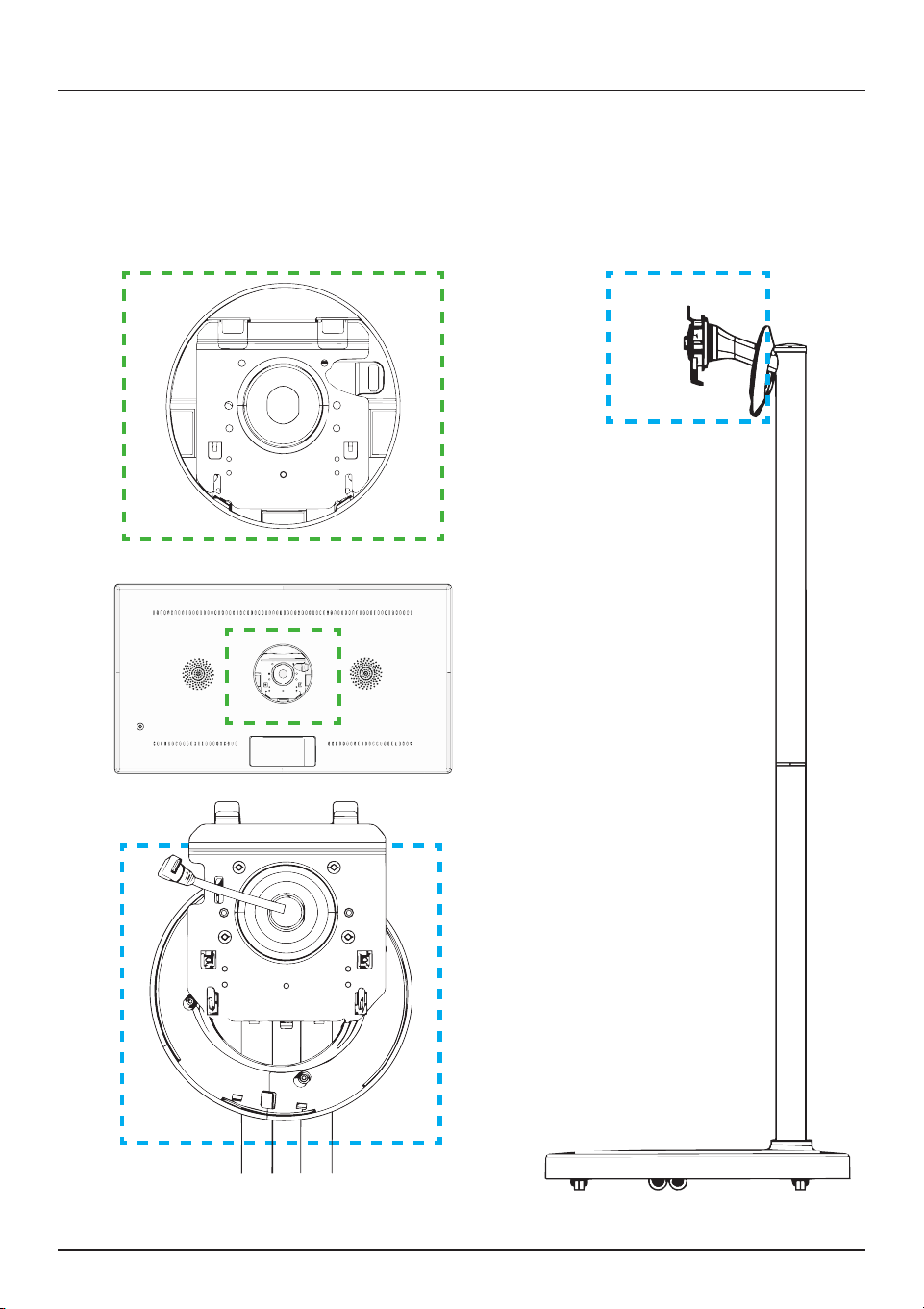
6. Keep the assembled stand upright on a level surface. Locate the
positioning column as shown below. Remove the display monitor from the
packaging and locate the mounting holes on the back of the monitor.
13
Note:
Ensure the power cable is rmly connected before turning on the product.
If the product does not power on, check the cable connection and
reconnect the power adapter if necessary.
Assembly Instructions
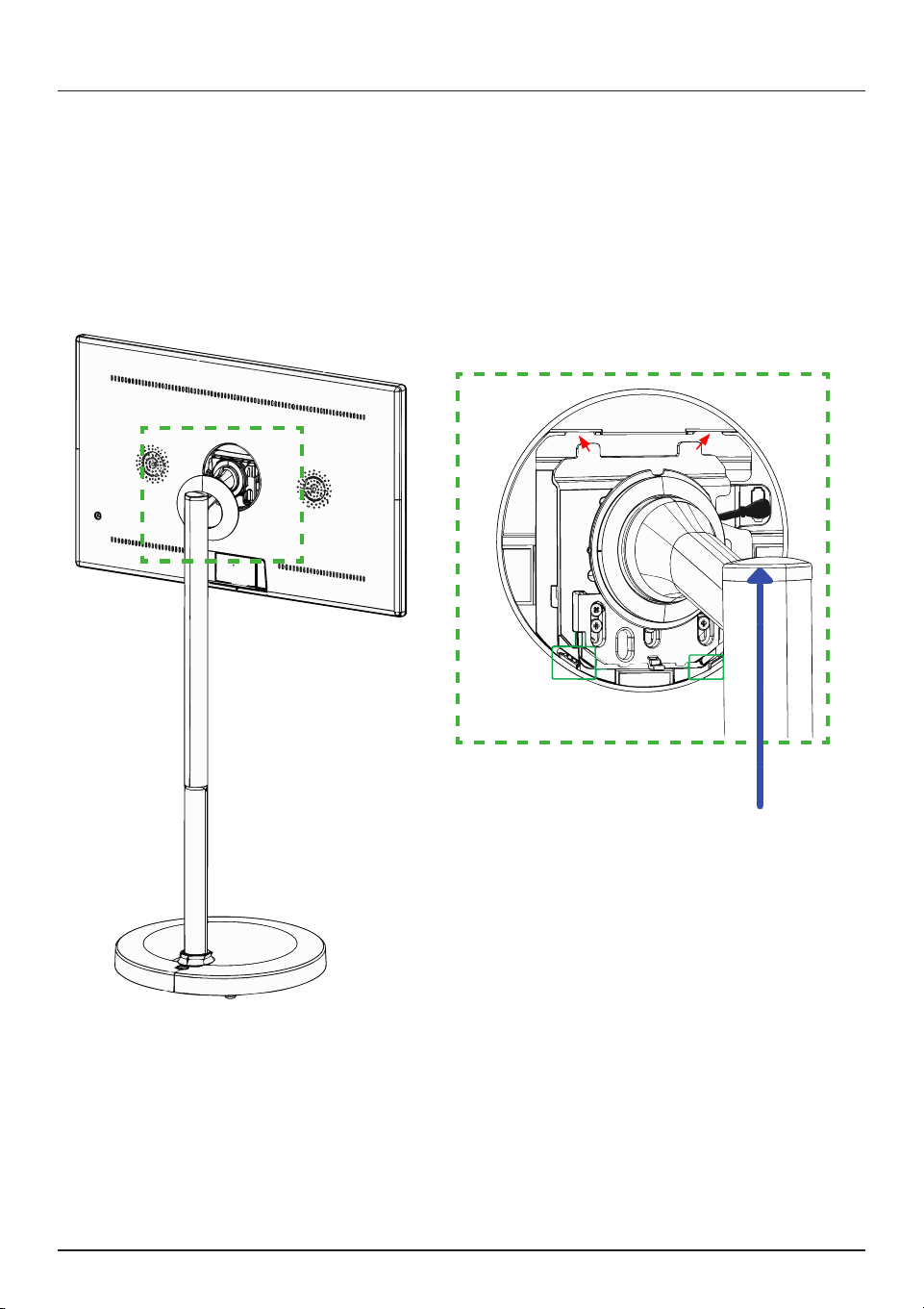
7. Hold the monitor securely with both hands, with the touchscreen facing
away from you. Align the mounting points on the back of the monitor with
the positioning posts on the stand. Insert and engage the upper mounting
clips rst. Once the upper clips are engaged, push the bottom locking tab
upward until the locking tabs on both sides engage securely, then release it.
Insert the stand’s power cable into
the power port on the back of the
monitor.
14
Assembly Instructions
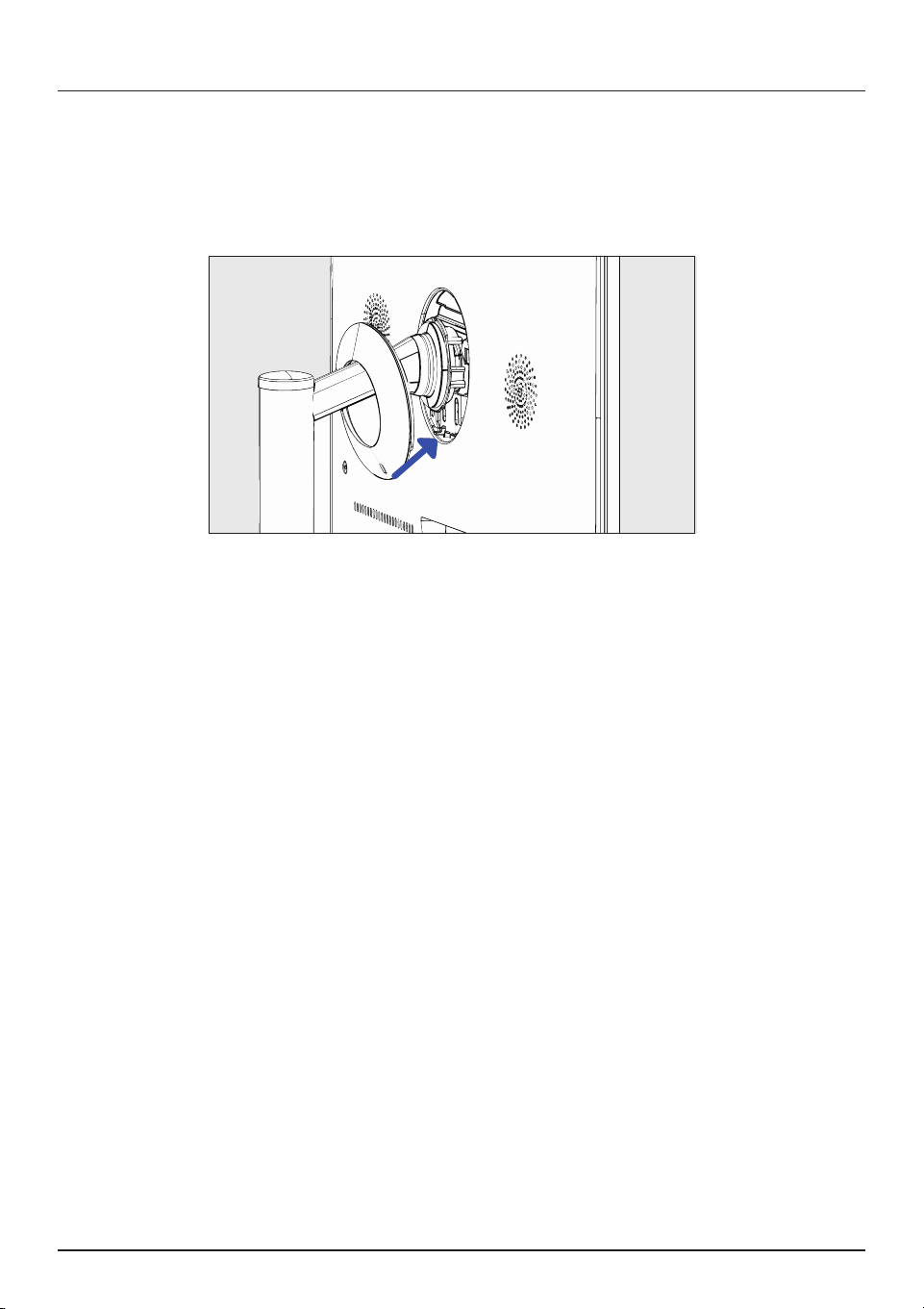
8. Install the mount cover as shown below. Align the clips with the
corresponding slots, then push the cover into place until it is securely
attached.
NOTE: To remove, push the top of the back cover until the bottom edge
pops out, then pull the cover away.
Align the clips with the slots and push in.
15
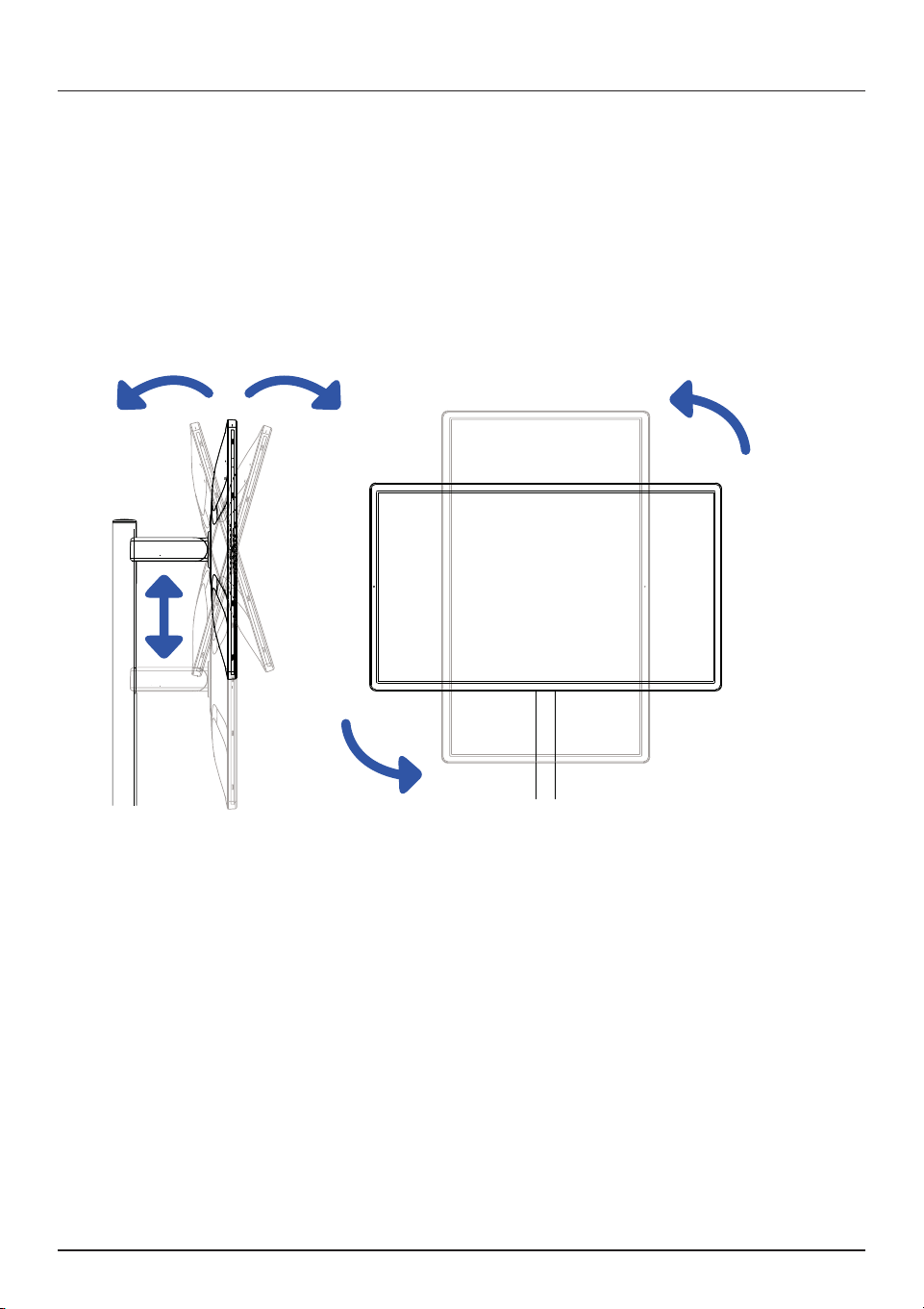
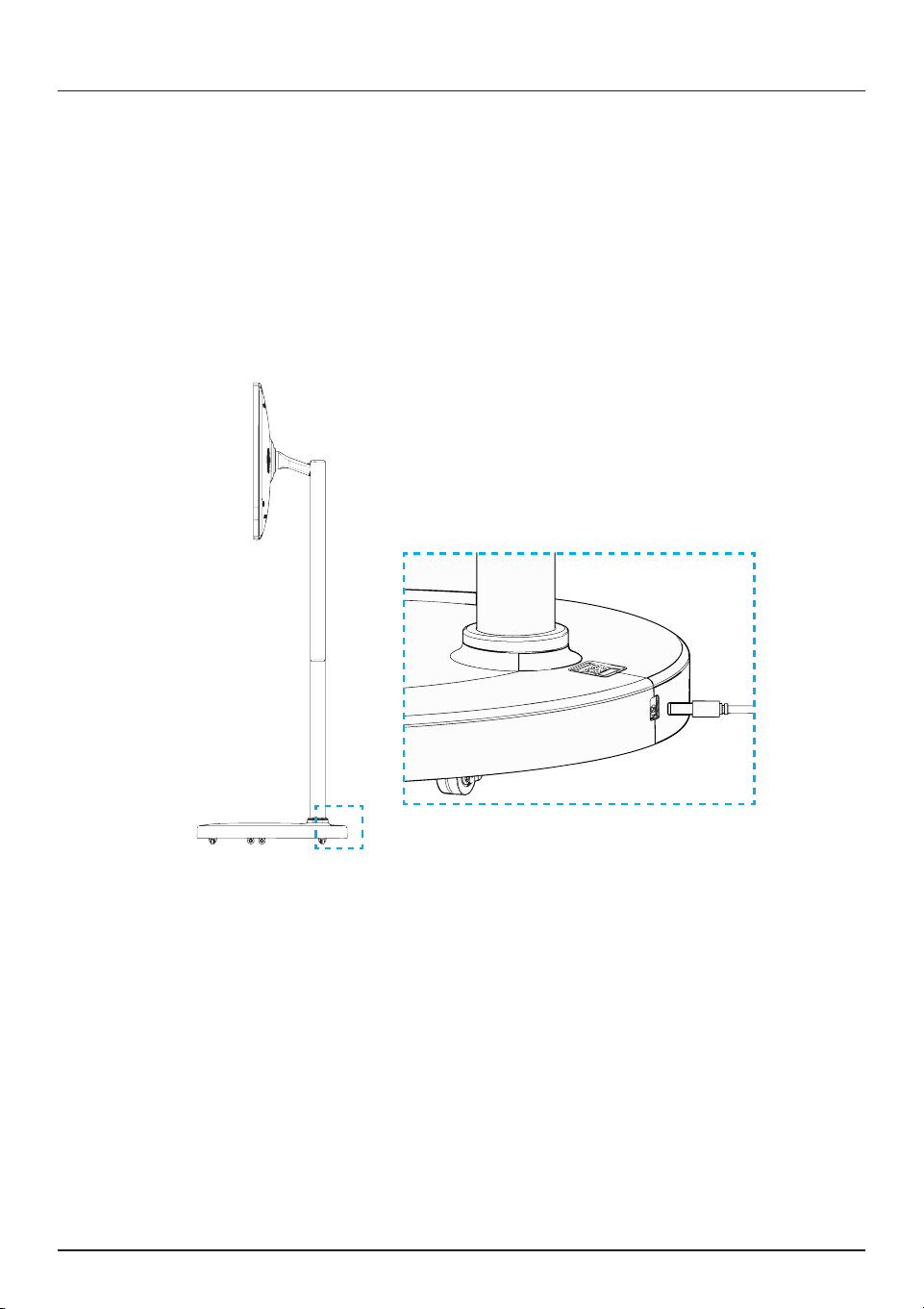
You may adjust the angle and height of the display for the optimal viewing
experience in any scenario.
Supports 180° rotation (left rotation: 90°; right rotation: 90°).
Supports tilt adjustment of 45° (+25°/-20°) and height adjustment up to 7
inches.
NOTE: The actual angle may vary slightly due to the external factors.
Angle Adjustment
16
NOTE:
To avoid product damage and personal injury, keep the device in a vertical
position at all times, refraining from laying it at.
Keep hands clear of the base.
When moving the product, hold the middle section of the stand securely.
This prevents product damage and reduces the risk of personal injury due
to tilting.
If foreign matter gets stuck on the stand or base, gently remove them
using a clean, damp paper towel or cloth.
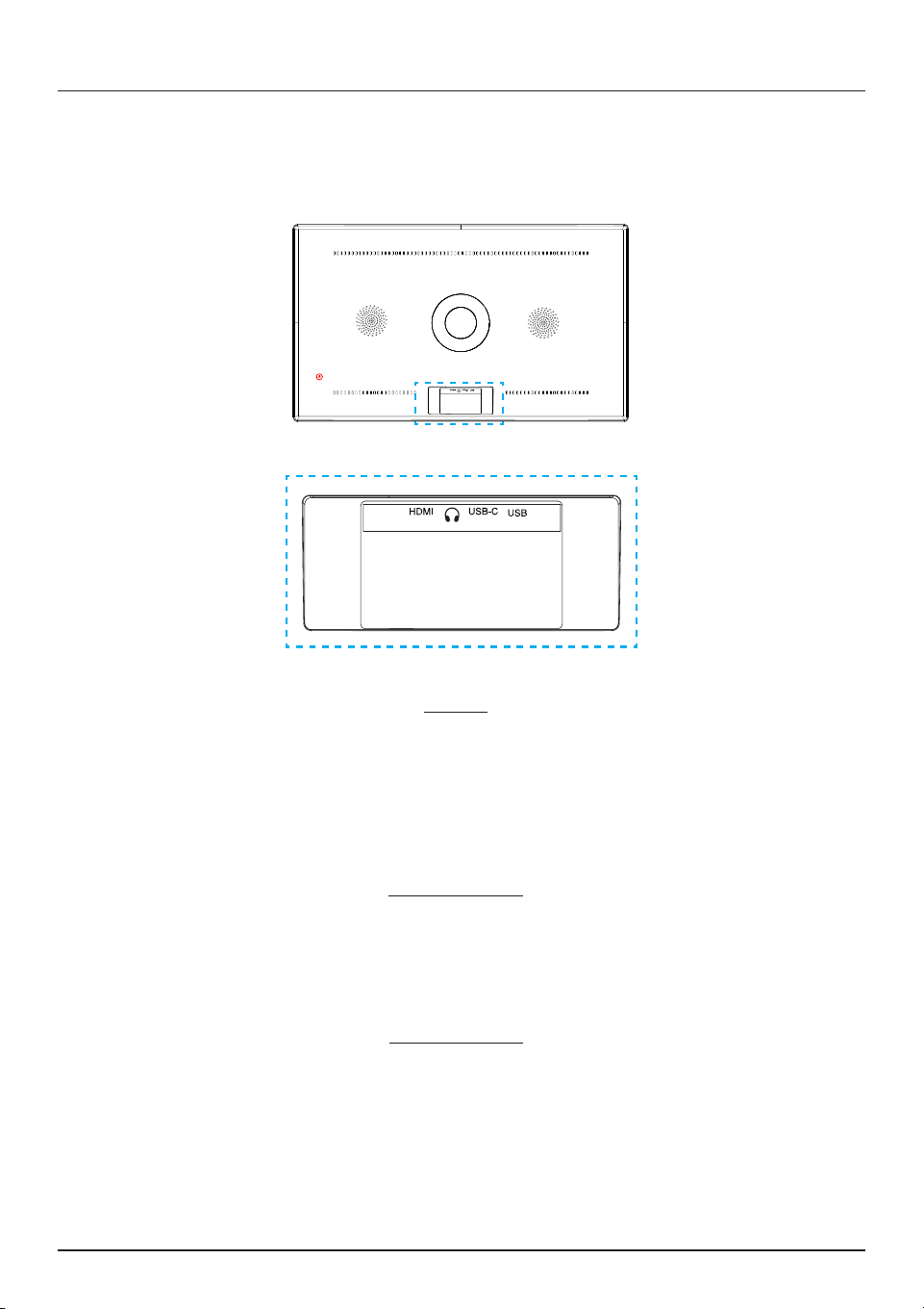
1. Insert the Power Adapter into the charging port, and once connected,
refrain from unplugging it.
2. During initial use, it is important to correctly connect the Power Adapter to
facilitate optimal operation.
3. To power on the product, press and hold the ON/OFF button on the stand
for 3 seconds.
Powering On Your Device
17
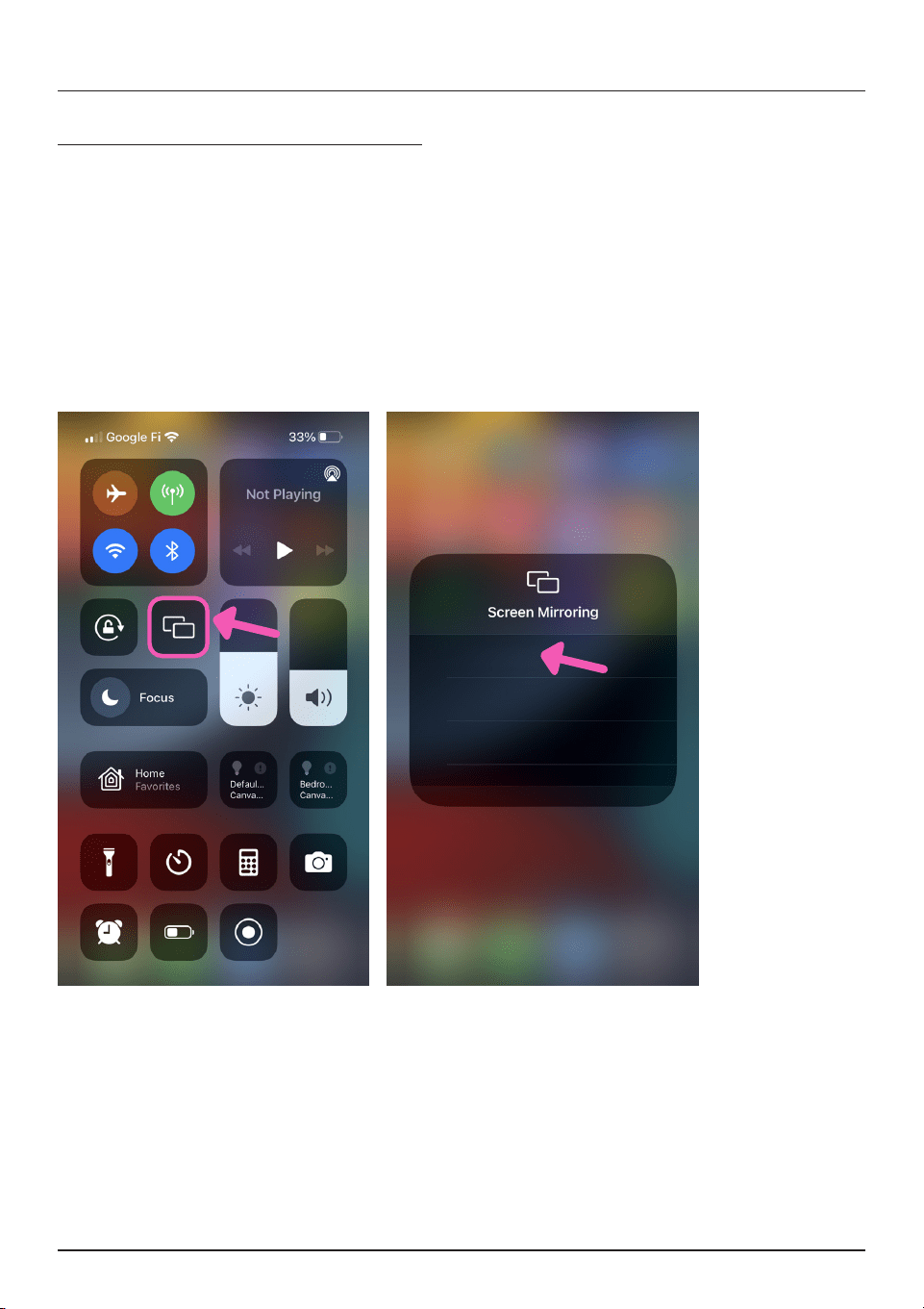
This TV can be connected to other devices through HDMI
®
, USB-C
®
, and
USB-A
®
cables.
Connections
NOTE: When the device is connected to a PC or laptop, some images may
have display errors, depending on the graphics card.
HDMI
®
You may connect a laptop to the display via HDMI
®
cable to use
the display as an external monitor. The device does not support
connection of other products of the same interface.
USB Type-C
®
Connects to: external hard drive or ash drive,
card reader, keyboard, mouse.
USB Type-A
®
Connects to: external hard drive or ash drive,
card reader, keyboard, mouse.
18
Screen Mirroring
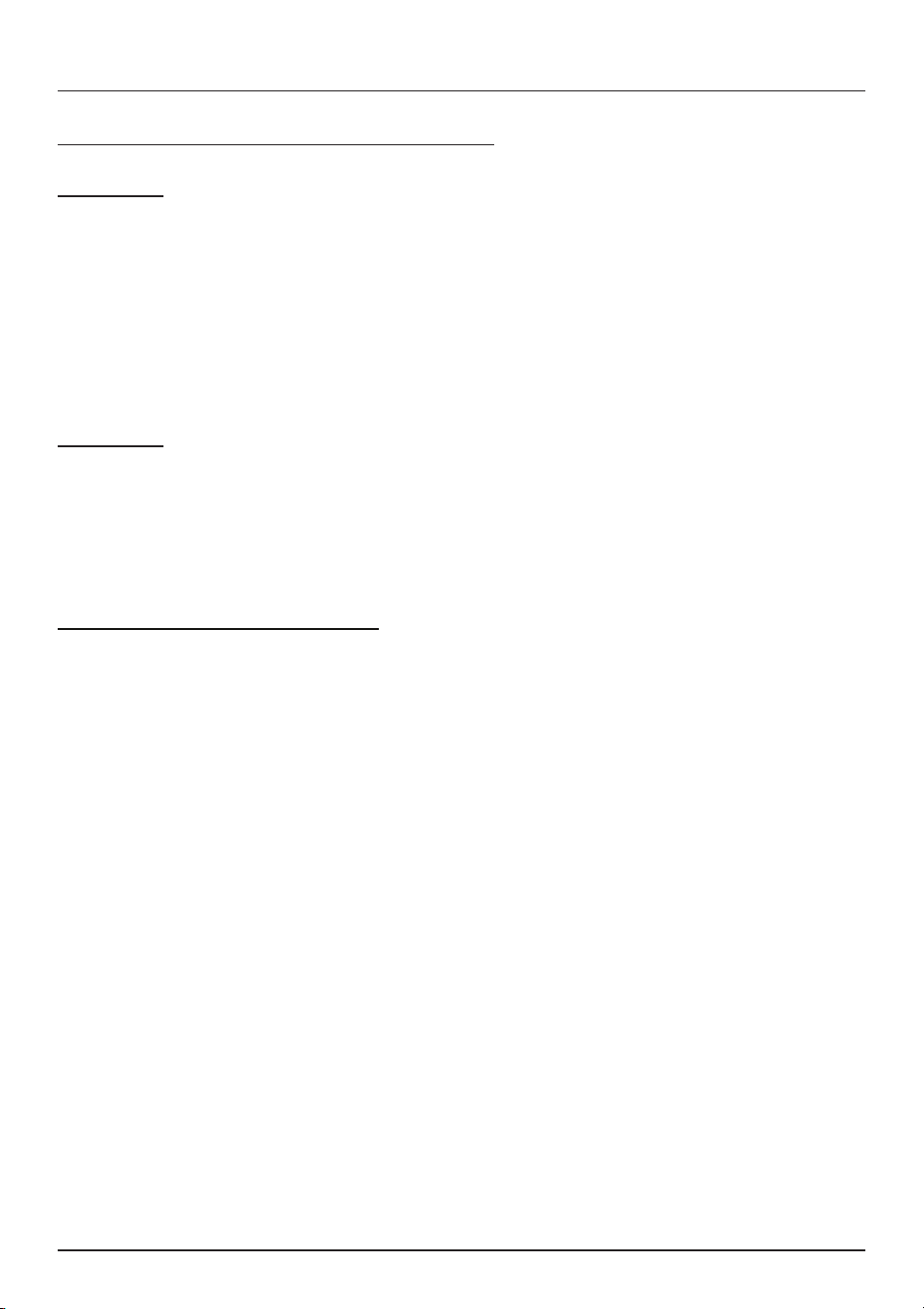
Screen Mirroring on iOS Devices
1. Ensure that your iOS device and the rolling TV are connected to the
same network.
2. On your iOS device, navigate to the Control Center and tap on the
Screen Mirroring widget.
3. Tap on the device “DISPLAY_XXXX” to connect and start mirroring.
DISPLAY_XXXX
19
Screen Mirroring
Screen Mirroring on Android™ Devices
Method 1
1. Ensure that your Android™ device and the rolling TV are connected to the
same network.
2. On your Android™ device, navigate to the Control Center and tap on the
Screen Cast widget. Tap on the device “DISPLAY_XXXX” to connect and
start casting.
Method 2
1. Navigate to http://usbdisplay.cn and download the app on your Android™
device, and then select “DISPLAY_XXXX” to connect and start casting.
Screen Mirroring on Laptops
1. Navigate to http://transcreen.app and download the app on your laptop,
and then connect to the Rolling TV’s hotspot DISPLAY_XXXX.
2. Run the client app on your laptop, select DISPLAY_XXXX, then follow the
instructions to start mirroring.

20
Troubleshooting
No image and sound
Please check if the product is powered on normally.
Please check if the power adapter is powered on normally.
Please connect other products to see if the wall outlet is faulty.
Please check if the power cable at the back of the display is properly
connected.
The product has unexpected shutdown
Please check if battery is low.
Please check if the auto shutdown function is within the set time period.
Please check if the Product has entered Eco mode and the display is
under auto shutdown status.
If the battery is overheating, the Product will shut down automatically to
trigger protection mechanism.
No signal when external HDMI
®
device is connected
Please reboot the Product.
Please reconnect the HDMI
®
cable.
After the Product is rebooted, please restart the external HDMI
®
device.
Display error
As the Product’s display has millions of pixels, tiny black spots or
highlight color light spots may be shown on the display in PPM units.
These neither represent abnormal display status, nor aect the Product’s
performance and reliability.
When viewing the Product in dierent locations, the user may notice
dierent brightness and display colors. This is a normal phenomenon that
belongs to the Product’s characteristics and is unrelated to the Product’s
performance.
Abnormal sound
Circuit buzzing/display signal noise: The Product may emit a low noise
due to high currents when the circuit has high-speed switching. This noise
does not aect the Product’s performance and reliability.
21
Specications
CPU
MideaTek MT6769 Octa-core 2*A75
up to2.0Ghz +6*A55 upto 1.8Ghz
RAM 8GB
Storage 128 GB
OS Android
™
13
Display 32” Diagonal
Resolution 1080x1920 IPS
Touchscreen 10-Point Capacitive Touchscreen
Aspect Ratio 16:9
Wi-Fi
®
WiFi
®
5 802.11 a/b/g/n/ac 2.4G + 5G
Bluetooth
®
5.0
Brightness 250cd/m
2
max
Refresh Rate 60Hz
Connections
HDMI
®
x1
USB-C
®
x1
USB
®
3.0 x1
DC In x1
Gravity Sensor Supports 90º
Speaker Built-in 4Ω 3W*2 Speakers
Microphone Built-in Microphone
Power Adapter 12V 5A
Operating Temperature 32˚ - 122˚F

22
For customer support regarding your device, please submit a request by
emailing [email protected]. You will be provided a
ticket number regarding your inquiry, which you can refer to when contacting
us further.
You may also reach a customer service representative by calling 1-833-
909-2673. We are available Monday - Friday, 9am - 5pm PST, except major
holidays. We strongly urge customers to email their inquiry prior to calling, as
this will enable us to better assist you.
Please make sure to note the model number and a description of your
inquiry.
Thank you for purchasing this product.
Need Help?

23
Warranty Information
Limited Warranty
OrcaTV (the “Company”) warrants this new product purchased and
contained in this package (the “Product”) against defects in material or
workmanship for 90 Days (Parts & Labor) and 1 Year (Limited) from the date
of delivery. In order for the Company to honor this limited warranty, you must
present a valid proof of purchase or delivery, as applicable (e.g. a receipt
or delivery notice that also shows purchase) of this Product. IMPORTANT
NOTE: The customer is encouraged to carefully inspect the Product upon
receipt after purchase – especially prior to any assembly, disassembly,
mounting, installation or utilizing a third-party product of any kind, such as a
decorative or protective cover or case.
This warranty is void if the Company deems, in its discretion, that the
Product may have been damaged when the packaging was opened, through
modication, improper transport, improper storage, improper use, improper
assembly or disassembly, exposure to adverse elements, mounting or other
installation, end user negligence, water damage or tampering of the barcode
of the Product. This warranty does not apply: (a) to cosmetic damage,
including but not limited to screen damage, a cracked display, scratches,
dents and broken ports; (b) to damage caused by accident, abuse, misuse,
re, water vapor exposure, excessive exposure to humidity, water or other
liquid contact, earthquake or other external cause; (c) to defects caused by
normal wear and tear or otherwise due to the normal aging of the product;
(d) if any serial number has been removed or defaced from the product; or
(e) to damage caused by installation or mounting, assembly or disassembly,
use with a third party device, cable, protective or decorative cover/
case, component or product that does not meet the Company’s product
specications. This warranty is a limited warranty for repair of the Product or
replacement of the Product with a new or refurbished product, subject to the
conditions set forth herein.
The Company is not liable for consequential, indirect, incidental, special
or punitive damages and the Company’s total liability hereunder shall not
exceed an amount greater than the retail purchase price of the product.

24
Warranty Information
90 Days Parts & Labor
The Company warrants to you as the original retail purchaser of the Product,
that should the Product have any warranted defect out of the packaging,
under normal conditions, such defect(s) will be repaired or replaced with a
new or refurbished part (at the Company’s sole discretion) without charge,
if the Product is submitted to the Company within a period of ninety (90)
calendar days from the date of delivery of the Product. The customer is
responsible for transportation cost and insurance charges (if applicable)
to the Company and must be able to document a clear proof of delivery
to the Company as well as proof of registered receipt by the Company. It
is the customer’s responsibility to retain original packaging or provide like
packaging in order to facilitate the warranty repair or replacement process.
The Company will incur no liability whatsoever to provide packaging for
warranty items. Should the product be damaged en route to the Company
due to insucient or improper packaging or improper transport, the
warranty may be voided. You must receive a return authorization number
(RMA#) before sending the unit in for service. This warranty only applies to
manufacturer defects, and the Product must be returned to the Company in
its original condition.
1 Year Limited Parts
If determined to be covered under warranty, the one (1) year (from delivery)
limited parts warranty gives the customer the option to return the Product to
the Company for repair or replacement. The customer will be responsible for
labor charges. This warranty does not cover any incidental or indirect costs
incurred as a result of a defect in the Product, including any consequential,
incidental or indirect damages.

25
Warranty Information
FCC Caution.
This device complies with part 15 of the FCC Rules. Operation is subject to
the following two conditions:
(1)
This device may not cause harmful
interference,
and
(2)
this device must accept any interference received,
including interference that may cause undesired operation.
Any Changes or modifications not expressly approved by the party
responsible for compliance could void the user's authority to operate the
equipment.
Note:
This equipment has been tested and found to comply with the limits
for a Class B digital device,
pursuant to part 15 of the FCC Rules. These
limits are designed to provide reasonable protection against harmful
interference in a residential installation. This equipment generates uses and
can radiate radio frequency energy and,
if not installed and used in
accordance with the instructions,
may cause harmful interference to radio
communications. However,
there is no guarantee that interference will not
occur in a particular installation. If this equipment does cause harmful
interference to radio or television reception,
which can be determined by
turning the equipment off and on,
the user is encouraged to try to correct
the interference by one or more of the following measures:
-Reorient or relocate the receiving antenna.
-Increase the separation between the equipment and receiver.
-Connect the equipment into an outlet on a circuit different from that to which
the receiver is connected.
-Consult the dealer or an experienced radio/TV technician for help.
*RF warning for Mobile device:This equipment complies with FCC radiation
exposure limits set forth for an uncontrolled environment. This equipment
should be installed and operated with minimum distance 20cm between the
radiator & your body.

OrcaTV intends to make this manual accurate and complete. However, OrcaTV makes no claim
that the information contained herein covers all details and conditions. The information in this
document is subject to change without notice at any time. OrcaTV assumes no responsibility
for accuracy or completeness of the information contained in this manual.