For additional self-service support options and community forums, please visit: www.StarTech.com/support
Revision: June 3, 2025
Quick-Start Guide
PD 18W
Product ID
DK30C2DPEPRN
DK30C2DPEPRUE
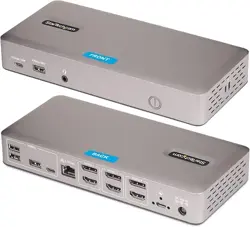
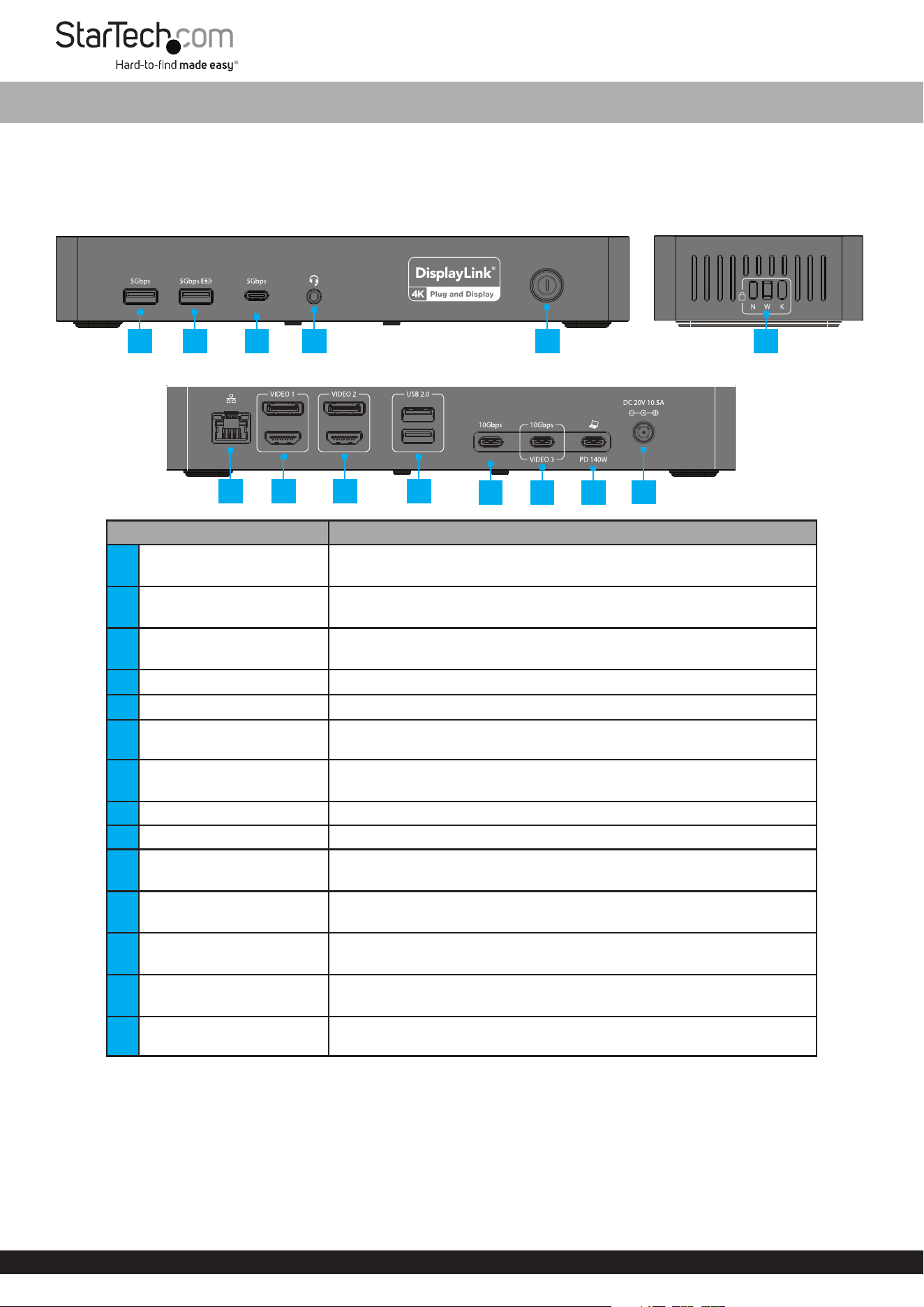
Front View
Rear View
Component Function
1 USB-A Data Port
• Connect a USB Peripheral
• Supports USB 5Gbps
2 USB-A Data/Charge Port
• Connect and/or charge a USB Peripheral
• Supports USB 5Gbps and 7.5W BC 1.2 Charging (5V/1.5A)
3 USB-C 5Gbps Port
• Connect and/or charge a USB Peripheral
• Supports USB 5Gbps and USB Power Delivery 3.0 up to 18W
4 Headset Port • Connect a 3.5mm Headset
5 Power Button • Press and release to toggle power on or o for the Docking Station
6
3x Lock Slots
(Nano/Standard/Wedge)
• Connect a K-Slot, Nano, or Wedge Style Locking Device to deter
theft of the Docking Station
7 2.5 Gigabit Ethernet Port
• Connect the Docking Station to a Network
• Supports 2.5GBASE-T
8 Video Output 1 • Connect to an HDMI or DisplayPort Display
9 Video Output 2 • Connect to an HDMI or DisplayPort Display
10 USB 2.0 Ports
• Connect a USB Peripheral (Mouse/Keyboard)
• Supports USB 480Mbps
11 USB-C 10Gbps Port
• Connect a USB Peripheral
• Supports USB 10Gbps
12 USB-C Video/Data Port
• Connect a USB Peripheral or an External Display
• Supports DP Alt Mode and USB 10Gbps
13 USB-C Host Connection
• Connect to a USB-C Port on the Host Computer
• Supports Power Delivery 3.1 for up to 140W Laptop Charging
14 Power Input
• Connect the Docking Station to a Power Source using the included
Universal Power Adapter
Package Contents
• Docking Station x 1
• 3ft (1m) USB-C Host Cable x 1
• Universal Power Adapter x 1
• Power Cable x 1
• Quick-Start Guide x 1
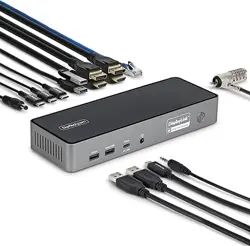
USB-C Triple-Monitor Dock - HDMI or DP, 4x USB-A/3x USB-C, 2.5GbE, 140W PD
1 2 3
4
5
7 8 9
10
11 12 13
14
Side View
6

Quick-Start Guide
FR: startech.com/fr
DE: startech.com/de
ES: startech.com/es
NL: startech.com/nl
IT: startech.com/it
JP: startech.com/jp
StarTech.com Ltd.
45 Artisans Crescent
London, Ontario
N5V 5E9
Canada
StarTech.com Ltd.
Unit B, Pinnacle 15
Gowerton Road
Brackmills,
Northampton
NN4 7BW
United Kingdom
StarTech.com LLP
4490 South Hamilton
Road
Groveport, Ohio
43125
U.S.A.
StarTech.com Ltd.
Siriusdreef 17-27
2132 WT Hoofddorp
The Netherlands
Requirements
For the latest manuals, product information, technical specications, and declarations of conformance, please visit:
www.StarTech.com/DK30C2DPEPRN
www.StarTech.com/DK30C2DPEPRUE
• Computer x 1
• USB-C port with DP Alt Mode and Power Delivery support
• Video performance, such as resolution and refresh rate, depends on your host computer’s video controller. Please verify
your computer’s specications
Installation
1. Connect the Power Adapter from an AC Outlet, to the DC 20V Port on the Docking Station.
2. Connect a Mouse, Keyboard, or other USB 2.0 Devices to the USB 2.0 Ports on the back of the Docking Station.
3. Connect a USB Device to the USB-C 10Gbps Port on the back of the Docking Station.
4. Connect a USB Device to the USB-A Data/Charge Port on the front of the Docking Station.
5. Connect a USB Device to the USB-A Data Ports on the front of the Docking Station.
6. Connect a USB Device to the USB-C 5Gbps Port on the front of the Docking Station.
7. Connect a 3.5mm Headset to the 3.5mm Headset Port on the front of the Docking Station.
8. Connect a Network Cable from a Network Port/Device to the 2.5 Gigabit Ethernet Port on the back of the
Docking Station.
9. Video Output 1
Connect an HDMI Cable (sold separately) from the HDMI Display, to the HDMI Output Port on the Docking Station.
or
Connect a DisplayPort Cable (sold separately) from the DisplayPort Display, to the DisplayPort Output Port on the
Docking Station.
10. Video Output 2
Connect an HDMI Cable (sold separately) from the HDMI Display, to the HDMI Output Port on the Docking Station.
or
Connect a DisplayPort Cable (sold separately) from the DisplayPort Display, to the DisplayPort Output Port on the
Docking Station.
11. USB-C Video/Data Port
Connect a USB-C Cable or Video Adapter (sold separately) from the USB-C Video/Data Port on the Docking Station to
a Display.
or
Connect a USB Device to the USB-C Video/Data Port on the Docking Station.
12. (Optional) Connect a K-Style, Nano, or Wedge Laptop Lock (sold separately) to the corresponding Lock Slot on the side
of the Docking Station.
13. Connect the included 3ft (1m) USB-C Host Cable from the USB-C Host Connection on the back of the Docking Station
to a USB-C Port on the Laptop.
Note: For full functionality, the Laptop’s USB-C Port must support Power Delivery and DP Alt Mode.
14. Press the Power Button on the front of the Docking Station to power on the Dock.
15. The Host Computer will automatically detect the Docking Station and install the required Drivers.
16. (Optional) If the Drivers do not automatically install, disconnect the Docking Station from the Computer, then:
a. Navigate to www.StarTech.com/DK30C2DPEPRN or www.StarTech.com/DK30C2DPEPRUE, and click the
Drivers/Downloads tab.
b. Under Driver(s), download the Driver Package for your operating system, and follow the steps outlined in the
Installation Guide, that’s included in the Driver Package.
Notes
• The docking station housing meets enclosure re requirements, providingenhanced protection through compliant
structural design.
• This equipment complies with European Commission Regulation (EU) 2023/826; the O-Modepower consumption is less
than 0.3W.
• This equipment is only suitable for mounting at heights≤2m.
• The product marking and identication label are located on the bottom of the device.