
LCD Instrument Panel Features Overview:
川
Sel的回皿sicon to view the following information and configure its display on the
UI interface
Travel time
-:--
h
Mileage
---
k
m
Average speed
---
k
m/h
Mileage Total
--
.
-
k
m
Fill capacity
66L
vehicle speed
0
k
m/h
Speed Alert
---
k
m/h
consumption
0.0
1
/h
Average consumption
---
1
/
1
00
k
m
range
---
k
m
Comfort Appliance Consumption
01
�
rst
select
__
this icon
:
_
t
�
�
n select this icon to change the UI interface
There are five options available.
02
First selectt和con,then sel的
回
th
is icon to set or view the following options.
[
1 AIIlb
l
ent LIghtIng
J
[
4. mme Settmgs 4
[
7. Pomter StyIe 勹
』
[
10 Language Settings
`
[
13.Vehic1e Se1ection、
[
16.Phys,caI L19ht
:
[ 19.WLANCountry Code `』
[
2. Maintenance lnformat,on
l
[ 5. Version Information l
[
8 VehIc1e CoIor
]
[ l
『14.Conf,gurationCalibration
l
[
17 UnIt Sett1叨S
]
[
3D
1aI
StyIe
4勹
[
6. Br19htness Ad』ustment �
·
[
9
Cab dIrect
l
on
`
』
[
12.w中ConnectIon.
[ 16 Engmeenng Mode `
.
[ 18 Preference
/
[ 20. Theme l
03
[1.
Ambient
lighting
`
You can customize the ambient light color to your prefer
ence. Use the upidown buttons to select your choice, then
press the OK button to confirm.
三
[2 Maintenance Information ]
You can view maintenance information or
「esetmaintenance information.
Ambient Light
Maintenance
千
011 change ma
-
-
--
-
km/
--- d
Sure to reset the
ma;ntenance ;nfo『mat;on?
Sure to reset the
maintenance information>
亟
Dashboard type
Cond巾onch氐k
km
/
--- d
04
[
3.DialStyle]
After selecting the dial style, press the OK button. Then use the up
/down buttons to ct1oose either Standard or Sport mode. and press OK
again to complete the setting
三
[
4.Time Settings
After selecting the time setting. p『essthe OK button to display a
squa「ebackground as shown in F igu「e3. Use the upidown but
tons to select the desired ti me and date, then press OK again to
complete the setting
ashboard
t
y
p
Se
t
time
Set time
year:
date:
time:
2021
01
-
01
00
: 00
Set time
y
ear
:
区
date:
01
-
-
o
,
i
time:
00
00
1
md;.m酐1IIIm
..
Set an interval of one minute、
·
_
_
___·一一·
_
_
_
_
____
_
__
》
05
[
5.Version lnformation
After selecting the version information,
press the OK button to view the version
details.
Version Info
m...:阮,勾2S一”“汕一“'切一叩迫的
mo中'9沁巧_2'220_~价'.b0•7_q刀让如
L一·一比9.,“°"女UTC`ns
1
祝 ·20已_2芘女沁
一
”~30
-
C刃_A忧9叩Y
俨ni平均18202气心沁沁_码75 -
2
.0 ,
gun..p土”“”泌一”上'
-
..°"又归_
[笃]
After selecting brightness adjustment, press the OK button to display a
square background as shown in Figure 2. Use the u pldown buttons to
select your desired brightness level. then press OK again to confirm
the setting. Higher values correspond to brighte『 light
Brightness
R印ge:2·16 Curren亡3
Day
12
Night 03
,A
06
[
7.Pointer Style ]
After selecting the pointer style, you cn choose to hve it
change with the ambient lighting or pick a color to your liki11g
[
8.Vehicle Color
]
Pointer style
Follow ambient
Pointer style
Follow ambient OFF
1.IIIIII,IIl
”“s V3..O3”“.,'久,“1,0虹
酌漏
After selecting the car color. press the OK button, then use
the up/down buttons to choose your preferred colo「.Press
OK again, then exit. The car color will now be set to your
chosen shade
Car color
II|1.1.IHI|1圈I||
-I',
已
隘
-'
07
:
9.Cab direction
After selecting the cab direction, press the OK button to dis
play Figure 2. PrE沁sOK agai to reveal a gray square as
shown in Figure 3. Use the up/down buttons to make you『se
,. lection, then press OK to complete the setting
氏;nte『 Sfy伈
raf cob,
山D/RHD Con!ig`上,汕on
LHD/RHO Configuration
LHD/RHD Configuration
,心`°
laoguage
Bl conn
Auto
画
皿颐
图
1
图
2
图
3
08
[10. Language Settin9S ]
Select the langtiage. After Figure 2 appears. press the
OK button to di splay Figure 3. Use the u pl down buttons
to scroll and select the desi『edlanguage. Once select
d, press te OK button to complete the setup
图
1
图
2
图
3
I
TUrk diii |
兰
=
『
=
I
JezykpoIski
l
1
中
文
繁
醴
1
兰
| NederIands |
09
[ `
[ 1 3.Supports wireless Carplay』
Choose a vehicle model based on your needs.
[
12.Wi-Fi Connection,
Select the Wi-Fi connection, then foll ow the
prompts to connect to the Wi-Fi
WIFI Conn
m
WIFI Conn
Set the mobile hotspot wifi as
Passwd:12345678
Account:1234
IP Address
State:Disconn
Conn
Online Upgde
Local Upgrade
Back
10
[
14.Configuration Calibration、
Set according to your preferences.
12
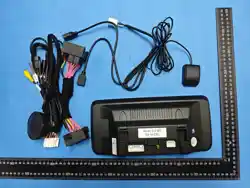
Car Multimedia Player
ADQ8

FCC Caution.
(1)§ 15.19 Labelling requirements.
This device complies with part 15 of the FCC Rules. Operation is subject to the following two
conditions: (1) This device may not cause harmful interference, and (2) this device must
accept any interference received, including interference that may cause undesired operation.
§ 15.21 Changes or modification warning
Any Changes or modifications not expressly approved by the party responsible for
compliance could void the user's authority to operate the equipment.
§ 15.105 Information to the user.
Note: This equipment has been tested and found to comply with the limits for a Class B
digital device, pursuant to part 15 of the FCC Rules. These limits are designed to provide
reasonable protection against harmful interference in a residential installation. This
equipment generates uses and can radiate radio frequency energy and, if not installed and
used in accordance with the
instructions, may cause harmful interference to radio communications. However, there is no
guarantee that interference will not occur in a particular installation. If this equipment does
cause harmful interference to radio or television reception, which can be determined by
turning the equipment off and on, the user is encouraged to try to correct the interference by
one or more of
the following measures:
-Reorient or relocate the receiving antenna.
-Increase the separation between the equipment and receiver.
-Connect the equipment into an outlet on a circuit different from that to which the receiver is
connected.
-Consult the dealer or an experienced radio/TV technician for help.
RF warning for Mobile device:
This equipment complies with FCC radiation exposure limits set forth for an uncontrolled
environment. This equipment should be installed and operated with minimum distance
20cm between the radiator & your body.