Roger On
TM
User Guide

Contents
1. Welcome 5
2. Getting to know your Roger On 6
2.1 Device description 10
2.2 Docking station 11
2.3 Accessories 12
2.4 Display 13
2.5 Technical data 14
3. Charging your Roger microphone 15
4. Using your Roger On 18
4.1 Switching on your Roger On 18
4.2 General use 19
4.3 Using on a table 20
4.4 Using in loud noise 22
4.5 Listening to a distant talker 24
5. Lock microphone mode 26
6. Mute 28
7. Listening to TV or other stationary
audio device 29
7.1 Setting up the docking station 29
7.2 Listening to TV using the docking station 31

8. Listening to a portable audio device 33
9. myRogerMic app 35
10. Network functions 36
10.1 Connect to a hearing aid or
Roger receiver 36
10.2 Connect another microphone 39
10.3 Disconnecting Roger devices 41
11. Using in a large group 42
11.1 Using multiple microphones 43
12. Reset 44
13. Shipping mode 45
14. Care and maintenance 46
15. Troubleshooting 48
16. Compliance information 52
17. Information and explanation of symbols 56
18. Important safety information 59
19. Service and warranty 66

4
This user guide is valid for:
Roger On CE mark applied 2021
Roger On iN CE mark applied 2021

5
Your Roger On has been developed by Phonak – the
world leader in hearing solutions based in Zurich,
Switzerland.
This premium product is the result of decades of
research and expertise and is designed to keep you
connected to the beauty of sound! We thank you for
making such a great choice and wish you many years of
listening pleasure.
Please read the User Guide carefully to make sure that
you understand and get the best out of your Roger On.
For more information regarding features, benefits,
setup, use and maintenance or repairs of your Roger On
and accessories – contact your hearing care
professional or manufacturer representative.
For any information regarding the repair service of the
Roger On or accessories please contact the hearing care
professional.
Phonak – life is on
www.phonak.com
1. Welcome
6
2. Getting to know your Roger On
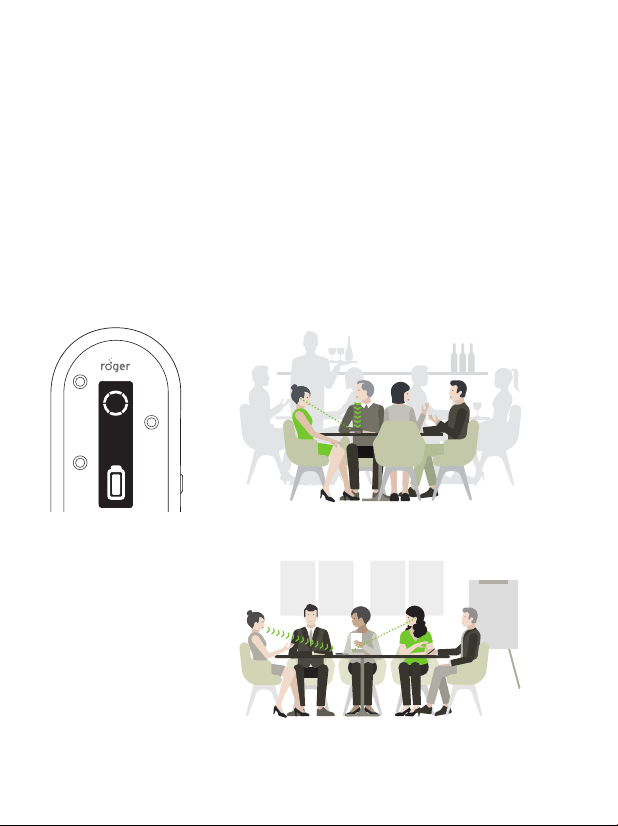
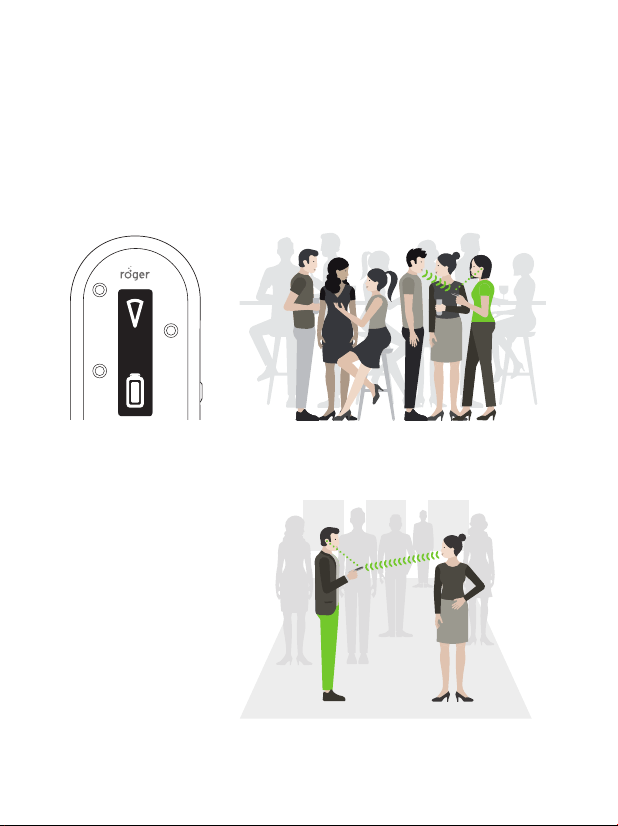
Roger On picks-up the voice of a speaker and sends it
wirelessly directly to your ears. There are four main use
cases for your Roger On:
On a table: Place Roger On in the center of the table and
hear the people sitting around it.
Restaurant
Meeting
7
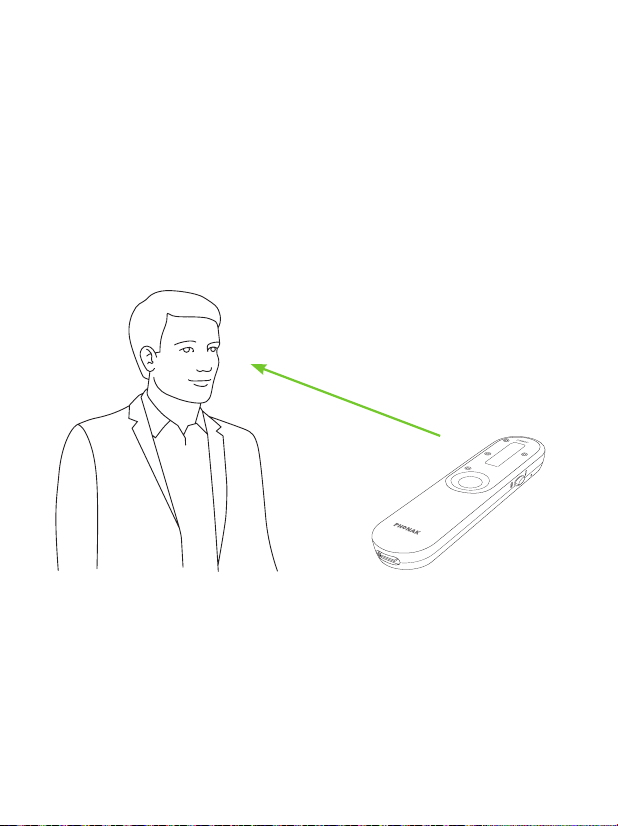
Pointing: Hold Roger On in the direction of the person
you want to hear.
Party
Face to face
8
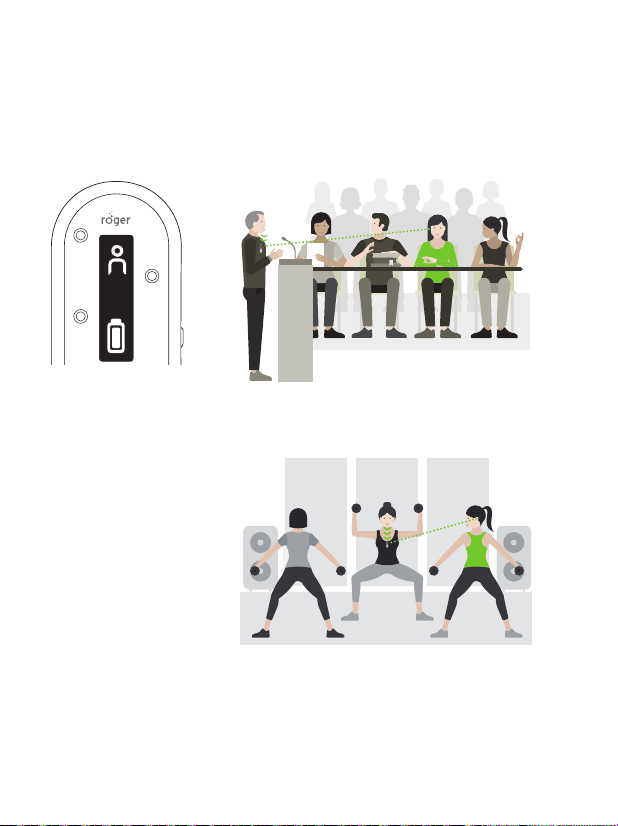
Presenter: Clip or hang Roger On near the mouth of a
distant talker and hear them better.
Speech/lecture
Fitness class
9
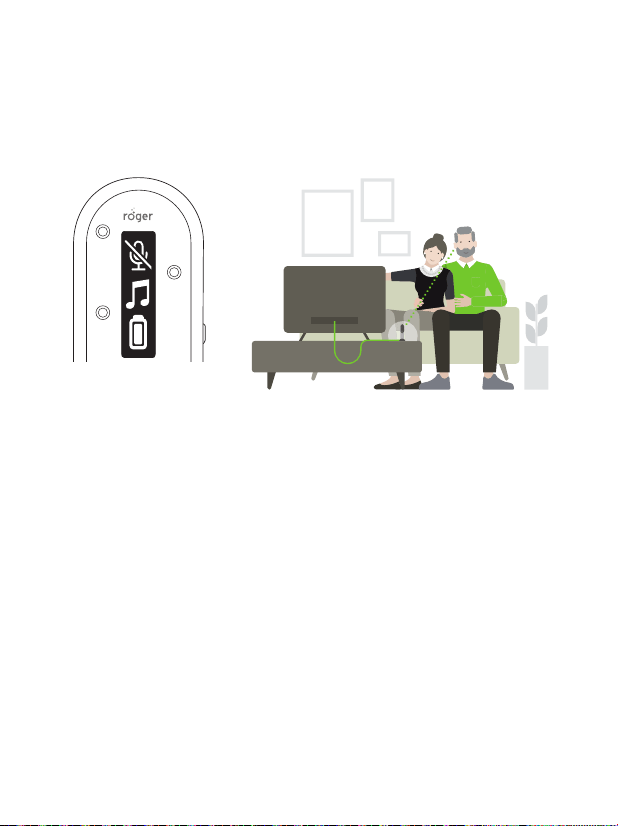
TV/Multimedia: Stream the sound from your TV or
another audio source directly into your ears.
Watching TV
10
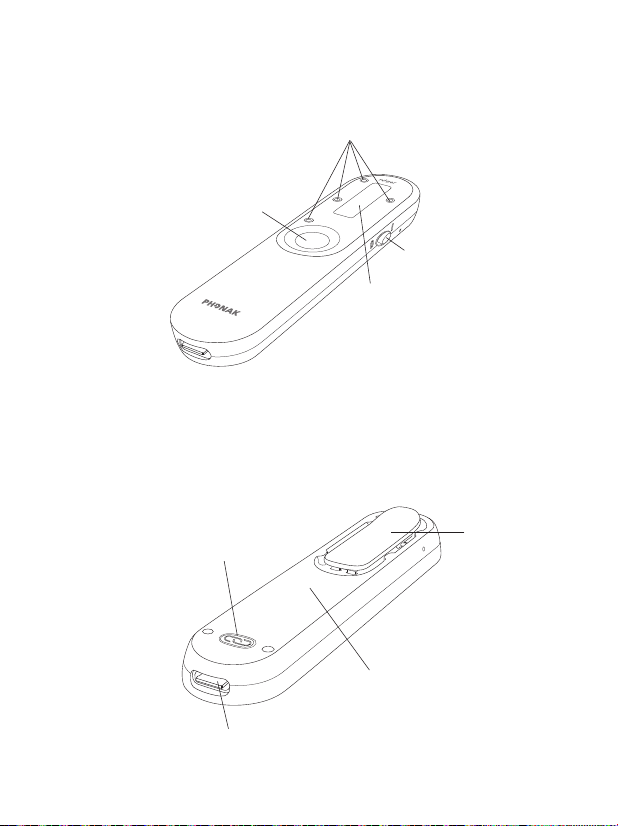
1 Function button
2 4 microphones
3 Power slider
4 Display
2.1 Device description
2
3
4
1
6
8
7
5
5 Connect button
6 Clip
7 Battery inside
8 USB C connector
11
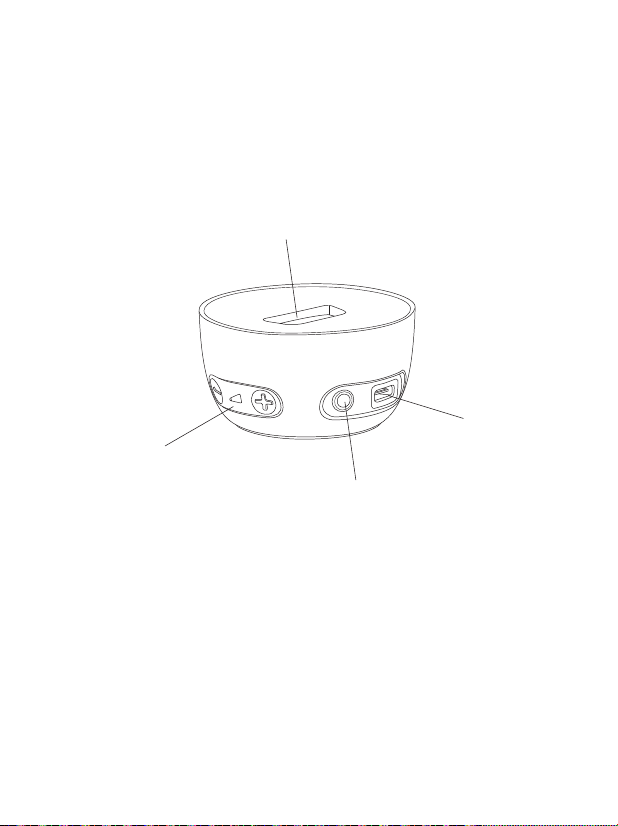
2.2 Docking station
1 Audio input volume control
2 Slot for Roger On
3 USB C connector
4 3.5 mm analog and optical digital (Toslink) audio input
1
2
3
4
12
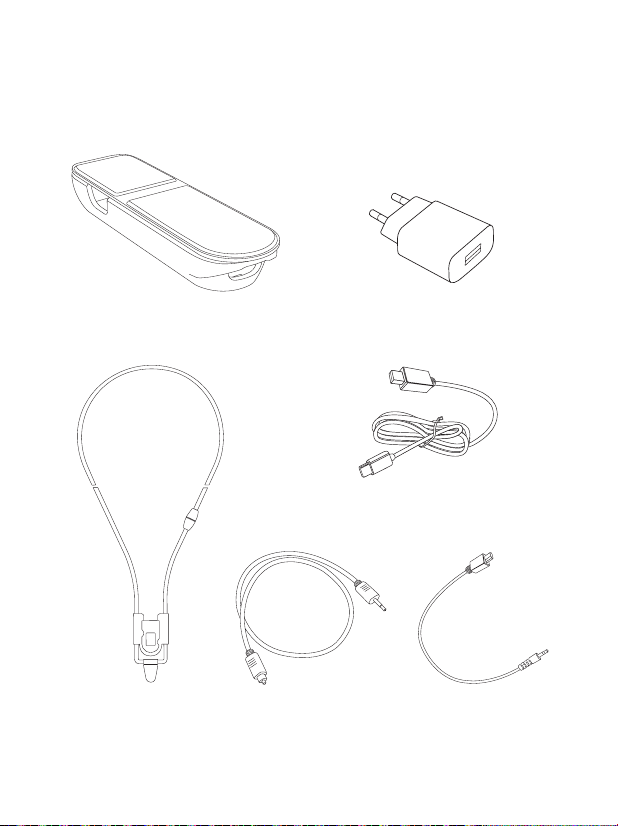
2.3 Accessories
Power supply
Charging cable
TV cable
Analog
audio cable
Lanyard
Case
13
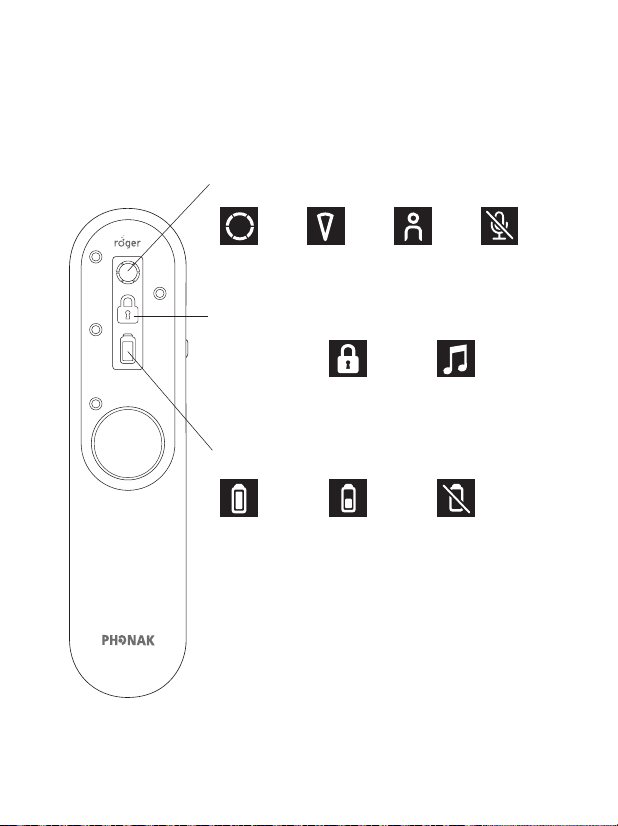
2.4 Display
Microphone mode
Table Pointing Presenter Mute
Automatic Locked Audio input
Full ~8h Mid ~4h Empty
Recharge!
Device status
Battery status
14
2.5 Technical data
Range:
You can place your Roger On up to 25 meters / 80 feet
away from you. Note that objects including walls may
reduce this distance. The furthest range is possible when
you can see your Roger On (i.e. line of sight).
25 m / 80 feet
Battery lifetime:
A fully charged battery typically last for 8 hours of
streaming.
15
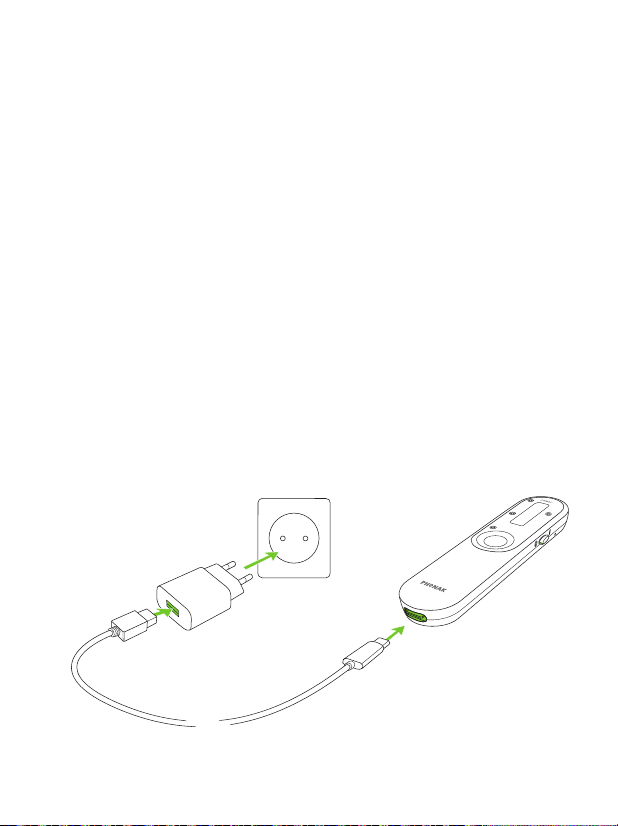
There are three ways to charge your Roger microphone:
A) Using external power supply
1. Plug the smaller end (USB C) of the charging cable
into your Roger microphone.
2. Plug the larger end (USB A) of the cable into the
external power supply.
3. Plug the external power supply into a wall outlet.
3. Charging your Roger microphone
1
2
3
16
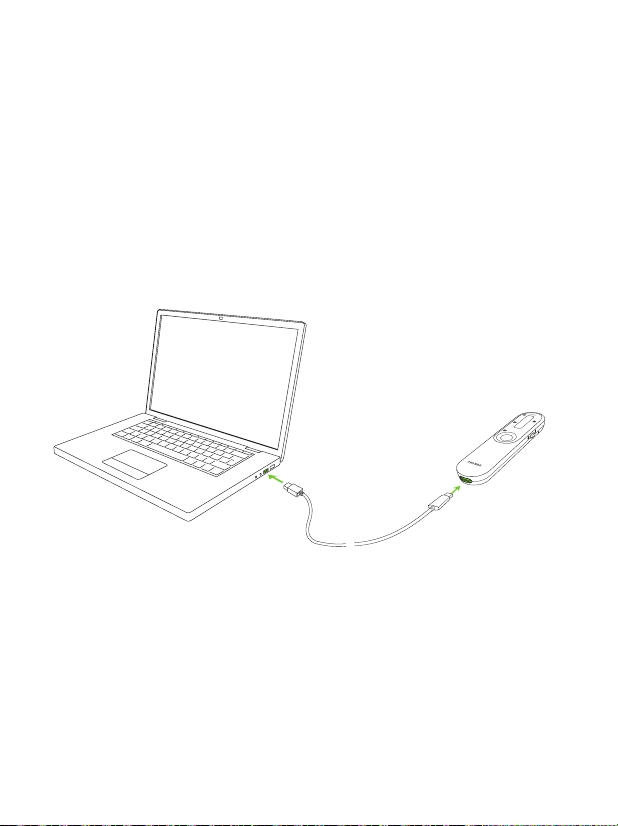
B) From computer or tablet
1. Plug the smaller end (USB C) of the charging cable into
your Roger On.
2. Plug the larger end (USB A) of the cable into the USB
port on your computer and switch your computer on.
1
2
17
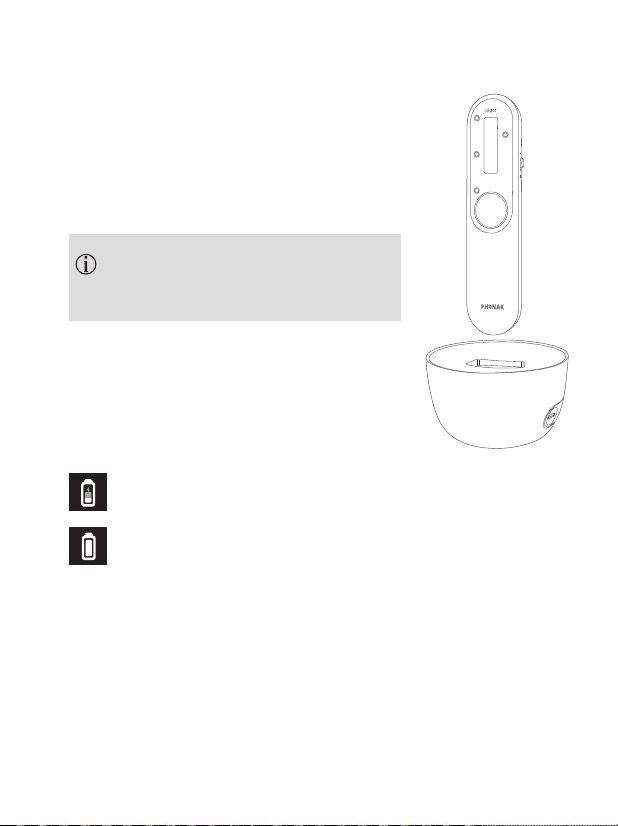
C) Via docking station
Slot the Roger On into the docking
station.
Please read chapter 7.1 to set up
the docking station.
Charging information
While charging, the battery icon will be moving.
When the battery is fully charged, the battery icon
will stop moving and will show a fully charged battery.
After 15 minutes, the display turns black.
With the supplied charger, Roger On is:
• 80% charged after 1 hour
• 100% charged after 3 hours
18
4. Using your Roger On
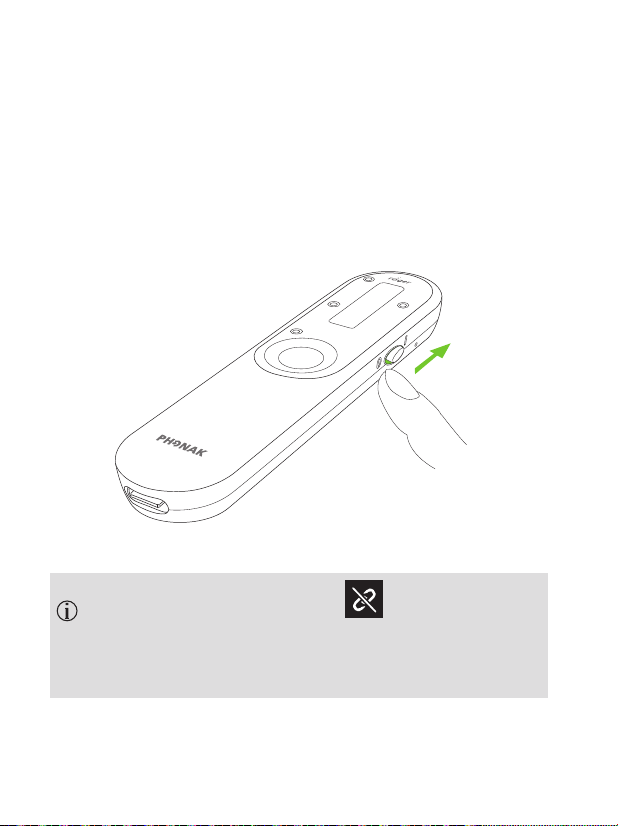
4.1 Switching on your Roger On
Move the on/ o switch to the on position. After a short
start-up animation, your Roger On will be ready to use.
If you see a crossed chain icon on the screen,
please rst connect your Roger On with your hearing
aid(s) or Roger receiver as described in chapter 10.
19
4.2 General use
Roger On is a versatile, intelligent product. It detects
which situation you are in and adapts its microphone
settings automatically.
For best speech understanding, always bring your
Roger microphone as close to the conversation
partner(s) as possible.
Adjust the length of the lanyard so that the Roger On
is within 20 cm / 8 inches to the mouth of the talker.
20
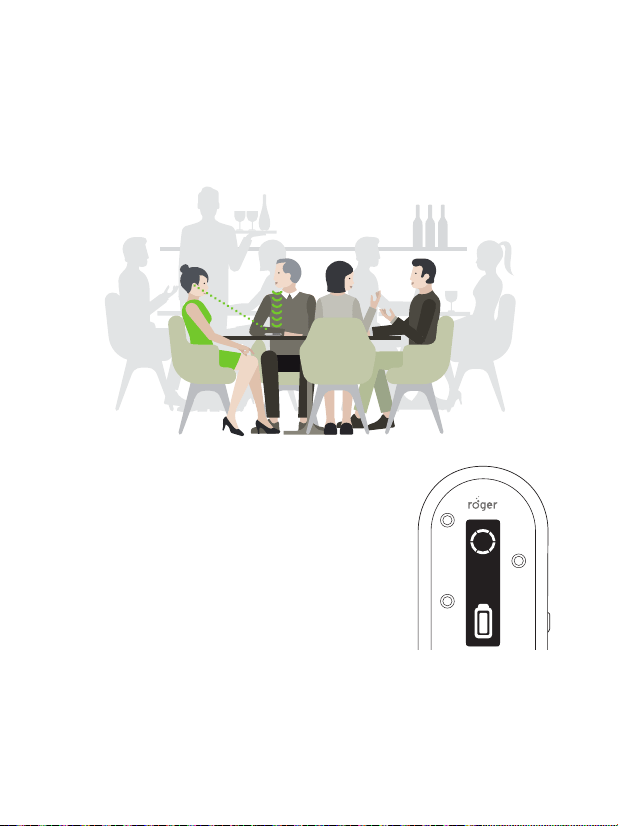
The microphone will pick up everyone
around the table, this is indicated by a
circle on the display.
4.3 Using on a table
Place your Roger On in the middle of the table to listen to
a group of people.
21
Using the app to steer the beam
The myRogerMic app lets you steer the direction of the
beam to focus on one or several specic talker(s). Please
see chapter 9 on how to download the app.
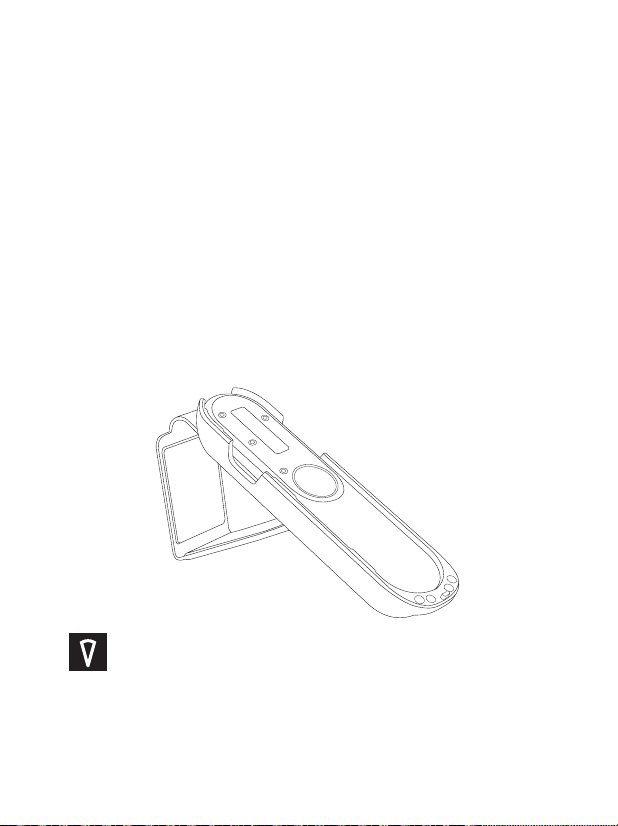
Using the stand function of the case
When you want to focus on a single person in front of
you, you may insert the Roger On in the case and tilt it up
using the stand function.
When using the stand, the microphone
automatically goes into pointing mode.
22
4.4 Using in loud noise
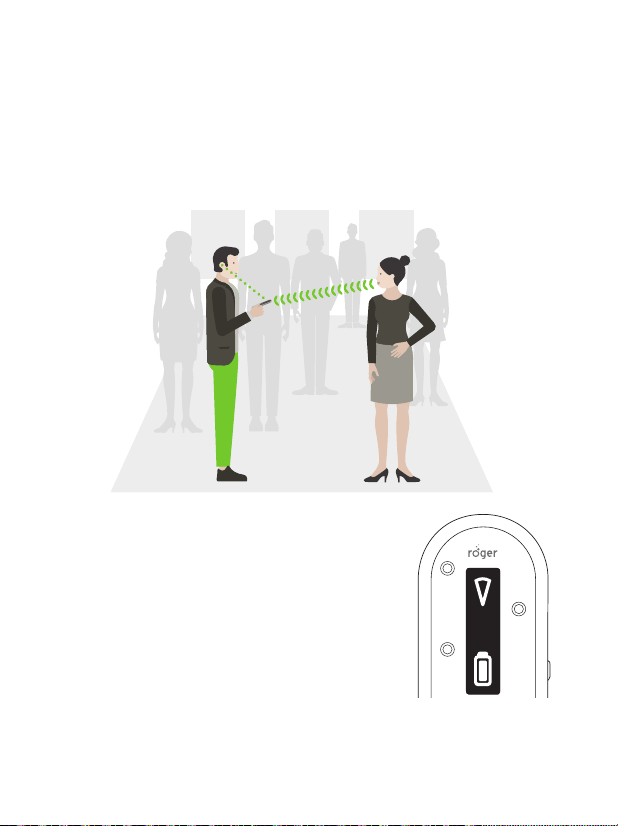
Hold Roger On in your hand and point it towards the
person you want to hear.
The microphone will automatically
activate a narrow beam and picks up
the voice of the person you are
pointing at. This is indicated by a
triangle on the display.
23
Make sure your Roger On is pointing straight at the
mouth of the talker.
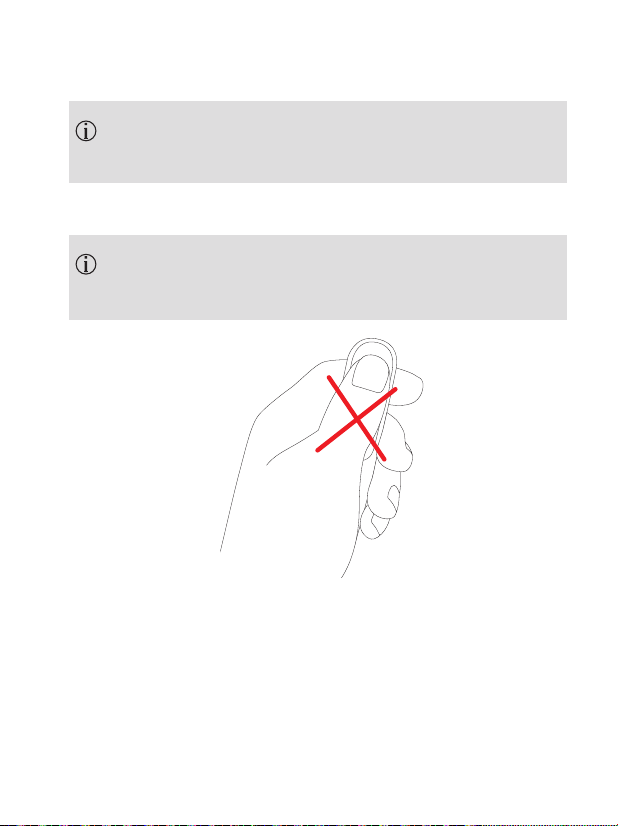
When holding Roger On in the hand, avoid covering
the microphone openings.
24
4.5 Listening to a distant talker
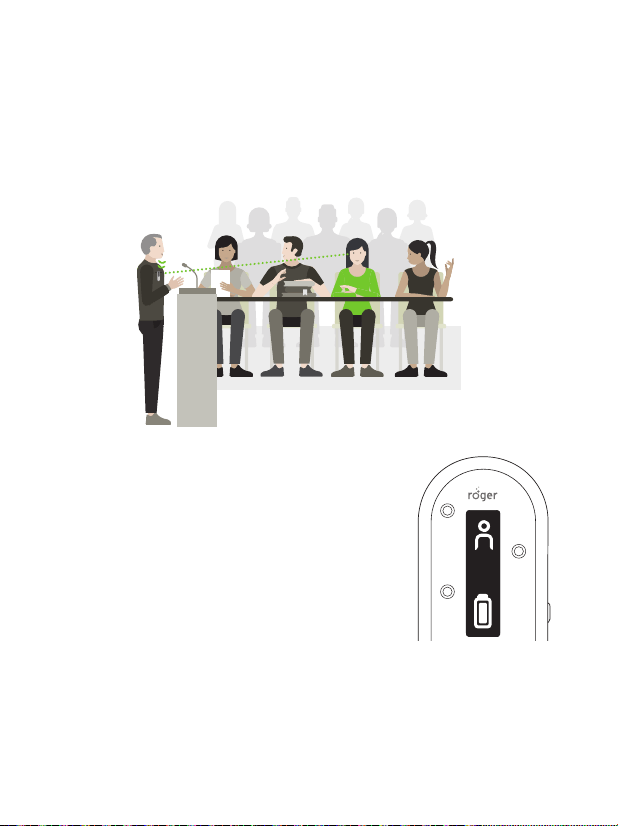
Clip Roger On on the lapel of a distant talker to hear them
better.
The microphone will pick up only the
person wearing the microphone; this
is indicated by a person icon on the
display.
25
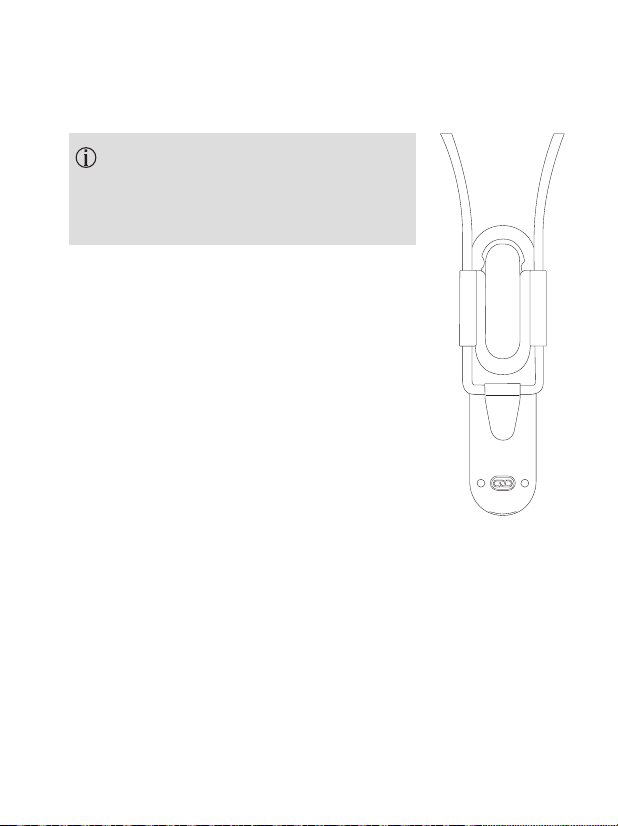
Alternatively, attach the lanyard to
Roger On and hang it around the
neck of a distant talker:
26
5. Locking the microphone mode
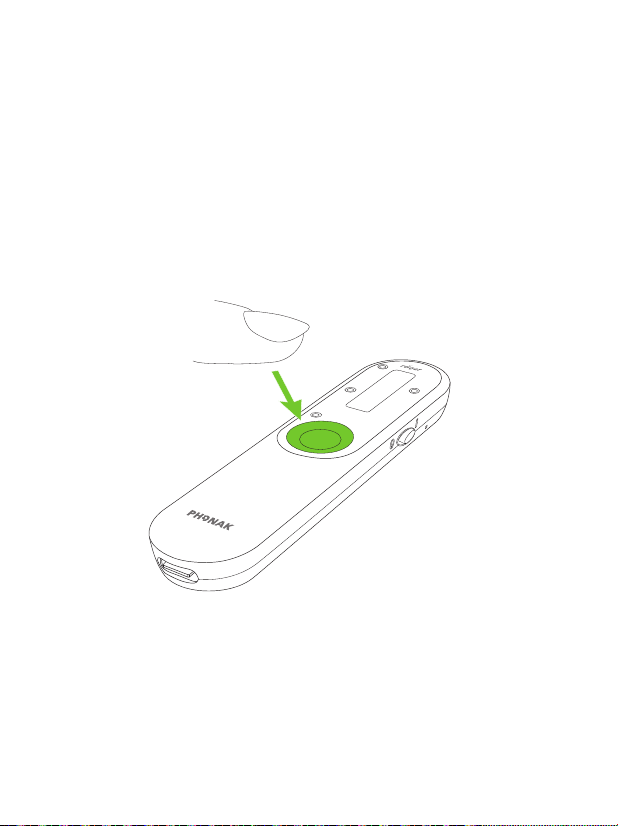
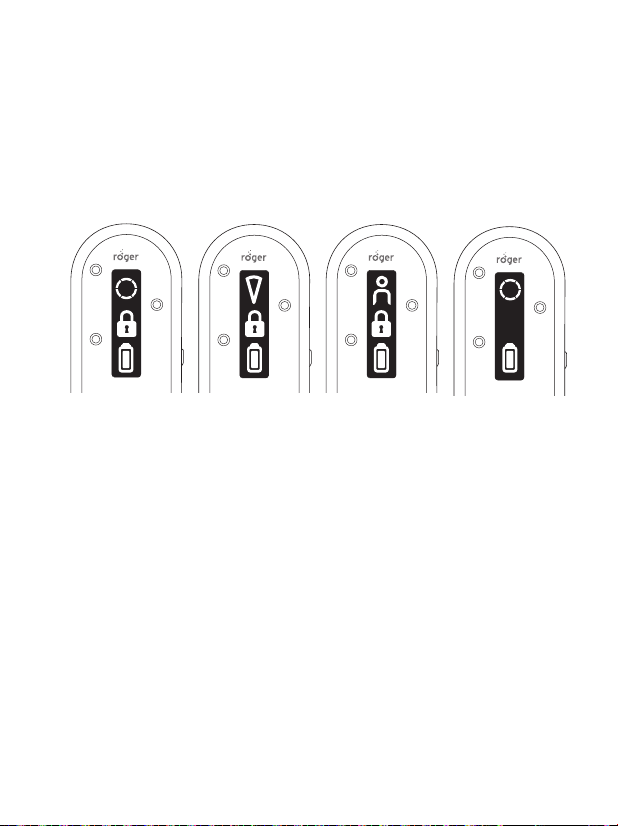
If you want to keep the Roger On in a specic microphone
mode independent on how it‘s positioned, press the
function button repeatedly until you have reached the
microphone mode you wish to lock the microphone in.
27
The lock modes will appear in the following order:
1. 2. 3. 4.
1. Table mode
2. Pointing mode
3. Presenter mode
4. No lock icon means that the Roger On is back to
automatic mode
The lock icon indicated that the microphone mode is
locked.
28
6. Muting
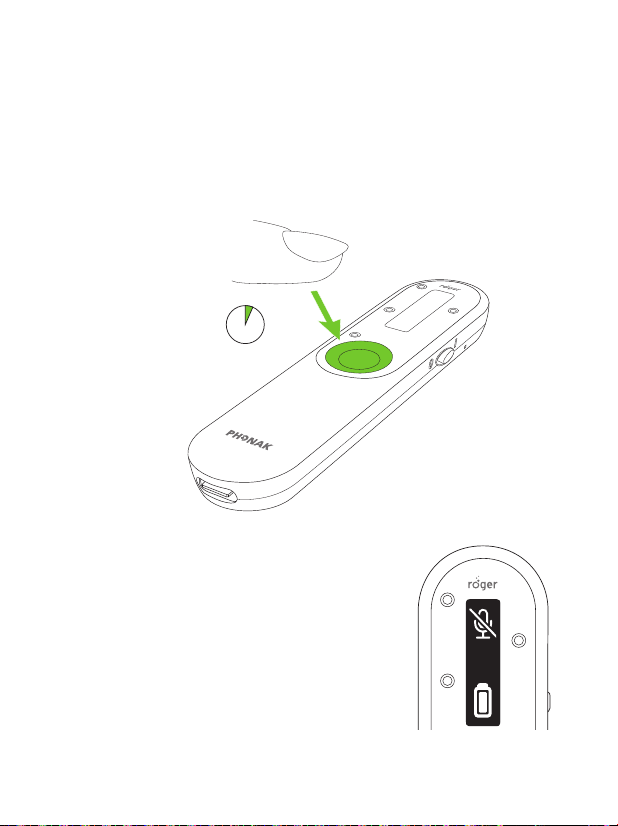
To mute the Roger On, press and hold the function button
for two seconds:
2 s
The muted microphone is indicated by a
crossed microphone icon on the display.
To unmute the microphone again, press
and hold the function button again for
two seconds.
29
7. Listening to TV or other stationary
audio device
7.1 Setting up the docking station
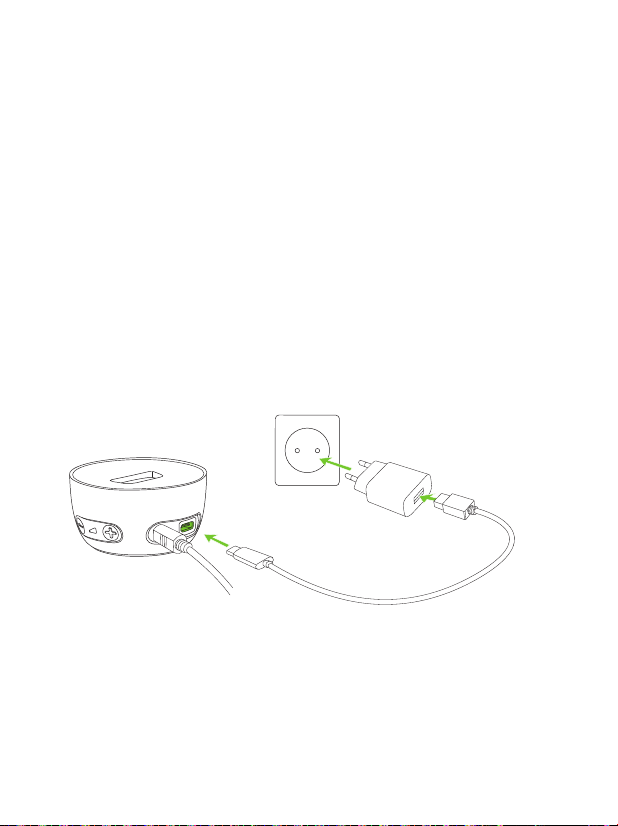
1. Insert the smaller end of the USB cable into the socket
of the docking station.
2. Insert the larger end of the USB cable in the external
power supply.
3. Plug the external power supply into a wall outlet.
1
2
3
30
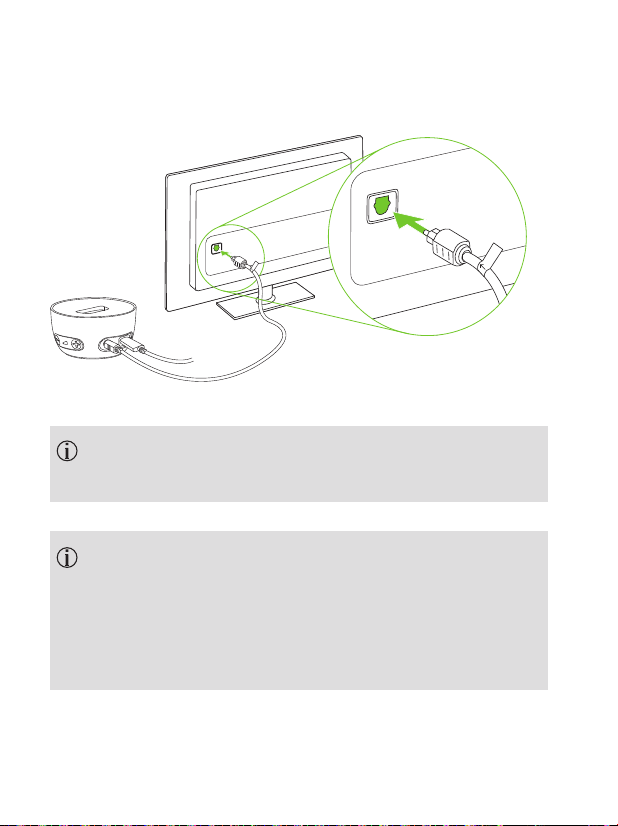
If your TV or other audio device does not have optical
audio output, you can alternatively use an analog
audio cable for connection between the TV and the
docking station. Please ask your hearing care
professional about such an analog audio cable.
Protect your eyes of the optical light from the optical
Toslink cable when plugged into the device or TV.
4. Connect the free end of the optical (Toslink) cable into
the optical OUTPUT of your TV or other audio device.
OPTICAL
DIGITAL
AUDIO OUT
TV
237,&$/
',*,7$/
$8',2287
OPTICAL
DIGITAL
AUDIO OUT
TV
237,&$/
',*,7$/
$8',2287
79
79
31
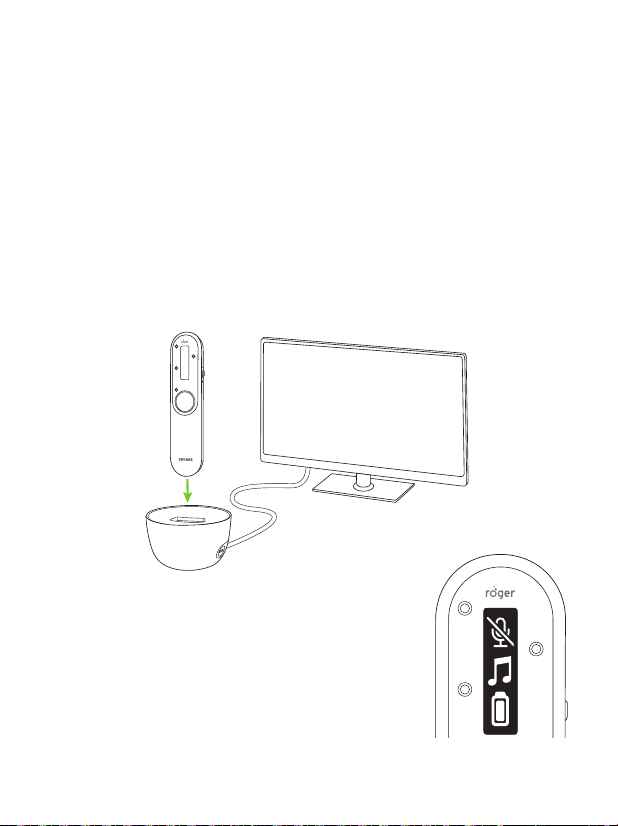
7.2 Listening to TV using the docking station
1. Insert your Roger microphone into the docking
station.
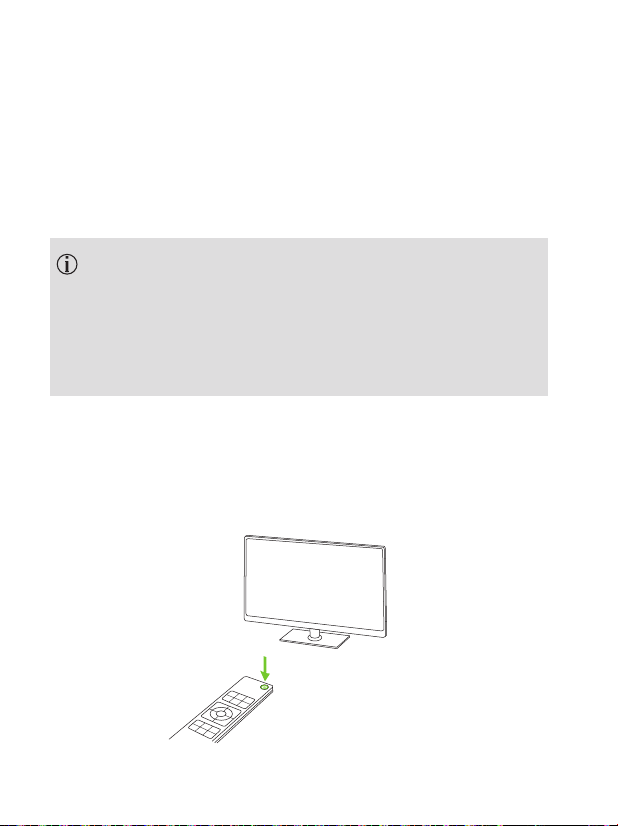
2. Switch on your TV (or other audio device). Your Roger
microphone will automatically transmit the audio
signal to your ears.
This is indicated by a music
icon on the display.
32
Your Roger microphone will automatically mute when
it transmits the TV‘s signal. You can activate the
microphone by switching the device on and pressing
the function key. Now you will hear the TV‘s signal and
microphone in parallel.
3. Adjust the volume using the +/- buttons on the
docking station according to your preference.
To end the transmission of the audio signal, simply switch
o the TV (or other audio device) or take your Roger
microphone out of the docking station.
33
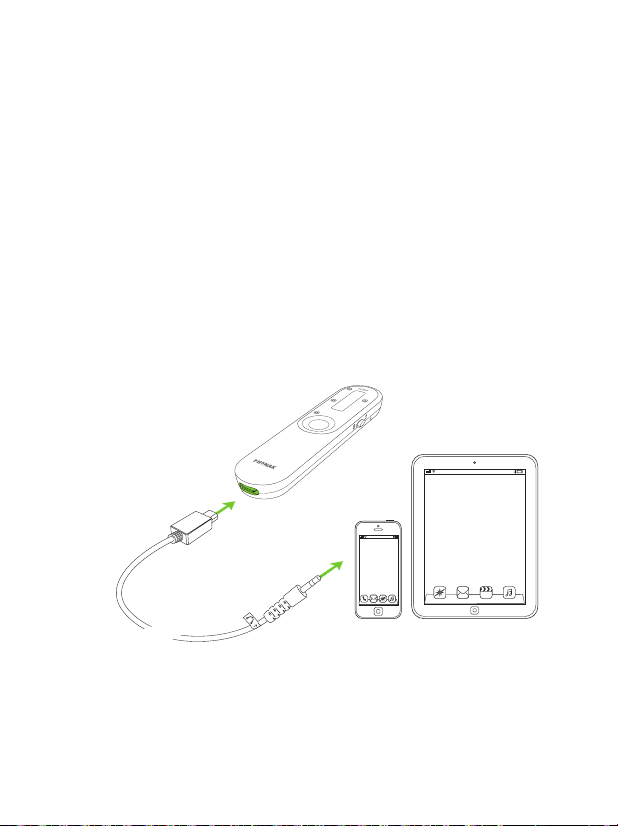
1. Make sure you have switched on your Roger
microphone.
2. Plug the rectangular end of the short audio cable into
your Roger microphone.
3. Plug the round end of the short audio cable into the
headphone output of your portable device.
4. Start the music or music app on your portable audio
device.
8. Listening to a portable audio
device
1
2
3
4

34
To end the transmission of the audio signal, simply
unplug the audio cable or switch your Roger microphone
o.
Your Roger microphone will automatically mute when
you plug in the audio cable. You can activate the
microphone by pressing the center touch key. Now you
will hear the audio device and microphone in parallel.

35
9. myRogerMic app
With the myRogerMic app you can control your
Roger On remotely from your smartphone.
You will be able to:
• Steer the direction of the beam
• Change microphone mode
• Mute / unmute
• Check current device status such as battery level and
actual mic mode
Your smartphone needs to support Bluetooth® LE in order
to connect to Roger On. myRogerMic app is available for
download from Google Play and App Store.
For further information about the app please read the
myRogerMic app user guide which can be downloaded
from www.phonak.com
The Bluetooth® is a registered trademark owned by Bluetooth SIG, Inc.
and any use of such marks by Sonova is under license.
The Apple App Store logo is a trademark of Apple Inc.
The Google Play stor logo is a trademark of Google LLC.
36
10. Network functions
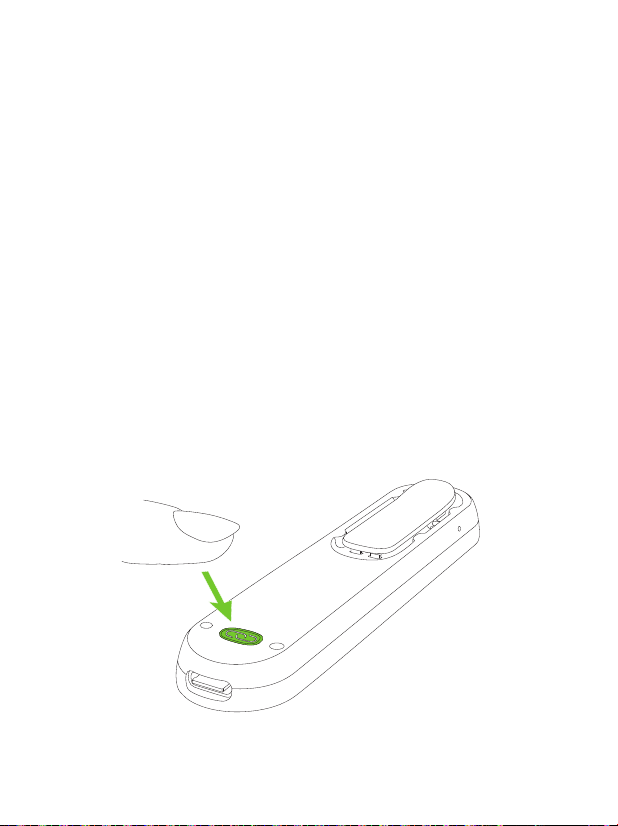
10.1 Connecting to a hearing aid or Roger receiver
To connect Roger On to a hearing device with Roger
installed or a Roger receiver, follow these steps:
1. Switch on your Roger On and hearing aid.
2. Press the Connect button on the backside of your
Roger On.
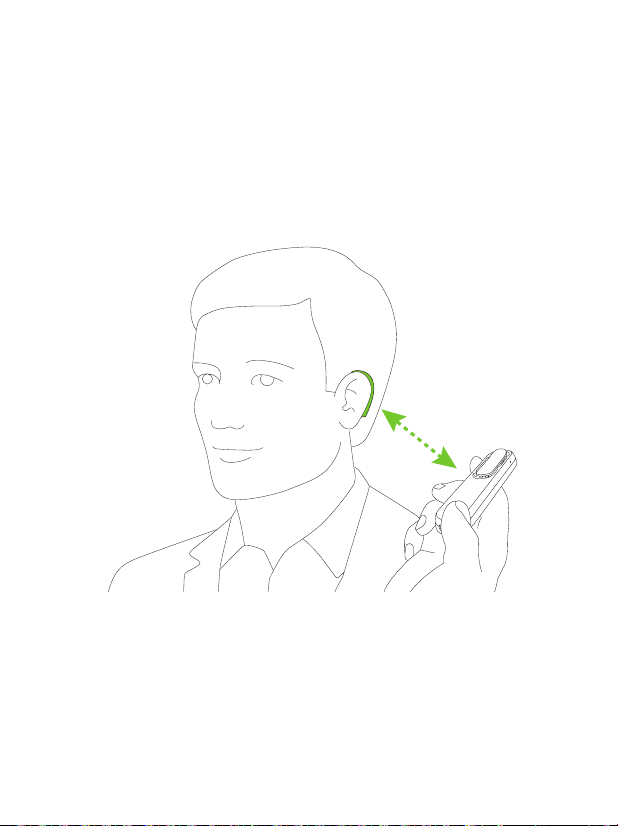
37
10.1 Connecting to a hearing aid or Roger receiver
To connect Roger On to a hearing device with Roger
installed or a Roger receiver, follow these steps:
1. Switch on your Roger On and hearing aid.
2. Press the Connect button on the backside of your
Roger On.
3. Hold your Roger On close (within 10 cm/ 4 inches) to
the hearing aid or Roger receiver:
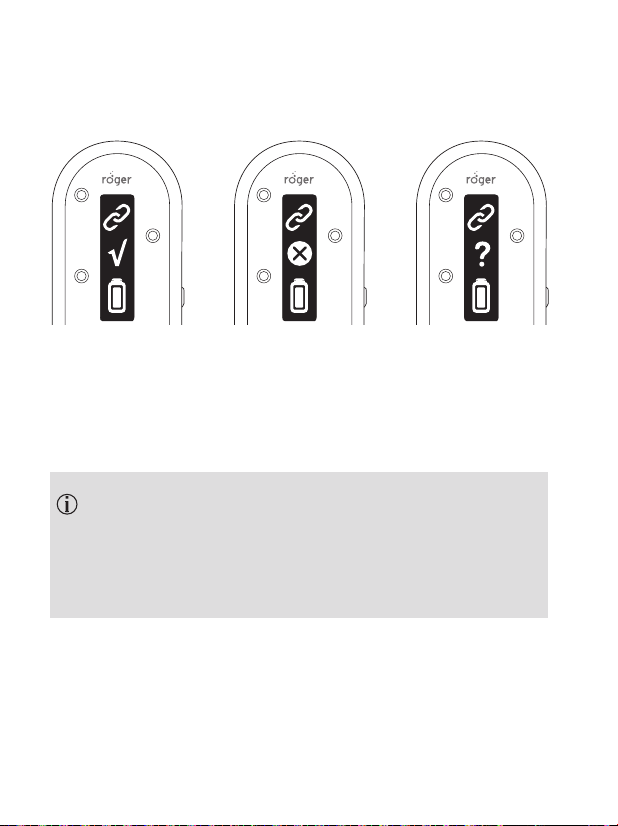
38
4. Check the feedback in the display of Roger On:
Connecting a receiver is only required once. The
hearing aid / Roger receiver will remain connected
with your microphone even after the hearing aid /
Roger receiver has been restarted.
Connect
successful
Receiver not
compatible
No receiver found,
go closer
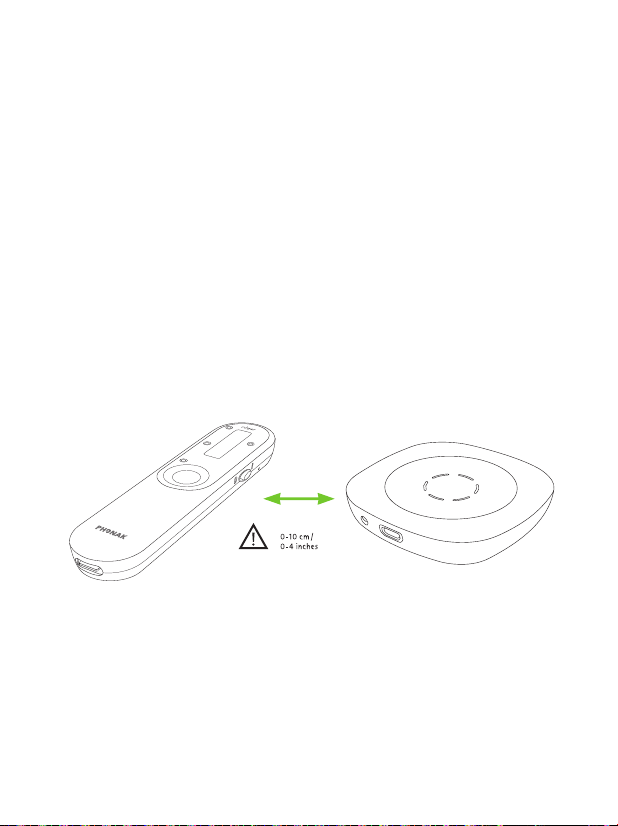
39
10.2 Connecting another microphone
To connect another compatible Roger microphone with
your Roger On, follow the steps below. Please refer to
chapter 11 to learn how to use multiple microphones in a
network.
1. Switch on both Roger microphones.
2. Hold your Roger On close (within 10 cm/ 4 inches) to
the other Roger microphone.
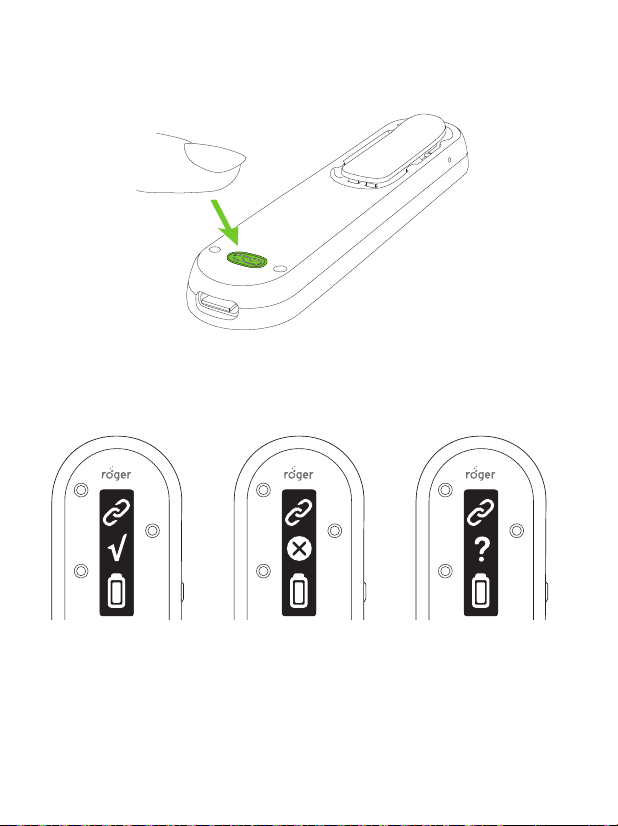
40
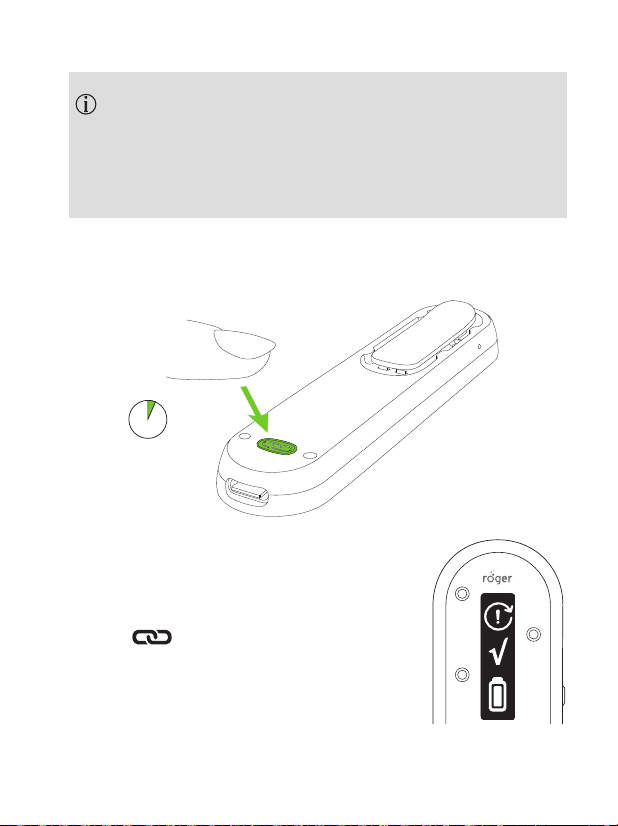
3. Press the Connect button on your Roger On.
4. Check the feedback in the display of Roger On:
Connect
successful
Device not
compatible
No device found,
go closer
41
Connecting another microphone is only required once.
The other microphone will remain connected with
your Roger On even after the microphones have been
restarted.
8 s
10.3 Disconnecting Roger devices
To disconnect your Roger On from any
connected receivers or other Roger
microphones, hold the ‘Connect’
button for 8 seconds until you
see this display information:
42
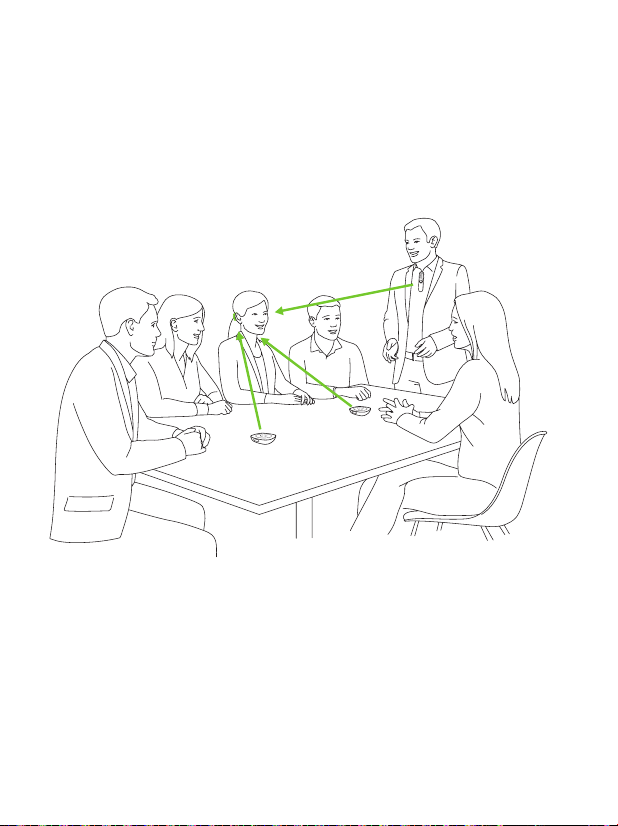
Roger On can be combined with other Roger microphones,
e.g. Roger Table Mic II. Please see chapter 10 on how to
connect another microphone.
Using multiple microphones helps you to hear a bigger
group or multiple distant talkers.
11. Using in a large group
43
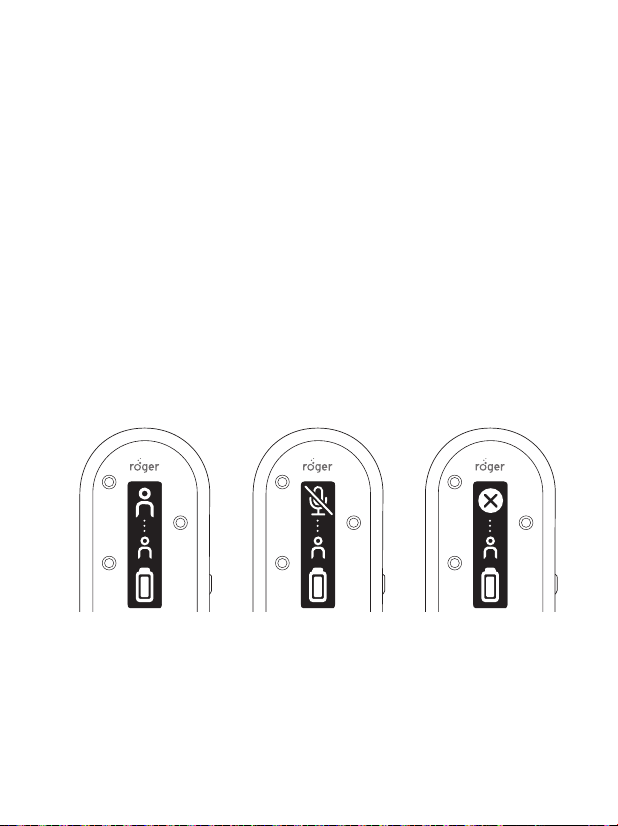
11.1 Using multiple microphones
When Roger On is used with other microphones, it has to
be worn by a talker on the chest. When you place Roger
On on the table or when you hold it in your hand, it will
mute automatically. Unmuting Roger On by a long press
(2 seconds) on the center button will block the other
microphones that are connected with the Roger On.
Muting Roger On will reactivate the other microphones
again.
Roger On is
connected to at least
one other Roger
microphone
Roger On is
automatically muted
when it is placed on
the table or held in
the hand
Roger On is blocked
by another Roger
microphone in the
network

44
If your Roger On stops responding to commands you can
reset it by pressing the center and connect buttons
together for 10 seconds.
12. Reset
45
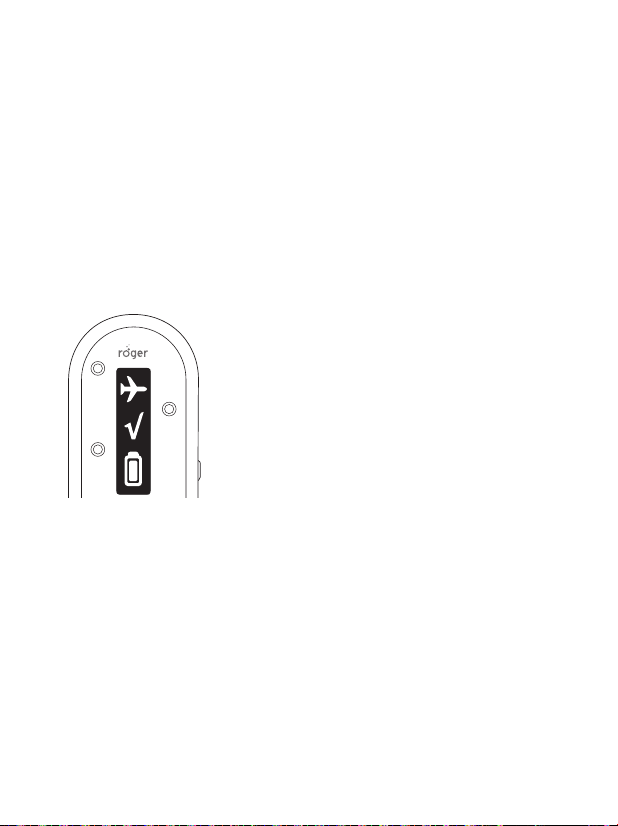
In case you need to return the Roger On for repair it is
recommended to put the device in shipping mode. To do
that, press and hold the connect button and switch the
device o. Shipping mode is conrmed by the following
indication in the display:
13. Shipping mode

46
14. Care and maintenance
Diligent and routine care of your Roger microphone and
accessories contribute to outstanding performance and a
long service life. To ensure a long service life, Sonova
Communications AG provides a minimum of a five year
service period after phase out of the respective Roger
microphone.
General information
Your Roger microphone is protected against splashes of
water and dust. After exposure to water, sweat or dust,
the Roger microphone is cleaned and dried.
Always make sure that the Roger microphone, docking
station and charger cables are dry and clean before
use.

47
Cleaning instructions
Clean the surfaces with a lint-free cloth. Never use
cleaning agents such as household detergents, soap, etc.
for cleaning your Roger microphone. It is not
recommended to rinse with water. If you need to clean
your Roger microphone intensively, ask your hearing care
professional for advice.
For the docking station, make sure that the charging slot
and ports are clean. Remove dust or dirt from the
charging slot. Never use household detergents, soap, etc.
for cleaning the docking station.

48
Problem Causes Solutions
I cannot switch my Roger
microphone on.
The battery is empty.
Charge your Roger microphone for at least two hours.
I cannot hear sound from my
Roger microphone.
Your Roger microphone is muted.
Unmute your Roger microphone by pressing the center button for
2 seconds.
Your Roger microphone is locked. Switch to automatic microphone mode or ensure you lock the
microphone in the appropriate mode.
Your Roger receivers are not
connected to your Roger
microphone.
Hold your Roger microphone close to each Roger receiver or Roger
compatible hearing aid and press the ‘Connect’ button.
Your Roger receiver is not working. Make sure you have attached the Roger receiver to your hearing aid
and that it is powered on.
Your hearing aids are not set to the
correct program.
Check that your hearing aids are set to the correct program (Roger/
FM/DAI/EXT).
I can hear the talker but I
cannot understand what he/
she says
The microphone is too far from the
talker.
Move your Roger microphone closer to the talker‘s mouth.
The microphone openings are
covered by ngers.
Hold the microphone in a way that the microphone openings are not
covered.
The microphone openings are
covered by dirt.
Clean the microphone openings.
The Roger microphone mode is
locked.
Switch to automatic microphone mode or ensure you lock the
microphone in the appropriate mode.
15. Troubleshooting

49
Problem Causes Solutions
I cannot switch my Roger
microphone on.
The battery is empty.
Charge your Roger microphone for at least two hours.
I cannot hear sound from my
Roger microphone.
Your Roger microphone is muted.
Unmute your Roger microphone by pressing the center button for
2 seconds.
Your Roger microphone is locked. Switch to automatic microphone mode or ensure you lock the
microphone in the appropriate mode.
Your Roger receivers are not
connected to your Roger
microphone.
Hold your Roger microphone close to each Roger receiver or Roger
compatible hearing aid and press the ‘Connect’ button.
Your Roger receiver is not working. Make sure you have attached the Roger receiver to your hearing aid
and that it is powered on.
Your hearing aids are not set to the
correct program.
Check that your hearing aids are set to the correct program (Roger/
FM/DAI/EXT).
I can hear the talker but I
cannot understand what he/
she says
The microphone is too far from the
talker.
Move your Roger microphone closer to the talker‘s mouth.
The microphone openings are
covered by ngers.
Hold the microphone in a way that the microphone openings are not
covered.
The microphone openings are
covered by dirt.
Clean the microphone openings.
The Roger microphone mode is
locked.
Switch to automatic microphone mode or ensure you lock the
microphone in the appropriate mode.
50
Problem Causes Solutions
I keep losing the audio signal.
Distance between you and your
Roger microphone is too far.
Move closer to your Roger microphone.
There are obstacles between you
and your Roger microphone.
Try to be in line of sight to your Roger microphone or go closer to
your Roger microphone.
I hear too much noise.
Noise is picked up by your Roger
microphone.
Switch to pointing mode and direct your Roger microphone in the
direction of the talker.
I do not like to hear my own
voice over my Roger
microphone.
Your voice is picked up by your
Roger microphone.
In the myRogerMic app, deactivate the beam that points in your
direction.
The volume of my multimedia
device is too low.
Incorrect volume settings.
Increase volume on the Roger microphone‘s docking station or on
your audio source.
I cannot hear my multimedia
device
The audio source is muted.
Unmute the audio source.
Your Roger microphone is switched
o.
Switch on your Roger microphone.
The audio cable is not plugged
correctly.
Plug the audio cable correctly.
My Roger microphone has
stopped working and does
not react to any button
presses.
Software issue.
Reset your Roger microphone by simultaneously pressing the
Function button and the Connect button for 10 seconds.

51
Problem Causes Solutions
I keep losing the audio signal.
Distance between you and your
Roger microphone is too far.
Move closer to your Roger microphone.
There are obstacles between you
and your Roger microphone.
Try to be in line of sight to your Roger microphone or go closer to
your Roger microphone.
I hear too much noise.
Noise is picked up by your Roger
microphone.
Switch to pointing mode and direct your Roger microphone in the
direction of the talker.
I do not like to hear my own
voice over my Roger
microphone.
Your voice is picked up by your
Roger microphone.
In the myRogerMic app, deactivate the beam that points in your
direction.
The volume of my multimedia
device is too low.
Incorrect volume settings.
Increase volume on the Roger microphone‘s docking station or on
your audio source.
I cannot hear my multimedia
device
The audio source is muted.
Unmute the audio source.
Your Roger microphone is switched
o.
Switch on your Roger microphone.
The audio cable is not plugged
correctly.
Plug the audio cable correctly.
My Roger microphone has
stopped working and does
not react to any button
presses.
Software issue.
Reset your Roger microphone by simultaneously pressing the
Function button and the Connect button for 10 seconds.
52
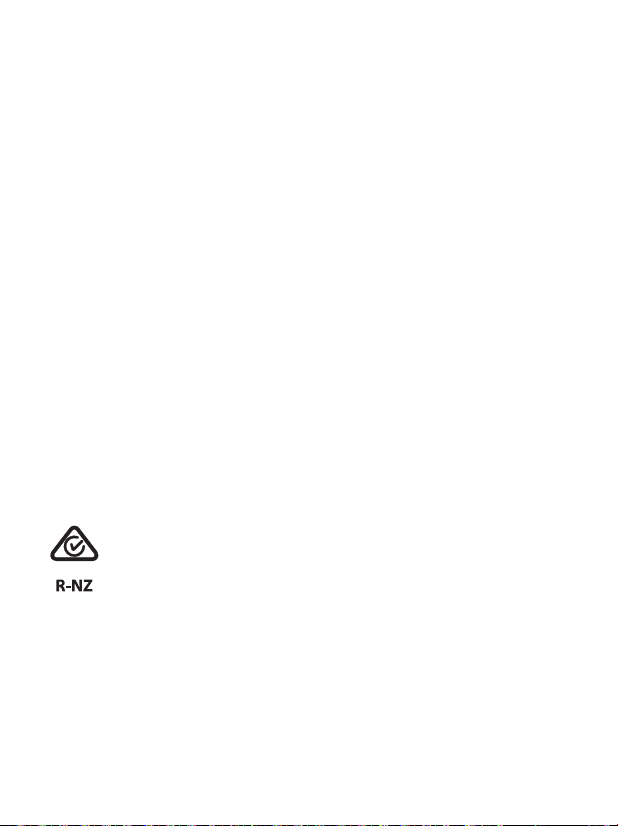
Indicates a device’s compliance with applicable
Radio Spectrum Management’s (RSM) and
Australian Communications and Media Authority
(ACMA) regulatory arrangements for the legal sale
in New Zealand and Australia.
The compliance label R-NZ is for radio products
supplied in the New Zealand market under
conformity level A1.
16. Compliance information
Europe:
Declaration of Conformity
Hereby Sonova Communications AG declares that this
product is in compliance with the Radio Equipment
Directive 2014/53/EU. The full text of the EU Declaration
of Conformity can be obtained from the manufacturer or
the local Phonak representative whose address can be
taken from the list on https://www.phonak.com/com/en/
certificates.html (Phonak worldwide locations).
Operation frequency: 2400 - 2483.5 MHz
Power level: < 100 mW
Australia/New Zealand:

53
FCC ID: KWCTX33
IC: 2262A-TX33
Notice 1:
This device complies with Part 15 of the
FCC Rules and with RSS-247 of Industry
Canada. Operation is subject to the
following two conditions:
1) this device may not cause interference, and
2) this device must accept any interference,
including interference that may cause undesired
operation of the device.
Notice 2:
Changes or modifications made to this device not
expressly approved by Sonova Communications AG may
void the FCC authorization to operate this device.
Notice 3:
The device has been tested and found to comply with
the limits for a Class B digital device, pursuant to Part 15
of the FCC Rules and ICES-003 of Industry Canada.

54
These limits are designed to provide reasonable protection
against harmful interference in a residential installation.
The device generates uses and can radiate radio frequency
energy and, if not installed and used in accordance with
the instructions, may cause harmful interference to radio
communications. However, there is no guarantee that
interference will not occur in a particular installation. If
the device does cause harmful interference to radio or
television reception, which can be determined by turning
the device o and on, the user is encouraged to try to
correct the interference by one of the following measures:
– Reorient or relocate the receiving antenna.
– Increase the separation between the device and
receiver.
– Connect the device into an outlet on a circuit dierent
from that to which the receiver is connected.
– Consult the dealer or an experienced radio/TV
technician for help.

55
Notice 4:
Japanese Radio Law Compliance. Business Law
Compliance. This device is granted pursuant to
the Japanese Radio Law (電波法). This device
should not be modied (otherwise the granted
designation number will become invalid).
Notice 5:
FCC / Industry Canada RF Radiation Exposure Statement
This device complies with FCC RF radiation exposure limits
set forth for an uncontrolled environment. This
transmitter must not be co-located or operating in
conjunction with any other antenna or transmitter.
56
17. Information and explanation
of symbols
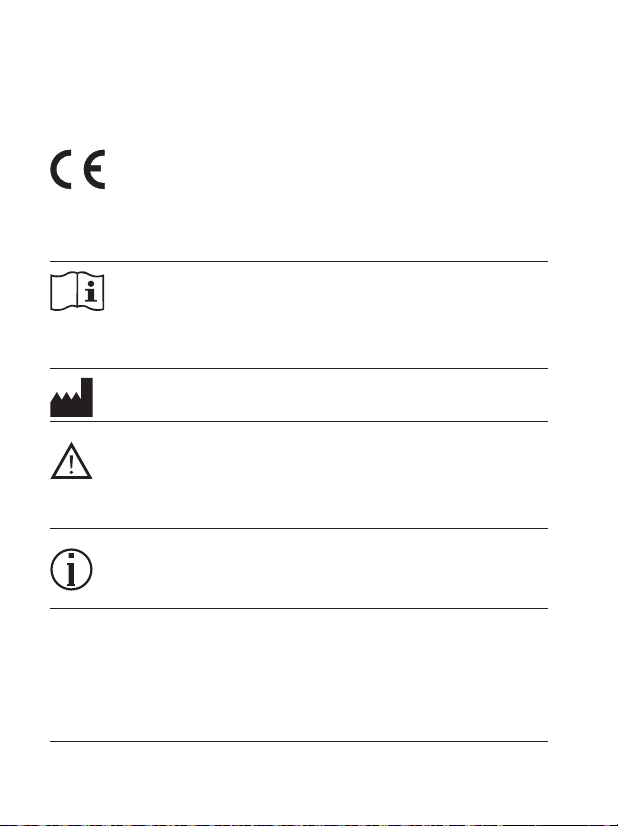
The CE symbol is confirmation by Sonova
Communications AG that this product is
in compliance with the Radio Equipment
Directive 2014/53/EU.
This symbol indicates that it is important for
the user to read and take into account the
relevant information in this user guide.
Indicates the device manufacturer.
This symbol indicates that it is important
for the user to pay attention to the relevant
warning notices in this user guide.
Important information for handling and
product safety.
The device is designed such that it functions
without problems or restrictions if used as
intended, unless otherwise noted in this user
guide.
Operating
conditions
57
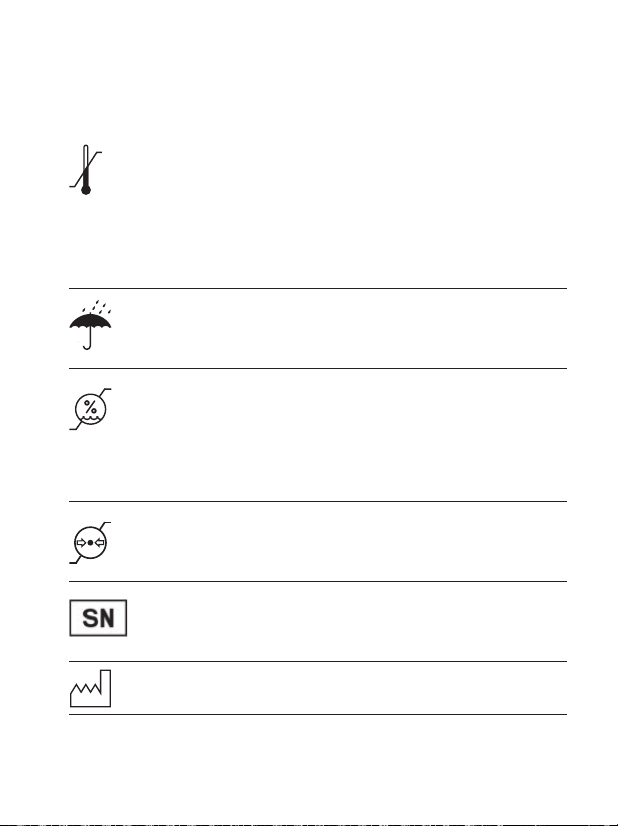
Temperature transport and storage:
–20° to +60° Celsius (–4° to +140°
Fahrenheit).
Temperature operation: 0° to +40° Celsius
(+32° to +104° Fahrenheit).
Keep dry.
Humidity during transportation and
storage: <90% (non-condensing).
Humidity operation: <90% (non-
condensing).
Atmospheric pressure: 500 hPa to 1060 hPa.
Indicates the manufacturer’s serial number so
that a specic device can be identied.
Indicates date of manufacture.
58
Packaging and user guide can be recycled.
This symbol on the product or its packaging
means that it should not be disposed of with
your other household waste. It is your
responsibility to dispose of your waste
equipment separately from the municipal
waste stream. The correct disposal of your old
appliance will help prevent potential negative
consequences for the environment and
human health. This product has an embedded,
nonreplaceable battery. Do not attempt to
open the product or remove the battery as
this may cause injury and damage the
product. Please contact the local recycling
facility for removal of the battery.
Dolby, Dolby Audio and the double-D
symbol are trademarks of Dolby
Laboratories.
59
Please read the information on the following pages
before using your device.
18.1 Hazard warnings
This device is not for children below 36 months. It
contains small parts that can cause choking, if
swallowed by children. Keep out of reach of children
and mentally challenged people or pets. If swallowed,
consult a physician or hospital immediately.
The device may generate magnetic elds. If any
inuence of the Roger On on the Implantable
Device (e.g. pacemakers, debrillators, etc.) is
experienced, stop using the Roger On and
contact your doctor and /or the manufacturer of the
Implantable device for advice.
Use only hearing aids that have been specially
programmed for you by your hearing care
professional.
18. Important safety information
60
Using this device may reduce background noises.
Please be aware that warning signals or noises, e.g.
cars, are partially or entirely suppressed.
Dispose of electrical components in accordance with
your local regulations.
Changes or modifications to any of the devices that
were not explicitly approved by Sonova
Communications AG are not permitted.
Only use accessories approved by Sonova
Communications AG.
The charger provided by Sonova Communications AG
can be used for charging Roger On up to 5000 m
altitude. For safety reasons, only use chargers
supplied by Sonova Communications AG or IEC 62368
certified chargers with a rating of 5VDC, min. 500 mA,
max. 2000 mA and up to an altitude of 2000 m.
61
Do not use the device in explosive areas (mines or
industrial areas with danger of explosions, oxygen rich
environments or areas where ammable anesthetics
are handled), or where electronic equipment is
prohibited.
When operating machinery, ensure that no parts of
your Roger device can get caught in the machine.
Do not charge device while it is on your body.
Do not cover the device while charging, e.g. with a
cloth etc.
This device operates between 2.4-2.48 GHz frequency
range. When ying please check if ight operator
requires device to be switched o.
Only authorized personal are allowed to open the
product and it‘s accessories due to possible electrical
hazard.

62
18.2 Product safety information
Protect the device connectors, plugs, power supply
from dirt and debris.
Do not use excessive force when connecting your
device to its dierent cables.
Protect the device from excessive moisture (bathing
or swimming areas) and heat sources (radiator).
Protect the device from excessive shock and
vibration.
Clean the device using a damp cloth. Never use
household cleaning products (washing powder,
soap, etc.) or alcohol to clean them. Never use a
microwave or other heating devices to dry the device.
X-ray radiation, CT or MRI scans may destroy or
adversely aect the correct functioning of the
device.
Always make sure that the device and docking station
are dry and clean.

63
Store the device in a dry place if you are not using it
for a long period of time.
Use of this equipment adjacent to or stacked with
other equipment should be avoided because it could
result in improper operation. If such use is necessary,
this equipment and the other equipment should be
observed to verify that they are operating normally.
Do not place the charging accessories close to an
inductive cooking surface. Conductive structures
inside the charging accessories could absorb inductive
energy resulting in thermal destruction.
The device is protected against splashes of water but
it is not waterproof.
The device contains a lithium-ion battery. The device
cannot be placed in the checked-in luggage but can
be placed in the carry-on luggage.

64
When shipping the device by plane, all the rules and
regulation on the safe shipment of lithium-ion
batteries apply. Batteries that are suspected defective
should not be shipped by air freight.
The USB port of the charger is to be used for the
described purpose only.
If the device has been dropped or damaged, if it
overheats, has a damaged cord or plug, or has been
dropped into liquid, stop using your device and
contact authorized service centre.

65
18.3 Other important information
Protect your eyes of the optical light from the optical
Toslink cable when plugged into the device or TV.
High-powered electronic equipment, larger electronic
installations and metallic structures may impair and
signicantly reduce the operating range.
Device collects and stores internal technical data. This
data may be read by a hearing care professional in
order to check the device, as well as to help you use
your device correctly.
The digital signal sent from the device to a connected
receiver cannot be overheard by other devices which
are not in the microphone’s network.

66
19. Service and warranty
19.1 Local warranty
Please ask the hearing care professional, where you
purchased your devices, about the terms of the local
warranty.
19.2 International warranty
Phonak oers a one year limited international warranty,
valid as of the date of purchase. This limited warranty
covers manufacturing and material defects. The warranty
is valid only if proof of purchase is shown.
The international warranty does not aect any legal
rights that you might have under the local warranty or
the applicable national legislation governing sale of
consumer goods.

67
Authorized hearing care professional
(stamp/signature):
19.3 Warranty limitation
This warranty does not cover damage from improper
handling or care, exposure to chemicals, immersion in
water or undue stress. Damage caused by third parties
or non-authorized service centers renders the warranty
null and void. This warranty does not cover any services
performed by a hearing care professional in his/her
oce.
Serial number:
Date of purchase:

68
Notes

69

70

71
029-0874-02/V2.00/2020-09/cl © 2020 Sonova AG All rights reserved
Manufacturer:
Sonova Communications AG
Herrenschwandweg 4
CH-3280 Murten
Switzerland
www.phonak.com