APP
soundcore
Apple and the Apple logo are trademarks of
Apple Inc.
Google Play and the Google Play
logo are
trademarks of Google Inc.
Download the soundcore app to explore ambient sound level adjustment, adaptive EQ settings, Spatial Audio,
HearID sound, charging case controls, firmware update, and more exciting features.
If your earbuds cannot connect with the soundcore app, try re-installing the app or updating it to the latest version
available in your mobile app store.
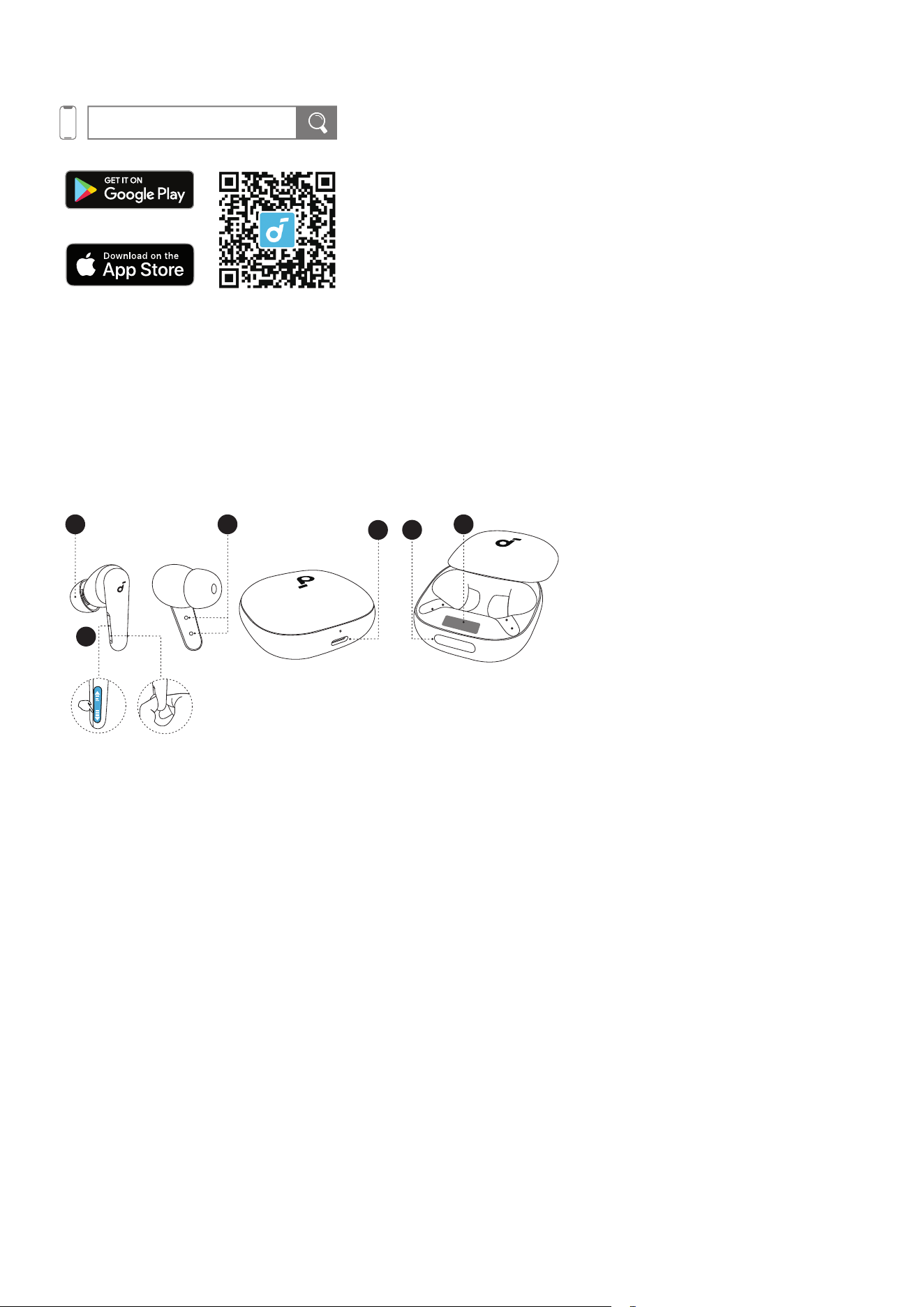
OVERVIEW
1 3
2
6
4
5
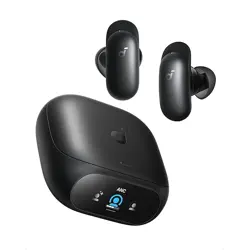
1. Ear Tip
• M-size ear tips come attached to the earbuds at the time of purchase.
2. Earbud Control Area
• Slide up and down or squeeze the control area on the earbud stems to manage different functions.
3. Charging Contactors
4. USB-C Charging Port
5. Charging Case Touch Bar
• Control the Smart Display via the touch bar.
6. Smart Display
WEARING
2
1
L
XS S M
XXS
XL
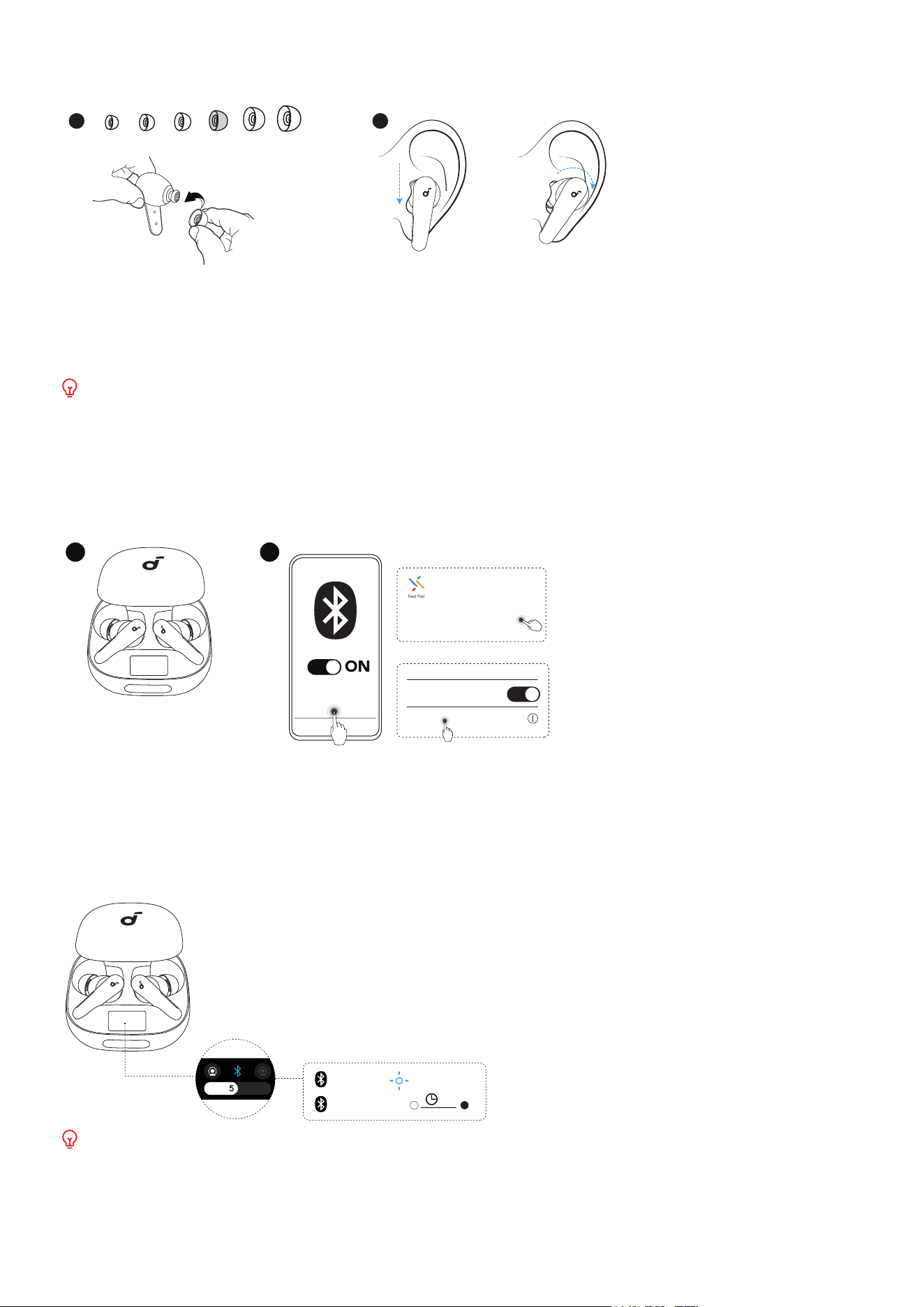
1. Try different ear tips to find the best fit for your ears.
2. Gently place the earbuds into your ear canal and rotate them for a snug fit.
3. Take a fit test in the soundcore app to ensure you get the best active noise cancelling performance.
Dust, earwax or other debris can accumulate in the earbuds. To maintain optimal sound quality, regularly
clean your earbuds. Use a cotton swab slightly moistened with rubbing alcohol to gently wipe the metal
mesh filter under the rubber ear tips. Ensure the alcohol on the metal mesh filter has completely dried
before using the earbuds again.
POWERING ON & PAIRING
1 2
Tap to pair. Device will be
tied to Your Google Account
Android 6.0+
Fast Pair
iOS & Others
soundcore Liberty 4 Pro
Connected
Bluetooth
Bluetooth
<Setting
soundcore Liberty 4 Pro
soundcore
Liberty 4 Pro
PAIRING
CONNECTED
2s
1. Slide open the charging case. The earbuds will automatically power on and enter Bluetooth pairing mode.
Google Fast Pair: Enjoy instant pairing with your Android smartphone (running Android 6.0 or above) using
Google Fast Pair.
2. Select "soundcore Liberty 4 Pro" on your device's Bluetooth list to connect. Upon successful connection,
the Bluetooth icon on the Smart Display will stay on for 2 seconds and then disappear.
1 2
Tap to pair. Device will be
tied to Your Google Account
Android 6.0+
Fast Pair
iOS & Others
soundcore Liberty 4 Pro
Connected
Bluetooth
Bluetooth
<Setting
soundcore Liberty 4 Pro
soundcore
Liberty 4 Pro
PAIRING
CONNECTED
2s
Once connected successfully, the earbuds will automatically reconnect to your device every time you slide
open the charging case, as long as you haven't deleted the pairing history from your device.
CHARGING
1
5min=4hr
2
10s
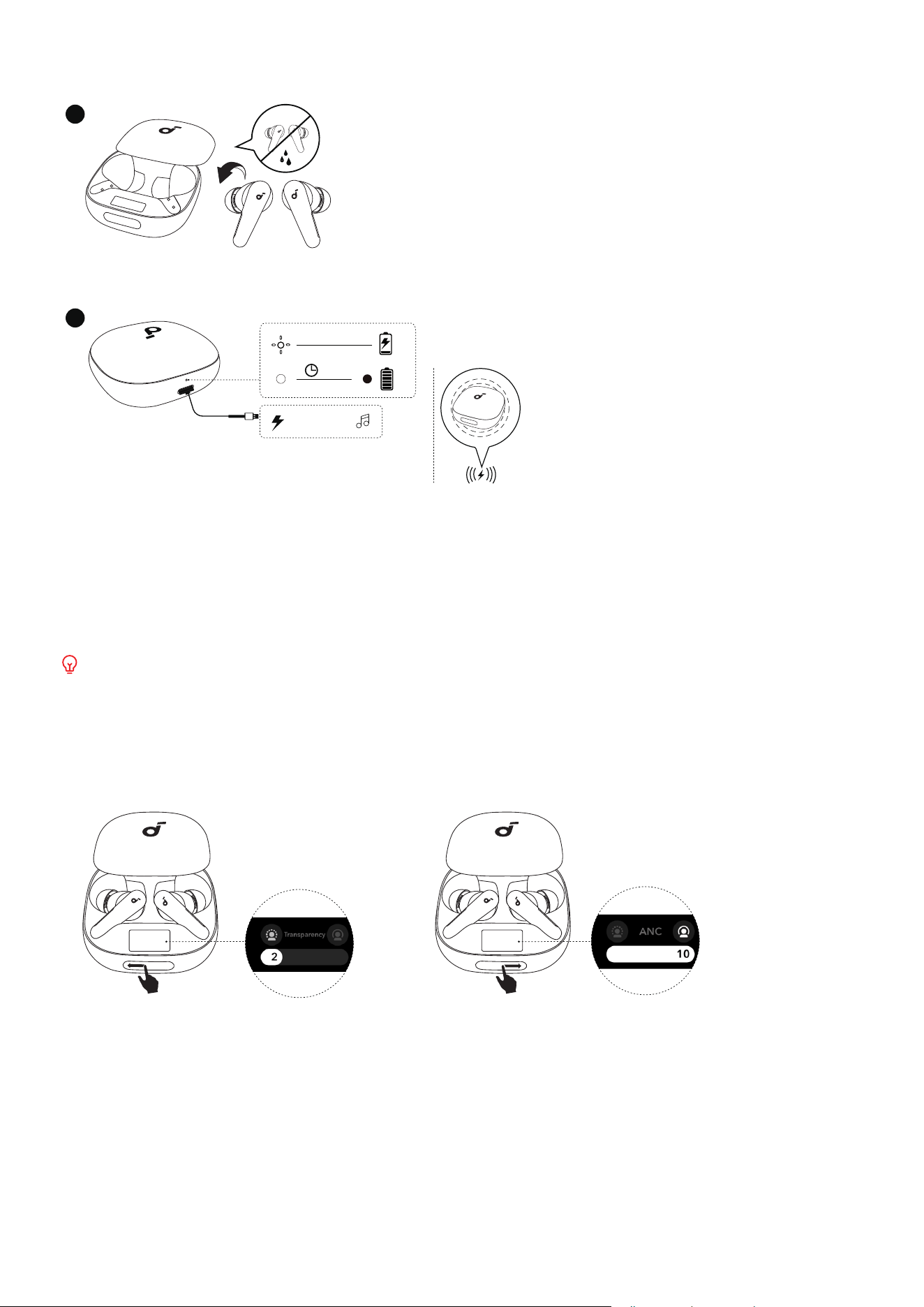
1. Place the earbuds in the charging case and close it.
• Ensure the earbuds and the USB-C charging port are fully dry before charging.
2. Connect the charging case to a power supply using the provided USB-C charging cable. For wireless charging,
place the charging case at the center of your wireless charger.
• Recharging the charging case with the earbuds removed takes 2.5 hours via cable and 3.5 hours via wireless
charging. A 5-minute charge of the earbuds provides 4 hours of playtime.
When the battery level of the charging case drops below 10%, it will stop charging the earbuds.
TOUCH BAR & SMART DISPLAY
The touch bar on the charging case provides easy control over ambient sound levels and other functions.
• Slide left or right on the touch bar to adjust ambient sound levels (1 to 10) or access functions.
×2
5s
• Double-tap the touch bar to confirm your function selection, or return to the function menu.
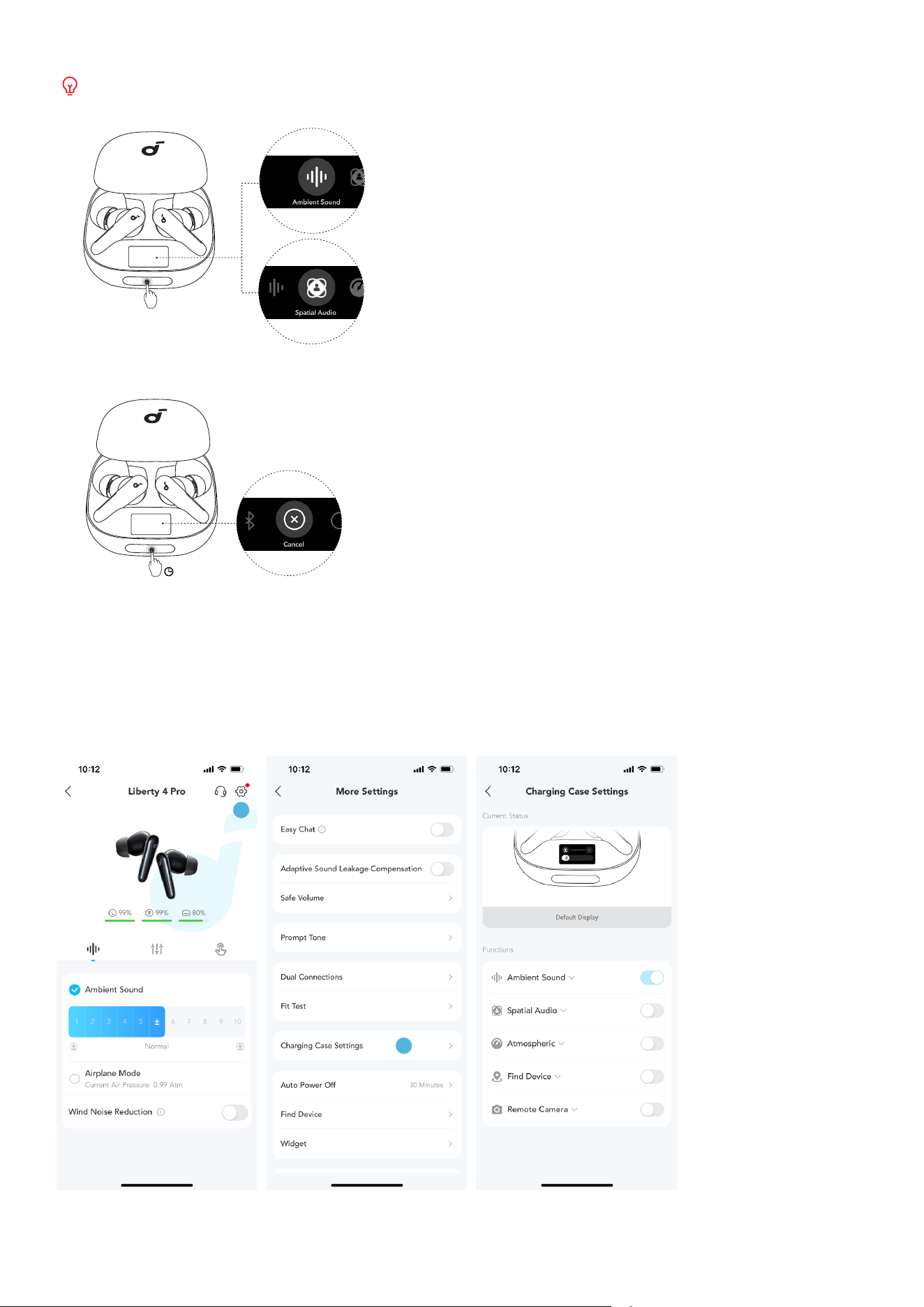
By default, the menu will only display Ambient Sound Levels. You can add more functions to the menu in the
soundcore app.
×2
5s
• Tap and hold the touch bar for 5 seconds to choose between Bluetooth pairing mode or resetting the earbuds.
×2
5s
CHARGING CASE SETTINGS
Note: The UI images are for illustration purposes only. Actual display contents may vary based on the software
version.
1
2
In the soundcore app, you can determine the functions you wish to appear on the charging case menu.
There are a total of five functions available for smart control via the charging case:
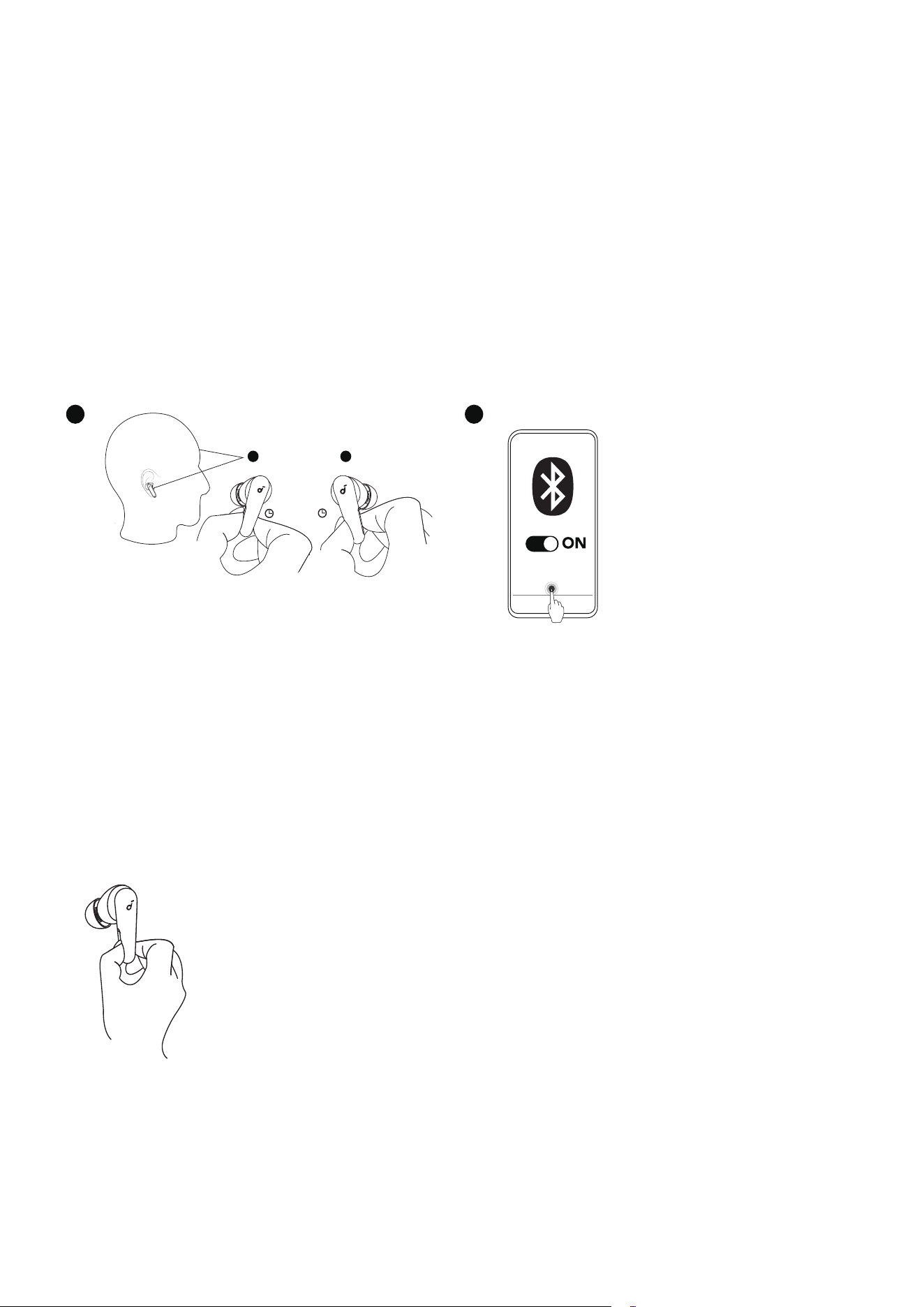
Ambient Sound: Adjust the ambient sound levels to suit your environment and preferences, ensuring an optimal
listening experience.
Spatial Audio: Experience immersive 3D sound that adjusts dynamically based on your head movements, providing
a more realistic audio experience.
Atmospheric: Monitor the atmospheric pressure in your surroundings and adjust noise cancelling effect according
to atmospheric pressure changes.
Find Device: Locate your misplaced earbuds within the Bluetooth range by enabling them to sound alerts.
Remote Camera: With the camera feature activated on your phone, use the charging case to control your
smartphone's camera remotely.
DUAL CONNECTIONS
1
1
2
3s
2
soundcore
Liberty 4 Pro
PAIRING
The Second Device
L R
3s
3s
CONNECTED
3s
Dual Connections feature is enabled by default.
To connect a second device while one device is already connected, pinch the control area on both earbud stems
for 3 seconds until you hear a voice prompt for pairing mode. You can then proceed to pair with the second device.
If you wish to disable Dual Connections, you can do so in the soundcore app. Tap the cogwheel icon in the upper
right corner to access Settings, then swipe the Dual Connections toggle switch to the left to turn it off.
CONTROLS
Note: You can customize controls in the soundcore app.
1 3
2
6
4
5
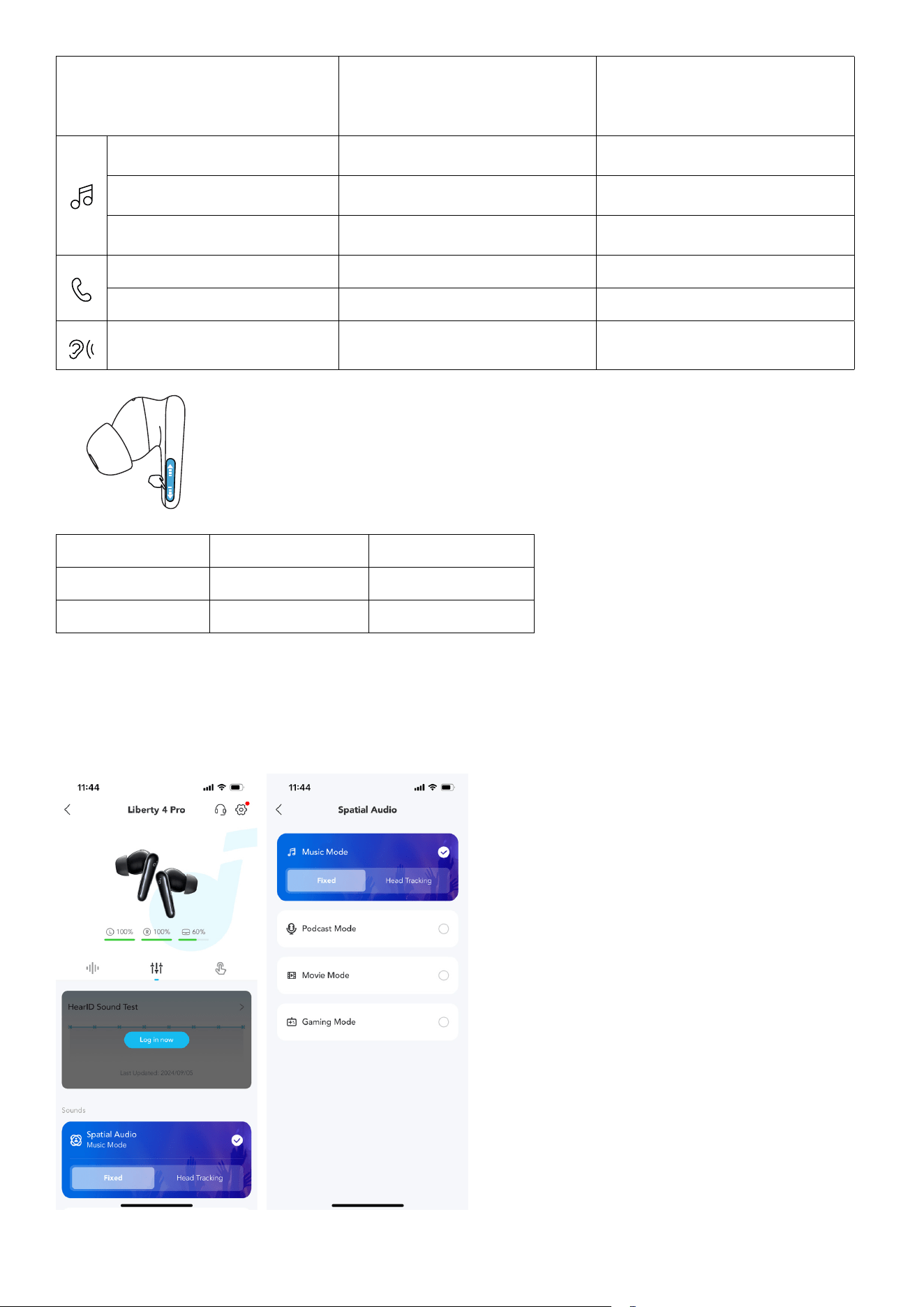
Using Dual Earbuds Using Single Earbud
Play / Pause Audio Squeeze Once (L/R) Squeeze Once
Play the Next Track Squeeze Twice (R) Squeeze Twice
Play the Previous Track Squeeze Twice (L) /
Answer a Call Squeeze Once (L/R) Squeeze Once
Reject a Call / End a Call Tap and Hold for 2 Seconds (L/R) Tap and Hold for 2 Seconds
Switch Ambient Sound Modes
(ANC /Transparency)
Tap and Hold for 2 Seconds (L/R) Tap and Hold for 2 Seconds
1 3
2
6
4
5
Using Dual Earbuds
Using Single Earbud
Increase Volume Slide Up (L/R) Slide Up
Decrease Volume Slide Down (L/R) Slide Down
SPATIAL AUDIO
Note: The UI images are for illustration purposes only. Actual display contents may vary based on the software
version.
Spatial Audio creates an immersive listening experience by placing sound all around you. You can choose between
four Spatial Audio modes in the soundcore app:
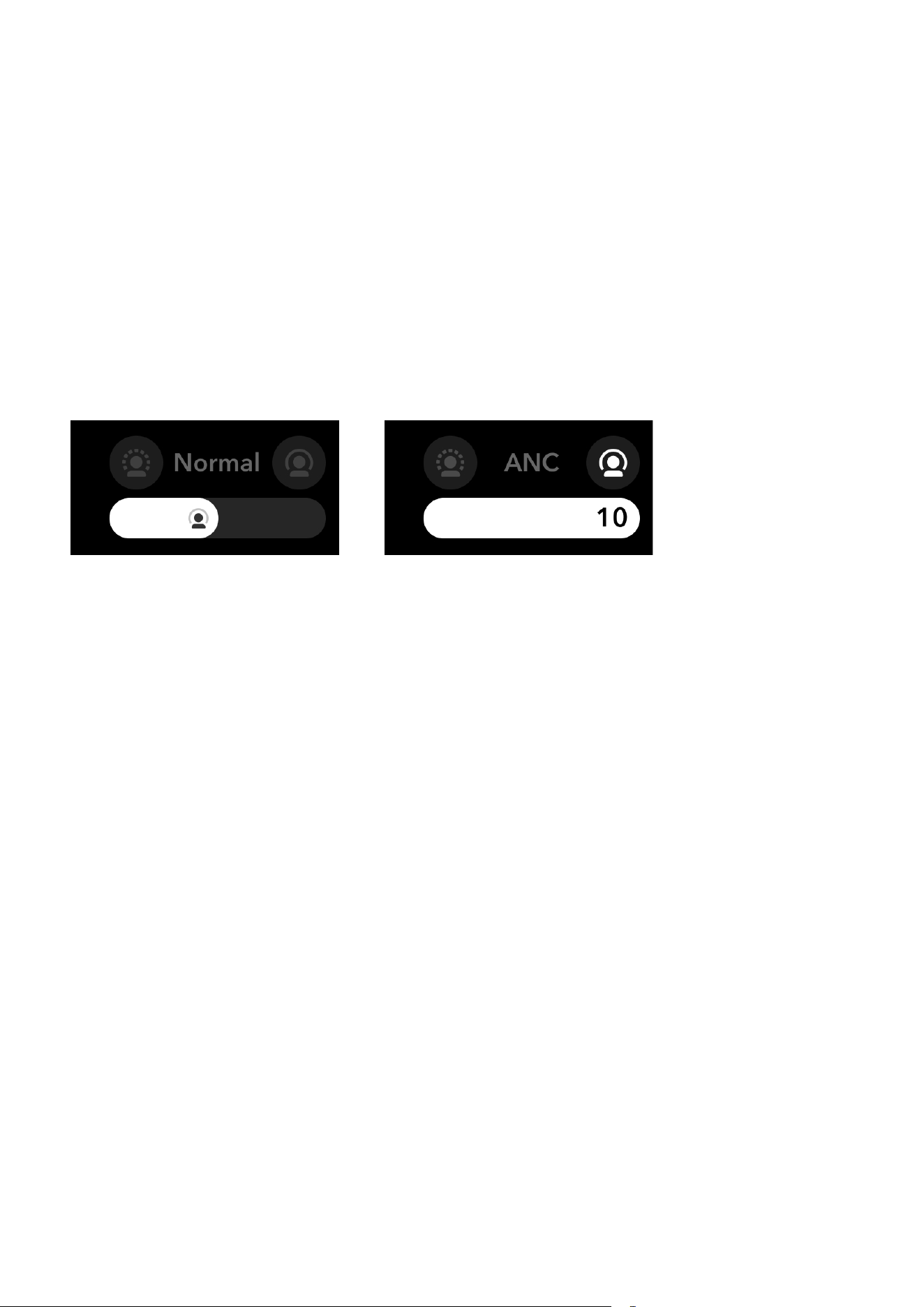
Music Mode:
• Head Tracking: Hear surround sound that follows your head movement.
• Fixed: Listen to Spatial Audio without head tracking.
Podcast Mode: Provides an optimized listening experience for clear and focused vocal delivery, ideal for listening
to spoken content.
Movie Mode: Enhances your cinematic experience with rich, immersive audio that brings actions to life.
Game Mode: Offers precise audio cues for an edge in gaming, allowing you to hear every detail and react quickly.
AMBIENT SOUND
Control with Touch Bar
You can easily switch between different ambient sound levels by sliding left or right on the touch bar.
Control with App
You can select from Noise Cancellation, Normal, or Transparency modes in the soundcore app.
• ANC (Level 6 to 10): Optimize noise cancellation by adapting to your ears and environment.
• Normal: Enjoy balanced sound without noise cancellation.
• Transparency (Level 1 to 5): Stay aware of your surroundings while listening to music.
EASY CHAT
Note: The UI images are for illustration purposes only. Actual display contents may vary based on the software
version.
1
2
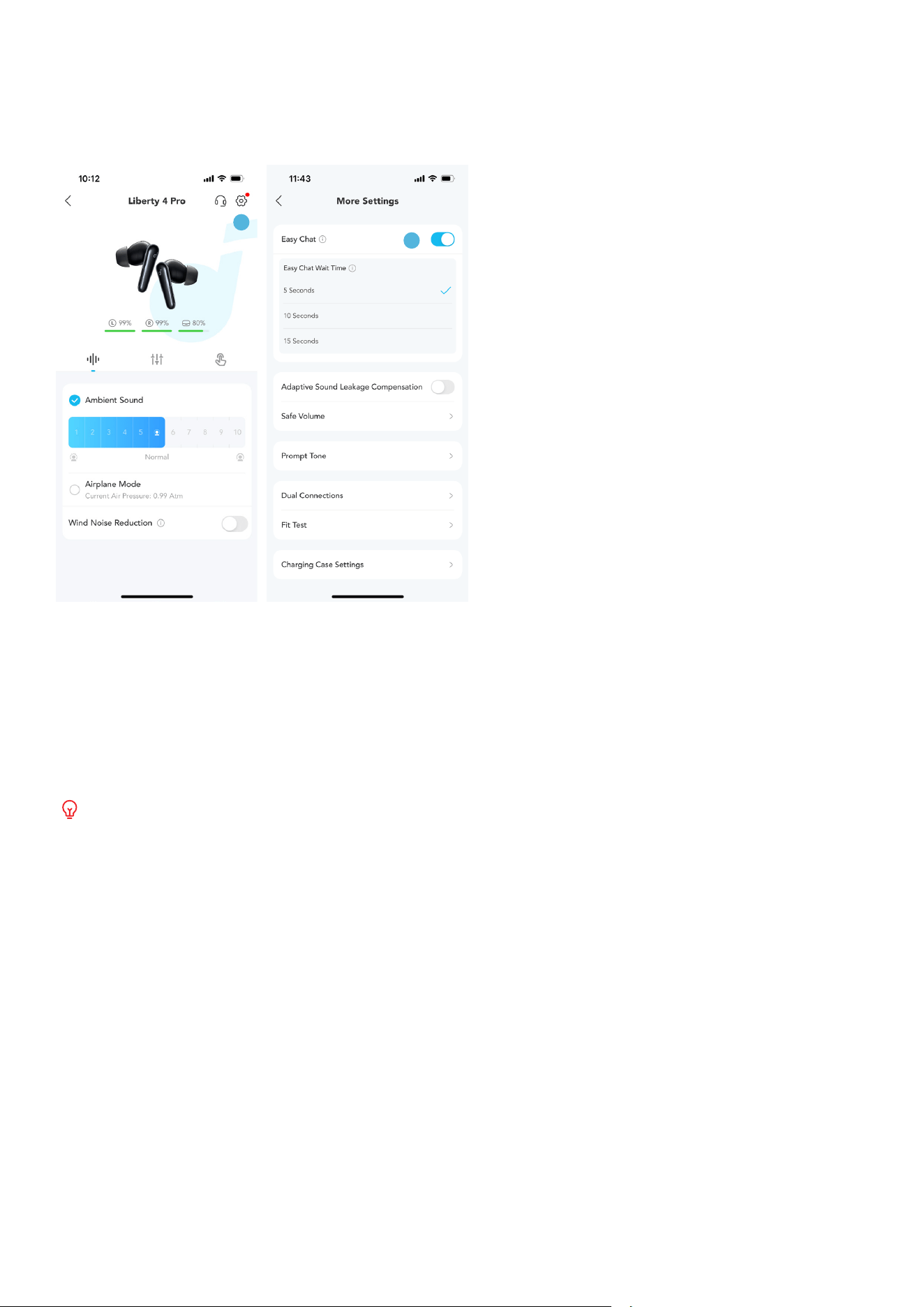
Upon activation, Easy Chat automatically lowers the volume of music and enables Transparency mode so that you
can have face-to-face conversations without removing the earbuds.
Easy Chat is only available in ANC mode.
By default, when you have stopped talking for 5 seconds, your earbuds will automatically exit Easy Chat mode and
resume the original ANC level and volume. Additionally, the app allows you to select the durations of 10 seconds
and 15 seconds.
This feature needs to be enabled via soundcore app.
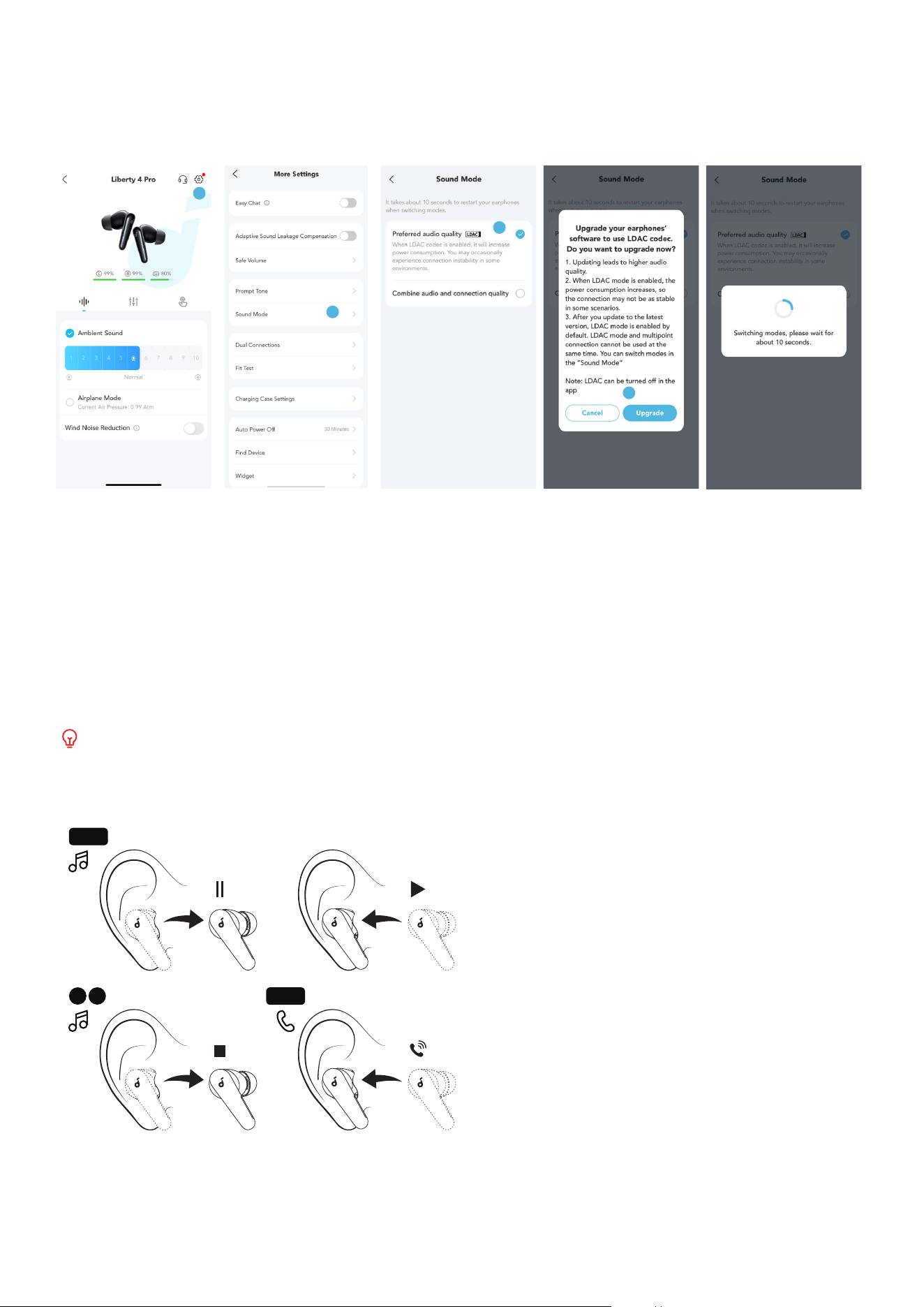
LDAC
Note: The UI images are for illustration purposes only. Actual display contents may vary based on the software
version.
3
4
1
2
• Use devices that run on Android 8.0 or later to experience LDAC-quality sound.
• LDAC provides higher sound quality but increases power consumption and reduces playtime.
• Enable LDAC in a low-interference environment to ensure a stable Bluetooth connection.
In the soundcore app:
1. Select "Sound Mode".
2. Tap on "Preferred audio quality".
3. If the earbuds are connected to two devices, you will be notified that LDAC is not supported.
4. Switching audio codecs takes about 10 seconds. You may be prompted to update the earbuds' firmware if an
update is available.
When LDAC is enabled, Spatial Audio will not be supported.
WEARING DETECTION
L/R
L/R
L R
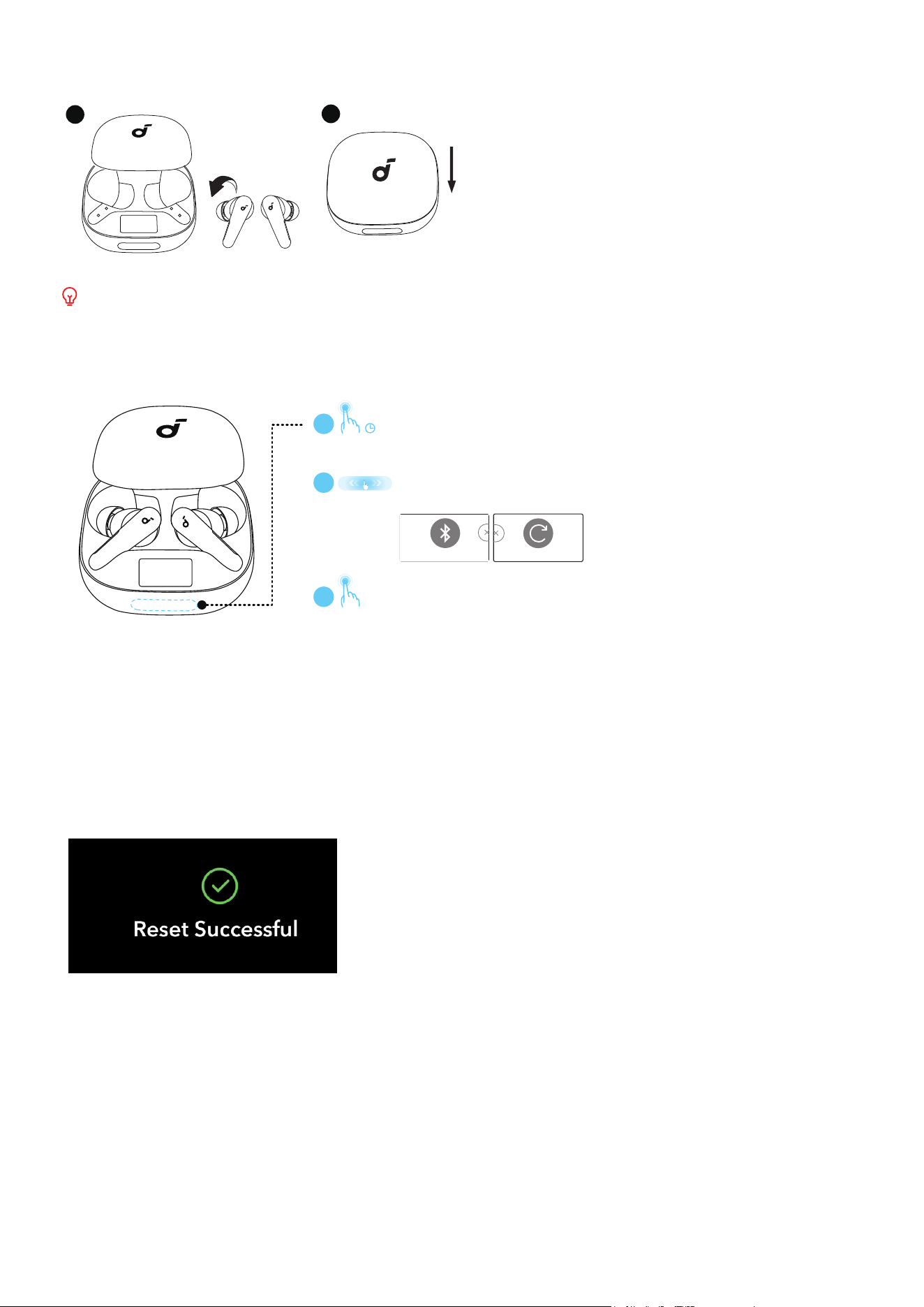
Playback will automatically pause when an earbud is removed and will resume again once you wear it. Wear either
earbud to automatically answer an incoming call.
POWERING OFF
1
2
To power off, return both earbuds to the charging case and close the case.
When taken out, the earbuds will automatically power off after 30 minutes if they are not connected to any
device. The duration can be set in the soundcore app.
MANUAL PAIRING & RESET
3
2
1
Double-tap to initiate the selected option.
Tap and hold the touch bar for 5 seconds.
5s
×2
Bluetooth Pairing
Reset
Slide to choose either Bluetooth Pairing
or Reset.
Bluetooth Pairing:
Select this option to manually enter Bluetooth pairing mode.
Reset:
Select this option to restore your device to factory settings if you encounter functionality issues.
After selecting and confirming the reset, keep the case open until the process is complete.
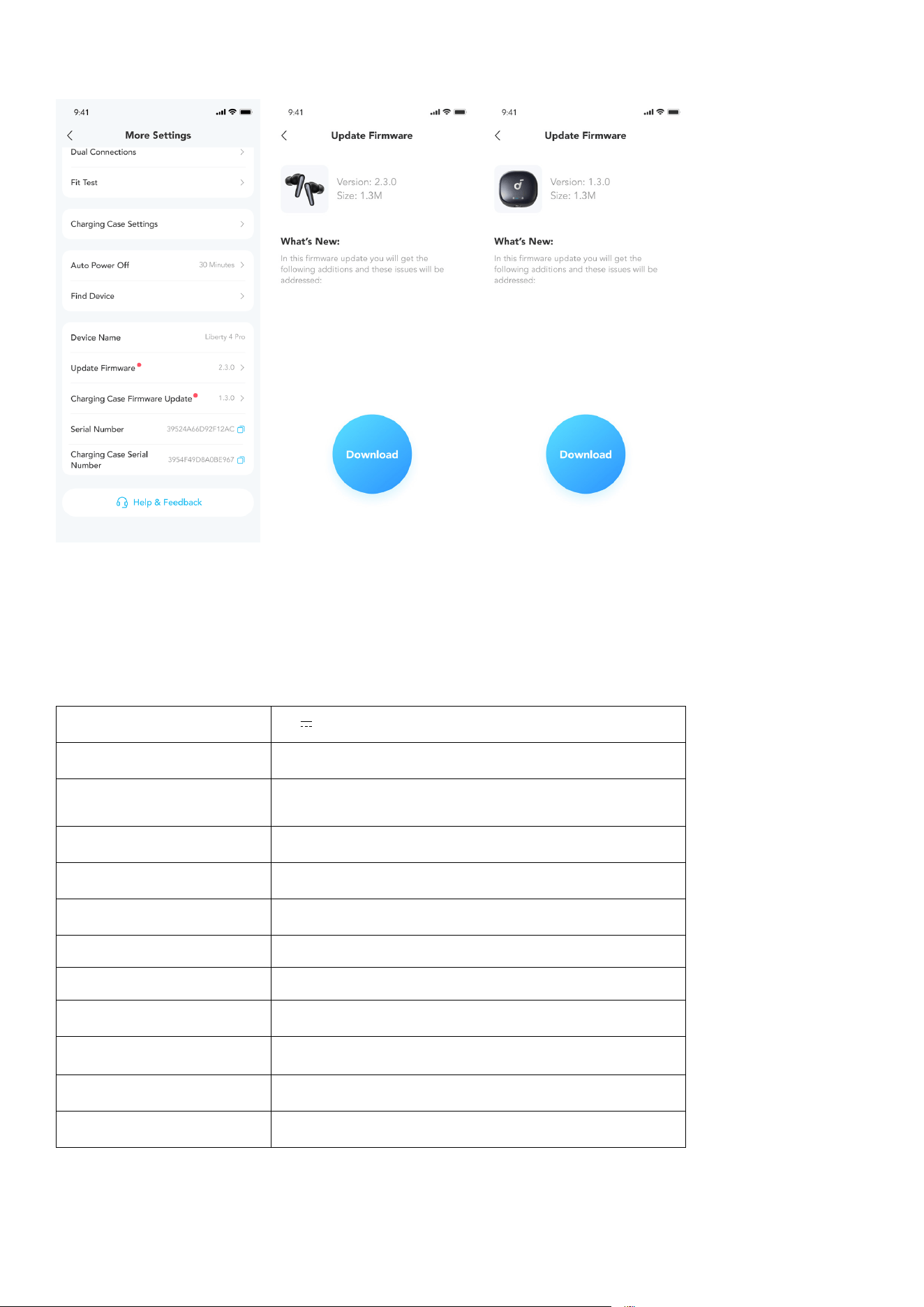
Upon a successful reset, the Smart Display will show a prompt, and you will hear a notification sound from the
charging case.
FIRMWARE UPDATE
You will be notified once a new firmware version for the earbuds or charging case is detected when the earbuds are
connected to the app. Ensure the earbuds are in the charging case and the case remains open until the firmware
update is complete. During the update, ensure the battery levels of both the earbuds and the charging case are
above 20%, and avoid any usage.
SPECS
Specifications are subject to change without notice.
Input 5V 1A
Rated Output Power 20mW
Battery Capacity
Earbuds: 56mAh × 2
Charging Case: 580mAh
Charging Time Earbuds: Up to 40 Minutes
Playtime (ANC Off) Up to 10 Hours (40 Hours with Charging Case)
Playtime (ANC On) Up to 7.5 Hours (30 Hours with Charging Case)
Driver 10.5mm and 4.6mm Dynamic Drivers
Frequency Response 14Hz - 40kHz
Impedance 15.3Ω+10.3Ω
Waterproof and Dustproof
Rating (Earbuds)
IP55
Bluetooth Version 5.3
Bluetooth Range 10m