Dual Portable Monitor
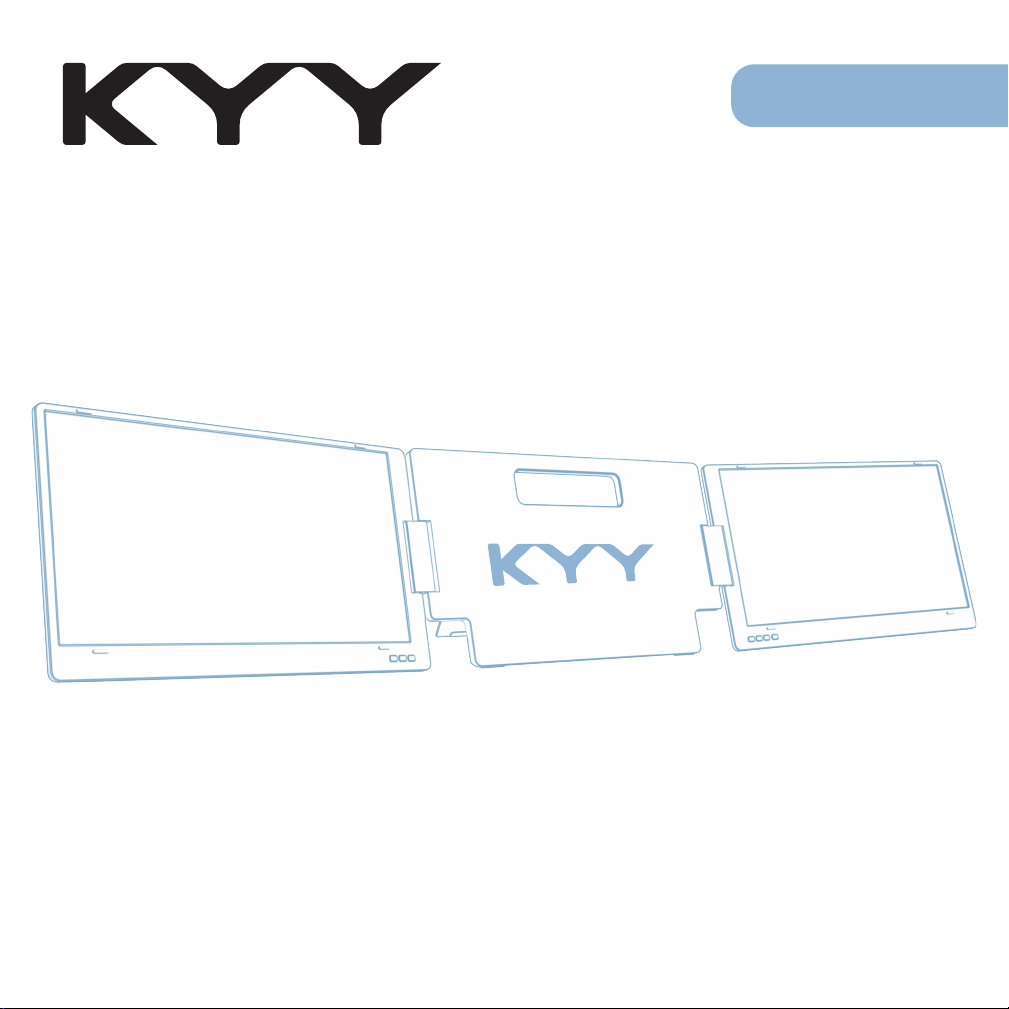
X90
User Guide
Note: Any technical problem pls contact support team
12-MONTH WARRANTY
plus online responsive customer service
provides
Please Contact:
Not Satisfied?
Monitor Damaged?
Can’t Connect?
We apologize for any inconveniences,
if the monitor you received damaged or can’t connect
successfully with your devices,
Service

How to Set Up Your Wins Display

1. Package List ........................................................ 1
2. Introduction ........................................................ 2
3. Set It Up ........................................................... .. 3
4. Connection Method ............................................. 5
5. Display Setting for Wins ...................................... 6
6. OSD Function Introduction ................................. 10
7. Tech Specs ......................................................... 13
8. Use requirements & Cleaning & Maintenance .... 14
9. FAQ & Contact Us ............................................. 15
Content
1
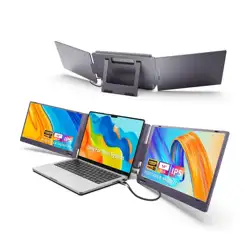
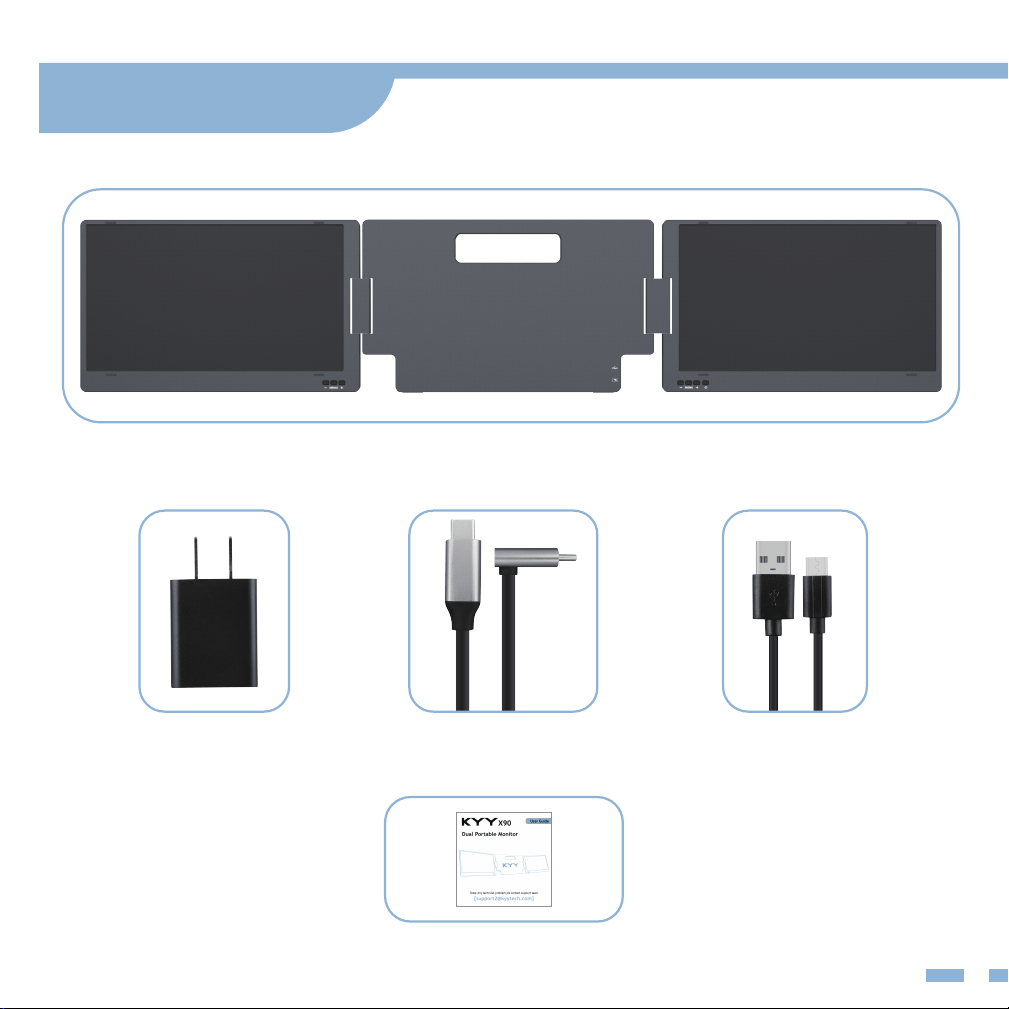
14’’ Portable Dual Monitor
5V/3A Power Adapter USB-C to USB-C Cable USB-C to USB-A Cable
User Manual
1. Package List
2
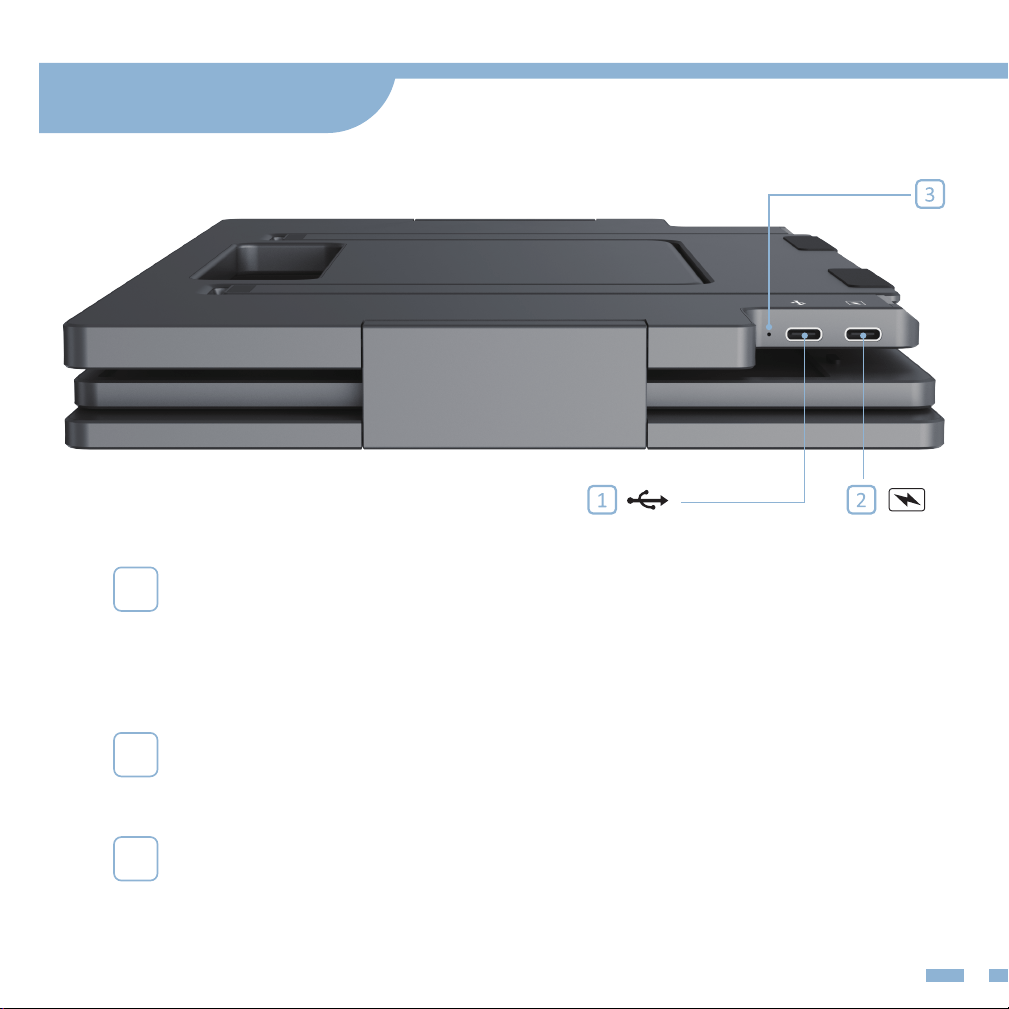
1
Type-C Full Function Port
• USB Type-C 3.1
• Transmit the audio and video signal
• Simultaneously support power delivery
2
Type-C Power Supply Port
• Only for power delivery
3
Indicator Light
• Green: Power on and monitor connected successfully
• Red: Power off/ no signal
2. Introduction
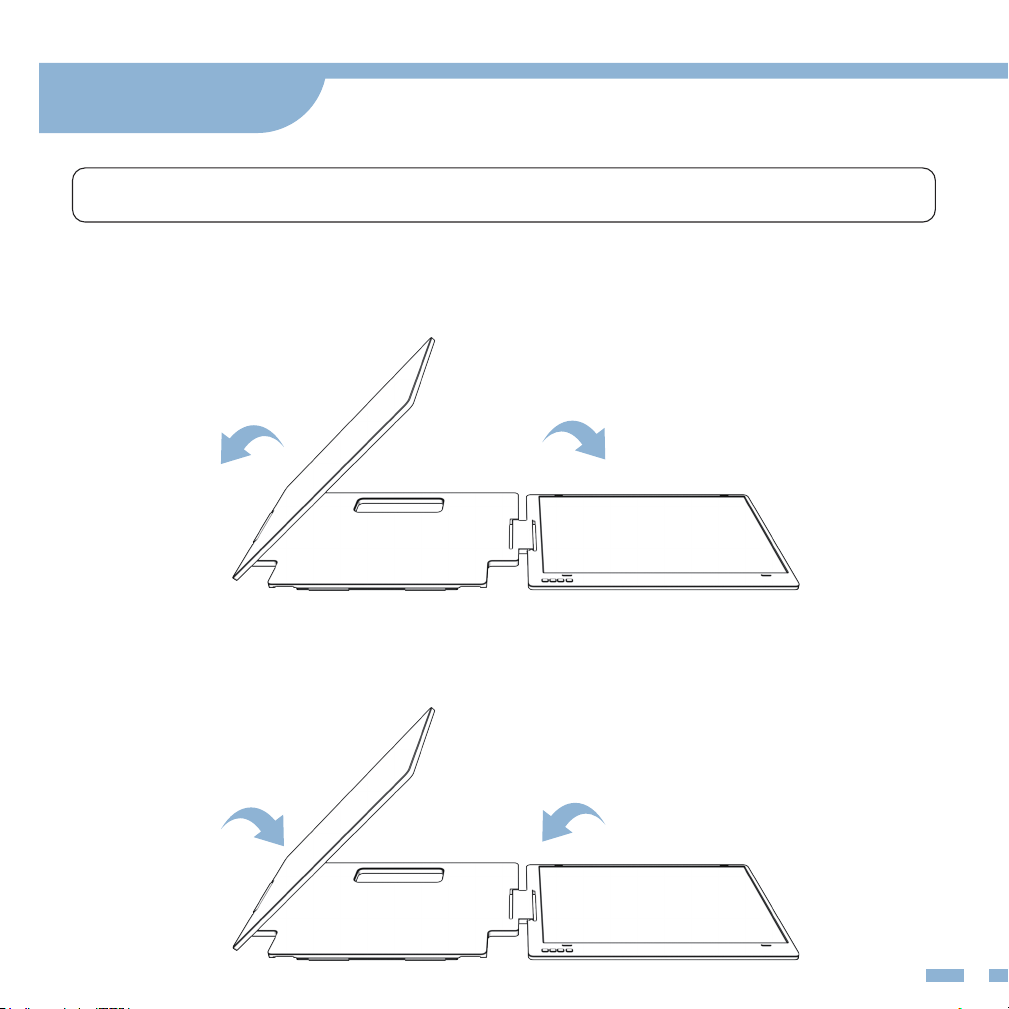
Unfolding Sequence
Please open the right display screen first and then open the left display screen.
Storing Monitor
Please fold the left display screen first and then fold the right display screen.
3
Note: The correct sequence should be performed to avoid any damage to the device.
1
2
2
1
3. Set It Up
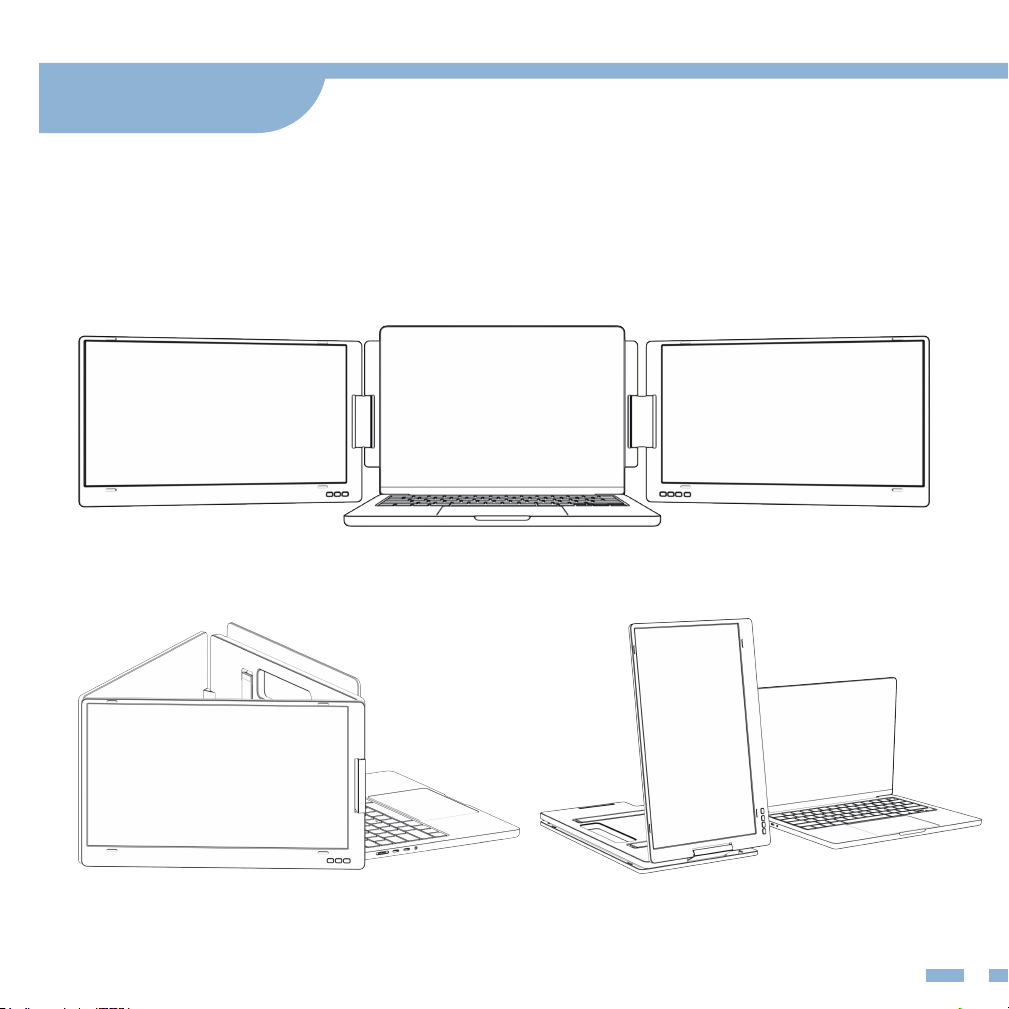
Adjustable Stand and Monitor
Adjust the stand angle according to your need.
Landscape Mode
Triangular Mode Single Portrait Mode
4
3. Set It Up
5
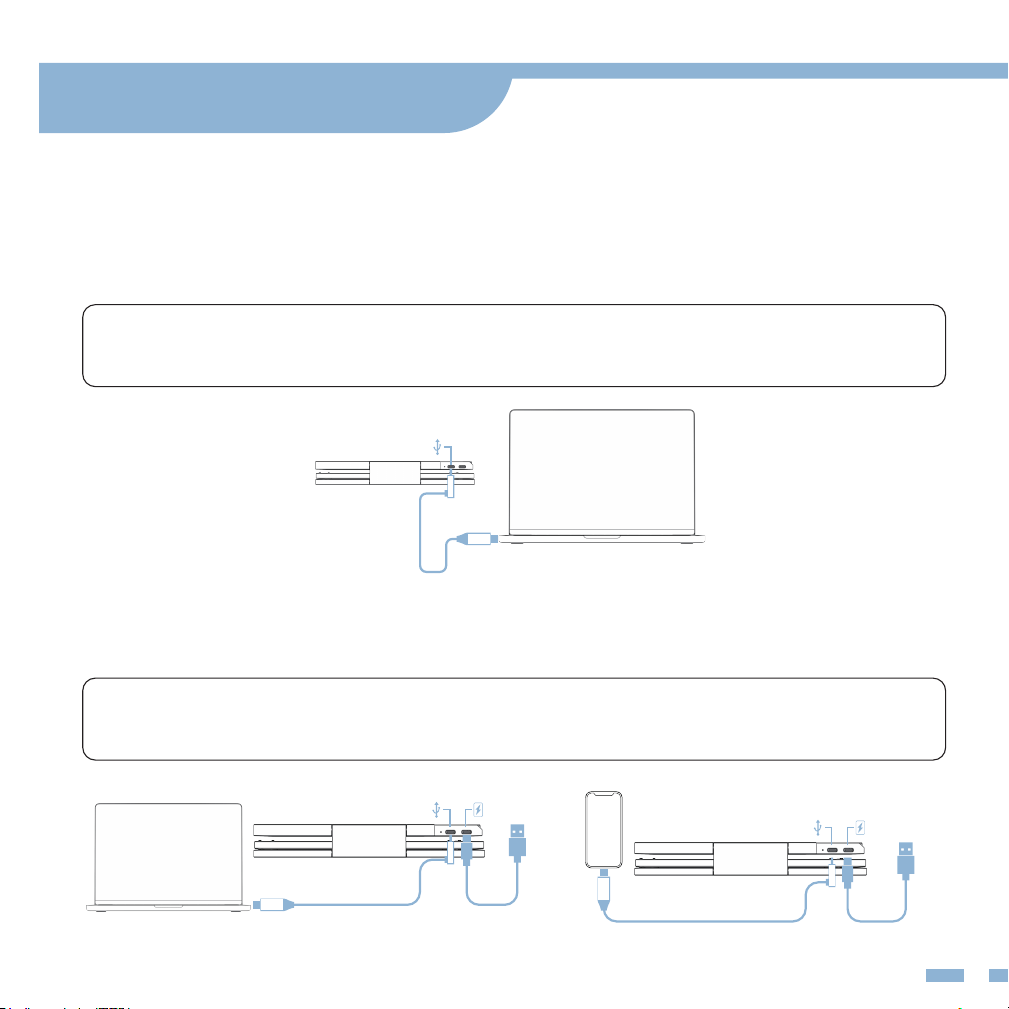
Single Connection Methods
Cable Connection Methods if Additional Power is Required
No driver needed to install. Just plug and play as long as your device comes
with a full-function Type-C port.
Laptop computer connection mode
(external power)
Mobile phone connection mode (external power)
Note: If your laptop or device does not support an output of 5V/3A, an external
power is required.
Note: At least 5V/3A of sustained power is required for the X90 monitor to
receive signal.
Single USB-C Cable Connection
4. Connection Method
6
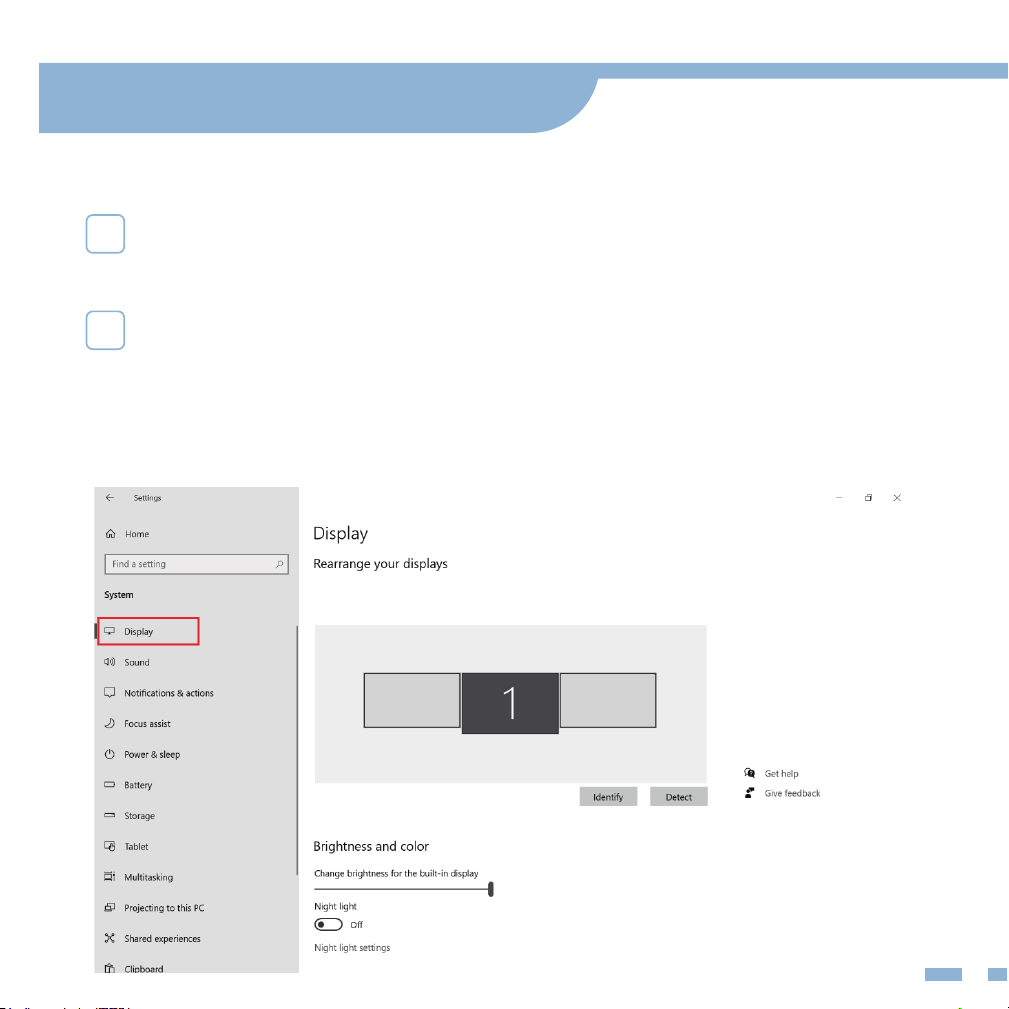
Windows Display Settings and Configuration
Right-click the desktop and select either Screen Resolution
(Windows 7/8) or Display Settings (Windows 10/11 ).
1
Click Detect to check if the dual monitor is connected
successfully. If yes, please click Identify to confirm the screen
location. Then long drag the Screen 1/2/3 to rearrange the
screen location based on your preference.
2
5. Display Setting for Wins
Sleep be�er
Night light can help you get to sleep
by displaying warmer colors at night.
Select Night light se�ngs to set things
up.
Help from the web
Se�ng up mul�ple monitors
Changing screen brightness
Fixing screen flickering
Adjus�ng font size
Select a display below to change the se�ngs for it. Press and hold (or select) a display,
then drag to rearrange it.
3 2
7
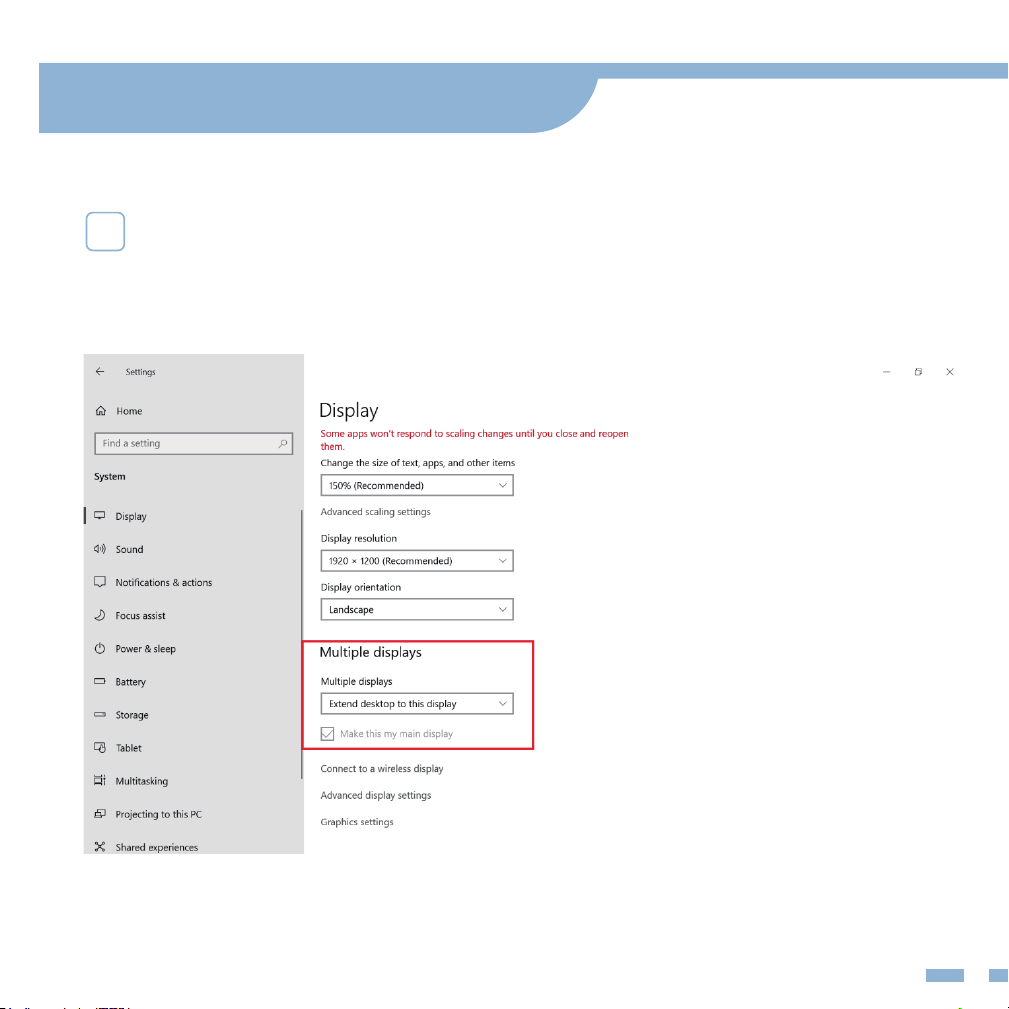
Duplicate & Extend Mode Setting: Click the Multiple displays
drop-down list, and then select Extend/Duplicate
3
5. Display Setting for Wins
8
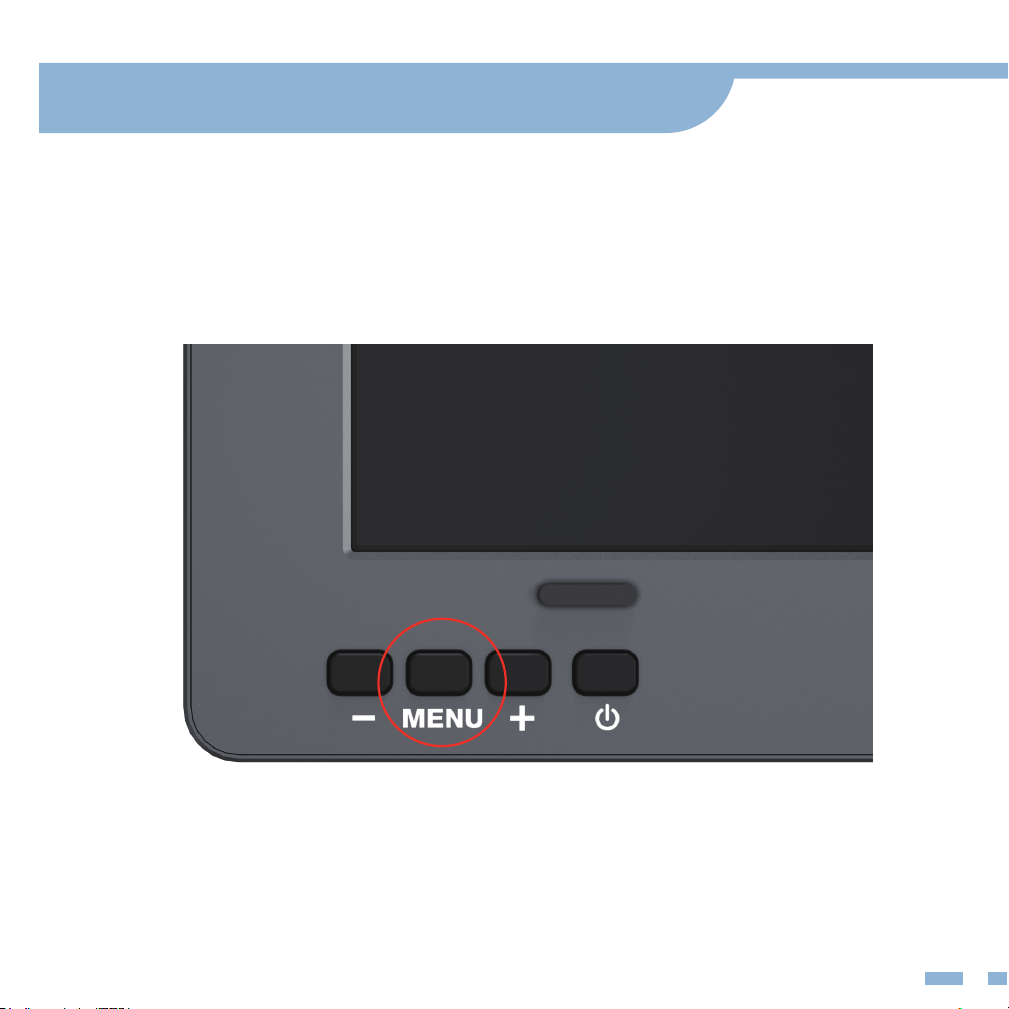
Long press MENU key for 5s.
How to Close Single Display Screen
Method 1
5. Display Setting for Wins/macOS
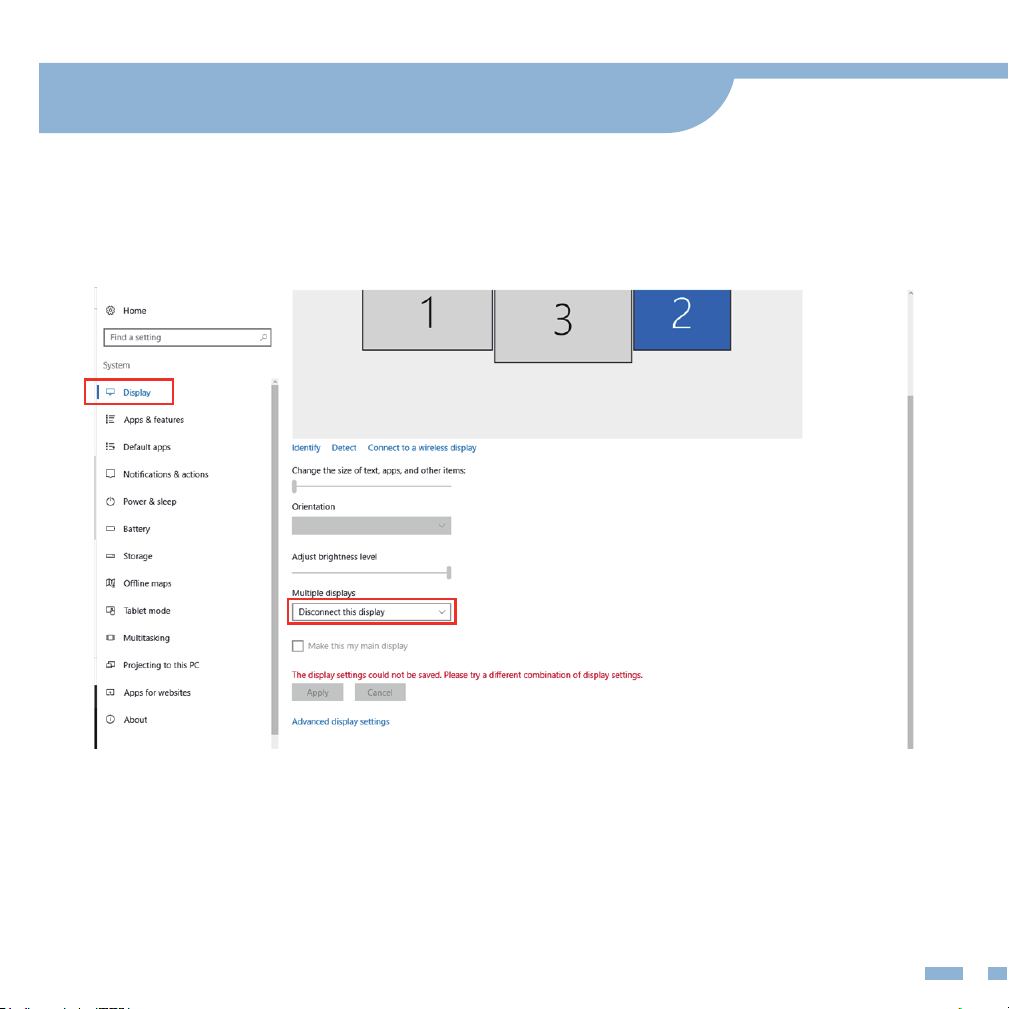
9
In "Display Setting", select the display screen you want disconnect and click
"Disconnect this display" in drop-down list.
Method 2
5. Display Setting for Wins/macOS
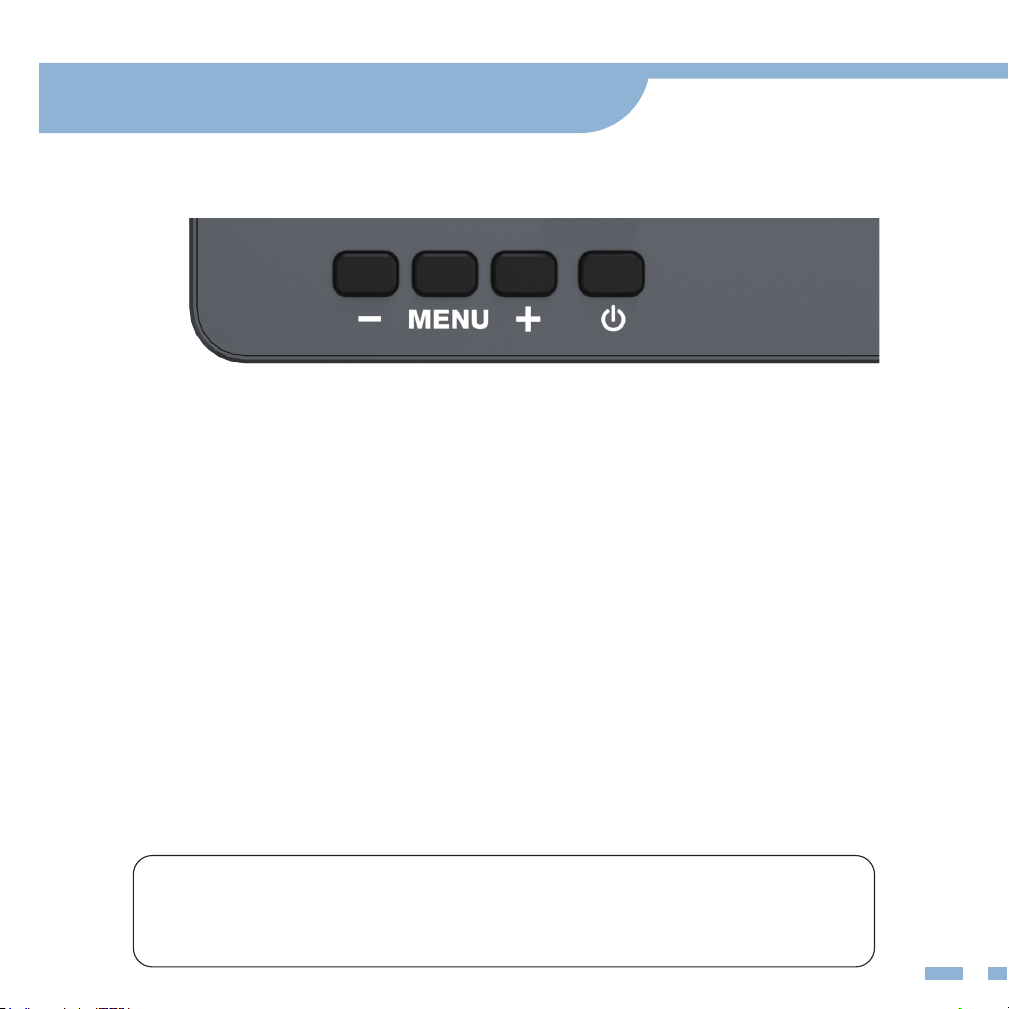
6.1 OSD Overview
10
Power button
•
Long press for 3s to turn the monitor on/off.
“+” button
•
Quickly adjust the brightness;
• Choose the OSD setting subpage;
• In/decrease the value of the setting on OSD.
Menu button
•
Press the button to enter OSD menu;
• Press the button again to enter the setting subpage and
press to confirm the value.
“-” button
•
In/decrease the value of the setting on OSD.
Note: If you don’t want to use the OSD menu, no action is needed.
The OSD menu will disappear in a few seconds. Or you could press
“ - ” button to exit the OSD menu.
6. OSD Function Introduction
11
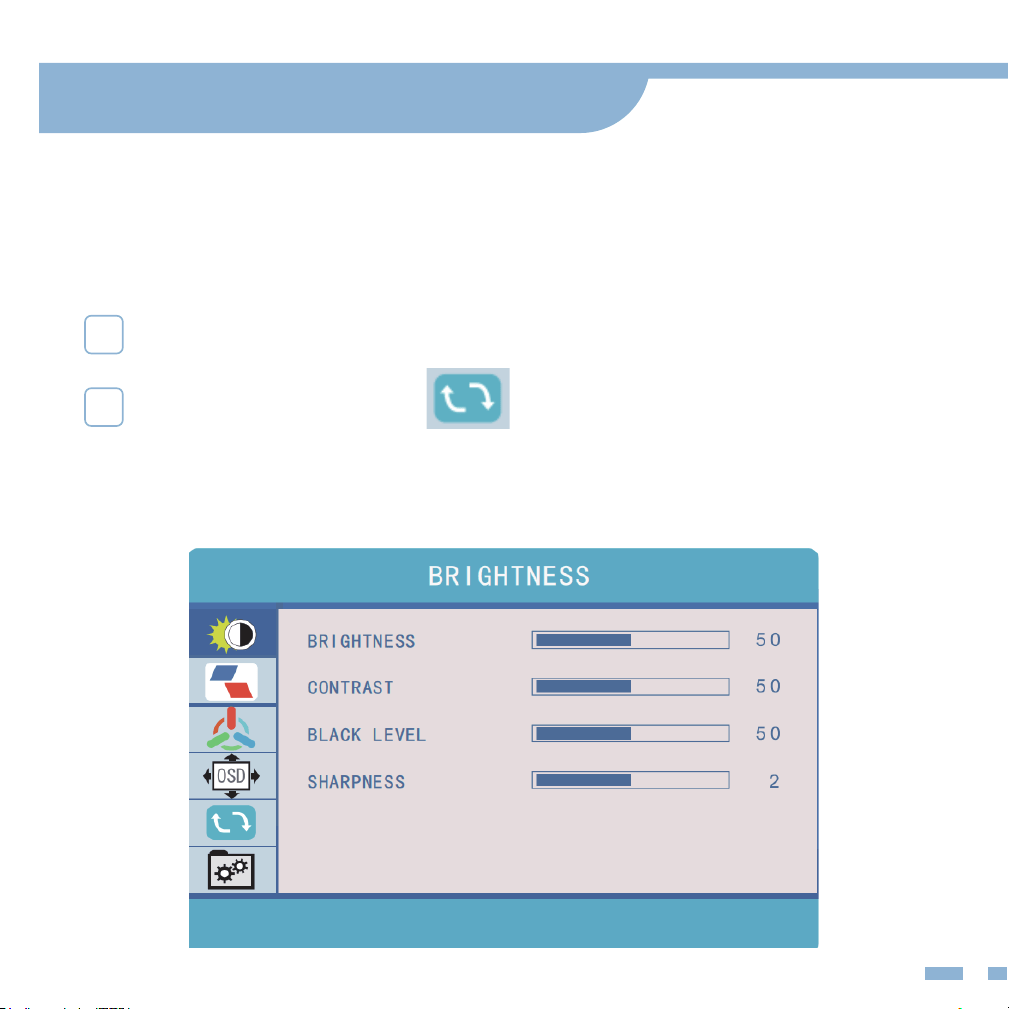
6.2 Restore OSD Default
6.3 OSD Menu
If you accidentally change the OSD default language setting,
please follow the steps below to restore the OSD default value.
Press the “MENU” button.
1
Press the “+”to choose “ ”, then to press “MENU” button.
2
6. OSD Function Introduction
12
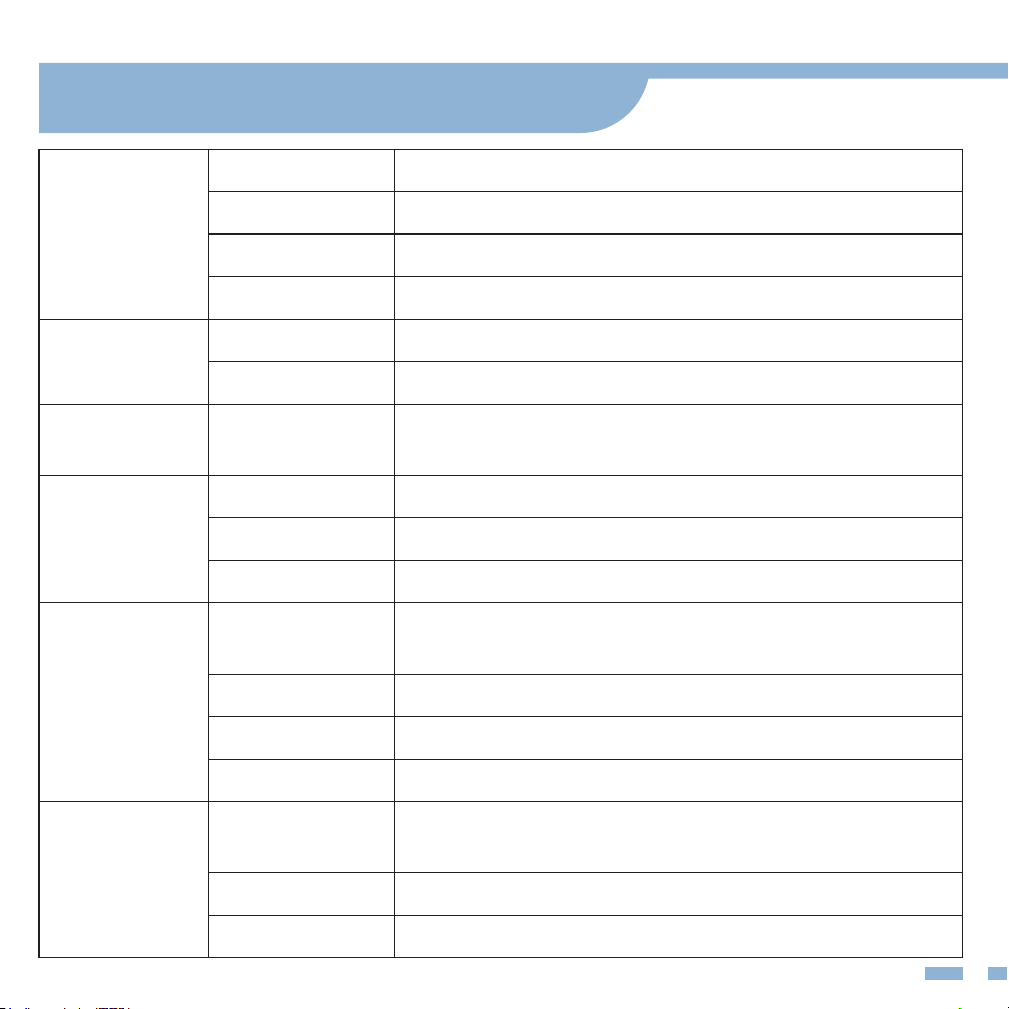
BRIGHTNESS
MISC
Brightness The adjusting range is from 0 to 100
Contrast The adjusting range is from 0 to 100
Black Level The adjusting range is from 0 to 100
Sharpness The adjusting range is from 0 to 100
Signal Source TYPE C signal source
Low Blue Light In/decrease the display blue light
Reset
Select RESET to revert all settings to the
factory default mode
RESET
OSD SETTING
COLOR TEMP
IMAGE
Language Select OSD language
OSD Timer Set time-out for OSD menu
Transparency Set the transparency for OSD menu
Color Temp
Enable the adjustment of each RGB color,
or selecting a Warm or Cool preset level
Red The adjusting range is from 0 to 100
Green
ECO
DCR
Aspect
Blue
The adjusting range is from 0 to 100
The adjusting range is from 0 to 100
Preset the display for various modes
(Standard/Game/Movie/Text/FPS/RTS Modes)
Enable or disable the dynamic contrast ratio function
Adjust the aspect ratio to 4:3/WIDE(16:9)
6. OSD Function Introduction
13
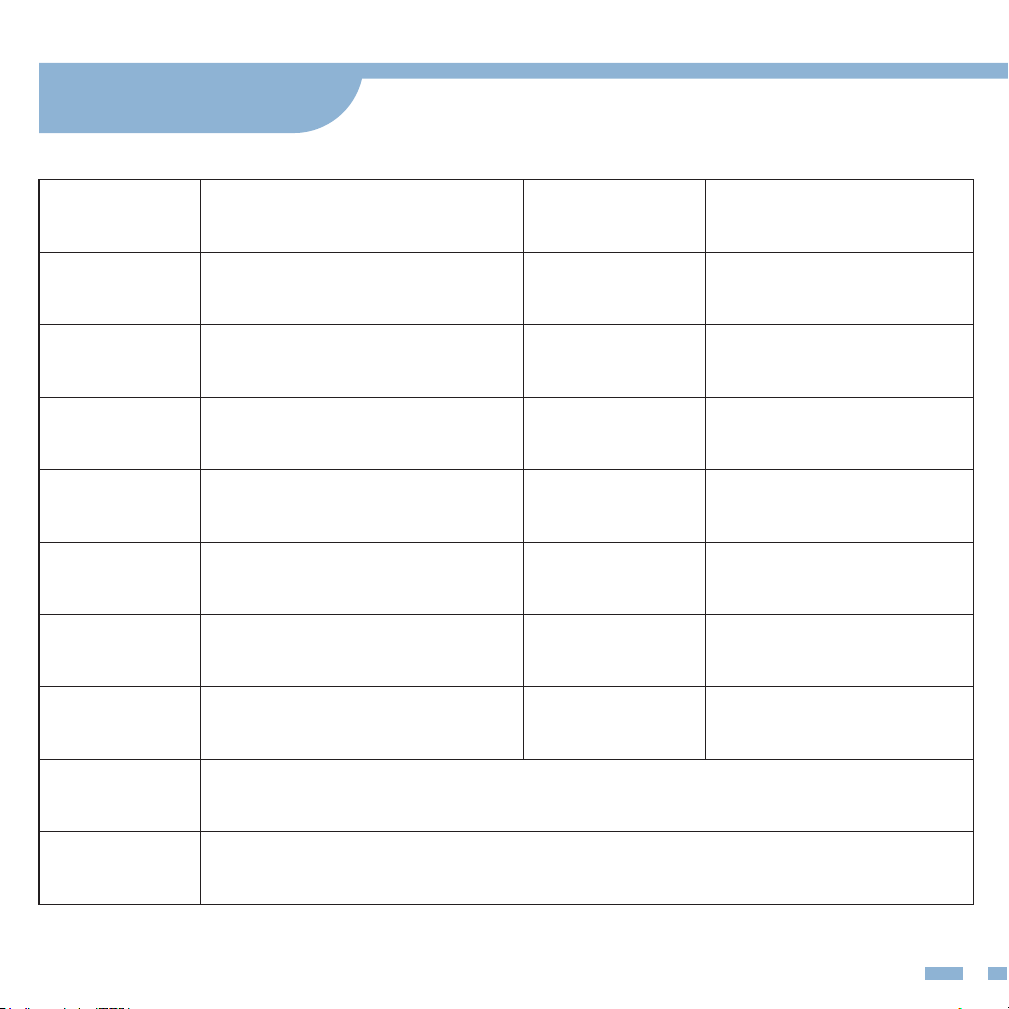
Product
name
X90 Portable Dual Monitor
Weight
1950g
Viewable
area
310(H)*175mm
Screen size
(inch)
14inch*2
Aspect
ratio
16:9
Resolution
1920*1080
Viewing
angle
H:89°/89°Min
V:89°/89°Min
Refresh rate
60Hz
Contrast
1000:1
sRGB color
gamut
72%
Input
Interface
Type-C Full Function Port*1 (for video output & power supply)
Type-C Power Port*1 (only for power supply)
System
Requirement
Windows
brightness
(cd/m2)
280±20cd/m²
Speaker
N/A
Color
16.7M
Temperature(K)
6500K
LCD
1080P FHD IPS
Product size
(mm)
353mm*208mm*30mm
7. Tech Specs

14
In order to ensure the normal use of this product and prevent
accidents such as electric shock and fire, please read and
understand all usage requirements and operating procedures
before using this product.
Please strictly abide by the following requirements:
•
Be careful to avoid excessive humidity and dust, so as not to cause
malfunction due to circuit corrosion.
• Do not squeeze the screen surface;
• Please use a screen wiper to clean the monitor. Do not connect the
monitor to devices while cleaning.
• Do not use cleaning liquids containing alcohol/acid to clean the screen.
• When the screen goes black or flickers or does not work, please contact
us for help. Do not repair the screen by yourself.
• When you stop using the monitor, please disconnect the power supply
in time.
8. Use requirements & Cleaning & Maintenance
15
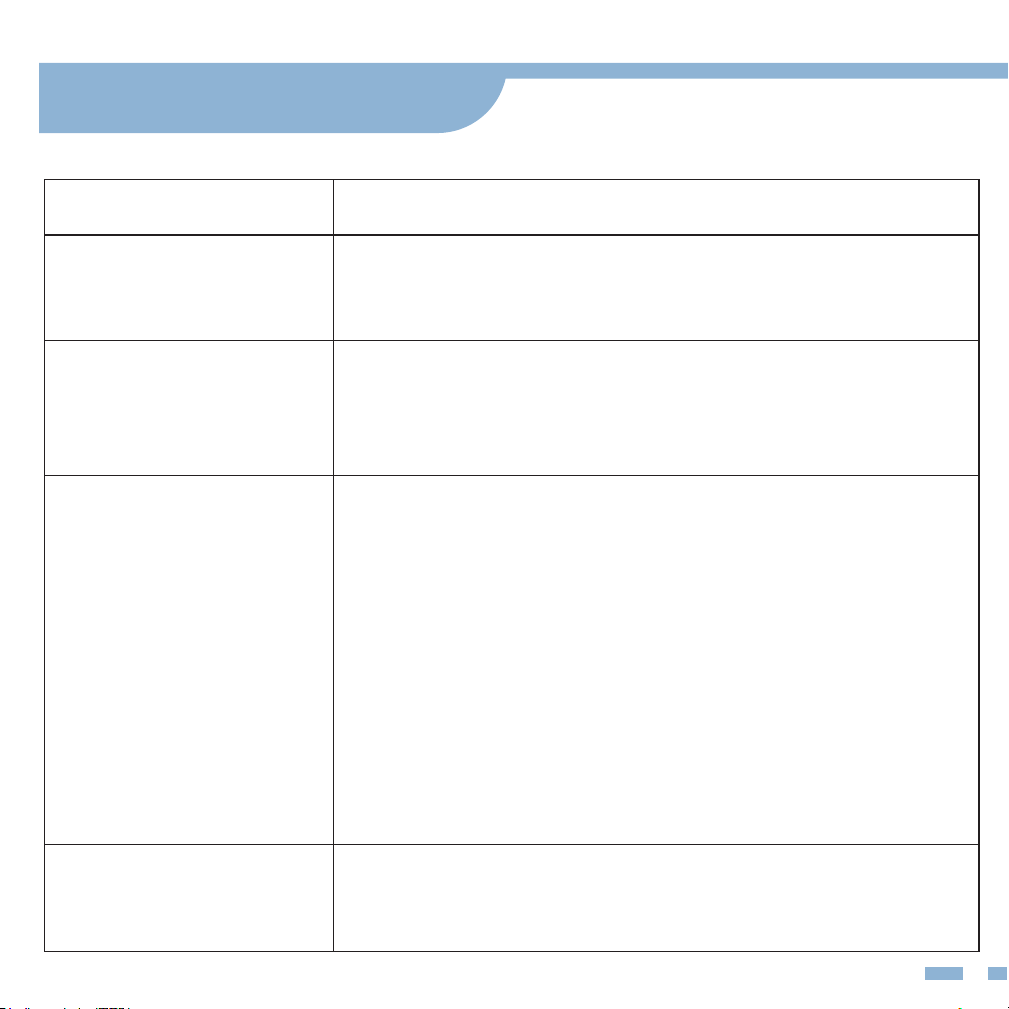
Questions Answer
The screen flickers or
disappears for a moment
Your laptop battery is low. Please use included 5V/3A
power adapter to charge this dual monitor.
The dual monitor shows
"no signal"
1) Please make sure that your laptop comes with a
full-function Type-C port, which supports video output, or
the monitor will fail to be connected;
2) Please make sure that your laptop could provide at least
5V/3A power, or please plug included power adapter to
power the monitor up;
3) Please replace the USB-C to USB-C cable to test if the
cable is damaged. Note: The USB C-C cable should be
USB C 3.1 Version which supports video output;
4) If the monitor still shows "no signal", please feel free
to contact us.
The dual monitor screen
goes black
Please ensure you have fully opened the kickstand and
the 2-screen display.
The stand seems unstable
When your laptop enters sleep mode, the monitor also
goes to sleep mode. Please wake up your laptop and press
the display screen power button to wake up the monitor.
9. FAQ & Contact Us