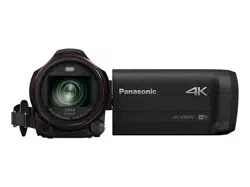
Operating Instructions
4K Video Camera High Definition Video Camera
Model No.
HC-VX3
Model No.
HC-V900
Please read these instructions carefully before using this product, and save this manual for future
use.
DVQP3181ZA
F1024MZ0
until
2018/03/30
HC-VX3_V900E-DVQP3181_eng.book 1 ページ 2024年10月22日 火曜日 午前10時6分

- 2 -
∫ About the recording format for recording motion pictures
For the , you can select from AVCHD, 4K MP4, MP4 or 24p recording formats to record
motion pictures. (l 82)
For the , you can select from AVCHD, MP4 or 24p recording formats to record motion
pictures. (l 82)
≥ Motion pictures recorded with AVCHD and motion pictures recorded with 4K MP4/MP4/24p are
not compatible with each other.
AVCHD:
It is suitable for viewing on a high-definition TV or for saving to disc.
≥ It is compatible with the AVCHD Progressive (1080/50p).
≥ Images recorded in 1080/50p can be saved using the following methods:
j Copying to a disc using the HD Writer AE 5.4.
j Copying to a Panasonic Blu-ray disc recorder that supports AVCHD Progressive.
4K MP4:
This is a recording format suitable for editing images.
≥ This format can record 4K motion pictures (3840k2160/25p), which deliver a resolution four
times higher than that of full high-definition motion pictures.
MP4:
This is a recording format suitable for playing back or editing on a PC.
24p:
This allows you to record images similar to those shot on a roll of cinema film.
≥ Recording with the following picture qualities is possible:
j For the
4K motion pictures (3840k2160/24p) or high-definition picture quality (1920k1080/24p)
j For the
High-definition picture quality (1920k1080/24p)
∫ Indemnity about recorded content
Panasonic does not accept any responsibility for damages directly or indirectly due to any type of
problems that result in loss of recording or edited content, and does not guarantee any content if
recording or editing does not work properly. Likewise, the above also applies in a case where any
type of repair is made to the unit.
Read this first
VX3
V900
VX3
V900
HC-VX3_V900E-DVQP3181_eng.book 2 ページ 2024年10月22日 火曜日 午前10時6分

- 3 -
∫ About Condensation
(When the lens or LCD Monitor is fogged up)
Condensation occurs when there is a change in temperature or humidity, such as when the unit is
taken from outside or a cold room to a warm room. Please be careful, as it may cause the lens or
LCD monitor to become soiled, moldy, or damaged.
When taking the unit to a place which has a different temperature, if the unit is accustomed to the
room temperature of the destination for about one hour, condensation can be prevented. (When the
difference in temperature is severe, place the unit in a plastic bag or the like, remove air from the
bag, and seal the bag.)
When condensation has occurred, remove the battery and/or the AC adapter and leave the unit like
that for about one hour. When the unit becomes accustomed to the surrounding temperature,
fogginess will disappear naturally.
∫ Cards that you can use with this unit
SD Memory Card, SDHC Memory Card and SDXC Memory Card
≥ 4 GB or more Memory Cards that do not have the SDHC logo or 48 GB or more Memory Cards
that do not have the SDXC logo are not based on SD Memory Card Specifications.
≥ Refer to page 16 for more details on SD cards.
∫ Caution regarding the lens
Do not aim the lens at the sun or strong light. Doing so may cause the unit to malfunction.
HC-VX3_V900E-DVQP3181_eng.book 3 ページ 2024年10月22日 火曜日 午前10時6分
- 4 -
∫ For the purposes of these operating instructions
≥ SD Memory Card, SDHC Memory Card and SDXC Memory Card are referred to as the “SD card”.
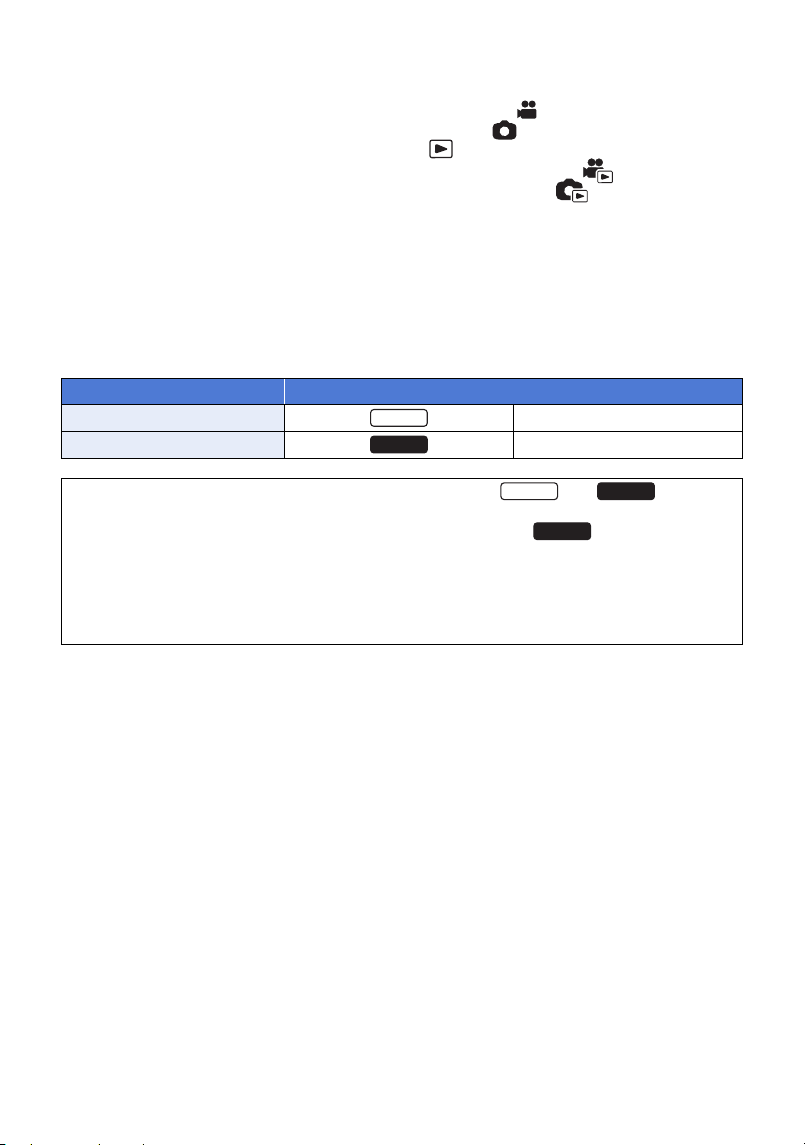
≥ Function that can be used for Motion Picture Recording Mode:
Function that can be used for Still Picture Recording Mode:
≥ Function that can be used for the Playback Mode:
Function that can be used for the Playback Mode (motion pictures only):
Function that can be used for the Playback Mode (still pictures only):
≥ Scene(s) recorded in the recording format [AVCHD]: “AVCHD scene(s)”
≥ Scene(s) recorded in the recording format [4K MP4] and scene(s) recorded in 4K Photo mode:
“4K MP4 scene(s)”
≥ Scene(s) recorded in the recording format [MP4], scene(s) saved in MP4 (1920k1080/25p),
MP4 (1280k720/25p) or MP4 (640k360/25p): “MP4 scene(s)”
≥ Scene(s) recorded in the recording format [24p]: “24p scene(s)”
≥ Pages for reference are indicated by an arrow, for example: l 00
≥ Model numbers are abbreviated as follows in these operating instructions:
Model number Abbreviation used in these operating instructions
HC-VX3 [VX3]
HC-V900 [V900]
These operating instructions are designed for use with models and . Pictures
may be slightly different from the original.
≥ The illustrations used in these operating instructions show model , however, parts of
the explanation refer to different models.
≥ Images and illustrations used in this document are for explaining the functions.
≥ Depending on the model, some functions are not available.
≥ Features may vary, so please read carefully.
≥ Not all models may be available depending on the region of purchase.
VX3
V900
VX3
V900
V900
HC-VX3_V900E-DVQP3181_eng.book 4 ページ 2024年10月22日 火曜日 午前10時6分

- 5 -
Read this first ................................................ 2
Preparation
Names and Functions of Main Parts ........... 7
Power supply ............................................... 11
Inserting/removing the battery ............... 11
Charging the battery .............................. 12
Charging and recording time ................. 14
Recording to a card ....................................16
Cards that you can use with this unit .....16
Inserting/removing an SD card .............. 18
Turning the unit on/off ................................ 19
Selecting a mode ........................................ 20
Switching this unit between Recording
Mode and Playback Mode ..................... 20
Switching this unit between
Motion Picture Recording Mode and
Still Picture Recording Mode ................. 21
LCD monitor ................................................ 22
How to use the touch screen ................. 22
About the Touch Menu .......................... 23
Setting date and time .................................. 24
Basic
Before recording ......................................... 25
Recording motion pictures ........................ 28
Recording still pictures .............................. 30
Recording still pictures in
Motion Picture Recording Mode ............ 32
Registering your favourite scenes
while recording 4K motion picture
[VX3] ...................................................... 33
Motion picture/Still picture playback ........ 34
Using the menu screen .............................. 37
Using the Setup Menu ................................ 38
Advanced (Recording)
Using the zoom ...........................................47
Zoom ratio during the Still Picture
Recording Mode .....................................47
Changing the Recording Mode ..................48
Intelligent Auto .......................................50
Intelligent Auto Plus ...............................52
Creative Control .....................................52
HDR Movie Mode ...................................55
Scene Mode ...........................................57
Cinema Like Effect [VX3] .......................58
FULL HD Slow Motion Video [V900] ......63
4K Photo Mode [VX3] ............................63
Stop Motion Animation Assist ................64
Manual recording ........................................65
White Balance ........................................66
Manual shutter speed adjustment ..........67
Iris adjustment ........................................68
Manual Focus adjustment ......................69
Recording with the Touch Function ..........71
Touch function icons ..............................71
Recording functions of operation icons ...76
Operation icons ......................................76
Recording functions of menus ..................80
Contents
HC-VX3_V900E-DVQP3181_eng.book 5 ページ 2024年10月22日 火曜日 午前10時6分

- 6 -
Advanced (Playback)
Playback Operations .................................. 96
Motion picture playback using
operation icon ........................................ 96
Creating still picture from
motion picture ........................................ 97
Time Frame Index ................................. 98
Repeat Playback ................................... 99
Resuming the previous playback ........... 99
Setting the playback speed of
FULL HD Slow Motion Video ................. 99
Zooming in on a still picture during
playback (Playback zoom) ................... 100
Various playback functions ..................... 101
Playing back motion pictures/
still pictures by date ............................. 101
4K Cropping [VX3] ............................... 103
Highlight Playback ............................... 110
Manual Edit .......................................... 117
Baby Calendar ..................................... 121
Tagging Favourite Scene [VX3] ........... 123
Changing the playback settings and
playing back the slide show ................. 124
Playing back still pictures recorded in
Stop Motion Animation Assist Mode
as a slide show .................................... 126
Deleting scenes/still pictures .................. 127
Deleting part of a scene (AVCHD) ....... 129
Dividing a scene (AVCHD) ..................130
Dividing a scene to partially delete
(4K MP4, MP4) .................................... 131
Protecting scenes/still pictures ............ 132
Convert to MP4 .......................................... 133
Slow speed conversion ............................ 135
Watching Video/Pictures on your TV ...... 136
Connecting with an
HDMI micro cable ................................ 138
Listening in 5.1 channel sound
(AVCHD) .............................................. 139
Playback using VIERA Link ..................... 140
Dubbing
Dubbing with a Blu-ray disc recorder,
etc. .............................................................. 142
With a PC
What you can do with a PC ......................144
Operating environment .............................146
Installation .................................................148
Connecting to a PC ...................................149
About the PC display ...........................151
Starting HD Writer AE 5.4 .........................152
Reading the operating instructions
of the software applications .................152
If using Mac (mass storage) .....................153
Others
Indications .................................................154
Messages ...................................................158
About recovery .....................................159
Troubleshooting ........................................160
Cautions for use ........................................165
About copyright ........................................169
Recording modes/approximate
recordable time .........................................170
Approximate number of
recordable pictures ...................................172
HC-VX3_V900E-DVQP3181_eng.book 6 ページ 2024年10月22日 火曜日 午前10時6分
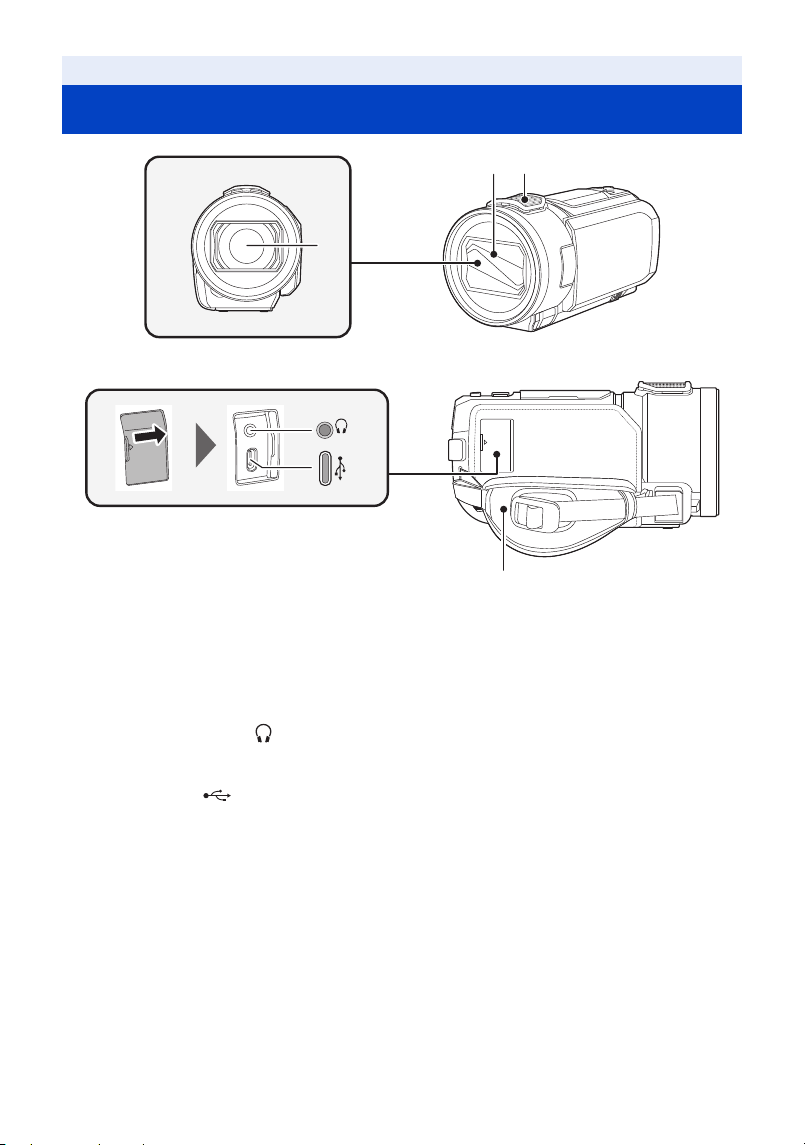
- 7 -
1 Lens
≥ For information on how to attach the supplied lens hood, refer to page 27.
2 Lens cover
≥ The lens cover opens in Motion Picture Recording Mode or Still Picture Recording Mode. (l 20)
3 Internal microphones
4 Grip belt (l 26)
5 Headphone terminal [ ] (l 79)
≥ Excessive sound pressure from earphones and headphones can cause hearing loss.
≥ Listening at full volume for long periods may damage the user’s ears.
6 USB terminal [ DC IN] (l 12, 142, 149)
≥ Do not use any other USB cables except the supplied one.
Preparation
Names and Functions of Main Parts
3
1
2
4
5
6
HC-VX3_V900E-DVQP3181_eng.book 7 ページ 2024年10月22日 火曜日 午前10時6分
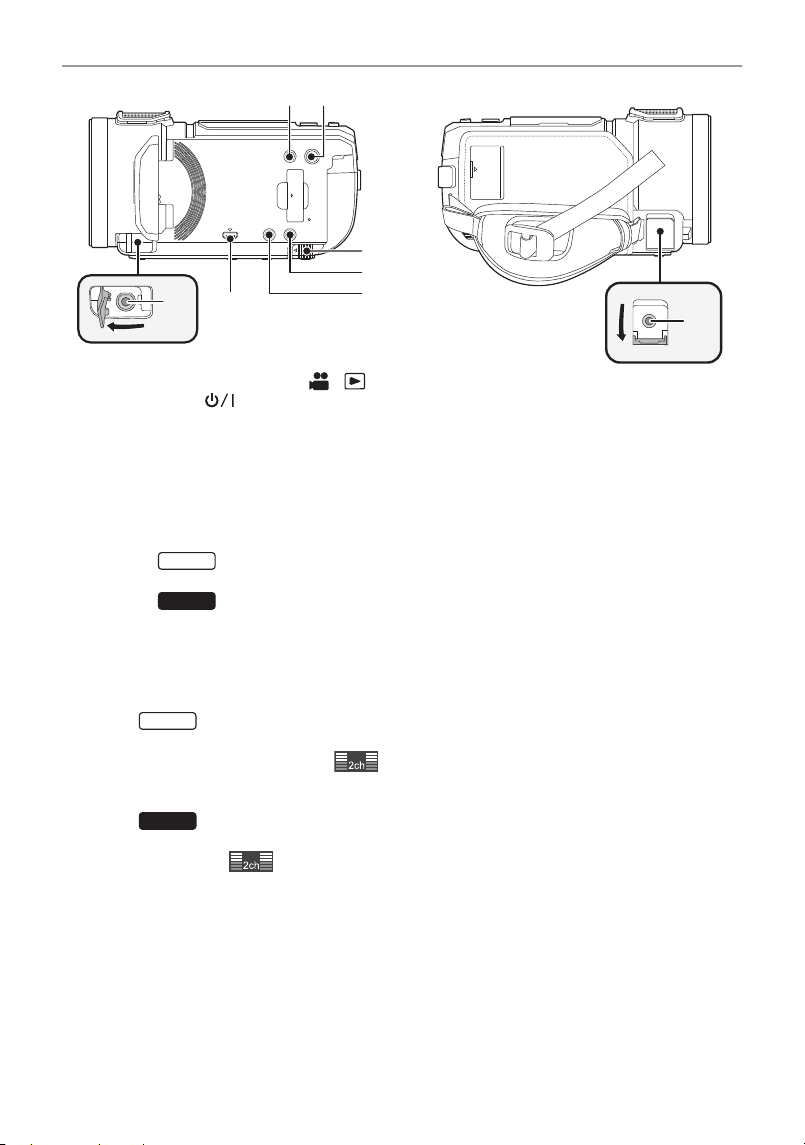
- 8 -
7 Recording/playback button [ / ] (l 20)
8 Power button [ ] (l 19)
9 Battery release lever [BATT] (l 11)
10 HDR button (l 55)
11 MENU button (l 37)
12 REMOTE terminal
≥ You can connect a remote control unit (commercially available) and remotely control some
functionality.
13 Micro HDMI connector [HDMI] (l 136)
14 (For the )
MIC/LINE IN input terminal [MIC/LINE IN]
(For the )
Microphone terminal [MIC]
≥ A compatible plug-in powered microphone can be used as an external microphone.
≥ When the unit is connected with the AC adaptor, sometimes noise may be heard depending on
the microphone type. In this case, please switch to the battery for the power supply and the noise
will stop.
≥ (For the )
If you connect an external microphone or audio device
*
when a setting other than [AUTO] is
selected for [AUDIO LEVEL] (l 91), (audio input level meter) will be displayed. Set
[AUDIO INPUT SELECT] (l 87) before connecting.
* The audio from the audio device is recorded when shooting.
≥ (For the )
If you connect an external microphone when a setting other than [AUTO] is selected for
[MIC LEVEL] (l 91), (audio input level meter) will be displayed.
8
9
10
11
7
12
13
14
VX3
V900
VX3
V900
HC-VX3_V900E-DVQP3181_eng.book 8 ページ 2024年10月22日 火曜日 午前10時6分
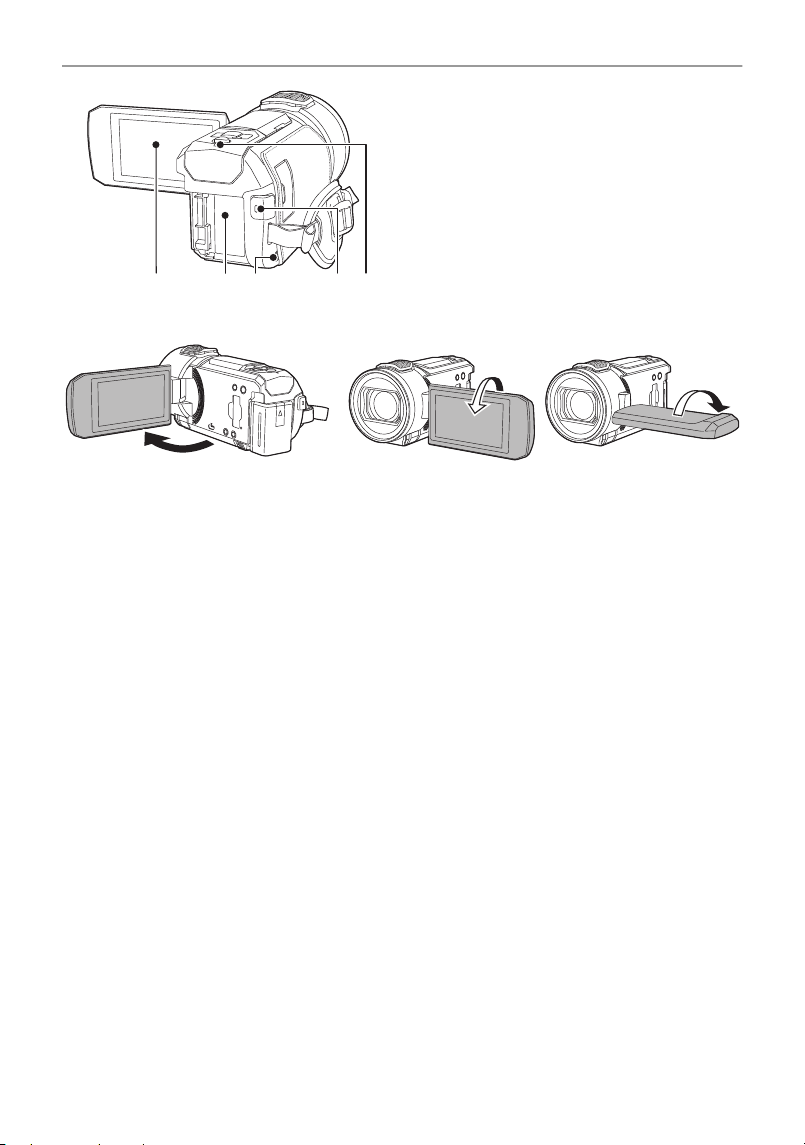
- 9 -
15 LCD monitor (Touch screen) (l 22)
16 Battery holder (l 11)
17 Speaker
18 Recording start/stop button (l 28)
19 Status indicator (l 19)
≥ It can open up to 90o. ≥ It can rotate up to 180o A towards the lens or 90o B
towards the opposite direction.
1615 18 1917
HC-VX3_V900E-DVQP3181_eng.book 9 ページ 2024年10月22日 火曜日 午前10時6分
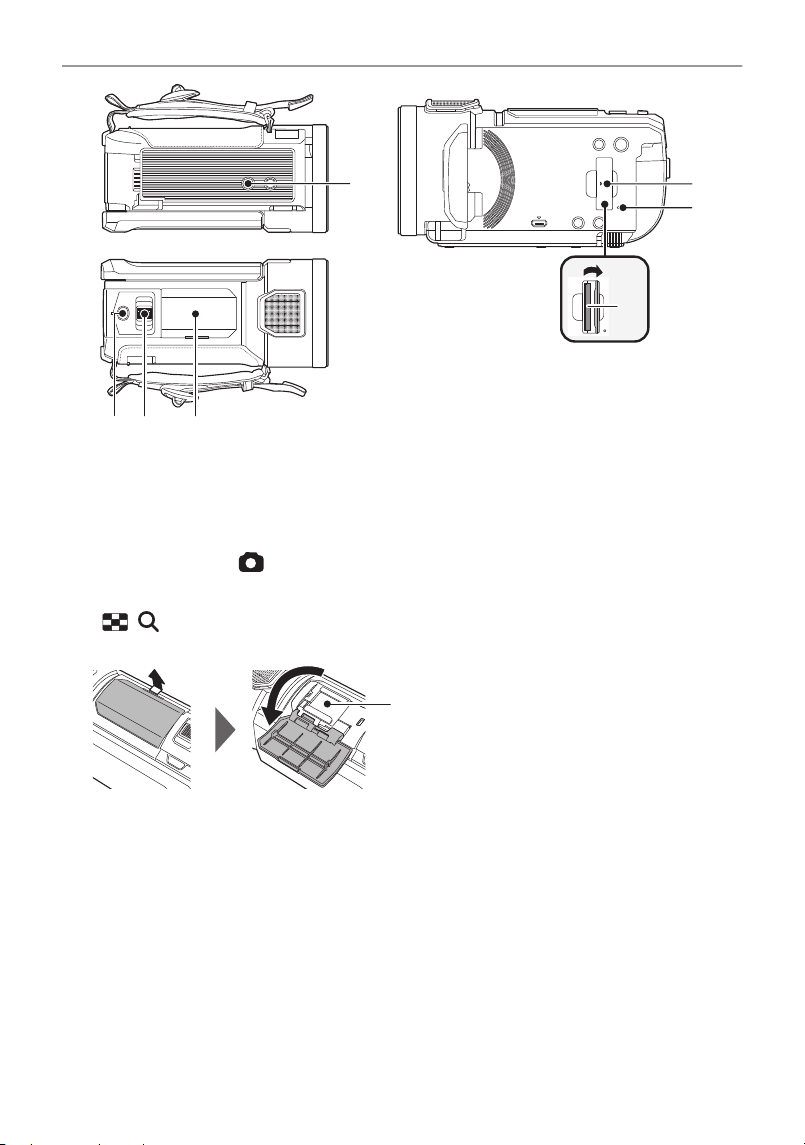
- 10 -
20 Tripod receptacle
≥ Attaching a tripod with a screw length of 5.5 mm or more may damage the unit.
21 SD card cover (l 18)
22 Access lamp [ACCESS] (l 18)
23 Card slot (l 18)
24 Photoshot button [ ] (l 30)
25 Zoom lever [W/T] (In Motion Picture Recording Mode or Still Picture Recording Mode)
(l 47), Volume lever [sVOLr] (In Playback Mode) (l 36)/Thumbnail display switch
[/] (l 35)
26 Accessory shoe cover
≥ Close this cover when not using the accessory shoe.
27 Accessory shoe
≥ You can attach a variety of optional accessories to the accessory shoe. For information on how to
attach and use those accessories, refer to their manuals.
20
21
22
25 2624
23
27
HC-VX3_V900E-DVQP3181_eng.book 10 ページ 2024年10月22日 火曜日 午前10時6分
- 11 -
∫ About batteries that you can use with this unit
The battery that can be used with this unit is VW-VBT190/VW-VBT380.
≥ The unit has a function for distinguishing batteries which can be used safely.
The dedicated battery (VW-VBT190/VW-VBT380) supports this function. The only batteries
suitable for use with this unit are genuine Panasonic products and batteries manufactured
by other companies and certified by Panasonic. Panasonic cannot in any way guarantee
the quality, performance or safety of batteries which have been manufactured by other
companies and are not genuine Panasonic products.
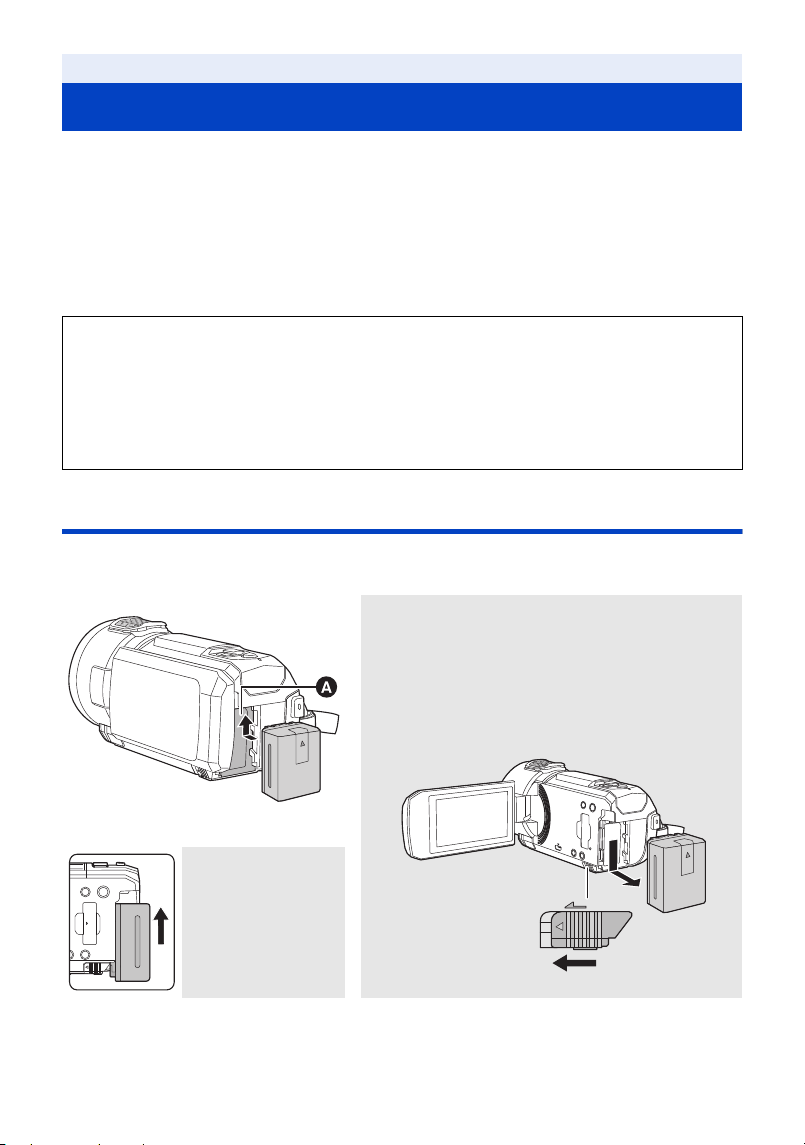
Inserting/removing the battery
≥ Press the power button to turn off the unit. (l 19)
Install the battery by inserting it in the direction shown in the figure.
Preparation
Power supply
It has been found that counterfeit battery packs which look very similar to the genuine
product are made available to purchase in some markets. Some of these battery packs
are not adequately protected with internal protection to meet the requirements of
appropriate safety standards. There is a possibility that these battery packs may lead to
fire or explosion. Please be advised that we are not liable for any accident or failure
occurring as a result of use of a counterfeit battery pack. To ensure that safe products are
used we would recommend that a genuine Panasonic battery pack is used.
Removing the battery
Be sure to hold down the power button until the
status indicator goes off. Then remove the battery
while supporting the unit to prevent it from dropping.
Move the battery release lever in the direction
indicated by the arrow and remove the battery
when unlocked.
A Battery holder
While holding the
battery against the
battery holder, push
the battery upwards
until you hear it click
into place.
ャモヵヵ
HC-VX3_V900E-DVQP3181_eng.book 11 ページ 2024年10月22日 火曜日 午前10時6分
- 12 -
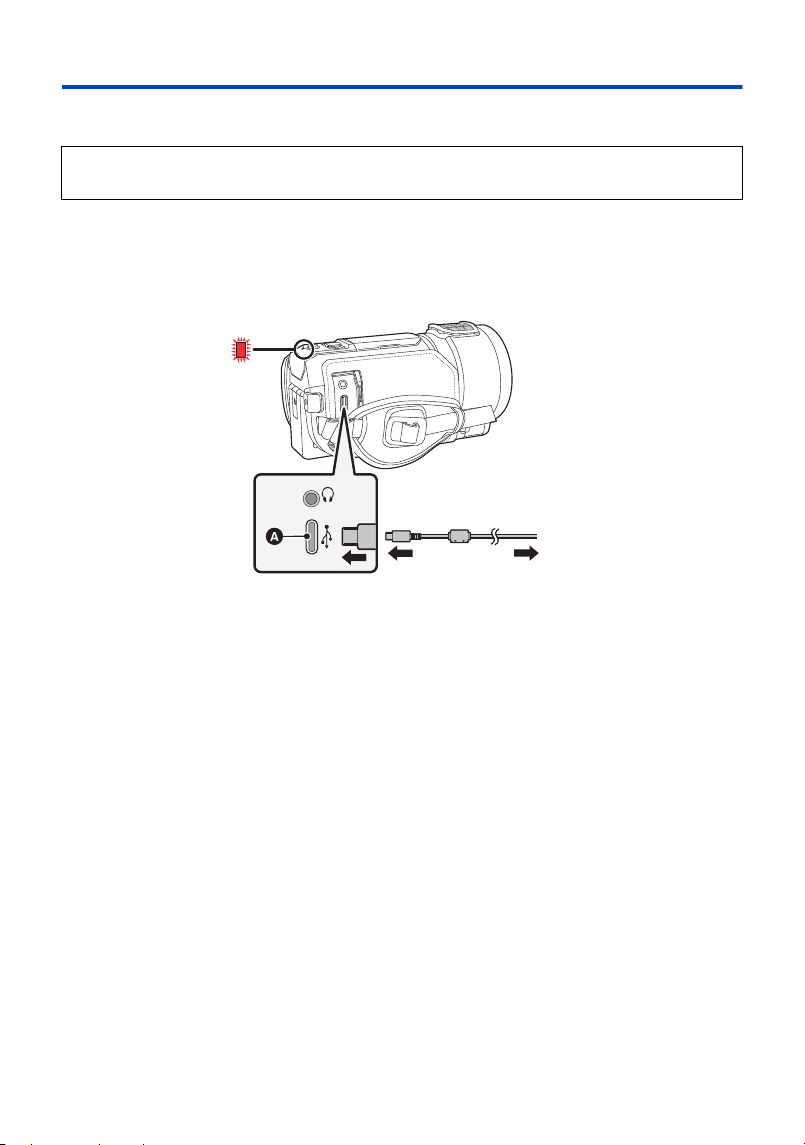
Charging the battery
Charge using an AC adaptor (optional/commercially available) and a USB cable (supplied/
commercially available).
Important:
≥ Do not use the USB cable with any other equipment as it is designed only for this unit.
≥ The battery will not be charged if the unit is turned on.
≥ It is recommended to charge the battery in a temperature between 10 oC and 30 oC.
(The battery temperature should also be the same.)
A USB terminal
B To the AC adaptor
1 Connect the USB cable to the AC adaptor and to the USB terminal of this
unit.
≥ Insert the plugs as far as they will go.
2 Insert the AC adaptor into an AC outlet.
≥ The status indicator (l 9) will flash red at an interval of approximately 2 seconds (approximately
1 second on, approximately 1 second off), indicating that charging has begun.
It will turn off when the charging is completed.
∫ Connecting to the AC outlet
It is possible to use this unit with power supplied from the AC outlet by turning on the unit with the
AC adaptor connected.
Even when you use the AC adaptor for recording images, keep the battery connected.
This allows you to continue the recording even if a power failure occurs or the AC adaptor is
unplugged from the AC outlet by accident.
∫ To charge by connecting to other device
It is possible to charge by connecting to other device with the USB cable (supplied).
Please refer to page 150.
When this unit is purchased, the battery is not charged. Charge the battery fully before
using this unit for the first time.
HC-VX3_V900E-DVQP3181_eng.book 12 ページ 2024年10月22日 火曜日 午前10時6分

- 13 -
≥ We recommend using an optional Panasonic AC adaptor (DMW-AC11) to supply power and
charge.
≥ A commercially available AC adaptor and USB cable can be used to supply power and charge
this unit.
*Recommended specifications for the commercially available AC adaptor
jSupports 5 V/3 A (15 W) DC output
jUSB Type-C terminal
*For supplying power and charging, use either the supplied USB cable or a USB cable with an
output rating of 15 W or greater.
≥ You can also use an AC adaptor with 5 V/1.5 A or better for charging.
However, charging time may be longer than with the recommended AC adaptor.
≥ Operation is not guaranteed with all commercially available devices.
≥ If the status indicator flashes at a particularly fast or slow rate, refer to page 167.
≥ We recommend using Panasonic batteries (l 11).
≥ If you use other batteries, we cannot guarantee the quality of this product.
≥ Do not heat or expose to flame.
≥ Do not leave the battery(ies) in a car exposed to direct sunlight for a long period of time with
doors and windows closed.
HC-VX3_V900E-DVQP3181_eng.book 13 ページ 2024年10月22日 火曜日 午前10時6分
- 14 -
Charging and recording time
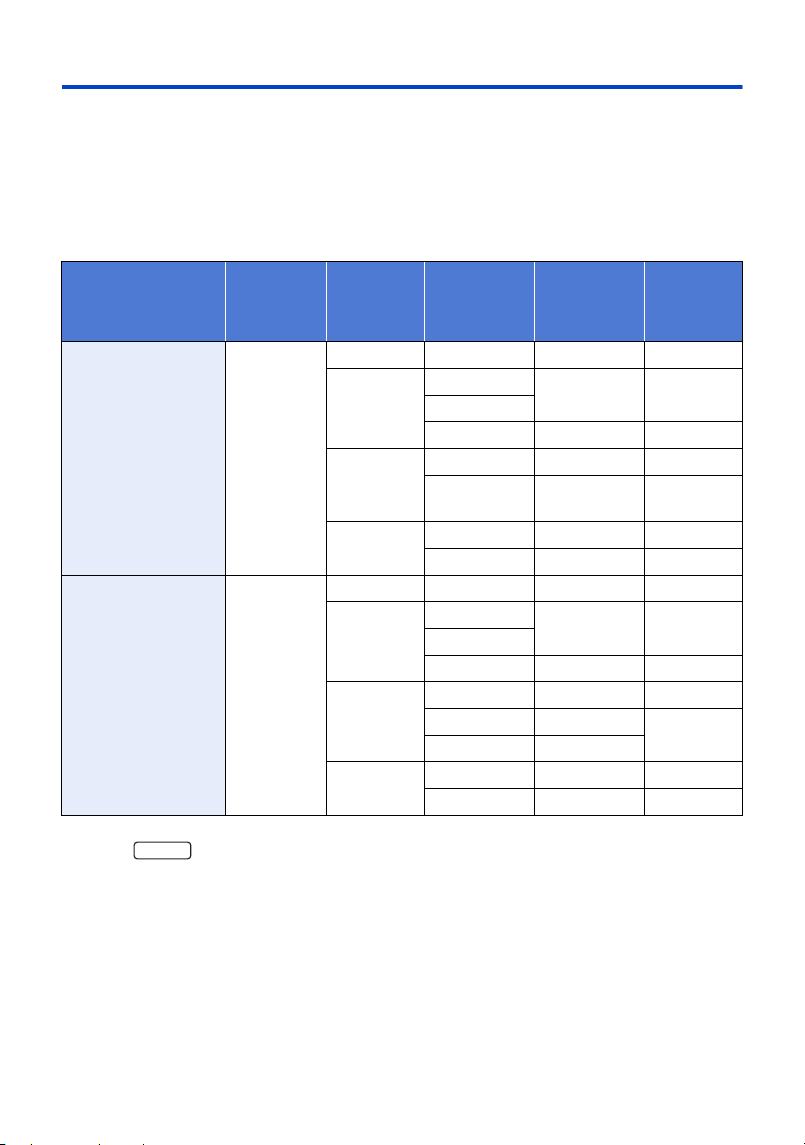
∫ Charging/Recording time
≥ Temperature: 25 oC/humidity: 60%RH
≥ When using the LCD monitor
≥ Charging times are measured under the following conditions:
s Using this unit and an AC adaptor (DMW-AC11: optional)
s Charged after battery is fully depleted
≥ Charging time and recordable time vary depending on the usage conditions such as high/
low temperature.
*For the
≥ “h” is an abbreviation for hour, “min” for minute and “s” for second.
≥ These times are approximations.
Battery model
number
[Voltage/Capacity
(minimum)]
Charging
time
Recording
format
Recording
mode
Maximum
continuous
recordable
time
Actual
recordable
time
Supplied battery/
VW-VBT190
(optional)
[3.6 V/1940 mAh]
2h20min
[4K MP4]
*
[2160] 1 h 35 min 50 min
[MP4]
[1080/50M]
1h50min 55min
[1080/28M]
[720] 2h15min 1h10min
[AVCHD]
[1080/50p] 1 h 50 min 55 min
[PH], [HA],
[HG], [HE]
1h55min 1h
[24p]
[2160/24p]
*
1h40min 50min
[1080/24p] 1 h 50 min 55 min
VW-VBT380
(optional)
[3.6 V/3880 mAh]
3h45min
[4K MP4]
*
[2160] 3 h 30 min 1 h 45 min
[MP4]
[1080/50M]
3h55min 2h
[1080/28M]
[720] 4h45min 2h25min
[AVCHD]
[1080/50p] 3 h 55 min 2 h
[PH] 4 h
2h5min
[HA], [HG], [HE]
4h5min
[24p]
[2160/24p]
*
3h35min 1h50min
[1080/24p] 4 h 2 h 5 min
VX3
HC-VX3_V900E-DVQP3181_eng.book 14 ページ 2024年10月22日 火曜日 午前10時6分

- 15 -
≥ The actual recordable time refers to the recordable time when repeatedly starting/stopping
recording, turning the unit on/off, moving the zoom lever etc.
≥ The batteries heat up after use or charging. This is not a malfunction.
Battery capacity indication
≥ The display changes as the battery capacity reduces. ####
If there is less than 3 minutes remaining, then will become red. If the battery
discharges, then will flash.
≥ Screen display will disappear when no touch operation is performed for a specific period of
time. However, it will be constantly displayed when the remaining battery time becomes less
than 30 minutes.
≥ The remaining battery capacity is displayed when using the Panasonic battery that you can
use for this unit. The actual time can vary depending on your actual use.
≥ When using the AC adaptor or batteries made by other companies, the remaining battery
capacity will not be shown.
HC-VX3_V900E-DVQP3181_eng.book 15 ページ 2024年10月22日 火曜日 午前10時6分
- 16 -
The unit can record still pictures or motion pictures to an SD card.
Cards that you can use with this unit
Preparation
Recording to a card
SD Memory Card/SDHC Memory Card/SDXC Memory Card (Maximum 512 GB)
≥ Please check the latest information on the support website below.
https://panasonic.jp/support/global/cs/e_cam/index.html
(This website is in English only.)
≥ When using an SDHC Memory Card/SDXC Memory Card with other equipment, check the
equipment is compatible with these Memory Cards.
≥ We do not guarantee the operation of SD cards other than the ones above. Further, SD cards
with a capacity of less than 32 MB cannot be used for motion picture recording.
≥ Operation is not guaranteed for all SD cards.
≥ 4 GB or more Memory Cards that do not have the SDHC logo or 48 GB or more Memory Cards
that do not have the SDXC logo are not based on SD Memory Card Specifications.
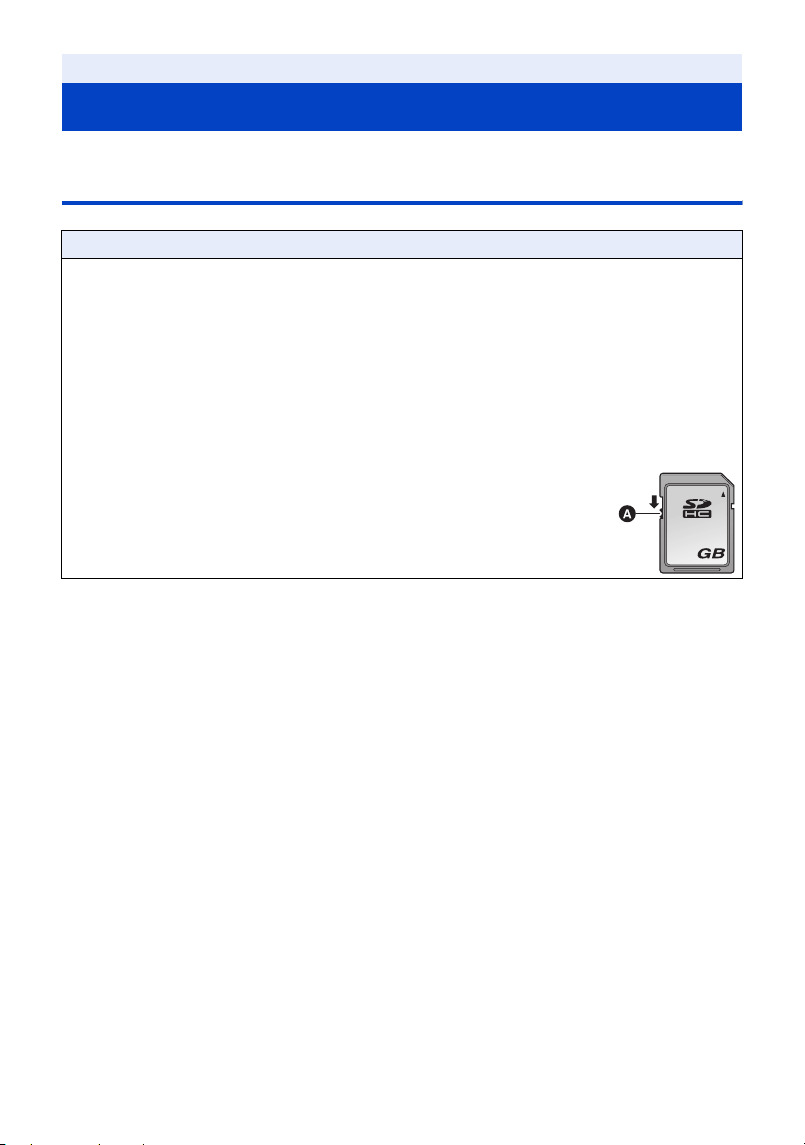
≥ When the write-protect switch A on SD card is locked, no recording,
deletion or editing will be possible on the card.
≥ Keep the Memory Card out of reach of children to prevent swallowing.
32
HC-VX3_V900E-DVQP3181_eng.book 16 ページ 2024年10月22日 火曜日 午前10時6分
- 17 -
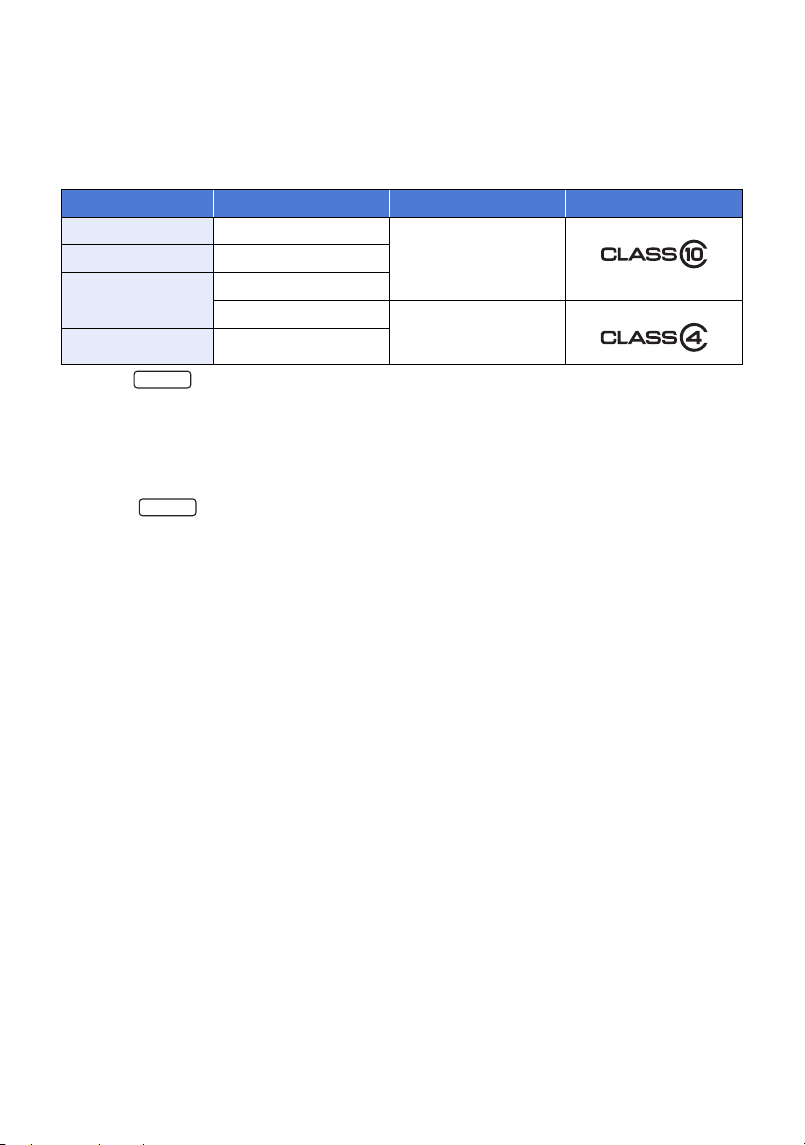
∫ About the Speed Class ratings for recording motion pictures
Depending on [REC MODE] and [REC FORMAT], the required card differs. (l 82, 83)
Use a card that meets the following ratings of the SD Speed Class. Use of a non-compatible
card may cause recording to stop suddenly.
≥ SD Speed Class is the speed standards regarding continuous writing. To check the class, see the
labelled side, etc. of the card.
*For the
≥ In the following situations, you need an SD card conforming to Class 10 of the SD Speed
Class Rating to record motion pictures.
Use of a non-compatible card may cause recording to stop suddenly.
j FULL HD Slow Motion Video Mode (l 60, 63)
(For the )
j 4K Photo Mode (l 63)
j Slow & Quick Video Mode (l 58)
Recording formats Recording modes Speed Class ratings Label examples
4K MP4
*
[2160]
Class 10
24p [2160/24p]
*
, [1080/24p]
MP4
[1080/50M]
[1080/28M], [720]
Class 4 or more
AVCHD All
VX3
VX3
HC-VX3_V900E-DVQP3181_eng.book 17 ページ 2024年10月22日 火曜日 午前10時6分
- 18 -
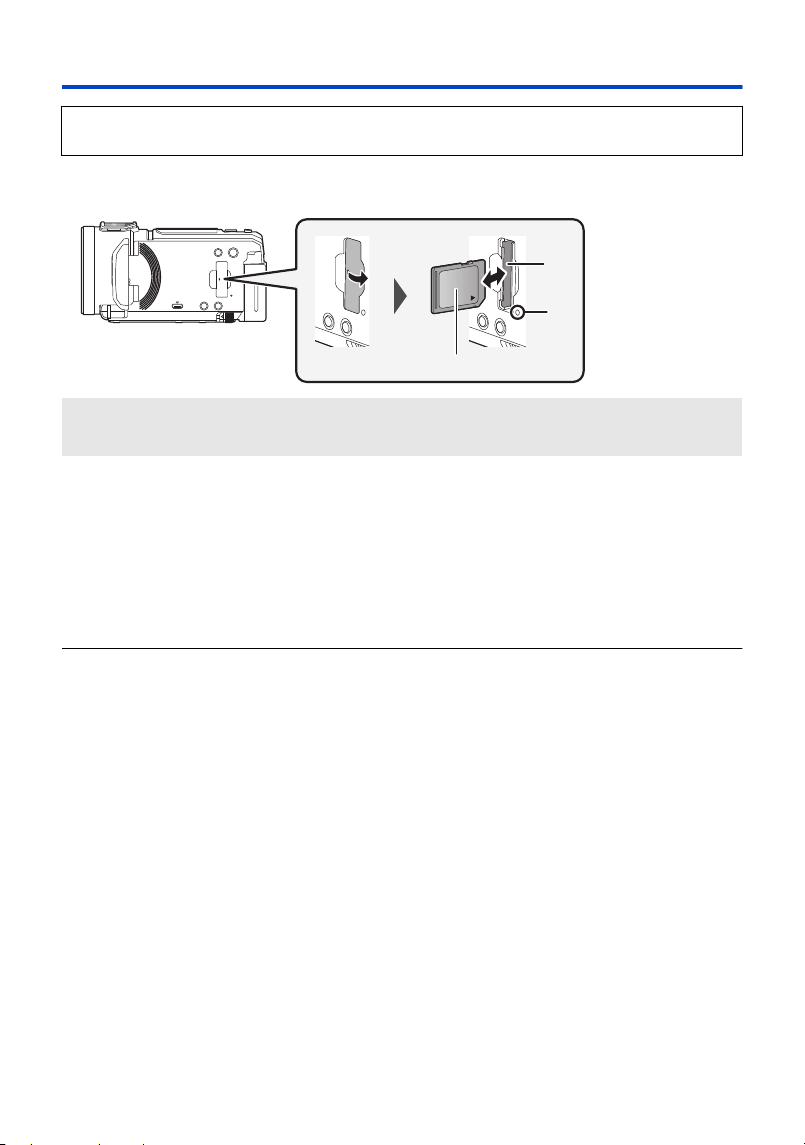
Inserting/removing an SD card
Caution:
Check that the access lamp has gone off.
1 Open the SD card cover and insert (remove) the SD card into (from) the card
slot B.
≥ Face the label side C in the direction shown in the illustration and press it straight in as far as it
will go.
≥ Press the centre of the SD card and then pull it straight out.
2 Securely close the SD card cover.
≥ Securely close it until it clicks.
≥ Do not touch the terminals on the back of the SD card.
≥ Do not apply strong shocks, bend, or drop the SD card.
≥ Electrical noise, static electricity or the failure of this unit or the SD card may damage or erase the
data stored on the SD card.
≥ When the card access lamp is lit, do not:
j Remove the SD card
j Turn the unit off
j Insert and remove the USB cable
j Expose the unit to vibrations or shock
Performing the above while the lamp is on may result in damage to data/SD card or this unit.
≥ Do not expose the terminals of the SD card to water, dirt or dust.
≥ Do not place SD cards in the following areas:
j In direct sunlight
j In very dusty or humid areas
j Near a heater
j Locations susceptible to significant difference in temperature (condensation can occur.)
j Where static electricity or electromagnetic waves occur
≥ To protect SD cards, return them to their cases when you are not using them.
≥ About disposing of or giving away the SD card. (l 167)
Before using SD cards to be used on this unit, format with this unit. (l 45) When the SD card is
formatted, all of the recorded data is deleted. Once the data is deleted, it cannot be restored.
Access lamp [ACCESS] A
≥ When this unit is accessing the SD card, the access lamp lights up.
HC-VX3_V900E-DVQP3181_eng.book 18 ページ 2024年10月22日 火曜日 午前10時6分
- 19 -
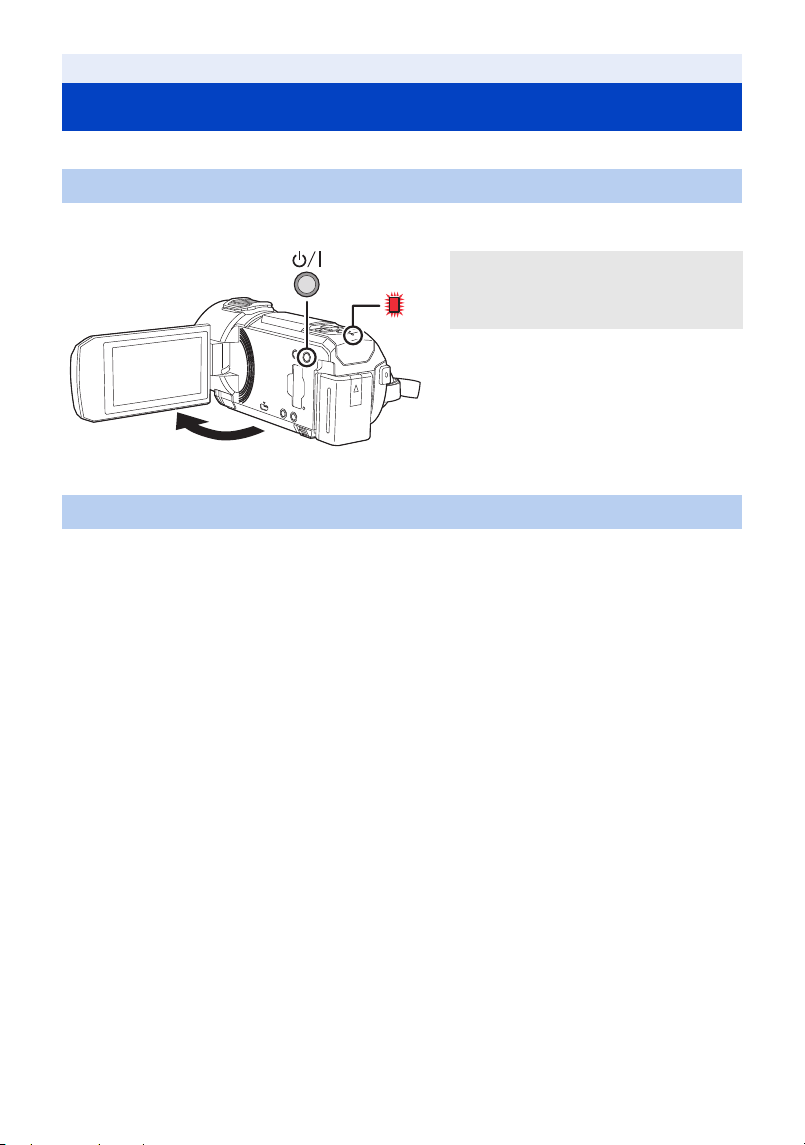
You can turn the unit on and off using the power button or by opening and closing the LCD monitor.
Open the LCD monitor and press the power button to turn on the unit.
A The status indicator lights on.
The unit is turned on when the LCD monitor is opened, and unit is turned off when it is closed.
During normal use, opening and closing of the LCD monitor can be conveniently used to
turn the unit on/off.
≥ The unit will not turn off while recording motion pictures even if the LCD monitor is closed.
≥ In the following cases, opening the LCD monitor does not turn on the unit. Press the power button
to turn on the unit.
j When the unit is originally purchased
j When you have turned off the unit using the power button
∫ Overheat detection
When the internal temperature of the unit rises during use, a message will be displayed. When this
happens, the unit will turn off automatically a few minutes later.
≥ Wait until the temperature has dropped before resuming use.
Preparation
Turning the unit on/off
Turning the unit on and off with the power button
To turn off the unit
Hold down the power button until the
status indicator goes off.
Turning the unit on and off with the LCD monitor
HC-VX3_V900E-DVQP3181_eng.book 19 ページ 2024年10月22日 火曜日 午前10時6分
- 20 -
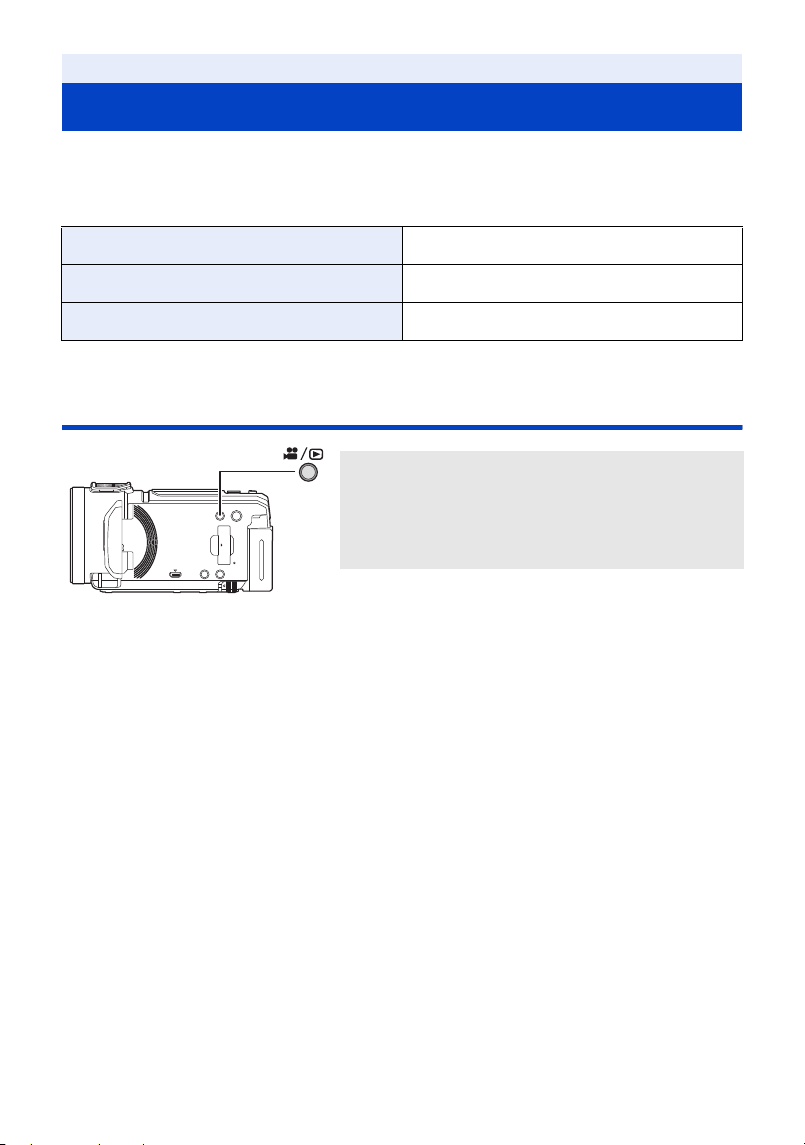
You can switch this unit between Recording Mode (Motion Picture Recording Mode/Still Picture
Recording Mode) and Playback Mode by pressing the recording/playback button.
If you touch the recording mode switching icon in Recording Mode, this unit can be switched
between Motion Picture Recording Mode and Still Picture Recording Mode.
Switching this unit between Recording Mode and
Playback Mode
Preparation
Selecting a mode
Motion Picture Recording Mode (l 28) Recording motion pictures.
Still Picture Recording Mode (l 30) Recording still pictures.
Playback Mode (l 34, 96) Motion picture/Still picture playback.
Recording/playback button
Press the button to switch this unit between
Recording Mode and Playback Mode.
≥ When you turn on this unit, it starts up in Recording
Mode.
HC-VX3_V900E-DVQP3181_eng.book 20 ページ 2024年10月22日 火曜日 午前10時6分
- 21 -
Switching this unit between Motion Picture Recording
Mode and Still Picture Recording Mode
Touch the recording mode switching icon displayed on the LCD monitor (touch screen) to switch this
unit between Motion Picture Recording Mode and Still Picture Recording Mode.
2 Touch the recording mode switching icon.
≥ Refer to page 22 for touch screen operation.
To display the recording mode switching icon
Display of the recording mode switching icon will disappear when no touch operation is performed
for a specific period of time. To display it again, touch the screen.
≥ If the recording start/stop button is pressed in Still Picture Recording Mode or Playback Mode,
this unit will be switched to Motion Picture Recording Mode. During motion picture/still picture
playback or in other conditions, even if the recording start/stop button is pressed, the recording
mode may not be switched.
≥ When you switch between Motion Picture Recording Mode and Still Picture Recording Mode,
settings used in the original recording mode may not be maintained. (l 48)
≥ You cannot switch to Still Picture Recording Mode when [REC FORMAT] is set to [24p].
(Motion Picture Recording Mode)
1 Press the recording/playback button to
switch this unit to Recording Mode.
≥ The recording mode switching icon A is displayed on
the screen.
Motion Picture Recording Mode
Still Picture Recording Mode
HC-VX3_V900E-DVQP3181_eng.book 21 ページ 2024年10月22日 火曜日 午前10時6分
- 22 -
How to use the touch screen
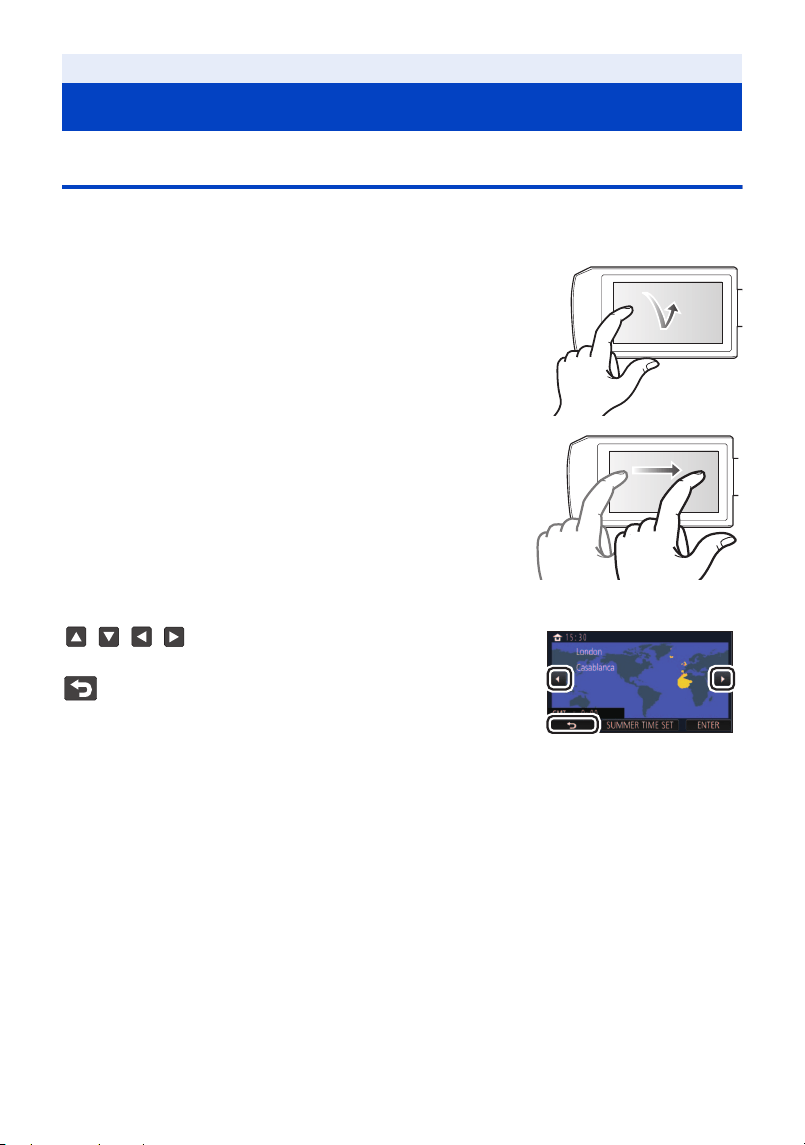
You can operate by directly touching the LCD monitor (touch screen) with your finger.
∫ Touch
Touch and release the touch screen to select icon or picture.
≥ Touch the centre of the icon.
≥ Touching the touch screen will not operate while you are
touching another part of the touch screen.
∫ Slide while touching
Move your finger while pressing on the touch screen.
∫ About the operation icons
///:
Touch when changing a page or performing settings.
:
Touch to return to the previous screen.
Preparation
LCD monitor
HC-VX3_V900E-DVQP3181_eng.book 22 ページ 2024年10月22日 火曜日 午前10時6分
- 23 -
About the Touch Menu
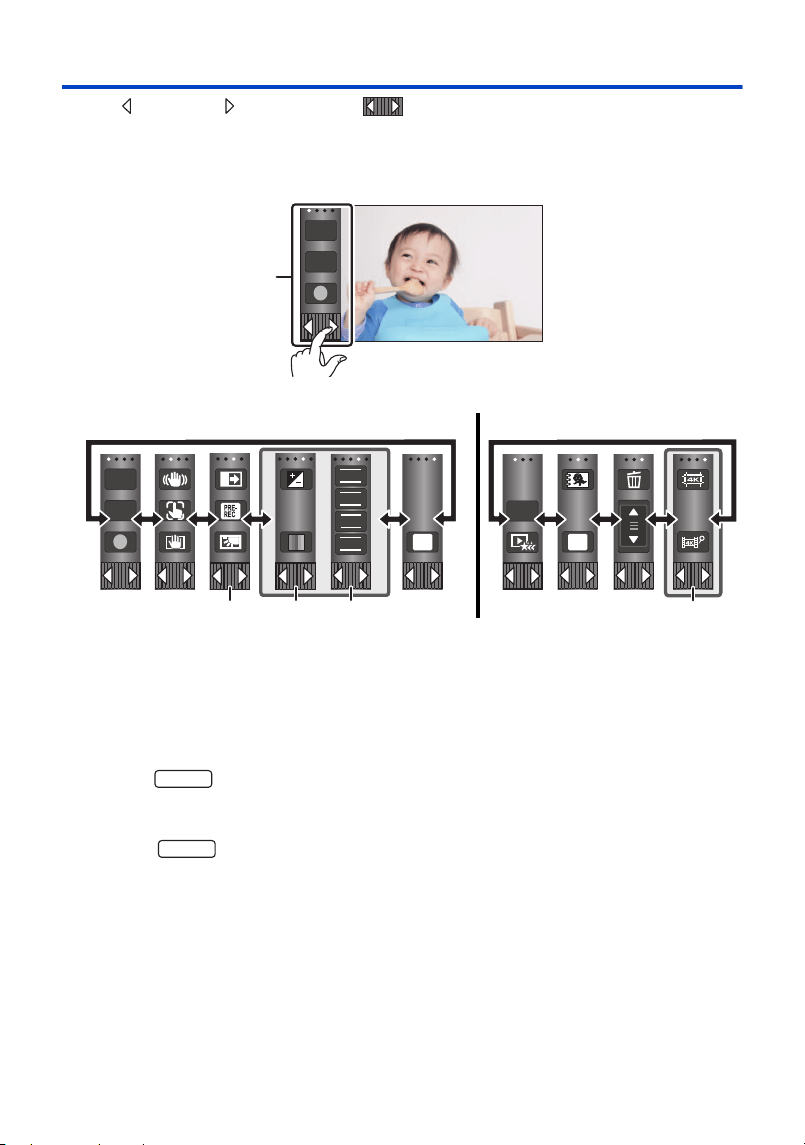
Touch (left side)/ (right side) of on the Touch Menu to switch the
operation icons.
≥ It is also possible to switch the operation icons by sliding the Touch Menu right or left while
touching it.
B You can change the operation icons to display. (l 42)
C Displayed only in Intelligent Auto Plus Mode (l 52) and [Miniature Effect]/[8mm movie]/
[Silent movie] of the Creative Control Mode (l 52).
D Displayed in the following situations:
j Displayed only in [Time Lapse Rec] of the Creative Control Mode (l 52), HDR Movie Mode
(l 55), Scene Mode (l 57), Manual Mode (l 65), FULL HD Slow Motion Video Mode (l 60,
63), Stop Motion Animation Assist Mode (l 64)
j (For the )
When 4K Photo Mode is in use (l 63), when Slow & Quick Video Mode or Slow Zoom Mode in
Cinema Like Effect Mode is in use (l 58, 61)
E (For the )
Displayed in the thumbnail view of 4K MP4 scenes. (l 34)
A Touch Menu
Recording Mode Playback Mode
T
W
MENU
T
W
FOCUS
WB
SHTR
IRIS
MENU
ALL
VX3
VX3
HC-VX3_V900E-DVQP3181_eng.book 23 ページ 2024年10月22日 火曜日 午前10時6分
- 24 -
∫ To display the Touch Menu
The clock is not set at the time of purchase. Make sure to set the clock.
≥ When you turn on this unit, the message “Set home region and date/time.” may be
displayed. Select [YES], and follow the steps below to make these settings:
j Step 3 in [SET WORLD TIME] (l 38)
j Steps 2–3 of “Setting date and time”
1 Select the menu. (l 37)
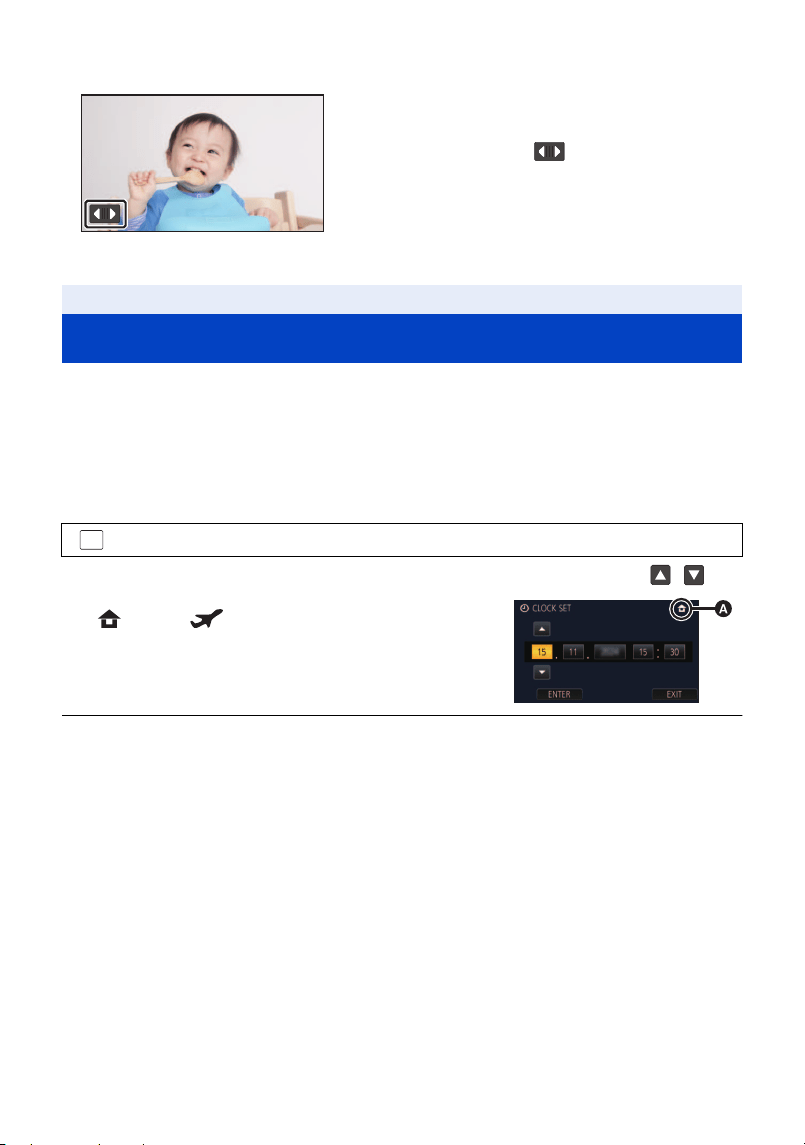
2 Touch the date or time to be set, then set the desired value using / .
A Displaying the World Time setting (l 38):
[HOME]/ [DESTINATION]
≥ The year can be set between 2000 and 2039.
3 Touch [ENTER].
≥ Touch [EXIT] to complete the setting.
≥ The date and time function is driven by a built-in lithium battery.
≥ If the time display becomes [- -], the built-in lithium battery needs to be charged. To recharge the
built-in lithium battery, connect the AC adaptor or attach the battery to this unit. The battery is still
being recharged even if the unit is off. Leave the unit as it is for approx. 24 hours and the battery
will maintain the date and time for approx. 4 months.
Display of the Touch Menu will disappear when no
touch operation is performed for a specific period of
time during recording of motion picture/still picture.
To display it again, touch .
Preparation
Setting date and time
: [SETUP] # [CLOCK SET]
MENU
HC-VX3_V900E-DVQP3181_eng.book 24 ページ 2024年10月22日 火曜日 午前10時6分
- 25 -
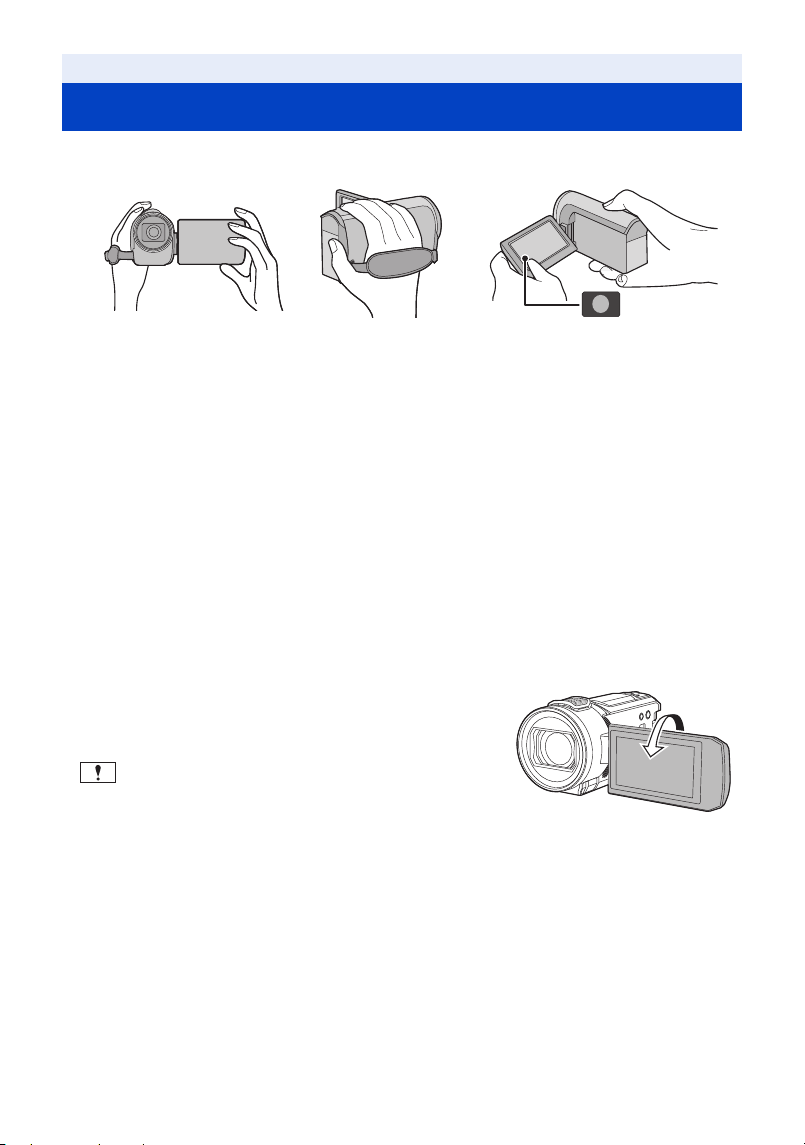
∫ Basic camera positioning
1 Hold the unit with both hands.
2 Put your hand through the grip belt.
3 It is convenient to use the Recording button icon A when holding the unit at waist level.
≥ When recording, make sure your footing is stable and there is no danger of colliding with another
person or object.
≥ When you are outdoors, record pictures with the sunlight behind you. If the subject is backlit, it will
become dark in the recording.
≥ Keep your arms near your body and separate your legs for better balance.
≥ Do not cover the microphones with your hand etc.
∫ Basic motion picture recording
≥ The unit should normally be held steady when recording.
≥ If you move the unit when recording, do so slowly, maintaining a constant speed.
≥ The zoom operation is useful for recording subjects you cannot get close to, but overuse of zoom
in and zoom out can make the resulting motion picture less enjoyable to watch.
∫ Recording Yourself
Rotate the LCD monitor towards the lens side.
≥ The image is horizontally flipped as if you see a mirror
image. (However the image recorded is the same as a
normal recording.)
≥ Only some indications will appear on the screen. When
appears, return the direction of the LCD monitor to
normal position and check the warning/alarm indication.
(l 158)
Basic
Before recording
HC-VX3_V900E-DVQP3181_eng.book 25 ページ 2024年10月22日 火曜日 午前10時6分
- 26 -
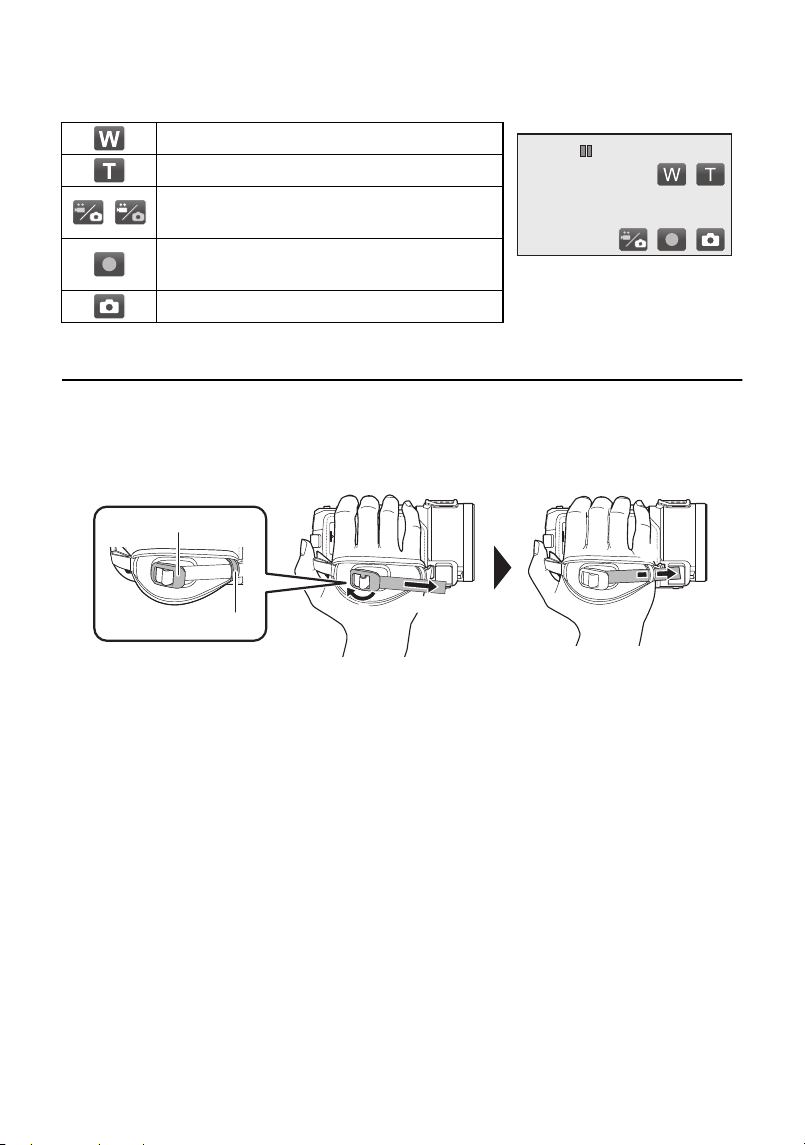
Screen displays when recording yourself
≥ The following icons are displayed on the screen when you are recording yourself. Touch the icons
to operate.
*1 In Motion Picture Recording Mode only
*2 In Still Picture Recording Mode, it focuses and then records the still picture after touching.
≥ Icons may not be displayed, depending on the settings of this unit.
∫ Adjusting the grip belt
Adjust the grip belt to suit the size of your hand.
1 Open the buckle
2 Pull the end of the belt
3 Pass the belt through the holder
≥ You can make the grip belt tighter by pulling the belt towards the buckle and then pulling it forward
again.
Zooming out: wide angle (l 47)
Zooming in: close-up (l 47)
/
Switching between Motion Picture Recording
Mode and Still Picture Recording Mode (l 20)
Starting/pausing motion picture recording
*1
(l 28)
Recording still pictures
*2
(l 30, 32, 33)
A Buckle
B Holder
HC-VX3_V900E-DVQP3181_eng.book 26 ページ 2024年10月22日 火曜日 午前10時6分
- 27 -
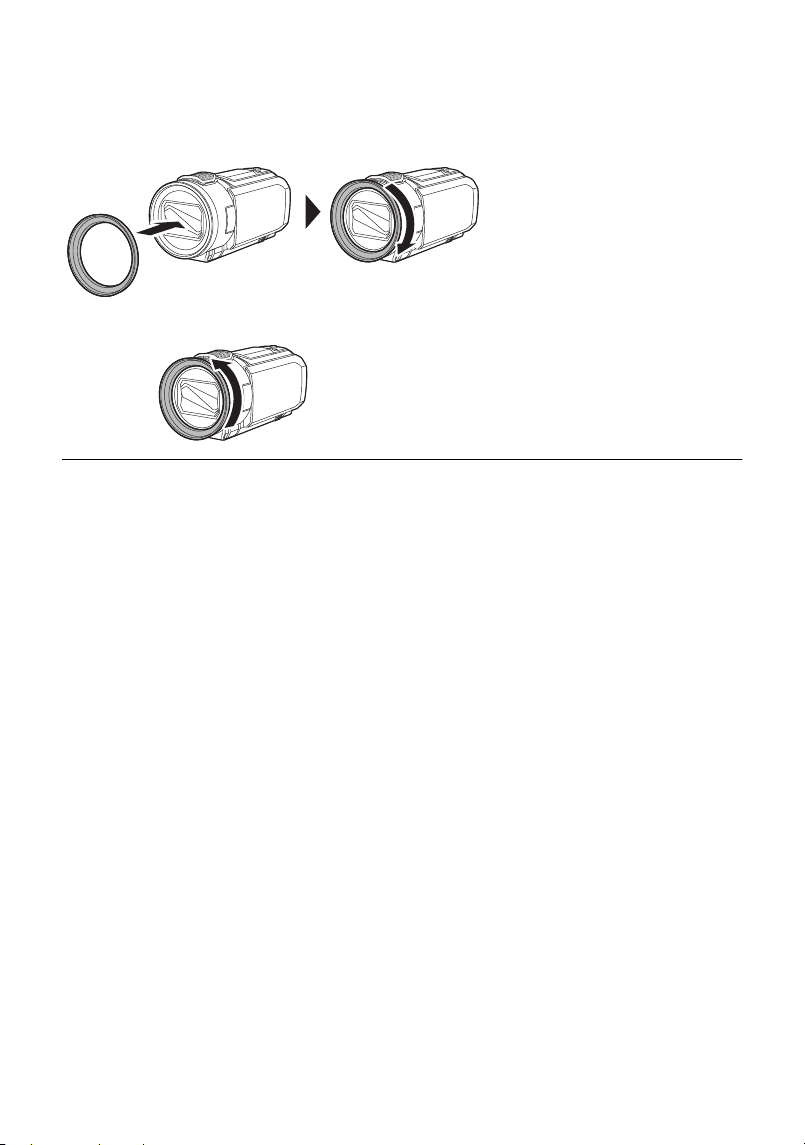
∫ Attaching/Removing the lens hood
This will reduce the extra light entering the lens in bright sunlight or backlight etc., making it possible
to take clearer pictures.
How to attach the lens hood
How to remove the lens hood
≥ Do not tighten the lens hood too much. You may be unable to remove the lens hood if it is too
tight.
HC-VX3_V900E-DVQP3181_eng.book 27 ページ 2024年10月22日 火曜日 午前10時6分
- 28 -
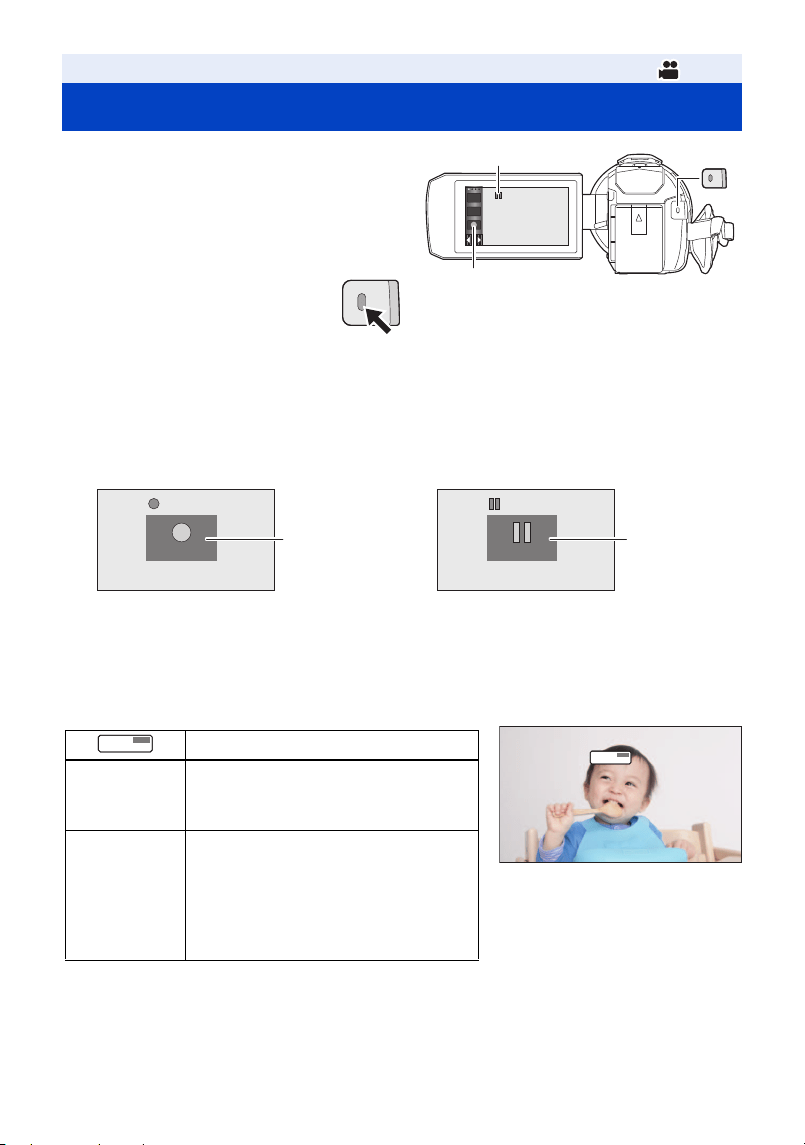
1 Open the LCD monitor to switch to
Motion Picture Recording Mode.
(
l 20)
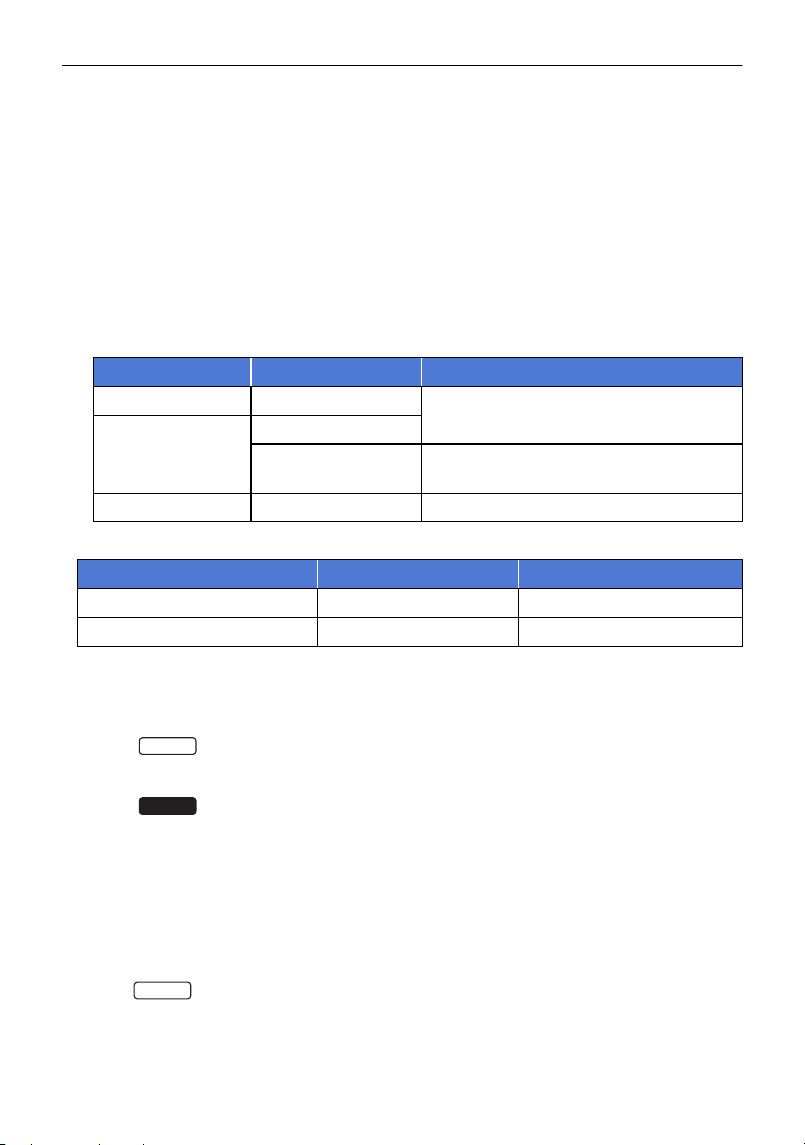
2 Press the recording start/stop button
to start recording.
A Recording button icon
B When you begin recording, ; changes to ¥.
≥ When you press the recording start/stop button, the REC icon/PAUSE icon is displayed large on
the screen. These disappear if you touch the screen or do not perform a touch operation for about
2 seconds.
3 Press the recording start/stop button again to pause recording.
≥ Recording can also be started/stopped by touching the recording button icon.
∫ Screen indications in the Motion Picture Recording Mode
≥ Screen display will disappear when no touch operation is performed for a specific period of time.
To display it again, touch the screen. (l 38)
≥ It will be constantly displayed when the remaining recordable time becomes less than 30 minutes.
Basic
Recording motion pictures
(When starting recording) (When pausing recording)
C REC icon D PAUSE icon
Recording mode
R1h20m
Approximate remaining recordable time
≥ When the remaining time is less than
1 minute, R 0h00m flashes red.
0h00m00s
Recording time elapsed
≥ “h” is an abbreviation for hour, “m” for
minute and “s” for second.
≥ Each time the unit is put into recording
pause, the counter display will be
reset to 0h00m00s.
T
W
REC
PAUSE
0h00m00s
0h00m00s
0h00m00s
R 1h20m
R 1h20m
R 1h20m
ヮヱフ
ヒパベパ
ビベヮ
ヮヱフ
ヒパベパ
ビベヮ
HC-VX3_V900E-DVQP3181_eng.book 28 ページ 2024年10月22日 火曜日 午前10時6分
- 29 -
≥ If the recording/playback button is pressed during motion picture recording, the recording
will stop and this unit will be switched to Playback Mode.
≥ To change the recording format, change the [REC FORMAT] or [REC MODE]. (l 82, 83)
≥ Still pictures can be recorded while recording the motion picture. (l 32)
≥ Black bands appear at the top and bottom of the recording screen, but these do not affect the
actually recorded images.
≥ The images recorded between pressing the recording start/stop button to start recording and
pressing it again to pause recording become one scene.
≥ If the file size or recording time of a scene recorded with [REC FORMAT] set to [4K MP4]
*
, [MP4]
or [24p] exceeds any of the values below, the scene will be divided automatically. (Recording will
continue.)
j When using an SD Memory Card/SDHC Memory Card: Approximately 4 GB or 30 minutes
j When using an SDXC Memory Card:
Varies depending on the setting of [REC FORMAT] and [REC MODE].
≥ While recording is in progress, the recording will not stop even if the LCD monitor is closed.
≥ (For the )
When connecting or disconnecting the connector of an external microphone or audio device to
the MIC/LINE IN terminal, do so while paused.
≥ (For the )
Put the unit in Pause mode when connecting or disconnecting an external microphone with the
MIC terminal.
≥ Please refer to page 170 for details about approximate recordable time.
≥ The maximum remaining recordable time that can be displayed for motion picture recording is
99 hours and 59 minutes. Any remaining recordable time exceeding 99 hours and 59 minutes will
be displayed as “R99h59m+”. This display remains unchanged until the remaining recordable
time drops to 99 hours and 59 minutes or less.
≥ The REC icon/PAUSE icon is not displayed if [REC/PAUSE ALERT] is set to [OFF]. (l 42)
Recording format Recording mode File size and recording time
[4K MP4]
*
[2160]
Approx. 3 h
[MP4]
[1080/50M]
Other than
[1080/50M]
Approx. 4 GB or Approx. 30 min
[24p] [2160/24p]
*
, [1080/24p] Approx. 3 h
≥ (Maximum recordable scenes of a single SD card)
Recording format [AVCHD] [4K MP4]
*
/[MP4]/[24p]
Recordable scenes Approx. 3900 Approx. 89100
Different dates (l 101) Approx. 900 Approx. 900
≥ When the SD card contains 4K MP4 scenes
*
, MP4 scenes, 24p scenes and still pictures, the
maximum number of recordable scenes and the maximum number of different dates will be
smaller than indicated in the table above.
*For the
VX3
V900
VX3
HC-VX3_V900E-DVQP3181_eng.book 29 ページ 2024年10月22日 火曜日 午前10時6分
- 30 -
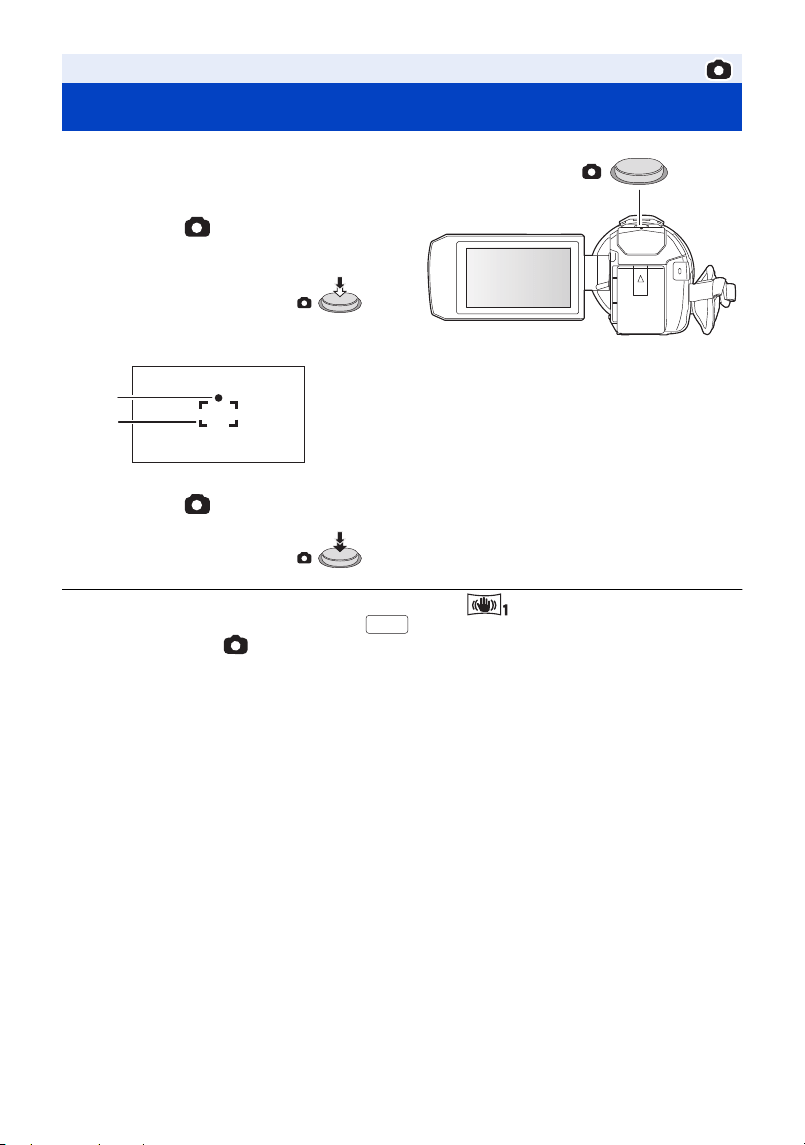
1 Open the LCD monitor to switch to
Still Picture Recording Mode. (
l 20)
2 Press the button halfway. (For
Auto Focus only)
Focus indication:
3 Press the button fully.
≥ If you set the Optical Image Stabilizer function (l 72) to ([MODE1]), then the Image
Stabilizer function will be more effective. ( (MEGA Optical Image Stabilizer) will be
displayed when the button is pressed halfway.)
≥ Using a tripod is recommended when recording still pictures in dark places because the shutter
speed becomes slow.
≥ You can also take a picture just by touching the subject to focus. (Touch Shutter: l 75)
≥ The focus indication and the focus area may not be displayed depending on the recording
conditions or the menu settings.
Basic
Recording still pictures
A Focus indication:
± (The white lamp flashes.): Focusing
¥ (The green lamp lights up.): When in focus
No mark: When focusing is unsuccessful.
B Focus area (area inside brackets)
MEGA
HC-VX3_V900E-DVQP3181_eng.book 30 ページ 2024年10月22日 火曜日 午前10時6分
- 31 -
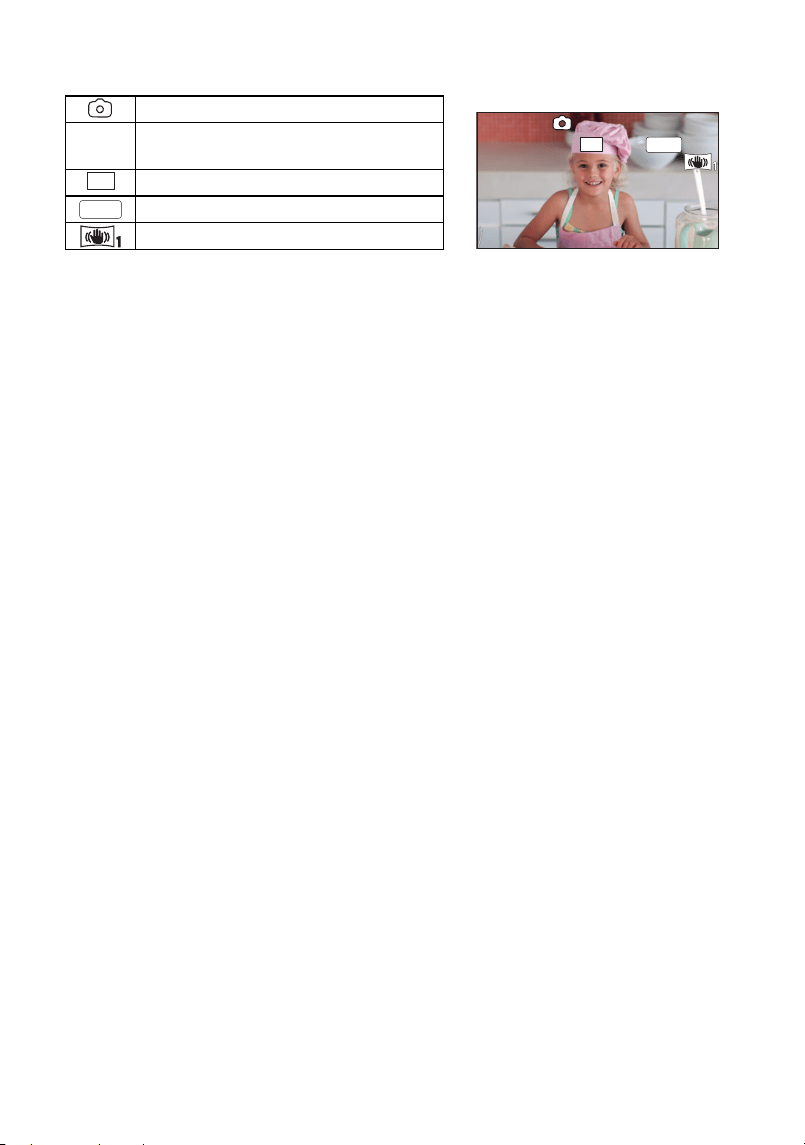
∫ About the screen indications in Still Picture Recording Mode
∫ About the focusing area
When there is a contrasting object ahead or behind the subject in the focus area, the subject may
not be focused. If so, move the contrasting object out of the focus area.
Still picture operation indicator (l 154)
≥ Screen display will disappear when no
touch operation is performed for a
specific period of time. To display it
again, touch the screen.
≥ It will be constantly displayed when the
remaining number of still pictures that
can be recorded becomes 200 or less.
R3000
Remaining number of still pictures
≥ Flashes in red when [0] appears.
Size of still pictures (l 93)
MEGA Optical Image Stabilizer (l 30)
Optical Image Stabilizer (l 72)
MEGA
R3000
R3000
R3000
25.9M
25.9M
MEGA
HC-VX3_V900E-DVQP3181_eng.book 31 ページ 2024年10月22日 火曜日 午前10時6分
- 32 -
Recording still pictures in Motion Picture Recording
Mode
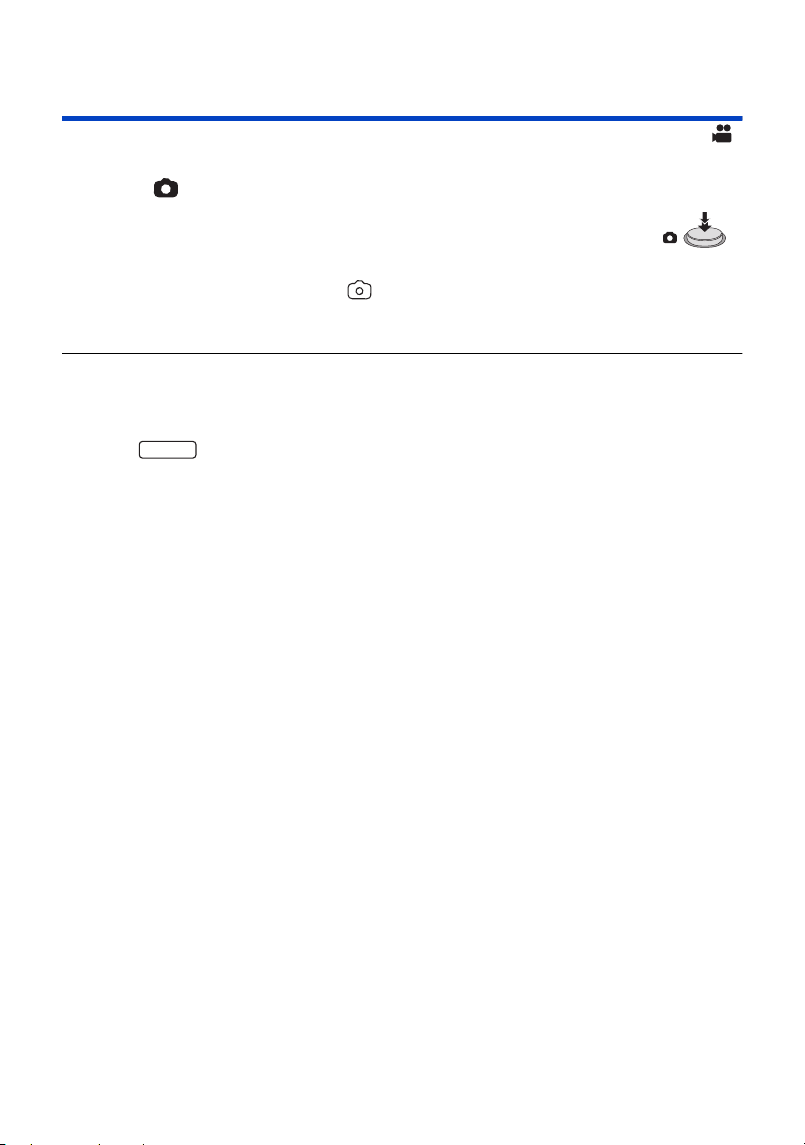
¬ Set this unit to Motion Picture Recording Mode (l 20)
Press the button fully (press to the bottom) to take the picture.
≥ In the following situations, you can record still pictures even while recording a
motion picture (Simultaneous recording):
j When [REC FORMAT] is set to [AVCHD] or [MP4]
j When [REC FORMAT] is set to [24p] and [REC MODE] is set to [1080/24p]
≥ While still pictures are being recorded, turns red and the remaining number of recordable
pictures is displayed.
≥ No shutter sound is emitted when recording still pictures.
≥ Self-timer (l 78) does not work.
≥ When simultaneous recording is performed during motion picture recording or PRE-REC is in
progress, image quality is different from ordinary still pictures so that motion picture recording
takes preference over still picture recording.
≥ (For the )
In the following situations, you cannot perform simultaneous recording during motion picture
recording or still picture recording during PRE-REC:
j When [REC FORMAT] is set to [4K MP4]
j When [REC FORMAT] is set to [24p] and [REC MODE] is set to [2160/24p]
j When the Recording Mode is set to 4K Photo Mode
≥ If simultaneous recording is performed during motion picture recording, the remaining recordable
time will be shortened. If this unit is turned off or the recording/playback button is pressed, the
remaining recordable time may be lengthened.
≥ The still picture recording time may be long depending on the picture size.
≥ Maximum number of recordable pictures that can be displayed is 9999. If the number of
recordable pictures exceeds 9999, R 9999+ is displayed. The number will not change when the
picture is taken until the number of recordable pictures is 9999 or less.
≥ The recording time may be long depending on the recording condition.
VX3
HC-VX3_V900E-DVQP3181_eng.book 32 ページ 2024年10月22日 火曜日 午前10時6分
- 33 -
Registering your favourite scenes while recording
4K motion picture [VX3]
Setting [REC FORMAT] to [4K MP4] or switching the Recording Mode to 4K Photo allows you to
register the part for which you press the photoshot button as a favourite scene.
After registering your favourite scenes, you can create still pictures of them by following the steps
described in “Tagging Favourite Scene” in Playback Mode. (l 123)
≥ Set [REC FORMAT] to [4K MP4], or set the Recording Mode to 4K Photo. (l 48, 82)
Press the photoshot button fully (all the way down) while recording motion
picture.
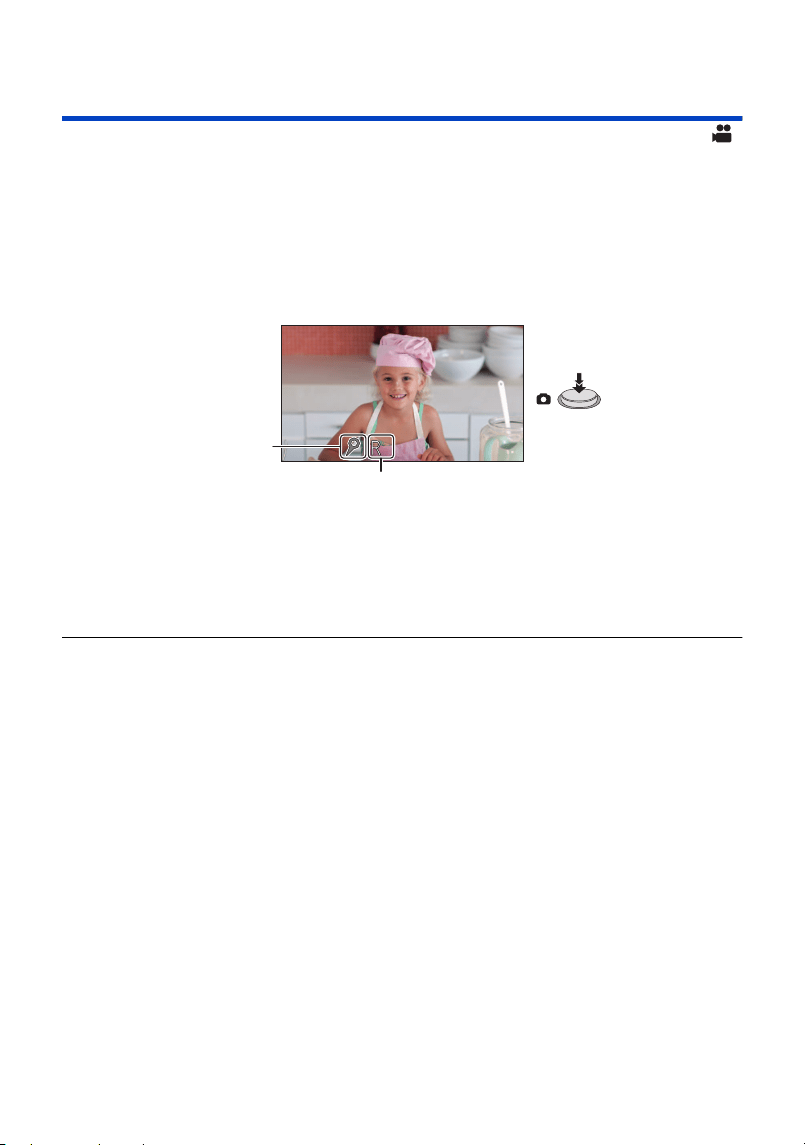
≥ The part will be registered as a favourite scene, and the favourite scene icon A and the
remaining number of favourite scenes B will be displayed.
≥ The remaining number of favourite scenes flashes in red when it reaches 0.
≥ Between the time you start recording a motion picture and the time you stop recording it, up to
10 scenes can be registered.
≥ It takes approximately 4 seconds to register a favourite scene.
≥ You cannot register favourite scenes in the following situations:
j During PRE-REC
j During Fade operation
≥ The scenes registered here are not reflected in the [FAVOURITE SCENE SETUP] setting in
Highlight Playback. (l 114)
9
HC-VX3_V900E-DVQP3181_eng.book 33 ページ 2024年10月22日 火曜日 午前10時6分
- 34 -
(Screens are examples from when motion pictures are recorded)
1 Set this unit to Playback Mode. (l 20)
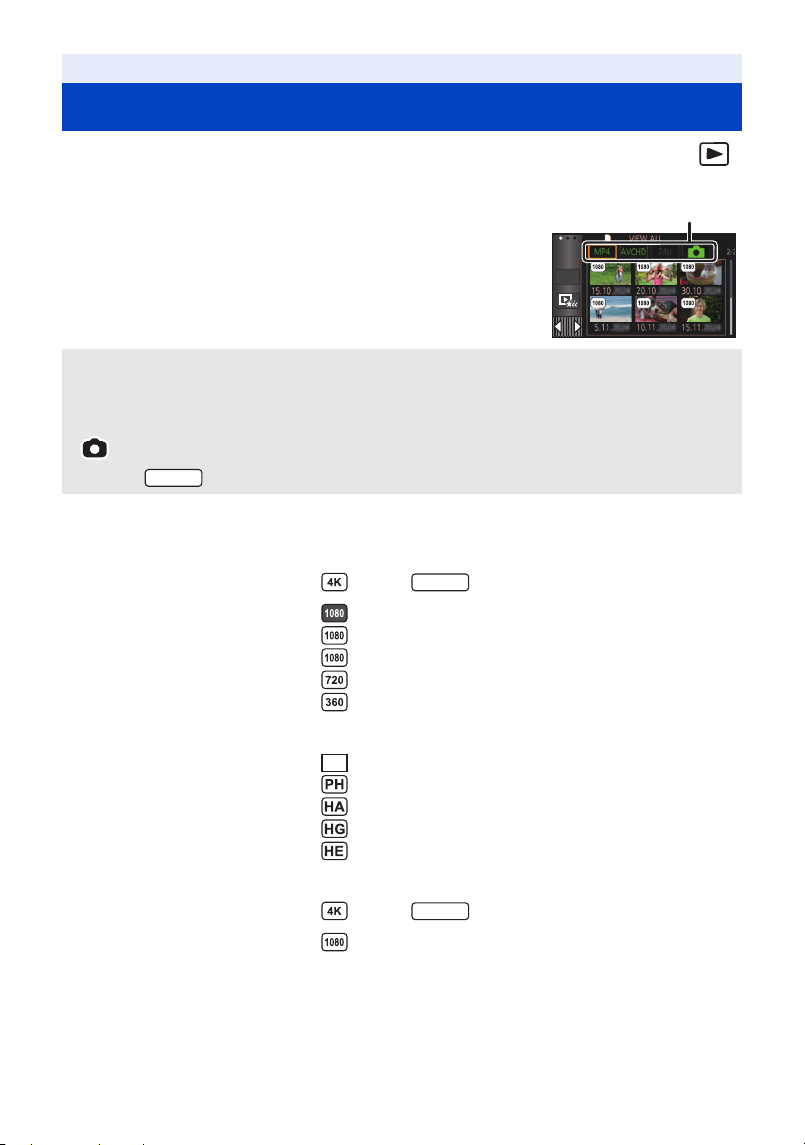
2 Touch the motion picture/still picture tab A.
≥ If there are recorded scenes/still pictures, the letters and icons on the motion picture/still picture
tabs are displayed in green.
≥ The following icons are displayed on thumbnails when [MP4] is touched:
≥ The following icons are displayed on thumbnails when [AVCHD] is touched:
≥ The following icons are displayed on thumbnails when [24p] is touched:
Basic
Motion picture/Still picture playback
[MP4]: 4K MP4
*
and MP4 scenes are displayed as thumbnails.
[AVCHD]: AVCHD scenes are displayed as thumbnails.
[24p]: 2160/24p
*
and 1080/24p scenes are displayed as thumbnails.
[]: Still pictures are displayed as thumbnails.
* For the
j MP4 [2160/25p] scene: (For the )
j MP4 [1080/50p] scene: (Blue) (Recording mode [1080/50M])
(Recording mode [1080/28M])
j MP4 [1080/25p] scene:
j MP4 [720/25p] scene:
j MP4 [360/25p] scene:
j AVCHD [1080/50p] scene:
j AVCHD [PH] scene:
j AVCHD [HA] scene:
j AVCHD [HG] scene:
j AVCHD [HE] scene:
j MP4 [2160/24p] scene: (For the )
j MP4 [1080/24p] scene:
ALL
VX3
VX3
50p
VX3
HC-VX3_V900E-DVQP3181_eng.book 34 ページ 2024年10月22日 火曜日 午前10時6分
- 35 -
3 Touch the scene or the still picture to be played back.
≥ To display the next (previous) page:
j Slide the thumbnail display upward (downward) while touching it.
j Switch the Touch Menu, and then touch (up) / (down) on the thumbnail scroll
lever.
* When touched two times, the fast rewind/fast forward speed increases. (The screen display
changes to / .)
∫ Change the thumbnail display
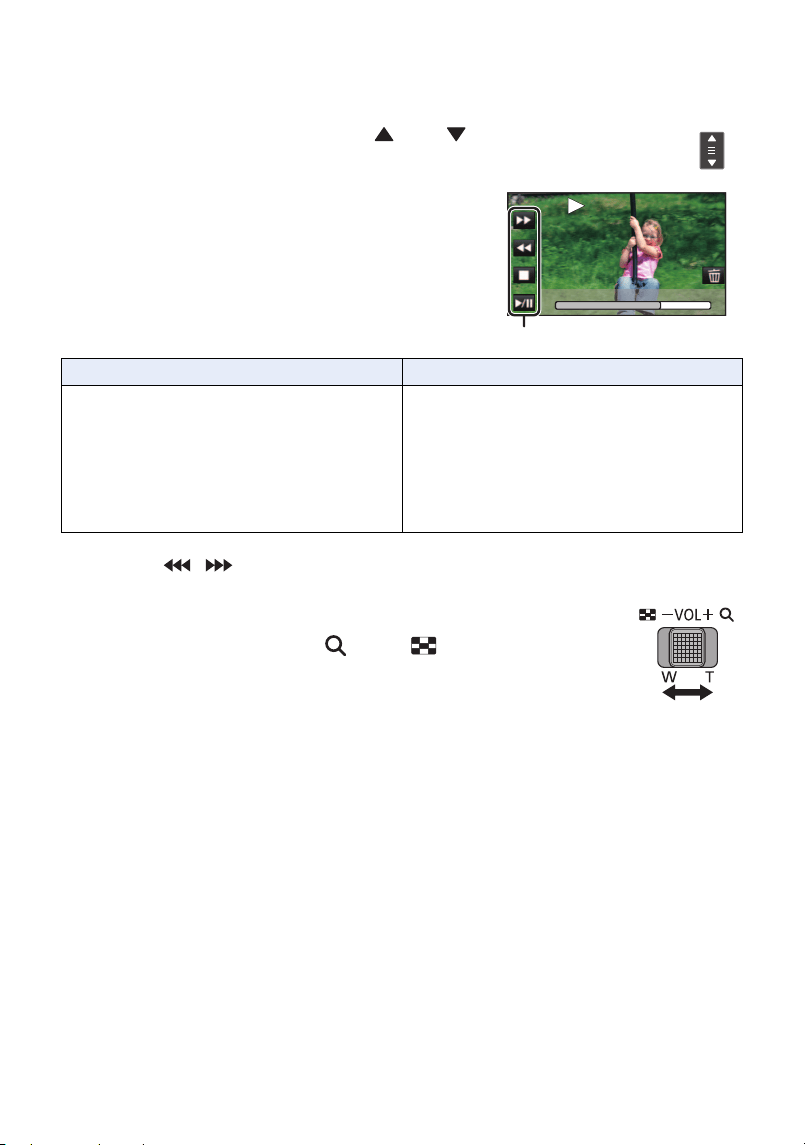
While the thumbnail is displayed, the thumbnail display changes in the following
order if the zoom lever is operated to side or side.
6 scenes () 1 scene () Time Frame Index
*
(l 98)
* Time Frame Index can only set in Motion Picture Playback Mode.
≥ If you set this unit to Recording Mode or Playback Mode by pressing the
recording/playback button, you will return to the 6 scenes display.
≥ The recording date is displayed under the thumbnail during 6 scenes display.
≥ By displaying in 1 scene or touching and holding the thumbnail in the 6 scenes display, recording
date and time are displayed when playing back motion pictures, and recording date and file
number when playing back still pictures.
4 Select the playback operation by touching the
operation icon.
≥ Operation icons and screen display will disappear when no
touch operation is performed for a specific period of time.
To display them again, touch the screen.
Operation icon
Motion picture playback Still picture playback
1/;: Playback/Pause
6: Fast rewind playback*
5: Fast forward playback*
∫: Stops the playback and shows the
thumbnails.
1/;: Slide show (playback of the still
pictures in numerical order) start/
pause.
2;: Plays back the previous picture.
;1: Plays back the next picture.
∫: Stops the playback and shows the
thumbnails.
0h01m30s0h01m30s0h01m30s
HC-VX3_V900E-DVQP3181_eng.book 35 ページ 2024年10月22日 火曜日 午前10時6分
- 36 -
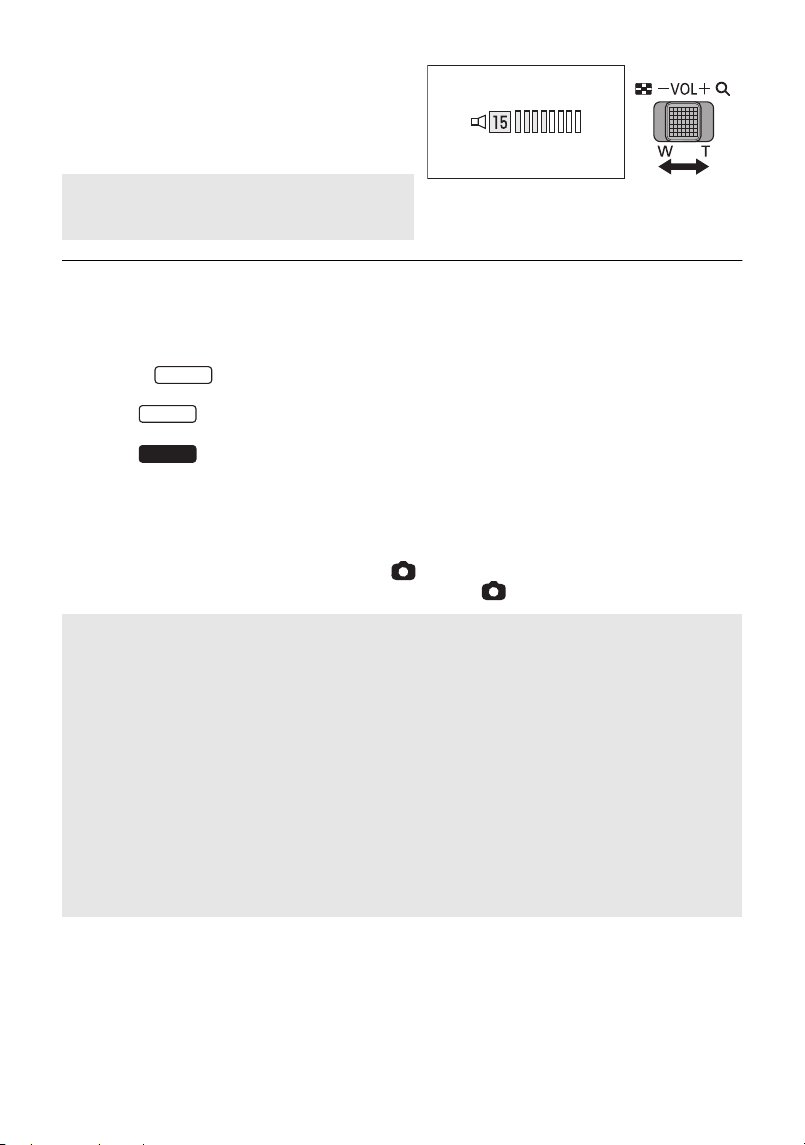
∫ Speaker/Headphone volume
adjustment
Operate the volume lever to adjust the speaker/
headphone volume during Motion Picture
Playback Mode.
≥ Sound will be heard only during normal playback.
≥ If pause play is continued for approx. 5 minutes, the screen returns to the thumbnails.
≥ The elapsed time for playback indication will be reset to 0h00m00s each scene.
≥ The elapsed playback time is not displayed for scenes recorded in the following recording modes:
j FULL HD Slow Motion Video Mode
j (For the )
Slow & Quick Video Mode and Dolly Zoom Mode
≥ (For the )
The screen may turn black for an instant when changing scenes during motion picture playback.
≥ (For the )
When played back with [MP4] or [AVCHD] selected, the screen may become black momentarily
at the time the scene switches.
≥ The unit will restart if you switch to a different motion picture/still picture tab as below.
j Switching from [24p]
*1
to [MP4] or [AVCHD]
j Switching from [MP4] or [AVCHD] to [24p]
*2
*1 Including when you switched from [24p] to (still picture) first.
*2 Including when you switched from [MP4] or [AVCHD] to (still picture) first.
Towards “ r”: Increases the volume
Towards “ s”: Decreases the volume
Motion picture compatibility
≥ This unit is based on AVCHD Progressive/AVCHD format/MPEG-4 AVC file format.
≥ Motion pictures recorded with the unit may not be played back correctly or at all on another
device, even if it supports their format. (Check the operating instructions of your device for
compatibility.)
≥ Motion pictures recorded with other devices are not supported by this unit.
Still picture compatibility
≥ This unit is compliant with the unified standard DCF (Design rule for Camera File system)
established by JEITA (Japan Electronics and Information Technology Industries Association).
≥ This unit may degrade or not play back still pictures recorded or created on other products
and other products may degrade or not play back still pictures recorded on this unit.
≥ Depending on the playback device, still pictures may be played back with picture sizes
different from the ones with which they were recorded.
VX3
VX3
V900
HC-VX3_V900E-DVQP3181_eng.book 36 ページ 2024年10月22日 火曜日 午前10時6分
- 37 -
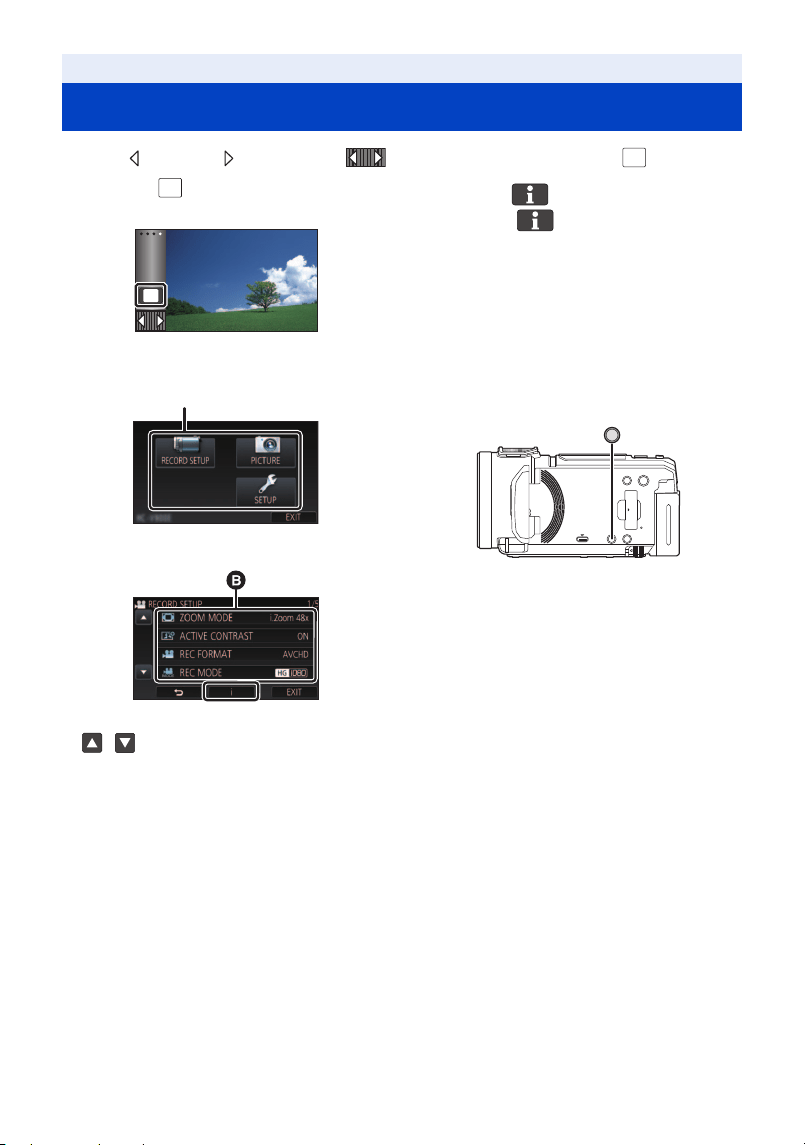
≥ Touch (left side)/ (right side) of on the Touch Menu to display . (l 23)
1 Touch .
2 Touch the top menu A.
3 Touch the submenu B.
≥ Next (previous) page is displayed by touching
/.
4 Touch the desired item to enter the
setting.
5 Touch [EXIT] to exit the menu
setting.
∫ About guide display
After touching , touching the submenus
and items will cause function descriptions and
settings confirmation messages to appear.
≥ After the messages have been displayed, the
guide display is cancelled.
∫ About the MENU button
Press the MENU button to display the menu
screen (top menu).
Press again to exit the menu screen.
Basic
Using the menu screen
MENU
MENU
MENU
ヮユワヶ
HC-VX3_V900E-DVQP3181_eng.book 37 ページ 2024年10月22日 火曜日 午前10時6分
- 38 -
Set the display method for the screen information display.
Please refer to page 24.
It is possible to display and record the time at the travel destination by selecting your home region
and the travel destination.
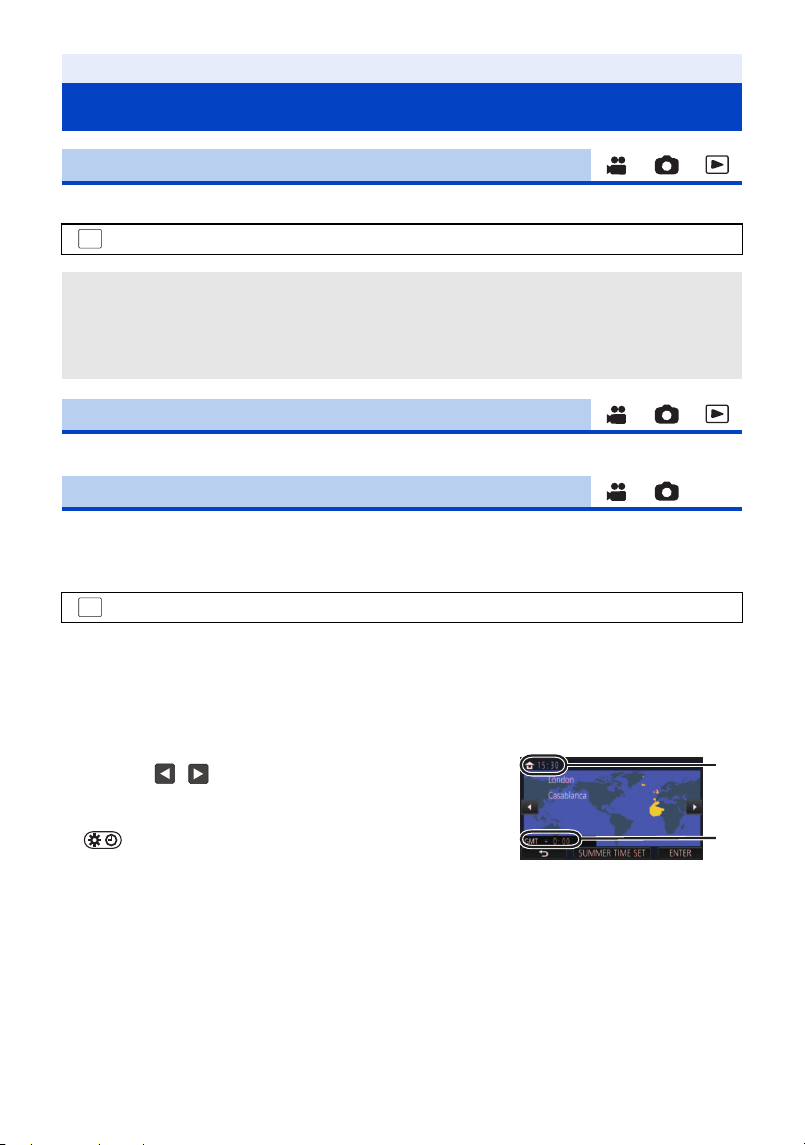
1 Select the menu.
≥ When the [HOME] (your home region) is not set, the message appears. Touch [ENTER] and
proceed to Step 3.
2 (Only when setting your home region)
Touch [HOME].
≥ Touch [ENTER].
Basic
Using the Setup Menu
[DISPLAY]
: [SETUP] # [DISPLAY] # desired setting
[5 SEC.]: Information is displayed on the screen for 5 seconds after starting the
Motion Picture Recording Mode or Still Picture Recording Mode, starting
to playback, or touching the screen.
[ON]: Constantly displayed.
[CLOCK SET]
[SET WORLD TIME]
: [SETUP] # [SET WORLD TIME]
3 (Only when setting your home region)
Touch / to select your home region
and touch [ENTER].
≥ Touch [SUMMER TIME SET] to set daylight saving time.
is displayed and the summer time setting is
turned on, the time difference between the current time
and GMT will be set forward by 1 hour. Touch [SUMMER
TIME SET] again to return to the normal time setting.
If you set [Link Clock to Summertime] to [ON], the current
time will also be set forward by 1 hour. (l 39)
A The current time
B The time difference from GMT
(Greenwich Mean Time)
MENU
MENU
HC-VX3_V900E-DVQP3181_eng.book 38 ページ 2024年10月22日 火曜日 午前10時6分
- 39 -
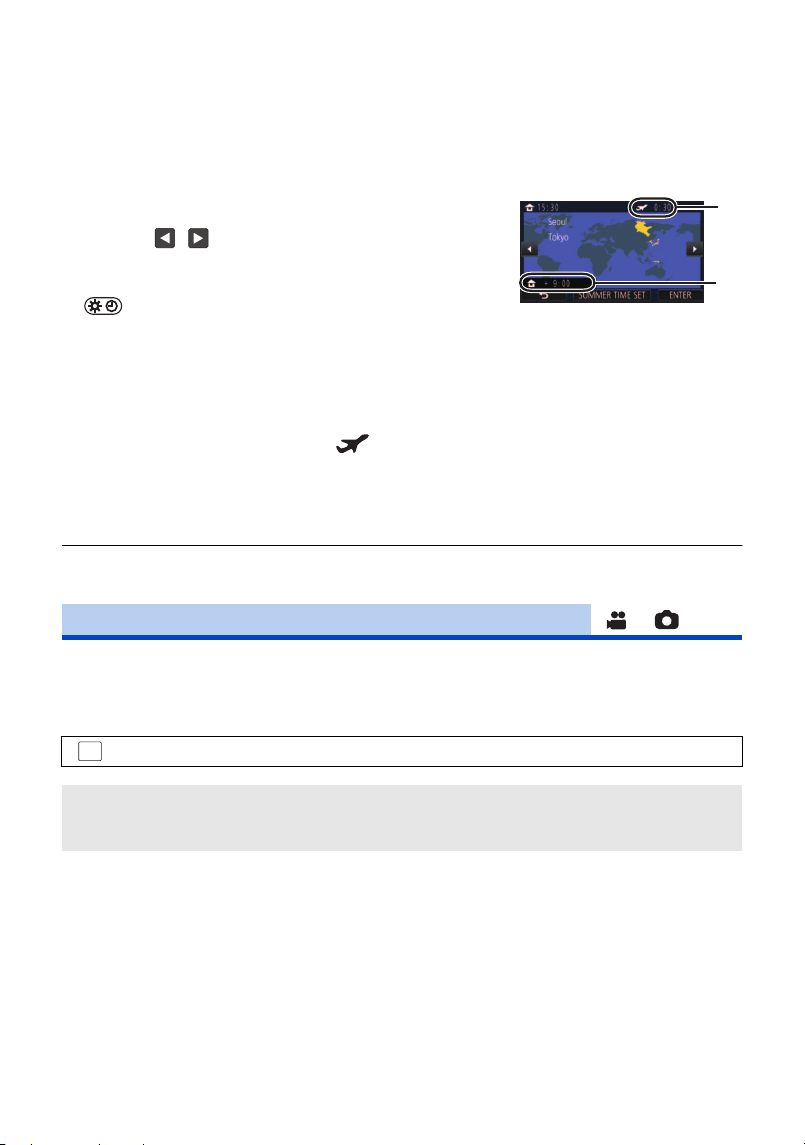
4 (Only when setting the region of your travel destination)
Touch [DESTINATION].
≥ Touch [ENTER].
≥ When the home region is set for the first time, the screen for selecting home/travel destination
appears after setting the home region successively. If the home region has already been set
once, execute the menu operation for Step 1.
To return the display to the home setting
Set the home region using Steps 1 to 3, and close the setting by touching [EXIT].
≥ If you cannot find your travel destination in the area shown on the screen, set it by using the time
difference from your home region.
If you set this function to [ON] and turn on the summer time setting in [SET WORLD TIME], the
following times will be set forward by 1 hour:
j When setting your home region: The current time
j When setting the region of your travel destination: The time at the travel destination
5 (Only when setting the region of your travel
destination)
Touch / to select your travel
destination and touch [ENTER].
≥ Touch [SUMMER TIME SET] to set daylight saving time.
is displayed and the summer time setting is
turned on, the time difference between the travel
destination and the home region will be set forward by 1
hour. Touch [SUMMER TIME SET] again to return to the
normal time setting.
If you set [Link Clock to Summertime] to [ON], the time at
the travel destination will also be set forward by 1 hour.
≥ Close the setting by touching [EXIT]. appears and
the time of the travel destination is indicated.
C The local time at the selected
travel destination
D The time difference between
the travel destination and the
home region
[Link Clock to Summertime]
: [SETUP] # [Link Clock to Summertime] # desired display
[ON]: The times are adjusted when the summer time setting is turned on.
[OFF]: The times are not adjusted when the summer time setting is turned on.
MENU
HC-VX3_V900E-DVQP3181_eng.book 39 ページ 2024年10月22日 火曜日 午前10時6分
- 40 -
It is possible to change the date and time display mode.
≥ The date and time are not displayed while the recording mode switching icon is displayed. (l 21)
≥ When the Touch Shutter is enabled, the recording mode switching icon is constantly displayed.
This causes the date and time to disappear from the screen.
It is possible to change the date format.
You can set the display method of the zoom button icons ( / ) and recording button icon
().
Please refer to page 74.
Please refer to page 137.
[DATE/TIME]
: [SETUP] # [DATE/TIME] # desired display
[DATE]/[D/T]/[OFF]
[DATE FORMAT]
: [SETUP] # [DATE FORMAT] # desired setting
[Y/M/D]/[M/D/Y]/[D/M/Y]
[ZOOM/REC DISPLAY]
: [SETUP] # [ZOOM/REC DISPLAY] # desired setting
[ON]: Constantly displayed.
[OFF]: Icons will disappear after approx. 5 seconds without any touch operation.
[O.I.S. LOCK DISPLAY]
[EXT. DISPLAY]
MENU
MENU
T
W
MENU
HC-VX3_V900E-DVQP3181_eng.book 40 ページ 2024年10月22日 火曜日 午前10時6分
- 41 -
When about 5 minutes have passed without any operation, this unit automatically turns off to save
battery life.
≥ The power consumption of this unit may increase if [ECONOMY (BATT)] is set to [OFF].
≥ This unit will not automatically turn off even if [ECONOMY (BATT)] is set to [ON] in following
cases:
j Using the AC adaptor
*
j Connected to a PC with a USB cable
j PRE-REC is used
j During slide show playback
* When [ECONOMY (AC)] is activated, this unit automatically turns off.
When about 15 minutes have passed without any operation while connecting AC adaptor with this
unit, this unit automatically turns off.
≥ The power consumption of this unit may increase if [ECONOMY (AC)] is set to [OFF].
≥ This unit will not automatically turn off even if [ECONOMY (AC)] is set to [ON] in following cases:
j Connected to a PC with a USB cable
j PRE-REC is used
j During slide show playback
j During HDMI output
The unit is put into recording pause approx. 1.6 seconds when the unit is turned on.
≥ Depending on the recording conditions, start time may be longer than 1.6 seconds.
≥ In the Quick Power On Mode, the zoom magnification becomes approx. 1k.
[ECONOMY (BATT)]
: [SETUP] # [ECONOMY (BATT)] # [ON]
[ECONOMY (AC)]
: [SETUP] # [ECONOMY (AC)] # [ON]
[QUICK POWER ON]
MENU
MENU
: [SETUP] # [QUICK POWER ON] # [ON]
MENU
HC-VX3_V900E-DVQP3181_eng.book 41 ページ 2024年10月22日 火曜日 午前10時6分
- 42 -
Touch screen operation, starting and stopping of recording and unit on/off can be confirmed with this
sound.
When [OFF] is selected, the sound is not output at the start/end of recording, etc.
2 Beeps for 4 times
When an error occurs, follow the instructions displayed on the screen. (l 158)
≥ Refer to page 95 when changing the shutter sound setting.
When this is set to [ON], the REC icon/PAUSE icon (l 28) is displayed when recording is started or
paused.
You can change the operation icons (l 76) to display in the Touch Menu.
Register 3 favourite operation icons.
≥ The default settings are as follows:
1 Select the menu.
2 Touch the operation icon you would like to change to cancel the setting.
3 Touch the operation icon to be set.
≥ Name of the function is displayed by touching and holding on the operation icon.
≥ To cancel, touch the operation icon again.
4 Touch [ENTER].
[ALERT SOUND]
: [SETUP] # [ALERT SOUND] # desired setting
(Volume low)/ (Volume high)/[OFF]
[REC/PAUSE ALERT]
: [SETUP] # [REC/PAUSE ALERT] # [ON]
[SELECT OPERATION ICONS]
Motion Picture Recording Mode Still Picture Recording Mode
(Fade)
(PRE-REC)
(Backlight Compensation)
(Self-timer)
(Intelligent Exposure)
(Backlight Compensation)
: [SETUP] # [SELECT OPERATION ICONS]
MENU
MENU
MENU
HC-VX3_V900E-DVQP3181_eng.book 42 ページ 2024年10月22日 火曜日 午前10時6分
- 43 -
This makes it easier to view the LCD monitor in bright places including outdoors.
≥ These settings will not affect the images actually recorded.
≥ When the AC adaptor is in use, the LCD monitor is set to automatically.
≥ Recordable time with the battery is shortened when the LCD monitor is made brighter.
It adjusts brightness and colour density on the LCD monitor.
≥ These settings will not affect the images actually recorded.
1 Select the menu.
2 Touch / to adjust settings.
3 Touch [ENTER].
≥ Touch [EXIT] to exit the menu screen.
Please refer to page 138.
Please refer to page 140.
Set to [YES] for changing the menu settings back to the default condition.
≥ Settings for [CLOCK SET] and [LANGUAGE] will not be changed.
≥ If you restore the default settings, this unit will switch to the Motion Picture Recording Mode.
≥ (In Recording Mode)
When [REC FORMAT] is set to [24p], executing [INITIAL SET] will restart this unit.
≥ (In Playback Mode)
When the motion picture/still picture tab is set to [24p]
*1
, performing [INITIAL SET] will restart the
unit.
*1 Including when you switched from [24p] to (still picture) first.
[POWER LCD]
: [SETUP] # [POWER LCD] # desired setting
(Makes brighter)/ (Normal)/ (Makes less bright)
[LCD SET]
: [SETUP] # [LCD SET] # desired setting
[BRIGHTNESS]: Brightness of the LCD monitor
[COLOUR]: Colour level of the LCD monitor
[HDMI RESOLUTION]
[VIERA Link]
[INITIAL SET]
: [SETUP] # [INITIAL SET]
MENU
+1
0
-
1
+1
MENU
MENU
HC-VX3_V900E-DVQP3181_eng.book 43 ページ 2024年10月22日 火曜日 午前10時6分
- 44 -
The entered character is confirmed in approx. 1 second after character input, and the cursor is
moved to the right.
It makes the input easy without moving the cursor when characters on the same key are to be
entered again.
≥ Character input screen is displayed in following conditions:
j When setting [TITLE SETUP] for the Highlight Playback (l 115)
j When entering a name in the Baby Calendar (l 121)
Set the file number of the next 4K MP4 scene
*
, MP4 scene, 24p scene and still picture to be
recorded to 0001.
≥ Folder number is updated and file number will start from 0001. (l 151)
≥ To reset the folder number, format the SD card, and then perform [NUMBER RESET].
*For the
≥ The file numbers of still pictures you record in Stop Motion Animation Assist Mode are not reset.
[Auto Cursor Position]
: [SETUP] # [Auto Cursor Position] # [ON]
[NUMBER RESET]
: [SETUP] # [NUMBER RESET]
MENU
MENU
VX3
HC-VX3_V900E-DVQP3181_eng.book 44 ページ 2024年10月22日 火曜日 午前10時6分
- 45 -
Format an SD card.
Please be aware that if a medium is formatted, then all the data recorded on the medium will be
erased and cannot be restored. Back up important data on a PC, DVD disc etc. (l 144)
≥ When formatting is complete, touch [EXIT] to exit the message screen.
≥ Perform a physical formatting of the SD card when the SD card is to be disposed/ transferred.
(l 167)
≥ Do not turn this unit off or remove the SD card, while formatting. Do not expose the unit to
vibrations or shock.
The used space and remaining recordable time of the SD card can be checked.
≥ The remaining recordable time in the currently set Recording Mode is displayed only in the
Motion Picture Recording Mode.
≥ Any remaining recordable time exceeding 99 hours and 59 minutes will be displayed as
“99h59m+”.
≥ The SD card requires some space to store information and manage system files, so the actual
usable space is slightly less than the indicated value. The usable SD card space is generally
calculated as 1 GB=1,000,000,000 bytes. The capacities of this unit, PCs and software are
expressed as 1 GB=1,024k1,024k1,024=1,073,741,824 bytes. Therefore, the indicated value of
the capacity appears to be smaller.
The model number and the firmware version of the unit are displayed.
[FORMAT MEDIA]
: [SETUP] # [FORMAT MEDIA]
Use this unit to format media.
Do not format an SD card using any other equipment such as a PC. The card may not be
used on this unit.
[MEDIA STATUS]
: [SETUP] # [MEDIA STATUS]
[Version Disp.]
: [SETUP] # [Version Disp.]
MENU
MENU
MENU
HC-VX3_V900E-DVQP3181_eng.book 45 ページ 2024年10月22日 火曜日 午前10時6分
- 46 -
You can update the firmware version of this unit.
You can connect this unit and a PC with the USB cable and check software information (License) on
the PC.
≥ Use a battery that has been sufficiently charged.
1 Select the menu.
2 Connect this unit to a PC.
≥ A message will be displayed when the connection is complete. On the PC, confirm
[LICENSE.TXT].
≥ The LCD monitor turns off after about 5 seconds. Touch the screen to turn the LCD monitor on.
≥ Do not use any other USB cables except the supplied one. (Operation is not guaranteed with any
other USB cables.)
You can check how to access the website where you can download the Operating Instructions (PDF
format).
You can select the language on the screen display and the menu screen.
[Version Up]
: [SETUP] # [Version Up]
For the latest update information, check the support website below. (As of September
2024)
https://panasonic.jp/support/global/cs/e_cam/index.html
(This Site is English only)
[SOFTWARE INFO]
: [SETUP] # [SOFTWARE INFO]
[ONLINE MANUAL]
: [SETUP] # [ONLINE MANUAL] # desired access method
[URL display]: Displays the URL of the website on the LCD monitor of this unit.
[USB connect]: Displays the website on a PC connected to this unit with the USB
cable.
[QR code]: Displays the QR code of the website on the LCD monitor of this unit.
[LANGUAGE]
: [SETUP] # [LANGUAGE] # desired language
MENU
MENU
MENU
MENU
HC-VX3_V900E-DVQP3181_eng.book 46 ページ 2024年10月22日 火曜日 午前10時6分
- 47 -
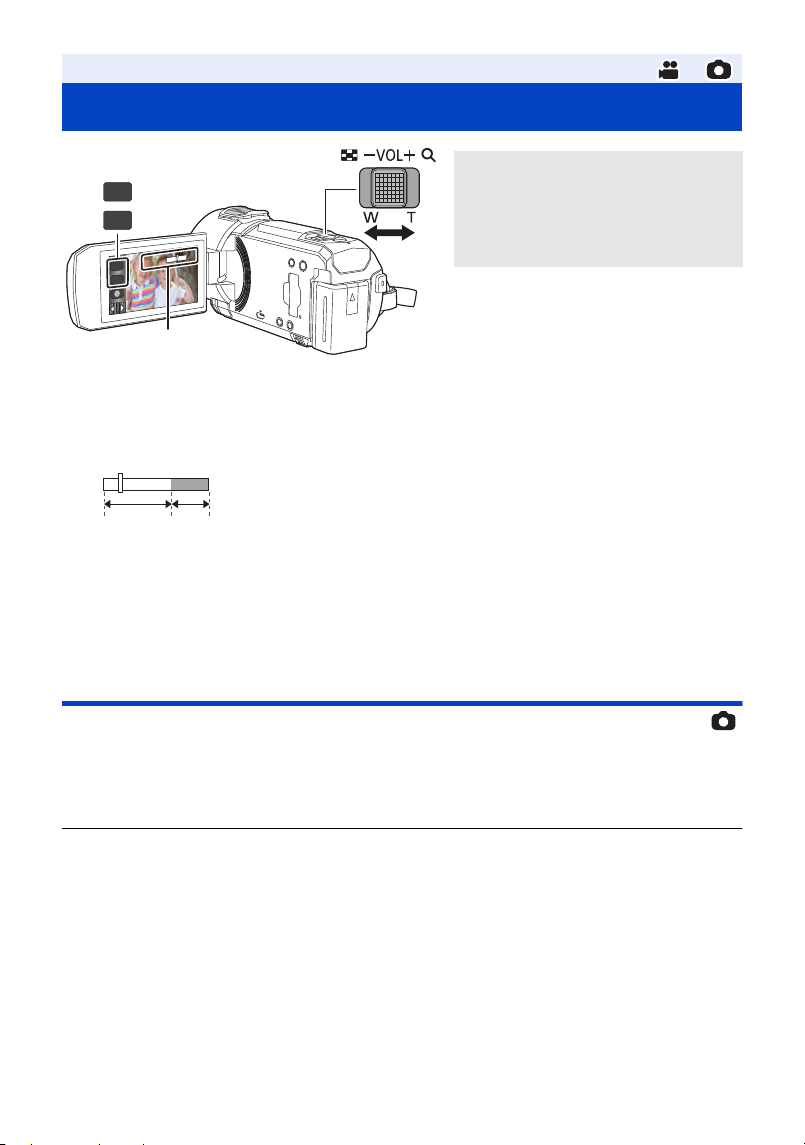
A Zoom bar
≥ Maximum zoom ratio for recording motion pictures can be set with [ZOOM MODE]. (l 81)
∫ About the zoom bar
The zoom bar is displayed during the zoom operation.
∫ About the zoom speed
≥ The zoom speed varies depending on the range over which the zoom lever is moved.
≥ The zoom operation using the zoom button icons will be performed at a constant speed
respectively.
Zoom ratio during the Still Picture Recording Mode
The zoom ratio can be expanded up to 60k without degrading the picture quality for the Still Picture
Recording Mode. (Extra Optical Zoom)
≥ Maximum zoom ratio in Still Picture Recording Mode varies depending on the setting of
[PICTURE SIZE] and [ASPECT RATIO]. (l 93, 95)
≥ If you take your finger off the zoom lever during zoom operation, the operation sound may be
recorded. When returning the zoom lever to the original position, move it quietly.
≥ When the zoom magnification is at its maximum, the subjects are focused at about 1.2 m or more.
≥ When the zoom magnification is 1k, this unit can focus on a subject approx. 10 cm away from the
lens.
Advanced (Recording)
Using the zoom
Zoom lever/Zoom button icons
T side:
Close-up recording (zoom in)
W side:
Wide-angle recording (zoom out)
T
W
6
6
WW
TT
T
W
B Optical Zoom
C Motion Picture Recording Mode: i.Zoom/Digital zoom (Blue)
Still Picture Recording Mode: Extra Optical Zoom (Blue)
T
W
HC-VX3_V900E-DVQP3181_eng.book 47 ページ 2024年10月22日 火曜日 午前10時6分
- 48 -
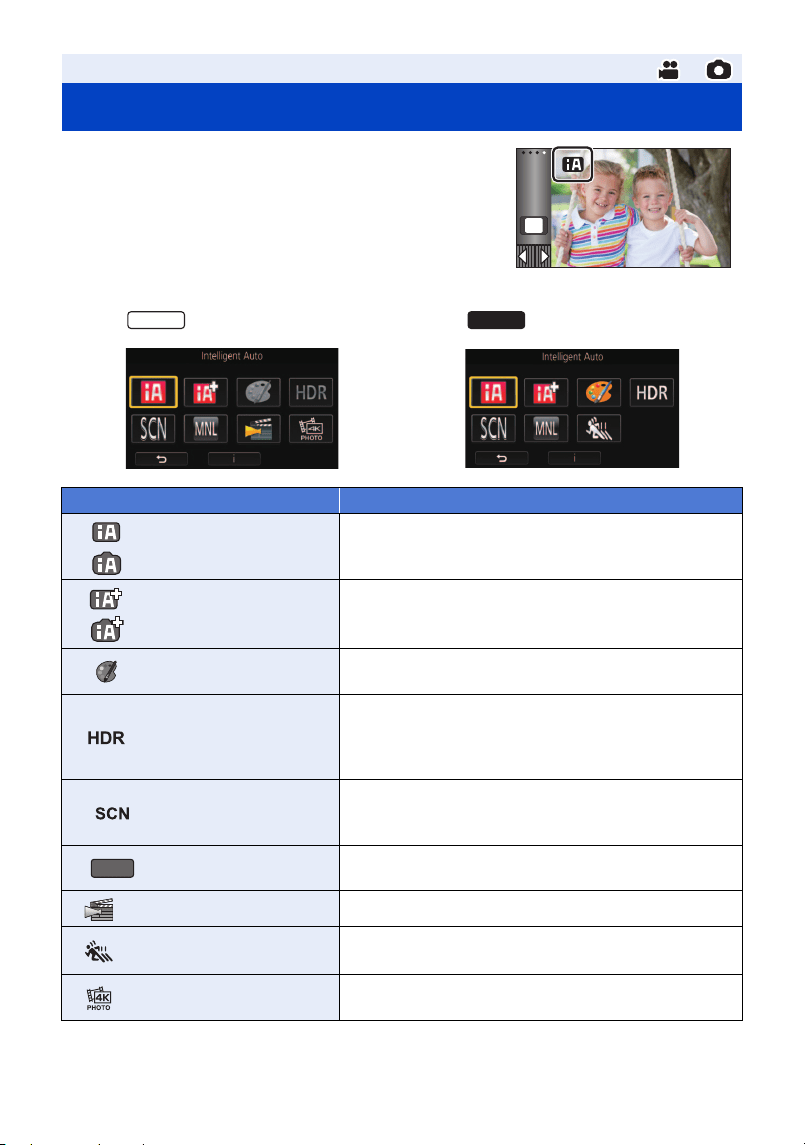
1 Touch the Recording Mode button icon.
2 Touch the desired Recording Mode button icon.
Advanced (Recording)
Changing the Recording Mode
Mode Effect
*1
*2
Intelligent Auto
You can switch the mode to the Intelligent Auto Mode,
which optimises settings to the recording environment
you are in. (l 50)
*1
*2
Intelligent Auto Plus
You can add manually-adjusted brightness and colour
balance settings to the Intelligent Auto Mode, and
record. (l 52)
*1
Creative Control
You can record motion pictures with added effects.
(l 52)
*1
HDR Movie
You can minimise the loss of gradations in bright areas
and dark areas when, for example, the contrast
between the background and the subject is large.
(l 55)
Scene Mode
This option allows this unit to automatically adjust the
shutter speed and aperture, etc. according to the scene
you want to record. (l 57)
Manual
You can set the shutter speed, focus, White Balance,
and brightness (iris/gain). (l 65)
*1, 3
Cinema Like Effect You can record images with cinematic effects. (l 58)
*1, 4
FULL HD Slow
Motion Video
You can record slow motion pictures. (l 60, 63)
*1, 3
4K Photo
You can record motion pictures optimised for capturing
still pictures from 4K motion pictures. (l 63)
MENU
VX3
V900
MNL
HC-VX3_V900E-DVQP3181_eng.book 48 ページ 2024年10月22日 火曜日 午前10時6分

- 49 -
*1 In Motion Picture Recording Mode only
*2 In Still Picture Recording Mode only
*3 For the
*4 For the
*2
Stop Motion
Animation Assist
You can set a recorded still picture as the background,
and record the next picture while looking at that
recorded picture as the background. (l 64)
Mode Effect
VX3
V900
HC-VX3_V900E-DVQP3181_eng.book 49 ページ 2024年10月22日 火曜日 午前10時6分
- 50 -
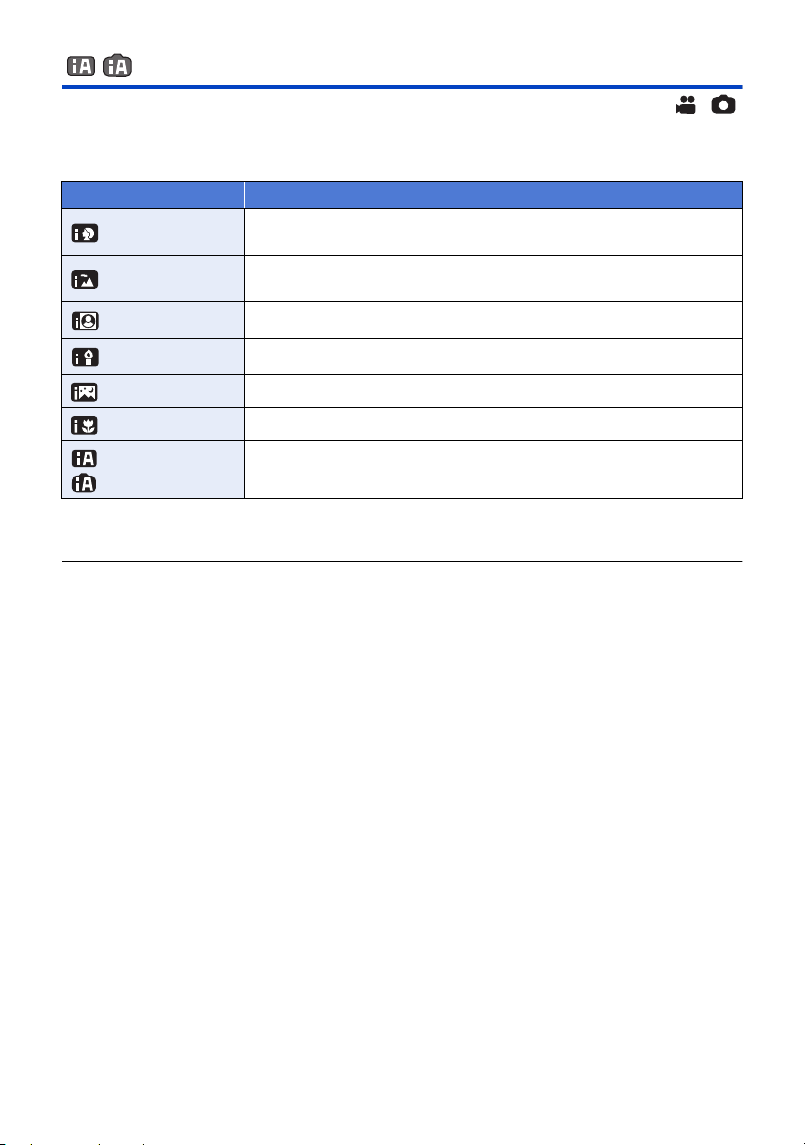
Intelligent Auto
The following modes (appropriate for the condition) are set just by pointing the unit to what you want
to record.
*1 In Motion Picture Recording Mode only
*2 In Still Picture Recording Mode only
≥ Depending on the recording conditions, the unit may not enter the desired mode.
≥ In the Portrait, Spotlight, or Low Light Mode, the face will be surrounded by a white frame when
detected. In the Portrait Mode, a subject that is bigger and close to centre of the screen will be
surrounded by an orange frame. (l 84)
≥ Using a tripod is recommended in Night Scenery Mode.
≥ Faces cannot be detected depending on the recording conditions, such as when faces are of
certain sizes or at certain tilts or when digital zoom is used.
∫ Intelligent Auto Mode
When switching to Intelligent Auto Mode, the Automatic White Balance and Auto Focus operate and
automatically adjust the colour balance and focusing.
Depending on the brightness of the subject etc., the aperture and shutter speed are automatically
adjusted for an optimum brightness.
≥ Colour balance and focus may not be adjusted automatically depending on light sources or
scenes. If so, manually adjust these settings. (l 66, 69)
Mode Effect
Portrait
Faces are detected and focused automatically, and the brightness is
adjusted so it is recorded clearly.
Scenery
The whole landscape will be recorded vividly without whiting out the
background sky, which may be very bright.
*1
Spotlight Very bright object is recorded clearly.
*1
Low Light It can record very clearly even in a dark room or twilight.
*2
Night Scenery You can record night scenery vividly by slowing the shutter speed.
*2
Macro This allows recording at very close proximity to the object of recording.
*1
*2
Normal
Normal
In modes other than those described above, the contrast is adjusted to
give a clear picture.
HC-VX3_V900E-DVQP3181_eng.book 50 ページ 2024年10月22日 火曜日 午前10時6分
- 51 -
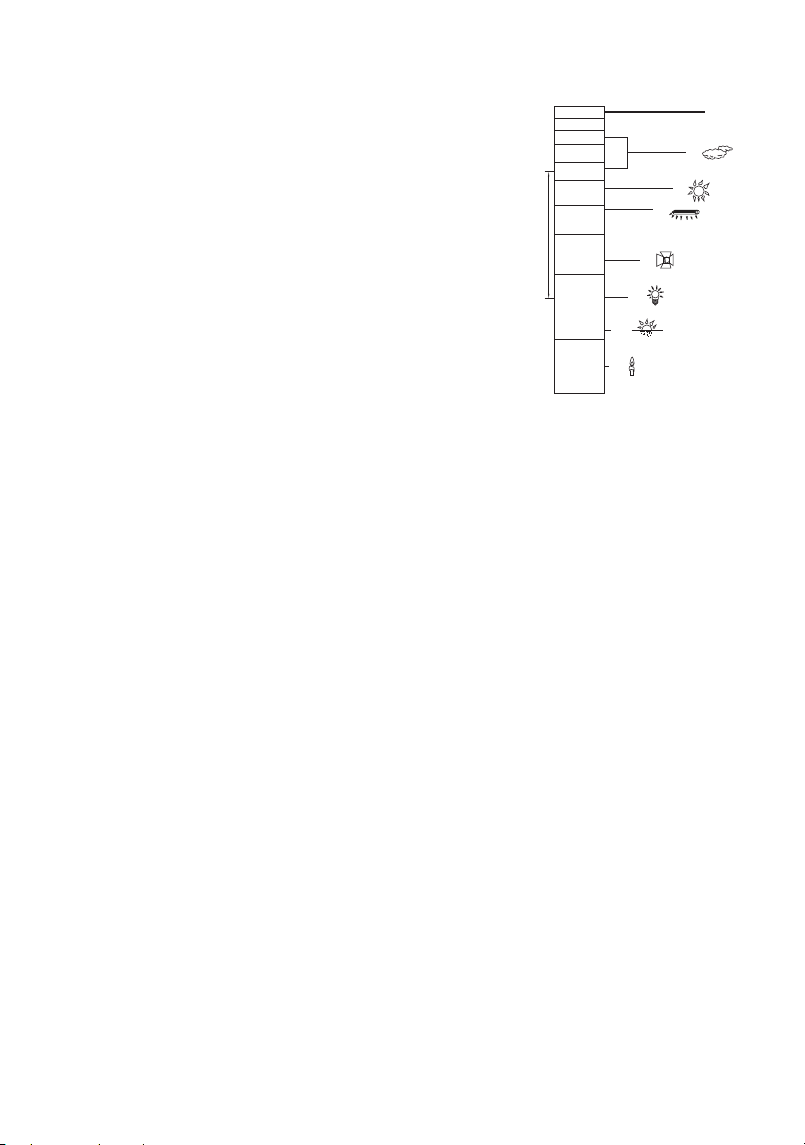
Automatic White Balance
The illustration shows the range over which Automatic White Balance functions.
1) The effective range of Automatic White Balance adjustment
on this unit
2) Blue sky
3) Cloudy sky (rain)
4) Sunlight
5) White fluorescent lamp
6) Halogen light bulb
7) Incandescent light bulb
8) Sunrise or sunset
9) Candlelight
If the Automatic White Balance is not functioning normally, adjust
the White Balance manually. (l 66)
Auto Focus
The unit focuses automatically.
≥ Auto Focus does not work correctly in the following situations.
Record pictures in the Manual Focus Mode. (l 69)
j Recording distant and close-up objects at the same time
j Recording a subject behind dirty or dusty window
j Recording a subject that is surrounded by objects with glossy surfaces or by highly reflective
objects
4)
5)
6)
7)
8)
10 000K
9 000K
8 000K
7 000K
6 000K
5 000K
4 000K
3 000K
2 000K
2)
1)
3)
9)
HC-VX3_V900E-DVQP3181_eng.book 51 ページ 2024年10月22日 火曜日 午前10時6分
- 52 -
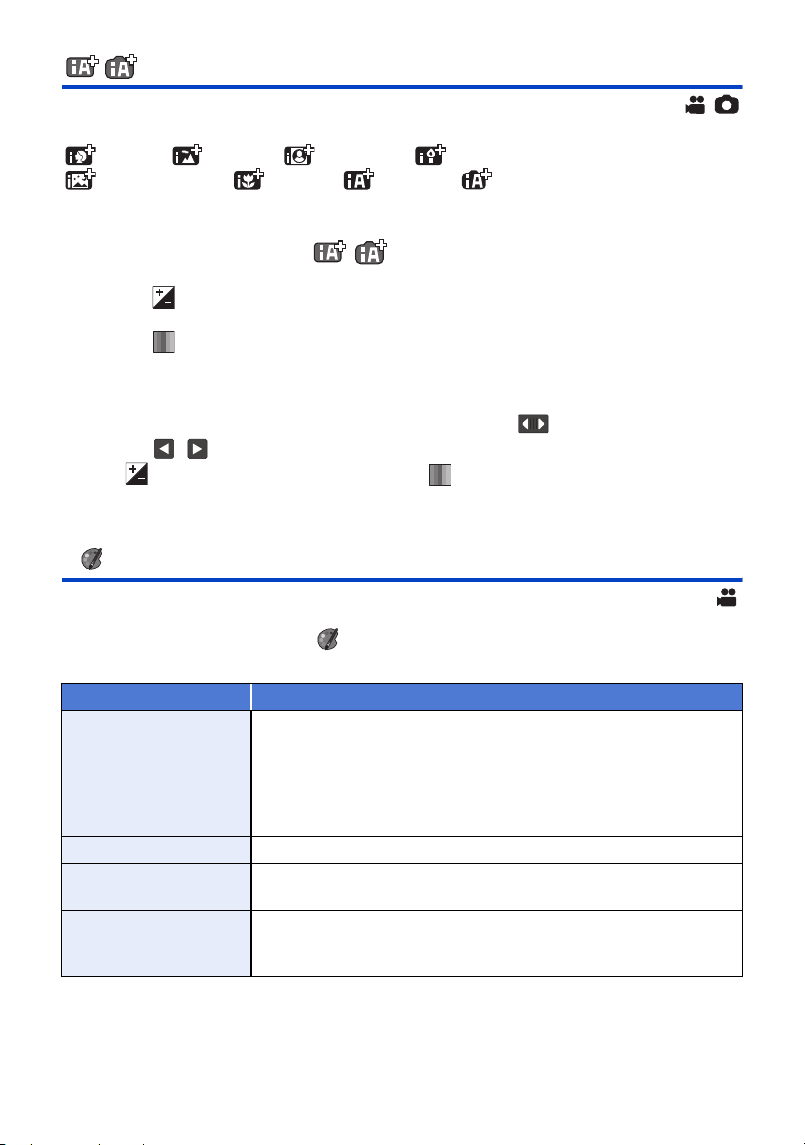
Intelligent Auto Plus
Please refer to page 50 for details about the effect of each mode.
(Portrait)/ (Scenery)/ (Spotlight)
*1
/(Low Light)
*1
/
(Night Scenery)
*2
/ (Macro)
*2
/ (Normal)
*1
/ (Normal)
*2
*1 In Motion Picture Recording Mode only
*2 In Still Picture Recording Mode only
≥ Change the Recording Mode to / . (l 48)
1 (When adjusting the brightness)
Touch .
(When adjusting the colour balance)
Touch .
≥ R side: Sets the balance to a reddish tone.
B side: Sets the balance to a bluish tone.
≥ Except for when adjusting the brightness or colour balance, if you do not touch the screen for a
while, the Touch Menu will disappear. To display it again, touch .
2 Touch / to adjust settings.
≥ Touch while adjusting the brightness, or touch while adjusting the colour balance to
make the display of the adjustment bar disappear.
3 Start recording.
Creative Control
≥ Set [REC FORMAT] to [AVCHD]. (l 82)
≥ Change the Recording Mode to . (l 48)
Select the desired Creative Control Mode, then touch [Enter].
≥ Still pictures cannot be taken.
Mode Effect
[Miniature Effect]
You can record motion pictures with a diorama effect like recording a
miniature by intentionally creating focused area and out of focused
area in the peripheral of the image and recording motion picture with
an interval. (l 53)
≥ Motion pictures recorded with this function will look as if the frame
rate is low.
[8mm movie] You can record motion pictures with a faded retro effect. (l 54)
[Silent movie]
You can record motion pictures that are similar to black-and-white
silent films by lowering the amount of incoming light. (l 54)
[Time Lapse Rec]
You can record a scene that moves slowly over a long period of time
as a short time motion picture by recording one frame at each set
time lapse. (l 54)
HC-VX3_V900E-DVQP3181_eng.book 52 ページ 2024年10月22日 火曜日 午前10時6分
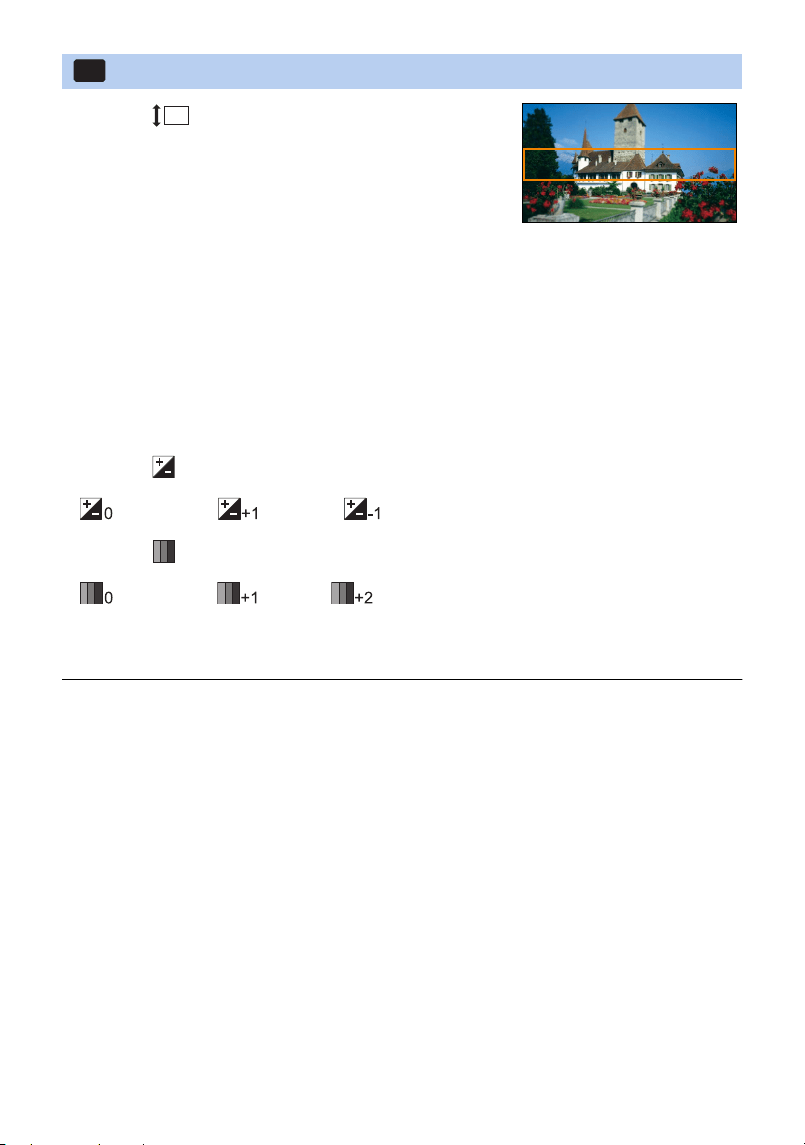
- 53 -
1 Touch to adjust the horizontal position of
the in-focus portion.
≥ If you touch the screen, you can adjust the horizontal
position of the in-focus portion.
≥ When no touch operations are performed for approximately
1 second, [Reset], [SIZE], and [ENTER] are displayed. If
you touch the screen, you can readjust the horizontal
position of the in-focus portion.
≥ Position of the in-focus portion will return to original position when you touch [Reset].
2 Touch [SIZE].
≥ The size of the in-focus portion is switched every time you touch [SIZE].
Medium size # Large size # Small size
≥ If you touch the screen, you can adjust the horizontal position of the in-focus portion.
≥ If you touch [Reset], the in-focus portion is reset to the original position and [SIZE] is reset to the
medium size.
3 Touch [ENTER].
4
(When adjusting the brightness)
Touch .
≥ The level of brightness is switched every time you touch the icon.
(Standard) # (Bright) # (Dark)
5 (When adjusting the vividness)
Touch .
≥ The level of vividness is switched every time you touch the icon.
(Standard) # (Vivid) # (Most vivid)
6 Start recording.
≥ It will record with an interval. 1 second will be recorded for approximately every 5 seconds of
recording.
≥ To make the Miniature Effect easier to gain, record objects incorporating a distant view or those
that can provide depth or a skewed perspective. Also, use a tripod and avoid zooming.
≥ You may see a lot of noise in the in-focus portion when recording dark subjects such as night
scenes.
≥ Audio cannot be recorded.
≥ [REC MODE] is set to [HA].
≥ The maximum recordable time is 12 hours.
≥ Motion pictures recorded with this function will look as if the frame rate is low.
[Miniature Effect]
MINI
HC-VX3_V900E-DVQP3181_eng.book 53 ページ 2024年10月22日 火曜日 午前10時6分
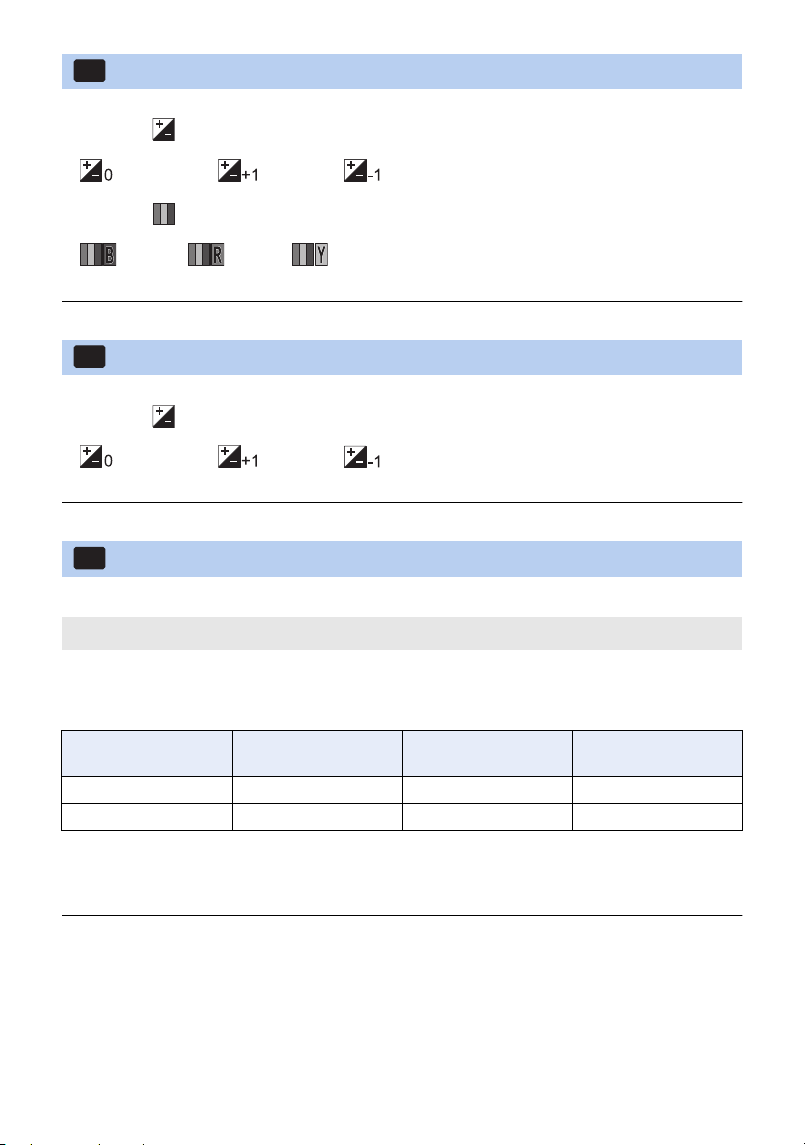
- 54 -
1 (When adjusting the brightness)
Touch .
≥ The level of brightness is switched every time you touch the icon.
(Standard) # (Bright) # (Dark)
2 (When adjusting the colour balance)
Touch .
≥ The level of colour balance is switched every time you touch the icon.
(Blue) # (Red) # (Yellow)
3 Start recording.
≥ The sound is monaural.
1 (When adjusting the brightness)
Touch .
≥ The level of brightness is switched every time you touch the icon.
(Standard) # (Bright) # (Dark)
2 Start recording.
≥ Audio cannot be recorded.
Touch the desired setup time.
≥ Touch [ENTER].
≥ A frame is recorded with a set recording interval. 25 frames will make up a motion picture of
1 second.
≥ “h” is an abbreviation for hour, “min” for minute and “s” for second.
≥ These times are approximations.
≥ Maximum recordable time is 12 hours.
≥ Audio cannot be recorded.
≥ [REC MODE] is set to [HA].
≥ The shortest motion picture recording time is 1 second.
≥ The colour balance and focus may not be adjusted automatically depending on the light source or
scene. If so, manually adjust those settings. (l 66, 69)
≥ When recording for a long time, we recommend recording with the AC adaptor connected.
[8mm movie]
[Silent movie]
[Time Lapse Rec]
[1 SEC.]/[10 SEC.]/[30 SEC.]/[1 MINUTE]/[2 MINUTES]
8mm
SILN
INTV
Setup example
Setup time
(recording interval)
Recording time Recorded time
Sunset 1s 1h 2min20s
Blooming 30 s 3 h 14 s
HC-VX3_V900E-DVQP3181_eng.book 54 ページ 2024年10月22日 火曜日 午前10時6分
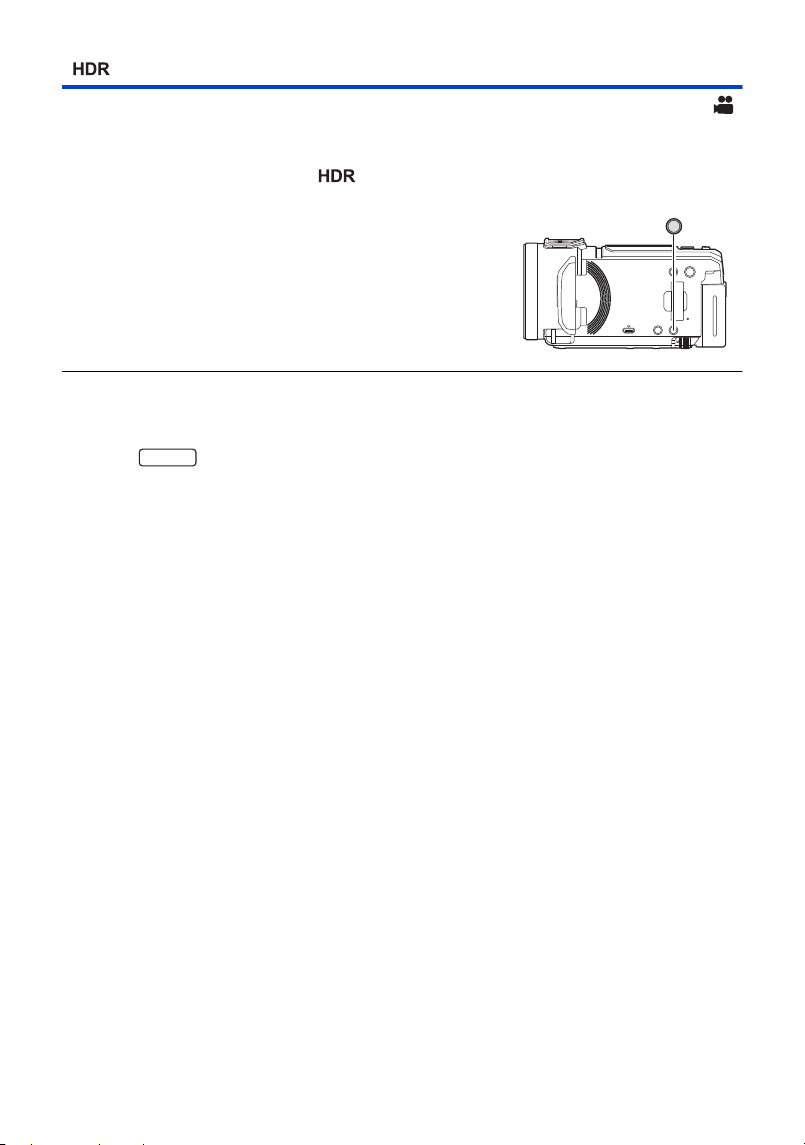
- 55 -
HDR Movie Mode
You can minimise the loss of gradations in bright areas and dark areas when, for example,
the contrast between the background and the subject is large.
≥ Change the Recording Mode to . (l 48)
≥ This unit will be set to Intelligent Auto Mode if you turn it off and on.
≥ This function is not available in the following cases:
j When [REC FORMAT] is set to [24p].
(For the )
j When [REC FORMAT] is set to [4K MP4]
j When 4K Photo Mode is in use
≥ [REC MODE] is set to [1080/28M] in the following cases:
j When [REC FORMAT] is set to [MP4] and [REC MODE] is set to [720]
≥ The following settings are cancelled:
j [FACE FRAMING]
j Auto Slow Shutter
j Backlight Compensation
j Intelligent Contrast Control
j Night Mode
j [PICTURE ADJUST]
j [HYBRID O.I.S.]
j [ACTIVE CONTRAST]
≥ You cannot record still pictures.
≥ The shutter speed and brightness (iris/gain) are adjusted automatically. If you set them manually
in advance, the settings will not be maintained.
≥ Depending on recording conditions, the screen may flicker or you may see horizontal bars in the
image.
≥ If you record a moving subject or move this unit quickly while recording, the image may be
distorted.
∫ About the HDR button
You can switch from Recording mode to HDR Movie
Mode by pressing the HDR button.
≥ Press it once more to switch from HDR Movie Mode to
Intelligent Auto Mode.
ラュン
VX3
HC-VX3_V900E-DVQP3181_eng.book 55 ページ 2024年10月22日 火曜日 午前10時6分
- 56 -
∫ To change the level of image contrast correction
[HDR EFFECT] allows you to change the contrast correction level in HDR Movie Mode.
≥ Change the Recording Mode to . (l 48)
1 Select the menu.
2 Touch [ENTER].
≥ Touch [EXIT] to complete the settings.
≥ You can also change this setting by touching its operation icon. (l 76)
≥ You may not see the full effect depending on the recording conditions.
: [RECORD SETUP] # [HDR EFFECT] # desired setting
: Sets the correction level to high.
: Sets the correction level to low.
MENU
HC-VX3_V900E-DVQP3181_eng.book 56 ページ 2024年10月22日 火曜日 午前10時6分
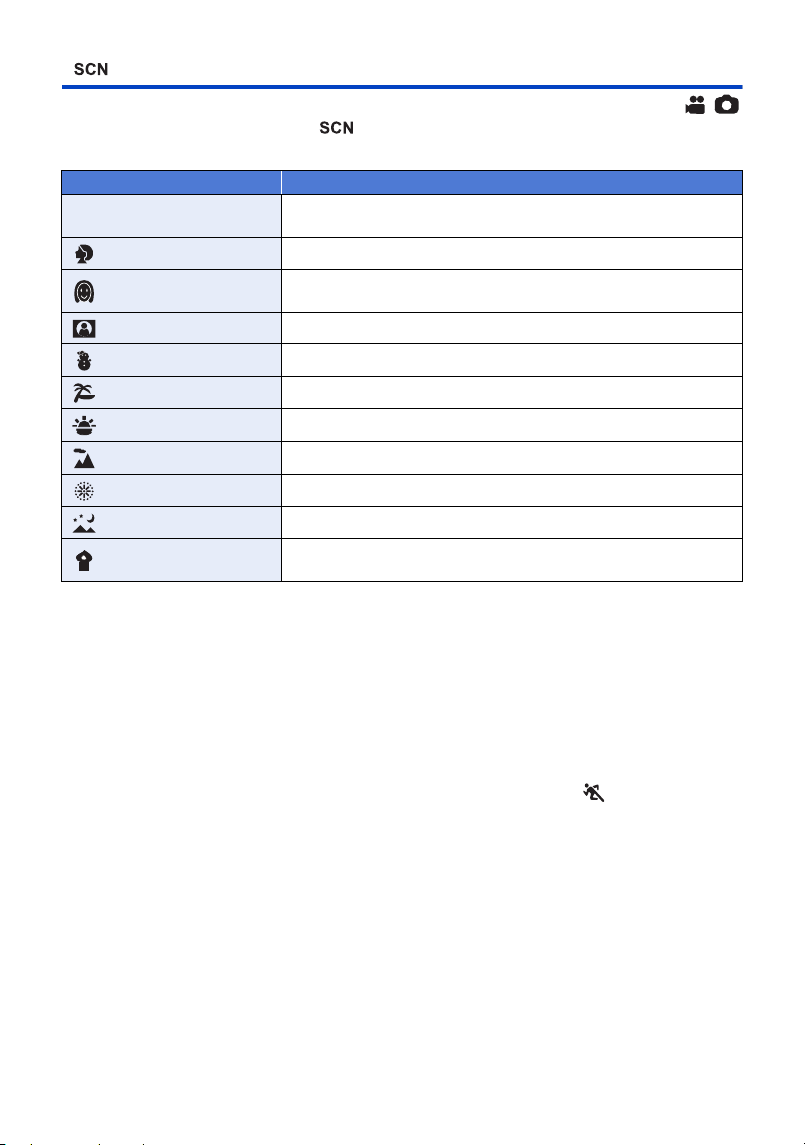
- 57 -
Scene Mode
≥ Change the Recording Mode to . (l 48)
Select the desired Scene Mode, then touch [ENTER].
≥ (Sports/Portrait/Soft Skin/Spotlight/Snow/Beach/Sunset/Scenery)
j The shutter speed is 1/6 or more in Still Picture Recording Mode.
≥ (Sunset/Low Light)
j The shutter speed is 1/25 or more in Motion Picture Recording Mode. (1/24 or more when
[REC FORMAT] is set to [24p])
≥ (Sunset/Scenery/Fireworks/Night Scenery)
j Image may get blurry when close object is recorded.
≥ (Sports)
j During normal playback, the image movement may not look smooth.
j Colour and screen brightness may change under indoor lighting.
j If the brightness is insufficient, the Sports Mode does not function. The display flashes.
≥ (Portrait)
j Colour and screen brightness may change under indoor lighting.
≥ (Soft Skin)
j If the background or anything else in the scene has colours similar to the skin colour, they will
also be smoothed.
j If the brightness is insufficient, the effect may not be clear.
j If you record a person in the distance, the face may not be recorded clearly. In this case, cancel
Soft Skin Mode or zoom in on the face (close-up) to record.
≥ (Fireworks)
j The shutter speed is 1/25. (1/30 or more when [REC FORMAT] is set to [24p])
j Image may get washed out when recorded in bright surrounding.
≥ (Night Scenery)
j The shutter speed is 1/2 or more in Still Picture Recording Mode.
j Using a tripod is recommended.
Mode Effect
5 Sports:
To make fast moving scenes less shaky with slow playback and
pause of playback
Portrait: To make people stand out against the background
Soft Skin:
To makes skin colours appear softer for a more attractive
appearance
Spotlight: Improved quality when subject is brightly illuminated.
Snow: Improved image quality when shooting in snowy locations.
Beach: To make blue in the sea or sky vibrant
Sunset: To make red in the sunrise or sunset vibrant
Scenery: For spatial scenery
Fireworks: To capture the fireworks in the night sky beautifully
Night Scenery: To capture the evening or night scenery beautifully
Low Light:
For dark scenes, such as at dusk
(In Motion Picture Recording Mode only)
HC-VX3_V900E-DVQP3181_eng.book 57 ページ 2024年10月22日 火曜日 午前10時6分
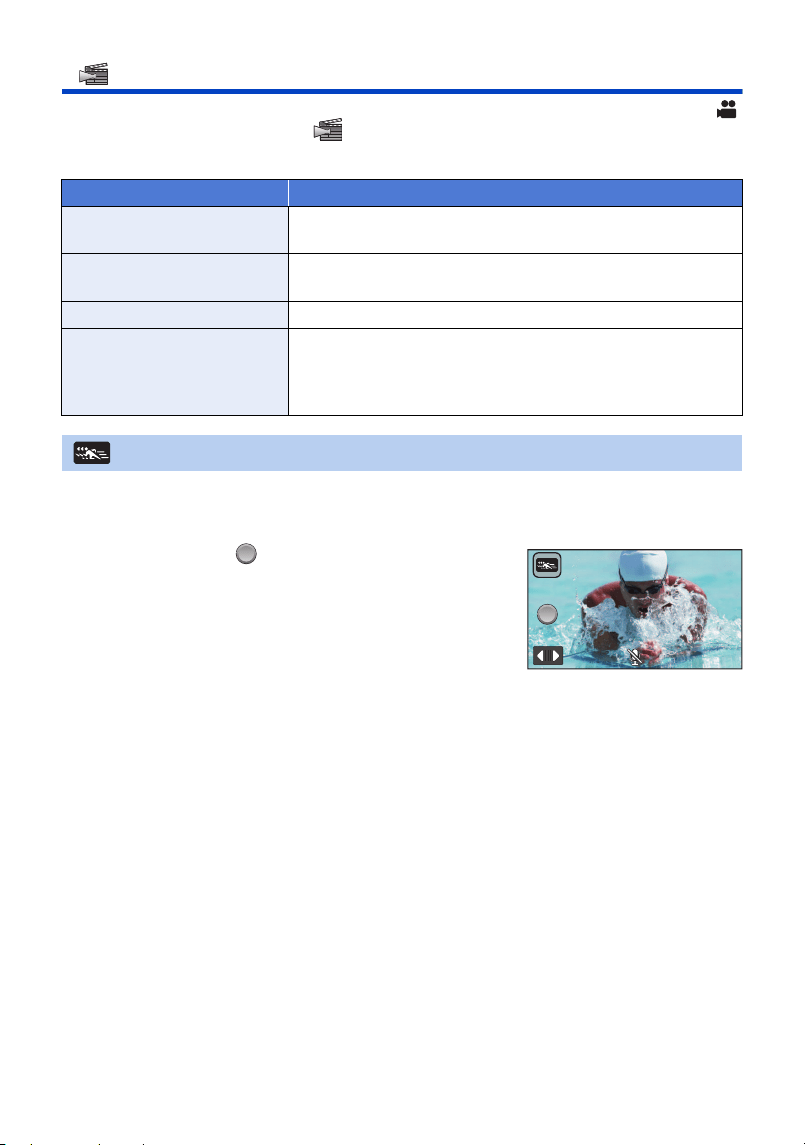
- 58 -
Cinema Like Effect [VX3]
≥ Change the Recording Mode to . (l 48)
Select the desired Cinema Like Effect Mode, and touch [ENTER].
1 Touch [OK].
2 Start recording.
≥ The image will be recorded in slow motion.
3 Touch and hold at the scene where you
want to switch to quick motion.
≥ The image will be recorded in quick motion while you are
touching and holding the icon.
≥ The image will be recorded in slow motion when you
release the finger.
≥ You can switch to quick motion repeatedly.
Mode Effect
Slow & Quick Video Mode
Allows you to switch images between slow and quick motion
during recording.
FULL HD Slow Motion Video
Mode
Allows you to record slow motion images. (l 60)
Slow Zoom Mode Allows you to record images that slowly zoom in/out. (l 61)
Dolly Zoom Mode
Allows you to record images that only change the angle of view
in the background while keeping the size of the subject (person)
constant. The images are played back with a quick motion effect
of k2. (l 62)
Slow & Quick Video Mode
QUICK
QUICK
HC-VX3_V900E-DVQP3181_eng.book 58 ページ 2024年10月22日 火曜日 午前10時6分

- 59 -
≥ When recording with Slow & Quick Video Mode, use an SD card conforming to Class 10 of
the SD Speed Class Rating.
≥ Recordable time with the battery will be shortened with the use of Slow & Quick Video recording.
≥ This function is not available when [REC FORMAT] is set to [24p].
≥ The following settings will be selected:
j [ZOOM MODE]: [Opt.Zoom 24k]
j [REC FORMAT]: [MP4]
*
j [REC MODE]: [1080/28M]
*
j [HYBRID O.I.S.]: [OFF]
j [AUTO SLOW SHTR]: [OFF]
* (After switching to Slow & Quick Video Mode with [REC FORMAT] set to [4K MP4])
If you switch to a different Recording Mode, [REC FORMAT] will not be reset to [4K MP4]. A [REC
FORMAT] setting of [MP4] and a [REC MODE] setting of [1080/28M] will be maintained.
≥ The shutter speed is 1/100 or more.
≥ The following limitations apply:
j Audio is not recorded. ( is displayed.)
j Still pictures cannot be recorded.
j The size of the image displayed on the screen will change.
j Images and sound are not output from this unit to another device.
≥ The following settings are cancelled:
j AF/AE tracking
j PRE-REC
j Fade
≥ When you switch to Slow & Quick Video Mode, the screen may become black momentarily.
≥ Scenes recorded in Slow & Quick Video Mode are displayed with the indication on the
thumbnail screen in Playback Mode, and played back in 1920k1080/50p.
HC-VX3_V900E-DVQP3181_eng.book 59 ページ 2024年10月22日 火曜日 午前10時6分
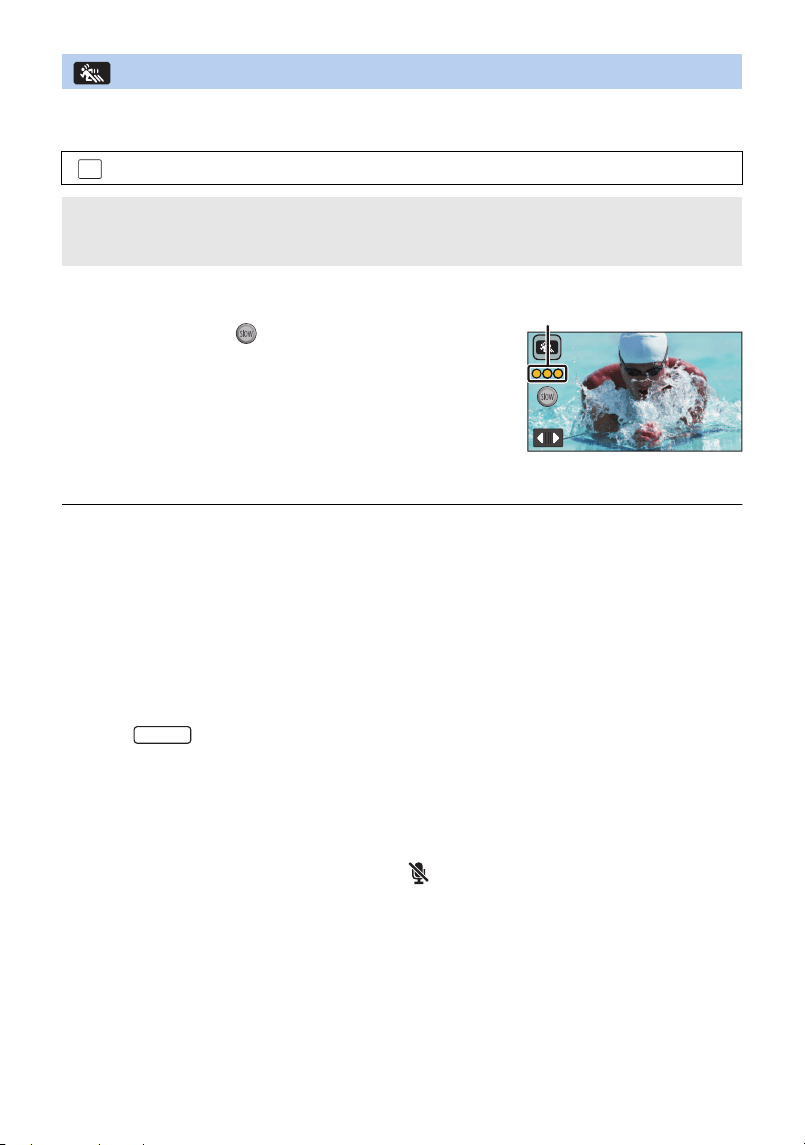
- 60 -
1 Touch [OK].
2 Select the menu.
3 Start recording.
4
(When [Interval] is selected)
Touch and hold when you want to use
FULL HD Slow Motion Video recording.
≥ As long as you touch and hold the icon, FULL HD Slow
Motion Video recording will continue.
≥ Once you release your finger, normal recording will start.
≥ For each recording you make, FULL HD Slow Motion Video
recording is possible up to 3 times.
≥ To check how many more times you can use FULL HD Slow
Motion Video recording, see the number of the yellow lights
A.
≥ To record the scene into an SD card, use an SD card conforming to Class 10 of the SD
Speed Class Rating.
≥ Recordable time with the battery will be shortened with the use of FULL HD Slow Motion Video
recording.
≥ This function is not available when [REC FORMAT] is set to [24p].
≥ FULL HD Slow Motion Video recording uses the following settings:
j [ZOOM MODE]: [Opt.Zoom 24k]
j [REC FORMAT]: [MP4]
*
j [REC MODE]: [1080/28M]
*
j [HYBRID O.I.S.]: [OFF]
j [AUTO SLOW SHTR]: [OFF]
*For the
j (After switching to FULL HD Slow Motion Video Mode with [REC FORMAT] set to [4K MP4])
If you switch to a different Recording Mode, [REC FORMAT] will not be reset to [4K MP4].
The [REC FORMAT] setting of [MP4] and the [REC MODE] setting of [1080/28M] will be
maintained.
≥ The shutter speed is 1/100 or more.
≥ The following limitations apply:
j The sound of the parts will not be recorded. ( will be displayed during the recording)
j Still pictures cannot be recorded.
j The size of the image displayed on the screen will change.
j Images and sound are not output from this unit to another device.
≥ The following settings are cancelled:
j AF/AE tracking
j PRE-REC
j Fade
≥ When you switch to FULL HD Slow Motion Video Mode, the screen may become black
momentarily.
FULL HD Slow Motion Video Mode
: [RECORD SETUP] # [SLOW MOTION SETUP] # desired setting
[Interval]: Allows you to switch between normal recording and FULL HD Slow Motion
Video recording while recording.
[Always]: Records the entire scene as FULL HD Slow Motion Video.
MENU
VX3
HC-VX3_V900E-DVQP3181_eng.book 60 ページ 2024年10月22日 火曜日 午前10時6分
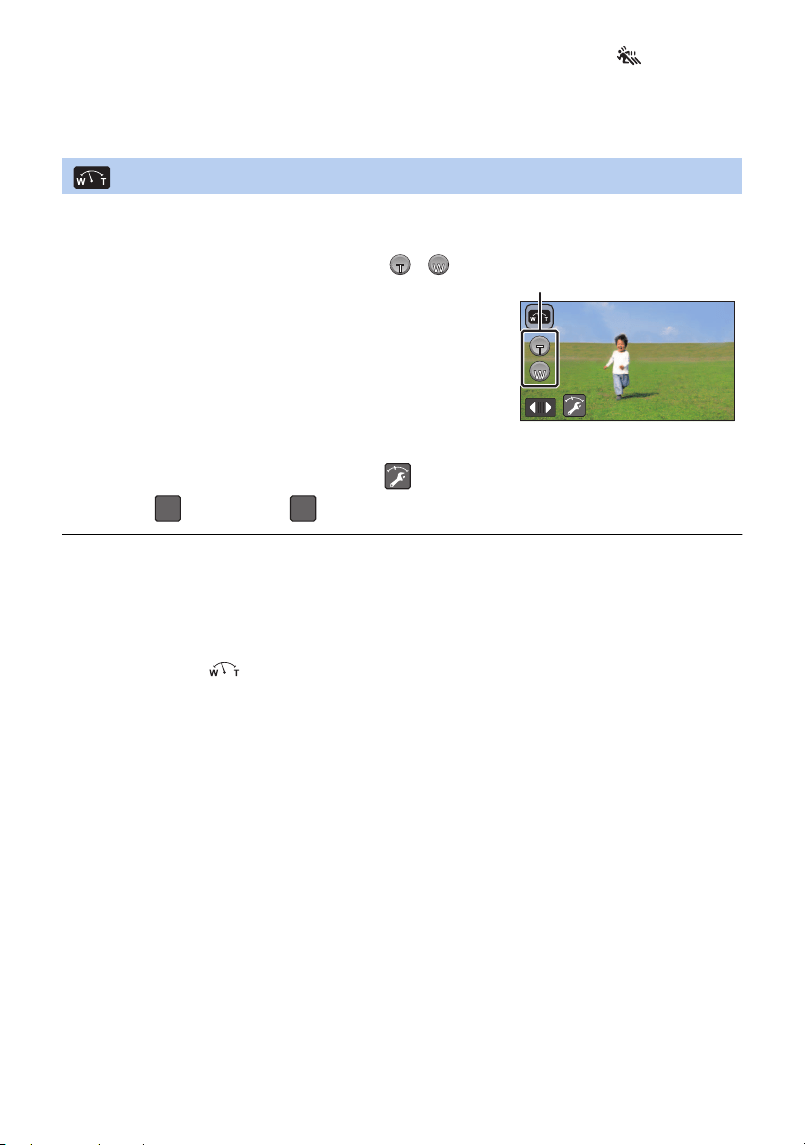
- 61 -
≥ Scenes recorded in FULL HD Slow Motion Video Mode are displayed with the indication on
the thumbnail screen in Playback Mode, and played back in 1920k1080/50p.
≥ You can set the playback speed on this unit in [SLOW PLAY SPEED] (l 99). In addition, you can
set the playback speed on another device to 1/4 normal speed in [Slow Speed Conversion]
(l 135).
1 Touch [OK].
2 Start recording.
To set the zoom speed
1 Before starting Slow Zoom, touch .
2 Touch (Normal) or (Slow).
≥ AF/AE tracking or digital zoom is not available.
≥ PRE-REC will be cancelled.
≥ You cannot operate Slow Zoom or adjust the zoom speed when using manual settings. (l 65)
≥ You cannot perform zoom operations with the following during Slow Zoom.
j Zoom lever and zoom button icons
≥ On the thumbnail screen in Playback Mode, scenes recorded with Slow Zoom Mode are
displayed with the indication.
Slow Zoom Mode
3 Touch the Slow Zoom button icon ( / ) to
start Slow Zoom.
≥ The lens will be zoomed at a constant speed to the tele
or wide end.
≥ If you touch the same Slow Zoom button icon again
during Slow Zoom, the operation will stop.
≥ If you touch the other Slow Zoom button icon during
Slow Zoom, Slow Zoom will start in the opposite
direction.
Slow Zoom button icon
SLOW
SLOW
SLOW
SLOW
NORM
SLOW
HC-VX3_V900E-DVQP3181_eng.book 61 ページ 2024年10月22日 火曜日 午前10時6分
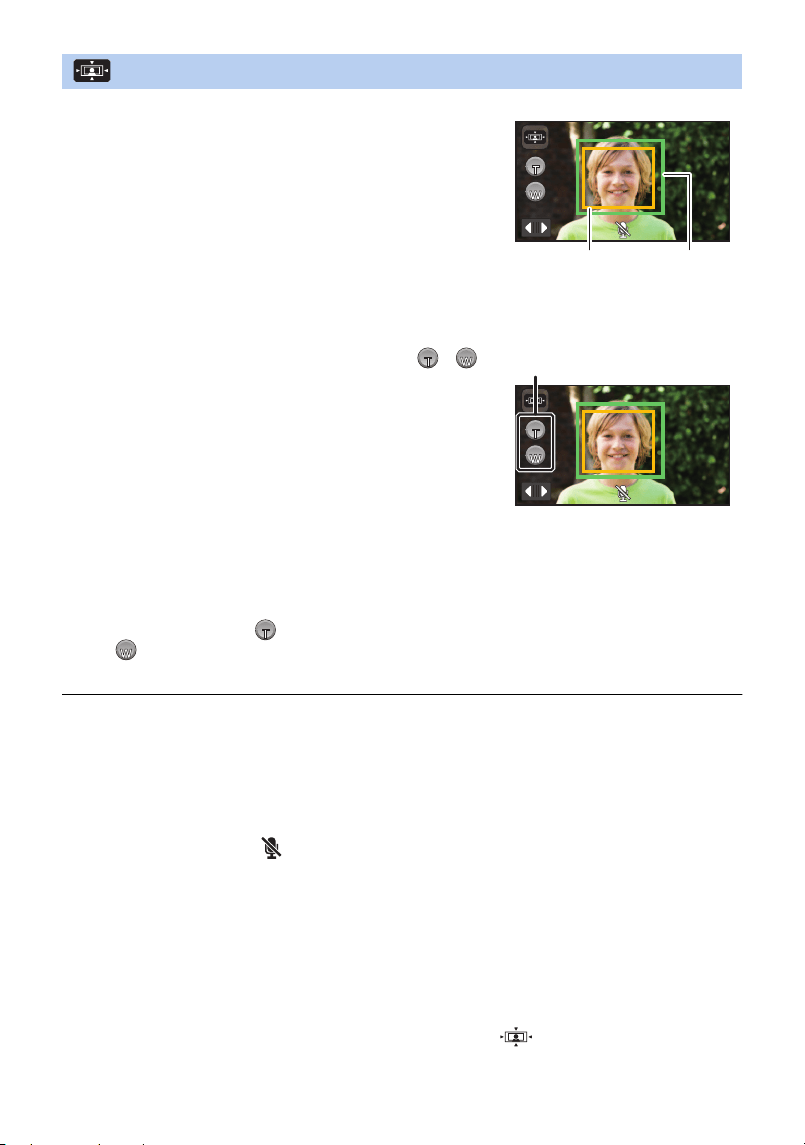
- 62 -
≥ Adjust while moving the recording position backward or forward.
≥ Performing Auto Zoom while adjusting the position of this unit allows you to create a Dolly
Zoom effect.
≥ If you have touched , record the subject while moving away from it; if you have touched
, record the subject while moving closer to it.
≥ Adjust the position of this unit so that the subject fits into the centre frame.
≥ This function is not available when [REC FORMAT] is set to [24p].
≥ The following settings will be selected:
j [ZOOM MODE]: [Opt.Zoom 24k]
j [REC FORMAT]: [MP4]
j [REC MODE]: [1080/28M]
j [FACE FRAMING]: [PRIMARY]
≥ The following limitations apply:
j Audio is not recorded. ( is displayed.)
j Still pictures cannot be recorded.
≥ The following settings are cancelled:
j AF/AE tracking
j PRE-REC
j Fade
j [LEVEL GAUGE]
j [PICTURE ADJUST]
≥ You cannot perform zoom operations with the following during Auto Zoom.
j Zoom lever and zoom button icons
≥ Scenes recorded in Dolly Zoom Mode are displayed with the indication on the thumbnail
screen in Playback Mode, and played back in 1920k1080/50p.
Dolly Zoom Mode
1 Touch [OK].
2 Align the subject’s position with the centre
frame B.
≥ The face detection frame A will be displayed around the
subject’s face.
≥ Adjust so that the face detection frame and centre frame
appear in the same size. When they appear in the same
size, the colour of the centre frame changes from red to
green.
3 Start recording.
≥ The image will be recorded in quick motion.
4 Touch the Auto Zoom button icon C (/)
to start Auto Zoom.
≥ The lens will be zoomed at a constant speed to the tele
or wide end.
≥ If you touch the same Auto Zoom button icon again
during Auto Zoom, the operation will stop.
≥ If you touch the other Auto Zoom button icon during Auto
Zoom, Auto Zoom will start in the opposite direction.
5 Adjust the position of this unit while keeping
the subject’s size constant.
A The face detection frame
B The subject’s position with
the centre frame
C The Auto Zoom button icon
AUTO
AUTO
T
AUTO
AUTO
AUTO
AUTO
AUTO
AUTO
AUTO
HC-VX3_V900E-DVQP3181_eng.book 62 ページ 2024年10月22日 火曜日 午前10時6分
- 63 -
FULL HD Slow Motion Video [V900]
≥ Change the Recording Mode to . (l 48)
≥ For information on how to use this mode, refer to “FULL HD Slow Motion Video Mode” on
page 60.
4K Photo Mode [VX3]
≥ Change the Recording Mode to . (l 48)
1 Record a motion picture.
2 Switch this unit to Playback Mode, and create still pictures from the motion
picture. (
l 97)
≥ Scenes recorded with the 4K Photo Mode function are displayed with the indication on the
thumbnail screen.
≥ Use an SD card conforming to Class 10 of the SD Speed Class when you want to record 4K
Photo Mode scenes to the SD card.
≥ This function is not available when [REC FORMAT] is set to [24p].
≥ [REC FORMAT] is fixed to [4K MP4].
≥ [AUTO SLOW SHTR] is set to [OFF].
HC-VX3_V900E-DVQP3181_eng.book 63 ページ 2024年10月22日 火曜日 午前10時6分
- 64 -
Stop Motion Animation Assist
≥ Change the Recording Mode to . (l 48)
1 Press the button to record the still pictures. (l 30)
2 Touch [Enter].
≥ A still picture will be recorded, and it will be displayed in a semi-transparent state on the recording
screen. Look at the picture to estimate how far you should move the subject for the next
recording.
≥ If you have already recorded still pictures in the recording group, the last still picture will be
displayed in a semi-transparent state on the recording screen.
≥ To record again, touch and record again.
3 Move the subject and determine the composition of the picture.
≥ Repeat Steps 1-3 to continue recording.
≥ You can save still pictures in the same recording group until you use [Create Stop Motion].
Creating a new recording group
≥ If you touch [YES], a new recording group will be created and the recording screen will be
displayed.
≥ Once you create a recording group, you cannot save still pictures in any of the older recording
groups.
≥ [PICTURE SIZE] is set to (1920k1080).
≥ When you want to record still pictures in a separate recording group, use a different SD card.
≥ For details on playback of the Stop Motion Animation Assist Mode, refer to page 126.
Before recording in Stop Motion Animation Assist Mode
You can create a slideshow that appears to be moving by recording the subject while moved a
little at a time.
≥ Each recording group can store up to 999 still pictures recorded in Stop Motion Animation
Assist Mode.
: [PICTURE] # [Create Stop Motion]
MENU
2.1M
HC-VX3_V900E-DVQP3181_eng.book 64 ページ 2024年10月22日 火曜日 午前10時6分
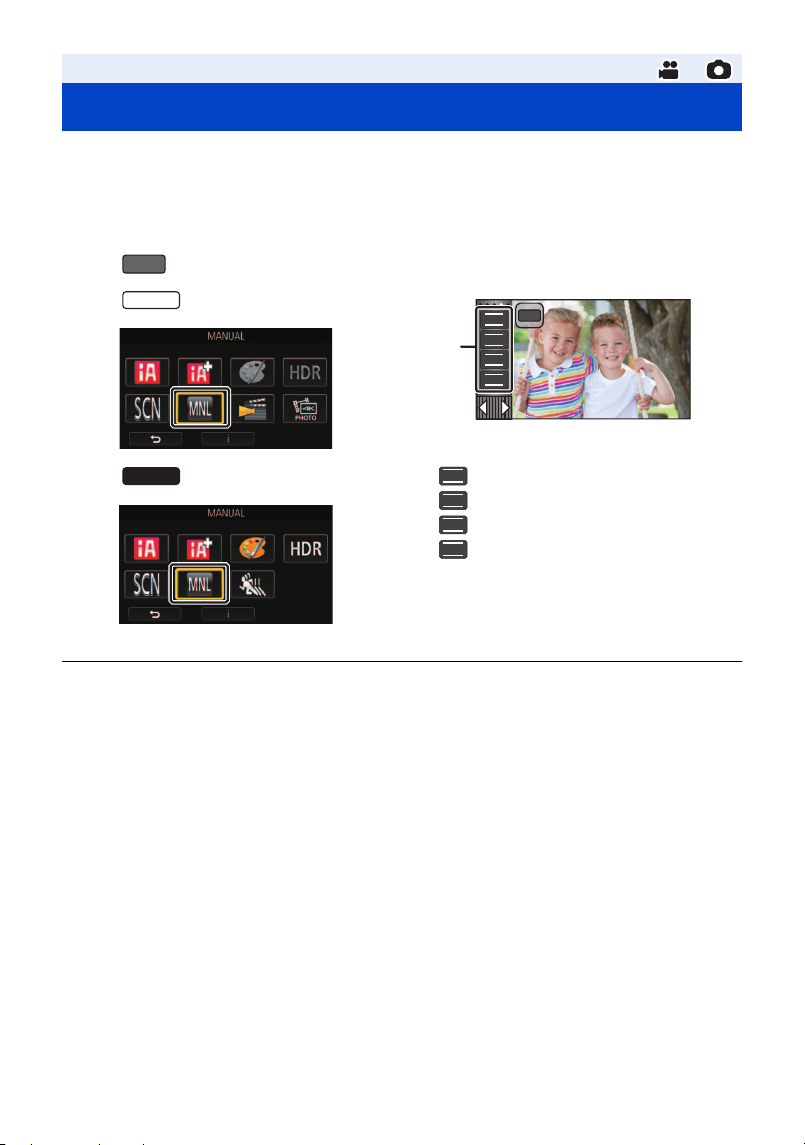
- 65 -
You can adjust focus, White Balance, shutter speed, and brightness (iris and gain) by touching the
Manual icon.
≥ The Manual Focus, White Balance, Shutter Speed, Brightness (Iris and gain) settings are
retained when you change between Motion Picture Recording Mode and Still Picture
Recording Mode.
Touch to change to Manual Mode.
≥ Some functions are disabled depending on settings such as the recording mode.
≥ To cancel the manual settings, change the Recording Mode to the Intelligent Auto Mode. (l 48)
Advanced (Recording)
Manual recording
MNL
VX3
V900
A Manual icon
Focus (l 69)
White Balance (l 66)
Manual Shutter Speed (l 67)
Iris Adjustment (l 68)
FOCUS
WB
SHTR
IRIS
FOCUS
WB
SHTR
IRIS
MNL
FOCUS
WB
SHTR
IRIS
HC-VX3_V900E-DVQP3181_eng.book 65 ページ 2024年10月22日 火曜日 午前10時6分
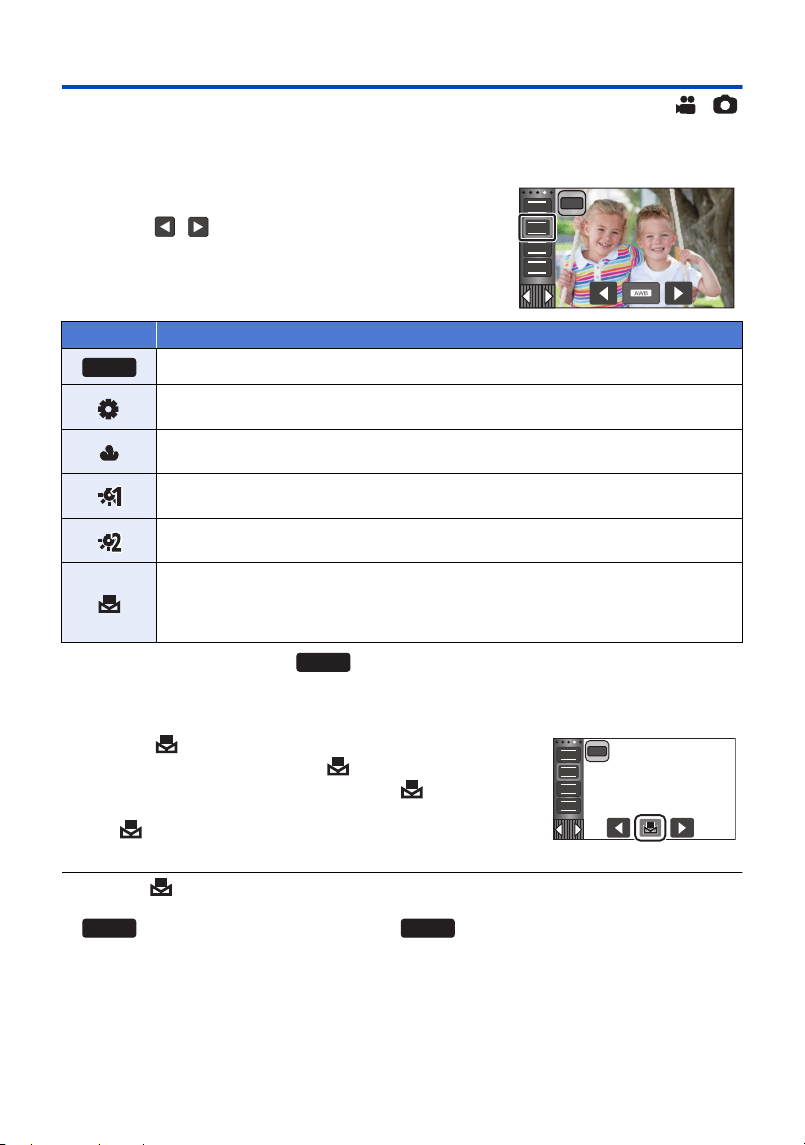
- 66 -
White Balance
Automatic White Balance function may not reproduce natural colours depending on the scenes or
lighting conditions. If so, you can adjust the White Balance manually.
≥ Switch to Manual Mode. (l 65)
1 Touch [WB].
2 Touch / to select White Balance Mode.
≥ Touch [WB] to select the mode.
≥ To return to auto setting, set to or change the Recording Mode to the Intelligent Auto
Mode. (l 48)
∫ To set the White Balance manually
1 Select , fill the screen with a white subject.
2 Touch and set the blinking .
≥ When the screen turns black instantly and the display stops
flashing and then lights constantly, the setting is complete.
≥ If the display continues flashing, the White Balance cannot be
set. In this case, use other White Balance Modes.
≥ When the display flashes, the Manual White Balance previously adjusted is stored.
Whenever recording conditions change, re-set the White Balance.
≥ is not displayed on the screen when is being set.
Icon Mode/Recording conditions
Automatic White Balance adjustment
Sunny mode:
Outdoors, under a clear sky
Cloudy mode:
Outdoors, under cloudy sky
Indoor mode 1:
Incandescent light, video lights like in the studio, etc.
Indoor mode 2:
Colour fluorescent lamps, sodium lamps in gymnasiums etc.
Manual adjustment mode:
≥ Mercury-vapor lamps, sodium lamps, some fluorescent lights
≥ Lights used for wedding receptions at hotels, stage spotlights in theaters
≥ Sunrise, sunset, etc.
FOCUS
SHTR
IRIS
WB
MNL
AWB
AWB
FOCUS
SHTR
IRIS
WB
MNL
AWB
AWB
HC-VX3_V900E-DVQP3181_eng.book 66 ページ 2024年10月22日 火曜日 午前10時6分

- 67 -
Manual shutter speed adjustment
Adjust it when recording fast-moving subjects.
≥ Switch to Manual Mode. (l 65)
1 Touch [SHTR].
2 Touch / to adjust settings.
≥ Touch [SHTR] to end the adjustment.
: Shutter speed:
1/50 to 1/8000
≥ If [AUTO SLOW SHTR] is set to [ON], the shutter speed will be set between 1/25 and 1/8000.
≥ If [REC FORMAT] is set to [24p], the shutter speed will be set between 1/48 and 1/8000 (between
1/24 and 1/8000 when [AUTO SLOW SHTR] is set to [ON]).
≥ The shutter speed closer to 1/8000 is faster.
≥ The shutter speed will be set between 1/2 and 1/2000 in Still Picture Recording Mode.
≥ To return to the automatic setting, do one of the following:
j Change the Recording Mode to the Intelligent Auto Mode (l 48)
≥ When setting both the shutter speed and the iris/gain value, set the shutter speed and then set
the iris/gain value.
≥ When the shutter speed is set lower than 1/12 in the Still Picture Recording Mode, using a tripod
is recommended. The shutter speed will be set to 1/25 when the unit is turned on again.
≥ You may see a band of light around an object that is shining very bright, or highly reflective.
≥ During normal playback, image movement may not look smooth.
≥ If you record an extremely bright object or record under indoor lighting, colour and screen
brightness may change or a horizontal line may appear on the screen. In this case, record in the
Intelligent Auto Mode or Manually adjust the shutter speed as follows:
j When [REC FORMAT] is set to [24p]: 1/50 or 1/60.
j When [REC FORMAT] is set to a setting other than [24p]: 1/100 or 1/125.
≥ Brightness of the image displayed on the LCD monitor may be different from brightness of the
image actually recorded during the Still Picture Recording Mode. Confirm the image on the
playback screen after recording.
SHTR
HC-VX3_V900E-DVQP3181_eng.book 67 ページ 2024年10月22日 火曜日 午前10時6分

- 68 -
Iris adjustment
Adjust it when the screen is too bright or too dark.
≥ Switch to Manual Mode. (l 65)
1 Touch [IRIS].
2 Touch / to adjust settings.
≥ Touch [IRIS] to end the adjustment.
: Iris/Gain value:
CLOSE
!#
(F16 to F2.0)
!#
OPEN
!#
(0dB to 18dB)
≥ Value closer to CLOSE darken the image.
≥ Value closer to 18dB brighten the image.
≥ When the iris value is adjusted to brighter than OPEN, it changes to the gain value.
≥ To return to auto setting, change the Recording Mode to the Intelligent Auto Mode. (l 48)
≥ When setting both the shutter speed and the iris/gain value, set the shutter speed and then set
the iris/gain value.
≥ If the gain value is increased, the noise on the screen increases.
≥ Depending on the zoom magnification, there are iris values that are not displayed.
IRIS
HC-VX3_V900E-DVQP3181_eng.book 68 ページ 2024年10月22日 火曜日 午前10時6分
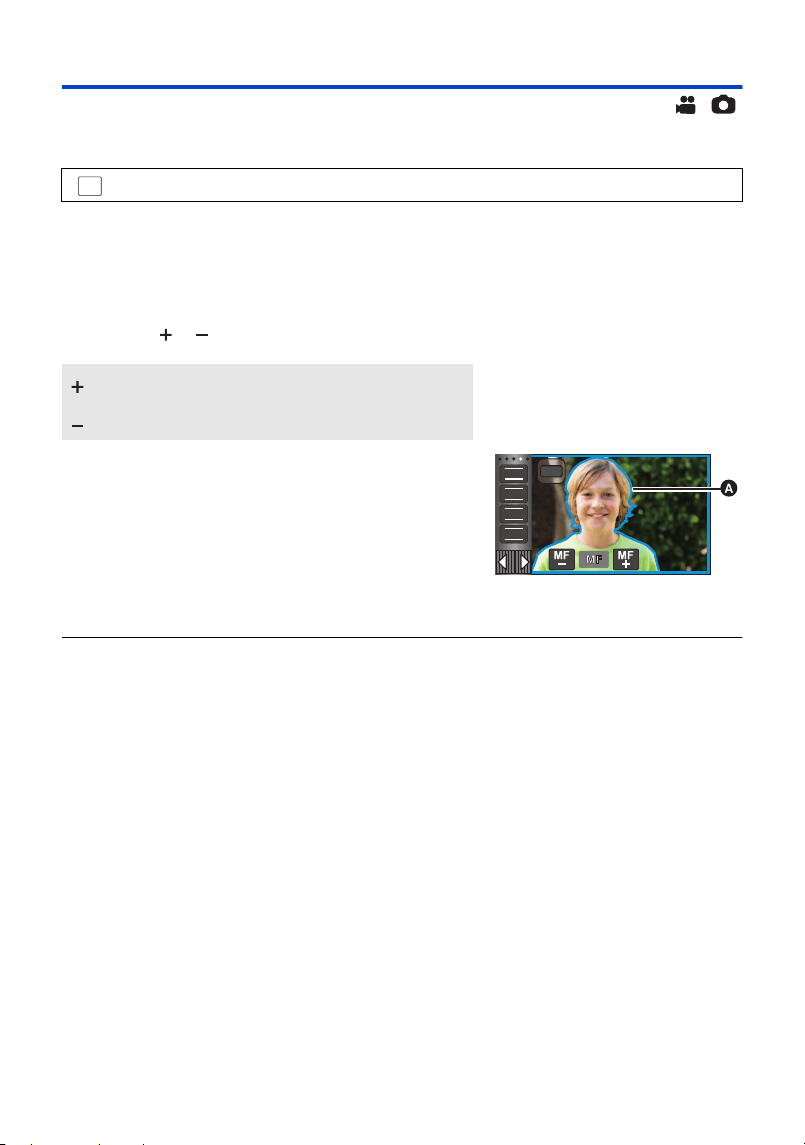
- 69 -
Manual Focus adjustment
If auto focusing is difficult due to the conditions, then use Manual Focus.
≥ Change these menu settings to use MF assist.
≥ Switch to Manual Mode. (l 65)
1 Touch [FOCUS].
2 Touch [MF] to change to Manual Focus.
≥ MF appears on the screen.
3 Touch / to adjust the focus.
≥ The peaking display is not displayed if [MF ASSIST] is [OFF].
≥ The peaking display does not get displayed in the images that are actually recorded.
: [RECORD SETUP] # [MF ASSIST] # [ON]
:
To focus on nearby subjects
:
To focus on far away subjects
The in-focus area is displayed in blue. (Peaking display)
The normal screen returns approximately 2 seconds after
you finish bringing the subject into focus.
≥ Touch [FOCUS] to end the adjustment.
≥ To restore Auto Focus, touch [AF] in Step 2 or change
the Recording Mode to the Intelligent Auto Mode. (l 48)
A Peaking display
MENU
MF
MF
MF
MF
FOCUS
WB
SHTR
IRIS
MNL
HC-VX3_V900E-DVQP3181_eng.book 69 ページ 2024年10月22日 火曜日 午前10時6分
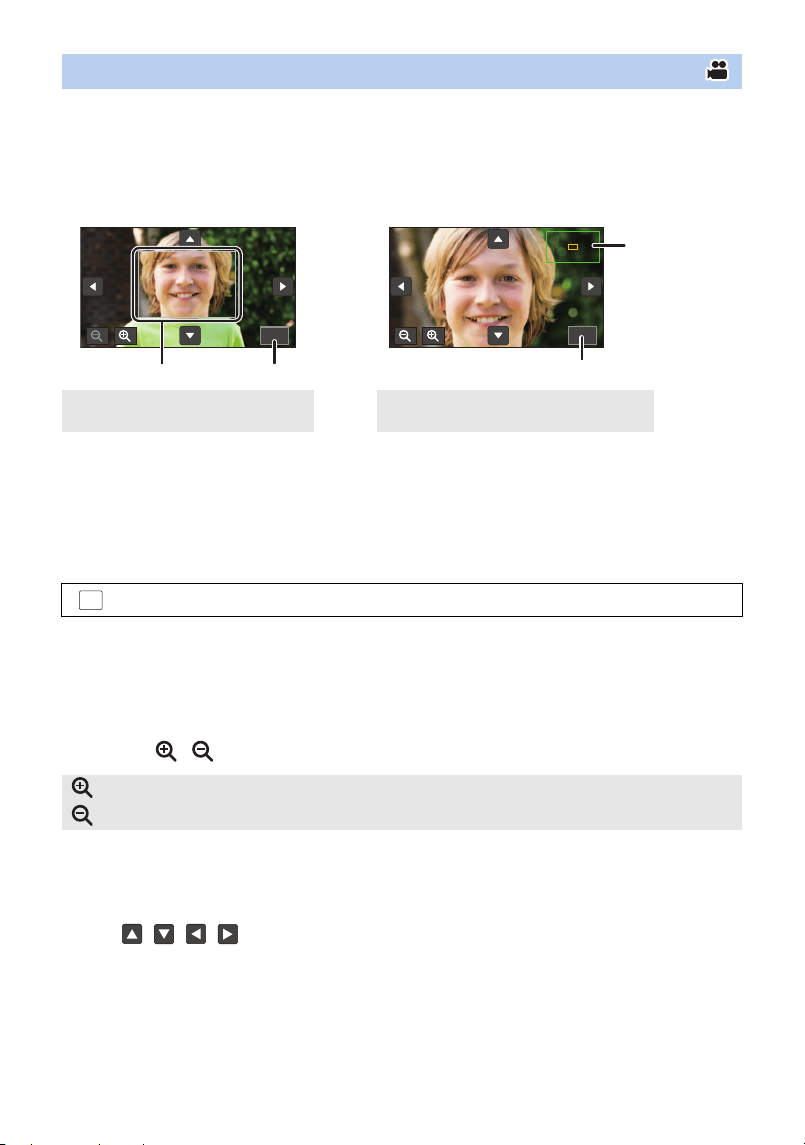
- 70 -
When recording with a [REC FORMAT] setting of [4K MP4] or [24p] (and with a [REC MODE]
setting of [2160/24p]), you can magnify the screen to adjust the focus.
It is also possible to change the magnification window’s magnification level and position.
≥ If [MF ASSIST] is [ON], the peaking display is displayed on the part focused.
≥ Set [REC FORMAT] and [REC MODE] as follows, or set the Recording Mode to 4K Photo
Mode.
s Set [REC FORMAT] to [4K MP4].
s Set [REC FORMAT] to [24p], and [REC MODE] to [2160/24p].
≥ Change to Manual Focus. (l 69)
1 Select the menu.
2 Touch and hold the LCD monitor while in the recording screen, or adjust the
focus.
≥ For information on how to adjust the focus, refer to “Manual Focus adjustment”. (l 69)
≥ A portion of the screen will be magnified.
3 (To change the magnification level)
Touch / .
≥ You can adjust the magnification from 3k to 10k.
≥ When the magnification is set between 5.5k and 10k, the magnification window is maximised
and the zoom position window is displayed.
(Moving the magnified area)
Touch / / / or slide the screen while touching it to move the magnified
area.
4 Adjust the focus.
5 Touch [EXIT] to cancel the magnification window.
Using the Focus Expand function [VX3]
(Between 3k and 5k) (Between 5.5k and 10k)
A Magnification window
B [EXIT]
C Zoom position window
D [EXIT]
: [RECORD SETUP] # [FOCUS EXPAND] # [ON]
: Increases the magnification level by 0.5k.
: Decreases the magnification level by 0.5k.
3.0X3.0X3.0X
5.5X5.5X5.5X
MENU
HC-VX3_V900E-DVQP3181_eng.book 70 ページ 2024年10月22日 火曜日 午前10時6分
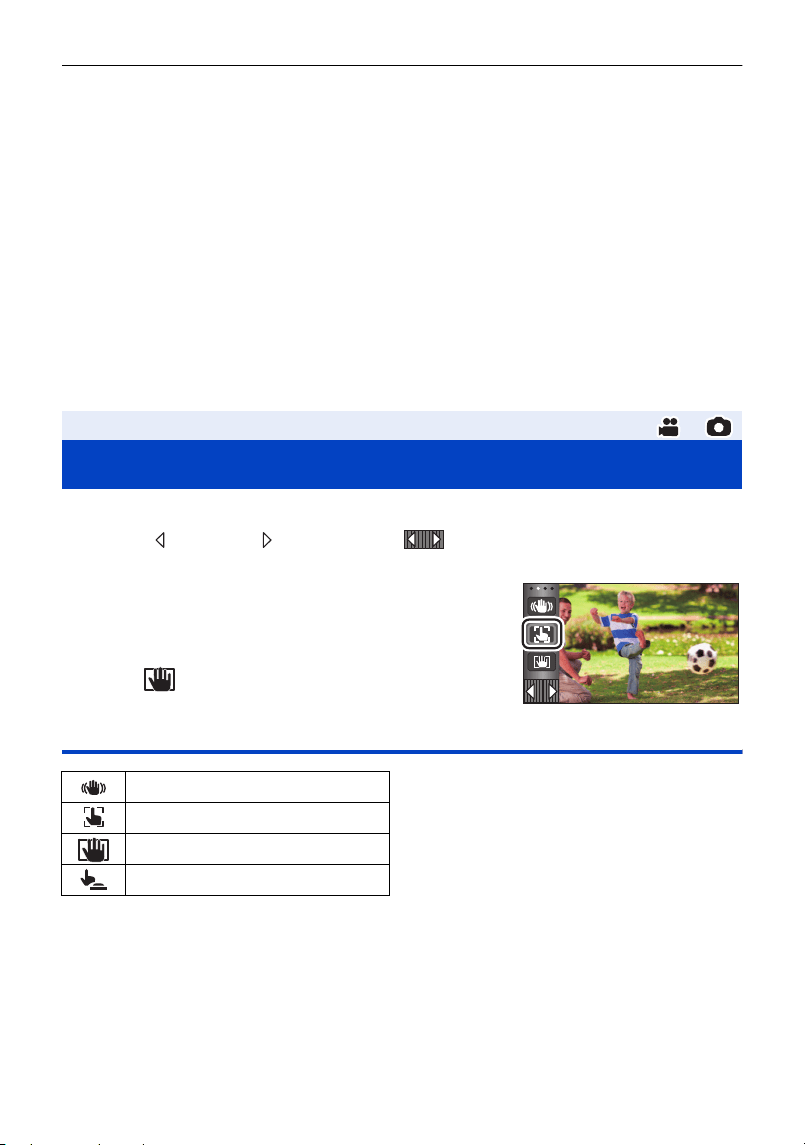
- 71 -
≥ Some information on the screen disappears when the screen is magnified.
≥ The magnification window is not displayed on the actual recorded images.
≥ The magnification window is not displayed on TVs.
≥ The magnification window disappears in the following cases:
j When you start recording a motion picture
j When you continue to zoom in until you enter the digital zoom range
≥ The magnification window is not displayed in the following cases:
j When recording a motion picture or during PRE-REC
j During digital zoom
j When recording yourself
≥ [FOCUS EXPAND] is [OFF] when using the following functions and the setting cannot be
changed.
j Creative Control Mode
j HDR Movie Mode
j Cinema Like Effect Mode (except when Slow Zoom is set)
You can record using convenient functions just by the easy operation of touching the screen.
1 Touch (left side)/ (right side) of on the Touch Menu to display
Touch Function icons. (
l 23)
2 Touch the Touch Function icon.
(e.g. AF/AE tracking)
≥ To cancel, touch the Touch Function icon again. (Optical
Image Stabilizer Lock is cancelled by releasing the finger
touching .)
Touch function icons
*1 In Motion Picture Recording Mode only
*2 In Still Picture Recording Mode only
Advanced (Recording)
Recording with the Touch Function
Image Stabilizer Function
AF/AE tracking
Optical Image Stabilizer Lock
*1
Touch Shutter
*2
HC-VX3_V900E-DVQP3181_eng.book 71 ページ 2024年10月22日 火曜日 午前10時6分
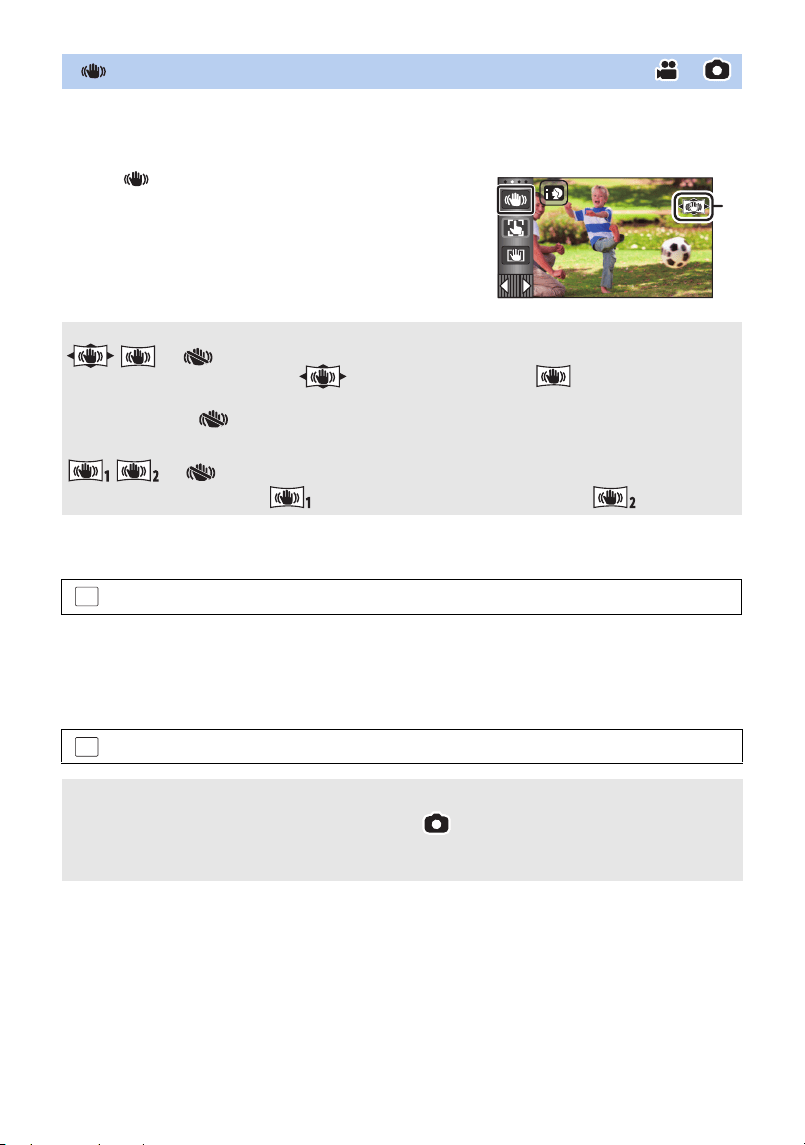
- 72 -
Use the Image Stabilizer to reduce the effects of shake during recording.
This unit is equipped with Hybrid Optical Image Stabilizer.
Hybrid Optical Image Stabilizer is a hybrid of Optical and Electrical Image Stabilizer.
Touch to switch the Image Stabilizer on/off.
≥ The icon at position A is switched.
∫ Changing Image Stabilizer Mode
(Motion Picture Recording Mode)
When set to [ON], you can further improve image stabilization for recording while walking, or
holding the unit and recording a distant subject with zoom.
≥ This function’s default setting is [ON].
(Still Picture Recording Mode)
Image Stabilizer Function
(Motion Picture Recording Mode)
/ # (setting cancelled)
≥ When [HYBRID O.I.S.] is [ON], is displayed. When [OFF], is displayed.
≥ When recording with a tripod in Motion Picture Recording Mode, we recommend that you set the
Image Stabilizer (off).
(Still Picture Recording Mode)
/ # (setting cancelled)
≥ When [O.I.S.] is [MODE1], is displayed. When [O.I.S.] is [MODE2], is displayed.
: [RECORD SETUP] # [HYBRID O.I.S.] # [ON] or [OFF]
: [RECORD SETUP] # [O.I.S.] # [MODE1] or [MODE2]
[MODE1]: The function works all the time.
[MODE2]: The function works when the button is pressed. We recommend using
this mode when you are recording yourself or recording with a tripod in Still
Picture Recording Mode.
MENU
MENU
HC-VX3_V900E-DVQP3181_eng.book 72 ページ 2024年10月22日 火曜日 午前10時6分
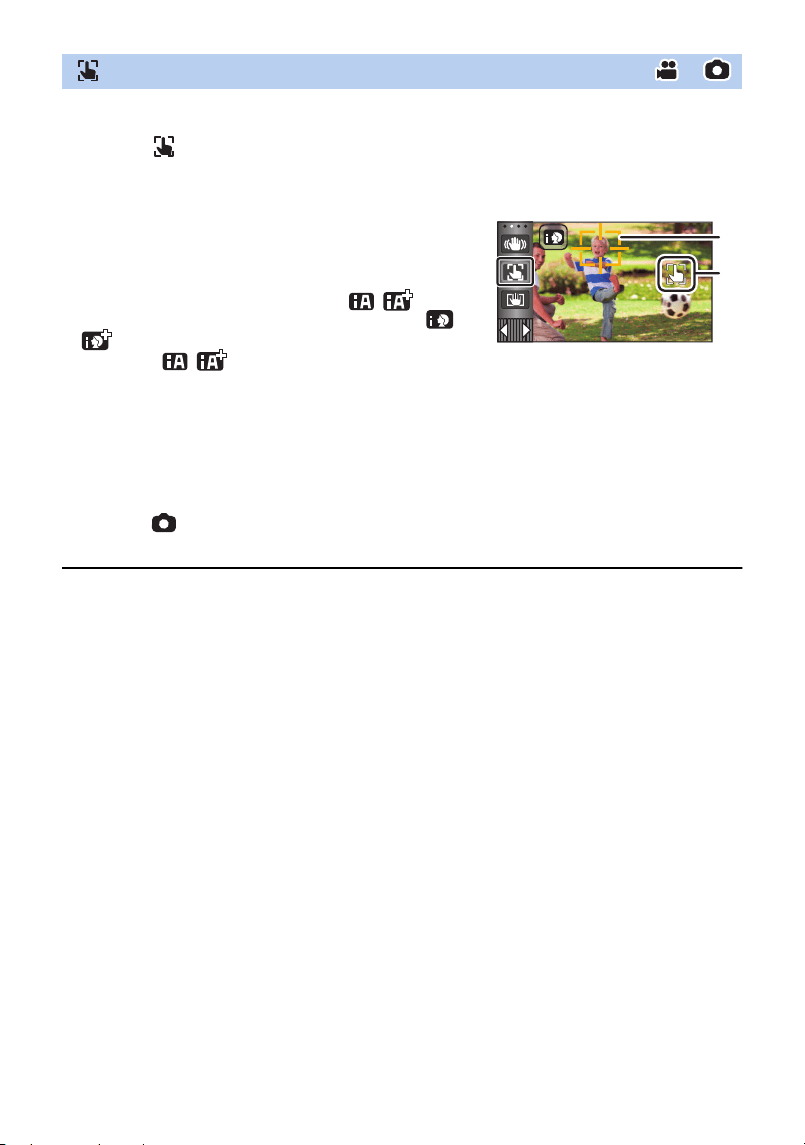
- 73 -
It is possible to set the focus and exposure to the subject specified on the touch screen.
The focus and exposure will keep following the subject automatically even if it moves.
1 Touch .
≥ An icon is displayed B.
2 Touch the subject to lock the target.
3 Start recording.
∫ About target frame
≥ When target lock fails, the target frame blinks in red and then disappears.
Touch a characteristic part (colour, etc.) on the subject to lock onto it again.
≥ When the button is pressed halfway when taking still pictures, the focus is set to the subject
that is locked. The target frame turns green when it focuses, and the target cannot be changed.
≥ This function can be used in Intelligent Auto Mode or Intelligent Auto Plus Mode. In Still Picture
Recording Mode, this function can only be used with some settings in Scene Mode.
≥ It may track different subjects or may not lock the target depending on the recording conditions
such as the following:
j When the subject is too large or too small
j When colour of the subject is similar to the background
j When the scene is dark
≥ The screen may darken when you lock a target in the Still Picture Recording Mode.
≥ If you use the Fade function while the target is locked, the target lock will be cancelled. (l 77)
≥ AF/AE tracking will be cancelled in the following cases.
j When the unit is turned off
j Press the recording/playback button
j Touch the recording mode switching icon
j Touch the Recording Mode button icon
j Switch to recording of yourself
AF/AE tracking
≥ When you touch the face of the subject, the target frame on
the face gets locked and tracking starts.
≥ When you want to change the target, touch the new subject.
≥ When the Intelligent Auto Mode or Intelligent Auto Plus
Mode is selected, the setting becomes / (Normal)
and touched object is tracked. Selection becomes /
(Portrait) when target frame is locked on a face. (It
may turn to / (Normal) even if the target is locked
on the face when a spotlight is shining or with a dark
scene.)
A Tar ge t f ra me
HC-VX3_V900E-DVQP3181_eng.book 73 ページ 2024年10月22日 火曜日 午前10時6分
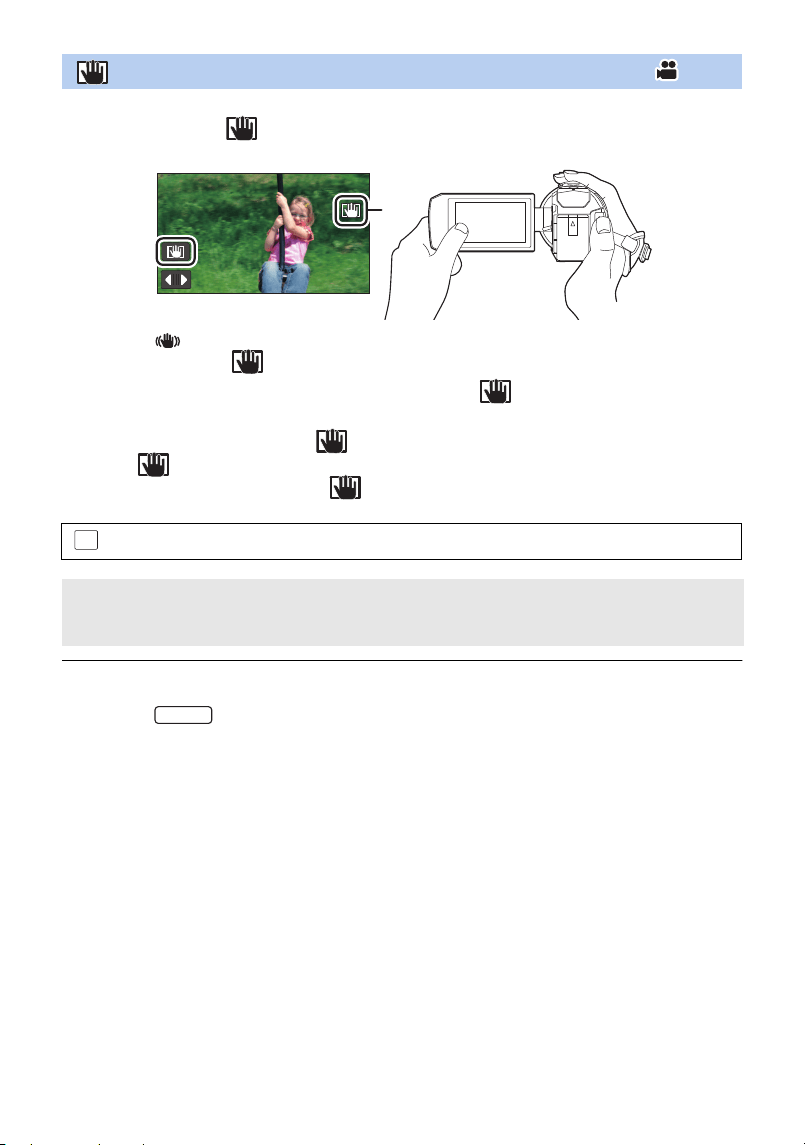
- 74 -
In Motion Picture Recording Mode, you can further improve optical image stabilization by
touching and holding . With this function, you can further reduce the effects of the
shake that tends to occur when using zoom.
1 Touch to turn the Image Stabilizer on. (l 72)
2 Touch and hold .
≥ Icon is displayed in A while you are touching and holding .
≥ Optical Image Stabilizer Lock is released when you remove your finger from the icon.
∫ To make the display of disappear
Display of will not disappear even when no operation is performed for specific time with the
default setting. To make the display of disappear, change the setting of the [O.I.S. LOCK
DISPLAY].
≥ The Optical Image Stabilizer Lock function is not available in the following situations:
j FULL HD Slow Motion Video Mode
j (For the )
Slow & Quick Video Mode
≥ Stabilization may not be possible under strong shaking conditions.
≥ To record while moving the unit quickly, release Optical Image Stabilizer Lock.
Optical Image Stabilizer Lock
: [SETUP] # [O.I.S. LOCK DISPLAY] # desired setting
[ON]: Constantly display.
[OFF]: The icon will disappear after approx. 5 seconds without any touch operation.
MENU
VX3
HC-VX3_V900E-DVQP3181_eng.book 74 ページ 2024年10月22日 火曜日 午前10時6分
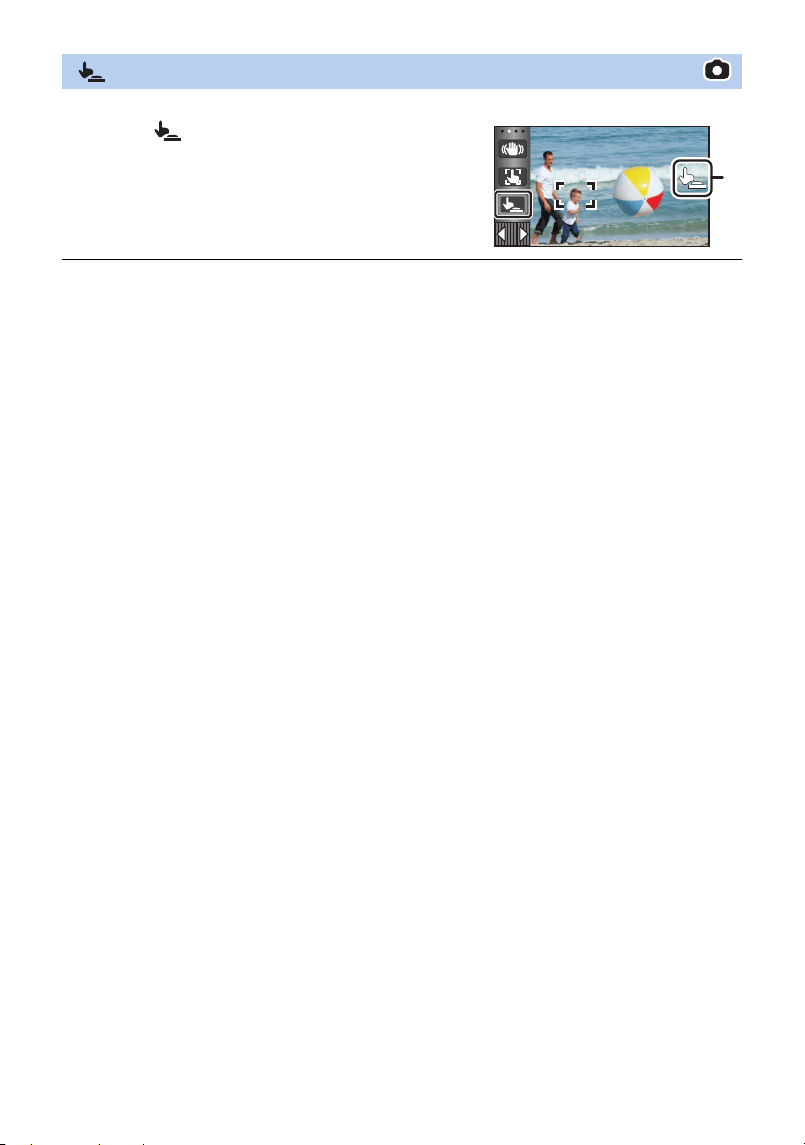
- 75 -
It is possible to focus and record a still picture of a subject that is touched.
1 Touch .
≥ An icon is displayed A.
2 Touch the subject.
≥ Focus area is displayed at the touched position, and a still
picture is recorded.
≥ Depending on the recording conditions or recognition of the touched position, it may not be
possible to record the intended picture.
≥ This will not operate for recording yourself.
≥ Touch the part where the still picture being recorded is displayed.
If you touch the black bands where the still picture being recorded is not displayed, the touch
shutter does not work.
Touch Shutter
HC-VX3_V900E-DVQP3181_eng.book 75 ページ 2024年10月22日 火曜日 午前10時6分
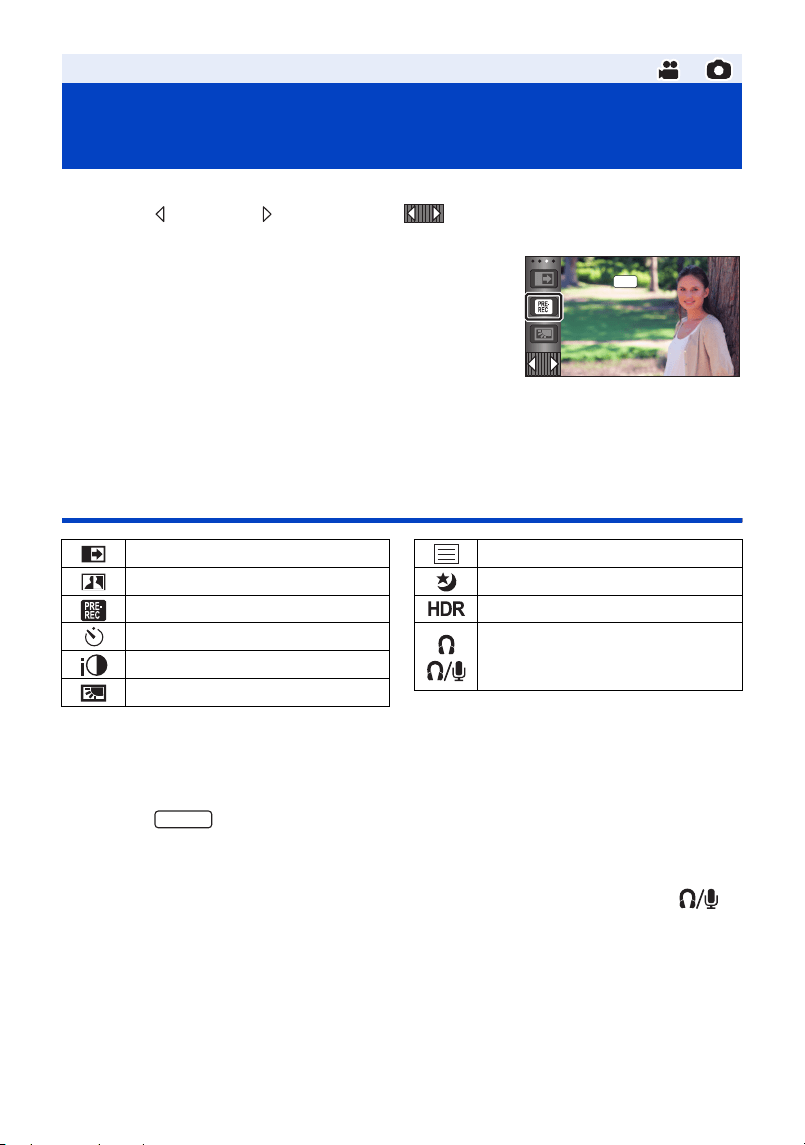
- 76 -
Select the operation icons to add different effects to the images to be recorded.
1 Touch (left side)/ (right side) of on the Touch Menu to display the
operation icons. (
l 23)
2 Touch an operation icon.
(e.g. PRE-REC)
≥ The operation icons that are displayed in the Touch Menu
can be changed. ([SELECT OPERATION ICONS]: l 42)
≥ Select the operation icon again to cancel the function.
Refer to the respective pages for cancelling the following
functions.
j Self-timer (l 78)
j Guidelines (l 79)
≥ The icon is displayed when the operation icon is set.
Operation icons
*1 Not displayed in Still Picture Recording Mode.
*2 Available in Manual Mode.
*3 Not displayed in Motion Picture Recording Mode.
*4 Available in the following recording modes:
j Manual Mode
j (For the )
Slow Zoom Mode
*5 It is displayed only when you set the Recording Mode to HDR Movie Mode. (l 55)
*6 It is displayed only when headphones are connected to the headphone terminal. When [AUDIO
LEVEL]/[MIC LEVEL] (l 91) is set to anything other than [AUTO], the operation icon is
displayed, indicating that the audio input level can also be adjusted.
≥ Night Mode is not available when [REC MODE] is set to [24p].
≥ If you turn off the unit or press the Recording/Playback button, PRE-REC, Self-timer, Backlight
Compensation and Night Mode functions are cancelled.
If you turn off the unit, the Fade function is cancelled.
≥ It is possible to set from the menu. (Except for the Headphone volume adjustment)
Advanced (Recording)
Recording functions of operation
icons
PRE-REC
Fade
*1
Intelligent Contrast Control
*1, 2
PRE-REC
*1
Self-timer
*3
Intelligent Exposure
*2, 3
Backlight Compensation
Guidelines
Night Mode
*1, 4
HDR Effect
*1, 5
Headphone volume adjustment/
Audio input level adjustment/
Microphone level adjustment
*6
VX3
HC-VX3_V900E-DVQP3181_eng.book 76 ページ 2024年10月22日 火曜日 午前10時6分
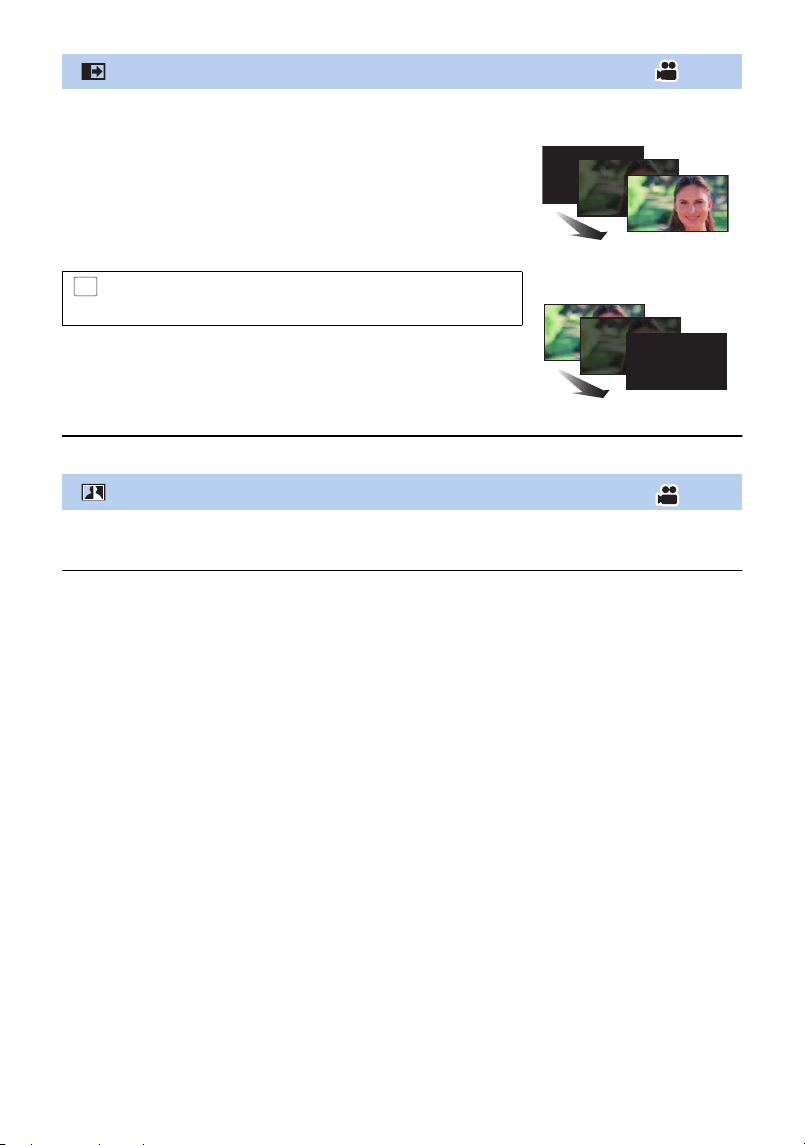
- 77 -
≥ The thumbnails of scenes recorded using fade in become black (or white).
This brightens parts that are in shadow and difficult to see and suppresses white saturation
in bright parts at the same time. Both bright and dark parts can be recorded clearly.
≥ If there are extremely dark or bright parts or the brightness is insufficient, the effect may not be
clear.
Fade
When you start recording, the image/audio gradually
appears. (Fade in)
When you pause recording, the image/audio gradually
disappears. (Fade out)
≥ The Fade setting is cancelled when the recording stops.
∫ To select the colour for fade in/out
(Fade in)
: [RECORD SETUP] # [FADE COLOUR] #
[WHITE] or [BLACK]
(Fade out)
MENU
Intelligent Contrast Control
HC-VX3_V900E-DVQP3181_eng.book 77 ページ 2024年10月22日 火曜日 午前10時6分
- 78 -
This allows recording of the pictures and sound to start approximately 3 seconds before the
recording start/stop button is pressed.
≥ appears on the screen.
≥ Aim the unit at the subject beforehand.
≥ There is no beep sound.
≥ PRE-REC is cancelled in the following cases.
j Press the recording/playback button
j Touch the recording mode switching icon
j If you remove the SD card
j If you touch
j If you press the MENU button
j If you press the HDR button
j If you turn the unit off
j If you start recording
j After 3 hours have passed
≥ After setting PRE-REC, if recording starts in less than approximately 3 seconds, motion pictures
taken 3 seconds before pressing the recording start/stop button cannot be recorded.
≥ Images displayed on the thumbnail in Playback Mode will differ from the motion pictures
displayed at the start of playback.
This is for recording still pictures using the timer.
Each time the icon is selected, the indication changes by one setting in the following order:
Æ10 (Records after 10 seconds) # Æ2 (Records after 2 seconds) # setting cancelled
≥ When you press the button, Æ10 or Æ2 flashes for the set period before a still picture is
recorded. After recording, the Self-timer is cancelled.
≥ In Auto Focus Mode, if the button is pressed halfway once and then fully, the lens focuses
on the subject when the button is pressed halfway. If the button is pressed fully all at once,
the lens focuses on the subject just before recording.
To stop the timer midway through
Touch [CANCEL].
≥ Setting the Self-timer to Æ2 is a good way to prevent image shake when the button is
pressed while using a tripod etc.
This brightens dark areas so the image can be recorded clearly.
≥ If there are extremely dark parts or the brightness is insufficient, the effect may not be clear.
PRE-REC
This prevents you from missing a shot.
Self-timer
Intelligent Exposure
PRE-REC
MENU
HC-VX3_V900E-DVQP3181_eng.book 78 ページ 2024年10月22日 火曜日 午前10時6分
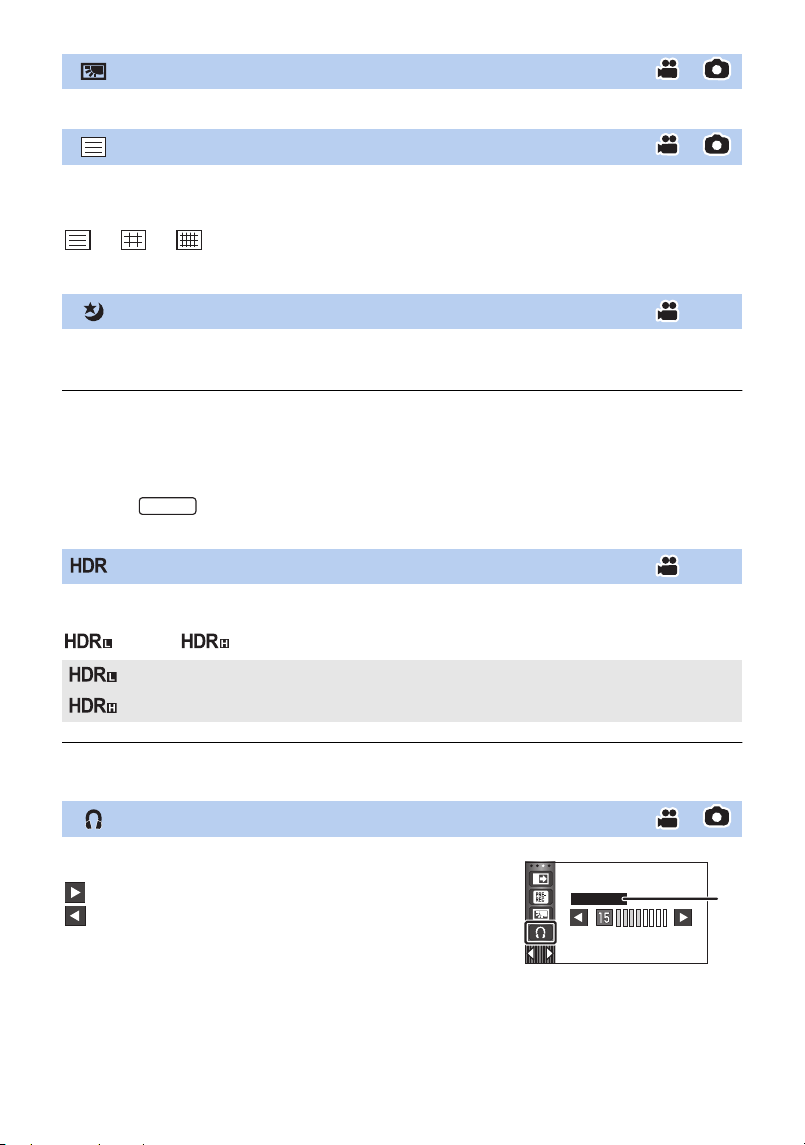
- 79 -
This makes the image brighter to prevent darkening of a backlit subject.
You can check if the image is level while recording motion pictures and still pictures. The
function can also be used to estimate the balance of the composition.
It will switch every time the icon is touched.
# # # Setting cancelled
≥ The guidelines do not appear on the images actually recorded.
You can record images even in very low light situations (minimum required illumination:
approx. 0.5 lx) or in the dark.
≥ Recorded scene is seen as if frames were missed.
≥ If set in a bright place, the screen may become washed out for a while.
≥ Bright dots that are usually invisible may be seen, but this is not a malfunction.
≥ Using a tripod is recommended.
≥ In darker areas, Auto Focus may focus a bit slower. This is normal.
≥ (For the )
The Night Mode setting cannot be changed while Slow Zoom is working. (l 61)
You can change the level of image contrast correction in HDR Movie Mode. (l 55)
The icon changes each time you touch it.
(Low) # (High)
≥ You cannot change the level of this effect when recording a motion picture or during PRE-REC.
≥ You may not see the full effect depending on the recording conditions.
Backlight Compensation
Guidelines
Night Mode
HDR Effect
(Low): Sets the correction level to low.
(High): Sets the correction level to high.
Headphone volume adjustment
Adjust the volume of the headphone while recording.
: Increase the volume
: Decrease the volume
≥ Actual volume to be recorded does not change.
A [HEADPHONE LEVEL]
VX3
HC-VX3_V900E-DVQP3181_eng.book 79 ページ 2024年10月22日 火曜日 午前10時6分
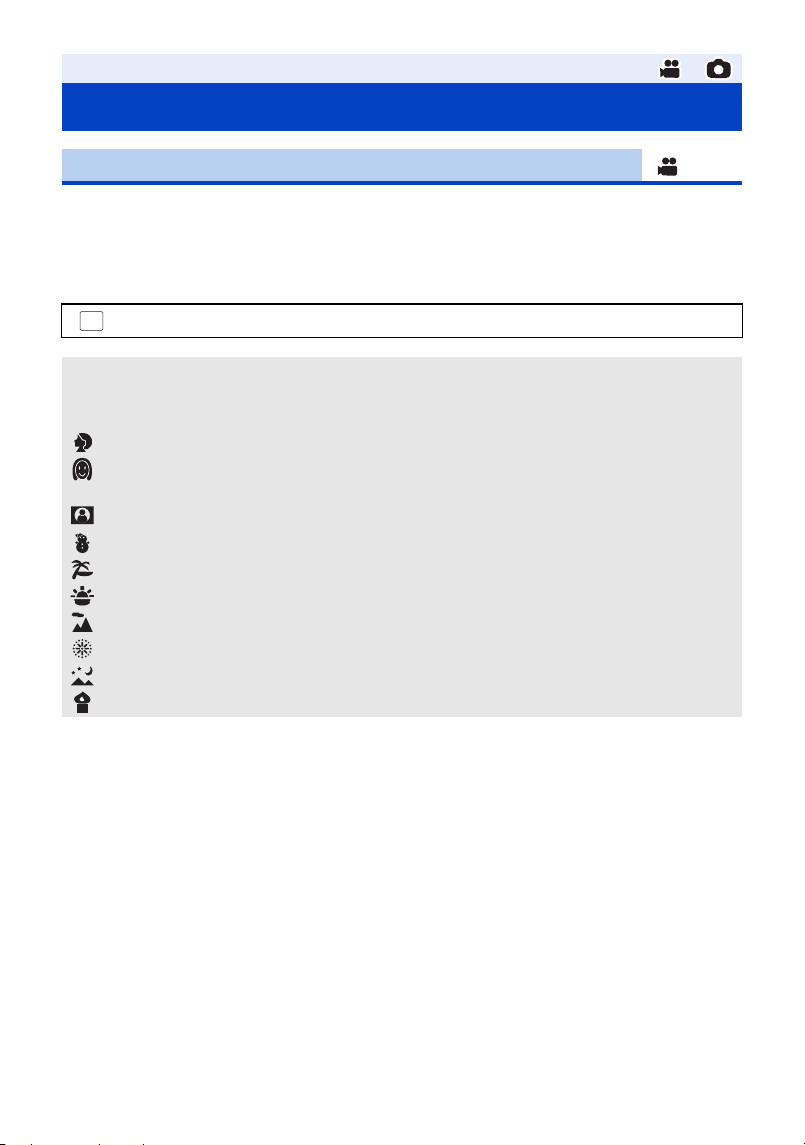
- 80 -
This function is identical to Scene Mode in Recording Mode. (l 57)
The shutter speed and aperture, etc. are automatically adjusted to match the scene you want to
record.
≥ This item is displayed in the menu only when [Time Lapse Rec] in Creative Control Mode is
set. (l 54)
≥ Please refer to page 57 for details about the effect of each mode.
Advanced (Recording)
Recording functions of menus
[SCENE MODE]
: [RECORD SETUP] # [SCENE MODE] # desired setting
[OFF]: Cancel the setting
5Sports: To make fast moving scenes less shaky with slow playback and
pause of playback
Portrait: To make people stand out against the background
Soft Skin: To makes skin colours appear softer for a more attractive
appearance
Spotlight: Improved quality when subject is brightly illuminated.
Snow: Improved image quality when shooting in snowy locations.
Beach: To make blue in the sea or sky vibrant
Sunset: To make red in the sunrise or sunset vibrant
Scenery: For spatial scenery
Fireworks: To capture the fireworks in the night sky beautifully
Night Scenery: To capture the evening or night scenery beautifully
Low Light: For dark scenes, such as at dusk
MENU
HC-VX3_V900E-DVQP3181_eng.book 80 ページ 2024年10月22日 火曜日 午前10時6分
- 81 -
Set the maximum zoom ratio for the Motion Picture Recording Mode.
(For the )
≥ [i.Zoom 32k] is displayed in the following situations:
j When [REC FORMAT] is set to [4K MP4]
j When [REC MODE] is set to [2160/24p]
j When the Recording Mode is set to 4K Photo Mode
≥ [i.Zoom 48k] is displayed in the following situations:
j When [REC FORMAT] is set to [AVCHD] or [MP4].
j When [REC MODE] is set to [1080/24p].
(For the )
≥ The larger the digital zoom magnification, the more the image quality is degraded.
≥ This function cannot be used in Still Picture Recording Mode.
[ZOOM MODE]
: [RECORD SETUP] # [ZOOM MODE] # desired setting
[Opt.Zoom 24k]: Optical zoom only (Up to 24k)
[i.Zoom 32k]: This zoom function allows you to maintain 4K picture quality.
(Up to 32k)
[i.Zoom 48k]: This zoom function allows you to maintain high-definition picture
quality. (Up to 48k)
[D.Zoom 70k]: Digital zoom (Up to 70k)
[D.Zoom 250k]: Digital zoom (Up to 250k)
[Opt.Zoom 24k]: Optical zoom only (Up to 24k)
[i.Zoom 48k]: This zoom function allows you to maintain high-definition picture
quality. (Up to 48k)
[D.Zoom 70k]: Digital zoom (Up to 70k)
[D.Zoom 250k]: Digital zoom (Up to 250k)
MENU
VX3
V900
HC-VX3_V900E-DVQP3181_eng.book 81 ページ 2024年10月22日 火曜日 午前10時6分
- 82 -
This automatically adjusts the contrast to suit the scene.
≥ is displayed on the screen when this is set to [ON].
≥ This is set to [ON] when you change the Recording Mode to the Intelligent Auto Mode/Intelligent
Auto Plus Mode.
≥ This is [OFF] when using the following functions and the setting cannot be changed.
j HDR Movie Mode
j Creative Control Mode ([Miniature Effect]/[8mm movie]/[Silent movie])
Switch the recording format of motion picture.
≥ Use an SD card conforming to Class 10 of the SD Speed Class Rating when you want to
record motion pictures to the SD card using the setting [4K MP4]
*
or [24p].
≥ (For the )
This function’s default setting is [4K MP4] mode.
(For the )
This function’s default setting is [AVCHD] mode.
≥ This unit will restart in the following cases:
j Changing the setting to [24p]
j Changing the setting from [24p] to another setting
*For the
[ACTIVE CONTRAST]
: [RECORD SETUP] # [ACTIVE CONTRAST] # [ON]
[REC FORMAT]
: [RECORD SETUP] # [REC FORMAT] # desired setting
[4K MP4]
*
: Set the recording format to 4K MP4. (l 2)
[MP4]: Set the recording format to MP4. (l 2)
[AVCHD]: Set the recording format to AVCHD. (l 2)
[24p]: Set the recording format to 24p. (l 2)
MENU
MENU
VX3
V900
VX3
HC-VX3_V900E-DVQP3181_eng.book 82 ページ 2024年10月22日 火曜日 午前10時6分
- 83 -
Switch the picture quality and recording format of the motion pictures to record. The recording
modes that can be set change according to [REC FORMAT] setting.
≥ (For the )
When [REC FORMAT] is set to [4K MP4]
Set the recording mode to 2160/25p (72 Mbps).
≥ This is a recording mode suitable for editing images.
This format can record 4K motion pictures (3840k2160/25p), which deliver a resolution four
times higher than that of full high-definition motion pictures.
≥ When [REC FORMAT] is set to [MP4]
≥ When [REC FORMAT] is set to [AVCHD]
A Favours image quality
B Favours Recording time
*1 [1080/50M]/[1080/28M] and [720] are recording modes suitable for playing back or editing on a PC.
*2 You can record motion pictures in 1080/50p (1920k1080/50 progressive), the best AVCHD
picture quality for this unit.
≥ When [REC FORMAT] is set to [24p]
(For the )
(For the )
≥ Please refer to page 14 for details about recordable time using the battery.
≥ Use an SD card conforming to Class 10 of the SD Speed Class Rating when you want to
record motion pictures to the SD card using the setting [1080/50M].
≥ Please refer to page 170 for details about approximate recordable time.
≥ When the unit is moved a lot or moved quickly, or when a fast-moving subject is recorded,
mosaic-type noise may appear at playback.
[REC MODE]
: [RECORD SETUP] # [REC MODE] # desired setting
[1080/50M]
*1
: Set the recording mode to 1080/50p (50 Mbps).
[1080/28M]
*1
: Set the recording mode to 1080/50p (28 Mbps).
[720]
*1
: Set the recording mode to 720/25p.
[PH]/[HA]/[HG]/[HE]:
(AB)
Set the recording mode to 1080/50i.
[1080/50p]
*2
: Set the recording mode to 1080/50p.
[2160/24p]: Set the recording mode to 2160/24p (72 Mbps).
[1080/24p]: Set the recording mode to 1080/24p (50 Mbps).
Set the recording mode to 1080/24p (50 Mbps).
MENU
VX3
VX3
V900
HC-VX3_V900E-DVQP3181_eng.book 83 ページ 2024年10月22日 火曜日 午前10時6分
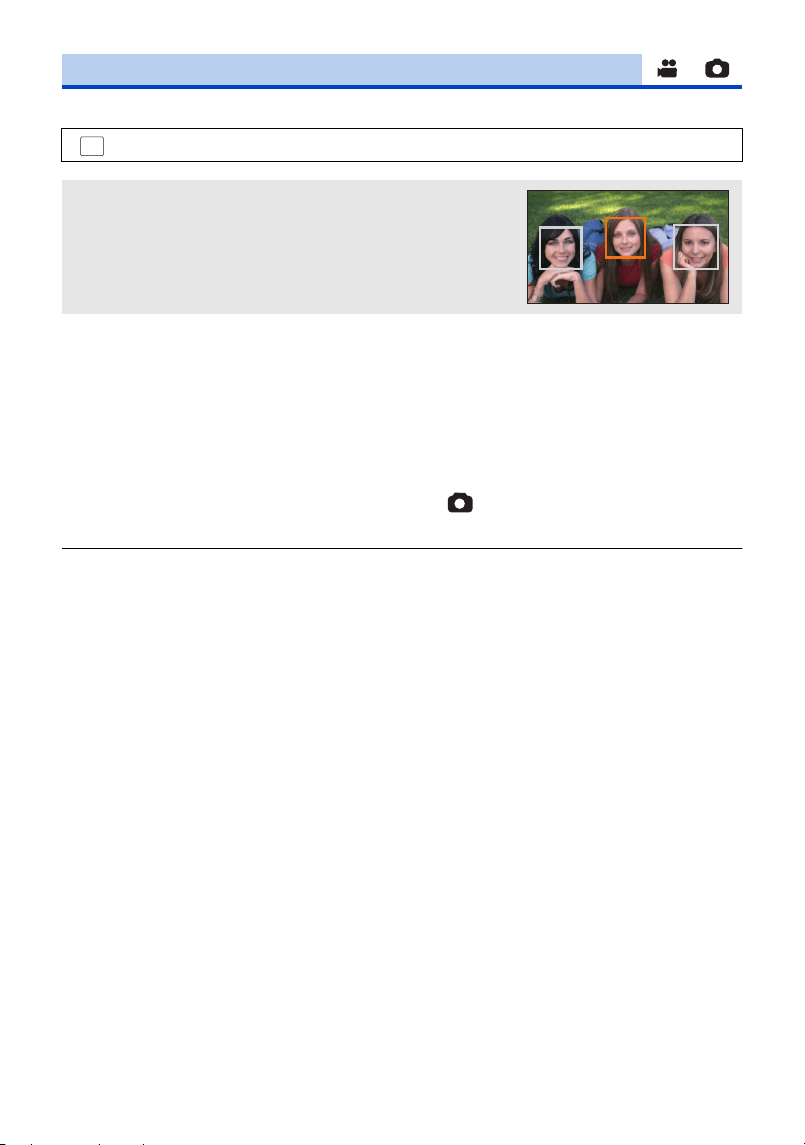
- 84 -
Detected faces appear with frames.
≥ Up to 5 frames are indicated. Larger faces and faces nearer to the centre of the screen take
preference over others.
∫ Prioritised face framing
Prioritised face framing is displayed as orange frames. Focus and adjustment of brightness will be
performed against the prioritised face framing.
≥ The prioritised face frame is displayed only with Portrait Mode in Intelligent Auto Mode or
Intelligent Auto Plus Mode.
≥ The white frame is for face detection only.
≥ Focus will be set to prioritised face framing when the button is pressed halfway when
recording still pictures. Prioritised face framing will turn to green when the focus is set.
≥ Faces are not detected in HDR Movie Mode or Stop Motion Animation Assist Mode. (l 55, 64)
[FACE FRAMING]
: [RECORD SETUP] # [FACE FRAMING] # desired setting
[PRIMARY]:
Only the prioritised face framing is displayed.
[ALL]:
All face detection framings are displayed.
[OFF]:
Cancel the setting.
MENU
HC-VX3_V900E-DVQP3181_eng.book 84 ページ 2024年10月22日 火曜日 午前10時6分
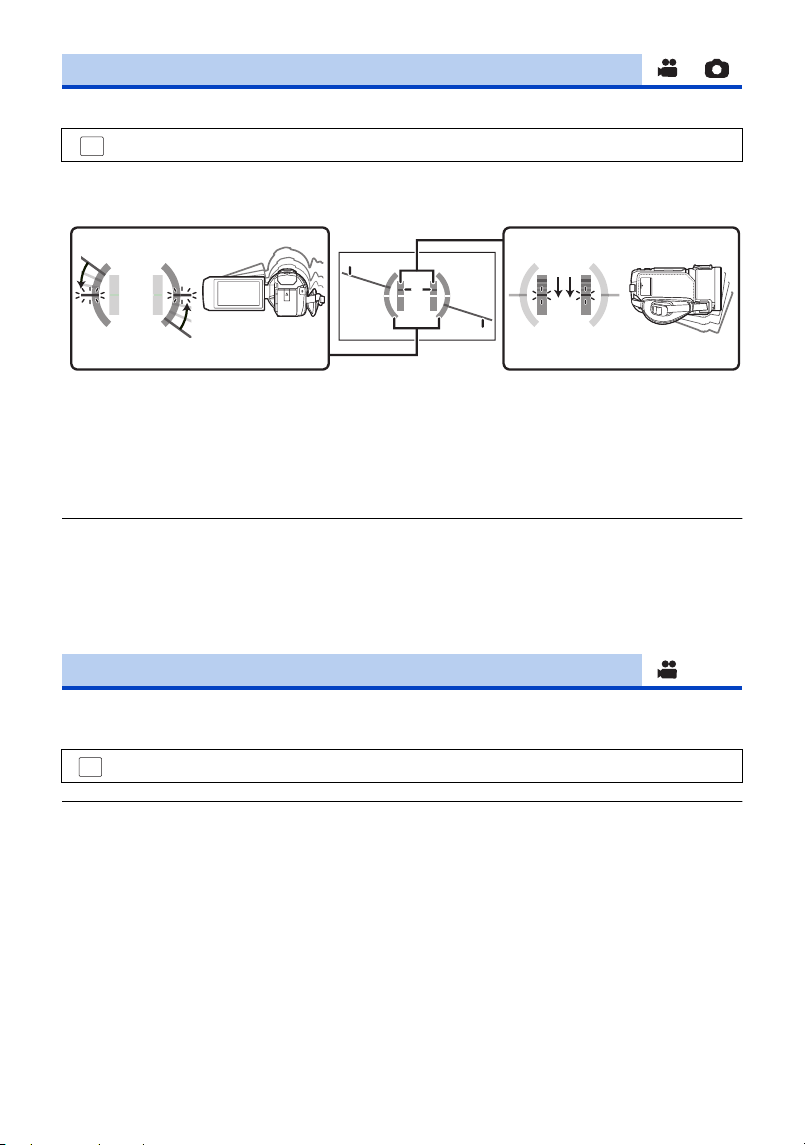
- 85 -
This function displays the horizontal/vertical tilt of the unit with the electronic level.
∫ To correct the tilt
≥ The horizontal tilt display A and vertical tilt display B appear yellow when there is a tilt, and
appear green when there is almost no tilt.
≥ The maximum tilt display angles are approximately 45o in horizontal direction and 10o in vertical
direction.
≥ The electronic level does not affect the actual recorded images.
≥ The electronic level is not displayed when recording yourself or the LCD monitor is closed with
the screen facing outward.
≥ Even when the tilt is in the corrected state, an error of approximately 1o may occur.
≥ In the following cases, the electronic level may not be displayed correctly:
j When moving this unit
j When pointing this unit up or down at an angle closer to perpendicular
If the unit continues to be tilted upside down from the normal horizontal position while recording
motion pictures, it is automatically put into recording pause.
≥ The AGS function may activate and cause the unit to pause the recording if you are recording a
subject right above or right below you.
[LEVEL GAUGE]
: [RECORD SETUP] # [LEVEL GAUGE] # [ON]
(Horizontal direction) (Vertical direction)
When correcting the leftward tilt When correcting the downward tilt
[AGS]
: [RECORD SETUP] # [AGS] # [ON]
MENU
MENU
HC-VX3_V900E-DVQP3181_eng.book 85 ページ 2024年10月22日 火曜日 午前10時6分
- 86 -
You can record bright pictures even in dark places by slowing the shutter speed.
≥ Switch to Manual Mode. (l 65)
≥ The shutter speed is set to 1/25 or more (1/24 or more when [REC FORMAT] is set to [24p])
depending on the ambient brightness.
≥ This function cannot be used in Still Picture Recording Mode.
≥ When the shutter speed becomes 1/25 or 1/24, the screen may be seen as if frames are missed
and afterimages may appear.
Message is displayed when this unit is moved rapidly.
When “CAMERA PANNING IS TOO FAST.” appears, move the unit slowly while recording.
≥ In the following cases, message will not appear:
j While pausing the recording
j When [LEVEL GAUGE] is set to [ON]
[AUTO SLOW SHTR]
: [RECORD SETUP] # [AUTO SLOW SHTR] # [ON]
[SHOOTING GUIDE]
: [RECORD SETUP] # [SHOOTING GUIDE] # [ON]
MENU
MENU
HC-VX3_V900E-DVQP3181_eng.book 86 ページ 2024年10月22日 火曜日 午前10時6分
- 87 -
This will reduce the wind noise coming into the built-in microphones while maintaining the realism.
≥ Switch to Manual Mode. (l 65)
≥ When [Strong] is set, you can check how effectively the wind noise is reduced with the icon
displayed on the screen. In descending order of the strength of the reduction effect, / /
/ is displayed.
≥ When [Normal] is set, will be displayed on the screen.
≥ This function’s default setting is [Normal].
≥ When switching to Intelligent Auto Mode or Intelligent Auto Plus Mode, [Wind Noise Canceller] is
set to [Strong], and the setting cannot be changed.
≥ You may not see the full effect depending on the recording conditions.
≥ This cannot be set when you have connected an external microphone or audio device.
You can connect an external microphone or audio device if you are using .
Switch the audio setting for the MIC/LINE IN terminal to suit the input device that is connected.
[Wind Noise Canceller]
: [RECORD SETUP] # [Wind Noise Canceller] # desired setting
[Strong]: When a strong wind is detected, this option effectively reduces the
wind noise by minimising the low-pitched sound.
[Normal]: This option extracts and reduces only the wind noise without
deteriorating the sound quality.
[OFF]: Cancel the setting.
[AUDIO INPUT SELECT]
: [RECORD SETUP] # [AUDIO INPUT SELECT] # desired setting
[MIC INPUT]: Select when you connect an external microphone.
[LINE INPUT]: Select when you connect audio equipment, etc., compatible with line
input.
MENU
VX3
VX3
MENU
HC-VX3_V900E-DVQP3181_eng.book 87 ページ 2024年10月22日 火曜日 午前10時6分
- 88 -
This function reduces the low-pitched sound when using an external microphone or audio device.
≥ Switch to Manual Mode. (l 65)
≥ This can be set when you have connected an external microphone or audio device.
You can set the built-in microphone’s sound quality as appropriate for the scene you want to record.
≥ Set [MIC SETUP] to [SURROUND] or [STEREO MIC]. (l 90)
1 Select the menu.
2
(When [Customize] is selected)
Select the desired item.
[LOWCUT]
: [RECORD SETUP] # [LOWCUT] # [ON]
[Sound Scene Select]
: [RECORD SETUP] # [Sound Scene Select] # desired setting
[Auto]: Records sounds with standard settings.
[Music]: For recording scenes in which you need to cover a wide sound
range and a wide volume range, such as music concerts.
[Speech]: For recording speeches, talk sessions, and other events in which
sounds will be coming mostly from the front of this unit.
[Nature]: For recording in serene environments, such as forests and rivers.
[Festival]: For recording festivals, fireworks displays, and other very loud
scenes.
[Customize]: Allows you to adjust [Microphone Gain], [Frequency Response]
and [Directional].
[Microphone Gain]: Select this item when the sound recorded in a loud scene is
distorted.
[Frequency Response]: Adjusts the high frequency range and low frequency range levels.
[Directional]: Select [SURROUND]/[STEREO] or [MONO].
MENU
MENU
HC-VX3_V900E-DVQP3181_eng.book 88 ページ 2024年10月22日 火曜日 午前10時6分
- 89 -
3 (When [Microphone Gain] is selected in Step 2)
Select an item.
(When [Frequency Response] is selected in Step 2)
Touch / to adjust.
≥ Before recording, check the effect you have selected with a headphone set, etc.
≥ The high frequency range (dB) and low frequency range (dB) can be adjusted.
≥ If noises such as the sound caused by the wind bother you, set the low frequency range to
[LowCut].
(When [Directional] is selected in Step 2)
Select an item.
4 Touch [EXIT].
≥ appears on the screen.
≥ Depending on the recording condition or sound quality, the desired effect may not be achieved.
≥ The setting becomes [Auto] when you have connected an external microphone or audio device.
≥ (When [Music] or [Festival] is set)
The volume of the recorded sounds may be lower than that of the sounds recorded with [Auto].
≥ (When [Speech] or [Nature] is set)
Sounds recorded with these effects are less realistic than those recorded with [SURROUND] or
[STEREO MIC] in [MIC SETUP].
You can switch the channel number setting of the built-in microphone.
≥ Set [REC FORMAT] to [AVCHD]. (l 82)
≥ [2ch] will be selected in the following cases:
j When [REC FORMAT] is set to a setting other than [AVCHD]
j When you have connected an external microphone or audio device
[Normal]: Adjusts the sound quality automatically.
[Attenuate]: Records sounds of very loud scenes at appropriate volume.
[SURROUND]/[STEREO]: Records sounds with the setting of [MIC SETUP] ([SURROUND] or
[STEREO MIC]).
[MONO]: Records sounds from all directions without setting specific
directivity.
[5.1ch/2ch]
: [RECORD SETUP] # [5.1ch/2ch] # desired setting
[5.1ch]: Records with the 5.1ch.
[2ch]: Records with the 2ch.
MENU
HC-VX3_V900E-DVQP3181_eng.book 89 ページ 2024年10月22日 火曜日 午前10時6分
- 90 -
Recording setting of the built-in microphone can be adjusted.
≥ Set [REC FORMAT] to [AVCHD]. (l 82)
*1 The option is displayed only when [5.1ch/2ch] is set to [5.1ch].
*2 The option is displayed only when [5.1ch/2ch] is set to [2ch].
≥ If you wish to record higher quality sound and maintain realism even when zooming in, for
instance, when recording a music recital, we recommend setting [MIC SETUP] to [SURROUND].
≥ [STEREO MIC] will be selected in the following cases:
j When [REC FORMAT] is set to a setting other than [AVCHD]
j When you have connected an external microphone or audio device
≥ When [Directional] in [Customize] in [Sound Scene Select] is set to [MONO], [SURROUND] and
[STEREO MIC] cannot be set. (If you set [MONO], [SURROUND] and [STEREO MIC] will be
switched to [ZOOM MIC])
[MIC SETUP]
: [RECORD SETUP] # [MIC SETUP] # desired setting
[SURROUND]
*1
: Records the surrounding sound with added realism.
[ZOOM MIC]: Sound is recorded with changing the directionality in conjunction
with the zoom operation. Sounds near the front of the unit are
recorded more clearly if you zoom in (close-up) and surrounding
sounds are recorded more realistically if you zoom out (wide angle).
[FOCUS MIC]
*1
: The forward sound is recorded more clearly by enhancing the
directionality toward the centre.
[STEREO MIC]
*2
: Records sound from two forward directions.
MENU
HC-VX3_V900E-DVQP3181_eng.book 90 ページ 2024年10月22日 火曜日 午前10時6分
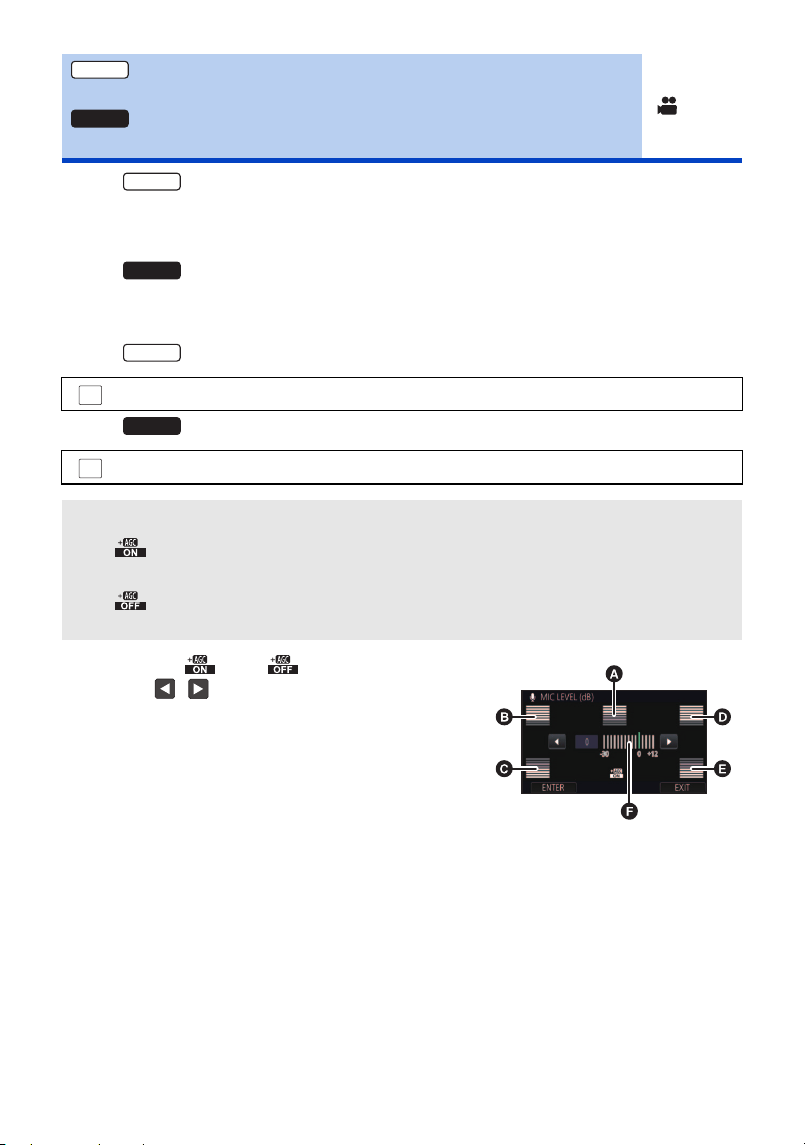
- 91 -
(For the )
Adjust the input level of the built-in microphone and of an external microphone/audio device
connected to this unit when recording.
≥ Change the [AUDIO INPUT SELECT] to suit the input device that is connected.
(For the )
When recording, the input level from the built-in microphones and the external microphone terminal
can be adjusted.
1 Select the menu.
(For the )
(For the )
[AUDIO LEVEL]
[MIC LEVEL]
: [RECORD SETUP] # [AUDIO LEVEL] # desired setting
: [RECORD SETUP] # [MIC LEVEL] # desired setting
[AUTO]: AGC is activated, and the recording level is adjusted automatically.
[SET ]: The desired recording level can be set. AGC is activated, and sound
distortions are reduced.
[SET ]: The desired recording level can be set. Sounds are recorded in
natural quality.
2 (When [SET ]/[SET ] is selected)
Touch / to adjust.
≥ The adjustment screen to be displayed depends on the
setting of [5.1ch/2ch]. (l 89)
≥ Adjust the microphone input level so that the last 2 bars of
the gain value are not red. (Otherwise, the sound is
distorted.) Select a lower setting for audio input level.
3 Touch [ENTER].
≥ Touch [EXIT] to complete the setting.
(When set to [5.1ch])
A Centre
B Front left
C Back left
D Front right
E Back right
F Audio input level
VX3
V900
VX3
V900
VX3
MENU
V900
MENU
HC-VX3_V900E-DVQP3181_eng.book 91 ページ 2024年10月22日 火曜日 午前10時6分
- 92 -
≥ When [MIC SETUP] is [ZOOM MIC], the volume will be different depending on the zoom rate.
≥ (audio input level meter) is displayed on the screen when [5.1ch/2ch] is set to [5.1ch], and
(audio input level meter) is displayed when [5.1ch/2ch] is set to [2ch] and [AUDIO
LEVEL]/[MIC LEVEL] is set to a setting other than [AUTO].
≥ You cannot record with the audio completely muted.
≥ You can make different settings for the internal microphone, external microphone, and audio
device.
Adjust the quality of the image while recording.
Adjust by outputting to a TV while adjusting the quality of the image.
≥ This setting is retained when you change between Motion Picture Recording Mode and
Still Picture Recording Mode.
≥ Switch to Manual Mode. (l 65)
1 Select the menu.
2 Touch the desired setting items.
3 Touch / to adjust settings.
4 Touch [ENTER].
≥ Touch [EXIT] to complete the settings.
≥ appears on the screen.
[PICTURE ADJUST]
: [RECORD SETUP] # [PICTURE ADJUST]
[SHARPNESS]: Sharpness of the edge
[COLOUR]: Depth of the colour of the image
[EXPOSURE]: Brightness of the image
[WB ADJUST]: Picture colour balance
MENU
HC-VX3_V900E-DVQP3181_eng.book 92 ページ 2024年10月22日 火曜日 午前10時6分
- 93 -
The date and time of recording is superimposed on the recorded images.
≥ Set [DATE/TIME] to any setting other than [OFF] (l 40)
≥ The time stamp display varies according to the settings in [DATE/TIME] and [DATE FORMAT].
(l 40)
≥ When [DATE/TIME] is set to [OFF], the time stamp is not displayed.
≥ Time stamps are not recorded on still pictures.
≥ Time stamps are recorded as images. You cannot delete time stamps after recording.
≥ You cannot change the position of time stamps.
≥ The time stamp appears flipped horizontally when recording yourself, but this does not affect the
actually recorded images.
≥ [TIME STAMP REC.] cannot be set while the following functions are being used:
j FULL HD Slow Motion Video Mode
j (For the )
Slow & Quick Video Mode
≥ The time stamp is not displayed when using the following function:
j Creative Control Mode
The higher the number of pixels, the higher the clarity of the picture when printing.
≥ The number of recording pixels that can be set changes depending on selected screen aspect
ratio. (l 95)
∫ Picture size and Maximum zoom ratio in Still Picture Recording
Mode
* Extra Optical Zoom cannot be used. The maximum zoom magnification is 24k.
[TIME STAMP REC.]
: [RECORD SETUP] # [TIME STAMP REC.] # [ON]
[PICTURE SIZE]
: [PICTURE] # [PICTURE SIZE] # desired setting
Picture size Aspect ratio Extra Optical Zoom (l 47)
5216k3912
4:3
–
*
3808k2856 –
*
640k480 60k
6784k3816
16:9
–
*
4992k2808 –
*
1920k1080 36k
VX3
MENU
VX3
MENU
20.4M
10.9M
0.3M
25.9M
14M
2.1M
HC-VX3_V900E-DVQP3181_eng.book 93 ページ 2024年10月22日 火曜日 午前10時6分
- 94 -
∫ Picture size in Motion Picture Recording Mode
≥ Set this unit to Motion Picture Recording Mode (l 20)
≥ The available picture sizes vary depending on the [REC FORMAT] and [REC MODE] settings.
(For the )
(For the )
≥ (For the )
The default setting is in Still Picture Recording Mode and in Motion Picture Recording
Mode.
(For the )
The default setting is in Still Picture Recording Mode and in Motion Picture Recording
Mode.
≥ The recording will become longer depending on the recording pixels.
≥ Please refer to page 172 for details about the number of recordable pictures.
: [PICTURE] # [PICTURE SIZE] # desired setting
Recording format Recording mode
Available
picture size
Aspect ratio
[4K MP4] [2160]
6016k3384
3840k2160
16:9
[24p]
[2160/24p]
[1080/24p]
4992k2808
1920k1080
[MP4]
All
[AVCHD]
Recording format Recording mode
Available
picture size
Aspect ratio
[MP4]
All 4992k2808
1920k1080
16:9[AVCHD]
[24p] –
MENU
VX3
20.4M
8.3M
14M
2.1M
V900
14M
2.1M
VX3
25.9M
20.4M
V900
25.9M
14M
HC-VX3_V900E-DVQP3181_eng.book 94 ページ 2024年10月22日 火曜日 午前10時6分
- 95 -
This allows you to select the aspect ratio of the pictures to suit printing or the playback method.
≥ This function’s default setting is [16:9].
≥ When [ASPECT RATIO] is set to [16:9], black bands appear at the top and bottom of the screen.
≥ When [ASPECT RATIO] is set to [4:3], black bands appear on the left and right of the screen.
≥ The edges of still pictures recorded on this unit with a 16:9 aspect ratio may be cut at printing.
Check the printer or photo studio before printing.
You can add a shutter sound when recording still pictures.
≥ No shutter sound is emitted in Motion Picture Recording Mode.
[ASPECT RATIO]
: [PICTURE] # [ASPECT RATIO] # desired setting
[4:3]: Aspect ratio of 4:3 television
[16:9]: Aspect ratio of high-definition television, etc.
[SHTR SOUND]
: [PICTURE] # [SHTR SOUND] # desired setting
: Volume low
: Volume high
[OFF]: Cancel the setting.
MENU
MENU
HC-VX3_V900E-DVQP3181_eng.book 95 ページ 2024年10月22日 火曜日 午前10時6分
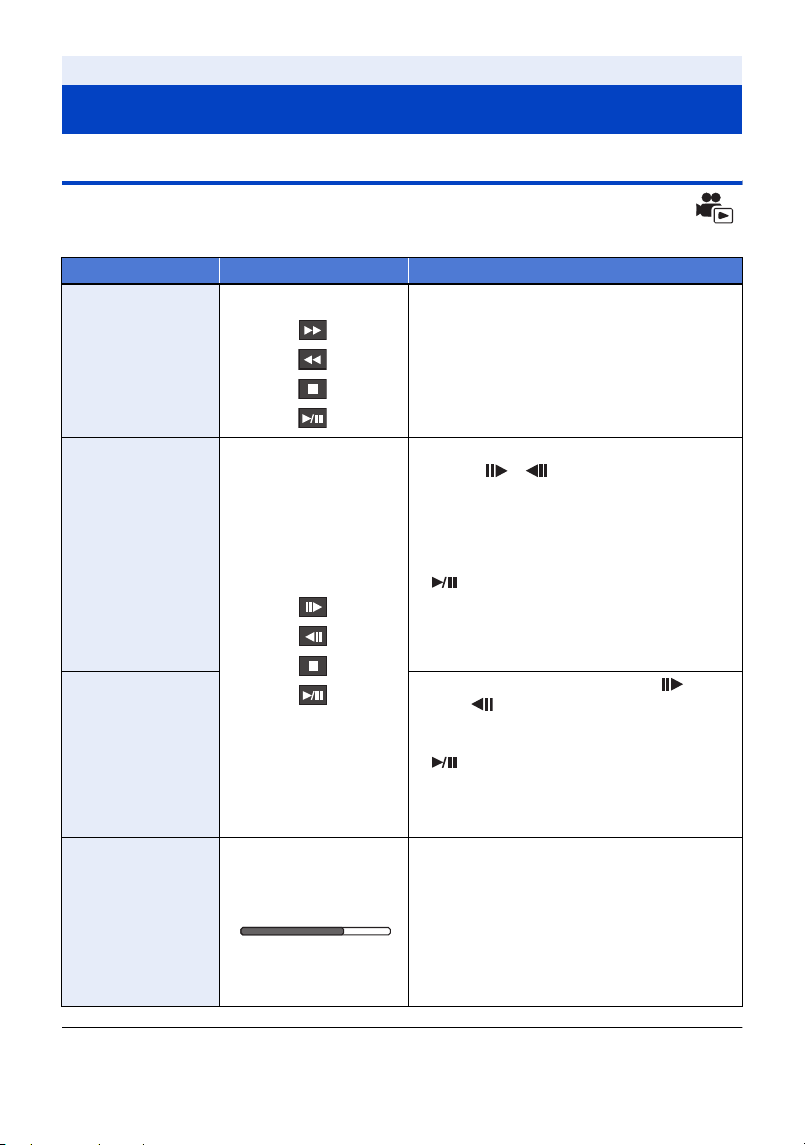
- 96 -
Motion picture playback using operation icon
For details on the basic playback operations, refer to page 34.
≥ Scenes that are large in file size may cause this unit to respond slower to operations performed
by the user or cause certain operations performed by this unit to become slower.
Advanced (Playback)
Playback Operations
Playback operation Playback display Operating steps
Skip Playback
(to the start of a
scene)
During Playback Touch the LCD monitor and slide from right
to left (from left to right) during playback.
Slow-motion
Playback
During Pause
With the playback paused, continue
touching . ( is for slow rewind
playback)
Frame-by-frame Slow-motion Playback is
performed continuously while the display is
touched and held.
≥ Normal playback is restored when you touch
.
≥ For slow rewind playback, the intervals
between frames and the display time per
frame vary depending on the type of the
scene.
Frame-by-frame
Playback
With the playback paused, touch .
(Touch to advance the frames one at a
time in the reverse direction.)
≥ Normal playback is restored when you touch
.
≥ For reverse Frame-by-frame Playback, the
intervals between frames vary depending on
the type of the scene.
Direct Playback
Touch the direct playback bar or slide it
while touching.
≥ The playback pauses temporarily and skips
to the position touched or slid to while
touching.
≥ (When you touch the bar or slide it while
touching during playback)
Playback will start by releasing your touching
or sliding finger.
HC-VX3_V900E-DVQP3181_eng.book 96 ページ 2024年10月22日 火曜日 午前10時6分
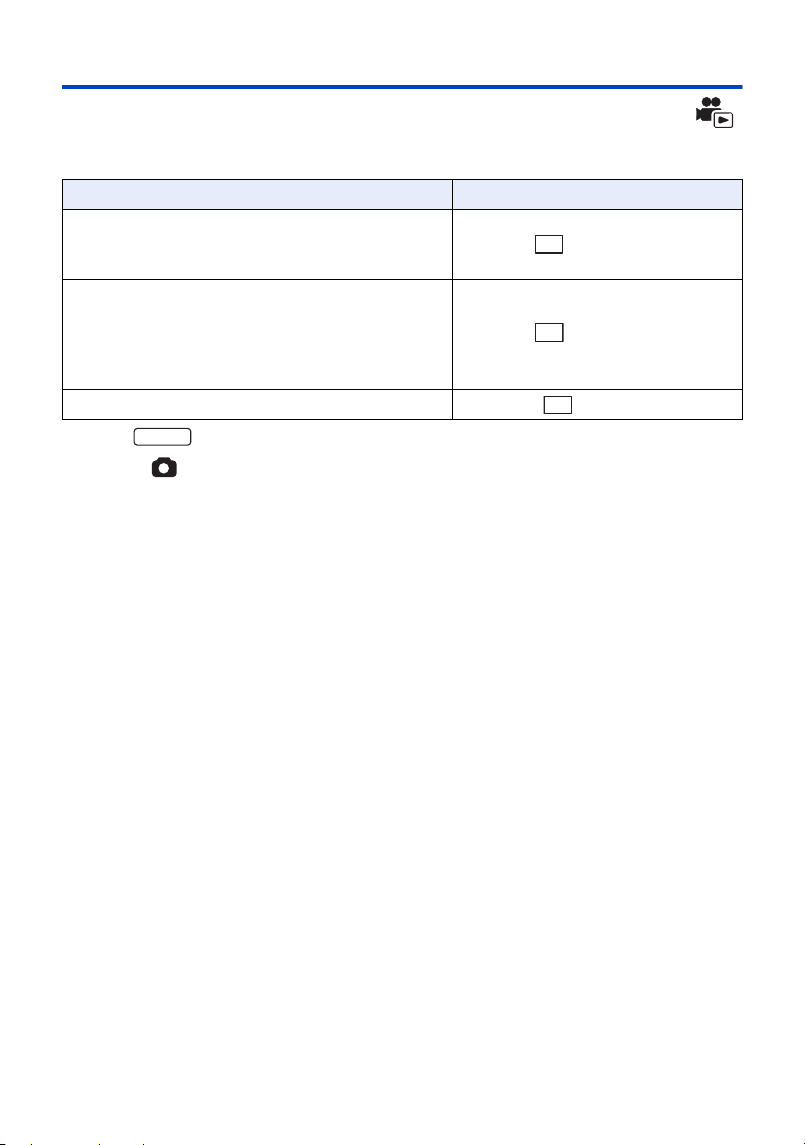
- 97 -
Creating still picture from motion picture
A single frame from the recorded motion picture can be saved as a still picture.
The size of pictures to be recorded is determined by their scene type.
*For the
Press the button fully at the location to be saved as a still picture during
playback.
≥ It is convenient to use Pause, Slow-motion Playback and Frame-by-frame Playback.
≥ Date the motion picture was recorded will be registered as date of the still picture.
≥ Quality will be different from the normal still picture.
Scene type Picture size
≥ 4K MP4 scenes
*
≥ Scene(s) recorded in the recording mode [2160/
24p]
*
(3840k2160)
≥ Scenes recorded in the recording format [MP4]
≥ AVCHD scenes
≥ Scene(s) recorded in the recording mode [1080/24p]
≥ Scenes saved in MP4 (1920k1080/25p)
≥ Scenes saved in MP4 (1280k720/25p)
(1920k1080)
≥ Scenes saved in MP4 (640k360/25p) (640k360)
8.3M
2.1M
0.2M
VX3
HC-VX3_V900E-DVQP3181_eng.book 97 ページ 2024年10月22日 火曜日 午前10時6分
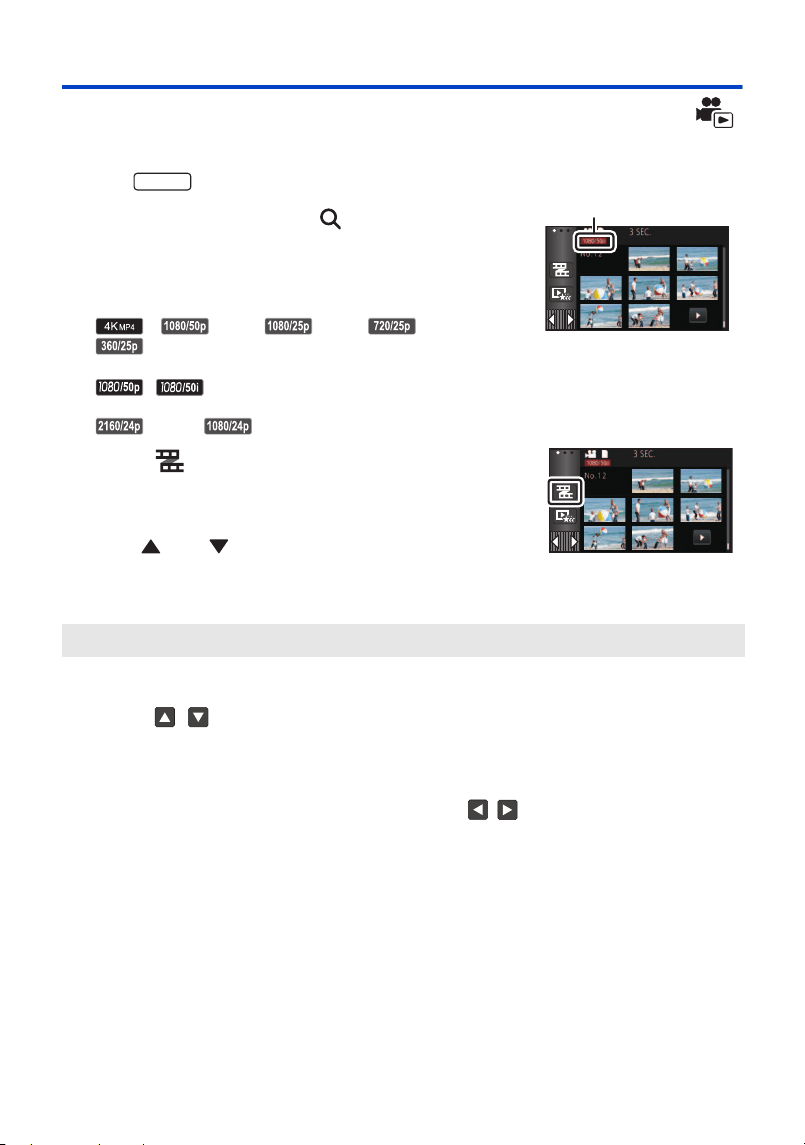
- 98 -
Time Frame Index
An image of one scene is displayed as a thumbnail at set search condition. Scene can be played
back from any midway point of the scene you wish to see.
*For the
1 Operate the zoom lever to side and change
over the thumbnail display to Time Frame Index.
(
l 35)
≥ The recording mode icon A is displayed with the thumbnails.
j When an MP4 scene is selected
*
, (Red), (Red), (Red),
(Red)
j When an [AVCHD] scene is selected
,
j When an [24p] scene is selected
(Red)
*
, (Red)
2 Touch .
≥ To display the next (previous) page:
j Slide the thumbnail display upward (downward) while touching
it.
j Touch (up) / (down) on the thumbnail scroll lever.
(l 35)
3 Touch the desired search condition.
4 (When [MINUTES] is selected in Step 3)
Touch / to set the time.
≥ It can be set up to a maximum of 60 minutes.
≥ Touch [ENTER].
5 Touch the thumbnail to be played back.
≥ Next (Previous) thumbnail can be displayed by touching / .
[3 SEC.]/[6 SEC.]/[12 SEC.]/[MINUTES]
VX3
HC-VX3_V900E-DVQP3181_eng.book 98 ページ 2024年10月22日 火曜日 午前10時6分
- 99 -
Repeat Playback
Playback of the first scene starts after playback of the last scene finishes.
The indication appears on the full screen views.
≥ All the scenes are played back repeatedly. (When playing back motion pictures by date, all the
scenes on the selected date are played back repeatedly.)
Resuming the previous playback
If playback of a scene was stopped halfway, the playback can be resumed from where it was
stopped.
If playback of a motion picture is stopped, appears on the thumbnail view of the stopped
scene.
≥ The memorised resume position is cleared if you turn off the unit or press the recording/playback
button.
(The setting of [RESUME PLAY] does not change.)
Setting the playback speed of FULL HD Slow Motion
Video
You can set the speed at which this unit will play back parts recorded as FULL HD Slow Motion
Video (l 60).
≥ Touch [MP4] in the motion picture/still picture tab (l 34)
≥ If you play back the parts on another device, they will be played back at 1/2 normal speed. To play
them back at 1/4 normal speed, perform [Slow Speed Conversion] (l 135).
≥ Once you perform [Slow Speed Conversion] on the scenes, the parts will be played back at 1/4
normal speed.
: [VIDEO SETUP] # [REPEAT PLAY] # [ON]
: [VIDEO SETUP] # [RESUME PLAY] # [ON]
: [VIDEO SETUP] # [SLOW PLAY SPEED] # desired setting
[Super Slow]: Plays back at 1/4 normal speed.
[Slow]: Plays back at 1/2 normal speed.
MENU
MENU
MENU
HC-VX3_V900E-DVQP3181_eng.book 99 ページ 2024年10月22日 火曜日 午前10時6分
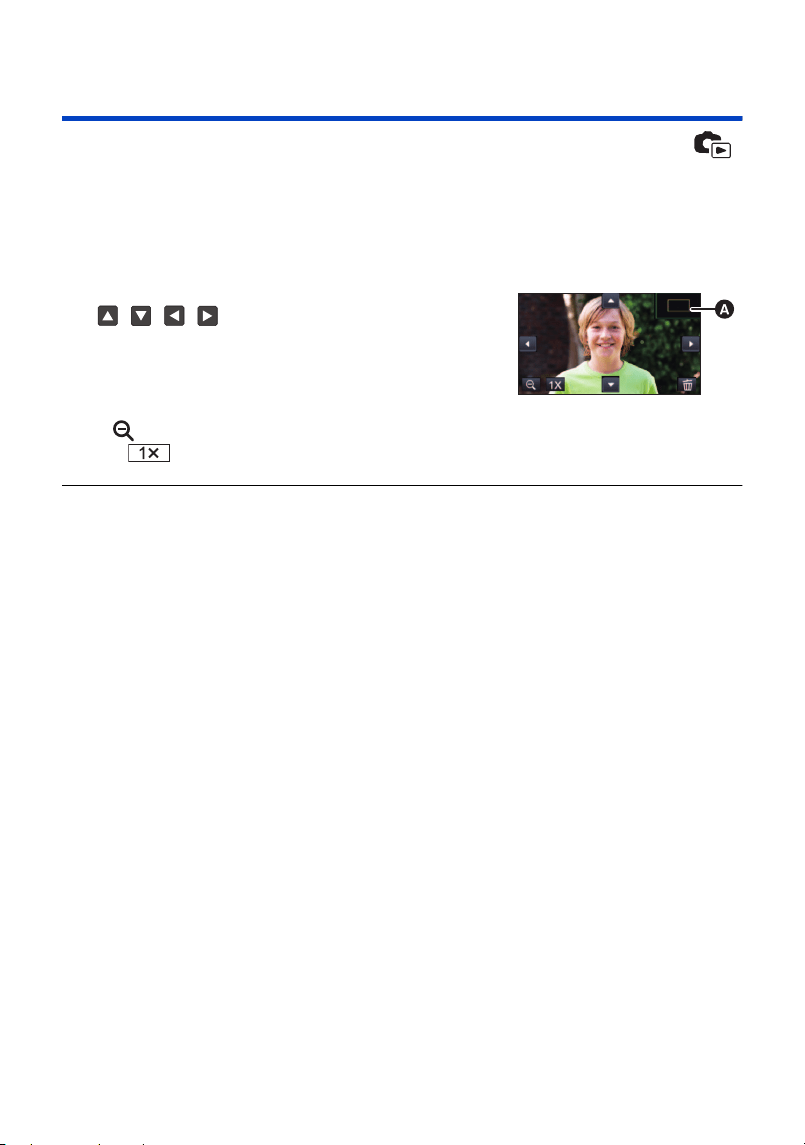
- 100 -
Zooming in on a still picture during playback
(Playback zoom)
You can zoom in by touching a still picture during playback.
1 Touch and hold the part you wish to zoom in on during still picture playback.
≥ It will display enlarged in order of normal display (k1) # k2 # k4. Touch and hold the screen to
zoom in from the normal display (k1) to k2. Touch the screen to zoom in from k2 to k4.
≥ The still picture is zoomed in on, centring on the part you touched.
≥ You can also perform zoom operations using the zoom lever.
≥ The more picture is enlarged, the more its quality deteriorates.
2 Move to the zoomed in position by touching
/ / / or slide while touching the
screen.
≥ The location of the zoom displays for about 1 second when
zooming in (zooming out) or moving the displayed location.
Zooming out from the zoomed still picture
Touch to zoom out. (k4 # k2 # k1)
≥ Touch to return to normal playback (k1).
A Displayed location of the
zoom
ビヹビヹ
HC-VX3_V900E-DVQP3181_eng.book 100 ページ 2024年10月22日 火曜日 午前10時6分
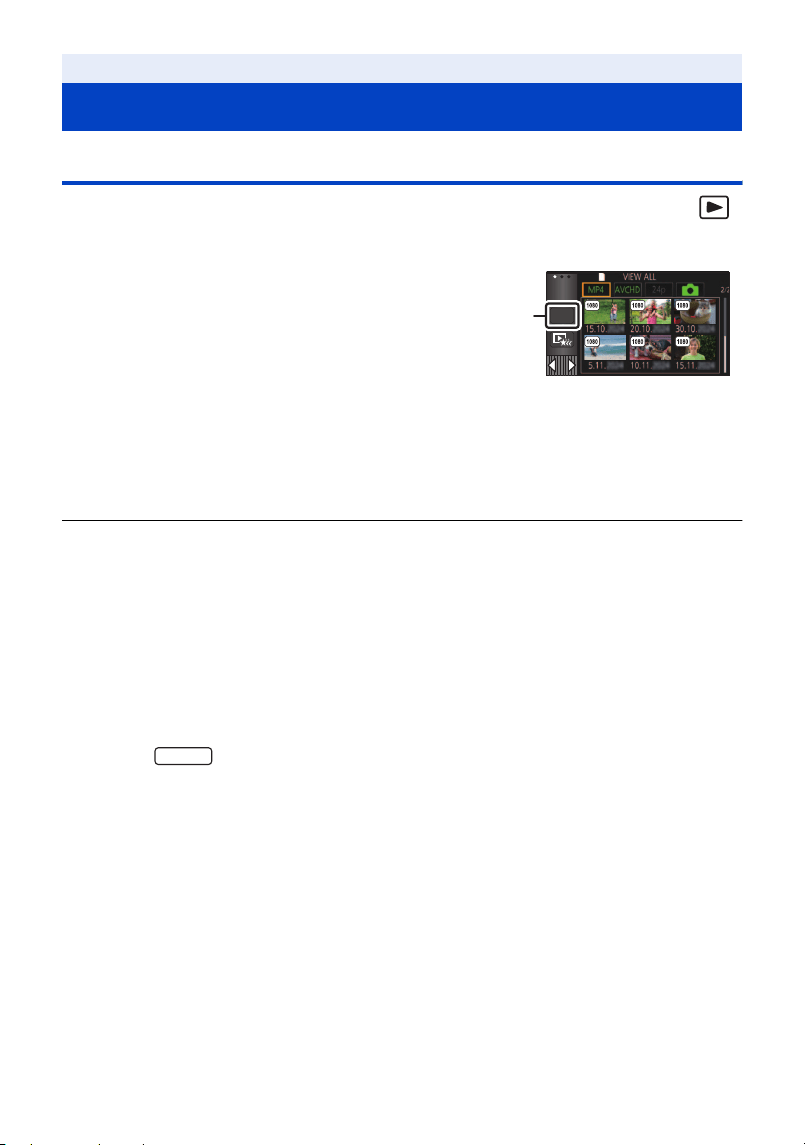
- 101 -
Playing back motion pictures/still pictures by date
The scenes or the still pictures recorded on the same day can be played back in succession.
2 Touch the playback date.
The scenes or the still pictures recorded on the date selected are displayed as thumbnails.
3 Touch the scene or the still picture to be played back.
≥ If you press the recording/playback button to switch between Recording Mode and Playback
Mode, the [VIEW ALL] screen will be displayed again.
≥ In cases such as those described below, scenes and still pictures are grouped separately on the
date list, and –1, –2… may be added after the date:
j When the number of scenes exceeds 99
j When the number of still pictures exceeds 999
j When [REC MODE] in [AVCHD] is changed
j When the microphone input sound (5.1ch/2ch) is changed
j When recorded in Creative Control Mode.
j When saved in Manual Edit (l 120)
j When [NUMBER RESET] is performed
j (For the )
Scenes recorded as 4K Cropping (l 103)
Advanced (Playback)
Various playback functions
1 Touch the date select icon. (l 23)
A Date select icon
ALL
VX3
HC-VX3_V900E-DVQP3181_eng.book 101 ページ 2024年10月22日 火曜日 午前10時6分
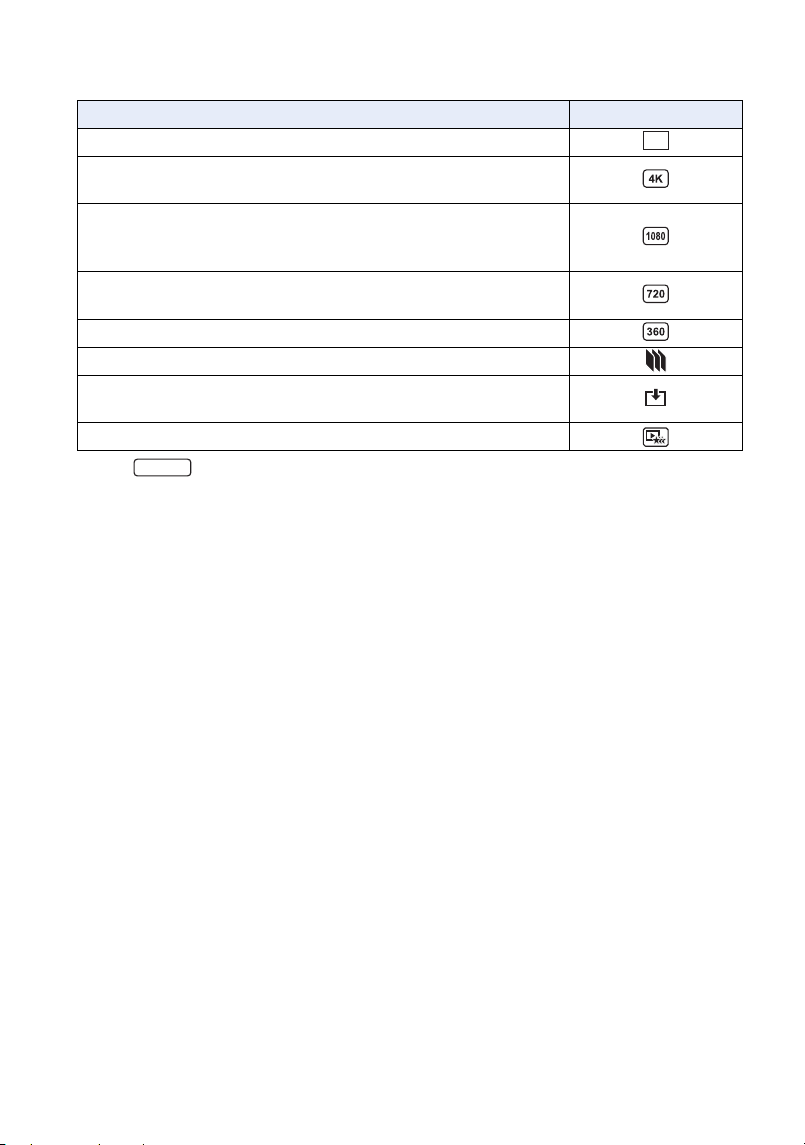
- 102 -
≥ The following scenes and still pictures are grouped separately on the date list, and icons are
displayed according to the category:
*For the
Scene or still picture Icon to be displayed
Scenes recorded with [1080/50p] in [AVCHD]
Scenes saved in 4K MP4
*
Scenes recorded with [2160/24p]
*
Scenes recorded with [1080/50M]/[1080/28M] in [MP4]
Scenes recorded with [1080/24p]
Scenes saved in MP4 (1920k1080/25p)
*
(l 133)
Scenes recorded with [720] in [MP4]
Scenes saved in MP4 (1280k720/25p) (l 133)
Scenes saved in MP4 (640k360/25p) (l 133)
Still pictures recorded in Stop Motion Animation Assist Mode (l 64)
Still pictures created from motion pictures (l 97)
Still pictures saved in Tagging Favourite Scene
*
(l 123)
Scenes saved in Highlight Playback (l 116)
50p
VX3
HC-VX3_V900E-DVQP3181_eng.book 102 ページ 2024年10月22日 火曜日 午前10時6分
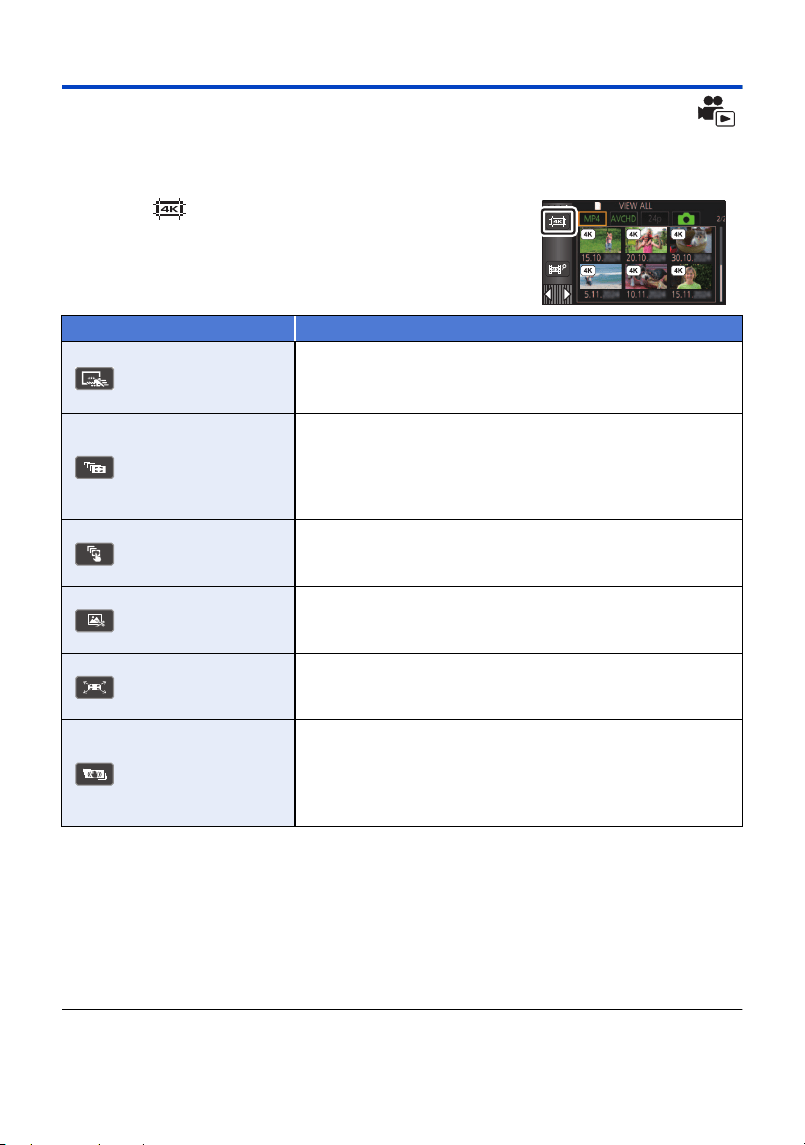
- 103 -
4K Cropping [VX3]
You can add various effects to 4K MP4 scenes and save them as 1080/25p scenes.
≥ Touch [MP4] in the motion picture/still picture tab (l 34)
1 Touch . (l 23)
2 Touch the function you want to apply.
≥ Touch [ENTER].
3 Set the selected function and start a preview.
4 Perform playback operations. (l 35)
≥ When the preview ends or the playback is stopped, a screen will be displayed, asking you to
select [REPLAY]
*1
, [SAVE] (l 109), [SELECT AGAIN]
*2
or [EXIT]. Touch the desired item.
*1 It cannot be selected when [Auto Tracking Crop] is selected.
*2 It cannot be selected when [Stabilizing Crop] is selected.
≥ You cannot perform fast forward/rewind playback, skip playback, slow playback, frame-by-frame
playback, or direct playback during a preview or [Manual Tracking Crop] playback.
≥
Scenes recorded with other devices and scenes edited with HD Writer AE 5.4 may not work correctly.
Function Effect
[Slow/Quick Post-
Effect (4K Cropping/
Editing)]
Allows you to save a recorded image to which slow-motion
and quick-motion effects are added in high-definition picture
quality.
[Auto Tracking
Crop]
Allows you to crop an image that automatically tracks the area
around the touched subject and apply a correction effect
which stabilizes the blur on the subject caused by hand-shake
during recording. The cropped image will be saved in high-
definition picture quality.
[Manual Tracking
Crop]
Allows you to touch the subject you want to track, trace its
movement with your finger, and save a cropped image showing
the area around the traced line in high-definition picture quality.
[Fixed Crop]
Allows you to specify the area to be cropped from a recorded
image as a close-up scene and save the cropped image in
high-definition picture quality.
[Zooming Crop]
Allows you to save a cropped image that changes its position
and size in high-definition picture quality after setting the
cropping positions and sizes for start and end points.
[Stabilizing Crop]
Allows you to save a cropped image to which a correction effect
that stabilizes the blur on the subject caused by hand-shake
during recording is applied in high-definition picture quality.
≥ A cropped image that starts from the beginning of the
original scenes will be saved.
HC-VX3_V900E-DVQP3181_eng.book 103 ページ 2024年10月22日 火曜日 午前10時6分
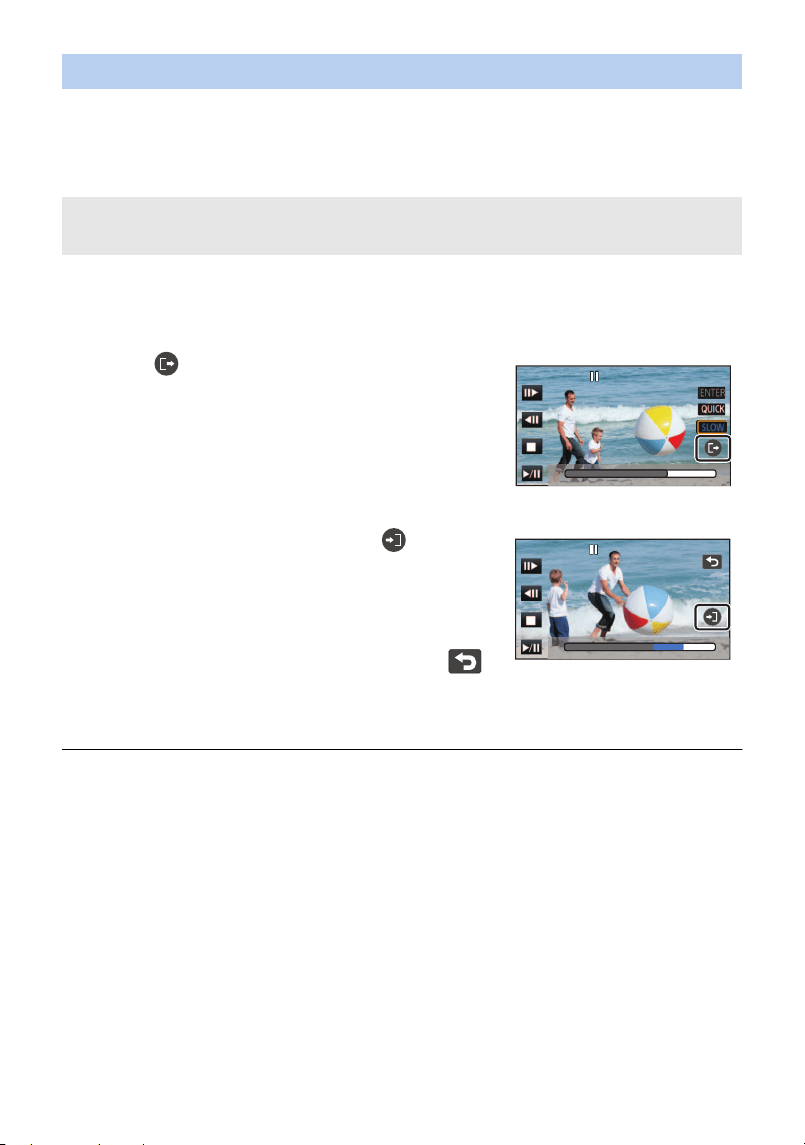
- 104 -
1 Touch the scene to which you want to apply the function.
≥ After touching [NEXT], touch [OK].
2 Touch [SLOW] or [QUICK] to switch the effect to apply to the section to be
set.
≥ The default setting is [SLOW].
3 Perform playback operations and pause at the start point of the section to be
set.
≥ You will find it convenient to use slow playback and frame-by-frame playback. (l 96)
4 Touch .
≥ A confirmation message appears.
Touch [OK] and perform playback operations again.
5 Pause at the end point and touch .
≥ Set so that the section is at least 3 seconds.
≥ Colours appear on the slide bar of the set section to
represent the [SLOW] and [QUICK] buttons.
[SLOW] : Blue
[QUICK] : Red
≥
To reset the section from the start position, touch .
6 Touch [ENTER].
≥ A preview will start.
≥ You can set up to 10 sections. To set multiple sections, touch [OK] and repeat Steps 3 to 5.
≥ The slow-motion effect and quick-motion effect cannot be set on overlapping sections.
≥ The preview includes content set from the beginning of the scene up until 30 minutes playback
time is reached.
If quick-motion effect has been set, the playback time of the preview will be shorter, and if slow-
motion effect has been set, the playback time will be longer. When saving, the previewed part will
be saved.
≥ When effects are set in Steps 4 to 5, the effect can be set with the playback time for the scene
after the 30 minute point, but this is not included in the preview.
≥ Sections with the slow-motion effect or quick-motion effect will be images without sound.
≥ If sections are set in succession, there will be a section following the first section that is normal
playback for about 0.5 seconds.
Applying [Slow/Quick Post-Effect (4K Cropping/Editing)]
[SLOW] :Slow-motion effect
[QUICK] :Quick-motion effect
0h00m15s
0h00m15s
0h00m15s
0h00m20s
0h00m20s
0h00m20s
HC-VX3_V900E-DVQP3181_eng.book 104 ページ 2024年10月22日 火曜日 午前10時6分
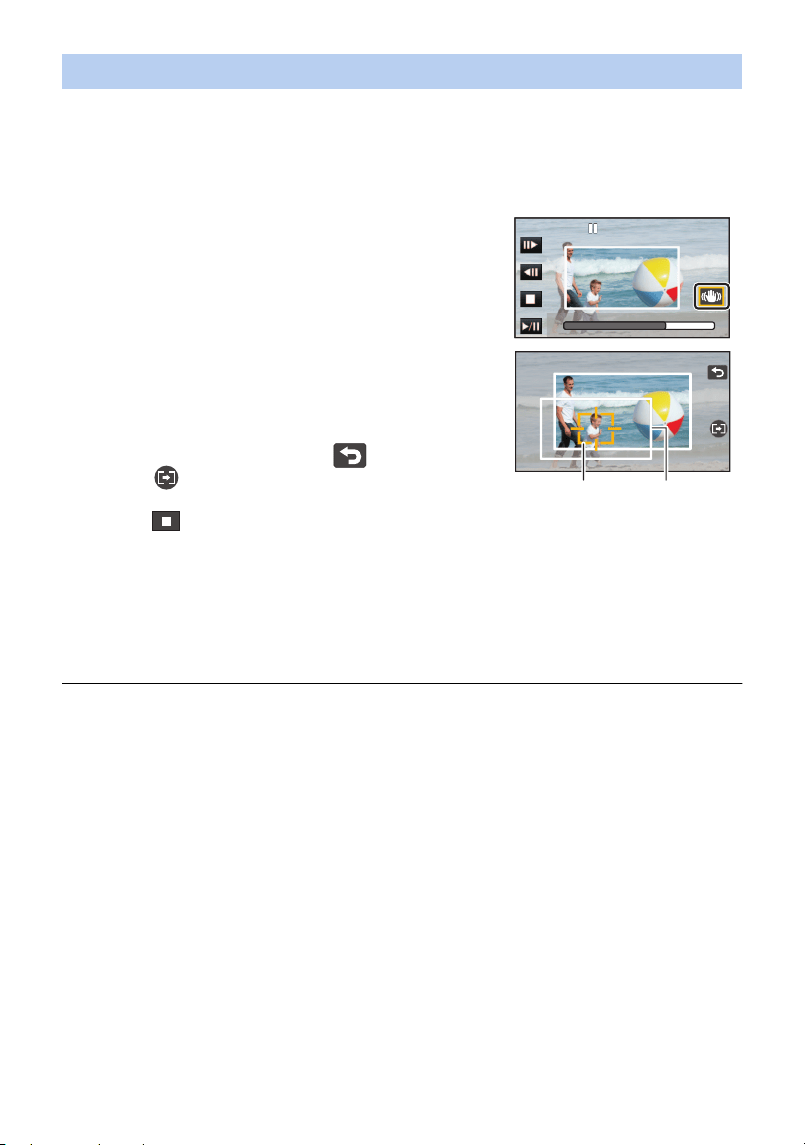
- 105 -
1 Touch the scene to which you want to apply the function.
≥ To uc h [O K] .
2 Perform playback operations to set a preview start point.
≥ You will find it convenient to use slow playback and frame-by-frame playback. (l 96)
≥ Pause the scene at the desired start point.
3 Switch the image stabilizer button to ON or
OFF.
≥ Subjects in the half-transparent area cannot be locked
as targets when the Image Stabiliser is set to ON.
≥ The default setting is [ON].
4 Touch the subject to lock the target.
A Target frame
B Cropping frame
≥ The cropping frame B will be displayed in a size that
matches the subject.
≥ To touch another subject, touch .
5 Touch .
≥ A preview will start.
6 Touch to end the preview.
≥ A confirmation message appears.
Touch [EXIT] to end the preview.
∫ Notes on the target frame
≥ If the target frame fails to lock the target, it will flash red and then disappear.
Touch a distinct portion of the subject (colour, etc.), or reset the preview start point and then lock
the target again.
≥ When a preview is played back until the end of the scene or the playback time of a preview
exceeds 20 minutes (approx.), the preview will end automatically.
If you save the image, the previewed portion (from the start point to the end point) will be saved.
≥ Depending on the portion you touch, you may not be able to track or lock another subject in
situations such as the following:
j When another subject is too large or small
j When the background and another subject are similar in colour
j When you have touched a dark portion
Applying [Auto Tracking Crop]
ONON
0h00m15s0h00m15s0h00m15s
HC-VX3_V900E-DVQP3181_eng.book 105 ページ 2024年10月22日 火曜日 午前10時6分
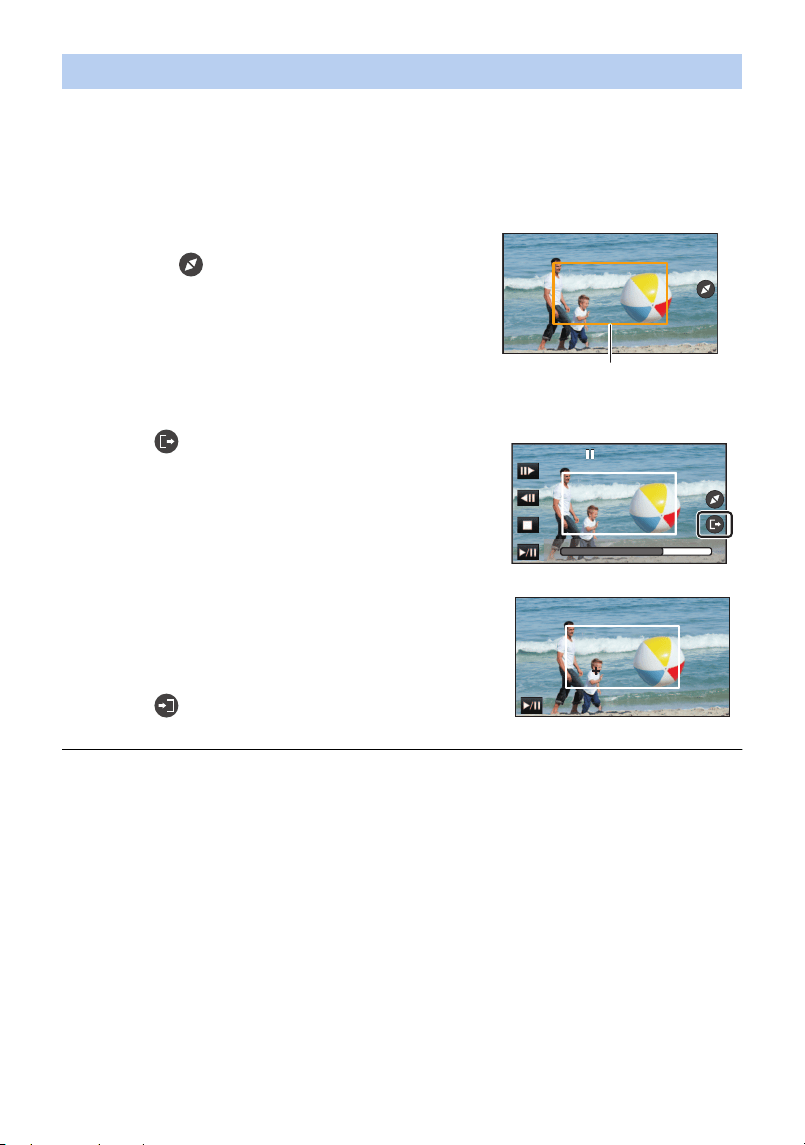
- 106 -
1 Touch the scene to which you want to apply the function.
≥ To uc h [O K] .
2 Perform playback operations to set a preview start point.
≥ You will find it convenient to use slow playback and frame-by-frame playback. (l 96)
≥ Pause the scene at the desired start point.
4 Touch .
≥ To uc h [O K] .
5 Touch the playback button or the part you want
to crop to play back the scene.
≥ Playback starts automatically if you touch the screen.
≥ You can move the cropping frame by dragging it with
your finger.
6 Touch to set the end point.
≥ A preview will start.
≥ Playback automatically stops when the scene is played back to the end of the recording or the
playback time exceeds 20 minutes (approx.).
If you save the scene, the portion that has been played back (the section between the start point
and the end point) will be saved.
Applying [Manual Tracking Crop]
3 Adjust the size and position of the cropping
frame for the start point.
≥ Touching will change the cropping frame’s size
and colour. (White # Yellow)
≥ The frame size switches between two settings each
time you touch the icon.
≥ You can move the cropping frame by touching the
screen.
≥ If you leave the screen untouched, the cropping
frame’s size and position will be set automatically.
Cropping frame
0h00m15s0h00m15s0h00m15s
HC-VX3_V900E-DVQP3181_eng.book 106 ページ 2024年10月22日 火曜日 午前10時6分
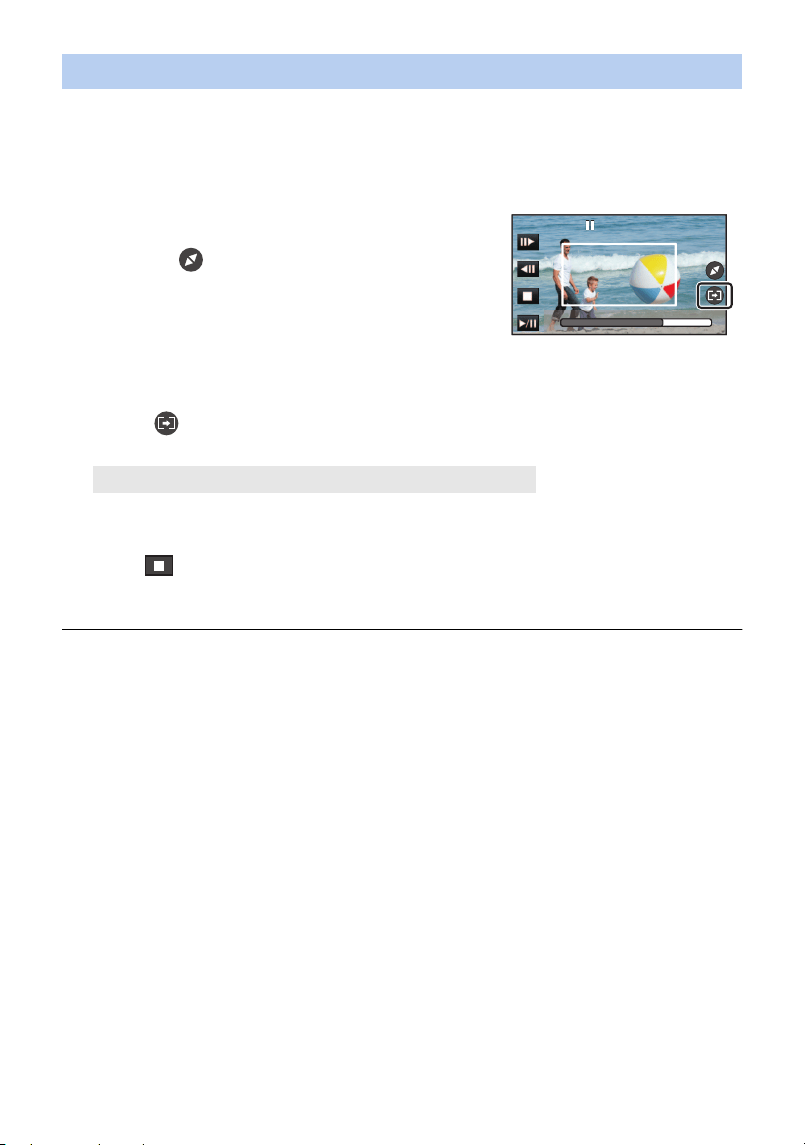
- 107 -
1 Touch the scene to which you want to apply the function.
≥ To uc h [O K] .
2 Perform playback operations to set a preview start point.
≥ You will find it convenient to use slow playback and frame-by-frame playback. (l 96)
≥ Pause the scene at the desired start point.
3 Adjust the size and position of the cropping
frame for the start point.
≥ Touching will change the cropping frame’s size
and colour. (White # Yellow)
≥ The frame size switches between two settings each
time you touch the icon.
≥ You can move the cropping frame by touching the
screen.
≥ If you leave the screen untouched, the cropping frame’s size and position will be set
automatically.
4 Touch .
5 Set the end point.
≥ A preview will start. It can be stopped midway.
(If you have selected [Until stop position])
Touch to set the end point.
≥ Touch [EXIT].
≥ To change the end point, touch [Continue] to resume the preview.
≥ (If you have selected [Until end])
When a preview is played back for 1 hour (approx.), it automatically ends. If you save the scene,
the portion between the start point and the end of the scene will be saved. If the playback time of
the scene from the start point exceeds 1 hour, the 1 hour (approx.) portion starting from the start
point will be saved.
≥ (If you have selected [Until stop position])
When a preview is played back until the end of the scene or the playback time exceeds 1 hour
(approx.), the preview will end automatically. If you save the image, the previewed portion (the
section between the start point and the end point) will be saved.
Applying [Fixed Crop]
[Until stop position]/[Until end]
0h00m15s0h00m15s0h00m15s
HC-VX3_V900E-DVQP3181_eng.book 107 ページ 2024年10月22日 火曜日 午前10時6分
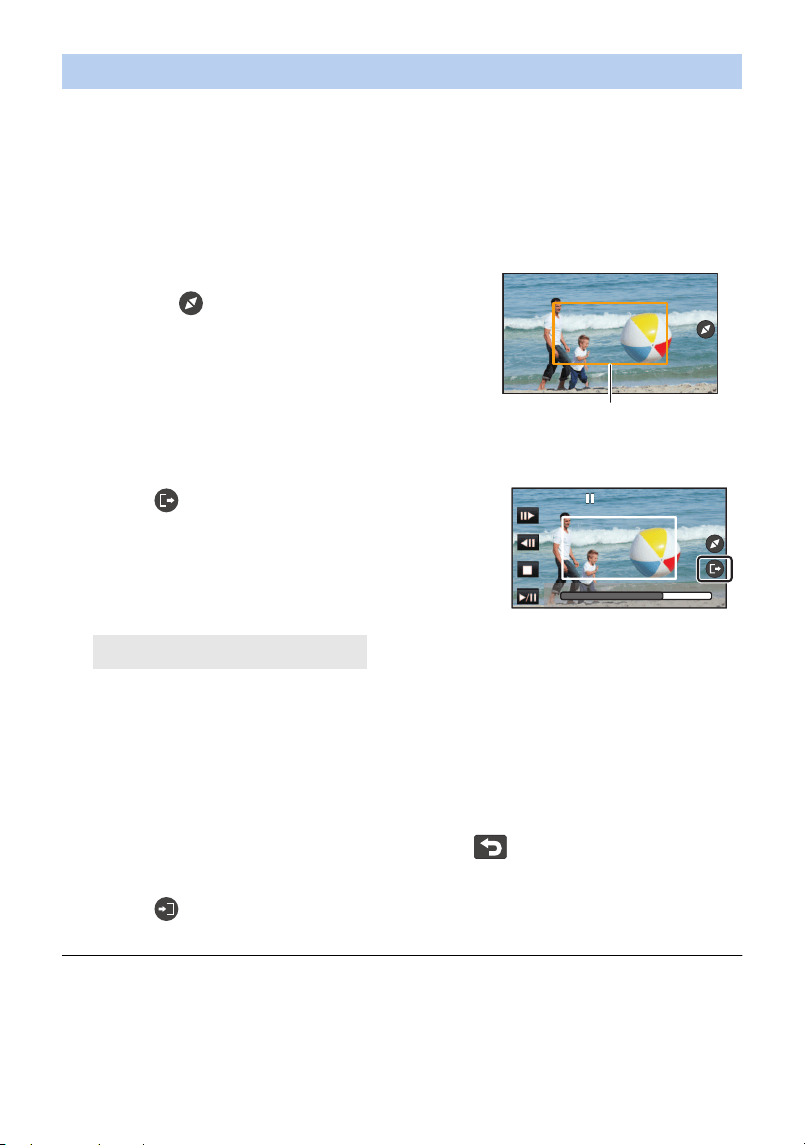
- 108 -
1 Touch the scene to which you want to apply the function.
≥ To uc h [O K] .
2 Perform playback operations to set a preview start point.
≥ Set a start point so that the length between the start point and end point will be at least
3 second long (approx.).
≥ You will find it convenient to use slow playback and frame-by-frame playback. (l 96)
≥ Pause the scene at the desired start point.
4 Touch .
5 Touch the desired zoom speed.
≥ The scene will be skipped to the end point. Depending on the set zoom speed, the end point
will vary.
≥ To uc h [O K] .
6 Adjust the size and position of the cropping frame for the end point.
≥ The cropping frame for the end point will be displayed in the same position as the cropping
frame for the start point.
≥ The cropping frame for the start point is indicated in grey, while the cropping frame for the
end point is indicated in white.
≥ To reset the cropping frame for the start point, touch .
≥ Perform the same operations as Step 3 to change the size and position of the cropping
frame.
7 Touch .
≥ A preview will start.
≥ You cannot apply this function to scenes shorter than 3 seconds (approx.).
Applying [Zooming Crop]
3 Adjust the size and position of the cropping
frame for the start point.
≥ Touching will change the cropping frame’s size
and colour. (White # Yellow)
≥ The size will change in the following order each time
you touch the icon:
Large # Medium # Small
≥ You can change the position of the medium- or small-
sized cropping frame by touching the screen.
≥ If you leave the screen untouched, the cropping
frame’s size and position will be set automatically.
Cropping frame
[Fast]/[Slow]
0h00m15s0h00m15s0h00m15s
HC-VX3_V900E-DVQP3181_eng.book 108 ページ 2024年10月22日 火曜日 午前10時6分

- 109 -
1 Touch the scene to which you want to apply the function.
≥ To uc h [O K] .
2 Touch .
≥ A preview will start from the beginning of the scene.
≥ When a preview is played back for 1 hour (approx.), it automatically ends. If you save the image,
the entire scene from the beginning to the end will be saved. If the playback time of the scene
exceeds 1 hour, the first 1 hour (approx.) of the scene will be saved.
You can save a previewed scene as one scene.
1 End a preview.
2 Touch [SAVE].
3 Touch [YES].
≥ If you are using the battery, a message recommending that you use the AC adaptor will be
displayed. To start the saving operation, touch [START].
4 Touch [EXIT].
≥ You can save scenes even when using the battery, but we recommend that you use the AC
adaptor.
≥ Scenes will be saved in different ways depending on their 4K Cropping setting.
j [Slow/Quick Post-Effect (4K Cropping/Editing)]: Only the previewed portion is saved.
j [Auto Tracking Crop]: Only the previewed portion is saved.
j [Manual Tracking Crop]: Only the portion that has been played back is saved.
j [Fixed Crop]: If [Until end] is selected, a portion between the start position and the end of the
scene is saved.
If [Until stop position] is selected, only the previewed portion is saved.
j [Zooming Crop]: A portion from the start point to the end point is saved.
j [Stabilizing Crop]: The entire scene from the beginning to the end or the first 1 hour (approx.) of
the scene will be saved.
(When saving a scene to which [Fixed Crop] is applied)
≥ If the length of the cropped scene is long, it may take some time to save it.
≥ A scene exceeding 4 GB (approx.) or 30 minutes (approx.) will be automatically divided.
(When saving a scene to which [Slow/Quick Post-Effect (4K Cropping/Editing)]/[Stabilizing Crop] is
applied)
≥ It may take time to save a long scene.
≥ A scene exceeding 4 GB (approx.) or 30 minutes (approx.) will be automatically divided.
Applying [Stabilizing Crop]
Saving previews
HC-VX3_V900E-DVQP3181_eng.book 109 ページ 2024年10月22日 火曜日 午前10時6分
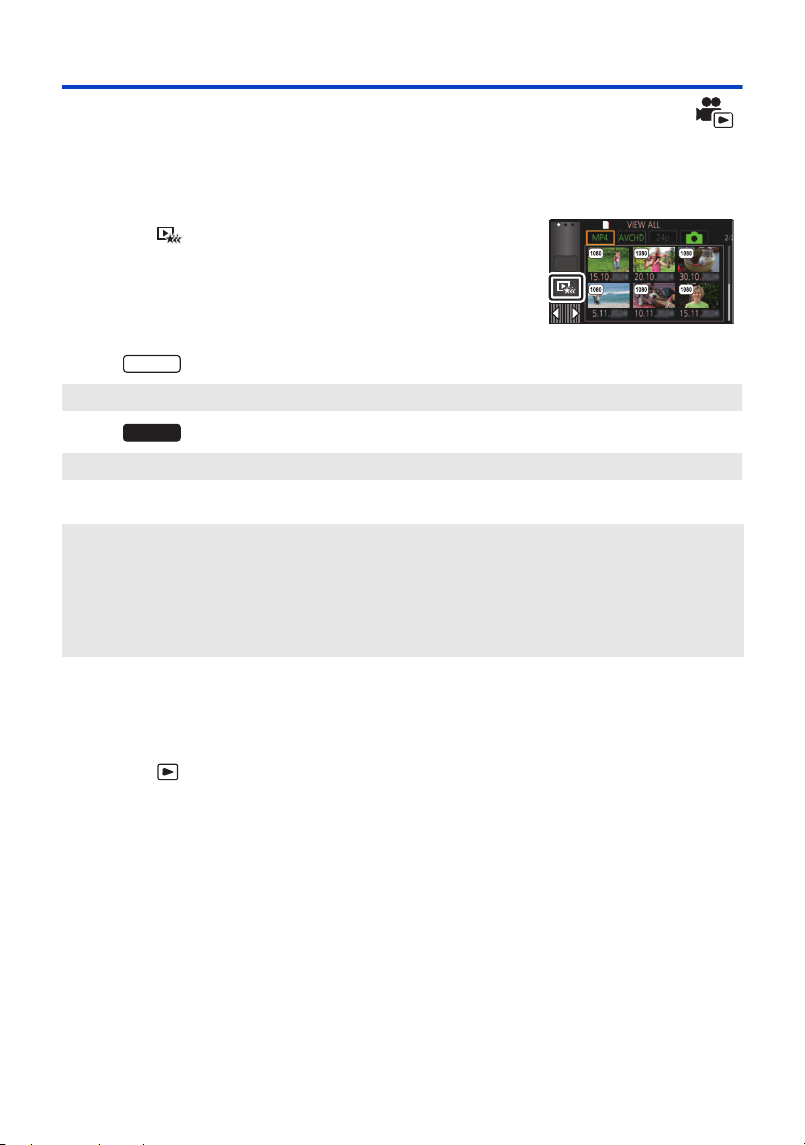
- 110 -
Highlight Playback
Part that was recognised as clearly recorded is extracted from multiple scenes, and it can be played
back or stored in a short time with effects and music added.
It is also possible to create an original Highlight Playback by checking your favourite scenes and
setting up to extract those scenes.
1 Touch . (l 23)
2 (When step 1 is performed on an MP4 scene when thumbnails
are displayed)
Touch the recording format of the scene to be
played back.
(For the )
(For the )
3 Touch the desired effect.
≥ The scenes matching the effect will be extracted and displayed in the thumbnail view.
≥ Effects such as fade, slow-motion, still (pause), or digest playback are inserted.
≥ The date at playback is the date that was last recorded in an extracted scene.
≥ To change the settings, refer to page 113.
4 Touch in the thumbnail view.
5 Select the playback operation. (l 35)
≥ When the playback is finished or stopped, the screen to select [REPLAY], [SAVE] (l 116),
[SELECT AGAIN] or [EXIT] is displayed. Touch the desired item.
≥ You cannot perform skip playback, slow playback, frame-by-frame playback, or direct playback.
[2160/25p]/[1080/50p]/[1080/25p]/[720/25p]/[360/25p]
[1080/50p]/[720/25p]
[POP]: Recommended for party scene.
[NATURAL]: Recommended for scenery.
[CLASSICAL]: Recommended for slow moving scene.
[DYNAMIC]: Recommended for fast moving scene such as sports scene.
[CUSTOM]: Set the combination of the effect and the music. (l 112)
ALL
VX3
V900
HC-VX3_V900E-DVQP3181_eng.book 110 ページ 2024年10月22日 火曜日 午前10時6分

- 111 -
≥ Highlight Playback is not available for the following scenes :
s 24p scenes
s Scenes recorded with Creative Control Mode (l 52), HDR Movie Mode (l 55) and FULL
HD Slow Motion Video (l 60, 63)
s Scenes saved as Highlight Playback
s Scenes saved as manually-edited scenes (l 117)
s Scenes that were converted to MP4 scenes (l 133)
*
* Excluding scenes that were converted from 4K MP4 scenes. (For the )
(For the )
s Scenes recorded as 4K Cropping (l 103)
s Scenes recorded with Slow & Quick Video Mode (l 58) and Dolly Zoom Mode (l 62)
VX3
VX3
HC-VX3_V900E-DVQP3181_eng.book 111 ページ 2024年10月22日 火曜日 午前10時6分
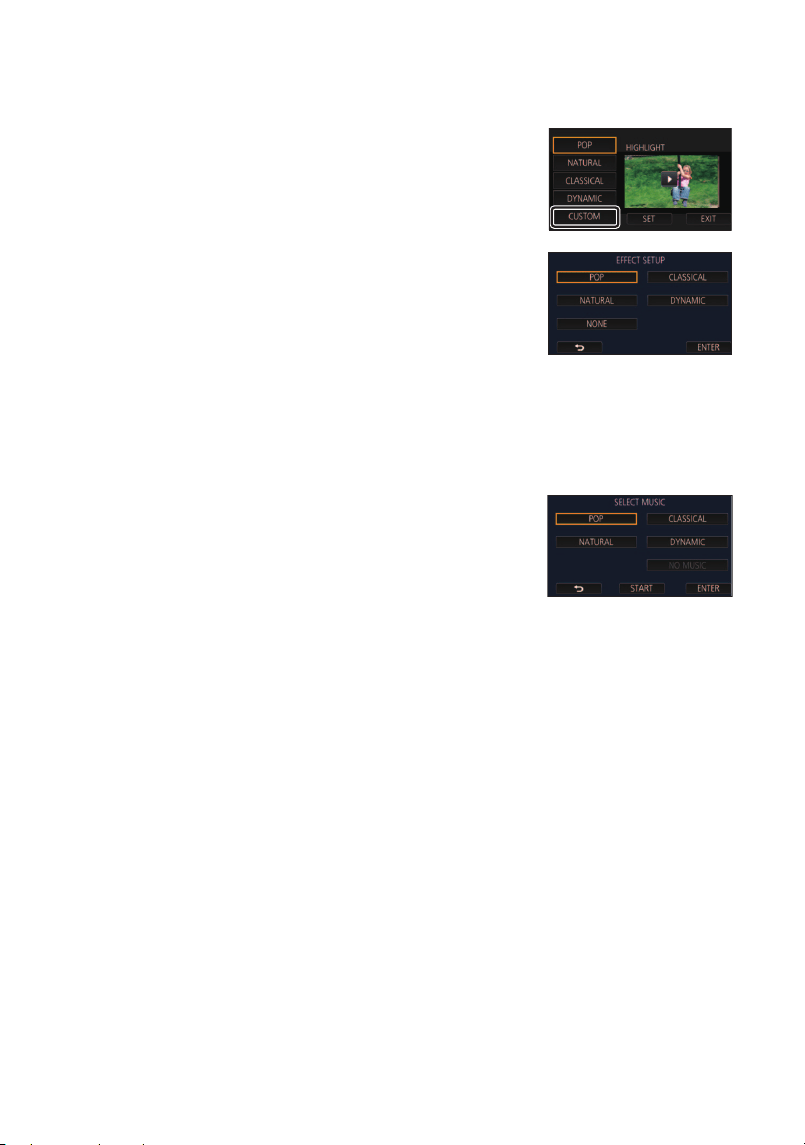
- 112 -
∫ Setting up the custom effect
It is possible to enjoy the Highlight Playback with your favourite effect by setting up the combination
of an image effect and music.
1 Touch [CUSTOM].
2 Touch [EFFECT SETUP] or [MUSIC SELECT].
3
(When [EFFECT SETUP] is selected)
Touch the desired effect.
≥ When [EFFECT SETUP] is changed, [MUSIC SELECT] will be
set the same as [EFFECT SETUP]. (To set [EFFECT SETUP]
and [MUSIC SELECT] to different settings, change
[MUSIC SELECT] after setting [EFFECT SETUP].)
(When [MUSIC SELECT] is selected)
Touch the desired sound.
≥ When [EFFECT SETUP] is set to [NONE], you will be able to select [NO MUSIC].
When [NO MUSIC] is selected, the audio recorded at the time of shooting is played back.
(To test the music audio)
Touch [START].
≥ Touch the other music option to change the music to be tested.
≥ When you touch [STOP], the music playback stops.
4 Touch [ENTER].
HC-VX3_V900E-DVQP3181_eng.book 112 ページ 2024年10月22日 火曜日 午前10時6分

- 113 -
Touch [SET] to select the item to change.
*1 If you touch [SET] of Highlight Playback when the Baby Calendar is displayed, [SELECT DATE]
and [SELECT SCENES] will not be available. (l 121)
*2 If you touch [SET] of Highlight Playback when the Baby Calendar is displayed, these items will
not be displayed. (l 121)
≥ When you have finished changing the settings, touch [EXIT].
∫ Scene setting
1 (When Highlight Playback is started while displaying AVCHD scene thumbnails)
Touch the recording format of the scene to be played back.
2 Touch [SELECT DATE] or [SELECT SCENES].
3
(When [SELECT DATE] is selected)
Touch the date to be played back.
≥ A maximum of 7 days can be selected.
≥ When touched, the date is selected and surrounded by red. Touch the date again to cancel the
operation.
(When [SELECT SCENES] is selected)
Touch the scenes to be played back.
≥ Up to 99 scenes can be selected in succession.
≥ When touched, the scene is selected and is displayed. Touch the scene again to cancel the
operation.
4 Touch [Enter]/[ENTER].
Playing back with the settings changed
[SCENE SETUP]
*1
:
Select the scene or date to be played back.
[FAVOURITE SCENE SETUP]
*2
:
Set up the favourite scenes. (l 114)
[FAVOURITE SCENE PLAY]
*2
:
Set up if the favourite scenes are to be included in the Highlight
Playback or not. (l 114)
[PRIORITY SETUP]:
Select the target to give priority to play back. (l 114)
[PLAYBACK TIME]:
Select the time to play back. (l 115)
[TITLE SETUP]:
Select the title sheet to be displayed at the beginning, and enter
the title. (l 115)
[1080/50p]/[1080/50i]
HC-VX3_V900E-DVQP3181_eng.book 113 ページ 2024年10月22日 火曜日 午前10時6分
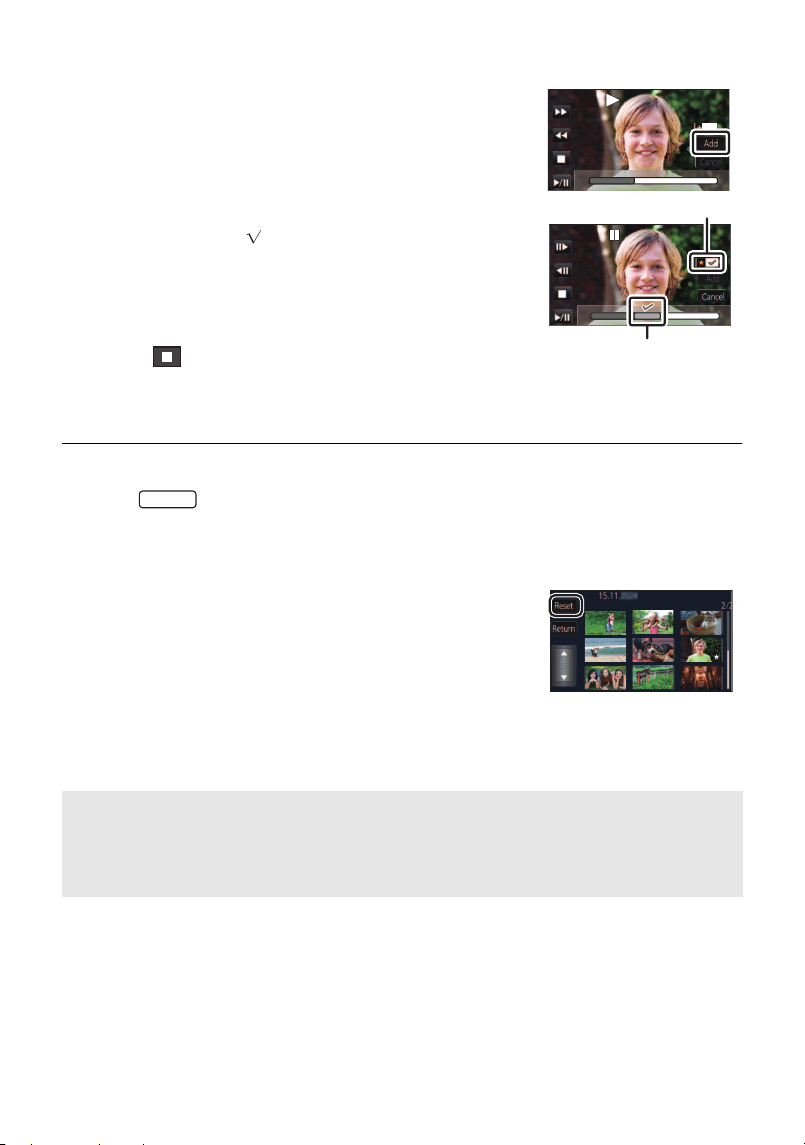
- 114 -
∫ [FAVOURITE SCENE SETUP]
1 Touch the scenes to be played back.
2 Touch [Add] and add the favourite part.
≥ Approximately 4 seconds before and after touching [Add] will be
added as favourite.
≥ Number of favourite scenes that can be added are 1 to 14.
(Number of scenes that can be added differs depending on the
scenes selected.)
≥ Favourite check display (A) is displayed in orange, and
favourite check display B is displayed on the slide bar.
≥ To cancel the favourite, play back to the position checked as
favourite, and touch [Cancel].
≥ It is convenient to use Slow-motion Playback and Frame-by-
frame Playback. (l 96)
3 Touch and stop the playback.
≥ It will return to the thumbnail display screen and ¡ is displayed
on the scenes added as favourite scenes.
4 Touch [Return].
≥ All the scenes checked as favourite may not be played back depending on [PLAYBACK TIME].
(l 115)
≥ (For the )
Parts added as favourite scenes are not recognised as registered scenes for “Tagging Favourite
Scene” (l 123).
To clear the favourite scenes from the thumbnail display
1 Touch [Reset].
2 Touch [RESET ALL] or [RESET SELECTED].
≥ The check on all the favourite scenes will be cleared when
[RESET ALL] is selected.
3 (When [RESET SELECTED] is selected in Step 2)
Touch the scene to be cleared.
∫ [FAVOURITE SCENE PLAY]
Touch [ON] or [OFF].
∫ [PRIORITY SETUP]
Touch [NONE] or [FACE].
≥ If you touch [FACE], priority is given to the part detected as a face.
[ON]: Include the scenes added in the [FAVOURITE SCENE SETUP] into the Highlight
Playback.
[OFF]: Do not include the scenes added in the [FAVOURITE SCENE SETUP] into the
Highlight Playback.
0h01m30s
0h01m30s
0h01m30s
0h01m30s0h01m30s0h01m30s
VX3
HC-VX3_V900E-DVQP3181_eng.book 114 ページ 2024年10月22日 火曜日 午前10時6分
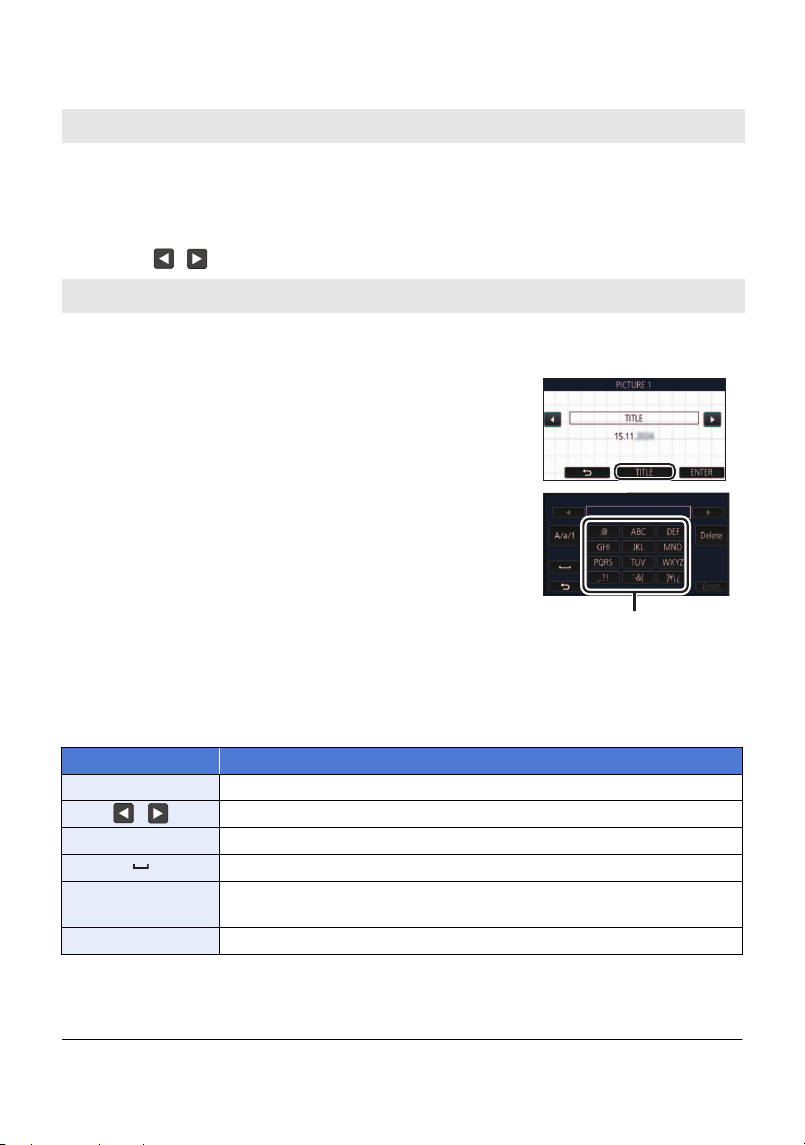
- 115 -
∫ [PLAYBACK TIME]
Touch the playback time.
≥ The playback time of [AUTO] is a maximum of approx. 5 minutes.
≥ Playback time may become shorter than the setting, or it may not even be played back if the part
recognised as clearly recorded is short.
∫ [TITLE SETUP]
1 Touch / to select your favourite title sheet.
≥ Title and date will not be displayed when [NONE] is selected.
Entering text
≥ The characters can be conveniently input without moving the cursor when the [Auto Cursor
Position] is set to [ON]. (l 44)
≥ A maximum of 18 characters can be entered.
4 Touch [ENTER] to end registration.
≥ The date of the first scene of the Highlight Playback will be displayed as the date.
≥ The entered title will be cleared when the unit is turned off or the Highlight Playback is finished.
[APPROX 90 SEC.]/[APPROX 3 MIN.]/[AUTO]
[NONE]/[PICTURE 1]/[PICTURE 2]/[PICTURE 3]/[PICTURE 4]
2 Touch [TITLE].
3 Enter the title.
≥ Touch the text entry icon in the centre of the screen and enter
the title.
≥ After entering the title, touch [Enter].
A Text entry icon
Icon Description of operation
[A] etc. Enters a character.
/ Moves the cursor to left or right.
[A/a/1] Switches between [A]/[a] (alphabet) and [&/1] (symbols/numbers).
Enters a space.
[Delete]
Deletes a character.
Deletes the previous character if the cursor is in an empty space.
[Enter] Ends text entry.
HC-VX3_V900E-DVQP3181_eng.book 115 ページ 2024年10月22日 火曜日 午前10時6分

- 116 -
The scenes put together as a Highlight Playback can be saved as a single scene.
1 Stop the playback of the Highlight Playback or wait until the Highlight
Playback is finished.
2 Touch [SAVE].
3 Select the format to save.
*1 This format is displayed only when an AVCHD scene is selected.
*2 This format is not displayed when an AVCHD scene is selected.
*3 [MP4 1920k1080/25p] cannot be selected when an MP4 [720/25p] scene is selected.
*4 [MP4 1920k1080/25p] and [MP4 1280k720/25p] cannot be selected when an MP4 [360/25p]
scene is selected.
(When [AVCHD 1920k1080/50i] is selected)
≥ Scenes recorded in 1080/50p are converted to 1080/50i (picture quality [HA] of [REC MODE])
and saved.
≥ Scenes recorded in 1080/50i are recorded in [HA] regardless of [REC MODE] ([PH]/[HA]/[HG]/
[HE]) of a scene.
4 Touch [YES].
5 Touch [EXIT].
≥ is displayed on the thumbnail of the scenes saved by the Highlight Playback.
Saving the Highlight Playback
[AVCHD 1920k1080/50i]
*1
: It will be saved in high-definition image quality.
[MP4 1920k1080/25p]
*2, 3, 4
: It will be saved in high-definition image quality. The format
supports playback on a PC.
[MP4 1280k720/25p]
*4
: It will be saved with an image quality, allowing you to upload it
on the Internet in higher image quality. The format supports
playback on a PC.
[MP4 640k360/25p]: It will be saved with an image quality, allowing you to upload it
on the Internet faster. The format supports playback on a PC.
HC-VX3_V900E-DVQP3181_eng.book 116 ページ 2024年10月22日 火曜日 午前10時6分

- 117 -
Manual Edit
You can join desired AVCHD scenes or parts of these scenes in the order they were recorded to
play back or save as a single scene with music added.
≥ Touch [AVCHD] in the motion picture/still picture tab (l 34)
1 Select the menu.
2 Touch [1080/50p] or [1080/50i].
≥ Touch [Enter].
≥ Thumbnails are displayed by each scene.
3 Select the scene or part of the scene to play back, and set the music.
≥ To select a scene (l 118)
≥ To select part of a scene (l 118)
≥ To set the music (l 119)
≥ Touching [Return] after selecting a scene may cancel the selected scene.
4 Touch [Enter].
5 Touch [YES], and select the playback operation for the edited scene. (l 35)
≥ In the following cases, the screen for selecting [PREVIEW], [SAVE] (l 120), [SELECT AGAIN],
and [EXIT] is displayed. Touch the desired item.
j Touch [NO]
j Playback finishes
j Stop playback
≥ You cannot perform skip playback, slow playback, frame-by-frame playback, or direct playback.
≥ You can also select combinations of scenes and parts of scenes.
≥ You can select up to 99 scenes. (Each 3 second thumbnail of part of a scene is treated as a
single scene.)
≥ You can create a combined scene of up to about 6 hours long.
≥ When saving a manually edited scene, check the free space on the SD card.
Before selecting the scene, check the table below and create sufficient free space for saving it.
: [EDIT SCENE] # [MANUAL EDIT]
MENU
HC-VX3_V900E-DVQP3181_eng.book 117 ページ 2024年10月22日 火曜日 午前10時6分
- 118 -
(Approximate free space requirements for saving a manually edited scene)
≥ “h” is an abbreviation for hour, “min” for minute and “s” for second.
∫ To select a scene
Touch the scene to be played back.
≥ The scene selection is made as you touch it, and the indication appears on the thumbnail. To
cancel the operation, touch the scene again.
≥ When part of a scene has been selected, the indication appears on the thumbnail. If you
touch the thumbnail, the scene will be displayed by 3 second thumbnails.
≥ Next (previous) page is displayed by touching / .
∫ To select part of a scene
1 Touch [3 sec].
≥ To cancel the operation, touch it again.
2 Touch the desired scene.
≥ The touched scene is displayed by 3 second thumbnails.
3 (To select a single thumbnail)
Touch the thumbnail of the part you want to play back.
≥ The thumbnail selection is made as you touch it, and the indication (white) appears on the
thumbnail. To cancel the selection, touch the thumbnail again.
≥ Next (previous) thumbnail is displayed by touching / .
≥ Touching [Return] when the thumbnail has been selected returns you to the screen that displays
the thumbnails of scenes. The indication appears on the thumbnail of the scene
containing the selected part.
Saving format
Total time of an edited
scene
Free space required
[AVCHD 1920k1080/50i]
30 min Approx. 4 GB
1 h Approx. 8 GB
[MP4 1280k720/25p]
30 min Approx. 2 GB
1 h Approx. 4 GB
[MP4 640k360/25p]
30 min Approx. 0.4 GB
1 h Approx. 0.8 GB
3S
3S
HC-VX3_V900E-DVQP3181_eng.book 118 ページ 2024年10月22日 火曜日 午前10時6分
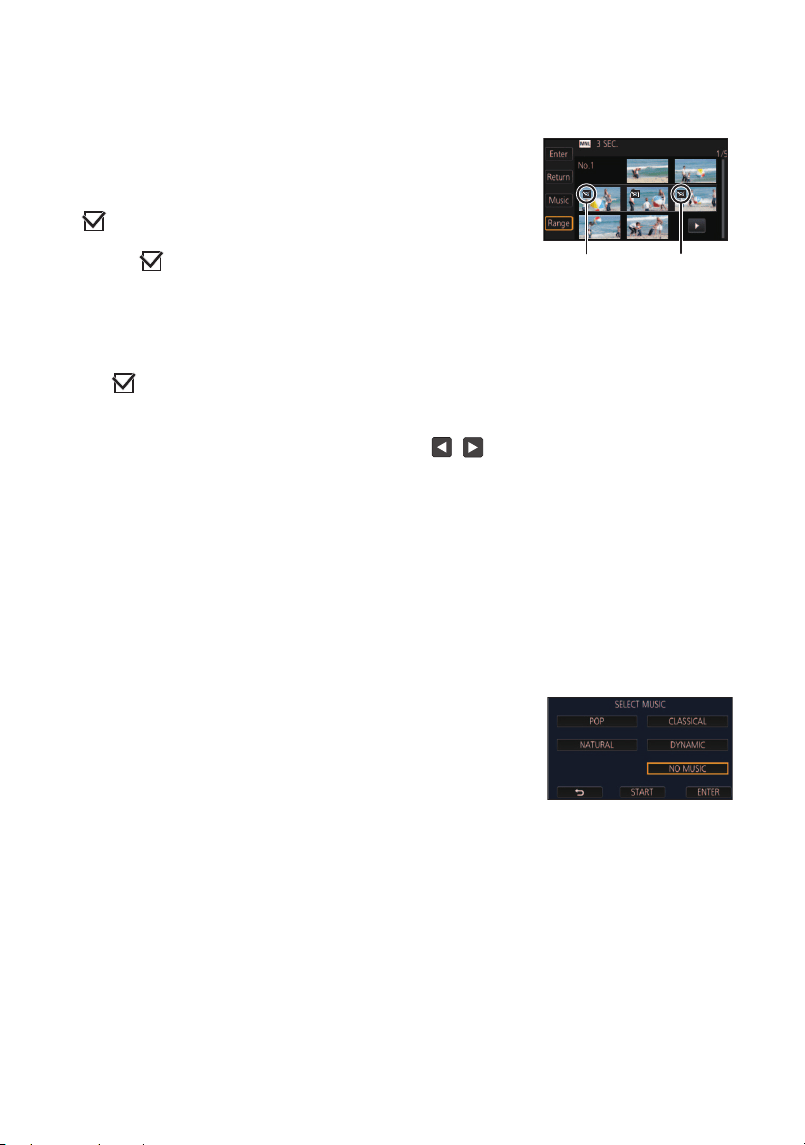
- 119 -
4 (To select thumbnails by specifying a range)
Touch [Range].
≥ To cancel the operation, touch it again.
≥ You can also select multiple ranges within the same scene.
≥ Next (previous) thumbnail is displayed by touching / .
≥ To select other scenes, touch [Return] to return to the screen that displays the thumbnails of
scenes, and perform the following operations.
j When selecting a scene:
Touch the desired scene.
j When selecting part of a scene:
Perform the operations in Steps 1-5.
∫ To set the music
1 Touch [Music].
2 Touch the desired sound.
≥ When [NO MUSIC] is selected, the audio recorded at the time of shooting is played back.
(To test the music audio)
Touch [START].
≥ Touch the other music option to change the music to be tested.
≥ When you touch [STOP], the music playback stops.
3 Touch [ENTER].
5
(To select thumbnails by specifying a range)
Touch the range (start and finish points) you want
to play back.
≥ The range between start and finish points are selected, and the
indication (white) appears on the thumbnails.
≥ To cancel the selected thumbnails, from among the thumbnails
with the indication (white), touch the range (start and finish
points) you want to cancel.
≥ If you touch [Enter]/[Return]/[Music]/[Range] when a start point
has been selected, the start point thumbnail will be cancelled.
≥ Touching [Return] when the thumbnail has been selected
returns you to the screen that displays the thumbnails of scenes.
The indication appears on the thumbnail of the scene
containing the selected part.
A Start point
B Finish point
3S
HC-VX3_V900E-DVQP3181_eng.book 119 ページ 2024年10月22日 火曜日 午前10時6分

- 120 -
∫ To save a manually-edited scene
You can save manually edited scenes as a single scene.
1 Stop the playback of a manually-edited scene or wait until the playback is
finished.
2 Touch [SAVE].
3 Select the format to save.
(When [AVCHD 1920k1080/50i] is selected)
≥ Scenes recorded in 1080/50p are converted to 1080/50i (picture quality [HA] of [REC MODE])
and saved.
≥ Scenes recorded in 1080/50i are recorded in [HA] regardless of [REC MODE] ([PH]/[HA]/[HG]/
[HE]) of a scene.
4 Touch [YES].
≥ If you are using the battery, a message recommending that you use the AC adaptor will be
displayed. To start the saving operation, touch [START].
5 Touch [EXIT].
≥ You can save scenes even when using the battery, but we recommend that you use the AC
adaptor.
≥ For information on the approximate free space requirements for saving a manually edited scene,
refer to page 118.
[AVCHD 1920k1080/50i]: It will be saved in high-definition image quality.
[MP4 1280k720/25p]: It will be saved with an image quality, allowing you to upload it on
the Internet in higher image quality. The format supports playback
on a PC.
[MP4 640k360/25p]: It will be saved with an image quality, allowing you to upload it on
the Internet faster. The format supports playback on a PC.
HC-VX3_V900E-DVQP3181_eng.book 120 ページ 2024年10月22日 火曜日 午前10時6分
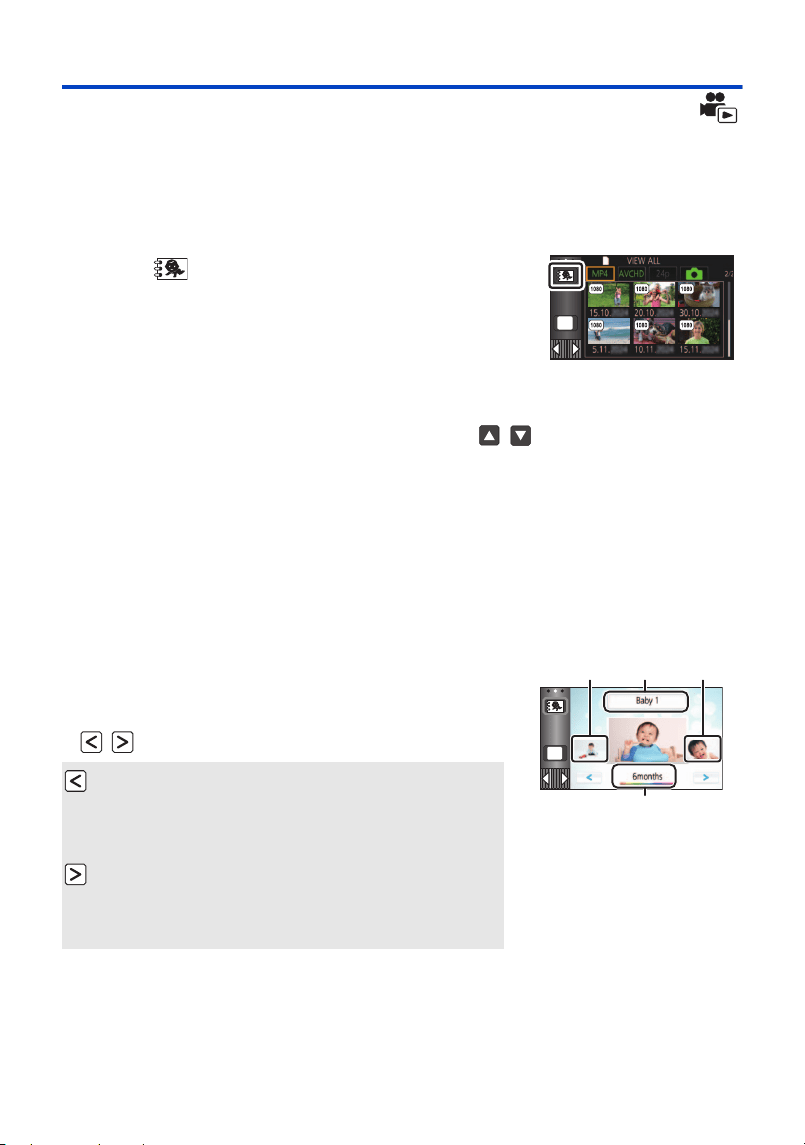
- 121 -
Baby Calendar
When a baby’s birthday and name are registered, scenes recorded since the baby’s birthday are
displayed as thumbnails for each age in months.
≥ You cannot select scenes recorded as 24p.
≥ Scenes recorded before the birthday are not displayed.
≥ Scenes with no baby in them are also displayed.
≥ You can register up to 3 babies.
1 Touch .
2 (When registering for the first time)
Enter the baby’s birthday.
≥ Touch the date to be set, then set the desired value using / .
≥ The year can be set between 2000 and 2039.
≥ Touch [Enter].
3 (When registering for the first time)
Touch [YES], and enter the baby’s name.
≥ If you touch [NO], the Baby Calendar will be displayed without the baby’s name registered.
([Baby 1] is displayed.)
≥ Input method is same operation as for setting up the title. (l 115)
≥ After entering the name, touch [Enter].
≥ A maximum of 9 characters can be entered.
≥ Except for months with no recordings, the age in months display is available for each month.
≥ If you touch the name display, the screen for selecting a registered baby is displayed. From
among the 3 registered babies, select the baby you want to display, and touch [ENTER].
If you touch a name with no registered birthday ([Baby 1]/[Baby 2]/[Baby 3]), you can register a
new baby. Perform step 2-3.
MENU
4 Check the Baby Calendar.
≥ The name of the registered baby and its age in months are
displayed.
≥ You can switch the age in months display by touching
/.
A Name display
B Age in months display
C Thumbnail for the
previous age in months
D Thumbnail for the next
age in months
: Changes the age in months display to that of
the previous month
If you touch this icon when the youngest age in months is
displayed, the oldest age in months will be displayed.
: Changes the age in months display to that of
the next month
If you touch this icon when the oldest age in months is
displayed, the youngest age in months will be displayed.
MENU
HC-VX3_V900E-DVQP3181_eng.book 121 ページ 2024年10月22日 火曜日 午前10時6分
- 122 -
5 Touch the thumbnail in the centre.
≥ The thumbnails of the scenes recorded in the same age in months are displayed. Touch the
desired scene to select the playback operation. (l 35)
≥ The thumbnail display cannot be set to 1 scene/6 scenes display or to the Time Frame Index.
≥ You cannot perform Highlight Playback if the number of scenes exceeds 99.
≥ Touching returns you to the screen that lets you select the age in months.
To return to the normal thumbnail display
Touch the while the Baby Calendar is displayed.
To change/add a baby’s registered details
1 Touch the name display on the Baby Calendar (
l 121) or select the menu.
2 Touch the name of the baby whose details are to be changed.
≥ When [Baby 1]/[Baby 2]/[Baby 3] is displayed, the birthday and name or name only are not
registered.
3 Touch the desired item.
≥ The setting method is the same as when registering for the first time. (l 121)
4 Touch [ENTER].
≥ The Baby Calendar of the registered baby is displayed.
To delete a baby’s registered details
1 Touch the name display on the Baby Calendar (
l 121) or select the menu.
2 Touch the name of the baby whose details are to be deleted.
3 Touch [DELETE].
≥ To delete the registered details of other babies, repeat Steps 2 to 3.
≥ When the Baby Calendar is displayed, the following operations are not available:
j [SCENE PROTECT]
j [SECTION DELETE]
j [DIVIDE]
j [MANUAL EDIT]
j [SPLIT&DELETE]
j [CONVERT TO MP4]
j [Slow Speed Conversion]
(For the )
j 4K Cropping
j Tagging Favourite Scene
: [VIDEO SETUP] # [Baby Calendar Setup]
Name: Register/change the name.
Birthday: Register/change the birthday.
: [VIDEO SETUP] # [Baby Calendar Setup]
MENU
MENU
VX3
HC-VX3_V900E-DVQP3181_eng.book 122 ページ 2024年10月22日 火曜日 午前10時6分
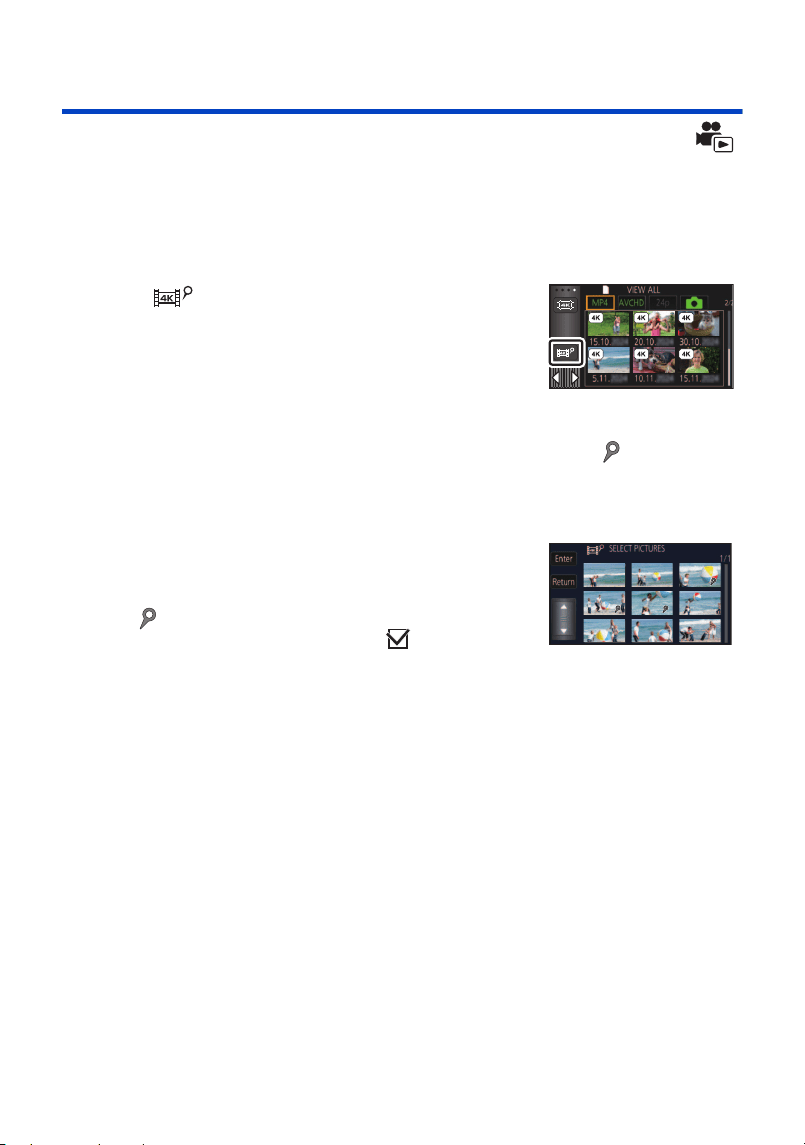
- 123 -
Tagging Favourite Scene
[VX3]
You can extract portions of a 4K MP4 scene that were recognised by this unit as clearly recorded or
that you registered as favourite scenes while recording the 4K MP4 scene, and save the extracted
portions as still pictures.
≥ For information on the registration of favourite scenes, refer to page 33.
≥ Touch [MP4] in the motion picture/still picture tab (l 34)
1 Touch .
≥ To uc h [O K] .
2 Touch the desired scene.
≥ Scenes to which favourite scenes are registered are displayed with the indication.
≥ Protected scenes cannot be selected.
3 Touch [SAVE ALL] or [SAVE SELECTED].
≥ Touching [SAVE ALL] will save all the pictures.
4 (When you have touched [SAVE SELECTED] in Step 3)
Touch [OK], and select the pictures to be saved.
≥ Pictures registered as favourite scenes are displayed with
the indication.
≥ Touch a thumbnail to select the picture. will be
displayed. To cancel the selected picture, touch the
thumbnail again.
5 (When you have touched [SAVE SELECTED] in Step 3)
Touch [Enter].
HC-VX3_V900E-DVQP3181_eng.book 123 ページ 2024年10月22日 火曜日 午前10時6分
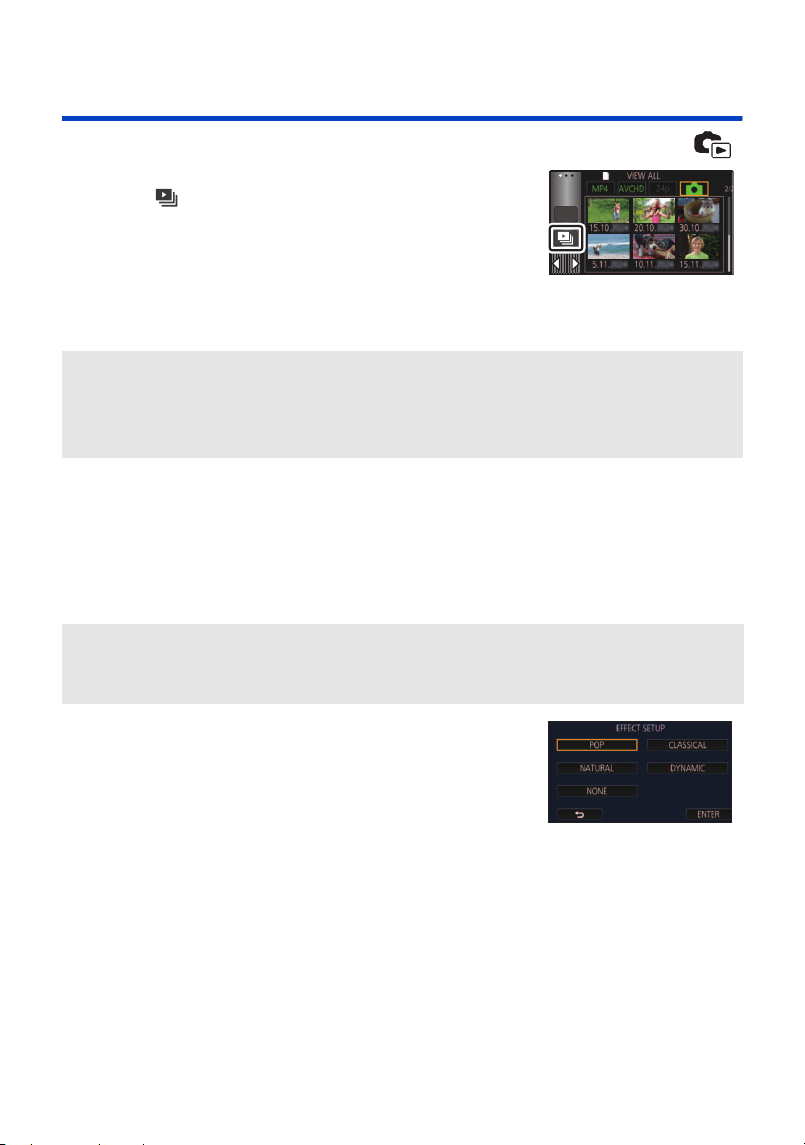
- 124 -
Changing the playback settings and playing back the
slide show
1 Touch . (l 23)
2 (Only when you would like to change the settings)
Touch [SET] to select the item to change.
* Setting is not possible when the operation in Step 1 is performed while thumbnails in the Stop
Motion Animation Assist Mode are displayed. (l 126)
3 (When [DATE SETUP] is selected)
Touch the playback date.
(When [SLIDES INTERVAL] is selected)
Touch the interval of playback for the slide show.
(When [EFFECT SETUP] is selected)
Touch the desired effect.
≥ Touch [ENTER].
≥ When [EFFECT SETUP] is changed, [MUSIC SELECT] will be
set the same as [EFFECT SETUP]. (To set [EFFECT SETUP]
and [MUSIC SELECT] to different settings, change
[MUSIC SELECT] after setting [EFFECT SETUP].)
≥ [SLIDES INTERVAL] cannot be set, when [EFFECT SETUP] is set.
ALL
[DATE SETUP]: Select the date to be played back.
[SLIDES INTERVAL]
*
: Select the interval between still pictures at playback.
[EFFECT SETUP]
*
: Select the effect for playback.
[MUSIC SELECT]: Select the music to be played on playback.
[SHORT]: Approx. 1 second
[NORMAL]: Approx. 5 seconds
[LONG]: Approx. 15 seconds
HC-VX3_V900E-DVQP3181_eng.book 124 ページ 2024年10月22日 火曜日 午前10時6分

- 125 -
(When [MUSIC SELECT] is selected)
Touch the desired sound.
≥ Touch [ENTER].
(To test the music audio)
Touch [START] and start the audio testing.
≥ Touch the other music option to change the music to be tested.
≥ When you touch [STOP], the music playback stops.
4 Touch [START].
5 Select the playback operation. (l 35)
≥ When the playback is finished or stopped, the screen to select [REPLAY], [SELECT AGAIN] or
[EXIT] is displayed. Touch the desired item.
HC-VX3_V900E-DVQP3181_eng.book 125 ページ 2024年10月22日 火曜日 午前10時6分
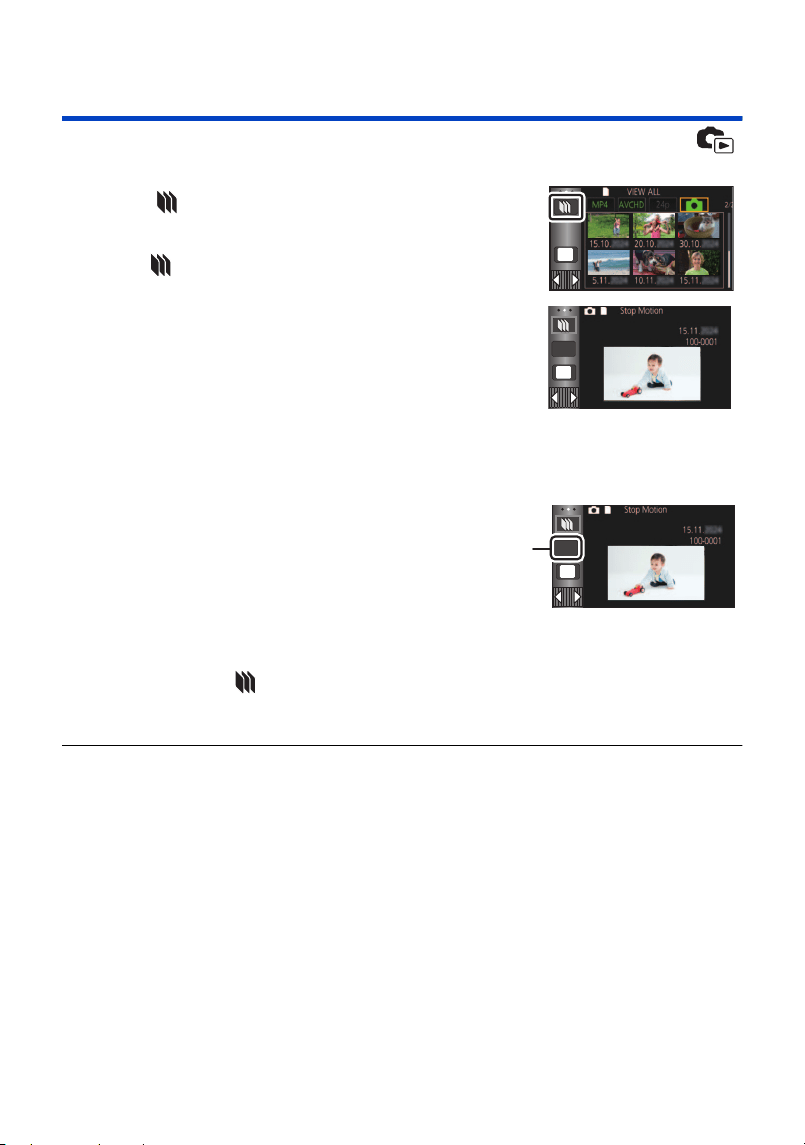
- 126 -
Playing back still pictures recorded in Stop Motion
Animation Assist Mode as a slide show
≥ For details on recording in Stop Motion Animation Assist Mode, refer to page 64.
1 Touch .
≥ The recording group created most recently in Stop Motion
Animation Assist Mode is displayed.
≥ Touching again, returns the display to the normal thumbnail
display.
2 Touch a thumbnail to play back the slide show.
≥ The thumbnail display cannot be set to 6 scenes display.
3 Select the playback operation. (l 35)
≥ The display returns to the thumbnail display when playback is
finished or stopped.
To play back other recording groups:
You can play back other recording groups by touching the date select icon.
2 Touch the playback date.
≥ Touch a date with the indication.
≥ Recording groups in the selected date are displayed.
≥ Touch a thumbnail to play back the slide show.
≥ Slide shows can be played back with settings changed. (l 124)
≥ The recording group played back as a slideshow cannot be saved as a single scene.
1 Touch the date select icon.
A Date select icon
MENU
NEW
MENU
NEW
MENU
NEW
HC-VX3_V900E-DVQP3181_eng.book 126 ページ 2024年10月22日 火曜日 午前10時6分
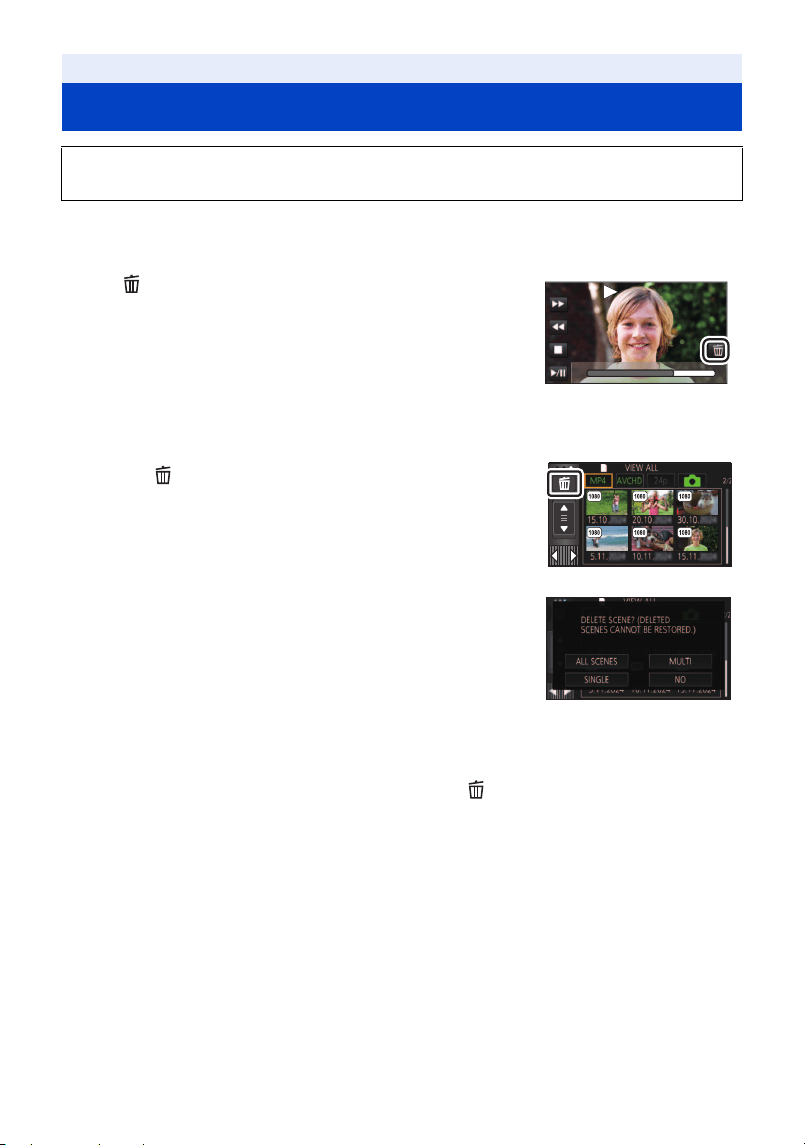
- 127 -
¬ Press the recording/playback button to switch this unit to the Playback Mode.
∫ To delete the scene or still picture being played back
Touch while scenes or still pictures to be deleted
are being played back.
∫ To delete scenes or still pictures from the thumbnail display
≥ Switch to the thumbnail display of the scenes or still pictures to delete. (l 34)
1 Touch . (l 23)
≥ When the thumbnail display is 1 scene display or Time Frame
Index, the scene or still picture being displayed is deleted.
≥ When the thumbnails of still pictures recorded in Stop Motion
Animation Assist Mode are displayed, the still pictures cannot be
deleted. (l 126)
2 Touch [ALL SCENES], [MULTI] or [SINGLE].
≥ All the scenes or still pictures displayed as thumbnails will be
deleted by selecting [ALL SCENES].
(In case of playing back scenes or still pictures by date, all the
scenes or still pictures on the selected date will be deleted.)
≥ Protected scenes/still pictures cannot be deleted.
3 (When [MULTI] is selected in Step 2)
Touch the scene/still picture to be deleted.
≥ When touched, the scene/still picture is selected and the indication appears on the thumbnail.
Touch the scene/still picture again to cancel the operation.
≥ Up to 99 scenes can be selected to be deleted.
(When [SINGLE] is selected in Step 2)
Touch the scene/still picture to be deleted.
4 (When [MULTI] is selected in Step 2)
Touch [Delete].
≥ To continuously delete other scenes/still pictures, repeat Steps 3-4.
Advanced (Playback)
Deleting scenes/still pictures
Deleted scenes/still pictures cannot be restored, so perform appropriate confirmation of
the contents before proceeding with deletion.
0h01m30s0h01m30s0h01m30s
HC-VX3_V900E-DVQP3181_eng.book 127 ページ 2024年10月22日 火曜日 午前10時6分

- 128 -
When you stop deleting halfway:
Touch [CANCEL] while deleting.
≥ The scenes or still pictures that have already been deleted when the deletion is cancelled cannot
be restored.
To complete editing:
Touch [Return].
≥ You can also delete scenes by touching , selecting [EDIT SCENE] # [DELETE] # [ALL
SCENES], [MULTI] or [SINGLE].
≥ You can also delete still pictures by touching , selecting [PHOTO SETUP] # [DELETE] #
[ALL SCENES], [MULTI] or [SINGLE].
When the thumbnails of still pictures recorded in Stop Motion Animation Assist Mode are
displayed, the still pictures cannot be deleted from the menu. (l 126)
≥ Deletion is not possible in the following situations:
j (For the )
During 4K Cropping preview
j During Highlight Playback
≥ Scenes that cannot be played back (the thumbnails are displayed as ) cannot be deleted.
≥ In case of [ALL SCENES], the deletion may take time if there are many scenes or still pictures.
≥ If you delete scenes recorded on other products or still pictures conforming to DCF standard with
this unit, all the data related to the scenes/still pictures may be deleted.
≥ When still pictures recorded on an SD card by other products are deleted, a still picture (other
than JPEG) that cannot be played back on this unit, may be erased.
MENU
MENU
VX3
HC-VX3_V900E-DVQP3181_eng.book 128 ページ 2024年10月22日 火曜日 午前10時6分
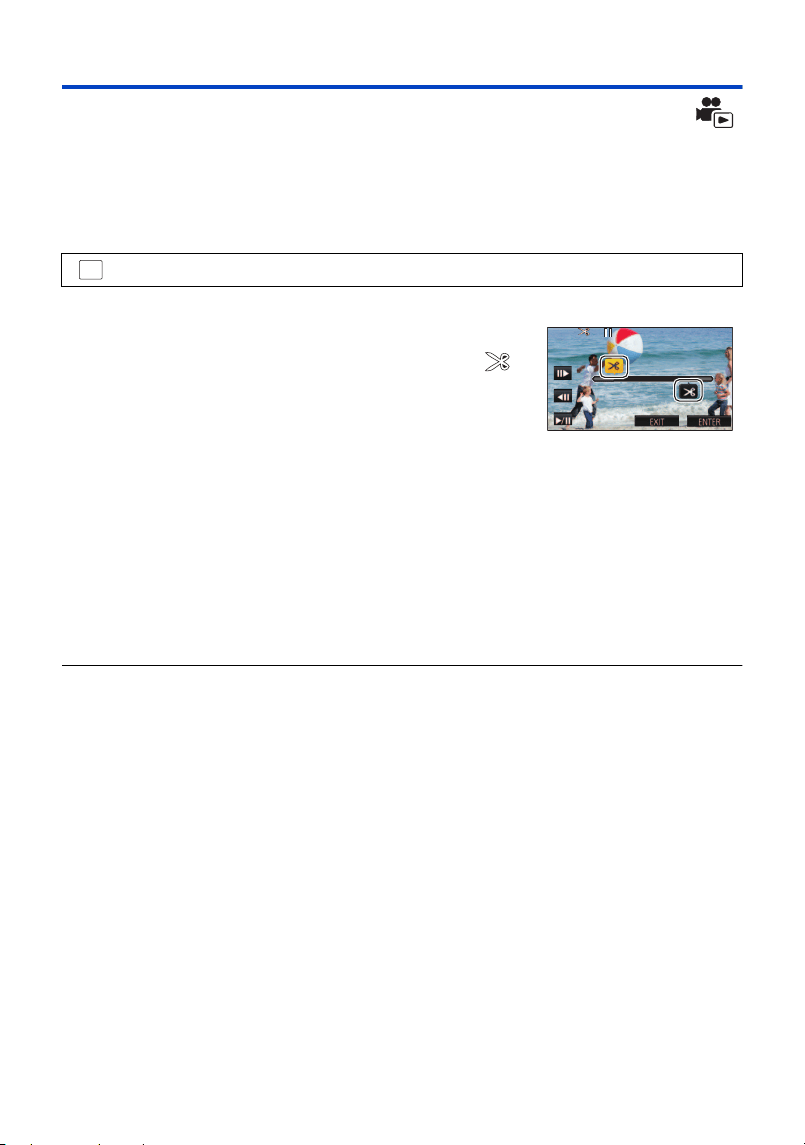
- 129 -
Deleting part of a scene (AVCHD)
Unnecessary part of an AVCHD scene can be deleted.
The deleted scenes cannot be restored.
≥ Touch [AVCHD] in the motion picture/still picture tab (l 34)
1 Select the menu.
2 Touch the scene with a part to delete.
3 Set the section to delete by touching and sliding
the top and bottom section selection buttons .
≥ It is convenient to use Slow-motion Playback and Frame-by-
frame Playback. (l 96)
4 Touch [ENTER].
5 Confirm (play back) the scene after editing by touching [YES].
≥ A confirmation message appears when [NO] is touched. Proceed to Step 7.
6 Stop the playback.
≥ A confirmation message appears.
7 Touch [ENTER].
≥ Repeat Steps 2-7 to continuously delete parts from other scenes.
To complete editing
Touch [Return].
≥ Deleting a part of a scene cannot be performed when there are 99 scenes in a single date.
≥ It may not be possible to delete part of a scene with a short recording time.
≥ The scene will be divided into two scenes when the middle part of a scene is deleted.
: [EDIT SCENE] # [SECTION DELETE]
MENU
0h00m15s
0h00m15s
0h00m15s
HC-VX3_V900E-DVQP3181_eng.book 129 ページ 2024年10月22日 火曜日 午前10時6分
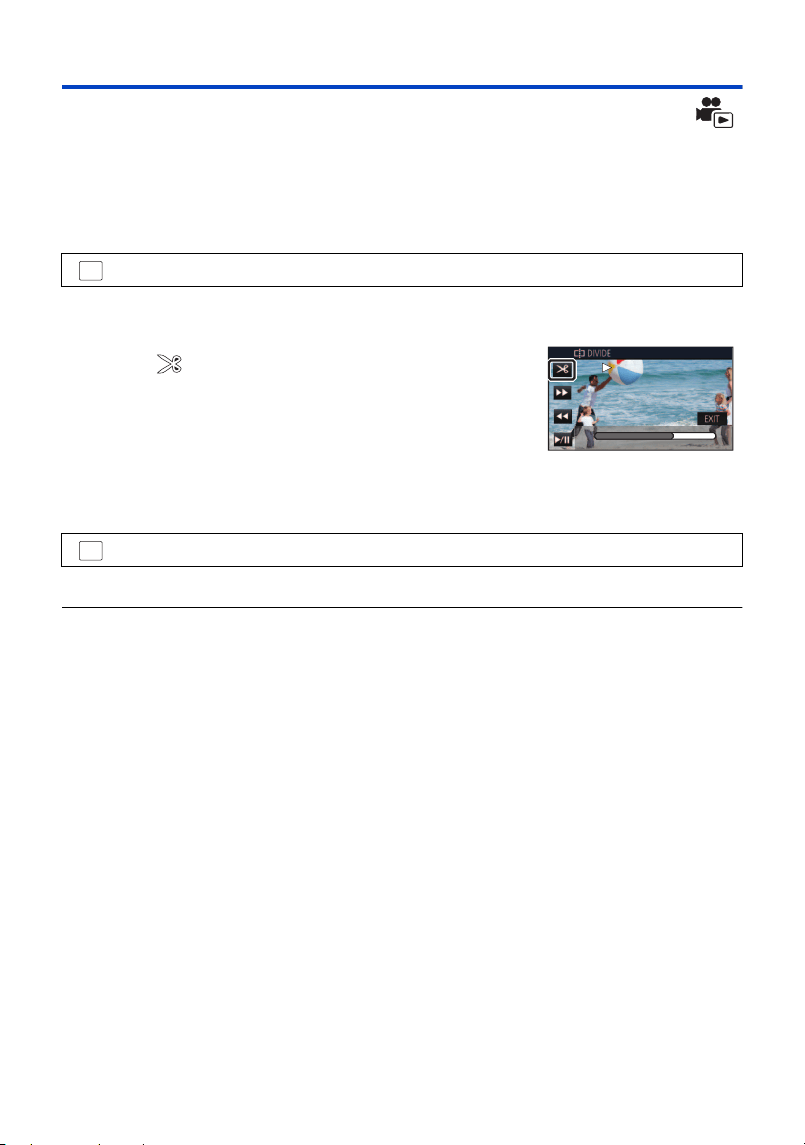
- 130 -
Dividing a scene (AVCHD)
It is possible to divide an AVCHD scene.
Any unwanted parts in the scene can be deleted after dividing.
≥ Touch [AVCHD] in the motion picture/still picture tab (l 34)
1 Select the menu.
2 Touch and play back the scene you want to divide.
≥ It is convenient to use Slow-motion Playback and Frame-by-frame Playback. (l 96)
3 Touch to set the dividing point.
≥ Touch [YES].
≥ Touch [YES] to continue dividing the same scene. To continue
dividing other scenes, touch [NO] and repeat Steps 2-3.
4 Touch [Return] to complete dividing.
≥ Unwanted parts can be deleted. (l 127)
To delete all the divided points
≥ The scenes that were deleted after division cannot be recovered.
≥ You cannot divide a scene if the number of scenes of a given date would exceed 99 scenes.
≥ It may not be possible to divide scenes with a short recording time.
≥ Data that has been recorded or edited on another device cannot be divided and the divided points
cannot be deleted.
: [EDIT SCENE] # [DIVIDE] # [SET]
: [EDIT SCENE] # [DIVIDE] # [CANCEL ALL]
MENU
0h00m15s0h00m15s0h00m15s
MENU
HC-VX3_V900E-DVQP3181_eng.book 130 ページ 2024年10月22日 火曜日 午前10時6分
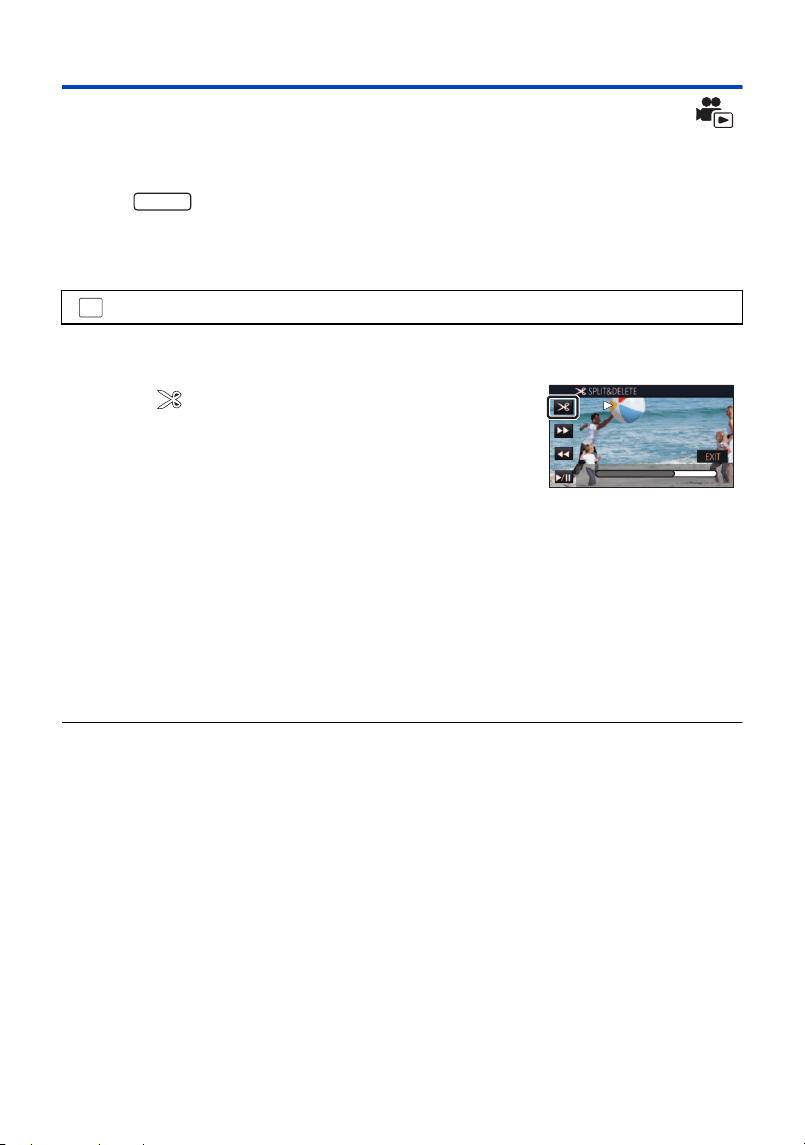
- 131 -
Dividing a scene to partially delete (4K MP4, MP4)
Divide the 4K MP4 scenes
*
or MP4 scenes, and delete unnecessary parts.
This divides the recorded scenes in two and deletes the front half or back half.
The scenes deleted by dividing cannot be restored.
*For the
≥ Touch [MP4] in the motion picture/still picture tab (l 34)
1 Select the menu.
2 Touch and play back the scene you want to divide.
≥ It is convenient to use Slow-motion Playback and Frame-by-frame Playback. (l 96)
3 Touch to set the dividing point.
≥ Set the dividing point so there will be 2 seconds or more for the
part for deletion, and 3 seconds or more for the part to be kept.
4 Touch the part for deletion ([FRONT] or [BACK]).
5 Touch [YES] and confirm (play back) the part for
deletion.
≥ A confirmation message appears when [NO] is touched. Proceed to Step 7.
6 Stop the playback.
≥ A confirmation message appears.
7 Touch [YES].
≥ To continue dividing and deleting other scenes, repeat Steps 2-7.
To complete editing
Touch [Return].
≥ [SPLIT&DELETE] is not available for 24p scenes.
≥ It may not be possible to divide scenes with a short recording time.
≥ The actual division may slightly slip off the previously designated dividing point.
: [EDIT SCENE] # [SPLIT&DELETE]
VX3
MENU
0h00m15s0h00m15s0h00m15s
HC-VX3_V900E-DVQP3181_eng.book 131 ページ 2024年10月22日 火曜日 午前10時6分
- 132 -
Protecting scenes/still pictures
Scenes/still pictures can be protected so that they are not deleted by mistake.
(Even if you protect some scenes/still pictures, formatting the media will delete them.)
≥ Press the recording/playback button to switch this unit to the Playback Mode.
1 Select the menu.
2 Touch the scene/still picture to be protected.
≥ When touched, the scene/still picture is selected and the indication appears on the
thumbnail. Touch the scene/still picture again to cancel the operation.
≥ Touch [Return] to complete the settings.
≥ When the thumbnails of still pictures recorded in Stop Motion Animation Assist Mode are
displayed, protection cannot be set on the still pictures.
: [VIDEO SETUP] or [PHOTO SETUP] # [SCENE PROTECT]
MENU
HC-VX3_V900E-DVQP3181_eng.book 132 ページ 2024年10月22日 火曜日 午前10時6分
- 133 -
You can convert and copy AVCHD scenes and MP4 scenes. The image quality will be converted
into a format that supports playback on a PC and online sharing (MP4 (1280k720/25p) or MP4
(640k360/25p)).
≥ (For the )
4K MP4 scenes can also be converted to high-definition picture quality (MP4 (1920k1080/25p))
scenes and copied.
≥ Touch [AVCHD] or [MP4] in the motion picture/still picture tab (l 34)
1 Select the menu.
2 Touch the scene you want to convert.
≥ The scene selection is made as you touch it, and the indication appears on the thumbnail.
To cancel the operation, touch the scene again.
≥ You can select up to 99 scenes in succession.
3 Touch [Enter].
4 Select the quality after conversion.
5 Touch [YES].
≥ To continue converting scenes to MP4, repeat steps 2 to 5.
Advanced (Playback)
Convert to MP4
: [EDIT SCENE] # [CONVERT TO MP4]
[FHD(1920k1080/25p)]
*1
: Convert to MP4 (1920k1080/25p) and copy.
[HD(1280k720/25p)]
*2
: Convert to MP4 (1280k720/25p) and copy.
[VGA(640k360/25p)]: Convert to MP4 (640k360/25p) and copy.
*1 (For the )
This quality is displayed only when a 4K MP4 scene is selected.
*2 You cannot convert and copy MP4 [720/25p] scenes.
VX3
MENU
VX3
HC-VX3_V900E-DVQP3181_eng.book 133 ページ 2024年10月22日 火曜日 午前10時6分

- 134 -
To stop converting to MP4 halfway
Touch [CANCEL] during format conversion.
To exit the MP4 conversion
Touch [Return].
≥ [CONVERT TO MP4] is not available for the following scenes:
s 24p scenes
s Scenes saved in MP4 (640k360/25p)
≥ A scene recorded over a long time may take time.
≥ When the following scenes are converted to MP4 scenes and copied, those exceeding 4 GB
(approx.) or 30 minutes (approx.) will be automatically divided.
j Scenes recorded with [1080/50M] of [MP4]
j AVCHD scenes
j (For the )
4K MP4 scenes
≥ If you convert protected scenes to MP4, their protection will be cleared after the conversion.
VX3
HC-VX3_V900E-DVQP3181_eng.book 134 ページ 2024年10月22日 火曜日 午前10時6分
- 135 -
You can convert the playback speed of parts recorded in FULL HD Slow Motion Video Mode (l 60,
63) to 1/4 normal speed, and copy them.
Once converting scenes recorded in FULL HD Slow Motion Video Mode, you can play them back on
another device at 1/4 normal speed.
≥ Touch [MP4] in the motion picture/still picture tab (l 34)
1 Select the menu.
2 Touch a scene recorded in FULL HD Slow Motion Video.
≥ On the thumbnail screen in Playback Mode, scenes recorded as FULL HD Slow Motion Video are
displayed with the indication.
≥ The scene selection is made as you touch it, and the indication appears on the thumbnail.
To cancel the operation, touch the scene again.
≥ Up to 99 scenes can be selected in succession.
3 Touch [Enter].
≥ A message asking whether to delete the original scene will be displayed. To delete the scene,
select [YES]. To keep it, select [NO].
To cancel the slow speed conversion or the deletion of the original scene
midway
During the conversion or deletion, touch [CANCEL].
To exit the slow speed conversion
Touch [Return].
≥ When a converted scene is recorded in a medium, the scene becomes larger in size than the
original one. The converted scene may be divided depending on its size.
≥ It may take a while to convert a long scene.
≥ If you perform [Slow Speed Conversion] on protected scenes, their protection will be cleared after
the conversion.
Advanced (Playback)
Slow speed conversion
: [EDIT SCENE] # [Slow Speed Conversion]
MENU
HC-VX3_V900E-DVQP3181_eng.book 135 ページ 2024年10月22日 火曜日 午前10時6分
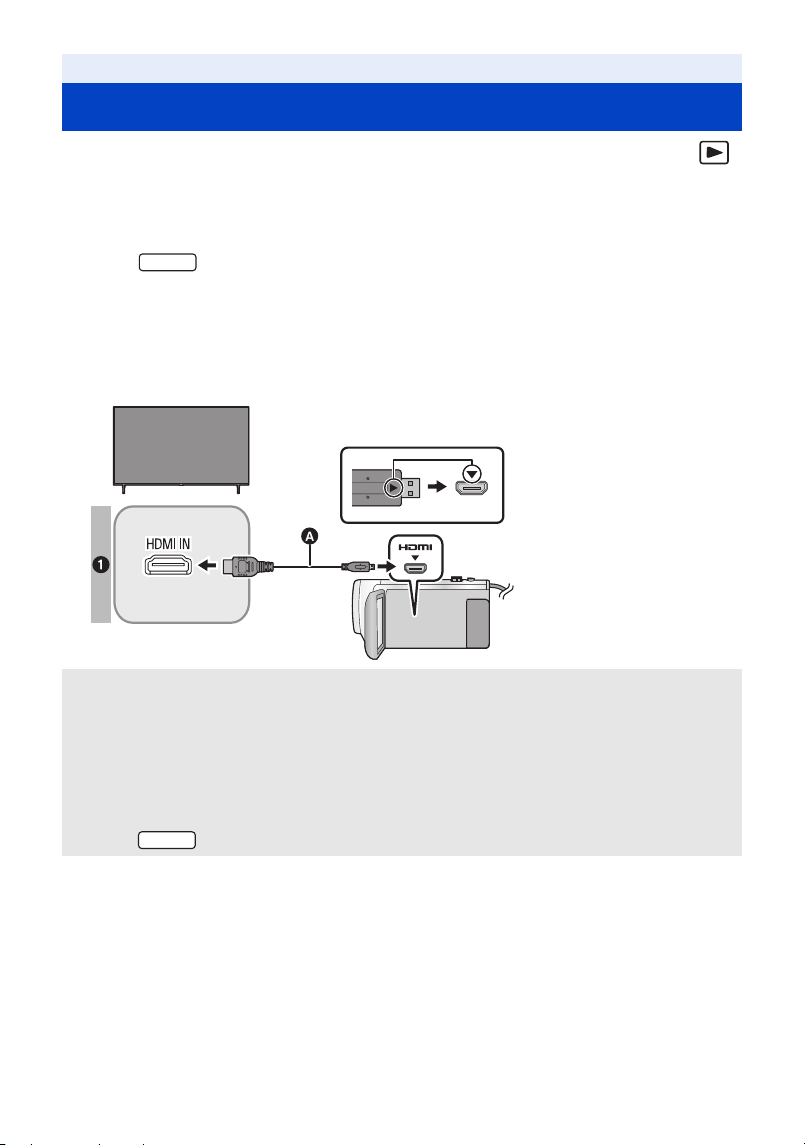
- 136 -
≥ Use the HDMI micro cable (supplied).
≥ HDMI is the interface for digital devices. If you connect this unit to an HDMI compatible high-
definition TV and then play back the recorded high-definition images, you can enjoy them in high
resolution with high quality sound.
≥ (For the )
You can enjoy finely-detailed 4K motion pictures by connecting this unit to a TV that supports 4K
motion pictures and playing back 4K MP4 scenes or scenes recorded in the recording mode
[2160/24p].
Although the output resolution will be lower, you can also play them back by connecting this unit
to a high-definition TV or other device that does not support 4K motion pictures.
1 Connect this unit to a TV.
≥ Check that the plugs are inserted as far as they go.
≥ Do not use any other HDMI micro cable except the supplied one.
Advanced (Playback)
Watching Video/Pictures on your TV
A HDMI micro cable (supplied)
≥ Be sure to connect to the HDMI terminal. (Insert the connector with the arrow side facing up.)
≥ Connecting with an HDMI micro cable (l 138)
≥ Listening in 5.1 channel sound (AVCHD) (l 139)
≥ Playback using VIERA Link (l 140)
Picture quality
1 To play back images recorded in 4K
*
or high definition picture quality, connect this unit to the
HDMI terminal of the TV.
* For the
VX3
VX3
HC-VX3_V900E-DVQP3181_eng.book 136 ページ 2024年10月22日 火曜日 午前10時6分
- 137 -
2 Select the video input on the TV.
≥ Example:
Select the [HDMI] channel with an HDMI micro cable.
(The name of the channel may differ depending on the connected TV.)
≥ Check the input setting (input switch) and the audio input setting on the TV. (For more
information, please read the operating instructions for the TV.)
3 Change the mode to to play back.
≥ When this unit and the TV are connected with the HDMI micro cable (supplied) in any of the
following situations, no image will be displayed on the TV. Use the LCD monitor of this unit.
j When recording a motion picture or using PRE-REC in HDR Movie Mode
j When [HDMI RESOLUTION] is set to [576p] in HDR Movie Mode
j FULL HD Slow Motion Video Mode
j When recording a motion picture with [REC FORMAT] set to [24p] or during PRE-REC
j When saving the Highlight Playback scene or a manually edited scene
j When performing [CONVERT TO MP4]/performing [Slow Speed Conversion]
(For the )
j When [REC FORMAT] is set to [4K MP4], when recording a motion picture in 4K Photo Mode
or during PRE-REC
j When saving a scene previewed with 4K Cropping
j Slow & Quick Video Mode
≥ If you connect this unit to the TV when this unit is set to Recording Mode, a squealing sound
*1
may be output. Before connecting this unit, set it to Playback Mode.
≥ When connected to the TV, sound in Playback Mode is not output from this unit. Also, since the
volume cannot be adjusted with this unit, adjust the volume of the TV.
≥ Some screens, such as the menu screen, may be displayed in reduced sizes on the TV.
*1 The microphone may pick up the sound from the speakers, producing an abnormal sound.
∫ To display the on-screen information on the TV
When the menu setting is changed, the information displayed on the screen (operation icon and
time code etc.) can be displayed/not displayed on the TV.
*2 This setting is only available in Motion Picture Recording Mode or Still Picture Recording Mode.
≥ (For the )
If the time stamp function is enabled, the time stamp is displayed on the TV even if [EXT.
DISPLAY] is set to [OFF]. (l 93)
: [SETUP] # [EXT. DISPLAY] # desired setting
[SIMPLE]
*2
: Information partially displayed
[DETAIL]: Detailed information displayed
[OFF]: Not displayed
VX3
MENU
VX3
HC-VX3_V900E-DVQP3181_eng.book 137 ページ 2024年10月22日 火曜日 午前10時6分
- 138 -
Connecting with an HDMI micro cable
Select the desired method of HDMI output.
(For the )
≥ [AUTO] determines the output resolution automatically based on information from the connected
TV.
If the images are not output on the TV when the setting is [AUTO], switch to the method [2160p],
[1080p], [1080i] or [576p] which enables the images to be displayed on your TV. (Please read the
operating instructions for the TV.)
≥ Images may not be displayed on the television for several seconds in some cases, such as when
changing between scenes.
≥ Even if you select [2160p], images are output in 1080p in the following cases:
j When this unit is connected to a TV that does not support 4K motion picture
j When [REC FORMAT] is set to [AVCHD] or [MP4] in Recording Mode
j When [REC FORMAT] is set to [24p] and [REC MODE] is set to [1080/24p] in Recording Mode
j When a scene other than a [4K MP4] or [2160/24p] scene is played back in Playback Mode
j When you start a 4K Cropping preview in Playback Mode
j When this unit is set to Still Picture Recording Mode or when you play back a still picture
≥ You can output 2160/24p scenes
*1
in 24 frames per second by connecting this unit to a TV that
supports 4K motion picture and setting [HDMI RESOLUTION] to [AUTO] or [2160p].
However, the scenes cannot be output in 24 frames per second in the situations below. They will
instead be output in 1080/60p, 1080/60i or 480/60p. (The setting varies depending on the
specifications of the TV and the [HDMI RESOLUTION] setting.)
j When this unit is connected to a TV that does not support 4K motion picture
j When [HDMI RESOLUTION] is set to a setting other than [AUTO] or [2160p]
≥ 1080/24p scenes
*2
cannot be output in 24 frames per second and instead they will be output in
1080/60p, 1080/60i or 480/60p. (The setting varies depending on the specifications of the TV and
the [HDMI RESOLUTION] setting.)
(For the )
≥ [AUTO] determines the output resolution automatically based on information from the connected
TV.
If the images are not output on the TV when the setting is [AUTO], switch to the method [1080p],
[1080i] or [576p] which enables the images to be displayed on your TV. (Please read the
operating instructions for the TV.)
≥ Images may not be displayed on the television for several seconds in some cases, such as when
changing between scenes.
≥ 1080/24p scenes
*2
cannot be output in 24 frames per second and instead they will be output in
1080/60p, 1080/60i or 480/60p. (The setting varies depending on the specifications of the TV and
the [HDMI RESOLUTION] setting.)
*1 In Recording Mode: When [REC FORMAT] is set to [24p] and [REC MODE] is set to [2160/24p]
In Playback Mode: When 2160/24p scenes are played back
*2 In Recording Mode: When [REC FORMAT] is set to [24p] and [REC MODE] is set to [1080/24p]
In Playback Mode: When 1080/24p scene are played back
: [SETUP] # [HDMI RESOLUTION] # [AUTO]/[2160p]/[1080p]/[1080i]/[576p]
: [SETUP] # [HDMI RESOLUTION] # [AUTO]/[1080p]/[1080i]/[576p]
VX3
MENU
V900
MENU
HC-VX3_V900E-DVQP3181_eng.book 138 ページ 2024年10月22日 火曜日 午前10時6分

- 139 -
Listening in 5.1 channel sound (AVCHD)
You still can listen to the 5.1 channel sound recorded from the internal microphones when this unit is
connected to the 5.1 channel compatible AV amplifier or TV using the HDMI micro cable.
Please read the AV amplifier and TV operating instructions for how to connect this unit to the AV
amplifier and TV.
≥ If you connect this unit to a Panasonic AV amplifier that are compatible with VIERA Link, linked
operations (VIERA Link) become possible. (l 140)
≥ Audio recorded with [5.1ch/2ch] set to [2ch] or audio recorded from a connected external
microphone or audio device is recorded in stereo (2 ch).
HC-VX3_V900E-DVQP3181_eng.book 139 ページ 2024年10月22日 火曜日 午前10時6分
- 140 -
¬ Press the recording/playback button to switch this unit to the Playback Mode.
1 Select the menu.
≥ If you are not using VIERA Link, set to [OFF].
2 Connect this unit to a Panasonic TV compatible with VIERA Link with an
HDMI micro cable. (
l 136)
≥ It is recommended to connect this unit to an HDMI terminal other than the HDMI1 if there are 2 or
more HDMI input terminals on the TV.
≥ VIERA Link must be activated on the connected TV. (Read the operating instructions of the TV for
how to set etc.)
3 Operate with the remote control for the TV.
≥ You can select the scene or picture you want to play back by pressing the button up, down, left or
right, and then the button in the centre.
Advanced (Playback)
Playback using VIERA Link
What is the VIERA Link (HDAVI Control
™
)?
≥ This function allows you to use your remote control for the Panasonic TV for easy operations
when this unit has been connected to a VIERA Link compatible device using an HDMI micro
cable (supplied) for automatic linked operations. (Not all operations are possible.)
≥ VIERA Link is a unique Panasonic function built on an HDMI control function using the
standard HDMI CEC (Consumer Electronics Control) specification. Linked operations with
HDMI CEC compatible devices made by other companies are not guaranteed.
When using devices made by other companies that are compatible with VIERA Link, refer to
the operating instructions for the respective devices.
≥ This unit supports “VIERA Link Ver.5” function. “VIERA Link Ver.5” is the standard for
Panasonic’s VIERA Link compatible equipment. This standard is compatible with Panasonic’s
conventional VIERA Link equipment.
: [SETUP] # [VIERA Link] # [ON]
MENU
HC-VX3_V900E-DVQP3181_eng.book 140 ページ 2024年10月22日 火曜日 午前10時6分
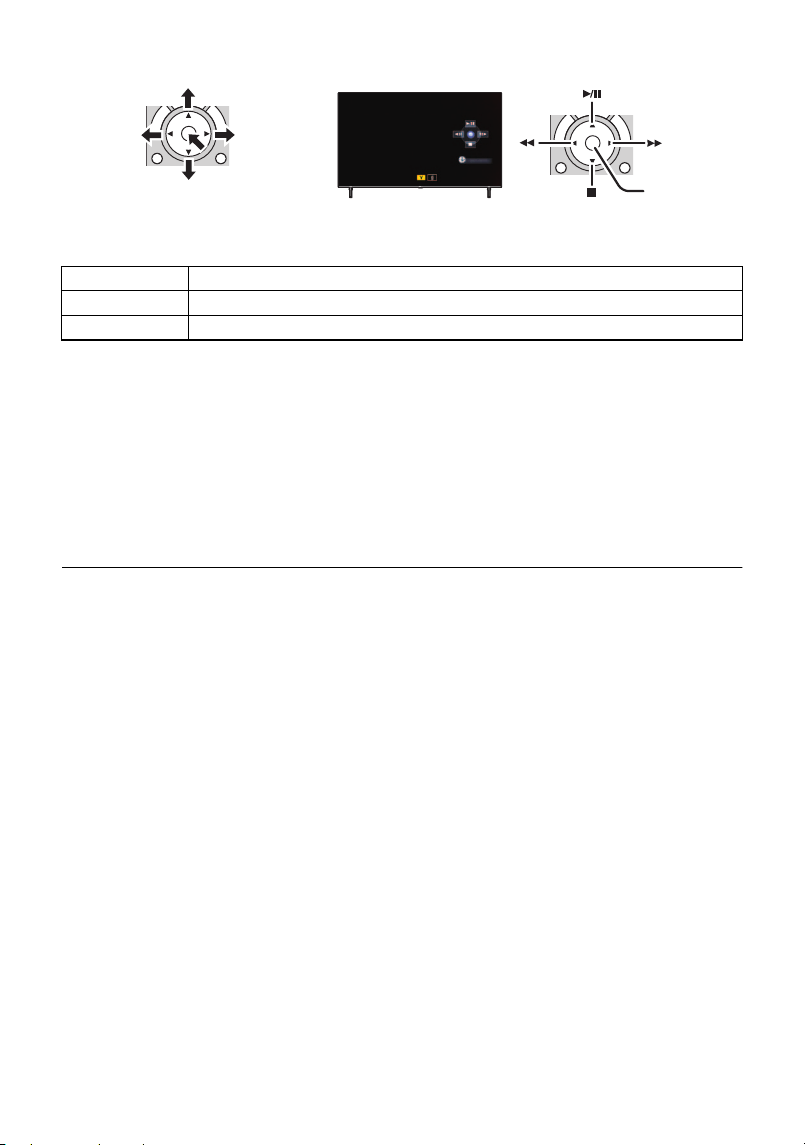
- 141 -
≥ The following operations are available by pressing the colour buttons on the remote control.
∫ Other linked operations
Turning the unit off:
If you use the remote control for the TV to turn off the power, this unit also turns off.
Automatic input switching:
If you connect with an HDMI micro cable and then turn on this unit, the input channel on the TV
automatically switches to this unit’s screen. If the TV’s power is in standby status, it will turn on
automatically (if [Set] has been selected for the TV’s [Power on link] setting).
≥ Depending on the HDMI terminal on the TV, the input channel may not switch automatically. In
this case, use the remote control for the TV to switch the input channel.
≥ If you are unsure whether or not the TV and AV amplifier you are using are compatible with
VIERA Link, read the operating instructions for the devices.
≥ Available linked operations between this unit and a Panasonic TV is different depending on the
types of Panasonic TVs even if they are compatible with VIERA Link. Refer to the operating
instructions of the TV for the operations that support on the TV.
≥ Operation is not possible with a cable that is not based on the HDMI standard.
(When selecting scenes) (When playing back)
A Display/Cancel operation icons
Green ≥ Zoom in on still picture
Yell ow ≥ Deleting scenes/still pictures
Red ≥ Zoom out from still picture
HC-VX3_V900E-DVQP3181_eng.book 141 ページ 2024年10月22日 火曜日 午前10時6分
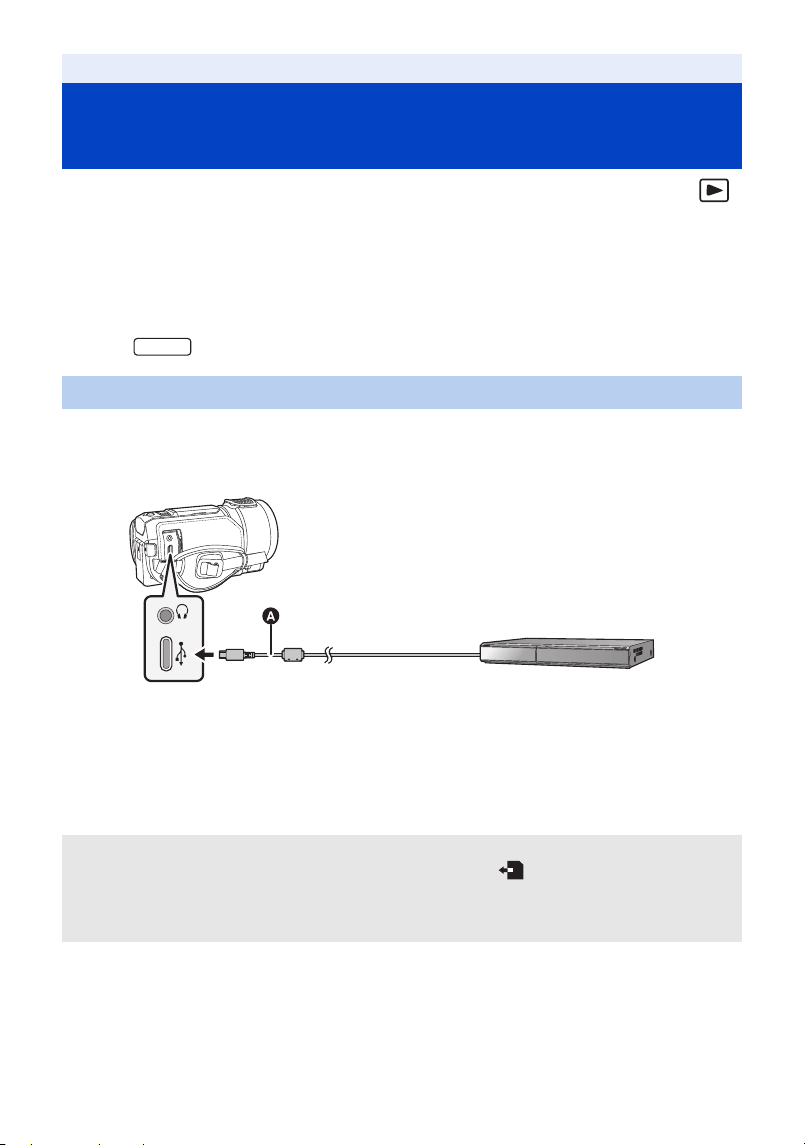
- 142 -
∫ Check before dubbing
This unit is able to dub 4K
*
/high definition material to devices such as recorders that are equipped
with USB terminals.
Check the equipment used for dubbing.
≥ Some equipment may not be compatible with 4K MP4
*
, MP4, 24p or high-definition (AVCHD).
≥ For the positions of the USB terminal, refer to the operating instructions of the equipment used.
*For the
You can dub by connecting a USB cable.
≥ Use a battery that has been sufficiently charged.
≥ Turn on the unit.
A USB cable (supplied)
≥ Insert the plugs as far as they will go.
1 Connect the unit to the Blu-ray disc recorder or high-definition (AVCHD)
compatible DVD recorder via the supplied USB cable.
≥ The connection complete message is displayed on the screen when the connection is complete.
≥ The LCD monitor turns off after about 5 seconds. Touch the screen to turn the LCD monitor on.
Dubbing
Dubbing with a Blu-ray disc recorder,
etc.
Dubbing in high-definition picture quality
About the screen indication of the unit
≥ When the unit is accessing the SD card, card access icon ( ) appears on the unit screen
or the access lamp is on.
≥ Be careful not to disconnect the USB cable or battery while the unit is accessing the media, as
this may result in the loss of recorded content.
VX3
HC-VX3_V900E-DVQP3181_eng.book 142 ページ 2024年10月22日 火曜日 午前10時6分

- 143 -
2 Dubbing through operations on the Blu-ray disc recorder or high-definition
(AVCHD) compatible DVD recorder.
≥ Do not use any other USB cables except the supplied one. (Operation is not guaranteed with any
other USB cables.)
≥ When this unit is connected to a Panasonic Blu-ray disc recorder or a DVD recorder using a USB
cable while the unit is turned on, power is also supplied from the connected equipment to this
unit.
≥ For details on dubbing and playback methods, read the operating instructions of the Blu-ray disc
recorder or DVD recorder.
≥ You cannot switch the Recording Mode/Playback Mode by pressing the recording/playback
button on this unit while the Blu-ray disc recorder or DVD recorder is connected. Disconnect the
USB cable before performing either of these operations.
≥ If the battery runs down during dubbing, a message will appear. Operate the Blu-ray disc recorder
to cancel the dubbing.
HC-VX3_V900E-DVQP3181_eng.book 143 ページ 2024年10月22日 火曜日 午前10時6分
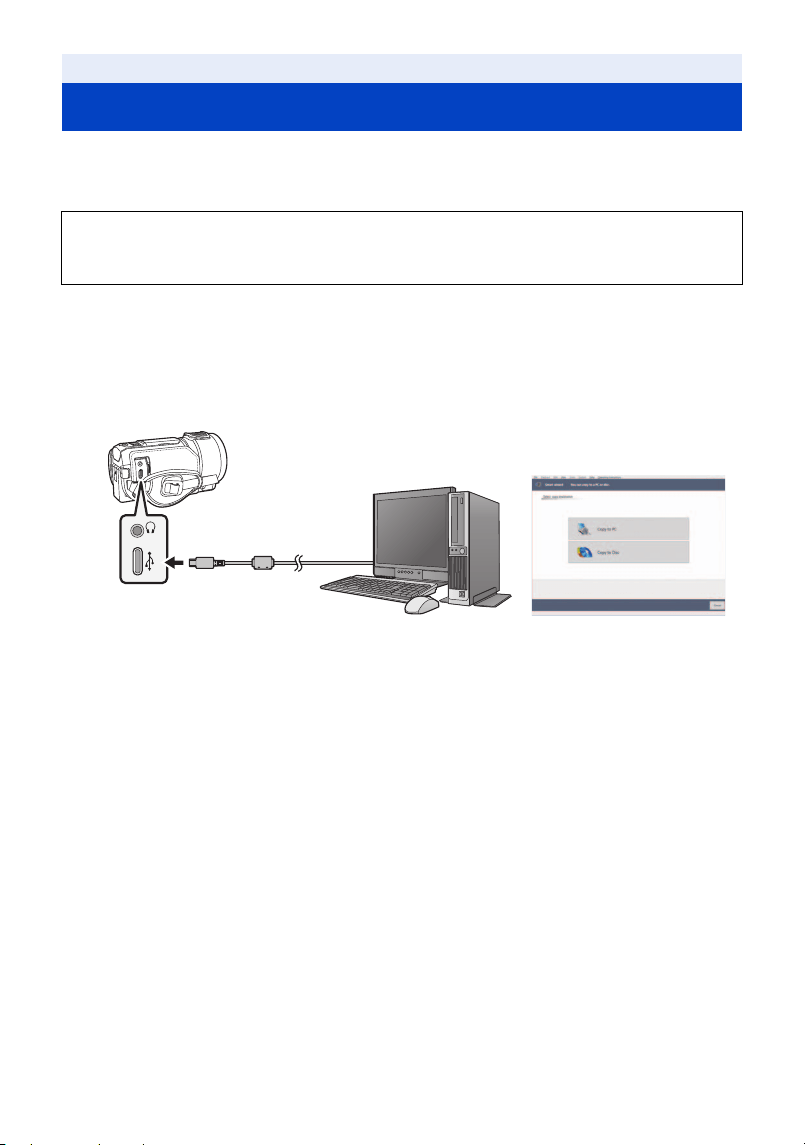
- 144 -
HD Writer AE 5.4
You can copy the motion/still picture data to the HDD of PCs or write to media like Blu-ray discs,
DVD discs or SD cards using HD Writer AE 5.4.
≥ Refer to the operating instructions of HD Writer AE 5.4 (PDF file) for details on how to use it.
(l 152)
∫ Smart Wizard
The Smart Wizard Screen is automatically displayed when you connect this unit to a PC with
HD Writer AE 5.4 installed. (l 149)
Copy to PC:
You can copy motion/still picture data to the HDD of PCs.
Copy to disc:
You can copy to disc in high-definition picture quality or conventional standard picture quality
(MPEG2 format).
≥ Select the function you wish to use and follow the on-screen instructions for easy copying.
With a PC
What you can do with a PC
Check the website below to download/install the software.
≥ The software is available for download until the end of November 2029.
https://panasonic.jp/support/global/cs/soft/download/f_ae54.html
HC-VX3_V900E-DVQP3181_eng.book 144 ページ 2024年10月22日 火曜日 午前10時6分
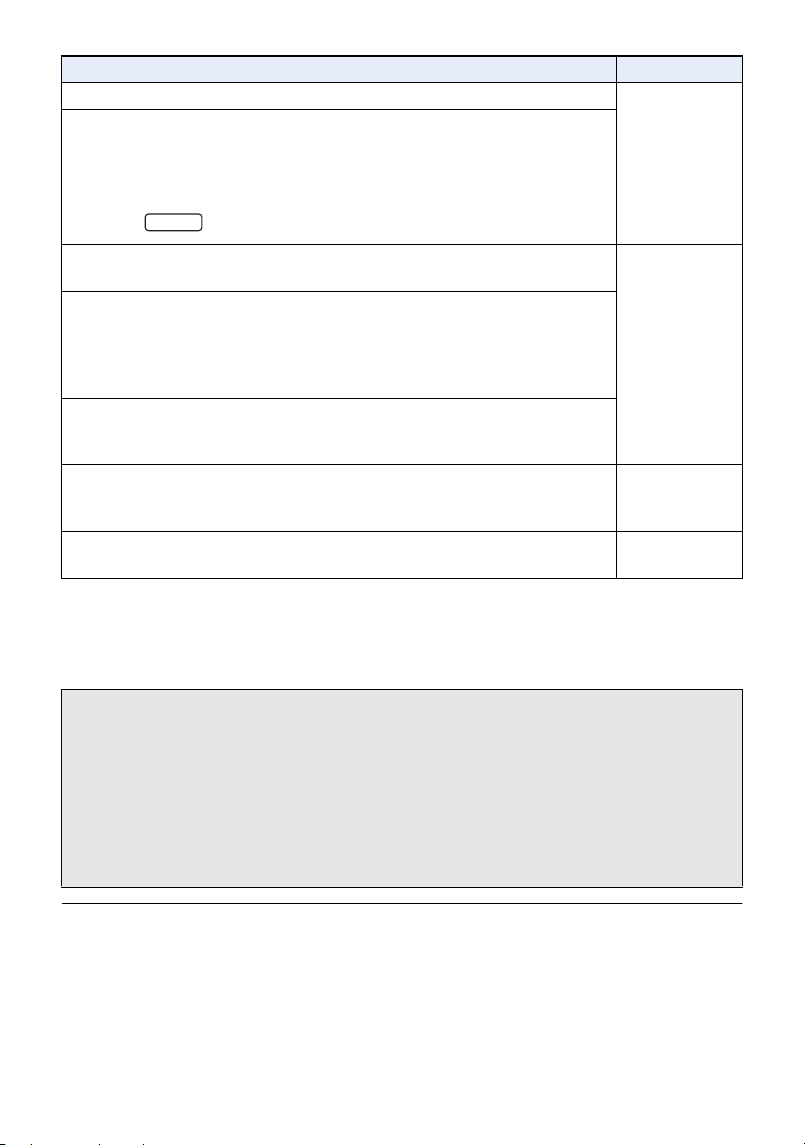
- 145 -
≥ It is possible to play back still pictures on a PC using a image viewer standard to Windows or
commercially available image browsing software, and copy still pictures to a PC using Windows
Explorer.
≥ Please refer to page 153 for details about using a Mac.
≥ It is impossible to write data to this unit from a PC.
≥ Motion pictures that have been recorded on another device cannot be written to the
HD Writer AE 5.4.
≥ When motion picture data is written to and read from the SD card, correct operation of the unit
cannot be guaranteed if software other than HD Writer AE 5.4 is used.
≥ Do not start HD Writer AE 5.4 and other software at the same time.
What can be done with the HD Writer AE 5.4 Data type
Copying data to a PC
Motion picture
and still picture
Copying in Blu-ray disc/AVCHD format:
≥ The scenes recorded in 1080/50p can be copied as 1080/50p.
(l 145: Important Notice)
≥ 4K MP4 scenes
*
, MP4 scenes or 24p scenes cannot be copied in Blu-ray
disc or in AVCHD format.
* For the
Copying in DVD-Video format:
≥ Converted to conventional standard quality (MPEG2 format).
Motion picture
Editing:
Editing motion picture data copied on an HDD of a PC
≥ Dividing, Trimming, Still picture, Title, Effect, Transition, BGM, Delete
partially
≥ Converting part of motion picture into still picture
Online sharing:
You can upload motion pictures on the Internet and share them with your
family and friends.
Playing back on a PC:
Play back the motion picture and still picture data in high-definition picture
quality on a PC.
Motion picture
and still picture
Formatting discs:
Depending on the type of disc that you use, formatting is necessary.
Motion picture
Important Notice
≥ Do not insert a disc recorded in AVCHD format with HD Writer AE 5.4 in a device that
does not support the AVCHD format. In some cases the disc may get stuck in the
device.
≥ To play back a Blu-ray disc to which you have copied scenes recorded in 1080/50p,
equipment is required that supports AVCHD Progressive.
≥ When inserting a disc containing recorded motion pictures into other devices, a
message prompting you to format the disc may be displayed. Do not format the disc,
since deleted data cannot be restored later.
VX3
HC-VX3_V900E-DVQP3181_eng.book 145 ページ 2024年10月22日 火曜日 午前10時6分
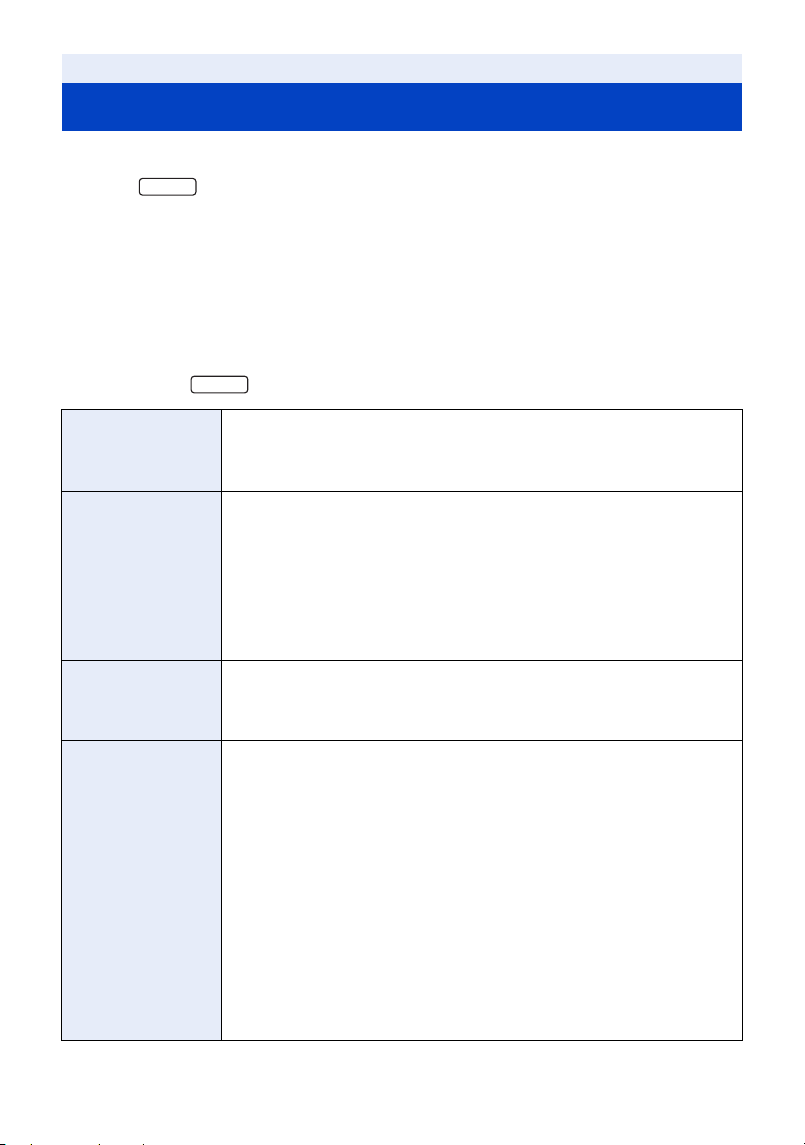
- 146 -
≥ Even if the system requirements mentioned in these operating instructions are fulfilled, some PCs
cannot be used.
≥ (For the )
Even if the system requirements are fulfilled, it may take some time to edit 4K motion pictures and
it may not be possible to play them back smoothly.
≥ A compatible Blu-ray disc/DVD writer drive and media are necessary for writing to a Blu-ray disc/
DVD.
≥ Operation is not guaranteed in the following cases.
j When 2 or more USB devices are connected to a PC, or when devices are connected through
USB hubs or by using extension cables.
∫ Operating environment for HD Writer AE 5.4
* If you are using , also read the descriptions for 4K motion pictures.
With a PC
Operating environment
OS Windows 11
Windows 10 (32 bit/64 bit)
≥ Windows 10 (64 bit)/Windows 11 is required for operations involving 4K
motion pictures.
*
CPU Intel Pentium 4 2.8 GHz or higher (including compatible CPU)
≥ Intel Core 2 Duo 2.16 GHz or higher or AMD Athlon 64 X2 Dual-Core
5200+ or higher is recommended when using playback function.
≥ Intel Core 2 Quad 2.6 GHz or higher is recommended when using
editing function.
≥ Intel Core i7 2.8 GHz or higher is recommended when using playback or
editing function for 1080/50p.
≥ Intel Core i7 3.5 GHz or higher is recommended when using playback or
editing function for 4K motion pictures.
*
RAM Windows 11/Windows 10:
2 GB or more (64 bit)/1 GB or more (32 bit)
≥ 8 GB or more is recommended when using playback or editing function
for 4K motion pictures.
*
Display High Colour (16 bit) or more (32 bit or more recommended)
Desktop resolution of 1024k768 pixels or more (1920k1080 pixels or
more recommended)
DirectX 9.0c compatible video card (DirectX 10 recommended)
Compatible with DirectDraw overlay
PCI Express
™
k16 compatible recommended
Video memory of 256 MB or more recommended
≥ A video card compatible with hardware decoding of 4K motion pictures
is required when using playback function for 4K motion pictures.
*
(For example)
Intel HD Graphics 4000 or higher
NVIDIA GeForce 600 series or higher
≥ A video memory of 2 GB or more is required when using playback or
editing function for 4K motion pictures.
*
≥ A 4K-compatible monitor and video card is required for 4K resolution
playback.
*
VX3
VX3
HC-VX3_V900E-DVQP3181_eng.book 146 ページ 2024年10月22日 火曜日 午前10時6分
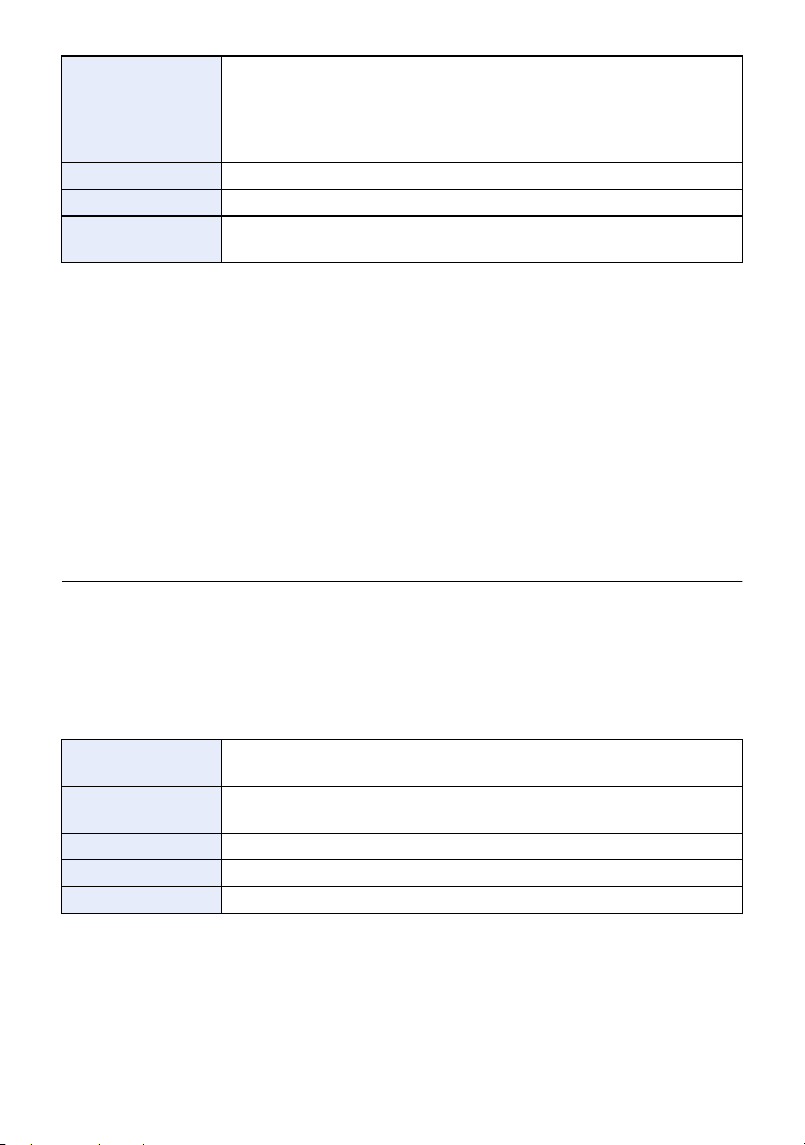
- 147 -
≥ HD Writer AE 5.4 is for Windows only.
≥ Input is not supported in languages other than English, German, French, Simplified Chinese and
Russian.
≥ Operation cannot be guaranteed on all Blu-ray disc/DVD drives.
≥ Operation cannot be guaranteed on the Pro for Workstation, Education, and Enterprise editions
of operating systems.
≥ This software is not compatible with a multi-boot environment.
≥ This software is not compatible with a multi-monitor environment.
≥ Administrative account and standard account users only can use this software. (An administrative
account user should install and uninstall this software.)
∫ To use the HD Writer AE 5.4
You will need a high performance PC depending on the functions to be used. It may not properly
play back or properly operate depending on the environment of the PC used. Refer to the operating
environment and notes.
≥ Operation during the playback may become slow if the CPU or memory is not fulfilling the
requirements of the operating environment.
≥ Always use the most current driver for the video card.
≥ Always make sure there is enough capacity on the HDD in the PC. It may become inoperable or
the operation may stop suddenly if the capacity gets low.
∫ Operating environment for the card reader function (mass storage)
≥ The USB equipment operates with the driver installed as standard in the OS.
Free hard disk drive
space
Ultra DMA — 100 or more
450 MB or more (for installing the software)
≥ If the compression setting is enabled, errors will occur during recording.
Clear the check box for [Compress this drive to save disk space] in
[Properties] for the hard disk drive.
Sound DirectSound Support
Interface USB port
Other requirements Mouse or equivalent pointing device
Internet connection
OS Windows 11
Windows 10 (32 bit/64 bit)
CPU 1 GHz or higher
32-bit (x86) or 64-bit (x64) processor
RAM 2 GB or more (64 bit)/1 GB or more (32 bit)
Interface USB port
Other requirements Mouse or equivalent pointing device
HC-VX3_V900E-DVQP3181_eng.book 147 ページ 2024年10月22日 火曜日 午前10時6分
- 148 -
When installing software, sign into the PC as a user with administrator privileges for the PC.
(If you do not have authorisation to do this, consult your manager.)
≥ Before starting the installation, close all applications that are running.
≥ Do not perform any other operations on your PC while the software is being installed.
≥ Explanation of operations is based on Windows 11.
∫ Installing HD Writer AE 5.4
∫ Uninstalling HD Writer AE 5.4
Follow the steps below to uninstall any software applications that you no longer require.
1 Select [ ] # [All apps] # [ (Settings)] # [Apps] # [Installed apps].
2 Select [HD Writer AE 5.4] # [ ], then click [Uninstall].
≥ Proceed with the uninstallation by following the on-screen instructions.
≥ After uninstalling the software, be sure to reboot the PC.
With a PC
Installation
Check the website below to download/install the software.
≥ The software is available for download until the end of November 2029.
https://panasonic.jp/support/global/cs/soft/download/f_ae54.html
HC-VX3_V900E-DVQP3181_eng.book 148 ページ 2024年10月22日 火曜日 午前10時6分
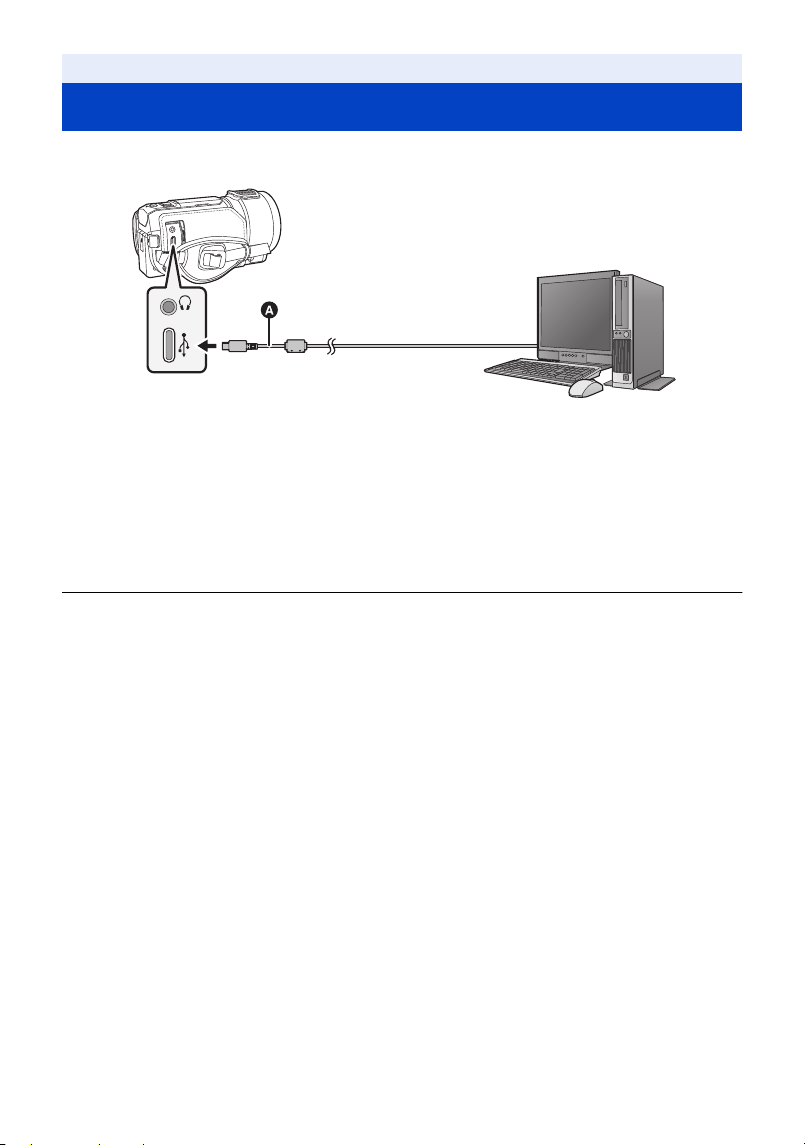
- 149 -
≥ Connect this unit to the PC after the software applications are installed.
≥ Use a battery that has been sufficiently charged.
A USB cable (supplied)
≥ Insert the plugs as far as they will go.
1 Turn on the unit.
2 Connect this unit to a PC via the supplied USB cable.
≥ The Smart Wizard Screen is automatically displayed when HD Writer AE 5.4 is installed.
≥ This unit is automatically recognised as an external drive of the PC. (l 151)
≥ The LCD monitor turns off after about 5 seconds. Touch the screen to turn the LCD monitor on.
≥ Do not use any other USB cables except the supplied one. (Operation is not guaranteed with any
other USB cables.)
≥ When this unit is connected to a PC using a USB cable while the unit is turned on, power is also
supplied from the PC to this unit.
≥ When performing reading/writing between a PC and an SD card, be aware that some SD card
slots built into PCs and some SD card readers are not compatible with the SDHC Memory Card or
SDXC Memory Card.
With a PC
Connecting to a PC
HC-VX3_V900E-DVQP3181_eng.book 149 ページ 2024年10月22日 火曜日 午前10時6分

- 150 -
∫ To disconnect USB cable safely
Select the icon in task tray displayed on the PC, and then select the model number of
this unit to disconnect the USB cable.
≥ Depending on your PC’s settings, this icon may not be displayed.
∫ Charging the battery by connecting it to different devices
When using the battery, if you turn off the unit and connect it to a PC, Panasonic Blu-ray disc
recorder or Panasonic DVD recorder, the battery will charge.
≥ When connecting this unit to a PC for the first time, make sure to connect this unit to the
PC with this unit turned on.
≥ Insert the USB cable securely all the way. It will not operate properly if it is not inserted all the
way.
≥ Do not use any other USB cables except the supplied one. (Operation is not guaranteed with any
other USB cables.)
≥ Be sure to connect the unit directly to the PC, Blu-ray disc recorder or DVD recorder.
≥ During charging, the status indicator flashes.
≥ You cannot charge when the status indicator flashes rapidly, or when it does not light at all.
Charge using the AC adaptor. (l 12)
≥ It will take 2 or 3 times longer to charge compared to when using the AC adaptor.
≥ If the status indicator flashes at a particularly fast or slow rate, refer to page 167.
About the screen indication of the unit
≥ Do not disconnect the USB cable or battery while the access lamp is on or card access icon
( ) appears on the unit screen.
≥ If the screen does not change when the unit is operated while connected to a PC, disconnect
the battery, wait approximately 1 minute, reconnect the battery, wait approximately 1 minute
again, and then turn the unit back on. (Data may be destroyed when above operation is
performed while accessing the SD card.)
HC-VX3_V900E-DVQP3181_eng.book 150 ページ 2024年10月22日 火曜日 午前10時6分
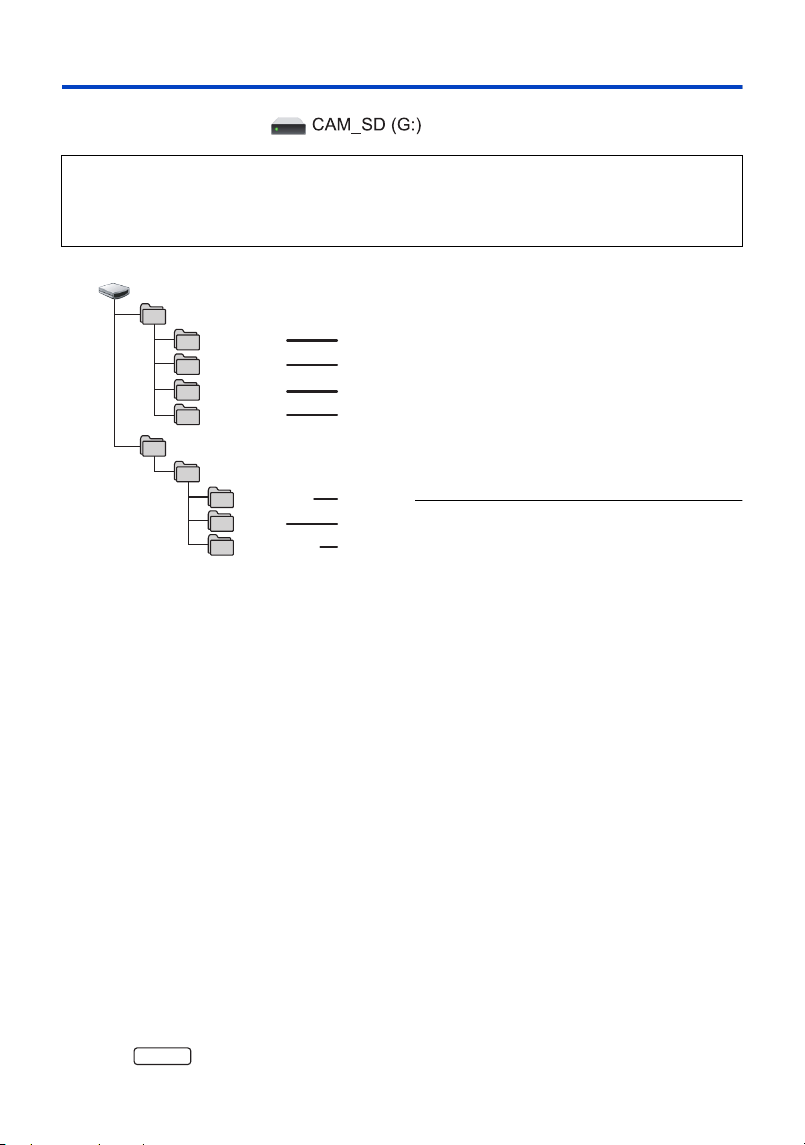
- 151 -
About the PC display
When the unit is connected to a PC, it is recognised as an external drive.
≥ Removable disk (Example: ) is displayed in [This PC].
Example folder structure of an SD card:
The following data will be recorded.
1 Up to 999 still pictures in JPEG format
([S1000001.JPG] etc.)
2 MP4 format motion picture files
([S1000001.MP4] etc.)
≥ The fourth to seventh characters of each
folder name are determined by the recording
format.
100RDPHH:MP4 (2160/25p)
*
100RFPHH:MP4 (2160/24p)
*
100YBPHH:MP4 (1080/50p)
100YDPHH:MP4 (1080/25p)
100YFPHH:MP4 (1080/24p)
100XDPHH:MP4 (720/25p)
100TDPBH:MP4 (360/25p)
3 JPEG format still pictures created from
the motion picture
4 JPEG format still pictures recorded in
Stop Motion Animation Assist Mode
5 The motion picture thumbnails
6 AVCHD format motion picture files
([00000.MTS] etc.)
7 For management
*For the
∫ Copying your still pictures to
your PC
Card reader function (mass storage)
Still pictures recorded with this unit can be
copied to the PC with Explorer or other
programmes.
1 Double-click the folder that contains the
still pictures. ([DCIM] # [100CDPFQ]
etc.)
2 Drag and drop the still pictures onto the
destination folder (on the PC’s HDD).
≥ Do not delete the SD card’s folders. Doing so
may make the SD card unusable in this unit.
≥ Do not delete or edit files on the SD card on
the PC. If you do so, this unit may not be able
to read these files or its functions may not
operate correctly.
≥ When data not supported by this unit has
been recorded on a PC, it will not be
recognised by this unit.
≥ Always use this unit to format SD cards.
We recommend using HD Writer AE 5.4 to copy motion picture data.
Using Windows Explorer or other programmes on the PC to copy, move or rename files and
folders recorded with this unit will result in them being unusable with HD Writer AE 5.4.
It is impossible to write data to the SD card on this unit from a PC.
DCIM
CAM_SD
100CDPFQ
101RDPHH
AVCHDTN
BDMV
AVCHD
PRIVATE
103CDPFT
102CDPFS
PANA_EXT
VX3
HC-VX3_V900E-DVQP3181_eng.book 151 ページ 2024年10月22日 火曜日 午前10時6分
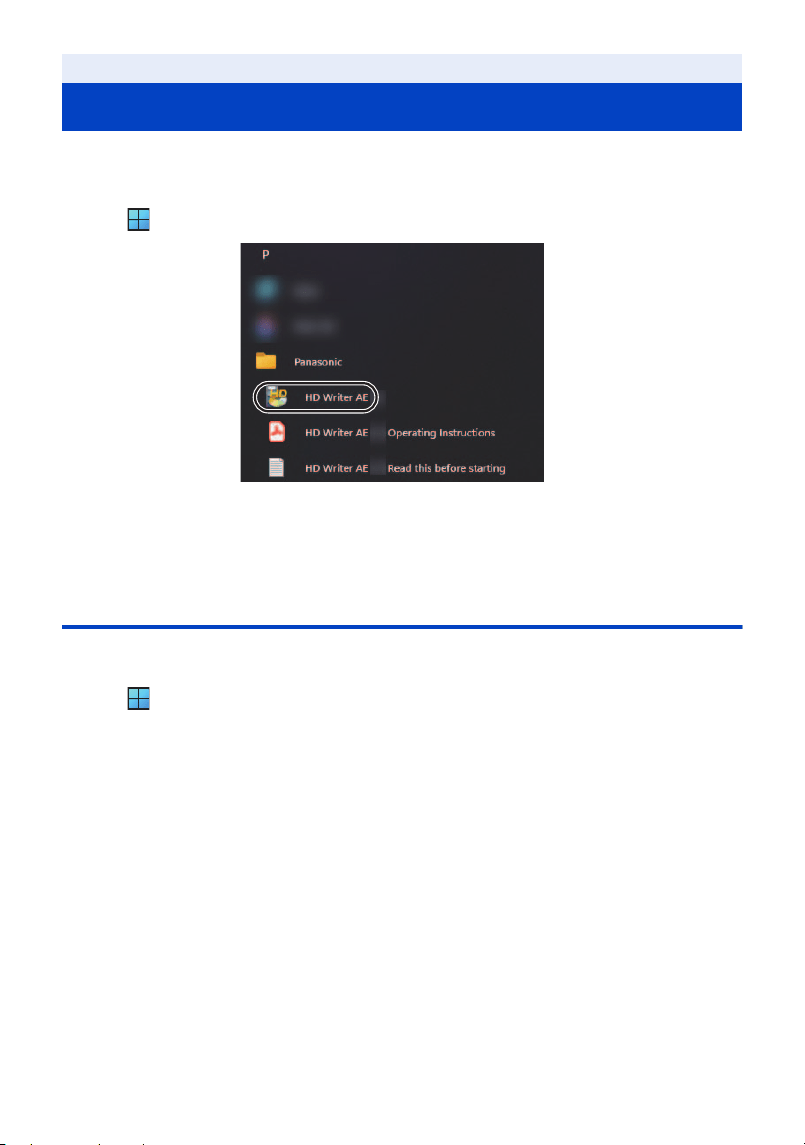
- 152 -
≥ To use the software, sign in as an Administrator or with user name for a standard user account.
The software cannot be used with the user name for a guest account.
(On the PC)
Select [ ] # [All apps] # [Panasonic] # [HD Writer AE 5.4].
≥ For details on how to use the software applications, read the PDF operating instructions of the
software.
Reading the operating instructions of the software
applications
≥ You will need Adobe Acrobat Reader 5.0 or later or Adobe Reader 7.0 or later to read the PDF
operating instructions.
Select [ ] # [All apps] # [Panasonic] # [HD Writer AE 5.4 Operating
Instructions].
With a PC
Starting HD Writer AE 5.4
HC-VX3_V900E-DVQP3181_eng.book 152 ページ 2024年10月22日 火曜日 午前10時6分
- 153 -
≥ HD Writer AE 5.4 is not available for Mac.
∫ Operating environment
≥ Even if the system requirements mentioned in these operating instructions are fulfilled, some
computers cannot be used.
≥ The USB equipment operates with the driver installed as standard in the OS.
∫ Copying still pictures on a Mac
≥ Use a battery that has been sufficiently charged.
1 Connect this unit to a Mac via the supplied USB cable.
≥ This unit is automatically recognised as an external drive of Mac.
≥ The LCD monitor turns off after about 5 seconds. Touch the screen to turn the LCD monitor on.
2 Double-click [CAM_SD] displayed on the desktop.
≥ Files are stored in [100CDPFQ] or [102CDPFT] folder etc. in the [DCIM] folder.
3 Using a drag-and-drop operation, move the pictures you want to acquire or
the folder storing those pictures to any different folder on the Mac.
∫ To disconnect USB cable safely
Drag [CAM_SD] disk icon to the [Trash], and then disconnect the USB cable.
With a PC
If using Mac (mass storage)
PC Mac
OS macOS 14
CPU Intel Core 2 Duo or better
RAM 2 GB or more
Interface USB port
Other requirements Mouse or equivalent pointing device
HC-VX3_V900E-DVQP3181_eng.book 153 ページ 2024年10月22日 火曜日 午前10時6分
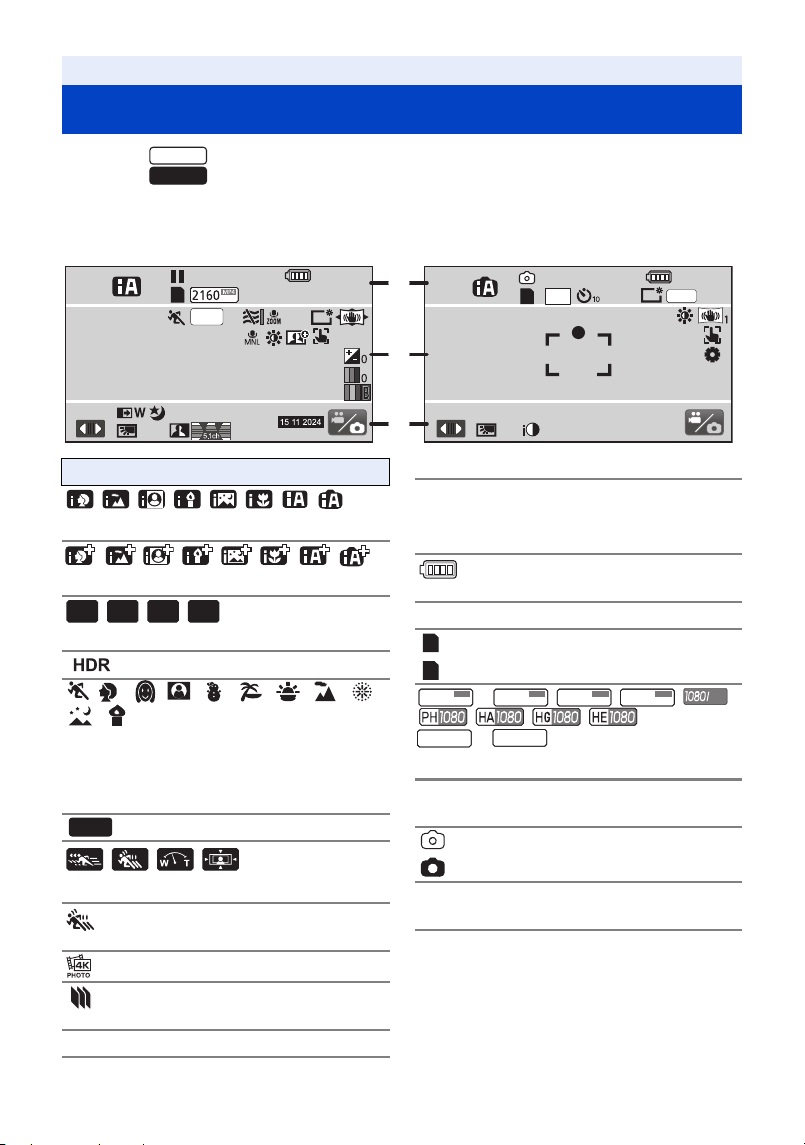
- 154 -
*1 For the
*2 For the
∫ Recording indications
Others
Indications
Motion Picture Recording Mode Still Picture Recording Mode
VX3
V900
R 3000
+1
1
/
100
OPEN
MF
0dB
+1
MEGA
0h00m00s
1h30m
R 1h20m
1h30m1h30m
25.9M
PRE-REC
A
///////
Intelligent Auto Mode (l 50)
///////
Intelligent Auto Plus Mode (l 52)
///
Creative Control Mode (l 52)
HDR Movie Mode (l 55)
/////////
/
Scene Mode (l 57, 80)
≥ If you set [SCENE MODE] in the menu when
using Time Lapse Recording, these icons
are displayed in area B.
Manual Mode (l 65)
///
Cinema Like Effect Mode (l 58)
*1
FULL HD Slow Motion Video
Mode (l 60, 63)
*2
4K Photo Mode (l 63)
*1
Stop Motion Animation Assist
Mode (l 64)
¥/; (Red) Recording
MINI
8mm
SILN
INTV
MNL
; (Green) Recording pause
0h00m00s Elapsed recording time (l 28)
(“h” is an abbreviation for hour, “m” for minute
and “s” for second.)
Remaining battery power
(l 15)
1h30m Remaining battery time (l 15)
(White) Card recording possible status
(Green) Recognising the card
*1
/////
////
*1
/
Motion Picture Recording Mode (l 83)
R1h20m Remaining time for motion
picture recording (l 28)
(White) Still picture recording icon
(Red) Recording still picture
R3000 Remaining number of still
pictures (l 31)
ヮヱフ
ビヒプパ
ヮヱフ
ヒパベパ
ブパヮ
ヮヱフ
ヒパベパ
ビベヮ
ヮヱフ
ヘビパ
50p
ビヒプパバビフㄑ
ヒパベパバビフㄑ
HC-VX3_V900E-DVQP3181_eng.book 154 ページ 2024年10月22日 火曜日 午前10時6分
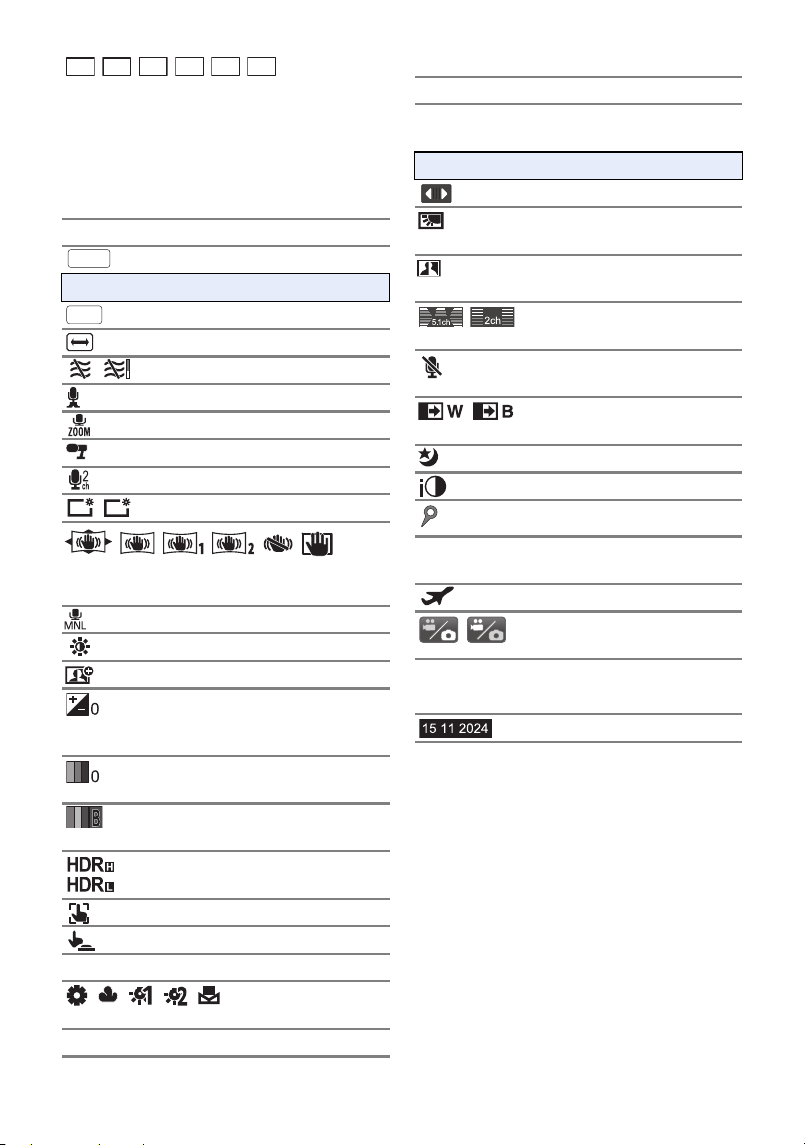
- 155 -
/////
Number of recording pixels for still pictures
(l 31, 93, 97)
In Playback Mode, the picture size is not
displayed for still pictures recorded with other
products that have different picture sizes from
the sizes shown above.
Æ10/Æ2 Self-timer Recording (l 78)
MEGA OIS (l 30)
B
PRE-REC (l 78)
Time Lapse Recording (l 54)
/ Wind Noise Canceller (l 87)
Lowcut (l 88)
Zoom Microphone (l 90)
Focus Microphone (l 90)
Stereo Microphone (l 90)
/ Power LCD (l 43)
// / //
Image Stabilizer (l 72)/
Optical Image Stabilizer Lock (l 74)
Sound Scene Select (l 88)
Picture Adjustment (l 92)
Active Contrast (l 82)
Brightness Adjustment
(Miniature Effect/8mm movie/
Silent movie) (l 53, 54)
Vividness Adjustment
(Miniature Effect) (l 53)
Colour balance Adjustment
(8mm movie) (l 54)
/ HDR Effect (l 55, 79)
AF/AE tracking (l 73)
Touch Shutter (l 75)
MF Manual Focus (l 69)
/// /
White Balance (l 66)
1/100 Shutter Speed (l
67)
25.9M
14M
2.1M
20.4M
10.9M
0.3M
MEGA
PRE-REC
LOW
CUT
+1
-
1
OPEN/F2.0 Iris value (l 68)
0dB Gain value (l 68)
± (White)/
¥ (Green)
Focus indication (l 30)
C
Display Touch Menu (l 23)
Backlight Compensation
(l 79)
Intelligent Contrast Control
(l 77)
/ Audio Level
*1
/Microphone
Level
*2
(l 91)
Sound recording disabled
(l 59, 60, 62)
/ Fade (White), Fade (Black)
(l 77)
Night Mode (l 79)
Intelligent Exposure (l 78)
Favourite scene icon
*1
(l 33)
R9 Remaining number of favourite
scenes
*1
(l 33)
World Time setting (l 38)
/
Recording mode switching icon
(l 21)
15. 11. 2024 Date indication (l 24)
12:34 Time indication (l 24)
Time stamp recording (l 93)
*1
HC-VX3_V900E-DVQP3181_eng.book 155 ページ 2024年10月22日 火曜日 午前10時6分
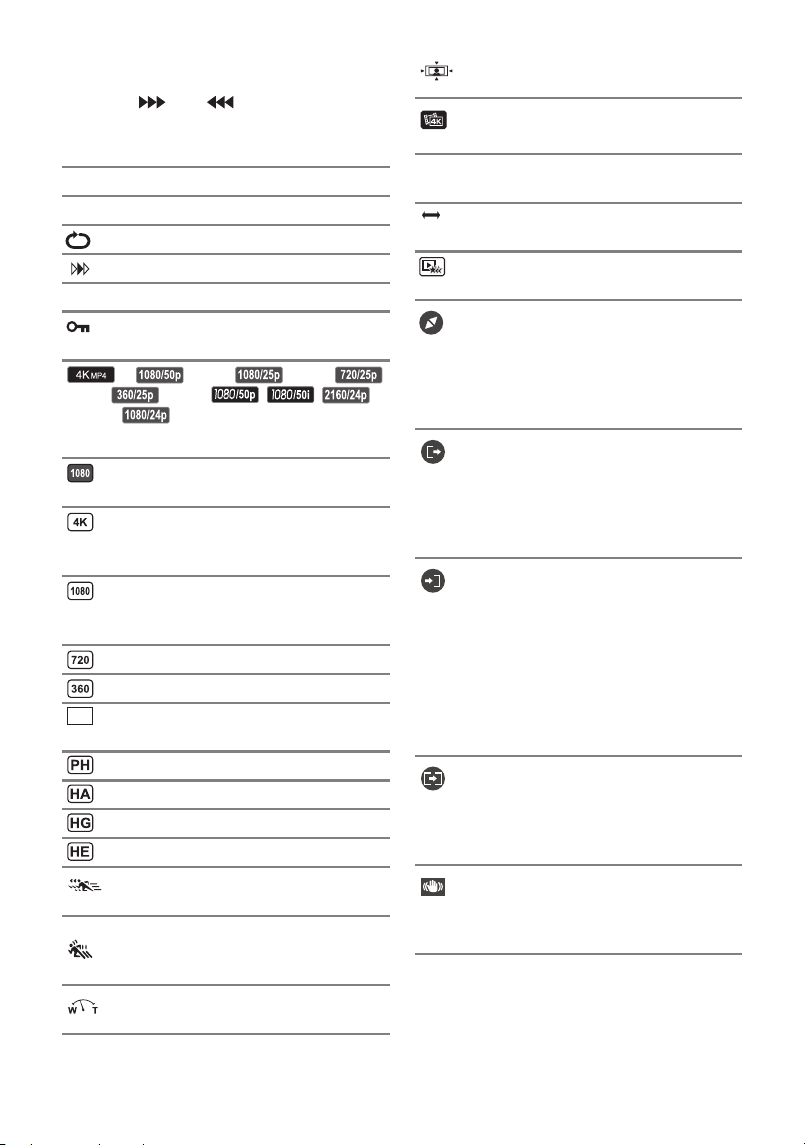
- 156 -
∫ Playback indications
1/;/5//6//7/8/9/:/
D/E/;1/2;
Display during playback (l 35, 96)
0h00m00s Playback Time (l 35)
No.10 Scene Number
Repeat Playback (l 99)
Resume Playback (l 99)
100-0001 Still picture folder/file name
Transfer/Protected motion
pictures/still pictures (l 132)
*1
/ (Red)/ (Red)/
(Red)/ (Red)/ / /
(Red)
*1
/ (Red)
Recording mode icon (l 98)
(Blue) MP4 [1080/50p (50M)] scene
(l 34)
MP4 [2160/25p] scene/
MP4 [2160/24p] scene
(l 34)
*1
MP4 [1080/50p (28M)] scene/
MP4 [1080/25p] scene/
MP4 [1080/24p] scene (l 34)
MP4 [720/25p] scene (l 34)
MP4 [360/25p] scene (l 34)
AVCHD [1080/50p] scene
(l 34)
AVCHD [PH] scene (l 34)
AVCHD [HA] scene (l 34)
AVCHD [HG] scene (l 34)
AVCHD [HE] scene (l 34)
Scenes recorded with Slow &
Quick Video Mode (l 58)
*1
Scenes recorded with FULL
HD Slow Motion Video Mode
(l 60, 63)
Scenes recorded with Slow
Zoom Mode (l 61)
*1
50p
Scenes recorded with Dolly
Zoom Mode (l 62)
*1
Scene(s) recorded with 4K
Photo mode (l 63)
*1
Miniature-recorded scene
(l 53)
Time lapse-recorded scene
(l 54)
Scenes saved with Highlight
Playback (l 116)
Changes the cropping frame
size (when [Manual Tracking
Crop]/[Fixed Crop]/[Zooming
Crop] is selected for the 4K
Cropping function) (l 106,
107, 108)
*1
Sets the start point (when
[Slow/Quick Post-Effect (4K
Cropping/Editing)]/[Manual
Tracking Crop]/[Zooming Crop]
is selected for the 4K Cropping
function) (l 104, 106, 108)
*1
Sets the end point (when
[Slow/Quick Post-Effect (4K
Cropping/Editing)] is selected
for the 4K Cropping function)
(l 104)
*1
Starts a preview (when [Manual
Tracking Crop]/[Zooming Crop]
is selected for the 4K Cropping
function) (l 106, 108)
*1
Starts a preview (when [Auto
Tracking Crop]/[Fixed Crop]/
[Stabilizing Crop] is selected for
the 4K Cropping function)
(l 105, 107, 109)
*1
Image stabilizer button (when
[Auto Tracking Crop] is
selected for the 4K Cropping
function) (l 105)
*1
MINI
ONON
HC-VX3_V900E-DVQP3181_eng.book 156 ページ 2024年10月22日 火曜日 午前10時6分

- 158 -
Major confirmation/error messages to be indicated on the screen in text.
Others
Messages
CHECK CARD.
This card is not compatible or it cannot be recognised by the unit.
If this message appears even though motion pictures and still pictures are recorded on an SD
card, the card may be unstable. Reinsert the SD card, then turn the unit off and then on again.
THIS BATTERY CANNOT BE USED.
≥ Use a battery that is compatible with this unit. (l 11)
If using a Panasonic battery compatible with this unit, remove the battery and then insert it
again. If the message appears even after repeating this several times, this unit needs repair.
Detach the power and consult the dealer who you purchased this unit from. Do not attempt to
repair it by yourself.
≥ You are attempting to connect an AC adaptor not compatible with this unit. Use the supplied
AC adaptor. (l 12)
HC-VX3_V900E-DVQP3181_eng.book 158 ページ 2024年10月22日 火曜日 午前10時6分

- 159 -
About recovery
If faulty management information is found, the messages may appear and a repair is performed.
(Repairing may take time depending on the error.)
≥ is displayed when abnormal management information is detected when the scenes are
displayed in thumbnail.
≥ Use a sufficiently charged battery or the AC adaptor.
≥ Depending on the condition of the data, it may not be possible to completely repair the data.
≥ If recovery fails, it will not be possible to play back scenes recorded before the unit turned off.
≥ When data recorded on another device is recovered, it may not be possible to play back the data
on this unit or the other device.
≥ If recovery fails, turn the unit off and on again after waiting a while. If recovery fails repeatedly,
format a media on the unit. Please be aware that if a media is formatted, then all the data
recorded on the media will be erased.
≥ If the thumbnail information is recovered, displaying the thumbnails may become slower.
≥ MP4 Highlight Playback information is not recovered.
HC-VX3_V900E-DVQP3181_eng.book 159 ページ 2024年10月22日 火曜日 午前10時6分
- 160 -
∫ It is not a malfunction in following cases
Others
Troubleshooting
A clicking sound is heard
when the unit is shaken.
≥ This is the sound of the lens moving and is not a defect.
This sound will no longer be heard when the unit is turned on
and set this unit to the Motion Picture Recording Mode or Still
Picture Recording Mode.
Object seems to be
warped.
≥ Object seems to be warped slightly when the object moves
across the image very fast, but this is because the unit is
using MOS for the image sensor. This is not a malfunction.
The lens or LCD monitor
fog up.
≥ This is due to condensation. It is not a malfunction.
Please refer to page 3.
Power
Problem Check points
This unit cannot be turned
on.
This unit does not stay on
long enough.
Battery runs down quickly.
≥ Charge the battery again to ensure it is sufficiently charged.
(l 12)
≥ In cold places, the battery using time becomes shorter.
≥ The battery has a limited life. If the operating time is still too
short even after the battery is fully charged, the battery has
worn out and needs to be replaced.
This unit is turned off
automatically.
≥ If the unit turns off when you turn off the power to the TV
using the TV remote control, the VIERA Link is at work. If you
are not using the VIERA Link, set [VIERA Link] to [OFF].
(l 140)
This unit cannot be
operated though it is
turned on.
This unit does not operate
normally.
≥ Remove the battery or AC adaptor, wait about 1 minute and
then reconnect the battery or AC adaptor. Then about
1 minute later, turn on the unit again. (Conducting the above
operation while the media is being accessed may damage the
data on the media.)
≥ If normal operation is still not restored, detach the power
connected, and consult the dealer who you purchased this
unit from.
“ERROR OCCURRED.
PLEASE TURN UNIT OFF,
THEN TURN ON AGAIN.”
is displayed.
≥ The unit has automatically detected an error. Restart the unit
by turning the unit off and on.
≥ The unit will be turned off in about 1 minute if the unit is not
turned off and on.
≥ Repair is needed if it is repeatedly displayed even if it is
restarted. Detach the power connected, and consult the
dealer who you purchased this unit from. Do not attempt to
repair the unit by yourself.
HC-VX3_V900E-DVQP3181_eng.book 160 ページ 2024年10月22日 火曜日 午前10時6分
- 161 -
Indication
Problem Check points
Remaining battery
indication is not displayed
properly.
≥ The remaining battery capacity indication is an
approximation.
If the remaining battery capacity indication is not displayed
correctly, fully charge the battery, discharge it and then
charge it again.
Recording
Problem Check points
The unit arbitrarily stops
recording.
≥ Use an SD card that can be used for motion picture recording.
(l 16)
≥ The recordable time may have shortened due to the
deterioration of the data writing speed or repeated recording
and deletion. Using the unit, format the SD card. (l 45)
≥ If [AGS] is [ON], record in the normal horizontal position or set
[AGS] to [OFF]. (l 85)
Auto Focus function does
not work.
≥ Switch to Intelligent Auto Mode or Intelligent Auto Plus Mode.
≥ If you are trying to record a scene which is hard to bring into
focus in Auto Focus Mode, use the Manual Focus Mode to
adjust the focus. (l 51, 69)
Colour balance of images
is strange when recording
in a place such as a
gymnasium.
≥ In a place with multiple light sources, such as a gymnasium or
a hall, set the White Balance setting to (Indoor mode 2).
If you cannot record clearly with the (Indoor mode 2), set
it to (Manual adjustment mode). (l 66)
Colour or brightness of
the image changes, or you
may see horizontal bars in
the image.
The LCD monitor flickers
indoors.
≥ Colour or brightness of the image may change, or you may
see horizontal bars in the image when the object is recorded
under fluorescent light, mercury light or sodium light, etc., but
this is not a malfunction.
≥ In Motion Picture Recording Mode, record in Intelligent Auto
Mode/Intelligent Auto Plus Mode or set the shutter speed as
follows:
j When [REC FORMAT] is set to [24p]:
Set to 1/50 seconds in areas where the power supply
frequency is 50 Hz, or 1/60 seconds in areas where the
frequency is 60 Hz.
j When [REC FORMAT] is set to a setting other than [24p]:
Set to 1/100 seconds in areas where the power supply
frequency is 50 Hz, or 1/125 seconds in areas where the
frequency is 60 Hz.
≥ In Still Picture Recording Mode, this will not affect the
recorded image.
≥
In the following cases, setting the shutter speed to 1/100 seconds
reduces the intensity of the problem:
j In FULL HD Slow Motion Mode
j (For the )
Slow & Quick Video Mode
VX3
HC-VX3_V900E-DVQP3181_eng.book 161 ページ 2024年10月22日 火曜日 午前10時6分
- 162 -
Playback
Problem Check points
Scenes/still pictures
cannot be played back.
≥ Any scenes/still pictures where the thumbnails are displayed
as cannot be played back.
Scenes cannot be deleted. ≥ Release the protect setting. (l 132)
≥ Any scenes/still pictures where the thumbnails are displayed
as cannot be deleted. If the scenes/still pictures are
unnecessary, format the media to erase the data. (l 45)
Please be aware that if a media is formatted then all the data
recorded on the media is erased and cannot be recovered.
Back up important data on a PC, disc etc.
With other products
Problem Check points
Even when this unit is
correctly connected to a
TV, images or sounds are
not output.
The images are squeezed
horizontally.
≥ Please read the operating instructions of your TV and select
the channel that matches the input used for the connection.
≥ The audio during playback mode is not output from this unit
when connected to a TV. Sound levels cannot be adjusted
using this unit, so adjust the sound on the TV.
Even when this unit is
connected to the TV by the
HDMI micro cable, images
or sounds are not output.
≥ Check if the HDMI micro cable is connected correctly.
≥ Insert the HDMI micro cable all the way in.
If the SD card is inserted in
another device, it is not
recognised.
≥ Check that the device is compatible with the capacity or type
of SD card (SD Memory Card/SDHC Memory Card/SDXC
Memory Card) that you inserted. Refer to the operating
instructions of the device for details.
When connected by the
USB cable, this unit is not
detected by the other
devices.
≥ Check that the USB cable is properly connected.
≥ Connect the USB cable so it is fully and firmly inserted.
≥ Connect a battery to the unit.
VIERA Link does not work. (Setting on this unit)
≥ Connect with an HDMI micro cable (supplied). (l 136)
≥ Touch , then touch [SETUP] # [VIERA Link] # [ON].
(l 140)
≥ Turn the unit off and then back on again.
(Setting on other devices)
≥ If the TV input does not switch automatically, switch the input
using the TV remote control.
≥ Check the VIERA Link setting on the connected device.
≥ Please refer to the operating instructions of the connected
device.
MENU
HC-VX3_V900E-DVQP3181_eng.book 162 ページ 2024年10月22日 火曜日 午前10時6分
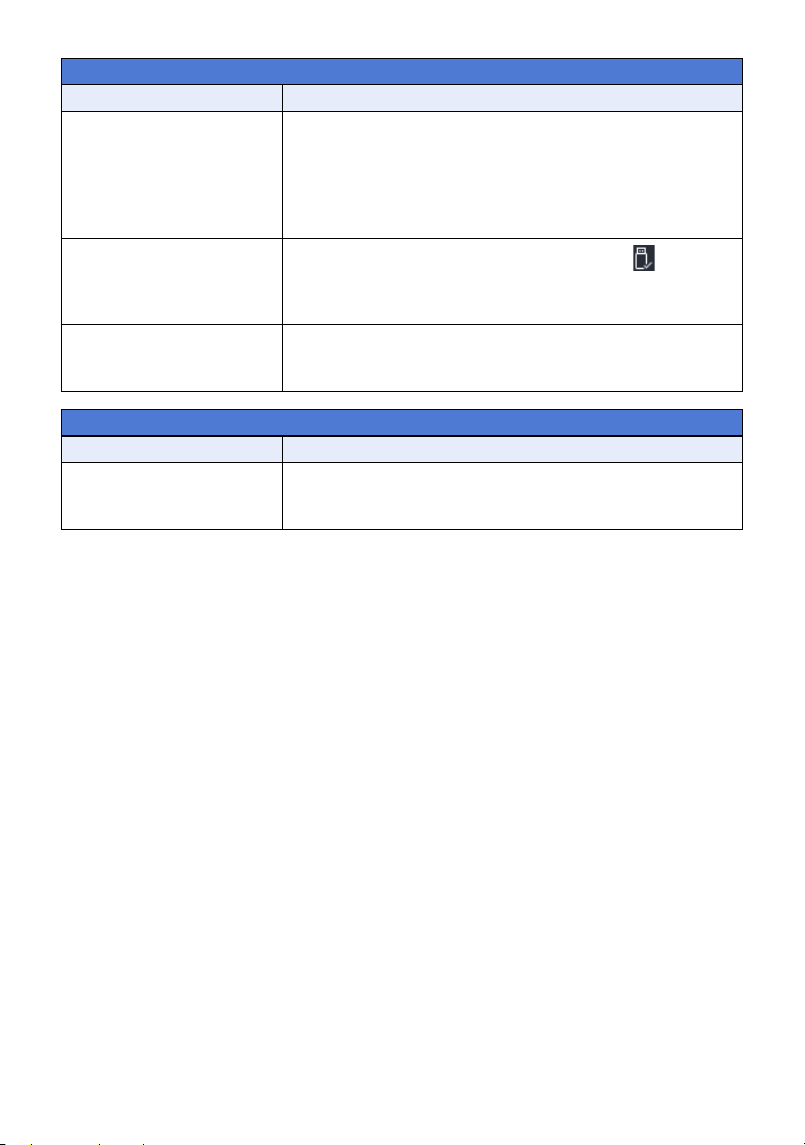
- 163 -
With a PC
Problem Check points
When connected by the
USB cable, this unit is not
detected by the PC.
≥ After re-inserting the SD card into the unit, reconnect the
supplied USB cable.
≥ Select another USB terminal on the PC.
≥ Check the operating environment. (l 146, 153)
≥ Connect the supplied USB cable again after restarting the PC
and turning on this unit again.
When the USB cable is
disconnected, an error
message will appear on
the PC.
≥ To disconnect the USB cable safely, select the icon in
task tray displayed on the PC, and then select the model
number of this unit to disconnect the USB cable.
Cannot see the PDF
operating instructions for
HD Writer AE 5.4.
≥ You will need Adobe Acrobat Reader 5.0 or later or Adobe
Reader 7.0 or later to read the PDF operating instructions for
HD Writer AE 5.4.
Others
Problem Check points
If the SD card is inserted in
this unit, it is not
recognised.
≥ If the SD card is formatted on a PC, it may not be recognised
by this unit. Use this unit to format SD cards. (l 45)
HC-VX3_V900E-DVQP3181_eng.book 163 ページ 2024年10月22日 火曜日 午前10時6分

- 164 -
∫ If AVCHD scenes do not change smoothly when played back on
another device
The images may be still for several seconds at the joins between the scenes if the following
operations are performed when multiple scenes have been continuously played back using another
unit.
≥ Just how smoothly the scenes will be played back depends on the playback unit. Depending on
the unit used, the images may stop moving and become still for a moment even when none of the
following conditions are applicable.
≥ A continuous recording of motion picture data that exceeds 4 GB may momentarily stop at every
4 GB of data when played back with another device.
≥ It may not play back smoothly when the editing of scenes was done with the HD Writer AE 5.4,
but it will play back smoothly if you set the seamless settings in the HD Writer AE 5.4. Refer to the
operating instructions for the HD Writer AE 5.4.
Principal reasons for not playing back smoothly
≥ When the scenes were recorded on different dates
≥ When scenes lasting under 3 seconds have been recorded
≥ When PRE-REC was used for recording
≥ When the Miniature Effect recording is used
≥ When the Time Lapse Recording is used
≥ When deleting scenes
≥ When scenes recorded more than 99 scenes on the same date
HC-VX3_V900E-DVQP3181_eng.book 164 ページ 2024年10月22日 火曜日 午前10時6分

- 165 -
Keep this unit as far away as possible from
electromagnetic equipment (such as
microwave ovens, TVs, video games etc.).
≥ If you use this unit on top of or near a TV, the
pictures and/or sound on this unit may be
disrupted by electromagnetic wave radiation.
≥ Do not use this unit near cell phones because
doing so may result in noise adversely
affecting the pictures and/or sound.
≥ Recorded data may be damaged, or pictures
may be distorted, by strong magnetic fields
created by speakers or large motors.
≥ Electromagnetic wave radiation generated by
microprocessors may adversely affect this
unit, disturbing the pictures and/or sound.
≥ If this unit is adversely affected by
electromagnetic equipment and stops
functioning properly, turn this unit off and
remove the battery or disconnect AC adaptor.
Then reinsert the battery or reconnect AC
adaptor and turn this unit on.
Do not use this unit near radio transmitters
or high-voltage lines.
≥ If you record near radio transmitters or
high-voltage lines, the recorded pictures and/
or sound may be adversely affected.
Do not extend the cords and the cables.
Do not spray insecticides or volatile
chemicals onto the unit.
≥ If the unit is sprayed with such chemicals, its
body may be marred and the surface finish
may peel off.
Do not leave rubber or plastic products in
contact with the unit for a long time.
When you use the unit in a sandy or dusty
place such as a beach, do not let sand or
fine dust get into the body and terminals of
the unit.
Also, keep the unit away from sea water.
≥ Sand or dust may damage the unit. (Care
should be taken when inserting and removing
a card.)
≥ If sea water splashes onto the unit, wipe off
the water with a well wrung cloth. Then wipe
the unit again with a dry cloth.
When carrying the unit, do not drop or bump
it.
≥ A strong impact can break the unit’s casing,
causing it to malfunction.
Cleaning
≥ Before cleaning, detach the battery or pull the
AC adaptor from the AC outlet, and then wipe
the unit with a soft, dry cloth.
≥ If the unit is very dirty, dip a cloth in water and
squeeze firmly, and then wipe the unit with
the damp cloth. Next, dry the unit with a dry
cloth.
≥ Use of benzine, paint thinner, alcohol, or
dishwashing liquid may alter the camera body
or peel the surface finish. Do not use these
solvents.
≥ When using a chemical dust cloth, follow the
instructions that came with the cloth.
Do not use the unit for surveillance
purposes or other business uses.
≥ This unit was designed for consumer
intermittent use. It was not intended for
continuous use, or for any industrial or
commercial application resulting in prolonged
use.
≥ In certain situations, continuous use could
cause the unit to overheat and cause a
malfunction. Such use is strongly
discouraged.
Others
Cautions for use
About this unit
The unit and the SD card become warm
during use. This is not a malfunction.
HC-VX3_V900E-DVQP3181_eng.book 165 ページ 2024年10月22日 火曜日 午前10時6分

- 166 -
When you are not going to use the unit for
an extended time
≥ When storing the unit in a cupboard or
cabinet, it is recommended that you place a
desiccant (silica gel) in with it.
The battery used in this unit is a rechargeable
lithium-ion battery. It is susceptible to humidity
and temperature and the effect increases the
more the temperature rises or falls. In cold
areas, the full charge indication may not appear
or the low battery indication may appear about
5 minutes after starting use. At high
temperatures, the protection function may be
triggered, making it impossible to use the unit.
Be sure to detach the battery after use.
≥ If the battery is left attached, a minute amount
of current continues to flow even if the unit is
off. Keeping the unit in this state may result in
over discharge of the battery. This may result
in you not being able to use the battery even
after it is charged.
≥ The battery should be stored in the vinyl bag
so metal does not come into contact with the
terminals.
≥ The battery should be stored in a cool place
free from humidity, with as constant
temperature as possible. (Recommended
temperature: 15 oC to 25 oC, Recommended
humidity: 40%RH to 60%RH)
≥ Extremely high temperatures or low
temperatures will shorten the life of the
battery.
≥ If the battery is kept in high-temperature,
high-humidity, or oily-smoky places, the
terminals may rust and cause malfunctions.
≥ To store the battery for a long period of time,
we recommend you charge it once every year
and store it again after you have completely
used up the charged capacity.
≥ Dust and other matter attached to the battery
terminals should be removed.
Prepare spare batteries when going out for
recording.
≥ Prepare batteries enough to last for 3 to 4
times the period you are planning to record
for. Cold places such as a ski resort can
shorten recording time.
If you drop the battery accidentally, check to
see if the terminals are damaged.
≥ Inserting a battery with damaged terminals
can damage the unit.
Do not throw an old battery into fire.
≥ Heating a battery or throwing it into a fire may
result in an explosion.
If the operating time is very short even after
the battery has been recharged, the battery
has worn out. Please purchase a new
battery.
≥ If the temperature of the battery is extremely
high or extremely low, charging may take time
or the battery may not be charged.
≥ If you use the AC adaptor near a radio, radio
reception may be disturbed. Keep the AC
adaptor 1 m or more away from the radio.
≥ When using the AC adaptor, it may generate
whirring sounds. However, this is normal.
≥ After use, be sure to disconnect the AC
adaptor. (If it is left connected, a minute
amount of current is consumed.)
≥ Always keep the electrodes of the AC
adaptor and battery clean.
About the battery
About the AC adaptor
HC-VX3_V900E-DVQP3181_eng.book 166 ページ 2024年10月22日 火曜日 午前10時6分
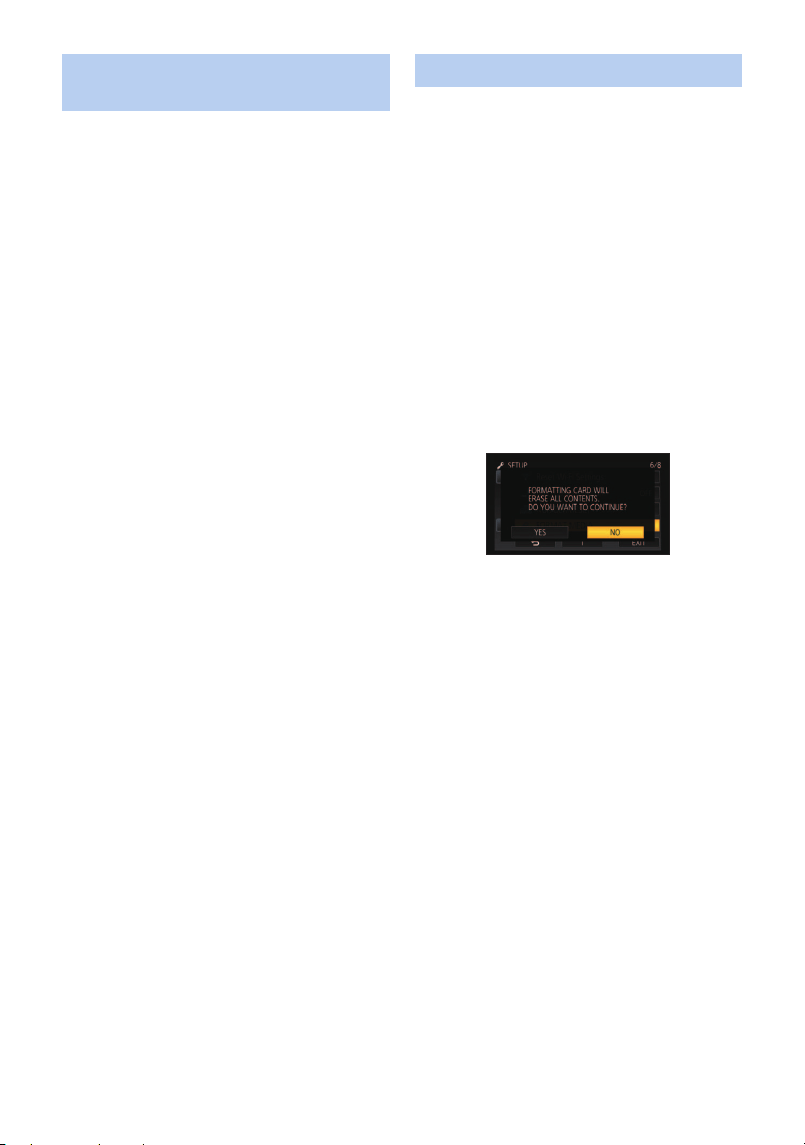
- 167 -
When the status indicator is flashing at a
particularly fast or slow rate, the following
should be considered.
Flashing with approx. 4 second period (off
for approx. 2 seconds, on for approx.
2 seconds):
≥ When the battery is over discharged or the
temperature of the battery is too high or low.
It can be charged, but it may take a few hours
to complete the charging normally.
≥ It will flash in approx. 2 second intervals
when normal charging resumes. Even in such
cases, it may start flashing in approx.
4 second intervals until charging is completed
depending on the conditions of use.
Flashing with approx. 0.5 second period (off
for approx. 0.25 second, on for approx.
0.25 second):
≥ The battery is not charged. Remove the
battery from the unit, and try charging again.
≥ Check that the terminals of the unit or battery
are not dirty or covered with a foreign object,
and connect the battery correctly once again.
If a foreign object or dirt is present, turn off
the unit before removing.
≥ The battery or environment is at an extremely
high or low temperature. Wait until the
temperature has returned to an appropriate
level and try charging again. If you are still
unable to charge, there may be a fault in the
unit, battery or AC adaptor.
Off:
≥ Charging has finished.
≥ If the status indicator stays off despite the
charging being unfinished, there may be a
fault in the unit, battery or AC adaptor. Refer
to page 166 for details on the battery.
When disposing of or giving away the SD
card, note that:
≥ Formatting and deletion of data on this unit or
computer only changes the file management
information and does not completely delete
the data in the SD card.
≥ It is recommended that the SD card is
physically destroyed or the SD card is
physically formatted using this unit when
disposing of or giving away the SD card.
To physically format the SD card, connect the
unit via the AC adaptor, select [SETUP] #
[FORMAT MEDIA] # [YES] from the menu,
and then press and hold the recording start/
stop button on the screen below for about
3 seconds. When the SD card data deletion
screen appears, select [YES], and then follow
the on-screen instructions.
≥ The customer is responsible for the
management of the data in the SD card.
About status indicator during
charging
About the SD card
HC-VX3_V900E-DVQP3181_eng.book 167 ページ 2024年10月22日 火曜日 午前10時6分

- 168 -
≥ Condensation sometimes forms on the LCD
panel of the LCD monitor in locations subject
to extreme temperature differences. If this
happens, wipe with a soft, dry cloth.
≥ Do not touch the LCD monitor with your finger
nails, or rub or press with strong force.
≥ The LCD monitor will be slightly darker than
normal immediately after the power is turned
on when the camera is very cold. It will return
to its regular brightness when the internal
temperature increases.
≥ The LCD monitor is managed with high
precision so that at least 99.99 % of the dots
are effective pixels and 0.01 % or less are
invalid pixels and always lit. This is not a
malfunction and it has no effect whatsoever
on the recorded images.
≥ It may become difficult to see or difficult to
recognise the touch when a LCD protection
sheet is affixed.
When a name or birthday is set by Baby
Calendar, personal information will be included
in this unit.
≥ Images may contain information that can be
used for identifying individuals such as titles
and recording dates. When uploading images
on web services, check carefully, and then
upload.
Disclaimer
≥ Information including personal information
may be altered or vanish due to erroneous
operation, effect of static electricity, accident,
malfunction, repair, or other handlings.
Please note in advance that Panasonic is not
liable in any way for any direct or indirect
damage from the alteration or vanishing of
information or personal information.
When requesting a repair, transferring to
another party, or disposing.
≥ To protect personal information, delete the
registered details of Baby Calendar unless
they are necessary for the repair. (l 122)
≥ Remove the Memory Card from this unit
when requesting a repair.
≥ Settings may return to factory default when
this unit is repaired.
≥ Please contact the dealer where you
purchased this unit or Panasonic if above
operations are not possible due to
malfunction.
When transferring to another party, or
disposing of the Memory Card, please refer
to “When disposing of or giving away the
SD card, note that:”. (l 167)
LCD monitor About personal information
HC-VX3_V900E-DVQP3181_eng.book 168 ページ 2024年10月22日 火曜日 午前10時6分
- 169 -
∫ Carefully observe copyright laws
Recording of pre-recorded tapes or discs or other published or broadcast material for
purposes other than your own private use may infringe copyright laws. Even for the purpose
of private use, recording of certain material may be restricted.
∫ Licenses
≥ SDXC Logo is a trademark of SD-3C, LLC.
≥ “AVCHD”, “AVCHD Progressive” and the “AVCHD Progressive” logo are trademarks of Panasonic
Holdings Corporation and Sony Corporation.
≥ Manufactured under license from Dolby Laboratories.
Dolby, Dolby Audio, and the double-D symbol are trademarks of Dolby Laboratories Licensing
Corporation.
≥ The terms HDMI, HDMI High-Definition Multimedia Interface, HDMI Trade dress and the HDMI
Logos are trademarks or registered trademarks of HDMI Licensing Administrator, Inc.
≥ USB Type-C
®
and USB-C
®
are registered trademarks of USB Implementers Forum.
≥ HDAVI Control
™
is a trademark of Panasonic Holdings Corporation.
≥ Microsoft
®
and Windows
®
are either registered trademarks or trademarks of Microsoft
Corporation in the United States and/or other countries.
≥ Microsoft product screen shot(s) reprinted with permission from Microsoft Corporation.
≥ Intel
®
, Pentium
®
and Intel
®
Core
™
are trademarks of Intel Corporation in the U.S. and/or other
countries.
≥ AMD Athlon
™
is a trademark of Advanced Micro Devices, Inc.
≥ Mac and macOS are trademarks of Apple Inc. registered in the U.S. and other countries.
≥ QR Code is a registered trademark of DENSO WAVE INCORPORATED.
≥ Other names of systems and products mentioned in these instructions are usually the registered
trademarks or trademarks of the manufacturers who developed the system or product concerned.
This product is licensed under the AVC Patent Portfolio License for the personal use of a consumer
or other uses in which it does not receive remuneration to (i) encode video in compliance with the
AVC Standard (“AVC Video”) and/or (ii) decode AVC Video that was encoded by a consumer
engaged in a personal activity and/or was obtained from a video provider licensed to provide AVC
Video. No license is granted or shall be implied for any other use. Additional information may be
obtained from MPEG LA, L.L.C.
See http://www.mpegla.com
Others
About copyright
HC-VX3_V900E-DVQP3181_eng.book 169 ページ 2024年10月22日 火曜日 午前10時6分
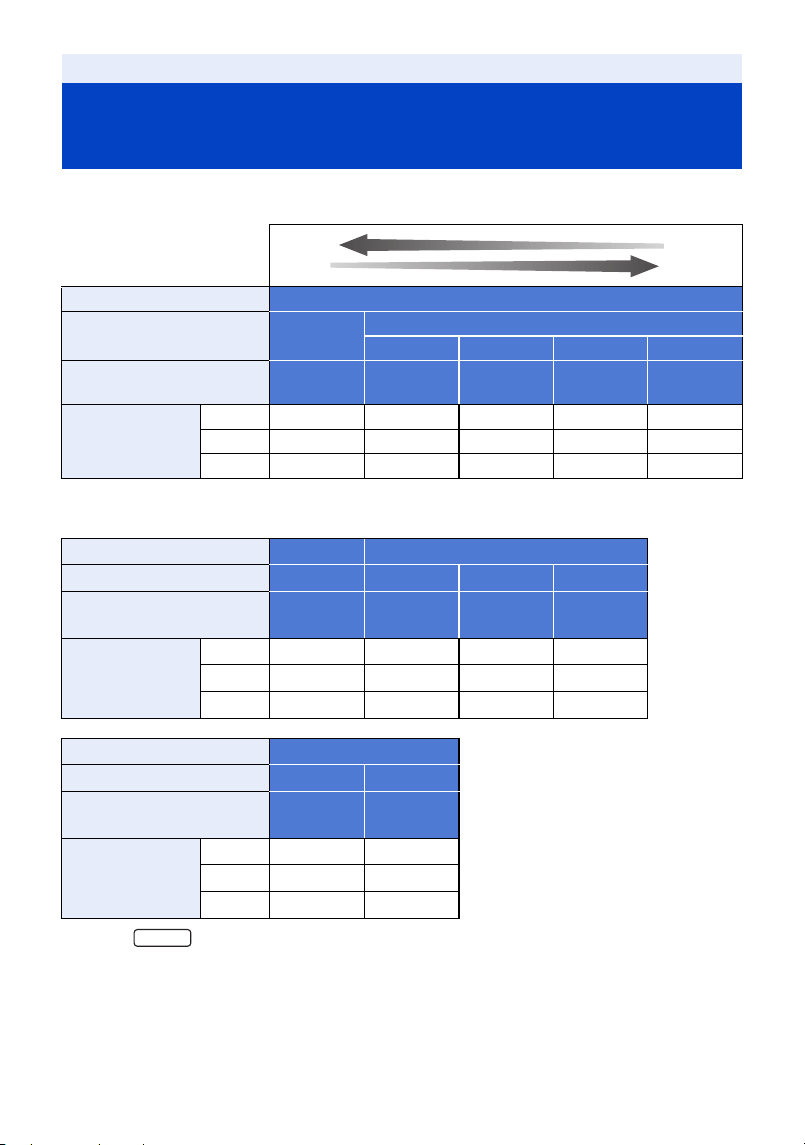
- 170 -
≥ SD cards are only mentioned with their main memory size. The stated times are the approximate
recordable times for continuous recording.
A Favours image quality
B Favours Recording time
*For the
Others
Recording modes/approximate
recordable time
Recording format [AVCHD]
Recording mode [1080/50p]
[1080/50i]
[PH] [HA] [HG] [HE]
Picture size/Frame rate
1920
k
1080/
50p
1920
k
1080/
50i
1920
k
1080/
50i
1920
k
1080/
50i
1920
k
1080/
50i
SD card
4GB 19 min 21 min 30 min 40 min 1 h 30 min
64 GB 5h20min 6h 8h30min 11h 27h30min
256 GB 22 h 25 h 34 h 30 min 44 h 112 h
Recording format [4K MP4]
*
[MP4]
Recording mode [2160] [1080/50M] [1080/28M] [720]
Picture size/Frame rate
3840
k
2160/
25p
1920
k
1080/
50p
1920
k
1080/
50p
1280
k
720/
25p
SD card
4GB 7 min 11 min 19 min 1 h
64 GB 1h50min 3h 5h20min 16h50min
256 GB 7h40min 12h20min 22h 69h
Recording format [24p]
Recording mode [2160/24p]
*
[1080/24p]
Picture size/Frame rate
3840
k
2160/
24p
1920
k
1080/
24p
SD card
4GB 7min 11min
64 GB 1h50min 3h
256 GB 7h40min 12h20min
VX3
HC-VX3_V900E-DVQP3181_eng.book 170 ページ 2024年10月22日 火曜日 午前10時6分

- 171 -
≥ “h” is an abbreviation for hour, “min” for minute and “s” for second.
≥ The recordable time of motion picture depends on the recording conditions and the type of SD
card.
≥ If recording for long periods, prepare batteries for 3 or 4 times the period you wish to record for.
(l 14)
≥ (For the )
The default setting for [REC FORMAT] is [4K MP4].
(For the )
The default setting for [REC FORMAT] is [AVCHD].
≥ Maximum continuously recordable time for one scene: 6 hours
≥ The recording is paused once when the recording time for one scene exceeds 6 hours, and the
recording will automatically resume after a few seconds.
≥ The recordable time may be reduced when lot of action scenes are recorded or recording of short
scene is repeated.
≥ Use time in the row of 4 GB in above table as a guideline for the time that can be copied onto one
DVD disc (4.7 GB).
≥ The maximum remaining recordable time that can be displayed for motion picture recording is
99 hours and 59 minutes. Any remaining recordable time exceeding 99 hours and 59 minutes will
be displayed as “R99h59m+”. This display remains unchanged until the remaining recordable
time drops to 99 hours and 59 minutes or less.
VX3
V900
HC-VX3_V900E-DVQP3181_eng.book 171 ページ 2024年10月22日 火曜日 午前10時6分
- 172 -
≥ SD cards are only mentioned with their main memory size. The stated number is the approximate
number of recordable pictures.
(Still picture recording mode)
(Motion picture recording mode)
*For the
≥ The number of recordable pictures depends on the subject being recorded.
≥ Maximum number of recordable pictures that can be displayed is 9999. If the number of
recordable pictures exceeds 9999, R 9999+ is displayed. The number will not change when the
picture is taken until the number of recordable pictures is 9999 or less.
≥ The memory capacity indicated on the label of an SD card is the total of the capacity for copyright
protection and management and the capacity which can be used on the unit, a PC etc.
Others
Approximate number of recordable
pictures
Picture size
6784k3816 4992k2808 1920k1080
Aspect ratio [16:9]
SD card
4GB 250 450 3200
64 GB 4300 7500 52000
256 GB 18000 31000 217000
Picture size
5216k3912 3808k2856 640k480
Aspect ratio [4:3]
SD card
4GB 300 550 14000
64 GB 5000 9500 237000
256 GB 22000 40000 899100
Recording fromat:
Recording mode
[4K MP4]: [2160]
*
[24p]: [2160/24p]
*
[MP4], [AVCHD]: All
[24p]: [1080/24p]
Picture size
6016k3384 3840k2160 4992k2808 1920k1080
Aspect ratio [16:9]
SD card
4GB 300 750 450 3200
64 GB 5000 12000 7500 52000
256 GB 22000 51000 31000 217000
25.9M
14M
2.1M
20.4M
10.9M
0.3M
20.4M
8.3M
14M
2.1M
VX3
HC-VX3_V900E-DVQP3181_eng.book 172 ページ 2024年10月22日 火曜日 午前10時6分

Panasonic Entertainment & Communication Co., Ltd.
Web site: http://www.panasonic.com
HC-VX3_V900E-DVQP3181_eng.book 173 ページ 2024年10月22日 火曜日 午前10時6分