Register your product and get support at:
www.philips.com/support
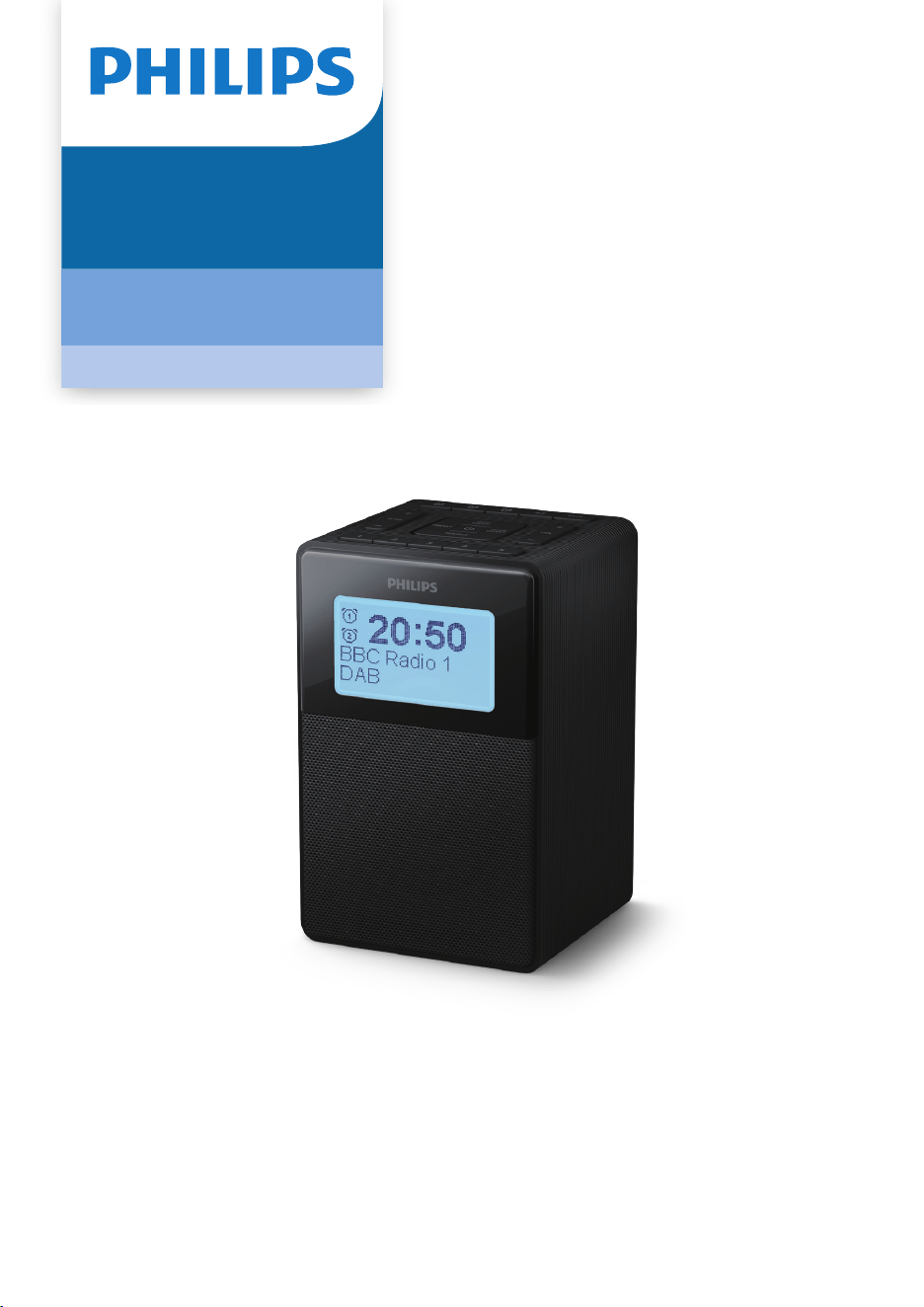
User manual
TAR5100
5000 Series
Clock Radio

7 Listen to FM radio 13
Store FM radio stations automatically 13
Store FM radio stations manually 13
Auto tuning 13
Manual tuning 13
Store favorite stations 13
Select a preset favorite station 13
Select a preset radio station 14
Scan sensitivity setting 14
Show RDS information 14
Show menu in FM mode 15
8 Listen to Bluetooth® music 16
Connect Bluetooth® 16
Play music 16
Disconnect Bluetooth® 16
Clear Bluetooth® pairing records 16
Show menu in Bluetooth® mode 17
9 Kitchen timer setting 18
Set kitchen timer 18
Stop kitchen timer sounds 18
Cancel the kitchen timer 18
10 Other features 19
Adjust display brightness 19
Adjust sound effects 19
Select menu language 19
Factory reset 19
11 Product speci�cations 20
12 Troubleshooting 20
13 Notice 21
1 Important 2
Safety 2
2 Your clock radio 3
Introduction 3
What's in the box 3
Overview of the clock radio 4
3 Get started 5
Install batteries 5
Connect power 5
Turn on/Switch to standby 5
Adjust volume 5
4 Clock setting 6
Automatically set the clock 6
Manually set the clock 6
Set time format 6
Set date format 6
Show menu 7
5 Alarm setting 8
Set alarm time 8
Activate/deactivate alarm timer 8
Snooze the alarm 9
Stop alarm sounds 9
Set sleep timer 9
6 Listen to DAB radio 10
Tune to DAB radio stations 10
Auto scan 10
Manual tuning 10
Store favorite stations 10
Select a preset favorite station 11
Store DAB radio stations 11
Select a preset radio station 11
Remove invalid stations 11
DRC 11
Show DAB information 11
Show menu in DAB mode 12
1EN
Contents

2 EN
•
•
•
•
•
•
•
•
•
•
•
Do not replace a battery with an incorrect type
that can defeat a safeguard (for example, some
lithium battery types).
Leaving a battery in an extremely high
temperature surrounding, or an extremely low
air pressure environment may result in an
explosion or leakage of �ammable liquid or
gas.
Install all batteries correctly, + and - as marked
on the unit.
Remove batteries if they are exhausted or if the
remote control (if included) is not to be used
for a long time.
Batteries contain chemical substances. They
should be disposed of properly.
If you suspect that a battery has been
swallowed or placed inside any part of the
body, seek immediate medical attention.
When you change the batteries, always keep
all new and used batteries out of reach of
children. Ensure that the battery compartment
is completely secure after you replace the
battery.
If the battery compartment cannot be
completely secured, discontinue use of the
product. Keep out of reach of children and
contact the manufacturer.
This clock radio shall not be exposed to
dripping or splashing.
Do not place any sources of danger on the
clock radio (e.g. liquid �lled objects, lighted
candles).
Where the plug of the Direct Plug-in Adapter
is used as the disconnect device, the
disconnect device shall remain readily
operable.
1
Important
Safety
•
Read these instructions.
•
Heed all warnings.
•
Follow all instructions.
•
Do not block any ventilation openings. Install
in accordance with the manufacturer’s
instructions.
•
Do not install near any heat sources such as
radiators, heat registers, stoves, or other
apparatus (including ampli�ers) that produce
heat.
•
Protect the power cord from being walked on
or pinched, particularly at plugs, convenience
receptacles, and the point where they exit
from the clock radio.
Only use attachments/accessories speci�ed
by the manufacturer.
•
•
Unplug this apparatus during lightning storms
or when unused for long periods of time.
Refer all servicing to quali�ed service
personnel. Servicing is required when the
apparatus has been damaged in any way,
such as power-supply cord or plug is
damaged, liquid has been spilled or objects
have fallen into the apparatus, the apparatus
has been exposed to rain or moisture, does
not operate normally, or has been dropped.
•
•
•
•
•
Battery usage CAUTION - To prevent battery
leakage which may result in bodily injury,
property damage, or damage to the clock
radio:
Do not mix old and new batteries. Do not mix
alkaline, standard (carbon-zinc), or recharge-
able (ni-cad, ni-mh, etc.) batteries.
CAUTION: Danger of explosion if batteries are
incorrectly replaced. Replace only with the
same or equivalent type.
Battery in extreme high or low temperatures
during use, storage or transportation, and low
air pressure at high altitude can pose safety
hazards.
Please use the product safely in an environment
with temperature between 0°C and 45°C.
3EN
2
Your clock radio
Congratulations on your purchase, and welcome
to Philips! To fully bene�t from the support that
Philips offers, register your product at
www.philips.com/support.
Introduction
With this clock radio, you can
•
•
Listen to DAB (Digital Audio Broadcasting),
FM radio and Bluetooth® music;
Set two alarms to ring at different times;
What's in the box
Check and identify the contents of your package:
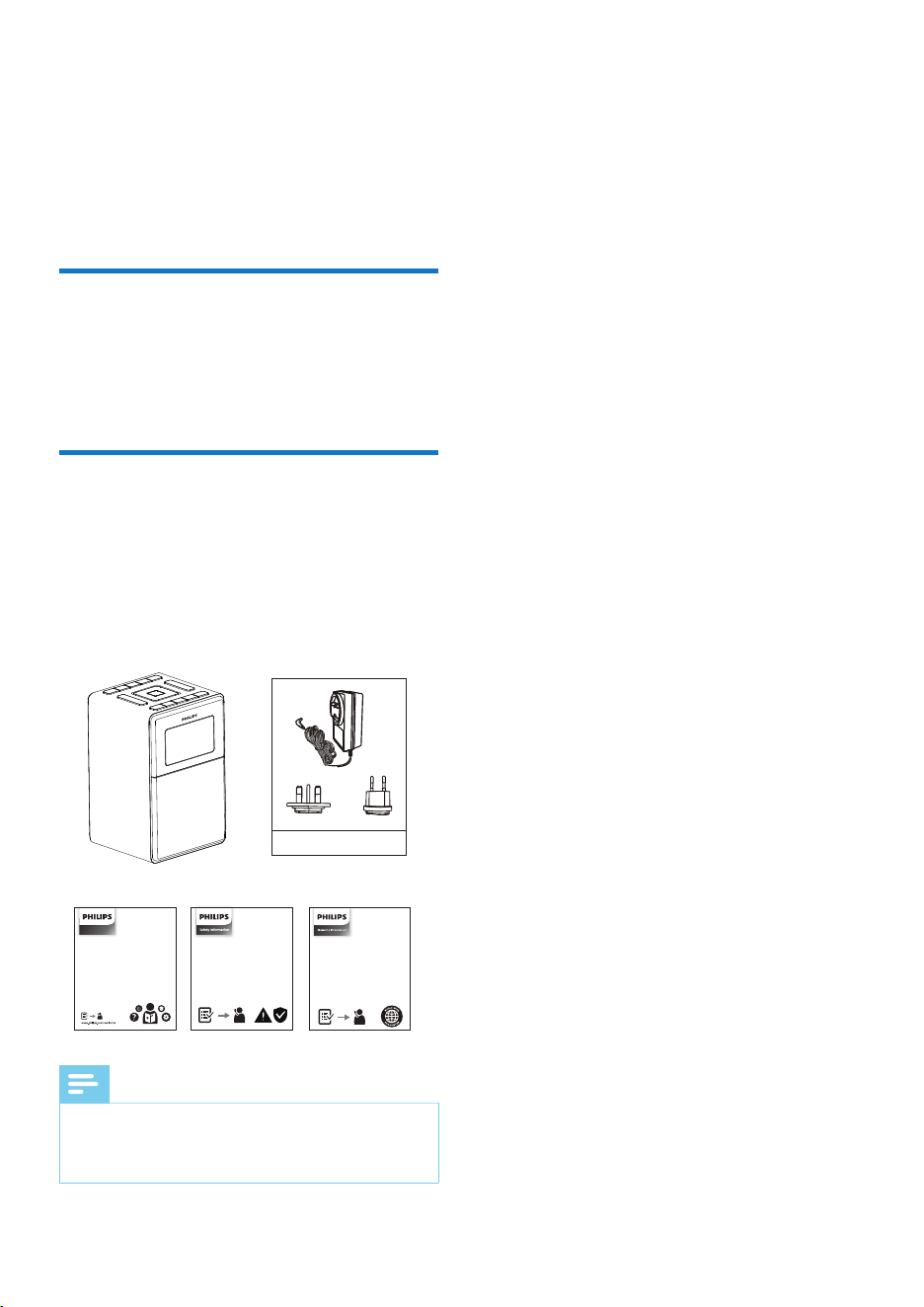
• Main unit
• Power adaptor
• Quick start guide
• Safey sheet
Warranty
•
Wireless speaker
Note
• Power adaptor quantity and plug type vary by regions.
Images, illustrations and drawings shown on this user
manual are for reference only. Actual product may vary
in appearance.
•
TAR5100/10
4 EN
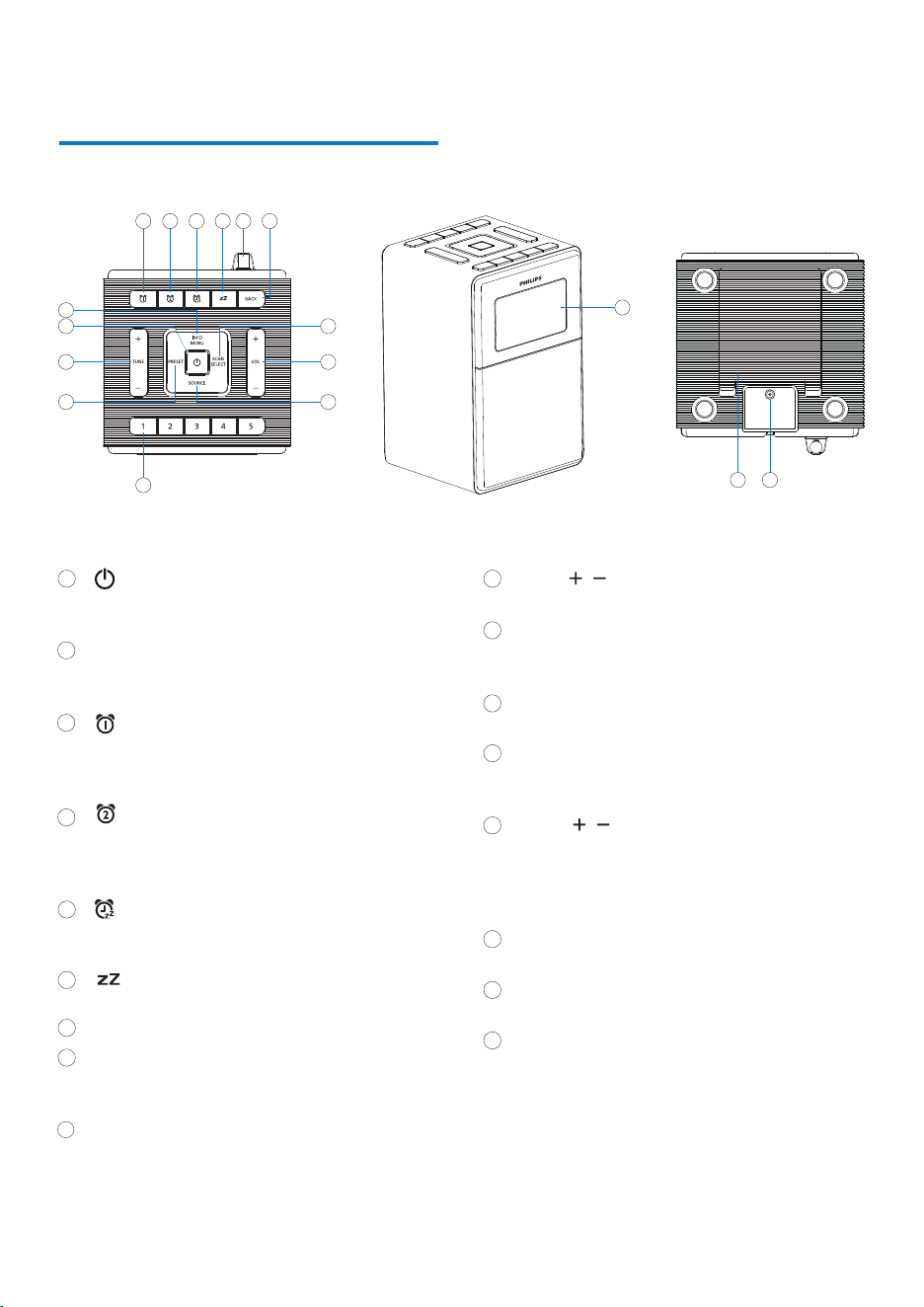
Overview of the clock radio
VOL /
• Adjust volume.
SOURCE
•
Switch between DAB/FM/Bluetooth source.
• Bluetooth® pairing
Preset stations (1, 2, 3, 4, 5)
• Store/directly access Preset 1, 2, 3, 4, or 5.
PRESET
•
Store radio stations in memory.
• Select a preset radio station.
TUNE /
•
Set time.
• Tune to a radio station.
• Navigate through the menu list.
• Previous/Next track
Display panel
•
Display current status.
DC IN
•
Connect to the supplied power adaptor.
Battery compartment lid
13
15
14
12
17
10
16
11
• Turn on or switch to standby.
• Stop alarm.
INFO / MENU
•
Enter menu setting.
• Info display.
• Set alarm 1.
• Set alarm 1 On/Off.
• Stop alarm 1.
• Set alarm 2.
• Set alarm 2 On/Off.
• Stop alarm 2.
• Snooze alarm.
• Set kitchen timer.
• Set the sleep timer.
DAB/FM Antenna
BACK
•
Back to previous menu.
• Exit menu setting.
SCAN / SELECT
•
Scan and store radio stations automatically.
• Enter selected menu item list.
1
2
3
5
4
6
8
7
9
DC IN
1617
3
1
4
2
5 6 7 8
9
10
11
12
13
14
15
5EN
3
Get started
Always follow the instructions in this chapter in
sequence.
The batteries can only back up clock and alarm
settings.
Install batteries
Caution
•
Risk of product damage! Make sure that the power
voltage corresponds to the voltage printed on the back or
underside of the clock radio.
• Risk of electrical shock! When you unplug the power cord,
always pull the plug from the socket. Never pull the cord.
Connect power
Caution
•
Risk of explosion! Keep the batteries away from heat,
sunshine or �re. Never discard batteries in �re.
Batteries contain chemical substances, so they should
be disposed of properly.
Do not mix battery types: e.g. alkaline with carbon
zinc. Only use batteries of the same type for the set.
•
•
Note
•
The type plate is located next to the battery compartment
at the bottom of the clock radio.
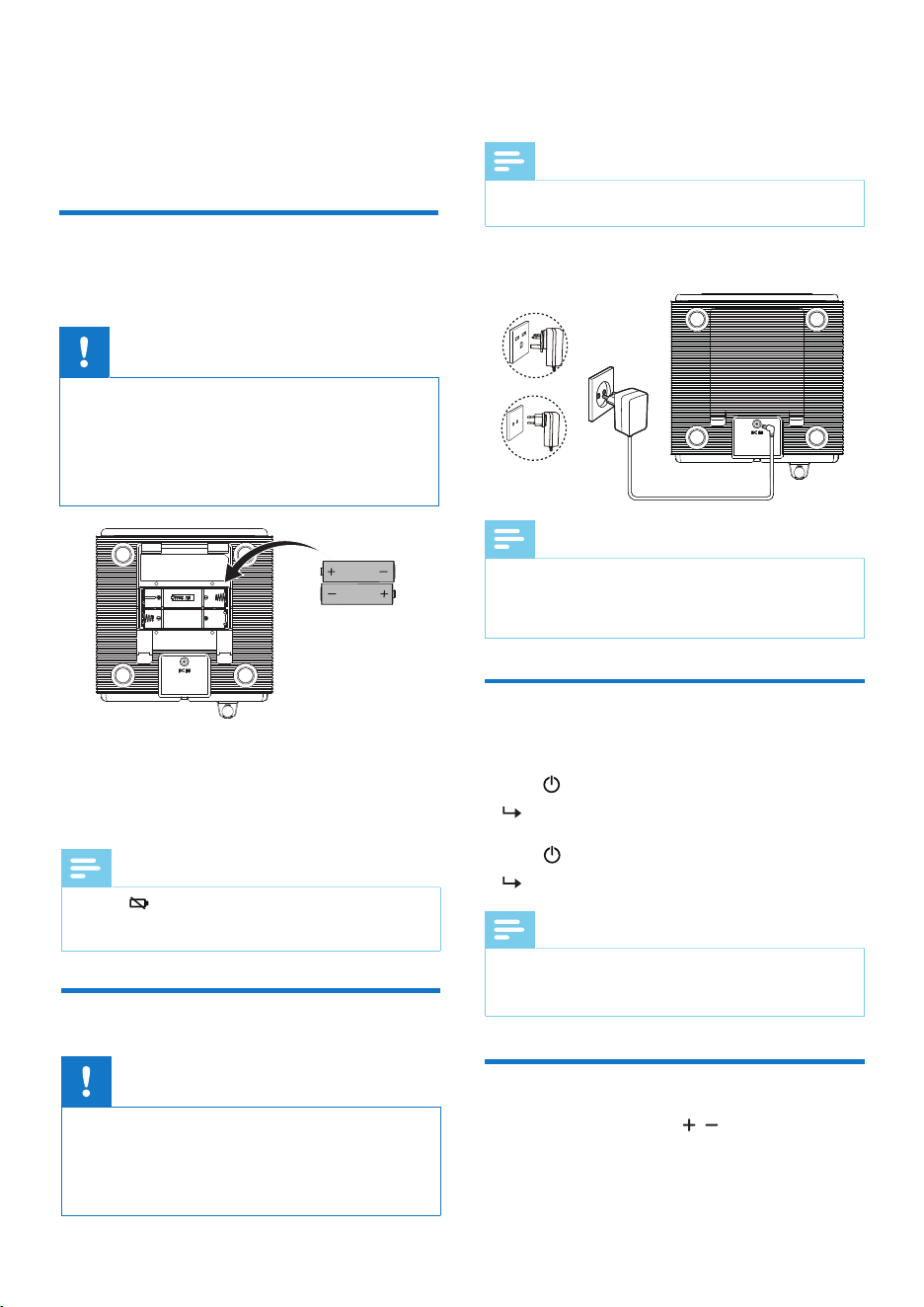
Open the battery compartment at the
bottom of the unit.
Insert 2 AAA batteries (not supplied) with
correct polarity (+/-) as indicated, then close the
battery compartment.
1
2
Note
•
Bluetooth device not connected or connected but not
playing for more than 15 minutes, the radio switches to
standby mode automatically.
Turn on/Switch to
standby
Adjust volume
While listening, press VOL / to adjust volume.
Connect the power adapter to the wall outlet.
Note
• Power adaptor quantity and plug type vary by regions.
Images, illustrations and drawings shown on this user
manual are for reference only. Actual product may vary
in appearance.
•
•
•
Press to turn the unit on.
The radio switches to the last selected source.
Press to switch the unit to Standby.
The time (if set) is displayed.
Note
•
A Icon ' ' is shown when there are no batteries installed
or the battery power is low. Please intall batteries or replace
batteries as soon as possible.
6 EN
Note
• If no button is pressed within 30 seconds, the menu exits.
4
Clock setting
Press TUNE / to select [Clock], then
press
SELECT to con�rm.
Press TUNE / to select [Set auto/manual],
then press SELECT to con�rm.
Press TUNE / to select [Manual], then
press
SELECT to con�rm.
Press TUNE / to select [Set date&time],
then press SELECT to con�rm.
Press TUNE / to set hour , then press
SELECT to con�rm.
Press TUNE / to set minute , then press
SELECT to con�rm.
Press TUNE / to set month , then press
SELECT to con�rm.
2
3
4
5
6
7
8
9
In DAB/FM RDS station, the unit can synchronize
with time transmitted by DAB/FM RDS station
(with CT information) automatically.
Manually set the clock
1
Press MENU to access menu.
Automatically set the
clock
1
Press MENU to access menu.
Press TUNE / to select [Clock], then
press
SELECT to con�rm.
Press TUNE / to select [Set auto/manual],
then press SELECT to con�rm.
Press TUNE / to select [Auto(DAB/RDS)],
then press SELECT to con�rm.
Press BACK to return to the previous menu
or press and hold BACK for 3 seconds to exit
the menu.
2
3
4
5
10
11
Press TUNE / to set day , then press
SELECT to con�rm.
Press TUNE / to set year , then press
SELECT to con�rm.
The time is set.
Press BACK to return to the previous menu
or press and hold BACK for 3 seconds to exit
the menu.
Press MENU to access menu.
Press TUNE / to select [Clock], then press
SELECT to con�rm.
Press TUNE / to select [Set 12H/24H], then
press
SELECT to con�rm.
Press TUNE / to select [12H] or [24H], then
press
SELECT to con�rm.
Press BACK to return to the previous menu
or press and hold BACK for 3 seconds to exit
the menu.
1
2
4
5
3
Set time format
Press MENU to access menu.
Press TUNE / to select [Clock], then press
SELECT to con�rm.
Press TUNE / to select [Set date format],
then press SELECT to con�rm.
Press TUNE / to select [MM-DD-YYYY],
[DD-MM-YYYY] or [YYYY-MM-DD] date
format, then press SELECT to con�rm.
Press BACK to return to the previous menu
or press and hold BACK for 3 seconds to exit
the menu.
1
2
4
5
3
Set date format
7EN
P
ress MENU to access menu.
Press TUNE / to select a menu option,
and then press
SELECT to con�rm the option
or enter the lower-level menu.
[DIM level]: adjust backlight settings
[Alarm]: set alarm 1 or 2 on/off and alarm
setup.
[Clock]: set time synchronization, date/time,
select time format and date format.
[System]: adjust system settings.
Repeat steps 2 if any sub-option is available
under one option.
Press BACK to return to the previous menu
or press and hold BACK for 3 seconds to exit
the menu.
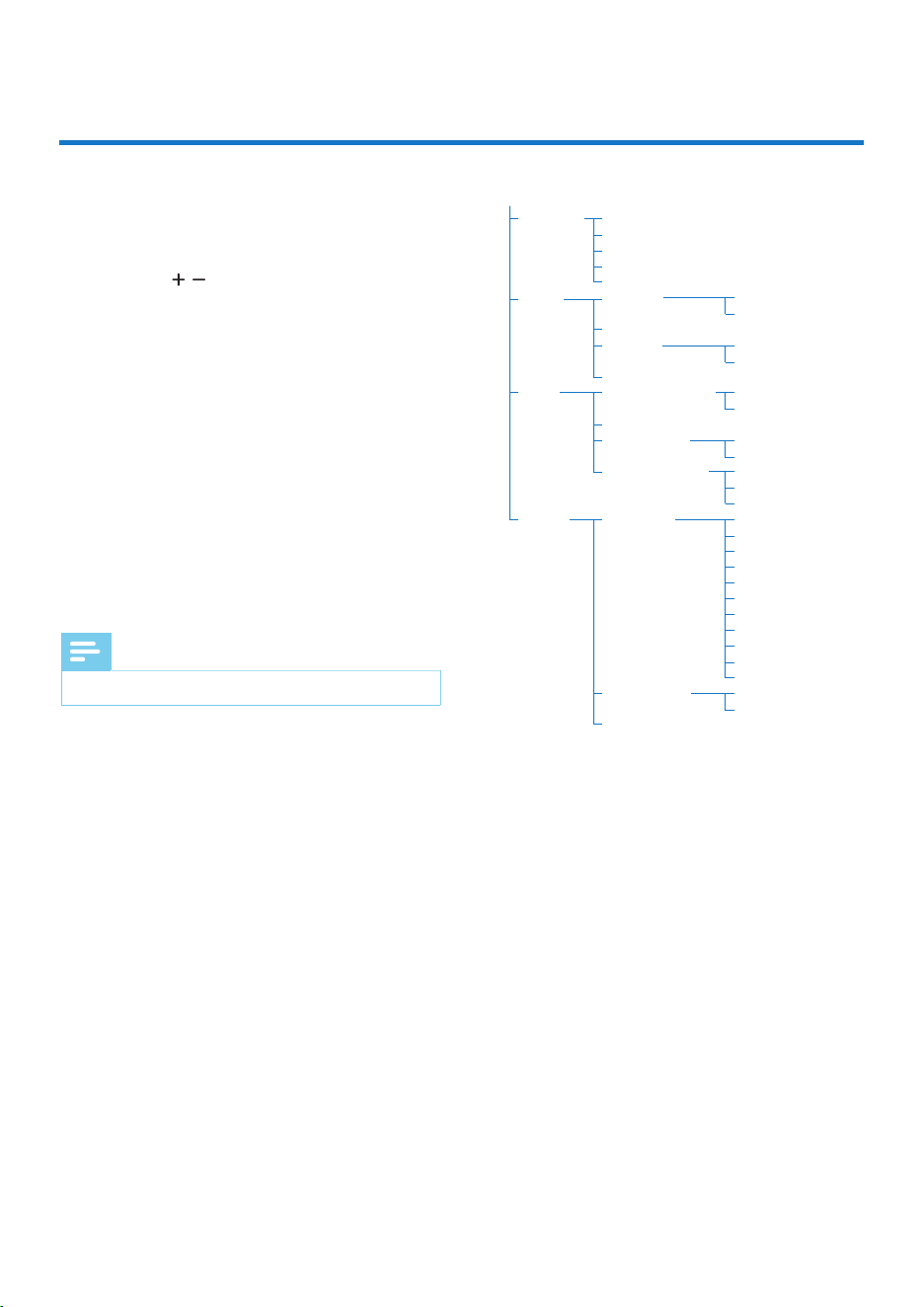
Show menu
1
2
3
4
When the unit is in standby mode, you can access
the menu for control options.
•
•
•
•
DIM level
Alarm
Clock
System
Auto
High
Medium
Low
Off
Alarm 1
Alarm 1 Setup
Alarm 2
Alarm 2 Setup
Set auto/manual
Set date&time
Set 12H/24H
Set date format
Language
Factory reset
SW version
On
Off
On
Off
Auto (DAB/RDS)
Manual
12H
24H
MM-DD-YYYY
DD-MM-YYYY
YYYY-MM-DD
English
Dansk
Deutsch
Nederlands
Polski
Français
Italiano
Norsk
Svenska
Suomi
Español
Yes
No
Standby
Note
• If no button is pressed within 30 seconds, the menu exits.
Press and hold or for 3 seconds to
activated the alarm setup mode, the hour
will blink.
Press TUNE / to set hour, then press
or to con�rm, the minute will blink.
Press TUNE / to set minute , then press
or to con�rm, the alarm repeat cycle will blink.
Press TUNE / to select alarm repeat cycle
(Once, Daily, Weekday, Weekend), then
press or to con�rm, the alarm source
will blink.
If Once is selected as the alarm period,
please use TUNE / and or to set
the alarm date.
Press TUNE / to select alarm source
(BUZZER, DAB or FM station), then press
or to con�rm, and the corresponding alarm
icon will appear.
If DAB or FM is selected as the alarm
source (default is BUZZER), the station
preset number will blink. Press TUNE /
to select DAB or FM preset radio station,
then press or to con�rm.
8 EN
Option A:
5
Alarm setting
Set alarm time
Note
• Make sure that you have set the clock correctly.
Tip
• The unit exits alarm setting mode after being idle for
30 seconds.
If DAB/FM source is selected but the preset station is not
selected, BUZZER is activated automatically.
Alarm timeout is 60 minutes if there is no user action.
•
•
1
2
3
4
•
5
•
Activate/deactivate alarm
timer
Press MENU to access menu.
Press TUNE / to select [Alarm], then press
SELECT to con�rm.
Press TUNE / to select [Alarm 1 Setup] or
[Alarm 2 Setup], then press SELECT to
activate the alarm setup mode, the hour
will blink.
Press TUNE / to set hour, then press
SELECT to con�rm, the minute will blink.
Option B:
Press or to activate or deactivate the alarm
timer.
If the alarm timer is activated, the icon or
will appear.
If the alarm timer is deactivated, the icon
or will disappear.
Option A:
1
2
3
4
Press TUNE / to set minute , then press
SELECT to con�rm, the alarm repeat cycle will
blink.
Press TUNE / to select alarm repeat cycle
(Once, Daily, Weekday, Weekend).
then press SELECT to con�rm, the alarm
source will blink.
If Once is selected as the alarm period,
please use TUNE / and SELECT to set
the alarm date.
Press TUNE / to select alarm source
(BUZZER, DAB or FM station), then press
SELECT to con�rm.
If DAB or FM is selected as the alarm source
(default is BUZZER), the station preset
number will blink. Please use TUNE /
and SELECT to select DAB or FM preset radio
station.
Press BACK to return to the previous menu
or press and hold BACK for 3 seconds to exit
the menu.
The corresponding alarm icon / will
5
6
7
•
8
•
appear.
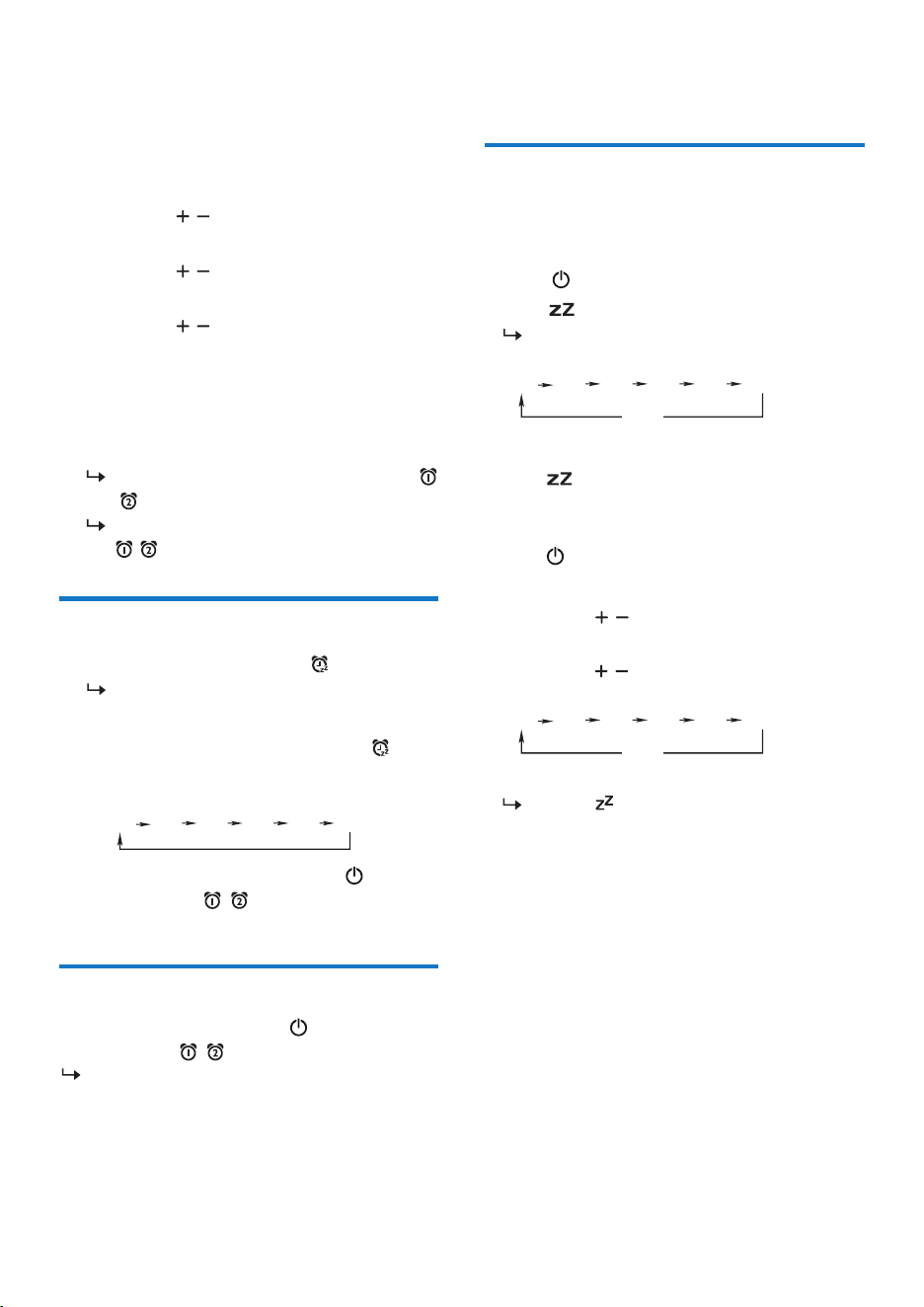
Set sleep timer
This clock radio can switch to standby mode
automatically after the sleep time is set.
Option A:
Press to turn on the unit.
Press to select a period (in minutes).
The clock radio switches to standby mode
automatically after the preset period.
• To deactivate the sleep timer:
Press until [Off] appears.
Option B:
Press to turn on the unit.
Press MENU to access menu.
Press TUNE / to select [Sleep timer], then
press SELECT to con�rm.
Press TUNE / to select a period, then
press SELECT to con�rm.
Press BACK to exit the menu.
The icon is appear.
• To deactivate the sleep timer:
Repeat the above steps, set the sleep timer to
Off.
9EN
When the alarm rings, press or the
corresponding
/ .
The alarm stops but the alarm settings
remain.
Stop alarm sounds
Option B:
P
ress MENU to access menu.
Press TUNE / to select [Alarm], then press
SELECT to con�rm.
Press TUNE / to select [Alarm 1] or [Alarm 2],
then press SELECT to con�rm.
Press TUNE / to select [On] or [Off], then
press SELECT to con�rm activate or deactivate
the alarm timer.
Press BACK to return to the previous menu
or press and hold BACK for 3 seconds to exit
the menu.
If the alarm timer is activated, the icon
/ will appear.
If the alarm timer is deactivated, the icon
/ will disappear.
1
2
When the alarm rings, press .
The alarm snoozes and repeats ringing
10 minutes later (default is 10 minutes).
During alarm snooze time, press to
select another period (in minutes) to
ringing gain.
During alarm snooze time, press or the
corresponding / to cancel the alarm
snooze. The alarm stops.
Snooze the alarm
•
10 20
50 60 (minutes) 30 40
1
2
3
4
5
15 30
90 120 (minutes)45 60
Off
1
2
15 30
90 120 (minutes)45 60
Off
1
2
3
4
5
Select a preset favorite station
In DAB mode, press 1, 2, 3, 4 or 5 to select a
preset radio station (1, 2, 3, 4 or 5) directly.
Store DAB radio stations
In DAB mode, tune to a DAB radio station.
Press and hold PRESET for 3 seconds to
activate programming mode.
[Preset Store] and preset number is
displayed.
Press TUNE / to select a number.
Press PRESET again to con�rm.
[Stored] is displayed.
The station is stored in the selected
position.
Repeat steps 1 to 4 to store more DAB radio
stations.
Select a preset radio station
Option A:
In DAB mode, press PRESET to select a preset
radio station.
Option B:
In DAB mode, press PRESET.
Press TUNE / to select a preset radio
station.
Option B:
Press MENU to access DAB menu.
Press SELECT to enter [Full scan].
Press TUNE / to select [Yes] (activate full
scan) or [No], then press SELECT to con�rm.
[Scanning...] is displayed.
The radio scans and stores all the DAB
radio stations automatically, and then
broadcasts the �rst available station.
The station list is memorized in the radio.
Next time when you turn on the radio,
the station scan does not take place.
Manual tuning
As well as the auto tune function, you can
manually tune the receiver. This can help you
when aligning your aerial or when adding
stations that were missed while auto tuning.
Press MENU to access DAB menu.
Press TUNE / to select [Manual tune],
then press SELECT to con�rm.
Press TUNE / to cycle through the DAB
channels, which are numbered from 5A to
13F, then press SELECT to con�rm.
The unit will show the frequency. and
start to scan.
Press BACK to exit the menu.
Store favorite stations
In DAB mode, tune to a DAB radio station.
Press and hold 1, 2, 3, 4 or 5 for 3 seconds
to save the current station to the
corresponding position directly.
[Stored] is displayed.
The station is stored in the selected
position.
10 EN
Tune to DAB radio stations
The �rst time you select DAB radio mode, or if
the station list is empty, the radio performs a
full scan automatically.
Press to turn on the unit.
Press SOURCE to select DAB mode.
[Scanning...] is displayed.
The radio scans and stores all the DAB
radio stations automatically, and then
broadcasts the �rst available station.
The station list is memorized in the radio.
Next time when you turn on the radio,
the station scan does not take place.
All the stations that have been found will be
stored automatically. Press TUNE / to
explore the found stations, then press
SELECT to con�rm.
To re-tune, press SCAN to perform a quick
scan again.
Auto scan
Option A:
Press and hold SCAN for 3 seconds to activate
full scan mode.
[Scanning...] is displayed.
The radio scans and stores all the DAB radio
stations automatically, and then broadcasts
the �rst available station.
The station list is memorized in the radio.
Next time when you turn on the radio, the
station scan does not take place.
6
Listen to DAB radio
Note
•
Keep the clock radio away from other electronic devices
to avoid radio interference.
For better reception, fully extend and adjust the position
of the DAB/FM antenna.
•
1
2
3
4
1
2
3
4
1
2
Note
• You can store the favorite stations in direct
buttons 1, 2, 3, 4, 5.
1
2
3
Remove invalid stations
Press MENU to access DAB menu.
Press TUNE / to select [Prune], then press
SELECT to con�rm.
Press TUNE / to select [Yes] (remove all
the invalid stations from the station list) or
[No], then press SELECT to con�rm.
Press BACK to exit the menu.
DRC
Compress the dynamic range of a radio signal,
so that the volume of quiet sounds is increased,
and the volume of loud sounds is reduced.
Press MENU to access DAB menu.
Press TUNE / to select [DRC level], then
press
SELECT to con�rm.
Press TUNE / to select [High], [Low] or
[Off], then press SELECT to con�rm.
Press BACK to exit the menu.
Show DAB information
While listening to DAB radio, press and hold
INFO for 3 seconds to display the following
information (if available):
DAB or DAB+
Station Name
Scrolling text
Programme type
Multiplex name
Channel
Frequency
Mode: Transfer speed
Mode: Channel type
Signal quality
Select a preset favorite station
In DAB mode, press 1, 2, 3, 4 or 5 to select a
preset radio station (1, 2, 3, 4 or 5) directly.
Store DAB radio stations
In DAB mode, tune to a DAB radio station.
Press and hold PRESET for 3 seconds to
activate programming mode.
[Preset Store] and preset number is
displayed.
Press TUNE / to select a number.
Press PRESET again to con�rm.
[Stored] is displayed.
The station is stored in the selected
position.
Repeat steps 1 to 4 to store more DAB radio
stations.
Select a preset radio station
Option A:
In DAB mode, press PRESET to select a preset
radio station.
Option B:
In DAB mode, press PRESET.
Press TUNE / to select a preset radio
station.
Option B:
Press MENU to access DAB menu.
Press SELECT to enter [Full scan].
Press TUNE / to select [Yes] (activate full
scan) or [No], then press SELECT to con�rm.
[Scanning...] is displayed.
The radio scans and stores all the DAB
radio stations automatically, and then
broadcasts the �rst available station.
The station list is memorized in the radio.
Next time when you turn on the radio,
the station scan does not take place.
Manual tuning
As well as the auto tune function, you can
manually tune the receiver. This can help you
when aligning your aerial or when adding
stations that were missed while auto tuning.
Press MENU to access DAB menu.
Press TUNE / to select [Manual tune],
then press SELECT to con�rm.
Press TUNE / to cycle through the DAB
channels, which are numbered from 5A to
13F, then press SELECT to con�rm.
The unit will show the frequency. and
start to scan.
Press BACK to exit the menu.
Store favorite stations
In DAB mode, tune to a DAB radio station.
Press and hold 1, 2, 3, 4 or 5 for 3 seconds
to save the current station to the
corresponding position directly.
[Stored] is displayed.
The station is stored in the selected
position.
11EN
Tune to DAB radio stations
The �rst time you select DAB radio mode, or if
the station list is empty, the radio performs a
full scan automatically.
Press to turn on the unit.
Press SOURCE to select DAB mode.
[Scanning...] is displayed.
The radio scans and stores all the DAB
radio stations automatically, and then
broadcasts the �rst available station.
The station list is memorized in the radio.
Next time when you turn on the radio,
the station scan does not take place.
All the stations that have been found will be
stored automatically. Press TUNE / to
explore the found stations, then press
SELECT to con�rm.
To re-tune, press SCAN to perform a quick
scan again.
Auto scan
Option A:
Press and hold SCAN for 3 seconds to activate
full scan mode.
[Scanning...] is displayed.
The radio scans and stores all the DAB radio
stations automatically, and then broadcasts
the �rst available station.
The station list is memorized in the radio.
Next time when you turn on the radio, the
station scan does not take place.
Remove invalid stations
Press MENU to access DAB menu.
Press TUNE / to select [Prune], then press
SELECT to con�rm.
Press TUNE / to select [Yes] (remove all
the invalid stations from the station list) or
[No], then press SELECT to con�rm.
Press BACK to exit the menu.
DRC
Compress the dynamic range of a radio signal,
so that the volume of quiet sounds is increased,
and the volume of loud sounds is reduced.
Press MENU to access DAB menu.
Press TUNE / to select [DRC level], then
press
SELECT to con�rm.
Press TUNE / to select [High], [Low] or
[Off], then press SELECT to con�rm.
Press BACK to exit the menu.
Show DAB information
While listening to DAB radio, press and hold
INFO for 3 seconds to display the following
information (if available):
DAB or DAB+
Station Name
Scrolling text
Programme type
Multiplex name
Channel
Frequency
Mode: Transfer speed
Mode: Channel type
Signal quality
Note
• You can store a maximum of 20 DAB radio stations.
1
2
3
4
5
Tip
• To remove a pre-stored station, store another station
in its place.
Note
• After 3 seconds, preset radio station will be con�rmed
automatically.
1
2
1
2
3
4
1
2
3
4
12 EN
Press MENU to access DAB menu.
Press TUNE / to select a menu option,
and then press SELECT to con�rm the option
or enter the lower-level menu.
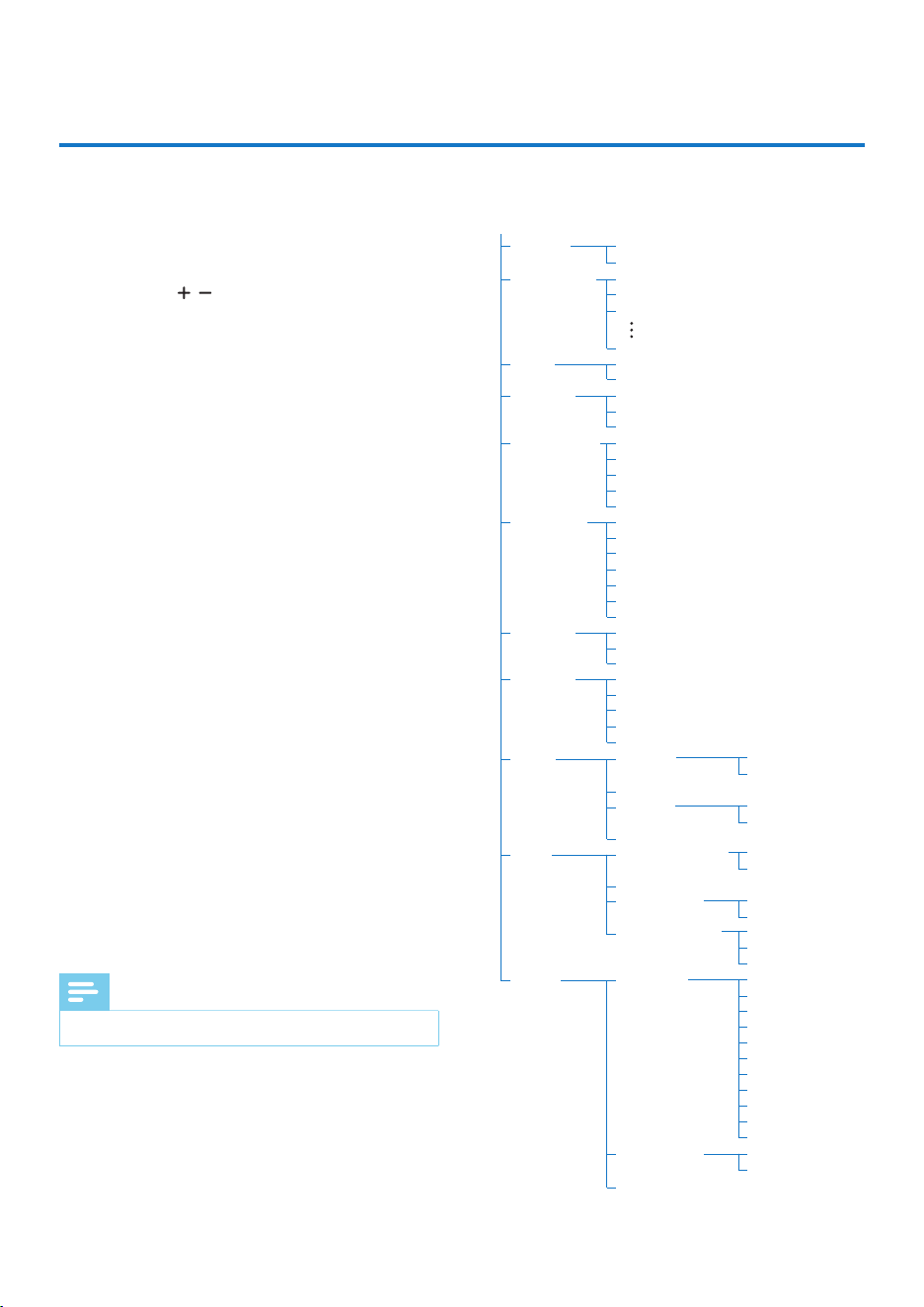
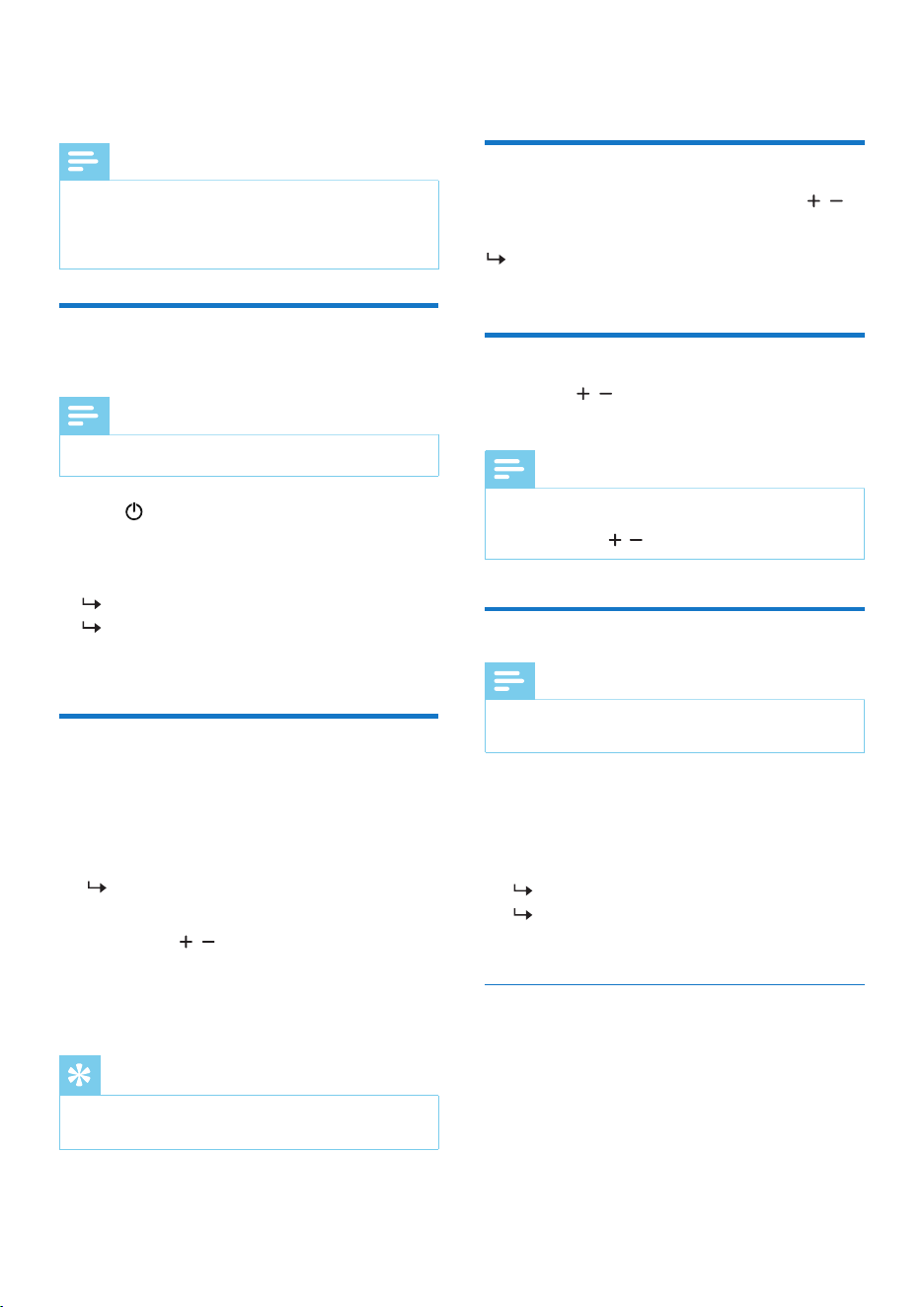
[Full scan]: scan and store all the available
DAB radio stations.
[Manual tune]: tune to a speci�c channel/
frequency manually and add it to the
station list.
[Prune]: remove all the invalid stations
from the station list.
[DRC level]: compress the dynamic range
of a radio signal, so that the volume of
quiet sounds is increased, and the volume
of loud sounds is reduced.
[Kitchen timer]: set kitchen timer.
[Sleep timer]: set sleep timer.
[DBB level]: adjust the sound reproduced.
[DIM level]: adjust backlight settings.
[Alarm]: set alarm on/off and alarm setup.
[Clock]: set time synchronization, date/time,
select time format and date format.
[System]: adjust system settings.
Repeat step 2 if any sub-option is available
under one option.
Press BACK to return to the previous menu
or press and hold BACK for 3 seconds to exit
the menu.
1
2
Note
• If no button is pressed within 30 seconds, the menu exits.
3
4
Show menu in DAB mode
When you listen to DAB, you can access the
menu for control options.
•
•
•
•
•
•
•
•
•
•
•
Full scan
Manual tune
Prune
DRC level
Kitchen timer
Sleep timer
DBB level
DIM level
Alarm
Clock
System
DAB Menu
On
Off
On
Off
Auto (DAB/RDS)
Manual
12H
24H
MM-DD-YYYY
DD-MM-YYYY
YYYY-MM-DD
English
Dansk
Deutsch
Nederlands
Polski
Français
Italiano
Norsk
Svenska
Suomi
Español
Yes
No
Yes
No
5A 174.928MHz
5B 176.640MHz
5C 178.352MHz
13F 239.200MHz
Yes
No
High
Low
Off
Hour: 0
Minute: 0
Second: 0
On
Off
Off
15 minutes
30 minutes
45 minutes
60 minutes
90 minutes
120 minutes
DBB2
DBB1
Off
Auto
High
Medium
Low
Off
Alarm 1
Alarm 1 Setup
Alarm 2
Alarm 2 Setup
Set auto/manual
Set date&time
Set 12H/24H
Set date format
Language
Factory reset
SW version
13EN
Note
• You can store the favorite stations in direct
buttons 1, 2, 3, 4, 5.
Store favorite stations
In FM tuner mode, tune to an FM radio station.
Press and hold 1, 2, 3, 4 or 5 (preset number)
for 3 seconds to save the current station to the
corresponding position directly.
[Preset Store] is displayed.
The station is stored in the selected
position.
1
2
Select a preset favorite station
In FM tuner mode, press 1, 2, 3, 4 or 5 to select
a preset radio station (1, 2, 3, 4 or 5) directly.
Store FM radio stations
manually
Tip
• To remove a pre-stored station, store another station in its
place.
1 In FM tuner mode, tune to an FM radio station.
Press and hold PRESET for 3 seconds to activate
programming mode.
[Preset Store] and preset number is
displayed.
Press TUNE / to select a number.
Press PRESET again to con�rm.
Repeat steps 1 to 4 to store more FM radio
stations.
2
3
4
5
7
Listen to FM radio
In FM tuner mode, press and hold TUNE /
for 3 seconds.
The clock radio tunes to a station with strong
reception automatically.
Auto tuning
Press TUNE / to select a frequency to tune to
a station manually.
Manual tuning
Note
•
The tuning grid of the clock radio is 50KHz. The radio
frequency on the display panel will increase 0.05MHz by
pressing
TUNE / .
Store FM radio stations
automatically
1
Press to turn on the unit.
2
Press SOURCE to select FM mode.
3
Press and hold SCAN for 3 seconds.
[Auto Scanning...] is displayed.
The radio scans and stores all the FM radio
stations automatically, and then broadcasts
the �rst available station.
Note
• You can store a maximum of 20 FM radio stations.
Note
•
Keep the clock radio away from other electronic devices
to avoid radio interference.
For better reception, fully extend and adjust the position
of the DAB/FM antenna.
•
14 EN
Select a preset radio
station
In FM tuner mode, press PRESET to select a
preset radio statio.
Option A:
Tune to an FM RDS station.
Press and hold INFO for 3 seconds to displayed
the followinginformation(if available):
Station name
Program type such as [NEWS](news),
[SPORT](sport),[POP M] (pop music)...
Time
Text
Frequency
Show RDS information
1
2
RDS (Radio Data System) is a service that allows
FM stations to show additional information.
Note
• After 3 seconds, preset radio station will be con�rmed
automatically.
In FM tuner mode, press PRESET.
Press TUNE / to select a preset radio
station.
Option B:
1
2
Scan sensitivity setting
Press MENU to access FM menu.
Press SELECT to enter [Scan setting].
Press TUNE / to select [Strong] (strong
stations only) or [All] (all stations), then press
SELECT to con�rm
Press BACK to exit the menu.
1
2
3
4
15EN
Press MENU to access FM menu.
Press TUNE / to select a menu option,
and then press SELECT to con�rm the option
or enter the lower-level menu.
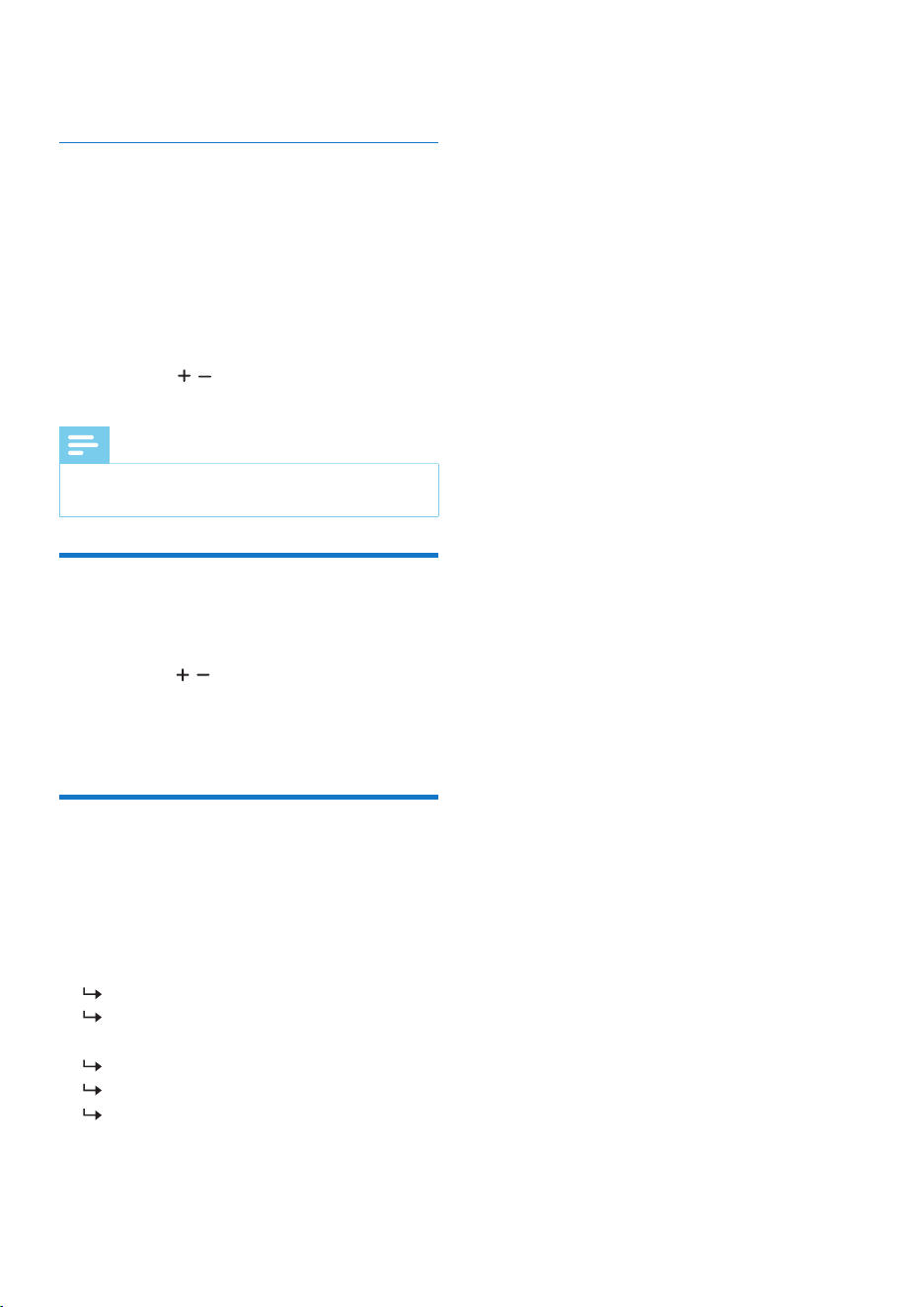
[Scan setting]: select the scan sensitivity
(strong stations only or all stations).
[Kitchen timer]: set kitchen timer.
[Sleep timer]: set sleep timer.
[DBB level]: adjust the sound reproduced.
[DIM level]: adjust backlight settings.
[Alarm]: set alarm on/off and alarm setup.
[Clock]: set time synchronization, date/time,
select time format and date format.
[System]: adjust system settings.
Repeat step 2 if any sub-option is available
under one option.
Press BACK to return to the previous menu
or press and hold BACK for 3 seconds exit
the menu.
1
2
Note
• If no button is pressed within 30 seconds, the menu exits.
3
4
Show menu in FM mode
When you listen to FM, you can access the menu
for control options.
•
•
•
•
•
•
•
•
Scan setting
Kitchen timer
Sleep timer
DBB level
DIM Level
Alarm
Clock
System
FM Menu
Strong
All
Hour: 0
Minute: 0
Second: 0
On
Off
Off
15 minutes
30 minutes
45 minutes
60 minutes
90 minutes
120 minutes
DBB2
DBB1
Off
Auto
High
Medium
Low
Off
Alarm 1
Alarm 1 Setup
Alarm 2
Alarm 2 Setup
Set auto/manual
Set date&time
Set 12H/24H
Set date format
Language
Factory reset
SW version
On
Off
On
Off
Auto (DAB/RDS)
Manual
12H
24H
MM-DD-YYYY
DD-MM-YYYY
YYYY-MM-DD
English
Dansk
Deutsch
Nederlands
Polski
Français
Italiano
Norsk
Svenska
Suomi
Español
Yes
No

8
Listen to Bluetooth®
music
1
2
3
Press SOURCE to select Bluetooth mode.
[Disconnected] will blink.
On your Bluetooth device, switch on
Bluetooth, search for [Philips TAR5100] to
start connection.
Select “Philips TAR5100”.
If connect successful:
You will hear a prompt sound.
[Connected] will appear.
Connect Bluetooth®
Option A:
• Switch to another source on the unit;
• Disable the function from your Bluetooth®
device;
• Press and hold SOURCE for 3 seconds to disconnect
Bluetooth connection.
You will hear a prompt sound.
[Pairing...] will appear, and the unit is now
ready for pairing.
Disconnect Bluetooth®
Clear Bluetooth® pairing
records
When playing music on your Bluetooth® device,
you can use this unit to control the music
playback.
• Press SELECT to pause/resume playback.
• Press TUNE / to skip to a track.
• Press VOL / to adjust the volume.
Play music
Note
• The operational range between the unit and the device is
approximately 30 metres.
• Compatibility with all Bluetooth® devices is not guaranteed.
• Any obstacle between the device and the unit can reduce
operational range.
• Keep this player away from other electronic devices that
may cause interference.
• The player will also be disconnected when your device is
moved beyond the operational range.
Option B:
Press MENU to access Bluetooth menu.
Press SELECT to select [Bluetooth pair].
Press TUNE / to select [Yes] to disconnect
current connection or select [No] to keep
connection, then press SELECT to con�rm.
1
2
3
Press MENU to access Bluetooth menu.
Press TUNE / to select [Bluetooth clean],
then press SELECT to con�rm.
Press TUNE / to select [Yes] (clear Bluetooth
pairing records and enter pairing mode) or [No],
then press SELECT to con�rm.
Press BACK to exit the menu.
[Pairing...] will blink.
1
2
3
4
16 EN
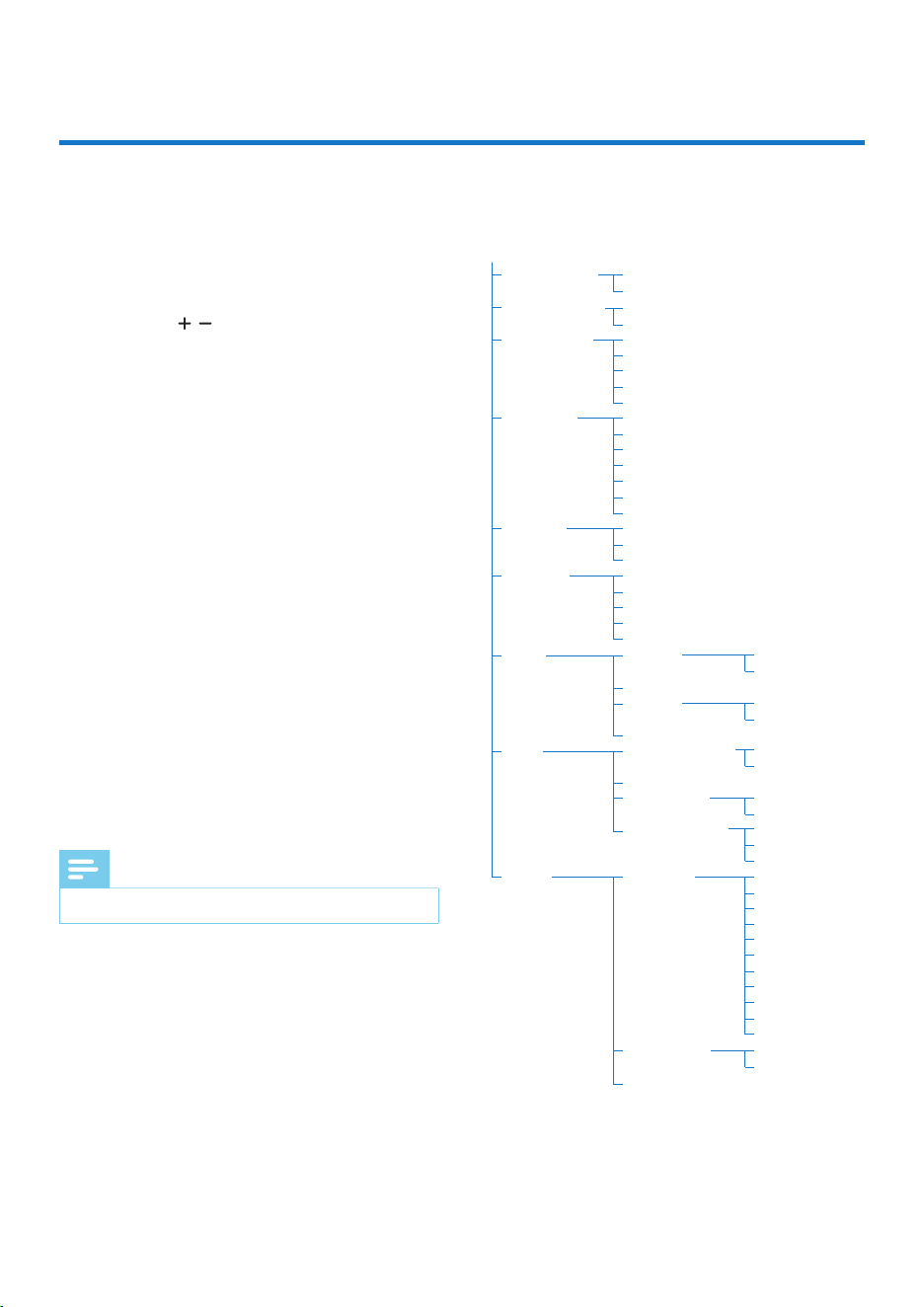
Press MENU to access Bluetooth® menu.
Press TUNE / to select a menu option, and
then press SELECT to con�rm the option or
enter the lower-level menu.
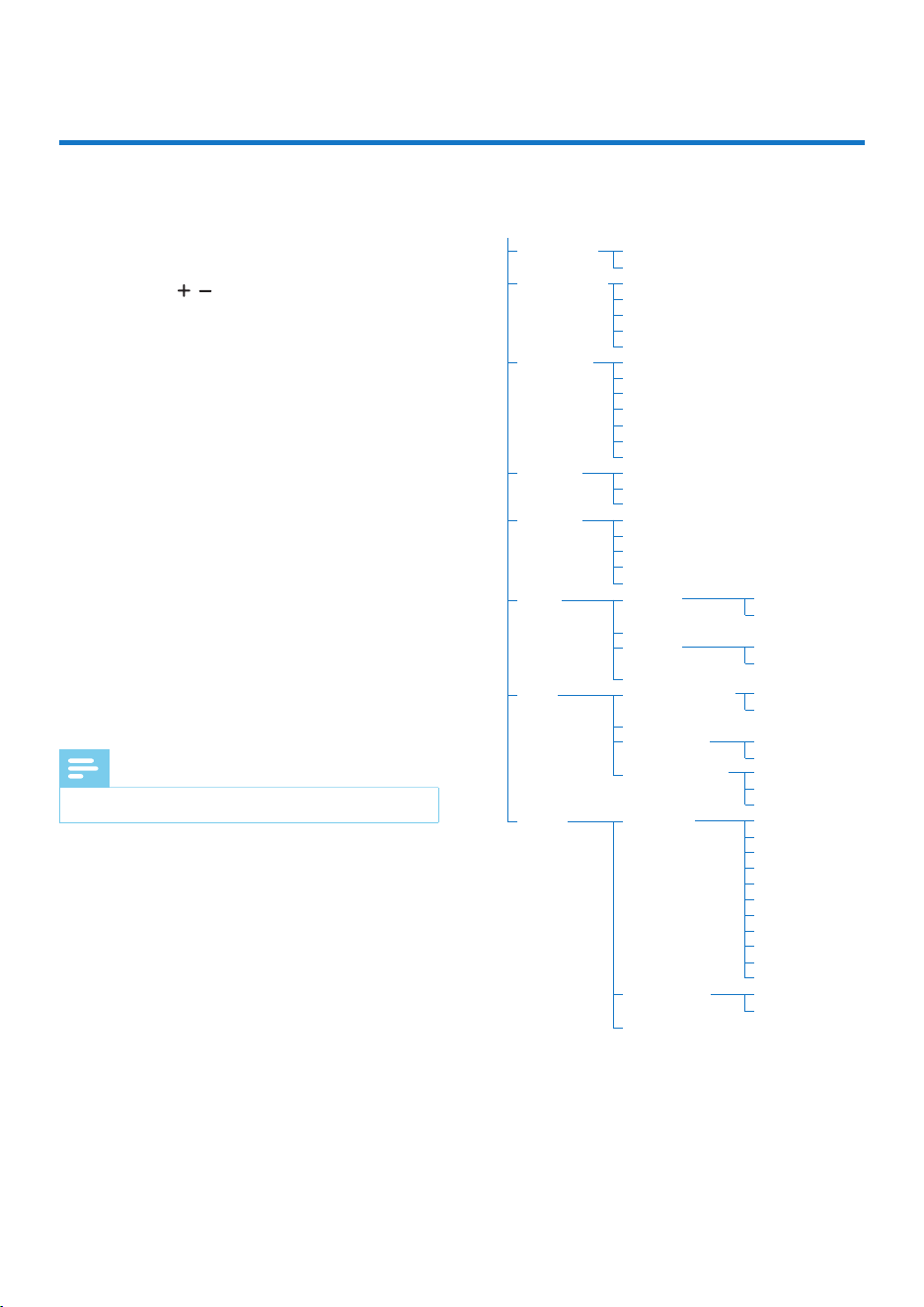
[Bluetooth pair]: select it to disconnect
Bluetooth connection and enter pairing
mode.
[Bluetooth clean]: clear Bluetooth pairing
records.
[Kitchen timer]: set kitchen timer.
[Sleep timer]: set sleep timer.
[DBB level]: adjust the sound reproduced.
[DIM level]: adjust backlight settings.
[Alarm]: set alarm on/off and alarm setup.
[Clock]: set time synchronization, date/time,
select time format and date format.
[System]: adjust system settings.
Repeat step 2 if any sub-option is available
under one option.
Press BACK to return to the previous menu
or press and hold BACK for 3 seconds to exit
the menu.
Show menu in Bluetooth®
mode
1
2
When you listen via Bluetooth®, you can access
the menu for control options.
•
•
Note
• If no button is pressed within 30 seconds, the menu exits.
3
4
•
•
•
•
•
•
•
Bluetooth pair
Bluetooth clean
Kitchen timer
Sleep timer
DBB level
DIM Level
Alarm
Clock
System
Bluetooth Menu
Yes
No
Yes
No
Hour: 0
Minute: 0
Second: 0
On
Off
Off
15 minutes
30 minutes
45 minutes
60 minutes
90 minutes
120 minutes
DBB2
DBB1
Off
Auto
High
Medium
Low
Off
Alarm 1
Alarm 1 Setup
Alarm 2
Alarm 2 Setup
Set auto/manual
Set date&time
Set 12H/24H
Set date format
Language
Factory reset
SW version
On
Off
On
Off
Auto (DAB/RDS)
Manual
12H
24H
MM-DD-YYYY
DD-MM-YYYY
YYYY-MM-DD
English
Dansk
Deutsch
Nederlands
Polski
Français
Italiano
Norsk
Svenska
Suomi
Español
Yes
No
17EN
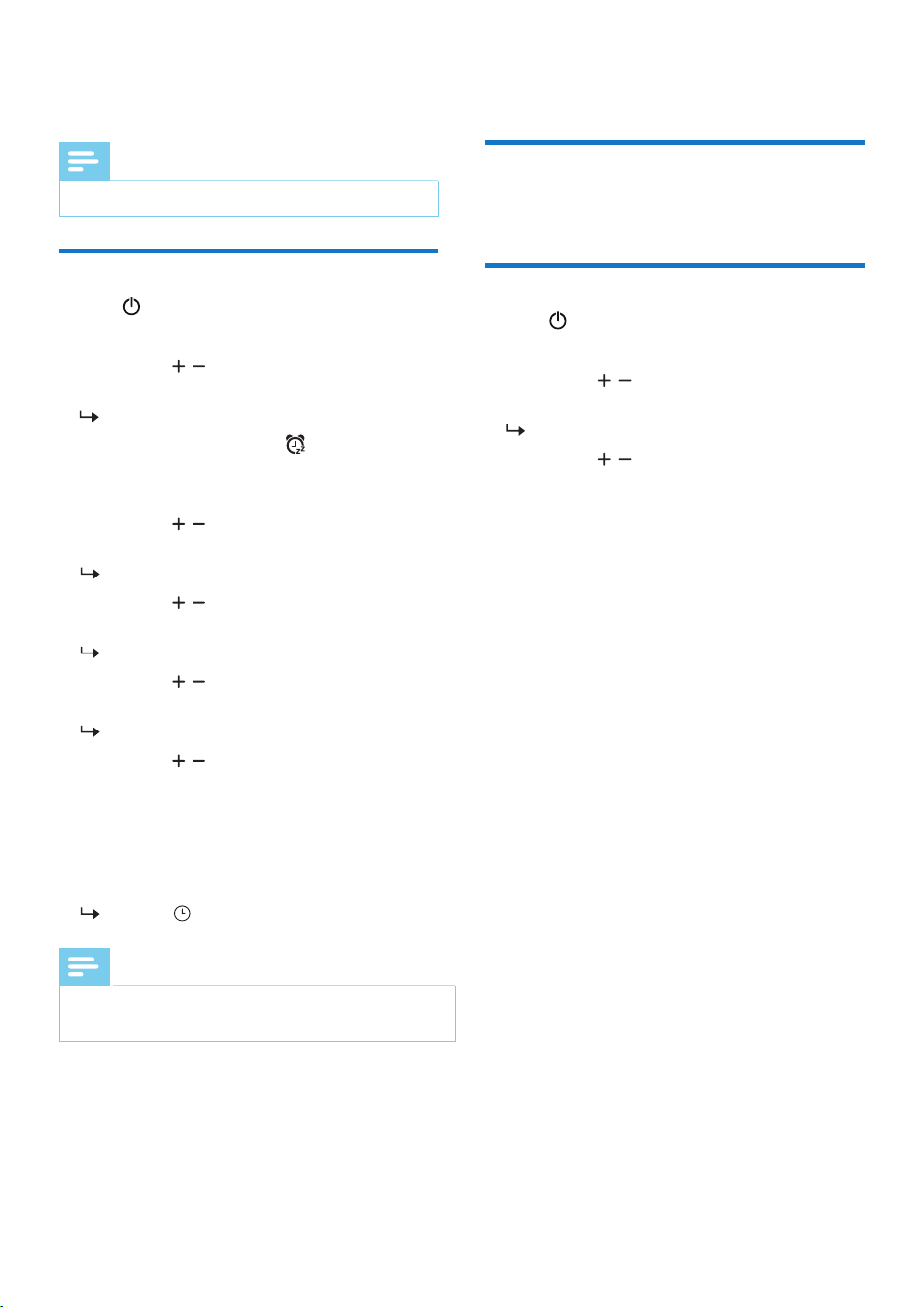
Stop kitchen timer sounds
When the kitchen timer rings, press any button
to stop the buzzer.
Cancel the kitchen timer
Press to turn on the unit.
Press MENU to access menu.
Press TUNE / to select [Kitchen timer],
then press SELECT to con�rm.
[Cancel timer?] is displayed.
Press TUNE / to select [Yes] (Cancel) ,
then press SELECT to con�rm.
Press BACK to exit the menu.
Select menu language
Press MENU to access menu.
Press TUNE / to select [System], then
press
SELECT to con�rm.
Press TUNE / to select [Language], then
press
SELECT to con�rm.
Press TUNE / to select menu display
language, then press SELECT to con�rm.
Press BACK to return to the previous menu
or press and hold BACK for 3 seconds to exit
the menu.
Factory reset
Press MENU to access menu.
Press TUNE / to select [System], then
press
SELECT to con�rm.
Press TUNE / to select [Factory reset],
then press SELECT to con�rm.
Press
TUNE / to select [Yes] (reset all radio
settings to the factory default status)
, then
press
SELECT to con�rm.
[Restarting...] is displayed.
18 EN
Adjust display brightness
You can select different brightness levels or
turn off the display screen.
Press MENU to access menu.
Press TUNE / to select [DIM level], and
then press SELECT to con�rm.
Press TUNE / to select brightness level
(Auto, High, Medium, Low), or Off to turn off
the display screen, and then press SELECT to
con�rm.
If [Auto] is selected, it will enter high
brightness level; after being idle for 10
seconds, it will enter low brightness level.
If [Off] is selected, the display screen will
turn off. The screen will light up in high
brightness when you press any button,
and will turn off automatically after being
idle for 10 seconds.
Press BACK to exit the menu.
Adjust sound effects
Press to turn on the unit.
Press MENU to access menu.
Press TUNE / to select [DBB level], then
press
SELECT to con�rm.
Press TUNE / to select sound reproduced
(DBB2, DBB1 or Off), then press SELECT to
con�rm
.
Press BACK to exit the menu.
Note
• The unit exits menu setting when idle for 30 seconds.
9
Kitchen timer setting
1
2
3
4
5
Set kitchen timer
Press to turn on the unit.
Press MENU to access menu.
Press TUNE / to select [Kitchen timer],
then press SELECT to con�rm.
The hour digits blink.
Tip: You can press and hold for 3 seconds
to activate the kitchen timer setup
directedly.
Press TUNE / to set the hour, and then
press SELECT to con�rm.
The minute digits blink.
Press TUNE / to set the minute, and then
press SELECT to con�rm.
The second digits blink.
Press TUNE / to set the second, and then
press SELECT to con�rm.
The [On] and [Off] appear.
Press TUNE / to select [On] (activate) or
[Off] (deactivate) the kitchen timer, and then
press SELECT to con�rm.
Press BACK to return to the previous menu
or press and hold BACK for 3 seconds to exit
the menu.
The icon and kitchen timer is appear.
1
2
3
4
5
6
7
8
Note
•
Kitchen timer timeout is 60 minutes if there is no user action.
• The unit exits menu setting after being idle for 30 seconds.
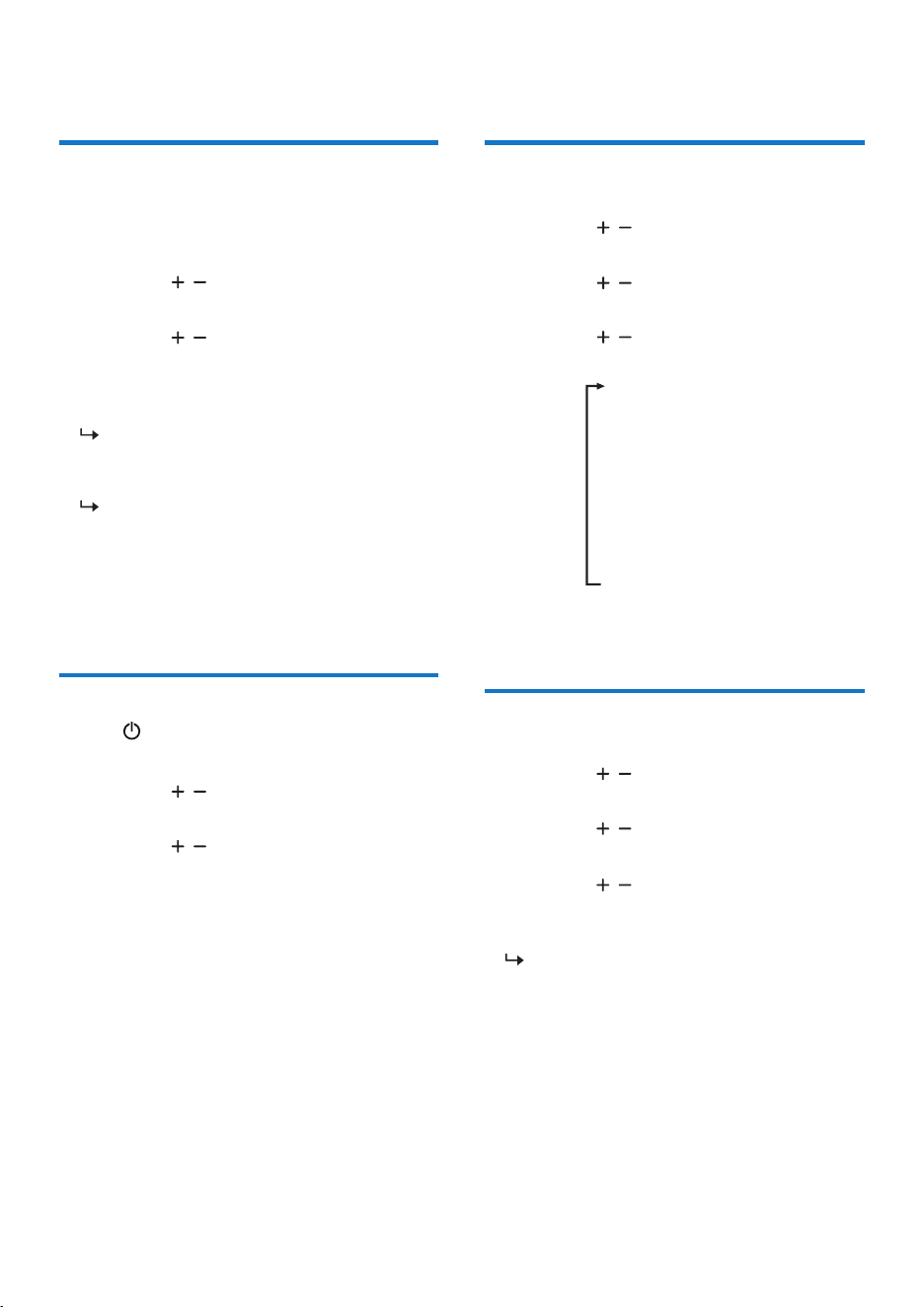
Stop kitchen timer sounds
When the kitchen timer rings, press any button
to stop the buzzer.
Cancel the kitchen timer
Press to turn on the unit.
Press MENU to access menu.
Press TUNE / to select [Kitchen timer],
then press SELECT to con�rm.
[Cancel timer?] is displayed.
Press TUNE / to select [Yes] (Cancel) ,
then press SELECT to con�rm.
Press BACK to exit the menu.
Select menu language
Press MENU to access menu.
Press TUNE / to select [System], then
press
SELECT to con�rm.
Press TUNE / to select [Language], then
press
SELECT to con�rm.
Press TUNE / to select menu display
language, then press SELECT to con�rm.
Press BACK to return to the previous menu
or press and hold BACK for 3 seconds to exit
the menu.
Factory reset
Press MENU to access menu.
Press TUNE / to select [System], then
press
SELECT to con�rm.
Press TUNE / to select [Factory reset],
then press SELECT to con�rm.
Press
TUNE / to select [Yes] (reset all radio
settings to the factory default status)
, then
press
SELECT to con�rm.
[Restarting...] is displayed.
19EN
Adjust display brightness
You can select different brightness levels or
turn off the display screen.
Press MENU to access menu.
Press TUNE / to select [DIM level], and
then press SELECT to con�rm.
Press TUNE / to select brightness level
(Auto, High, Medium, Low), or Off to turn off
the display screen, and then press SELECT to
con�rm.
If [Auto] is selected, it will enter high
brightness level; after being idle for 10
seconds, it will enter low brightness level.
If [Off] is selected, the display screen will
turn off. The screen will light up in high
brightness when you press any button,
and will turn off automatically after being
idle for 10 seconds.
Press BACK to exit the menu.
Adjust sound effects
Press to turn on the unit.
Press MENU to access menu.
Press TUNE / to select [DBB level], then
press
SELECT to con�rm.
Press TUNE / to select sound reproduced
(DBB2, DBB1 or Off), then press SELECT to
con�rm
.
Press BACK to exit the menu.
2
1
3
4
5
2
1
3
4
10 Other features
1
2
3
4
Set kitchen timer
Press to turn on the unit.
Press MENU to access menu.
Press TUNE / to select [Kitchen timer],
then press SELECT to con�rm.
The hour digits blink.
Tip: You can press and hold for 3 seconds
to activate the kitchen timer setup
directedly.
Press TUNE / to set the hour, and then
press SELECT to con�rm.
The minute digits blink.
Press TUNE / to set the minute, and then
press SELECT to con�rm.
The second digits blink.
Press TUNE / to set the second, and then
press SELECT to con�rm.
The [On] and [Off] appear.
Press TUNE / to select [On] (activate) or
[Off] (deactivate) the kitchen timer, and then
press SELECT to con�rm.
Press BACK to return to the previous menu
or press and hold BACK for 3 seconds to exit
the menu.
The icon and kitchen timer is appear.
1
2
3
5
4
English
Dansk
Deutsch
Nederlands
Polski
Français
Italiano
Norsk
Svenska
Suomi
Español
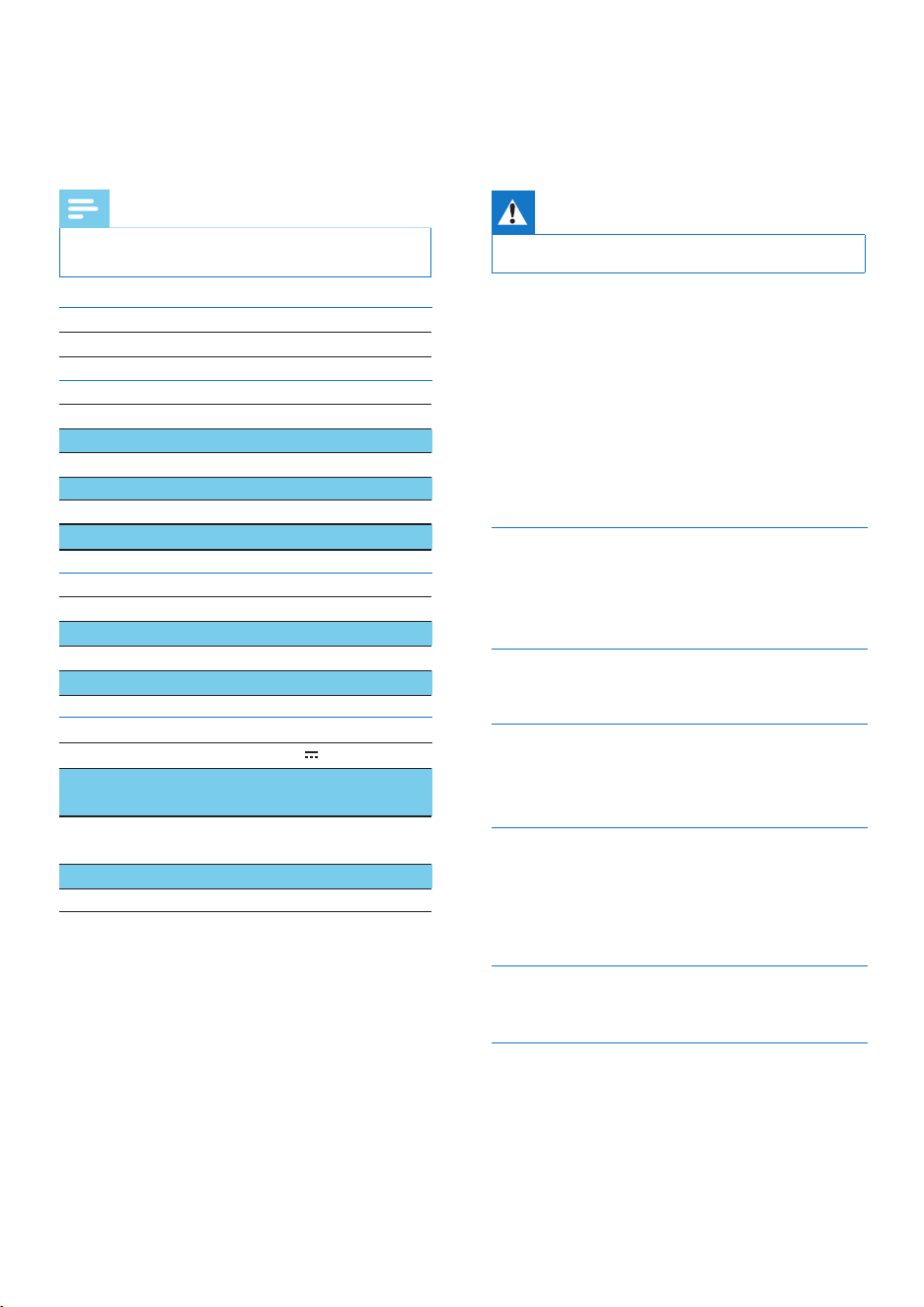
11 Product
speci�cations
Note
• Product information is subject to change without prior
notice.
2.5W RMS
87.5-108 MHz
174-240 MHz (Band III)
50 KHz
<22 dBf
<10%
>50 dBA
V5.3
2.4 Ghz~2.48 GHz
3.29 dBm
30m (free space)
5.0V 1.0A
<1.5 W
≤0.8 W
101x160.8x99 mm
570g
Ampli�er
Rated Output Power
Tuner
Tuning Range(FM)
Tuning Range(DAB)
Tuning Grid
Sensitivity - Mono, 26 dB S/N Ratio
Total Harmonic Distortion
Signal to Noise Ratio
Bluetooth
Bluetooth Version
Bluetooth Frequency Band
Max.e.i.r.p.
Bluetooth Range
General information
Power Supply
Operation Power
Consumption
Standby Power
Consumption
Dimensions (W x H x D)
Weight (Main unit)
12
Troubleshooting
Warning
•
Never remove the casing of the product.
To keep the warranty valid, never try to repair
the device yourself. If you encounter problems
when using this device, check the following
points before requesting service. If the problem
remains unsolved, go to the Philips webpage
www.philips.com/support. When you contact
Philips, make sure that the device is nearby
and the model number and serial number are
available.
No power
• Make sure that the AC power plug of the unit
is connected properly.
• Make sure that there is power at the AC outlet.
No sound
• Adjust the volume.
No response from the unit
• Disconnect and reconnect the AC power plug,
then turn on the unit again.
Poor radio reception
• Keep the clock radio away from other
electronic devices to avoid radio interference.
• Fully extend and adjust the position of the
antenna.
Alarm does not work
• Set the clock/alarm correctly.
Clock/alarm setting erased
• Power has been interrupted or the power
plug has been disconnected.
• Reset the clock/alarm.
• Replace the backup batteries.
20 EN
The audio quality is poor after connection
with a Bluetooth-enabled device
• The Bluetooth reception is poor Move
the device closer to this product or remove
any obstacle between them.
Cannot connect with the device
• The Bluetooth function of the device is not
enabled. Refer to the user manual of the device
for how to enable the function.
• This product is already connected with another
Bluetooth-enabled device. Disconnect that
device and then try again.
The paired device connects and disconnects
constantly
• The Bluetooth reception is poor. Move the device
closer to this product or remove any obstacle
between them.
• For some devices, Bluetooth connection may be
deactivated automatically as a power-saving
feature. This does not indicate any malfunction
of this product.
13
Notice
21EN
Care for your product
Care of the environment
Your product is designed and
manufactured with high quality
materials and components, which
can be recycled and reused.
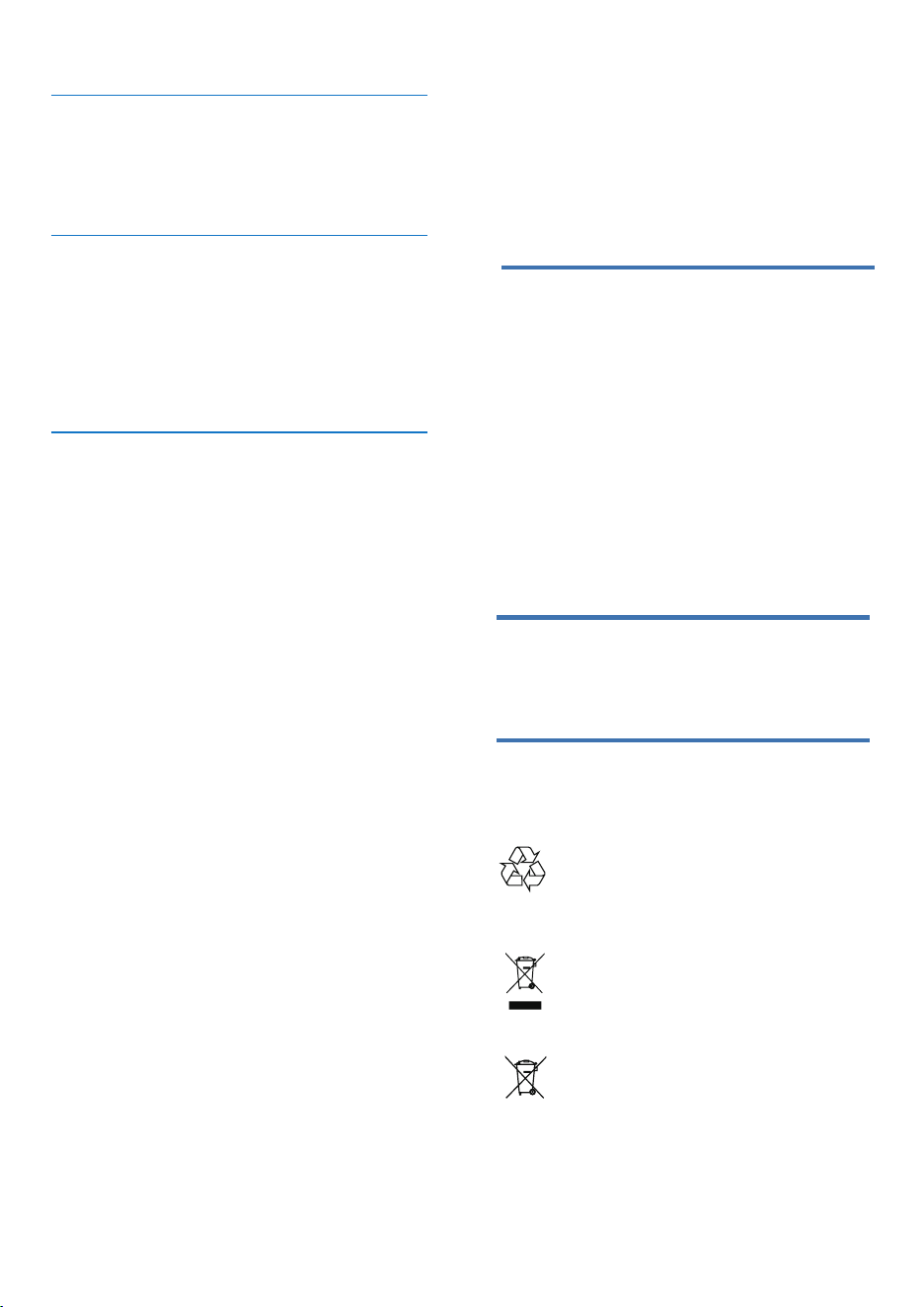
This symbol on a product means
that the product is covered by
European Directive 2012/19/EU.
This symbol means that the
product contains batteries
covered by European
Regulation (EU) 2023/1542
which cannot be disposed of
with normal household waste.
Use only micro�ber cloth to clean the
product.
Disposal of your old product and battery
Declaration of conformity
This product complies with the radio
interference requirements of the European
community.
Hereby, TP Vision Europe B.V. declares that
the product is in compliance with the
essential requirements and other relevant
provisions of RED Directive 2014/53/EU
and UK Radio Equipment Regulations SI
2017 No 1206. You can �nd the Declaration
of Conformity on
www.philips.com/support.
Any changes or modifycations made to this
device that are not expressly approved by
MMD Hong Kong Holding Limited may void
the user’s authority to operate the product.

22 EN
The Bluetooth® word mark and logos are
registered trademarks owned by Bluetooth SIG,
Inc. and any use of such marks by MMD Hong
Kong Holding Limited is under license. Other
trademarks and trade names are those of their
respective owners.
Inform yourself about the local separate
collection system for electrical and
electronic products and batteries. Follow
local rules and never dispose of the
product and batteries with normal
household waste. Correct disposal of old
products and batteries helps prevent
negative consequences for the
environment and human health.
Removing the disposable batteries
To remove the disposable batteries, see
battery installation section.

TAR5100_10_UM_V1.0
MMD Hong Kong Holding Limited. All rights reserved. Speci�cations are subject to change without notice.
Philips and the Philips Shield Emblem are registered trademarks of Koninklijke Philips N.V. and are used
under license. This product has been manufactured by and is sold under the responsibility of MMD Hong
Kong Holding Limited or one of its affiliates, and MMD Hong Kong Holding Limited is the warrantor in
relation to this product.