Please scan the QR code to watch
the installationguide video
Product model:YS-001
Item NO.:G1MPLUS
Scan for Installation Guide
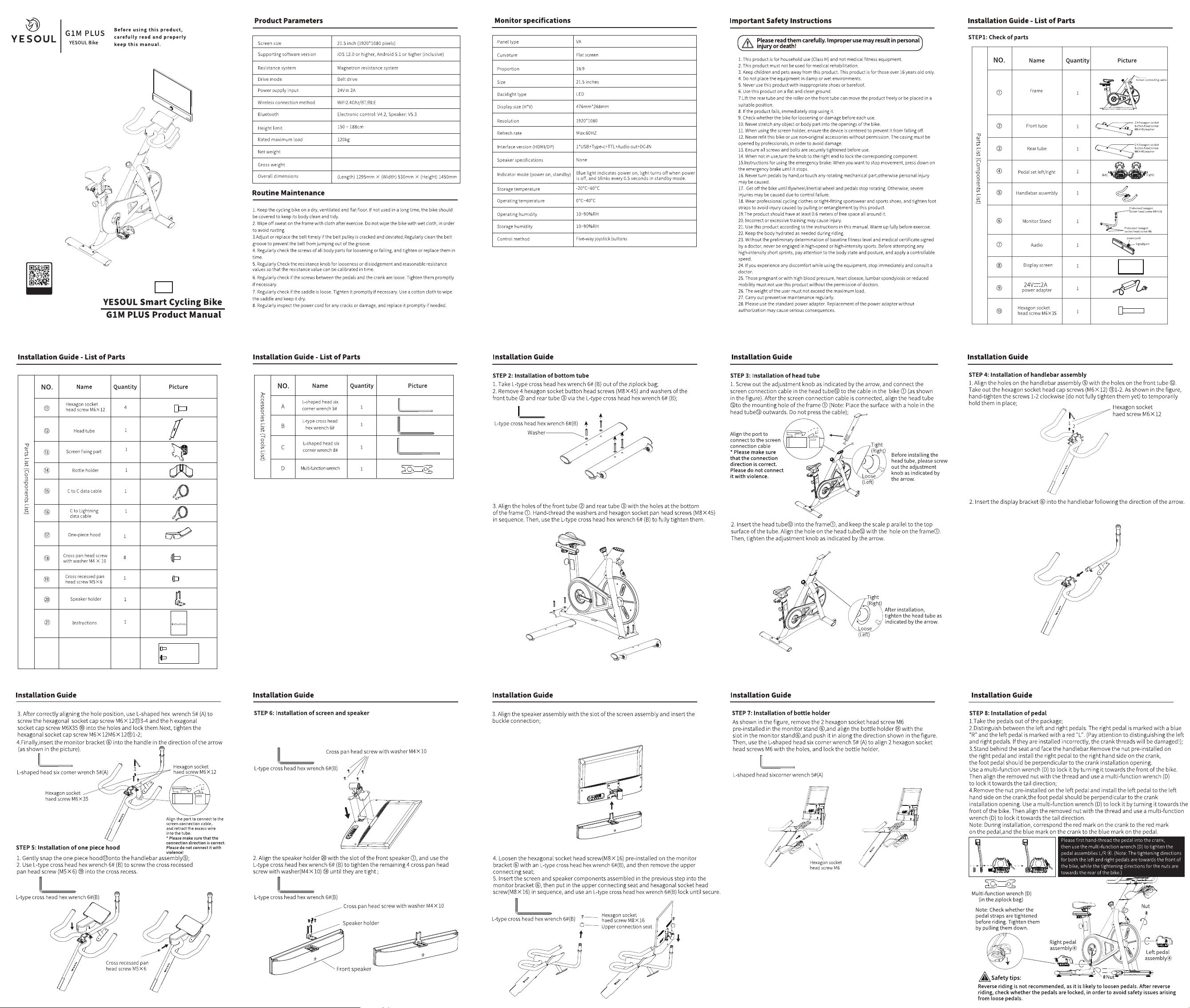
1.Take out the screen fixing piece ⑬(make sure the side with the sticker faces up!),
and use the L-type cross head hex wrench 6# (B) to lock the 4 cross pan head screw
with washer(M4×10) ⑱ until they are tight (* Please put the screen on the desk flatly.
Do not collide with the screen withhard objects to avoid screen damage!);
2×Cross pan head screw
with washer M4 × 10
1
1×Hexagon socket
head screw M6×12
*Some fixing screws are pre-locked on the corresponding parts at the factory.
Please remove them before installing the corresponding parts during assembly.
Spare parts are subject to actual conditions.
Spare parts
㉒
EN
36kg
39.5kg
Disconnect tone
(Pairing)
Disconnect tone
(Pairing)
Red LED
flash quickly
Red LED
flash quickly
Red LED
flash quickly
The tone of
successful
connection
(Paired (dong))
The tone of
successful
connection
(Paired )
The tone of
successful
connection
(Paired)
Red LED
always on
Red LED
always on
Red LED
always on
Red LED
always on
Red LED
always on
Red LED
always on
Red LED
always on
Red LED
always on
Red LED
goes out
Red LED
goes out
Volume up to
maximum with
a tone (beep)
/
/
/
Switch to Bluetooth
mode with beep
(Bluetooth pairing on)
1.AUX mode: red light
always on
2. Bluetooth mode:
red light flashes quickly
Power-on beep
(hello)
Shutdown tone
(Shutdown sound
effect)
Shutdown tone
(Shutdown sound)
/
/
/
/
/
Short press the
Rotary switch
Power On
Sleep
state
On/Off
Sleep state Sleep state
Wake
function
Volume up
Turn the switch Clockwise
The volume increases
gradually as your rotation
Volume down
Turn the switch anticlockwise
The volume decreases
gradually as your rotation
Mode Switch
Power on
Short press the Rotary switch
Switch AUX mode and Bluetooth mode
Power on
Click the knob button to
switch the mode to
Bluetooth mode
1. Pairing search status, red light flashes quickly
2. If pairing times out in 10mins, it will enter
sleep state
S
witch to Pairing mode
(
the bluetooth c an be
f
ound by other devise)
Power on
Open the bluetooth and
Search on the devise
Bluetooth device searches for "Speaker"
and connects, successful pairing
announces a tone
Close your devise
bluetooth function
Cancel the pairing
by the devise
Disconnect the bluetooth
connection by Devise
1. After over-distance disconnection,
the speaker enters the pairing state and
the red light flashe quickly
2. After 10 mis, no device is connected and
the speaker enters sleep state
Reconnected successful with devise
Reconnected
Bluetooth mode
(paired with
devise before)
Switch to bluetooth mode,
spkeaker try to reconnect
with the last devise
If unable to reconnect within 10mins,
enter sleep state
F
(In Bluetooth
mode)
actory Reset
Power On
In Bluetooth mode,
triple-click the button on
one of the front and rear
speakers
1. Restore to the default boot state
(enter AUX mode)
2. Clear Bluetooth connection records and
clear front and rear speakers
Pairing record, volume restored to default
volume (maximum volume 50%)
3. Enter AUX state
Power On
Power On
Tone
LED
Pre-Condition
Effect
Control
Fuction
Pairing
function
Disconnected
Reconnected-
back to BT range
Connected
Disconnected
1. Connected with devise,
the bluetooth disconnected
after move the devise out
of the BT range
2. It reconnected successful if
back in BT range within 10mins
1. Announcement tone (
Pairing
)
2. Speaker enter the pairing mode
Power ffO
Press and hold the
knob button for 3 seconds
The speaker has no AUX
signal or Bluetooth signal
input for more than
10 mis
When clicking the knob
button (clicking does not
switch modes), inputting
audio signals、adjusting
the volume and connecting
Bluetooth can wake up
Power off
The speaker goes to sleep
Enter pre-wake state
Recovery
success tone
(hello)
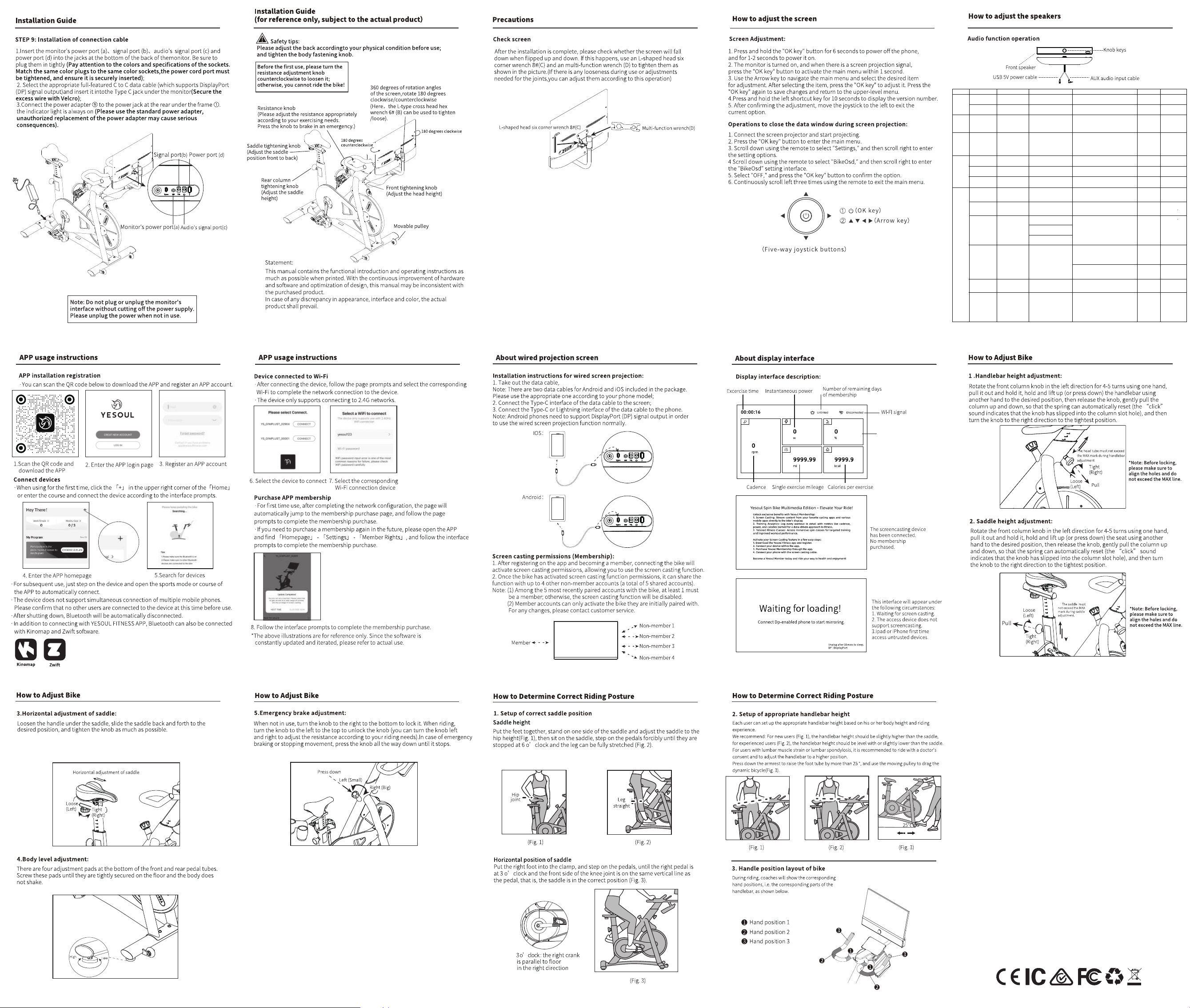
Note: When your phone is connected to the speaker via Bluetooth and connected to wired screen projection,
please switch the speaker to AUX mode.
Operation steps
Project
Bluetooth
pairing
Resistance