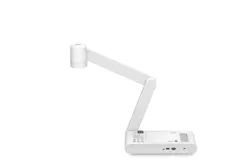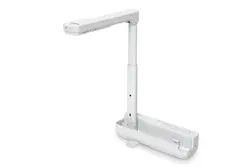
Document Camera
User's Guide
Meaning of Symbols in the Guide
• Symbols for Safety
The documentation and this product use graphical symbols to show how to use this product safely.
The indications and their meaning are as follows. Make sure you understand and respect these caution symbols to avoid injury to persons or property.
Warning
This symbol indicates information that, if ignored, could possibly result in personal injury or even death due to incorrect handling.
Caution
This symbol indicates information that, if ignored, could possibly result in personal injury or physical damage due to incorrect handling.
• Symbols for General Information
Attention
Indicates information that, if ignored, could cause the product to malfunction or cause damage.
a
Indicates additional information and points which may be useful to know regarding a topic.
s Indicates a page where detailed information regarding a topic can be found.
[Name] Indicates button names for the control panel.
Example: [Return] button

Safety Instructions
Read this User's Guide and follow all safety instructions for your document camera. Keep this guide at hand for future reference.
Warning
Disconnect the document camera and contact your local dealer or Epson for help under the following conditions:
• If smoke, strange odors, or strange noises come from the device
• If liquid or foreign objects get inside the device
• If the device has been dropped or the housing has been damaged
Continuing to use under these conditions may result in fire or electric shock.
Never open any covers on the document camera except as specifically explained in this User's Guide. Never attempt to disassemble or modify the document camera. Refer
all repairs to qualified service technicians.
Do not place any containers of liquid on top of or near the document camera.
Never allow objects of any kind to enter any openings in the document camera. Do not leave objects, especially flammable objects, near the document camera. Doing so
may result in fire or electric shock.
Do not use or store the document camera in a hot location, such as in a closed vehicle, in direct sunlight, near air conditioning or heater vents, or near a projector's
exhaust vent. Thermal damage, fire, or malfunction may occur.
Do not use or store the document camera outdoors for an extended length of time, or where it may be exposed to rain, water, or excessive humidity. Fire or electric shock
may result.
Do not look into the lens when the LED illumination lamp is on. The bright light can damage your eyes.
The cords included with this product contain chemicals, including lead, known to the State of California to cause birth defects or other reproductive harm. Wash hands
after handling. (This notice is provided in accordance with Proposition 65 in Cal. Health & Safety Code § 25249.5 and following.)

Caution
Do not place heavy objects on document camera. Otherwise, it may be damaged.
When using the document camera, be sure to extend the foot. Otherwise, the document camera may tip over or break, causing personal injury.
Be careful not to pinch your fingers in the movable parts of the document camera.
Do not place the document camera in an unstable location, such as on a shaky table or slanted surface. The document camera may drop or tip over, causing personal
injury. If you use a table, cart, or stand, make sure it is stable and will not fall over.
When raising the arm of the document camera, use both hands. If you release the arm before it is raised completely, the camera head may spring up, causing personal
injury.
Do not place or store the document camera where it is accessible to small children. It may drop or tip over, causing personal injury.
Do not set up the document camera near high-voltage electrical wires or sources of magnetic fields. This may interfere with correct operation.
Before cleaning the document camera, disconnect the USB cable.
Do not place the document camera on a carpet, blanket, and so on, or cover it during use.
Do not install the document camera in a hot location, such as near a heater.
Route cables so that they are not a tripping hazard. Otherwise, they could trip someone and cause a fall or injury.
Usage Precautions
Operate in the proper environmental conditions.
s "General Specifications" p.27
Do not use or store the document camera where it may be exposed to smoke, steam, corrosive gases, or excessive dust. Fire or electric shock may result.
Do not store the document camera in locations subject to direct sunlight or near heaters.
Do not place the document camera where it may be exposed to vibration or shock.
Do not touch the camera lens with bare hands. The displayed images will not be clear if there are fingerprints or oil from your skin on the lens surface.
Make sure you disconnect the USB cable when not using or when moving the document camera.
Use a dry cloth (or, for stubborn stains, a moist cloth that has been wrung dry) for cleaning. Do not use liquid, aerosol cleaners, or solvents such as alcohol,
thinner or benzine.
When transporting the document camera, use the soft carrying case.
Connect the document camera directly to a projector using the USB cable supplied. The document camera will not operate properly if a USB hub is used.
Dispose of the document camera according to local regulations.

Meaning of Symbols in the Guide ................... 2
Safety Instructions ..................................... 3
Operating the Document Camera
Included Items .............................................. 7
Document Camera Parts ..................................... 8
Top/Side/Rear.................................................8
Camera Head.................................................9
Connecting the Document Camera and Displaying Images . . . . 10
Connecting to a Projector through a Computer.........................11
Displaying an Image...........................................12
Freezing an Image.............................................12
Displaying Whiteboard Images.................................... 13
Disconnecting the Document Camera...............................13
Using the Computer Software
Using Easy Interactive Tools ................................ 15
System Requirements..........................................15
Installing...................................................16
Uninstalling .................................................16
Using Other Software ...................................... 18
Installing...................................................18
Uninstalling .................................................18
Solving Problems
Problems and Solutions .................................... 20
Operation Problems ............................................20
No image appears on the screen .................................20
An unknown USB device has been connected. is displayed................20
Image Quality Problems .........................................20
The image is fuzzy or out of focus................................20
Image colors are incorrect ......................................20
Epson Projector Contact List . . .............................. 21
EUROPE ....................................................21
AFRICA ....................................................23
MIDDLE EAST................................................23
NORTH, CENTRAL AMERICA & CARIBBEAN ISLANDS......................24
SOUTH AMERICA .............................................. 24
ASIA AND OCEANIA............................................ 24
Notices
Specifications ............................................. 27
General Specifications..........................................27
Symbols Indicating the Device Meets the IEC60950-1 A2 Safety
Standards ................................................. 30
Copyrights and Trademarks ................................ 32
Responsible Use of Copyrighted Materials.............................32
Trademarks.................................................32
Contents
5

Operating the Document Camera

• Document Camera
• USB cable (for use with document camera only) 3.0 m (10 feet)
• Soft carrying case
*
• EPSON Document Camera Software CD-ROM
• Document CD-ROM
• Quick Start guide
• Setup label
*
The soft carrying case is not included when the document camera is
packaged together with a projector.
Included Items
7
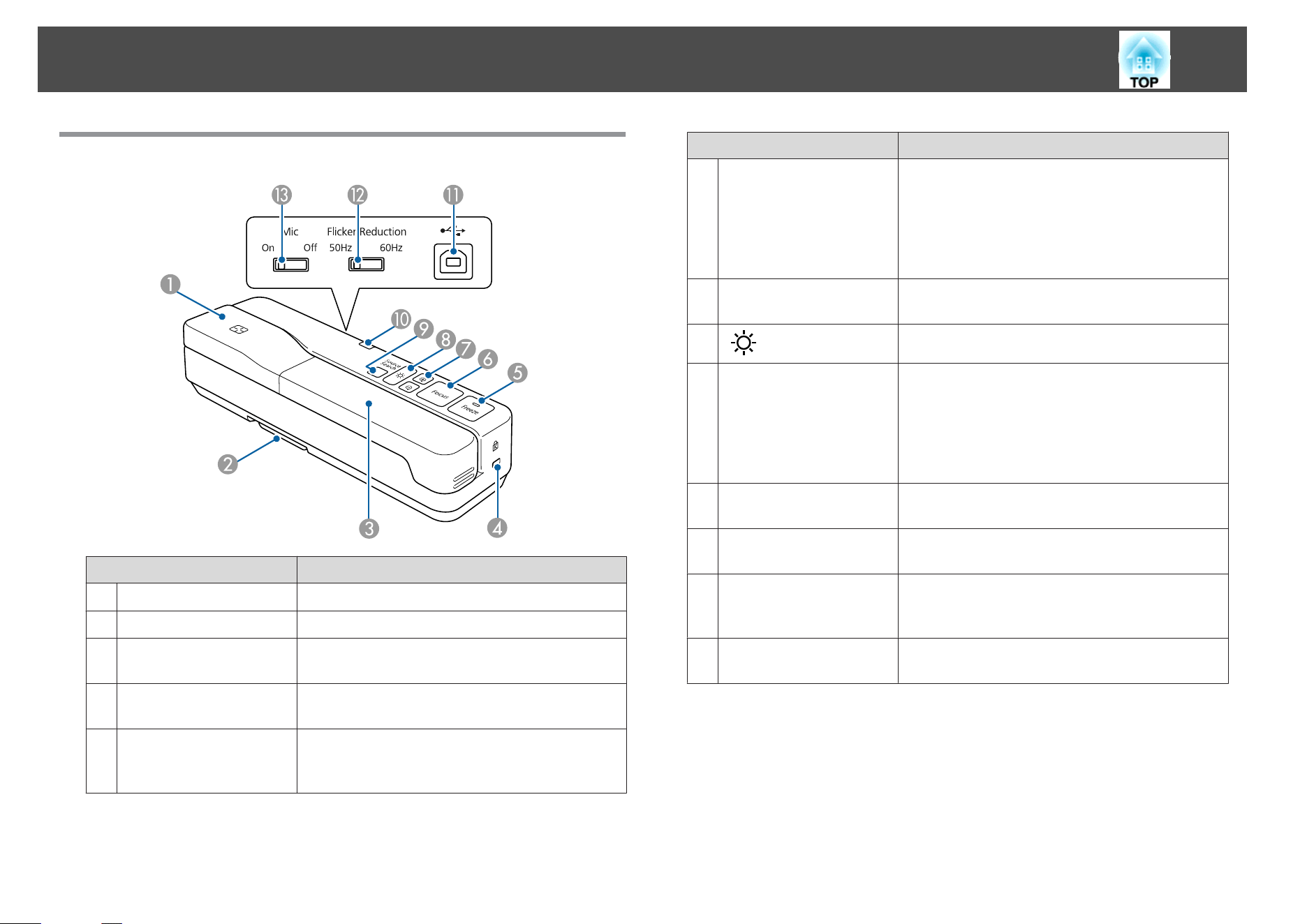
Top/Side/Rear
Name Function
A
Camera head s "Camera Head" p.9
B
Foot Extend the foot when installing.
C
Camera arm Extends or retracts to adjust the height of the camera
head.
D
Security slot The security slot is compatible with the Microsaver
security system manufactured by Kensington.
E
[Freeze] button Freezes live images. Press the button again to resume
projection. The indicator turns on when the image is
frozen. The audio does not stop.
Name Function
F
[Focus] button Focuses the image automatically.
The document camera cannot focus on objects that
are approximately 10 cm (4 inches) or less from the
surface of the camera lens.
If you want to adjust the white balance, press and
hold this button for approximately five seconds.
G
[z] [x] buttons Enlarges or reduces the image without changing the
projection size.
H
[ ] button
Turns the LED lamp on or off.
I
[Source Search] button Changes the image projected from the projector.
When multiple devices are connected to the
projector, press the button repeatedly until the
image you want to display is shown. This is not
available when the document camera is connected to
a computer.
J
Power indicator This indicator comes on when power is supplied
from a projector or computer.
K
USB port (type B) Connects the document camera to a projector or
computer using the USB cable supplied.
L
Flicker Reduction switch Change to 50Hz or 60Hz according to the power
frequency in the area you live. This reduces
flickering in images.
M
Mic switch Set this to Off to disable input from the internal
microphone. This should usually be set to On.
Document Camera Parts
8
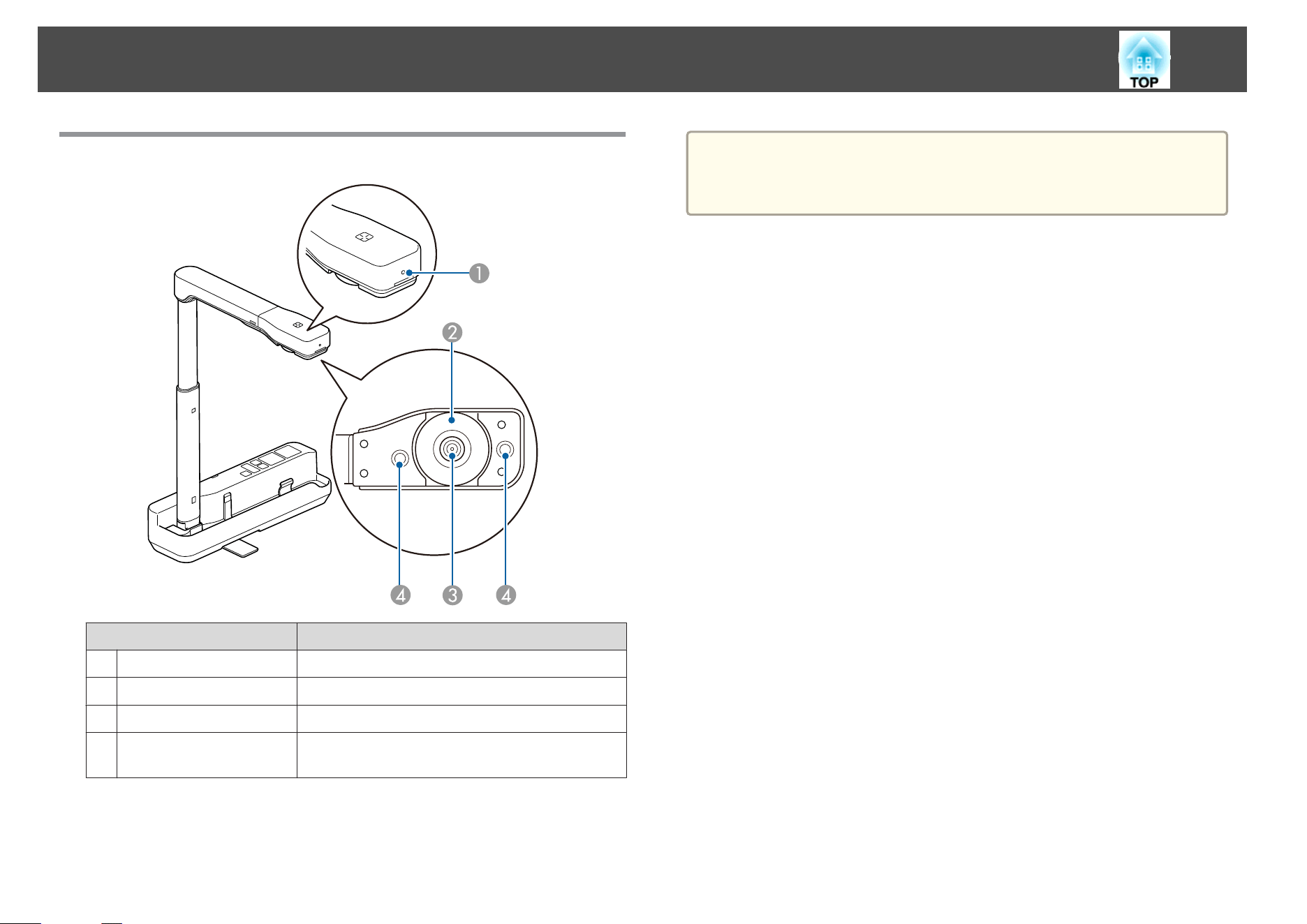
Camera Head
Name Function
A
Microphone Inputs audio.
B
Image rotation dial Rotates the projected image by ±90 degrees.
C
Camera lens Captures the image.
D
LED lamp Provides additional light when there is not enough
light on your document.
Attention
Do not rub the lens with harsh materials or subject it to shock, as it can be
easily damaged. Use a soft cloth to gently wipe the lens.
Document Camera Parts
9
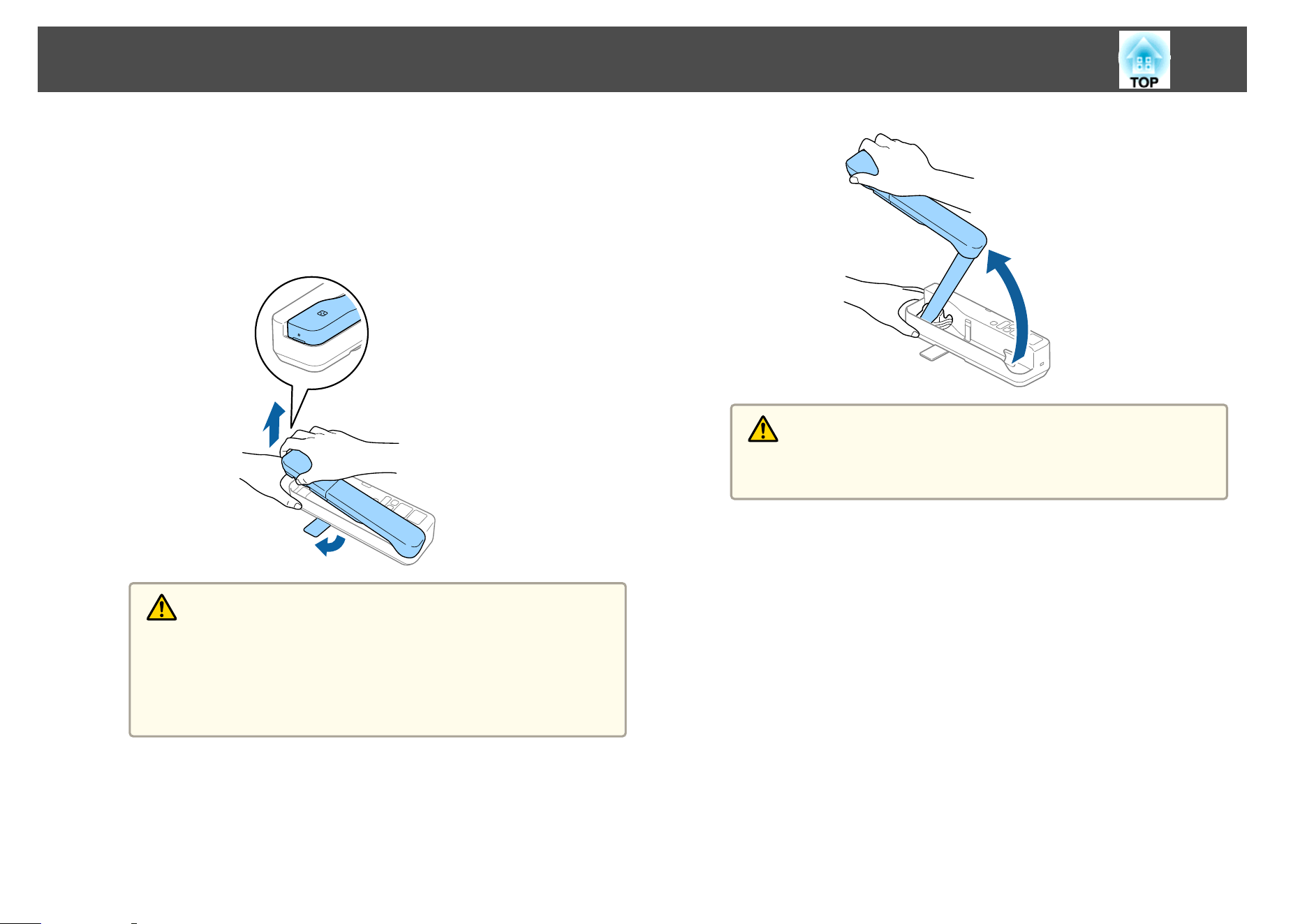
Connect the document camera to a projector using the USB cable that is
supplied with the document camera. For information on the projectors that
can be connected, see the User's Guide supplied with the projector.
a
Extend the foot, and then hold the grip and raise the camera
head.
Caution
• When using the document camera, be sure to extend the foot. The
document camera may fall, causing personal injury if it strikes
someone.
• Be careful not to pinch your fingers in the movable parts of the
document camera.
b
While holding the camera head, raise the camera arm.
Caution
Do not release the camera head before the camera arm is vertical. The
camera head may cause personal injury if it strikes you.
c
Rotate the camera arm 90° and rotate the camera head so that it
is facing the table surface. Adjust the height accordingly.
Connecting the Document Camera and Displaying Images
10
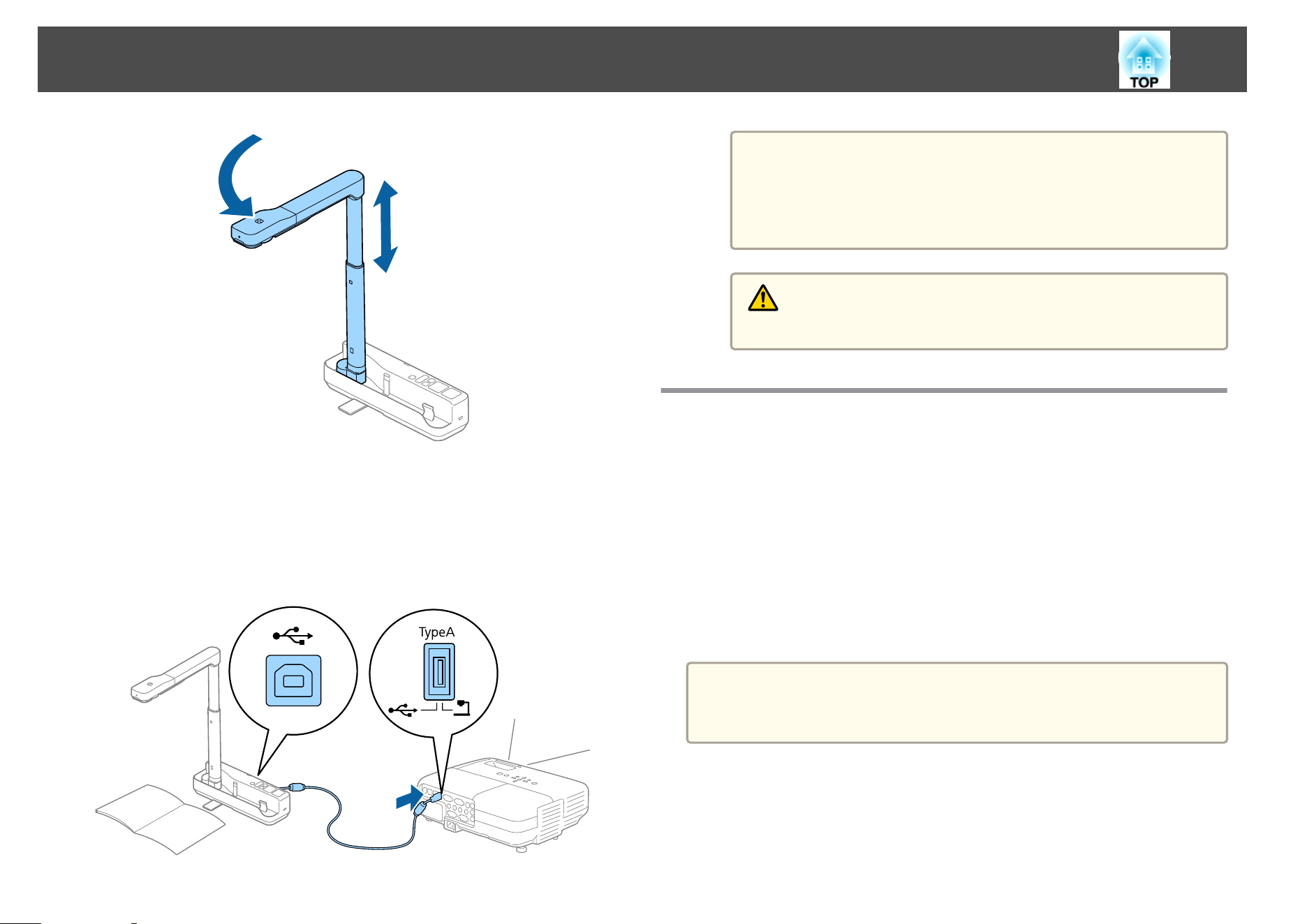
d
Turn on your projector.
e
Connect the supplied USB cable to the USB port (type B) on the
document camera and the USB port (type A) on the projector.
Live images from the document camera are projected from the
projector.
a
• The document camera will not operate properly if a USB hub
is used. Connect the projector directly to the document
camera.
• If no images are projected, press the [Source Search] button
on the document camera.
Warning
Do not look into the camera lens when the LED lamp is on.
Connecting to a Projector through a Computer
When the document camera is connected to a computer using a USB cable,
you can operate the document camera from the computer. Using the
supplied software, you can save images and video, adjust picture quality,
zoom, and so on.
s "Using the Computer Software" p.14
Connect the USB cable to the USB-B port on the document camera and the
USB port on the computer.
Next, connect the computer to the projector using an appropriate cable. See
your computer and projector documentation to determine the correct cable.
a
• Connect the document camera to a USB 2.0 port of a computer. If
you connect it to a USB 3.0 port, it may not function properly.
• Connect only one document camera to a computer at a time.
Connecting the Document Camera and Displaying Images
11
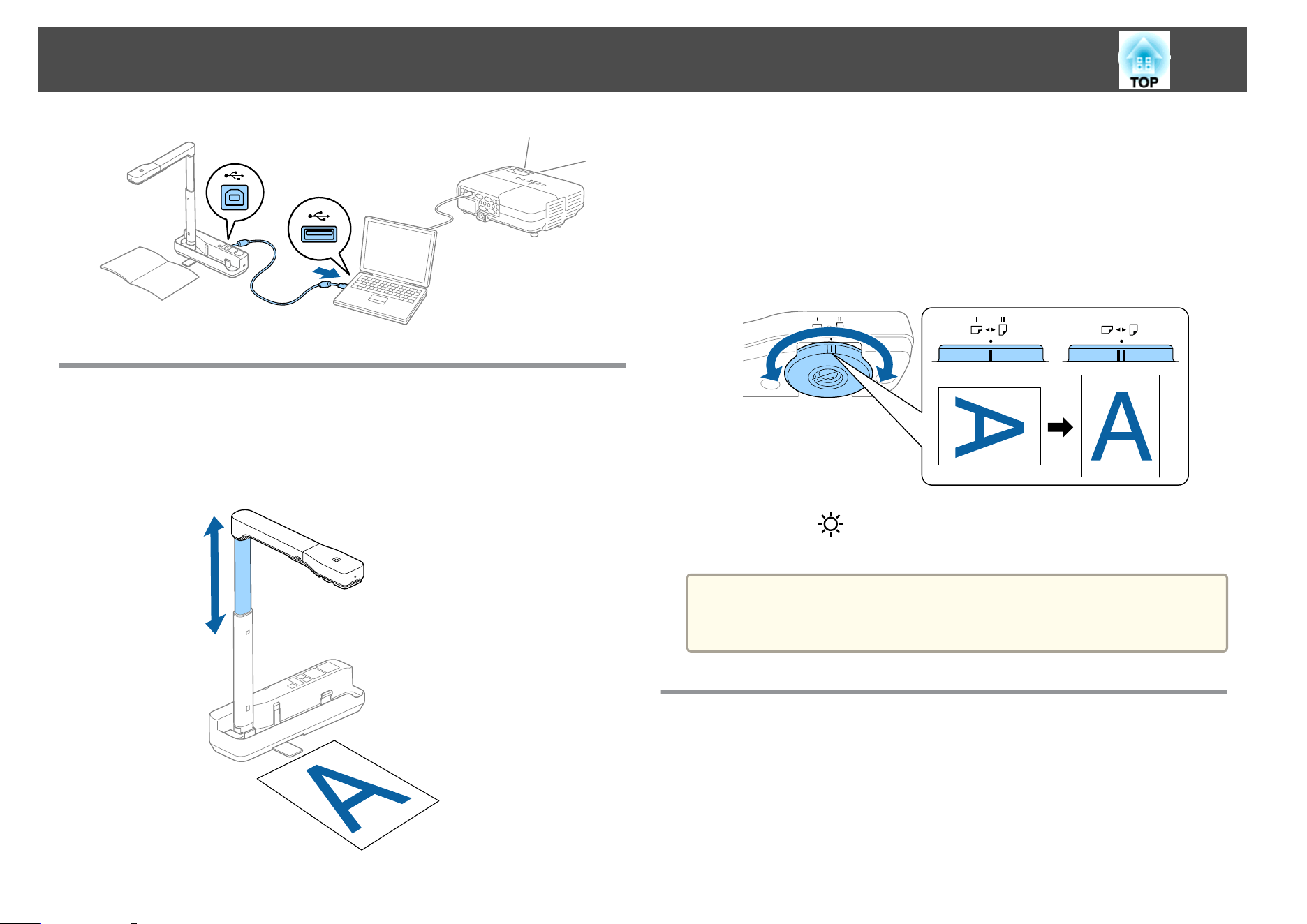
Displaying an Image
a
Place your document on the table under the camera head.
b
Extend or retract the camera arm to adjust the image size.
c
Press the [Focus] button.
The focus is adjusted automatically.
d
Press the [z]/[x] buttons to zoom in or out.
e
If you want to rotate the projected image, turn the image rotation
dial.
f
Press the [ ] button to illuminate the document.
a
If the document is small, place a piece of white paper (B4 size, 353 ×
250 mm [13.9 × 9.8 in] or larger) under the document to improve the
projected image.
Freezing an Image
Press the [Freeze] button to freeze the image.
After freezing the image, you can remove your document while leaving its
image displayed on the screen. Place your next document under the camera
lens and press the [Freeze] button again; your presentation continues
without interruption.
Connecting the Document Camera and Displaying Images
12
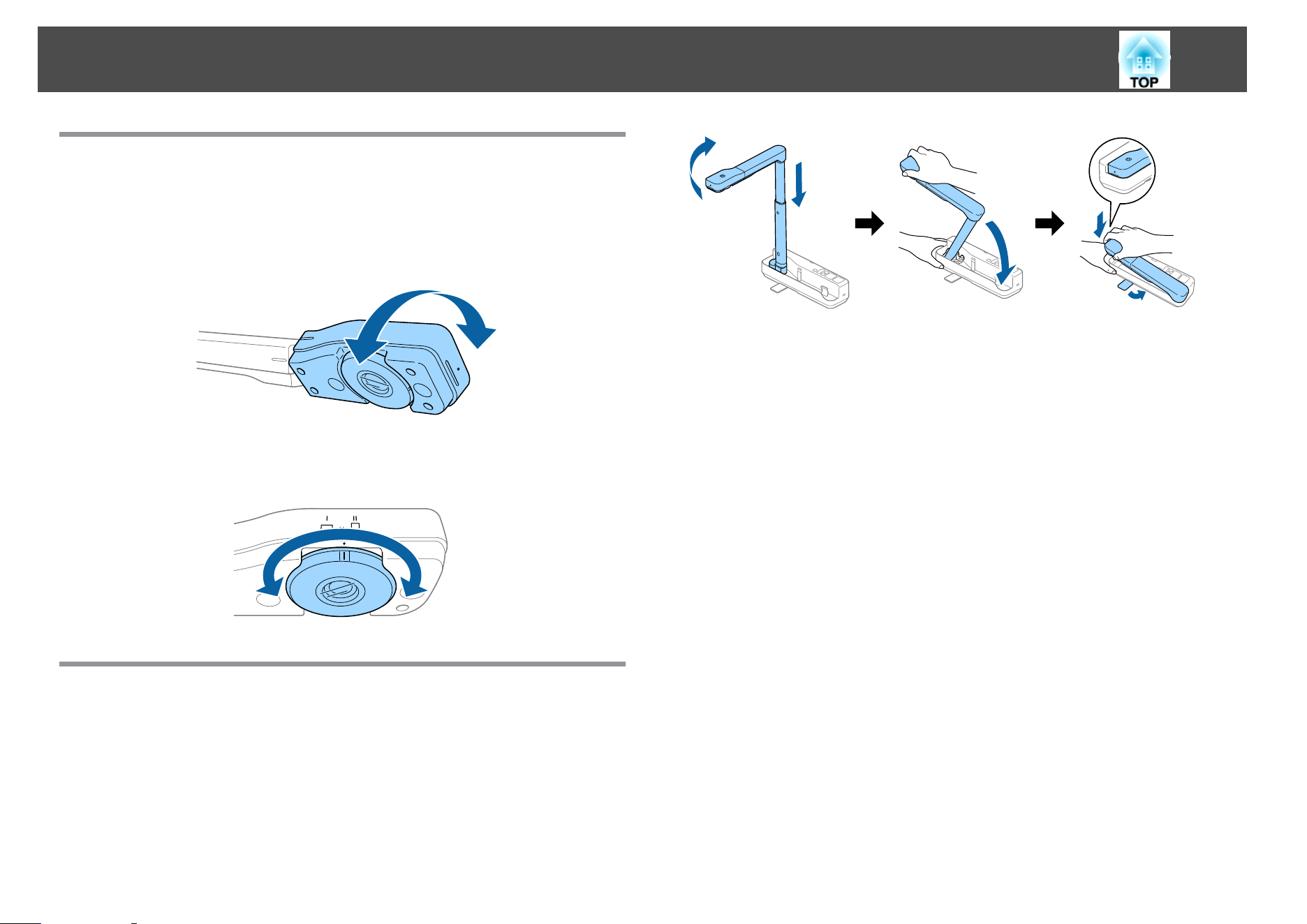
Displaying Whiteboard Images
You can use the document camera to display a lecture or presentation at
the front of a room, or to capture images of a whiteboard or chalkboard.
a
Rotate the camera head and set it in the direction of the object.
b
If you want to rotate the projected image, turn the image rotation
dial.
Disconnecting the Document Camera
a
Disconnect the USB cable from the document camera.
b
Fold down the camera arm.
Connecting the Document Camera and Displaying Images
13

Using the Computer Software
The included software lets you operate the document camera from a computer.
When using the Easy Interactive Tools camera screen, you can display
images from the document camera on a computer connected via a USB
cable. You can adjust the image size, brightness, and so on.
For more details on Easy Interactive Tools, see the Easy Interactive Tools
Operation Guide.
a
When projecting an image using a projector that supports the
interactive pen or touch operations, you can operate the Easy
Interactive Tools on the projected image.
System Requirements
Windows
OS
Windows Vista
*
Ultimate 32 bit
Enterprise 32 bit
Business 32 bit
Home Premium 32 bit
Home Basic 32 bit
Windows 7 Ultimate 32/64 bit
Enterprise 32/64 bit
Professional 32/64 bit
Home Premium 32/64 bit
Home Basic 32 bit
Windows 8 Windows 8 32/64 bit
Windows 8 Pro 32/64 bit
Windows 8 Enterprise 32/64 bit
Windows 8.1 Windows 8.1 32/64 bit
Windows 8.1 Pro 32/64 bit
Windows 8.1 Enterprise 32/64 bit
Windows 10 Home 32/64 bit
Pro 32/64 bit
Enterprise 32/64 bit
Education 32/64 bit
CPU
Intel Core2 Duo 1.2 GHz or faster
Recommended: Intel Core i3 or faster
Amount of Mem-
ory
1 GB or more
Recommended: 2 GB or more
Hard Disk
Space
100 MB or more
Display
Resolutions no lower than XGA (1024 x 768) and no
higher than WUXGA (1920 x 1200)
Display color of 16-bit color or more
* Service Pack 2 or later
Mac
OS
*
OS X 10.7.x
OS X 10.8.x
OS X 10.9.x
OS X 10.10.x
OS X 10.11.x
macOS 10.12.x
CPU
Intel Core2 Duo 1.2 GHz or faster
Recommended: Intel Core i5 or faster
Amount of Mem-
ory
1 GB or more
Recommended: 2 GB or more
Hard Disk
Space
100 MB or more
Using Easy Interactive Tools
15
Display
Resolutions no lower than XGA (1024 x 768) and no
higher than WUXGA (1920 x 1200)
Display color of 16-bit color or more
* You need QuickTime 7.7 or later.
Installing
a
• The software should be installed by a user with administrator access.
• Close all running applications before starting the installation.
Windows
a
Turn on your computer.
b
Insert the EPSON Document Camera Software CD-ROM in your
computer.
The installer screen is automatically displayed.
c
When you see the license agreement, accept the terms and click
Next.
d
At the Easy Interactive Tools Setup screen, select Drawing on the
Camera screen and click Install.
Mac
a
Turn on your computer.
b
Insert the EPSON Document Camera Software CD-ROM in your
computer.
The installer screen is automatically displayed.
c
Double-click the Install Navi icon in the EPSON window.
d
Follow the on-screen instructions to install the software.
e
When you see the license agreement, click Continue and then
click Agree.
f
At the Easy Interactive Tools Setup screen, select Drawing on the
Camera screen and click Install.
Uninstalling
Windows Vista/Windows 7
a
Click Start, and then Control Panel.
b
Click Uninstall a program.
c
Select Easy Interactive Tools Ver.X.XX, and then click
Uninstall.
Windows 8/Windows 8.1
a
Select Search on the Charms, and then search for Easy
Interactive Tools Ver.X.XX.
b
Right-click (press and hold) Easy Interactive Tools Ver.X.XX, and
then select Uninstall from the app bar.
c
Select Easy Interactive Tools Ver.X.XX, and then select
Uninstall.
Windows 10
a
Right click Start.
b
Click Control Panel.
c
Click Uninstall a program.
Using Easy Interactive Tools
16

d
Select Easy Interactive Tools Ver.X.XX, and then click
Uninstall.
Mac
a
Double-click Applications - Easy Interactive Tools Ver.X.XX.
b
Run Easy Interactive Tools Uninstaller from the Tools folder.
c
Follow the on-screen instructions to uninstall.
Using Easy Interactive Tools
17
You need to install TWAIN Driver for Epson Document Camera (Ver. 2.00
or later) to use software that supports TWAIN. (Supports Windows only)
Installing
a
Turn on your computer.
b
Insert the EPSON Document Camera Software CD-ROM in your
computer.
c
Double-click Computer - TWAIN Driver for Epson Document
Camera - setup.exe.
The installer screen is automatically displayed.
d
Follow the instructions on the screen to install all the software.
Uninstalling
Windows Vista/Windows 7
a
Click Start - Control Panel.
b
Click Uninstall a program.
c
Select TWAIN Driver for Epson Document Camera Ver.X.XX, and
then click Uninstall.
Windows 8/Windows 8.1
a
Select Search from the Charm bar, and then search for TWAIN
Driver for Epson Document Camera Ver.X.XX.
b
Right-click (and hold) on TWAIN Driver for Epson Document
Camera Ver.X.XX, and then select Uninstall from the application
bar.
c
Select TWAIN Driver for Epson Document Camera Ver.X.XX, and
then select Uninstall.
Windows 10
a
Right click Start.
b
Click Control Panel.
c
Click Uninstall a program.
d
Select TWAIN Driver for Epson Document Camera Ver.X.XX, and
then click Uninstall.
Using Other Software
18

Solving Problems

Operation Problems
No image appears on the screen
• Check that the USB cable is connected properly and that the power
indicator is on.
• Select the correct source on your projector. The source refers to the
port on the projector to which you have connected the cable.
"An unknown USB device has been connected. " is displayed.
When you connect to some Epson projectors, the following message may be
displayed: "An unknown USB device has been connected. Remove the USB
device." Set the Mic switch on the document camera to Off, and then
connect to the projector again. (Note that setting the Mic switch to Off
disables input from the internal microphone.)
s "Top/Side/Rear" p.8
Image Quality Problems
The image is fuzzy or out of focus
In the following situations, the auto focus function may not work correctly:
• If the document is less than 10 cm (4 inches) away from the camera
lens.
• If the contrast for the document is too low
• If the document has detailed patterns, such as horizontal stripes and
checkered patterns
• If the surroundings are dark
• If the document has a bright background
Check the projection environment, and then press the [Focus] button
again.
Image colors are incorrect
If the projected image colors are incorrect, press and hold the [Focus]
button for approximately five seconds to adjust the white balance for the
image and environment. To restore the white balance to the previous
setting, press and hold the [Focus] button again.
Problems and Solutions
20

See the following contact list if any problems occur when using the
document camera outside Japan.
See the Web Home Page provided with each contact for the latest contact
information. If the country you are in is not provided, see the main home
page, www.epson.com.
EUROPE
ALBANIA
ITD Sh.p.k.
http://www.itd-al.com
AUSTRIA
Epson Deutschland GmbH
http://www.epson.at
BELGIUM
Epson Europe B.V.
Branch office Belgium
http://www.epson.be
BOSNIA AND HERZEGOVINA
NET d.o.o. Computer Engineering
http://www.net.com.ba
BULGARIA
Epson Service Center, Bulgaria
http://www.kolbis.com
CROATIA
MR servis d.o.o.
http://www.mrservis.hr
CYPRUS
Mechatronic Ltd.
http://www.mechatronic.com.cy
CZECH REPUBLIC
Epson Europe B.V.
Branch Office Czech Republic
http://www.epson.cz
DENMARK
Epson Denmark
http://www.epson.dk
ESTONIA
Epson Service Center, Estonia
http://www.epson.ee
FINLAND
Epson Finland
http://www.epson.fi
FRANCE and DOM-TOM TERRITORIES
Epson France S.A.
http://www.epson.fr
GERMANY
Epson Deutschland GmbH
http://www.epson.de
Epson Projector Contact List
21

GREECE
Oktabit S.A.
http://www.oktabit.gr
HUNGARY
Epson Europe B.V.
Branch Office Hungary
http://www.epson.hu
IRELAND
Epson (UK) Ltd.
http://www.epson.ie
ISRAEL
Epson Israel
http://www.epson.co.il
ITALY
Epson Italia s.p.a.
http://www.epson.it
KAZAKHSTAN
Epson Kazakhstan Rep. Office
http://www.epson.kz
LATVIA
Epson Service Center, Latvia
http://www.epson.lv
LITHUANIA
Epson Service Center Lithuania
http://www.epson.lt
LUXEMBURG
Epson Europe B.V. Branch office Belgium
http://www.epson.be
MACEDONIA
Digit Computer Engineering
http://www.digit.com.mk
NETHERLANDS
Epson Europe B.V. Benelux sales office
http://www.epson.nl
NORWAY
Epson Norway
http://www.epson.no
POLAND
Epson EUROPE B.V. Branch Office Poland
http://www.epson.pl
PORTUGAL
Epson Iberica S.A.U. Branch Office Portugal
http://www.epson.pt
ROMANIA
Epson Europe B.V. Branch Office Romania
http://www.epson.ro
RUSSIA
Epson CIS
http://www.epson.ru
Epson Projector Contact List
22
UKRAINE
Epson Kiev Rep Office
http://www.epson.ua
SERBIA
AVG d.o.o. Beograd
http://www.a-v-g.rs
SLOVAKIA
Epson EUROPE B.V. Branch Office Czech Republic
http://www.epson.sk
SLOVENIA
Birotehna d.o.o
http://www.birotehna.si
SPAIN
Epson Iberica, S.A.U.
http://www.epson.es
SWEDEN
Epson Sweden
http://www.epson.se
SWITZERLAND
Epson Deutschland GmbH Branch office Switzerland
http://www.epson.ch
TURKEY
Tecpro Bilgi Teknolojileri Tic. ve San. Ltd. Sti.
http://www.tecpro.com.tr
UK
Epson (UK) Ltd.
http://www.epson.co.uk
Indication of the manufacturer and the importer in accordance with
requirements of EU directive
Manufacturer: SEIKO EPSON CORPORATION
Address: 3-5, Owa 3-chome, Suwa-shi, Nagano-ken 392-8502 Japan
Telephone: 81-266-52-3131
http://www.epson.com/
Importer: EPSON EUROPE B.V.
Address: Atlas Arena, Asia Building, Hoogoorddreef 5,1101 BA Amsterdam Zuidoost
The Netherlands
Telephone: 31-20-314-5000
http://www.epson.com/europe.html
AFRICA
http://www.epson.co.za
or
http://www.epson.fr
SOUTH AFRICA
Epson South Africa
http://www.epson.co.za
MIDDLE EAST
Epson (Middle East)
Epson Projector Contact List
23

http://www.epson.ae
NORTH, CENTRAL AMERICA & CARIBBEAN
ISLANDS
CANADA
Epson Canada, Ltd.
http://www.epson.ca
COSTA RICA
Epson Costa Rica, S.A.
http://www.epson.co.cr
MEXICO
Epson Mexico, S.A. de C.V.
http://www.epson.com.mx
ECUADOR
Epson Ecuador
http://www.epson.com.ec
U.S.A.
Epson America, Inc.
http://www.epson.com
SOUTH AMERICA
ARGENTINA
Epson Argentina S.R.L.
http://www.epson.com.ar
BRAZIL
Epson do Brasil
http://www.epson.com.br
CHILE
Epson Chile S.A.
http://www.epson.cl
COLOMBIA
Epson Colombia Ltd.
http://www.epson.com.co
PERU
Epson Peru S.A.
http://www.epson.com.pe
VENEZUELA
Epson Venezuela S.A.
http://www.epson.com.ve
ASIA AND OCEANIA
AUSTRALIA
Epson Australia Pty. Ltd.
http://www.epson.com.au
CHINA
Epson (CHINA) CO., Ltd.
Epson Projector Contact List
24

http://www.epson.com.cn
HONG KONG
Epson Hong Kong Ltd.
http://www.epson.com.hk
INDIA
Epson India Pvt., Ltd.
http://www.epson.co.in
INDONESIA
PT. Epson Indonesia
http://www.epson.co.id
JAPAN
SEIKO EPSON CORPORATION
TOYOSHINA OFFICE
http://www.epson.jp
KOREA
Epson Korea Co., Ltd.
http://www.epson.co.kr
MALAYSIA
Epson Malaysia Sdn. Bhd.
http://www.epson.com.my
NEW ZEALAND
Epson New Zealand
http://www.epson.co.nz
PHILIPPINES
Epson Philippines Co.
http://www.epson.com.ph
SINGAPORE
Epson Singapore Pte. Ltd.
http://www.epson.com.sg
TAIWAN
Epson Taiwan
Technology & Trading Ltd.
http://www.epson.com.tw
THAILAND
Epson (Thailand) Co., Ltd.
http://www.epson.co.th
Epson Projector Contact List
25

Notices
General Specifications
Product name
ELPDC07
Interface
USB port (type B)
*1
Dimensions
Open (W ^ D ^ H): 260 ^ 76 ^ 388 mm (10 ^ 3 ^ 15 inch)
Folded (W ^ D ^ H): 260 ^ 76 ^ 60 mm (10 ^ 3 ^ 2 inch)
Type of sensor
1/2.7 inch CMOS sensor
Lens
F = 2.8
Effective pixels
2 megapixels (1920 ^ 1080)
Output resolution
VGA/SVGA/XGA/SXGA/WXGA/720p/1080p
Imaging area
1080p: Maximum 27.5 ^ 49.1 cm (10.8 ^ 19.3 inch)
XGA: Maximum 27.5 ^ 36.8 cm (10.8 ^ 14.4 inch)
Focus adjustment
Automatic
Zoom adjustment
8x digital zoom
*2
Frame rate
Up to 30 fps
Exposure compensation
Automatic
White Balance
Automatic
Image rotation
Horizontal direction ±90˚
Camera rotation
Vertical direction ±90˚
Internal microphone
1 (monaural input)
Power supply
5 VDC
Power consumption
Maximum 2.5 W
Operation elevation
0 to 2286 m (7500 feet) above sea level
Operating temperature
+5 to +35˚C (41 to 95˚F), without condensation
Storage temperature
-10 to +60˚C (14 to 140˚F), without condensation
Specifications
27
Weight
Approx. 1 kg (35 ounces)
*1 USB 2.0 is supported, however, operation of all USB-compatible devices is not guaranteed.
*2 This may be x4 depending on the projector being used.
Specifications
28
DECLARATION of CONFORMITY
According to 47CFR, Part 2 and 15
Class B Personal Computers and Peripherals; and/or
CPU Boards and Power Supplies used with Class B Personal Computers
We: Epson America, Inc.
Located at: 3840 Kilroy Airport Way
MS: 3-13
Long Beach, CA 90806
Tel: 562-981-3840
Declare under sole responsibility that the product identified herein,
complies with 47CFR Part 2 and 15 of the FCC rules as a Class B digital
device. Each product marketed, is identical to the representative unit tested
and found to be compliant with the standards. Records maintained continue
to reflect the equipment being produced can be expected to be within the
variation accepted, due to quantity production and testing on a statistical
basis as required by 47CFR 2.909. Operation is subject to the following two
conditions : (1) this device may not cause harmful interference, and (2) this
device must accept any interference received, including interference that
may cause undesired operation.
Trade Name: EPSON
Type of Product: Document Camera
Model: ELPDC07
FCC Compliance Statement
For United States Users
This equipment has been tested and found to comply with the limits for a
Class B digital device, pursuant to Part 15 of the FCC Rules. These limits
are designed to provide reasonable protection against harmful interference
in a residential installation. This equipment generates, uses, and can radiate
radio frequency energy and, if not installed and used in accordance with the
instructions, may cause harmful interference to radio communications.
However, there is no guarantee that interference will not occur in a
particular installation. If this equipment does cause interference to radio
and television reception, which can be determined by turning the
equipment off and on, the user is encouraged to try to correct the
interference by one or more of the following measures.
• Reorient or relocate the receiving antenna.
• Increase the separation between the equipment and receiver.
• Connect the equipment into an outlet on a circuit different from that to
which the receiver is connected.
• Consult the dealer or an experienced radio/TV technician for help.
WARNING
The connection of a non-shielded equipment interface cable to this
equipment will invalidate the FCC Certification or Declaration of this
device and may cause interference levels which exceed the limits established
by the FCC for this equipment. It is the responsibility of the user to obtain
and use a shielded equipment interface cable with this device. If this
equipment has more than one interface connector, do not leave cables
connected to unused interfaces. Changes or modifications not expressly
approved by the manufacturer could void the user's authority to operate the
equipment.
For Canadian Users
Specifications
29
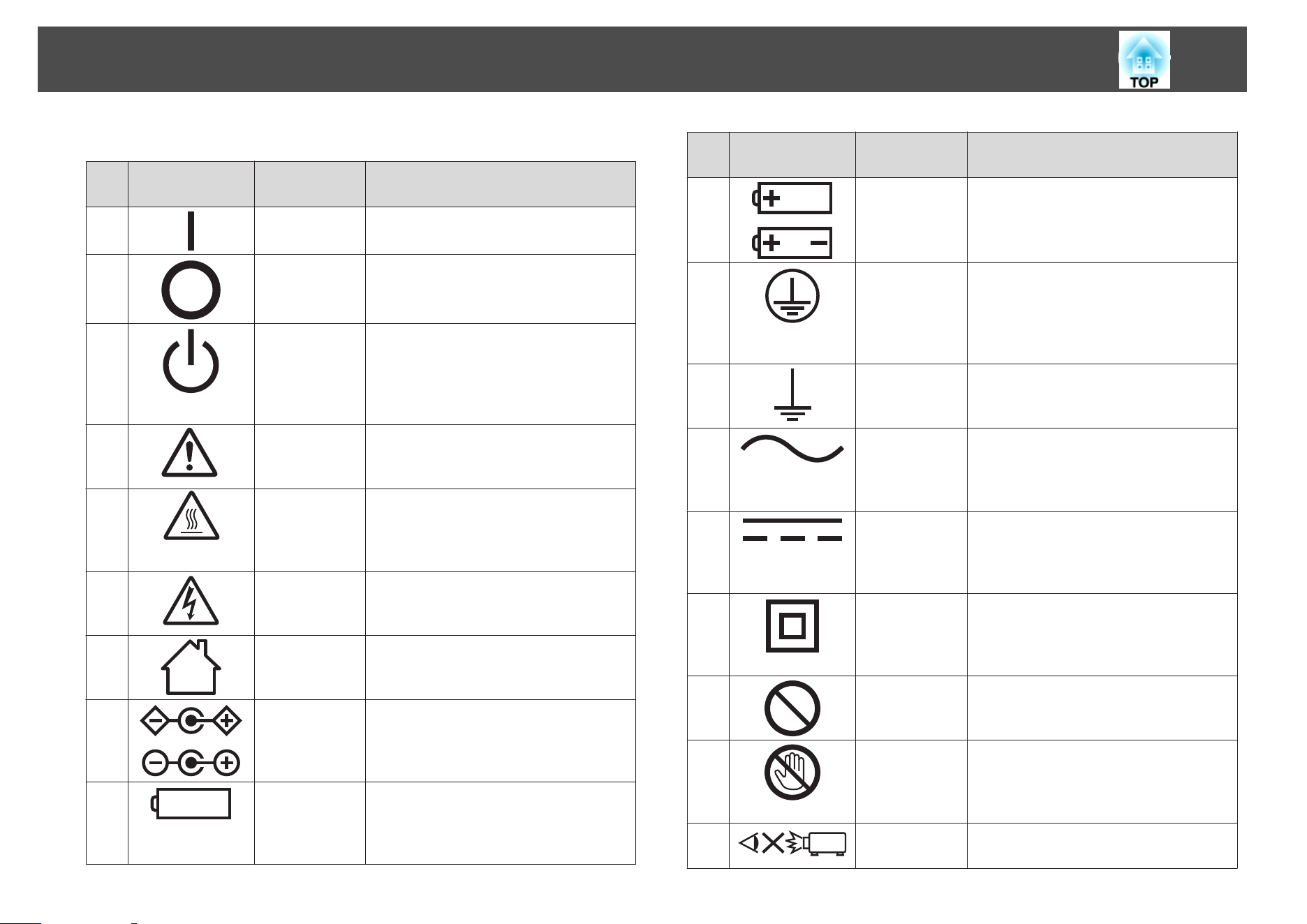
The following table describes the safety symbols displayed on the product.
No. Symbol Supported
Standard
Explanation
A
IEC60417
No.5007
Power ON
Indicates connection to power supply.
B
IEC60417
No.5008
Power OFF
Indicates disconnection from power
supply.
C
IEC60417
No.5009
Standing by
Indicates electricity is being supplied to
part of the device/equipment when the
switch or position of the device/
equipment is in standby status.
D
ISO7000
No.0434B
IEC3864-B3.1
Caution
Indicates caution must be taken when
handling the product.
E
IEC60417
No.5041
Caution (Hot)
Indicates parts of the product that should
not be touched accidentally due to high
temperatures.
F
IEC60417
No.6042
ISO3864-B3.6
Caution (Danger of Electric Shock)
Indicates that the device/equipment
presents a risk of electric shock.
G
IEC60417
No.5957
Indoor Use Only
Indicates that the device/equipment is for
indoor use only.
H
IEC60417
No.5926
Power Connector Polarity
Indicates the positive and negative
electrodes for DC power devices that can
be connected.
I
IEC60417
No.5001B
Batteries (General)
Indicates that batteries are used to power
the device/equipment. Displayed on the
battery case cover or connection port.
No. Symbol Supported
Standard
Explanation
J
IEC60417
No.5002
Battery Direction
Indicates the direction of the batteries on
the outside or inside of the battery case.
K
IEC60417
No.5019
Protective Grounding
Indicates an external conductor to
safeguard against electric shocks if a
malfunction occurs by using a connection
port or grounding safeguard port.
L
IEC60417
No.5017
Grounding
Indicates a grounding port when No. 11 is
not explicitly called for.
M
IEC60417
No.5032
AC Current
Indicates the device/equipment uses a
dedicated AC current, and has an AC
current supported port.
N
IEC60417
No.5031
Direct Current
Indicates the device/equipment uses a
dedicated DC current, and has a DC
current supported port.
O
IEC60417
No.5172
Class II Equipment
Indicates the device/equipment meets the
JIS C 9335-1/JIS C 8105-1 safety
requirements for Class II equipment.
P
ISO 3864 General Prohibition
Indicates unidentified general prohibited
items.
Q
ISO 3864 Do Not Touch
Indicates that touching specific parts of
the equipment is prohibited since an
injury could occur.
R
--- Indicates that you should not look into the
projector's lens while it is projecting.
Symbols Indicating the Device Meets the IEC60950-1 A2 Safety Standards
30
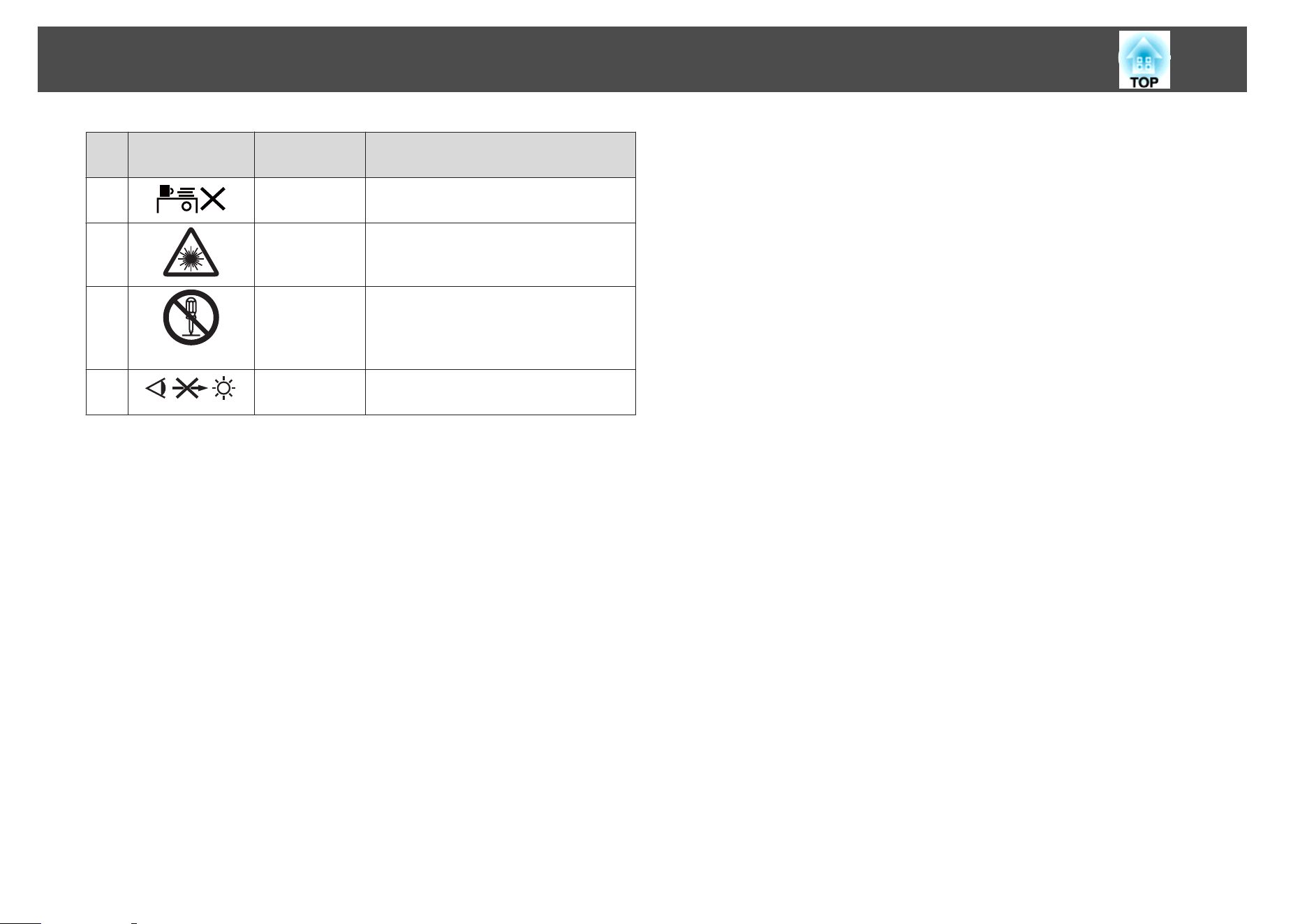
No. Symbol Supported
Standard
Explanation
S
--- Indicates that you should not place
anything on the projector.
T
ISO3864
IEC60825-1
Caution (Laser Emissions)
Indicates that the product contains a laser
emitter of a level that requires caution.
U
ISO 3864 Disassembly Prohibited
Indicates that disassembling the product is
prohibited since an electric shock may
occur.
V
--- Indicates that you should not look into the
lens while the LED is on.
Symbols Indicating the Device Meets the IEC60950-1 A2 Safety Standards
31

All rights reserved. No part of this publication may be reproduced, stored in a retrieval
system, or transmitted in any form or by any means, electronic, mechanical,
photocopying, recording, or otherwise, without the prior written permission of Seiko
Epson Corporation. No patent liability is assumed with respect to the use of the
information contained herein. Neither is any liability assumed for damages resulting
from the use of the information contained herein.
Neither Seiko Epson Corporation nor its affiliates shall be liable to the purchaser of this
product or third parties for damages, losses, costs, or expenses incurred by the
purchaser or third parties as a result of: accident, misuse, or abuse of this product or
unauthorized modifications, repairs, or alterations to this product, or (excluding the
U.S.) failure to strictly comply with Seiko Epson Corporation's operating and
maintenance instructions.
Seiko Epson Corporation shall not be liable against any damages or problems arising
from the use of any options or any consumable products other than those designated as
Original Epson Products or Epson Approved Products by Seiko Epson Corporation.
The contents of this guide may be changed or updated without further notice.
Illustrations in this guide and the actual projector may differ.
Responsible Use of Copyrighted Materials
Epson encourages each user to be responsible and respectful of the
copyright laws when using any Epson product. While some countries' laws
permit limited copying or reuse of copyrighted material in certain
circumstances, those circumstances may not be as broad as some people
assume. Contact your legal advisor for any questions regarding copyright
law.
Trademarks
Mac, OS X and macOS are registered trademarks of Apple Inc.
Microsoft, Windows, Windows Vista, and the Windows logo are trademarks
or registered trademarks of Microsoft Corporation in the United States
and/or other countries.
Other product names used herein are for identification purposes only and
may be trademarks of their respective owners. Epson disclaims any and all
rights in those marks.
This information is subject to change without notice.
© SEIKO EPSON CORPORATION 2017. All rights reserved.
Copyrights and Trademarks
32