— 1 —
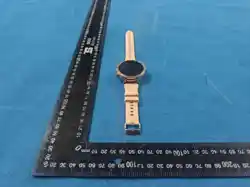
S28 MAX smartwatch Manual
Thank you for choosing our company's smartwatch.
You can fully understand the use of the device by reading this manual. This device is primarily
used by connecting to a mobile phone via Bluetooth for pairing. It offers a variety of practical
functions and services to facilitate your operation of the phone and includes many features
developed for human exercise and health.
Our company reserves the right to modify the content of this manual without any prior notice.
This product is not a medical device. The health data and suggestions provided are for reference
only and should not be used as a basis for diagnosis or treatment.
Charging Instructions
Please charge using the standard charger provided by our company. Our company is not
responsible for any malfunctions caused by using a non-standard charger.
Operating Instructions
Button Functions: Long press to power on/off. Single press to enter the menu interface. When in
other application interfaces, single press returns to the previous level. Double press in the menu
interface to switch menu styles.
Touch Gestures: Swipe left to switch to the quick function widget interface. Swipe down to enter
the application bar. Swipe up to enter messages. Within each function, swipe right to go back.
Connecting the Watch to a Phone
Download and install the "FereFit" APP on your phone.
1. For IOS/Android Phone Users
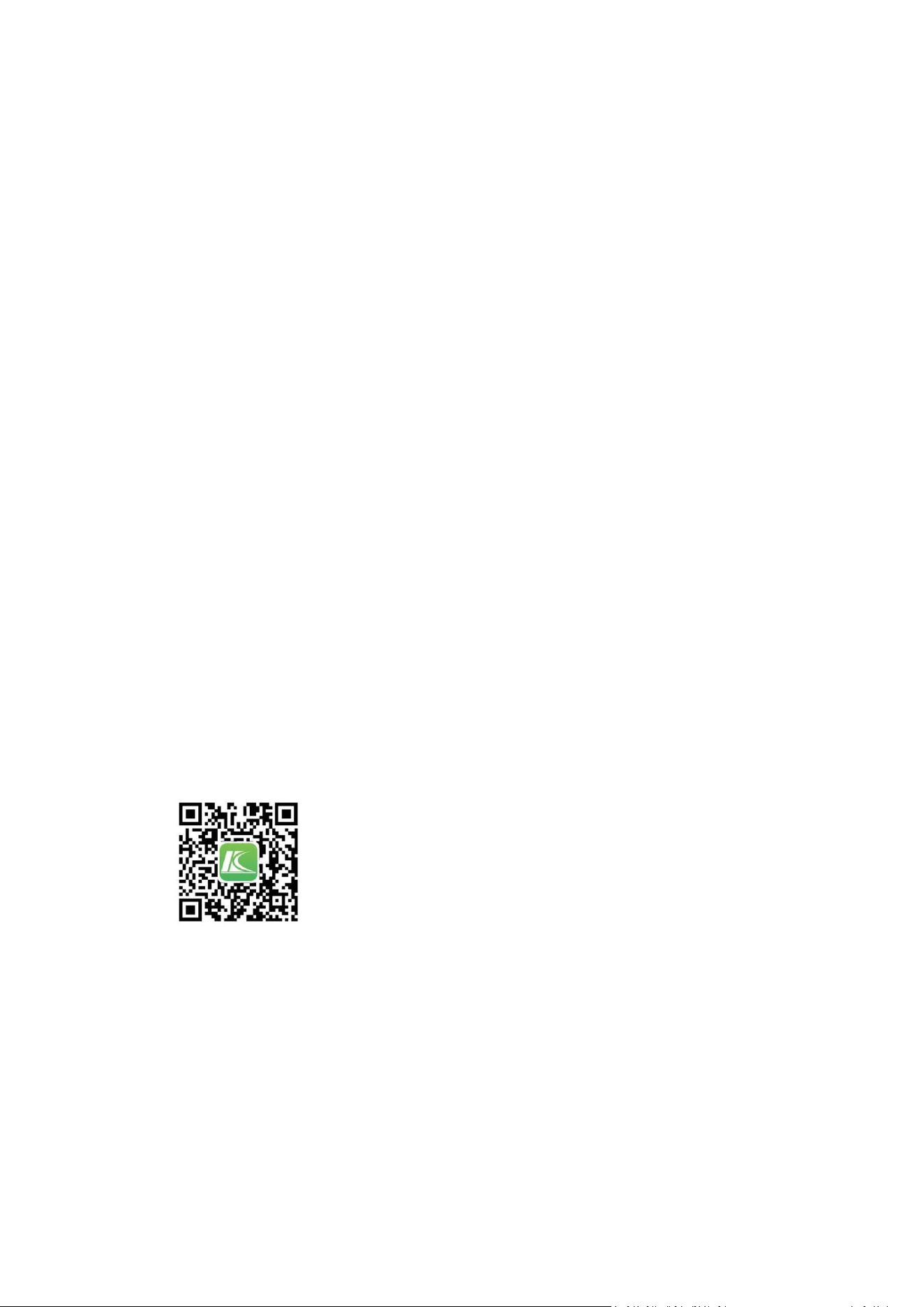
Scan the QR code below with your phone's browser or WeChat 'Scan'. Open the interface
and select Android/iOS, then open the download link with your phone's browser.
The QR code below is for downloading the FereFit APP.
[Placeholder for QR code image description: FereFit APP Download]
Android/iOS
2. Alternatively: Search for "FereFit" and download it from the App Store (iOS), Google Play, or
various phone application stores (Android). On Android phones, you can also use app stores like
Tencent MyApp.
After downloading, during installation, click 'Agree' to all permission prompts. The watch needs
to connect to the phone via two Bluetooth connections: 3.0 and 5.4 to enable all functions.
Bluetooth 5.4 Connection Method: After installation, open "FereFit" and turn on phone
Bluetooth. FereFit will prompt to enable notifications; click OK. Click 'More' at the bottom right,

— 2 —
enter 'Scan for Devices', search for the Bluetooth address, and click connect. Some Android
phones may require GPS to be turned on to find the watch's Bluetooth name.
Bluetooth 3.0 Connection Method: 1. Turn on the watch's 3.0 Bluetooth. 2. Turn on the phone's
Bluetooth, click on the watch's Bluetooth name to connect, and follow the prompts. The phone
should show "Connected".
How to Verify Successful Bluetooth Connection: On the watch's standby interface, pull down the
status bar. If the icons for both Bluetooth 3.0 and 5.4 are blue + green, the connection is
successful. If the Bluetooth icons are gray, they are not connected.
Simple Troubleshooting for Common Issues: Due to inconsistencies in Bluetooth protocols across
different phone brands, connection instability may occur. Try turning the phone's Bluetooth off
and on again, or reset the watch to factory settings.
How to Set Up Message Notifications
On your phone, go to Settings -> App Management, find "FereFit" -> Permission Management,
and turn all permissions on. Then go to Notification Management -> find "FereFit" and turn all
notification permissions on.
What to Do If You Don't Receive Notifications?
First, the watch's notification function only syncs with the phone's notifications (e.g., calls,
messages, QQ, WeChat, WhatsApp alerts). If your phone doesn't receive a notification, the watch
won't either. Ensure 'Allow Notifications' is turned on for the corresponding apps in your phone's
Settings -> Notifications.
Feature Introduction
Sports: The watch features a variety of sports modes, such as running, indoor running, cycling,
walking, hiking, yoga, basketball, soccer, badminton, baseball, table tennis, volleyball, spin bike,
rowing machine, golf, Tai Chi, jump rope, elliptical machine, and free workout.
Call Menu: After syncing contacts with the app, users can view contacts, dial, and check call logs
directly from the watch.
Activity Data: Displays daily step count, historical steps, calories burned, and walking distance.
Data resets to zero at midnight each day.
Exercise Records: View data from past workouts.
Female Health: Connect to the app to set reminders for female health tracking.
Messages: View notifications pushed from the phone.
Alarm: The watch can set up to 3 alarms.
Music: Connect to the watch to control music playback on the phone.
Weather: After connecting to the app, the watch displays weather conditions for the next 3 days.
Camera: When the phone is unlocked, activate Bluetooth photography on the watch to enter the
phones camera interface. Press the watch to take a photo, which will be saved in the phones
album.
Find Phone: When connected via Bluetooth, tap "Find Phone" on the watch to make the phone

— 3 —
ring.
Stopwatch: Start single or multiple timing sessions.
Timer: Set a short countdown.
Games: Includes a list of casual mini-games.
Voice Assistant: After connecting via Bluetooth 3.0/5.4, tap the voice assistant on the watch for
simple Q&A interactions.
Calculator: Perform basic calculations.
Digital Business Card: Use the app to set up QR code name cards for WeChat, QQ, WhatsApp,
Twitter, Facebook, etc.
Payment QR Codes: Use the app to set up payment QR codes for WeChat, Alipay, PayPal, etc.
Calendar: View the monthly calendar.
Location Information: After connecting to the app and enabling location permissions on the
phone, the watch can display the current location.
Altitude & Barometer: After connecting to the app, view current altitude and barometric pressure
on the watch.
Settings: Access system settings.
Thank you for your purchase and for reading.

FCC Warnning:
This equipment has been tested and found to comply with the limits for a Class B digital device,
pursuant to part 15 of the FCC Rules. These limits are designed to provide
reasonable
protection againstharmful interference in a residential installation. This equipment generates,
uses and can radiateradio
frequency
energy
and,
if
not
installed
and
used
in
accordance
with
the
instructions,
maycause
harmful
interference
to
radio
communications.
However,
there
is
no
guarantee
thatinterference
will
not
occur
in
a
particular
installation.
If
this
equipment
does
cause
harmfulinterference to radio or television reception, which can be
determined by turning the equipmentoff
and
on,
the
user
is
encouraged
to
try
to
correct
the
interference
by
one
or
more
of
thefollowing measures:
•
Reorient or relocate the receiving antenna.
•
Increase the separation between the equipment and receiver.
•
Connect the equipment into an outlet on a circuit different from that to which the receiver is
connected.
• Consult the dealer or an experienced radio/TV technician for help.
Caution:
Any
changes
or
modifications
to
this
device
not
explicitly
approved
by
manufacturer
could void your authority to operate this equipment.
This
device
complies
with
part
15
of
the
FCC
Rules.
Operation
is
subject
to
the
following
two
conditions:
(1)This
device
may
not
cause
harmful
interference,
and
(2)
this
device
must
accept
any
interference received, including interference that may cause undesired operation.
This
equipment
complies
with
FCC
radiation
exposure
limits
set
forth
for
an
uncontrolled
environment.
This
equipment
should
be
installed
and
operated
with
minimum
distance
0cm
between the radiator and your body.