
Table of Contents
1. Important ...................................... 1
1.1 Safety precautions and
maintenance ................................. 1
1.2 Notational Descriptions ............ 3
1.3 Disposal of product and packing
material .......................................... 4
2. Setting up the monitor .............. 5
2.1 Installation .................................... 5
2.2 Operating the monitor .............. 8
2.3 Remove the Base Assembly for
VESA Mounting ........................... 11
2.4 MultiView ..................................... 12
3. Image Optimization .................. 14
3.1 SmartImage .................................14
3.2 SmartContrast ............................. 16
3.3 Customize color space and
color value ...................................16
3.4 LightSensor .................................. 17
3.5 Adaptive Sync ............................. 17
3.6 HDR ...............................................18
4. Thunderbolt
TM
docking display
introduction ................................19
4.1 Docking through Thunderbolt
TM
4 ......................................................19
4.2 Docking through USB-C ........... 19
5. PowerSensor™ ..........................20
6. Daisy-chain function ............... 22
7. Designs to prevent computer
vision syndrome (CVS) ............ 23
8. Technical Specications ......... 24
8.1 Resolution & Preset Modes ...28
9. Power Management ................. 31
10. Customer care and warranty . 32
10.1 Philips’ Flat Panel Monitors
Pixel Defect Policy ....................32
10.2 Customer Care & Warranty ..... 35
11. Troubleshooting & FAQs .........36
11.1 Troubleshooting ........................ 36
11.2 General FAQs ............................. 37

1
1. Important
This electronic user’s guide is intended
for anyone who uses the Philips
monitor. Take time to read this user
manual before you use your monitor.
It contains important information and
notes regarding operating your monitor.
The Philips guarantee applies provided
the product is handled properly for
its intended use, in accordance with
its operating instructions and upon
presentation of the original invoice
or cash receipt, indicating the date of
purchase, dealer’s name and model
and production number of the product.
1.1 Safety precautions and
maintenance
Warnings
Use of controls, adjustments or
procedures other than those specified
in this documentation may result in
exposure to shock, electrical hazards
and/or mechanical hazards.
Read and follow these instructions
when connecting and using your
computer monitor.
Excessive sound pressure from
earphones and headphones can
cause hearing loss. Adjustment of the
equalizer to maximum increases the
earphones and headphones output
voltage and therefore the sound
pressure level.
Operation
• Please Keep the monitor out of
direct sunlight, very strong bright
lights and away from any other heat
source. Lengthy exposure to this
type of environment may result in
discoloration and damage to the
monitor.
• Keep the display away from oil. Oil
may damage the plastic cover of the
display and void the warranty.
• Remove any object that could fall
into ventilation holes or prevent
proper cooling of the monitor’s
electronics.
• Do not block the ventilation holes
on the cabinet.
• When positioning the monitor, make
sure the power plug and outlet are
easily accessible.
• If turning off the monitor by
detaching the power cable or DC
power cord, wait for 6 seconds
before attaching the power cable
or DC power cord for normal
operation.
• Please use approved power cord
provided by Philips all the time. If
your power cord is missing, please
contact with your local service
center. (Please refer to Service
contact information listed in
Important information manual.)
• Operate under the specified power
supply. Be sure to operate the
monitor only with the specified
power supply. Use of an incorrect
voltage will cause malfunction and
may cause fire or electric shock.
• Protect the cable. Do not pull or
bend the power cable and signal
cable. Do not place the monitor
or any other heavy objects on the
cables, if damaged, the cables may
cause fire or electric shock.
• Do not subject the monitor to
severe vibration or high impact
conditions during operation.
• To avoid potential damage, for
example the panel peeling from the
bezel, ensure that the monitor does
not tilt downward by more than -5
degrees. If the -5 degree downward

2
tilt angle maximum is exceeded, the
monitor damage will not be covered
under warranty.
• Do not knock or drop the monitor
during operation or transportation.
• The equipment will be not used
in the home or similar installation
environments where the equipment
may be accessible to children.
• The Thunderbolt
TM
port could only
be connected to specify equipment
with fire enclosure in compliance
with IEC 62368-1 or IEC 60950-1.
• Excessive usage of monitor can
cause eye discomfort, it’s better to
take shorter breaks more often at
your workstation than longer breaks
and less often; for example a 5-10
minute break after 50-60-minute
continuous screen use is likely to
be better than a 15-minute break
every two hours. Try to keep your
eyes from eye strain while using the
screen for a constant period of time
by :
• Looking at something varying
distances after a long period
focusing on the screen.
• Conscious Blinking often while
you work.
• Gently closing and rolling your
eyes to relax.
• Reposition your screen to ap-
propriate height and angle ac-
cording to your height.
• Adjusting the brightness and
contrast to appropriate level.
• Adjusting the environment light-
ing similar to that of your screen
brightness, avoid the uorescent
lighting, and surfaces that don’t
reect too much light.
• Seeing a doctor if your symp-
toms.
Maintenance
• To protect your monitor from
possible damage, do not put
excessive pressure on the LCD
panel. When moving your monitor,
grasp the frame to lift; do not lift
the monitor by placing your hand or
fingers on the LCD panel.
• Oil-based cleaning solutions may
damage the plastic parts and void
the warranty.
• Unplug the monitor if you are not
going to use it for an extensive
period of time.
• Unplug the monitor if you need to
clean it with a slightly damp cloth.
The screen may be wiped with a
dry cloth when the power is off.
However, never use organic solvent,
such as, alcohol, or ammonia-based
liquids to clean your monitor.
• To avoid the risk of shock or
permanent damage to the set, do
not expose the monitor to dust,
rain, water, or excessive moisture
environment.
• If your monitor gets wet, wipe it
with dry cloth as soon as possible.
• If foreign substance or water gets in
your monitor, please turn the power
off immediately and disconnect
the power cord. Then, remove the
foreign substance or water, and
send it to the maintenance center.
• Do not store or use the monitor in
locations exposed to heat, direct
sunlight or extreme cold.
• In order to maintain the best
performance of your monitor and
use it for a longer lifetime, please
use the monitor in a location
that falls within the following
temperature and humidity ranges.

3
• Temperature:
0-35°C 32-95°F (HDR)
0-40°C 32-104°F (SDR)
• Humidity: 20-80% RH
Important information for Burn-in/
Ghost image
• Always activate a moving screen
saver program when you leave
your monitor unattended. Always
activate a periodic screen refresh
application if your monitor will
display unchanging static content.
Uninterrupted display of still or
static images over an extended
period may cause “burn-in”, also
known as “after-imaging” or “ghost
imaging”, on your screen.
• “Burn-in”, “after-imaging”, or
“ghost imaging” is a well-known
phenomenon in LCD panel
technology. In most cases, the
“burn-in” or “after-imaging” or
“ghost imaging” will disappear
gradually over a period of time after
the power has been switched off.
Warning
Failure to activate a screen saver, or
a periodic screen refresh application
may result in severe “burn-in” or “after-
image” or “ghost image” symptoms
that will not disappear and cannot be
repaired. The damage mentioned above
is not covered under your warranty.
Service
• The casing cover should be opened
only by qualified service personnel.
• If there is any need for any
document for repair or integration,
please contact with your local
service center. (Please refer to
Service contact information listed in
Important information manual.)
• For transportation information,
please refer to “Technical
Specifications”.
• Do not leave your monitor in a car/
trunk under direct sun light.
Note
Consult a service technician if the
monitor does not operate normally, or
you are not sure what procedure to take
when the operating instructions given
in this manual have been followed.
1.2 Notational Descriptions
The following subsections describe
notational conventions used in this
document.
Notes, Cautions and Warnings
Throughout this guide, blocks of text
may be accompanied by an icon and
printed in bold or italic type. These
blocks contain notes, cautions or
warnings. They are used as follows:
Note
This icon indicates important
information and tips that help you make
better use of your computer system.
Caution
This icon indicates information that
tells you how to avoid either potential
damage to hardware or loss of data.
Warning
This icon indicates the potential for
bodily harm and tells you how to avoid
the problem.
Some warnings may appear in alternate
formats and may not be accompanied
by an icon. In such cases, the specific
presentation of the warning is
mandated by the relevant regulatory
authority.

4
1.3 Disposal of product and
packing material
Waste Electrical and Electronic
Equipment-WEEE
This marking on the product or on
its packaging illustrates that, under
European Directive 2012/19/EU
governing used electrical and electronic
appliances, this product may not be
disposed of with normal household
waste. You are responsible for disposal
of this equipment through a designated
waste electrical and electronic
equipment collection. To determine the
locations for dropping off such waste
electrical and electronic, contact your
local government office, the waste
disposal organization that serves your
household or the store at which you
purchased the product.
Your new monitor contains materials
that can be recycled and reused.
Specialized companies can recycle
your product to increase the amount of
reusable materials and to minimize the
amount to be disposed of.
All redundant packing material has been
omitted. We have done our utmost to
make the packaging easily separable
into mono materials.
Please find out about the local
regulations on how to dispose of your
old monitor and packing from your
sales representative.
Taking back/Recycling Information for
Customers
Philips establishes technically and
economically viable objectives
to optimize the environmental
performance of the organization's
product, service and activities.
From the planning, design and
production stages, Philips emphasizes
the important of making products that
can easily be recycled. At Philips, end-
of-life management primarily entails
participation in national take-back
initiatives and recycling programs
whenever possible, preferably
in cooperation with competitors,
which recycle all materials (products
and related packaging material) in
accordance with all Environmental
Laws and taking back program with the
contractor company.
Your display is manufactured with high
quality materials and components
which can be recycled and reused.
To learn more about our recycling
program please visit
http://www.philips.com/a-w/about/
sustainability.html
5
2. Setting up the
monitor
2.1 Installation
1
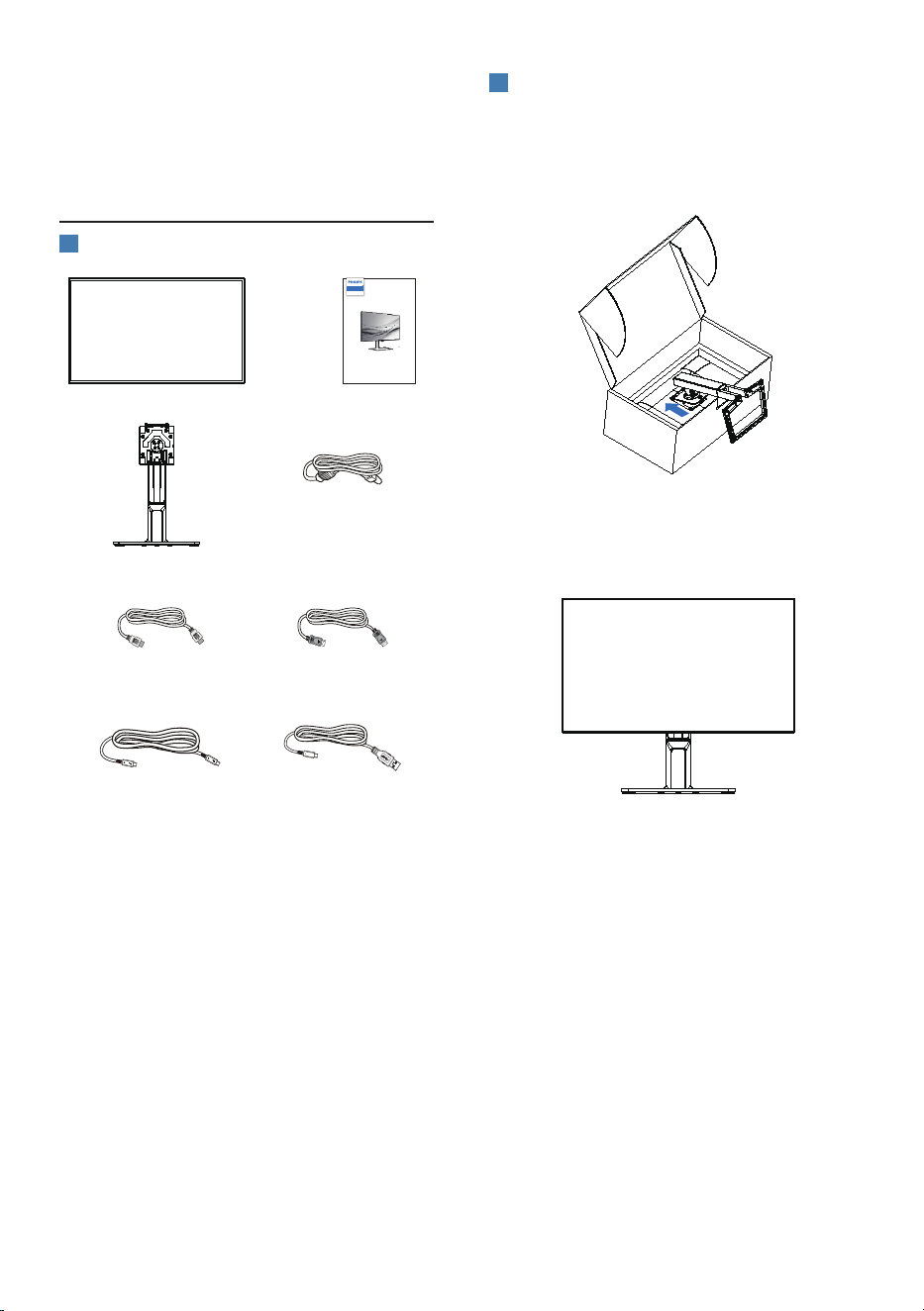
Package contents
*DP
*HDMI
Power
*Thunderbolt
TM
4 *USB C-A
Quick start
Register your product and get support at www.philips.com/welcome
27B1U7903
Business
Monitor
7000 Series
*Different according to region
2
Install the base
1. Hold the stand with both hands.
Gently attach the stand to the VESA
mount area until the latch locks the
stand.
2. After stand installation, hold the
stand with both hands, then lift the
monitor.
6
3
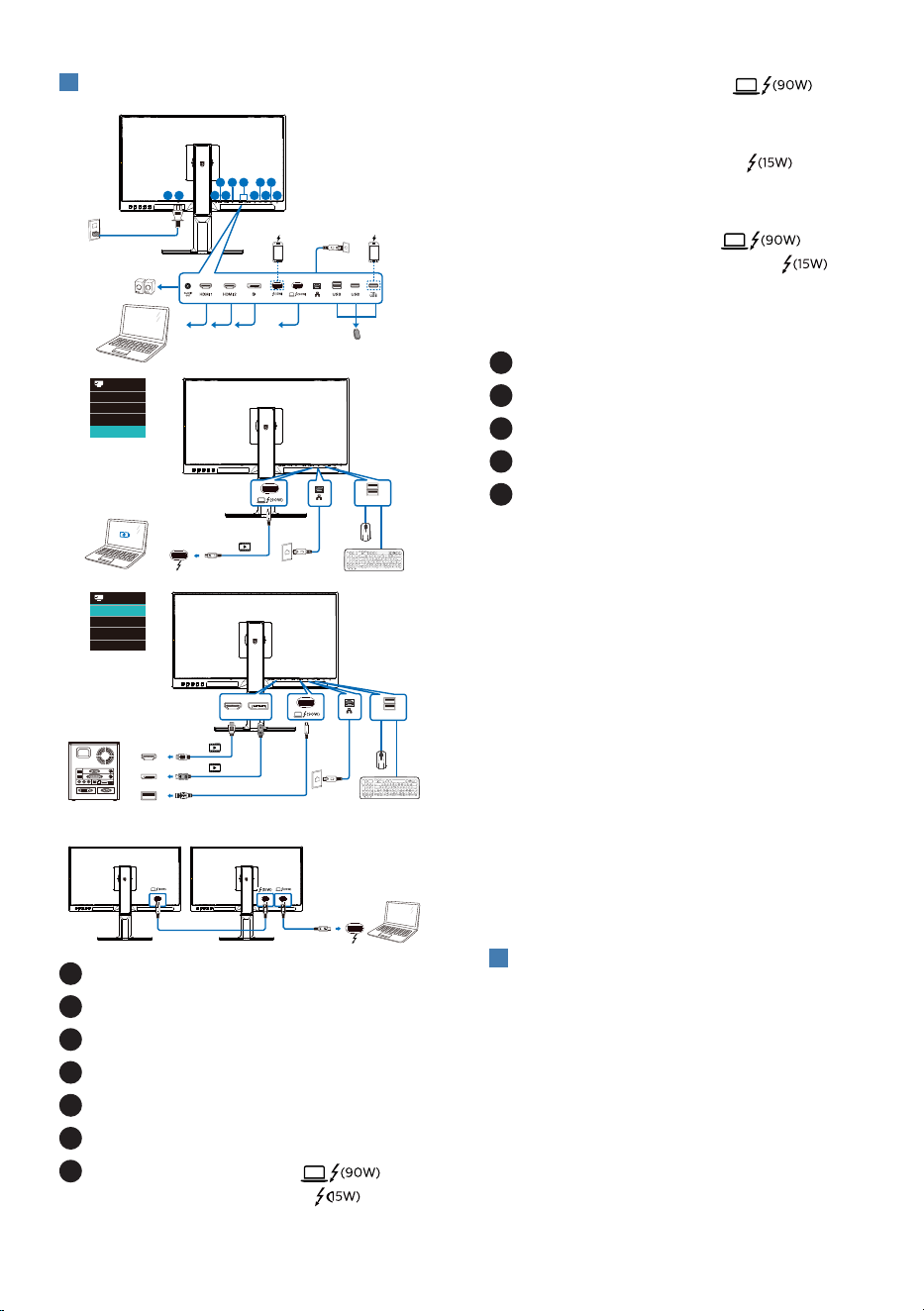
Connecting to your PC
RJ45
PD 15W Charger Fast Charger
USB
Thunderbolt
HDR Game
1
USB
USB Type-A
DP
HDMI
USB-C
HDR Game
Multi-stream transport
Thunderbolt
1 2
3
4
5
6 7 9 11
8 10 12
1
Power Switch
2
AC power input
3
Audio out
4
HDMI 1 input
5
HDMI 2 input
6
DisplayPort input
7
Thunderbolt
TM
4 input /
Thunderbolt
TM
4 output
• Thunderbolt
TM
4 input :
Video output (ALT mode DP 1.4), PD
90W, data transfer.
• Thunderbolt
TM
4 output : PD
15W, downstream.
• Thunderbolt daisy chain: first plug
in Thunderbolt input , then
plug in Thunderbolt output for
signal output.
(Refer to chapter: Daisy-chain
function)
8
RJ45 input
9
USB downstream
10
USB downstream
11
USB downstream/USB fast charger
12
Kensington anti-theft lock
Connect to PC
1. Connect the power cord to the back
of the monitor firmly.
2. Turn off your computer and unplug
its power cable.
3. Connect the monitor signal cable to
the video connector on the back of
your computer.
4. Plug the power cord of your
computer and your monitor into a
nearby outlet.
5. Turn on your computer and monitor.
If the monitor displays an image,
installation is complete.
4
USB driver installation for RJ45
Before using the Thunderbolt
TM
docking
display, please ensure to install the
USB driver.
You can go to Philips website support
page to download the “LAN Drivers”.
7
Please follow the steps for the
installation:
1. Install the LAN driver that matches
your system.
2. Double click driver to install, and
follow Window’s instructions to
proceed with installation.
3. It will show “success” when the
installation is finished.
4. You must reboot your computer after
the installation has completed.
5. Now you will be able to see “Realtek
USB Ethernet Network Adapter” from
your program installed list.
6. We recommend to periodically visit
the above web link to check for the
availability of the most updated
driver.
Note
Please contact Philips service hotline for
Mac address clone tool as necessary.
5
USB hub
To comply with International energy
standards, the USB hub/ports of this
display are disabled during Standby and
Off modes.
Connected USB devices will not work in
this state.
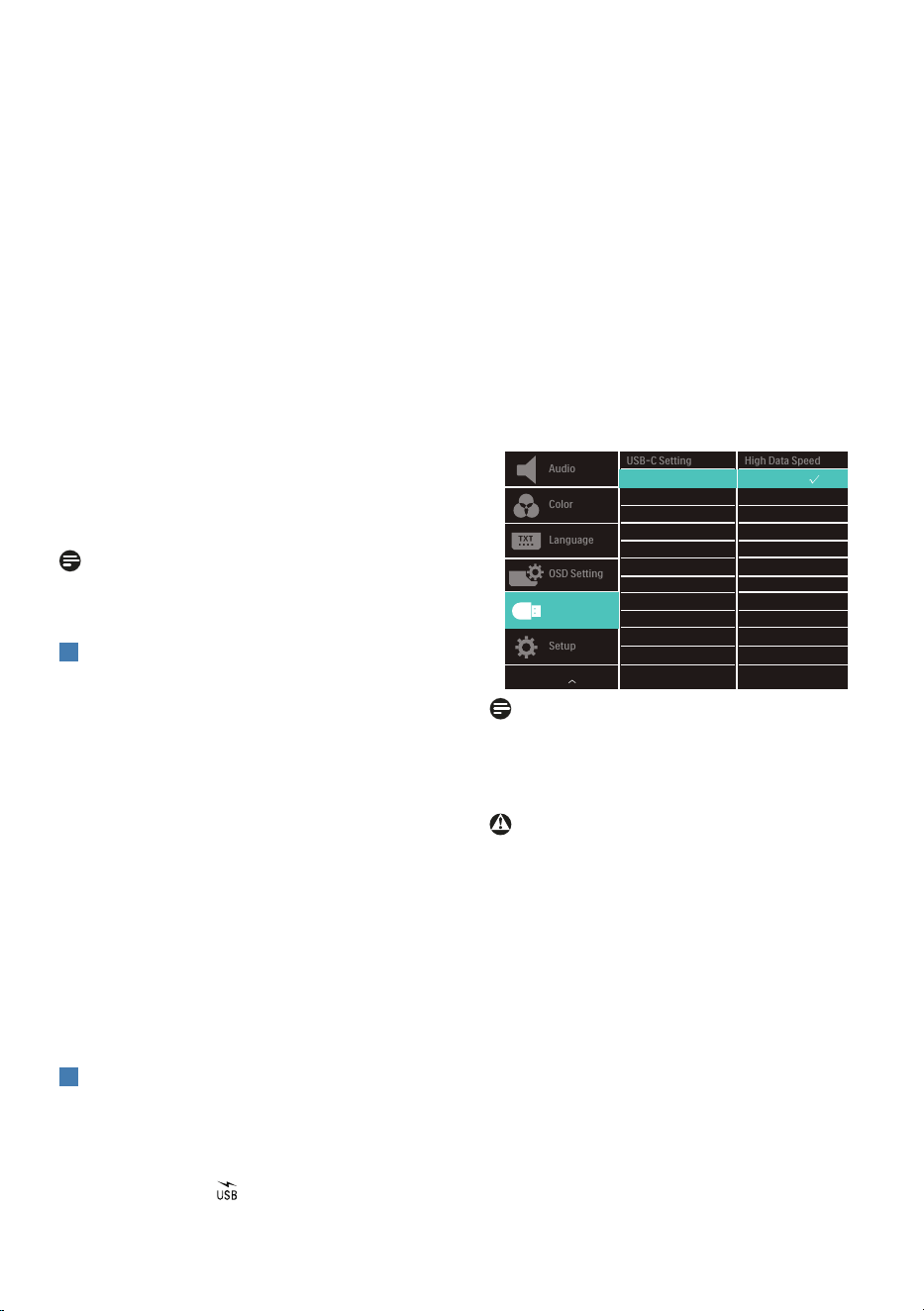
To permanently put the USB function in
“ON” state, please go to OSD Menu, then
select “USB standby mode”, and switch it
to “ON” state. Somehow if your monitor
reset to factory setting, ensure to select
“USB standby mode” to “ON” state in
OSD menu.
6
USB charging
This display has USB ports capable of
standard power output including some
with USB charging function (identifiable
with power icon ). You can use these
ports to charge your Smart phone or
power your external HDD, for example.
The display must be powered ON at all
times to be able to use this function.
Some select Philips displays may not
Power or Charge your device when
it enters to “Sleep/Standby” mode
(White power LED blinking). In that
case, please enter to OSD Menu and
select “USB Standby Mode”, then,
turn the function to “ON” mode
(default=OFF). This will then keep the
USB power and charging functions
active even when the monitor is in
sleep/standby mode.
Note
If you Turn OFF your monitor via the
power switch at any given time, all the
USB ports will power OFF.
Warning
USB 2.4Ghz wireless devices, such
as, wireless mouse, keyboard,
and headphones, maybe have
interference by the high-speed signal
of USB3.2 devices, which may result
in a decreased efficiency of the radio
transmission. Should this happen,
please try the following methods to
help reduce the effects of interference.
• Try to keep USB2.0 receivers away
from USB3.2 connection port.
• Use a standard USB extension cable
or USB hub to increase the space
between your wireless receiver and
the USB3.2 connection port.
8
2.2 Operating the monitor
1
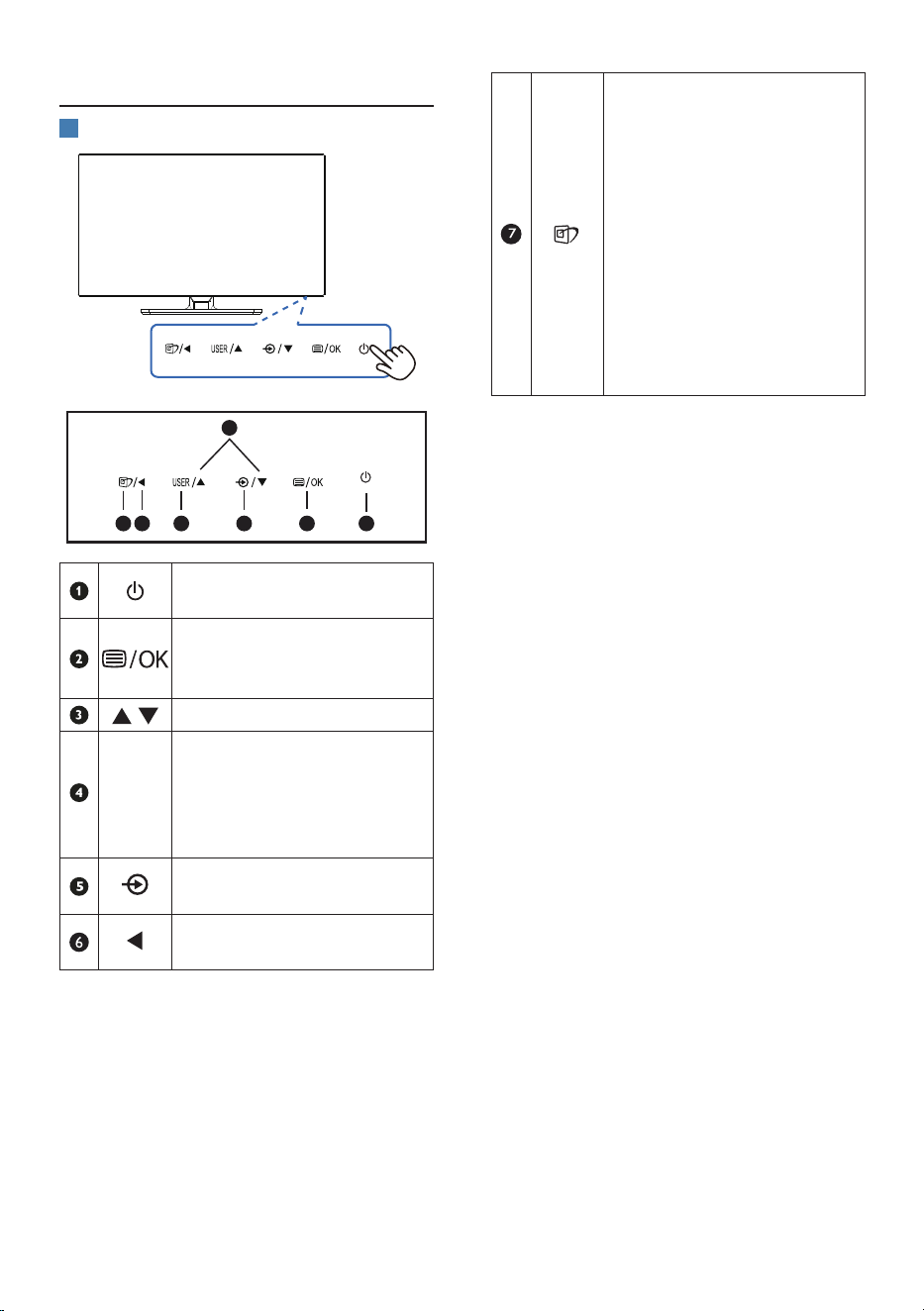
Description of the control buttons
7
6
25
4
3
1
Switch monitor’s power
ON and OFF.
Access the OSD menu
.
Confirm the OSD
adjustment.
Adjust the OSD menu.
USER
User preference key.
Customize your own
preference function from
OSD to become the “user
key”.
Change the signal input
source.
Return to previous OSD
level.
SmartImage. There are
multiple selections:
EasyRead, Office,
Photo, Movie, Game,
Economy, LowBlue Mode,
SmartUniformity, Off.
When the monitor receives
HDR signal, SmartImage
will show HDR menu: There
are multiple selections:
HDR Premium, HDR Effect,
HDR Warm, DisplayHDR
1400, HDR Basic, Off.
9
2
Description of the On Screen Display
What is On-Screen Display (OSD)?
On-Screen Display (OSD) is a feature
in all Philips LCD monitors. It allows an
end user to adjust screen performance
or select functions of the monitors
directly through an on-screen
instruction window. A user friendly on
screen display interface is shown as
below:
Basic and simple instruction on the
control keys
In the OSD shown above, you can press
buttons at the rear of the monitor to
move the cursor, and press OK button
to confirm the choice or change.
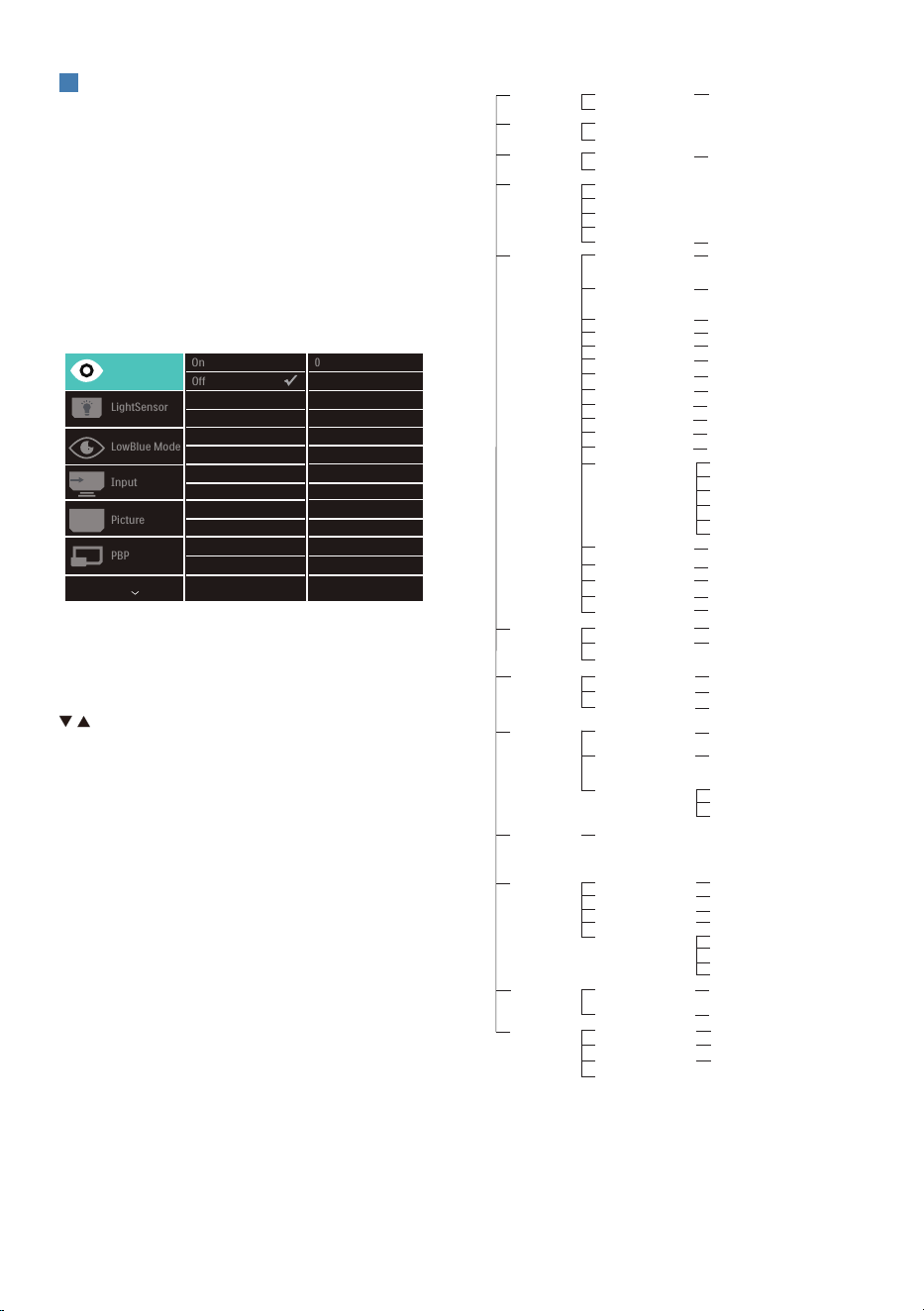
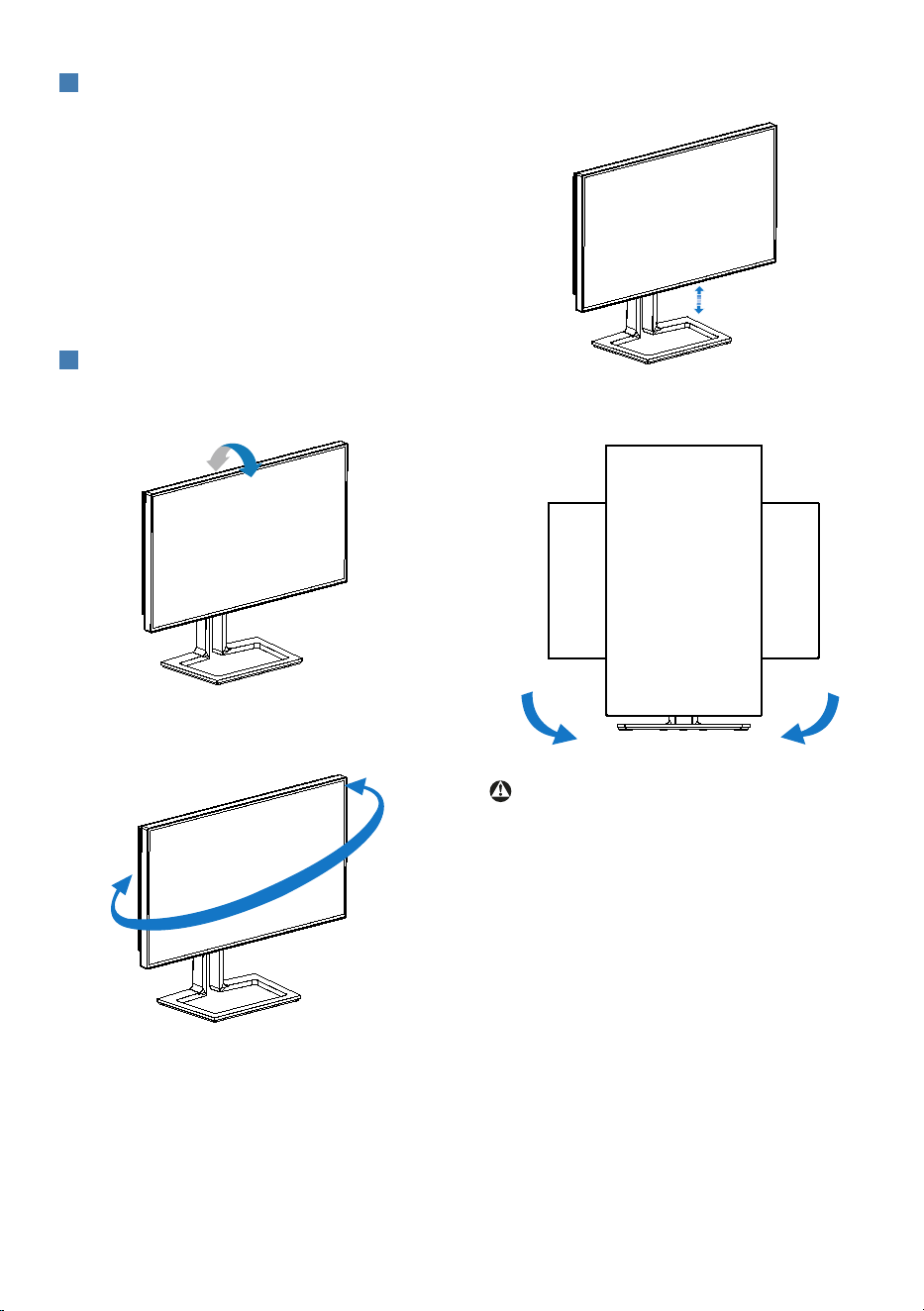
The OSD Menu
Below is an overall view of the structure
of the On-Screen Display. You can use
this as a reference when you want to
work your way around the different
adjustments later on.
Main menu Sub menu
Picture
Input
OSD Setting
PBP
Setup
Language
Color
Audio
USB Setting
SmartImage
Brightness
Contrast
SmartImage HDR
Adaptive Sync
Picture Format
HDR Local Dimming
SDR Local Dimming
Horizontal
Vertical
Transparency
User Key
PBP Mode
PBP Input
Swap
O, PBP
1 HDMI 2.0, 2 HDMI 2.0,
DisplayPort ,Thunderbolt
Power LED
Resolution Notication
Reset
Information
English, Deutsch, Español, Ελληνική, Français, Italiano,
Magyar, Nederlands, Português, Português do Brasil,
Polski , Русский, Svenska, Suomi, Türkçe, Čeština,
Українська, 简体中文, 繁體中文,日本語,한국어
Color Temperature
Color Space
User Dene
6 Colors
1 HDMI 2.0
Auto
2 HDMI 2.0
SmartContrast
Gamma
Over Scan
Pixel Orbiting
SmartResponse
DisplayPort
Thunderbolt
OSD Time Out
Audio Source
Mute
EasyRead/Oce/Photo/Movie/
Game/Economy/LowBlue Mode/
SmartUniformity/O
0~100
0~100
On, O
On, O
0~100
0~100
O, 1, 2, 3, 4
5s, 10s, 20s, 30s, 60s
0, 1, 2, 3, 4
On, O
Yes, No
Native, 5000K, 6500K, 7500K,
8200K, 9300K, 11500K
NTSC, sRGB, Adobe RGB,
DCI-P3, Rec. 2020,
Rec. 709, D-mode
Red: 0~100
Green: 0~100
Blue: 0~100
Red: 0~100
Green: 0~100
Yellow: 0~100
Cyan: 0~100
Magenta: 0~100
Blue: 0~100
On, O
On, O
O, Fast , Faster, Fastest
On, O
HDR Premium/HDR Eect/
HDR Warm/DisplayHDR 1400/
HDR Basic/O
Wide screen, 4:3, 1:1
1.8, 2.0, 2.2, 2.4, 2.6
0~100
HDMI1, HDMI2, DisplayPort,
Thunderbolt
Volume
On, O
High Data Speed,
High Resolution
USB-C Setting
On, O
USB Standby Mode
Color Space
Volume
MultiView
Brightness
On, O
On, O
Sharpness
0~100
Black Level
0~100
Hue
0~100
Saturation
0~100
LowBlue Mode
On
O
1, 2, 3, 4
PowerSensor
On
O
0, 1, 2, 3, 4
LightSensor
On
O
10
3
Resolution notification
This monitor is designed for optimal
performance at its native resolution,
3840 x 2160. When the monitor is
powered on at a different resolution, an
alert is displayed on screen: Use 3840 x
2160 for best results.
Display of the native resolution alert
can be switched off from Setup in the
OSD (On Screen Display) menu.
4
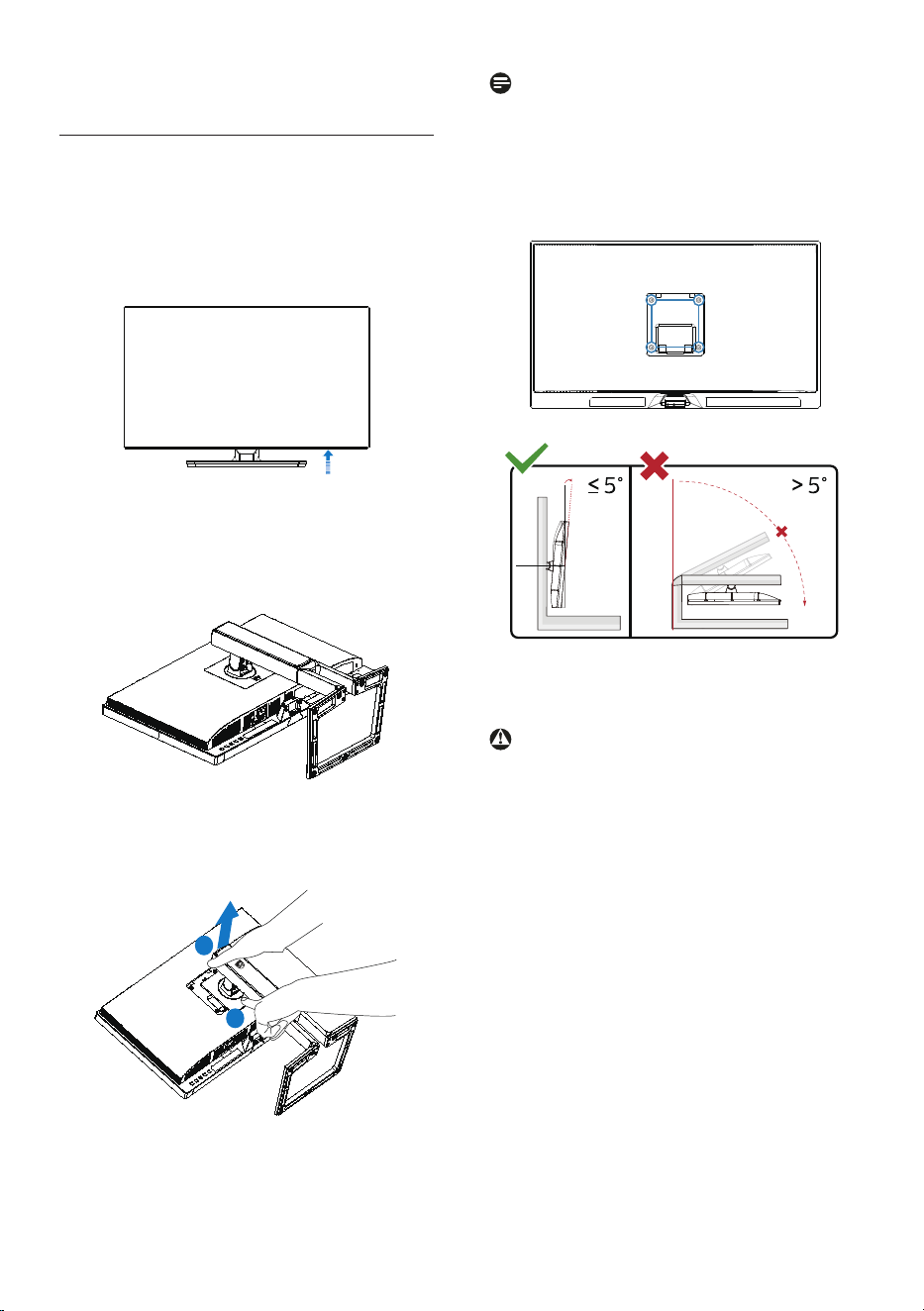
Physical Function
Tilt
15°
-5°
Swivel
-45°
+45°
Height adjustment
130mm
Pivot
90°-90°
0°0°
Warning
• To avoid potential screen damage,
such as panel peeling, ensure that
the monitor does not tilt downward
by more than -5 degrees.
• Do not press the screen while
adjusting the angle of the monitor.
Grasp only the bezel.
11
2.3 Remove the Base Assembly
for VESA Mounting
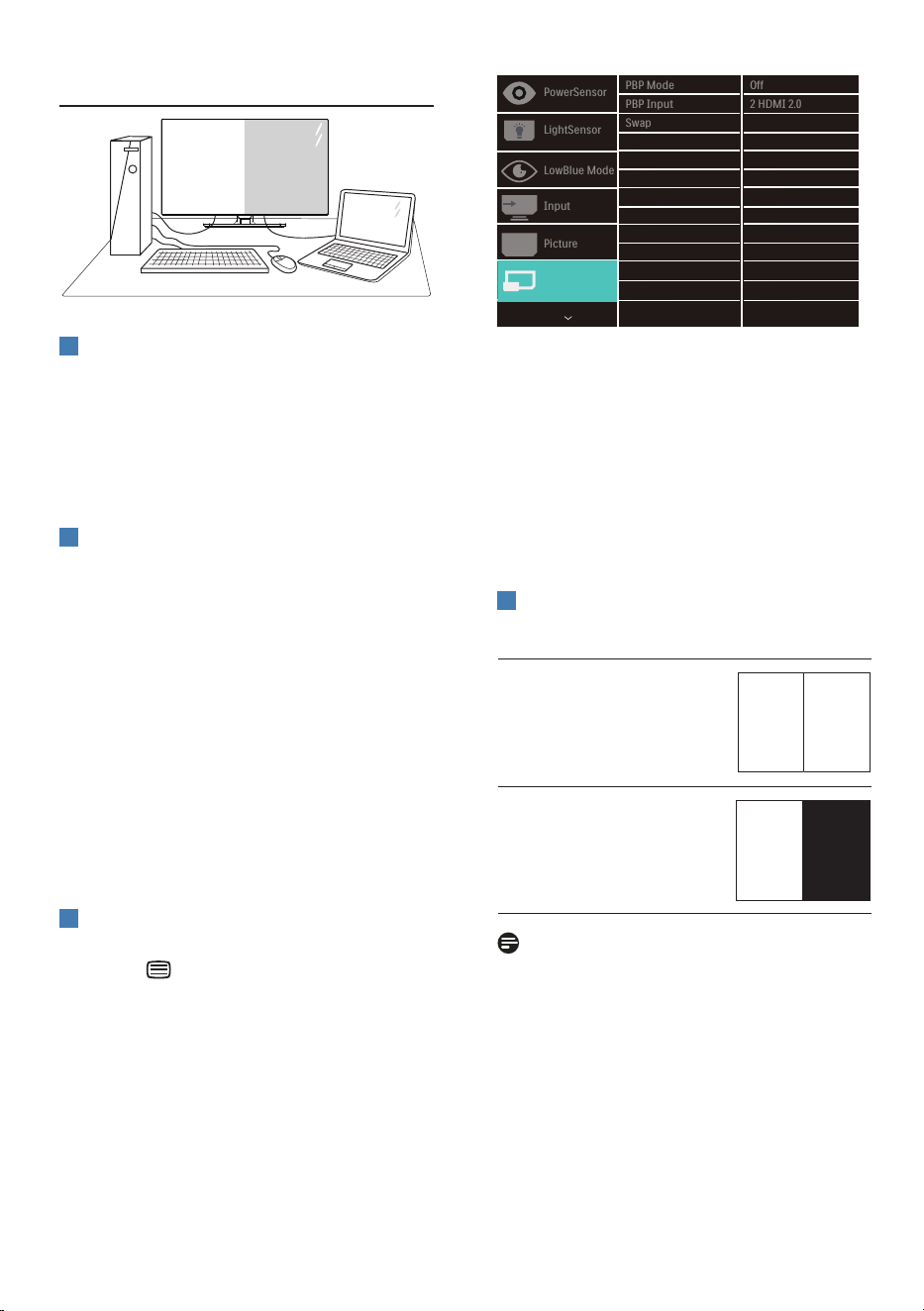
Before you start disassembling the
monitor base, please follow the
instructions below to avoid any possible
damage or injury.
1. Extend the monitor base to its
maximum height.
2. Place the monitor face down on a
smooth surface. Pay attention not
to scratch or damage the screen.
Then lift the monitor stand.
3. While keeping the release button
pressed, tilt the base and slide it
out.
1
2
Note
This monitor accepts a 100mm x 100mm
VESA-Compliant mounting interface.
VESA Mounting Screw M4. Always
contact manufacturer for wall-mount
installation.
100mm
100mm
-5°
0° 90°
* Display design may differ from those
illustrated.
Warning
• To avoid potential screen damage,
such as panel peeling, ensure that
the monitor does not tilt downward
by more than -5 degrees.
• Do not press the screen while
adjusting the angle of the monitor.
Grasp only the bezel.
12
2.4 MultiView
1
What is it?
Multiview enables active variety
connect and view so that you can
work with multiple devices like PC and
Notebook side-by-side simultaneously,
making complex multi-tasking work a
breeze.
2
Why do I need it?
With the ultra high resolution Philips
MultiView display, you can experience
a world of connectivity in a comfortable
way in the office or at home. With this
display, you can conveniently enjoy
multiple content sources at one screen.
For example: You may want to keep
an eye on the live news video feed
with audio in the small window, while
working on your latest blog, or you may
want to edit an Excel file from your
Ultrabook, while logged into secured
company intranet to access files from a
desktop.
3
How to enable MultiView by OSD
menu?
1. Press button at the rear of the
monitor to enter OSD Menu Screen.
Screen.
2. Press ▲ or ▼ button to select main
menu [PBP], then press OK button.
3. Press ▲ or ▼ button to select [PBP
Mode], then press OK button.
4. Press ▲ or ▼ button to select [PBP].
5. Now you can move backward to set
the [PBP Mode], [PBP Input], [Swap].
6. Press OK button to confirm your
selection.
4
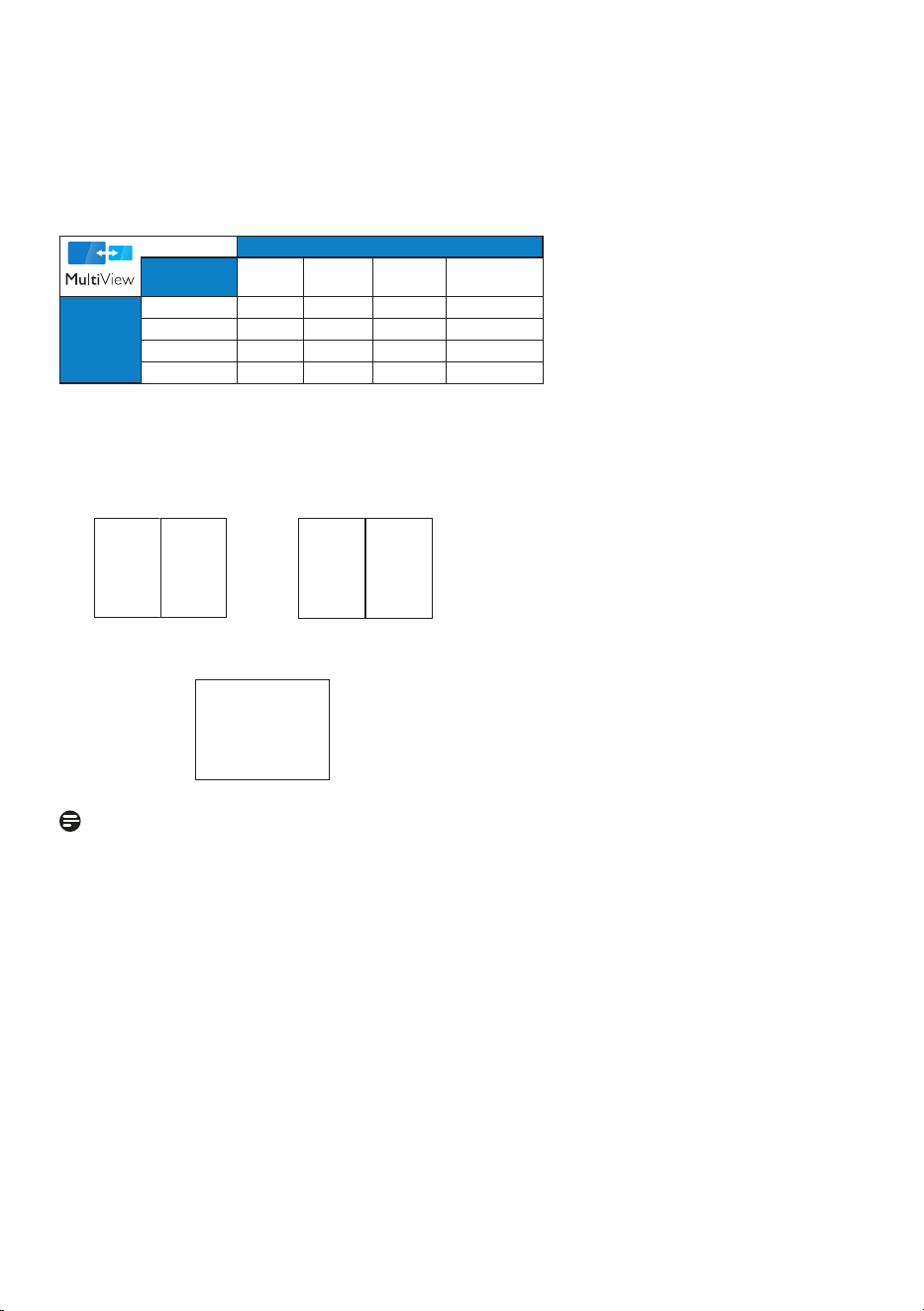
MultiView in OSD menu
[PBP]: Picture by Picture
Open up a sub-window
side-by-side of other
signal sources.
BA (main)
When the sub source is
not detected.
A (main)
Note
The black strip shows on the top and
the bottom of the screen for the correct
aspect ratio when in the PBP mode. If
you expect to see full screen side by
side, adjust your devices resolutions as
pop up attention resolution, you will
be able to see 2 devices source screen
project to this display side by side
without black strips.
13
• PBP Input: There are different video
inputs to choose as the sub display
source: [1 HDMI 2.0], [2 HDMI 2.0],
[DisplayPort] and [Thunderbolt].
Please refer below table for
compatibility of main/sub input source.
SUB SOURCE POSSIBILITY (xl)
Inputs
1 HDMI 2.0 2 HDMI 2.0 DisplayPort Thunderbolt
TM
4
MAIN
SOURCE
(xl)
1 HDMI 2.0
● ● ● ●
2 HDMI 2.0
● ● ● ●
DisplayPort
● ● ● ●
Thunderbolt
TM
4
● ● ● ●
• Swap: The main picture source and
the sub picture source swapped on
the display.
Swap A and B source in [PBP] mode:
A (main) B
↔
B (main) A
• Off: Stop MultiView function.
A (main)
Note
When you do the SWAP function, the
video and its audio source will swap at
the same time.
14
3. Image Optimization
3.1 SmartImage
1
What is it?
SmartImage provides presets that
optimize display for different types
of content, dynamically adjusting
brightness, contrast, color and sharpness
in real time. Whether you're working with
text applications, displaying images or
watching a video, Philips SmartImage
delivers great optimized monitor
performance.
2
Why do I need it?
You want a monitor that delivers
optimized display all your favorite
types of content, SmartImage software
dynamically adjust brightness,
contrast, color and sharpness in real
time to enhance your monitor viewing
experience.
3
How does it work?
SmartImage is an exclusive, leading edge
Philips technology that analyzes the
content displayed on your screen. Based
on a scenario you select, SmartImage
dynamically enhances the contrast, color
saturation and sharpness of images to
enhance the contents being displayed -
all in real time with the press of a single
button.
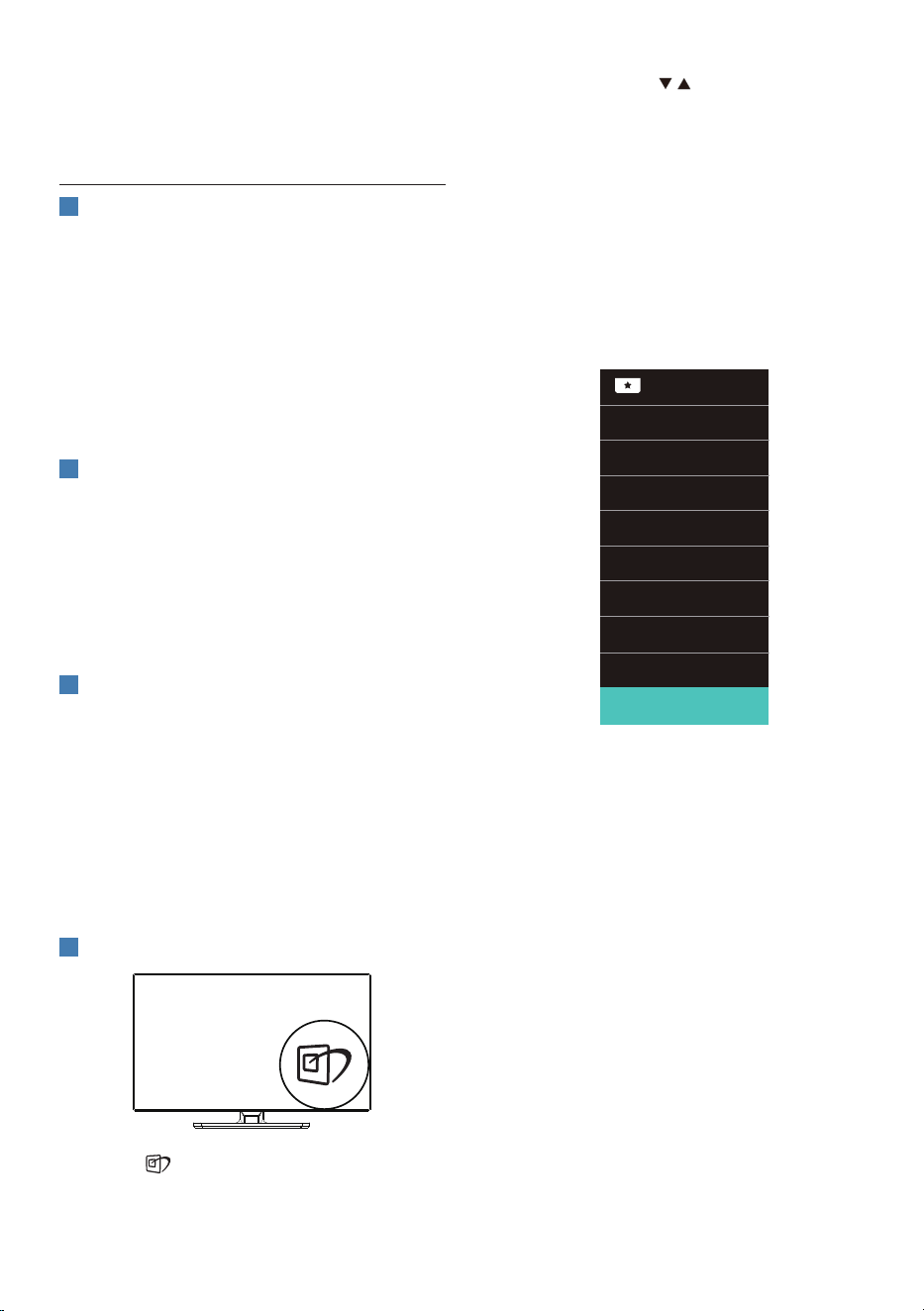
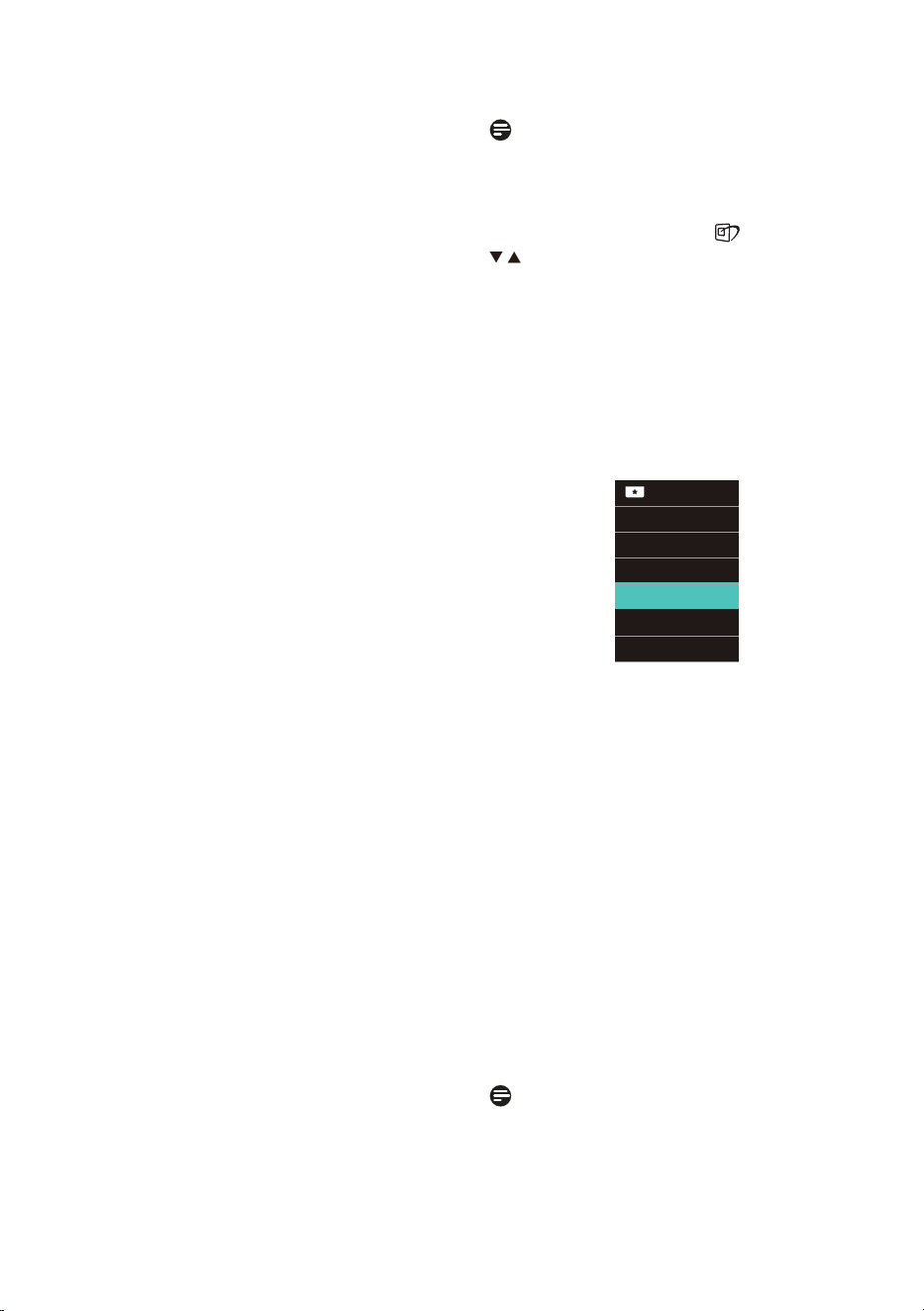
4
How to enable SmartImage?
1. Press to launch the SmartImage
on screen display.
2. Keep pressing to toggle among
EasyRead, Office, Photo, Movie,
Game, Economy, LowBlue Mode,
SmartUniformity, Off.
3. The SmartImage on screen display
will remain on screen for 5 seconds,
or you can also press "OK" to make
confirmation.
There are multiple selections: EasyRead,
Office, Photo, Movie, Game, Economy,
LowBlue Mode, SmartUniformity, Off.
• EasyRead: Helps improve reading
of text based application like PDF
ebooks. By using a special algorithm
which increases the contrast and
boundary sharpness of text content,
the display is optimized for a
stress-free reading by adjusting
the brightness, contrast and color
temperature of the monitor.
• Office: Enhances text and dampens
brightness to increase readability
and reduce eye strain. This mode
significantly enhances readability and
productivity when you’re working
with spreadsheets, PDF files, scanned
articles or other general office
applications.
• Photo: This profile combines color
saturation, dynamic contrast and
15
sharpness enhancement to display
photos and other images with
outstanding clarity in vibrant colors -
all without artifacts and faded colors.
• Movie: Ramped up luminance,
deepened color saturation, dynamic
contrast and razor sharpness
displays every details in darker areas
of your videos without color washout
in brighter areas maintaining a
dynamic natural values for the
ultimate video display.
• Game: Turn on over drive circuit for
best response time, reduce jaggy
edges for fast moving objects on
screen, enhance contrast ratio for
bright and dark scheme, this profile
delivers the best gaming experience
for gamers.
• Economy: Under this profile,
brightness, contrast are adjusted
and backlighting finetuned for just
right display of everyday office
applications and lower power
consumption.
• LowBlue Mode: LowBlue Mode
for easy on-the-eyes productivity
Studies have shown that just as
ultra-violet rays can cause eye
damage, shortwave length blue light
rays from LED displays can cause
eye damage and affect vision over
time. Developed for wellbeing,
Philips LowBlue Mode setting uses a
smart software technology to reduce
harmful shortwave blue light.
• SmartUniformity: Fluctuations in
brightness and color on different
parts of a screen are a common
phenomenon among LCD monitors.
Typical uniformity is measured
around 75-80%. By enabling Philips
SmartUniformity feature, display
uniformity is incr eased to above
95%. This produces more consistent
and true images.
• Off: No optimization by
SmartImage.
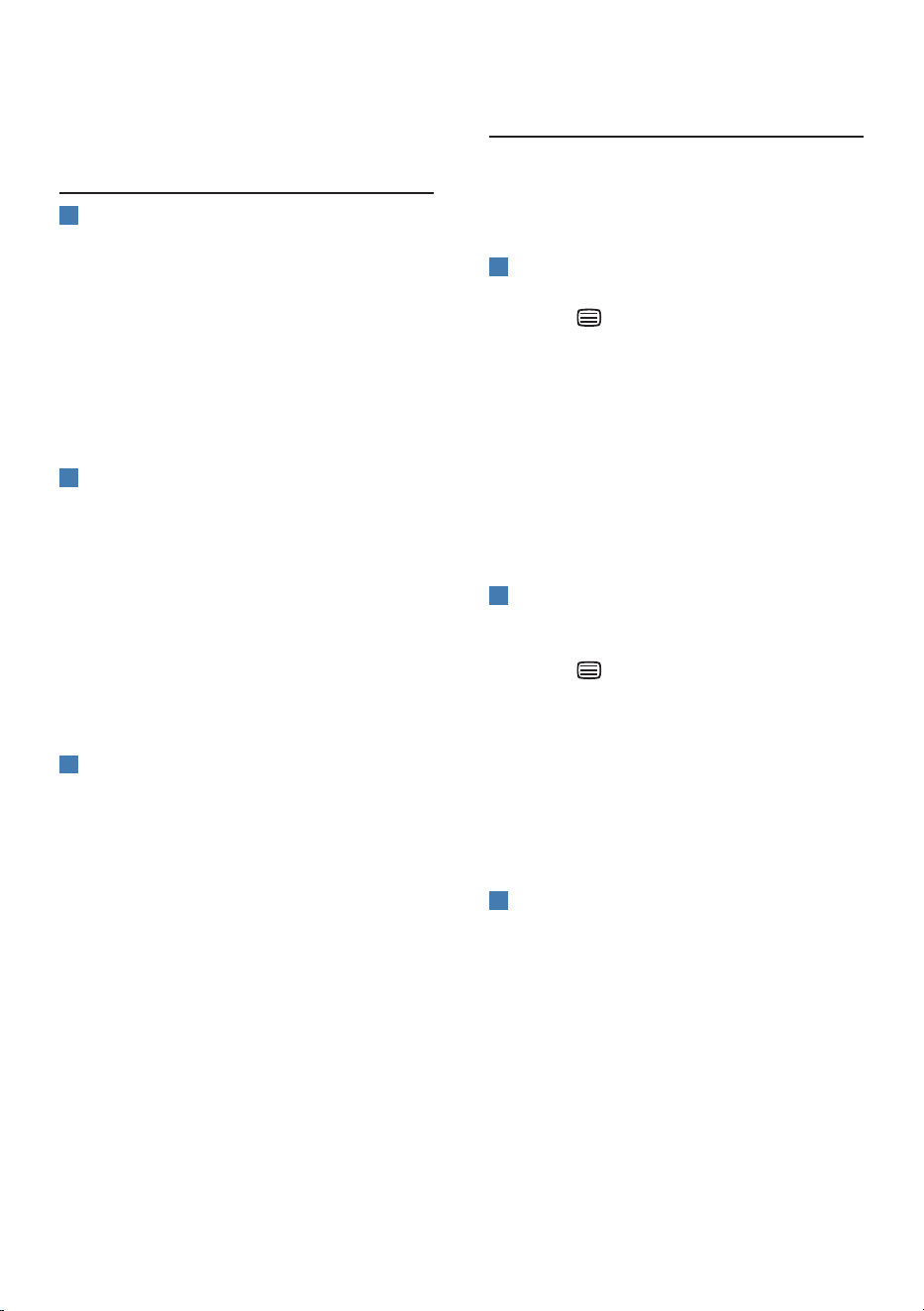
Note
Philips LowBlue mode, mode 2
compliance with TUV Low Blue Light
certification, you can have this mode by
simply press the hotkey , then press
to select LowBlue Mode, see above
SmartImage selection steps.
When this display receives HDR signal
from the connected device, select a
picture mode that best fits your needs.
There are multiple selections: HDR
Premium, HDR Effect, HDR Warm,
DisplayHDR 1400, HDR Basic, Off.
• HDR Premium: Optimizes contrast
and brightness for the most vivid
and immersive visual experience.
• HDR Effect: Increases contrast
and brightness for a more realistic
viewing experience.
• HDR Warm: Shifts the color
temperature for a warmer visual
experience.
• DisplayHDR 1400: VESA DisplayHDR
1400 certified.
• HDR Basic: Basic HDR setting for
HDR content.
• Off: No optimization by SmartImage
HDR.
Note
To switch off HDR function, please
disable from Input device and its
content.
Inconsistent HDR settings between
16
input device and monitor may cause
unsatisfying images.
3.2 SmartContrast
1
What is it?
Unique technology that dynamically
analyzes displayed content and
automatically optimizes a Monitor's
contrast ratio for maximum visual clarity
and viewing enjoyment, stepping up
backlighting for clearer, crisper and
brighter images or dimming backlighting
for clear display of images on dark
backgrounds.
2
Why do I need it?
You want the very best visual clarity
and viewing comfort for every type of
content. SmartContrast dynamically
controls contrast and adjusts
backlighting for clear, crisp, bright
gaming and video images or displays
clear, readable text for office work.
By reducing your monitor's power
consumption, you save on energy costs
and extend the lifetime of your monitor.
3
How does it work?
When you activate SmartContrast, it will
analyse the content you are displaying
in real time to adjust colors and control
backlight intensity. This function will
dynamically enhance contrast for a
great entertainment experience when
viewing videos or playing games.
3.3 Customize color space and
color value
You can manually adjust each color
value or select the appropriate color
space mode to properly display the
content you are viewing.
1
Manually adjust individual color
value:
1. Press button to enter OSD menu.
2. Press ▲ or ▼ button to select
main menu [Picture], then press OK
button.
3. Press ▲ or ▼ button to select [6
Colors].
4. Select one of colors, then adjust the
value.
5. Press OK button to confirm your
selection.
2
Select appropriate color space
mode to fit the content you’re
viewing:
1. Press button to enter OSD menu.
2. Press ▲ or ▼ button to select main
menu [Color], then press OK button.
3. Press ▲ or ▼ button to select [Color
Space].
4. Select one of colors modes.
5. Press OK button to confirm your
selection.
3
There are multiple selections:
• NTSC: Analog video.
• sRGB: Most personal computer
applications and games, Internet,
and web design.
• Adobe RGB: Graphics applications.
• DCI-P3: Digital cinema projectors,
some movies and games, and Apple
products. Photography.
• Rec. 2020: UHD videos.
• Rec. 709: HD videos.
17
• D-mode: DICOM mode, enhance
greyscale level performance
Note
HDR and color space mode cannot be
enabled simultaneously. Please disable
HDR before you select one of color
space modes.
3.4 LightSensor
1
What is it?
LightSensor is a unique and intelligent
way of optimizing picture quality by
measuring and analyzing the incoming
signal to automatically adjust picture
quality settings. LightSensor uses a
sensor to adjust the picture brightness
depending on the room light conditions.
2
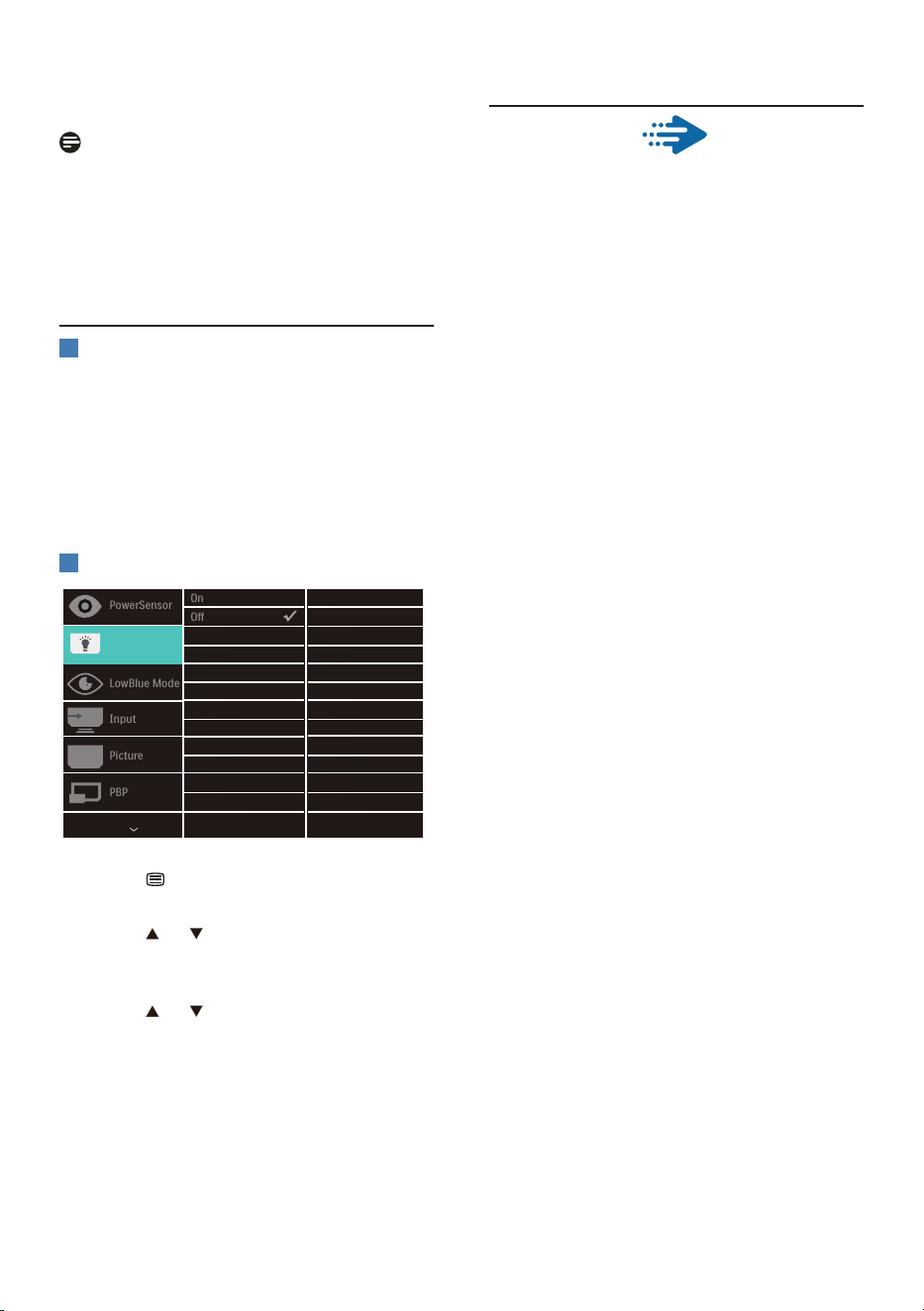
How to enable LightSensor?
1. Press button at the rear of the
monitor to enter OSD menu screen.
2. Press or button to select main
menu [LightSensor], then press
button OK.
3. Press or button to turn on or off
the LightSensor.
3.5 Adaptive Sync
Adaptive Sync
PC gaming has long been an imperfect
experience because GPUs and monitors
update at different rates. Sometimes
a GPU can render many new pictures
during a single update of the monitor,
and the monitor will show pieces of
each picture as a single image. This is
called “tearing.” Gamers can fix tearing
with a feature called “v-sync,” but the
image can become jerky as the GPU
waits on the monitor to call for an
update before delivering new pictures.
The responsiveness of mouse input
and overall frames per second are
reduced with v-sync, too. Adaptive
Sync technology eliminates all of these
problems by letting the GPU update the
monitor the moment a new picture is
ready, leaving gamers with unbelievably
smooth, responsive, tearing-free
games.
18
3.6 HDR
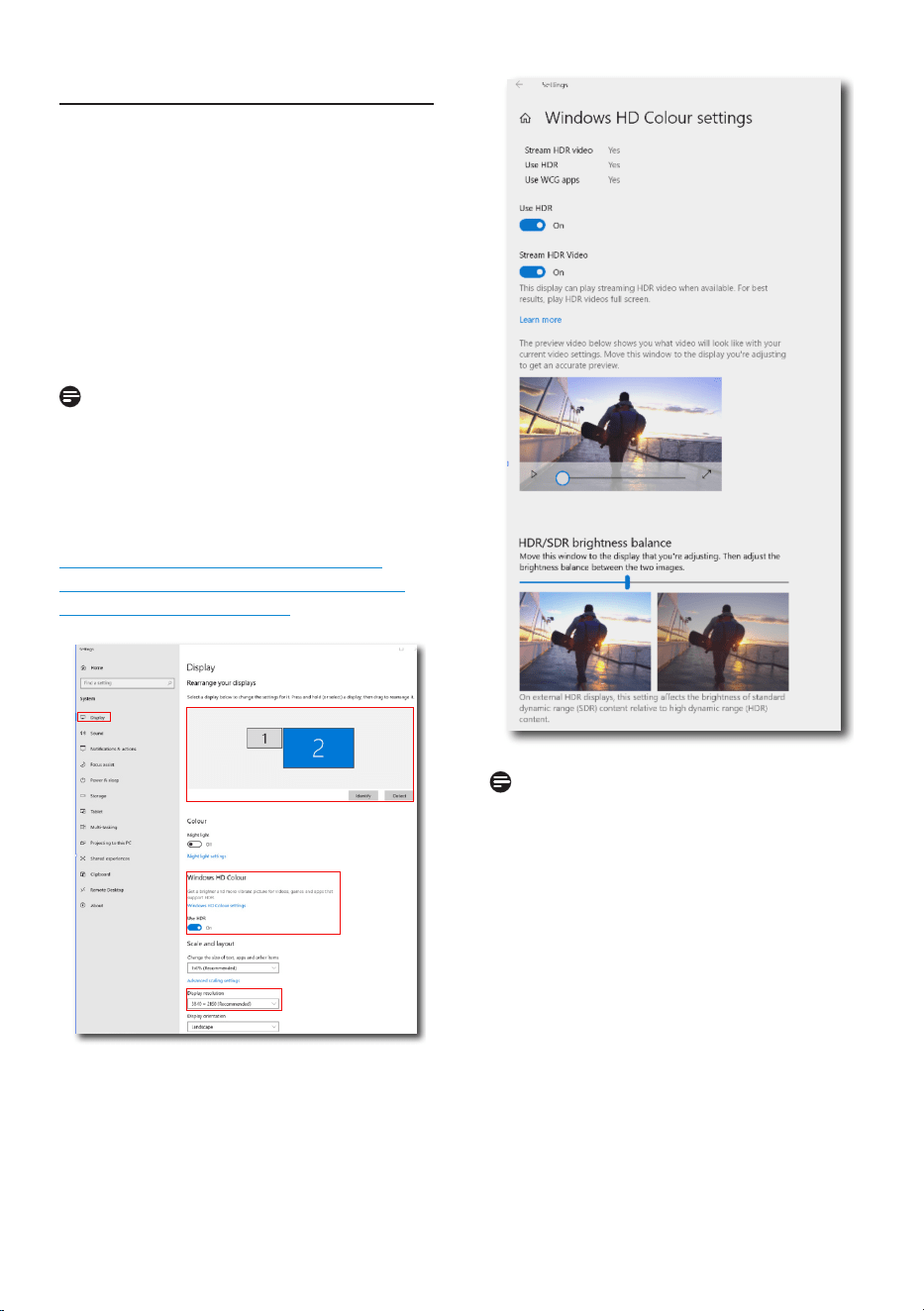
HDR Settings in Windows10 system.
Steps
1. Right click on the desktop, enter to
Display settings.
2. Select the display/monitor.
3. Select an HDR-capable display
under Rearrange your displays.
4. Select Windows HD Color settings.
5. Adjust Brightness for SDR content.
Note
Windows10 edition is required; always
upgrade to the most updated version.
Below linkage is for the further more
information from mircrosoft official
website.
https://support.microsoft.com/en-
au/help/4040263/windows-10-hdr-
advanced-color-settings
STEP 2
STEP 3
STEP 4
STEP 1
STEP 5
Note
1. To switch off HDR function, please
disable from Input device and its
content. Inconsistent HDR settings
between input device and monitor
may cause unsatisfying images.
2. There is a fan inside of the monitor
which will be automatically enabled
when the monitor reach certain
temperature and helps to cool down
the temperature inside of the monitor.
3. If the monitor turn off or power saving
or no signal states, the fan function
will turn off.
19
4. Thunderbolt
TM
docking
display introduction
Philips Thunderbolt
TM
docking monitors
deliver universal port replication,
for a simple, clutter-free, notebook
connection.
Securely connect to networks, transmit
data, video and audio from laptop only
using a single cable.
4.1 Docking through
Thunderbolt
TM
4
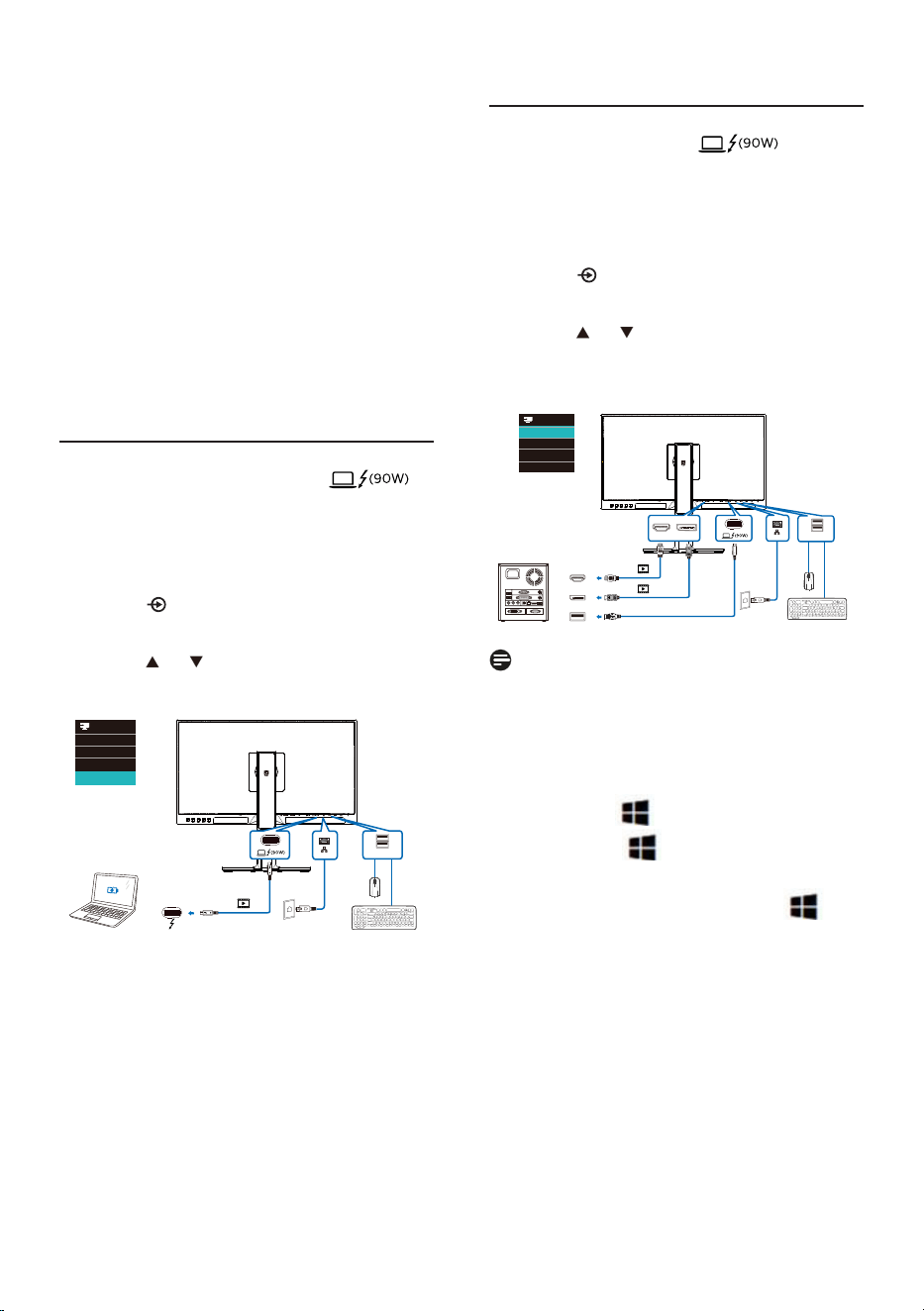
1. Connect the Thunderbolt
TM
4 cable
to the Thunderbolt input
port on the monitor and to your
PC. It can transmit video, audio,
data, network, power through
Thunderbolt
TM
cable.
2. Press at the rear of the monitor
to enter input menu screen.
3. Press or button to select
[Thunderbolt].
USB
Thunderbolt
HDR Game
4.2 Docking through USB-C
1. Connect the USB C-A cable to the
Thunderbolt input port on
the monitor and to your PC.
2. Connect HDMI or DisplayPort to the
monitor and to your PC for video
input.
3. Press at the rear of the monitor
to enter input menu screen.
4. Press or button to select
[1 HDMI 2.0], [2 HDMI 2.0] or
[DisplayPort].
1
USB
USB Type-A
DP
HDMI
USB-C
HDR Game
Note
When connect your monitor to the PC
with Thunderbolt or USB C-A cable,
your monitor screen probably show
as the extend screen. To call out the
main screen on your monitor, hold the
Windows key and press P twice.
(Windows key + P + P) If you still
cannot see the main screen on your
monitor, hold the Windows key and
press P. All your options pop-up on the
right side, then select “PC screen only”
or “Duplicated”.
20
5. PowerSensor™
1
How does it work?
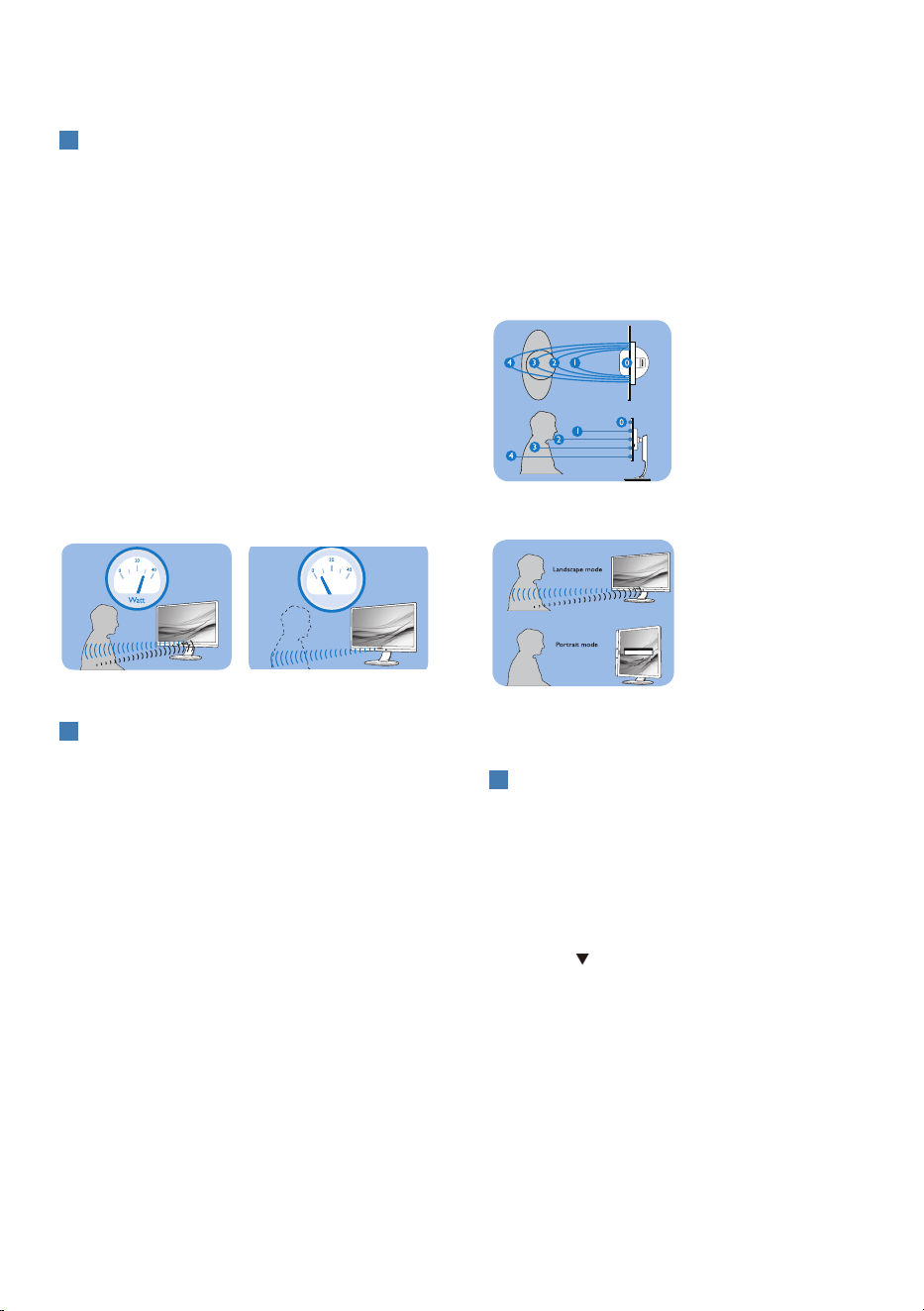
• PowerSensor works on principle
of transmission and reception of
harmless “infrared” signals in order
to detect user-presence.
• When the user is in front of the
monitor, the monitor operates
normally, at the predetermined
settings that the user has set- i.e.
brightness, contrast, color, etc
• Assuming that the monitor was set
to 100% of brightness for example,
when the user leaves his seat and
is no longer in front of the monitor,
the monitor automatically reduces
the power consumption upto 80%.
User present in front User not present
ttaW
Power consumption as illustrated above is for reference purpose only
2
Setting
Default settings
PowerSensor is designed to detect the
presence of the user located between
30 and 100 cm (12 and 40 inches) from
the display and within five degrees left
or right of the monitor.
Custom settings
If you prefer to be in a position outside
the perimeters listed above, choose
a higher strength signal for optimal
detection efficiency: The higher the
setting, the stronger the detection
signal. For maximum PowerSensor
efficiency and proper detection, please
position yourself directly in front of your
monitor.
• If you choose to position yourself
more than 100 cm or 40 inches
from the monitor use the maximum
detection signal for distances up to
120 cm or 47 inches. (Setting 4)
• Since some dark colored clothing
tends to absorb infrared signals
even when the user is within 100 cm
or 40 inches of the display, step up
signal strength when wearing black
or other dark clothes.
Sensor distance
Landscape/Portrait mode
ATTENTION
PowerSensor off
ATTENTION
PowerSensor off
Above illustrations are for reference purpose only, may not
reflect the exact display of this model.
3
How to adjust settings?
If PowerSensor is not operating
correctly inside or outside the default
range, here’s how to ne-tune
detection:
• Press OK to show the OSD (On
Screen Display) menu
• Press to select the option
"PowerSensor" then press OK to
enter PowerSensor setting.
• You will find the adjustment bar.
• Adjust the PowerSensor detection
adjustment to Setting 4 and press
OK.
• Test the new setup to see if
PowerSensor properly detects you
in your current position.
21
• PowerSensor function is designed
to work in Landscape mode
(horizontal position) only. After
PowerSensor turn on it, it will
automatically turn Off if the
monitor is used in Portrait mode
(90 degree/vertical position); it will
automatically turn ON if monitor is
returned to its default Landscape
position.
4
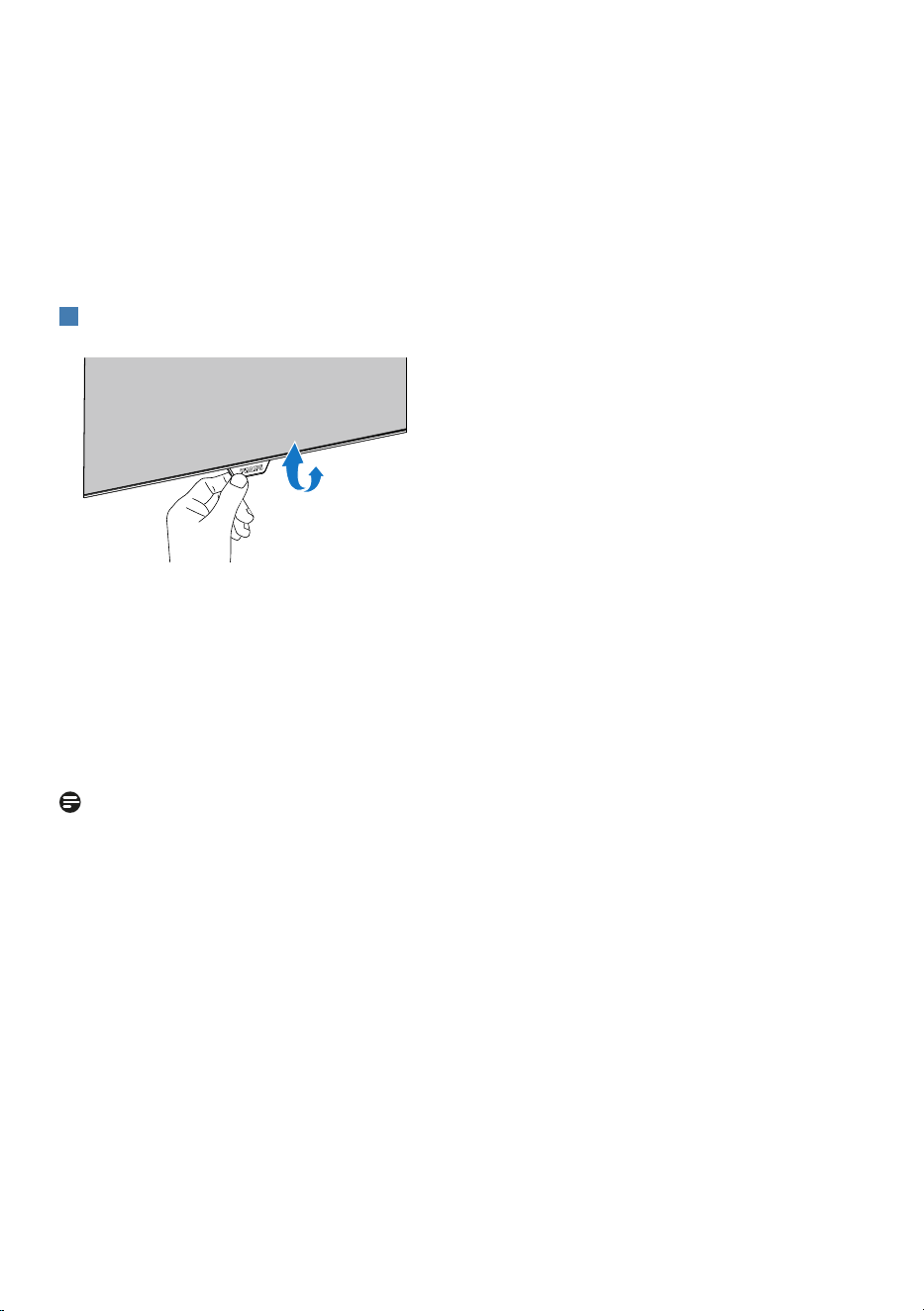
Unfold PowerSensor
• If the PowerSensor structure in your
monitor is of the foldable type,
please ensure it is unfolded in order
for it to work correctly. You can turn
the PowerSensor On or Off via the
OSD control. Please note that in the
folded position, the PowerSensor
will not turn On even if the OSD is
set to “On” mode.
Note
A manually selected PowerSensor
mode will remain operational unless
and until it is readjusted or the default
mode is recalled. If you find that the
PowerSensor is excessively sensitive to
nearby motion for some reason, please
adjust to a lower signal strength. Keep
sensor lens clean, if the sensor lens
is dirty, wipe it with alcohol to avoid
reducing of distance detection .
22
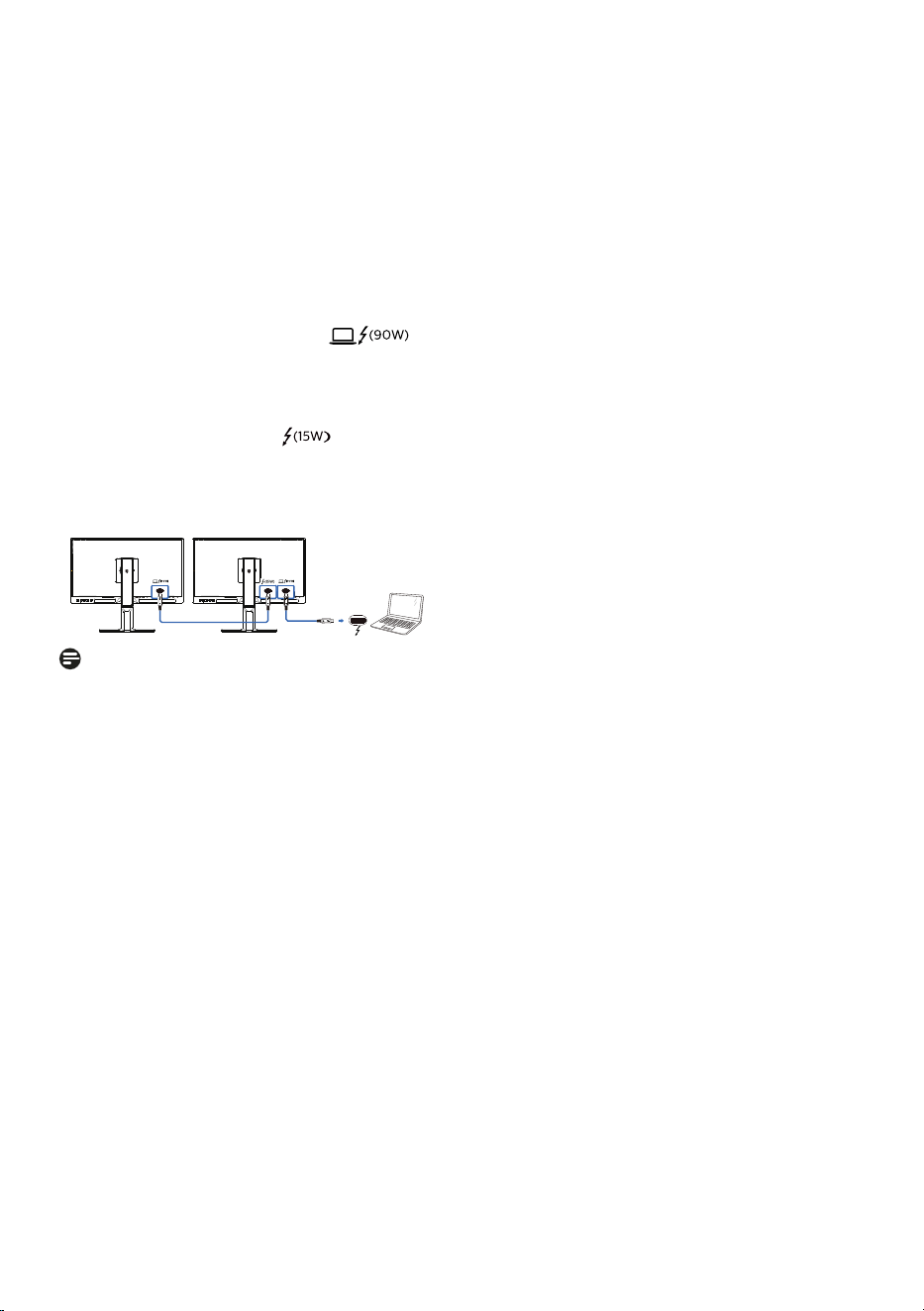
6. Daisy-chain function
Thunderbolt™ 4 supports Daisy Chain. If
your laptop /Desktop/Display Monitor
supports Thunderbolt™ 4, you can
use Thunderbolt™ 4 for multi-screen
connections (Daisy Chain).
To daisy-chain monitors, first to check
below:
1. Connect the Thunderbolt™ 4 cable
to the Thunderbolt input
port on the first monitor and to your
PC.
2. Connect an another cable to the
Thunderbolt output port on
the first monitor , and Thunderbolt
input port on the secondary
monitor.
Thunderbolt
Note
• The maximum number of
connectible monitors may vary
depending on GPU performance.
• To enable HDR on the monitor,
make sure the connected monitor is
in extended mode from your PC.
• To turn on HDR function: Extend the
display by choosing extended mode
on the setting of your laptop/PC.
Alternatively, duplicate the displays
by selecting Clone mode on your
laptop/PC.
• Extend mode: Both monitors can
support full 4K HDR at 60Hz with
10bit color.
• Clone mode: There is one
monitor support 4K HDR at 60Hz
with 10bit color, cloned display
support up to 4K@60Hz, 8bit
only.

23
7. Designs to prevent
computer vision
syndrome (CVS)
Philips monitor is designed to prevent
eye strain caused by prolonged
computer use.
Follow below instructions and use
Philips monitor to efficiently reduce
fatigue and maximum working
productivity.
1. Appropriate environment lighting:
• Adjusting the environment
lighting similar to that of your
screen brightness, avoid the
fluorescent lighting, and surfaces
that don’t reflect too much light.
• Adjusting the brightness and
contrast to appropriate level.
2. Good working habits:
• Excessive usage of monitor can
cause eye discomfort, it’s better
to take shorter breaks more
often at your workstation than
longer breaks and less often; for
example a 5-10 minute break
after 50-60-minute continuous
screen use is likely to be better
than a 15-minute break every two
hours.
• Looking at something varying
distances after a long period
focusing on the screen.
• Gently closing and rolling your
eyes to relax.
• Conscious blinking often while
working.
• Gently stretch your neck, and
slowly tilt your head forward,
backward, side for pain relief.
3. Ideal working posture
• Reposition your screen to
appropriate height and angle
according to your height.
4. Choose Philips monitor for easy-on-
eyes.
• Anti-glare screen: Anti-glare
screen efficiently reduces
annoying and distracting
reflections that caused eye
fatigue.
• LowBlue mode: Blue light
may cause eye strains. Philips
LowBlue mode allows you to set
different blue light filter levels for
variety working situation.
• EasyRead mode for a paper-
like reading experience, giving
a more comfortable viewing
experience while dealing with
long documents on the screen.
24
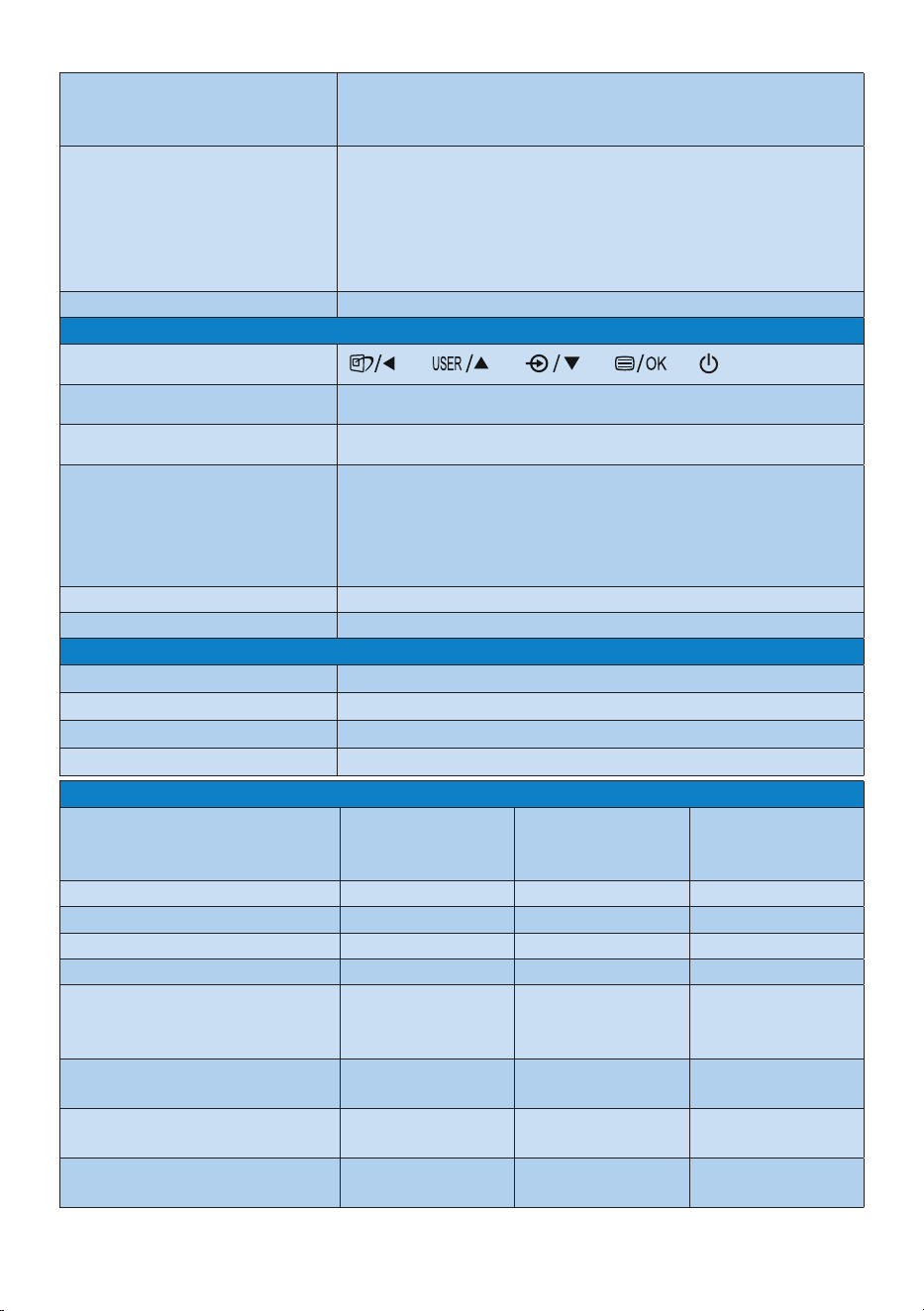
8. Technical Specifications
Picture/Display
Monitor Panel Type IPS Technology
Backlight Mini LED backlight
Panel Size 27" W (68.6 cm)
Aspect Ratio 16:9
Pixel Pitch 0.1554 (H) mm x 0.1554 (V) mm
Display Screen Coating
Anti-Glare, 3H, Haze 25%
Contrast Ratio(typ.) 1300:1
Optimum Resolution 3840 x 2160 @ 60 Hz
Viewing Angle 178° (H) / 178° (V) @ C/R > 10 (typ.)
Display Colors 1.07 B (8 bits+Hi-FRC)
Picture Enhancement SmartImage/ SmartImage HDR
Vertical Refresh Rate
HDMI/DP: 40 Hz - 60 Hz
Thunderbolt
TM
4: 23 Hz - 75 Hz
Horizontal Frequency 30 kHz - 140 kHz
NTSC (CIE1976)* 121% (typ.)
AdobeRGB (CIE1976)* 99.2% (typ.)
sRGB (CIE1931)* 154% (typ.)
Color Gamut YES
LowBlue Mode YES
EasyRead YES
SmartUniformity YES
Delta E
• AnaverageDelta-Eislessthan1whenlocal
dimming is turned off.
• AnaverageDelta-Eislessthan2 when local
dimming is turned on.
HDR VESA DisplayHDR 1400 certified
Adaptive Sync YES
Connectivity
Connectors
2x HDMI 2.0 (HDCP 2.2/ HDCP 1.4)
1x DisplayPort 1.4 (HDCP 2.2/ HDCP 1.4)
2x Thunderbolt
TM
4 (Thunderbolt input x1, Thunderbolt
output x1)
1x RJ-45, Ethernet LAN (10M/100M/1000M)
4x USB-A, downstream with x1 fast charge BC 1.2
1x Audio out
Signal Input source HDMI, DisplayPort, Thunderbolt
TM
4
Signal output
Thunderbolt
TM
4
(Refer to Daisy-chain function)
USB SuperSpeed USB 3.2 Gen2, 10 Gbps
25
Thunderbolt
TM
Thunderbolt
TM
4 (input) (upstream, DisplayPort Alt
mode, HDCP 2.2/ HDCP 1.4, PD 90W)
Thunderbolt
TM
4 (output) (downstream, PD 15W)
Power Delivery
• Thunderbolt
TM
4 (input): USB PD version 3.0, up to
90W (5V/3A, 7V/3A, 9V/3A, 10V/3A, 12V/3A, 15V/3A,
20V/4.5A)
• Thunderbolt
TM
4 (output): USB PD version 3.0, 15W
(5V/3A)
• USB-A(Bottomx1,BC1.2):7.5W(5V/1.5A)
Sync input Separate Sync
Convenience
User Convenience
Built-in speaker 3W x 2
MultiView PBP mode, 2×devices
OSD Languages
English, German, Spanish, Greek, French, Italian,
Hungarian, Dutch, Portuguese, Brazil Portuguese,
Polish, Russian, Swedish, Finnish, Turkish, Czech,
Ukranian, Simplified Chinese, Traditional Chinese,
Japanese, Korean
Other Convenience VESA mount (100 x 100 mm), Kensington Lock
Plug & Play Compatibility DDC/CI, sRGB, Windows 10/8.1/8/7, Mac OS X
Stand
Tilt -5 / +15 degree
Swivel -45 / +45 degree
Height adjustment 130 mm
Pivot -90 / +90 degree
Power
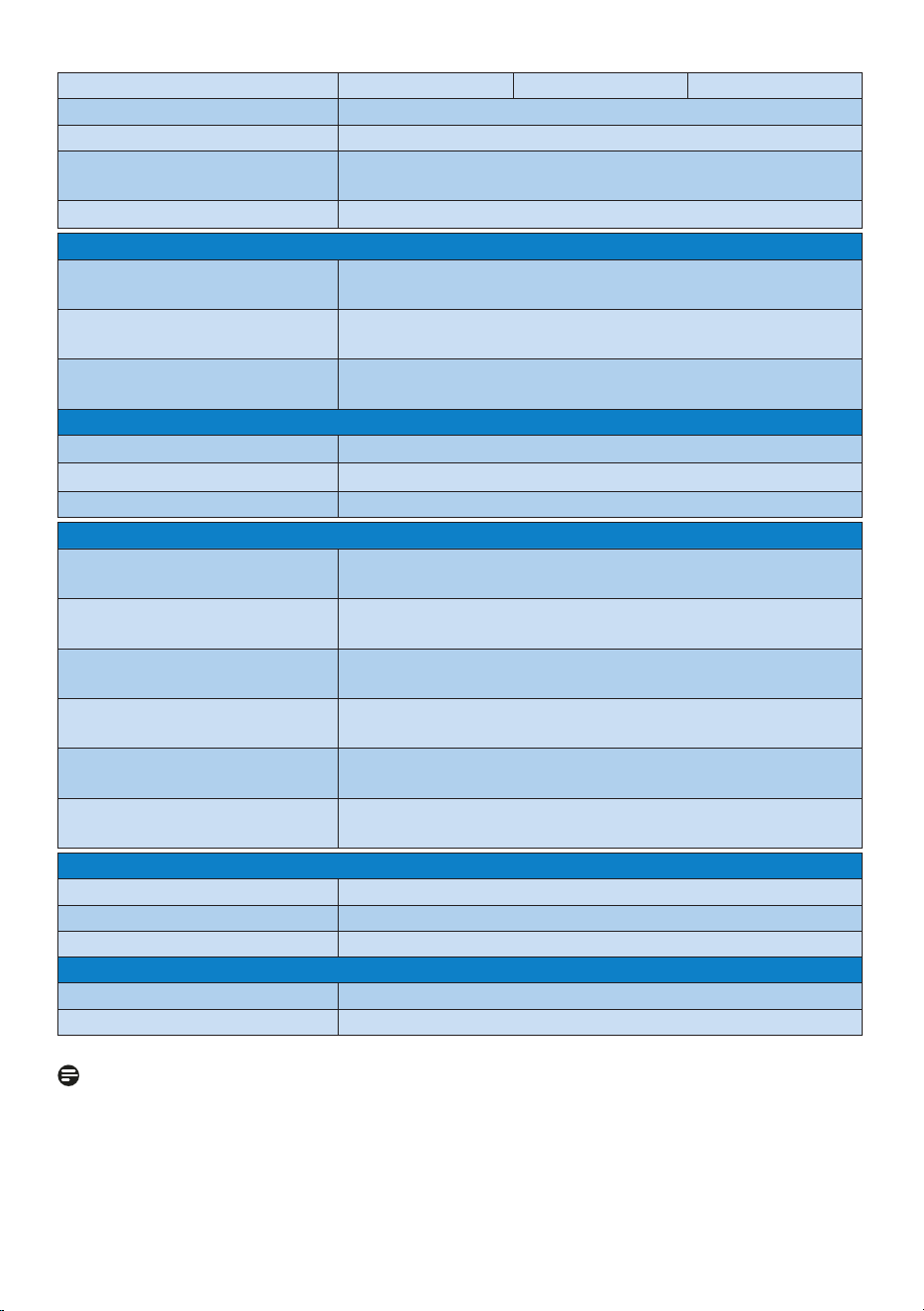
Consumption
AC Input
Voltage at
100VAC , 50Hz
AC Input
Voltage at
115VAC , 50Hz
AC Input
Voltage at
230VAC, 50Hz
Normal Operation 74.3 W (typ.) 74.5 W (typ.) 75.6 W (typ.)
Sleep (Standby mode) 0.3 W (typ.) 0.3 W (typ.) 0.3 W (typ.)
Off mode 0.3 W (typ.) 0.3 W (typ.) 0.3 W (typ.)
Off mode (AC switch) 0 W 0 W 0 W
Heat Dissipation*
AC Input
Voltage at
100VAC , 50Hz
AC Input
Voltage at
115VAC , 50Hz
AC Input
Voltage at
230VAC , 50Hz
Normal Operation
253.58 BTU/hr
(typ.)
254.27 BTU/hr
(typ.)
258.02 BTU/hr
(typ.)
Sleep (Standby mode)
1.02 BTU/hr
(typ.)
1.02 BTU/hr
(typ.)
1.02 BTU/hr
(typ.)
Off mode
1.02 BTU/hr
(typ.)
1.02 BTU/hr
(typ.)
1.02 BTU/hr
(typ.)
26
Off mode (AC switch) 0 BTU/hr 0 BTU/hr 0 BTU/hr
On Mode (ECO mode) 45.1 W (typ.)
PowerSensor 14.0 W (typ.)
Power LED indicator
On mode: White, Standby/Sleep mode: White
(blinking)
Power Supply
Built-in, 100-240V AC, 50/60Hz
Dimensions
Product with stand
(WxHxD)
613 x 515 x 204 mm
Product without stand
(WxHxD)
613 x 369 x 68 mm
Product with packaging
(WxHxD)
735 x 423 x 285 mm
Weight
Product with stand 9.43 kg
Product without stand 7.02 kg
Product with packaging 14.46 kg
Operating Condition
Temperature range
(operation)
0°C to 35°C (HDR)
0°C to 40°C (SDR)
Relative humidity
(operation)
20% to 80%
Atmospheric pressure
(operation)
700 to 1060hPa
Temperature range
(Non-operation)
-20°C to 60°C
Relative humidity
(Non-operation)
10% to 90%
Atmospheric pressure
(Non-operation)
500 to 1060hPa
Environmental and energy
ROHS YES
Packaging 100% recyclable
Specific Substances 100% PVC BFR free housing
Cabinet
Color Black
Finish Texture
Note
1. This data is subject to change without notice. Go to www.philips.com/support to
download the latest version of leaflet.
2.The version of HDMI and DP comply with the Compliance Test Specification (CTS).
3.SmartUniformity and Delta E information sheets are included in the box.

27
4. The function best effect need to warm up monitor in two hours based on local
dimming off mode.
5. There is a fan inside of the monitor which will be automatically enabled when the
monitor reach certain temperature. You may hear the sound from the operation of
the fan which helps to cool down the temperature inside of the monitor.
6. NTSC Area based on CIE1976. AdobeRGB Coverage based on CIE1976. sRGB Area
based on CIE1931.
28
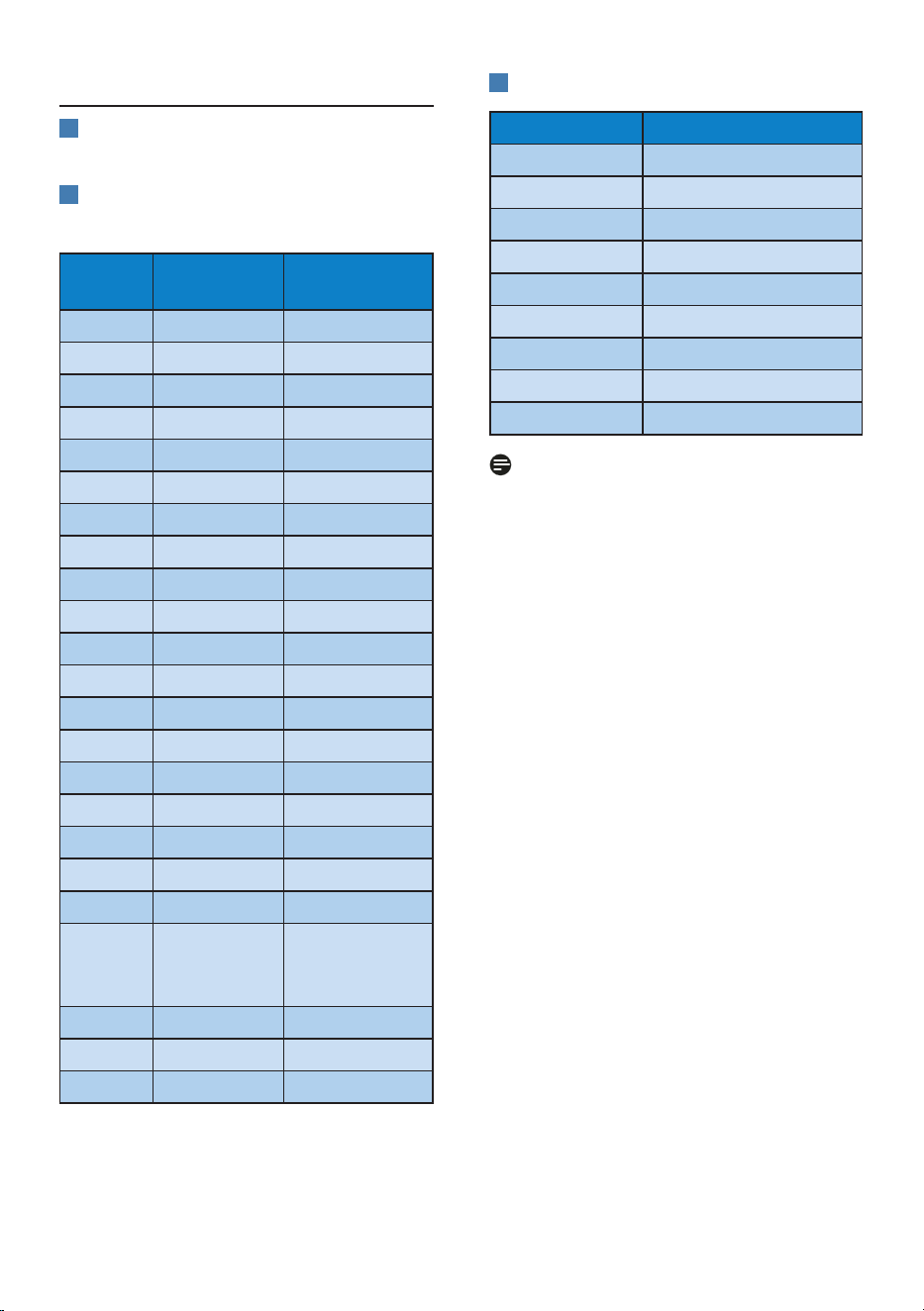
8.1 Resolution & Preset Modes
1
Maximum Resolution
3840 x 2160 @ 60 Hz
2
Recommended Resolution
3840 x 2160 @ 60 Hz
H. freq
(kHz)
Resolution V. freq (Hz)
31.47 720x400 70.09
31.47 640x480 59.94
35.00 640x480 66.67
37.86 640x480 72.81
37.50 640x480 75.00
35.16 800x600 56.25
37.88 800x600 60.32
48.08 800x600 72.19
46.88 800x600 75.00
47.73 832x624 74.55
48.36 1024x768 60.00
56.48 1024x768 70.07
60.02 1024x768 75.03
44.77 1280x720 59.86
60.00 1280x960 60.00
63.89 1280x1024 60.02
79.98 1280x1024 75.03
55.94 1440x900 59.89
67.50 1920x1080 60.00
133.29 1920x2160
PBP mode
(2 Win)
59.99
88.78 2560x1440 59.95
65.67 3840x2160 29.98
133.31 3840x2160 60.00
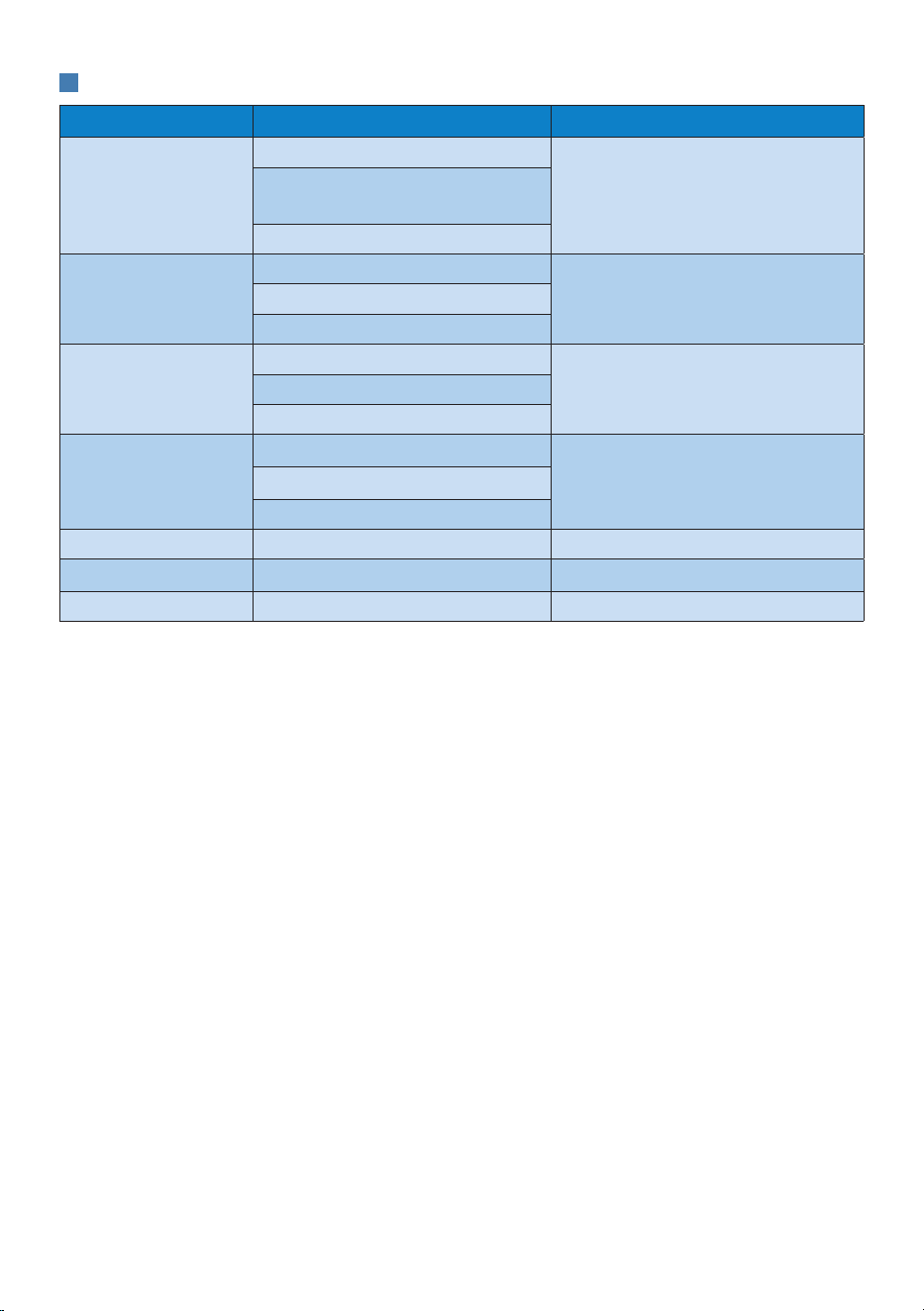
3
Video Timing
Resolution V. freq (Hz)
640x480P 59.94/60Hz 4:3
720x576P 50Hz 16:9
720x480P 59.94/60Hz 16:9
1280x720P 59.94/60Hz 16:9
1920x1080P 59.94/60Hz 16:9
3840x2160P 60Hz 16:9
3840x2160P 50Hz 16:9
3840x2160P 30Hz 16:9
3840x2160P 25Hz 16:9
Note
Please notice that your display works
best at native resolution of 3840x2160.
For best display quality, please follow
this resolution recommendation.
29
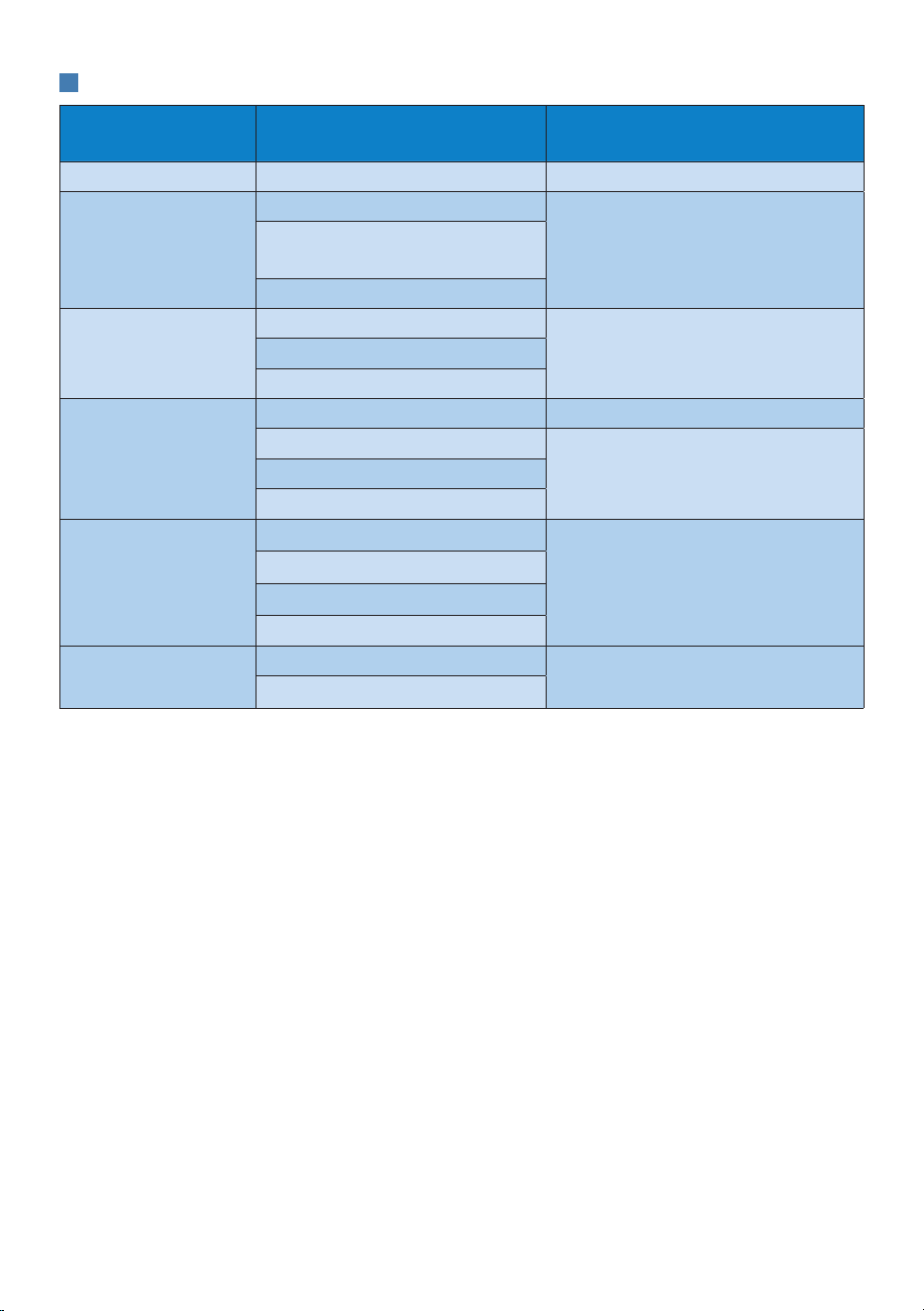
4
Video Bandwidth
Host Video Cable Resolution
USB-C
(Alt Mode DP1.2)
USB-C Gen1 Cable
3840x2160@60Hz
Thunderbolt
TM
3 Cable (40G)
Thunderbolt
TM
4 Cable (40G)
USB-C
(Alt Mode DP1.4)
USB-C Gen1 Cable
3840x2160@60Hz with HDRThunderbolt
TM
3 Cable (40G)
Thunderbolt
TM
4 Cable (40G)
Thunderbolt
TM
3/
Thunderbolt
TM
4
(Alt Mode DP1.2)
USB-C Gen1 Cable
3840x2160@60HzThunderbolt
TM
3 Cable (40G)
Thunderbolt
TM
4 Cable (40G)
Thunderbolt
TM
3/
Thunderbolt
TM
4
(Alt Mode DP1.4)
USB-C Gen1 Cable
3840x2160@60Hz with HDR
Thunderbolt
TM
3 Cable (40G)
Thunderbolt
TM
4 Cable (40G)
HDMI 2.0 HDMI 2.0 cable 3840x2160@60Hz with HDR
DisplayPort DP 1.2 cable 3840x2160@60Hz
DisplayPort DP 1.4 cable 3840x2160@60Hz with HDR
30
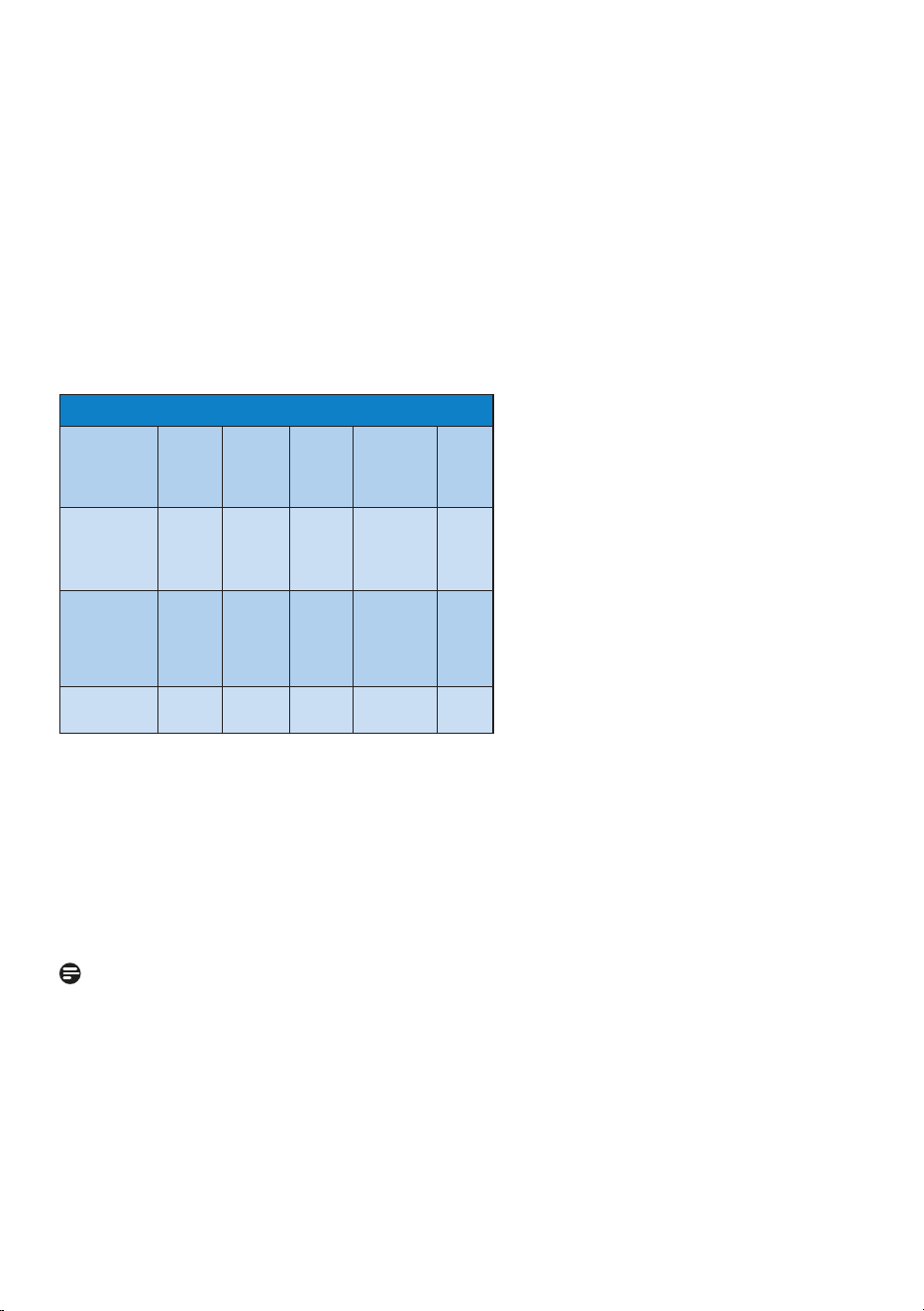
5
USB Bandwidth
Host USB Upstream Cable
USB device connected to
USB downstream
USB-A (5Gbps) A-C cable Supported, USB 2.0/3.2 Gen1
USB-C (5Gbps Data
Only)
USB-C Gen1/2 Cable
Supported, USB 2.0/3.2 Gen1Thunderbolt
TM
4 Cable (40G)
Thunderbolt
TM
3 Cable (40G)
USB-C (Alt Mode
DP1.2)
USB-C Gen1/2 Cable
Supported, USB 2.0 only
Thunderbolt
TM
4 Cable (40G)
Thunderbolt
TM
3 Cable (40G)
USB-C
(Alt Mode DP1.4)
Main link: HBR3
USB-C Gen1 Cable Supported, USB 2.0/3.2 Gen1
USB-C Gen2 Cable
Supported, USB 2.0/3.2 Gen2Thunderbolt
TM
4 Cable (40G)
Thunderbolt
TM
3 Cable (40G)
USB-C
(Alt Mode DP1.4)
Main link: HBR2
USB-C Gen1 Cable
Supported, USB 2.0 only
USB-C Gen2 Cable
Thunderbolt
TM
4 Cable (40G)
Thunderbolt
TM
3 Cable (40G)
Thunderbolt
TM
4/
Thunderbolt
TM
3
Thunderbolt
TM
4 Cable (40G)
Supported, USB 2.0/3.2 Gen2
Thunderbolt
TM
3 Cable (40G)
31
9. Power Management
If you have VESA DPM compliance
display card or software installed in
your PC, the monitor can automatically
reduce its power consumption when
not in use. If an input from a keyboard,
mouse or other input device is
detected, the monitor will 'wake up'
automatically. The following table
shows the power consumption and
signaling of this automatic power saving
feature:
Power Management Definition
VESA Mode Video H-sync V-sync
Power
Used
LED
Color
Active ON Yes Yes
74.5 W
(typ.)
322.2 W
(max.)
White
Sleep
(Standby
mode)
OFF No No
0.3 W
(typ.)
White
(blink)
Off mode
(AC switch)
OFF - - 0 W OFF
The following setup is used to measure
power consumption on this monitor.
• Native resolution: 3840 x 2160
• Contrast: 50%
• Brightness: 70%
• Color temperature: 6500k with full
white pattern
Note
This data is subject to change without
notice.
32
10. Customer care and
warranty
10.1 Philips’ Flat Panel Monitors
Pixel Defect Policy
Philips strives to deliver the highest
quality products. We use some
of the industry's most advanced
manufacturing processes and practice
stringent quality control. However,
pixel or sub pixel defects on the TFT
Monitor panels used in flat panel
monitors are sometimes unavoidable.
No manufacturer can guarantee that
all panels will be free from pixel
defects, but Philips guarantees that
any monitor with an unacceptable
number of defects will be repaired
or replaced under warranty. This
notice explains the different types of
pixel defects and defines acceptable
defect levels for each type. In order to
qualify for repair or replacement under
warranty, the number of pixel defects
on a TFT Monitor panel must exceed
these acceptable levels. For example,
no more than 0.0004% of the sub
pixels on a monitor may be defective.
Furthermore, Philips sets even higher
quality standards for certain types or
combinations of pixel defects that are
more noticeable than others. This policy
is valid worldwide.
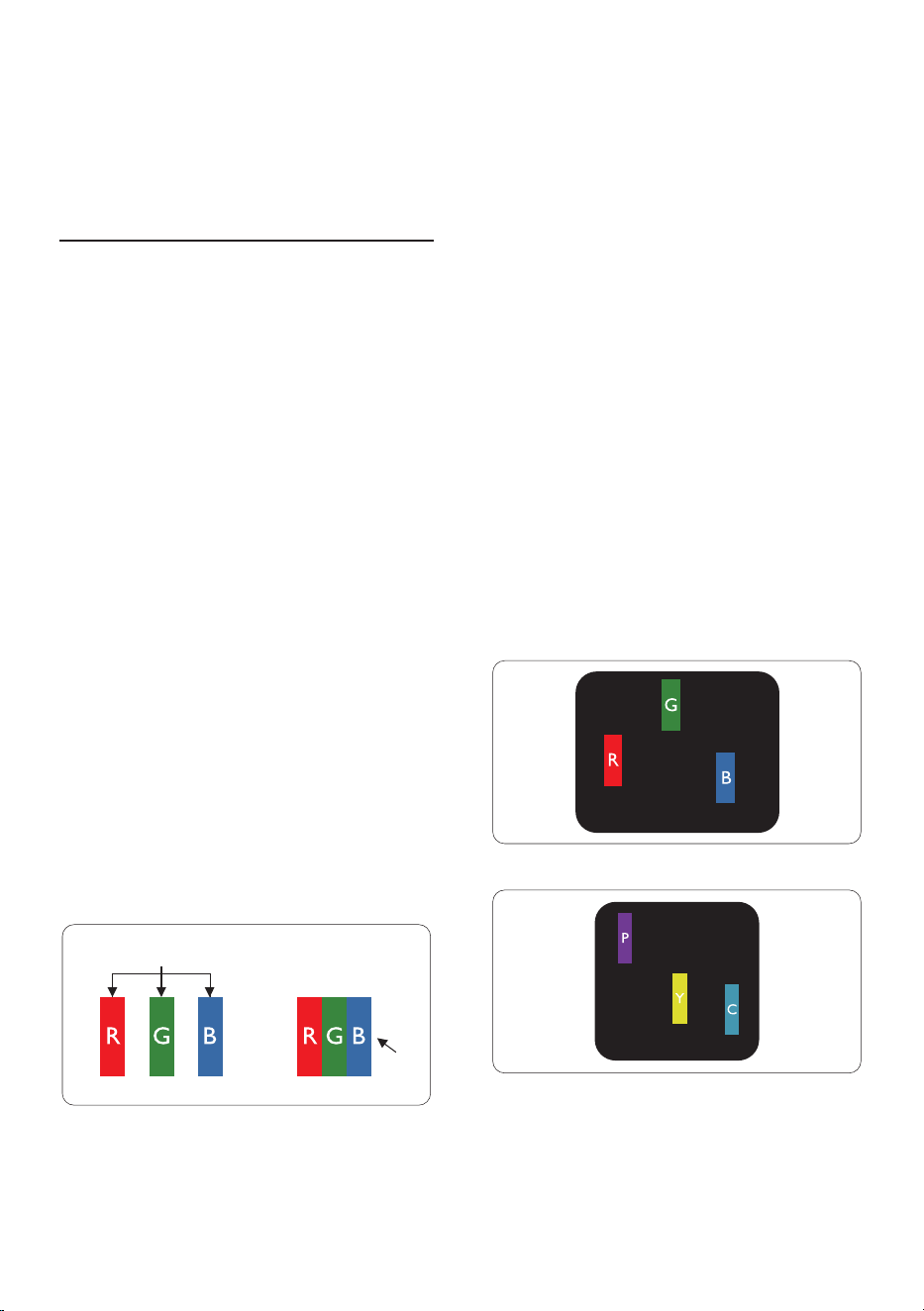
subpixel
pixel
Pixels and Sub pixels
A pixel, or picture element, is composed
of three sub pixels in the primary colors
of red, green and blue. Many pixels
together form an image. When all sub
pixels of a pixel are lit, the three colored
sub pixels together appear as a single
white pixel. When all are dark, the three
colored sub pixels together appear as a
single black pixel. Other combinations
of lit and dark sub pixels appear as
single pixels of other colors.
Types of Pixel Defects
Pixel and sub pixel defects appear on
the screen in different ways. There are
two categories of pixel defects and
several types of sub pixel defects within
each category.
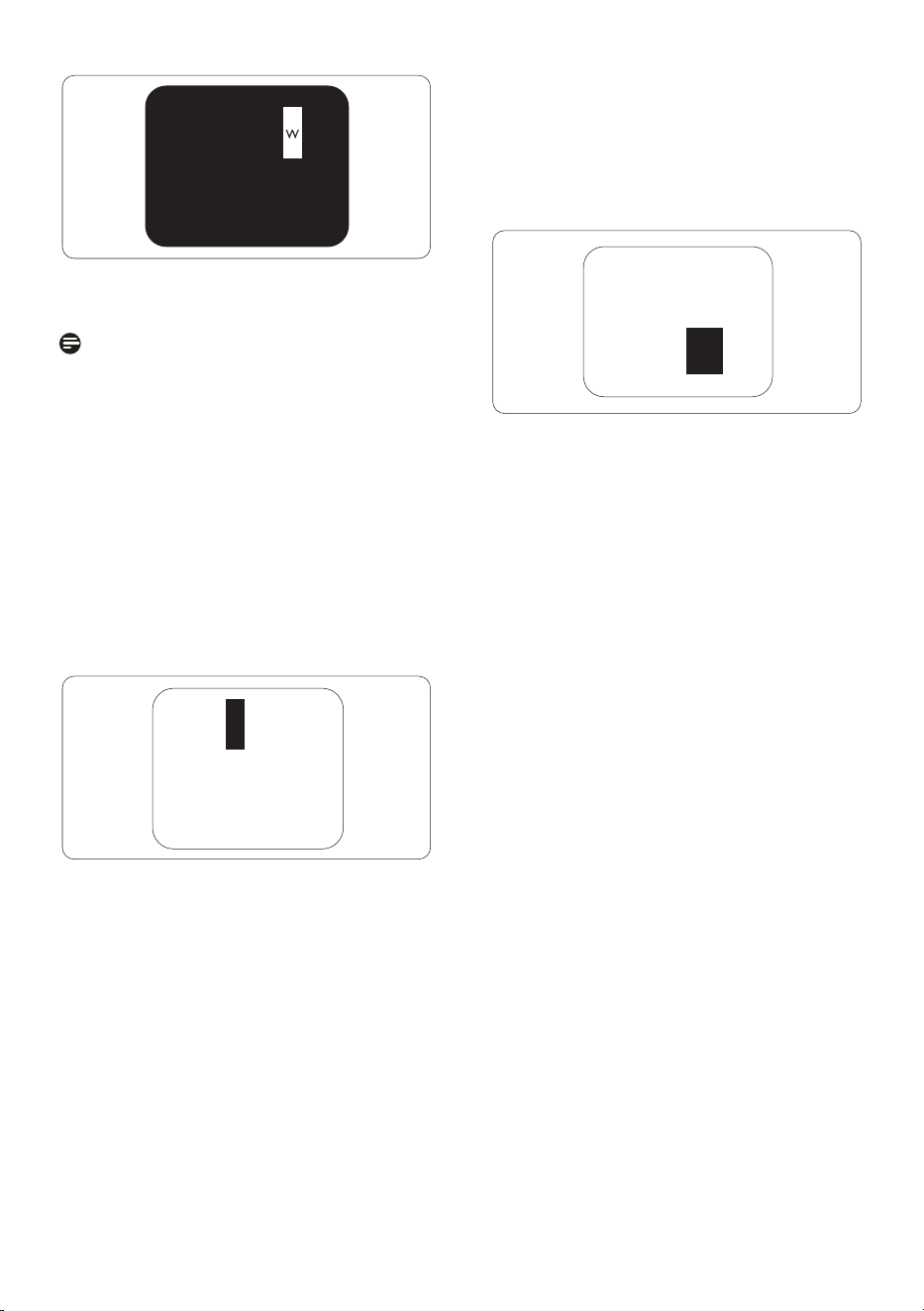
Bright Dot Defects
Bright dot defects appear as pixels or
sub pixels that are always lit or 'on'. That
is, a bright dot is a sub-pixel that stands
out on the screen when the monitor
displays a dark pattern. There are the
types of bright dot defects.
One lit red, green or blue sub pixel.
Two adjacent lit sub pixels:
- Red + Blue = Purple
- Red + Green = Yellow
- Green + Blue = Cyan (Light Blue)
33
Proximity of Pixel Defects
Because pixel and sub pixels defects
of the same type that are near to one
another may be more noticeable,
Philips also specifies tolerances for the
proximity of pixel defects.
Pixel Defect Tolerances
In order to qualify for repair or
replacement due to pixel defects during
the warranty period, a TFT Monitor
panel in a Philips flat panel monitor
must have pixel or sub pixel defects
exceeding the tolerances listed in the
following tables.
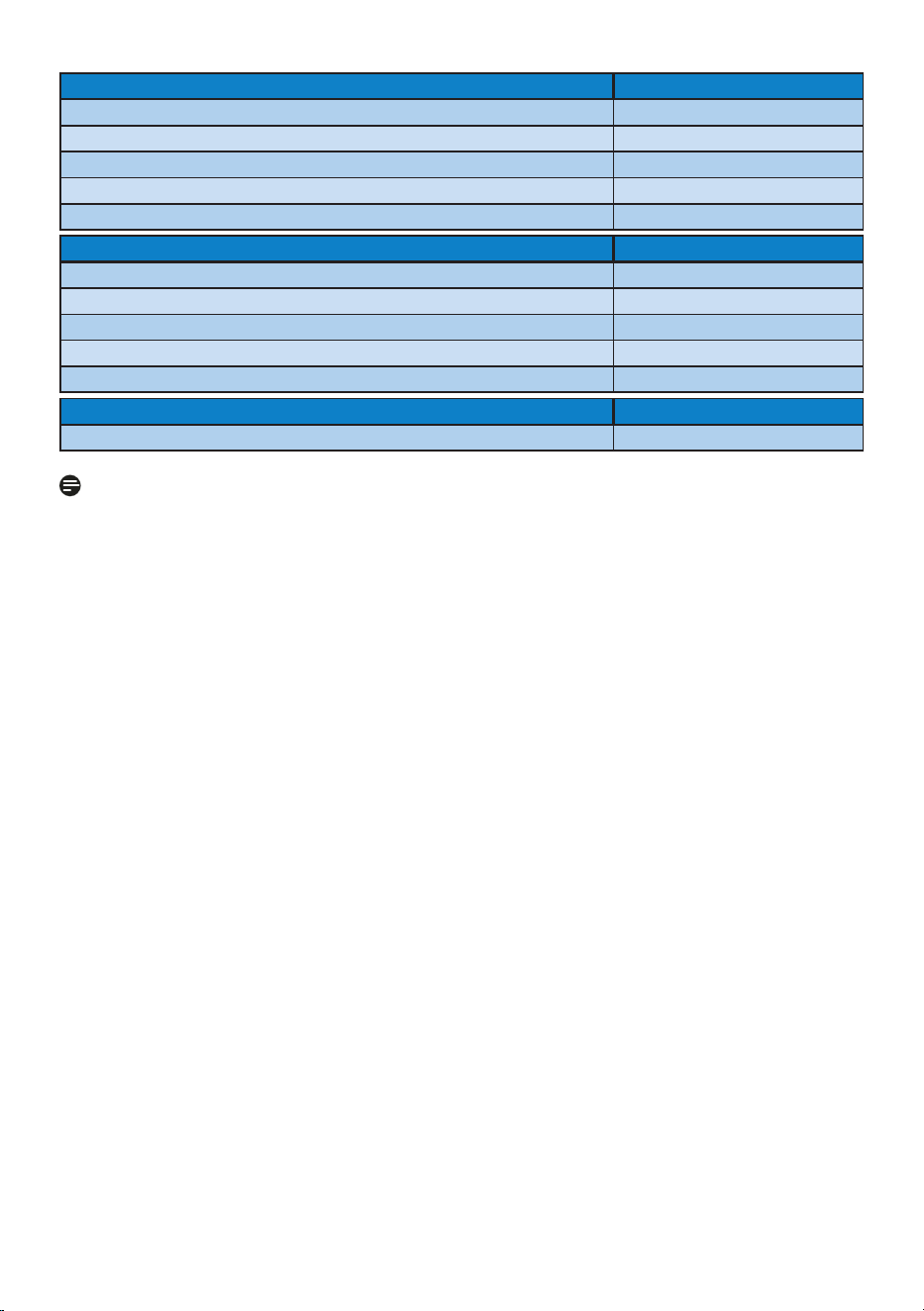
Three adjacent lit sub pixels (one white
pixel).
Note
A red or blue bright dot must be
more
than 50 percent brighter than
neighboring dots while a green
bright dot is 30 percent brighter than
neighboring dots.
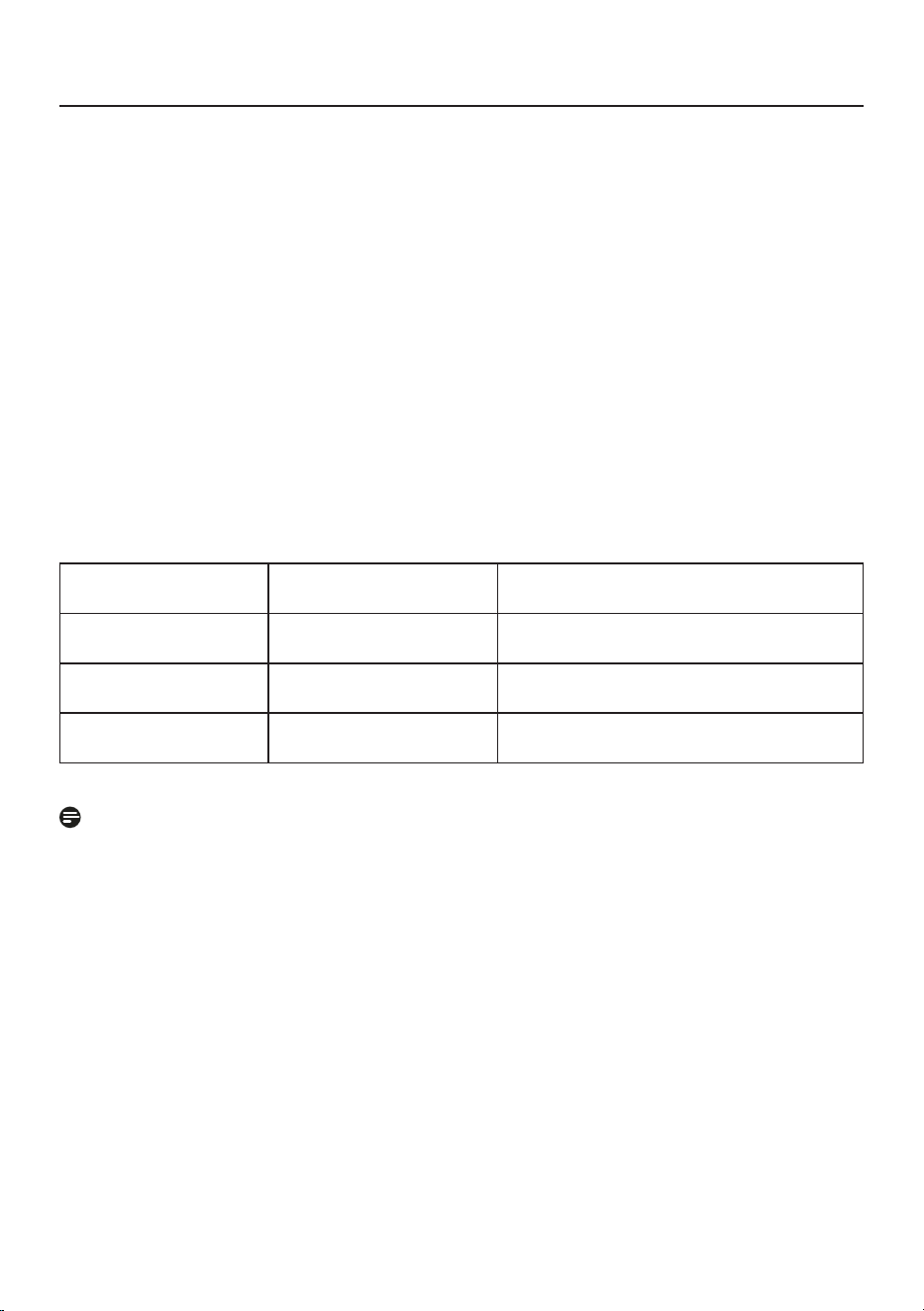
Black Dot Defects
Black dot defects appear as pixels or
sub pixels that are always dark or 'off'.
That is, a dark dot is a sub-pixel that
stands out on the screen when the
monitor displays a light pattern. These
are the types of black dot defects.
34
BRIGHT DOT DEFECTS ACCEPTABLE LEVEL
1 lit subpixel 0
2 adjacent lit subpixels 0
3 adjacent lit subpixels (one white pixel) 0
Distance between two bright dot defects* 0
Total bright dot defects of all types 0
BLACK DOT DEFECTS ACCEPTABLE LEVEL
1 dark subpixel 5 or fewer
2 adjacent dark subpixels 2 or fewer
3 adjacent dark subpixels 0
Distance between two black dot defects*
≥
15mm
Total black dot defects of all types 5 or fewer
TOTAL DOT DEFECTS ACCEPTABLE LEVEL
Total bright or black dot defects of all types 5 or fewer
Note
1 or 2 adjacent sub pixel defects = 1 dot defect
35
10.2 Customer Care & Warranty
For warranty coverage information and additional support requirements valid for your
region, please visit www.philips.com/support website for details or contact your local
Philips Customer Care Center.
For Warranty Period please refer to Warranty Statement in Important Information
Manual.
For extended warranty, if you would like to extend your general warranty period, an
Out of Warranty service package is offered via our Certified Service Center.
If you wish to make use of this service, please be sure to purchase the service within
30 calendar days of your original purchase date. During the extended warranty
period, the service includes pickup, repair and return service, however the user will be
responsible for all costs accrued.
If the Certified Service Partner cannot perform the required repairs under the offered
extended warranty package, we will find alternative solutions for you, if possible, up
to the extended warranty period you have purchased.
Please contact our Philips Customer Service Representative or local contact center (by
Consumer care number) for more details.
•
Local Standard
Warranty Period
•
Extended Warranty
Period
•
Total Warranty Period
•
Depend on
different Regions
•
+ 1 Year
•
Local Standard warranty period
+1
•
+ 2 Years
•
Local Standard warranty period
+2
•
+ 3 Years
•
Local Standard warranty period
+3
**
Proof of original purchase and extended warranty purchase required.
Note
Please refer to important information manual for regional service hotline, which is
available on the Philips website support page.
36
11. Troubleshooting &
FAQs
11.1 Troubleshooting
This page deals with problems that can
be corrected by a user. If the problem
still persists after you have tried these
solutions, contact Philips customer
service representative.
1
Common Problems
No Picture (Power LED not lit)
• Make sure the power cord is
plugged into the power outlet and
into the back of the monitor.
• First, ensure that the power button
on the rear of the monitor is in the
OFF position, then press it to the
ON position.
No Picture (Power LED is White)
• Make sure the computer is turned
on.
• Make sure the signal cable is
properly connected to your
computer.
• Make sure the monitor cable has
no bent pins on the connect side. If
yes, repair or replace the cable.
• The Energy Saving feature may be
activated
Screen says
• Make sure the monitor cable
is properly connected to your
computer. (Also refer to the Quick
Start Guide).
• Check to see if the monitor cable
has bent pins.
• Make sure the computer is turned
on.
AUTO button doesn't function
• The auto function is applicable only
in VGA-Analog mode. If the result is
not satisfactory, you can do manual
adjustments via the OSD menu.
Note
The Auto Function is not applicable in
DVI-Digital mode as it is not necessary.
Visible signs of smoke or sparks
• Do not perform any troubleshooting
steps
• Disconnect the monitor from mains
power source immediately for safety
• Contact with Philips customer
service representative immediately.
2
Imaging Problems
Image is not centered
• Adjust the image position using
the “Auto” function in OSD Main
Controls.
• Adjust the image position using
the Phase/Clock of Setup in OSD
Main Controls. It is valid only in VGA
mode.
Image vibrates on the screen
• Check that the signal cable is
properly securely connected to the
graphics board or PC.
Vertical flicker appears
• Adjust the image using the “Auto”
function in OSD Main Controls.
• Eliminate the vertical bars using
the Phase/Clock of Setup in OSD
Main Controls. It is valid only in VGA
mode.

37
Horizontal flicker appears
• Adjust the image using the “Auto”
function in OSD Main Controls.
• Eliminate the vertical bars using
the Phase/Clock of Setup in OSD
Main Controls. It is valid only in VGA
mode.
Image appears blurred, indistinct or too
dark
• Adjust the contrast and brightness
on On-Screen Display.
An "after-image", "burn-in" or "ghost
image" remains after the power has
been turned off.
• Uninterrupted display of still or
static images over an extended
period may cause "burn-in", also
known as "after-imaging" or "ghost
imaging", on your screen. "Burn-in",
"after-imaging", or "ghost imaging"
is a well-known phenomenon in
LCD panel technology. In most
cases, the "burn-in" or "after-
imaging" or "ghost imaging" will
disappear gradually over a period
of time after the power has been
switched off.
• Always activate a moving screen
saver program when you leave your
monitor unattended.
• Always activate a periodic screen
refresh application if your LCD
monitor will display unchanging
static content.
• Failure to activate a screen saver, or
a periodic screen refresh application
may result in severe “burn-in” or
“after-imaging” or “ghost imaging”
symptoms that will not disappear
and cannot be repaired. The
damage mentioned above is not
covered under your warranty.
Image appears distorted. Text is fuzzy
or blurred.
• Set the PC’s display resolution
to the same mode as monitor’s
recommended screen native
resolution.
Green, red, blue, dark, and white dots
appears on the screen
• The remaining dots are normal
characteristic of the liquid crystal
used in today’s technology, Please
refer the pixel policy for more detail.
*
The "power on" light is too strong and
is disturbing
• You can adjust “power on” light
using the power LED Setup in OSD
main Controls.
For further assistance, refer to the
Service contact information listed in
Important information manual and
contact Philips customer service
representative.
*
Functionality different according to
display.
11.2 General FAQs
Q1: When I install my monitor what
should I do if the screen shows
'Cannot display this video
mode'?
Ans.: Recommended resolution for
this monitor: 3840 x 2160.
• Unplug all cables, then connect your
PC to the monitor that you used
previously.
• In the Windows Start Menu, select
Settings/Control Panel. In the
Control Panel Window, select the
Display icon. Inside the Display
Control Panel, select the 'Settings'

38
tab. Under the setting tab, in box
labelled 'desktop area', move the
sidebar to 3840 x 2160 pixels.
• Open 'Advanced Properties' and
set the Refresh Rate to 60 Hz, then
click OK.
• Restart your computer and repeat
step 2 and 3 to verify that your PC is
set at 3840 x 2160.
• Shut down your computer,
disconnect your old monitor and
reconnect your Philips LCD monitor.
• Turn on your monitor and then turn
on your PC.
Q2: What is the recommended
refresh rate for LCD monitor?
Ans.: Recommended refresh rate in
LCD monitors is 60 Hz, In case of
any disturbance on screen, you
can set it up to 75 Hz to see if
that removes the disturbance.
Q3: What are the .inf and .icm files?
How do I install the drivers (.inf
and .icm)?
Ans.: These are the driver files for your
monitor. Your computer may
ask you for monitor drivers (.inf
and .icm files) when you first
install your monitor. Follow the
instructions in your user manual,
monitor drivers (.inf and .icm files)
will be installed automatically.
Q4: How do I adjust the resolution?
Ans.: Your video card/graphic driver
and monitor together determine
the available resolutions. You
can select the desired resolution
under Windows
®
Control Panel
with the "Display properties".
Q5: What if I get lost when I am
making monitor adjustments via
OSD?
Ans.: Simply press button, then
select ‘Setup’ >'Reset' to recall all
of the original factory settings.
Q6: Is the LCD screen resistant to
scratches?
Ans.: In general it is recommended
that the panel surface is not
subjected to excessive shocks
and is protected from sharp or
blunt objects. When handling the
monitor, make sure that there is
no pressure or force applied to
the panel surface side. This may
affect your warranty conditions.
Q7: How should I clean the LCD
surface?
Ans.: For normal cleaning, use a clean,
soft cloth. For extensive cleaning,
please use isopropyl alcohol. Do
not use other solvents such as
ethyl alcohol, ethanol, acetone,
hexane, etc.
Q8: Can I change the color setting of
my monitor?
Ans.: Yes, you can change your color
setting through OSD control as
the following procedures.
• Press OK to show the OSD (On
Screen Display) menu
• Press to select the option "Color"
then press OK to enter color setting,
there are three settings as below.
1. Color Temperature: The settings
are Native, 5000K, 6500K,
7500K, 8200K, 9300K and
11500K. With settings in the
5000K range the panel appears
"warm, with a red-white
color tone", while a 11500K

39
temperature yields "cool,
bluewhite toning".
2. sRGB: This is a standard setting
for ensuring correct exchange of
colors between different device
(e.g. digital cameras, monitors,
printers, scanners, etc).
3. User Define: The user can choose
his/her preference color setting
by adjusting red, green, blue
color.
Note
A measurement of the color of light
radiated by an object while it is being
heated. This measurement is expressed
in terms of absolute scale, (degrees
Kelvin). Lower Kevin temperatures such
as 2004K are red; higher temperatures
such as 9300K are blue. Neutral
temperature is white, at 6504K.
Q9: Can I connect my LCD monitor to
any PC, workstation or Mac?
Ans.: Yes. All Philips LCD monitors are
fully compatible with standard
PCs, Macs and workstations.
You may need a cable adapter
to connect the monitor to your
Mac system. Please contact your
Philips sales representative for
more information.
Q10: Are Philips LCD monitors Plug-
and- Play?
Ans.: Yes, the monitors are Plug-and-
Play compatible with Windows
10/8.1/8/7, Mac OSX.
Q11: What is Image Sticking, or Image
Burn-in, or After Image, or Ghost
Image in LCD panels?
Ans.: Uninterrupted display of still or
static images over an extended
period may cause "burn-in",
also known as "after-imaging" or
"ghost imaging", on your screen.
"Burn-in", "after-imaging", or
"ghost imaging" is a well-known
phenomenon in LCD panel
technology. In most cases, the
"burn-in" or "after-imaging" or
"ghost imaging" will disappear
gradually over a period of
time after the power has been
switched off.
Always activate a moving screen
saver program when you leave
your monitor unattended.
Always activate a periodic screen
refresh application if your LCD
monitor will display unchanging
static content.
Warning
Failure to activate a screen saver, or
a periodic screen refresh application
may result in severe “burn-in” or “after-
image” or “ghost image” symptoms
that will not disappear and cannot be
repaired. The damage mentioned above
is not covered under your warranty.
Q12: Why is my Display not showing
sharp text, and is displaying
jagged characters?
Ans.: Your LCD monitor works best at
its native resolution of 3840 x
2160. For best display, please
use this resolution.
Q13: How to unlock/lock my hot key?
Ans.: To lock the OSD, press and
hold the button while the
monitor is off and then press
button to turn the monitor on.
To un-lock the OSD, press and
hold the button while the
monitor is off and then press
button to turn the monitor on.

40
Q14: Where can I find Important
Information manual mentioned
in EDFU?
Ans.: Important Information manual
can be download on the Philips
website support page.

2021 © TOP Victory Investments Ltd. All rights reserved.
This product has been manufactured by and is sold under the responsibility of Top Victory Investments Ltd., and Top
Victory Investments Ltd. is the warrantor in relation to this product. Philips and the Philips Shield Emblem are registered
trademarks of Koninklijke Philips N.V. and are used under license.
Specications are subject to change without notice.
Version: M1127BU7903E1WWT