USER MANUAL
19540255
2
Manual
2K QUAD HD DASH CAMERA WITH
INCLUDED FHD REAR CAMERA
Introduction
Box Contents
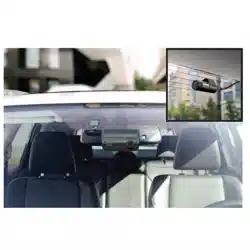
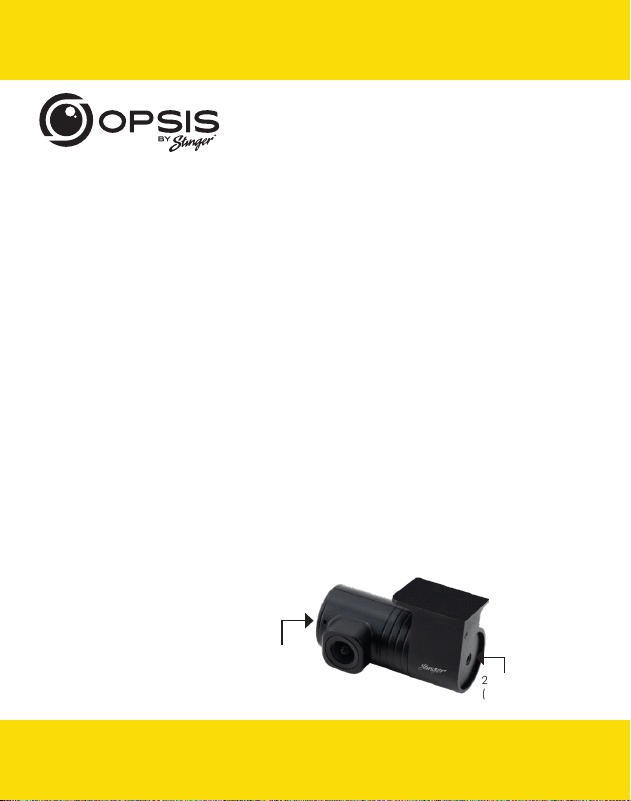
Rear Camera
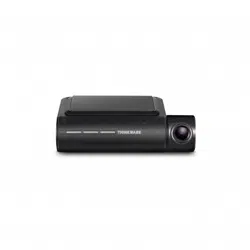
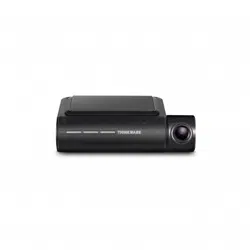
u Main (Front) Dash Cam
u Front Dash Cam Bracket with Adhesive
u Rear Dash Cam with Adhesive
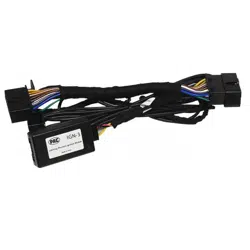
u Plug-n-Play OBDII Hardwire Harness
u CPL Filter
u 32GB microSD Card (already
inserted in unit)
Thank you for purchasing your OPSIS Dash Cam.
At Stinger, we believe that a dash camera should be more than just a passive
recording device; it should be a reliable companion.
OPSIS
TM
dash cams give drivers the security of knowing they will be able to
capture clear, crisp first-hand incident evidence, should the need arise.
With easy-to-use setup features, OPSIS records the surroundings of your parked
vehicle to ensure your car is safe and sound. OPSIS also observes other driver’s
behavior around you.
Always stay vigilant, never miss a moment with OPSIS by Stinger.
Security LED
2CH Input Port
(to front camera)
email - [email protected]
tel: 866-766-2267
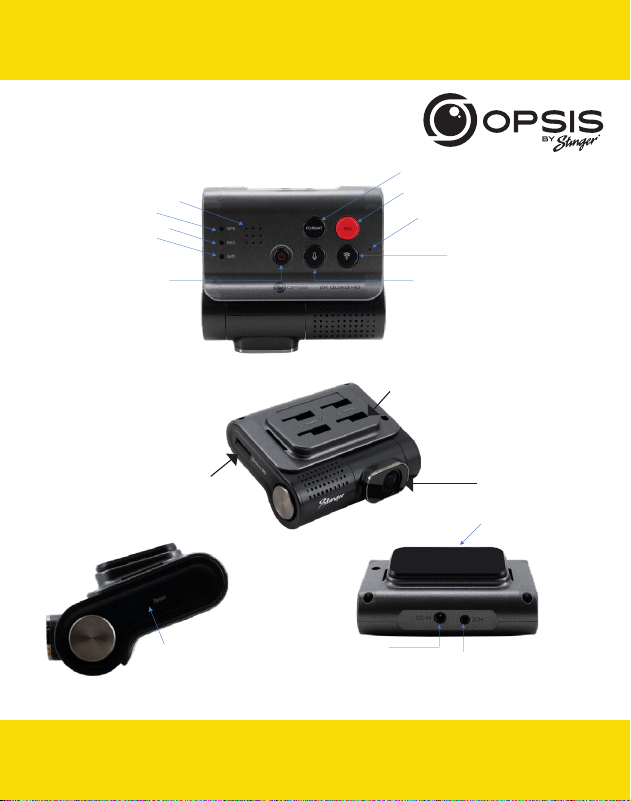
2CH Input Port
(to front camera)
3
Manual
2K QUAD HD DASH CAMERA WITH
INCLUDED FHD REAR CAMERA
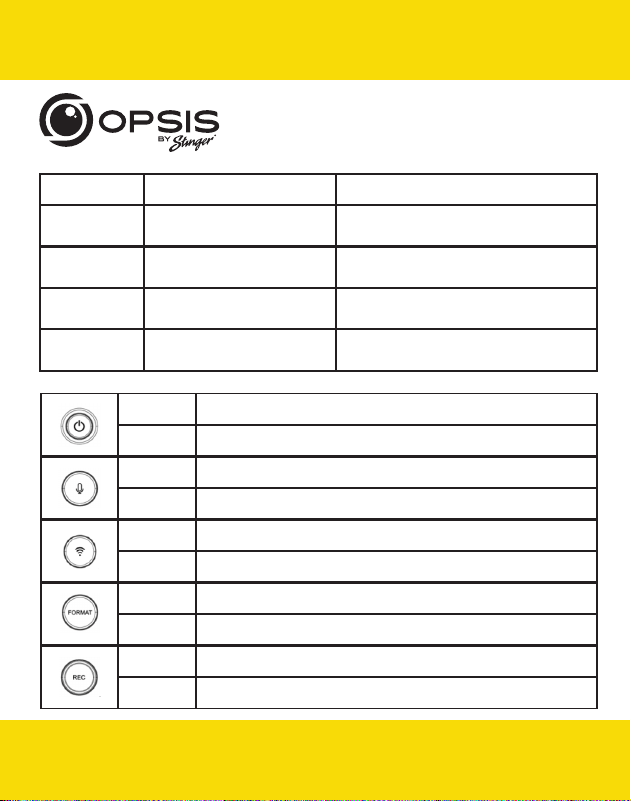
Reset Button
Mounting Bracket
DC-IN Power Port
2CH Input Port
(for rear camera)
Swivel Front Camera
GPS LED
Recording LED
Wi-Fi LED
Format Button
Manual Record Button
Wi-Fi Button
Audio Recording Button
Power Button
Mic
Speaker
Front Camera
Memory Card Slot
Mounting Holes
email - [email protected]
tel: 866-766-2267
4
LED Status
LED Indicator Status Definition
GPS Solid Blue LED/No LED
GPS connected/GPS not connected
“GPS Connected” Voice Alert
REC
Solid Red LED/
Flashing Red LED
Recording/
Event Recording
Wi-Fi
Flashing Blue LED/
Solid Blue LED
Searching for Hotspot/
Connected to Hotspot
Flashing Green LED /
Solid Green LED
Searching for Wi-Fi/
Connected to Wi-Fi
Button Function
< 3s Power On
> 3s Power O
< 3s Voice recording disable/enable
> 3s No Function
< 3s Wi-Fi-Network mode/Hotspot mode
> 3s No Function
< 3s No Function
> 3s Format memory card
< 3s Manual recording
> 3s Reset to default factory settings
Manual
2K QUAD HD DASH CAMERA WITH
INCLUDED FHD REAR CAMERA
email - [email protected]
tel: 866-766-2267
5
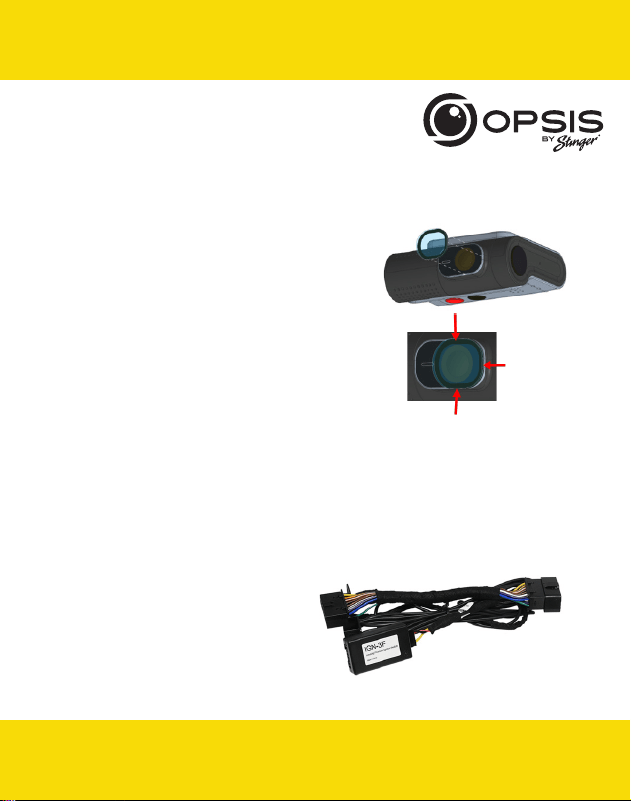
Installing the CPL Filter
Reduce windshield reection and glare, improving the overall image quality.
Clean the lens and surrounding area of your dash cam.
Remove the blue adhesive backing.
For proper placement, align the three edges of the
filter with the camera window and secure
it in place. NOTE: This is semi-permanent and
not meant to be removed.
Remove the clear protective film
Installing Stinger OPSIS Dash Cam:
*For best positioning, it is recommended to look at the camera’s live view from the
app before mounting.
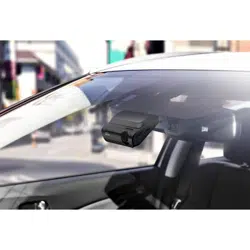
Select a location on the windshield where the front view of the vehicle can be
recorded. Ensure that the device will not obstruct the driver’s view.
Clean the mounting location thoroughly.
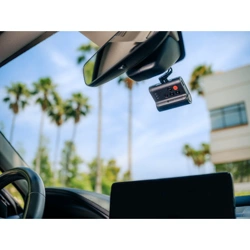
Attach the mount to the dash cam,
then stick to windshield in desired location.
Connect power to your dash cam by
using the Plug-n-Play OBDII Hardwire
Harness.
Manual
2K QUAD HD DASH CAMERA WITH
INCLUDED FHD REAR CAMERA
email - [email protected]
tel: 866-766-2267

6
Recording Modes:
Continuous
Recording
Records videos in 1-minute segments
(dual channels are supported for recording the front and rear
view)
Incident Recording
Records 10 seconds before and after the incident
(total 20 seconds)
Manual Recording
Records from 10 seconds before and 50 seconds
after manually starting the recording
(total 1 minute)
Parking Mode
Recording
Disabled (default); options in app
Audio Recording
Press the voice recording button to turn the
audio recording on or o; Default is recording on
Manual
2K QUAD HD DASH CAMERA WITH
INCLUDED FHD REAR CAMERA
The dash cam will power on automatically and start recording to the SD card.
email - [email protected]
tel: 866-766-2267
7
Manual
2K QUAD HD DASH CAMERA WITH
INCLUDED FHD REAR CAMERA
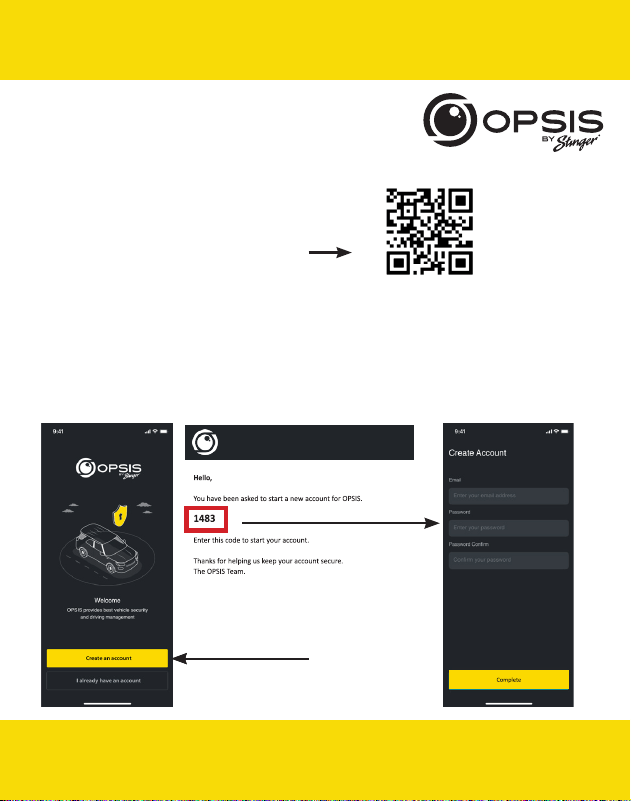
After downloading the app, open the OPSIS app and tap “Create an Account.”
To create an account, fill in the required information (your email address (ID)) and
create a password. OPSIS will send a verification email with a code to the email
address you provided. Enter the code into the app to complete account set up.
Create an Account
To manage the settings for your dash cam,
download the Stinger OPSIS app for iOS or
Android here by scanning this QR code:
Enter the code from Email
email - [email protected]
tel: 866-766-2267

8
Manual
To Connect OPSIS to Wi-Fi for the First Time:
Press “ + Add Device” and follow the on-screen directions. Press the Wi-FI button on
the dash cam. The Wi-Fi LED will start to blink green. Ensure Wi-Fi is enabled on your
device (smartphone). Connect to Wi-Fi network “OPSIS_xx” (ex: OPSIS_08).
Enter the Wi-Fi Password: 123456789
Once the dash cam has been found and is connected, a notification will appear
in the app. The Wi-Fi LED should be solid green at this time.
To Configure the Hotspot for the First Time:
NOTE: The dash cam must be connected to a smartphone via Wi-Fi.
In the app, go to “My Device” then “Cloud Setting on OPSIS App.”
Enter the hotspot information: Wi-Fi SSID and Wi-Fi Password, then tap “Save.”
The smartphone may disconnect from the OPSIS app after timing out.
The Wi-Fi LED will blink blue when searching for the hotspot. When the dash cam is
connected, the blue LED will be solid.
2K QUAD HD DASH CAMERA WITH
INCLUDED FHD REAR CAMERA
email - [email protected]
tel: 866-766-2267
9
Manual
Firmware Update:
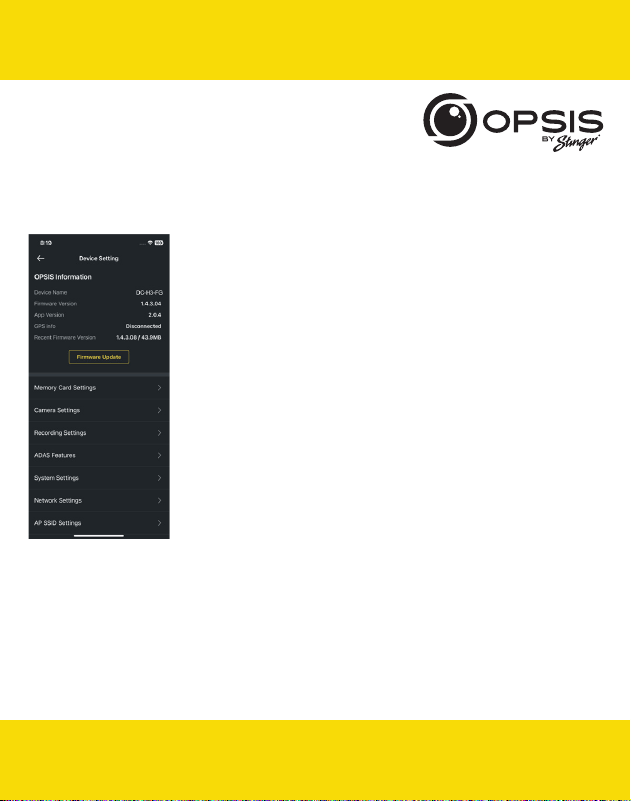
Once the app is connected to the device, it will
automatically check for the latest FW.
If there is a firmware update available, the “Firmware
Update” button in Device Settings will be highlighted. Press
the “Firmware Update” button to start the update. Once
the firmware update is complete, the dash cam will restart
automatically. It may take a few minutes for the update to
be installed. When the update is complete, “Update is now
complete” is announced. It may also ask to reformat the SD
card at the end of the process. Press and hold “FORMAT”
for 3 seconds on the dash cam to complete.
NOTE: Reformatting your card will delete all files. Ensure to
save your desired files prior to starting the Firmware Update
process.
2K QUAD HD DASH CAMERA WITH
INCLUDED FHD REAR CAMERA
email - [email protected]
tel: 866-766-2267
10
Manual
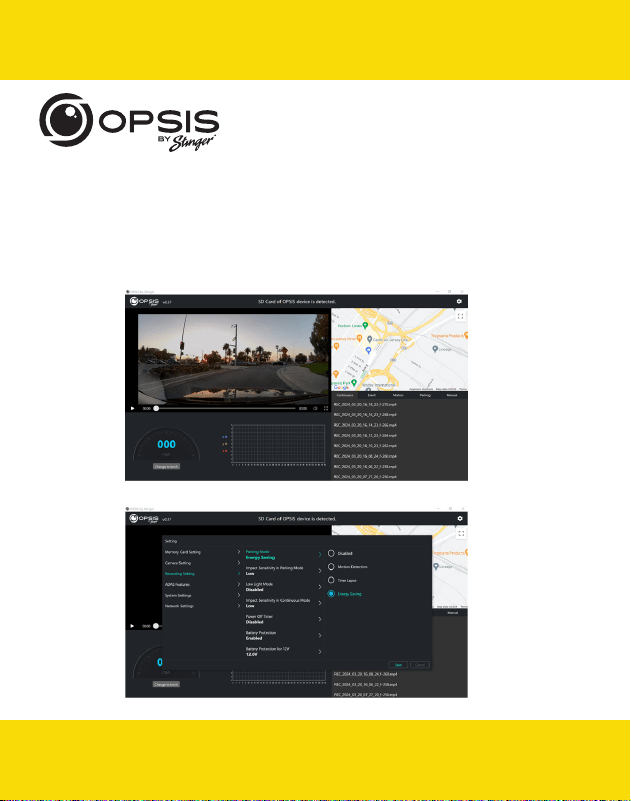
PC Viewer:
PC viewer can be downloaded from opsisbystinger.com and is compatible with
Mac and Windows.
The PC viewer allows you to view the settings and videos from the microSD card of
OPSIS.
2K QUAD HD DASH CAMERA WITH
INCLUDED FHD REAR CAMERA
email - [email protected]
tel: 866-766-2267
11
Manual
Wi-Fi Function:
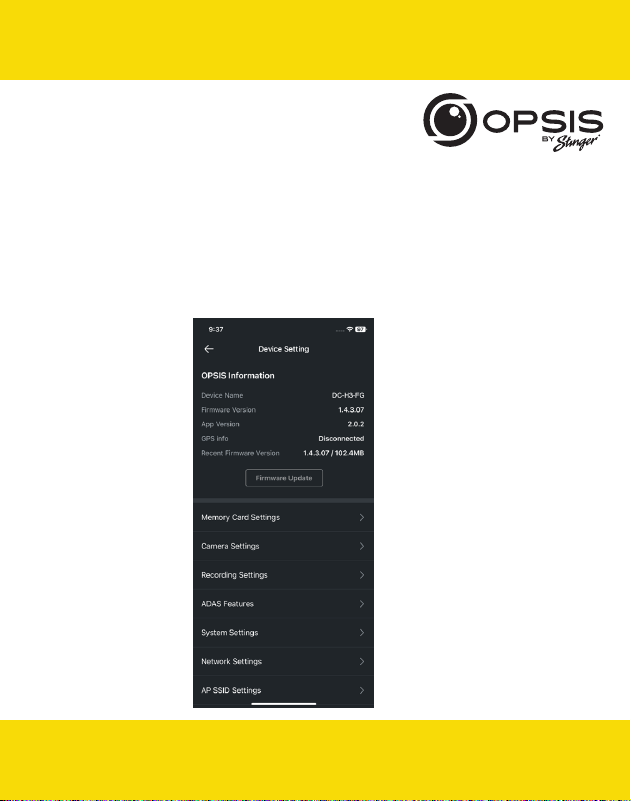
In the OPSIS by Stinger app when connected to Wi-Fi, you
can:
- View the current information of the dash cam
and app version
2K QUAD HD DASH CAMERA WITH
INCLUDED FHD REAR CAMERA
- Manage the dash cam settings
email - [email protected]
tel: 866-766-2267
12
Manual
2K QUAD HD DASH CAMERA WITH
INCLUDED FHD REAR CAMERA
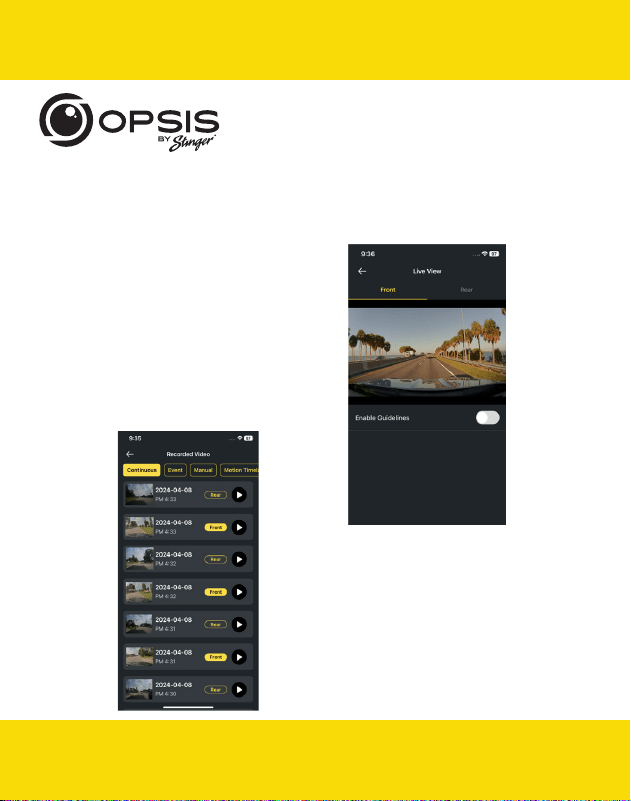
In the OPSIS by Stinger app when connected to Wi-Fi, you
can:
- View live video for both
front and rear cameras
- View recorded videos
Guidelines can be enabled or
disabled to assist in dash cam
alignment and positioning
email - [email protected]
tel: 866-766-2267
13
Manual
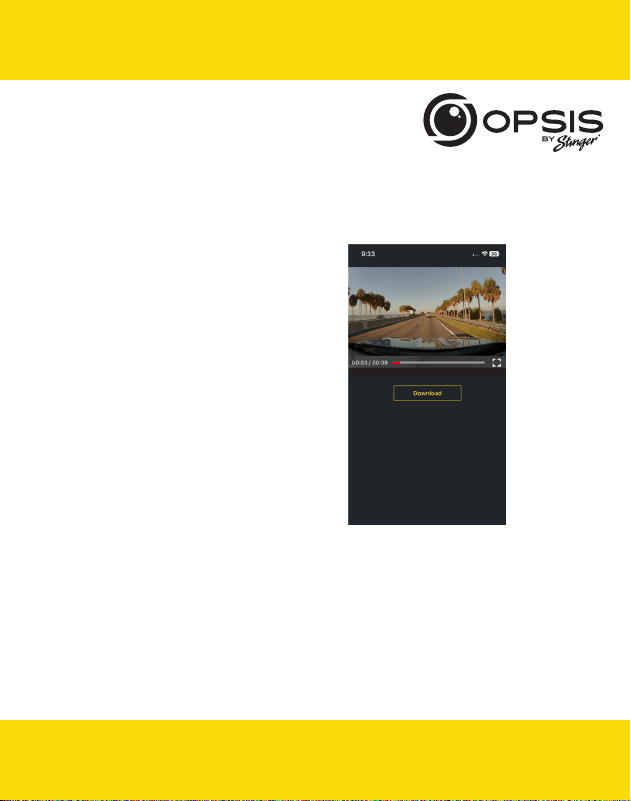
In the OPSIS by Stinger app when connected to Wi-Fi, you
can:
- Download videos to your phone
2K QUAD HD DASH CAMERA WITH
INCLUDED FHD REAR CAMERA
email - [email protected]
tel: 866-766-2267
14
Manual
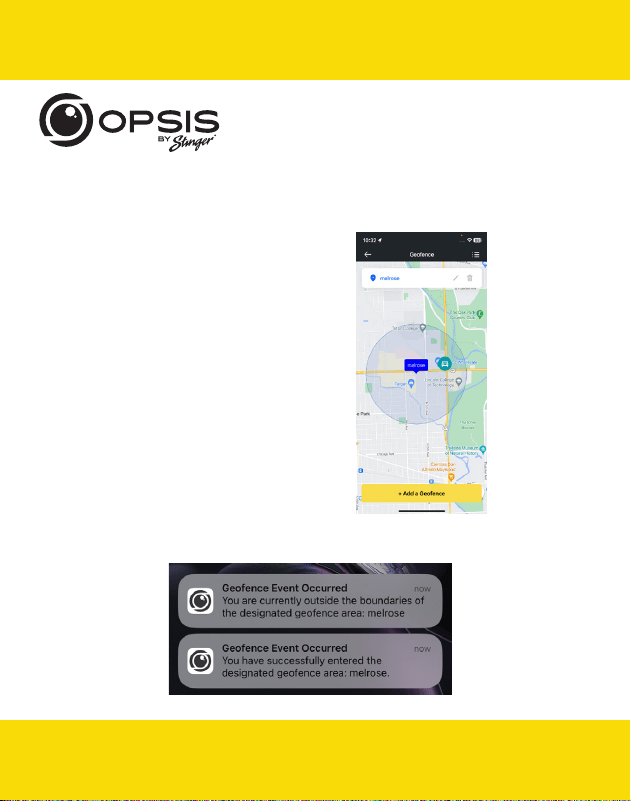
Hotspot Functions:
When your dash cam is connected to a hotspot, you can:
- Create, modify or delete geofences
A geofence is a virtual fence or boundary
around a location.
Set the geofence radius between
0.1mi and 2000 mi (161m to 3218km).
- Receive notifications when departing or arriving into the set area
2K QUAD HD DASH CAMERA WITH
INCLUDED FHD REAR CAMERA
email - [email protected]
tel: 866-766-2267
15
Manual
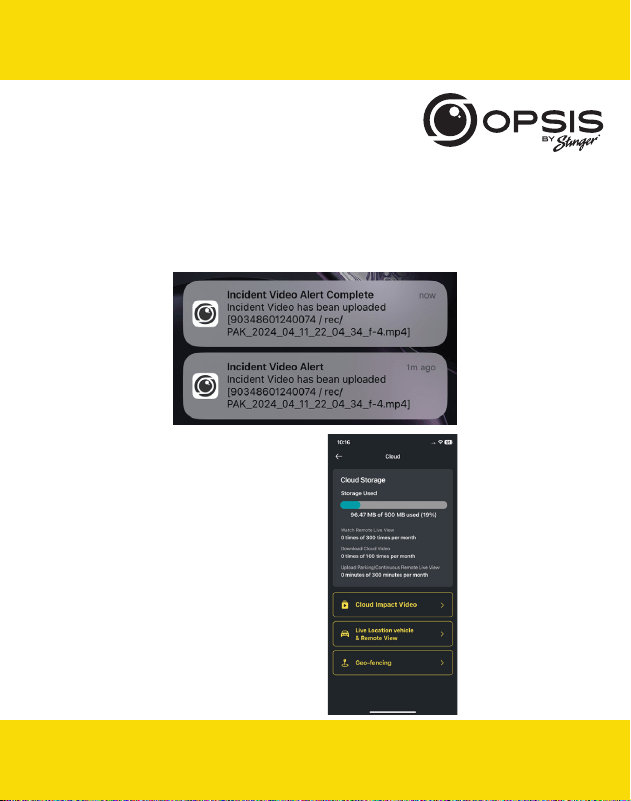
When your dash cam is connected to a hotspot, you can:
- Receive notification alerts when incident videos are uploaded
- View Cloud Storage status
2K QUAD HD DASH CAMERA WITH
INCLUDED FHD REAR CAMERA
email - [email protected]
tel: 866-766-2267
16
Manual
2K QUAD HD DASH CAMERA WITH
INCLUDED FHD REAR CAMERA
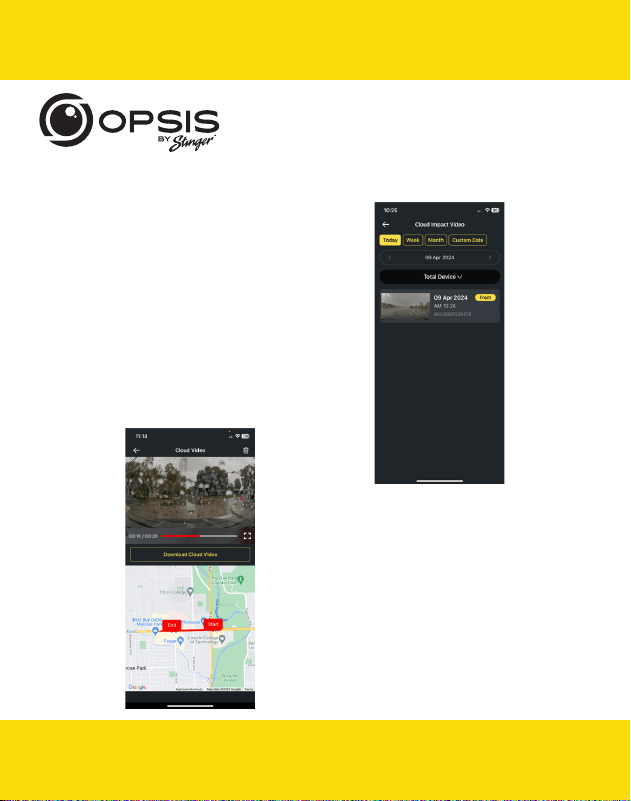
When your dash cam is connected to a hotspot, you can:
- Automatically have a strong impact
video uploaded to the cloud
- Play back videos stored in the cloud and
download to your device.
email - [email protected]
tel: 866-766-2267
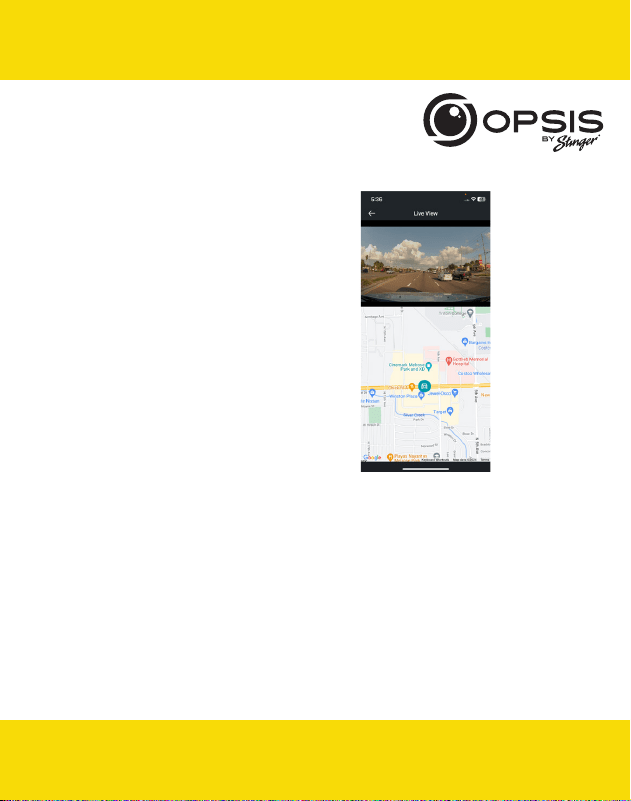
All via OPSIS by Stinger app or logged on to opsisbystinger.com
17
Manual
- Remotely monitor your vehicle in
real time, from anywhere, at any time.
2K QUAD HD DASH CAMERA WITH
INCLUDED FHD REAR CAMERA
email - [email protected]
tel: 866-766-2267
18
Manual
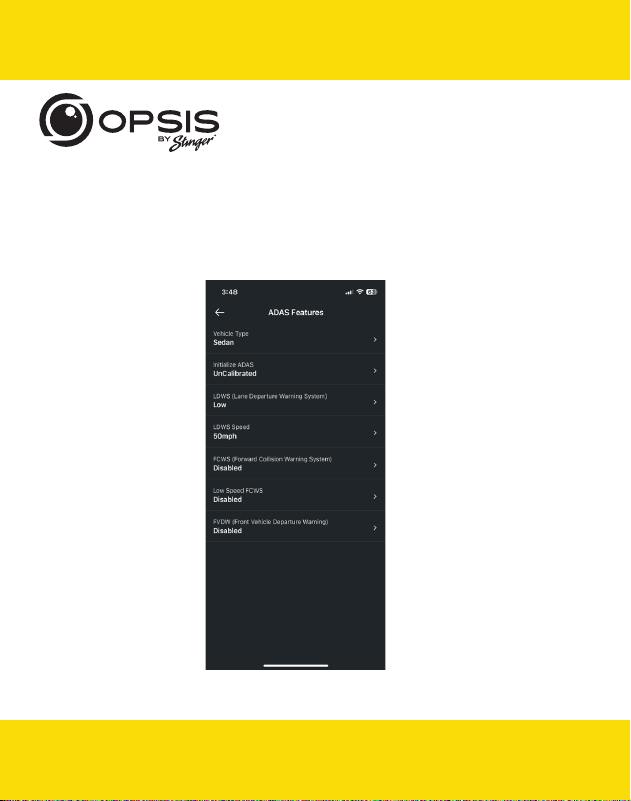
Setting up ADAS functions:
To begin using the ADAS functions, calibration will need to be completed.
“Initialize ADAS” will have status “Uncalibrated.”
2K QUAD HD DASH CAMERA WITH
INCLUDED FHD REAR CAMERA
email - [email protected]
tel: 866-766-2267
19
Manual
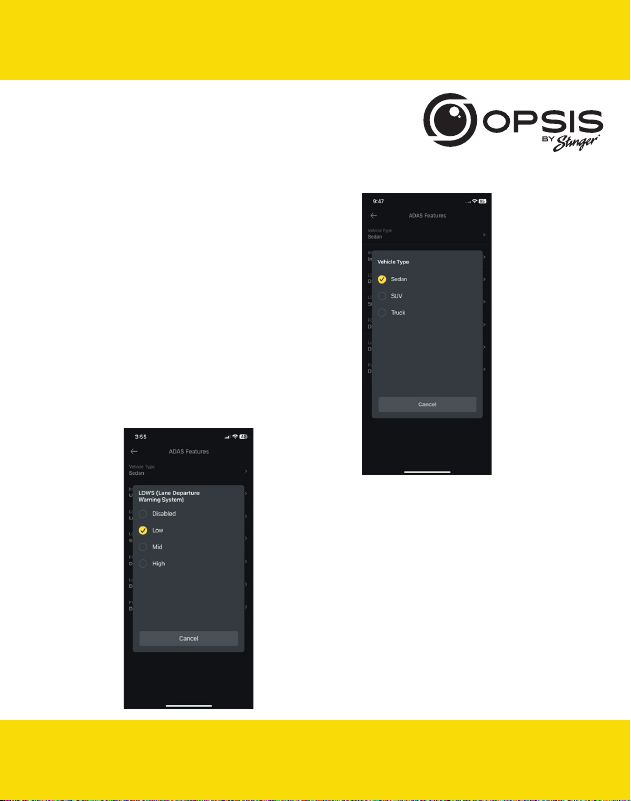
- Select your Vehicle Type.
2K QUAD HD DASH CAMERA WITH
INCLUDED FHD REAR CAMERA
- Enable the LDWS option.
(Low setting for calibration purposes).
email - [email protected]
tel: 866-766-2267
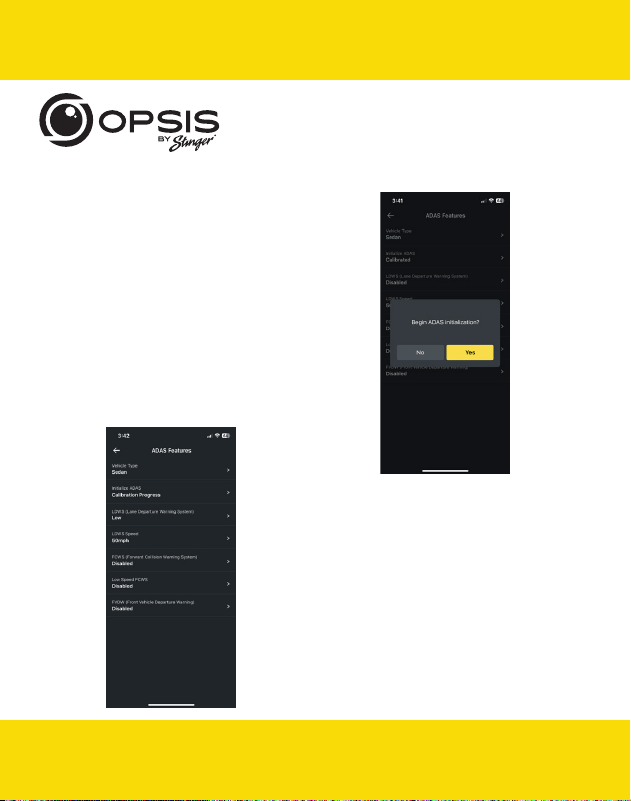
- Select “Initialize ADAS” and select “Yes”
to begin calibration.
With LDWS enabled, drive the vehicle above
18 mph (30 km/h) for approximately 1 minute.
Calibration data from this drive will be saved.
Until calibration has been completed and
LDWS warning beeps 2 times, calibration data
will keep getting collected during every drive
above 18 mph.
- During calibration, the status for “Initialize ADAS”
will update to “Calibration Progress.”
20
Manual
2K QUAD HD DASH CAMERA WITH
INCLUDED FHD REAR CAMERA
email - [email protected]
tel: 866-766-2267
21
Manual
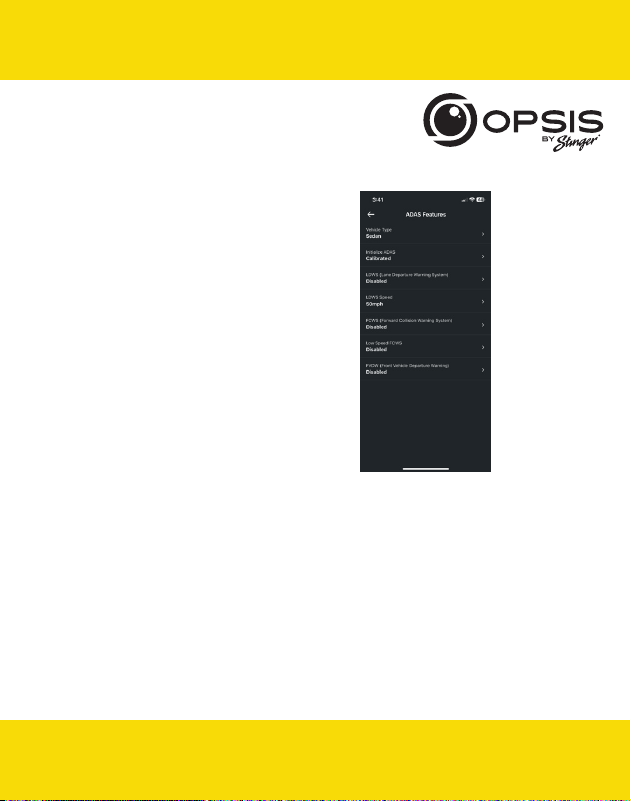
- Once calibration has been completed,
the status will read “Calibrated.”
2K QUAD HD DASH CAMERA WITH
INCLUDED FHD REAR CAMERA
email - [email protected]
tel: 866-766-2267

email - [email protected]
tel: 866-766-2267
22
Manual
2K QUAD HD DASH CAMERA WITH
INCLUDED FHD REAR CAMERA
OPSIS Settings:
Dash cam settings can be modified in the app or on the PC viewer.
Menu Item Type Menu Title Description Default Settings Conditions
Memor y Card
Settings
Memor y
Partition
Allocate
a specific
percentage
of space
depending
on purpose of
using the dash
cam. (Refer
to Memor y
Partition chart)
√ Continuous Priority
Incident Priority
Parking Priority
Manual Priority
Driving Recording Only
Format Memory
Card
Initiate
formatting of
the memory
card.
Overwrite
Videos
Select which
recordings can
be overwritten/
looped over.
√ Continuous Recording
Incident Recording in
Continuous Mode
Motion Detection
Recording in Parking
Mode
Incident Recording in
Parking Mode
Manual Recording
Camera Settings Brightness
(Front)
√
Dark
Mid
Bright

23
Manual
2K QUAD HD DASH CAMERA WITH
INCLUDED FHD REAR CAMERA
email - [email protected]
tel: 866-766-2267
Menu Item Type Menu Title Description Default Settings Conditions
Camera Settings
(cont.)
Brightness (Rear)
√
Dark
Mid
Bright
Rotate Rear
Camera
Rotate rear
camera image.
This means
that the image
is flipped
horizontally, as
well as vertically.
√
Enabled
Disabled
Recording
Settings
Parking Mode Select recording
mode when
vehicle is
parked. Motion
Detection
starts recording
when motion
is sensed.
Time Lapse
records whole
time vehicle is
parked. Energy
Savings starts
recording when
only impact is
sensed.
√ Disabled
Motion Detection
Time Lapse
Energy Saving
Impact
Sensitivity in
Parking Mode
Sets the impact
sensitivity while
parked. If an
impact occurs,
the G -sensor
detects the
change in
movement,
prompting the
dash cam to
automatically
start recording.
√
Lowest
Low
Mid
High
Highest
Motion / Time Lapse /
Energy Saving

email - [email protected]
tel: 866-766-2267
24
Manual
Menu Item Type Menu Title Description Default Settings Conditions
Recording
Settings (cont.)
Low Light Mode Select when
low light mode
is on during
recording. Low
Light Mode
enables the
dash cam to
record detailed
images at night
or in low-light
situations. It
automatically
detects a lack of
light and adjusts
the exposure
level to improve
overall video
cl a r ity.
√ Disabled
Continuous Mode
Parking Mode
Continuous & Parking
Impact
Sensitivity in
Continuous
Mode
Sets the impact
sensitivity during
continuous
recording
mode. If an
impact occurs,
the G -sensor
detects the
change in
movement,
prompting the
dash cam to
automatically
start recording.
√
Disabled
Lowest
Low
Mid
High
Motion
Sensitivity
Dash cam
records when
it detects
movements
within its lens’
field of view and
stops recording
when no motion
is detected.
√
Lowest
Low
Mid
High
Highest
Motion
2K QUAD HD DASH CAMERA WITH
INCLUDED FHD REAR CAMERA

25
Manual
2K QUAD HD DASH CAMERA WITH
INCLUDED FHD REAR CAMERA
email - [email protected]
tel: 866-766-2267
Menu Item Type Menu Title Description Default Settings Conditions
Recording
Settings (cont.)
Wintertime
Batter y
Protection
Select month(s)
where extra
protection is
desired for
batter y during
cold weather.
Threshold is
increased by
0.2V.
None Nov
Dec
Jan
Fab
Mar
Apr
May
Jun
Jul
Aug
Sep
Oct
Motion / Time Lapse
Audio
Recording
This feature
allows the dash
cam to record
audio.
√ Enabled
Disabled
Power O Timer This feature is
available when
Parking Mode
is Enabled to
automatically
turn o OPSIS
while in Parking
Mode once
the selected
time limit has
elapsed. Can
be used when
only want to
record for a
specific amount
of time.
√ Disabled
3hs
6hrs
12hr s
48hrs
72hrs
Motion / Time Lapse

email - [email protected]
tel: 866-766-2267
26
Manual
Menu Item Type Menu Title Description Default Settings Conditions
Recording
Settings (cont.)
Batter y
Protection
This feature is
available when
Parking Mode
is Enabled to
automatically
turn o
OPSIS once
the voltage
threshold has
been reached.
√ Enabled
Disabled
Motion / Time Lapse
Batter y
Protection
fo r 12V
Select the
voltage level
for the Battery
Protection
threshold for 12V
batteries.
√
11. 6 V
11. 7 V
11. 8 V
11. 9 V
12. 0 V
12.1 V
12. 2 V
12. 3 V
Motion / Time Lapse
Batter y
Protection
for 24V
Select the
voltage level
for the Battery
Protection
threshold for 24V
batteries.
√
23.2 V
23.4 V
23.6 V
23.8 V
24.0 V
24.2 V
24.4 V
24.6 V
Motion / Time Lapse
2K QUAD HD DASH CAMERA WITH
INCLUDED FHD REAR CAMERA

27
Manual
2K QUAD HD DASH CAMERA WITH
INCLUDED FHD REAR CAMERA
email - [email protected]
tel: 866-766-2267
Menu Item Type Menu Title Description Default Settings Conditions
ADAS Features Veh icle Type Select the
type of vehicle
that OPSIS is
installed in.
√ Sedan
SUV
Truck
Initialize ADAS
LDWS (Lane
Departure
Warning System)
An alert will
sound if OPSIS
senses the
vehicle leaving
the lane.
√ Disabled
Low
Mid
High
LDWS Speed Set the speed
when detection
will start.
√
30mph
40mph
50mph
65mph
FCWS (Forward
Collision
Warning System)
An alert will
sound when a
safe distance is
not maintained
between your
vehicle and the
vehicle in front
of you.
√ Disabled
Low
Mid
High
Low Speed
FCWS
The low
speed FCWS is
triggered when
the vehicle is
travelling at
19mph (30kph)
or lower.
√ Disabled
Low
Mid
High

email - [email protected]
tel: 866-766-2267
28
Manual
Menu Item Type Menu Title Description Default Settings Conditions
ADAS Features
(cont.)
FVDW (Front
Veh icle
Departure
Warning)
When the
vehicle is
stopped at an
intersection or
in trac, FVDW
informs the
driver when
the vehicle
in front has
started to move,
preventing
delayed
departure.
√
Enabled
Disabled
System Settings Language Select the
language of the
voice prompts.
√ English
Spanish
French
Korean
Chinese
Japanese
Arabic
German
Volume
√
O
Low
Mid
High
2K QUAD HD DASH CAMERA WITH
INCLUDED FHD REAR CAMERA

29
Manual
2K QUAD HD DASH CAMERA WITH
INCLUDED FHD REAR CAMERA
email - [email protected]
tel: 866-766-2267
Menu Item Type Menu Title Description Default Settings Conditions
System Settings
(cont.)
Notification
Alerts
Select which
voice alerts to
enable.
√
√
√
√
√
Wi-Fi
GPS
Continuous Rec
Entering Parking Mode
Events During Parking
Mode
Time Zone Select time zone
based on UTC.
Starting from
-12:00 to +13:00
√ UTC - 08:00
Daylight Saving If the time zone
is set correctly
but the time
is still o by an
hour, correct
it by enabling
or disabling
daylight saving
time.
√
Enabled
Disabled
Date Format Select preferred
date format.
√
YYYYMMDD
DDMMYYYY
MMDDYYYY
Time Stamp Enable a time
stamp on the
footage via
GPS. (If GPS
is not built-in,
an external
GPS antenna is
required).
√ On
O

email - [email protected]
tel: 866-766-2267
30
Manual
Menu Item Type Menu Title Description Default Settings Conditions
System Settings
(cont.)
Speed Stamp Imprint the
vehicle’s exact
speed stamp on
footage. (If GPS
is not built-in,
an external
GPS antenna is
required).
√ On
O
Security LED
(Front)
Select to have
flashing LED on
at all times.
√ On
O
Speed Unit
√
kph
mph
Network Settings Network
Function
The Network
Function Setting
enables OPSIS
to connect to
Cloud Servers to
allow use of the
Cloud Features.
√ Enabled
Disabled
Strong Impact
Notification
While Driving
If a strong
impact is
detected while
driving, send
notification to
phones logged
into the Cloud
Account.
√ Disabled
Low Impact
High Impact
2K QUAD HD DASH CAMERA WITH
INCLUDED FHD REAR CAMERA

31
Manual
2K QUAD HD DASH CAMERA WITH
INCLUDED FHD REAR CAMERA
email - [email protected]
tel: 866-766-2267
Menu Item Type Menu Title Description Default Settings Conditions
Network Settings
(cont.)
Uploading
Driving Impact
Video
When an
accident or
strong impact
is detected
while driving,
OPSIS will
automatically
upload footage
to the cloud
only if the
dash cam is
connected to a
hotspot.
√ Enabled
Disabled
Strong Impact
Notification
While Parked
Depending
on the setting
of impact
sensitivity in
Parking Mode, if
a strong impact
is detected
while parked,
send notification
to phones
logged into the
Cloud Account.
√ Disabled
Enabled
Energy Saving / Motion /
Time Lapse
Uploading
Strong Impact
Video Recorded
While Parked
When an
accident or
strong impact
is detected
while parked,
OPSIS will
automatically
upload footage
to the cloud
only if the
dash cam is
connected to a
hotspot.
√
Enabled
Disabled
Energy Saving / Motion /
Time Lapse

email - [email protected]
tel: 866-766-2267
32
Manual
Menu Item Type Menu Title Description Default Settings Conditions
Network Settings
(cont.)
Streamer If the live stream
is disabled, live
video streaming
(Live View) will
not work.
√ Start
Stop
Wi-Fi / Hotspot
Switch
√ Wi-Fi
Hotspot
AP SSID Settings APSSID OPSIS_XX
AP WPA PSK 123456789
2K QUAD HD DASH CAMERA WITH
INCLUDED FHD REAR CAMERA
33
Manual
2K QUAD HD DASH CAMERA WITH
INCLUDED FHD REAR CAMERA
email - [email protected]
tel: 866-766-2267
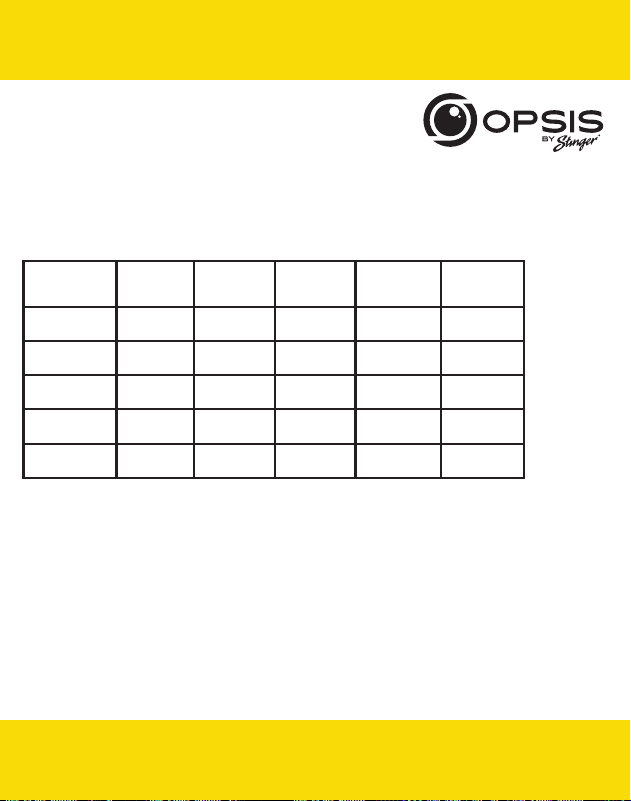
Continuous
Recording
Priority
Incident
Recording
Priority
Parking
Recording
Priority
Manual
Recording
Priority
Driving
Recording
Priority
cont_rec 63% 45% 35% 35% 79%
evt_rec 12% 21% 10% 15% 9%
manual_rec 9% 9% 9% 40% 12%
motion_
timelaps_rec
12% 14% 42% 5% 0%
parking_rec 5% 12 % 5% 5% 0%
Memory Partition:
Partitioning of the memory card allocates a specific percentage of the space
depending on purpose of use of the dash cam. Default percentages are
shown below:

34
Manual
Dash Camera Specs:
Dimensions/Weight
79.0 x 70.4 x 34.7 mm / 106.5 g
3.11 x 2.77 x 1.36 inch / 0.23 lb
Memory
microSD memory card
128GB max (UHS-I)
Camera Sensor 5.14 Megapixel, 1/2.8” Sony STARVIS
Viewing Angle (lens) Approximately 140° (diagonally)
Video QHD (2560 x 1440) / H.264 / file extension: MP4
Frame Rate Maximum 30 fps
Audio HE-AAC
GPS Embedded GPS
Acceleration Sensor 3-axis acceleration sensor (3D, ±3G)
Rear Camera V-IN port
Power Input DC 12 / 24 V supported
Power Consumption 2ch: 0.38A@13V / 1ch: 0.29A@13V
Auxiliary Power Unit Super capacitor
LED Indicator GPS LED, Rec LED, Wi-Fi LED
Mic/Speaker Built-in/Built-in
Operating temperature 14 – 140°F / -10 – 60°C
Storage temperature -4 – 158°F / -20 – 70°C
email - [email protected]
tel: 866-766-2267

35
Rear Camera Specs:
Dimensions/Weight
60.0 x 25.0 x 33.7 mm / 23.7 g
2.36 x 0.98 x 1.32 inch / 0.052 lb
Camera Sensor 2.0 Megapixel, 1/2.9”
Viewing Angle (lens) Approximately 130° (diagonally)
Video FHD (1920 x 1080) / H.264 / file extension: MP4
Frame Rate Maximum 30 fps
LED Indicator Security LED
Operating Temperature 14 – 140°F / -10 – 60°C
Storage Temperature -4 – 158°F / -20 – 70°C
2K QUAD HD DASH CAMERA WITH
INCLUDED FHD REAR CAMERA
email - [email protected]
tel: 866-766-2267

36
Warranty
2K QUAD HD DASH CAMERA WITH
INCLUDED FHD REAR CAMERA
STINGER LIMITED PRODUCT WARRANTY
(NON-TRANSFERABLE)
Stinger, a Florida corporation (Stinger) warrants to the original retail purchaser, that the
Stinger branded automotive product(s) purchased from an Stinger Authorized Dealer
and/or new car dealership, and installed in the original vehicle, are free from defects in
materials or workmanship under normal use and conditions for a minimum period of 3
Years / 36000 miles from date of retail purchase, whichever comes rst. A sales receipt or
vehicle purchase contract, showing the installation date and Stinger product details are
required to verify proof of retail purchase. No warranty registration is required.
Should the product(s) or any part thereof be determined defective during the
applicable warranty period, the defective product(s) will be repaired or replaced with
equivalent reconditioned product(s), at Stinger sole option. To obtain warranty service,
the product(s) must be returned to an Stinger authorized dealer along with proof of
retail purchase and warranty coverage.
Stinger Products purchased from an unauthorized dealer are excluded from warranty
coverage.
Exclusions
• Repair or installation labor.
• Elimination of externally generated static or noise, or the correction reception problems
or loss of service due to Terrestrial Radio, Satellite Radio, Phone, Bluetooth, TV, or Navigation
signals.
• Costs incurred and/or loss of vehicle use for installation, removal or reinstallation of the
product(s).
• Damage to, Non-Stinger cameras, non-Stinger speakers, non-Stinger accessories,
software or vehicle electrical systems.
email - [email protected]
tel: 866-766-2267

37
• Cosmetic damage or damage due to negligence, misuse, abuse, failure to follow
operating instructions, accidental spills or customer applied cleaners. chemicals, salt, hail,
windstorms, lightning or extreme temperatures.
• Damage due to improper installation or connection, improper connection to equipment
of another manufacturer or modication of existing equipment.• Product(s) which have
been opened or tampered with for any reason or which have been damaged due to
alteration or service performed by anyone other than Stinger.
• Back-Up Camera (if so equipped): damage or loss due to improper use, failure to clean
the camera lens, understanding of the camera’s capabilities and limitations
The extent of Stinger liability under this warranty is limited to the repair or replacement
provided above and, in no event, shall Stinger liability exceed the purchase price paid
by purchaser for the product. Except as expressly set forth in this limited warranty,
Stinger makes no other warranties, expressed or implied, including any implied
warranties of merchantability and tness for a particular purpose. Stinger expressly
disclaims all warranties not stated in this limited warranty. Any implied warranties that
may be imposed by law are limited to the terms of this expressed limited warranty.
Some states do not allow limitation on how long an implied warranty lasts. In such states,
the limitations or exclusions of this Limited Warranty may not apply. Some states do not
allow the exclusion or limitation of incidental or consequential damages. In such states,
the exclusion or limitation of this Limited Warranty may have other rights, which vary
from state to state.
Stinger | 15500 Lightwave Dr Clearwater, FL 33760 | stingersolutions.com
email - [email protected]
tel: 866-766-2267

This device complies with part 15 of the FCC Rules. Operation is
subject to the following two conditions: (1) This device may not cause
harmful interference, and (2) this device must accept any interference
received, including interference that may cause undesired operation.
FCC ID: XBDDCH3FG
StingerSolutions.com
REV 081324TT
email - [email protected]
tel - 866-766-2267