4. Installation
Connectthepoweranddata cables.
Interface Instruction for NVR
HDD Installation
InterfaceInstructionforIPC
Grounding
Grounding
Microphone
USB port
Reset:pressandholdfor3storesettothefacotrydefaultsettings
andthenenterthewi-fimatchmode.
Antennainterfaces
Antenna
HDMI port
Powerinput: DC12V power supply
Audiooutput
VGA port
Networkport DC 12V powerinput
1
2
1
5
3
4
2
6
1
1
1
1
2
2
2
2
2
3
3
3
4
4
5
5
4
5
5
3
6
6
4
7
7
8
8
Setscrew
Pan: 360°
Tilt: 80°
∅4.6
∅25.1
∅82.0
∅72.2
120°
120°
62.5mm
18.1mm
36.1mm
Device connection
(Router)
WAN
LAN
7. Disk Settings
You can configure the network in the wizard or click → Settings
→ Network→TCP/IP to set the network.
7. Network Configuration
Wi-Fi NVR Kit
Quick Start Guide
1. Notes
● Please read this instruction carefully for correct use of the product and
preserve it for reference purposes.
● All the examples and pictures used here are for reference only.
● There may be several technically incorrect places or printing errors in
this manual. The updates will be added into the new version of this manual.
The contents of this manual are subject to change without notice.
● This device should be operated only from the type of power source indicated
on the marking label. The voltage of the power must be verified before using
the same.
● The products must be grounded to reduce the risk of electric shock.
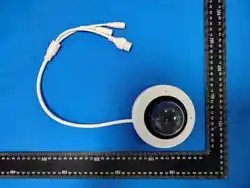
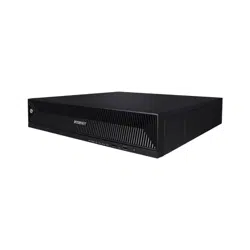
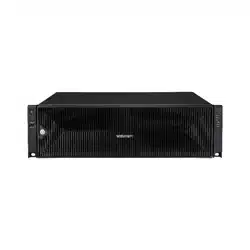
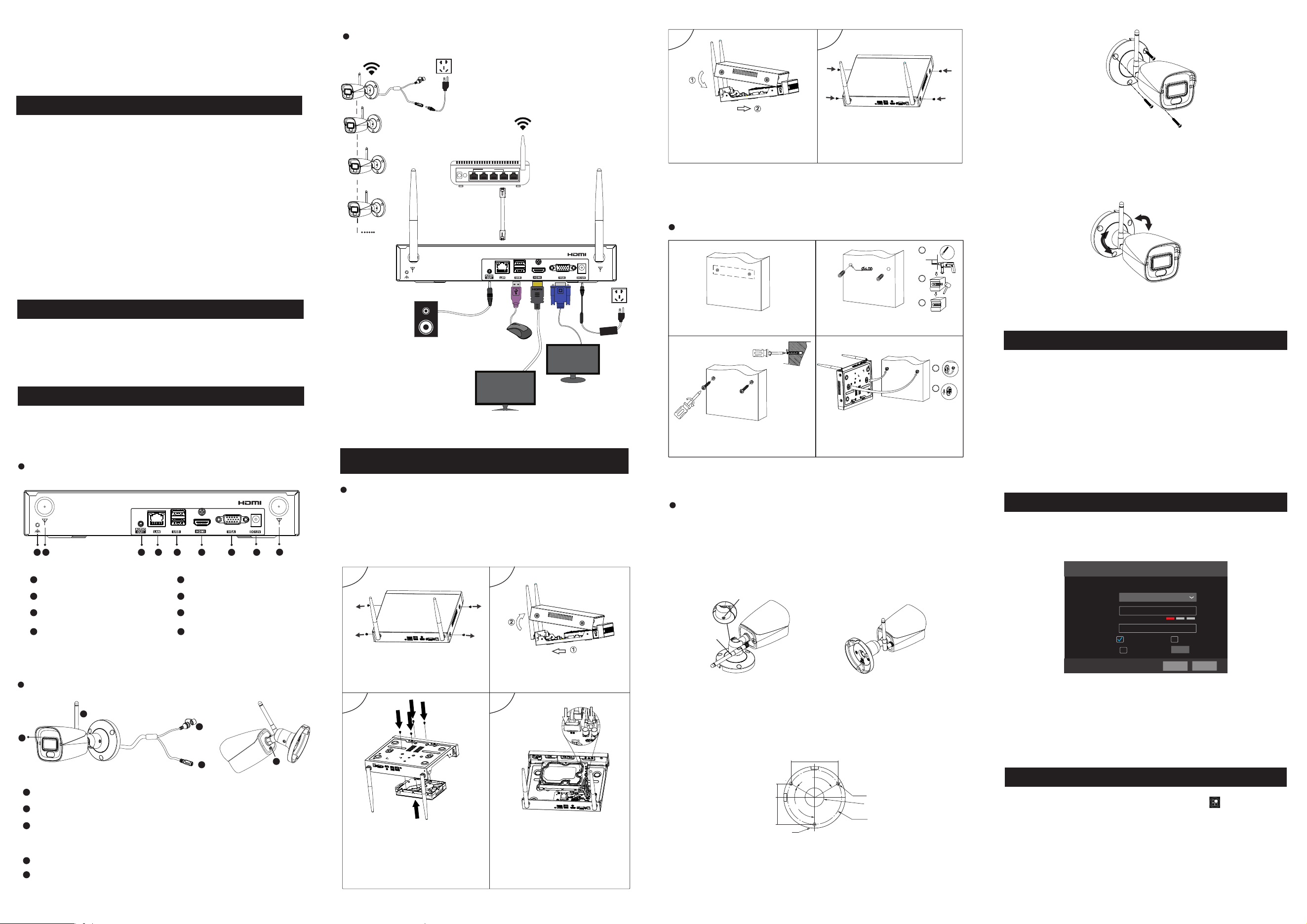
3. Interfaces
The interfaces of the network video recorder (NVR) and the network camera
(IPC) are for reference only.
This series of the product supports 1 SATA hard drive. Please make sure that the
device is powered off before the installation. The pictures of the installation are only
for reference, please take the real object as the standard.
① Loosen the screws to open the cover.
② Put the HDD on the bottom of the device.
③ Turn over the machine and secure the HDD with the screws.
④ Connect the power and data cables.
This series of the product supports 1 SATA hard drive. Please make sure that the
device is powered off before the installation. The pictures of the installation are only
for reference.
Tips: Please check the inside structure of the device and make sure the cables
connected well before installing the cover back.
Install the cover back. Make sure the cables
are connected well before installing the cover
back.
2. Packing Check
Please check the device and the accessories after getting the device. If there
are any damages, shortages or defects, please contact your dealer immediately.
5. Startup & Shutdown
1. Connect the monitor and the power to the NVR.
2. The device will boot. Please wait for a while.
3. Power up the camera.
►Shutdown
Click “Start” and then select “Shutdown” icon. This will bring up a shutdown
window. The device will shut down after entering the username and password.
Then follow the direction to disconnect the power.
6. System Login
You must configure the wizard if you start the NVR for the first time. Choose
the language and read the privacy statement. Then set the data, time and zone
as needed. After that, set the login password.
The default username is admin. Set your own password when you use the
wizard for the first time. Enable pattern lock and click “Edit” to set the pattern
lock. Then set security questions and answers. It is important for you to
remember these answers, or you will not be able to reset your password. Click
“Next” to continue.
Username
Admin Password Setup
New Password
Confirm Password
Pattern Lock
admin
Wizard
xxxxxx
xxxxxx
Display Password
Enable
Log In Automatically
NextPrevious
Edit
Wall Mounting
Camera Installation
1. Place the drill template onto the wall.
3. Fasten the screws by turning the
screwdriver (leave 5 mm clearance).
2. Drill two screw holes and insert screw
anchors as shown above.
4. Hang the device onto the wall as shown
above.
3
2
1
35mm-40mm35mm-40mm
5mm
Philipsscrewdriver
2screws
PA4x25
►Startup
Ø6.0
Sound box
Monitor
Loosen the screws on both sides of the
device.
Open the cover.
Put the HDD on the bottom of the device.
Turn over the device and secure
Put the HDD on the bottom of the device.
Then flip over the device and secure the
HDD with the provided screws.
Secure the cover with the screws.
Note: Please format the HDD before using.
1 Loosen the set screw and then adjust the bracket as shown below. Install the
antenna to the camera. After that, adjust the antenna and the bracket of the
camera as needed.
Antenna
4. Bracket adjustment. Before adjustment, preview the image of the camera
on a monitor.
5. Tighten the set screw after the adjustment.
3. Route and connect the power cable and then secure the camera to the
wall with screws as shown below.
2. Attach the drill template to the place where you want to fix the camera and
then drill the screw holes and the cable hole on the wall according to the drill
template.
1. Enter IP address, subnet mask, gateway, etc. If using DHCP, please enable
DHCP in both the NVR and the router. In addition, the Wi-Fi of the NVR which
is used to connect the Wi-Fi cameras is enabled by default.
ManualRepeater
Repeater Type
Apply
Apply
Repeate r
Repeater
CameraTopo lo gy
CameraTopology
NVR
NVR
IPC
IPC
IPC
IPC
IPC
IPC
IPC
IPC
LAN
Online
Offline
WLAN
IPC
IPC
IPC
IPC
CH 8
CH 4
CH 2
CH 3
CH 6
CH 1
CH 1(78)
CH 3(74)
CH 4(82)
CH 2(72)
CH 5
CH 7
▶
▶
6
1.The antennas of the NVR and cameras should be placed in a high and open
area, not next to the obstacles, such as walls, metal and glass, which will
affect the signal divergence.
2. The camera’s antenna should be placed parallel to the NVR’s antenna to
get the maximum signal coverage as shown below.
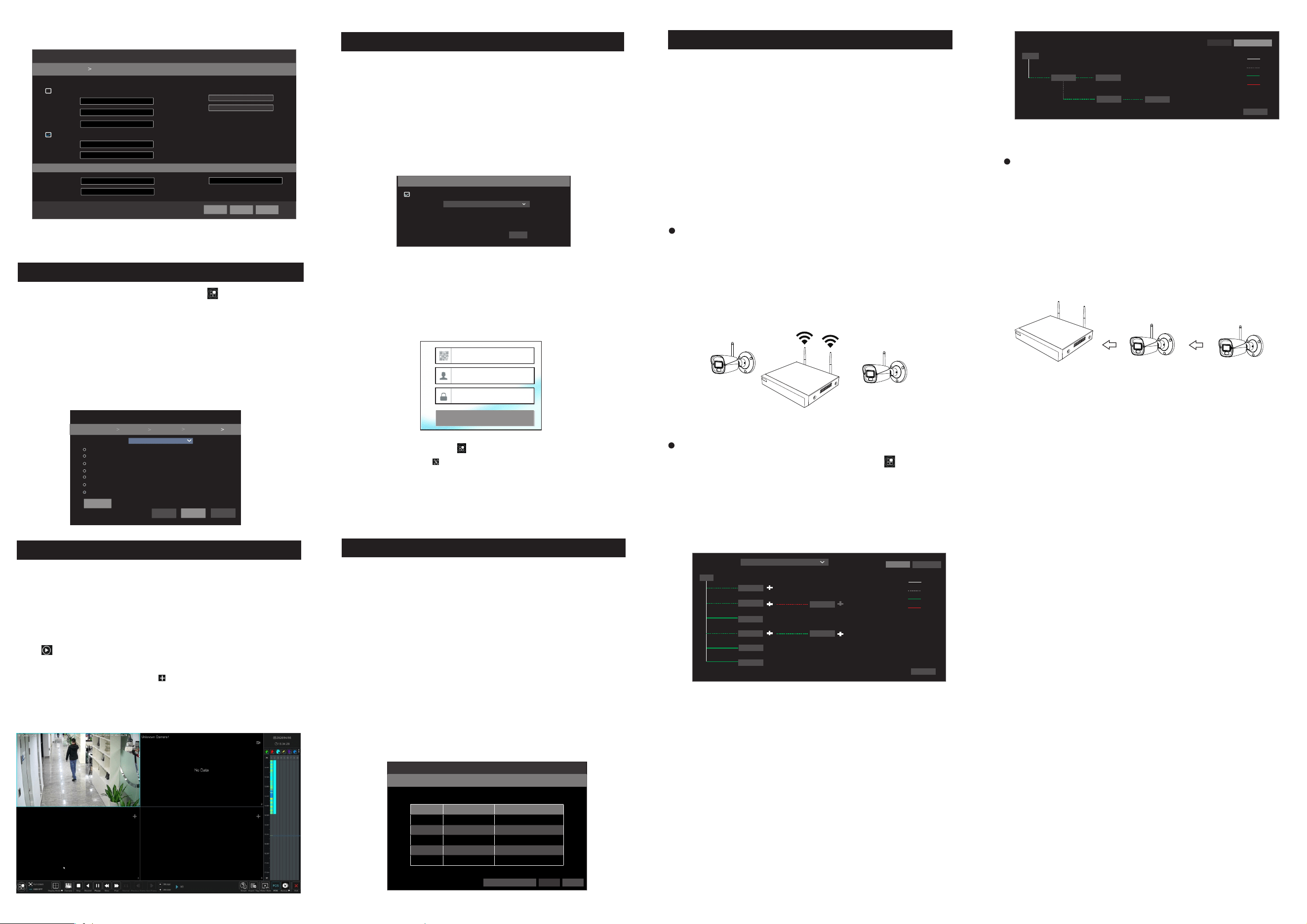
Manual repeater and auto repeater are supported. Click → Settings →
Camera → Repeater to go to the following interface. In this interface, you can
view the topology diagram and set the repeater.
Please set the repeater according to the camera installation location. Click “+”
to add the camera you want to link. After that, click “Apply” to save the
settings.
When Camera1 needs to be placed out of the NVR’s coverage and there is a
Camera 2 in the middle which gets a good signal, you can place Camera1
next to the NVR and power it up and link Camera 1 to Camera2 in the
Repeater page. After you have set the repeater successfully, install
Camera1 to the desired location.
In the above interface, select “Auto Repeater” and click “Apply” to enable the
auto repeater function. After the function is enabled, the system will automatically
look for the nearby cameras and select the optimal path to relay when a
camera’s signal is not good. After that, click “Camera topology” to view
the repeater details.
Insomecomplexscenes,thesignalisweakenedafterpassingthrough the
obstacles. Properly placing the antenna, or repeater settings can expand
the signal transmission distance.
Note:
1. The wireless repeater function cannot strength the signal of the wireless kit,
but it can extend the wireless transmission distance.
2. Properly placing the cameras can enhance the wireless transmission distance.
3. Repeater settings need smooth wireless connection. In order to ensure the
successful settings, it is recommended to determine the repeater scheme
according to the actual usage scene. Place the camera near the NVR and set
the repeater function before installing the camera.
AddCamera
QuicklyAdd
AddManuallyAddRecorderAutoReport
Wi-FiMatch
RemainBandwidth:29/32Mb
No.
Wi-Fi Added ListSearchingcamera...Remaining:51.
Address
MACAddress
Add
Cancel
CameraDefaultPassword
Adjust the antenna to improve signal transmission
Usetherepeaterfunction toexpand the wi-fi coverage
ManualRepeater
AutoRepeater
Example
NVR
Camera2
Camera1
2. Enter HTTP/HTTPS port and server port as needed.
After that, you can add the wired camera in the LAN as needed.
Wizard
Obtain an IP addres s automat ically
Address
Address
192 . 168 . 1 . 2
255 . 255 . 255 . 0
192 . 168 . 1 . 1
Subnet Mask
Subnet Mask
Gateway
Ethernet Port 1 ( O nline )
Wi-Fi ( Online )
Obtain DNS auto matical ly
HTTP Por t
HTTPS Port
Sever Port
. . .
. . .
Preferred DNS
Alternate DNS
Next
Previous
Cancel
80
443
6036
Network Settings
Port
12. Manual Recording
11. Cloud Upgrade
8. Record Settings
10. NAT
9. Playback
11. Add Wi-Fi Cameras
11. Expand the Wi-Fi Coverage
④ Click to edit an IP camera as shown on the above left. Enter the new IP
address, subnet mask, gateway, username and password of the camera. Click
“OK” to save the settings.
Click to edit the added camera as shown on the above right. Enter the new
camera name, IP address, port, username and the password of the camera.
You can click “Test” to test the effectiveness of the input information. Click
“OK” to save the settings. You can change the IP camera name only when the
added camera is online. Click “Next” to continue.
►Web Browser Access Through NAT Function
① Go to Start → Settings → Network → NAT tab. Enable NAT and select the
NAT Server Address. Click “Apply” to save the parameters.
NAT2.0(d2020.autonat.cn:7968)
Enable
Access Type
Appl y
Enter the visit address in the address bar of your browser and then press
enter to go to the following interface. If you are the first time to access the
NAT, you shall download and install the plug-in according to the popup
tips. After that, re-open your web browser and enter the above-mentioned
address. Then the login box will appear. Enter the device serial number,
username and password.
Before recording, please install a HDD. In the live interface you can see
the menu toolbar. Click button to start recording. Click it again to
stop recording. You can also click to check the status of the recording.
►Instant playback
Click “Instant Playback” in the right-click menu of the camera’s preview
window to select or drag the playback progress bar to change the playback
time to play back the record.
►General playback
Click on the tool bar at the bottom of the live view interface or click Start
→ Playback to go to the playback interface as shown below. You can also add
the playback cameras manually. Click in the playback window to pop up the
“Add Camera” window. Check the cameras in the window and then click “Add”
to add playback camera. The record files of the added playback camera will be
played in the playback interface.
NAT
Device Serial Number: Click on the menu bar at the bottom of the live
interface and then click next to the admin icon to view the serial number.
Username: The username of the NVR. The default username is admin.
Password: The password of the NVR. The password is set by yourself when
you configure the wizard for the first time.
Enter Password
Enter Username
Enter device serial number
Login
Camera Na me
IP v4
Model
Edit Camera
XXX
192 .168 . 1 . 58
9008
admin
XXX
Port
Username
Protocol
Password
IP Camera 1
OKTest Cancel
Sync to IPC
Mac Address
Address
Edit IP
192 .168 . 1 . 45
255 . 255 . 255 . 0
admin
192 .168 . 1 . 1
Subnet Mask
Username
Gateway
Password
OK Cancel
CE :98 :23 :75 :3 5 :22
NAT Status Success
Auto Mode: Select one auto mode in the interface as shown below and then
click “Next” to save the settings. Click “Advanced” to self-define a record
mode.
Wizard
Mode
Motion Record
Sensor Record
Motion Record+Sensor Rec or d
Always(24x7)Record +M ot io n Re co rd
Always(24x7)Record +S en so r Re co rd
Always(24x7)Record +M ot io n Re co rd +S en so r Re co rd
Always(24x7)Record +M ot io n Re co rd +S en so r Re co rd +A I Re co rd
Next
Advanced
Previous
Cancel
Record Settings
Network Settings
Add Camera
Disk Settings
Auto
Customization Mode: Set the “Sensor Record”, “Motion Record”, “AI
Record”, “POS Record” and “Schedule Record” of each camera. Please
enable the record as needed. Click “Next” to continue.
You can enable the NAT function in the interface or set it in the network
configuration after exiting the wizard. You can scan the QR code through the
mobile surveillance APP available for iOS or Android to easily view your
cameras. Please see the user manual of NVR for more details.
Click “Refresh” to refresh the list of online IP cameras which are in the same
local network with the NVR. Click + to add the searched camera. Click “Add
All” to add all the cameras in the list. Click to delete the added camera.
Click “Delete All” to delete all the added cameras.
Before using this function, please enable NAT2.0. Then click “Cloud
Upgrade” in the wizard interface. Go to Start →Settings →Network
→ Cloud Upgrade interface and click “Upgrade” to upgrade your device
if it is not the latest version.
Visit Address www.autonat.cn
Next
Previous
Cancel
3.4.2
3.4.2
4.0.0.1.beta1
Version Add
+
_
_
_
+
+
80
80
80
No.
Address
Edit Port Protocol Model
1
2
3
192.168.1.20
192.168.1.38
192.168.2.45
XXX
XXX
XXX
XXX
XXX
XXX
Wiza rd
Network Settings
Add Camera
Delete
No.
Address
IP Camera Name
EditProtocol
Status
1
192.168.1.20
IPC Online
Add All
Refresh
Remain Bandwidth: 64 / 64 Mb
Delete All
XXX
You can set the record mode in the wizard or click → Settings→ Record
→Mode Settings to set. “Auto” or “Customization” mode can be set as needed.
The wireless cameras and the NVR has been paired before delivery, so there is
no need to pair. After you power on the NVR and the cameras, the images can be
viewed in the live page of the NVR automatically. If you want to add a wireless
camera again, you can click “Camera” in the settings panel to go to the camera
management interface and delete the camera first and then add it according to
the following steps.
1. In the live interface, click “+” on the right top of the window. Select “Wi-Fi
Match”.
2. After powering on the camera, press and hold the Reset button for 3 seconds
to go to the pairing mode.
3. After the camera is matched, the NVR will output the image.
Note: If the camera is in paring mode for more than 2 minutes and not matched,
you need to press and hold the Reset button again to re-match.
LAN
Online
Offline
WLAN
1
10.161.161.101
14:01:6E:3B:89:1F
10 . 161 . 161 . 10
255 . 255 . 255 . 0

FCC Warnning:
This equipment has been tested and found to comply with the limits for a Class B digital device,
pursuant to part 15 of the FCC Rules. These limits are designed to provide
reasonable
protection againstharmful interference in a residential installation. This equipment generates,
uses and can radiateradio
frequency
energy
and,
if
not
installed
and
used
in
accordance
with
the
instructions,
maycause
harmful
interference
to
radio
communications.
However,
there
is
no
guarantee
thatinterference
will
not
occur
in
a
particular
installation.
If
this
equipment
does
cause
harmfulinterference to radio or television reception, which can be
determined by turning the equipmentoff
and
on,
the
user
is
encouraged
to
try
to
correct
the
interference
by
one
or
more
of
thefollowing measures:
•
Reorient or relocate the receiving antenna.
•
Increase the separation between the equipment and receiver.
•
Connect the equipment into an outlet on a circuit different from that to which the receiver is
connected.
• Consult the dealer or an experienced radio/TV technician for help.
Caution:
Any
changes
or
modifications
to
this
device
not
explicitly
approved
by
manufacturer
could void your authority to operate this equipment.
This
device
complies
with
part
15
of
the
FCC
Rules.
Operation
is
subject
to
the
following
two
conditions:
(1)This
device
may
not
cause
harmful
interference,
and
(2)
this
device
must
accept
any
interference received, including interference that may cause undesired operation.
This
equipment
complies
with
FCC
radiation
exposure
limits
set
forth
for
an
uncontrolled
environment.
This
equipment
should
be
installed
and
operated
with
minimum
distance
20cm
between the radiator and your body.