Operating System
Manual
Image for illustration purposes only. Actual model may vary.
2
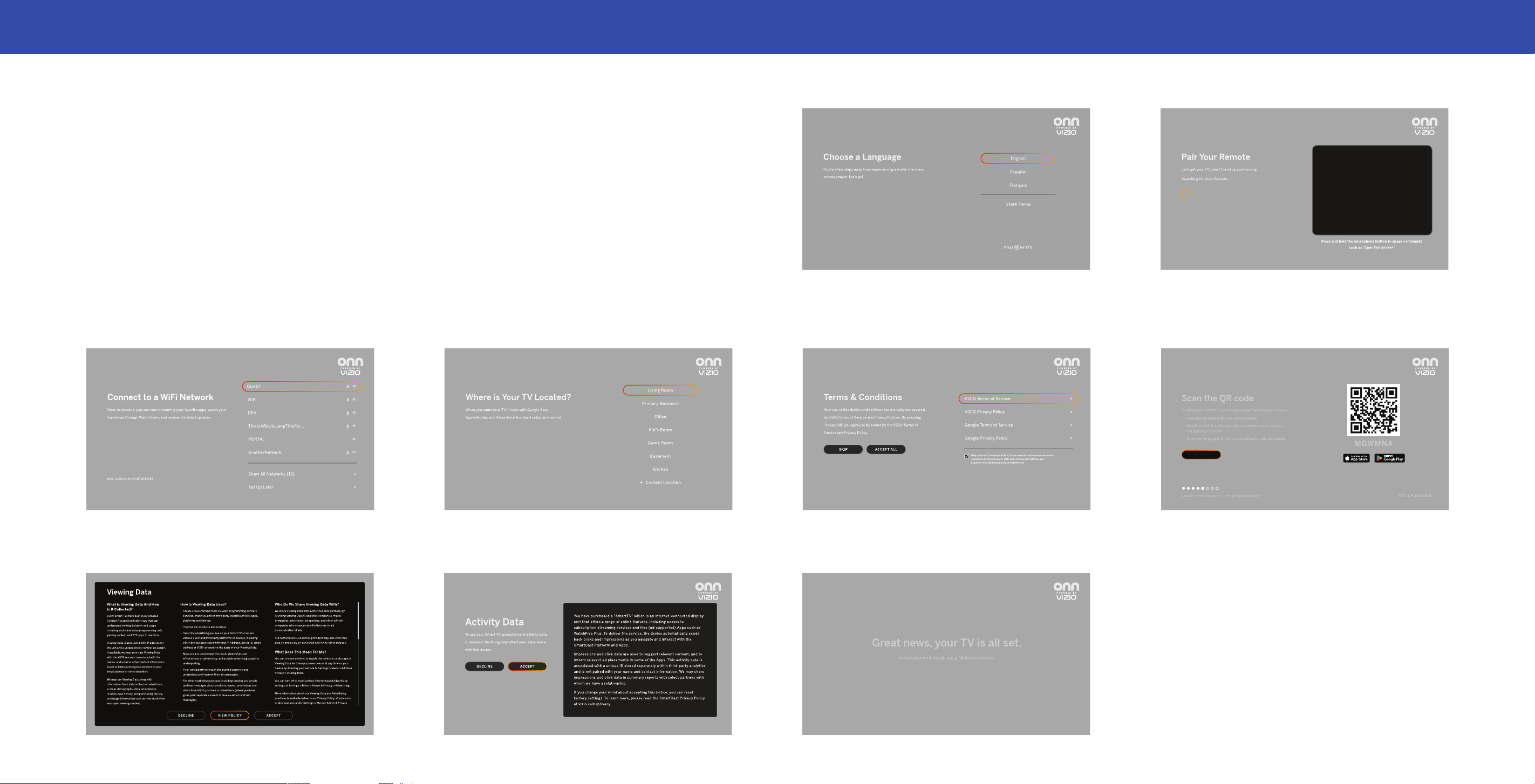
Completing the First-Time Setup
Before you start the first-time setup, please make sure:
• Your Smart TV is securely positioned, and the power cord is plugged in to the outlet.
• You have your smartphone ready to download the VIZIO mobile app.
• You have your wireless network password ready.
After you turn “on” your Smart TV for the first time, the on-screen instructions will guide
you through each step to set it up.
1. Choose your language.
Pressing the MUTE button will
enable TTS (text-to-speech) functionality.
3. Choose your WiFi network and enter the password.
4. Choose your TV's location. 6. Scan the QR code with your smartphone to set up your
customer account and connect it to your TV. Setup on
web is also available.
2. For 2K TVs, the IR remote does not require pairing.
For 4K TVs, the voice remote requires pairing.
7. Accept the VIZIO Viewing Data policy.
5. Accept the VIZIO Terms and Conditions.
8. Accept the VIZIO Activity Data policy. 9. The setup is complete.
Great news, your TV is all set.
Entertainment made easy. Welcome home.
Great news, your TV is all set.
Entertainment made easy. Welcome home.
Scan the QR code
To set up your Smart TV, you’ll need a Walmart account to log in.
• Scan the QR code with your camera phone
• Install the VIZIO mobile app (if you already have it, the app
will launch) and log in
• Once you’ve logged in, this screen will automatically refresh
V435-J01 | FW: 1.600.31.1-5 | ESN: LTP5E6KX3150455
SET UP ON WEB >
MGWMNA
LEARN MORE
Scan the QR code
To set up your Smart TV, you’ll need a Walmart account to log in.
• Scan the QR code with your camera phone
• Install the VIZIO mobile app (if you already have it, the app
will launch) and log in
• Once you’ve logged in, this screen will automatically refresh
V435-J01 | FW: 1.600.31.1-5 | ESN: LTP5E6KX3150455
SET UP ON WEB >
MGWMNA
LEARN MORE
3
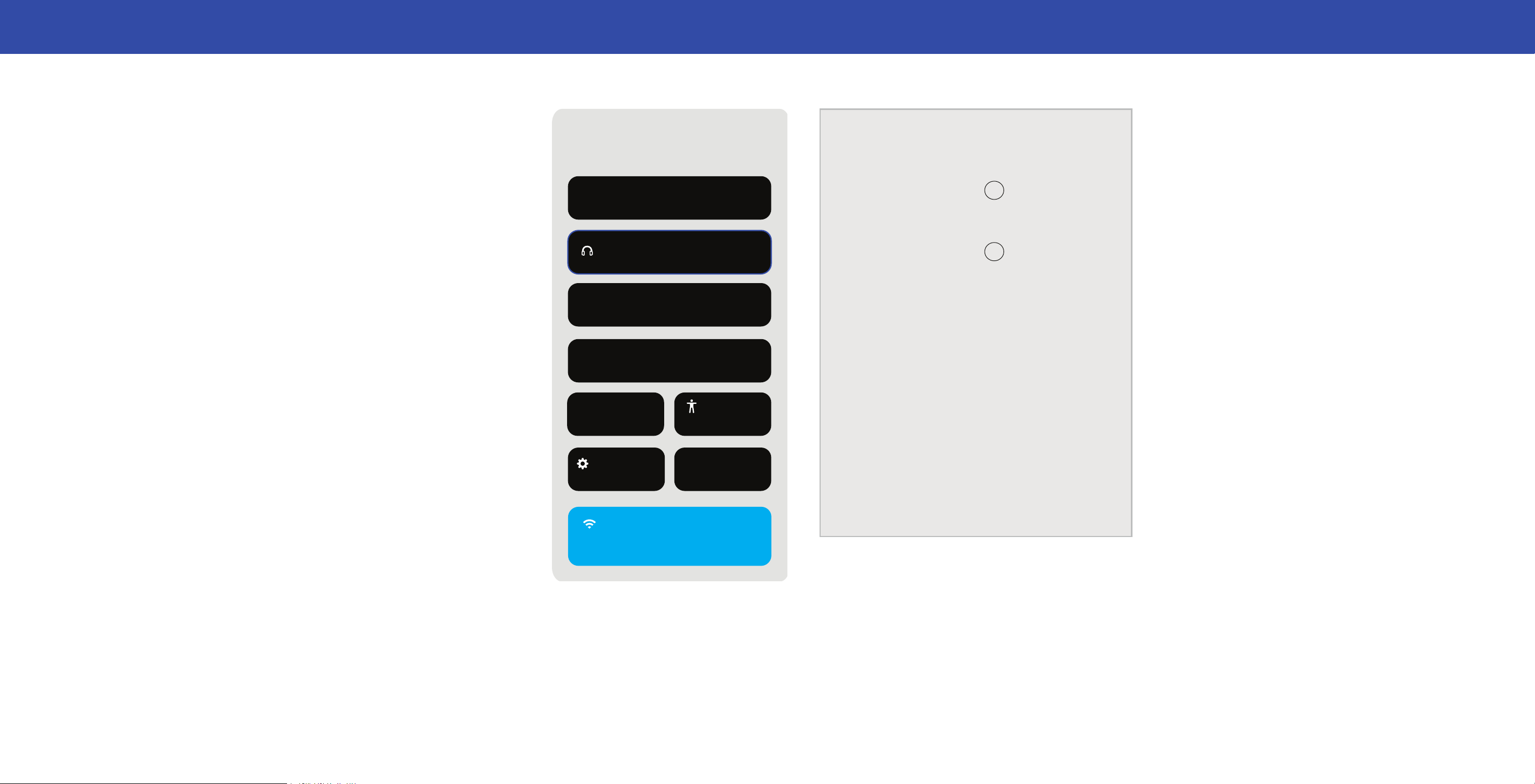
PAIRING BLUETOOTH HEADPHONES
To pair Bluetooth headphones:
1) Press the MENU button on the remote. The Quick Settings menu opens.
2) Use the Navigation buttons to highlight PAIR HEADPHONES, and press the
OK button.
3) Set your Bluetooth headphones to pairing mode (see your device manual for
instructions). The headphones will appear in the list of Other Devices.
4) Select your Bluetooth headphones and press the OK button.
5) Once paired, the device will be listed under Paired Devices and is ready for listening.
Bluetooth Headphones
TV Speakers
Paired Devices
BT Earbuds
Other Devices
Family Room TV
PICTURE MODE
PAIR HEADPHONES
CLOSED CAPTIONING
SLEEP TIMER
ALL SETTINGS
WIFI
ACCESSIBILITY
08:52
AM
Sunday, January 1
GAME MENU
HELP
POWERED BY VIZIO
4
Controlling Your TV with the VIZIO mobile app
Download the VIZIO mobile app to turn your phone into a powerful
entertainment companion.
With the VIZIO mobile app, you can:
• Control your TV with your smartphone.
• Find what to watch across multiple streaming services all in one place.
• Launch apps and find content hands-free with voice control.
• Stream free live channels on WatchFree+.
VIZIO OS
What is VIZIO OS?
VIZIO OS powers your Smart TV to provide all the apps you want, free live TV and
On Demand movies and shows with WatchFree+, and the VIZIO mobile app to
control your experience.
VIZIO OS is entertainment made easy.
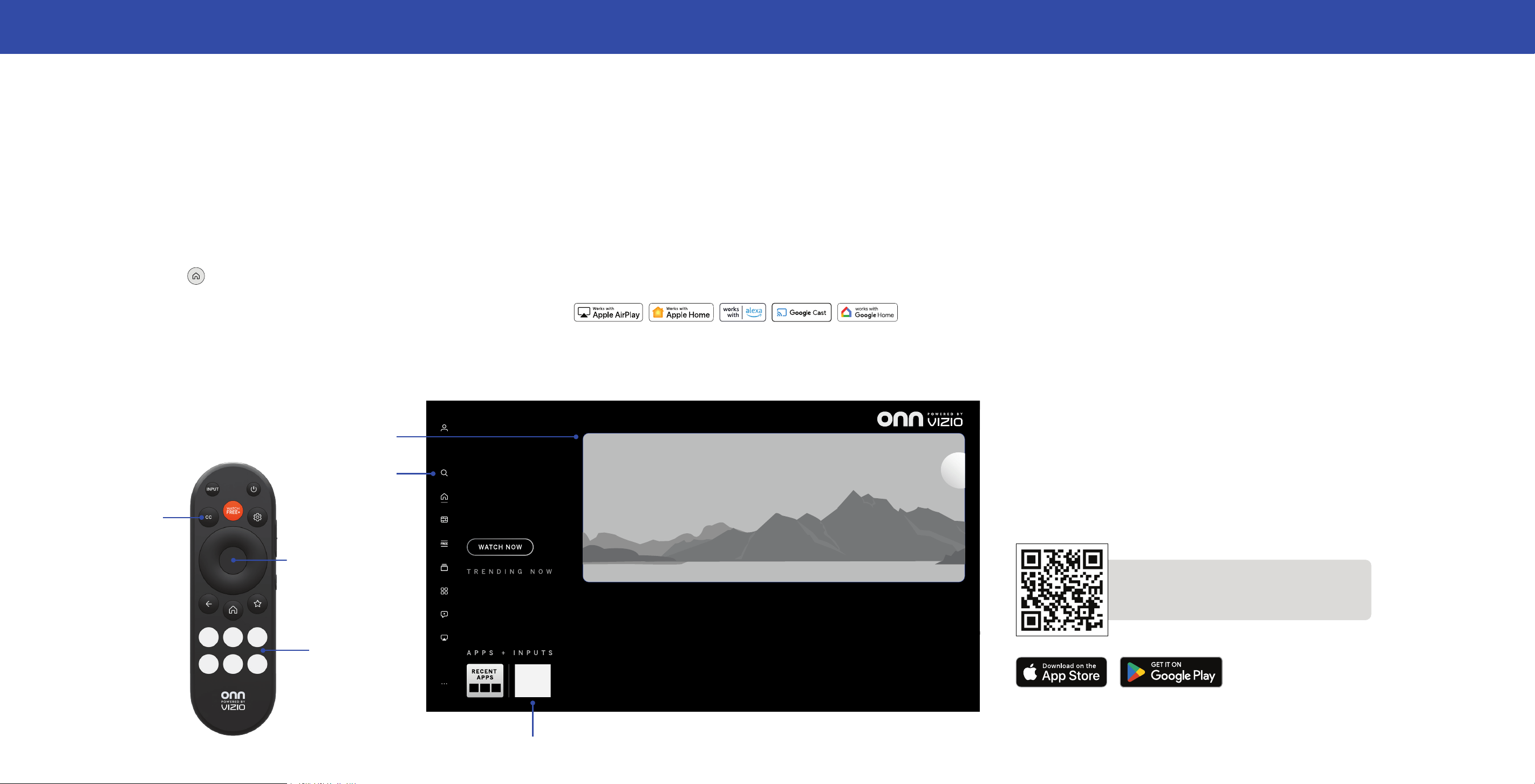
Launching the HOME SCREEN
To begin streaming from the HOME SCREEN:
• Press the Home
button on your remote.
—or—
• Select HOME from the list of inputs on your remote.
What You Can Do with VIZIO OS
• Stream high-quality entertainment and find movies, shows, sports, local news,
and more in one place.
• Easily access and launch the most popular streaming apps directly from your
Home Screen.
• Discover and enjoy FREE live TV channels and On Demand movies and shows
with VIZIO WatchFree+.
• Customize your experience with shortcuts to your favorite content, apps,
and settings.
• Get built-in compatibility with connected devices from Amazon, Google,
and Apple.
• Use Voice Search for faster content and feature discovery.
Plus, your TV keeps getting smarter with free and continuous platform updates.
Visit www.vizio.com/pairing-mobile for minimum requirements.
Scan to download
Streaming Apps on your TV
Search
Find TV shows,
movies, and more
Featured Content
Launch content with one click
Home Screen Button
Quick Access to
Popular Apps
Note:
Some TV
models have
voice enabled
remotes.
For illustration purposes only.
5
WatchFree+
What is WatchFree+?
VIZIO WatchFree+ delivers hundreds of free, live TV channels plus tens of thousands
of On Demand movies and shows, all available directly on the VIZIO OS, all free.
Easily find entertainment content including blockbuster hits and must-see shows with
intuitive navigation features on VIZIO WatchFree+.
What You Can Do with WatchFree+
• Stream live TV channels for FREE – local news, movies, sports, comedy,
music, and more.
• Watch On Demand movies and shows for FREE including action, comedy,
horror, crime, romance, and more.
• Customize your experience by easily accessing favorite channels and
personalized content.
• Find the content you love with robust search tools that filter by title, genre,
or category.
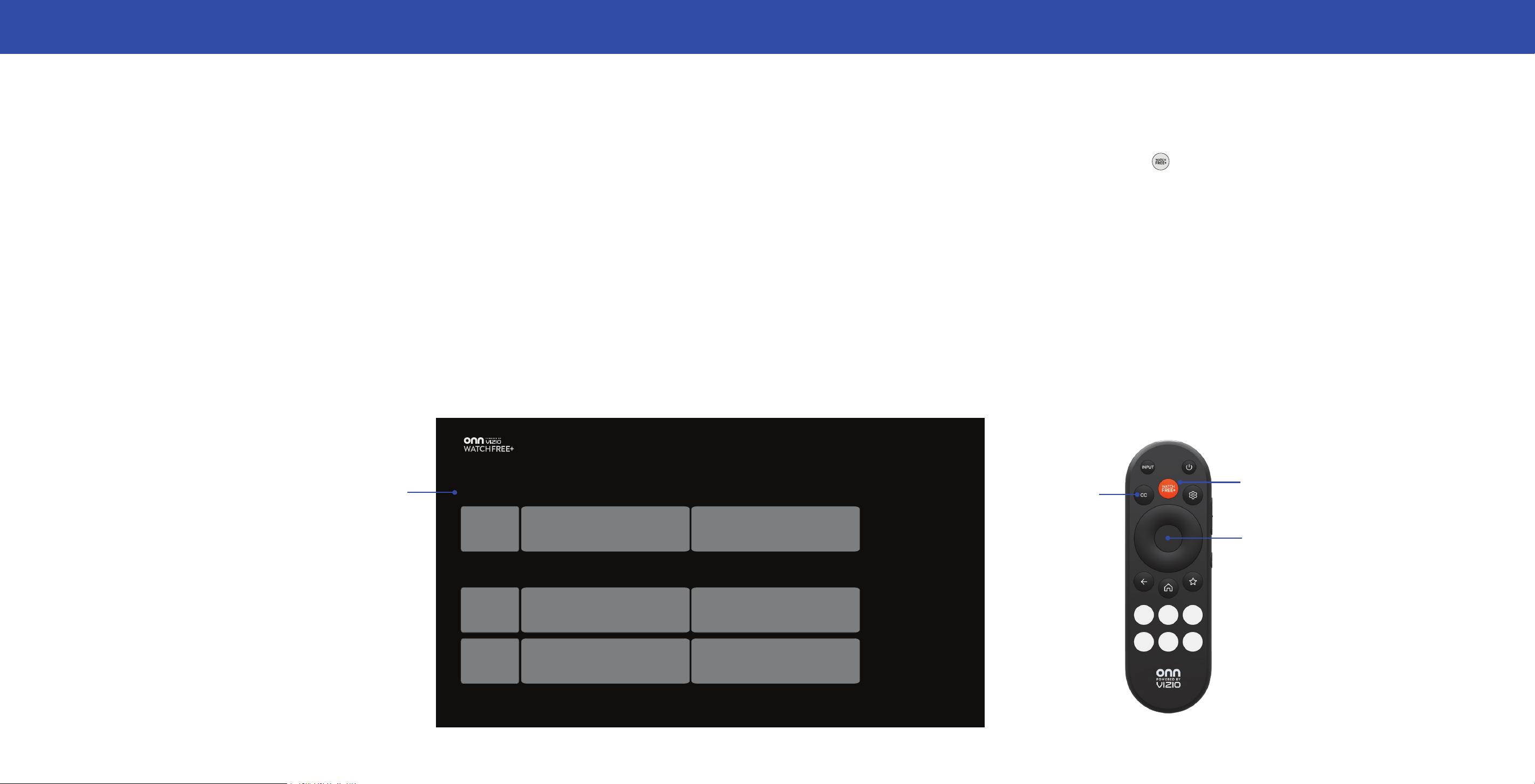
How to Launch WatchFree+
To launch and begin watching entertainment oered on VIZIO WatchFree+, you can:
1) Press the WatchFree+
button on your remote; or
2) Select WatchFree+ from the list of inputs; or
3) Select the WatchFree+ app on the Apps & Inputs row on the Home Screen.
On-Screen Guide
Hundreds of live TV and audio channels organized by genre.
RECENT
FEATURED
WatchFree+ Button
OK Button
Press the OK button to return to the
full WatchFree+ on-screen guide.
Use the up/down Navigation buttons
to scroll through the guide.
Note:
Some TV
models have
voice enabled
remotes.
For illustration purposes only.
6
Troubleshooting
TIP: If your TV is connected to a network with an Ethernet cable, you will
not see the wireless network connection menu. You must unplug the
Ethernet cable to set a wireless network connection.
WARNING: If you restore the TV to the factory default settings, all
change you have made to the settings will be lost. This includes any
wireless or picture settings.
VIZIO Home Screen is Not Available / VIZIO Home Input Not Loading /
OK Button Not Working on VIZIO Home Screen
Are you having trouble with your TV displaying a message that VIZIO Home input isn’t
available or the VIZIO Home Screen isn’t loading? Don’t worry, we’re here to help!
Follow these simple steps:
First, make sure your TV is connected to your network. Just go to Menu or
> All Settings
> Network > Test Connection.
• If it says you're connected, you can leave the menu.
• If the network test shows that network isn't connected, or the connected speed is 0 or
unavailable, don't panic! We have some handy network troubleshooting steps right here.
Next, try refreshing your VIZIO Home by clearing the cache. This is easy to do. Go to
Menu or
> All Settings > System > Menu Language > Select Spanish or French
(but don't close the menu!).
Now, wait for VIZIO Home to load. If it doesn't load, it might be due to your home
network running slow.
Once VIZIO Home loads, you can switch the menu language back to English.
If VIZIO Home still doesn't load, we'll need to reset your TV. This is also easy to do.
Just go Menu or
> Admin & Privacy > Reset to Factory Defaults > Reset TV.
Finally, go through the setup of your TV once again.
If you still need help, click here to reach out to our Customer Support Team. We're here
to ensure you enjoy a seamless viewing experience on your TV!

7
Help Topics
The remote is not responding.
• Make sure the batteries are properly inserted matching the - and + symbols.
• Replace the batteries with fresh ones.
The TV displays “No Signal.”
• Look behind your TV to see where your device is connected. There will be a name
next to the port you are using.
» Make sure your device is powered on.
» Press the INPUT button on the TV remote control and choose the port your
device is connected too.
• If you are using cable TV or antenna connected directly to the TV, scan for channels.
There is no power.
• Ensure the power cable is securely attached to the TV and outlet. (Some models do
not have a detachable power cable).
• Ensure the outlet the TV is connected to is working. You may want to connect another
device to the outlet to ensure the devices are receiving power.
• Press the Power/Standby button on the remote or on the bottom of the TV to turn
the TV on.
The power is on, but there is no image on the screen.
• Ensure all devices are connected securely and correctly. See your device’s user
manual for details.
• Ensure your TV is powering on. When your TV powers on, a light on the remote sensor
will turn on.
• Press the MENU button on your remote control. If you can see the menu, try to adjust
Brightness, Contrast, or Backlight.
• Press the INPUT button on the remote to select a dierent input source.
The sound is flat or dialog is not audible.
• Turn o Volume Leveling.
Where do I find information on the accessibility features of this product and
other VIZIO products?
• Please visit vizio.com/accessibility,
• Email us at: Accessibility@vizio.com, or
• Give us a call at 1-877-698-4746.
How do I stream apps like Netflix to my Smart TV?
• Popular apps are located on the Home screen, so you can simply navigate to the app
row on your TV to start streaming.
• You can also use Apple AirPlay 2 or Chromecast built-in to stream content from your
device directly to your TV. For more information,
please visit:
» VIZIO.com/Apple
» VIZIO.com/Google
The colors on the TV don’t look right.
• Adjust the Color and Tint settings in the Picture menu.
• Select a pre-set picture mode. Calibrated is recommended.
• Check all cables to ensure they are securely attached.
The image quality is not good.
• Image quality can very depending on personal preference and environmental factors
like how much light is in a room. Your TV includes a variety of picture settings and
preset picture modes that can be adjusted to calibrate this TV to your preference.
• Image quality can vary depending on what program you are watching, and what device
or app you are using to watch it. For the best picture quality, HD or UHD recommended.
You can contact your device manufacturer or app provider for more information about
their video playback quality.
• For the best image quality, view high-definition programs using digital sources.
Connect your devices with HDMI cables.
• If you are using an antenna, the signal strength of the channel may be low. Ensure
your antenna is connected securely to the TV and move the antenna around the room
or close to a window for the best signal.
The picture is distorted.
• Move the TV away from electrical appliances, cars, and fluorescent lights.
• Ensure all cables are securely attached.
The TV image does not cover the entire screen.
• Go to All Settings > Picture > Aspect Ratio to adjust the Aspect Ratio.
The buttons on the remote aren’t working.
• Ensure you are only pressing one button at a time.
• Point the remote directly at the TV when pressing a button.
• Replace the remote batteries with new ones.
• Remove any obstacles that may be blocking the remote sensor on the TV.
There is no sound.
• Press Volume Up on the remote control.
• Press the MUTE button on the remote to ensure mute is o.
• Check the audio settings to ensure your TV speakers are set to On.
• Check the audio connections of external devices (Blu-ray player, game console,
cable/satellite box) that are connected to the TV.
• If you are using an antenna, the signal strength of the channel may be low. Ensure
your antenna is connected securely to the TV and move the antenna around the room
or close to a window for the best signal.
• Set eARC to O and use ARC mode.
How do I download the VIZIO mobile app?
• Make sure your phone or tablet is connected to a WiFi network. Open a browser
on your phone or tablet.
• Navigate to https://www.vizio.com/en/download-vizio-mobile and follow the
on-screen instructions to download the VIZIO mobile app.

8
Help Topics
How do I change the Inputs?
• Press the INPUT button on the remote to cycle through the Inputs.
• Make sure the VIZIO mobile app is installed on your phone or tablet. Open the VIZIO
mobile app. Tap on the Device list and select your TV. Tap INPUT and select the Input
of your choice.
How do I connect to my WiFi network?
• On your TV remote, press the MENU button then go to All Settings > Network >
Select your WiFi name > Enter password.
How do I exit Demo Mode?
• Press the BACK button on the remote and then select Exit Demo and press OK.
How do I watch Cable/Antenna TV channels?
• If you subscribe to cable or satellite, simply connect an HDMI cable (not included) to
the receiver.
• If you use external antennas to watch local broadcast channels, use a coaxial cable to
connect.
Some of my Channels are missing.
• Press the MENU button on your TV remote, then go to All Settings > Antenna
Channels > Find Channels.
• Open the VIZIO mobile app on your phone or tablet.
» Click on: Menu Tab > Devices > Your TV/Device Name > Channels > Find Channels.
How do I disable/enable Viewing Data?
• Press the MENU button on your remote go to All Settings > Admin & Privacy, then
select Viewing Data to turn the feature on or o.
The television will not turn on using Alexa or Google Assistant.
• Ensure the television is in Quick Start Mode.
• Press the MENU button, then go to All Settings > System > Power Mode > Quick Start.
How do I know I am getting 4K resolution or HDR content such as
Dolby Vision? (for 4K models only)
• As you are watching content on the television, press the INFO button on the remote
or VIZIO mobile app. You will see the current resolution being displayed along with the
version of video.
• HDR will show as a Dolby Vision icon, HDR10 or HLG.